Get plugged in
HCL Connections for Office, Notes and
Outlook
Thanks to the sponsors!
About me
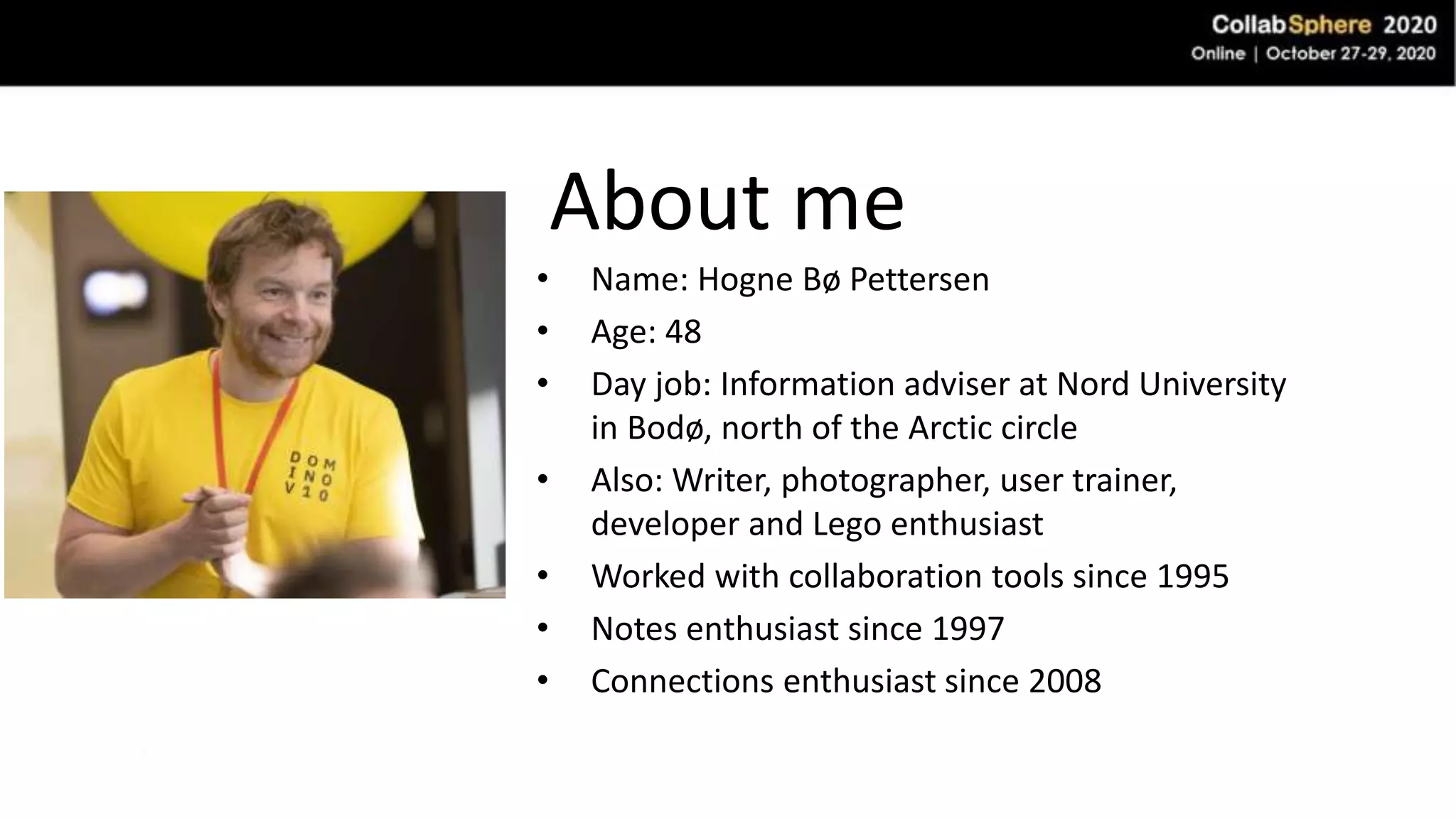
• Name: Hogne Bø Pettersen
• Age: 48
• Day job: Information adviser at Nord University
in Bodø, north of the Arctic circle
• Also: Writer, photographer, user trainer,
developer and Lego enthusiast
• Worked with collaboration tools since 1995
• Notes enthusiast since 1997
• Connections enthusiast since 2008
What plugins are there?
• HCL Notes
• Microsoft Office and Windows Explorer
• Finder for Mac OS
• Outlook (discontinued)
Plugin for HCL Notes
• Divided into three sidebar panels
– Status Updates
– Files
– Activities
• Also includes right click functions for Notes
• You can only connect to one Connections site
• Currently doesn’t work with Connections cloud services 
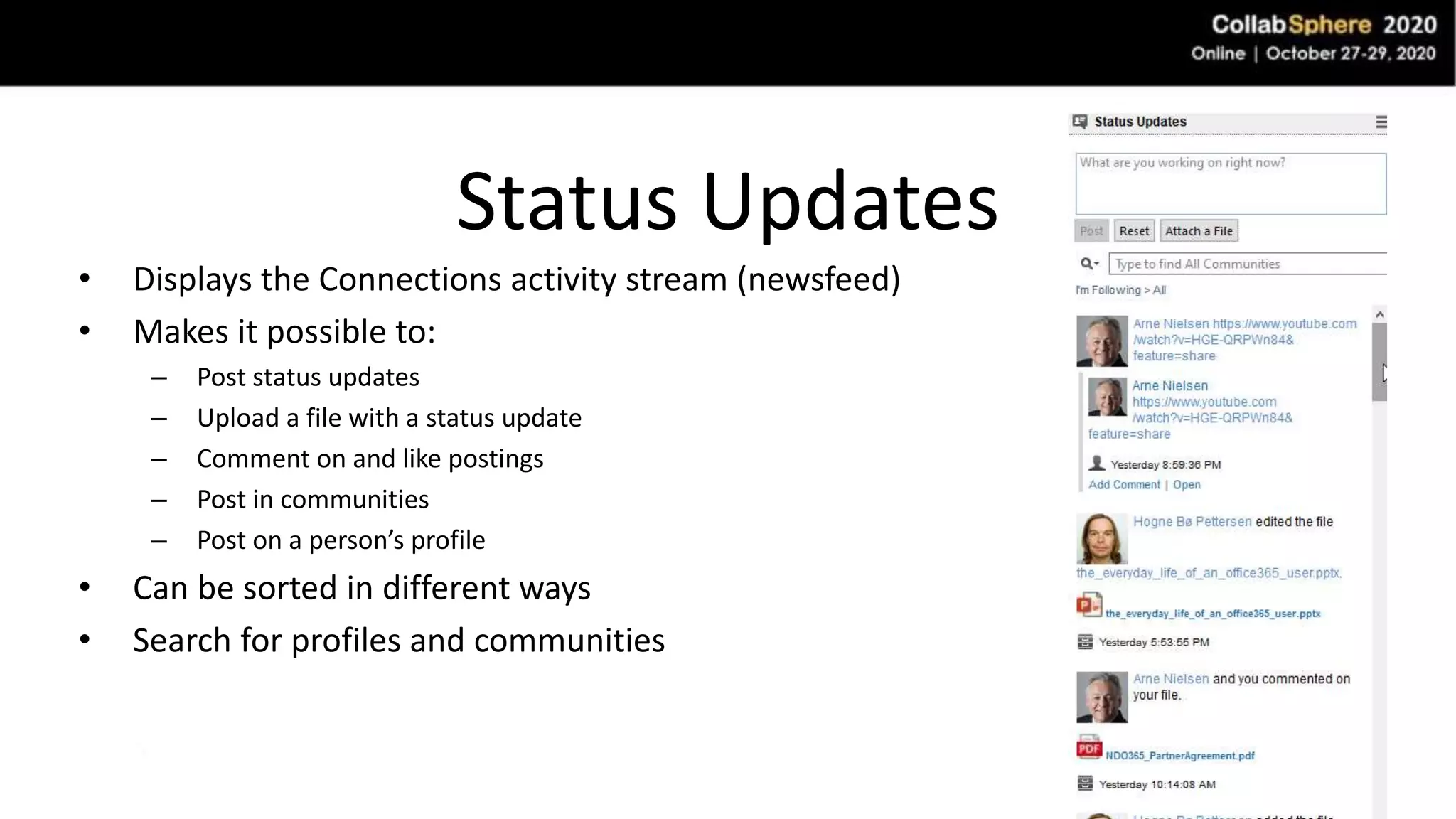
Status Updates
• Displays the Connections activity stream (newsfeed)
• Makes it possible to:
– Post status updates
– Upload a file with a status update
– Comment on and like postings
– Post in communities
– Post on a person’s profile
• Can be sorted in different ways
• Search for profiles and communities
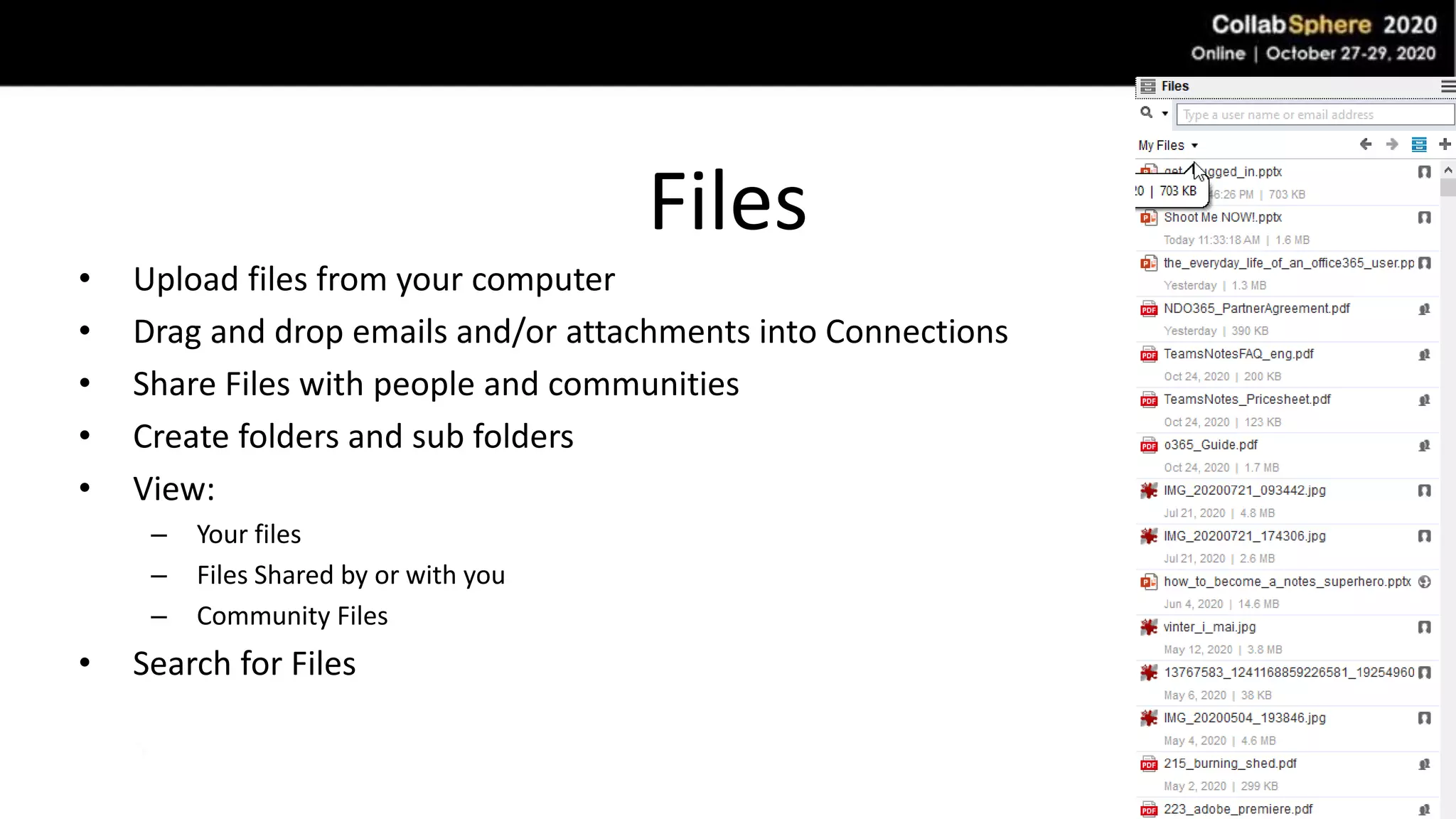
Files
• Upload files from your computer
• Drag and drop emails and/or attachments into Connections
• Share Files with people and communities
• Create folders and sub folders
• View:
– Your files
– Files Shared by or with you
– Community Files
• Search for Files
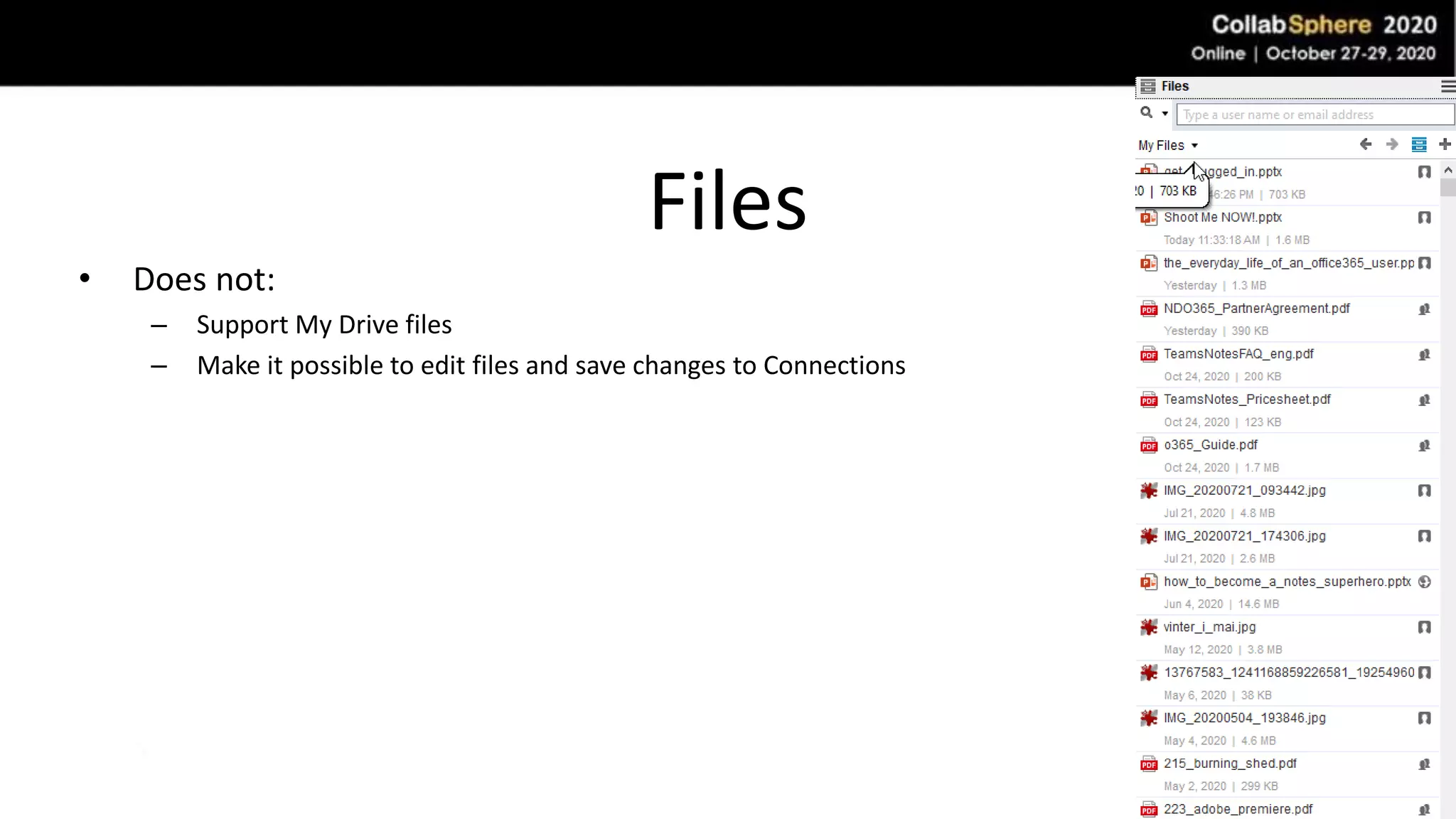
Files
• Does not:
– Support My Drive files
– Make it possible to edit files and save changes to Connections
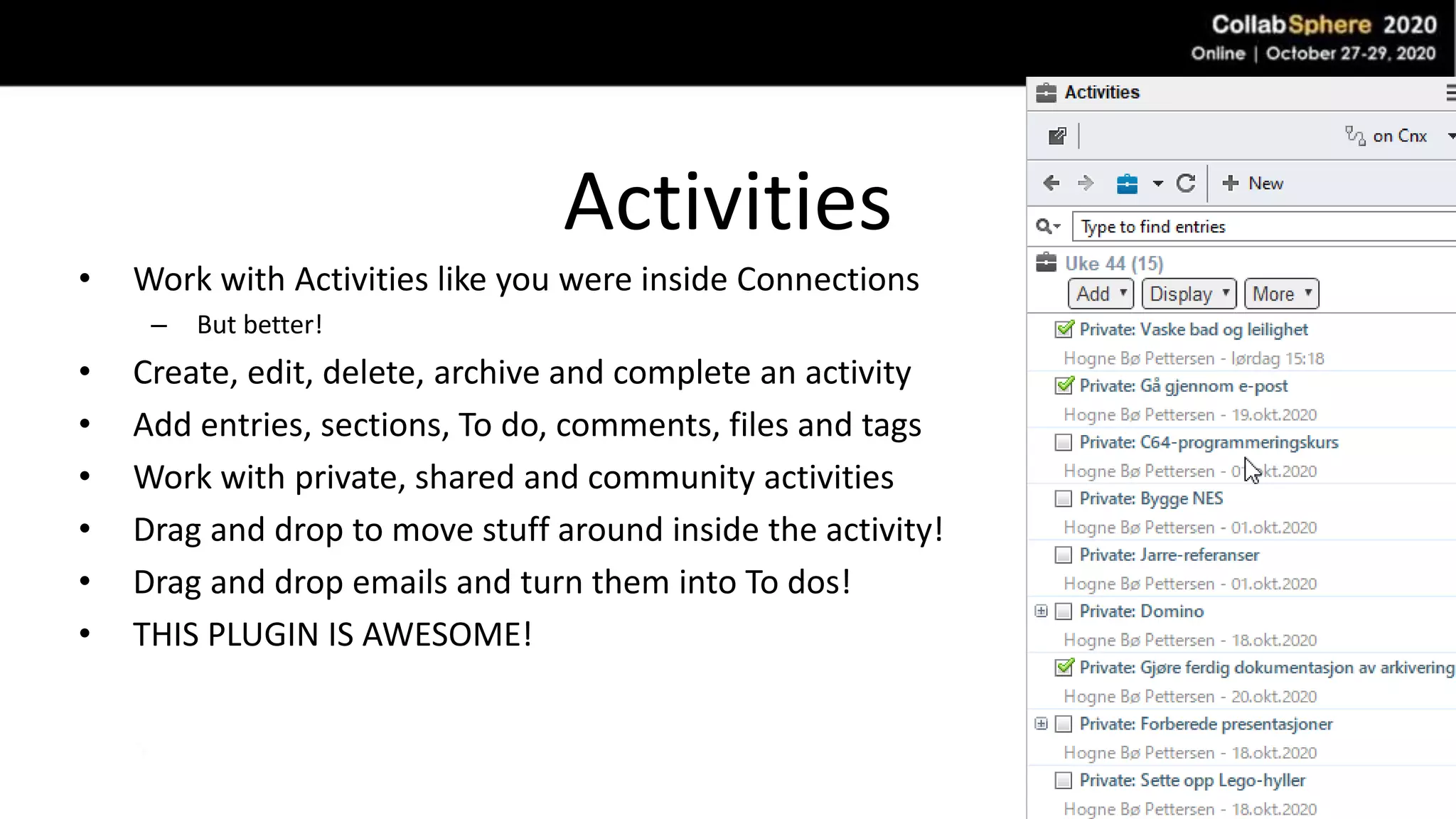
Activities
• Work with Activities like you were inside Connections
– But better!
• Create, edit, delete, archive and complete an activity
• Add entries, sections, To do, comments, files and tags
• Work with private, shared and community activities
• Drag and drop to move stuff around inside the activity!
• Drag and drop emails and turn them into To dos!
• THIS PLUGIN IS AWESOME!
Plugin for HCL Notes
DEMO!
Plugin for HCL Notes
• You can download a complete manual for this plugin:
– http://domino.elfworld.org/ibm-connections-tip-3-ibm-connections-plugins-for-ibm-notes/
Plugin for Microsoft Office and
Windows Explorer
• Maps Connections like a drive in Explorer
• Work seamlessly with files as if they were local
• Drag and drop files straight to Connections
• Sync and work offline with files via My drive (PS! You lose version control!)
Plugin for Microsoft Office and
Windows Explorer
• Tag, comment and like
• Lost of right click functionality
• Your own Connections tab in Office
• Connects to as many Connections sites as you want
• Works with folders and nested folders
• Version control only works for Office files
• With My drive you can work with files from any program
• Upload files to Activities
Plugin for Microsoft Office and
Windows Explorer
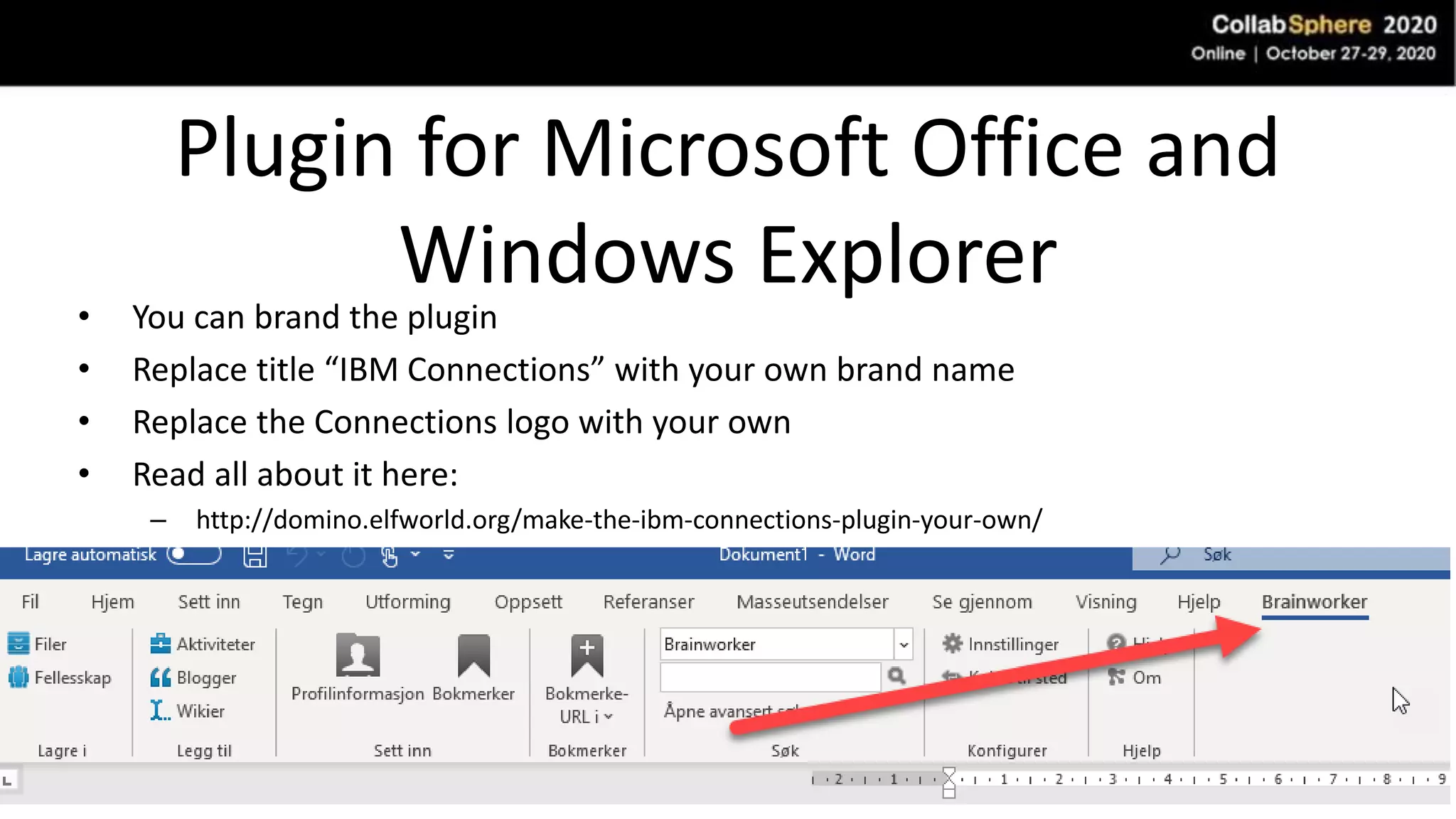
• You can brand the plugin
• Replace title “IBM Connections” with your own brand name
• Replace the Connections logo with your own
• Read all about it here:
– http://domino.elfworld.org/make-the-ibm-connections-plugin-your-own/
Plugin for Microsoft Office and
Windows Explorer
• DEMO
Plugin for Mac
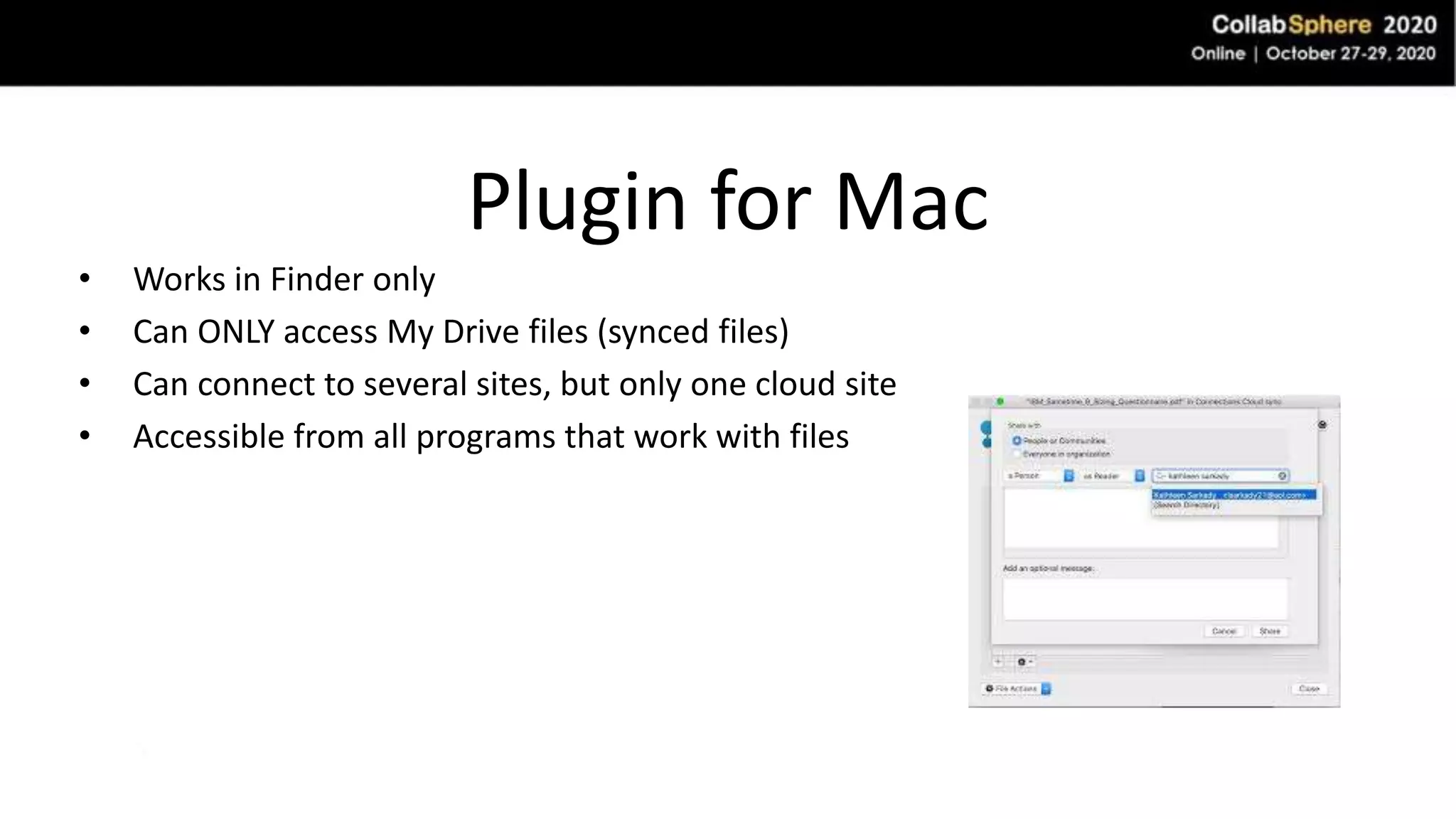
• Works in Finder only
• Can ONLY access My Drive files (synced files)
• Can connect to several sites, but only one cloud site
• Accessible from all programs that work with files
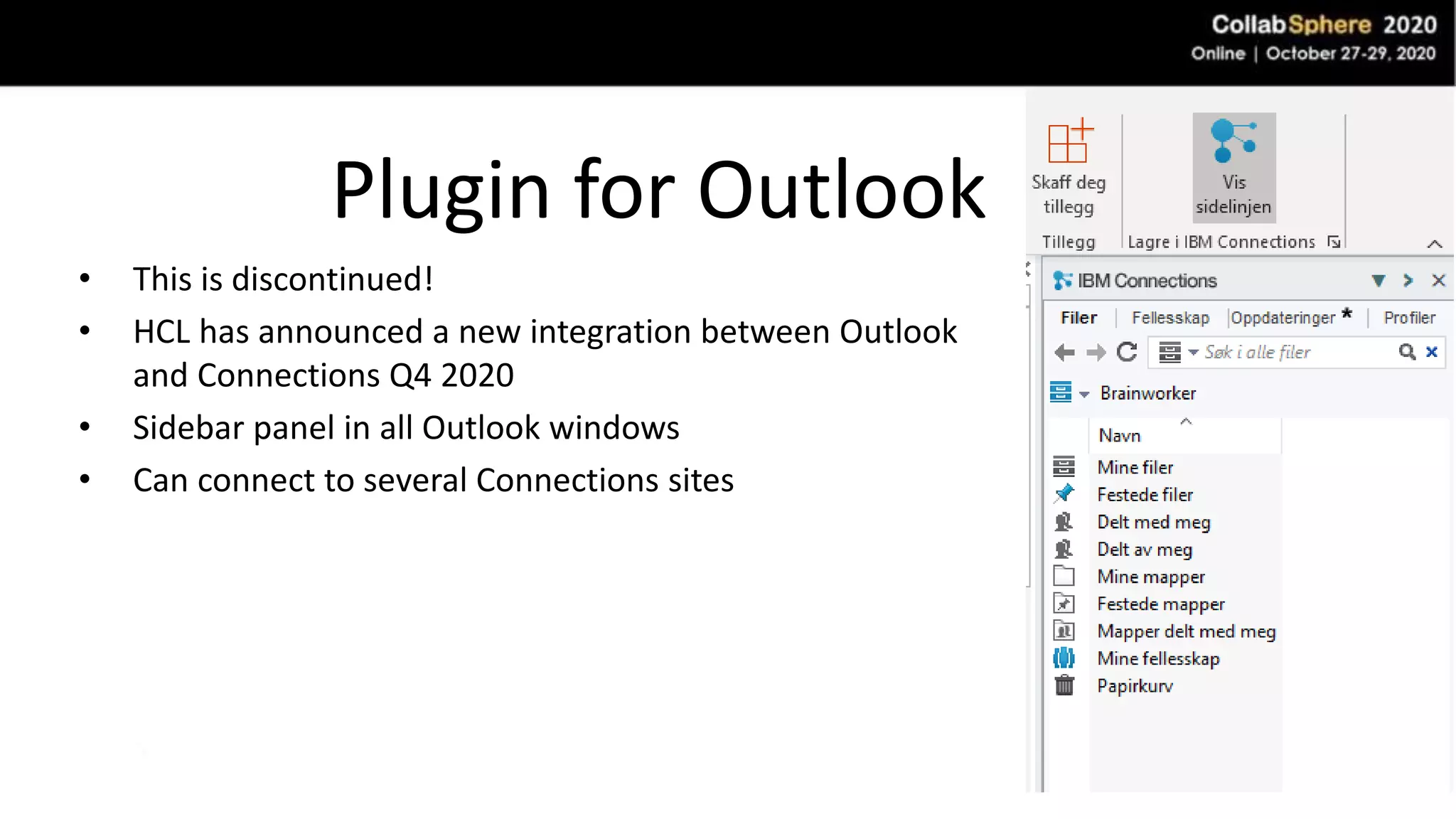
Plugin for Outlook
• This is discontinued!
• HCL has announced a new integration between Outlook
and Connections Q4 2020
• Sidebar panel in all Outlook windows
• Can connect to several Connections sites
Plugin for Outlook
• Doesn’t work with My drive-files
• Limited functionality with Activities
• Lots of integration with Connections
• Contact me if you want a copy (sssshhhhhh!)
Plugin for Outlook
• DEMO
Wrapup
• Hogne can be found here:
– Blog: https://domino.elfworld.org
– Twitter: @NordicCUG
– Instagram: @elfworl
– Flickr: https://www.flickr.com/photos/elfworld/
– Facebook: https://www.facebook.com/hognebp/
– LinkedIn: https://www.linkedin.com/in/hbpettersen/
Questions?

Get plugged in with HCL Connections

  • 1.
    Get plugged in HCLConnections for Office, Notes and Outlook
  • 2.
    Thanks to thesponsors!
  • 3.
    About me • Name:Hogne Bø Pettersen • Age: 48 • Day job: Information adviser at Nord University in Bodø, north of the Arctic circle • Also: Writer, photographer, user trainer, developer and Lego enthusiast • Worked with collaboration tools since 1995 • Notes enthusiast since 1997 • Connections enthusiast since 2008
  • 4.
    What plugins arethere? • HCL Notes • Microsoft Office and Windows Explorer • Finder for Mac OS • Outlook (discontinued)
  • 5.
    Plugin for HCLNotes • Divided into three sidebar panels – Status Updates – Files – Activities • Also includes right click functions for Notes • You can only connect to one Connections site • Currently doesn’t work with Connections cloud services 
  • 6.
    Status Updates • Displaysthe Connections activity stream (newsfeed) • Makes it possible to: – Post status updates – Upload a file with a status update – Comment on and like postings – Post in communities – Post on a person’s profile • Can be sorted in different ways • Search for profiles and communities
  • 7.
    Files • Upload filesfrom your computer • Drag and drop emails and/or attachments into Connections • Share Files with people and communities • Create folders and sub folders • View: – Your files – Files Shared by or with you – Community Files • Search for Files
  • 8.
    Files • Does not: –Support My Drive files – Make it possible to edit files and save changes to Connections
  • 9.
    Activities • Work withActivities like you were inside Connections – But better! • Create, edit, delete, archive and complete an activity • Add entries, sections, To do, comments, files and tags • Work with private, shared and community activities • Drag and drop to move stuff around inside the activity! • Drag and drop emails and turn them into To dos! • THIS PLUGIN IS AWESOME!
  • 10.
    Plugin for HCLNotes DEMO!
  • 11.
    Plugin for HCLNotes • You can download a complete manual for this plugin: – http://domino.elfworld.org/ibm-connections-tip-3-ibm-connections-plugins-for-ibm-notes/
  • 12.
    Plugin for MicrosoftOffice and Windows Explorer • Maps Connections like a drive in Explorer • Work seamlessly with files as if they were local • Drag and drop files straight to Connections • Sync and work offline with files via My drive (PS! You lose version control!)
  • 13.
    Plugin for MicrosoftOffice and Windows Explorer • Tag, comment and like • Lost of right click functionality • Your own Connections tab in Office • Connects to as many Connections sites as you want • Works with folders and nested folders • Version control only works for Office files • With My drive you can work with files from any program • Upload files to Activities
  • 14.
    Plugin for MicrosoftOffice and Windows Explorer • You can brand the plugin • Replace title “IBM Connections” with your own brand name • Replace the Connections logo with your own • Read all about it here: – http://domino.elfworld.org/make-the-ibm-connections-plugin-your-own/
  • 15.
    Plugin for MicrosoftOffice and Windows Explorer • DEMO
  • 16.
    Plugin for Mac •Works in Finder only • Can ONLY access My Drive files (synced files) • Can connect to several sites, but only one cloud site • Accessible from all programs that work with files
  • 17.
    Plugin for Outlook •This is discontinued! • HCL has announced a new integration between Outlook and Connections Q4 2020 • Sidebar panel in all Outlook windows • Can connect to several Connections sites
  • 18.
    Plugin for Outlook •Doesn’t work with My drive-files • Limited functionality with Activities • Lots of integration with Connections • Contact me if you want a copy (sssshhhhhh!)
  • 19.
  • 20.
    Wrapup • Hogne canbe found here: – Blog: https://domino.elfworld.org – Twitter: @NordicCUG – Instagram: @elfworl – Flickr: https://www.flickr.com/photos/elfworld/ – Facebook: https://www.facebook.com/hognebp/ – LinkedIn: https://www.linkedin.com/in/hbpettersen/
  • 21.