Securing Your WordPress Website

             Vladimir Lasky
         http://wpexpert.com.au/
         WordCamp Sydney 2012
                                   1
What’s New In Today’s Talk?

1.   The biggest security threats of 2012 and how
     to deal with them
2.   An updated list of essential WordPress
     hardening steps for EVERY site
3.   New WordPress management services that
     make your life easier


                                              2
Big Events in Internet Security This Year

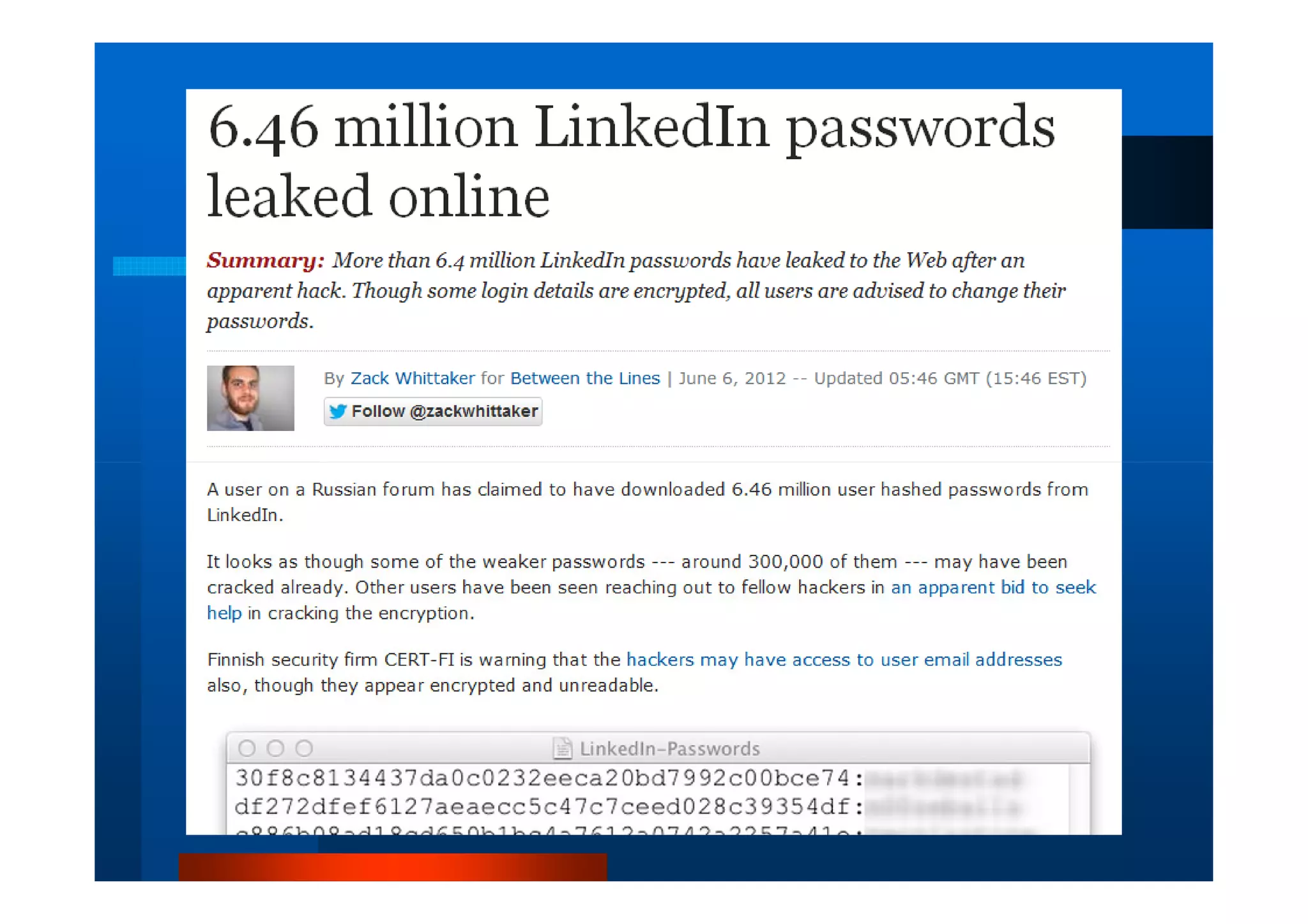
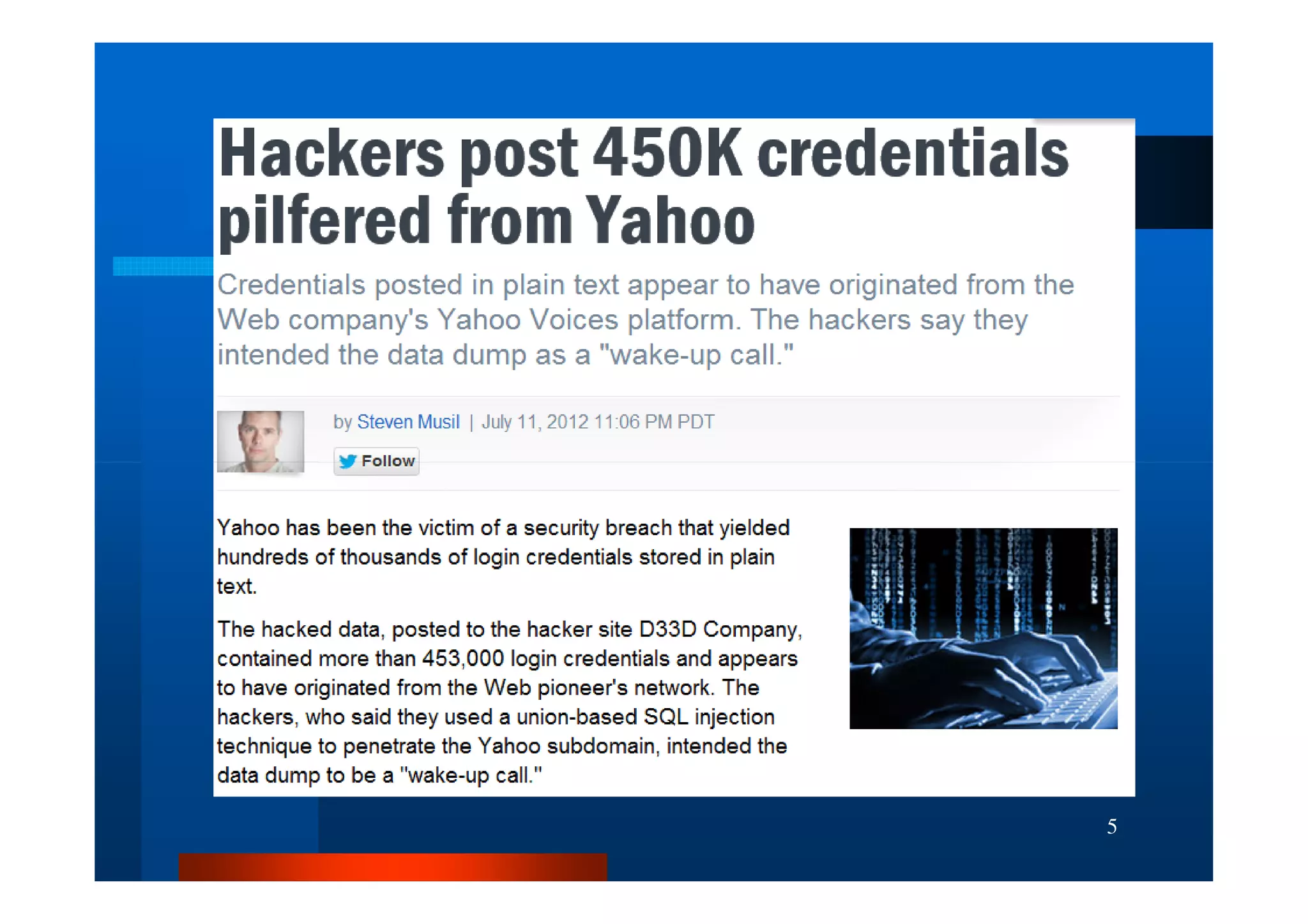
1.   Yahoo, LinkedIn, eHarmony all experienced
     security incidents that resulted in users’
     passwords/hashes being published
2.   Lots of exploits targeting code using
     vulnerable PHP libraries including TimThumb
     and Uploadify
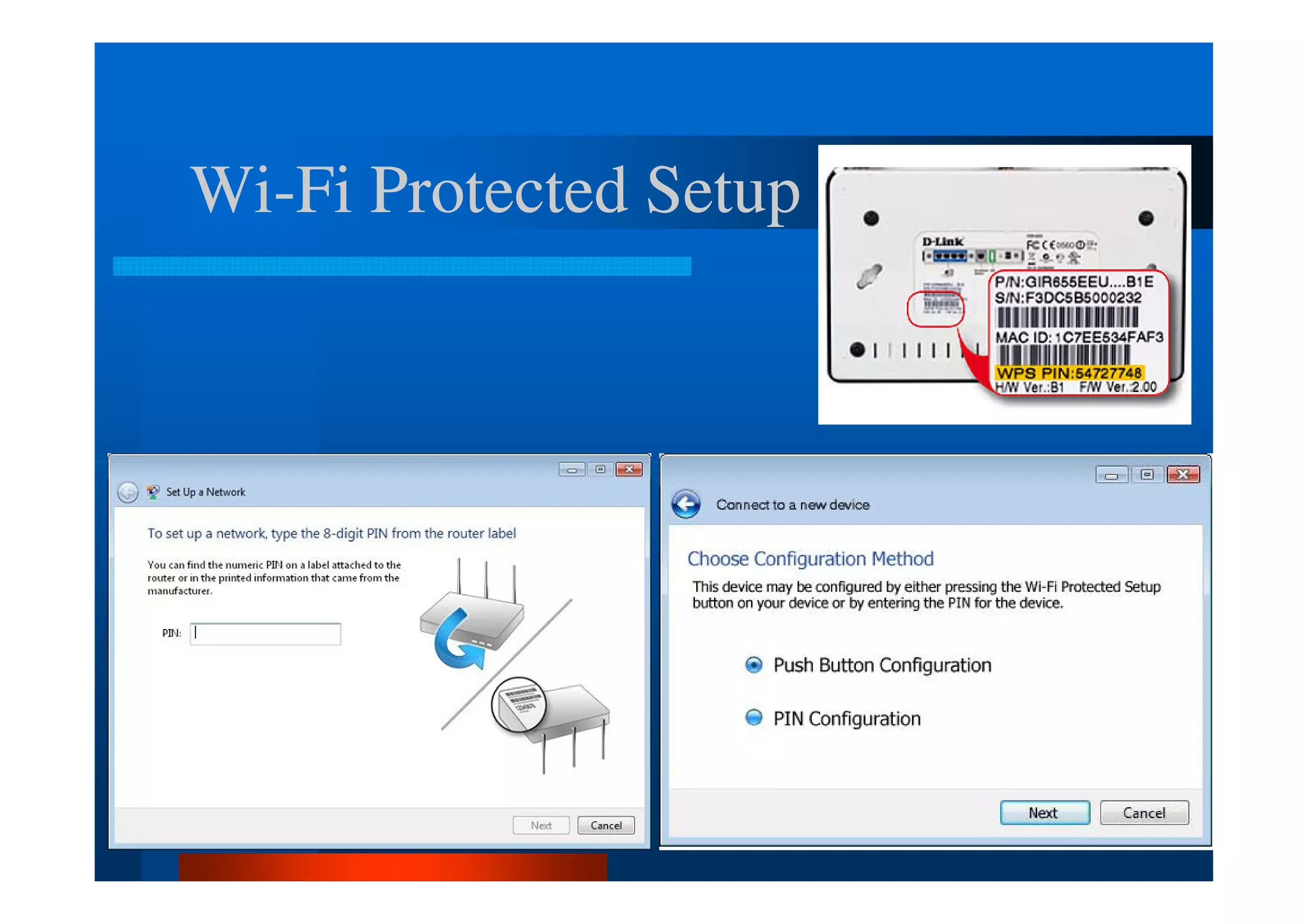
3.   Wi-Fi Protected Setup (WPS) vulnerability in
     Wireless Routers revealed in December 2011
                                             3
4
5
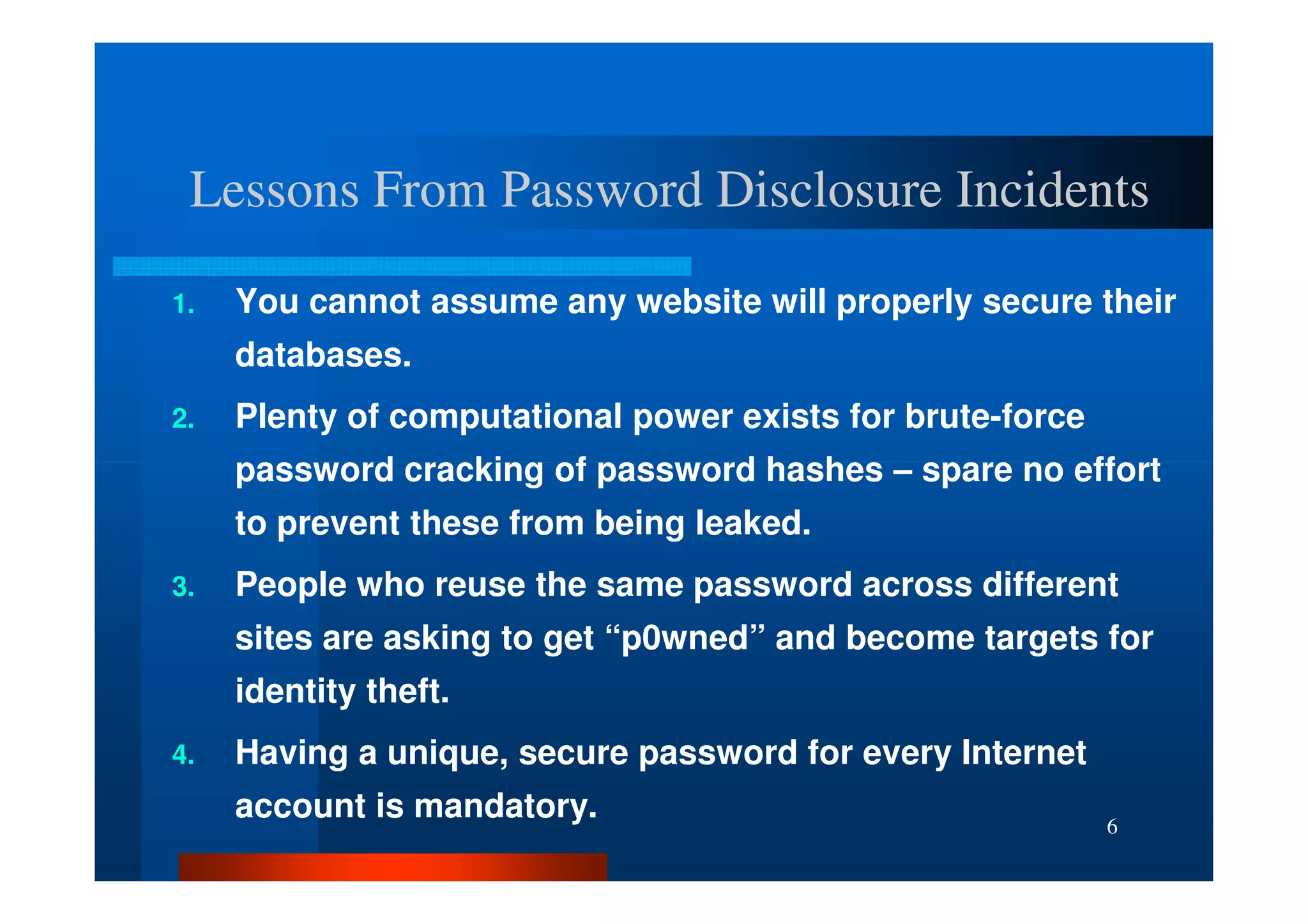
Lessons From Password Disclosure Incidents

1.   You cannot assume any website will properly secure their
     databases.
2.   Plenty of computational power exists for brute-force
     password cracking of password hashes – spare no effort
     to prevent these from being leaked.
3.   People who reuse the same password across different
     sites are asking to get “p0wned” and become targets for
     identity theft.
4.   Having a unique, secure password for every Internet
     account is mandatory.                                  6
Wi-Fi Protected Setup
Wi-


                        7
Lessons from WPS Vulnerability

1.   The WPS exploit provides a backdoor to
     wireless routers secured with WPA2
2.   Technologies that overcome security
     burdens often introduce security holes
3.   Disable WPS in every Wi-Fi Router that you
     control. In some cases, this will require a
     firmware upgrade or possibly even replacing
     the router                                    8
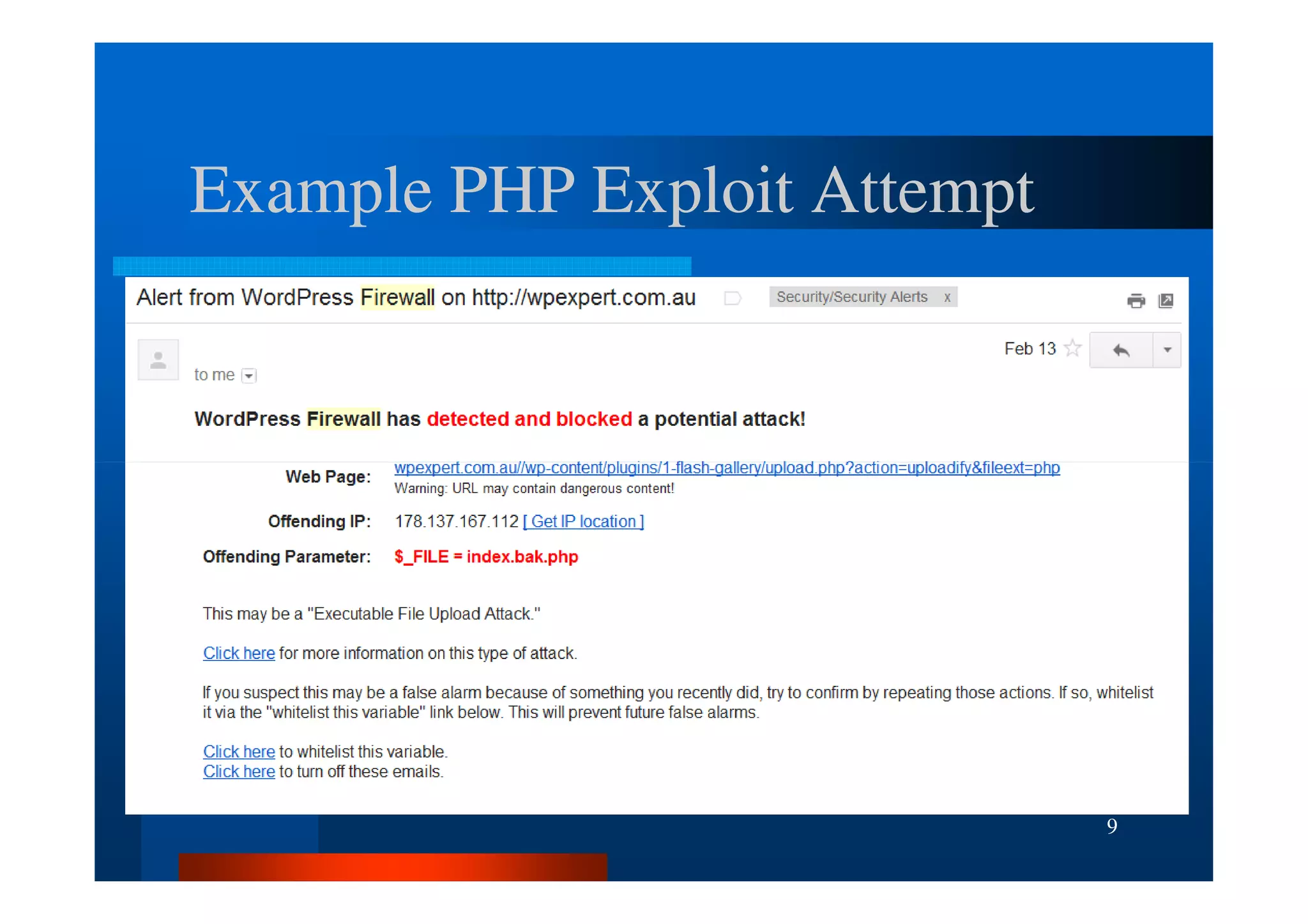
Example PHP Exploit Attempt


                              9
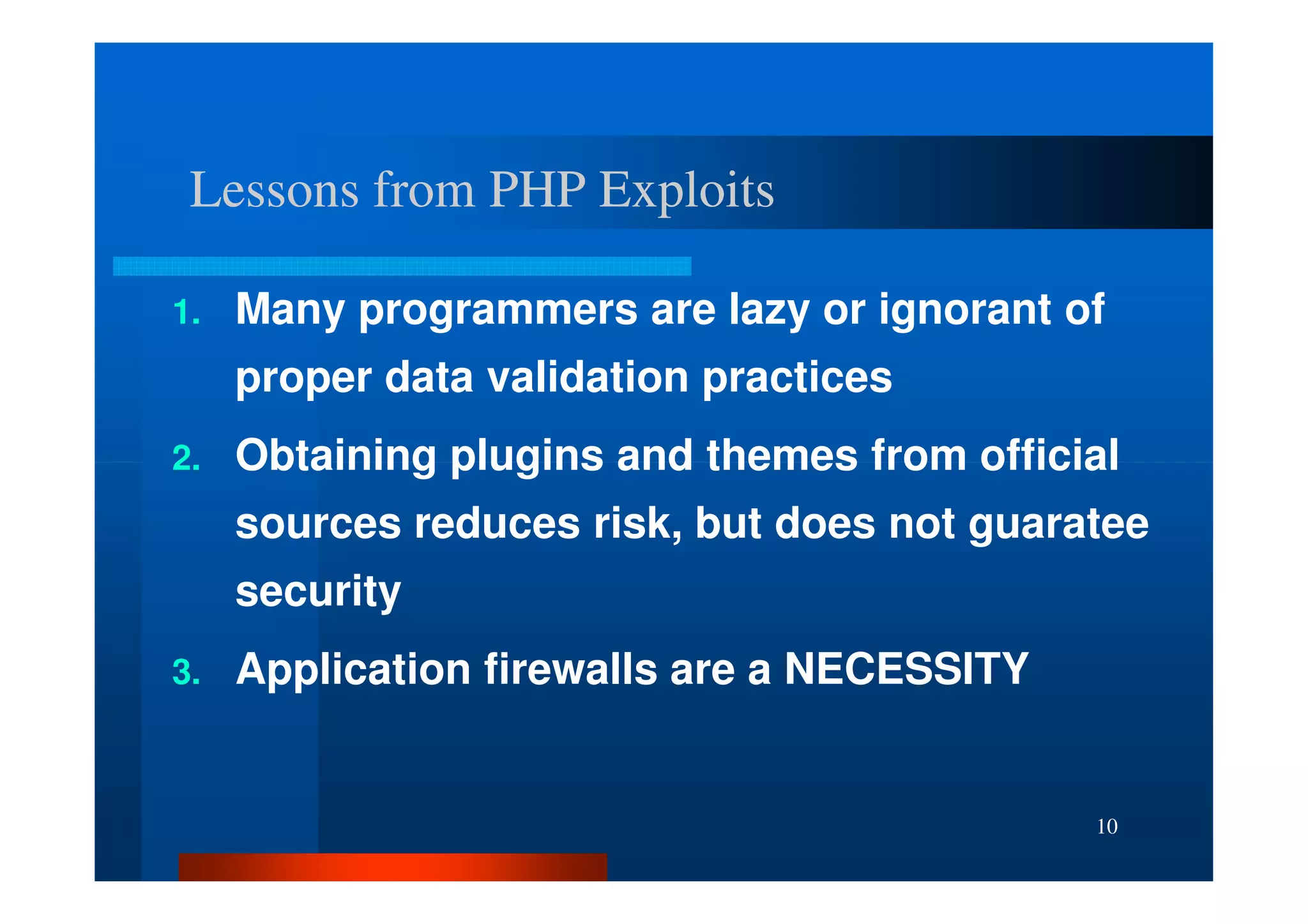
Lessons from PHP Exploits

1.   Many programmers are lazy or ignorant of
     proper data validation practices
2.   Obtaining plugins and themes from official
     sources reduces risk, but does not guaratee
     security
3.   Application firewalls are a NECESSITY


                                             10
Essential Steps to Harden Your WP Installation


                                         11
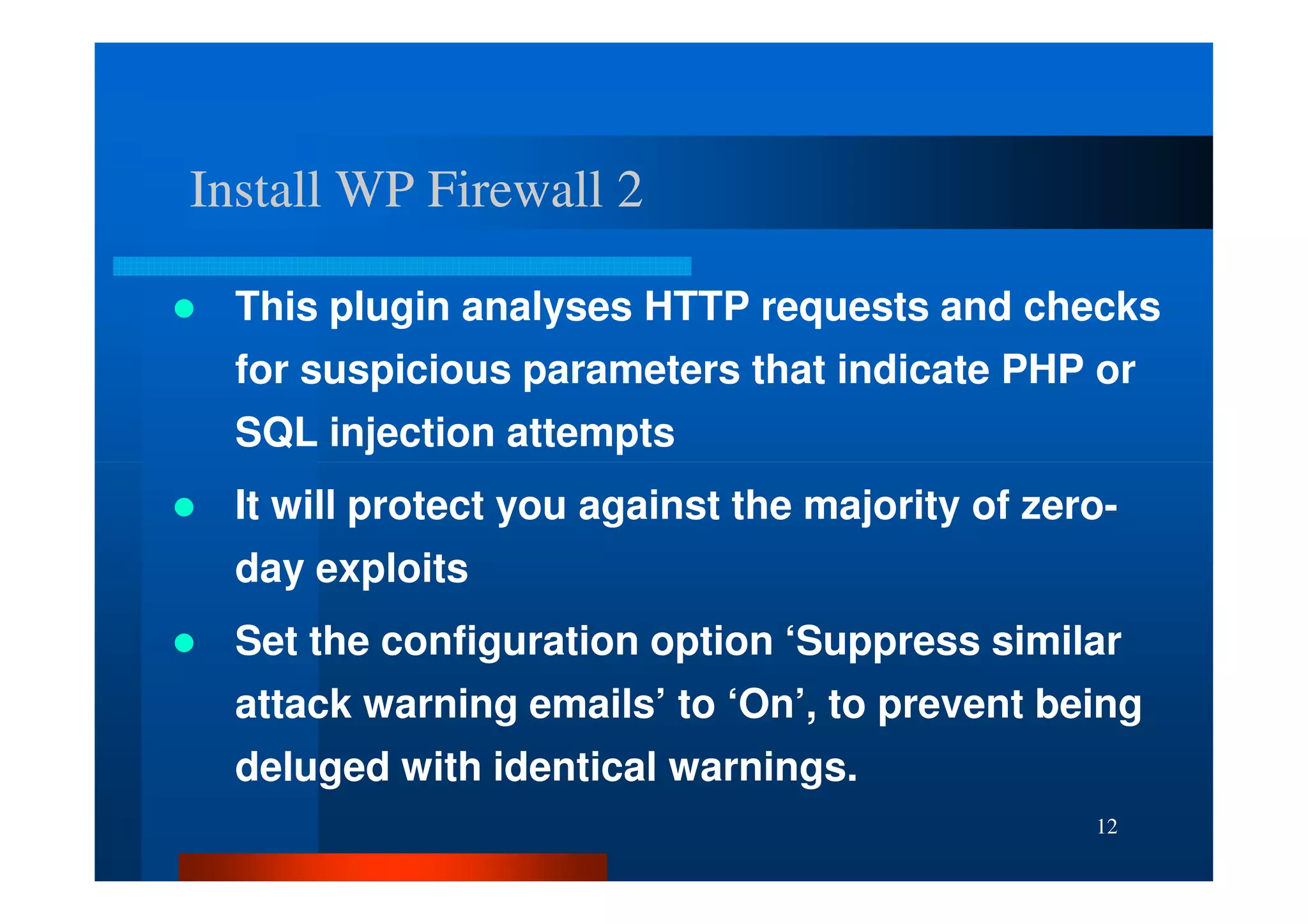
Install WP Firewall 2

  This plugin analyses HTTP requests and checks
  for suspicious parameters that indicate PHP or
  SQL injection attempts
  It will protect you against the majority of zero-
  day exploits
  Set the configuration option ‘Suppress similar
  attack warning emails’ to ‘On’, to prevent being
  deluged with identical warnings.
                                                 12
Rename Your Admin Account

1.   Use the plugin ‘Admin Renamer Extended’ to
     rename the ‘admin’ account to something
     unique.
2.   From the WP Dashboard, go to Users->Your
     Profile. For the option set ‘Display Name
     Publicly as’, choose something that is not
     the same as your admin account name

                                                 13
Change the Default MySQL Table Prefix

1.   The WordPress default MySQL table prefix is
     ‘wp_’.
2.   By renaming this to something else, ie. ‘tb132_’
     we can foil the majority of blind SQL injection
     attempts
3.   For an existing site, use the plugin “WordPress
     Table Rename” to make this easier.

                                                   14
Prevent Plaintext Password Transmission – Best Option

1.   Have your site hosted with a provider that supports
     HTTPS and provides either:
     –   Their own Shared SSL Certificate
     –   The ability to install your own
     –   The ability to obtain one for you and install it (usually for a
         fee)

2.   Install the plugin “WP HTTPS (SSL)” and enable the
     option “Force SSL Administration”.
3.   This will prevent your password and session cookies
     from being sniffed (captured) over the Network                 15
Prevent Plaintext Password Transmission – Next Best

1.   If you can’t use HTTPS, then install the plugin
     “Semisecure Login Reimagined”.
2.   This uses Javascript to encrypt your password
     before sending it to the server
3.   Make sure you logout from WordPress to
     prevent network eavedroppers from sniffing
     (capturing) and re-using your session key.

                                                   16
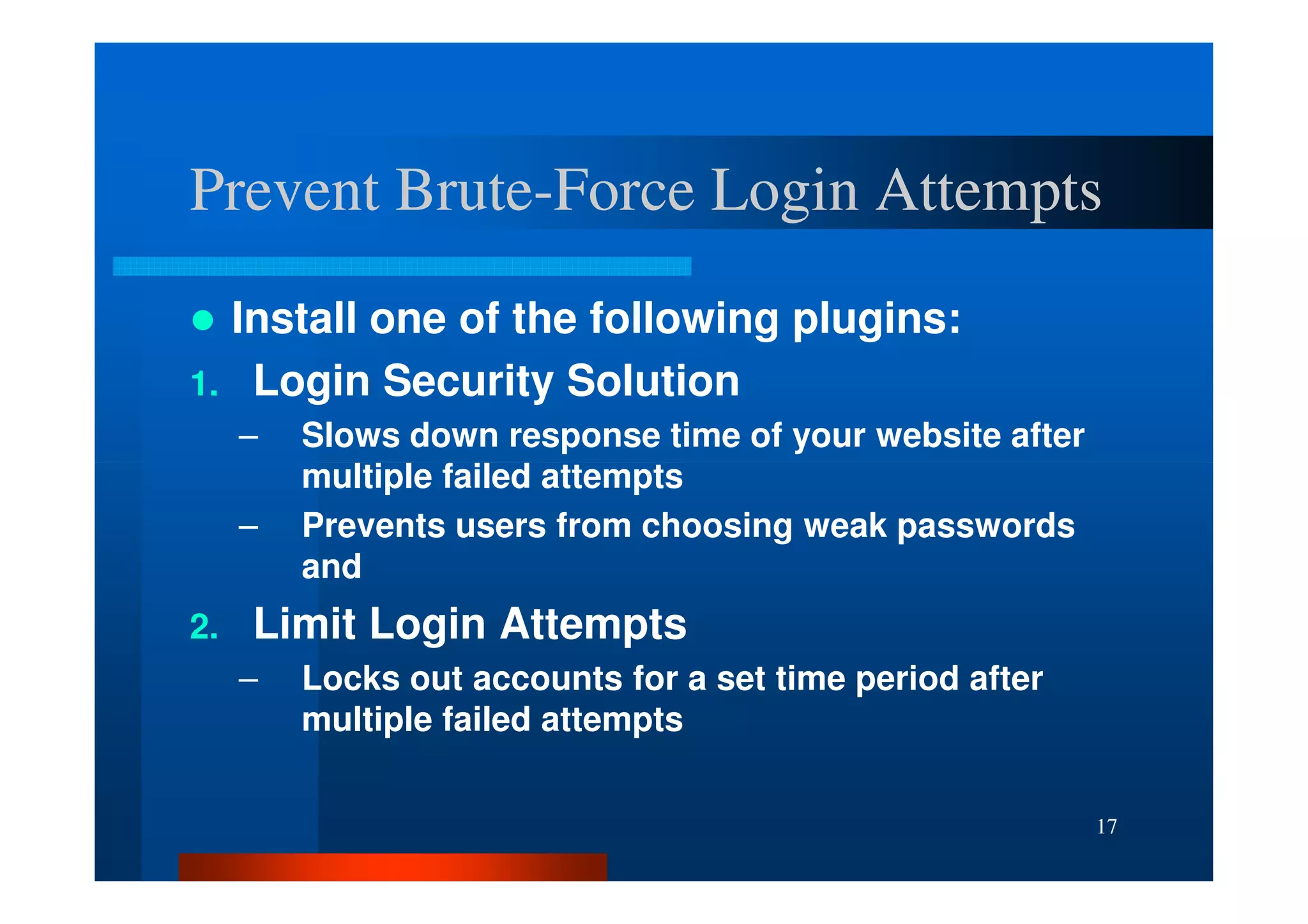
Prevent Brute-Force Login Attempts
        Brute-
  Install one of the following plugins:
1. Login Security Solution
     –   Slows down response time of your website after
         multiple failed attempts
     –   Prevents users from choosing weak passwords
         and
2.   Limit Login Attempts
     –   Locks out accounts for a set time period after
         multiple failed attempts


                                                          17
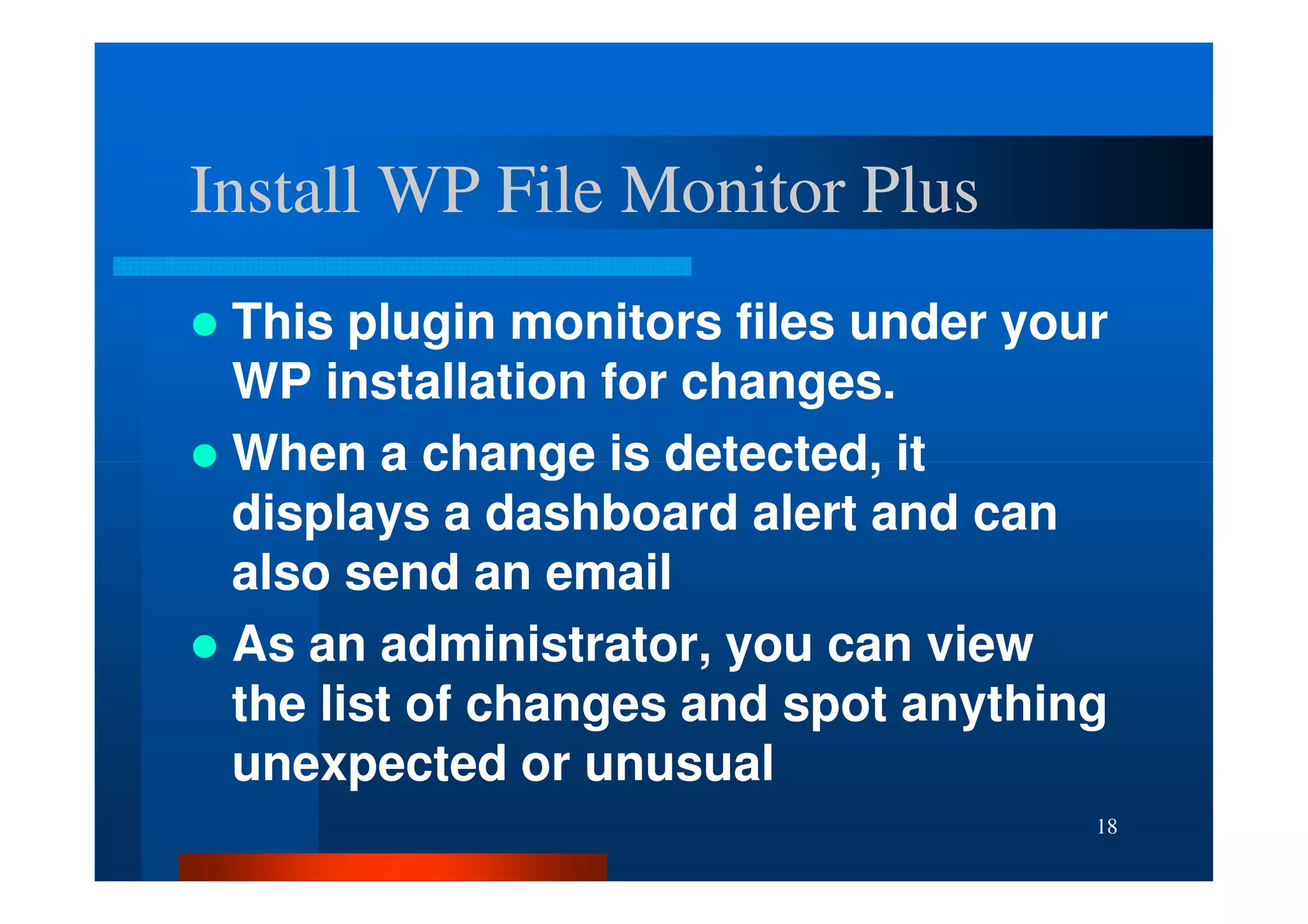
Install WP File Monitor Plus
 This plugin monitors files under your
 WP installation for changes.
 When a change is detected, it
 displays a dashboard alert and can
 also send an email
 As an administrator, you can view
 the list of changes and spot anything
 unexpected or unusual
                                     18
Essential Security Habits


                            19
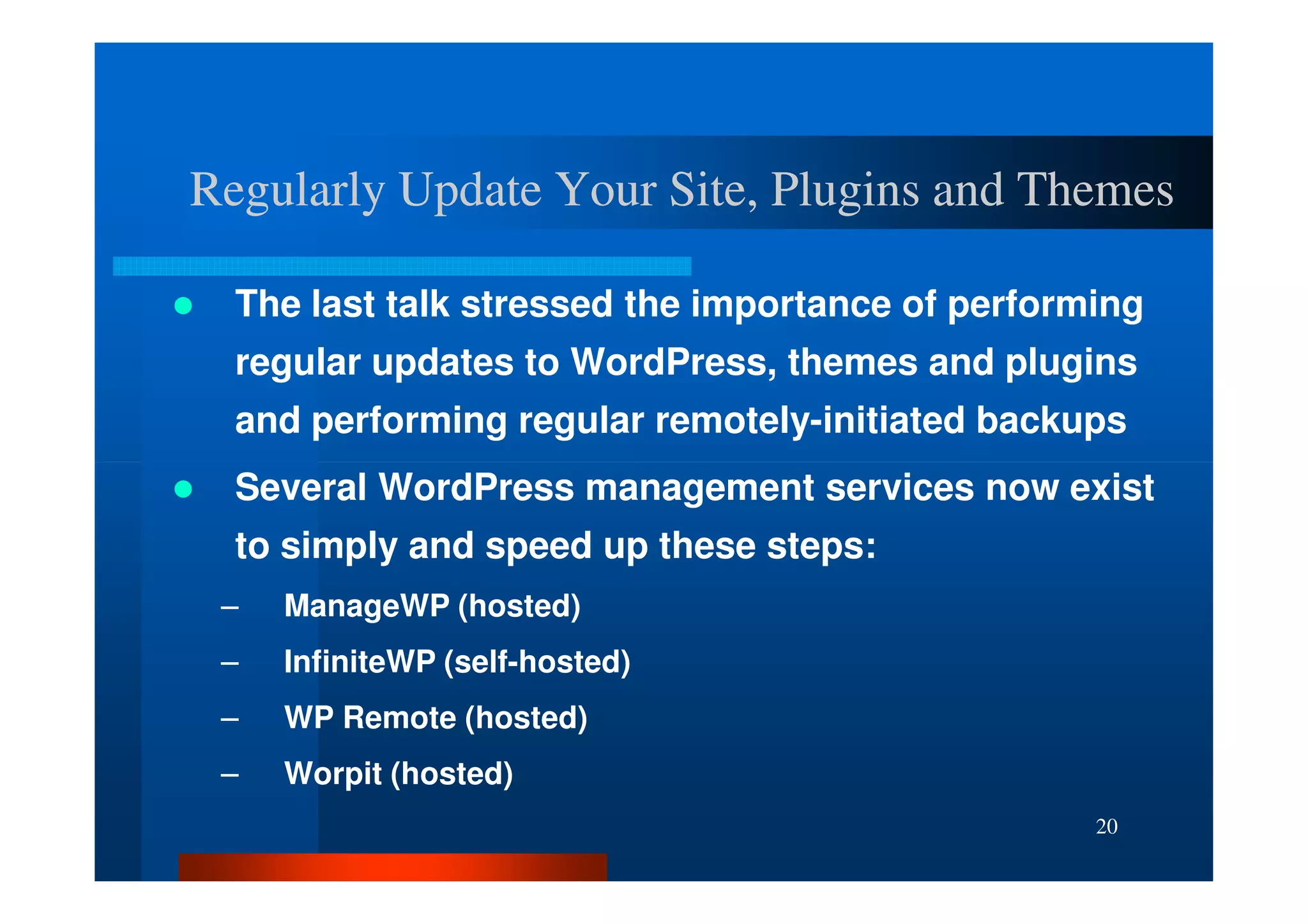
Regularly Update Your Site, Plugins and Themes

  The last talk stressed the importance of performing
  regular updates to WordPress, themes and plugins
  and performing regular remotely-initiated backups
  Several WordPress management services now exist
  to simply and speed up these steps:
 –   ManageWP (hosted)
 –   InfiniteWP (self-hosted)
 –   WP Remote (hosted)
 –   Worpit (hosted)
                                                  20
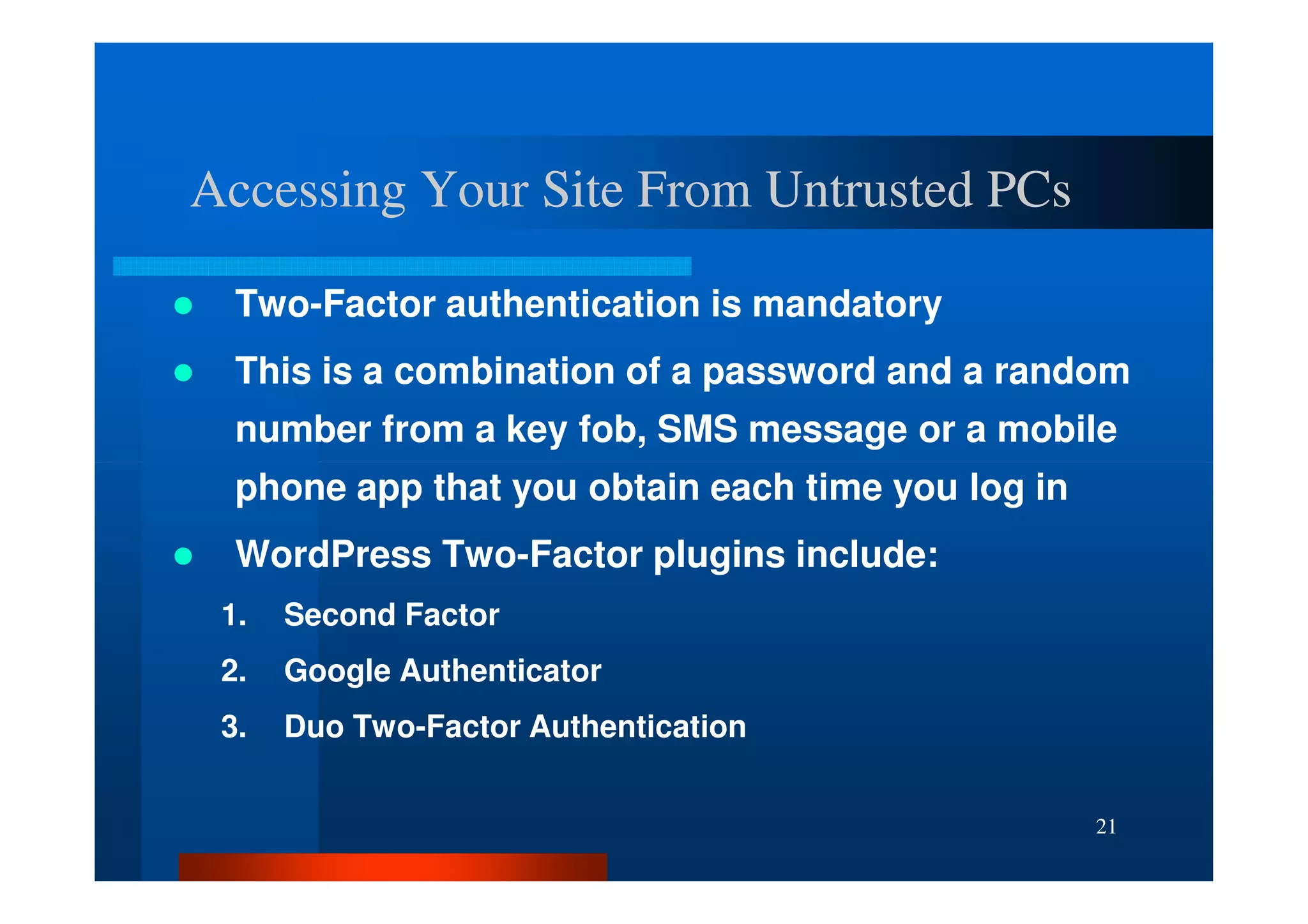
Accessing Your Site From Untrusted PCs

  Two-Factor authentication is mandatory
  This is a combination of a password and a random
  number from a key fob, SMS message or a mobile
  phone app that you obtain each time you log in
  WordPress Two-Factor plugins include:
 1.   Second Factor
 2.   Google Authenticator
 3.   Duo Two-Factor Authentication


                                                   21
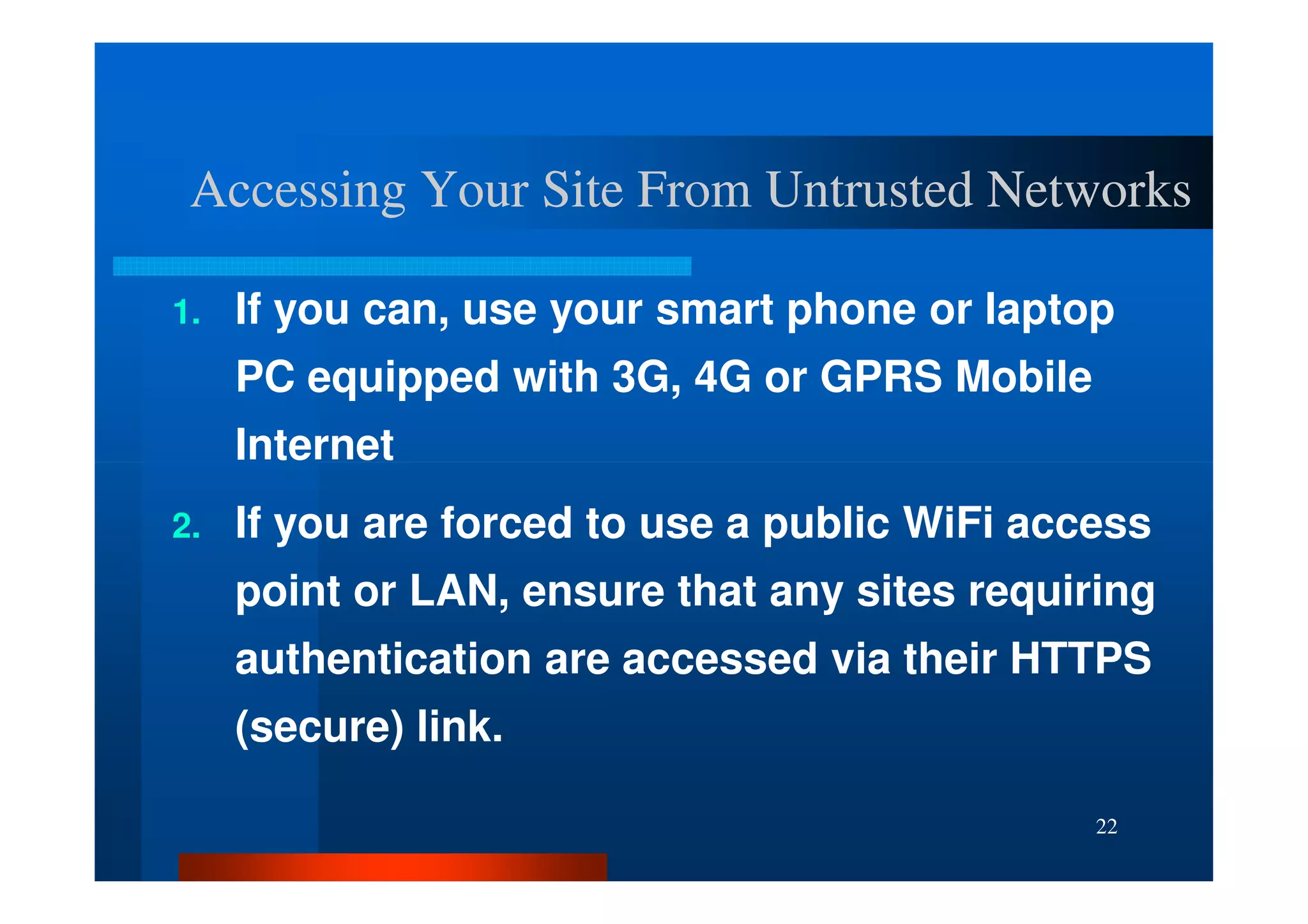
Accessing Your Site From Untrusted Networks

1.   If you can, use your smart phone or laptop
     PC equipped with 3G, 4G or GPRS Mobile
     Internet
2.   If you are forced to use a public WiFi access
     point or LAN, ensure that any sites requiring
     authentication are accessed via their HTTPS
     (secure) link.

                                               22
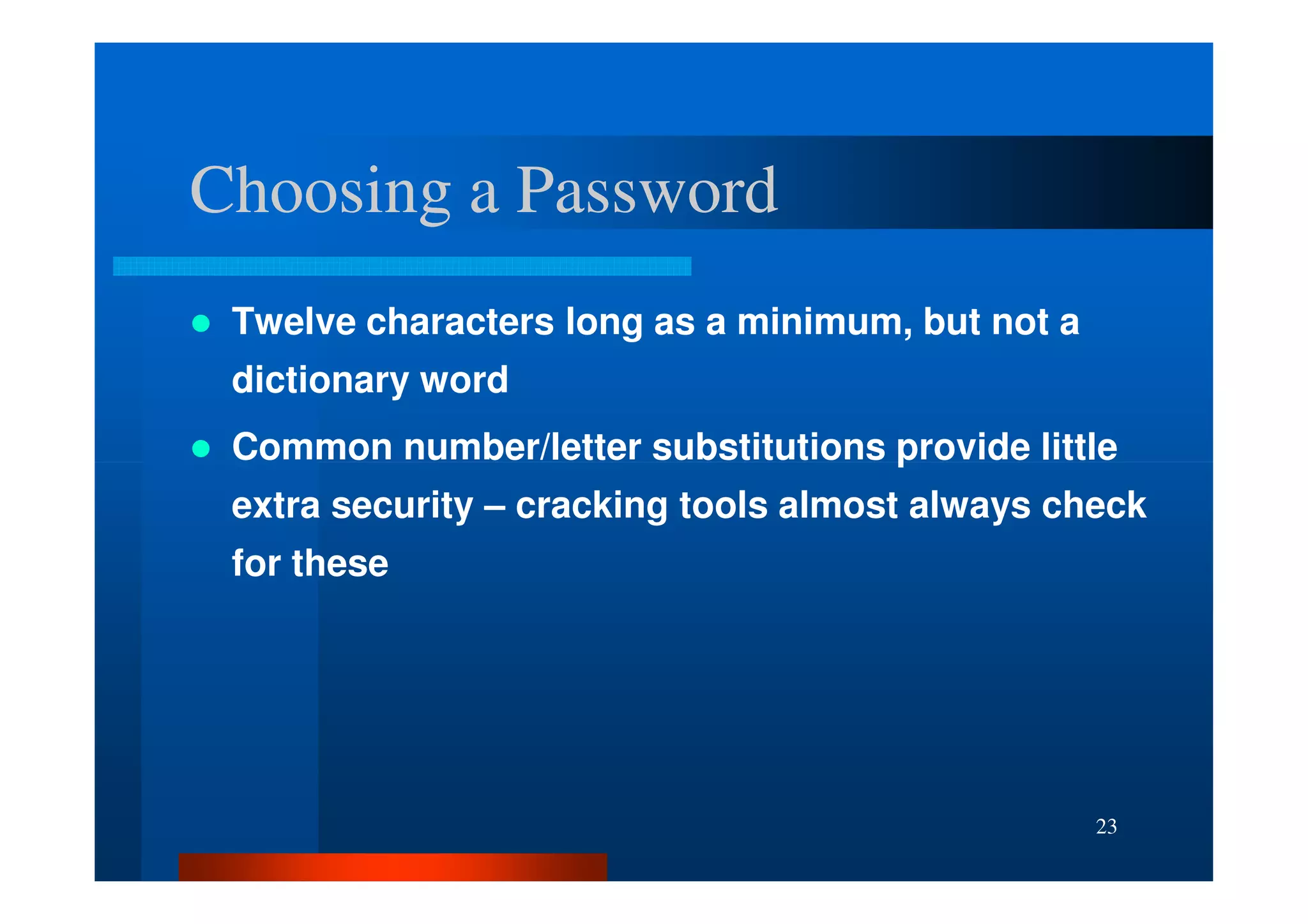
Choosing a Password
 Twelve characters long as a minimum, but not a
 dictionary word
 Common number/letter substitutions provide little
 extra security – cracking tools almost always check
 for these


                                                  23
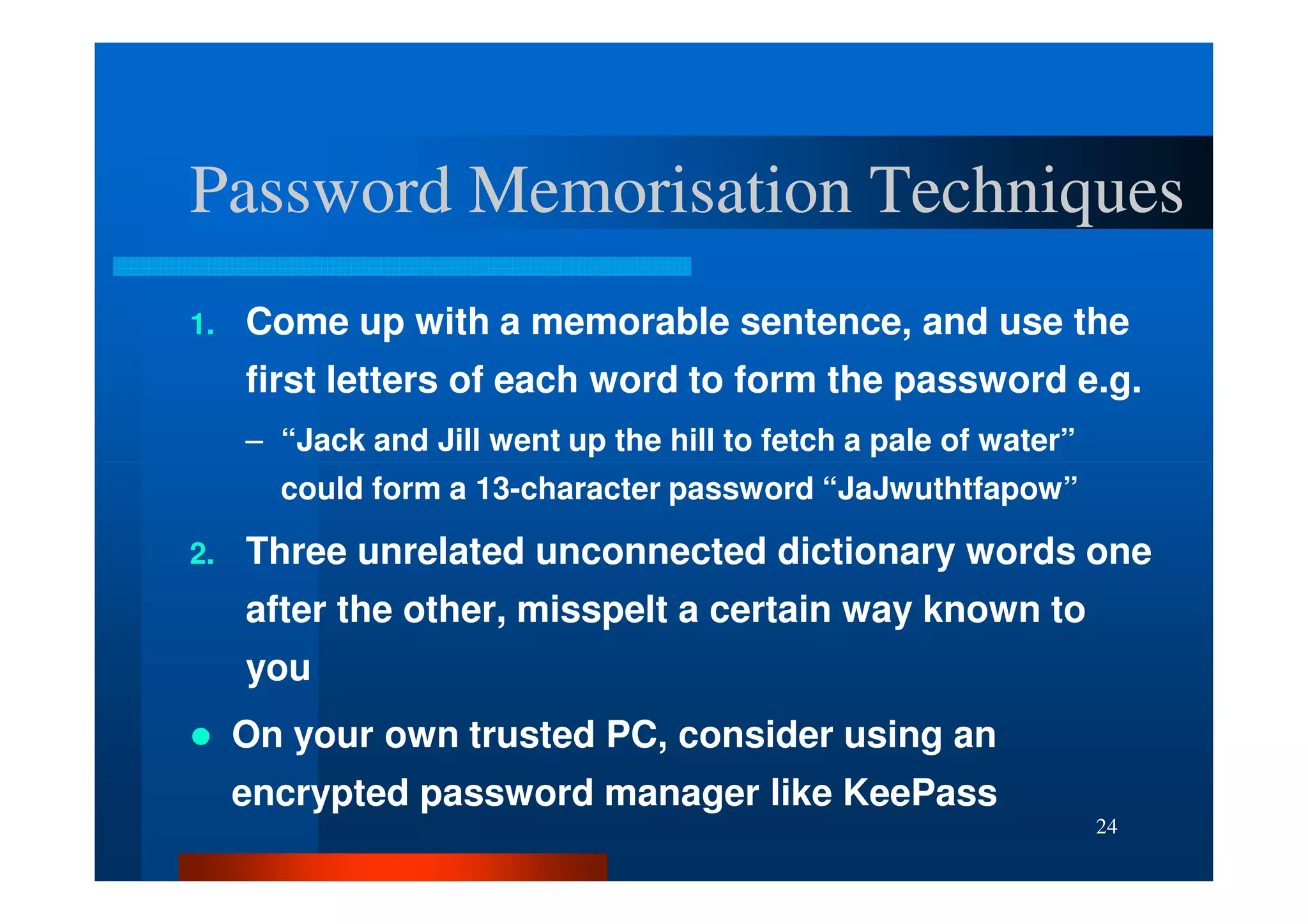
Password Memorisation Techniques
1.   Come up with a memorable sentence, and use the
     first letters of each word to form the password e.g.
     – “Jack and Jill went up the hill to fetch a pale of water”
       could form a 13-character password “JaJwuthtfapow”

2.   Three unrelated unconnected dictionary words one
     after the other, misspelt a certain way known to
     you
     On your own trusted PC, consider using an
     encrypted password manager like KeePass
                                                                   24
Conclusion
 Slides from Previous Talk at Wordcamp GC 2011:
 – http://slidesha.re/tr2XA5
 – Covers the “Three Pillars of Security”, the aims of attackers and other
    WordPress security plugins

 ManageWP - 30% discount on all plans for WordCamp Sydney
 Attendees:
 – http://managewp.com/wcsyd

 Questions and Comments:
 – http://wpexpert.com.au/contact-us/


                                                                         25

Securing Your WordPress Website - WordCamp Sydney 2012

  • 1.
    Securing Your WordPressWebsite Vladimir Lasky http://wpexpert.com.au/ WordCamp Sydney 2012 1
  • 2.
    What’s New InToday’s Talk? 1. The biggest security threats of 2012 and how to deal with them 2. An updated list of essential WordPress hardening steps for EVERY site 3. New WordPress management services that make your life easier 2
  • 3.
    Big Events inInternet Security This Year 1. Yahoo, LinkedIn, eHarmony all experienced security incidents that resulted in users’ passwords/hashes being published 2. Lots of exploits targeting code using vulnerable PHP libraries including TimThumb and Uploadify 3. Wi-Fi Protected Setup (WPS) vulnerability in Wireless Routers revealed in December 2011 3
  • 4.
  • 5.
  • 6.
    Lessons From PasswordDisclosure Incidents 1. You cannot assume any website will properly secure their databases. 2. Plenty of computational power exists for brute-force password cracking of password hashes – spare no effort to prevent these from being leaked. 3. People who reuse the same password across different sites are asking to get “p0wned” and become targets for identity theft. 4. Having a unique, secure password for every Internet account is mandatory. 6
  • 7.
  • 8.
    Lessons from WPSVulnerability 1. The WPS exploit provides a backdoor to wireless routers secured with WPA2 2. Technologies that overcome security burdens often introduce security holes 3. Disable WPS in every Wi-Fi Router that you control. In some cases, this will require a firmware upgrade or possibly even replacing the router 8
  • 9.
  • 10.
    Lessons from PHPExploits 1. Many programmers are lazy or ignorant of proper data validation practices 2. Obtaining plugins and themes from official sources reduces risk, but does not guaratee security 3. Application firewalls are a NECESSITY 10
  • 11.
    Essential Steps toHarden Your WP Installation 11
  • 12.
    Install WP Firewall2 This plugin analyses HTTP requests and checks for suspicious parameters that indicate PHP or SQL injection attempts It will protect you against the majority of zero- day exploits Set the configuration option ‘Suppress similar attack warning emails’ to ‘On’, to prevent being deluged with identical warnings. 12
  • 13.
    Rename Your AdminAccount 1. Use the plugin ‘Admin Renamer Extended’ to rename the ‘admin’ account to something unique. 2. From the WP Dashboard, go to Users->Your Profile. For the option set ‘Display Name Publicly as’, choose something that is not the same as your admin account name 13
  • 14.
    Change the DefaultMySQL Table Prefix 1. The WordPress default MySQL table prefix is ‘wp_’. 2. By renaming this to something else, ie. ‘tb132_’ we can foil the majority of blind SQL injection attempts 3. For an existing site, use the plugin “WordPress Table Rename” to make this easier. 14
  • 15.
    Prevent Plaintext PasswordTransmission – Best Option 1. Have your site hosted with a provider that supports HTTPS and provides either: – Their own Shared SSL Certificate – The ability to install your own – The ability to obtain one for you and install it (usually for a fee) 2. Install the plugin “WP HTTPS (SSL)” and enable the option “Force SSL Administration”. 3. This will prevent your password and session cookies from being sniffed (captured) over the Network 15
  • 16.
    Prevent Plaintext PasswordTransmission – Next Best 1. If you can’t use HTTPS, then install the plugin “Semisecure Login Reimagined”. 2. This uses Javascript to encrypt your password before sending it to the server 3. Make sure you logout from WordPress to prevent network eavedroppers from sniffing (capturing) and re-using your session key. 16
  • 17.
    Prevent Brute-Force LoginAttempts Brute- Install one of the following plugins: 1. Login Security Solution – Slows down response time of your website after multiple failed attempts – Prevents users from choosing weak passwords and 2. Limit Login Attempts – Locks out accounts for a set time period after multiple failed attempts 17
  • 18.
    Install WP FileMonitor Plus This plugin monitors files under your WP installation for changes. When a change is detected, it displays a dashboard alert and can also send an email As an administrator, you can view the list of changes and spot anything unexpected or unusual 18
  • 19.
  • 20.
    Regularly Update YourSite, Plugins and Themes The last talk stressed the importance of performing regular updates to WordPress, themes and plugins and performing regular remotely-initiated backups Several WordPress management services now exist to simply and speed up these steps: – ManageWP (hosted) – InfiniteWP (self-hosted) – WP Remote (hosted) – Worpit (hosted) 20
  • 21.
    Accessing Your SiteFrom Untrusted PCs Two-Factor authentication is mandatory This is a combination of a password and a random number from a key fob, SMS message or a mobile phone app that you obtain each time you log in WordPress Two-Factor plugins include: 1. Second Factor 2. Google Authenticator 3. Duo Two-Factor Authentication 21
  • 22.
    Accessing Your SiteFrom Untrusted Networks 1. If you can, use your smart phone or laptop PC equipped with 3G, 4G or GPRS Mobile Internet 2. If you are forced to use a public WiFi access point or LAN, ensure that any sites requiring authentication are accessed via their HTTPS (secure) link. 22
  • 23.
    Choosing a Password Twelve characters long as a minimum, but not a dictionary word Common number/letter substitutions provide little extra security – cracking tools almost always check for these 23
  • 24.
    Password Memorisation Techniques 1. Come up with a memorable sentence, and use the first letters of each word to form the password e.g. – “Jack and Jill went up the hill to fetch a pale of water” could form a 13-character password “JaJwuthtfapow” 2. Three unrelated unconnected dictionary words one after the other, misspelt a certain way known to you On your own trusted PC, consider using an encrypted password manager like KeePass 24
  • 25.
    Conclusion Slides fromPrevious Talk at Wordcamp GC 2011: – http://slidesha.re/tr2XA5 – Covers the “Three Pillars of Security”, the aims of attackers and other WordPress security plugins ManageWP - 30% discount on all plans for WordCamp Sydney Attendees: – http://managewp.com/wcsyd Questions and Comments: – http://wpexpert.com.au/contact-us/ 25