
Approval Applications
for SAP-MM
Flow Automation between SAP
Backend and Mobile Application
Created By,
Sivakumar M (ABAP Consultant)
Danam Infotech Private Limited
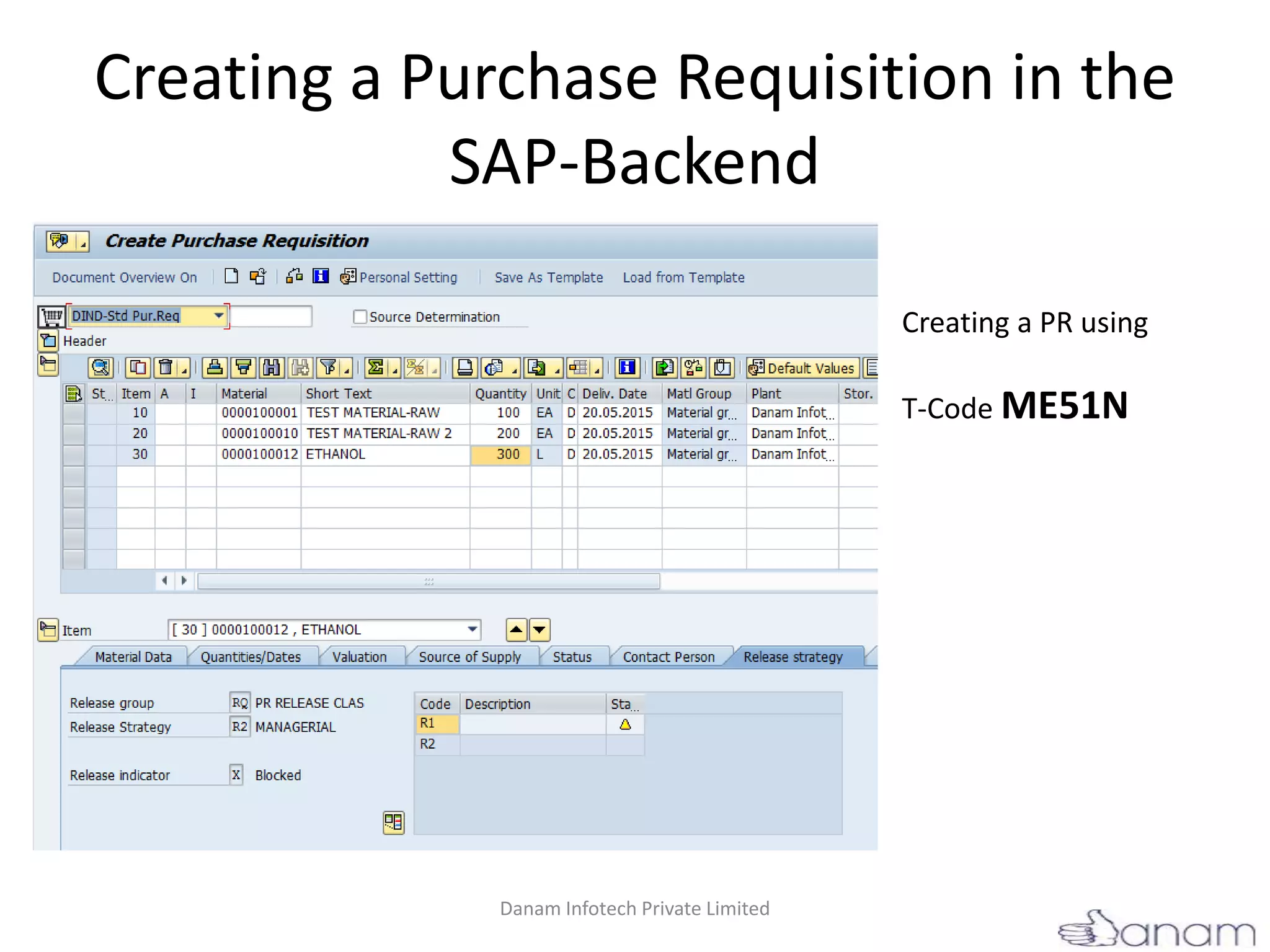
Creating a Purchase Requisition in the
SAP-Backend
Creating a PR using
T-Code ME51N
Danam Infotech Private Limited
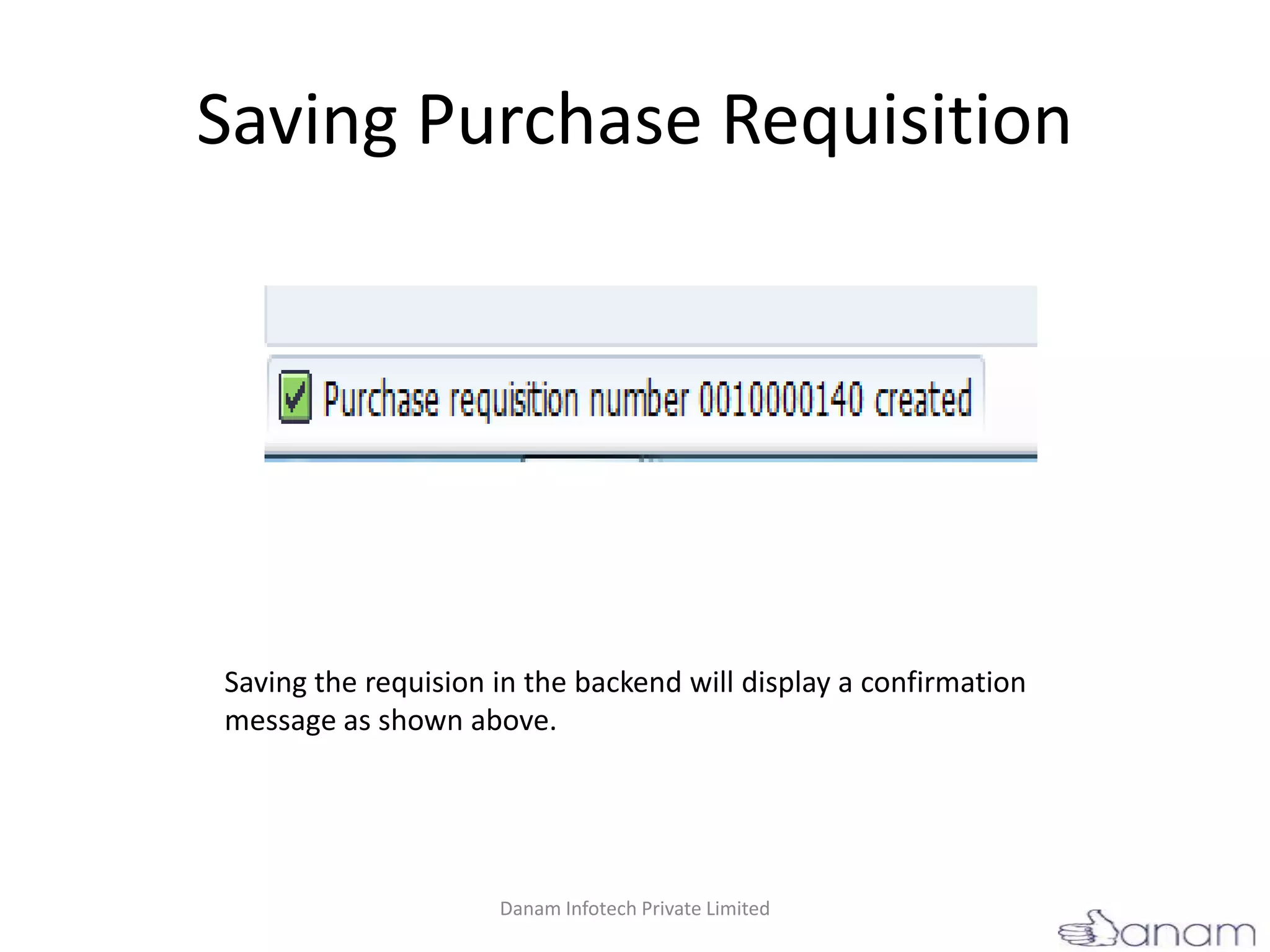
Saving Purchase Requisition
Saving the requision in the backend will display a confirmation
message as shown above.
Danam Infotech Private Limited
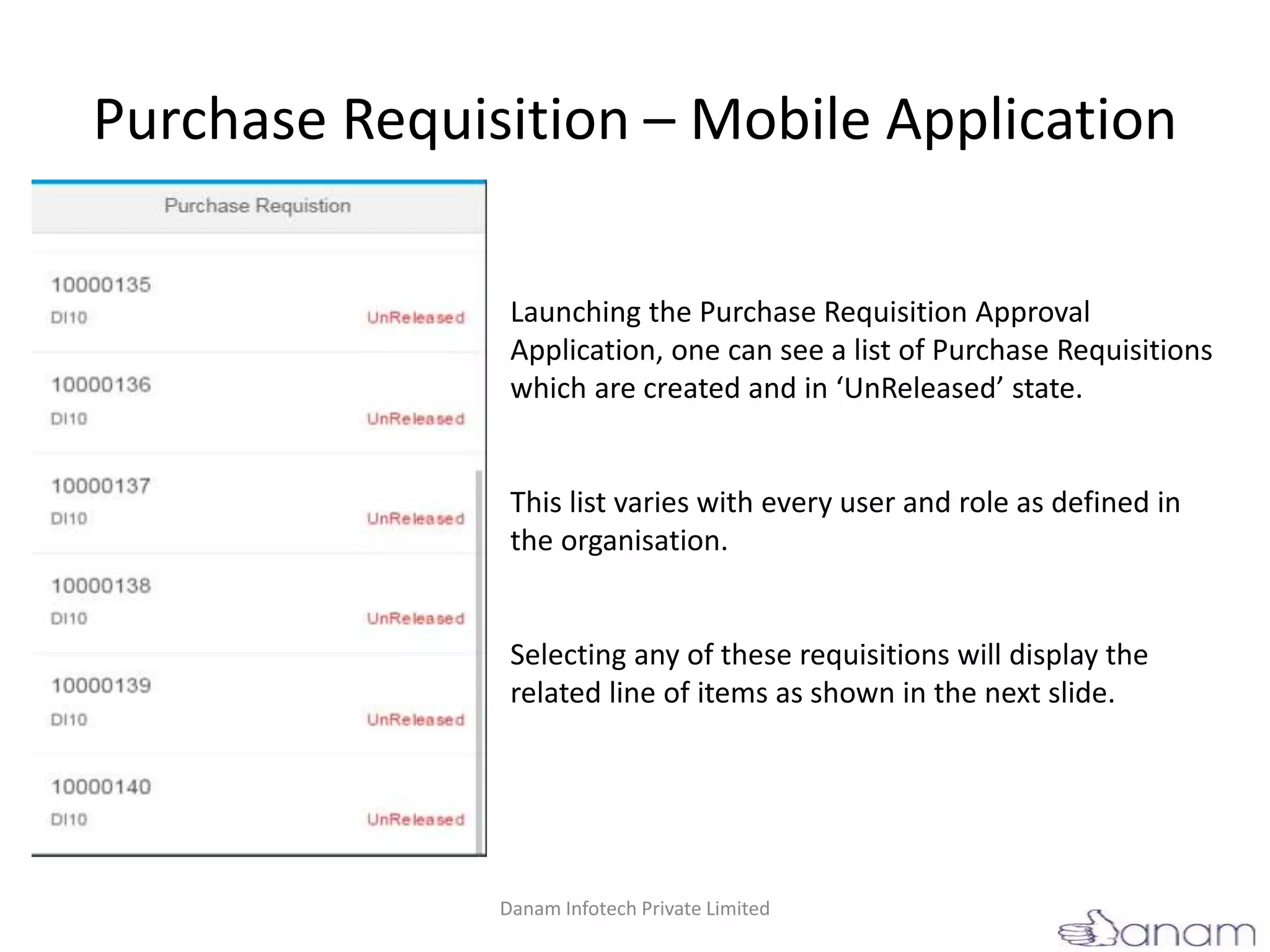
Purchase Requisition – Mobile Application
Launching the Purchase Requisition Approval
Application, one can see a list of Purchase Requisitions
which are created and in ‘UnReleased’ state.
This list varies with every user and role as defined in
the organisation.
Selecting any of these requisitions will display the
related line of items as shown in the next slide.
Danam Infotech Private Limited
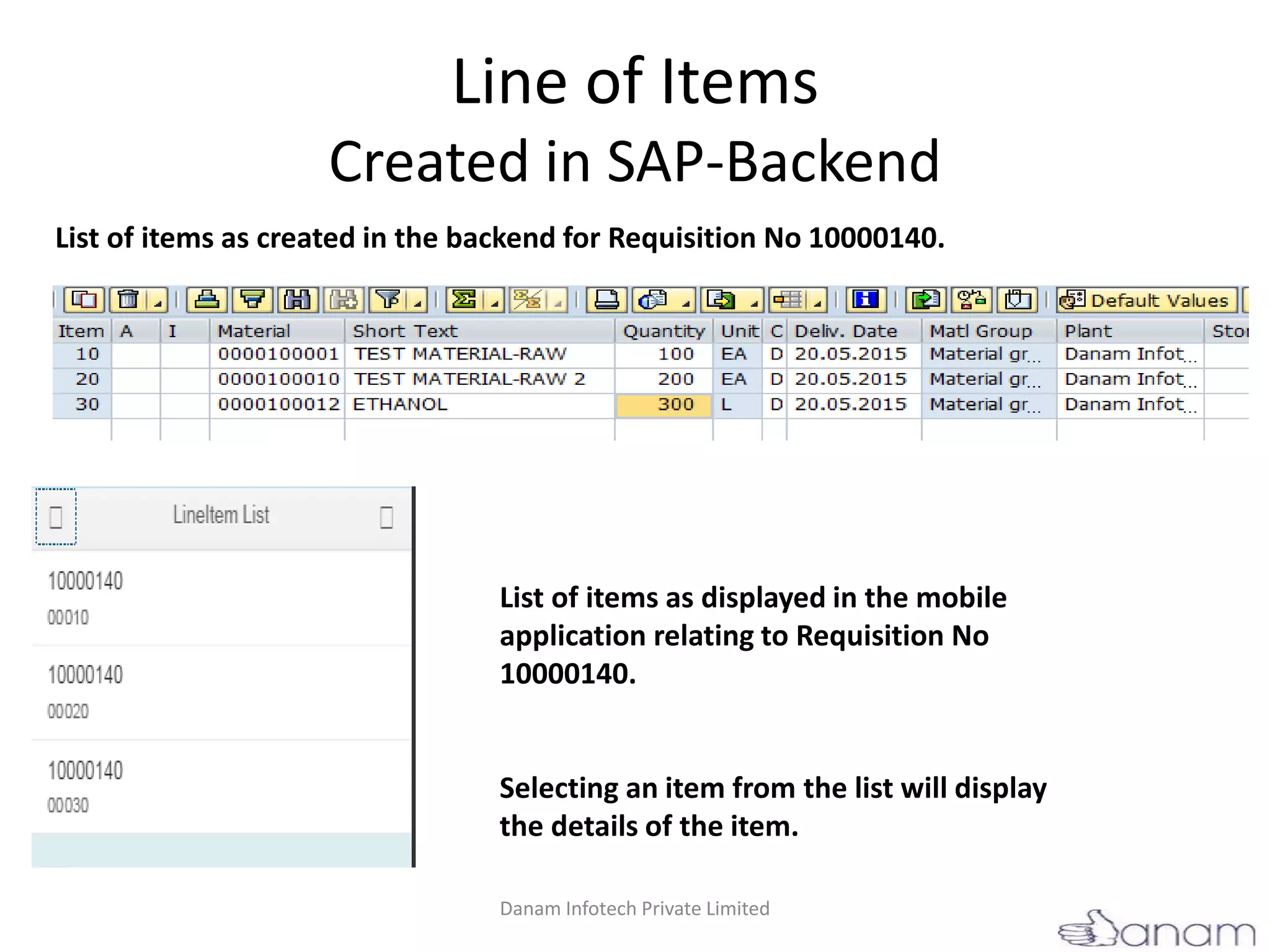
Line of Items
Created in SAP-Backend
List of items as displayed in the mobile
application relating to Requisition No
10000140.
Selecting an item from the list will display
the details of the item.
List of items as created in the backend for Requisition No 10000140.
Danam Infotech Private Limited
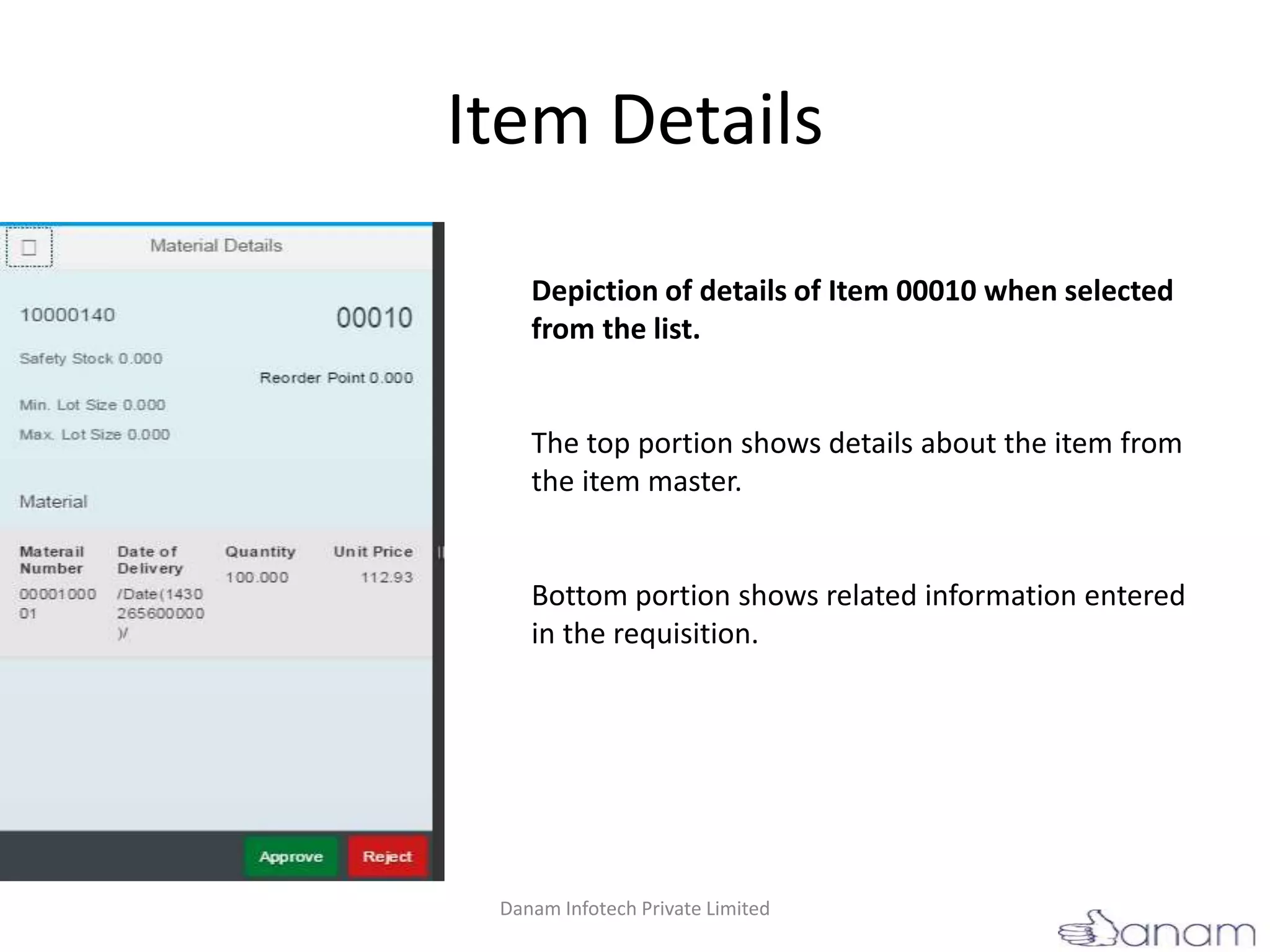
Item Details
Depiction of details of Item 00010 when selected
from the list.
The top portion shows details about the item from
the item master.
Bottom portion shows related information entered
in the requisition.
Danam Infotech Private Limited
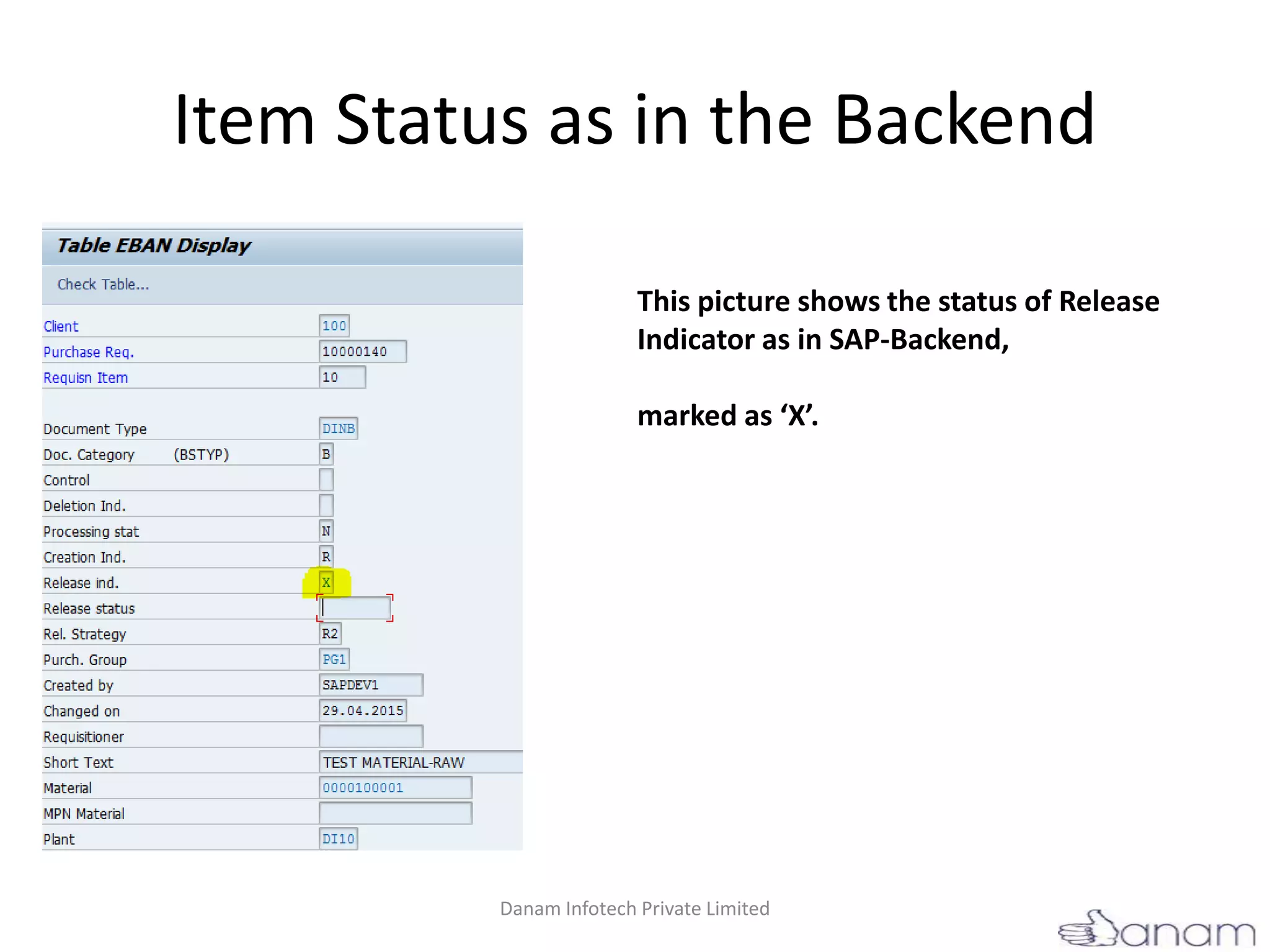
Item Status as in the Backend
This picture shows the status of Release
Indicator as in SAP-Backend,
marked as ‘X’.
Danam Infotech Private Limited
Status shown in SAP
Status indicator as seen in
SAP.
For Item 10.
Danam Infotech Private Limited
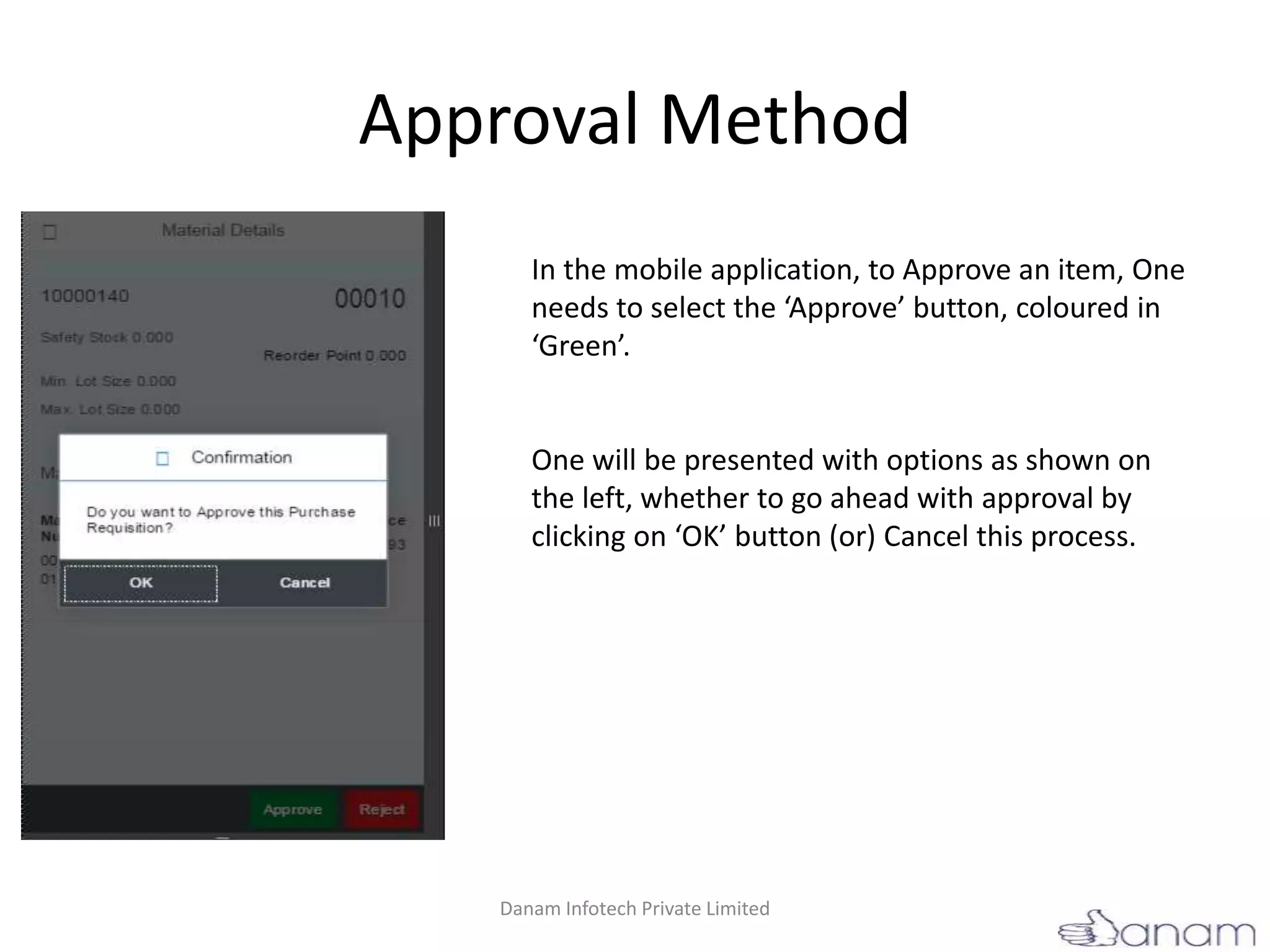
Approval Method
In the mobile application, to Approve an item, One
needs to select the ‘Approve’ button, coloured in
‘Green’.
One will be presented with options as shown on
the left, whether to go ahead with approval by
clicking on ‘OK’ button (or) Cancel this process.
Danam Infotech Private Limited
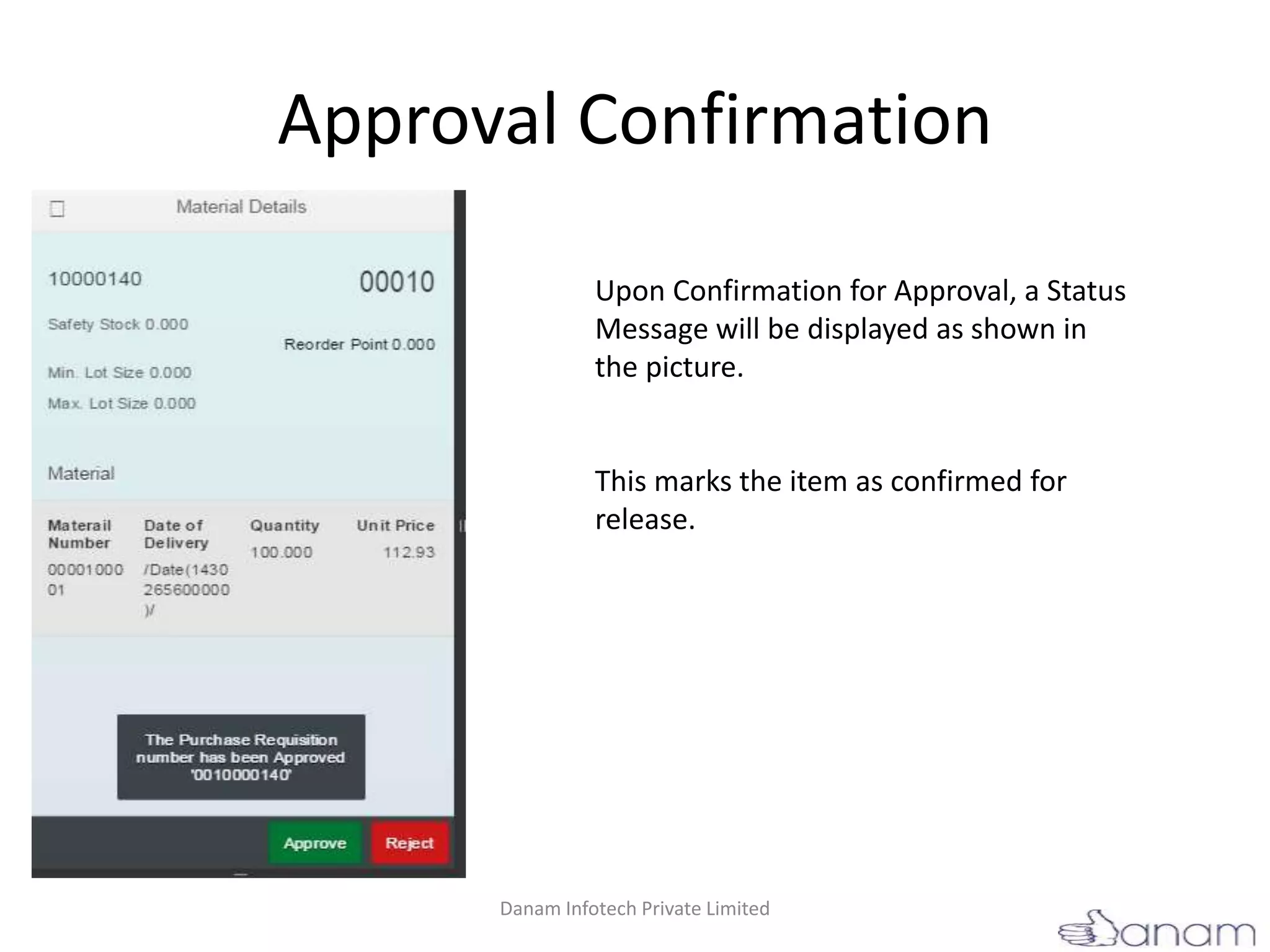
Approval Confirmation
Upon Confirmation for Approval, a Status
Message will be displayed as shown in
the picture.
This marks the item as confirmed for
release.
Danam Infotech Private Limited
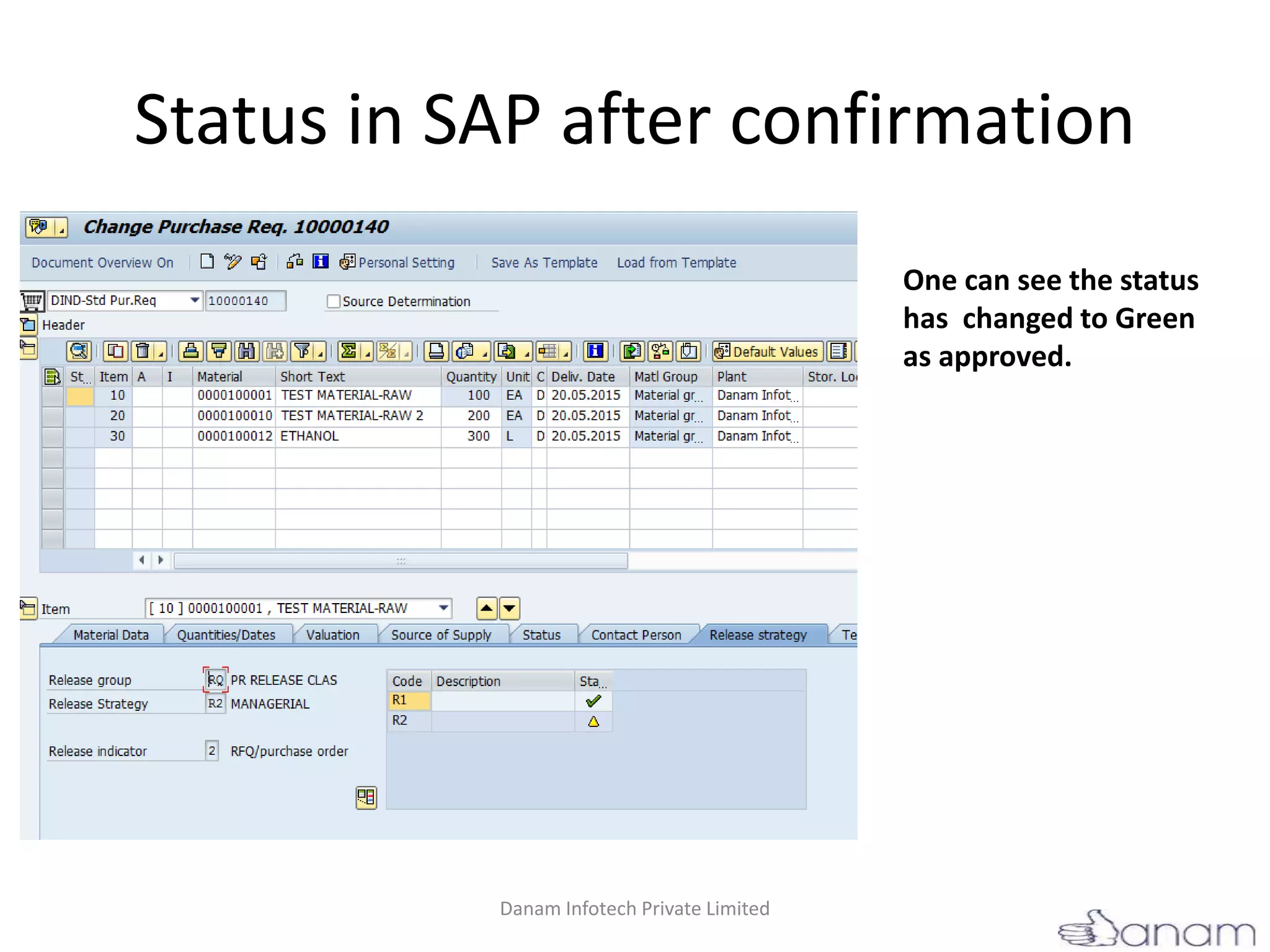
Status in SAP after confirmation
One can see the status
has changed to Green
as approved.
Danam Infotech Private Limited
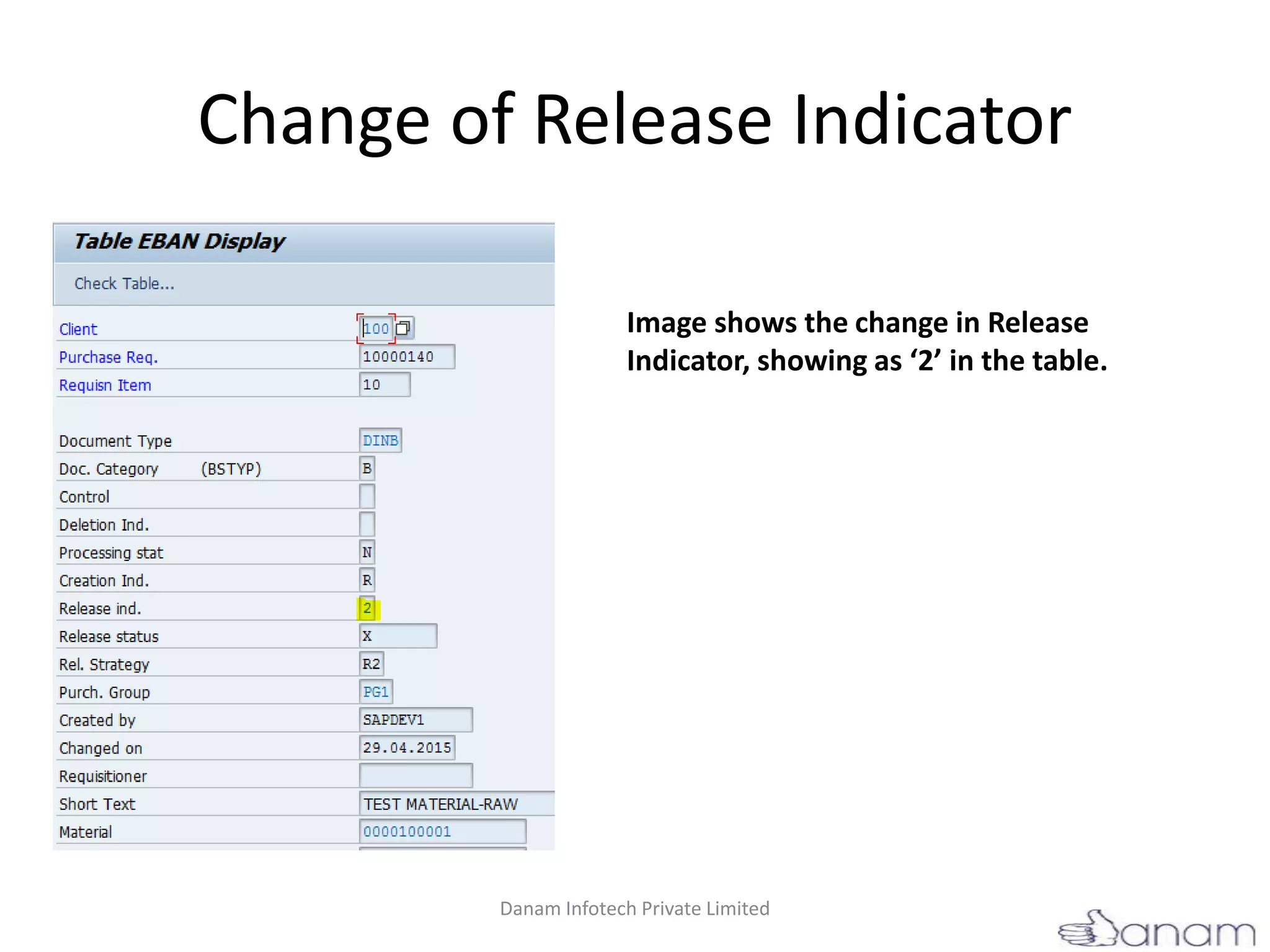
Change of Release Indicator
Image shows the change in Release
Indicator, showing as ‘2’ in the table.
Danam Infotech Private Limited
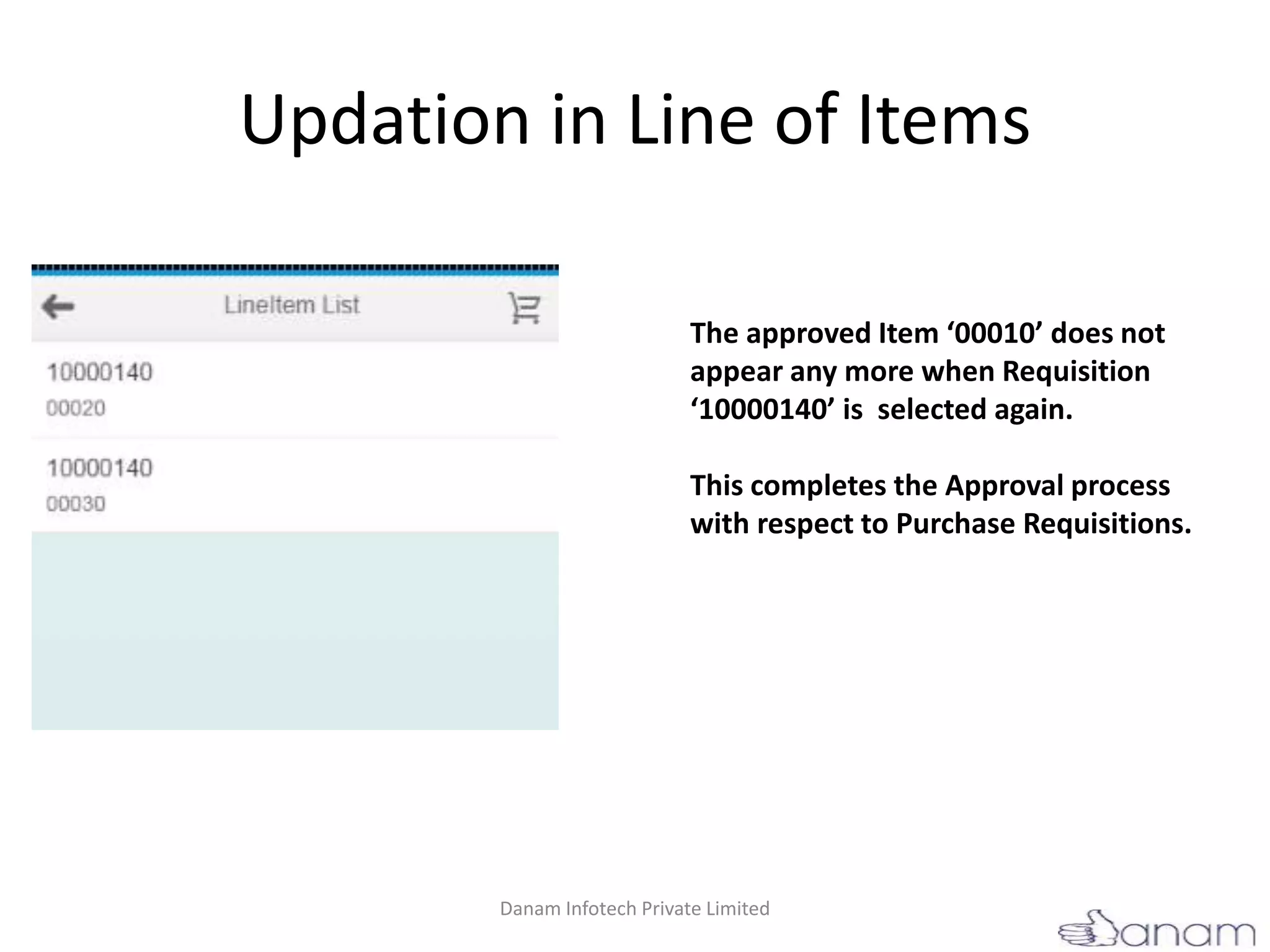
Updation in Line of Items
The approved Item ‘00010’ does not
appear any more when Requisition
‘10000140’ is selected again.
This completes the Approval process
with respect to Purchase Requisitions.
Danam Infotech Private Limited
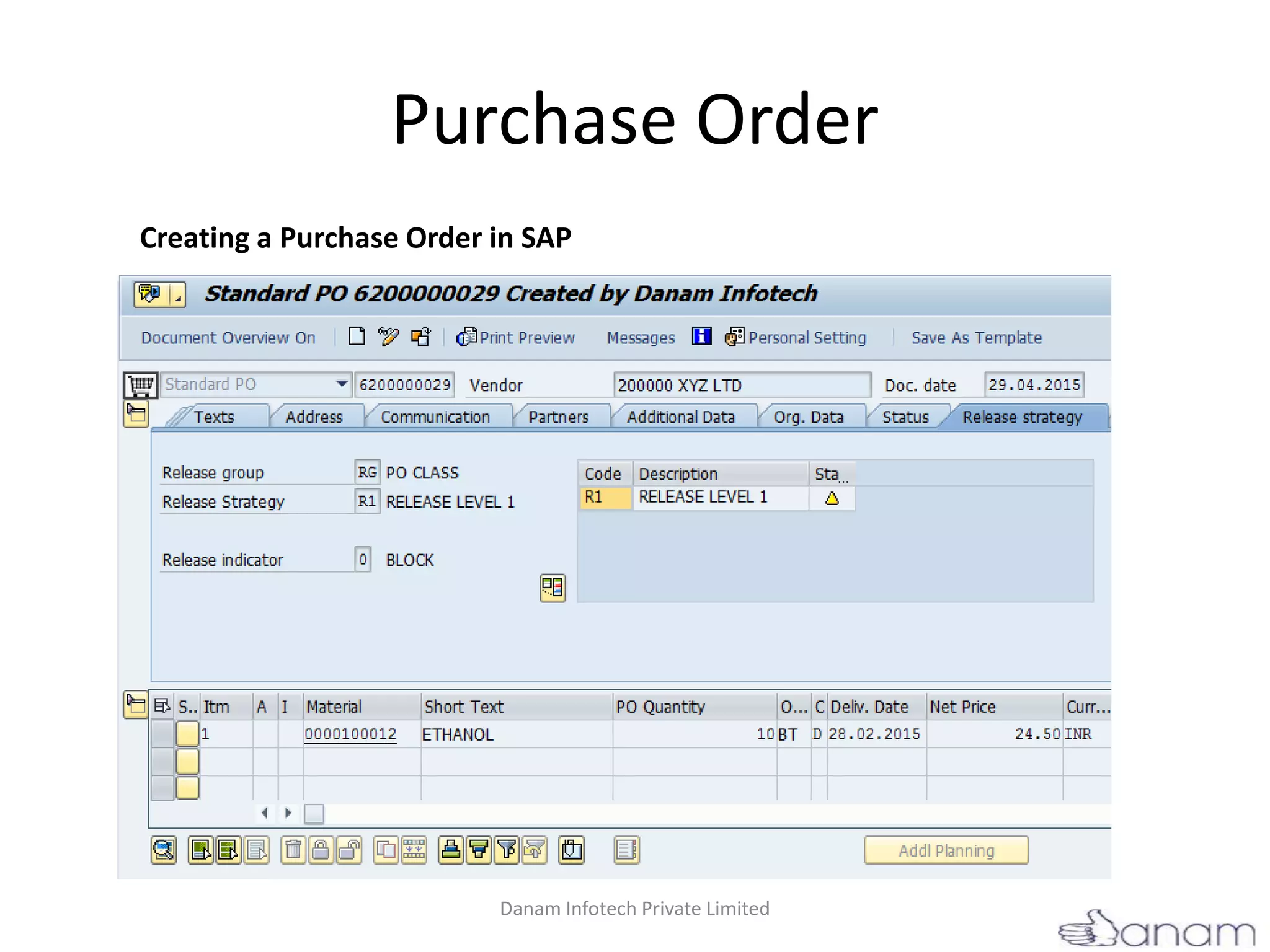
Purchase Order
Creating a Purchase Order in SAP
Danam Infotech Private Limited
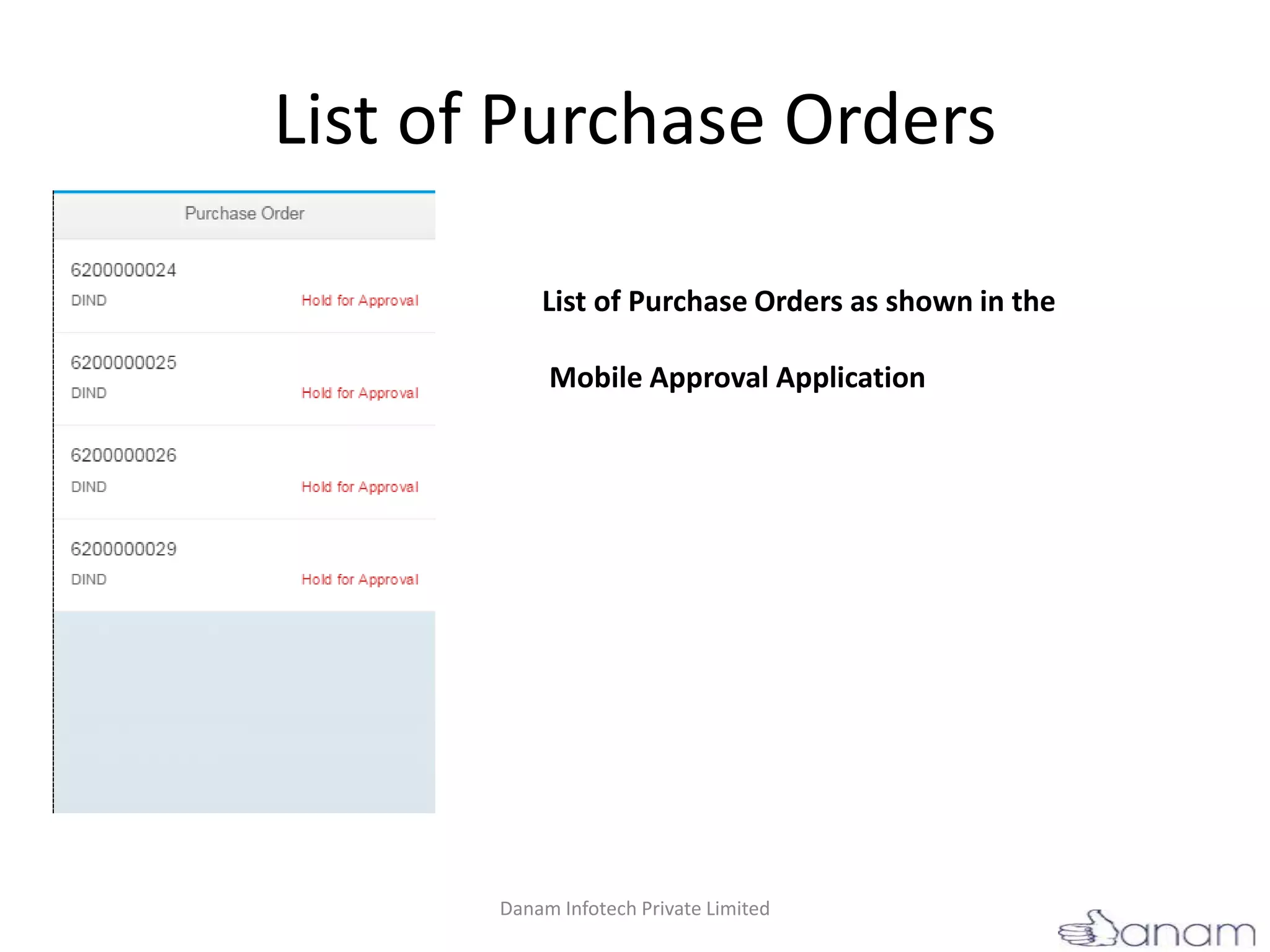
List of Purchase Orders
List of Purchase Orders as shown in the
Mobile Approval Application
Danam Infotech Private Limited
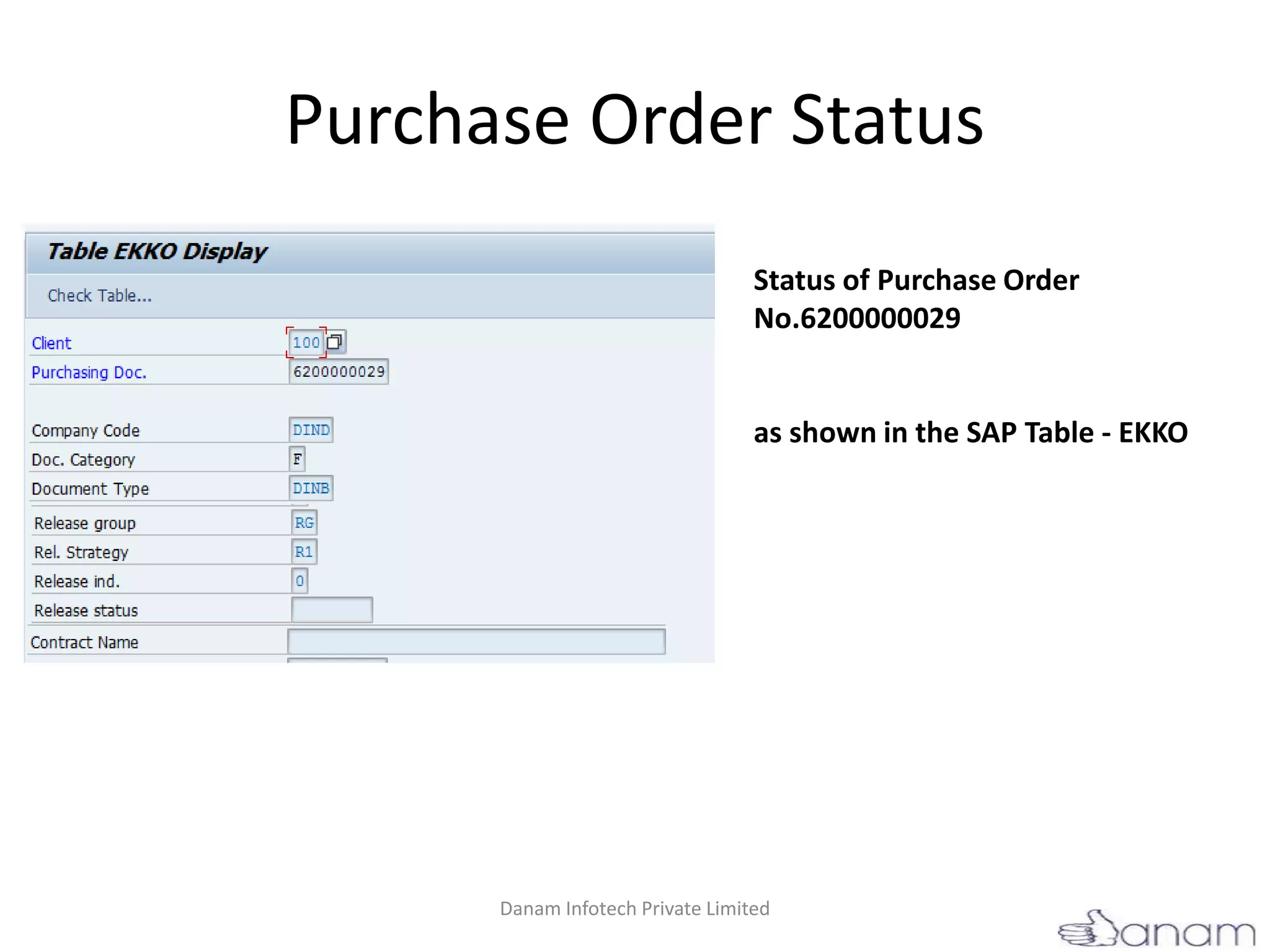
Purchase Order Status
Status of Purchase Order
No.6200000029
as shown in the SAP Table - EKKO
Danam Infotech Private Limited
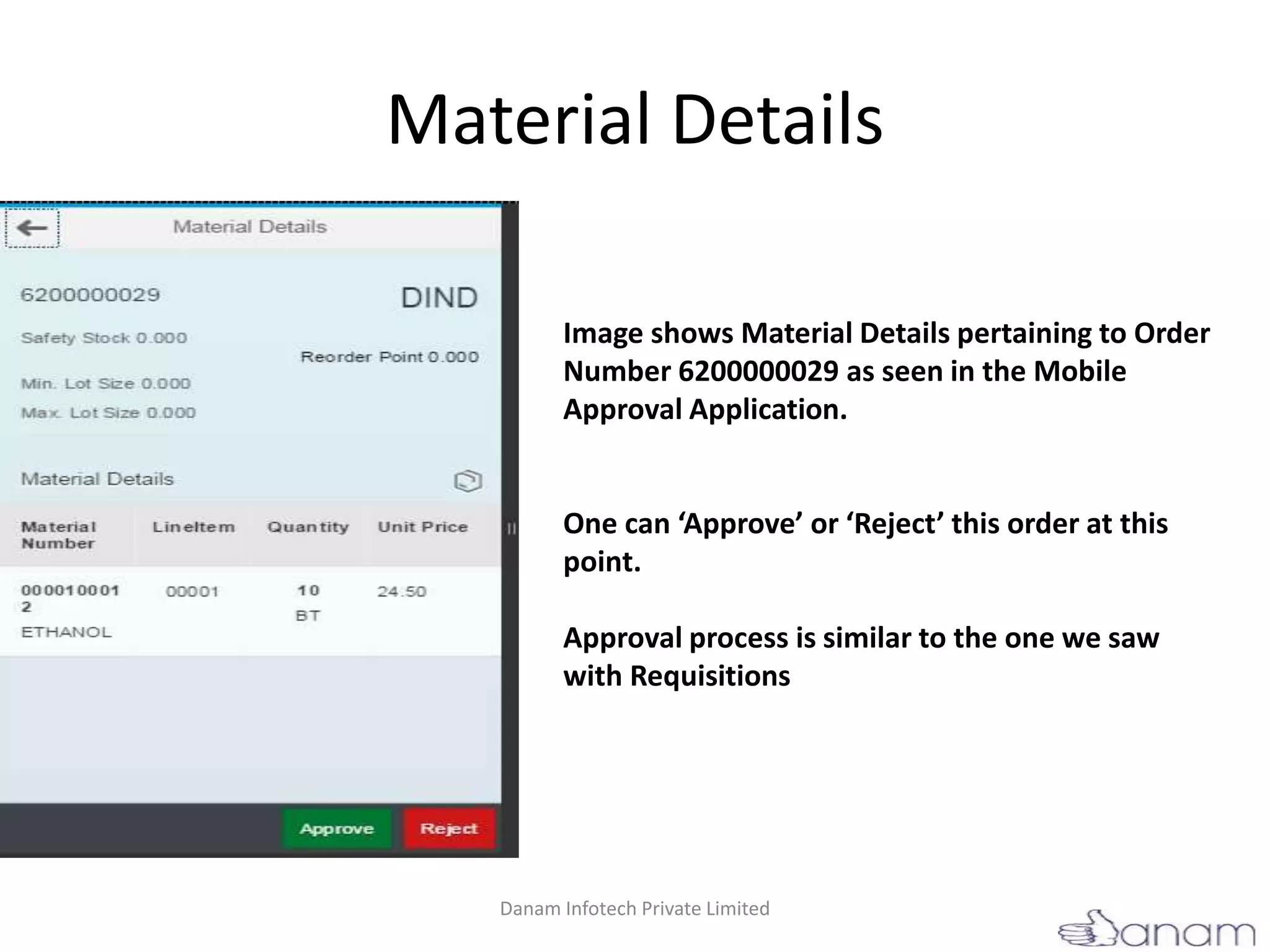
Material Details
Image shows Material Details pertaining to Order
Number 6200000029 as seen in the Mobile
Approval Application.
One can ‘Approve’ or ‘Reject’ this order at this
point.
Approval process is similar to the one we saw
with Requisitions
Danam Infotech Private Limited
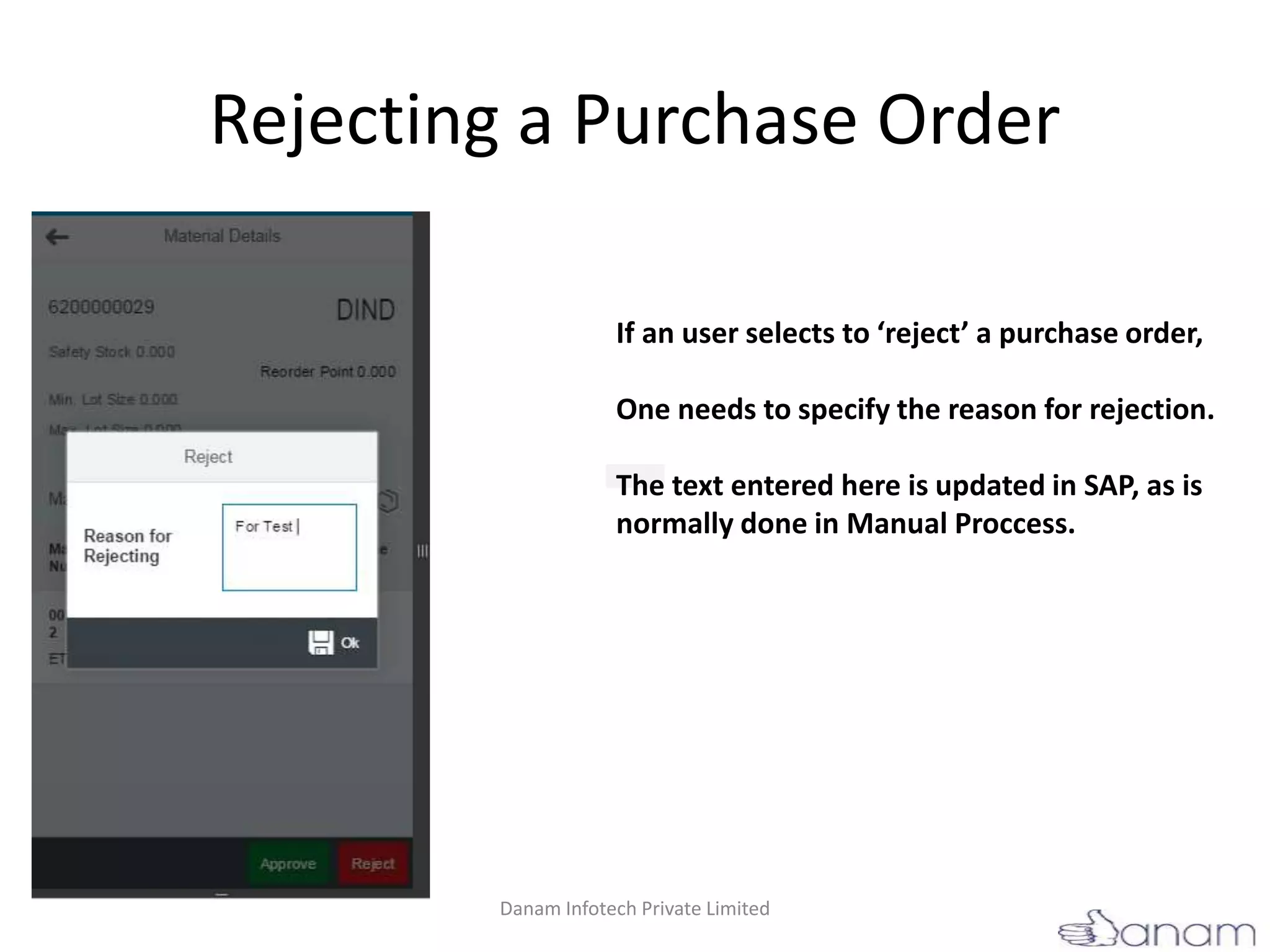
Rejecting a Purchase Order
If an user selects to ‘reject’ a purchase order,
One needs to specify the reason for rejection.
The text entered here is updated in SAP, as is
normally done in Manual Proccess.
Danam Infotech Private Limited
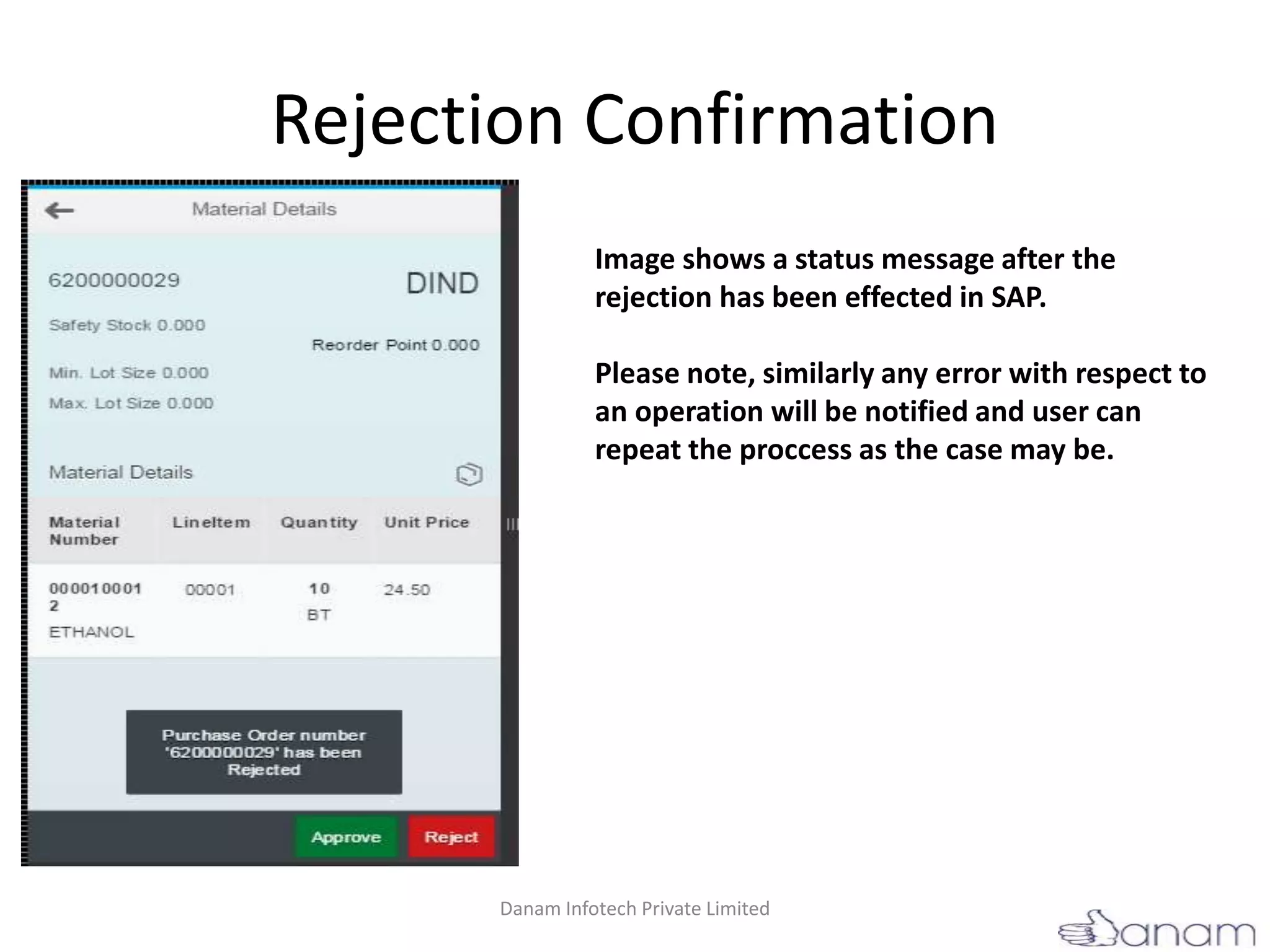
Rejection Confirmation
Image shows a status message after the
rejection has been effected in SAP.
Please note, similarly any error with respect to
an operation will be notified and user can
repeat the proccess as the case may be.
Danam Infotech Private Limited
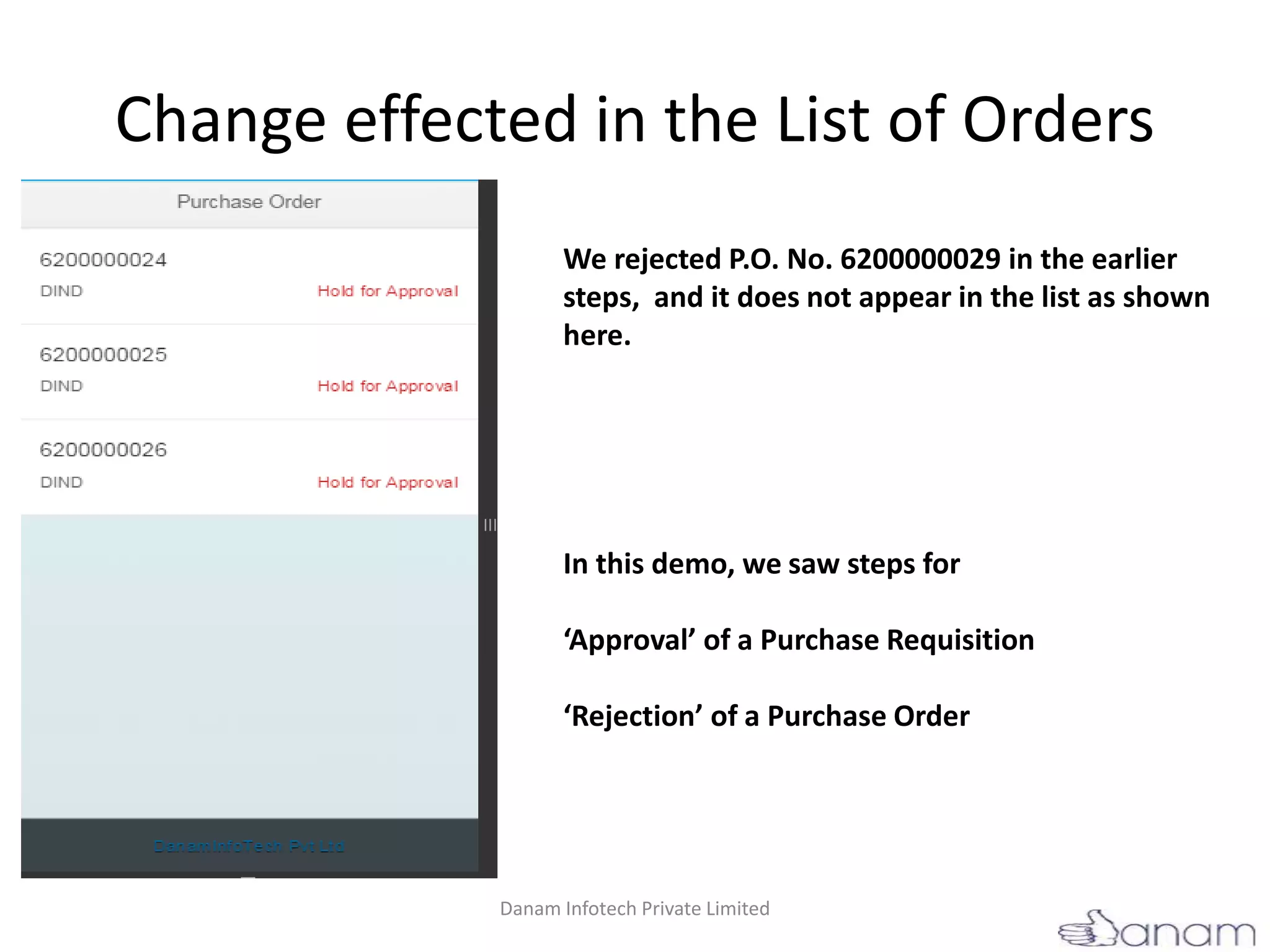
Change effected in the List of Orders
We rejected P.O. No. 6200000029 in the earlier
steps, and it does not appear in the list as shown
here.
In this demo, we saw steps for
‘Approval’ of a Purchase Requisition
‘Rejection’ of a Purchase Order
Danam Infotech Private Limited

Approval SAPUI5 Applications for Purchase Order and Purchase Requisition

  • 1.
    Approval Applications for SAP-MM FlowAutomation between SAP Backend and Mobile Application Created By, Sivakumar M (ABAP Consultant) Danam Infotech Private Limited
  • 2.
    Creating a PurchaseRequisition in the SAP-Backend Creating a PR using T-Code ME51N Danam Infotech Private Limited
  • 3.
    Saving Purchase Requisition Savingthe requision in the backend will display a confirmation message as shown above. Danam Infotech Private Limited
  • 4.
    Purchase Requisition –Mobile Application Launching the Purchase Requisition Approval Application, one can see a list of Purchase Requisitions which are created and in ‘UnReleased’ state. This list varies with every user and role as defined in the organisation. Selecting any of these requisitions will display the related line of items as shown in the next slide. Danam Infotech Private Limited
  • 5.
    Line of Items Createdin SAP-Backend List of items as displayed in the mobile application relating to Requisition No 10000140. Selecting an item from the list will display the details of the item. List of items as created in the backend for Requisition No 10000140. Danam Infotech Private Limited
  • 6.
    Item Details Depiction ofdetails of Item 00010 when selected from the list. The top portion shows details about the item from the item master. Bottom portion shows related information entered in the requisition. Danam Infotech Private Limited
  • 7.
    Item Status asin the Backend This picture shows the status of Release Indicator as in SAP-Backend, marked as ‘X’. Danam Infotech Private Limited
  • 8.
    Status shown inSAP Status indicator as seen in SAP. For Item 10. Danam Infotech Private Limited
  • 9.
    Approval Method In themobile application, to Approve an item, One needs to select the ‘Approve’ button, coloured in ‘Green’. One will be presented with options as shown on the left, whether to go ahead with approval by clicking on ‘OK’ button (or) Cancel this process. Danam Infotech Private Limited
  • 10.
    Approval Confirmation Upon Confirmationfor Approval, a Status Message will be displayed as shown in the picture. This marks the item as confirmed for release. Danam Infotech Private Limited
  • 11.
    Status in SAPafter confirmation One can see the status has changed to Green as approved. Danam Infotech Private Limited
  • 12.
    Change of ReleaseIndicator Image shows the change in Release Indicator, showing as ‘2’ in the table. Danam Infotech Private Limited
  • 13.
    Updation in Lineof Items The approved Item ‘00010’ does not appear any more when Requisition ‘10000140’ is selected again. This completes the Approval process with respect to Purchase Requisitions. Danam Infotech Private Limited
  • 14.
    Purchase Order Creating aPurchase Order in SAP Danam Infotech Private Limited
  • 15.
    List of PurchaseOrders List of Purchase Orders as shown in the Mobile Approval Application Danam Infotech Private Limited
  • 16.
    Purchase Order Status Statusof Purchase Order No.6200000029 as shown in the SAP Table - EKKO Danam Infotech Private Limited
  • 17.
    Material Details Image showsMaterial Details pertaining to Order Number 6200000029 as seen in the Mobile Approval Application. One can ‘Approve’ or ‘Reject’ this order at this point. Approval process is similar to the one we saw with Requisitions Danam Infotech Private Limited
  • 18.
    Rejecting a PurchaseOrder If an user selects to ‘reject’ a purchase order, One needs to specify the reason for rejection. The text entered here is updated in SAP, as is normally done in Manual Proccess. Danam Infotech Private Limited
  • 19.
    Rejection Confirmation Image showsa status message after the rejection has been effected in SAP. Please note, similarly any error with respect to an operation will be notified and user can repeat the proccess as the case may be. Danam Infotech Private Limited
  • 20.
    Change effected inthe List of Orders We rejected P.O. No. 6200000029 in the earlier steps, and it does not appear in the list as shown here. In this demo, we saw steps for ‘Approval’ of a Purchase Requisition ‘Rejection’ of a Purchase Order Danam Infotech Private Limited
  • 21.