Getting Started with Flick r A Library 2.0 Training Session Susan Knisely Online Services Librarian Nebraska Library Commission
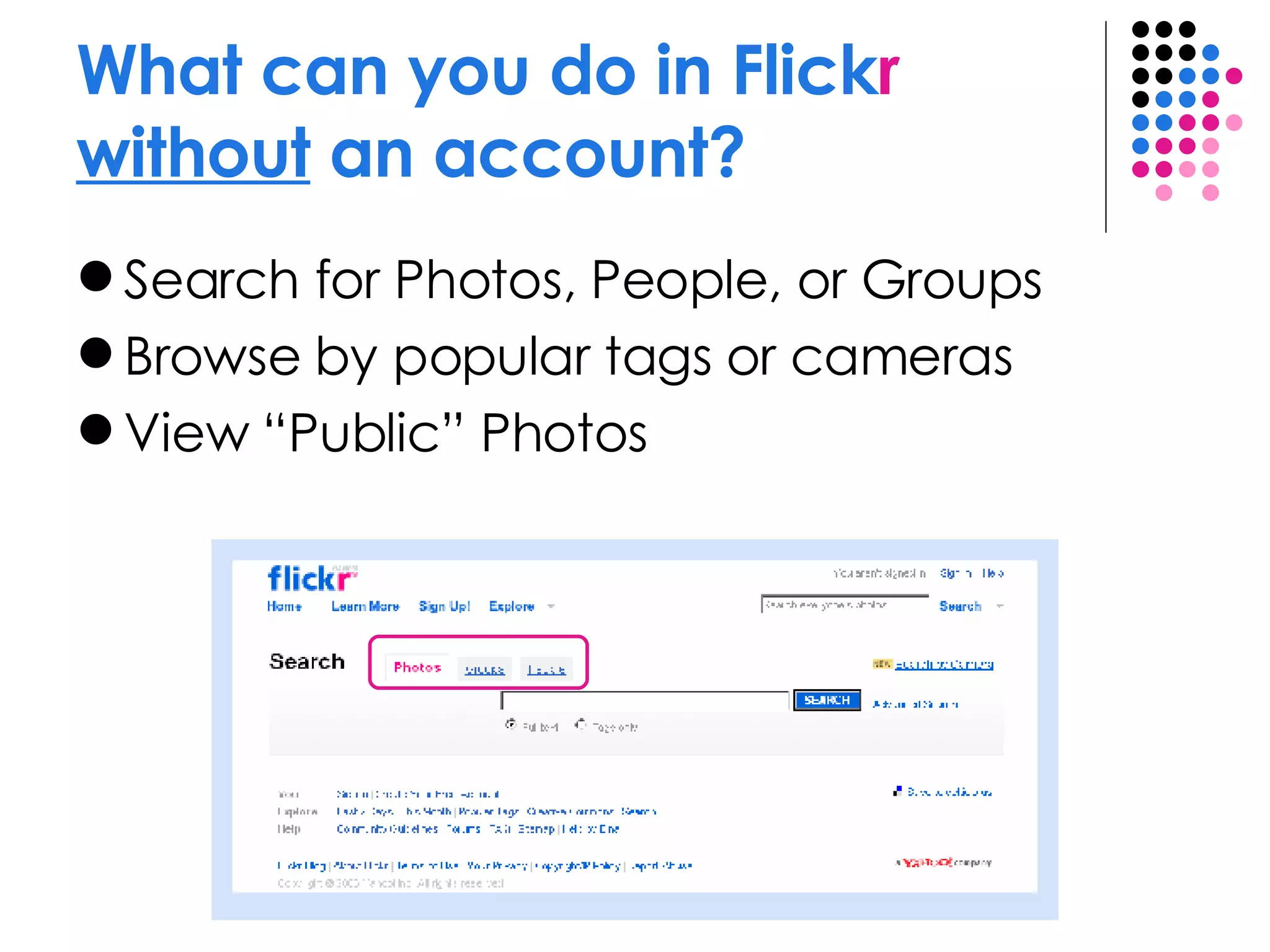
What can you do in Flick r   without  an account?  Search for Photos, People, or Groups Browse by popular tags or cameras View “Public” Photos
What can you do in Flick r   with  an account?  Upload your own photos Comment on photos Tag photos (i.e. add descriptive keywords) Join groups / post photos to groups View “Private” photos of people who have marked you as family or friend Post your photos to a blog And much, much more!
Free Flick r  account 100 MB  monthly upload limit (5 MB per photo) 3  photosets Photostream views limited to the  200 most recent images Post any of your photos in  up to 10 group pools Storage of  smaller (resized) images
Flick r  Pro Account Unlimited  uploads (10 MB per photo) Unlimited  storage & bandwidth  Unlimited  photosets  Permanent archiving  of high-resolution original images  The ability to  replace a photo Post any of your photos in  up to 60 group pools Ad-free  browsing and sharing  Cost: $24.95 / year
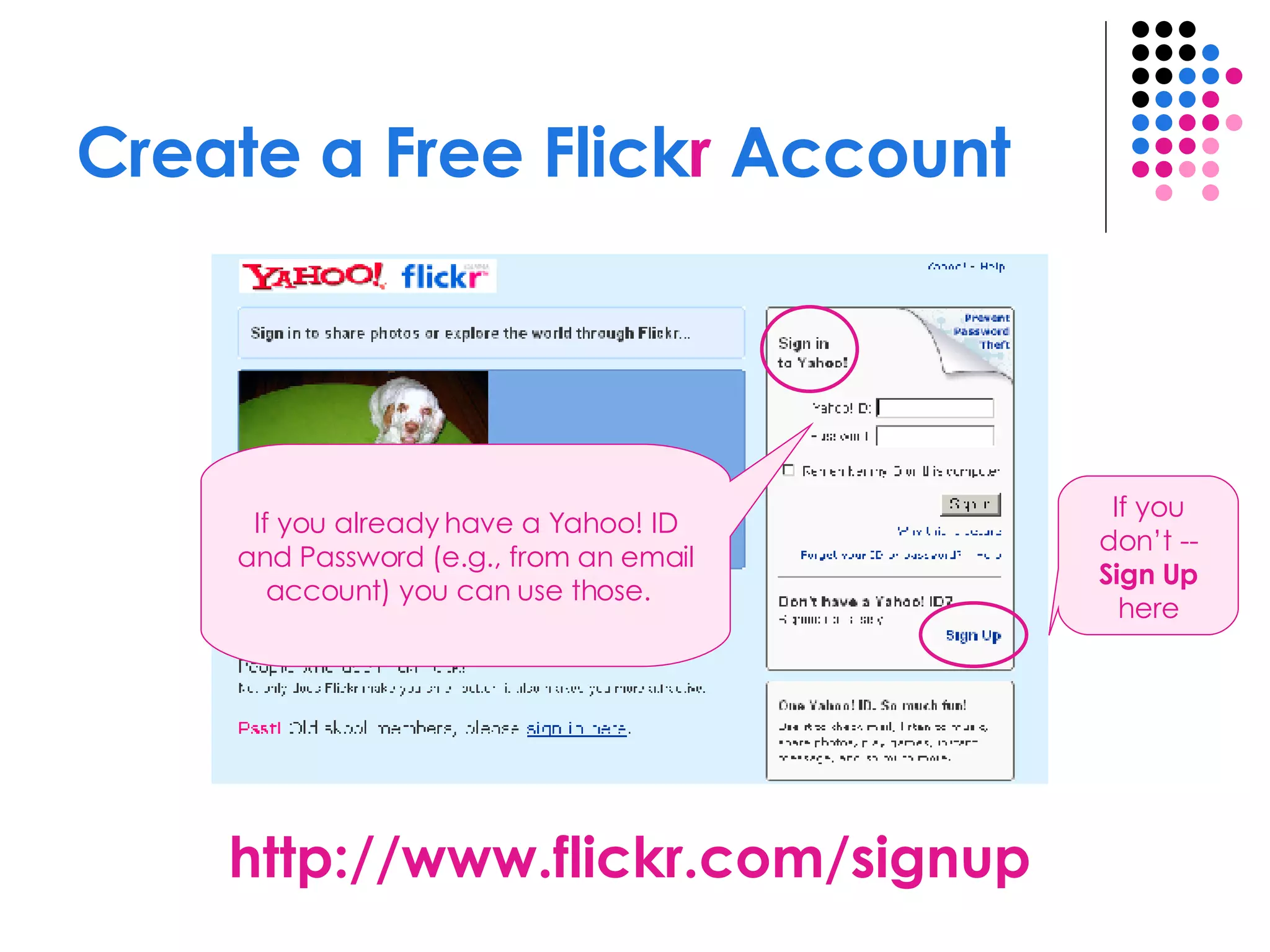
Create a Free Flick r  Account http://www.flickr.com/signup If you already have a Yahoo! ID and Password (e.g., from an email account) you can use those.  If you don’t --  Sign Up  here
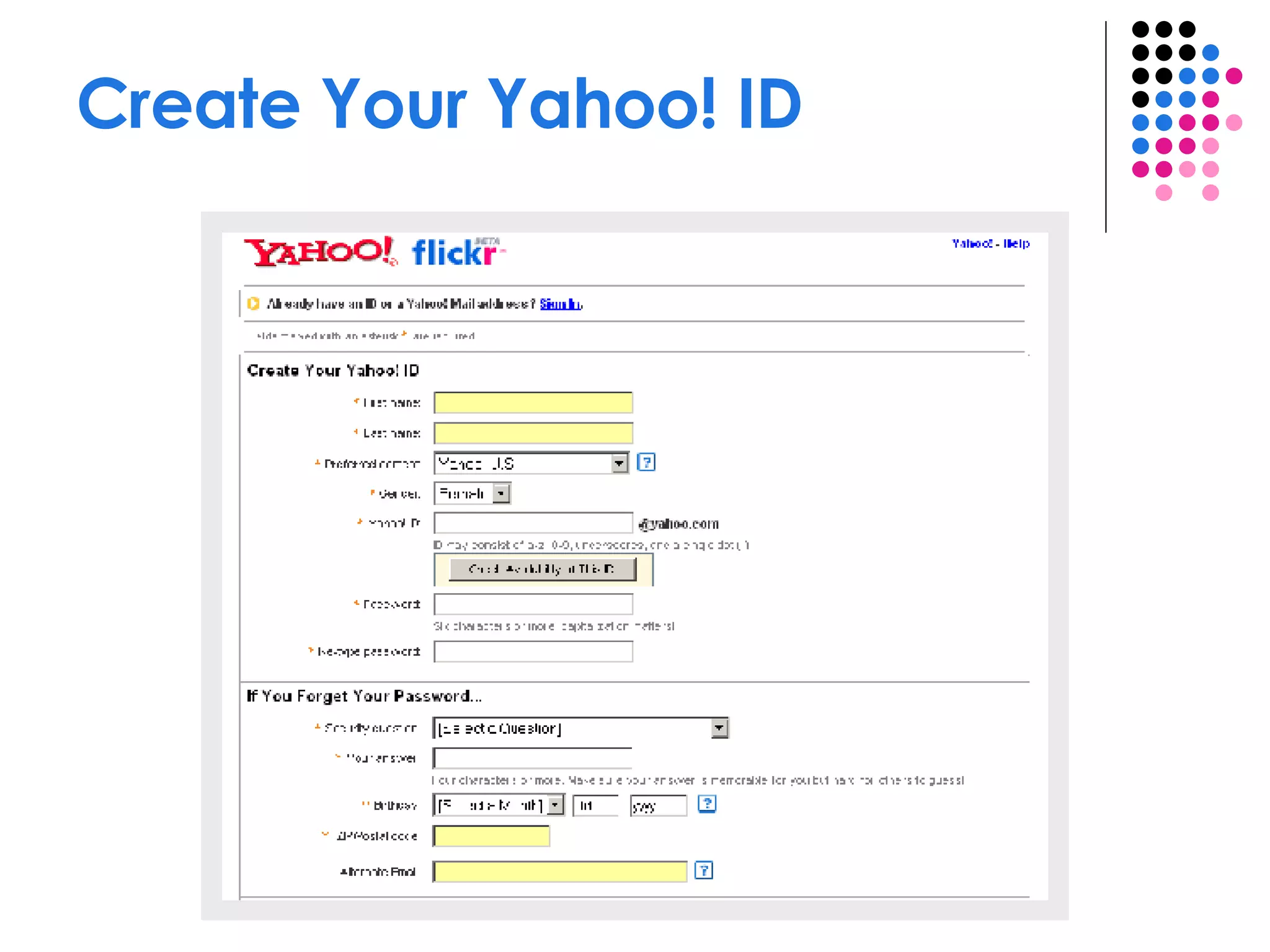
Create Your Yahoo! ID
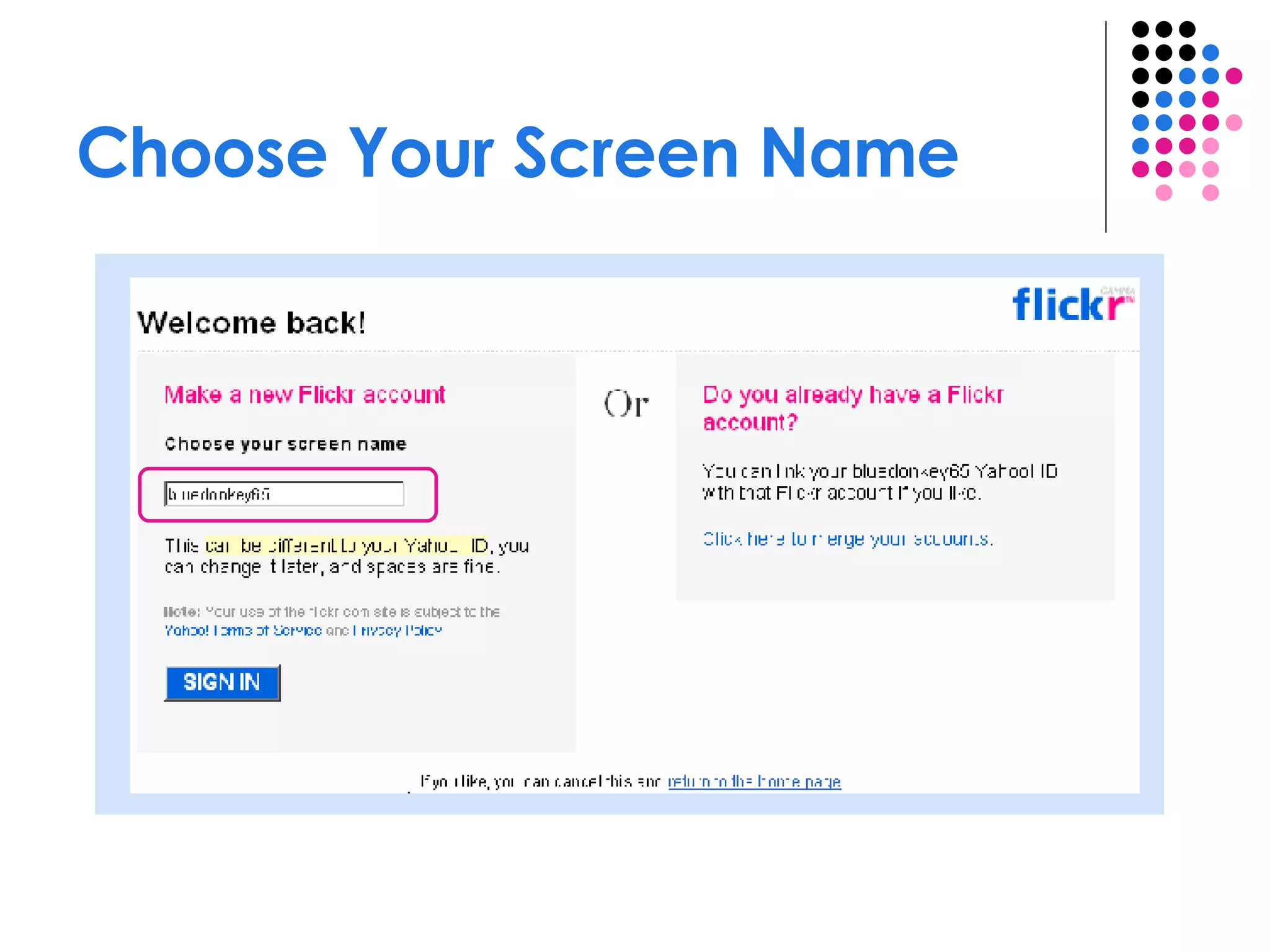
Choose Your Screen Name
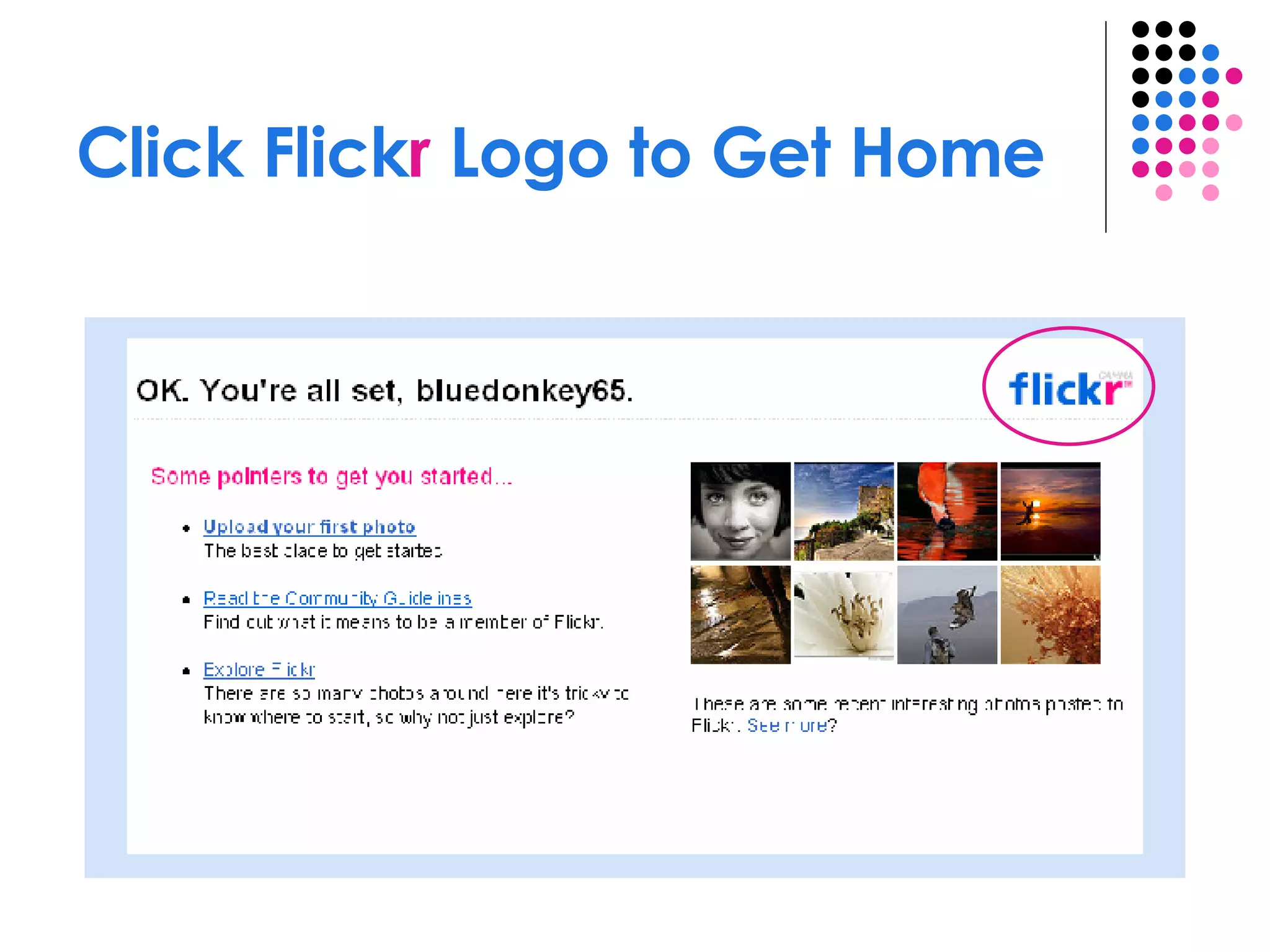
Click Flick r  Logo to Get Home
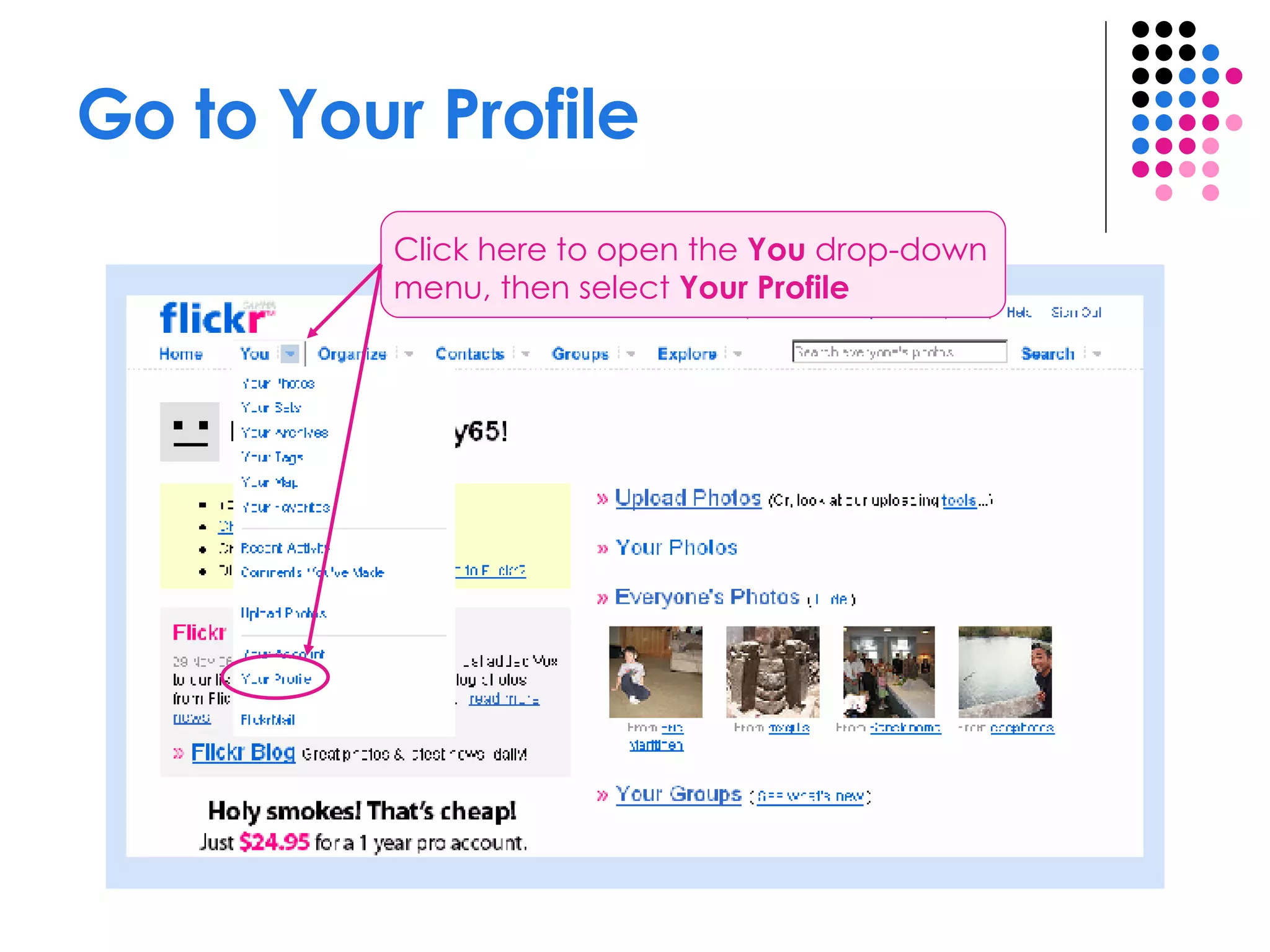
Go to Your Profile Click here to open the  You  drop-down menu, then select  Your Profile
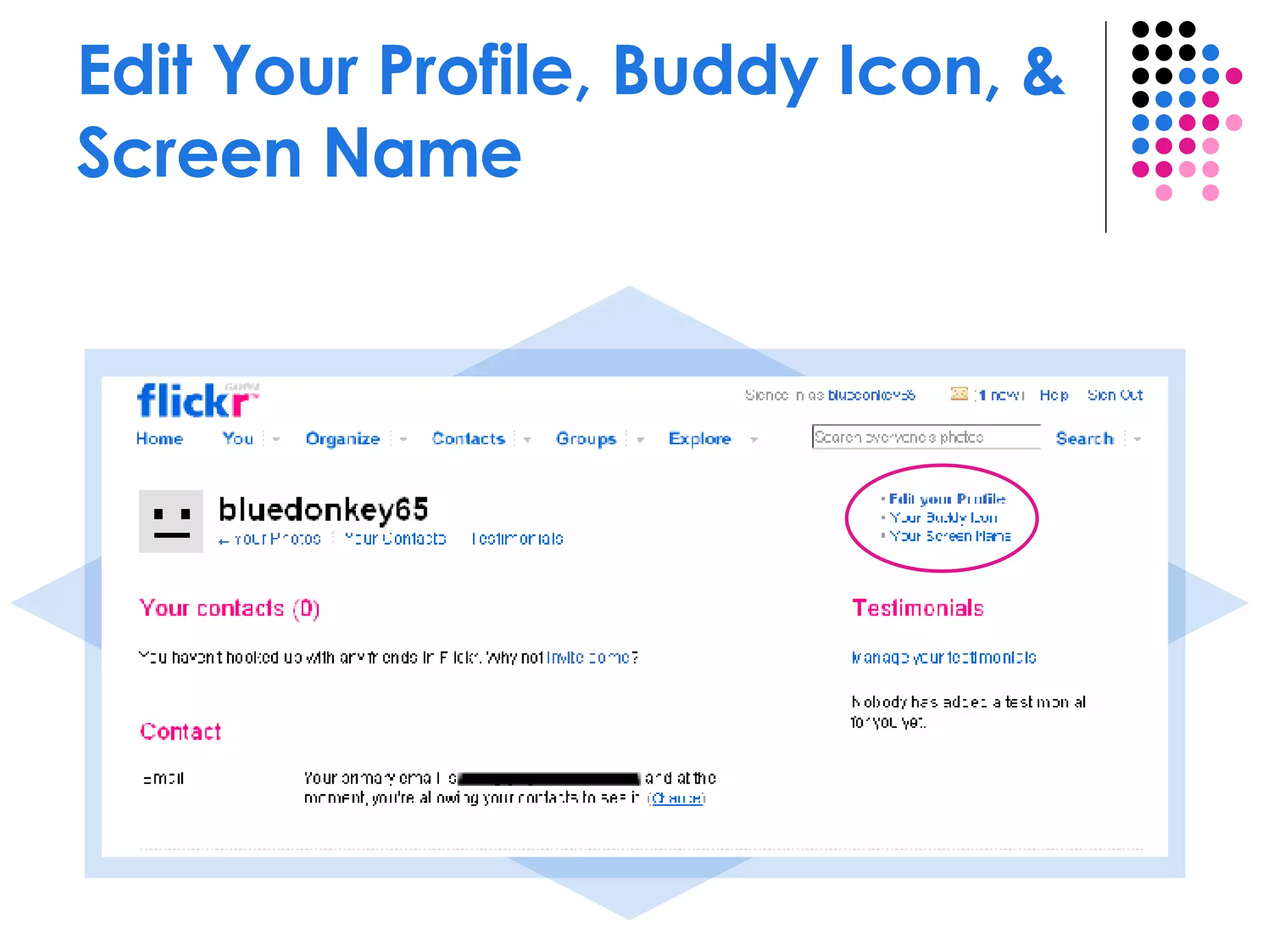
Edit Your Profile, Buddy Icon, & Screen Name
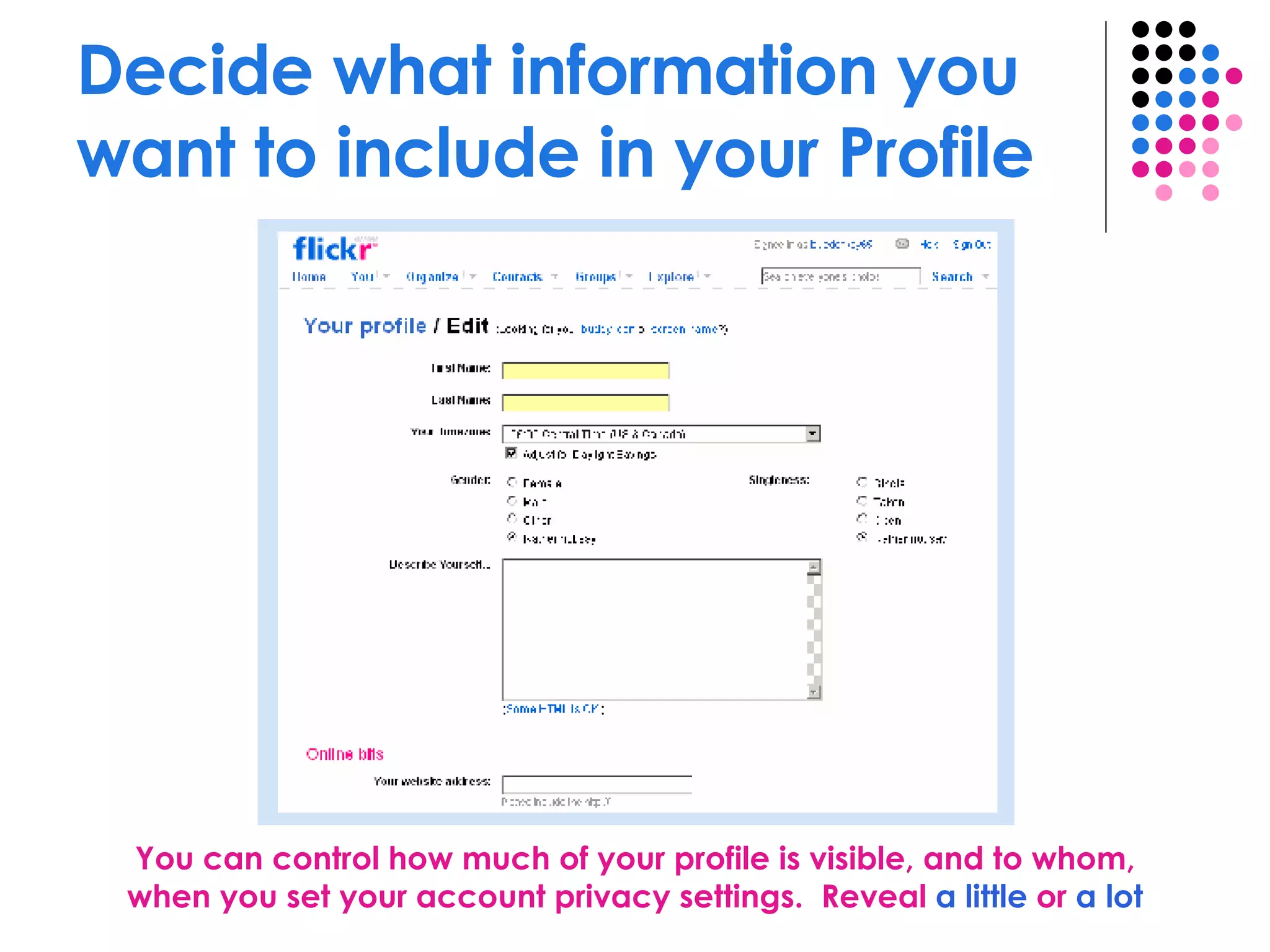
Decide what information you want to include in your Profile You can control how much of your profile is visible, and to whom, when you set your account privacy settings.  Reveal  a little  or  a lot
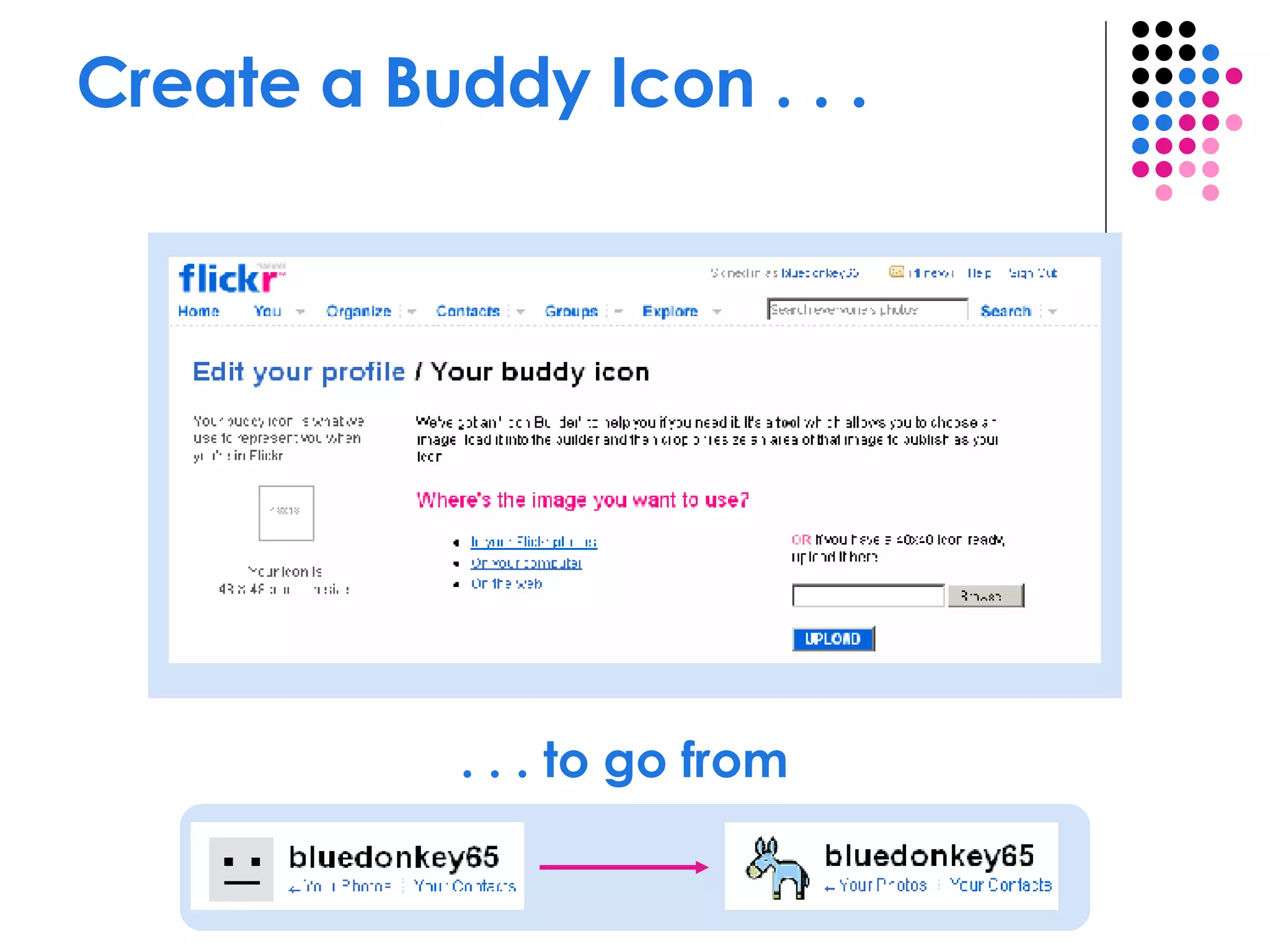
Create a Buddy Icon . . .  . . . to go from
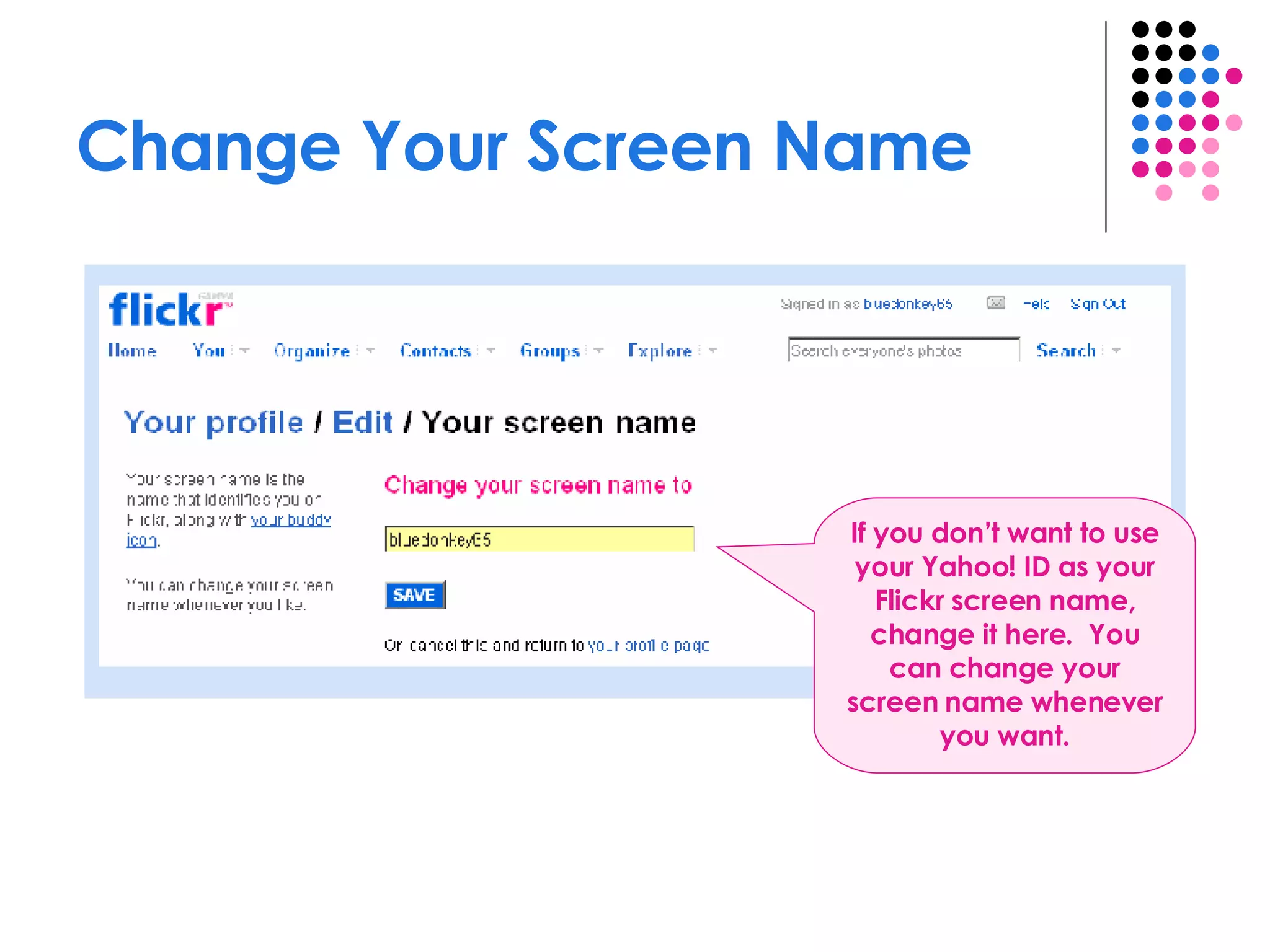
Change Your Screen Name If you don’t want to use your Yahoo! ID as your Flickr screen name, change it here.  You can change your screen name whenever you want.
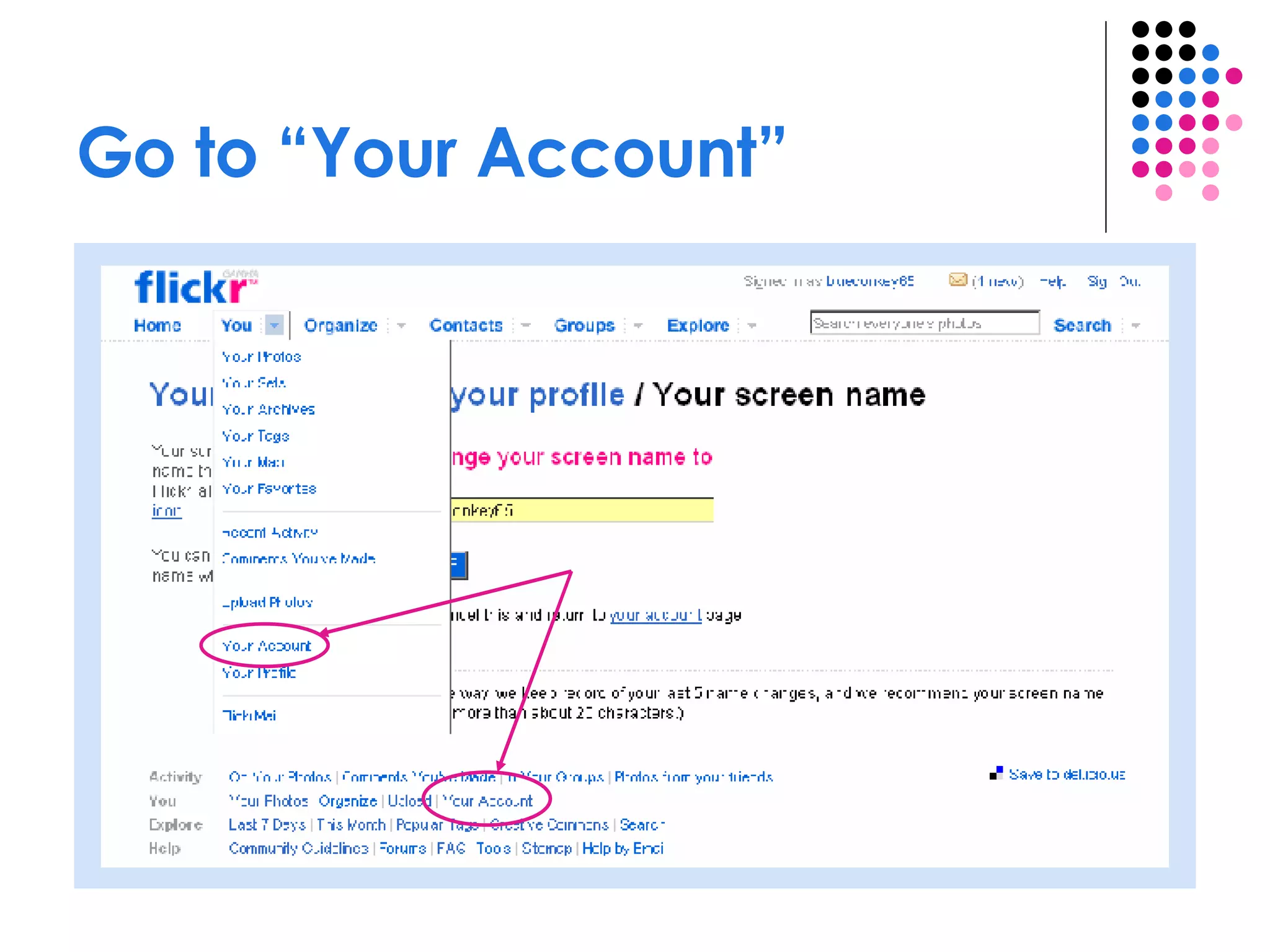
Go to “Your Account”
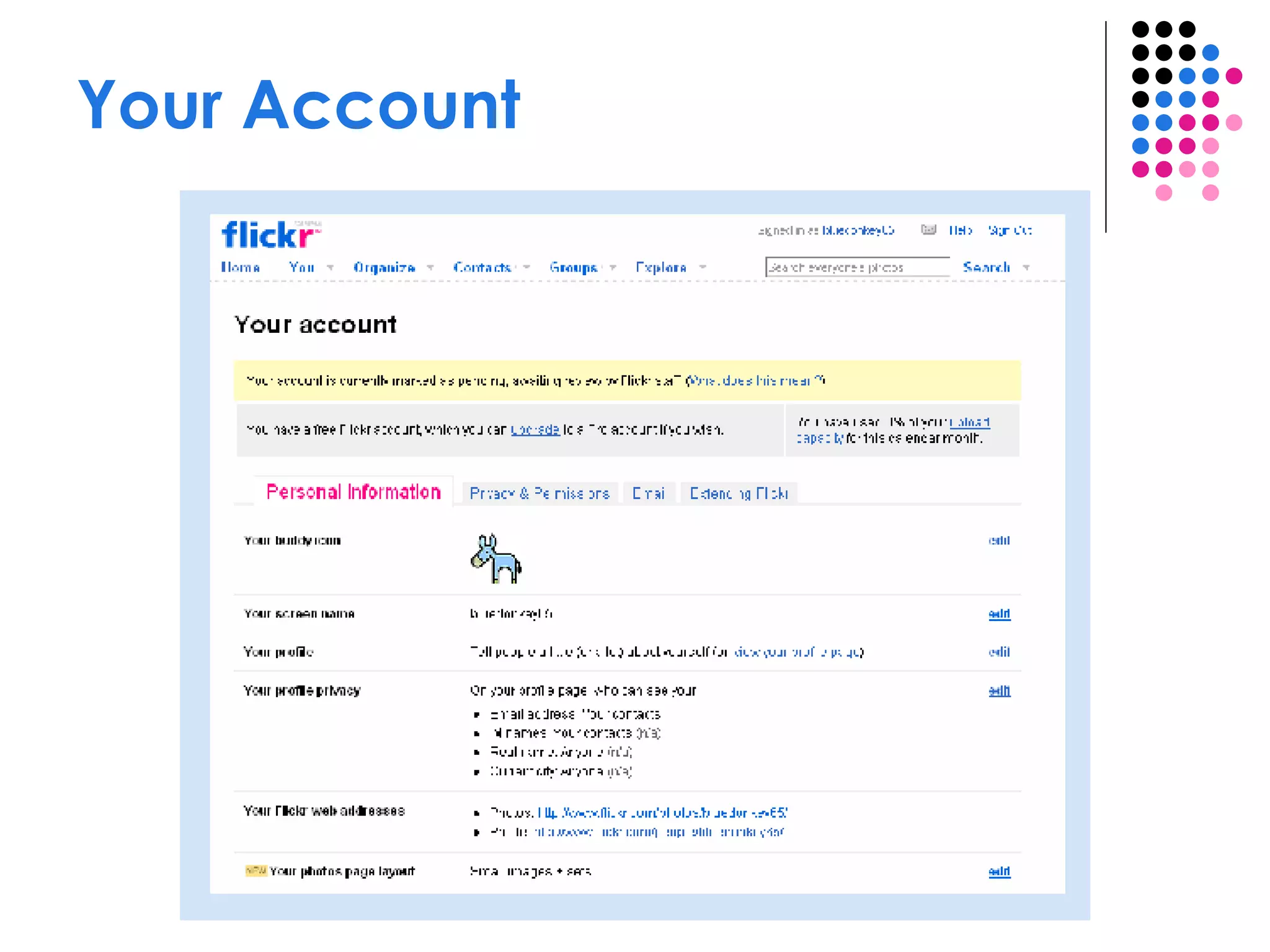
Your Account
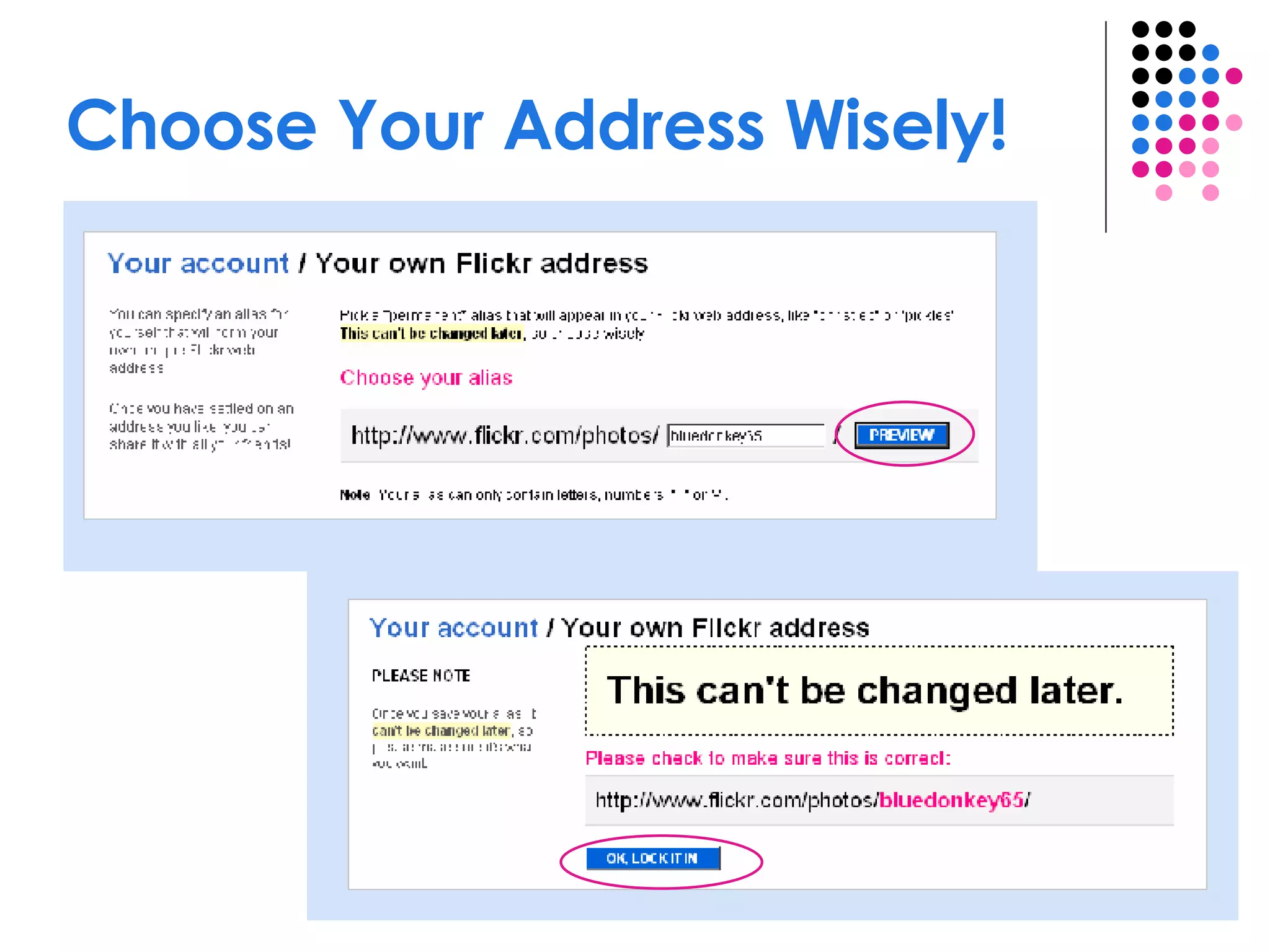
Account Settings Worth Reviewing Personal Information / Your profile privacy  - Control who is able to see different parts of your profile: Anyone Any Flickr member Any of your contacts Friends and family Nobody Personal Information / Your Flickr web address  – Create your own permanent, user-friendly Flickr address www.flickr.com/photos/ bluedonkey65  as opposed to  www.flickr.com/photos/ [email_address]
Choose Your Address Wisely!
Account Settings (cont.) Privacy & Permissions / Defaults for new uploads  Control who will be able to see, comment on, and annotate your photos Set photo safety level:  Safe Moderate Restricted Set image content type:  Photos Art, Illustration, CGI or other non-photographic images  Screenshots
Your Flick r  Home Click here to  upload photos Click  Home  from anywhere in Flickr to return to this page
Upload Options Web-based upload form (upload up to 6 images at a time)  Flickr Uploadr for Windows  Flickr Uploadr for  Mac  “ Send to Flickr” Windows XP Explorer Wizard Upload by email and more . . .
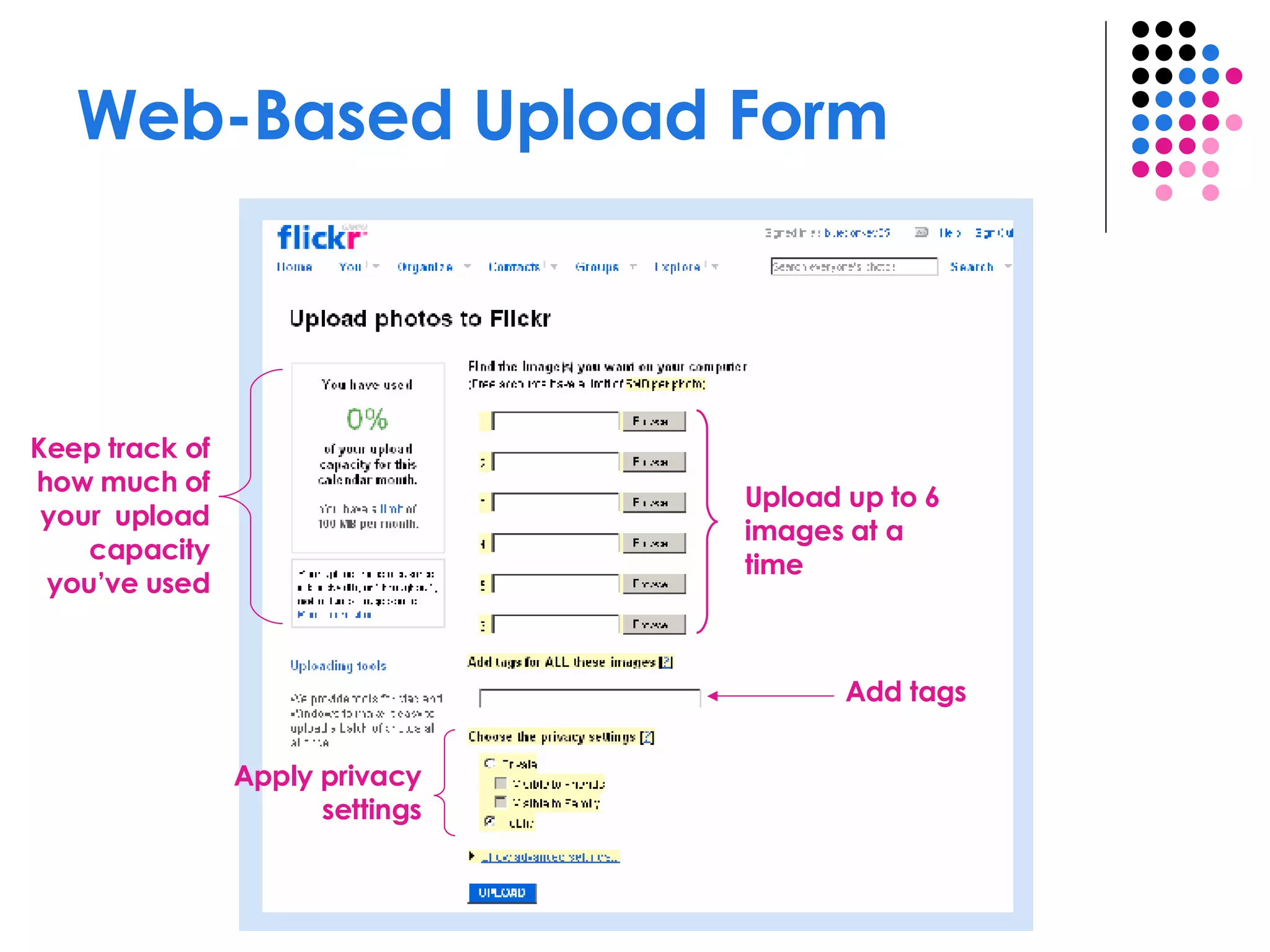
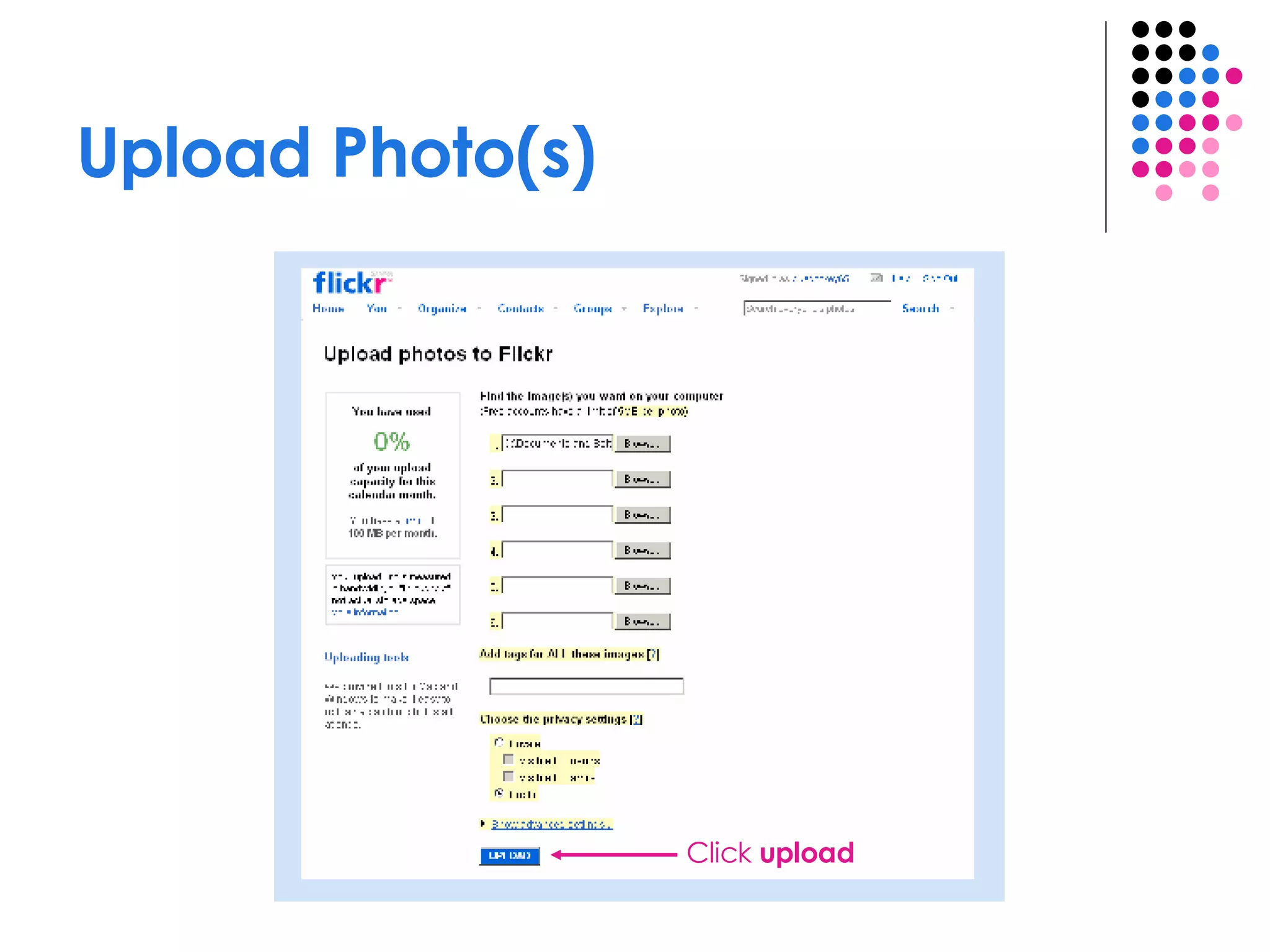
Web-Based Upload Form Upload up to 6 images at a time Add tags Apply privacy settings Keep track of how much of your  upload capacity you’ve used
Find the image(s) you want on your computer Click  Browse , then locate the image file on your computer Click  Open  to transfer the file path to the upload form
Upload Photo(s) Click  upload
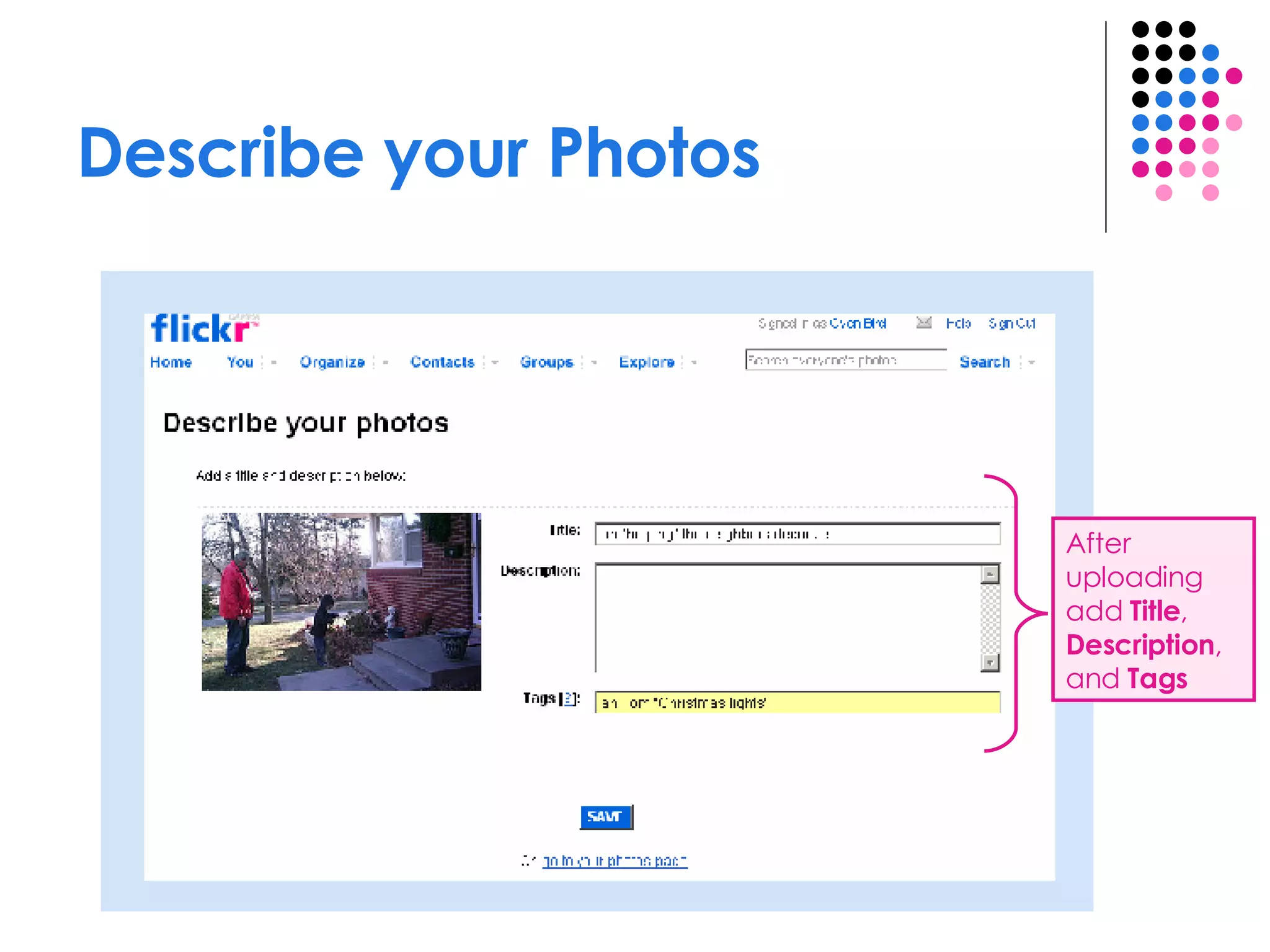
Describe your Photos After uploading add  Title ,  Description , and  Tags
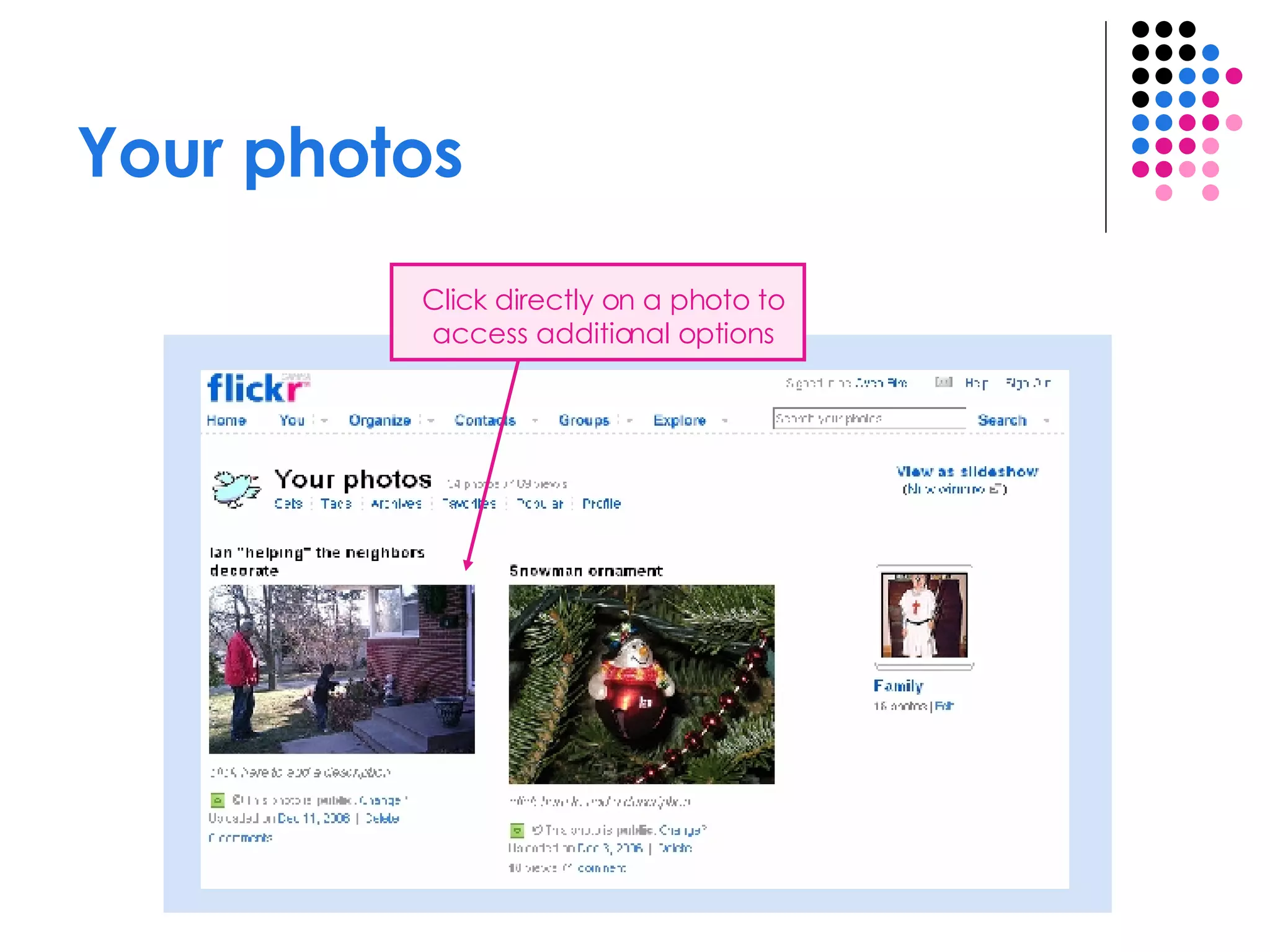
Your photos Click directly on a photo to access additional options
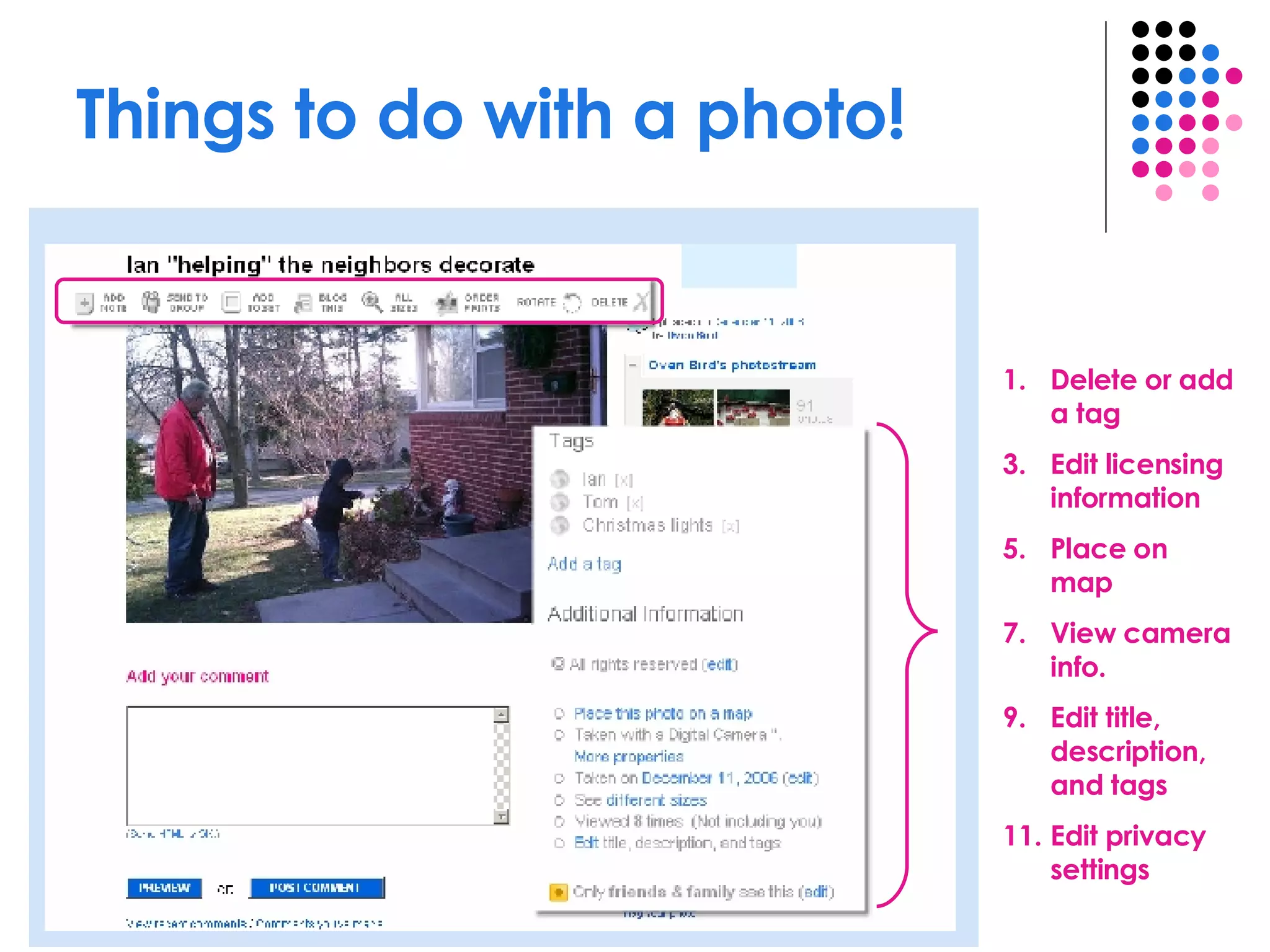
Things to do with a photo! Delete or add a tag Edit licensing information Place on map View camera info. Edit title, description, and tags Edit privacy settings
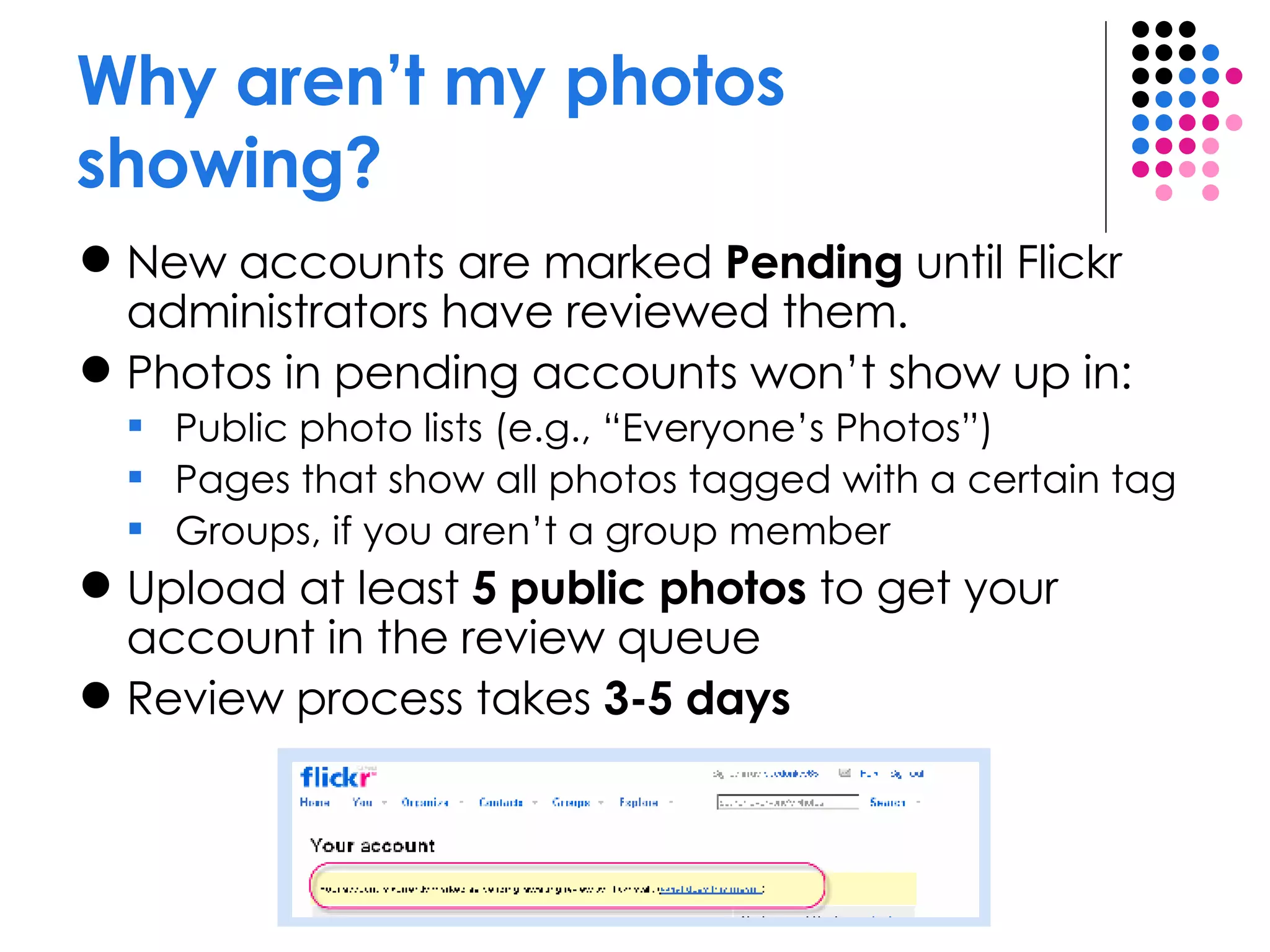
Why aren’t my photos showing? New accounts are marked  Pending  until Flickr administrators have reviewed them.  Photos in pending accounts won’t show up in: Public photo lists (e.g., “Everyone’s Photos”) Pages that show all photos tagged with a certain tag Groups, if you aren’t a group member Upload at least  5   public photos  to get your account in the review queue Review process takes  3-5 days
What are Groups? Groups are places to share photos related to a particular theme (e.g.,  a geographic location, subject matter, photographic technique, etc.) There are 3 types of groups: Public – Anyone who wants to can join instantly Public (invite only) – The group page is public, but the only way to join is by invitation Private – Only group members and those who have been invited will be able to view the group page
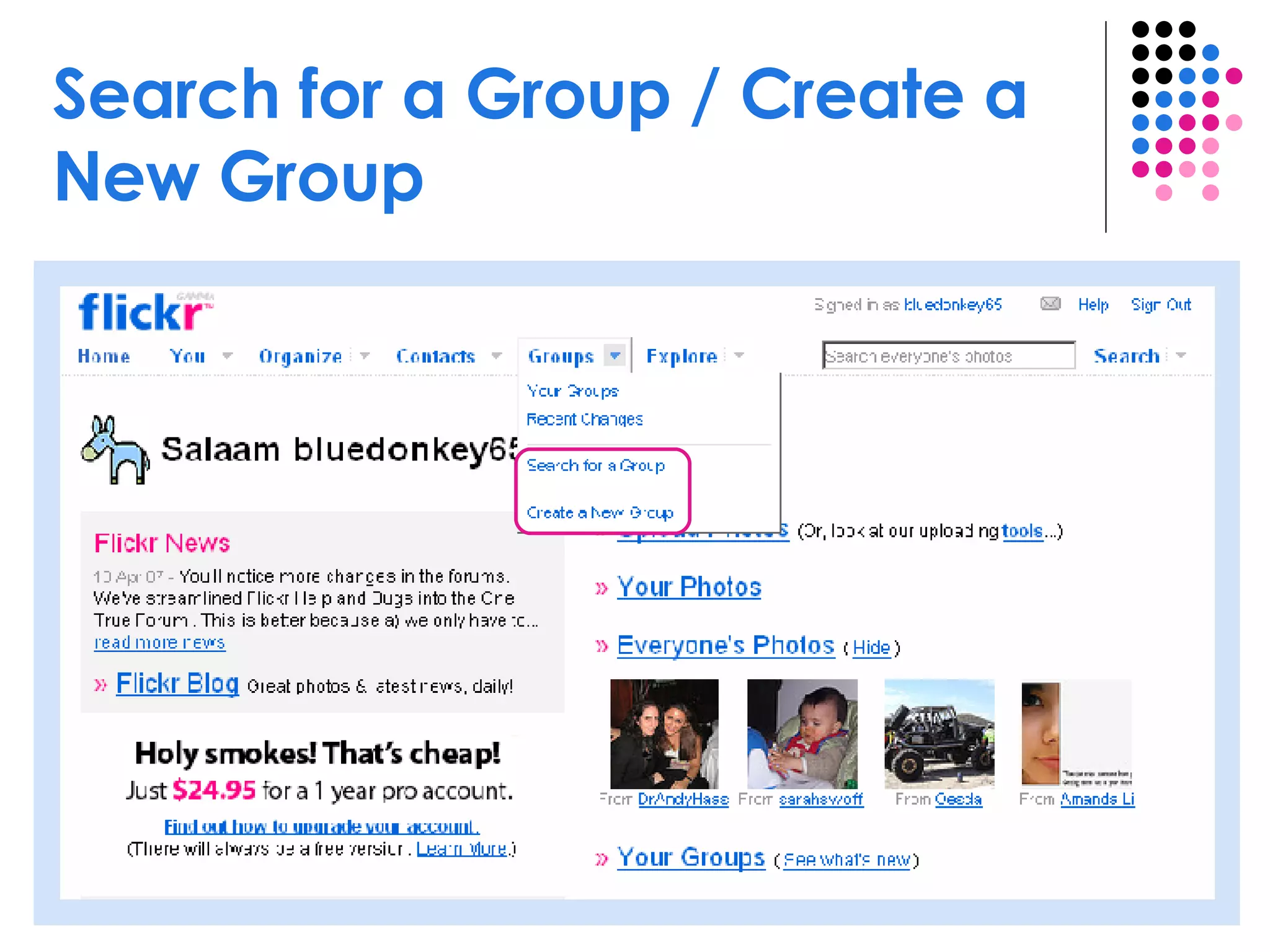
Search for a Group / Create a New Group
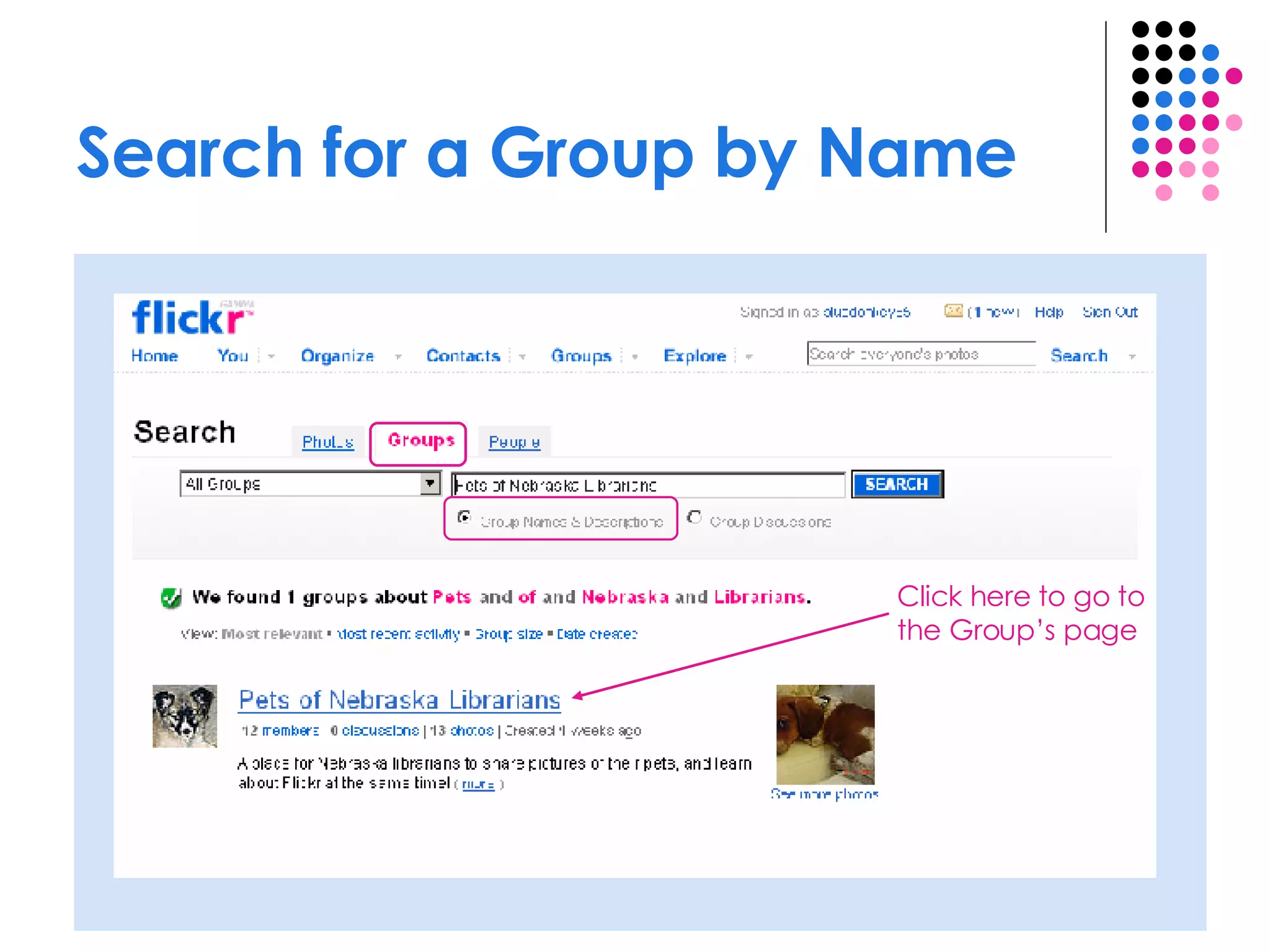
Search for a Group by Name Click here to go to the Group’s page
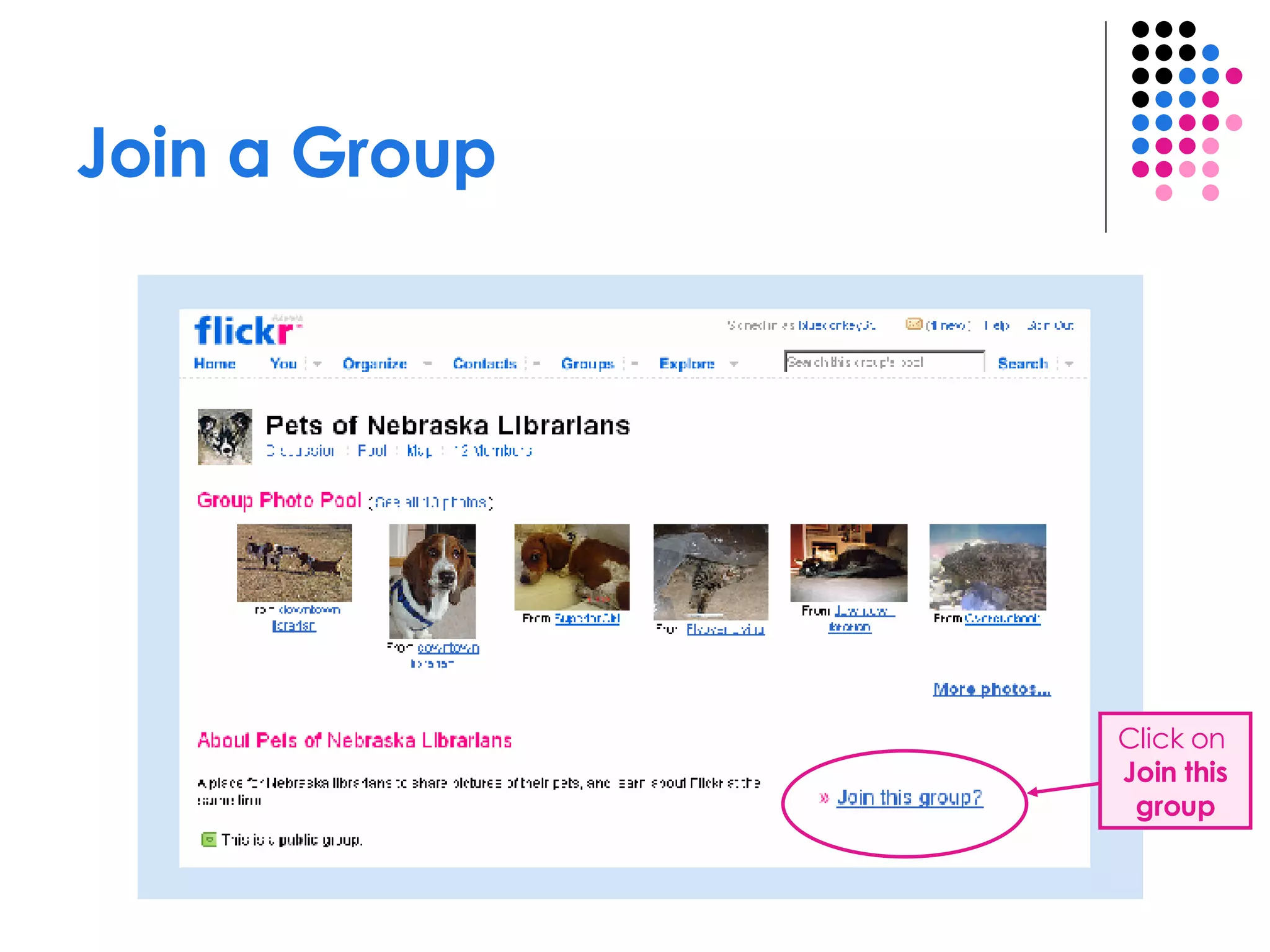
Join a Group Click on  Join this group
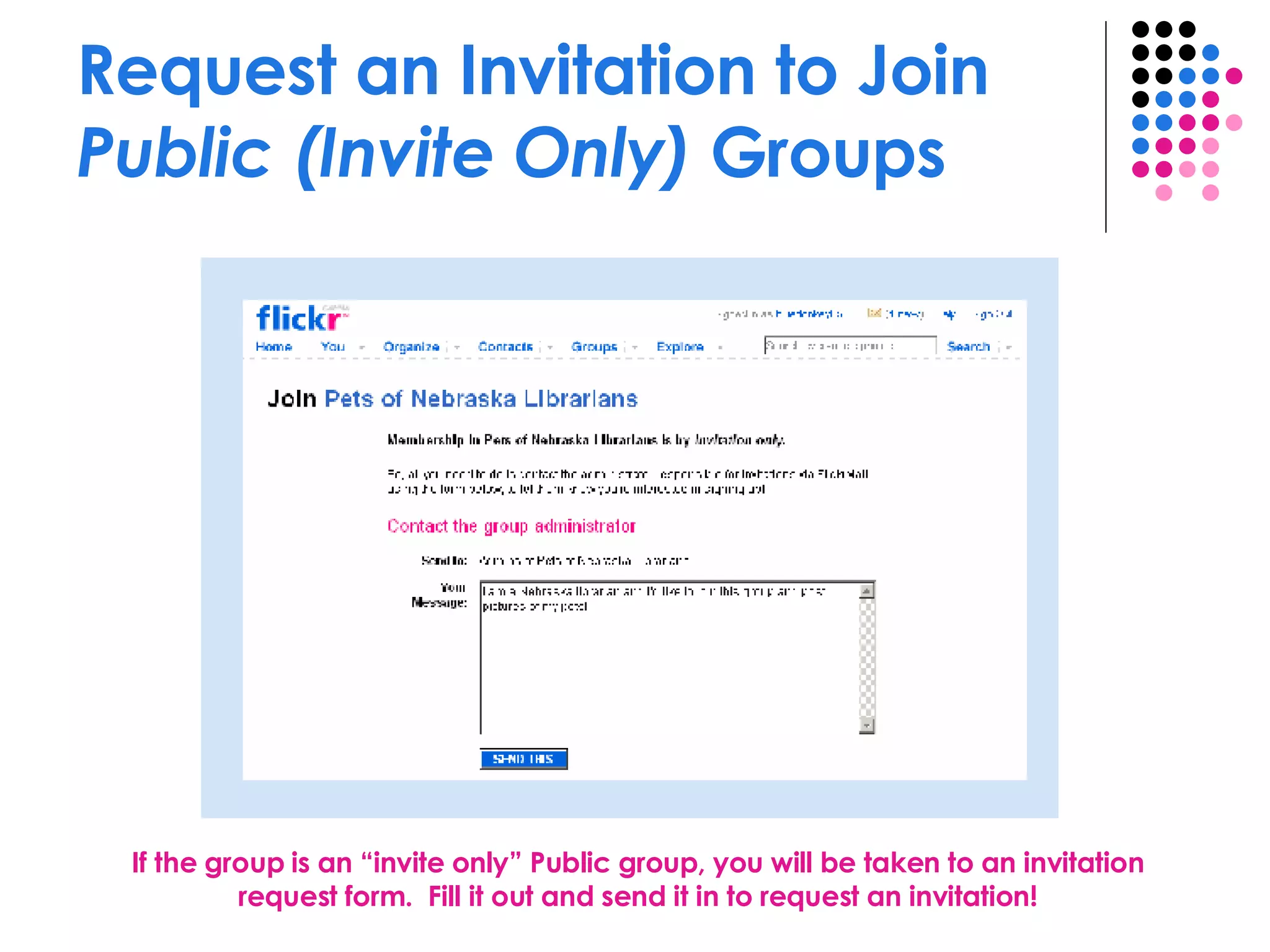
Request an Invitation to Join  Public (Invite Only)   Groups If the group is an “invite only” Public group, you will be taken to an invitation request form.  Fill it out and send it in to request an invitation!
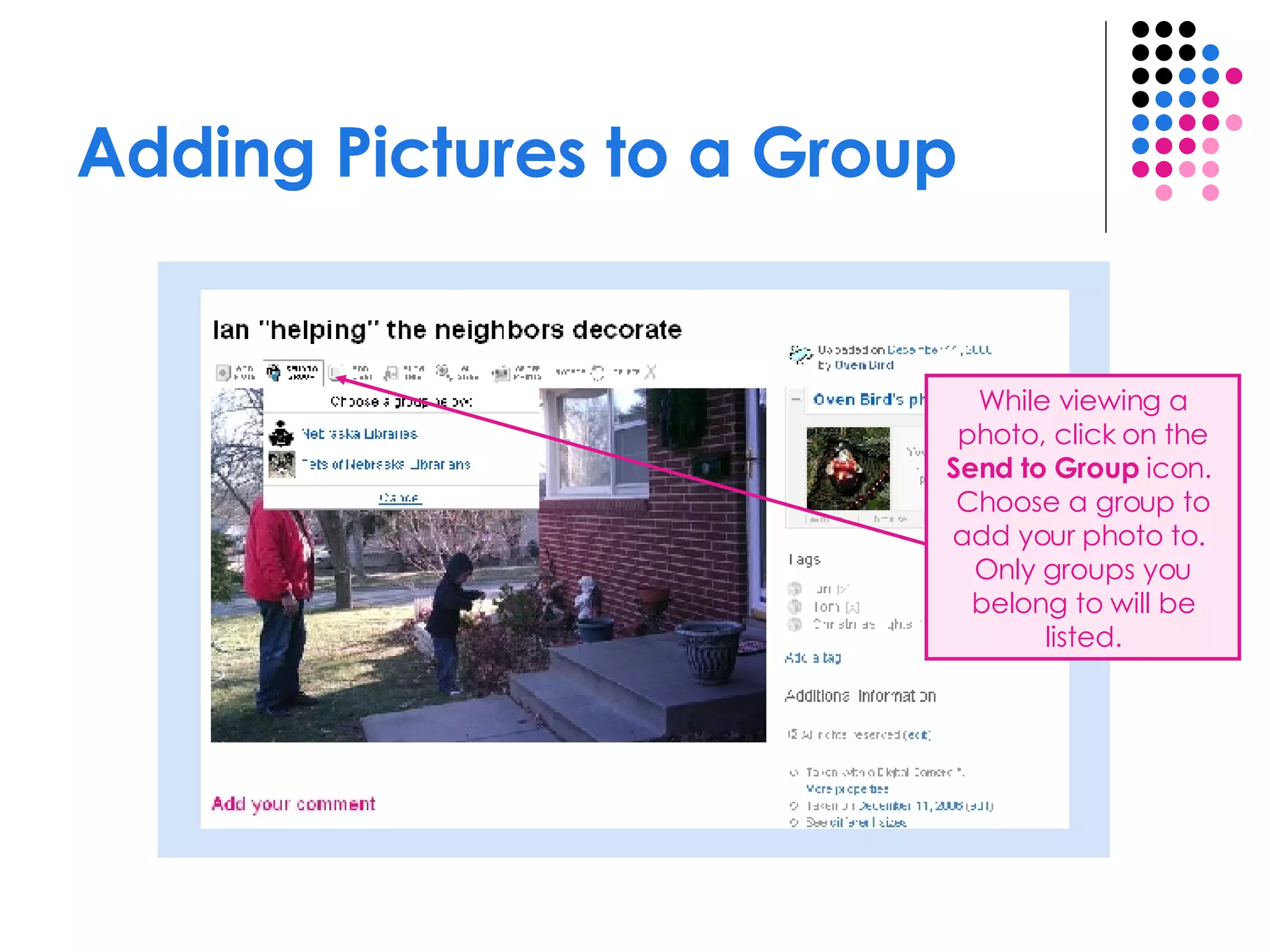
Adding Pictures to a Group While viewing a photo, click on the  Send to Group  icon.  Choose a group to add your photo to.  Only groups you belong to will be listed.
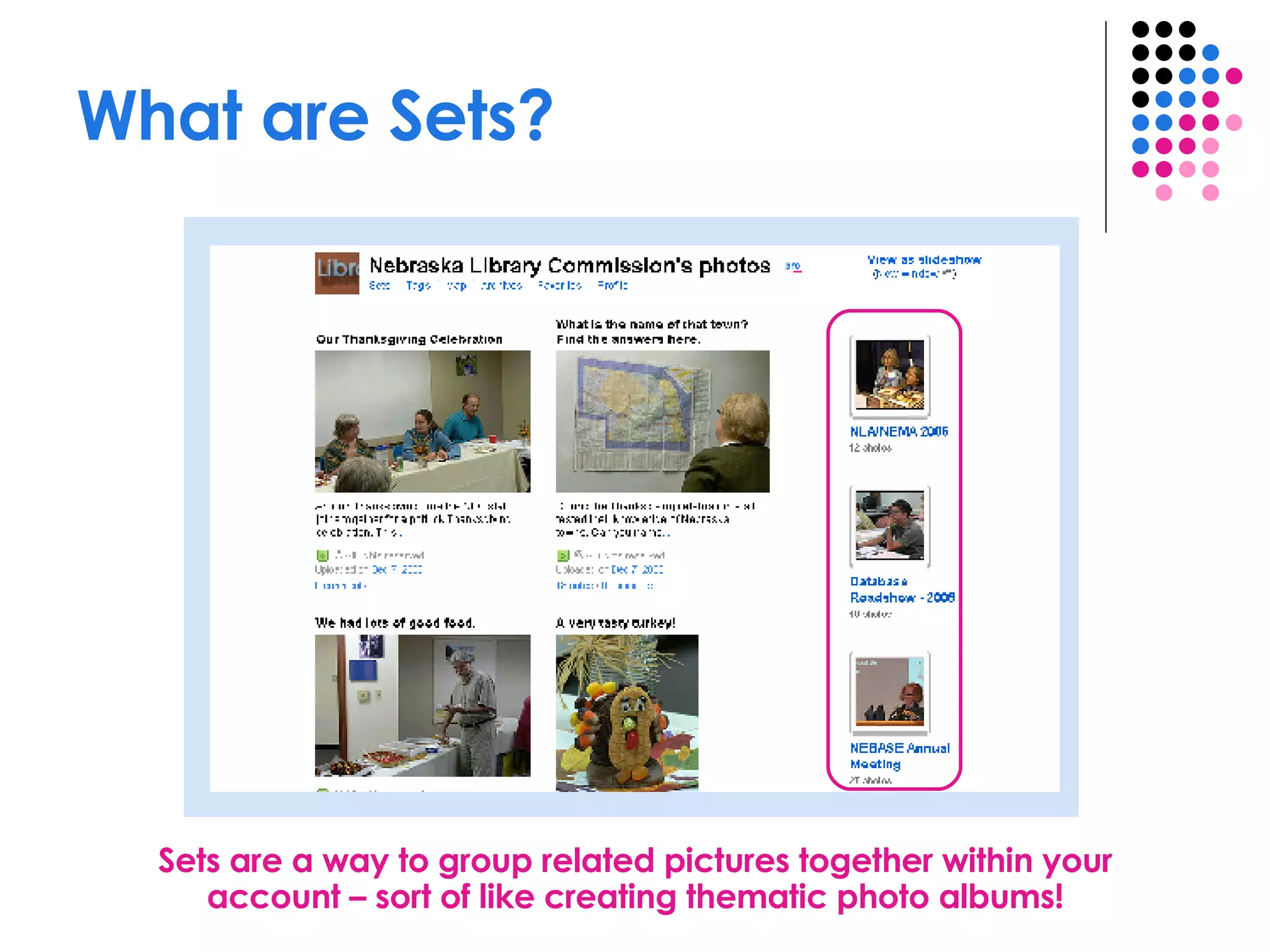
What are Sets? Sets are a way to group related pictures together within your account – sort of like creating thematic photo albums!
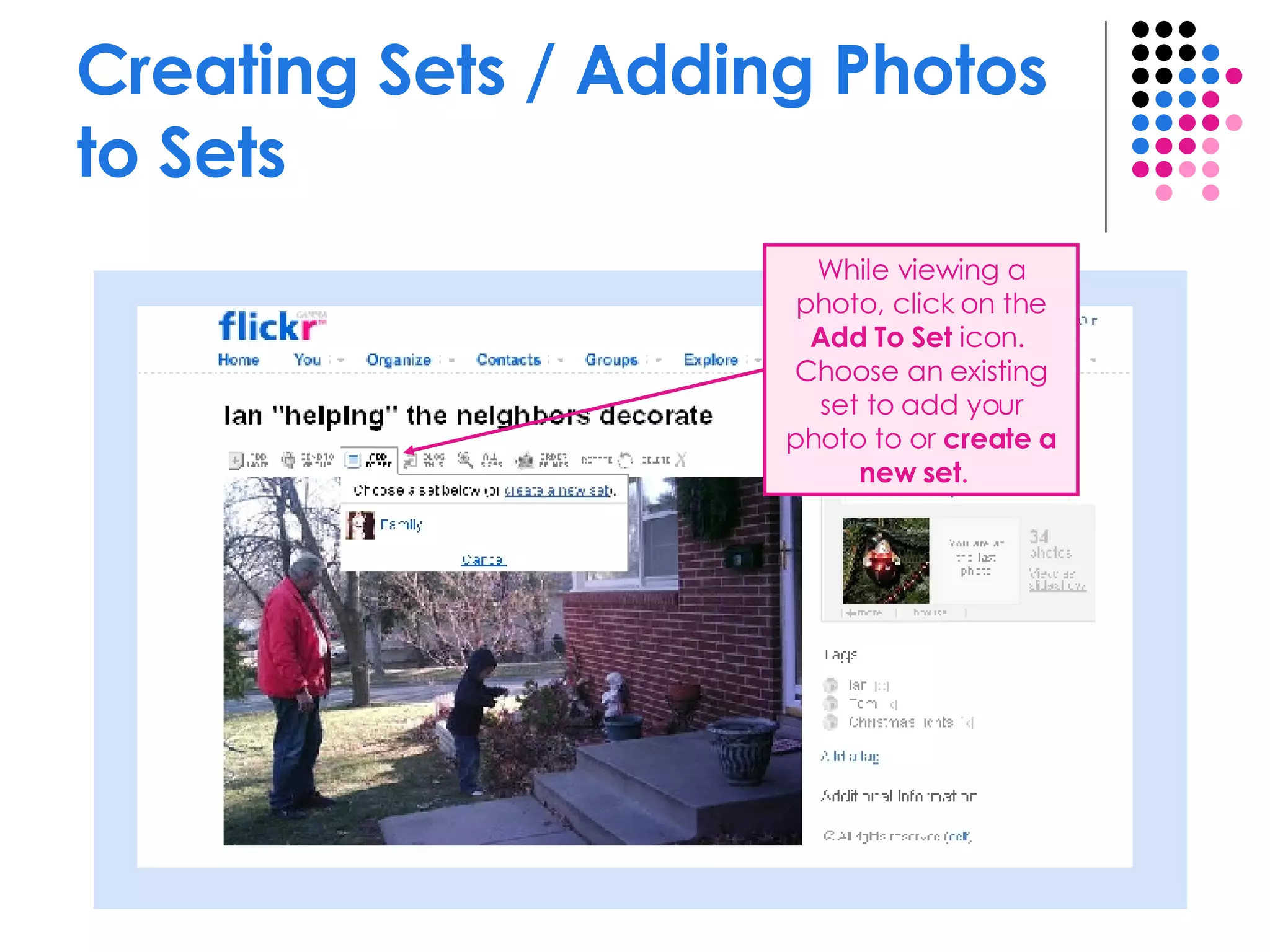
Creating Sets / Adding Photos to Sets While viewing a photo, click on the  Add To Set  icon.  Choose an existing set to add your photo to or  create a new set .
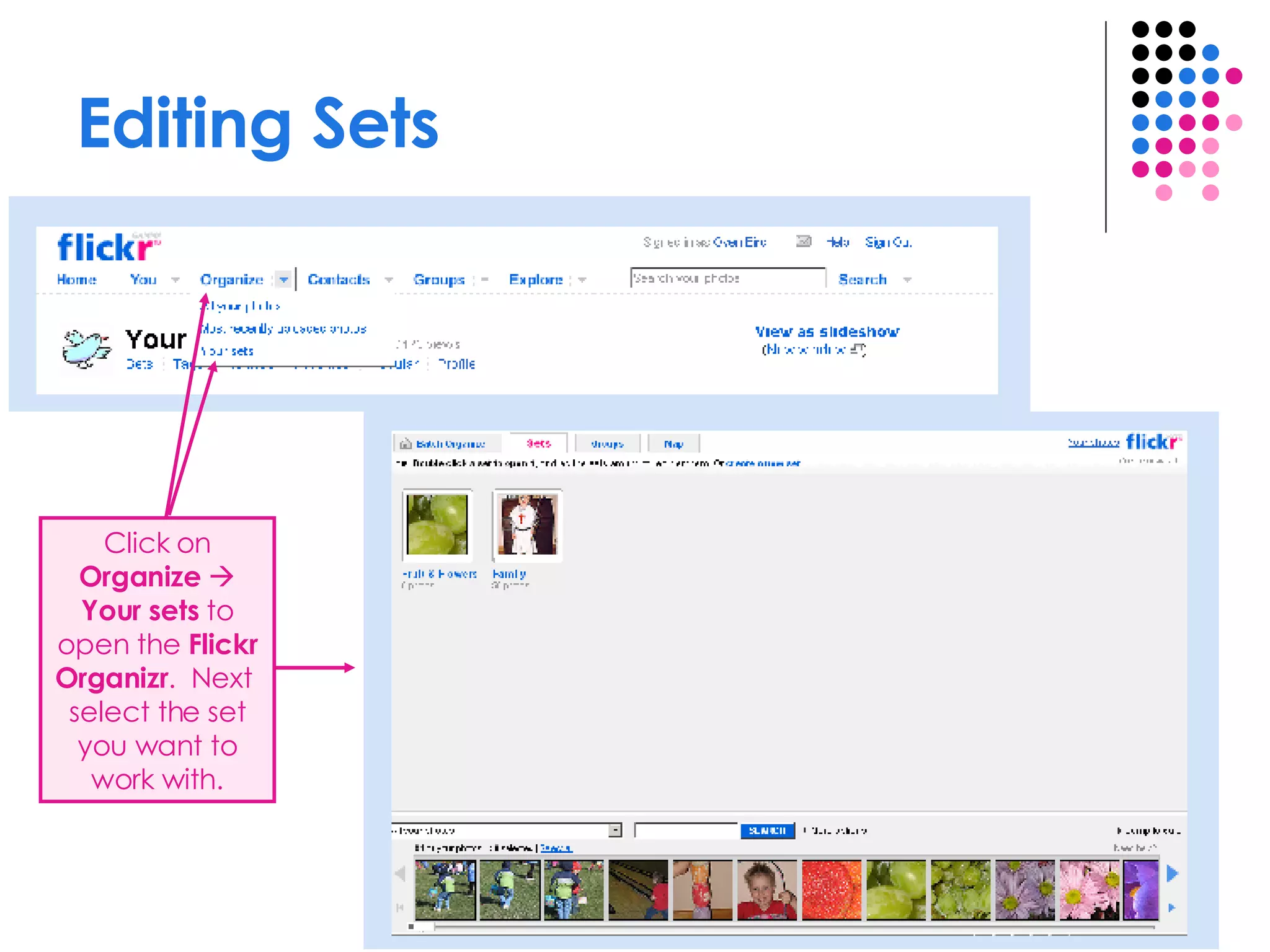
Editing Sets Click on  Organize      Your sets  to open the  Flickr Organizr .  Next  select the set you want to work with.
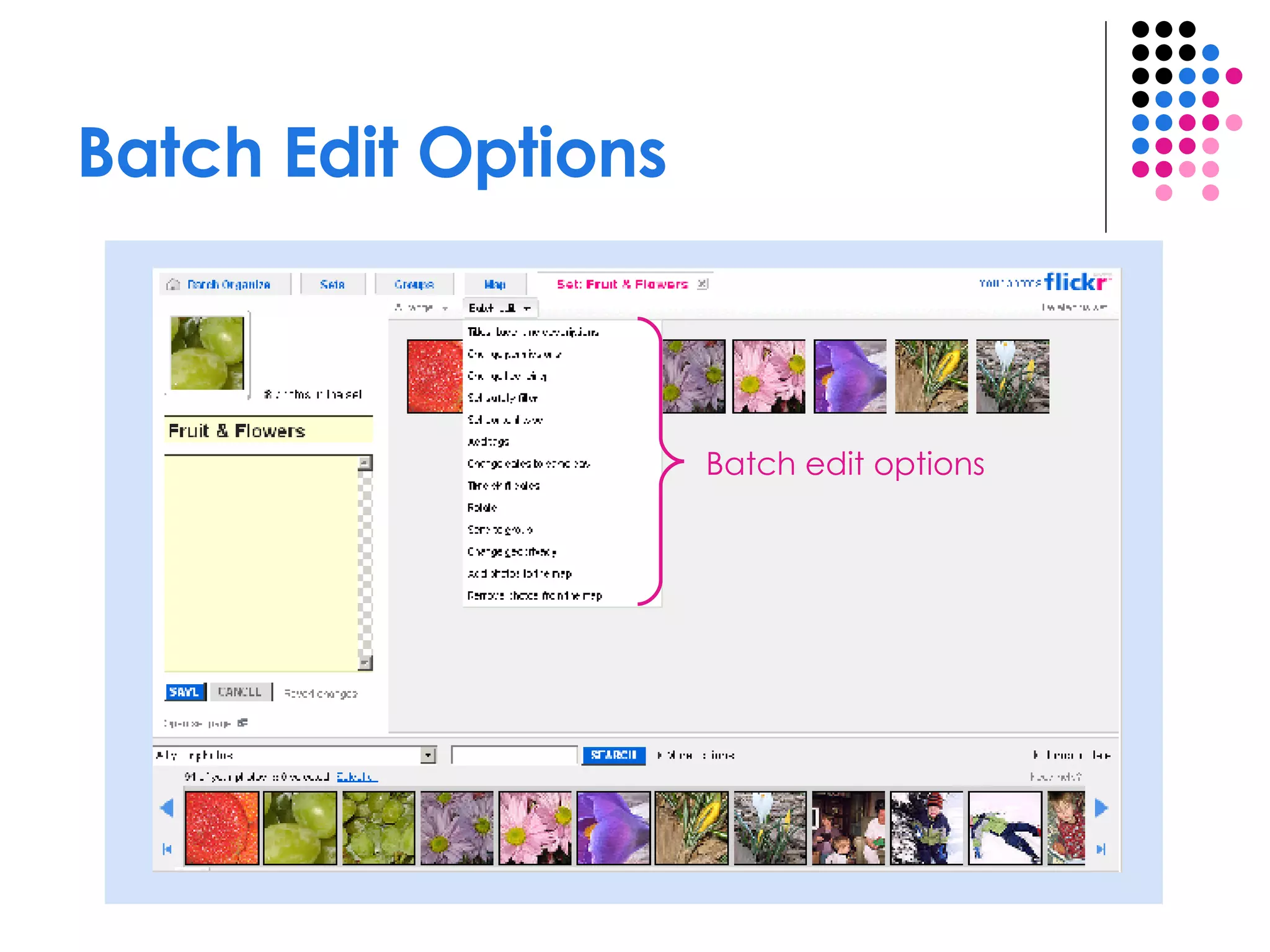
Batch Edit Options Batch edit options
What are Contacts Contacts are other Flickr users with whom you want some level of relationship.  Making someone a contact gives you easier access to their public photos. Making someone a contact is the first step in sharing private photos with them; the second step is marking them as: Friend Family Or both
Adding Contacts Decide if you want to designate this contact as  Friend  or  Family Click on right side of a buddy icon to  open the drop-down menu; select  Add as a contact  option. Your new contact will appear on your Profile page
Time to get to work! Susan Knisely 402-471-3849 800-307-2665 [email_address] Shannon Behrhorst 402-471-4031 800-307-2665 [email_address] Questions?

Getting Started with Flickr

  • 1.
    Getting Started withFlick r A Library 2.0 Training Session Susan Knisely Online Services Librarian Nebraska Library Commission
  • 2.
    What can youdo in Flick r without an account? Search for Photos, People, or Groups Browse by popular tags or cameras View “Public” Photos
  • 3.
    What can youdo in Flick r with an account? Upload your own photos Comment on photos Tag photos (i.e. add descriptive keywords) Join groups / post photos to groups View “Private” photos of people who have marked you as family or friend Post your photos to a blog And much, much more!
  • 4.
    Free Flick r account 100 MB monthly upload limit (5 MB per photo) 3 photosets Photostream views limited to the 200 most recent images Post any of your photos in up to 10 group pools Storage of smaller (resized) images
  • 5.
    Flick r Pro Account Unlimited uploads (10 MB per photo) Unlimited storage & bandwidth Unlimited photosets Permanent archiving of high-resolution original images The ability to replace a photo Post any of your photos in up to 60 group pools Ad-free browsing and sharing Cost: $24.95 / year
  • 6.
    Create a FreeFlick r Account http://www.flickr.com/signup If you already have a Yahoo! ID and Password (e.g., from an email account) you can use those. If you don’t -- Sign Up here
  • 7.
  • 8.
  • 9.
    Click Flick r Logo to Get Home
  • 10.
    Go to YourProfile Click here to open the You drop-down menu, then select Your Profile
  • 11.
    Edit Your Profile,Buddy Icon, & Screen Name
  • 12.
    Decide what informationyou want to include in your Profile You can control how much of your profile is visible, and to whom, when you set your account privacy settings. Reveal a little or a lot
  • 13.
    Create a BuddyIcon . . . . . . to go from
  • 14.
    Change Your ScreenName If you don’t want to use your Yahoo! ID as your Flickr screen name, change it here. You can change your screen name whenever you want.
  • 15.
    Go to “YourAccount”
  • 16.
  • 17.
    Account Settings WorthReviewing Personal Information / Your profile privacy - Control who is able to see different parts of your profile: Anyone Any Flickr member Any of your contacts Friends and family Nobody Personal Information / Your Flickr web address – Create your own permanent, user-friendly Flickr address www.flickr.com/photos/ bluedonkey65 as opposed to www.flickr.com/photos/ [email_address]
  • 18.
  • 19.
    Account Settings (cont.)Privacy & Permissions / Defaults for new uploads Control who will be able to see, comment on, and annotate your photos Set photo safety level: Safe Moderate Restricted Set image content type: Photos Art, Illustration, CGI or other non-photographic images Screenshots
  • 20.
    Your Flick r Home Click here to upload photos Click Home from anywhere in Flickr to return to this page
  • 21.
    Upload Options Web-basedupload form (upload up to 6 images at a time) Flickr Uploadr for Windows Flickr Uploadr for Mac “ Send to Flickr” Windows XP Explorer Wizard Upload by email and more . . .
  • 22.
    Web-Based Upload FormUpload up to 6 images at a time Add tags Apply privacy settings Keep track of how much of your upload capacity you’ve used
  • 23.
    Find the image(s)you want on your computer Click Browse , then locate the image file on your computer Click Open to transfer the file path to the upload form
  • 24.
  • 25.
    Describe your PhotosAfter uploading add Title , Description , and Tags
  • 26.
    Your photos Clickdirectly on a photo to access additional options
  • 27.
    Things to dowith a photo! Delete or add a tag Edit licensing information Place on map View camera info. Edit title, description, and tags Edit privacy settings
  • 28.
    Why aren’t myphotos showing? New accounts are marked Pending until Flickr administrators have reviewed them. Photos in pending accounts won’t show up in: Public photo lists (e.g., “Everyone’s Photos”) Pages that show all photos tagged with a certain tag Groups, if you aren’t a group member Upload at least 5 public photos to get your account in the review queue Review process takes 3-5 days
  • 29.
    What are Groups?Groups are places to share photos related to a particular theme (e.g., a geographic location, subject matter, photographic technique, etc.) There are 3 types of groups: Public – Anyone who wants to can join instantly Public (invite only) – The group page is public, but the only way to join is by invitation Private – Only group members and those who have been invited will be able to view the group page
  • 30.
    Search for aGroup / Create a New Group
  • 31.
    Search for aGroup by Name Click here to go to the Group’s page
  • 32.
    Join a GroupClick on Join this group
  • 33.
    Request an Invitationto Join Public (Invite Only) Groups If the group is an “invite only” Public group, you will be taken to an invitation request form. Fill it out and send it in to request an invitation!
  • 34.
    Adding Pictures toa Group While viewing a photo, click on the Send to Group icon. Choose a group to add your photo to. Only groups you belong to will be listed.
  • 35.
    What are Sets?Sets are a way to group related pictures together within your account – sort of like creating thematic photo albums!
  • 36.
    Creating Sets /Adding Photos to Sets While viewing a photo, click on the Add To Set icon. Choose an existing set to add your photo to or create a new set .
  • 37.
    Editing Sets Clickon Organize  Your sets to open the Flickr Organizr . Next select the set you want to work with.
  • 38.
    Batch Edit OptionsBatch edit options
  • 39.
    What are ContactsContacts are other Flickr users with whom you want some level of relationship. Making someone a contact gives you easier access to their public photos. Making someone a contact is the first step in sharing private photos with them; the second step is marking them as: Friend Family Or both
  • 40.
    Adding Contacts Decideif you want to designate this contact as Friend or Family Click on right side of a buddy icon to open the drop-down menu; select Add as a contact option. Your new contact will appear on your Profile page
  • 41.
    Time to getto work! Susan Knisely 402-471-3849 800-307-2665 [email_address] Shannon Behrhorst 402-471-4031 800-307-2665 [email_address] Questions?