Educational Uses of Flickr “ Where you can share your photos and watch the world.”
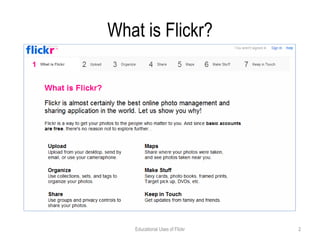
What is Flickr? Educational Uses of Flickr
Educational Uses of Flickr: Purpose The purposes for this professional development session are as follows: To introduce participants to Flickr, a Web 2.0 technology To demonstrate to participants an application of Flickr To use Flickr to create virtual field trips To provide examples of applications of this technology for learning in the classroom Educational Uses of Flickr
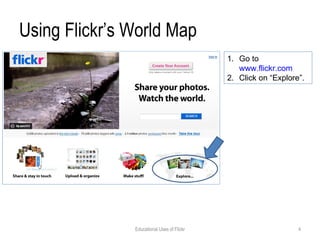
Using Flickr’s World Map Go to  www.flickr.com Click on “Explore”. Educational Uses of Flickr
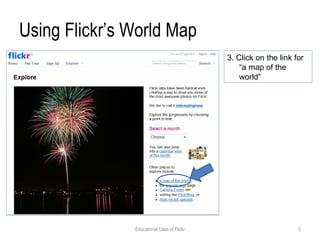
Using Flickr’s World Map 3. Click on the link for “a map of the world”  Educational Uses of Flickr
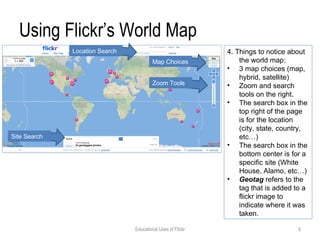
Using Flickr’s World Map 4. Things to notice about the world map: 3 map choices (map, hybrid, satellite) Zoom and search tools on the right. The search box in the top right of the page is for the location (city, state, country, etc…) The search box in the bottom center is for a specific site (White House, Alamo, etc…) Geotag  refers to the tag that is added to a flickr image to indicate where it was taken.  Location Search Map Choices Zoom Tools Site Search Educational Uses of Flickr
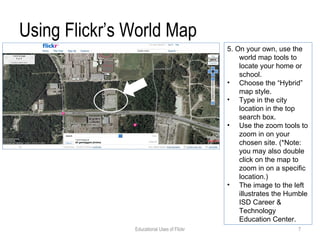
Using Flickr’s World Map 5. On your own, use the world map tools to locate your home or school. Choose the “Hybrid” map style. Type in the city location in the top search box. Use the zoom tools to zoom in on your chosen site. (*Note: you may also double click on the map to zoom in on a specific location.) The image to the left illustrates the Humble ISD Career & Technology Education Center. Educational Uses of Flickr
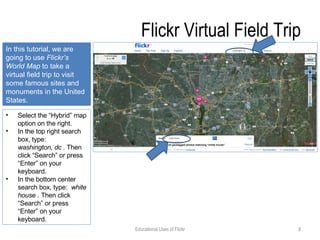
Flickr Virtual Field Trip Select the “Hybrid” map option on the right. In the top right search box, type:  washington, dc .  Then click “Search” or press “Enter” on your keyboard. In the bottom center search box, type:  white house .  Then click “Search” or press “Enter” on your keyboard. In this tutorial, we are going to use  Flickr’s World Map  to take a virtual field trip to visit some famous sites and monuments in the United States. Educational Uses of Flickr
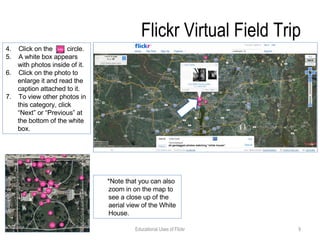
Flickr Virtual Field Trip 4.  Click on the  circle. 5.  A white box appears with photos inside of it. 6.  Click on the photo to enlarge it and read the caption attached to it. 7.  To view other photos in this category, click “Next” or “Previous” at the bottom of the white box. Educational Uses of Flickr *Note that you can also zoom in on the map to see a close up of the aerial view of the White House.
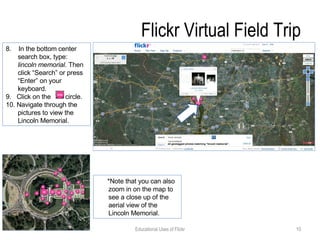
Flickr Virtual Field Trip 8.  In the bottom center search box, type:  lincoln memorial.  Then click “Search” or press “Enter” on your keyboard. 9.  Click on the  circle. 10. Navigate through the pictures to view the Lincoln Memorial.  Educational Uses of Flickr *Note that you can also zoom in on the map to see a close up of the aerial view of the Lincoln Memorial.
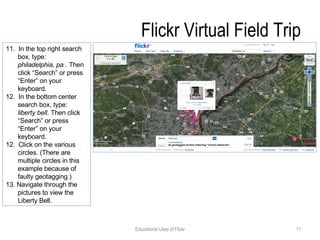
Flickr Virtual Field Trip 11.  In the top right search box, type:  philadelphia, pa .  Then click “Search” or press “Enter” on your keyboard. 12.  In the bottom center search box, type:  liberty bell.  Then click “Search” or press “Enter” on your keyboard. 12.  Click on the various circles. (There are multiple circles in this example because of faulty geotagging.) 13. Navigate through the pictures to view the Liberty Bell.  Educational Uses of Flickr
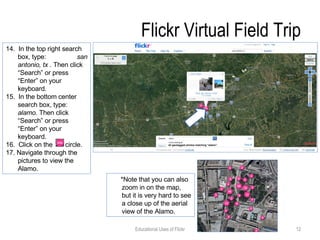
Flickr Virtual Field Trip 14.  In the top right search box, type:  san antonio, tx .  Then click “Search” or press “Enter” on your keyboard. 15.  In the bottom center search box, type:  alamo.  Then click “Search” or press “Enter” on your keyboard. 16.  Click on the  circle.  17. Navigate through the pictures to view the Alamo.  Educational Uses of Flickr *Note that you can also zoom in on the map, but it is very hard to see a close up of the aerial view of the Alamo.
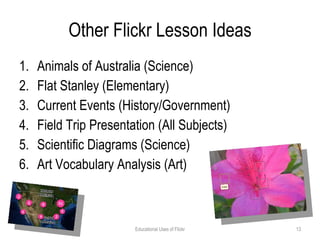
Other Flickr Lesson Ideas Animals of Australia (Science) Flat Stanley (Elementary)  Current Events (History/Government) Field Trip Presentation (All Subjects)  Scientific Diagrams (Science)  Art Vocabulary Analysis (Art) Educational Uses of Flickr
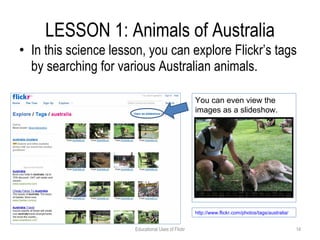
LESSON 1: Animals of Australia In this science lesson, you can explore Flickr’s tags by searching for various Australian animals. Educational Uses of Flickr You can even view the images as a slideshow. http:// www.flickr.com/photos/tags/australia /
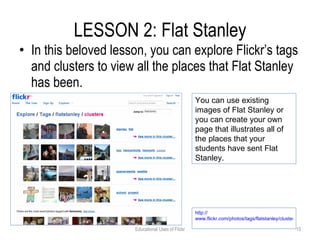
LESSON 2: Flat Stanley In this beloved lesson, you can explore Flickr’s tags and clusters to view all the places that Flat Stanley has been. Educational Uses of Flickr You can use existing images of Flat Stanley or you can create your own page that illustrates all of the places that your students have sent Flat Stanley.  http:// www.flickr.com/photos/tags/flatstanley/clusters
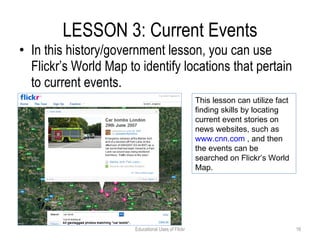
LESSON 3: Current Events In this history/government lesson, you can use Flickr’s World Map to identify locations that pertain to current events. Educational Uses of Flickr This lesson can utilize fact finding skills by locating current event stories on news websites, such as  www.cnn.com  , and then the events can be searched on Flickr’s World Map.
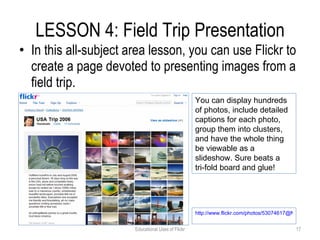
LESSON 4: Field Trip Presentation In this all-subject area lesson, you can use Flickr to create a page devoted to presenting images from a field trip. Educational Uses of Flickr You can display hundreds of photos, include detailed captions for each photo, group them into clusters, and have the whole thing be viewable as a slideshow. Sure beats a  tri-fold board and glue! http://www.flickr.com/photos/53074617@N00/sets/72157594359989657/
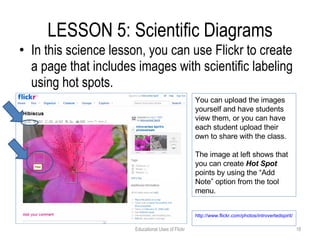
LESSON 5: Scientific Diagrams In this science lesson, you can use Flickr to create a page that includes images with scientific labeling using hot spots. Educational Uses of Flickr You can upload the images yourself and have students view them, or you can have each student upload their own to share with the class. The image at left shows that you can create  Hot Spot  points by using the “Add Note” option from the tool menu. http://www.flickr.com/photos/introvertedspirit/749126422/
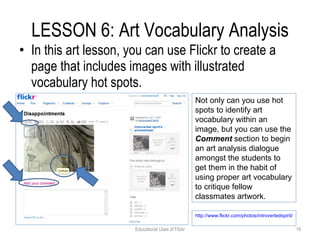
LESSON 6: Art Vocabulary Analysis In this art lesson, you can use Flickr to create a page that includes images with illustrated vocabulary hot spots. Educational Uses of Flickr Not only can you use hot spots to identify art vocabulary within an image, but you can use the  Comment  section to begin an art analysis dialogue amongst the students to get them in the habit of using proper art vocabulary to critique fellow classmates artwork.  http://www.flickr.com/photos/introvertedspirit/749159746/
Flickr Resources Create Your Own Flickr Account Uploading Images in Flickr; Tagging in Flickr Flickr Page Layout Flickr Image Options Flickr Batch Set Groups Educational Uses of Flickr
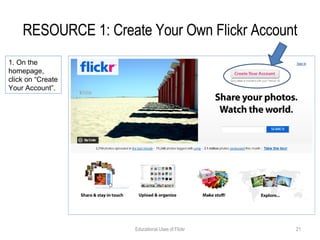
RESOURCE 1: Create Your Own Flickr Account Educational Uses of Flickr 1. On the homepage, click on “Create Your Account”.
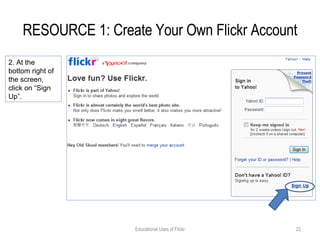
RESOURCE 1: Create Your Own Flickr Account Educational Uses of Flickr 2. At the bottom right of the screen, click on “Sign Up”.
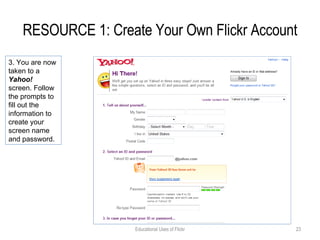
RESOURCE 1: Create Your Own Flickr Account Educational Uses of Flickr 3. You are now taken to a  Yahoo!  screen. Follow the prompts to fill out the information to create your screen name and password.
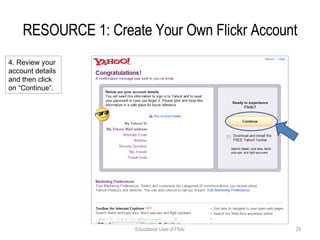
RESOURCE 1: Create Your Own Flickr Account Educational Uses of Flickr 4. Review your account details and then click on “Continue”.
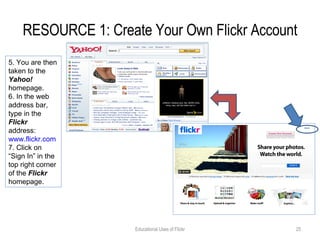
RESOURCE 1: Create Your Own Flickr Account Educational Uses of Flickr 5. You are then taken to the  Yahoo!  homepage. 6. In the web address bar, type in the  Flickr  address:  www.flickr.com   7. Click on “Sign In” in the top right corner of the  Flickr  homepage.
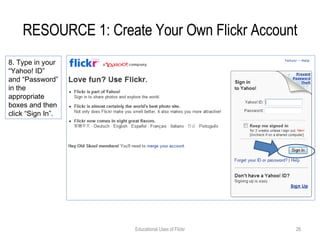
RESOURCE 1: Create Your Own Flickr Account Educational Uses of Flickr 8. Type in your “Yahoo! ID” and “Password” in the appropriate boxes and then click “Sign In”.
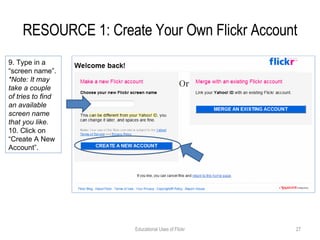
RESOURCE 1: Create Your Own Flickr Account Educational Uses of Flickr 9. Type in a “screen name”.  *Note: It may take a couple of tries to find an available screen name that you like. 10. Click on “Create A New Account”.
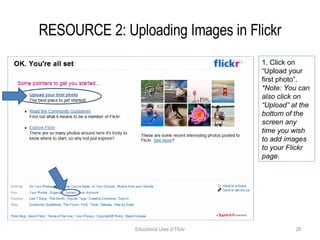
RESOURCE 2: Uploading Images in Flickr Educational Uses of Flickr 1. Click on “Upload your first photo”. *Note: You can also click on “Upload” at the bottom of the screen any time you wish to add images to your Flickr  page.
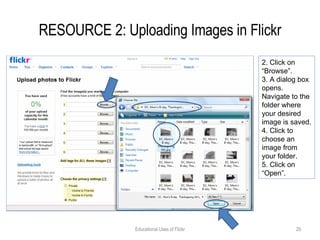
RESOURCE 2: Uploading Images in Flickr Educational Uses of Flickr 2. Click on “Browse”. 3. A dialog box opens. Navigate to the folder where your desired image is saved. 4. Click to choose an image from your folder. 5. Click on “Open”.
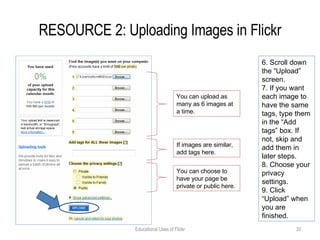
RESOURCE 2: Uploading Images in Flickr Educational Uses of Flickr 6. Scroll down the “Upload” screen. 7. If you want each image to have the same tags, type them in the “Add tags” box. If not, skip and add them in later steps. 8. Choose your privacy settings. 9. Click “Upload” when you are finished. You can upload as many as 6 images at a time. If images are similar, add tags here.  You can choose to have your page be private or public here.
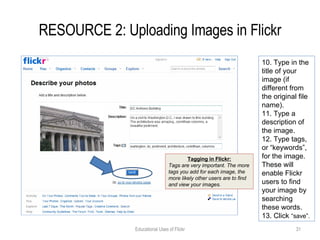
RESOURCE 2: Uploading Images in Flickr Educational Uses of Flickr 10. Type in the title of your image (if different from the original file name). 11. Type a description of the image. 12. Type tags, or “keywords”, for the image. These will enable Flickr users to find your image by searching these words. 13. Click  “save”. Tagging in Flickr: Tags are very important. The more tags you add for each image, the more likely other users are to find and view your images.
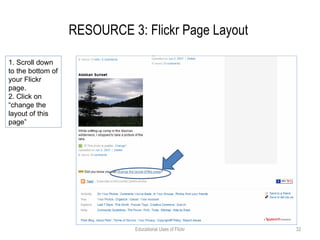
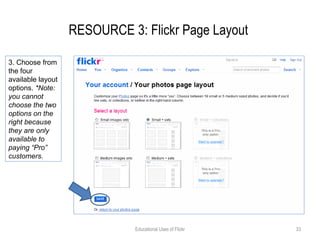
RESOURCE 3: Flickr Page Layout  Educational Uses of Flickr 1. Scroll down to the bottom of your Flickr page.  2. Click on “change the layout of this page”
RESOURCE 3: Flickr Page Layout  Educational Uses of Flickr 3. Choose from the four available layout options.  *Note: you cannot choose the two options on the right because they are only available to paying “Pro” customers.
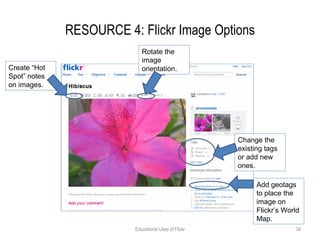
RESOURCE 4: Flickr Image Options Educational Uses of Flickr Create “Hot Spot” notes on images.  Rotate the image orientation. Change the existing tags or add new ones. Add geotags to place the image on Flickr’s World Map.
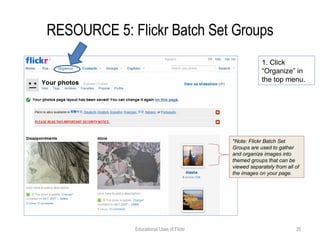
RESOURCE 5: Flickr Batch Set Groups Educational Uses of Flickr 1. Click “Organize” in the top menu. *Note: Flickr Batch Set Groups are used to gather and organize images into themed groups that can be viewed separately from all of the images on your page.
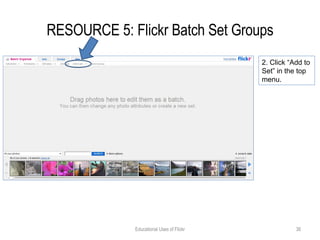
RESOURCE 5: Flickr Batch Set Groups Educational Uses of Flickr 2. Click “Add to Set” in the top menu.
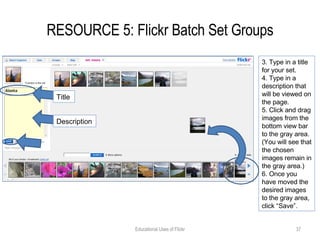
RESOURCE 5: Flickr Batch Set Groups Educational Uses of Flickr 3. Type in a title for your set. 4. Type in a description that will be viewed on the page. 5. Click and drag images from the bottom view bar to the gray area. (You will see that the chosen images remain in the gray area.) 6. Once you have moved the desired images to the gray area, click “Save”. Title Description
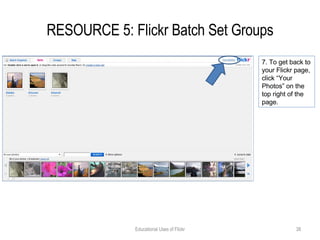
RESOURCE 5: Flickr Batch Set Groups Educational Uses of Flickr 7. To get back to your Flickr page, click “Your Photos” on the top right of the page.
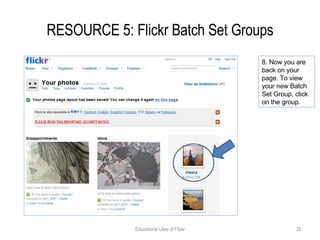
RESOURCE 5: Flickr Batch Set Groups Educational Uses of Flickr 8. Now you are back on your page. To view your new Batch Set Group, click on the group.
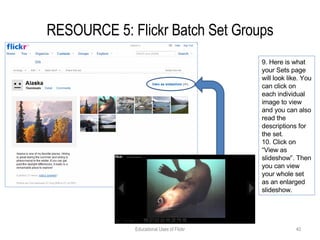
RESOURCE 5: Flickr Batch Set Groups Educational Uses of Flickr 9. Here is what your Sets page will look like. You can click on each individual image to view and you can also read the descriptions for the set. 10. Click on “View as slideshow”. Then you can view your whole set as an enlarged slideshow.

Educational Uses Of Flickr

  • 1.
    Educational Uses ofFlickr “ Where you can share your photos and watch the world.”
  • 2.
    What is Flickr?Educational Uses of Flickr
  • 3.
    Educational Uses ofFlickr: Purpose The purposes for this professional development session are as follows: To introduce participants to Flickr, a Web 2.0 technology To demonstrate to participants an application of Flickr To use Flickr to create virtual field trips To provide examples of applications of this technology for learning in the classroom Educational Uses of Flickr
  • 4.
    Using Flickr’s WorldMap Go to www.flickr.com Click on “Explore”. Educational Uses of Flickr
  • 5.
    Using Flickr’s WorldMap 3. Click on the link for “a map of the world” Educational Uses of Flickr
  • 6.
    Using Flickr’s WorldMap 4. Things to notice about the world map: 3 map choices (map, hybrid, satellite) Zoom and search tools on the right. The search box in the top right of the page is for the location (city, state, country, etc…) The search box in the bottom center is for a specific site (White House, Alamo, etc…) Geotag refers to the tag that is added to a flickr image to indicate where it was taken. Location Search Map Choices Zoom Tools Site Search Educational Uses of Flickr
  • 7.
    Using Flickr’s WorldMap 5. On your own, use the world map tools to locate your home or school. Choose the “Hybrid” map style. Type in the city location in the top search box. Use the zoom tools to zoom in on your chosen site. (*Note: you may also double click on the map to zoom in on a specific location.) The image to the left illustrates the Humble ISD Career & Technology Education Center. Educational Uses of Flickr
  • 8.
    Flickr Virtual FieldTrip Select the “Hybrid” map option on the right. In the top right search box, type: washington, dc . Then click “Search” or press “Enter” on your keyboard. In the bottom center search box, type: white house . Then click “Search” or press “Enter” on your keyboard. In this tutorial, we are going to use Flickr’s World Map to take a virtual field trip to visit some famous sites and monuments in the United States. Educational Uses of Flickr
  • 9.
    Flickr Virtual FieldTrip 4. Click on the circle. 5. A white box appears with photos inside of it. 6. Click on the photo to enlarge it and read the caption attached to it. 7. To view other photos in this category, click “Next” or “Previous” at the bottom of the white box. Educational Uses of Flickr *Note that you can also zoom in on the map to see a close up of the aerial view of the White House.
  • 10.
    Flickr Virtual FieldTrip 8. In the bottom center search box, type: lincoln memorial. Then click “Search” or press “Enter” on your keyboard. 9. Click on the circle. 10. Navigate through the pictures to view the Lincoln Memorial. Educational Uses of Flickr *Note that you can also zoom in on the map to see a close up of the aerial view of the Lincoln Memorial.
  • 11.
    Flickr Virtual FieldTrip 11. In the top right search box, type: philadelphia, pa . Then click “Search” or press “Enter” on your keyboard. 12. In the bottom center search box, type: liberty bell. Then click “Search” or press “Enter” on your keyboard. 12. Click on the various circles. (There are multiple circles in this example because of faulty geotagging.) 13. Navigate through the pictures to view the Liberty Bell. Educational Uses of Flickr
  • 12.
    Flickr Virtual FieldTrip 14. In the top right search box, type: san antonio, tx . Then click “Search” or press “Enter” on your keyboard. 15. In the bottom center search box, type: alamo. Then click “Search” or press “Enter” on your keyboard. 16. Click on the circle. 17. Navigate through the pictures to view the Alamo. Educational Uses of Flickr *Note that you can also zoom in on the map, but it is very hard to see a close up of the aerial view of the Alamo.
  • 13.
    Other Flickr LessonIdeas Animals of Australia (Science) Flat Stanley (Elementary) Current Events (History/Government) Field Trip Presentation (All Subjects) Scientific Diagrams (Science) Art Vocabulary Analysis (Art) Educational Uses of Flickr
  • 14.
    LESSON 1: Animalsof Australia In this science lesson, you can explore Flickr’s tags by searching for various Australian animals. Educational Uses of Flickr You can even view the images as a slideshow. http:// www.flickr.com/photos/tags/australia /
  • 15.
    LESSON 2: FlatStanley In this beloved lesson, you can explore Flickr’s tags and clusters to view all the places that Flat Stanley has been. Educational Uses of Flickr You can use existing images of Flat Stanley or you can create your own page that illustrates all of the places that your students have sent Flat Stanley. http:// www.flickr.com/photos/tags/flatstanley/clusters
  • 16.
    LESSON 3: CurrentEvents In this history/government lesson, you can use Flickr’s World Map to identify locations that pertain to current events. Educational Uses of Flickr This lesson can utilize fact finding skills by locating current event stories on news websites, such as www.cnn.com , and then the events can be searched on Flickr’s World Map.
  • 17.
    LESSON 4: FieldTrip Presentation In this all-subject area lesson, you can use Flickr to create a page devoted to presenting images from a field trip. Educational Uses of Flickr You can display hundreds of photos, include detailed captions for each photo, group them into clusters, and have the whole thing be viewable as a slideshow. Sure beats a tri-fold board and glue! http://www.flickr.com/photos/53074617@N00/sets/72157594359989657/
  • 18.
    LESSON 5: ScientificDiagrams In this science lesson, you can use Flickr to create a page that includes images with scientific labeling using hot spots. Educational Uses of Flickr You can upload the images yourself and have students view them, or you can have each student upload their own to share with the class. The image at left shows that you can create Hot Spot points by using the “Add Note” option from the tool menu. http://www.flickr.com/photos/introvertedspirit/749126422/
  • 19.
    LESSON 6: ArtVocabulary Analysis In this art lesson, you can use Flickr to create a page that includes images with illustrated vocabulary hot spots. Educational Uses of Flickr Not only can you use hot spots to identify art vocabulary within an image, but you can use the Comment section to begin an art analysis dialogue amongst the students to get them in the habit of using proper art vocabulary to critique fellow classmates artwork. http://www.flickr.com/photos/introvertedspirit/749159746/
  • 20.
    Flickr Resources CreateYour Own Flickr Account Uploading Images in Flickr; Tagging in Flickr Flickr Page Layout Flickr Image Options Flickr Batch Set Groups Educational Uses of Flickr
  • 21.
    RESOURCE 1: CreateYour Own Flickr Account Educational Uses of Flickr 1. On the homepage, click on “Create Your Account”.
  • 22.
    RESOURCE 1: CreateYour Own Flickr Account Educational Uses of Flickr 2. At the bottom right of the screen, click on “Sign Up”.
  • 23.
    RESOURCE 1: CreateYour Own Flickr Account Educational Uses of Flickr 3. You are now taken to a Yahoo! screen. Follow the prompts to fill out the information to create your screen name and password.
  • 24.
    RESOURCE 1: CreateYour Own Flickr Account Educational Uses of Flickr 4. Review your account details and then click on “Continue”.
  • 25.
    RESOURCE 1: CreateYour Own Flickr Account Educational Uses of Flickr 5. You are then taken to the Yahoo! homepage. 6. In the web address bar, type in the Flickr address: www.flickr.com 7. Click on “Sign In” in the top right corner of the Flickr homepage.
  • 26.
    RESOURCE 1: CreateYour Own Flickr Account Educational Uses of Flickr 8. Type in your “Yahoo! ID” and “Password” in the appropriate boxes and then click “Sign In”.
  • 27.
    RESOURCE 1: CreateYour Own Flickr Account Educational Uses of Flickr 9. Type in a “screen name”. *Note: It may take a couple of tries to find an available screen name that you like. 10. Click on “Create A New Account”.
  • 28.
    RESOURCE 2: UploadingImages in Flickr Educational Uses of Flickr 1. Click on “Upload your first photo”. *Note: You can also click on “Upload” at the bottom of the screen any time you wish to add images to your Flickr page.
  • 29.
    RESOURCE 2: UploadingImages in Flickr Educational Uses of Flickr 2. Click on “Browse”. 3. A dialog box opens. Navigate to the folder where your desired image is saved. 4. Click to choose an image from your folder. 5. Click on “Open”.
  • 30.
    RESOURCE 2: UploadingImages in Flickr Educational Uses of Flickr 6. Scroll down the “Upload” screen. 7. If you want each image to have the same tags, type them in the “Add tags” box. If not, skip and add them in later steps. 8. Choose your privacy settings. 9. Click “Upload” when you are finished. You can upload as many as 6 images at a time. If images are similar, add tags here. You can choose to have your page be private or public here.
  • 31.
    RESOURCE 2: UploadingImages in Flickr Educational Uses of Flickr 10. Type in the title of your image (if different from the original file name). 11. Type a description of the image. 12. Type tags, or “keywords”, for the image. These will enable Flickr users to find your image by searching these words. 13. Click “save”. Tagging in Flickr: Tags are very important. The more tags you add for each image, the more likely other users are to find and view your images.
  • 32.
    RESOURCE 3: FlickrPage Layout Educational Uses of Flickr 1. Scroll down to the bottom of your Flickr page. 2. Click on “change the layout of this page”
  • 33.
    RESOURCE 3: FlickrPage Layout Educational Uses of Flickr 3. Choose from the four available layout options. *Note: you cannot choose the two options on the right because they are only available to paying “Pro” customers.
  • 34.
    RESOURCE 4: FlickrImage Options Educational Uses of Flickr Create “Hot Spot” notes on images. Rotate the image orientation. Change the existing tags or add new ones. Add geotags to place the image on Flickr’s World Map.
  • 35.
    RESOURCE 5: FlickrBatch Set Groups Educational Uses of Flickr 1. Click “Organize” in the top menu. *Note: Flickr Batch Set Groups are used to gather and organize images into themed groups that can be viewed separately from all of the images on your page.
  • 36.
    RESOURCE 5: FlickrBatch Set Groups Educational Uses of Flickr 2. Click “Add to Set” in the top menu.
  • 37.
    RESOURCE 5: FlickrBatch Set Groups Educational Uses of Flickr 3. Type in a title for your set. 4. Type in a description that will be viewed on the page. 5. Click and drag images from the bottom view bar to the gray area. (You will see that the chosen images remain in the gray area.) 6. Once you have moved the desired images to the gray area, click “Save”. Title Description
  • 38.
    RESOURCE 5: FlickrBatch Set Groups Educational Uses of Flickr 7. To get back to your Flickr page, click “Your Photos” on the top right of the page.
  • 39.
    RESOURCE 5: FlickrBatch Set Groups Educational Uses of Flickr 8. Now you are back on your page. To view your new Batch Set Group, click on the group.
  • 40.
    RESOURCE 5: FlickrBatch Set Groups Educational Uses of Flickr 9. Here is what your Sets page will look like. You can click on each individual image to view and you can also read the descriptions for the set. 10. Click on “View as slideshow”. Then you can view your whole set as an enlarged slideshow.