SurreySchools.ca
Using the Tools to Connect, Create &
Share

Tia Henriksen & Antonio Vendramin
February 26, 2013
Learning Intentions
* To become familiar with the various components of
SurreySchools.ca (Profile, Newsfeed, Shared
Documents, Blog, & Groups) and understand how
each can be used to share.

* At the end, feel confident to be able to share with at
least one other colleague or staff member.

* Begin to use your Newsfeed.
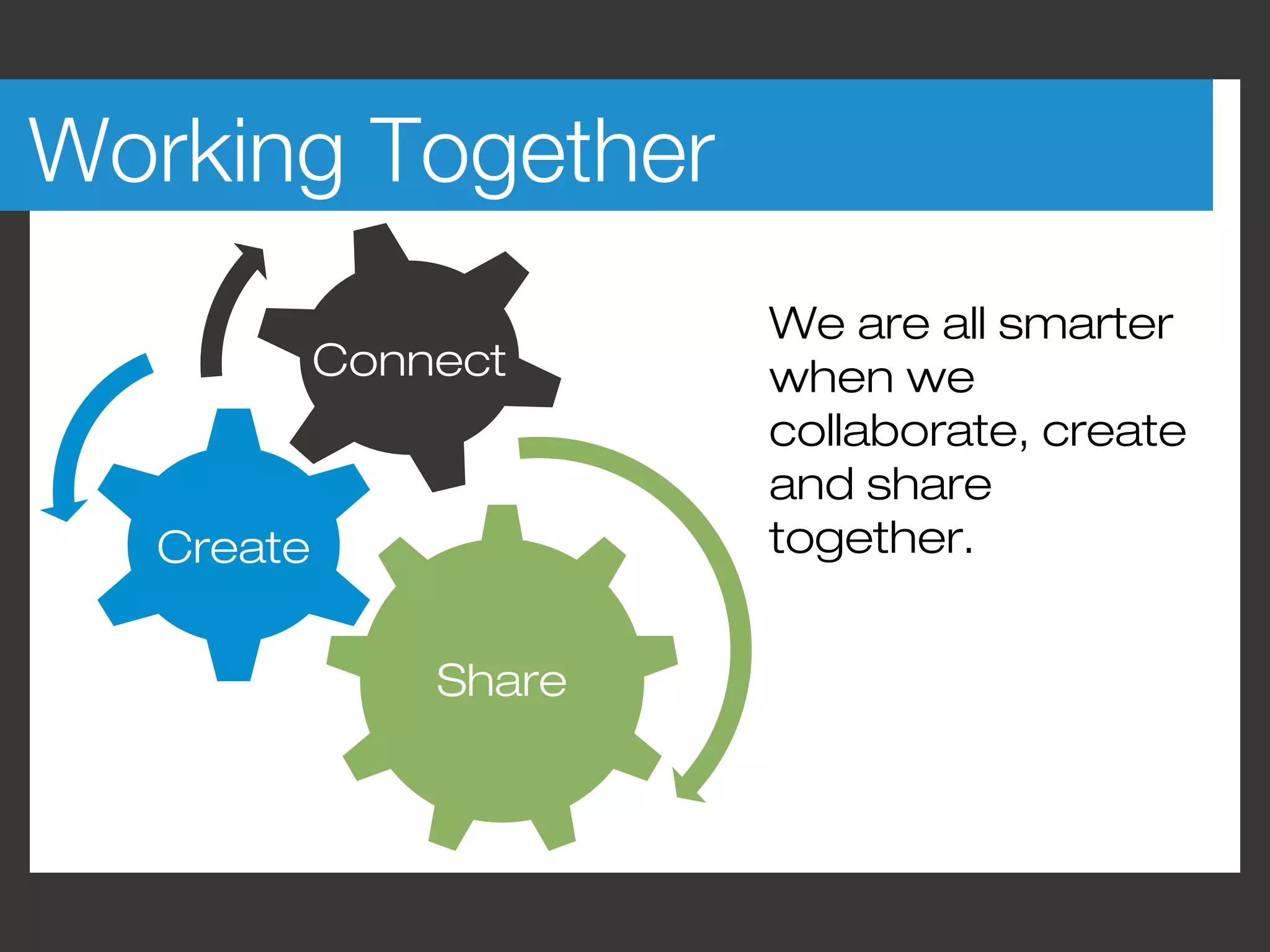
Working Together
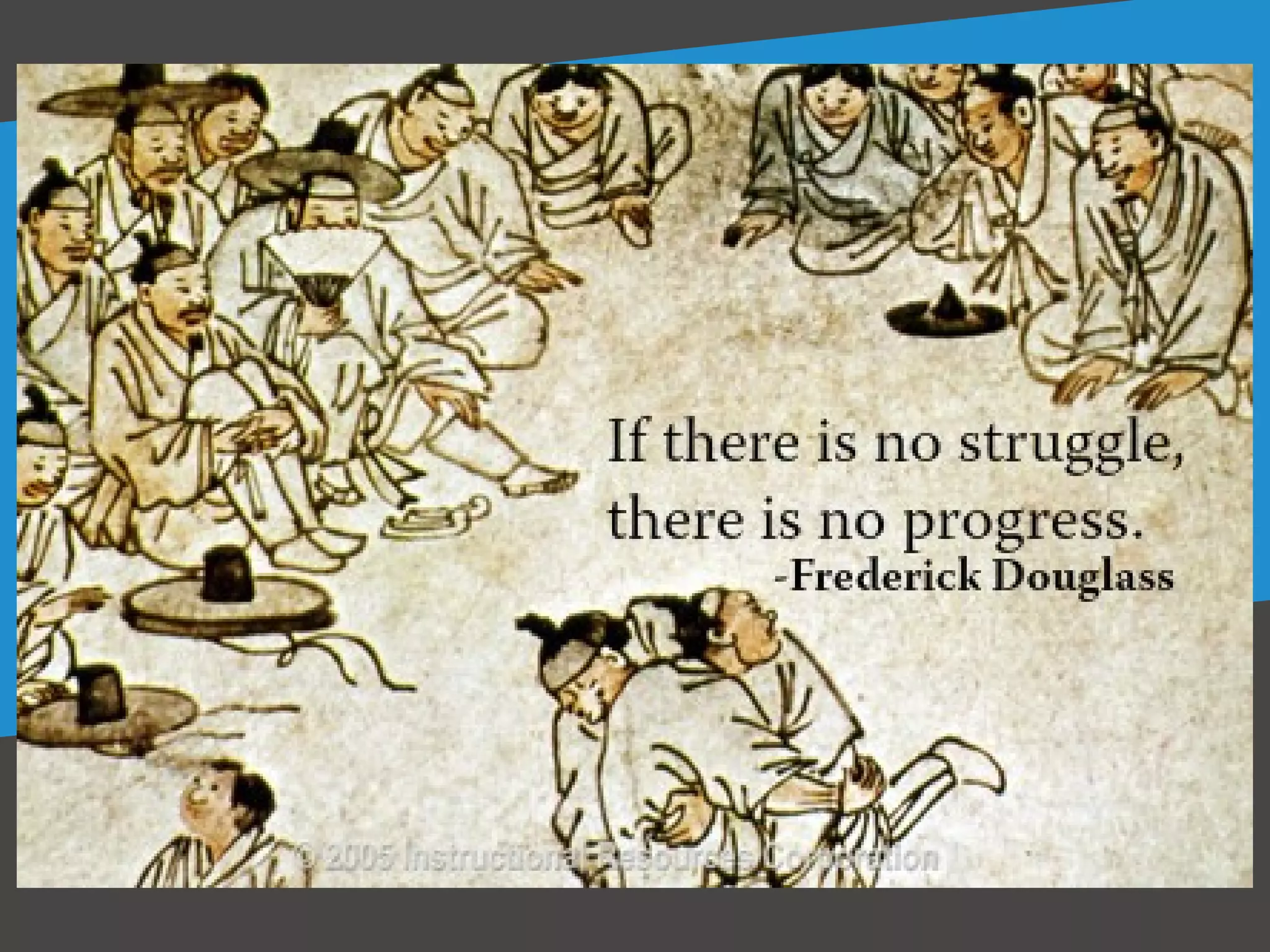
                       We are all smarter
           Connect     when we
                       collaborate, create
                       and share
  Create               together.


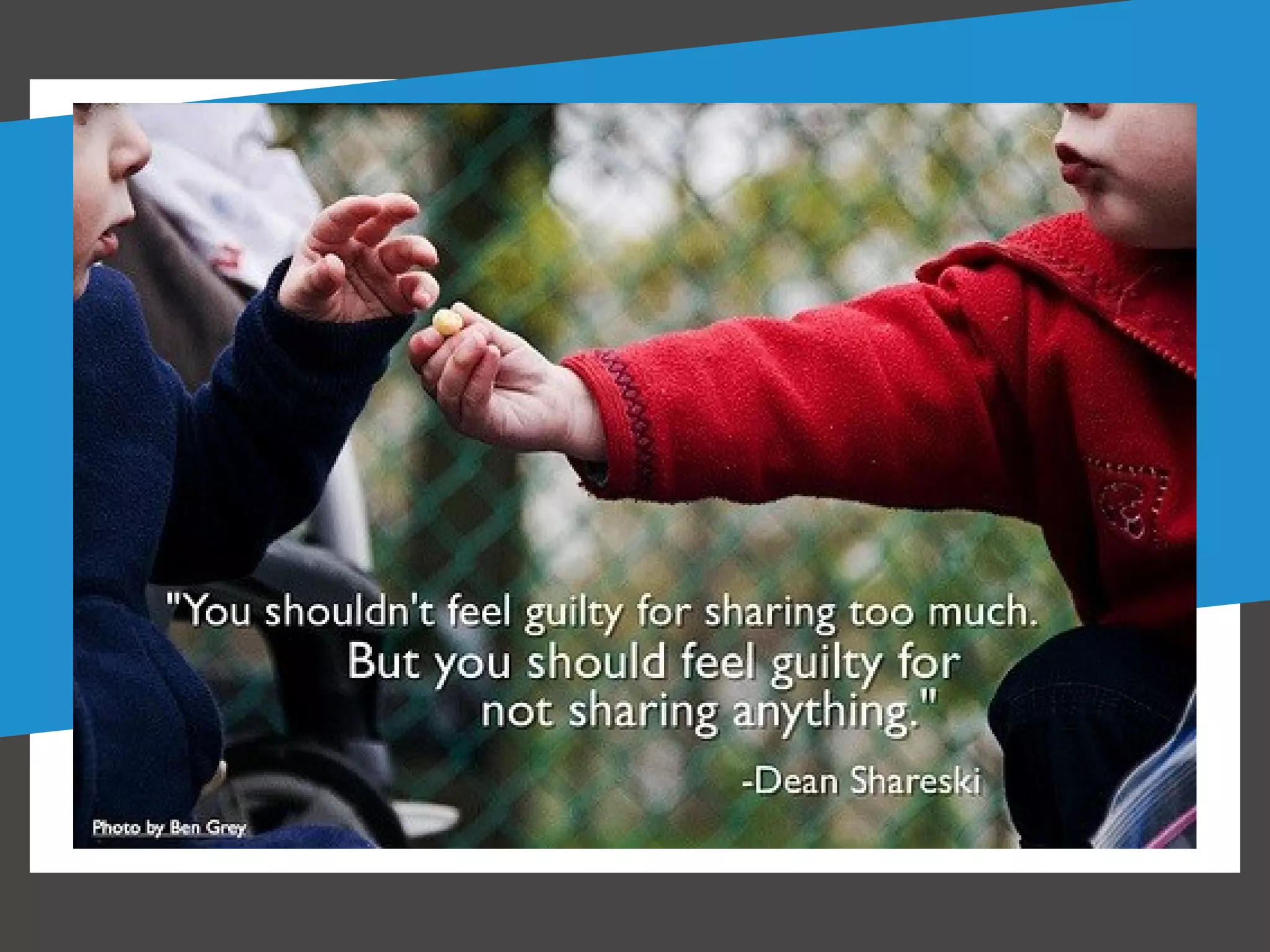
               Share
Obvious to You, Amazing to Others
Seeing the Possibilities
                   Newsfeed      Shared
  Profile               -       Documen
                   Colleagues      ts


            Blog           Groups
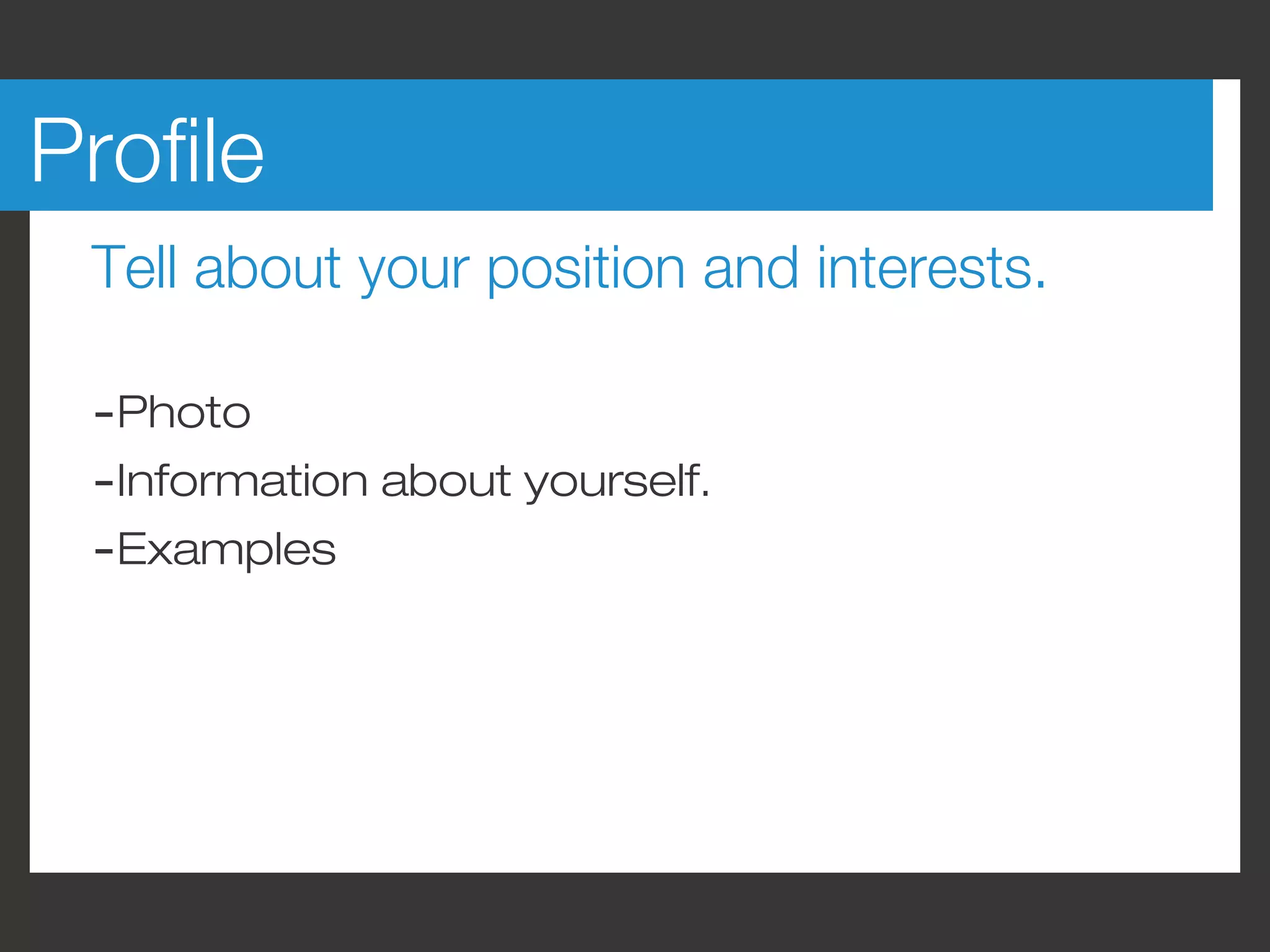
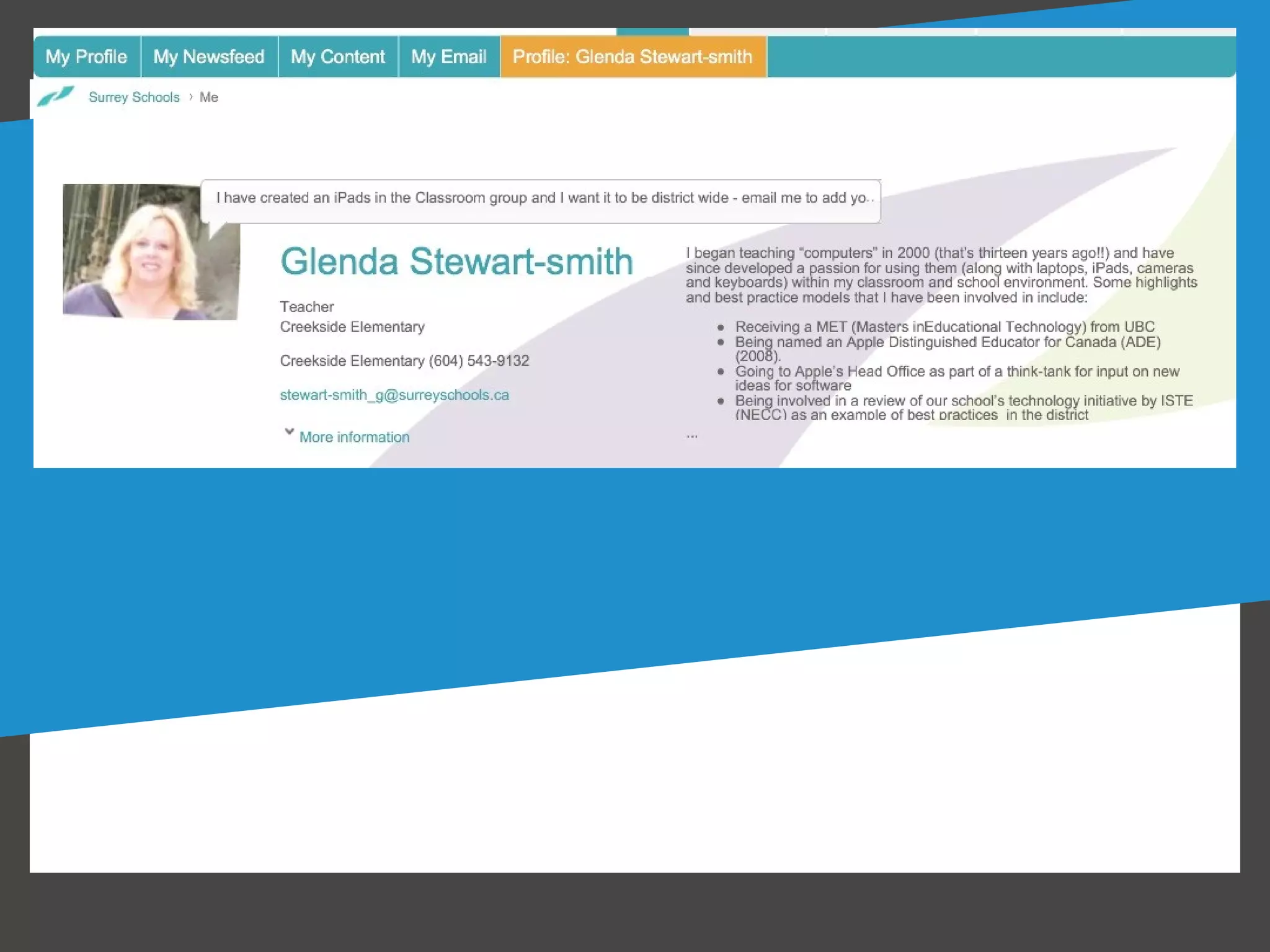
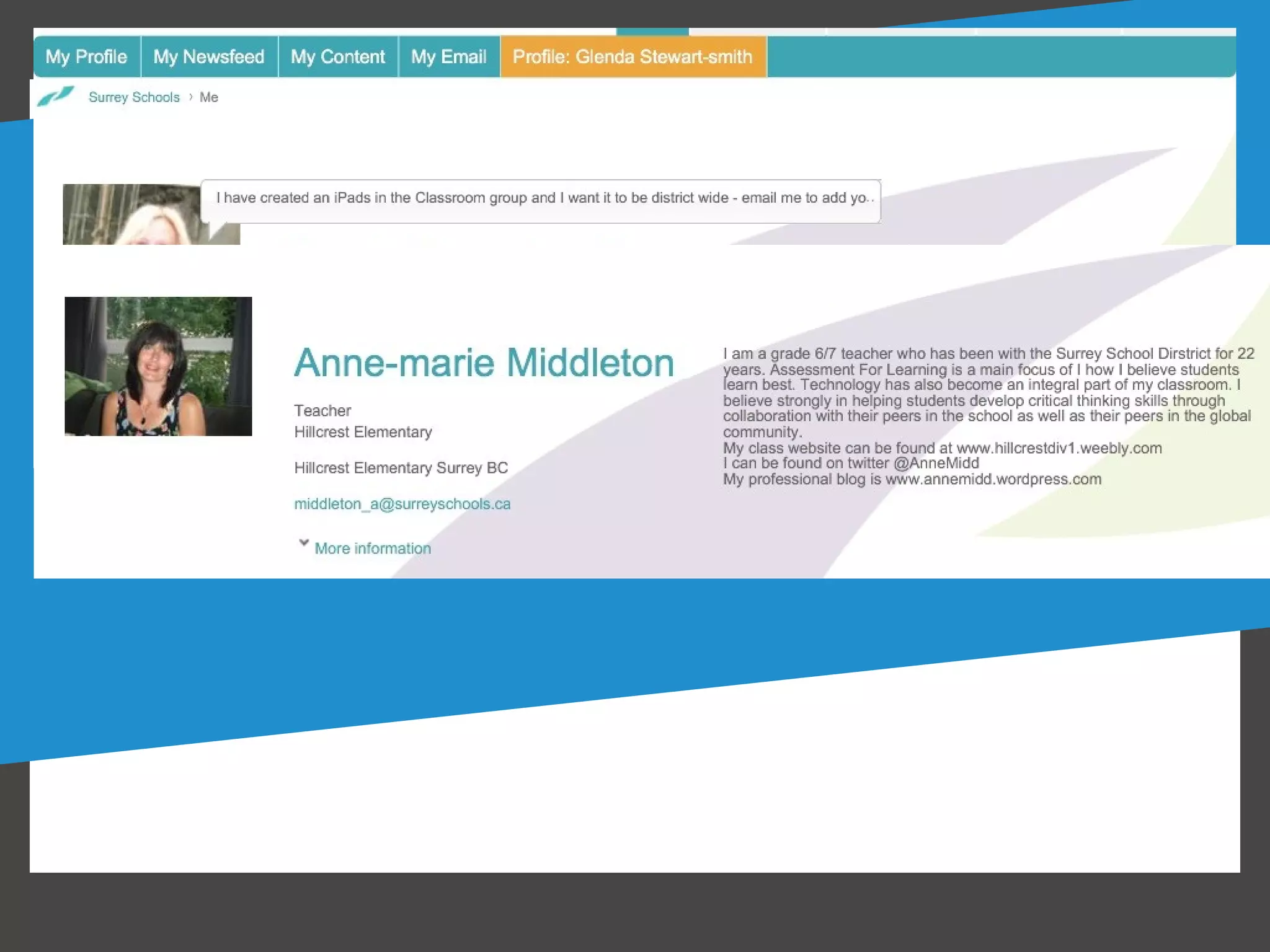
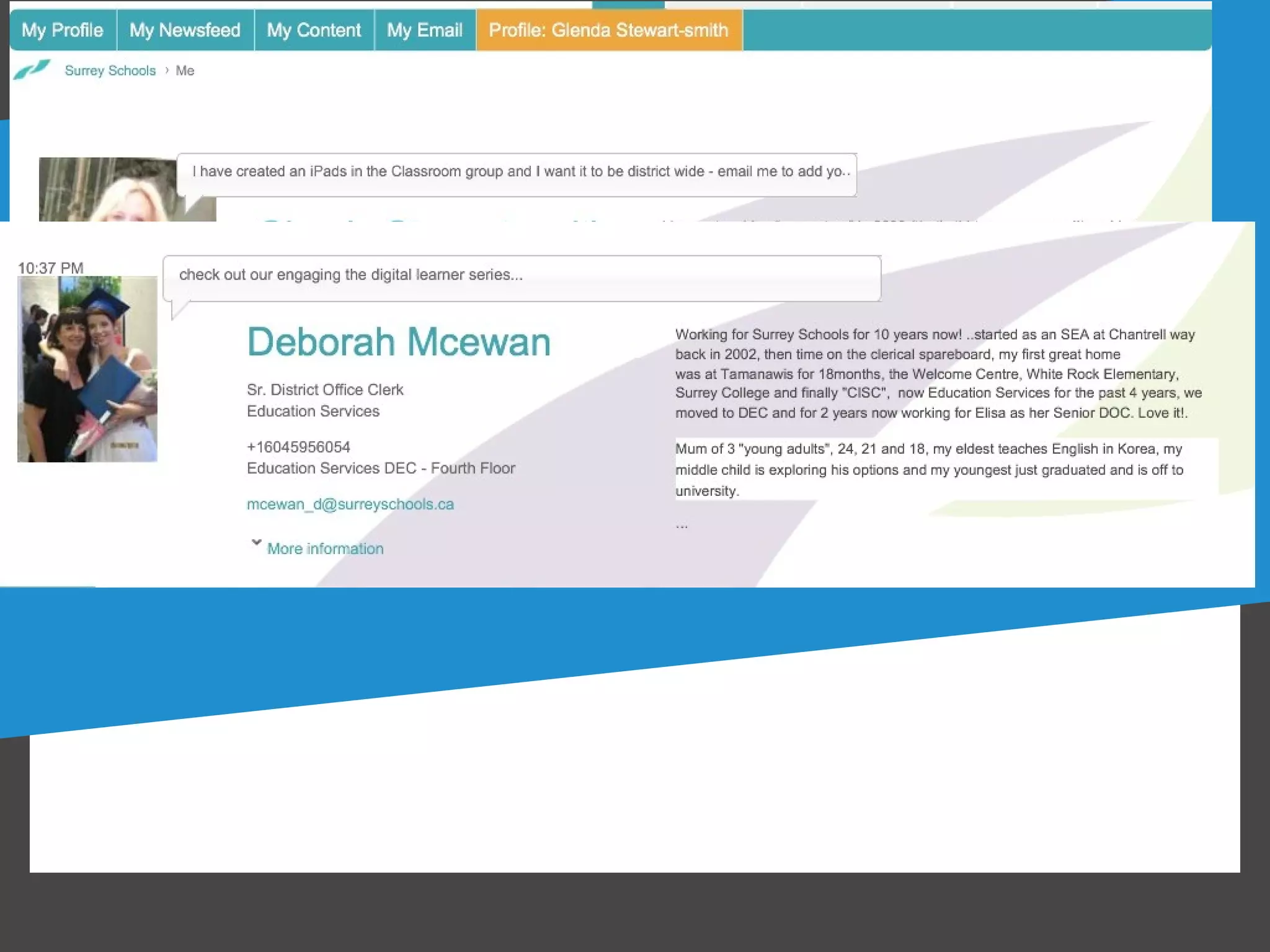
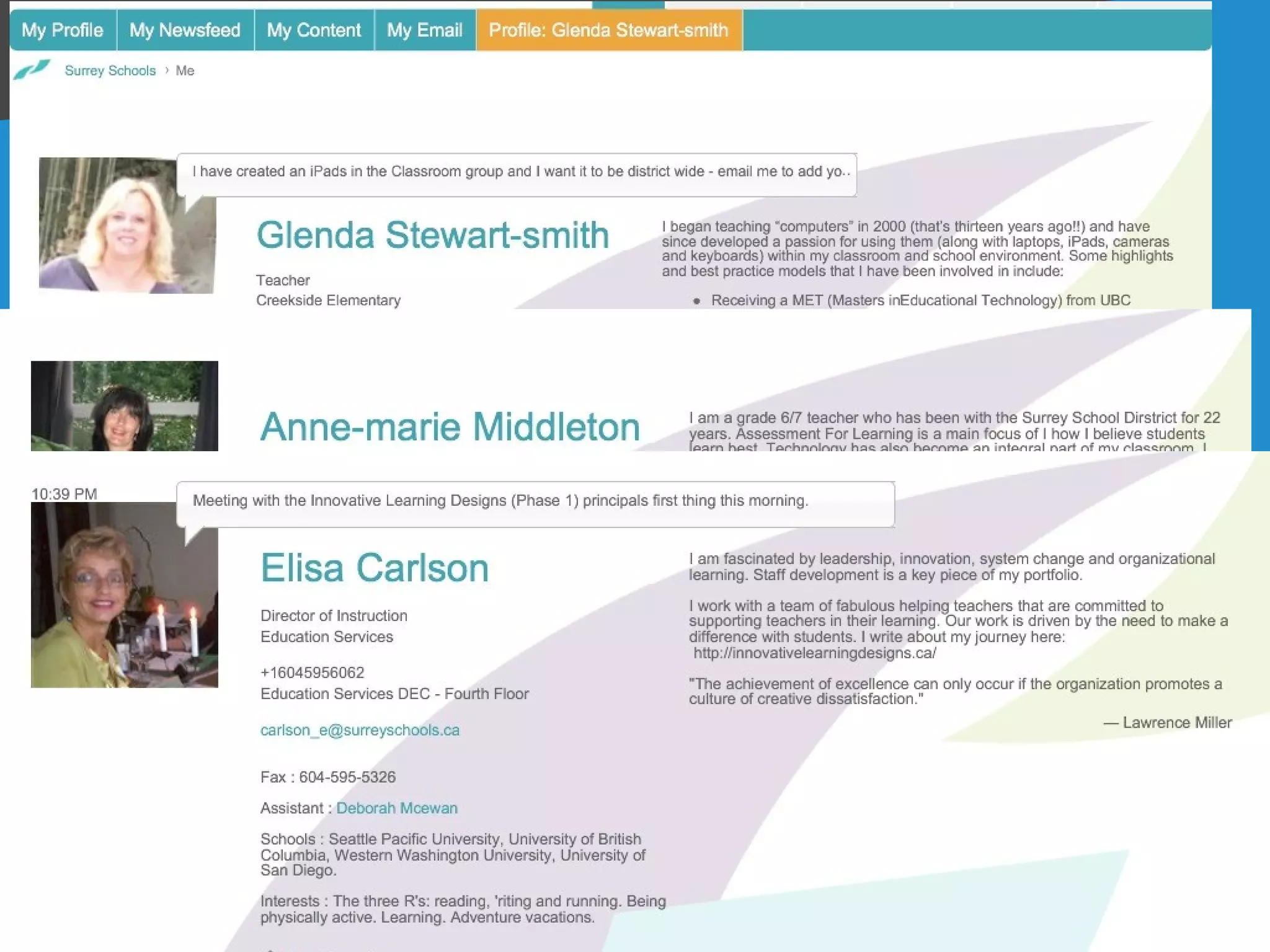
Profile
 Tell about your position and interests.

 -Photo
 -Information about yourself.
 -Examples
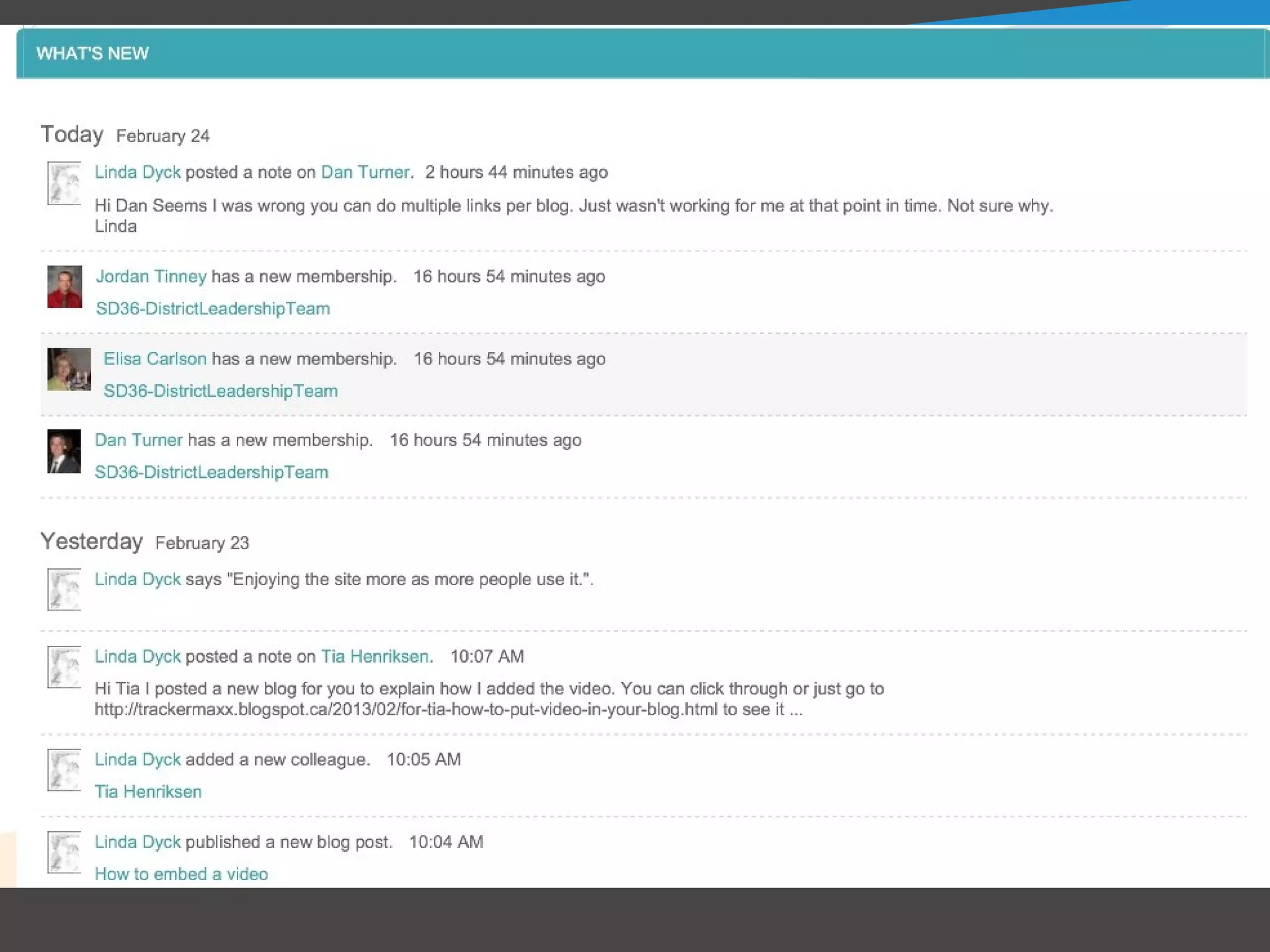
Newsfeed
 Tell about what you are up to.
 What do you see?
 - Your "colleagues'" updates.
 -People "liking" pages/groups/blog posts.
 -New Blog Posts.


 Examples
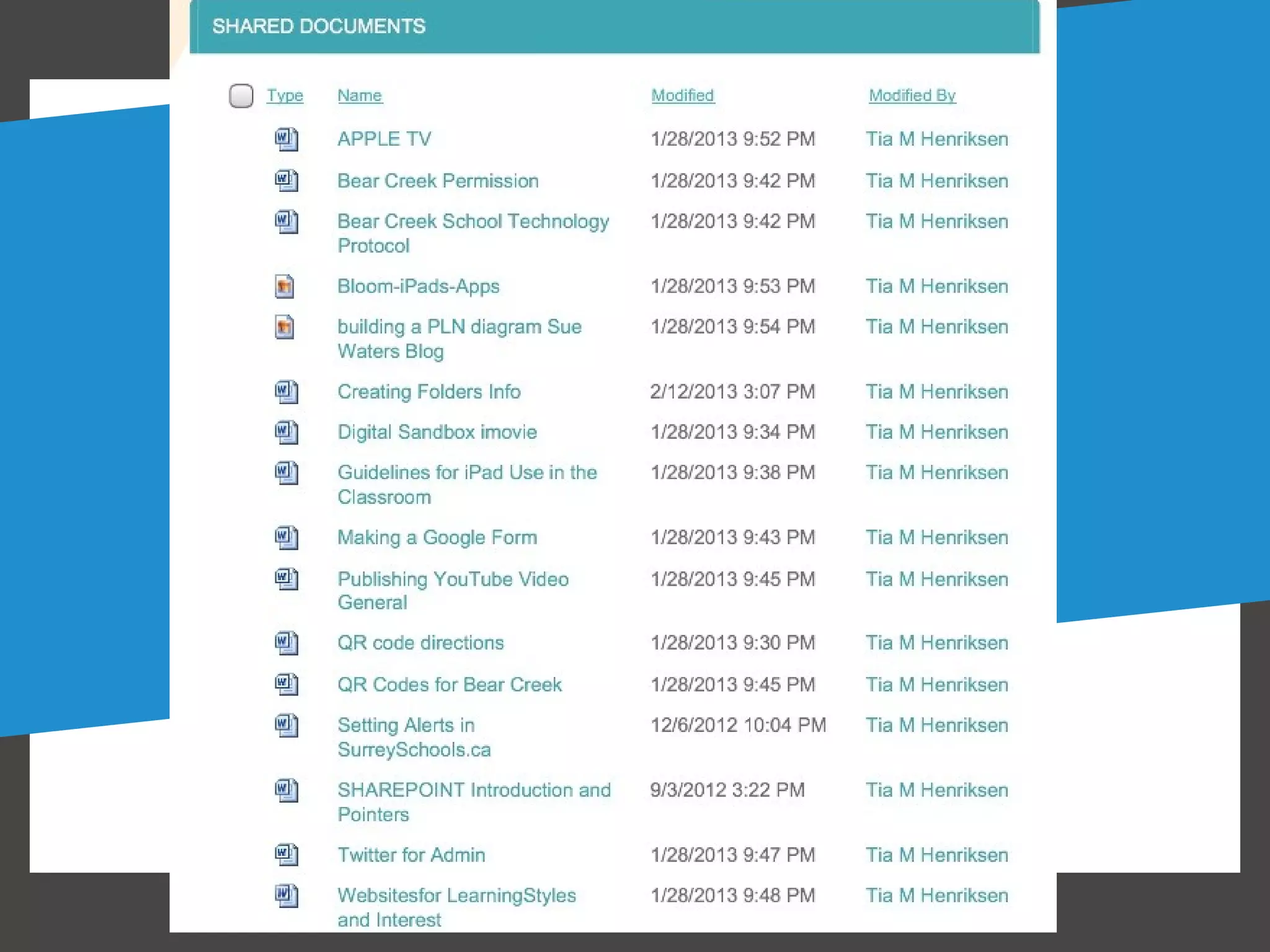
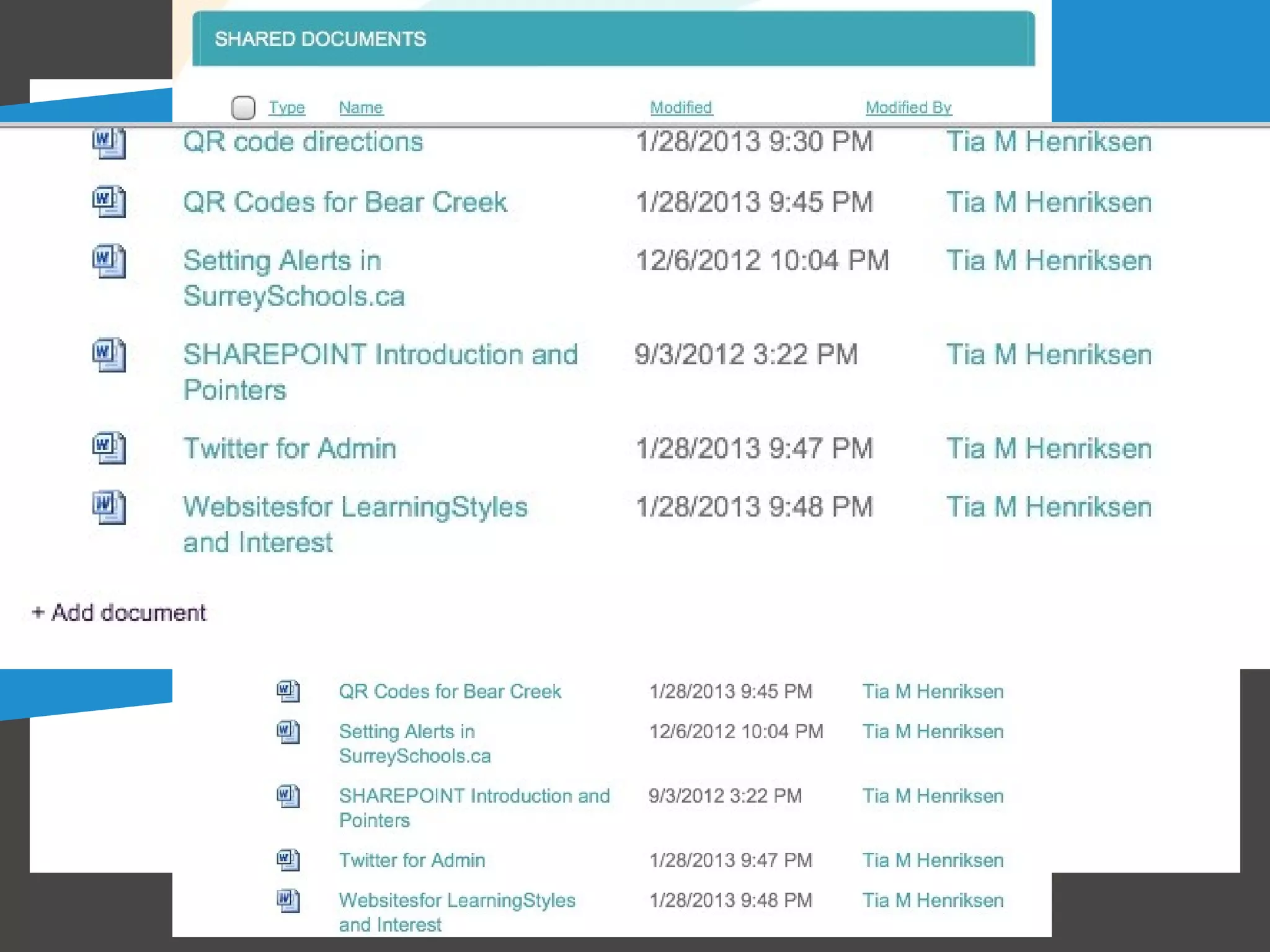
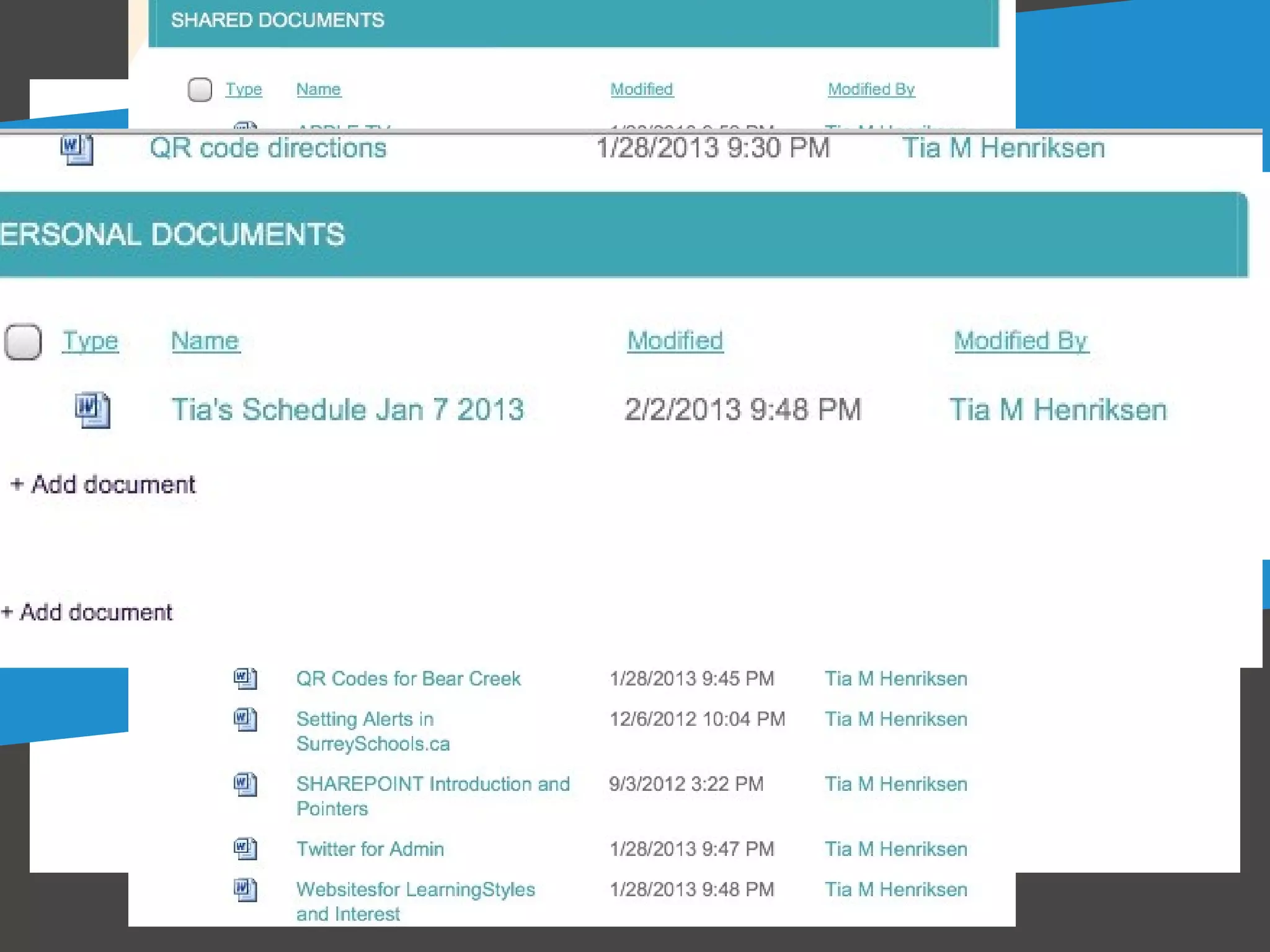
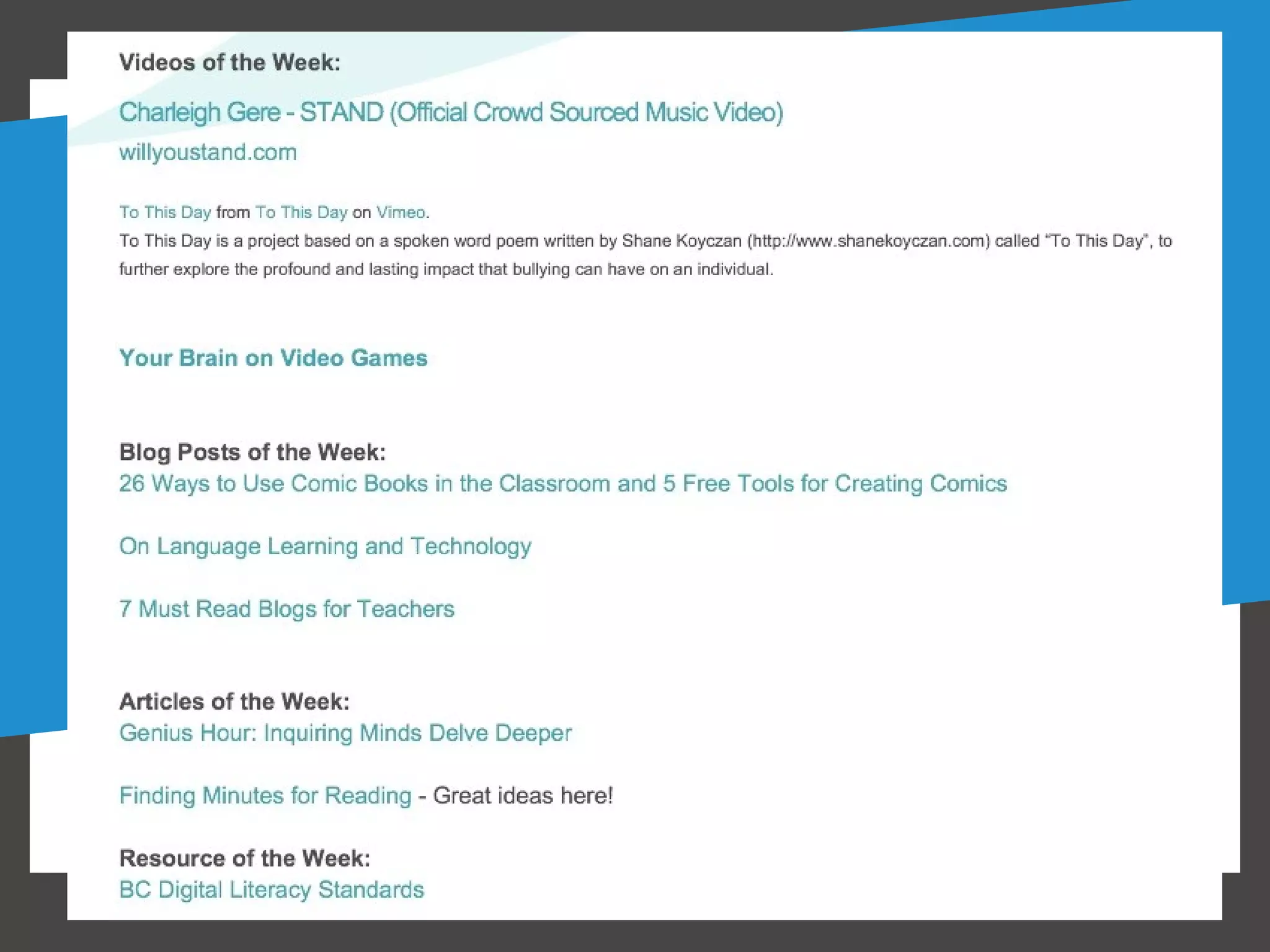
Shared Documents
 Share your work.
 Introduction
 -Your documents
 -PDFs you find useful

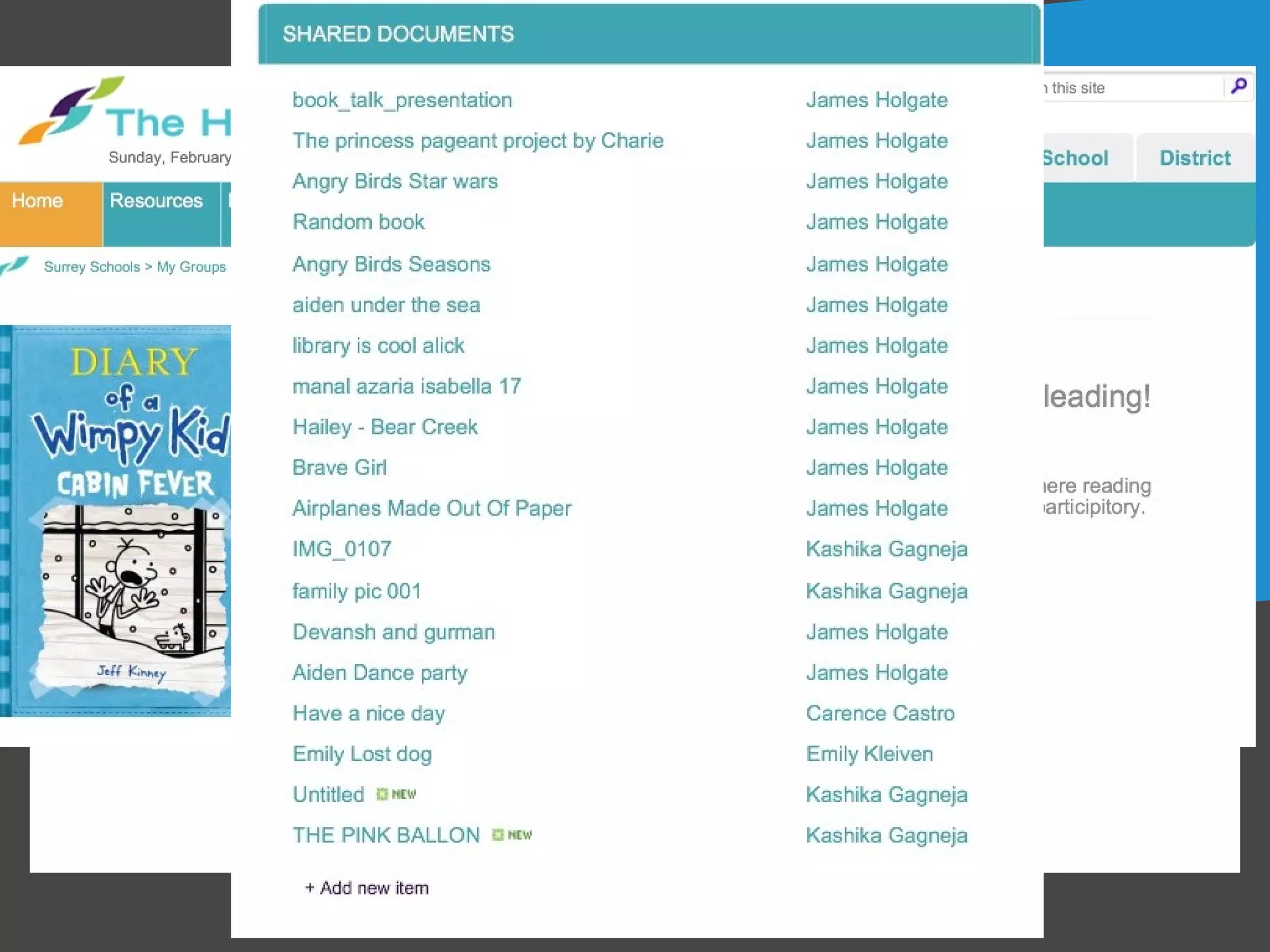
 Examples
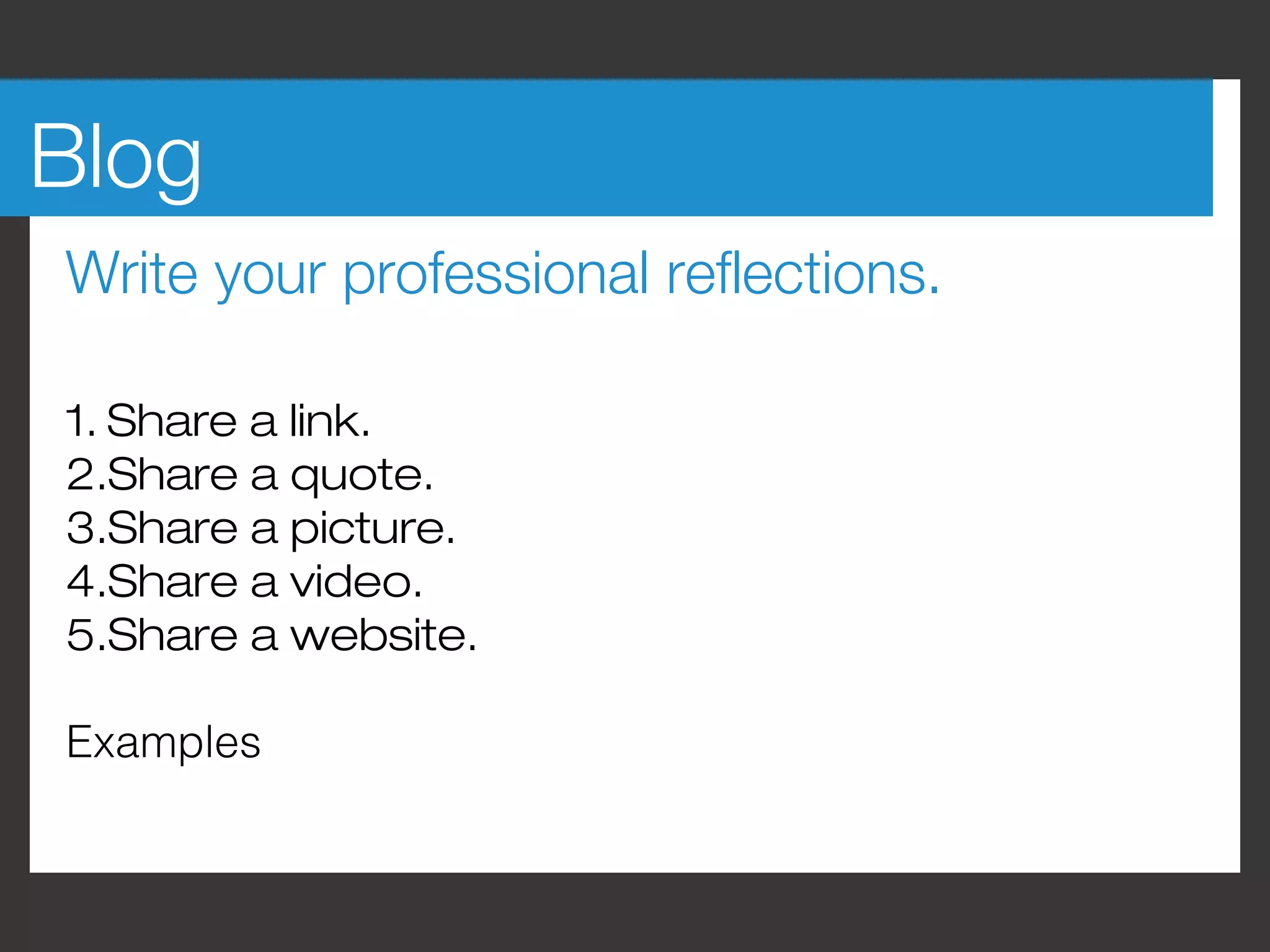
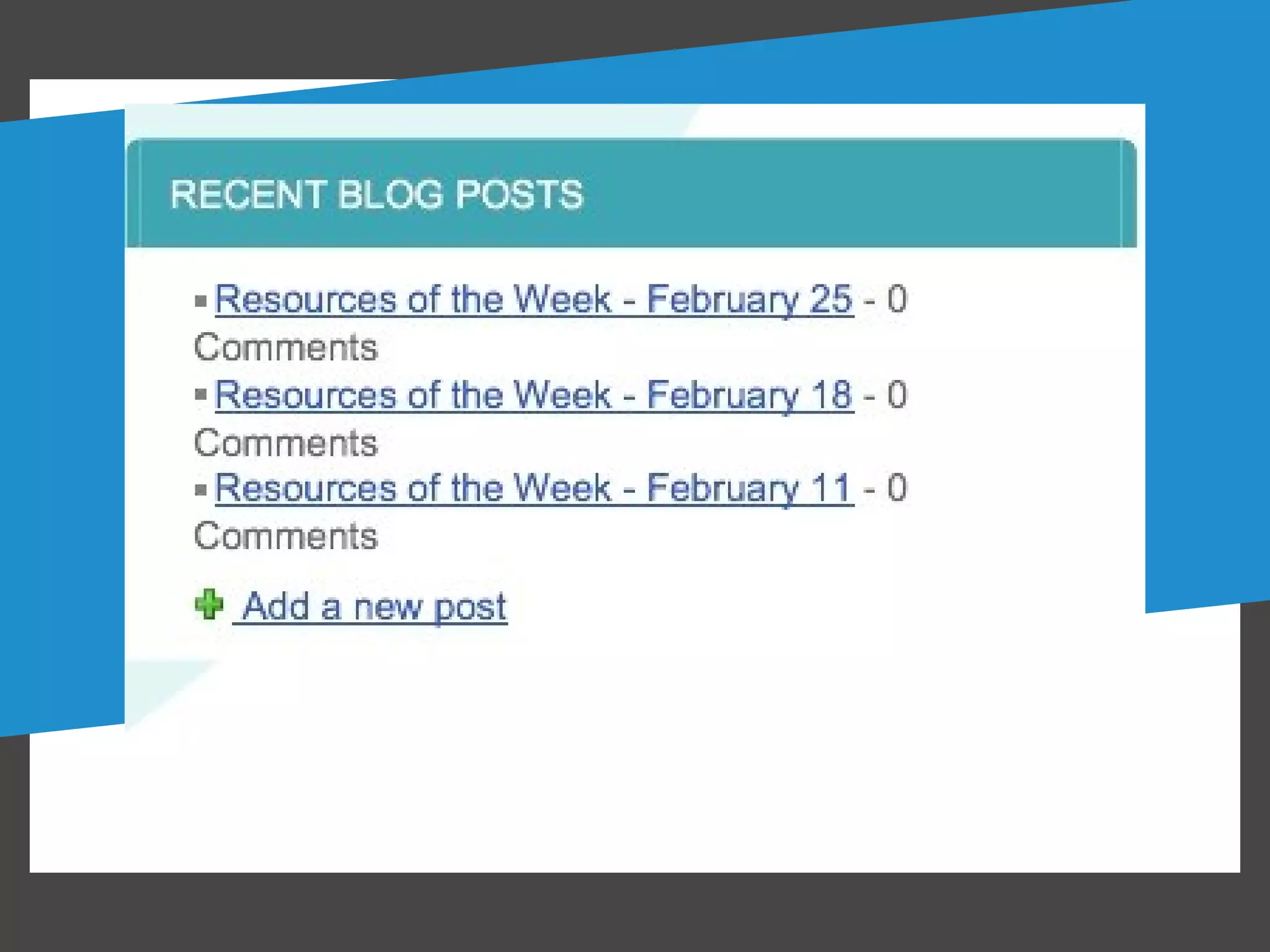
Blog
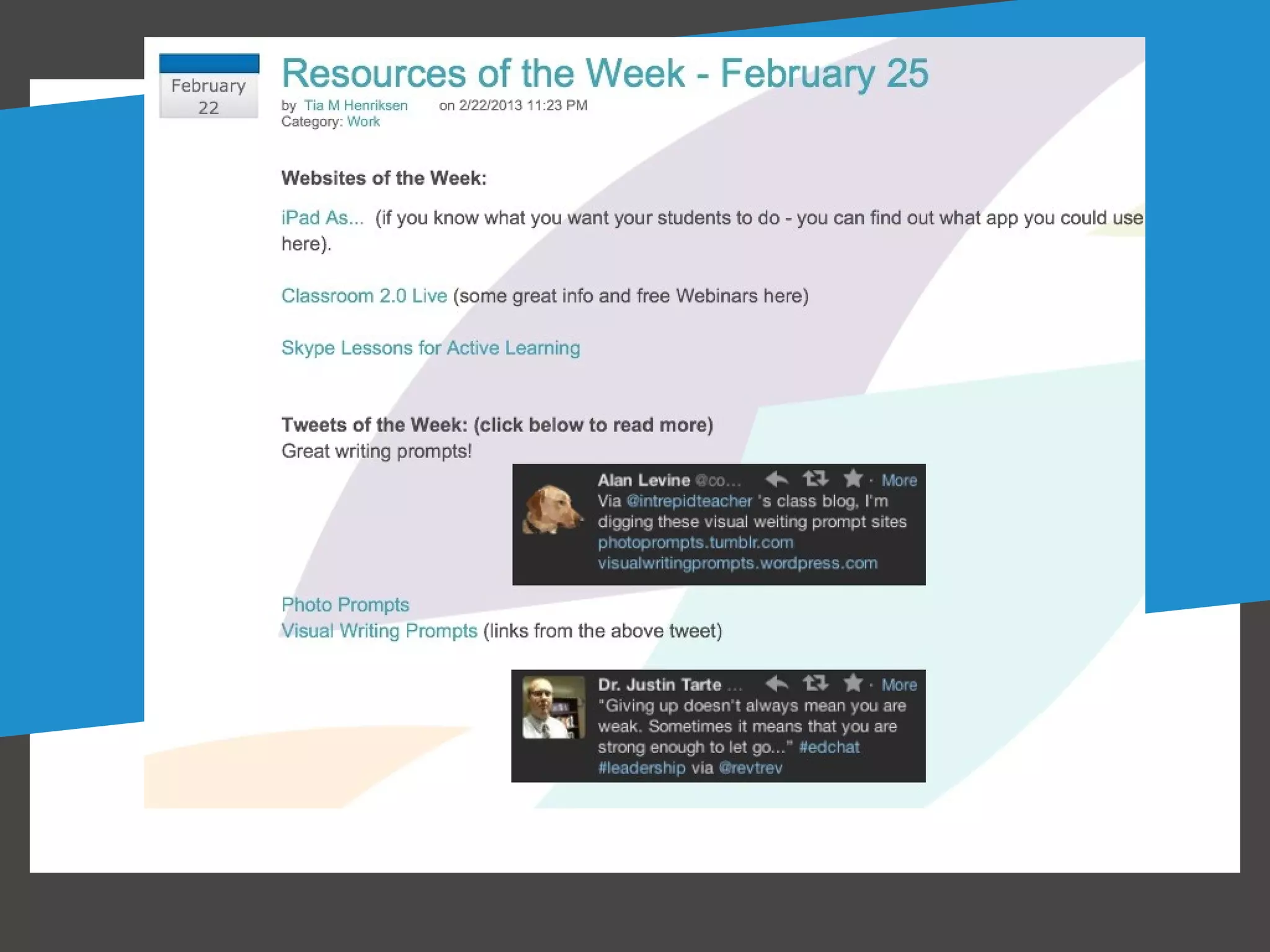
Write your professional reflections.

1. Share a link.
2.Share a quote.
3.Share a picture.
4.Share a video.
5.Share a website.

Examples
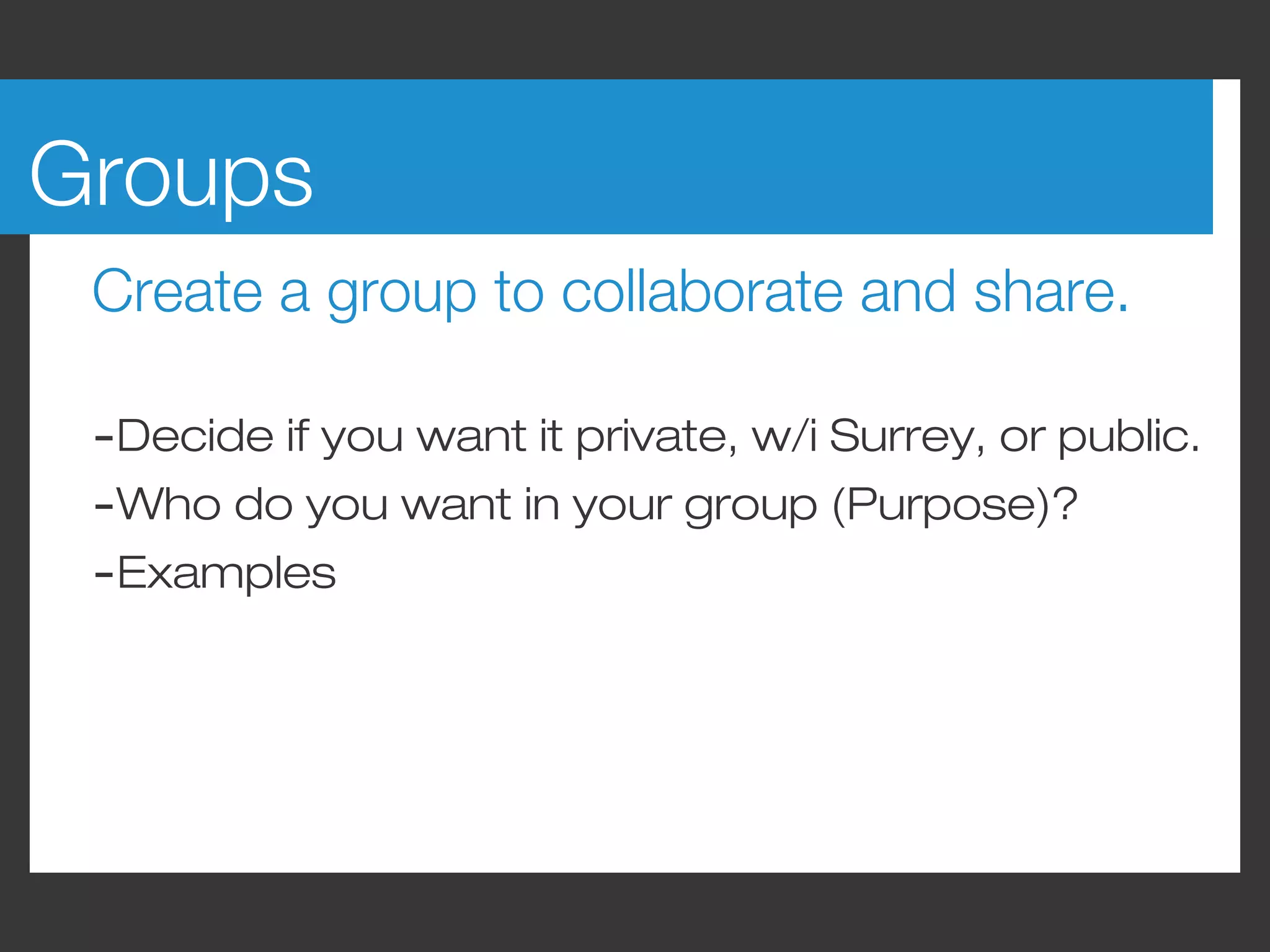
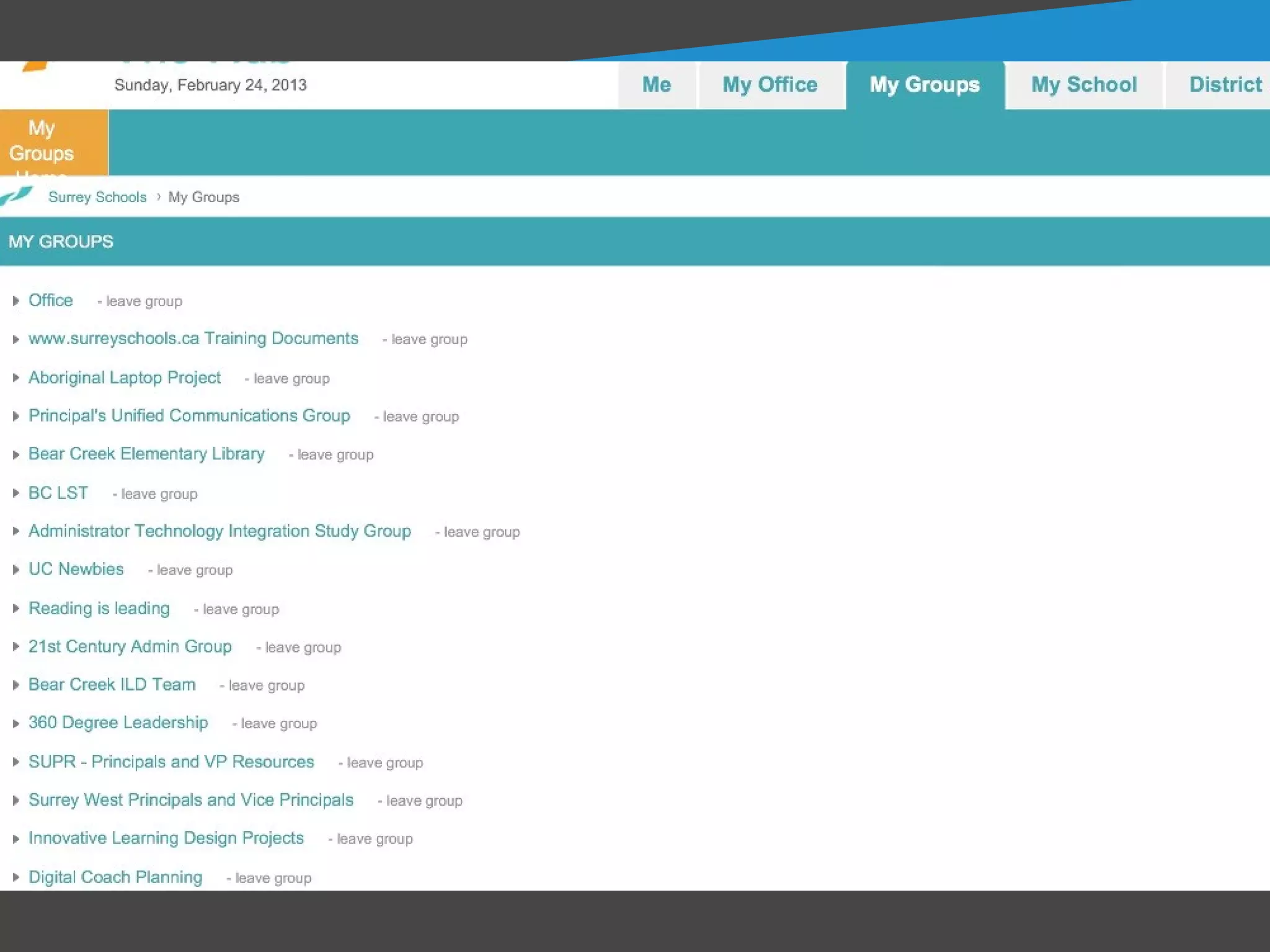
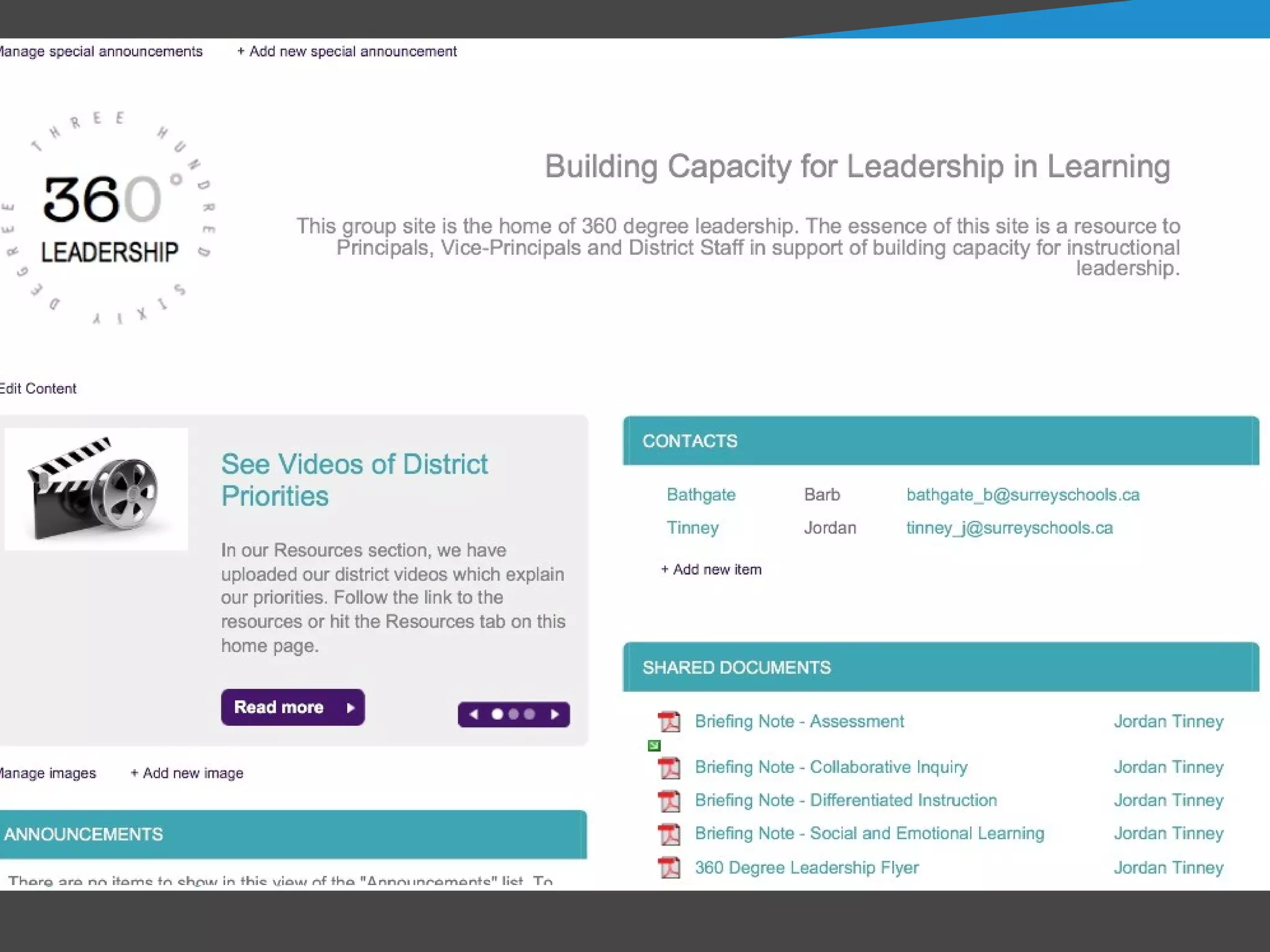
Groups
 Create a group to collaborate and share.

 -Decide if you want it private, w/i Surrey, or public.
 -Who do you want in your group (Purpose)?
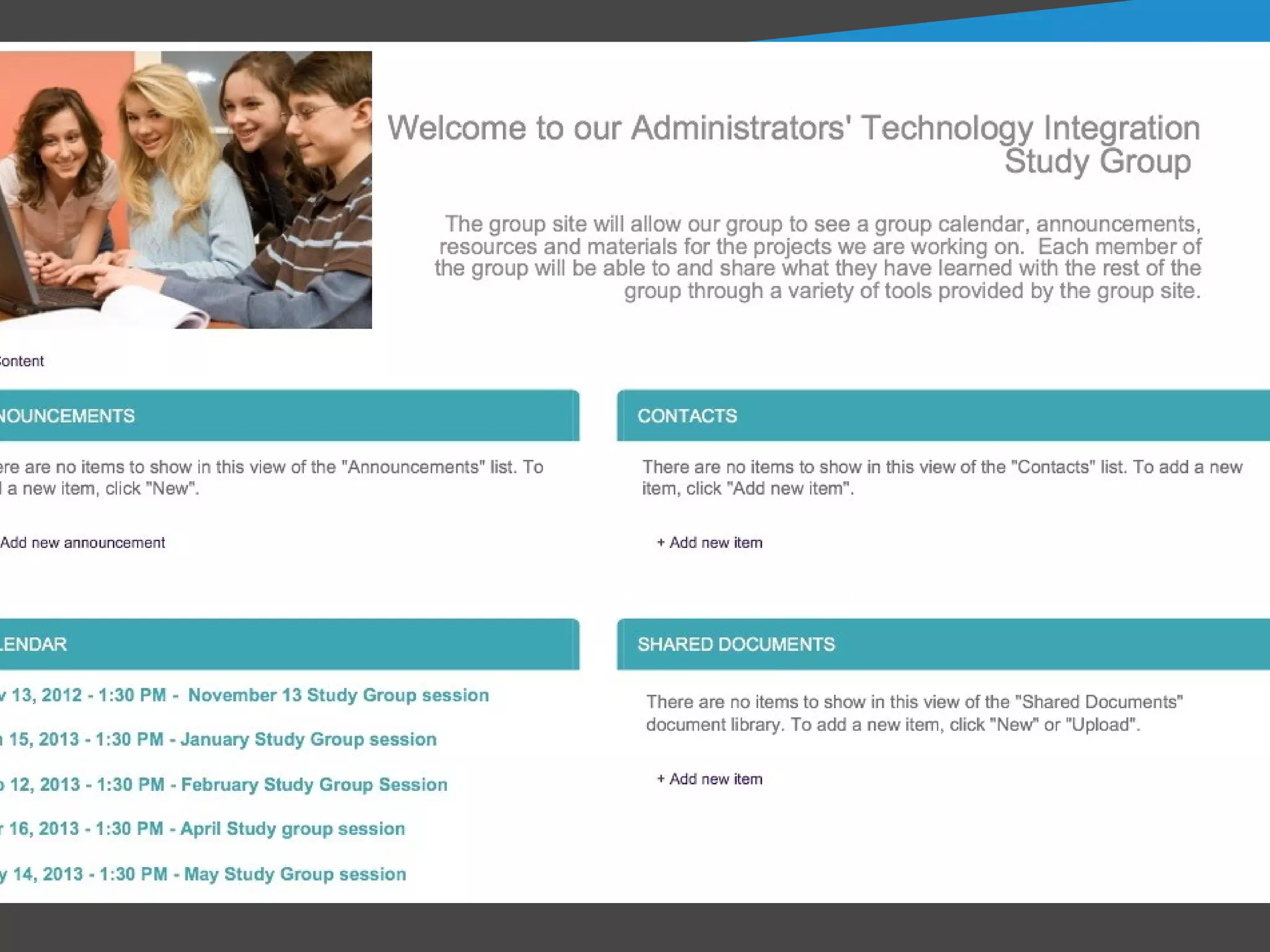
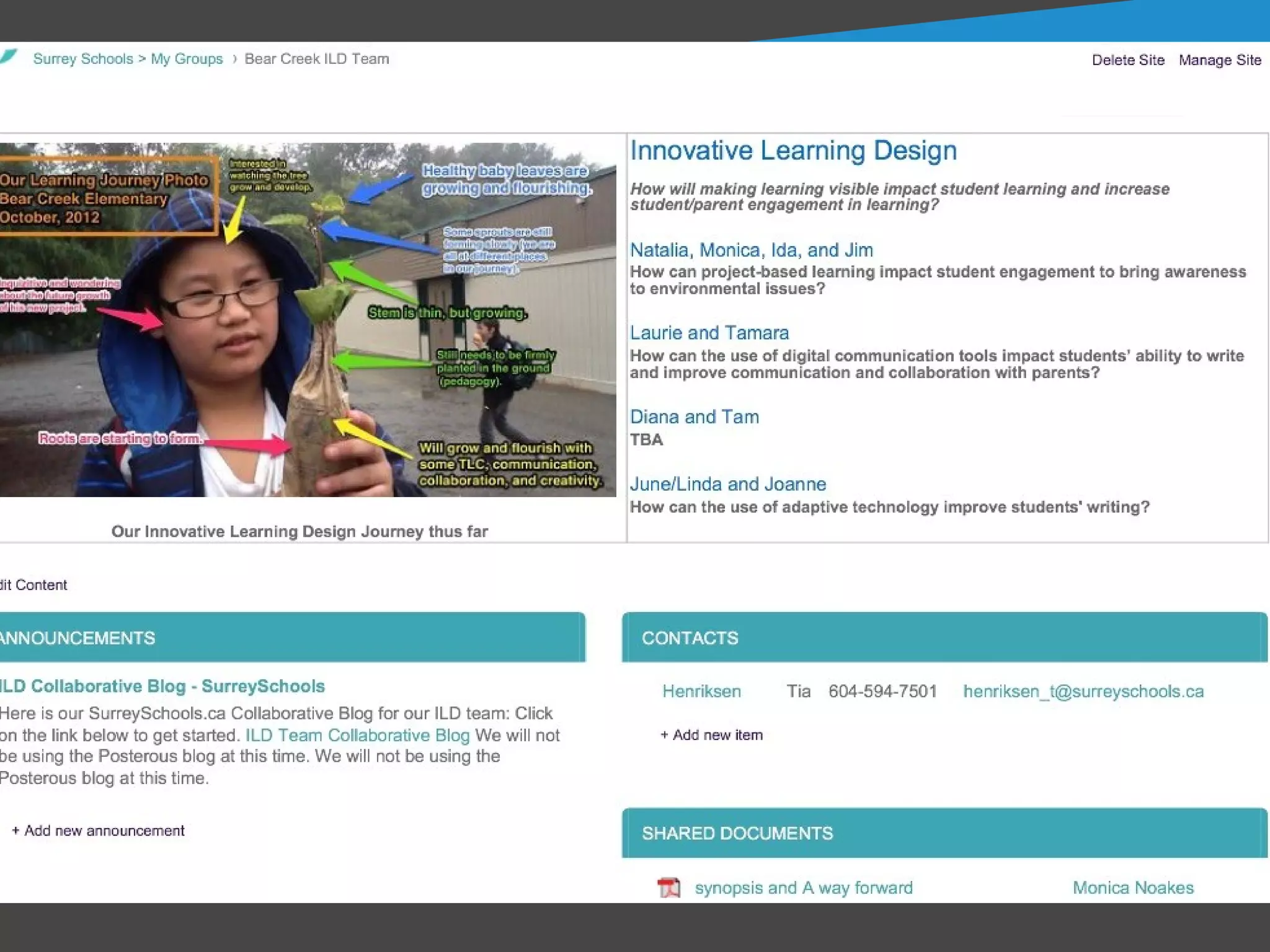
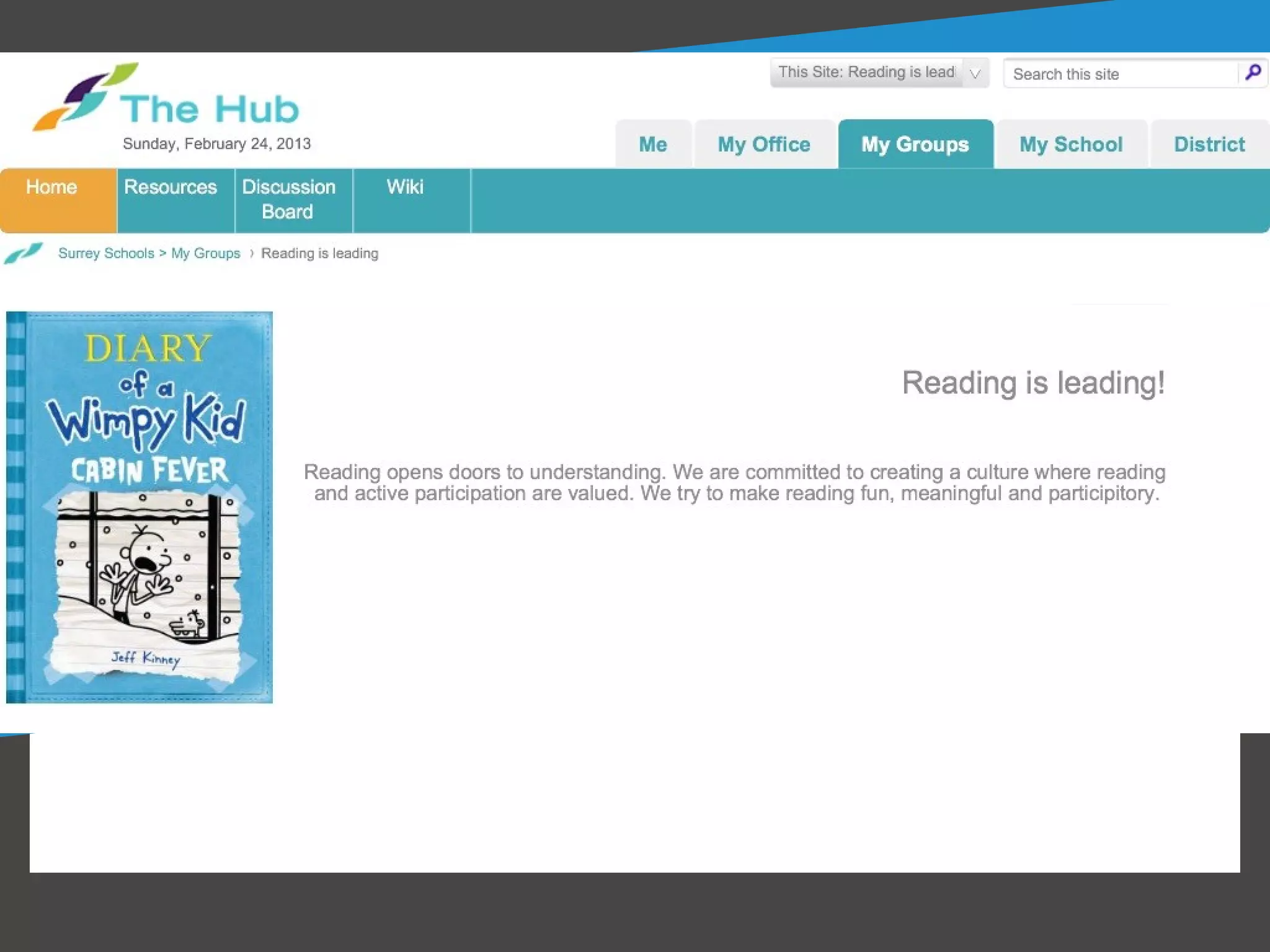
 -Examples
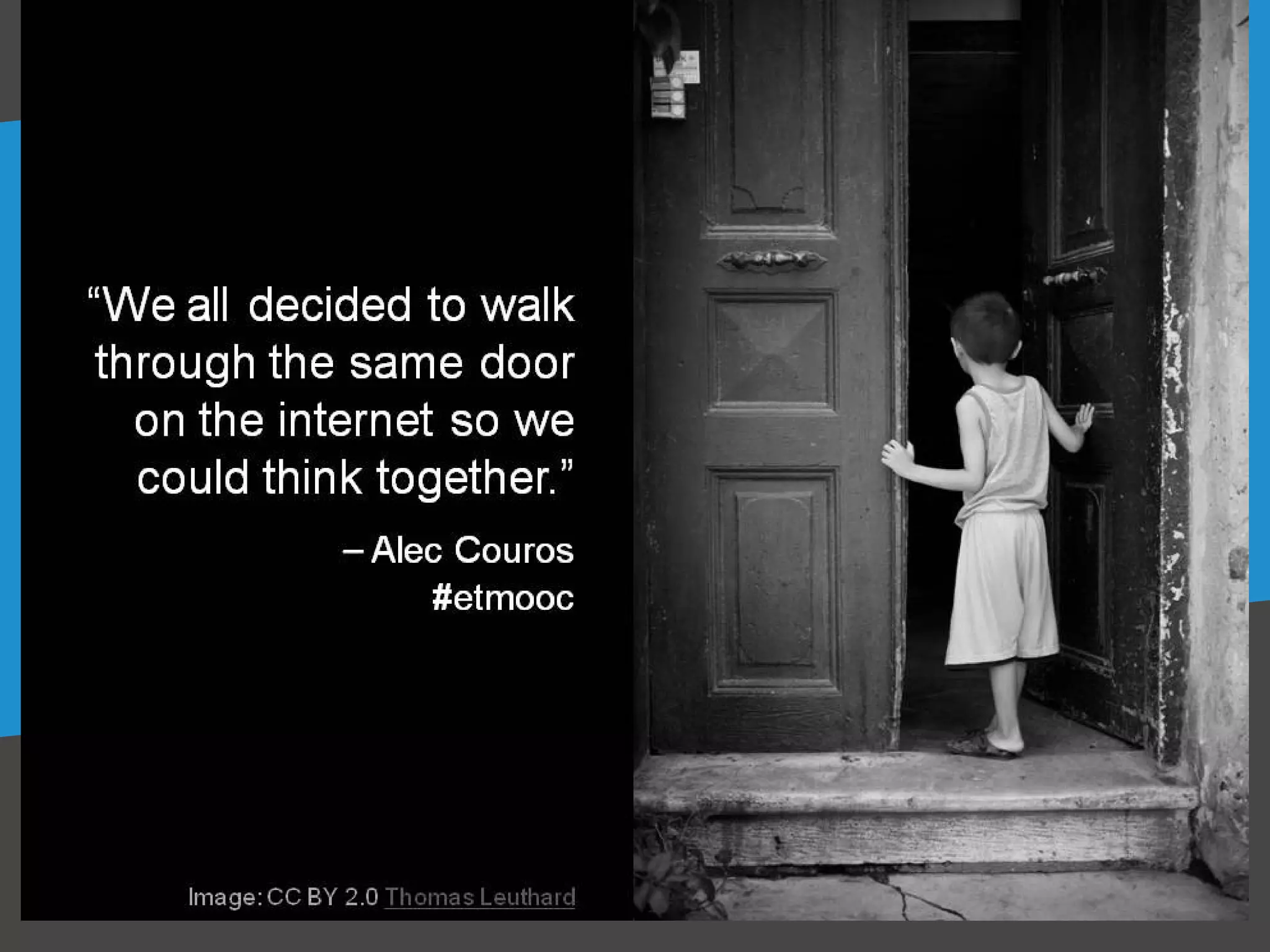
SurreySchools.ca makes connecting,
collaborating, creating, and sharing easy.

We just need to walk through the
SurreySchools.ca door and start to use it.
Your Task Today

1. Edit your profile and add information about
   yourself, your position, and your interests.
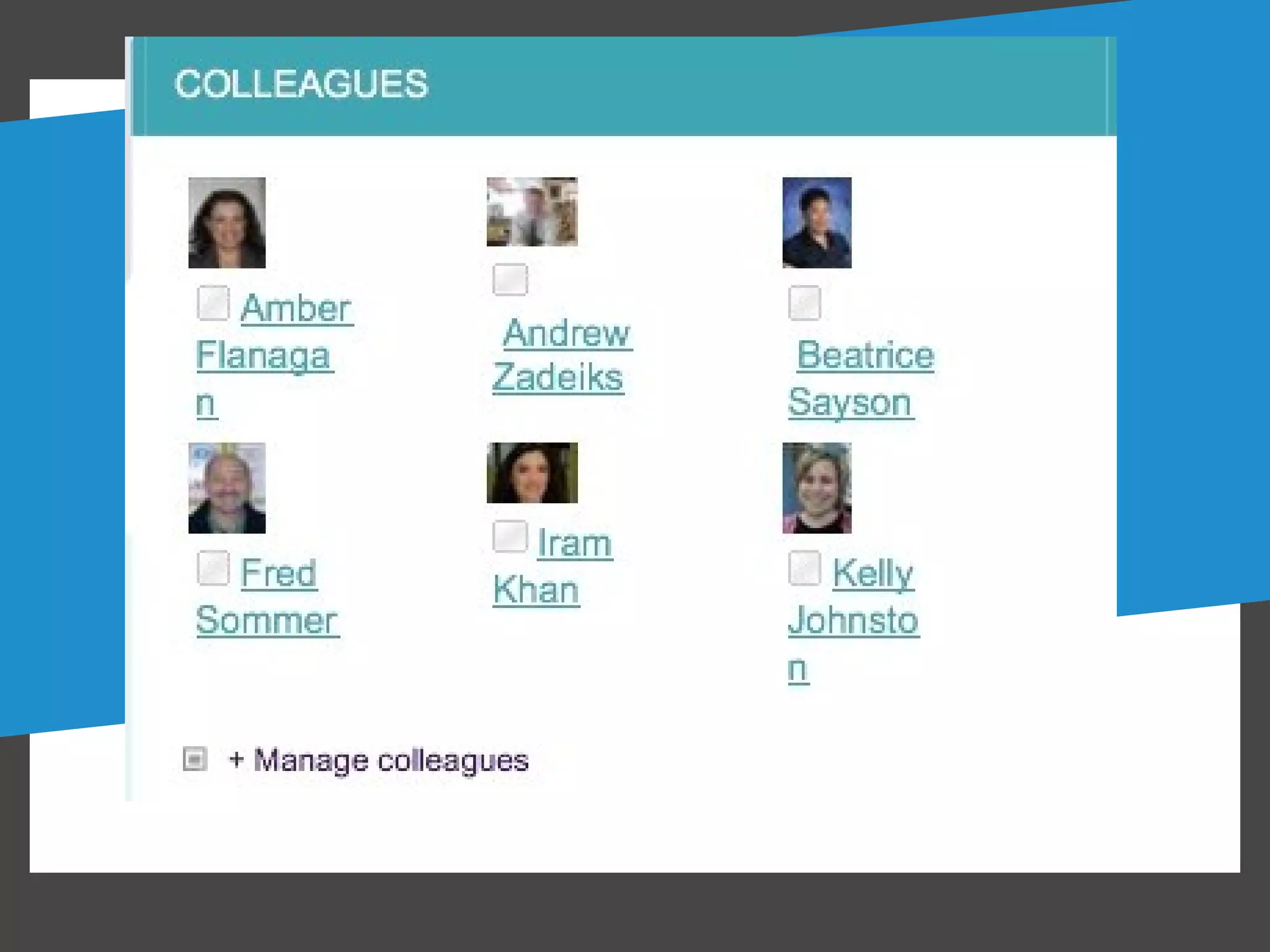
2. Add some colleagues.
3. Update your Newsfeed.
4. Add some items to your Shared Documents.
5. Add a brief blog post - could be just a quote.
6. Make a Group.
Thanks for Coming!

           Antonio - @Vendram1n
            Tia - @TiaHenriksen

Surrey schools sandbox session ppt

  • 1.
    SurreySchools.ca Using the Toolsto Connect, Create & Share Tia Henriksen & Antonio Vendramin February 26, 2013
  • 2.
    Learning Intentions * Tobecome familiar with the various components of SurreySchools.ca (Profile, Newsfeed, Shared Documents, Blog, & Groups) and understand how each can be used to share. * At the end, feel confident to be able to share with at least one other colleague or staff member. * Begin to use your Newsfeed.
  • 3.
    Working Together We are all smarter Connect when we collaborate, create and share Create together. Share
  • 5.
    Obvious to You,Amazing to Others
  • 6.
    Seeing the Possibilities Newsfeed Shared Profile - Documen Colleagues ts Blog Groups
  • 7.
    Profile Tell aboutyour position and interests. -Photo -Information about yourself. -Examples
  • 12.
    Newsfeed Tell aboutwhat you are up to. What do you see? - Your "colleagues'" updates. -People "liking" pages/groups/blog posts. -New Blog Posts. Examples
  • 15.
    Shared Documents Shareyour work. Introduction -Your documents -PDFs you find useful Examples
  • 19.
    Blog Write your professionalreflections. 1. Share a link. 2.Share a quote. 3.Share a picture. 4.Share a video. 5.Share a website. Examples
  • 23.
    Groups Create agroup to collaborate and share. -Decide if you want it private, w/i Surrey, or public. -Who do you want in your group (Purpose)? -Examples
  • 31.
    SurreySchools.ca makes connecting, collaborating,creating, and sharing easy. We just need to walk through the SurreySchools.ca door and start to use it.
  • 34.
    Your Task Today 1.Edit your profile and add information about yourself, your position, and your interests. 2. Add some colleagues. 3. Update your Newsfeed. 4. Add some items to your Shared Documents. 5. Add a brief blog post - could be just a quote. 6. Make a Group.
  • 35.
    Thanks for Coming! Antonio - @Vendram1n Tia - @TiaHenriksen