HTML
HYPER TEXT TRANSFER
PROTOCOL
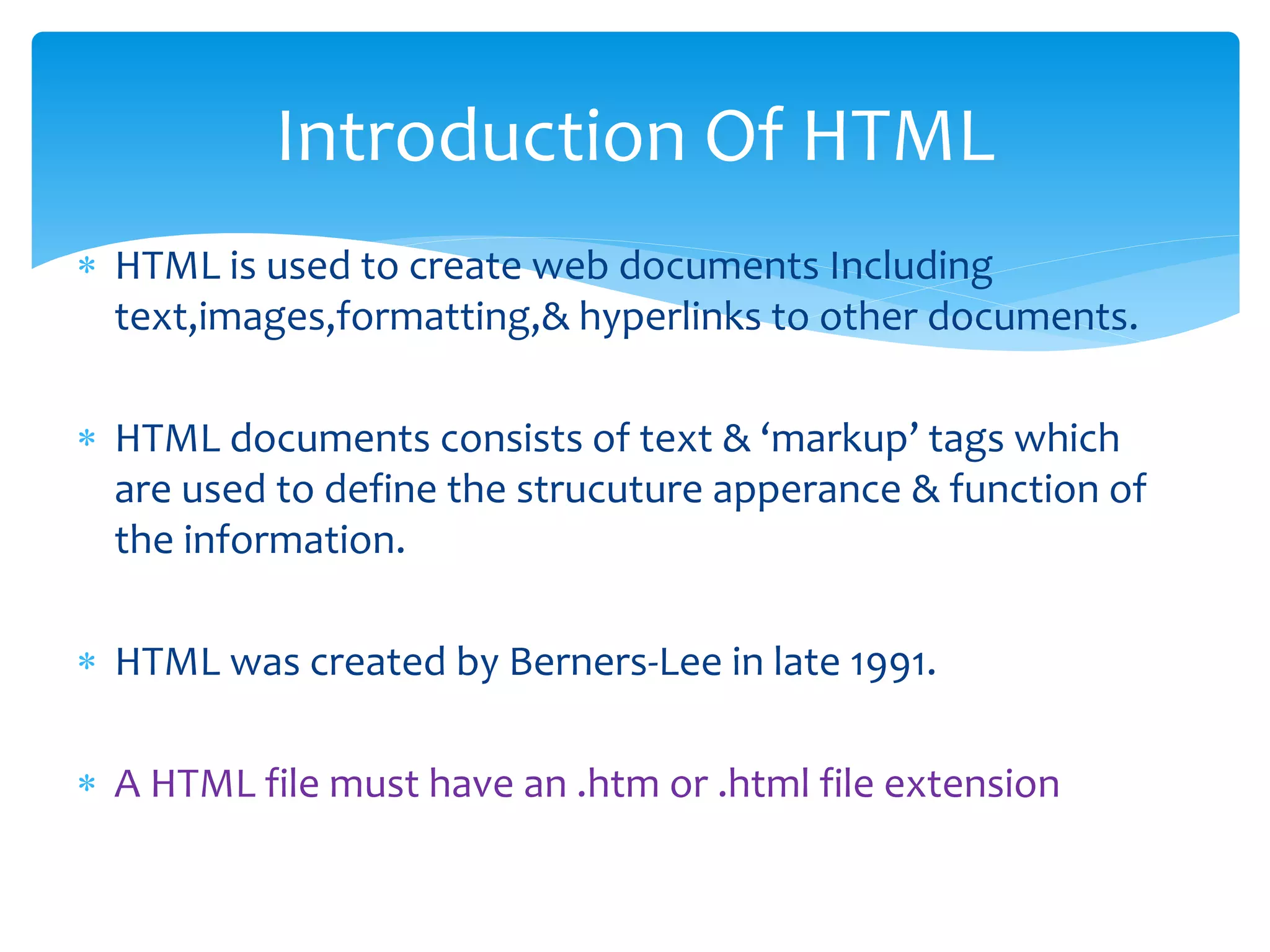
 HTML is used to create web documents Including
text,images,formatting,& hyperlinks to other documents.
 HTML documents consists of text & ‘markup’ tags which
are used to define the strucuture apperance & function of
the information.
 HTML was created by Berners-Lee in late 1991.
 A HTML file must have an .htm or .html file extension
Introduction Of HTML
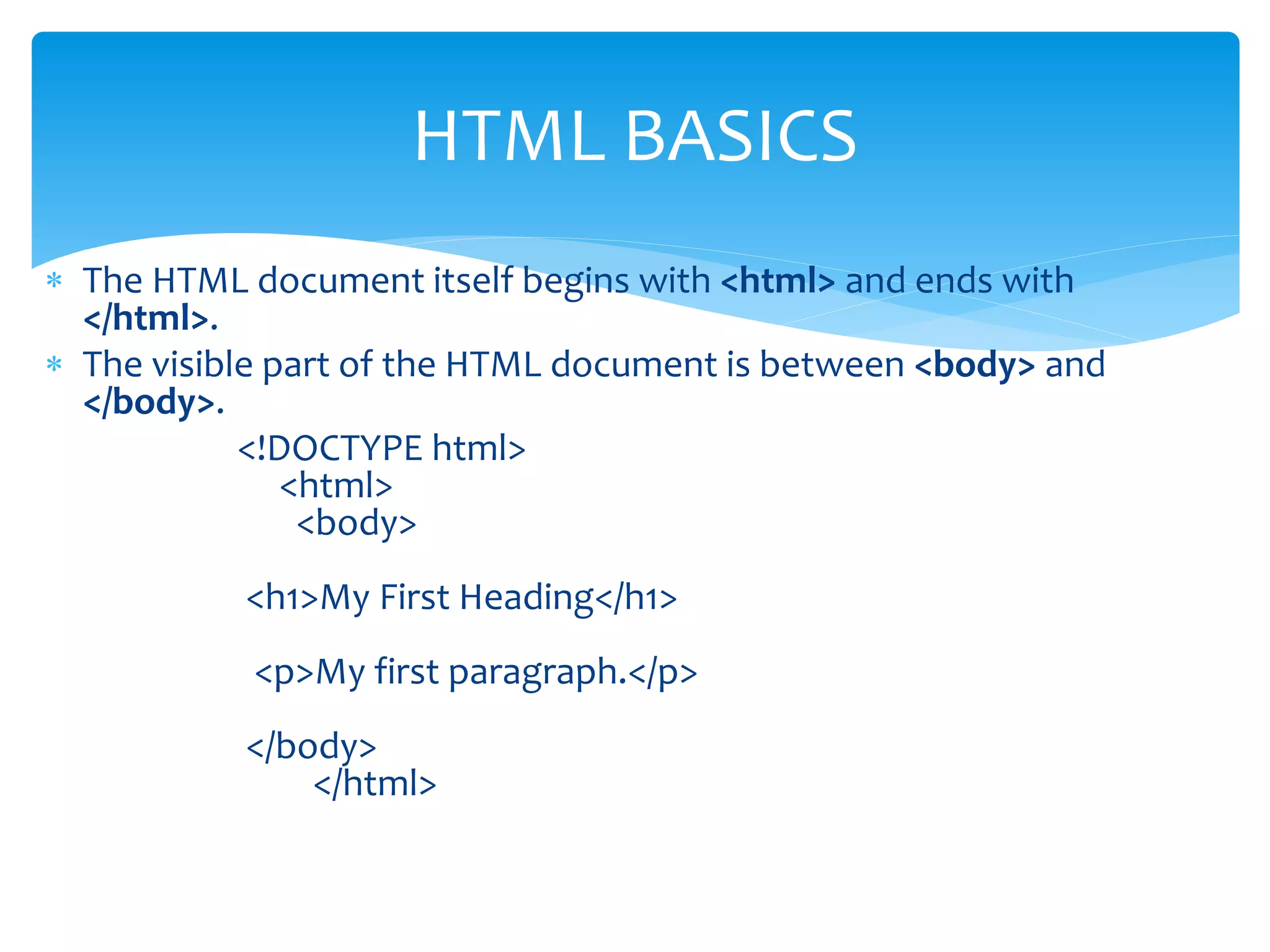
 The HTML document itself begins with <html> and ends with
</html>.
 The visible part of the HTML document is between <body> and
</body>.
<!DOCTYPE html>
<html>
<body>
<h1>My First Heading</h1>
<p>My first paragraph.</p>
</body>
</html>
HTML BASICS
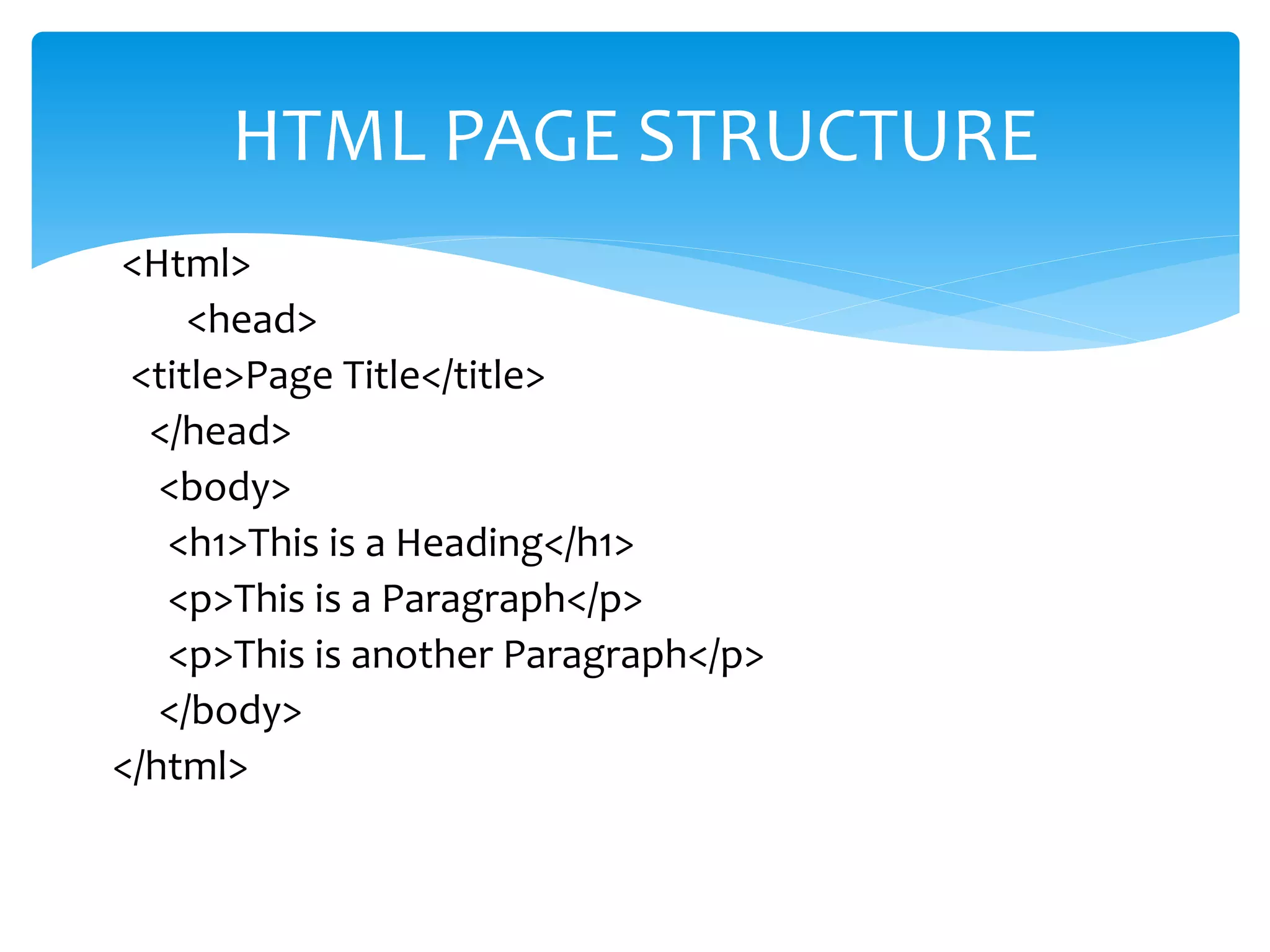
<Html>
<head>
<title>Page Title</title>
</head>
<body>
<h1>This is a Heading</h1>
<p>This is a Paragraph</p>
<p>This is another Paragraph</p>
</body>
</html>
HTML PAGE STRUCTURE
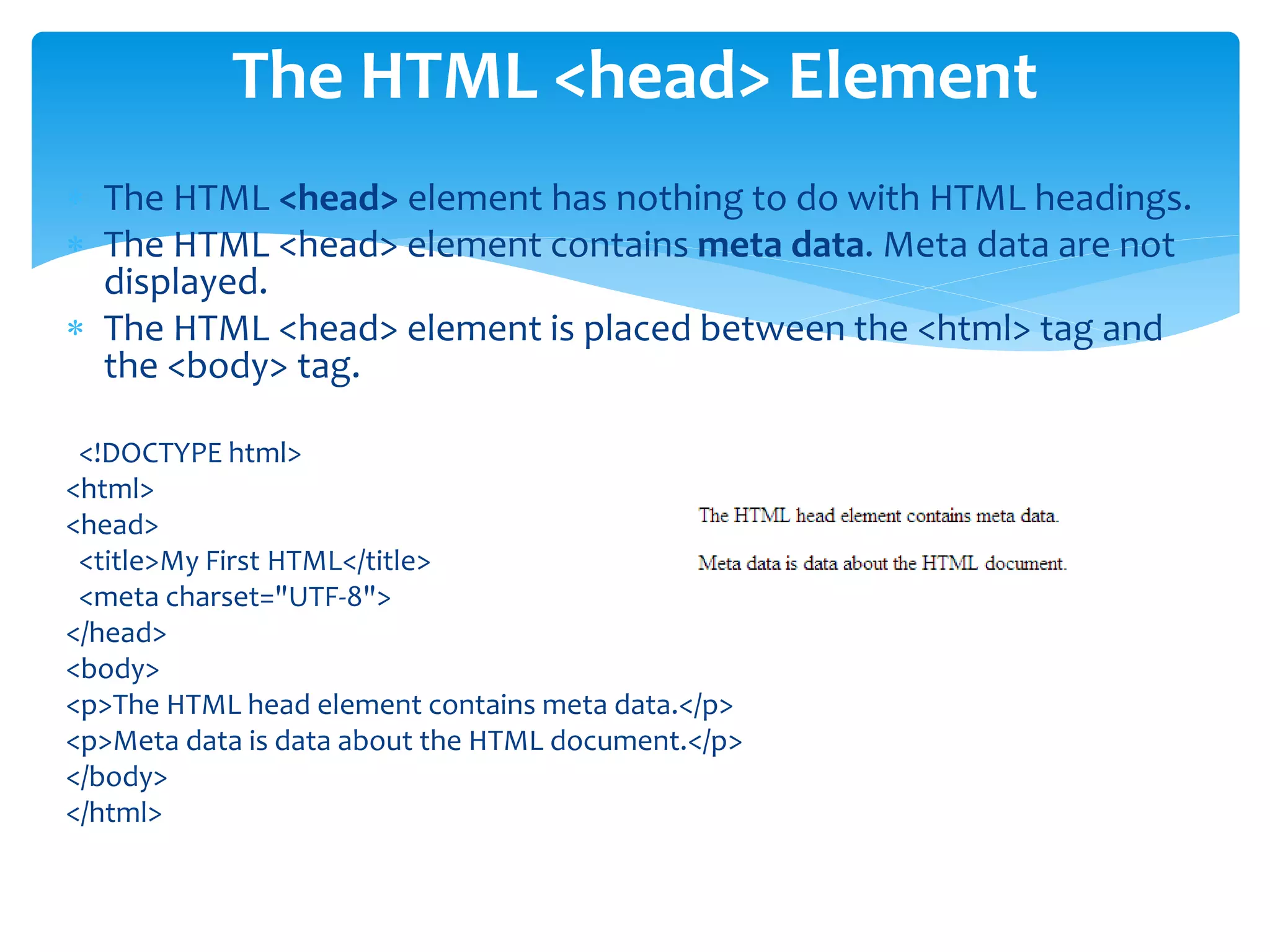
 The HTML <head> element has nothing to do with HTML headings.
 The HTML <head> element contains meta data. Meta data are not
displayed.
 The HTML <head> element is placed between the <html> tag and
the <body> tag.
<!DOCTYPE html>
<html>
<head>
<title>My First HTML</title>
<meta charset="UTF-8">
</head>
<body>
<p>The HTML head element contains meta data.</p>
<p>Meta data is data about the HTML document.</p>
</body>
</html>
The HTML <head> Element
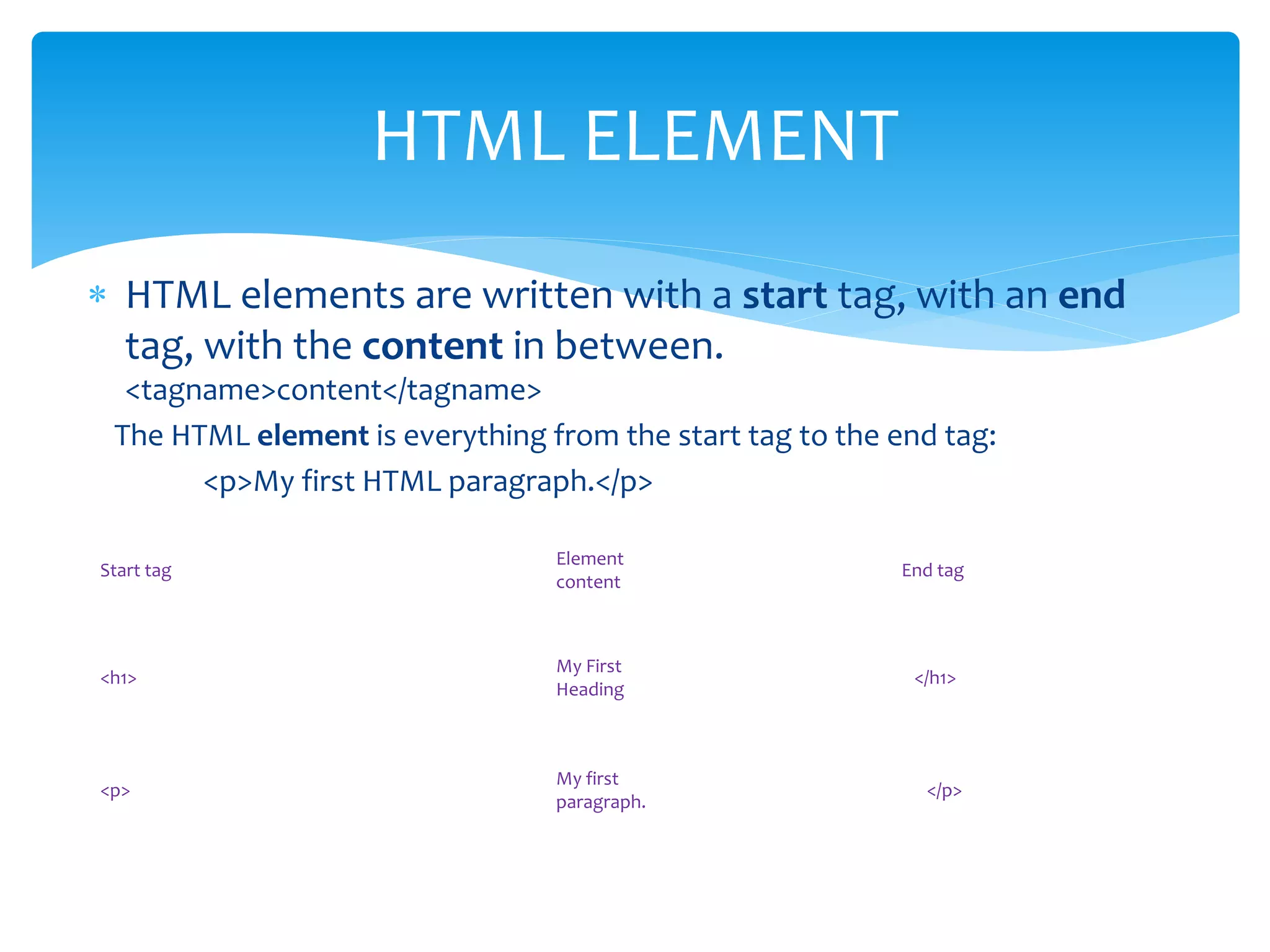
 HTML elements are written with a start tag, with an end
tag, with the content in between.
<tagname>content</tagname>
The HTML element is everything from the start tag to the end tag:
<p>My first HTML paragraph.</p>
HTML ELEMENT
Start tag
Element
content
End tag
<h1>
My First
Heading
</h1>
<p>
My first
paragraph.
</p>
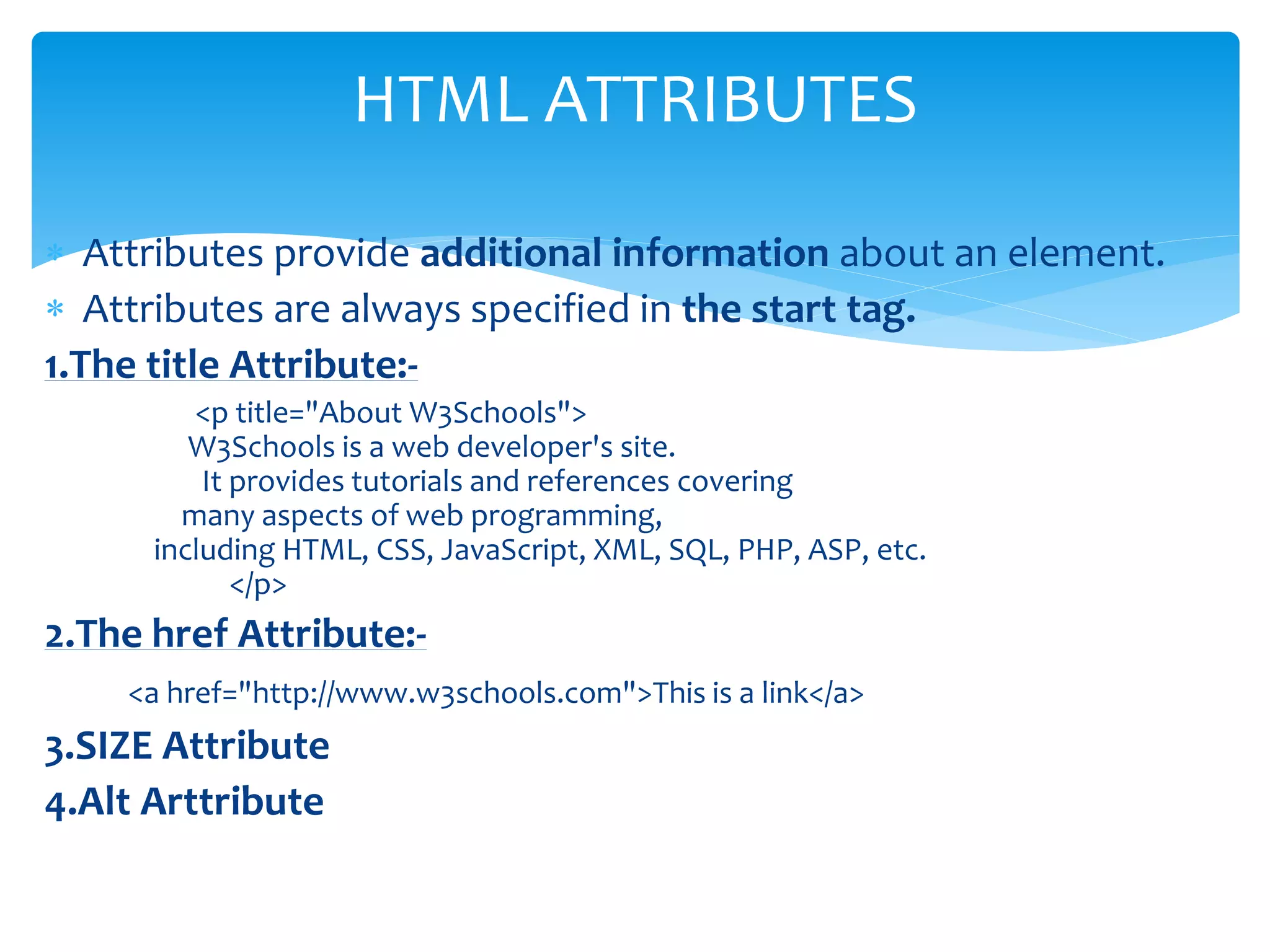
 Attributes provide additional information about an element.
 Attributes are always specified in the start tag.
1.The title Attribute:-
<p title="About W3Schools">
W3Schools is a web developer's site.
It provides tutorials and references covering
many aspects of web programming,
including HTML, CSS, JavaScript, XML, SQL, PHP, ASP, etc.
</p>
2.The href Attribute:-
<a href="http://www.w3schools.com">This is a link</a>
3.SIZE Attribute
4.Alt Arttribute
HTML ATTRIBUTES
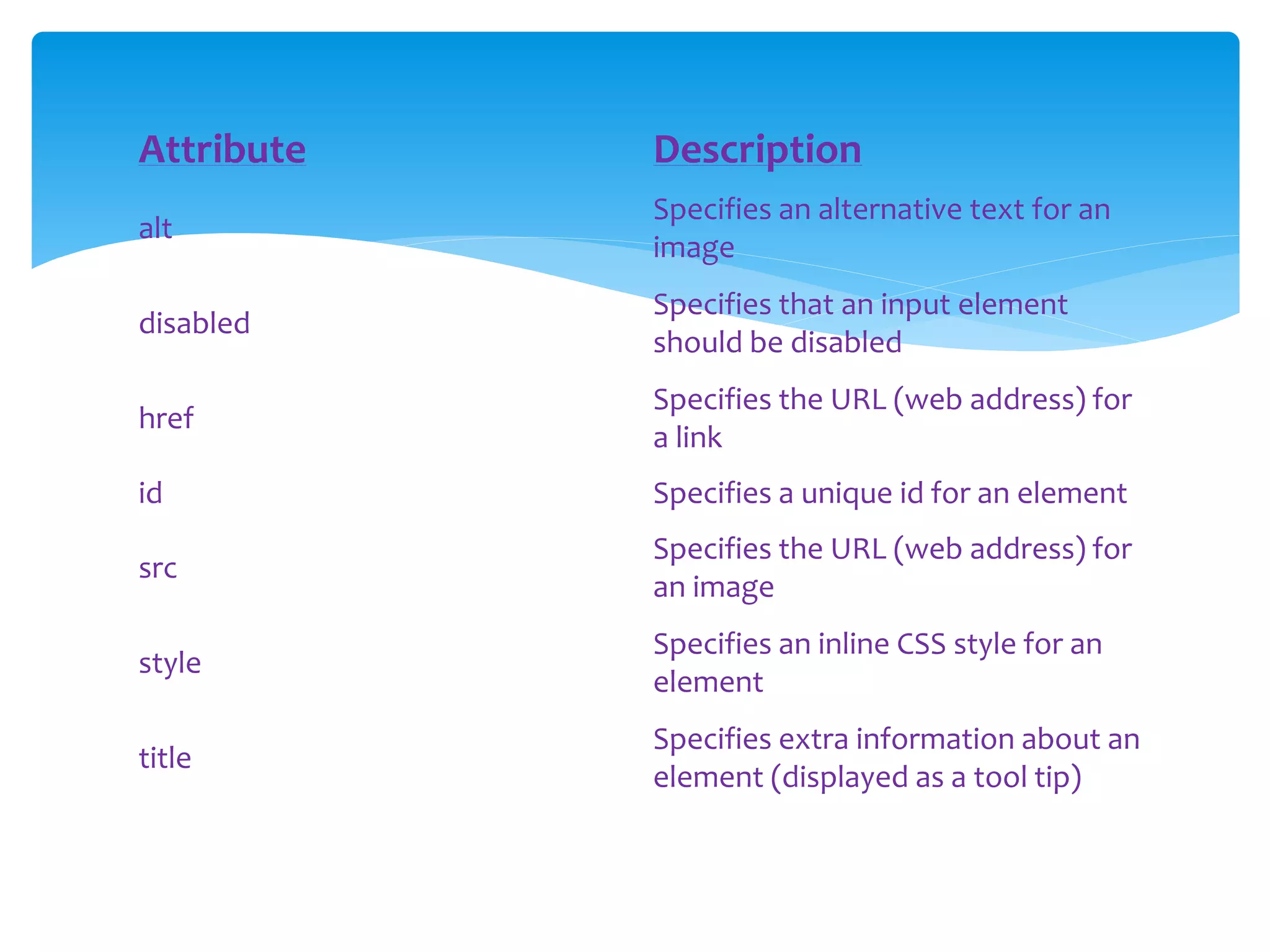
Attribute Description
alt
Specifies an alternative text for an
image
disabled
Specifies that an input element
should be disabled
href
Specifies the URL (web address) for
a link
id Specifies a unique id for an element
src
Specifies the URL (web address) for
an image
style
Specifies an inline CSS style for an
element
title
Specifies extra information about an
element (displayed as a tool tip)
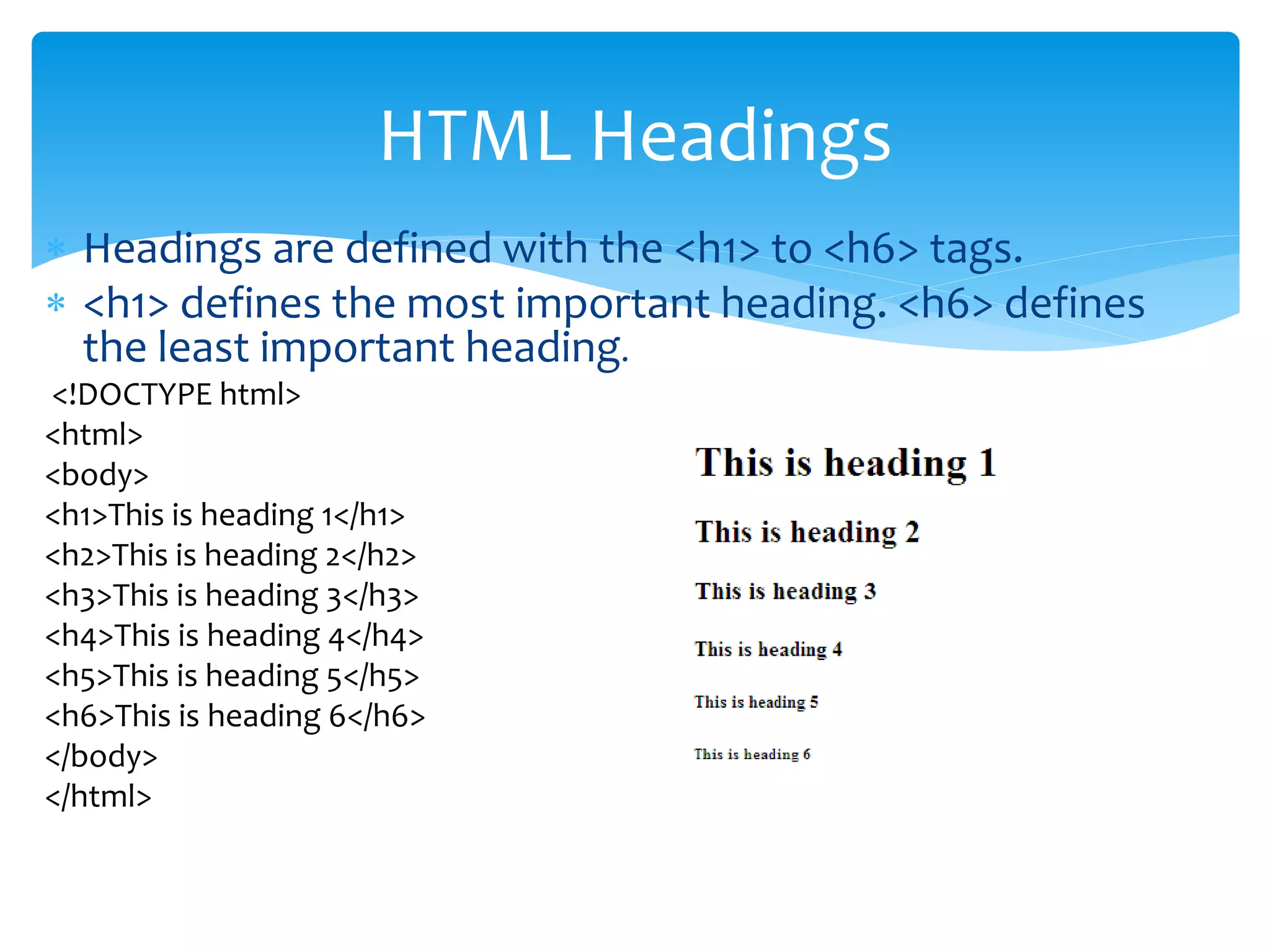
 Headings are defined with the <h1> to <h6> tags.
 <h1> defines the most important heading. <h6> defines
the least important heading.
<!DOCTYPE html>
<html>
<body>
<h1>This is heading 1</h1>
<h2>This is heading 2</h2>
<h3>This is heading 3</h3>
<h4>This is heading 4</h4>
<h5>This is heading 5</h5>
<h6>This is heading 6</h6>
</body>
</html>
HTML Headings
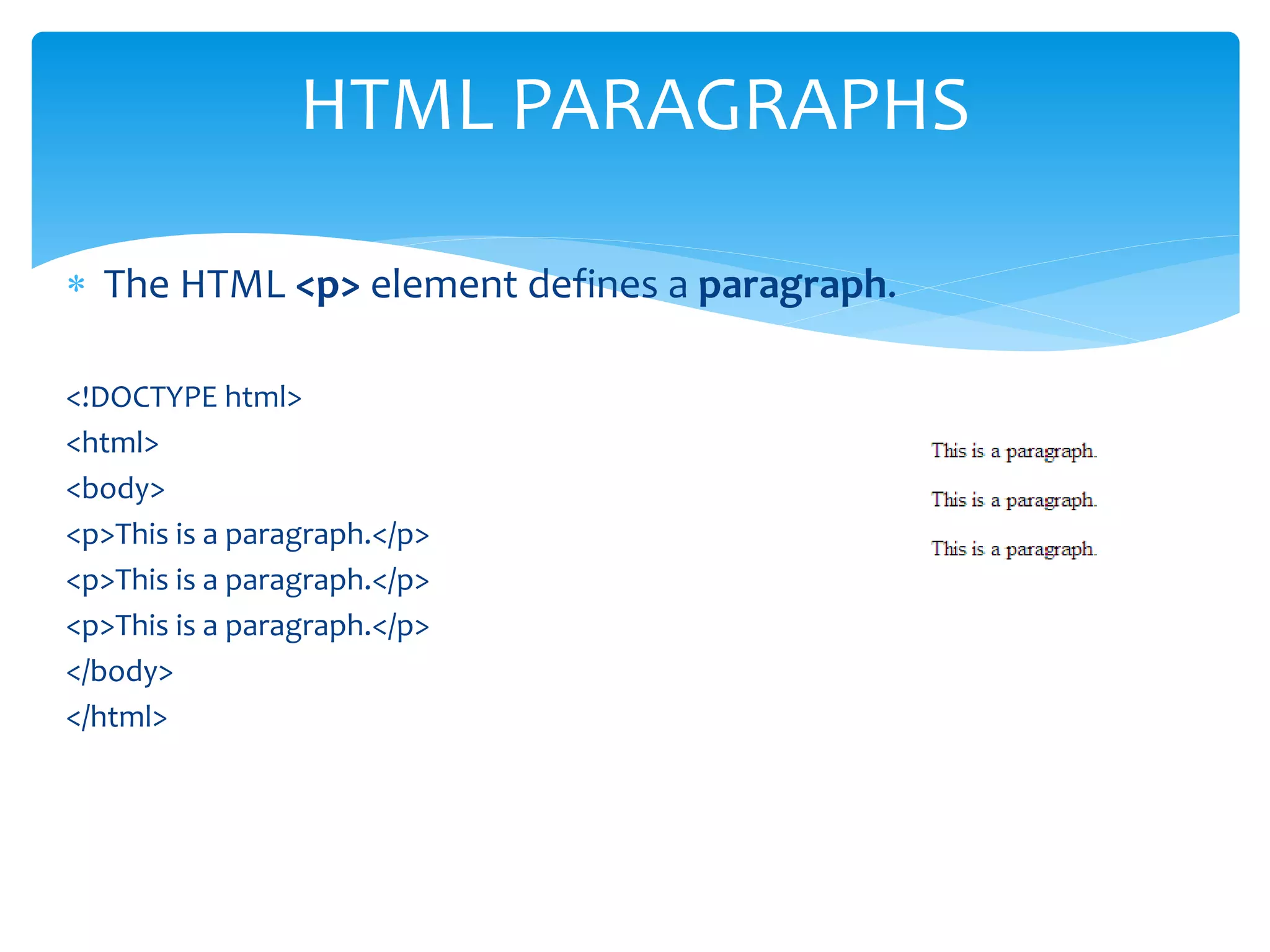
 The HTML <p> element defines a paragraph.
<!DOCTYPE html>
<html>
<body>
<p>This is a paragraph.</p>
</body>
</html>
HTML PARAGRAPHS
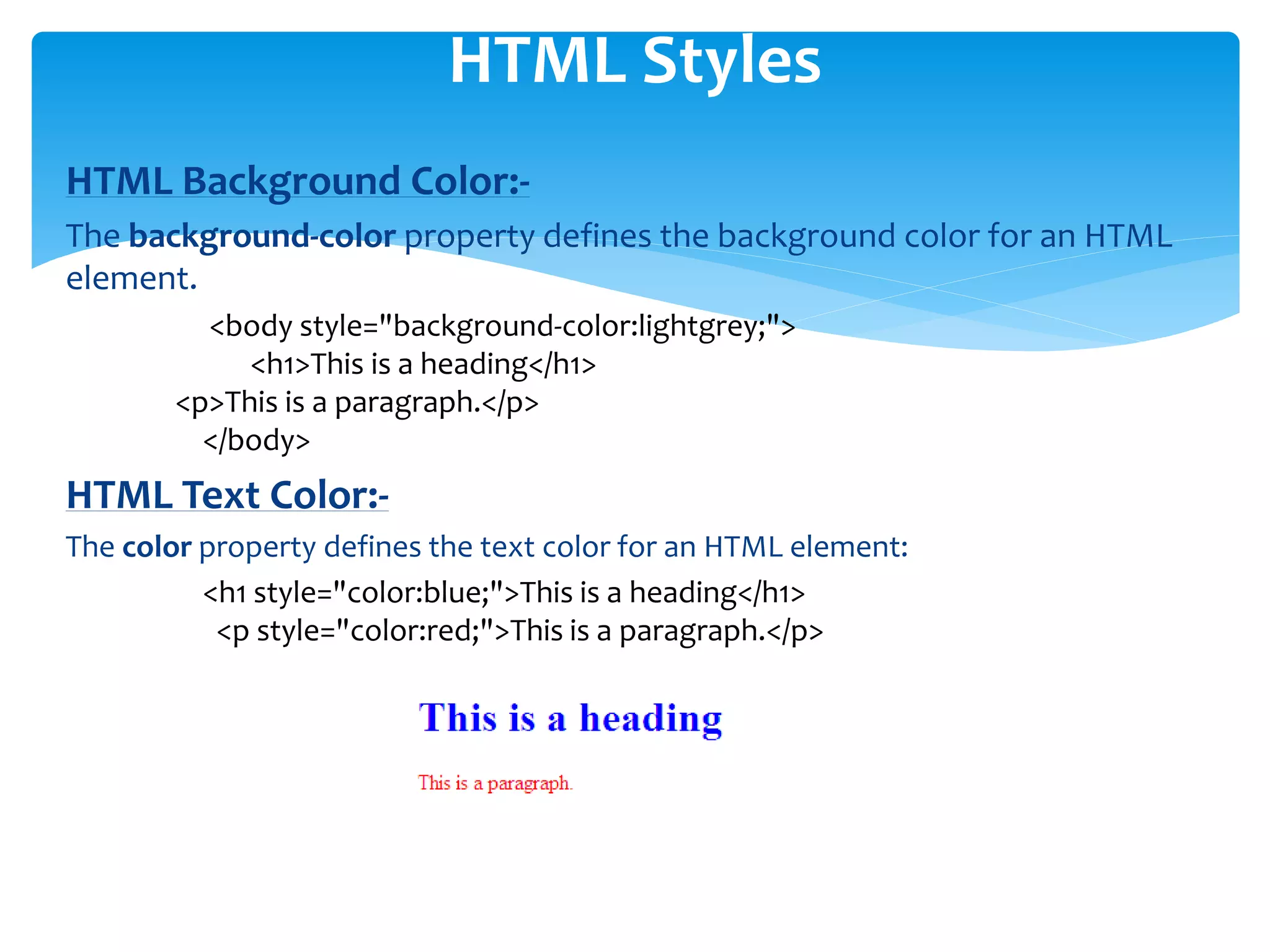
HTML Background Color:-
The background-color property defines the background color for an HTML
element.
<body style="background-color:lightgrey;">
<h1>This is a heading</h1>
<p>This is a paragraph.</p>
</body>
HTML Text Color:-
The color property defines the text color for an HTML element:
<h1 style="color:blue;">This is a heading</h1>
<p style="color:red;">This is a paragraph.</p>
HTML Styles
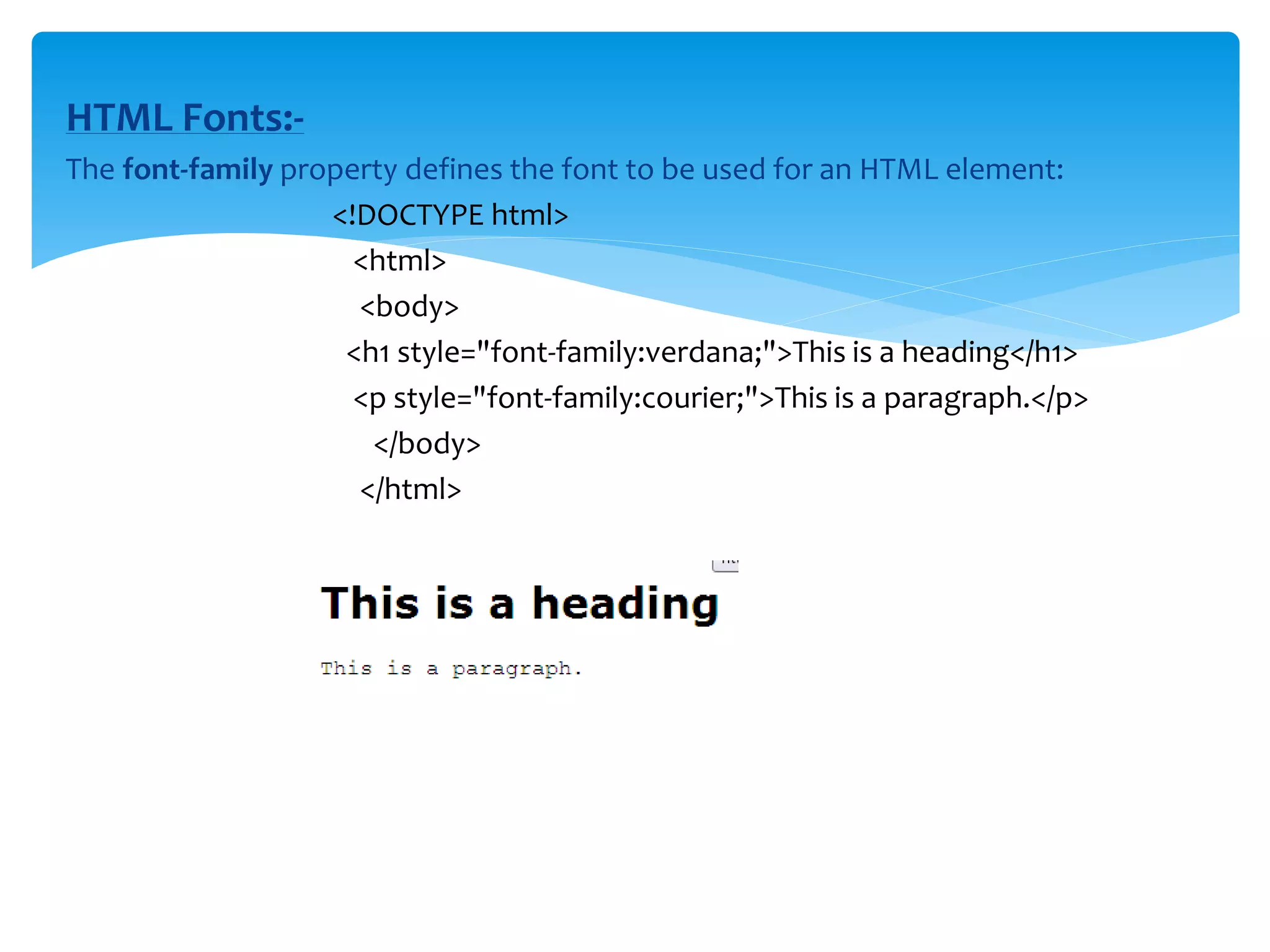
HTML Fonts:-
The font-family property defines the font to be used for an HTML element:
<!DOCTYPE html>
<html>
<body>
<h1 style="font-family:verdana;">This is a heading</h1>
<p style="font-family:courier;">This is a paragraph.</p>
</body>
</html>
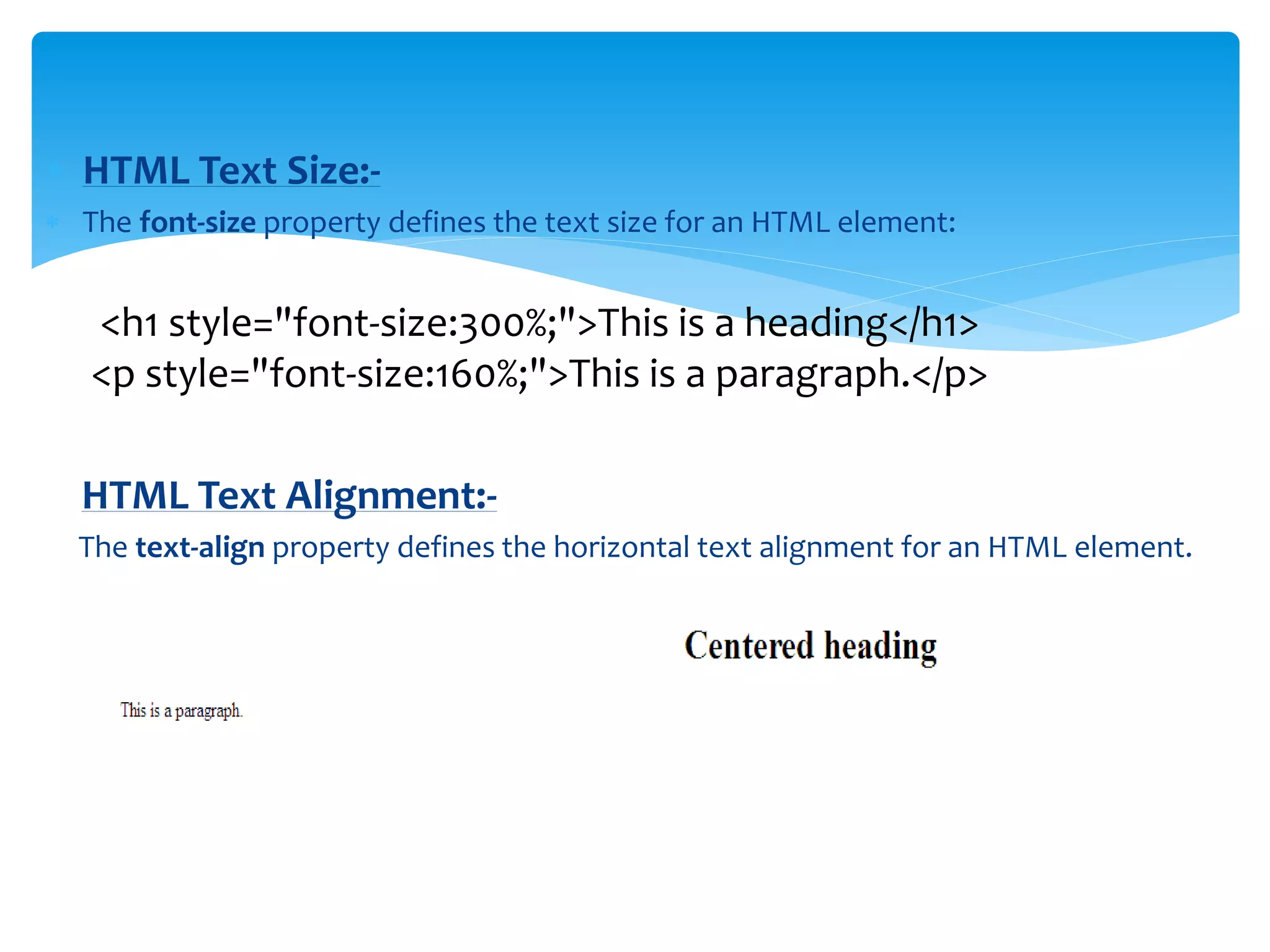
 HTML Text Size:-
 The font-size property defines the text size for an HTML element:
<h1 style="font-size:300%;">This is a heading</h1>
<p style="font-size:160%;">This is a paragraph.</p>
HTML Text Alignment:-
The text-align property defines the horizontal text alignment for an HTML element.
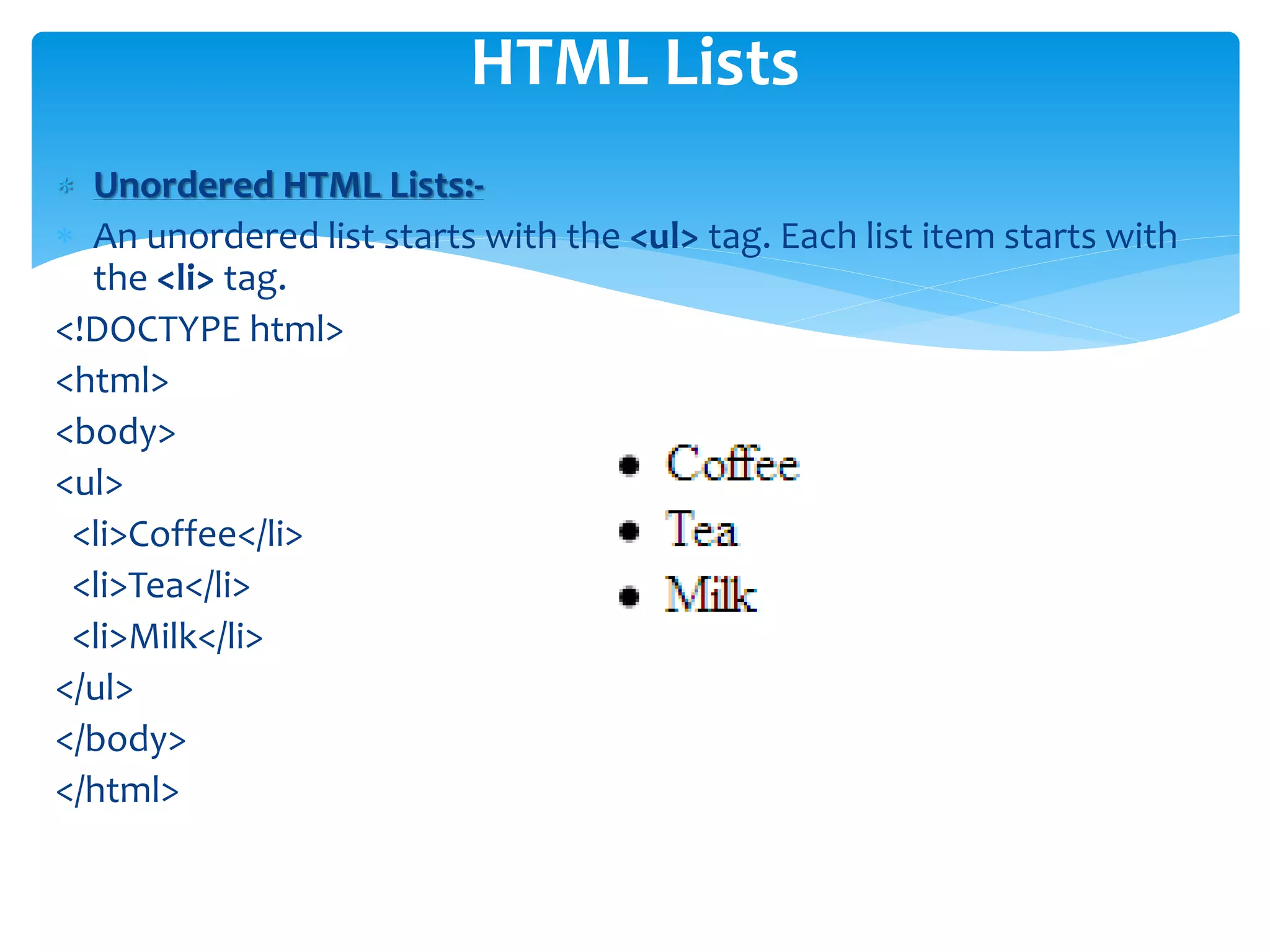
 Unordered HTML Lists:-
 An unordered list starts with the <ul> tag. Each list item starts with
the <li> tag.
<!DOCTYPE html>
<html>
<body>
<ul>
<li>Coffee</li>
<li>Tea</li>
<li>Milk</li>
</ul>
</body>
</html>
HTML Lists
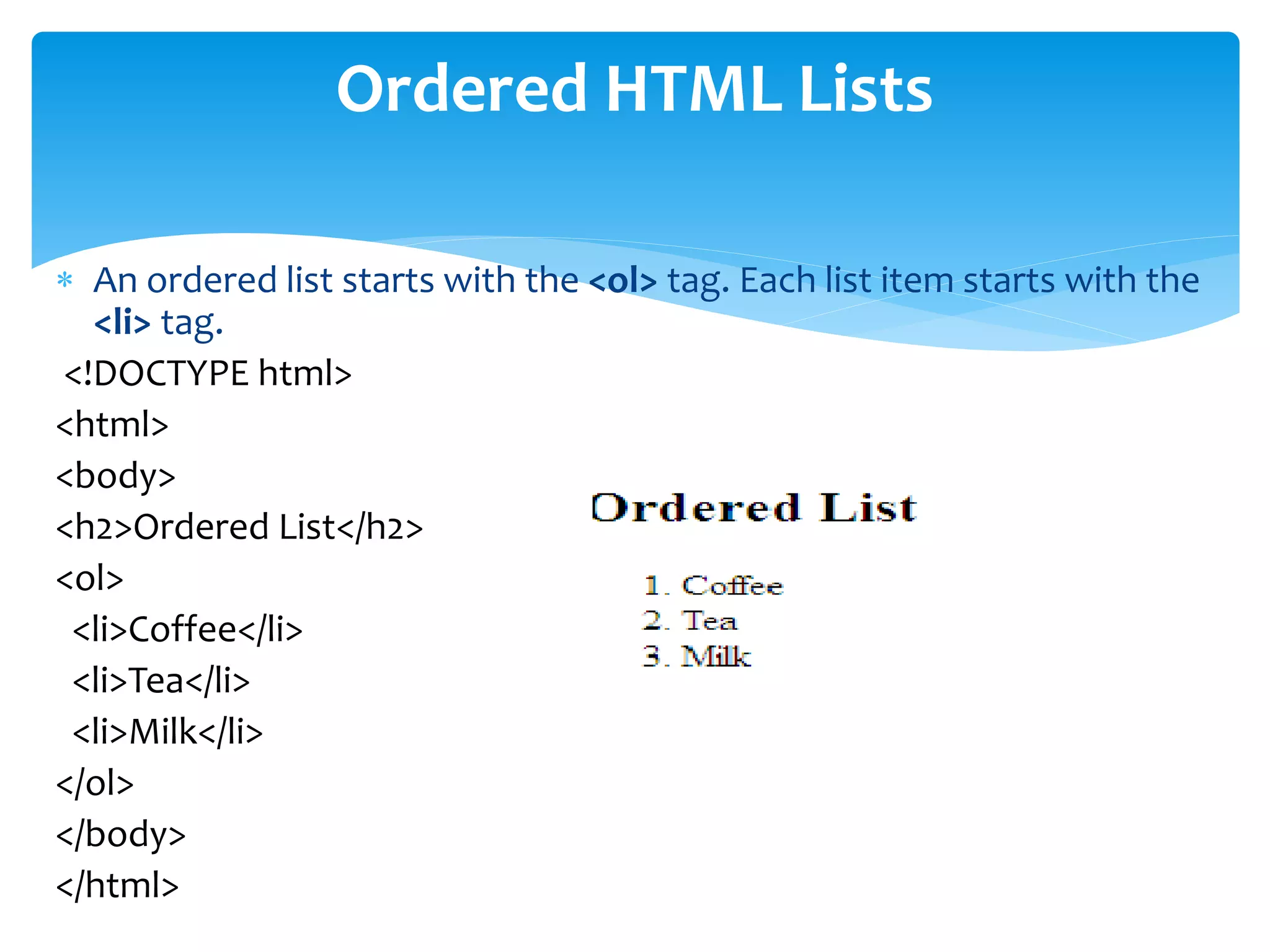
 An ordered list starts with the <ol> tag. Each list item starts with the
<li> tag.
<!DOCTYPE html>
<html>
<body>
<h2>Ordered List</h2>
<ol>
<li>Coffee</li>
<li>Tea</li>
<li>Milk</li>
</ol>
</body>
</html>
Ordered HTML Lists
 HTML Comment Tags:-
 Comments are not displayed by the browser, but they can
help document your HTML.
 With comments you can place notifications and reminders in
your HTML:
<!-- This is a comment -->
<p>This is a paragraph.</p>
<!-- Remember to add more information here -->
HTML TAGS
In HTML, images are defined with the <img> tag.
 The src attribute specifies the URL (web address) of the
image.
 The alt attribute provides alternative information for an image
if a user for some reason cannot view it (because of slow
connection, an error in the src attribute, or if the user uses a
screen reader).
HTML Images
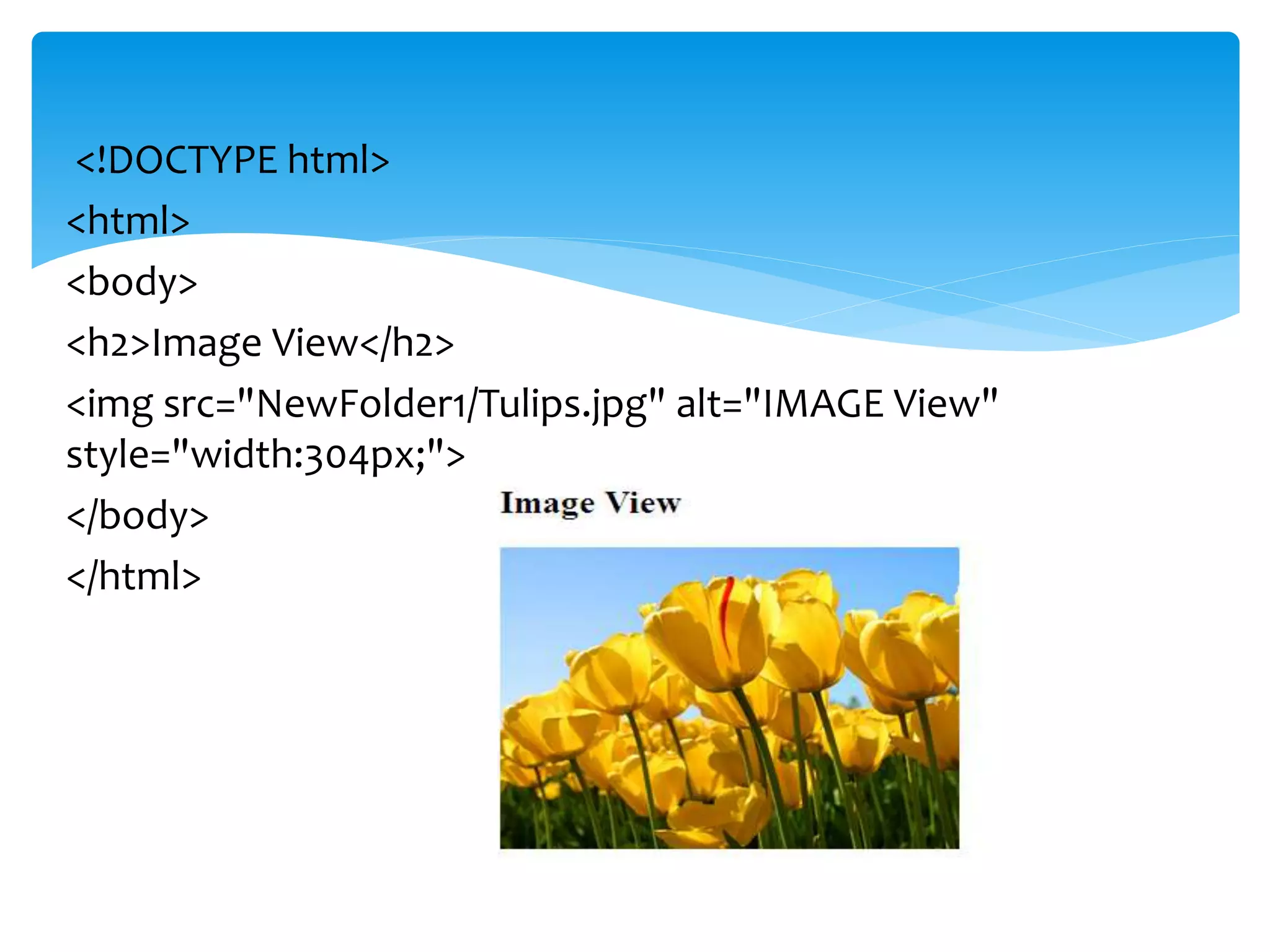
<!DOCTYPE html>
<html>
<body>
<h2>Image View</h2>
<img src="NewFolder1/Tulips.jpg" alt="IMAGE View"
style="width:304px;">
</body>
</html>
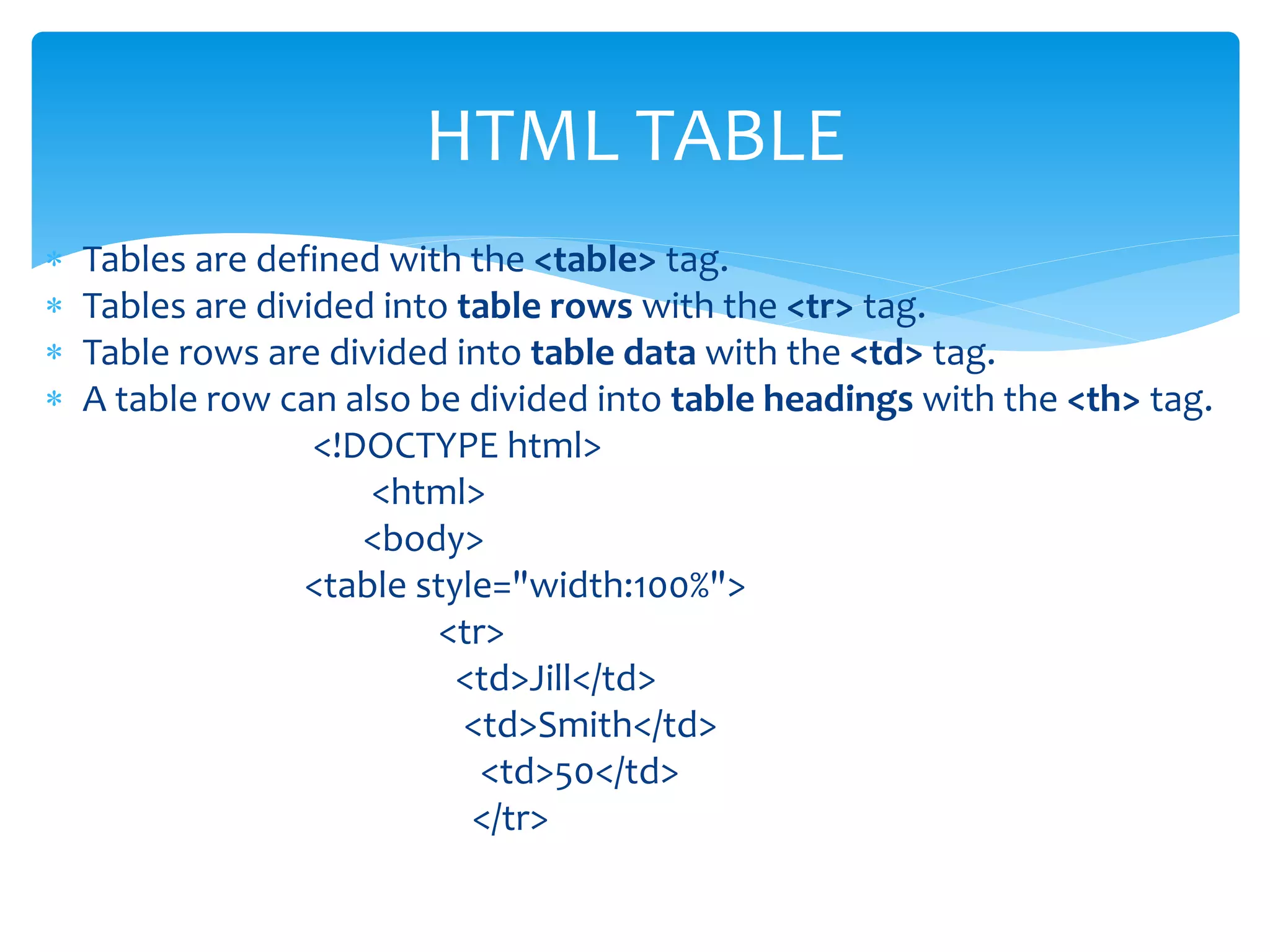
 Tables are defined with the <table> tag.
 Tables are divided into table rows with the <tr> tag.
 Table rows are divided into table data with the <td> tag.
 A table row can also be divided into table headings with the <th> tag.
<!DOCTYPE html>
<html>
<body>
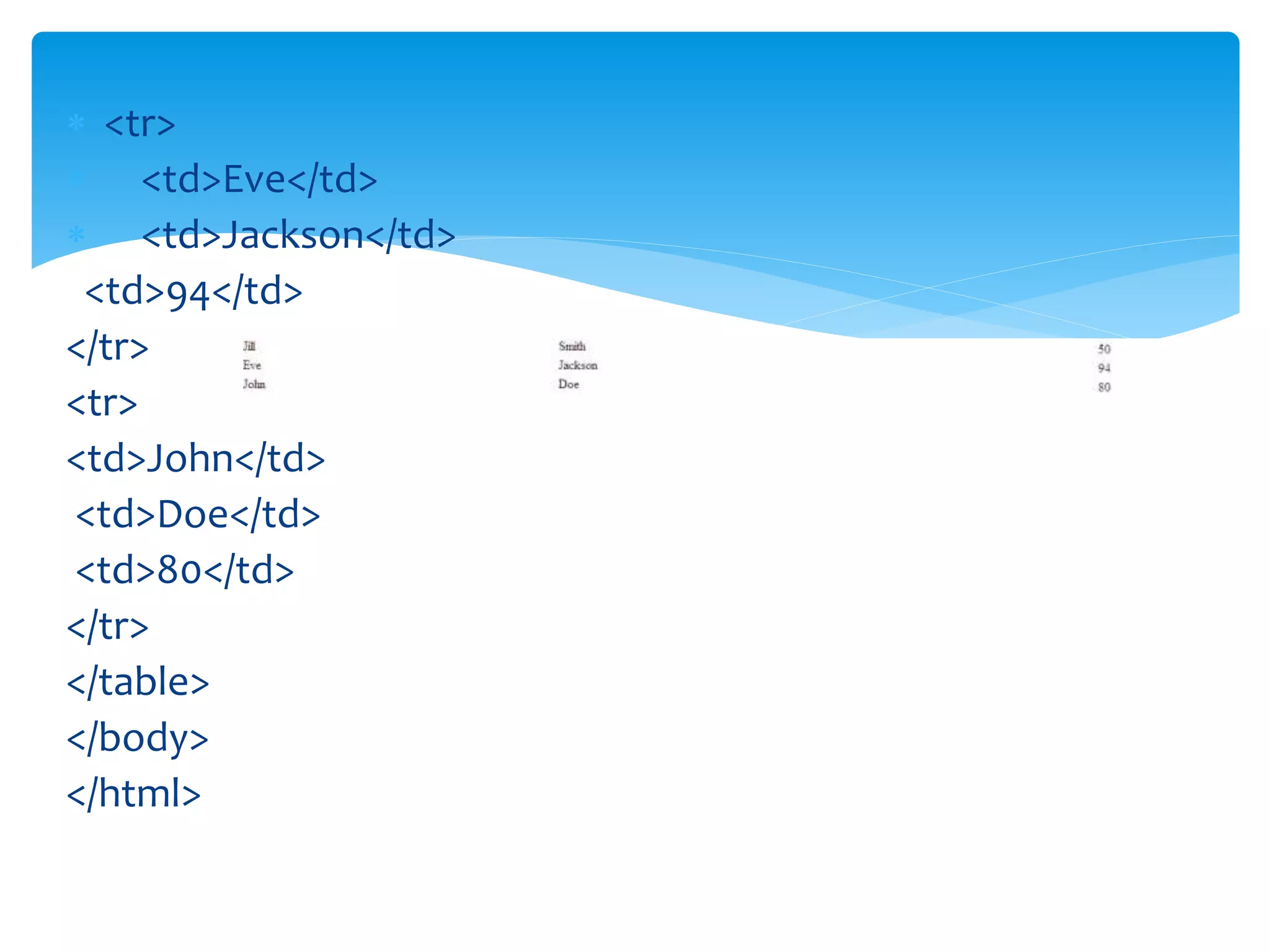
<table style="width:100%">
<tr>
<td>Jill</td>
<td>Smith</td>
<td>50</td>
</tr>
HTML TABLE
 <tr>
 <td>Eve</td>
 <td>Jackson</td>
<td>94</td>
</tr>
<tr>
<td>John</td>
<td>Doe</td>
<td>80</td>
</tr>
</table>
</body>
</html>
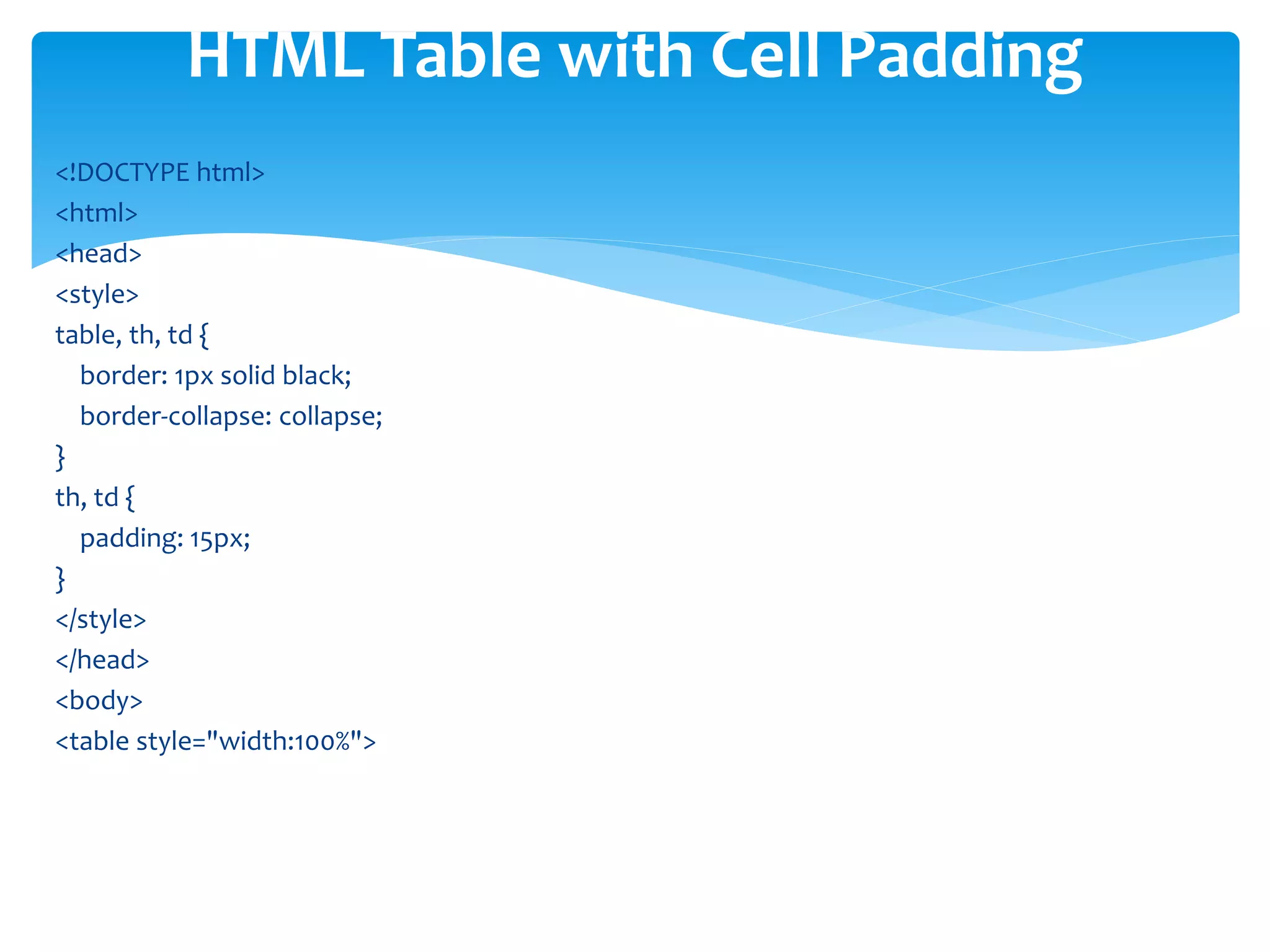
<!DOCTYPE html>
<html>
<head>
<style>
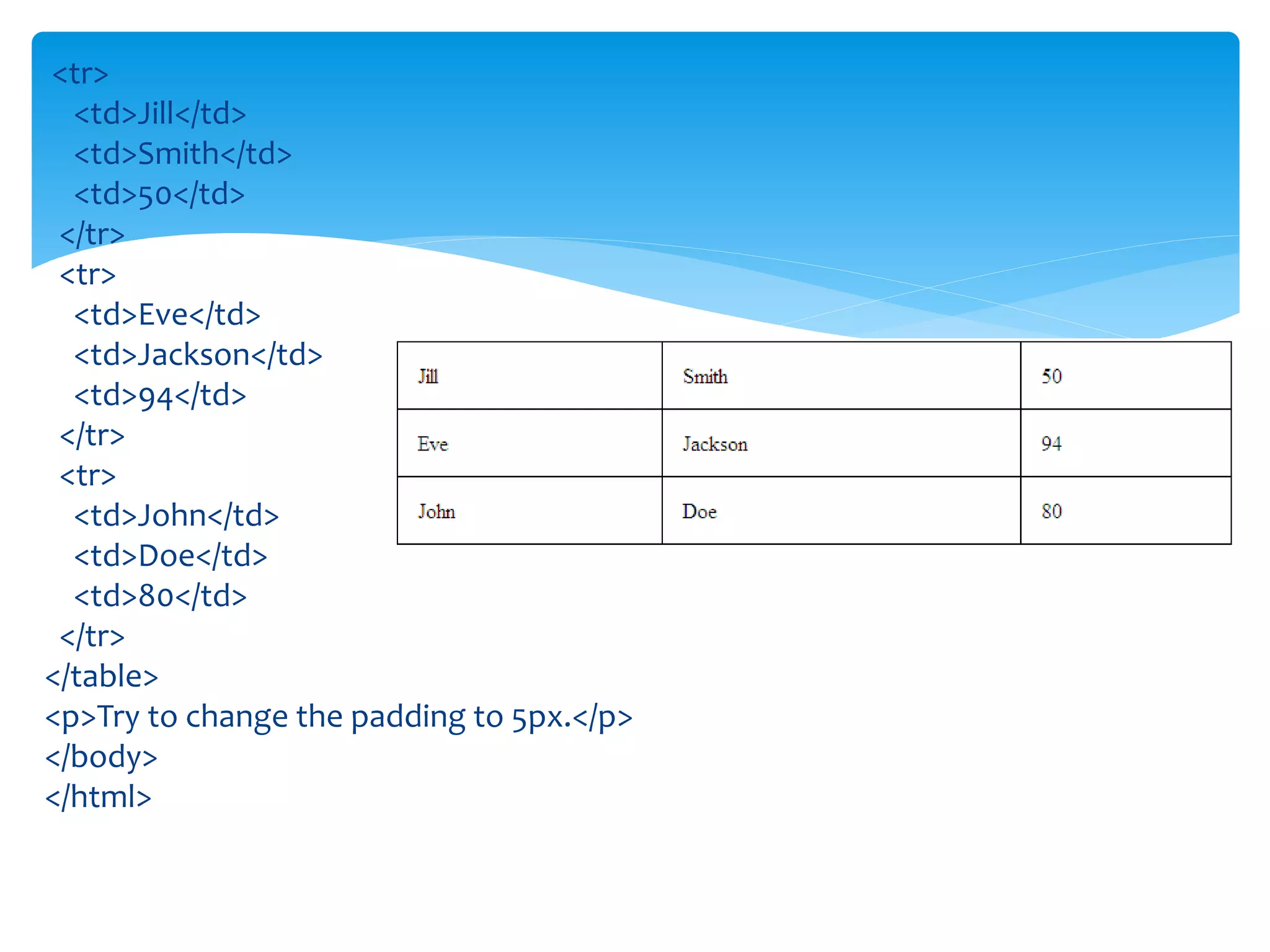
table, th, td {
border: 1px solid black;
border-collapse: collapse;
}
th, td {
padding: 15px;
}
</style>
</head>
<body>
<table style="width:100%">
HTML Table with Cell Padding
<tr>
<td>Jill</td>
<td>Smith</td>
<td>50</td>
</tr>
<tr>
<td>Eve</td>
<td>Jackson</td>
<td>94</td>
</tr>
<tr>
<td>John</td>
<td>Doe</td>
<td>80</td>
</tr>
</table>
<p>Try to change the padding to 5px.</p>
</body>
</html>
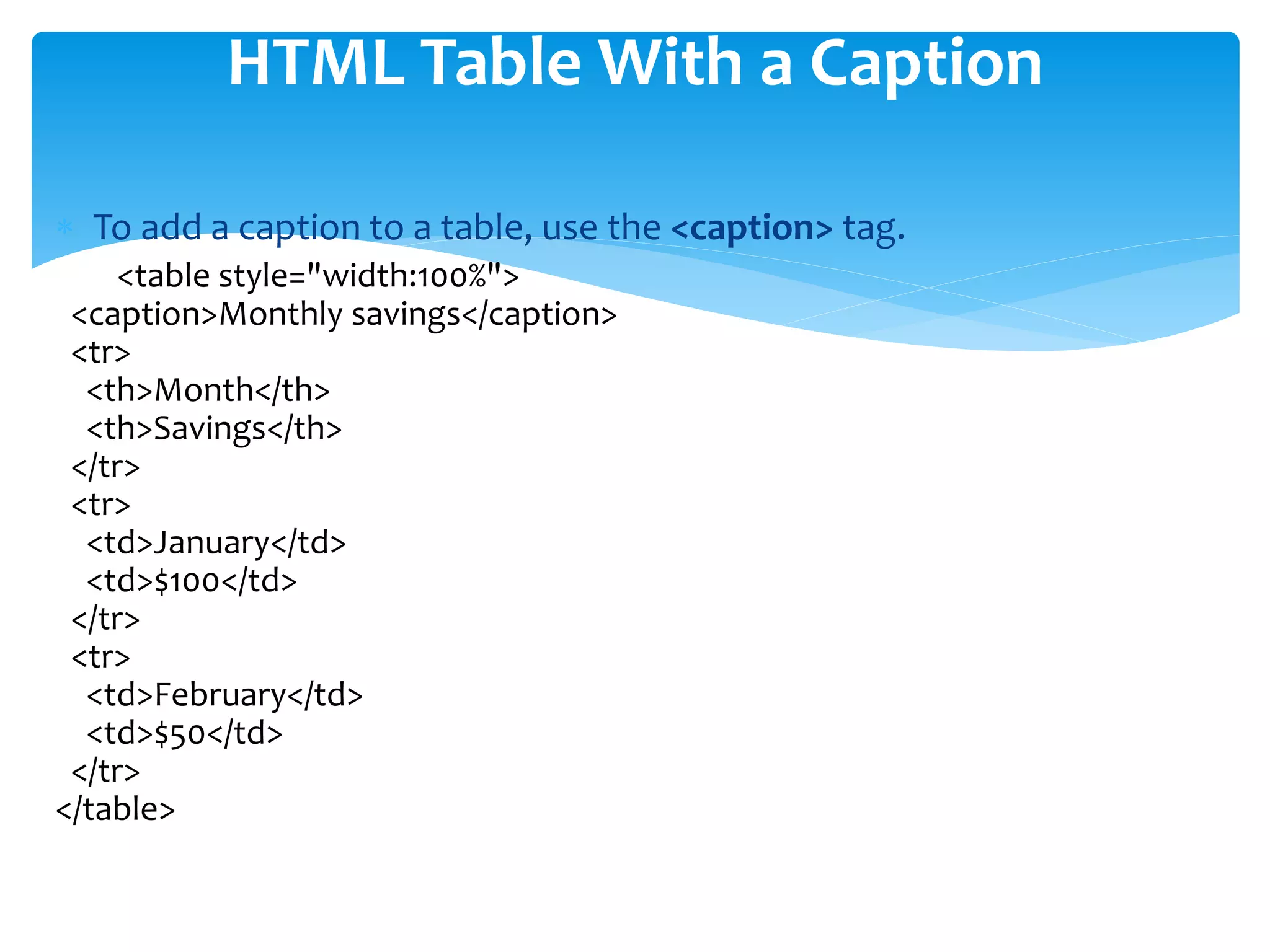
 To add a caption to a table, use the <caption> tag.
<table style="width:100%">
<caption>Monthly savings</caption>
<tr>
<th>Month</th>
<th>Savings</th>
</tr>
<tr>
<td>January</td>
<td>$100</td>
</tr>
<tr>
<td>February</td>
<td>$50</td>
</tr>
</table>
HTML Table With a Caption
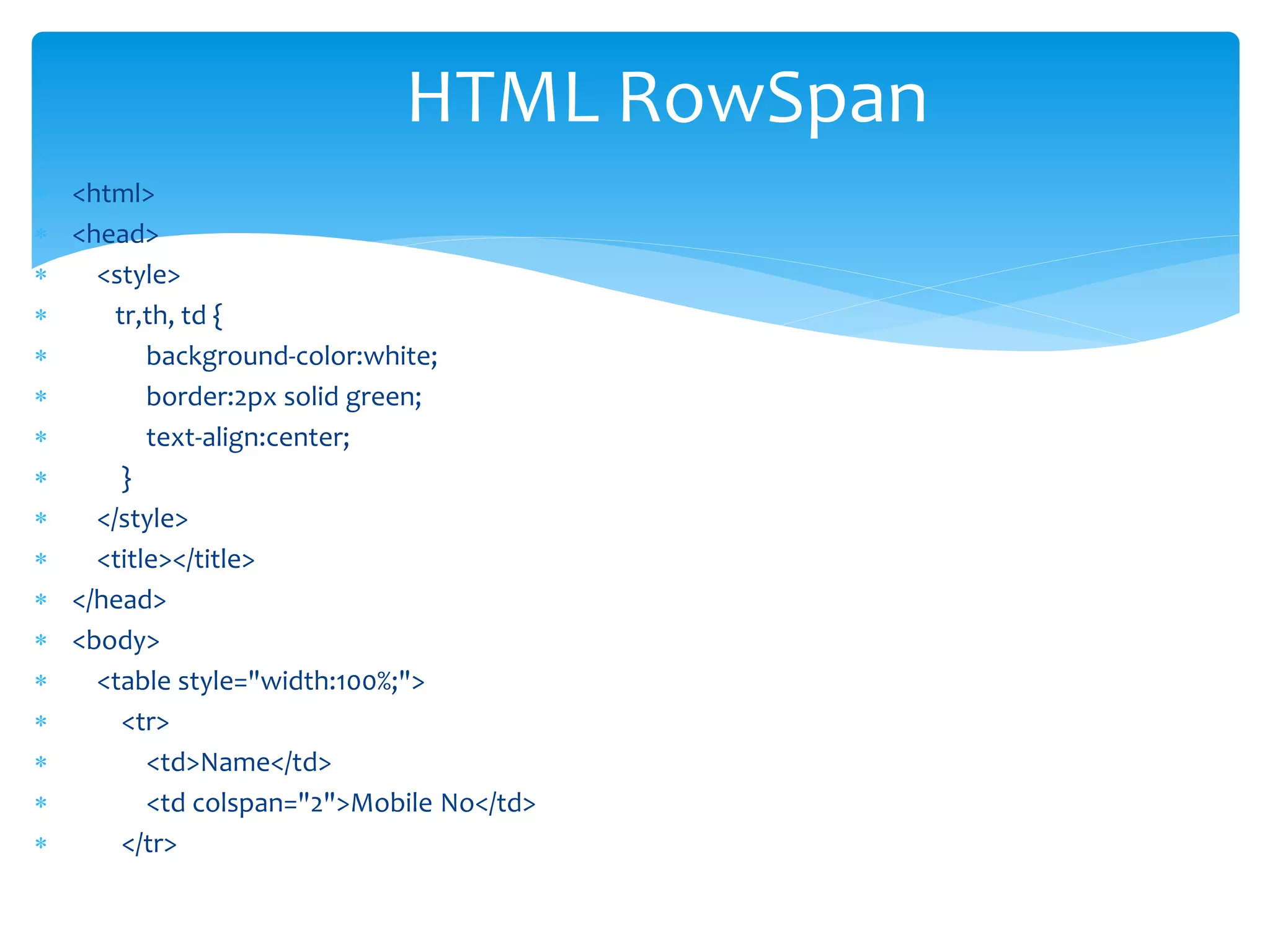
 <html>
 <head>
 <style>
 tr,th, td {
 background-color:white;
 border:2px solid green;
 text-align:center;
 }
 </style>
 <title></title>
 </head>
 <body>
 <table style="width:100%;">
 <tr>
 <td>Name</td>
 <td colspan="2">Mobile No</td>
 </tr>
HTML RowSpan
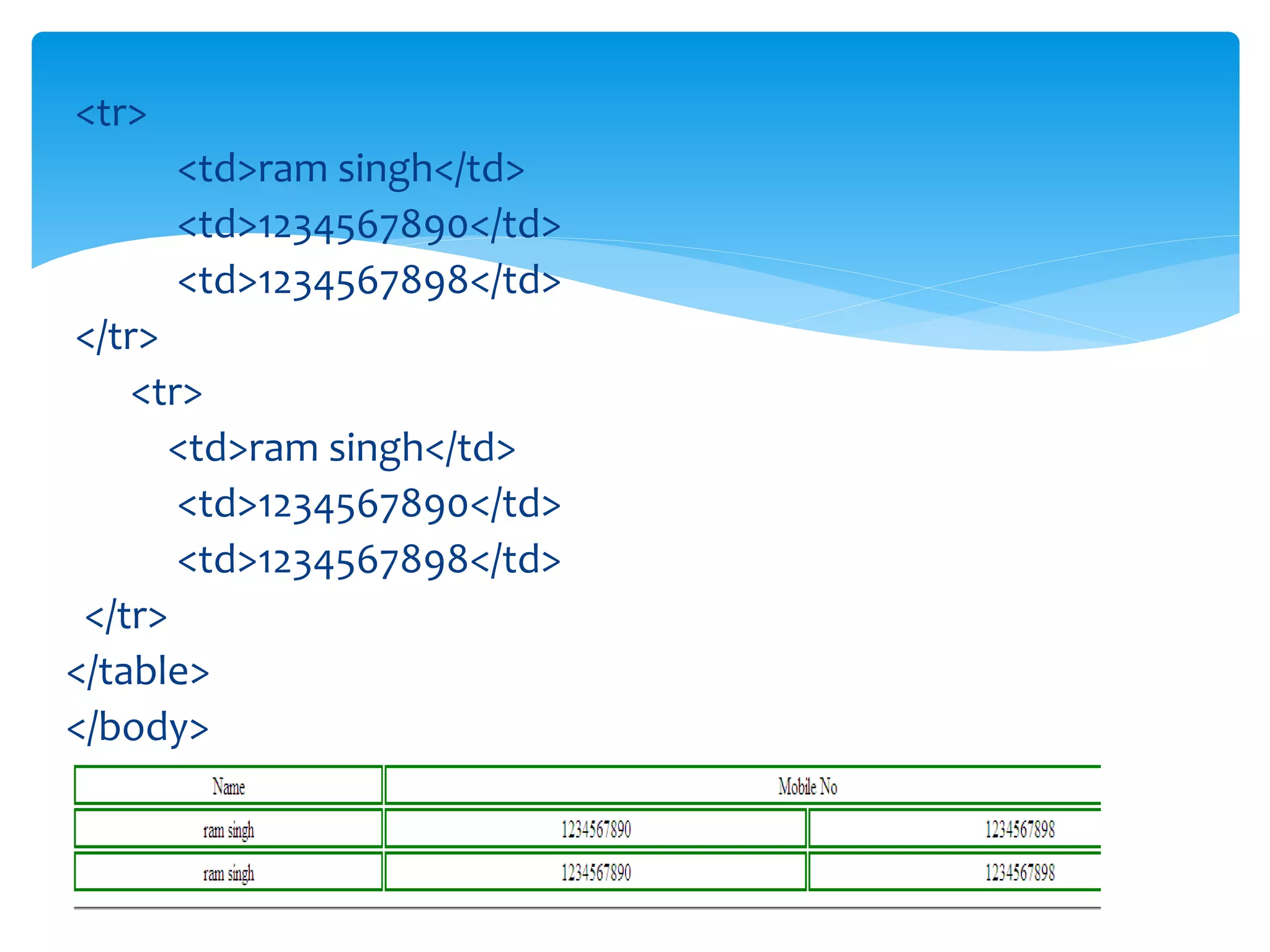
<tr>
<td>ram singh</td>
<td>1234567890</td>
<td>1234567898</td>
</tr>
<tr>
<td>ram singh</td>
<td>1234567890</td>
<td>1234567898</td>
</tr>
</table>
</body>
</html>
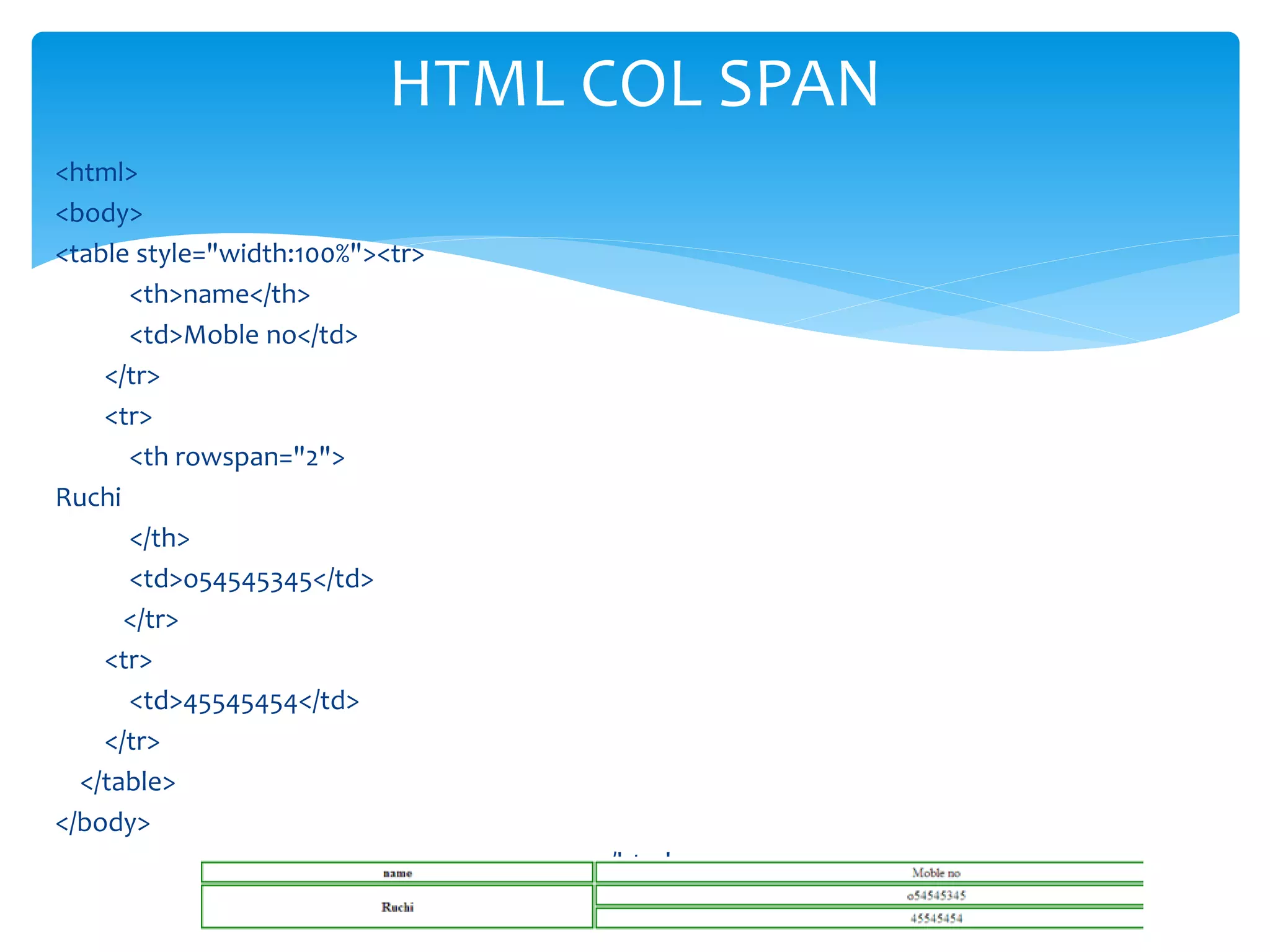
<html>
<body>
<table style="width:100%"><tr>
<th>name</th>
<td>Moble no</td>
</tr>
<tr>
<th rowspan="2">
Ruchi
</th>
<td>o54545345</td>
</tr>
<tr>
<td>45545454</td>
</tr>
</table>
</body>
</html>
HTML COL SPAN
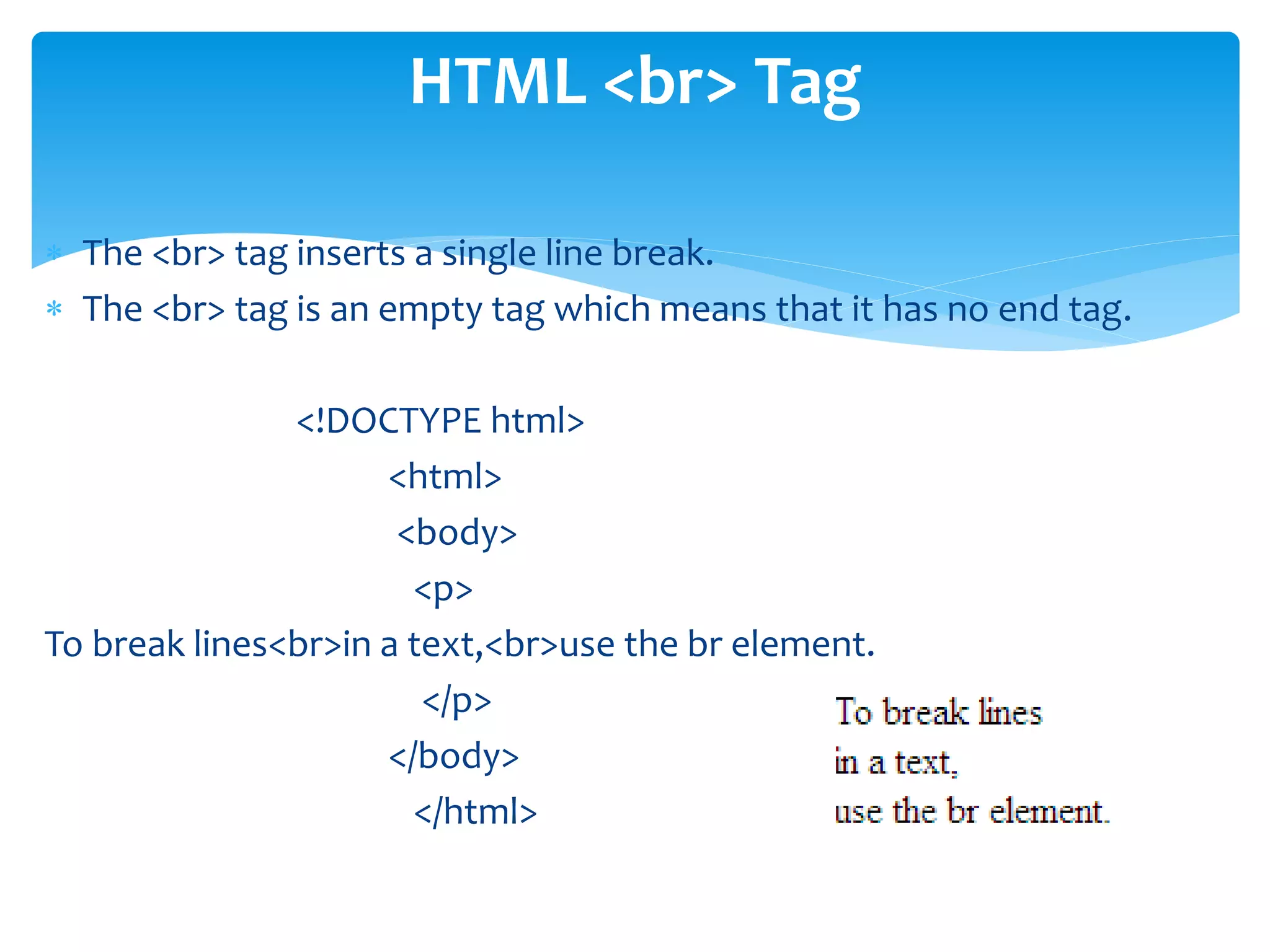
 The <br> tag inserts a single line break.
 The <br> tag is an empty tag which means that it has no end tag.
<!DOCTYPE html>
<html>
<body>
<p>
To break lines<br>in a text,<br>use the br element.
</p>
</body>
</html>
HTML <br> Tag
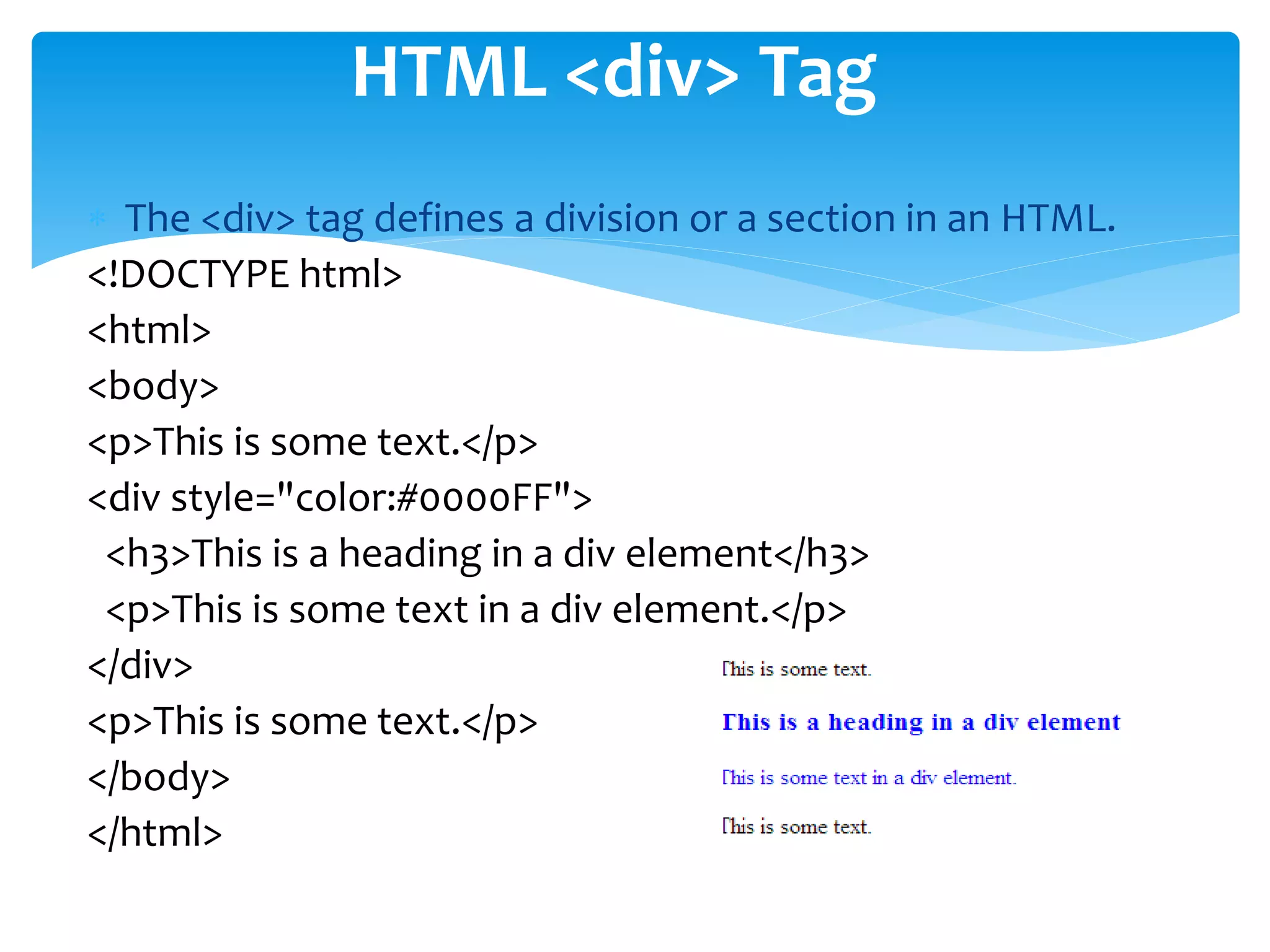
 The <div> tag defines a division or a section in an HTML.
<!DOCTYPE html>
<html>
<body>
<p>This is some text.</p>
<div style="color:#0000FF">
<h3>This is a heading in a div element</h3>
<p>This is some text in a div element.</p>
</div>
<p>This is some text.</p>
</body>
</html>
HTML <div> Tag
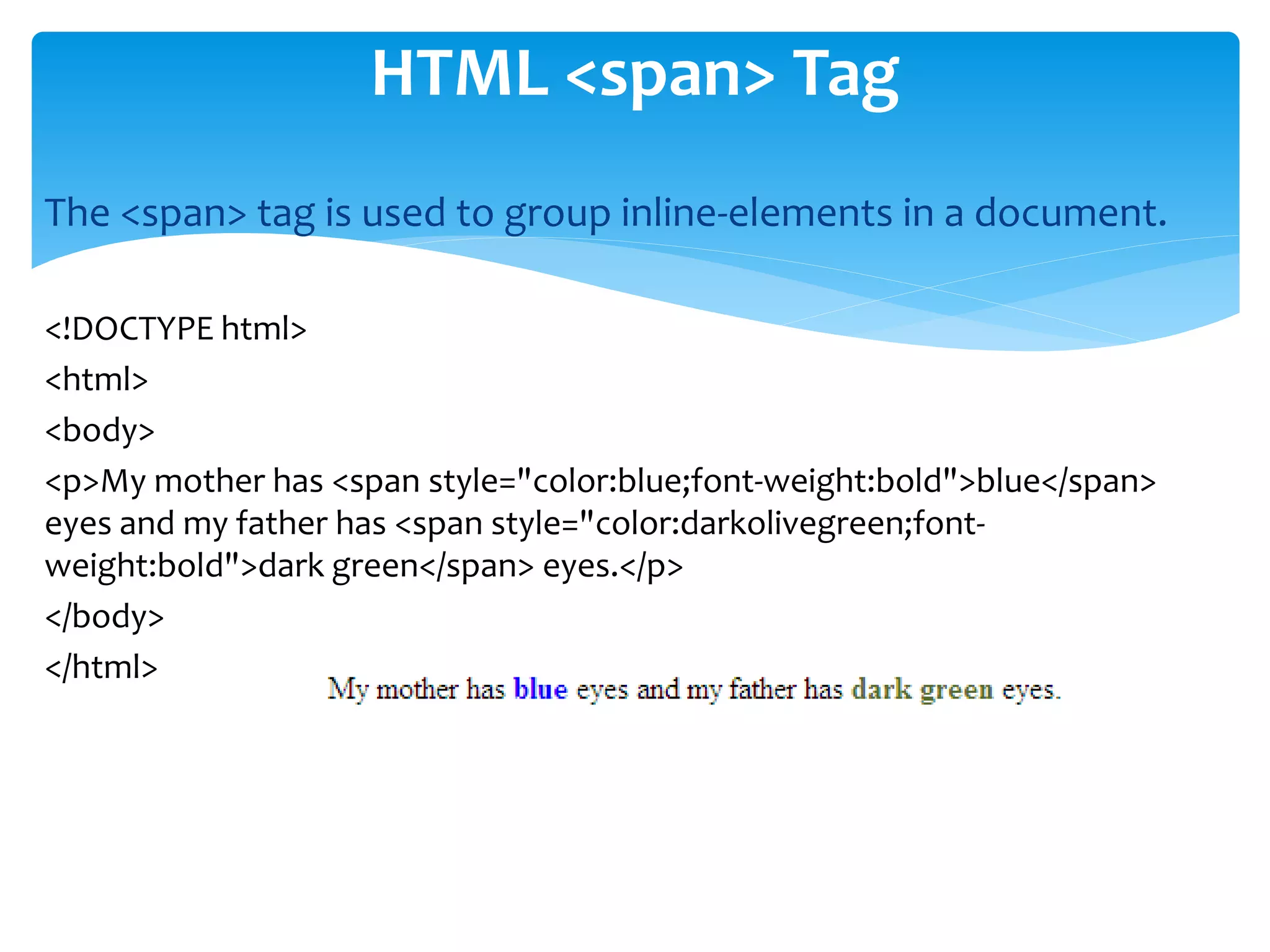
The <span> tag is used to group inline-elements in a document.
<!DOCTYPE html>
<html>
<body>
<p>My mother has <span style="color:blue;font-weight:bold">blue</span>
eyes and my father has <span style="color:darkolivegreen;font-
weight:bold">dark green</span> eyes.</p>
</body>
</html>
HTML <span> Tag
 HTML forms are used to collect user input.
 The <form> element defines an HTML form.
<form>
.
form elements
.
</form>
 Form elements are different types of input elements,
checkboxes, radio buttons, submit buttons, and more.
HTML FORMS
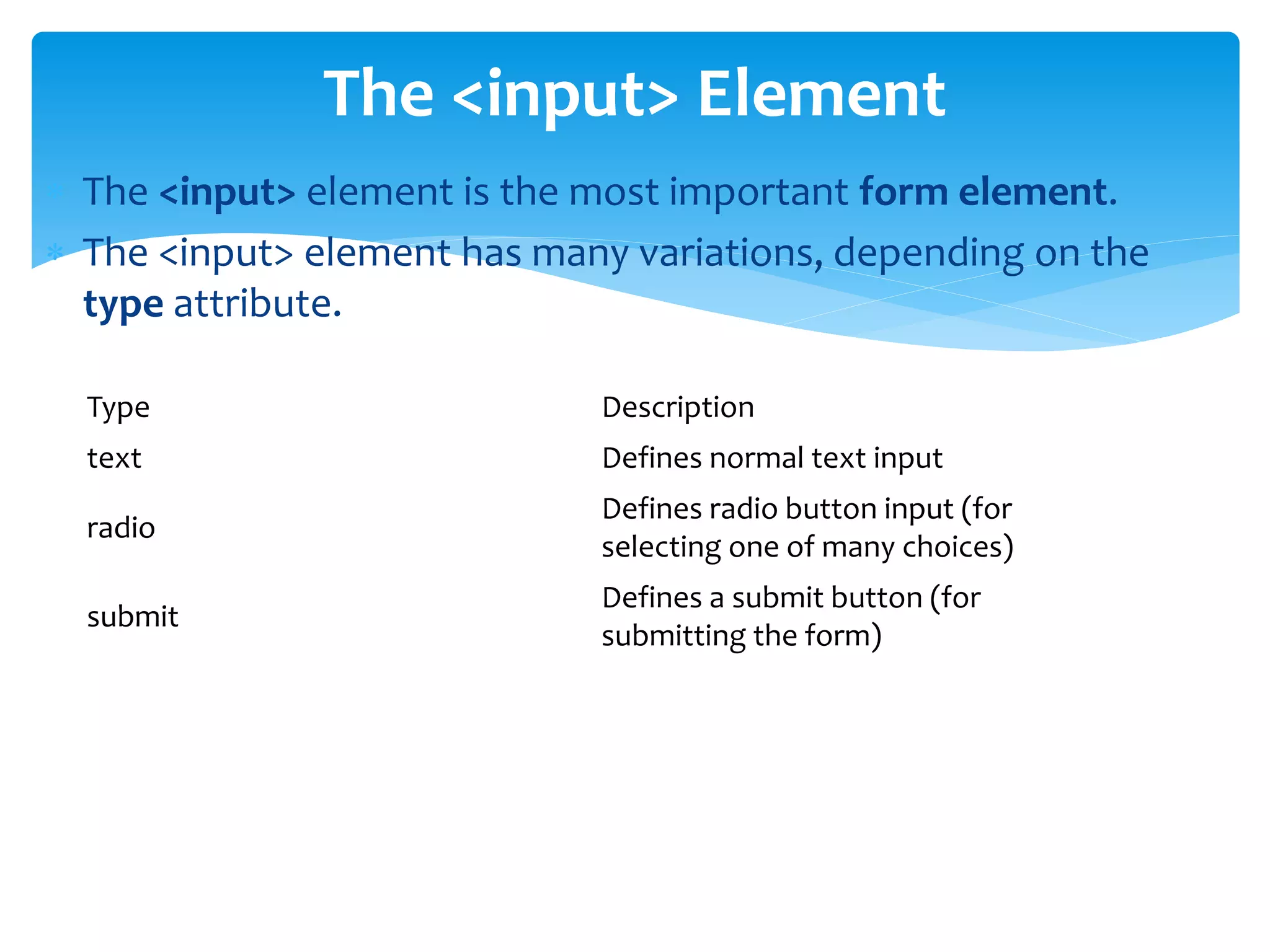
 The <input> element is the most important form element.
 The <input> element has many variations, depending on the
type attribute.
The <input> Element
Type Description
text Defines normal text input
radio
Defines radio button input (for
selecting one of many choices)
submit
Defines a submit button (for
submitting the form)
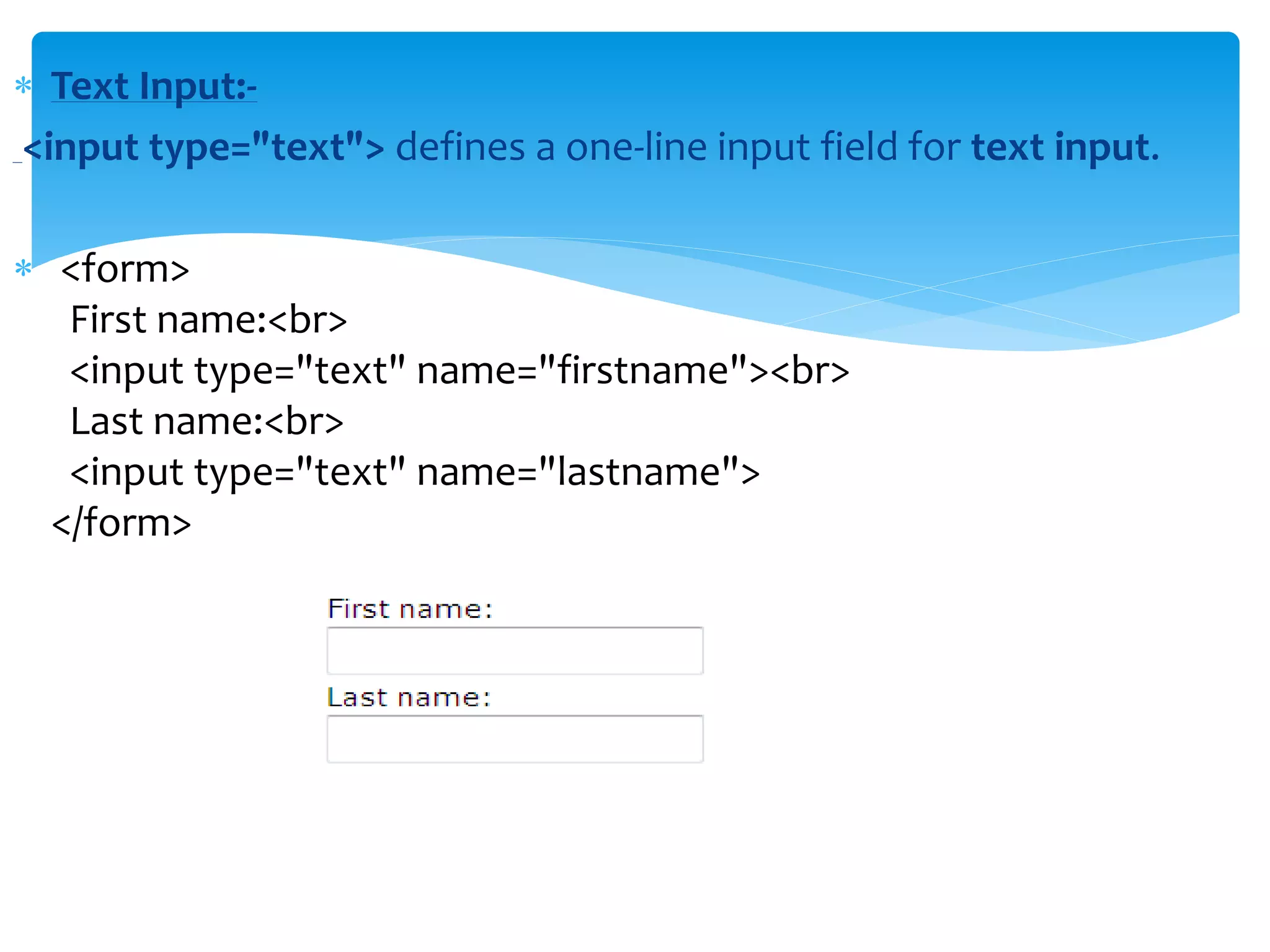
 Text Input:-
<input type="text"> defines a one-line input field for text input.
 <form>
First name:<br>
<input type="text" name="firstname"><br>
Last name:<br>
<input type="text" name="lastname">
</form>
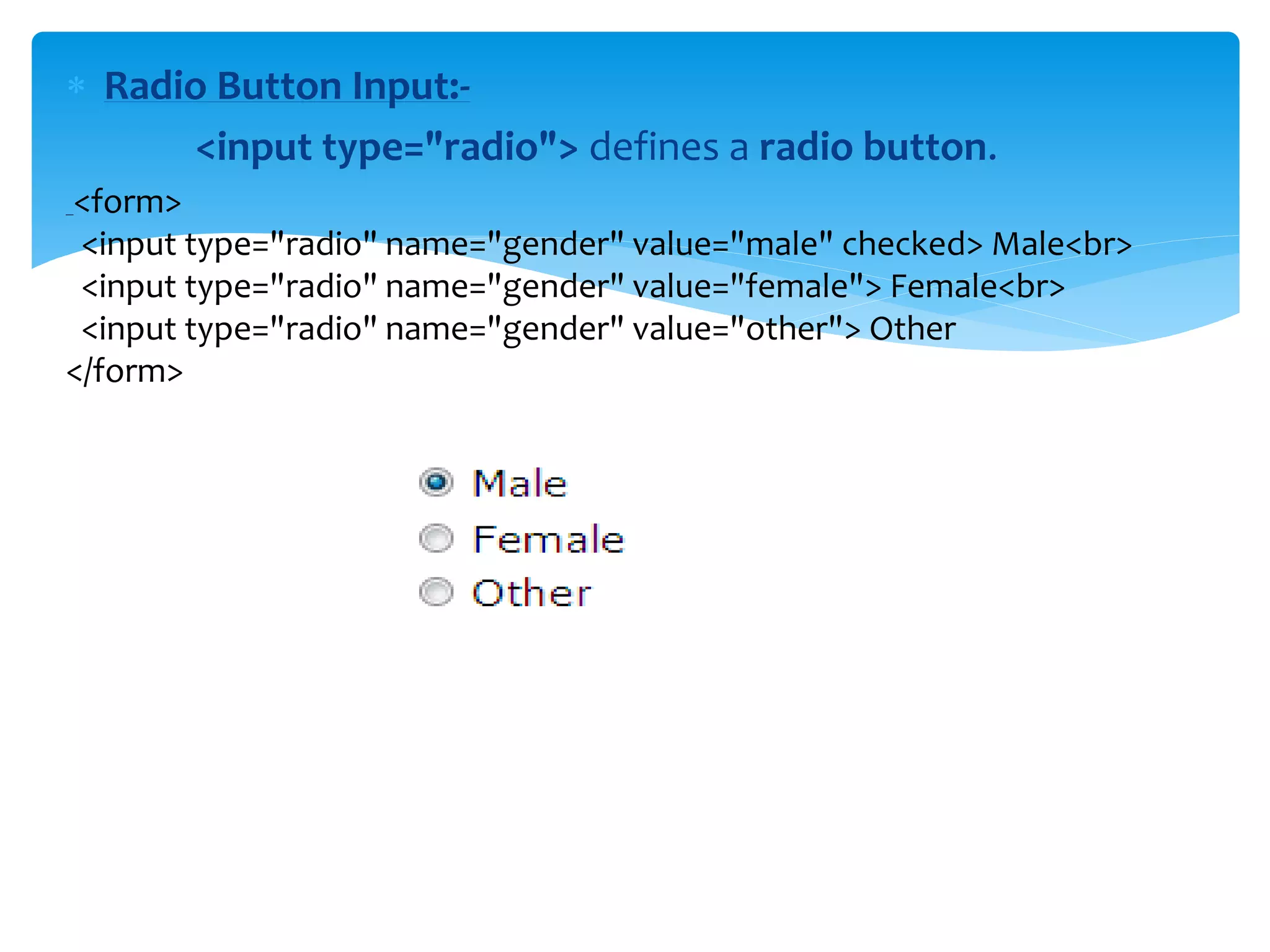
 Radio Button Input:-
<input type="radio"> defines a radio button.
<form>
<input type="radio" name="gender" value="male" checked> Male<br>
<input type="radio" name="gender" value="female"> Female<br>
<input type="radio" name="gender" value="other"> Other
</form>
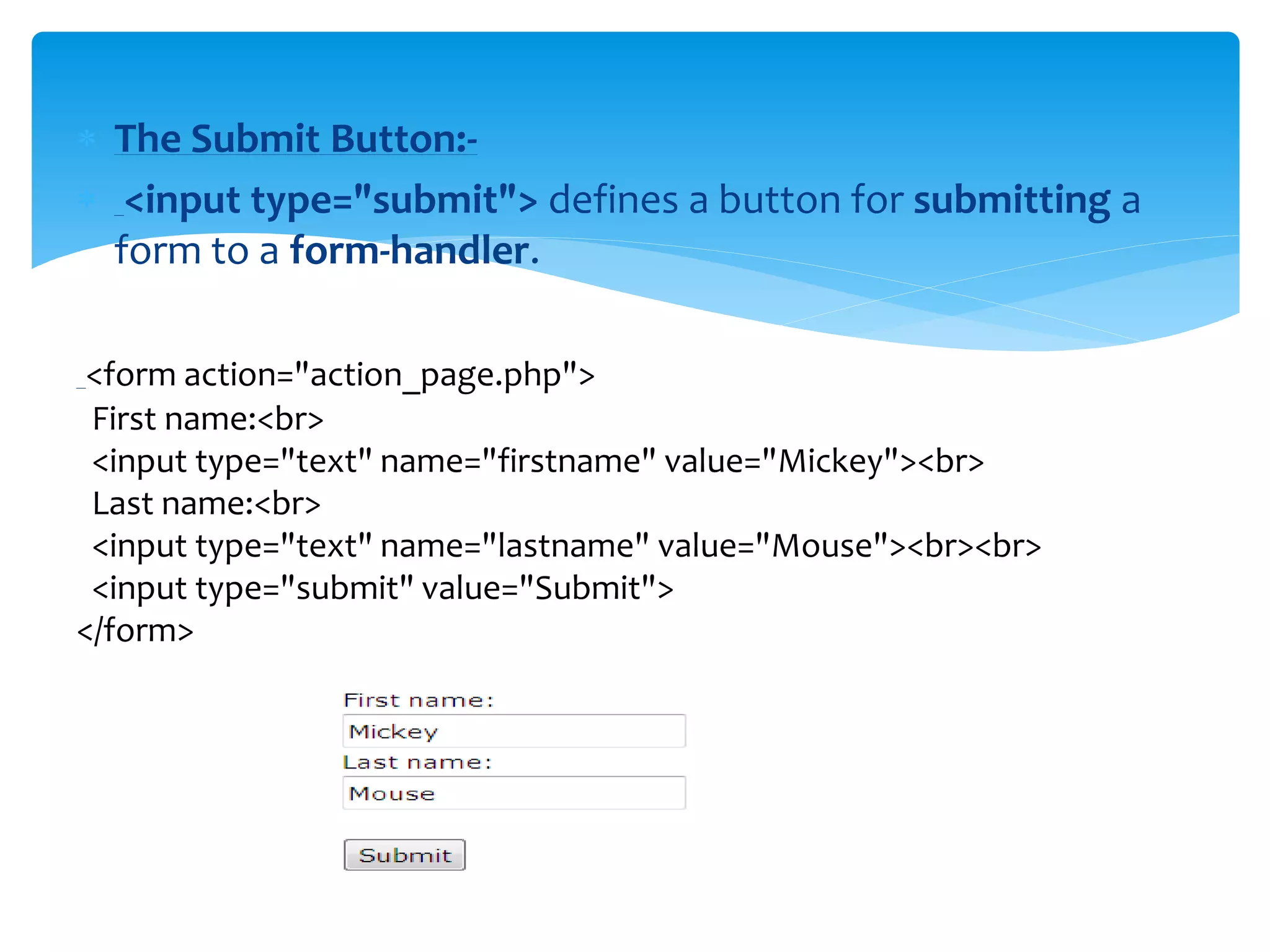
 The Submit Button:-
 <input type="submit"> defines a button for submitting a
form to a form-handler.
<form action="action_page.php">
First name:<br>
<input type="text" name="firstname" value="Mickey"><br>
Last name:<br>
<input type="text" name="lastname" value="Mouse"><br><br>
<input type="submit" value="Submit">
</form>
 The <select> Element (Drop-Down List)
 The <select> element defines a drop-down list.
<select name="cars">
<option value="volvo">Volvo</option>
<option value="saab">Saab</option>
<option value="fiat">Fiat</option>
<option value="audi">Audi</option>
</select>
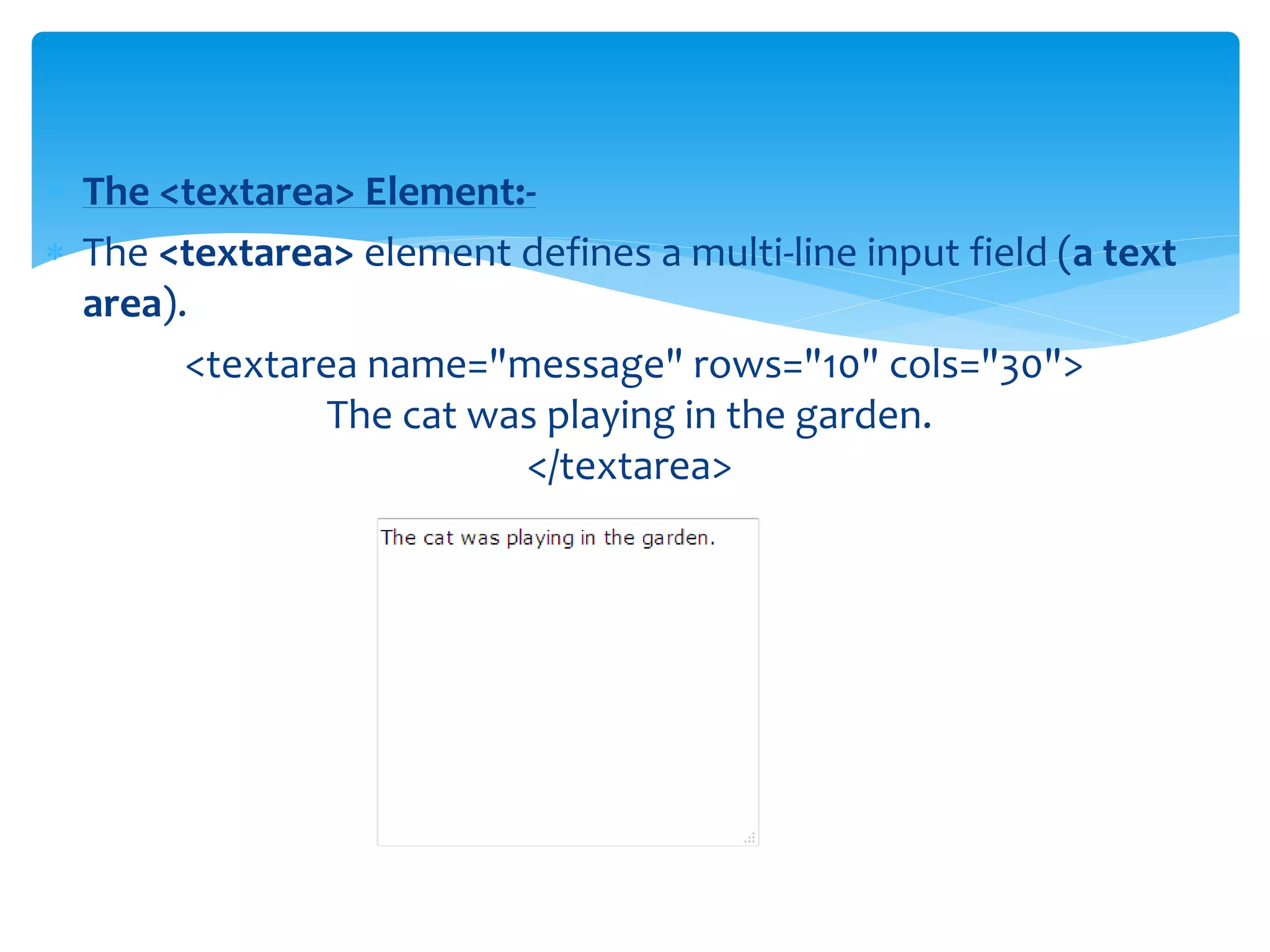
 The <textarea> Element:-
 The <textarea> element defines a multi-line input field (a text
area).
<textarea name="message" rows="10" cols="30">
The cat was playing in the garden.
</textarea>
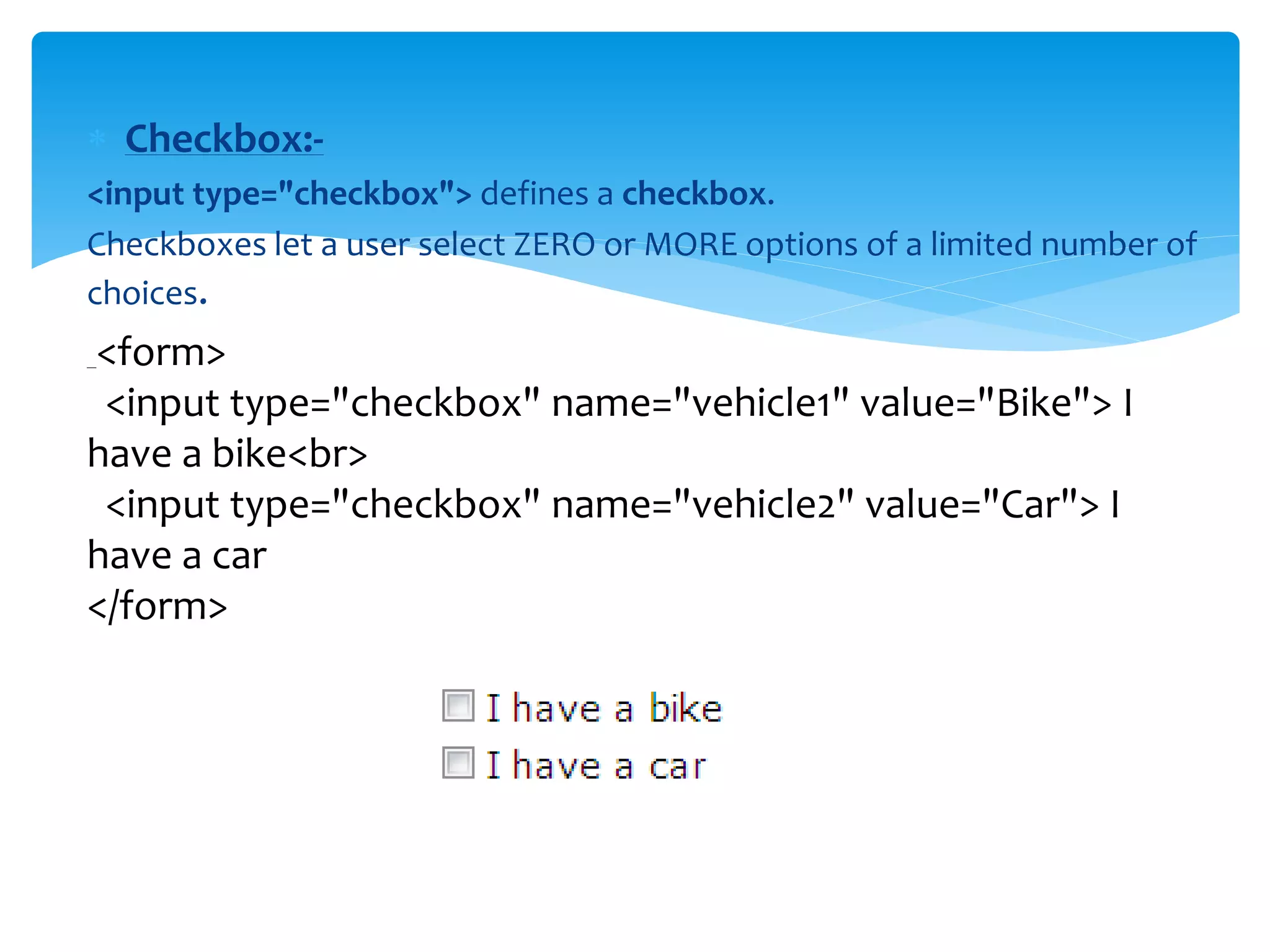
 Checkbox:-
<input type="checkbox"> defines a checkbox.
Checkboxes let a user select ZERO or MORE options of a limited number of
choices.
<form>
<input type="checkbox" name="vehicle1" value="Bike"> I
have a bike<br>
<input type="checkbox" name="vehicle2" value="Car"> I
have a car
</form>
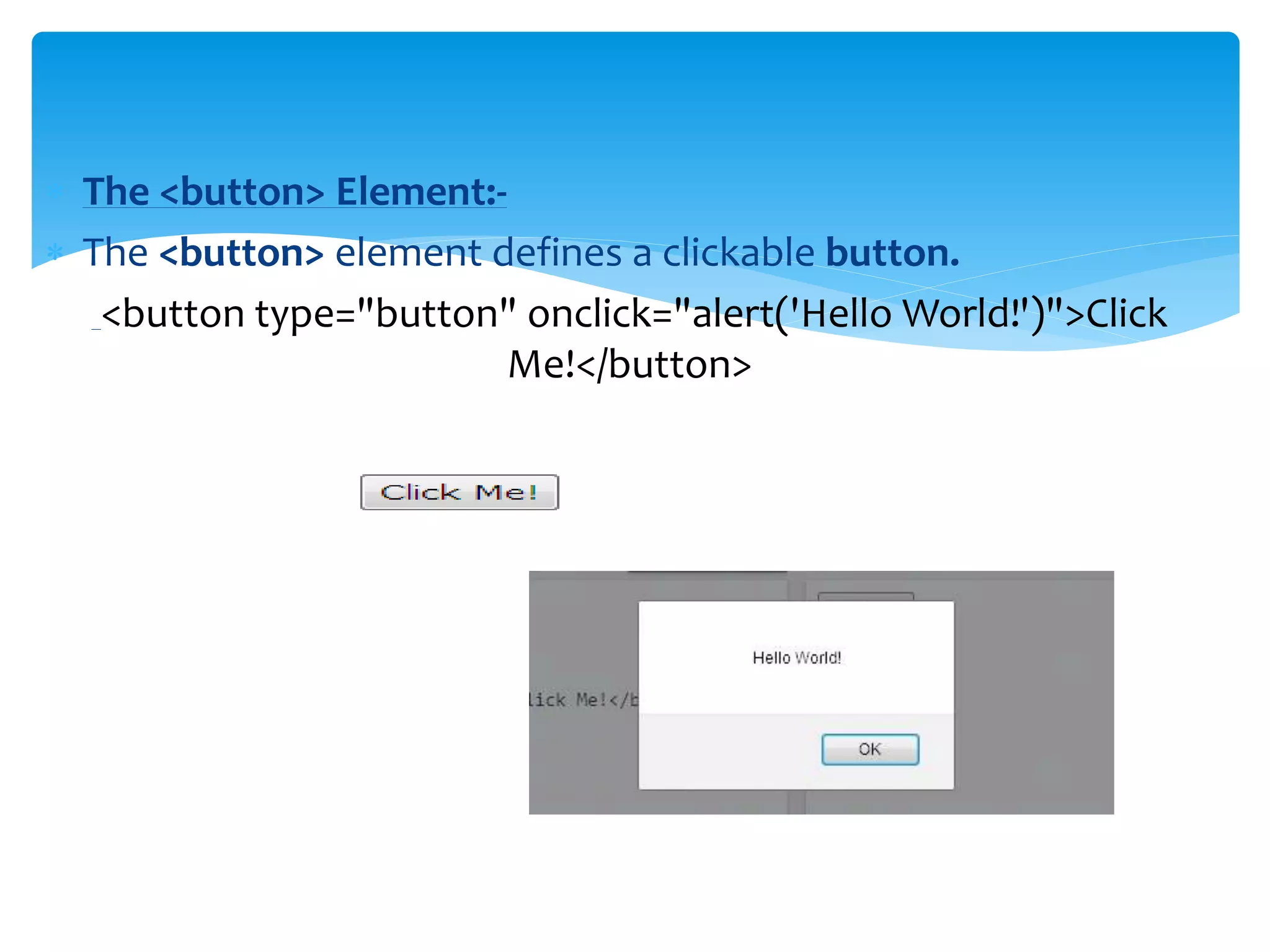
 The <button> Element:-
 The <button> element defines a clickable button.
<button type="button" onclick="alert('Hello World!')">Click
Me!</button>
Html ppt

  • 1.
  • 2.
     HTML isused to create web documents Including text,images,formatting,& hyperlinks to other documents.  HTML documents consists of text & ‘markup’ tags which are used to define the strucuture apperance & function of the information.  HTML was created by Berners-Lee in late 1991.  A HTML file must have an .htm or .html file extension Introduction Of HTML
  • 3.
     The HTMLdocument itself begins with <html> and ends with </html>.  The visible part of the HTML document is between <body> and </body>. <!DOCTYPE html> <html> <body> <h1>My First Heading</h1> <p>My first paragraph.</p> </body> </html> HTML BASICS
  • 4.
    <Html> <head> <title>Page Title</title> </head> <body> <h1>This isa Heading</h1> <p>This is a Paragraph</p> <p>This is another Paragraph</p> </body> </html> HTML PAGE STRUCTURE
  • 5.
     The HTML<head> element has nothing to do with HTML headings.  The HTML <head> element contains meta data. Meta data are not displayed.  The HTML <head> element is placed between the <html> tag and the <body> tag. <!DOCTYPE html> <html> <head> <title>My First HTML</title> <meta charset="UTF-8"> </head> <body> <p>The HTML head element contains meta data.</p> <p>Meta data is data about the HTML document.</p> </body> </html> The HTML <head> Element
  • 6.
     HTML elementsare written with a start tag, with an end tag, with the content in between. <tagname>content</tagname> The HTML element is everything from the start tag to the end tag: <p>My first HTML paragraph.</p> HTML ELEMENT Start tag Element content End tag <h1> My First Heading </h1> <p> My first paragraph. </p>
  • 7.
     Attributes provideadditional information about an element.  Attributes are always specified in the start tag. 1.The title Attribute:- <p title="About W3Schools"> W3Schools is a web developer's site. It provides tutorials and references covering many aspects of web programming, including HTML, CSS, JavaScript, XML, SQL, PHP, ASP, etc. </p> 2.The href Attribute:- <a href="http://www.w3schools.com">This is a link</a> 3.SIZE Attribute 4.Alt Arttribute HTML ATTRIBUTES
  • 8.
    Attribute Description alt Specifies analternative text for an image disabled Specifies that an input element should be disabled href Specifies the URL (web address) for a link id Specifies a unique id for an element src Specifies the URL (web address) for an image style Specifies an inline CSS style for an element title Specifies extra information about an element (displayed as a tool tip)
  • 9.
     Headings aredefined with the <h1> to <h6> tags.  <h1> defines the most important heading. <h6> defines the least important heading. <!DOCTYPE html> <html> <body> <h1>This is heading 1</h1> <h2>This is heading 2</h2> <h3>This is heading 3</h3> <h4>This is heading 4</h4> <h5>This is heading 5</h5> <h6>This is heading 6</h6> </body> </html> HTML Headings
  • 10.
     The HTML<p> element defines a paragraph. <!DOCTYPE html> <html> <body> <p>This is a paragraph.</p> <p>This is a paragraph.</p> <p>This is a paragraph.</p> </body> </html> HTML PARAGRAPHS
  • 11.
    HTML Background Color:- Thebackground-color property defines the background color for an HTML element. <body style="background-color:lightgrey;"> <h1>This is a heading</h1> <p>This is a paragraph.</p> </body> HTML Text Color:- The color property defines the text color for an HTML element: <h1 style="color:blue;">This is a heading</h1> <p style="color:red;">This is a paragraph.</p> HTML Styles
  • 12.
    HTML Fonts:- The font-familyproperty defines the font to be used for an HTML element: <!DOCTYPE html> <html> <body> <h1 style="font-family:verdana;">This is a heading</h1> <p style="font-family:courier;">This is a paragraph.</p> </body> </html>
  • 13.
     HTML TextSize:-  The font-size property defines the text size for an HTML element: <h1 style="font-size:300%;">This is a heading</h1> <p style="font-size:160%;">This is a paragraph.</p> HTML Text Alignment:- The text-align property defines the horizontal text alignment for an HTML element.
  • 14.
     Unordered HTMLLists:-  An unordered list starts with the <ul> tag. Each list item starts with the <li> tag. <!DOCTYPE html> <html> <body> <ul> <li>Coffee</li> <li>Tea</li> <li>Milk</li> </ul> </body> </html> HTML Lists
  • 15.
     An orderedlist starts with the <ol> tag. Each list item starts with the <li> tag. <!DOCTYPE html> <html> <body> <h2>Ordered List</h2> <ol> <li>Coffee</li> <li>Tea</li> <li>Milk</li> </ol> </body> </html> Ordered HTML Lists
  • 16.
     HTML CommentTags:-  Comments are not displayed by the browser, but they can help document your HTML.  With comments you can place notifications and reminders in your HTML: <!-- This is a comment --> <p>This is a paragraph.</p> <!-- Remember to add more information here --> HTML TAGS
  • 17.
    In HTML, imagesare defined with the <img> tag.  The src attribute specifies the URL (web address) of the image.  The alt attribute provides alternative information for an image if a user for some reason cannot view it (because of slow connection, an error in the src attribute, or if the user uses a screen reader). HTML Images
  • 18.
    <!DOCTYPE html> <html> <body> <h2>Image View</h2> <imgsrc="NewFolder1/Tulips.jpg" alt="IMAGE View" style="width:304px;"> </body> </html>
  • 19.
     Tables aredefined with the <table> tag.  Tables are divided into table rows with the <tr> tag.  Table rows are divided into table data with the <td> tag.  A table row can also be divided into table headings with the <th> tag. <!DOCTYPE html> <html> <body> <table style="width:100%"> <tr> <td>Jill</td> <td>Smith</td> <td>50</td> </tr> HTML TABLE
  • 20.
     <tr>  <td>Eve</td> <td>Jackson</td> <td>94</td> </tr> <tr> <td>John</td> <td>Doe</td> <td>80</td> </tr> </table> </body> </html>
  • 21.
    <!DOCTYPE html> <html> <head> <style> table, th,td { border: 1px solid black; border-collapse: collapse; } th, td { padding: 15px; } </style> </head> <body> <table style="width:100%"> HTML Table with Cell Padding
  • 22.
  • 23.
     To adda caption to a table, use the <caption> tag. <table style="width:100%"> <caption>Monthly savings</caption> <tr> <th>Month</th> <th>Savings</th> </tr> <tr> <td>January</td> <td>$100</td> </tr> <tr> <td>February</td> <td>$50</td> </tr> </table> HTML Table With a Caption
  • 24.
     <html>  <head> <style>  tr,th, td {  background-color:white;  border:2px solid green;  text-align:center;  }  </style>  <title></title>  </head>  <body>  <table style="width:100%;">  <tr>  <td>Name</td>  <td colspan="2">Mobile No</td>  </tr> HTML RowSpan
  • 25.
  • 26.
    <html> <body> <table style="width:100%"><tr> <th>name</th> <td>Moble no</td> </tr> <tr> <throwspan="2"> Ruchi </th> <td>o54545345</td> </tr> <tr> <td>45545454</td> </tr> </table> </body> </html> HTML COL SPAN
  • 27.
     The <br>tag inserts a single line break.  The <br> tag is an empty tag which means that it has no end tag. <!DOCTYPE html> <html> <body> <p> To break lines<br>in a text,<br>use the br element. </p> </body> </html> HTML <br> Tag
  • 28.
     The <div>tag defines a division or a section in an HTML. <!DOCTYPE html> <html> <body> <p>This is some text.</p> <div style="color:#0000FF"> <h3>This is a heading in a div element</h3> <p>This is some text in a div element.</p> </div> <p>This is some text.</p> </body> </html> HTML <div> Tag
  • 29.
    The <span> tagis used to group inline-elements in a document. <!DOCTYPE html> <html> <body> <p>My mother has <span style="color:blue;font-weight:bold">blue</span> eyes and my father has <span style="color:darkolivegreen;font- weight:bold">dark green</span> eyes.</p> </body> </html> HTML <span> Tag
  • 30.
     HTML formsare used to collect user input.  The <form> element defines an HTML form. <form> . form elements . </form>  Form elements are different types of input elements, checkboxes, radio buttons, submit buttons, and more. HTML FORMS
  • 31.
     The <input>element is the most important form element.  The <input> element has many variations, depending on the type attribute. The <input> Element Type Description text Defines normal text input radio Defines radio button input (for selecting one of many choices) submit Defines a submit button (for submitting the form)
  • 32.
     Text Input:- <inputtype="text"> defines a one-line input field for text input.  <form> First name:<br> <input type="text" name="firstname"><br> Last name:<br> <input type="text" name="lastname"> </form>
  • 33.
     Radio ButtonInput:- <input type="radio"> defines a radio button. <form> <input type="radio" name="gender" value="male" checked> Male<br> <input type="radio" name="gender" value="female"> Female<br> <input type="radio" name="gender" value="other"> Other </form>
  • 34.
     The SubmitButton:-  <input type="submit"> defines a button for submitting a form to a form-handler. <form action="action_page.php"> First name:<br> <input type="text" name="firstname" value="Mickey"><br> Last name:<br> <input type="text" name="lastname" value="Mouse"><br><br> <input type="submit" value="Submit"> </form>
  • 35.
     The <select>Element (Drop-Down List)  The <select> element defines a drop-down list. <select name="cars"> <option value="volvo">Volvo</option> <option value="saab">Saab</option> <option value="fiat">Fiat</option> <option value="audi">Audi</option> </select>
  • 36.
     The <textarea>Element:-  The <textarea> element defines a multi-line input field (a text area). <textarea name="message" rows="10" cols="30"> The cat was playing in the garden. </textarea>
  • 37.
     Checkbox:- <input type="checkbox">defines a checkbox. Checkboxes let a user select ZERO or MORE options of a limited number of choices. <form> <input type="checkbox" name="vehicle1" value="Bike"> I have a bike<br> <input type="checkbox" name="vehicle2" value="Car"> I have a car </form>
  • 38.
     The <button>Element:-  The <button> element defines a clickable button. <button type="button" onclick="alert('Hello World!')">Click Me!</button>