Naval OPSEC Support Team (NOST)
Navy Information Operations Command (NIOC) Norfolk
757-417-7100 DSN 537
opsec@navy.mil
www.slideshare.net/NavalOPSEC
www.facebook.com/NavalOPSEC
www.YouTube.com/usnopsec
www.twitter.com/NavalOPSEC
Facebook Privacy & Account Settings
Updated Jan 20, 2015
Facebook Privacy & Account Settings
Always post, tweet, blog, email or otherwise
communicate with the understanding that any
information you share could potentially be made public,
regardless of your privacy settings or intentions.
That said, there are precautions you can take to keep the
information you want to stay just between friends from
being shared publicly.
Updated Jan 20, 2015
What’s new on Facebook?
Changes since February 2014
• Privacy search settings
– Privacy Checkup feature with the “Privacy Dinosaur”
• More account security and privacy settings
• Personalized news feed
• Larger photos, more advertisements
– Atlas ad platform tracking cookies
• Videos in news feed play automatically
Updated Jan 20, 2015
Facebook: Tips
Facebook now includes tips, which popup
as you browse through your profile. These
tips generally only appear the first few times
you use a new feature, and are intended to
make understanding new features and
changes easier for every user.
Always take the time to navigate through
the different or new settings available, and
thoroughly understand what you are
consenting to when you use websites which
display personal and private information,
such as Facebook.
Updated Jan 20, 2015
This shortcut allows you to quickly view and modify your personal account
privacy settings. Settings available include Who can see my stuff, Who can
contact me and How do I stop someone from bothering me. You can also
access the Privacy Checkup feature from this dropdown menu.
Facebook: Accessing Privacy Settings
To access the privacy and
applications settings for
your Facebook account,
navigate to the padlock
icon located in the upper
right corner of your
window. This feature is
intended to make setting
and viewing your
current privacy settings
as easy as possible.
Updated Jan 20, 2015
Facebook: Privacy Checkup Feature
With the Facebook Privacy
Checkup feature you can do a
quick check of what your
current privacy settings are for
posts, apps, and your more
personal profile information
(i.e. email address, birthdate).
The checkup concludes with a
brief summary of the more
basic security settings that you
have selected for your account.
Utilize this feature to do a
quick review of your privacy
settings from time to time.
Updated Jan 20, 2015
Facebook: Who can see my stuff?
If you expand the Who can see my stuff drop
down menu you have the option to view or modify
who is able to view all of your future posts. Any
changes to this setting only apply to posts you
make after you have set this setting. This option
does not apply to posts you have made prior to
changing this option.
From this drop down you can also view the
Activity Log. The activity log is a feature which
allows you to view recent activity such as posts
you have made, things you have liked, or posts you
have been tagged in. From this option you can also
review any recent activity on your timeline.
Take the time to navigate through these different
options to familiarize yourself with the privacy
settings that are available.
Updated Jan 20, 2015
Facebook: Who can see my stuff?
From the privacy shortcut you also have
the option to view your profile as another
user would see it. This is a helpful utility
if you have restricted access to your wall,
either through creating groups or
restricting access to specific “friends”.
Note: Things you hide from your timeline
still appear in news feed, search, and other
places on Facebook.
Updated Jan 20, 2015
Facebook: Who can see my stuff?
*Important OPSEC note: On
Facebook, your name, profile
picture, cover photo, gender,
networks, username, and user id
are always set to public,
regardless of other privacy
settings.
Updated Jan 20, 2015
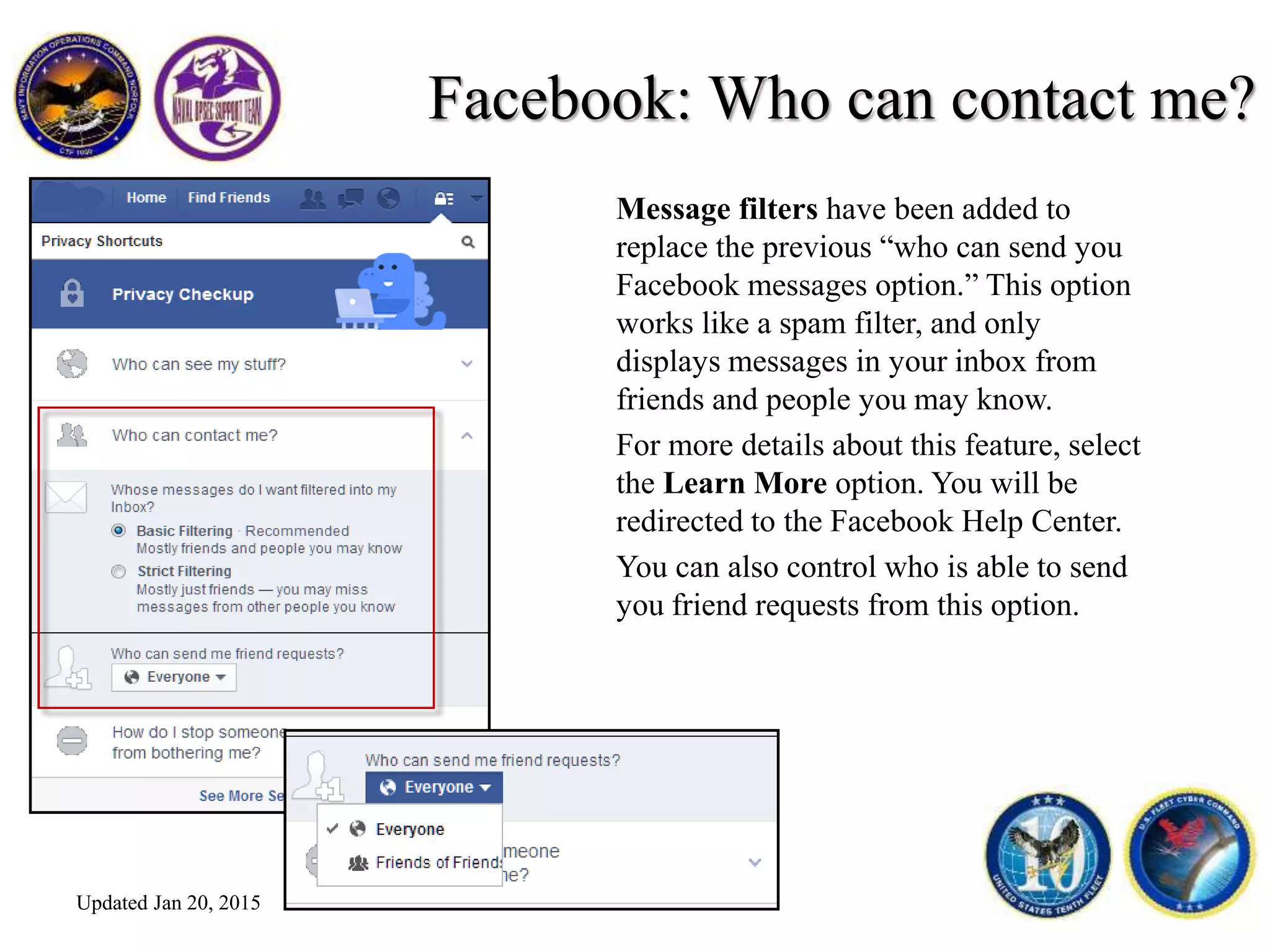
Facebook: Who can contact me?
Message filters have been added to
replace the previous “who can send you
Facebook messages option.” This option
works like a spam filter, and only
displays messages in your inbox from
friends and people you may know.
For more details about this feature, select
the Learn More option. You will be
redirected to the Facebook Help Center.
You can also control who is able to send
you friend requests from this option.
Updated Jan 20, 2015
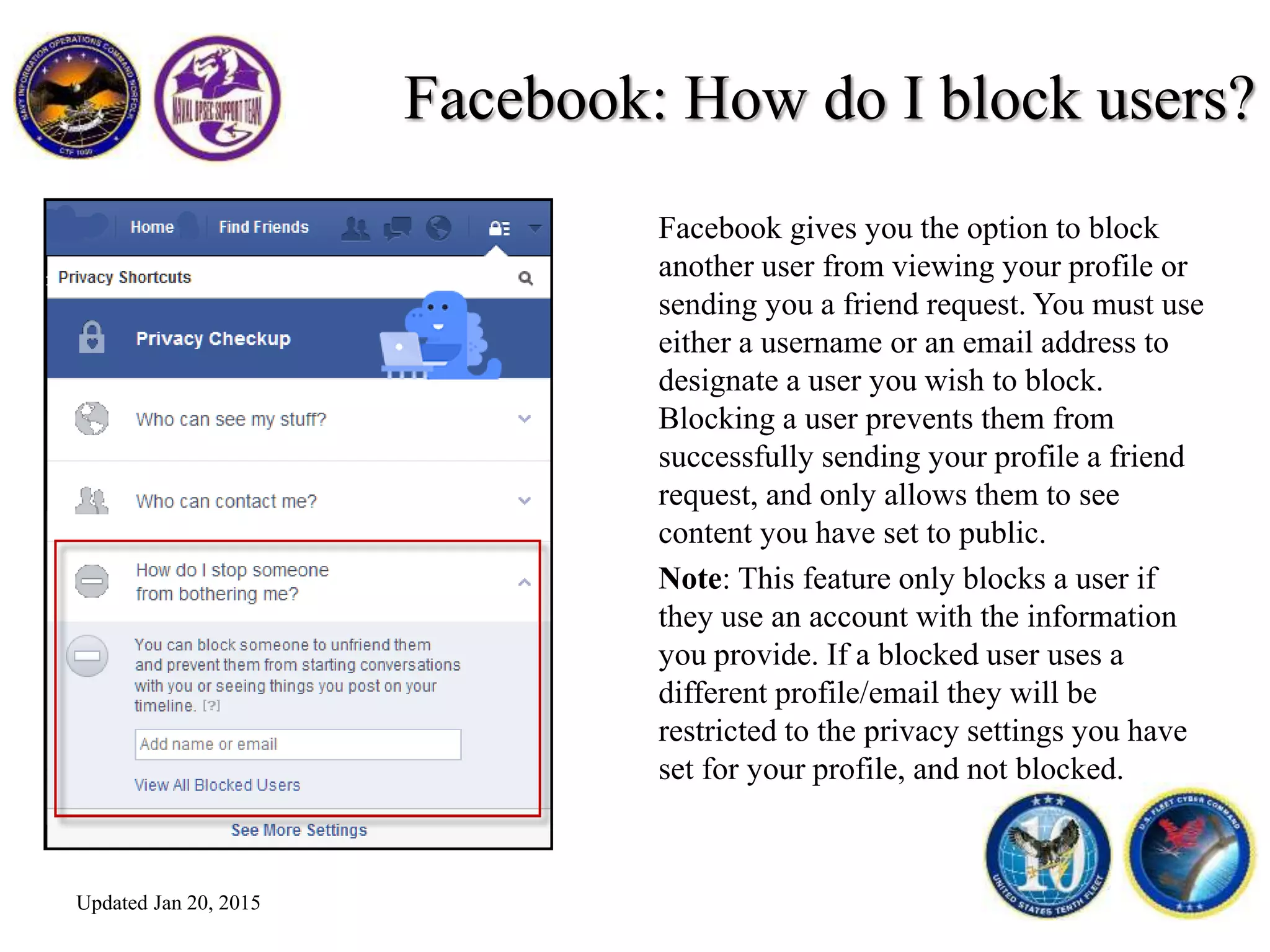
Facebook: How do I block users?
Facebook gives you the option to block
another user from viewing your profile or
sending you a friend request. You must use
either a username or an email address to
designate a user you wish to block.
Blocking a user prevents them from
successfully sending your profile a friend
request, and only allows them to see
content you have set to public.
Note: This feature only blocks a user if
they use an account with the information
you provide. If a blocked user uses a
different profile/email they will be
restricted to the privacy settings you have
set for your profile, and not blocked.
Updated Jan 20, 2015
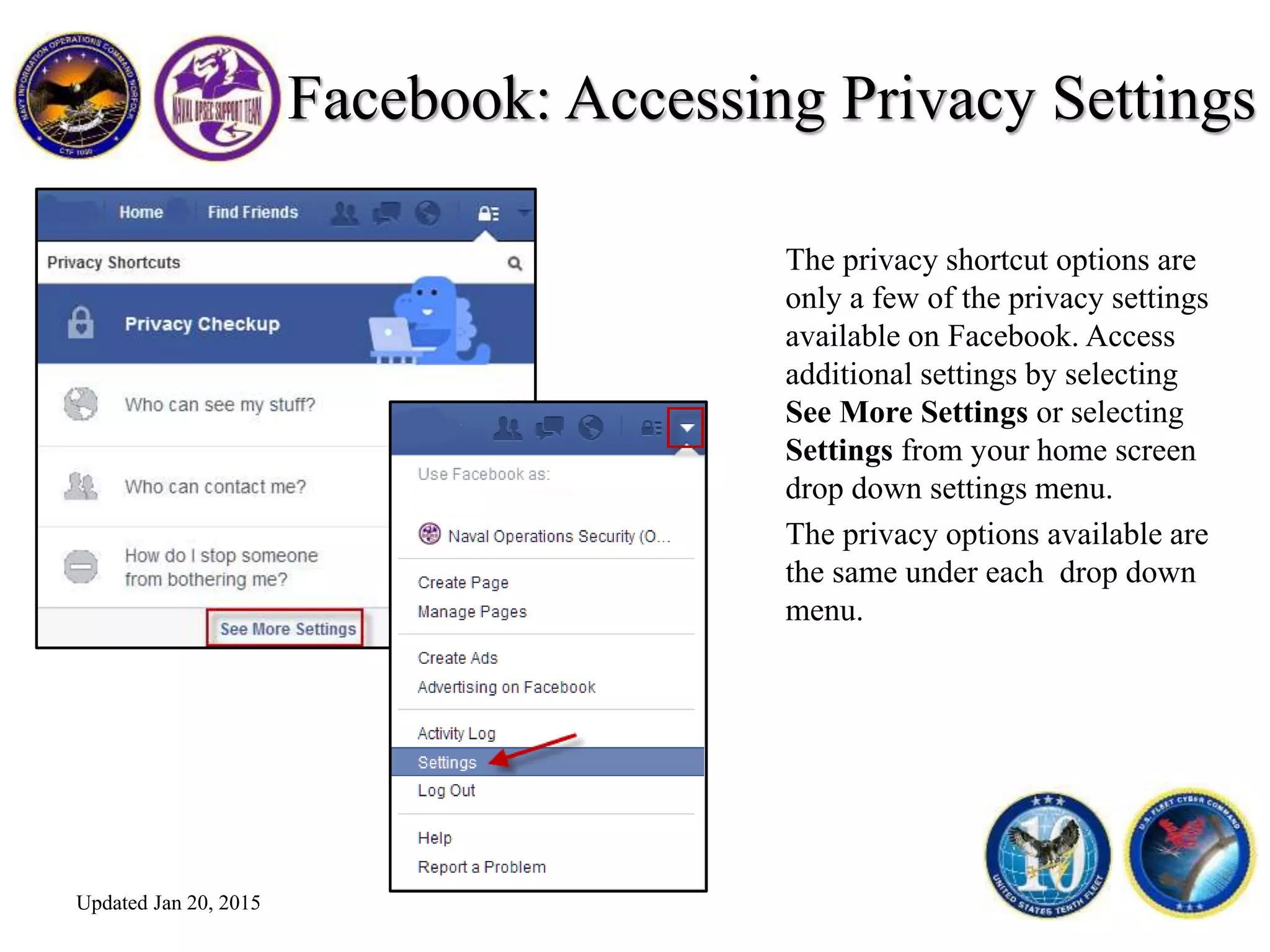
Facebook: Accessing Privacy Settings
The privacy shortcut options are
only a few of the privacy settings
available on Facebook. Access
additional settings by selecting
See More Settings or selecting
Settings from your home screen
drop down settings menu.
The privacy options available are
the same under each drop down
menu.
Updated Jan 20, 2015
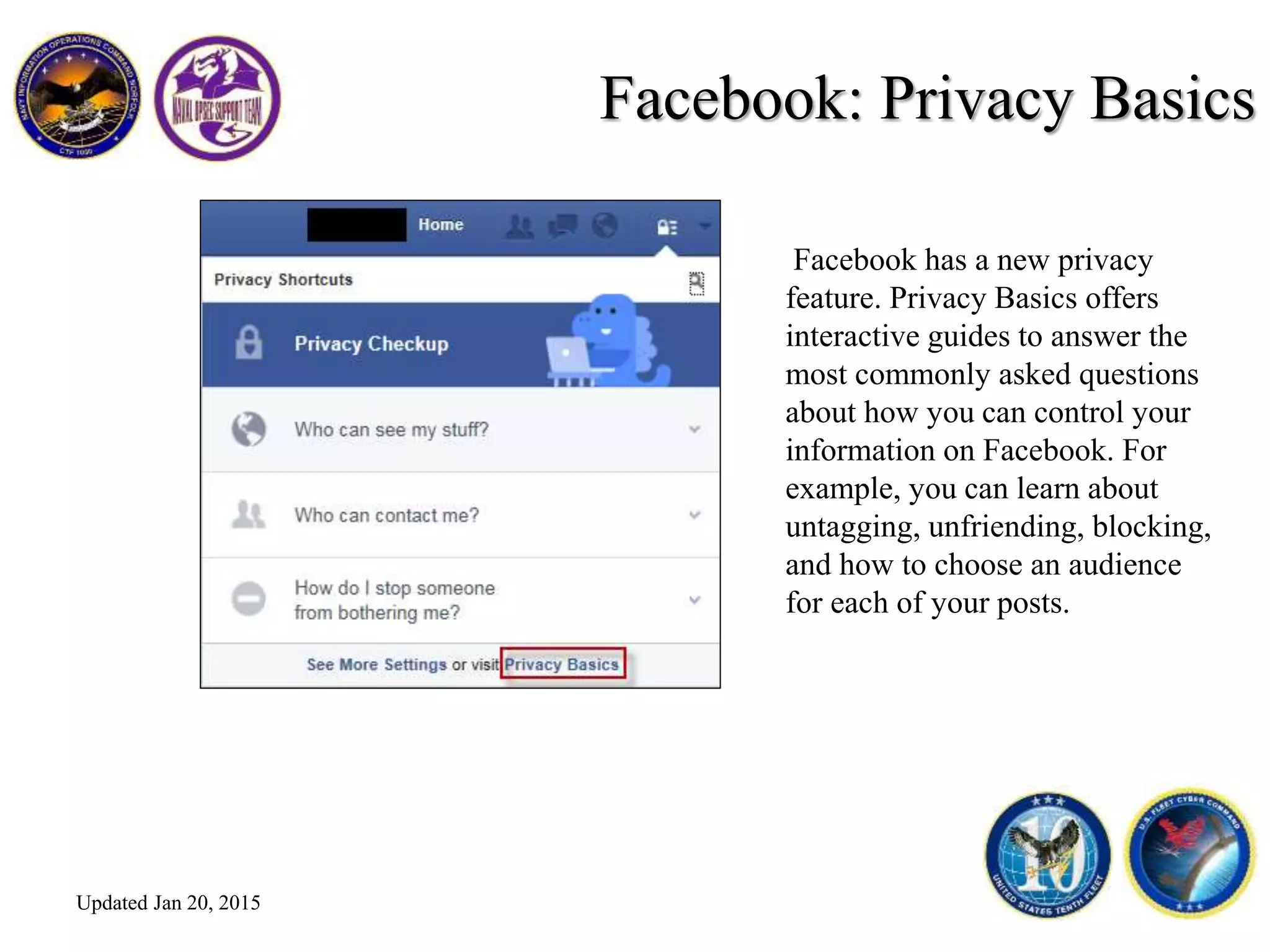
Facebook: Privacy Basics
Facebook has a new privacy
feature. Privacy Basics offers
interactive guides to answer the
most commonly asked questions
about how you can control your
information on Facebook. For
example, you can learn about
untagging, unfriending, blocking,
and how to choose an audience
for each of your posts.
Updated Jan 20, 2015
Facebook: Account Settings
From the Account Settings- General menu you have many different account options.
You can change your display name, change your email address and password or link
separate accounts in your Facebook page. From this page you also have the option to
download a copy of your Facebook data. The download is a complete
history of your Facebook usage.
Updated Jan 20, 2015
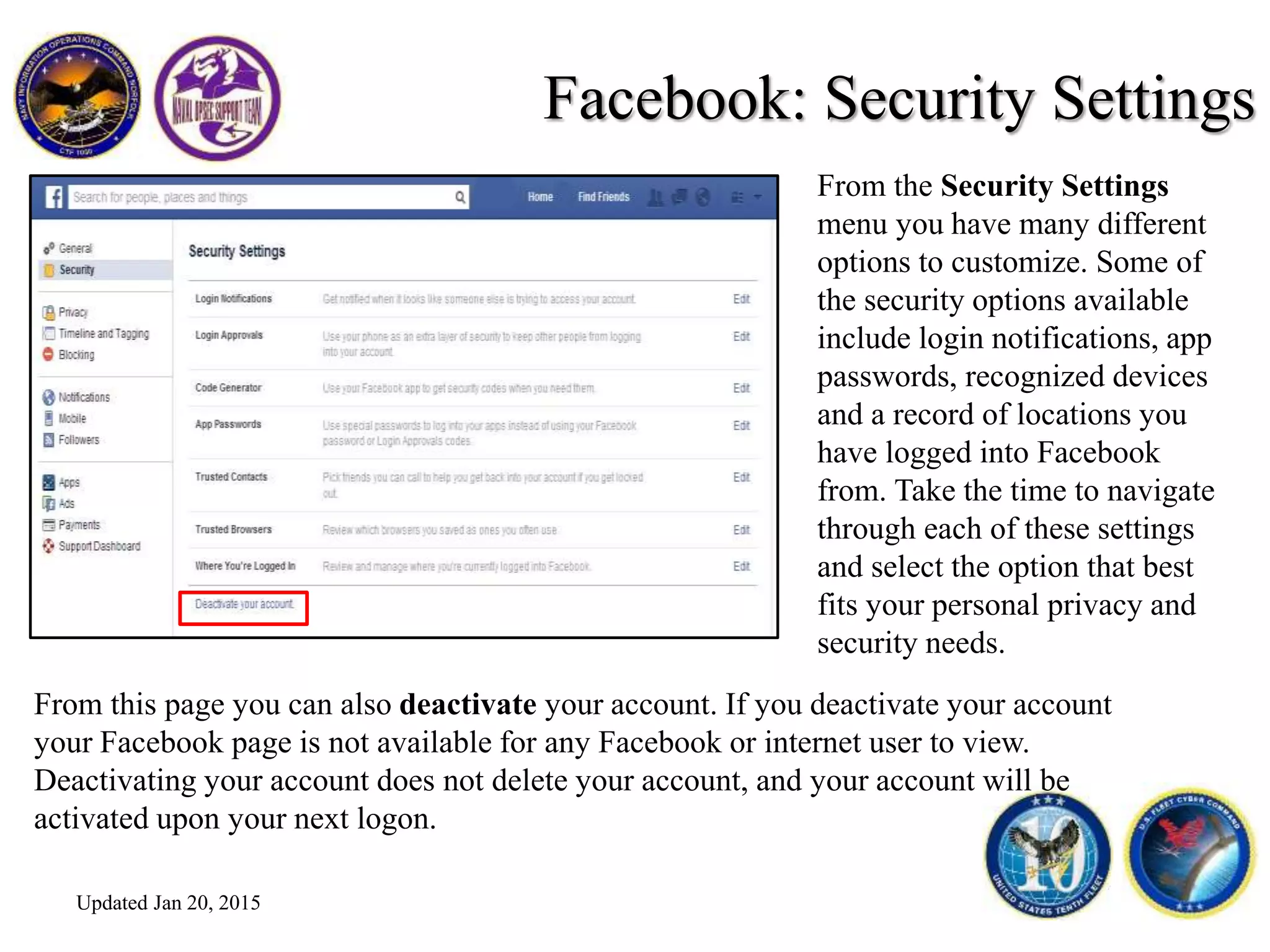
Facebook: Security Settings
From this page you can also deactivate your account. If you deactivate your account
your Facebook page is not available for any Facebook or internet user to view.
Deactivating your account does not delete your account, and your account will be
activated upon your next logon.
From the Security Settings
menu you have many different
options to customize. Some of
the security options available
include login notifications, app
passwords, recognized devices
and a record of locations you
have logged into Facebook
from. Take the time to navigate
through each of these settings
and select the option that best
fits your personal privacy and
security needs.
Updated Jan 20, 2015
Facebook: Privacy Settings & Tools
The privacy settings listed on this page are the same settings that are available in the
shortcut drop down menu.
Updated Jan 20, 2015
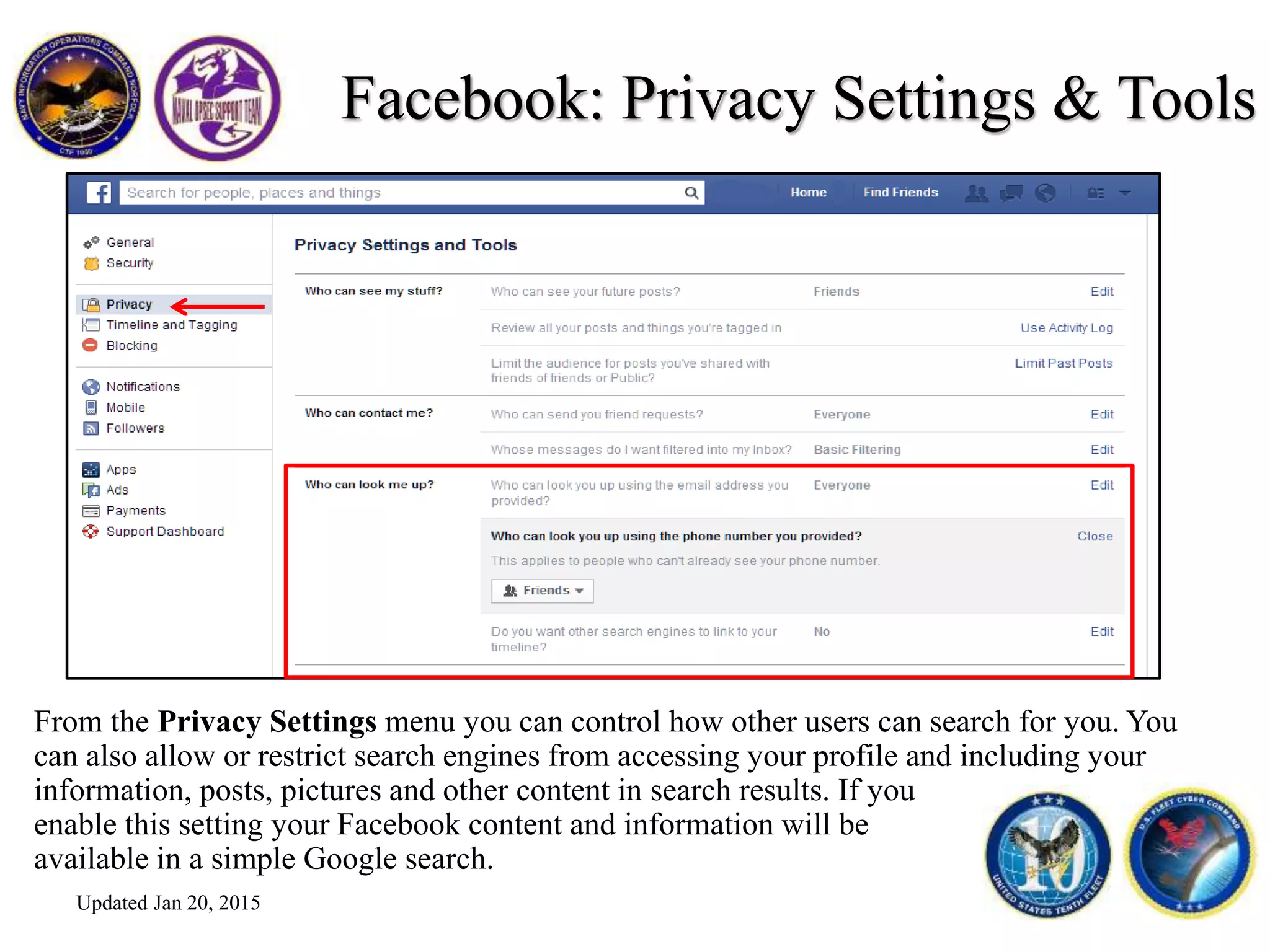
Facebook: Privacy Settings & Tools
From the Privacy Settings menu you can control how other users can search for you. You
can also allow or restrict search engines from accessing your profile and including your
information, posts, pictures and other content in search results. If you
enable this setting your Facebook content and information will be
available in a simple Google search.
Updated Jan 20, 2015
Facebook: Timeline and Tagging
From the Timeline and Tagging Setting menu you can control who can add things to your
timeline, who can see things on your timeline and how to manage tags and tag suggestions.
Take the time to browse through the different settings available to customize these settings
to best meet your privacy needs.
The NOST always recommends Facebook users be as restrictive as
possible when setting privacy settings.
Updated Jan 20, 2015
Facebook: Timeline and Tagging
If you allow a user to tag you in a post, a hyperlink to your profile will be included in the
post. Posts that you are tagged in are subject to the privacy settings of the person who
originated the post. If you do not allow other users to tag you in posts they can still tag
you in the post, but a link to your profile is not included.
The NOST recommends you restrict your friends ability to tag you in
photos and never share your location.
Updated Jan 20, 2015
Facebook: Timeline and Tagging
Facebook utilizes facial recognition software to recommend adding username tags to photos.
The facial recognition information is stored, and each time an image is uploaded that
matches stored facial features Facebook recommends a user to tag.
The NOST does not recommend any user enable the facial recognition
feature on Facebook.
Updated Jan 20, 2015
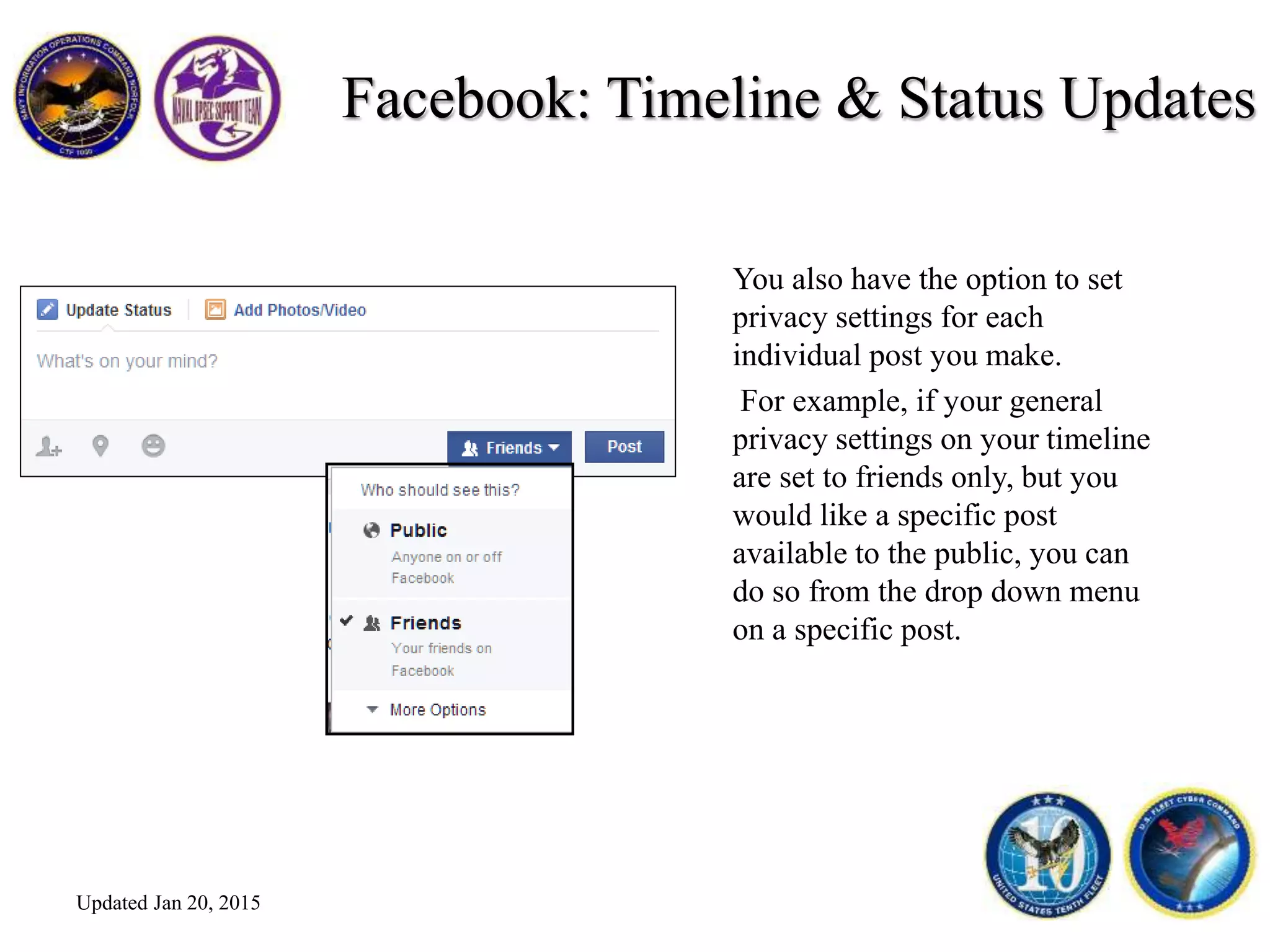
Facebook: Timeline & Status Updates
You also have the option to set
privacy settings for each
individual post you make.
For example, if your general
privacy settings on your timeline
are set to friends only, but you
would like a specific post
available to the public, you can
do so from the drop down menu
on a specific post.
Updated Jan 20, 2015
To view or change the privacy settings of
a past post, select the drop down menus
highlighted in the adjacent images. You
have the option to change the privacy
setting, the date, edit the post, add
location information, hide the post from
your timeline or delete the post.
Note, if you hide a post from your
timeline it will still appear in friends
newsfeeds, but will not appear on your
personal timeline.
Updated Jan 20, 2015
Facebook: Timeline & Status Updates
Your news feed now includes larger
pictures with more details,
advertisements, and video content
which will play automatically.
Your profile page has also been
rearranged, displaying more
information about you and your usage.
Content control and limiting the amount of personal
information you make available is always a recommend
OPSEC best practice.
Updated Jan 20, 2015
Facebook: Personal Profile Settings
The About tab on your
Facebook profile page includes
a list of details that you have the
option of providing. You are not
required to fill in any of these
fields to access your Facebook
account.
From this page you also have
the option to manage some of
the sections that appear on your
About tab. Take the time to
scroll through the different
settings to best meet your
privacy setting needs.
Updated Jan 20, 2015
Content control and limiting the amount of personal
information you make available is always a recommend
OPSEC best practice.
Places allows users to tag a
geographical location in a post.
Users have the option to be as
specific as to include an exact
location, such as a home address, or
tag a general location, such as the
city they are in.
Location information is subject to
the same privacy settings that other
posts and tags are set at. Users also
have the option to customize privacy
settings for individual posts that
include location information.
Facebook: Places
The NOST always recommends users be generic as possible when it
comes to personal details. Never provide exact locations of significant
places, such as where you live, on your social networking profiles.
Updated Jan 20, 2015
If you allow other users to tag you in location based posts, or include your location in your
own posts, these locations will be included in a Places map on your profile. Your privacy
settings control who is able to see places you have been tagged in.
Take the time to go through your settings and customize them to meet
your specific privacy needs.
Facebook: Places
Updated Jan 20, 2015
This presentation only covers the
settings available on the Facebook
desktop site, and does not include
privacy and security features
available on the mobile application.
Be aware, the places features on the
mobile application can include your
exact GPS location from your mobile
device, and has the ability to report
your location in real time.
Facebook: Places & Mobile App
http://www.edudemic.com/facebook-jumps-onto-
check-in-bandwagon-with-places/
Updated Jan 20, 2015
Facebook: Mobile App
Mobile users should be aware of EXIF data, and
should upload photos from mobile devices with
caution.
Photos taken with devices that have GPS embed
location information (EXIF data) in the image.
When images with EXIF data are uploaded to a
website it is possible to extract the embedded
location information and view the exact physical
location a photo was taken at.
This feature can be disabled in mobile devices.
Once disabled, location information will not be
embedded in a photo taken with a device that
has GPS.
http://www.cultofandroid.com/21070/facebook-mobile-
app-use-sees-huge-increase-on-ios-android-says-analyst/
Updated Jan 20, 2015
Facebook: Blocking
From the Manage Blocking page
you have the option to block
specific users from interacting
with your Facebook profile,
block apps from accessing your
profile and block event invites a
specific user.
You can also add friends to a
restricted list. Friends on the
restricted list are only able to
view content that you make
available to the public. Friends
are not notified when they are
placed on a restricted list.
Updated Jan 20, 2015
Facebook: Blocking
Blocking a user no longer
prevents them from
successfully searching for
your Facebook profile.
Blocked users can still see
content that is not subject to
customizable privacy settings,
such as profile and cover
photos.
Blocked users are not able see
content on your timeline, send
you messages or send you a
friend request.
Updated Jan 20, 2015
Facebook: Notifications
From the Notifications page
you can set a number of
different notification options.
Take the time to navigate
through the different options
to decide what works best for
your privacy needs.
Note, the Facebook mobile
app has a separate menu to
manage notifications that you
receive on your mobile
device.
Updated Jan 20, 2015
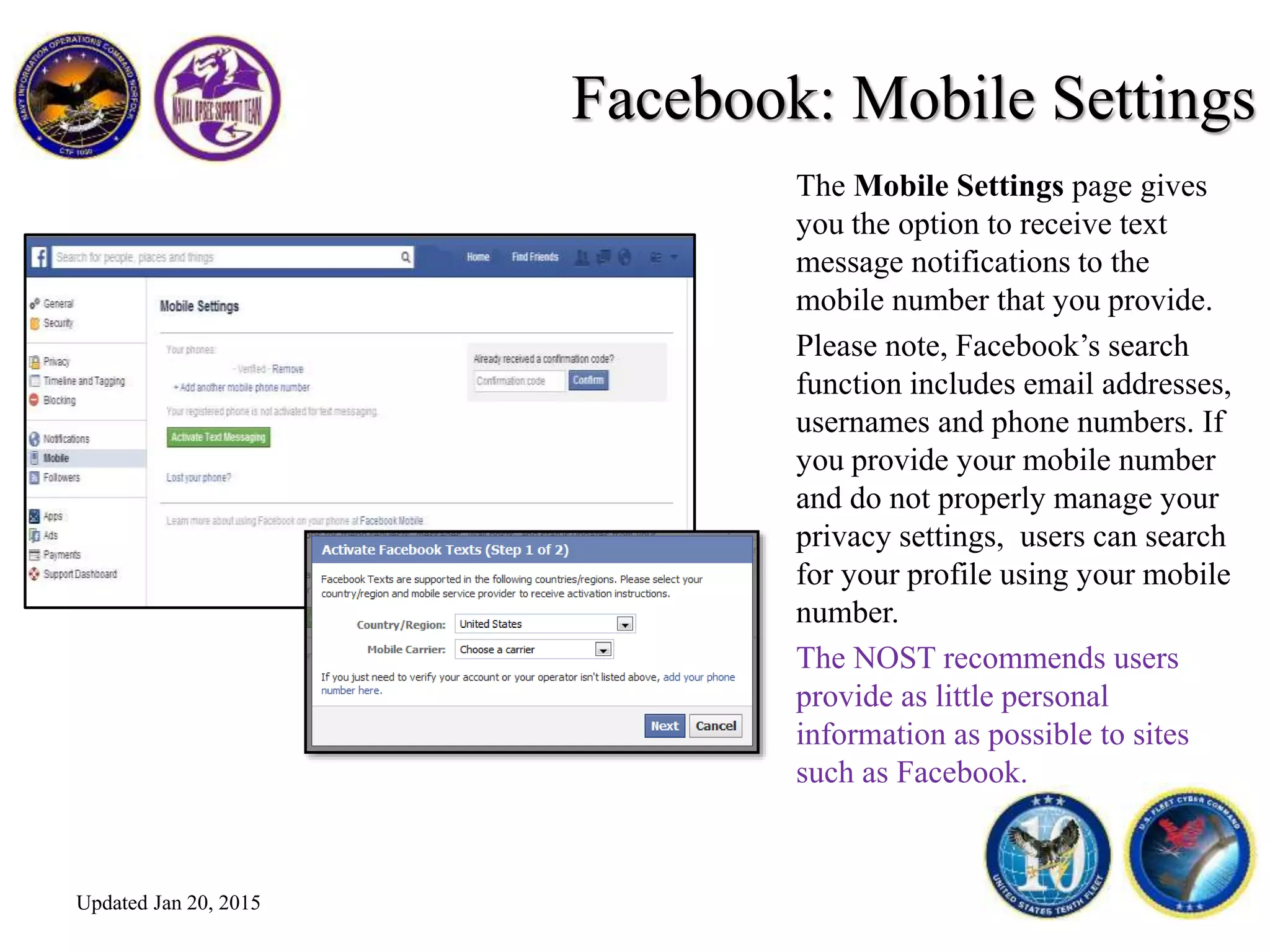
Facebook: Mobile Settings
The Mobile Settings page gives
you the option to receive text
message notifications to the
mobile number that you provide.
Please note, Facebook’s search
function includes email addresses,
usernames and phone numbers. If
you provide your mobile number
and do not properly manage your
privacy settings, users can search
for your profile using your mobile
number.
The NOST recommends users
provide as little personal
information as possible to sites
such as Facebook.
Updated Jan 20, 2015
Facebook: Mobile Settings
Facebook has a feature which
allows a user to log out of their
Facebook mobile app from the
desktop web site.
If your mobile device is lost or
stolen, the ability to log out of
your Facebook mobile
application will prevent an
unauthorized user from
accessing and modifying your
private information.
Updated Jan 20, 2015
Facebook: Follower Settings
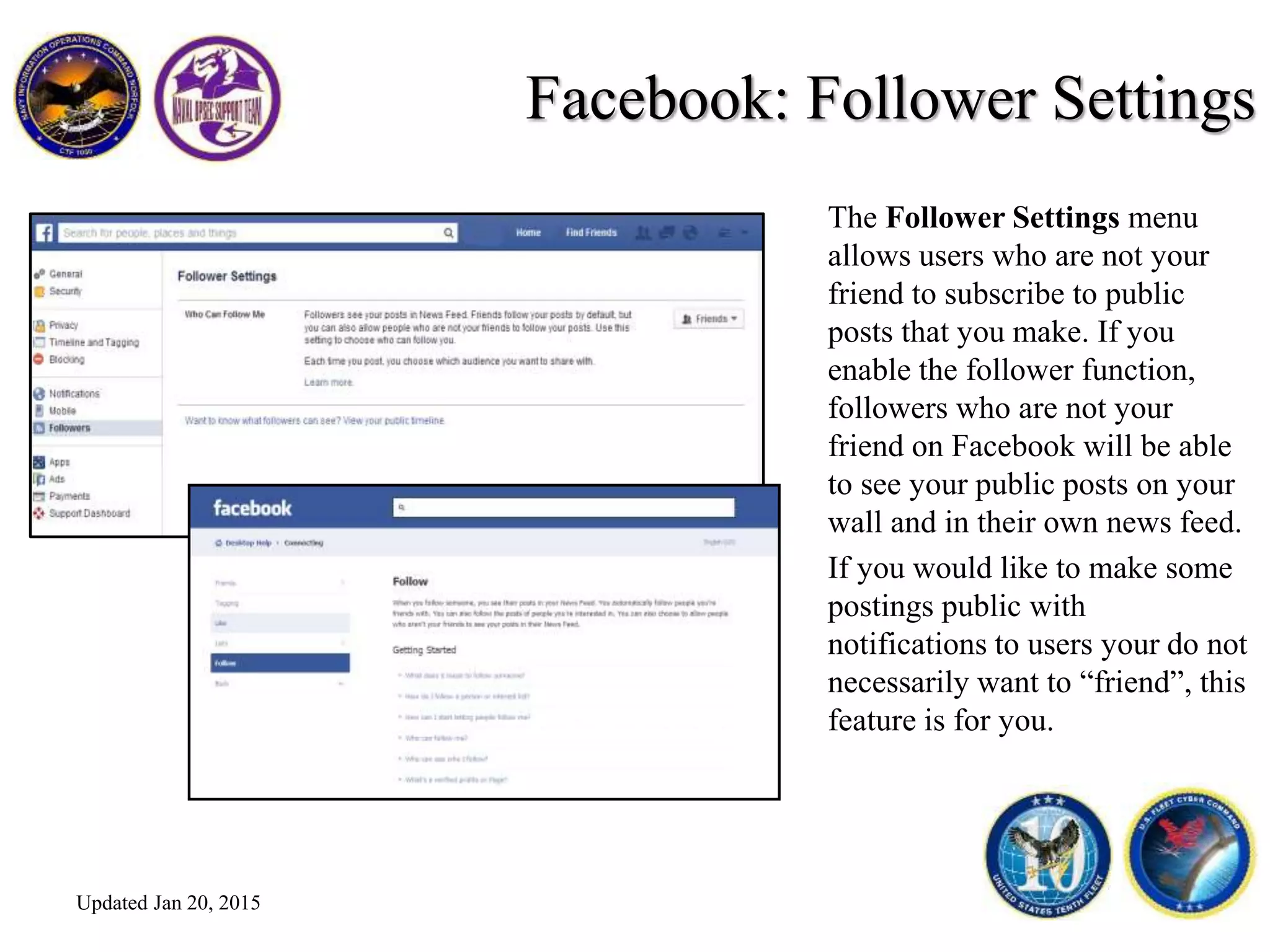
The Follower Settings menu
allows users who are not your
friend to subscribe to public
posts that you make. If you
enable the follower function,
followers who are not your
friend on Facebook will be able
to see your public posts on your
wall and in their own news feed.
If you would like to make some
postings public with
notifications to users your do not
necessarily want to “friend”, this
feature is for you.
Updated Jan 20, 2015
Facebook: App Settings
From the App Settings page
you have the option to view
and manage applications that
can access your profile.
Periodically check this setting
to keep track of the apps that
have access to your profile
information.
If you are no longer using an
app, recommend you remove
that app from the list of apps
you use to better control access
to your online content.
Updated Jan 20, 2015
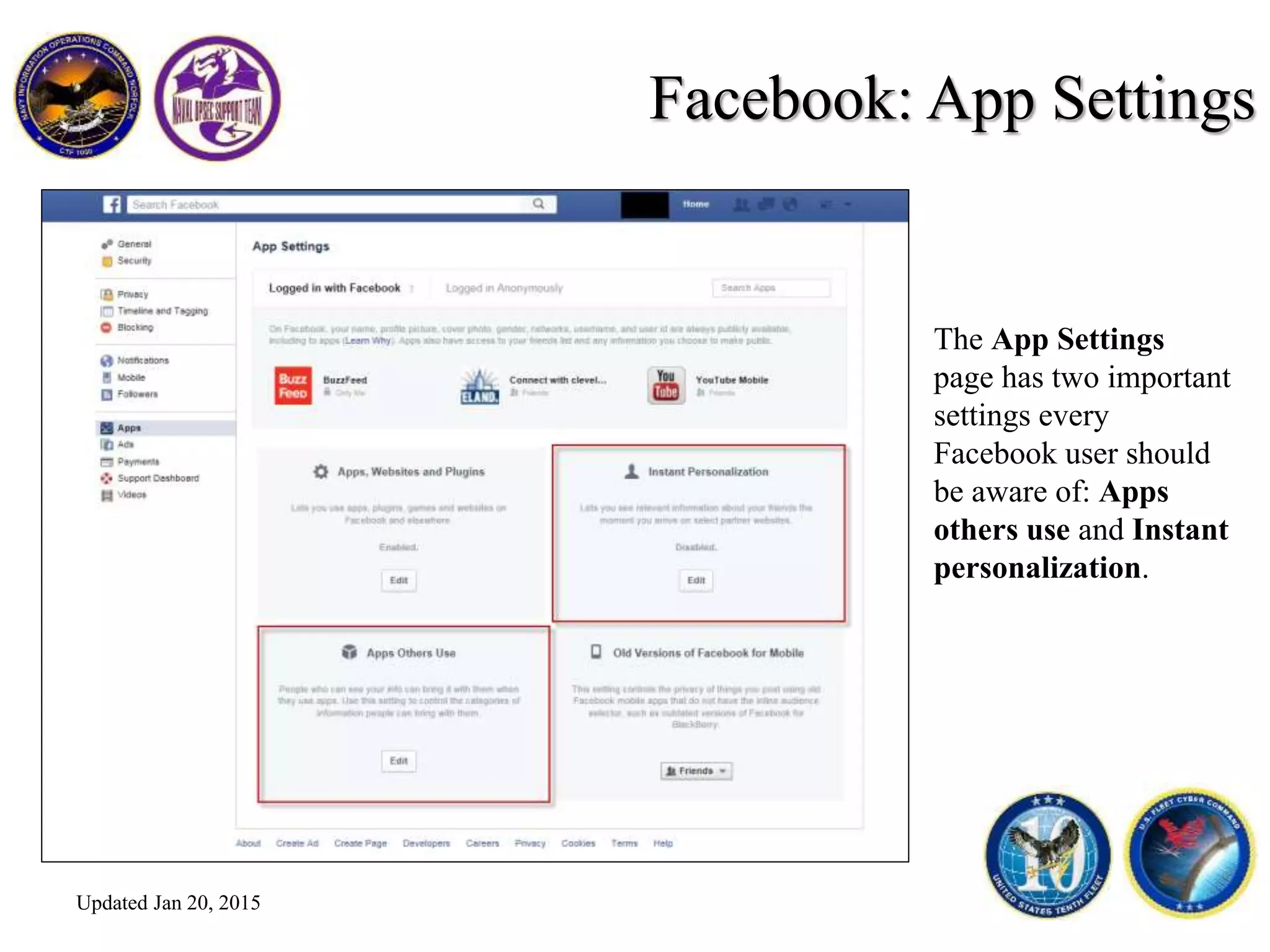
Facebook: App Settings
The App Settings
page has two important
settings every
Facebook user should
be aware of: Apps
others use and Instant
personalization.
Updated Jan 20, 2015
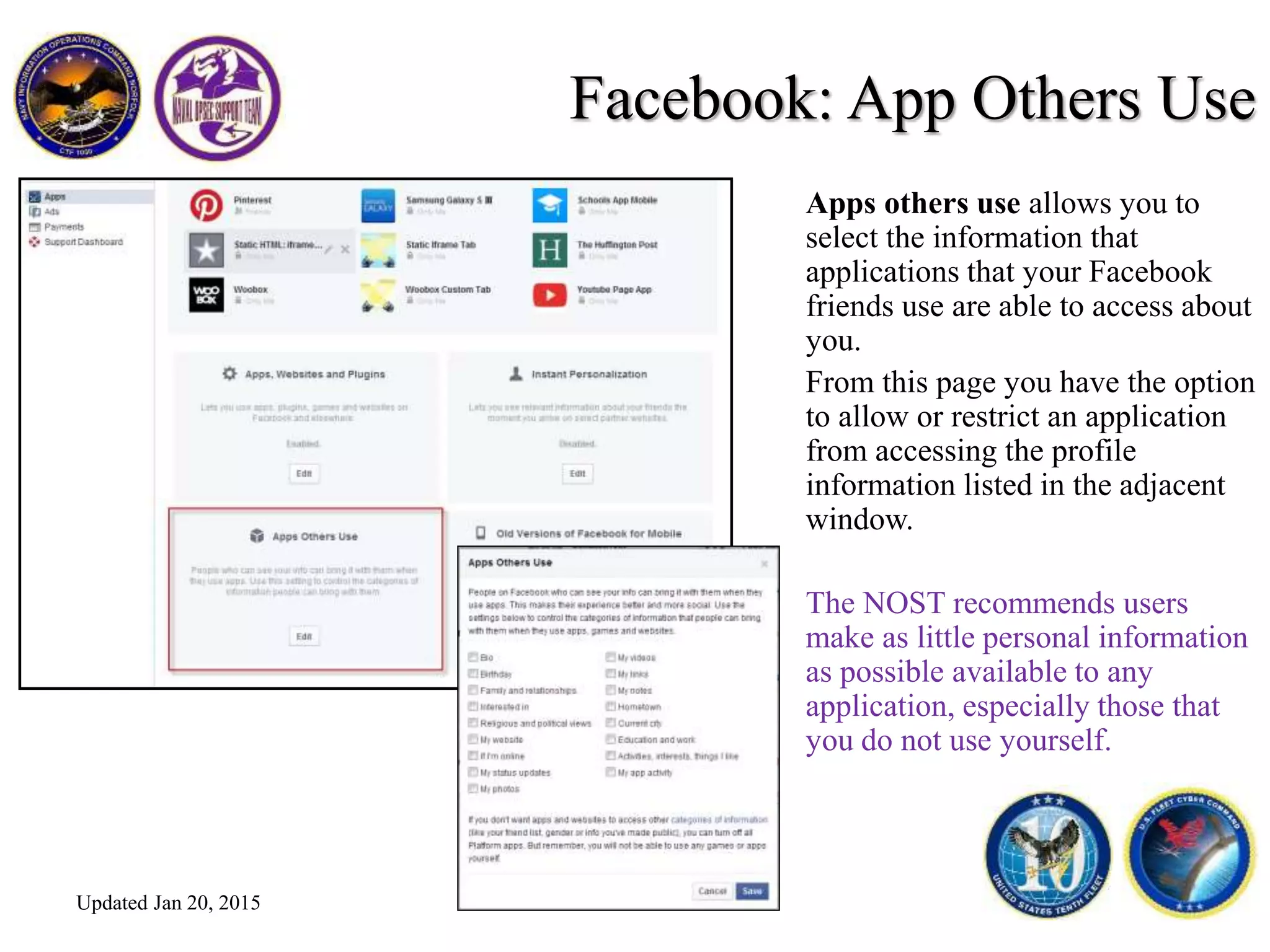
Facebook: App Others Use
Apps others use allows you to
select the information that
applications that your Facebook
friends use are able to access about
you.
From this page you have the option
to allow or restrict an application
from accessing the profile
information listed in the adjacent
window.
The NOST recommends users
make as little personal information
as possible available to any
application, especially those that
you do not use yourself.
Updated Jan 20, 2015
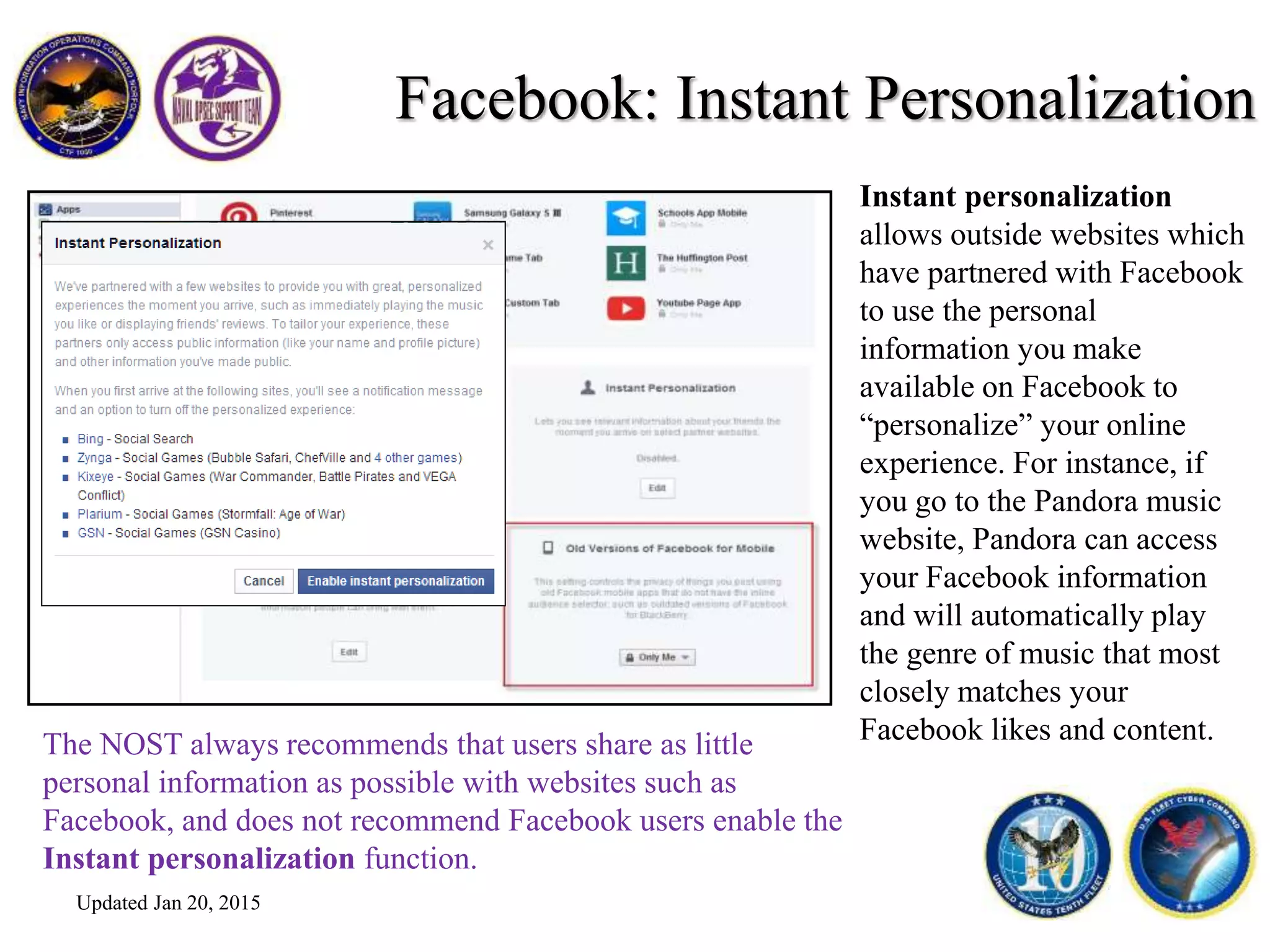
Facebook: Instant Personalization
Instant personalization
allows outside websites which
have partnered with Facebook
to use the personal
information you make
available on Facebook to
“personalize” your online
experience. For instance, if
you go to the Pandora music
website, Pandora can access
your Facebook information
and will automatically play
the genre of music that most
closely matches your
Facebook likes and content.The NOST always recommends that users share as little
personal information as possible with websites such as
Facebook, and does not recommend Facebook users enable the
Instant personalization function.
Updated Jan 20, 2015
Facebook: Ads
At this time, Facebook does not
allow third party applications or
ad networks to use your
Facebook name or profile picture
in ads featured on Facebook. If in
the future they do allow
advertiser to use your public
information, this setting
addresses who you will allow to
see ads that include information
from your Facebook profile.
The NOST always recommends
that users be as restrictive as
possible with their personal
information.
Updated Jan 20, 2015
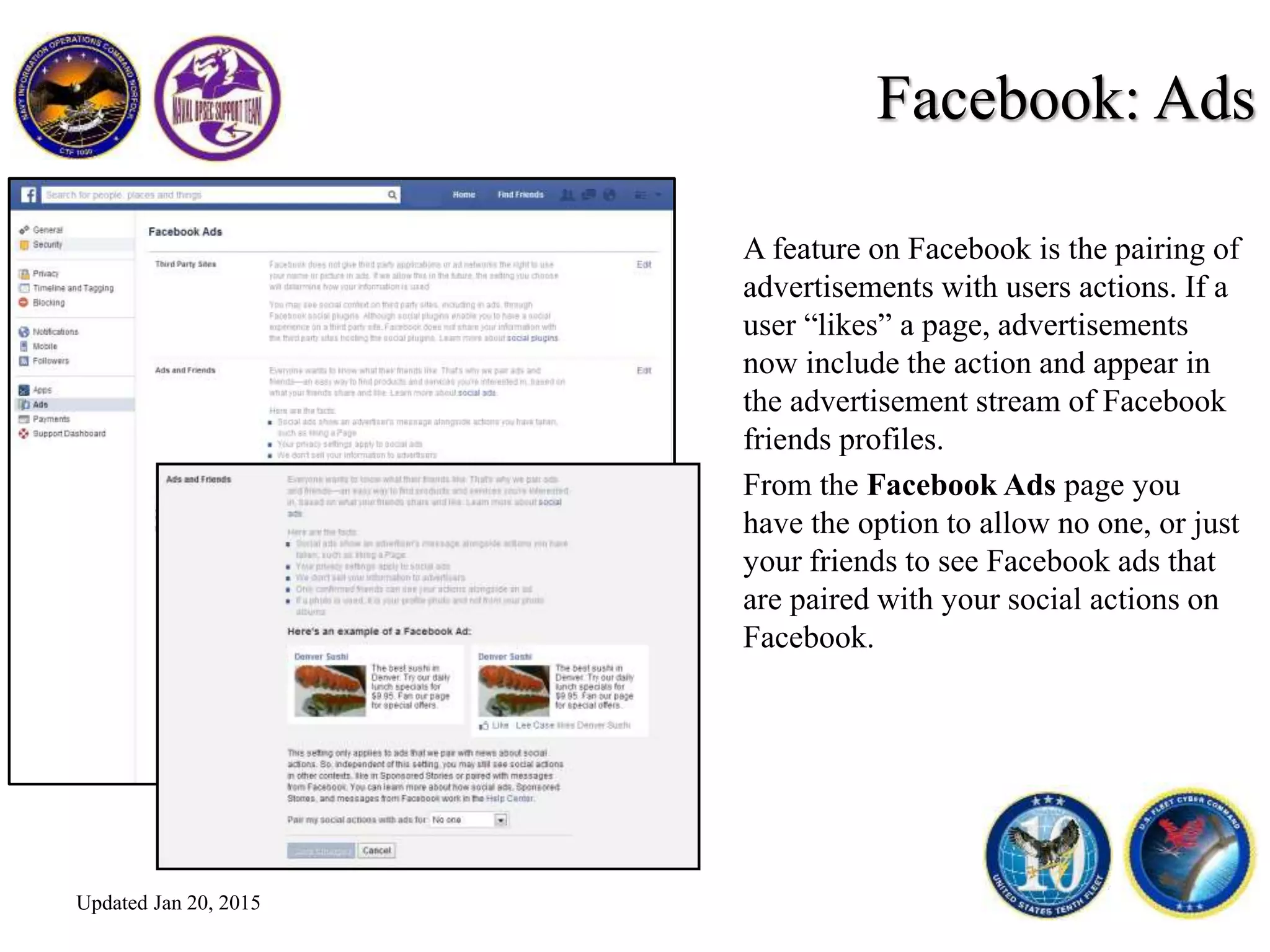
Facebook: Ads
A feature on Facebook is the pairing of
advertisements with users actions. If a
user “likes” a page, advertisements
now include the action and appear in
the advertisement stream of Facebook
friends profiles.
From the Facebook Ads page you
have the option to allow no one, or just
your friends to see Facebook ads that
are paired with your social actions on
Facebook.
Updated Jan 20, 2015
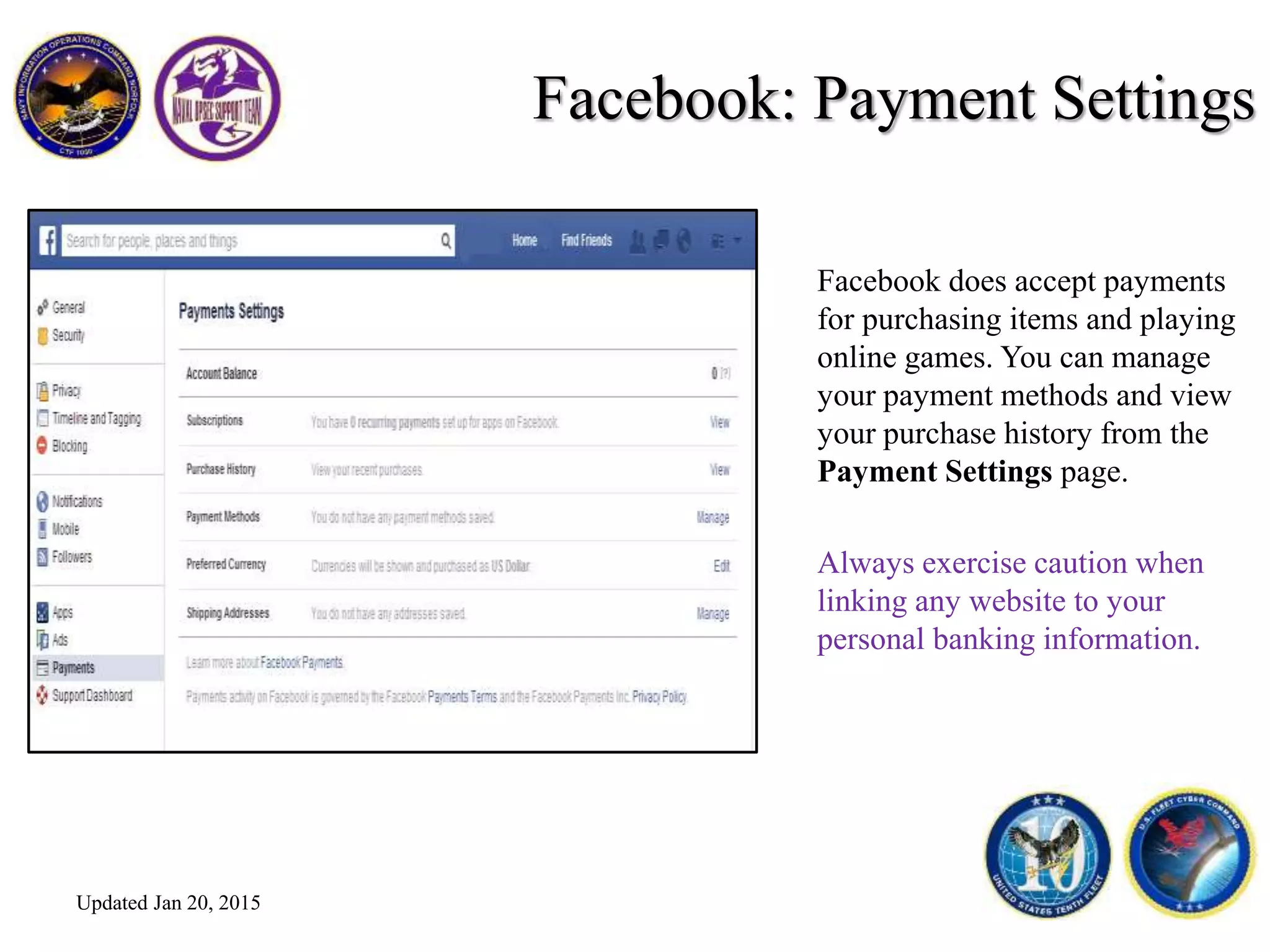
Facebook: Payment Settings
Facebook does accept payments
for purchasing items and playing
online games. You can manage
your payment methods and view
your purchase history from the
Payment Settings page.
Always exercise caution when
linking any website to your
personal banking information.
Updated Jan 20, 2015
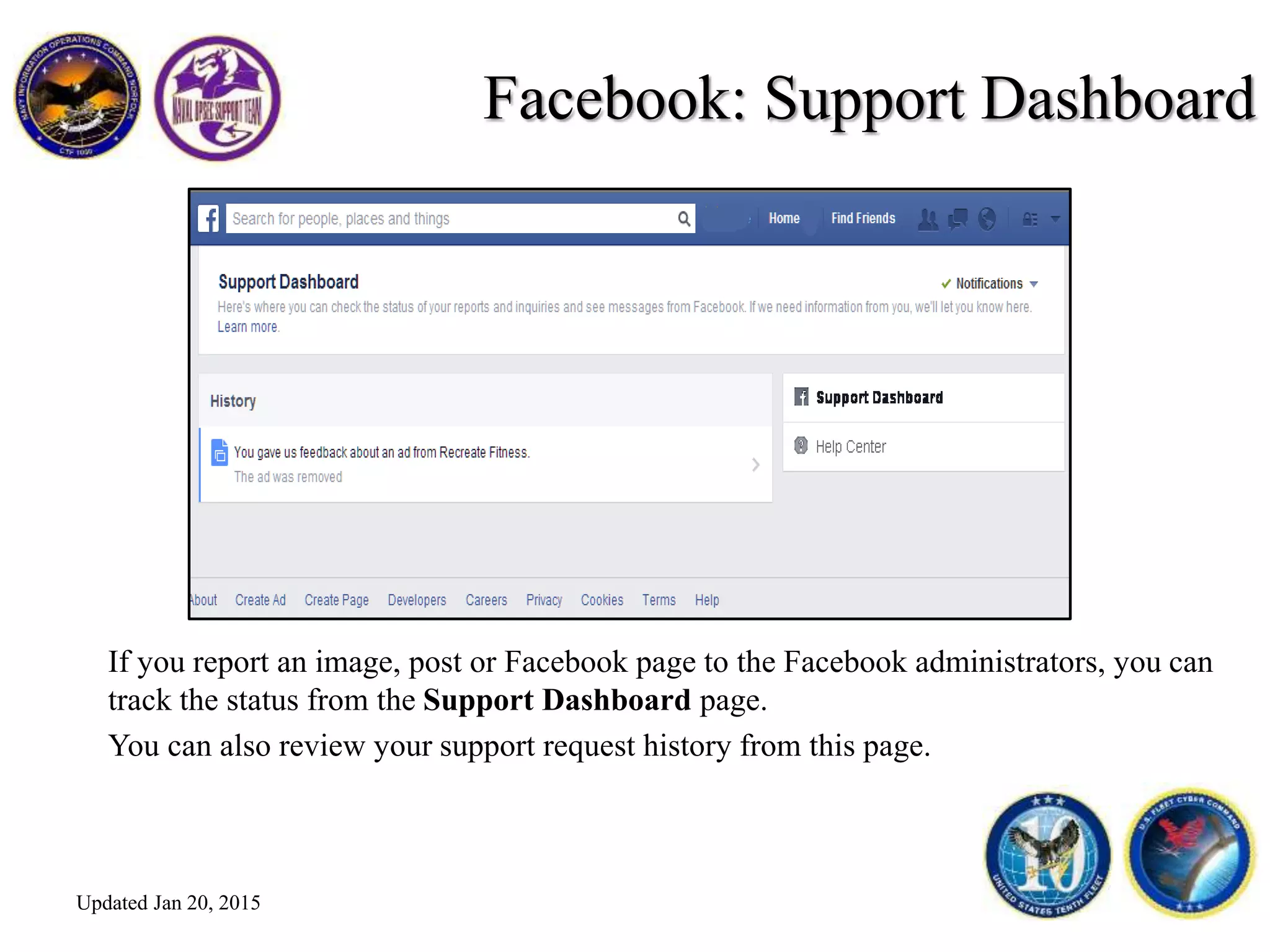
Facebook: Support Dashboard
If you report an image, post or Facebook page to the Facebook administrators, you can
track the status from the Support Dashboard page.
You can also review your support request history from this page.
Updated Jan 20, 2015
Facebook: Videos
You can change the
definition of the
videos you watch on
Facebook, as well as
choose whether or not
you would like videos
to automatically play.
Updated Jan 20, 2015
Facebook: Manage Friends
The NOST recommends you restrict who is able to see your friend list,
as social engineering attempts often utilize common connections, such
as relationships.
You can control the privacy
setting for your Facebook
friend’s list from your profile
page.
Keep in mind, your Facebook
friends set their own privacy
settings, and your friend status
under their profile is not
subject to the privacy settings
you have on your account.
Updated Jan 20, 2015
Facebook: Manage Friends
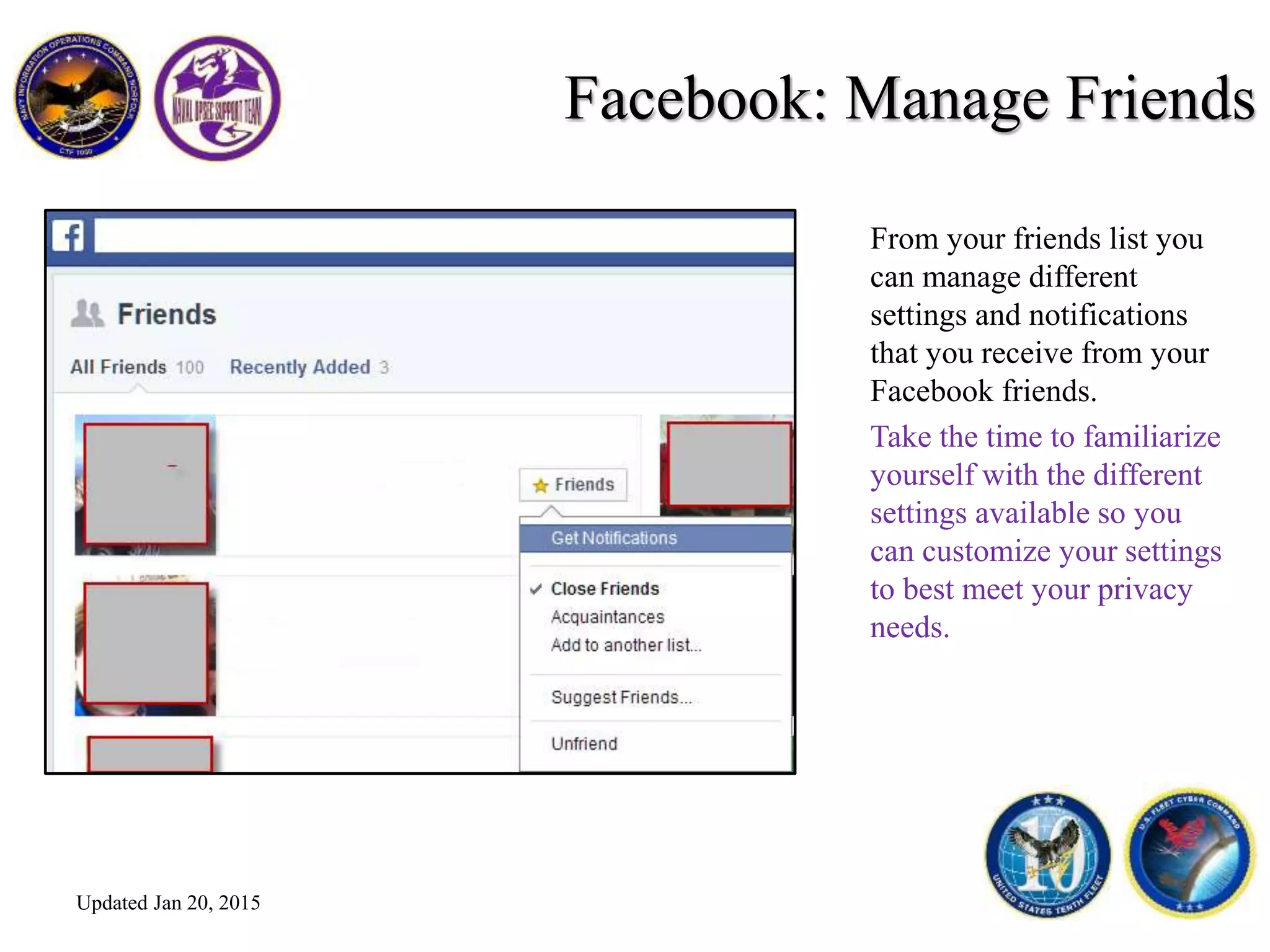
From your friends list you
can manage different
settings and notifications
that you receive from your
Facebook friends.
Take the time to familiarize
yourself with the different
settings available so you
can customize your settings
to best meet your privacy
needs.
Updated Jan 20, 2015
Facebook: Photo & Album Settings
When you upload a photo to your
Facebook profile you have the option
to restrict who is able to view your
photo or albums, tag people, add
location information and add
comments.
You also have the option to go back
into albums and photos and change
individual photo privacy settings as
needed to suite your privacy needs.
The NOST recommends users restrict
who is able to see private content as
much as possible.
Updated Jan 20, 2015
Facebook: Report A Fake Account
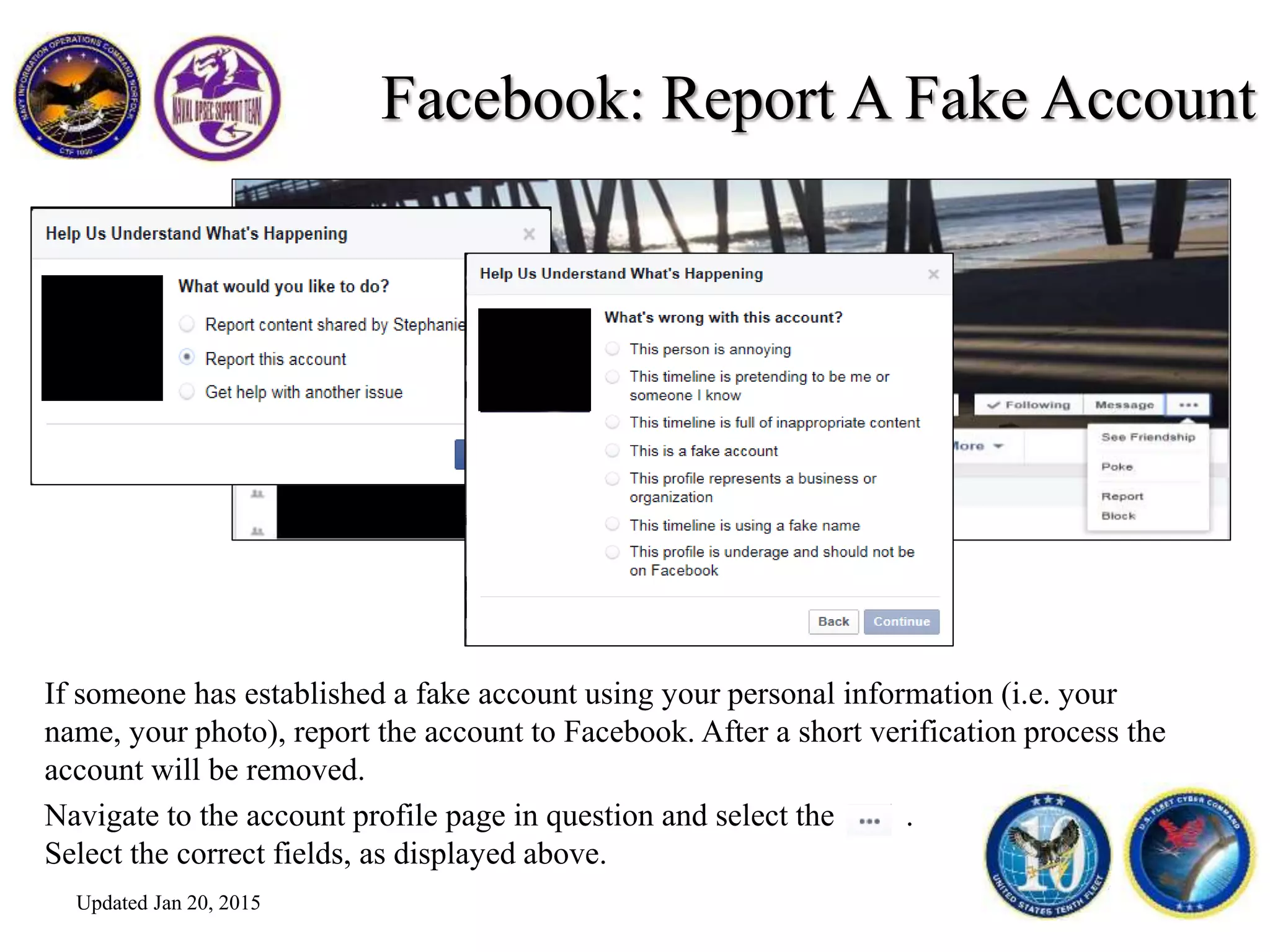
If someone has established a fake account using your personal information (i.e. your
name, your photo), report the account to Facebook. After a short verification process the
account will be removed.
Navigate to the account profile page in question and select the .
Select the correct fields, as displayed above.
Updated Jan 20, 2015
Facebook: Report A Fake Account
If you do not have a Facebook account and someone has established an account in
your likeness, navigate to the Help Center page from the Facebook login page.
From the Help Center search for “how do I report a fake account” and
select the file a report without an account option.
Updated Jan 20, 2015
Facebook: Graph Search
Graph Search is a beta
products that is intended
to help users find content
on Facebook.
Note, this feature is not
available in the mobile
Facebook app, as of yet.
Updated Jan 20, 2015
Graph Search makes searching
for content, such as likes and
photos, even easier.
Graph Search results will
include any content that is
available that matches your
search terms anywhere on
Facebook.
Privacy settings do apply to
search results.
Take the time to explore Graph
Search to better familiarize
yourself with this feature.
Facebook: Graph Search
Updated Jan 20, 2015
OPSEC Best Practices
• Maintain a unique password for different accounts.
• Change passwords frequently.
• Do not link other search engines to your Facebook timeline.
• Do not register for a social media account with an official .mil/.gov email address.
• Verify friend requests before accepting.
• Always assume your content can be viewed publically, regardless of your privacy
settings.
• Always consider how your information can be used against you.
• Do not include location information that details sensitive locations such as home,
children’s school, and so on.
Updated Jan 20, 2015
This presentation is a quick over view of
the different privacy and account options
available on Facebook.
We encourage users familiarize themselves
with the different privacy and account
settings that are available, and review them
often, as site upgrades and changes occur
regularly.
Need more information, general OPSEC
training or support products? Contact the
NOST with any requests.
Naval OPSEC Support Team
opsec@navy.mil
www.facebook.com/navalOPSEC
www.twitter.com/navalOPSEC
www.youtube.com/USNopsec
www.slideshare.net/navalOPSEC
Questions?
http://www.920rqw.afrc.af.mil/news/story.asp?id=123317247
Updated Jan 20, 2015

FB Privacy Settings Jan 2015

  • 1.
    Naval OPSEC SupportTeam (NOST) Navy Information Operations Command (NIOC) Norfolk 757-417-7100 DSN 537 opsec@navy.mil www.slideshare.net/NavalOPSEC www.facebook.com/NavalOPSEC www.YouTube.com/usnopsec www.twitter.com/NavalOPSEC Facebook Privacy & Account Settings Updated Jan 20, 2015
  • 2.
    Facebook Privacy &Account Settings Always post, tweet, blog, email or otherwise communicate with the understanding that any information you share could potentially be made public, regardless of your privacy settings or intentions. That said, there are precautions you can take to keep the information you want to stay just between friends from being shared publicly. Updated Jan 20, 2015
  • 3.
    What’s new onFacebook? Changes since February 2014 • Privacy search settings – Privacy Checkup feature with the “Privacy Dinosaur” • More account security and privacy settings • Personalized news feed • Larger photos, more advertisements – Atlas ad platform tracking cookies • Videos in news feed play automatically Updated Jan 20, 2015
  • 4.
    Facebook: Tips Facebook nowincludes tips, which popup as you browse through your profile. These tips generally only appear the first few times you use a new feature, and are intended to make understanding new features and changes easier for every user. Always take the time to navigate through the different or new settings available, and thoroughly understand what you are consenting to when you use websites which display personal and private information, such as Facebook. Updated Jan 20, 2015
  • 5.
    This shortcut allowsyou to quickly view and modify your personal account privacy settings. Settings available include Who can see my stuff, Who can contact me and How do I stop someone from bothering me. You can also access the Privacy Checkup feature from this dropdown menu. Facebook: Accessing Privacy Settings To access the privacy and applications settings for your Facebook account, navigate to the padlock icon located in the upper right corner of your window. This feature is intended to make setting and viewing your current privacy settings as easy as possible. Updated Jan 20, 2015
  • 6.
    Facebook: Privacy CheckupFeature With the Facebook Privacy Checkup feature you can do a quick check of what your current privacy settings are for posts, apps, and your more personal profile information (i.e. email address, birthdate). The checkup concludes with a brief summary of the more basic security settings that you have selected for your account. Utilize this feature to do a quick review of your privacy settings from time to time. Updated Jan 20, 2015
  • 7.
    Facebook: Who cansee my stuff? If you expand the Who can see my stuff drop down menu you have the option to view or modify who is able to view all of your future posts. Any changes to this setting only apply to posts you make after you have set this setting. This option does not apply to posts you have made prior to changing this option. From this drop down you can also view the Activity Log. The activity log is a feature which allows you to view recent activity such as posts you have made, things you have liked, or posts you have been tagged in. From this option you can also review any recent activity on your timeline. Take the time to navigate through these different options to familiarize yourself with the privacy settings that are available. Updated Jan 20, 2015
  • 8.
    Facebook: Who cansee my stuff? From the privacy shortcut you also have the option to view your profile as another user would see it. This is a helpful utility if you have restricted access to your wall, either through creating groups or restricting access to specific “friends”. Note: Things you hide from your timeline still appear in news feed, search, and other places on Facebook. Updated Jan 20, 2015
  • 9.
    Facebook: Who cansee my stuff? *Important OPSEC note: On Facebook, your name, profile picture, cover photo, gender, networks, username, and user id are always set to public, regardless of other privacy settings. Updated Jan 20, 2015
  • 10.
    Facebook: Who cancontact me? Message filters have been added to replace the previous “who can send you Facebook messages option.” This option works like a spam filter, and only displays messages in your inbox from friends and people you may know. For more details about this feature, select the Learn More option. You will be redirected to the Facebook Help Center. You can also control who is able to send you friend requests from this option. Updated Jan 20, 2015
  • 11.
    Facebook: How doI block users? Facebook gives you the option to block another user from viewing your profile or sending you a friend request. You must use either a username or an email address to designate a user you wish to block. Blocking a user prevents them from successfully sending your profile a friend request, and only allows them to see content you have set to public. Note: This feature only blocks a user if they use an account with the information you provide. If a blocked user uses a different profile/email they will be restricted to the privacy settings you have set for your profile, and not blocked. Updated Jan 20, 2015
  • 12.
    Facebook: Accessing PrivacySettings The privacy shortcut options are only a few of the privacy settings available on Facebook. Access additional settings by selecting See More Settings or selecting Settings from your home screen drop down settings menu. The privacy options available are the same under each drop down menu. Updated Jan 20, 2015
  • 13.
    Facebook: Privacy Basics Facebookhas a new privacy feature. Privacy Basics offers interactive guides to answer the most commonly asked questions about how you can control your information on Facebook. For example, you can learn about untagging, unfriending, blocking, and how to choose an audience for each of your posts. Updated Jan 20, 2015
  • 14.
    Facebook: Account Settings Fromthe Account Settings- General menu you have many different account options. You can change your display name, change your email address and password or link separate accounts in your Facebook page. From this page you also have the option to download a copy of your Facebook data. The download is a complete history of your Facebook usage. Updated Jan 20, 2015
  • 15.
    Facebook: Security Settings Fromthis page you can also deactivate your account. If you deactivate your account your Facebook page is not available for any Facebook or internet user to view. Deactivating your account does not delete your account, and your account will be activated upon your next logon. From the Security Settings menu you have many different options to customize. Some of the security options available include login notifications, app passwords, recognized devices and a record of locations you have logged into Facebook from. Take the time to navigate through each of these settings and select the option that best fits your personal privacy and security needs. Updated Jan 20, 2015
  • 16.
    Facebook: Privacy Settings& Tools The privacy settings listed on this page are the same settings that are available in the shortcut drop down menu. Updated Jan 20, 2015
  • 17.
    Facebook: Privacy Settings& Tools From the Privacy Settings menu you can control how other users can search for you. You can also allow or restrict search engines from accessing your profile and including your information, posts, pictures and other content in search results. If you enable this setting your Facebook content and information will be available in a simple Google search. Updated Jan 20, 2015
  • 18.
    Facebook: Timeline andTagging From the Timeline and Tagging Setting menu you can control who can add things to your timeline, who can see things on your timeline and how to manage tags and tag suggestions. Take the time to browse through the different settings available to customize these settings to best meet your privacy needs. The NOST always recommends Facebook users be as restrictive as possible when setting privacy settings. Updated Jan 20, 2015
  • 19.
    Facebook: Timeline andTagging If you allow a user to tag you in a post, a hyperlink to your profile will be included in the post. Posts that you are tagged in are subject to the privacy settings of the person who originated the post. If you do not allow other users to tag you in posts they can still tag you in the post, but a link to your profile is not included. The NOST recommends you restrict your friends ability to tag you in photos and never share your location. Updated Jan 20, 2015
  • 20.
    Facebook: Timeline andTagging Facebook utilizes facial recognition software to recommend adding username tags to photos. The facial recognition information is stored, and each time an image is uploaded that matches stored facial features Facebook recommends a user to tag. The NOST does not recommend any user enable the facial recognition feature on Facebook. Updated Jan 20, 2015
  • 21.
    Facebook: Timeline &Status Updates You also have the option to set privacy settings for each individual post you make. For example, if your general privacy settings on your timeline are set to friends only, but you would like a specific post available to the public, you can do so from the drop down menu on a specific post. Updated Jan 20, 2015
  • 22.
    To view orchange the privacy settings of a past post, select the drop down menus highlighted in the adjacent images. You have the option to change the privacy setting, the date, edit the post, add location information, hide the post from your timeline or delete the post. Note, if you hide a post from your timeline it will still appear in friends newsfeeds, but will not appear on your personal timeline. Updated Jan 20, 2015 Facebook: Timeline & Status Updates
  • 23.
    Your news feednow includes larger pictures with more details, advertisements, and video content which will play automatically. Your profile page has also been rearranged, displaying more information about you and your usage. Content control and limiting the amount of personal information you make available is always a recommend OPSEC best practice. Updated Jan 20, 2015 Facebook: Personal Profile Settings
  • 24.
    Facebook: Personal ProfileSettings The About tab on your Facebook profile page includes a list of details that you have the option of providing. You are not required to fill in any of these fields to access your Facebook account. From this page you also have the option to manage some of the sections that appear on your About tab. Take the time to scroll through the different settings to best meet your privacy setting needs. Updated Jan 20, 2015 Content control and limiting the amount of personal information you make available is always a recommend OPSEC best practice.
  • 25.
    Places allows usersto tag a geographical location in a post. Users have the option to be as specific as to include an exact location, such as a home address, or tag a general location, such as the city they are in. Location information is subject to the same privacy settings that other posts and tags are set at. Users also have the option to customize privacy settings for individual posts that include location information. Facebook: Places The NOST always recommends users be generic as possible when it comes to personal details. Never provide exact locations of significant places, such as where you live, on your social networking profiles. Updated Jan 20, 2015
  • 26.
    If you allowother users to tag you in location based posts, or include your location in your own posts, these locations will be included in a Places map on your profile. Your privacy settings control who is able to see places you have been tagged in. Take the time to go through your settings and customize them to meet your specific privacy needs. Facebook: Places Updated Jan 20, 2015
  • 27.
    This presentation onlycovers the settings available on the Facebook desktop site, and does not include privacy and security features available on the mobile application. Be aware, the places features on the mobile application can include your exact GPS location from your mobile device, and has the ability to report your location in real time. Facebook: Places & Mobile App http://www.edudemic.com/facebook-jumps-onto- check-in-bandwagon-with-places/ Updated Jan 20, 2015
  • 28.
    Facebook: Mobile App Mobileusers should be aware of EXIF data, and should upload photos from mobile devices with caution. Photos taken with devices that have GPS embed location information (EXIF data) in the image. When images with EXIF data are uploaded to a website it is possible to extract the embedded location information and view the exact physical location a photo was taken at. This feature can be disabled in mobile devices. Once disabled, location information will not be embedded in a photo taken with a device that has GPS. http://www.cultofandroid.com/21070/facebook-mobile- app-use-sees-huge-increase-on-ios-android-says-analyst/ Updated Jan 20, 2015
  • 29.
    Facebook: Blocking From theManage Blocking page you have the option to block specific users from interacting with your Facebook profile, block apps from accessing your profile and block event invites a specific user. You can also add friends to a restricted list. Friends on the restricted list are only able to view content that you make available to the public. Friends are not notified when they are placed on a restricted list. Updated Jan 20, 2015
  • 30.
    Facebook: Blocking Blocking auser no longer prevents them from successfully searching for your Facebook profile. Blocked users can still see content that is not subject to customizable privacy settings, such as profile and cover photos. Blocked users are not able see content on your timeline, send you messages or send you a friend request. Updated Jan 20, 2015
  • 31.
    Facebook: Notifications From theNotifications page you can set a number of different notification options. Take the time to navigate through the different options to decide what works best for your privacy needs. Note, the Facebook mobile app has a separate menu to manage notifications that you receive on your mobile device. Updated Jan 20, 2015
  • 32.
    Facebook: Mobile Settings TheMobile Settings page gives you the option to receive text message notifications to the mobile number that you provide. Please note, Facebook’s search function includes email addresses, usernames and phone numbers. If you provide your mobile number and do not properly manage your privacy settings, users can search for your profile using your mobile number. The NOST recommends users provide as little personal information as possible to sites such as Facebook. Updated Jan 20, 2015
  • 33.
    Facebook: Mobile Settings Facebookhas a feature which allows a user to log out of their Facebook mobile app from the desktop web site. If your mobile device is lost or stolen, the ability to log out of your Facebook mobile application will prevent an unauthorized user from accessing and modifying your private information. Updated Jan 20, 2015
  • 34.
    Facebook: Follower Settings TheFollower Settings menu allows users who are not your friend to subscribe to public posts that you make. If you enable the follower function, followers who are not your friend on Facebook will be able to see your public posts on your wall and in their own news feed. If you would like to make some postings public with notifications to users your do not necessarily want to “friend”, this feature is for you. Updated Jan 20, 2015
  • 35.
    Facebook: App Settings Fromthe App Settings page you have the option to view and manage applications that can access your profile. Periodically check this setting to keep track of the apps that have access to your profile information. If you are no longer using an app, recommend you remove that app from the list of apps you use to better control access to your online content. Updated Jan 20, 2015
  • 36.
    Facebook: App Settings TheApp Settings page has two important settings every Facebook user should be aware of: Apps others use and Instant personalization. Updated Jan 20, 2015
  • 37.
    Facebook: App OthersUse Apps others use allows you to select the information that applications that your Facebook friends use are able to access about you. From this page you have the option to allow or restrict an application from accessing the profile information listed in the adjacent window. The NOST recommends users make as little personal information as possible available to any application, especially those that you do not use yourself. Updated Jan 20, 2015
  • 38.
    Facebook: Instant Personalization Instantpersonalization allows outside websites which have partnered with Facebook to use the personal information you make available on Facebook to “personalize” your online experience. For instance, if you go to the Pandora music website, Pandora can access your Facebook information and will automatically play the genre of music that most closely matches your Facebook likes and content.The NOST always recommends that users share as little personal information as possible with websites such as Facebook, and does not recommend Facebook users enable the Instant personalization function. Updated Jan 20, 2015
  • 39.
    Facebook: Ads At thistime, Facebook does not allow third party applications or ad networks to use your Facebook name or profile picture in ads featured on Facebook. If in the future they do allow advertiser to use your public information, this setting addresses who you will allow to see ads that include information from your Facebook profile. The NOST always recommends that users be as restrictive as possible with their personal information. Updated Jan 20, 2015
  • 40.
    Facebook: Ads A featureon Facebook is the pairing of advertisements with users actions. If a user “likes” a page, advertisements now include the action and appear in the advertisement stream of Facebook friends profiles. From the Facebook Ads page you have the option to allow no one, or just your friends to see Facebook ads that are paired with your social actions on Facebook. Updated Jan 20, 2015
  • 41.
    Facebook: Payment Settings Facebookdoes accept payments for purchasing items and playing online games. You can manage your payment methods and view your purchase history from the Payment Settings page. Always exercise caution when linking any website to your personal banking information. Updated Jan 20, 2015
  • 42.
    Facebook: Support Dashboard Ifyou report an image, post or Facebook page to the Facebook administrators, you can track the status from the Support Dashboard page. You can also review your support request history from this page. Updated Jan 20, 2015
  • 43.
    Facebook: Videos You canchange the definition of the videos you watch on Facebook, as well as choose whether or not you would like videos to automatically play. Updated Jan 20, 2015
  • 44.
    Facebook: Manage Friends TheNOST recommends you restrict who is able to see your friend list, as social engineering attempts often utilize common connections, such as relationships. You can control the privacy setting for your Facebook friend’s list from your profile page. Keep in mind, your Facebook friends set their own privacy settings, and your friend status under their profile is not subject to the privacy settings you have on your account. Updated Jan 20, 2015
  • 45.
    Facebook: Manage Friends Fromyour friends list you can manage different settings and notifications that you receive from your Facebook friends. Take the time to familiarize yourself with the different settings available so you can customize your settings to best meet your privacy needs. Updated Jan 20, 2015
  • 46.
    Facebook: Photo &Album Settings When you upload a photo to your Facebook profile you have the option to restrict who is able to view your photo or albums, tag people, add location information and add comments. You also have the option to go back into albums and photos and change individual photo privacy settings as needed to suite your privacy needs. The NOST recommends users restrict who is able to see private content as much as possible. Updated Jan 20, 2015
  • 47.
    Facebook: Report AFake Account If someone has established a fake account using your personal information (i.e. your name, your photo), report the account to Facebook. After a short verification process the account will be removed. Navigate to the account profile page in question and select the . Select the correct fields, as displayed above. Updated Jan 20, 2015
  • 48.
    Facebook: Report AFake Account If you do not have a Facebook account and someone has established an account in your likeness, navigate to the Help Center page from the Facebook login page. From the Help Center search for “how do I report a fake account” and select the file a report without an account option. Updated Jan 20, 2015
  • 49.
    Facebook: Graph Search GraphSearch is a beta products that is intended to help users find content on Facebook. Note, this feature is not available in the mobile Facebook app, as of yet. Updated Jan 20, 2015
  • 50.
    Graph Search makessearching for content, such as likes and photos, even easier. Graph Search results will include any content that is available that matches your search terms anywhere on Facebook. Privacy settings do apply to search results. Take the time to explore Graph Search to better familiarize yourself with this feature. Facebook: Graph Search Updated Jan 20, 2015
  • 51.
    OPSEC Best Practices •Maintain a unique password for different accounts. • Change passwords frequently. • Do not link other search engines to your Facebook timeline. • Do not register for a social media account with an official .mil/.gov email address. • Verify friend requests before accepting. • Always assume your content can be viewed publically, regardless of your privacy settings. • Always consider how your information can be used against you. • Do not include location information that details sensitive locations such as home, children’s school, and so on. Updated Jan 20, 2015
  • 52.
    This presentation isa quick over view of the different privacy and account options available on Facebook. We encourage users familiarize themselves with the different privacy and account settings that are available, and review them often, as site upgrades and changes occur regularly. Need more information, general OPSEC training or support products? Contact the NOST with any requests. Naval OPSEC Support Team opsec@navy.mil www.facebook.com/navalOPSEC www.twitter.com/navalOPSEC www.youtube.com/USNopsec www.slideshare.net/navalOPSEC Questions? http://www.920rqw.afrc.af.mil/news/story.asp?id=123317247 Updated Jan 20, 2015