Taming FacebookTaking Control of What you See and Share onthe World’s Largest Social NetworkRoss MaysReference LibrarianTerrebonne Parish Library
IntroductionFounded in 2004, Facebook has grown to over 500 million users.  That’s a big number—if you tried to count them all, it would take several years.Facebook has: Revolutionized the way we communicateBrought old friends back in touchChanged the way we use words like “friend” and “status”  Not only that, but its helped a lot of people…
GET IN BIG TROUBLE!
How?By posting things they never should have postedBy leaving their privacy settings too openBy making it easy for people to hack into their account   Not everyone needs to know everything you put in Facebook…not even all your Facebook friends
Taking Control of FacebookFacebook is a for-profit company, and wants you to use it in certain waysBut you have a lot of control of your Facebook experienceHere we will talk about:Controlling who and what you see on FacebookPrivacy:  Controlling what others see about youSecurity:  Preventing viruses, hackers, and identity theft
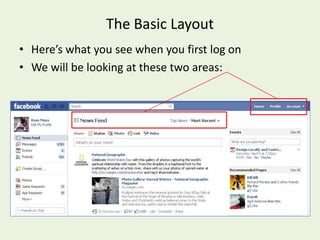
The Basic LayoutHere’s what you see when you first log onWe will be looking at these two areas:
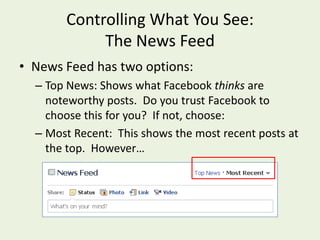
Controlling What You See:  The News FeedNews Feed has two options:Top News: Shows what Facebookthinks are noteworthy posts.  Do you trust Facebook to choose this for you?  If not, choose:Most Recent:  This shows the most recent posts at the top.  However…
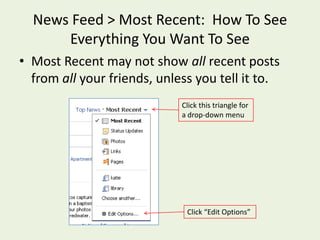
News Feed > Most Recent:  How To See Everything You Want To SeeMost Recentmay not show all recent posts from all your friends, unless you tell it to.Click this triangle for a drop-down menuClick “Edit Options”
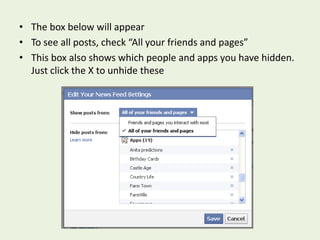
The box below will appearTo see all posts, check “All your friends and pages”This box also shows which people and apps you have hidden.  Just click the X to unhide these
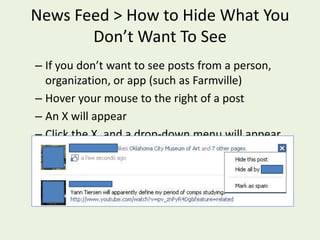
News Feed > How to Hide What You Don’t Want To SeeIf you don’t want to see posts from a person, organization, or app (such as Farmville)Hover your mouse to the right of a post  An X will appear  Click the X, and a drop-down menu will appear.Click “Hide all by ______”
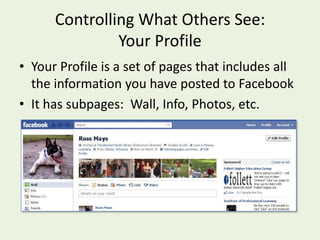
Controlling What Others See:  Your ProfileYour Profile is a set of pages that includes all the information you have posted to FacebookIt has subpages:  Wall, Info, Photos, etc.
Your Profile > Info PageThe Info section of your profile includes basic information about you, such as:Where you workWhere you went to schoolFavorite music, books, moviesContact InformationReligionMarital Status
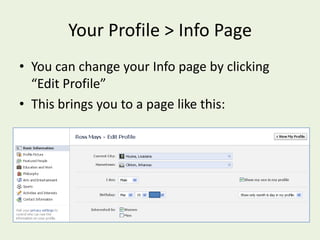
Your Profile > Info PageYou can change your Info page by clicking “Edit Profile”This brings you to a page like this:
Your Profile > Info PageNow we can start talking about privacyIf there is something you don’t want to make public, the safest thing is not to post it in the first placeDo you really need to list your address, or phone number?  Just because there is a blank space for it, doesn’t mean you have to fill it in.You can choose who sees what with Facebook’s privacy settings, but there’s no guarantee they will always work
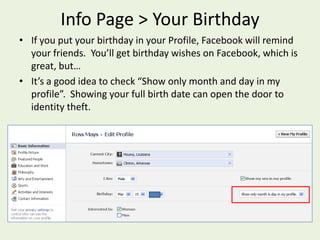
Info Page > Your BirthdayIf you put your birthday in your Profile, Facebook will remind your friends.  You’ll get birthday wishes on Facebook, which is great, but…It’s a good idea to check “Show only month and day in my profile”.  Showing your full birth date can open the door to identity theft.
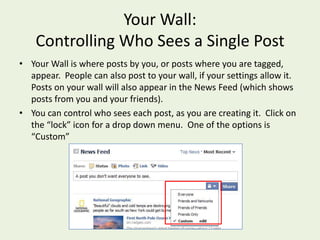
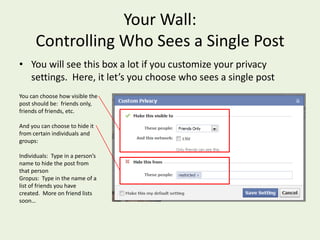
Your Wall:Controlling Who Sees a Single PostYour Wall is where posts by you, or posts where you are tagged, appear.  People can also post to your wall, if your settings allow it.  Posts on your wall will also appear in the News Feed (which shows posts from you and your friends).You can control who sees each post, as you are creating it.  Click on the “lock” icon for a drop down menu.  One of the options is “Custom”
Your Wall: Controlling Who Sees a Single PostYou will see this box a lot if you customize your privacy settings.  Here, it let’s you choose who sees a single postYou can choose how visible the post should be:  friends only, friends of friends, etc.And you can choose to hide it from certain individuals and groups:Individuals:  Type in a person’s name to hide the post from that personGropus:  Type in the name of a list of friends you have created.  More on friend lists soon…
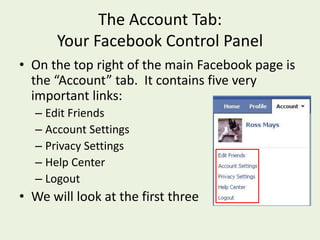
The Account Tab:  Your Facebook Control PanelOn the top right of the main Facebook page is the “Account” tab.  It contains fivevery important links:Edit FriendsAccount SettingsPrivacy SettingsHelp CenterLogoutWe will look at the first three
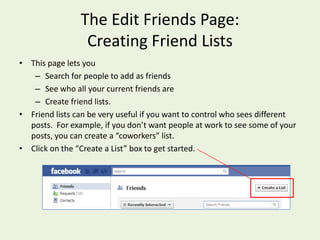
The Edit Friends Page: Creating Friend ListsThis page lets you Search for people to add as friends See who all your current friends are Create friend lists.Friend lists can be very useful if you want to control who sees different posts.  For example, if you don’t want people at work to see some of your posts, you can create a “coworkers” list.Click on the “Create a List” box to get started.
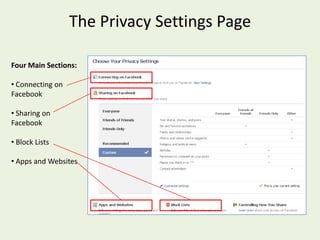
The Privacy Settings PageFour Main Sections: Connecting on Facebook
 Sharing on Facebook
 Block Lists
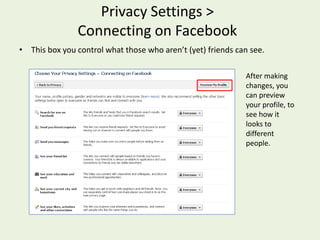
 Apps and WebsitesPrivacy Settings >  Connecting on FacebookThis box you control what those who aren’t (yet) friends can see.After making changes, you can preview your profile, to see how it looks to different people.
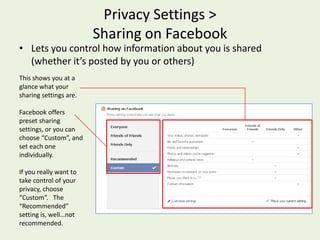
Privacy Settings >  Sharing on FacebookLets you control how information about you is shared (whether it’s posted by you or others)This shows you at a glance what your sharing settings are.Facebook offers preset sharing settings, or you can choose “Custom”, and set each one individually.  If you really want to take control of your privacy, choose “Custom”.   The “Recommended” setting is, well…not recommended.
Privacy Settings > Sharing on Facebook > Custom Settings If you click “Custom” in the Sharing on Facebook settings, you will see a page with settings in three categoriesThings I ShareThings Others ShareContact Info
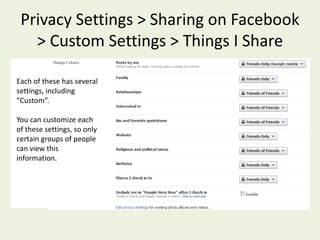
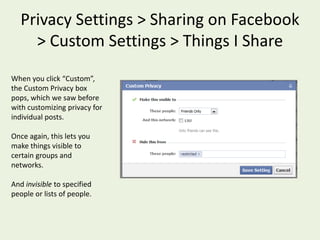
Privacy Settings > Sharing on Facebook > Custom Settings > Things I ShareEach of these has several settings, including “Custom”.  You can customize each of these settings, so only certain groups of people can view this information.
Privacy Settings > Sharing on Facebook > Custom Settings > Things I ShareWhen you click “Custom”, the Custom Privacy box pops, which we saw before with customizing privacy for individual posts.Once again, this lets you make things visible to certain groups and networks.And invisible to specified people or lists of people.
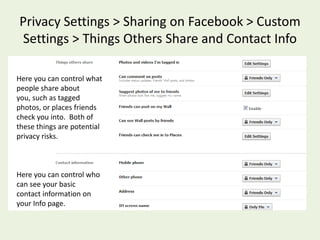
Privacy Settings > Sharing on Facebook > Custom Settings > Things Others Share and Contact InfoHere you can control what people share about you, such as tagged photos, or places friends check you into.  Both of these things are potential privacy risks.Here you can control who can see your basic contact information on your Info page.
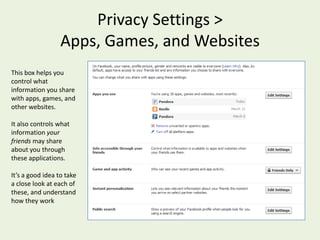
Privacy Settings > Apps, Games, and WebsitesThis box helps you control what information you share with apps, games, and other websites.  It also controls what information your friends may share about you through these applications.  It’s a good idea to take a close look at each of these, and understand how they work
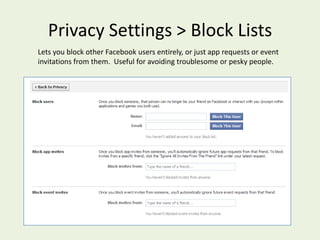
Privacy Settings > Block ListsLets you block other Facebook users entirely, or just app requests or event invitations from them.  Useful for avoiding troublesome or pesky people.
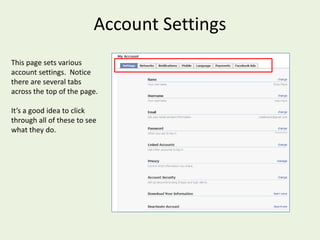
Account SettingsThis page sets various account settings.  Notice there are several tabs across the top of the page.  It’s a good idea to click through all of these to see what they do.
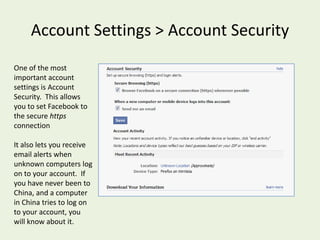
Account Settings > Account SecurityOne of the most important account settings is Account Security.  This allows you to set Facebook to the secure https connectionIt also lets you receive email alerts when unknown computers log on to your account.  If you have never been to China, and a computer in China tries to log on to your account, you will know about it.
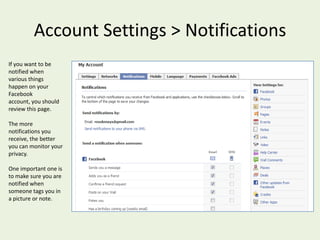
Account Settings > NotificationsIf you want to be notified when various things happen on your Facebook account, you should review this page.  The more notifications you receive, the better you can monitor your privacy.  One important one is to make sure you are notified when someone tags you in a picture or note.
Help CenterOne slide show can’t cover all the ins and outs of customizing Facebook.  For more information, Facebook has a very good Help Center, which allows you to search for particular issues
Other Good PracticesUse a current browserCreate a secure password, using a mix of upper and lower case letters, symbols, and numbersDon’t click on anything suspicious (If your friend sends you a link for a $25 iPad, that’s suspicious)Use antivirus softwareBe extra careful on public computers, and remember to log offFollow the news for changes to Facebook.  Facebook doesn’t always like to publicize changes they make.

Taming Facebook

  • 1.
    Taming FacebookTaking Controlof What you See and Share onthe World’s Largest Social NetworkRoss MaysReference LibrarianTerrebonne Parish Library
  • 2.
    IntroductionFounded in 2004,Facebook has grown to over 500 million users. That’s a big number—if you tried to count them all, it would take several years.Facebook has: Revolutionized the way we communicateBrought old friends back in touchChanged the way we use words like “friend” and “status” Not only that, but its helped a lot of people…
  • 3.
    GET IN BIGTROUBLE!
  • 4.
    How?By posting thingsthey never should have postedBy leaving their privacy settings too openBy making it easy for people to hack into their account Not everyone needs to know everything you put in Facebook…not even all your Facebook friends
  • 5.
    Taking Control ofFacebookFacebook is a for-profit company, and wants you to use it in certain waysBut you have a lot of control of your Facebook experienceHere we will talk about:Controlling who and what you see on FacebookPrivacy: Controlling what others see about youSecurity: Preventing viruses, hackers, and identity theft
  • 6.
    The Basic LayoutHere’swhat you see when you first log onWe will be looking at these two areas:
  • 7.
    Controlling What YouSee: The News FeedNews Feed has two options:Top News: Shows what Facebookthinks are noteworthy posts. Do you trust Facebook to choose this for you? If not, choose:Most Recent: This shows the most recent posts at the top. However…
  • 8.
    News Feed >Most Recent: How To See Everything You Want To SeeMost Recentmay not show all recent posts from all your friends, unless you tell it to.Click this triangle for a drop-down menuClick “Edit Options”
  • 9.
    The box belowwill appearTo see all posts, check “All your friends and pages”This box also shows which people and apps you have hidden. Just click the X to unhide these
  • 10.
    News Feed >How to Hide What You Don’t Want To SeeIf you don’t want to see posts from a person, organization, or app (such as Farmville)Hover your mouse to the right of a post An X will appear Click the X, and a drop-down menu will appear.Click “Hide all by ______”
  • 11.
    Controlling What OthersSee: Your ProfileYour Profile is a set of pages that includes all the information you have posted to FacebookIt has subpages: Wall, Info, Photos, etc.
  • 12.
    Your Profile >Info PageThe Info section of your profile includes basic information about you, such as:Where you workWhere you went to schoolFavorite music, books, moviesContact InformationReligionMarital Status
  • 13.
    Your Profile >Info PageYou can change your Info page by clicking “Edit Profile”This brings you to a page like this:
  • 14.
    Your Profile >Info PageNow we can start talking about privacyIf there is something you don’t want to make public, the safest thing is not to post it in the first placeDo you really need to list your address, or phone number? Just because there is a blank space for it, doesn’t mean you have to fill it in.You can choose who sees what with Facebook’s privacy settings, but there’s no guarantee they will always work
  • 15.
    Info Page >Your BirthdayIf you put your birthday in your Profile, Facebook will remind your friends. You’ll get birthday wishes on Facebook, which is great, but…It’s a good idea to check “Show only month and day in my profile”. Showing your full birth date can open the door to identity theft.
  • 16.
    Your Wall:Controlling WhoSees a Single PostYour Wall is where posts by you, or posts where you are tagged, appear. People can also post to your wall, if your settings allow it. Posts on your wall will also appear in the News Feed (which shows posts from you and your friends).You can control who sees each post, as you are creating it. Click on the “lock” icon for a drop down menu. One of the options is “Custom”
  • 17.
    Your Wall: ControllingWho Sees a Single PostYou will see this box a lot if you customize your privacy settings. Here, it let’s you choose who sees a single postYou can choose how visible the post should be: friends only, friends of friends, etc.And you can choose to hide it from certain individuals and groups:Individuals: Type in a person’s name to hide the post from that personGropus: Type in the name of a list of friends you have created. More on friend lists soon…
  • 18.
    The Account Tab: Your Facebook Control PanelOn the top right of the main Facebook page is the “Account” tab. It contains fivevery important links:Edit FriendsAccount SettingsPrivacy SettingsHelp CenterLogoutWe will look at the first three
  • 19.
    The Edit FriendsPage: Creating Friend ListsThis page lets you Search for people to add as friends See who all your current friends are Create friend lists.Friend lists can be very useful if you want to control who sees different posts. For example, if you don’t want people at work to see some of your posts, you can create a “coworkers” list.Click on the “Create a List” box to get started.
  • 20.
    The Privacy SettingsPageFour Main Sections: Connecting on Facebook
  • 21.
    Sharing onFacebook
  • 22.
  • 23.
    Apps andWebsitesPrivacy Settings > Connecting on FacebookThis box you control what those who aren’t (yet) friends can see.After making changes, you can preview your profile, to see how it looks to different people.
  • 24.
    Privacy Settings > Sharing on FacebookLets you control how information about you is shared (whether it’s posted by you or others)This shows you at a glance what your sharing settings are.Facebook offers preset sharing settings, or you can choose “Custom”, and set each one individually. If you really want to take control of your privacy, choose “Custom”. The “Recommended” setting is, well…not recommended.
  • 25.
    Privacy Settings >Sharing on Facebook > Custom Settings If you click “Custom” in the Sharing on Facebook settings, you will see a page with settings in three categoriesThings I ShareThings Others ShareContact Info
  • 26.
    Privacy Settings >Sharing on Facebook > Custom Settings > Things I ShareEach of these has several settings, including “Custom”. You can customize each of these settings, so only certain groups of people can view this information.
  • 27.
    Privacy Settings >Sharing on Facebook > Custom Settings > Things I ShareWhen you click “Custom”, the Custom Privacy box pops, which we saw before with customizing privacy for individual posts.Once again, this lets you make things visible to certain groups and networks.And invisible to specified people or lists of people.
  • 28.
    Privacy Settings >Sharing on Facebook > Custom Settings > Things Others Share and Contact InfoHere you can control what people share about you, such as tagged photos, or places friends check you into. Both of these things are potential privacy risks.Here you can control who can see your basic contact information on your Info page.
  • 29.
    Privacy Settings >Apps, Games, and WebsitesThis box helps you control what information you share with apps, games, and other websites. It also controls what information your friends may share about you through these applications. It’s a good idea to take a close look at each of these, and understand how they work
  • 30.
    Privacy Settings >Block ListsLets you block other Facebook users entirely, or just app requests or event invitations from them. Useful for avoiding troublesome or pesky people.
  • 31.
    Account SettingsThis pagesets various account settings. Notice there are several tabs across the top of the page. It’s a good idea to click through all of these to see what they do.
  • 32.
    Account Settings >Account SecurityOne of the most important account settings is Account Security. This allows you to set Facebook to the secure https connectionIt also lets you receive email alerts when unknown computers log on to your account. If you have never been to China, and a computer in China tries to log on to your account, you will know about it.
  • 33.
    Account Settings >NotificationsIf you want to be notified when various things happen on your Facebook account, you should review this page. The more notifications you receive, the better you can monitor your privacy. One important one is to make sure you are notified when someone tags you in a picture or note.
  • 34.
    Help CenterOne slideshow can’t cover all the ins and outs of customizing Facebook. For more information, Facebook has a very good Help Center, which allows you to search for particular issues
  • 35.
    Other Good PracticesUsea current browserCreate a secure password, using a mix of upper and lower case letters, symbols, and numbersDon’t click on anything suspicious (If your friend sends you a link for a $25 iPad, that’s suspicious)Use antivirus softwareBe extra careful on public computers, and remember to log offFollow the news for changes to Facebook. Facebook doesn’t always like to publicize changes they make.
  • 36.
    ConclusionFacebook is greatin many ways, connecting us with people and information we might have missed otherwise.But using Facebook has risks. The more you know about how to customize it, the more you can minimize the risks, and enjoy the connections you make on Facebook!
  • 37.
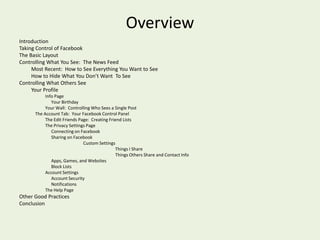
    OverviewIntroductionTaking Control ofFacebookThe Basic LayoutControlling What You See: The News FeedMost Recent: How to See Everything You Want to SeeHow to Hide What You Don’t Want To SeeControlling What Others See Your ProfileInfo Page Your BirthdayYour Wall: Controlling Who Sees a Single PostThe Account Tab: Your Facebook Control Panel The Edit Friends Page: Creating Friend Lists The Privacy Settings Page Connecting on Facebook Sharing on FacebookCustom Settings Things I Share Things Others Share and Contact Info Apps, Games, and Websites Block Lists Account Settings Account SecurityNotificationsThe Help PageOther Good PracticesConclusion