Java. Automation Build.
Maven for QC
IT Academy
01/05/2015
Agenda
▪Quick Start
▪Maven Lifecycle
▪Dependency Management
▪Plug-ins
▪IDE Integration
▪SureFire Plug-in
Quick Start
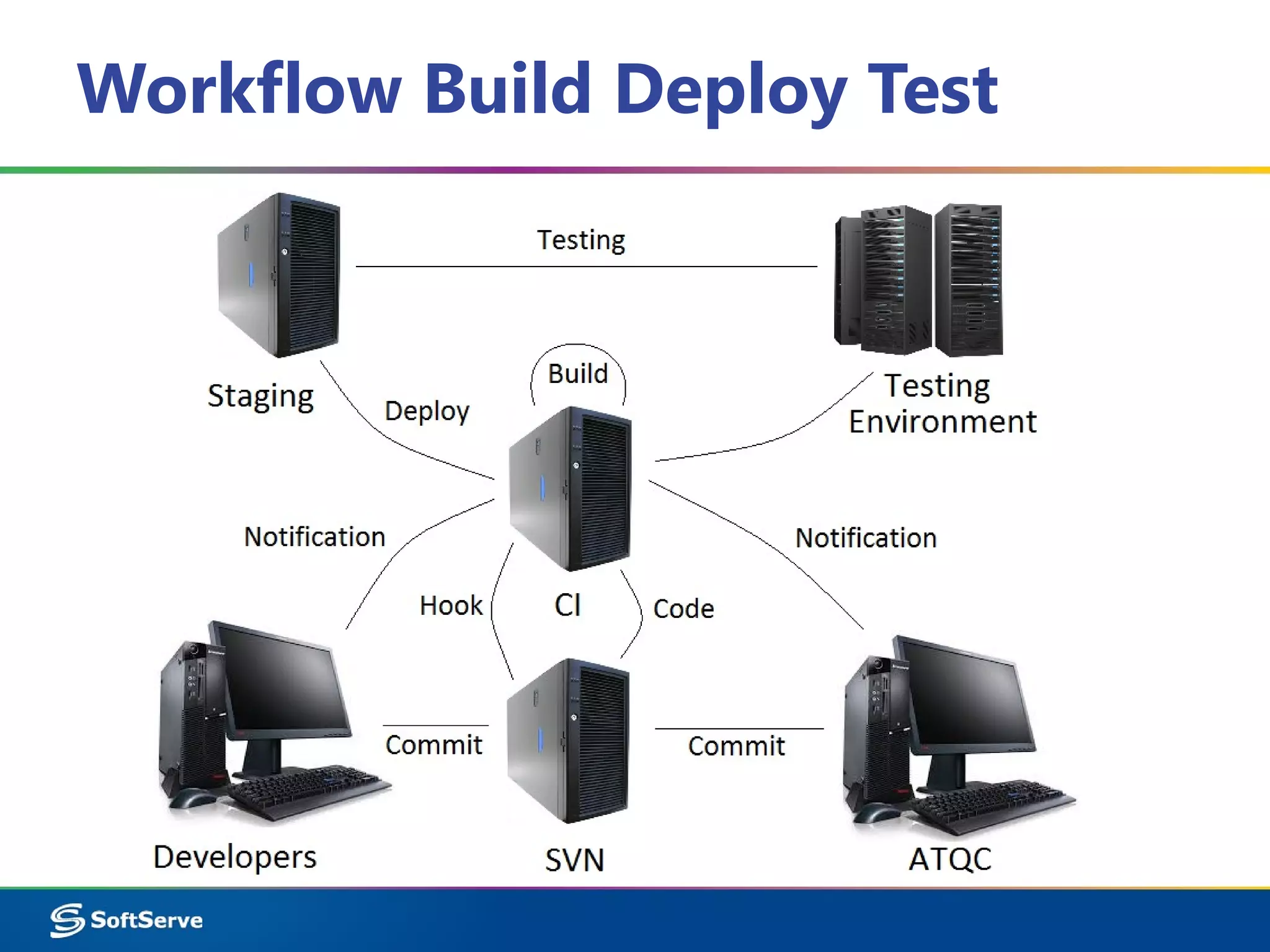
Workflow Build Deploy Test
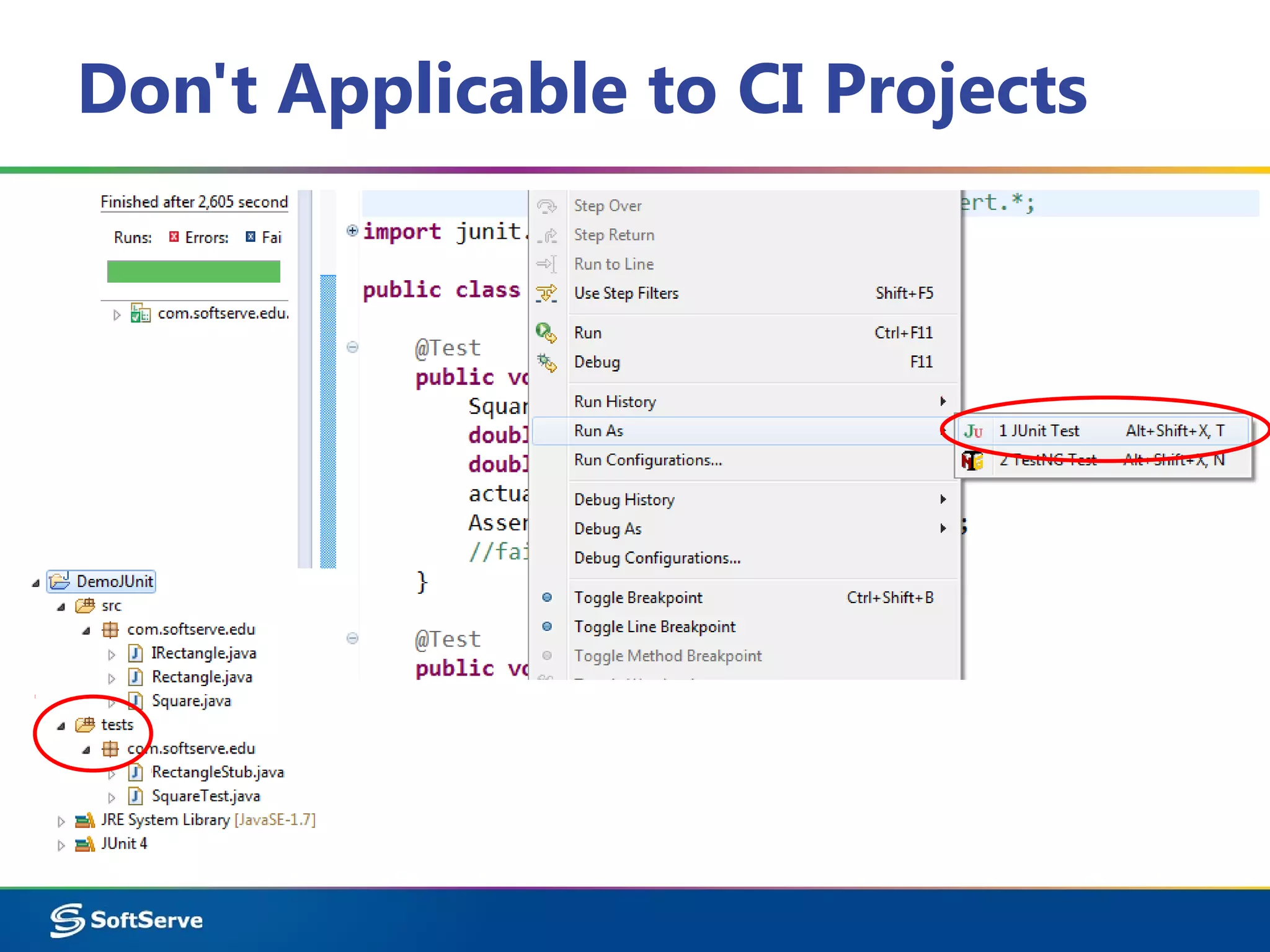
Don't Applicable to CI Projects
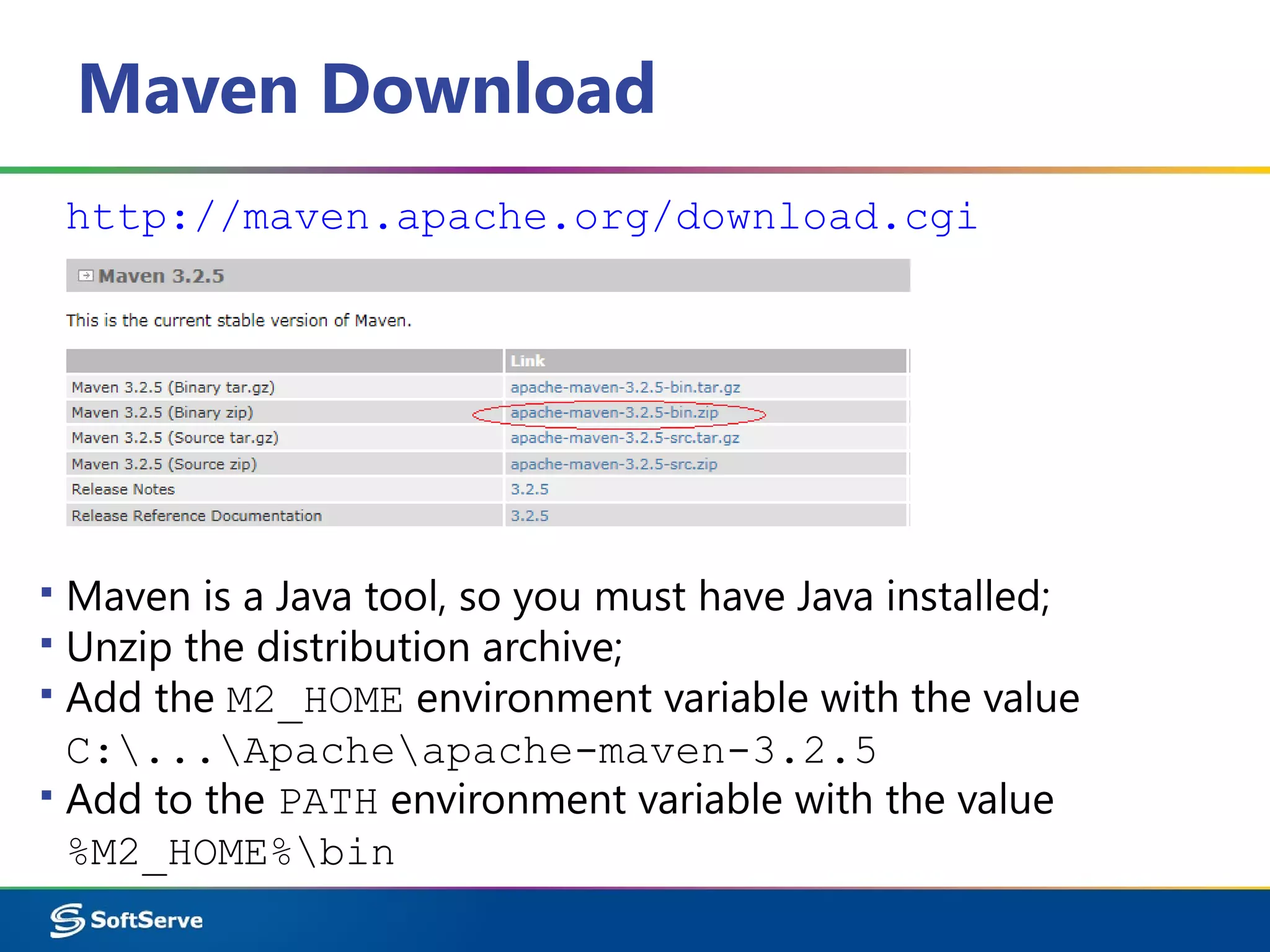
Maven Download
http://maven.apache.org/download.cgi
▪ Maven is a Java tool, so you must have Java installed;
▪ Unzip the distribution archive;
▪ Add the M2_HOME environment variable with the value
C:...Apacheapache-maven-3.2.5
▪ Add to the PATH environment variable with the value
%M2_HOME%bin
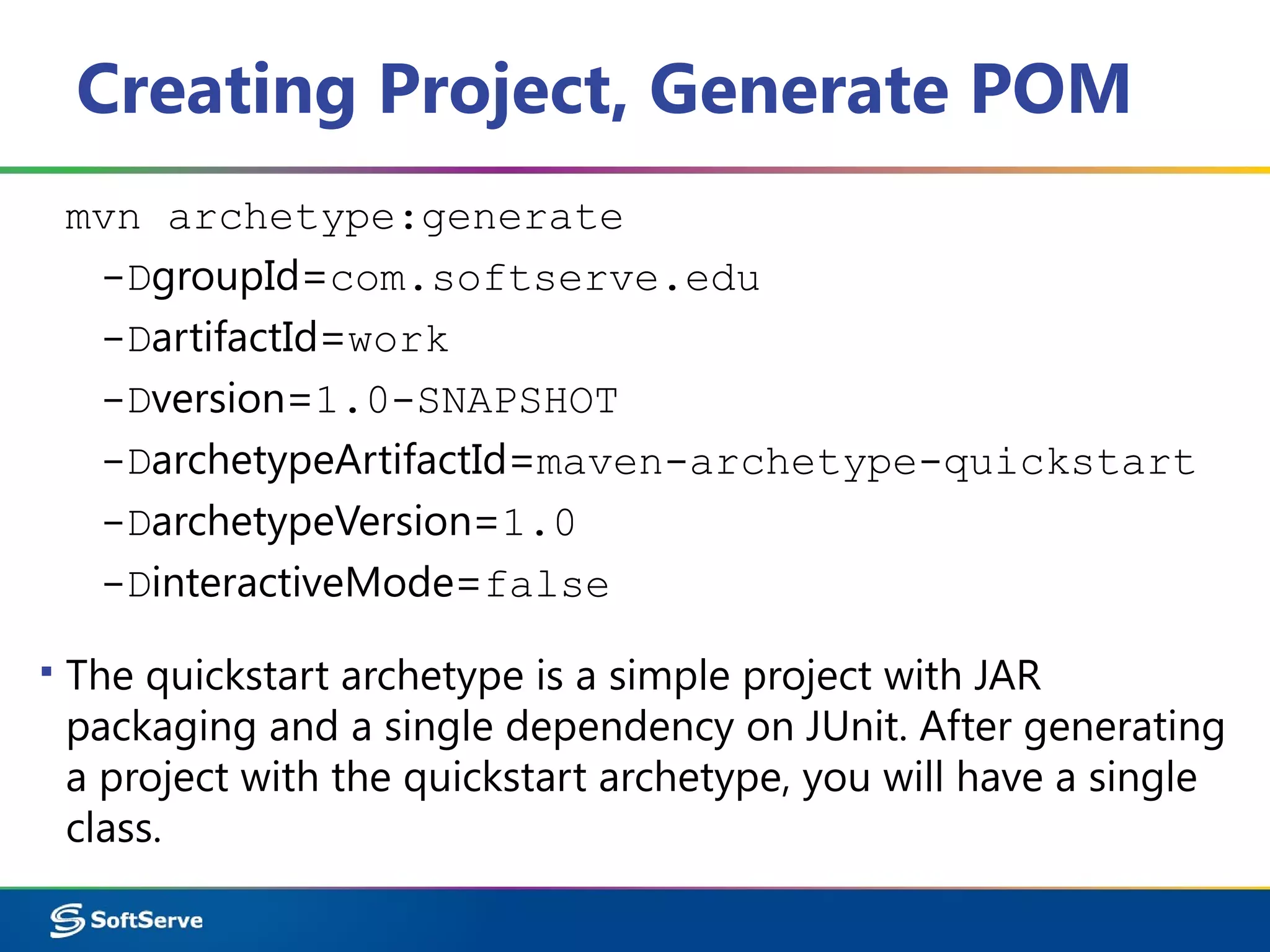
Creating Project, Generate POM
mvn archetype:generate
-DgroupId=com.softserve.edu
-DartifactId=work
-Dversion=1.0-SNAPSHOT
-DarchetypeArtifactId=maven-archetype-quickstart
-DarchetypeVersion=1.0
-DinteractiveMode=false
▪ The quickstart archetype is a simple project with JAR
packaging and a single dependency on JUnit. After generating
a project with the quickstart archetype, you will have a single
class.
Single Class
package com.softserve.edu;
/**
* Hello world!
*
*/
public class App
{
public static void main( String[ ] args )
{
System.out.println( "Hello World!" );
}
}
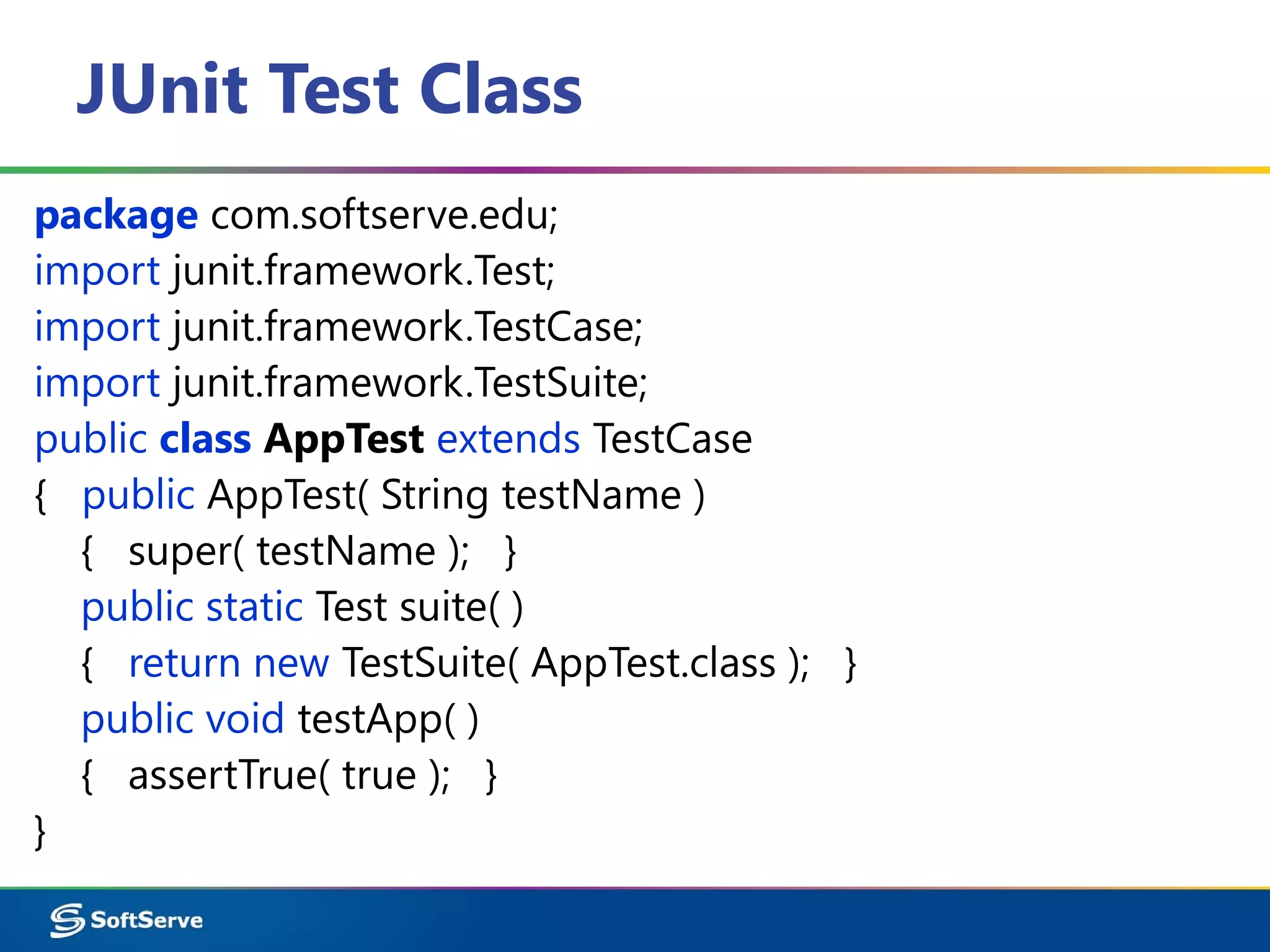
JUnit Test Class
package com.softserve.edu;
import junit.framework.Test;
import junit.framework.TestCase;
import junit.framework.TestSuite;
public class AppTest extends TestCase
{ public AppTest( String testName )
{ super( testName ); }
public static Test suite( )
{ return new TestSuite( AppTest.class ); }
public void testApp( )
{ assertTrue( true ); }
}
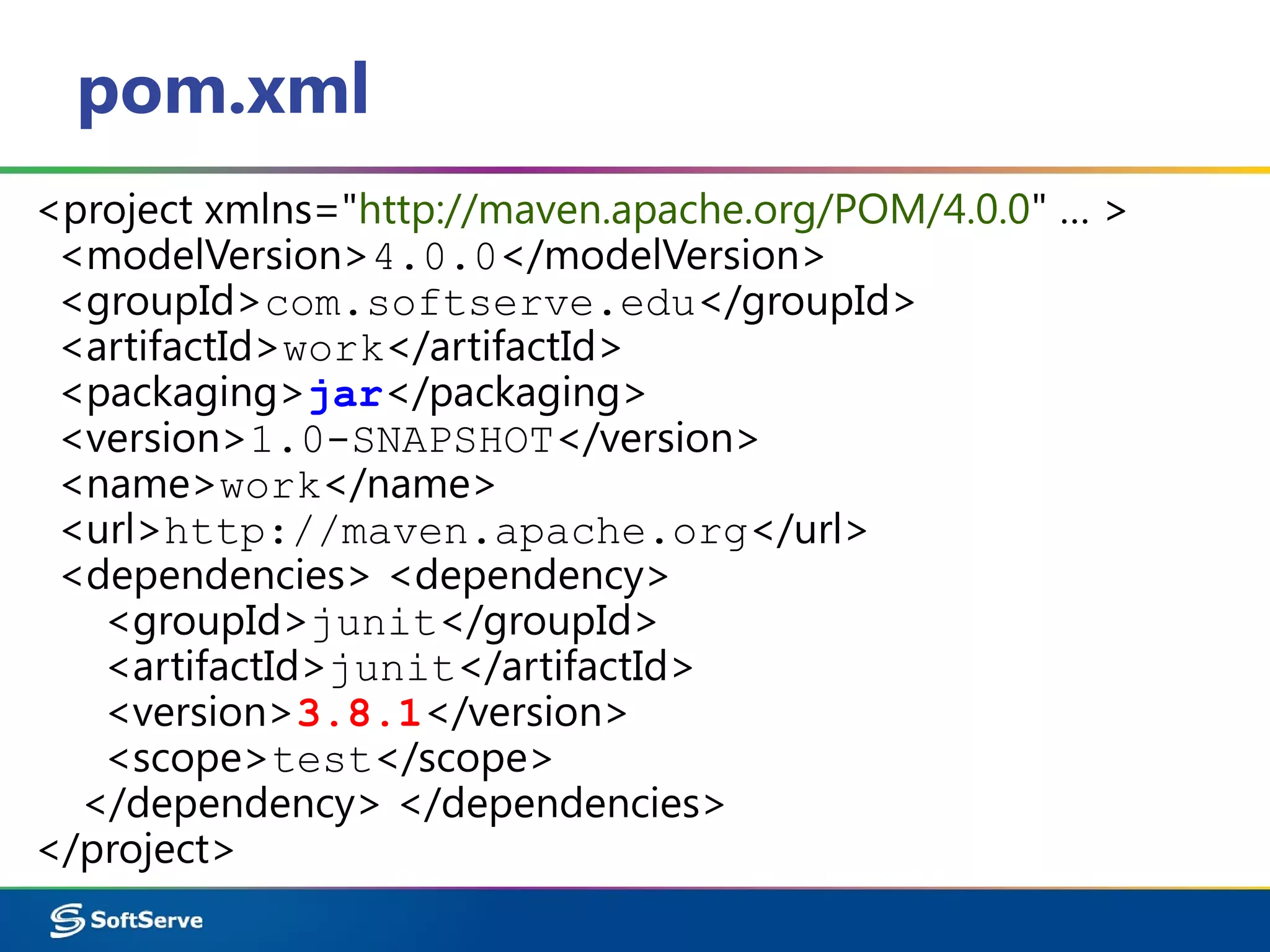
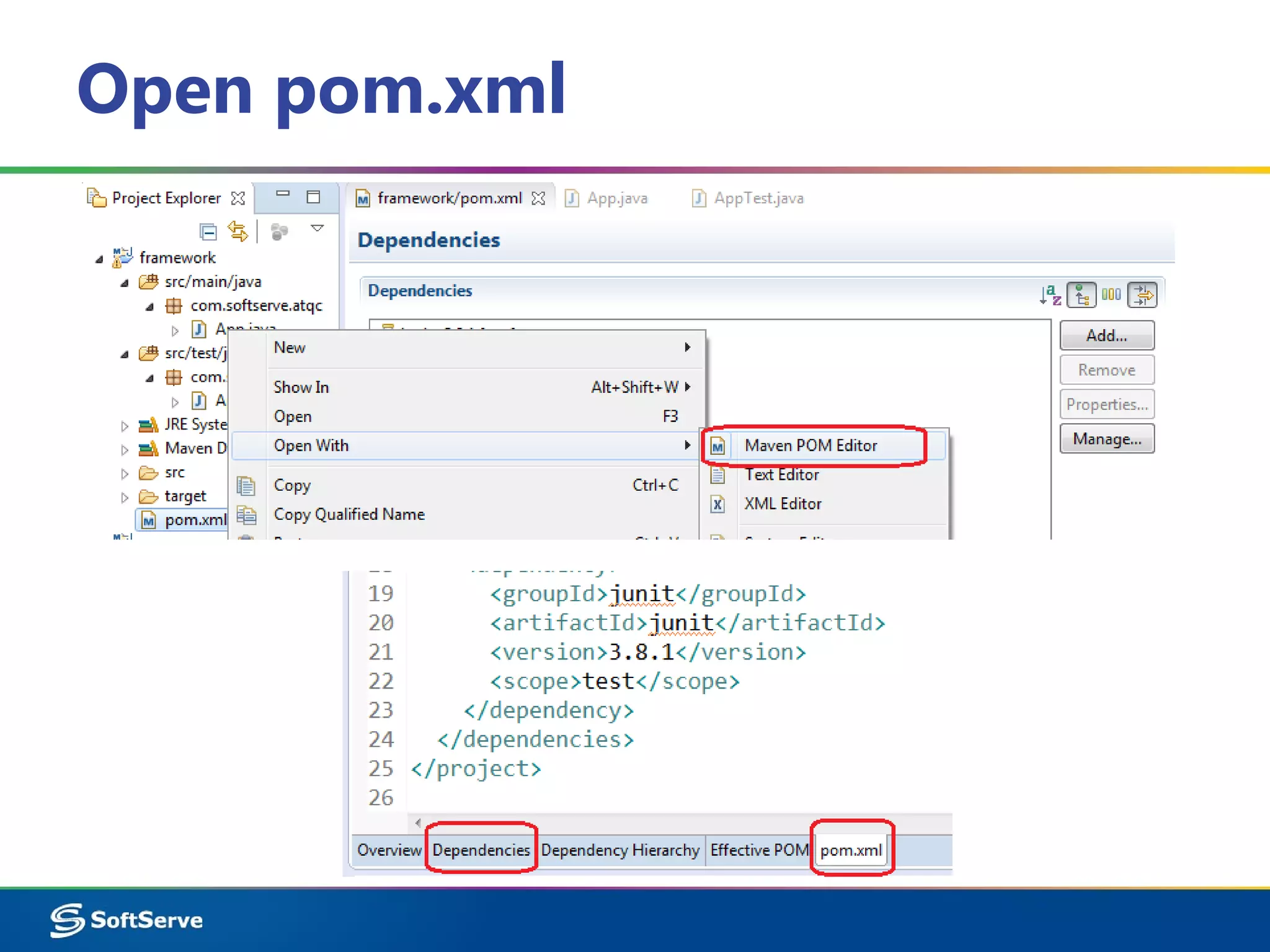
pom.xml
<project xmlns="http://maven.apache.org/POM/4.0.0" … >
<modelVersion>4.0.0</modelVersion>
<groupId>com.softserve.edu</groupId>
<artifactId>work</artifactId>
<packaging>jar</packaging>
<version>1.0-SNAPSHOT</version>
<name>work</name>
<url>http://maven.apache.org</url>
<dependencies> <dependency>
<groupId>junit</groupId>
<artifactId>junit</artifactId>
<version>3.8.1</version>
<scope>test</scope>
</dependency> </dependencies>
</project>
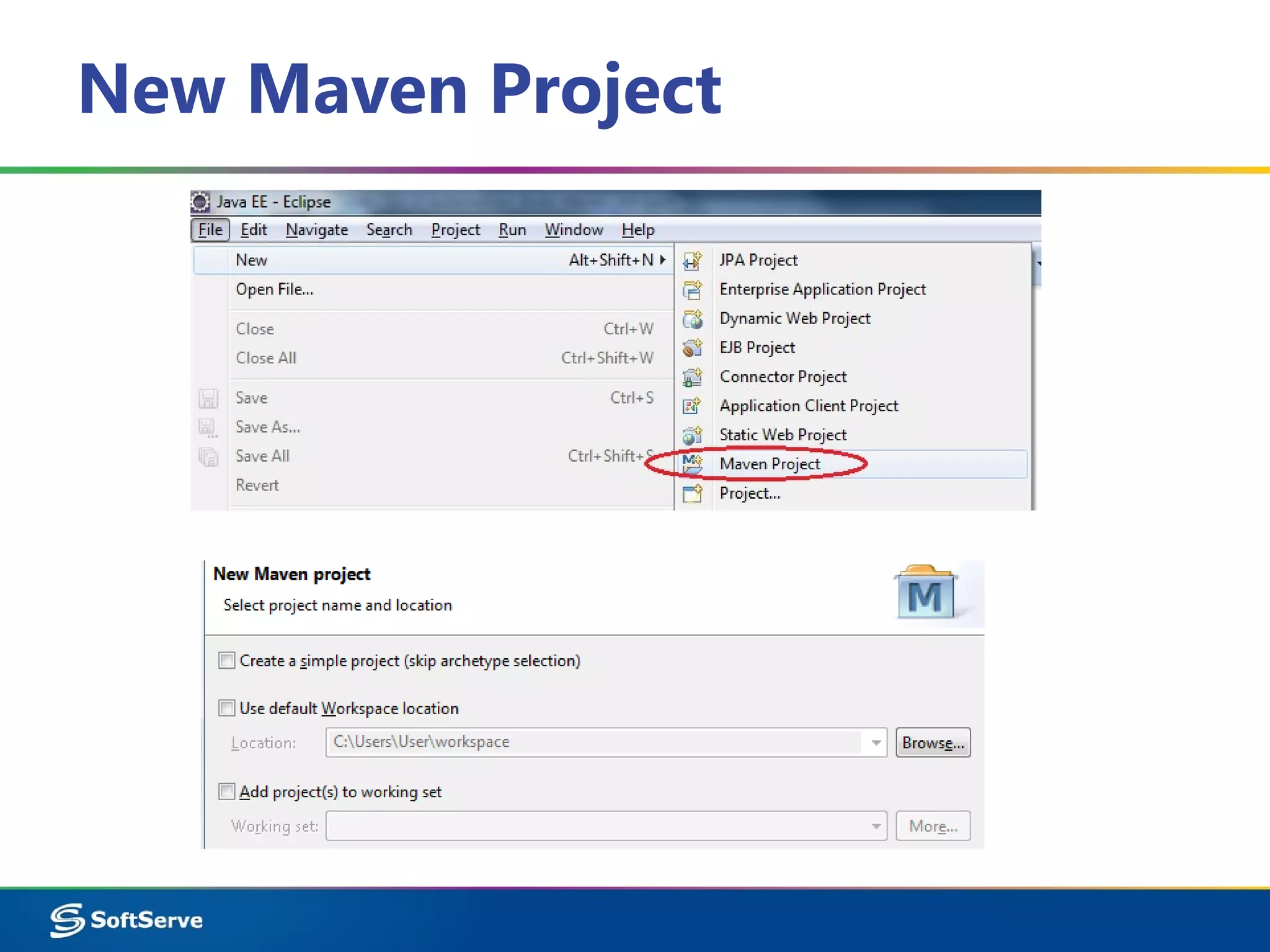
New Maven Project
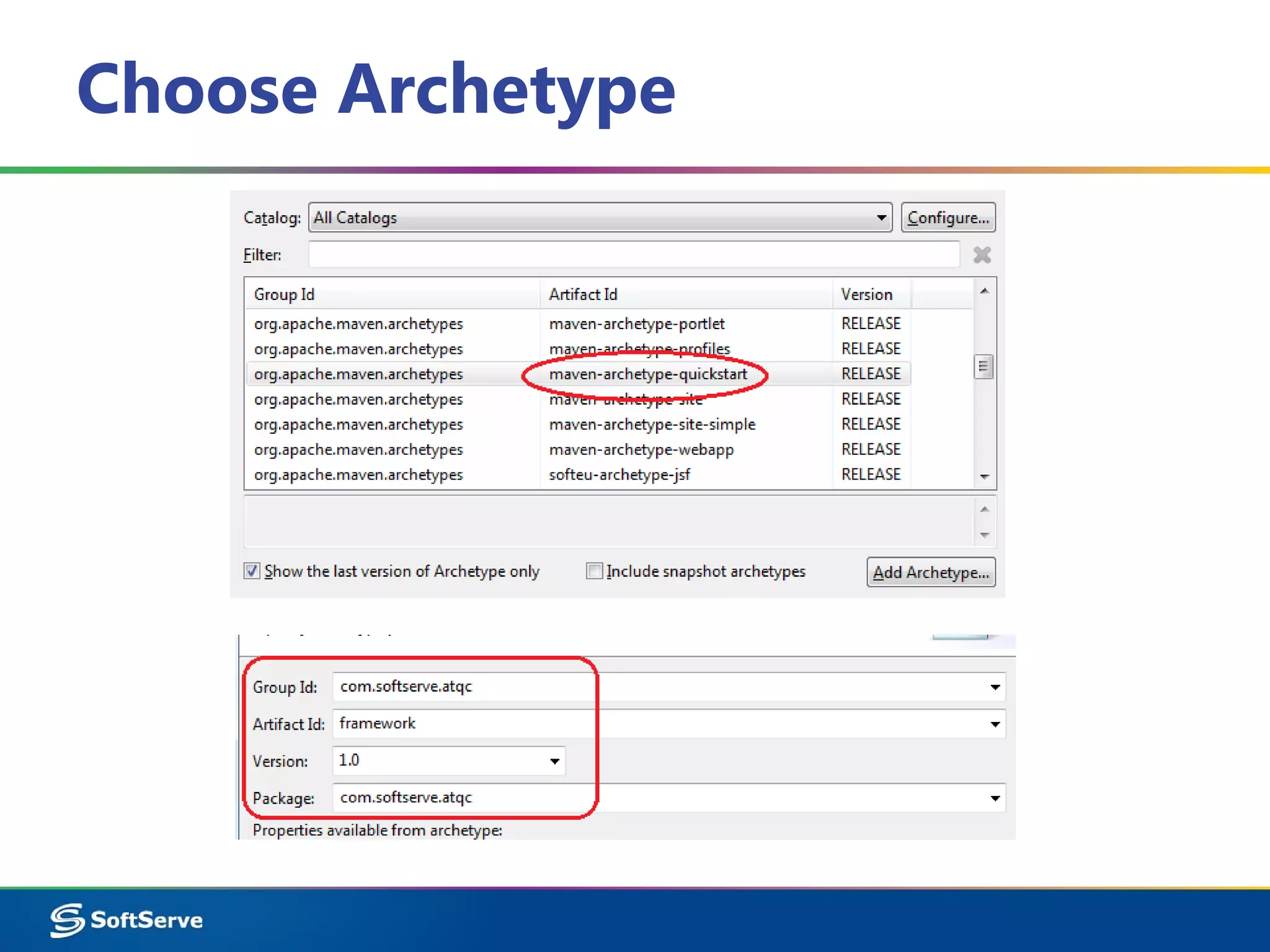
Choose Archetype
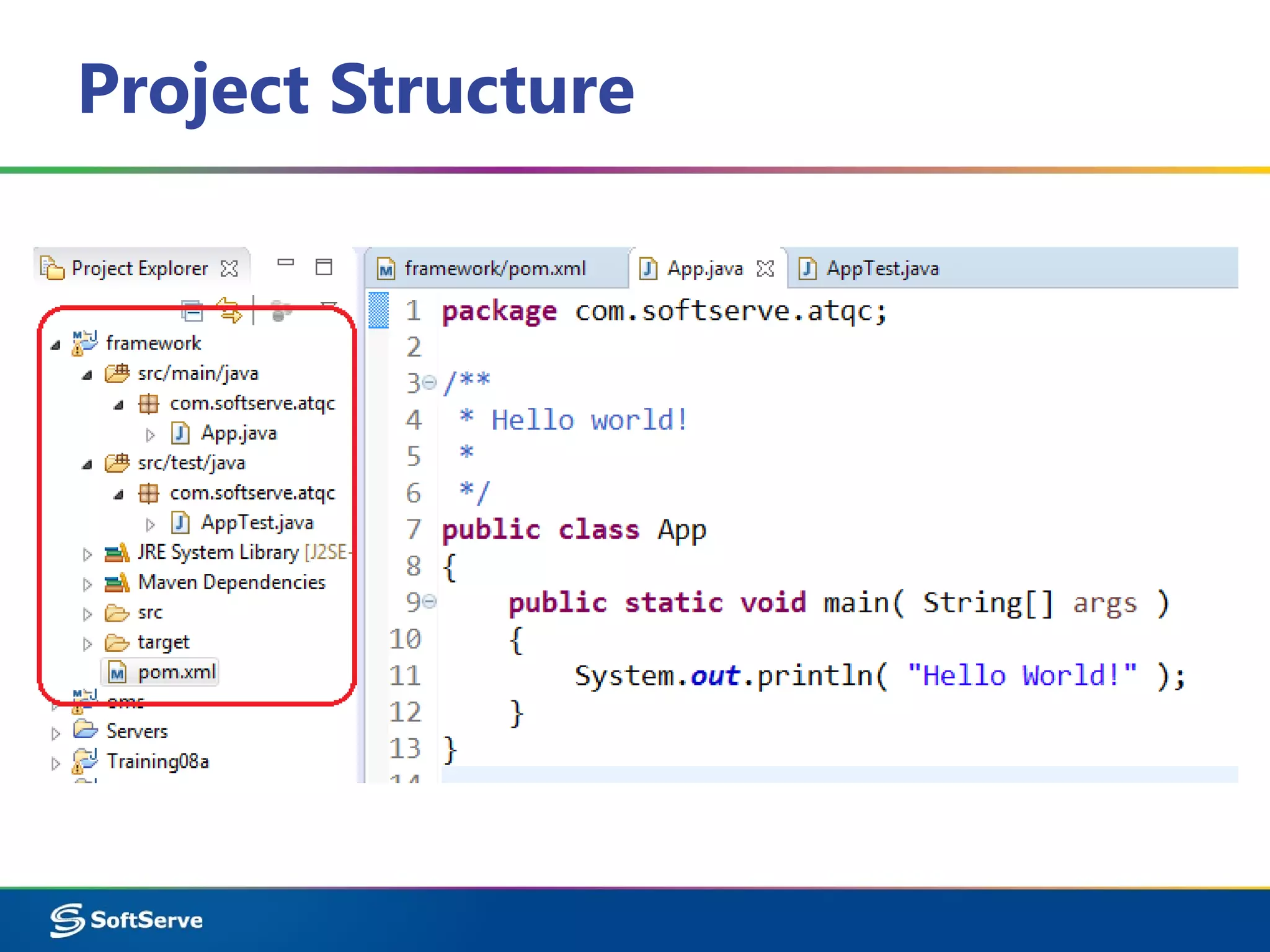
Project Structure
Open pom.xml
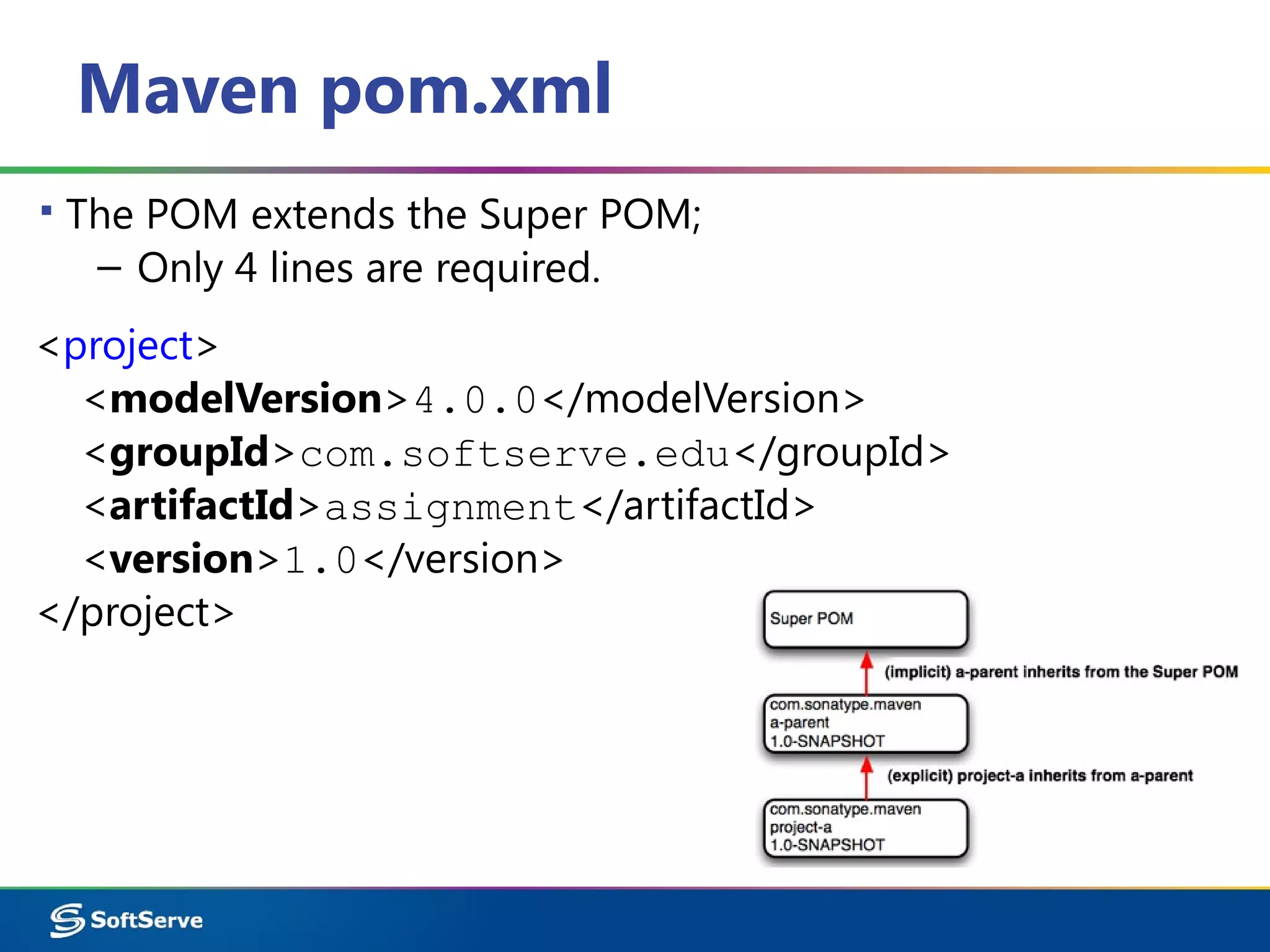
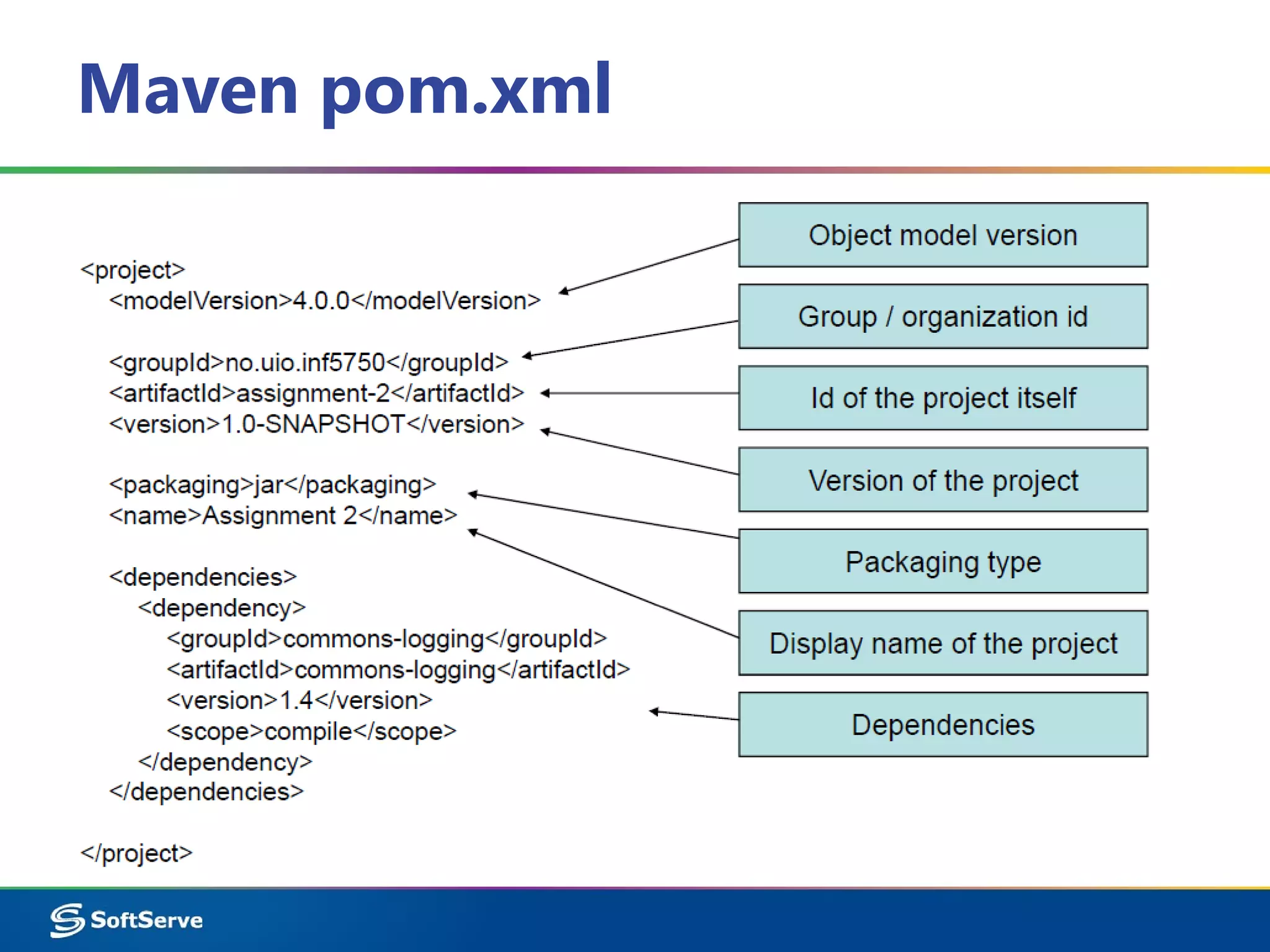
Maven pom.xml
▪ The POM extends the Super POM;
– Only 4 lines are required.
<project>
<modelVersion>4.0.0</modelVersion>
<groupId>com.softserve.edu</groupId>
<artifactId>assignment</artifactId>
<version>1.0</version>
</project>
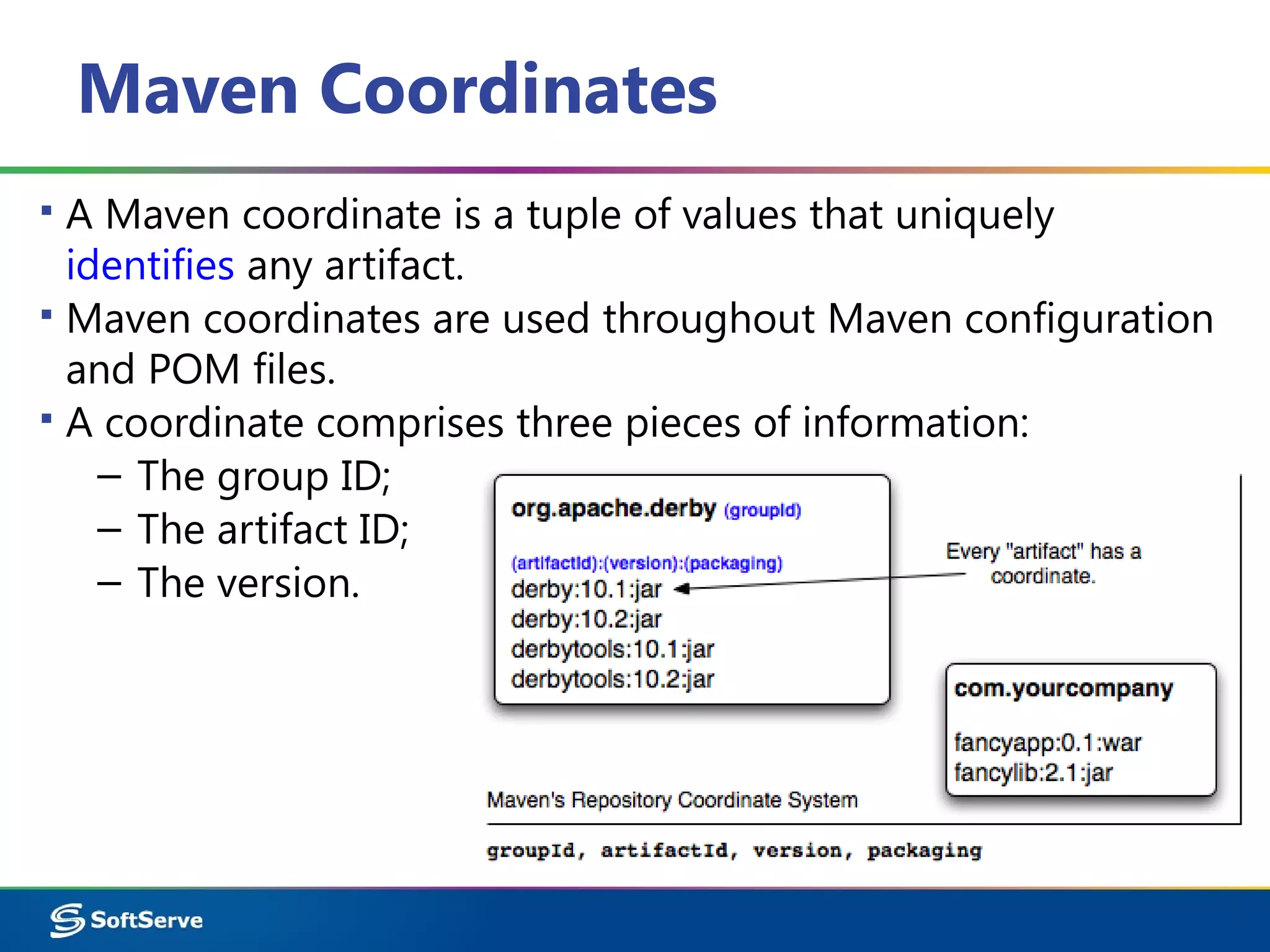
Maven Coordinates
▪ A Maven coordinate is a tuple of values that uniquely
identifies any artifact.
▪ Maven coordinates are used throughout Maven configuration
and POM files.
▪ A coordinate comprises three pieces of information:
– The group ID;
– The artifact ID;
– The version.
Maven Coordinates
▪ The group ID:
– The entity or organization responsible for producing the
artifact. For example, com.softserve.edu can be a
group ID.
▪ The artifact ID:
– The name of the actual artifact. For example, a project with
a main class called OpsImp may use OpsImp as its artifact
ID.
▪ The version:
– A version number of the artifact. The supported format is
in the form of mmm.nnn.bbb-qqqqqqq-dd, where mmm is
the major version number, nnn is the minor version
number, and bbb is the bugfix level. Optionally, either
qqqqq (qualifier) or dd (build number) can also be added
to the version number.
Maven pom.xml
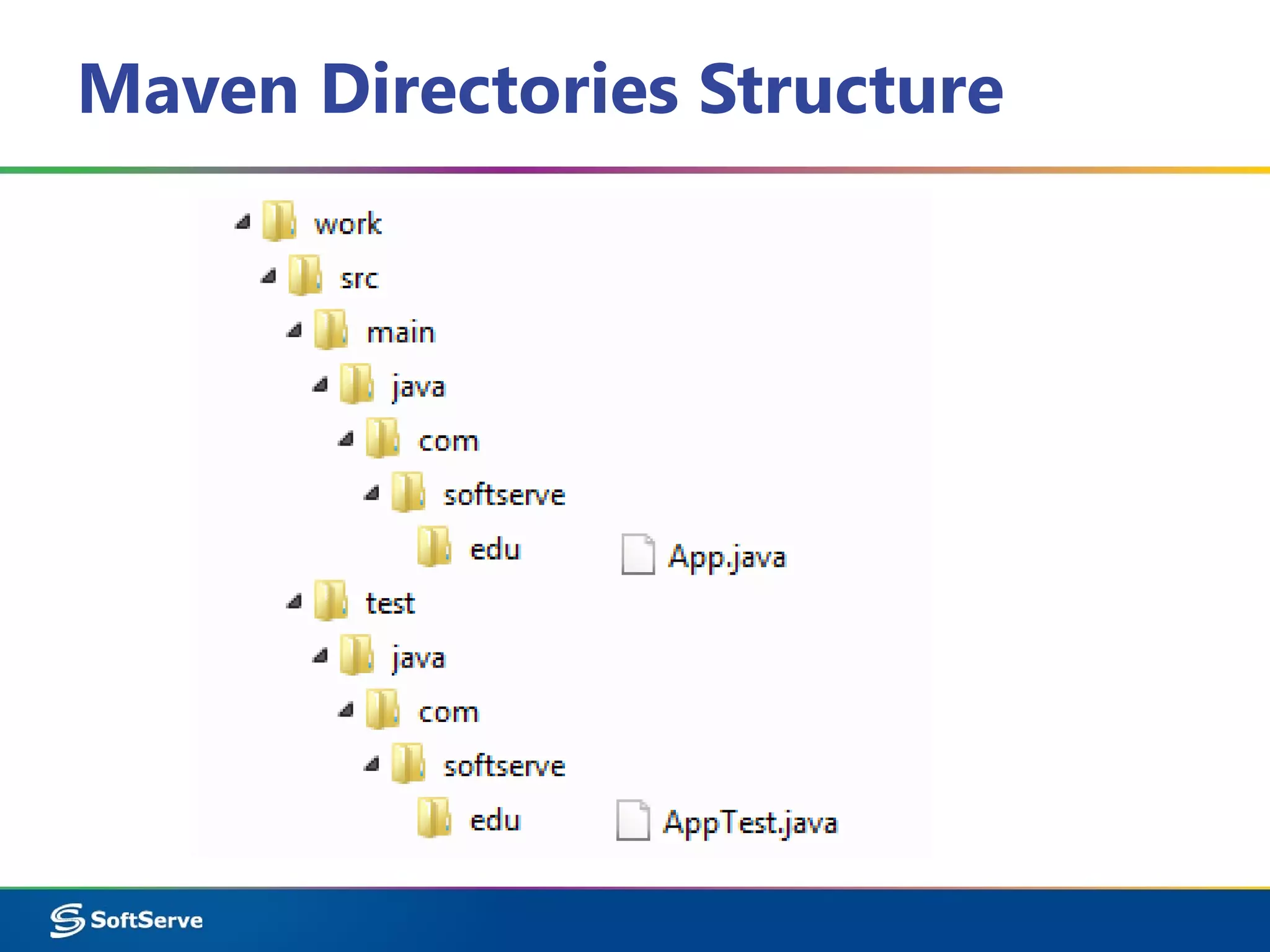
Maven Directories Structure
▪ src/main/java Java source files goes here;
▪ src/main/resources Other resources your application needs;
▪ src/main/filters Resource filters (properties files);
▪ src/main/config Configuration files;
▪ src/main/webapp Web application directory for a WAR
project;
▪ src/test/java Test sources like unit tests (not deployed);
▪ src/test/resources Test resources (not deployed);
▪ src/test/filters Test resource filter files (not deployed);
▪ src/site Files used to generate the Maven project website;
▪ target/ The target directory is used to house all output of the
build.
Maven Lifecycle
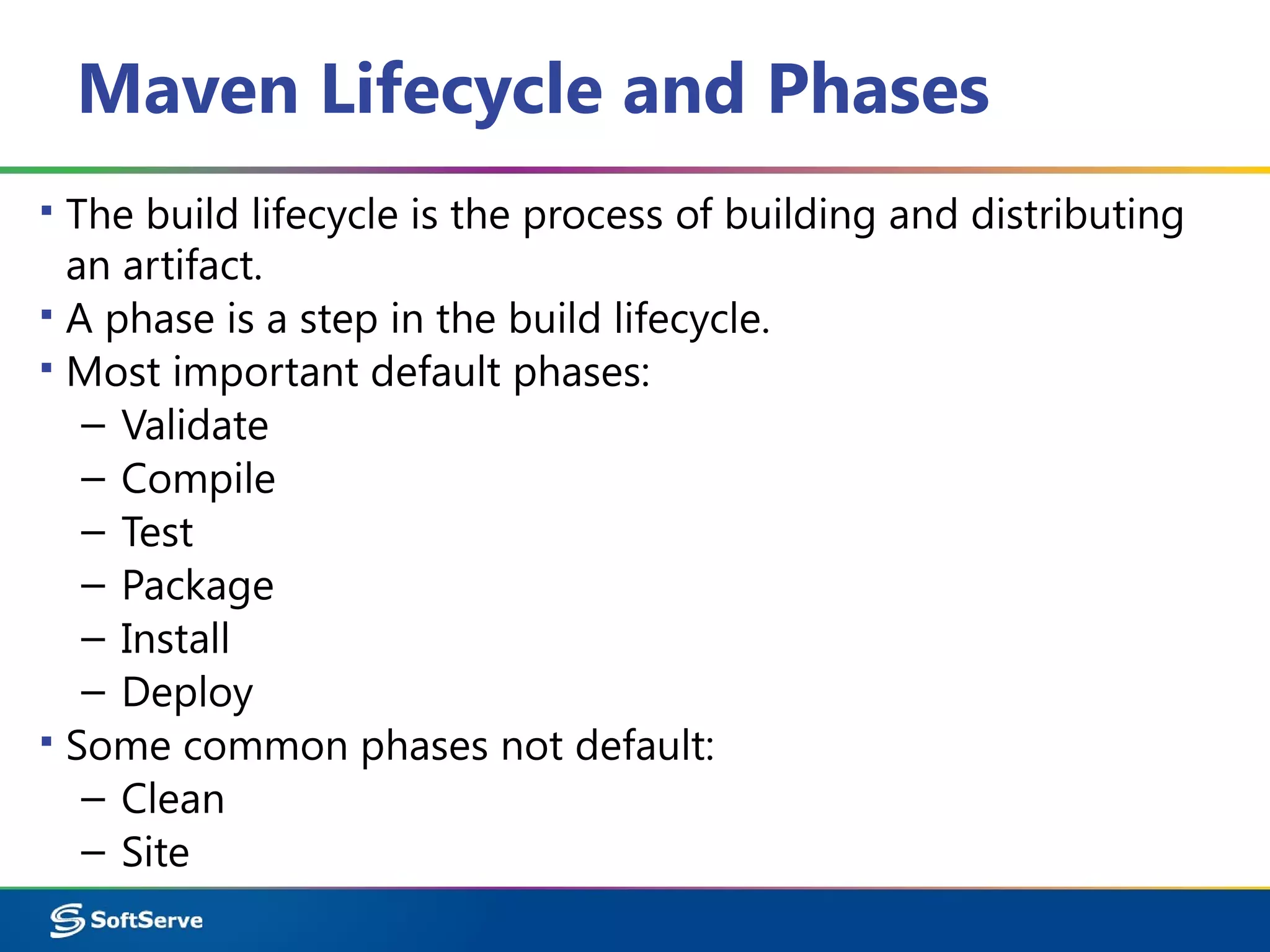
Maven Lifecycle and Phases
▪ The build lifecycle is the process of building and distributing
an artifact.
▪ A phase is a step in the build lifecycle.
▪ Most important default phases:
– Validate
– Compile
– Test
– Package
– Install
– Deploy
▪ Some common phases not default:
– Clean
– Site
Maven Lifecycle and Phases
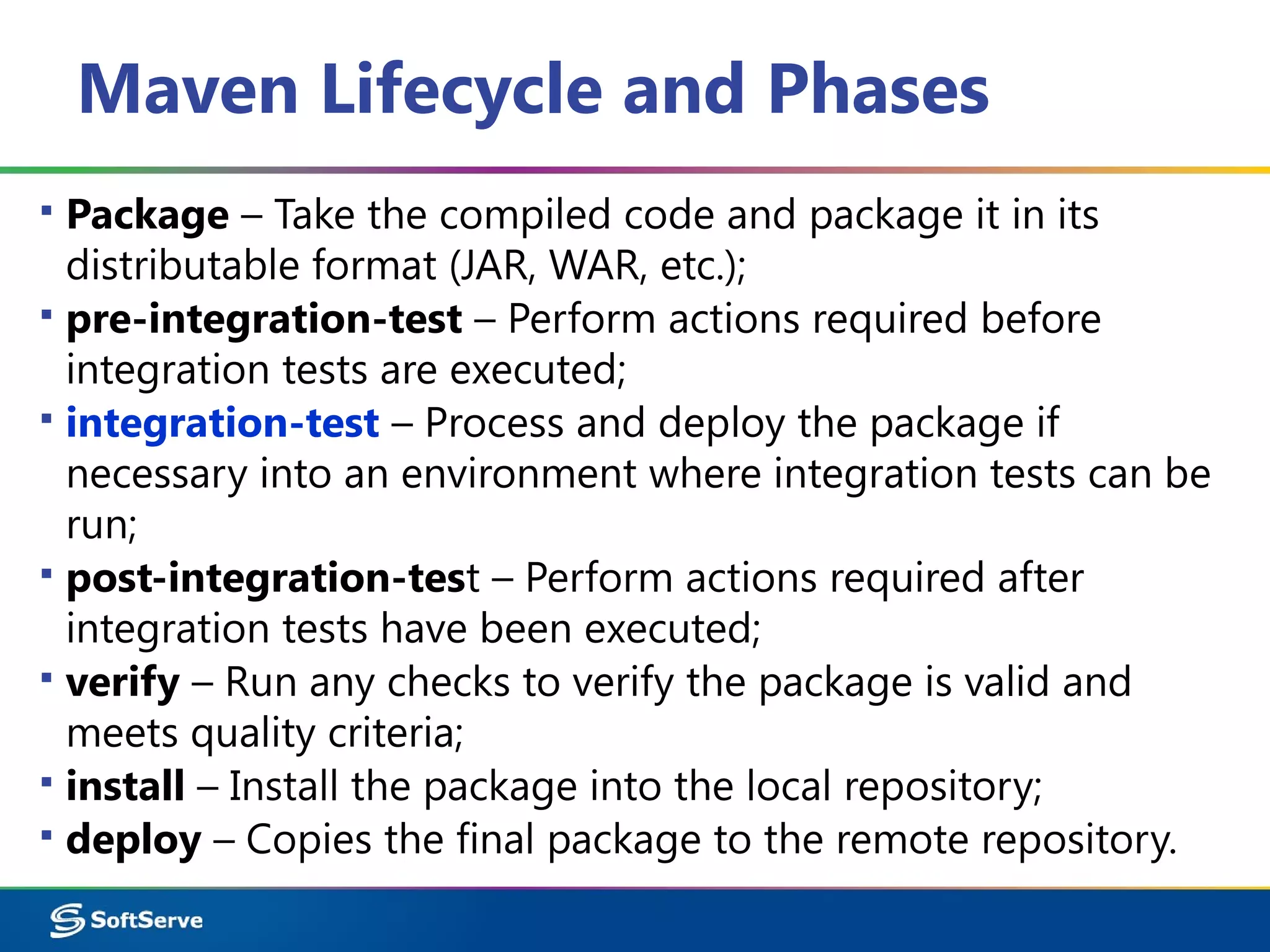
▪ Package – Take the compiled code and package it in its
distributable format (JAR, WAR, etc.);
▪ pre-integration-test – Perform actions required before
integration tests are executed;
▪ integration-test – Process and deploy the package if
necessary into an environment where integration tests can be
run;
▪ post-integration-test – Perform actions required after
integration tests have been executed;
▪ verify – Run any checks to verify the package is valid and
meets quality criteria;
▪ install – Install the package into the local repository;
▪ deploy – Copies the final package to the remote repository.
Maven Commands
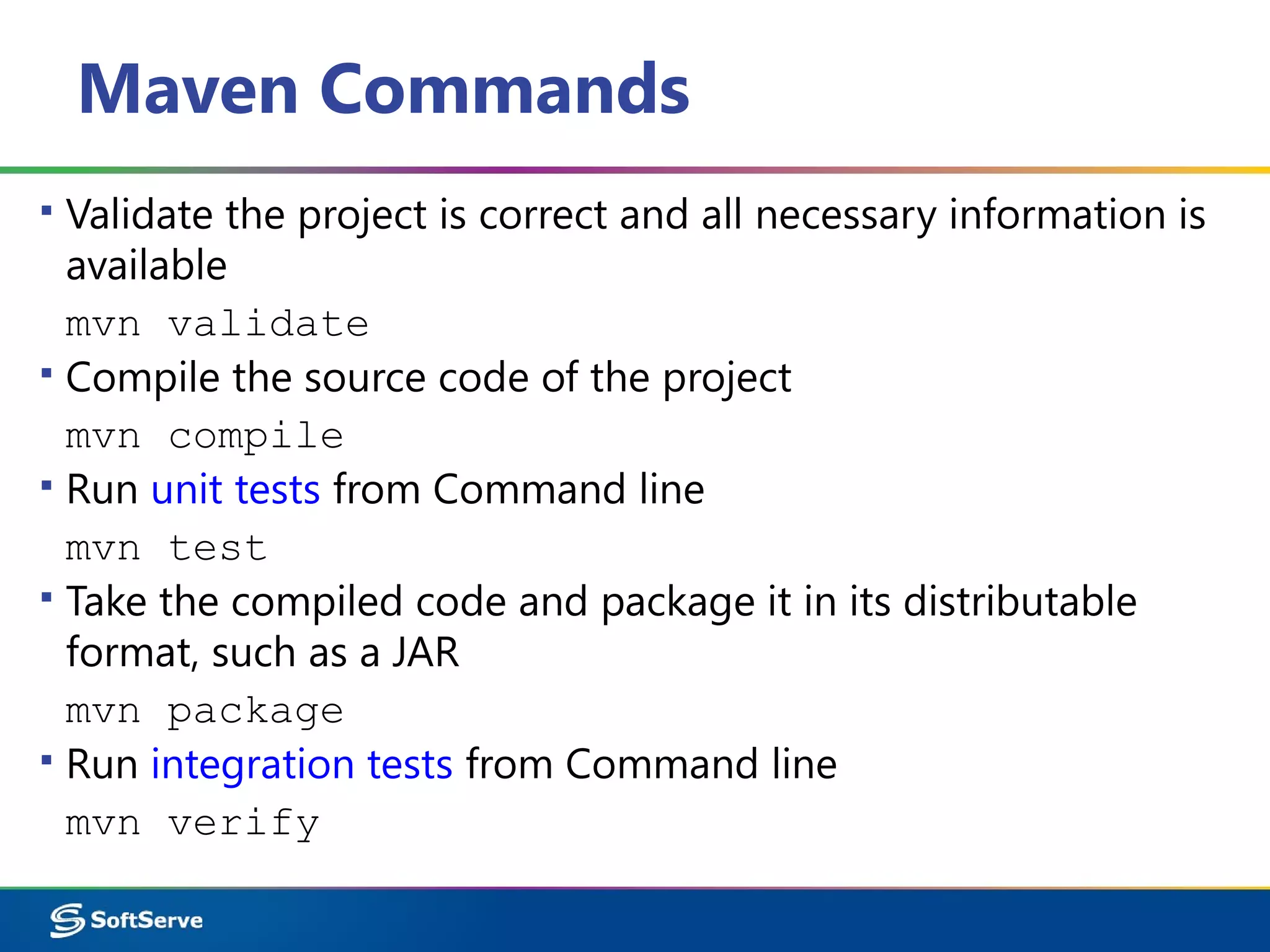
▪ Validate the project is correct and all necessary information is
available
mvn validate
▪ Compile the source code of the project
mvn compile
▪ Run unit tests from Command line
mvn test
▪ Take the compiled code and package it in its distributable
format, such as a JAR
mvn package
▪ Run integration tests from Command line
mvn verify
Dependency Management
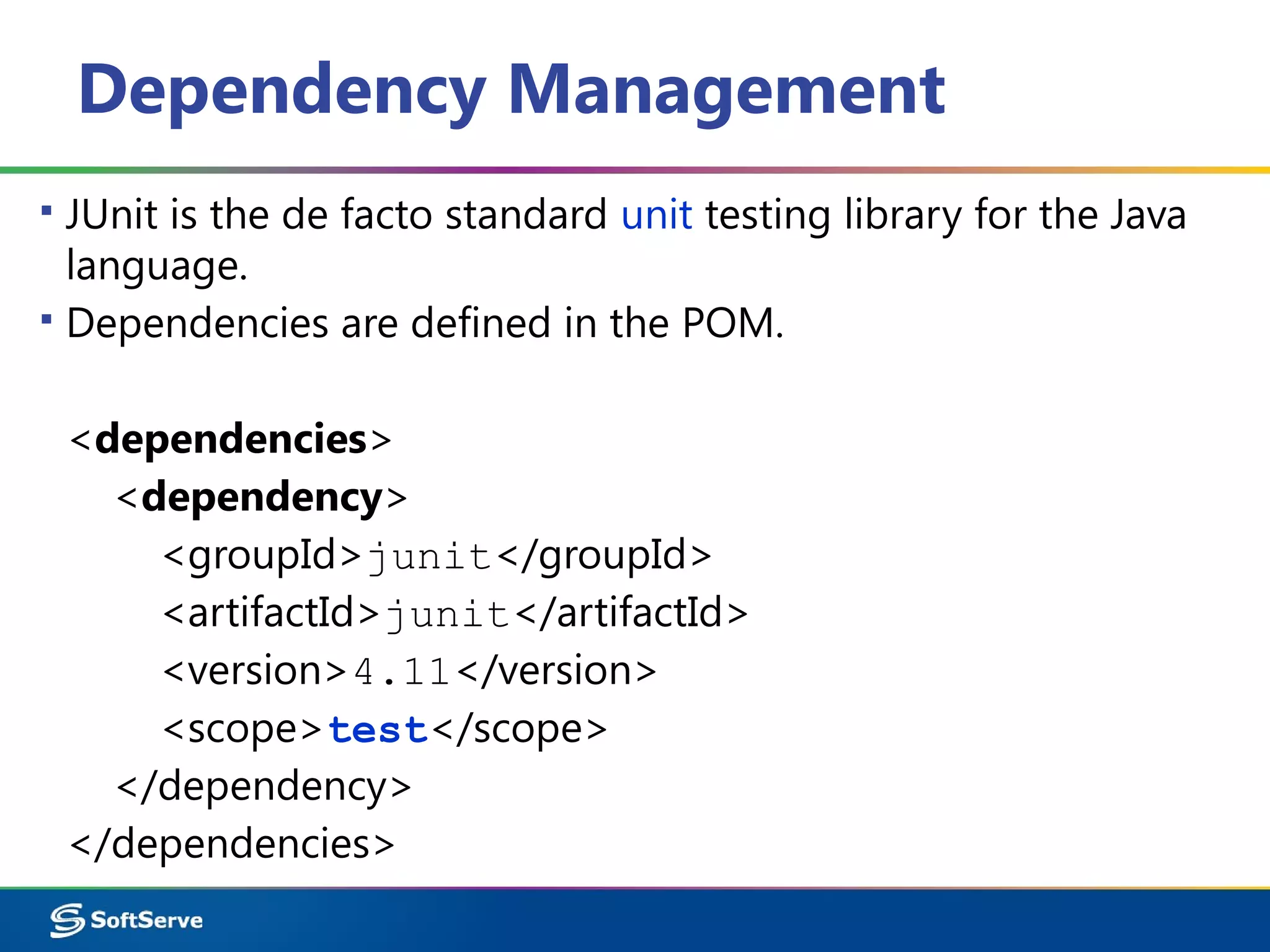
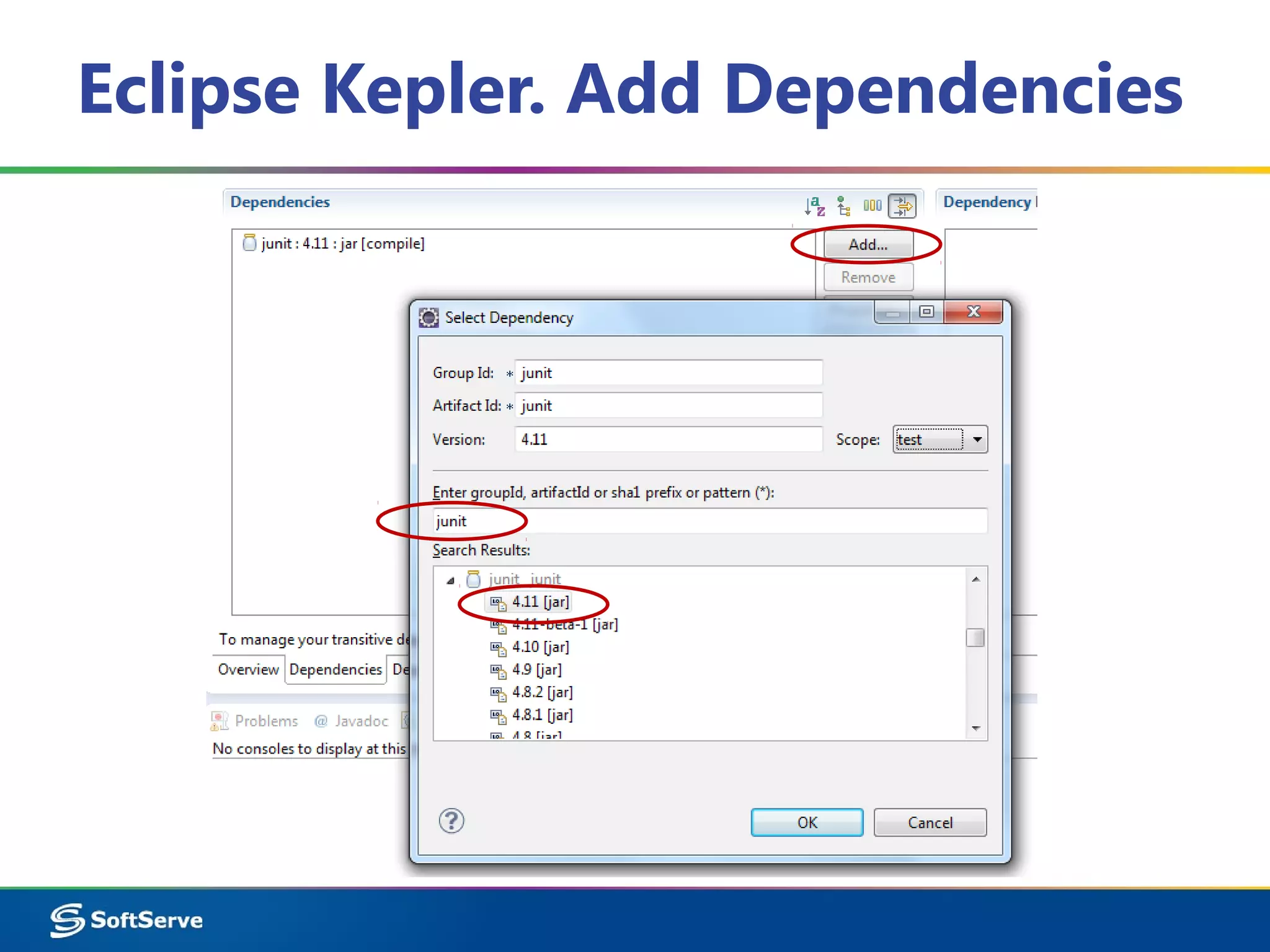
▪ JUnit is the de facto standard unit testing library for the Java
language.
▪ Dependencies are defined in the POM.
<dependencies>
<dependency>
<groupId>junit</groupId>
<artifactId>junit</artifactId>
<version>4.11</version>
<scope>test</scope>
</dependency>
</dependencies>
Dependency Management
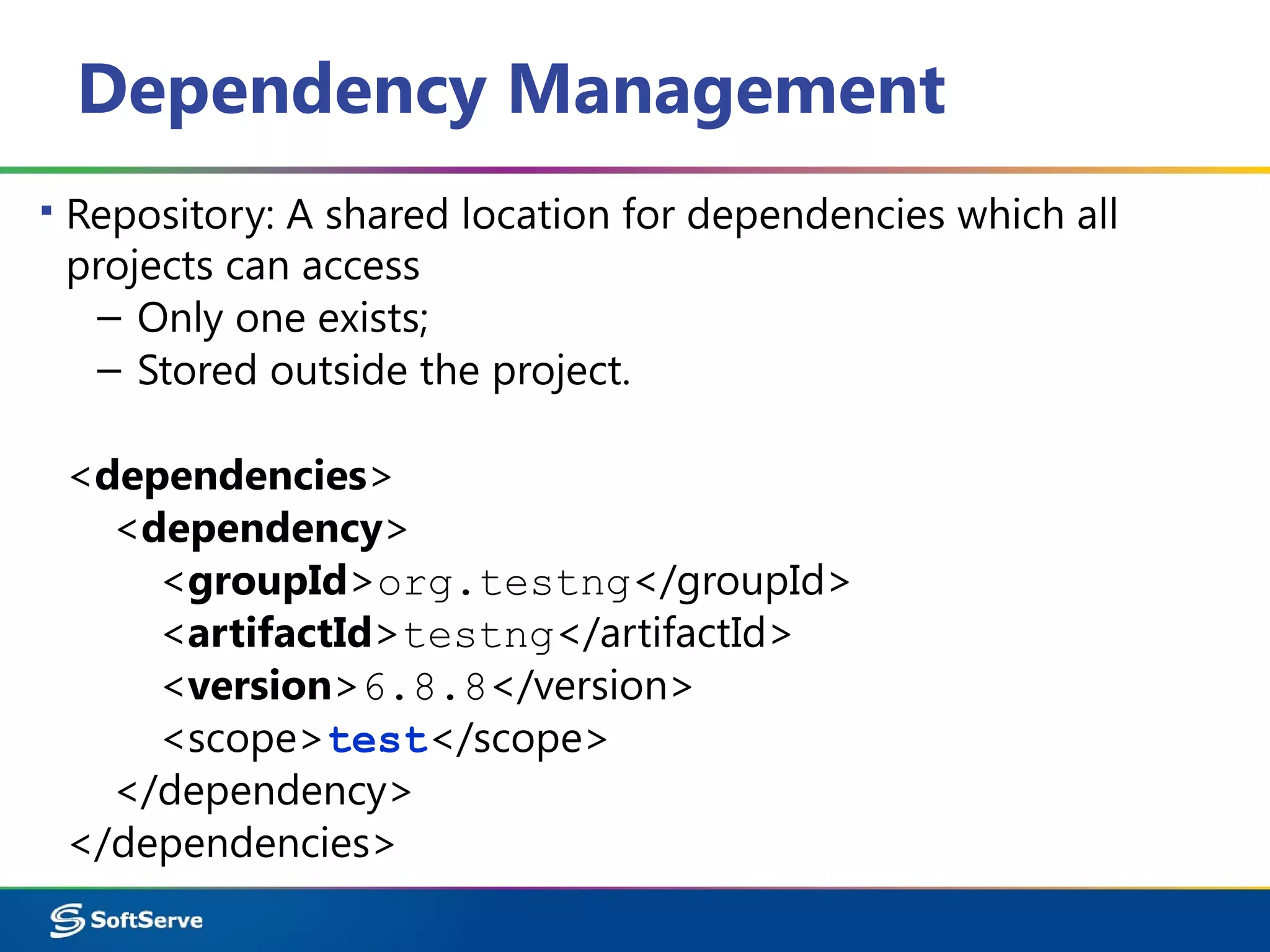
▪ Repository: A shared location for dependencies which all
projects can access
– Only one exists;
– Stored outside the project.
<dependencies>
<dependency>
<groupId>org.testng</groupId>
<artifactId>testng</artifactId>
<version>6.8.8</version>
<scope>test</scope>
</dependency>
</dependencies>
Dependency Scope. Examples
<dependency>
<groupId>org.slf4j</groupId>
<artifactId>slf4j-api</artifactId>
<version>1.7.5</version>
</dependency>
▪ Code dependent on the API. Implementation can be changed.
<dependency>
<groupId>org.slf4j</groupId>
<artifactId>slf4j-log4j12</artifactId>
<version>1.7.5</version>
<scope>runtime</scope>
</dependency>
Repositories
▪ Local repository:
– Copy on local computer which
is a cache of the remote
downloads;
– May contain project-local build
artifacts as well;
– Located in (by default)
USER_HOME/.m2/repository
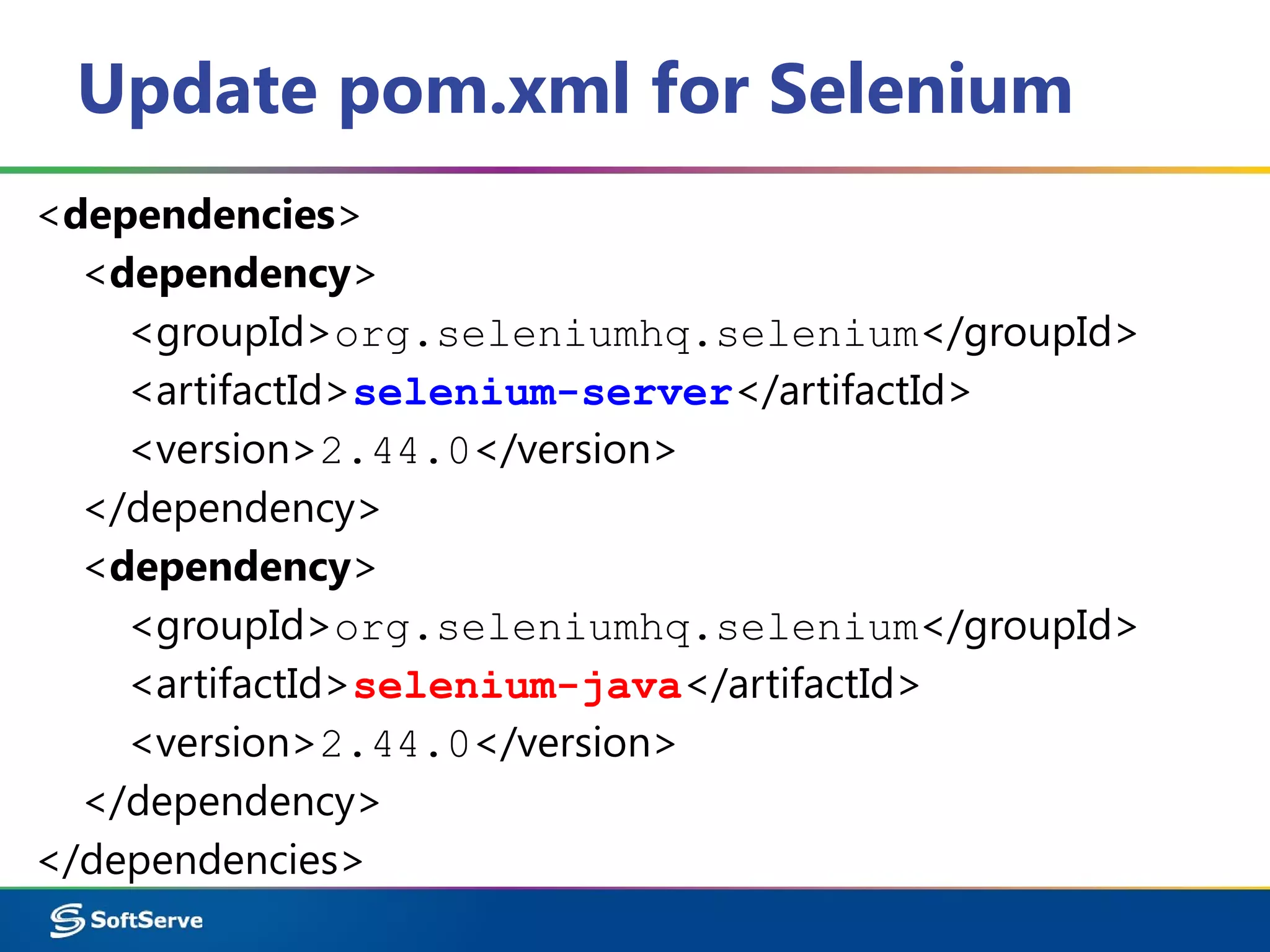
Update pom.xml for Selenium
<dependencies>
<dependency>
<groupId>org.seleniumhq.selenium</groupId>
<artifactId>selenium-server</artifactId>
<version>2.44.0</version>
</dependency>
<dependency>
<groupId>org.seleniumhq.selenium</groupId>
<artifactId>selenium-java</artifactId>
<version>2.44.0</version>
</dependency>
</dependencies>
Plug-ins
Maven Operation Model
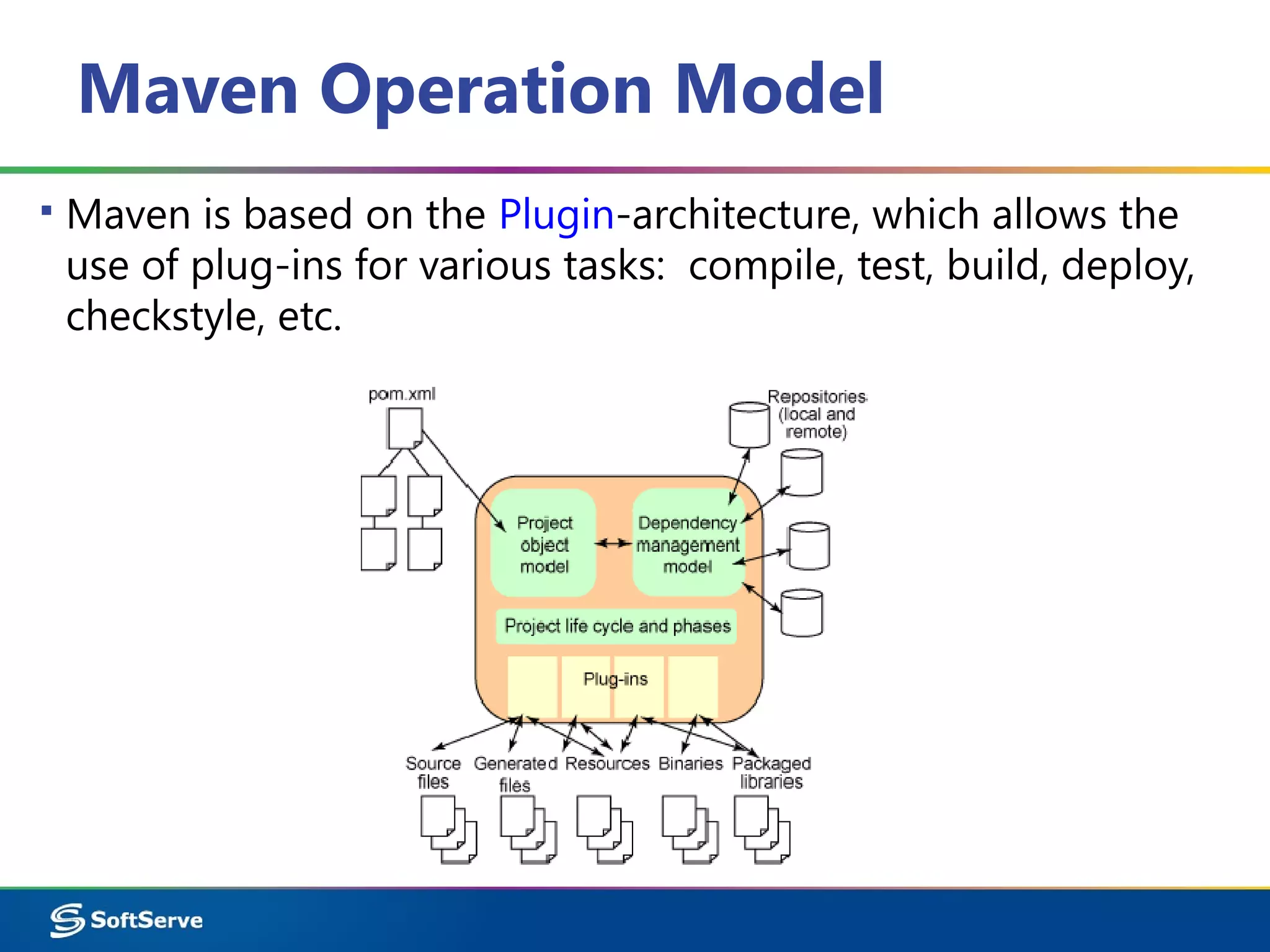
▪ Maven is based on the Plugin-architecture, which allows the
use of plug-ins for various tasks: compile, test, build, deploy,
checkstyle, etc.
Maven Plugins
▪ clean Clean up target after the build. Deletes the target
directory.
▪ compiler Compiles Java source files.
▪ surefile Run the JUnit unit tests. Creates test reports.
▪ failsafe Run integration tests while the Surefire Plugins is
designed to run unit tests.
▪ jar Builds a JAR file from the current project.
▪ war Builds a WAR file from the current project.
▪ javadoc Generates Javadoc for the project.
▪ antrun Runs a set of ant tasks from any phase mentioned of
the build.
Plug-ins Execution
mvn [plugin-name]:[goal-name]
▪ The following lifecycle bindings
Phase Plugin execution goal
test surefire:test
integration-test failsafe:integration-test
verify failsafe:verify
Maven Plugins
▪ Maven is – at its heart – a plugin execution framework.
– All work is done by plugins. Looking for a specific goal to
execute.
▪ There are the build and the reporting plugins:
– Build plugins will be executed during the build and they
should be configured in the <build/> element from the
POM.
– Reporting plugins will be executed during the site
generation and they should be configured in
the <reporting/> element from the POM.
Maven Compiler Plugin
▪ Compiler – the main plugin. It is used in almost all projects.
Available by default, but in almost every project it has to re-
declare. The default settings are not very suitable.
<plugin>
<groupId>org.apache.maven.plugins</groupId>
<artifactId>maven-compiler-plugin</artifactId>
<version>2.0.2</version>
<configuration>
<source>1.6</source>
<target>1.6</target>
<encoding>UTF-8</encoding>
</configuration>
</plugin>
IDE Integration
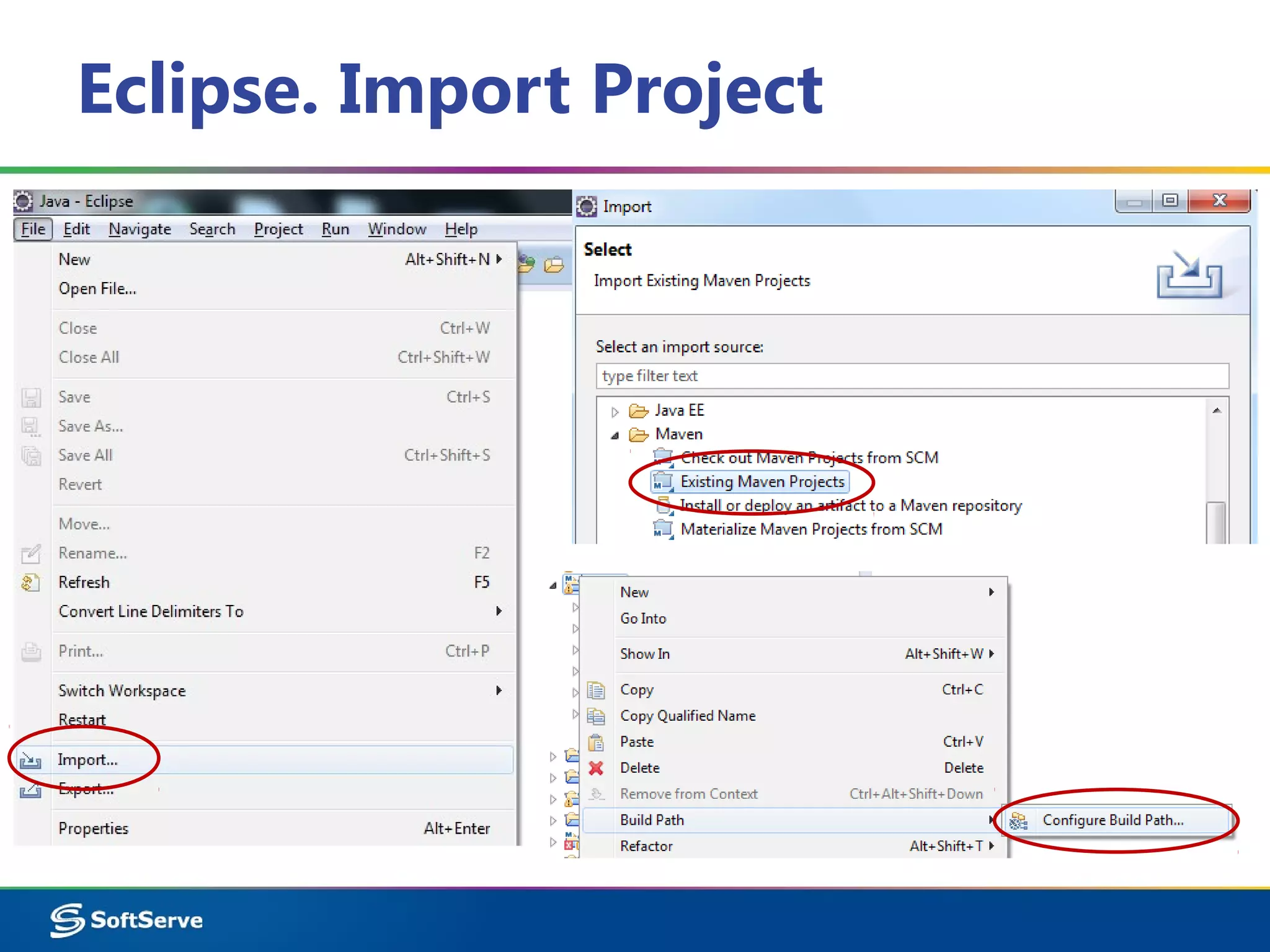
Eclipse. Import Project
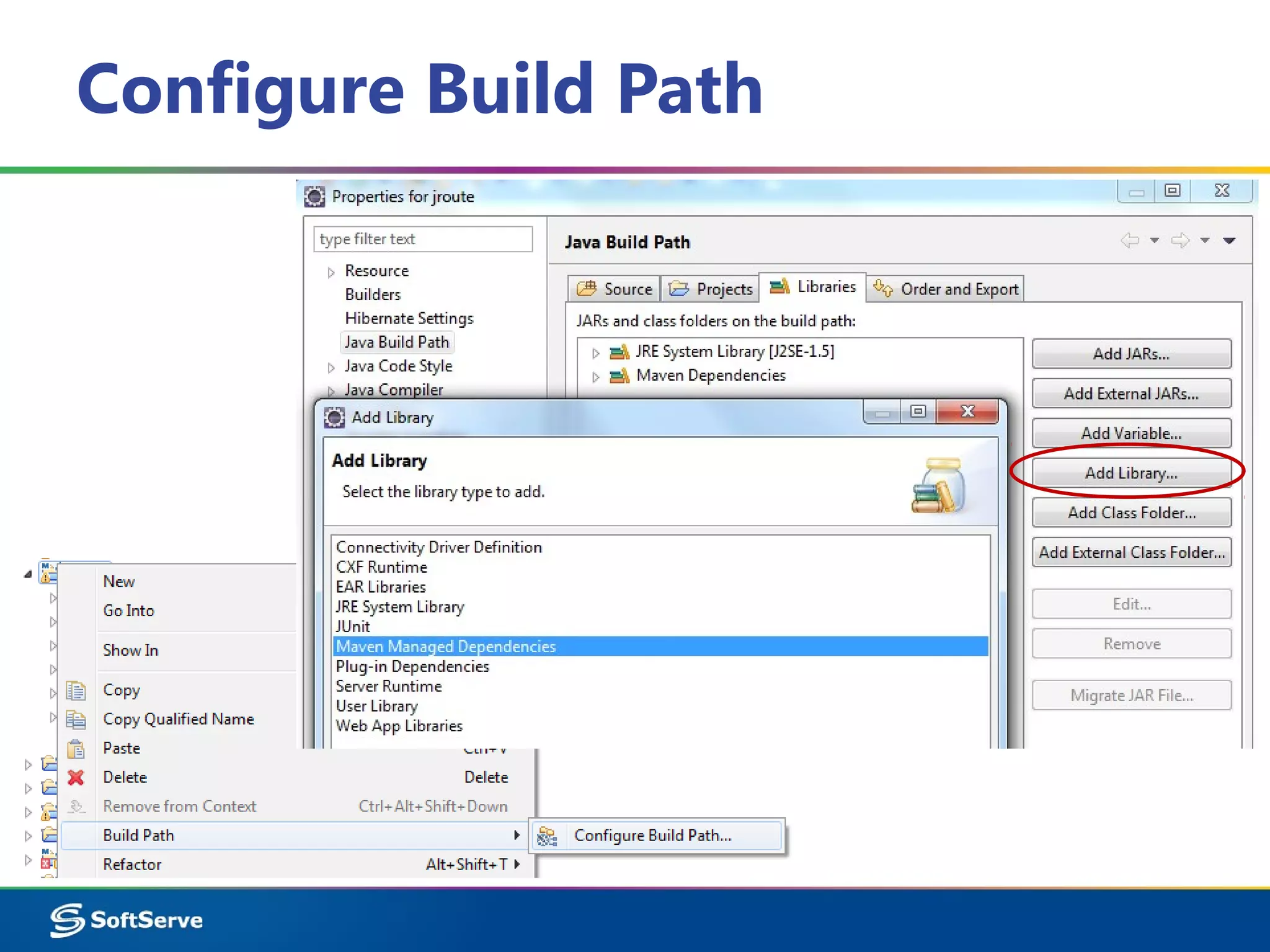
Configure Build Path
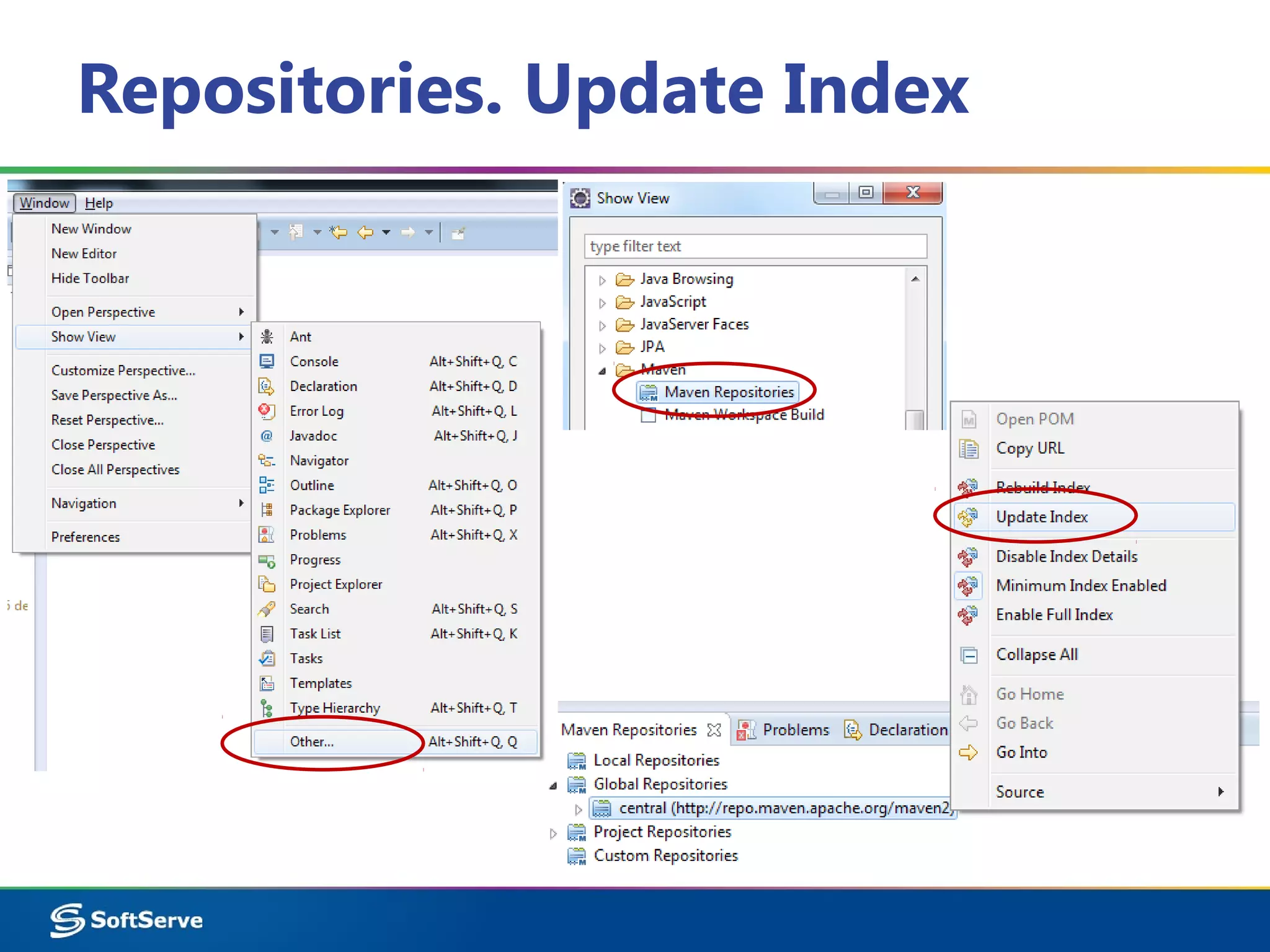
Repositories. Update Index
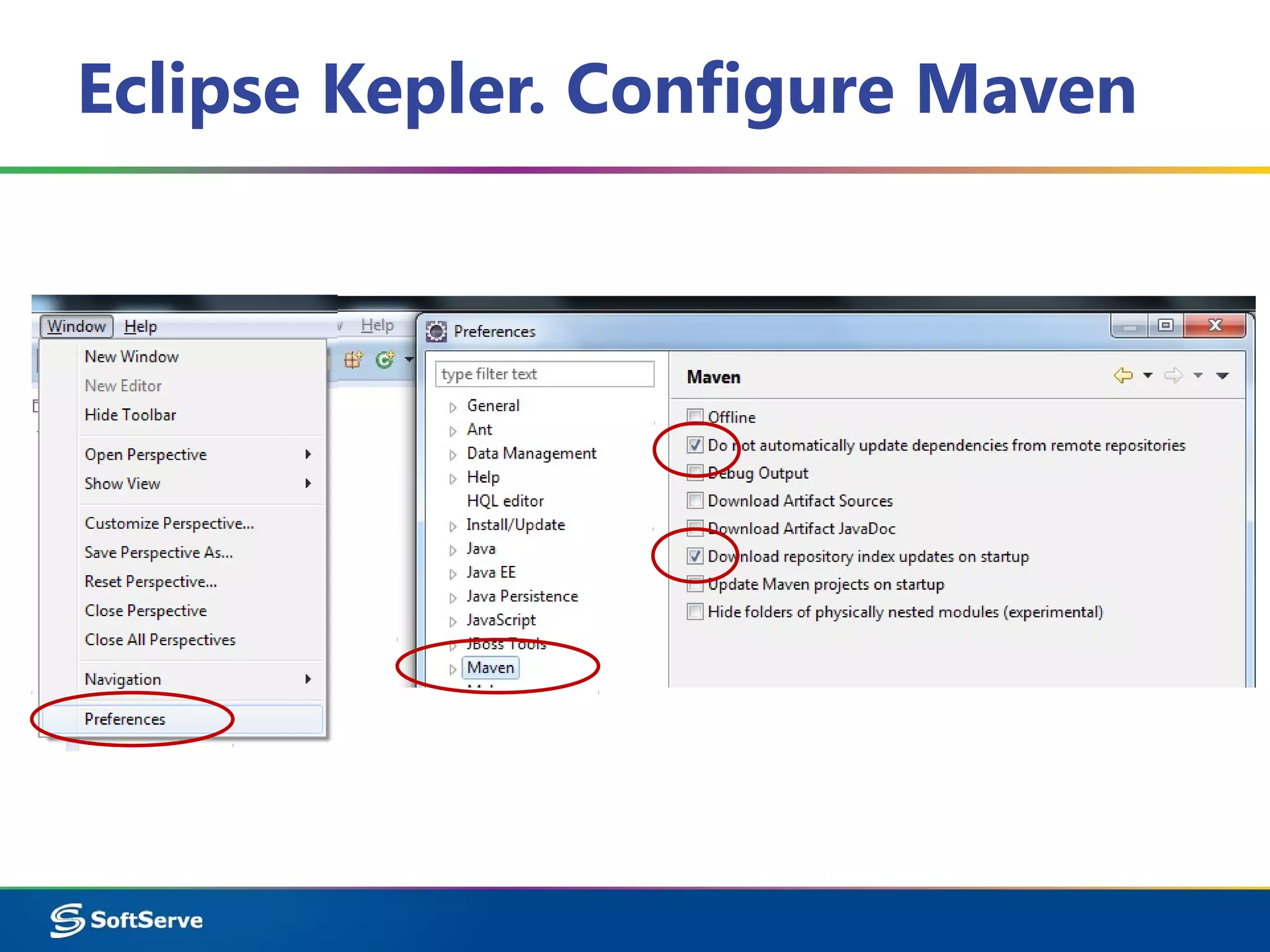
Eclipse Kepler. Configure Maven
Eclipse Kepler. Add Dependencies
Selenium WebDriver
▪ Run tests from Eclipse
SureFire Plug-in
Surefire Plugin
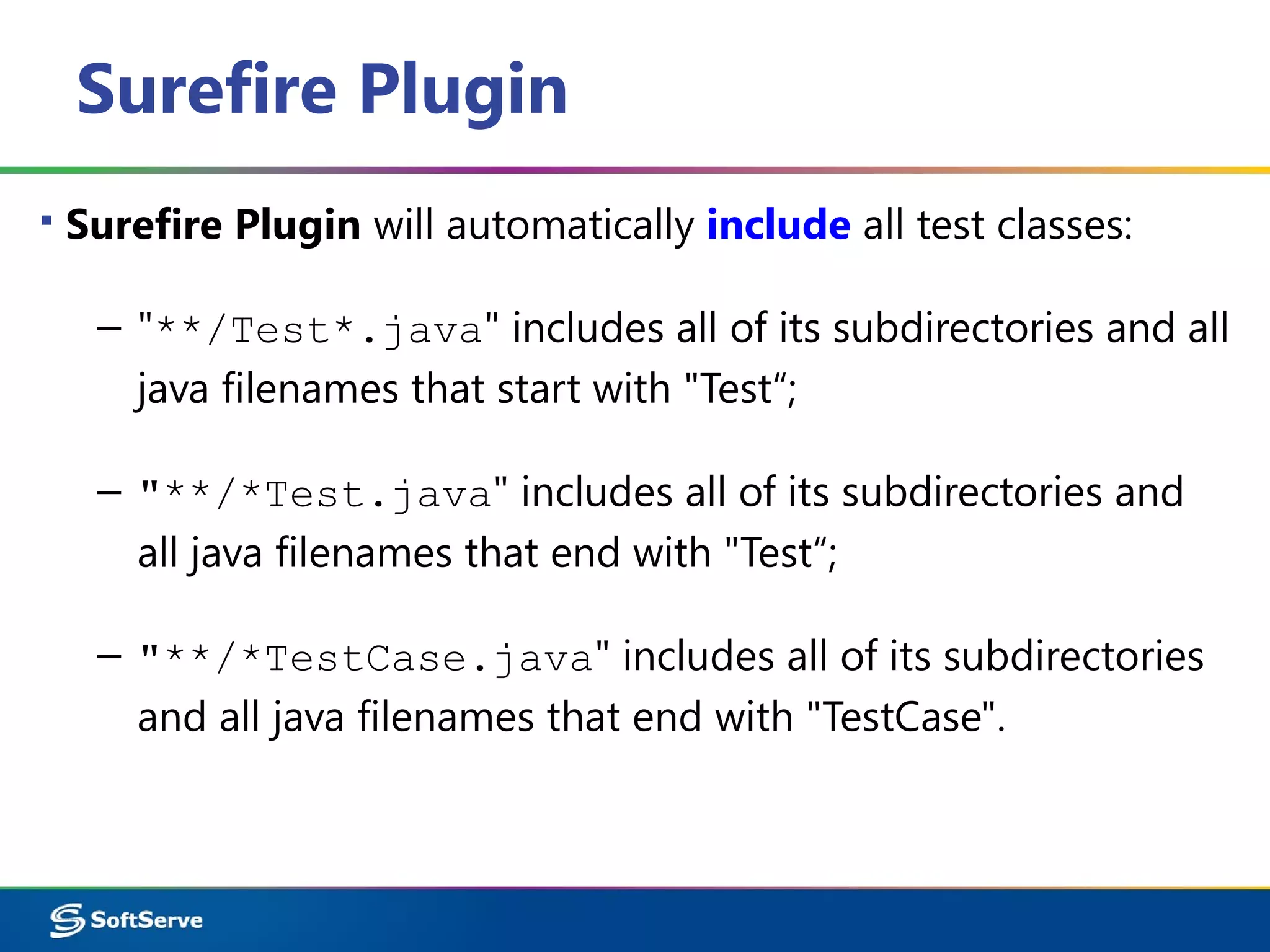
▪ Surefire Plugin will automatically include all test classes:
– "**/Test*.java" includes all of its subdirectories and all
java filenames that start with "Test“;
– "**/*Test.java" includes all of its subdirectories and
all java filenames that end with "Test“;
– "**/*TestCase.java" includes all of its subdirectories
and all java filenames that end with "TestCase".
Surefire Plugin. Include Test
<build>
<plugins>
<plugin>
<groupId>org.apache.maven.plugins</groupId>
<artifactId>maven-surefire-plugin</artifactId>
<version>2.16</version>
<configuration>
<includes>
<include>**/SearchTest.java</include>
</includes>
</configuration>
</plugin>
</plugins>
</build>
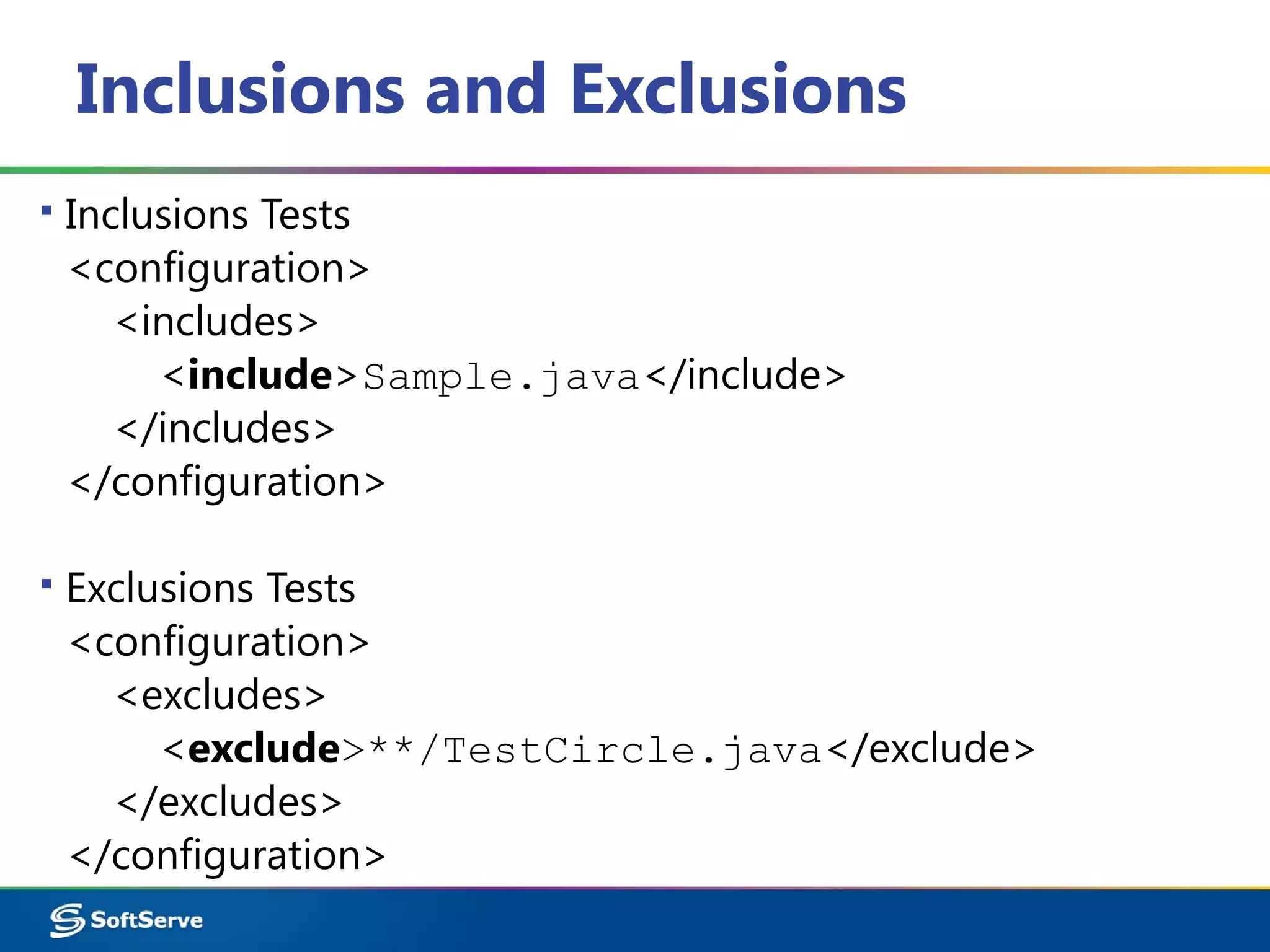
Inclusions and Exclusions
▪ Inclusions Tests
<configuration>
<includes>
<include>Sample.java</include>
</includes>
</configuration>
▪ Exclusions Tests
<configuration>
<excludes>
<exclude>**/TestCircle.java</exclude>
</excludes>
</configuration>
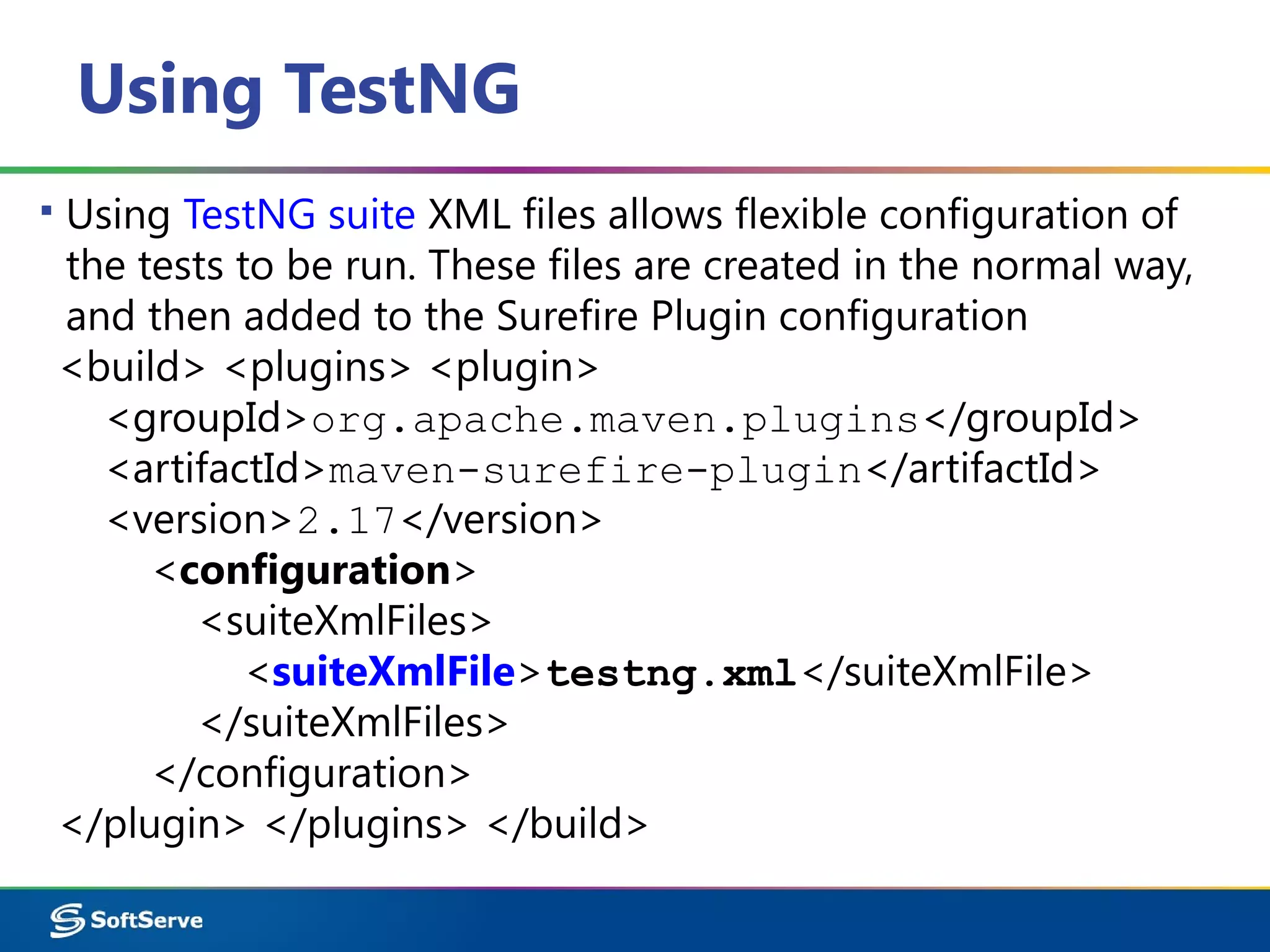
Using TestNG
▪ Using TestNG suite XML files allows flexible configuration of
the tests to be run. These files are created in the normal way,
and then added to the Surefire Plugin configuration
<build> <plugins> <plugin>
<groupId>org.apache.maven.plugins</groupId>
<artifactId>maven-surefire-plugin</artifactId>
<version>2.17</version>
<configuration>
<suiteXmlFiles>
<suiteXmlFile>testng.xml</suiteXmlFile>
</suiteXmlFiles>
</configuration>
</plugin> </plugins> </build>
Maven

Maven

  • 1.
    Java. Automation Build. Mavenfor QC IT Academy 01/05/2015
  • 2.
    Agenda ▪Quick Start ▪Maven Lifecycle ▪DependencyManagement ▪Plug-ins ▪IDE Integration ▪SureFire Plug-in
  • 3.
  • 4.
  • 5.
  • 6.
    Maven Download http://maven.apache.org/download.cgi ▪ Mavenis a Java tool, so you must have Java installed; ▪ Unzip the distribution archive; ▪ Add the M2_HOME environment variable with the value C:...Apacheapache-maven-3.2.5 ▪ Add to the PATH environment variable with the value %M2_HOME%bin
  • 7.
    Creating Project, GeneratePOM mvn archetype:generate -DgroupId=com.softserve.edu -DartifactId=work -Dversion=1.0-SNAPSHOT -DarchetypeArtifactId=maven-archetype-quickstart -DarchetypeVersion=1.0 -DinteractiveMode=false ▪ The quickstart archetype is a simple project with JAR packaging and a single dependency on JUnit. After generating a project with the quickstart archetype, you will have a single class.
  • 8.
    Single Class package com.softserve.edu; /** *Hello world! * */ public class App { public static void main( String[ ] args ) { System.out.println( "Hello World!" ); } }
  • 9.
    JUnit Test Class packagecom.softserve.edu; import junit.framework.Test; import junit.framework.TestCase; import junit.framework.TestSuite; public class AppTest extends TestCase { public AppTest( String testName ) { super( testName ); } public static Test suite( ) { return new TestSuite( AppTest.class ); } public void testApp( ) { assertTrue( true ); } }
  • 10.
    pom.xml <project xmlns="http://maven.apache.org/POM/4.0.0" …> <modelVersion>4.0.0</modelVersion> <groupId>com.softserve.edu</groupId> <artifactId>work</artifactId> <packaging>jar</packaging> <version>1.0-SNAPSHOT</version> <name>work</name> <url>http://maven.apache.org</url> <dependencies> <dependency> <groupId>junit</groupId> <artifactId>junit</artifactId> <version>3.8.1</version> <scope>test</scope> </dependency> </dependencies> </project>
  • 11.
  • 12.
  • 13.
  • 14.
  • 15.
    Maven pom.xml ▪ ThePOM extends the Super POM; – Only 4 lines are required. <project> <modelVersion>4.0.0</modelVersion> <groupId>com.softserve.edu</groupId> <artifactId>assignment</artifactId> <version>1.0</version> </project>
  • 16.
    Maven Coordinates ▪ AMaven coordinate is a tuple of values that uniquely identifies any artifact. ▪ Maven coordinates are used throughout Maven configuration and POM files. ▪ A coordinate comprises three pieces of information: – The group ID; – The artifact ID; – The version.
  • 17.
    Maven Coordinates ▪ Thegroup ID: – The entity or organization responsible for producing the artifact. For example, com.softserve.edu can be a group ID. ▪ The artifact ID: – The name of the actual artifact. For example, a project with a main class called OpsImp may use OpsImp as its artifact ID. ▪ The version: – A version number of the artifact. The supported format is in the form of mmm.nnn.bbb-qqqqqqq-dd, where mmm is the major version number, nnn is the minor version number, and bbb is the bugfix level. Optionally, either qqqqq (qualifier) or dd (build number) can also be added to the version number.
  • 18.
  • 19.
  • 20.
    Maven Directories Structure ▪src/main/java Java source files goes here; ▪ src/main/resources Other resources your application needs; ▪ src/main/filters Resource filters (properties files); ▪ src/main/config Configuration files; ▪ src/main/webapp Web application directory for a WAR project; ▪ src/test/java Test sources like unit tests (not deployed); ▪ src/test/resources Test resources (not deployed); ▪ src/test/filters Test resource filter files (not deployed); ▪ src/site Files used to generate the Maven project website; ▪ target/ The target directory is used to house all output of the build.
  • 21.
  • 22.
    Maven Lifecycle andPhases ▪ The build lifecycle is the process of building and distributing an artifact. ▪ A phase is a step in the build lifecycle. ▪ Most important default phases: – Validate – Compile – Test – Package – Install – Deploy ▪ Some common phases not default: – Clean – Site
  • 23.
    Maven Lifecycle andPhases ▪ Package – Take the compiled code and package it in its distributable format (JAR, WAR, etc.); ▪ pre-integration-test – Perform actions required before integration tests are executed; ▪ integration-test – Process and deploy the package if necessary into an environment where integration tests can be run; ▪ post-integration-test – Perform actions required after integration tests have been executed; ▪ verify – Run any checks to verify the package is valid and meets quality criteria; ▪ install – Install the package into the local repository; ▪ deploy – Copies the final package to the remote repository.
  • 24.
    Maven Commands ▪ Validatethe project is correct and all necessary information is available mvn validate ▪ Compile the source code of the project mvn compile ▪ Run unit tests from Command line mvn test ▪ Take the compiled code and package it in its distributable format, such as a JAR mvn package ▪ Run integration tests from Command line mvn verify
  • 25.
  • 26.
    Dependency Management ▪ JUnitis the de facto standard unit testing library for the Java language. ▪ Dependencies are defined in the POM. <dependencies> <dependency> <groupId>junit</groupId> <artifactId>junit</artifactId> <version>4.11</version> <scope>test</scope> </dependency> </dependencies>
  • 27.
    Dependency Management ▪ Repository:A shared location for dependencies which all projects can access – Only one exists; – Stored outside the project. <dependencies> <dependency> <groupId>org.testng</groupId> <artifactId>testng</artifactId> <version>6.8.8</version> <scope>test</scope> </dependency> </dependencies>
  • 28.
    Dependency Scope. Examples <dependency> <groupId>org.slf4j</groupId> <artifactId>slf4j-api</artifactId> <version>1.7.5</version> </dependency> ▪Code dependent on the API. Implementation can be changed. <dependency> <groupId>org.slf4j</groupId> <artifactId>slf4j-log4j12</artifactId> <version>1.7.5</version> <scope>runtime</scope> </dependency>
  • 29.
    Repositories ▪ Local repository: –Copy on local computer which is a cache of the remote downloads; – May contain project-local build artifacts as well; – Located in (by default) USER_HOME/.m2/repository
  • 30.
    Update pom.xml forSelenium <dependencies> <dependency> <groupId>org.seleniumhq.selenium</groupId> <artifactId>selenium-server</artifactId> <version>2.44.0</version> </dependency> <dependency> <groupId>org.seleniumhq.selenium</groupId> <artifactId>selenium-java</artifactId> <version>2.44.0</version> </dependency> </dependencies>
  • 31.
  • 32.
    Maven Operation Model ▪Maven is based on the Plugin-architecture, which allows the use of plug-ins for various tasks: compile, test, build, deploy, checkstyle, etc.
  • 33.
    Maven Plugins ▪ cleanClean up target after the build. Deletes the target directory. ▪ compiler Compiles Java source files. ▪ surefile Run the JUnit unit tests. Creates test reports. ▪ failsafe Run integration tests while the Surefire Plugins is designed to run unit tests. ▪ jar Builds a JAR file from the current project. ▪ war Builds a WAR file from the current project. ▪ javadoc Generates Javadoc for the project. ▪ antrun Runs a set of ant tasks from any phase mentioned of the build.
  • 34.
    Plug-ins Execution mvn [plugin-name]:[goal-name] ▪The following lifecycle bindings Phase Plugin execution goal test surefire:test integration-test failsafe:integration-test verify failsafe:verify
  • 35.
    Maven Plugins ▪ Mavenis – at its heart – a plugin execution framework. – All work is done by plugins. Looking for a specific goal to execute. ▪ There are the build and the reporting plugins: – Build plugins will be executed during the build and they should be configured in the <build/> element from the POM. – Reporting plugins will be executed during the site generation and they should be configured in the <reporting/> element from the POM.
  • 36.
    Maven Compiler Plugin ▪Compiler – the main plugin. It is used in almost all projects. Available by default, but in almost every project it has to re- declare. The default settings are not very suitable. <plugin> <groupId>org.apache.maven.plugins</groupId> <artifactId>maven-compiler-plugin</artifactId> <version>2.0.2</version> <configuration> <source>1.6</source> <target>1.6</target> <encoding>UTF-8</encoding> </configuration> </plugin>
  • 37.
  • 38.
  • 39.
  • 40.
  • 41.
  • 42.
    Eclipse Kepler. AddDependencies
  • 43.
    Selenium WebDriver ▪ Runtests from Eclipse
  • 44.
  • 45.
    Surefire Plugin ▪ SurefirePlugin will automatically include all test classes: – "**/Test*.java" includes all of its subdirectories and all java filenames that start with "Test“; – "**/*Test.java" includes all of its subdirectories and all java filenames that end with "Test“; – "**/*TestCase.java" includes all of its subdirectories and all java filenames that end with "TestCase".
  • 46.
    Surefire Plugin. IncludeTest <build> <plugins> <plugin> <groupId>org.apache.maven.plugins</groupId> <artifactId>maven-surefire-plugin</artifactId> <version>2.16</version> <configuration> <includes> <include>**/SearchTest.java</include> </includes> </configuration> </plugin> </plugins> </build>
  • 47.
    Inclusions and Exclusions ▪Inclusions Tests <configuration> <includes> <include>Sample.java</include> </includes> </configuration> ▪ Exclusions Tests <configuration> <excludes> <exclude>**/TestCircle.java</exclude> </excludes> </configuration>
  • 48.
    Using TestNG ▪ UsingTestNG suite XML files allows flexible configuration of the tests to be run. These files are created in the normal way, and then added to the Surefire Plugin configuration <build> <plugins> <plugin> <groupId>org.apache.maven.plugins</groupId> <artifactId>maven-surefire-plugin</artifactId> <version>2.17</version> <configuration> <suiteXmlFiles> <suiteXmlFile>testng.xml</suiteXmlFile> </suiteXmlFiles> </configuration> </plugin> </plugins> </build>