8/24/2016 Zynq design from scratch. Part 29. « New Horizons Zynq Blog
http://svenand.blogdrive.com/archive/189.html#.V72zk_l97IV 1/5
New Horizons
Welcome to my blog
My name is Sven Andersson and I
work as a consultant in embedded
system design, implemented in ASIC
and FPGA.
In my spare time I write this blog
and I hope it will inspire others to 
learn more about this fantastic field. 
I live in Stockholm Sweden and have
my own company
Contact
You are welcome to contact me 
and ask questions or make comments
about my blog.
Google site search
Search
Content
New Horizons
What's new
Starting a blog
Writing a blog
Using an RSS reader
Zynq Design From Scratch
Started February 2014
1 Introduction 
Changes and updates 
2 Zynq­7000 All Programmable SoC
3 ZedBoard and other boards
4 Computer platform and VirtualBox
  Thursday, March 20, 2014
Zynq design from scratch. Part 29.
PetaLinux application development
PetaLinux provides an easy way to develop user applications for Zynq and MicroBlaze Linux systems, including
building, installing, and debugging. This guide describes how to create and debug one application for Zynq­7000. Let's
start by studying the PetaLinux SDK Application Development Guide.
Create a new application
PetaLinux provides a tool to create user application templates for either C or C++. These templates include application
source code and Makefiles so that you can easily configure and compile applications for the target, and install them
into the root file system. We will add the PrimeNumber application we have already used in our earlier experiments.
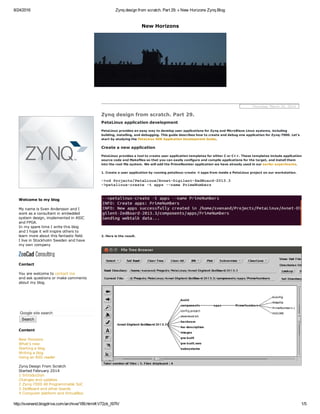
1. Create a user application by running petalinux­create ­t apps from inside a PetaLinux project on our workstation.
­>cd Projects/PetaLinux/Avnet­Digilent­ZedBoard­2013.3
­>petalinux­create ­t apps ­­name PrimeNumbers
2. Here is the result.
8/24/2016 Zynq design from scratch. Part 29. « New Horizons Zynq Blog
http://svenand.blogdrive.com/archive/189.html#.V72zk_l97IV 2/5
5 Installing Ubuntu
6 Fixing Ubuntu
7 Installing Vivado
8 Starting Vivado
9 Using Vivado
10 Lab 1. Create a Zynq project
11 Lab 1. Build a hardware platform
12 Lab 1. Create a software application
13 Lab 1. Connect to ZedBoard
14 Lab 1. Run a software application
15 Lab 1. Benchmarking ARM Cortex­A9
16 Lab 2. Adding a GPIO peripheral
17 Lab 2. Create a custom HDL module
18 Lab 2. Connect package pins and
implement
19 Lab 2. Create a software application
and configure the PL
20 Lab 2. Debugging a software
application
21 Running Linux from SD card
22 Installing PetaLinux
23 Booting PetaLinux
24 Connect to ZedBoad via ethernet
25 Rebuilding the PetaLinux kernel image
26 Running a DHCP server on the host
27 Running a TFTP server on the host
28 PetaLinux boot via U­boot
29 PetaLinux application development
30 Fixing the host computer
31 Running NFS servers
32 VirtualBox seamless mode
33 Mounting guest file system using
sshfs
34 PetaLinux. Setting up a web server
35 PetaLinux. Using cgi scripts
36 PetaLinux. Web enabled application
37 Convert from VirtualBox to VMware
38 Running Linaro Ubuntu on ZedBoard
39 Running Android on ZedBoard
40 Lab2. Booting from SD card and SPI
flash
41 Lab2. PetaLinux board bringup
42 Lab2. Writing userspace IO device
driver
43 Lab2. Hardware debugging
44 MicroZed quick start
45 Installing Vivado 2014.1
46 Lab3. Adding push buttons to our
Zynq system
47 Lab3. Adding an interrupt service
routine
48 Installing Ubuntu 14.04
49 Installing Vivado and Petalinux
2014.2
50 Using Vivado 2014.2
51 Upgrading to Ubuntu 14.04
52 Using Petalinux 2014.2
53 Booting from SD card and SPI flash
54 Booting Petalinux 2014.2 from SD
card
55 Booting Petalinux 2014.2 from SPI
flash
56 Installing Vivado 2014.3
Chipotle Verification System
Introduction
EE Times Retrospective Series
It all started more than 40 years ago
My first job as an electrical engineer
The Memory (R)evolution
The Microprocessor (R)evolution
Four soft­core processors
Started January 2012
Introduction
Table of contents
Leon3
MicroBlaze
OpenRISC 1200
Nios II
Using the Spartan­6 LX9 MicroBoard
Started August 2011
Introduction
3. We will replace the empty PrimeNumbers.c file with the one we used in our earlier lab.
Building a new application
Once we have created the new application, the next step is to compile and build it. The required steps are shown
below.
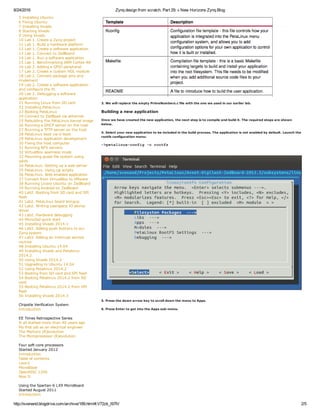
4. Select your new application to be included in the build process. The application is not enabled by default. Launch the
rootfs configuration menu:
­>petalinux­config ­c rootfs
5. Press the down arrow key to scroll down the menu to Apps.
6. Press Enter to got into the Apps sub­menu.
8/24/2016 Zynq design from scratch. Part 29. « New Horizons Zynq Blog
http://svenand.blogdrive.com/archive/189.html#.V72zk_l97IV 3/5
Table of contents
Problems, fixes and solutions
FPGA Design From Scratch
Started December 2006
Introduction
Table of contents
Index
Acronyms and abbreviations
Actel FPGA design
Designing with an Actel FPGA. Part 1
Designing with an Actel FPGA. Part 2
Designing with an Actel FPGA. Part 3
Designing with an Actel FPGA. Part 4
Designing with an Actel FPGA. Part 5
CAD
A hardware designer's best friend
Zoo Design Platform
Linux
Installing Cobra Command Tool
A processor benchmark
Mac
Porting a Unix program to Mac OS X
Fixing a HyperTerminal in Mac OS X
A dream come true
Bicycling
Stockholm by bike
Running
The New York City Marathon
Skiing/Skating
Kittelfjall Lappland
Tour skating in Sweden and around the
world
Top
Introduction
SSSK
Wild skating
Tour day
Safety equipment
A look at the equipment you need
Skate maintenance
Links
Books, photos, films and videos
Weather forecasts
Travel
38000 feet above see level
A trip to Spain
Florida the sunshine state
Photo Albums
Seaside Florida
Ronda Spain
Sevilla Spain
Cordoba Spain
Alhambra Spain
Kittelfjäll Lapland
Landsort Art Walk
Skating on thin ice
Books
100 Power Tips for FPGA Designers
Favorites
Adventures in ASIC
ChipHit
Computer History Museum
DeepChip
Design & Reuse
Dilbert
d9 Tech Blog
EDA Cafe
EDA DesignLine
Eli's tech Blog
Embedded.com
EmbeddedRelated.com
FPGA Arcade
7. Include the bullt­in app gpio­demo and the PrimeNumbers.
8. Exit and save the configuration.
Build a new PetaLinux kernel
9. Execute the command:
­>petalinux­build
10. We can see that the apps gpio­demo and PrimeNumbers will be included in the build.
11. Follow the instructions from part 28 to netboot the new image.
12. Here is the result from running PrimeNumbers.
8/24/2016 Zynq design from scratch. Part 29. « New Horizons Zynq Blog
http://svenand.blogdrive.com/archive/189.html#.V72zk_l97IV 4/5
FPGA Blog
FPGA Central
FPGA CPU News
FPGA developer
FPGA Journal
FPGA World
Lesley Shannon Courses
Mac 2 Ubuntu
Programmable Logic DesignLine
OpenCores
Simplehelp
SOCcentral
World of ASIC
Contact Me
If you want to be updated on this weblog Enter
your email here:
  register
Running gpio­demo
gpio­demo is a program that can be used to send and read data to/from the GPIO port. Type 
gpio­demo to find out more.
­>gpio­demo
13. Use this command to turn on all eight LEDs on the board:
­>gpio­demo ­g 243 ­o 255
Top   Previous   Next
Posted at 09:46 by svenand
L30nardoSV 
November 9, 2015   04:48 PM PST
 
Hello,
I confirm what CArlos said.
It happens with the 2014.04 version.
Carlos Moraes 
January 2, 2015   01:10 AM PST
 
Hi everybody!!
My gpiochip number are differrent. LEDs 0 to 7 are
gpiochip125 and LED 9 is gpiochip138. Unfortunately, i
didn't find any docs related to that, as my revision of
PETALINUX is 2014.4.
Thanks so much for the blog Sven. Have a happy new
year.
8/24/2016 Zynq design from scratch. Part 29. « New Horizons Zynq Blog
http://svenand.blogdrive.com/archive/189.html#.V72zk_l97IV 5/5
   
Leave a Comment:
Name
Name
Homepage (optional)
Comments
Post
Previous Entry Home Next Entry

Zynq design from scratch. part 29