Power BI Tips
and Timesavers
Divide by Zero Errors
SQL, BigQuery, Excel,
Power Query, Power BI, DAX
A common error that analysts experience is the division by zero error
This video explains across a range of platforms how to avoid these issues with
simple logic to make sure the divide by zero error does not get in the way of
analysis
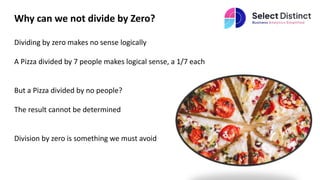
Why can we not divide by Zero?
Dividing by zero makes no sense logically
A Pizza divided by 7 people makes logical sense, a 1/7 each
But a Pizza divided by no people?
The result cannot be determined
Division by zero is something we must avoid
The main ways to avoid Divide by 0
If we focus on a few key widely used BI tools, the ways to avoid generally fall into these categories
Check the denominator first,
if it is zero then avoid the division and output a suitable value in its place
Or
Use a safe division type of option which has built in divide by zero handling
In most cases you can decide which option to use depending on what makes sense in the case you need it to apply to.
Sometimes you will need to return a value of zero other times it may make more sense to show the value as NULL or even
return a text message such as ‘N/A’
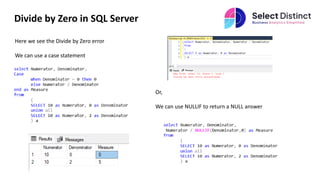
Divide by Zero in SQL Server
Here we see the Divide by Zero error
We can use a case statement
Or,
We can use NULLIF to return a NULL answer
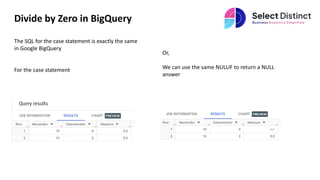
Divide by Zero in BigQuery
The SQL for the case statement is exactly the same
in Google BigQuery
For the case statement
Or,
We can use the same NULLIF to return a NULL
answer
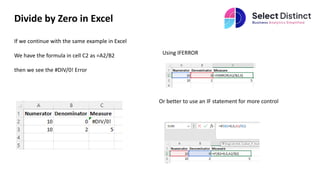
Divide by Zero in Excel
If we continue with the same example in Excel
We have the formula in cell C2 as =A2/B2
then we see the #DIV/0! Error
Using IFERROR
Or better to use an IF statement for more control
Divide by Zero in Power Pivot
Using the same example data
Create a Calculated Column in Power Pivot
if([Denominator]=0,0,[Numerator]/[Denominator])
You could also use the IFERROR function
But be aware it would return a zero for any error not
just the zero denominator
Divide by Zero in Power BI
Firstly in Power Query
Use the conditional column feature to check if the
divisor is zero and return a different value.
In the Else section enter a placeholder for the
fraction
The final step is to edit the M code to remove the
placeholder and replace with
[Numerator]/[Denominator]
Divide by Zero in Power BI
Secondly within DAX
Using DIVIDE (a Safe Divide method)
Measure using DIVIDE = Divide(sum('Table'[Numerator]),
sum('Table'[Denominator]), 0)
Using the IF function
Measure using IF = if(sum('Table'[Denominator]) = 0, 0,
sum('Table'[Numerator]) / sum('Table'[Denominator]))
This is a small range of the use cases you may need to know to avoid the dreaded
divide by zero errors
Understanding these solutions is important to allow your analysis to be able to
handle the divide by zero error
For more Tips, Tricks and
Timesavers, visit our website
Business Analytics Blog – Select Distinct
Credit: simon.harrison@selectdistinct.co.uk

Divide by Zero Errors

  • 1.
    Power BI Tips andTimesavers Divide by Zero Errors SQL, BigQuery, Excel, Power Query, Power BI, DAX
  • 2.
    A common errorthat analysts experience is the division by zero error This video explains across a range of platforms how to avoid these issues with simple logic to make sure the divide by zero error does not get in the way of analysis
  • 3.
    Why can wenot divide by Zero? Dividing by zero makes no sense logically A Pizza divided by 7 people makes logical sense, a 1/7 each But a Pizza divided by no people? The result cannot be determined Division by zero is something we must avoid
  • 4.
    The main waysto avoid Divide by 0 If we focus on a few key widely used BI tools, the ways to avoid generally fall into these categories Check the denominator first, if it is zero then avoid the division and output a suitable value in its place Or Use a safe division type of option which has built in divide by zero handling In most cases you can decide which option to use depending on what makes sense in the case you need it to apply to. Sometimes you will need to return a value of zero other times it may make more sense to show the value as NULL or even return a text message such as ‘N/A’
  • 5.
    Divide by Zeroin SQL Server Here we see the Divide by Zero error We can use a case statement Or, We can use NULLIF to return a NULL answer
  • 6.
    Divide by Zeroin BigQuery The SQL for the case statement is exactly the same in Google BigQuery For the case statement Or, We can use the same NULLIF to return a NULL answer
  • 7.
    Divide by Zeroin Excel If we continue with the same example in Excel We have the formula in cell C2 as =A2/B2 then we see the #DIV/0! Error Using IFERROR Or better to use an IF statement for more control
  • 8.
    Divide by Zeroin Power Pivot Using the same example data Create a Calculated Column in Power Pivot if([Denominator]=0,0,[Numerator]/[Denominator]) You could also use the IFERROR function But be aware it would return a zero for any error not just the zero denominator
  • 9.
    Divide by Zeroin Power BI Firstly in Power Query Use the conditional column feature to check if the divisor is zero and return a different value. In the Else section enter a placeholder for the fraction The final step is to edit the M code to remove the placeholder and replace with [Numerator]/[Denominator]
  • 10.
    Divide by Zeroin Power BI Secondly within DAX Using DIVIDE (a Safe Divide method) Measure using DIVIDE = Divide(sum('Table'[Numerator]), sum('Table'[Denominator]), 0) Using the IF function Measure using IF = if(sum('Table'[Denominator]) = 0, 0, sum('Table'[Numerator]) / sum('Table'[Denominator]))
  • 11.
    This is asmall range of the use cases you may need to know to avoid the dreaded divide by zero errors Understanding these solutions is important to allow your analysis to be able to handle the divide by zero error
  • 12.
    For more Tips,Tricks and Timesavers, visit our website Business Analytics Blog – Select Distinct Credit: simon.harrison@selectdistinct.co.uk