XAML&Application Platform
~これまでとこれから~
高橋 忍
日本マイクロソフト株式会社
テクニカルエバンジェリスト
本日の内容
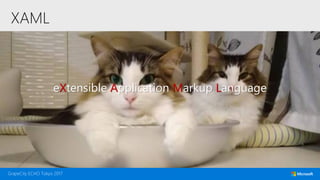
XAML
eXtensible Application Markup Language
本当にやりたかったこと
あらゆるデバイスでの快適なUX
UIとコードの分離&非同期処理
UI要素の再定義とユーザーへの開放
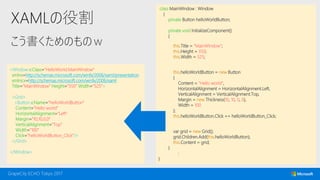
XAMLの役割
こう書くためのものw
class MainWindow : Window
{
private Button helloWorldButton;
private void InitializeComponent()
{
this.Title = "MainWindow";
this.Height = 350;
this.Width = 525;
this.helloWorldButton = new Button
{
Content = "Hello world",
HorizontalAlignment = HorizontalAlignment.Left,
VerticalAlignment = VerticalAlignment.Top,
Margin = new Thickness(10, 10, 0, 0),
Width = 100
};
this.helloWorldButton.Click += helloWorldButton_Click;
var grid = new Grid();
grid.Children.Add(this.helloWorldButton);
this.Content = grid;
}
:
}
<Window x:Class=“HelloWorld.MainWindow“
xmlns=http://schemas.microsoft.com/winfx/2006/xaml/presentation
xmlns:x=http://schemas.microsoft.com/winfx/2006/xaml
Title=”MainWindow” Height=“350” Width=“525”>
<Grid>
<Button x:Name=“helloWorldButton“
Content=”Hello world“
HorizontalAlignment=”Left“
Margin=”10,10,0,0“
VerticalAlignment=”Top“
Width=”100“
Click=”helloWorldButton_Click”/>
</Grid>
</Window>
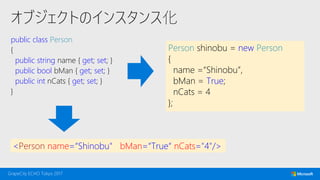
オブジェクトのインスタンス化
public class Person
{
public string name { get; set; }
public bool bMan { get; set; }
public int nCats { get; set; }
}
<Person name=“Shinobu" bMan=“True“ nCats="4"/>
Person shinobu = new Person
{
name =“Shinobu”,
bMan = True;
nCats = 4
};
XAML とは
UIを定義するために特化した言語
…. ではなく
XAML とは
オブジェクトのインスタンスと
オブジェクト間の階層構造
を構築する定義型言語
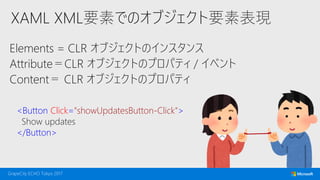
XAML XML要素でのオブジェクト要素表現
Elements = CLR オブジェクトのインスタンス
Attribute=CLR オブジェクトのプロパティ / イベント
Content= CLR オブジェクトのプロパティ
<Button Click="showUpdatesButton-Click">
Show updates
</Button>
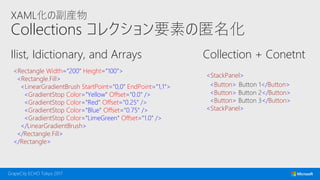
XAML化の副産物
Collections コレクション要素の匿名化
Ilist, Idictionary, and Arrays Collection + Conetnt
<Rectangle Width="200" Height="100">
<Rectangle.Fill>
<LinearGradientBrush StartPoint="0,0" EndPoint="1,1">
<GradientStop Color="Yellow" Offset="0.0" />
<GradientStop Color="Red" Offset="0.25" />
<GradientStop Color="Blue" Offset="0.75" />
<GradientStop Color="LimeGreen" Offset="1.0" />
</LinearGradientBrush>
</Rectangle.Fill>
</Rectangle>
<StackPanel>
<Button> Button 1</Button>
<Button> Button 2</Button>
<Button> Button 3</Button>
<StackPanel>
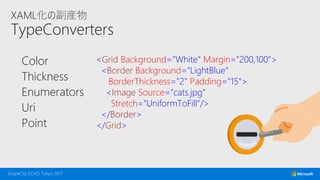
XAML化の副産物
TypeConverters
Color
Thickness
Enumerators
Uri
Point
<Grid Background="White" Margin="200,100">
<Border Background="LightBlue"
BorderThickness="2" Padding="15">
<Image Source=“cats.jpg”
Stretch="UniformToFill"/>
</Border>
</Grid>
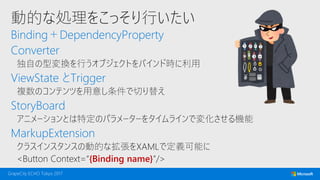
動的な処理をこっそり行いたい
Binding+DependencyProperty
Converter
独自の型変換を行うオブジェクトをバインド時に利用
ViewState とTrigger
複数のコンテンツを用意し条件で切り替え
StoryBoard
アニメーションとは特定のパラメーターをタイムラインで変化させる機能
MarkupExtension
クラスインスタンスの動的な拡張をXAMLで定義可能に
<Button Context=“{Binding name}”/>
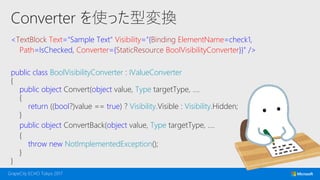
Converter を使った型変換
<TextBlock Text="Sample Text" Visibility="{Binding ElementName=check1,
Path=IsChecked, Converter={StaticResource BoolVisibilityConverter}}" />
public class BoolVisibilityConverter : IValueConverter
{
public object Convert(object value, Type targetType, ….
{
return ((bool?)value == true) ? Visibility.Visible : Visibility.Hidden;
}
public object ConvertBack(object value, Type targetType, ….
{
throw new NotImplementedException();
}
}
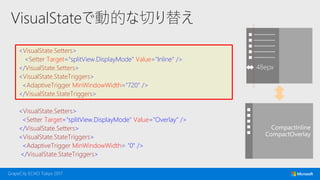
VisualStateで動的な切り替え
<VisualState.Setters>
<Setter Target="splitView.DisplayMode" Value="Inline" />
</VisualState.Setters>
<VisualState.StateTriggers>
<AdaptiveTrigger MinWindowWidth="720" />
</VisualState.StateTriggers>
<VisualState.Setters>
<Setter Target="splitView.DisplayMode" Value="Overlay" />
</VisualState.Setters>
<VisualState.StateTriggers>
<AdaptiveTrigger MinWindowWidth= "0" />
</VisualState.StateTriggers>
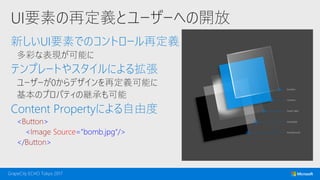
UI要素の再定義とユーザーへの開放
新しいUI要素でのコントロール再定義
多彩な表現が可能に
テンプレートやスタイルによる拡張
ユーザーが0からデザインを再定義可能に
基本のプロパティの継承も可能
Content Propertyによる自由度
<Button>
<Image Source="bomb.jpg“/>
</Button>
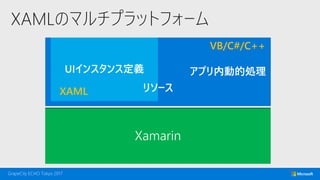
XAMLのマルチプラットフォーム
VB/C#/C++
XAML
XAMLはクロスプラットフォームの世界へ
言語としての新たな可能性へ
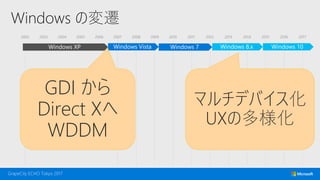
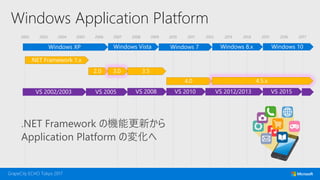
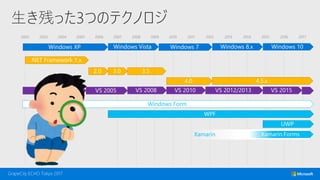
2002 2003 2004 2005 2006 2007 2008 2009 2010 2011 2012 2013 2014 2015 2016 2017
Windows の変遷
GDI から
Direct Xへ
WDDM
マルチデバイス化
UXの多様化
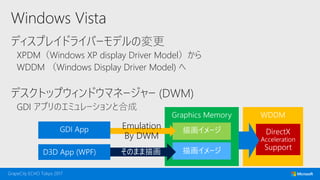
Windows Vista
ディスプレイドライバーモデルの変更
XPDM(Windows XP display Driver Model)から
WDDM (Windows Display Driver Model) へ
デスクトップウィンドウマネージャー (DWM)
GDI アプリのエミュレーションと合成
Emulation
By DWM
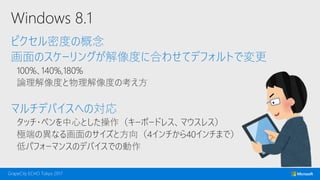
Windows 8.1
ピクセル密度の概念
画面のスケーリングが解像度に合わせてデフォルトで変更
100%、140%,180%
論理解像度と物理解像度の考え方
マルチデバイスへの対応
タッチ・ペンを中心とした操作(キーボードレス、マウスレス)
極端の異なる画面のサイズと方向(4インチから40インチまで)
低パフォーマンスのデバイスでの動作
2002 2003 2004 2005 2006 2007 2008 2009 2010 2011 2012 2013 2014 2015 2016 2017
Windows Application Platform
2002 2003 2004 2005 2006 2007 2008 2009 2010 2011 2012 2013 2014 2015 2016 2017
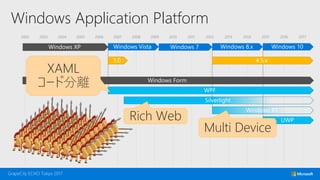
Windows Application Platform
XAML
コード分離
Rich Web
Multi Device
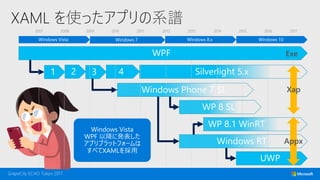
XAML を使ったアプリの系譜
2007 2008 2009 2010 2011 2012 2013 2014 2015 2016 2017
2002 2003 2004 2005 2006 2007 2008 2009 2010 2011 2012 2013 2014 2015 2016 2017
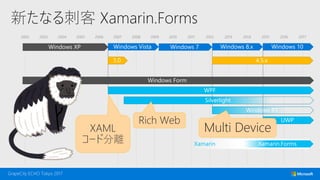
新たなる刺客 Xamarin.Forms
Xamarin
Rich Web
Multi DeviceXAML
コード分離
2002 2003 2004 2005 2006 2007 2008 2009 2010 2011 2012 2013 2014 2015 2016 2017
生き残った3つのテクノロジ
Windows Form
Xamarin
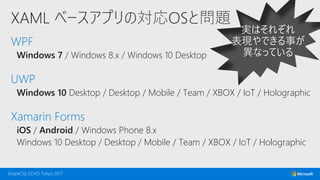
XAML ベースアプリの対応OSと問題
WPF
Windows 7 / Windows 8.x / Windows 10 Desktop
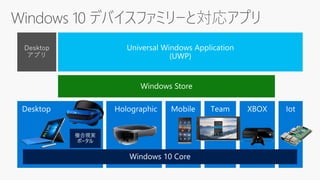
UWP
Windows 10 Desktop / Desktop / Mobile / Team / XBOX / IoT / Holographic
Xamarin Forms
iOS / Android / Windows Phone 8.x
Windows 10 Desktop / Desktop / Mobile / Team / XBOX / IoT / Holographic

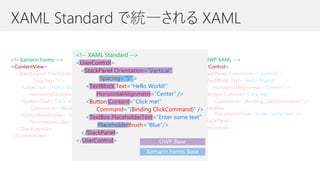
XAML の標準化
XAML Standard による標準化
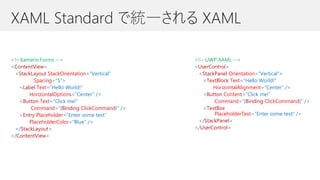
XAML Standard で統一される XAML
<!– Xamarin.Forms -->
<ContentView>
<StackLayout StackOrientation=“Vertical”
Spacing=“5”>
<Label Text=“Hello World!”
HorizontalOptions=“Center” />
<Button Text=“Click me!”
Command=“{Binding ClickCommand}” />
<Entry Placeholder=“Enter some text”
PlaceholderColor=“Blue” />
</StackLayout>
</ContentView>
<!-- UWP XAML -->
<UserControl>
<StackPanel Orientation=“Vertical”>
<TextBlock Text=“Hello World!”
HorizontalAlignment=“Center” />
<Button Content=“Click me!”
Command=“{Binding ClickCommand}” />
<TextBox
PlaceholderText=“Enter some text” />
</StackPanel>
</UserControl>
XAML Standard で統一される XAML
<!– Xamarin.Forms -->
<ContentView>
<StackLayout StackOrientation=“Vertical”
Spacing=“5”>
<Label Text=“Hello World!”
HorizontalOptions=“Center” />
<Button Text=“Click me!”
Command=“{Binding ClickCommand}” />
<Entry Placeholder=“Enter some text”
PlaceholderColor=“Blue” />
</StackLayout>
</ContentView>
<!-- UWP XAML -->
<UserControl>
<StackPanel Orientation=“Vertical”>
<TextBlock Text=“Hello World!”
HorizontalAlignment=“Center” />
<Button Content=“Click me!”
Command=“{Binding ClickCommand}” />
<TextBox
PlaceholderText=“Enter some text” />
</StackPanel>
</UserControl>
<!-- XAML Standard -->
<UserControl>
<StackPanel Orientation=“Vertical”
Spacing=“5” >
<TextBlock Text=“Hello World!”
HorizontalAlignment=“Center” />
<Button Content=“Click me!”
Command=“{Binding ClickCommand}” />
<TextBox PlaceholderText=“Enter some text”
PlaceholderBrush=“Blue”/>
</StackPanel>
</UserControl>
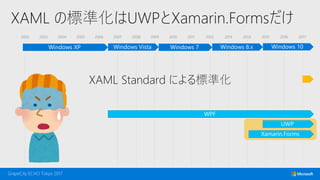
2002 2003 2004 2005 2006 2007 2008 2009 2010 2011 2012 2013 2014 2015 2016 2017
XAML の標準化はUWPとXamarin.Formsだけ
XAML Standard による標準化
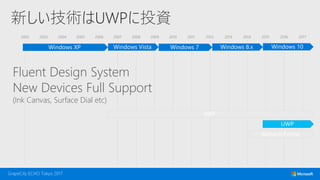
2002 2003 2004 2005 2006 2007 2008 2009 2010 2011 2012 2013 2014 2015 2016 2017
新しい技術はUWPに投資
Fluent Design System
New Devices Full Support
(Ink Canvas, Surface Dial etc)
?
?
?
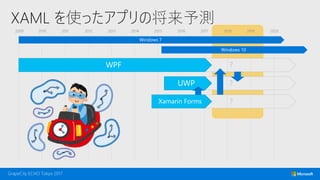
XAML を使ったアプリの将来予測
2009 2010 2011 2012 2013 2014 2015 2016 2017 2018 2019 2020
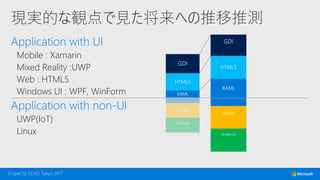
現実的な観点で見た将来への推移推測
Application with UI
Mobile : Xamarin
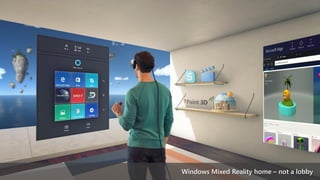
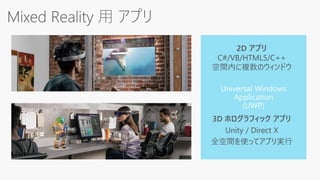
Mixed Reality :UWP
Web : HTML5
Windows UI : WPF, WinForm
Application with non-UI
UWP(IoT)
Linux
2002 2003 2004 2005 2006 2007 2008 2009 2010 2011 2012 2013 2014 2015 2016 2017
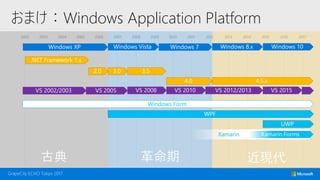
おまけ:Windows Application Platform
Windows Form
Xamarin
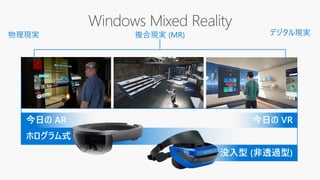
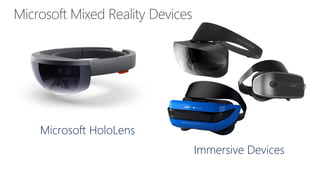
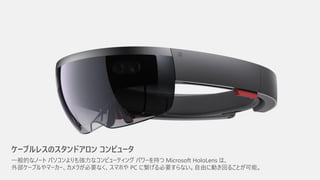
ホログラム式 (透過型)
没入型 (非透過型)
今日の VR今日の AR
物理現実 デジタル現実複合現実 (MR)
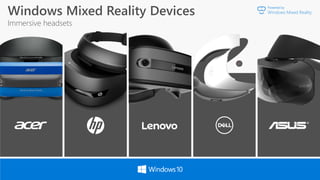
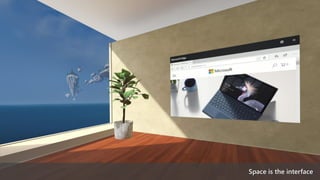
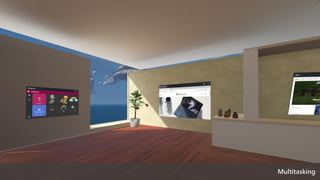
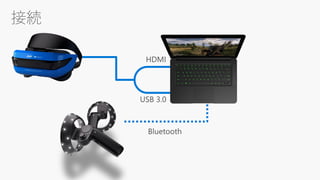
Windows Mixed Reality Devices
Immersive headsets
Powered by
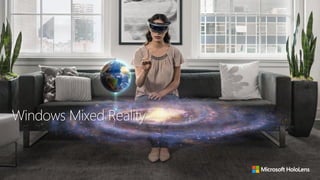
Windows Mixed Reality
Introduction to
Microsoft Fluent Design System
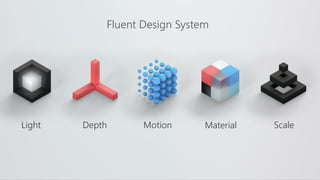
Depth Motion Material ScaleLight
Fluent Design System
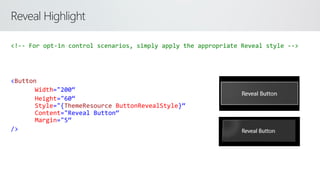
Reveal Highlight
<!-- For opt-in control scenarios, simply apply the appropriate Reveal style -->
<Button
Width="200“
Height="60“
Style="{ThemeResource ButtonRevealStyle}“
Content="Reveal Button“
Margin="5“
/>
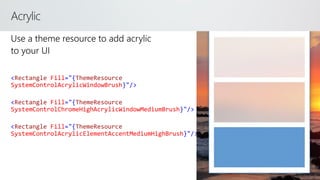
Acrylic

<Rectangle Fill="{ThemeResource
SystemControlAcrylicWindowBrush}"/>
<Rectangle Fill="{ThemeResource
SystemControlChromeHighAcrylicWindowMediumBrush}"/>
<Rectangle Fill="{ThemeResource
SystemControlAcrylicElementAccentMediumHighBrush}"/>
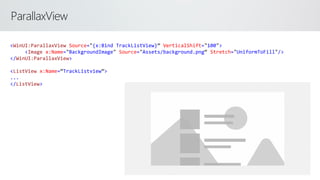
ParallaxView
<WinUI:ParallaxView Source="{x:Bind TrackListView}” VerticalShift="100">
<Image x:Name="BackgroundImage" Source="Assets/background.png“ Stretch="UniformToFill"/>
</WinUI:ParallaxView>
<ListView x:Name=“TrackListview”>
...
</ListView>
や、やっと終わりか…
まとめ
現在のMicrosoft の中で
2DアプリのUIはXAMLとHTMLへ
XAMLは次の世代にむけて
マルチプラットフォーム・マルチデバイスのための
アプリのための言語として
進化を続けます
© 2017 Microsoft Corporation. All rights reserved.
本情報の内容(添付文書、リンク先などを含む)は、作成日時点でのものであり、予告なく変更される場合があります。

XAML&Application Platform ~これまでとこれから~