Windows Security:
Changing and Adding
User Accounts
Windows Security
It is sometimes necessary to protect important work and personal
information stored in the computer. There are also situations that
you want to prevent other people from using your computer.
Imagine of you have worked on a project several hours or days, and
then one day, you found out that it was deleted by someone else
by accident. Microsoft Windows has security features that
determine who can use and have access to your computer.
Changing and Adding
User Accounts
Windows operating system provides user
accounts in your operating system to
determine and manage the different kinds of
users in one computer. This is to ensure the
security and privacy of each user who will
use the computer.
Changing and Adding
User Accounts
1. Steps to open the user accounts
In the User Accounts window, you will see task that you can do with your account.
To go to the Control Panel
Search Bar > Type “Control
Panel”> Click Control Panel
Click the User Accounts
A B
Changing and Adding
User Accounts
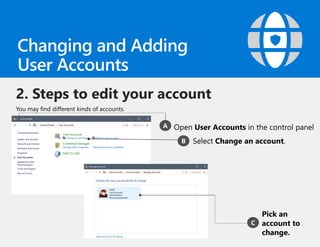
2. Steps to edit your account
You may find different kinds of accounts.
Open User Accounts in the control panelA
Select Change an account.B
C
Pick an
account to
change.
Kinds of accounts
I. Computer administrator – controls all the contents
and users of the computer, installs programs, adds and
deletes users.
II. Limited account – has limited control and only have
access to his/her particular account.
III. Guest – accounts created for transient users and do
not have access to the other computer accounts and
their content.
Changes
A. Change my account name – if you want to change
your name displayed in your account.
Changes
B. Create a password – provides security to new account
or accounts without existing password.
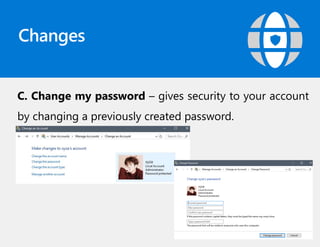
Changes
C. Change my password – gives security to your account
by changing a previously created password.
Changes
D. Remove my password – You may remove an existing
password if you decide to do so.
Changes
E. Change my picture – you can change your picture
displayed beside your name.
Changes
F. Change my account type – you can set an account
either as Computer Administrator or Limited.
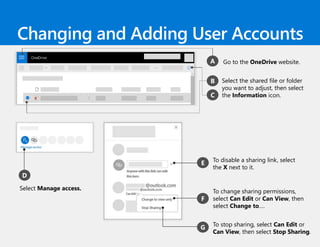
Go to the OneDrive website.
Select Manage access.
Changing and Adding User Accounts
Select the shared file or folder
you want to adjust, then select
the Information icon.
To disable a sharing link, select
the X next to it.
To change sharing permissions,
select Can Edit or Can View, then
select Change to….
To stop sharing, select Can Edit or
Can View, then select Stop Sharing.
D
E
F
G
A
B
C
3. Secure your device with Windows Hello
Windows Hello provides enterprise-grade security for your Windows 10 devices. No need for a password;
sign in with just a look or a touch.
Select Sign-in options.
Under Windows Hello, you’ll see
options for face, fingerprint, or iris if your
PC has a fingerprint reader or a camera
that supports it.
Select Set up and follow the directions.
Once you’re set up, you’ll be able to
unlock your device and sign in with a
quick swipe or glance.
Select the button.
B
Then select Settings > Accounts.A
C
Select the button.
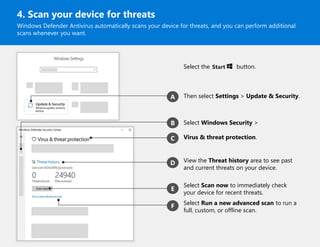
4. Scan your device for threats
Windows Defender Antivirus automatically scans your device for threats, and you can perform additional
scans whenever you want.
View the Threat history area to see past
and current threats on your device.
Then select Settings > Update & Security.A
C
D
Select Scan now to immediately check
your device for recent threats.
E
F Select Run a new advanced scan to run a
full, custom, or offline scan.
Select Windows Security >
Virus & threat protection.
B
Go to the OneDrive website.
Select Settings > Restore your OneDrive.
Select the earliest activity that you
want to undo.
Select the Restore button.
Your OneDrive will be restored to the state it
was in before the activity you selected.
For more information, visit aka.ms/MW-security.
5. Restore your files
Recover your entire OneDrive up to 30 days after a malicious attack like ransomware, file corruption, or
accidental deletes and edits.
D
A
B
Select a date from the drop-down list,
or choose Custom date and time.
C
E

Windows Security: Changing and Adding User Account

  • 1.
    Windows Security: Changing andAdding User Accounts
  • 2.
    Windows Security It issometimes necessary to protect important work and personal information stored in the computer. There are also situations that you want to prevent other people from using your computer. Imagine of you have worked on a project several hours or days, and then one day, you found out that it was deleted by someone else by accident. Microsoft Windows has security features that determine who can use and have access to your computer.
  • 3.
    Changing and Adding UserAccounts Windows operating system provides user accounts in your operating system to determine and manage the different kinds of users in one computer. This is to ensure the security and privacy of each user who will use the computer.
  • 4.
    Changing and Adding UserAccounts 1. Steps to open the user accounts In the User Accounts window, you will see task that you can do with your account. To go to the Control Panel Search Bar > Type “Control Panel”> Click Control Panel Click the User Accounts A B
  • 5.
    Changing and Adding UserAccounts 2. Steps to edit your account You may find different kinds of accounts. Open User Accounts in the control panelA Select Change an account.B C Pick an account to change.
  • 6.
    Kinds of accounts I.Computer administrator – controls all the contents and users of the computer, installs programs, adds and deletes users. II. Limited account – has limited control and only have access to his/her particular account. III. Guest – accounts created for transient users and do not have access to the other computer accounts and their content.
  • 7.
    Changes A. Change myaccount name – if you want to change your name displayed in your account.
  • 8.
    Changes B. Create apassword – provides security to new account or accounts without existing password.
  • 9.
    Changes C. Change mypassword – gives security to your account by changing a previously created password.
  • 10.
    Changes D. Remove mypassword – You may remove an existing password if you decide to do so.
  • 11.
    Changes E. Change mypicture – you can change your picture displayed beside your name.
  • 12.
    Changes F. Change myaccount type – you can set an account either as Computer Administrator or Limited.
  • 13.
    Go to theOneDrive website. Select Manage access. Changing and Adding User Accounts Select the shared file or folder you want to adjust, then select the Information icon. To disable a sharing link, select the X next to it. To change sharing permissions, select Can Edit or Can View, then select Change to…. To stop sharing, select Can Edit or Can View, then select Stop Sharing. D E F G A B C
  • 14.
    3. Secure yourdevice with Windows Hello Windows Hello provides enterprise-grade security for your Windows 10 devices. No need for a password; sign in with just a look or a touch. Select Sign-in options. Under Windows Hello, you’ll see options for face, fingerprint, or iris if your PC has a fingerprint reader or a camera that supports it. Select Set up and follow the directions. Once you’re set up, you’ll be able to unlock your device and sign in with a quick swipe or glance. Select the button. B Then select Settings > Accounts.A C
  • 15.
    Select the button. 4.Scan your device for threats Windows Defender Antivirus automatically scans your device for threats, and you can perform additional scans whenever you want. View the Threat history area to see past and current threats on your device. Then select Settings > Update & Security.A C D Select Scan now to immediately check your device for recent threats. E F Select Run a new advanced scan to run a full, custom, or offline scan. Select Windows Security > Virus & threat protection. B
  • 16.
    Go to theOneDrive website. Select Settings > Restore your OneDrive. Select the earliest activity that you want to undo. Select the Restore button. Your OneDrive will be restored to the state it was in before the activity you selected. For more information, visit aka.ms/MW-security. 5. Restore your files Recover your entire OneDrive up to 30 days after a malicious attack like ransomware, file corruption, or accidental deletes and edits. D A B Select a date from the drop-down list, or choose Custom date and time. C E