Windows 11 Desktop
Administration :
System Maintenance
and Troubleshooting
System Restore Recovery Drive
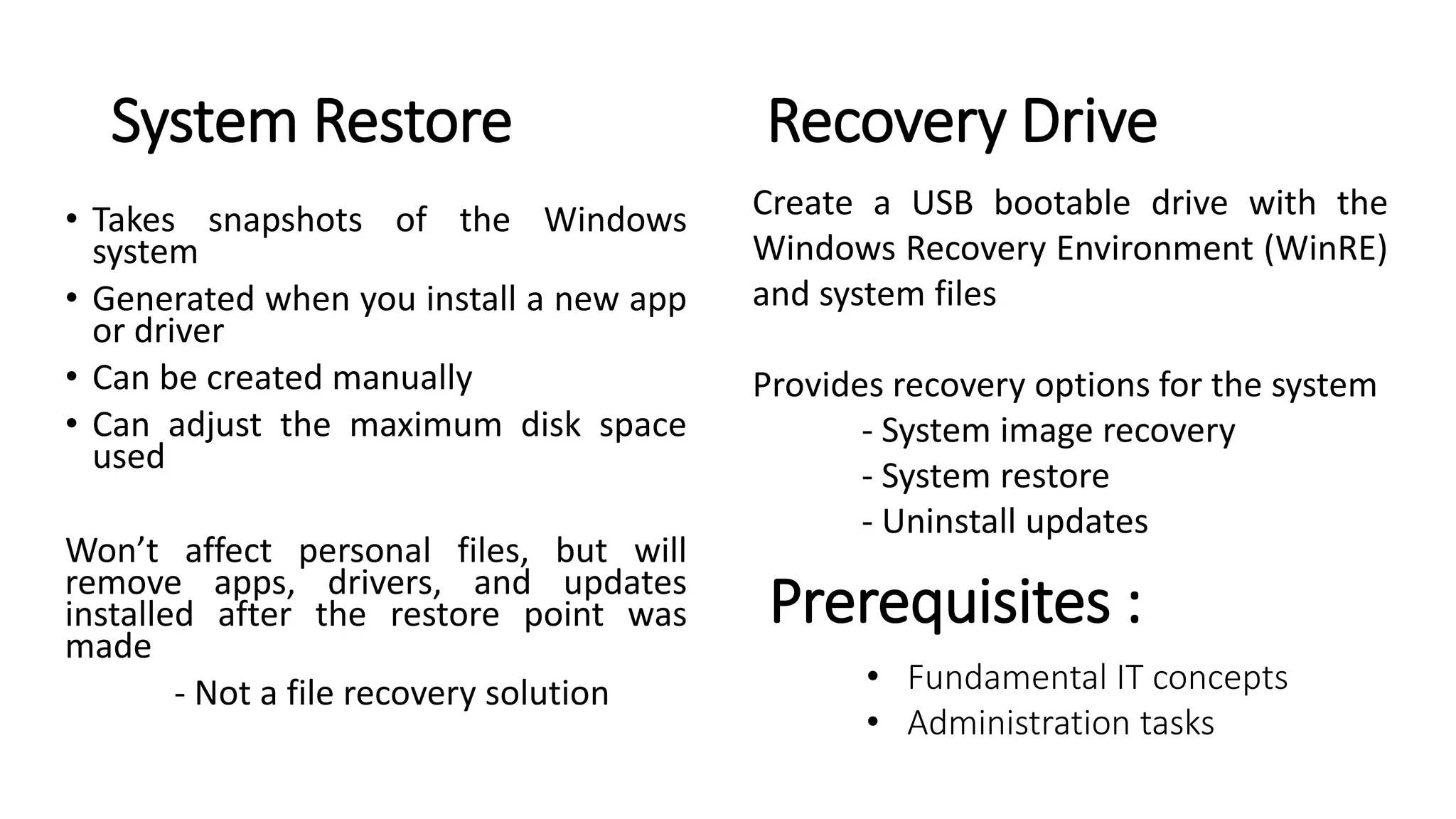
• Takes snapshots of the Windows
system
• Generated when you install a new app
or driver
• Can be created manually
• Can adjust the maximum disk space
used
Won’t affect personal files, but will
remove apps, drivers, and updates
installed after the restore point was
made
- Not a file recovery solution
Create a USB bootable drive with the
Windows Recovery Environment (WinRE)
and system files
Provides recovery options for the system
- System image recovery
- System restore
- Uninstall updates
Prerequisites :
• Fundamental IT concepts
• Administration tasks
Course Introduction
Pluralsight’s Windows 11 Desktop Administration Path
Course Overview
Windows 11 backup and recovery
Windows 11 updates
Windows 11 maintenance tools
Windows 11 troubleshooting
Windows 11 Backup and Recovery
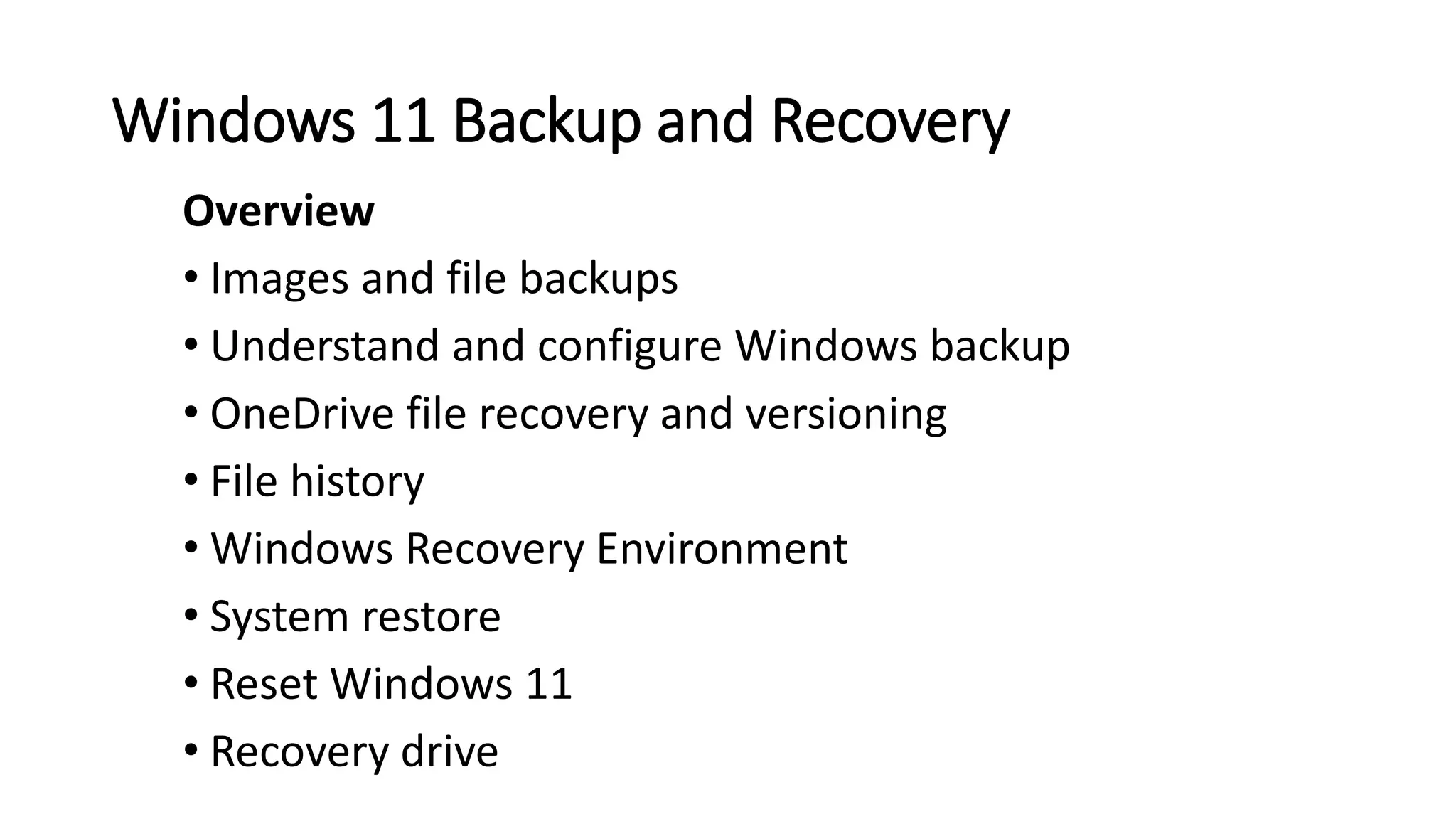
Overview
• Images and file backups
• Understand and configure Windows backup
• OneDrive file recovery and versioning
• File history
• Windows Recovery Environment
• System restore
• Reset Windows 11
• Recovery drive
Image and File Backups
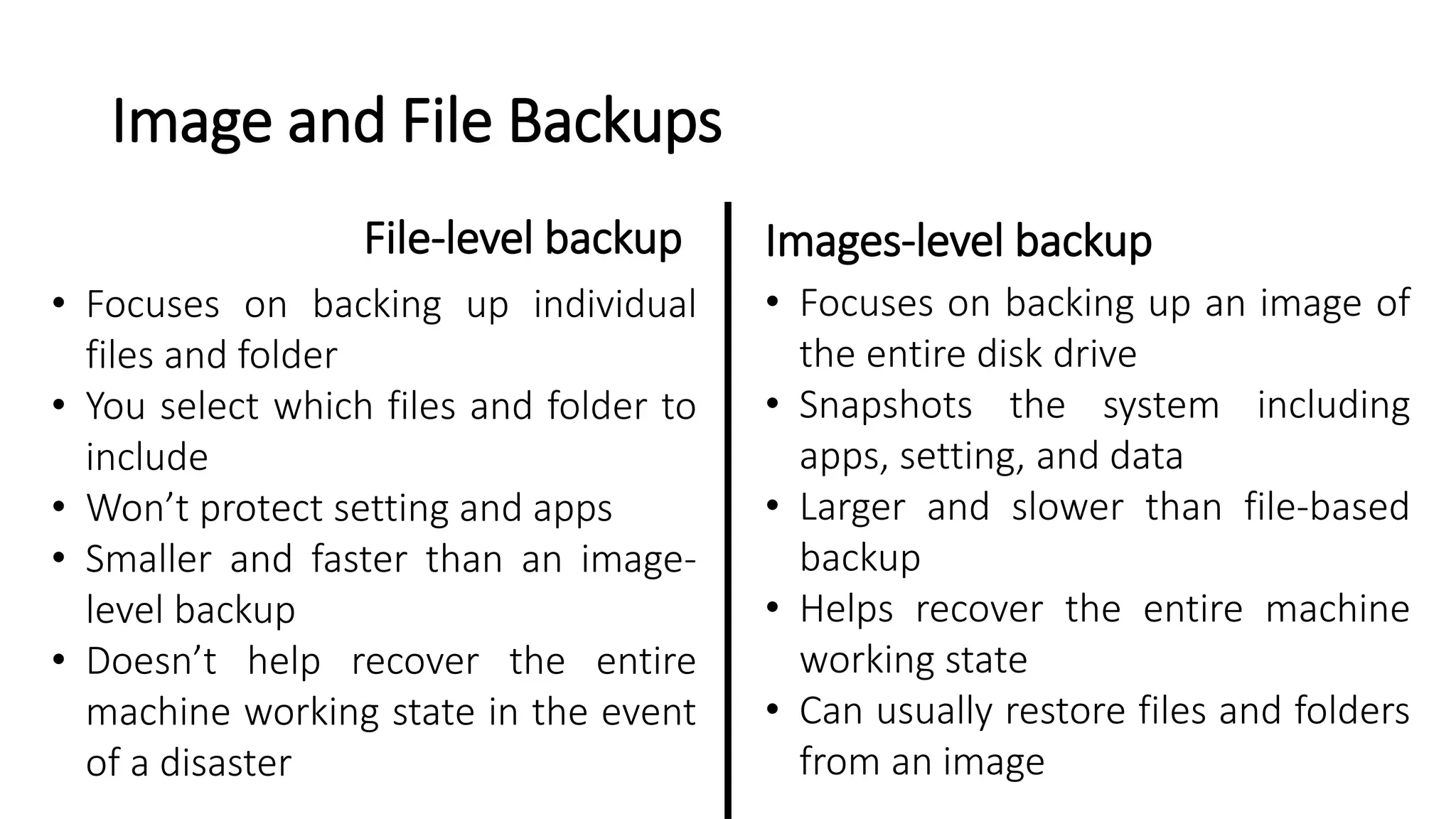
File-level backup Images-level backup
• Focuses on backing up individual
files and folder
• You select which files and folder to
include
• Won’t protect setting and apps
• Smaller and faster than an image-
level backup
• Doesn’t help recover the entire
machine working state in the event
of a disaster
• Focuses on backing up an image of
the entire disk drive
• Snapshots the system including
apps, setting, and data
• Larger and slower than file-based
backup
• Helps recover the entire machine
working state
• Can usually restore files and folders
from an image
Windows Backup
Older backup
mechanism
introduced in
Windows 7
Supports image
and file backup
and restore
Back up to another
drive or network
share
Schedule backups
Optionally include
system image
Demo :
Configure Windows
Backup
Demo :
Restore from Windows
Backup
Demo :
OneDrive File Recovery
and Versioning
File History Things to be aware of
• Snapshot based file backup solution
• Recommended to use an external
drive as the target. Can use other
internal drives or a network location
• Copies files from Windows Libraries
(documents, downloads, desktop,
ect)
• Can put in exclusions
• Provides the ability to control how
often to save copies for, and how
long to keep the saved versions
• Only makes copies if the file has changed
or is a new file
• If BitLocker is enabled on the Windows
drive, BitLocker to Go needs to be
enabled on the target drive
• Including folder outside of the Windows
Libraries is clunky, but achievable
• Has previously been marker for
deprecation
- Likely a push to store files in
OneDrive and use versioning
there
Demo :
Configure File History
Windows Recovery Environment (WinRE)
Useful for troubleshooting
and recovery when
Windows is not
functioning or booting
WinRE gets used when
creating a recovery drive
WinRE is preloaded into
Windows 11
Based on the Windows
Preinstallation
Environment. You can boot
to WinRE
Accessing WinRE will start automatically if:
Accessed through the advanced
startup menu:
• At the login screen, click
shutdown, then hold shift while
clicking restart
• Use the advanced startup
option in Windows Setting
• Use the command shutdown /r
/o
• Use the “repair your computer”
option from the Windows 11
installation media
• Boot from a recovery drive
• There are two consecutive failed
attempts to start Windows
• There are two consecutive unexpected
shutdowns that occur within two
minutes of boot completion
• There are two consecutive system
reboots within two minutes of boot
completion
• There is a secure boot error
• There is a BitLocker error on touch-
only devices
Demo :
Explore the Windows
Recovery Environment
System Restore
• Takes snapshots of the Windows system
• Generated when you install a new app or driver
• Can be created manually
• Can adjust the maximum disk space used
• Won’t affect personal files, but will remove apps, drivers,
and updates installed after the restore point was made
- Not a file recovery solution
Demo :
System Restore
Reset Windows 11
Reinstalls Windows 11
to factory settings,
with options to keep or
remove your files
Can reset from
Windows Setting, the
sign-in screen, a
recovery drive, or
installation media
Option to restore apps
and settings that came
with the PC
Option to download
and reinstall windows,
or reinstall from the
image on the device
If resetting and
removing everything,
there is an option to
“clean the drive”
If BitLocker is enabled,
you’ll need the
recovery key to do a
reset
Demo :
Reset Windows 11
Recovery Drive
• Create a USB bootable drive with the Windows Recovery Environment
(WinRE) and system files
• Provides recovery options for the system
- System images recovery
- System restore
- Uninstall updates
• Useful for when the machine won’t boot
• Need a USB drive at least 16GB in size
• Create a new recovery drive regularly
• Can be more useful than a reset, as it includes a more up-to-date copy of
system files
Demo :
Create a Recovery Drive
Summary
• There are a lot of recovery and restore tools and methods!
- Spend some time getting familiar with which to use, at what
time
• Ensure you have methods in place that protect Windows,
applications, and data
• In the event of failure or a disaster, having multiple options is golden
• A backup is only as good as your recovery
• Third party tools do add value

Windows 11 Desktop 01. Administration System Maintenance and Troubleshooting.pptx

  • 1.
    Windows 11 Desktop Administration: System Maintenance and Troubleshooting
  • 2.
    System Restore RecoveryDrive • Takes snapshots of the Windows system • Generated when you install a new app or driver • Can be created manually • Can adjust the maximum disk space used Won’t affect personal files, but will remove apps, drivers, and updates installed after the restore point was made - Not a file recovery solution Create a USB bootable drive with the Windows Recovery Environment (WinRE) and system files Provides recovery options for the system - System image recovery - System restore - Uninstall updates Prerequisites : • Fundamental IT concepts • Administration tasks
  • 3.
    Course Introduction Pluralsight’s Windows11 Desktop Administration Path
  • 4.
    Course Overview Windows 11backup and recovery Windows 11 updates Windows 11 maintenance tools Windows 11 troubleshooting
  • 5.
    Windows 11 Backupand Recovery Overview • Images and file backups • Understand and configure Windows backup • OneDrive file recovery and versioning • File history • Windows Recovery Environment • System restore • Reset Windows 11 • Recovery drive
  • 6.
    Image and FileBackups File-level backup Images-level backup • Focuses on backing up individual files and folder • You select which files and folder to include • Won’t protect setting and apps • Smaller and faster than an image- level backup • Doesn’t help recover the entire machine working state in the event of a disaster • Focuses on backing up an image of the entire disk drive • Snapshots the system including apps, setting, and data • Larger and slower than file-based backup • Helps recover the entire machine working state • Can usually restore files and folders from an image
  • 7.
    Windows Backup Older backup mechanism introducedin Windows 7 Supports image and file backup and restore Back up to another drive or network share Schedule backups Optionally include system image
  • 8.
  • 9.
    Demo : Restore fromWindows Backup
  • 10.
    Demo : OneDrive FileRecovery and Versioning
  • 11.
    File History Thingsto be aware of • Snapshot based file backup solution • Recommended to use an external drive as the target. Can use other internal drives or a network location • Copies files from Windows Libraries (documents, downloads, desktop, ect) • Can put in exclusions • Provides the ability to control how often to save copies for, and how long to keep the saved versions • Only makes copies if the file has changed or is a new file • If BitLocker is enabled on the Windows drive, BitLocker to Go needs to be enabled on the target drive • Including folder outside of the Windows Libraries is clunky, but achievable • Has previously been marker for deprecation - Likely a push to store files in OneDrive and use versioning there
  • 12.
  • 13.
    Windows Recovery Environment(WinRE) Useful for troubleshooting and recovery when Windows is not functioning or booting WinRE gets used when creating a recovery drive WinRE is preloaded into Windows 11 Based on the Windows Preinstallation Environment. You can boot to WinRE
  • 14.
    Accessing WinRE willstart automatically if: Accessed through the advanced startup menu: • At the login screen, click shutdown, then hold shift while clicking restart • Use the advanced startup option in Windows Setting • Use the command shutdown /r /o • Use the “repair your computer” option from the Windows 11 installation media • Boot from a recovery drive • There are two consecutive failed attempts to start Windows • There are two consecutive unexpected shutdowns that occur within two minutes of boot completion • There are two consecutive system reboots within two minutes of boot completion • There is a secure boot error • There is a BitLocker error on touch- only devices
  • 15.
    Demo : Explore theWindows Recovery Environment
  • 16.
    System Restore • Takessnapshots of the Windows system • Generated when you install a new app or driver • Can be created manually • Can adjust the maximum disk space used • Won’t affect personal files, but will remove apps, drivers, and updates installed after the restore point was made - Not a file recovery solution
  • 17.
  • 18.
    Reset Windows 11 ReinstallsWindows 11 to factory settings, with options to keep or remove your files Can reset from Windows Setting, the sign-in screen, a recovery drive, or installation media Option to restore apps and settings that came with the PC Option to download and reinstall windows, or reinstall from the image on the device If resetting and removing everything, there is an option to “clean the drive” If BitLocker is enabled, you’ll need the recovery key to do a reset
  • 19.
  • 20.
    Recovery Drive • Createa USB bootable drive with the Windows Recovery Environment (WinRE) and system files • Provides recovery options for the system - System images recovery - System restore - Uninstall updates • Useful for when the machine won’t boot • Need a USB drive at least 16GB in size • Create a new recovery drive regularly • Can be more useful than a reset, as it includes a more up-to-date copy of system files
  • 21.
    Demo : Create aRecovery Drive
  • 22.
    Summary • There area lot of recovery and restore tools and methods! - Spend some time getting familiar with which to use, at what time • Ensure you have methods in place that protect Windows, applications, and data • In the event of failure or a disaster, having multiple options is golden • A backup is only as good as your recovery • Third party tools do add value