WEB DESIGN BASICS
1:33 AM 1
New Material Added to the Site
http://startingmyownwebpage.wordpress.com/
1:33 AM 2
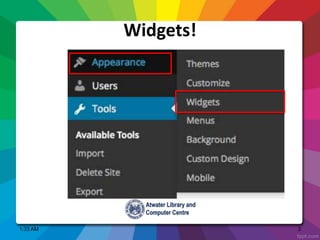
Widgets!
1:33 AM 3
Widgets
 Widget is a fancy word for tools or content
that you can add, arrange, and remove from
the sidebar(s) of your blog.
 Depending on the Theme that you are
using, Widgets might appear to the right, the
bottom or both the right and bottom of your
webpage.
1:33 AM 4
Types of Widgets
1:33 AM 5
Widgets can be configured to appear only on
certain pages (or be hidden on certain pages) by
using the Visibility panel.
Widgets
1:33 AM 6
Widgets
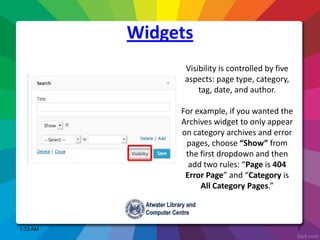
Visibility is controlled by five
aspects: page type, category,
tag, date, and author.
For example, if you wanted the
Archives widget to only appear
on category archives and error
pages, choose “Show” from
the first dropdown and then
add two rules: “Page is 404
Error Page” and “Category is
All Category Pages.”
1:33 AM 7
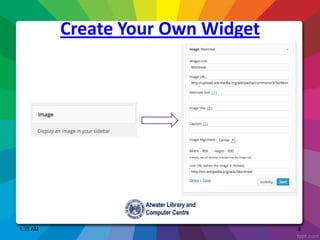
Create Your Own Widget
1:33 AM 8
Custom Header
1:33 AM 9
The use of this option is completely free, and you do
not need to purchase the Custom Design upgrade in
order to change your header—as long as you’re using
one of the themes that includes the option, of
course.
1:33 AM 10
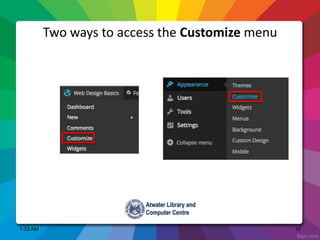
Two ways to access the Customize menu
1:33 AM 11
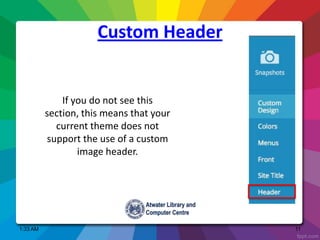
If you do not see this
section, this means that your
current theme does not
support the use of a custom
image header.
Custom Header
1:33 AM 12
Themes That Support Custom Header
1:33 AM 13
Note: If the image that you want to insert in your header is
already in your Media Library, all you need to do is locate it and
select it. Otherwise, you’ll need to upload an image from your
computer or choose one from the suggested ones (if any).
Depending on the size of the image that you have selected and
the respective size of your theme’s custom header, you might
also have to crop the image.
Custom Header
1:33 AM 14
Flexible Headers
If your theme supports Flexible
Headers (check the list below), you can also
skip cropping—the header image will be
added without any cropping so you can use
one that is taller or shorter than the size
defined by the theme when you crop.
1:33 AM 15
Themes That Support Flexible Headers
1:33 AM 16
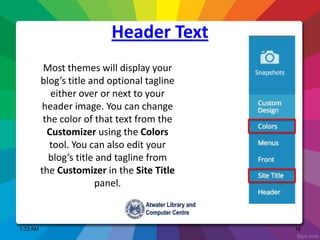
Most themes will display your
blog’s title and optional tagline
either over or next to your
header image. You can change
the color of that text from the
Customizer using the Colors
tool. You can also edit your
blog’s title and tagline from
the Customizer in the Site Title
panel.
Header Text
1:33 AM 17
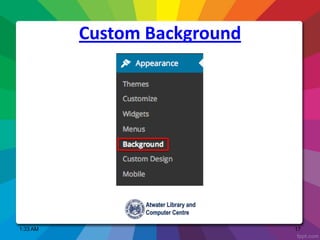
Custom Background
1:33 AM 18
Position: This option allows you to position the background image on
the Left (default), in the Center or on the Right of the page.
Repeat: This option determines if the background image is repeated.
The choices are:
1. No repeat: The background image will be shown only once on
the page.
2. Tile (default): The background image will be repeated both
horizontally and vertically throughout the entire page.
3. Tile Horizontally: The background image will repeat only
horizontally.
4. Tile Vertically: The background image will repeat only vertically.
Attachment: This determines if you want the background image to scroll
with the content or to stay “fixed” in place when the user scrolls down
the page. The default attachment setting is scroll.
1:33 AM 19
Video
WordPress currently supports embedding videos
from
YouTube, Vimeo, Hulu, Flickr, Animoto, DailyMotio
n, Viddler, Blip.tv, TED
Talks, Educreations, Instagram, AolOn, Vine, and
Videolog.
1:33 AM 20
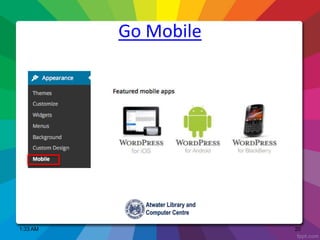
Go Mobile
1:33 AM 21
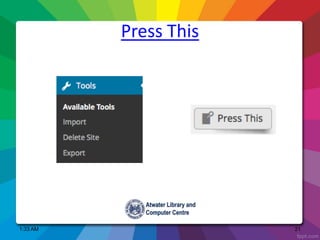
Press This
1:33 AM 22
Page Jumps
Return to Top of Page

Web design basics_05

  • 1.
  • 2.
  • 3.
    New Material Addedto the Site http://startingmyownwebpage.wordpress.com/ 1:33 AM 2
  • 4.
  • 5.
    Widgets  Widget isa fancy word for tools or content that you can add, arrange, and remove from the sidebar(s) of your blog.  Depending on the Theme that you are using, Widgets might appear to the right, the bottom or both the right and bottom of your webpage. 1:33 AM 4
  • 6.
  • 7.
    Widgets can beconfigured to appear only on certain pages (or be hidden on certain pages) by using the Visibility panel. Widgets 1:33 AM 6
  • 8.
    Widgets Visibility is controlledby five aspects: page type, category, tag, date, and author. For example, if you wanted the Archives widget to only appear on category archives and error pages, choose “Show” from the first dropdown and then add two rules: “Page is 404 Error Page” and “Category is All Category Pages.” 1:33 AM 7
  • 9.
    Create Your OwnWidget 1:33 AM 8
  • 10.
    Custom Header 1:33 AM9 The use of this option is completely free, and you do not need to purchase the Custom Design upgrade in order to change your header—as long as you’re using one of the themes that includes the option, of course.
  • 11.
    1:33 AM 10 Twoways to access the Customize menu
  • 12.
    1:33 AM 11 Ifyou do not see this section, this means that your current theme does not support the use of a custom image header. Custom Header
  • 13.
    1:33 AM 12 ThemesThat Support Custom Header
  • 14.
    1:33 AM 13 Note:If the image that you want to insert in your header is already in your Media Library, all you need to do is locate it and select it. Otherwise, you’ll need to upload an image from your computer or choose one from the suggested ones (if any). Depending on the size of the image that you have selected and the respective size of your theme’s custom header, you might also have to crop the image. Custom Header
  • 15.
    1:33 AM 14 FlexibleHeaders If your theme supports Flexible Headers (check the list below), you can also skip cropping—the header image will be added without any cropping so you can use one that is taller or shorter than the size defined by the theme when you crop.
  • 16.
    1:33 AM 15 ThemesThat Support Flexible Headers
  • 17.
    1:33 AM 16 Mostthemes will display your blog’s title and optional tagline either over or next to your header image. You can change the color of that text from the Customizer using the Colors tool. You can also edit your blog’s title and tagline from the Customizer in the Site Title panel. Header Text
  • 18.
  • 19.
    1:33 AM 18 Position:This option allows you to position the background image on the Left (default), in the Center or on the Right of the page. Repeat: This option determines if the background image is repeated. The choices are: 1. No repeat: The background image will be shown only once on the page. 2. Tile (default): The background image will be repeated both horizontally and vertically throughout the entire page. 3. Tile Horizontally: The background image will repeat only horizontally. 4. Tile Vertically: The background image will repeat only vertically. Attachment: This determines if you want the background image to scroll with the content or to stay “fixed” in place when the user scrolls down the page. The default attachment setting is scroll.
  • 20.
    1:33 AM 19 Video WordPresscurrently supports embedding videos from YouTube, Vimeo, Hulu, Flickr, Animoto, DailyMotio n, Viddler, Blip.tv, TED Talks, Educreations, Instagram, AolOn, Vine, and Videolog.
  • 21.
  • 22.
  • 23.
    1:33 AM 22 PageJumps Return to Top of Page