August 22, 2012


Web Design101
Foundational skills for
website design
2                                 August 22, 2012


Web Design 101
   What we’ll do today!
       Web page breakdown
           What are the key parts of a web page?
       Web design process
           Where to start?
       Site Organization
       HTML
           The backbone of a web page
           Links
       Imagery for the web
       CSS
           The heart of a web page
       Banner and Slideshow Animation
           Flash and jQuery
       FTP Space
       Blog options

                                            Copyright Rasmussen, Inc. 2011. Proprietary and Confidential.
3                                    August 22, 2012


Web Design – a rough sketch
   You know it. You love it. Now how do you get
    on the web?
       Web Page Coding and Creation (HTML)options
           Hand-coding, HTML text editors,
           WYSWIG HTML software (Dreamweaver)
       Vision(sketches or Photoshop)
       Content (ideas and tasks and projects)
       Server space (web hosting) or blog
       FTP software (Free or Dreamweaver)

                               Copyright Rasmussen, Inc. 2011. Proprietary and Confidential.
4                                    August 22, 2012


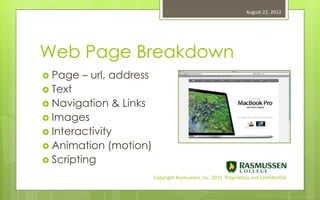
Web Page Breakdown
 Page   – url, address
 Text
 Navigation   & Links
 Images
 Interactivity
 Animation   (motion)
 Scripting
                          Copyright Rasmussen, Inc. 2011. Proprietary and Confidential.
5                                    August 22, 2012


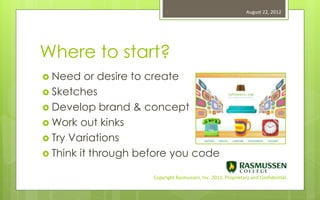
Where to start?
 Need    or desire to create
 Sketches
 Develop brand & concept
 Work out kinks
 Try Variations
 Think it through before you code

                     Copyright Rasmussen, Inc. 2011. Proprietary and Confidential.
6                                    August 22, 2012


Site Organization
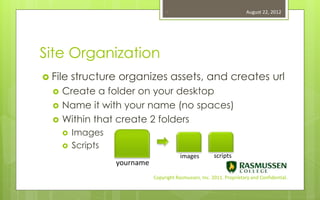
 File    structure organizes assets, and creates url
     Create a folder on your desktop
     Name it with your name (no spaces)
     Within that create 2 folders
         Images
         Scripts
                                           images         scripts
                    yourname
                               Copyright Rasmussen, Inc. 2011. Proprietary and Confidential.
7                                 August 22, 2012


Site Organization
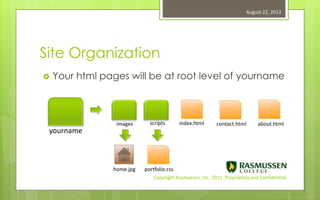
   Your html pages will be at root level of yourname


                 images      scripts       index.html      contact.html       about.html
 yourname


                home.jpg   portfolio.css
                               Copyright Rasmussen, Inc. 2011. Proprietary and Confidential.
8                                 August 22, 2012


Determining urls

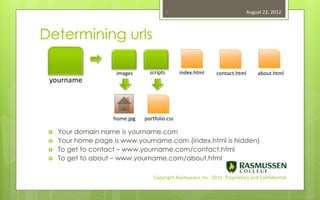
                     images      scripts       index.html      contact.html       about.html
 yourname


                    home.jpg   portfolio.css

    Your domain name is yourname.com
    Your home page is www.yourname.com (index.html is hidden)
    To get to contact – www.yourname.com/contact.html
    To get to about – www.yourname.com/about.html

                                   Copyright Rasmussen, Inc. 2011. Proprietary and Confidential.
9                                    August 22, 2012


Keep your site organized!
 Always   in one root folder
 File Management in Dreamweaver a help
 Scripts are often generated on the fly, so
  be aware of alerts and point them to
  script folders.
 Dreamweaver can also copy images to a
  default folder. Great feature.
                     Copyright Rasmussen, Inc. 2011. Proprietary and Confidential.
10                                   August 22, 2012


HTML – Hypertext Markup Language
   The backbone or skeleton of Web Design
   Code evolution
   HTML – HTML 4 – XHTML – HTML5
   All still in use on current browsers
   HTML5 still being incorporated. Simplified
    coding that accommodates multimedia
    and apps.

                         Copyright Rasmussen, Inc. 2011. Proprietary and Confidential.
11                                   August 22, 2012


HTML – Hypertext Markup Language
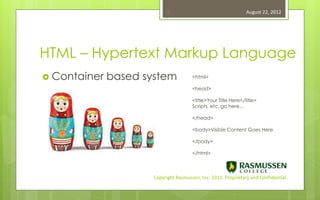
 Container   based system             <html>

                                       <head>

                                       <title>Your Title Here</title>
                                       Scripts, etc, go here…

                                       </head>

                                       <body>Visible Content Goes Here

                                       </body>

                                       </html>


                      Copyright Rasmussen, Inc. 2011. Proprietary and Confidential.
12                                   August 22, 2012


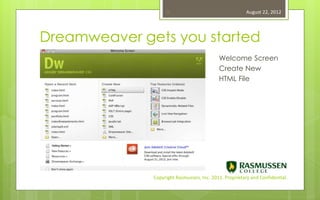
Dreamweaver gets you started
                                                   Welcome Screen
                                                   Create New
 Container   based system                         HTML File


                      Copyright Rasmussen, Inc. 2011. Proprietary and Confidential.
13                                   August 22, 2012


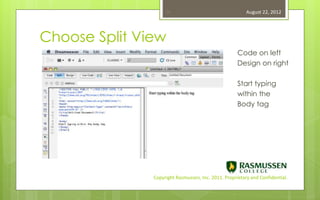
Choose Split View
                                                            Code on left
                                                            Design on right

 Container   based system
                                                            Start typing
                                                            within the
                                                            Body tag


                      Copyright Rasmussen, Inc. 2011. Proprietary and Confidential.
14                                   August 22, 2012


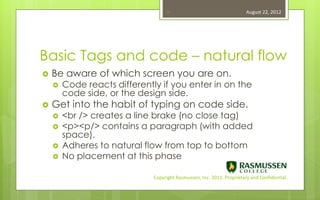
Basic Tags and code – natural flow
   Be aware of which screen you are on.
       Code reacts differently if you enter in on the
        code side, or the design side.
   Get into the habit of typing on code side.
       <br /> creates a line brake (no close tag)
       <p><p/> contains a paragraph (with added
        space).
       Adheres to natural flow from top to bottom
       No placement at this phase

                              Copyright Rasmussen, Inc. 2011. Proprietary and Confidential.
15                                   August 22, 2012


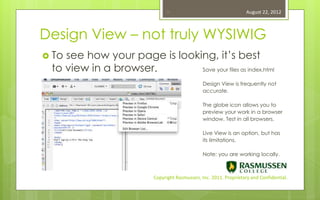
Design View – not truly WYSIWIG
 Tosee how your page is looking, it’s best
 to view in a browser.        Save your files as index.html

                                                 Design View is frequently not
                                                 accurate.

                                                 The globe icon allows you to
                                                 preview your work in a browser
                                                 window. Test in all browsers.

                                                 Live View is an option, but has
                                                 its limitations.

                                                 Note: you are working locally.


                           Copyright Rasmussen, Inc. 2011. Proprietary and Confidential.
16                                   August 22, 2012


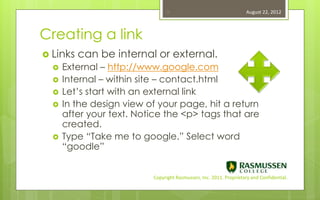
Creating a link
 Links   can be internal or external.
     External – http://www.google.com
     Internal – within site – contact.html
     Let’s start with an external link
     In the design view of your page, hit a return
      after your text. Notice the <p> tags that are
      created.
     Type “Take me to google.” Select word
      “goodle”


                          Copyright Rasmussen, Inc. 2011. Proprietary and Confidential.
17                                   August 22, 2012


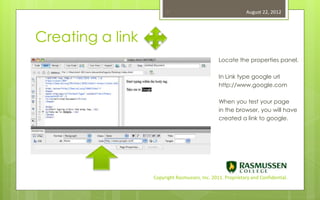
Creating a link
                                               Locate the properties panel.

                                               In Link type google url
                                               http://www.google.com

                                               When you test your page
                                               in the browser, you will have
                                               created a link to google.


                  Copyright Rasmussen, Inc. 2011. Proprietary and Confidential.
18                                   August 22, 2012


Images for the web
 Atthis point we’re ready to add an image
 Image formats that are optimized for the
  web.
    .Jpg – flattens on white – RGB
    .Png – transparency – RBG
    .gif – transparency – index
    All are one layer


                        Copyright Rasmussen, Inc. 2011. Proprietary and Confidential.
19                                   August 22, 2012


Photoshop’s role in web design
   Manipulate,  slice, crop, and format
    individual images
   Mock up your site
   Analyze layouts and variations
   Layered work files - .psd
   Never use full Photoshop jpeg as layout
       Good web design is efficient design
       Html pages use images, html, and css

                          Copyright Rasmussen, Inc. 2011. Proprietary and Confidential.
20                                   August 22, 2012


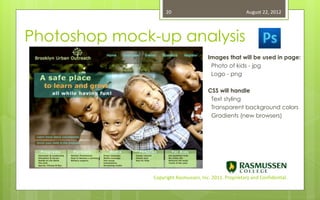
Photoshop mock-up analysis
                                       Images that will be used in page:
                                        Photo of kids - jpg
                                        Logo - png

                                       CSS will handle
                                        Text styling
                                        Transparent background colors
                                        Gradients (new browsers)


               Copyright Rasmussen, Inc. 2011. Proprietary and Confidential.
21                                   August 22, 2012


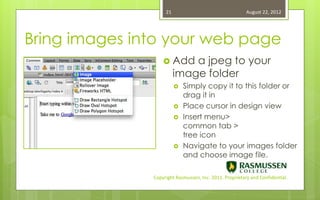
Bring images into your web page
                    Add     a jpeg to your
                         image folder
                            Simply copy it to this folder or
                             drag it in
                            Place cursor in design view
                            Insert menu>
                             common tab >
                             tree icon
                            Navigate to your images folder
                             and choose image file.

               Copyright Rasmussen, Inc. 2011. Proprietary and Confidential.
22                                   August 22, 2012


CSS – Cascading Style Sheets
   The    Cascade
   Divs
   Basic  text styling
   Style selectors
   Positioning
   Floats


                          Copyright Rasmussen, Inc. 2011. Proprietary and Confidential.
23                                   August 22, 2012


CSS – Cascading Style Sheets
  The Cascade                                       Styles have
                                                     precedence
   External    Style Sheets
                                                        An external style sheet
       Mystyle.css                                      can be overridden by
                                                         an embedded style.
   Embedded          Style
                                                        An embedded style
       In <head> section of page                        can be overridden by
                                                         an inline style.
   Inline   style
       In line with text

                              Copyright Rasmussen, Inc. 2011. Proprietary and Confidential.
24                                   August 22, 2012


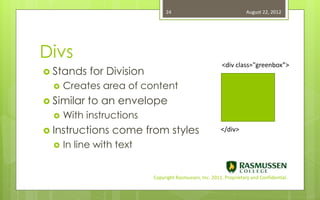
Divs
                                                          <div class="greenbox”>
 Stands    for Division
     Creates area of content
 Similar   to an envelope
     With instructions
 Instructions    come from styles                       </div>

     In line with text


                           Copyright Rasmussen, Inc. 2011. Proprietary and Confidential.
25                                   August 22, 2012


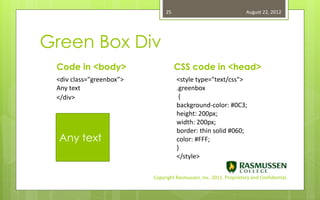
Green Box Div
 Code in <body>                     CSS code in <head>
 <div class="greenbox”>             <style type="text/css">
 Any text                           .greenbox
 </div>                              {
                                    background-color: #0C3;
                                    height: 200px;
                                    width: 200px;
                                    border: thin solid #060;
  Any text                          color: #FFF;
                                    }
                                    </style>

                          Copyright Rasmussen, Inc. 2011. Proprietary and Confidential.
26                                   August 22, 2012


Div creation - Selectors
 We   just made a class style                       Important to remember
                                                        Create the div

    Class is a type of selector                        Create the style
                                                        Style must be applied
    Four types of selectors                             to the div
      Class – anytime, anywhere
      ID – once on a page
      Tag – redining html tag
      Compound - contextual


                         Copyright Rasmussen, Inc. 2011. Proprietary and Confidential.
27                                   August 22, 2012


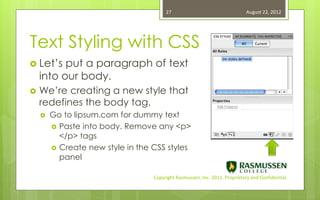
Text Styling with CSS
 Let’s   put a paragraph of text
    into our body.
   We’re creating a new style that
    redefines the body tag.
       Go to lipsum.com for dummy text
         Paste into body. Remove any <p>
          </p> tags
         Create new style in the CSS styles
          panel

                                  Copyright Rasmussen, Inc. 2011. Proprietary and Confidential.
28                                   August 22, 2012


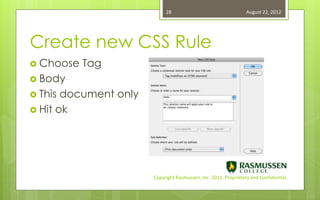
Create new CSS Rule
 Choose   Tag
 Body
 This document only
 Hit ok


                       Copyright Rasmussen, Inc. 2011. Proprietary and Confidential.
29                                   August 22, 2012


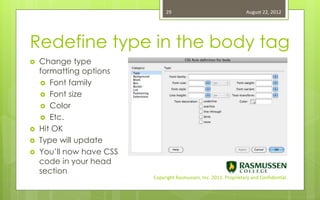
Redefine type in the body tag
   Change type
    formatting options
     Font family
     Font size
     Color
     Etc.
   Hit OK
   Type will update
   You’ll now have CSS
    code in your head
    section
                          Copyright Rasmussen, Inc. 2011. Proprietary and Confidential.
30                                   August 22, 2012


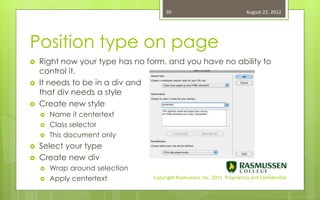
Position type on page
   Right now your type has no form, and you have no ability to
    control it.
   It needs to be in a div and
    that div needs a style
   Create new style
       Name it centertext
       Class selector
       This document only
   Select your type
   Create new div
       Wrap around selection
       Apply centertext         Copyright Rasmussen, Inc. 2011. Proprietary and Confidential.
31                                   August 22, 2012


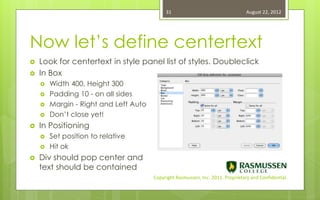
Now let’s define centertext
   Look for centertext in style panel list of styles. Doubleclick
   In Box
       Width 400, Height 300
       Padding 10 - on all sides
       Margin - Right and Left Auto
       Don’t close yet!
   In Positioning
       Set position to relative
       Hit ok
   Div should pop center and
    text should be contained
                                       Copyright Rasmussen, Inc. 2011. Proprietary and Confidential.
32                                   August 22, 2012


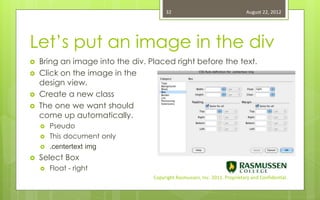
Let’s put an image in the div
   Bring an image into the div. Placed right before the text.
   Click on the image in the
    design view.
   Create a new class
   The one we want should
    come up automatically.
       Pseudo
       This document only
       .centertext img
   Select Box
       Float - right
                                  Copyright Rasmussen, Inc. 2011. Proprietary and Confidential.
33                                   August 22, 2012


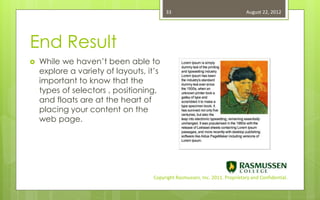
End Result
   While we haven’t been able to
    explore a variety of layouts, it’s
    important to know that the
    types of selectors , positioning,
    and floats are at the heart of
    placing your content on the
    web page.


                                    Copyright Rasmussen, Inc. 2011. Proprietary and Confidential.
34                                   August 22, 2012


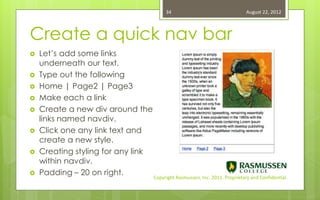
Create a quick nav bar
   Let’s add some links
    underneath our text.
   Type out the following
   Home | Page2 | Page3
   Make each a link
   Create a new div around the
    links named navdiv.
   Click one any link text and
    create a new style.
   Creating styling for any link
    within navdiv.
   Padding – 20 on right.
                                    Copyright Rasmussen, Inc. 2011. Proprietary and Confidential.
35                                   August 22, 2012


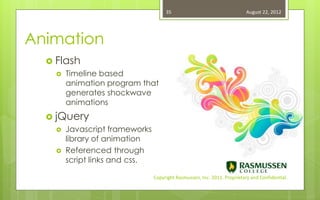
Animation
   Flash
     Timeline based
      animation program that
      generates shockwave
      animations
   jQuery
     Javascript frameworks
      library of animation
     Referenced through
      script links and css.

                              Copyright Rasmussen, Inc. 2011. Proprietary and Confidential.
36                                   August 22, 2012


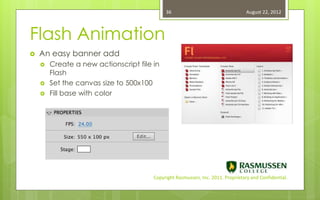
Flash Animation
   An easy banner add
       Create a new actionscript file in
        Flash
       Set the canvas size to 500x100
       Fill base with color


                                       Copyright Rasmussen, Inc. 2011. Proprietary and Confidential.
37                                   August 22, 2012


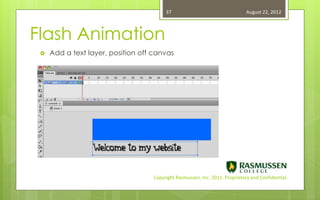
Flash Animation
    Add a text layer, position off canvas


                                   Copyright Rasmussen, Inc. 2011. Proprietary and Confidential.
38                                   August 22, 2012


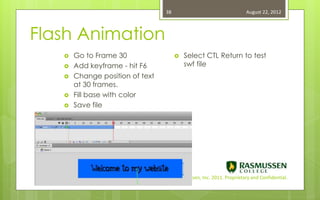
Flash Animation
      Go to Frame 30                     Select CTL Return to test
      Add keyframe - hit F6               swf file
      Change position of text
       at 30 frames.
      Fill base with color
      Save file


                             Copyright Rasmussen, Inc. 2011. Proprietary and Confidential.
39                                   August 22, 2012


Paid Web Hosting
       If you’d like to have a domain name and space for a
        site, you will need to work with a web hosting service.
       Many companies streamline the process of registering a
        domain name and providing space.
       My recommendations
            Ipage.com
             Godaddy.com
Blogs
         


       Blogs are a great way to establish an online presence,
        and don’t require a lot of technical knowhow.
       My recommendations
            Tumblr.com
            Blogger
            WordPress
                               Copyright Rasmussen, Inc. 2011. Proprietary and Confidential.
40                                   August 22, 2012


Thank you all for coming today!
     We hope you enjoyed our community web design class
     Feel free to email me with any questions at
      alex.fogarty@rasmussen.edu


                            Copyright Rasmussen, Inc. 2011. Proprietary and Confidential.

Web Design 101

  • 1.
    August 22, 2012 WebDesign101 Foundational skills for website design
  • 2.
    2 August 22, 2012 Web Design 101  What we’ll do today!  Web page breakdown  What are the key parts of a web page?  Web design process  Where to start?  Site Organization  HTML  The backbone of a web page  Links  Imagery for the web  CSS  The heart of a web page  Banner and Slideshow Animation  Flash and jQuery  FTP Space  Blog options Copyright Rasmussen, Inc. 2011. Proprietary and Confidential.
  • 3.
    3 August 22, 2012 Web Design – a rough sketch  You know it. You love it. Now how do you get on the web?  Web Page Coding and Creation (HTML)options  Hand-coding, HTML text editors,  WYSWIG HTML software (Dreamweaver)  Vision(sketches or Photoshop)  Content (ideas and tasks and projects)  Server space (web hosting) or blog  FTP software (Free or Dreamweaver) Copyright Rasmussen, Inc. 2011. Proprietary and Confidential.
  • 4.
    4 August 22, 2012 Web Page Breakdown  Page – url, address  Text  Navigation & Links  Images  Interactivity  Animation (motion)  Scripting Copyright Rasmussen, Inc. 2011. Proprietary and Confidential.
  • 5.
    5 August 22, 2012 Where to start?  Need or desire to create  Sketches  Develop brand & concept  Work out kinks  Try Variations  Think it through before you code Copyright Rasmussen, Inc. 2011. Proprietary and Confidential.
  • 6.
    6 August 22, 2012 Site Organization  File structure organizes assets, and creates url  Create a folder on your desktop  Name it with your name (no spaces)  Within that create 2 folders  Images  Scripts images scripts yourname Copyright Rasmussen, Inc. 2011. Proprietary and Confidential.
  • 7.
    7 August 22, 2012 Site Organization  Your html pages will be at root level of yourname images scripts index.html contact.html about.html yourname home.jpg portfolio.css Copyright Rasmussen, Inc. 2011. Proprietary and Confidential.
  • 8.
    8 August 22, 2012 Determining urls images scripts index.html contact.html about.html yourname home.jpg portfolio.css  Your domain name is yourname.com  Your home page is www.yourname.com (index.html is hidden)  To get to contact – www.yourname.com/contact.html  To get to about – www.yourname.com/about.html Copyright Rasmussen, Inc. 2011. Proprietary and Confidential.
  • 9.
    9 August 22, 2012 Keep your site organized!  Always in one root folder  File Management in Dreamweaver a help  Scripts are often generated on the fly, so be aware of alerts and point them to script folders.  Dreamweaver can also copy images to a default folder. Great feature. Copyright Rasmussen, Inc. 2011. Proprietary and Confidential.
  • 10.
    10 August 22, 2012 HTML – Hypertext Markup Language  The backbone or skeleton of Web Design  Code evolution  HTML – HTML 4 – XHTML – HTML5  All still in use on current browsers  HTML5 still being incorporated. Simplified coding that accommodates multimedia and apps. Copyright Rasmussen, Inc. 2011. Proprietary and Confidential.
  • 11.
    11 August 22, 2012 HTML – Hypertext Markup Language  Container based system <html> <head> <title>Your Title Here</title> Scripts, etc, go here… </head> <body>Visible Content Goes Here </body> </html> Copyright Rasmussen, Inc. 2011. Proprietary and Confidential.
  • 12.
    12 August 22, 2012 Dreamweaver gets you started Welcome Screen Create New  Container based system HTML File Copyright Rasmussen, Inc. 2011. Proprietary and Confidential.
  • 13.
    13 August 22, 2012 Choose Split View Code on left Design on right  Container based system Start typing within the Body tag Copyright Rasmussen, Inc. 2011. Proprietary and Confidential.
  • 14.
    14 August 22, 2012 Basic Tags and code – natural flow  Be aware of which screen you are on.  Code reacts differently if you enter in on the code side, or the design side.  Get into the habit of typing on code side.  <br /> creates a line brake (no close tag)  <p><p/> contains a paragraph (with added space).  Adheres to natural flow from top to bottom  No placement at this phase Copyright Rasmussen, Inc. 2011. Proprietary and Confidential.
  • 15.
    15 August 22, 2012 Design View – not truly WYSIWIG  Tosee how your page is looking, it’s best to view in a browser. Save your files as index.html Design View is frequently not accurate. The globe icon allows you to preview your work in a browser window. Test in all browsers. Live View is an option, but has its limitations. Note: you are working locally. Copyright Rasmussen, Inc. 2011. Proprietary and Confidential.
  • 16.
    16 August 22, 2012 Creating a link  Links can be internal or external.  External – http://www.google.com  Internal – within site – contact.html  Let’s start with an external link  In the design view of your page, hit a return after your text. Notice the <p> tags that are created.  Type “Take me to google.” Select word “goodle” Copyright Rasmussen, Inc. 2011. Proprietary and Confidential.
  • 17.
    17 August 22, 2012 Creating a link Locate the properties panel. In Link type google url http://www.google.com When you test your page in the browser, you will have created a link to google. Copyright Rasmussen, Inc. 2011. Proprietary and Confidential.
  • 18.
    18 August 22, 2012 Images for the web  Atthis point we’re ready to add an image  Image formats that are optimized for the web.  .Jpg – flattens on white – RGB  .Png – transparency – RBG  .gif – transparency – index  All are one layer Copyright Rasmussen, Inc. 2011. Proprietary and Confidential.
  • 19.
    19 August 22, 2012 Photoshop’s role in web design  Manipulate, slice, crop, and format individual images  Mock up your site  Analyze layouts and variations  Layered work files - .psd  Never use full Photoshop jpeg as layout  Good web design is efficient design  Html pages use images, html, and css Copyright Rasmussen, Inc. 2011. Proprietary and Confidential.
  • 20.
    20 August 22, 2012 Photoshop mock-up analysis Images that will be used in page: Photo of kids - jpg Logo - png CSS will handle Text styling Transparent background colors Gradients (new browsers) Copyright Rasmussen, Inc. 2011. Proprietary and Confidential.
  • 21.
    21 August 22, 2012 Bring images into your web page  Add a jpeg to your image folder  Simply copy it to this folder or drag it in  Place cursor in design view  Insert menu> common tab > tree icon  Navigate to your images folder and choose image file. Copyright Rasmussen, Inc. 2011. Proprietary and Confidential.
  • 22.
    22 August 22, 2012 CSS – Cascading Style Sheets  The Cascade  Divs  Basic text styling  Style selectors  Positioning  Floats Copyright Rasmussen, Inc. 2011. Proprietary and Confidential.
  • 23.
    23 August 22, 2012 CSS – Cascading Style Sheets The Cascade  Styles have precedence  External Style Sheets  An external style sheet  Mystyle.css can be overridden by an embedded style.  Embedded Style  An embedded style  In <head> section of page can be overridden by an inline style.  Inline style  In line with text Copyright Rasmussen, Inc. 2011. Proprietary and Confidential.
  • 24.
    24 August 22, 2012 Divs <div class="greenbox”>  Stands for Division  Creates area of content  Similar to an envelope  With instructions  Instructions come from styles </div>  In line with text Copyright Rasmussen, Inc. 2011. Proprietary and Confidential.
  • 25.
    25 August 22, 2012 Green Box Div Code in <body> CSS code in <head> <div class="greenbox”> <style type="text/css"> Any text .greenbox </div> { background-color: #0C3; height: 200px; width: 200px; border: thin solid #060; Any text color: #FFF; } </style> Copyright Rasmussen, Inc. 2011. Proprietary and Confidential.
  • 26.
    26 August 22, 2012 Div creation - Selectors  We just made a class style  Important to remember  Create the div  Class is a type of selector  Create the style  Style must be applied  Four types of selectors to the div  Class – anytime, anywhere  ID – once on a page  Tag – redining html tag  Compound - contextual Copyright Rasmussen, Inc. 2011. Proprietary and Confidential.
  • 27.
    27 August 22, 2012 Text Styling with CSS  Let’s put a paragraph of text into our body.  We’re creating a new style that redefines the body tag.  Go to lipsum.com for dummy text  Paste into body. Remove any <p> </p> tags  Create new style in the CSS styles panel Copyright Rasmussen, Inc. 2011. Proprietary and Confidential.
  • 28.
    28 August 22, 2012 Create new CSS Rule  Choose Tag  Body  This document only  Hit ok Copyright Rasmussen, Inc. 2011. Proprietary and Confidential.
  • 29.
    29 August 22, 2012 Redefine type in the body tag  Change type formatting options  Font family  Font size  Color  Etc.  Hit OK  Type will update  You’ll now have CSS code in your head section Copyright Rasmussen, Inc. 2011. Proprietary and Confidential.
  • 30.
    30 August 22, 2012 Position type on page  Right now your type has no form, and you have no ability to control it.  It needs to be in a div and that div needs a style  Create new style  Name it centertext  Class selector  This document only  Select your type  Create new div  Wrap around selection  Apply centertext Copyright Rasmussen, Inc. 2011. Proprietary and Confidential.
  • 31.
    31 August 22, 2012 Now let’s define centertext  Look for centertext in style panel list of styles. Doubleclick  In Box  Width 400, Height 300  Padding 10 - on all sides  Margin - Right and Left Auto  Don’t close yet!  In Positioning  Set position to relative  Hit ok  Div should pop center and text should be contained Copyright Rasmussen, Inc. 2011. Proprietary and Confidential.
  • 32.
    32 August 22, 2012 Let’s put an image in the div  Bring an image into the div. Placed right before the text.  Click on the image in the design view.  Create a new class  The one we want should come up automatically.  Pseudo  This document only  .centertext img  Select Box  Float - right Copyright Rasmussen, Inc. 2011. Proprietary and Confidential.
  • 33.
    33 August 22, 2012 End Result  While we haven’t been able to explore a variety of layouts, it’s important to know that the types of selectors , positioning, and floats are at the heart of placing your content on the web page. Copyright Rasmussen, Inc. 2011. Proprietary and Confidential.
  • 34.
    34 August 22, 2012 Create a quick nav bar  Let’s add some links underneath our text.  Type out the following  Home | Page2 | Page3  Make each a link  Create a new div around the links named navdiv.  Click one any link text and create a new style.  Creating styling for any link within navdiv.  Padding – 20 on right. Copyright Rasmussen, Inc. 2011. Proprietary and Confidential.
  • 35.
    35 August 22, 2012 Animation  Flash  Timeline based animation program that generates shockwave animations  jQuery  Javascript frameworks library of animation  Referenced through script links and css. Copyright Rasmussen, Inc. 2011. Proprietary and Confidential.
  • 36.
    36 August 22, 2012 Flash Animation  An easy banner add  Create a new actionscript file in Flash  Set the canvas size to 500x100  Fill base with color Copyright Rasmussen, Inc. 2011. Proprietary and Confidential.
  • 37.
    37 August 22, 2012 Flash Animation  Add a text layer, position off canvas Copyright Rasmussen, Inc. 2011. Proprietary and Confidential.
  • 38.
    38 August 22, 2012 Flash Animation  Go to Frame 30  Select CTL Return to test  Add keyframe - hit F6 swf file  Change position of text at 30 frames.  Fill base with color  Save file Copyright Rasmussen, Inc. 2011. Proprietary and Confidential.
  • 39.
    39 August 22, 2012 Paid Web Hosting  If you’d like to have a domain name and space for a site, you will need to work with a web hosting service.  Many companies streamline the process of registering a domain name and providing space.  My recommendations  Ipage.com Godaddy.com Blogs   Blogs are a great way to establish an online presence, and don’t require a lot of technical knowhow.  My recommendations  Tumblr.com  Blogger  WordPress Copyright Rasmussen, Inc. 2011. Proprietary and Confidential.
  • 40.
    40 August 22, 2012 Thank you all for coming today!  We hope you enjoyed our community web design class  Feel free to email me with any questions at alex.fogarty@rasmussen.edu Copyright Rasmussen, Inc. 2011. Proprietary and Confidential.