Web Application in java
Prof. Aditi D. Wangikar
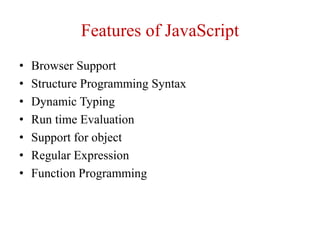
Features of JavaScript
• Browser Support
• Structure Programming Syntax
• Dynamic Typing
• Run time Evaluation
• Support for object
• Regular Expression
• Function Programming
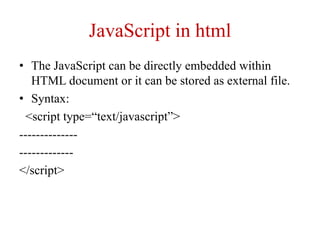
JavaScript in html
• The JavaScript can be directly embedded within
HTML document or it can be stored as external file.
• Syntax:
<script type=“text/javascript”>
--------------
-------------
</script>
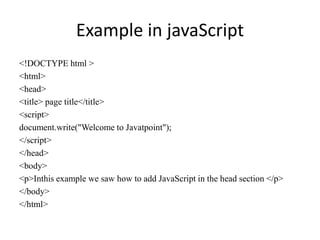
Example in javaScript
<!DOCTYPE html >
<html>
<head>
<title> page title</title>
<script>
document.write("Welcome to Javatpoint");
</script>
</head>
<body>
<p>Inthis example we saw how to add JavaScript in the head section </p>
</body>
</html>
Output
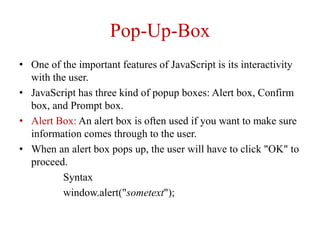
Pop-Up-Box
• One of the important features of JavaScript is its interactivity
with the user.
• JavaScript has three kind of popup boxes: Alert box, Confirm
box, and Prompt box.
• Alert Box: An alert box is often used if you want to make sure
information comes through to the user.
• When an alert box pops up, the user will have to click "OK" to
proceed.
Syntax
window.alert("sometext");
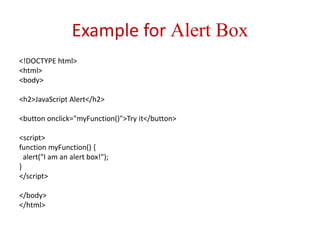
Example for Alert Box
<!DOCTYPE html>
<html>
<body>
<h2>JavaScript Alert</h2>
<button onclick="myFunction()">Try it</button>
<script>
function myFunction() {
alert("I am an alert box!");
}
</script>
</body>
</html>
Confirm Box
• A confirm box is often used if you want the user to
verify or accept something.
• When a confirm box pops up, the user will have to
click either "OK" or "Cancel" to proceed.
• If the user clicks "OK", the box returns true. If the
user clicks "Cancel", the box returns false.
• Syntax
• window. Confirm("sometext");
Example for Confirm Box
<!DOCTYPE html>
<html>
<body>
<h2>JavaScript Confirm Box</h2>
<button onclick="myFunction()">Try it</button>
<p id="demo"></p>
<script>
function myFunction() {
var txt;
if (confirm("Press a button!")) {
txt = "You pressed OK!";
} else {
txt = "You pressed Cancel!";
}
document.getElementById("demo").innerHTML = txt;
}
</script>
</body>
</html>
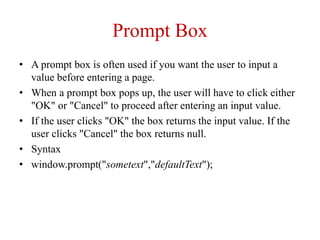
Prompt Box
• A prompt box is often used if you want the user to input a
value before entering a page.
• When a prompt box pops up, the user will have to click either
"OK" or "Cancel" to proceed after entering an input value.
• If the user clicks "OK" the box returns the input value. If the
user clicks "Cancel" the box returns null.
• Syntax
• window.prompt("sometext","defaultText");
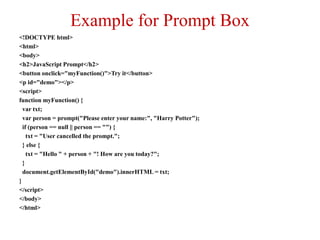
Example for Prompt Box
<!DOCTYPE html>
<html>
<body>
<h2>JavaScript Prompt</h2>
<button onclick="myFunction()">Try it</button>
<p id="demo"></p>
<script>
function myFunction() {
var txt;
var person = prompt("Please enter your name:", "Harry Potter");
if (person == null || person == "") {
txt = "User cancelled the prompt.";
} else {
txt = "Hello " + person + "! How are you today?";
}
document.getElementById("demo").innerHTML = txt;
}
</script>
</body>
</html>
Form design
• Form design is atypical layout on the web
page by which a user can interact with the
web page.
• Typical component of forms are text area,
checkboxes, radio buttons and push buttons.
• These components of from are called as form
controls or controls.
Checkbox
• The <input type="checkbox"> defines a checkbox.
• Checkboxes let a user select ZERO or MORE options
of a limited number of choices.
Example for checkbox
<!DOCTYPE html>
<html>
<body>
<h2>Checkboxes</h2>
<p>The <strong>input type="checkbox"</strong> defines a checkbox:</p>
<form action="/action_page.php">
<input type="checkbox" id="vehicle1" name="vehicle1" value="Bike">
<label for="vehicle1"> I have a bike</label><br>
<input type="checkbox" id="vehicle2" name="vehicle2" value="Car">
<label for="vehicle2"> I have a car</label><br>
<input type="checkbox" id="vehicle3" name="vehicle3" value="Boat">
<label for="vehicle3"> I have a boat</label><br><br>
<input type="submit" value="Submit">
</form>
</body>
</html>
Radio Buttons
• The <input type="radio"> defines a radio button.
• Radio buttons let a user select ONE of a limited
number of choices.
Example for radio button
<!DOCTYPE html>
<html>
<body>
<h2>Radio Buttons</h2>
<form>
<input type="radio" id="male" name="gender" value="male">
<label for="male">Male</label><br>
<input type="radio" id="female" name="gender" value="female">
<label for="female">Female</label><br>
<input type="radio" id="other" name="gender" value="other">
<label for="other">Other</label>
</form>
</body>
</html>
Select Element
• The <select> element defines a drop-down list.
• Example for Select Element
<!DOCTYPE html>
<html>
<body>
<h2>The select Element</h2>
<p>The select element defines a drop-down list:</p>
<form action="/action_page.php">
<label for="cars">Choose a car:</label>
<select id="cars" name="cars">
<option value="volvo">Volvo</option>
<option value="saab">Saab</option>
<option value="fiat">Fiat</option>
<option value="audi">Audi</option>
</select>
<input type="submit">
</form>
</body>
</html>
Write a form to make login and password
<!DOCTYPE html>
<html>
<head>
<meta name="viewport" content="width=device-width, initial-scale=1">
<title> Login Page </title>
<style>
</style>
</head>
<body>
<center> <h1> Student Login Form </h1> </center>
<form>
<div class="container">
<label>Username : </label>
<input type="text" placeholder="Enter Username" name="username" required>
<label>Password : </label>
<input type="password" placeholder="Enter Password" name="password" require
d>
<button type="submit">Login</button>
<input type="checkbox" checked="checked"> Remember me
<button type="button" class="cancelbtn"> Cancel</button>
Forgot <a href="#"> password? </a>
</div>
</form>
</body>
</html>
Output

Web Application in java.pptx

  • 1.
    Web Application injava Prof. Aditi D. Wangikar
  • 2.
    Features of JavaScript •Browser Support • Structure Programming Syntax • Dynamic Typing • Run time Evaluation • Support for object • Regular Expression • Function Programming
  • 3.
    JavaScript in html •The JavaScript can be directly embedded within HTML document or it can be stored as external file. • Syntax: <script type=“text/javascript”> -------------- ------------- </script>
  • 4.
    Example in javaScript <!DOCTYPEhtml > <html> <head> <title> page title</title> <script> document.write("Welcome to Javatpoint"); </script> </head> <body> <p>Inthis example we saw how to add JavaScript in the head section </p> </body> </html>
  • 5.
  • 6.
    Pop-Up-Box • One ofthe important features of JavaScript is its interactivity with the user. • JavaScript has three kind of popup boxes: Alert box, Confirm box, and Prompt box. • Alert Box: An alert box is often used if you want to make sure information comes through to the user. • When an alert box pops up, the user will have to click "OK" to proceed. Syntax window.alert("sometext");
  • 7.
    Example for AlertBox <!DOCTYPE html> <html> <body> <h2>JavaScript Alert</h2> <button onclick="myFunction()">Try it</button> <script> function myFunction() { alert("I am an alert box!"); } </script> </body> </html>
  • 8.
    Confirm Box • Aconfirm box is often used if you want the user to verify or accept something. • When a confirm box pops up, the user will have to click either "OK" or "Cancel" to proceed. • If the user clicks "OK", the box returns true. If the user clicks "Cancel", the box returns false. • Syntax • window. Confirm("sometext");
  • 9.
    Example for ConfirmBox <!DOCTYPE html> <html> <body> <h2>JavaScript Confirm Box</h2> <button onclick="myFunction()">Try it</button> <p id="demo"></p> <script> function myFunction() { var txt; if (confirm("Press a button!")) { txt = "You pressed OK!"; } else { txt = "You pressed Cancel!"; } document.getElementById("demo").innerHTML = txt; } </script> </body> </html>
  • 10.
    Prompt Box • Aprompt box is often used if you want the user to input a value before entering a page. • When a prompt box pops up, the user will have to click either "OK" or "Cancel" to proceed after entering an input value. • If the user clicks "OK" the box returns the input value. If the user clicks "Cancel" the box returns null. • Syntax • window.prompt("sometext","defaultText");
  • 11.
    Example for PromptBox <!DOCTYPE html> <html> <body> <h2>JavaScript Prompt</h2> <button onclick="myFunction()">Try it</button> <p id="demo"></p> <script> function myFunction() { var txt; var person = prompt("Please enter your name:", "Harry Potter"); if (person == null || person == "") { txt = "User cancelled the prompt."; } else { txt = "Hello " + person + "! How are you today?"; } document.getElementById("demo").innerHTML = txt; } </script> </body> </html>
  • 12.
    Form design • Formdesign is atypical layout on the web page by which a user can interact with the web page. • Typical component of forms are text area, checkboxes, radio buttons and push buttons. • These components of from are called as form controls or controls.
  • 13.
    Checkbox • The <inputtype="checkbox"> defines a checkbox. • Checkboxes let a user select ZERO or MORE options of a limited number of choices.
  • 14.
    Example for checkbox <!DOCTYPEhtml> <html> <body> <h2>Checkboxes</h2> <p>The <strong>input type="checkbox"</strong> defines a checkbox:</p> <form action="/action_page.php"> <input type="checkbox" id="vehicle1" name="vehicle1" value="Bike"> <label for="vehicle1"> I have a bike</label><br> <input type="checkbox" id="vehicle2" name="vehicle2" value="Car"> <label for="vehicle2"> I have a car</label><br> <input type="checkbox" id="vehicle3" name="vehicle3" value="Boat"> <label for="vehicle3"> I have a boat</label><br><br> <input type="submit" value="Submit"> </form> </body> </html>
  • 15.
    Radio Buttons • The<input type="radio"> defines a radio button. • Radio buttons let a user select ONE of a limited number of choices.
  • 16.
    Example for radiobutton <!DOCTYPE html> <html> <body> <h2>Radio Buttons</h2> <form> <input type="radio" id="male" name="gender" value="male"> <label for="male">Male</label><br> <input type="radio" id="female" name="gender" value="female"> <label for="female">Female</label><br> <input type="radio" id="other" name="gender" value="other"> <label for="other">Other</label> </form> </body> </html>
  • 17.
    Select Element • The<select> element defines a drop-down list. • Example for Select Element <!DOCTYPE html> <html> <body> <h2>The select Element</h2> <p>The select element defines a drop-down list:</p> <form action="/action_page.php"> <label for="cars">Choose a car:</label> <select id="cars" name="cars"> <option value="volvo">Volvo</option> <option value="saab">Saab</option> <option value="fiat">Fiat</option> <option value="audi">Audi</option> </select> <input type="submit"> </form> </body> </html>
  • 18.
    Write a formto make login and password <!DOCTYPE html> <html> <head> <meta name="viewport" content="width=device-width, initial-scale=1"> <title> Login Page </title> <style> </style> </head> <body> <center> <h1> Student Login Form </h1> </center> <form> <div class="container"> <label>Username : </label> <input type="text" placeholder="Enter Username" name="username" required> <label>Password : </label> <input type="password" placeholder="Enter Password" name="password" require d> <button type="submit">Login</button> <input type="checkbox" checked="checked"> Remember me <button type="button" class="cancelbtn"> Cancel</button> Forgot <a href="#"> password? </a> </div> </form> </body> </html>
  • 19.