1
iLink400 Update Guide
iLink400 Full System Single Make Scan tool is the most cost-effective professional multi-system scan tool that delivers OE-level diagnosis for all
electronic systems of different car brands.
It does not only include basic functions such as read/erase codes and live data, but also it's capable of advanced functions such as actuation, adaptation
and programming. In addition, it lets you to access the most commonly required service features such as Oil service Light Reset, Throttle Body Alignment,
Electronic Parking Brake Service, Battery configuration, Steering Angel Sensor Calibration, CBS correct and much more.
All iLink400 scan tool will be shipped without any Software installed. You can install any software from the following list at your choice by the
update client iScanzilla.
1 Software Update
1.1 Step One- Install the Update Client
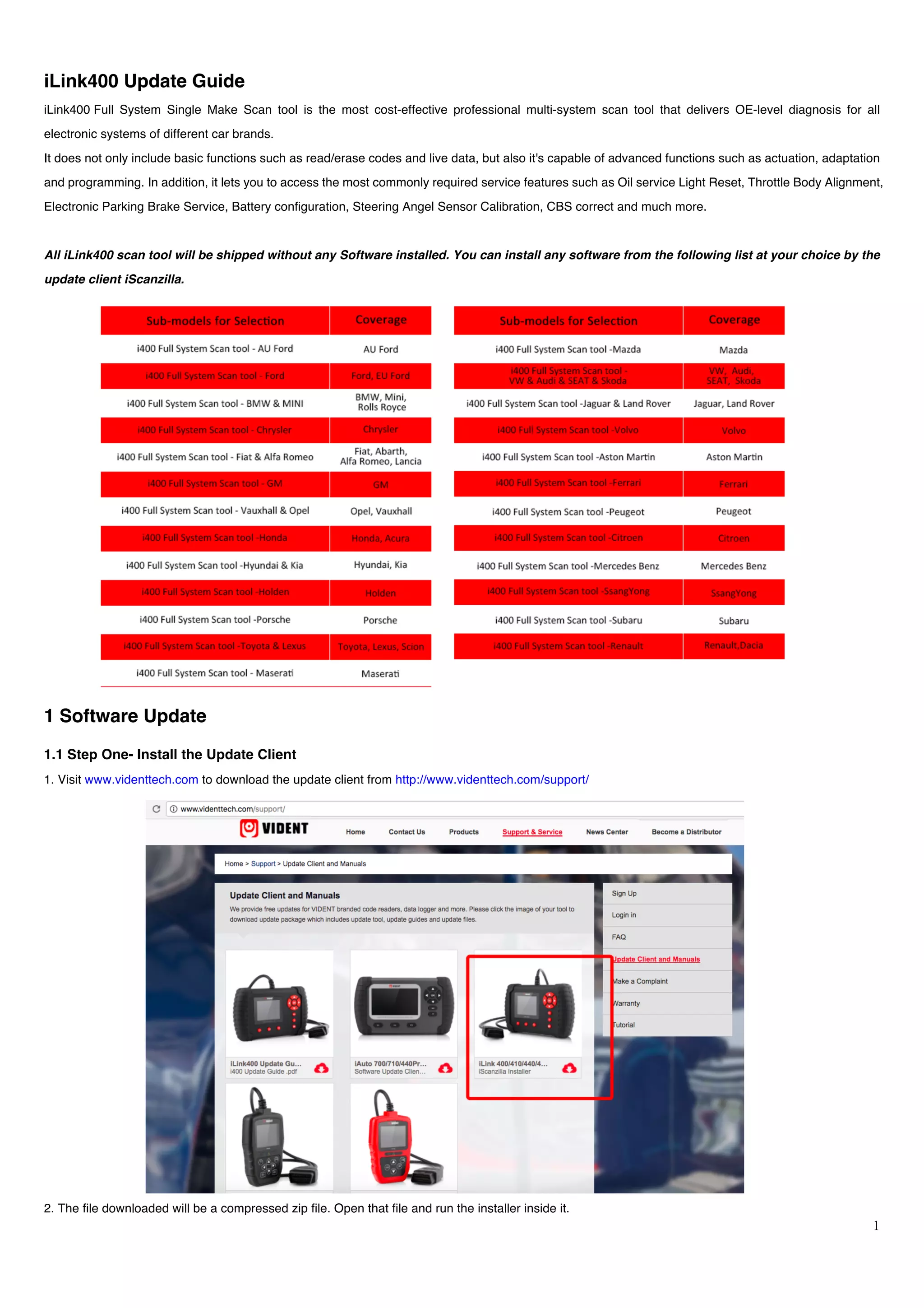
1. Visit www.videnttech.com to download the update client from http://www.videnttech.com/support/
2. The file downloaded will be a compressed zip file. Open that file and run the installer inside it.
2
Alternatively, you can install the update client from the CD that comes in the product package.
1.2 Step Two - Create Your Vident Account.
Firstly you need to create an account with Vident.
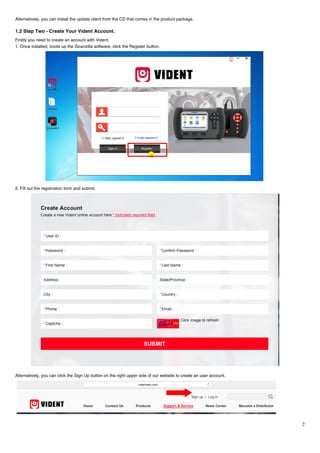
1. Once installed, boots up the iScanzilla software, click the Register button.
2. Fill out the registration form and submit.
Alternatively, you can click the Sign Up button on the right upper side of our website to create an user account.
3
1.3 Step Three – Register Your product
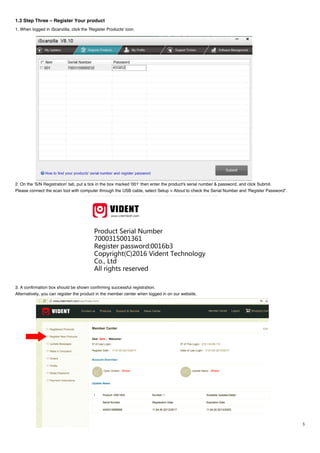
1. When logged in iScanzilla, click the 'Register Products' icon.
2. On the 'S/N Registration' tab, put a tick in the box marked '001' then enter the product's serial number & password, and click Submit.
Please connect the scan tool with computer through the USB cable, select Setup > About to check the Serial Number and 'Register Password”.
3. A confirmation box should be shown confirming successful registration.
Alternatively, you can register the product in the member center when logged in on our website.
4
1.4 Step Four – Download and Install Diagnostic Software
1. Now close the iScanzilla software, remove the TF card from your tool (making sure the tool is turned off first!) and connect it to the PC via a TF card
reader.
2. Once Windows has detected the TF card, run the iScanzilla software and login again. After a few seconds, a list of the available software updates will
appear.
Please select only one software you want to update, as you can ONLY have access to the update of this manufacturer in the future once it’s been
selected initially. In case you want to install any other vehicle software, please contact us or sign in your member center to purchase. Please refer to next
chapter to buy extra software.
3. Click the Update button to download and install the software.
5
4. Once the software installed, you can go to Software Management to review the installed software.
2 Buy Extra Software
iLink400 is authorized with one free software when delivery and can cover up to six vehicle makes. More software can be added anytime at extra cost.
You can contact the reseller or following the steps below to buy extra software.
Buy Extra Software
Step 1/6
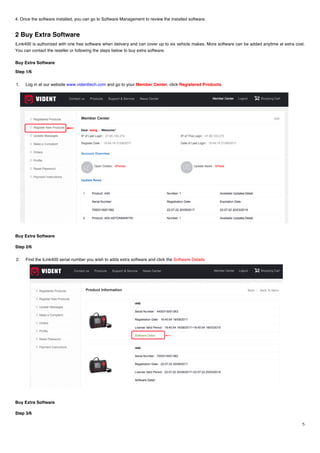
1. Log in at our website www.videnttech.com and go to your Member Center, click Registered Products.
Buy Extra Software
Step 2/6
2. Find the iLink400 serial number you wish to adds extra software and click the Software Details
Buy Extra Software
Step 3/6
6
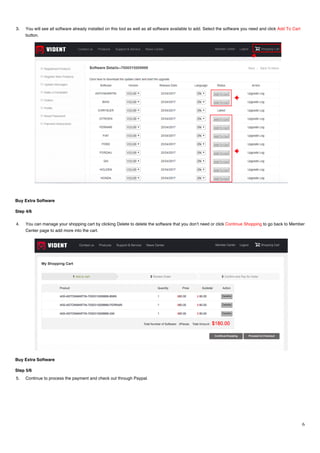
3. You will see all software already installed on this tool as well as all software available to add. Select the software you need and click Add To Cart
button.
Buy Extra Software
Step 4/6
4. You can manage your shopping cart by clicking Delete to delete the software that you don’t need or click Continue Shopping to go back to Member
Center page to add more into the cart.
Buy Extra Software
Step 5/6
5. Continue to process the payment and check out through Paypal.
7
Buy Extra Software
Step 6/6
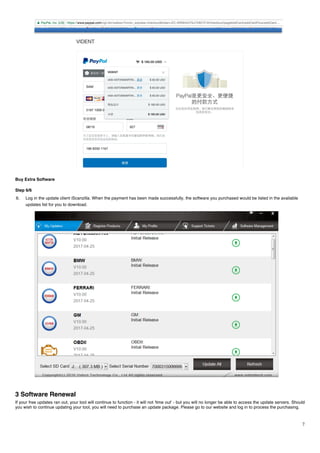
6. Log in the update client iScanzilla. When the payment has been made successfully, the software you purchased would be listed in the available
updates list for you to download.
3 Software Renewal
If your free updates ran out, your tool will continue to function - it will not 'time out' - but you will no longer be able to access the update servers. Should
you wish to continue updating your tool, you will need to purchase an update package. Please go to our website and log in to process the purchasing.
8
4 Printing Data
It’s very easy to print out the test result through iScanzilla.
1. Click the Button located on the upper side of iScanzilla. You can enter the print screen without logging in iScanzilla.
2. All data saved/stored in the TF card would appear on screen.
3. Tick a piece of data to either review it or print it out.

vident Ilink400 update guide vxdas

  • 1.
    1 iLink400 Update Guide iLink400Full System Single Make Scan tool is the most cost-effective professional multi-system scan tool that delivers OE-level diagnosis for all electronic systems of different car brands. It does not only include basic functions such as read/erase codes and live data, but also it's capable of advanced functions such as actuation, adaptation and programming. In addition, it lets you to access the most commonly required service features such as Oil service Light Reset, Throttle Body Alignment, Electronic Parking Brake Service, Battery configuration, Steering Angel Sensor Calibration, CBS correct and much more. All iLink400 scan tool will be shipped without any Software installed. You can install any software from the following list at your choice by the update client iScanzilla. 1 Software Update 1.1 Step One- Install the Update Client 1. Visit www.videnttech.com to download the update client from http://www.videnttech.com/support/ 2. The file downloaded will be a compressed zip file. Open that file and run the installer inside it.
  • 2.
    2 Alternatively, you caninstall the update client from the CD that comes in the product package. 1.2 Step Two - Create Your Vident Account. Firstly you need to create an account with Vident. 1. Once installed, boots up the iScanzilla software, click the Register button. 2. Fill out the registration form and submit. Alternatively, you can click the Sign Up button on the right upper side of our website to create an user account.
  • 3.
    3 1.3 Step Three– Register Your product 1. When logged in iScanzilla, click the 'Register Products' icon. 2. On the 'S/N Registration' tab, put a tick in the box marked '001' then enter the product's serial number & password, and click Submit. Please connect the scan tool with computer through the USB cable, select Setup > About to check the Serial Number and 'Register Password”. 3. A confirmation box should be shown confirming successful registration. Alternatively, you can register the product in the member center when logged in on our website.
  • 4.
    4 1.4 Step Four– Download and Install Diagnostic Software 1. Now close the iScanzilla software, remove the TF card from your tool (making sure the tool is turned off first!) and connect it to the PC via a TF card reader. 2. Once Windows has detected the TF card, run the iScanzilla software and login again. After a few seconds, a list of the available software updates will appear. Please select only one software you want to update, as you can ONLY have access to the update of this manufacturer in the future once it’s been selected initially. In case you want to install any other vehicle software, please contact us or sign in your member center to purchase. Please refer to next chapter to buy extra software. 3. Click the Update button to download and install the software.
  • 5.
    5 4. Once thesoftware installed, you can go to Software Management to review the installed software. 2 Buy Extra Software iLink400 is authorized with one free software when delivery and can cover up to six vehicle makes. More software can be added anytime at extra cost. You can contact the reseller or following the steps below to buy extra software. Buy Extra Software Step 1/6 1. Log in at our website www.videnttech.com and go to your Member Center, click Registered Products. Buy Extra Software Step 2/6 2. Find the iLink400 serial number you wish to adds extra software and click the Software Details Buy Extra Software Step 3/6
  • 6.
    6 3. You willsee all software already installed on this tool as well as all software available to add. Select the software you need and click Add To Cart button. Buy Extra Software Step 4/6 4. You can manage your shopping cart by clicking Delete to delete the software that you don’t need or click Continue Shopping to go back to Member Center page to add more into the cart. Buy Extra Software Step 5/6 5. Continue to process the payment and check out through Paypal.
  • 7.
    7 Buy Extra Software Step6/6 6. Log in the update client iScanzilla. When the payment has been made successfully, the software you purchased would be listed in the available updates list for you to download. 3 Software Renewal If your free updates ran out, your tool will continue to function - it will not 'time out' - but you will no longer be able to access the update servers. Should you wish to continue updating your tool, you will need to purchase an update package. Please go to our website and log in to process the purchasing.
  • 8.
    8 4 Printing Data It’svery easy to print out the test result through iScanzilla. 1. Click the Button located on the upper side of iScanzilla. You can enter the print screen without logging in iScanzilla. 2. All data saved/stored in the TF card would appear on screen. 3. Tick a piece of data to either review it or print it out.