Author: Syed Sharique
Veeam Solution
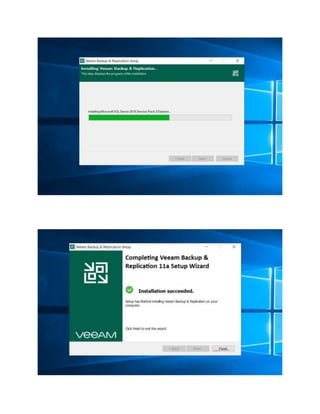
Veeam Installation
Veeam Backup & Replication is a software solution that protects your data by
performing backup, replication, and recovery operations. With this product, you can
recover your data fast from all types of infrastructure: virtual, physical, and cloud.
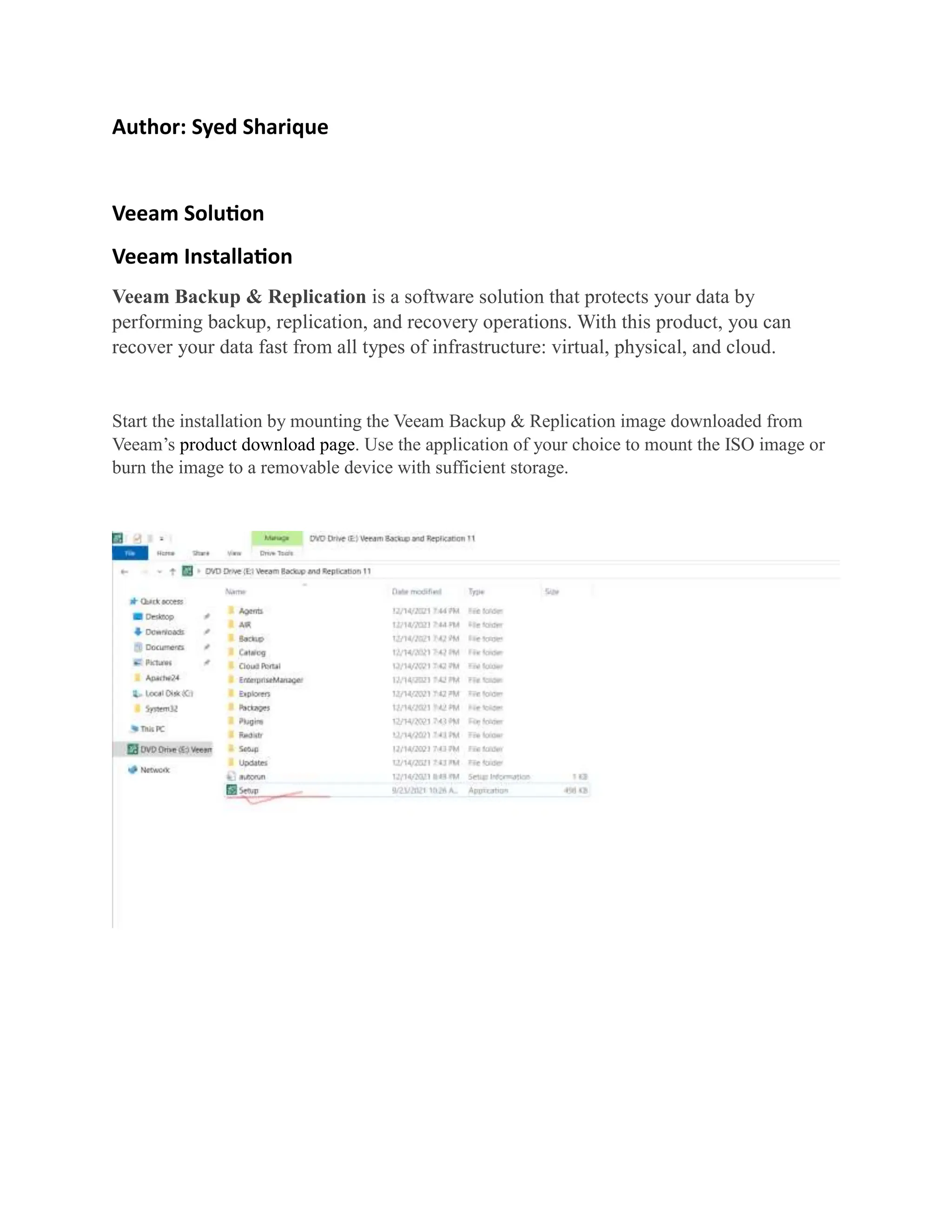
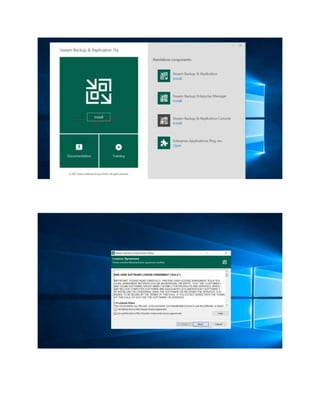
Start the installation by mounting the Veeam Backup & Replication image downloaded from
Veeam’s product download page. Use the application of your choice to mount the ISO image or
burn the image to a removable device with sufficient storage.
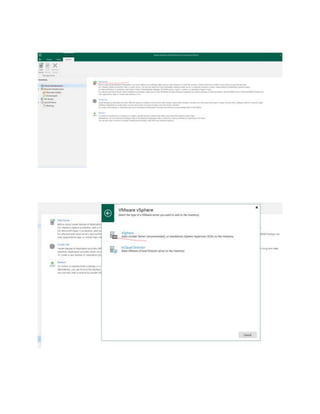
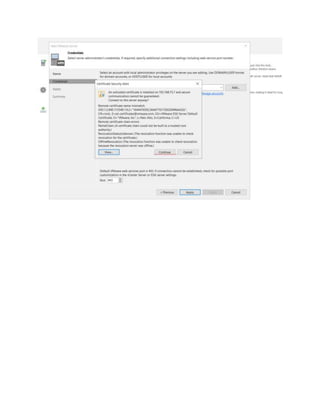
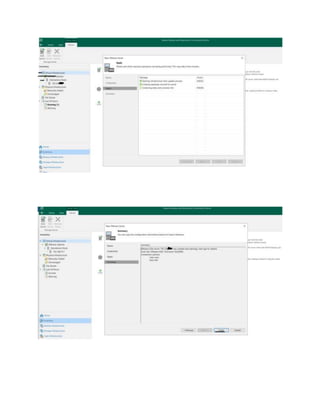
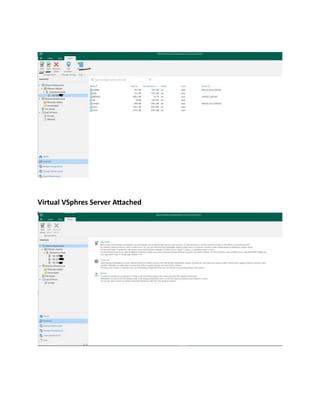
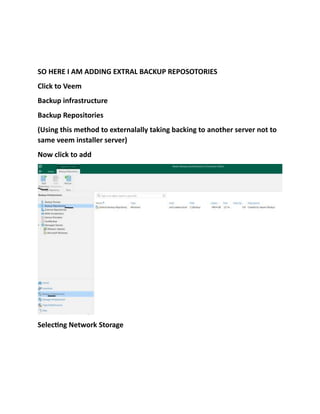
Virtual VSphres Server Attached
SO HERE I AM ADDING EXTRAL BACKUP REPOSOTORIES
Click to Veem
Backup infrastructure
Backup Repositories
(Using this method to externalally taking backing to another server not to
same veem installer server)
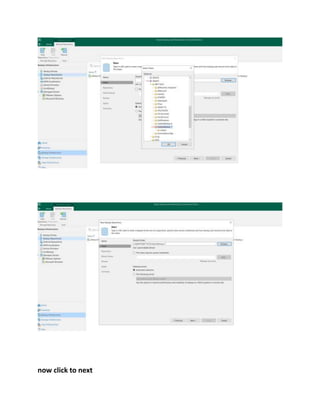
Now click to add
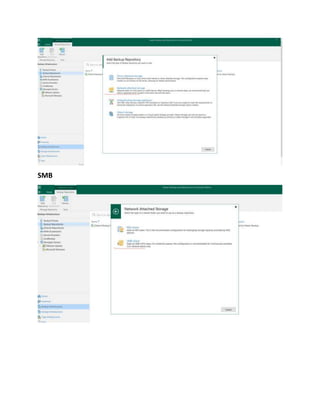
Selecting Network Storage
SMB
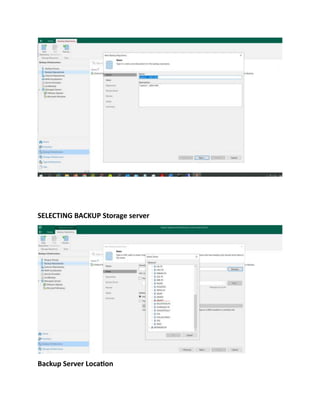
SELECTING BACKUP Storage server
Backup Server Location
now click to next
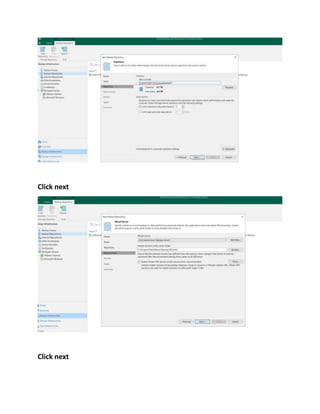
Click next
Click next
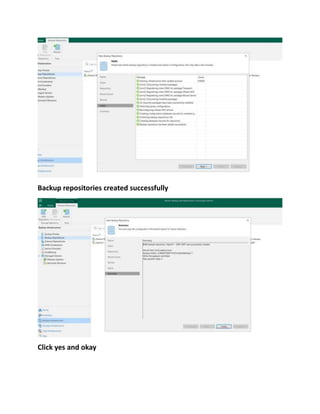
Backup repositories created successfully
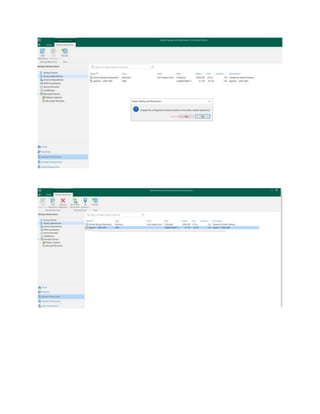
Click yes and okay
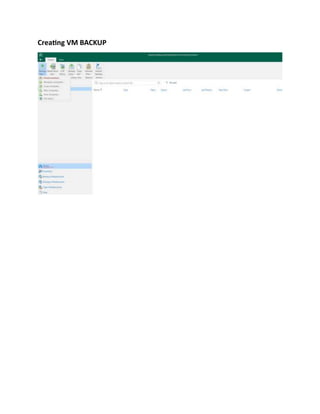
Creating VM BACKUP
Here Taking Backup to Linux Apache Server Using Veeam Solution
So here I am having Apache server running on Cnetos 7 server in vpshre
6.7.
First, I will schedule the backup and also will restore the backup.
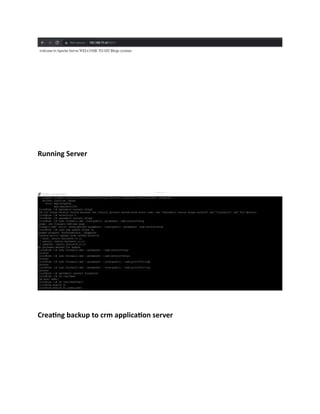
Having this running server
Running Server
Creating backup to crm application server
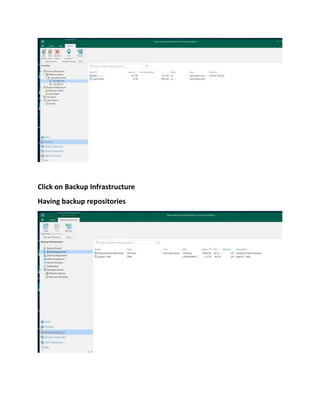
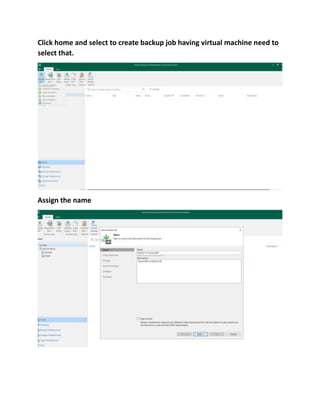
Click on Backup Infrastructure
Having backup repositories
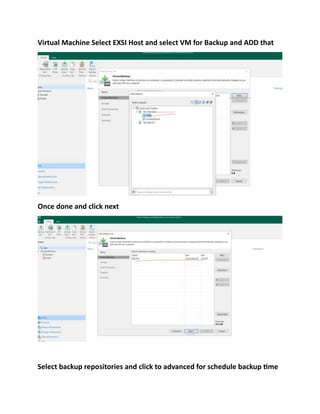
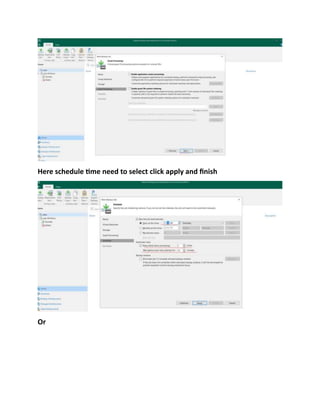
Click home and select to create backup job having virtual machine need to
select that.
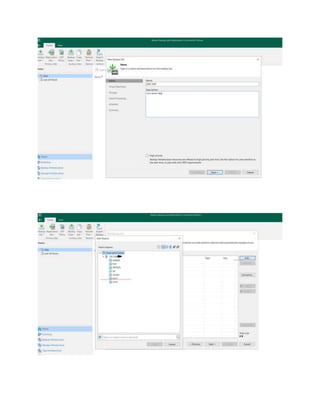
Assign the name
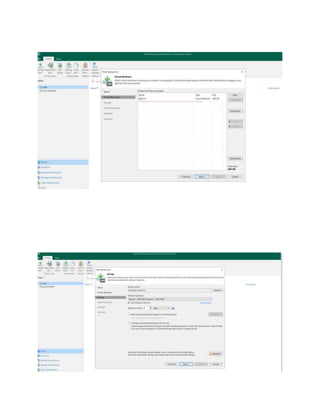
Virtual Machine Select EXSI Host and select VM for Backup and ADD that
Once done and click next
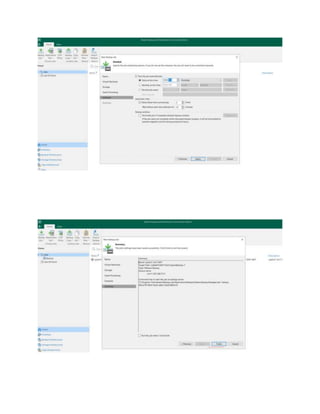
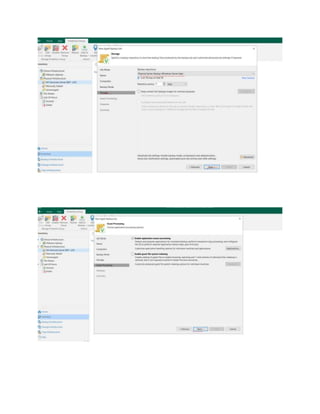
Select backup repositories and click to advanced for schedule backup time
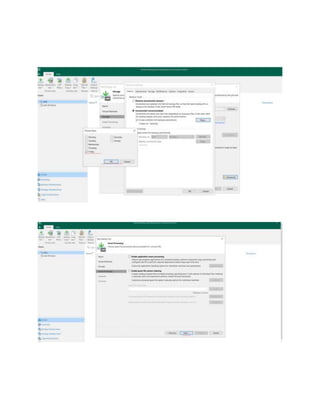
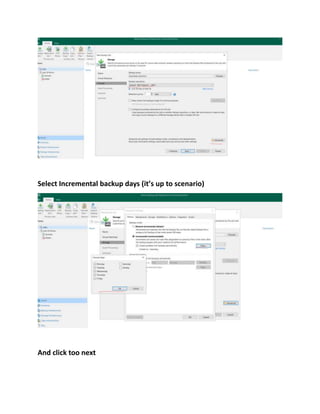
Select Incremental backup days (it’s up to scenario)
And click too next
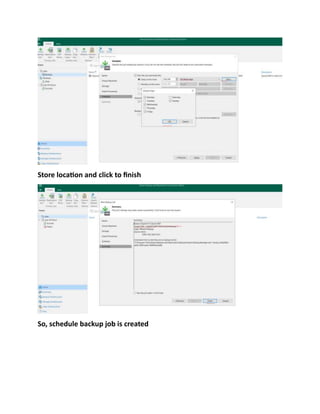
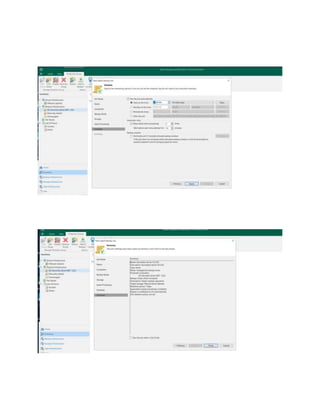
Here schedule time need to select click apply and finish
Or
Store location and click to finish
So, schedule backup job is created
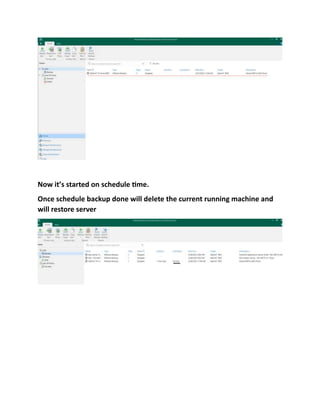
Now it’s started on schedule time.
Once schedule backup done will delete the current running machine and
will restore server
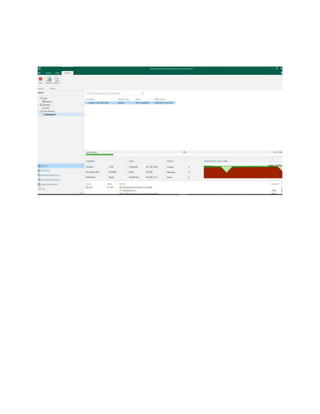
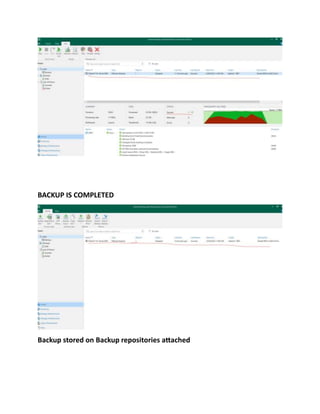
BACKUP IS COMPLETED
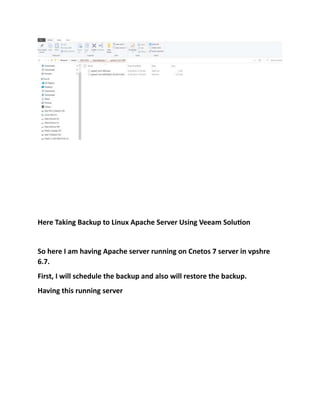
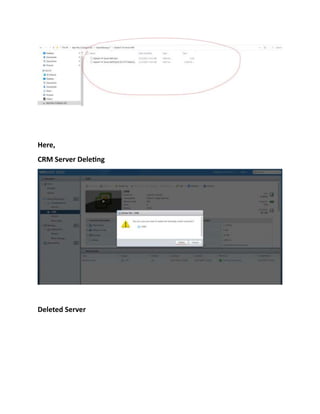
Backup stored on Backup repositories attached
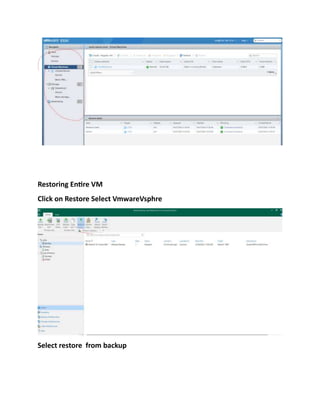
Here,
CRM Server Deleting
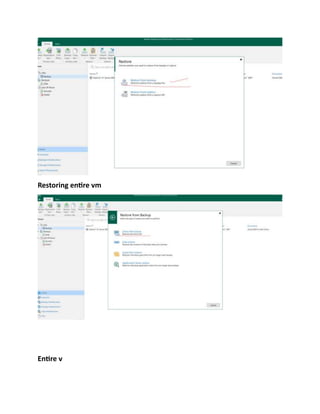
Deleted Server
Restoring Entire VM
Click on Restore Select VmwareVsphre
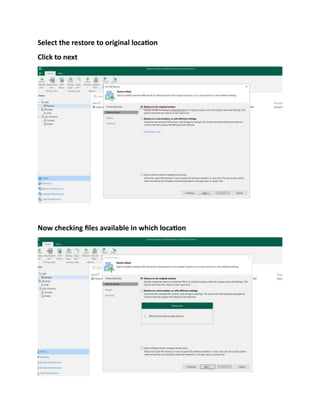
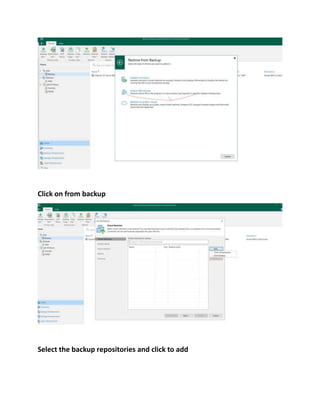
Select restore from backup
Restoring entire vm
Entire v
Click on from backup
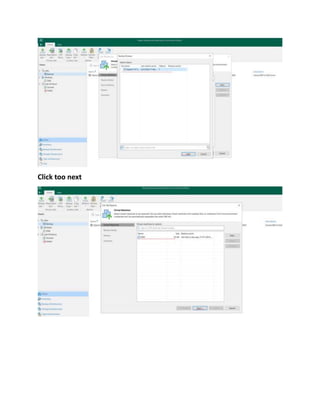
Select the backup repositories and click to add
Click too next
Select the restore to original location
Click to next
Now checking files available in which location
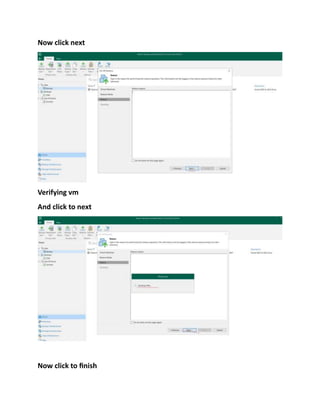
Now click next
Verifying vm
And click to next
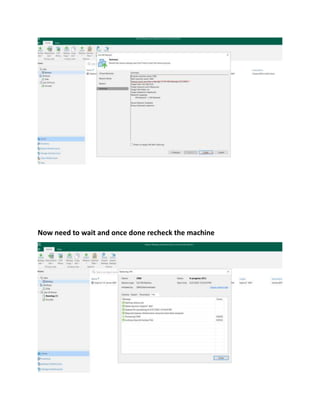
Now click to finish
Now need to wait and once done recheck the machine
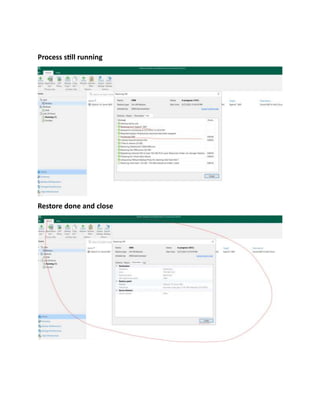
Process still running
Restore done and close
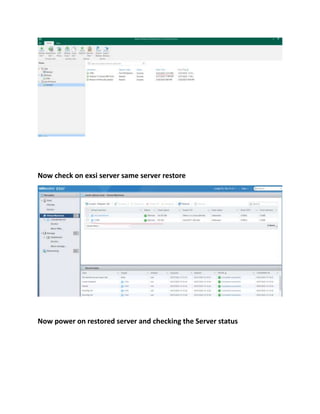
Now check on exsi server same server restore
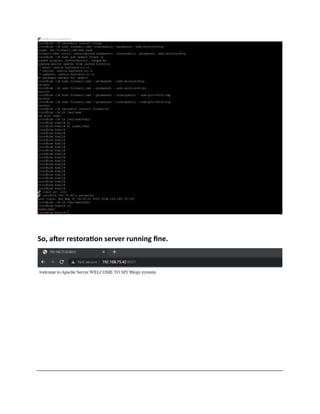
Now power on restored server and checking the Server status
So, after restoration server running fine.
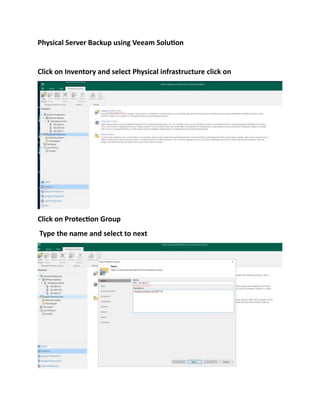
Physical Server Backup using Veeam Solution
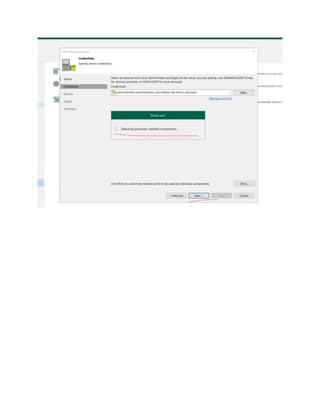
Click on Inventory and select Physical infrastructure click on
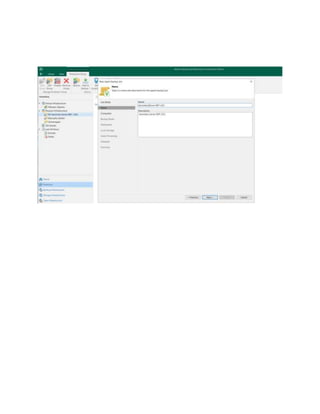
Click on Protection Group
Type the name and select to next
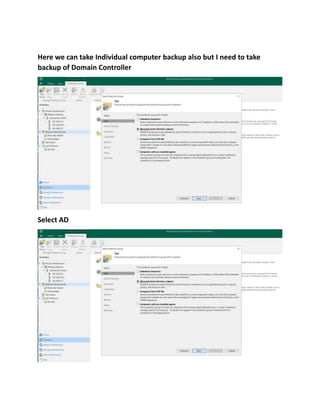
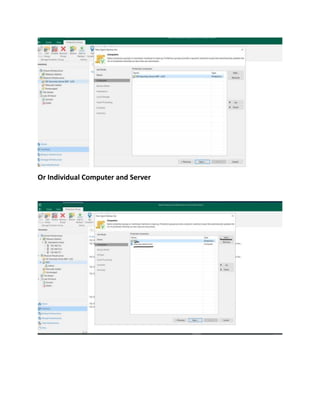
Here we can take Individual computer backup also but I need to take
backup of Domain Controller
Select AD
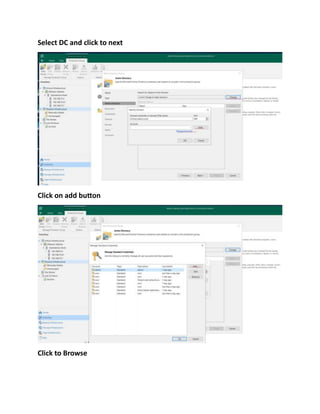
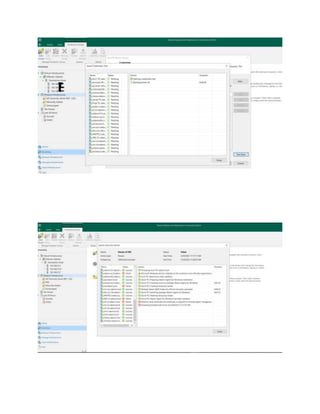
Select DC and click to next
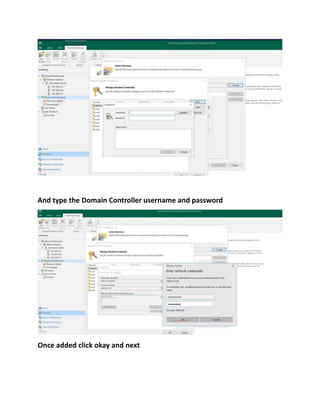
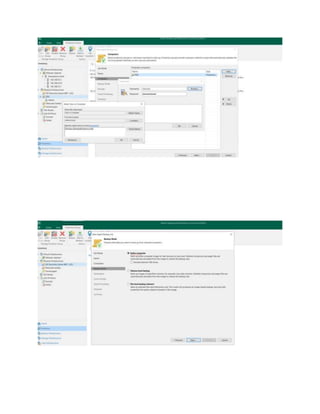
Click on add button
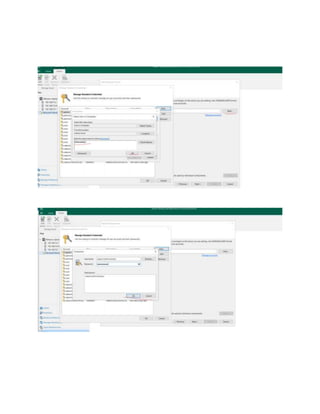
Click to Browse
And type the Domain Controller username and password
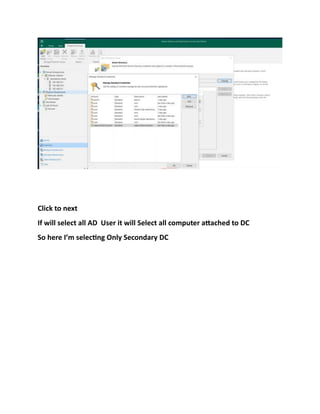
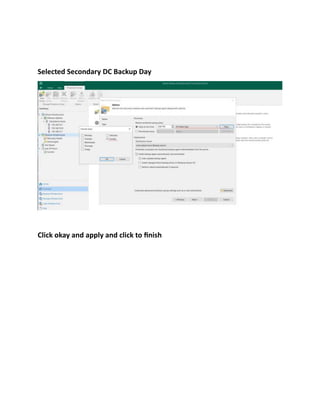
Once added click okay and next
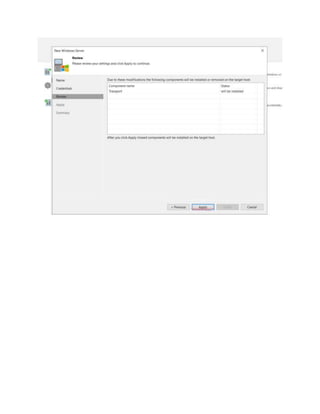
Click to next
If will select all AD User it will Select all computer attached to DC
So here I’m selecting Only Secondary DC
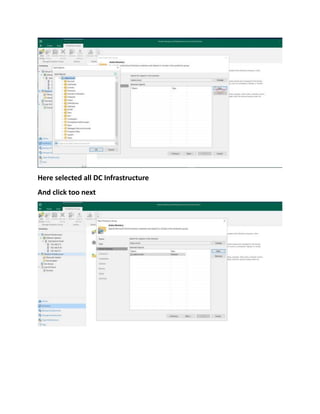
Here selected all DC Infrastructure
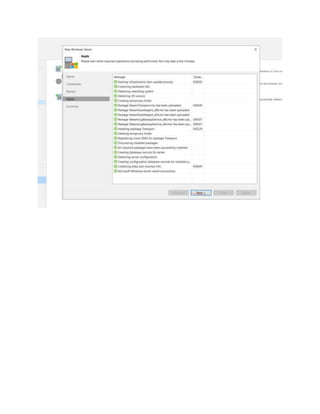
And click too next
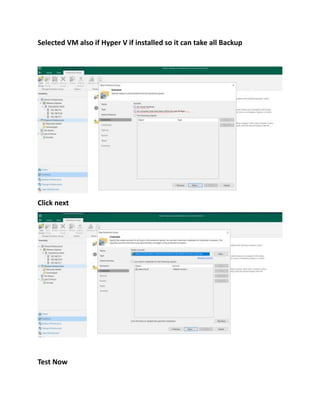
Selected VM also if Hyper V if installed so it can take all Backup
Click next
Test Now
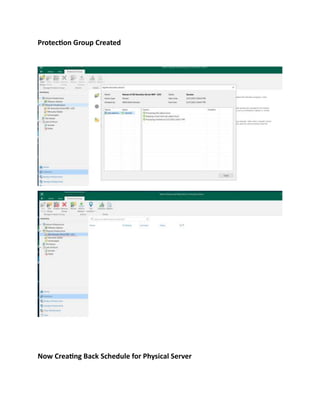
Selected Secondary DC Backup Day
Click okay and apply and click to finish
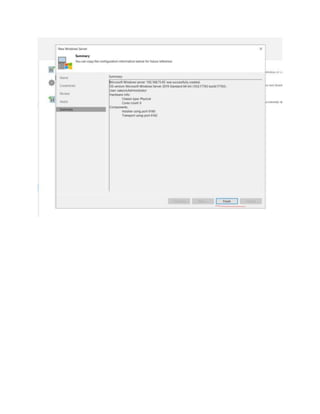
Now click to finish
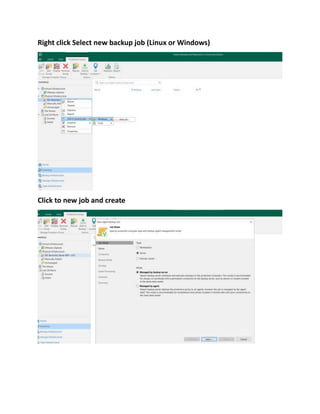
Protection Group Created
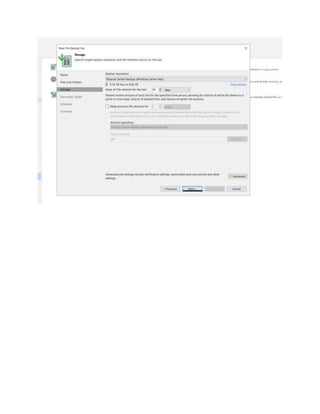
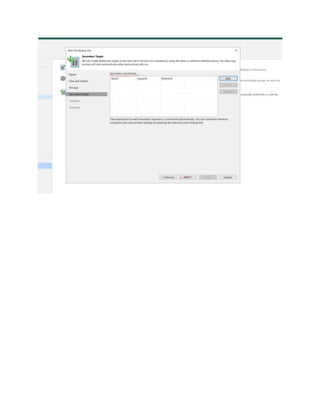
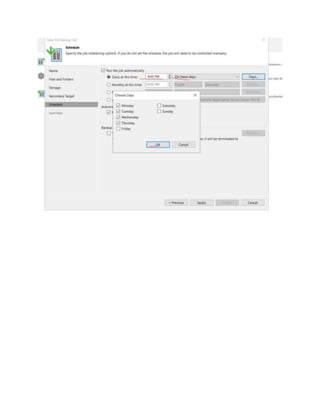
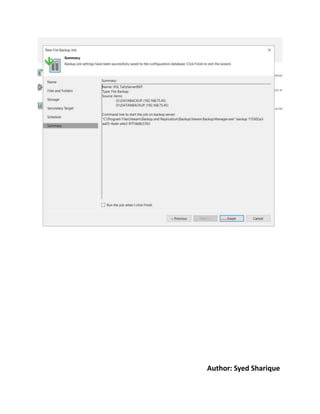
Now Creating Back Schedule for Physical Server
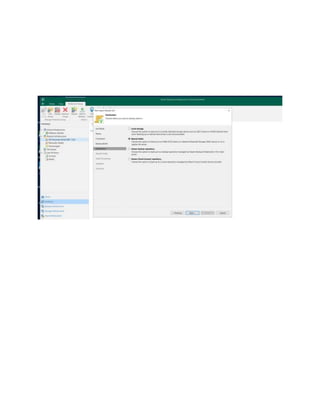
Right click Select new backup job (Linux or Windows)
Click to new job and create
Or Individual Computer and Server
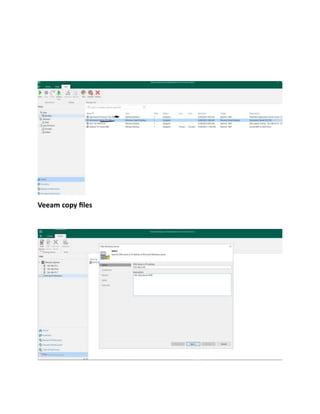
Veeam copy files
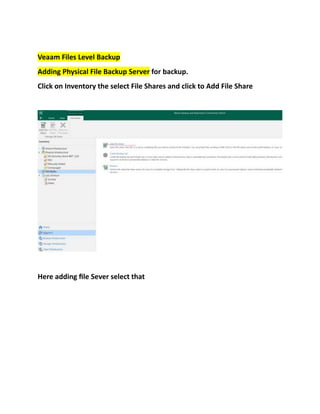
Veaam Files Level Backup
Adding Physical File Backup Server for backup.
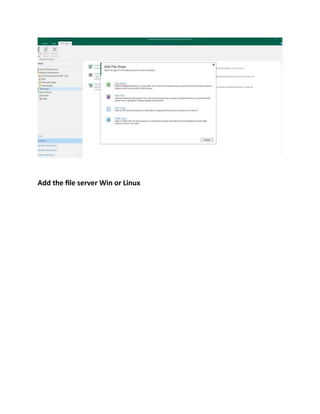
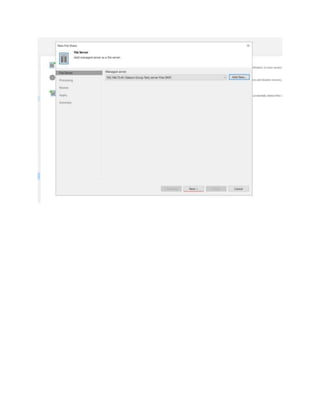
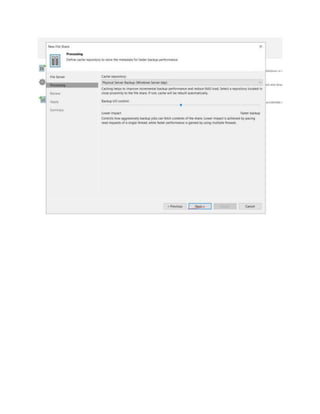
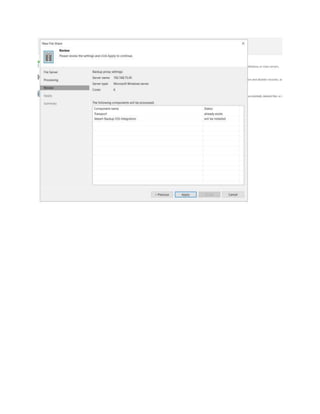
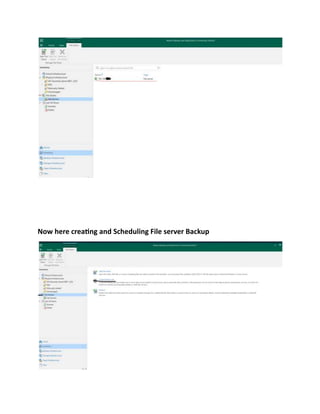
Click on Inventory the select File Shares and click to Add File Share
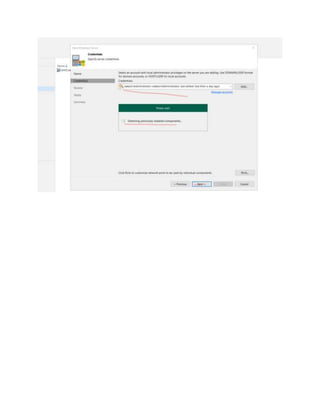
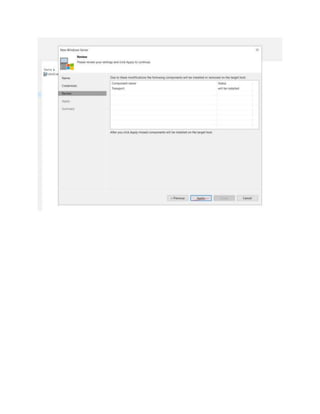
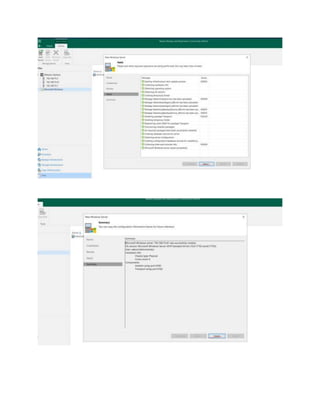
Here adding file Sever select that
Add the file server Win or Linux
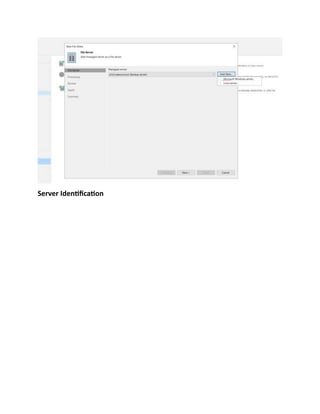
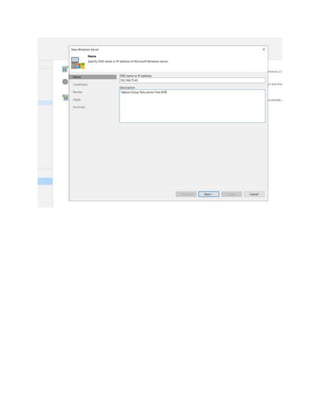
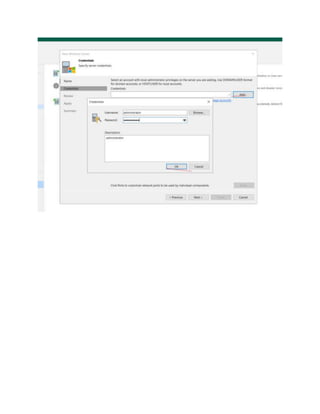
Server Identification
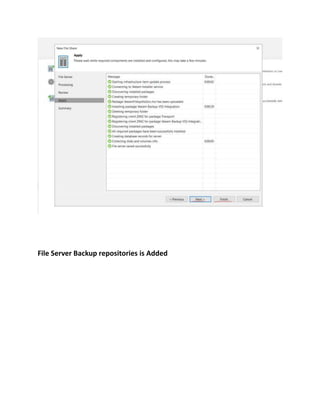
File Server Backup repositories is Added
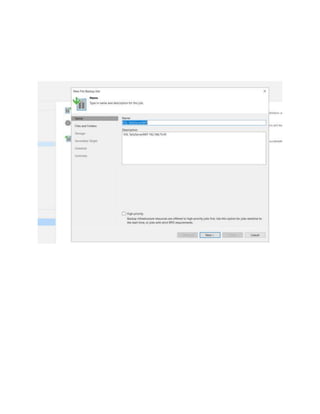
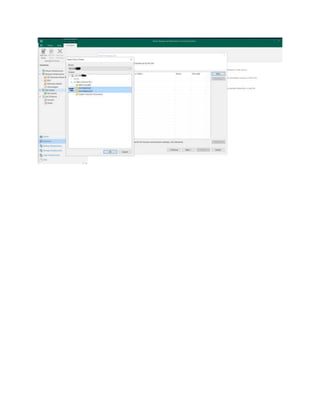
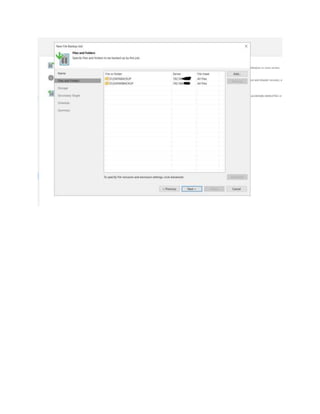
Now here creating and Scheduling File server Backup
Author: Syed Sharique

Veeam Solution and Veeam Installation Complete Guide