GarageBand ’09
Getting Started
Includes a tour of the GarageBand
window and step-by-step tutorials
to help you start creating music
and podcasts with GarageBand.
1   Contents


    Chapter 1   6    Welcome to GarageBand
                6    What You’ll Learn
                7    Before You Begin
                7    What You Need to Get Started
                7    Where to Go for Help
                8    Finding Out More

    Chapter 2    9   GarageBand at a Glance
                10   GarageBand Window
                12   Timeline
                14   Editor
                14   For Real Instrument Tracks
                15   For Software Instrument Tracks–Piano Roll View
                16   For Software Instrument Tracks–Score View
                17   For Podcast and Movie Projects–Marker View
                18   Loop Browser
                18   Button View
                20   Column View
                22   Track Info Pane
                22   Real Instrument and Software Instrument Tracks
                24   Electric Guitar Track
                26   Master Track
                28   Media Browser

    Chapter 3   29   Tutorial 1: Creating and Playing GarageBand Projects
                29   Creating a New Project
                31   Playing a Project
                31      Using the Transport Controls
                32      Moving the Playhead
                32   Using the LCD
                32      Changing the Units of Time
                32      Changing the Playhead Position in the LCD
                33      Changing the Project Tempo, Key, and Time Signature


2
34   Saving a Project
            35   Creating a Magic GarageBand Project
            36      Choosing Different Instruments in Magic GarageBand
            36      Shuffling Instruments in Magic GarageBand
            36      Mixing Instruments in Magic GarageBand
            37      Playing and Recording Your Instrument in Magic GarageBand

Chapter 4   40   Tutorial 2: Learning to Play Guitar and Piano
            41   Opening a Learn to Play Lesson
            41   Choosing Chapters and Subchapters
            42   Playing a Lesson
            43   Playing Your Instrument with a Lesson
            44   Changing the Speed of a Lesson
            44   Recording Your Instrument in a Lesson
            45   Changing the Mix of a Lesson
            47   Customizing the Lesson Window
            47      Customizing a Guitar Lesson
            47      Customizing a Piano Lesson
            48   Opening a Learn to Play Lesson in GarageBand
            48   Getting Additional Learn to Play Lessons

Chapter 5   49   Tutorial 3: Recording Vocals and Musical Instruments
            49   Adding a Real Instrument Track
            51     Adding a Basic Track
            52   Adding an Electric Guitar Track
            53   Getting Ready to Record
            53   Recording a Real Instrument
            54     Recording Multiple Takes with the Cycle Region
            56     Recording on Several Tracks at the Same Time
            57   Tuning Your Guitar in GarageBand

Chapter 6   58   Tutorial 4: Playing and Recording Software Instruments
            60   Playing Software Instruments with Musical Typing
            61   Playing Software Instruments with the Onscreen
                 Music Keyboard
            62   Getting Ready to Record a Software Instrument
            62   Recording a Software Instrument
            63      Merging Software Instrument Recordings
            64   Viewing Note and Chord Names As You Play
            64   Working in Score View
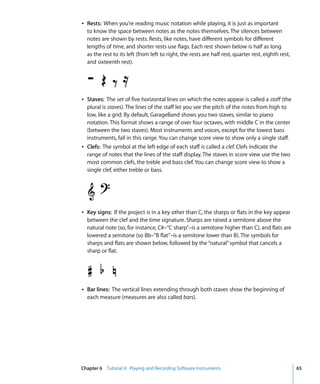
            64      About Score View
            66      Editing Notes in Score View
            69      Changing the Clef Sign


                 Contents                                                       3
70      Printing Music Notation

    Chapter 7   71   Tutorial 5: Adding Apple Loops
                72   Searching for Loops to Use in a Project
                73      Searching for Loops in Button View
                74      Searching for Loops in Column View
                75   Previewing Loops
                75   Refining Loop Searches
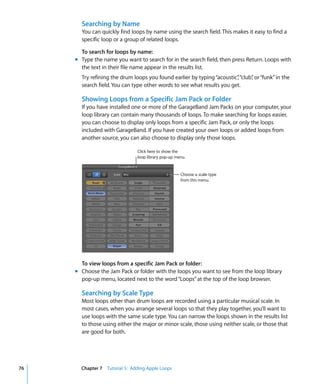
                76      Searching by Name
                76      Showing Loops from a Specific Jam Pack or Folder
                76      Searching by Scale Type
                77      Limiting Searches to Nearby Keys
                77      Marking Loops as Favorites
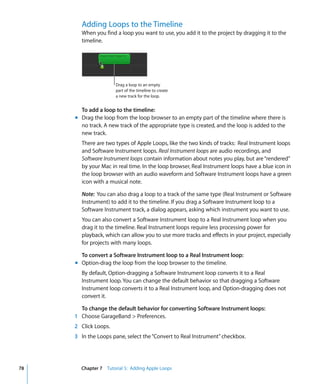
                78   Adding Loops to the Timeline
                79   Changing Apple Loops in the Same Family
                79   Adding Loops to the Loop Library
                80   Creating Your Own Apple Loops

    Chapter 8   81   Tutorial 6: Arranging and Editing Your Music
                82   Arranging Basics
                82      Selecting Regions
                83   Moving Regions
                84   Resizing Regions
                84   Looping Regions
                85   Splitting and Joining Regions
                85   Quickly Rearranging a Project
                87   Editing Your Recordings in the Editor
                88      Renaming Regions
                88      Transposing Regions
                89      Enhancing the Timing of a Real Instrument Track
                89      Enhancing the Timing of a Software Instrument Track
                90      Enhancing the Tuning of a Real Instrument Track
                91      Setting Real Instrument Regions to Keep Their Original Tempo and Pitch
                91   Importing Audio and MIDI Files

    Chapter 9   92   Tutorial 7: Mixing and Adding Effects
                92   What Is Mixing?
                93   Basic Mixing
                93      Setting Track Volume Levels
                93      Setting Track Pan Positions
                94      Setting the Master Volume
                94      Adding a Fade-Out
                95   Using Effects in GarageBand


4                    Contents
95      Types of Effects
              96      Adding Effects to a Track
              97      Turning Effects On and Off
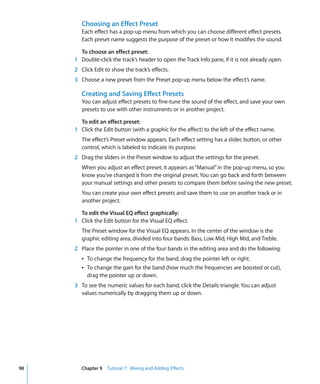
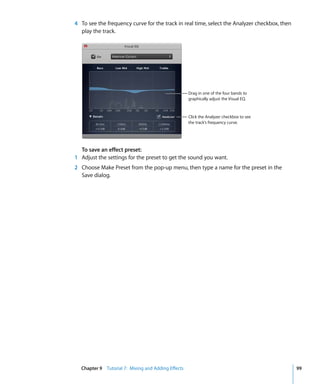
              98      Choosing an Effect Preset
              98      Creating and Saving Effect Presets
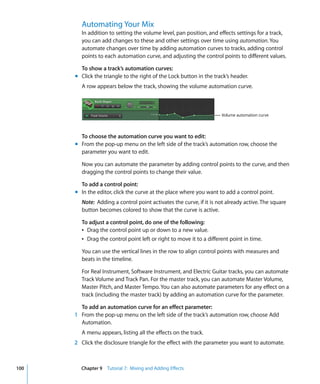
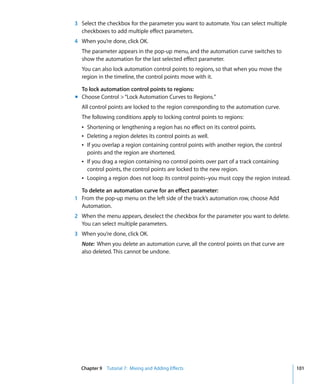
             100    Automating Your Mix

Chapter 10   102    Tutorial 8: Creating Podcasts
             102    Types of Podcasts
             103    Creating an Audio Podcast
             103       Creating a Podcast Project
             103       Recording Narration and Dialogue
             104       Adding Podcast Sounds
             105       Importing Media Files with the Media Browser
             105       Adding Music
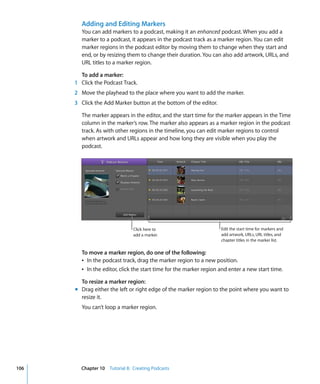
             106       Adding and Editing Markers
             107       Adding Marker Region Artwork
             107       Adding a URL
             107       Adding Chapter Titles
             108       Deleting Markers
             108       Adding Episode Artwork
             108       Editing Artwork
             108       Editing Episode Information
             109       Ducking Backing Tracks
             110    Creating a Video Podcast or Movie Project
             110       Creating a Video Podcast Project
             110       Importing a Movie or Video File
             110       Viewing the Movie
              111      Working with the Movie’s Audio Track
              111      Adding Audio
              111      Adding Markers, Titles, and URLs to a Video Podcast

Chapter 11   112    Tutorial 9: Sharing Your Projects
             112    Sharing Music Projects
             113    Sharing Podcasts
             114    Sharing Video Podcasts
             115    Exporting Projects at the Optimum Loudness

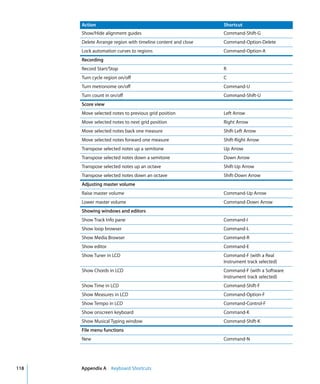
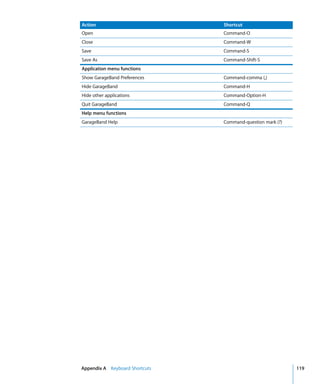
Appendix A   116    Keyboard Shortcuts

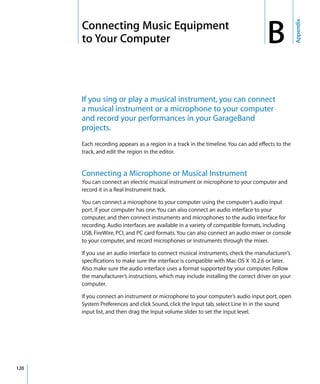
Appendix B   120    Connecting Music Equipment to Your Computer
             120    Connecting a Microphone or Musical Instrument
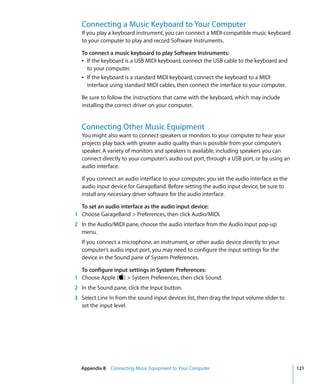
             121    Connecting a Music Keyboard to Your Computer
             121    Connecting Other Music Equipment


                    Contents                                                 5
1   Welcome to GarageBand
                                                                                        1
        GarageBand puts a music studio on your computer,
        where the band is never late and always plays in tune.
        This document gives you useful information and
        step-by-step instructions for creating projects with
        GarageBand.
        With GarageBand, you can record, arrange, and mix your music, and then share it with
        the world. GarageBand includes a complete recording studio, a set of pro-quality
        instruments and effects, and a large library of prerecorded sounds you can use in your
        projects. Whether you’re an experienced musician or you’ve never made music before,
        you can create your own songs, podcasts, and ringtones using GarageBand.


        What You’ll Learn
        The following chapters give you a tour of the GarageBand window and an extensive
        tutorial to help you start creating your own projects. You’ll learn to do the following:
        Â Create a new project
        Â Learn to play guitar or piano
        Â Add Apple Loops with drum, bass, and other rhythm parts
        Â Record sound using a microphone
        Â Play and record an electric guitar
        Â Play and record the built-in Software Instruments
        Â Build a song arrangement in the timeline
        Â Edit your recordings in the editor
        Â Mix your project and add effects
        Â Create audio and video podcasts
        Â Share your project with other iLife applications

        There are also appendixes that list keyboard shortcuts and describe how to connect
        music equipment to your computer.


6
Before You Begin
To make it easier to follow the tutorials as you work, print each tutorial before you start.
In many of the tasks shown in this document you need to choose menu commands. In
the tutorials, and in GarageBand Help, menu commands appear like this:

Choose Edit > Join Selected.

The first term after Choose is the name of the menu in the GarageBand menu bar.
The word or phrase following the angle bracket is the command you choose from
that menu.


What You Need to Get Started
All you need to create music with GarageBand is a Mac that meets the system
requirements, as listed in the Read Me file. Optionally, you can use any of the following
equipment to expand your music-making possibilities:
 A microphone to record your voice, an acoustic musical instrument, or other sounds
 An electric musical instrument, such as an electric guitar or bass
 A Universal Serial Bus (USB) or other MIDI-compatible music keyboard to play and
  record Software Instruments
 An audio interface to connect microphones and instruments to your computer
 A pair of speakers or monitors to hear the music you create with greater audio
  quality


Where to Go for Help
You can access these resources for help as you complete the tutorial:
 Onscreen help: GarageBand comes with a built-in help system. With a GarageBand
  project open, choose Help > GarageBand Help. When the help page opens, type a
  word or phrase into the search field at the top of the page, or click one of the topic
  areas to get detailed instructions for completing specific tasks.
 Video tutorials: A set of online video tutorials is available, demonstrating major
  features and tasks you can accomplish with GarageBand. To view the video tutorials,
  choose Video Tutorials from the GarageBand Help menu, or go to the tutorial website
  at www.apple.com/ilife/tutorials/#garageband.
 Help tags: Help tags describe the functions of buttons, tools, and other onscreen
  items. To see a help tag, hold the pointer over an item for a few seconds.


Chapter 1 Welcome to GarageBand                                                                7
Finding Out More
    For up-to-date information on GarageBand, including news about new features, user
    tips, and a list of supported music equipment, go to the GarageBand website at
    www.apple.com/ilife/garageband.


8   Chapter 1 Welcome to GarageBand
2   GarageBand at a Glance
                                                                                 2
    This chapter gives you a tour of the GarageBand window.
    You’ll learn the names and locations of controls, as well as
    their functions.
    It’s a good idea to take a look at these pages even if you don’t plan to complete the
    tutorials, because knowing the names and functions of the GarageBand controls will
    make it easier to find answers to your questions in GarageBand Help. You may find the
    descriptions here are enough to get you started working on your own projects.


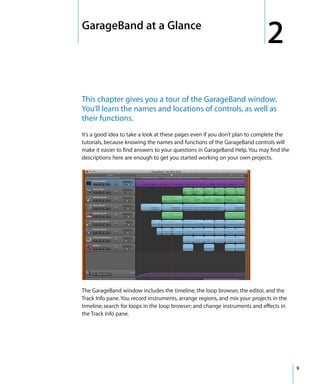
    The GarageBand window includes the timeline, the loop browser, the editor, and the
    Track Info pane. You record instruments, arrange regions, and mix your projects in the
    timeline; search for loops in the loop browser; and change instruments and effects in
    the Track Info pane.


                                                                                             9
GarageBand Window
                                                A


     B


     C


              D
              F                     E       F       G   H


10       Chapter 2 GarageBand at a Glance
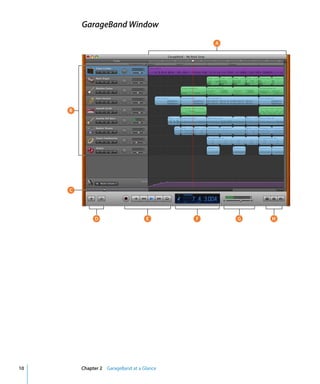
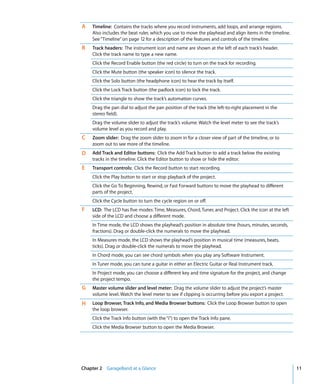
A   Timeline: Contains the tracks where you record instruments, add loops, and arrange regions.
    Also includes the beat ruler, which you use to move the playhead and align items in the timeline.
    See “Timeline” on page 12 for a description of the features and controls of the timeline.
B   Track headers: The instrument icon and name are shown at the left of each track’s header.
    Click the track name to type a new name.
    Click the Record Enable button (the red circle) to turn on the track for recording.
    Click the Mute button (the speaker icon) to silence the track.
    Click the Solo button (the headphone icon) to hear the track by itself.
    Click the Lock Track button (the padlock icon) to lock the track.
    Click the triangle to show the track’s automation curves.
    Drag the pan dial to adjust the pan position of the track (the left-to-right placement in the
    stereo field).
    Drag the volume slider to adjust the track’s volume. Watch the level meter to see the track’s
    volume level as you record and play.
C   Zoom slider: Drag the zoom slider to zoom in for a closer view of part of the timeline, or to
    zoom out to see more of the timeline.
D   Add Track and Editor buttons: Click the Add Track button to add a track below the existing
    tracks in the timeline. Click the Editor button to show or hide the editor.
E   Transport controls: Click the Record button to start recording.
    Click the Play button to start or stop playback of the project.
    Click the Go To Beginning, Rewind, or Fast Forward buttons to move the playhead to different
    parts of the project.
    Click the Cycle button to turn the cycle region on or off.
F   LCD: The LCD has five modes: Time, Measures, Chord, Tuner, and Project. Click the icon at the left
    side of the LCD and choose a different mode.
    In Time mode, the LCD shows the playhead’s position in absolute time (hours, minutes, seconds,
    fractions). Drag or double-click the numerals to move the playhead.
    In Measures mode, the LCD shows the playhead’s position in musical time (measures, beats,
    ticks). Drag or double-click the numerals to move the playhead.
    In Chord mode, you can see chord symbols when you play any Software Instrument.
    In Tuner mode, you can tune a guitar in either an Electric Guitar or Real Instrument track.
    In Project mode, you can choose a different key and time signature for the project, and change
    the project tempo.
G   Master volume slider and level meter: Drag the volume slider to adjust the project’s master
    volume level. Watch the level meter to see if clipping is occurring before you export a project.
H   Loop Browser, Track Info, and Media Browser buttons: Click the Loop Browser button to open
    the loop browser.
    Click the Track Info button (with the “i”) to open the Track Info pane.
    Click the Media Browser button to open the Media Browser.


Chapter 2 GarageBand at a Glance                                                                         11
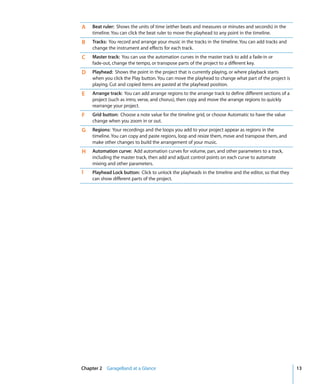
Timeline
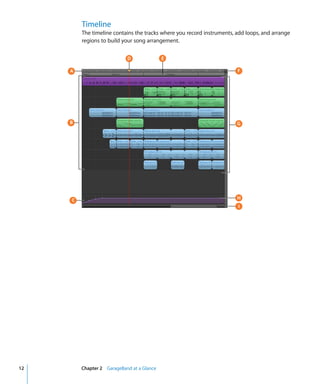
         The timeline contains the tracks where you record instruments, add loops, and arrange
         regions to build your song arrangement.

                            D               E

     A                                                                  F


     B                                                                  G


     C                                                                  H
                                                                        I


12       Chapter 2 GarageBand at a Glance
A   Beat ruler: Shows the units of time (either beats and measures or minutes and seconds) in the
    timeline. You can click the beat ruler to move the playhead to any point in the timeline.
B   Tracks: You record and arrange your music in the tracks in the timeline. You can add tracks and
    change the instrument and effects for each track.
C   Master track: You can use the automation curves in the master track to add a fade-in or
    fade-out, change the tempo, or transpose parts of the project to a different key.
D   Playhead: Shows the point in the project that is currently playing, or where playback starts
    when you click the Play button. You can move the playhead to change what part of the project is
    playing. Cut and copied items are pasted at the playhead position.
E   Arrange track: You can add arrange regions to the arrange track to define different sections of a
    project (such as intro, verse, and chorus), then copy and move the arrange regions to quickly
    rearrange your project.
F   Grid button: Choose a note value for the timeline grid, or choose Automatic to have the value
    change when you zoom in or out.
G   Regions: Your recordings and the loops you add to your project appear as regions in the
    timeline. You can copy and paste regions, loop and resize them, move and transpose them, and
    make other changes to build the arrangement of your music.
H   Automation curve: Add automation curves for volume, pan, and other parameters to a track,
    including the master track, then add and adjust control points on each curve to automate
    mixing and other parameters.
I   Playhead Lock button: Click to unlock the playheads in the timeline and the editor, so that they
    can show different parts of the project.


Chapter 2 GarageBand at a Glance                                                                        13
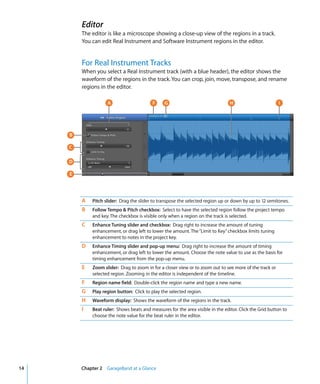
Editor
         The editor is like a microscope showing a close-up view of the regions in a track.
         You can edit Real Instrument and Software Instrument regions in the editor.


         For Real Instrument Tracks
         When you select a Real Instrument track (with a blue header), the editor shows the
         waveform of the regions in the track. You can crop, join, move, transpose, and rename
         regions in the editor.

                    A                     F      G                               H                       I


     B

     C

     D

     E


         A   Pitch slider: Drag the slider to transpose the selected region up or down by up to 12 semitones.
         B   Follow Tempo & Pitch checkbox: Select to have the selected region follow the project tempo
             and key. The checkbox is visible only when a region on the track is selected.
         C   Enhance Tuning slider and checkbox: Drag right to increase the amount of tuning
             enhancement, or drag left to lower the amount. The “Limit to Key” checkbox limits tuning
             enhancement to notes in the project key.
         D   Enhance Timing slider and pop-up menu: Drag right to increase the amount of timing
             enhancement, or drag left to lower the amount. Choose the note value to use as the basis for
             timing enhancement from the pop-up menu.
         E   Zoom slider: Drag to zoom in for a closer view or to zoom out to see more of the track or
             selected region. Zooming in the editor is independent of the timeline.
         F   Region name field: Double-click the region name and type a new name.
         G   Play region button: Click to play the selected region.
         H   Waveform display: Shows the waveform of the regions in the track.
         I   Beat ruler: Shows beats and measures for the area visible in the editor. Click the Grid button to
             choose the note value for the beat ruler in the editor.


14       Chapter 2 GarageBand at a Glance
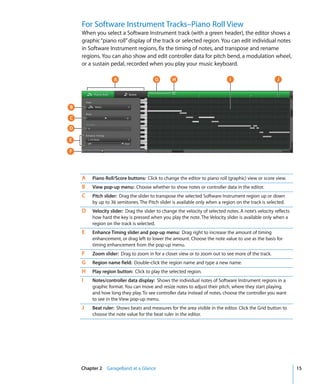
For Software Instrument Tracks–Piano Roll View
    When you select a Software Instrument track (with a green header), the editor shows a
    graphic “piano roll” display of the track or selected region. You can edit individual notes
    in Software Instrument regions, fix the timing of notes, and transpose and rename
    regions. You can also show and edit controller data for pitch bend, a modulation wheel,
    or a sustain pedal, recorded when you play your music keyboard.

                  A                     G       H                             I                       J


B

C

D

E

F


    A   Piano Roll/Score buttons: Click to change the editor to piano roll (graphic) view or score view.
    B   View pop-up menu: Choose whether to show notes or controller data in the editor.
    C   Pitch slider: Drag the slider to transpose the selected Software Instrument region up or down
        by up to 36 semitones. The Pitch slider is available only when a region on the track is selected.
    D   Velocity slider: Drag the slider to change the velocity of selected notes. A note’s velocity reflects
        how hard the key is pressed when you play the note. The Velocity slider is available only when a
        region on the track is selected.
    E   Enhance Timing slider and pop-up menu: Drag right to increase the amount of timing
        enhancement, or drag left to lower the amount. Choose the note value to use as the basis for
        timing enhancement from the pop-up menu.
    F   Zoom slider: Drag to zoom in for a closer view or to zoom out to see more of the track.
    G   Region name field: Double-click the region name and type a new name.
    H   Play region button: Click to play the selected region.
    I   Notes/controller data display: Shows the individual notes of Software Instrument regions in a
        graphic format. You can move and resize notes to adjust their pitch, where they start playing,
        and how long they play. To see controller data instead of notes, choose the controller you want
        to see in the View pop-up menu.
    J   Beat ruler: Shows beats and measures for the area visible in the editor. Click the Grid button to
        choose the note value for the beat ruler in the editor.


    Chapter 2 GarageBand at a Glance                                                                            15
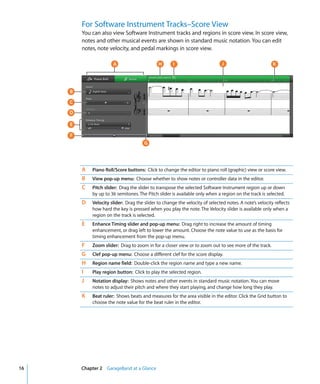
For Software Instrument Tracks–Score View
         You can also view Software Instrument tracks and regions in score view. In score view,
         notes and other musical events are shown in standard music notation. You can edit
         notes, note velocity, and pedal markings in score view.

                       A                      H       I                        J                         K


     B

     C

     D

     E

     F
                                       G


         A   Piano Roll/Score buttons: Click to change the editor to piano roll (graphic) view or score view.
         B   View pop-up menu: Choose whether to show notes or controller data in the editor.
         C   Pitch slider: Drag the slider to transpose the selected Software Instrument region up or down
             by up to 36 semitones. The Pitch slider is available only when a region on the track is selected.
         D   Velocity slider: Drag the slider to change the velocity of selected notes. A note’s velocity reflects
             how hard the key is pressed when you play the note. The Velocity slider is available only when a
             region on the track is selected.
         E   Enhance Timing slider and pop-up menu: Drag right to increase the amount of timing
             enhancement, or drag left to lower the amount. Choose the note value to use as the basis for
             timing enhancement from the pop-up menu.
         F   Zoom slider: Drag to zoom in for a closer view or to zoom out to see more of the track.
         G   Clef pop-up menu: Choose a different clef for the score display.
         H   Region name field: Double-click the region name and type a new name.
         I   Play region button: Click to play the selected region.
         J   Notation display: Shows notes and other events in standard music notation. You can move
             notes to adjust their pitch and where they start playing, and change how long they play.
         K   Beat ruler: Shows beats and measures for the area visible in the editor. Click the Grid button to
             choose the note value for the beat ruler in the editor.


16       Chapter 2 GarageBand at a Glance
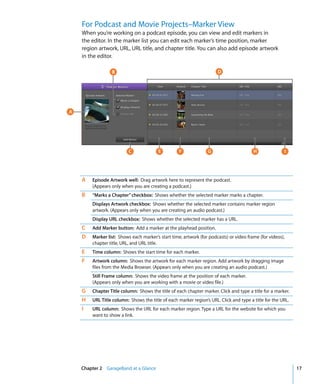
For Podcast and Movie Projects–Marker View
    When you’re working on a podcast episode, you can view and edit markers in
    the editor. In the marker list you can edit each marker’s time position, marker
    region artwork, URL, URL title, and chapter title. You can also add episode artwork
    in the editor.

                 B                                                    D


A


                          C             E          F             G                      H              I


    A   Episode Artwork well: Drag artwork here to represent the podcast.
        (Appears only when you are creating a podcast.)
    B   “Marks a Chapter” checkbox: Shows whether the selected marker marks a chapter.
        Displays Artwork checkbox: Shows whether the selected marker contains marker region
        artwork. (Appears only when you are creating an audio podcast.)
        Display URL checkbox: Shows whether the selected marker has a URL.
    C   Add Marker button: Add a marker at the playhead position.
    D   Marker list: Shows each marker’s start time, artwork (for podcasts) or video frame (for videos),
        chapter title, URL, and URL title.
    E   Time column: Shows the start time for each marker.
    F   Artwork column: Shows the artwork for each marker region. Add artwork by dragging image
        files from the Media Browser. (Appears only when you are creating an audio podcast.)
        Still Frame column: Shows the video frame at the position of each marker.
        (Appears only when you are working with a movie or video file.)
    G   Chapter Title column: Shows the title of each chapter marker. Click and type a title for a marker.
    H   URL Title column: Shows the title of each marker region’s URL. Click and type a title for the URL.
    I   URL column: Shows the URL for each marker region. Type a URL for the website for which you
        want to show a link.


    Chapter 2 GarageBand at a Glance                                                                         17
Loop Browser
         Using the loop browser, you can quickly search for loops to add to your projects. You
         can find loops using keywords for an instrument, musical genre, or mood. You can also
         perform text searches and refine your results in several ways. The loop browser shows
         the tempo, key, and number of beats for each matching loop. You can preview loops in
         the loop browser before you add them to a project, and add more loops to
         GarageBand by dragging them onto the loop browser. The loop browser gives you
         three ways to find loops: button view, column view, and podcast sounds view.


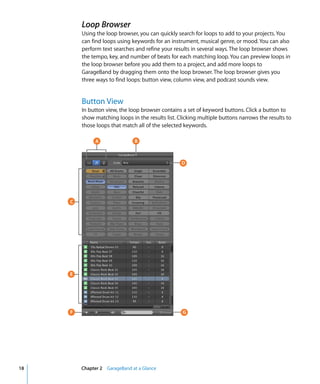
         Button View
         In button view, the loop browser contains a set of keyword buttons. Click a button to
         show matching loops in the results list. Clicking multiple buttons narrows the results to
         those loops that match all of the selected keywords.

              A                B


                                                   D


     C


     E


     F                                             G


18       Chapter 2 GarageBand at a Glance
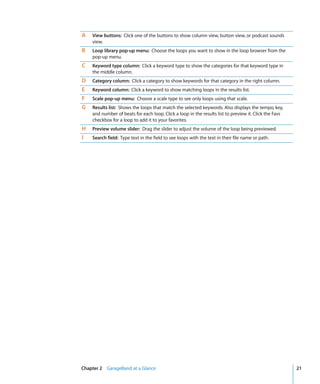
A   View buttons: Click one of the buttons to show column view, button view, or podcast sounds
    view.
B   Loop library pop-up menu: Choose the loops you want to show in the loop browser from the
    pop-up menu.
C   Keyword buttons: Click a keyword button to display matching loops in the results list. You can
    click multiple keyword buttons to narrow your results.
    Reset button: Deselects all currently selected buttons, so you can start a new search.
D   Scale pop-up menu: Choose a scale type to see only loops using that musical scale.
E   Results list: Shows loops that match the selected keywords. Also displays the tempo, key, and
    number of beats for each loop. Click a loop in the results list to preview it. Click the Favs
    checkbox for a loop to add it to your favorites.
F   Preview volume slider: Drag the slider to adjust the volume of the loop being previewed.
G   Search field: Type text in the field to see loops with the text in their file name or path.


Chapter 2 GarageBand at a Glance                                                                     19
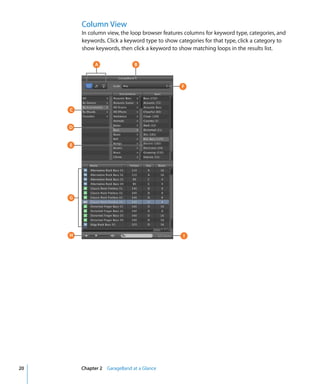
Column View
         In column view, the loop browser features columns for keyword type, categories, and
         keywords. Click a keyword type to show categories for that type, click a category to
         show keywords, then click a keyword to show matching loops in the results list.

              A                B


                                                  F


     C


     D


     E


     G


     H                                            I


20       Chapter 2 GarageBand at a Glance
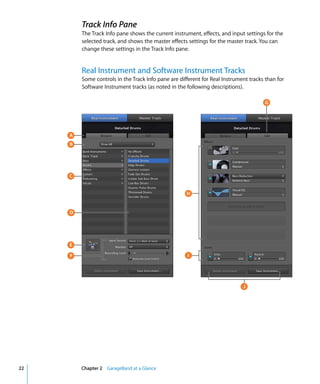
A   View buttons: Click one of the buttons to show column view, button view, or podcast sounds
    view.
B   Loop library pop-up menu: Choose the loops you want to show in the loop browser from the
    pop-up menu.
C   Keyword type column: Click a keyword type to show the categories for that keyword type in
    the middle column.
D   Category column: Click a category to show keywords for that category in the right column.
E   Keyword column: Click a keyword to show matching loops in the results list.
F   Scale pop-up menu: Choose a scale type to see only loops using that scale.
G   Results list: Shows the loops that match the selected keywords. Also displays the tempo, key,
    and number of beats for each loop. Click a loop in the results list to preview it. Click the Favs
    checkbox for a loop to add it to your favorites.
H   Preview volume slider: Drag the slider to adjust the volume of the loop being previewed.
I   Search field: Type text in the field to see loops with the text in their file name or path.


Chapter 2 GarageBand at a Glance                                                                        21
Track Info Pane
         The Track Info pane shows the current instrument, effects, and input settings for the
         selected track, and shows the master effects settings for the master track. You can
         change these settings in the Track Info pane.


         Real Instrument and Software Instrument Tracks
         Some controls in the Track Info pane are different for Real Instrument tracks than for
         Software Instrument tracks (as noted in the following descriptions).

                                                                                      G


     A
     B


     C


                                                     H


     D


     E

     F                                                I


                                                                             J


22       Chapter 2 GarageBand at a Glance
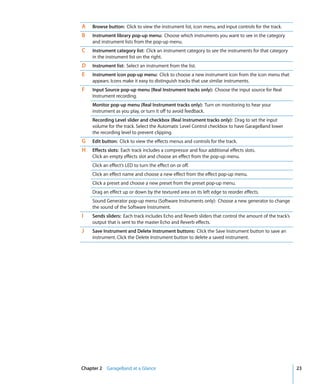
A   Browse button: Click to view the instrument list, icon menu, and input controls for the track.
B   Instrument library pop-up menu: Choose which instruments you want to see in the category
    and instrument lists from the pop-up menu.
C   Instrument category list: Click an instrument category to see the instruments for that category
    in the instrument list on the right.
D   Instrument list: Select an instrument from the list.
E   Instrument icon pop-up menu: Click to choose a new instrument icon from the icon menu that
    appears. Icons make it easy to distinguish tracks that use similar instruments.
F   Input Source pop-up menu (Real Instrument tracks only): Choose the input source for Real
    Instrument recording.
    Monitor pop-up menu (Real Instrument tracks only): Turn on monitoring to hear your
    instrument as you play, or turn it off to avoid feedback.
    Recording Level slider and checkbox (Real Instrument tracks only): Drag to set the input
    volume for the track. Select the Automatic Level Control checkbox to have GarageBand lower
    the recording level to prevent clipping.
G   Edit button: Click to view the effects menus and controls for the track.
H   Effects slots: Each track includes a compressor and four additional effects slots.
    Click an empty effects slot and choose an effect from the pop-up menu.
    Click an effect’s LED to turn the effect on or off.
    Click an effect name and choose a new effect from the effect pop-up menu.
    Click a preset and choose a new preset from the preset pop-up menu.
    Drag an effect up or down by the textured area on its left edge to reorder effects.
    Sound Generator pop-up menu (Software Instruments only): Choose a new generator to change
    the sound of the Software Instrument.
I   Sends sliders: Each track includes Echo and Reverb sliders that control the amount of the track’s
    output that is sent to the master Echo and Reverb effects.
J   Save Instrument and Delete Instrument buttons: Click the Save Instrument button to save an
    instrument. Click the Delete Instrument button to delete a saved instrument.


Chapter 2 GarageBand at a Glance                                                                        23
Electric Guitar Track
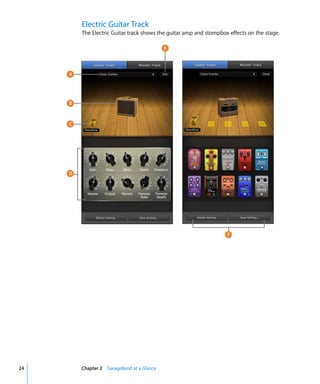
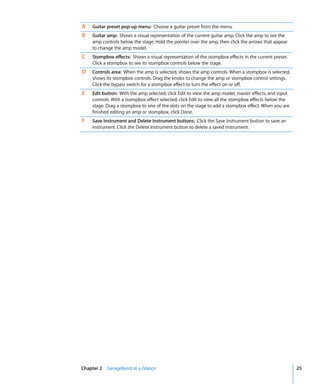
         The Electric Guitar track shows the guitar amp and stompbox effects on the stage.

                                            E


     A


     B


     C


     D


                                                                    F


24       Chapter 2 GarageBand at a Glance
A   Guitar preset pop-up menu: Choose a guitar preset from the menu.
B   Guitar amp: Shows a visual representation of the current guitar amp. Click the amp to see the
    amp controls below the stage. Hold the pointer over the amp, then click the arrows that appear
    to change the amp model.
C   Stompbox effects: Shows a visual representation of the stompbox effects in the current preset.
    Click a stompbox to see its stompbox controls below the stage.
D   Controls area: When the amp is selected, shows the amp controls. When a stompbox is selected,
    shows its stompbox controls. Drag the knobs to change the amp or stompbox control settings.
    Click the bypass switch for a stompbox effect to turn the effect on or off.
E   Edit button: With the amp selected, click Edit to view the amp model, master effects, and input
    controls. With a stompbox effect selected, click Edit to view all the stompbox effects below the
    stage. Drag a stompbox to one of the slots on the stage to add a stompbox effect. When you are
    finished editing an amp or stompbox, click Done.
F   Save Instrument and Delete Instrument buttons: Click the Save Instrument button to save an
    instrument. Click the Delete Instrument button to delete a saved instrument.


Chapter 2 GarageBand at a Glance                                                                       25
Master Track
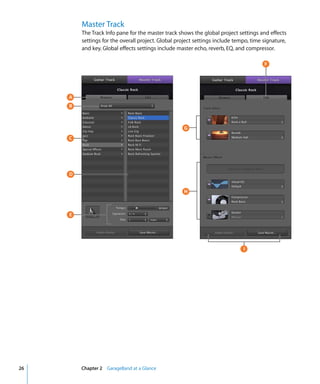
         The Track Info pane for the master track shows the global project settings and effects
         settings for the overall project. Global project settings include tempo, time signature,
         and key. Global effects settings include master echo, reverb, EQ, and compressor.

                                                                                       F


     A
     B


                                                     G

     C


     D


                                                     H


     E


                                                                              I


26       Chapter 2 GarageBand at a Glance
The Echo and Reverb sliders for each track control the amount of echo and reverb sent
from that track to the master echo and reverb effects. In the Track Info pane for the
master track, you can change the master echo and reverb effects.

A   Browse button: Click to view the instrument list, icon menu, and input controls for the track.
B   Master effects pop-up menu: Choose which master effects you want to see in the category and
    effects lists from the pop-up menu.
C   Master effects category list: Click a category to see the effects for that category in the master
    effects list on the right.
D   Master effects preset list: Click a master effects preset from the list to apply it to the project.
E   Tempo, key, and time signature controls: Drag the Tempo slider to change the project tempo.
    Choose a key from the Key pop-up menu, then choose a scale type from the pop-up menu to
    the right.
    Choose a time signature from the Signature pop-up menu.
F   Edit button: Click to view the effects menus and controls for the track.
G   Track Effects: Click the LED to turn the echo and reverb effects on or off. Choose an echo preset
    from the Echo pop-up menu. Choose a reverb preset from the Reverb pop-up menu. These
    effects control the sound of the Send effects in individual tracks.
H   Master Effects slots: Each master track includes a Visual EQ, a compressor, a ducker, and one
    additional effects slot.
    Click an effect’s LED to turn the effect on or off.
    Click a preset and choose a new preset from the preset pop-up menu.
    Click an empty effects slot and choose an effect from the pop-up menu.
I   Save Master and Delete Master buttons: Click the Save Master button to save a set of master
    effects. Click the Delete Master button to delete a saved set of master effects.


Chapter 2 GarageBand at a Glance                                                                          27
Media Browser
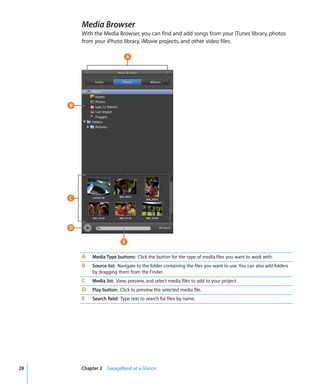
         With the Media Browser, you can find and add songs from your iTunes library, photos
         from your iPhoto library, iMovie projects, and other video files.

                                A


     B


     C


     D

                            E

         A   Media Type buttons: Click the button for the type of media files you want to work with.
         B   Source list: Navigate to the folder containing the files you want to use. You can also add folders
             by dragging them from the Finder.
         C   Media list: View, preview, and select media files to add to your project.
         D   Play button: Click to preview the selected media file.
         E   Search field: Type text to search for files by name.


28       Chapter 2 GarageBand at a Glance
3   Tutorial 1: Creating and Playing
    GarageBand Projects                                                           3
    You can create GarageBand projects for songs, podcasts,
    ringtones, and more. You can play projects to hear you
    music, and save them in several ways.
    In this tutorial, you’ll learn how to:
    Â Create a new project from a template
    Â Choose project settings for tempo, key, and time signature
    Â Play the project
    Â Save the project


    Creating a New Project
    You start working in GarageBand by creating a project. Projects are where you record,
    arrange, and mix your music. When you open the New Project dialog, you can select a
    template for the type of project you want to create.

    You can choose from several different types of projects, including:
    Â Music projects for voice, acoustic instruments, electric guitar, loops, and more
    Â Podcast projects for enhanced audio and video podcast episodes
    Â Magic GarageBand projects, in which you choose the genre and GarageBand
      chooses the instruments and creates an arrangement
    Â iPhone ringtone projects that you can send to iTunes and use on your iPhone.

    In addition to creating new projects, you can open and download Learn to Play lessons
    in the New Project dialog. To learn how to use Learn to Play lessons, see “Tutorial 2:
    Learning to Play Guitar and Piano” on page 40.


                                                                                             29
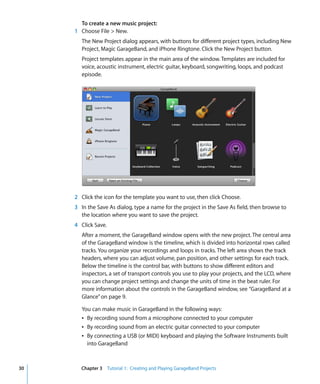
To create a new music project:
     1 Choose File > New.
        The New Project dialog appears, with buttons for different project types, including New
        Project, Magic GarageBand, and iPhone Ringtone. Click the New Project button.
        Project templates appear in the main area of the window. Templates are included for
        voice, acoustic instrument, electric guitar, keyboard, songwriting, loops, and podcast
        episode.


     2 Click the icon for the template you want to use, then click Choose.
     3 In the Save As dialog, type a name for the project in the Save As field, then browse to
       the location where you want to save the project.
     4 Click Save.
        After a moment, the GarageBand window opens with the new project. The central area
        of the GarageBand window is the timeline, which is divided into horizontal rows called
        tracks. You organize your recordings and loops in tracks. The left area shows the track
        headers, where you can adjust volume, pan position, and other settings for each track.
        Below the timeline is the control bar, with buttons to show different editors and
        inspectors, a set of transport controls you use to play your projects, and the LCD, where
        you can change project settings and change the units of time in the beat ruler. For
        more information about the controls in the GarageBand window, see “GarageBand at a
        Glance” on page 9.

        You can make music in GarageBand in the following ways:
        Â By recording sound from a microphone connected to your computer
        Â By recording sound from an electric guitar connected to your computer
        Â By connecting a USB (or MIDI) keyboard and playing the Software Instruments built
          into GarageBand


30     Chapter 3 Tutorial 1: Creating and Playing GarageBand Projects
 By adding and arranging Apple Loops in the timeline
 By creating a Magic GarageBand project
 By viewing and playing along with a Learn to Play lesson


Playing a Project
After you’ve added some recordings, loops, or audio files to your project, you’ll want to
play the project to hear how it sounds. You play projects using either the Space bar on
your computer keyboard or the transport controls, which are located in the control bar
below the timeline.

To start or stop playback:
Press the Space bar, or press the Play button in the center of the transport controls.

Using the Transport Controls
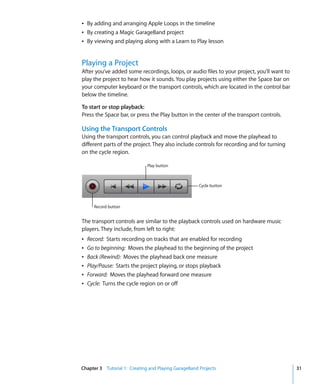
Using the transport controls, you can control playback and move the playhead to
different parts of the project. They also include controls for recording and for turning
on the cycle region.

                              Play button


                                                      Cycle button


      Record button


The transport controls are similar to the playback controls used on hardware music
players. They include, from left to right:
   Record: Starts recording on tracks that are enabled for recording
   Go to beginning: Moves the playhead to the beginning of the project
   Back (Rewind): Moves the playhead back one measure
   Play/Pause: Starts the project playing, or stops playback
   Forward: Moves the playhead forward one measure
   Cycle: Turns the cycle region on or off


Chapter 3 Tutorial 1: Creating and Playing GarageBand Projects                              31
Moving the Playhead
       The playhead is a vertical line extending through the timeline that shows the part of
       the project currently playing, or the place where playback starts when you click the
       Play button. The triangle at the top of the playhead shows its current position in the
       beat ruler. The beat ruler marks the units of time in the project, either in beats and
       measures (musical time) or minutes and seconds. You can move the playhead to any
       point in time, either when the project is stopped or while it is playing.

       To move the playhead:
     m Drag the triangle at the top of the playhead to the place in the beat ruler when you
       want playback to start.


       Using the LCD
       The LCD (liquid crystal display), located in the control bar next to the transport controls,
       shows the playhead position as the project plays. You can change the units of time
       shown in the LCD, and move the playhead.

       Changing the Units of Time
       The LCD and the beat ruler can display either beats and measures (musical time) or
       minutes and seconds. You can use musical time when you’re arranging a song to align
       recordings, loops, and other items in the timeline with the rhythm of the song, and use
       minutes and seconds when you’re working with podcast or movie projects.

       To show beats and measures in the LCD:
     m Click the icon on the left side of the LCD and choose Measures.

       To show minutes and seconds in the LCD:
     m Click the icon on the left side of the LCD and choose Time.
       When you change the units of time in the LCD, the beat ruler also changes to show the
       same units of time.

       Changing the Playhead Position in the LCD
       You can move the playhead by changing the time shown in the LCD in either Measures
       or Time mode.

       To change the time in the LCD, do one of the following:
       Â Drag one of the numerals up or down.
       Â Double-click one of the numbers, type a new number, then press Return.


32     Chapter 3 Tutorial 1: Creating and Playing GarageBand Projects
Changing the Project Tempo, Key, and Time Signature
   Each GarageBand project includes settings for tempo, key, and time signature. When
   you add loops or create recordings in a music project, GarageBand matches them to
   the project tempo and key so that they sound good together. You can choose the
   project tempo, key, and time signature in the Save As dialog when you create a new
   project, or in the LCD while you’re working on the project.

   Changing the Tempo
   Each project has a speed, or tempo. The tempo defines the rate at which beats, the
   basic rhythmic pulse, occur in the project. The tempo is measured in beats per minute,
   or bpm. You can set the tempo to any speed between 60 and 240 bpm. The default
   tempo is 120 bpm, which is a common tempo used in popular music.

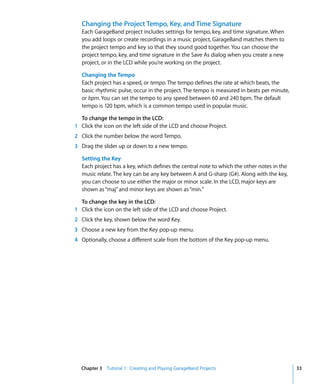
  To change the tempo in the LCD:
1 Click the icon on the left side of the LCD and choose Project.
2 Click the number below the word Tempo.
3 Drag the slider up or down to a new tempo.

   Setting the Key
   Each project has a key, which defines the central note to which the other notes in the
   music relate. The key can be any key between A and G-sharp (G#). Along with the key,
   you can choose to use either the major or minor scale. In the LCD, major keys are
   shown as “maj” and minor keys are shown as “min.”

  To change the key in the LCD:
1 Click the icon on the left side of the LCD and choose Project.
2 Click the key, shown below the word Key.
3 Choose a new key from the Key pop-up menu.
4 Optionally, choose a different scale from the bottom of the Key pop-up menu.


  Chapter 3 Tutorial 1: Creating and Playing GarageBand Projects                            33
Setting the Time Signature
        Each project has a time signature, which controls the relationship between beats and
        measures. A project’s time signature consists of two numbers separated by a forward
        slash, which look similar to a fraction. The number on the left controls the number of
        beats in each measure, and the number on the right controls the beat value (the length
        of the note that gets one beat).

        You can use any of the following time signatures in a GarageBand project: 2/2, 2/4, 3/4,
        4/4, 5/4, 7/4, 6/8, 7/8, 9/8, or 12/8. The default is 4/4, the most commonly used time
        signature.

       To change the project tempo in the LCD:
     1 Click the icon on the left side of the LCD and choose Project.
     2 Click the number below the word Signature.
     3 Choose a new time signature from the Signature pop-up menu.


        Saving a Project
        Now that you’ve made some changes to your project, it’s time to save your work.

       To save a project:
     m Choose File > Save (or press Command-S).

        You can also save a project as an archive. When you save a project as an archive, all the
        audio files, loops, and other media the project uses are saved in the project file. This is
        especially useful if you want to copy the project to another computer, or are
        duplicating a project with your own Real Instrument recordings.

       To save a project as an archive:
     1 Choose File > Save As.
     2 In the Save As dialog, select the Save As Archive checkbox.

        You can also compact projects to make sharing easier. Compacting a project reduces
        the file size by compressing audio in the project. Compacting can result in some loss of
        audio quality.

       To compact a project:
     1 Choose File > Save As.
     2 In the Save As dialog, select the Compact Project checkbox.
     3 Choose the compression settings you want to use from the pop-up menu next to the
       Compact Project checkbox.


34     Chapter 3 Tutorial 1: Creating and Playing GarageBand Projects
When you close a project, by default GarageBand creates an iLife preview for the
   project. An iLife preview lets you preview the project in the Media Browser and in other
   iLife applications. It can also increase the project’s file size. You can select whether to
   create an iLife preview for projects in the General pane of GarageBand preferences.


   Creating a Magic GarageBand Project
   You can quickly create a Magic GarageBand project. When you create a Magic
   GarageBand project, you choose the genre (style) of music, and GarageBand chooses
   the instruments and creates a basic arrangement with them. You can change
   instruments, mix the song, and play and record your own instrument together with
   the song.

  To create a Magic GarageBand project:
1 Choose File > New.
2 In the New Project dialog, click Magic GarageBand.
3 Click the genre for the song, then click Choose.
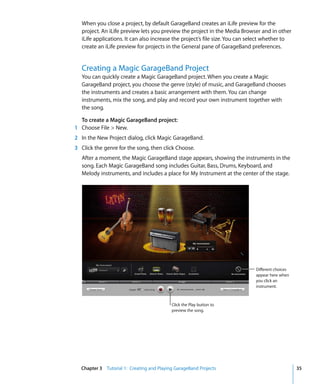
   After a moment, the Magic GarageBand stage appears, showing the instruments in the
   song. Each Magic GarageBand song includes Guitar, Bass, Drums, Keyboard, and
   Melody instruments, and includes a place for My Instrument at the center of the stage.


                                                                              Different choices
                                                                              appear here when
                                                                              you click an
                                                                              instrument.


                                           Click the Play button to
                                           preview the song.


  Chapter 3 Tutorial 1: Creating and Playing GarageBand Projects                                  35
4 To preview the song, click the Play button.
       Magic GarageBand opens in a full-screen view, with the instruments for the project
       displayed on the stage, and a control bar with playback and other controls below the
       stage. You can change between this view and a window view by clicking the View
       button on the lower-right part of the stage.

       Choosing Different Instruments in Magic GarageBand
       You can choose different instruments for each part of a Magic GarageBand song, or
       have GarageBand choose a different set of instruments.

       To choose a different instrument:
     1 Select one of the instruments on the stage.
       Different choices for the instrument appear below the stage.
     2 Select a new instrument from below the stage.
     3 After you choose the instruments you want, you can click Play again to hear the song
       with the new instruments.

       Shuffling Instruments in Magic GarageBand
       In addition to choosing instruments manually, you can shuffle instruments in a Magic
       GarageBand song. When you shuffle instruments, GarageBand chooses a new set of
       instruments for the project.

       To shuffle instruments:
     m Click the Shuffle Instruments button below the stage.


       The Shuffle Instruments button is available when no instrument is selected on
       the stage.

       Mixing Instruments in Magic GarageBand
       You can mix a Magic GarageBand song by adjusting the volume of different
       instruments to balance their sound in the overall mix. You can also mute (silence)
       instruments and solo them (hear them alone without the rest of the song).

       To mix a Magic GarageBand song, you first show the mixer for one of the instruments.
       When you select another instrument, the mixer for that instrument appears, until you
       close the mixer for the current instrument.


36     Chapter 3 Tutorial 1: Creating and Playing GarageBand Projects
To show the mixer for an instrument:
1 Click an instrument on the stage.
   A small window showing the instrument name appears.
2 Click the disclosure triangle to show the mixing controls for the instrument.


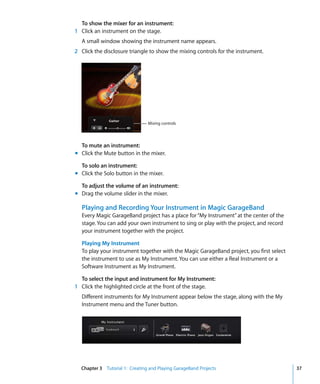
                                Mixing controls


  To mute an instrument:
m Click the Mute button in the mixer.

  To solo an instrument:
m Click the Solo button in the mixer.

  To adjust the volume of an instrument:
m Drag the volume slider in the mixer.

   Playing and Recording Your Instrument in Magic GarageBand
   Every Magic GarageBand project has a place for “My Instrument” at the center of the
   stage. You can add your own instrument to sing or play with the project, and record
   your instrument together with the project.

   Playing My Instrument
   To play your instrument together with the Magic GarageBand project, you first select
   the instrument to use as My Instrument. You can use either a Real Instrument or a
   Software Instrument as My Instrument.

  To select the input and instrument for My Instrument:
1 Click the highlighted circle at the front of the stage.
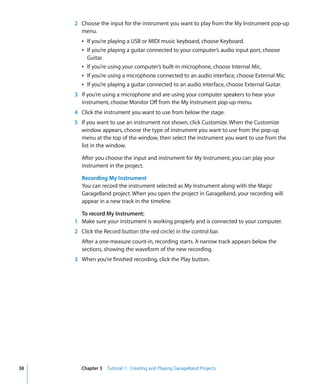
   Different instruments for My Instrument appear below the stage, along with the My
   Instrument menu and the Tuner button.


  Chapter 3 Tutorial 1: Creating and Playing GarageBand Projects                          37
2 Choose the input for the instrument you want to play from the My Instrument pop-up
       menu.
        Â If you’re playing a USB or MIDI music keyboard, choose Keyboard.
        Â If you’re playing a guitar connected to your computer’s audio input port, choose
          Guitar.
        Â If you’re using your computer’s built-in microphone, choose Internal Mic.
        Â If you’re using a microphone connected to an audio interface, choose External Mic.
        Â If you’re playing a guitar connected to an audio interface, choose External Guitar.
     3 If you’re using a microphone and are using your computer speakers to hear your
       instrument, choose Monitor Off from the My Instrument pop-up menu.
     4 Click the instrument you want to use from below the stage.
     5 If you want to use an instrument not shown, click Customize. When the Customize
       window appears, choose the type of instrument you want to use from the pop-up
       menu at the top of the window, then select the instrument you want to use from the
       list in the window.

        After you choose the input and instrument for My Instrument, you can play your
        instrument in the project.

        Recording My Instrument
        You can record the instrument selected as My Instrument along with the Magic
        GarageBand project. When you open the project in GarageBand, your recording will
        appear in a new track in the timeline.

       To record My Instrument:
     1 Make sure your instrument is working properly and is connected to your computer.
     2 Click the Record button (the red circle) in the control bar.
        After a one-measure count-in, recording starts. A narrow track appears below the
        sections, showing the waveform of the new recording.
     3 When you’re finished recording, click the Play button.


38     Chapter 3 Tutorial 1: Creating and Playing GarageBand Projects
Tuning Your Guitar in Magic GarageBand
   If you’re using a guitar as My Instrument, you can tune the guitar in Magic GarageBand.

  To tune your guitar in Magic GarageBand:
1 Make sure that My Instrument is selected on the stage.
2 Click the Tuner button next to the My Instrument pop-up menu.
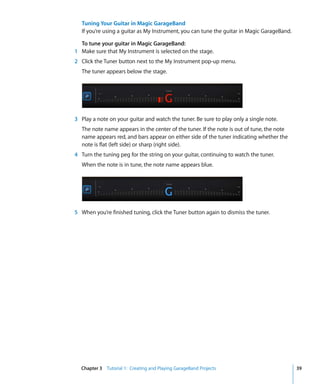
   The tuner appears below the stage.


3 Play a note on your guitar and watch the tuner. Be sure to play only a single note.
   The note name appears in the center of the tuner. If the note is out of tune, the note
   name appears red, and bars appear on either side of the tuner indicating whether the
   note is flat (left side) or sharp (right side).
4 Turn the tuning peg for the string on your guitar, continuing to watch the tuner.
   When the note is in tune, the note name appears blue.


5 When you’re finished tuning, click the Tuner button again to dismiss the tuner.


  Chapter 3 Tutorial 1: Creating and Playing GarageBand Projects                             39
4   Tutorial 2: Learning to Play
         Guitar and Piano                                           4
         Learn to Play lessons make it easy to learn guitar and
         piano in GarageBand. You can learn basic techniques and
         also purchase Artist Lessons to learn songs from the
         artists who created them.
         In this tutorial, you’ll learn how to:
         Â Open a Learn to Play lesson
         Â View the video instruction for a lesson and play along
         Â Choose chapters and subchapters
         Â Practice a section of a lesson repeatedly
         Â Slow down a lesson to learn a difficult passage
         Â Play and record your own instrument in a lesson
         Â Mix the instruments in a lesson
         Â Customize the appearance of the Learn to Play window
         Â Open a lesson in GarageBand
         Â Get additional Learn to Play lessons


40
Opening a Learn to Play Lesson
   GarageBand includes one basic lesson for guitar and one for piano. In the New Project
   dialog, you can choose and open the lessons installed on your computer. You can also
   download additional free basic lessons and purchase Artist Lessons in the New Project
   dialog.

  To open a Learn to Play lesson:
1 Choose File > New.
2 In the New Project dialog, click Learn to Play.
   The basic lessons installed on your computer appear in the main area of the window.
3 Click the lesson you want to open, then click Choose.

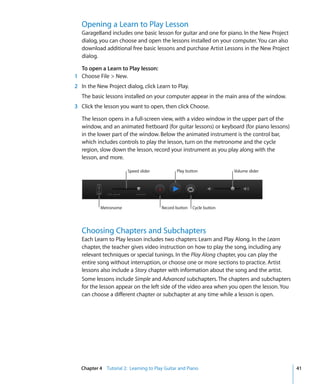
   The lesson opens in a full-screen view, with a video window in the upper part of the
   window, and an animated fretboard (for guitar lessons) or keyboard (for piano lessons)
   in the lower part of the window. Below the animated instrument is the control bar,
   which includes controls to play the lesson, turn on the metronome and the cycle
   region, slow down the lesson, record your instrument as you play along with the
   lesson, and more.

                       Speed slider           Play button             Volume slider


           Metronome                   Record button   Cycle button


   Choosing Chapters and Subchapters
   Each Learn to Play lesson includes two chapters: Learn and Play Along. In the Learn
   chapter, the teacher gives video instruction on how to play the song, including any
   relevant techniques or special tunings. In the Play Along chapter, you can play the
   entire song without interruption, or choose one or more sections to practice. Artist
   lessons also include a Story chapter with information about the song and the artist.
   Some lessons include Simple and Advanced subchapters. The chapters and subchapters
   for the lesson appear on the left side of the video area when you open the lesson. You
   can choose a different chapter or subchapter at any time while a lesson is open.


  Chapter 4 Tutorial 2: Learning to Play Guitar and Piano                                   41
To choose a chapter or subchapter:
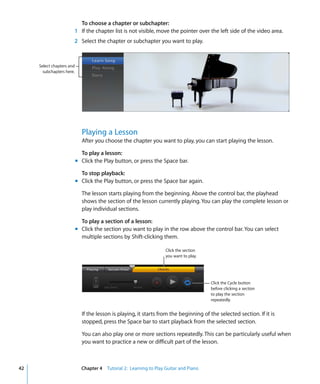
                       1 If the chapter list is not visible, move the pointer over the left side of the video area.
                       2 Select the chapter or subchapter you want to play.


     Select chapters and
       subchapters here.


                             Playing a Lesson
                             After you choose the chapter you want to play, you can start playing the lesson.

                             To play a lesson:
                           m Click the Play button, or press the Space bar.

                             To stop playback:
                           m Click the Play button, or press the Space bar again.

                             The lesson starts playing from the beginning. Above the control bar, the playhead
                             shows the section of the lesson currently playing. You can play the complete lesson or
                             play individual sections.

                             To play a section of a lesson:
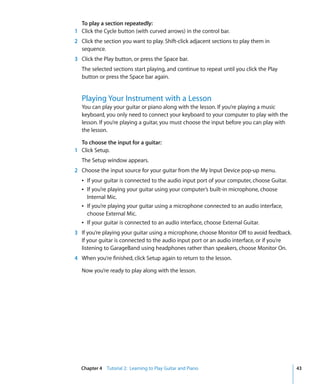
                           m Click the section you want to play in the row above the control bar. You can select
                             multiple sections by Shift-clicking them.

                                                                    Click the section
                                                                    you want to play.


                                                                                        Click the Cycle button
                                                                                        before clicking a section
                                                                                        to play the section
                                                                                        repeatedly.


                             If the lesson is playing, it starts from the beginning of the selected section. If it is
                             stopped, press the Space bar to start playback from the selected section.

                             You can also play one or more sections repeatedly. This can be particularly useful when
                             you want to practice a new or difficult part of the lesson.


42                           Chapter 4 Tutorial 2: Learning to Play Guitar and Piano
To play a section repeatedly:
1 Click the Cycle button (with curved arrows) in the control bar.
2 Click the section you want to play. Shift-click adjacent sections to play them in
  sequence.
3 Click the Play button, or press the Space bar.
   The selected sections start playing, and continue to repeat until you click the Play
   button or press the Space bar again.


   Playing Your Instrument with a Lesson
   You can play your guitar or piano along with the lesson. If you’re playing a music
   keyboard, you only need to connect your keyboard to your computer to play with the
   lesson. If you’re playing a guitar, you must choose the input before you can play with
   the lesson.

  To choose the input for a guitar:
1 Click Setup.
   The Setup window appears.
2 Choose the input source for your guitar from the My Input Device pop-up menu.
   Â If your guitar is connected to the audio input port of your computer, choose Guitar.
   Â If you’re playing your guitar using your computer’s built-in microphone, choose
     Internal Mic.
   Â If you’re playing your guitar using a microphone connected to an audio interface,
     choose External Mic.
   Â If your guitar is connected to an audio interface, choose External Guitar.
3 If you’re playing your guitar using a microphone, choose Monitor Off to avoid feedback.
  If your guitar is connected to the audio input port or an audio interface, or if you’re
  listening to GarageBand using headphones rather than speakers, choose Monitor On.
4 When you’re finished, click Setup again to return to the lesson.

   Now you’re ready to play along with the lesson.


  Chapter 4 Tutorial 2: Learning to Play Guitar and Piano                                   43
Changing the Speed of a Lesson
        You can slow down a lesson to make it easier to learn or practice a difficult part of the
        lesson. You can slow down the lesson to as much as half the original speed. As you
        learn to play the part more easily, you can gradually speed up the lesson to the original
        tempo.

       To change the speed of a lesson:
     1 Drag the Speed slider, located in the control bar next to the metronome, to the left to
       slow down the lesson.
     2 To speed up the lesson, drag the Speed slider to the right.
        You can change the speed of the lesson when the lesson is playing or stopped.


        Recording Your Instrument in a Lesson
        You can record your instrument in a lesson, including recording multiple takes.
        Recording your instrument can help you critique your playing and monitor your
        progress. After you record your instrument, you can audition different takes, choose the
        take you want to hear with the lesson, and delete unwanted takes.

       To record your instrument in a lesson:
     1 Click the section you want to record in, or move the playhead to the point where you
       want to start recording.
     2 Click the Record button.
        The metronome gives a one-measure count-in before recording starts at the playhead
        position, to help you start playing on the beat. As you record, your recording appears in
        a strip above the control bar.
     3 Start playing your instrument.
     4 When you’re finished recording, click the Play button.


44     Chapter 4 Tutorial 2: Learning to Play Guitar and Piano
To record multiple takes:
1 Click the Cycle button in the control bar.
2 Click the section you want to record in. You can Shift-click to select multiple sections.
3 Click the Record button.
4 After the count-in, start playing your instrument.
5 When you’re finished recording, click the Play button.
   The recording appears in a strip above the control bar with a number indicating the
   number of takes.

  To audition takes:
1 Click the number in the upper-left corner of the recording.
2 Choose the number of the take you want to audition from the Takes menu.

   To delete a take:
   Â To delete the currently selected take, choose Delete Selected Take from the Takes
     menu.
   Â To delete all takes except the currently selected take, choose Delete Unused Takes
     from the Takes menu.


   Changing the Mix of a Lesson
   You can change the mix of the teacher’s voice and instrument, your own instrument,
   and the instruments in the backing band. This can be useful when you want to hear the
   teacher more clearly or hear your own instrument above the mix. You change the mix
   of a lesson using the controls in the mixer.

  To show the mixer:
m Click Mixer in the upper-right part of the window.


  Chapter 4 Tutorial 2: Learning to Play Guitar and Piano                                     45
The mixer appears as an overlay over the lesson window. The mixer includes a set of
     controls for each track, including a Mute button, Solo button, and Volume slider.

                                            Use the mixing controls
                                            for each instrument.


                                                                         Click to reset the mixing
                                                                         controls for the band.


                                         Click the disclosure triangle
                                         to show the mixing controls
                                         for the band.


     To change the mix, do any of the following:
     Â To silence a track, click its Mute button (with a speaker icon) in the mixer.
     Â To hear a track by itself, click its Solo button (with the headphone icon) in the mixer.
     Â To adjust a track’s volume, drag its volume slider right or left.

     If a lesson includes a backing band, the mixer shows a track titled “The Band,” which
     includes a disclosure triangle. Clicking the disclosure triangle shows the mixing controls
     for each instrument of the band. You can use the mixing controls for the band to mix
     the individual instruments in the same way that you mix the tracks in the lesson. You
     can return the band to its original mix by clicking the Reset button.

     When you’re finished, you close the mixer to return to the lesson.

     To close the mixer:
     Click Mixer in the upper-right part of the window, or click any part of the lesson
     window outside the mixer.


46   Chapter 4 Tutorial 2: Learning to Play Guitar and Piano
Customizing the Lesson Window
   You can customize the appearance of the lesson window in several ways, to suit your
   style of learning. Both guitar and piano lessons can show different types of notation:

   Customizing a Guitar Lesson
   In a guitar lesson, you can view notation as chord symbols, chord fingering grids,
   tablature (TAB), or standard notation. If you’re a left-handed guitarist, you can switch to
   a left-handed view. You can also switch the animated fretboard to a top-down view, as
   well as the default angled view.

  To customize the window for a guitar lesson:
1 Click Setup in the upper-right part of the lesson window.


   The setup window appears, showing the different notation and appearance options.
2 Click the notation and appearance options you want to use.
3 To show the left-handed view for the lesson, select the “Left-handed guitar” checkbox.
4 To change the animated fretboard to a top-down view, select the “Top-down fretboard
  view” checkbox.
5 When you’re finished, click Done to return to the lesson.

   Customizing a Piano Lesson
   In a piano lesson, you can view the notation as chord symbols or as standard notation.
   You can view notation for either the left hand or right hand, or for both hands together.
   You can also switch to Easy View. In Easy View, the note names appear on the white
   keys of the animated keyboard, and also appear on the note heads when viewing
   standard music notation.

  To customize the window for a piano lesson:
1 Click Setup in the upper-right part of the lesson window.
   The setup window appears, showing the different notation and appearance options.
2 Click the notation and appearance options you want to use.
3 To view the lesson in Easy View, select the Easy View checkbox.
4 When you’re finished, click Done to return to the lesson.


  Chapter 4 Tutorial 2: Learning to Play Guitar and Piano                                        47
Both guitar and piano lessons include Automatic view. In Automatic view, the notation
       and appearance change automatically, depending on the content of the lesson. In
       most cases, you can leave Automatic view selected unless you specifically want to see a
       different view.

       The setup window also shows keyboard shortcuts for different notation and
       appearance options. You can use the keyboard shortcuts to change the appearance of
       the lesson without opening the setup window.


       Opening a Learn to Play Lesson in GarageBand
       You can open a lesson in the GarageBand window. When you open a lesson in
       GarageBand, each track, including the teacher’s voice, the teacher’s instrument, and
       any recordings you made with your own instrument, appears as a separate track in the
       timeline. You can arrange, mix, and make other changes in the GarageBand window as
       you would with any GarageBand project.

       To open a lesson in GarageBand:
     m Click the “Open in GarageBand” button in the control bar.

       Note: Some Artist Lessons cannot be opened in GarageBand. If a lesson cannot be
       opened, the “Open in GarageBand” button will appear dimmed in the control bar.


       Getting Additional Learn to Play Lessons
       GarageBand comes with several basic Learn to Play basic lessons. You can download
       additional basic lessons for both guitar and piano, and purchase Artist Lessons
       featuring songs taught by the artists who made them famous. You download basic
       lessons and purchase Artist Lessons from the Lesson Store in the New Project dialog.
       For more information about downloading and purchasing lessons, refer to the
       “Learning to play guitar or piano” section of GarageBand Help.


48     Chapter 4 Tutorial 2: Learning to Play Guitar and Piano
5   Tutorial 3: Recording Vocals
    and Musical Instruments                                                        5
    You can record your voice or any other sound you can
    capture using a microphone. If you play a musical
    instrument, you can also record it in a GarageBand
    project.
    In GarageBand, you record sound from a microphone or from a musical instrument
    connected to your computer in a Real Instrument track. Real Instrument tracks have
    blue headers, and the regions containing your recordings appear purple. You can
    change track settings and add effects to Real Instrument tracks in the Track Info pane.

    In this tutorial, you’ll learn how to:
    Â Add a Real Instrument track and change instrument settings
    Â Add an Electric Guitar track and choose a guitar amp
    Â Record sound in a Real Instrument or Electric Guitar track
    Â Record over a specific part of a project using the cycle region
    Â Record multiple takes
    Â Tune your guitar


    Adding a Real Instrument Track
    To record sound in a Real Instrument track, you first add the track to your project and
    prepare it for recording.

  To add a Real Instrument track:
1 Click the Add Track button, or choose Track > New Track.
2 In the New Track dialog, click Real Instrument, then click Create.
    A new Real Instrument track appears in the timeline, and the Track Info pane opens to
    the right of the timeline. The Track Info pane is where you choose different settings for
    the selected track.


                                                                                                49
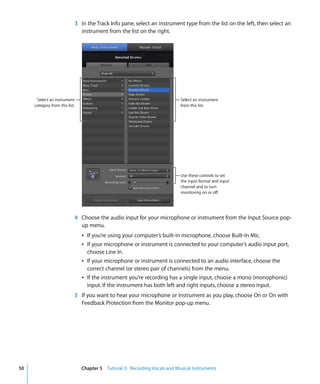
3 In the Track Info pane, select an instrument type from the list on the left, then select an
                              instrument from the list on the right.


      Select an instrument                                                   Select an instrument
     category from this list.                                                from this list.


                                                                             Use these controls to set
                                                                             the input format and input
                                                                             channel and to turn
                                                                             monitoring on or off.


                            4 Choose the audio input for your microphone or instrument from the Input Source pop-
                              up menu.
                                Â If you’re using your computer’s built-in microphone, choose Built-In Mic.
                                Â If your microphone or instrument is connected to your computer’s audio input port,
                                  choose Line In.
                                Â If your microphone or instrument is connected to an audio interface, choose the
                                  correct channel (or stereo pair of channels) from the menu.
                                Â If the instrument you’re recording has a single input, choose a mono (monophonic)
                                  input. If the instrument has both left and right inputs, choose a stereo input.
                            5 If you want to hear your microphone or instrument as you play, choose On or On with
                              Feedback Protection from the Monitor pop-up menu.


50                              Chapter 5 Tutorial 3: Recording Vocals and Musical Instruments
Turning on monitoring can cause feedback (loud, sharp noise) if the audio input picks
   up the output from your speakers. You can choose “On with Feedback Protection” to
   have GarageBand automatically turn off monitoring if feedback from the input source
   occurs. You can also avoid feedback by listening with headphones rather than speakers.
   You can reduce possible feedback by making sure the microphone or instrument is
   pointed away from your speakers, and by turning down the master volume.
6 Adjust the recording level for the track so that the level as high as possible without
  causing clipping or distortion.

   To adjust the recording level, do one of the following:
   Â If the instrument or microphone has a volume control, adjust the volume control on
     the device.
   Â If the instrument or microphone is connected to an audio interface, adjust the
     volume control on the audio interface.
   Â In the Track Info pane, drag the Recording Level slider left to lower the input volume
     for the selected channel, or drag it right to raise the input volume.
     Note: You can’t control the volume of some audio interfaces and other devices from
     GarageBand. If the Recording Level slider in the Track Info pane is dimmed, you
     cannot adjust the input volume in GarageBand.
   Â Select the Automatic Level Control checkbox to have GarageBand automatically
     lower the input level to avoid clipping, and raise the level to avoid excessive noise
     when recording.

   Note: If you chose “On with Feedback Protection” from the Monitor pop-up menu,
   you cannot select Automatic Level Control.

   Adding a Basic Track
   You can also add a basic track. A basic track is a stereo Real Instrument track containing
   no effects. You can change the input source and effects settings of a basic track after
   adding it to the project.

  To add a basic track:
m Choose Track > New Basic Track.
   The basic track appears in the timeline, and the Track Info pane opens. You can make
   the same input settings described in the previous section.


   Adding an Electric Guitar Track
   If you play an electric guitar, you can add an Electric Guitar track and record your guitar
   in the track. You can choose a guitar preset, choose a guitar amp, and add stompbox
   guitar effects to customize the sound of each Electric Guitar track.


  Chapter 5 Tutorial 3: Recording Vocals and Musical Instruments                                 51
To add an Electric Guitar track:
                             1 Click the Add Track button, or choose Track > New Track.
                             2 In the New Track dialog, click Electric Guitar, then click Create.
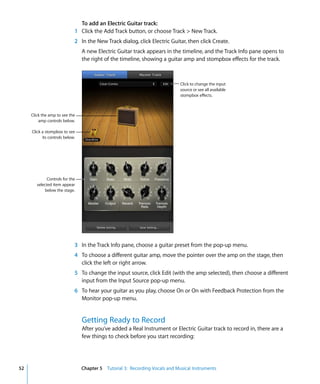
                                 A new Electric Guitar track appears in the timeline, and the Track Info pane opens to
                                 the right of the timeline, showing a guitar amp and stompbox effects for the track.


                                                                              Click to change the input
                                                                              source or see all available
                                                                              stompbox effects.


     Click the amp to see the
         amp controls below.

     Click a stompbox to see
           its controls below.


              Controls for the
        selected item appear
             below the stage.


                             3 In the Track Info pane, choose a guitar preset from the pop-up menu.
                             4 To choose a different guitar amp, move the pointer over the amp on the stage, then
                               click the left or right arrow.
                             5 To change the input source, click Edit (with the amp selected), then choose a different
                               input from the Input Source pop-up menu.
                             6 To hear your guitar as you play, choose On or On with Feedback Protection from the
                               Monitor pop-up menu.


                                 Getting Ready to Record
                                 After you’ve added a Real Instrument or Electric Guitar track to record in, there are a
                                 few things to check before you start recording:


52                               Chapter 5 Tutorial 3: Recording Vocals and Musical Instruments
 Make sure your microphone, guitar, or other instrument is connected properly and is
     working.
   Â Make sure the correct audio drivers are selected in the Audio/MIDI pane of
     GarageBand preferences. When you add a new audio device, GarageBand asks if you
     want to use the device for audio input and output.
   Â Open the Track Info pane to make sure the instrument has the instrument and effects
     settings you want, and is using the correct input source.
   Â Sing or play a few notes and watch the level meter in the track’s header to make sure
     the track is receiving input and isn't clipping. If the red dots at the right of the level
     meter (called clipping indicators) light up, adjust the input level by dragging the
     Recording Level slider, selecting Automatic Level Control, or lowering the level of the
     audio device connected to your computer.
   Â Set the project tempo and key so that you won’t have to change them later.


   Recording a Real Instrument
   Now you’re ready to record sound to the selected Real Instrument or Electric Guitar
   track.

  To record to a Real Instrument or Electric Guitar track:
1 Make sure the track is selected, and that the red Record Enable light in the track’s
  header is on.
2 Move the playhead to the point in the timeline where you want to start recording.
3 Choose Control > Count In to have the metronome play a one-measure count-in before
  recording starts to make it easier to start playing on the beat.
   (Alternatively, you can move the playhead a few beats before the point where you
   want the music to come in.)
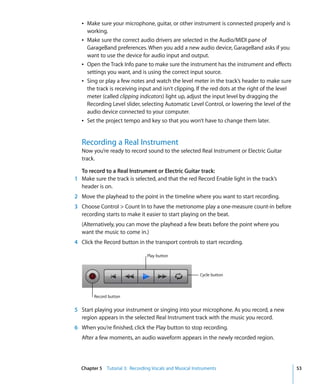
4 Click the Record button in the transport controls to start recording.

                                Play button


                                                        Cycle button


        Record button


5 Start playing your instrument or singing into your microphone. As you record, a new
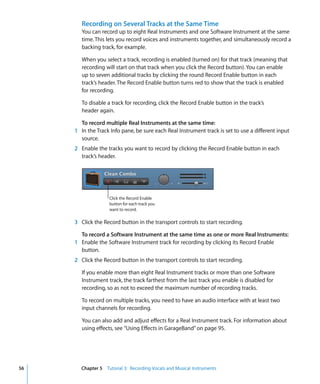
  region appears in the selected Real Instrument track with the music you record.
6 When you’re finished, click the Play button to stop recording.
   After a few moments, an audio waveform appears in the newly recorded region.


  Chapter 5 Tutorial 3: Recording Vocals and Musical Instruments                                  53
Now you can listen to your new recording to see how you like it.

       To hear your new recording:
     1 Move the playhead to the point in the timeline where the new region starts (align it
       with the left edge of the region).
        You can also move the playhead to an earlier point in the project, or to the beginning
        of the project, to hear the new recording in the context of the project.
     2 Click the Play button, or press the Space bar.

        Recording Multiple Takes with the Cycle Region
        You can define a specific part of a project to record in using the cycle region. The cycle
        region determines where recording starts and ends. When you record using the cycle
        region, you can record multiple versions, or “takes,” and then choose which take you
        want to use.

       To set the cycle region:
     1 Click the Cycle button. The cycle region appears as a yellow strip just below the beat
       ruler.
     2 Move the left edge of the cycle region to the point on the beat ruler where you want to
       start recording, then drag the right edge of the cycle region to the point where you
       want to recording to end. You can drag the center of the cycle region to move it to a
       different part of the timeline.


                                                            Drag either edge of the cycle
                                                            region to change its length.


        You may want to have the cycle region start a few extra beats before the point where
        you want to start recording, to make it easier to start playing on the beat, and end a
        few beats after you want to stop recording, in case your last note extends past the end
        of the cycle region.


54     Chapter 5 Tutorial 3: Recording Vocals and Musical Instruments
To record multiple takes using the cycle region:
1 Select the Real Instrument track you want to record in.
2 Click the Record button to start recording.
3 Play your musical instrument or sing into your microphone. As you record, a new
  region appears in the selected Real Instrument track.
4 When you’re finished, click the Play button to stop recording.
5 If you want to record additional takes, click the Record button and play the part again.
6 When you’ve finished using the cycle region, click the Cycle button again to turn
  it off.

   When you record multiple takes, the recorded region has a circle in its upper-left corner
   showing the selected take (the one you hear when you play the project). You can
   choose and listen to different takes to decide which one you like best.


  To choose a different take:
1 In the timeline, click the circled number in the upper-left corner of the loop.
   A Takes menu appears showing the takes recorded in the region.


2 Choose a different take from the Takes menu.

   When you choose a different take, the loop changes to show the waveform of the new
   take.

  To delete the selected take:
m Choose Delete [take name] from the Takes menu.
   You can also delete all takes except the selected one.

  To delete all unused takes:
m Choose Delete Unused Takes from the Takes menu.


  Chapter 5 Tutorial 3: Recording Vocals and Musical Instruments                               55
Recording on Several Tracks at the Same Time
        You can record up to eight Real Instruments and one Software Instrument at the same
        time. This lets you record voices and instruments together, and simultaneously record a
        backing track, for example.

        When you select a track, recording is enabled (turned on) for that track (meaning that
        recording will start on that track when you click the Record button). You can enable
        up to seven additional tracks by clicking the round Record Enable button in each
        track’s header. The Record Enable button turns red to show that the track is enabled
        for recording.

        To disable a track for recording, click the Record Enable button in the track’s
        header again.

       To record multiple Real Instruments at the same time:
     1 In the Track Info pane, be sure each Real Instrument track is set to use a different input
       source.
     2 Enable the tracks you want to record by clicking the Record Enable button in each
       track’s header.


                   Click the Record Enable
                   button for each track you
                   want to record.

     3 Click the Record button in the transport controls to start recording.

       To record a Software Instrument at the same time as one or more Real Instruments:
     1 Enable the Software Instrument track for recording by clicking its Record Enable
       button.
     2 Click the Record button in the transport controls to start recording.

        If you enable more than eight Real Instrument tracks or more than one Software
        Instrument track, the track farthest from the last track you enable is disabled for
        recording, so as not to exceed the maximum number of recording tracks.

        To record on multiple tracks, you need to have an audio interface with at least two
        input channels for recording.

        You can also add and adjust effects for a Real Instrument track. For information about
        using effects, see “Using Effects in GarageBand” on page 95.


56     Chapter 5 Tutorial 3: Recording Vocals and Musical Instruments
Tuning Your Guitar in GarageBand
  GarageBand includes an instrument tuner that you can use to check the tuning of a
  guitar, bass, or other instrument connected to your computer. The instrument tuner
  works with Real Instruments, but not with Software Instruments.

  The instrument tuner shows a horizontal scale with the note name displayed in the
  center of the scale. When you play a single note on your Real Instrument, the pitch is
  shown in relation to the correct pitch for the note displayed.

  To use the instrument tuner:
1 Make sure the Real Instrument you want to tune is connected to your computer.
2 Select the Real Instrument track for the instrument you want to tune.
3 In the LCD, choose Tuner mode, or choose Control > “Show Tuner in LCD.”
4 Play a single note on your instrument and watch the tuner.

  As you play, the tuner shows the note name of the closest note. If the note is not in
  tune, the note name and the tuner glow red, and a vertical red bar appears, showing
  whether the note is sharp or flat.


  The bar appears to the right of the note name if the note is sharp, and to the left if the
  note is flat. When the note is in tune, the note name and the tuner scale glow blue, and
  the vertical bar disappears.


  Be sure to play only a single note at a time while tuning. The instrument tuner can’t
  tune to a chord, nor can it tune if you play different notes rapidly.


  Chapter 5 Tutorial 3: Recording Vocals and Musical Instruments                               57
6   Tutorial 4: Playing and Recording
         Software Instruments                                                          6
         GarageBand includes an extensive set of Software
         Instruments, including drums, guitars, pianos, organs,
         and synthesizers, that you can use in your projects.
         Software Instruments are a special kind of instrument. You play the notes (using your
         computer keyboard, the onscreen keyboard, or a MIDI-compatible music keyboard
         connected to your computer) and your computer generates the actual sound,
         depending on which Software Instrument you choose.

         You can add effects to a Software Instrument and edit Software Instrument regions in
         the editor. You can also add more Software Instruments to the Track Info pane by
         purchasing one of the Jam Packs available for GarageBand.

         In this tutorial, you’ll learn how to:
         Â Add a Software Instrument track and change track settings
         Â Play Software Instruments using your computer keyboard, the onscreen keyboard,
            or a music keyboard
         Â Record a Software Instrument
         Â View, edit, and print music notation from a Software Instrument track

         You play and record a Software Instrument in a Software Instrument track. You can
         change the instrument for the track, even after you have recorded on it. You start by
         adding a new Software Instrument track.


58
To add a new Software Instrument track:
                       1 Click the Add Track button, or choose Track > New Track.
                       2 In the New Track dialog, click Software Instrument, then click Create.
                           A new Software Instrument track with a Grand Piano instrument appears in the
                           timeline, and the Track Info pane opens to the right of the timeline.
                       3 In the Track Info pane, select an instrument category from the list on the left, then
                         select an instrument from the list on the right.


 Select an instrument
category from this list.                                                Select an instrument
                                                                        from this list.


                           The header of the Software Instrument track changes to the name of the instrument
                           you selected. If you have a USB or MIDI keyboard connected to your computer, you can
                           play notes and hear the Software Instrument right away. Even without a keyboard
                           connected, you can play Software Instruments with the Musical Typing keyboard or
                           onscreen keyboard.


                           Chapter 6 Tutorial 4: Playing and Recording Software Instruments                       59
Playing Software Instruments with Musical Typing
       With Musical Typing, you can play and record Software Instruments using your
       computer keyboard. When you show the Musical Typing window, you can play the top
       and middle rows of your computer keyboard just like the keys on a music keyboard to
       play notes.

       To show the Musical Typing window:
     m Choose Window > Musical Typing (or press Command–Shift–K).


       If the onscreen keyboard is visible, you can switch to the Musical Typing window by
       clicking the Musical Typing button on the left side of the window.

       To play notes using Musical Typing:
     m With the Musical Typing window open, play the keys shown on the Musical Typing
       keyboard.
       Â The keys in the middle row of your computer keyboard play the “white keys” on the
         Musical Typing keyboard, in a one-and-one-half octave range from C through F.
       Â The keys W, E, T, Y, U, O, and P in the top row of your computer keyboard play the
         “black keys” (sharps and flats).

       To move up or down by octaves, do one of the following:
       Â Press Z to move down by an octave.
       Â Press X to move up by an octave.
       Â Click the small keyboard at the top of the Musical Typing window to move to the
         octave shown, or drag the blue rectangle. The blue rectangle shows the current
         range of Musical Typing.


60     Chapter 6 Tutorial 4: Playing and Recording Software Instruments
To change the velocity level of notes you play using Musical Typing:
  Â Press C to lower the velocity level.
  Â Press V to raise the velocity level.

  To add pitch bend to notes you play using Musical Typing:
  Â Press 1 to lower the pitch of notes.
  Â Press 2 to raise the pitch of notes.
  The pitch is bent for as long as you press the key.

  To sustain notes you play using Musical Typing:
  Â Hold down the Tab key.
    Notes are sustained for as long as you hold down the Tab key.
  Â Release the Tab key to stop sustaining notes.

  To add modulation to notes you play using Musical Typing:
  Â Press 4 through 8 to add increasing amounts of modulation. Press 3 to turn off
    modulation.
  The level of modulation lasts until you change it or turn it off by pressing another key.


  Playing Software Instruments with the Onscreen
  Music Keyboard
  You can use the onscreen music keyboard to play and record Software Instruments.
  When you show the onscreen music keyboard, by default it displays a four-octave
  range of keys. You can resize the keyboard to display up to ten octaves.

  To show the onscreen music keyboard, do one of the following:
m Choose Window > Keyboard (or press Command-K).


  If the Musical Typing window is visible, you can switch to the onscreen keyboard
  window by clicking the Keyboard button on the left side of the window.


  Chapter 6 Tutorial 4: Playing and Recording Software Instruments                            61
To play the onscreen music keyboard:
     m Click the keys on the keyboard. You can click when the project is playing, when it is
       stopped, or when you’re recording.
       Clicking lower on the key plays the note with a higher velocity (equivalent to pressing
       the key harder), and clicking higher on the key plays the note with a lower velocity
       (equivalent to pressing the key more softly).
       The onscreen keyboard also shows notes you play on your connected keyboard, and
       shows notes in regions on the selected track when you play the project.

       To move the keyboard:
     m Place the pointer anywhere in the space above the keys and drag.

       To resize the keyboard:
     m Drag the resize control in the lower-right corner of the keyboard window.

       To change the range of notes you can play:
     m Click the small triangle to the left or right of the keys. Clicking the triangle on the left
       lowers the keys by an octave, and clicking the triangle on the right raises the keys by
       an octave.


       Getting Ready to Record a Software Instrument
       If you’re recording Software Instruments using a music keyboard, there are a couple of
       things to check before you start recording:
       Â Make sure your music keyboard is connected to your computer and is working.
       Â Select a Software Instrument track and try playing your music keyboard, clicking
          notes on the onscreen music keyboard, or using Musical Typing. You should hear the
          Software Instrument as you play.


       Recording a Software Instrument
       Now you’re ready to record a Software Instrument. You can record one Software
       Instrument track at a time.

       To record a Software Instrument:
     1 Click the header of the Software Instrument track you want to record in to select the
       track.
     2 Move the playhead to the point in the timeline where you want to start recording.
     3 Choose Control > Count In to have the metronome play a one-measure count-in before
       recording starts.
       You can also set the playhead a few beats before the point where you want the music
       to come in to make it easier to start on the beat.


62     Chapter 6 Tutorial 4: Playing and Recording Software Instruments
4 To start recording, click the Record button.

                                Play button


                                                        Cycle button


        Record button


5 Start playing your music keyboard, clicking notes on the onscreen music keyboard, or
  using Musical Typing. As you record, a new region appears in the selected Software
  Instrument track.
6 When you’re finished, click the Record button again to stop recording. Click the Play
  button to stop the project playing.

   After you record, you can listen to your new recorded part to see how you like it.

  To hear the new recording:
1 Move the playhead to the point in the timeline where the new region starts (align it
  with the left edge of the region).
   You can also move the playhead to an earlier point in the project, or to the beginning
   of the project, to hear the new recording in the context of the project.
2 Click the Play button, or press the Space bar.

   Merging Software Instrument Recordings
   You can record a Software Instrument using the cycle region. When you record a
   Software Instrument using the cycle region, by default a new take is recorded each
   time the cycle region repeats, just like recording a Real Instrument. You can change the
   default behavior so that Software Instrument recordings using the cycle region are
   merged into a single take. This can be particularly useful when you record drum kits
   and other layered parts.

  To have GarageBand merge Software Instrument recordings:
1 Choose GarageBand > Preferences.
2 In the General tab, click the checkbox for Cycle Recording.

   For information on recording using a cycle region, see “Recording Multiple Takes with
   the Cycle Region” on page 54.


  Chapter 6 Tutorial 4: Playing and Recording Software Instruments                            63
Viewing Note and Chord Names As You Play
       When you play a Software Instrument, GarageBand can automatically display the
       names of the notes and chords you play.

       To view Software Instrument note and chord names while you play:
     1 Select the header of the Software Instrument track you want to play.
     2 Click the icon on the left side of the LCD, then choose Chord from the menu that
       appears (or click the up or down arrow in the LCD until you see the chord display).

       Chord names (also called “chord symbols”) include a capital letter for the root note of
       the chord, the chord quality (in most cases “ma” for major or “m” for minor), and
       numbers that indicate added notes, such as sevenths, ninths, or suspended fourths.


       Working in Score View
       You can view and edit Software Instrument regions in standard music notation format.
       In score view, you can edit notes and other musical events, including adding pedal
       markings.
       Â View Software Instrument regions as music notation
       Â Choose the note value for score view
       Â Add, select, and edit notes in score view
       Â Add pedal symbols
       Â Change the clef sign
       Â Print music notation

       About Score View
       In addition to the editor’s graphic piano roll view, you can view Software Instrument
       regions (both those you record and those from loops) in score view. In score view, the
       notes in a region are shown as musical notes. Score view includes other musical
       symbols such as rests, staves, clef signs, time signatures, key signatures, and pedal
       markings. This section briefly describes some of these symbols, for users unfamiliar with
       music notation.
       Â Notes: A musical note has several parts, including the note head and stem. The note
          head (the round part of the note) indicates the note’s duration (how long the note
          lasts). Notes of shorter duration (shorter than a quarter note) have flags, and
          sometimes these notes are joined together by beams. Each note shown below is half
          as long as the note to its left (from left to right, the notes are whole note, half note,
          quarter note, and eighth note).


64     Chapter 6 Tutorial 4: Playing and Recording Software Instruments
 Rests: When you’re reading music notation while playing, it is just as important
  to know the space between notes as the notes themselves. The silences between
  notes are shown by rests. Rests, like notes, have different symbols for different
  lengths of time, and shorter rests use flags. Each rest shown below is half as long
  as the rest to its left (from left to right, the rests are half rest, quarter rest, eighth rest,
  and sixteenth rest).


 Staves: The set of five horizontal lines on which the notes appear is called a staff (the
  plural is staves). The lines of the staff let you see the pitch of the notes from high to
  low, like a grid. By default, GarageBand shows you two staves, similar to piano
  notation. This format shows a range of over four octaves, with middle C in the center
  (between the two staves). Most instruments and voices, except for the lowest bass
  instruments, fall in this range. You can change score view to show only a single staff.
 Clefs: The symbol at the left edge of each staff is called a clef. Clefs indicate the
  range of notes that the lines of the staff display. The staves in score view use the two
  most common clefs, the treble and bass clef. You can change score view to show a
  single clef, either treble or bass.


 Key signs: If the project is in a key other than C, the sharps or flats in the key appear
  between the clef and the time signature. Sharps are raised a semitone above the
  natural note (so, for instance, C#–“C sharp”–is a semitone higher than C), and flats are
  lowered a semitone (so Bb–”B flat”–is a semitone lower than B). The symbols for
  sharps and flats are shown below, followed by the “natural” symbol that cancels a
  sharp or flat.


 Bar lines: The vertical lines extending through both staves show the beginning of
  each measure (measures are also called bars).


Chapter 6 Tutorial 4: Playing and Recording Software Instruments                                     65
In addition to standard music notation symbols, score view includes the following
        features to make working easier:
        Â Duration bars: In addition to the musical note itself, each note has a duration bar
          that graphically displays the note’s duration (the amount of time the note lasts).
        Â Beat guides: In score view, the beat ruler not only shows measures and beats, but
          also includes beat guides. Beat guides help you see the exact position of notes in
          time. A beat guide appears as a small gray circle or dot above each note; when you
          move a note, the beat guide moves with it to indicate the note’s position.

       To view a Software Instrument region in score view:
     1 In the timeline, select a Software Instrument region.
     2 Click the Score button at the top of the editor’s header area.

        In music notation, the position of notes is shown in terms of musical values (note
        values). When you play music, you might play some notes slightly off the beat (ahead
        of the beat or behind the beat) to achieve different types of feeling. These small
        differences are not shown in musical notation.

        In score view, GarageBand shows the position of notes “rounded” to the nearest note
        value. You can choose the note value to round the display of notes to from the timeline
        grid menu in the upper-right corner of the editor. Rounding does not change how the
        note plays; it only changes the display, so that notes slightly out of time are shown at
        the intended position.

       To choose the note value for score view:
     m Click the Grid button in the upper-right corner of the editor, then choose a note value
       from the timeline grid menu.

        Editing Notes in Score View
        You can edit notes and sustain pedal information for a Software Instrument region in
        score view, just as you can in graphic view. You can:
        Â Add notes
        Â Select notes
        Â Move notes in time
        Â Cut and copy notes
        Â Change the pitch of notes
        Â Change the duration of notes
        Â Change the velocity of notes
        Â Add pedal markings to sustain notes
        Â Change the clef sign


66     Chapter 6 Tutorial 4: Playing and Recording Software Instruments
Adding Notes
  You add a note by choosing the note value for the note, then clicking in the editor.


                                   Choose a note value
                                   from the Insert pop-up
                                   menu.


  To choose a note value:
m Choose the note value you want from the Insert menu in the header area of the editor.
  You can also Control-click anywhere in the notation display to choose a note value.

  To add a note:
m In the editor, Command-click at the point you want to add the note.

  Selecting Notes
  Before editing notes in score view, you must first select them.

  To select a note:
m Click the note head (the round part of the note). You can select multiple notes by Shift-
  clicking or by dragging around the notes to enclose them.

  Moving Notes
  You can move notes in time in score view, in the same way as in the editor’s graphic
  view.

  To move a note in time:
m Select the note, then drag it left or right. You can also move selected notes by pressing
  the Left Arrow or Right Arrow keys.
  As you move a note, the beat guide moves to help you see the note’s exact position
  in time.

  Copying Notes
  You can copy notes in score view.

  To copy a note:
m Option-drag the note head to a new position.


  Chapter 6 Tutorial 4: Playing and Recording Software Instruments                            67
Changing the Pitch of Notes
        You can change the pitch of, or transpose, notes in score view.

       To change the pitch of a note:
     m Select the note, then drag it up or down. You can also change the pitch of selected
       notes by pressing the Up Arrow or Down Arrow keys.
        You hear the note’s new pitch as it moves.

        Changing the Length (Duration) of Notes
        When you select a note, a duration bar for the note appears. You can change the note’s
        duration (how long the note lasts) using the duration bar.

       To change the duration of a note:
     1 Select the note.
     2 Drag the right edge of the duration bar left (to shorten the note) or right (to lengthen
       the note). Duration bars work just like the notes in graphic view.

        Deleting Notes
        You can delete notes that you no longer want to include in your project.

       To delete a note:
     m Select the note, then press the Delete key.

        Changing Note Velocity
        For many Software Instruments, the sound changes depending on the note’s velocity.
        You can change the velocity of notes in score view, in the same way as in graphic view.

       To change a note’s velocity:
     m Select the note, then drag the Velocity slider left (to lower the velocity) or right (to raise
       the velocity).

        Adding Pedal Symbols
        Music notation for piano and some other instruments includes symbols for the sustain
        pedal. When the sustain pedal is down, the instrument sustains all notes until the pedal
        is released (up). You can add pedal down and pedal up symbols, which control whether
        the notes are sustained in GarageBand.

       To add pedal down and up symbols:
     1 Click the Note Value button and choose the pedal symbol from the menu.
     2 Hold down the Command key and place the pointer in the editor at the point where
       you want the pedal down marker.
     3 Press the mouse button.


68     Chapter 6 Tutorial 4: Playing and Recording Software Instruments
The pedal down symbol appears at the current position of the pointer. If you release
   the mouse button, the pedal up symbol is placed shortly after the pedal down symbol.


4 Without releasing the mouse button, drag to the point where you want to place the
  pedal up marker.
5 Release the mouse button.
   The pedal up symbol appears at the current position of the pointer.


  To move the pedal up symbol:
1 Click the pedal symbol to select it.
   The pedal down and pedal up symbols become green, indicating that they’re selected.
2 Drag the pedal up symbol to its new position, then release the mouse button.

   Changing the Clef Sign
   By default, when you view a Software Instrument track as music notation, it shows the
   treble and bass clefs in “piano style.” This format is useful for pianos, synthesizers, and
   other instruments with a wide range of notes. However, some instruments, particularly
   solo (single-note) instruments such as strings and winds, can use only a single clef, the
   treble or bass clef.

   You can change the score view display to show only a single treble or bass clef, and
   later change it back to the “piano style” two-clef display.

  To change the clef sign in score view:
1 Click the clef (or between the clefs) in the header of the score display.
   A menu appears showing the different clefs.


                                   Click here to choose
                                   a different clef.


2 Choose a new clef from the menu.


  Chapter 6 Tutorial 4: Playing and Recording Software Instruments                               69
Printing Music Notation
        You can print a Software Instrument track as music notation. When you print a track as
        music notation, the track is printed in a standard layout, with the note values currently
        displayed and using the clef sign currently shown in score view. The printed music
        notation includes the project name as the title, the tempo, and the composer name.

       To print a Software Instrument track as music notation:
     1 Select the Software Instrument track.
     2 Click Score to show the track as music notation.
        Click the Grid button in the upper-right corner of the editor, and make sure the Score
        grid is set to show the correct note value.
     3 Choose File > Print.
     4 In the Print dialog, choose the correct settings for your printer, then click Print.
        The track is printed as music notation. The project name appears at the top of the page
        as the title. The tempo appears in the upper left, and the composer name (as set in
        GarageBand preferences) appears in the upper right. The measure number appears
        above the first bar of each row of the music (called a stave). If the printed notation
        requires more than one page, the page number appears centered at the bottom of
        each page.


70      Chapter 6 Tutorial 4: Playing and Recording Software Instruments
7   Tutorial 5: Adding Apple Loops
                                                                                   7
    You can use Apple Loops to add backing and rhythm
    tracks to your projects. You can also add Apple Loops to
    the loop library and create your own Apple Loops.
    GarageBand comes with a large collection of Apple Loops. Apple Loops are
    prerecorded musical phrases in a variety of genres, instruments, and moods that you
    can add to your projects. Loops are recorded to create seamlessly repeating patterns
    that you can extend (or “loop”) to fill any amount of time. What’s great about using
    Apple Loops in your GarageBand project is that you can freely mix loops that were
    recorded in different keys and at different tempos, but they all play back in the project
    key and at the project tempo.

    Most popular music today is based on repeating rhythmic patterns (also called
    “grooves” or “riffs”), especially in the drums, bass, and other backing parts. To create
    music in a groove-based style, an effective way of working is to add loops for the
    drums, and then add loops for bass and other rhythm parts. Working this way, you can
    define the rhythmic feel of the project and build the basic arrangement by blocking
    out sections with different grooves. After the rhythm parts are in place, you can record
    voices and instruments to add lead, solo, and harmony parts.

    You can quickly set the feel of a project by adding Apple Loops. GarageBand makes it
    easy to search for loops that fit the criteria you want, preview them, and add them to
    the timeline.

    In this tutorial, you’ll learn how to:
    Â Find and preview loops in the loop browser
    Â Add loops to the timeline
    Â Add loops to the loop library
    Â Create your own Apple Loops


                                                                                                71
Searching for Loops to Use in a Project
       GarageBand includes a loop browser that lets you search for loops by instrument,
       genre, or mood. You can also search for loops by name, limit searches to a specific scale
       type or to nearby keys, and mark loops as favorites for quick access. No matter how big
       your collection of loops becomes, you can quickly find the ones you want using the
       loop browser.

       If the loop browser is not visible, show it so you can use it to search for loops.

       To show the loop browser:
     m Click the Loop Browser button (the button with the open eye).
       You can search for loops using either button view or column view (there’s also a special
       view for podcast sounds, which is covered in “Tutorial 8: Creating Podcasts” on
       page 102). In button view, you click keyword buttons to find loops that match the
       keywords. In column view, you choose from different categories and keywords to find
       matching loops. You can select either view using the view buttons in the upper-left
       corner of the loop browser, and move back and forth between them freely.

       To choose button view or column view:
     m Click the left button (with columns) to show column view, or click the center button
       (with musical notes) to show button view. The button on the right shows podcast
       sounds view, covered in “Tutorial 8: Creating Podcasts” on page 102.


72     Chapter 7 Tutorial 5: Adding Apple Loops
Searching for Loops in Button View
                            Button view features a grid of keyword buttons. You click a button to see the loops
                            matching the selected keyword in the results list to the right. You can narrow your
                            results by clicking multiple buttons.


Click a keyword button.


Matching loops appear
     in the results list.


                          To search for loops in button view:
                        1 Click the button with musical notes in the upper-left corner of the loop browser to
                          switch to button view.
                        2 Click a keyword button to show matching loops in the results list. The columns in the
                          results list show the type of loop, name, tempo, key, and number of beats for each
                          loop.
                        3 To refine your results, click multiple keyword buttons. This narrows the matching loops
                          to only those that match all of the selected keywords.
                        4 To end a search, click the Reset button to deselect all selected keywords. You can also
                          click keywords to deselect them individually.

                            When you click a keyword, incompatible keywords (those that share no loop with the
                            selected keyword) are dimmed.

                            Now find some drum loops in button view by clicking the All Drums keyword button.
                            Scroll through the list to see all the matching loops. Notice that the number of
                            matching loops is shown next to the search field.


                            Chapter 7 Tutorial 5: Adding Apple Loops                                                73
Searching for Loops in Column View
                                    In column view, clicking a keyword type in the left column shows categories for that
                                    keyword type in the middle column. Clicking a category shows keywords for that
                                    category in the right column. Clicking a keyword shows matching loops in the results
                                    list. You can expand your results by clicking multiple keywords.


     Select keywords in the
     columns, moving from
               left to right.


     Matching loops appear
          in the results list.


                                   To search for loops in column view:
                                 1 Click the column button in the upper-left corner of the loop browser to switch to
                                   column view.
                                 2 Click a keyword type in the left column.
                                 3 Click a category in the middle column.
                                 4 Click a keyword in the right column to show matching loops in the results list.

                                    Now find some bass loops in column view by first selecting the By Instruments
                                    keyword type, then the Bass category, and then the Grooving keyword.

                                    When you find loops in either button view or column view, the total number of
                                    matching loops is shown next to the search field at the bottom of the loop browser.


74                                 Chapter 7 Tutorial 5: Adding Apple Loops
Previewing Loops
  When you find loops that match your search criteria, you can preview them in the loop
  browser to hear which loop will sound best in your project. You can preview the loop
  by itself (solo), or hear it together with the project.

  To preview a loop:
m Click the loop in the results list. Click the loop again to stop previewing it, or click
  another loop to preview that loop.
  You can preview a loop together with the material you’ve already added to the project
  by clicking the Play button before you click the loop. When you preview a loop
  together with a project, GarageBand matches the tempo and key of the loop to the
  project’s tempo and key, and syncs the loop with the project so it starts playing on the
  beat. You may have to wait a few seconds to hear the loop begin playing.

  When you preview a loop, you can control the volume of the loop using the volume
  slider in the loop browser.


                   Drag the volume slider to
                   adjust the volume of the loop.


  To adjust the volume of the loop you are previewing:
m Drag the volume slider in the loop browser left to lower the loop’s volume, or right to
  raise the loop’s volume.
  If you adjust the volume of a loop in the loop browser, and then add the loop to your
  project by dragging it to an empty part of the timeline, the volume of the track created
  for the loop is set to the preview volume of the loop.
  Now try previewing the loops you found earlier, and see which ones you like.


  Refining Loop Searches
  You can refine your searches in the loop browser in several ways. You can:
  Â Search for loops by name
  Â Display only loops from a specific Jam Pack or folder
  Â Display only loops of a particular scale type
  Â Display only loops in keys near the project’s key
  Â Mark loops as favorites for quick access


  Chapter 7 Tutorial 5: Adding Apple Loops                                                   75
Searching by Name
       You can quickly find loops by name using the search field. This makes it easy to find a
       specific loop or a group of related loops.

       To search for loops by name:
     m Type the name you want to search for in the search field, then press Return. Loops with
       the text in their file name appear in the results list.
       Try refining the drum loops you found earlier by typing “acoustic” “club” or “funk” in the
                                                                        ,      ,
       search field. You can type other words to see what results you get.

       Showing Loops from a Specific Jam Pack or Folder
       If you have installed one or more of the GarageBand Jam Packs on your computer, your
       loop library can contain many thousands of loops. To make searching for loops easier,
       you can choose to display only loops from a specific Jam Pack, or only the loops
       included with GarageBand. If you have created your own loops or added loops from
       another source, you can also choose to display only those loops.

                               Click here to show the
                               loop library pop-up menu.


                                                     Choose a scale type
                                                     from this menu.


       To view loops from a specific Jam Pack or folder:
     m Choose the Jam Pack or folder with the loops you want to see from the loop library
       pop-up menu, located next to the word “Loops” at the top of the loop browser.

       Searching by Scale Type
       Most loops other than drum loops are recorded using a particular musical scale. In
       most cases, when you arrange several loops so that they play together, you’ll want to
       use loops with the same scale type. You can narrow the loops shown in the results list
       to those using either the major or minor scale, those using neither scale, or those that
       are good for both.


76     Chapter 7 Tutorial 5: Adding Apple Loops
To display only loops of a particular scale type:
m Choose the scale type from the Scale pop-up menu.
   Try refining the bass loops you found earlier to show only those using the major scale.

   Limiting Searches to Nearby Keys
   Loops with melody and harmony instruments are recorded in a specific musical key.
   When you add a loop to a project, GarageBand matches the loop’s key with the key of
   the project. The closer the loop’s original key is to the key of the project, the more
   natural the loop sounds when transposed to the project key. When a loop is transposed
   by a large number of semitones, the result can sometimes sound unnatural or
   distorted.

  To view loops only in keys near the project key:
1 Choose GarageBand > Preferences, then click Loops.
2 In the Loops pane, click the “Filter for more relevant results” checkbox.

   Note: The “Filter for more relevant results” checkbox is selected by default. To see loops
   in keys farther away from the project’s key, deselect the checkbox.
   You can use several methods together to find specific loops. For instance, you can use
   keywords with the Scale pop-up menu, or with the search field, to find only bass loops
   using the major scale, or to find only percussion loops with “latin” in the file name.

   Marking Loops as Favorites
   You can mark loops you want to use frequently as favorites, and quickly access your
   favorites in the loop browser.

  To mark a loop as a favorite:
m In the results list, click the checkbox for the loop in the Fav (short for Favorites) column.
   You may need to scroll the results list to see the Fav column.

  To view your favorites:
m In either button view or column view, click Favorites.
   Your favorites appear in the results list.


  Chapter 7 Tutorial 5: Adding Apple Loops                                                        77
Adding Loops to the Timeline
       When you find a loop you want to use, you add it to the project by dragging it to the
       timeline.


                      Drag a loop to an empty
                      part of the timeline to create
                      a new track for the loop.


       To add a loop to the timeline:
     m Drag the loop from the loop browser to an empty part of the timeline where there is
       no track. A new track of the appropriate type is created, and the loop is added to the
       new track.
       There are two types of Apple Loops, like the two kinds of tracks: Real Instrument loops
       and Software Instrument loops. Real Instrument loops are audio recordings, and
       Software Instrument loops contain information about notes you play, but are “rendered”
       by your Mac in real time. In the loop browser, Real Instrument loops have a blue icon in
       the loop browser with an audio waveform and Software Instrument loops have a green
       icon with a musical note.

       Note: You can also drag a loop to a track of the same type (Real Instrument or Software
       Instrument) to add it to the timeline. If you drag a Software Instrument loop to a
       Software Instrument track, a dialog appears, asking which instrument you want to use.
       You can also convert a Software Instrument loop to a Real Instrument loop when you
       drag it to the timeline. Real Instrument loops require less processing power for
       playback, which can allow you to use more tracks and effects in your project, especially
       for projects with many loops.

       To convert a Software Instrument loop to a Real Instrument loop:
     m Option-drag the loop from the loop browser to the timeline.
       By default, Option-dragging a Software Instrument loop converts it to a Real
       Instrument loop. You can change the default behavior so that dragging a Software
       Instrument loop converts it to a Real Instrument loop, and Option-dragging does not
       convert it.

       To change the default behavior for converting Software Instrument loops:
     1 Choose GarageBand > Preferences.
     2 Click Loops.
     3 In the Loops pane, select the “Convert to Real Instrument” checkbox.


78     Chapter 7 Tutorial 5: Adding Apple Loops
When you add a loop to a project, a region is created in the timeline for the loop.
  Regions appear as colored rectangular areas in the tracks of a project. The edits you
  make to the region do not change the original loop, so you can always return to the
  original sound of the loop or use it in another project.

  Now try adding some of the drum and bass loops you found earlier to the timeline.


  Changing Apple Loops in the Same Family
  Some Apple Loops belong to a series, or family. Loops that belong to the same family
  have the same name, but with a unique number at the end. (For example, Classic Rock
  Guitar 01 and Classic Rock Guitar 02 belong to the same family.) When you add a loop
  belonging to a family to the timeline, the loop has a pair of arrows in its upper-left
  corner. You can change it to any other loop in the same family.

  To change an Apple Loop to another loop in the same family:
1 Click the arrows in the upper-left corner of the loop.
  A menu appears, showing all the loops in the same family.


2 Choose a loop from the menu.


  Adding Loops to the Loop Library
  When you install GarageBand, the loops included with the application are installed in
  the Apple Loops library. When you add more loops to your collection, they are installed
  in the loop library and appear in the loop browser for you to use.

  To add Apple Loops to your loop library:
m Drag the loops, or the folder containing the loops, over the loop browser. The loops are
  added to the Apple Loops library and are immediately available to use in your projects.
  If you add loops located on a different hard disk or partition, a dialog appears asking
  whether you want to copy them to the loop library, or index them in their current
  location. If you add loops from the desktop, a dialog asks if you want to move them or
  index them in their current location.

  If you add loops located on a CD or DVD, GarageBand copies them to the loop library.


  Chapter 7 Tutorial 5: Adding Apple Loops                                                   79
Creating Your Own Apple Loops
       You can save your recordings as Apple Loops. When you save a region as an Apple
       Loop, it is added to the loop library and appears in the loop browser, so you can use it
       in other projects. Apple Loops you create from recorded regions match the tempo and
       key of the project, just like the Apple Loops included with GarageBand.

       To save a region as an Apple Loop:
     1 Select the region in the timeline.
     2 Choose Edit > Add To Loop Library, or drag the region over the loop browser.
     3 In the Add Loop dialog, type a name for the loop.
     4 Choose the scale and genre from the pop-up menus.
     5 Choose an instrument category and instrument name from the list.
     6 Click the appropriate mood buttons for easy searching.
     7 Click Create.


80     Chapter 7 Tutorial 5: Adding Apple Loops
8   Tutorial 6: Arranging and
    Editing Your Music                                                             8
    You build your projects by arranging regions in the
    timeline and editing them in the editor.
    After you’ve added some loops and recordings to your project, you can move, copy,
    and make other changes to the regions in the timeline to build an arrangement of the
    project. You can arrange regions in the timeline by cutting, copying, and pasting them;
    by moving, resizing, and looping them; and by splitting and joining them. You can
    define sections of a project using arrange regions, then use them to quickly rearrange
    the project. You can also edit regions in the editor in a variety of ways.

    In this tutorial, you’ll learn how to:
    Â Select a single region or multiple regions
    Â   Copy and paste regions
    Â   Loop, resize, and move regions
    Â   Split and join regions
    Â   Use the arrange track to define different sections and rearrange a project
    Â   Rename regions
    Â   Transpose regions
    Â   Enhance the timing of regions
    Â   Play regions in the editor
    Â   Speed regions up or slow them down
    Â   Enhance the tuning of Real Instrument regions
    Â   Set Real Instrument regions to keep their original tempo
    Â   Use the timeline grid to snap regions to measures, beats, and other units of time
    Â   Import audio and MIDI files


                                                                                              81
Arranging Basics
     Each time you record music in a track, you create a region in the instrument’s track
     containing the music you record. When you drag a loop to the timeline, you create a
     region from the loop. Any changes you make to the region, such as splitting or
     transposing it, do not change the original recording or loop.

     Each type of region appears as a different color in the timeline:
     Â Purple–Real Instrument regions from your recordings
     Â Blue–Real Instrument regions created from loops
     Â Orange–Regions from imported audio files
     Â Green–Software Instrument regions from recordings and from loops

     Regions are the building blocks of a project. You create the flow and build the form of a
     project by arranging regions in the timeline. Ways you can work with regions in the
     timeline include copying and pasting, moving and resizing, looping, transposing, and
     splitting and joining them. In most cases, you can edit different types of regions in
     exactly the same way. In a few situations you must edit them differently; these
     exceptions are explained in the following sections.

     Selecting Regions
     To make changes to a region, you first select it in the timeline.

     To select a region:
     Â Select a single region by clicking it.

     To select multiple regions, do one of the following:
     Â Shift-click the regions.
     Â Drag from a point before the first region to a point after the last region to select all
       the regions in between.
     The selected regions appear highlighted in the timeline.

     Note: To select regions and perform other actions such as looping and resizing, you
     may need to zoom in on the region so that it is large enough to select.
     You can cut, copy, and paste regions using the standard Mac OS menu commands and
     keyboard shortcuts.

     To cut a region:
     Â Select the region, then choose Edit > Cut.

     To copy a region, do one of the following:
     Â Select the region, then choose Edit > Copy.
     Â Option-drag the region.


82   Chapter 8 Tutorial 6: Arranging and Editing Your Music
To paste a region:
  Â Move the playhead to the point in the timeline where you want the region to start,
    then choose Edit > Paste.
  When you paste a region, the playhead moves to the end of the pasted region. You can
  paste additional copies of the region, and each one starts at the point in the timeline
  where the previous one ends.


  Moving Regions
  You can move a region by dragging it to a new point in the timeline. You can also
  move a region to another track of the same type as the region. (Real Instrument
  regions can be moved only to Real Instrument tracks, and Software Instrument regions
  can be moved only to Software Instrument tracks.)

  To move a region:
  Â Drag the region left or right to a new point in the timeline.
  Â Drag the region up or down to another track of the same type.

  As you move a region, alignment guides appear showing you when the left or right
  edge of the region is aligned with other objects in the timeline. If you don’t want to use
  alignment guides, you can turn them off in the General pane of GarageBand
  preferences.

  You can also move regions left to fill the space of a deleted region.

  To delete a region and move the following regions left:
1 Select the region you want to delete.
2 Choose Edit > “Delete and Move.”
  All following regions on the same track move left by the length of the deleted region.

  Two regions cannot overlap in the same track. If you drag a region over part of another
  region, the region being covered is shortened to the edge of the overlapping region. If
  one region completely covers another region, the region being covered is deleted from
  the track.

  Try adding a new drum or bass loop to the timeline, and then loop it to create a new
  rhythmic groove.


  Chapter 8 Tutorial 6: Arranging and Editing Your Music                                       83
Resizing Regions
        You can resize regions by either shortening or lengthening them. You can shorten both
        Real Instrument and Software Instrument regions so that only the visible part of the
        region plays. You can lengthen Software Instrument regions (but not Real Instrument
        regions) to add silence to the beginning or end of the region.

       To resize a region:
     1 Move the pointer over the lower half of either edge of the region. The pointer changes
       to a resize pointer, with an arrow pointing away from the region.
     2 Drag the edge of the region to shorten it or lengthen it.


                                              Resize pointer


        Resizing a region by lengthening adds silence to the region. This can be useful if you
        want to make copies of the region, each lasting for a certain number of beats.

        Note: You can’t resize a Real Instrument region beyond its original length. Also, you can
        only resize a Real Instrument region containing multiple-take recordings from the right
        edge, not the left. You can lengthen a Software Instrument region with multiple-take
        recordings to the left, but not shorten it.


        Looping Regions
        You can loop a region so that it repeats over time. When you loop a region, it plays for
        as much time as you extend it in the timeline.

       To loop a region:
     1 Move the pointer over the upper half of the right edge of the region. The pointer
       changes to a loop pointer, with a circular arrow.
     2 Drag the right edge of the region to the point where you want it to stop playing. When
       you play the project, the region will loop repeatedly to this point.

                                                                         Loop pointer


        When you loop a region, the notches at the top and bottom of the region show the
        beginning and end of each repetition. You can drag to the end of a repetition or to
        anywhere in the duration of the loop.


84     Chapter 8 Tutorial 6: Arranging and Editing Your Music
Try looping the drum and bass regions you added to the timeline. Rhythm patterns in
   most popular music last for some multiple of four measures. For example, the verses
   and choruses of many popular songs often last for 16 or 32 measures each.


   Splitting and Joining Regions
  You can split a region in the timeline. Splitting a region lets you start playing the
  region from a point other than the beginning, or use parts of a region in different
  places in the timeline.
1 Select the region you want to split.
2 Move the playhead over the point in the region where you want to split it.
3 Choose Edit > Split.

   The selected region is split into two regions at the playhead. Only the selected region is
   split, even if regions in other tracks are under the playhead as well. If multiple regions
   are selected and are under the playhead, they will all be split. When you split a
   Software Instrument region, any notes at the split point are shortened to that point.
   You can join multiple regions into a single region. To be joined, the regions must be
   adjacent to each other on the same track, with no space between them.

  To join regions:
1 Make sure the regions are the same type, on the same track, and adjacent to each
  other.
2 Select the regions you want to join.
3 Choose Edit > Join.

   When you join Real Instrument regions, a dialog appears asking if you want to create a
   new audio file. Click Create to join the regions in a new Real Instrument region.

   Real Instrument regions from your recordings (purple) can be joined only to Real
   Instrument regions, and Software Instrument regions (green) can be joined only to
   Software Instrument regions. Real Instrument regions from loops (blue) can't be joined.


   Quickly Rearranging a Project
   The GarageBand timeline includes an arrange track. You can add arrange regions to the
   arrange track to define different sections of a project, such as the intro, verse, and
   chorus. You can also move and copy arrange regions to easily rearrange the sections of
   your project.

   When you move or copy an arrange region, the music in all tracks in that section of the
   project is moved or copied. If any automation curves are active in that section of the
   project, including the master track, their control points are moved or copied as well.


  Chapter 8 Tutorial 6: Arranging and Editing Your Music                                        85
To show the arrange track:
     m Choose Track > Show Arrange Track (or press Command-Shift-A).
       The arrange track appears at the top of the timeline, below the beat ruler.

       To add an arrange region:
     m Click the small plus sign (+) in the track header area of the arrange track.
       When you add an arrange region, it is four measures long and is named “untitled”
                                                                                      .

                          Click here to add                               Click here to rename
                         an arrange region.                               the arrange region.


       To name an arrange region:
     m Click the name of the region, wait a moment, then type a name.

       To select an arrange region:
     m Click the arrange region.
       You can select multiple adjacent arrange regions by Shift-clicking them, but you cannot
       select arrange regions that are not adjacent. You can select all arrange regions by
       clicking the track header area of the arrange track.
       When you select an arrange region, it appears light blue, and the section of the project
       defined by it is highlighted.

       To resize an arrange region:
     m Drag the right edge of the region until it is the size you want.
       Resizing an arrange region does not affect the music in the timeline.

       To move an arrange region:
     m Drag it to a different part of the arrange track.

       To copy an arrange region:
     m Hold down the Option key as you drag the arrange region.
       If you move or copy an arrange region between two existing arrange regions, the
       region is inserted between the two existing regions. The region later in time moves
       (along with all its material) to the point in time where the inserted region ends. This
       lets you quickly repeat similar sections, such as multiple verses of a song.
       If you move or copy an arrange region to a part of the project that is not empty,
       arrange regions to the right move right to make room for the region.
       If you move or copy an arrange region to an empty part of the timeline, an
       empty arrange region is created between the last existing arrange region and the
       one you drag.


86     Chapter 8 Tutorial 6: Arranging and Editing Your Music
If you move or copy an arrange region so that the region moves past the end-of-
  project marker in the beat ruler, the marker moves to accommodate the region.

  To split an arrange region:
1 Move the playhead to the point where you want to split the arrange region.
2 Choose Edit > Split (or press Command-T).

  To join arrange regions:
1 Make sure the arrange regions are adjacent.
2 Choose Edit > Join (or press Command-J).

  You can exchange two arrange regions, which exchanges all their material in the
  timeline. You can also replace all or part of one arrange region with another one.

  To exchange two arrange regions:
m Drag one of the arrange regions over the other in the arrange track.

  To replace one arrange region with another:
m Hold down the Command key as you drag one arrange region over the other.
  When you replace one arrange region with another in this way, the part of the region
  from the left edge of the region you drag is replaced.


  Editing Your Recordings in the Editor
  In addition to working with regions in the timeline, you can edit regions in the editor.
  The editor is like a microscope that gives you a close-up view of each region. You can
  rename and transpose regions, enhance the timing of regions, enhance the tuning of
  Real Instrument regions, and set whether Real Instrument regions keep their original
  tempo or follow the project tempo. To make advanced edits like these, you must first
  show the editor below the timeline.

  To show the editor:
m Click the Editor button (with scissors cutting a soundwave).


  Chapter 8 Tutorial 6: Arranging and Editing Your Music                                     87
Renaming Regions
        You can rename a region in the editor. Naming a region can help you remember when
        you recorded it, where in the project it belongs, or what feeling you want it to have.

       To rename a region:
     1 Double-click the region in the timeline to open it in the editor.
        The content of the region appears in the editor. For Real Instrument regions, an audio
        waveform appears. For Software Instrument regions, the piano roll display shows the
        notes in the region.
     2 Double-click the name at the top of the region, then type a new name.

        Transposing Regions
        When you add a region to the timeline, the region is matched, or transposed, to the key
        of the project. In most situations, you’ll want regions to be in the same key as the
        project. You can transpose a region to a different key when you want the project to
        temporarily move to a new key, or to create tension between the region and the rest of
        the project (called dissonance).


                                             Drag the Pitch slider,
                                             or type the number of
                                             semitones in the field.


       To transpose a region:
     1 Select the region in the timeline.
     2 Drag the Pitch slider to transpose the region higher or lower.
        A semitone is the smallest distance between two musical notes.

        Try adding a new bass loop after the one that you already dragged to the timeline, and
        then transposing it. The most common transpositions are five and seven semitones up
        or down, but feel free to try whatever sounds good.


88     Chapter 8 Tutorial 6: Arranging and Editing Your Music
Enhancing the Timing of a Real Instrument Track
   You can enhance the timing of the regions in a Real Instrument track. This is especially
   useful with regions that contain the right notes but that are not perfectly in time with
   the project’s rhythm.

   When you enhance timing, all regions in the selected track (both your own recordings
   and loops) are enhanced. You can enhance the timing of regions with drums, single-
   note instruments, and chordal instruments.

  To enhance the timing of a Real Instrument track:
1 In the timeline, double-click the track with the regions you want to enhance to open it
  in the editor.
2 In the editor, drag the Enhance Timing slider to the right to increase the effect of
  timing enhancement, or drag it left to decrease the effect of enhancement.
3 From the pop-up menu above the Enhance Timing slider, choose the note value to use
  as the basis for timing enhancement.
   Enhanced timing can cause a delay under certain conditions. For example, moving the
   slider while the project is playing can result in a slight delay as playback “catches up” to
   the new setting. Also, if enhanced timing is active on a track when you’re recording,
   there may be a short delay between when you play and when you hear the sound.
   Move the slider to the left to deactivate enhanced timing while recording, and then set
   the level of enhanced timing when you finish recording.
   The Enhance Timing slider may not work equally well with all musical material,
   especially when set to higher values. Listen carefully to the results of using the slider
   and set it to the value that sounds best.
   If you want timing enhancement to be less than full strength, drag the Enhance Timing
   slider to the left to set the amount of enhancement. If you don’t like the results after
   you enhance the timing, drag the Enhance Timing slider to “off” to return the selected
   items to their original timing.

   Enhancing the Timing of a Software Instrument Track
   You can enhance the timing of items in a Software Instrument track. You can enhance
   the timing of all regions in the track, individual selected regions, or individual notes
   in a region.

   By setting the “Auto Align to” slider and choosing an Enhanced Timing note value
   before recording regions or notes, you can have GarageBand enhance the timing of the
   region be enhanced for you as you record.


  Chapter 8 Tutorial 6: Arranging and Editing Your Music                                          89
To enhance the timing of a Software Instrument track:
     1 Double-click the header of the Software Instrument track to open it in the editor.
     2 To enhance regions, select the regions in the track you want to enhance. To enhance
       individual notes, select them in the editor.
     3 From the Enhance Timing pop-up menu, choose the note value you want to use to
       enhance the timing of the selected items.
        If you want timing enhancement to be less than full strength, drag the Enhance Timing
        slider to the left to set the amount of enhancement. If you don’t like the results after
        you enhance the timing, drag the Enhance Timing slider to “off” to return the selected
        items to their original timing.

        Enhancing the Tuning of a Real Instrument Track
        You can enhance the tuning of regions in a Real Instrument track. This is especially
        useful when you record Real Instrument regions that have the right “feel” and timing
        but that are not perfectly in tune.

        When you enhance a track's tuning, all regions on the selected track (both your own
        recordings and loops) are enhanced. Enhancing the tuning can produce accurate
        results only on single-note (monophonic) Real Instrument regions, so be sure the track
        does not include regions with chords or unpitched sounds.

        By default, the Enhance Tuning slider enhances the tuning of notes by moving them
        to the closest note on the chromatic (12-note) scale. You can limit the enhancement to
        the notes of the project’s key (as chosen in the Track Info pane for the master track)
        by selecting the “Limit to key” checkbox.

       To enhance the tuning of a Real Instrument track:
     1 In the timeline, double-click the Real Instrument track you want to enhance to open it
       in the editor.
     2 Drag the Enhance Tuning slider to the right to increase the amount of tuning
       enhancement, or drag it left to decrease the amount of enhancement.
     3 To limit tuning enhancement to the chromatic scale, rather than the project’s key,
       deselect the “Limit to key” checkbox below the slider.
        You hear the results immediately as the project plays.

        Setting the Enhance Tuning slider to higher values can sometimes lead to undesirable
        results. Listen carefully to the results of using the slider, and set it to the value that
        sounds best.


90     Chapter 8 Tutorial 6: Arranging and Editing Your Music
Setting Real Instrument Regions to Keep Their Original
  Tempo and Pitch
  By default, Real Instrument recordings (purple) and Real Instrument loops (blue) in the
  timeline follow the project tempo and key. You can set a Real Instrument region to
  keep its original tempo and pitch instead.

  To set a Real Instrument region to follow its original tempo and pitch:
1 In the timeline, select the Real Instrument region.
2 Open the editor.
3 Deselect the Follow Tempo & Pitch checkbox.
  If you decide you want the region to follow the project tempo and key, select the
  region, then select the Follow Tempo & Pitch checkbox.

  The Follow Tempo & Pitch checkbox is unavailable when an audio file (orange),
  a Real Instrument loop tagged as a “one-shot,” or a Software Instrument region (green)
  is selected. You can convert a Software Instrument loop to a Real Instrument loop
  when you add it to the timeline, and then set the Real Instrument loop to keep its
  original tempo.


  Importing Audio and MIDI Files
  You can also add audio files in any of the following formats to your project from the
  Finder: AIFF, WAV, AAC (except protected AAC files), Apple Lossless, or MP3. When you
  add a compressed file to a project (such as an AAC or MP3 file), it stays compressed,
  saving space and time.

  To import an audio file:
m Drag the audio file from the Finder to the timeline, either to a Real Instrument track or
  to the empty area below the existing tracks.
  If you drag an audio file to the empty area below the existing tracks, a new basic track
  is added to the timeline, and the audio file is placed in the new track.

  You can also import MIDI (short for Musical Instrument Digital Interface) files into a
  project, and use them in Software Instrument tracks.

  To import a MIDI file:
m Drag the MIDI file from the Finder to the timeline, either to a Software Instrument track
  or to the empty area below the existing tracks.
  When you drag a MIDI file to the empty area of the timeline, a new Software
  Instrument track is added to the timeline, and the audio file is placed in the new track.


  Chapter 8 Tutorial 6: Arranging and Editing Your Music                                      91
9   Tutorial 7: Mixing and
         Adding Effects                                                                   9
         GarageBand gives you the tools to easily mix your
         projects and add professional-sounding effects.
         In this tutorial, you’ll learn some basics about mixing and effects. You’ll learn how to:
         Â Mix tracks in your project to balance the sound
         Â Set the master volume
         Â Add a fade-out to the end of a project
         Â Add and adjust track effects
         Â Graphically edit the Visual EQ effect
         Â Edit and save effect presets
         Â Automate mixing and other parameters


         What Is Mixing?
         When you’ve built the arrangement of your project, the next step is to mix the project.
         Mixing is when you step back and listen to the overall sound of the music, and make
         changes to tracks and the project to balance the different parts, bring the music into
         focus, and give it the right “sound.”

         Mixing typically consists of the following steps:
         Â Balancing track volume levels
         Â Setting track pan positions
         Â Adding effects to enhance and color the sound
         Â Creating dynamic changes with automation curves


92
Basic Mixing
  The most basic steps in mixing are balancing the volume level of different tracks,
  setting track pan positions, and setting the master volume.

  Setting Track Volume Levels
  The instruments and loops you use in your project may have different volume
  (loudness) levels. To hear all the parts you’ve added, you balance the volume levels so
  that no track overwhelms the others, and no track is lost in the mix.

  This doesn’t mean that every track should be set to the same volume level. In
  commercial mixes, certain tracks (typically the lead vocals, drums, and lead or solo
  instruments) are louder, while other tracks (the backing instruments and vocals) are
  softer.

  To set a track’s volume level:
m In the track’s header, drag the volume slider left to lower the volume level, or drag it
  right to raise the volume level.

                                        Pan dial


                                                      Volume slider

  To set the volume level in finer increments, hold down the Shift key as you drag.

  Setting Track Pan Positions
  Setting different tracks to different positions in the stereo field (panning) helps make it
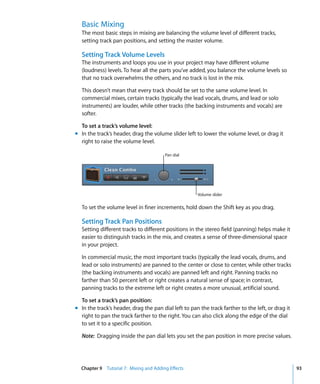
  easier to distinguish tracks in the mix, and creates a sense of three-dimensional space
  in your project.

  In commercial music, the most important tracks (typically the lead vocals, drums, and
  lead or solo instruments) are panned to the center or close to center, while other tracks
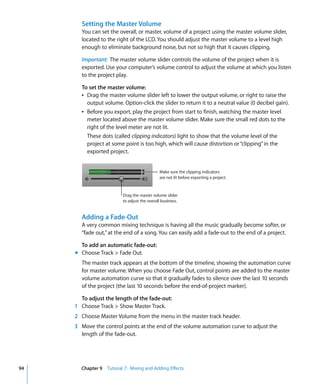
  (the backing instruments and vocals) are panned left and right. Panning tracks no
  farther than 50 percent left or right creates a natural sense of space; in contrast,
  panning tracks to the extreme left or right creates a more unusual, artificial sound.

  To set a track’s pan position:
m In the track’s header, drag the pan dial left to pan the track farther to the left, or drag it
  right to pan the track farther to the right. You can also click along the edge of the dial
  to set it to a specific position.

  Note: Dragging inside the pan dial lets you set the pan position in more precise values.


  Chapter 9 Tutorial 7: Mixing and Adding Effects                                                  93
Setting the Master Volume
       You can set the overall, or master, volume of a project using the master volume slider,
       located to the right of the LCD. You should adjust the master volume to a level high
       enough to eliminate background noise, but not so high that it causes clipping.

       Important: The master volume slider controls the volume of the project when it is
       exported. Use your computer’s volume control to adjust the volume at which you listen
       to the project play.

       To set the master volume:
       Â Drag the master volume slider left to lower the output volume, or right to raise the
         output volume. Option-click the slider to return it to a neutral value (0 decibel gain).
       Â Before you export, play the project from start to finish, watching the master level
         meter located above the master volume slider. Make sure the small red dots to the
         right of the level meter are not lit.
         These dots (called clipping indicators) light to show that the volume level of the
         project at some point is too high, which will cause distortion or “clipping” in the
         exported project.


                                              Make sure the clipping indicators
                                              are not lit before exporting a project.


                          Drag the master volume slider
                          to adjust the overall loudness.


       Adding a Fade-Out
       A very common mixing technique is having all the music gradually become softer, or
       “fade out,” at the end of a song. You can easily add a fade-out to the end of a project.

       To add an automatic fade-out:
     m Choose Track > Fade Out.
       The master track appears at the bottom of the timeline, showing the automation curve
       for master volume. When you choose Fade Out, control points are added to the master
       volume automation curve so that it gradually fades to silence over the last 10 seconds
       of the project (the last 10 seconds before the end-of-project marker).

       To adjust the length of the fade-out:
     1 Choose Track > Show Master Track.
     2 Choose Master Volume from the menu in the master track header.
     3 Move the control points at the end of the volume automation curve to adjust the
       length of the fade-out.


94     Chapter 9 Tutorial 7: Mixing and Adding Effects
Now play the project from a point before the fade-out begins. You’ll hear all the tracks
   in the project fade out gradually to their final volume level.

  To manually add a fade-in or fade-out:
1 Choose Track > Show Master Track.
2 Choose Master Volume from the menu in the master track header.
3 Add control points to the beginning of the volume automation curve for a fade-in, or
  to the end of the curve for a fade-out.
4 Move the control points to adjust the length and intensity of the fade-in or fade-out.


   Using Effects in GarageBand
   Effects let you shape and enhance the sound of your music in a variety of ways. Anyone
   who has listened to much popular music, or listened to movie soundtracks, has heard
   the different effects used in contemporary music. GarageBand includes a complete set
   of studio-quality effects that you can use on individual tracks or the overall project to
   shape the sound of your music.

   Types of Effects
   GarageBand includes the following types of effects:

   Compressor: A compressor adjusts the volume of the music to smooth out sudden
   level changes. Compression can add punch and definition to a track or an entire song,
   and make it sound better when played on audio equipment with a narrow dynamic
   range.

   Distortion: Distortion effects, which include amp simulation and overdrive (and, of
   course, distortion), change the tone of the original sound to recreate analog or digital
   distortion.

   Echo: As the name suggests, an echo effect repeats a sound like an echo. It can add a
   subtle sense of space to a sound, or create the impression that a voice or instrument is
   in a large room, a cavern, or outer space.

   EQ: EQ (short for equalization) is a powerful and versatile effect that lets you change
   the level of selected frequencies. You can use EQ to make both subtle and dramatic
   changes to your projects. EQ is likely the most commonly used effect in popular music.

   GarageBand includes a special type of EQ called Visual EQ. You can use Visual EQ by
   choosing an EQ preset, but you can also edit the effect graphically, making it easy to
   see what part of the sound you are changing.

   Gate (Noise Gate): A gate reduces low-level noise by cutting off the sound when it
   falls below a certain volume level. It is often used as the first in a series of effects, and is
   included on Real Instrument tracks to help reduce input noise.


  Chapter 9 Tutorial 7: Mixing and Adding Effects                                                     95
Modulation: Modulation effects, which include chorus, flangers, and phasers, build on
        the time-based effects by shifting or modulating when the copied signal plays back.
        They can also involve detuning the copied signal relative to the original.

        Reverb: Reverb simulates the natural reflections of a sound in a surrounding space. It
        can add definition and presence to voices and instruments, add ambience to a sound,
        or simulate different rooms and other acoustic environments.

        Stompboxes: Electric Guitar tracks include special stompbox effects that re-create the
        sound of famous guitar effects pedals. Stompbox effects include echo, chorus,
        overdrive, flanger, and other effects.

        Effects can either be track effects, send effects, or master effects. Track effects modify
        the sound on an individual (Real Instrument, Software Instrument, or Electric Guitar)
        track. Send effects send part of the sound from a track to the effect on the master track.
        Each Real Instrument, Software Instrument, and Electric Guitar track includes Echo and
        Reverb send effects; you can control how much of the sound is sent from each track in
        that track’s Track Info pane. Master effects modify the overall sound of the project,
        affecting all tracks.

        Adding Effects to a Track
        Each Real Instrument and Software Instrument track has a set of effects, which include
        compressor and Visual EQ effects, as well as echo and reverb send effects. Real
        Instrument tracks also include a gate (noise gate) effect. You can adjust a track's effects,
        and add effects, in the Track Info pane.

        The master track includes its own effects. You can adjust the master effects and add
        one more effect to the master track in the Track Info pane.

       To add an effect:
     1 Click the Track Info button, or choose Track > Show Track Info to show the Track Info
       pane.
        The Track Info pane opens to the right of the timeline.
     2 Click Edit to show the track effects.


96     Chapter 9 Tutorial 7: Mixing and Adding Effects
3 Choose an effect from one of the empty effect slots.


                                         Use these controls to
                                         add and adjust effects.


  Additional effects include treble reduction, bass reduction, chorus, flanger, phase
  shifter, and tremolo. The available effects are listed in the effect pop-up menu,
  including any third-party Audio Units effects that are installed on your computer.

  Turning Effects On and Off
  You can turn individual effects on or off (turning an effect off temporarily is called
  bypassing the effect). Turning effects on and off has several advantages: you can hear
  how each effect changes the sound of your music, and you can see which effects have
  the greatest impact on your computer’s performance.

  When you turn off an effect, the effect’s current settings are retained, so any
  adjustments you have made are not lost.

  To turn on an effect:
m In the Track Info pane, click the on/off button (with a rectangle in the center) to the left
  of the effect name. The rectangle lights to show that the effect is active. Click the on/off
  button again to turn the effect off.


  Chapter 9 Tutorial 7: Mixing and Adding Effects                                                97
Choosing an Effect Preset
        Each effect has a pop-up menu from which you can choose different effect presets.
        Each preset name suggests the purpose of the preset or how it modifies the sound.

       To choose an effect preset:
     1 Double-click the track’s header to open the Track Info pane, if it is not already open.
     2 Click Edit to show the track’s effects.
     3 Choose a new preset from the Preset pop-up menu below the effect’s name.

        Creating and Saving Effect Presets
        You can adjust effect presets to fine-tune the sound of the effect, and save your own
        presets to use with other instruments or in another project.

       To edit an effect preset:
     1 Click the Edit button (with a graphic for the effect) to the left of the effect name.
        The effect’s Preset window appears. Each effect setting has a slider, button, or other
        control, which is labeled to indicate its purpose.
     2 Drag the sliders in the Preset window to adjust the settings for the preset.
        When you adjust an effect preset, it appears as “Manual” in the pop-up menu, so you
        know you’ve changed it from the original preset. You can go back and forth between
        your manual settings and other presets to compare them before saving the new preset.
        You can create your own effect presets and save them to use on another track or in
        another project.

       To edit the Visual EQ effect graphically:
     1 Click the Edit button for the Visual EQ effect.
        The Preset window for the Visual EQ appears. In the center of the window is the
        graphic editing area, divided into four bands: Bass, Low Mid, High Mid, and Treble.
     2 Place the pointer in one of the four bands in the editing area and do the following:
        Â To change the frequency for the band, drag the pointer left or right.
        Â To change the gain for the band (how much the frequencies are boosted or cut),
          drag the pointer up or down.
     3 To see the numeric values for each band, click the Details triangle. You can adjust
       values numerically by dragging them up or down.


98      Chapter 9 Tutorial 7: Mixing and Adding Effects
4 To see the frequency curve for the track in real time, select the Analyzer checkbox, then
  play the track.


                                                    Drag in one of the four bands to
                                                    graphically adjust the Visual EQ.


                                                    Click the Analyzer checkbox to see
                                                    the track’s frequency curve.


  To save an effect preset:
1 Adjust the settings for the preset to get the sound you want.
2 Choose Make Preset from the pop-up menu, then type a name for the preset in the
  Save dialog.


  Chapter 9 Tutorial 7: Mixing and Adding Effects                                             99
Automating Your Mix
        In addition to setting the volume level, pan position, and effects settings for a track,
        you can add changes to these and other settings over time using automation. You
        automate changes over time by adding automation curves to tracks, adding control
        points to each automation curve, and adjusting the control points to different values.

        To show a track’s automation curves:
      m Click the triangle to the right of the Lock button in the track’s header.
        A row appears below the track, showing the volume automation curve.


                                                                     Volume automation curve


        To choose the automation curve you want to edit:
      m From the pop-up menu on the left side of the track’s automation row, choose the
        parameter you want to edit.

        Now you can automate the parameter by adding control points to the curve, and then
        dragging the control points to change their value.

        To add a control point:
      m In the editor, click the curve at the place where you want to add a control point.
        Note: Adding a control point activates the curve, if it is not already active. The square
        button becomes colored to show that the curve is active.

        To adjust a control point, do one of the following:
        Â Drag the control point up or down to a new value.
        Â Drag the control point left or right to move it to a different point in time.

        You can use the vertical lines in the row to align control points with measures and
        beats in the timeline.

        For Real Instrument, Software Instrument, and Electric Guitar tracks, you can automate
        Track Volume and Track Pan. For the master track, you can automate Master Volume,
        Master Pitch, and Master Tempo. You can also automate parameters for any effect on a
        track (including the master track) by adding an automation curve for the parameter.

        To add an automation curve for an effect parameter:
      1 From the pop-up menu on the left side of the track’s automation row, choose Add
        Automation.
        A menu appears, listing all the effects on the track.
      2 Click the disclosure triangle for the effect with the parameter you want to automate.


100     Chapter 9 Tutorial 7: Mixing and Adding Effects
3 Select the checkbox for the parameter you want to automate. You can select multiple
  checkboxes to add multiple effect parameters.
4 When you’re done, click OK.
  The parameter appears in the pop-up menu, and the automation curve switches to
  show the automation for the last selected effect parameter.
  You can also lock automation control points to regions, so that when you move the
  region in the timeline, the control points move with it.

  To lock automation control points to regions:
m Choose Control > “Lock Automation Curves to Regions.”
  All control points are locked to the region corresponding to the automation curve.
  The following conditions apply to locking control points to regions:
  Â Shortening or lengthening a region has no effect on its control points.
  Â Deleting a region deletes its control points as well.
  Â If you overlap a region containing control points with another region, the control
    points and the region are shortened.
  Â If you drag a region containing no control points over part of a track containing
    control points, the control points are locked to the new region.
  Â Looping a region does not loop its control points–you must copy the region instead.

  To delete an automation curve for an effect parameter:
1 From the pop-up menu on the left side of the track’s automation row, choose Add
  Automation.
2 When the menu appears, deselect the checkbox for the parameter you want to delete.
  You can select multiple parameters.
3 When you’re done, click OK.
  Note: When you delete an automation curve, all the control points on that curve are
  also deleted. This cannot be undone.


  Chapter 9 Tutorial 7: Mixing and Adding Effects                                         101
10   Tutorial 8: Creating Podcasts
                                                                                       10
           You can create audio and video podcasts in GarageBand,
           and then send them to iWeb to publish over the Internet.
           Podcasts are like radio or TV shows that people can download over the Internet. Users
           can download an individual podcast episode or subscribe to a podcast series. You can
           create podcast episodes in GarageBand, and then publish them on the Internet using
           iWeb or another application.


           Types of Podcasts
           You can create several different types of podcasts in GarageBand:
           Â Audio podcasts include audio with narration, dialogue, music, and sound effects.
           Â Video podcasts include both video and audio.
           Â Enhanced audio and video podcasts can also include chapter markers, artwork, and
             Web addresses (URLs).

           In this lesson, you’ll learn how to:
           Â Create audio and video podcasts
           Â Find and import media files using the Media Browser
           Â Show the podcast or movie track
           Â Add and edit markers and marker regions
           Â Add artwork, URLs, URL titles, and chapter titles to markers
           Â Add episode artwork and episode information
           Â Edit marker and episode artwork
           Â Use “ducking” to make narration and dialogue easier to hear


102
Creating an Audio Podcast
   You create an audio podcast in GarageBand by creating a podcast project, recording
   your narration, and adding music, sound effects, and other audio. You can also enhance
   an audio podcast by adding markers, artwork, URLs, and chapter titles, and episode
   information.

   Creating a Podcast Project
1 Choose File > New.
   The New Project dialog appears.
2 Click New Project, then click Podcast.
3 Click Choose.
   A new, empty podcast project appears in the GarageBand window. In a podcast
   project, the podcast track appears above the other tracks in the timeline. The Media
   Browser opens, and the editor shows the marker list, with columns for the start time,
   artwork, chapter title, URL title, and URL for each marker. Podcast projects include
   tracks for male and female voices, jingles (musical background tracks), and radio
   sounds.

   Note: A project can have either a podcast track or a movie track, but not both. If you
   try to show the podcast track for a project that contains a movie track, a dialog appears
   asking if you want to replace the movie track with a podcast track.

   Recording Narration and Dialogue
   You can create podcasts with only spoken narration or dialogue, or add musical
   backing tracks, sound effects, and other sounds. You record narration in a Real
   Instrument track. The podcast project includes two Real Instrument tracks, named Male
   Voice and Female Voice, that are optimized for recording spoken narration or dialogue.

  To record narration or dialogue:
1 Select either the Male Voice or Female Voice track by double-clicking its track header.
   The Track Info pane opens, showing the track settings.
2 From the Input Source pop-up menu, choose the appropriate input source for the
  microphone you are using to record your narration or dialogue.
3 Choose “On with Feedback Protection” from the Monitor pop-up menu to hear the
  sound from the microphone. If feedback occurs, an alert appears asking if you want to
  turn off monitoring.
4 Move the playhead to the point where you want to start recording.
5 Click the Record button, then start speaking.
6 When you’re done recording, click the Play button.


  Chapter 10 Tutorial 8: Creating Podcasts                                                     103
You can add and adjust effects for the narration track, including the Speech Enhancer
         effect, which is especially useful for recording narration and dialogue using the built-in
         microphone on your computer. For more information about recording in a Real
         Instrument track, see “Tutorial 3: Recording Vocals and Musical Instruments” on
         page 49.

         Adding Podcast Sounds
         GarageBand includes a variety of loops for you to use in your podcasts, including the
         following:
         Â Jingles are complete background music tracks that use can use behind the narration
           or dialogue, between spoken segments, or as an intro or outro. Some jingles are
           available in long, medium, and short versions.
         Â Stingers are brief sounds that can be used as transitions or audio “punctuation”
           between speakers or between sections of a podcast.
         Â Sound effects include the sounds of people, animals, and machines, as well as room
           ambience and other environmental sounds.

         You can search for podcast sounds in the loop browser, preview them, and add them
         to your podcast project.

        To search for podcast sounds in the loop browser:
      1 Click the Loop Browser button to open the loop browser.
      2 Click the podcast sounds button (with the radiating sound wave) in the upper-left
        corner of the loop browser to switch to podcast sounds view.
      3 Click a category in the left column, then click a subcategory in the right column to
        show matching loops in the results list. The columns in the results list show the loop
        name and the length for each loop.
      4 Click a loop to preview it in the loop browser.
      5 To end a search, either click the selected keyword again to deselect it, or click the Reset
        button to deselect all selected keywords.

         For more information about searching for loops, see “Tutorial 5: Adding Apple Loops”
         on page 71.


104     Chapter 10 Tutorial 8: Creating Podcasts
Importing Media Files with the Media Browser
   You can import media files from other iLife applications, including iTunes and iPhoto,
   into a podcast project. You can also import other GarageBand projects that have been
   saved with an iLife preview. You can find and preview media files in the Media Browser.
   You can also add other folders to the Media Browser, so you can add media files in the
   folders to your projects.

  To find and preview media files in the Media Browser:
1 Click the Media Browser button (the icon shows different types of media), or choose
  Control > Show Media Browser.
   The Media Browser opens to the right of the timeline.
2 Do one of the following:
   Â To view GarageBand projects and files in the iTunes library, click the Audio button.
   Â To view files in the iPhoto library, click the Photos button.
   Â To view iMovie projects and files in the Movies folder, click the Movies button.
3 In the Media Browser, navigate to the folder containing the files you want to use. You
  can also search for files by name by typing the filename in the search field.

   To preview audio files and movies in the Media Browser, do one of the following:
   Â Select the file in the media list, then click the Play button at the bottom of the Media
     Browser.
   Â Double-click the file in the media list.
   The file starts playing.

   To stop preview playback:
   Â Click the Play button in the Media Browser again.

  To import an audio file:
m Drag the audio file from the Media Browser to the timeline.

  To add a folder to the Media Browser:
m Drag the folder from the Finder to the middle area of the Media Browser.

   Adding Music
   You can add musical Apple Loops and record instruments to add music to your
   podcast, just as you do with a music project. For information about adding Apple
   Loops, see “Tutorial 5: Adding Apple Loops” on page 71. For information about
   recording Real Instruments, see “Tutorial 3: Recording Vocals and Musical Instruments”
   on page 49. For information about recording Software Instruments, see “Tutorial 4:
   Playing and Recording Software Instruments” on page 58.


  Chapter 10 Tutorial 8: Creating Podcasts                                                      105
Adding and Editing Markers
        You can add markers to a podcast, making it an enhanced podcast. When you add a
        marker to a podcast, it appears in the podcast track as a marker region. You can edit
        marker regions in the podcast editor by moving them to change when they start and
        end, or by resizing them to change their duration. You can also add artwork, URLs, and
        URL titles to a marker region.

        To add a marker:
      1 Click the Podcast Track.
      2 Move the playhead to the place where you want to add the marker.
      3 Click the Add Marker button at the bottom of the editor.

        The marker appears in the editor, and the start time for the marker appears in the Time
        column in the marker’s row. The marker also appears as a marker region in the podcast
        track. As with other regions in the timeline, you can edit marker regions to control
        when artwork and URLs appear and how long they are visible when you play the
        podcast.


                               Click here to                        Edit the start time for markers and
                               add a marker.                        add artwork, URLs, URL titles, and
                                                                    chapter titles in the marker list.

        To move a marker region, do one of the following:
        Â In the podcast track, drag the marker region to a new position.
        Â In the editor, click the start time for the marker region and enter a new start time.

        To resize a marker region:
      m Drag either the left or right edge of the marker region to the point where you want to
        resize it.
        You can’t loop a marker region.


106     Chapter 10 Tutorial 8: Creating Podcasts
Adding Marker Region Artwork
   You can add artwork to individual marker regions. When you play the podcast, the
   marker region artwork appears from the start to the end of the marker region.

  To add artwork to a marker region:
1 Open the Media Browser, then click the Photos button.
2 In the Media Browser, locate the artwork you want to add.
3 Drag the artwork from the Media Browser to the Artwork box in the marker’s row in the
  editor. You can also drag artwork directly to the podcast track, which adds a new
  marker region with the artwork.
   The artwork appears in the marker region in the podcast track and in the Artwork
   column for the region in the editor. The Displays Artwork checkbox is selected. You can
   change the artwork for a marker by dragging a new image to the Artwork column in
   the marker’s row.

   Adding a URL
   You can add a URL to a marker and give the URL a title. When you play the podcast, the
   URL is visible from the start to the end of the marker region. When you click the URL,
   your web browser opens and displays the webpage for the URL.

  To add a URL to a marker:
1 In the editor, click the placeholder text in the URL column of the marker’s row, then
  type the URL.

   The Displays URL checkbox is selected for the marker.
2 In the editor, click the placeholder text in the URL Title column of the marker’s row,
  then type the title.
   When you add a URL title, the title appears in place of the actual URL when you play
   the podcast. Clicking the title opens your web browser to the webpage for the URL.

   Adding Chapter Titles
   You can add a chapter title to a marker, making it a chapter marker. When you play the
   movie in iTunes, iDVD, or QuickTime Player, you can easily move to a specific chapter.

  To add a chapter title to a marker:
m In the editor, select the placeholder text in the Chapter Title column of the marker’s
  row, then type a title.


  Chapter 10 Tutorial 8: Creating Podcasts                                                   107
Deleting Markers
         You can delete a marker if you no longer want it in your podcast.

         To delete a marker, do one of the following:
         Â In the podcast track, select the marker region, then press the Delete key.
         Â In the editor, select the marker in the marker list, then press the Delete key.

         Adding Episode Artwork
         You can add episode artwork to the podcast track. When you play the podcast in
         iTunes or view it in iWeb, the episode artwork is visible whenever there is no marker
         region with its own artwork.

        To add episode artwork:
      1 In the Media Browser, locate the artwork you want to add.
      2 Drag the artwork from the Media Browser to the Episode Artwork well in the editor.
         The episode artwork appears in the Episode Artwork well. When you play the podcast,
         the episode artwork appears when there is no marker region with artwork.

         Editing Artwork
         You can resize and crop both marker region and episode artwork. In the image editor,
         you can resize and crop your artwork to show all or part of the original image.

        To edit artwork:
      1 Double-click artwork in either the Episode Artwork well or the marker list.
         The image editor opens, showing the artwork.
      2 Drag the size slider to resize the artwork as large or small as you want. The black square
        shows what part of the artwork is displayed when you play the podcast.
      3 Drag the artwork so that the part you want to display is within the borders of the
        square.
      4 You can replace the artwork by dragging a new image to the image editor.
      5 When you’re finished, click Set.

         Editing Episode Information
         Each podcast episode can contain information, including the episode title, author, and
         description. An episode can also have a parental advisory, which appears when you
         play the podcast in iTunes.

        To edit episode information:
      1 Select the podcast track.
      2 Open the Track Info pane by choosing Track > Show Track Info.
         The Track Info pane appears, showing the Episode Info pane.


108     Chapter 10 Tutorial 8: Creating Podcasts
3 To give the podcast episode a title, click the Title field, then type a title.
4 To add artist information, click the Artist field, then type the artist's name.
5 Choose None, Clean, or Explicit from the Parental Advisory pop-up menu.
6 To include a description of the podcast episode, click the Description field, then type a
  description.

   Ducking Backing Tracks
   When you’re creating a podcast, you may want to lower the volume of the backing
   tracks (for example, background music or sound effects) to hear spoken narration or
   dialogue more easily. Lowering the volume of some tracks to make others easier to
   hear is called ducking.

   You apply ducking by setting which tracks are lead tracks and which are backing tracks.
   Whenever there is sound on a lead track, the volume of the backing tracks is lowered
   while the volume of all other tracks stays the same. You can apply ducking to any Real
   Instrument or Software Instrument track in your podcast.

  To make a track a lead track:
1 Choose Control > Ducking.
   A ducking control appears in each track's header, with arrows pointing up and down.
2 Click the upper part of the track's ducking control (the arrow pointing up).

  To make a track a backing track:
1 Choose Control > Ducking.
   A ducking control appears in each track's header, with arrows pointing up and down.
2 Click the lower part of the track's ducking control (the arrow pointing down).

   When you play the project, send it to iWeb, or export it, the backing tracks are ducked
   whenever there is sound on any lead track. You can adjust the amount of ducking on
   these tracks by choosing a different Ducker preset in the Track Info pane for the master
   track.

  To adjust the amount of ducking:
1 Open the Track Info pane.
2 Click Master Track, then click the Edit tab.
3 Choose a different preset from the Ducker preset menu. The preset name suggests the
  intended use of each preset.
   You can also click the Edit button for the Ducker, and create your own preset by
   moving the sliders.


   Chapter 10 Tutorial 8: Creating Podcasts                                                   109
Creating a Video Podcast or Movie Project
         Creating a video podcast is similar to creating an audio podcast, except that it includes
         a movie or video file and does not include artwork. You can import an iMovie project or
         other QuickTime-compatible video file, view the video as you add audio, and add and
         edit markers. When you’re finished, you can send the completed project to iWeb to
         publish as a video podcast, send it to iDVD to burn to a DVD, or export it as a
         QuickTime movie.

         Creating a Video Podcast Project
      1 Choose File > New.
         The New Project dialog appears.
      2 Click New Project, then click Movie.
      3 Click Choose.
         A new, empty movie project appears in the GarageBand window.

         Importing a Movie or Video File
         You can import an iMovie project or other video file from the Media Browser. The
         Media Browser lets you quickly locate iMovie projects and other video files in your
         computer’s Movies folder, as well as other media files. For information about finding
         and importing iMovie projects and video files using the Media Browser, see “Importing
         Media Files with the Media Browser” on page 105.

         When you import a movie into a project, the movie appears in the movie track,
         beginning at the start of the project. You can’t change the position of the imported
         movie in the project.
         Note: A project can contain only one movie or video file. If you import a movie into a
         project that already contains one, a dialog appears asking if you want to replace the
         existing movie with the new one.

         Viewing the Movie
         When you import a movie into a project, the movie track appears at the top of the
         timeline, showing still frames from the movie. You can view the movie

        To view the movie or video file:
      1 If the movie track is not visible, choose Track > Show Movie Track.
      2 Click the Preview button (the large square button showing a movie frame) in the
        header of the movie track.
         The movie preview window appears.


110     Chapter 10 Tutorial 8: Creating Podcasts
3 To play the movie, press the Space bar.
4 To move to a different part of the movie, move the pointer over the preview window,
  then drag the slider that appears.
5 To resize the preview window, drag the lower-right corner of the window.

  Working with the Movie’s Audio Track
  If the movie contains an audio track, a new Real Instrument track named Movie Sound
  is created below the movie track for the movie’s audio. You can edit the Movie Sound
  track exactly as you would edit any Real Instrument track: you can mute or solo it,
  adjust the volume level and pan position, and add effects.

  Note: If you mute the Movie Sound track, the movie’s audio will not be included when
  you send the movie to iDVD or iWeb or when you export it as a QuickTime movie.

  Adding Audio
  You can record narration in a video podcast in exactly the same way as in an audio
  podcast. You can add audio files from the loop browser, including both musical and
  podcast sounds loops. You can also record in Real Instrument and Software Instrument
  tracks, in exactly the same way as for other GarageBand projects.

  For more information, see “Adding Podcast Sounds” on page 104, “Importing Media
  Files with the Media Browser” on page 105, and “Adding Music” on page 105.

  Adding Markers, Titles, and URLs to a Video Podcast
  Markers make it easy to navigate to different parts of the finished movie, and to add
  links to webpages. You can add markers to a video podcast project, and add URLs and
  chapter titles to markers, in exactly the same way as in enhanced audio podcasts.
  However, you cannot add artwork to a video podcast.

  For more information, see “Adding and Editing Markers” on page 106, “Adding a URL”
  on page 107, and “Adding Chapter Titles” on page 107.

  After your podcast is finished, you can share it with others in several ways. For
  information about sharing podcasts, see the next tutorial, “Tutorial 9: Sharing Your
  Projects.”


  Chapter 10 Tutorial 8: Creating Podcasts                                                111
11   Tutorial 9: Sharing Your Projects
                                                                                           11
           After you create your project in GarageBand, you can
           share your music in several ways.
           You can send projects to other iLife applications, such as iTunes, iWeb, and iDVD, or
           export them to disk. You can also burn a song to a CD.


           Sharing Music Projects
           You can send a music project to an iTunes playlist. In iTunes, you can listen to the song,
           download it to an iPod, or burn the playlist to a CD.

         To send a song to an iTunes playlist:
       m Choose Share > “Send Song to iTunes.”
           You can set the name of the iTunes playlist to which files will be exported, and set the
           name of the album and composer, in the Export pane of GarageBand preferences.
           You can also send a single track, or a group of tracks, to an iTunes playlist. To send a
           single track, solo the track (or mute all other tracks) before sending the song to iTunes.
           To send a group of tracks, solo the tracks (or mute all other tracks) before sending the
           song to iTunes.

        To export a song as an audio file:
      1 Choose Share > “Export Song to Disk.”
      2 In the Export dialog, click Export.
           When you export a song to disk, by default the song is exported as a compressed AAC
           audio file. You can change the compression settings to export a song as a compressed
           MP3 file or an uncompressed AIFF file. You can also change the audio quality of the
           exported file.


112
To change the compression settings:
1 In the Share dialog, choose the type of compressed file you want to export.
2 To export the file as an uncompressed AIFF file, deselect the Compress checkbox.
3 Click Export.

  To change the audio quality of the exported file:
1 Choose the audio quality you want from the Audio Settings pop-up menu.
   When you choose a new setting, a brief description of its intended use appears below
   the menu.
2 Click Export.

   You can also burn a single song to a recordable audio CD.

  To burn a song to a CD:
1 Insert a blank recordable CD in your computer’s optical drive.
2 Choose Share > “Burn Song to CD. “
   The Burn dialog appears.
3 To choose additional settings, click the triangle in the upper-right corner of the Burn
  dialog.
4 When you’re ready, click Burn.

   The song is burned to the CD.

   Only one song can be burned to a CD using the “Burn Song to CD” menu command. To
   burn multiple songs to a CD, send the songs to an iTunes playlist, and then burn the
   playlist to a CD in iTunes.


   Sharing Podcasts
   You can share audio and enhanced podcast episodes in several ways. When you share
   or export a podcast, you must choose AAC Encoder from the Compress Using pop-up
   menu to share or export the podcast as an enhanced podcast.

  To send a podcast to iWeb:
m Choose Share > “Send Podcast to iWeb.”
   When you send a podcast to iWeb, you can use iWeb to publish it on the Internet.

  To send a podcast to an iTunes playlist:
m Choose Share > “Send Podcast to iTunes.”


  Chapter 11 Tutorial 9: Sharing Your Projects                                              113
To export a podcast to disk:
      m Choose Share > “Export Podcast to Disk.”
         When you export a podcast, it is exported as a compressed file. You can change the
         compression and audio quality settings in the Share dialog.

         Note: The choices in the Audio Settings menu are different for podcasts than for songs.

        To burn a podcast to a CD:
      1 Insert a blank recordable CD in your computer’s optical drive.
      2 Choose Share > “Burn Song to CD.”
         The Burn dialog appears.
      3 To choose additional settings, click the triangle in the upper-right corner of the Burn
        dialog.
      4 When you’re ready, click Burn.

         The podcast is burned to the CD.


         Sharing Video Podcasts
         There are several ways you can share video podcasts and other projects containing
         movies or video. You can send a project containing both video and audio to iDVD, and
         then burn it to a DVD disc. Viewers watching the DVD can use the chapter markers in
         the project to move to different parts of the movie. URLs and URL titles do not appear
         in the movie on DVD.

        To send a movie to iDVD:
      m Choose Share > “Send Movie to iDVD.”
         Note: When you send a project to iDVD, no video compression is applied to the
         project. In most cases, you’ll want to make these changes in iDVD.

         You can send a video podcast to iWeb, and publish it on the Internet. When subscribers
         view the video podcast, they can click a URL to have the associated webpage appear in
         their web browser, and choose specific chapters to view. You send a video podcast to
         iWeb in just the same way as an audio podcast.

         You can also export a project containing a video as a QuickTime movie (.mov). When
         you export a project as a movie, the exported movie includes both the video and the
         soundtrack you created in GarageBand. The video’s audio is also included unless the
         Video Sound track is muted when you export the movie.


114     Chapter 11 Tutorial 9: Sharing Your Projects
To export a project as a QuickTime movie:
m Choose Share > “Export Movie to Disk.”
   The project is exported using the current movie compression settings. Movie
   compression settings compress both the video and audio in the exported movie. You
   can change the compression settings to suit how you want to use the exported movie.
   Compression settings are stored as part of the GarageBand project until you change
   them while the project is open.

  To choose the video compression settings:
m In the Export dialog, choose the settings you want to use from the Video Settings pop-
  up menu.
   When you choose a new setting, a brief description of its intended use appears below
   the menu.

  To burn a movie’s audio track to a CD:
1 Insert a blank recordable CD in your computer’s optical drive.
2 Choose Share > “Burn Song to CD.”
   The Burn dialog appears.
3 To choose additional settings, click the triangle in the upper-right corner of the Burn
  dialog.
4 When you’re ready, click Burn.

   The audio track of the movie is burned onto the CD.


   Exporting Projects at the Optimum Loudness
   You can have GarageBand export projects at the optimum loudness; that is, at the
   highest volume level possible without adding distortion. Setting a project to the
   optimum volume level is called auto-normalizing.

  To export projects at the optimum volume level:
1 Choose GarageBand > Preferences, then click Advanced.
2 Select the Auto Normalize checkbox.

   The Auto Normalize feature does not affect the volume level when you play the project
   in GarageBand. It affects the volume level only when you export the project.


  Chapter 11 Tutorial 9: Sharing Your Projects                                              115
Appendix
      A   Keyboard Shortcuts
                                                                                    A
          Action                                              Shortcut
          Navigation/Moving the playhead
          Play/Pause                                          Space bar
          Go to beginning                                     Home or Z
          Go to end                                           End or Option-Z
          Move back (the amount depends on zoom level)        Left Arrow
          Move forward (the amount depends on zoom level)     Right Arrow
          Move back in larger increments                      Option-Left Arrow
          Move forward in larger increments                   Option-Right Arrow
          Move back by the visible width of the timeline      Page Up
          Move forward by the visible width of the timeline   Page Down
          Zoom out                                            Control-Left Arrow
          Zoom in                                             Control-Right Arrow
          Tracks
          Create new track                                    Command-Option-N
          Duplicate track                                     Command-D
          Delete selected track                               Command-Delete
          Select next higher track                            Up Arrow
          Select next lower track                             Down Arrow
          Mute/Unmute selected track                          M
          Solo/Unsolo selected track                          S
          Show/Hide track automation curve                    A
          Lock track                                          L
          Show/Hide arrange track                             Command-Shift-A
          Show/Hide master track                              Command-B
          Show/Hide podcast track                             Command-Shift-B
          Show/Hide movie track                               Command-Option-B
          Turn ducking on/off                                 Command-Shift-R


116
Action                                            Shortcut
Track Info pane
Show/Hide Track Info                              Command-I
Select next higher category or instrument         Up Arrow (when Track Info pane
                                                  is open and either a category or
                                                  an instrument is selected)
Select next lower category or instrument          Down Arrow (when Track Info
                                                  pane is open and either a
                                                  category or an instrument is
                                                  selected)
Move from instrument column to category column    Left Arrow (when Track Info
                                                  pane is open and an instrument
                                                  is selected)
Move from category column to instrument column    Right Arrow (when Track Info
                                                  pane is open and a category is
                                                  selected)
Learning to play
Automatic notation view                           1 (in a Learn to Play lesson)
Show chord names                                  2 (in a Learn to Play lesson)
Show chord grids (guitar) /                       3 (in a Learn to Play lesson)
Show left hand only (piano)
Show tablature (guitar) /                         4 (in a Learn to Play lesson)
Show right hand only (piano)
Show tablature and standard notation (guitar) /   5 (in a Learn to Play lesson)
Show both hands (piano)
Show notation and animated instrument             8 (in a Learn to Play lesson)
Show animated instrument only                     9 (in a Learn to Play lesson)
Show notation only                                0 (in a Learn to Play lesson)
Easy view (piano lessons only)                    E (in a Learn to Play lesson)
Arranging and editing
Undo                                              Command-Z
Redo                                              Command-Shift-Z
Cut                                               Command-X
Copy                                              Command-C
Paste                                             Command-V
Delete                                            Delete
Select all                                        Command-A
Split region                                      Command-T
Join selected regions                             Command-J
Snap to grid                                      Command-G


Appendix A Keyboard Shortcuts                                                        117
Action                                                  Shortcut
      Show/Hide alignment guides                              Command-Shift-G
      Delete Arrange region with timeline content and close   Command-Option-Delete
      Lock automation curves to regions                       Command-Option-A
      Recording
      Record Start/Stop                                       R
      Turn cycle region on/off                                C
      Turn metronome on/off                                   Command-U
      Turn count in on/off                                    Command-Shift-U
      Score view
      Move selected notes to previous grid position           Left Arrow
      Move selected notes to next grid position               Right Arrow
      Move selected notes back one measure                    Shift-Left Arrow
      Move selected notes forward one measure                 Shift-Right Arrow
      Transpose selected notes up a semitone                  Up Arrow
      Transpose selected notes down a semitone                Down Arrow
      Transpose selected notes up an octave                   Shift-Up Arrow
      Transpose selected notes down an octave                 Shift-Down Arrow
      Adjusting master volume
      Raise master volume                                     Command-Up Arrow
      Lower master volume                                     Command-Down Arrow
      Showing windows and editors
      Show Track Info pane                                    Command-I
      Show loop browser                                       Command-L
      Show Media Browser                                      Command-R
      Show editor                                             Command-E
      Show Tuner in LCD                                       Command-F (with a Real
                                                              Instrument track selected)
      Show Chords in LCD                                      Command-F (with a Software
                                                              Instrument track selected)
      Show Time in LCD                                        Command-Shift-F
      Show Measures in LCD                                    Command-Option-F
      Show Tempo in LCD                                       Command-Control-F
      Show onscreen keyboard                                  Command-K
      Show Musical Typing window                              Command-Shift-K
      File menu functions
      New                                                     Command-N


118   Appendix A Keyboard Shortcuts
Action                          Shortcut
Open                            Command-O
Close                           Command-W
Save                            Command-S
Save As                         Command-Shift-S
Application menu functions
Show GarageBand Preferences     Command-comma (,)
Hide GarageBand                 Command-H
Hide other applications         Command-Option-H
Quit GarageBand                 Command-Q
Help menu functions
GarageBand Help                 Command-question mark (?)


Appendix A Keyboard Shortcuts                               119
Appendix
      B   Connecting Music Equipment
          to Your Computer                                                              B
          If you sing or play a musical instrument, you can connect
          a musical instrument or a microphone to your computer
          and record your performances in your GarageBand
          projects.
          Each recording appears as a region in a track in the timeline. You can add effects to the
          track, and edit the region in the editor.


          Connecting a Microphone or Musical Instrument
          You can connect an electric musical instrument or microphone to your computer and
          record it in a Real Instrument track.

          You can connect a microphone to your computer using the computer’s audio input
          port, if your computer has one. You can also connect an audio interface to your
          computer, and then connect instruments and microphones to the audio interface for
          recording. Audio interfaces are available in a variety of compatible formats, including
          USB, FireWire, PCI, and PC card formats. You can also connect an audio mixer or console
          to your computer, and record microphones or instruments through the mixer.

          If you use an audio interface to connect musical instruments, check the manufacturer’s
          specifications to make sure the interface is compatible with Mac OS X 10.2.6 or later.
          Also make sure the audio interface uses a format supported by your computer. Follow
          the manufacturer’s instructions, which may include installing the correct driver on your
          computer.

          If you connect an instrument or microphone to your computer’s audio input port, open
          System Preferences and click Sound, click the Input tab, select Line In in the sound
          input list, and then drag the Input volume slider to set the input level.


120
Connecting a Music Keyboard to Your Computer
   If you play a keyboard instrument, you can connect a MIDI-compatible music keyboard
   to your computer to play and record Software Instruments.

   To connect a music keyboard to play Software Instruments:
   Â If the keyboard is a USB MIDI keyboard, connect the USB cable to the keyboard and
     to your computer.
   Â If the keyboard is a standard MIDI keyboard, connect the keyboard to a MIDI
     interface using standard MIDI cables, then connect the interface to your computer.

   Be sure to follow the instructions that came with the keyboard, which may include
   installing the correct driver on your computer.


   Connecting Other Music Equipment
   You might also want to connect speakers or monitors to your computer to hear your
   projects play back with greater audio quality than is possible from your computer’s
   speaker. A variety of monitors and speakers is available, including speakers you can
   connect directly to your computer's audio out port, through a USB port, or by using an
   audio interface.

   If you connect an audio interface to your computer, you set the audio interface as the
   audio input device for GarageBand. Before setting the audio input device, be sure to
   install any necessary driver software for the audio interface.

  To set an audio interface as the audio input device:
1 Choose GarageBand > Preferences, then click Audio/MIDI.
2 In the Audio/MIDI pane, choose the audio interface from the Audio Input pop-up
  menu.
   If you connect a microphone, an instrument, or other audio device directly to your
   computer’s audio input port, you may need to configure the input settings for the
   device in the Sound pane of System Preferences.

  To configure input settings in System Preferences:
1 Choose Apple () > System Preferences, then click Sound.
2 In the Sound pane, click the Input button.
3 Select Line In from the sound input devices list, then drag the Input volume slider to
  set the input level.


  Appendix B Connecting Music Equipment to Your Computer                                    121
www.apple.com/garageband

© 2009 Apple Inc. All rights reserved.
Apple, the Apple logo, GarageBand, iDVD, iLife, iMovie, iPhone, iPhoto, iPod, iTunes, Macintosh, and QuickTime are trademarks of Apple Inc.,
registered in the U.S. and other countries. Finder and iWeb are trademarks of Apple Inc.
019-1440 1/2009

GarageBand_09_Getting_Started

  • 1.
    GarageBand ’09 Getting Started Includesa tour of the GarageBand window and step-by-step tutorials to help you start creating music and podcasts with GarageBand.
  • 2.
    1 Contents Chapter 1 6 Welcome to GarageBand 6 What You’ll Learn 7 Before You Begin 7 What You Need to Get Started 7 Where to Go for Help 8 Finding Out More Chapter 2 9 GarageBand at a Glance 10 GarageBand Window 12 Timeline 14 Editor 14 For Real Instrument Tracks 15 For Software Instrument Tracks–Piano Roll View 16 For Software Instrument Tracks–Score View 17 For Podcast and Movie Projects–Marker View 18 Loop Browser 18 Button View 20 Column View 22 Track Info Pane 22 Real Instrument and Software Instrument Tracks 24 Electric Guitar Track 26 Master Track 28 Media Browser Chapter 3 29 Tutorial 1: Creating and Playing GarageBand Projects 29 Creating a New Project 31 Playing a Project 31 Using the Transport Controls 32 Moving the Playhead 32 Using the LCD 32 Changing the Units of Time 32 Changing the Playhead Position in the LCD 33 Changing the Project Tempo, Key, and Time Signature 2
  • 3.
    34 Saving a Project 35 Creating a Magic GarageBand Project 36 Choosing Different Instruments in Magic GarageBand 36 Shuffling Instruments in Magic GarageBand 36 Mixing Instruments in Magic GarageBand 37 Playing and Recording Your Instrument in Magic GarageBand Chapter 4 40 Tutorial 2: Learning to Play Guitar and Piano 41 Opening a Learn to Play Lesson 41 Choosing Chapters and Subchapters 42 Playing a Lesson 43 Playing Your Instrument with a Lesson 44 Changing the Speed of a Lesson 44 Recording Your Instrument in a Lesson 45 Changing the Mix of a Lesson 47 Customizing the Lesson Window 47 Customizing a Guitar Lesson 47 Customizing a Piano Lesson 48 Opening a Learn to Play Lesson in GarageBand 48 Getting Additional Learn to Play Lessons Chapter 5 49 Tutorial 3: Recording Vocals and Musical Instruments 49 Adding a Real Instrument Track 51 Adding a Basic Track 52 Adding an Electric Guitar Track 53 Getting Ready to Record 53 Recording a Real Instrument 54 Recording Multiple Takes with the Cycle Region 56 Recording on Several Tracks at the Same Time 57 Tuning Your Guitar in GarageBand Chapter 6 58 Tutorial 4: Playing and Recording Software Instruments 60 Playing Software Instruments with Musical Typing 61 Playing Software Instruments with the Onscreen Music Keyboard 62 Getting Ready to Record a Software Instrument 62 Recording a Software Instrument 63 Merging Software Instrument Recordings 64 Viewing Note and Chord Names As You Play 64 Working in Score View 64 About Score View 66 Editing Notes in Score View 69 Changing the Clef Sign Contents 3
  • 4.
    70 Printing Music Notation Chapter 7 71 Tutorial 5: Adding Apple Loops 72 Searching for Loops to Use in a Project 73 Searching for Loops in Button View 74 Searching for Loops in Column View 75 Previewing Loops 75 Refining Loop Searches 76 Searching by Name 76 Showing Loops from a Specific Jam Pack or Folder 76 Searching by Scale Type 77 Limiting Searches to Nearby Keys 77 Marking Loops as Favorites 78 Adding Loops to the Timeline 79 Changing Apple Loops in the Same Family 79 Adding Loops to the Loop Library 80 Creating Your Own Apple Loops Chapter 8 81 Tutorial 6: Arranging and Editing Your Music 82 Arranging Basics 82 Selecting Regions 83 Moving Regions 84 Resizing Regions 84 Looping Regions 85 Splitting and Joining Regions 85 Quickly Rearranging a Project 87 Editing Your Recordings in the Editor 88 Renaming Regions 88 Transposing Regions 89 Enhancing the Timing of a Real Instrument Track 89 Enhancing the Timing of a Software Instrument Track 90 Enhancing the Tuning of a Real Instrument Track 91 Setting Real Instrument Regions to Keep Their Original Tempo and Pitch 91 Importing Audio and MIDI Files Chapter 9 92 Tutorial 7: Mixing and Adding Effects 92 What Is Mixing? 93 Basic Mixing 93 Setting Track Volume Levels 93 Setting Track Pan Positions 94 Setting the Master Volume 94 Adding a Fade-Out 95 Using Effects in GarageBand 4 Contents
  • 5.
    95 Types of Effects 96 Adding Effects to a Track 97 Turning Effects On and Off 98 Choosing an Effect Preset 98 Creating and Saving Effect Presets 100 Automating Your Mix Chapter 10 102 Tutorial 8: Creating Podcasts 102 Types of Podcasts 103 Creating an Audio Podcast 103 Creating a Podcast Project 103 Recording Narration and Dialogue 104 Adding Podcast Sounds 105 Importing Media Files with the Media Browser 105 Adding Music 106 Adding and Editing Markers 107 Adding Marker Region Artwork 107 Adding a URL 107 Adding Chapter Titles 108 Deleting Markers 108 Adding Episode Artwork 108 Editing Artwork 108 Editing Episode Information 109 Ducking Backing Tracks 110 Creating a Video Podcast or Movie Project 110 Creating a Video Podcast Project 110 Importing a Movie or Video File 110 Viewing the Movie 111 Working with the Movie’s Audio Track 111 Adding Audio 111 Adding Markers, Titles, and URLs to a Video Podcast Chapter 11 112 Tutorial 9: Sharing Your Projects 112 Sharing Music Projects 113 Sharing Podcasts 114 Sharing Video Podcasts 115 Exporting Projects at the Optimum Loudness Appendix A 116 Keyboard Shortcuts Appendix B 120 Connecting Music Equipment to Your Computer 120 Connecting a Microphone or Musical Instrument 121 Connecting a Music Keyboard to Your Computer 121 Connecting Other Music Equipment Contents 5
  • 6.
    1 Welcome to GarageBand 1 GarageBand puts a music studio on your computer, where the band is never late and always plays in tune. This document gives you useful information and step-by-step instructions for creating projects with GarageBand. With GarageBand, you can record, arrange, and mix your music, and then share it with the world. GarageBand includes a complete recording studio, a set of pro-quality instruments and effects, and a large library of prerecorded sounds you can use in your projects. Whether you’re an experienced musician or you’ve never made music before, you can create your own songs, podcasts, and ringtones using GarageBand. What You’ll Learn The following chapters give you a tour of the GarageBand window and an extensive tutorial to help you start creating your own projects. You’ll learn to do the following:  Create a new project  Learn to play guitar or piano  Add Apple Loops with drum, bass, and other rhythm parts  Record sound using a microphone  Play and record an electric guitar  Play and record the built-in Software Instruments  Build a song arrangement in the timeline  Edit your recordings in the editor  Mix your project and add effects  Create audio and video podcasts  Share your project with other iLife applications There are also appendixes that list keyboard shortcuts and describe how to connect music equipment to your computer. 6
  • 7.
    Before You Begin Tomake it easier to follow the tutorials as you work, print each tutorial before you start. In many of the tasks shown in this document you need to choose menu commands. In the tutorials, and in GarageBand Help, menu commands appear like this: Choose Edit > Join Selected. The first term after Choose is the name of the menu in the GarageBand menu bar. The word or phrase following the angle bracket is the command you choose from that menu. What You Need to Get Started All you need to create music with GarageBand is a Mac that meets the system requirements, as listed in the Read Me file. Optionally, you can use any of the following equipment to expand your music-making possibilities:  A microphone to record your voice, an acoustic musical instrument, or other sounds  An electric musical instrument, such as an electric guitar or bass  A Universal Serial Bus (USB) or other MIDI-compatible music keyboard to play and record Software Instruments  An audio interface to connect microphones and instruments to your computer  A pair of speakers or monitors to hear the music you create with greater audio quality Where to Go for Help You can access these resources for help as you complete the tutorial:  Onscreen help: GarageBand comes with a built-in help system. With a GarageBand project open, choose Help > GarageBand Help. When the help page opens, type a word or phrase into the search field at the top of the page, or click one of the topic areas to get detailed instructions for completing specific tasks.  Video tutorials: A set of online video tutorials is available, demonstrating major features and tasks you can accomplish with GarageBand. To view the video tutorials, choose Video Tutorials from the GarageBand Help menu, or go to the tutorial website at www.apple.com/ilife/tutorials/#garageband.  Help tags: Help tags describe the functions of buttons, tools, and other onscreen items. To see a help tag, hold the pointer over an item for a few seconds. Chapter 1 Welcome to GarageBand 7
  • 8.
    Finding Out More For up-to-date information on GarageBand, including news about new features, user tips, and a list of supported music equipment, go to the GarageBand website at www.apple.com/ilife/garageband. 8 Chapter 1 Welcome to GarageBand
  • 9.
    2 GarageBand at a Glance 2 This chapter gives you a tour of the GarageBand window. You’ll learn the names and locations of controls, as well as their functions. It’s a good idea to take a look at these pages even if you don’t plan to complete the tutorials, because knowing the names and functions of the GarageBand controls will make it easier to find answers to your questions in GarageBand Help. You may find the descriptions here are enough to get you started working on your own projects. The GarageBand window includes the timeline, the loop browser, the editor, and the Track Info pane. You record instruments, arrange regions, and mix your projects in the timeline; search for loops in the loop browser; and change instruments and effects in the Track Info pane. 9
  • 10.
    GarageBand Window A B C D F E F G H 10 Chapter 2 GarageBand at a Glance
  • 11.
    A Timeline: Contains the tracks where you record instruments, add loops, and arrange regions. Also includes the beat ruler, which you use to move the playhead and align items in the timeline. See “Timeline” on page 12 for a description of the features and controls of the timeline. B Track headers: The instrument icon and name are shown at the left of each track’s header. Click the track name to type a new name. Click the Record Enable button (the red circle) to turn on the track for recording. Click the Mute button (the speaker icon) to silence the track. Click the Solo button (the headphone icon) to hear the track by itself. Click the Lock Track button (the padlock icon) to lock the track. Click the triangle to show the track’s automation curves. Drag the pan dial to adjust the pan position of the track (the left-to-right placement in the stereo field). Drag the volume slider to adjust the track’s volume. Watch the level meter to see the track’s volume level as you record and play. C Zoom slider: Drag the zoom slider to zoom in for a closer view of part of the timeline, or to zoom out to see more of the timeline. D Add Track and Editor buttons: Click the Add Track button to add a track below the existing tracks in the timeline. Click the Editor button to show or hide the editor. E Transport controls: Click the Record button to start recording. Click the Play button to start or stop playback of the project. Click the Go To Beginning, Rewind, or Fast Forward buttons to move the playhead to different parts of the project. Click the Cycle button to turn the cycle region on or off. F LCD: The LCD has five modes: Time, Measures, Chord, Tuner, and Project. Click the icon at the left side of the LCD and choose a different mode. In Time mode, the LCD shows the playhead’s position in absolute time (hours, minutes, seconds, fractions). Drag or double-click the numerals to move the playhead. In Measures mode, the LCD shows the playhead’s position in musical time (measures, beats, ticks). Drag or double-click the numerals to move the playhead. In Chord mode, you can see chord symbols when you play any Software Instrument. In Tuner mode, you can tune a guitar in either an Electric Guitar or Real Instrument track. In Project mode, you can choose a different key and time signature for the project, and change the project tempo. G Master volume slider and level meter: Drag the volume slider to adjust the project’s master volume level. Watch the level meter to see if clipping is occurring before you export a project. H Loop Browser, Track Info, and Media Browser buttons: Click the Loop Browser button to open the loop browser. Click the Track Info button (with the “i”) to open the Track Info pane. Click the Media Browser button to open the Media Browser. Chapter 2 GarageBand at a Glance 11
  • 12.
    Timeline The timeline contains the tracks where you record instruments, add loops, and arrange regions to build your song arrangement. D E A F B G C H I 12 Chapter 2 GarageBand at a Glance
  • 13.
    A Beat ruler: Shows the units of time (either beats and measures or minutes and seconds) in the timeline. You can click the beat ruler to move the playhead to any point in the timeline. B Tracks: You record and arrange your music in the tracks in the timeline. You can add tracks and change the instrument and effects for each track. C Master track: You can use the automation curves in the master track to add a fade-in or fade-out, change the tempo, or transpose parts of the project to a different key. D Playhead: Shows the point in the project that is currently playing, or where playback starts when you click the Play button. You can move the playhead to change what part of the project is playing. Cut and copied items are pasted at the playhead position. E Arrange track: You can add arrange regions to the arrange track to define different sections of a project (such as intro, verse, and chorus), then copy and move the arrange regions to quickly rearrange your project. F Grid button: Choose a note value for the timeline grid, or choose Automatic to have the value change when you zoom in or out. G Regions: Your recordings and the loops you add to your project appear as regions in the timeline. You can copy and paste regions, loop and resize them, move and transpose them, and make other changes to build the arrangement of your music. H Automation curve: Add automation curves for volume, pan, and other parameters to a track, including the master track, then add and adjust control points on each curve to automate mixing and other parameters. I Playhead Lock button: Click to unlock the playheads in the timeline and the editor, so that they can show different parts of the project. Chapter 2 GarageBand at a Glance 13
  • 14.
    Editor The editor is like a microscope showing a close-up view of the regions in a track. You can edit Real Instrument and Software Instrument regions in the editor. For Real Instrument Tracks When you select a Real Instrument track (with a blue header), the editor shows the waveform of the regions in the track. You can crop, join, move, transpose, and rename regions in the editor. A F G H I B C D E A Pitch slider: Drag the slider to transpose the selected region up or down by up to 12 semitones. B Follow Tempo & Pitch checkbox: Select to have the selected region follow the project tempo and key. The checkbox is visible only when a region on the track is selected. C Enhance Tuning slider and checkbox: Drag right to increase the amount of tuning enhancement, or drag left to lower the amount. The “Limit to Key” checkbox limits tuning enhancement to notes in the project key. D Enhance Timing slider and pop-up menu: Drag right to increase the amount of timing enhancement, or drag left to lower the amount. Choose the note value to use as the basis for timing enhancement from the pop-up menu. E Zoom slider: Drag to zoom in for a closer view or to zoom out to see more of the track or selected region. Zooming in the editor is independent of the timeline. F Region name field: Double-click the region name and type a new name. G Play region button: Click to play the selected region. H Waveform display: Shows the waveform of the regions in the track. I Beat ruler: Shows beats and measures for the area visible in the editor. Click the Grid button to choose the note value for the beat ruler in the editor. 14 Chapter 2 GarageBand at a Glance
  • 15.
    For Software InstrumentTracks–Piano Roll View When you select a Software Instrument track (with a green header), the editor shows a graphic “piano roll” display of the track or selected region. You can edit individual notes in Software Instrument regions, fix the timing of notes, and transpose and rename regions. You can also show and edit controller data for pitch bend, a modulation wheel, or a sustain pedal, recorded when you play your music keyboard. A G H I J B C D E F A Piano Roll/Score buttons: Click to change the editor to piano roll (graphic) view or score view. B View pop-up menu: Choose whether to show notes or controller data in the editor. C Pitch slider: Drag the slider to transpose the selected Software Instrument region up or down by up to 36 semitones. The Pitch slider is available only when a region on the track is selected. D Velocity slider: Drag the slider to change the velocity of selected notes. A note’s velocity reflects how hard the key is pressed when you play the note. The Velocity slider is available only when a region on the track is selected. E Enhance Timing slider and pop-up menu: Drag right to increase the amount of timing enhancement, or drag left to lower the amount. Choose the note value to use as the basis for timing enhancement from the pop-up menu. F Zoom slider: Drag to zoom in for a closer view or to zoom out to see more of the track. G Region name field: Double-click the region name and type a new name. H Play region button: Click to play the selected region. I Notes/controller data display: Shows the individual notes of Software Instrument regions in a graphic format. You can move and resize notes to adjust their pitch, where they start playing, and how long they play. To see controller data instead of notes, choose the controller you want to see in the View pop-up menu. J Beat ruler: Shows beats and measures for the area visible in the editor. Click the Grid button to choose the note value for the beat ruler in the editor. Chapter 2 GarageBand at a Glance 15
  • 16.
    For Software InstrumentTracks–Score View You can also view Software Instrument tracks and regions in score view. In score view, notes and other musical events are shown in standard music notation. You can edit notes, note velocity, and pedal markings in score view. A H I J K B C D E F G A Piano Roll/Score buttons: Click to change the editor to piano roll (graphic) view or score view. B View pop-up menu: Choose whether to show notes or controller data in the editor. C Pitch slider: Drag the slider to transpose the selected Software Instrument region up or down by up to 36 semitones. The Pitch slider is available only when a region on the track is selected. D Velocity slider: Drag the slider to change the velocity of selected notes. A note’s velocity reflects how hard the key is pressed when you play the note. The Velocity slider is available only when a region on the track is selected. E Enhance Timing slider and pop-up menu: Drag right to increase the amount of timing enhancement, or drag left to lower the amount. Choose the note value to use as the basis for timing enhancement from the pop-up menu. F Zoom slider: Drag to zoom in for a closer view or to zoom out to see more of the track. G Clef pop-up menu: Choose a different clef for the score display. H Region name field: Double-click the region name and type a new name. I Play region button: Click to play the selected region. J Notation display: Shows notes and other events in standard music notation. You can move notes to adjust their pitch and where they start playing, and change how long they play. K Beat ruler: Shows beats and measures for the area visible in the editor. Click the Grid button to choose the note value for the beat ruler in the editor. 16 Chapter 2 GarageBand at a Glance
  • 17.
    For Podcast andMovie Projects–Marker View When you’re working on a podcast episode, you can view and edit markers in the editor. In the marker list you can edit each marker’s time position, marker region artwork, URL, URL title, and chapter title. You can also add episode artwork in the editor. B D A C E F G H I A Episode Artwork well: Drag artwork here to represent the podcast. (Appears only when you are creating a podcast.) B “Marks a Chapter” checkbox: Shows whether the selected marker marks a chapter. Displays Artwork checkbox: Shows whether the selected marker contains marker region artwork. (Appears only when you are creating an audio podcast.) Display URL checkbox: Shows whether the selected marker has a URL. C Add Marker button: Add a marker at the playhead position. D Marker list: Shows each marker’s start time, artwork (for podcasts) or video frame (for videos), chapter title, URL, and URL title. E Time column: Shows the start time for each marker. F Artwork column: Shows the artwork for each marker region. Add artwork by dragging image files from the Media Browser. (Appears only when you are creating an audio podcast.) Still Frame column: Shows the video frame at the position of each marker. (Appears only when you are working with a movie or video file.) G Chapter Title column: Shows the title of each chapter marker. Click and type a title for a marker. H URL Title column: Shows the title of each marker region’s URL. Click and type a title for the URL. I URL column: Shows the URL for each marker region. Type a URL for the website for which you want to show a link. Chapter 2 GarageBand at a Glance 17
  • 18.
    Loop Browser Using the loop browser, you can quickly search for loops to add to your projects. You can find loops using keywords for an instrument, musical genre, or mood. You can also perform text searches and refine your results in several ways. The loop browser shows the tempo, key, and number of beats for each matching loop. You can preview loops in the loop browser before you add them to a project, and add more loops to GarageBand by dragging them onto the loop browser. The loop browser gives you three ways to find loops: button view, column view, and podcast sounds view. Button View In button view, the loop browser contains a set of keyword buttons. Click a button to show matching loops in the results list. Clicking multiple buttons narrows the results to those loops that match all of the selected keywords. A B D C E F G 18 Chapter 2 GarageBand at a Glance
  • 19.
    A View buttons: Click one of the buttons to show column view, button view, or podcast sounds view. B Loop library pop-up menu: Choose the loops you want to show in the loop browser from the pop-up menu. C Keyword buttons: Click a keyword button to display matching loops in the results list. You can click multiple keyword buttons to narrow your results. Reset button: Deselects all currently selected buttons, so you can start a new search. D Scale pop-up menu: Choose a scale type to see only loops using that musical scale. E Results list: Shows loops that match the selected keywords. Also displays the tempo, key, and number of beats for each loop. Click a loop in the results list to preview it. Click the Favs checkbox for a loop to add it to your favorites. F Preview volume slider: Drag the slider to adjust the volume of the loop being previewed. G Search field: Type text in the field to see loops with the text in their file name or path. Chapter 2 GarageBand at a Glance 19
  • 20.
    Column View In column view, the loop browser features columns for keyword type, categories, and keywords. Click a keyword type to show categories for that type, click a category to show keywords, then click a keyword to show matching loops in the results list. A B F C D E G H I 20 Chapter 2 GarageBand at a Glance
  • 21.
    A View buttons: Click one of the buttons to show column view, button view, or podcast sounds view. B Loop library pop-up menu: Choose the loops you want to show in the loop browser from the pop-up menu. C Keyword type column: Click a keyword type to show the categories for that keyword type in the middle column. D Category column: Click a category to show keywords for that category in the right column. E Keyword column: Click a keyword to show matching loops in the results list. F Scale pop-up menu: Choose a scale type to see only loops using that scale. G Results list: Shows the loops that match the selected keywords. Also displays the tempo, key, and number of beats for each loop. Click a loop in the results list to preview it. Click the Favs checkbox for a loop to add it to your favorites. H Preview volume slider: Drag the slider to adjust the volume of the loop being previewed. I Search field: Type text in the field to see loops with the text in their file name or path. Chapter 2 GarageBand at a Glance 21
  • 22.
    Track Info Pane The Track Info pane shows the current instrument, effects, and input settings for the selected track, and shows the master effects settings for the master track. You can change these settings in the Track Info pane. Real Instrument and Software Instrument Tracks Some controls in the Track Info pane are different for Real Instrument tracks than for Software Instrument tracks (as noted in the following descriptions). G A B C H D E F I J 22 Chapter 2 GarageBand at a Glance
  • 23.
    A Browse button: Click to view the instrument list, icon menu, and input controls for the track. B Instrument library pop-up menu: Choose which instruments you want to see in the category and instrument lists from the pop-up menu. C Instrument category list: Click an instrument category to see the instruments for that category in the instrument list on the right. D Instrument list: Select an instrument from the list. E Instrument icon pop-up menu: Click to choose a new instrument icon from the icon menu that appears. Icons make it easy to distinguish tracks that use similar instruments. F Input Source pop-up menu (Real Instrument tracks only): Choose the input source for Real Instrument recording. Monitor pop-up menu (Real Instrument tracks only): Turn on monitoring to hear your instrument as you play, or turn it off to avoid feedback. Recording Level slider and checkbox (Real Instrument tracks only): Drag to set the input volume for the track. Select the Automatic Level Control checkbox to have GarageBand lower the recording level to prevent clipping. G Edit button: Click to view the effects menus and controls for the track. H Effects slots: Each track includes a compressor and four additional effects slots. Click an empty effects slot and choose an effect from the pop-up menu. Click an effect’s LED to turn the effect on or off. Click an effect name and choose a new effect from the effect pop-up menu. Click a preset and choose a new preset from the preset pop-up menu. Drag an effect up or down by the textured area on its left edge to reorder effects. Sound Generator pop-up menu (Software Instruments only): Choose a new generator to change the sound of the Software Instrument. I Sends sliders: Each track includes Echo and Reverb sliders that control the amount of the track’s output that is sent to the master Echo and Reverb effects. J Save Instrument and Delete Instrument buttons: Click the Save Instrument button to save an instrument. Click the Delete Instrument button to delete a saved instrument. Chapter 2 GarageBand at a Glance 23
  • 24.
    Electric Guitar Track The Electric Guitar track shows the guitar amp and stompbox effects on the stage. E A B C D F 24 Chapter 2 GarageBand at a Glance
  • 25.
    A Guitar preset pop-up menu: Choose a guitar preset from the menu. B Guitar amp: Shows a visual representation of the current guitar amp. Click the amp to see the amp controls below the stage. Hold the pointer over the amp, then click the arrows that appear to change the amp model. C Stompbox effects: Shows a visual representation of the stompbox effects in the current preset. Click a stompbox to see its stompbox controls below the stage. D Controls area: When the amp is selected, shows the amp controls. When a stompbox is selected, shows its stompbox controls. Drag the knobs to change the amp or stompbox control settings. Click the bypass switch for a stompbox effect to turn the effect on or off. E Edit button: With the amp selected, click Edit to view the amp model, master effects, and input controls. With a stompbox effect selected, click Edit to view all the stompbox effects below the stage. Drag a stompbox to one of the slots on the stage to add a stompbox effect. When you are finished editing an amp or stompbox, click Done. F Save Instrument and Delete Instrument buttons: Click the Save Instrument button to save an instrument. Click the Delete Instrument button to delete a saved instrument. Chapter 2 GarageBand at a Glance 25
  • 26.
    Master Track The Track Info pane for the master track shows the global project settings and effects settings for the overall project. Global project settings include tempo, time signature, and key. Global effects settings include master echo, reverb, EQ, and compressor. F A B G C D H E I 26 Chapter 2 GarageBand at a Glance
  • 27.
    The Echo andReverb sliders for each track control the amount of echo and reverb sent from that track to the master echo and reverb effects. In the Track Info pane for the master track, you can change the master echo and reverb effects. A Browse button: Click to view the instrument list, icon menu, and input controls for the track. B Master effects pop-up menu: Choose which master effects you want to see in the category and effects lists from the pop-up menu. C Master effects category list: Click a category to see the effects for that category in the master effects list on the right. D Master effects preset list: Click a master effects preset from the list to apply it to the project. E Tempo, key, and time signature controls: Drag the Tempo slider to change the project tempo. Choose a key from the Key pop-up menu, then choose a scale type from the pop-up menu to the right. Choose a time signature from the Signature pop-up menu. F Edit button: Click to view the effects menus and controls for the track. G Track Effects: Click the LED to turn the echo and reverb effects on or off. Choose an echo preset from the Echo pop-up menu. Choose a reverb preset from the Reverb pop-up menu. These effects control the sound of the Send effects in individual tracks. H Master Effects slots: Each master track includes a Visual EQ, a compressor, a ducker, and one additional effects slot. Click an effect’s LED to turn the effect on or off. Click a preset and choose a new preset from the preset pop-up menu. Click an empty effects slot and choose an effect from the pop-up menu. I Save Master and Delete Master buttons: Click the Save Master button to save a set of master effects. Click the Delete Master button to delete a saved set of master effects. Chapter 2 GarageBand at a Glance 27
  • 28.
    Media Browser With the Media Browser, you can find and add songs from your iTunes library, photos from your iPhoto library, iMovie projects, and other video files. A B C D E A Media Type buttons: Click the button for the type of media files you want to work with. B Source list: Navigate to the folder containing the files you want to use. You can also add folders by dragging them from the Finder. C Media list: View, preview, and select media files to add to your project. D Play button: Click to preview the selected media file. E Search field: Type text to search for files by name. 28 Chapter 2 GarageBand at a Glance
  • 29.
    3 Tutorial 1: Creating and Playing GarageBand Projects 3 You can create GarageBand projects for songs, podcasts, ringtones, and more. You can play projects to hear you music, and save them in several ways. In this tutorial, you’ll learn how to:  Create a new project from a template  Choose project settings for tempo, key, and time signature  Play the project  Save the project Creating a New Project You start working in GarageBand by creating a project. Projects are where you record, arrange, and mix your music. When you open the New Project dialog, you can select a template for the type of project you want to create. You can choose from several different types of projects, including:  Music projects for voice, acoustic instruments, electric guitar, loops, and more  Podcast projects for enhanced audio and video podcast episodes  Magic GarageBand projects, in which you choose the genre and GarageBand chooses the instruments and creates an arrangement  iPhone ringtone projects that you can send to iTunes and use on your iPhone. In addition to creating new projects, you can open and download Learn to Play lessons in the New Project dialog. To learn how to use Learn to Play lessons, see “Tutorial 2: Learning to Play Guitar and Piano” on page 40. 29
  • 30.
    To create anew music project: 1 Choose File > New. The New Project dialog appears, with buttons for different project types, including New Project, Magic GarageBand, and iPhone Ringtone. Click the New Project button. Project templates appear in the main area of the window. Templates are included for voice, acoustic instrument, electric guitar, keyboard, songwriting, loops, and podcast episode. 2 Click the icon for the template you want to use, then click Choose. 3 In the Save As dialog, type a name for the project in the Save As field, then browse to the location where you want to save the project. 4 Click Save. After a moment, the GarageBand window opens with the new project. The central area of the GarageBand window is the timeline, which is divided into horizontal rows called tracks. You organize your recordings and loops in tracks. The left area shows the track headers, where you can adjust volume, pan position, and other settings for each track. Below the timeline is the control bar, with buttons to show different editors and inspectors, a set of transport controls you use to play your projects, and the LCD, where you can change project settings and change the units of time in the beat ruler. For more information about the controls in the GarageBand window, see “GarageBand at a Glance” on page 9. You can make music in GarageBand in the following ways:  By recording sound from a microphone connected to your computer  By recording sound from an electric guitar connected to your computer  By connecting a USB (or MIDI) keyboard and playing the Software Instruments built into GarageBand 30 Chapter 3 Tutorial 1: Creating and Playing GarageBand Projects
  • 31.
     By addingand arranging Apple Loops in the timeline  By creating a Magic GarageBand project  By viewing and playing along with a Learn to Play lesson Playing a Project After you’ve added some recordings, loops, or audio files to your project, you’ll want to play the project to hear how it sounds. You play projects using either the Space bar on your computer keyboard or the transport controls, which are located in the control bar below the timeline. To start or stop playback: Press the Space bar, or press the Play button in the center of the transport controls. Using the Transport Controls Using the transport controls, you can control playback and move the playhead to different parts of the project. They also include controls for recording and for turning on the cycle region. Play button Cycle button Record button The transport controls are similar to the playback controls used on hardware music players. They include, from left to right:  Record: Starts recording on tracks that are enabled for recording  Go to beginning: Moves the playhead to the beginning of the project  Back (Rewind): Moves the playhead back one measure  Play/Pause: Starts the project playing, or stops playback  Forward: Moves the playhead forward one measure  Cycle: Turns the cycle region on or off Chapter 3 Tutorial 1: Creating and Playing GarageBand Projects 31
  • 32.
    Moving the Playhead The playhead is a vertical line extending through the timeline that shows the part of the project currently playing, or the place where playback starts when you click the Play button. The triangle at the top of the playhead shows its current position in the beat ruler. The beat ruler marks the units of time in the project, either in beats and measures (musical time) or minutes and seconds. You can move the playhead to any point in time, either when the project is stopped or while it is playing. To move the playhead: m Drag the triangle at the top of the playhead to the place in the beat ruler when you want playback to start. Using the LCD The LCD (liquid crystal display), located in the control bar next to the transport controls, shows the playhead position as the project plays. You can change the units of time shown in the LCD, and move the playhead. Changing the Units of Time The LCD and the beat ruler can display either beats and measures (musical time) or minutes and seconds. You can use musical time when you’re arranging a song to align recordings, loops, and other items in the timeline with the rhythm of the song, and use minutes and seconds when you’re working with podcast or movie projects. To show beats and measures in the LCD: m Click the icon on the left side of the LCD and choose Measures. To show minutes and seconds in the LCD: m Click the icon on the left side of the LCD and choose Time. When you change the units of time in the LCD, the beat ruler also changes to show the same units of time. Changing the Playhead Position in the LCD You can move the playhead by changing the time shown in the LCD in either Measures or Time mode. To change the time in the LCD, do one of the following: Â Drag one of the numerals up or down. Â Double-click one of the numbers, type a new number, then press Return. 32 Chapter 3 Tutorial 1: Creating and Playing GarageBand Projects
  • 33.
    Changing the ProjectTempo, Key, and Time Signature Each GarageBand project includes settings for tempo, key, and time signature. When you add loops or create recordings in a music project, GarageBand matches them to the project tempo and key so that they sound good together. You can choose the project tempo, key, and time signature in the Save As dialog when you create a new project, or in the LCD while you’re working on the project. Changing the Tempo Each project has a speed, or tempo. The tempo defines the rate at which beats, the basic rhythmic pulse, occur in the project. The tempo is measured in beats per minute, or bpm. You can set the tempo to any speed between 60 and 240 bpm. The default tempo is 120 bpm, which is a common tempo used in popular music. To change the tempo in the LCD: 1 Click the icon on the left side of the LCD and choose Project. 2 Click the number below the word Tempo. 3 Drag the slider up or down to a new tempo. Setting the Key Each project has a key, which defines the central note to which the other notes in the music relate. The key can be any key between A and G-sharp (G#). Along with the key, you can choose to use either the major or minor scale. In the LCD, major keys are shown as “maj” and minor keys are shown as “min.” To change the key in the LCD: 1 Click the icon on the left side of the LCD and choose Project. 2 Click the key, shown below the word Key. 3 Choose a new key from the Key pop-up menu. 4 Optionally, choose a different scale from the bottom of the Key pop-up menu. Chapter 3 Tutorial 1: Creating and Playing GarageBand Projects 33
  • 34.
    Setting the TimeSignature Each project has a time signature, which controls the relationship between beats and measures. A project’s time signature consists of two numbers separated by a forward slash, which look similar to a fraction. The number on the left controls the number of beats in each measure, and the number on the right controls the beat value (the length of the note that gets one beat). You can use any of the following time signatures in a GarageBand project: 2/2, 2/4, 3/4, 4/4, 5/4, 7/4, 6/8, 7/8, 9/8, or 12/8. The default is 4/4, the most commonly used time signature. To change the project tempo in the LCD: 1 Click the icon on the left side of the LCD and choose Project. 2 Click the number below the word Signature. 3 Choose a new time signature from the Signature pop-up menu. Saving a Project Now that you’ve made some changes to your project, it’s time to save your work. To save a project: m Choose File > Save (or press Command-S). You can also save a project as an archive. When you save a project as an archive, all the audio files, loops, and other media the project uses are saved in the project file. This is especially useful if you want to copy the project to another computer, or are duplicating a project with your own Real Instrument recordings. To save a project as an archive: 1 Choose File > Save As. 2 In the Save As dialog, select the Save As Archive checkbox. You can also compact projects to make sharing easier. Compacting a project reduces the file size by compressing audio in the project. Compacting can result in some loss of audio quality. To compact a project: 1 Choose File > Save As. 2 In the Save As dialog, select the Compact Project checkbox. 3 Choose the compression settings you want to use from the pop-up menu next to the Compact Project checkbox. 34 Chapter 3 Tutorial 1: Creating and Playing GarageBand Projects
  • 35.
    When you closea project, by default GarageBand creates an iLife preview for the project. An iLife preview lets you preview the project in the Media Browser and in other iLife applications. It can also increase the project’s file size. You can select whether to create an iLife preview for projects in the General pane of GarageBand preferences. Creating a Magic GarageBand Project You can quickly create a Magic GarageBand project. When you create a Magic GarageBand project, you choose the genre (style) of music, and GarageBand chooses the instruments and creates a basic arrangement with them. You can change instruments, mix the song, and play and record your own instrument together with the song. To create a Magic GarageBand project: 1 Choose File > New. 2 In the New Project dialog, click Magic GarageBand. 3 Click the genre for the song, then click Choose. After a moment, the Magic GarageBand stage appears, showing the instruments in the song. Each Magic GarageBand song includes Guitar, Bass, Drums, Keyboard, and Melody instruments, and includes a place for My Instrument at the center of the stage. Different choices appear here when you click an instrument. Click the Play button to preview the song. Chapter 3 Tutorial 1: Creating and Playing GarageBand Projects 35
  • 36.
    4 To previewthe song, click the Play button. Magic GarageBand opens in a full-screen view, with the instruments for the project displayed on the stage, and a control bar with playback and other controls below the stage. You can change between this view and a window view by clicking the View button on the lower-right part of the stage. Choosing Different Instruments in Magic GarageBand You can choose different instruments for each part of a Magic GarageBand song, or have GarageBand choose a different set of instruments. To choose a different instrument: 1 Select one of the instruments on the stage. Different choices for the instrument appear below the stage. 2 Select a new instrument from below the stage. 3 After you choose the instruments you want, you can click Play again to hear the song with the new instruments. Shuffling Instruments in Magic GarageBand In addition to choosing instruments manually, you can shuffle instruments in a Magic GarageBand song. When you shuffle instruments, GarageBand chooses a new set of instruments for the project. To shuffle instruments: m Click the Shuffle Instruments button below the stage. The Shuffle Instruments button is available when no instrument is selected on the stage. Mixing Instruments in Magic GarageBand You can mix a Magic GarageBand song by adjusting the volume of different instruments to balance their sound in the overall mix. You can also mute (silence) instruments and solo them (hear them alone without the rest of the song). To mix a Magic GarageBand song, you first show the mixer for one of the instruments. When you select another instrument, the mixer for that instrument appears, until you close the mixer for the current instrument. 36 Chapter 3 Tutorial 1: Creating and Playing GarageBand Projects
  • 37.
    To show themixer for an instrument: 1 Click an instrument on the stage. A small window showing the instrument name appears. 2 Click the disclosure triangle to show the mixing controls for the instrument. Mixing controls To mute an instrument: m Click the Mute button in the mixer. To solo an instrument: m Click the Solo button in the mixer. To adjust the volume of an instrument: m Drag the volume slider in the mixer. Playing and Recording Your Instrument in Magic GarageBand Every Magic GarageBand project has a place for “My Instrument” at the center of the stage. You can add your own instrument to sing or play with the project, and record your instrument together with the project. Playing My Instrument To play your instrument together with the Magic GarageBand project, you first select the instrument to use as My Instrument. You can use either a Real Instrument or a Software Instrument as My Instrument. To select the input and instrument for My Instrument: 1 Click the highlighted circle at the front of the stage. Different instruments for My Instrument appear below the stage, along with the My Instrument menu and the Tuner button. Chapter 3 Tutorial 1: Creating and Playing GarageBand Projects 37
  • 38.
    2 Choose theinput for the instrument you want to play from the My Instrument pop-up menu. Â If you’re playing a USB or MIDI music keyboard, choose Keyboard. Â If you’re playing a guitar connected to your computer’s audio input port, choose Guitar. Â If you’re using your computer’s built-in microphone, choose Internal Mic. Â If you’re using a microphone connected to an audio interface, choose External Mic. Â If you’re playing a guitar connected to an audio interface, choose External Guitar. 3 If you’re using a microphone and are using your computer speakers to hear your instrument, choose Monitor Off from the My Instrument pop-up menu. 4 Click the instrument you want to use from below the stage. 5 If you want to use an instrument not shown, click Customize. When the Customize window appears, choose the type of instrument you want to use from the pop-up menu at the top of the window, then select the instrument you want to use from the list in the window. After you choose the input and instrument for My Instrument, you can play your instrument in the project. Recording My Instrument You can record the instrument selected as My Instrument along with the Magic GarageBand project. When you open the project in GarageBand, your recording will appear in a new track in the timeline. To record My Instrument: 1 Make sure your instrument is working properly and is connected to your computer. 2 Click the Record button (the red circle) in the control bar. After a one-measure count-in, recording starts. A narrow track appears below the sections, showing the waveform of the new recording. 3 When you’re finished recording, click the Play button. 38 Chapter 3 Tutorial 1: Creating and Playing GarageBand Projects
  • 39.
    Tuning Your Guitarin Magic GarageBand If you’re using a guitar as My Instrument, you can tune the guitar in Magic GarageBand. To tune your guitar in Magic GarageBand: 1 Make sure that My Instrument is selected on the stage. 2 Click the Tuner button next to the My Instrument pop-up menu. The tuner appears below the stage. 3 Play a note on your guitar and watch the tuner. Be sure to play only a single note. The note name appears in the center of the tuner. If the note is out of tune, the note name appears red, and bars appear on either side of the tuner indicating whether the note is flat (left side) or sharp (right side). 4 Turn the tuning peg for the string on your guitar, continuing to watch the tuner. When the note is in tune, the note name appears blue. 5 When you’re finished tuning, click the Tuner button again to dismiss the tuner. Chapter 3 Tutorial 1: Creating and Playing GarageBand Projects 39
  • 40.
    4 Tutorial 2: Learning to Play Guitar and Piano 4 Learn to Play lessons make it easy to learn guitar and piano in GarageBand. You can learn basic techniques and also purchase Artist Lessons to learn songs from the artists who created them. In this tutorial, you’ll learn how to:  Open a Learn to Play lesson  View the video instruction for a lesson and play along  Choose chapters and subchapters  Practice a section of a lesson repeatedly  Slow down a lesson to learn a difficult passage  Play and record your own instrument in a lesson  Mix the instruments in a lesson  Customize the appearance of the Learn to Play window  Open a lesson in GarageBand  Get additional Learn to Play lessons 40
  • 41.
    Opening a Learnto Play Lesson GarageBand includes one basic lesson for guitar and one for piano. In the New Project dialog, you can choose and open the lessons installed on your computer. You can also download additional free basic lessons and purchase Artist Lessons in the New Project dialog. To open a Learn to Play lesson: 1 Choose File > New. 2 In the New Project dialog, click Learn to Play. The basic lessons installed on your computer appear in the main area of the window. 3 Click the lesson you want to open, then click Choose. The lesson opens in a full-screen view, with a video window in the upper part of the window, and an animated fretboard (for guitar lessons) or keyboard (for piano lessons) in the lower part of the window. Below the animated instrument is the control bar, which includes controls to play the lesson, turn on the metronome and the cycle region, slow down the lesson, record your instrument as you play along with the lesson, and more. Speed slider Play button Volume slider Metronome Record button Cycle button Choosing Chapters and Subchapters Each Learn to Play lesson includes two chapters: Learn and Play Along. In the Learn chapter, the teacher gives video instruction on how to play the song, including any relevant techniques or special tunings. In the Play Along chapter, you can play the entire song without interruption, or choose one or more sections to practice. Artist lessons also include a Story chapter with information about the song and the artist. Some lessons include Simple and Advanced subchapters. The chapters and subchapters for the lesson appear on the left side of the video area when you open the lesson. You can choose a different chapter or subchapter at any time while a lesson is open. Chapter 4 Tutorial 2: Learning to Play Guitar and Piano 41
  • 42.
    To choose achapter or subchapter: 1 If the chapter list is not visible, move the pointer over the left side of the video area. 2 Select the chapter or subchapter you want to play. Select chapters and subchapters here. Playing a Lesson After you choose the chapter you want to play, you can start playing the lesson. To play a lesson: m Click the Play button, or press the Space bar. To stop playback: m Click the Play button, or press the Space bar again. The lesson starts playing from the beginning. Above the control bar, the playhead shows the section of the lesson currently playing. You can play the complete lesson or play individual sections. To play a section of a lesson: m Click the section you want to play in the row above the control bar. You can select multiple sections by Shift-clicking them. Click the section you want to play. Click the Cycle button before clicking a section to play the section repeatedly. If the lesson is playing, it starts from the beginning of the selected section. If it is stopped, press the Space bar to start playback from the selected section. You can also play one or more sections repeatedly. This can be particularly useful when you want to practice a new or difficult part of the lesson. 42 Chapter 4 Tutorial 2: Learning to Play Guitar and Piano
  • 43.
    To play asection repeatedly: 1 Click the Cycle button (with curved arrows) in the control bar. 2 Click the section you want to play. Shift-click adjacent sections to play them in sequence. 3 Click the Play button, or press the Space bar. The selected sections start playing, and continue to repeat until you click the Play button or press the Space bar again. Playing Your Instrument with a Lesson You can play your guitar or piano along with the lesson. If you’re playing a music keyboard, you only need to connect your keyboard to your computer to play with the lesson. If you’re playing a guitar, you must choose the input before you can play with the lesson. To choose the input for a guitar: 1 Click Setup. The Setup window appears. 2 Choose the input source for your guitar from the My Input Device pop-up menu. Â If your guitar is connected to the audio input port of your computer, choose Guitar. Â If you’re playing your guitar using your computer’s built-in microphone, choose Internal Mic. Â If you’re playing your guitar using a microphone connected to an audio interface, choose External Mic. Â If your guitar is connected to an audio interface, choose External Guitar. 3 If you’re playing your guitar using a microphone, choose Monitor Off to avoid feedback. If your guitar is connected to the audio input port or an audio interface, or if you’re listening to GarageBand using headphones rather than speakers, choose Monitor On. 4 When you’re finished, click Setup again to return to the lesson. Now you’re ready to play along with the lesson. Chapter 4 Tutorial 2: Learning to Play Guitar and Piano 43
  • 44.
    Changing the Speedof a Lesson You can slow down a lesson to make it easier to learn or practice a difficult part of the lesson. You can slow down the lesson to as much as half the original speed. As you learn to play the part more easily, you can gradually speed up the lesson to the original tempo. To change the speed of a lesson: 1 Drag the Speed slider, located in the control bar next to the metronome, to the left to slow down the lesson. 2 To speed up the lesson, drag the Speed slider to the right. You can change the speed of the lesson when the lesson is playing or stopped. Recording Your Instrument in a Lesson You can record your instrument in a lesson, including recording multiple takes. Recording your instrument can help you critique your playing and monitor your progress. After you record your instrument, you can audition different takes, choose the take you want to hear with the lesson, and delete unwanted takes. To record your instrument in a lesson: 1 Click the section you want to record in, or move the playhead to the point where you want to start recording. 2 Click the Record button. The metronome gives a one-measure count-in before recording starts at the playhead position, to help you start playing on the beat. As you record, your recording appears in a strip above the control bar. 3 Start playing your instrument. 4 When you’re finished recording, click the Play button. 44 Chapter 4 Tutorial 2: Learning to Play Guitar and Piano
  • 45.
    To record multipletakes: 1 Click the Cycle button in the control bar. 2 Click the section you want to record in. You can Shift-click to select multiple sections. 3 Click the Record button. 4 After the count-in, start playing your instrument. 5 When you’re finished recording, click the Play button. The recording appears in a strip above the control bar with a number indicating the number of takes. To audition takes: 1 Click the number in the upper-left corner of the recording. 2 Choose the number of the take you want to audition from the Takes menu. To delete a take: Â To delete the currently selected take, choose Delete Selected Take from the Takes menu. Â To delete all takes except the currently selected take, choose Delete Unused Takes from the Takes menu. Changing the Mix of a Lesson You can change the mix of the teacher’s voice and instrument, your own instrument, and the instruments in the backing band. This can be useful when you want to hear the teacher more clearly or hear your own instrument above the mix. You change the mix of a lesson using the controls in the mixer. To show the mixer: m Click Mixer in the upper-right part of the window. Chapter 4 Tutorial 2: Learning to Play Guitar and Piano 45
  • 46.
    The mixer appearsas an overlay over the lesson window. The mixer includes a set of controls for each track, including a Mute button, Solo button, and Volume slider. Use the mixing controls for each instrument. Click to reset the mixing controls for the band. Click the disclosure triangle to show the mixing controls for the band. To change the mix, do any of the following: Â To silence a track, click its Mute button (with a speaker icon) in the mixer. Â To hear a track by itself, click its Solo button (with the headphone icon) in the mixer. Â To adjust a track’s volume, drag its volume slider right or left. If a lesson includes a backing band, the mixer shows a track titled “The Band,” which includes a disclosure triangle. Clicking the disclosure triangle shows the mixing controls for each instrument of the band. You can use the mixing controls for the band to mix the individual instruments in the same way that you mix the tracks in the lesson. You can return the band to its original mix by clicking the Reset button. When you’re finished, you close the mixer to return to the lesson. To close the mixer: Click Mixer in the upper-right part of the window, or click any part of the lesson window outside the mixer. 46 Chapter 4 Tutorial 2: Learning to Play Guitar and Piano
  • 47.
    Customizing the LessonWindow You can customize the appearance of the lesson window in several ways, to suit your style of learning. Both guitar and piano lessons can show different types of notation: Customizing a Guitar Lesson In a guitar lesson, you can view notation as chord symbols, chord fingering grids, tablature (TAB), or standard notation. If you’re a left-handed guitarist, you can switch to a left-handed view. You can also switch the animated fretboard to a top-down view, as well as the default angled view. To customize the window for a guitar lesson: 1 Click Setup in the upper-right part of the lesson window. The setup window appears, showing the different notation and appearance options. 2 Click the notation and appearance options you want to use. 3 To show the left-handed view for the lesson, select the “Left-handed guitar” checkbox. 4 To change the animated fretboard to a top-down view, select the “Top-down fretboard view” checkbox. 5 When you’re finished, click Done to return to the lesson. Customizing a Piano Lesson In a piano lesson, you can view the notation as chord symbols or as standard notation. You can view notation for either the left hand or right hand, or for both hands together. You can also switch to Easy View. In Easy View, the note names appear on the white keys of the animated keyboard, and also appear on the note heads when viewing standard music notation. To customize the window for a piano lesson: 1 Click Setup in the upper-right part of the lesson window. The setup window appears, showing the different notation and appearance options. 2 Click the notation and appearance options you want to use. 3 To view the lesson in Easy View, select the Easy View checkbox. 4 When you’re finished, click Done to return to the lesson. Chapter 4 Tutorial 2: Learning to Play Guitar and Piano 47
  • 48.
    Both guitar andpiano lessons include Automatic view. In Automatic view, the notation and appearance change automatically, depending on the content of the lesson. In most cases, you can leave Automatic view selected unless you specifically want to see a different view. The setup window also shows keyboard shortcuts for different notation and appearance options. You can use the keyboard shortcuts to change the appearance of the lesson without opening the setup window. Opening a Learn to Play Lesson in GarageBand You can open a lesson in the GarageBand window. When you open a lesson in GarageBand, each track, including the teacher’s voice, the teacher’s instrument, and any recordings you made with your own instrument, appears as a separate track in the timeline. You can arrange, mix, and make other changes in the GarageBand window as you would with any GarageBand project. To open a lesson in GarageBand: m Click the “Open in GarageBand” button in the control bar. Note: Some Artist Lessons cannot be opened in GarageBand. If a lesson cannot be opened, the “Open in GarageBand” button will appear dimmed in the control bar. Getting Additional Learn to Play Lessons GarageBand comes with several basic Learn to Play basic lessons. You can download additional basic lessons for both guitar and piano, and purchase Artist Lessons featuring songs taught by the artists who made them famous. You download basic lessons and purchase Artist Lessons from the Lesson Store in the New Project dialog. For more information about downloading and purchasing lessons, refer to the “Learning to play guitar or piano” section of GarageBand Help. 48 Chapter 4 Tutorial 2: Learning to Play Guitar and Piano
  • 49.
    5 Tutorial 3: Recording Vocals and Musical Instruments 5 You can record your voice or any other sound you can capture using a microphone. If you play a musical instrument, you can also record it in a GarageBand project. In GarageBand, you record sound from a microphone or from a musical instrument connected to your computer in a Real Instrument track. Real Instrument tracks have blue headers, and the regions containing your recordings appear purple. You can change track settings and add effects to Real Instrument tracks in the Track Info pane. In this tutorial, you’ll learn how to:  Add a Real Instrument track and change instrument settings  Add an Electric Guitar track and choose a guitar amp  Record sound in a Real Instrument or Electric Guitar track  Record over a specific part of a project using the cycle region  Record multiple takes  Tune your guitar Adding a Real Instrument Track To record sound in a Real Instrument track, you first add the track to your project and prepare it for recording. To add a Real Instrument track: 1 Click the Add Track button, or choose Track > New Track. 2 In the New Track dialog, click Real Instrument, then click Create. A new Real Instrument track appears in the timeline, and the Track Info pane opens to the right of the timeline. The Track Info pane is where you choose different settings for the selected track. 49
  • 50.
    3 In theTrack Info pane, select an instrument type from the list on the left, then select an instrument from the list on the right. Select an instrument Select an instrument category from this list. from this list. Use these controls to set the input format and input channel and to turn monitoring on or off. 4 Choose the audio input for your microphone or instrument from the Input Source pop- up menu. Â If you’re using your computer’s built-in microphone, choose Built-In Mic. Â If your microphone or instrument is connected to your computer’s audio input port, choose Line In. Â If your microphone or instrument is connected to an audio interface, choose the correct channel (or stereo pair of channels) from the menu. Â If the instrument you’re recording has a single input, choose a mono (monophonic) input. If the instrument has both left and right inputs, choose a stereo input. 5 If you want to hear your microphone or instrument as you play, choose On or On with Feedback Protection from the Monitor pop-up menu. 50 Chapter 5 Tutorial 3: Recording Vocals and Musical Instruments
  • 51.
    Turning on monitoringcan cause feedback (loud, sharp noise) if the audio input picks up the output from your speakers. You can choose “On with Feedback Protection” to have GarageBand automatically turn off monitoring if feedback from the input source occurs. You can also avoid feedback by listening with headphones rather than speakers. You can reduce possible feedback by making sure the microphone or instrument is pointed away from your speakers, and by turning down the master volume. 6 Adjust the recording level for the track so that the level as high as possible without causing clipping or distortion. To adjust the recording level, do one of the following: Â If the instrument or microphone has a volume control, adjust the volume control on the device. Â If the instrument or microphone is connected to an audio interface, adjust the volume control on the audio interface. Â In the Track Info pane, drag the Recording Level slider left to lower the input volume for the selected channel, or drag it right to raise the input volume. Note: You can’t control the volume of some audio interfaces and other devices from GarageBand. If the Recording Level slider in the Track Info pane is dimmed, you cannot adjust the input volume in GarageBand. Â Select the Automatic Level Control checkbox to have GarageBand automatically lower the input level to avoid clipping, and raise the level to avoid excessive noise when recording. Note: If you chose “On with Feedback Protection” from the Monitor pop-up menu, you cannot select Automatic Level Control. Adding a Basic Track You can also add a basic track. A basic track is a stereo Real Instrument track containing no effects. You can change the input source and effects settings of a basic track after adding it to the project. To add a basic track: m Choose Track > New Basic Track. The basic track appears in the timeline, and the Track Info pane opens. You can make the same input settings described in the previous section. Adding an Electric Guitar Track If you play an electric guitar, you can add an Electric Guitar track and record your guitar in the track. You can choose a guitar preset, choose a guitar amp, and add stompbox guitar effects to customize the sound of each Electric Guitar track. Chapter 5 Tutorial 3: Recording Vocals and Musical Instruments 51
  • 52.
    To add anElectric Guitar track: 1 Click the Add Track button, or choose Track > New Track. 2 In the New Track dialog, click Electric Guitar, then click Create. A new Electric Guitar track appears in the timeline, and the Track Info pane opens to the right of the timeline, showing a guitar amp and stompbox effects for the track. Click to change the input source or see all available stompbox effects. Click the amp to see the amp controls below. Click a stompbox to see its controls below. Controls for the selected item appear below the stage. 3 In the Track Info pane, choose a guitar preset from the pop-up menu. 4 To choose a different guitar amp, move the pointer over the amp on the stage, then click the left or right arrow. 5 To change the input source, click Edit (with the amp selected), then choose a different input from the Input Source pop-up menu. 6 To hear your guitar as you play, choose On or On with Feedback Protection from the Monitor pop-up menu. Getting Ready to Record After you’ve added a Real Instrument or Electric Guitar track to record in, there are a few things to check before you start recording: 52 Chapter 5 Tutorial 3: Recording Vocals and Musical Instruments
  • 53.
    Â Make sureyour microphone, guitar, or other instrument is connected properly and is working. Â Make sure the correct audio drivers are selected in the Audio/MIDI pane of GarageBand preferences. When you add a new audio device, GarageBand asks if you want to use the device for audio input and output. Â Open the Track Info pane to make sure the instrument has the instrument and effects settings you want, and is using the correct input source. Â Sing or play a few notes and watch the level meter in the track’s header to make sure the track is receiving input and isn't clipping. If the red dots at the right of the level meter (called clipping indicators) light up, adjust the input level by dragging the Recording Level slider, selecting Automatic Level Control, or lowering the level of the audio device connected to your computer. Â Set the project tempo and key so that you won’t have to change them later. Recording a Real Instrument Now you’re ready to record sound to the selected Real Instrument or Electric Guitar track. To record to a Real Instrument or Electric Guitar track: 1 Make sure the track is selected, and that the red Record Enable light in the track’s header is on. 2 Move the playhead to the point in the timeline where you want to start recording. 3 Choose Control > Count In to have the metronome play a one-measure count-in before recording starts to make it easier to start playing on the beat. (Alternatively, you can move the playhead a few beats before the point where you want the music to come in.) 4 Click the Record button in the transport controls to start recording. Play button Cycle button Record button 5 Start playing your instrument or singing into your microphone. As you record, a new region appears in the selected Real Instrument track with the music you record. 6 When you’re finished, click the Play button to stop recording. After a few moments, an audio waveform appears in the newly recorded region. Chapter 5 Tutorial 3: Recording Vocals and Musical Instruments 53
  • 54.
    Now you canlisten to your new recording to see how you like it. To hear your new recording: 1 Move the playhead to the point in the timeline where the new region starts (align it with the left edge of the region). You can also move the playhead to an earlier point in the project, or to the beginning of the project, to hear the new recording in the context of the project. 2 Click the Play button, or press the Space bar. Recording Multiple Takes with the Cycle Region You can define a specific part of a project to record in using the cycle region. The cycle region determines where recording starts and ends. When you record using the cycle region, you can record multiple versions, or “takes,” and then choose which take you want to use. To set the cycle region: 1 Click the Cycle button. The cycle region appears as a yellow strip just below the beat ruler. 2 Move the left edge of the cycle region to the point on the beat ruler where you want to start recording, then drag the right edge of the cycle region to the point where you want to recording to end. You can drag the center of the cycle region to move it to a different part of the timeline. Drag either edge of the cycle region to change its length. You may want to have the cycle region start a few extra beats before the point where you want to start recording, to make it easier to start playing on the beat, and end a few beats after you want to stop recording, in case your last note extends past the end of the cycle region. 54 Chapter 5 Tutorial 3: Recording Vocals and Musical Instruments
  • 55.
    To record multipletakes using the cycle region: 1 Select the Real Instrument track you want to record in. 2 Click the Record button to start recording. 3 Play your musical instrument or sing into your microphone. As you record, a new region appears in the selected Real Instrument track. 4 When you’re finished, click the Play button to stop recording. 5 If you want to record additional takes, click the Record button and play the part again. 6 When you’ve finished using the cycle region, click the Cycle button again to turn it off. When you record multiple takes, the recorded region has a circle in its upper-left corner showing the selected take (the one you hear when you play the project). You can choose and listen to different takes to decide which one you like best. To choose a different take: 1 In the timeline, click the circled number in the upper-left corner of the loop. A Takes menu appears showing the takes recorded in the region. 2 Choose a different take from the Takes menu. When you choose a different take, the loop changes to show the waveform of the new take. To delete the selected take: m Choose Delete [take name] from the Takes menu. You can also delete all takes except the selected one. To delete all unused takes: m Choose Delete Unused Takes from the Takes menu. Chapter 5 Tutorial 3: Recording Vocals and Musical Instruments 55
  • 56.
    Recording on SeveralTracks at the Same Time You can record up to eight Real Instruments and one Software Instrument at the same time. This lets you record voices and instruments together, and simultaneously record a backing track, for example. When you select a track, recording is enabled (turned on) for that track (meaning that recording will start on that track when you click the Record button). You can enable up to seven additional tracks by clicking the round Record Enable button in each track’s header. The Record Enable button turns red to show that the track is enabled for recording. To disable a track for recording, click the Record Enable button in the track’s header again. To record multiple Real Instruments at the same time: 1 In the Track Info pane, be sure each Real Instrument track is set to use a different input source. 2 Enable the tracks you want to record by clicking the Record Enable button in each track’s header. Click the Record Enable button for each track you want to record. 3 Click the Record button in the transport controls to start recording. To record a Software Instrument at the same time as one or more Real Instruments: 1 Enable the Software Instrument track for recording by clicking its Record Enable button. 2 Click the Record button in the transport controls to start recording. If you enable more than eight Real Instrument tracks or more than one Software Instrument track, the track farthest from the last track you enable is disabled for recording, so as not to exceed the maximum number of recording tracks. To record on multiple tracks, you need to have an audio interface with at least two input channels for recording. You can also add and adjust effects for a Real Instrument track. For information about using effects, see “Using Effects in GarageBand” on page 95. 56 Chapter 5 Tutorial 3: Recording Vocals and Musical Instruments
  • 57.
    Tuning Your Guitarin GarageBand GarageBand includes an instrument tuner that you can use to check the tuning of a guitar, bass, or other instrument connected to your computer. The instrument tuner works with Real Instruments, but not with Software Instruments. The instrument tuner shows a horizontal scale with the note name displayed in the center of the scale. When you play a single note on your Real Instrument, the pitch is shown in relation to the correct pitch for the note displayed. To use the instrument tuner: 1 Make sure the Real Instrument you want to tune is connected to your computer. 2 Select the Real Instrument track for the instrument you want to tune. 3 In the LCD, choose Tuner mode, or choose Control > “Show Tuner in LCD.” 4 Play a single note on your instrument and watch the tuner. As you play, the tuner shows the note name of the closest note. If the note is not in tune, the note name and the tuner glow red, and a vertical red bar appears, showing whether the note is sharp or flat. The bar appears to the right of the note name if the note is sharp, and to the left if the note is flat. When the note is in tune, the note name and the tuner scale glow blue, and the vertical bar disappears. Be sure to play only a single note at a time while tuning. The instrument tuner can’t tune to a chord, nor can it tune if you play different notes rapidly. Chapter 5 Tutorial 3: Recording Vocals and Musical Instruments 57
  • 58.
    6 Tutorial 4: Playing and Recording Software Instruments 6 GarageBand includes an extensive set of Software Instruments, including drums, guitars, pianos, organs, and synthesizers, that you can use in your projects. Software Instruments are a special kind of instrument. You play the notes (using your computer keyboard, the onscreen keyboard, or a MIDI-compatible music keyboard connected to your computer) and your computer generates the actual sound, depending on which Software Instrument you choose. You can add effects to a Software Instrument and edit Software Instrument regions in the editor. You can also add more Software Instruments to the Track Info pane by purchasing one of the Jam Packs available for GarageBand. In this tutorial, you’ll learn how to:  Add a Software Instrument track and change track settings  Play Software Instruments using your computer keyboard, the onscreen keyboard, or a music keyboard  Record a Software Instrument  View, edit, and print music notation from a Software Instrument track You play and record a Software Instrument in a Software Instrument track. You can change the instrument for the track, even after you have recorded on it. You start by adding a new Software Instrument track. 58
  • 59.
    To add anew Software Instrument track: 1 Click the Add Track button, or choose Track > New Track. 2 In the New Track dialog, click Software Instrument, then click Create. A new Software Instrument track with a Grand Piano instrument appears in the timeline, and the Track Info pane opens to the right of the timeline. 3 In the Track Info pane, select an instrument category from the list on the left, then select an instrument from the list on the right. Select an instrument category from this list. Select an instrument from this list. The header of the Software Instrument track changes to the name of the instrument you selected. If you have a USB or MIDI keyboard connected to your computer, you can play notes and hear the Software Instrument right away. Even without a keyboard connected, you can play Software Instruments with the Musical Typing keyboard or onscreen keyboard. Chapter 6 Tutorial 4: Playing and Recording Software Instruments 59
  • 60.
    Playing Software Instrumentswith Musical Typing With Musical Typing, you can play and record Software Instruments using your computer keyboard. When you show the Musical Typing window, you can play the top and middle rows of your computer keyboard just like the keys on a music keyboard to play notes. To show the Musical Typing window: m Choose Window > Musical Typing (or press Command–Shift–K). If the onscreen keyboard is visible, you can switch to the Musical Typing window by clicking the Musical Typing button on the left side of the window. To play notes using Musical Typing: m With the Musical Typing window open, play the keys shown on the Musical Typing keyboard. Â The keys in the middle row of your computer keyboard play the “white keys” on the Musical Typing keyboard, in a one-and-one-half octave range from C through F. Â The keys W, E, T, Y, U, O, and P in the top row of your computer keyboard play the “black keys” (sharps and flats). To move up or down by octaves, do one of the following: Â Press Z to move down by an octave. Â Press X to move up by an octave. Â Click the small keyboard at the top of the Musical Typing window to move to the octave shown, or drag the blue rectangle. The blue rectangle shows the current range of Musical Typing. 60 Chapter 6 Tutorial 4: Playing and Recording Software Instruments
  • 61.
    To change thevelocity level of notes you play using Musical Typing: Â Press C to lower the velocity level. Â Press V to raise the velocity level. To add pitch bend to notes you play using Musical Typing: Â Press 1 to lower the pitch of notes. Â Press 2 to raise the pitch of notes. The pitch is bent for as long as you press the key. To sustain notes you play using Musical Typing: Â Hold down the Tab key. Notes are sustained for as long as you hold down the Tab key. Â Release the Tab key to stop sustaining notes. To add modulation to notes you play using Musical Typing: Â Press 4 through 8 to add increasing amounts of modulation. Press 3 to turn off modulation. The level of modulation lasts until you change it or turn it off by pressing another key. Playing Software Instruments with the Onscreen Music Keyboard You can use the onscreen music keyboard to play and record Software Instruments. When you show the onscreen music keyboard, by default it displays a four-octave range of keys. You can resize the keyboard to display up to ten octaves. To show the onscreen music keyboard, do one of the following: m Choose Window > Keyboard (or press Command-K). If the Musical Typing window is visible, you can switch to the onscreen keyboard window by clicking the Keyboard button on the left side of the window. Chapter 6 Tutorial 4: Playing and Recording Software Instruments 61
  • 62.
    To play theonscreen music keyboard: m Click the keys on the keyboard. You can click when the project is playing, when it is stopped, or when you’re recording. Clicking lower on the key plays the note with a higher velocity (equivalent to pressing the key harder), and clicking higher on the key plays the note with a lower velocity (equivalent to pressing the key more softly). The onscreen keyboard also shows notes you play on your connected keyboard, and shows notes in regions on the selected track when you play the project. To move the keyboard: m Place the pointer anywhere in the space above the keys and drag. To resize the keyboard: m Drag the resize control in the lower-right corner of the keyboard window. To change the range of notes you can play: m Click the small triangle to the left or right of the keys. Clicking the triangle on the left lowers the keys by an octave, and clicking the triangle on the right raises the keys by an octave. Getting Ready to Record a Software Instrument If you’re recording Software Instruments using a music keyboard, there are a couple of things to check before you start recording: Â Make sure your music keyboard is connected to your computer and is working. Â Select a Software Instrument track and try playing your music keyboard, clicking notes on the onscreen music keyboard, or using Musical Typing. You should hear the Software Instrument as you play. Recording a Software Instrument Now you’re ready to record a Software Instrument. You can record one Software Instrument track at a time. To record a Software Instrument: 1 Click the header of the Software Instrument track you want to record in to select the track. 2 Move the playhead to the point in the timeline where you want to start recording. 3 Choose Control > Count In to have the metronome play a one-measure count-in before recording starts. You can also set the playhead a few beats before the point where you want the music to come in to make it easier to start on the beat. 62 Chapter 6 Tutorial 4: Playing and Recording Software Instruments
  • 63.
    4 To startrecording, click the Record button. Play button Cycle button Record button 5 Start playing your music keyboard, clicking notes on the onscreen music keyboard, or using Musical Typing. As you record, a new region appears in the selected Software Instrument track. 6 When you’re finished, click the Record button again to stop recording. Click the Play button to stop the project playing. After you record, you can listen to your new recorded part to see how you like it. To hear the new recording: 1 Move the playhead to the point in the timeline where the new region starts (align it with the left edge of the region). You can also move the playhead to an earlier point in the project, or to the beginning of the project, to hear the new recording in the context of the project. 2 Click the Play button, or press the Space bar. Merging Software Instrument Recordings You can record a Software Instrument using the cycle region. When you record a Software Instrument using the cycle region, by default a new take is recorded each time the cycle region repeats, just like recording a Real Instrument. You can change the default behavior so that Software Instrument recordings using the cycle region are merged into a single take. This can be particularly useful when you record drum kits and other layered parts. To have GarageBand merge Software Instrument recordings: 1 Choose GarageBand > Preferences. 2 In the General tab, click the checkbox for Cycle Recording. For information on recording using a cycle region, see “Recording Multiple Takes with the Cycle Region” on page 54. Chapter 6 Tutorial 4: Playing and Recording Software Instruments 63
  • 64.
    Viewing Note andChord Names As You Play When you play a Software Instrument, GarageBand can automatically display the names of the notes and chords you play. To view Software Instrument note and chord names while you play: 1 Select the header of the Software Instrument track you want to play. 2 Click the icon on the left side of the LCD, then choose Chord from the menu that appears (or click the up or down arrow in the LCD until you see the chord display). Chord names (also called “chord symbols”) include a capital letter for the root note of the chord, the chord quality (in most cases “ma” for major or “m” for minor), and numbers that indicate added notes, such as sevenths, ninths, or suspended fourths. Working in Score View You can view and edit Software Instrument regions in standard music notation format. In score view, you can edit notes and other musical events, including adding pedal markings.  View Software Instrument regions as music notation  Choose the note value for score view  Add, select, and edit notes in score view  Add pedal symbols  Change the clef sign  Print music notation About Score View In addition to the editor’s graphic piano roll view, you can view Software Instrument regions (both those you record and those from loops) in score view. In score view, the notes in a region are shown as musical notes. Score view includes other musical symbols such as rests, staves, clef signs, time signatures, key signatures, and pedal markings. This section briefly describes some of these symbols, for users unfamiliar with music notation.  Notes: A musical note has several parts, including the note head and stem. The note head (the round part of the note) indicates the note’s duration (how long the note lasts). Notes of shorter duration (shorter than a quarter note) have flags, and sometimes these notes are joined together by beams. Each note shown below is half as long as the note to its left (from left to right, the notes are whole note, half note, quarter note, and eighth note). 64 Chapter 6 Tutorial 4: Playing and Recording Software Instruments
  • 65.
    Â Rests: Whenyou’re reading music notation while playing, it is just as important to know the space between notes as the notes themselves. The silences between notes are shown by rests. Rests, like notes, have different symbols for different lengths of time, and shorter rests use flags. Each rest shown below is half as long as the rest to its left (from left to right, the rests are half rest, quarter rest, eighth rest, and sixteenth rest). Â Staves: The set of five horizontal lines on which the notes appear is called a staff (the plural is staves). The lines of the staff let you see the pitch of the notes from high to low, like a grid. By default, GarageBand shows you two staves, similar to piano notation. This format shows a range of over four octaves, with middle C in the center (between the two staves). Most instruments and voices, except for the lowest bass instruments, fall in this range. You can change score view to show only a single staff. Â Clefs: The symbol at the left edge of each staff is called a clef. Clefs indicate the range of notes that the lines of the staff display. The staves in score view use the two most common clefs, the treble and bass clef. You can change score view to show a single clef, either treble or bass. Â Key signs: If the project is in a key other than C, the sharps or flats in the key appear between the clef and the time signature. Sharps are raised a semitone above the natural note (so, for instance, C#–“C sharp”–is a semitone higher than C), and flats are lowered a semitone (so Bb–”B flat”–is a semitone lower than B). The symbols for sharps and flats are shown below, followed by the “natural” symbol that cancels a sharp or flat. Â Bar lines: The vertical lines extending through both staves show the beginning of each measure (measures are also called bars). Chapter 6 Tutorial 4: Playing and Recording Software Instruments 65
  • 66.
    In addition tostandard music notation symbols, score view includes the following features to make working easier:  Duration bars: In addition to the musical note itself, each note has a duration bar that graphically displays the note’s duration (the amount of time the note lasts).  Beat guides: In score view, the beat ruler not only shows measures and beats, but also includes beat guides. Beat guides help you see the exact position of notes in time. A beat guide appears as a small gray circle or dot above each note; when you move a note, the beat guide moves with it to indicate the note’s position. To view a Software Instrument region in score view: 1 In the timeline, select a Software Instrument region. 2 Click the Score button at the top of the editor’s header area. In music notation, the position of notes is shown in terms of musical values (note values). When you play music, you might play some notes slightly off the beat (ahead of the beat or behind the beat) to achieve different types of feeling. These small differences are not shown in musical notation. In score view, GarageBand shows the position of notes “rounded” to the nearest note value. You can choose the note value to round the display of notes to from the timeline grid menu in the upper-right corner of the editor. Rounding does not change how the note plays; it only changes the display, so that notes slightly out of time are shown at the intended position. To choose the note value for score view: m Click the Grid button in the upper-right corner of the editor, then choose a note value from the timeline grid menu. Editing Notes in Score View You can edit notes and sustain pedal information for a Software Instrument region in score view, just as you can in graphic view. You can:  Add notes  Select notes  Move notes in time  Cut and copy notes  Change the pitch of notes  Change the duration of notes  Change the velocity of notes  Add pedal markings to sustain notes  Change the clef sign 66 Chapter 6 Tutorial 4: Playing and Recording Software Instruments
  • 67.
    Adding Notes You add a note by choosing the note value for the note, then clicking in the editor. Choose a note value from the Insert pop-up menu. To choose a note value: m Choose the note value you want from the Insert menu in the header area of the editor. You can also Control-click anywhere in the notation display to choose a note value. To add a note: m In the editor, Command-click at the point you want to add the note. Selecting Notes Before editing notes in score view, you must first select them. To select a note: m Click the note head (the round part of the note). You can select multiple notes by Shift- clicking or by dragging around the notes to enclose them. Moving Notes You can move notes in time in score view, in the same way as in the editor’s graphic view. To move a note in time: m Select the note, then drag it left or right. You can also move selected notes by pressing the Left Arrow or Right Arrow keys. As you move a note, the beat guide moves to help you see the note’s exact position in time. Copying Notes You can copy notes in score view. To copy a note: m Option-drag the note head to a new position. Chapter 6 Tutorial 4: Playing and Recording Software Instruments 67
  • 68.
    Changing the Pitchof Notes You can change the pitch of, or transpose, notes in score view. To change the pitch of a note: m Select the note, then drag it up or down. You can also change the pitch of selected notes by pressing the Up Arrow or Down Arrow keys. You hear the note’s new pitch as it moves. Changing the Length (Duration) of Notes When you select a note, a duration bar for the note appears. You can change the note’s duration (how long the note lasts) using the duration bar. To change the duration of a note: 1 Select the note. 2 Drag the right edge of the duration bar left (to shorten the note) or right (to lengthen the note). Duration bars work just like the notes in graphic view. Deleting Notes You can delete notes that you no longer want to include in your project. To delete a note: m Select the note, then press the Delete key. Changing Note Velocity For many Software Instruments, the sound changes depending on the note’s velocity. You can change the velocity of notes in score view, in the same way as in graphic view. To change a note’s velocity: m Select the note, then drag the Velocity slider left (to lower the velocity) or right (to raise the velocity). Adding Pedal Symbols Music notation for piano and some other instruments includes symbols for the sustain pedal. When the sustain pedal is down, the instrument sustains all notes until the pedal is released (up). You can add pedal down and pedal up symbols, which control whether the notes are sustained in GarageBand. To add pedal down and up symbols: 1 Click the Note Value button and choose the pedal symbol from the menu. 2 Hold down the Command key and place the pointer in the editor at the point where you want the pedal down marker. 3 Press the mouse button. 68 Chapter 6 Tutorial 4: Playing and Recording Software Instruments
  • 69.
    The pedal downsymbol appears at the current position of the pointer. If you release the mouse button, the pedal up symbol is placed shortly after the pedal down symbol. 4 Without releasing the mouse button, drag to the point where you want to place the pedal up marker. 5 Release the mouse button. The pedal up symbol appears at the current position of the pointer. To move the pedal up symbol: 1 Click the pedal symbol to select it. The pedal down and pedal up symbols become green, indicating that they’re selected. 2 Drag the pedal up symbol to its new position, then release the mouse button. Changing the Clef Sign By default, when you view a Software Instrument track as music notation, it shows the treble and bass clefs in “piano style.” This format is useful for pianos, synthesizers, and other instruments with a wide range of notes. However, some instruments, particularly solo (single-note) instruments such as strings and winds, can use only a single clef, the treble or bass clef. You can change the score view display to show only a single treble or bass clef, and later change it back to the “piano style” two-clef display. To change the clef sign in score view: 1 Click the clef (or between the clefs) in the header of the score display. A menu appears showing the different clefs. Click here to choose a different clef. 2 Choose a new clef from the menu. Chapter 6 Tutorial 4: Playing and Recording Software Instruments 69
  • 70.
    Printing Music Notation You can print a Software Instrument track as music notation. When you print a track as music notation, the track is printed in a standard layout, with the note values currently displayed and using the clef sign currently shown in score view. The printed music notation includes the project name as the title, the tempo, and the composer name. To print a Software Instrument track as music notation: 1 Select the Software Instrument track. 2 Click Score to show the track as music notation. Click the Grid button in the upper-right corner of the editor, and make sure the Score grid is set to show the correct note value. 3 Choose File > Print. 4 In the Print dialog, choose the correct settings for your printer, then click Print. The track is printed as music notation. The project name appears at the top of the page as the title. The tempo appears in the upper left, and the composer name (as set in GarageBand preferences) appears in the upper right. The measure number appears above the first bar of each row of the music (called a stave). If the printed notation requires more than one page, the page number appears centered at the bottom of each page. 70 Chapter 6 Tutorial 4: Playing and Recording Software Instruments
  • 71.
    7 Tutorial 5: Adding Apple Loops 7 You can use Apple Loops to add backing and rhythm tracks to your projects. You can also add Apple Loops to the loop library and create your own Apple Loops. GarageBand comes with a large collection of Apple Loops. Apple Loops are prerecorded musical phrases in a variety of genres, instruments, and moods that you can add to your projects. Loops are recorded to create seamlessly repeating patterns that you can extend (or “loop”) to fill any amount of time. What’s great about using Apple Loops in your GarageBand project is that you can freely mix loops that were recorded in different keys and at different tempos, but they all play back in the project key and at the project tempo. Most popular music today is based on repeating rhythmic patterns (also called “grooves” or “riffs”), especially in the drums, bass, and other backing parts. To create music in a groove-based style, an effective way of working is to add loops for the drums, and then add loops for bass and other rhythm parts. Working this way, you can define the rhythmic feel of the project and build the basic arrangement by blocking out sections with different grooves. After the rhythm parts are in place, you can record voices and instruments to add lead, solo, and harmony parts. You can quickly set the feel of a project by adding Apple Loops. GarageBand makes it easy to search for loops that fit the criteria you want, preview them, and add them to the timeline. In this tutorial, you’ll learn how to:  Find and preview loops in the loop browser  Add loops to the timeline  Add loops to the loop library  Create your own Apple Loops 71
  • 72.
    Searching for Loopsto Use in a Project GarageBand includes a loop browser that lets you search for loops by instrument, genre, or mood. You can also search for loops by name, limit searches to a specific scale type or to nearby keys, and mark loops as favorites for quick access. No matter how big your collection of loops becomes, you can quickly find the ones you want using the loop browser. If the loop browser is not visible, show it so you can use it to search for loops. To show the loop browser: m Click the Loop Browser button (the button with the open eye). You can search for loops using either button view or column view (there’s also a special view for podcast sounds, which is covered in “Tutorial 8: Creating Podcasts” on page 102). In button view, you click keyword buttons to find loops that match the keywords. In column view, you choose from different categories and keywords to find matching loops. You can select either view using the view buttons in the upper-left corner of the loop browser, and move back and forth between them freely. To choose button view or column view: m Click the left button (with columns) to show column view, or click the center button (with musical notes) to show button view. The button on the right shows podcast sounds view, covered in “Tutorial 8: Creating Podcasts” on page 102. 72 Chapter 7 Tutorial 5: Adding Apple Loops
  • 73.
    Searching for Loopsin Button View Button view features a grid of keyword buttons. You click a button to see the loops matching the selected keyword in the results list to the right. You can narrow your results by clicking multiple buttons. Click a keyword button. Matching loops appear in the results list. To search for loops in button view: 1 Click the button with musical notes in the upper-left corner of the loop browser to switch to button view. 2 Click a keyword button to show matching loops in the results list. The columns in the results list show the type of loop, name, tempo, key, and number of beats for each loop. 3 To refine your results, click multiple keyword buttons. This narrows the matching loops to only those that match all of the selected keywords. 4 To end a search, click the Reset button to deselect all selected keywords. You can also click keywords to deselect them individually. When you click a keyword, incompatible keywords (those that share no loop with the selected keyword) are dimmed. Now find some drum loops in button view by clicking the All Drums keyword button. Scroll through the list to see all the matching loops. Notice that the number of matching loops is shown next to the search field. Chapter 7 Tutorial 5: Adding Apple Loops 73
  • 74.
    Searching for Loopsin Column View In column view, clicking a keyword type in the left column shows categories for that keyword type in the middle column. Clicking a category shows keywords for that category in the right column. Clicking a keyword shows matching loops in the results list. You can expand your results by clicking multiple keywords. Select keywords in the columns, moving from left to right. Matching loops appear in the results list. To search for loops in column view: 1 Click the column button in the upper-left corner of the loop browser to switch to column view. 2 Click a keyword type in the left column. 3 Click a category in the middle column. 4 Click a keyword in the right column to show matching loops in the results list. Now find some bass loops in column view by first selecting the By Instruments keyword type, then the Bass category, and then the Grooving keyword. When you find loops in either button view or column view, the total number of matching loops is shown next to the search field at the bottom of the loop browser. 74 Chapter 7 Tutorial 5: Adding Apple Loops
  • 75.
    Previewing Loops When you find loops that match your search criteria, you can preview them in the loop browser to hear which loop will sound best in your project. You can preview the loop by itself (solo), or hear it together with the project. To preview a loop: m Click the loop in the results list. Click the loop again to stop previewing it, or click another loop to preview that loop. You can preview a loop together with the material you’ve already added to the project by clicking the Play button before you click the loop. When you preview a loop together with a project, GarageBand matches the tempo and key of the loop to the project’s tempo and key, and syncs the loop with the project so it starts playing on the beat. You may have to wait a few seconds to hear the loop begin playing. When you preview a loop, you can control the volume of the loop using the volume slider in the loop browser. Drag the volume slider to adjust the volume of the loop. To adjust the volume of the loop you are previewing: m Drag the volume slider in the loop browser left to lower the loop’s volume, or right to raise the loop’s volume. If you adjust the volume of a loop in the loop browser, and then add the loop to your project by dragging it to an empty part of the timeline, the volume of the track created for the loop is set to the preview volume of the loop. Now try previewing the loops you found earlier, and see which ones you like. Refining Loop Searches You can refine your searches in the loop browser in several ways. You can:  Search for loops by name  Display only loops from a specific Jam Pack or folder  Display only loops of a particular scale type  Display only loops in keys near the project’s key  Mark loops as favorites for quick access Chapter 7 Tutorial 5: Adding Apple Loops 75
  • 76.
    Searching by Name You can quickly find loops by name using the search field. This makes it easy to find a specific loop or a group of related loops. To search for loops by name: m Type the name you want to search for in the search field, then press Return. Loops with the text in their file name appear in the results list. Try refining the drum loops you found earlier by typing “acoustic” “club” or “funk” in the , , search field. You can type other words to see what results you get. Showing Loops from a Specific Jam Pack or Folder If you have installed one or more of the GarageBand Jam Packs on your computer, your loop library can contain many thousands of loops. To make searching for loops easier, you can choose to display only loops from a specific Jam Pack, or only the loops included with GarageBand. If you have created your own loops or added loops from another source, you can also choose to display only those loops. Click here to show the loop library pop-up menu. Choose a scale type from this menu. To view loops from a specific Jam Pack or folder: m Choose the Jam Pack or folder with the loops you want to see from the loop library pop-up menu, located next to the word “Loops” at the top of the loop browser. Searching by Scale Type Most loops other than drum loops are recorded using a particular musical scale. In most cases, when you arrange several loops so that they play together, you’ll want to use loops with the same scale type. You can narrow the loops shown in the results list to those using either the major or minor scale, those using neither scale, or those that are good for both. 76 Chapter 7 Tutorial 5: Adding Apple Loops
  • 77.
    To display onlyloops of a particular scale type: m Choose the scale type from the Scale pop-up menu. Try refining the bass loops you found earlier to show only those using the major scale. Limiting Searches to Nearby Keys Loops with melody and harmony instruments are recorded in a specific musical key. When you add a loop to a project, GarageBand matches the loop’s key with the key of the project. The closer the loop’s original key is to the key of the project, the more natural the loop sounds when transposed to the project key. When a loop is transposed by a large number of semitones, the result can sometimes sound unnatural or distorted. To view loops only in keys near the project key: 1 Choose GarageBand > Preferences, then click Loops. 2 In the Loops pane, click the “Filter for more relevant results” checkbox. Note: The “Filter for more relevant results” checkbox is selected by default. To see loops in keys farther away from the project’s key, deselect the checkbox. You can use several methods together to find specific loops. For instance, you can use keywords with the Scale pop-up menu, or with the search field, to find only bass loops using the major scale, or to find only percussion loops with “latin” in the file name. Marking Loops as Favorites You can mark loops you want to use frequently as favorites, and quickly access your favorites in the loop browser. To mark a loop as a favorite: m In the results list, click the checkbox for the loop in the Fav (short for Favorites) column. You may need to scroll the results list to see the Fav column. To view your favorites: m In either button view or column view, click Favorites. Your favorites appear in the results list. Chapter 7 Tutorial 5: Adding Apple Loops 77
  • 78.
    Adding Loops tothe Timeline When you find a loop you want to use, you add it to the project by dragging it to the timeline. Drag a loop to an empty part of the timeline to create a new track for the loop. To add a loop to the timeline: m Drag the loop from the loop browser to an empty part of the timeline where there is no track. A new track of the appropriate type is created, and the loop is added to the new track. There are two types of Apple Loops, like the two kinds of tracks: Real Instrument loops and Software Instrument loops. Real Instrument loops are audio recordings, and Software Instrument loops contain information about notes you play, but are “rendered” by your Mac in real time. In the loop browser, Real Instrument loops have a blue icon in the loop browser with an audio waveform and Software Instrument loops have a green icon with a musical note. Note: You can also drag a loop to a track of the same type (Real Instrument or Software Instrument) to add it to the timeline. If you drag a Software Instrument loop to a Software Instrument track, a dialog appears, asking which instrument you want to use. You can also convert a Software Instrument loop to a Real Instrument loop when you drag it to the timeline. Real Instrument loops require less processing power for playback, which can allow you to use more tracks and effects in your project, especially for projects with many loops. To convert a Software Instrument loop to a Real Instrument loop: m Option-drag the loop from the loop browser to the timeline. By default, Option-dragging a Software Instrument loop converts it to a Real Instrument loop. You can change the default behavior so that dragging a Software Instrument loop converts it to a Real Instrument loop, and Option-dragging does not convert it. To change the default behavior for converting Software Instrument loops: 1 Choose GarageBand > Preferences. 2 Click Loops. 3 In the Loops pane, select the “Convert to Real Instrument” checkbox. 78 Chapter 7 Tutorial 5: Adding Apple Loops
  • 79.
    When you adda loop to a project, a region is created in the timeline for the loop. Regions appear as colored rectangular areas in the tracks of a project. The edits you make to the region do not change the original loop, so you can always return to the original sound of the loop or use it in another project. Now try adding some of the drum and bass loops you found earlier to the timeline. Changing Apple Loops in the Same Family Some Apple Loops belong to a series, or family. Loops that belong to the same family have the same name, but with a unique number at the end. (For example, Classic Rock Guitar 01 and Classic Rock Guitar 02 belong to the same family.) When you add a loop belonging to a family to the timeline, the loop has a pair of arrows in its upper-left corner. You can change it to any other loop in the same family. To change an Apple Loop to another loop in the same family: 1 Click the arrows in the upper-left corner of the loop. A menu appears, showing all the loops in the same family. 2 Choose a loop from the menu. Adding Loops to the Loop Library When you install GarageBand, the loops included with the application are installed in the Apple Loops library. When you add more loops to your collection, they are installed in the loop library and appear in the loop browser for you to use. To add Apple Loops to your loop library: m Drag the loops, or the folder containing the loops, over the loop browser. The loops are added to the Apple Loops library and are immediately available to use in your projects. If you add loops located on a different hard disk or partition, a dialog appears asking whether you want to copy them to the loop library, or index them in their current location. If you add loops from the desktop, a dialog asks if you want to move them or index them in their current location. If you add loops located on a CD or DVD, GarageBand copies them to the loop library. Chapter 7 Tutorial 5: Adding Apple Loops 79
  • 80.
    Creating Your OwnApple Loops You can save your recordings as Apple Loops. When you save a region as an Apple Loop, it is added to the loop library and appears in the loop browser, so you can use it in other projects. Apple Loops you create from recorded regions match the tempo and key of the project, just like the Apple Loops included with GarageBand. To save a region as an Apple Loop: 1 Select the region in the timeline. 2 Choose Edit > Add To Loop Library, or drag the region over the loop browser. 3 In the Add Loop dialog, type a name for the loop. 4 Choose the scale and genre from the pop-up menus. 5 Choose an instrument category and instrument name from the list. 6 Click the appropriate mood buttons for easy searching. 7 Click Create. 80 Chapter 7 Tutorial 5: Adding Apple Loops
  • 81.
    8 Tutorial 6: Arranging and Editing Your Music 8 You build your projects by arranging regions in the timeline and editing them in the editor. After you’ve added some loops and recordings to your project, you can move, copy, and make other changes to the regions in the timeline to build an arrangement of the project. You can arrange regions in the timeline by cutting, copying, and pasting them; by moving, resizing, and looping them; and by splitting and joining them. You can define sections of a project using arrange regions, then use them to quickly rearrange the project. You can also edit regions in the editor in a variety of ways. In this tutorial, you’ll learn how to:  Select a single region or multiple regions  Copy and paste regions  Loop, resize, and move regions  Split and join regions  Use the arrange track to define different sections and rearrange a project  Rename regions  Transpose regions  Enhance the timing of regions  Play regions in the editor  Speed regions up or slow them down  Enhance the tuning of Real Instrument regions  Set Real Instrument regions to keep their original tempo  Use the timeline grid to snap regions to measures, beats, and other units of time  Import audio and MIDI files 81
  • 82.
    Arranging Basics Each time you record music in a track, you create a region in the instrument’s track containing the music you record. When you drag a loop to the timeline, you create a region from the loop. Any changes you make to the region, such as splitting or transposing it, do not change the original recording or loop. Each type of region appears as a different color in the timeline:  Purple–Real Instrument regions from your recordings  Blue–Real Instrument regions created from loops  Orange–Regions from imported audio files  Green–Software Instrument regions from recordings and from loops Regions are the building blocks of a project. You create the flow and build the form of a project by arranging regions in the timeline. Ways you can work with regions in the timeline include copying and pasting, moving and resizing, looping, transposing, and splitting and joining them. In most cases, you can edit different types of regions in exactly the same way. In a few situations you must edit them differently; these exceptions are explained in the following sections. Selecting Regions To make changes to a region, you first select it in the timeline. To select a region:  Select a single region by clicking it. To select multiple regions, do one of the following:  Shift-click the regions.  Drag from a point before the first region to a point after the last region to select all the regions in between. The selected regions appear highlighted in the timeline. Note: To select regions and perform other actions such as looping and resizing, you may need to zoom in on the region so that it is large enough to select. You can cut, copy, and paste regions using the standard Mac OS menu commands and keyboard shortcuts. To cut a region:  Select the region, then choose Edit > Cut. To copy a region, do one of the following:  Select the region, then choose Edit > Copy.  Option-drag the region. 82 Chapter 8 Tutorial 6: Arranging and Editing Your Music
  • 83.
    To paste aregion: Â Move the playhead to the point in the timeline where you want the region to start, then choose Edit > Paste. When you paste a region, the playhead moves to the end of the pasted region. You can paste additional copies of the region, and each one starts at the point in the timeline where the previous one ends. Moving Regions You can move a region by dragging it to a new point in the timeline. You can also move a region to another track of the same type as the region. (Real Instrument regions can be moved only to Real Instrument tracks, and Software Instrument regions can be moved only to Software Instrument tracks.) To move a region: Â Drag the region left or right to a new point in the timeline. Â Drag the region up or down to another track of the same type. As you move a region, alignment guides appear showing you when the left or right edge of the region is aligned with other objects in the timeline. If you don’t want to use alignment guides, you can turn them off in the General pane of GarageBand preferences. You can also move regions left to fill the space of a deleted region. To delete a region and move the following regions left: 1 Select the region you want to delete. 2 Choose Edit > “Delete and Move.” All following regions on the same track move left by the length of the deleted region. Two regions cannot overlap in the same track. If you drag a region over part of another region, the region being covered is shortened to the edge of the overlapping region. If one region completely covers another region, the region being covered is deleted from the track. Try adding a new drum or bass loop to the timeline, and then loop it to create a new rhythmic groove. Chapter 8 Tutorial 6: Arranging and Editing Your Music 83
  • 84.
    Resizing Regions You can resize regions by either shortening or lengthening them. You can shorten both Real Instrument and Software Instrument regions so that only the visible part of the region plays. You can lengthen Software Instrument regions (but not Real Instrument regions) to add silence to the beginning or end of the region. To resize a region: 1 Move the pointer over the lower half of either edge of the region. The pointer changes to a resize pointer, with an arrow pointing away from the region. 2 Drag the edge of the region to shorten it or lengthen it. Resize pointer Resizing a region by lengthening adds silence to the region. This can be useful if you want to make copies of the region, each lasting for a certain number of beats. Note: You can’t resize a Real Instrument region beyond its original length. Also, you can only resize a Real Instrument region containing multiple-take recordings from the right edge, not the left. You can lengthen a Software Instrument region with multiple-take recordings to the left, but not shorten it. Looping Regions You can loop a region so that it repeats over time. When you loop a region, it plays for as much time as you extend it in the timeline. To loop a region: 1 Move the pointer over the upper half of the right edge of the region. The pointer changes to a loop pointer, with a circular arrow. 2 Drag the right edge of the region to the point where you want it to stop playing. When you play the project, the region will loop repeatedly to this point. Loop pointer When you loop a region, the notches at the top and bottom of the region show the beginning and end of each repetition. You can drag to the end of a repetition or to anywhere in the duration of the loop. 84 Chapter 8 Tutorial 6: Arranging and Editing Your Music
  • 85.
    Try looping thedrum and bass regions you added to the timeline. Rhythm patterns in most popular music last for some multiple of four measures. For example, the verses and choruses of many popular songs often last for 16 or 32 measures each. Splitting and Joining Regions You can split a region in the timeline. Splitting a region lets you start playing the region from a point other than the beginning, or use parts of a region in different places in the timeline. 1 Select the region you want to split. 2 Move the playhead over the point in the region where you want to split it. 3 Choose Edit > Split. The selected region is split into two regions at the playhead. Only the selected region is split, even if regions in other tracks are under the playhead as well. If multiple regions are selected and are under the playhead, they will all be split. When you split a Software Instrument region, any notes at the split point are shortened to that point. You can join multiple regions into a single region. To be joined, the regions must be adjacent to each other on the same track, with no space between them. To join regions: 1 Make sure the regions are the same type, on the same track, and adjacent to each other. 2 Select the regions you want to join. 3 Choose Edit > Join. When you join Real Instrument regions, a dialog appears asking if you want to create a new audio file. Click Create to join the regions in a new Real Instrument region. Real Instrument regions from your recordings (purple) can be joined only to Real Instrument regions, and Software Instrument regions (green) can be joined only to Software Instrument regions. Real Instrument regions from loops (blue) can't be joined. Quickly Rearranging a Project The GarageBand timeline includes an arrange track. You can add arrange regions to the arrange track to define different sections of a project, such as the intro, verse, and chorus. You can also move and copy arrange regions to easily rearrange the sections of your project. When you move or copy an arrange region, the music in all tracks in that section of the project is moved or copied. If any automation curves are active in that section of the project, including the master track, their control points are moved or copied as well. Chapter 8 Tutorial 6: Arranging and Editing Your Music 85
  • 86.
    To show thearrange track: m Choose Track > Show Arrange Track (or press Command-Shift-A). The arrange track appears at the top of the timeline, below the beat ruler. To add an arrange region: m Click the small plus sign (+) in the track header area of the arrange track. When you add an arrange region, it is four measures long and is named “untitled” . Click here to add Click here to rename an arrange region. the arrange region. To name an arrange region: m Click the name of the region, wait a moment, then type a name. To select an arrange region: m Click the arrange region. You can select multiple adjacent arrange regions by Shift-clicking them, but you cannot select arrange regions that are not adjacent. You can select all arrange regions by clicking the track header area of the arrange track. When you select an arrange region, it appears light blue, and the section of the project defined by it is highlighted. To resize an arrange region: m Drag the right edge of the region until it is the size you want. Resizing an arrange region does not affect the music in the timeline. To move an arrange region: m Drag it to a different part of the arrange track. To copy an arrange region: m Hold down the Option key as you drag the arrange region. If you move or copy an arrange region between two existing arrange regions, the region is inserted between the two existing regions. The region later in time moves (along with all its material) to the point in time where the inserted region ends. This lets you quickly repeat similar sections, such as multiple verses of a song. If you move or copy an arrange region to a part of the project that is not empty, arrange regions to the right move right to make room for the region. If you move or copy an arrange region to an empty part of the timeline, an empty arrange region is created between the last existing arrange region and the one you drag. 86 Chapter 8 Tutorial 6: Arranging and Editing Your Music
  • 87.
    If you moveor copy an arrange region so that the region moves past the end-of- project marker in the beat ruler, the marker moves to accommodate the region. To split an arrange region: 1 Move the playhead to the point where you want to split the arrange region. 2 Choose Edit > Split (or press Command-T). To join arrange regions: 1 Make sure the arrange regions are adjacent. 2 Choose Edit > Join (or press Command-J). You can exchange two arrange regions, which exchanges all their material in the timeline. You can also replace all or part of one arrange region with another one. To exchange two arrange regions: m Drag one of the arrange regions over the other in the arrange track. To replace one arrange region with another: m Hold down the Command key as you drag one arrange region over the other. When you replace one arrange region with another in this way, the part of the region from the left edge of the region you drag is replaced. Editing Your Recordings in the Editor In addition to working with regions in the timeline, you can edit regions in the editor. The editor is like a microscope that gives you a close-up view of each region. You can rename and transpose regions, enhance the timing of regions, enhance the tuning of Real Instrument regions, and set whether Real Instrument regions keep their original tempo or follow the project tempo. To make advanced edits like these, you must first show the editor below the timeline. To show the editor: m Click the Editor button (with scissors cutting a soundwave). Chapter 8 Tutorial 6: Arranging and Editing Your Music 87
  • 88.
    Renaming Regions You can rename a region in the editor. Naming a region can help you remember when you recorded it, where in the project it belongs, or what feeling you want it to have. To rename a region: 1 Double-click the region in the timeline to open it in the editor. The content of the region appears in the editor. For Real Instrument regions, an audio waveform appears. For Software Instrument regions, the piano roll display shows the notes in the region. 2 Double-click the name at the top of the region, then type a new name. Transposing Regions When you add a region to the timeline, the region is matched, or transposed, to the key of the project. In most situations, you’ll want regions to be in the same key as the project. You can transpose a region to a different key when you want the project to temporarily move to a new key, or to create tension between the region and the rest of the project (called dissonance). Drag the Pitch slider, or type the number of semitones in the field. To transpose a region: 1 Select the region in the timeline. 2 Drag the Pitch slider to transpose the region higher or lower. A semitone is the smallest distance between two musical notes. Try adding a new bass loop after the one that you already dragged to the timeline, and then transposing it. The most common transpositions are five and seven semitones up or down, but feel free to try whatever sounds good. 88 Chapter 8 Tutorial 6: Arranging and Editing Your Music
  • 89.
    Enhancing the Timingof a Real Instrument Track You can enhance the timing of the regions in a Real Instrument track. This is especially useful with regions that contain the right notes but that are not perfectly in time with the project’s rhythm. When you enhance timing, all regions in the selected track (both your own recordings and loops) are enhanced. You can enhance the timing of regions with drums, single- note instruments, and chordal instruments. To enhance the timing of a Real Instrument track: 1 In the timeline, double-click the track with the regions you want to enhance to open it in the editor. 2 In the editor, drag the Enhance Timing slider to the right to increase the effect of timing enhancement, or drag it left to decrease the effect of enhancement. 3 From the pop-up menu above the Enhance Timing slider, choose the note value to use as the basis for timing enhancement. Enhanced timing can cause a delay under certain conditions. For example, moving the slider while the project is playing can result in a slight delay as playback “catches up” to the new setting. Also, if enhanced timing is active on a track when you’re recording, there may be a short delay between when you play and when you hear the sound. Move the slider to the left to deactivate enhanced timing while recording, and then set the level of enhanced timing when you finish recording. The Enhance Timing slider may not work equally well with all musical material, especially when set to higher values. Listen carefully to the results of using the slider and set it to the value that sounds best. If you want timing enhancement to be less than full strength, drag the Enhance Timing slider to the left to set the amount of enhancement. If you don’t like the results after you enhance the timing, drag the Enhance Timing slider to “off” to return the selected items to their original timing. Enhancing the Timing of a Software Instrument Track You can enhance the timing of items in a Software Instrument track. You can enhance the timing of all regions in the track, individual selected regions, or individual notes in a region. By setting the “Auto Align to” slider and choosing an Enhanced Timing note value before recording regions or notes, you can have GarageBand enhance the timing of the region be enhanced for you as you record. Chapter 8 Tutorial 6: Arranging and Editing Your Music 89
  • 90.
    To enhance thetiming of a Software Instrument track: 1 Double-click the header of the Software Instrument track to open it in the editor. 2 To enhance regions, select the regions in the track you want to enhance. To enhance individual notes, select them in the editor. 3 From the Enhance Timing pop-up menu, choose the note value you want to use to enhance the timing of the selected items. If you want timing enhancement to be less than full strength, drag the Enhance Timing slider to the left to set the amount of enhancement. If you don’t like the results after you enhance the timing, drag the Enhance Timing slider to “off” to return the selected items to their original timing. Enhancing the Tuning of a Real Instrument Track You can enhance the tuning of regions in a Real Instrument track. This is especially useful when you record Real Instrument regions that have the right “feel” and timing but that are not perfectly in tune. When you enhance a track's tuning, all regions on the selected track (both your own recordings and loops) are enhanced. Enhancing the tuning can produce accurate results only on single-note (monophonic) Real Instrument regions, so be sure the track does not include regions with chords or unpitched sounds. By default, the Enhance Tuning slider enhances the tuning of notes by moving them to the closest note on the chromatic (12-note) scale. You can limit the enhancement to the notes of the project’s key (as chosen in the Track Info pane for the master track) by selecting the “Limit to key” checkbox. To enhance the tuning of a Real Instrument track: 1 In the timeline, double-click the Real Instrument track you want to enhance to open it in the editor. 2 Drag the Enhance Tuning slider to the right to increase the amount of tuning enhancement, or drag it left to decrease the amount of enhancement. 3 To limit tuning enhancement to the chromatic scale, rather than the project’s key, deselect the “Limit to key” checkbox below the slider. You hear the results immediately as the project plays. Setting the Enhance Tuning slider to higher values can sometimes lead to undesirable results. Listen carefully to the results of using the slider, and set it to the value that sounds best. 90 Chapter 8 Tutorial 6: Arranging and Editing Your Music
  • 91.
    Setting Real InstrumentRegions to Keep Their Original Tempo and Pitch By default, Real Instrument recordings (purple) and Real Instrument loops (blue) in the timeline follow the project tempo and key. You can set a Real Instrument region to keep its original tempo and pitch instead. To set a Real Instrument region to follow its original tempo and pitch: 1 In the timeline, select the Real Instrument region. 2 Open the editor. 3 Deselect the Follow Tempo & Pitch checkbox. If you decide you want the region to follow the project tempo and key, select the region, then select the Follow Tempo & Pitch checkbox. The Follow Tempo & Pitch checkbox is unavailable when an audio file (orange), a Real Instrument loop tagged as a “one-shot,” or a Software Instrument region (green) is selected. You can convert a Software Instrument loop to a Real Instrument loop when you add it to the timeline, and then set the Real Instrument loop to keep its original tempo. Importing Audio and MIDI Files You can also add audio files in any of the following formats to your project from the Finder: AIFF, WAV, AAC (except protected AAC files), Apple Lossless, or MP3. When you add a compressed file to a project (such as an AAC or MP3 file), it stays compressed, saving space and time. To import an audio file: m Drag the audio file from the Finder to the timeline, either to a Real Instrument track or to the empty area below the existing tracks. If you drag an audio file to the empty area below the existing tracks, a new basic track is added to the timeline, and the audio file is placed in the new track. You can also import MIDI (short for Musical Instrument Digital Interface) files into a project, and use them in Software Instrument tracks. To import a MIDI file: m Drag the MIDI file from the Finder to the timeline, either to a Software Instrument track or to the empty area below the existing tracks. When you drag a MIDI file to the empty area of the timeline, a new Software Instrument track is added to the timeline, and the audio file is placed in the new track. Chapter 8 Tutorial 6: Arranging and Editing Your Music 91
  • 92.
    9 Tutorial 7: Mixing and Adding Effects 9 GarageBand gives you the tools to easily mix your projects and add professional-sounding effects. In this tutorial, you’ll learn some basics about mixing and effects. You’ll learn how to:  Mix tracks in your project to balance the sound  Set the master volume  Add a fade-out to the end of a project  Add and adjust track effects  Graphically edit the Visual EQ effect  Edit and save effect presets  Automate mixing and other parameters What Is Mixing? When you’ve built the arrangement of your project, the next step is to mix the project. Mixing is when you step back and listen to the overall sound of the music, and make changes to tracks and the project to balance the different parts, bring the music into focus, and give it the right “sound.” Mixing typically consists of the following steps:  Balancing track volume levels  Setting track pan positions  Adding effects to enhance and color the sound  Creating dynamic changes with automation curves 92
  • 93.
    Basic Mixing The most basic steps in mixing are balancing the volume level of different tracks, setting track pan positions, and setting the master volume. Setting Track Volume Levels The instruments and loops you use in your project may have different volume (loudness) levels. To hear all the parts you’ve added, you balance the volume levels so that no track overwhelms the others, and no track is lost in the mix. This doesn’t mean that every track should be set to the same volume level. In commercial mixes, certain tracks (typically the lead vocals, drums, and lead or solo instruments) are louder, while other tracks (the backing instruments and vocals) are softer. To set a track’s volume level: m In the track’s header, drag the volume slider left to lower the volume level, or drag it right to raise the volume level. Pan dial Volume slider To set the volume level in finer increments, hold down the Shift key as you drag. Setting Track Pan Positions Setting different tracks to different positions in the stereo field (panning) helps make it easier to distinguish tracks in the mix, and creates a sense of three-dimensional space in your project. In commercial music, the most important tracks (typically the lead vocals, drums, and lead or solo instruments) are panned to the center or close to center, while other tracks (the backing instruments and vocals) are panned left and right. Panning tracks no farther than 50 percent left or right creates a natural sense of space; in contrast, panning tracks to the extreme left or right creates a more unusual, artificial sound. To set a track’s pan position: m In the track’s header, drag the pan dial left to pan the track farther to the left, or drag it right to pan the track farther to the right. You can also click along the edge of the dial to set it to a specific position. Note: Dragging inside the pan dial lets you set the pan position in more precise values. Chapter 9 Tutorial 7: Mixing and Adding Effects 93
  • 94.
    Setting the MasterVolume You can set the overall, or master, volume of a project using the master volume slider, located to the right of the LCD. You should adjust the master volume to a level high enough to eliminate background noise, but not so high that it causes clipping. Important: The master volume slider controls the volume of the project when it is exported. Use your computer’s volume control to adjust the volume at which you listen to the project play. To set the master volume: Â Drag the master volume slider left to lower the output volume, or right to raise the output volume. Option-click the slider to return it to a neutral value (0 decibel gain). Â Before you export, play the project from start to finish, watching the master level meter located above the master volume slider. Make sure the small red dots to the right of the level meter are not lit. These dots (called clipping indicators) light to show that the volume level of the project at some point is too high, which will cause distortion or “clipping” in the exported project. Make sure the clipping indicators are not lit before exporting a project. Drag the master volume slider to adjust the overall loudness. Adding a Fade-Out A very common mixing technique is having all the music gradually become softer, or “fade out,” at the end of a song. You can easily add a fade-out to the end of a project. To add an automatic fade-out: m Choose Track > Fade Out. The master track appears at the bottom of the timeline, showing the automation curve for master volume. When you choose Fade Out, control points are added to the master volume automation curve so that it gradually fades to silence over the last 10 seconds of the project (the last 10 seconds before the end-of-project marker). To adjust the length of the fade-out: 1 Choose Track > Show Master Track. 2 Choose Master Volume from the menu in the master track header. 3 Move the control points at the end of the volume automation curve to adjust the length of the fade-out. 94 Chapter 9 Tutorial 7: Mixing and Adding Effects
  • 95.
    Now play theproject from a point before the fade-out begins. You’ll hear all the tracks in the project fade out gradually to their final volume level. To manually add a fade-in or fade-out: 1 Choose Track > Show Master Track. 2 Choose Master Volume from the menu in the master track header. 3 Add control points to the beginning of the volume automation curve for a fade-in, or to the end of the curve for a fade-out. 4 Move the control points to adjust the length and intensity of the fade-in or fade-out. Using Effects in GarageBand Effects let you shape and enhance the sound of your music in a variety of ways. Anyone who has listened to much popular music, or listened to movie soundtracks, has heard the different effects used in contemporary music. GarageBand includes a complete set of studio-quality effects that you can use on individual tracks or the overall project to shape the sound of your music. Types of Effects GarageBand includes the following types of effects: Compressor: A compressor adjusts the volume of the music to smooth out sudden level changes. Compression can add punch and definition to a track or an entire song, and make it sound better when played on audio equipment with a narrow dynamic range. Distortion: Distortion effects, which include amp simulation and overdrive (and, of course, distortion), change the tone of the original sound to recreate analog or digital distortion. Echo: As the name suggests, an echo effect repeats a sound like an echo. It can add a subtle sense of space to a sound, or create the impression that a voice or instrument is in a large room, a cavern, or outer space. EQ: EQ (short for equalization) is a powerful and versatile effect that lets you change the level of selected frequencies. You can use EQ to make both subtle and dramatic changes to your projects. EQ is likely the most commonly used effect in popular music. GarageBand includes a special type of EQ called Visual EQ. You can use Visual EQ by choosing an EQ preset, but you can also edit the effect graphically, making it easy to see what part of the sound you are changing. Gate (Noise Gate): A gate reduces low-level noise by cutting off the sound when it falls below a certain volume level. It is often used as the first in a series of effects, and is included on Real Instrument tracks to help reduce input noise. Chapter 9 Tutorial 7: Mixing and Adding Effects 95
  • 96.
    Modulation: Modulation effects,which include chorus, flangers, and phasers, build on the time-based effects by shifting or modulating when the copied signal plays back. They can also involve detuning the copied signal relative to the original. Reverb: Reverb simulates the natural reflections of a sound in a surrounding space. It can add definition and presence to voices and instruments, add ambience to a sound, or simulate different rooms and other acoustic environments. Stompboxes: Electric Guitar tracks include special stompbox effects that re-create the sound of famous guitar effects pedals. Stompbox effects include echo, chorus, overdrive, flanger, and other effects. Effects can either be track effects, send effects, or master effects. Track effects modify the sound on an individual (Real Instrument, Software Instrument, or Electric Guitar) track. Send effects send part of the sound from a track to the effect on the master track. Each Real Instrument, Software Instrument, and Electric Guitar track includes Echo and Reverb send effects; you can control how much of the sound is sent from each track in that track’s Track Info pane. Master effects modify the overall sound of the project, affecting all tracks. Adding Effects to a Track Each Real Instrument and Software Instrument track has a set of effects, which include compressor and Visual EQ effects, as well as echo and reverb send effects. Real Instrument tracks also include a gate (noise gate) effect. You can adjust a track's effects, and add effects, in the Track Info pane. The master track includes its own effects. You can adjust the master effects and add one more effect to the master track in the Track Info pane. To add an effect: 1 Click the Track Info button, or choose Track > Show Track Info to show the Track Info pane. The Track Info pane opens to the right of the timeline. 2 Click Edit to show the track effects. 96 Chapter 9 Tutorial 7: Mixing and Adding Effects
  • 97.
    3 Choose aneffect from one of the empty effect slots. Use these controls to add and adjust effects. Additional effects include treble reduction, bass reduction, chorus, flanger, phase shifter, and tremolo. The available effects are listed in the effect pop-up menu, including any third-party Audio Units effects that are installed on your computer. Turning Effects On and Off You can turn individual effects on or off (turning an effect off temporarily is called bypassing the effect). Turning effects on and off has several advantages: you can hear how each effect changes the sound of your music, and you can see which effects have the greatest impact on your computer’s performance. When you turn off an effect, the effect’s current settings are retained, so any adjustments you have made are not lost. To turn on an effect: m In the Track Info pane, click the on/off button (with a rectangle in the center) to the left of the effect name. The rectangle lights to show that the effect is active. Click the on/off button again to turn the effect off. Chapter 9 Tutorial 7: Mixing and Adding Effects 97
  • 98.
    Choosing an EffectPreset Each effect has a pop-up menu from which you can choose different effect presets. Each preset name suggests the purpose of the preset or how it modifies the sound. To choose an effect preset: 1 Double-click the track’s header to open the Track Info pane, if it is not already open. 2 Click Edit to show the track’s effects. 3 Choose a new preset from the Preset pop-up menu below the effect’s name. Creating and Saving Effect Presets You can adjust effect presets to fine-tune the sound of the effect, and save your own presets to use with other instruments or in another project. To edit an effect preset: 1 Click the Edit button (with a graphic for the effect) to the left of the effect name. The effect’s Preset window appears. Each effect setting has a slider, button, or other control, which is labeled to indicate its purpose. 2 Drag the sliders in the Preset window to adjust the settings for the preset. When you adjust an effect preset, it appears as “Manual” in the pop-up menu, so you know you’ve changed it from the original preset. You can go back and forth between your manual settings and other presets to compare them before saving the new preset. You can create your own effect presets and save them to use on another track or in another project. To edit the Visual EQ effect graphically: 1 Click the Edit button for the Visual EQ effect. The Preset window for the Visual EQ appears. In the center of the window is the graphic editing area, divided into four bands: Bass, Low Mid, High Mid, and Treble. 2 Place the pointer in one of the four bands in the editing area and do the following: Â To change the frequency for the band, drag the pointer left or right. Â To change the gain for the band (how much the frequencies are boosted or cut), drag the pointer up or down. 3 To see the numeric values for each band, click the Details triangle. You can adjust values numerically by dragging them up or down. 98 Chapter 9 Tutorial 7: Mixing and Adding Effects
  • 99.
    4 To seethe frequency curve for the track in real time, select the Analyzer checkbox, then play the track. Drag in one of the four bands to graphically adjust the Visual EQ. Click the Analyzer checkbox to see the track’s frequency curve. To save an effect preset: 1 Adjust the settings for the preset to get the sound you want. 2 Choose Make Preset from the pop-up menu, then type a name for the preset in the Save dialog. Chapter 9 Tutorial 7: Mixing and Adding Effects 99
  • 100.
    Automating Your Mix In addition to setting the volume level, pan position, and effects settings for a track, you can add changes to these and other settings over time using automation. You automate changes over time by adding automation curves to tracks, adding control points to each automation curve, and adjusting the control points to different values. To show a track’s automation curves: m Click the triangle to the right of the Lock button in the track’s header. A row appears below the track, showing the volume automation curve. Volume automation curve To choose the automation curve you want to edit: m From the pop-up menu on the left side of the track’s automation row, choose the parameter you want to edit. Now you can automate the parameter by adding control points to the curve, and then dragging the control points to change their value. To add a control point: m In the editor, click the curve at the place where you want to add a control point. Note: Adding a control point activates the curve, if it is not already active. The square button becomes colored to show that the curve is active. To adjust a control point, do one of the following: Â Drag the control point up or down to a new value. Â Drag the control point left or right to move it to a different point in time. You can use the vertical lines in the row to align control points with measures and beats in the timeline. For Real Instrument, Software Instrument, and Electric Guitar tracks, you can automate Track Volume and Track Pan. For the master track, you can automate Master Volume, Master Pitch, and Master Tempo. You can also automate parameters for any effect on a track (including the master track) by adding an automation curve for the parameter. To add an automation curve for an effect parameter: 1 From the pop-up menu on the left side of the track’s automation row, choose Add Automation. A menu appears, listing all the effects on the track. 2 Click the disclosure triangle for the effect with the parameter you want to automate. 100 Chapter 9 Tutorial 7: Mixing and Adding Effects
  • 101.
    3 Select thecheckbox for the parameter you want to automate. You can select multiple checkboxes to add multiple effect parameters. 4 When you’re done, click OK. The parameter appears in the pop-up menu, and the automation curve switches to show the automation for the last selected effect parameter. You can also lock automation control points to regions, so that when you move the region in the timeline, the control points move with it. To lock automation control points to regions: m Choose Control > “Lock Automation Curves to Regions.” All control points are locked to the region corresponding to the automation curve. The following conditions apply to locking control points to regions: Â Shortening or lengthening a region has no effect on its control points. Â Deleting a region deletes its control points as well. Â If you overlap a region containing control points with another region, the control points and the region are shortened. Â If you drag a region containing no control points over part of a track containing control points, the control points are locked to the new region. Â Looping a region does not loop its control points–you must copy the region instead. To delete an automation curve for an effect parameter: 1 From the pop-up menu on the left side of the track’s automation row, choose Add Automation. 2 When the menu appears, deselect the checkbox for the parameter you want to delete. You can select multiple parameters. 3 When you’re done, click OK. Note: When you delete an automation curve, all the control points on that curve are also deleted. This cannot be undone. Chapter 9 Tutorial 7: Mixing and Adding Effects 101
  • 102.
    10 Tutorial 8: Creating Podcasts 10 You can create audio and video podcasts in GarageBand, and then send them to iWeb to publish over the Internet. Podcasts are like radio or TV shows that people can download over the Internet. Users can download an individual podcast episode or subscribe to a podcast series. You can create podcast episodes in GarageBand, and then publish them on the Internet using iWeb or another application. Types of Podcasts You can create several different types of podcasts in GarageBand:  Audio podcasts include audio with narration, dialogue, music, and sound effects.  Video podcasts include both video and audio.  Enhanced audio and video podcasts can also include chapter markers, artwork, and Web addresses (URLs). In this lesson, you’ll learn how to:  Create audio and video podcasts  Find and import media files using the Media Browser  Show the podcast or movie track  Add and edit markers and marker regions  Add artwork, URLs, URL titles, and chapter titles to markers  Add episode artwork and episode information  Edit marker and episode artwork  Use “ducking” to make narration and dialogue easier to hear 102
  • 103.
    Creating an AudioPodcast You create an audio podcast in GarageBand by creating a podcast project, recording your narration, and adding music, sound effects, and other audio. You can also enhance an audio podcast by adding markers, artwork, URLs, and chapter titles, and episode information. Creating a Podcast Project 1 Choose File > New. The New Project dialog appears. 2 Click New Project, then click Podcast. 3 Click Choose. A new, empty podcast project appears in the GarageBand window. In a podcast project, the podcast track appears above the other tracks in the timeline. The Media Browser opens, and the editor shows the marker list, with columns for the start time, artwork, chapter title, URL title, and URL for each marker. Podcast projects include tracks for male and female voices, jingles (musical background tracks), and radio sounds. Note: A project can have either a podcast track or a movie track, but not both. If you try to show the podcast track for a project that contains a movie track, a dialog appears asking if you want to replace the movie track with a podcast track. Recording Narration and Dialogue You can create podcasts with only spoken narration or dialogue, or add musical backing tracks, sound effects, and other sounds. You record narration in a Real Instrument track. The podcast project includes two Real Instrument tracks, named Male Voice and Female Voice, that are optimized for recording spoken narration or dialogue. To record narration or dialogue: 1 Select either the Male Voice or Female Voice track by double-clicking its track header. The Track Info pane opens, showing the track settings. 2 From the Input Source pop-up menu, choose the appropriate input source for the microphone you are using to record your narration or dialogue. 3 Choose “On with Feedback Protection” from the Monitor pop-up menu to hear the sound from the microphone. If feedback occurs, an alert appears asking if you want to turn off monitoring. 4 Move the playhead to the point where you want to start recording. 5 Click the Record button, then start speaking. 6 When you’re done recording, click the Play button. Chapter 10 Tutorial 8: Creating Podcasts 103
  • 104.
    You can addand adjust effects for the narration track, including the Speech Enhancer effect, which is especially useful for recording narration and dialogue using the built-in microphone on your computer. For more information about recording in a Real Instrument track, see “Tutorial 3: Recording Vocals and Musical Instruments” on page 49. Adding Podcast Sounds GarageBand includes a variety of loops for you to use in your podcasts, including the following: Â Jingles are complete background music tracks that use can use behind the narration or dialogue, between spoken segments, or as an intro or outro. Some jingles are available in long, medium, and short versions. Â Stingers are brief sounds that can be used as transitions or audio “punctuation” between speakers or between sections of a podcast. Â Sound effects include the sounds of people, animals, and machines, as well as room ambience and other environmental sounds. You can search for podcast sounds in the loop browser, preview them, and add them to your podcast project. To search for podcast sounds in the loop browser: 1 Click the Loop Browser button to open the loop browser. 2 Click the podcast sounds button (with the radiating sound wave) in the upper-left corner of the loop browser to switch to podcast sounds view. 3 Click a category in the left column, then click a subcategory in the right column to show matching loops in the results list. The columns in the results list show the loop name and the length for each loop. 4 Click a loop to preview it in the loop browser. 5 To end a search, either click the selected keyword again to deselect it, or click the Reset button to deselect all selected keywords. For more information about searching for loops, see “Tutorial 5: Adding Apple Loops” on page 71. 104 Chapter 10 Tutorial 8: Creating Podcasts
  • 105.
    Importing Media Fileswith the Media Browser You can import media files from other iLife applications, including iTunes and iPhoto, into a podcast project. You can also import other GarageBand projects that have been saved with an iLife preview. You can find and preview media files in the Media Browser. You can also add other folders to the Media Browser, so you can add media files in the folders to your projects. To find and preview media files in the Media Browser: 1 Click the Media Browser button (the icon shows different types of media), or choose Control > Show Media Browser. The Media Browser opens to the right of the timeline. 2 Do one of the following: Â To view GarageBand projects and files in the iTunes library, click the Audio button. Â To view files in the iPhoto library, click the Photos button. Â To view iMovie projects and files in the Movies folder, click the Movies button. 3 In the Media Browser, navigate to the folder containing the files you want to use. You can also search for files by name by typing the filename in the search field. To preview audio files and movies in the Media Browser, do one of the following: Â Select the file in the media list, then click the Play button at the bottom of the Media Browser. Â Double-click the file in the media list. The file starts playing. To stop preview playback: Â Click the Play button in the Media Browser again. To import an audio file: m Drag the audio file from the Media Browser to the timeline. To add a folder to the Media Browser: m Drag the folder from the Finder to the middle area of the Media Browser. Adding Music You can add musical Apple Loops and record instruments to add music to your podcast, just as you do with a music project. For information about adding Apple Loops, see “Tutorial 5: Adding Apple Loops” on page 71. For information about recording Real Instruments, see “Tutorial 3: Recording Vocals and Musical Instruments” on page 49. For information about recording Software Instruments, see “Tutorial 4: Playing and Recording Software Instruments” on page 58. Chapter 10 Tutorial 8: Creating Podcasts 105
  • 106.
    Adding and EditingMarkers You can add markers to a podcast, making it an enhanced podcast. When you add a marker to a podcast, it appears in the podcast track as a marker region. You can edit marker regions in the podcast editor by moving them to change when they start and end, or by resizing them to change their duration. You can also add artwork, URLs, and URL titles to a marker region. To add a marker: 1 Click the Podcast Track. 2 Move the playhead to the place where you want to add the marker. 3 Click the Add Marker button at the bottom of the editor. The marker appears in the editor, and the start time for the marker appears in the Time column in the marker’s row. The marker also appears as a marker region in the podcast track. As with other regions in the timeline, you can edit marker regions to control when artwork and URLs appear and how long they are visible when you play the podcast. Click here to Edit the start time for markers and add a marker. add artwork, URLs, URL titles, and chapter titles in the marker list. To move a marker region, do one of the following: Â In the podcast track, drag the marker region to a new position. Â In the editor, click the start time for the marker region and enter a new start time. To resize a marker region: m Drag either the left or right edge of the marker region to the point where you want to resize it. You can’t loop a marker region. 106 Chapter 10 Tutorial 8: Creating Podcasts
  • 107.
    Adding Marker RegionArtwork You can add artwork to individual marker regions. When you play the podcast, the marker region artwork appears from the start to the end of the marker region. To add artwork to a marker region: 1 Open the Media Browser, then click the Photos button. 2 In the Media Browser, locate the artwork you want to add. 3 Drag the artwork from the Media Browser to the Artwork box in the marker’s row in the editor. You can also drag artwork directly to the podcast track, which adds a new marker region with the artwork. The artwork appears in the marker region in the podcast track and in the Artwork column for the region in the editor. The Displays Artwork checkbox is selected. You can change the artwork for a marker by dragging a new image to the Artwork column in the marker’s row. Adding a URL You can add a URL to a marker and give the URL a title. When you play the podcast, the URL is visible from the start to the end of the marker region. When you click the URL, your web browser opens and displays the webpage for the URL. To add a URL to a marker: 1 In the editor, click the placeholder text in the URL column of the marker’s row, then type the URL. The Displays URL checkbox is selected for the marker. 2 In the editor, click the placeholder text in the URL Title column of the marker’s row, then type the title. When you add a URL title, the title appears in place of the actual URL when you play the podcast. Clicking the title opens your web browser to the webpage for the URL. Adding Chapter Titles You can add a chapter title to a marker, making it a chapter marker. When you play the movie in iTunes, iDVD, or QuickTime Player, you can easily move to a specific chapter. To add a chapter title to a marker: m In the editor, select the placeholder text in the Chapter Title column of the marker’s row, then type a title. Chapter 10 Tutorial 8: Creating Podcasts 107
  • 108.
    Deleting Markers You can delete a marker if you no longer want it in your podcast. To delete a marker, do one of the following: Â In the podcast track, select the marker region, then press the Delete key. Â In the editor, select the marker in the marker list, then press the Delete key. Adding Episode Artwork You can add episode artwork to the podcast track. When you play the podcast in iTunes or view it in iWeb, the episode artwork is visible whenever there is no marker region with its own artwork. To add episode artwork: 1 In the Media Browser, locate the artwork you want to add. 2 Drag the artwork from the Media Browser to the Episode Artwork well in the editor. The episode artwork appears in the Episode Artwork well. When you play the podcast, the episode artwork appears when there is no marker region with artwork. Editing Artwork You can resize and crop both marker region and episode artwork. In the image editor, you can resize and crop your artwork to show all or part of the original image. To edit artwork: 1 Double-click artwork in either the Episode Artwork well or the marker list. The image editor opens, showing the artwork. 2 Drag the size slider to resize the artwork as large or small as you want. The black square shows what part of the artwork is displayed when you play the podcast. 3 Drag the artwork so that the part you want to display is within the borders of the square. 4 You can replace the artwork by dragging a new image to the image editor. 5 When you’re finished, click Set. Editing Episode Information Each podcast episode can contain information, including the episode title, author, and description. An episode can also have a parental advisory, which appears when you play the podcast in iTunes. To edit episode information: 1 Select the podcast track. 2 Open the Track Info pane by choosing Track > Show Track Info. The Track Info pane appears, showing the Episode Info pane. 108 Chapter 10 Tutorial 8: Creating Podcasts
  • 109.
    3 To givethe podcast episode a title, click the Title field, then type a title. 4 To add artist information, click the Artist field, then type the artist's name. 5 Choose None, Clean, or Explicit from the Parental Advisory pop-up menu. 6 To include a description of the podcast episode, click the Description field, then type a description. Ducking Backing Tracks When you’re creating a podcast, you may want to lower the volume of the backing tracks (for example, background music or sound effects) to hear spoken narration or dialogue more easily. Lowering the volume of some tracks to make others easier to hear is called ducking. You apply ducking by setting which tracks are lead tracks and which are backing tracks. Whenever there is sound on a lead track, the volume of the backing tracks is lowered while the volume of all other tracks stays the same. You can apply ducking to any Real Instrument or Software Instrument track in your podcast. To make a track a lead track: 1 Choose Control > Ducking. A ducking control appears in each track's header, with arrows pointing up and down. 2 Click the upper part of the track's ducking control (the arrow pointing up). To make a track a backing track: 1 Choose Control > Ducking. A ducking control appears in each track's header, with arrows pointing up and down. 2 Click the lower part of the track's ducking control (the arrow pointing down). When you play the project, send it to iWeb, or export it, the backing tracks are ducked whenever there is sound on any lead track. You can adjust the amount of ducking on these tracks by choosing a different Ducker preset in the Track Info pane for the master track. To adjust the amount of ducking: 1 Open the Track Info pane. 2 Click Master Track, then click the Edit tab. 3 Choose a different preset from the Ducker preset menu. The preset name suggests the intended use of each preset. You can also click the Edit button for the Ducker, and create your own preset by moving the sliders. Chapter 10 Tutorial 8: Creating Podcasts 109
  • 110.
    Creating a VideoPodcast or Movie Project Creating a video podcast is similar to creating an audio podcast, except that it includes a movie or video file and does not include artwork. You can import an iMovie project or other QuickTime-compatible video file, view the video as you add audio, and add and edit markers. When you’re finished, you can send the completed project to iWeb to publish as a video podcast, send it to iDVD to burn to a DVD, or export it as a QuickTime movie. Creating a Video Podcast Project 1 Choose File > New. The New Project dialog appears. 2 Click New Project, then click Movie. 3 Click Choose. A new, empty movie project appears in the GarageBand window. Importing a Movie or Video File You can import an iMovie project or other video file from the Media Browser. The Media Browser lets you quickly locate iMovie projects and other video files in your computer’s Movies folder, as well as other media files. For information about finding and importing iMovie projects and video files using the Media Browser, see “Importing Media Files with the Media Browser” on page 105. When you import a movie into a project, the movie appears in the movie track, beginning at the start of the project. You can’t change the position of the imported movie in the project. Note: A project can contain only one movie or video file. If you import a movie into a project that already contains one, a dialog appears asking if you want to replace the existing movie with the new one. Viewing the Movie When you import a movie into a project, the movie track appears at the top of the timeline, showing still frames from the movie. You can view the movie To view the movie or video file: 1 If the movie track is not visible, choose Track > Show Movie Track. 2 Click the Preview button (the large square button showing a movie frame) in the header of the movie track. The movie preview window appears. 110 Chapter 10 Tutorial 8: Creating Podcasts
  • 111.
    3 To playthe movie, press the Space bar. 4 To move to a different part of the movie, move the pointer over the preview window, then drag the slider that appears. 5 To resize the preview window, drag the lower-right corner of the window. Working with the Movie’s Audio Track If the movie contains an audio track, a new Real Instrument track named Movie Sound is created below the movie track for the movie’s audio. You can edit the Movie Sound track exactly as you would edit any Real Instrument track: you can mute or solo it, adjust the volume level and pan position, and add effects. Note: If you mute the Movie Sound track, the movie’s audio will not be included when you send the movie to iDVD or iWeb or when you export it as a QuickTime movie. Adding Audio You can record narration in a video podcast in exactly the same way as in an audio podcast. You can add audio files from the loop browser, including both musical and podcast sounds loops. You can also record in Real Instrument and Software Instrument tracks, in exactly the same way as for other GarageBand projects. For more information, see “Adding Podcast Sounds” on page 104, “Importing Media Files with the Media Browser” on page 105, and “Adding Music” on page 105. Adding Markers, Titles, and URLs to a Video Podcast Markers make it easy to navigate to different parts of the finished movie, and to add links to webpages. You can add markers to a video podcast project, and add URLs and chapter titles to markers, in exactly the same way as in enhanced audio podcasts. However, you cannot add artwork to a video podcast. For more information, see “Adding and Editing Markers” on page 106, “Adding a URL” on page 107, and “Adding Chapter Titles” on page 107. After your podcast is finished, you can share it with others in several ways. For information about sharing podcasts, see the next tutorial, “Tutorial 9: Sharing Your Projects.” Chapter 10 Tutorial 8: Creating Podcasts 111
  • 112.
    11 Tutorial 9: Sharing Your Projects 11 After you create your project in GarageBand, you can share your music in several ways. You can send projects to other iLife applications, such as iTunes, iWeb, and iDVD, or export them to disk. You can also burn a song to a CD. Sharing Music Projects You can send a music project to an iTunes playlist. In iTunes, you can listen to the song, download it to an iPod, or burn the playlist to a CD. To send a song to an iTunes playlist: m Choose Share > “Send Song to iTunes.” You can set the name of the iTunes playlist to which files will be exported, and set the name of the album and composer, in the Export pane of GarageBand preferences. You can also send a single track, or a group of tracks, to an iTunes playlist. To send a single track, solo the track (or mute all other tracks) before sending the song to iTunes. To send a group of tracks, solo the tracks (or mute all other tracks) before sending the song to iTunes. To export a song as an audio file: 1 Choose Share > “Export Song to Disk.” 2 In the Export dialog, click Export. When you export a song to disk, by default the song is exported as a compressed AAC audio file. You can change the compression settings to export a song as a compressed MP3 file or an uncompressed AIFF file. You can also change the audio quality of the exported file. 112
  • 113.
    To change thecompression settings: 1 In the Share dialog, choose the type of compressed file you want to export. 2 To export the file as an uncompressed AIFF file, deselect the Compress checkbox. 3 Click Export. To change the audio quality of the exported file: 1 Choose the audio quality you want from the Audio Settings pop-up menu. When you choose a new setting, a brief description of its intended use appears below the menu. 2 Click Export. You can also burn a single song to a recordable audio CD. To burn a song to a CD: 1 Insert a blank recordable CD in your computer’s optical drive. 2 Choose Share > “Burn Song to CD. “ The Burn dialog appears. 3 To choose additional settings, click the triangle in the upper-right corner of the Burn dialog. 4 When you’re ready, click Burn. The song is burned to the CD. Only one song can be burned to a CD using the “Burn Song to CD” menu command. To burn multiple songs to a CD, send the songs to an iTunes playlist, and then burn the playlist to a CD in iTunes. Sharing Podcasts You can share audio and enhanced podcast episodes in several ways. When you share or export a podcast, you must choose AAC Encoder from the Compress Using pop-up menu to share or export the podcast as an enhanced podcast. To send a podcast to iWeb: m Choose Share > “Send Podcast to iWeb.” When you send a podcast to iWeb, you can use iWeb to publish it on the Internet. To send a podcast to an iTunes playlist: m Choose Share > “Send Podcast to iTunes.” Chapter 11 Tutorial 9: Sharing Your Projects 113
  • 114.
    To export apodcast to disk: m Choose Share > “Export Podcast to Disk.” When you export a podcast, it is exported as a compressed file. You can change the compression and audio quality settings in the Share dialog. Note: The choices in the Audio Settings menu are different for podcasts than for songs. To burn a podcast to a CD: 1 Insert a blank recordable CD in your computer’s optical drive. 2 Choose Share > “Burn Song to CD.” The Burn dialog appears. 3 To choose additional settings, click the triangle in the upper-right corner of the Burn dialog. 4 When you’re ready, click Burn. The podcast is burned to the CD. Sharing Video Podcasts There are several ways you can share video podcasts and other projects containing movies or video. You can send a project containing both video and audio to iDVD, and then burn it to a DVD disc. Viewers watching the DVD can use the chapter markers in the project to move to different parts of the movie. URLs and URL titles do not appear in the movie on DVD. To send a movie to iDVD: m Choose Share > “Send Movie to iDVD.” Note: When you send a project to iDVD, no video compression is applied to the project. In most cases, you’ll want to make these changes in iDVD. You can send a video podcast to iWeb, and publish it on the Internet. When subscribers view the video podcast, they can click a URL to have the associated webpage appear in their web browser, and choose specific chapters to view. You send a video podcast to iWeb in just the same way as an audio podcast. You can also export a project containing a video as a QuickTime movie (.mov). When you export a project as a movie, the exported movie includes both the video and the soundtrack you created in GarageBand. The video’s audio is also included unless the Video Sound track is muted when you export the movie. 114 Chapter 11 Tutorial 9: Sharing Your Projects
  • 115.
    To export aproject as a QuickTime movie: m Choose Share > “Export Movie to Disk.” The project is exported using the current movie compression settings. Movie compression settings compress both the video and audio in the exported movie. You can change the compression settings to suit how you want to use the exported movie. Compression settings are stored as part of the GarageBand project until you change them while the project is open. To choose the video compression settings: m In the Export dialog, choose the settings you want to use from the Video Settings pop- up menu. When you choose a new setting, a brief description of its intended use appears below the menu. To burn a movie’s audio track to a CD: 1 Insert a blank recordable CD in your computer’s optical drive. 2 Choose Share > “Burn Song to CD.” The Burn dialog appears. 3 To choose additional settings, click the triangle in the upper-right corner of the Burn dialog. 4 When you’re ready, click Burn. The audio track of the movie is burned onto the CD. Exporting Projects at the Optimum Loudness You can have GarageBand export projects at the optimum loudness; that is, at the highest volume level possible without adding distortion. Setting a project to the optimum volume level is called auto-normalizing. To export projects at the optimum volume level: 1 Choose GarageBand > Preferences, then click Advanced. 2 Select the Auto Normalize checkbox. The Auto Normalize feature does not affect the volume level when you play the project in GarageBand. It affects the volume level only when you export the project. Chapter 11 Tutorial 9: Sharing Your Projects 115
  • 116.
    Appendix A Keyboard Shortcuts A Action Shortcut Navigation/Moving the playhead Play/Pause Space bar Go to beginning Home or Z Go to end End or Option-Z Move back (the amount depends on zoom level) Left Arrow Move forward (the amount depends on zoom level) Right Arrow Move back in larger increments Option-Left Arrow Move forward in larger increments Option-Right Arrow Move back by the visible width of the timeline Page Up Move forward by the visible width of the timeline Page Down Zoom out Control-Left Arrow Zoom in Control-Right Arrow Tracks Create new track Command-Option-N Duplicate track Command-D Delete selected track Command-Delete Select next higher track Up Arrow Select next lower track Down Arrow Mute/Unmute selected track M Solo/Unsolo selected track S Show/Hide track automation curve A Lock track L Show/Hide arrange track Command-Shift-A Show/Hide master track Command-B Show/Hide podcast track Command-Shift-B Show/Hide movie track Command-Option-B Turn ducking on/off Command-Shift-R 116
  • 117.
    Action Shortcut Track Info pane Show/Hide Track Info Command-I Select next higher category or instrument Up Arrow (when Track Info pane is open and either a category or an instrument is selected) Select next lower category or instrument Down Arrow (when Track Info pane is open and either a category or an instrument is selected) Move from instrument column to category column Left Arrow (when Track Info pane is open and an instrument is selected) Move from category column to instrument column Right Arrow (when Track Info pane is open and a category is selected) Learning to play Automatic notation view 1 (in a Learn to Play lesson) Show chord names 2 (in a Learn to Play lesson) Show chord grids (guitar) / 3 (in a Learn to Play lesson) Show left hand only (piano) Show tablature (guitar) / 4 (in a Learn to Play lesson) Show right hand only (piano) Show tablature and standard notation (guitar) / 5 (in a Learn to Play lesson) Show both hands (piano) Show notation and animated instrument 8 (in a Learn to Play lesson) Show animated instrument only 9 (in a Learn to Play lesson) Show notation only 0 (in a Learn to Play lesson) Easy view (piano lessons only) E (in a Learn to Play lesson) Arranging and editing Undo Command-Z Redo Command-Shift-Z Cut Command-X Copy Command-C Paste Command-V Delete Delete Select all Command-A Split region Command-T Join selected regions Command-J Snap to grid Command-G Appendix A Keyboard Shortcuts 117
  • 118.
    Action Shortcut Show/Hide alignment guides Command-Shift-G Delete Arrange region with timeline content and close Command-Option-Delete Lock automation curves to regions Command-Option-A Recording Record Start/Stop R Turn cycle region on/off C Turn metronome on/off Command-U Turn count in on/off Command-Shift-U Score view Move selected notes to previous grid position Left Arrow Move selected notes to next grid position Right Arrow Move selected notes back one measure Shift-Left Arrow Move selected notes forward one measure Shift-Right Arrow Transpose selected notes up a semitone Up Arrow Transpose selected notes down a semitone Down Arrow Transpose selected notes up an octave Shift-Up Arrow Transpose selected notes down an octave Shift-Down Arrow Adjusting master volume Raise master volume Command-Up Arrow Lower master volume Command-Down Arrow Showing windows and editors Show Track Info pane Command-I Show loop browser Command-L Show Media Browser Command-R Show editor Command-E Show Tuner in LCD Command-F (with a Real Instrument track selected) Show Chords in LCD Command-F (with a Software Instrument track selected) Show Time in LCD Command-Shift-F Show Measures in LCD Command-Option-F Show Tempo in LCD Command-Control-F Show onscreen keyboard Command-K Show Musical Typing window Command-Shift-K File menu functions New Command-N 118 Appendix A Keyboard Shortcuts
  • 119.
    Action Shortcut Open Command-O Close Command-W Save Command-S Save As Command-Shift-S Application menu functions Show GarageBand Preferences Command-comma (,) Hide GarageBand Command-H Hide other applications Command-Option-H Quit GarageBand Command-Q Help menu functions GarageBand Help Command-question mark (?) Appendix A Keyboard Shortcuts 119
  • 120.
    Appendix B Connecting Music Equipment to Your Computer B If you sing or play a musical instrument, you can connect a musical instrument or a microphone to your computer and record your performances in your GarageBand projects. Each recording appears as a region in a track in the timeline. You can add effects to the track, and edit the region in the editor. Connecting a Microphone or Musical Instrument You can connect an electric musical instrument or microphone to your computer and record it in a Real Instrument track. You can connect a microphone to your computer using the computer’s audio input port, if your computer has one. You can also connect an audio interface to your computer, and then connect instruments and microphones to the audio interface for recording. Audio interfaces are available in a variety of compatible formats, including USB, FireWire, PCI, and PC card formats. You can also connect an audio mixer or console to your computer, and record microphones or instruments through the mixer. If you use an audio interface to connect musical instruments, check the manufacturer’s specifications to make sure the interface is compatible with Mac OS X 10.2.6 or later. Also make sure the audio interface uses a format supported by your computer. Follow the manufacturer’s instructions, which may include installing the correct driver on your computer. If you connect an instrument or microphone to your computer’s audio input port, open System Preferences and click Sound, click the Input tab, select Line In in the sound input list, and then drag the Input volume slider to set the input level. 120
  • 121.
    Connecting a MusicKeyboard to Your Computer If you play a keyboard instrument, you can connect a MIDI-compatible music keyboard to your computer to play and record Software Instruments. To connect a music keyboard to play Software Instruments: Â If the keyboard is a USB MIDI keyboard, connect the USB cable to the keyboard and to your computer. Â If the keyboard is a standard MIDI keyboard, connect the keyboard to a MIDI interface using standard MIDI cables, then connect the interface to your computer. Be sure to follow the instructions that came with the keyboard, which may include installing the correct driver on your computer. Connecting Other Music Equipment You might also want to connect speakers or monitors to your computer to hear your projects play back with greater audio quality than is possible from your computer’s speaker. A variety of monitors and speakers is available, including speakers you can connect directly to your computer's audio out port, through a USB port, or by using an audio interface. If you connect an audio interface to your computer, you set the audio interface as the audio input device for GarageBand. Before setting the audio input device, be sure to install any necessary driver software for the audio interface. To set an audio interface as the audio input device: 1 Choose GarageBand > Preferences, then click Audio/MIDI. 2 In the Audio/MIDI pane, choose the audio interface from the Audio Input pop-up menu. If you connect a microphone, an instrument, or other audio device directly to your computer’s audio input port, you may need to configure the input settings for the device in the Sound pane of System Preferences. To configure input settings in System Preferences: 1 Choose Apple () > System Preferences, then click Sound. 2 In the Sound pane, click the Input button. 3 Select Line In from the sound input devices list, then drag the Input volume slider to set the input level. Appendix B Connecting Music Equipment to Your Computer 121
  • 122.
    www.apple.com/garageband © 2009 AppleInc. All rights reserved. Apple, the Apple logo, GarageBand, iDVD, iLife, iMovie, iPhone, iPhoto, iPod, iTunes, Macintosh, and QuickTime are trademarks of Apple Inc., registered in the U.S. and other countries. Finder and iWeb are trademarks of Apple Inc. 019-1440 1/2009