These slides are designed to accompany Software Engineering: A Practitioner’s Approach, 7/e
(McGraw-Hill, 2009) Slides copyright 2009 by Roger Pressman. 1
Chapter 11
 User Interface Design
Slide Set to accompany
Software Engineering: A Practitioner’s Approach, 7/e
by Roger S. Pressman
Slides copyright © 1996, 2001, 2005, 2009 by Roger S. Pressman
For non-profit educational use only
May be reproduced ONLY for student use at the university level when used in conjunction
with Software Engineering: A Practitioner's Approach, 7/e. Any other reproduction or use is
prohibited without the express written permission of the author.
All copyright information MUST appear if these slides are posted on a website for student
use.
These slides are designed to accompany Software Engineering: A Practitioner’s Approach, 7/e
(McGraw-Hill, 2009) Slides copyright 2009 by Roger Pressman. 2
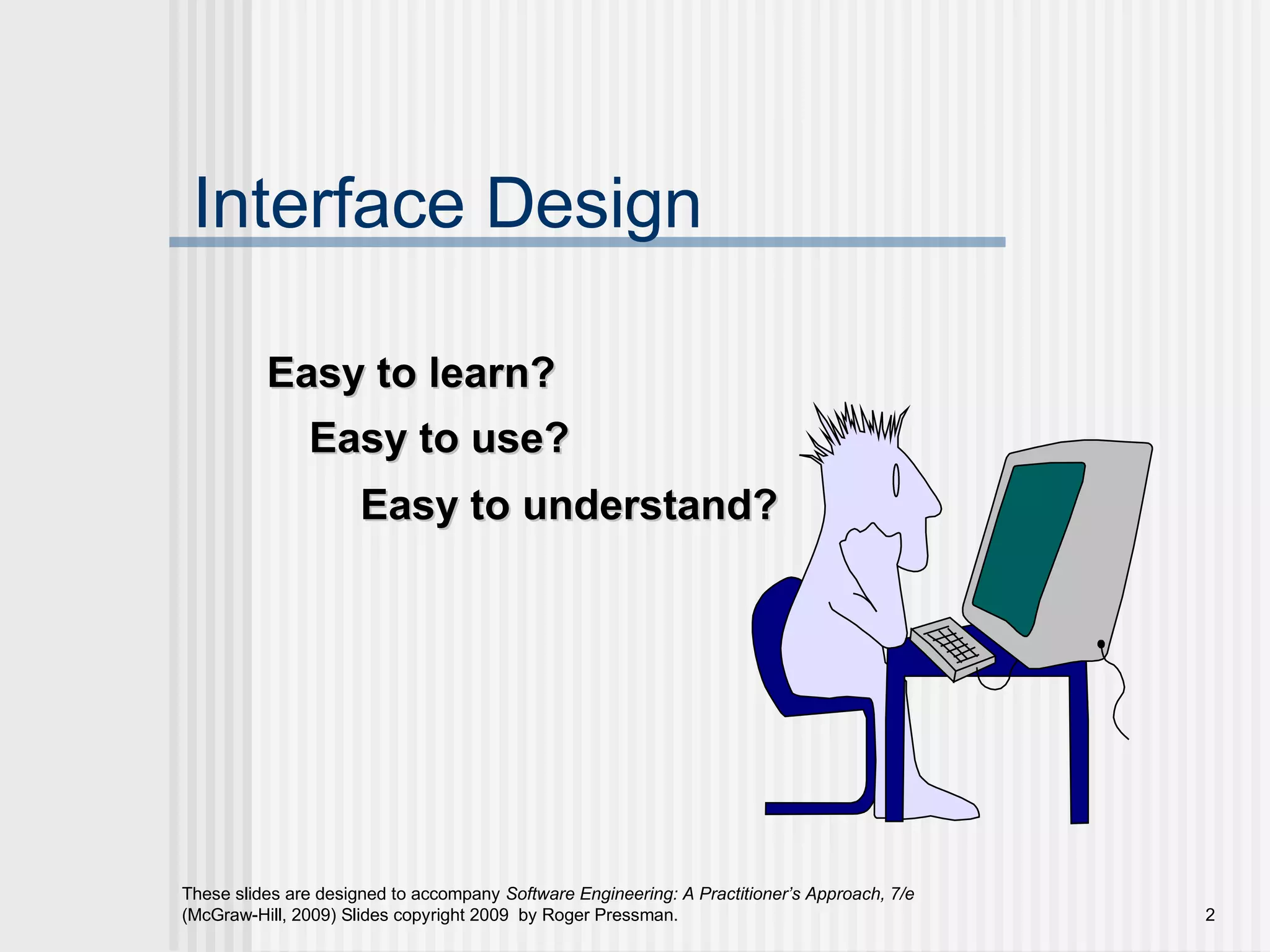
Interface Design
Easy to use?Easy to use?
Easy to understand?Easy to understand?
Easy to learn?Easy to learn?
These slides are designed to accompany Software Engineering: A Practitioner’s Approach, 7/e
(McGraw-Hill, 2009) Slides copyright 2009 by Roger Pressman. 3
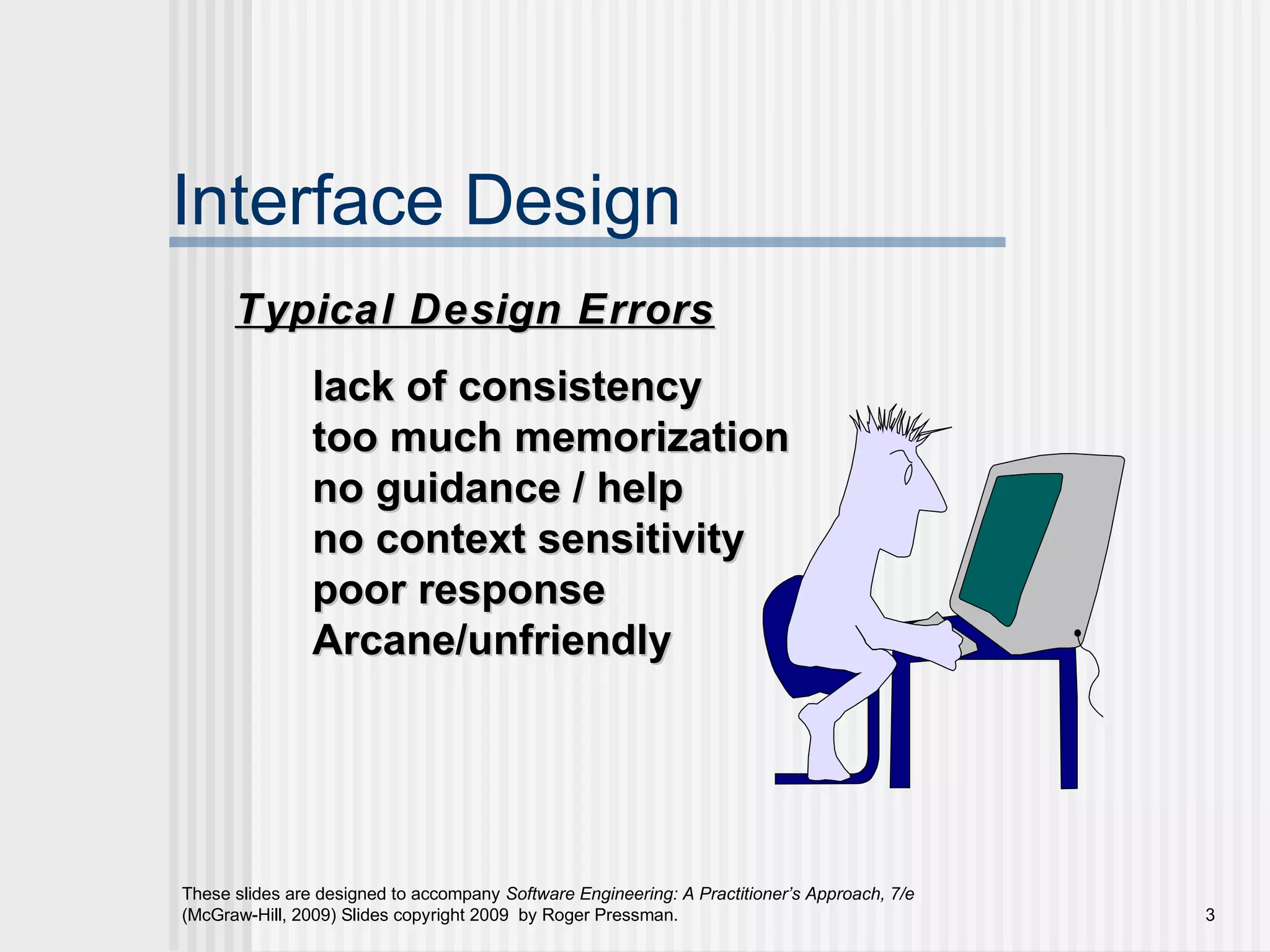
Interface Design
lack of consistencylack of consistency
too much memorizationtoo much memorization
no guidance / helpno guidance / help
no context sensitivityno context sensitivity
poor responsepoor response
Arcane/unfriendlyArcane/unfriendly
Typical Design ErrorsTypical Design Errors
These slides are designed to accompany Software Engineering: A Practitioner’s Approach, 7/e
(McGraw-Hill, 2009) Slides copyright 2009 by Roger Pressman. 4
Golden Rules
 Place the user in control
 Reduce the user’s memory load
 Make the interface consistent
These slides are designed to accompany Software Engineering: A Practitioner’s Approach, 7/e
(McGraw-Hill, 2009) Slides copyright 2009 by Roger Pressman. 5
Place the User in Control
Define interaction modes in a way that does notDefine interaction modes in a way that does not
force a user into unnecessary or undesired actions.force a user into unnecessary or undesired actions.
Provide for flexible interaction.Provide for flexible interaction.
Allow user interaction to be interruptible andAllow user interaction to be interruptible and
undoable.undoable.
Streamline interaction as skill levels advance andStreamline interaction as skill levels advance and
allow the interaction to be customized.allow the interaction to be customized.
Hide technical internals from the casual user.Hide technical internals from the casual user.
Design for direct interaction with objects that appearDesign for direct interaction with objects that appear
on the screen.on the screen.
These slides are designed to accompany Software Engineering: A Practitioner’s Approach, 7/e
(McGraw-Hill, 2009) Slides copyright 2009 by Roger Pressman. 6
Reduce the User’s Memory Load
Reduce demand on short-term memory.Reduce demand on short-term memory.
Establish meaningful defaults.Establish meaningful defaults.
Define shortcuts that are intuitive.Define shortcuts that are intuitive.
The visual layout of the interface should be based on aThe visual layout of the interface should be based on a
real world metaphor.real world metaphor.
Disclose information in a progressive fashion.Disclose information in a progressive fashion.
These slides are designed to accompany Software Engineering: A Practitioner’s Approach, 7/e
(McGraw-Hill, 2009) Slides copyright 2009 by Roger Pressman. 7
Make the Interface Consistent
Allow the user to put the current task into aAllow the user to put the current task into a
meaningful context.meaningful context.
Maintain consistency across a family ofMaintain consistency across a family of
applications.applications.
If past interactive models have created userIf past interactive models have created user
expectations, do not make changes unless there isexpectations, do not make changes unless there is
a compelling reason to do so.a compelling reason to do so.
These slides are designed to accompany Software Engineering: A Practitioner’s Approach, 7/e
(McGraw-Hill, 2009) Slides copyright 2009 by Roger Pressman. 8
User Interface Design Models
 User model — a profile of all end users of
the system
 Design model — a design realization of the
user model
 Mental model (system perception) — the
user’s mental image of what the interface is
 Implementation model — the interface “look
and feel” coupled with supporting information
that describe interface syntax and semantics
These slides are designed to accompany Software Engineering: A Practitioner’s Approach, 7/e
(McGraw-Hill, 2009) Slides copyright 2009 by Roger Pressman. 9
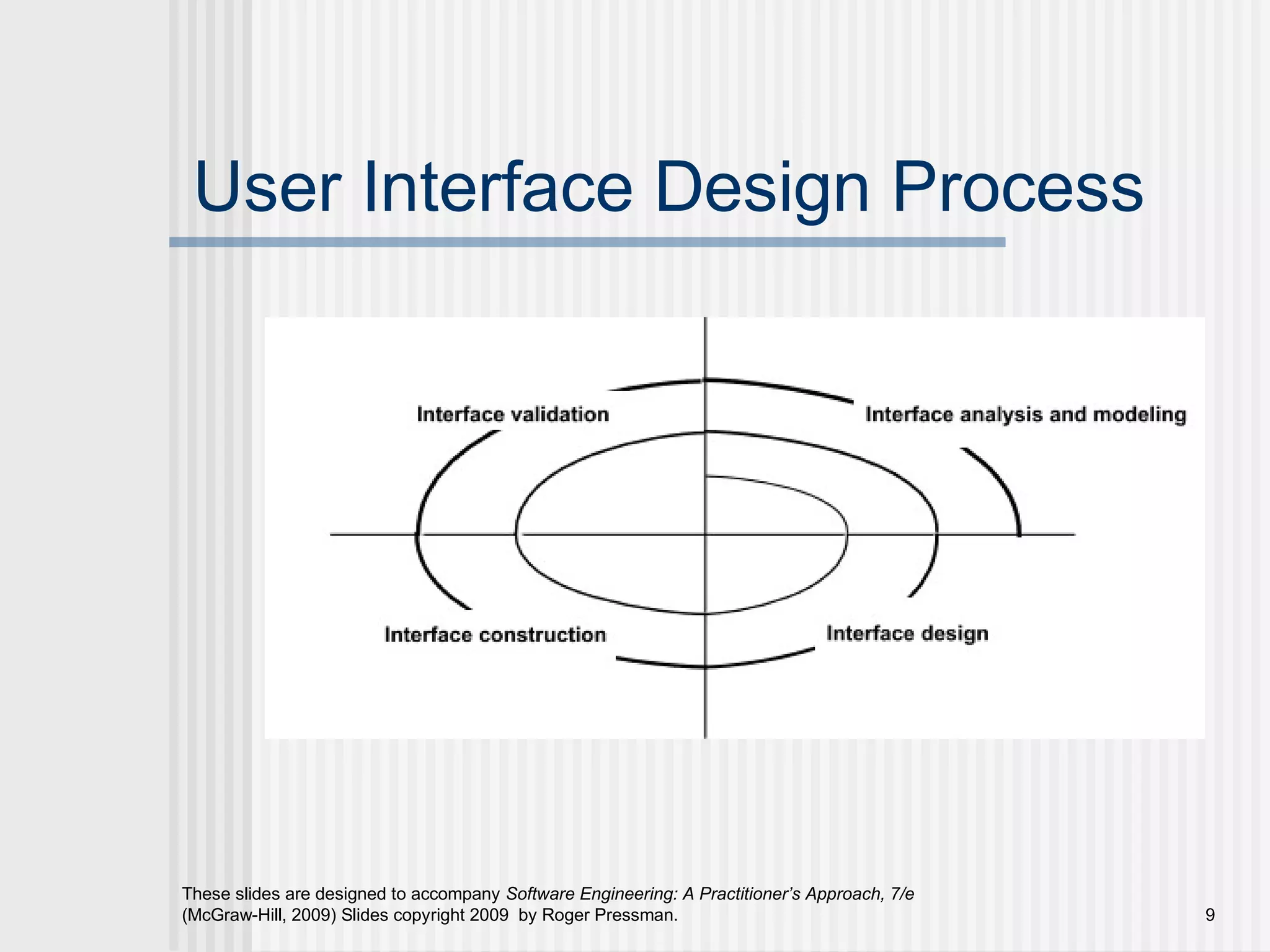
User Interface Design Process
These slides are designed to accompany Software Engineering: A Practitioner’s Approach, 7/e
(McGraw-Hill, 2009) Slides copyright 2009 by Roger Pressman. 10
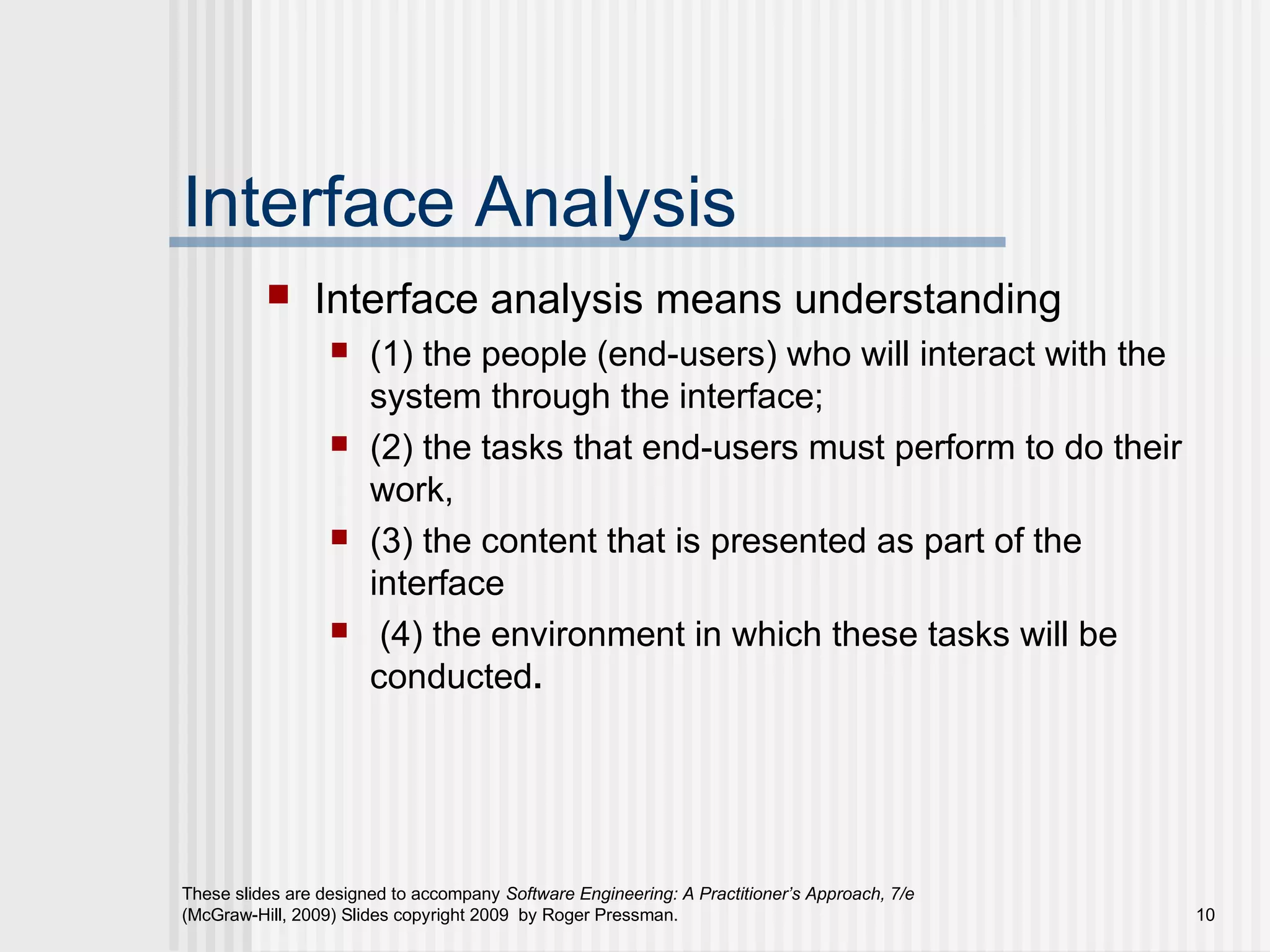
Interface Analysis
 Interface analysis means understanding
 (1) the people (end-users) who will interact with the
system through the interface;
 (2) the tasks that end-users must perform to do their
work,
 (3) the content that is presented as part of the
interface
 (4) the environment in which these tasks will be
conducted.
These slides are designed to accompany Software Engineering: A Practitioner’s Approach, 7/e
(McGraw-Hill, 2009) Slides copyright 2009 by Roger Pressman. 11
User Analysis
 Are users trained professionals, technician, clerical, or manufacturing workers?
 What level of formal education does the average user have?
 Are the users capable of learning from written materials or have they
expressed a desire for classroom training?
 Are users expert typists or keyboard phobic?
 What is the age range of the user community?
 Will the users be represented predominately by one gender?
 How are users compensated for the work they perform?
 Do users work normal office hours or do they work until the job is done?
 Is the software to be an integral part of the work users do or will it be used only
occasionally?
 What is the primary spoken language among users?
 What are the consequences if a user makes a mistake using the system?
 Are users experts in the subject matter that is addressed by the system?
 Do users want to know about the technology the sits behind the interface?
These slides are designed to accompany Software Engineering: A Practitioner’s Approach, 7/e
(McGraw-Hill, 2009) Slides copyright 2009 by Roger Pressman. 12
Task Analysis and Modeling
 Answers the following questions …
 What work will the user perform in specific circumstances?
 What tasks and subtasks will be performed as the user does
the work?
 What specific problem domain objects will the user manipulate
as work is performed?
 What is the sequence of work tasks—the workflow?
 What is the hierarchy of tasks?
 Use-cases define basic interaction
 Task elaboration refines interactive tasks
 Object elaboration identifies interface objects (classes)
 Workflow analysis defines how a work process is
completed when several people (and roles) are involved
These slides are designed to accompany Software Engineering: A Practitioner’s Approach, 7/e
(McGraw-Hill, 2009) Slides copyright 2009 by Roger Pressman. 13
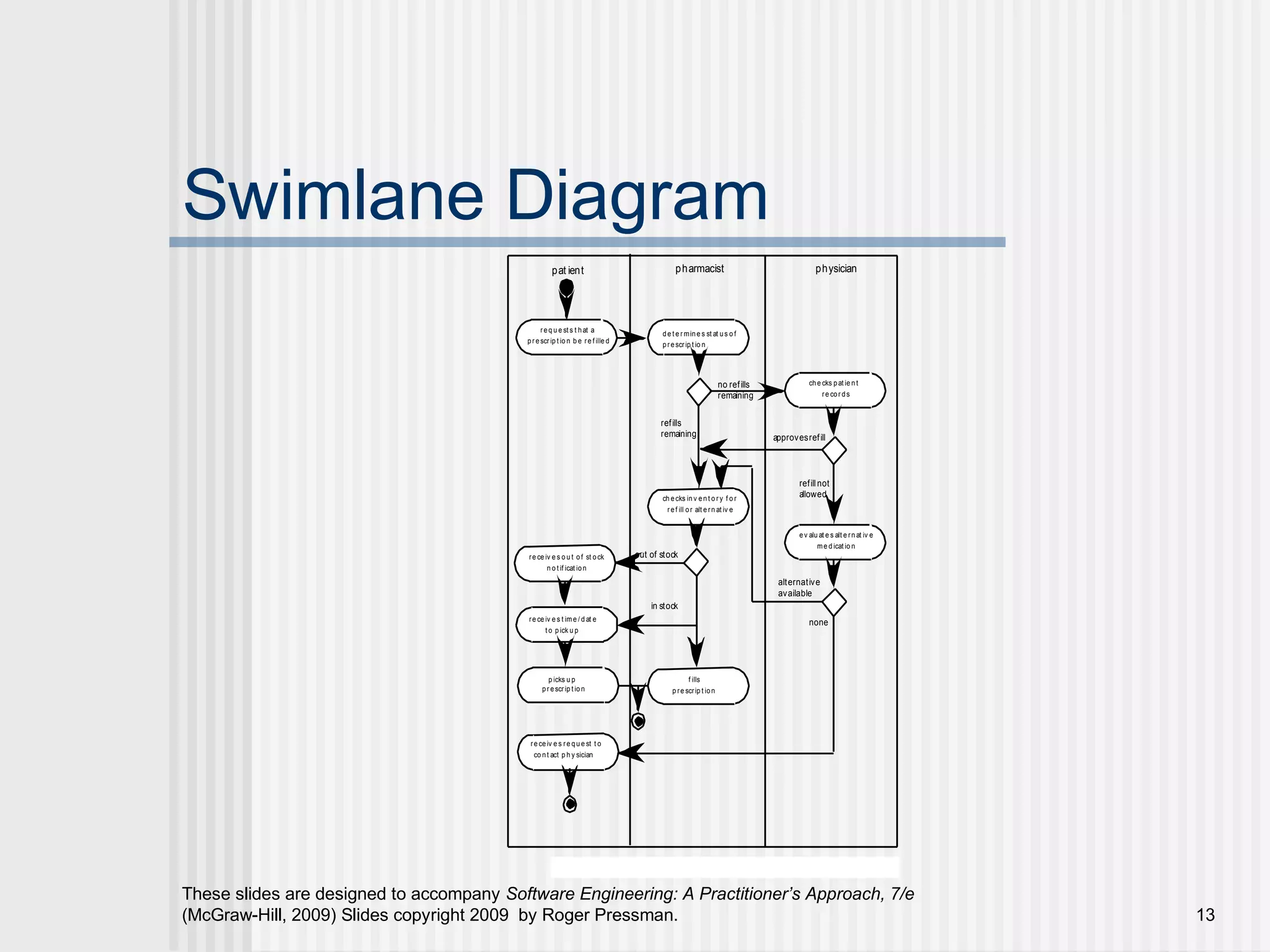
Swimlane Diagram
pat ient pharmacist physician
r eq u e st s t hat a
pr escr ip t io n b e re f ille d
no refills
remaining
che cks pat ie n t
re cor ds
de t e r mine s st at us o f
pr escr ip t io n
refills
remaining
refillnot
allowed
approvesrefill
ev alu at e s alt e rn at iv e
me d icat io n
none
re ceiv e s re qu e st t o
co nt act p h y sician
alternative
available
ch ecks in v en t o r y f o r
r ef ill or alt e rn at iv e
out of stockre ce iv e s o u t o f st ock
n o t if icat ion
re ce iv e s t ime / d at e
t o p ick u p
in stock
p icks u p
pr escr ip t io n
f ills
p re scrip t ion
Figure 12.2 Swimlane diagram for prescript ion refill funct ion
These slides are designed to accompany Software Engineering: A Practitioner’s Approach, 7/e
(McGraw-Hill, 2009) Slides copyright 2009 by Roger Pressman. 14
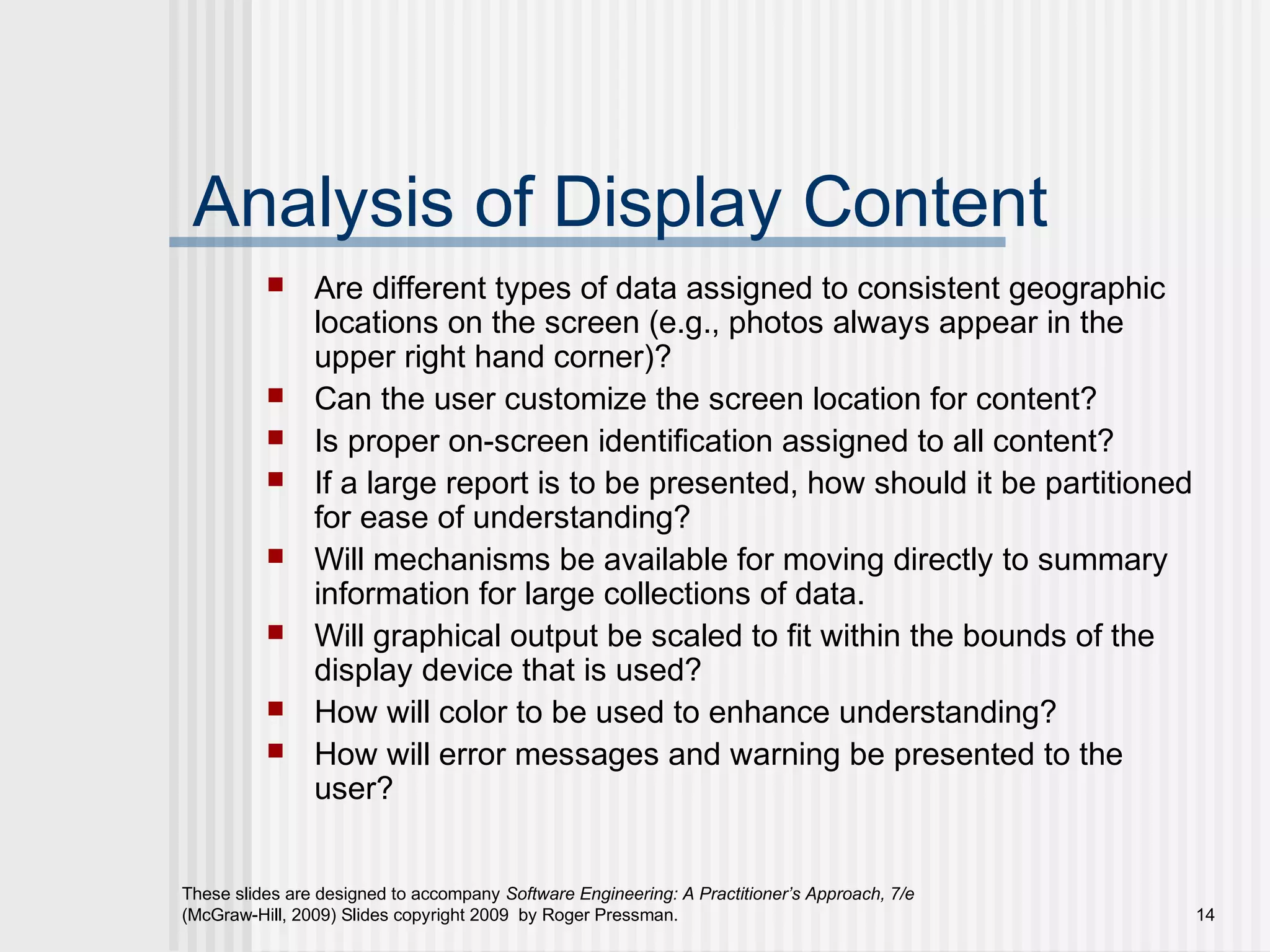
Analysis of Display Content
 Are different types of data assigned to consistent geographic
locations on the screen (e.g., photos always appear in the
upper right hand corner)?
 Can the user customize the screen location for content?
 Is proper on-screen identification assigned to all content?
 If a large report is to be presented, how should it be partitioned
for ease of understanding?
 Will mechanisms be available for moving directly to summary
information for large collections of data.
 Will graphical output be scaled to fit within the bounds of the
display device that is used?
 How will color to be used to enhance understanding?
 How will error messages and warning be presented to the
user?
These slides are designed to accompany Software Engineering: A Practitioner’s Approach, 7/e
(McGraw-Hill, 2009) Slides copyright 2009 by Roger Pressman. 15
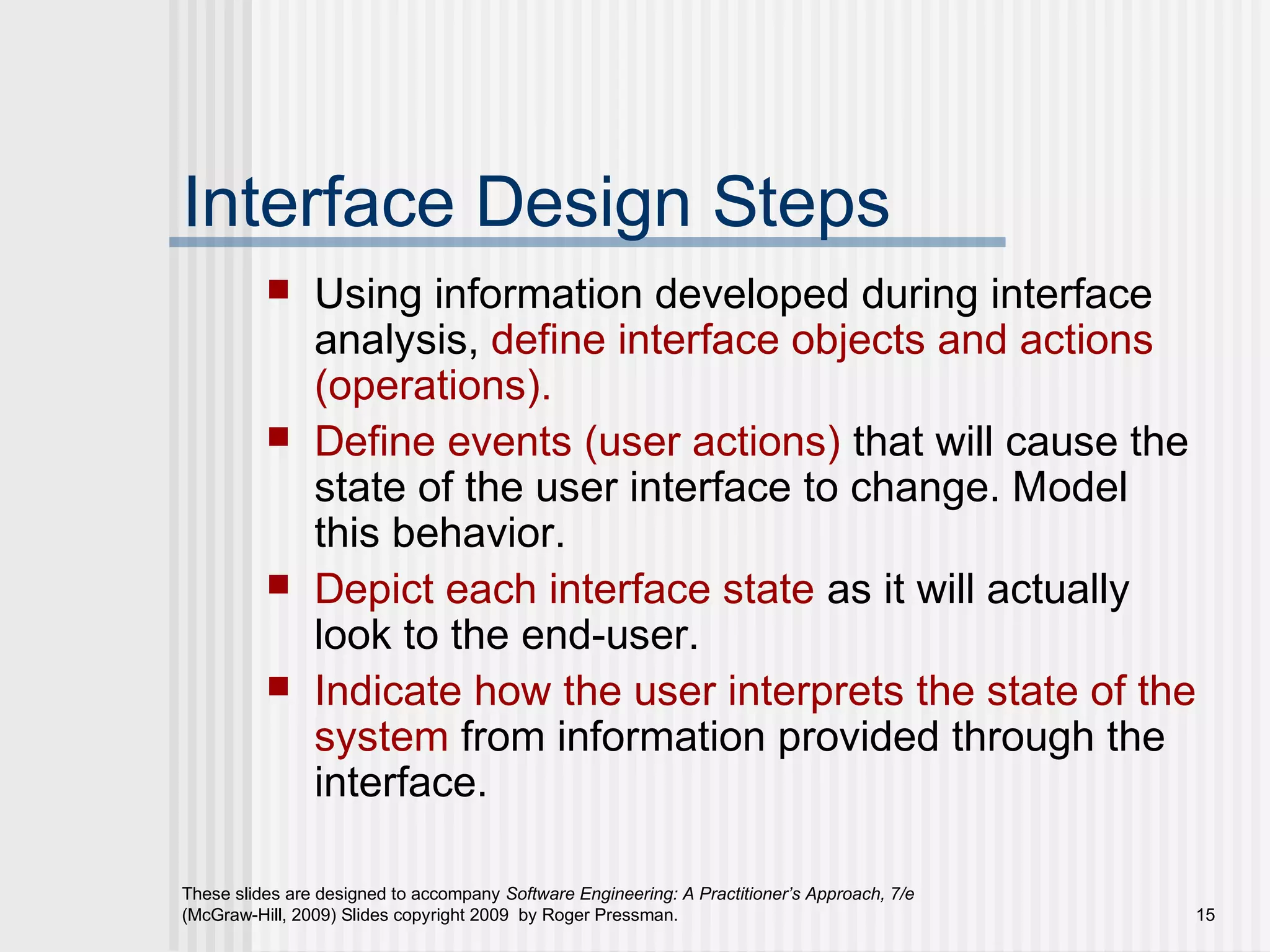
Interface Design Steps
 Using information developed during interface
analysis, define interface objects and actions
(operations).
 Define events (user actions) that will cause the
state of the user interface to change. Model
this behavior.
 Depict each interface state as it will actually
look to the end-user.
 Indicate how the user interprets the state of the
system from information provided through the
interface.
These slides are designed to accompany Software Engineering: A Practitioner’s Approach, 7/e
(McGraw-Hill, 2009) Slides copyright 2009 by Roger Pressman. 16
Design Issues
 Response time
 Help facilities
 Error handling
 Menu and command
labeling
 Application accessibility
 Internationalization
These slides are designed to accompany Software Engineering: A Practitioner’s Approach, 7/e
(McGraw-Hill, 2009) Slides copyright 2009 by Roger Pressman. 17
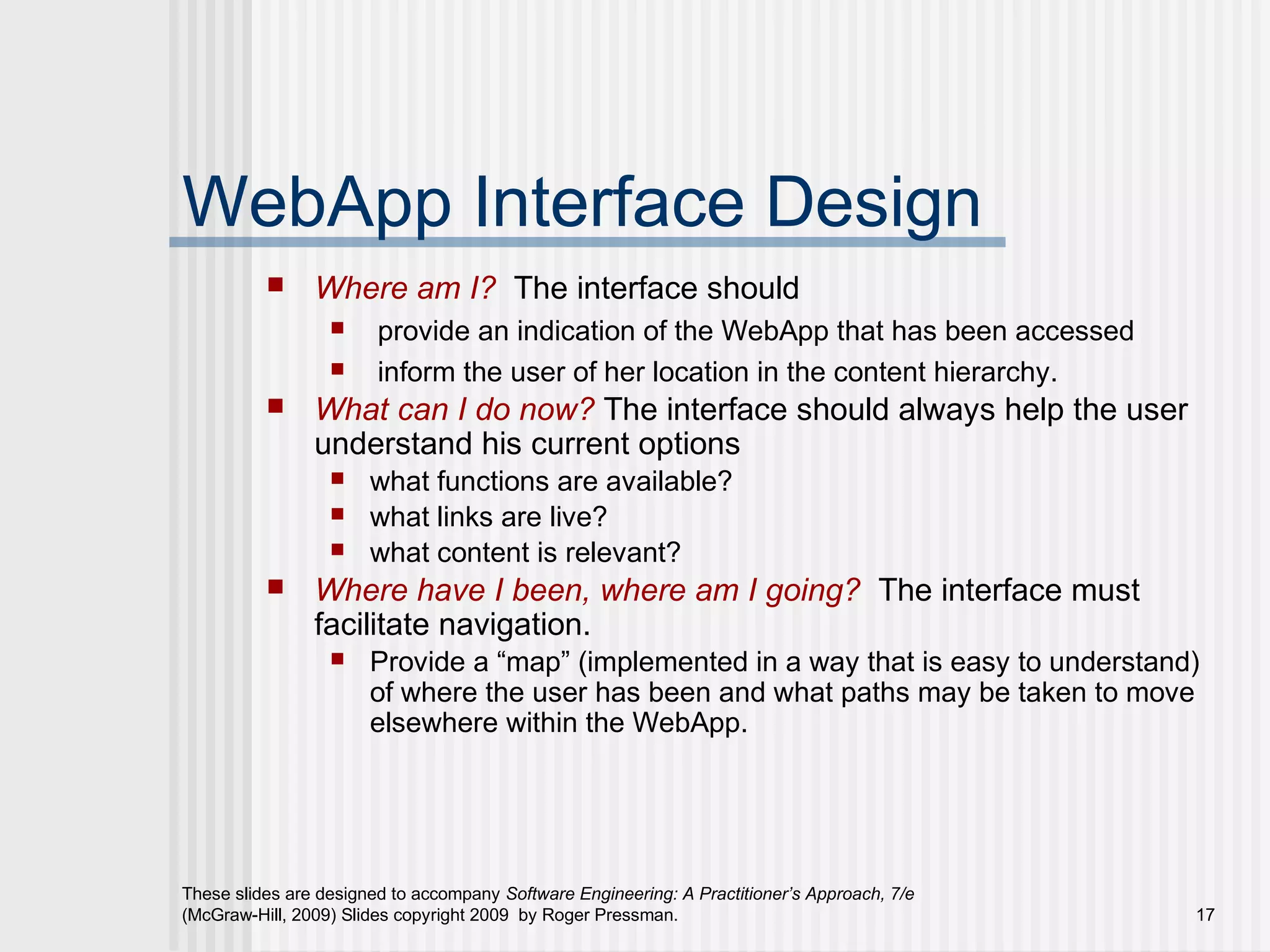
WebApp Interface Design
 Where am I? The interface should
 provide an indication of the WebApp that has been accessed
 inform the user of her location in the content hierarchy.
 What can I do now? The interface should always help the user
understand his current options
 what functions are available?
 what links are live?
 what content is relevant?
 Where have I been, where am I going? The interface must
facilitate navigation.
 Provide a “map” (implemented in a way that is easy to understand)
of where the user has been and what paths may be taken to move
elsewhere within the WebApp.
These slides are designed to accompany Software Engineering: A Practitioner’s Approach, 7/e
(McGraw-Hill, 2009) Slides copyright 2009 by Roger Pressman. 18
Effective WebApp Interfaces
 Bruce Tognozzi [TOG01] suggests…
 Effective interfaces are visually apparent and
forgiving, instilling in their users a sense of control.
Users quickly see the breadth of their options, grasp
how to achieve their goals, and do their work.
 Effective interfaces do not concern the user with the
inner workings of the system. Work is carefully and
continuously saved, with full option for the user to
undo any activity at any time.
 Effective applications and services perform a
maximum of work, while requiring a minimum of
information from users.
These slides are designed to accompany Software Engineering: A Practitioner’s Approach, 7/e
(McGraw-Hill, 2009) Slides copyright 2009 by Roger Pressman. 19
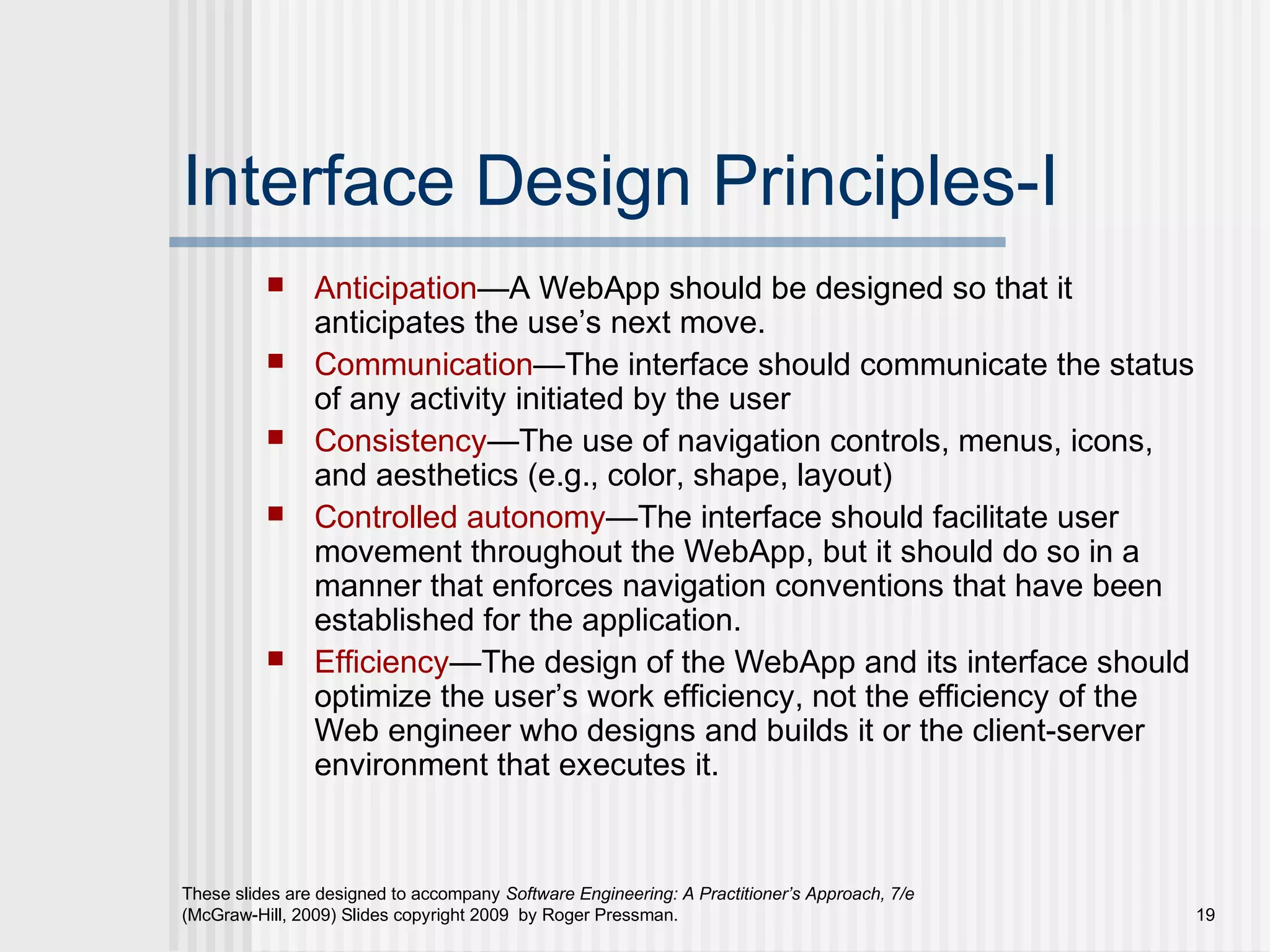
Interface Design Principles-I
 Anticipation—A WebApp should be designed so that it
anticipates the use’s next move.
 Communication—The interface should communicate the status
of any activity initiated by the user
 Consistency—The use of navigation controls, menus, icons,
and aesthetics (e.g., color, shape, layout)
 Controlled autonomy—The interface should facilitate user
movement throughout the WebApp, but it should do so in a
manner that enforces navigation conventions that have been
established for the application.
 Efficiency—The design of the WebApp and its interface should
optimize the user’s work efficiency, not the efficiency of the
Web engineer who designs and builds it or the client-server
environment that executes it.
These slides are designed to accompany Software Engineering: A Practitioner’s Approach, 7/e
(McGraw-Hill, 2009) Slides copyright 2009 by Roger Pressman. 20
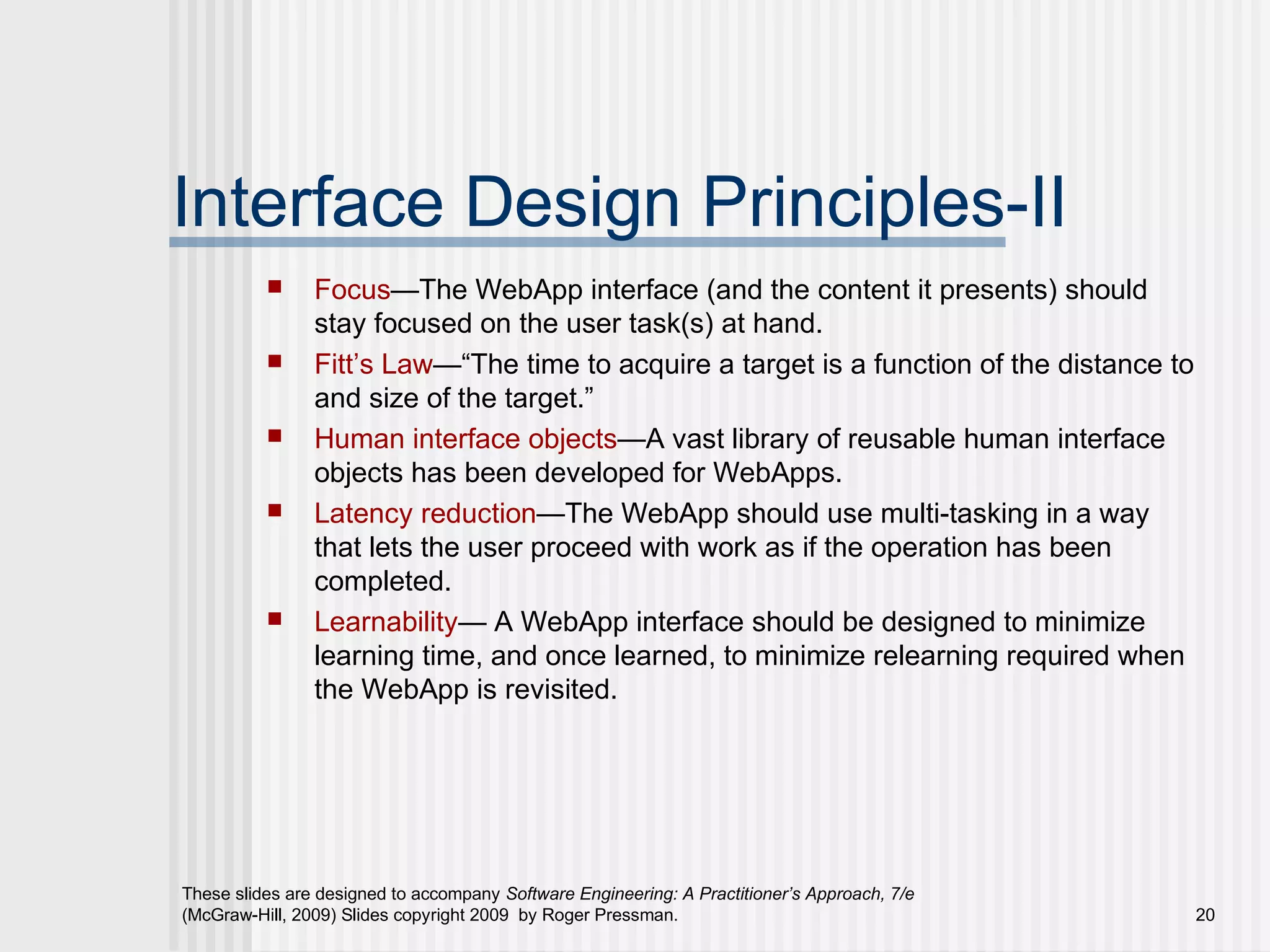
Interface Design Principles-II
 Focus—The WebApp interface (and the content it presents) should
stay focused on the user task(s) at hand.
 Fitt’s Law—“The time to acquire a target is a function of the distance to
and size of the target.”
 Human interface objects—A vast library of reusable human interface
objects has been developed for WebApps.
 Latency reduction—The WebApp should use multi-tasking in a way
that lets the user proceed with work as if the operation has been
completed.
 Learnability— A WebApp interface should be designed to minimize
learning time, and once learned, to minimize relearning required when
the WebApp is revisited.
These slides are designed to accompany Software Engineering: A Practitioner’s Approach, 7/e
(McGraw-Hill, 2009) Slides copyright 2009 by Roger Pressman. 21
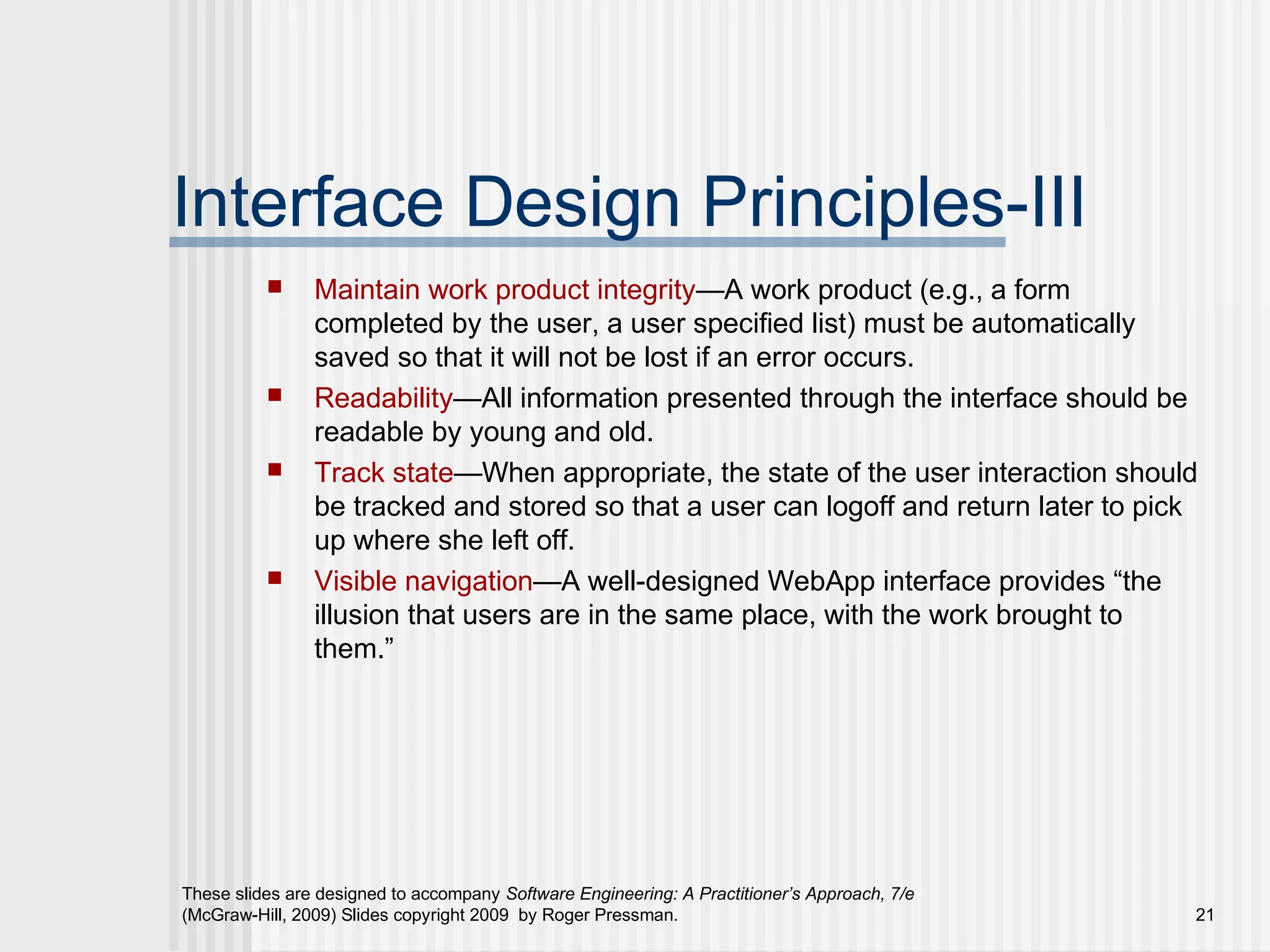
Interface Design Principles-III
 Maintain work product integrity—A work product (e.g., a form
completed by the user, a user specified list) must be automatically
saved so that it will not be lost if an error occurs.
 Readability—All information presented through the interface should be
readable by young and old.
 Track state—When appropriate, the state of the user interaction should
be tracked and stored so that a user can logoff and return later to pick
up where she left off.
 Visible navigation—A well-designed WebApp interface provides “the
illusion that users are in the same place, with the work brought to
them.”
These slides are designed to accompany Software Engineering: A Practitioner’s Approach, 7/e
(McGraw-Hill, 2009) Slides copyright 2009 by Roger Pressman. 22
Interface Design Workflow-I
 Review information contained in the analysis model
and refine as required.
 Develop a rough sketch of the WebApp interface
layout.
 Map user objectives into specific interface actions.
 Define a set of user tasks that are associated with each
action.
 Storyboard screen images for each interface action.
 Refine interface layout and storyboards using input
from aesthetic design.
These slides are designed to accompany Software Engineering: A Practitioner’s Approach, 7/e
(McGraw-Hill, 2009) Slides copyright 2009 by Roger Pressman. 23
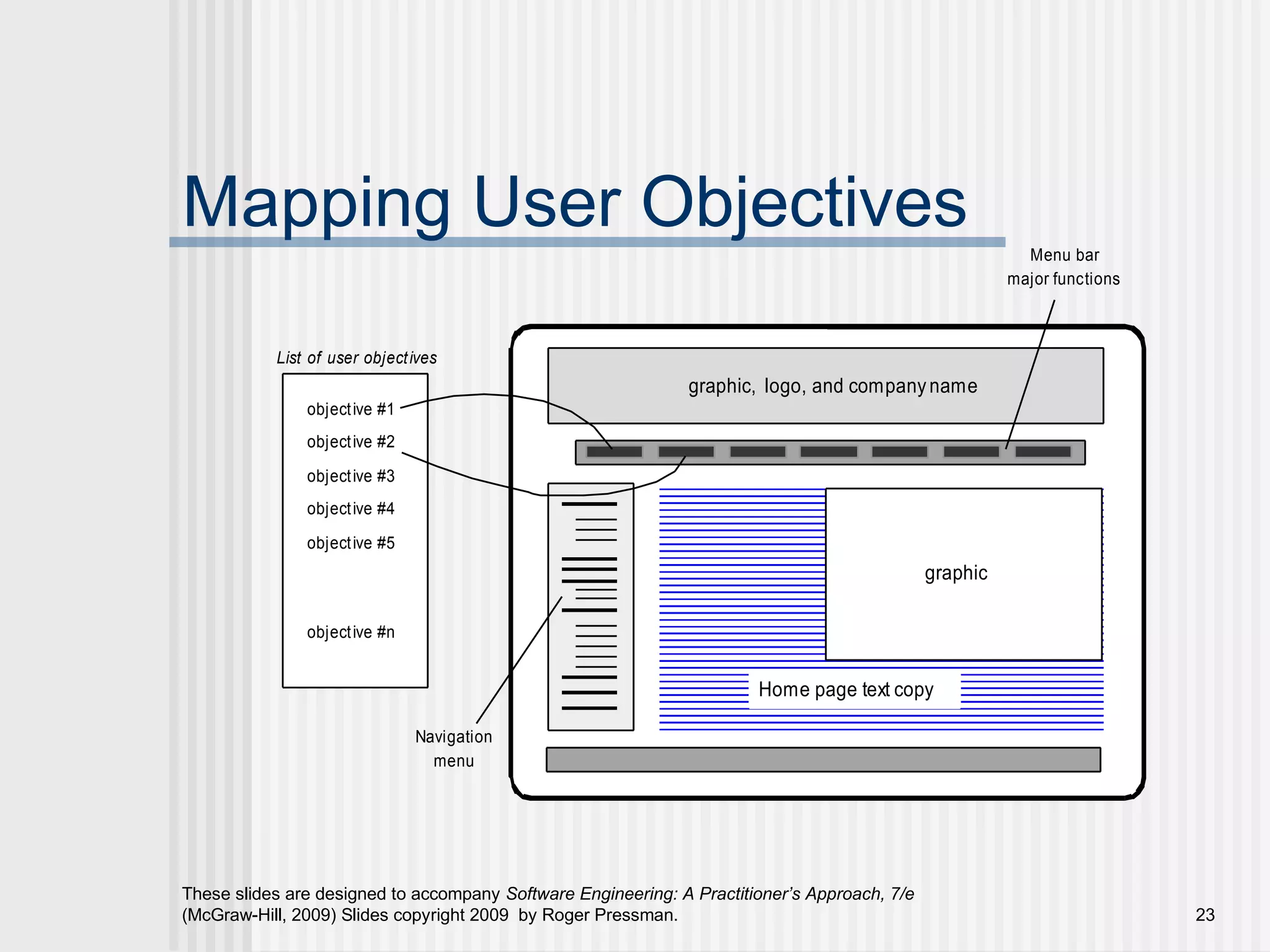
Mapping User Objectives
objective #1
objective #2
objective #3
objective #4
objective #5
objective #n
List of user objectives
Home page text copy
graphic
graphic, logo, and companyname
Navigation
menu
Menu bar
major functions
These slides are designed to accompany Software Engineering: A Practitioner’s Approach, 7/e
(McGraw-Hill, 2009) Slides copyright 2009 by Roger Pressman. 24
Interface Design Workflow-II
 Identify user interface objects that are
required to implement the interface.
 Develop a procedural representation of the
user’s interaction with the interface.
 Develop a behavioral representation of the
interface.
 Describe the interface layout for each state.
 Refine and review the interface design
model.
These slides are designed to accompany Software Engineering: A Practitioner’s Approach, 7/e
(McGraw-Hill, 2009) Slides copyright 2009 by Roger Pressman. 25
Aesthetic Design
 Don’t be afraid of white space.
 Emphasize content.
 Organize layout elements from top-left to
bottom right.
 Group navigation, content, and function
geographically within the page.
 Don’t extend your real estate with the scrolling
bar.
 Consider resolution and browser window size
when designing layout.
These slides are designed to accompany Software Engineering: A Practitioner’s Approach, 7/e
(McGraw-Hill, 2009) Slides copyright 2009 by Roger Pressman. 26
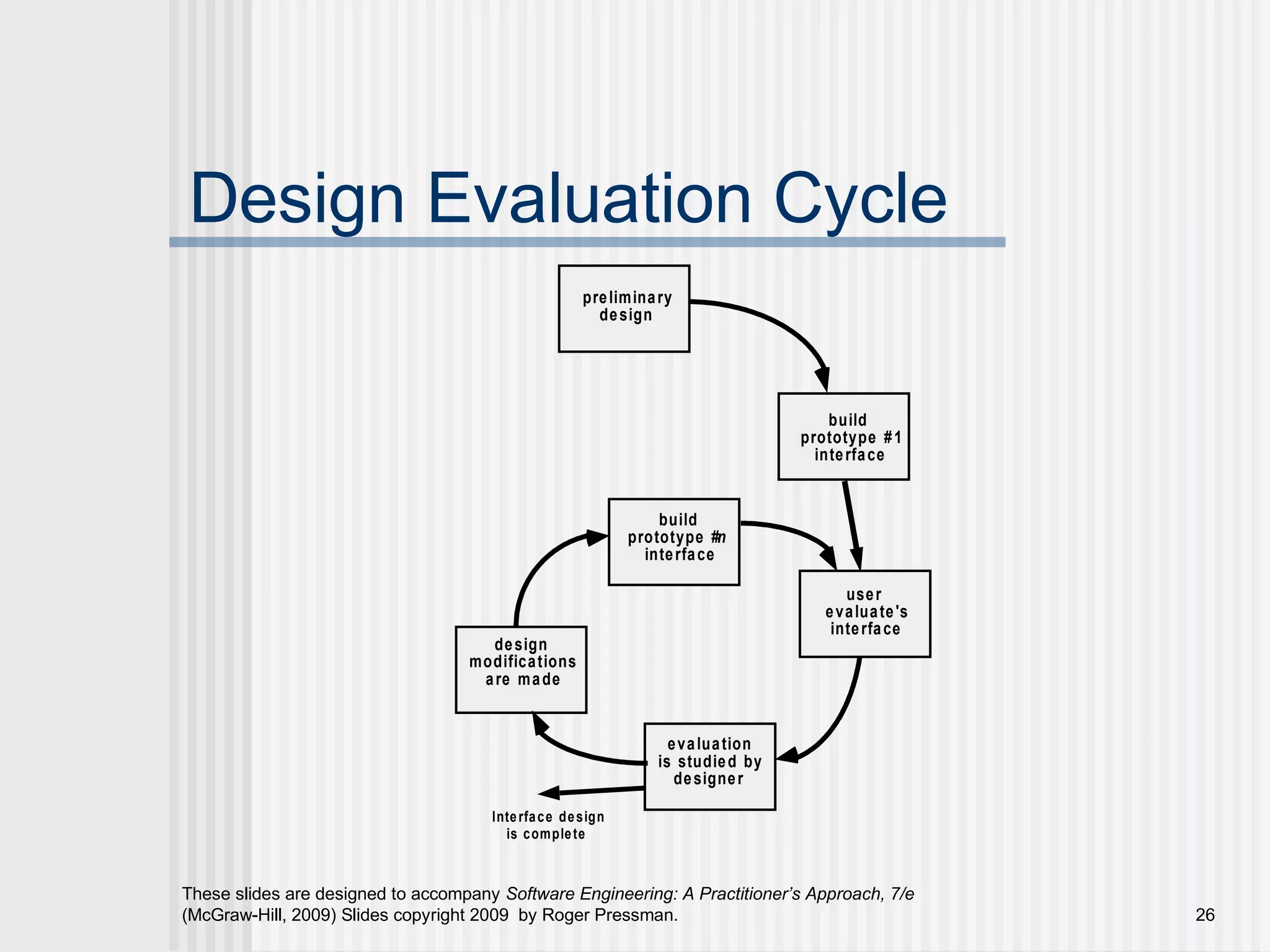
Design Evaluation Cycle
preliminary
design
build
prototype #1
interface
evaluation
is studied by
designer
design
modifications
are made
build
prototype #n
interface
user
evaluate's
interface
Interface design
is complete

Unit iii(part c - user interface design)

  • 1.
    These slides aredesigned to accompany Software Engineering: A Practitioner’s Approach, 7/e (McGraw-Hill, 2009) Slides copyright 2009 by Roger Pressman. 1 Chapter 11  User Interface Design Slide Set to accompany Software Engineering: A Practitioner’s Approach, 7/e by Roger S. Pressman Slides copyright © 1996, 2001, 2005, 2009 by Roger S. Pressman For non-profit educational use only May be reproduced ONLY for student use at the university level when used in conjunction with Software Engineering: A Practitioner's Approach, 7/e. Any other reproduction or use is prohibited without the express written permission of the author. All copyright information MUST appear if these slides are posted on a website for student use.
  • 2.
    These slides aredesigned to accompany Software Engineering: A Practitioner’s Approach, 7/e (McGraw-Hill, 2009) Slides copyright 2009 by Roger Pressman. 2 Interface Design Easy to use?Easy to use? Easy to understand?Easy to understand? Easy to learn?Easy to learn?
  • 3.
    These slides aredesigned to accompany Software Engineering: A Practitioner’s Approach, 7/e (McGraw-Hill, 2009) Slides copyright 2009 by Roger Pressman. 3 Interface Design lack of consistencylack of consistency too much memorizationtoo much memorization no guidance / helpno guidance / help no context sensitivityno context sensitivity poor responsepoor response Arcane/unfriendlyArcane/unfriendly Typical Design ErrorsTypical Design Errors
  • 4.
    These slides aredesigned to accompany Software Engineering: A Practitioner’s Approach, 7/e (McGraw-Hill, 2009) Slides copyright 2009 by Roger Pressman. 4 Golden Rules  Place the user in control  Reduce the user’s memory load  Make the interface consistent
  • 5.
    These slides aredesigned to accompany Software Engineering: A Practitioner’s Approach, 7/e (McGraw-Hill, 2009) Slides copyright 2009 by Roger Pressman. 5 Place the User in Control Define interaction modes in a way that does notDefine interaction modes in a way that does not force a user into unnecessary or undesired actions.force a user into unnecessary or undesired actions. Provide for flexible interaction.Provide for flexible interaction. Allow user interaction to be interruptible andAllow user interaction to be interruptible and undoable.undoable. Streamline interaction as skill levels advance andStreamline interaction as skill levels advance and allow the interaction to be customized.allow the interaction to be customized. Hide technical internals from the casual user.Hide technical internals from the casual user. Design for direct interaction with objects that appearDesign for direct interaction with objects that appear on the screen.on the screen.
  • 6.
    These slides aredesigned to accompany Software Engineering: A Practitioner’s Approach, 7/e (McGraw-Hill, 2009) Slides copyright 2009 by Roger Pressman. 6 Reduce the User’s Memory Load Reduce demand on short-term memory.Reduce demand on short-term memory. Establish meaningful defaults.Establish meaningful defaults. Define shortcuts that are intuitive.Define shortcuts that are intuitive. The visual layout of the interface should be based on aThe visual layout of the interface should be based on a real world metaphor.real world metaphor. Disclose information in a progressive fashion.Disclose information in a progressive fashion.
  • 7.
    These slides aredesigned to accompany Software Engineering: A Practitioner’s Approach, 7/e (McGraw-Hill, 2009) Slides copyright 2009 by Roger Pressman. 7 Make the Interface Consistent Allow the user to put the current task into aAllow the user to put the current task into a meaningful context.meaningful context. Maintain consistency across a family ofMaintain consistency across a family of applications.applications. If past interactive models have created userIf past interactive models have created user expectations, do not make changes unless there isexpectations, do not make changes unless there is a compelling reason to do so.a compelling reason to do so.
  • 8.
    These slides aredesigned to accompany Software Engineering: A Practitioner’s Approach, 7/e (McGraw-Hill, 2009) Slides copyright 2009 by Roger Pressman. 8 User Interface Design Models  User model — a profile of all end users of the system  Design model — a design realization of the user model  Mental model (system perception) — the user’s mental image of what the interface is  Implementation model — the interface “look and feel” coupled with supporting information that describe interface syntax and semantics
  • 9.
    These slides aredesigned to accompany Software Engineering: A Practitioner’s Approach, 7/e (McGraw-Hill, 2009) Slides copyright 2009 by Roger Pressman. 9 User Interface Design Process
  • 10.
    These slides aredesigned to accompany Software Engineering: A Practitioner’s Approach, 7/e (McGraw-Hill, 2009) Slides copyright 2009 by Roger Pressman. 10 Interface Analysis  Interface analysis means understanding  (1) the people (end-users) who will interact with the system through the interface;  (2) the tasks that end-users must perform to do their work,  (3) the content that is presented as part of the interface  (4) the environment in which these tasks will be conducted.
  • 11.
    These slides aredesigned to accompany Software Engineering: A Practitioner’s Approach, 7/e (McGraw-Hill, 2009) Slides copyright 2009 by Roger Pressman. 11 User Analysis  Are users trained professionals, technician, clerical, or manufacturing workers?  What level of formal education does the average user have?  Are the users capable of learning from written materials or have they expressed a desire for classroom training?  Are users expert typists or keyboard phobic?  What is the age range of the user community?  Will the users be represented predominately by one gender?  How are users compensated for the work they perform?  Do users work normal office hours or do they work until the job is done?  Is the software to be an integral part of the work users do or will it be used only occasionally?  What is the primary spoken language among users?  What are the consequences if a user makes a mistake using the system?  Are users experts in the subject matter that is addressed by the system?  Do users want to know about the technology the sits behind the interface?
  • 12.
    These slides aredesigned to accompany Software Engineering: A Practitioner’s Approach, 7/e (McGraw-Hill, 2009) Slides copyright 2009 by Roger Pressman. 12 Task Analysis and Modeling  Answers the following questions …  What work will the user perform in specific circumstances?  What tasks and subtasks will be performed as the user does the work?  What specific problem domain objects will the user manipulate as work is performed?  What is the sequence of work tasks—the workflow?  What is the hierarchy of tasks?  Use-cases define basic interaction  Task elaboration refines interactive tasks  Object elaboration identifies interface objects (classes)  Workflow analysis defines how a work process is completed when several people (and roles) are involved
  • 13.
    These slides aredesigned to accompany Software Engineering: A Practitioner’s Approach, 7/e (McGraw-Hill, 2009) Slides copyright 2009 by Roger Pressman. 13 Swimlane Diagram pat ient pharmacist physician r eq u e st s t hat a pr escr ip t io n b e re f ille d no refills remaining che cks pat ie n t re cor ds de t e r mine s st at us o f pr escr ip t io n refills remaining refillnot allowed approvesrefill ev alu at e s alt e rn at iv e me d icat io n none re ceiv e s re qu e st t o co nt act p h y sician alternative available ch ecks in v en t o r y f o r r ef ill or alt e rn at iv e out of stockre ce iv e s o u t o f st ock n o t if icat ion re ce iv e s t ime / d at e t o p ick u p in stock p icks u p pr escr ip t io n f ills p re scrip t ion Figure 12.2 Swimlane diagram for prescript ion refill funct ion
  • 14.
    These slides aredesigned to accompany Software Engineering: A Practitioner’s Approach, 7/e (McGraw-Hill, 2009) Slides copyright 2009 by Roger Pressman. 14 Analysis of Display Content  Are different types of data assigned to consistent geographic locations on the screen (e.g., photos always appear in the upper right hand corner)?  Can the user customize the screen location for content?  Is proper on-screen identification assigned to all content?  If a large report is to be presented, how should it be partitioned for ease of understanding?  Will mechanisms be available for moving directly to summary information for large collections of data.  Will graphical output be scaled to fit within the bounds of the display device that is used?  How will color to be used to enhance understanding?  How will error messages and warning be presented to the user?
  • 15.
    These slides aredesigned to accompany Software Engineering: A Practitioner’s Approach, 7/e (McGraw-Hill, 2009) Slides copyright 2009 by Roger Pressman. 15 Interface Design Steps  Using information developed during interface analysis, define interface objects and actions (operations).  Define events (user actions) that will cause the state of the user interface to change. Model this behavior.  Depict each interface state as it will actually look to the end-user.  Indicate how the user interprets the state of the system from information provided through the interface.
  • 16.
    These slides aredesigned to accompany Software Engineering: A Practitioner’s Approach, 7/e (McGraw-Hill, 2009) Slides copyright 2009 by Roger Pressman. 16 Design Issues  Response time  Help facilities  Error handling  Menu and command labeling  Application accessibility  Internationalization
  • 17.
    These slides aredesigned to accompany Software Engineering: A Practitioner’s Approach, 7/e (McGraw-Hill, 2009) Slides copyright 2009 by Roger Pressman. 17 WebApp Interface Design  Where am I? The interface should  provide an indication of the WebApp that has been accessed  inform the user of her location in the content hierarchy.  What can I do now? The interface should always help the user understand his current options  what functions are available?  what links are live?  what content is relevant?  Where have I been, where am I going? The interface must facilitate navigation.  Provide a “map” (implemented in a way that is easy to understand) of where the user has been and what paths may be taken to move elsewhere within the WebApp.
  • 18.
    These slides aredesigned to accompany Software Engineering: A Practitioner’s Approach, 7/e (McGraw-Hill, 2009) Slides copyright 2009 by Roger Pressman. 18 Effective WebApp Interfaces  Bruce Tognozzi [TOG01] suggests…  Effective interfaces are visually apparent and forgiving, instilling in their users a sense of control. Users quickly see the breadth of their options, grasp how to achieve their goals, and do their work.  Effective interfaces do not concern the user with the inner workings of the system. Work is carefully and continuously saved, with full option for the user to undo any activity at any time.  Effective applications and services perform a maximum of work, while requiring a minimum of information from users.
  • 19.
    These slides aredesigned to accompany Software Engineering: A Practitioner’s Approach, 7/e (McGraw-Hill, 2009) Slides copyright 2009 by Roger Pressman. 19 Interface Design Principles-I  Anticipation—A WebApp should be designed so that it anticipates the use’s next move.  Communication—The interface should communicate the status of any activity initiated by the user  Consistency—The use of navigation controls, menus, icons, and aesthetics (e.g., color, shape, layout)  Controlled autonomy—The interface should facilitate user movement throughout the WebApp, but it should do so in a manner that enforces navigation conventions that have been established for the application.  Efficiency—The design of the WebApp and its interface should optimize the user’s work efficiency, not the efficiency of the Web engineer who designs and builds it or the client-server environment that executes it.
  • 20.
    These slides aredesigned to accompany Software Engineering: A Practitioner’s Approach, 7/e (McGraw-Hill, 2009) Slides copyright 2009 by Roger Pressman. 20 Interface Design Principles-II  Focus—The WebApp interface (and the content it presents) should stay focused on the user task(s) at hand.  Fitt’s Law—“The time to acquire a target is a function of the distance to and size of the target.”  Human interface objects—A vast library of reusable human interface objects has been developed for WebApps.  Latency reduction—The WebApp should use multi-tasking in a way that lets the user proceed with work as if the operation has been completed.  Learnability— A WebApp interface should be designed to minimize learning time, and once learned, to minimize relearning required when the WebApp is revisited.
  • 21.
    These slides aredesigned to accompany Software Engineering: A Practitioner’s Approach, 7/e (McGraw-Hill, 2009) Slides copyright 2009 by Roger Pressman. 21 Interface Design Principles-III  Maintain work product integrity—A work product (e.g., a form completed by the user, a user specified list) must be automatically saved so that it will not be lost if an error occurs.  Readability—All information presented through the interface should be readable by young and old.  Track state—When appropriate, the state of the user interaction should be tracked and stored so that a user can logoff and return later to pick up where she left off.  Visible navigation—A well-designed WebApp interface provides “the illusion that users are in the same place, with the work brought to them.”
  • 22.
    These slides aredesigned to accompany Software Engineering: A Practitioner’s Approach, 7/e (McGraw-Hill, 2009) Slides copyright 2009 by Roger Pressman. 22 Interface Design Workflow-I  Review information contained in the analysis model and refine as required.  Develop a rough sketch of the WebApp interface layout.  Map user objectives into specific interface actions.  Define a set of user tasks that are associated with each action.  Storyboard screen images for each interface action.  Refine interface layout and storyboards using input from aesthetic design.
  • 23.
    These slides aredesigned to accompany Software Engineering: A Practitioner’s Approach, 7/e (McGraw-Hill, 2009) Slides copyright 2009 by Roger Pressman. 23 Mapping User Objectives objective #1 objective #2 objective #3 objective #4 objective #5 objective #n List of user objectives Home page text copy graphic graphic, logo, and companyname Navigation menu Menu bar major functions
  • 24.
    These slides aredesigned to accompany Software Engineering: A Practitioner’s Approach, 7/e (McGraw-Hill, 2009) Slides copyright 2009 by Roger Pressman. 24 Interface Design Workflow-II  Identify user interface objects that are required to implement the interface.  Develop a procedural representation of the user’s interaction with the interface.  Develop a behavioral representation of the interface.  Describe the interface layout for each state.  Refine and review the interface design model.
  • 25.
    These slides aredesigned to accompany Software Engineering: A Practitioner’s Approach, 7/e (McGraw-Hill, 2009) Slides copyright 2009 by Roger Pressman. 25 Aesthetic Design  Don’t be afraid of white space.  Emphasize content.  Organize layout elements from top-left to bottom right.  Group navigation, content, and function geographically within the page.  Don’t extend your real estate with the scrolling bar.  Consider resolution and browser window size when designing layout.
  • 26.
    These slides aredesigned to accompany Software Engineering: A Practitioner’s Approach, 7/e (McGraw-Hill, 2009) Slides copyright 2009 by Roger Pressman. 26 Design Evaluation Cycle preliminary design build prototype #1 interface evaluation is studied by designer design modifications are made build prototype #n interface user evaluate's interface Interface design is complete