UNIT II NODE JS
Basics of Node JS – Installation – Working with Node packages – Using Node package manager – Creating a
simple Node.js application – Using Events – Listeners –Timers - Callbacks – Handling Data I/O –
Implementing HTTP services in Node.js
2.1 BASICS OF NODE JS
Node.js was developed in 2009 by Ryan Dahl as an answer to the frustration caused by concurrency issues,
especially when dealing with web services. Google had just come out with the V8 JavaScript engine for the
Chrome web browser, which was highly optimized for web traffic.
Dahl created Node.js on top of V8 as a server-side environment that matched the client-side environment in the
browser. The result is an extremely scalable server-side environment that allows developers to more easily
bridge the gap between client and server.
The fact that Node.js is written in JavaScript allows developers to easily navigate back and forth between client
and server code and even reuse code between the two environments.
Who Uses Node.js?
Node.js quickly gained popularity among a wide variety of companies. These companies use Node.js first and
foremost for scalability but also for ease of maintenance and faster development.
The following are just a few of the companies using the Node.js technology:
 Yahoo!
 LinkedIn
 eBay
 New York Times
 Dow Jones
 Microsoft
What Is Node.js Used For?
Node.js can be used for a wide variety of purposes. Because it is based on V8 and has highly optimized code
to handle HTTP traffic, the most common use is as a webserver.
However, Node.js can also be used for a variety of other web services such as:
 Web services APIs such as REST
 Real-time multiplayer games
 Backend web services such as cross-domain, server-side requests
 Web-based applications
 Multiclient communication such as IM
What Does Node.js Come With?
Node.js comes with many built-in modules available right out of the box.
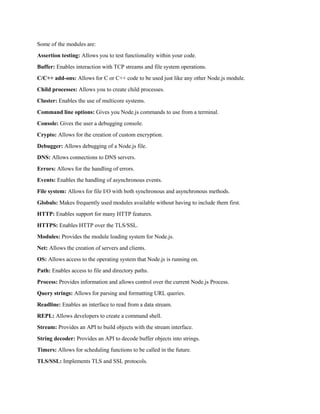
Some of the modules are:
Assertion testing: Allows you to test functionality within your code.
Buffer: Enables interaction with TCP streams and file system operations.
C/C++ add-ons: Allows for C or C++ code to be used just like any other Node.js module.
Child processes: Allows you to create child processes.
Cluster: Enables the use of multicore systems.
Command line options: Gives you Node.js commands to use from a terminal.
Console: Gives the user a debugging console.
Crypto: Allows for the creation of custom encryption.
Debugger: Allows debugging of a Node.js file.
DNS: Allows connections to DNS servers.
Errors: Allows for the handling of errors.
Events: Enables the handling of asynchronous events.
File system: Allows for file I/O with both synchronous and asynchronous methods.
Globals: Makes frequently used modules available without having to include them first.
HTTP: Enables support for many HTTP features.
HTTPS: Enables HTTP over the TLS/SSL.
Modules: Provides the module loading system for Node.js.
Net: Allows the creation of servers and clients.
OS: Allows access to the operating system that Node.js is running on.
Path: Enables access to file and directory paths.
Process: Provides information and allows control over the current Node.js Process.
Query strings: Allows for parsing and formatting URL queries.
Readline: Enables an interface to read from a data stream.
REPL: Allows developers to create a command shell.
Stream: Provides an API to build objects with the stream interface.
String decoder: Provides an API to decode buffer objects into strings.
Timers: Allows for scheduling functions to be called in the future.
TLS/SSL: Implements TLS and SSL protocols.
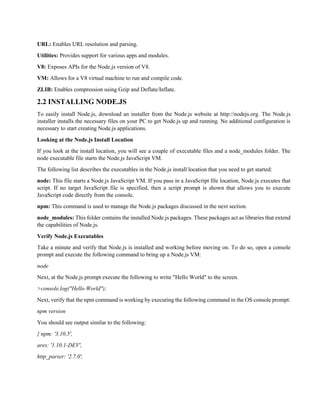
URL: Enables URL resolution and parsing.
Utilities: Provides support for various apps and modules.
V8: Exposes APIs for the Node.js version of V8.
VM: Allows for a V8 virtual machine to run and compile code.
ZLIB: Enables compression using Gzip and Deflate/Inflate.
2.2 INSTALLING NODE.JS
To easily install Node.js, download an installer from the Node.js website at http://nodejs.org. The Node.js
installer installs the necessary files on your PC to get Node.js up and running. No additional configuration is
necessary to start creating Node.js applications.
Looking at the Node.js Install Location
If you look at the install location, you will see a couple of executable files and a node_modules folder. The
node executable file starts the Node.js JavaScript VM.
The following list describes the executables in the Node.js install location that you need to get started:
node: This file starts a Node.js JavaScript VM. If you pass in a JavaScript file location, Node.js executes that
script. If no target JavaScript file is specified, then a script prompt is shown that allows you to execute
JavaScript code directly from the console.
npm: This command is used to manage the Node.js packages discussed in the next section.
node_modules: This folder contains the installed Node.js packages. These packages act as libraries that extend
the capabilities of Node.js.
Verify Node.js Executables
Take a minute and verify that Node.js is installed and working before moving on. To do so, open a console
prompt and execute the following command to bring up a Node.js VM:
node
Next, at the Node.js prompt execute the following to write "Hello World" to the screen.
>console.log("Hello World");
Next, verify that the npm command is working by executing the following command in the OS console prompt:
npm version
You should see output similar to the following:
{ npm: '3.10.5',
ares: '1.10.1-DEV',
http_parser: '2.7.0',
icu: '57.1',
modules: '48',
node: '6.5.0',
openssl: '1.0.2h',
uv: '1.9.1',
v8: '5.1.281.81',
zlib: '1.2.8'}
Selecting a Node.js IDE
To use an Integrated Development Environment (IDE) for the Node.js projects, configure it.
For example, Eclipse has some great Node.js plugins, and the WebStorm IDE by IntelliJ has some good features
for Node.js built in. If you are unsure of where to start, use Visual Studio Code.
2.3 WORKING WITH NODE PACKAGES
One of the most powerful features of the Node.js framework is the ability to easily extend it with additional
Node Packaged Modules (NPMs) using the Node Package Manager (NPM).
What Are Node Packaged Modules?
 A Node Packaged Module is a packaged library that can easily be shared, reused, and installed in
different projects.
 Many different modules are available for a variety of purposes.
 For example, the Mongoose module provides an ODM (Operational Data Model) for MongoDB,
Express extends Node’s HTTP capabilities, and so on.
 Node.js modules are created by various third-party organizations to provide the needed features that
Node.js lacks out of the box. This community of contributors is active in adding and updating modules.
 Node Packaged Modules include a package.json file that defines the packages.
 The package.json file includes informational metadata, such as the name, version author, and
contributors, as well as control metadata, such as dependencies and other requirements that the Node Package
Manager uses when performing actions such as installation and publishing.
Understanding the Node Package Registry
The Node modules have a managed location called the Node Package Registry where packages are registered.
This allows you to publish your own packages in a location where others can use them as well as download
packages that others have created.
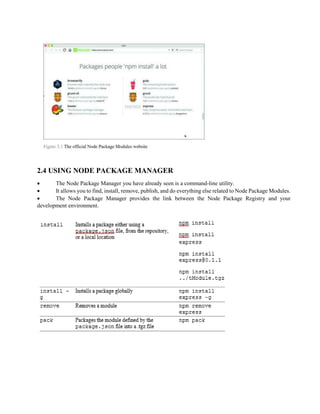
The Node Package Registry is located at https://npmjs.com. From this location you can view the newest and
most popular modules as well as search for specific packages, as shown in Figure 3.1
2.4 USING NODE PACKAGE MANAGER
 The Node Package Manager you have already seen is a command-line utility.
 It allows you to find, install, remove, publish, and do everything else related to Node Package Modules.
 The Node Package Manager provides the link between the Node Package Registry and your
development environment.
Searching for Node Package Modules
• You can also search for modules in the Node Package Registry directly from the command prompt
using the npm search <search_string> command.
• For example, the following command searches for modules related to openssl and displays the results
:
npm search openssl
Installing Node Packaged Modules
• To install a Node module, use the npm install <module_name> command.
• This downloads the Node module to your development environment and places it into the
node_modules folder where the install command is run.
• For example, the following command installs the express module:
npm install express
C:expressexample
`-- express@4.14.0
+-- accepts@1.3.3
| +-- mime-types@2.1.11
| | `-- mime-db@1.23.0
| `-- negotiator@0.6.1
+-- array-flatten@1.1.1
+-- content-disposition@0.5.1
+-- content-type@1.0.2
+-- cookie@0.3.1
+-- cookie-signature@1.0.6
+-- debug@2.2.0
| `-- ms@0.7.1 ...
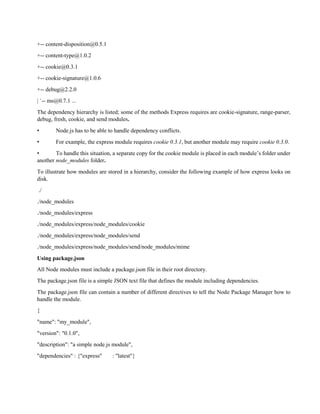
The dependency hierarchy is listed; some of the methods Express requires are cookie-signature, range-parser,
debug, fresh, cookie, and send modules.
• Node.js has to be able to handle dependency conflicts.
• For example, the express module requires cookie 0.3.1, but another module may require cookie 0.3.0.
• To handle this situation, a separate copy for the cookie module is placed in each module’s folder under
another node_modules folder.
To illustrate how modules are stored in a hierarchy, consider the following example of how express looks on
disk.
./
./node_modules
./node_modules/express
./node_modules/express/node_modules/cookie
./node_modules/express/node_modules/send
./node_modules/express/node_modules/send/node_modules/mime
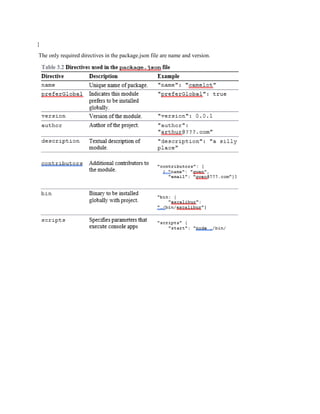
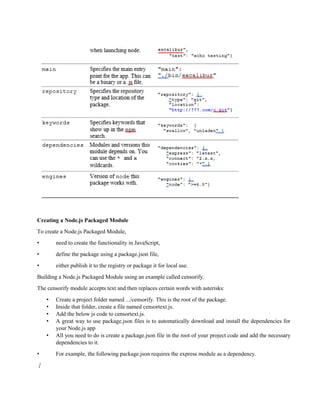
Using package.json
All Node modules must include a package.json file in their root directory.
The package.json file is a simple JSON text file that defines the module including dependencies.
The package.json file can contain a number of different directives to tell the Node Package Manager how to
handle the module.
{
"name": "my_module",
"version": "0.1.0",
"description": "a simple node.js module",
"dependencies" : {"express" : "latest"}
}
The only required directives in the package.json file are name and version.
Creating a Node.js Packaged Module
To create a Node.js Packaged Module,
• need to create the functionality in JavaScript,
• define the package using a package.json file,
• either publish it to the registry or package it for local use.
Building a Node.js Packaged Module using an example called censorify.
The censorify module accepts text and then replaces certain words with asterisks:
• Create a project folder named .../censorify. This is the root of the package.
• Inside that folder, create a file named censortext.js.
• Add the below js code to censortext.js.
• A great way to use package.json files is to automatically download and install the dependencies for
your Node.js app
• All you need to do is create a package.json file in the root of your project code and add the necessary
dependencies to it.
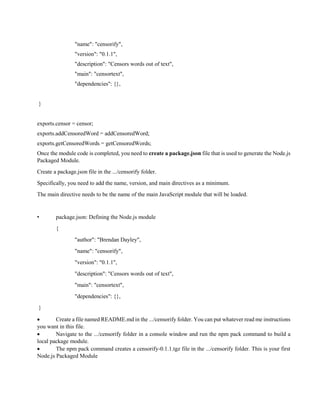
• For example, the following package.json requires the express module as a dependency.
{
"name": "my_module",
"version": "0.1.0", "dependencies" : {
"express" : "latest"
}
}
Then you run the following command from root of your package, and the express
module is automatically installed.
• Implementing a simple censor function and exporting it for other modules using the package
var censoredWords = ["sad", "bad", "mad"];
var customCensoredWords = [];
function censor(inStr)
{
for (idx in censoredWords)
{
inStr = inStr.replace(censoredWords[idx], "****");
}
for (idx in customCensoredWords)
{
inStr = inStr.replace(customCensoredWords[idx], "****");
}
return inStr;
}
function addCensoredWord(word)
{
customCensoredWords.push(word);
}
function getCensoredWords()
{
return censoredWords.concat(customCensoredWords);
• } package.json: Defining the Node.js module
{
"author": "Brendan Dayley",
"name": "censorify",
"version": "0.1.1",
"description": "Censors words out of text",
"main": "censortext",
"dependencies": {},
}
exports.censor = censor;
exports.addCensoredWord = addCensoredWord;
exports.getCensoredWords = getCensoredWords;
Once the module code is completed, you need to create a package.json file that is used to generate the Node.js
Packaged Module.
Create a package.json file in the .../censorify folder.
Specifically, you need to add the name, version, and main directives as a minimum.
The main directive needs to be the name of the main JavaScript module that will be loaded.
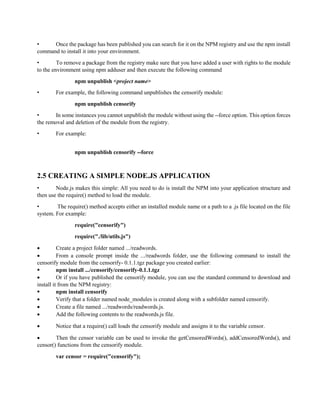
• package.json: Defining the Node.js module
{
"author": "Brendan Dayley",
"name": "censorify",
"version": "0.1.1",
"description": "Censors words out of text",
"main": "censortext",
"dependencies": {},
}
 Create a file named README.md in the .../censorify folder. You can put whatever read me instructions
you want in this file.
 Navigate to the .../censorify folder in a console window and run the npm pack command to build a
local package module.
 The npm pack command creates a censorify-0.1.1.tgz file in the .../censorify folder. This is your first
Node.js Packaged Module
Publishing a Node.js Packaged Module to the NPM Registry
• When modules are published to the NPM registry, they are accessible to everyone using the NPM
manager utility.
• This allows you to distribute your modules and applications to others more easily.
The following steps describe the process of publishing the module to the NPM registry.
After creating module, Create a public repository to contain the code for the module. Then push the contents
of the .../censorify folder up to that location.
The following is an example of a Github repository URL:
https://github.com/username/projectname/directoryName
• Create an account at https://npmjs.org/signup.
• Use the npm adduser command from a console prompt to add the user you created to the environment.
• Type in the username, password, and email that you used to create the account in step 2.
• Modify the package.json file to include the new repository information and any keywords that you
want made available in the registry.
package.json: Defining the Node.js module that includes the repository and keywords information
{
"author": "Brad Dayley",
"name": "censorify",
"version": "0.1.1",
"description": "Censors words out of text",
"main": "censortext",
"repository": {
"type": "git",
//"url": "Enter your github url" },
"keywords": [ "censor", "words" ],
"dependencies": {},
"engines": {
"node": "*" }
}
• Publish the module using the following command from the .../censor folder in the console:
npm publish
• Once the package has been published you can search for it on the NPM registry and use the npm install
command to install it into your environment.
• To remove a package from the registry make sure that you have added a user with rights to the module
to the environment using npm adduser and then execute the following command
npm unpublish <project name>
• For example, the following command unpublishes the censorify module:
npm unpublish censorify
• In some instances you cannot unpublish the module without using the --force option. This option forces
the removal and deletion of the module from the registry.
• For example:
npm unpublish censorify --force
2.5 CREATING A SIMPLE NODE.JS APPLICATION
• Node.js makes this simple: All you need to do is install the NPM into your application structure and
then use the require() method to load the module.
• The require() method accepts either an installed module name or a path to a .js file located on the file
system. For example:
require("censorify")
require("./lib/utils.js")
 Create a project folder named .../readwords.
 From a console prompt inside the .../readwords folder, use the following command to install the
censorify module from the censorify- 0.1.1.tgz package you created earlier:
 npm install .../censorify/censorify-0.1.1.tgz
 Or if you have published the censorify module, you can use the standard command to download and
install it from the NPM registry:
 npm install censorify
 Verify that a folder named node_modules is created along with a subfolder named censorify.
 Create a file named .../readwords/readwords.js.
 Add the following contents to the readwords.js file.
 Notice that a require() call loads the censorify module and assigns it to the variable censor.
 Then the censor variable can be used to invoke the getCensoredWords(), addCensoredWords(), and
censor() functions from the censorify module.
var censor = require("censorify");
console.log(censor.getCensoredWords());
console.log(censor.censor("Some very sad, bad and mad text."));
censor.addCensoredWord("gloomy");
console.log(censor.getCensoredWords());
console.log(censor.censor("A very gloomy day."));
Run the readwords.js application using the node readwords.js command and view the output shown in the
following code block.
Notice that the censored words are replaced with **** and that the new censored word gloomy is added to the
censorify module instance censor.
C:nodeCodech03readwords>node readwords [ 'sad', 'bad', 'mad' ]
Some very *****, ***** and ***** text.
[ 'sad', 'bad', 'mad', 'gloomy' ]
A very *** day.
2.6 USING EVENTS
Understanding the Node.js Event Model
• Node.js applications are run in a single-threaded event-driven model.
• Although Node.js implements a thread pool in the background to do work, the application itself doesn’t
have any concept of multiple threads.
Comparing Event Callbacks and Threaded Models
• In the traditional threaded web model, a request comes in to the webserver and is assigned to an
available thread.
• Then the handling of work for that request continues on that thread until the request is complete and a
response is sent.
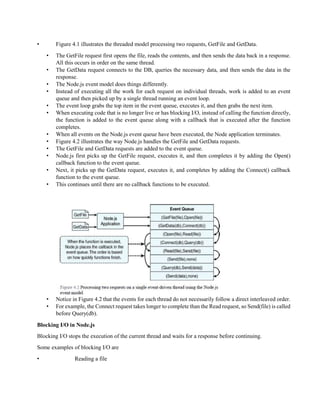
Figure 4.1 Processing two requests on individual threads using the threaded model
• Figure 4.1 illustrates the threaded model processing two requests, GetFile and GetData.
• The GetFile request first opens the file, reads the contents, and then sends the data back in a response.
All this occurs in order on the same thread.
• The GetData request connects to the DB, queries the necessary data, and then sends the data in the
response.
• The Node.js event model does things differently.
• Instead of executing all the work for each request on individual threads, work is added to an event
queue and then picked up by a single thread running an event loop.
• The event loop grabs the top item in the event queue, executes it, and then grabs the next item.
• When executing code that is no longer live or has blocking I/O, instead of calling the function directly,
the function is added to the event queue along with a callback that is executed after the function
completes.
• When all events on the Node.js event queue have been executed, the Node application terminates.
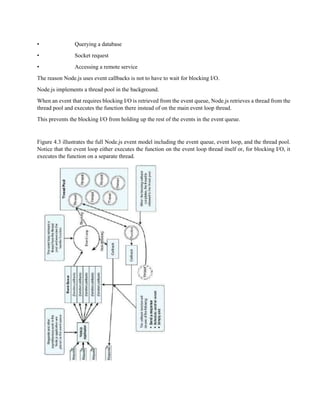
• Figure 4.2 illustrates the way Node.js handles the GetFile and GetData requests.
• The GetFile and GetData requests are added to the event queue.
• Node.js first picks up the GetFile request, executes it, and then completes it by adding the Open()
callback function to the event queue.
• Next, it picks up the GetData request, executes it, and completes by adding the Connect() callback
function to the event queue.
• This continues until there are no callback functions to be executed.
• Notice in Figure 4.2 that the events for each thread do not necessarily follow a direct interleaved order.
• For example, the Connect request takes longer to complete than the Read request, so Send(file) is called
before Query(db).
Blocking I/O in Node.js
Blocking I/O stops the execution of the current thread and waits for a response before continuing.
Some examples of blocking I/O are
• Reading a file
• Querying a database
• Socket request
• Accessing a remote service
The reason Node.js uses event callbacks is not to have to wait for blocking I/O.
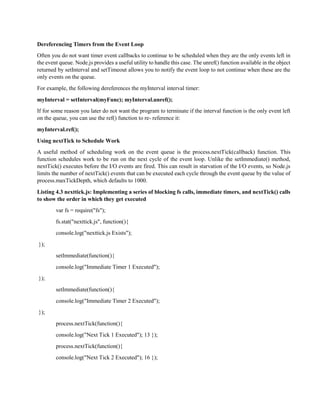
Node.js implements a thread pool in the background.
When an event that requires blocking I/O is retrieved from the event queue, Node.js retrieves a thread from the
thread pool and executes the function there instead of on the main event loop thread.
This prevents the blocking I/O from holding up the rest of the events in the event queue.
Figure 4.3 illustrates the full Node.js event model including the event queue, event loop, and the thread pool.
Notice that the event loop either executes the function on the event loop thread itself or, for blocking I/O, it
executes the function on a separate thread.
Adding Work to the Event Queue
To leverage the scalability and performance of the event model, make sure that you break work up into chunks
that can be performed as a series of callbacks.
Once you have designed your code correctly, you can then use the event model to schedule work on the event
queue. In Node.js applications, work is scheduled on the event queue by passing a callback function using one
of these methods:
 Make a call to one of the blocking I/O library calls such as writing to a file or connecting to a database.
 Add a built-in event listener to a built-in event such as an http.request or server.connection.
 Create your own event emitters and add custom listeners to them.
 Use the process.nextTick option to schedule work to be picked up on the next cycle of the event loop.
 Use timers to schedule work to be done after a particular amount of time or at periodic intervals.
2.7 IMPLEMENTING TIMERS
A useful feature of Node.js and JavaScript is the ability to delay execution of code for a period of time. This
can be useful for cleanup or refresh work that you do not want to always be running.
There are three types of timers you can implement in Node.js: timeout, interval, and immediate.
Delaying Work with Timeouts
Timeout timers are used to delay work for a specific amount of time. When that time expires, the callback
function is executed and the timer goes away. Use timeouts for work that only needs to be performed once.
Timeout timers are created using the setTimeout(callback, delayMilliSeconds, [args]) method built into
Node.js. When you call setTimeout(), the callback function is executed after delayMilliSeconds expires. For
example, the following executes myFunc() after 1 second:
setTimeout(myFunc, 1000);
The setTimeout() function returns a timer object ID. You can pass this ID to clearTimeout(timeoutId) at any
time before the delayMilliSeconds expires to cancel the timeout function. For example:
myTimeout = setTimeout(myFunc, 100000);
… clearTimeout(myTimeout);
Listing 4.1 implements a series of simple timeouts that call the simpleTimeout() function, which outputs the
number of milliseconds since the timeout was scheduled. Notice that it doesn’t matter which order setTimeout()
is called; the results, shown in Listing 4.1 Output, are in the order that the delay expires.
Listing 4.1 simple_timer.js: Implementing a series of timeouts at various intervals
function simpleTimeout(consoleTimer){
console.timeEnd(consoleTimer);
}
console.time("twoSecond");
setTimeout(simpleTimeout, 2000, "twoSecond");
console.time("oneSecond");
setTimeout(simpleTimeout, 1000, "oneSecond");
console.time("fiveSecond");
setTimeout(simpleTimeout, 5000, "fiveSecond");
console.time("50MilliSecond");
setTimeout(simpleTimeout, 50, "50MilliSecond");<Listing First>
Listing 4.1 Output simple_timer.js: Timeout functions executed at different delay amounts
C:booksnodech04> node simple_timer.js 50MilliSecond: 50.489ms
oneSecond: 1000.688ms twoSecond: 2000.665ms fiveSecond: 5000.186ms
Performing Periodic Work with Intervals
Interval timers are used to perform work on a regular delayed interval. When the delay time expires, the callback
function is executed and is then rescheduled for the delay interval again. Use intervals for work that needs to
be performed on a regular basis.
Interval timers are created using the setInterval(callback, delayMilliSeconds, [args]) method built into Node.js.
When you call setInterval(), the callback function is executed every interval after delayMilliSeconds has
expired. For example, the following executes
myFunc() every second:
setInterval(myFunc, 1000);
The setInterval() function returns a timer object ID. You can pass this ID to clearInterval(intervalId) at any
time before the delayMilliSeconds expires to cancel the timeout function. For example:
myInterval = setInterval(myFunc, 100000);
… clearInterval(myInterval);
Listing 4.2 implements a series of simple interval callbacks that update the values of the variables x, y, and z
at different intervals. Notice that the values of x, y, and z are changed differently because the interval amounts
are different, with x incrementing twice as fast as y, which increments twice as fast as z, as shown in Listing
4.2 Output.
Listing 4.2 simple_interval.js: Implementing a series of update callbacks at various intervals
var x=0, y=0, z=0;
function displayValues(){
console.log("X=%d; Y=%d; Z=%d", x, y, z); }
function updateX(){
x += 1;
}
function updateY(){
y += 1;
}
function updateZ(){ z += 1;
displayValues(); }
setInterval(updateX, 500);
setInterval(updateY, 1000);
setInterval(updateZ, 2000);
Listing 4.2 Output simple_interval.js: Interval functions executed at different delay amounts
C:booksnodech04> node simple_interval.js x=3; y=1; z=1
x=7; y=3; z=2 x=11; y=5; z=3 x=15; y=7; z=4 x=19; y=9; z=5 x=23; y=11; z=6
Performing Immediate Work with an Immediate Timer
Immediate timers are used to perform work on a function as soon as the I/O event callbacks are executed, but
before any timeout or interval events are executed. This allows you to schedule work to be done after the current
events in the event queue are completed. Use immediate timers to yield long-running execution segments to
other callbacks to prevent starving the I/O events.
Immediate timers are created using the setImmediate(callback,[args]) method built into Node.js. When you call
setImmediate(), the callback function is placed on the event queue and popped off once for each iteration
through the event queue loop after I/O events have a chance to be called. For example, the following schedules
myFunc() to execute on the next cycle through the event queue:
setImmediate(myFunc(), 1000);
The setImmediate() function returns a timer object ID. You can pass this ID to clearImmediate(immediateId)
at any time before it is picked up off the event queue. For example:
myImmediate = setImmediate(myFunc);
…
clearImmediate(myImmediate);
Dereferencing Timers from the Event Loop
Often you do not want timer event callbacks to continue to be scheduled when they are the only events left in
the event queue. Node.js provides a useful utility to handle this case. The unref() function available in the object
returned by setInterval and setTimeout allows you to notify the event loop to not continue when these are the
only events on the queue.
For example, the following dereferences the myInterval interval timer:
myInterval = setInterval(myFunc); myInterval.unref();
If for some reason you later do not want the program to terminate if the interval function is the only event left
on the queue, you can use the ref() function to re- reference it:
myInterval.ref();
Using nextTick to Schedule Work
A useful method of scheduling work on the event queue is the process.nextTick(callback) function. This
function schedules work to be run on the next cycle of the event loop. Unlike the setImmediate() method,
nextTick() executes before the I/O events are fired. This can result in starvation of the I/O events, so Node.js
limits the number of nextTick() events that can be executed each cycle through the event queue by the value of
process.maxTickDepth, which defaults to 1000.
Listing 4.3 nexttick.js: Implementing a series of blocking fs calls, immediate timers, and nextTick() calls
to show the order in which they get executed
var fs = require("fs");
fs.stat("nexttick.js", function(){
console.log("nexttick.js Exists");
});
setImmediate(function(){
console.log("Immediate Timer 1 Executed");
});
setImmediate(function(){
console.log("Immediate Timer 2 Executed");
});
process.nextTick(function(){
console.log("Next Tick 1 Executed"); 13 });
process.nextTick(function(){
console.log("Next Tick 2 Executed"); 16 });
Listing 4.3 Output nexttick.js: Executing the nextTick() calls first
c:booksnodech04>node nexttick.js Next Tick 1 Executed
Next Tick 2 Executed Immediate Timer 1 Executed Immediate Timer 2 Executed nexttick.js Exists
2.8 IMPLEMENTING EVENT EMITTERS AND LISTENERS
In the following chapters you get a chance to implement many of the events built in to the various Node.js
modules. This section focuses on creating your own custom events as well as implementing listener callbacks
that get implemented when an event is emitted.
Adding Custom Events to Your JavaScript Objects
Events are emitted using an EventEmitter object. This object is included in the events module. The
emit(eventName, [args]) function triggers the eventName event and includes any arguments provided. The
following code snippet shows how to implement a simple event emitter:
var events = require('events');
var emitter = new events.EventEmitter();
emitter.emit("simpleEvent");
Occasionally you want to add events directly to your JavaScript objects. To do that you need to inherit the
EventEmitter functionality in your object by calling events.EventEmitter.call(this) in your object instantiation
as well as adding the events.EventEmitter. prototype to your object’s prototyping. For example:
Function MyObj()
{ Events.EventEmitter.call(this);
}
MyObj.prototype. proto = events.EventEmitter.prototype;
You then can emit events directly from instances of your object.
For example:
var myObj = new MyObj(); myObj.emit("someEvent");
Adding Event Listeners to Objects
Once you have an instance of an object that can emit events, you can add listeners for the events that you care
about. Listeners are added to an EventEmitter object using one of the following functions:
.addListener(eventName, callback): Attaches the callback function to the object’s listeners. Every time
the eventName event is triggered, the callback function is placed in the event queue to be executed.
.on(eventName, callback): Same as .addListener().
.once(eventName, callback): Only the first time the eventName event is triggered, the callback function
is placed in the event queue to be executed.
For example, to add a listener to an instance of the MyObject EventEmitter class defined in the previous section
you would use the following:
function myCallback(){
…
}
var myObject = new MyObj(); myObject.on("someEvent", myCallback);
Removing Listeners from Objects
Listeners are useful and vital parts of Node.js programming. However, they do cause overhead, and you should
use them only when necessary. Node.js provides server helper functions on the EventEmitter object that allow
you to manage the listeners that are included. These include
.listeners(eventName): Returns an array of listener functions attached to the eventName event.
.setMaxListeners(n): Triggers a warning if more than n listeners are added to an EventEmitter object.
The default is 10.
.removeListener(eventName, callback): Removes the callback function from the eventName event of
the EventEmitter object.
Implementing Event Listeners and Event Emitters
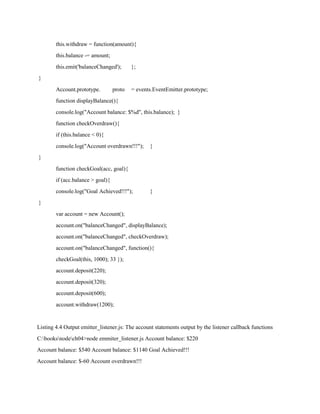
The Account object is extended to inherit from the EventEmitter class and provides two methods to deposit and
withdraw that both emit the balanceChanged event. Then in lines 15–31, three callback functions are
implemented that are attached to the Account object instance balanceChanged event and display various forms
of data.
Notice that the checkGoal(acc, goal) callback is implemented a bit differently than the others. This was done
to illustrate how to pass variables into an event listener function when the event is triggered. The results of
executing the code are shown in Listing 4.4 Output.
Listing 4.4 emitter_listener.js: Creating a custom EventEmitter object and implementing three listeners
that are triggered when the balancedChanged event is triggered
var events = require('events');
function Account() {
this.balance = 0;
events.EventEmitter.call(this);
this.deposit = function(amount){
this.balance += amount;
this.emit('balanceChanged');
};
this.withdraw = function(amount){
this.balance -= amount;
this.emit('balanceChanged'); };
}
Account.prototype. proto = events.EventEmitter.prototype;
function displayBalance(){
console.log("Account balance: $%d", this.balance); }
function checkOverdraw(){
if (this.balance < 0){
console.log("Account overdrawn!!!"); }
}
function checkGoal(acc, goal){
if (acc.balance > goal){
console.log("Goal Achieved!!!"); }
}
var account = new Account();
account.on("balanceChanged", displayBalance);
account.on("balanceChanged", checkOverdraw);
account.on("balanceChanged", function(){
checkGoal(this, 1000); 33 });
account.deposit(220);
account.deposit(320);
account.deposit(600);
account.withdraw(1200);
Listing 4.4 Output emitter_listener.js: The account statements output by the listener callback functions
C:booksnodech04>node emmiter_listener.js Account balance: $220
Account balance: $540 Account balance: $1140 Goal Achieved!!!
Account balance: $-60 Account overdrawn!!!
2.9 IMPLEMENTING CALLBACKS
Callback functions can be a bit difficult to understand at first, especially if you want to depart from
implementing a basic anonymous function.
Three specific implementations of callbacks: passing parameters to a callback function, handling callback
function parameters inside a loop, and nesting callbacks.
Passing Additional Parameters to Callbacks
Most callbacks have automatic parameters passed to them, such as an error or result buffer. A common question
when working with callbacks is how to pass additional parameters to them from the calling function. You do
this by implementing the parameter in an anonymous function and then call the actual callback with parameters
from the anonymous function.
Listing 4.5 callback_parameter.js: Creating an anonymous function to add additional parameters not emitted
by the event
var events = require('events');
function CarShow() {
events.EventEmitter.call(this);
this.seeCar = function(make){
this.emit('sawCar', make);
};
}
CarShow.prototype. proto = events.EventEmitter.prototype;
var show = new CarShow();
function logCar(make){
console.log("Saw a " + make); }
function logColorCar(make, color){
console.log("Saw a %s %s", color, make); }
show.on("sawCar", logCar);
show.on("sawCar", function(make){
var colors = ['red', 'blue', 'black'];
var color = colors[Math.floor(Math.random()*3)];
logColorCar(make, color); });
show.seeCar("Ferrari");
show.seeCar("Porsche");
show.seeCar("Bugatti");
show.seeCar("Lamborghini");
show.seeCar("Aston Martin");
Listing 4.5 Output callback_parameter.js: The results of adding a color parameter to the callback
C:booksnodech04>node callback_parameter.js Saw a Ferrari
Saw a blue Ferrari Saw a Porsche
Saw a black Porsche Saw a Bugatti
Saw a red Bugatti Saw a Lamborghini
Saw a black Lamborghini Saw a Aston Martin
Saw a black Aston Martin
Implementing Closure in Callbacks
An interesting problem that asynchronous callbacks have is that of closure. Closure is a JavaScript term that
indicates that variables are bound to a function’s scope and not the parent function’s scope. When you execute
an asynchronous callback, the parent function’s scope may have changed; for example, when iterating through
a list and altering values in each iteration.
If your callback needs access to variables in the parent function’s scope, then you need to provide closure so
that those values are available when the callback is pulledoff the event queue. A basic way of doing that is by
encapsulating the asynchronous call inside a function block and passing in the variables that are needed.
Listing 4.6 callback_closure.js: Creating a wrapper function to provide closure for variables needed in the
asynchronous callback
function logCar(logMsg, callback){
process.nextTick(function() {
callback(logMsg);
});
}
var cars = ["Ferrari", "Porsche", "Bugatti"];
for (var idx in cars){
var message = "Saw a " + cars[idx];
logCar(message, function(){
console.log("Normal Callback: " + message);
});
}
for (var idx in cars){
var message = "Saw a " + cars[idx];
(function(msg){
logCar(msg, function(){
console.log("Closure Callback: " + msg);
});
})(message);
}
Listing 4.6 Output callback_closure.js: Adding a closure wrapper function allows the asynchronous callback
to access necessary variables
C:booksnodech04>node callback_closure.js
Normal Callback: Saw a Bugatti
Closure Callback: Saw a Ferrari
Closure Callback: Saw a Porsche
Closure Callback: Saw a Bugatti
Chaining Callbacks
With asynchronous functions you are not guaranteed the order that they will run if two are placed on the event
queue. The best way to resolve that is to implement callback chaining by having the callback from the
asynchronous function call the function again until there is no more work to do. That way the asynchronous
function is never on the event queue more than once.
function logCar(car, callback){
console.log("Saw a %s", car);
if(cars.length){
process.nextTick(function(){
callback();
});
}
}
function logCars(cars){
var car = cars.pop();
logCar(car, function(){
logCars(cars); });
}
var cars = ["Ferrari", "Porsche", "Bugatti",
"Lamborghini", "Aston Martin"];
logCars(cars);
2.10 HANDLING DATA I/O IN NODE.JS
Most active web applications and services have a lot of data flowing through them. That data comes in the
form of text, JSON strings, binary buffers, and data streams. Node.js has many mechanisms built in to
support handling the data I/O from system to system.
Working with JSON
JSON (JavaScript Object Notation). JSON is a lightweight method to convert JavaScript objects into a string
form and then back again. This provides an easy method when you need to serialize data objects when passing
them from client to server, process to process, stream to stream, or when storing them in a database.
There are several reasons to use JSON to serialize your JavaScript objects over XMLincluding the following:
JSON is much more efficient and takes up fewer characters. Serializing/deserializing JSON is faster than XML
because it’s simpler syntax.
JSON is easier to read from a developer’s perspective because it is similar toJavaScript syntax.
The only reasons you might want to use XML over JSON are for complex objects orif you have XML/XSLT
transforms already in place.
Converting JSON to JavaScript Objects
A JSON string represents the JavaScript object in string form. The string syntax is similar to code, making it
easy to understand. You can use the JSON.parse(string)method to convert a string that is properly formatted
withJSON into a JavaScript object.
For example, the following code snippet defines accountStras a formatted JSONstring and converts it to a
JavaScript object using JSON.parse(). Then member properties can be accessed via dot notation:
var accountStr = '{"name":"Jedi", "members":["Yoda","Obi Wan"],  "number":34512, "location": "A galaxy
far, far away"}'
var accountObj = JSON.parse(accountStr);
console.log(accountObj.name); console.log(accountObj.members);
The preceding code outputs the following:
Jedi
[ 'Yoda', 'Obi Wan' ]
Converting JavaScript Objects to JSON
Node also allows you to convert a JavaScript object into a properly formatted JSONstring. Thus the string form
can be stored in a file or database, sent across an HTTPconnection, or written to a stream/buffer. Use the
JSON.stringify(text) method to parse JSON text and generate a JavaScript object:
For example, the following code defines a JavaScript object that includes string, numeric, and array properties.
Using JSON.stringify(), it is all converted to aJSON string:
var accountObj = {name: "Baggins", number: 10645, members: ["Frodo, Bilbo"],location: "Shire"
};
var accountStr = JSON.stringify(accountObj);console.log(accountStr);
The preceding code outputs the following:
{"name":"Baggins","number":10645,"members":["Frodo, Bilbo"],"location":
Using the BufferModule to Buffer Data
While JavaScript is Unicode friendly, it is not good at managing binary data. However, binary data is useful
when implementing some web applications andservices.
For example:
• Transferring compressed files
Generating dynamic images Sending
• serialized binary data
Understanding Buffered Data
Buffered data is made up of a series of octets in big endian or little endian format. That means they take up
considerably less space than textual data. Therefore, Node.js provides the Buffer module that gives you the
functionality to create, read, write, and manipulate binary data in a buffer structure. The Buffermodule is
global, so you do not need to use the require()statement to access it.
Buffered data is stored in a structure similar to that of an array but is stored outsidethe normal V8 heap in
raw memory allocations. Therefore a Buffer cannot be resized.
When converting buffers to and from strings, you need to specify the explicit encoding method to be used.
Table 5.1 lists the various encoding methods supported.
Big Endian and Little Endian
Binary data in buffers is stored as a series of octets or a sequence of eight 0s and 1s that can be a hexadecimal
value of 0x00 to 0xFF. It can be read as a single byteor as a word containing multiple bytes.
Endian defines the ordering of significant bits when defining the word. Big endian stores the least significant
word first, andlittle endian stores the least significant word last.
For example, the words 0x0A 0x0B 0x0C 0x0D would be stored in the buffer as [0x0A, 0x0B, 0x0C,0x0D]
in big endian but as [0x0D, 0x0C, 0x0B, 0x0A]in little endian.
Creating Buffers
Bufferobjects are actually raw memory allocations; therefore, their size must be determined when they are
created. The three methods for creating Bufferobjectsusing the newkeyword are
new Buffer(sizeInBytes)
new Buffer(octetArray)
new Buffer(string, [encoding])
For example, the following lines of code define buffers using a byte size, octetbuffer, and a UTF8string:
var buf256 = new Buffer(256);
var bufOctets = new Buffer([0x6f, 0x63, 0x74, 0x65, 0x74, 0x73]);
var bufUTF8 = new Buffer("Some UTF8 Text u00b6 u30c6 u20ac", 'utf8')
Writing to Buffers
You cannot extend the size of a Bufferobject after it has been created, but you canwrite data to any location in
the buffer. Table 5.2 describes the three methods you can use when writing to buffers.
buf256 = new Buffer(256);
buf256.fill(0);
buf256.write("add some text");
console.log(buf256.toString());
buf256.write("more text", 9, 9);
console.log(buf256.toString());
buf256[18] = 43;
console.log(buf256.toString());
Listing 5.1 Output buffer_write.js: Writing data from a Buffer object
C:booksnodech05>node buffer_write.jsadd some text
add some more text add
some more text+
Reading from Buffers
There are several methods for reading from buffers. The simplest is to use the toString() method to convert
all or part of a buffer to a string. However, you can also access specific indexes in the buffer directly or by
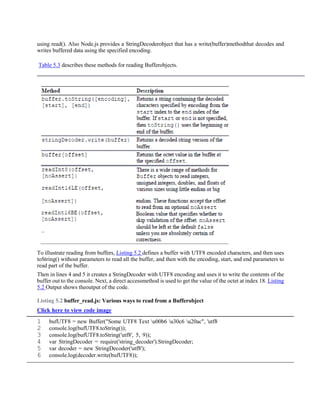
using read(). Also Node.js provides a StringDecoderobject that has a write(buffer)methodthat decodes and
writes buffered data using the specified encoding.
Table 5.3 describes these methods for reading Bufferobjects.
To illustrate reading from buffers, Listing 5.2 defines a buffer with UTF8 encoded characters, and then uses
toString() without parameters to read all the buffer, and then with the encoding, start, and end parameters to
read part of the buffer.
Then in lines 4 and 5 it creates a StringDecoder with UTF8 encoding and uses it to write the contents of the
buffer out to the console. Next, a direct accessmethod is used to get the value of the octet at index 18. Listing
5.2 Output shows theoutput of the code.
Listing 5.2 buffer_read.js: Various ways to read from a Bufferobject
Click here to view code image
1 bufUTF8 = new Buffer("Some UTF8 Text u00b6 u30c6 u20ac", 'utf8
2 console.log(bufUTF8.toString());
3 console.log(bufUTF8.toString('utf8', 5, 9));
4 var StringDecoder = require('string_decoder').StringDecoder;
5 var decoder = new StringDecoder('utf8');
6 console.log(decoder.write(bufUTF8));
Listing 5.2 Output buffer_read.js: Reading data from a Bufferobject
Click here to view code image
C:booksnodech05>node buffer_read.jsSome UTF8 Text 
テ €
UTF8
Some UTF8 Text ¶ テ €e3
e3838620
Determining Buffer Length
A common task when dealing with buffers is determining the length, especially when you create a buffer
dynamically from a string. The length of a buffer can be determined by calling .length on the Buffer
object.
To determine the byte length that a string takes up in a buffer you cannot use the .length property.
Instead you need to use Buffer.byteLength(string, [encoding]). Note that there is a difference between
the string length and byte length of a buffer.To illustrate this consider the followings statements:
"UTF8 text u00b6".length;
//evaluates to 11
Buffer.byteLength("UTF8 text u00b6", 'utf8');
//evaluates to 12
Buffer("UTF8 text u00b6").length;
//evaluates to 12
Notice that the same string evaluates to 11 characters, but because it contains a double-byte character the
byteLength is 12. Also note that Buffer("UTF8 text u00b6").lengthevaluates to 12 also. That is because
.lengthon abuffer returns the byte length.
Copying Buffers
An important part of working with buffers is the ability to copy data from one bufferinto another buffer.
Node.js provides the copy(targetBuffer, [targetStart], [sourceStart], [sourceIndex]) method on Bufferobjects.
The targetBufferparameter is another Bufferobject, and targetStart, sourceStart, and sourceEnd are indexes
inside the source and target buffers.
You can also copy data from one buffer to the other by indexing them directly, forexample:
sourceBuffer[index] = destinationBuffer[index]
Listing 5.3 illustrates three examples of copying data from one buffer to another. Thefirst method in lines 4–8
copies the full buffer. The next method in lines 10–14 copies only the middle 5 bytes of a buffer. The third
example iterates through the source buffer and only copies every other byte in the buffer. The results are shown
inListing 5.3 Output.
Listing 5.3 buffer_copy.js: Various ways to copy data from one Buffer
object to another
var alphabet = new Buffer('abcdefghijklmnopqrstuvwxyz');
console.log(alphabet.toString());
// copy full buffer
var blank = new Buffer(26);
blank.fill();
console.log("Blank: " + blank.toString());
alphabet.copy(blank);
console.log("Blank: " + blank.toString());
// copy part of buffer
var dashes = new Buffer(26);
dashes.fill('-');
console.log("Dashes: " + dashes.toString());
alphabet.copy(dashes, 10, 10, 15);
console.log("Dashes: " + dashes.toString());
// copy to and from direct indexes of buffers
var dots = new Buffer(' -----------------------------------------------------------------------------------');
dots.fill('.');
console.log("dots: " + dots.toString());
for (var i=0; i < dots.length; i++){
if (i % 2) { dots[i] = alphabet[i]; }1 }
console.log("dots: " + dots.toString());
Listing 5.3 Output buffer_copy.js: Copying data from one Buffer
object to another
C:booksnodech05>node buffer_copy.js
abcdefghijklmnopqrstuvwxyz
Blank:
Blank: abcdefghijklmnopqrstuvwxyz
Dashes:
Dashes:
klmno
dots: .........................
dots: .b.d.f.h.j.l.n.p.r.t.v.x.
Slicing Buffers
Another important aspect of working with buffers is the ability to divide them into slices. A slice is a section
of a buffer between a starting index and an ending index.Slicing a buffer allows you to manipulate a specific
chunk.
Slices are created using the slice([start], [end]) method, which returns aBufferobject that points to startindex
of the original buffer and has a length of end – start. Keep in mind that a slice is different from a copy. If you
edit a copy,the original does not change. However, if you edit a slice, the original does change.
Listing 5.4 illustrates using slices. Note that when the slice is altered in lines 5 and 6,it also alters the original
buffer, as shown in Listing 5.4 Output.
Listing 5.4 buffer_slice.js: Creating and manipulating slices of a Buffer
object
var numbers = new Buffer("123456789");
console.log(numbers.toString());
var slice = numbers.slice(3, 6);
console.log(slice.toString());
slice[0] = '#'.charCodeAt(0);
slice[slice.length-1] = '#'.charCodeAt(0);
console.log(slice.toString());
console.log(numbers.toString());
Listing 5.4 Output buffer_slice.js: Slicing and modifying a Buffer
object
C:booksnodech05>node buffer_slice.js123456789
456
#5#
123#5#789
Concatenating Buffers
You can also concatenate two or more Buffer objects together to form a newbuffer. The concat(list,
[totalLength])method accepts an array of Buffer objects as the first parameter, and totalLength defines the
maximumbytes in the buffer as an optional second argument. The Buffer objects are concatenated in the order
they appear in the list, and a new Buffer object is returned containing the contents of the original buffers up
to totalLengthbytes.
If you do not provide a totalLength parameter, concat() figures it out for you. However, it has to iterate
through the list, so providing a totalLengthvalueis faster.
Listing 5.5 buffer_concat.js: Concatenating Bufferobjects
1 var af = new Buffer("African Swallow?");
2 var eu = new Buffer("European Swallow?");
3 var question = new Buffer("Air Speed Velocity of an ");
4 console.log(Buffer.concat([question, af]).toString());
5 console.log(Buffer.concat([question, eu]).toString());
Listing 5.5 Output buffer_concat.js: Concatenating Bufferobjects
C:booksnodech05>node buffer_concat.js Air Speed Velocity
of an African Swallow? Air Speed Velocity of an European
Swallow?
Using the Stream Module to Stream Data
An important module in Node.js is the stream module. Data streams are memory structures that are readable,
writable, or both. Streams are used all over in Node.js, for example, when accessing files or reading data
from HTTP requests and in severalother areas.
The purpose of streams is to provide a common mechanism to transfer data from onelocation to another.
Some common uses for streams are HTTP data and files.
ReadableStreams
Readable streams provide a mechanism to easily read data coming into your application from another source.
Some common examples of readable streams are
HTTP responses on the client
HTTP requests on the server
fsread streams
zlib streams
cryptostreams
TCP sockets
Child processes
stdoutand stderr
process.stdin
Readablestreams provide the read([size])method to read data where sizespecifies the number of bytes to read
from the stream. read() can return a String, Bufferor null. Readablestreams also expose the following events:
readable: Emitted when a chunk of data can be read from the stream.
data: Similar to readableexcept that when dataevent handlers are attached, the stream is turned
into flowing mode, and the datahandler iscalled continuously until all data has been drained.
end: Emitted by the stream when data will no longer be provided.
close: Emitted when the underlying resource, such as a file, has been closed.
error: Emitted when an error occurs receiving data.
Readablestream objects also provide a number of functions that allow you to readand manipulate them. Table
5.4 lists the methods available on a Readablestream object.
To implement your own custom Readablestream object, you need to first inheritthe functionality for Readable
streams. The simplest way to do that is to use theutilmodule’s inherits()method:
var util = require('util'); util.inherits(MyReadableStream, stream.Readable);
Then you create an instance of the object call:
stream.Readable.call(this, opt);
You also need to implement a _read()method that calls push()to output the data from the Readableobject. The
push()call should push either a String,Buffer, or null.
Listing 5.6 stream_read.js: Implementing a Readablestream object
var stream = require('stream');
var util = require('util');
util.inherits(Answers, stream.Readable);
function Answers(opt) {
stream.Readable.call(this, opt);
this.quotes = ["yes", "no", "maybe"];
this._index = 0;
}
Answers.prototype._read = function() {
if (this._index > this.quotes.length){
this.push(null);
} else {
this.push(this.quotes[this._index]);
this._index += 1; 15
}
};
var r = new Answers();
console.log("Direct read: " + r.read().toString());
r.on('data', function(data){
console.log("Callback read: " + data.toString());21 });
r.on('end', function(data){
console.log("No more answers.");24 });
Listing 5.6 Output stream_read.js: Implementing a custom Readable object
C:booksnodech05>node stream_read.js
Direct read: yes
Callback read: no
Callback read: maybe
No more answers.
WritableStreams
Writablestreams are designed to provide a mechanism to write data into a formthat can easily be consumed
in another area of code. Some common examples of Writablestreams are
o HTTP requests on the client
HTTP responses on the server
o fswrite streams
o zlib streams
o crypto
streams
o TCP sockets
o Child process stdin
o process.stdout, process.stderr
Writable streams provide the write(chunk, [encoding], [callback]) method to write data into the stream, where
chunk contains the data to write, encodingspecifies the string encoding if necessary, and callbackspecifies a
callback function to execute when the data has been fully flushed. The write() function returns true if the
data was written successfully. Writablestreams also expose the following events:
drain: After a write()call returns false, the drainevent is emitted tonotify listeners when it is okay to begin
writing more data.
finish: Emitted when end()is called on the Writableobject; all data isflushed and no more data will be accepted.
pipe: Emitted when the pipe()method is called on a Readablestream toadd this Writableas a destination.
unpipe: Emitted when the unpipe()method is called on a Readable
stream to remove this Writableas a destination.
Writablestream objects also provide a number of methods that allow you to writeand manipulate them. Table
5.5 lists the methods available on a Writable stream object.
Table 5.5 Methods available on Writablestream objects
Method Description
write(chunk,[encoding], [callback])
end([chunk],[encoding], [callback])
Writes the data chunk to the stream object’s data location.
The data can be a Stringor Buffer. If encodingis specified,
then it is used to encode string data. If callbackis specified,
then it is called after the data has been flushed.
Same as write(), except it puts the Writableinto a state
where it no longer accepts data and sends the finish
event.
To implement your own custom Writablestream object, you need to first inheritthe functionality for Writable
streams. The simplest way to do that is to use theutilmodule’s inherits()method:
var util = require('util'); util.inherits(MyWritableStream, stream.Writable);
Then you create an instance of the object call:
stream. Writable.call(this, opt);
Listing 5.7 stream_write.js: Implementing a Writablestream object
var stream = require('stream');
var util = require('util');
util.inherits(Writer, stream.Writable);
function Writer(opt) {
stream.Writable.call(this, opt);
this.data = new Array();
}
Writer.prototype._write = function(data, encoding, callback) {
this.data.push(data.toString('utf8'));
console.log("Adding: " + data);
callback();
};
var w = new Writer();
for (var i=1; i<=5; i++){
w.write("Item" + i, 'utf8'); }
w.end("ItemLast");
console.log(w.data);
Listing 5.7 Output stream_ write.js: Implementing a custom Writable
object
C:booksnodech05>node stream_write.jsAdding: Item1
Adding: Item2
Adding: Item3
Adding: Item4
Adding: Item5
Adding:
ItemLast
[ 'Item1', 'Item2', 'Item3', 'Item4', 'Item5', 'ItemLast' ]
DuplexStreams
A Duplexstream combines Readableand Writablefunctionality. A goodexample of a duplex stream
is a TCP socket connection. You can read and writefrom the socket connection once it has been
created.
To implement your own custom Duplexstream object, you need to first inherit thefunctionality for Duplex
streams. The simplest way to do that is to use the utilmodule’s inherits()method:
var util = require('util');
util.inherits(MyDuplexStream,stream.Duplex);
Then you create an instance of the object call:
stream. Duplex.call(this, opt);
The opt parameter when creating a Duplex stream accepts an object with the property allowHalfOpenset to
trueor false.
If this option is true, then thereadable side stays open even after the writable side has ended and vice versa.
If thisoption is set to false, ending the writable side also ends the readable side and viceversa.
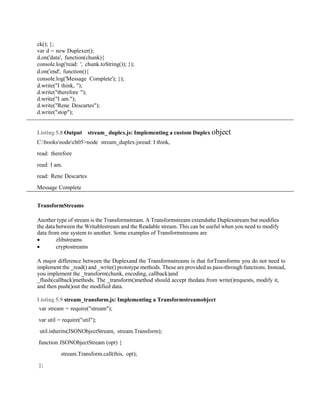
When you implement a Duplexstream, you need to implement both a
_read(size)and a _write(data, encoding, callback)method whenprototyping your Duplexclass.
In Listing 5.8 Output, notice that the first two writes "I think, " and "therefore"are read together. This is
because both were pushed to theReadablebefore the dataevent was triggered.
Listing 5.8 stream_duplex.js: Implementing a Duplexstream object
var stream = require('stream');
var util = require('util');
util.inherits(Duplexer, stream.Duplex);
function Duplexer(opt) {
stream.Duplex.call(this, opt);
this.data = [];
}
Duplexer.prototype._read = function readItem(size) {
var chunk = this.data.shift();
if (chunk == "stop"){
this.push(null);
} else {
if(chunk){
this.push(chunk);
} else {
setTimeout(readItem.bind(this), 500, size);
}
}
};
Duplexer.prototype._write = function(data, encoding, callback) {
this.data.push(data);
callba
ck(); };
var d = new Duplexer();
d.on('data', function(chunk){
console.log('read: ', chunk.toString()); });
d.on('end', function(){
console.log('Message Complete'); });
d.write("I think, ");
d.write("therefore ");
d.write("I am.");
d.write("Rene Descartes");
d.write("stop");
Listing 5.8 Output stream_ duplex.js: Implementing a custom Duplex object
C:booksnodech05>node stream_duplex.jsread: I think,
read: therefore
read: I am.
read: Rene Descartes
Message Complete
TransformStreams
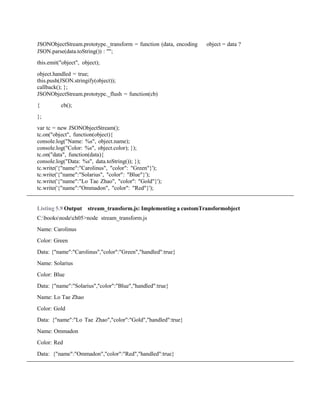
Another type of stream is the Transformstream. A Transformstream extendsthe Duplexstream but modifies
the data between the Writablestream and the Readable stream. This can be useful when you need to modify
data from one system to another. Some examples of Transformstreams are
 zlibstreams
 cryptostreams
A major difference between the Duplexand the Transformstreams is that forTransforms you do not need to
implement the _read() and _write() prototype methods. These are provided as pass-through functions. Instead,
you implement the _transform(chunk, encoding, callback)and
_flush(callback)methods. The _transform()method should accept thedata from write()requests, modify it,
and then push()out the modified data.
Listing 5.9 stream_transform.js: Implementing a Transformstreamobject
var stream = require("stream");
var util = require("util");
util.inherits(JSONObjectStream, stream.Transform);
function JSONObjectStream (opt) {
stream.Transform.call(this, opt);
};
JSONObjectStream.prototype._transform = function (data, encoding object = data ?
JSON.parse(data.toString()) : "";
this.emit("object", object);
object.handled = true;
this.push(JSON.stringify(object));
callback(); };
JSONObjectStream.prototype._flush = function(cb)
{ cb();
};
var tc = new JSONObjectStream();
tc.on("object", function(object){
console.log("Name: %s", object.name);
console.log("Color: %s", object.color); });
tc.on("data", function(data){
console.log("Data: %s", data.toString()); });
tc.write('{"name":"Carolinus", "color": "Green"}');
tc.write('{"name":"Solarius", "color": "Blue"}');
tc.write('{"name":"Lo Tae Zhao", "color": "Gold"}');
tc.write('{"name":"Ommadon", "color": "Red"}');
Listing 5.9 Output stream_transform.js: Implementing a customTransformobject
C:booksnodech05>node stream_transform.js
Name: Carolinus
Color: Green
Data: {"name":"Carolinus","color":"Green","handled":true}
Name: Solarius
Color: Blue
Data: {"name":"Solarius","color":"Blue","handled":true}
Name: Lo Tae Zhao
Color: Gold
Data: {"name":"Lo Tae Zhao","color":"Gold","handled":true}
Name: Ommadon
Color: Red
Data: {"name":"Ommadon","color":"Red","handled":true}
Piping ReadableStreams to WritableStreams
To chain Readable streams to Writable streams, the pipe(writableStream, [options])function is used. The
output fromthe Readablestream is directly input into the Writablestream. The optionsparameter accepts
an object with the end property set to true or false. When endis true, the Writablestream ends when the
Readablestream ends. This is the default behavior.
For example:
readStream.pipe(writeStream,{end:true});
Listing 5.10 stream_piped.js: Piping a Readablestream into a
Writablestream
var stream = require('stream');
var util = require('util');
util.inherits(Reader, stream.Readable);
util.inherits(Writer, stream.Writable);
function Reader(opt) {
stream.Readable.call(this, opt);
this._index = 1;
}
Reader.prototype._read = function(size) {
var i = this._index++;11 if (i
> 10){
this.push(null);
} else {
this.push("Item " + i.toString()); }
};
function Writer(opt) {
stream.Writable.call(this, opt);
this._index = 1; }
Writer.prototype._write = function(data, encoding, callback) {
console.log(data.toString());
callback(); };
var r = new Reader();
var w = new Writer();
r.pipe(w);
Listing 5.10 Output stream_ piped.js: Implementing stream piping
C:booksnodech05>node stream_piped.js
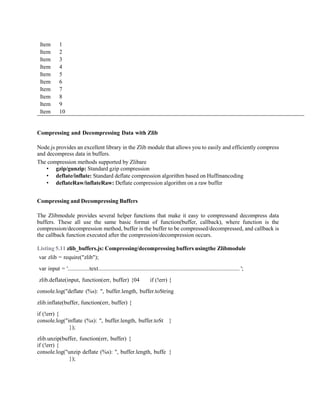
Item 1
Item 2
Item 3
Item 4
Item 5
Item 6
Item 7
Item 8
Item 9
Item 10
Compressing and Decompressing Data with Zlib
Node.js provides an excellent library in the Zlib module that allows you to easily and efficiently compress
and decompress data in buffers.
The compression methods supported by Zlibare
• gzip/gunzip: Standard gzip compression
• deflate/inflate: Standard deflate compression algorithm based on Huffmancoding
• deflateRaw/inflateRaw: Deflate compression algorithm on a raw buffer
Compressing and Decompressing Buffers
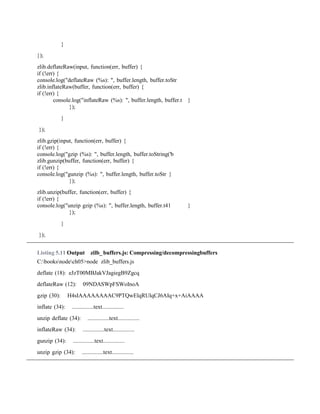
The Zlibmodule provides several helper functions that make it easy to compressand decompress data
buffers. These all use the same basic format of function(buffer, callback), where function is the
compression/decompression method, buffer is the buffer to be compressed/decompressed, and callback is
the callback function executed after the compression/decompression occurs.
Listing 5.11 zlib_buffers.js: Compressing/decompressing buffers usingthe Zlibmodule
var zlib = require("zlib");
var input = '...............text.................................................................................................. ';
zlib.deflate(input, function(err, buffer) {04 if (!err) {
console.log("deflate (%s): ", buffer.length, buffer.toString
zlib.inflate(buffer, function(err, buffer) {
if (!err) {
console.log("inflate (%s): ", buffer.length, buffer.toSt }
});
zlib.unzip(buffer, function(err, buffer) {
if (!err) {
console.log("unzip deflate (%s): ", buffer.length, buffe }
});
}
});
zlib.deflateRaw(input, function(err, buffer) {
if (!err) {
console.log("deflateRaw (%s): ", buffer.length, buffer.toStr
zlib.inflateRaw(buffer, function(err, buffer) {
if (!err) {
console.log("inflateRaw (%s): ", buffer.length, buffer.t }
});
}
});
zlib.gzip(input, function(err, buffer) {
if (!err) {
console.log("gzip (%s): ", buffer.length, buffer.toString('b
zlib.gunzip(buffer, function(err, buffer) {
if (!err) {
console.log("gunzip (%s): ", buffer.length, buffer.toStr }
});
zlib.unzip(buffer, function(err, buffer) {
if (!err) {
console.log("unzip gzip (%s): ", buffer.length, buffer.t41 }
});
}
});
Listing 5.11 Output zilb_ buffers.js: Compressing/decompressingbuffers
C:booksnodech05>node zlib_buffers.js
deflate (18): eJzT00MBJakVJagiegB9Zgcq
deflateRaw (12): 09NDASWpFSWoInoA
gzip (30): H4sIAAAAAAAAC9PTQwElqRUlqCJ6AIq+x+AiAAAA
inflate (34): ...............text...............
unzip deflate (34): ...............text...............
inflateRaw (34): ...............text...............
gunzip (34): ...............text...............
unzip gzip (34): ...............text...............
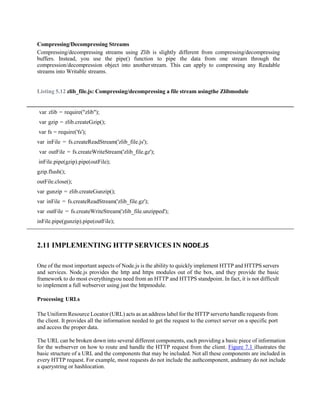
Compressing/Decompressing Streams
Compressing/decompressing streams using Zlib is slightly different from compressing/decompressing
buffers. Instead, you use the pipe() function to pipe the data from one stream through the
compression/decompression object into anotherstream. This can apply to compressing any Readable
streams into Writable streams.
Listing 5.12 zlib_file.js: Compressing/decompressing a file stream usingthe Zlibmodule
var zlib = require("zlib");
var gzip = zlib.createGzip();
var fs = require('fs');
var inFile = fs.createReadStream('zlib_file.js');
var outFile = fs.createWriteStream('zlib_file.gz');
inFile.pipe(gzip).pipe(outFile);
gzip.flush();
outFile.close();
var gunzip = zlib.createGunzip();
var inFile = fs.createReadStream('zlib_file.gz');
var outFile = fs.createWriteStream('zlib_file.unzipped');
inFile.pipe(gunzip).pipe(outFile);
2.11 IMPLEMENTING HTTP SERVICES IN NODE.JS
One of the most important aspects of Node.js is the ability to quickly implement HTTP and HTTPS servers
and services. Node.js provides the http and https modules out of the box, and they provide the basic
framework to do most everythingyou need from an HTTP and HTTPS standpoint. In fact, it is not difficult
to implement a full webserver using just the httpmodule.
Processing URLs
The Uniform Resource Locator (URL) acts as an address label for the HTTP serverto handle requests from
the client. It provides all the information needed to get the request to the correct server on a specific port
and access the proper data.
The URL can be broken down into several different components, each providing a basic piece of information
for the webserver on how to route and handle the HTTP request from the client. Figure 7.1 illustrates the
basic structure of a URL and the components that may be included. Not all these components are included in
every HTTP request. For example, most requests do not include the authcomponent, andmany do not include
a querystring or hashlocation.
Figure 7.1 Basic components that can be included in a URL
Understanding the URLObject
HTTP requests from the client include the URL string with the information shown inFigure 7.1. To use the
URL information more effectively, Node.js provides the urlmodule that provides functionality to convert the
URL string into a URLobject.
To create a URLobject from the URL string, pass the URL string as the firstparameter to the following
method:
url.parse(urlStr,[parseQueryString],[slashesDenoteHost])
The url.parse() method takes the URL string as the first parameter. The parseQueryString parameter is a
Boolean that when true also parses the query string portion of the URL into an object literal. The default
is false. The slashesDenoteHostis also a Boolean that when trueparses a URL with theformat of //host/path
to {host: 'host', pathname: '/path'}instead of {pathname: '//host/path'}. The default is false.
You can also convert a URL object into a string form using the following url.parse()method. Table 7.1 lists
the attributes of the URLobjects created byurl.parse():
url.format(urlObj)
The following shows an example of parsing a URL string into an object and thenconverting it back into a
string:
var url = require('url');
var urlStr = 'http://user:pass@host.com:80/resource/path?query=string#h
var urlObj = url.parse(urlStr, true, false); urlString =
url.format(urlObj);
Table 7.1 Properties of the URL object
Property Description
href This is the full URL string that was originally parsed.
protocol The requestprotocol lowercased.
host The full hostportion of the URL including portinformationlowercased.
auth The authenticationinformation portion of a URL.
hostname The hostnameportion of the host lowercased.
port The portnumber portion of the host.
pathname The pathportion of the URL including the initial slash if present.
search The querystring portion of the URL including the leading questionmark.
path The full pathincluding the pathnameand search.
query This is either the parameterportion of the query string or a parsedobject containing
the query string parameters and values if the parseQueryStringis set to true.
hash The hashportion of the URL including the pound sign (#).
Resolving the URL Components
Another useful feature of the urlmodule is the ability to resolve URL componentsin the same manner as a
browser would. This allows you to manipulate the URL strings on the server side to make adjustments in
the URL. For example, you might want to change the URL location before processing the request because
a resource has moved or changed parameters.
To resolve a URL to a new location use the following syntax:
url.resolve(from, to)
The from parameter specifies the original base URL string. The to parameter specifies the new location where
you want the URL to resolve. The following code illustrates an example of resolving a URL to a new location.
var url = require('url');
var originalUrl = 'http://user:pass@host.com:80/resource/path?query=str var newResource =
'/another/path?querynew'; console.log(url.resolve(originalUrl, newResource));
The output of the previous code snippet is shown below. Notice that only theresource pathand beyond
are altered in the resolved URL location:
http://user:pass@host.com:80/another/path?querynew
Processing Query Strings and Form Parameters
HTTP requests often include query strings in the URL or parameter data in the bodyfor form submissions.
The query string can be obtained from the URLobject definedin the previous section.
The query string and form parameters are just basic key-value pairs. To actually consume these values in your
Node.js webserver you need to convert the string into aJavaScript object using the parse()method from the
querystringmodule:
querystring.parse(str, [sep], [eq], [options])
The strparameter is the query or parameter string. The sepparameter allows youto specify the separator
character used. The default separator character is &. The eqparameter allows you to specify the
assignment character to use when parsing. The default is =. The optionsparameter is an object with the
property maxKeysthat allows you to limit the number of keys the resulting object can contain. The default
is 1000. If you specify 0, there is no limit.
The following shows an example of using parse()to parse a query string:
var qstring = require('querystring');
var params = qstring.parse("name=Brad&color=red&color=blue"); The params object
created would be:
{name: 'Brad', color: ['red', 'blue']}
You can also go back the other direction and convert an object to a query stringusing the stringify()
function shown here:
querystring.stringify(obj, [sep], [eq])
Understanding Request, Response, and ServerObjects
To use the http module in Node.js applications, you first need to understand the request and response
objects. They provide the information and much of the functionality that comes into and out of the HTTP
clients and servers. Once you see the makeup of these objects—including properties, events, and methods
they provide
—it will be simple to implement your own HTTP servers and clients.
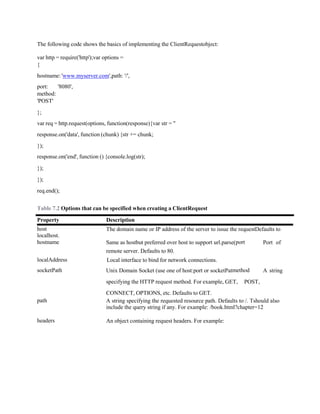
The http.ClientRequestObject
The ClientRequest object is created internally when you call http.request() when building the HTTP client.
This object represents the request while it is in progress to the server. You use the ClientRequestobject to
initiate, monitor, and handle the response from the server.
The ClientRequestimplements a Writablestream, so it provides all thefunctionality of a Writable stream
object. For example, you can use the write()method to write to it as well as pipe a Readablestream into it.
To implement a ClientRequestobject, you use a call to http.request()
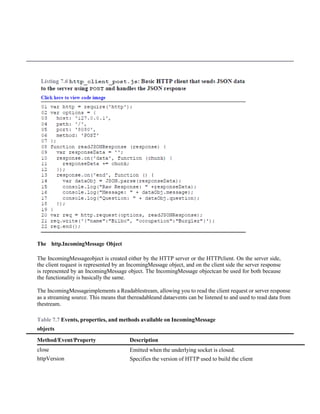
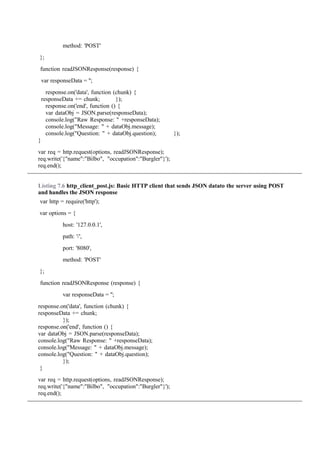
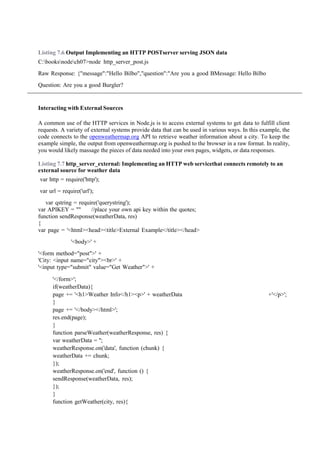
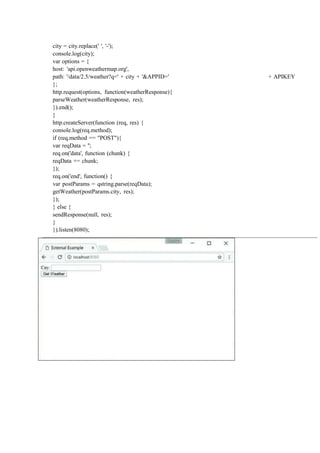
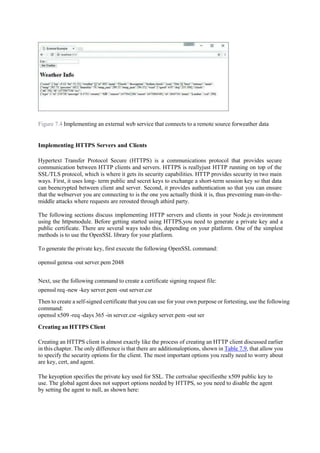
using the following syntax:
http.request(options, callback)
The optionsparameter is an object whose properties define how to open and sendthe client HTTP request to
the server. Table 7.2 lists the properties that you can specify. The callbackparameter is a callback function
that is called after the request is sent to the server and handles the response back from the server. The only
parameter to the callback is an IncomingMessageobject that will be the responsefrom the server.
The following code shows the basics of implementing the ClientRequestobject:
var http = require('http');var options =
{
hostname:'www.myserver.com',path: '/',
port: '8080',
method:
'POST'
};
var req = http.request(options, function(response){var str = ''
response.on('data', function (chunk) {str += chunk;
});
response.on('end', function () {console.log(str);
});
});
req.end();
Table 7.2 Options that can be specified when creating a ClientRequest
Property Description
host The domain name or IP address of the server to issue the requestDefaults to
localhost.
hostname Same as hostbut preferred over host to support url.parse(port Port of
remote server. Defaults to 80.
localAddress Local interface to bind for network connections.
socketPath Unix Domain Socket (use one of host:port or socketPatmethod A string
specifying the HTTP request method. For example, GET, POST,
CONNECT, OPTIONS, etc. Defaults to GET.
path A string specifying the requested resource path. Defaults to /. Tshould also
include the query string if any. For example: /book.html?chapter=12
headers An object containing request headers. For example:
{ 'content-length': '750', 'content-type': 'text/plain
auth Basic authentication in the form of user:password used to compute an Authorizationheader.
agent Defines the Agent behavior. When an Agent is used, requestdefaults to Connection:keep-alive.
Possible values are:
undefined(default): Uses global Agent.Agentobject: Uses specific Agentobject.
false: Disables Agentbehavior.
The ClientRequest object provides several events that enable you to handle thevarious states the request may
experience. For example, you can add a listener that iscalled when the response event is triggered by the
server’s response. Table 7.3 lists the events available on ClientResponseobjects.
Table 7.3 Events available on ClientRequest objects
Property Description
response Emitted when a response to this request is received from the server.
The callback handler receives back an Incoming Messageobjectas the only parameter.
socket Emitted after a socket is assigned to this request.
connect Emitted every time a server responds to a request that was initiated with a CONNECT
method. If this event is not handled by the client,then the connection will be closed.
Upgrade Emitted when the server responds to a request that includes an Updaterequest in the headers.
continue Emitted when the server sends a 100 Continue HTTPresponseinstructing the client to send the
request body.
In addition to events, the ClientRequestobject also provides several methodsthat can be used to write data to
the request, abort the request, or end the request. Table 7.4 lists the methods available on the ClientRequest
object.
Table 7.4 Methods available on ClientRequestobjects
Method Description
write(chunk,[encoding])
end([data],[encoding])
Writes a chunk, Bufferor Stringobject, of bodydata into the request.
This allows you to stream data into the Writable stream of the
ClientRequest object. If you stream the body data, you should
include the {'Transfer- Encoding', 'chunked'} header option when
you create the request. The encoding parameter defaults to utf8.
Writes the optional data out to the request body andthen flushes the
Writable stream and terminatesthe request.
abort() Aborts the current request.
setTimeout(timeout,[callback])
setNoDelay ([noDelay])
setSocketKeepAlive ([enable],
[initialDelay])
Sets the socket timeout for the request.
Disables the Nagle algorithm, which buffers databefore sending it. The
noDelay argument is a Boolean that is true for immediate writes and
falsefor buffered writes.
Enables and disables the keep-alivefunctionalityon the client request.
The enable parameter defaults to false, which is disabled. The
initialDelay parameter specifies the delay between the last data packet
and the first keep- aliverequest.
The http.ServerResponse Object
The ServerResponseobject is created by the HTTP server internally when a request event is received. It is
passed to the request event handler as the second argument. You use the ServerRequestobject to formulate
and send aresponse to the client.
The ServerResponseimplements a Writablestream, so it provides all the functionality of a Writable stream
object. For example, you can use the write()method to write to it as well as pipe a Readablestream into it to
writedata back to the client.
When handling the client request, you use the properties, events, and methods of theServerResponse object
to build and send headers, write data, and send the response. Table 7.5 lists the event and properties available
on the ServerResponse object. Table 7.6 lists the methods available on the ServerResponseobject.
Table 7.5 Events available on ServerResponseobjects
Property Description
close Emitted when the connection to the client is closed prior to sending the
response.end() to finish and flush the response.
headersSent A Boolean that is trueif headers have been sent; otherwise,
false. This is read only.
sendDate A Boolean that, when set to true, the Date header is automatically
generated and sent as part of the response.
statusCode Allows you to specify the response status code without having toexplicitly write
the headers. For example:
response.statusCode = 500;
The http.IncomingMessage Object
The IncomingMessageobject is created either by the HTTP server or the HTTPclient. On the server side,
the client request is represented by an IncomingMessage object, and on the client side the server response
is represented by an IncomingMessage object. The IncomingMessage objectcan be used for both because
the functionality is basically the same.
The IncomingMessageimplements a Readablestream, allowing you to read the client request or server response
as a streaming source. This means that thereadableand dataevents can be listened to and used to read data from
thestream.
Table 7.7 Events, properties, and methods available on IncomingMessage
objects
Method/Event/Property Description
close Emitted when the underlying socket is closed.
httpVersion Specifies the version of HTTP used to build the client
request/response.
headers This is an object containing the headers sent with the
request/response.
trailers This is an object containing any trailer headers sent with
the request/response.
method Specifies the method for the request/response. Forexample:
GET, POST, CONNECT.
url The URL string sent to the server. This is the string thatcan be
passed to url.parse(). This attribute is onlyvalid in the HTTP server
handling the client request.
statusCode Specifies the three-digit status code from the server.
This attribute is only valid on the HTTP client whenhandling
a server response.
socket This is a handle to the net.Socketobject used tocommunicate
with the client/server.
setTimeout(msecs,
callback)
Sets the socket timeout for the connection in milliseconds
along with a callbackfunction to beexecuted if the timeout
occurs.
The http.ServerObject
The Node.js HTTP Server object provides the fundamental framework to implement HTTP servers. It
provides an underlying socket that listens on a port and handles receiving requests and then sends responses
out to client connections. Whilethe server is listening, the Node.js application will not end.
The Server object implements EventEmitter and emits the events listed in Table 7.8. As you implement an
HTTP server, you need to handle at least some or allof these events. For example, at a minimum you need an
event handler to handle the requestevent that is triggered when a client request is received.
Table 7.8 Events that can be triggered by Serverobjects
Event Description
request Triggered each time the server receives a client request. Thecallback should
accept two parameters. The first is an IncomingMessageobject representing the
client request,and the second is a ServerResponse object you use to formulate and
send the response. For example: function callback (request, response){}
connection Triggered when a new TCP stream is established. The callback receives
the socket as the only parameter. Forexample:
function callback (socket){}
close Triggered when the server is closed. The callback receives noparameters.
checkContinue Triggered when a request that includes the Expect: 100-continue
header is received. There is a default event handler that responds with an HTTP/1.1
100 Continueeven if you do not handle this event. For example:
function callback (request, response){}
connect Emitted when an HTTP CONNECT request is received. The callback receives the
request, socket, and head, which is a Buffer containing the first packet of the
tunneling stream. Forexample:
function callback (request, socket, head){}
upgrade Emitted when the client requests an HTTP upgrade. If this event is not handled
clients sending an upgrade request will have their connections closed. The
callback receives the request, socket, and head, which is a Buffercontaining the
first packet of the tunneling stream. For example:
function callback (request, socket, head){}
clientError Emitted when the client connection socket emits an error. The callback
receives an error as the first parameter and the socketas the second. For example:
function callback (error, socket){}
To start the HTTP server, you need to first create a Server object using the createServer()method shown below.
This method returns the Serverobject. The optional requestListenerparameter is a callback that is executed when
therequest event is triggered. The callback should accept two parameters. The first is an IncomingMessage
object representing the client request, and the second is a ServerResponseobject you use to formulate and send
the response:
http.createServer([requestListener])
Once you have created the Serverobject, you can begin listening on it by callingthe listen()method on the
Serverobject:
listen(port, [hostname], [backlog], [callback])
The first method listen(port, [hostname], [backlog], [callback])is the one that you will most likely use. The
following list describeseach of the parameters:
port: Specifies the port to listen on.
hostname: Specifies when the hostname will accept connections, and ifomitted, the server will
accept connections directed to any IPv4 address(INADDR_ANY).
backlog: Specifies the maximum number of pending connections that areallowed to be queued. This defaults
to 511.
callback: Specifies the callback handler to execute once the server has begun listening on the specified port.
The following code shows an example of starting an HTTP server and listening onport 8080. Notice the
request callback handler:
var http = require('http'); http.createServer(function (req, res) {
<<handle the request and response here>>
}).listen(8080);
Two other methods can be used to listen for connections through the file system. Thefirst accepts a pathto a
file to listen on, and the second accepts an already open file descriptor handle:
listen(path, [callback]) listen(handle,[callback])
To stop the HTTP server from listening once it has started, use the following
close()method:
close([callback]).
Implementing HTTP Clients and Servers inNode.js
There is no error handling, protection against attacks, or much of the otherfunctionality built in. However,
the examples provide a good variety of the basic flow and structure required to handle general HTTP requests
using the http module.
Serving Static Files
The most basic type of HTTP server is one that serves static files. To serve static files from Node.js, you
need to first start the HTTP server and listen on a port. Thenin the request handler, you open the file
locally using the fs module and write the file contents to the response.
Listing 7.1 http_server_static.js: Implementing a basic static filewebserver
01 var fs = require('fs');
02 var http = require('http');
03 var url = require('url');
04 var ROOT_DIR = "html/";
05 http.createServer(function (req, res) {
06 var urlObj = url.parse(req.url, true, false);
07 fs.readFile(ROOT_DIR + urlObj.pathname, function (err,data) {
08 if (err) {
09 res.writeHead(404);
10 res.end(JSON.stringify(err));
11 return;
12 }
13 res.writeHead(200);
14 res.end(data);
15 });
16 }).listen(8080);
Listing 7.2 http_client_static.js: Basic web client retrieving static files
var http = require('http');
var options = {
hostname: 'localhost',
port: '8080',
path: '/hello.html'
};
function handleResponse(response) {
var serverData = '';
response.on('data', function (chunk) {
serverData +=
chunk; });
response.on('end', function () {
console.log(serverData); });
}
http.request(options, function(response){
handleResponse(response);
}).end();
Listing 7.2 Output Implementing a basic static file webserver
C:booksnodech07>node http_server_static.js
<html>
<head>
<title>Static Example</title>
</head>
<body>
<h1>Hello from a Static File</h1>
</body>
</html>
Figure 7.2 Implementing a basic static file web server
Implementing Dynamic GETServers
More often than not you will use Node.js webservers to serve dynamic content ratherthan static content.
This content may be dynamic HTML files or snippets, JSON data, or a number of other data types. To
serve a GETrequest dynamically, you need to implement code in the request handler that dynamically
populates the data you want to send back to the client, writes it out to the response, and then calls end()
to finalize the response and flush the Writablestream.
Listing 7.3 http_server_get.js: Implementing a basic GETwebserver
var http = require('http');
var messages = ['Hello World', 'From a basic Node.js server','Take
Luck'];
http.createServer(function (req, res) {
res.setHeader("Content-Type", "text/html");
res.writeHead(200);
res.write('<html><head><title>Simple HTTP Server</title></head
res.write('<body>');
for (var idx in messages){
res.write('n<h1>' + messages[idx] + '</h1>');}
res.end('n</body></html>');
}).listen(8080);
Listing 7.4 http_client_get.js: Basic web client that makes a GETrequestto the server in Listing 7.3
var options = {
hostname: 'localhost',
port: '8080',
};
function handleResponse(response) {
var serverData = '';
response.on('data', function (chunk) {
serverData += chunk;
});
response.on('end', function() {
console.log("Response Status:", response.statusCode);
console.log("Response Headers:", response.headers);
console.log(serverData);
});
}
http.request(options, function(response){
handleResponse(response);
}).end
Listing 7.4 Output Implementing a basic HTTP GETservice
C:booksnodech07>node http_server_get.js Response Status:
200
Response Headers: { 'content-type': 'text/html',date: 'Mon, 26 Sep 2016
17:10:33 GMT',
connection: 'close',
'transfer-encoding': 'chunked' }
<html><head><title>Simple HTTP Server</title></head><body>
<h1>Hello World</h1>
<h1>From a basic Node.js server</h1>
<h1>Take Luck</h1>
</body></html>
Figure 7.3 Output of a basic HTTP GETserver
Implementing POSTServers
Implementing a POST service is similar to implementing a GET server. In fact, youmay end up
implementing them together in the same code for the sake of convenience. POST services are handy if
you need to send data to the server to be updated, as for form submissions. To serve a POST request, you
need to implement code in the request handler that reads the contents of the post body out and processes
it.
Once you have processed the data, you dynamically populate the data you want to send back to the client,
write it out to the response, and then call end() to finalize the response and flush the Writable stream. Just
as with a dynamic GET server, the output of a POSTrequest may be a webpage, HTTP snippet, JSON
data, or someother data.
Listing 7.5 http_server_post.js: Implementing a basic HTTP server thathandles HTTP POSTrequests
var http = require('http');
var options = {
host: '127.0.0.1',
path: '/',
port: '8080',
method: 'POST'
};
function readJSONResponse(response) {
var responseData = '';
response.on('data', function (chunk) {
responseData += chunk; });
response.on('end', function () {
var dataObj = JSON.parse(responseData);
console.log("Raw Response: " +responseData);
console.log("Message: " + dataObj.message);
console.log("Question: " + dataObj.question); });
}
var req = http.request(options, readJSONResponse);
req.write('{"name":"Bilbo", "occupation":"Burgler"}');
req.end();
Listing 7.6 http_client_post.js: Basic HTTP client that sends JSON datato the server using POST
and handles the JSON response
var http = require('http');
var options = {
host: '127.0.0.1',
path: '/',
port: '8080',
method: 'POST'
};
function readJSONResponse (response) {
var responseData = '';
response.on('data', function (chunk) {
responseData += chunk;
});
response.on('end', function () {
var dataObj = JSON.parse(responseData);
console.log("Raw Response: " +responseData);
console.log("Message: " + dataObj.message);
console.log("Question: " + dataObj.question);
});
}
var req = http.request(options, readJSONResponse);
req.write('{"name":"Bilbo", "occupation":"Burgler"}');
req.end();
Listing 7.6 Output Implementing an HTTP POSTserver serving JSON data
C:booksnodech07>node http_server_post.js
Raw Response: {"message":"Hello Bilbo","question":"Are you a good BMessage: Hello Bilbo
Question: Are you a good Burgler?
Interacting with External Sources
A common use of the HTTP services in Node.js is to access external systems to get data to fulfill client
requests. A variety of external systems provide data that can be used in various ways. In this example, the
code connects to the openweathermap.org API to retrieve weather information about a city. To keep the
example simple, the output from openweathermap.org is pushed to the browser in a raw format. In reality,
you would likely massage the pieces of data needed into your own pages, widgets, or data responses.
Listing 7.7 http_server_external: Implementing an HTTP web servicethat connects remotely to an
external source for weather data
var http = require('http');
var url = require('url');
var qstring = require('querystring');
var APIKEY = "" //place your own api key within the quotes;
function sendResponse(weatherData, res)
{
var page = '<html><head><title>External Example</title></head>
'<body>' +
'<form method="post">' +
'City: <input name="city"><br>' +
'<input type="submit" value="Get Weather">' +
'</form>';
if(weatherData){
page += '<h1>Weather Info</h1><p>' + weatherData +'</p>';
}
page += '</body></html>';
res.end(page);
}
function parseWeather(weatherResponse, res) {
var weatherData = '';
weatherResponse.on('data', function (chunk) {
weatherData += chunk;
});
weatherResponse.on('end', function () {
sendResponse(weatherData, res);
});
}
function getWeather(city, res){
city = city.replace(' ', '-');
console.log(city);
var options = {
host: 'api.openweathermap.org',
path: '/data/2.5/weather?q=' + city + '&APPID=' + APIKEY
};
http.request(options, function(weatherResponse){
parseWeather(weatherResponse, res);
}).end();
}
http.createServer(function (req, res) {
console.log(req.method);
if (req.method == "POST"){
var reqData = '';
req.on('data', function (chunk) {
reqData += chunk;
});
req.on('end', function() {
var postParams = qstring.parse(reqData);
getWeather(postParams.city, res);
});
} else {
sendResponse(null, res);
}
}).listen(8080);
Figure 7.4 Implementing an external web service that connects to a remote source forweather data
Implementing HTTPS Servers and Clients
Hypertext Transfer Protocol Secure (HTTPS) is a communications protocol that provides secure
communication between HTTP clients and servers. HTTPS is reallyjust HTTP running on top of the
SSL/TLS protocol, which is where it gets its security capabilities. HTTP provides security in two main
ways. First, it uses long- term public and secret keys to exchange a short-term session key so that data
can beencrypted between client and server. Second, it provides authentication so that you can ensure
that the webserver you are connecting to is the one you actually think it is, thus preventing man-in-the-
middle attacks where requests are rerouted through athird party.
The following sections discuss implementing HTTP servers and clients in your Node.js environment
using the httpsmodule. Before getting started using HTTPS,you need to generate a private key and a
public certificate. There are several ways todo this, depending on your platform. One of the simplest
methods is to use the OpenSSL library for your platform.
To generate the private key, first execute the following OpenSSL command:
openssl genrsa -out server.pem 2048
Next, use the following command to create a certificate signing request file:
openssl req -new -key server.pem -out server.csr
Then to create a self-signed certificate that you can use for your own purpose or fortesting, use the following
command:
openssl x509 -req -days 365 -in server.csr -signkey server.pem -out ser
Creating an HTTPS Client
Creating an HTTPS client is almost exactly like the process of creating an HTTP client discussed earlier
in this chapter. The only difference is that there are additionaloptions, shown in Table 7.9, that allow you
to specify the security options for the client. The most important options you really need to worry about
are key, cert, and agent.
The keyoption specifies the private key used for SSL. The certvalue specifiesthe x509 public key to
use. The global agent does not support options needed by HTTPS, so you need to disable the agent
by setting the agent to null, as shown here:
var options = {
key: fs.readFileSync('test/keys/client.pem'), cert:
fs.readFileSync('test/keys/client.crt),agent: false
};
You can also create your own custom Agentobject that specifies the agent optionsused for the request:
options.agent = new https.Agent (options);
Once you have defined the options with the cert, key, and agent settings, you can call the
https.request(options, [responseCallback]), and itwill work exactly the same as the http.request()call.
The only difference isthat the data between the client and server is encrypted.
var options = {
hostname:'encrypted.mysite.com',port: 443,
path: '/',
method: 'GET',
key:fs.readFileSync('test/keys/client.pem'),c
ert: fs.readFileSync('test/keys/client.crt),agent: false
};
var req = https.request(options, function(res)) {
<handle the response the same as an http.request>
}
Table 7.9 Additional options for https.request()and https.createServer()
Event Description
pfx A string or Buffer object containing the private key,
certificate, and CA certs of the server in PFX or PKCS12 format.
key A string or Bufferobject containing the private keyto use for
SSL.
passphrase A string containing the passphrase for the private key
or pfx.
cert A string or Bufferobject containing the public x509certificate
to use.
ca An Array of strings or Buffers of trusted certificates in
PEM format to check the remote hostagainst.
ciphers A string describing the ciphers to use or exclude.
rejectUnauthorized A Boolean that, when true, the server certificate is
verified against the list of supplied CAs. An errorevent is emitted if verification fails. Verification
happens at the connection level, before the HTTPrequest is sent. Defaults to true. Only for
https.request()options.
crl Either a string or list of strings of PEM encoded CRLs
(Certificate Revocation List) only for https.createServer().
secureProtocol The SSL method to use. For example, SSLv3_methodto force
SSL version 3.
Creating an HTTPS Server
Creating an HTTPS server is almost exactly like the process of creating an HTTP server discussed earlier
in this chapter. The only difference is that there are additional options parameters that you must pass into
https.createServer(). The options, listed previously in Table 7.9, allow youto specify the security options
for the server. The most important options you really need to worry about are keyand cert.
The key option specifies the private key used for SSL. The cert value specifiesthe x509 public key to use.
The following shows an example of creating an HTTPSserver in Node.js:
var options = {
key:fs.readFileSync('test/keys/server.pem'),
cert:fs.readFileSync('test/keys/server.crt')
};
https.createServer(options, function (req, res)
{
res.writeHead(200);
res.end("Hello Secure Worldn");
}).listen(8080);

unit 2 of Full stack web development subject

  • 1.
    UNIT II NODEJS Basics of Node JS – Installation – Working with Node packages – Using Node package manager – Creating a simple Node.js application – Using Events – Listeners –Timers - Callbacks – Handling Data I/O – Implementing HTTP services in Node.js 2.1 BASICS OF NODE JS Node.js was developed in 2009 by Ryan Dahl as an answer to the frustration caused by concurrency issues, especially when dealing with web services. Google had just come out with the V8 JavaScript engine for the Chrome web browser, which was highly optimized for web traffic. Dahl created Node.js on top of V8 as a server-side environment that matched the client-side environment in the browser. The result is an extremely scalable server-side environment that allows developers to more easily bridge the gap between client and server. The fact that Node.js is written in JavaScript allows developers to easily navigate back and forth between client and server code and even reuse code between the two environments. Who Uses Node.js? Node.js quickly gained popularity among a wide variety of companies. These companies use Node.js first and foremost for scalability but also for ease of maintenance and faster development. The following are just a few of the companies using the Node.js technology:  Yahoo!  LinkedIn  eBay  New York Times  Dow Jones  Microsoft What Is Node.js Used For? Node.js can be used for a wide variety of purposes. Because it is based on V8 and has highly optimized code to handle HTTP traffic, the most common use is as a webserver. However, Node.js can also be used for a variety of other web services such as:  Web services APIs such as REST  Real-time multiplayer games  Backend web services such as cross-domain, server-side requests  Web-based applications  Multiclient communication such as IM What Does Node.js Come With? Node.js comes with many built-in modules available right out of the box.
  • 2.
    Some of themodules are: Assertion testing: Allows you to test functionality within your code. Buffer: Enables interaction with TCP streams and file system operations. C/C++ add-ons: Allows for C or C++ code to be used just like any other Node.js module. Child processes: Allows you to create child processes. Cluster: Enables the use of multicore systems. Command line options: Gives you Node.js commands to use from a terminal. Console: Gives the user a debugging console. Crypto: Allows for the creation of custom encryption. Debugger: Allows debugging of a Node.js file. DNS: Allows connections to DNS servers. Errors: Allows for the handling of errors. Events: Enables the handling of asynchronous events. File system: Allows for file I/O with both synchronous and asynchronous methods. Globals: Makes frequently used modules available without having to include them first. HTTP: Enables support for many HTTP features. HTTPS: Enables HTTP over the TLS/SSL. Modules: Provides the module loading system for Node.js. Net: Allows the creation of servers and clients. OS: Allows access to the operating system that Node.js is running on. Path: Enables access to file and directory paths. Process: Provides information and allows control over the current Node.js Process. Query strings: Allows for parsing and formatting URL queries. Readline: Enables an interface to read from a data stream. REPL: Allows developers to create a command shell. Stream: Provides an API to build objects with the stream interface. String decoder: Provides an API to decode buffer objects into strings. Timers: Allows for scheduling functions to be called in the future. TLS/SSL: Implements TLS and SSL protocols.
  • 3.
    URL: Enables URLresolution and parsing. Utilities: Provides support for various apps and modules. V8: Exposes APIs for the Node.js version of V8. VM: Allows for a V8 virtual machine to run and compile code. ZLIB: Enables compression using Gzip and Deflate/Inflate. 2.2 INSTALLING NODE.JS To easily install Node.js, download an installer from the Node.js website at http://nodejs.org. The Node.js installer installs the necessary files on your PC to get Node.js up and running. No additional configuration is necessary to start creating Node.js applications. Looking at the Node.js Install Location If you look at the install location, you will see a couple of executable files and a node_modules folder. The node executable file starts the Node.js JavaScript VM. The following list describes the executables in the Node.js install location that you need to get started: node: This file starts a Node.js JavaScript VM. If you pass in a JavaScript file location, Node.js executes that script. If no target JavaScript file is specified, then a script prompt is shown that allows you to execute JavaScript code directly from the console. npm: This command is used to manage the Node.js packages discussed in the next section. node_modules: This folder contains the installed Node.js packages. These packages act as libraries that extend the capabilities of Node.js. Verify Node.js Executables Take a minute and verify that Node.js is installed and working before moving on. To do so, open a console prompt and execute the following command to bring up a Node.js VM: node Next, at the Node.js prompt execute the following to write "Hello World" to the screen. >console.log("Hello World"); Next, verify that the npm command is working by executing the following command in the OS console prompt: npm version You should see output similar to the following: { npm: '3.10.5', ares: '1.10.1-DEV', http_parser: '2.7.0',
  • 4.
    icu: '57.1', modules: '48', node:'6.5.0', openssl: '1.0.2h', uv: '1.9.1', v8: '5.1.281.81', zlib: '1.2.8'} Selecting a Node.js IDE To use an Integrated Development Environment (IDE) for the Node.js projects, configure it. For example, Eclipse has some great Node.js plugins, and the WebStorm IDE by IntelliJ has some good features for Node.js built in. If you are unsure of where to start, use Visual Studio Code. 2.3 WORKING WITH NODE PACKAGES One of the most powerful features of the Node.js framework is the ability to easily extend it with additional Node Packaged Modules (NPMs) using the Node Package Manager (NPM). What Are Node Packaged Modules?  A Node Packaged Module is a packaged library that can easily be shared, reused, and installed in different projects.  Many different modules are available for a variety of purposes.  For example, the Mongoose module provides an ODM (Operational Data Model) for MongoDB, Express extends Node’s HTTP capabilities, and so on.  Node.js modules are created by various third-party organizations to provide the needed features that Node.js lacks out of the box. This community of contributors is active in adding and updating modules.  Node Packaged Modules include a package.json file that defines the packages.  The package.json file includes informational metadata, such as the name, version author, and contributors, as well as control metadata, such as dependencies and other requirements that the Node Package Manager uses when performing actions such as installation and publishing. Understanding the Node Package Registry The Node modules have a managed location called the Node Package Registry where packages are registered. This allows you to publish your own packages in a location where others can use them as well as download packages that others have created. The Node Package Registry is located at https://npmjs.com. From this location you can view the newest and most popular modules as well as search for specific packages, as shown in Figure 3.1
  • 5.
    2.4 USING NODEPACKAGE MANAGER  The Node Package Manager you have already seen is a command-line utility.  It allows you to find, install, remove, publish, and do everything else related to Node Package Modules.  The Node Package Manager provides the link between the Node Package Registry and your development environment.
  • 6.
    Searching for NodePackage Modules • You can also search for modules in the Node Package Registry directly from the command prompt using the npm search <search_string> command. • For example, the following command searches for modules related to openssl and displays the results : npm search openssl Installing Node Packaged Modules • To install a Node module, use the npm install <module_name> command. • This downloads the Node module to your development environment and places it into the node_modules folder where the install command is run. • For example, the following command installs the express module: npm install express C:expressexample `-- express@4.14.0 +-- accepts@1.3.3 | +-- mime-types@2.1.11 | | `-- mime-db@1.23.0 | `-- negotiator@0.6.1 +-- array-flatten@1.1.1
  • 7.
    +-- content-disposition@0.5.1 +-- content-type@1.0.2 +--cookie@0.3.1 +-- cookie-signature@1.0.6 +-- debug@2.2.0 | `-- ms@0.7.1 ... The dependency hierarchy is listed; some of the methods Express requires are cookie-signature, range-parser, debug, fresh, cookie, and send modules. • Node.js has to be able to handle dependency conflicts. • For example, the express module requires cookie 0.3.1, but another module may require cookie 0.3.0. • To handle this situation, a separate copy for the cookie module is placed in each module’s folder under another node_modules folder. To illustrate how modules are stored in a hierarchy, consider the following example of how express looks on disk. ./ ./node_modules ./node_modules/express ./node_modules/express/node_modules/cookie ./node_modules/express/node_modules/send ./node_modules/express/node_modules/send/node_modules/mime Using package.json All Node modules must include a package.json file in their root directory. The package.json file is a simple JSON text file that defines the module including dependencies. The package.json file can contain a number of different directives to tell the Node Package Manager how to handle the module. { "name": "my_module", "version": "0.1.0", "description": "a simple node.js module", "dependencies" : {"express" : "latest"}
  • 8.
    } The only requireddirectives in the package.json file are name and version.
  • 9.
    Creating a Node.jsPackaged Module To create a Node.js Packaged Module, • need to create the functionality in JavaScript, • define the package using a package.json file, • either publish it to the registry or package it for local use. Building a Node.js Packaged Module using an example called censorify. The censorify module accepts text and then replaces certain words with asterisks: • Create a project folder named .../censorify. This is the root of the package. • Inside that folder, create a file named censortext.js. • Add the below js code to censortext.js. • A great way to use package.json files is to automatically download and install the dependencies for your Node.js app • All you need to do is create a package.json file in the root of your project code and add the necessary dependencies to it. • For example, the following package.json requires the express module as a dependency. {
  • 10.
    "name": "my_module", "version": "0.1.0","dependencies" : { "express" : "latest" } } Then you run the following command from root of your package, and the express module is automatically installed. • Implementing a simple censor function and exporting it for other modules using the package var censoredWords = ["sad", "bad", "mad"]; var customCensoredWords = []; function censor(inStr) { for (idx in censoredWords) { inStr = inStr.replace(censoredWords[idx], "****"); } for (idx in customCensoredWords) { inStr = inStr.replace(customCensoredWords[idx], "****"); } return inStr; } function addCensoredWord(word) { customCensoredWords.push(word); } function getCensoredWords() { return censoredWords.concat(customCensoredWords); • } package.json: Defining the Node.js module { "author": "Brendan Dayley",
  • 11.
    "name": "censorify", "version": "0.1.1", "description":"Censors words out of text", "main": "censortext", "dependencies": {}, } exports.censor = censor; exports.addCensoredWord = addCensoredWord; exports.getCensoredWords = getCensoredWords; Once the module code is completed, you need to create a package.json file that is used to generate the Node.js Packaged Module. Create a package.json file in the .../censorify folder. Specifically, you need to add the name, version, and main directives as a minimum. The main directive needs to be the name of the main JavaScript module that will be loaded. • package.json: Defining the Node.js module { "author": "Brendan Dayley", "name": "censorify", "version": "0.1.1", "description": "Censors words out of text", "main": "censortext", "dependencies": {}, }  Create a file named README.md in the .../censorify folder. You can put whatever read me instructions you want in this file.  Navigate to the .../censorify folder in a console window and run the npm pack command to build a local package module.  The npm pack command creates a censorify-0.1.1.tgz file in the .../censorify folder. This is your first Node.js Packaged Module
  • 12.
    Publishing a Node.jsPackaged Module to the NPM Registry • When modules are published to the NPM registry, they are accessible to everyone using the NPM manager utility. • This allows you to distribute your modules and applications to others more easily. The following steps describe the process of publishing the module to the NPM registry. After creating module, Create a public repository to contain the code for the module. Then push the contents of the .../censorify folder up to that location. The following is an example of a Github repository URL: https://github.com/username/projectname/directoryName • Create an account at https://npmjs.org/signup. • Use the npm adduser command from a console prompt to add the user you created to the environment. • Type in the username, password, and email that you used to create the account in step 2. • Modify the package.json file to include the new repository information and any keywords that you want made available in the registry. package.json: Defining the Node.js module that includes the repository and keywords information { "author": "Brad Dayley", "name": "censorify", "version": "0.1.1", "description": "Censors words out of text", "main": "censortext", "repository": { "type": "git", //"url": "Enter your github url" }, "keywords": [ "censor", "words" ], "dependencies": {}, "engines": { "node": "*" } } • Publish the module using the following command from the .../censor folder in the console: npm publish
  • 13.
    • Once thepackage has been published you can search for it on the NPM registry and use the npm install command to install it into your environment. • To remove a package from the registry make sure that you have added a user with rights to the module to the environment using npm adduser and then execute the following command npm unpublish <project name> • For example, the following command unpublishes the censorify module: npm unpublish censorify • In some instances you cannot unpublish the module without using the --force option. This option forces the removal and deletion of the module from the registry. • For example: npm unpublish censorify --force 2.5 CREATING A SIMPLE NODE.JS APPLICATION • Node.js makes this simple: All you need to do is install the NPM into your application structure and then use the require() method to load the module. • The require() method accepts either an installed module name or a path to a .js file located on the file system. For example: require("censorify") require("./lib/utils.js")  Create a project folder named .../readwords.  From a console prompt inside the .../readwords folder, use the following command to install the censorify module from the censorify- 0.1.1.tgz package you created earlier:  npm install .../censorify/censorify-0.1.1.tgz  Or if you have published the censorify module, you can use the standard command to download and install it from the NPM registry:  npm install censorify  Verify that a folder named node_modules is created along with a subfolder named censorify.  Create a file named .../readwords/readwords.js.  Add the following contents to the readwords.js file.  Notice that a require() call loads the censorify module and assigns it to the variable censor.  Then the censor variable can be used to invoke the getCensoredWords(), addCensoredWords(), and censor() functions from the censorify module. var censor = require("censorify");
  • 14.
    console.log(censor.getCensoredWords()); console.log(censor.censor("Some very sad,bad and mad text.")); censor.addCensoredWord("gloomy"); console.log(censor.getCensoredWords()); console.log(censor.censor("A very gloomy day.")); Run the readwords.js application using the node readwords.js command and view the output shown in the following code block. Notice that the censored words are replaced with **** and that the new censored word gloomy is added to the censorify module instance censor. C:nodeCodech03readwords>node readwords [ 'sad', 'bad', 'mad' ] Some very *****, ***** and ***** text. [ 'sad', 'bad', 'mad', 'gloomy' ] A very *** day. 2.6 USING EVENTS Understanding the Node.js Event Model • Node.js applications are run in a single-threaded event-driven model. • Although Node.js implements a thread pool in the background to do work, the application itself doesn’t have any concept of multiple threads. Comparing Event Callbacks and Threaded Models • In the traditional threaded web model, a request comes in to the webserver and is assigned to an available thread. • Then the handling of work for that request continues on that thread until the request is complete and a response is sent. Figure 4.1 Processing two requests on individual threads using the threaded model
  • 15.
    • Figure 4.1illustrates the threaded model processing two requests, GetFile and GetData. • The GetFile request first opens the file, reads the contents, and then sends the data back in a response. All this occurs in order on the same thread. • The GetData request connects to the DB, queries the necessary data, and then sends the data in the response. • The Node.js event model does things differently. • Instead of executing all the work for each request on individual threads, work is added to an event queue and then picked up by a single thread running an event loop. • The event loop grabs the top item in the event queue, executes it, and then grabs the next item. • When executing code that is no longer live or has blocking I/O, instead of calling the function directly, the function is added to the event queue along with a callback that is executed after the function completes. • When all events on the Node.js event queue have been executed, the Node application terminates. • Figure 4.2 illustrates the way Node.js handles the GetFile and GetData requests. • The GetFile and GetData requests are added to the event queue. • Node.js first picks up the GetFile request, executes it, and then completes it by adding the Open() callback function to the event queue. • Next, it picks up the GetData request, executes it, and completes by adding the Connect() callback function to the event queue. • This continues until there are no callback functions to be executed. • Notice in Figure 4.2 that the events for each thread do not necessarily follow a direct interleaved order. • For example, the Connect request takes longer to complete than the Read request, so Send(file) is called before Query(db). Blocking I/O in Node.js Blocking I/O stops the execution of the current thread and waits for a response before continuing. Some examples of blocking I/O are • Reading a file
  • 16.
    • Querying adatabase • Socket request • Accessing a remote service The reason Node.js uses event callbacks is not to have to wait for blocking I/O. Node.js implements a thread pool in the background. When an event that requires blocking I/O is retrieved from the event queue, Node.js retrieves a thread from the thread pool and executes the function there instead of on the main event loop thread. This prevents the blocking I/O from holding up the rest of the events in the event queue. Figure 4.3 illustrates the full Node.js event model including the event queue, event loop, and the thread pool. Notice that the event loop either executes the function on the event loop thread itself or, for blocking I/O, it executes the function on a separate thread.
  • 17.
    Adding Work tothe Event Queue To leverage the scalability and performance of the event model, make sure that you break work up into chunks that can be performed as a series of callbacks. Once you have designed your code correctly, you can then use the event model to schedule work on the event queue. In Node.js applications, work is scheduled on the event queue by passing a callback function using one of these methods:  Make a call to one of the blocking I/O library calls such as writing to a file or connecting to a database.  Add a built-in event listener to a built-in event such as an http.request or server.connection.  Create your own event emitters and add custom listeners to them.  Use the process.nextTick option to schedule work to be picked up on the next cycle of the event loop.  Use timers to schedule work to be done after a particular amount of time or at periodic intervals. 2.7 IMPLEMENTING TIMERS A useful feature of Node.js and JavaScript is the ability to delay execution of code for a period of time. This can be useful for cleanup or refresh work that you do not want to always be running. There are three types of timers you can implement in Node.js: timeout, interval, and immediate. Delaying Work with Timeouts Timeout timers are used to delay work for a specific amount of time. When that time expires, the callback function is executed and the timer goes away. Use timeouts for work that only needs to be performed once. Timeout timers are created using the setTimeout(callback, delayMilliSeconds, [args]) method built into Node.js. When you call setTimeout(), the callback function is executed after delayMilliSeconds expires. For example, the following executes myFunc() after 1 second: setTimeout(myFunc, 1000); The setTimeout() function returns a timer object ID. You can pass this ID to clearTimeout(timeoutId) at any time before the delayMilliSeconds expires to cancel the timeout function. For example: myTimeout = setTimeout(myFunc, 100000); … clearTimeout(myTimeout); Listing 4.1 implements a series of simple timeouts that call the simpleTimeout() function, which outputs the number of milliseconds since the timeout was scheduled. Notice that it doesn’t matter which order setTimeout() is called; the results, shown in Listing 4.1 Output, are in the order that the delay expires. Listing 4.1 simple_timer.js: Implementing a series of timeouts at various intervals function simpleTimeout(consoleTimer){ console.timeEnd(consoleTimer); }
  • 18.
    console.time("twoSecond"); setTimeout(simpleTimeout, 2000, "twoSecond"); console.time("oneSecond"); setTimeout(simpleTimeout,1000, "oneSecond"); console.time("fiveSecond"); setTimeout(simpleTimeout, 5000, "fiveSecond"); console.time("50MilliSecond"); setTimeout(simpleTimeout, 50, "50MilliSecond");<Listing First> Listing 4.1 Output simple_timer.js: Timeout functions executed at different delay amounts C:booksnodech04> node simple_timer.js 50MilliSecond: 50.489ms oneSecond: 1000.688ms twoSecond: 2000.665ms fiveSecond: 5000.186ms Performing Periodic Work with Intervals Interval timers are used to perform work on a regular delayed interval. When the delay time expires, the callback function is executed and is then rescheduled for the delay interval again. Use intervals for work that needs to be performed on a regular basis. Interval timers are created using the setInterval(callback, delayMilliSeconds, [args]) method built into Node.js. When you call setInterval(), the callback function is executed every interval after delayMilliSeconds has expired. For example, the following executes myFunc() every second: setInterval(myFunc, 1000); The setInterval() function returns a timer object ID. You can pass this ID to clearInterval(intervalId) at any time before the delayMilliSeconds expires to cancel the timeout function. For example: myInterval = setInterval(myFunc, 100000); … clearInterval(myInterval); Listing 4.2 implements a series of simple interval callbacks that update the values of the variables x, y, and z at different intervals. Notice that the values of x, y, and z are changed differently because the interval amounts are different, with x incrementing twice as fast as y, which increments twice as fast as z, as shown in Listing 4.2 Output. Listing 4.2 simple_interval.js: Implementing a series of update callbacks at various intervals
  • 19.
    var x=0, y=0,z=0; function displayValues(){ console.log("X=%d; Y=%d; Z=%d", x, y, z); } function updateX(){ x += 1; } function updateY(){ y += 1; } function updateZ(){ z += 1; displayValues(); } setInterval(updateX, 500); setInterval(updateY, 1000); setInterval(updateZ, 2000); Listing 4.2 Output simple_interval.js: Interval functions executed at different delay amounts C:booksnodech04> node simple_interval.js x=3; y=1; z=1 x=7; y=3; z=2 x=11; y=5; z=3 x=15; y=7; z=4 x=19; y=9; z=5 x=23; y=11; z=6 Performing Immediate Work with an Immediate Timer Immediate timers are used to perform work on a function as soon as the I/O event callbacks are executed, but before any timeout or interval events are executed. This allows you to schedule work to be done after the current events in the event queue are completed. Use immediate timers to yield long-running execution segments to other callbacks to prevent starving the I/O events. Immediate timers are created using the setImmediate(callback,[args]) method built into Node.js. When you call setImmediate(), the callback function is placed on the event queue and popped off once for each iteration through the event queue loop after I/O events have a chance to be called. For example, the following schedules myFunc() to execute on the next cycle through the event queue: setImmediate(myFunc(), 1000); The setImmediate() function returns a timer object ID. You can pass this ID to clearImmediate(immediateId) at any time before it is picked up off the event queue. For example: myImmediate = setImmediate(myFunc); … clearImmediate(myImmediate);
  • 20.
    Dereferencing Timers fromthe Event Loop Often you do not want timer event callbacks to continue to be scheduled when they are the only events left in the event queue. Node.js provides a useful utility to handle this case. The unref() function available in the object returned by setInterval and setTimeout allows you to notify the event loop to not continue when these are the only events on the queue. For example, the following dereferences the myInterval interval timer: myInterval = setInterval(myFunc); myInterval.unref(); If for some reason you later do not want the program to terminate if the interval function is the only event left on the queue, you can use the ref() function to re- reference it: myInterval.ref(); Using nextTick to Schedule Work A useful method of scheduling work on the event queue is the process.nextTick(callback) function. This function schedules work to be run on the next cycle of the event loop. Unlike the setImmediate() method, nextTick() executes before the I/O events are fired. This can result in starvation of the I/O events, so Node.js limits the number of nextTick() events that can be executed each cycle through the event queue by the value of process.maxTickDepth, which defaults to 1000. Listing 4.3 nexttick.js: Implementing a series of blocking fs calls, immediate timers, and nextTick() calls to show the order in which they get executed var fs = require("fs"); fs.stat("nexttick.js", function(){ console.log("nexttick.js Exists"); }); setImmediate(function(){ console.log("Immediate Timer 1 Executed"); }); setImmediate(function(){ console.log("Immediate Timer 2 Executed"); }); process.nextTick(function(){ console.log("Next Tick 1 Executed"); 13 }); process.nextTick(function(){ console.log("Next Tick 2 Executed"); 16 });
  • 21.
    Listing 4.3 Outputnexttick.js: Executing the nextTick() calls first c:booksnodech04>node nexttick.js Next Tick 1 Executed Next Tick 2 Executed Immediate Timer 1 Executed Immediate Timer 2 Executed nexttick.js Exists 2.8 IMPLEMENTING EVENT EMITTERS AND LISTENERS In the following chapters you get a chance to implement many of the events built in to the various Node.js modules. This section focuses on creating your own custom events as well as implementing listener callbacks that get implemented when an event is emitted. Adding Custom Events to Your JavaScript Objects Events are emitted using an EventEmitter object. This object is included in the events module. The emit(eventName, [args]) function triggers the eventName event and includes any arguments provided. The following code snippet shows how to implement a simple event emitter: var events = require('events'); var emitter = new events.EventEmitter(); emitter.emit("simpleEvent"); Occasionally you want to add events directly to your JavaScript objects. To do that you need to inherit the EventEmitter functionality in your object by calling events.EventEmitter.call(this) in your object instantiation as well as adding the events.EventEmitter. prototype to your object’s prototyping. For example: Function MyObj() { Events.EventEmitter.call(this); } MyObj.prototype. proto = events.EventEmitter.prototype; You then can emit events directly from instances of your object. For example: var myObj = new MyObj(); myObj.emit("someEvent"); Adding Event Listeners to Objects Once you have an instance of an object that can emit events, you can add listeners for the events that you care about. Listeners are added to an EventEmitter object using one of the following functions: .addListener(eventName, callback): Attaches the callback function to the object’s listeners. Every time the eventName event is triggered, the callback function is placed in the event queue to be executed. .on(eventName, callback): Same as .addListener(). .once(eventName, callback): Only the first time the eventName event is triggered, the callback function is placed in the event queue to be executed.
  • 22.
    For example, toadd a listener to an instance of the MyObject EventEmitter class defined in the previous section you would use the following: function myCallback(){ … } var myObject = new MyObj(); myObject.on("someEvent", myCallback); Removing Listeners from Objects Listeners are useful and vital parts of Node.js programming. However, they do cause overhead, and you should use them only when necessary. Node.js provides server helper functions on the EventEmitter object that allow you to manage the listeners that are included. These include .listeners(eventName): Returns an array of listener functions attached to the eventName event. .setMaxListeners(n): Triggers a warning if more than n listeners are added to an EventEmitter object. The default is 10. .removeListener(eventName, callback): Removes the callback function from the eventName event of the EventEmitter object. Implementing Event Listeners and Event Emitters The Account object is extended to inherit from the EventEmitter class and provides two methods to deposit and withdraw that both emit the balanceChanged event. Then in lines 15–31, three callback functions are implemented that are attached to the Account object instance balanceChanged event and display various forms of data. Notice that the checkGoal(acc, goal) callback is implemented a bit differently than the others. This was done to illustrate how to pass variables into an event listener function when the event is triggered. The results of executing the code are shown in Listing 4.4 Output. Listing 4.4 emitter_listener.js: Creating a custom EventEmitter object and implementing three listeners that are triggered when the balancedChanged event is triggered var events = require('events'); function Account() { this.balance = 0; events.EventEmitter.call(this); this.deposit = function(amount){ this.balance += amount; this.emit('balanceChanged'); };
  • 23.
    this.withdraw = function(amount){ this.balance-= amount; this.emit('balanceChanged'); }; } Account.prototype. proto = events.EventEmitter.prototype; function displayBalance(){ console.log("Account balance: $%d", this.balance); } function checkOverdraw(){ if (this.balance < 0){ console.log("Account overdrawn!!!"); } } function checkGoal(acc, goal){ if (acc.balance > goal){ console.log("Goal Achieved!!!"); } } var account = new Account(); account.on("balanceChanged", displayBalance); account.on("balanceChanged", checkOverdraw); account.on("balanceChanged", function(){ checkGoal(this, 1000); 33 }); account.deposit(220); account.deposit(320); account.deposit(600); account.withdraw(1200); Listing 4.4 Output emitter_listener.js: The account statements output by the listener callback functions C:booksnodech04>node emmiter_listener.js Account balance: $220 Account balance: $540 Account balance: $1140 Goal Achieved!!! Account balance: $-60 Account overdrawn!!!
  • 24.
    2.9 IMPLEMENTING CALLBACKS Callbackfunctions can be a bit difficult to understand at first, especially if you want to depart from implementing a basic anonymous function. Three specific implementations of callbacks: passing parameters to a callback function, handling callback function parameters inside a loop, and nesting callbacks. Passing Additional Parameters to Callbacks Most callbacks have automatic parameters passed to them, such as an error or result buffer. A common question when working with callbacks is how to pass additional parameters to them from the calling function. You do this by implementing the parameter in an anonymous function and then call the actual callback with parameters from the anonymous function. Listing 4.5 callback_parameter.js: Creating an anonymous function to add additional parameters not emitted by the event var events = require('events'); function CarShow() { events.EventEmitter.call(this); this.seeCar = function(make){ this.emit('sawCar', make); }; } CarShow.prototype. proto = events.EventEmitter.prototype; var show = new CarShow(); function logCar(make){ console.log("Saw a " + make); } function logColorCar(make, color){ console.log("Saw a %s %s", color, make); } show.on("sawCar", logCar); show.on("sawCar", function(make){ var colors = ['red', 'blue', 'black']; var color = colors[Math.floor(Math.random()*3)]; logColorCar(make, color); }); show.seeCar("Ferrari");
  • 25.
    show.seeCar("Porsche"); show.seeCar("Bugatti"); show.seeCar("Lamborghini"); show.seeCar("Aston Martin"); Listing 4.5Output callback_parameter.js: The results of adding a color parameter to the callback C:booksnodech04>node callback_parameter.js Saw a Ferrari Saw a blue Ferrari Saw a Porsche Saw a black Porsche Saw a Bugatti Saw a red Bugatti Saw a Lamborghini Saw a black Lamborghini Saw a Aston Martin Saw a black Aston Martin Implementing Closure in Callbacks An interesting problem that asynchronous callbacks have is that of closure. Closure is a JavaScript term that indicates that variables are bound to a function’s scope and not the parent function’s scope. When you execute an asynchronous callback, the parent function’s scope may have changed; for example, when iterating through a list and altering values in each iteration. If your callback needs access to variables in the parent function’s scope, then you need to provide closure so that those values are available when the callback is pulledoff the event queue. A basic way of doing that is by encapsulating the asynchronous call inside a function block and passing in the variables that are needed. Listing 4.6 callback_closure.js: Creating a wrapper function to provide closure for variables needed in the asynchronous callback function logCar(logMsg, callback){ process.nextTick(function() { callback(logMsg); }); } var cars = ["Ferrari", "Porsche", "Bugatti"]; for (var idx in cars){ var message = "Saw a " + cars[idx]; logCar(message, function(){ console.log("Normal Callback: " + message);
  • 26.
    }); } for (var idxin cars){ var message = "Saw a " + cars[idx]; (function(msg){ logCar(msg, function(){ console.log("Closure Callback: " + msg); }); })(message); } Listing 4.6 Output callback_closure.js: Adding a closure wrapper function allows the asynchronous callback to access necessary variables C:booksnodech04>node callback_closure.js Normal Callback: Saw a Bugatti Normal Callback: Saw a Bugatti Normal Callback: Saw a Bugatti Closure Callback: Saw a Ferrari Closure Callback: Saw a Porsche Closure Callback: Saw a Bugatti Chaining Callbacks With asynchronous functions you are not guaranteed the order that they will run if two are placed on the event queue. The best way to resolve that is to implement callback chaining by having the callback from the asynchronous function call the function again until there is no more work to do. That way the asynchronous function is never on the event queue more than once. function logCar(car, callback){ console.log("Saw a %s", car); if(cars.length){ process.nextTick(function(){ callback(); });
  • 27.
    } } function logCars(cars){ var car= cars.pop(); logCar(car, function(){ logCars(cars); }); } var cars = ["Ferrari", "Porsche", "Bugatti", "Lamborghini", "Aston Martin"]; logCars(cars); 2.10 HANDLING DATA I/O IN NODE.JS Most active web applications and services have a lot of data flowing through them. That data comes in the form of text, JSON strings, binary buffers, and data streams. Node.js has many mechanisms built in to support handling the data I/O from system to system. Working with JSON JSON (JavaScript Object Notation). JSON is a lightweight method to convert JavaScript objects into a string form and then back again. This provides an easy method when you need to serialize data objects when passing them from client to server, process to process, stream to stream, or when storing them in a database. There are several reasons to use JSON to serialize your JavaScript objects over XMLincluding the following: JSON is much more efficient and takes up fewer characters. Serializing/deserializing JSON is faster than XML because it’s simpler syntax. JSON is easier to read from a developer’s perspective because it is similar toJavaScript syntax. The only reasons you might want to use XML over JSON are for complex objects orif you have XML/XSLT transforms already in place. Converting JSON to JavaScript Objects A JSON string represents the JavaScript object in string form. The string syntax is similar to code, making it easy to understand. You can use the JSON.parse(string)method to convert a string that is properly formatted withJSON into a JavaScript object.
  • 28.
    For example, thefollowing code snippet defines accountStras a formatted JSONstring and converts it to a JavaScript object using JSON.parse(). Then member properties can be accessed via dot notation: var accountStr = '{"name":"Jedi", "members":["Yoda","Obi Wan"], "number":34512, "location": "A galaxy far, far away"}' var accountObj = JSON.parse(accountStr); console.log(accountObj.name); console.log(accountObj.members); The preceding code outputs the following: Jedi [ 'Yoda', 'Obi Wan' ] Converting JavaScript Objects to JSON Node also allows you to convert a JavaScript object into a properly formatted JSONstring. Thus the string form can be stored in a file or database, sent across an HTTPconnection, or written to a stream/buffer. Use the JSON.stringify(text) method to parse JSON text and generate a JavaScript object: For example, the following code defines a JavaScript object that includes string, numeric, and array properties. Using JSON.stringify(), it is all converted to aJSON string: var accountObj = {name: "Baggins", number: 10645, members: ["Frodo, Bilbo"],location: "Shire" }; var accountStr = JSON.stringify(accountObj);console.log(accountStr); The preceding code outputs the following: {"name":"Baggins","number":10645,"members":["Frodo, Bilbo"],"location": Using the BufferModule to Buffer Data While JavaScript is Unicode friendly, it is not good at managing binary data. However, binary data is useful when implementing some web applications andservices. For example: • Transferring compressed files Generating dynamic images Sending • serialized binary data Understanding Buffered Data
  • 29.
    Buffered data ismade up of a series of octets in big endian or little endian format. That means they take up considerably less space than textual data. Therefore, Node.js provides the Buffer module that gives you the functionality to create, read, write, and manipulate binary data in a buffer structure. The Buffermodule is global, so you do not need to use the require()statement to access it. Buffered data is stored in a structure similar to that of an array but is stored outsidethe normal V8 heap in raw memory allocations. Therefore a Buffer cannot be resized. When converting buffers to and from strings, you need to specify the explicit encoding method to be used. Table 5.1 lists the various encoding methods supported. Big Endian and Little Endian Binary data in buffers is stored as a series of octets or a sequence of eight 0s and 1s that can be a hexadecimal value of 0x00 to 0xFF. It can be read as a single byteor as a word containing multiple bytes. Endian defines the ordering of significant bits when defining the word. Big endian stores the least significant word first, andlittle endian stores the least significant word last. For example, the words 0x0A 0x0B 0x0C 0x0D would be stored in the buffer as [0x0A, 0x0B, 0x0C,0x0D] in big endian but as [0x0D, 0x0C, 0x0B, 0x0A]in little endian. Creating Buffers Bufferobjects are actually raw memory allocations; therefore, their size must be determined when they are created. The three methods for creating Bufferobjectsusing the newkeyword are new Buffer(sizeInBytes) new Buffer(octetArray) new Buffer(string, [encoding]) For example, the following lines of code define buffers using a byte size, octetbuffer, and a UTF8string: var buf256 = new Buffer(256); var bufOctets = new Buffer([0x6f, 0x63, 0x74, 0x65, 0x74, 0x73]); var bufUTF8 = new Buffer("Some UTF8 Text u00b6 u30c6 u20ac", 'utf8')
  • 30.
    Writing to Buffers Youcannot extend the size of a Bufferobject after it has been created, but you canwrite data to any location in the buffer. Table 5.2 describes the three methods you can use when writing to buffers. buf256 = new Buffer(256); buf256.fill(0); buf256.write("add some text"); console.log(buf256.toString()); buf256.write("more text", 9, 9); console.log(buf256.toString()); buf256[18] = 43; console.log(buf256.toString()); Listing 5.1 Output buffer_write.js: Writing data from a Buffer object C:booksnodech05>node buffer_write.jsadd some text add some more text add some more text+ Reading from Buffers There are several methods for reading from buffers. The simplest is to use the toString() method to convert all or part of a buffer to a string. However, you can also access specific indexes in the buffer directly or by
  • 31.
    using read(). AlsoNode.js provides a StringDecoderobject that has a write(buffer)methodthat decodes and writes buffered data using the specified encoding. Table 5.3 describes these methods for reading Bufferobjects. To illustrate reading from buffers, Listing 5.2 defines a buffer with UTF8 encoded characters, and then uses toString() without parameters to read all the buffer, and then with the encoding, start, and end parameters to read part of the buffer. Then in lines 4 and 5 it creates a StringDecoder with UTF8 encoding and uses it to write the contents of the buffer out to the console. Next, a direct accessmethod is used to get the value of the octet at index 18. Listing 5.2 Output shows theoutput of the code. Listing 5.2 buffer_read.js: Various ways to read from a Bufferobject Click here to view code image 1 bufUTF8 = new Buffer("Some UTF8 Text u00b6 u30c6 u20ac", 'utf8 2 console.log(bufUTF8.toString()); 3 console.log(bufUTF8.toString('utf8', 5, 9)); 4 var StringDecoder = require('string_decoder').StringDecoder; 5 var decoder = new StringDecoder('utf8'); 6 console.log(decoder.write(bufUTF8));
  • 32.
    Listing 5.2 Outputbuffer_read.js: Reading data from a Bufferobject Click here to view code image C:booksnodech05>node buffer_read.jsSome UTF8 Text ¶ テ € UTF8 Some UTF8 Text ¶ テ €e3 e3838620 Determining Buffer Length A common task when dealing with buffers is determining the length, especially when you create a buffer dynamically from a string. The length of a buffer can be determined by calling .length on the Buffer object. To determine the byte length that a string takes up in a buffer you cannot use the .length property. Instead you need to use Buffer.byteLength(string, [encoding]). Note that there is a difference between the string length and byte length of a buffer.To illustrate this consider the followings statements: "UTF8 text u00b6".length; //evaluates to 11 Buffer.byteLength("UTF8 text u00b6", 'utf8'); //evaluates to 12 Buffer("UTF8 text u00b6").length; //evaluates to 12 Notice that the same string evaluates to 11 characters, but because it contains a double-byte character the byteLength is 12. Also note that Buffer("UTF8 text u00b6").lengthevaluates to 12 also. That is because .lengthon abuffer returns the byte length. Copying Buffers An important part of working with buffers is the ability to copy data from one bufferinto another buffer. Node.js provides the copy(targetBuffer, [targetStart], [sourceStart], [sourceIndex]) method on Bufferobjects. The targetBufferparameter is another Bufferobject, and targetStart, sourceStart, and sourceEnd are indexes inside the source and target buffers. You can also copy data from one buffer to the other by indexing them directly, forexample: sourceBuffer[index] = destinationBuffer[index]
  • 33.
    Listing 5.3 illustratesthree examples of copying data from one buffer to another. Thefirst method in lines 4–8 copies the full buffer. The next method in lines 10–14 copies only the middle 5 bytes of a buffer. The third example iterates through the source buffer and only copies every other byte in the buffer. The results are shown inListing 5.3 Output. Listing 5.3 buffer_copy.js: Various ways to copy data from one Buffer object to another var alphabet = new Buffer('abcdefghijklmnopqrstuvwxyz'); console.log(alphabet.toString()); // copy full buffer var blank = new Buffer(26); blank.fill(); console.log("Blank: " + blank.toString()); alphabet.copy(blank); console.log("Blank: " + blank.toString()); // copy part of buffer var dashes = new Buffer(26); dashes.fill('-'); console.log("Dashes: " + dashes.toString()); alphabet.copy(dashes, 10, 10, 15); console.log("Dashes: " + dashes.toString()); // copy to and from direct indexes of buffers var dots = new Buffer(' -----------------------------------------------------------------------------------'); dots.fill('.'); console.log("dots: " + dots.toString()); for (var i=0; i < dots.length; i++){ if (i % 2) { dots[i] = alphabet[i]; }1 } console.log("dots: " + dots.toString()); Listing 5.3 Output buffer_copy.js: Copying data from one Buffer object to another C:booksnodech05>node buffer_copy.js abcdefghijklmnopqrstuvwxyz Blank:
  • 34.
    Blank: abcdefghijklmnopqrstuvwxyz Dashes: Dashes: klmno dots: ......................... dots:.b.d.f.h.j.l.n.p.r.t.v.x. Slicing Buffers Another important aspect of working with buffers is the ability to divide them into slices. A slice is a section of a buffer between a starting index and an ending index.Slicing a buffer allows you to manipulate a specific chunk. Slices are created using the slice([start], [end]) method, which returns aBufferobject that points to startindex of the original buffer and has a length of end – start. Keep in mind that a slice is different from a copy. If you edit a copy,the original does not change. However, if you edit a slice, the original does change. Listing 5.4 illustrates using slices. Note that when the slice is altered in lines 5 and 6,it also alters the original buffer, as shown in Listing 5.4 Output. Listing 5.4 buffer_slice.js: Creating and manipulating slices of a Buffer object var numbers = new Buffer("123456789"); console.log(numbers.toString()); var slice = numbers.slice(3, 6); console.log(slice.toString()); slice[0] = '#'.charCodeAt(0); slice[slice.length-1] = '#'.charCodeAt(0); console.log(slice.toString()); console.log(numbers.toString()); Listing 5.4 Output buffer_slice.js: Slicing and modifying a Buffer object C:booksnodech05>node buffer_slice.js123456789 456 #5# 123#5#789
  • 35.
    Concatenating Buffers You canalso concatenate two or more Buffer objects together to form a newbuffer. The concat(list, [totalLength])method accepts an array of Buffer objects as the first parameter, and totalLength defines the maximumbytes in the buffer as an optional second argument. The Buffer objects are concatenated in the order they appear in the list, and a new Buffer object is returned containing the contents of the original buffers up to totalLengthbytes. If you do not provide a totalLength parameter, concat() figures it out for you. However, it has to iterate through the list, so providing a totalLengthvalueis faster. Listing 5.5 buffer_concat.js: Concatenating Bufferobjects 1 var af = new Buffer("African Swallow?"); 2 var eu = new Buffer("European Swallow?"); 3 var question = new Buffer("Air Speed Velocity of an "); 4 console.log(Buffer.concat([question, af]).toString()); 5 console.log(Buffer.concat([question, eu]).toString()); Listing 5.5 Output buffer_concat.js: Concatenating Bufferobjects C:booksnodech05>node buffer_concat.js Air Speed Velocity of an African Swallow? Air Speed Velocity of an European Swallow? Using the Stream Module to Stream Data An important module in Node.js is the stream module. Data streams are memory structures that are readable, writable, or both. Streams are used all over in Node.js, for example, when accessing files or reading data from HTTP requests and in severalother areas. The purpose of streams is to provide a common mechanism to transfer data from onelocation to another. Some common uses for streams are HTTP data and files. ReadableStreams Readable streams provide a mechanism to easily read data coming into your application from another source. Some common examples of readable streams are HTTP responses on the client HTTP requests on the server fsread streams zlib streams cryptostreams TCP sockets Child processes
  • 36.
    stdoutand stderr process.stdin Readablestreams providethe read([size])method to read data where sizespecifies the number of bytes to read from the stream. read() can return a String, Bufferor null. Readablestreams also expose the following events: readable: Emitted when a chunk of data can be read from the stream. data: Similar to readableexcept that when dataevent handlers are attached, the stream is turned into flowing mode, and the datahandler iscalled continuously until all data has been drained. end: Emitted by the stream when data will no longer be provided. close: Emitted when the underlying resource, such as a file, has been closed. error: Emitted when an error occurs receiving data. Readablestream objects also provide a number of functions that allow you to readand manipulate them. Table 5.4 lists the methods available on a Readablestream object. To implement your own custom Readablestream object, you need to first inheritthe functionality for Readable streams. The simplest way to do that is to use theutilmodule’s inherits()method: var util = require('util'); util.inherits(MyReadableStream, stream.Readable); Then you create an instance of the object call:
  • 37.
    stream.Readable.call(this, opt); You alsoneed to implement a _read()method that calls push()to output the data from the Readableobject. The push()call should push either a String,Buffer, or null. Listing 5.6 stream_read.js: Implementing a Readablestream object var stream = require('stream'); var util = require('util'); util.inherits(Answers, stream.Readable); function Answers(opt) { stream.Readable.call(this, opt); this.quotes = ["yes", "no", "maybe"]; this._index = 0; } Answers.prototype._read = function() { if (this._index > this.quotes.length){ this.push(null); } else { this.push(this.quotes[this._index]); this._index += 1; 15 } }; var r = new Answers(); console.log("Direct read: " + r.read().toString()); r.on('data', function(data){ console.log("Callback read: " + data.toString());21 }); r.on('end', function(data){ console.log("No more answers.");24 }); Listing 5.6 Output stream_read.js: Implementing a custom Readable object C:booksnodech05>node stream_read.js Direct read: yes Callback read: no Callback read: maybe No more answers. WritableStreams Writablestreams are designed to provide a mechanism to write data into a formthat can easily be consumed
  • 38.
    in another areaof code. Some common examples of Writablestreams are o HTTP requests on the client HTTP responses on the server o fswrite streams o zlib streams o crypto streams o TCP sockets o Child process stdin o process.stdout, process.stderr Writable streams provide the write(chunk, [encoding], [callback]) method to write data into the stream, where chunk contains the data to write, encodingspecifies the string encoding if necessary, and callbackspecifies a callback function to execute when the data has been fully flushed. The write() function returns true if the data was written successfully. Writablestreams also expose the following events: drain: After a write()call returns false, the drainevent is emitted tonotify listeners when it is okay to begin writing more data. finish: Emitted when end()is called on the Writableobject; all data isflushed and no more data will be accepted. pipe: Emitted when the pipe()method is called on a Readablestream toadd this Writableas a destination. unpipe: Emitted when the unpipe()method is called on a Readable stream to remove this Writableas a destination. Writablestream objects also provide a number of methods that allow you to writeand manipulate them. Table 5.5 lists the methods available on a Writable stream object. Table 5.5 Methods available on Writablestream objects Method Description write(chunk,[encoding], [callback]) end([chunk],[encoding], [callback]) Writes the data chunk to the stream object’s data location. The data can be a Stringor Buffer. If encodingis specified, then it is used to encode string data. If callbackis specified, then it is called after the data has been flushed. Same as write(), except it puts the Writableinto a state where it no longer accepts data and sends the finish event. To implement your own custom Writablestream object, you need to first inheritthe functionality for Writable streams. The simplest way to do that is to use theutilmodule’s inherits()method: var util = require('util'); util.inherits(MyWritableStream, stream.Writable); Then you create an instance of the object call: stream. Writable.call(this, opt);
  • 39.
    Listing 5.7 stream_write.js:Implementing a Writablestream object var stream = require('stream'); var util = require('util'); util.inherits(Writer, stream.Writable); function Writer(opt) { stream.Writable.call(this, opt); this.data = new Array(); } Writer.prototype._write = function(data, encoding, callback) { this.data.push(data.toString('utf8')); console.log("Adding: " + data); callback(); }; var w = new Writer(); for (var i=1; i<=5; i++){ w.write("Item" + i, 'utf8'); } w.end("ItemLast"); console.log(w.data); Listing 5.7 Output stream_ write.js: Implementing a custom Writable object C:booksnodech05>node stream_write.jsAdding: Item1 Adding: Item2 Adding: Item3 Adding: Item4 Adding: Item5 Adding: ItemLast [ 'Item1', 'Item2', 'Item3', 'Item4', 'Item5', 'ItemLast' ] DuplexStreams A Duplexstream combines Readableand Writablefunctionality. A goodexample of a duplex stream is a TCP socket connection. You can read and writefrom the socket connection once it has been created. To implement your own custom Duplexstream object, you need to first inherit thefunctionality for Duplex
  • 40.
    streams. The simplestway to do that is to use the utilmodule’s inherits()method: var util = require('util'); util.inherits(MyDuplexStream,stream.Duplex); Then you create an instance of the object call: stream. Duplex.call(this, opt); The opt parameter when creating a Duplex stream accepts an object with the property allowHalfOpenset to trueor false. If this option is true, then thereadable side stays open even after the writable side has ended and vice versa. If thisoption is set to false, ending the writable side also ends the readable side and viceversa. When you implement a Duplexstream, you need to implement both a _read(size)and a _write(data, encoding, callback)method whenprototyping your Duplexclass. In Listing 5.8 Output, notice that the first two writes "I think, " and "therefore"are read together. This is because both were pushed to theReadablebefore the dataevent was triggered. Listing 5.8 stream_duplex.js: Implementing a Duplexstream object var stream = require('stream'); var util = require('util'); util.inherits(Duplexer, stream.Duplex); function Duplexer(opt) { stream.Duplex.call(this, opt); this.data = []; } Duplexer.prototype._read = function readItem(size) { var chunk = this.data.shift(); if (chunk == "stop"){ this.push(null); } else { if(chunk){ this.push(chunk); } else { setTimeout(readItem.bind(this), 500, size); } } }; Duplexer.prototype._write = function(data, encoding, callback) { this.data.push(data); callba
  • 41.
    ck(); }; var d= new Duplexer(); d.on('data', function(chunk){ console.log('read: ', chunk.toString()); }); d.on('end', function(){ console.log('Message Complete'); }); d.write("I think, "); d.write("therefore "); d.write("I am."); d.write("Rene Descartes"); d.write("stop"); Listing 5.8 Output stream_ duplex.js: Implementing a custom Duplex object C:booksnodech05>node stream_duplex.jsread: I think, read: therefore read: I am. read: Rene Descartes Message Complete TransformStreams Another type of stream is the Transformstream. A Transformstream extendsthe Duplexstream but modifies the data between the Writablestream and the Readable stream. This can be useful when you need to modify data from one system to another. Some examples of Transformstreams are  zlibstreams  cryptostreams A major difference between the Duplexand the Transformstreams is that forTransforms you do not need to implement the _read() and _write() prototype methods. These are provided as pass-through functions. Instead, you implement the _transform(chunk, encoding, callback)and _flush(callback)methods. The _transform()method should accept thedata from write()requests, modify it, and then push()out the modified data. Listing 5.9 stream_transform.js: Implementing a Transformstreamobject var stream = require("stream"); var util = require("util"); util.inherits(JSONObjectStream, stream.Transform); function JSONObjectStream (opt) { stream.Transform.call(this, opt); };
  • 42.
    JSONObjectStream.prototype._transform = function(data, encoding object = data ? JSON.parse(data.toString()) : ""; this.emit("object", object); object.handled = true; this.push(JSON.stringify(object)); callback(); }; JSONObjectStream.prototype._flush = function(cb) { cb(); }; var tc = new JSONObjectStream(); tc.on("object", function(object){ console.log("Name: %s", object.name); console.log("Color: %s", object.color); }); tc.on("data", function(data){ console.log("Data: %s", data.toString()); }); tc.write('{"name":"Carolinus", "color": "Green"}'); tc.write('{"name":"Solarius", "color": "Blue"}'); tc.write('{"name":"Lo Tae Zhao", "color": "Gold"}'); tc.write('{"name":"Ommadon", "color": "Red"}'); Listing 5.9 Output stream_transform.js: Implementing a customTransformobject C:booksnodech05>node stream_transform.js Name: Carolinus Color: Green Data: {"name":"Carolinus","color":"Green","handled":true} Name: Solarius Color: Blue Data: {"name":"Solarius","color":"Blue","handled":true} Name: Lo Tae Zhao Color: Gold Data: {"name":"Lo Tae Zhao","color":"Gold","handled":true} Name: Ommadon Color: Red Data: {"name":"Ommadon","color":"Red","handled":true}
  • 43.
    Piping ReadableStreams toWritableStreams To chain Readable streams to Writable streams, the pipe(writableStream, [options])function is used. The output fromthe Readablestream is directly input into the Writablestream. The optionsparameter accepts an object with the end property set to true or false. When endis true, the Writablestream ends when the Readablestream ends. This is the default behavior. For example: readStream.pipe(writeStream,{end:true}); Listing 5.10 stream_piped.js: Piping a Readablestream into a Writablestream var stream = require('stream'); var util = require('util'); util.inherits(Reader, stream.Readable); util.inherits(Writer, stream.Writable); function Reader(opt) { stream.Readable.call(this, opt); this._index = 1; } Reader.prototype._read = function(size) { var i = this._index++;11 if (i > 10){ this.push(null); } else { this.push("Item " + i.toString()); } }; function Writer(opt) { stream.Writable.call(this, opt); this._index = 1; } Writer.prototype._write = function(data, encoding, callback) { console.log(data.toString()); callback(); }; var r = new Reader(); var w = new Writer(); r.pipe(w); Listing 5.10 Output stream_ piped.js: Implementing stream piping C:booksnodech05>node stream_piped.js
  • 44.
    Item 1 Item 2 Item3 Item 4 Item 5 Item 6 Item 7 Item 8 Item 9 Item 10 Compressing and Decompressing Data with Zlib Node.js provides an excellent library in the Zlib module that allows you to easily and efficiently compress and decompress data in buffers. The compression methods supported by Zlibare • gzip/gunzip: Standard gzip compression • deflate/inflate: Standard deflate compression algorithm based on Huffmancoding • deflateRaw/inflateRaw: Deflate compression algorithm on a raw buffer Compressing and Decompressing Buffers The Zlibmodule provides several helper functions that make it easy to compressand decompress data buffers. These all use the same basic format of function(buffer, callback), where function is the compression/decompression method, buffer is the buffer to be compressed/decompressed, and callback is the callback function executed after the compression/decompression occurs. Listing 5.11 zlib_buffers.js: Compressing/decompressing buffers usingthe Zlibmodule var zlib = require("zlib"); var input = '...............text.................................................................................................. '; zlib.deflate(input, function(err, buffer) {04 if (!err) { console.log("deflate (%s): ", buffer.length, buffer.toString zlib.inflate(buffer, function(err, buffer) { if (!err) { console.log("inflate (%s): ", buffer.length, buffer.toSt } }); zlib.unzip(buffer, function(err, buffer) { if (!err) { console.log("unzip deflate (%s): ", buffer.length, buffe } });
  • 45.
    } }); zlib.deflateRaw(input, function(err, buffer){ if (!err) { console.log("deflateRaw (%s): ", buffer.length, buffer.toStr zlib.inflateRaw(buffer, function(err, buffer) { if (!err) { console.log("inflateRaw (%s): ", buffer.length, buffer.t } }); } }); zlib.gzip(input, function(err, buffer) { if (!err) { console.log("gzip (%s): ", buffer.length, buffer.toString('b zlib.gunzip(buffer, function(err, buffer) { if (!err) { console.log("gunzip (%s): ", buffer.length, buffer.toStr } }); zlib.unzip(buffer, function(err, buffer) { if (!err) { console.log("unzip gzip (%s): ", buffer.length, buffer.t41 } }); } }); Listing 5.11 Output zilb_ buffers.js: Compressing/decompressingbuffers C:booksnodech05>node zlib_buffers.js deflate (18): eJzT00MBJakVJagiegB9Zgcq deflateRaw (12): 09NDASWpFSWoInoA gzip (30): H4sIAAAAAAAAC9PTQwElqRUlqCJ6AIq+x+AiAAAA inflate (34): ...............text............... unzip deflate (34): ...............text............... inflateRaw (34): ...............text............... gunzip (34): ...............text............... unzip gzip (34): ...............text...............
  • 46.
    Compressing/Decompressing Streams Compressing/decompressing streamsusing Zlib is slightly different from compressing/decompressing buffers. Instead, you use the pipe() function to pipe the data from one stream through the compression/decompression object into anotherstream. This can apply to compressing any Readable streams into Writable streams. Listing 5.12 zlib_file.js: Compressing/decompressing a file stream usingthe Zlibmodule var zlib = require("zlib"); var gzip = zlib.createGzip(); var fs = require('fs'); var inFile = fs.createReadStream('zlib_file.js'); var outFile = fs.createWriteStream('zlib_file.gz'); inFile.pipe(gzip).pipe(outFile); gzip.flush(); outFile.close(); var gunzip = zlib.createGunzip(); var inFile = fs.createReadStream('zlib_file.gz'); var outFile = fs.createWriteStream('zlib_file.unzipped'); inFile.pipe(gunzip).pipe(outFile); 2.11 IMPLEMENTING HTTP SERVICES IN NODE.JS One of the most important aspects of Node.js is the ability to quickly implement HTTP and HTTPS servers and services. Node.js provides the http and https modules out of the box, and they provide the basic framework to do most everythingyou need from an HTTP and HTTPS standpoint. In fact, it is not difficult to implement a full webserver using just the httpmodule. Processing URLs The Uniform Resource Locator (URL) acts as an address label for the HTTP serverto handle requests from the client. It provides all the information needed to get the request to the correct server on a specific port and access the proper data. The URL can be broken down into several different components, each providing a basic piece of information for the webserver on how to route and handle the HTTP request from the client. Figure 7.1 illustrates the basic structure of a URL and the components that may be included. Not all these components are included in every HTTP request. For example, most requests do not include the authcomponent, andmany do not include a querystring or hashlocation.
  • 47.
    Figure 7.1 Basiccomponents that can be included in a URL Understanding the URLObject HTTP requests from the client include the URL string with the information shown inFigure 7.1. To use the URL information more effectively, Node.js provides the urlmodule that provides functionality to convert the URL string into a URLobject. To create a URLobject from the URL string, pass the URL string as the firstparameter to the following method: url.parse(urlStr,[parseQueryString],[slashesDenoteHost]) The url.parse() method takes the URL string as the first parameter. The parseQueryString parameter is a Boolean that when true also parses the query string portion of the URL into an object literal. The default is false. The slashesDenoteHostis also a Boolean that when trueparses a URL with theformat of //host/path to {host: 'host', pathname: '/path'}instead of {pathname: '//host/path'}. The default is false. You can also convert a URL object into a string form using the following url.parse()method. Table 7.1 lists the attributes of the URLobjects created byurl.parse(): url.format(urlObj) The following shows an example of parsing a URL string into an object and thenconverting it back into a string: var url = require('url'); var urlStr = 'http://user:pass@host.com:80/resource/path?query=string#h var urlObj = url.parse(urlStr, true, false); urlString = url.format(urlObj); Table 7.1 Properties of the URL object Property Description href This is the full URL string that was originally parsed. protocol The requestprotocol lowercased. host The full hostportion of the URL including portinformationlowercased. auth The authenticationinformation portion of a URL. hostname The hostnameportion of the host lowercased.
  • 48.
    port The portnumberportion of the host. pathname The pathportion of the URL including the initial slash if present. search The querystring portion of the URL including the leading questionmark. path The full pathincluding the pathnameand search. query This is either the parameterportion of the query string or a parsedobject containing the query string parameters and values if the parseQueryStringis set to true. hash The hashportion of the URL including the pound sign (#). Resolving the URL Components Another useful feature of the urlmodule is the ability to resolve URL componentsin the same manner as a browser would. This allows you to manipulate the URL strings on the server side to make adjustments in the URL. For example, you might want to change the URL location before processing the request because a resource has moved or changed parameters. To resolve a URL to a new location use the following syntax: url.resolve(from, to) The from parameter specifies the original base URL string. The to parameter specifies the new location where you want the URL to resolve. The following code illustrates an example of resolving a URL to a new location. var url = require('url'); var originalUrl = 'http://user:pass@host.com:80/resource/path?query=str var newResource = '/another/path?querynew'; console.log(url.resolve(originalUrl, newResource)); The output of the previous code snippet is shown below. Notice that only theresource pathand beyond are altered in the resolved URL location: http://user:pass@host.com:80/another/path?querynew Processing Query Strings and Form Parameters HTTP requests often include query strings in the URL or parameter data in the bodyfor form submissions. The query string can be obtained from the URLobject definedin the previous section. The query string and form parameters are just basic key-value pairs. To actually consume these values in your Node.js webserver you need to convert the string into aJavaScript object using the parse()method from the querystringmodule: querystring.parse(str, [sep], [eq], [options])
  • 49.
    The strparameter isthe query or parameter string. The sepparameter allows youto specify the separator character used. The default separator character is &. The eqparameter allows you to specify the assignment character to use when parsing. The default is =. The optionsparameter is an object with the property maxKeysthat allows you to limit the number of keys the resulting object can contain. The default is 1000. If you specify 0, there is no limit. The following shows an example of using parse()to parse a query string: var qstring = require('querystring'); var params = qstring.parse("name=Brad&color=red&color=blue"); The params object created would be: {name: 'Brad', color: ['red', 'blue']} You can also go back the other direction and convert an object to a query stringusing the stringify() function shown here: querystring.stringify(obj, [sep], [eq]) Understanding Request, Response, and ServerObjects To use the http module in Node.js applications, you first need to understand the request and response objects. They provide the information and much of the functionality that comes into and out of the HTTP clients and servers. Once you see the makeup of these objects—including properties, events, and methods they provide —it will be simple to implement your own HTTP servers and clients. The http.ClientRequestObject The ClientRequest object is created internally when you call http.request() when building the HTTP client. This object represents the request while it is in progress to the server. You use the ClientRequestobject to initiate, monitor, and handle the response from the server. The ClientRequestimplements a Writablestream, so it provides all thefunctionality of a Writable stream object. For example, you can use the write()method to write to it as well as pipe a Readablestream into it. To implement a ClientRequestobject, you use a call to http.request() using the following syntax: http.request(options, callback) The optionsparameter is an object whose properties define how to open and sendthe client HTTP request to the server. Table 7.2 lists the properties that you can specify. The callbackparameter is a callback function that is called after the request is sent to the server and handles the response back from the server. The only parameter to the callback is an IncomingMessageobject that will be the responsefrom the server.
  • 50.
    The following codeshows the basics of implementing the ClientRequestobject: var http = require('http');var options = { hostname:'www.myserver.com',path: '/', port: '8080', method: 'POST' }; var req = http.request(options, function(response){var str = '' response.on('data', function (chunk) {str += chunk; }); response.on('end', function () {console.log(str); }); }); req.end(); Table 7.2 Options that can be specified when creating a ClientRequest Property Description host The domain name or IP address of the server to issue the requestDefaults to localhost. hostname Same as hostbut preferred over host to support url.parse(port Port of remote server. Defaults to 80. localAddress Local interface to bind for network connections. socketPath Unix Domain Socket (use one of host:port or socketPatmethod A string specifying the HTTP request method. For example, GET, POST, CONNECT, OPTIONS, etc. Defaults to GET. path A string specifying the requested resource path. Defaults to /. Tshould also include the query string if any. For example: /book.html?chapter=12 headers An object containing request headers. For example:
  • 51.
    { 'content-length': '750','content-type': 'text/plain auth Basic authentication in the form of user:password used to compute an Authorizationheader. agent Defines the Agent behavior. When an Agent is used, requestdefaults to Connection:keep-alive. Possible values are: undefined(default): Uses global Agent.Agentobject: Uses specific Agentobject. false: Disables Agentbehavior. The ClientRequest object provides several events that enable you to handle thevarious states the request may experience. For example, you can add a listener that iscalled when the response event is triggered by the server’s response. Table 7.3 lists the events available on ClientResponseobjects. Table 7.3 Events available on ClientRequest objects Property Description response Emitted when a response to this request is received from the server. The callback handler receives back an Incoming Messageobjectas the only parameter. socket Emitted after a socket is assigned to this request. connect Emitted every time a server responds to a request that was initiated with a CONNECT method. If this event is not handled by the client,then the connection will be closed. Upgrade Emitted when the server responds to a request that includes an Updaterequest in the headers. continue Emitted when the server sends a 100 Continue HTTPresponseinstructing the client to send the request body. In addition to events, the ClientRequestobject also provides several methodsthat can be used to write data to the request, abort the request, or end the request. Table 7.4 lists the methods available on the ClientRequest object. Table 7.4 Methods available on ClientRequestobjects Method Description write(chunk,[encoding]) end([data],[encoding]) Writes a chunk, Bufferor Stringobject, of bodydata into the request. This allows you to stream data into the Writable stream of the ClientRequest object. If you stream the body data, you should include the {'Transfer- Encoding', 'chunked'} header option when you create the request. The encoding parameter defaults to utf8. Writes the optional data out to the request body andthen flushes the Writable stream and terminatesthe request. abort() Aborts the current request. setTimeout(timeout,[callback])
  • 52.
    setNoDelay ([noDelay]) setSocketKeepAlive ([enable], [initialDelay]) Setsthe socket timeout for the request. Disables the Nagle algorithm, which buffers databefore sending it. The noDelay argument is a Boolean that is true for immediate writes and falsefor buffered writes. Enables and disables the keep-alivefunctionalityon the client request. The enable parameter defaults to false, which is disabled. The initialDelay parameter specifies the delay between the last data packet and the first keep- aliverequest. The http.ServerResponse Object The ServerResponseobject is created by the HTTP server internally when a request event is received. It is passed to the request event handler as the second argument. You use the ServerRequestobject to formulate and send aresponse to the client. The ServerResponseimplements a Writablestream, so it provides all the functionality of a Writable stream object. For example, you can use the write()method to write to it as well as pipe a Readablestream into it to writedata back to the client. When handling the client request, you use the properties, events, and methods of theServerResponse object to build and send headers, write data, and send the response. Table 7.5 lists the event and properties available on the ServerResponse object. Table 7.6 lists the methods available on the ServerResponseobject. Table 7.5 Events available on ServerResponseobjects Property Description close Emitted when the connection to the client is closed prior to sending the response.end() to finish and flush the response. headersSent A Boolean that is trueif headers have been sent; otherwise, false. This is read only. sendDate A Boolean that, when set to true, the Date header is automatically generated and sent as part of the response. statusCode Allows you to specify the response status code without having toexplicitly write the headers. For example: response.statusCode = 500;
  • 53.
    The http.IncomingMessage Object TheIncomingMessageobject is created either by the HTTP server or the HTTPclient. On the server side, the client request is represented by an IncomingMessage object, and on the client side the server response is represented by an IncomingMessage object. The IncomingMessage objectcan be used for both because the functionality is basically the same. The IncomingMessageimplements a Readablestream, allowing you to read the client request or server response as a streaming source. This means that thereadableand dataevents can be listened to and used to read data from thestream. Table 7.7 Events, properties, and methods available on IncomingMessage objects Method/Event/Property Description close Emitted when the underlying socket is closed. httpVersion Specifies the version of HTTP used to build the client
  • 54.
    request/response. headers This isan object containing the headers sent with the request/response. trailers This is an object containing any trailer headers sent with the request/response. method Specifies the method for the request/response. Forexample: GET, POST, CONNECT. url The URL string sent to the server. This is the string thatcan be passed to url.parse(). This attribute is onlyvalid in the HTTP server handling the client request. statusCode Specifies the three-digit status code from the server. This attribute is only valid on the HTTP client whenhandling a server response. socket This is a handle to the net.Socketobject used tocommunicate with the client/server. setTimeout(msecs, callback) Sets the socket timeout for the connection in milliseconds along with a callbackfunction to beexecuted if the timeout occurs. The http.ServerObject The Node.js HTTP Server object provides the fundamental framework to implement HTTP servers. It provides an underlying socket that listens on a port and handles receiving requests and then sends responses out to client connections. Whilethe server is listening, the Node.js application will not end. The Server object implements EventEmitter and emits the events listed in Table 7.8. As you implement an HTTP server, you need to handle at least some or allof these events. For example, at a minimum you need an event handler to handle the requestevent that is triggered when a client request is received.
  • 55.
    Table 7.8 Eventsthat can be triggered by Serverobjects Event Description request Triggered each time the server receives a client request. Thecallback should accept two parameters. The first is an IncomingMessageobject representing the client request,and the second is a ServerResponse object you use to formulate and send the response. For example: function callback (request, response){} connection Triggered when a new TCP stream is established. The callback receives the socket as the only parameter. Forexample: function callback (socket){} close Triggered when the server is closed. The callback receives noparameters. checkContinue Triggered when a request that includes the Expect: 100-continue header is received. There is a default event handler that responds with an HTTP/1.1 100 Continueeven if you do not handle this event. For example: function callback (request, response){} connect Emitted when an HTTP CONNECT request is received. The callback receives the request, socket, and head, which is a Buffer containing the first packet of the tunneling stream. Forexample: function callback (request, socket, head){} upgrade Emitted when the client requests an HTTP upgrade. If this event is not handled clients sending an upgrade request will have their connections closed. The callback receives the request, socket, and head, which is a Buffercontaining the first packet of the tunneling stream. For example: function callback (request, socket, head){} clientError Emitted when the client connection socket emits an error. The callback receives an error as the first parameter and the socketas the second. For example: function callback (error, socket){} To start the HTTP server, you need to first create a Server object using the createServer()method shown below. This method returns the Serverobject. The optional requestListenerparameter is a callback that is executed when therequest event is triggered. The callback should accept two parameters. The first is an IncomingMessage object representing the client request, and the second is a ServerResponseobject you use to formulate and send the response: http.createServer([requestListener])
  • 56.
    Once you havecreated the Serverobject, you can begin listening on it by callingthe listen()method on the Serverobject: listen(port, [hostname], [backlog], [callback]) The first method listen(port, [hostname], [backlog], [callback])is the one that you will most likely use. The following list describeseach of the parameters: port: Specifies the port to listen on. hostname: Specifies when the hostname will accept connections, and ifomitted, the server will accept connections directed to any IPv4 address(INADDR_ANY). backlog: Specifies the maximum number of pending connections that areallowed to be queued. This defaults to 511. callback: Specifies the callback handler to execute once the server has begun listening on the specified port. The following code shows an example of starting an HTTP server and listening onport 8080. Notice the request callback handler: var http = require('http'); http.createServer(function (req, res) { <<handle the request and response here>> }).listen(8080); Two other methods can be used to listen for connections through the file system. Thefirst accepts a pathto a file to listen on, and the second accepts an already open file descriptor handle: listen(path, [callback]) listen(handle,[callback]) To stop the HTTP server from listening once it has started, use the following close()method: close([callback]). Implementing HTTP Clients and Servers inNode.js There is no error handling, protection against attacks, or much of the otherfunctionality built in. However, the examples provide a good variety of the basic flow and structure required to handle general HTTP requests using the http module.
  • 57.
    Serving Static Files Themost basic type of HTTP server is one that serves static files. To serve static files from Node.js, you need to first start the HTTP server and listen on a port. Thenin the request handler, you open the file locally using the fs module and write the file contents to the response. Listing 7.1 http_server_static.js: Implementing a basic static filewebserver 01 var fs = require('fs'); 02 var http = require('http'); 03 var url = require('url'); 04 var ROOT_DIR = "html/"; 05 http.createServer(function (req, res) { 06 var urlObj = url.parse(req.url, true, false); 07 fs.readFile(ROOT_DIR + urlObj.pathname, function (err,data) { 08 if (err) { 09 res.writeHead(404); 10 res.end(JSON.stringify(err)); 11 return; 12 } 13 res.writeHead(200); 14 res.end(data); 15 }); 16 }).listen(8080); Listing 7.2 http_client_static.js: Basic web client retrieving static files var http = require('http'); var options = { hostname: 'localhost', port: '8080', path: '/hello.html' }; function handleResponse(response) { var serverData = ''; response.on('data', function (chunk) { serverData += chunk; }); response.on('end', function () { console.log(serverData); }); }
  • 58.
    http.request(options, function(response){ handleResponse(response); }).end(); Listing 7.2Output Implementing a basic static file webserver C:booksnodech07>node http_server_static.js <html> <head> <title>Static Example</title> </head> <body> <h1>Hello from a Static File</h1> </body> </html> Figure 7.2 Implementing a basic static file web server Implementing Dynamic GETServers More often than not you will use Node.js webservers to serve dynamic content ratherthan static content. This content may be dynamic HTML files or snippets, JSON data, or a number of other data types. To serve a GETrequest dynamically, you need to implement code in the request handler that dynamically populates the data you want to send back to the client, writes it out to the response, and then calls end() to finalize the response and flush the Writablestream. Listing 7.3 http_server_get.js: Implementing a basic GETwebserver
  • 59.
    var http =require('http'); var messages = ['Hello World', 'From a basic Node.js server','Take Luck']; http.createServer(function (req, res) { res.setHeader("Content-Type", "text/html"); res.writeHead(200); res.write('<html><head><title>Simple HTTP Server</title></head res.write('<body>'); for (var idx in messages){ res.write('n<h1>' + messages[idx] + '</h1>');} res.end('n</body></html>'); }).listen(8080); Listing 7.4 http_client_get.js: Basic web client that makes a GETrequestto the server in Listing 7.3 var options = { hostname: 'localhost', port: '8080', }; function handleResponse(response) { var serverData = ''; response.on('data', function (chunk) { serverData += chunk; }); response.on('end', function() { console.log("Response Status:", response.statusCode); console.log("Response Headers:", response.headers); console.log(serverData); }); } http.request(options, function(response){ handleResponse(response); }).end Listing 7.4 Output Implementing a basic HTTP GETservice C:booksnodech07>node http_server_get.js Response Status: 200 Response Headers: { 'content-type': 'text/html',date: 'Mon, 26 Sep 2016 17:10:33 GMT', connection: 'close', 'transfer-encoding': 'chunked' }
  • 60.
    <html><head><title>Simple HTTP Server</title></head><body> <h1>HelloWorld</h1> <h1>From a basic Node.js server</h1> <h1>Take Luck</h1> </body></html> Figure 7.3 Output of a basic HTTP GETserver Implementing POSTServers Implementing a POST service is similar to implementing a GET server. In fact, youmay end up implementing them together in the same code for the sake of convenience. POST services are handy if you need to send data to the server to be updated, as for form submissions. To serve a POST request, you need to implement code in the request handler that reads the contents of the post body out and processes it. Once you have processed the data, you dynamically populate the data you want to send back to the client, write it out to the response, and then call end() to finalize the response and flush the Writable stream. Just as with a dynamic GET server, the output of a POSTrequest may be a webpage, HTTP snippet, JSON data, or someother data. Listing 7.5 http_server_post.js: Implementing a basic HTTP server thathandles HTTP POSTrequests var http = require('http'); var options = { host: '127.0.0.1', path: '/', port: '8080',
  • 61.
    method: 'POST' }; function readJSONResponse(response){ var responseData = ''; response.on('data', function (chunk) { responseData += chunk; }); response.on('end', function () { var dataObj = JSON.parse(responseData); console.log("Raw Response: " +responseData); console.log("Message: " + dataObj.message); console.log("Question: " + dataObj.question); }); } var req = http.request(options, readJSONResponse); req.write('{"name":"Bilbo", "occupation":"Burgler"}'); req.end(); Listing 7.6 http_client_post.js: Basic HTTP client that sends JSON datato the server using POST and handles the JSON response var http = require('http'); var options = { host: '127.0.0.1', path: '/', port: '8080', method: 'POST' }; function readJSONResponse (response) { var responseData = ''; response.on('data', function (chunk) { responseData += chunk; }); response.on('end', function () { var dataObj = JSON.parse(responseData); console.log("Raw Response: " +responseData); console.log("Message: " + dataObj.message); console.log("Question: " + dataObj.question); }); } var req = http.request(options, readJSONResponse); req.write('{"name":"Bilbo", "occupation":"Burgler"}'); req.end();
  • 62.
    Listing 7.6 OutputImplementing an HTTP POSTserver serving JSON data C:booksnodech07>node http_server_post.js Raw Response: {"message":"Hello Bilbo","question":"Are you a good BMessage: Hello Bilbo Question: Are you a good Burgler? Interacting with External Sources A common use of the HTTP services in Node.js is to access external systems to get data to fulfill client requests. A variety of external systems provide data that can be used in various ways. In this example, the code connects to the openweathermap.org API to retrieve weather information about a city. To keep the example simple, the output from openweathermap.org is pushed to the browser in a raw format. In reality, you would likely massage the pieces of data needed into your own pages, widgets, or data responses. Listing 7.7 http_server_external: Implementing an HTTP web servicethat connects remotely to an external source for weather data var http = require('http'); var url = require('url'); var qstring = require('querystring'); var APIKEY = "" //place your own api key within the quotes; function sendResponse(weatherData, res) { var page = '<html><head><title>External Example</title></head> '<body>' + '<form method="post">' + 'City: <input name="city"><br>' + '<input type="submit" value="Get Weather">' + '</form>'; if(weatherData){ page += '<h1>Weather Info</h1><p>' + weatherData +'</p>'; } page += '</body></html>'; res.end(page); } function parseWeather(weatherResponse, res) { var weatherData = ''; weatherResponse.on('data', function (chunk) { weatherData += chunk; }); weatherResponse.on('end', function () { sendResponse(weatherData, res); }); } function getWeather(city, res){
  • 63.
    city = city.replace('', '-'); console.log(city); var options = { host: 'api.openweathermap.org', path: '/data/2.5/weather?q=' + city + '&APPID=' + APIKEY }; http.request(options, function(weatherResponse){ parseWeather(weatherResponse, res); }).end(); } http.createServer(function (req, res) { console.log(req.method); if (req.method == "POST"){ var reqData = ''; req.on('data', function (chunk) { reqData += chunk; }); req.on('end', function() { var postParams = qstring.parse(reqData); getWeather(postParams.city, res); }); } else { sendResponse(null, res); } }).listen(8080);
  • 64.
    Figure 7.4 Implementingan external web service that connects to a remote source forweather data Implementing HTTPS Servers and Clients Hypertext Transfer Protocol Secure (HTTPS) is a communications protocol that provides secure communication between HTTP clients and servers. HTTPS is reallyjust HTTP running on top of the SSL/TLS protocol, which is where it gets its security capabilities. HTTP provides security in two main ways. First, it uses long- term public and secret keys to exchange a short-term session key so that data can beencrypted between client and server. Second, it provides authentication so that you can ensure that the webserver you are connecting to is the one you actually think it is, thus preventing man-in-the- middle attacks where requests are rerouted through athird party. The following sections discuss implementing HTTP servers and clients in your Node.js environment using the httpsmodule. Before getting started using HTTPS,you need to generate a private key and a public certificate. There are several ways todo this, depending on your platform. One of the simplest methods is to use the OpenSSL library for your platform. To generate the private key, first execute the following OpenSSL command: openssl genrsa -out server.pem 2048 Next, use the following command to create a certificate signing request file: openssl req -new -key server.pem -out server.csr Then to create a self-signed certificate that you can use for your own purpose or fortesting, use the following command: openssl x509 -req -days 365 -in server.csr -signkey server.pem -out ser Creating an HTTPS Client Creating an HTTPS client is almost exactly like the process of creating an HTTP client discussed earlier in this chapter. The only difference is that there are additionaloptions, shown in Table 7.9, that allow you to specify the security options for the client. The most important options you really need to worry about are key, cert, and agent. The keyoption specifies the private key used for SSL. The certvalue specifiesthe x509 public key to use. The global agent does not support options needed by HTTPS, so you need to disable the agent by setting the agent to null, as shown here:
  • 65.
    var options ={ key: fs.readFileSync('test/keys/client.pem'), cert: fs.readFileSync('test/keys/client.crt),agent: false }; You can also create your own custom Agentobject that specifies the agent optionsused for the request: options.agent = new https.Agent (options); Once you have defined the options with the cert, key, and agent settings, you can call the https.request(options, [responseCallback]), and itwill work exactly the same as the http.request()call. The only difference isthat the data between the client and server is encrypted. var options = { hostname:'encrypted.mysite.com',port: 443, path: '/', method: 'GET', key:fs.readFileSync('test/keys/client.pem'),c ert: fs.readFileSync('test/keys/client.crt),agent: false }; var req = https.request(options, function(res)) { <handle the response the same as an http.request> } Table 7.9 Additional options for https.request()and https.createServer() Event Description pfx A string or Buffer object containing the private key, certificate, and CA certs of the server in PFX or PKCS12 format. key A string or Bufferobject containing the private keyto use for SSL. passphrase A string containing the passphrase for the private key or pfx. cert A string or Bufferobject containing the public x509certificate to use. ca An Array of strings or Buffers of trusted certificates in PEM format to check the remote hostagainst. ciphers A string describing the ciphers to use or exclude. rejectUnauthorized A Boolean that, when true, the server certificate is verified against the list of supplied CAs. An errorevent is emitted if verification fails. Verification happens at the connection level, before the HTTPrequest is sent. Defaults to true. Only for
  • 66.
    https.request()options. crl Either astring or list of strings of PEM encoded CRLs (Certificate Revocation List) only for https.createServer(). secureProtocol The SSL method to use. For example, SSLv3_methodto force SSL version 3. Creating an HTTPS Server Creating an HTTPS server is almost exactly like the process of creating an HTTP server discussed earlier in this chapter. The only difference is that there are additional options parameters that you must pass into https.createServer(). The options, listed previously in Table 7.9, allow youto specify the security options for the server. The most important options you really need to worry about are keyand cert. The key option specifies the private key used for SSL. The cert value specifiesthe x509 public key to use. The following shows an example of creating an HTTPSserver in Node.js: var options = { key:fs.readFileSync('test/keys/server.pem'), cert:fs.readFileSync('test/keys/server.crt') }; https.createServer(options, function (req, res) { res.writeHead(200); res.end("Hello Secure Worldn"); }).listen(8080);