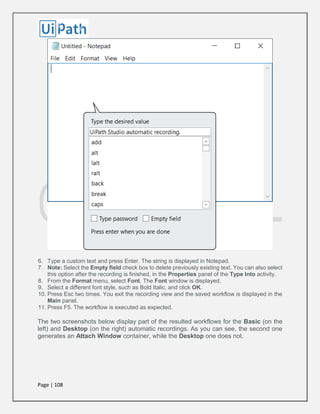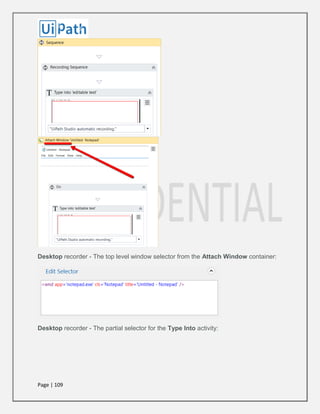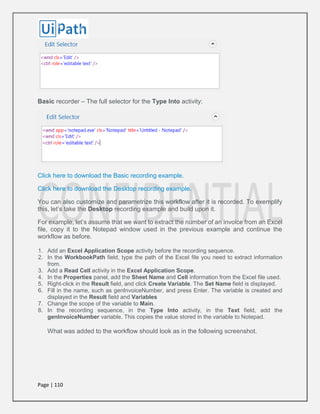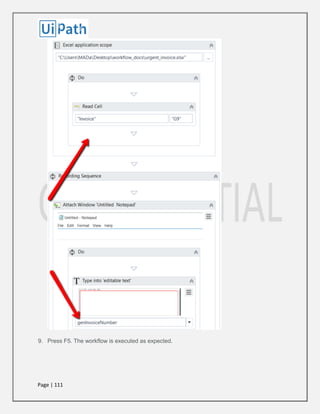
Page | 1
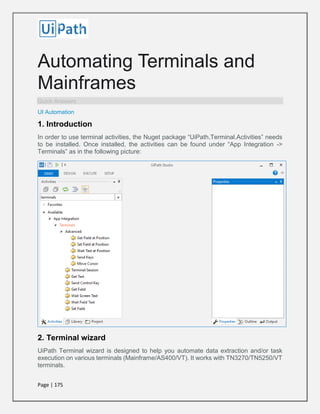
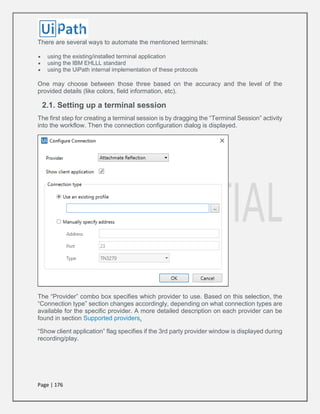
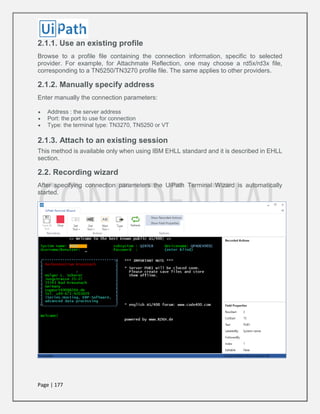
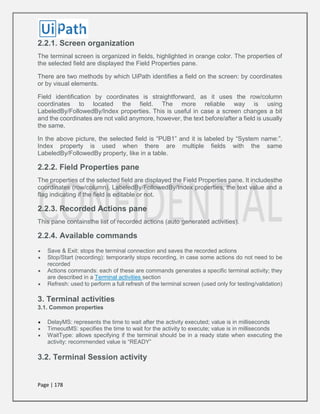
- User Guide
Table of Contents:
Introduction 3
The User Interface 3
The Workflow Designer Panels 5
Keyboard Shortcuts 14
Connecting your Project to a Source Control 21
Managing Variables 57
Creating Variables 57
Generic Value Variables 62
Array Variables 64
Date and Time Variables 68
Data Table Variables 71
Using Arguments 78
About Control Flow 81
The Assign Activity 83
The Delay Activity 83
The Do While Activity 85
The While Activity 88
The If Activity 91
The Switch Activity 95
The For Each Activity 97
The Break Activity 99
RECORDING 101
Manual Recording 116
About UI Elements 122
Page | 2
UI Activities Properties 122
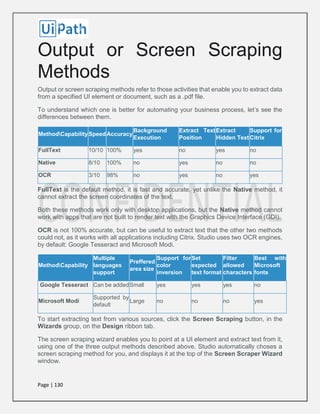
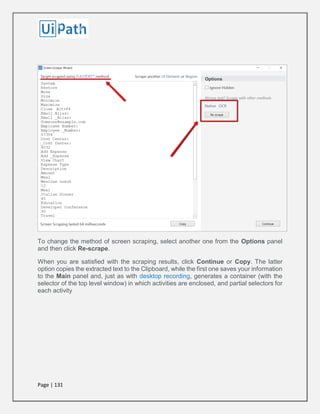
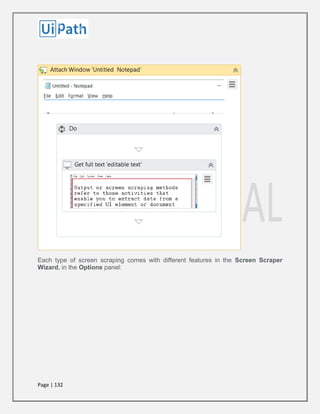
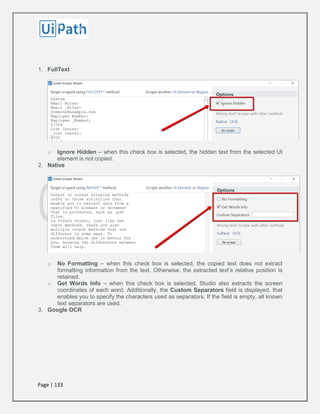
Output or Screen Scraping Methods 130
Examples of Using Output or Screen Scraping Methods 137
About Selectors 158
Selectors with Wildcards 161
Full Versus Partial Selectors 164
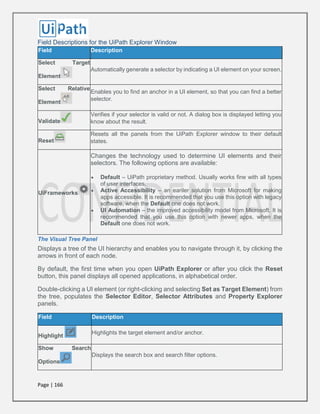
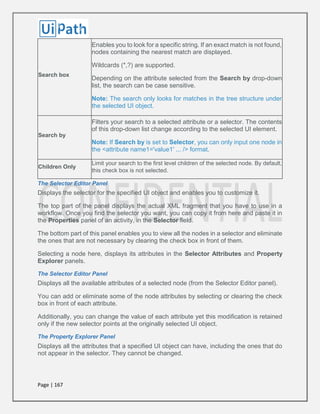
UiPath Explorer 165
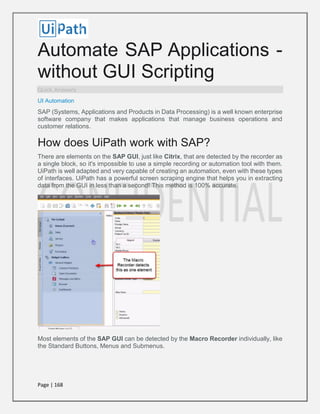
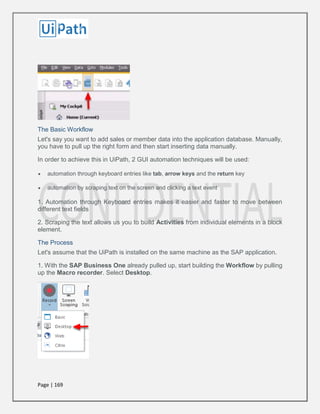
Automate SAP Applications -without GUI Scripting 168
Knowledge Base Error! Bookmark not
defined.
Automating Terminals and Mainframes 175
Page | 3
Introduction
UiPath is a complete solution for application integration, and automating third-party
applications, administrative IT tasks and business IT processes. One of the most
important notions in UiPath is the workflow.
A workflow is a graphical representation of a business process. It enables you to automate
rule-based processes, by giving you full control of the execution order and the relationship
between a custom set of steps, also known as activities in UiPath Studio. Each activity
consists of a small action, such as clicking a button, reading a file or writing to a log panel.
The main types of workflows supported are:
 Sequences - suitable to linear processes, enabling you to smoothly go from one
activity to another, without cluttering your workflow.
 Flowcharts - suitable to a more complex business logic, enabling you to integrate
decisions and connect activities in a more diverse manner, through multiple branching
logic operators.
 State Machines – suitable for very large workflows; they use a finite number of states
in their execution which are triggered by a condition (transition) or activity.
The User Interface
The Ribbon
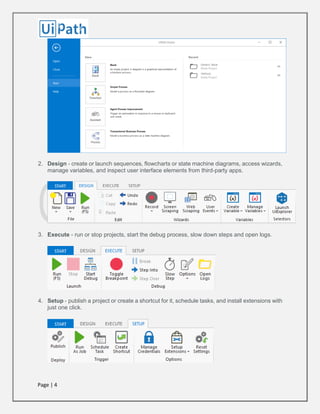
The ribbon is straightforward and can be minimized or expanded by clicking the Minimize
/ Expand button . It consists of the following four tabs:
1. Start - create a project or open a previously created one, switch to a Beta or Stable version,
update Studio, go to the online documentation or submit a request. By default, projects are
created in C:UsersUsernameDocumentsUiPath.
Page | 4
2. Design - create or launch sequences, flowcharts or state machine diagrams, access wizards,
manage variables, and inspect user interface elements from third-party apps.
3. Execute - run or stop projects, start the debug process, slow down steps and open logs.
4. Setup - publish a project or create a shortcut for it, schedule tasks, and install extensions with
just one click.
Page | 5
The Quick Access Toolbar
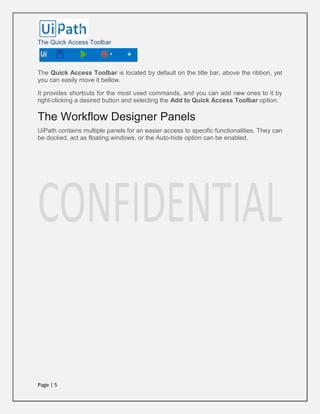
The Quick Access Toolbar is located by default on the title bar, above the ribbon, yet
you can easily move it bellow.
It provides shortcuts for the most used commands, and you can add new ones to it by
right-clicking a desired button and selecting the Add to Quick Access Toolbar option.
The Workflow Designer Panels
UiPath contains multiple panels for an easier access to specific functionalities. They can
be docked, act as floating windows, or the Auto-hide option can be enabled.
Page | 6
The Main Panel
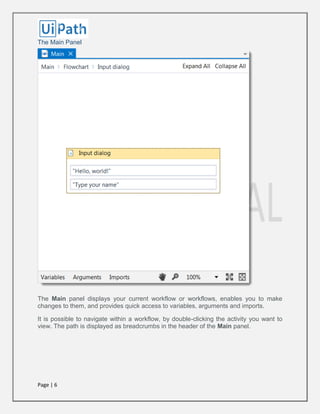
The Main panel displays your current workflow or workflows, enables you to make
changes to them, and provides quick access to variables, arguments and imports.
It is possible to navigate within a workflow, by double-clicking the activity you want to
view. The path is displayed as breadcrumbs in the header of the Main panel.
Page | 7
The Activities Panel
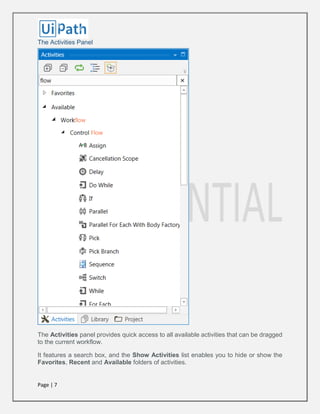
The Activities panel provides quick access to all available activities that can be dragged
to the current workflow.
It features a search box, and the Show Activities list enables you to hide or show the
Favorites, Recent and Available folders of activities.
Page | 8
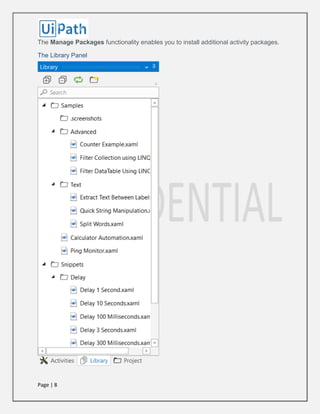
The Manage Packages functionality enables you to install additional activity packages.
The Library Panel
Page | 9
The Library panel enables you to easily reuse workflows. A search box is included to
facilitate finding items faster.
It includes, by default, multiple samples and snippets, and you can add your own by
clicking the Add Folder button and selecting a directory from your hard drive.
To remove a folder, right-click it and select Remove.
Note: If you add empty folders they are not going to be displayed.
Page | 10
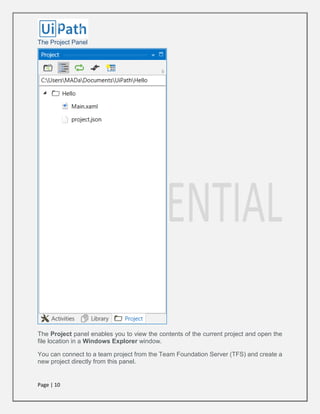
The Project Panel
The Project panel enables you to view the contents of the current project and open the
file location in a Windows Explorer window.
You can connect to a team project from the Team Foundation Server (TFS) and create a
new project directly from this panel.
Page | 11
Version control is available through the context menu, and it is also possible to view the
history of a selected file.
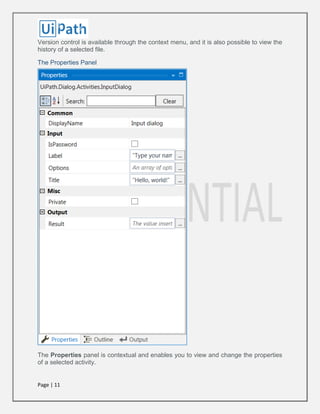
The Properties Panel
The Properties panel is contextual and enables you to view and change the properties
of a selected activity.
Page | 12
The properties can be sorted alphabetically, while the search box enables you to look for
a specific one.
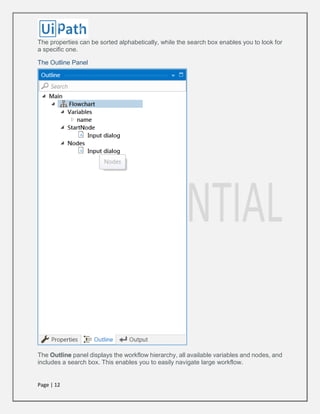
The Outline Panel
The Outline panel displays the workflow hierarchy, all available variables and nodes, and
includes a search box. This enables you to easily navigate large workflow.
Page | 13
You can highlight activities in this panel by selecting them in the Main panel, or you can
go to a specific activity by selecting it in the Outline panel.
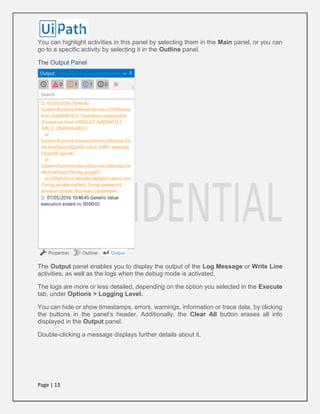
The Output Panel
The Output panel enables you to display the output of the Log Message or Write Line
activities, as well as the logs when the debug mode is activated.
The logs are more or less detailed, depending on the option you selected in the Execute
tab, under Options > Logging Level.
You can hide or show timestamps, errors, warnings, information or trace data, by clicking
the buttons in the panel’s header. Additionally, the Clear All button erases all info
displayed in the Output panel.
Double-clicking a message displays further details about it.
Page | 14
Keyboard Shortcuts
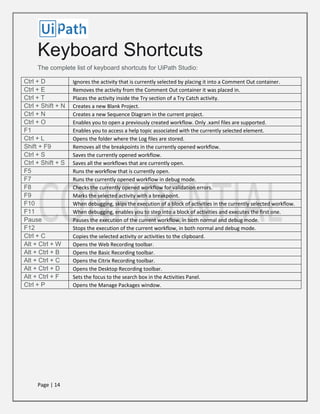
The complete list of keyboard shortcuts for UiPath Studio:
Ctrl + D Ignores the activity that is currently selected by placing it into a Comment Out container.
Ctrl + E Removes the activity from the Comment Out container it was placed in.
Ctrl + T Places the activity inside the Try section of a Try Catch activity.
Ctrl + Shift + N Creates a new Blank Project.
Ctrl + N Creates a new Sequence Diagram in the current project.
Ctrl + O Enables you to open a previously created workflow. Only .xaml files are supported.
F1 Enables you to access a help topic associated with the currently selected element.
Ctrl + L Opens the folder where the Log files are stored.
Shift + F9 Removes all the breakpoints in the currently opened workflow.
Ctrl + S Saves the currently opened workflow.
Ctrl + Shift + S Saves all the workflows that are currently open.
F5 Runs the workflow that is currently open.
F7 Runs the currently opened workflow in debug mode.
F8 Checks the currently opened workflow for validation errors.
F9 Marks the selected activity with a breakpoint.
F10 When debugging, skips the execution of a block of activities in the currently selected workflow.
F11 When debugging, enables you to step into a block of activities and executes the first one.
Pause Pauses the execution of the current workflow, in both normal and debug mode.
F12 Stops the execution of the current workflow, in both normal and debug mode.
Ctrl + C Copies the selected activity or activities to the clipboard.
Alt + Ctrl + W Opens the Web Recording toolbar.
Alt + Ctrl + B Opens the Basic Recording toolbar.
Alt + Ctrl + C Opens the Citrix Recording toolbar.
Alt + Ctrl + D Opens the Desktop Recording toolbar.
Alt + Ctrl + F Sets the focus to the search box in the Activities Panel.
Ctrl + P Opens the Manage Packages window.
Page | 15
Updating UiPath Studio
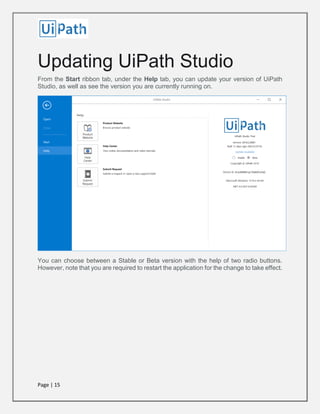
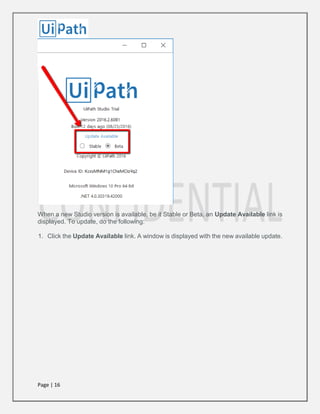
From the Start ribbon tab, under the Help tab, you can update your version of UiPath
Studio, as well as see the version you are currently running on.
You can choose between a Stable or Beta version with the help of two radio buttons.
However, note that you are required to restart the application for the change to take effect.
Page | 16
When a new Studio version is available, be it Stable or Beta, an Update Available link is
displayed. To update, do the following:
1. Click the Update Available link. A window is displayed with the new available update.
Page | 17
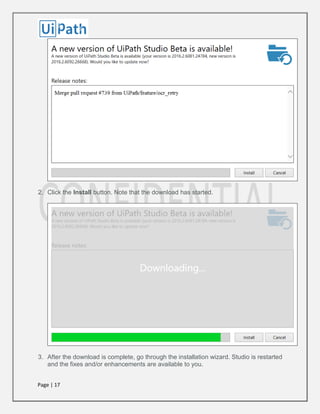
2. Click the Install button. Note that the download has started.
3. After the download is complete, go through the installation wizard. Studio is restarted
and the fixes and/or enhancements are available to you.
Page | 18
Installing the Chrome
Extension for UiPath Studio
From UiPath Studio
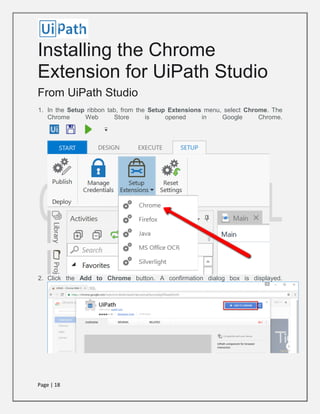
1. In the Setup ribbon tab, from the Setup Extensions menu, select Chrome. The
Chrome Web Store is opened in Google Chrome.
2. Click the Add to Chrome button. A confirmation dialog box is displayed.
Page | 19
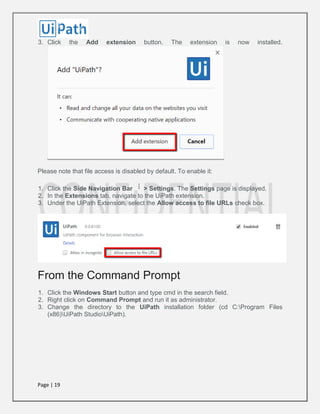
3. Click the Add extension button. The extension is now installed.
Please note that file access is disabled by default. To enable it:
1. Click the Side Navigation Bar > Settings. The Settings page is displayed.
2. In the Extensions tab, navigate to the UiPath extension.
3. Under the UiPath Extension, select the Allow access to file URLs check box.
From the Command Prompt
1. Click the Windows Start button and type cmd in the search field.
2. Right click on Command Prompt and run it as administrator.
3. Change the directory to the UiPath installation folder (cd C:Program Files
(x86)UiPath StudioUiPath).
Page | 20
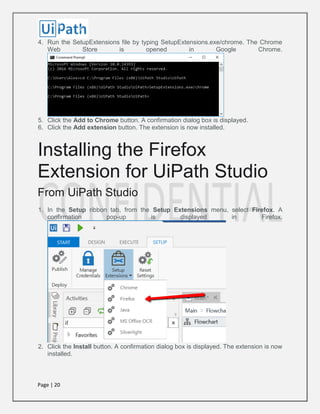
4. Run the SetupExtensions file by typing SetupExtensions.exe/chrome. The Chrome
Web Store is opened in Google Chrome.
5. Click the Add to Chrome button. A confirmation dialog box is displayed.
6. Click the Add extension button. The extension is now installed.
Installing the Firefox
Extension for UiPath Studio
From UiPath Studio
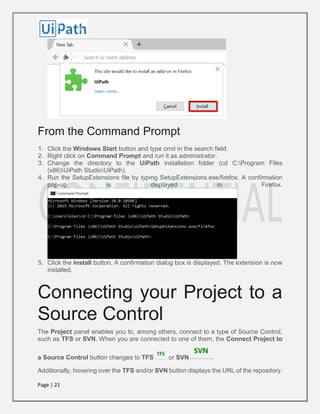
1. In the Setup ribbon tab, from the Setup Extensions menu, select Firefox. A
confirmation pop-up is displayed in Firefox.
2. Click the Install button. A confirmation dialog box is displayed. The extension is now
installed.
Page | 21
From the Command Prompt
1. Click the Windows Start button and type cmd in the search field.
2. Right click on Command Prompt and run it as administrator.
3. Change the directory to the UiPath installation folder (cd C:Program Files
(x86)UiPath StudioUiPath).
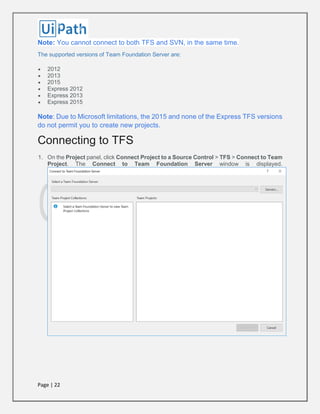
4. Run the SetupExtensions file by typing SetupExtensions.exe/firefox. A confirmation
pop-up is displayed in Firefox.
5. Click the Install button. A confirmation dialog box is displayed. The extension is now
installed.
Connecting your Project to a
Source Control
The Project panel enables you to, among others, connect to a type of Source Control,
such as TFS or SVN. When you are connected to one of them, the Connect Project to
a Source Control button changes to TFS or SVN .
Additionally, hovering over the TFS and/or SVN button displays the URL of the repository.
Page | 22
Note: You cannot connect to both TFS and SVN, in the same time.
The supported versions of Team Foundation Server are:
 2012
 2013
 2015
 Express 2012
 Express 2013
 Express 2015
Note: Due to Microsoft limitations, the 2015 and none of the Express TFS versions
do not permit you to create new projects.
Connecting to TFS
1. On the Project panel, click Connect Project to a Source Control > TFS > Connect to Team
Project. The Connect to Team Foundation Server window is displayed.
Page | 23
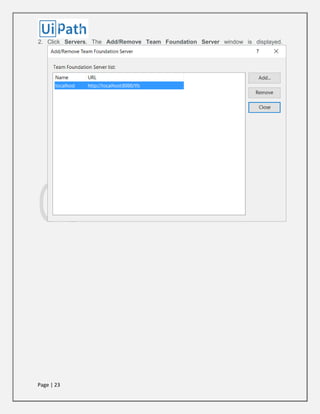
2. Click Servers. The Add/Remove Team Foundation Server window is displayed.
Page | 24
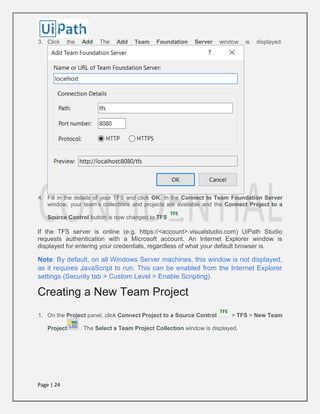
3. Click the Add The Add Team Foundation Server window is displayed.
4. Fill in the details of your TFS and click OK. In the Connect to Team Foundation Server
window, your team’s collections and projects are available and the Connect Project to a
Source Control button is now changed to TFS .
If the TFS server is online (e.g. https://<account>.visualstudio.com) UiPath Studio
requests authentication with a Microsoft account. An Internet Explorer window is
displayed for entering your credentials, regardless of what your default browser is.
Note: By default, on all Windows Server machines, this window is not displayed,
as it requires JavaScript to run. This can be enabled from the Internet Explorer
settings (Security tab > Custom Level > Enable Scripting).
Creating a New Team Project
1. On the Project panel, click Connect Project to a Source Control > TFS > New Team
Project . The Select a Team Project Collection window is displayed.
Page | 25
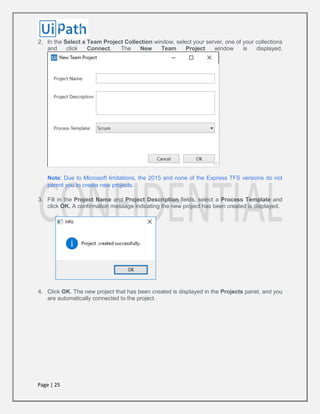
2. In the Select a Team Project Collection window, select your server, one of your collections
and click Connect. The New Team Project window is displayed.
Note: Due to Microsoft limitations, the 2015 and none of the Express TFS versions do not
permit you to create new projects.
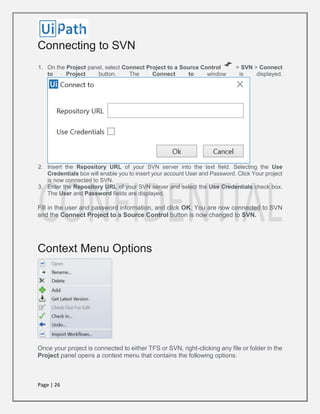
3. Fill in the Project Name and Project Description fields, select a Process Template and
click OK. A confirmation message indicating the new project has been created is displayed.
4. Click OK. The new project that has been created is displayed in the Projects panel, and you
are automatically connected to the project.
Page | 26
Connecting to SVN
1. On the Project panel, select Connect Project to a Source Control > SVN > Connect
to Project button. The Connect to window is displayed.
2. Insert the Repository URL of your SVN server into the text field. Selecting the Use
Credentials box will enable you to insert your account User and Password. Click Your project
is now connected to SVN.
3. Enter the Repository URL of your SVN server and select the Use Credentials check box.
The User and Password fields are displayed.
Fill in the user and password information, and click OK. You are now connected to SVN
and the Connect Project to a Source Control button is now changed to SVN.
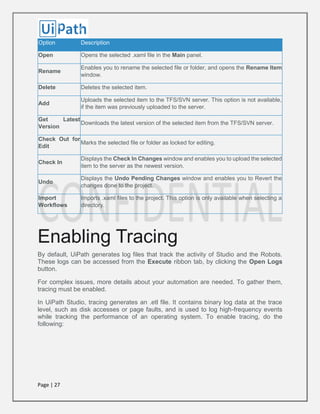
Context Menu Options
Once your project is connected to either TFS or SVN, right-clicking any file or folder in the
Project panel opens a context menu that contains the following options:
Page | 27
Option Description
Open Opens the selected .xaml file in the Main panel.
Rename
Enables you to rename the selected file or folder, and opens the Rename Item
window.
Delete Deletes the selected item.
Add
Uploads the selected item to the TFS/SVN server. This option is not available,
if the item was previously uploaded to the server.
Get Latest
Version
Downloads the latest version of the selected item from the TFS/SVN server.
Check Out for
Edit
Marks the selected file or folder as locked for editing.
Check In
Displays the Check In Changes window and enables you to upload the selected
item to the server as the newest version.
Undo
Displays the Undo Pending Changes window and enables you to Revert the
changes done to the project.
Import
Workflows
Imports .xaml files to the project. This option is only available when selecting a
directory.
Enabling Tracing
By default, UiPath generates log files that track the activity of Studio and the Robots.
These logs can be accessed from the Execute ribbon tab, by clicking the Open Logs
button.
For complex issues, more details about your automation are needed. To gather them,
tracing must be enabled.
In UiPath Studio, tracing generates an .etl file. It contains binary log data at the trace
level, such as disk accesses or page faults, and is used to log high-frequency events
while tracking the performance of an operating system. To enable tracing, do the
following:
Page | 28
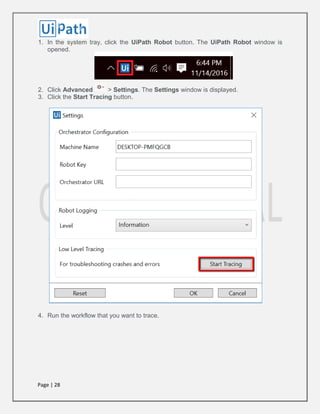
1. In the system tray, click the UiPath Robot button. The UiPath Robot window is
opened.
2. Click Advanced > Settings. The Settings window is displayed.
3. Click the Start Tracing button.
4. Run the workflow that you want to trace.
Page | 29
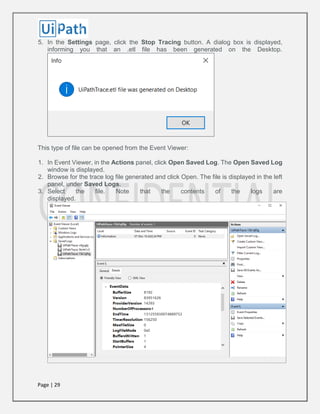
5. In the Settings page, click the Stop Tracing button. A dialog box is displayed,
informing you that an .etl file has been generated on the Desktop.
This type of file can be opened from the Event Viewer:
1. In Event Viewer, in the Actions panel, click Open Saved Log. The Open Saved Log
window is displayed.
2. Browse for the trace log file generated and click Open. The file is displayed in the left
panel, under Saved Logs.
3. Select the file. Note that the contents of the logs are
displayed.
Page | 30
Creating a Basic Workflow
To create a basic workflow that asks for a user's name and then displays it on the screen,
do the following:
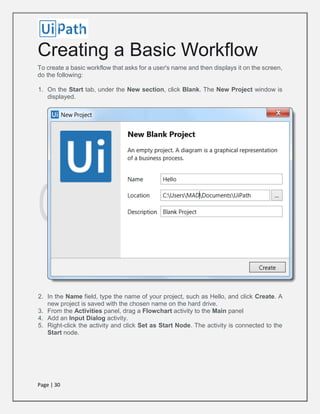
1. On the Start tab, under the New section, click Blank. The New Project window is
displayed.
2. In the Name field, type the name of your project, such as Hello, and click Create. A
new project is saved with the chosen name on the hard drive.
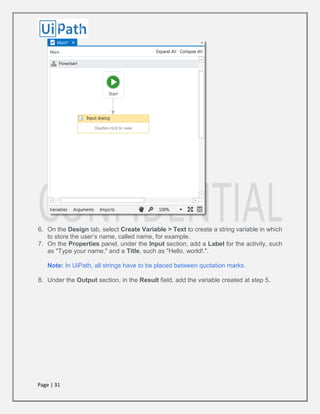
3. From the Activities panel, drag a Flowchart activity to the Main panel
4. Add an Input Dialog activity.
5. Right-click the activity and click Set as Start Node. The activity is connected to the
Start node.
Page | 31
6. On the Design tab, select Create Variable > Text to create a string variable in which
to store the user’s name, called name, for example.
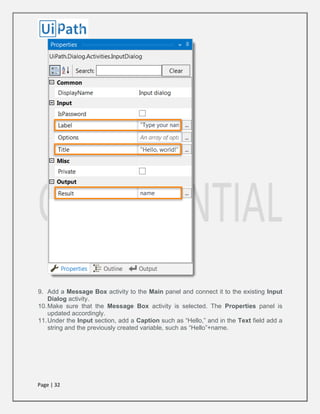
7. On the Properties panel, under the Input section, add a Label for the activity, such
as "Type your name," and a Title, such as "Hello, world!.".
Note: In UiPath, all strings have to be placed between quotation marks.
8. Under the Output section, in the Result field, add the variable created at step 5.
Page | 32
9. Add a Message Box activity to the Main panel and connect it to the existing Input
Dialog activity.
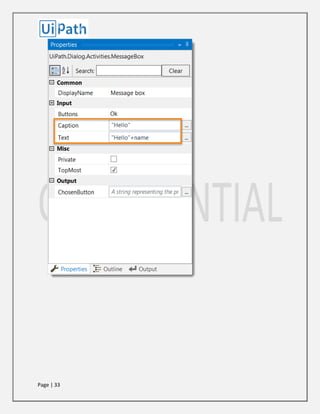
10.Make sure that the Message Box activity is selected. The Properties panel is
updated accordingly.
11.Under the Input section, add a Caption such as “Hello,” and in the Text field add a
string and the previously created variable, such as “Hello”+name.
Page | 33
Page | 34
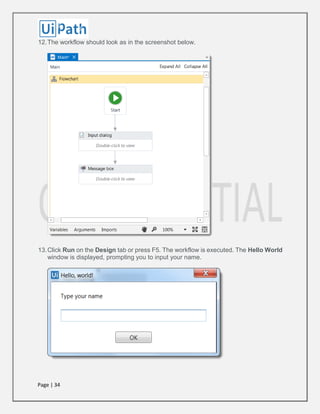
12.The workflow should look as in the screenshot below.
13.Click Run on the Design tab or press F5. The workflow is executed. The Hello World
window is displayed, prompting you to input your name.
Page | 35
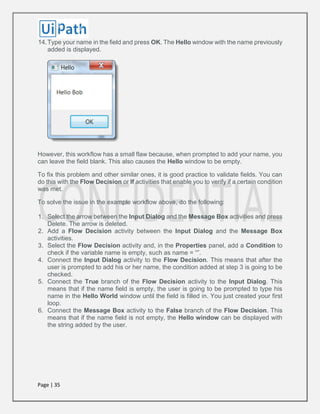
14.Type your name in the field and press OK. The Hello window with the name previously
added is displayed.
However, this workflow has a small flaw because, when prompted to add your name, you
can leave the field blank. This also causes the Hello window to be empty.
To fix this problem and other similar ones, it is good practice to validate fields. You can
do this with the Flow Decision or If activities that enable you to verify if a certain condition
was met.
To solve the issue in the example workflow above, do the following:
1. Select the arrow between the Input Dialog and the Message Box activities and press
Delete. The arrow is deleted.
2. Add a Flow Decision activity between the Input Dialog and the Message Box
activities.
3. Select the Flow Decision activity and, in the Properties panel, add a Condition to
check if the variable name is empty, such as name = “”.
4. Connect the Input Dialog activity to the Flow Decision. This means that after the
user is prompted to add his or her name, the condition added at step 3 is going to be
checked.
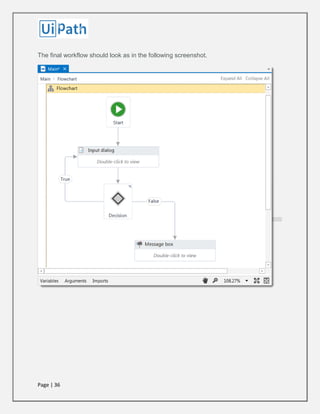
5. Connect the True branch of the Flow Decision activity to the Input Dialog. This
means that if the name field is empty, the user is going to be prompted to type his
name in the Hello World window until the field is filled in. You just created your first
loop.
6. Connect the Message Box activity to the False branch of the Flow Decision. This
means that if the name field is not empty, the Hello window can be displayed with
the string added by the user.
Page | 36
The final workflow should look as in the following screenshot.
Page | 37
Introduction to Debugging a
Workflow
Debugging is the process of identifying and removing errors from a given workflow.
Coupled with logging and breakpoints, it becomes a powerful functionality that offers you
information about your project and step-by-step highlighting, so that you can be sure it is
error-free.
Logging enables you to display details about what is happening in your workflow in the
Output panel. This in turn makes it easier for you to debug a workflow.
Breakpoints enable you to pause the execution of a workflow so that you can check its
state at a given point.
Example of Debugging a Workflow
To debug the workflow designed in Creating a Basic Workflow, do the following:
1. Select the True branch between the Input Dialog and Flow Decision activities, and
press Delete. The True branch has been deleted.
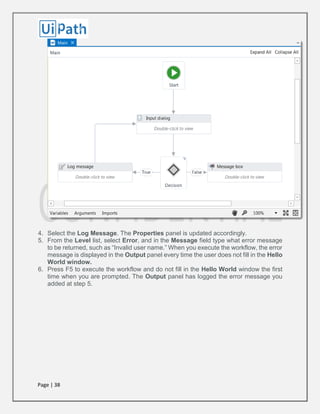
2. Add a Log Message activity next to the Flow Decision.
3. Connect the Log Message activity to the True branch of the Flow Decision and to
the Input Dialog activity. The workflow should look as in the following screenshot.
Page | 38
4. Select the Log Message. The Properties panel is updated accordingly.
5. From the Level list, select Error, and in the Message field type what error message
to be returned, such as “Invalid user name.” When you execute the workflow, the error
message is displayed in the Output panel every time the user does not fill in the Hello
World window.
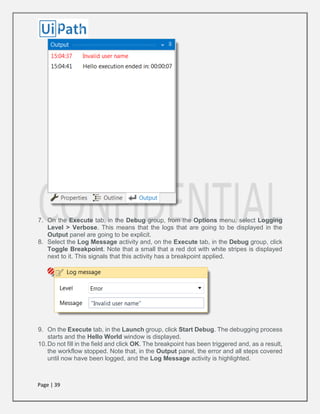
6. Press F5 to execute the workflow and do not fill in the Hello World window the first
time when you are prompted. The Output panel has logged the error message you
added at step 5.
Page | 39
7. On the Execute tab, in the Debug group, from the Options menu, select Logging
Level > Verbose. This means that the logs that are going to be displayed in the
Output panel are going to be explicit.
8. Select the Log Message activity and, on the Execute tab, in the Debug group, click
Toggle Breakpoint. Note that a small that a red dot with white stripes is displayed
next to it. This signals that this activity has a breakpoint applied.
9. On the Execute tab, in the Launch group, click Start Debug. The debugging process
starts and the Hello World window is displayed.
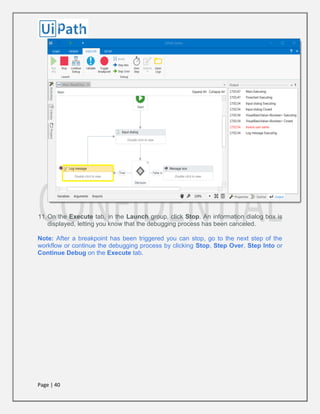
10.Do not fill in the field and click OK. The breakpoint has been triggered and, as a result,
the workflow stopped. Note that, in the Output panel, the error and all steps covered
until now have been logged, and the Log Message activity is highlighted.
Page | 40
11.On the Execute tab, in the Launch group, click Stop. An information dialog box is
displayed, letting you know that the debugging process has been canceled.
Note: After a breakpoint has been triggered you can stop, go to the next step of the
workflow or continue the debugging process by clicking Stop, Step Over, Step Into or
Continue Debug on the Execute tab.
Page | 41
Managing Packages
The package manager functionality enables you to download activity packages, libraries,
frameworks, wrappers and others, view the ones already installed on your computer and
update them, as well as add and remove your own.
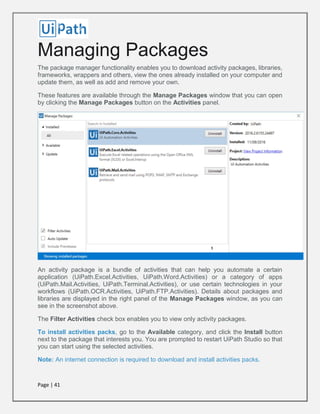
These features are available through the Manage Packages window that you can open
by clicking the Manage Packages button on the Activities panel.
An activity package is a bundle of activities that can help you automate a certain
application (UiPath.Excel.Activities, UiPath.Word.Activities) or a category of apps
(UiPath.Mail.Activities, UiPath.Terminal.Activities), or use certain technologies in your
workflows (UiPath.OCR.Activities, UiPath.FTP.Activities). Details about packages and
libraries are displayed in the right panel of the Manage Packages window, as you can
see in the screenshot above.
The Filter Activities check box enables you to view only activity packages.
To install activities packs, go to the Available category, and click the Install button
next to the package that interests you. You are prompted to restart UiPath Studio so that
you can start using the selected activities.
Note: An internet connection is required to download and install activities packs.
Page | 42
To uninstall activities, go to the Installed category, and click the Uninstall button next
to the package that you no longer want to use.
Updating Packages
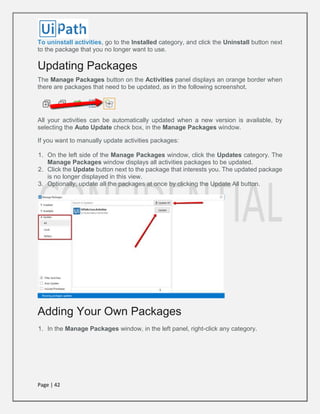
The Manage Packages button on the Activities panel displays an orange border when
there are packages that need to be updated, as in the following screenshot.
All your activities can be automatically updated when a new version is available, by
selecting the Auto Update check box, in the Manage Packages window.
If you want to manually update activities packages:
1. On the left side of the Manage Packages window, click the Updates category. The
Manage Packages window displays all activities packages to be updated.
2. Click the Update button next to the package that interests you. The updated package
is no longer displayed in this view.
3. Optionally, update all the packages at once by clicking the Update All button.
Adding Your Own Packages
1. In the Manage Packages window, in the left panel, right-click any category.
Page | 43
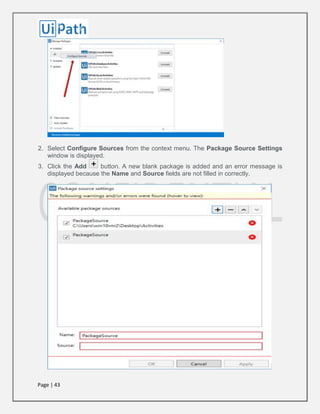
2. Select Configure Sources from the context menu. The Package Source Settings
window is displayed.
3. Click the Add button. A new blank package is added and an error message is
displayed because the Name and Source fields are not filled in correctly.
Page | 44
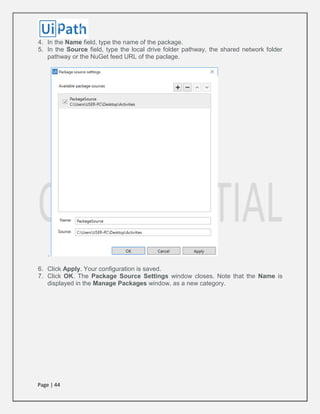
4. In the Name field, type the name of the package.
5. In the Source field, type the local drive folder pathway, the shared network folder
pathway or the NuGet feed URL of the paclage.
.
6. Click Apply. Your configuration is saved.
7. Click OK. The Package Source Settings window closes. Note that the Name is
displayed in the Manage Packages window, as a new category.
Page | 45
Removing Your Packages
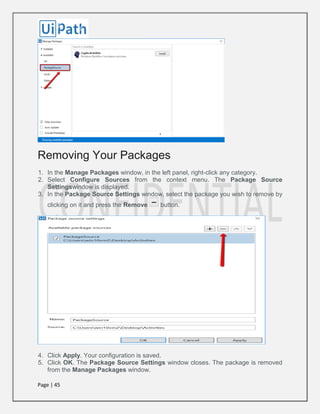
1. In the Manage Packages window, in the left panel, right-click any category.
2. Select Configure Sources from the context menu. The Package Source
Settingswindow is displayed.
3. In the Package Source Settings window, select the package you wish to remove by
clicking on it and press the Remove button.
4. Click Apply. Your configuration is saved.
5. Click OK. The Package Source Settings window closes. The package is removed
from the Manage Packages window.
Page | 46
TYPES OF WORKFLOW
Sequences
Sequences are the smallest type of workflow. They are suitable to linear processes as
they enable you to go from one activity to another seamlessly, and act as a single block
activity.
One of the key features of sequences is that they can be reused time and again, as a
standalone workflow or as part of a state machine or flowchart.
For example, you can create a sequence to take information from a .pdf file and add it to
a spreadsheet, and reuse it in a different setting, while changing just a few properties.
Note: Sequences do not use connectors.
Example of a Sequence
To create a sequence that asks the user for his first and last name, and his hair color,
and then displays his answers, do the following:
1. Create a blank workflow and, on the Design tab, in the File group, select New >
Sequence. The New Diagram window is displayed.
Note: You can also add a Sequence activity to the Main panel to create a new
sequence.
2. In the Name field type a name for the workflow, such as “First Sequence,” and click
Create. The Main panel is updated accordingly.
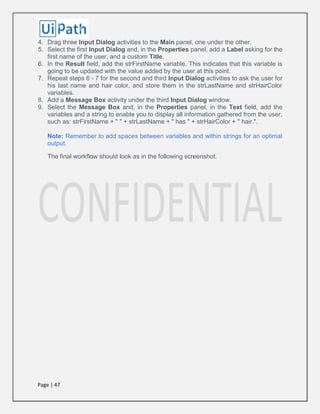
3. Create three String variables such as strFirstName, strLastName, and strHairColor,
so that you can store data from the user in them. Leave the Default field empty, to
indicate that there is no default value.
Page | 47
4. Drag three Input Dialog activities to the Main panel, one under the other.
5. Select the first Input Dialog and, in the Properties panel, add a Label asking for the
first name of the user, and a custom Title.
6. In the Result field, add the strFirstName variable. This indicates that this variable is
going to be updated with the value added by the user at this point.
7. Repeat steps 6 - 7 for the second and third Input Dialog activities to ask the user for
his last name and hair color, and store them in the strLastName and strHairColor
variables.
8. Add a Message Box activity under the third Input Dialog window.
9. Select the Message Box and, in the Properties panel, in the Text field, add the
variables and a string to enable you to display all information gathered from the user,
such as: strFirstName + " " + strLastName + " has " + strHairColor + " hair.".
Note: Remember to add spaces between variables and within strings for an optimal
output.
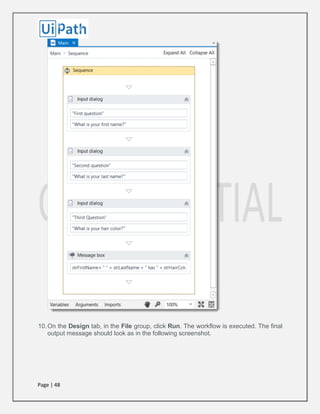
The final workflow should look as in the following screenshot.
Page | 48
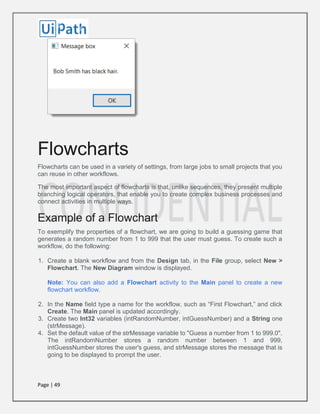
10.On the Design tab, in the File group, click Run. The workflow is executed. The final
output message should look as in the following screenshot.
Page | 49
Flowcharts
Flowcharts can be used in a variety of settings, from large jobs to small projects that you
can reuse in other workflows.
The most important aspect of flowcharts is that, unlike sequences, they present multiple
branching logical operators, that enable you to create complex business processes and
connect activities in multiple ways.
Example of a Flowchart
To exemplify the properties of a flowchart, we are going to build a guessing game that
generates a random number from 1 to 999 that the user must guess. To create such a
workflow, do the following:
1. Create a blank workflow and from the Design tab, in the File group, select New >
Flowchart. The New Diagram window is displayed.
Note: You can also add a Flowchart activity to the Main panel to create a new
flowchart workflow.
2. In the Name field type a name for the workflow, such as “First Flowchart,” and click
Create. The Main panel is updated accordingly.
3. Create two Int32 variables (intRandomNumber, intGuessNumber) and a String one
(strMessage).
4. Set the default value of the strMessage variable to "Guess a number from 1 to 999.0".
The intRandomNumber stores a random number between 1 and 999,
intGuessNumber stores the user's guess, and strMessage stores the message that is
going to be displayed to prompt the user.
Page | 50
5. Add an Assign activity to the Main panel, and connect it to the Start node.
6. In the Properties panel, in the To field add the intRandomNumber variable.
7. In the Value field, type new Random().Next(1,999).
Note: This field uses the Random() function to generate a random number between
1 and 999.
8. Add an Input Dialog activity to the Main panel and connect it to the Assign one.
9. In the Properties panel, in the Label field, add the strMessage variable.
10.In the Result field, add the intGuessNumber variable. This activity asks and stores
the user’s guesses in the intGuessNumber variable.
11.Add a Flow Decision activity and connect it to the Input Dialog. This activity enables
you to tell the user if he correctly guessed the number or not.
12.In the Properties panel, in the Condition field, type intGuessNumber =
intRandomNumber. This enables you to verify if the number added by the user is the
same as the randomly-generated one.
13.Add a Message Box activity and connect it to the True branch of the Flow Decision.
14.In the Properties panel, in the Text field, type "Congratulation! You guessed correctly!
The number was " + intRandomNumber.ToString + ".". This is the message that is
going to be displayed if the user correctly guessed the number.
15.Add a new Flow Decision activity and connect it to the False branch of the previously
added Flow Decision.
16.In the Properties panel, in the Condition field, type intGuessNumber >
intRandomNumber. This activity enables you to check if the number the user added
is bigger than the randomly-generated one.
17.In the DisplayName field, type Comparison. This enables you to easily to tell the
difference between the two Flow Decisions used.
18.Add an Assign activity and connect it to the True branch of the Comparison activity.
19.In the To field, type the strMessage variable, and in the Value field, type a message
indicating that the guess was too high, such as “Too big. Try again.”.
20.Select the Assign activity and press Ctrl+C. The entire activity and its properties are
copied to the Clipboard.
21.Press Ctr+V. A duplicate of the previous Assign activity is displayed.
22.Connect it to the False branch of the Comparison activity and, in the Properties
panel, in the Value field, type “Too small. Try again.”.
23.Connect the Assign activities created at steps 18-22 to the Input Dialog. A loop is
created, asking the user to type a smaller or bigger number, until he guesses correctly.
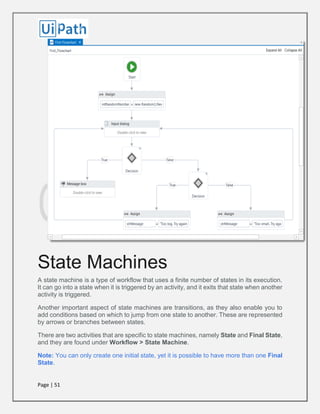
The final workflow should look as in the screenshot below.
Page | 51
State Machines
A state machine is a type of workflow that uses a finite number of states in its execution.
It can go into a state when it is triggered by an activity, and it exits that state when another
activity is triggered.
Another important aspect of state machines are transitions, as they also enable you to
add conditions based on which to jump from one state to another. These are represented
by arrows or branches between states.
There are two activities that are specific to state machines, namely State and Final State,
and they are found under Workflow > State Machine.
Note: You can only create one initial state, yet it is possible to have more than one Final
State.
Page | 52
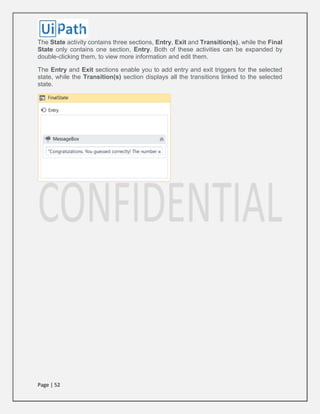
The State activity contains three sections, Entry, Exit and Transition(s), while the Final
State only contains one section, Entry. Both of these activities can be expanded by
double-clicking them, to view more information and edit them.
The Entry and Exit sections enable you to add entry and exit triggers for the selected
state, while the Transition(s) section displays all the transitions linked to the selected
state.
Page | 53
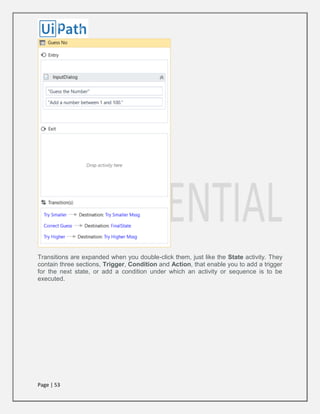
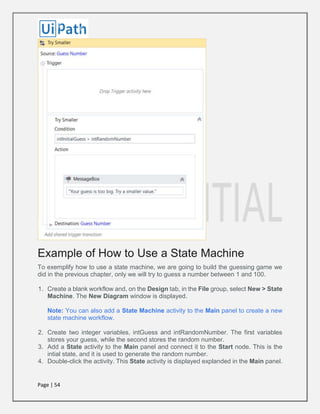
Transitions are expanded when you double-click them, just like the State activity. They
contain three sections, Trigger, Condition and Action, that enable you to add a trigger
for the next state, or add a condition under which an activity or sequence is to be
executed.
Page | 54
Example of How to Use a State Machine
To exemplify how to use a state machine, we are going to build the guessing game we
did in the previous chapter, only we will try to guess a number between 1 and 100.
1. Create a blank workflow and, on the Design tab, in the File group, select New > State
Machine. The New Diagram window is displayed.
Note: You can also add a State Machine activity to the Main panel to create a new
state machine workflow.
2. Create two integer variables, intGuess and intRandomNumber. The first variables
stores your guess, while the second stores the random number.
3. Add a State activity to the Main panel and connect it to the Start node. This is the
intial state, and it is used to generate the random number.
4. Double-click the activity. This State activity is displayed explanded in the Main panel.
Page | 55
5. In the Properties panel, in the DisplayName field, type Initializing Random Number.
This enables you to easily tell states apart.
6. In the Entry section, add an Assign activity.
7. In the To field, add the intRandomNumber variable.
8. In the Value field, type new Random().Next(1.100). This expression generates a
random number.
9. Return to the main workflow view and add a new State activity.
10.Connect it to the previously added activity.
11.Double-click the last added State activity. This activity is displayed expanded in the
Main panel.
12.In the Properties panel, in the DisplayName field, type Guess Number. This state is
used to prompt the user to guess a number.
13.In the Entry section, add an Input Dialog activity.
14.Select the Input Dialog, and in the Properties panel, add an appropriate Label and
Title to prompt the user to guess a number between 1 and 100.
15.In the Result field, add the intGuess variable. This variable stores the user’s guess.
16.Return to the main workflow view and create a transition that points from the Guess
Number state to itself.
17.Double-click the transition. The transition is displayed expanded in the Main panel.
18.In the Properties panel, in the DisplayName field, type Try Smaller. This message is
displayed on the arrow, enabling you to run through your workflow easier.
19.In the Condition section, type intGuess > intRandomNumber. This verifies if the
user’s guess is bigger than the random number.
20.In the Action section, add a Message Box activity.
21.In the Text field, type something similar to "Your guess is too big. Try a smaller
number." This message is displayed when the user’s guess is bigger than the random
number.
22.Return to the main workflow view and create a new transition that points from the
Guess Number state to itself.
23.Double-click the transition. The transition is displayed expanded in the Main panel.
24.In the Properties panel, in the DisplayName field, type "Try Bigger.". This message
is displayed on the arrow, enabling you to run through your workflow easier.
25.In the Condition section, type intGuess < intRandomNumber. This verifies if the
guess is smaller than the random number.
26.In the Action section, add a Message Box activity.
27.In the Text field, type something similar to "Your guess is too small. Try a bigger
number.". This message is displayed when the users guess is smaller than the
random number.
28.Return to main workflow view and add a Final State activity to the Main panel.
29.Connect a transition from the Guess Number activity to the Final State.
30.In the Properties panel, in the DisplayName field, type Correct Guess.
31.In the Condition field, type intGuess = intRandomNumber. This is the condition on
which this workflow steps to the final state and end.
32.Double-click the Final State activity. It is displayed expanded in the Main panel.
33.In the Entry section, add a Message Box activity.
Page | 56
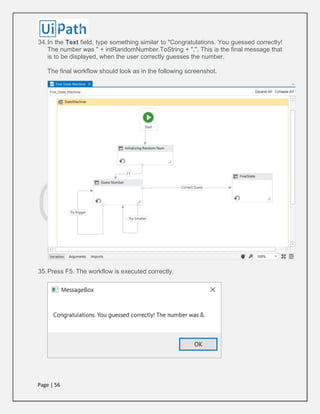
34.In the Text field, type something similar to "Congratulations. You guessed correctly!
The number was " + intRandomNumber.ToString + ".". This is the final message that
is to be displayed, when the user correctly guesses the number.
The final workflow should look as in the following screenshot.
35.Press F5. The workflow is executed correctly.
Page | 57
VARIABLES
Managing Variables
Managing Variables
In UiPath Studio, variables are used to store multiples type of data. Another key aspect
of variables is that their value can change so that you can, for example, control how many
times the body of a loop is executed.
The data stored within a variable is called a value, and it can be of multiple types. In
UiPath, we support a large amount of types, ranging from generic value, text, number,
data table, time and date, to UiElements.
Creating Variables
Note: Variables cannot be created if the Main panel does not contain at least one activity.
From the Design ribbon:
1. On the Design ribbon tab, in the Variables group, select Create Variable > [Type of
variable]. The Create Variable window is displayed.
Page | 58
2. Fill in the required fields and click OK. The variable is created and you can view and edit it in
the Variables panel.
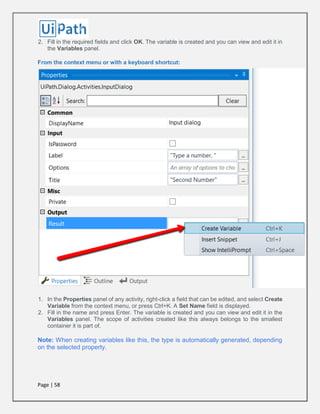
From the context menu or with a keyboard shortcut:
1. In the Properties panel of any activity, right-click a field that can be edited, and select Create
Variable from the context menu, or press Ctrl+K. A Set Name field is displayed.
2. Fill in the name and press Enter. The variable is created and you can view and edit it in the
Variables panel. The scope of activities created like this always belongs to the smallest
container it is part of.
Note: When creating variables like this, the type is automatically generated, depending
on the selected property.
Page | 59
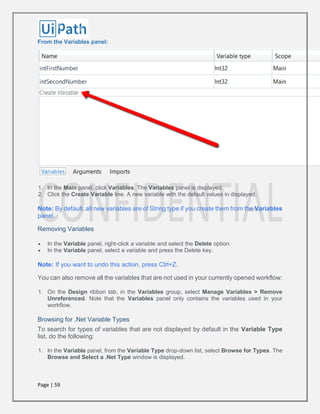
From the Variables panel:
1. In the Main panel, click Variables. The Variables panel is displayed.
2. Click the Create Variable line. A new variable with the default values in displayed.
Note: By default, all new variables are of String type if you create them from the Variables
panel.
Removing Variables
 In the Variable panel, right-click a variable and select the Delete option.
 In the Variable panel, select a variable and press the Delete key.
Note: If you want to undo this action, press Ctrl+Z.
You can also remove all the variables that are not used in your currently opened workflow:
1. On the Design ribbon tab, in the Variables group, select Manage Variables > Remove
Unreferenced. Note that the Variables panel only contains the variables used in your
workflow.
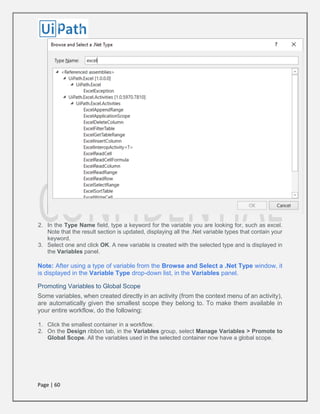
Browsing for .Net Variable Types
To search for types of variables that are not displayed by default in the Variable Type
list, do the following:
1. In the Variable panel, from the Variable Type drop-down list, select Browse for Types. The
Browse and Select a .Net Type window is displayed.
Page | 60
2. In the Type Name field, type a keyword for the variable you are looking for, such as excel.
Note that the result section is updated, displaying all the .Net variable types that contain your
keyword.
3. Select one and click OK. A new variable is created with the selected type and is displayed in
the Variables panel.
Note: After using a type of variable from the Browse and Select a .Net Type window, it
is displayed in the Variable Type drop-down list, in the Variables panel.
Promoting Variables to Global Scope
Some variables, when created directly in an activity (from the context menu of an activity),
are automatically given the smallest scope they belong to. To make them available in
your entire workflow, do the following:
1. Click the smallest container in a workflow.
2. On the Design ribbon tab, in the Variables group, select Manage Variables > Promote to
Global Scope. All the variables used in the selected container now have a global scope.
Page | 61
Naming Best Practices
When creating very large workflows, it can be very easy to forget what every variable
does. That is why it is important to have a good naming system in place.
We recommend that you always use descriptive names, such as userName for a variable
that stores the name of a user.
Additionally, you might want to keep track of the type of variable you create, and that is
why adding a short descriptor in the front of each variable name can be useful, such as
int for integers.
Finally, we recommend that you write variable names in camel case, so that you can read
them easier.
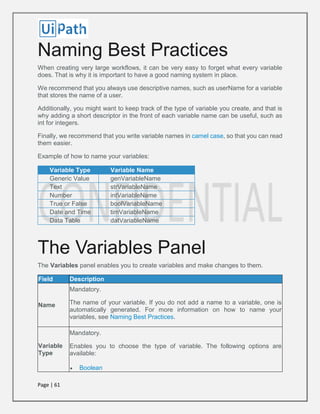
Example of how to name your variables:
Variable Type Variable Name
Generic Value genVariableName
Text strVariableName
Number intVariableName
True or False boolVariableName
Date and Time timVariableName
Data Table datVariableName
The Variables Panel
The Variables panel enables you to create variables and make changes to them.
Field Description
Name
Mandatory.
The name of your variable. If you do not add a name to a variable, one is
automatically generated. For more information on how to name your
variables, see Naming Best Practices.
Variable
Type
Mandatory.
Enables you to choose the type of variable. The following options are
available:
 Boolean
Page | 62
 Int32
 String
 Object
 Generic Value
 Array of [T]
 Browse for Types
Scope
Mandatory.
The are in which a variable is available, such as a specific activity. By default,
they are available in the entire workflow.
Default
Optional.
The default value of the variable. If this field is empty, the variable does not
have a default value.
Generic Value Variables
The generic value variable is a type of variable with a wide range that can store any kind
of data, including text, numbers, dates and arrays, and is particular to UiPath Studio.
Generic value variables are automatically converted to other types, in order to perform
certain actions. However, it is important to use these types of variables carefully, as their
conversion may not always be the correct one for your workflow.
Example of Using a Generic Value Variable
To demonstrate how a generic value variable can be converted and used, let's create a
workflow that displays in the Output panel the sum of two numbers, using generic value
variables with different types of values.
1. Create a flowchart.
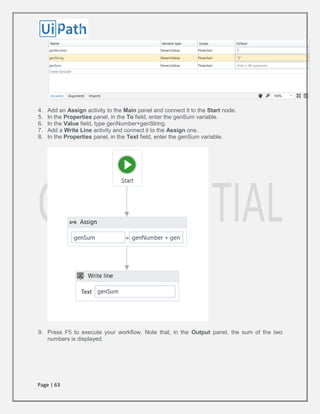
2. Create three generic value variables, genNumber, genString and genSum.
3. In the Default column for the genNumber variable, type 2, and for the genString variable,
type"2." The first value is interpreted as as integer, and the second one as a string.
Page | 63
4. Add an Assign activity to the Main panel and connect it to the Start node.
5. In the Properties panel, in the To field, enter the genSum variable.
6. In the Value field, type genNumber+genString.
7. Add a Write Line activity and connect it to the Assign one.
8. In the Properties panel, in the Text field, enter the genSum variable.
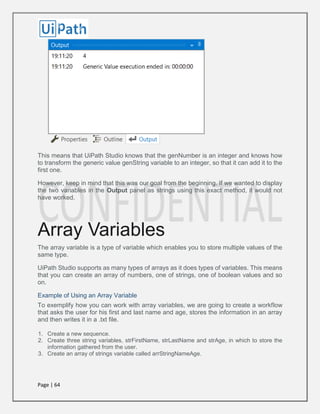
9. Press F5 to execute your workflow. Note that, in the Output panel, the sum of the two
numbers is displayed.
Page | 64
This means that UiPath Studio knows that the genNumber is an integer and knows how
to transform the generic value genString variable to an integer, so that it can add it to the
first one.
However, keep in mind that this was our goal from the beginning. If we wanted to display
the two variables in the Output panel as strings using this exact method, it would not
have worked.
Array Variables
The array variable is a type of variable which enables you to store multiple values of the
same type.
UiPath Studio supports as many types of arrays as it does types of variables. This means
that you can create an array of numbers, one of strings, one of boolean values and so
on.
Example of Using an Array Variable
To exemplify how you can work with array variables, we are going to create a workflow
that asks the user for his first and last name and age, stores the information in an array
and then writes it in a .txt file.
1. Create a new sequence.
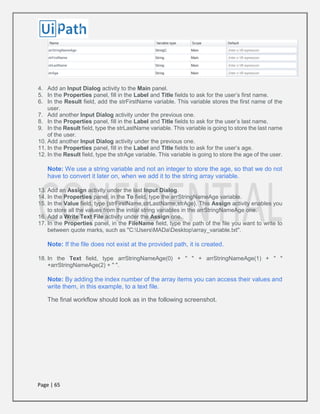
2. Create three string variables, strFirstName, strLastName and strAge, in which to store the
information gathered from the user.
3. Create an array of strings variable called arrStringNameAge.
Page | 65
4. Add an Input Dialog activity to the Main panel.
5. In the Properties panel, fill in the Label and Title fields to ask for the user’s first name.
6. In the Result field, add the strFirstName variable. This variable stores the first name of the
user.
7. Add another Input Dialog activity under the previous one.
8. In the Properties panel, fill in the Label and Title fields to ask for the user’s last name.
9. In the Result field, type the strLastName variable. This variable is going to store the last name
of the user.
10. Add another Input Dialog activity under the previous one.
11. In the Properties panel, fill in the Label and Title fields to ask for the user’s age.
12. In the Result field, type the strAge variable. This variable is going to store the age of the user.
Note: We use a string variable and not an integer to store the age, so that we do not
have to convert it later on, when we add it to the string array variable.
13. Add an Assign activity under the last Input Dialog.
14. In the Properties panel, in the To field, type the arrStringNameAge variable.
15. In the Value field, type {strFirstName,strLastName,strAge}. This Assign activity enables you
to store all the values from the initial string variables in the arrStringNameAge one.
16. Add a Write Text File activity under the Assign one.
17. In the Properties panel, in the FileName field, type the path of the file you want to write to
between quote marks, such as "C:UsersMADaDesktoparray_variable.txt".
Note: If the file does not exist at the provided path, it is created.
18. In the Text field, type arrStringNameAge(0) + " " + arrStringNameAge(1) + " "
+arrStringNameAge(2) + " ".
Note: By adding the index number of the array items you can access their values and
write them, in this example, to a text file.
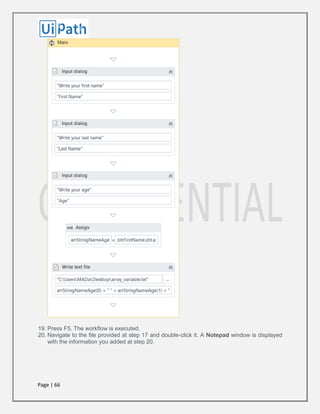
The final workflow should look as in the following screenshot.
Page | 66
19. Press F5. The workflow is executed.
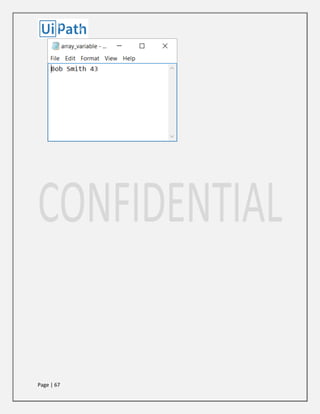
20. Navigate to the file provided at step 17 and double-click it. A Notepad window is displayed
with the information you added at step 20.
Page | 67
Page | 68
Date and Time Variables
The date and time variable is a type of variable that enables you to store information
about any date and time. This type of variable can be found in the Browse and Select a
.Net Type window, under the System namespace (System.DateTime). For more
information, see Browsing for .Net Variable Types.
For example, they can be used to append dates to invoices or any other documents you
may be working with and are time-sensitive.
Example of Using a Date and Time Variable
To exemplify how you can work with a date and time variable, we are going to build a
workflow that get the current date and time, subtracts a specified amount of time and
writes the result to a Microsoft Excel spreadsheet.
1. Create a new sequence.
2. Create two DateTime variables, timToday and timLastTime.
3. Create a TimeSpan variable, called timSpan, and in the Default field type 1.02:10:04.
Note: The default value attributed to the timSpan variable uses the day.hh:mm:ss
format.
4. Add an Assign activity to the Main panel.
5. In the Properties panel, in the To field, add the timToday variable.
6. In the Value field, type Now. This gives you the date and time when the workflow is executed,
in the dd/MM/yyyy and hh:mm:ss formats.
7. Add another Assign activity under the previous one.
8. In the Properties panel, in the To field, add the timLastTime variable.
9. In the Value field, type timToday.Subtract(timSpan). This is going to subtract the default value
of the timSpan variable from the current date and time, stored in the timToday variable.
10. Add an Excel Application Scope activity under the last Assign one.
Note: If you do not have Excel activities installed on your version of UiPath Studio,
use the Manage Packages functionality to get them.
11. In the Properties panel, in the WorkbookPath field, type the path of the Excel file you want
to write to, between quotation marks. In our case,
"C:UsersUsernameDesktopurgent_invoice.xlsx".
Note: If the file does not exist at the provided path, it is going to be created.
12. Add a Write Value activity in the Excel Application Scope activity.
13. In the Properties panel, in the Range field, type the coordinates of an Excel cell between
quotation marks. In our case, “G8.”
14. In the Sheet Name field, type the name of the sheet in which you want to write. In our case,
“Invoice”. Note that if the sheet does not exist, it is going to be created.
Page | 69
15. In the Value field, type timLastTime.ToString. This transforms the value of the timLastTime
variable to a string and writes it to the coordinates previously given.
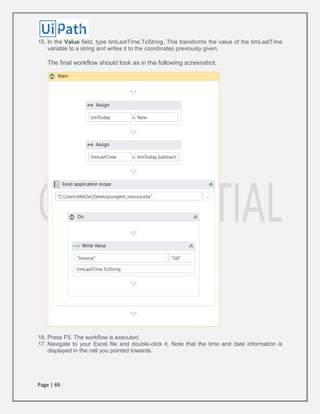
The final workflow should look as in the following screenshot.
16. Press F5. The workflow is executed.
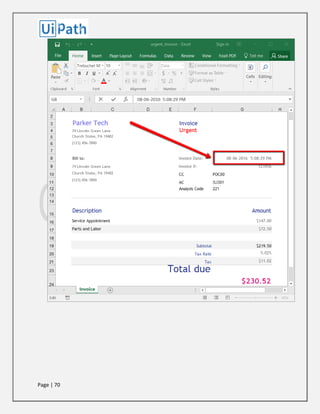
17. Navigate to your Excel file and double-click it. Note that the time and date information is
displayed in the cell you pointed towards.
Page | 70
Page | 71
Data Table Variables
Data table variables represent a type of variable that can store big pieces of information,
and act as a database or a simple spreadsheet with rows and columns. They can be
found in the Browse and Select a .Net Type window, under the System.Data namespace
(System.Data.DataTable). For more information, see Browsing for .Net Variable Types.
These variables can be useful to migrate specific data from a database to another, extract
information from a website and store it locally in a spreadsheet and many others.
Example of Using Data Table Variables
To exemplify how you can use data table variables, we are going to create a workflow
that reads only two out of multiple columns from an Excel spreadsheet, and then transfers
them to another spreadsheet that already contains other information.
The initial file is a database of people, their age, location and e-mail address. In this
example, we are going to extract their names and e-mail addresses and append them to
an Excel spreadsheet that already contains similar information.
1. Create a new sequence.
2. Add an Excel Application Scope activity to the sequence. This activity is required for most
of the Excel-related activities.
Note: If you do not have Excel activities installed on your version of UiPath Studio,
use the Manage Packages functionality to get them.
3. Create two data table variables, datNamesList and DatMailList. These are going to be used
to store information from the initial Excel spreadsheet.
4. In the Properties panel, in the WorkbookPath field, type the path of the initial Excel file to
be used, between quotation marks.
5. Add two Read Range activities and place them one under the other, in the Excel Application
Scope activity. These are used to get information from the initial spreadsheet.
6. Select the first Read Range activity and, in the Properties panel, in the Range field, type
“A2:A21.”. These are the Excel table coordinates that tell UiPath Studio from where to extract
information.
7. In the SheetName field, do not make any changes as the name of our sheet is the default
one, Sheet1.
8. In the DataTable field, type the name of the first data table variable, datNamesList. This
variable stores all the information available between the A2 and A21 rows.
9. (Optional) Change the value in DisplayName field to Read Names, so you can easily tell
apart this activity from the second one.
10. Select the second Read Range activity, and in the Properties panel, in the Range field, type
“D2:D21.” These are the Excel table coordinates that contain the e-mail information we want
to extract.
11. In the DataTable field, specify the datMailList variable. This variable retains all the mail
information we require.
Page | 72
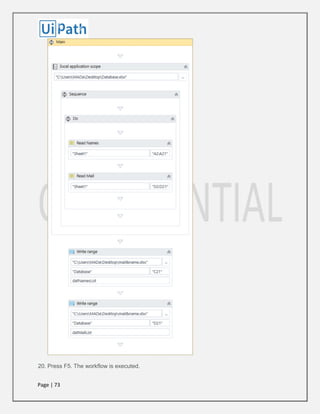
12. Add a Write Range activity to the Main panel, under the Excel Application Scope. This
activity is used to write the stored information to another Excel file.
Note: The file used with the Write Range activity has to be closed when you run the
workflow. If it is not closed, an error is displayed and the workflow execution stops.
13. In the Properties panel, in the WorkbookPath field, type the path of the Excel file to be used
to store all the information gathered at the previous steps.
14. In the DataTable field, type the datNamesList variable.
15. In the SheetName field type Database, and in the StartingCell, type “C21.“ This is the starting
cell in which information from the initial file is to be added.
16. Add another Write Range activity and place it under the first one.
17. In the Properties panel, fill in the WorkbookPath and SheetName fields as for the previous
Write Range activity.
18. In the Starting Cell field, type "D21."
19. In the DataTable field, type the datMailList variable.
Page | 73
20. Press F5. The workflow is executed.
Page | 74
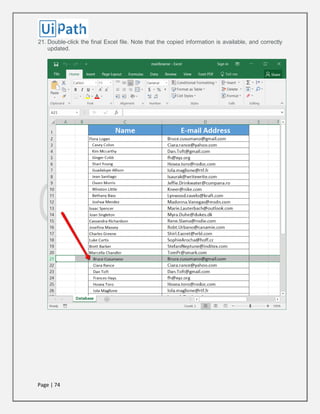
21. Double-click the final Excel file. Note that the copied information is available, and correctly
updated.
Page | 75
ARGUMENTS
Managing Arguments
Arguments are used to pass data from a workflow to another. In a global sense, they
resemble variables, as they store data dynamically and pass it on. Variables pass it to
other activities, while arguments pass it to other workflows. As a result, they enable you
to reuse workflows time and again.
UiPath Studio supports a large number of types of arguments, which coincide with the
types of variables. Therefore, you can create generic value, string, boolean, object, array,
data table arguments and you can also browse for .Net types, just as you do for variables.
Additionally, arguments have specific directions (In, Out, In/Out, Property) that tell the
application where the information stored in them is supposed to go.
Creating Arguments
To create a new argument:
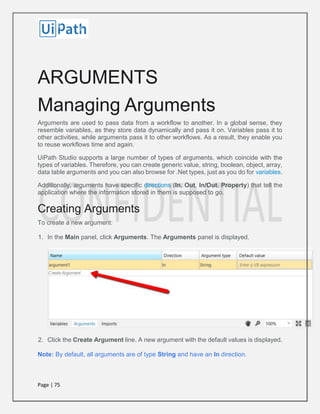
1. In the Main panel, click Arguments. The Arguments panel is displayed.
2. Click the Create Argument line. A new argument with the default values is displayed.
Note: By default, all arguments are of type String and have an In direction.
Page | 76
Removing Arguments
To remove an argument:
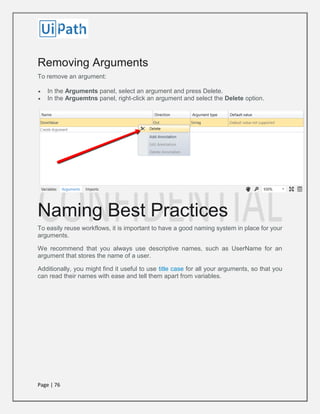
 In the Arguments panel, select an argument and press Delete.
 In the Arguemtns panel, right-click an argument and select the Delete option.
Naming Best Practices
To easily reuse workflows, it is important to have a good naming system in place for your
arguments.
We recommend that you always use descriptive names, such as UserName for an
argument that stores the name of a user.
Additionally, you might find it useful to use title case for all your arguments, so that you
can read their names with ease and tell them apart from variables.
Page | 77
The Arguments Panel
The Arguments panel enables you to create arguments and make changes to them.
Field Description
Name
Mandatory.
The name of your argument. If you do not add a name to an argument, one
is automatically generated. For more information on how to name your
arguments, see Naming Best Practices.
Direction
Mandatory.
Select a direction for your argument. The following options are available:
 In - the argument can only be used within the given workflow.
 Out - the argument can be used to pass data outside of a given
workflow.
 In/Out - the argument can be used both within or outside of a given
workflow.
 Property - not currently used.
Argument
Type
Mandatory.
Choose the value type you want your argument to store. The following
options are available:
 String
 Int32
 Object
 Array of [T]
 Browse for Types
If you select a .Net type from the Browse and Select a .Net Type window,
it is added to the Argument Type drop-down list.
Default
Value
Optional.
The default value of the argument. If this field is empty, the variable does
not have a default value.
Page | 78
Using Arguments
Due to the nature of arguments, you are going to use them a lot in relation with the Invoke
Workflow File and Launch Workflow Interactive activities. They can be found in the
Activities panel, under Workflow > Invoke and they enable you to browse for a
workflow, and import and edit their arguments.
Example of Using an Argument
To exemplify how to use an argument in a workflow with an Invoke Workflow File activity,
we are going to create two separate sequences. A very simple one in which to assign a
value to an argument, and a second that invokes it and displays the value in a message
box.
1. Create a new sequence.
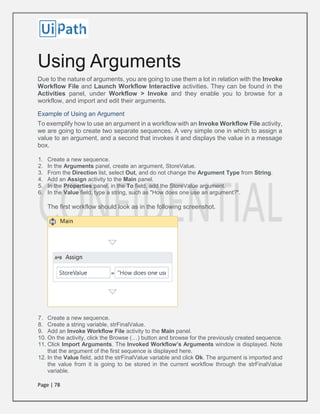
2. In the Arguments panel, create an argument, StoreValue.
3. From the Direction list, select Out, and do not change the Argument Type from String.
4. Add an Assign activity to the Main panel.
5. In the Properties panel, in the To field, add the StoreValue argument.
6. In the Value field, type a string, such as "How does one use an argument?".
The first workflow should look as in the following screenshot.
7. Create a new sequence.
8. Create a string variable, strFinalValue.
9. Add an Invoke Workflow File activity to the Main panel.
10. On the activity, click the Browse (…) button and browse for the previously created sequence.
11. Click Import Arguments. The Invoked Workflow’s Arguments window is displayed. Note
that the argument of the first sequence is displayed here.
12. In the Value field, add the strFinalValue variable and click Ok. The argument is imported and
the value from it is going to be stored in the current workflow through the strFinalValue
variable.
Page | 79
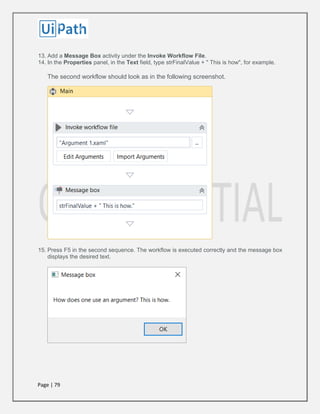
13. Add a Message Box activity under the Invoke Workflow File.
14. In the Properties panel, in the Text field, type strFinalValue + " This is how", for example.
The second workflow should look as in the following screenshot.
15. Press F5 in the second sequence. The workflow is executed correctly and the message box
displays the desired text.
Page | 80
About Imported Namespaces
VB.Net namespaces in UiPath Studio represent containers that store different types of
data. They enable you to define the scope of your expressions, variables and arguments.
For example, if you have the System.Data namespace imported, you can further use
DataTable, DataView, DataColumn, DataRow and other classes that are available in it,
without having to always type System.Data.DataTable and so on.
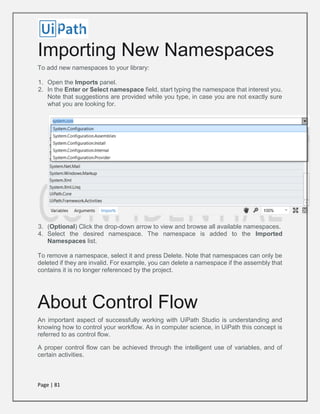
All imported namespaces are displayed in the Imports panel. Note that some
namespaces are automatically imported when you browse for a .Net type variable or
argument, for example.
To open this panel, click Imports in the Main panel.
Page | 81
Importing New Namespaces
To add new namespaces to your library:
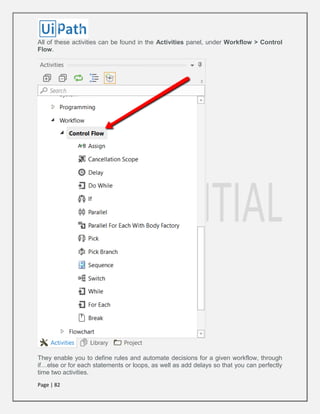
1. Open the Imports panel.
2. In the Enter or Select namespace field, start typing the namespace that interest you.
Note that suggestions are provided while you type, in case you are not exactly sure
what you are looking for.
3. (Optional) Click the drop-down arrow to view and browse all available namespaces.
4. Select the desired namespace. The namespace is added to the Imported
Namespaces list.
To remove a namespace, select it and press Delete. Note that namespaces can only be
deleted if they are invalid. For example, you can delete a namespace if the assembly that
contains it is no longer referenced by the project.
About Control Flow
An important aspect of successfully working with UiPath Studio is understanding and
knowing how to control your workflow. As in computer science, in UiPath this concept is
referred to as control flow.
A proper control flow can be achieved through the intelligent use of variables, and of
certain activities.
Page | 82
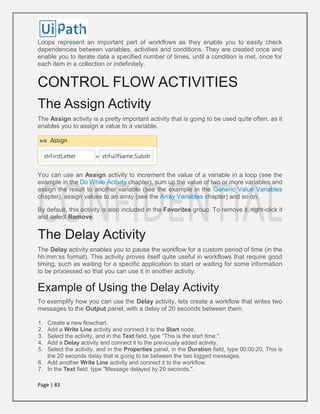
All of these activities can be found in the Activities panel, under Workflow > Control
Flow.
They enable you to define rules and automate decisions for a given workflow, through
if…else or for each statements or loops, as well as add delays so that you can perfectly
time two activities.
Page | 83
Loops represent an important part of workflows as they enable you to easily check
dependencies between variables, activities and conditions. They are created once and
enable you to iterate data a specified number of times, until a condition is met, once for
each item in a collection or indefinitely.
CONTROL FLOW ACTIVITIES
The Assign Activity
The Assign activity is a pretty important activity that is going to be used quite often, as it
enables you to assign a value to a variable.
You can use an Assign activity to increment the value of a variable in a loop (see the
example in the Do While Activity chapter), sum up the value of two or more variables and
assign the result to another variable (see the example in the Generic Value Variables
chapter), assign values to an array (see the Array Variables chapter) and so on.
By default, this activity is also included in the Favorites group. To remove it, right-click it
and select Remove.
The Delay Activity
The Delay activity enables you to pause the workflow for a custom period of time (in the
hh:mm:ss format). This activity proves itself quite useful in workflows that require good
timing, such as waiting for a specific application to start or waiting for some information
to be processed so that you can use it in another activity.
Example of Using the Delay Activity
To exemplify how you can use the Delay activity, lets create a workflow that writes two
messages to the Output panel, with a delay of 20 seconds between them.
1. Create a new flowchart.
2. Add a Write Line activity and connect it to the Start node.
3. Select the activity, and in the Text field, type "This is the start time.".
4. Add a Delay activity and connect it to the previously added activity.
5. Select the activity, and in the Properties panel, in the Duration field, type 00:00:20. This is
the 20 seconds delay that is going to be between the two logged messages.
6. Add another Write Line activity and connect it to the workflow.
7. In the Text field, type "Message delayed by 20 seconds.".
Page | 84
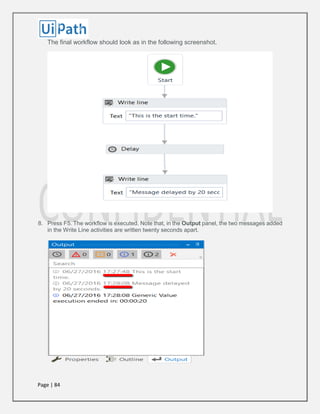
The final workflow should look as in the following screenshot.
8. Press F5. The workflow is executed. Note that, in the Output panel, the two messages added
in the Write Line activities are written twenty seconds apart.
Page | 85
The Do While Activity
The Do While activity enables you to execute a specified part of your workflow while a
condition is met. When the specified condition is no longer met, the workflow exists the
loop.
This type of activity can be useful to step through all the elements of an array, or execute
a particular activity multiple times. You can increment counters to browse through array
indices or step through a list of items.
Note: Do While activities are evaluated only after the body has been executed once.
Example of Using a Do While Activity
To exemplify how to use a Do While activity, let's create a workflow that increments an
integer variable from 0 to 10, and displays a message every time it is incremented.
1. Create a new sequence.
2. Create an integer variable, intCounter, with a default value of 0.
3. Add a Do While activity to the Main panel.
4. Select the Assign activity, and in the Properties panel, in the To field, add the intCounter
variable.
5. In the Value field, type intCounter + 1. This helps you increment the value of the variable with
one.
6. Add a Write Line activity, under the Assign one.
7. In the Text field, type “The counter is ” + intCounter.ToString. This writes the value of the
counter in the Output panel each time it is incremented.
8. In the Condition section of the Do While activity, type intCounter < 10. The body of the Do
While activity is repeated until the value of the intCounter variable is bigger than 10.
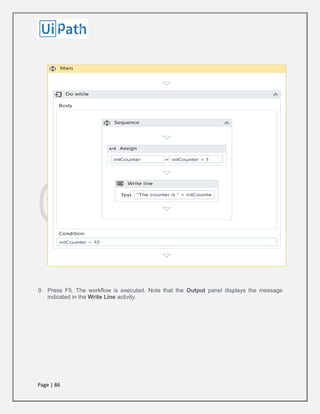
The final workflow should look as in the following screenshot.
Page | 86
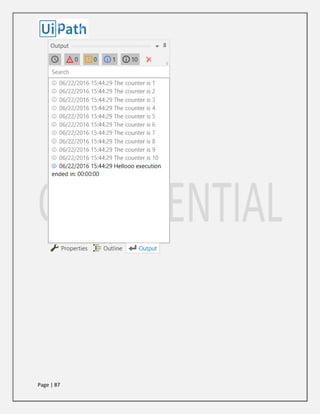
9. Press F5. The workflow is executed. Note that the Output panel displays the message
indicated in the Write Line activity.
Page | 87
Page | 88
The While Activity
The While activity enables you to execute a specific process repeatedly, while a specific
condition is met. The main difference between this and the Do While activity is that, in
the first one, the condition is evaluated before the body of the loop is executed.
This type of activity can be useful to step through all the elements of an array, or execute
a particular activity multiple times. You can increment counters to browse through array
indices or step through a list of items.
Example of Using a While Activity
To exemplify how to use a While activity, let's create a workflow that increments an
integer variable from 10 to 100, and writes all the numbers to a Microsoft Word document.
1. Create a new sequence.
2. Create a new integer variable, intCounter, with the default value of 10.
3. Add a While activity to the Main panel.
4. In the Condition field, type intCounter < 100. This means that the body of the loop is going
to be repeated until the value of the intCounter variable is going to be bigger than 100.
5. In the Body section of the While activity, add an Assign activity.
6. In the Properties panel, in the To field add the intCounter.
7. In the Value field, type intCounter + 1. This increments the value of the intCounter with one.
8. Add an Append Text activity under the Assign one.
Note: This activity is part of the Word activities package. If you do not have it, use the
package manager functionality to install it.
9. In the FilePath field, type the path of a Word document in between quotation marks.
Note: Make sure that the Word document is not used when running the workflow,
otherwise a message error is displayed and the execution is stopped.
10. In the Text field, type "The counter is now " + intCounter.ToString +".".
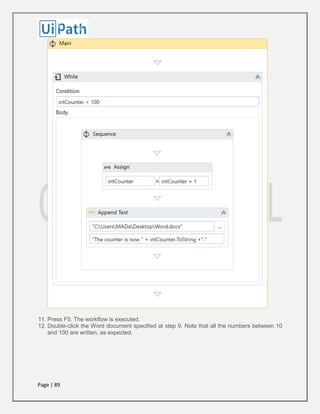
The final workflow should look as in the following screenshot.
Page | 89
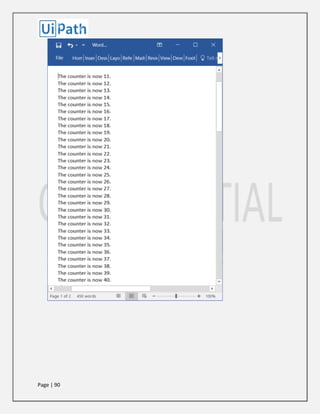
11. Press F5. The workflow is executed.
12. Double-click the Word document specified at step 9. Note that all the numbers between 10
and 100 are written, as expected.
Page | 90
Page | 91
The If Activity
The If activity contains a statement and two conditions. The first condition (the activity in
the Then section) is executed if the statement is true, while the second one (the activity
in the Else section) is executed if the statement is false.
If activities can be useful to make decisions based on the value of variables.
Note: The If activity is almost identical to the Flow Decision one. However, the latter can
only be used in flowcharts.
Example of Using an If Activity
To exemplify how you can use the If activity, let's create a workflow that asks the user for
two numbers, checks to see if one is divisible by the other, and depending on the result,
displays a different message in the Output panel.
1. Create a new sequence.
2. Create two integer variables, intFirstNumber and intSecondNumber for example.
3. Add two Input Dialog activities to the Main panel.
4. In the Properties panel, type labels and titles for both activities and, in the Result fields, add
the intFirstNumber and intSecondNumber variables.
5. Add an If activity to the Main panel, under the previously added Input Dialog ones.
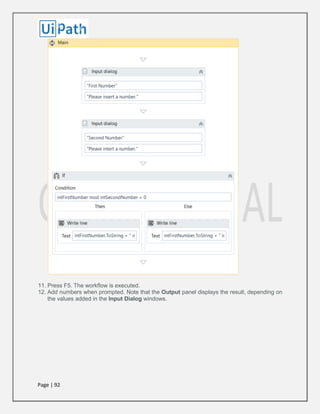
6. In the Condition section, type intFirstNumber mod intSecondNumber = 0. This expression
checks if the first number is divisible to the second one, using the mod operator.
7. In the Then section, add a Write Line activity.
8. In the Text field, type intFirstNumber.ToString + " is divisible by "+ intSecondNumber.ToString
+ ".". This is the message that is displayed if the first number is divisible by the second one.
9. In the Else section, add another Write Line activity.
10. In the Text field, type intFirstNumber.ToString + " is NOT divisible by "+
intSecondNumber.ToString + ".". This is the message that is displayed if the first number is
not divisible by the second one.
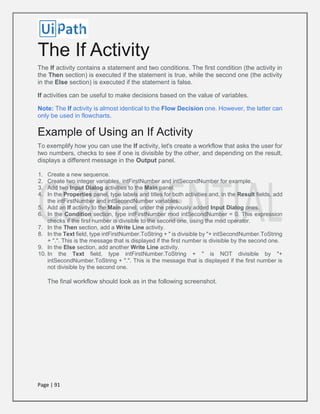
The final workflow should look as in the following screenshot.
Page | 92
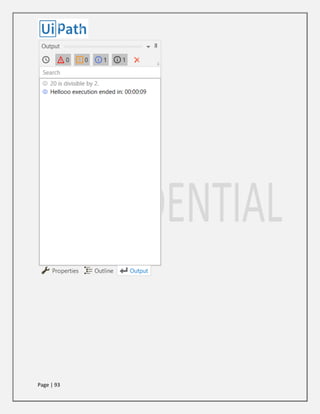
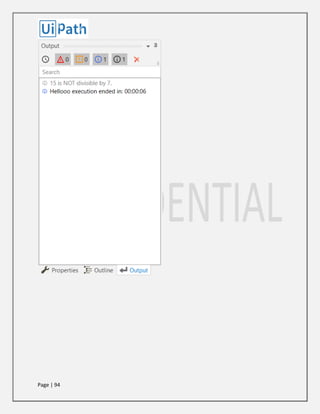
11. Press F5. The workflow is executed.
12. Add numbers when prompted. Note that the Output panel displays the result, depending on
the values added in the Input Dialog windows.
Page | 93
Page | 94
Page | 95
The Switch Activity
The Switch activity enables you to select one choice out of multiple, based on the value
of a specified expression. This activity supports multiple types of arguments, such as
integer, string or array, and more complex ones such as data tables.
By default, Switch uses the integer argument, yet you can change it from the Properties
panel, from the TypeArgument list.
The Switch activity can be useful to categorize data according to a custom number of
cases. For example, you can use it to store data into multiple spreadsheets or sort through
names of employees.
Example of Using a Switch Activity
To exemplify how to use the Switch activity, we are going to create a workflow that asks
the user for a number, checks if is odd or even, and depending on that, a different
message is written to the Output panel. Since all odd numbers divided by two have a
remainder equal to 1, this workflow needs only two cases (0 and 1), yet keep in mind that
this activity supports multiple cases.
1. Create a new sequence.
2. Create an integer variable, intNumber.
3. Add an Input Dialog activity to the Main panel.
4. Add a Title and Label to prompt the user for a number.
5. In the Result field, add the intNumber variable.
6. Add a Switch activity, under the Input Dialog.
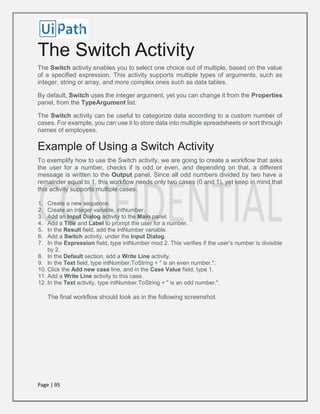
7. In the Expression field, type intNumber mod 2. This verifies if the user’s number is divisible
by 2.
8. In the Default section, add a Write Line activity.
9. In the Text field, type intNumber.ToString + " is an even number.".
10. Click the Add new case line, and in the Case Value field, type 1.
11. Add a Write Line activity to this case.
12. In the Text activity, type intNumber.ToString + " is an odd number.".
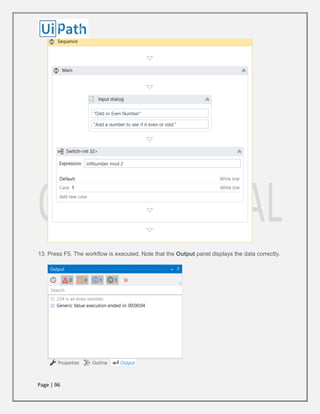
The final workflow should look as in the following screenshot.
Page | 96
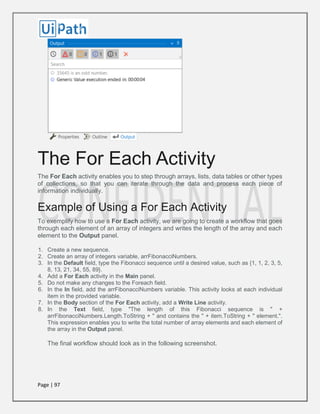
13. Press F5. The workflow is executed. Note that the Output panel displays the data correctly.
Page | 97
The For Each Activity
The For Each activity enables you to step through arrays, lists, data tables or other types
of collections, so that you can iterate through the data and process each piece of
information individually.
Example of Using a For Each Activity
To exemplify how to use a For Each activity, we are going to create a workflow that goes
through each element of an array of integers and writes the length of the array and each
element to the Output panel.
1. Create a new sequence.
2. Create an array of integers variable, arrFibonacciNumbers.
3. In the Default field, type the Fibonacci sequence until a desired value, such as {1, 1, 2, 3, 5,
8, 13, 21, 34, 55, 89}.
4. Add a For Each activity in the Main panel.
5. Do not make any changes to the Foreach field.
6. In the In field, add the arrFibonacciNumbers variable. This activity looks at each individual
item in the provided variable.
7. In the Body section of the For Each activity, add a Write Line activity.
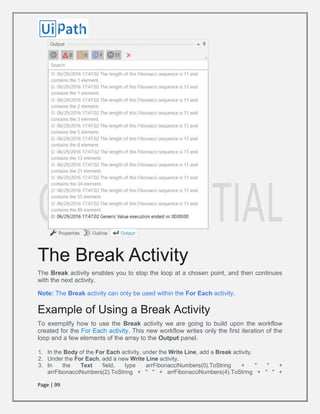
8. In the Text field, type "The length of this Fibonacci sequence is " +
arrFibonacciNumbers.Length.ToString + " and contains the " + item.ToString + " element.".
This expression enables you to write the total number of array elements and each element of
the array in the Output panel.
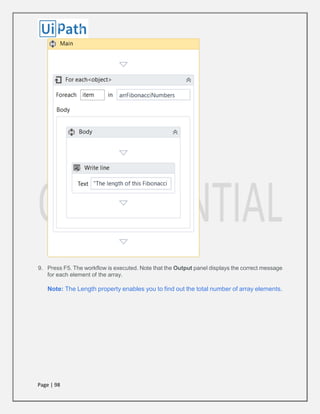
The final workflow should look as in the following screenshot.
Page | 98
9. Press F5. The workflow is executed. Note that the Output panel displays the correct message
for each element of the array.
Note: The Length property enables you to find out the total number of array elements.
Page | 99
The Break Activity
The Break activity enables you to stop the loop at a chosen point, and then continues
with the next activity.
Note: The Break activity can only be used within the For Each activity.
Example of Using a Break Activity
To exemplify how to use the Break activity we are going to build upon the workflow
created for the For Each activity. This new workflow writes only the first iteration of the
loop and a few elements of the array to the Output panel.
1. In the Body of the For Each activity, under the Write Line, add a Break activity.
2. Under the For Each, add a new Write Line activity.
3. In the Text field, type arrFibonacciNumbers(0).ToString + " " +
arrFibonacciNumbers(2).ToString + " " + arrFibonacciNumbers(4).ToString + " " +
Page | 100
arrFibonacciNumbers(6).ToString +" " + arrFibonacciNumbers(8).ToString +" " +
arrFibonacciNumbers(10).ToString + " ". This means that only the indicated elements of the
array are going to be written to the Output panel.
The final workflow should look as in the following screenshot.
4. Press F5. The workflow is executed. Note that the Output panel only displays the first iteration
of the loop and the specified array elements from the Write Line activity.
Page | 101
RECORDING
About Recording
Recording is an important part of UiPath Studio, that can help you save a lot of time when
automating your business processes. This functionality enables you to easily capture a
user’s actions on the screen and translates them into sequences.
These workflows can be modified and parametrized so that you can easily replay and
reuse them in as many other processes as you need.
All user interface elements are highlighted while you record, as you can see in the
following screenshot, so that you can be sure the correct buttons, fields or menus are
selected.
Page | 102
Interactions with UI elements yield informative screenshots in the workflow. These can
be changed, hidden, removed or shown in full size by selecting the respective action from
the Options menu.
All screenshots are automatically saved as .png files in the same location as your project,
in a separate folder named “.screenshot.“ By default, the path is:
C:Usersyour_user_nameDocumentsUiPathyour_project_name.screenshots.
Page | 103
Regardless of the type of recording selected, some actions are recordable and some are
not.
Recordable Non-recordable
 Left-click on buttons, check boxes, drop-down lists and other GUI
elements
 Text typing
 Keyboard
shortcuts
 Modifier keys
 Right-click
 Mouse hover
About Recording Types
There are four types of recordings available in UiPath Studio:
 Basic – generates a full selector for each activity and no container, the resulted workflow is
slower than one that uses containers and is suitable for single activities.
 Desktop – suitable for all types of desktop apps and multiple actions; it is faster than the
Basic recorder, and generates a container (with the selector of the top level window) in which
activities are enclosed, and partial selectors for each activity.
 Web – designed for recording in web apps and browsers (supported: Internet Explorer,
Google Chrome), generates containers and uses the Simulate Type/Click input method by
default.
 Citrix – used to record virtualized environments (VNC, virtual machines, Citrix, etc.) or SAP,
permits only image, text and keyboard automation, and requires explicit positioning.
To see all the available types of recordings and select the one most suited for your
workflow, click Record, in the Wizards group of the Design ribbon tab.
Page | 104
All recording types come with their own controllers (or toolbar) that give you access to
actions particular to each environment, but also some common ones.
Page | 105
The Desktop, Basic and Web Recording toolbars are quite similar and enable you to:
 Automatically record multiple actions performed on the screen
 Manual recording (single actions):
o Start or close an application or web browser
o Click an interface element
o Select an option from a drop-down list
o Select a check box
o Simulate keystrokes or keyboard shortcuts
o Copy text from a UI element or perform screen scraping
o Look for elements or wait for them to vanish
o Find an image
o Activate a window
The Citrix Recording toolbar enables you to:
 Click an image or text
 Simulate keystrokes or hotkeys
 Select and copy text from a window
 Scrape UI elements
 Look for elements or wait for them to vanish
 Find an image or wait for it to vanish
 Activate a window
Note: The Citrix Recording toolbar supports only manual recording (single actions).
To figure out if you should use automatic or manual recording in your workflow, you should
better understand the differences between them and their capabilities.
Automatic Recorder Manual Recorder
 Left-clicks on windows, buttons, check boxes, drop-down lists
etc.
 Text typing
 Keyboard shortcuts
 Modifier keys
 Right-click
 Mouse hover
 Getting text
 Find elements and
images
 Copy to Clipboard
Page | 106
Keyboard shortcuts that you can use:
 F2 – pauses for 3 seconds. A countdown timer is displayed in the bottom left corner of the
screen. Can be useful with menus that automatically hide.
 Esc – exits the automatic or manual recording. If you press the Escape key again, the
recording is saved as a sequence, and you return to the main view.
 Right-click – exit the recording.
Automatic Recording
Automatic recording is very useful and time-saving as it can provide you with a skeleton
for your business processes, and can be easily customized and parametrized.
As you can see in the examples below, for the actions that are recordable with the
Automatic Recording, some activities are automatically generated:
 Click – it is generated when you click a button (Basic and Desktop) or a link (Web). The
options available in the Properties panel enable you to add a time delay before or after the
action, change the click type and add key modifiers.
 Type Into – generated when typing into a text field or any editable UI element. The options
available in the Properties panel enable you to add a time delay before or after the action or
between key strokes, change the text at any point, and erase the entire field before writing to
it (EmptyField).
 Select Item - generated when you select an item from a drop-down list or combo box. The
options available in the Properties panel enable you to add a time delay before or after the
action, and change the selected item.
Page | 107
 Check - generated when a radio button or check box is clicked. The options available in the
Properties panel enable you to add a time delay before or after the action, and select or
unselect the check box.
Example of Automatic
Recording with Basic and
Desktop
To exemplify how you can use the automatic recording and understand more about the
differences between Basic and Desktop, let’s create the same workflow for the two.
1. Open Notepad.
2. In UiPath Studio, create a new sequence.
3.
a. In the Design ribbon tab, in the Wizards group, select Record > Basic. The Basic
Recording toolbar is displayed and the main view is minimized.
b. In the Design ribbon tab, in the Wizards group, select Record > Desktop. The Desktop
Recording toolbar is displayed and the main view is minimized.
4. In the Wizards group, click Automatic Recorder. The automating recording process starts.
5. In Notepad, click in the main panel. A pop-up window is displayed.
Page | 108
6. Type a custom text and press Enter. The string is displayed in Notepad.
7. Note: Select the Empty field check box to delete previously existing text. You can also select
this option after the recording is finished, in the Properties panel of the Type Into activity.
8. From the Format menu, select Font. The Font window is displayed.
9. Select a different font style, such as Bold Italic, and click OK.
10. Press Esc two times. You exit the recording view and the saved workflow is displayed in the
Main panel.
11. Press F5. The workflow is executed as expected.
The two screenshots below display part of the resulted workflows for the Basic (on the
left) and Desktop (on the right) automatic recordings. As you can see, the second one
generates an Attach Window container, while the Desktop one does not.
Page | 109
Desktop recorder - The top level window selector from the Attach Window container:
Desktop recorder - The partial selector for the Type Into activity:
Page | 110
Basic recorder – The full selector for the Type Into activity:
Click here to download the Basic recording example.
Click here to download the Desktop recording example.
You can also customize and parametrize this workflow after it is recorded. To exemplify
this, let’s take the Desktop recording example and build upon it.
For example, let’s assume that we want to extract the number of an invoice from an Excel
file, copy it to the Notepad window used in the previous example and continue the
workflow as before.
1. Add an Excel Application Scope activity before the recording sequence.
2. In the WorkbookPath field, type the path of the Excel file you need to extract information
from.
3. Add a Read Cell activity in the Excel Application Scope.
4. In the Properties panel, add the Sheet Name and Cell information from the Excel file used.
5. Right-click in the Result field, and click Create Variable. The Set Name field is displayed.
6. Fill in the name, such as genInvoiceNumber, and press Enter. The variable is created and
displayed in the Result field and Variables
7. Change the scope of the variable to Main.
8. In the recording sequence, in the Type Into activity, in the Text field, add the
genInvoiceNumber variable. This copies the value stored in the variable to Notepad.
What was added to the workflow should look as in the following screenshot.
Page | 111
9. Press F5. The workflow is executed as expected.
Page | 112
Example of Automatic
Recording with Web
To exemplify how you can use the web recording and understand how it works, let’s
create a workflow that enables you to go to Amazon and sign in to your account.
1. Open an Internet Explorer instance.
2. In UiPath Studio, create a new sequence.
3. In the Design tab, in the Wizards group, select Record > Web. The Web Recording toolbar
is displayed and the main view is minimized.
4. Click Automatic Recording. The automating recording process starts.
5. Navigate to www.amazon.com.
Page | 113
6. Go to the Sign In page and input your e-mail and password.
Note: When the Type Into pop-up is displayed for your password, make sure that you
select the Type Password check box. Besides the Type Into activity, another activity,
Get Password, is created in the sequence. This activity hides the password behind
asterisks (*) and stores it in a string variable.
Page | 114
Page | 115
7. Click Sign In and press Esc two times. The recording is saved and displayed as a workflow
in the Main panel.
8. Close and open Internet Explorer manually.
9. In Studio, press F5. The workflow is executed as expected.
As you can see, the workflow requires you to close and open Internet Explorer manually.
If you want to automate this part too, you need to manually add the Open Browser and
Close Tab activities at the begging and end of the workflow.
Page | 116
Manual Recording
As explained in the About Recording Types chapter, there are some actions that cannot
be handled by the automatic recorder. We refer to these as single actions or manual
recordings. You can use both manual and automatic recording in workflows to achieve
full automation of a task. Single actions can be found in the Actions group of any
recording toolbar.
Types of Single Actions
1. Start and Stop an App or Browser
These single actions enable you to open an app or browser, as well as close them, by
pointing and clicking them.
The activities generated using the desktop and web manual recorders contain partial
selectors and containers (first screenshot), while the activities generated by the basic
recorder contains a full selector and no container (second screenshot), just like with the
automatic recording.
Page | 117
Page | 118
2. Click
These types of actions enable you to record clicks on the desktop or a running application,
select an option from a drop-down list or combo box, and select a check box or a radio
button.
3. Type
These single actions include those that require input from the keyboard, such as keyboard
shortcuts and keypresses. To achieve this, two pop-up windows are used to retrieve your
keyboard input.
Page | 119
4. Copy
These actions enable you to copy a selected text from an opened application or web
browser, so that you can use it later in the workflow. Screen scraping is also available
Page | 120
under the Copy menu, as it enables you to extract images and text from an app or
browser. For more information, see Output or Screen Scraping Methods.
5. Mouse Element
These types of actions enable you to simulate mouse movements that cannot be recorded
but give you access to more functionalities, such as right-clicking, hovering or double-
clicking.
6. Find Element
These types of single actions enable you to identify specific UI elements or pause the
workflow until a particular window closes or an UI element is no longer displayed. The
Page | 121
find relative element action is useful with apps that do not allow direct interaction with UI
elements, such as Citrix.
7. Text
Text single actions enable you to select or hover over text to make tooltips visible for
scraping, right-click to make the context menu visible, copy and paste text and many
others.
8. Image
Image single actions enable you to wait for a specified image to disappear, to find a
specific image in an app or website, right-click or hover over an image and others. This
type of manual recording can be useful with UI elements that are saved as graphics, as
they cannot be highlighted as normal fields or text.
Page | 122
UI ELEMENTS
About UI Elements
UI elements refer to all graphical user interface pieces that construct an application, be
they windows, check boxes, text fields or drop-down lists, and so on. Knowing how to
interact with them enables you to implement UI automation much faster and easier.
All interactions with the UI can be split into input and output. This categorization helps
you better understand which actions to use in different scenarios, when to use them, and
the technology behind them. These are also going to be useful when trying to deal with
scraping. For more information, see Input Methods and Output or Screen Scraping
Methods.
Input Actions Output Actions
 Clicks
 Text Typing
 Keyboard shortcuts
 Right-clicks
 Mouse hover
 Clipboard actions
 Etc.
 Getting text
 Finding elements and images
 Clipboard actions
 Etc.
UI Activities Properties
There are multiple activities that can be used to automate apps or web-apps and you can
find them in the Activities panel, under the UI Automation category.
All of these activities have multiple properties in common:
 ContinueOnError – specifies if the workflow should continue, even if the activity throws an
error. This field only supports boolean values (True, False).
 DelayAfter – adds a pause after the activity, in milliseconds.
 DelayBefore – adds a pause before the activity, in milliseconds.
 TimeoutMS – specifies the amount of time (in milliseconds) to wait for a specified element to
be found before an error is thrown. The default value is 30000 milliseconds (30 seconds).
 WaitForReady – wait for the target to become ready, before performing the activity. There
are three available options:
o None – does not wait for the target to be ready.
o Interactive – waits until only a part of the app is loaded.
o Complete – waits for the entire app to be loaded.
 Target – identifies the UI element the activity works with.
Page | 123
The target is composed of multiple pieces, namely the container, selector and clipping
region, to ensure that you correctly identify a UI element.
A container gives you a little more context for the button or field you want to use, so that
you can tell windows apart or different areas of the same app. They are automatically
generated, but you can make changes to them in the Properties panel.
The following are containers:
 Attach Window
 Open Application
 Attach Browser
 Open Browser
 Get Active Window
Page | 124
Input Methods
 Input actions require you or the robot to directly interact with an opened application
or web page. There are three types of input methods for click and type actions,
that differ in terms of compatibility and capability.
 We generally recommend the Simulate Type/Click method as it is the fastest of
the three and works in the background, but only if you do not need to send special
keyboard shortcuts. If this does not work for you, try the Windows Messages
method and then the Default one, as it is the slowest.
MethodCapability Compatibility
Background
execution
Speed
Hotkey
Support
Auto
Empty
Field
Default 100% no 50% yes no
Window Messages 80% yes 50% yes no
Simulate
Type/Click
99% - web apps
60% - desktop
apps
yes 100% no yes
 The input method can be changed at any point from the Properties panel of the
selected activity. If the SimulateType or SendWindowMessages check boxes
are not selected, then the Default method is applied.
Page | 125
 The Default application simulates a click or type with the help of the hardware
driver, while the Simulate Type/Click method uses the technology of the target
application. Lastly, the SendWindowMessages works by sending a specific
message directly to the target application.
Page | 126
Example of Using Input
Methods
To get a clearer picture of how the three input methods work, let’s create a simple
workflow that writes something in a Notepad window and switch between the methods.
1. Open a Notepad window.
2. In Studio, from the Basic Recording toolbar, start the automatic recorder.
3. Type something into the Notepad window.
4. Minimize the window and restore it.
5. Type something else in the Notepad window.
6. Press Esc two times. The workflow is saved and displayed in the Main panel. It should
look as in the following screenshot.
Page | 127
Page | 128
7. Move the activity that restores the Notepad window after the second Type Into one.
We do this to check if the type of input method selected can also write to Notepad in
background mode.
8. From the drop-down of the second Type Into activity, select enter. A special key
string is displayed at the end of the previously-existing text.
9. Copy the special key string at the beginning of the sentence. This enables you to test
special keys, such as Enter that adds a new line in a text editor.
Page | 129
10.Run the workflow once with every input method. Note the differences:
o The Default method – it does not automatically erase previously written text,
supports special keys, but writing in the background does not work;
o The Window Messages method – works in the background, supports special
keys, but it does not erase pre-existing text (you have to manually select the
Empty Field check box in the Properties panel);
o The Simulate Type/Click method – works in the background, but it automatically
erases pre-existing text, and does not support special keys.
Therefore, be careful to choose the method that best suits your needs. If special keys are
a must, you might want to avoid the Simulate Type/Click method, or if speed is what
matters most, then maybe Simulate Type/Click is the right one.
Page | 130
Output or Screen Scraping
Methods
Output or screen scraping methods refer to those activities that enable you to extract data
from a specified UI element or document, such as a .pdf file.
To understand which one is better for automating your business process, let’s see the
differences between them.
MethodCapabilitySpeedAccuracy
Background
Execution
Extract Text
Position
Extract
Hidden Text
Support for
Citrix
FullText 10/10 100% yes no yes no
Native 8/10 100% no yes no no
OCR 3/10 98% no yes no yes
FullText is the default method, it is fast and accurate, yet unlike the Native method, it
cannot extract the screen coordinates of the text.
Both these methods work only with desktop applications, but the Native method cannot
work with apps that are not built to render text with the Graphics Device Interface (GDI).
OCR is not 100% accurate, but can be useful to extract text that the other two methods
could not, as it works with all applications including Citrix. Studio uses two OCR engines,
by default: Google Tesseract and Microsoft Modi.
MethodCapability
Multiple
languages
support
Preffered
area size
Support for
color
inversion
Set
expected
text format
Filter
allowed
characters
Best with
Microsoft
fonts
Google Tesseract Can be addedSmall yes yes yes no
Microsoft Modi
Supported by
default
Large no no no yes
To start extracting text from various sources, click the Screen Scraping button, in the
Wizards group, on the Design ribbon tab.
The screen scraping wizard enables you to point at a UI element and extract text from it,
using one of the three output methods described above. Studio automatically choses a
screen scraping method for you, and displays it at the top of the Screen Scraper Wizard
window.
Page | 131
To change the method of screen scraping, select another one from the Options panel
and then click Re-scrape.
When you are satisfied with the scraping results, click Continue or Copy. The latter
option copies the extracted text to the Clipboard, while the first one saves your information
to the Main panel and, just as with desktop recording, generates a container (with the
selector of the top level window) in which activities are enclosed, and partial selectors for
each activity
Page | 132
Each type of screen scraping comes with different features in the Screen Scraper
Wizard, in the Options panel:
Page | 133
1. FullText
o Ignore Hidden – when this check box is selected, the hidden text from the selected UI
element is not copied.
2. Native
o No Formatting – when this check box is selected, the copied text does not extract
formatting information from the text. Otherwise, the extracted text’s relative position is
retained.
o Get Words Info – when this check box is selected, Studio also extracts the screen
coordinates of each word. Additionally, the Custom Separators field is displayed, that
enables you to specify the characters used as separators. If the field is empty, all known
text separators are used.
3. Google OCR
Page | 134
o Languages – only English is available by default.
o Characters – enables you to select which types of characters to be extracted. The
following options are available: Any character, Numbers only, Letters, Uppercase,
Lowercase, Phone numbers, Currency, Date and Custom. If you select Custom, two
additional fields, Allowed and Denied, are displayed that enable you to create custom
rules on which types of characters to scrape and which to avoid.
o Invert - when this check box is selected, the colors of the UI element are inverted before
scraping. This is useful when the background is darker than the text color.
o Scale – the scaling factor of the selected UI element or image. The higher the number is,
the more you enlarge the image. This can provide a better OCR read and it is
recommended with small images.
o Get Words Info – gets the on-screen position of each scraped word.
4. Microsoft OCR
Page | 135
o Languages - enables you to change the language of the scraped text. By default, English
is selected.
o Scale – the scaling factor of the selected UI element or image. The higher the number is,
the more you enlarge the image. This can provide a better OCR read and it is
recommended with small images.
o Get Words Info - gets the on-screen position of each scraped word.
Besides getting text out of an indicated UI element, you can also extract the value of
multiple types of attributes, its exact screen position and its ancestor.
This type of information can be extracted through dedicated activities that are found in
the Activities panel, under UI Automation > Element > Find and UI Automation >
Element > Attribute.
These activities are:
 Get Ancestor – enables you to retrieve an ancestor from a specified UI element. You can
indicate at which level of the UI hierarchy to find the ancestor, and store the results in a
UiElement variable.
 Get Attribute – retrieves the value of a specified UI element attribute. Once you indicate the
UI element on screen, a drop-down list with all available attributes is displayed.
Page | 136
 Get Position – retrieves the bounding rectangle of the specified UiElement, and supports
only Rectangle variables.
Page | 137
Examples of Using Output or
Screen Scraping Methods
To exemplify how to use the three screen scraping methods and the practical differences
between them, let’s first scrape a Notepad window with some text and see what results
we have. The following screenshot is what we used.
The FullText method
Page | 138
As you can see, no formatting is retained, but if you hide the Notepad window while
scraping, the text is still retrieved. This is the fastest method.
The Native method
Page | 139
As you can see in the first screenshot, you can extract the text with its position on the
screen, as well as retrieve the exact position of each word (second screenshot).
Page | 140
The Microsoft OCR method
As you can see, the accuracy of this output method is not 100%, but it still manages to
keep the position of the text. Getting the exact on-screen position, in pixels, is also
available yet as you can see, it is not the fastest of the output methods.
Page | 141
The Google OCR method
As with Microsoft’s Modi, the Google OCR method is not 100% accurate and takes longer
when compared with the others. However, it retrieves the position within the window of
the text.
Now, add some white text over a black page in Paint, for example, and try to scrape it.
Page | 142
As you can see, only the OCR methods work in this scenario.
Now let’s try scraping an application and see the results. We use a dummy expense app,
which you can download here.
Page | 143
If we scrape this entire window, we receive the following results:
1. FullText with hidden text works really well, being able to read even the minimize and restore
buttons.
Page | 144
2. Native does not work on this UI as it does not make use of GDI to render text.
3. Microsoft OCR works pretty well, although accuracy is still not 100%.
Page | 145
4. Google OCR does not handle this UI very well, as the scraped area is quite large.
Page | 146
Page | 147
DATA SCRAPING
About Data Scraping
Data scraping enables you to extract structured data from your browser to a database,
.csv file or even Excel spreadsheet.
Structured data is a specific kind of information that is highly organized and is presented
in a predictable pattern. For example, all Google search results have the same structure
(a link at the top, a string of the URL and a description of the web page), which enables
Studio to easily extract the information, as it always knows where to find it.
The scraping wizard can be opened from the Design tab, by clicking the Data Scraping
button.
The main steps of the data scraping wizard are:
1. Select the first and last fields in the web page that you want to extract data from, so
that Studio can deduce the pattern of the information.
Page | 148
Note: Studio automatically detects if you indicated a table cell, and asks you if you
want to extract the entire table. If you click Yes, the Extract Wizard displays a preview
of the selected table data.
Page | 149
Page | 150
2. Customize column headers and choose whether or not to extract URLs.
3. Preview the data, edit the number of maximum results to be extracted and change the
order of the columns.
Page | 151
4. Optionally click Extract Correlated Data. This enables you to go through the Extract
Wizard again, to extract additional info and add it as a new column in the same table.
5. Indicate the Next button in the web page (if the information you want to extract spans
multiple pages).
After you are finished with the wizard, a workflow is generated in Studio.
Page | 152
Data scraping always generates a container (Attach Browser or Attach Window) with
a selector for the top-level window and an Extract Structured Data activity with a partial
selector, thus ensuring a correct identification of the page to be scraped.
Additionally, the Extract Structured Data activity also comes with an automatically
generated XML string (in the ExtractMetadata property) that indicates the data to be
extracted.
Lastly, all the scraped information is stored in a Data Table variable, that you can later
use to populate a database, a .csv file or an Excel spreadsheet.
Page | 153
Example of Using Data
Scraping
To better understand how you can take advantage of the data scraping functionality, let’s
create a workflow that extracts some specific information from Amazon.
Let’s say you are a sports gear vendor and are interested in finding out the latest prices
for volleyball balls on Amazon. You can do the following:
1. Open Internet Explorer and navigate to www.amazon.com.
2. In the search box type “volleyball ball” and press Enter. Results are displayed in the web page.
3. In Studio, on the Design tab, in the Wizards group, click Data Scraping. The Extract Wizard
is displayed.
4. Following the wizard, select the first and last items in the web page. The Configure Columns
wizard step is displayed.
5. Select the Extract URL check box.
6. Change the name of the column headers.
7. Click Next. A preview of the data is displayed and the fields you selected are highlighted in
the web browser.
Page | 154
8. Click the Extract Correlated Data. The Extract Wizard starts again.
9. Following the wizard again indicate the prices of the items. You get to the Configure
Columns step.
10. Change the name of the new column, and click Next. The data preview is displayed.
Page | 155
11. (Optionally) Change the order of the columns by dragging them in place.
12. Click Finish. The Indicate Next Link window is displayed prompting you to indicate the Next
button if the spans more than one page.
13. Click Yes and select the Next Page button in Amazon. The workflow is saved and displayed
in the Main panel. Note that a data table variable, ExtractDataTable, has been automatically
generated.
14. Drag an Excel Application Scope activity under the Data Scraping container.
Note: Install the Excel activities package using the Manage Packager to have access
to these activities.
Page | 156
15. In the Properties panel, in the WorkbookPath field, type the file path of an existing Excel file
to which you want to write the data.
16. In the Variables panel, change the scope of the automatically generated data table variable
to Main.
17. In the Excel Application Scope, drag a Write Range activitiy.
18. In the Properties panel, in the DataTable field, add the ExtractDataTable variable. The final
workflow should look as in the following screenshot.
Page | 157
19. Press F5. The workflow is executed.
20. Open the Excel file you used at step 15. Note that all columns are populated correctly.
Page | 158
SELECTORS
About Selectors
To automate specific actions in the user interface, you are required to interact with various
windows, buttons, drop-down lists and many others. Most applications do this by relying
on the screen position of UI elements, a method that is not at all dependable.
To overcome this problem, UiPath uses what we call selectors. These store the attributes
of a graphical user interface element and its parents, in the shape of an XML fragment.
Most of the times, selectors are automatically generated by Studio and do not require
further input from you, especially if the apps you are trying to automate have a static user
interface.
However, some software programs have changing layouts and attribute nodes with
volatile values, such as some web-apps. UiPath cannot predict these changes and
therefore, you might have to manually generate some selectors.
A selector has the following structure:
<node_1><node_2>...<node_N>
The last node represents the GUI element that interests you, and all the previous ones
represent the parents of that element. <node_1> is usually referred to as a root node.
Each node has one or more attributes that help you correctly identify a specific level of
the selected application.
Each node has the following format:
<ui_system attr_name_1='attr_value_1' ... attr_name_N='attr_value_N'/>
Every attribute has an assigned value which represents a unique identifier.
You have to pick attributes with a constant value. If the value of an attribute changes,
then the selector will not be able to correctly identify the element.
Selectors are stored in the Properties panel of activities, under Input > Target >
Selector. All activities related to graphical elements have this property.
Page | 159
The Selector
Editor window enables you to see the automatically-generated selector and edit it and its
attributes. To open this window, click the Ellipsis button next to the Selector field, in
the Properties panel.
Page | 160
The Edit Attributes section contains all the application components needed to identify
the target application (a window, a button etc.). The Edit Selector section holds the actual
selector. Both of these sections are editable.
Page | 161
Selectors with Wildcards
Wildcards are symbols that enable you to replace one or multiple characters in a string.
These can be quite useful when dealing with dynamically-changing attributes in a
selector.
 Asterisk (*) – replaces one or more characters
 Question mark (?) – replaces a single character
The Selector Editor enables you to automatically generate a selector with wildcards, by
using the Attach to Live Element button.
Example of Generating a Selector with Wildcards in the Selector Editor Window
Part of the name of a Notepad window changes according to the .txt file you open with it.
This is where a well-placed wildcard can really help. Do the following to generate it:
1. Open an empty Notepad window. Note that the window title is Untitled – Notepad.
2. In Studio, create a new sequence.
3. Drag a Type Into activity to the Main panel.
4. Click Indicate on Screen and indicate the editable text field in Notepad. A selector is
automatically generated and stored in the Selector field.
5. In the Properties panel, click the Ellipsis button next to the Selector field. The Selector
Editor window is displayed.
Page | 162
6. Open any .txt file with Notepad. Note that the window title is partially different than the one at
step 1.
7. In Studio, in the Selector Editor window, click Attach to Live Element and indicate the
Notepad window opened at step 6. A dialog box indicating that the selector was updated is
displayed.
Page | 163
8. Click OK. The Selector Editor window and the selector are updated with a wildcard.
Page | 164
Full Versus Partial Selectors
Full selectors:
 Contain all the elements needed to identify a UI element, including the top-level window
 Generated by the Basic recorder
 Recommended when switching between multiple windows
Partial selectors:
 Generated by the Desktop recorder
 Do not contain information about the top-level window
 Activities containing partial selectors are enclosed in a container (Attach Browser or Attach
Window) that contains a full selector of the top-level window
 Recommended when performing multiple actions in the same window
Example of a partial selector for the editable panel in Notepad:
Example of a full selector for the editable panel in Notepad:
Page | 165
UiPath Explorer
UiPath Explorer is an advanced tool that enables you to create a custom selector for a
specific UI element.
To open the UiPath Explorer window, click Launch UiExplorer in the Design tab.
To be sure that you choose the best selector, remember to:
 Add or remove attributes
 Add parent or children tags
 Use wildcards to replace common values
Page | 166
Field Descriptions for the UiPath Explorer Window
Field Description
Select Target
Element
Automatically generate a selector by indicating a UI element on your screen.
Select Relative
Element
Enables you to find an anchor in a UI element, so that you can find a better
selector.
Validate
Verifies if your selector is valid or not. A dialog box is displayed letting you
know about the result.
Reset
Resets all the panels from the UiPath Explorer window to their default
states.
UiFrameworks
Changes the technology used to determine UI elements and their
selectors. The following options are available:
 Default – UiPath proprietary method. Usually works fine with all types
of user interfaces.
 Active Accessibility – an eariler solution from Microsoft for making
apps accessible. It is recommended that you use this option with legacy
software, when the Default one does not work.
 UI Automation – the improved accessibility model from Microsoft. It is
recommended that you use this option with newer apps, when the
Default one does not work.
The Visual Tree Panel
Displays a tree of the UI hierarchy and enables you to navigate through it, by clicking the
arrows in front of each node.
By default, the first time when you open UiPath Explorer or after you click the Reset
button, this panel displays all opened applications, in alphabetical order.
Double-clicking a UI element (or right-clicking and selecting Set as Target Element) from
the tree, populates the Selector Editor, Selector Attributes and Property Explorer
panels.
Field Description
Highlight
Highlights the target element and/or anchor.
Show Search
Options
Displays the search box and search filter options.
Page | 167
Search box
Enables you to look for a specific string. If an exact match is not found,
nodes containing the nearest match are displayed.
Wildcards (*,?) are supported.
Depending on the attribute selected from the Search by drop-down
list, the search can be case sensitive.
Note: The search only looks for matches in the tree structure under
the selected UI object.
Search by
Filters your search to a selected attribute or a selector. The contents
of this drop-down list change according to the selected UI element.
Note: If Search by is set to Selector, you can only input one node in
the <attribute name1='value1' ... /> format.
Children Only
Limit your search to the first level children of the selected node. By default,
this check box is not selected.
The Selector Editor Panel
Displays the selector for the specified UI object and enables you to customize it.
The top part of the panel displays the actual XML fragment that you have to use in a
workflow. Once you find the selector you want, you can copy it from here and paste it in
the Properties panel of an activity, in the Selector field.
The bottom part of this panel enables you to view all the nodes in a selector and eliminate
the ones that are not necessary by clearing the check box in front of them.
Selecting a node here, displays its attributes in the Selector Attributes and Property
Explorer panels.
The Selector Editor Panel
Displays all the available attributes of a selected node (from the Selector Editor panel).
You can add or eliminate some of the node attributes by selecting or clearing the check
box in front of each attribute.
Additionally, you can change the value of each attribute yet this modification is retained
only if the new selector points at the originally selected UI object.
The Property Explorer Panel
Displays all the attributes that a specified UI object can have, including the ones that do
not appear in the selector. They cannot be changed.
Page | 168
Automate SAP Applications -
without GUI Scripting
Quick Answers
UI Automation
SAP (Systems, Applications and Products in Data Processing) is a well known enterprise
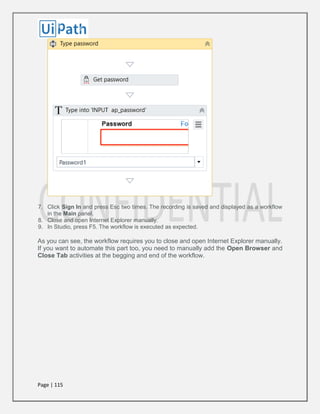
software company that makes applications that manage business operations and
customer relations.
How does UiPath work with SAP?
There are elements on the SAP GUI, just like Citrix, that are detected by the recorder as
a single block, so it's impossible to use a simple recording or automation tool with them.
UiPath is well adapted and very capable of creating an automation, even with these types
of interfaces. UiPath has a powerful screen scraping engine that helps you in extracting
data from the GUI in less than a second! This method is 100% accurate.
Most elements of the SAP GUI can be detected by the Macro Recorder individually, like
the Standard Buttons, Menus and Submenus.
Page | 169
The Basic Workflow
Let's say you want to add sales or member data into the application database. Manually,
you have to pull up the right form and then start inserting data manually.
In order to achieve this in UiPath, 2 GUI automation techniques will be used:
 automation through keyboard entries like tab, arrow keys and the return key
 automation by scraping text on the screen and clicking a text event
1. Automation through Keyboard entries makes it easier and faster to move between
different text fields
2. Scraping the text allows us you to build Activities from individual elements in a block
element.
The Process
Let's assume that the UiPath is installed on the same machine as the SAP application.
1. With the SAP Business One already pulled up, start building the Workflow by pulling
up the Macro recorder. Select Desktop.
Page | 170
2. Select the Automatic Recorder from the Wizard.
3. To pull-up the data form, we can simply use a left mouse click, using the Recorder.
4. Now the form is ready. The individual elements in this form cannot be identified by the
Recorder. You will use a different method to fill in the data. Press Escape. The previous
activities are temporarily saved in the queue.
Page | 171
5. The next step is to start filling in the data. The cursor is now positioned in the place
where you can start putting in the information ("Code").
Click on Element->Keyboard->Type.
6. Just click anywhere in the form and it will initiate the input dialog box in the field where
the cursor is in.
7. You can start by typing in initial data. Remember that you can use variables later to
manipulate the data, so you can insert your own data sources.
The text dialog box also allows you to add keyboard commands such as Return and Tab.
Let's add a Tab after the "Code" section. This will take you to the next field, which is a
dropdown.
Page | 172
8. You can notice that it creates a code right next to the text you entered. It's the same
thing you can apply when adding more keyboard commands. This is how you can
manipulate the movement of the cursor:
Arrow Down: [k(down)]
Enter: [k(enter)]
Tab: [k(tab)]
You can follow the same steps from step 5 to fill in any other input fields.
Automating SAP via Click on Text and Screen Scraping
The keyboard commands are very helpful when moving to and manipulating input fields.
If you want to jump to a different field from within the form it could be hard to do so using
keyboard activities. That's where the UiPath built-in screen scraping comes in.
You have to run an OCR which reads the text in the form and captures the targeted text.
1. Click on Text->Mouse->Click.
2. This will pull up the Screen Scraping wizard. The target field is next to "Tel 1". The
cursor position should be set next to it.
Page | 173
Copy "Tel 1" and put copy it in the Text to be found field.
3. Click on Set mouse position. "Tel1" will be detected. Click on the indicate link, then
click on the input field next to it.
4. Click on the Continue button . This will position the cursor next to "Tel1". You can use
the same technique from step 5 (presented in the previous section) to continue filling out
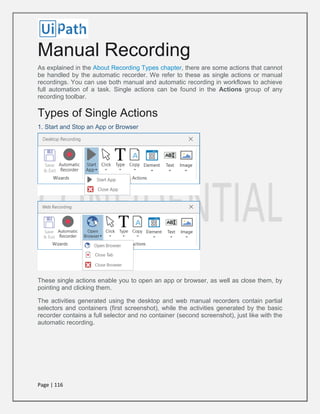
other data.
Radio Buttons
For the radio buttons, the same screen scraping technique can be used.
1. Click on Text->Mouse->Click and then copy paste "Inactive" into the Text to be found
field. There is no need to set the mouse position for this one. The mouse will click in the
middle of the element.
Page | 174
2. Use the same technique to click other GUI elements such as buttons
You are now ready to build your SAP automation out of these techniques.
Page | 175
Automating Terminals and
Mainframes
Quick Answers
UI Automation
1. Introduction
In order to use terminal activities, the Nuget package “UiPath.Terminal.Activities” needs
to be installed. Once installed, the activities can be found under “App Integration ->
Terminals” as in the following picture:
2. Terminal wizard
UiPath Terminal wizard is designed to help you automate data extraction and/or task
execution on various terminals (Mainframe/AS400/VT). It works with TN3270/TN5250/VT
terminals.
Page | 176
There are several ways to automate the mentioned terminals:
 using the existing/installed terminal application
 using the IBM EHLLL standard
 using the UiPath internal implementation of these protocols
One may choose between those three based on the accuracy and the level of the
provided details (like colors, field information, etc).
2.1. Setting up a terminal session
The first step for creating a terminal session is by dragging the “Terminal Session” activity
into the workflow. Then the connection configuration dialog is displayed.
The “Provider” combo box specifies which provider to use. Based on this selection, the
“Connection type” section changes accordingly, depending on what connection types are
available for the specific provider. A more detailed description on each provider can be
found in section Supported providers.
“Show client application” flag specifies if the 3rd party provider window is displayed during
recording/play.
Page | 177
2.1.1. Use an existing profile
Browse to a profile file containing the connection information, specific to selected
provider. For example, for Attachmate Reflection, one may choose a rd5x/rd3x file,
corresponding to a TN5250/TN3270 profile file. The same applies to other providers.
2.1.2. Manually specify address
Enter manually the connection parameters:
 Address : the server address
 Port: the port to use for connection
 Type: the terminal type: TN3270, TN5250 or VT
2.1.3. Attach to an existing session
This method is available only when using IBM EHLL standard and it is described in EHLL
section.
2.2. Recording wizard
After specifying connection parameters the UiPath Terminal Wizard is automatically
started.
Page | 178
2.2.1. Screen organization
The terminal screen is organized in fields, highlighted in orange color. The properties of
the selected field are displayed the Field Properties pane.
There are two methods by which UiPath identifies a field on the screen: by coordinates
or by visual elements.
Field identification by coordinates is straightforward, as it uses the row/column
coordinates to located the field. The more reliable way is using
LabeledBy/FollowedBy/Index properties. This is useful in case a screen changes a bit
and the coordinates are not valid anymore, however, the text before/after a field is usually
the same.
In the above picture, the selected field is “PUB1” and it is labeled by “System name:”.
Index property is used when there are multiple fields with the same
LabeledBy/FollowedBy property, like in a table.
2.2.2. Field Properties pane
The properties of the selected field are displayed the Field Properties pane. It includesthe
coordinates (row/column), LabeledBy/FollowedBy/Index properties, the text value and a
flag indicating if the field is editable or not.
2.2.3. Recorded Actions pane
This pane containsthe list of recorded actions (auto generated activities).
2.2.4. Available commands
 Save & Exit: stops the terminal connection and saves the recorded actions
 Stop/Start (recording): temporarily stops recording, in case some actions do not need to be
recorded
 Actions commands: each of these are commands generates a specific terminal activity; they
are described in a Terminal activities section
 Refresh: used to perform a full refresh of the terminal screen (used only for testing/validation)
3. Terminal activities
3.1. Common properties
 DelayMS: represents the time to wait after the activity executed; value is in milliseconds
 TimeoutMS: specifies the time to wait for the activity to execute; value is in milliseconds
 WaitType: allows specifying if the terminal should be in a ready state when executing the
activity; recommended value is “READY”
3.2. Terminal Session activity
Page | 179
It is the main terminal activity and represents a connection to a terminal server. It acts as
a container for all other terminal activities. By default, after activity execution, the terminal
connection is closed.
Properties:
 ConnectionString: contains the connection parameters; automatically generated from the
connection dialog
 OutputConnection: optional, one may specify an output variable (of type TerminalConnection)
in order to be used later in other terminal sessions
 CloseConnection: used with ExistingConnection property; specifies if the connection is closed
after executing the Terminal Session activity
 ExistingConnection: a variable of type TerminalConnection that was previously initialized
When using many terminal sessions, it is recommended to reuse the terminal connection
by saving it into a variable and use it in the next sessions. This is to avoid connecting and
disconnecting multiple times, as this process is more time consuming.
3.3. Set Field activity
Set the text value of the selected field to a given value. The field must be editable,
otherwise the activity is disabled.
In the sample above, the selected field identified by label “Username/Benutzer” is set to
the provided value “test”.
Page | 180
Properties:
 LabeledBy: the label before the selected field
 FollowedBy: the label following the selected field
 Index: 1 or greater, depending if there are multiple fields with same labels
 Text: a string expression used for setting the field value
3.4. Get Field activity
Obtains the text value of the selected field.
In the sample above, the text from selected field identified by label “devicename:” is
returned.
Properties:
 LabeledBy: the label before the selected field
 FollowedBy: the label following the selected field
 Index: 1 or greater, depending if there are multiple fields with same labels
 Text: a string variable where the resulting text is saved
Page | 181
3.5. Get Text activity
Obtains the text value of the entire screen.
Properties:
 Text: a string variable where the resulting text is saved
Page | 182
3.6. Send Control Key activity
Sends a special key to the terminal, like (Enter), F1-F24 functional keys, etc. Usually,
following a control key like , the screen changes. In the sample below it changes to the
information screen following the login screen.
Properties:
 Key: the control key to send to the terminal (selected from the provided combo box)
Page | 183
3.7. Wait Field Text activity
Waits the specified amount of time (TimeoutMS, in milliseconds) until the selected field
contains the provided text.
In the sample above, the workflow execution waits until the field identified by label
“Username/Benutzer:” contains the text “test”.
Properties:
 LabeledBy: the label before the selected field
 FollowedBy: the label following the selected field
 Index: 1 or greater, depending if there are multiple fields with same labels
 Text: a string expression containing the value to wait for; it supports wildcards
 MatchCase: a flag indicating if the text matching should be case sensitive
Page | 184
3.8. Wait Screen Text activity
Waits the specified amount of time (TimeoutMS, in milliseconds) until the screen contains
the provided text. It is very similar to Wait Field Text activity, except it searches the entire
screen instead of being limited to a specific field.
In the sample above, the workflow execution waits until the text “code400” is found on the
screen.
Properties:
 Text: a string expression containing the value to wait for; it supports wildcards
 MatchCase: a flag indicating if the text matching should be case sensitive
Page | 185
3.9. Advanced activities
Advanced activities are terminal activities that work based on coordinates and cursor
location. They should be used only when the field’s positions do not change, in order to
ensure a successful workflow run.
3.9.1. Move Cursor activity
Moves the cursor position to the specified location. In the sample below, the cursor will
be moved at the beginning of the selected field.
Properties:
 Row: 1-based index of the row where the cursor will be moved
 Column: 1-based index of the column where the cursor will be moved
Page | 186
3.9.2. Send Keys activity
Sends the specified text to the terminal cursor position. One must ensure that the cursor
position is inside an editable field by using Move Cursor activity.
Properties:
 Text: a string expression that will be sent to the terminal
3.9.3. Set Field at Position activity
Similar to Set Field activity, uses coordinates to identify the field.
Properties:
 Row: 1-based index of the row where the cursor will be moved
 Column: 1-based index of the column where the cursor will be moved
 Text: a string expression used for setting the field value
Page | 187
3.9.4. Get Field at Position activity
Similar to Get Field activity, uses coordinates to identify the field.
Properties:
 Row: 1-based index of the row where the cursor will be moved
 Column: 1-based index of the column where the cursor will be moved
 Text: a string variable where the resulting text is saved
3.9.5. Get Text at Position activity
Obtains the text of length from the specified position. It is not limited to a single field.
Properties:
 Row: 1-based index of the row where the cursor will be moved
 Column: 1-based index of the column where the cursor will be moved
 Length: the number of characters to return; if is not supplied, the text until the end of the
screen is returned
 Text: a string variable where the resulting text is saved
3.9.6. Wait Text at Position activity
Similar to Wait Field Text activity, uses coordinates to identify the field.
Properties:
 Row: 1-based index of the row where the cursor will be moved
 Column: 1-based index of the column where the cursor will be moved
 Text: a string expression containing the value to wait for; it supports wildcards
 MatchCase: a flag indicating if the text matching should be case sensitive
4. Supported providers
4.1. Attachmate Reflection
4.1.1. Prerequisites
Attachmate reflection installed (https://www.attachmate.com/products/reflection/2014/)
4.1.2. Usage
When using profile mode, the profile file must be located in the Attachmate Reflection
profile folder. Default is ‘C:UsersDocumentsAttachmateReflection’
4.2. Rocket BlueZone
4.2.1. Prerequisites
Rocket BlueZone (5.2+) Terminal Emulation installed
(http://www.rocketsoftware.com/products/rocket-bluezone-terminal-emulation )
Page | 188
4.2.2. Usage
No custom requirements
4.3. IBM Personal Communications
4.3.1. Prerequisites
IBM Personal Communications (http://www-03.ibm.com/software/products/en/pcomm )
4.3.2. Usage
Only profile mode supported. The profile file must be located in the IBM Personal
Communications profile folder. Default is ‘C:UsersAppDataRoamingIBMPersonal
Communications’
4.4. Using IBM EHLL standard
One may choose to connect to a terminal using IBM EHLL standard. This is an advanced
type of connection and specific information regarding EHLL implementation need to be
provided. Depending on the EHLL implementation, some features could not be available
(like field color).
One can only attach to an existing terminal session using this method.
Page | 189
4.4.1. Prerequisites
An emulator that implements the EHLLAPI standard
(http://www-01.ibm.com/support/knowledgecenter/api/content/nl/en-
us/SSEQ5Y_5.9.0/com.ibm.pcomm.doc/books/html/emulator_programming07.htm#Hea
der_16 )
4.4.2. Usage
The terminal emulator window should be opened before the connection (see Application
specifics)
 In connection dialog the path to the DLL implementing the EHLLAPI standard must be
specified
 The EHLL function should be changed accordingly (usually is ‘hllapi’)
 The session name should be the session short name of the previously opened
 The Show client application has no effect
4.4.3. Application specifics
4.4.3.1. IBM implementation
The EHLLAPI implementation dll is ‘pcshll32.dll’; default, it is located in ‘C:Program Files
(x86)IBMPersonal Communications’.
4.4.3.2. Attachmate Extra
The EHLLAPI implementation dll is ‘pcshll32.dll’; default, it is located in ‘C:Program Files
(x86)AttachmateEXTRA!’.
Requirements/limitations:
 In Attachmate Extra application, one must associate a session short name letter with a profile
file (Options -> Global Preferences -> Advanced -> HLLAPI shortname); this letter will be used
in terminal session connection dialog (UiPath Studio)
 The session must NOT be started when connecting from UiPath Studio
4.4.3.3. Micro Focus Rumba
The EHLLAPI implementation dll is ehlapi32.dll’; default, it is located in ‘C:Program Files
(x86)Micro FocusRUMBASystem’. The Ehll Enhanced checkbox should be unchecked.
Requirements/limitations:
 In Micro Focus Rumba Desktop application one must associate a session short name letter
(Options -> API… -> Identification ->Session Short Name). Also, must check the classic
HLLAPI data structure (Options -> API… -> Configuration -> Classic HLLAPI data structure).
Page | 190
4.5. Using UiPath implementation
This is a custom implementation and it requires the address of the server and the terminal
type.

UiPath User Guide.pdf

  • 1.
    Page | 1 -User Guide Table of Contents: Introduction 3 The User Interface 3 The Workflow Designer Panels 5 Keyboard Shortcuts 14 Connecting your Project to a Source Control 21 Managing Variables 57 Creating Variables 57 Generic Value Variables 62 Array Variables 64 Date and Time Variables 68 Data Table Variables 71 Using Arguments 78 About Control Flow 81 The Assign Activity 83 The Delay Activity 83 The Do While Activity 85 The While Activity 88 The If Activity 91 The Switch Activity 95 The For Each Activity 97 The Break Activity 99 RECORDING 101 Manual Recording 116 About UI Elements 122
  • 2.
    Page | 2 UIActivities Properties 122 Output or Screen Scraping Methods 130 Examples of Using Output or Screen Scraping Methods 137 About Selectors 158 Selectors with Wildcards 161 Full Versus Partial Selectors 164 UiPath Explorer 165 Automate SAP Applications -without GUI Scripting 168 Knowledge Base Error! Bookmark not defined. Automating Terminals and Mainframes 175
  • 3.
    Page | 3 Introduction UiPathis a complete solution for application integration, and automating third-party applications, administrative IT tasks and business IT processes. One of the most important notions in UiPath is the workflow. A workflow is a graphical representation of a business process. It enables you to automate rule-based processes, by giving you full control of the execution order and the relationship between a custom set of steps, also known as activities in UiPath Studio. Each activity consists of a small action, such as clicking a button, reading a file or writing to a log panel. The main types of workflows supported are:  Sequences - suitable to linear processes, enabling you to smoothly go from one activity to another, without cluttering your workflow.  Flowcharts - suitable to a more complex business logic, enabling you to integrate decisions and connect activities in a more diverse manner, through multiple branching logic operators.  State Machines – suitable for very large workflows; they use a finite number of states in their execution which are triggered by a condition (transition) or activity. The User Interface The Ribbon The ribbon is straightforward and can be minimized or expanded by clicking the Minimize / Expand button . It consists of the following four tabs: 1. Start - create a project or open a previously created one, switch to a Beta or Stable version, update Studio, go to the online documentation or submit a request. By default, projects are created in C:UsersUsernameDocumentsUiPath.
  • 4.
    Page | 4 2.Design - create or launch sequences, flowcharts or state machine diagrams, access wizards, manage variables, and inspect user interface elements from third-party apps. 3. Execute - run or stop projects, start the debug process, slow down steps and open logs. 4. Setup - publish a project or create a shortcut for it, schedule tasks, and install extensions with just one click.
  • 5.
    Page | 5 TheQuick Access Toolbar The Quick Access Toolbar is located by default on the title bar, above the ribbon, yet you can easily move it bellow. It provides shortcuts for the most used commands, and you can add new ones to it by right-clicking a desired button and selecting the Add to Quick Access Toolbar option. The Workflow Designer Panels UiPath contains multiple panels for an easier access to specific functionalities. They can be docked, act as floating windows, or the Auto-hide option can be enabled.
  • 6.
    Page | 6 TheMain Panel The Main panel displays your current workflow or workflows, enables you to make changes to them, and provides quick access to variables, arguments and imports. It is possible to navigate within a workflow, by double-clicking the activity you want to view. The path is displayed as breadcrumbs in the header of the Main panel.
  • 7.
    Page | 7 TheActivities Panel The Activities panel provides quick access to all available activities that can be dragged to the current workflow. It features a search box, and the Show Activities list enables you to hide or show the Favorites, Recent and Available folders of activities.
  • 8.
    Page | 8 TheManage Packages functionality enables you to install additional activity packages. The Library Panel
  • 9.
    Page | 9 TheLibrary panel enables you to easily reuse workflows. A search box is included to facilitate finding items faster. It includes, by default, multiple samples and snippets, and you can add your own by clicking the Add Folder button and selecting a directory from your hard drive. To remove a folder, right-click it and select Remove. Note: If you add empty folders they are not going to be displayed.
  • 10.
    Page | 10 TheProject Panel The Project panel enables you to view the contents of the current project and open the file location in a Windows Explorer window. You can connect to a team project from the Team Foundation Server (TFS) and create a new project directly from this panel.
  • 11.
    Page | 11 Versioncontrol is available through the context menu, and it is also possible to view the history of a selected file. The Properties Panel The Properties panel is contextual and enables you to view and change the properties of a selected activity.
  • 12.
    Page | 12 Theproperties can be sorted alphabetically, while the search box enables you to look for a specific one. The Outline Panel The Outline panel displays the workflow hierarchy, all available variables and nodes, and includes a search box. This enables you to easily navigate large workflow.
  • 13.
    Page | 13 Youcan highlight activities in this panel by selecting them in the Main panel, or you can go to a specific activity by selecting it in the Outline panel. The Output Panel The Output panel enables you to display the output of the Log Message or Write Line activities, as well as the logs when the debug mode is activated. The logs are more or less detailed, depending on the option you selected in the Execute tab, under Options > Logging Level. You can hide or show timestamps, errors, warnings, information or trace data, by clicking the buttons in the panel’s header. Additionally, the Clear All button erases all info displayed in the Output panel. Double-clicking a message displays further details about it.
  • 14.
    Page | 14 KeyboardShortcuts The complete list of keyboard shortcuts for UiPath Studio: Ctrl + D Ignores the activity that is currently selected by placing it into a Comment Out container. Ctrl + E Removes the activity from the Comment Out container it was placed in. Ctrl + T Places the activity inside the Try section of a Try Catch activity. Ctrl + Shift + N Creates a new Blank Project. Ctrl + N Creates a new Sequence Diagram in the current project. Ctrl + O Enables you to open a previously created workflow. Only .xaml files are supported. F1 Enables you to access a help topic associated with the currently selected element. Ctrl + L Opens the folder where the Log files are stored. Shift + F9 Removes all the breakpoints in the currently opened workflow. Ctrl + S Saves the currently opened workflow. Ctrl + Shift + S Saves all the workflows that are currently open. F5 Runs the workflow that is currently open. F7 Runs the currently opened workflow in debug mode. F8 Checks the currently opened workflow for validation errors. F9 Marks the selected activity with a breakpoint. F10 When debugging, skips the execution of a block of activities in the currently selected workflow. F11 When debugging, enables you to step into a block of activities and executes the first one. Pause Pauses the execution of the current workflow, in both normal and debug mode. F12 Stops the execution of the current workflow, in both normal and debug mode. Ctrl + C Copies the selected activity or activities to the clipboard. Alt + Ctrl + W Opens the Web Recording toolbar. Alt + Ctrl + B Opens the Basic Recording toolbar. Alt + Ctrl + C Opens the Citrix Recording toolbar. Alt + Ctrl + D Opens the Desktop Recording toolbar. Alt + Ctrl + F Sets the focus to the search box in the Activities Panel. Ctrl + P Opens the Manage Packages window.
  • 15.
    Page | 15 UpdatingUiPath Studio From the Start ribbon tab, under the Help tab, you can update your version of UiPath Studio, as well as see the version you are currently running on. You can choose between a Stable or Beta version with the help of two radio buttons. However, note that you are required to restart the application for the change to take effect.
  • 16.
    Page | 16 Whena new Studio version is available, be it Stable or Beta, an Update Available link is displayed. To update, do the following: 1. Click the Update Available link. A window is displayed with the new available update.
  • 17.
    Page | 17 2.Click the Install button. Note that the download has started. 3. After the download is complete, go through the installation wizard. Studio is restarted and the fixes and/or enhancements are available to you.
  • 18.
    Page | 18 Installingthe Chrome Extension for UiPath Studio From UiPath Studio 1. In the Setup ribbon tab, from the Setup Extensions menu, select Chrome. The Chrome Web Store is opened in Google Chrome. 2. Click the Add to Chrome button. A confirmation dialog box is displayed.
  • 19.
    Page | 19 3.Click the Add extension button. The extension is now installed. Please note that file access is disabled by default. To enable it: 1. Click the Side Navigation Bar > Settings. The Settings page is displayed. 2. In the Extensions tab, navigate to the UiPath extension. 3. Under the UiPath Extension, select the Allow access to file URLs check box. From the Command Prompt 1. Click the Windows Start button and type cmd in the search field. 2. Right click on Command Prompt and run it as administrator. 3. Change the directory to the UiPath installation folder (cd C:Program Files (x86)UiPath StudioUiPath).
  • 20.
    Page | 20 4.Run the SetupExtensions file by typing SetupExtensions.exe/chrome. The Chrome Web Store is opened in Google Chrome. 5. Click the Add to Chrome button. A confirmation dialog box is displayed. 6. Click the Add extension button. The extension is now installed. Installing the Firefox Extension for UiPath Studio From UiPath Studio 1. In the Setup ribbon tab, from the Setup Extensions menu, select Firefox. A confirmation pop-up is displayed in Firefox. 2. Click the Install button. A confirmation dialog box is displayed. The extension is now installed.
  • 21.
    Page | 21 Fromthe Command Prompt 1. Click the Windows Start button and type cmd in the search field. 2. Right click on Command Prompt and run it as administrator. 3. Change the directory to the UiPath installation folder (cd C:Program Files (x86)UiPath StudioUiPath). 4. Run the SetupExtensions file by typing SetupExtensions.exe/firefox. A confirmation pop-up is displayed in Firefox. 5. Click the Install button. A confirmation dialog box is displayed. The extension is now installed. Connecting your Project to a Source Control The Project panel enables you to, among others, connect to a type of Source Control, such as TFS or SVN. When you are connected to one of them, the Connect Project to a Source Control button changes to TFS or SVN . Additionally, hovering over the TFS and/or SVN button displays the URL of the repository.
  • 22.
    Page | 22 Note:You cannot connect to both TFS and SVN, in the same time. The supported versions of Team Foundation Server are:  2012  2013  2015  Express 2012  Express 2013  Express 2015 Note: Due to Microsoft limitations, the 2015 and none of the Express TFS versions do not permit you to create new projects. Connecting to TFS 1. On the Project panel, click Connect Project to a Source Control > TFS > Connect to Team Project. The Connect to Team Foundation Server window is displayed.
  • 23.
    Page | 23 2.Click Servers. The Add/Remove Team Foundation Server window is displayed.
  • 24.
    Page | 24 3.Click the Add The Add Team Foundation Server window is displayed. 4. Fill in the details of your TFS and click OK. In the Connect to Team Foundation Server window, your team’s collections and projects are available and the Connect Project to a Source Control button is now changed to TFS . If the TFS server is online (e.g. https://<account>.visualstudio.com) UiPath Studio requests authentication with a Microsoft account. An Internet Explorer window is displayed for entering your credentials, regardless of what your default browser is. Note: By default, on all Windows Server machines, this window is not displayed, as it requires JavaScript to run. This can be enabled from the Internet Explorer settings (Security tab > Custom Level > Enable Scripting). Creating a New Team Project 1. On the Project panel, click Connect Project to a Source Control > TFS > New Team Project . The Select a Team Project Collection window is displayed.
  • 25.
    Page | 25 2.In the Select a Team Project Collection window, select your server, one of your collections and click Connect. The New Team Project window is displayed. Note: Due to Microsoft limitations, the 2015 and none of the Express TFS versions do not permit you to create new projects. 3. Fill in the Project Name and Project Description fields, select a Process Template and click OK. A confirmation message indicating the new project has been created is displayed. 4. Click OK. The new project that has been created is displayed in the Projects panel, and you are automatically connected to the project.
  • 26.
    Page | 26 Connectingto SVN 1. On the Project panel, select Connect Project to a Source Control > SVN > Connect to Project button. The Connect to window is displayed. 2. Insert the Repository URL of your SVN server into the text field. Selecting the Use Credentials box will enable you to insert your account User and Password. Click Your project is now connected to SVN. 3. Enter the Repository URL of your SVN server and select the Use Credentials check box. The User and Password fields are displayed. Fill in the user and password information, and click OK. You are now connected to SVN and the Connect Project to a Source Control button is now changed to SVN. Context Menu Options Once your project is connected to either TFS or SVN, right-clicking any file or folder in the Project panel opens a context menu that contains the following options:
  • 27.
    Page | 27 OptionDescription Open Opens the selected .xaml file in the Main panel. Rename Enables you to rename the selected file or folder, and opens the Rename Item window. Delete Deletes the selected item. Add Uploads the selected item to the TFS/SVN server. This option is not available, if the item was previously uploaded to the server. Get Latest Version Downloads the latest version of the selected item from the TFS/SVN server. Check Out for Edit Marks the selected file or folder as locked for editing. Check In Displays the Check In Changes window and enables you to upload the selected item to the server as the newest version. Undo Displays the Undo Pending Changes window and enables you to Revert the changes done to the project. Import Workflows Imports .xaml files to the project. This option is only available when selecting a directory. Enabling Tracing By default, UiPath generates log files that track the activity of Studio and the Robots. These logs can be accessed from the Execute ribbon tab, by clicking the Open Logs button. For complex issues, more details about your automation are needed. To gather them, tracing must be enabled. In UiPath Studio, tracing generates an .etl file. It contains binary log data at the trace level, such as disk accesses or page faults, and is used to log high-frequency events while tracking the performance of an operating system. To enable tracing, do the following:
  • 28.
    Page | 28 1.In the system tray, click the UiPath Robot button. The UiPath Robot window is opened. 2. Click Advanced > Settings. The Settings window is displayed. 3. Click the Start Tracing button. 4. Run the workflow that you want to trace.
  • 29.
    Page | 29 5.In the Settings page, click the Stop Tracing button. A dialog box is displayed, informing you that an .etl file has been generated on the Desktop. This type of file can be opened from the Event Viewer: 1. In Event Viewer, in the Actions panel, click Open Saved Log. The Open Saved Log window is displayed. 2. Browse for the trace log file generated and click Open. The file is displayed in the left panel, under Saved Logs. 3. Select the file. Note that the contents of the logs are displayed.
  • 30.
    Page | 30 Creatinga Basic Workflow To create a basic workflow that asks for a user's name and then displays it on the screen, do the following: 1. On the Start tab, under the New section, click Blank. The New Project window is displayed. 2. In the Name field, type the name of your project, such as Hello, and click Create. A new project is saved with the chosen name on the hard drive. 3. From the Activities panel, drag a Flowchart activity to the Main panel 4. Add an Input Dialog activity. 5. Right-click the activity and click Set as Start Node. The activity is connected to the Start node.
  • 31.
    Page | 31 6.On the Design tab, select Create Variable > Text to create a string variable in which to store the user’s name, called name, for example. 7. On the Properties panel, under the Input section, add a Label for the activity, such as "Type your name," and a Title, such as "Hello, world!.". Note: In UiPath, all strings have to be placed between quotation marks. 8. Under the Output section, in the Result field, add the variable created at step 5.
  • 32.
    Page | 32 9.Add a Message Box activity to the Main panel and connect it to the existing Input Dialog activity. 10.Make sure that the Message Box activity is selected. The Properties panel is updated accordingly. 11.Under the Input section, add a Caption such as “Hello,” and in the Text field add a string and the previously created variable, such as “Hello”+name.
  • 33.
  • 34.
    Page | 34 12.Theworkflow should look as in the screenshot below. 13.Click Run on the Design tab or press F5. The workflow is executed. The Hello World window is displayed, prompting you to input your name.
  • 35.
    Page | 35 14.Typeyour name in the field and press OK. The Hello window with the name previously added is displayed. However, this workflow has a small flaw because, when prompted to add your name, you can leave the field blank. This also causes the Hello window to be empty. To fix this problem and other similar ones, it is good practice to validate fields. You can do this with the Flow Decision or If activities that enable you to verify if a certain condition was met. To solve the issue in the example workflow above, do the following: 1. Select the arrow between the Input Dialog and the Message Box activities and press Delete. The arrow is deleted. 2. Add a Flow Decision activity between the Input Dialog and the Message Box activities. 3. Select the Flow Decision activity and, in the Properties panel, add a Condition to check if the variable name is empty, such as name = “”. 4. Connect the Input Dialog activity to the Flow Decision. This means that after the user is prompted to add his or her name, the condition added at step 3 is going to be checked. 5. Connect the True branch of the Flow Decision activity to the Input Dialog. This means that if the name field is empty, the user is going to be prompted to type his name in the Hello World window until the field is filled in. You just created your first loop. 6. Connect the Message Box activity to the False branch of the Flow Decision. This means that if the name field is not empty, the Hello window can be displayed with the string added by the user.
  • 36.
    Page | 36 Thefinal workflow should look as in the following screenshot.
  • 37.
    Page | 37 Introductionto Debugging a Workflow Debugging is the process of identifying and removing errors from a given workflow. Coupled with logging and breakpoints, it becomes a powerful functionality that offers you information about your project and step-by-step highlighting, so that you can be sure it is error-free. Logging enables you to display details about what is happening in your workflow in the Output panel. This in turn makes it easier for you to debug a workflow. Breakpoints enable you to pause the execution of a workflow so that you can check its state at a given point. Example of Debugging a Workflow To debug the workflow designed in Creating a Basic Workflow, do the following: 1. Select the True branch between the Input Dialog and Flow Decision activities, and press Delete. The True branch has been deleted. 2. Add a Log Message activity next to the Flow Decision. 3. Connect the Log Message activity to the True branch of the Flow Decision and to the Input Dialog activity. The workflow should look as in the following screenshot.
  • 38.
    Page | 38 4.Select the Log Message. The Properties panel is updated accordingly. 5. From the Level list, select Error, and in the Message field type what error message to be returned, such as “Invalid user name.” When you execute the workflow, the error message is displayed in the Output panel every time the user does not fill in the Hello World window. 6. Press F5 to execute the workflow and do not fill in the Hello World window the first time when you are prompted. The Output panel has logged the error message you added at step 5.
  • 39.
    Page | 39 7.On the Execute tab, in the Debug group, from the Options menu, select Logging Level > Verbose. This means that the logs that are going to be displayed in the Output panel are going to be explicit. 8. Select the Log Message activity and, on the Execute tab, in the Debug group, click Toggle Breakpoint. Note that a small that a red dot with white stripes is displayed next to it. This signals that this activity has a breakpoint applied. 9. On the Execute tab, in the Launch group, click Start Debug. The debugging process starts and the Hello World window is displayed. 10.Do not fill in the field and click OK. The breakpoint has been triggered and, as a result, the workflow stopped. Note that, in the Output panel, the error and all steps covered until now have been logged, and the Log Message activity is highlighted.
  • 40.
    Page | 40 11.Onthe Execute tab, in the Launch group, click Stop. An information dialog box is displayed, letting you know that the debugging process has been canceled. Note: After a breakpoint has been triggered you can stop, go to the next step of the workflow or continue the debugging process by clicking Stop, Step Over, Step Into or Continue Debug on the Execute tab.
  • 41.
    Page | 41 ManagingPackages The package manager functionality enables you to download activity packages, libraries, frameworks, wrappers and others, view the ones already installed on your computer and update them, as well as add and remove your own. These features are available through the Manage Packages window that you can open by clicking the Manage Packages button on the Activities panel. An activity package is a bundle of activities that can help you automate a certain application (UiPath.Excel.Activities, UiPath.Word.Activities) or a category of apps (UiPath.Mail.Activities, UiPath.Terminal.Activities), or use certain technologies in your workflows (UiPath.OCR.Activities, UiPath.FTP.Activities). Details about packages and libraries are displayed in the right panel of the Manage Packages window, as you can see in the screenshot above. The Filter Activities check box enables you to view only activity packages. To install activities packs, go to the Available category, and click the Install button next to the package that interests you. You are prompted to restart UiPath Studio so that you can start using the selected activities. Note: An internet connection is required to download and install activities packs.
  • 42.
    Page | 42 Touninstall activities, go to the Installed category, and click the Uninstall button next to the package that you no longer want to use. Updating Packages The Manage Packages button on the Activities panel displays an orange border when there are packages that need to be updated, as in the following screenshot. All your activities can be automatically updated when a new version is available, by selecting the Auto Update check box, in the Manage Packages window. If you want to manually update activities packages: 1. On the left side of the Manage Packages window, click the Updates category. The Manage Packages window displays all activities packages to be updated. 2. Click the Update button next to the package that interests you. The updated package is no longer displayed in this view. 3. Optionally, update all the packages at once by clicking the Update All button. Adding Your Own Packages 1. In the Manage Packages window, in the left panel, right-click any category.
  • 43.
    Page | 43 2.Select Configure Sources from the context menu. The Package Source Settings window is displayed. 3. Click the Add button. A new blank package is added and an error message is displayed because the Name and Source fields are not filled in correctly.
  • 44.
    Page | 44 4.In the Name field, type the name of the package. 5. In the Source field, type the local drive folder pathway, the shared network folder pathway or the NuGet feed URL of the paclage. . 6. Click Apply. Your configuration is saved. 7. Click OK. The Package Source Settings window closes. Note that the Name is displayed in the Manage Packages window, as a new category.
  • 45.
    Page | 45 RemovingYour Packages 1. In the Manage Packages window, in the left panel, right-click any category. 2. Select Configure Sources from the context menu. The Package Source Settingswindow is displayed. 3. In the Package Source Settings window, select the package you wish to remove by clicking on it and press the Remove button. 4. Click Apply. Your configuration is saved. 5. Click OK. The Package Source Settings window closes. The package is removed from the Manage Packages window.
  • 46.
    Page | 46 TYPESOF WORKFLOW Sequences Sequences are the smallest type of workflow. They are suitable to linear processes as they enable you to go from one activity to another seamlessly, and act as a single block activity. One of the key features of sequences is that they can be reused time and again, as a standalone workflow or as part of a state machine or flowchart. For example, you can create a sequence to take information from a .pdf file and add it to a spreadsheet, and reuse it in a different setting, while changing just a few properties. Note: Sequences do not use connectors. Example of a Sequence To create a sequence that asks the user for his first and last name, and his hair color, and then displays his answers, do the following: 1. Create a blank workflow and, on the Design tab, in the File group, select New > Sequence. The New Diagram window is displayed. Note: You can also add a Sequence activity to the Main panel to create a new sequence. 2. In the Name field type a name for the workflow, such as “First Sequence,” and click Create. The Main panel is updated accordingly. 3. Create three String variables such as strFirstName, strLastName, and strHairColor, so that you can store data from the user in them. Leave the Default field empty, to indicate that there is no default value.
  • 47.
    Page | 47 4.Drag three Input Dialog activities to the Main panel, one under the other. 5. Select the first Input Dialog and, in the Properties panel, add a Label asking for the first name of the user, and a custom Title. 6. In the Result field, add the strFirstName variable. This indicates that this variable is going to be updated with the value added by the user at this point. 7. Repeat steps 6 - 7 for the second and third Input Dialog activities to ask the user for his last name and hair color, and store them in the strLastName and strHairColor variables. 8. Add a Message Box activity under the third Input Dialog window. 9. Select the Message Box and, in the Properties panel, in the Text field, add the variables and a string to enable you to display all information gathered from the user, such as: strFirstName + " " + strLastName + " has " + strHairColor + " hair.". Note: Remember to add spaces between variables and within strings for an optimal output. The final workflow should look as in the following screenshot.
  • 48.
    Page | 48 10.Onthe Design tab, in the File group, click Run. The workflow is executed. The final output message should look as in the following screenshot.
  • 49.
    Page | 49 Flowcharts Flowchartscan be used in a variety of settings, from large jobs to small projects that you can reuse in other workflows. The most important aspect of flowcharts is that, unlike sequences, they present multiple branching logical operators, that enable you to create complex business processes and connect activities in multiple ways. Example of a Flowchart To exemplify the properties of a flowchart, we are going to build a guessing game that generates a random number from 1 to 999 that the user must guess. To create such a workflow, do the following: 1. Create a blank workflow and from the Design tab, in the File group, select New > Flowchart. The New Diagram window is displayed. Note: You can also add a Flowchart activity to the Main panel to create a new flowchart workflow. 2. In the Name field type a name for the workflow, such as “First Flowchart,” and click Create. The Main panel is updated accordingly. 3. Create two Int32 variables (intRandomNumber, intGuessNumber) and a String one (strMessage). 4. Set the default value of the strMessage variable to "Guess a number from 1 to 999.0". The intRandomNumber stores a random number between 1 and 999, intGuessNumber stores the user's guess, and strMessage stores the message that is going to be displayed to prompt the user.
  • 50.
    Page | 50 5.Add an Assign activity to the Main panel, and connect it to the Start node. 6. In the Properties panel, in the To field add the intRandomNumber variable. 7. In the Value field, type new Random().Next(1,999). Note: This field uses the Random() function to generate a random number between 1 and 999. 8. Add an Input Dialog activity to the Main panel and connect it to the Assign one. 9. In the Properties panel, in the Label field, add the strMessage variable. 10.In the Result field, add the intGuessNumber variable. This activity asks and stores the user’s guesses in the intGuessNumber variable. 11.Add a Flow Decision activity and connect it to the Input Dialog. This activity enables you to tell the user if he correctly guessed the number or not. 12.In the Properties panel, in the Condition field, type intGuessNumber = intRandomNumber. This enables you to verify if the number added by the user is the same as the randomly-generated one. 13.Add a Message Box activity and connect it to the True branch of the Flow Decision. 14.In the Properties panel, in the Text field, type "Congratulation! You guessed correctly! The number was " + intRandomNumber.ToString + ".". This is the message that is going to be displayed if the user correctly guessed the number. 15.Add a new Flow Decision activity and connect it to the False branch of the previously added Flow Decision. 16.In the Properties panel, in the Condition field, type intGuessNumber > intRandomNumber. This activity enables you to check if the number the user added is bigger than the randomly-generated one. 17.In the DisplayName field, type Comparison. This enables you to easily to tell the difference between the two Flow Decisions used. 18.Add an Assign activity and connect it to the True branch of the Comparison activity. 19.In the To field, type the strMessage variable, and in the Value field, type a message indicating that the guess was too high, such as “Too big. Try again.”. 20.Select the Assign activity and press Ctrl+C. The entire activity and its properties are copied to the Clipboard. 21.Press Ctr+V. A duplicate of the previous Assign activity is displayed. 22.Connect it to the False branch of the Comparison activity and, in the Properties panel, in the Value field, type “Too small. Try again.”. 23.Connect the Assign activities created at steps 18-22 to the Input Dialog. A loop is created, asking the user to type a smaller or bigger number, until he guesses correctly. The final workflow should look as in the screenshot below.
  • 51.
    Page | 51 StateMachines A state machine is a type of workflow that uses a finite number of states in its execution. It can go into a state when it is triggered by an activity, and it exits that state when another activity is triggered. Another important aspect of state machines are transitions, as they also enable you to add conditions based on which to jump from one state to another. These are represented by arrows or branches between states. There are two activities that are specific to state machines, namely State and Final State, and they are found under Workflow > State Machine. Note: You can only create one initial state, yet it is possible to have more than one Final State.
  • 52.
    Page | 52 TheState activity contains three sections, Entry, Exit and Transition(s), while the Final State only contains one section, Entry. Both of these activities can be expanded by double-clicking them, to view more information and edit them. The Entry and Exit sections enable you to add entry and exit triggers for the selected state, while the Transition(s) section displays all the transitions linked to the selected state.
  • 53.
    Page | 53 Transitionsare expanded when you double-click them, just like the State activity. They contain three sections, Trigger, Condition and Action, that enable you to add a trigger for the next state, or add a condition under which an activity or sequence is to be executed.
  • 54.
    Page | 54 Exampleof How to Use a State Machine To exemplify how to use a state machine, we are going to build the guessing game we did in the previous chapter, only we will try to guess a number between 1 and 100. 1. Create a blank workflow and, on the Design tab, in the File group, select New > State Machine. The New Diagram window is displayed. Note: You can also add a State Machine activity to the Main panel to create a new state machine workflow. 2. Create two integer variables, intGuess and intRandomNumber. The first variables stores your guess, while the second stores the random number. 3. Add a State activity to the Main panel and connect it to the Start node. This is the intial state, and it is used to generate the random number. 4. Double-click the activity. This State activity is displayed explanded in the Main panel.
  • 55.
    Page | 55 5.In the Properties panel, in the DisplayName field, type Initializing Random Number. This enables you to easily tell states apart. 6. In the Entry section, add an Assign activity. 7. In the To field, add the intRandomNumber variable. 8. In the Value field, type new Random().Next(1.100). This expression generates a random number. 9. Return to the main workflow view and add a new State activity. 10.Connect it to the previously added activity. 11.Double-click the last added State activity. This activity is displayed expanded in the Main panel. 12.In the Properties panel, in the DisplayName field, type Guess Number. This state is used to prompt the user to guess a number. 13.In the Entry section, add an Input Dialog activity. 14.Select the Input Dialog, and in the Properties panel, add an appropriate Label and Title to prompt the user to guess a number between 1 and 100. 15.In the Result field, add the intGuess variable. This variable stores the user’s guess. 16.Return to the main workflow view and create a transition that points from the Guess Number state to itself. 17.Double-click the transition. The transition is displayed expanded in the Main panel. 18.In the Properties panel, in the DisplayName field, type Try Smaller. This message is displayed on the arrow, enabling you to run through your workflow easier. 19.In the Condition section, type intGuess > intRandomNumber. This verifies if the user’s guess is bigger than the random number. 20.In the Action section, add a Message Box activity. 21.In the Text field, type something similar to "Your guess is too big. Try a smaller number." This message is displayed when the user’s guess is bigger than the random number. 22.Return to the main workflow view and create a new transition that points from the Guess Number state to itself. 23.Double-click the transition. The transition is displayed expanded in the Main panel. 24.In the Properties panel, in the DisplayName field, type "Try Bigger.". This message is displayed on the arrow, enabling you to run through your workflow easier. 25.In the Condition section, type intGuess < intRandomNumber. This verifies if the guess is smaller than the random number. 26.In the Action section, add a Message Box activity. 27.In the Text field, type something similar to "Your guess is too small. Try a bigger number.". This message is displayed when the users guess is smaller than the random number. 28.Return to main workflow view and add a Final State activity to the Main panel. 29.Connect a transition from the Guess Number activity to the Final State. 30.In the Properties panel, in the DisplayName field, type Correct Guess. 31.In the Condition field, type intGuess = intRandomNumber. This is the condition on which this workflow steps to the final state and end. 32.Double-click the Final State activity. It is displayed expanded in the Main panel. 33.In the Entry section, add a Message Box activity.
  • 56.
    Page | 56 34.Inthe Text field, type something similar to "Congratulations. You guessed correctly! The number was " + intRandomNumber.ToString + ".". This is the final message that is to be displayed, when the user correctly guesses the number. The final workflow should look as in the following screenshot. 35.Press F5. The workflow is executed correctly.
  • 57.
    Page | 57 VARIABLES ManagingVariables Managing Variables In UiPath Studio, variables are used to store multiples type of data. Another key aspect of variables is that their value can change so that you can, for example, control how many times the body of a loop is executed. The data stored within a variable is called a value, and it can be of multiple types. In UiPath, we support a large amount of types, ranging from generic value, text, number, data table, time and date, to UiElements. Creating Variables Note: Variables cannot be created if the Main panel does not contain at least one activity. From the Design ribbon: 1. On the Design ribbon tab, in the Variables group, select Create Variable > [Type of variable]. The Create Variable window is displayed.
  • 58.
    Page | 58 2.Fill in the required fields and click OK. The variable is created and you can view and edit it in the Variables panel. From the context menu or with a keyboard shortcut: 1. In the Properties panel of any activity, right-click a field that can be edited, and select Create Variable from the context menu, or press Ctrl+K. A Set Name field is displayed. 2. Fill in the name and press Enter. The variable is created and you can view and edit it in the Variables panel. The scope of activities created like this always belongs to the smallest container it is part of. Note: When creating variables like this, the type is automatically generated, depending on the selected property.
  • 59.
    Page | 59 Fromthe Variables panel: 1. In the Main panel, click Variables. The Variables panel is displayed. 2. Click the Create Variable line. A new variable with the default values in displayed. Note: By default, all new variables are of String type if you create them from the Variables panel. Removing Variables  In the Variable panel, right-click a variable and select the Delete option.  In the Variable panel, select a variable and press the Delete key. Note: If you want to undo this action, press Ctrl+Z. You can also remove all the variables that are not used in your currently opened workflow: 1. On the Design ribbon tab, in the Variables group, select Manage Variables > Remove Unreferenced. Note that the Variables panel only contains the variables used in your workflow. Browsing for .Net Variable Types To search for types of variables that are not displayed by default in the Variable Type list, do the following: 1. In the Variable panel, from the Variable Type drop-down list, select Browse for Types. The Browse and Select a .Net Type window is displayed.
  • 60.
    Page | 60 2.In the Type Name field, type a keyword for the variable you are looking for, such as excel. Note that the result section is updated, displaying all the .Net variable types that contain your keyword. 3. Select one and click OK. A new variable is created with the selected type and is displayed in the Variables panel. Note: After using a type of variable from the Browse and Select a .Net Type window, it is displayed in the Variable Type drop-down list, in the Variables panel. Promoting Variables to Global Scope Some variables, when created directly in an activity (from the context menu of an activity), are automatically given the smallest scope they belong to. To make them available in your entire workflow, do the following: 1. Click the smallest container in a workflow. 2. On the Design ribbon tab, in the Variables group, select Manage Variables > Promote to Global Scope. All the variables used in the selected container now have a global scope.
  • 61.
    Page | 61 NamingBest Practices When creating very large workflows, it can be very easy to forget what every variable does. That is why it is important to have a good naming system in place. We recommend that you always use descriptive names, such as userName for a variable that stores the name of a user. Additionally, you might want to keep track of the type of variable you create, and that is why adding a short descriptor in the front of each variable name can be useful, such as int for integers. Finally, we recommend that you write variable names in camel case, so that you can read them easier. Example of how to name your variables: Variable Type Variable Name Generic Value genVariableName Text strVariableName Number intVariableName True or False boolVariableName Date and Time timVariableName Data Table datVariableName The Variables Panel The Variables panel enables you to create variables and make changes to them. Field Description Name Mandatory. The name of your variable. If you do not add a name to a variable, one is automatically generated. For more information on how to name your variables, see Naming Best Practices. Variable Type Mandatory. Enables you to choose the type of variable. The following options are available:  Boolean
  • 62.
    Page | 62 Int32  String  Object  Generic Value  Array of [T]  Browse for Types Scope Mandatory. The are in which a variable is available, such as a specific activity. By default, they are available in the entire workflow. Default Optional. The default value of the variable. If this field is empty, the variable does not have a default value. Generic Value Variables The generic value variable is a type of variable with a wide range that can store any kind of data, including text, numbers, dates and arrays, and is particular to UiPath Studio. Generic value variables are automatically converted to other types, in order to perform certain actions. However, it is important to use these types of variables carefully, as their conversion may not always be the correct one for your workflow. Example of Using a Generic Value Variable To demonstrate how a generic value variable can be converted and used, let's create a workflow that displays in the Output panel the sum of two numbers, using generic value variables with different types of values. 1. Create a flowchart. 2. Create three generic value variables, genNumber, genString and genSum. 3. In the Default column for the genNumber variable, type 2, and for the genString variable, type"2." The first value is interpreted as as integer, and the second one as a string.
  • 63.
    Page | 63 4.Add an Assign activity to the Main panel and connect it to the Start node. 5. In the Properties panel, in the To field, enter the genSum variable. 6. In the Value field, type genNumber+genString. 7. Add a Write Line activity and connect it to the Assign one. 8. In the Properties panel, in the Text field, enter the genSum variable. 9. Press F5 to execute your workflow. Note that, in the Output panel, the sum of the two numbers is displayed.
  • 64.
    Page | 64 Thismeans that UiPath Studio knows that the genNumber is an integer and knows how to transform the generic value genString variable to an integer, so that it can add it to the first one. However, keep in mind that this was our goal from the beginning. If we wanted to display the two variables in the Output panel as strings using this exact method, it would not have worked. Array Variables The array variable is a type of variable which enables you to store multiple values of the same type. UiPath Studio supports as many types of arrays as it does types of variables. This means that you can create an array of numbers, one of strings, one of boolean values and so on. Example of Using an Array Variable To exemplify how you can work with array variables, we are going to create a workflow that asks the user for his first and last name and age, stores the information in an array and then writes it in a .txt file. 1. Create a new sequence. 2. Create three string variables, strFirstName, strLastName and strAge, in which to store the information gathered from the user. 3. Create an array of strings variable called arrStringNameAge.
  • 65.
    Page | 65 4.Add an Input Dialog activity to the Main panel. 5. In the Properties panel, fill in the Label and Title fields to ask for the user’s first name. 6. In the Result field, add the strFirstName variable. This variable stores the first name of the user. 7. Add another Input Dialog activity under the previous one. 8. In the Properties panel, fill in the Label and Title fields to ask for the user’s last name. 9. In the Result field, type the strLastName variable. This variable is going to store the last name of the user. 10. Add another Input Dialog activity under the previous one. 11. In the Properties panel, fill in the Label and Title fields to ask for the user’s age. 12. In the Result field, type the strAge variable. This variable is going to store the age of the user. Note: We use a string variable and not an integer to store the age, so that we do not have to convert it later on, when we add it to the string array variable. 13. Add an Assign activity under the last Input Dialog. 14. In the Properties panel, in the To field, type the arrStringNameAge variable. 15. In the Value field, type {strFirstName,strLastName,strAge}. This Assign activity enables you to store all the values from the initial string variables in the arrStringNameAge one. 16. Add a Write Text File activity under the Assign one. 17. In the Properties panel, in the FileName field, type the path of the file you want to write to between quote marks, such as "C:UsersMADaDesktoparray_variable.txt". Note: If the file does not exist at the provided path, it is created. 18. In the Text field, type arrStringNameAge(0) + " " + arrStringNameAge(1) + " " +arrStringNameAge(2) + " ". Note: By adding the index number of the array items you can access their values and write them, in this example, to a text file. The final workflow should look as in the following screenshot.
  • 66.
    Page | 66 19.Press F5. The workflow is executed. 20. Navigate to the file provided at step 17 and double-click it. A Notepad window is displayed with the information you added at step 20.
  • 67.
  • 68.
    Page | 68 Dateand Time Variables The date and time variable is a type of variable that enables you to store information about any date and time. This type of variable can be found in the Browse and Select a .Net Type window, under the System namespace (System.DateTime). For more information, see Browsing for .Net Variable Types. For example, they can be used to append dates to invoices or any other documents you may be working with and are time-sensitive. Example of Using a Date and Time Variable To exemplify how you can work with a date and time variable, we are going to build a workflow that get the current date and time, subtracts a specified amount of time and writes the result to a Microsoft Excel spreadsheet. 1. Create a new sequence. 2. Create two DateTime variables, timToday and timLastTime. 3. Create a TimeSpan variable, called timSpan, and in the Default field type 1.02:10:04. Note: The default value attributed to the timSpan variable uses the day.hh:mm:ss format. 4. Add an Assign activity to the Main panel. 5. In the Properties panel, in the To field, add the timToday variable. 6. In the Value field, type Now. This gives you the date and time when the workflow is executed, in the dd/MM/yyyy and hh:mm:ss formats. 7. Add another Assign activity under the previous one. 8. In the Properties panel, in the To field, add the timLastTime variable. 9. In the Value field, type timToday.Subtract(timSpan). This is going to subtract the default value of the timSpan variable from the current date and time, stored in the timToday variable. 10. Add an Excel Application Scope activity under the last Assign one. Note: If you do not have Excel activities installed on your version of UiPath Studio, use the Manage Packages functionality to get them. 11. In the Properties panel, in the WorkbookPath field, type the path of the Excel file you want to write to, between quotation marks. In our case, "C:UsersUsernameDesktopurgent_invoice.xlsx". Note: If the file does not exist at the provided path, it is going to be created. 12. Add a Write Value activity in the Excel Application Scope activity. 13. In the Properties panel, in the Range field, type the coordinates of an Excel cell between quotation marks. In our case, “G8.” 14. In the Sheet Name field, type the name of the sheet in which you want to write. In our case, “Invoice”. Note that if the sheet does not exist, it is going to be created.
  • 69.
    Page | 69 15.In the Value field, type timLastTime.ToString. This transforms the value of the timLastTime variable to a string and writes it to the coordinates previously given. The final workflow should look as in the following screenshot. 16. Press F5. The workflow is executed. 17. Navigate to your Excel file and double-click it. Note that the time and date information is displayed in the cell you pointed towards.
  • 70.
  • 71.
    Page | 71 DataTable Variables Data table variables represent a type of variable that can store big pieces of information, and act as a database or a simple spreadsheet with rows and columns. They can be found in the Browse and Select a .Net Type window, under the System.Data namespace (System.Data.DataTable). For more information, see Browsing for .Net Variable Types. These variables can be useful to migrate specific data from a database to another, extract information from a website and store it locally in a spreadsheet and many others. Example of Using Data Table Variables To exemplify how you can use data table variables, we are going to create a workflow that reads only two out of multiple columns from an Excel spreadsheet, and then transfers them to another spreadsheet that already contains other information. The initial file is a database of people, their age, location and e-mail address. In this example, we are going to extract their names and e-mail addresses and append them to an Excel spreadsheet that already contains similar information. 1. Create a new sequence. 2. Add an Excel Application Scope activity to the sequence. This activity is required for most of the Excel-related activities. Note: If you do not have Excel activities installed on your version of UiPath Studio, use the Manage Packages functionality to get them. 3. Create two data table variables, datNamesList and DatMailList. These are going to be used to store information from the initial Excel spreadsheet. 4. In the Properties panel, in the WorkbookPath field, type the path of the initial Excel file to be used, between quotation marks. 5. Add two Read Range activities and place them one under the other, in the Excel Application Scope activity. These are used to get information from the initial spreadsheet. 6. Select the first Read Range activity and, in the Properties panel, in the Range field, type “A2:A21.”. These are the Excel table coordinates that tell UiPath Studio from where to extract information. 7. In the SheetName field, do not make any changes as the name of our sheet is the default one, Sheet1. 8. In the DataTable field, type the name of the first data table variable, datNamesList. This variable stores all the information available between the A2 and A21 rows. 9. (Optional) Change the value in DisplayName field to Read Names, so you can easily tell apart this activity from the second one. 10. Select the second Read Range activity, and in the Properties panel, in the Range field, type “D2:D21.” These are the Excel table coordinates that contain the e-mail information we want to extract. 11. In the DataTable field, specify the datMailList variable. This variable retains all the mail information we require.
  • 72.
    Page | 72 12.Add a Write Range activity to the Main panel, under the Excel Application Scope. This activity is used to write the stored information to another Excel file. Note: The file used with the Write Range activity has to be closed when you run the workflow. If it is not closed, an error is displayed and the workflow execution stops. 13. In the Properties panel, in the WorkbookPath field, type the path of the Excel file to be used to store all the information gathered at the previous steps. 14. In the DataTable field, type the datNamesList variable. 15. In the SheetName field type Database, and in the StartingCell, type “C21.“ This is the starting cell in which information from the initial file is to be added. 16. Add another Write Range activity and place it under the first one. 17. In the Properties panel, fill in the WorkbookPath and SheetName fields as for the previous Write Range activity. 18. In the Starting Cell field, type "D21." 19. In the DataTable field, type the datMailList variable.
  • 73.
    Page | 73 20.Press F5. The workflow is executed.
  • 74.
    Page | 74 21.Double-click the final Excel file. Note that the copied information is available, and correctly updated.
  • 75.
    Page | 75 ARGUMENTS ManagingArguments Arguments are used to pass data from a workflow to another. In a global sense, they resemble variables, as they store data dynamically and pass it on. Variables pass it to other activities, while arguments pass it to other workflows. As a result, they enable you to reuse workflows time and again. UiPath Studio supports a large number of types of arguments, which coincide with the types of variables. Therefore, you can create generic value, string, boolean, object, array, data table arguments and you can also browse for .Net types, just as you do for variables. Additionally, arguments have specific directions (In, Out, In/Out, Property) that tell the application where the information stored in them is supposed to go. Creating Arguments To create a new argument: 1. In the Main panel, click Arguments. The Arguments panel is displayed. 2. Click the Create Argument line. A new argument with the default values is displayed. Note: By default, all arguments are of type String and have an In direction.
  • 76.
    Page | 76 RemovingArguments To remove an argument:  In the Arguments panel, select an argument and press Delete.  In the Arguemtns panel, right-click an argument and select the Delete option. Naming Best Practices To easily reuse workflows, it is important to have a good naming system in place for your arguments. We recommend that you always use descriptive names, such as UserName for an argument that stores the name of a user. Additionally, you might find it useful to use title case for all your arguments, so that you can read their names with ease and tell them apart from variables.
  • 77.
    Page | 77 TheArguments Panel The Arguments panel enables you to create arguments and make changes to them. Field Description Name Mandatory. The name of your argument. If you do not add a name to an argument, one is automatically generated. For more information on how to name your arguments, see Naming Best Practices. Direction Mandatory. Select a direction for your argument. The following options are available:  In - the argument can only be used within the given workflow.  Out - the argument can be used to pass data outside of a given workflow.  In/Out - the argument can be used both within or outside of a given workflow.  Property - not currently used. Argument Type Mandatory. Choose the value type you want your argument to store. The following options are available:  String  Int32  Object  Array of [T]  Browse for Types If you select a .Net type from the Browse and Select a .Net Type window, it is added to the Argument Type drop-down list. Default Value Optional. The default value of the argument. If this field is empty, the variable does not have a default value.
  • 78.
    Page | 78 UsingArguments Due to the nature of arguments, you are going to use them a lot in relation with the Invoke Workflow File and Launch Workflow Interactive activities. They can be found in the Activities panel, under Workflow > Invoke and they enable you to browse for a workflow, and import and edit their arguments. Example of Using an Argument To exemplify how to use an argument in a workflow with an Invoke Workflow File activity, we are going to create two separate sequences. A very simple one in which to assign a value to an argument, and a second that invokes it and displays the value in a message box. 1. Create a new sequence. 2. In the Arguments panel, create an argument, StoreValue. 3. From the Direction list, select Out, and do not change the Argument Type from String. 4. Add an Assign activity to the Main panel. 5. In the Properties panel, in the To field, add the StoreValue argument. 6. In the Value field, type a string, such as "How does one use an argument?". The first workflow should look as in the following screenshot. 7. Create a new sequence. 8. Create a string variable, strFinalValue. 9. Add an Invoke Workflow File activity to the Main panel. 10. On the activity, click the Browse (…) button and browse for the previously created sequence. 11. Click Import Arguments. The Invoked Workflow’s Arguments window is displayed. Note that the argument of the first sequence is displayed here. 12. In the Value field, add the strFinalValue variable and click Ok. The argument is imported and the value from it is going to be stored in the current workflow through the strFinalValue variable.
  • 79.
    Page | 79 13.Add a Message Box activity under the Invoke Workflow File. 14. In the Properties panel, in the Text field, type strFinalValue + " This is how", for example. The second workflow should look as in the following screenshot. 15. Press F5 in the second sequence. The workflow is executed correctly and the message box displays the desired text.
  • 80.
    Page | 80 AboutImported Namespaces VB.Net namespaces in UiPath Studio represent containers that store different types of data. They enable you to define the scope of your expressions, variables and arguments. For example, if you have the System.Data namespace imported, you can further use DataTable, DataView, DataColumn, DataRow and other classes that are available in it, without having to always type System.Data.DataTable and so on. All imported namespaces are displayed in the Imports panel. Note that some namespaces are automatically imported when you browse for a .Net type variable or argument, for example. To open this panel, click Imports in the Main panel.
  • 81.
    Page | 81 ImportingNew Namespaces To add new namespaces to your library: 1. Open the Imports panel. 2. In the Enter or Select namespace field, start typing the namespace that interest you. Note that suggestions are provided while you type, in case you are not exactly sure what you are looking for. 3. (Optional) Click the drop-down arrow to view and browse all available namespaces. 4. Select the desired namespace. The namespace is added to the Imported Namespaces list. To remove a namespace, select it and press Delete. Note that namespaces can only be deleted if they are invalid. For example, you can delete a namespace if the assembly that contains it is no longer referenced by the project. About Control Flow An important aspect of successfully working with UiPath Studio is understanding and knowing how to control your workflow. As in computer science, in UiPath this concept is referred to as control flow. A proper control flow can be achieved through the intelligent use of variables, and of certain activities.
  • 82.
    Page | 82 Allof these activities can be found in the Activities panel, under Workflow > Control Flow. They enable you to define rules and automate decisions for a given workflow, through if…else or for each statements or loops, as well as add delays so that you can perfectly time two activities.
  • 83.
    Page | 83 Loopsrepresent an important part of workflows as they enable you to easily check dependencies between variables, activities and conditions. They are created once and enable you to iterate data a specified number of times, until a condition is met, once for each item in a collection or indefinitely. CONTROL FLOW ACTIVITIES The Assign Activity The Assign activity is a pretty important activity that is going to be used quite often, as it enables you to assign a value to a variable. You can use an Assign activity to increment the value of a variable in a loop (see the example in the Do While Activity chapter), sum up the value of two or more variables and assign the result to another variable (see the example in the Generic Value Variables chapter), assign values to an array (see the Array Variables chapter) and so on. By default, this activity is also included in the Favorites group. To remove it, right-click it and select Remove. The Delay Activity The Delay activity enables you to pause the workflow for a custom period of time (in the hh:mm:ss format). This activity proves itself quite useful in workflows that require good timing, such as waiting for a specific application to start or waiting for some information to be processed so that you can use it in another activity. Example of Using the Delay Activity To exemplify how you can use the Delay activity, lets create a workflow that writes two messages to the Output panel, with a delay of 20 seconds between them. 1. Create a new flowchart. 2. Add a Write Line activity and connect it to the Start node. 3. Select the activity, and in the Text field, type "This is the start time.". 4. Add a Delay activity and connect it to the previously added activity. 5. Select the activity, and in the Properties panel, in the Duration field, type 00:00:20. This is the 20 seconds delay that is going to be between the two logged messages. 6. Add another Write Line activity and connect it to the workflow. 7. In the Text field, type "Message delayed by 20 seconds.".
  • 84.
    Page | 84 Thefinal workflow should look as in the following screenshot. 8. Press F5. The workflow is executed. Note that, in the Output panel, the two messages added in the Write Line activities are written twenty seconds apart.
  • 85.
    Page | 85 TheDo While Activity The Do While activity enables you to execute a specified part of your workflow while a condition is met. When the specified condition is no longer met, the workflow exists the loop. This type of activity can be useful to step through all the elements of an array, or execute a particular activity multiple times. You can increment counters to browse through array indices or step through a list of items. Note: Do While activities are evaluated only after the body has been executed once. Example of Using a Do While Activity To exemplify how to use a Do While activity, let's create a workflow that increments an integer variable from 0 to 10, and displays a message every time it is incremented. 1. Create a new sequence. 2. Create an integer variable, intCounter, with a default value of 0. 3. Add a Do While activity to the Main panel. 4. Select the Assign activity, and in the Properties panel, in the To field, add the intCounter variable. 5. In the Value field, type intCounter + 1. This helps you increment the value of the variable with one. 6. Add a Write Line activity, under the Assign one. 7. In the Text field, type “The counter is ” + intCounter.ToString. This writes the value of the counter in the Output panel each time it is incremented. 8. In the Condition section of the Do While activity, type intCounter < 10. The body of the Do While activity is repeated until the value of the intCounter variable is bigger than 10. The final workflow should look as in the following screenshot.
  • 86.
    Page | 86 9.Press F5. The workflow is executed. Note that the Output panel displays the message indicated in the Write Line activity.
  • 87.
  • 88.
    Page | 88 TheWhile Activity The While activity enables you to execute a specific process repeatedly, while a specific condition is met. The main difference between this and the Do While activity is that, in the first one, the condition is evaluated before the body of the loop is executed. This type of activity can be useful to step through all the elements of an array, or execute a particular activity multiple times. You can increment counters to browse through array indices or step through a list of items. Example of Using a While Activity To exemplify how to use a While activity, let's create a workflow that increments an integer variable from 10 to 100, and writes all the numbers to a Microsoft Word document. 1. Create a new sequence. 2. Create a new integer variable, intCounter, with the default value of 10. 3. Add a While activity to the Main panel. 4. In the Condition field, type intCounter < 100. This means that the body of the loop is going to be repeated until the value of the intCounter variable is going to be bigger than 100. 5. In the Body section of the While activity, add an Assign activity. 6. In the Properties panel, in the To field add the intCounter. 7. In the Value field, type intCounter + 1. This increments the value of the intCounter with one. 8. Add an Append Text activity under the Assign one. Note: This activity is part of the Word activities package. If you do not have it, use the package manager functionality to install it. 9. In the FilePath field, type the path of a Word document in between quotation marks. Note: Make sure that the Word document is not used when running the workflow, otherwise a message error is displayed and the execution is stopped. 10. In the Text field, type "The counter is now " + intCounter.ToString +".". The final workflow should look as in the following screenshot.
  • 89.
    Page | 89 11.Press F5. The workflow is executed. 12. Double-click the Word document specified at step 9. Note that all the numbers between 10 and 100 are written, as expected.
  • 90.
  • 91.
    Page | 91 TheIf Activity The If activity contains a statement and two conditions. The first condition (the activity in the Then section) is executed if the statement is true, while the second one (the activity in the Else section) is executed if the statement is false. If activities can be useful to make decisions based on the value of variables. Note: The If activity is almost identical to the Flow Decision one. However, the latter can only be used in flowcharts. Example of Using an If Activity To exemplify how you can use the If activity, let's create a workflow that asks the user for two numbers, checks to see if one is divisible by the other, and depending on the result, displays a different message in the Output panel. 1. Create a new sequence. 2. Create two integer variables, intFirstNumber and intSecondNumber for example. 3. Add two Input Dialog activities to the Main panel. 4. In the Properties panel, type labels and titles for both activities and, in the Result fields, add the intFirstNumber and intSecondNumber variables. 5. Add an If activity to the Main panel, under the previously added Input Dialog ones. 6. In the Condition section, type intFirstNumber mod intSecondNumber = 0. This expression checks if the first number is divisible to the second one, using the mod operator. 7. In the Then section, add a Write Line activity. 8. In the Text field, type intFirstNumber.ToString + " is divisible by "+ intSecondNumber.ToString + ".". This is the message that is displayed if the first number is divisible by the second one. 9. In the Else section, add another Write Line activity. 10. In the Text field, type intFirstNumber.ToString + " is NOT divisible by "+ intSecondNumber.ToString + ".". This is the message that is displayed if the first number is not divisible by the second one. The final workflow should look as in the following screenshot.
  • 92.
    Page | 92 11.Press F5. The workflow is executed. 12. Add numbers when prompted. Note that the Output panel displays the result, depending on the values added in the Input Dialog windows.
  • 93.
  • 94.
  • 95.
    Page | 95 TheSwitch Activity The Switch activity enables you to select one choice out of multiple, based on the value of a specified expression. This activity supports multiple types of arguments, such as integer, string or array, and more complex ones such as data tables. By default, Switch uses the integer argument, yet you can change it from the Properties panel, from the TypeArgument list. The Switch activity can be useful to categorize data according to a custom number of cases. For example, you can use it to store data into multiple spreadsheets or sort through names of employees. Example of Using a Switch Activity To exemplify how to use the Switch activity, we are going to create a workflow that asks the user for a number, checks if is odd or even, and depending on that, a different message is written to the Output panel. Since all odd numbers divided by two have a remainder equal to 1, this workflow needs only two cases (0 and 1), yet keep in mind that this activity supports multiple cases. 1. Create a new sequence. 2. Create an integer variable, intNumber. 3. Add an Input Dialog activity to the Main panel. 4. Add a Title and Label to prompt the user for a number. 5. In the Result field, add the intNumber variable. 6. Add a Switch activity, under the Input Dialog. 7. In the Expression field, type intNumber mod 2. This verifies if the user’s number is divisible by 2. 8. In the Default section, add a Write Line activity. 9. In the Text field, type intNumber.ToString + " is an even number.". 10. Click the Add new case line, and in the Case Value field, type 1. 11. Add a Write Line activity to this case. 12. In the Text activity, type intNumber.ToString + " is an odd number.". The final workflow should look as in the following screenshot.
  • 96.
    Page | 96 13.Press F5. The workflow is executed. Note that the Output panel displays the data correctly.
  • 97.
    Page | 97 TheFor Each Activity The For Each activity enables you to step through arrays, lists, data tables or other types of collections, so that you can iterate through the data and process each piece of information individually. Example of Using a For Each Activity To exemplify how to use a For Each activity, we are going to create a workflow that goes through each element of an array of integers and writes the length of the array and each element to the Output panel. 1. Create a new sequence. 2. Create an array of integers variable, arrFibonacciNumbers. 3. In the Default field, type the Fibonacci sequence until a desired value, such as {1, 1, 2, 3, 5, 8, 13, 21, 34, 55, 89}. 4. Add a For Each activity in the Main panel. 5. Do not make any changes to the Foreach field. 6. In the In field, add the arrFibonacciNumbers variable. This activity looks at each individual item in the provided variable. 7. In the Body section of the For Each activity, add a Write Line activity. 8. In the Text field, type "The length of this Fibonacci sequence is " + arrFibonacciNumbers.Length.ToString + " and contains the " + item.ToString + " element.". This expression enables you to write the total number of array elements and each element of the array in the Output panel. The final workflow should look as in the following screenshot.
  • 98.
    Page | 98 9.Press F5. The workflow is executed. Note that the Output panel displays the correct message for each element of the array. Note: The Length property enables you to find out the total number of array elements.
  • 99.
    Page | 99 TheBreak Activity The Break activity enables you to stop the loop at a chosen point, and then continues with the next activity. Note: The Break activity can only be used within the For Each activity. Example of Using a Break Activity To exemplify how to use the Break activity we are going to build upon the workflow created for the For Each activity. This new workflow writes only the first iteration of the loop and a few elements of the array to the Output panel. 1. In the Body of the For Each activity, under the Write Line, add a Break activity. 2. Under the For Each, add a new Write Line activity. 3. In the Text field, type arrFibonacciNumbers(0).ToString + " " + arrFibonacciNumbers(2).ToString + " " + arrFibonacciNumbers(4).ToString + " " +
  • 100.
    Page | 100 arrFibonacciNumbers(6).ToString+" " + arrFibonacciNumbers(8).ToString +" " + arrFibonacciNumbers(10).ToString + " ". This means that only the indicated elements of the array are going to be written to the Output panel. The final workflow should look as in the following screenshot. 4. Press F5. The workflow is executed. Note that the Output panel only displays the first iteration of the loop and the specified array elements from the Write Line activity.
  • 101.
    Page | 101 RECORDING AboutRecording Recording is an important part of UiPath Studio, that can help you save a lot of time when automating your business processes. This functionality enables you to easily capture a user’s actions on the screen and translates them into sequences. These workflows can be modified and parametrized so that you can easily replay and reuse them in as many other processes as you need. All user interface elements are highlighted while you record, as you can see in the following screenshot, so that you can be sure the correct buttons, fields or menus are selected.
  • 102.
    Page | 102 Interactionswith UI elements yield informative screenshots in the workflow. These can be changed, hidden, removed or shown in full size by selecting the respective action from the Options menu. All screenshots are automatically saved as .png files in the same location as your project, in a separate folder named “.screenshot.“ By default, the path is: C:Usersyour_user_nameDocumentsUiPathyour_project_name.screenshots.
  • 103.
    Page | 103 Regardlessof the type of recording selected, some actions are recordable and some are not. Recordable Non-recordable  Left-click on buttons, check boxes, drop-down lists and other GUI elements  Text typing  Keyboard shortcuts  Modifier keys  Right-click  Mouse hover About Recording Types There are four types of recordings available in UiPath Studio:  Basic – generates a full selector for each activity and no container, the resulted workflow is slower than one that uses containers and is suitable for single activities.  Desktop – suitable for all types of desktop apps and multiple actions; it is faster than the Basic recorder, and generates a container (with the selector of the top level window) in which activities are enclosed, and partial selectors for each activity.  Web – designed for recording in web apps and browsers (supported: Internet Explorer, Google Chrome), generates containers and uses the Simulate Type/Click input method by default.  Citrix – used to record virtualized environments (VNC, virtual machines, Citrix, etc.) or SAP, permits only image, text and keyboard automation, and requires explicit positioning. To see all the available types of recordings and select the one most suited for your workflow, click Record, in the Wizards group of the Design ribbon tab.
  • 104.
    Page | 104 Allrecording types come with their own controllers (or toolbar) that give you access to actions particular to each environment, but also some common ones.
  • 105.
    Page | 105 TheDesktop, Basic and Web Recording toolbars are quite similar and enable you to:  Automatically record multiple actions performed on the screen  Manual recording (single actions): o Start or close an application or web browser o Click an interface element o Select an option from a drop-down list o Select a check box o Simulate keystrokes or keyboard shortcuts o Copy text from a UI element or perform screen scraping o Look for elements or wait for them to vanish o Find an image o Activate a window The Citrix Recording toolbar enables you to:  Click an image or text  Simulate keystrokes or hotkeys  Select and copy text from a window  Scrape UI elements  Look for elements or wait for them to vanish  Find an image or wait for it to vanish  Activate a window Note: The Citrix Recording toolbar supports only manual recording (single actions). To figure out if you should use automatic or manual recording in your workflow, you should better understand the differences between them and their capabilities. Automatic Recorder Manual Recorder  Left-clicks on windows, buttons, check boxes, drop-down lists etc.  Text typing  Keyboard shortcuts  Modifier keys  Right-click  Mouse hover  Getting text  Find elements and images  Copy to Clipboard
  • 106.
    Page | 106 Keyboardshortcuts that you can use:  F2 – pauses for 3 seconds. A countdown timer is displayed in the bottom left corner of the screen. Can be useful with menus that automatically hide.  Esc – exits the automatic or manual recording. If you press the Escape key again, the recording is saved as a sequence, and you return to the main view.  Right-click – exit the recording. Automatic Recording Automatic recording is very useful and time-saving as it can provide you with a skeleton for your business processes, and can be easily customized and parametrized. As you can see in the examples below, for the actions that are recordable with the Automatic Recording, some activities are automatically generated:  Click – it is generated when you click a button (Basic and Desktop) or a link (Web). The options available in the Properties panel enable you to add a time delay before or after the action, change the click type and add key modifiers.  Type Into – generated when typing into a text field or any editable UI element. The options available in the Properties panel enable you to add a time delay before or after the action or between key strokes, change the text at any point, and erase the entire field before writing to it (EmptyField).  Select Item - generated when you select an item from a drop-down list or combo box. The options available in the Properties panel enable you to add a time delay before or after the action, and change the selected item.
  • 107.
    Page | 107 Check - generated when a radio button or check box is clicked. The options available in the Properties panel enable you to add a time delay before or after the action, and select or unselect the check box. Example of Automatic Recording with Basic and Desktop To exemplify how you can use the automatic recording and understand more about the differences between Basic and Desktop, let’s create the same workflow for the two. 1. Open Notepad. 2. In UiPath Studio, create a new sequence. 3. a. In the Design ribbon tab, in the Wizards group, select Record > Basic. The Basic Recording toolbar is displayed and the main view is minimized. b. In the Design ribbon tab, in the Wizards group, select Record > Desktop. The Desktop Recording toolbar is displayed and the main view is minimized. 4. In the Wizards group, click Automatic Recorder. The automating recording process starts. 5. In Notepad, click in the main panel. A pop-up window is displayed.
  • 108.
    Page | 108 6.Type a custom text and press Enter. The string is displayed in Notepad. 7. Note: Select the Empty field check box to delete previously existing text. You can also select this option after the recording is finished, in the Properties panel of the Type Into activity. 8. From the Format menu, select Font. The Font window is displayed. 9. Select a different font style, such as Bold Italic, and click OK. 10. Press Esc two times. You exit the recording view and the saved workflow is displayed in the Main panel. 11. Press F5. The workflow is executed as expected. The two screenshots below display part of the resulted workflows for the Basic (on the left) and Desktop (on the right) automatic recordings. As you can see, the second one generates an Attach Window container, while the Desktop one does not.
  • 109.
    Page | 109 Desktoprecorder - The top level window selector from the Attach Window container: Desktop recorder - The partial selector for the Type Into activity:
  • 110.
    Page | 110 Basicrecorder – The full selector for the Type Into activity: Click here to download the Basic recording example. Click here to download the Desktop recording example. You can also customize and parametrize this workflow after it is recorded. To exemplify this, let’s take the Desktop recording example and build upon it. For example, let’s assume that we want to extract the number of an invoice from an Excel file, copy it to the Notepad window used in the previous example and continue the workflow as before. 1. Add an Excel Application Scope activity before the recording sequence. 2. In the WorkbookPath field, type the path of the Excel file you need to extract information from. 3. Add a Read Cell activity in the Excel Application Scope. 4. In the Properties panel, add the Sheet Name and Cell information from the Excel file used. 5. Right-click in the Result field, and click Create Variable. The Set Name field is displayed. 6. Fill in the name, such as genInvoiceNumber, and press Enter. The variable is created and displayed in the Result field and Variables 7. Change the scope of the variable to Main. 8. In the recording sequence, in the Type Into activity, in the Text field, add the genInvoiceNumber variable. This copies the value stored in the variable to Notepad. What was added to the workflow should look as in the following screenshot.
  • 111.
    Page | 111 9.Press F5. The workflow is executed as expected.
  • 112.
    Page | 112 Exampleof Automatic Recording with Web To exemplify how you can use the web recording and understand how it works, let’s create a workflow that enables you to go to Amazon and sign in to your account. 1. Open an Internet Explorer instance. 2. In UiPath Studio, create a new sequence. 3. In the Design tab, in the Wizards group, select Record > Web. The Web Recording toolbar is displayed and the main view is minimized. 4. Click Automatic Recording. The automating recording process starts. 5. Navigate to www.amazon.com.
  • 113.
    Page | 113 6.Go to the Sign In page and input your e-mail and password. Note: When the Type Into pop-up is displayed for your password, make sure that you select the Type Password check box. Besides the Type Into activity, another activity, Get Password, is created in the sequence. This activity hides the password behind asterisks (*) and stores it in a string variable.
  • 114.
  • 115.
    Page | 115 7.Click Sign In and press Esc two times. The recording is saved and displayed as a workflow in the Main panel. 8. Close and open Internet Explorer manually. 9. In Studio, press F5. The workflow is executed as expected. As you can see, the workflow requires you to close and open Internet Explorer manually. If you want to automate this part too, you need to manually add the Open Browser and Close Tab activities at the begging and end of the workflow.
  • 116.
    Page | 116 ManualRecording As explained in the About Recording Types chapter, there are some actions that cannot be handled by the automatic recorder. We refer to these as single actions or manual recordings. You can use both manual and automatic recording in workflows to achieve full automation of a task. Single actions can be found in the Actions group of any recording toolbar. Types of Single Actions 1. Start and Stop an App or Browser These single actions enable you to open an app or browser, as well as close them, by pointing and clicking them. The activities generated using the desktop and web manual recorders contain partial selectors and containers (first screenshot), while the activities generated by the basic recorder contains a full selector and no container (second screenshot), just like with the automatic recording.
  • 117.
  • 118.
    Page | 118 2.Click These types of actions enable you to record clicks on the desktop or a running application, select an option from a drop-down list or combo box, and select a check box or a radio button. 3. Type These single actions include those that require input from the keyboard, such as keyboard shortcuts and keypresses. To achieve this, two pop-up windows are used to retrieve your keyboard input.
  • 119.
    Page | 119 4.Copy These actions enable you to copy a selected text from an opened application or web browser, so that you can use it later in the workflow. Screen scraping is also available
  • 120.
    Page | 120 underthe Copy menu, as it enables you to extract images and text from an app or browser. For more information, see Output or Screen Scraping Methods. 5. Mouse Element These types of actions enable you to simulate mouse movements that cannot be recorded but give you access to more functionalities, such as right-clicking, hovering or double- clicking. 6. Find Element These types of single actions enable you to identify specific UI elements or pause the workflow until a particular window closes or an UI element is no longer displayed. The
  • 121.
    Page | 121 findrelative element action is useful with apps that do not allow direct interaction with UI elements, such as Citrix. 7. Text Text single actions enable you to select or hover over text to make tooltips visible for scraping, right-click to make the context menu visible, copy and paste text and many others. 8. Image Image single actions enable you to wait for a specified image to disappear, to find a specific image in an app or website, right-click or hover over an image and others. This type of manual recording can be useful with UI elements that are saved as graphics, as they cannot be highlighted as normal fields or text.
  • 122.
    Page | 122 UIELEMENTS About UI Elements UI elements refer to all graphical user interface pieces that construct an application, be they windows, check boxes, text fields or drop-down lists, and so on. Knowing how to interact with them enables you to implement UI automation much faster and easier. All interactions with the UI can be split into input and output. This categorization helps you better understand which actions to use in different scenarios, when to use them, and the technology behind them. These are also going to be useful when trying to deal with scraping. For more information, see Input Methods and Output or Screen Scraping Methods. Input Actions Output Actions  Clicks  Text Typing  Keyboard shortcuts  Right-clicks  Mouse hover  Clipboard actions  Etc.  Getting text  Finding elements and images  Clipboard actions  Etc. UI Activities Properties There are multiple activities that can be used to automate apps or web-apps and you can find them in the Activities panel, under the UI Automation category. All of these activities have multiple properties in common:  ContinueOnError – specifies if the workflow should continue, even if the activity throws an error. This field only supports boolean values (True, False).  DelayAfter – adds a pause after the activity, in milliseconds.  DelayBefore – adds a pause before the activity, in milliseconds.  TimeoutMS – specifies the amount of time (in milliseconds) to wait for a specified element to be found before an error is thrown. The default value is 30000 milliseconds (30 seconds).  WaitForReady – wait for the target to become ready, before performing the activity. There are three available options: o None – does not wait for the target to be ready. o Interactive – waits until only a part of the app is loaded. o Complete – waits for the entire app to be loaded.  Target – identifies the UI element the activity works with.
  • 123.
    Page | 123 Thetarget is composed of multiple pieces, namely the container, selector and clipping region, to ensure that you correctly identify a UI element. A container gives you a little more context for the button or field you want to use, so that you can tell windows apart or different areas of the same app. They are automatically generated, but you can make changes to them in the Properties panel. The following are containers:  Attach Window  Open Application  Attach Browser  Open Browser  Get Active Window
  • 124.
    Page | 124 InputMethods  Input actions require you or the robot to directly interact with an opened application or web page. There are three types of input methods for click and type actions, that differ in terms of compatibility and capability.  We generally recommend the Simulate Type/Click method as it is the fastest of the three and works in the background, but only if you do not need to send special keyboard shortcuts. If this does not work for you, try the Windows Messages method and then the Default one, as it is the slowest. MethodCapability Compatibility Background execution Speed Hotkey Support Auto Empty Field Default 100% no 50% yes no Window Messages 80% yes 50% yes no Simulate Type/Click 99% - web apps 60% - desktop apps yes 100% no yes  The input method can be changed at any point from the Properties panel of the selected activity. If the SimulateType or SendWindowMessages check boxes are not selected, then the Default method is applied.
  • 125.
    Page | 125 The Default application simulates a click or type with the help of the hardware driver, while the Simulate Type/Click method uses the technology of the target application. Lastly, the SendWindowMessages works by sending a specific message directly to the target application.
  • 126.
    Page | 126 Exampleof Using Input Methods To get a clearer picture of how the three input methods work, let’s create a simple workflow that writes something in a Notepad window and switch between the methods. 1. Open a Notepad window. 2. In Studio, from the Basic Recording toolbar, start the automatic recorder. 3. Type something into the Notepad window. 4. Minimize the window and restore it. 5. Type something else in the Notepad window. 6. Press Esc two times. The workflow is saved and displayed in the Main panel. It should look as in the following screenshot.
  • 127.
  • 128.
    Page | 128 7.Move the activity that restores the Notepad window after the second Type Into one. We do this to check if the type of input method selected can also write to Notepad in background mode. 8. From the drop-down of the second Type Into activity, select enter. A special key string is displayed at the end of the previously-existing text. 9. Copy the special key string at the beginning of the sentence. This enables you to test special keys, such as Enter that adds a new line in a text editor.
  • 129.
    Page | 129 10.Runthe workflow once with every input method. Note the differences: o The Default method – it does not automatically erase previously written text, supports special keys, but writing in the background does not work; o The Window Messages method – works in the background, supports special keys, but it does not erase pre-existing text (you have to manually select the Empty Field check box in the Properties panel); o The Simulate Type/Click method – works in the background, but it automatically erases pre-existing text, and does not support special keys. Therefore, be careful to choose the method that best suits your needs. If special keys are a must, you might want to avoid the Simulate Type/Click method, or if speed is what matters most, then maybe Simulate Type/Click is the right one.
  • 130.
    Page | 130 Outputor Screen Scraping Methods Output or screen scraping methods refer to those activities that enable you to extract data from a specified UI element or document, such as a .pdf file. To understand which one is better for automating your business process, let’s see the differences between them. MethodCapabilitySpeedAccuracy Background Execution Extract Text Position Extract Hidden Text Support for Citrix FullText 10/10 100% yes no yes no Native 8/10 100% no yes no no OCR 3/10 98% no yes no yes FullText is the default method, it is fast and accurate, yet unlike the Native method, it cannot extract the screen coordinates of the text. Both these methods work only with desktop applications, but the Native method cannot work with apps that are not built to render text with the Graphics Device Interface (GDI). OCR is not 100% accurate, but can be useful to extract text that the other two methods could not, as it works with all applications including Citrix. Studio uses two OCR engines, by default: Google Tesseract and Microsoft Modi. MethodCapability Multiple languages support Preffered area size Support for color inversion Set expected text format Filter allowed characters Best with Microsoft fonts Google Tesseract Can be addedSmall yes yes yes no Microsoft Modi Supported by default Large no no no yes To start extracting text from various sources, click the Screen Scraping button, in the Wizards group, on the Design ribbon tab. The screen scraping wizard enables you to point at a UI element and extract text from it, using one of the three output methods described above. Studio automatically choses a screen scraping method for you, and displays it at the top of the Screen Scraper Wizard window.
  • 131.
    Page | 131 Tochange the method of screen scraping, select another one from the Options panel and then click Re-scrape. When you are satisfied with the scraping results, click Continue or Copy. The latter option copies the extracted text to the Clipboard, while the first one saves your information to the Main panel and, just as with desktop recording, generates a container (with the selector of the top level window) in which activities are enclosed, and partial selectors for each activity
  • 132.
    Page | 132 Eachtype of screen scraping comes with different features in the Screen Scraper Wizard, in the Options panel:
  • 133.
    Page | 133 1.FullText o Ignore Hidden – when this check box is selected, the hidden text from the selected UI element is not copied. 2. Native o No Formatting – when this check box is selected, the copied text does not extract formatting information from the text. Otherwise, the extracted text’s relative position is retained. o Get Words Info – when this check box is selected, Studio also extracts the screen coordinates of each word. Additionally, the Custom Separators field is displayed, that enables you to specify the characters used as separators. If the field is empty, all known text separators are used. 3. Google OCR
  • 134.
    Page | 134 oLanguages – only English is available by default. o Characters – enables you to select which types of characters to be extracted. The following options are available: Any character, Numbers only, Letters, Uppercase, Lowercase, Phone numbers, Currency, Date and Custom. If you select Custom, two additional fields, Allowed and Denied, are displayed that enable you to create custom rules on which types of characters to scrape and which to avoid. o Invert - when this check box is selected, the colors of the UI element are inverted before scraping. This is useful when the background is darker than the text color. o Scale – the scaling factor of the selected UI element or image. The higher the number is, the more you enlarge the image. This can provide a better OCR read and it is recommended with small images. o Get Words Info – gets the on-screen position of each scraped word. 4. Microsoft OCR
  • 135.
    Page | 135 oLanguages - enables you to change the language of the scraped text. By default, English is selected. o Scale – the scaling factor of the selected UI element or image. The higher the number is, the more you enlarge the image. This can provide a better OCR read and it is recommended with small images. o Get Words Info - gets the on-screen position of each scraped word. Besides getting text out of an indicated UI element, you can also extract the value of multiple types of attributes, its exact screen position and its ancestor. This type of information can be extracted through dedicated activities that are found in the Activities panel, under UI Automation > Element > Find and UI Automation > Element > Attribute. These activities are:  Get Ancestor – enables you to retrieve an ancestor from a specified UI element. You can indicate at which level of the UI hierarchy to find the ancestor, and store the results in a UiElement variable.  Get Attribute – retrieves the value of a specified UI element attribute. Once you indicate the UI element on screen, a drop-down list with all available attributes is displayed.
  • 136.
    Page | 136 Get Position – retrieves the bounding rectangle of the specified UiElement, and supports only Rectangle variables.
  • 137.
    Page | 137 Examplesof Using Output or Screen Scraping Methods To exemplify how to use the three screen scraping methods and the practical differences between them, let’s first scrape a Notepad window with some text and see what results we have. The following screenshot is what we used. The FullText method
  • 138.
    Page | 138 Asyou can see, no formatting is retained, but if you hide the Notepad window while scraping, the text is still retrieved. This is the fastest method. The Native method
  • 139.
    Page | 139 Asyou can see in the first screenshot, you can extract the text with its position on the screen, as well as retrieve the exact position of each word (second screenshot).
  • 140.
    Page | 140 TheMicrosoft OCR method As you can see, the accuracy of this output method is not 100%, but it still manages to keep the position of the text. Getting the exact on-screen position, in pixels, is also available yet as you can see, it is not the fastest of the output methods.
  • 141.
    Page | 141 TheGoogle OCR method As with Microsoft’s Modi, the Google OCR method is not 100% accurate and takes longer when compared with the others. However, it retrieves the position within the window of the text. Now, add some white text over a black page in Paint, for example, and try to scrape it.
  • 142.
    Page | 142 Asyou can see, only the OCR methods work in this scenario. Now let’s try scraping an application and see the results. We use a dummy expense app, which you can download here.
  • 143.
    Page | 143 Ifwe scrape this entire window, we receive the following results: 1. FullText with hidden text works really well, being able to read even the minimize and restore buttons.
  • 144.
    Page | 144 2.Native does not work on this UI as it does not make use of GDI to render text. 3. Microsoft OCR works pretty well, although accuracy is still not 100%.
  • 145.
    Page | 145 4.Google OCR does not handle this UI very well, as the scraped area is quite large.
  • 146.
  • 147.
    Page | 147 DATASCRAPING About Data Scraping Data scraping enables you to extract structured data from your browser to a database, .csv file or even Excel spreadsheet. Structured data is a specific kind of information that is highly organized and is presented in a predictable pattern. For example, all Google search results have the same structure (a link at the top, a string of the URL and a description of the web page), which enables Studio to easily extract the information, as it always knows where to find it. The scraping wizard can be opened from the Design tab, by clicking the Data Scraping button. The main steps of the data scraping wizard are: 1. Select the first and last fields in the web page that you want to extract data from, so that Studio can deduce the pattern of the information.
  • 148.
    Page | 148 Note:Studio automatically detects if you indicated a table cell, and asks you if you want to extract the entire table. If you click Yes, the Extract Wizard displays a preview of the selected table data.
  • 149.
  • 150.
    Page | 150 2.Customize column headers and choose whether or not to extract URLs. 3. Preview the data, edit the number of maximum results to be extracted and change the order of the columns.
  • 151.
    Page | 151 4.Optionally click Extract Correlated Data. This enables you to go through the Extract Wizard again, to extract additional info and add it as a new column in the same table. 5. Indicate the Next button in the web page (if the information you want to extract spans multiple pages). After you are finished with the wizard, a workflow is generated in Studio.
  • 152.
    Page | 152 Datascraping always generates a container (Attach Browser or Attach Window) with a selector for the top-level window and an Extract Structured Data activity with a partial selector, thus ensuring a correct identification of the page to be scraped. Additionally, the Extract Structured Data activity also comes with an automatically generated XML string (in the ExtractMetadata property) that indicates the data to be extracted. Lastly, all the scraped information is stored in a Data Table variable, that you can later use to populate a database, a .csv file or an Excel spreadsheet.
  • 153.
    Page | 153 Exampleof Using Data Scraping To better understand how you can take advantage of the data scraping functionality, let’s create a workflow that extracts some specific information from Amazon. Let’s say you are a sports gear vendor and are interested in finding out the latest prices for volleyball balls on Amazon. You can do the following: 1. Open Internet Explorer and navigate to www.amazon.com. 2. In the search box type “volleyball ball” and press Enter. Results are displayed in the web page. 3. In Studio, on the Design tab, in the Wizards group, click Data Scraping. The Extract Wizard is displayed. 4. Following the wizard, select the first and last items in the web page. The Configure Columns wizard step is displayed. 5. Select the Extract URL check box. 6. Change the name of the column headers. 7. Click Next. A preview of the data is displayed and the fields you selected are highlighted in the web browser.
  • 154.
    Page | 154 8.Click the Extract Correlated Data. The Extract Wizard starts again. 9. Following the wizard again indicate the prices of the items. You get to the Configure Columns step. 10. Change the name of the new column, and click Next. The data preview is displayed.
  • 155.
    Page | 155 11.(Optionally) Change the order of the columns by dragging them in place. 12. Click Finish. The Indicate Next Link window is displayed prompting you to indicate the Next button if the spans more than one page. 13. Click Yes and select the Next Page button in Amazon. The workflow is saved and displayed in the Main panel. Note that a data table variable, ExtractDataTable, has been automatically generated. 14. Drag an Excel Application Scope activity under the Data Scraping container. Note: Install the Excel activities package using the Manage Packager to have access to these activities.
  • 156.
    Page | 156 15.In the Properties panel, in the WorkbookPath field, type the file path of an existing Excel file to which you want to write the data. 16. In the Variables panel, change the scope of the automatically generated data table variable to Main. 17. In the Excel Application Scope, drag a Write Range activitiy. 18. In the Properties panel, in the DataTable field, add the ExtractDataTable variable. The final workflow should look as in the following screenshot.
  • 157.
    Page | 157 19.Press F5. The workflow is executed. 20. Open the Excel file you used at step 15. Note that all columns are populated correctly.
  • 158.
    Page | 158 SELECTORS AboutSelectors To automate specific actions in the user interface, you are required to interact with various windows, buttons, drop-down lists and many others. Most applications do this by relying on the screen position of UI elements, a method that is not at all dependable. To overcome this problem, UiPath uses what we call selectors. These store the attributes of a graphical user interface element and its parents, in the shape of an XML fragment. Most of the times, selectors are automatically generated by Studio and do not require further input from you, especially if the apps you are trying to automate have a static user interface. However, some software programs have changing layouts and attribute nodes with volatile values, such as some web-apps. UiPath cannot predict these changes and therefore, you might have to manually generate some selectors. A selector has the following structure: <node_1><node_2>...<node_N> The last node represents the GUI element that interests you, and all the previous ones represent the parents of that element. <node_1> is usually referred to as a root node. Each node has one or more attributes that help you correctly identify a specific level of the selected application. Each node has the following format: <ui_system attr_name_1='attr_value_1' ... attr_name_N='attr_value_N'/> Every attribute has an assigned value which represents a unique identifier. You have to pick attributes with a constant value. If the value of an attribute changes, then the selector will not be able to correctly identify the element. Selectors are stored in the Properties panel of activities, under Input > Target > Selector. All activities related to graphical elements have this property.
  • 159.
    Page | 159 TheSelector Editor window enables you to see the automatically-generated selector and edit it and its attributes. To open this window, click the Ellipsis button next to the Selector field, in the Properties panel.
  • 160.
    Page | 160 TheEdit Attributes section contains all the application components needed to identify the target application (a window, a button etc.). The Edit Selector section holds the actual selector. Both of these sections are editable.
  • 161.
    Page | 161 Selectorswith Wildcards Wildcards are symbols that enable you to replace one or multiple characters in a string. These can be quite useful when dealing with dynamically-changing attributes in a selector.  Asterisk (*) – replaces one or more characters  Question mark (?) – replaces a single character The Selector Editor enables you to automatically generate a selector with wildcards, by using the Attach to Live Element button. Example of Generating a Selector with Wildcards in the Selector Editor Window Part of the name of a Notepad window changes according to the .txt file you open with it. This is where a well-placed wildcard can really help. Do the following to generate it: 1. Open an empty Notepad window. Note that the window title is Untitled – Notepad. 2. In Studio, create a new sequence. 3. Drag a Type Into activity to the Main panel. 4. Click Indicate on Screen and indicate the editable text field in Notepad. A selector is automatically generated and stored in the Selector field. 5. In the Properties panel, click the Ellipsis button next to the Selector field. The Selector Editor window is displayed.
  • 162.
    Page | 162 6.Open any .txt file with Notepad. Note that the window title is partially different than the one at step 1. 7. In Studio, in the Selector Editor window, click Attach to Live Element and indicate the Notepad window opened at step 6. A dialog box indicating that the selector was updated is displayed.
  • 163.
    Page | 163 8.Click OK. The Selector Editor window and the selector are updated with a wildcard.
  • 164.
    Page | 164 FullVersus Partial Selectors Full selectors:  Contain all the elements needed to identify a UI element, including the top-level window  Generated by the Basic recorder  Recommended when switching between multiple windows Partial selectors:  Generated by the Desktop recorder  Do not contain information about the top-level window  Activities containing partial selectors are enclosed in a container (Attach Browser or Attach Window) that contains a full selector of the top-level window  Recommended when performing multiple actions in the same window Example of a partial selector for the editable panel in Notepad: Example of a full selector for the editable panel in Notepad:
  • 165.
    Page | 165 UiPathExplorer UiPath Explorer is an advanced tool that enables you to create a custom selector for a specific UI element. To open the UiPath Explorer window, click Launch UiExplorer in the Design tab. To be sure that you choose the best selector, remember to:  Add or remove attributes  Add parent or children tags  Use wildcards to replace common values
  • 166.
    Page | 166 FieldDescriptions for the UiPath Explorer Window Field Description Select Target Element Automatically generate a selector by indicating a UI element on your screen. Select Relative Element Enables you to find an anchor in a UI element, so that you can find a better selector. Validate Verifies if your selector is valid or not. A dialog box is displayed letting you know about the result. Reset Resets all the panels from the UiPath Explorer window to their default states. UiFrameworks Changes the technology used to determine UI elements and their selectors. The following options are available:  Default – UiPath proprietary method. Usually works fine with all types of user interfaces.  Active Accessibility – an eariler solution from Microsoft for making apps accessible. It is recommended that you use this option with legacy software, when the Default one does not work.  UI Automation – the improved accessibility model from Microsoft. It is recommended that you use this option with newer apps, when the Default one does not work. The Visual Tree Panel Displays a tree of the UI hierarchy and enables you to navigate through it, by clicking the arrows in front of each node. By default, the first time when you open UiPath Explorer or after you click the Reset button, this panel displays all opened applications, in alphabetical order. Double-clicking a UI element (or right-clicking and selecting Set as Target Element) from the tree, populates the Selector Editor, Selector Attributes and Property Explorer panels. Field Description Highlight Highlights the target element and/or anchor. Show Search Options Displays the search box and search filter options.
  • 167.
    Page | 167 Searchbox Enables you to look for a specific string. If an exact match is not found, nodes containing the nearest match are displayed. Wildcards (*,?) are supported. Depending on the attribute selected from the Search by drop-down list, the search can be case sensitive. Note: The search only looks for matches in the tree structure under the selected UI object. Search by Filters your search to a selected attribute or a selector. The contents of this drop-down list change according to the selected UI element. Note: If Search by is set to Selector, you can only input one node in the <attribute name1='value1' ... /> format. Children Only Limit your search to the first level children of the selected node. By default, this check box is not selected. The Selector Editor Panel Displays the selector for the specified UI object and enables you to customize it. The top part of the panel displays the actual XML fragment that you have to use in a workflow. Once you find the selector you want, you can copy it from here and paste it in the Properties panel of an activity, in the Selector field. The bottom part of this panel enables you to view all the nodes in a selector and eliminate the ones that are not necessary by clearing the check box in front of them. Selecting a node here, displays its attributes in the Selector Attributes and Property Explorer panels. The Selector Editor Panel Displays all the available attributes of a selected node (from the Selector Editor panel). You can add or eliminate some of the node attributes by selecting or clearing the check box in front of each attribute. Additionally, you can change the value of each attribute yet this modification is retained only if the new selector points at the originally selected UI object. The Property Explorer Panel Displays all the attributes that a specified UI object can have, including the ones that do not appear in the selector. They cannot be changed.
  • 168.
    Page | 168 AutomateSAP Applications - without GUI Scripting Quick Answers UI Automation SAP (Systems, Applications and Products in Data Processing) is a well known enterprise software company that makes applications that manage business operations and customer relations. How does UiPath work with SAP? There are elements on the SAP GUI, just like Citrix, that are detected by the recorder as a single block, so it's impossible to use a simple recording or automation tool with them. UiPath is well adapted and very capable of creating an automation, even with these types of interfaces. UiPath has a powerful screen scraping engine that helps you in extracting data from the GUI in less than a second! This method is 100% accurate. Most elements of the SAP GUI can be detected by the Macro Recorder individually, like the Standard Buttons, Menus and Submenus.
  • 169.
    Page | 169 TheBasic Workflow Let's say you want to add sales or member data into the application database. Manually, you have to pull up the right form and then start inserting data manually. In order to achieve this in UiPath, 2 GUI automation techniques will be used:  automation through keyboard entries like tab, arrow keys and the return key  automation by scraping text on the screen and clicking a text event 1. Automation through Keyboard entries makes it easier and faster to move between different text fields 2. Scraping the text allows us you to build Activities from individual elements in a block element. The Process Let's assume that the UiPath is installed on the same machine as the SAP application. 1. With the SAP Business One already pulled up, start building the Workflow by pulling up the Macro recorder. Select Desktop.
  • 170.
    Page | 170 2.Select the Automatic Recorder from the Wizard. 3. To pull-up the data form, we can simply use a left mouse click, using the Recorder. 4. Now the form is ready. The individual elements in this form cannot be identified by the Recorder. You will use a different method to fill in the data. Press Escape. The previous activities are temporarily saved in the queue.
  • 171.
    Page | 171 5.The next step is to start filling in the data. The cursor is now positioned in the place where you can start putting in the information ("Code"). Click on Element->Keyboard->Type. 6. Just click anywhere in the form and it will initiate the input dialog box in the field where the cursor is in. 7. You can start by typing in initial data. Remember that you can use variables later to manipulate the data, so you can insert your own data sources. The text dialog box also allows you to add keyboard commands such as Return and Tab. Let's add a Tab after the "Code" section. This will take you to the next field, which is a dropdown.
  • 172.
    Page | 172 8.You can notice that it creates a code right next to the text you entered. It's the same thing you can apply when adding more keyboard commands. This is how you can manipulate the movement of the cursor: Arrow Down: [k(down)] Enter: [k(enter)] Tab: [k(tab)] You can follow the same steps from step 5 to fill in any other input fields. Automating SAP via Click on Text and Screen Scraping The keyboard commands are very helpful when moving to and manipulating input fields. If you want to jump to a different field from within the form it could be hard to do so using keyboard activities. That's where the UiPath built-in screen scraping comes in. You have to run an OCR which reads the text in the form and captures the targeted text. 1. Click on Text->Mouse->Click. 2. This will pull up the Screen Scraping wizard. The target field is next to "Tel 1". The cursor position should be set next to it.
  • 173.
    Page | 173 Copy"Tel 1" and put copy it in the Text to be found field. 3. Click on Set mouse position. "Tel1" will be detected. Click on the indicate link, then click on the input field next to it. 4. Click on the Continue button . This will position the cursor next to "Tel1". You can use the same technique from step 5 (presented in the previous section) to continue filling out other data. Radio Buttons For the radio buttons, the same screen scraping technique can be used. 1. Click on Text->Mouse->Click and then copy paste "Inactive" into the Text to be found field. There is no need to set the mouse position for this one. The mouse will click in the middle of the element.
  • 174.
    Page | 174 2.Use the same technique to click other GUI elements such as buttons You are now ready to build your SAP automation out of these techniques.
  • 175.
    Page | 175 AutomatingTerminals and Mainframes Quick Answers UI Automation 1. Introduction In order to use terminal activities, the Nuget package “UiPath.Terminal.Activities” needs to be installed. Once installed, the activities can be found under “App Integration -> Terminals” as in the following picture: 2. Terminal wizard UiPath Terminal wizard is designed to help you automate data extraction and/or task execution on various terminals (Mainframe/AS400/VT). It works with TN3270/TN5250/VT terminals.
  • 176.
    Page | 176 Thereare several ways to automate the mentioned terminals:  using the existing/installed terminal application  using the IBM EHLLL standard  using the UiPath internal implementation of these protocols One may choose between those three based on the accuracy and the level of the provided details (like colors, field information, etc). 2.1. Setting up a terminal session The first step for creating a terminal session is by dragging the “Terminal Session” activity into the workflow. Then the connection configuration dialog is displayed. The “Provider” combo box specifies which provider to use. Based on this selection, the “Connection type” section changes accordingly, depending on what connection types are available for the specific provider. A more detailed description on each provider can be found in section Supported providers. “Show client application” flag specifies if the 3rd party provider window is displayed during recording/play.
  • 177.
    Page | 177 2.1.1.Use an existing profile Browse to a profile file containing the connection information, specific to selected provider. For example, for Attachmate Reflection, one may choose a rd5x/rd3x file, corresponding to a TN5250/TN3270 profile file. The same applies to other providers. 2.1.2. Manually specify address Enter manually the connection parameters:  Address : the server address  Port: the port to use for connection  Type: the terminal type: TN3270, TN5250 or VT 2.1.3. Attach to an existing session This method is available only when using IBM EHLL standard and it is described in EHLL section. 2.2. Recording wizard After specifying connection parameters the UiPath Terminal Wizard is automatically started.
  • 178.
    Page | 178 2.2.1.Screen organization The terminal screen is organized in fields, highlighted in orange color. The properties of the selected field are displayed the Field Properties pane. There are two methods by which UiPath identifies a field on the screen: by coordinates or by visual elements. Field identification by coordinates is straightforward, as it uses the row/column coordinates to located the field. The more reliable way is using LabeledBy/FollowedBy/Index properties. This is useful in case a screen changes a bit and the coordinates are not valid anymore, however, the text before/after a field is usually the same. In the above picture, the selected field is “PUB1” and it is labeled by “System name:”. Index property is used when there are multiple fields with the same LabeledBy/FollowedBy property, like in a table. 2.2.2. Field Properties pane The properties of the selected field are displayed the Field Properties pane. It includesthe coordinates (row/column), LabeledBy/FollowedBy/Index properties, the text value and a flag indicating if the field is editable or not. 2.2.3. Recorded Actions pane This pane containsthe list of recorded actions (auto generated activities). 2.2.4. Available commands  Save & Exit: stops the terminal connection and saves the recorded actions  Stop/Start (recording): temporarily stops recording, in case some actions do not need to be recorded  Actions commands: each of these are commands generates a specific terminal activity; they are described in a Terminal activities section  Refresh: used to perform a full refresh of the terminal screen (used only for testing/validation) 3. Terminal activities 3.1. Common properties  DelayMS: represents the time to wait after the activity executed; value is in milliseconds  TimeoutMS: specifies the time to wait for the activity to execute; value is in milliseconds  WaitType: allows specifying if the terminal should be in a ready state when executing the activity; recommended value is “READY” 3.2. Terminal Session activity
  • 179.
    Page | 179 Itis the main terminal activity and represents a connection to a terminal server. It acts as a container for all other terminal activities. By default, after activity execution, the terminal connection is closed. Properties:  ConnectionString: contains the connection parameters; automatically generated from the connection dialog  OutputConnection: optional, one may specify an output variable (of type TerminalConnection) in order to be used later in other terminal sessions  CloseConnection: used with ExistingConnection property; specifies if the connection is closed after executing the Terminal Session activity  ExistingConnection: a variable of type TerminalConnection that was previously initialized When using many terminal sessions, it is recommended to reuse the terminal connection by saving it into a variable and use it in the next sessions. This is to avoid connecting and disconnecting multiple times, as this process is more time consuming. 3.3. Set Field activity Set the text value of the selected field to a given value. The field must be editable, otherwise the activity is disabled. In the sample above, the selected field identified by label “Username/Benutzer” is set to the provided value “test”.
  • 180.
    Page | 180 Properties: LabeledBy: the label before the selected field  FollowedBy: the label following the selected field  Index: 1 or greater, depending if there are multiple fields with same labels  Text: a string expression used for setting the field value 3.4. Get Field activity Obtains the text value of the selected field. In the sample above, the text from selected field identified by label “devicename:” is returned. Properties:  LabeledBy: the label before the selected field  FollowedBy: the label following the selected field  Index: 1 or greater, depending if there are multiple fields with same labels  Text: a string variable where the resulting text is saved
  • 181.
    Page | 181 3.5.Get Text activity Obtains the text value of the entire screen. Properties:  Text: a string variable where the resulting text is saved
  • 182.
    Page | 182 3.6.Send Control Key activity Sends a special key to the terminal, like (Enter), F1-F24 functional keys, etc. Usually, following a control key like , the screen changes. In the sample below it changes to the information screen following the login screen. Properties:  Key: the control key to send to the terminal (selected from the provided combo box)
  • 183.
    Page | 183 3.7.Wait Field Text activity Waits the specified amount of time (TimeoutMS, in milliseconds) until the selected field contains the provided text. In the sample above, the workflow execution waits until the field identified by label “Username/Benutzer:” contains the text “test”. Properties:  LabeledBy: the label before the selected field  FollowedBy: the label following the selected field  Index: 1 or greater, depending if there are multiple fields with same labels  Text: a string expression containing the value to wait for; it supports wildcards  MatchCase: a flag indicating if the text matching should be case sensitive
  • 184.
    Page | 184 3.8.Wait Screen Text activity Waits the specified amount of time (TimeoutMS, in milliseconds) until the screen contains the provided text. It is very similar to Wait Field Text activity, except it searches the entire screen instead of being limited to a specific field. In the sample above, the workflow execution waits until the text “code400” is found on the screen. Properties:  Text: a string expression containing the value to wait for; it supports wildcards  MatchCase: a flag indicating if the text matching should be case sensitive
  • 185.
    Page | 185 3.9.Advanced activities Advanced activities are terminal activities that work based on coordinates and cursor location. They should be used only when the field’s positions do not change, in order to ensure a successful workflow run. 3.9.1. Move Cursor activity Moves the cursor position to the specified location. In the sample below, the cursor will be moved at the beginning of the selected field. Properties:  Row: 1-based index of the row where the cursor will be moved  Column: 1-based index of the column where the cursor will be moved
  • 186.
    Page | 186 3.9.2.Send Keys activity Sends the specified text to the terminal cursor position. One must ensure that the cursor position is inside an editable field by using Move Cursor activity. Properties:  Text: a string expression that will be sent to the terminal 3.9.3. Set Field at Position activity Similar to Set Field activity, uses coordinates to identify the field. Properties:  Row: 1-based index of the row where the cursor will be moved  Column: 1-based index of the column where the cursor will be moved  Text: a string expression used for setting the field value
  • 187.
    Page | 187 3.9.4.Get Field at Position activity Similar to Get Field activity, uses coordinates to identify the field. Properties:  Row: 1-based index of the row where the cursor will be moved  Column: 1-based index of the column where the cursor will be moved  Text: a string variable where the resulting text is saved 3.9.5. Get Text at Position activity Obtains the text of length from the specified position. It is not limited to a single field. Properties:  Row: 1-based index of the row where the cursor will be moved  Column: 1-based index of the column where the cursor will be moved  Length: the number of characters to return; if is not supplied, the text until the end of the screen is returned  Text: a string variable where the resulting text is saved 3.9.6. Wait Text at Position activity Similar to Wait Field Text activity, uses coordinates to identify the field. Properties:  Row: 1-based index of the row where the cursor will be moved  Column: 1-based index of the column where the cursor will be moved  Text: a string expression containing the value to wait for; it supports wildcards  MatchCase: a flag indicating if the text matching should be case sensitive 4. Supported providers 4.1. Attachmate Reflection 4.1.1. Prerequisites Attachmate reflection installed (https://www.attachmate.com/products/reflection/2014/) 4.1.2. Usage When using profile mode, the profile file must be located in the Attachmate Reflection profile folder. Default is ‘C:UsersDocumentsAttachmateReflection’ 4.2. Rocket BlueZone 4.2.1. Prerequisites Rocket BlueZone (5.2+) Terminal Emulation installed (http://www.rocketsoftware.com/products/rocket-bluezone-terminal-emulation )
  • 188.
    Page | 188 4.2.2.Usage No custom requirements 4.3. IBM Personal Communications 4.3.1. Prerequisites IBM Personal Communications (http://www-03.ibm.com/software/products/en/pcomm ) 4.3.2. Usage Only profile mode supported. The profile file must be located in the IBM Personal Communications profile folder. Default is ‘C:UsersAppDataRoamingIBMPersonal Communications’ 4.4. Using IBM EHLL standard One may choose to connect to a terminal using IBM EHLL standard. This is an advanced type of connection and specific information regarding EHLL implementation need to be provided. Depending on the EHLL implementation, some features could not be available (like field color). One can only attach to an existing terminal session using this method.
  • 189.
    Page | 189 4.4.1.Prerequisites An emulator that implements the EHLLAPI standard (http://www-01.ibm.com/support/knowledgecenter/api/content/nl/en- us/SSEQ5Y_5.9.0/com.ibm.pcomm.doc/books/html/emulator_programming07.htm#Hea der_16 ) 4.4.2. Usage The terminal emulator window should be opened before the connection (see Application specifics)  In connection dialog the path to the DLL implementing the EHLLAPI standard must be specified  The EHLL function should be changed accordingly (usually is ‘hllapi’)  The session name should be the session short name of the previously opened  The Show client application has no effect 4.4.3. Application specifics 4.4.3.1. IBM implementation The EHLLAPI implementation dll is ‘pcshll32.dll’; default, it is located in ‘C:Program Files (x86)IBMPersonal Communications’. 4.4.3.2. Attachmate Extra The EHLLAPI implementation dll is ‘pcshll32.dll’; default, it is located in ‘C:Program Files (x86)AttachmateEXTRA!’. Requirements/limitations:  In Attachmate Extra application, one must associate a session short name letter with a profile file (Options -> Global Preferences -> Advanced -> HLLAPI shortname); this letter will be used in terminal session connection dialog (UiPath Studio)  The session must NOT be started when connecting from UiPath Studio 4.4.3.3. Micro Focus Rumba The EHLLAPI implementation dll is ehlapi32.dll’; default, it is located in ‘C:Program Files (x86)Micro FocusRUMBASystem’. The Ehll Enhanced checkbox should be unchecked. Requirements/limitations:  In Micro Focus Rumba Desktop application one must associate a session short name letter (Options -> API… -> Identification ->Session Short Name). Also, must check the classic HLLAPI data structure (Options -> API… -> Configuration -> Classic HLLAPI data structure).
  • 190.
    Page | 190 4.5.Using UiPath implementation This is a custom implementation and it requires the address of the server and the terminal type.