20.06.2024
Introduction to the
UiPath Studio Fundamentals
Africa Series Day 2 — Kickstart for Automation Student Developers
2
Senior RPA Developer @SterlingBank
UiPath MVP 2024
linkedin.com/in/emmanuel-kolawole/
Senior Consultant @dipoleDIAMOND
UiPath MVP 2024
linkedin.com/in/afeararomi/
Global Manager,
Marketing Community@UiPath
linkedin.com/in/crisvidu/
Emmanuel Kolawole Afe Araromi Cristina Vidu
Meet Today’s Hosts
3
About Today’s Session
• The meetup will not last for more than 1.5 hours
• You are encouraged to network and share your LinkedIn in the chat box
• We apologize for keeping you on mute till Q&A time
• Please use the chat to place questions too between now and Q&A
4
Senior RPA Developer @AltexSoft
2022 UiPath Student Champion
linkedin.com/in/folorunso-adesanya/
Folorunso Adesanya
Meet Today’s Speaker
5
1. Welcome
2. Variables
3. Data Types
4. UiPath Workflow Layouts
5. Arguments
6. Control Flows
7. Conditional Statements
8. QnA
9. Close out
Today’s Agenda
6
Variables
7
Variables are containers that can hold multiple data entries (values) of
the same data type.
e.g. EmailAddress can be a variable that holds the value
"rpadeveloper@uipath.com"
What are Variables?
Why are Variables important?
● Variables help us pass data from one activity to another.
● Advancing with any automation process would be hardly possible without using variables.
8
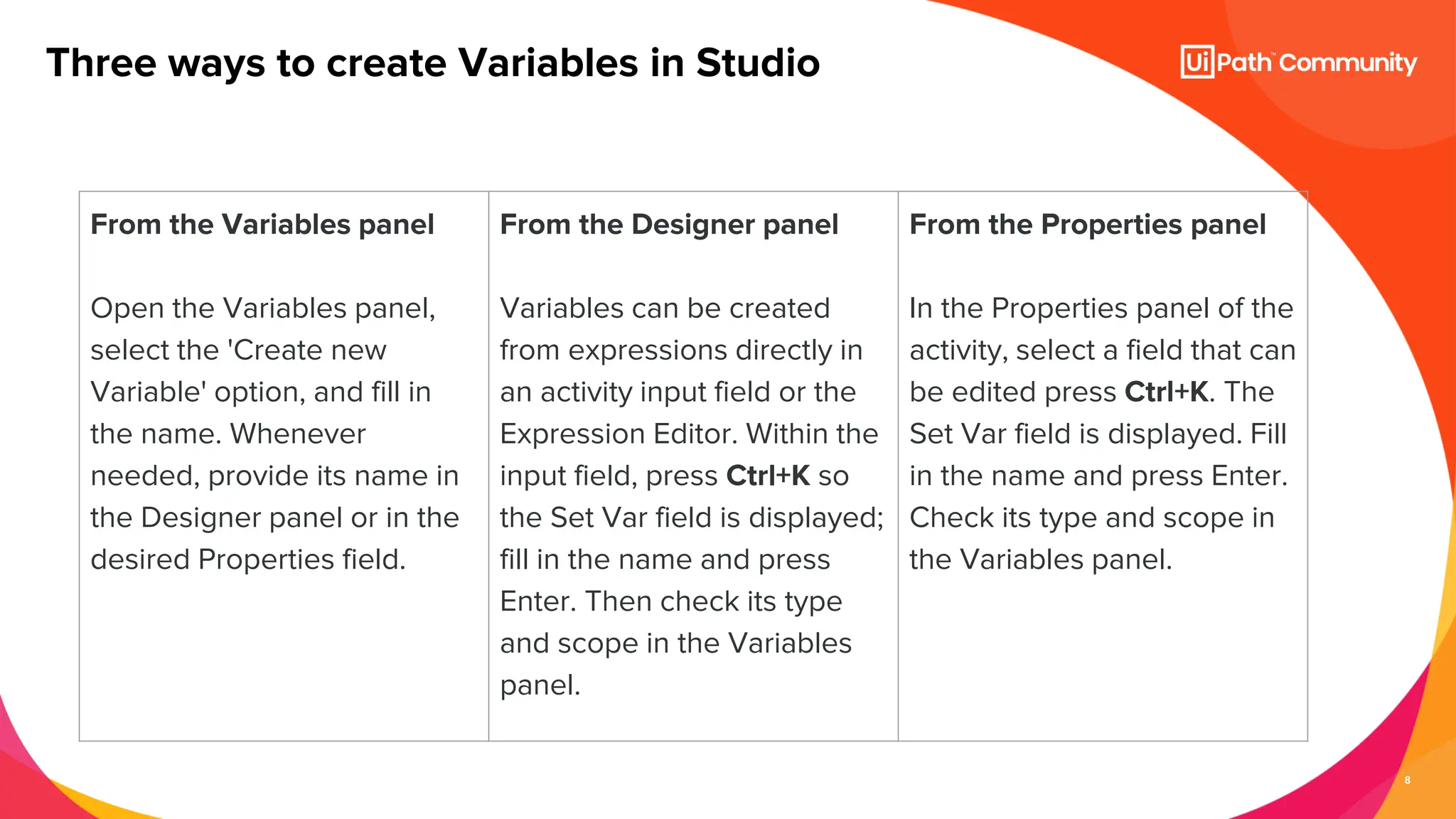
Three ways to create Variables in Studio
From the Variables panel
Open the Variables panel,
select the 'Create new
Variable' option, and fill in
the name. Whenever
needed, provide its name in
the Designer panel or in the
desired Properties field.
From the Designer panel
Variables can be created
from expressions directly in
an activity input field or the
Expression Editor. Within the
input field, press Ctrl+K so
the Set Var field is displayed;
fill in the name and press
Enter. Then check its type
and scope in the Variables
panel.
From the Properties panel
In the Properties panel of the
activity, select a field that can
be edited press Ctrl+K. The
Set Var field is displayed. Fill
in the name and press Enter.
Check its type and scope in
the Variables panel.
9
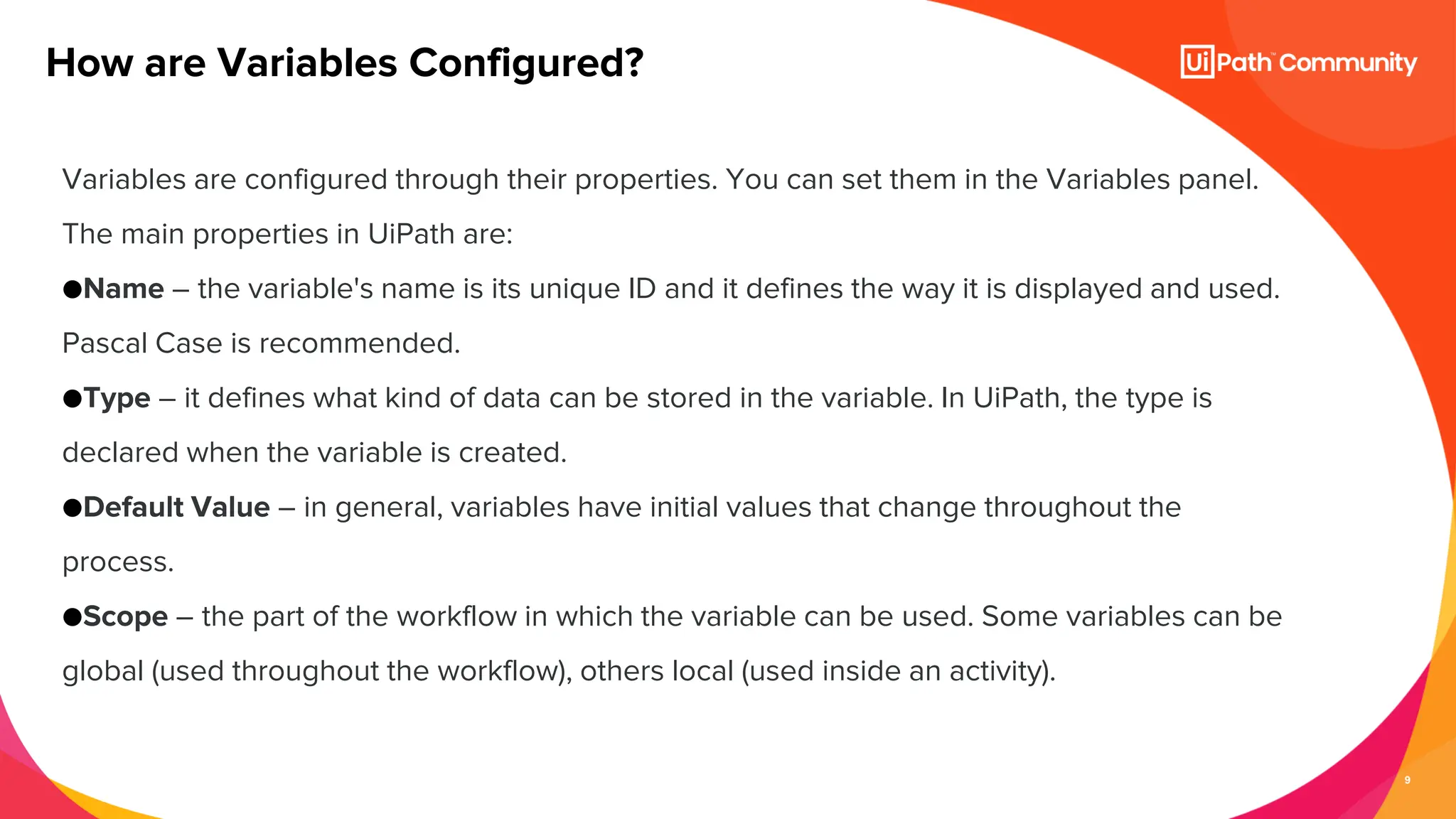
Variables are configured through their properties. You can set them in the Variables panel.
The main properties in UiPath are:
●Name – the variable's name is its unique ID and it defines the way it is displayed and used.
Pascal Case is recommended.
●Type – it defines what kind of data can be stored in the variable. In UiPath, the type is
declared when the variable is created.
●Default Value – in general, variables have initial values that change throughout the
process.
●Scope – the part of the workflow in which the variable can be used. Some variables can be
global (used throughout the workflow), others local (used inside an activity).
How are Variables Configured?
10
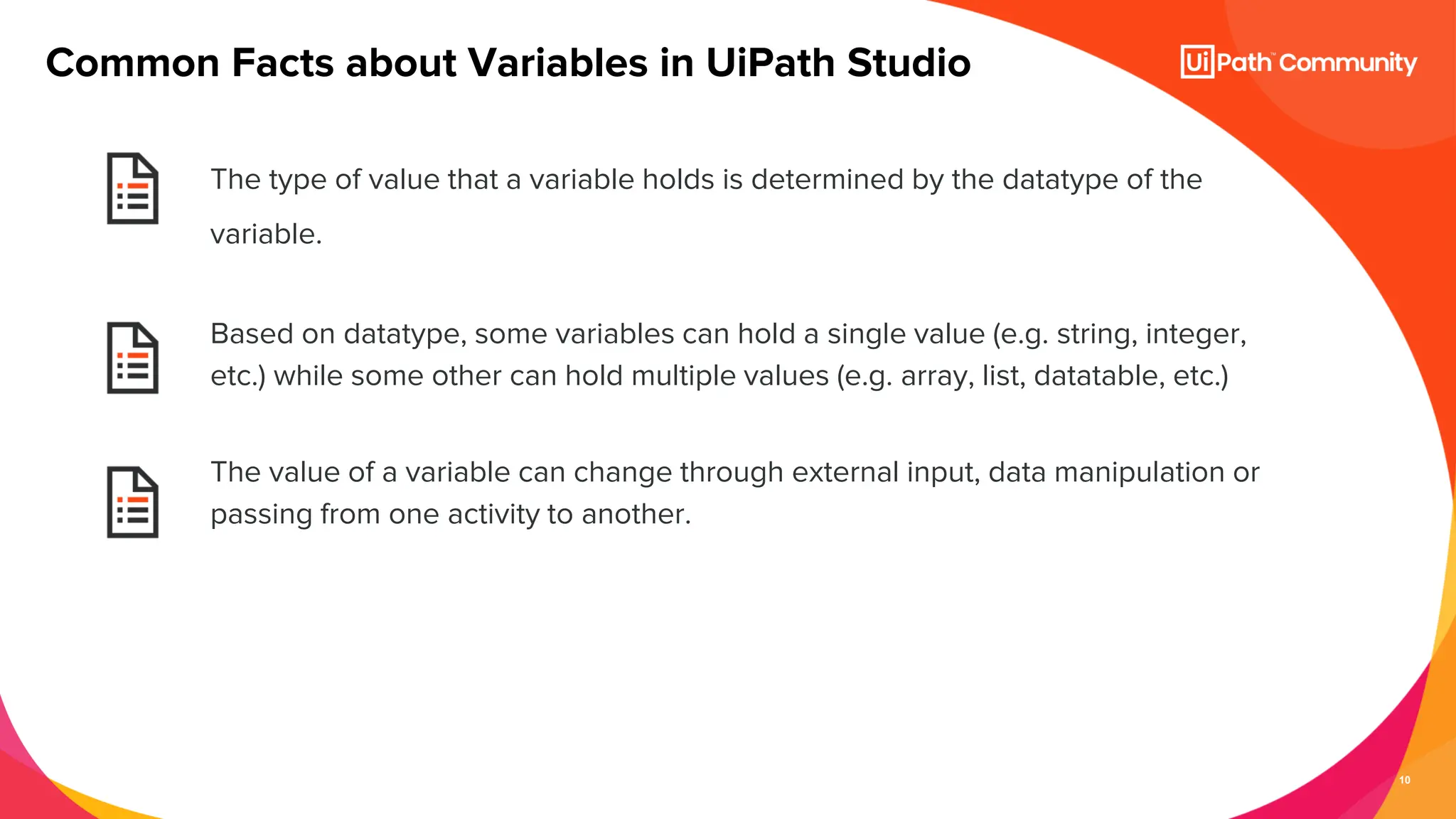
The type of value that a variable holds is determined by the datatype of the
variable.
Based on datatype, some variables can hold a single value (e.g. string, integer,
etc.) while some other can hold multiple values (e.g. array, list, datatable, etc.)
The value of a variable can change through external input, data manipulation or
passing from one activity to another.
Common Facts about Variables in UiPath Studio
11
Data Types
12
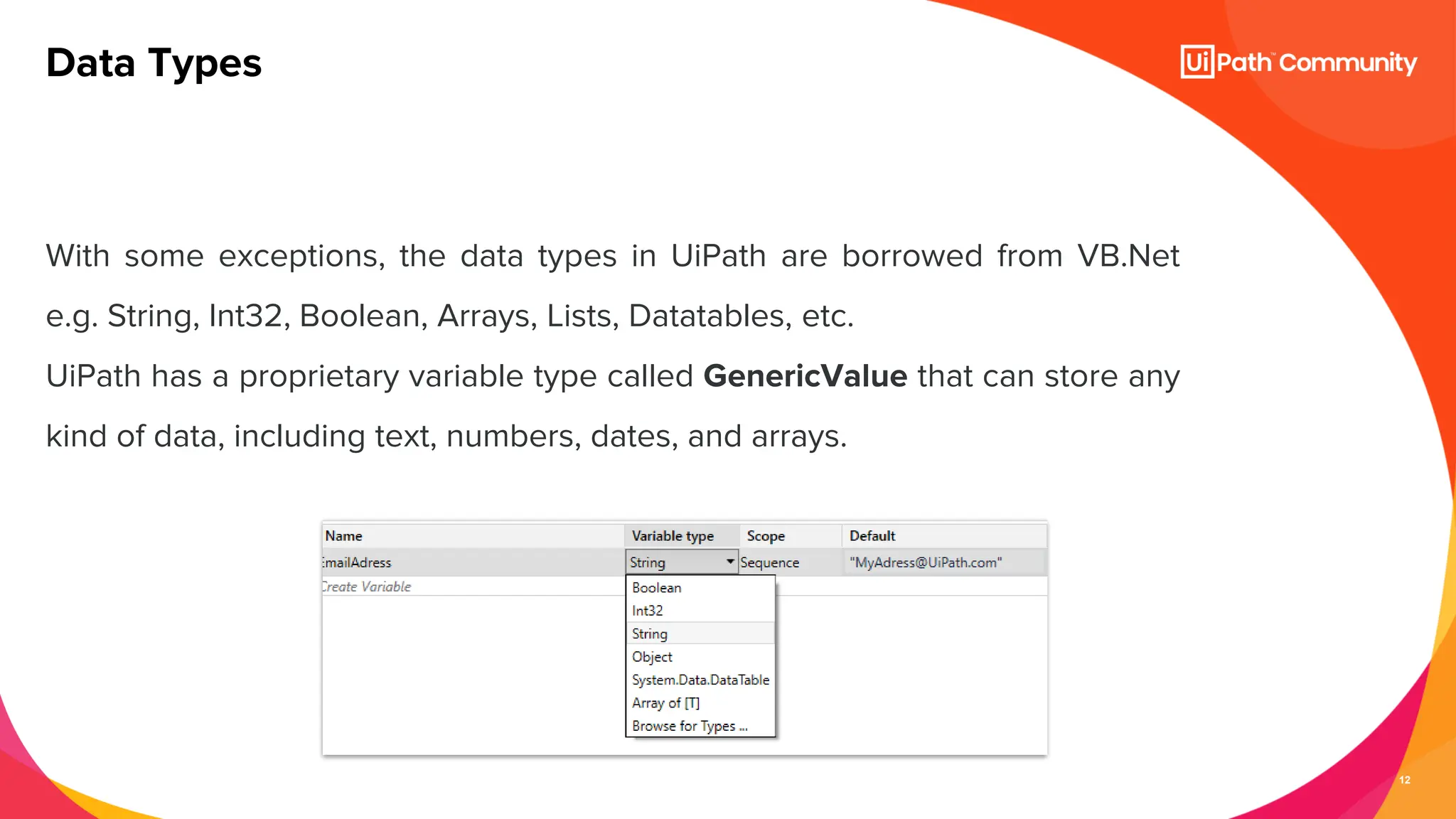
With some exceptions, the data types in UiPath are borrowed from VB.Net
e.g. String, Int32, Boolean, Arrays, Lists, Datatables, etc.
UiPath has a proprietary variable type called GenericValue that can store any
kind of data, including text, numbers, dates, and arrays.
Data Types
13
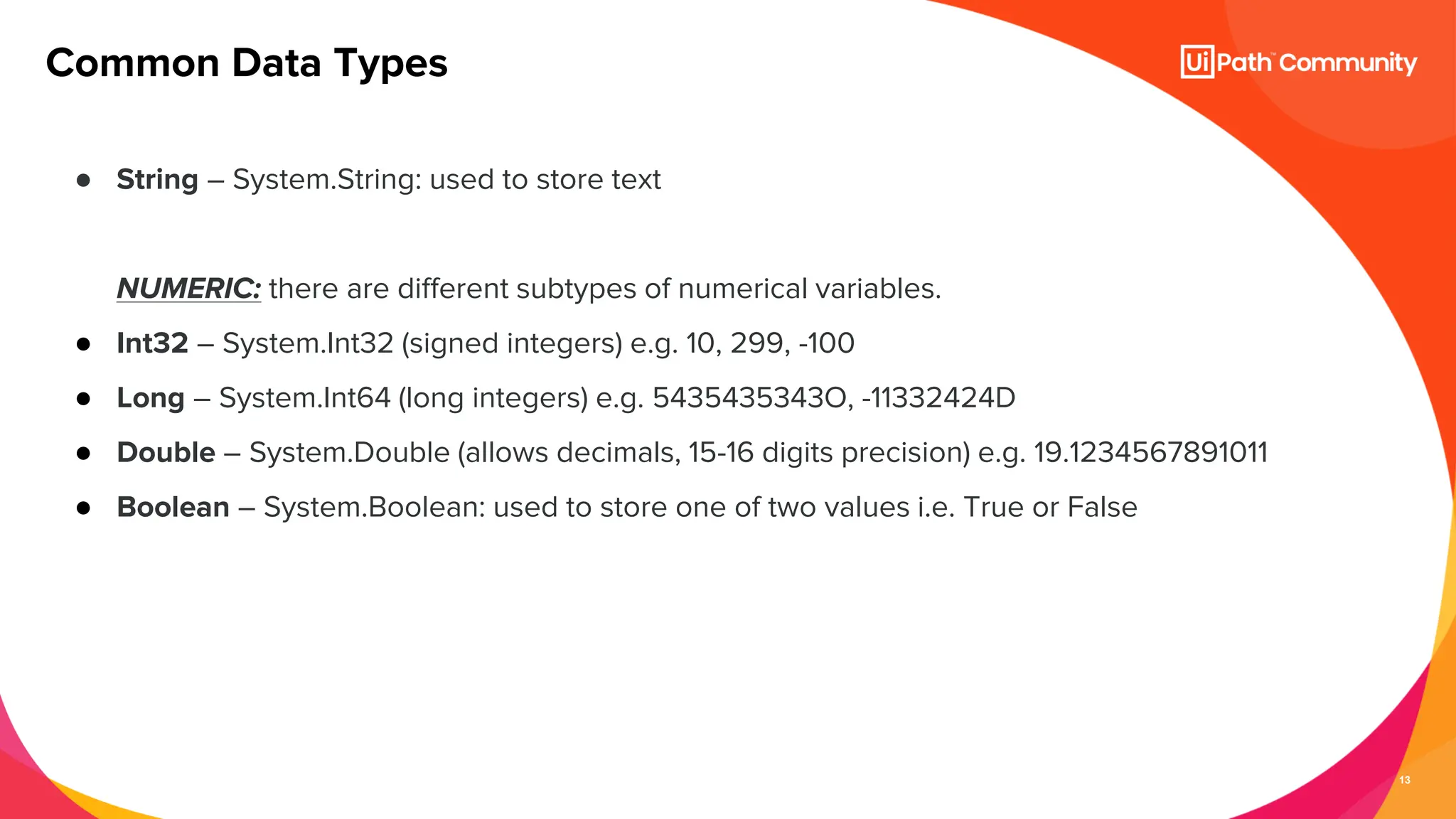
● String – System.String: used to store text
NUMERIC: there are different subtypes of numerical variables.
● Int32 – System.Int32 (signed integers) e.g. 10, 299, -100
● Long – System.Int64 (long integers) e.g. 5435435343O, -11332424D
● Double – System.Double (allows decimals, 15-16 digits precision) e.g. 19.1234567891011
● Boolean – System.Boolean: used to store one of two values i.e. True or False
Common Data Types
14
● DataTable – represent a type of variable that can store big pieces of information, and act
as a database or a simple spreadsheet with rows and columns.
DATE AND TIME:
● DateTime – System.DateTime: used to store specific time coordinates (mm/dd/yyyy
hh:mm:ss)
Common Data Types
15
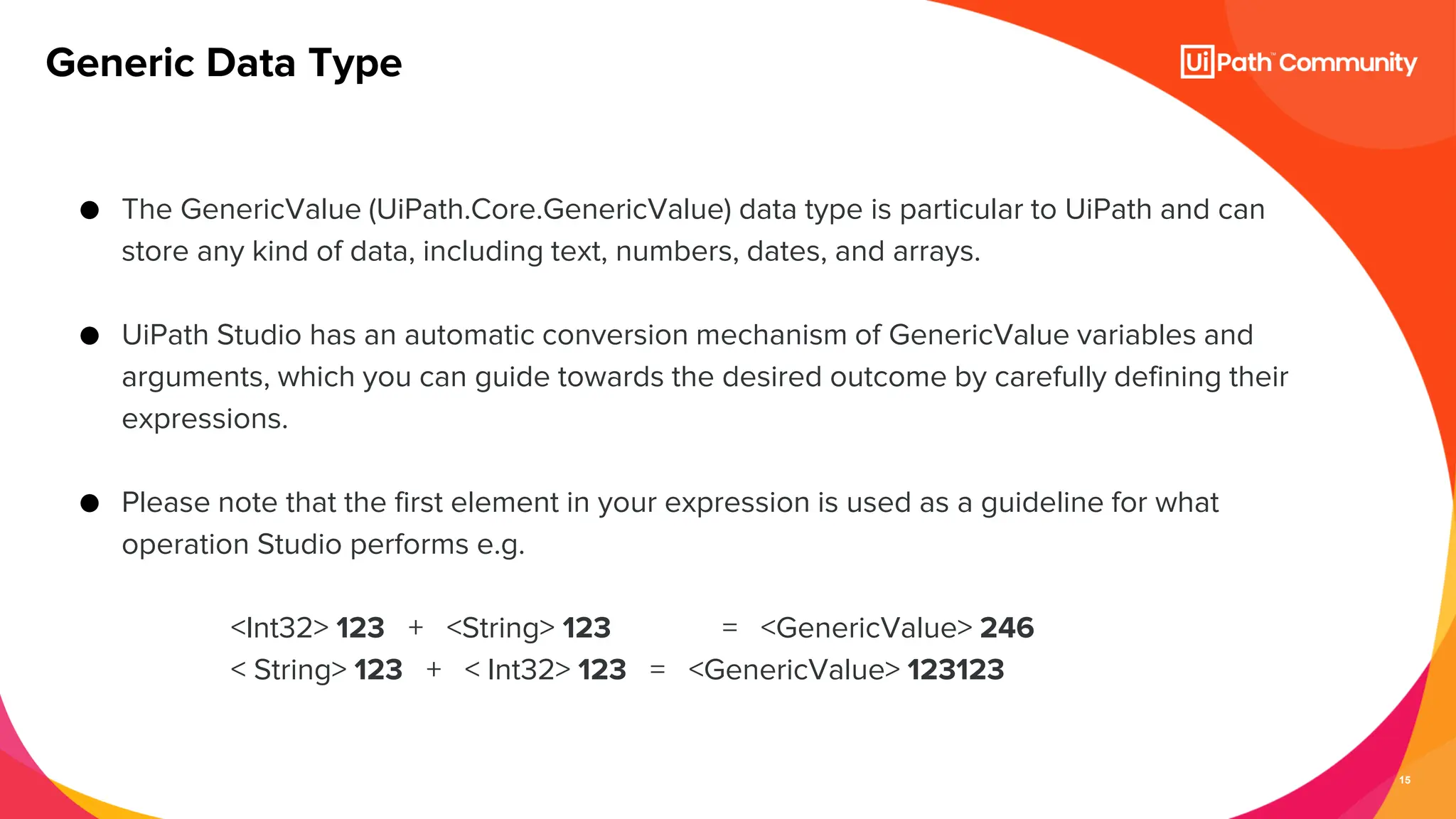
● The GenericValue (UiPath.Core.GenericValue) data type is particular to UiPath and can
store any kind of data, including text, numbers, dates, and arrays.
● UiPath Studio has an automatic conversion mechanism of GenericValue variables and
arguments, which you can guide towards the desired outcome by carefully defining their
expressions.
● Please note that the first element in your expression is used as a guideline for what
operation Studio performs e.g.
<Int32> 123 + <String> 123 = <GenericValue> 246
< String> 123 + < Int32> 123 = <GenericValue> 123123
Generic Data Type
16
What are some business scenarios in which I will use GenericValue?
● Data is extracted from a UI field and forwarded to another workflow without processing.
● Two versions of the same Excel file are being compared column by column.
● The columns are different in terms of data type, the only relevant thing is which entries have
changed.
Generic Data Type Uses
17
Workflows
18
A workflow represents a small piece of automation that you can take and re-
use in your projects.
What is a Workflow?
It is basically your canvas, the place where you design and work with all the
UiPath Studio activities and it defines the flow of your automation.
Hence the name, workflow.
19
● The fastest, most reliable, and useful way of automating a process is to break it down
into smaller bits.
● This allows for independent testing of components, enables team collaboration, and
component reuse.
● Hence, most of the automation projects require the use of multiple workflows that
come together to provide a solid business automation solution.
Why are Workflows important?
20
UiPath Studio provides you with predefined workflow layouts to suit all the needs
of a fast and reliable automation process. The workflow layouts are:
● Sequences – In sequences, the steps of a process follow one after another in
a clear pattern.
Activities in sequences are easier to read and maintain, so they are highly
recommended for simple, linear workflows.
● Flowcharts – In flowcharts, individual steps are a bit harder to read and edit,
but the overall flow is much clearer. For situations that need complex
decisions and branching, it is best to use Flowcharts.
● State Machines
● Global Exception Handler
UiPath Workflow Layouts
21
Arguments
22
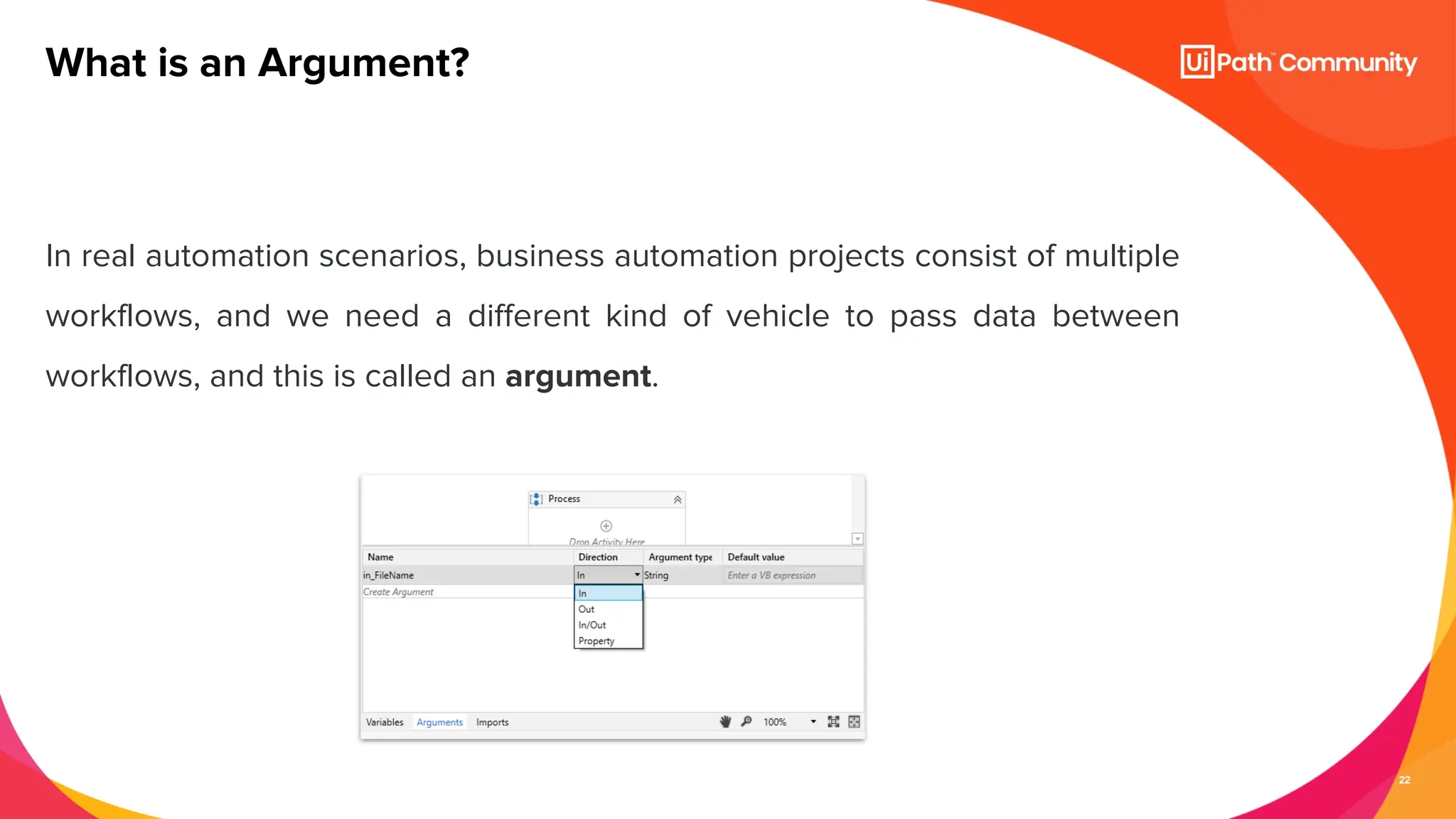
In real automation scenarios, business automation projects consist of multiple
workflows, and we need a different kind of vehicle to pass data between
workflows, and this is called an argument.
What is an Argument?
23
Arguments are very similar to variables:
● They store data dynamically
● They have the same data types
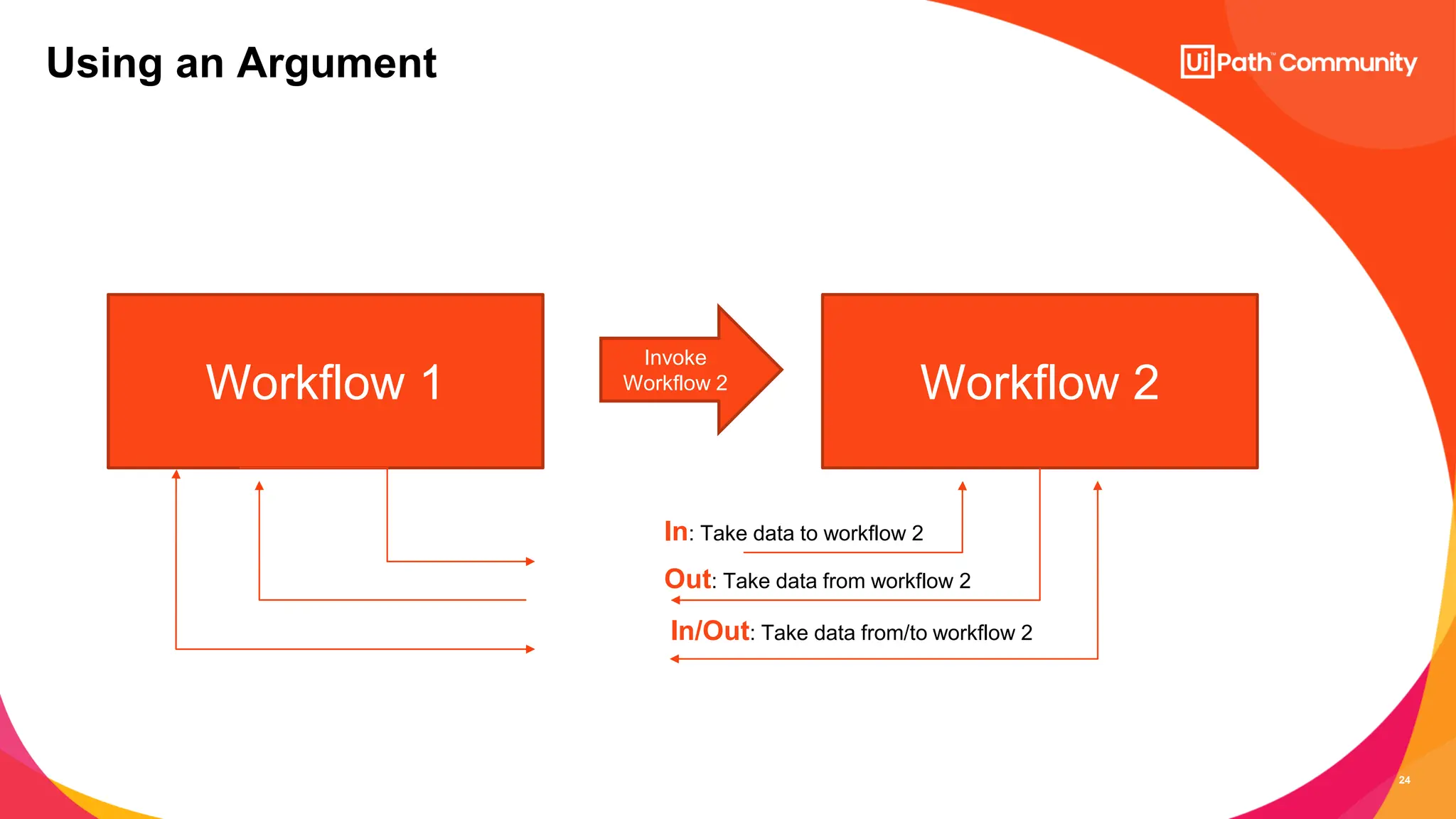
● They support the same methods and properties
● The difference is that they pass data between workflows, and they have an
additional property for this – the direction.
Arguments have specific directions: In, Out, and In/Out. These tell the Robot where the
information stored in them is supposed to go.
What is an Argument?
24
Using an Argument
Workflow 1 Workflow 2
Invoke
Workflow 2
In: Take data to workflow 2
Out: Take data from workflow 2
In/Out: Take data from/to workflow 2
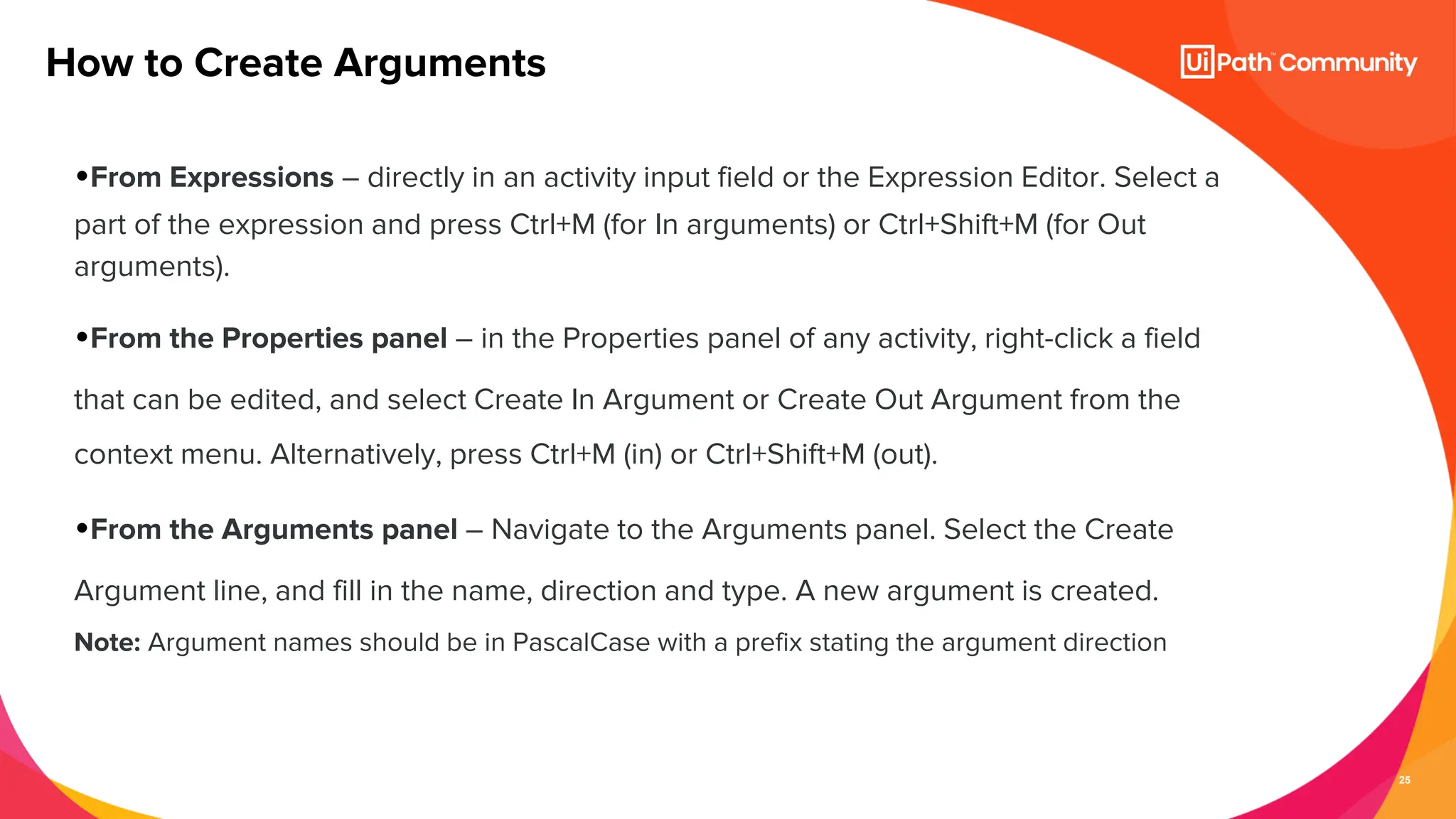
25
•From Expressions – directly in an activity input field or the Expression Editor. Select a
part of the expression and press Ctrl+M (for In arguments) or Ctrl+Shift+M (for Out
arguments).
•From the Properties panel – in the Properties panel of any activity, right-click a field
that can be edited, and select Create In Argument or Create Out Argument from the
context menu. Alternatively, press Ctrl+M (in) or Ctrl+Shift+M (out).
•From the Arguments panel – Navigate to the Arguments panel. Select the Create
Argument line, and fill in the name, direction and type. A new argument is created.
Note: Argument names should be in PascalCase with a prefix stating the argument direction
How to Create Arguments
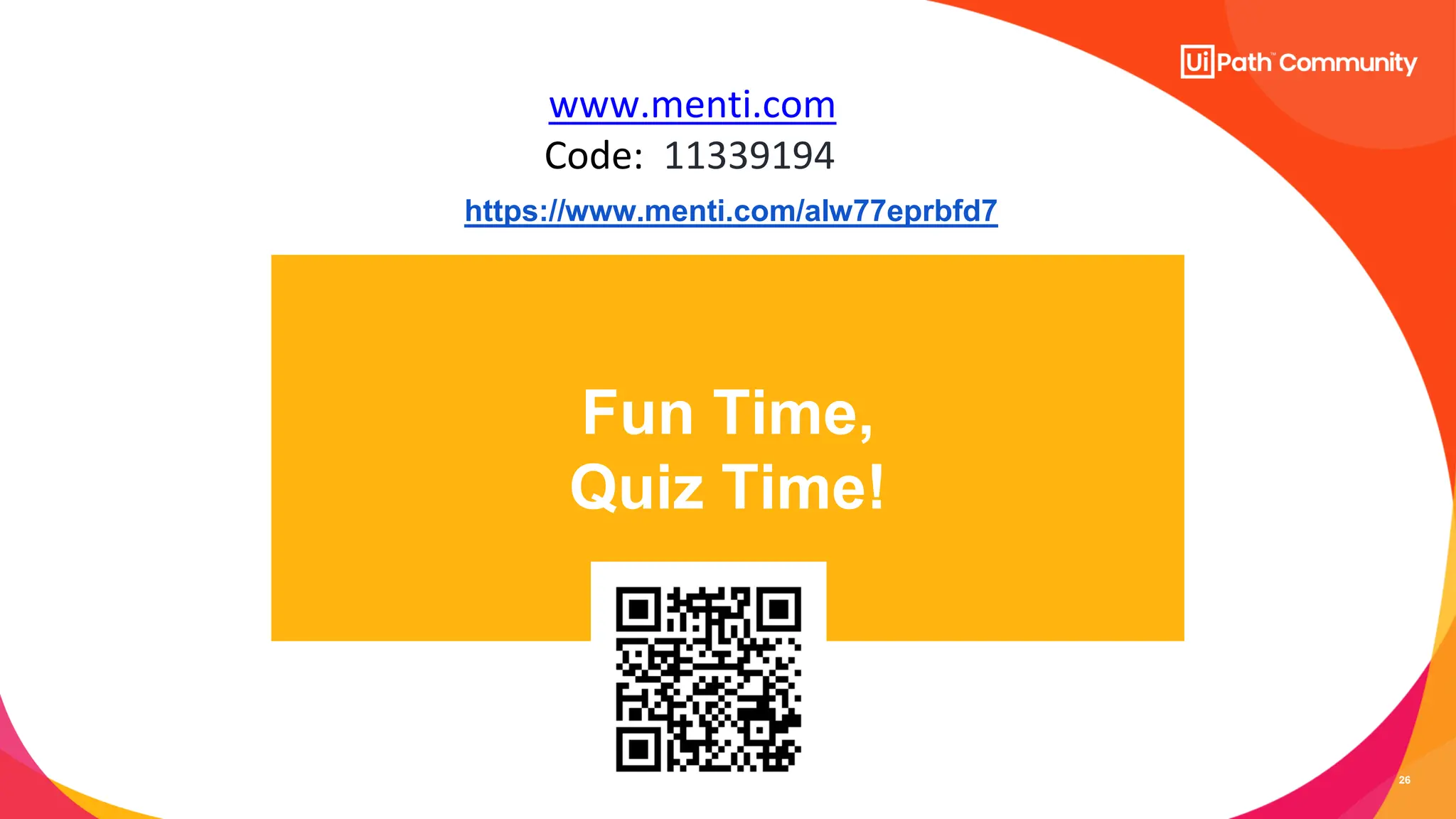
26
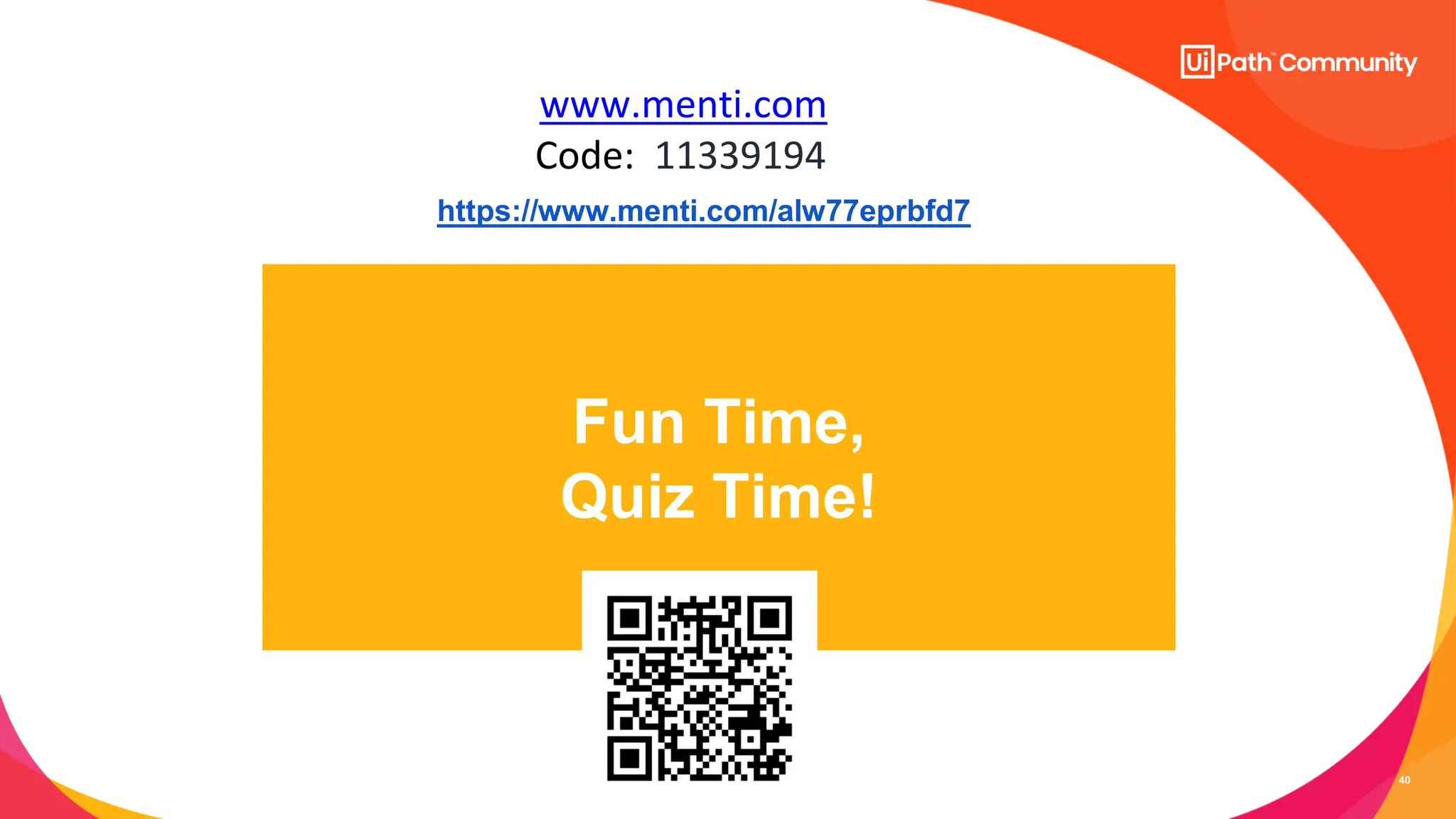
Fun Time,
Quiz Time!
www.menti.com
Code: 11339194
https://www.menti.com/alw77eprbfd7
27
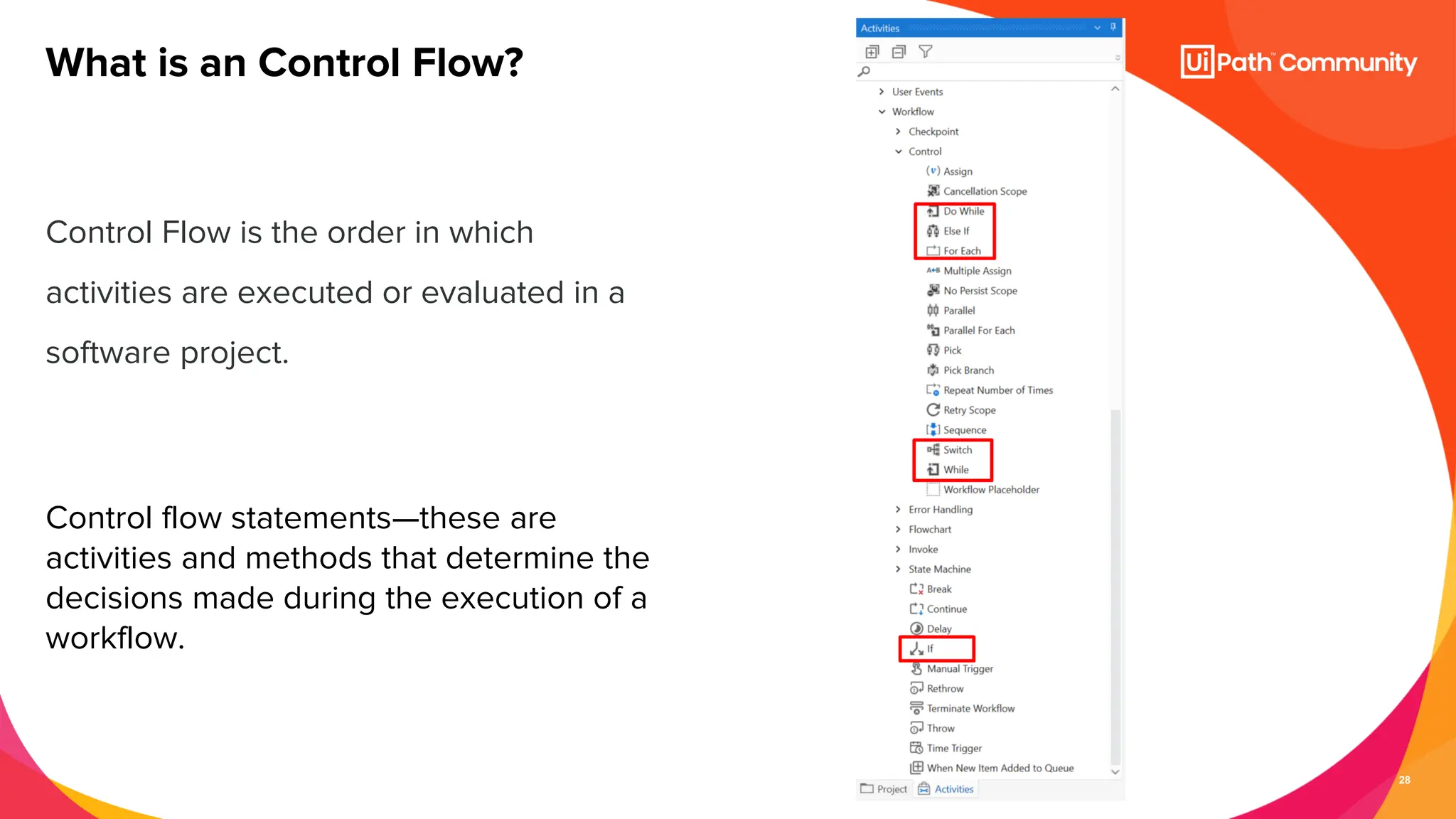
Control Flow
28
Control Flow is the order in which
activities are executed or evaluated in a
software project.
Control flow statements—these are
activities and methods that determine the
decisions made during the execution of a
workflow.
What is an Control Flow?
29
● Control flow takes care of the order in which the actions are performed in
automation.
● Activities like If/Else If, For Each, enable us to define rules and automate conditional
statements within the project.
● Loops enable us to run a part of the automation a specific number of times until a
condition is met, or indefinitely.
What is the importance of control flow?
30
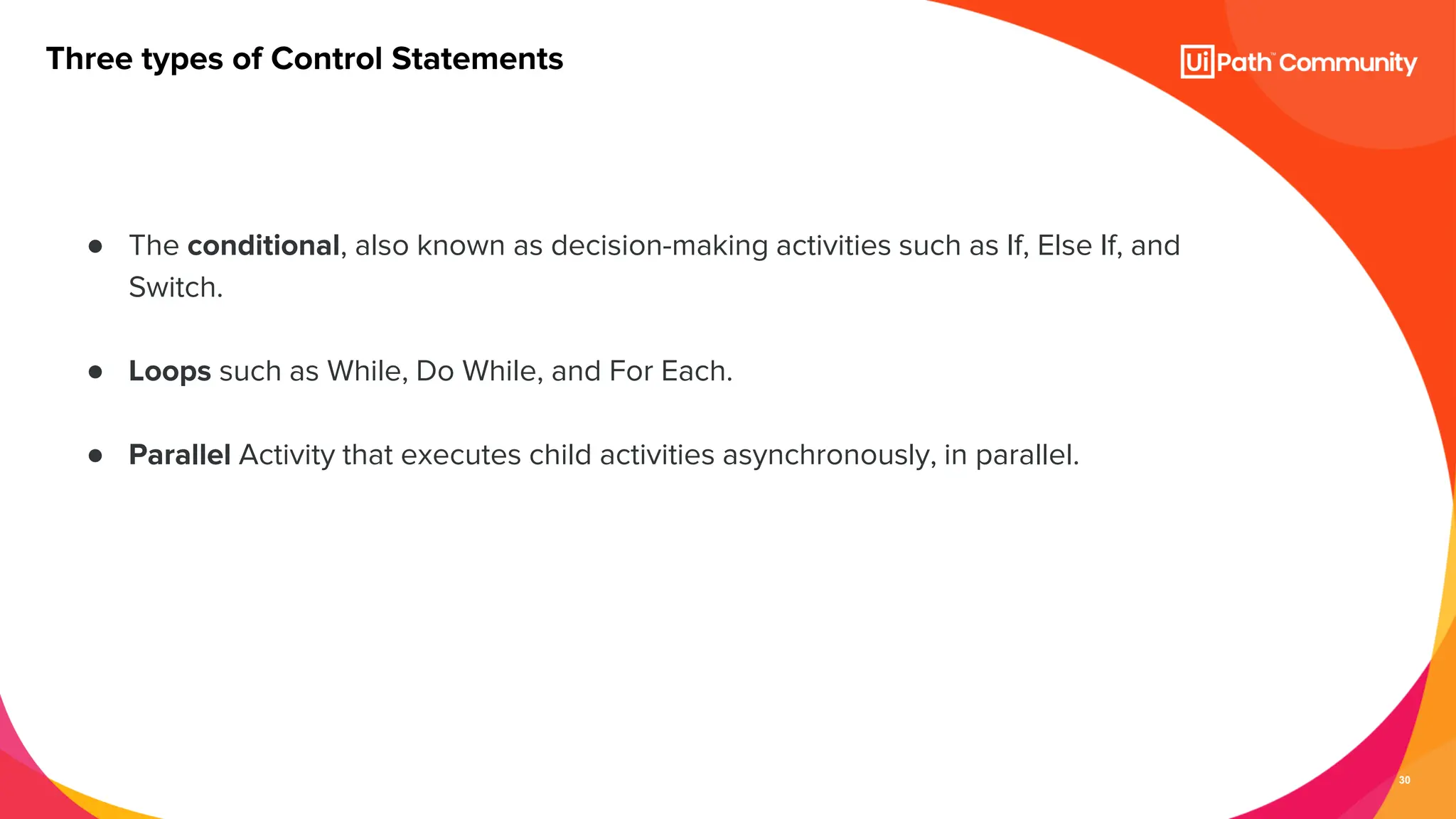
● The conditional, also known as decision-making activities such as If, Else If, and
Switch.
● Loops such as While, Do While, and For Each.
● Parallel Activity that executes child activities asynchronously, in parallel.
Three types of Control Statements
31
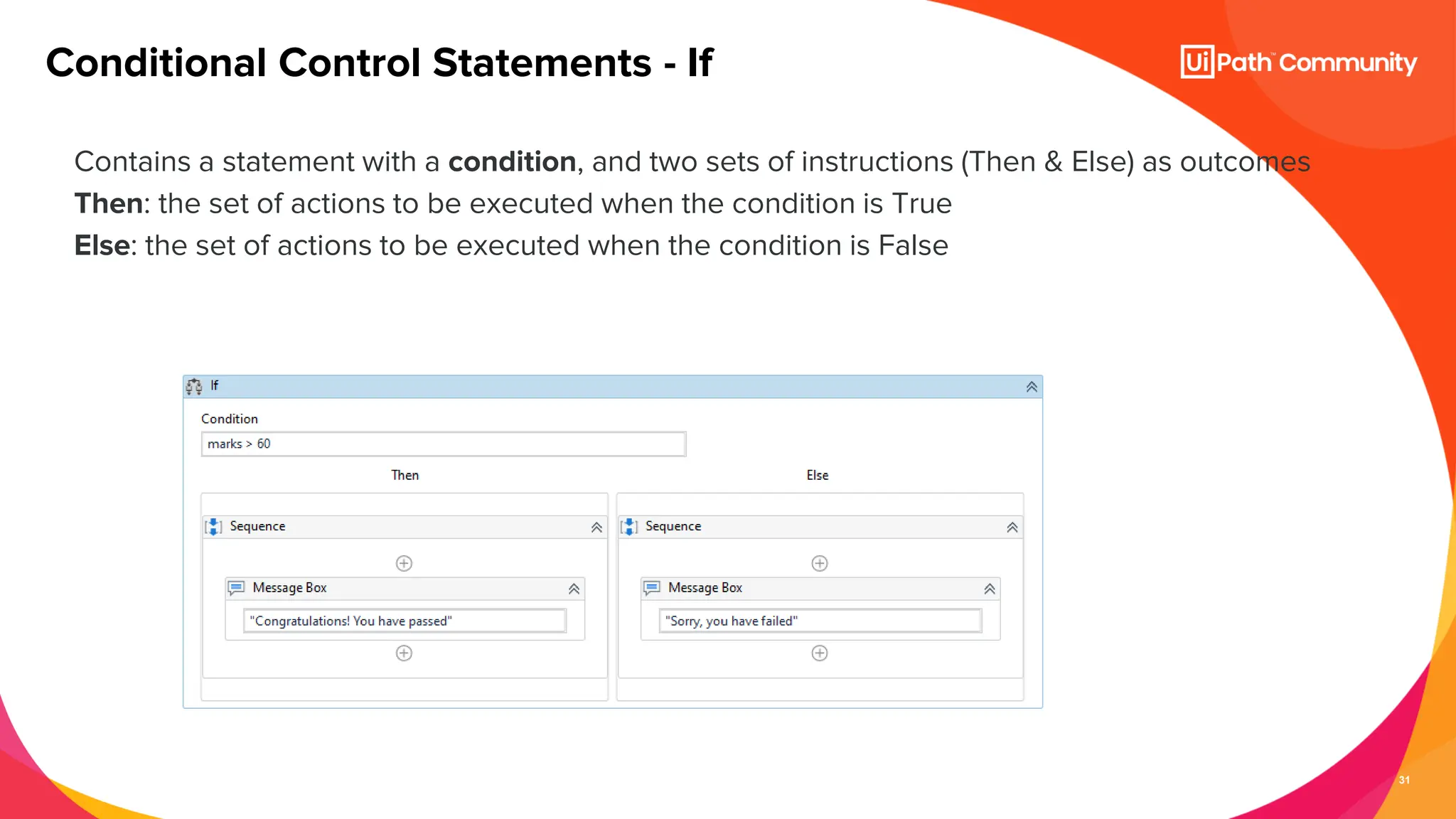
Contains a statement with a condition, and two sets of instructions (Then & Else) as outcomes
Then: the set of actions to be executed when the condition is True
Else: the set of actions to be executed when the condition is False
Conditional Control Statements - If
32
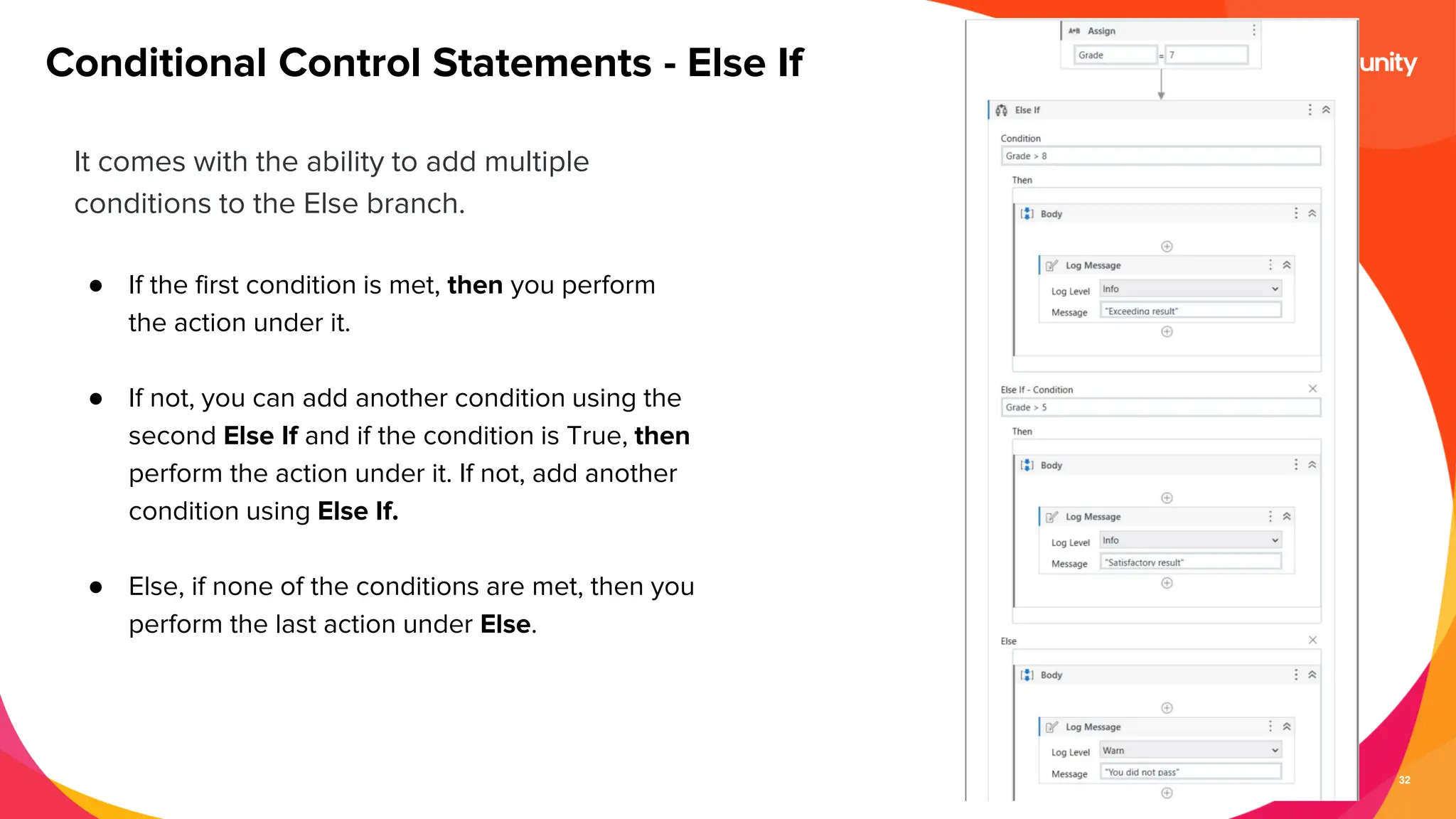
It comes with the ability to add multiple
conditions to the Else branch.
● If the first condition is met, then you perform
the action under it.
● If not, you can add another condition using the
second Else If and if the condition is True, then
perform the action under it. If not, add another
condition using Else If.
● Else, if none of the conditions are met, then you
perform the last action under Else.
Conditional Control Statements - Else If
Exercises
● If Condition
34
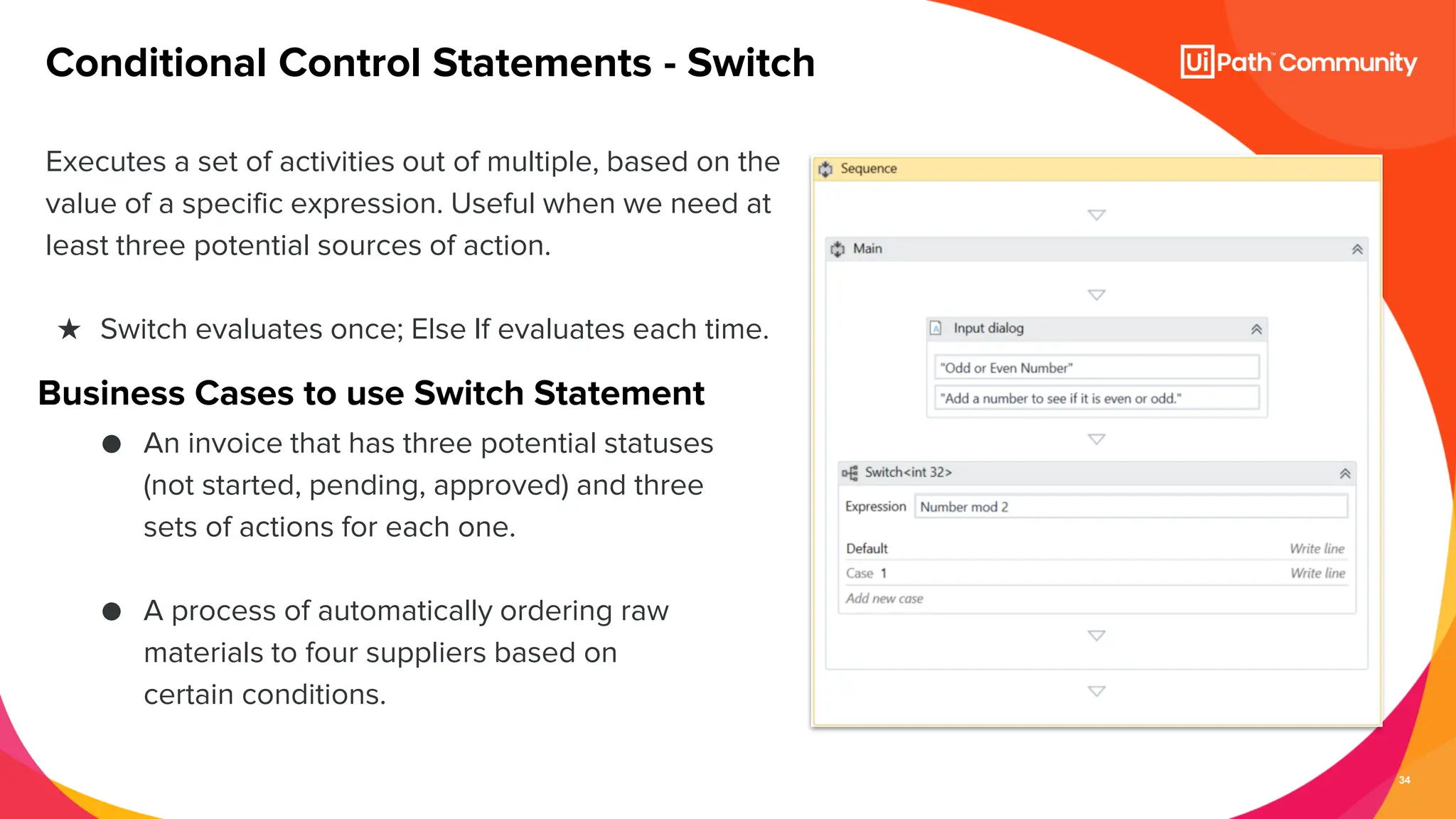
Executes a set of activities out of multiple, based on the
value of a specific expression. Useful when we need at
least three potential sources of action.
★ Switch evaluates once; Else If evaluates each time.
Conditional Control Statements - Switch
Business Cases to use Switch Statement
● An invoice that has three potential statuses
(not started, pending, approved) and three
sets of actions for each one.
● A process of automatically ordering raw
materials to four suppliers based on
certain conditions.
35
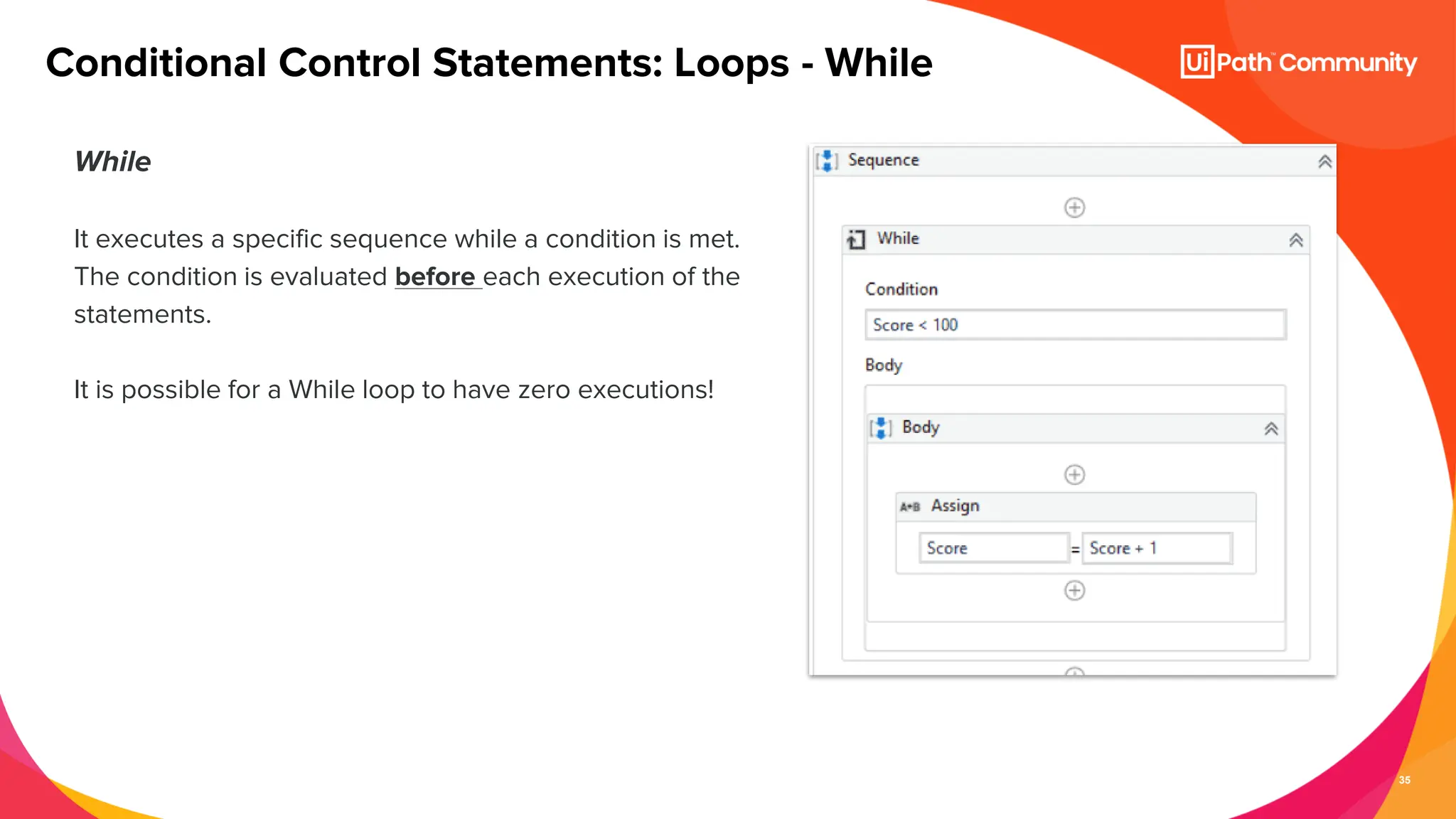
While
It executes a specific sequence while a condition is met.
The condition is evaluated before each execution of the
statements.
It is possible for a While loop to have zero executions!
Conditional Control Statements: Loops - While
36
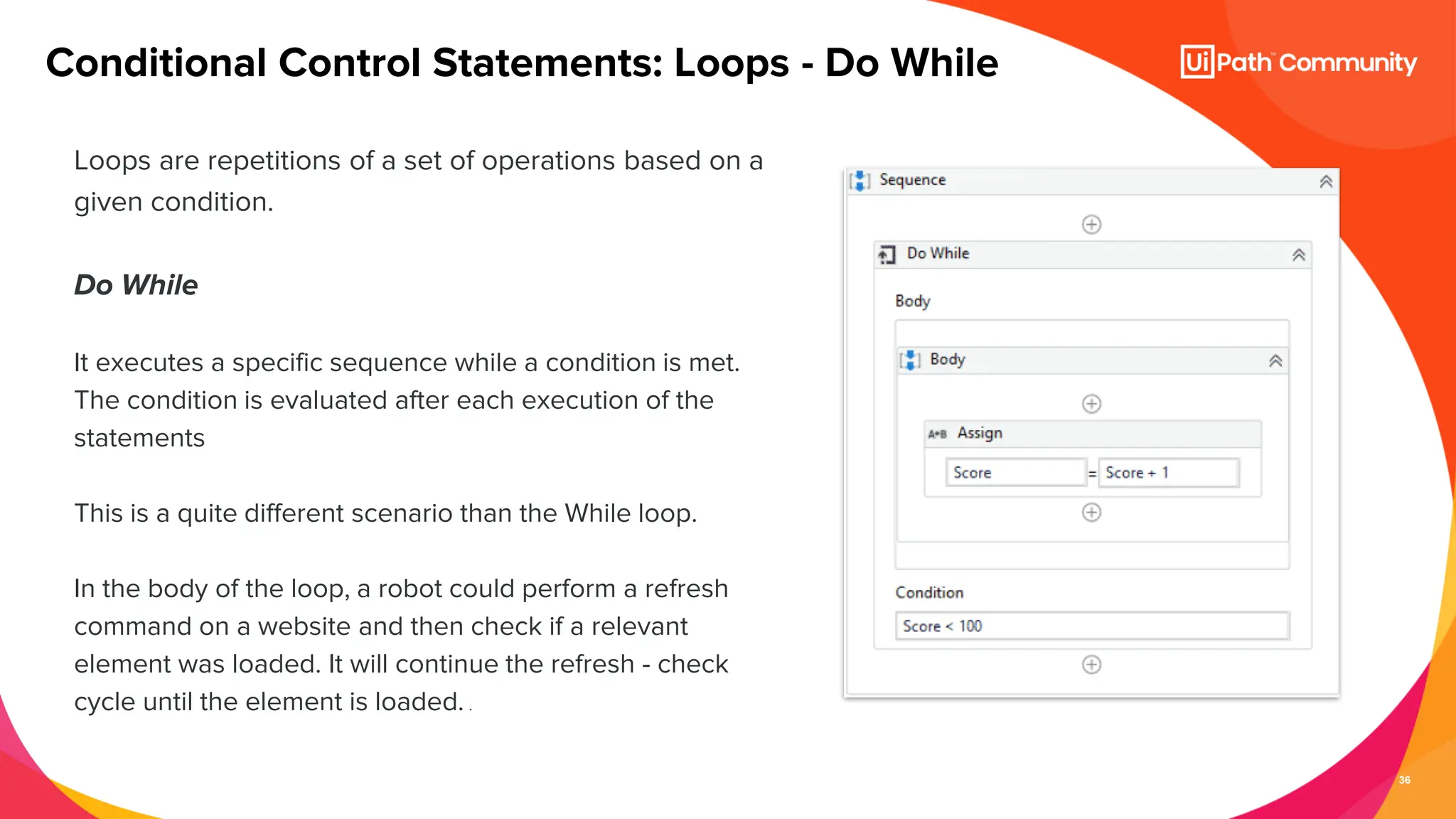
Loops are repetitions of a set of operations based on a
given condition.
Do While
It executes a specific sequence while a condition is met.
The condition is evaluated after each execution of the
statements
This is a quite different scenario than the While loop.
In the body of the loop, a robot could perform a refresh
command on a website and then check if a relevant
element was loaded. It will continue the refresh - check
cycle until the element is loaded. .
Conditional Control Statements: Loops - Do While
37
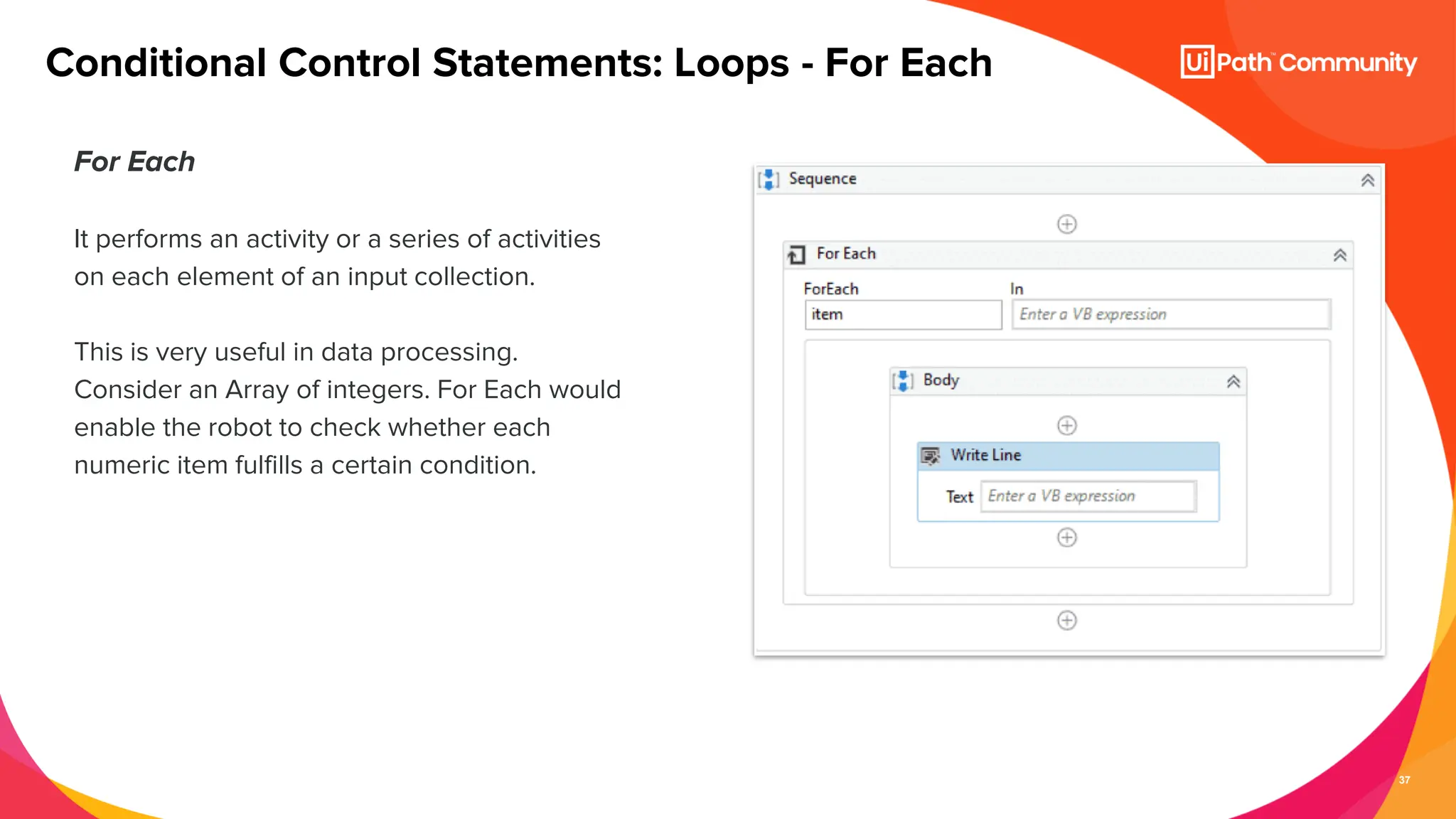
For Each
It performs an activity or a series of activities
on each element of an input collection.
This is very useful in data processing.
Consider an Array of integers. For Each would
enable the robot to check whether each
numeric item fulfills a certain condition.
Conditional Control Statements: Loops - For Each
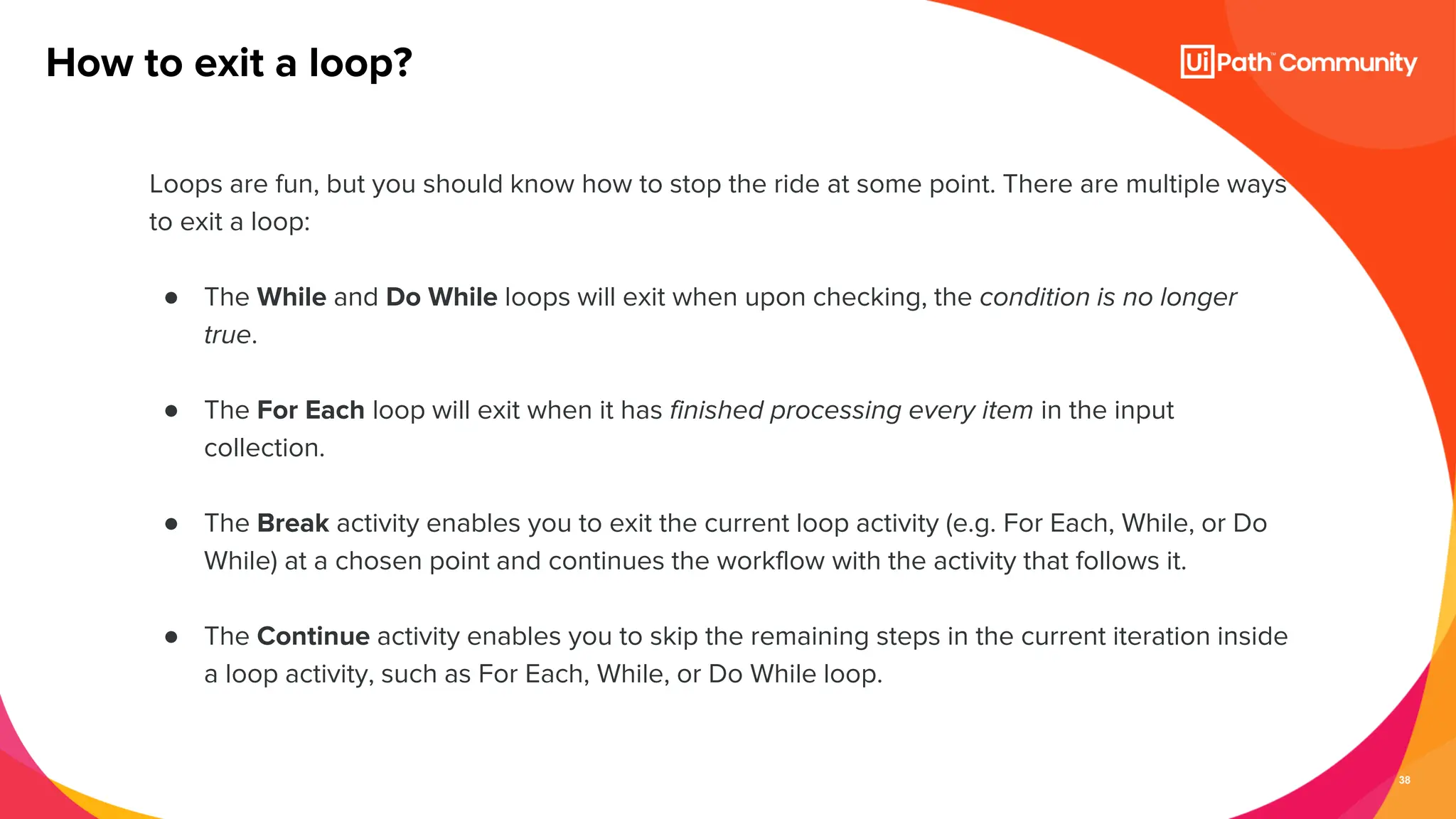
38
Loops are fun, but you should know how to stop the ride at some point. There are multiple ways
to exit a loop:
● The While and Do While loops will exit when upon checking, the condition is no longer
true.
● The For Each loop will exit when it has finished processing every item in the input
collection.
● The Break activity enables you to exit the current loop activity (e.g. For Each, While, or Do
While) at a chosen point and continues the workflow with the activity that follows it.
● The Continue activity enables you to skip the remaining steps in the current iteration inside
a loop activity, such as For Each, While, or Do While loop.
How to exit a loop?
Exercises
● Do While
● For Each
40
Fun Time,
Quiz Time!
www.menti.com
Code: 11339194
https://www.menti.com/alw77eprbfd7
41
Q n A
Thank You! Any Questions?
42
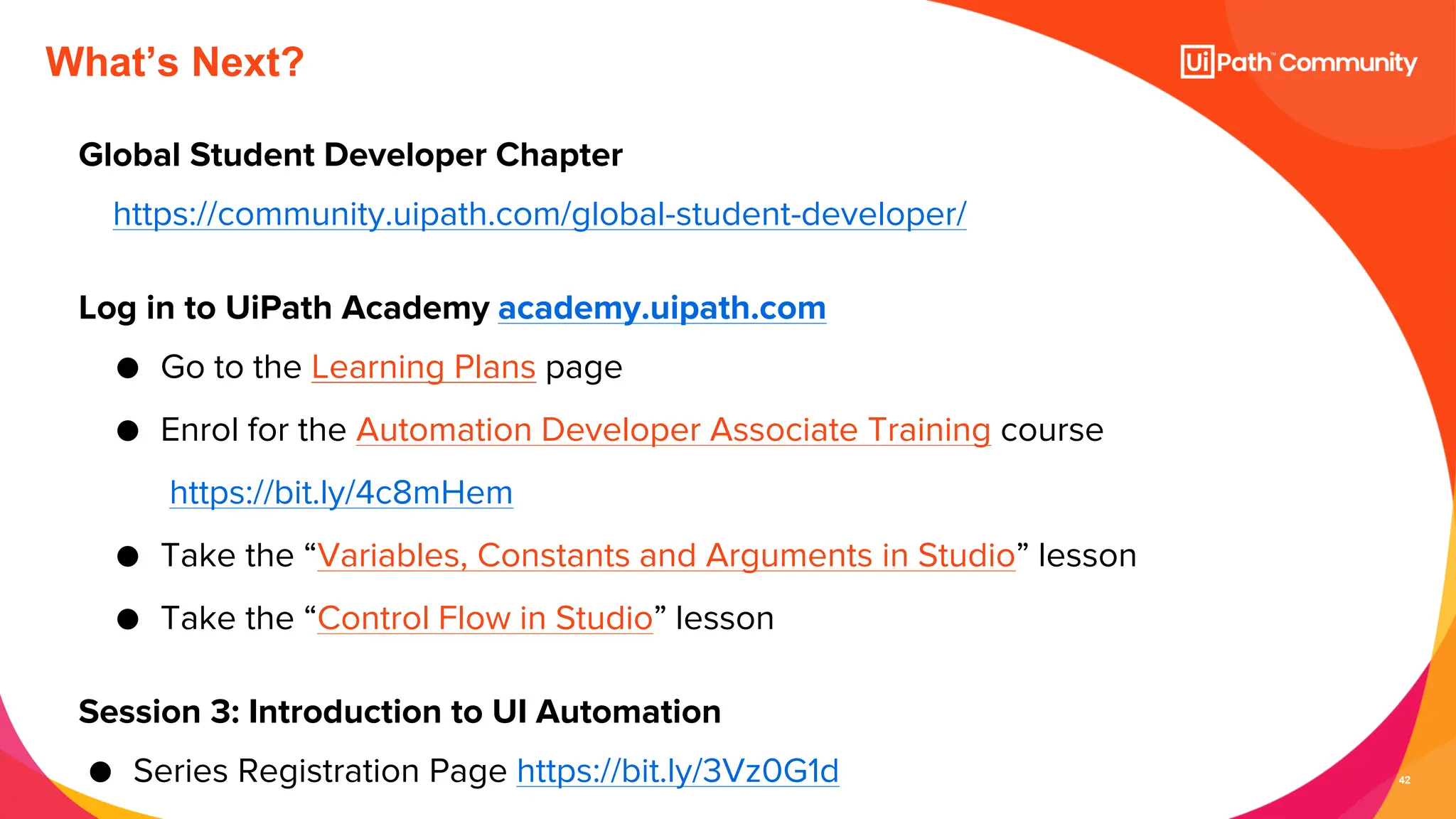
What’s Next?
Global Student Developer Chapter
https://community.uipath.com/global-student-developer/
Log in to UiPath Academy academy.uipath.com
● Go to the Learning Plans page
● Enrol for the Automation Developer Associate Training course
https://bit.ly/4c8mHem
● Take the “Variables, Constants and Arguments in Studio” lesson
● Take the “Control Flow in Studio” lesson
Session 3: Introduction to UI Automation
● Series Registration Page https://bit.ly/3Vz0G1d
43
Goodbye! But Stay Close…
● community@uipath.com
● www.community.uipath.com
Happy Automation!

Day 2 - Intro to UiPath Studio Fundamentals

  • 1.
    20.06.2024 Introduction to the UiPathStudio Fundamentals Africa Series Day 2 — Kickstart for Automation Student Developers
  • 2.
    2 Senior RPA Developer@SterlingBank UiPath MVP 2024 linkedin.com/in/emmanuel-kolawole/ Senior Consultant @dipoleDIAMOND UiPath MVP 2024 linkedin.com/in/afeararomi/ Global Manager, Marketing Community@UiPath linkedin.com/in/crisvidu/ Emmanuel Kolawole Afe Araromi Cristina Vidu Meet Today’s Hosts
  • 3.
    3 About Today’s Session •The meetup will not last for more than 1.5 hours • You are encouraged to network and share your LinkedIn in the chat box • We apologize for keeping you on mute till Q&A time • Please use the chat to place questions too between now and Q&A
  • 4.
    4 Senior RPA Developer@AltexSoft 2022 UiPath Student Champion linkedin.com/in/folorunso-adesanya/ Folorunso Adesanya Meet Today’s Speaker
  • 5.
    5 1. Welcome 2. Variables 3.Data Types 4. UiPath Workflow Layouts 5. Arguments 6. Control Flows 7. Conditional Statements 8. QnA 9. Close out Today’s Agenda
  • 6.
  • 7.
    7 Variables are containersthat can hold multiple data entries (values) of the same data type. e.g. EmailAddress can be a variable that holds the value "rpadeveloper@uipath.com" What are Variables? Why are Variables important? ● Variables help us pass data from one activity to another. ● Advancing with any automation process would be hardly possible without using variables.
  • 8.
    8 Three ways tocreate Variables in Studio From the Variables panel Open the Variables panel, select the 'Create new Variable' option, and fill in the name. Whenever needed, provide its name in the Designer panel or in the desired Properties field. From the Designer panel Variables can be created from expressions directly in an activity input field or the Expression Editor. Within the input field, press Ctrl+K so the Set Var field is displayed; fill in the name and press Enter. Then check its type and scope in the Variables panel. From the Properties panel In the Properties panel of the activity, select a field that can be edited press Ctrl+K. The Set Var field is displayed. Fill in the name and press Enter. Check its type and scope in the Variables panel.
  • 9.
    9 Variables are configuredthrough their properties. You can set them in the Variables panel. The main properties in UiPath are: ●Name – the variable's name is its unique ID and it defines the way it is displayed and used. Pascal Case is recommended. ●Type – it defines what kind of data can be stored in the variable. In UiPath, the type is declared when the variable is created. ●Default Value – in general, variables have initial values that change throughout the process. ●Scope – the part of the workflow in which the variable can be used. Some variables can be global (used throughout the workflow), others local (used inside an activity). How are Variables Configured?
  • 10.
    10 The type ofvalue that a variable holds is determined by the datatype of the variable. Based on datatype, some variables can hold a single value (e.g. string, integer, etc.) while some other can hold multiple values (e.g. array, list, datatable, etc.) The value of a variable can change through external input, data manipulation or passing from one activity to another. Common Facts about Variables in UiPath Studio
  • 11.
  • 12.
    12 With some exceptions,the data types in UiPath are borrowed from VB.Net e.g. String, Int32, Boolean, Arrays, Lists, Datatables, etc. UiPath has a proprietary variable type called GenericValue that can store any kind of data, including text, numbers, dates, and arrays. Data Types
  • 13.
    13 ● String –System.String: used to store text NUMERIC: there are different subtypes of numerical variables. ● Int32 – System.Int32 (signed integers) e.g. 10, 299, -100 ● Long – System.Int64 (long integers) e.g. 5435435343O, -11332424D ● Double – System.Double (allows decimals, 15-16 digits precision) e.g. 19.1234567891011 ● Boolean – System.Boolean: used to store one of two values i.e. True or False Common Data Types
  • 14.
    14 ● DataTable –represent a type of variable that can store big pieces of information, and act as a database or a simple spreadsheet with rows and columns. DATE AND TIME: ● DateTime – System.DateTime: used to store specific time coordinates (mm/dd/yyyy hh:mm:ss) Common Data Types
  • 15.
    15 ● The GenericValue(UiPath.Core.GenericValue) data type is particular to UiPath and can store any kind of data, including text, numbers, dates, and arrays. ● UiPath Studio has an automatic conversion mechanism of GenericValue variables and arguments, which you can guide towards the desired outcome by carefully defining their expressions. ● Please note that the first element in your expression is used as a guideline for what operation Studio performs e.g. <Int32> 123 + <String> 123 = <GenericValue> 246 < String> 123 + < Int32> 123 = <GenericValue> 123123 Generic Data Type
  • 16.
    16 What are somebusiness scenarios in which I will use GenericValue? ● Data is extracted from a UI field and forwarded to another workflow without processing. ● Two versions of the same Excel file are being compared column by column. ● The columns are different in terms of data type, the only relevant thing is which entries have changed. Generic Data Type Uses
  • 17.
  • 18.
    18 A workflow representsa small piece of automation that you can take and re- use in your projects. What is a Workflow? It is basically your canvas, the place where you design and work with all the UiPath Studio activities and it defines the flow of your automation. Hence the name, workflow.
  • 19.
    19 ● The fastest,most reliable, and useful way of automating a process is to break it down into smaller bits. ● This allows for independent testing of components, enables team collaboration, and component reuse. ● Hence, most of the automation projects require the use of multiple workflows that come together to provide a solid business automation solution. Why are Workflows important?
  • 20.
    20 UiPath Studio providesyou with predefined workflow layouts to suit all the needs of a fast and reliable automation process. The workflow layouts are: ● Sequences – In sequences, the steps of a process follow one after another in a clear pattern. Activities in sequences are easier to read and maintain, so they are highly recommended for simple, linear workflows. ● Flowcharts – In flowcharts, individual steps are a bit harder to read and edit, but the overall flow is much clearer. For situations that need complex decisions and branching, it is best to use Flowcharts. ● State Machines ● Global Exception Handler UiPath Workflow Layouts
  • 21.
  • 22.
    22 In real automationscenarios, business automation projects consist of multiple workflows, and we need a different kind of vehicle to pass data between workflows, and this is called an argument. What is an Argument?
  • 23.
    23 Arguments are verysimilar to variables: ● They store data dynamically ● They have the same data types ● They support the same methods and properties ● The difference is that they pass data between workflows, and they have an additional property for this – the direction. Arguments have specific directions: In, Out, and In/Out. These tell the Robot where the information stored in them is supposed to go. What is an Argument?
  • 24.
    24 Using an Argument Workflow1 Workflow 2 Invoke Workflow 2 In: Take data to workflow 2 Out: Take data from workflow 2 In/Out: Take data from/to workflow 2
  • 25.
    25 •From Expressions –directly in an activity input field or the Expression Editor. Select a part of the expression and press Ctrl+M (for In arguments) or Ctrl+Shift+M (for Out arguments). •From the Properties panel – in the Properties panel of any activity, right-click a field that can be edited, and select Create In Argument or Create Out Argument from the context menu. Alternatively, press Ctrl+M (in) or Ctrl+Shift+M (out). •From the Arguments panel – Navigate to the Arguments panel. Select the Create Argument line, and fill in the name, direction and type. A new argument is created. Note: Argument names should be in PascalCase with a prefix stating the argument direction How to Create Arguments
  • 26.
    26 Fun Time, Quiz Time! www.menti.com Code:11339194 https://www.menti.com/alw77eprbfd7
  • 27.
  • 28.
    28 Control Flow isthe order in which activities are executed or evaluated in a software project. Control flow statements—these are activities and methods that determine the decisions made during the execution of a workflow. What is an Control Flow?
  • 29.
    29 ● Control flowtakes care of the order in which the actions are performed in automation. ● Activities like If/Else If, For Each, enable us to define rules and automate conditional statements within the project. ● Loops enable us to run a part of the automation a specific number of times until a condition is met, or indefinitely. What is the importance of control flow?
  • 30.
    30 ● The conditional,also known as decision-making activities such as If, Else If, and Switch. ● Loops such as While, Do While, and For Each. ● Parallel Activity that executes child activities asynchronously, in parallel. Three types of Control Statements
  • 31.
    31 Contains a statementwith a condition, and two sets of instructions (Then & Else) as outcomes Then: the set of actions to be executed when the condition is True Else: the set of actions to be executed when the condition is False Conditional Control Statements - If
  • 32.
    32 It comes withthe ability to add multiple conditions to the Else branch. ● If the first condition is met, then you perform the action under it. ● If not, you can add another condition using the second Else If and if the condition is True, then perform the action under it. If not, add another condition using Else If. ● Else, if none of the conditions are met, then you perform the last action under Else. Conditional Control Statements - Else If
  • 33.
  • 34.
    34 Executes a setof activities out of multiple, based on the value of a specific expression. Useful when we need at least three potential sources of action. ★ Switch evaluates once; Else If evaluates each time. Conditional Control Statements - Switch Business Cases to use Switch Statement ● An invoice that has three potential statuses (not started, pending, approved) and three sets of actions for each one. ● A process of automatically ordering raw materials to four suppliers based on certain conditions.
  • 35.
    35 While It executes aspecific sequence while a condition is met. The condition is evaluated before each execution of the statements. It is possible for a While loop to have zero executions! Conditional Control Statements: Loops - While
  • 36.
    36 Loops are repetitionsof a set of operations based on a given condition. Do While It executes a specific sequence while a condition is met. The condition is evaluated after each execution of the statements This is a quite different scenario than the While loop. In the body of the loop, a robot could perform a refresh command on a website and then check if a relevant element was loaded. It will continue the refresh - check cycle until the element is loaded. . Conditional Control Statements: Loops - Do While
  • 37.
    37 For Each It performsan activity or a series of activities on each element of an input collection. This is very useful in data processing. Consider an Array of integers. For Each would enable the robot to check whether each numeric item fulfills a certain condition. Conditional Control Statements: Loops - For Each
  • 38.
    38 Loops are fun,but you should know how to stop the ride at some point. There are multiple ways to exit a loop: ● The While and Do While loops will exit when upon checking, the condition is no longer true. ● The For Each loop will exit when it has finished processing every item in the input collection. ● The Break activity enables you to exit the current loop activity (e.g. For Each, While, or Do While) at a chosen point and continues the workflow with the activity that follows it. ● The Continue activity enables you to skip the remaining steps in the current iteration inside a loop activity, such as For Each, While, or Do While loop. How to exit a loop?
  • 39.
  • 40.
    40 Fun Time, Quiz Time! www.menti.com Code:11339194 https://www.menti.com/alw77eprbfd7
  • 41.
    41 Q n A ThankYou! Any Questions?
  • 42.
    42 What’s Next? Global StudentDeveloper Chapter https://community.uipath.com/global-student-developer/ Log in to UiPath Academy academy.uipath.com ● Go to the Learning Plans page ● Enrol for the Automation Developer Associate Training course https://bit.ly/4c8mHem ● Take the “Variables, Constants and Arguments in Studio” lesson ● Take the “Control Flow in Studio” lesson Session 3: Introduction to UI Automation ● Series Registration Page https://bit.ly/3Vz0G1d
  • 43.
    43 Goodbye! But StayClose… ● community@uipath.com ● www.community.uipath.com Happy Automation!