Error Handling and
Troubleshooting
Recap
2
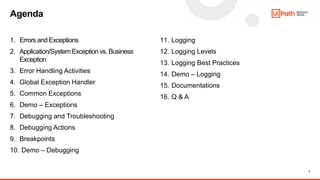
1. Errors and Exceptions
2. Application/SystemException vs. Business
Exception
3. Error Handling Activities
4. Global Exception Handler
5. Common Exceptions
6. Demo – Exceptions
7. Debugging and Troubleshooting
8. Debugging Actions
9. Breakpoints
10. Demo – Debugging
11. Logging
12. Logging Levels
13. Logging Best Practices
14. Demo – Logging
15. Documentations
16. Q & A
Agenda
3
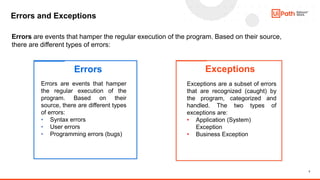
Errors and Exceptions
Errors
Errors are events that hamper
the regular execution of the
program. Based on their
source, there are different types
of errors:
• Syntax errors
• User errors
• Programming errors (bugs)
Exceptions
Exceptions are a subset of errors
that are recognized (caught) by
the program, categorized and
handled. The two types of
exceptions are:
• Application (System)
Exception
• Business Exception
Errors are events that hamper the regular execution of the program. Based on their source,
there are different types of errors:
4
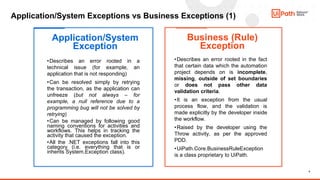
Application/System Exceptions vs Business Exceptions (1)
Application/System
Exception
Business (Rule)
Exception
•Describes an error rooted in a
technical issue (for example, an
application that is not responding)
•Can be resolved simply by retrying
the transaction, as the application can
unfreeze (but not always – for
example, a null reference due to a
programming bug will not be solved by
retrying)
•Can be managed by following good
naming conventions for activities and
workflows. This helps in tracking the
activity that caused the exception.
•All the .NET exceptions fall into this
category (i.e. everything that is or
inherits System.Exception class).
•Describes an error rooted in the fact
that certain data which the automation
project depends on is incomplete,
missing, outside of set boundaries
or does not pass other data
validation criteria.
•It is an exception from the usual
process flow, and the validation is
made explicitly by the developer inside
the workflow.
•Raised by the developer using the
Throw activity, as per the approved
PDD.
•UiPath.Core.BusinessRuleException
is a class proprietary to UiPath.
5
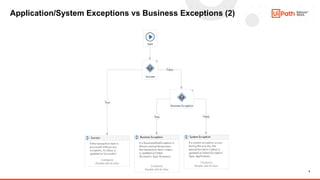
Application/System Exceptions vs Business Exceptions (2)
6
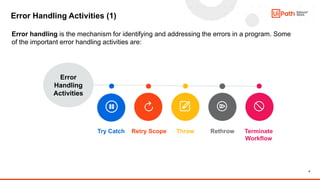
Error Handling Activities (1)
Error handling is the mechanism for identifying and addressing the errors in a program. Some
of the important error handling activities are:
Retry Scope Rethrow
Error
Handling
Activities
Terminate
Workflow
Throw
Try Catch
7
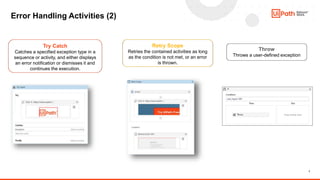
Error Handling Activities (2)
Retry Scope
Retries the contained activities as long
as the condition is not met, or an error
is thrown.
Try Catch
Catches a specified exception type in a
sequence or activity, and either displays
an error notification or dismisses it and
continues the execution.
Throw
Throws a user-defined exception
8
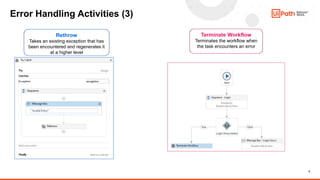
Error Handling Activities (3)
Rethrow
Takes an existing exception that has
been encountered and regenerates it
at a higher level
Terminate Workflow
Terminates the workflow when
the task encounters an error
9
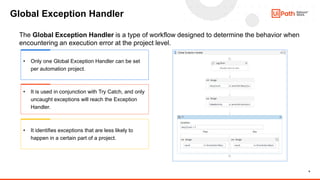
Global Exception Handler
The Global Exception Handler is a type of workflow designed to determine the behavior when
encountering an execution error at the project level.
• Only one Global Exception Handler can be set
per automation project.
• It is used in conjunction with Try Catch, and only
uncaught exceptions will reach the Exception
Handler.
• It identifies exceptions that are less likely to
happen in a certain part of a project.
10
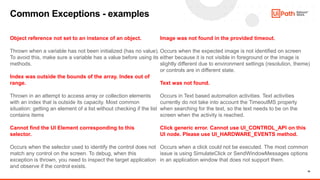
Object reference not set to an instance of an object.
Thrown when a variable has not been initialized (has no value).
To avoid this, make sure a variable has a value before using its
methods.
Index was outside the bounds of the array. Index out of
range.
Thrown in an attempt to access array or collection elements
with an index that is outside its capacity. Most common
situation: getting an element of a list without checking if the list
contains items
Cannot find the UI Element corresponding to this
selector.
Occurs when the selector used to identify the control does not
match any control on the screen. To debug, when this
exception is thrown, you need to inspect the target application
and observe if the control exists.
Image was not found in the provided timeout.
Occurs when the expected image is not identified on screen
either because it is not visible in foreground or the image is
slightly different due to environment settings (resolution, theme)
or controls are in different state.
Text was not found.
Occurs in Text based automation activities. Text activities
currently do not take into account the TimeoutMS property
when searching for the text, so the text needs to be on the
screen when the activity is reached.
Click generic error. Cannot use UI_CONTROL_API on this
UI node. Please use UI_HARDWARE_EVENTS method.
Occurs when a click could not be executed. The most common
issue is using SimulateClick or SendWindowMessages options
in an application window that does not support them.
Common Exceptions - examples
11
Let’s see some examples with the error handling
activities…
Demo - Exceptions
12
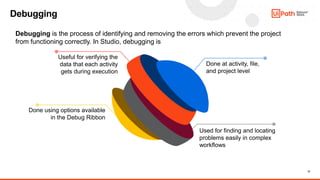
Debugging
Done at activity, file,
and project level
Used for finding and locating
problems easily in complex
workflows
Useful for verifying the
data that each activity
gets during execution
Done using options available
in the Debug Ribbon
Debugging is the process of identifying and removing the errors which prevent the project
from functioning correctly. In Studio, debugging is
13
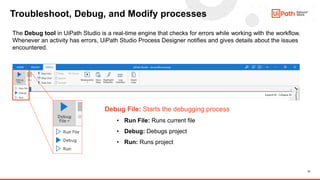
Troubleshoot, Debug, and Modify processes
The Debug tool in UiPath Studio is a real-time engine that checks for errors while working with the workflow.
Whenever an activity has errors, UiPath Studio Process Designer notifies and gives details about the issues
encountered.
Debug File: Starts the debugging process
• Run File: Runs current file
• Debug: Debugs project
• Run: Runs project
14
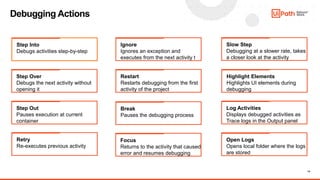
Debugging Actions
Step Into
Debugs activities step-by-step
Step Over
Debugs the next activity without
opening it
Step Out
Pauses execution at current
container
Retry
Re-executes previous activity
Ignore
Ignores an exception and
executes from the next activity t
Restart
Restarts debugging from the first
activity of the project
Break
Pauses the debugging process
Focus
Returns to the activity that caused
error and resumes debugging
Slow Step
Debugging at a slower rate, takes
a closer look at the activity
Highlight Elements
Highlights UI elements during
debugging
Log Activities
Displays debugged activities as
Trace logs in the Output panel
Open Logs
Opens local folder where the logs
are stored
15
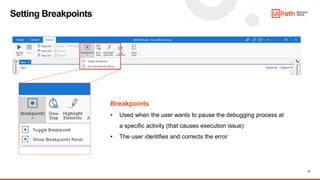
Setting Breakpoints
Breakpoints
• Used when the user wants to pause the debugging process at
a specific activity (that causes execution issue)
• The user identifies and corrects the error
16
Demo on how to debug a login sequence.
Demo - Debugging
17
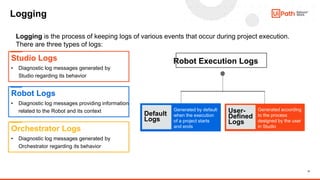
Logging
Logging is the process of keeping logs of various events that occur during project execution.
There are three types of logs:
Studio Logs
• Diagnostic log messages generated by
Studio regarding its behavior
Robot Logs
• Diagnostic log messages providing information
related to the Robot and its context
Orchestrator Logs
• Diagnostic log messages generated by
Orchestrator regarding its behavior
Default
Logs
User-
Defined
Logs
Robot Execution Logs
Generated by default
when the execution
of a project starts
and ends
Generated according
to the process
designed by the user
in Studio
18
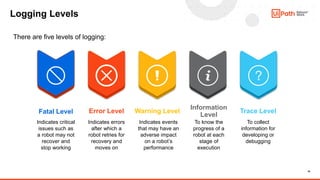
Logging Levels
Fatal Level
Indicates critical
issues such as
a robot may not
recover and
stop working
Error Level
Indicates errors
after which a
robot retries for
recovery and
moves on
Warning Level
Indicates events
that may have an
adverse impact
on a robot’s
performance
Information
Level
To know the
progress of a
robot at each
stage of
execution
Trace Level
To collect
information for
developing or
debugging
There are five levels of logging:
19
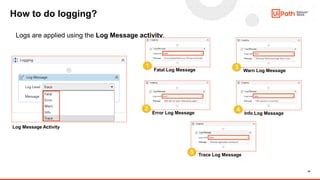
How to do logging?
Logs are applied using the Log Message activity.
1
Fatal Log Message
4
Info Log Message
3 Warn Log Message
2
Error Log Message
5 Trace Log Message
Log Message Activity
20
Logging best practices
Log message activities should ideally be used:
• at the beginning and the end of every workflow (Log level = Information)
• each time an exception is caught in a Catch block (Log level = Error)
• each time a Business Rule Exception is thrown (Log Level = Error)
• when data is read from external sources (for example, log a message at Information level when an Excel
file is read)
• in Parallel or Pick activities, log messages on every branch, in order to trace the branch taken (Log Level =
Information)
• in If/Flowchart Decision/Switch/Flow Switch activities (however, since processes might have a lot of these
activities, we can decrease the Log Level from Information to Trace, in order not to have a lot of these logs
in the database)
What are other use cases you can think of?
21
Documentation
Academy (https://academy.uipath.com/ ):
Debugging in Studio
Error and Exception Handling in Studio
Introduction to Logging in Studio
Docs (https://docs.uipath.com/ ):
https://docs.uipath.com/studio/v2020.10/docs/global-exception-handler
https://docs.uipath.com/studio/v2020.10/docs/about-debugging
https://docs.uipath.com/studio/v2020.10/docs/logging-levels
https://docs.uipath.com/studio/v2020.10/docs/types-of-logs
Tip: make sure you read all the recommended documentation.
22
Q & A
23
Trainer name
Thank you
trainer.name@uipath.com

Certification preparation - Error Handling and Troubleshooting recap.pptx

  • 1.
  • 2.
    2 1. Errors andExceptions 2. Application/SystemException vs. Business Exception 3. Error Handling Activities 4. Global Exception Handler 5. Common Exceptions 6. Demo – Exceptions 7. Debugging and Troubleshooting 8. Debugging Actions 9. Breakpoints 10. Demo – Debugging 11. Logging 12. Logging Levels 13. Logging Best Practices 14. Demo – Logging 15. Documentations 16. Q & A Agenda
  • 3.
    3 Errors and Exceptions Errors Errorsare events that hamper the regular execution of the program. Based on their source, there are different types of errors: • Syntax errors • User errors • Programming errors (bugs) Exceptions Exceptions are a subset of errors that are recognized (caught) by the program, categorized and handled. The two types of exceptions are: • Application (System) Exception • Business Exception Errors are events that hamper the regular execution of the program. Based on their source, there are different types of errors:
  • 4.
    4 Application/System Exceptions vsBusiness Exceptions (1) Application/System Exception Business (Rule) Exception •Describes an error rooted in a technical issue (for example, an application that is not responding) •Can be resolved simply by retrying the transaction, as the application can unfreeze (but not always – for example, a null reference due to a programming bug will not be solved by retrying) •Can be managed by following good naming conventions for activities and workflows. This helps in tracking the activity that caused the exception. •All the .NET exceptions fall into this category (i.e. everything that is or inherits System.Exception class). •Describes an error rooted in the fact that certain data which the automation project depends on is incomplete, missing, outside of set boundaries or does not pass other data validation criteria. •It is an exception from the usual process flow, and the validation is made explicitly by the developer inside the workflow. •Raised by the developer using the Throw activity, as per the approved PDD. •UiPath.Core.BusinessRuleException is a class proprietary to UiPath.
  • 5.
    5 Application/System Exceptions vsBusiness Exceptions (2)
  • 6.
    6 Error Handling Activities(1) Error handling is the mechanism for identifying and addressing the errors in a program. Some of the important error handling activities are: Retry Scope Rethrow Error Handling Activities Terminate Workflow Throw Try Catch
  • 7.
    7 Error Handling Activities(2) Retry Scope Retries the contained activities as long as the condition is not met, or an error is thrown. Try Catch Catches a specified exception type in a sequence or activity, and either displays an error notification or dismisses it and continues the execution. Throw Throws a user-defined exception
  • 8.
    8 Error Handling Activities(3) Rethrow Takes an existing exception that has been encountered and regenerates it at a higher level Terminate Workflow Terminates the workflow when the task encounters an error
  • 9.
    9 Global Exception Handler TheGlobal Exception Handler is a type of workflow designed to determine the behavior when encountering an execution error at the project level. • Only one Global Exception Handler can be set per automation project. • It is used in conjunction with Try Catch, and only uncaught exceptions will reach the Exception Handler. • It identifies exceptions that are less likely to happen in a certain part of a project.
  • 10.
    10 Object reference notset to an instance of an object. Thrown when a variable has not been initialized (has no value). To avoid this, make sure a variable has a value before using its methods. Index was outside the bounds of the array. Index out of range. Thrown in an attempt to access array or collection elements with an index that is outside its capacity. Most common situation: getting an element of a list without checking if the list contains items Cannot find the UI Element corresponding to this selector. Occurs when the selector used to identify the control does not match any control on the screen. To debug, when this exception is thrown, you need to inspect the target application and observe if the control exists. Image was not found in the provided timeout. Occurs when the expected image is not identified on screen either because it is not visible in foreground or the image is slightly different due to environment settings (resolution, theme) or controls are in different state. Text was not found. Occurs in Text based automation activities. Text activities currently do not take into account the TimeoutMS property when searching for the text, so the text needs to be on the screen when the activity is reached. Click generic error. Cannot use UI_CONTROL_API on this UI node. Please use UI_HARDWARE_EVENTS method. Occurs when a click could not be executed. The most common issue is using SimulateClick or SendWindowMessages options in an application window that does not support them. Common Exceptions - examples
  • 11.
    11 Let’s see someexamples with the error handling activities… Demo - Exceptions
  • 12.
    12 Debugging Done at activity,file, and project level Used for finding and locating problems easily in complex workflows Useful for verifying the data that each activity gets during execution Done using options available in the Debug Ribbon Debugging is the process of identifying and removing the errors which prevent the project from functioning correctly. In Studio, debugging is
  • 13.
    13 Troubleshoot, Debug, andModify processes The Debug tool in UiPath Studio is a real-time engine that checks for errors while working with the workflow. Whenever an activity has errors, UiPath Studio Process Designer notifies and gives details about the issues encountered. Debug File: Starts the debugging process • Run File: Runs current file • Debug: Debugs project • Run: Runs project
  • 14.
    14 Debugging Actions Step Into Debugsactivities step-by-step Step Over Debugs the next activity without opening it Step Out Pauses execution at current container Retry Re-executes previous activity Ignore Ignores an exception and executes from the next activity t Restart Restarts debugging from the first activity of the project Break Pauses the debugging process Focus Returns to the activity that caused error and resumes debugging Slow Step Debugging at a slower rate, takes a closer look at the activity Highlight Elements Highlights UI elements during debugging Log Activities Displays debugged activities as Trace logs in the Output panel Open Logs Opens local folder where the logs are stored
  • 15.
    15 Setting Breakpoints Breakpoints • Usedwhen the user wants to pause the debugging process at a specific activity (that causes execution issue) • The user identifies and corrects the error
  • 16.
    16 Demo on howto debug a login sequence. Demo - Debugging
  • 17.
    17 Logging Logging is theprocess of keeping logs of various events that occur during project execution. There are three types of logs: Studio Logs • Diagnostic log messages generated by Studio regarding its behavior Robot Logs • Diagnostic log messages providing information related to the Robot and its context Orchestrator Logs • Diagnostic log messages generated by Orchestrator regarding its behavior Default Logs User- Defined Logs Robot Execution Logs Generated by default when the execution of a project starts and ends Generated according to the process designed by the user in Studio
  • 18.
    18 Logging Levels Fatal Level Indicatescritical issues such as a robot may not recover and stop working Error Level Indicates errors after which a robot retries for recovery and moves on Warning Level Indicates events that may have an adverse impact on a robot’s performance Information Level To know the progress of a robot at each stage of execution Trace Level To collect information for developing or debugging There are five levels of logging:
  • 19.
    19 How to dologging? Logs are applied using the Log Message activity. 1 Fatal Log Message 4 Info Log Message 3 Warn Log Message 2 Error Log Message 5 Trace Log Message Log Message Activity
  • 20.
    20 Logging best practices Logmessage activities should ideally be used: • at the beginning and the end of every workflow (Log level = Information) • each time an exception is caught in a Catch block (Log level = Error) • each time a Business Rule Exception is thrown (Log Level = Error) • when data is read from external sources (for example, log a message at Information level when an Excel file is read) • in Parallel or Pick activities, log messages on every branch, in order to trace the branch taken (Log Level = Information) • in If/Flowchart Decision/Switch/Flow Switch activities (however, since processes might have a lot of these activities, we can decrease the Log Level from Information to Trace, in order not to have a lot of these logs in the database) What are other use cases you can think of?
  • 21.
    21 Documentation Academy (https://academy.uipath.com/ ): Debuggingin Studio Error and Exception Handling in Studio Introduction to Logging in Studio Docs (https://docs.uipath.com/ ): https://docs.uipath.com/studio/v2020.10/docs/global-exception-handler https://docs.uipath.com/studio/v2020.10/docs/about-debugging https://docs.uipath.com/studio/v2020.10/docs/logging-levels https://docs.uipath.com/studio/v2020.10/docs/types-of-logs Tip: make sure you read all the recommended documentation.
  • 22.
  • 23.

Editor's Notes

  • #4 An error is any type of event that prevents the regular execution of a program. Some of the errors completely stop the execution, others delay it, and others just interfere with them, without having a clear impact. Based on their source, there are different types of errors: Syntax errors: The compiler/interpreter cannot parse the written code into meaningful computer instructions. User errors: The software determines that the user’s input is not acceptable for some reason. Programming errors: The program contains no syntax errors but does not produce the expected results. These are often called bugs. Exceptions are a subset of errors that are serious enough to produce a material effect and for which there can be a mechanism to identify and address them. The types of exceptions are: Application (System) Exception Business Exception Refer https://docs.uipath.com/orchestrator/docs/business-exception-vs-application-exception for more details.
  • #5 Application (System) Exception: Describes an error rooted in a technical issue, such as an application that is not responding. Has a chance of being solved simply by retrying the transaction, as the application can unfreeze. Can be managed by following good naming conventions for activities and workflows. This helps in tracking the activity that caused the exception. Business Exception: Describes an error rooted in the fact that certain data which the automation project depends on is incomplete, missing, outside of set boundaries or does not pass other data validation criteria. It is an exception from the usual process flow, and the validation is made explicitly by the developer inside the workflow. The text in the exception should contain enough information for a human user (business user or developer) to understand what happened and what actions need to be taken. Refer https://docs.uipath.com/orchestrator/docs/business-exception-vs-application-exception for more details.
  • #7 Error handling is the mechanism for identifying and addressing the errors in a program. Some of the important error handling activities are: Try Catch Retry Scope Throw Rethrow Terminate Workflow
  • #8 Try Catch: The Try Catch activity is one of the most important activities used for exception handling purposes. It is generally used when specific parts of the project may trigger errors. The activity catches a specified exception type in a sequence or activity, and either displays an error notification or dismisses it and continues the execution. The activity has three main sections: Try: The activity performed, which has a chance of throwing an error. Catches: The activity or set of activities to be performed when an error occurs. Exception: The exception type to look for. Multiple exceptions can be added. Finally: The activity or set of activities to be performed after the Try and Catches blocks are executed. This section is executed only when no exceptions are thrown or when an error occurs and is caught in the Catches section. Refer https://docs.uipath.com/activities/docs/try-catch for more details. Retry Scope: Retry Scope activity retries the contained activities as long as the condition is not met, or an error is thrown. It is used to retry the execution in situations in which an error is expected. The execution will be retried until a certain event happens (for a number of times) or without any condition (retried until no exception is thrown). It is used for catching and handling an error, which is why it’s similar to Try Catch. The difference is that this activity simply retries the execution instead of providing a more complex handling mechanism. Some of the properties of Retry Scope are: NumberOfRetries: The number of times that the sequence is to be retried. RetryInterval: Specifies the amount of time (in seconds) between each retry. For example, consider a website that simply works faulty, and the user just needs to click the same button over and over until it goes to the desired screen. Refer https://docs.uipath.com/activities/docs/retry-scope for more details. Throw: This activity throws a user-defined exception. It can be a system or business exception. Example: new Exception("Throwing an exception") OR new BusinessRuleException("Throwing a business exception"). Refer https://docs.uipath.com/activities/docs/try-catch for more details.
  • #9 Rethrow: This activity takes an existing exception that has been encountered and regenerates it at a higher level. It always comes in the catch block of Try Catch activity. It is used when the user wants the activities to occur before the exception is thrown. Example: “FileNotFound” error. Rethrow example In Catch add a LogMessage and after that use a Rethrow Mention the Global Exception Handler and the Continue On Error Property. Terminate Workflow: This activity terminates the workflow when the task encounters an error. Example: If login is unsuccessful, the workflow is terminated.
  • #10 The Global Exception Handler is a type of workflow designed to determine the behavior when encountering an execution error at the project level. This is why only one Global Exception Handler can be set per automation project. The Global Exception Handler is used in conjunction with Try Catch. Only uncaught exceptions will reach the Exception Handler. If an exception occurs inside a Try Catch activity and it is successfully caught and treated inside the Catch block (and not re-thrown), it will not reach the Global Exception Handler. Its purpose is to identify exceptions that are less likely to happen in a certain part of a project. A Global Exception Handler can be created either by starting a new project with this type or by setting an existing project as Global Exception Handler from the Project panel. Refer https://docs.uipath.com/studio/v2018.4/docs/global-exception-handler for more details.
  • #12 Open the UiPath project.
  • #13 Software development projects will rarely be perfect. There may be errors of various kinds which may hamper the project’s execution. Debugging is the process of identifying and removing these errors (which prevent the project from functioning correctly) from a given project. Debugging is done at activity, file, and project level during the design stage of the automation project. The Studio offers a debugging component that enables finding and locating problems easily in complex workflows. This is useful for viewing the execution of each activity, verifying what data it gets, and checking if there are errors in producing outputs. It provides a real-time engine that checks for errors while working with the workflow. There are several options available for performing debugging, and these are defined in the Debug Ribbon. Also, the debugging process can be easily viewed using several available panels which also allow the user to add values and monitor variables and arguments.
  • #14 The Debug tool in UiPath Studio is a real-time engine that checks for errors while working with the workflow. Whenever an activity has errors, UiPath Studio Process Designer notifies and gives details about the issues encountered. The Design and Debug tabs allow the user to perform debugging of a single file or the whole project. The image shows the Debug ribbon. Debug File: It starts the debugging process. Run File: Runs current file Debug: Debugs project Run: Runs project Stop: It stops the debugging process.
  • #15 The Debug ribbon consists of several debugging actions. These are: Step Into Step Into is the functionality to be used when the user wants to closely analyze activities while debugging step-by-step. When this action is triggered, the debugger opens and highlights activities in any container in the workflow, such as flowcharts, sequences, or Invoke Workflow File activities.  On using Step Into with Invoke Workflow File activities, it opens the workflow in a new tab in Read Only mode. Then each activity is executed one by one. Step Over Unlike the Step Into action, Step Over does not open the current container. When used, the action debugs the next activity, highlighting containers (such as flowcharts, sequences, or Invoke Workflow File activities) without opening them. This action comes in handy for skipping analysis of large containers which are unlikely to trigger any issues during execution. Step Out This action is used for stepping out and pausing the execution at the level of the current container. Step Out completes the execution of activities in the current container, before pausing the debugging. This option works well with nested sequences. Retry Retry re-executes the previous activity, and throws the exception if it's encountered again. The activity which threw the exception is highlighted and details about the error are shown in the Locals and Call Stack panels. Ignore The Ignore action can be used to ignore an encountered exception and continue the execution from the next activity so that the rest of the workflow can be debugged. This action is useful when jumping over the activity that threw the exception and continuing debugging the remaining part of the project. Restart Restart is available after an exception was thrown and the debug process is paused. The action is used for restarting the debugging process from the first activity of the project. Use Slow Step to slow down the debugging speed and properly inspect activities as they are executed. Please take into consideration that when using this option after using the Run from this Activity action, the debugging is restarted from the previously indicated activity. Break Break allows the user to pause the debugging process at any given moment. The activity which is being debugged remains highlighted when paused. Once this happens, you can choose to Continue, Step Into, Step Over, or Stop the debugging process. Focus Focus Execution Point helps the user to return to the current breakpoint or the activity that caused an error during debugging. The Focus button is used after navigating through the process, as an easy way to return to the activity that caused the error and resume the debugging process. It is used for returning to said breakpoint, after navigating through activities contained in the automation process. Slow Step Slow Step enables the user to take a closer look at any activity during debugging. While this action is enabled, activities are highlighted in the debugging process. Moreover, containers such as flowcharts, sequences, or Invoke Workflow File activities are opened. This is similar to using Step Into, but without having to pause the debugging process. Slow Step can be activated both before or during the debugging process. Activating the action does not pause debugging. Although called Slow Step, the action comes with four different speeds. The selected speed step runs the debugging process slower than the previous one. For example, debugging with Slow Step at 1x runs it the slowest, and fastest at 4x. In other words, the speed dictates how fast the debugger jumps from one activity to the next. Each time Slow Step is clicked, the speed changes by one step. Highlight Elements If enabled, UI elements are highlighted during debugging. The option can be used both with regular and step-by-step debugging. Log Activities If enabled, debugged activities are displayed as Trace logs in the Output panel. Note that Highlight Elements and Log Activities options can only be toggled before debugging and persist when reopening the automation project. This is not applicable for invoked workflows unless these files are opened in the Designer panel. Logs are automatically sent to Orchestrator if connected, but the user can have them stored locally by disabling the Allow Development Logging option from the Settings tab in the Add or Edit Robot window. Disabling Log Activities can be a way to send smaller log files to Orchestrator. By default, the debugger logs activities so that each step appears in the Output panel.  Open Logs Clicking Open Logs brings up the %localappdata%\UiPath\Logs folder where logs are locally stored. The naming format of log files is YYYY-DD-MM_Component.log (such as 2018-09-12_Execution.log, or 2018-09-12_Studio.log). 
  • #16 Breakpoints are used to purposely pause the debugging process on an activity which may trigger execution issues. You can place a breakpoint on any activity as follows: Setting Breakpoint It is used when the user wants to pause the program at a specific location. Once the toggle breakpoint is set to an activity, the program will run till that activity but not execute it. Once the execution is paused, the user can see the current value of the variables, the current state of the workflow, identify and correct the error causing element. The user can choose to Continue, Step Into, Step Over, or Stop the debugging process. Enable Breakpoint Select the activity until the point which you don’t want to execute in the project. Right-click and choose toggle breakpoint. Resume the activity.
  • #18 Logging is the process of keeping logs of various events that occur during project execution in UiPath Platform. There are three types of logs: Studio logs: Diagnostic log messages generated by Studio regarding its behavior Robot logs: Diagnostic log messages providing information related to the Robot and its context Orchestrator logs: Diagnostic log messages generated by Orchestrator regarding its behavior The types of logs generated while running processes in Studio are a subset of Robot logs, called Robot Execution logs.  Robot Execution Logs can be of two types: Default Logs: Generated by default when the execution of a project starts and ends, when a system error occurs, and the execution stops, or when the logging settings are configured to log the execution of every activity. It logs events such as Execution Start, Execution End, and Error Log. User-Defined Logs: Generated according to the process designed by the user in Studio, when using the Log Message activity or the Write Line activity. To view the details of the stored logs, the user can access Open Logs action in the Debug tab.
  • #19 Logging levels allow the user to sort log messages by severity, or how important a log message is related to the execution of a process. These levels are used in the Orchestrator to filter out logs below a specific level.  There are five levels of logging: Fatal, Error, Warn, Info, and Trace. Fatal log level: Highest severity It is used to indicate critical issues such as cases where a robot may not recover and stop working. Error log level: It is used to indicate errors after which a robot retries for recovery and moves on. Warn log level: It is used to indicate events that may have an adverse impact on the robot’s performance. Info log level: It is used to know the progress of a robot at each stage of execution. Trace log level: Lowest severity It is used to collect information for developing or debugging.
  • #20 User-defined logging can be done by using Log Message activity. To use the Log Message activity, drag and drop the activity below an activity and click on the drop-down to select the log level. In the Message text area, enter a relevant statement that can be helpful in recognizing the issue clearly at a later stage. The drop-down menu displays all the available log levels in the Log Message activity as shown on the slide. Fatal log level Error log level Warn log level Info log level Trace log level The logs have a JSON format and they include these default fields:  Message: The Log Message (string) Level: Defines the log severity Timestamp: The exact date and time the action was performed FileName: The name of the .xaml file being executed JobId: The key of the job running the process ProcessName: The name of the process that triggered the logging ProcessVersion: The version number of the process WindowsIdentity: The name of the user that performed the action that was logged RobotName: The name of the robot (defined in Orchestrator) You can add new log fields by using the Add Log Fields activity. This is helpful for reporting purposes