Session 1:
UiPath Studio
Recap Africa Series:
Become an RPA Citizen
Developer
3
Session 1: Introduction and getting Started with StudioX
Session 2: Word automation with StudioX
Session 3: File and Folder Automation with StudioX
Session 4: User Interface Automation with StudioX
Session 5: Working with Data in StudioX
Session 6: PowerPoint Automation with StudioX
Session 7: Iterations and Scenarios in StudioX
Session 8: Email Automation with StudioX
Session 9: Excel Automation with StudioX
Session 10: Practical Use Case with StudioX
Recap Africa Series:
Become an RPA Citizen Developer
Missed out on any of these
session? Click here to
access recording
4
Speaker
RPA Developer,
@Jubilee Insurance
Speaker
Head RPA,
@Jubilee Insurance
UiPath MVP
Host
Regional Community Manager
EMEA
@UiPath
Jeff Ng’ang’a Jonathan Gichohi Cristina Vidu
Welcome to Africa Series 2
Here is today’s team:
5
1. What is Robotic Process Automation (RPA)?
2. UiPath Studio Installation
3. Navigating UiPath Studio
4. Creating a new Project in UiPath Studio
5. UiPath Studio Components
6. Hands On Practice
7. Q&A Session
Agenda
6
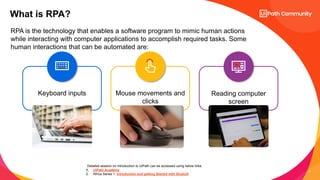
RPA is the technology that enables a software program to mimic human actions
while interacting with computer applications to accomplish required tasks. Some
human interactions that can be automated are:
What is RPA?
Mouse movements and
clicks
Keyboard inputs Reading computer
screen
Detailed session on Introduction to UiPath can be accessed using below links:
1. UiPath Academy
2. Africa Series 1: Introduction and getting Started with StudioX
Installation
UiPath Studio
8
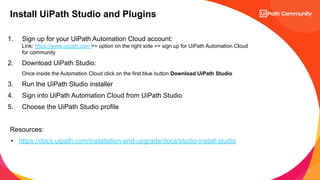
1. Sign up for your UiPath Automation Cloud account:
Link: https://www.uipath.com >> option on the right side >> sign up for UiPath Automation Cloud
for community
2. Download UiPath Studio:
Once inside the Automation Cloud click on the first blue button Download UiPath Studio
3. Run the UiPath Studio installer
4. Sign into UiPath Automation Cloud from UiPath Studio
5. Choose the UiPath Studio profile
Resources:
• https://docs.uipath.com/installation-and-upgrade/docs/studio-install-studio
Install UiPath Studio and Plugins
Navigating UiPath Studio
UiPath Studio
10
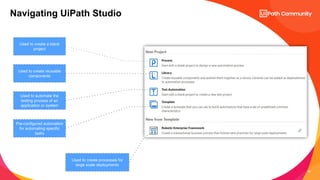
Navigating UiPath Studio
Used to create a blank
project
Used to create reusable
components
Used to automate the
testing process of an
application or system
Pre-configured automation
for automating specific
tasks
Used to create processes for
large scale deployments
Creating a new project
UiPath Studio
Components
UiPath Studio
13
UiPath Studio Components
Activities panel
Top Ribbon panel
Output panel
Properties
panel
14
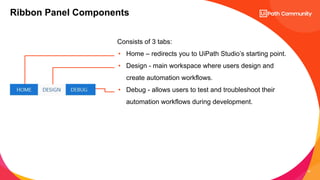
Consists of 3 tabs:
• Home – redirects you to UiPath Studio’s starting point.
• Design - main workspace where users design and
create automation workflows.
• Debug - allows users to test and troubleshoot their
automation workflows during development.
Ribbon Panel Components
15
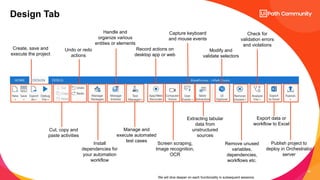
Design Tab
Create, save and
execute the project
Cut, copy and
paste activities
Undo or redo
actions
Install
dependencies for
your automation
workflow
Handle and
organize various
entities or elements
Manage and
execute automated
test cases
Record actions on
desktop app or web
Screen scraping,
Image recognition,
OCR
Capture keyboard
and mouse events
Extracting tabular
data from
unstructured
sources
Modify and
validate selectors
Remove unused
variables,
dependencies,
workflows etc.
Check for
validation errors
and violations
Export data or
workflow to Excel
Publish project to
deploy in Orchestrator
server
We will dive deeper on each functionality in subsequent sessions.
16
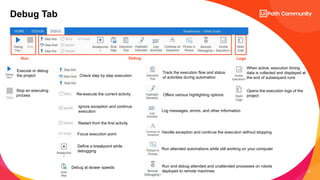
Debug Tab
Run Debug Logs
Execute or debug
the project
Stop an executing
process
Check step by step execution
Re-execute the current activity
Ignore exception and continue
execution
Restart from the first activity
Focus execution point
Define a breakpoint while
debugging
Debug at slower speeds
Track the execution flow and status
of activities during automation
Offers various highlighting options
Log messages, errors, and other information
Handle exception and continue the execution without stopping
Run attended automations while still working on your computer
Run and debug attended and unattended processes on robots
deployed to remote machines
When active, execution timing
data is collected and displayed at
the end of subsequent runs
Opens the execution logs of the
project
17
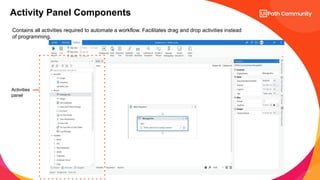
Activity Panel Components
Contains all activities required to automate a workflow. Facilitates drag and drop activities instead
of programming.
Activities
panel
18
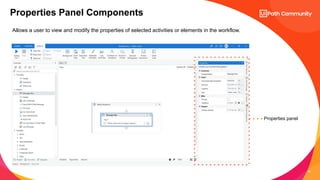
Properties Panel Components
Properties panel
Allows a user to view and modify the properties of selected activities or elements in the workflow.
19
Output Panel Components
Output panel (progress,
errors, information)
Provides real-time feedback, information, and messages during the execution of automation
workflows.
Hands On Practice
UiPath Studio
21
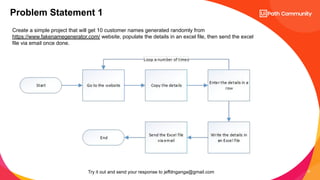
Problem Statement 1
Create a simple project that will get 10 customer names generated randomly from
https://www.fakenamegenerator.com/ website, populate the details in an excel file, then send the excel
file via email once done.
Try it out and send your response to jeffdnganga@gmail.com
22
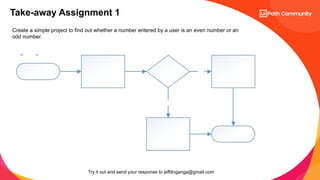
Take-away Assignment 1
Create a simple project to find out whether a number entered by a user is an even number or an
odd number.
Try it out and send your response to jeffdnganga@gmail.com
23
24
The UiPath Academy empowers you to grow as a professional and reach new
heights in the digital era by providing latest study materials on RPA.
UiPath Academy
• Open online platform offering free RPA
training
• Helps you to progressively build your
automation skills with the help of a variety
of courses
• Take on-demand courses, enroll in
role-based learning paths, and get
comprehensive product training.
• To Know more visit…
https://bit.ly/37k1MoW
25
What’s NEXT?
● Session 2 :
Getting Started with Data Manipulation
● Join Local chapters:
community.uipath.com
● Join Forum and check dedicated Forum topic on
Studio : https://shorturl.at/fmvKV

Africa Series 2 Session 1 - UiPath Studio

  • 1.
  • 2.
    Recap Africa Series: Becomean RPA Citizen Developer
  • 3.
    3 Session 1: Introductionand getting Started with StudioX Session 2: Word automation with StudioX Session 3: File and Folder Automation with StudioX Session 4: User Interface Automation with StudioX Session 5: Working with Data in StudioX Session 6: PowerPoint Automation with StudioX Session 7: Iterations and Scenarios in StudioX Session 8: Email Automation with StudioX Session 9: Excel Automation with StudioX Session 10: Practical Use Case with StudioX Recap Africa Series: Become an RPA Citizen Developer Missed out on any of these session? Click here to access recording
  • 4.
    4 Speaker RPA Developer, @Jubilee Insurance Speaker HeadRPA, @Jubilee Insurance UiPath MVP Host Regional Community Manager EMEA @UiPath Jeff Ng’ang’a Jonathan Gichohi Cristina Vidu Welcome to Africa Series 2 Here is today’s team:
  • 5.
    5 1. What isRobotic Process Automation (RPA)? 2. UiPath Studio Installation 3. Navigating UiPath Studio 4. Creating a new Project in UiPath Studio 5. UiPath Studio Components 6. Hands On Practice 7. Q&A Session Agenda
  • 6.
    6 RPA is thetechnology that enables a software program to mimic human actions while interacting with computer applications to accomplish required tasks. Some human interactions that can be automated are: What is RPA? Mouse movements and clicks Keyboard inputs Reading computer screen Detailed session on Introduction to UiPath can be accessed using below links: 1. UiPath Academy 2. Africa Series 1: Introduction and getting Started with StudioX
  • 7.
  • 8.
    8 1. Sign upfor your UiPath Automation Cloud account: Link: https://www.uipath.com >> option on the right side >> sign up for UiPath Automation Cloud for community 2. Download UiPath Studio: Once inside the Automation Cloud click on the first blue button Download UiPath Studio 3. Run the UiPath Studio installer 4. Sign into UiPath Automation Cloud from UiPath Studio 5. Choose the UiPath Studio profile Resources: • https://docs.uipath.com/installation-and-upgrade/docs/studio-install-studio Install UiPath Studio and Plugins
  • 9.
  • 10.
    10 Navigating UiPath Studio Usedto create a blank project Used to create reusable components Used to automate the testing process of an application or system Pre-configured automation for automating specific tasks Used to create processes for large scale deployments
  • 11.
    Creating a newproject UiPath Studio
  • 12.
  • 13.
    13 UiPath Studio Components Activitiespanel Top Ribbon panel Output panel Properties panel
  • 14.
    14 Consists of 3tabs: • Home – redirects you to UiPath Studio’s starting point. • Design - main workspace where users design and create automation workflows. • Debug - allows users to test and troubleshoot their automation workflows during development. Ribbon Panel Components
  • 15.
    15 Design Tab Create, saveand execute the project Cut, copy and paste activities Undo or redo actions Install dependencies for your automation workflow Handle and organize various entities or elements Manage and execute automated test cases Record actions on desktop app or web Screen scraping, Image recognition, OCR Capture keyboard and mouse events Extracting tabular data from unstructured sources Modify and validate selectors Remove unused variables, dependencies, workflows etc. Check for validation errors and violations Export data or workflow to Excel Publish project to deploy in Orchestrator server We will dive deeper on each functionality in subsequent sessions.
  • 16.
    16 Debug Tab Run DebugLogs Execute or debug the project Stop an executing process Check step by step execution Re-execute the current activity Ignore exception and continue execution Restart from the first activity Focus execution point Define a breakpoint while debugging Debug at slower speeds Track the execution flow and status of activities during automation Offers various highlighting options Log messages, errors, and other information Handle exception and continue the execution without stopping Run attended automations while still working on your computer Run and debug attended and unattended processes on robots deployed to remote machines When active, execution timing data is collected and displayed at the end of subsequent runs Opens the execution logs of the project
  • 17.
    17 Activity Panel Components Containsall activities required to automate a workflow. Facilitates drag and drop activities instead of programming. Activities panel
  • 18.
    18 Properties Panel Components Propertiespanel Allows a user to view and modify the properties of selected activities or elements in the workflow.
  • 19.
    19 Output Panel Components Outputpanel (progress, errors, information) Provides real-time feedback, information, and messages during the execution of automation workflows.
  • 20.
  • 21.
    21 Problem Statement 1 Createa simple project that will get 10 customer names generated randomly from https://www.fakenamegenerator.com/ website, populate the details in an excel file, then send the excel file via email once done. Try it out and send your response to jeffdnganga@gmail.com
  • 22.
    22 Take-away Assignment 1 Createa simple project to find out whether a number entered by a user is an even number or an odd number. Try it out and send your response to jeffdnganga@gmail.com
  • 23.
  • 24.
    24 The UiPath Academyempowers you to grow as a professional and reach new heights in the digital era by providing latest study materials on RPA. UiPath Academy • Open online platform offering free RPA training • Helps you to progressively build your automation skills with the help of a variety of courses • Take on-demand courses, enroll in role-based learning paths, and get comprehensive product training. • To Know more visit… https://bit.ly/37k1MoW
  • 25.
    25 What’s NEXT? ● Session2 : Getting Started with Data Manipulation ● Join Local chapters: community.uipath.com ● Join Forum and check dedicated Forum topic on Studio : https://shorturl.at/fmvKV