
UAN Registration &
Activation Online
Prepared By : Subrat Kumar Sahoo
HR, Bhubaneswar
Subrat Kumar Sahoo(HR)
Activate UAN
• Visit the EPFO Member’s Portal. Visit the
following link: https://unifiedportal-
mem.epfindia.gov.in/memberinterface/
• On the main page of the website, click on
the “Activate UAN” option under the
“Important Links” tab available in the lower
right corner of the screen.
Subrat Kumar Sahoo(HR)
Filling Details
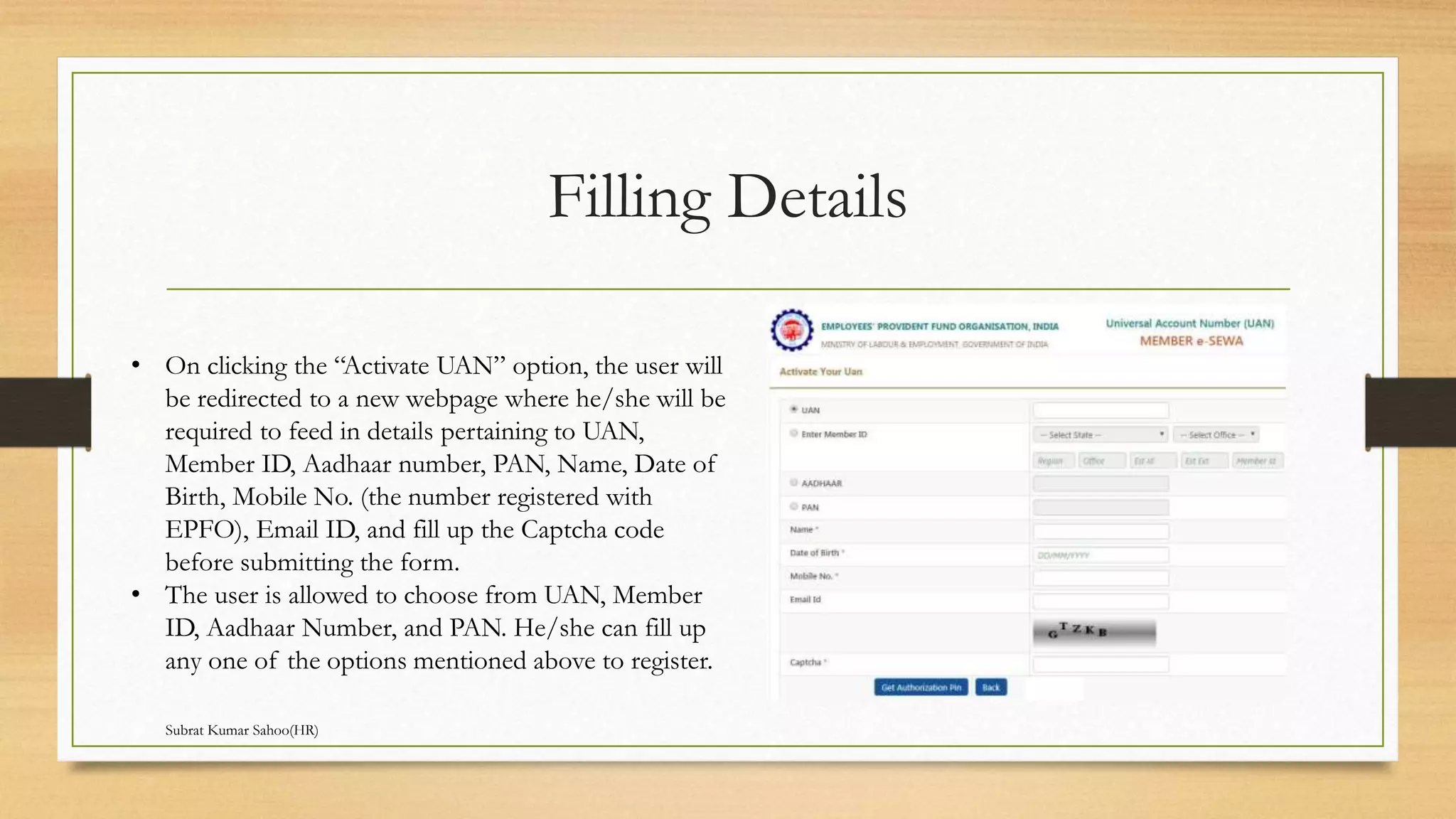
• On clicking the “Activate UAN” option, the user will
be redirected to a new webpage where he/she will be
required to feed in details pertaining to UAN,
Member ID, Aadhaar number, PAN, Name, Date of
Birth, Mobile No. (the number registered with
EPFO), Email ID, and fill up the Captcha code
before submitting the form.
• The user is allowed to choose from UAN, Member
ID, Aadhaar Number, and PAN. He/she can fill up
any one of the options mentioned above to register.
Subrat Kumar Sahoo(HR)
Validating OTP Details
•Upon filling up all the details and the auto-generated Captcha
code, the user will have to click on the “Get Authorization Pin”
option.
•After this, a One Time Password or OTP will be sent to the
registered mobile number and the user will be redirected to a
new webpage.
•On this webpage, the user will be required to verify the details
(UAN, Name, Date of Birth, Mobile No., and Email ID)
provided by him/her in the previous page.
•Once the details are verified, the user will be required to click
and check the checkbox against the “I Agree” option. Under this
option, the OTP ID and the field for the OTP will be provided.
Subrat Kumar Sahoo(HR)
UAN Activated
• Once the above-mentioned steps are completed, the
user can enter the OTP received on the mobile
number in the provided field and click on the
“Validate OTP and Activate UAN” option.
• On successfully completing the registration process,
the following message will be displayed on the screen
of the user: “Your UAN is activated, The Password is
sent to your registered mobile number.”
Subrat Kumar Sahoo(HR)

Uan registration and Activation online

  • 1.
    UAN Registration & ActivationOnline Prepared By : Subrat Kumar Sahoo HR, Bhubaneswar Subrat Kumar Sahoo(HR)
  • 2.
    Activate UAN • Visitthe EPFO Member’s Portal. Visit the following link: https://unifiedportal- mem.epfindia.gov.in/memberinterface/ • On the main page of the website, click on the “Activate UAN” option under the “Important Links” tab available in the lower right corner of the screen. Subrat Kumar Sahoo(HR)
  • 3.
    Filling Details • Onclicking the “Activate UAN” option, the user will be redirected to a new webpage where he/she will be required to feed in details pertaining to UAN, Member ID, Aadhaar number, PAN, Name, Date of Birth, Mobile No. (the number registered with EPFO), Email ID, and fill up the Captcha code before submitting the form. • The user is allowed to choose from UAN, Member ID, Aadhaar Number, and PAN. He/she can fill up any one of the options mentioned above to register. Subrat Kumar Sahoo(HR)
  • 4.
    Validating OTP Details •Uponfilling up all the details and the auto-generated Captcha code, the user will have to click on the “Get Authorization Pin” option. •After this, a One Time Password or OTP will be sent to the registered mobile number and the user will be redirected to a new webpage. •On this webpage, the user will be required to verify the details (UAN, Name, Date of Birth, Mobile No., and Email ID) provided by him/her in the previous page. •Once the details are verified, the user will be required to click and check the checkbox against the “I Agree” option. Under this option, the OTP ID and the field for the OTP will be provided. Subrat Kumar Sahoo(HR)
  • 5.
    UAN Activated • Oncethe above-mentioned steps are completed, the user can enter the OTP received on the mobile number in the provided field and click on the “Validate OTP and Activate UAN” option. • On successfully completing the registration process, the following message will be displayed on the screen of the user: “Your UAN is activated, The Password is sent to your registered mobile number.” Subrat Kumar Sahoo(HR)
  • 6.