Swayam Course Proposal
on
Image Processing Using Python
COURSE COORDINATOR COURSE CO-COORDINATOR
DR. DIPTI VERMA MRS. BHARATI PATEL
I/C ACADEMICS, ASSITANT PROFESSOR ASSISTANT PROFESSOR
UTD, CSVTU, BHILAI (CG) UTD, CSVTU, BHILAI (CG)
 Hello and Welcome to everyone. My name is Bharati
Patel, Assistant Professor from university teaching
department, CSVTU, Bhilai. I am one of the co-
coordinators of this Python-based Image Processing
course. Image manipulation and enhancement techniques
are my theme for today. So let's begin with a brief synopsis
of the lecture that is broken down into outlines.
2
Outlines: Outlines are listed as:
 1. Introduction
 2. Image Formats
 3. Cropping and Resizing
 4. Adjusting Brightness and Contrast
 5. Color Adjustments
 6. Conclusion
 7. Outcomes
3
1. Introduction: Moving forward towards the introduction
which is separated with two subsections listed as:
•Definition of basic image manipulation and enhancement techniques.
•Importance of image manipulation and enhancement.
4
 Basic image manipulation and enhancement techniques refer to the
process of modifying digital images to improve their quality or
appearance.
 These techniques involve making adjustments to an image's color,
contrast, brightness, sharpness, size, and other aspects to improve
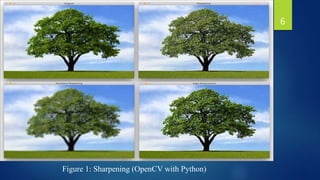
its visual appeal or to meet specific requirements as shown in Figure
1.
 These techniques are important tools for photographers, graphic
designers, and other professionals who work with digital images.
5
Figure 1: Sharpening (OpenCV with Python)
6
 Image manipulation and enhancement are important because they
allow individuals and organizations to improve the visual quality of
their images, whether it's for personal or professional use. Here are
some specific reasons why image manipulation and enhancement are
important:
 1. Improving image quality.
 2. Removing unwanted elements.
 3. Highlighting specific features.
 4. Creating a consistent visual identity.
 5. Meeting specific requirements.
7
2. Image Formats: Next is image formats which is listed
as:
•Overview of different image formats
•Understanding image resolution and color modes
8
2.1 Different image formats: There are several different image
formats available for storing digital images. Each format has its own
unique features and is designed for specific uses. Here is an overview of
some of the most common image formats:
 JPEG (Joint Photographic Experts Group)
 PNG (Portable Network Graphics)
 GIF (Graphics Interchange Format)
 TIFF (Tagged Image File Format)
 BMP (Bitmap)
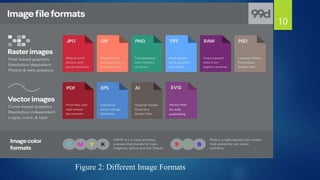
 RAW: RAW is an uncompressed image format as shown in Figure 2.
9
Figure 2: Different Image Formats
10
2.2 Understanding image resolution and color modes
 Image resolution and color modes are important concepts in digital
imaging. Here's a brief explanation of each:
 Image resolution: Image resolution refers to the number of pixels
(picture elements) that make up an image. The resolution is usually
expressed as the number of pixels per unit of length (such as pixels
per inch or PPI). Higher resolutions result in more detailed and
sharper images, while lower resolutions may appear blurry or
pixelated.
 Color modes: Color modes determine the range and number of
colors that can be used in an image. The most common color modes
are RGB (red, green, blue) and CMYK (cyan, magenta, yellow,
black). RGB is used for digital images and displays, while CMYK is
used for print. Other color modes include grayscale, indexed color,
and Lab color.
11
 Understanding image resolution and color modes is important for
ensuring that images are optimized for their intended use. For
example, images intended for print should have a higher resolution
and be in CMYK color mode, while images intended for digital use
may have a lower resolution and be in RGB color mode.
 In Python, image resolution and color modes can be manipulated
using libraries such as Pillow, which provides tools for resizing
images and converting between color modes.
12
3. Cropping and Resizing: next subtopic is cropping and
resizing, which is listed with following sub points:
•Definition and importance of cropping
•Techniques for resizing images
•Understanding aspect ratios
13
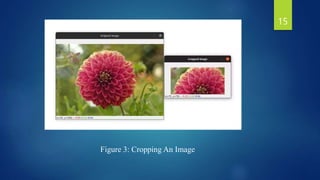
 Cropping is the process of removing unwanted areas from an image
by selecting a specific portion of the image and discarding the rest as
shown in Figure 3. This is typically done to improve the composition
of the image or to remove distracting elements.
 Cropping is an important technique in image editing because it can
help to improve the overall visual appeal of an image. By removing
unwanted elements, a cropped image can focus the viewer's attention
on the most important parts of the image. This can also help to
improve the image's balance and symmetry, making it more
aesthetically pleasing.
3.1 Definition and importance of cropping 14
Figure 3: Cropping An Image
15
3.2 Techniques for resizing images
 Resizing an image in Python involves adjusting its dimensions,
either to make it larger or smaller. Here are some techniques for
resizing images using Python:
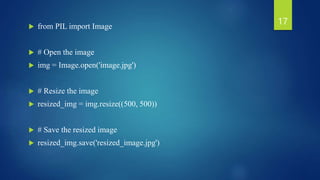
 1. Using the PIL (Python Imaging Library) module: The PIL module
is a popular library for working with images in Python. To resize an
image using PIL, you can use the resize() method, which takes the
desired width and height as arguments. Here is an example:
16
 from PIL import Image
 # Open the image
 img = Image.open('image.jpg')
 # Resize the image
 resized_img = img.resize((500, 500))
 # Save the resized image
 resized_img.save('resized_image.jpg')
17
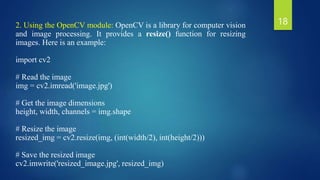
2. Using the OpenCV module: OpenCV is a library for computer vision
and image processing. It provides a resize() function for resizing
images. Here is an example:
import cv2
# Read the image
img = cv2.imread('image.jpg')
# Get the image dimensions
height, width, channels = img.shape
# Resize the image
resized_img = cv2.resize(img, (int(width/2), int(height/2)))
# Save the resized image
cv2.imwrite('resized_image.jpg', resized_img)
18
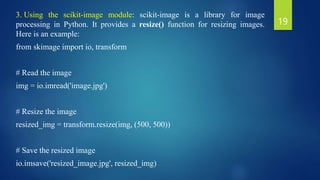
3. Using the scikit-image module: scikit-image is a library for image
processing in Python. It provides a resize() function for resizing images.
Here is an example:
from skimage import io, transform
# Read the image
img = io.imread('image.jpg')
# Resize the image
resized_img = transform.resize(img, (500, 500))
# Save the resized image
io.imsave('resized_image.jpg', resized_img)
19
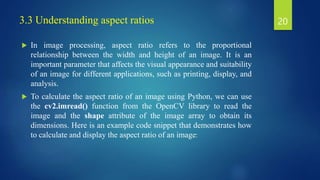
3.3 Understanding aspect ratios
 In image processing, aspect ratio refers to the proportional
relationship between the width and height of an image. It is an
important parameter that affects the visual appearance and suitability
of an image for different applications, such as printing, display, and
analysis.
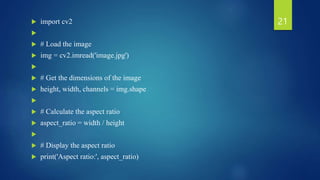
 To calculate the aspect ratio of an image using Python, we can use
the cv2.imread() function from the OpenCV library to read the
image and the shape attribute of the image array to obtain its
dimensions. Here is an example code snippet that demonstrates how
to calculate and display the aspect ratio of an image:
20
 import cv2

 # Load the image
 img = cv2.imread('image.jpg')

 # Get the dimensions of the image
 height, width, channels = img.shape

 # Calculate the aspect ratio
 aspect_ratio = width / height

 # Display the aspect ratio
 print('Aspect ratio:', aspect_ratio)
21
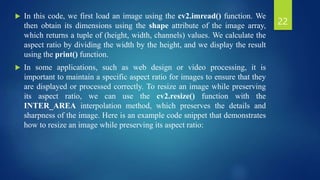
 In this code, we first load an image using the cv2.imread() function. We
then obtain its dimensions using the shape attribute of the image array,
which returns a tuple of (height, width, channels) values. We calculate the
aspect ratio by dividing the width by the height, and we display the result
using the print() function.
 In some applications, such as web design or video processing, it is
important to maintain a specific aspect ratio for images to ensure that they
are displayed or processed correctly. To resize an image while preserving
its aspect ratio, we can use the cv2.resize() function with the
INTER_AREA interpolation method, which preserves the details and
sharpness of the image. Here is an example code snippet that demonstrates
how to resize an image while preserving its aspect ratio:
22
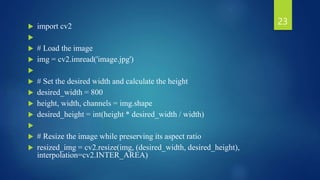
 import cv2

 # Load the image
 img = cv2.imread('image.jpg')

 # Set the desired width and calculate the height
 desired_width = 800
 height, width, channels = img.shape
 desired_height = int(height * desired_width / width)

 # Resize the image while preserving its aspect ratio
 resized_img = cv2.resize(img, (desired_width, desired_height),
interpolation=cv2.INTER_AREA)
23
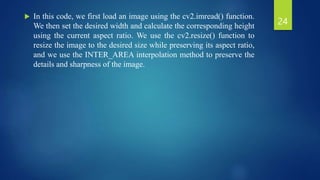
 In this code, we first load an image using the cv2.imread() function.
We then set the desired width and calculate the corresponding height
using the current aspect ratio. We use the cv2.resize() function to
resize the image to the desired size while preserving its aspect ratio,
and we use the INTER_AREA interpolation method to preserve the
details and sharpness of the image.
24
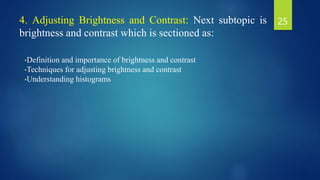
4. Adjusting Brightness and Contrast: Next subtopic is
brightness and contrast which is sectioned as:
•Definition and importance of brightness and contrast
•Techniques for adjusting brightness and contrast
•Understanding histograms
25
4.1 Definition and importance of brightness and contrast
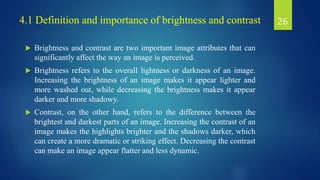
 Brightness and contrast are two important image attributes that can
significantly affect the way an image is perceived.
 Brightness refers to the overall lightness or darkness of an image.
Increasing the brightness of an image makes it appear lighter and
more washed out, while decreasing the brightness makes it appear
darker and more shadowy.
 Contrast, on the other hand, refers to the difference between the
brightest and darkest parts of an image. Increasing the contrast of an
image makes the highlights brighter and the shadows darker, which
can create a more dramatic or striking effect. Decreasing the contrast
can make an image appear flatter and less dynamic.
26
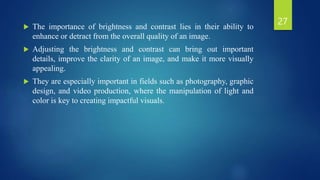
 The importance of brightness and contrast lies in their ability to
enhance or detract from the overall quality of an image.
 Adjusting the brightness and contrast can bring out important
details, improve the clarity of an image, and make it more visually
appealing.
 They are especially important in fields such as photography, graphic
design, and video production, where the manipulation of light and
color is key to creating impactful visuals.
27
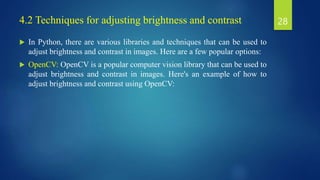
 In Python, there are various libraries and techniques that can be used to
adjust brightness and contrast in images. Here are a few popular options:
 OpenCV: OpenCV is a popular computer vision library that can be used to
adjust brightness and contrast in images. Here's an example of how to
adjust brightness and contrast using OpenCV:
28
4.2 Techniques for adjusting brightness and contrast
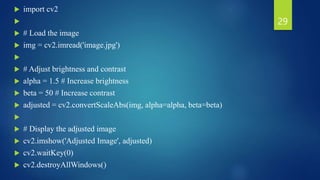
 import cv2

 # Load the image
 img = cv2.imread('image.jpg')

 # Adjust brightness and contrast
 alpha = 1.5 # Increase brightness
 beta = 50 # Increase contrast
 adjusted = cv2.convertScaleAbs(img, alpha=alpha, beta=beta)

 # Display the adjusted image
 cv2.imshow('Adjusted Image', adjusted)
 cv2.waitKey(0)
 cv2.destroyAllWindows()
29
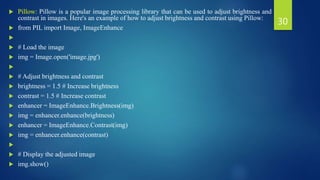
 Pillow: Pillow is a popular image processing library that can be used to adjust brightness and
contrast in images. Here's an example of how to adjust brightness and contrast using Pillow:
 from PIL import Image, ImageEnhance

 # Load the image
 img = Image.open('image.jpg')

 # Adjust brightness and contrast
 brightness = 1.5 # Increase brightness
 contrast = 1.5 # Increase contrast
 enhancer = ImageEnhance.Brightness(img)
 img = enhancer.enhance(brightness)
 enhancer = ImageEnhance.Contrast(img)
 img = enhancer.enhance(contrast)

 # Display the adjusted image
 img.show()
30
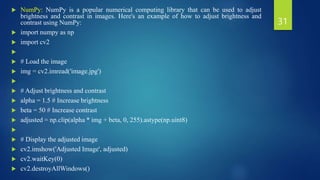
 NumPy: NumPy is a popular numerical computing library that can be used to adjust
brightness and contrast in images. Here's an example of how to adjust brightness and
contrast using NumPy:
 import numpy as np
 import cv2

 # Load the image
 img = cv2.imread('image.jpg')

 # Adjust brightness and contrast
 alpha = 1.5 # Increase brightness
 beta = 50 # Increase contrast
 adjusted = np.clip(alpha * img + beta, 0, 255).astype(np.uint8)

 # Display the adjusted image
 cv2.imshow('Adjusted Image', adjusted)
 cv2.waitKey(0)
 cv2.destroyAllWindows()
31
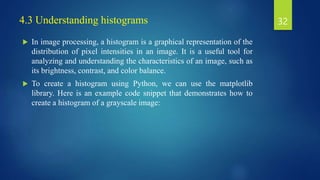
4.3 Understanding histograms
 In image processing, a histogram is a graphical representation of the
distribution of pixel intensities in an image. It is a useful tool for
analyzing and understanding the characteristics of an image, such as
its brightness, contrast, and color balance.
 To create a histogram using Python, we can use the matplotlib
library. Here is an example code snippet that demonstrates how to
create a histogram of a grayscale image:
32
 import cv2
 import matplotlib.pyplot as plt
 # Load the image
 img = cv2.imread('image.jpg', 0)
 # Calculate the histogram
 hist, bins = np.histogram(img.ravel(), 256, [0,256])
 # Plot the histogram
 plt.hist(img.ravel(), 256, [0, 256])
 plt.show()
33
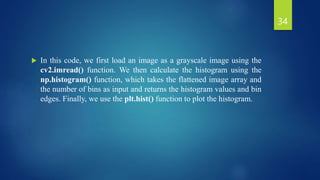
 In this code, we first load an image as a grayscale image using the
cv2.imread() function. We then calculate the histogram using the
np.histogram() function, which takes the flattened image array and
the number of bins as input and returns the histogram values and bin
edges. Finally, we use the plt.hist() function to plot the histogram.
34
 To create a histogram of a color image, we can convert the image to
a grayscale image first using the cv2.cvtColor() function. We can
also create separate histograms for each color channel using the
cv2.split() function and plot them separately using different colors.
 Histograms can provide useful insights into the characteristics of an
image, such as the brightness and contrast distribution, the presence
of shadows or highlights, and the color balance. They can also be
used for image processing tasks, such as histogram equalization,
thresholding, and color correction.
35
5. Color Adjustments: Next subtopic is color adjustment
with the following activities:
•Definition and importance of color adjustments
•Techniques for adjusting color
•Understanding color balance, saturation, and hue
36
5.1 Definition and importance of color adjustments
 Color adjustments refer to the process of modifying the colors of an
image or video to improve its visual appeal or to correct any issues
with color balance or accuracy. Color adjustments can be done
through various software tools and techniques such as color grading,
color correction, and white balance adjustments.
 Color adjustments are important because they can significantly
impact the overall quality and perception of an image or video.
Poorly balanced colors can make an image look dull, washed out, or
overly saturated, while accurate color adjustments can enhance the
visual appeal and evoke specific emotions or moods. For example, a
warm color palette with yellows and oranges can create a cozy and
inviting atmosphere, while a cooler palette with blues and greens can
evoke a calming and peaceful effect.
37
5.2 Techniques for adjusting color
 Python provides several libraries that can be used to adjust colors in
images, such as OpenCV, Pillow, and scikit-image. Here are some
techniques for adjusting color in Python:
 1. Changing brightness and contrast: To adjust the brightness and
contrast of an image in Python, you can use the OpenCV or Pillow
library. For example, to increase the brightness of an image using
OpenCV, you can use the cv2.add() function, and to adjust the
contrast, you can use the cv2.convertScaleAbs() function.
 2. Color correction: To perform color correction in Python, you
can use the scikit-image library. This library provides various
functions to adjust the white balance, exposure, and color cast of an
image. For example, to adjust the white balance of an image, you
can use the color_temp() function.
38
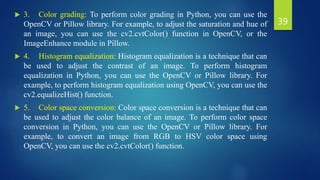
 3. Color grading: To perform color grading in Python, you can use the
OpenCV or Pillow library. For example, to adjust the saturation and hue of
an image, you can use the cv2.cvtColor() function in OpenCV, or the
ImageEnhance module in Pillow.
 4. Histogram equalization: Histogram equalization is a technique that can
be used to adjust the contrast of an image. To perform histogram
equalization in Python, you can use the OpenCV or Pillow library. For
example, to perform histogram equalization using OpenCV, you can use the
cv2.equalizeHist() function.
 5. Color space conversion: Color space conversion is a technique that can
be used to adjust the color balance of an image. To perform color space
conversion in Python, you can use the OpenCV or Pillow library. For
example, to convert an image from RGB to HSV color space using
OpenCV, you can use the cv2.cvtColor() function.
39
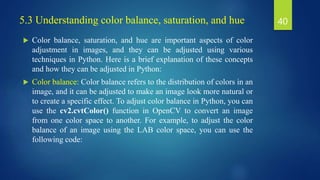
5.3 Understanding color balance, saturation, and hue
 Color balance, saturation, and hue are important aspects of color
adjustment in images, and they can be adjusted using various
techniques in Python. Here is a brief explanation of these concepts
and how they can be adjusted in Python:
 Color balance: Color balance refers to the distribution of colors in an
image, and it can be adjusted to make an image look more natural or
to create a specific effect. To adjust color balance in Python, you can
use the cv2.cvtColor() function in OpenCV to convert an image
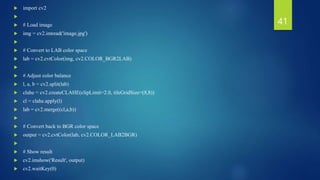
from one color space to another. For example, to adjust the color
balance of an image using the LAB color space, you can use the
following code:
40
 import cv2

 # Load image
 img = cv2.imread('image.jpg')

 # Convert to LAB color space
 lab = cv2.cvtColor(img, cv2.COLOR_BGR2LAB)

 # Adjust color balance
 l, a, b = cv2.split(lab)
 clahe = cv2.createCLAHE(clipLimit=2.0, tileGridSize=(8,8))
 cl = clahe.apply(l)
 lab = cv2.merge((cl,a,b))

 # Convert back to BGR color space
 output = cv2.cvtColor(lab, cv2.COLOR_LAB2BGR)

 # Show result
 cv2.imshow('Result', output)
 cv2.waitKey(0)
41
 This code adjusts the color balance of an image using Contrast
Limited Adaptive Histogram Equalization (CLAHE) in the LAB
color space.
 Saturation: Saturation refers to the intensity of colors in an image,
and it can be adjusted to make an image look more or less vivid. To
adjust saturation in Python, you can use the cv2.cvtColor() function
in OpenCV to convert an image from one color space to another, and
then adjust the saturation channel. For example, to increase the
saturation of an image using the HLS color space, you can use the
following code:
42
 import cv2
 import numpy as np

 # Load image
 img = cv2.imread('image.jpg')

 # Convert to HLS color space
 hls = cv2.cvtColor(img, cv2.COLOR_BGR2HLS)

 # Increase saturation
 hls[:,:,2] = np.clip(hls[:,:,2]*1.5, 0, 255).astype(np.uint8)

 # Convert back to BGR color space
 output = cv2.cvtColor(hls, cv2.COLOR_HLS2BGR)

 # Show result
 cv2.imshow('Result', output)
 cv2.waitKey(0)
43
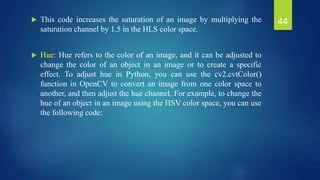
 This code increases the saturation of an image by multiplying the
saturation channel by 1.5 in the HLS color space.
 Hue: Hue refers to the color of an image, and it can be adjusted to
change the color of an object in an image or to create a specific
effect. To adjust hue in Python, you can use the cv2.cvtColor()
function in OpenCV to convert an image from one color space to
another, and then adjust the hue channel. For example, to change the
hue of an object in an image using the HSV color space, you can use
the following code:
44
 import cv2
 import numpy as np
 # Load image
 img = cv2.imread('image.jpg')
 # Convert to HSV color space
 hsv = cv2.cvtColor(img, cv2.COLOR_BGR2HSV)
 # Change hue of red objects
 lower_red = np.array([0, 100, 100])
 upper_red = np.array([10, 255, 255])
 mask = cv2.inRange(hsv, lower_red, upper_red)
 hsv[:,:,0] = np.where(mask>0, hsv[:,:,0]+50, hsv[:,:,0])
 # Convert back to B
45
6. Conclusion
 In conclusion, basic image manipulation and enhancement
techniques are essential for various image processing applications,
including digital photography, computer vision, and graphic design.
These techniques allow us to resize, crop, rotate, flip, adjust
brightness and contrast, color balance, and apply different types of
filters to images. Additionally, restoration techniques enable us to
repair damaged or degraded images, and adding text and watermarks
allows us to brand, identify, or communicate information on top of
the original image. The implementation of these techniques can be
done using different programming languages and libraries, such as
Python and OpenCV, MATLAB, or Adobe Photoshop.
Understanding these techniques is crucial for anyone interested in
image processing, as they provide a solid foundation for more
advanced techniques and applications.
46
7. Outcomes
 The outcomes of basic image manipulation and enhancement
techniques can vary depending on the specific technique used and
the desired result. Some of the common outcomes are:
 1. Improved visibility: Techniques such as brightness and contrast
adjustment, color correction, and filtering can improve the visibility
of an image by making it brighter, clearer, and more vibrant.
 2. Better composition: Cropping and resizing techniques can
improve the composition of an image by removing unwanted
elements or focusing on the most important parts.
 3. Corrected flaws: Techniques such as restoration can correct
flaws in an image, such as scratches, artifacts, or noise.
 4. Enhanced aesthetics: Techniques such as adding text or
watermarks can enhance the aesthetics of an image by adding
branding or communicating information.
47
 Pre-processing for further analysis: Basic image manipulation and
enhancement techniques are often used as pre-processing steps for
further image analysis tasks, such as object detection, recognition, or
segmentation.
 Overall, the outcomes of basic image manipulation and enhancement
techniques can result in an image that is more visually appealing,
easier to interpret, and better suited for further analysis or
communication.
48
Thank You
49

Topic 1_PPT.pptx

  • 1.
    Swayam Course Proposal on ImageProcessing Using Python COURSE COORDINATOR COURSE CO-COORDINATOR DR. DIPTI VERMA MRS. BHARATI PATEL I/C ACADEMICS, ASSITANT PROFESSOR ASSISTANT PROFESSOR UTD, CSVTU, BHILAI (CG) UTD, CSVTU, BHILAI (CG)
  • 2.
     Hello andWelcome to everyone. My name is Bharati Patel, Assistant Professor from university teaching department, CSVTU, Bhilai. I am one of the co- coordinators of this Python-based Image Processing course. Image manipulation and enhancement techniques are my theme for today. So let's begin with a brief synopsis of the lecture that is broken down into outlines. 2
  • 3.
    Outlines: Outlines arelisted as:  1. Introduction  2. Image Formats  3. Cropping and Resizing  4. Adjusting Brightness and Contrast  5. Color Adjustments  6. Conclusion  7. Outcomes 3
  • 4.
    1. Introduction: Movingforward towards the introduction which is separated with two subsections listed as: •Definition of basic image manipulation and enhancement techniques. •Importance of image manipulation and enhancement. 4
  • 5.
     Basic imagemanipulation and enhancement techniques refer to the process of modifying digital images to improve their quality or appearance.  These techniques involve making adjustments to an image's color, contrast, brightness, sharpness, size, and other aspects to improve its visual appeal or to meet specific requirements as shown in Figure 1.  These techniques are important tools for photographers, graphic designers, and other professionals who work with digital images. 5
  • 6.
    Figure 1: Sharpening(OpenCV with Python) 6
  • 7.
     Image manipulationand enhancement are important because they allow individuals and organizations to improve the visual quality of their images, whether it's for personal or professional use. Here are some specific reasons why image manipulation and enhancement are important:  1. Improving image quality.  2. Removing unwanted elements.  3. Highlighting specific features.  4. Creating a consistent visual identity.  5. Meeting specific requirements. 7
  • 8.
    2. Image Formats:Next is image formats which is listed as: •Overview of different image formats •Understanding image resolution and color modes 8
  • 9.
    2.1 Different imageformats: There are several different image formats available for storing digital images. Each format has its own unique features and is designed for specific uses. Here is an overview of some of the most common image formats:  JPEG (Joint Photographic Experts Group)  PNG (Portable Network Graphics)  GIF (Graphics Interchange Format)  TIFF (Tagged Image File Format)  BMP (Bitmap)  RAW: RAW is an uncompressed image format as shown in Figure 2. 9
  • 10.
    Figure 2: DifferentImage Formats 10
  • 11.
    2.2 Understanding imageresolution and color modes  Image resolution and color modes are important concepts in digital imaging. Here's a brief explanation of each:  Image resolution: Image resolution refers to the number of pixels (picture elements) that make up an image. The resolution is usually expressed as the number of pixels per unit of length (such as pixels per inch or PPI). Higher resolutions result in more detailed and sharper images, while lower resolutions may appear blurry or pixelated.  Color modes: Color modes determine the range and number of colors that can be used in an image. The most common color modes are RGB (red, green, blue) and CMYK (cyan, magenta, yellow, black). RGB is used for digital images and displays, while CMYK is used for print. Other color modes include grayscale, indexed color, and Lab color. 11
  • 12.
     Understanding imageresolution and color modes is important for ensuring that images are optimized for their intended use. For example, images intended for print should have a higher resolution and be in CMYK color mode, while images intended for digital use may have a lower resolution and be in RGB color mode.  In Python, image resolution and color modes can be manipulated using libraries such as Pillow, which provides tools for resizing images and converting between color modes. 12
  • 13.
    3. Cropping andResizing: next subtopic is cropping and resizing, which is listed with following sub points: •Definition and importance of cropping •Techniques for resizing images •Understanding aspect ratios 13
  • 14.
     Cropping isthe process of removing unwanted areas from an image by selecting a specific portion of the image and discarding the rest as shown in Figure 3. This is typically done to improve the composition of the image or to remove distracting elements.  Cropping is an important technique in image editing because it can help to improve the overall visual appeal of an image. By removing unwanted elements, a cropped image can focus the viewer's attention on the most important parts of the image. This can also help to improve the image's balance and symmetry, making it more aesthetically pleasing. 3.1 Definition and importance of cropping 14
  • 15.
    Figure 3: CroppingAn Image 15
  • 16.
    3.2 Techniques forresizing images  Resizing an image in Python involves adjusting its dimensions, either to make it larger or smaller. Here are some techniques for resizing images using Python:  1. Using the PIL (Python Imaging Library) module: The PIL module is a popular library for working with images in Python. To resize an image using PIL, you can use the resize() method, which takes the desired width and height as arguments. Here is an example: 16
  • 17.
     from PILimport Image  # Open the image  img = Image.open('image.jpg')  # Resize the image  resized_img = img.resize((500, 500))  # Save the resized image  resized_img.save('resized_image.jpg') 17
  • 18.
    2. Using theOpenCV module: OpenCV is a library for computer vision and image processing. It provides a resize() function for resizing images. Here is an example: import cv2 # Read the image img = cv2.imread('image.jpg') # Get the image dimensions height, width, channels = img.shape # Resize the image resized_img = cv2.resize(img, (int(width/2), int(height/2))) # Save the resized image cv2.imwrite('resized_image.jpg', resized_img) 18
  • 19.
    3. Using thescikit-image module: scikit-image is a library for image processing in Python. It provides a resize() function for resizing images. Here is an example: from skimage import io, transform # Read the image img = io.imread('image.jpg') # Resize the image resized_img = transform.resize(img, (500, 500)) # Save the resized image io.imsave('resized_image.jpg', resized_img) 19
  • 20.
    3.3 Understanding aspectratios  In image processing, aspect ratio refers to the proportional relationship between the width and height of an image. It is an important parameter that affects the visual appearance and suitability of an image for different applications, such as printing, display, and analysis.  To calculate the aspect ratio of an image using Python, we can use the cv2.imread() function from the OpenCV library to read the image and the shape attribute of the image array to obtain its dimensions. Here is an example code snippet that demonstrates how to calculate and display the aspect ratio of an image: 20
  • 21.
     import cv2  # Load the image  img = cv2.imread('image.jpg')   # Get the dimensions of the image  height, width, channels = img.shape   # Calculate the aspect ratio  aspect_ratio = width / height   # Display the aspect ratio  print('Aspect ratio:', aspect_ratio) 21
  • 22.
     In thiscode, we first load an image using the cv2.imread() function. We then obtain its dimensions using the shape attribute of the image array, which returns a tuple of (height, width, channels) values. We calculate the aspect ratio by dividing the width by the height, and we display the result using the print() function.  In some applications, such as web design or video processing, it is important to maintain a specific aspect ratio for images to ensure that they are displayed or processed correctly. To resize an image while preserving its aspect ratio, we can use the cv2.resize() function with the INTER_AREA interpolation method, which preserves the details and sharpness of the image. Here is an example code snippet that demonstrates how to resize an image while preserving its aspect ratio: 22
  • 23.
     import cv2  # Load the image  img = cv2.imread('image.jpg')   # Set the desired width and calculate the height  desired_width = 800  height, width, channels = img.shape  desired_height = int(height * desired_width / width)   # Resize the image while preserving its aspect ratio  resized_img = cv2.resize(img, (desired_width, desired_height), interpolation=cv2.INTER_AREA) 23
  • 24.
     In thiscode, we first load an image using the cv2.imread() function. We then set the desired width and calculate the corresponding height using the current aspect ratio. We use the cv2.resize() function to resize the image to the desired size while preserving its aspect ratio, and we use the INTER_AREA interpolation method to preserve the details and sharpness of the image. 24
  • 25.
    4. Adjusting Brightnessand Contrast: Next subtopic is brightness and contrast which is sectioned as: •Definition and importance of brightness and contrast •Techniques for adjusting brightness and contrast •Understanding histograms 25
  • 26.
    4.1 Definition andimportance of brightness and contrast  Brightness and contrast are two important image attributes that can significantly affect the way an image is perceived.  Brightness refers to the overall lightness or darkness of an image. Increasing the brightness of an image makes it appear lighter and more washed out, while decreasing the brightness makes it appear darker and more shadowy.  Contrast, on the other hand, refers to the difference between the brightest and darkest parts of an image. Increasing the contrast of an image makes the highlights brighter and the shadows darker, which can create a more dramatic or striking effect. Decreasing the contrast can make an image appear flatter and less dynamic. 26
  • 27.
     The importanceof brightness and contrast lies in their ability to enhance or detract from the overall quality of an image.  Adjusting the brightness and contrast can bring out important details, improve the clarity of an image, and make it more visually appealing.  They are especially important in fields such as photography, graphic design, and video production, where the manipulation of light and color is key to creating impactful visuals. 27
  • 28.
     In Python,there are various libraries and techniques that can be used to adjust brightness and contrast in images. Here are a few popular options:  OpenCV: OpenCV is a popular computer vision library that can be used to adjust brightness and contrast in images. Here's an example of how to adjust brightness and contrast using OpenCV: 28 4.2 Techniques for adjusting brightness and contrast
  • 29.
     import cv2  # Load the image  img = cv2.imread('image.jpg')   # Adjust brightness and contrast  alpha = 1.5 # Increase brightness  beta = 50 # Increase contrast  adjusted = cv2.convertScaleAbs(img, alpha=alpha, beta=beta)   # Display the adjusted image  cv2.imshow('Adjusted Image', adjusted)  cv2.waitKey(0)  cv2.destroyAllWindows() 29
  • 30.
     Pillow: Pillowis a popular image processing library that can be used to adjust brightness and contrast in images. Here's an example of how to adjust brightness and contrast using Pillow:  from PIL import Image, ImageEnhance   # Load the image  img = Image.open('image.jpg')   # Adjust brightness and contrast  brightness = 1.5 # Increase brightness  contrast = 1.5 # Increase contrast  enhancer = ImageEnhance.Brightness(img)  img = enhancer.enhance(brightness)  enhancer = ImageEnhance.Contrast(img)  img = enhancer.enhance(contrast)   # Display the adjusted image  img.show() 30
  • 31.
     NumPy: NumPyis a popular numerical computing library that can be used to adjust brightness and contrast in images. Here's an example of how to adjust brightness and contrast using NumPy:  import numpy as np  import cv2   # Load the image  img = cv2.imread('image.jpg')   # Adjust brightness and contrast  alpha = 1.5 # Increase brightness  beta = 50 # Increase contrast  adjusted = np.clip(alpha * img + beta, 0, 255).astype(np.uint8)   # Display the adjusted image  cv2.imshow('Adjusted Image', adjusted)  cv2.waitKey(0)  cv2.destroyAllWindows() 31
  • 32.
    4.3 Understanding histograms In image processing, a histogram is a graphical representation of the distribution of pixel intensities in an image. It is a useful tool for analyzing and understanding the characteristics of an image, such as its brightness, contrast, and color balance.  To create a histogram using Python, we can use the matplotlib library. Here is an example code snippet that demonstrates how to create a histogram of a grayscale image: 32
  • 33.
     import cv2 import matplotlib.pyplot as plt  # Load the image  img = cv2.imread('image.jpg', 0)  # Calculate the histogram  hist, bins = np.histogram(img.ravel(), 256, [0,256])  # Plot the histogram  plt.hist(img.ravel(), 256, [0, 256])  plt.show() 33
  • 34.
     In thiscode, we first load an image as a grayscale image using the cv2.imread() function. We then calculate the histogram using the np.histogram() function, which takes the flattened image array and the number of bins as input and returns the histogram values and bin edges. Finally, we use the plt.hist() function to plot the histogram. 34
  • 35.
     To createa histogram of a color image, we can convert the image to a grayscale image first using the cv2.cvtColor() function. We can also create separate histograms for each color channel using the cv2.split() function and plot them separately using different colors.  Histograms can provide useful insights into the characteristics of an image, such as the brightness and contrast distribution, the presence of shadows or highlights, and the color balance. They can also be used for image processing tasks, such as histogram equalization, thresholding, and color correction. 35
  • 36.
    5. Color Adjustments:Next subtopic is color adjustment with the following activities: •Definition and importance of color adjustments •Techniques for adjusting color •Understanding color balance, saturation, and hue 36
  • 37.
    5.1 Definition andimportance of color adjustments  Color adjustments refer to the process of modifying the colors of an image or video to improve its visual appeal or to correct any issues with color balance or accuracy. Color adjustments can be done through various software tools and techniques such as color grading, color correction, and white balance adjustments.  Color adjustments are important because they can significantly impact the overall quality and perception of an image or video. Poorly balanced colors can make an image look dull, washed out, or overly saturated, while accurate color adjustments can enhance the visual appeal and evoke specific emotions or moods. For example, a warm color palette with yellows and oranges can create a cozy and inviting atmosphere, while a cooler palette with blues and greens can evoke a calming and peaceful effect. 37
  • 38.
    5.2 Techniques foradjusting color  Python provides several libraries that can be used to adjust colors in images, such as OpenCV, Pillow, and scikit-image. Here are some techniques for adjusting color in Python:  1. Changing brightness and contrast: To adjust the brightness and contrast of an image in Python, you can use the OpenCV or Pillow library. For example, to increase the brightness of an image using OpenCV, you can use the cv2.add() function, and to adjust the contrast, you can use the cv2.convertScaleAbs() function.  2. Color correction: To perform color correction in Python, you can use the scikit-image library. This library provides various functions to adjust the white balance, exposure, and color cast of an image. For example, to adjust the white balance of an image, you can use the color_temp() function. 38
  • 39.
     3. Colorgrading: To perform color grading in Python, you can use the OpenCV or Pillow library. For example, to adjust the saturation and hue of an image, you can use the cv2.cvtColor() function in OpenCV, or the ImageEnhance module in Pillow.  4. Histogram equalization: Histogram equalization is a technique that can be used to adjust the contrast of an image. To perform histogram equalization in Python, you can use the OpenCV or Pillow library. For example, to perform histogram equalization using OpenCV, you can use the cv2.equalizeHist() function.  5. Color space conversion: Color space conversion is a technique that can be used to adjust the color balance of an image. To perform color space conversion in Python, you can use the OpenCV or Pillow library. For example, to convert an image from RGB to HSV color space using OpenCV, you can use the cv2.cvtColor() function. 39
  • 40.
    5.3 Understanding colorbalance, saturation, and hue  Color balance, saturation, and hue are important aspects of color adjustment in images, and they can be adjusted using various techniques in Python. Here is a brief explanation of these concepts and how they can be adjusted in Python:  Color balance: Color balance refers to the distribution of colors in an image, and it can be adjusted to make an image look more natural or to create a specific effect. To adjust color balance in Python, you can use the cv2.cvtColor() function in OpenCV to convert an image from one color space to another. For example, to adjust the color balance of an image using the LAB color space, you can use the following code: 40
  • 41.
     import cv2  # Load image  img = cv2.imread('image.jpg')   # Convert to LAB color space  lab = cv2.cvtColor(img, cv2.COLOR_BGR2LAB)   # Adjust color balance  l, a, b = cv2.split(lab)  clahe = cv2.createCLAHE(clipLimit=2.0, tileGridSize=(8,8))  cl = clahe.apply(l)  lab = cv2.merge((cl,a,b))   # Convert back to BGR color space  output = cv2.cvtColor(lab, cv2.COLOR_LAB2BGR)   # Show result  cv2.imshow('Result', output)  cv2.waitKey(0) 41
  • 42.
     This codeadjusts the color balance of an image using Contrast Limited Adaptive Histogram Equalization (CLAHE) in the LAB color space.  Saturation: Saturation refers to the intensity of colors in an image, and it can be adjusted to make an image look more or less vivid. To adjust saturation in Python, you can use the cv2.cvtColor() function in OpenCV to convert an image from one color space to another, and then adjust the saturation channel. For example, to increase the saturation of an image using the HLS color space, you can use the following code: 42
  • 43.
     import cv2 import numpy as np   # Load image  img = cv2.imread('image.jpg')   # Convert to HLS color space  hls = cv2.cvtColor(img, cv2.COLOR_BGR2HLS)   # Increase saturation  hls[:,:,2] = np.clip(hls[:,:,2]*1.5, 0, 255).astype(np.uint8)   # Convert back to BGR color space  output = cv2.cvtColor(hls, cv2.COLOR_HLS2BGR)   # Show result  cv2.imshow('Result', output)  cv2.waitKey(0) 43
  • 44.
     This codeincreases the saturation of an image by multiplying the saturation channel by 1.5 in the HLS color space.  Hue: Hue refers to the color of an image, and it can be adjusted to change the color of an object in an image or to create a specific effect. To adjust hue in Python, you can use the cv2.cvtColor() function in OpenCV to convert an image from one color space to another, and then adjust the hue channel. For example, to change the hue of an object in an image using the HSV color space, you can use the following code: 44
  • 45.
     import cv2 import numpy as np  # Load image  img = cv2.imread('image.jpg')  # Convert to HSV color space  hsv = cv2.cvtColor(img, cv2.COLOR_BGR2HSV)  # Change hue of red objects  lower_red = np.array([0, 100, 100])  upper_red = np.array([10, 255, 255])  mask = cv2.inRange(hsv, lower_red, upper_red)  hsv[:,:,0] = np.where(mask>0, hsv[:,:,0]+50, hsv[:,:,0])  # Convert back to B 45
  • 46.
    6. Conclusion  Inconclusion, basic image manipulation and enhancement techniques are essential for various image processing applications, including digital photography, computer vision, and graphic design. These techniques allow us to resize, crop, rotate, flip, adjust brightness and contrast, color balance, and apply different types of filters to images. Additionally, restoration techniques enable us to repair damaged or degraded images, and adding text and watermarks allows us to brand, identify, or communicate information on top of the original image. The implementation of these techniques can be done using different programming languages and libraries, such as Python and OpenCV, MATLAB, or Adobe Photoshop. Understanding these techniques is crucial for anyone interested in image processing, as they provide a solid foundation for more advanced techniques and applications. 46
  • 47.
    7. Outcomes  Theoutcomes of basic image manipulation and enhancement techniques can vary depending on the specific technique used and the desired result. Some of the common outcomes are:  1. Improved visibility: Techniques such as brightness and contrast adjustment, color correction, and filtering can improve the visibility of an image by making it brighter, clearer, and more vibrant.  2. Better composition: Cropping and resizing techniques can improve the composition of an image by removing unwanted elements or focusing on the most important parts.  3. Corrected flaws: Techniques such as restoration can correct flaws in an image, such as scratches, artifacts, or noise.  4. Enhanced aesthetics: Techniques such as adding text or watermarks can enhance the aesthetics of an image by adding branding or communicating information. 47
  • 48.
     Pre-processing forfurther analysis: Basic image manipulation and enhancement techniques are often used as pre-processing steps for further image analysis tasks, such as object detection, recognition, or segmentation.  Overall, the outcomes of basic image manipulation and enhancement techniques can result in an image that is more visually appealing, easier to interpret, and better suited for further analysis or communication. 48
  • 49.