Ring Documentation, Release 1.6
57.3 Using the QTextEdit Class
In this example we will use the QTextEdit Class
Load "guilib.ring"
New qApp {
win1 = new qWidget() {
setwindowtitle("QTextEdit Class")
setGeometry(100,100,500,500)
new qtextedit(win1) {
setGeometry(10,10,480,480)
}
show()
}
exec()
}
During the runtime we can paste rich text in the qtextedit widget
57.3. Using the QTextEdit Class 593
Ring Documentation, Release 1.6
57.4 Using the QListWidget Class
In this example we will use the QListWidget Class
Load "guilib.ring"
New qApp {
win1 = new qWidget() {
setGeometry(100,100,400,400)
list1 = new qlistwidget(win1) {
setGeometry(150,100,200,200)
alist = ["one","two","three","four","five"]
for x in alist additem(x) next
setcurrentrow(3,2)
win1.setwindowtitle("Items Count : " + count() )
}
57.4. Using the QListWidget Class 594
Ring Documentation, Release 1.6
btn1 = new qpushbutton(win1) {
setGeometry(10,200,100,30)
settext("selected item")
setclickevent("pWork()")
}
btn2 = new qpushbutton(win1) {
setGeometry(10,240,100,30)
settext("Delete item")
setclickevent("pWork2()")
}
show()
}
exec()
}
func pWork
btn1.settext(string(list1.currentrow()))
func pWork2
list1 {
takeitem(currentrow())
}
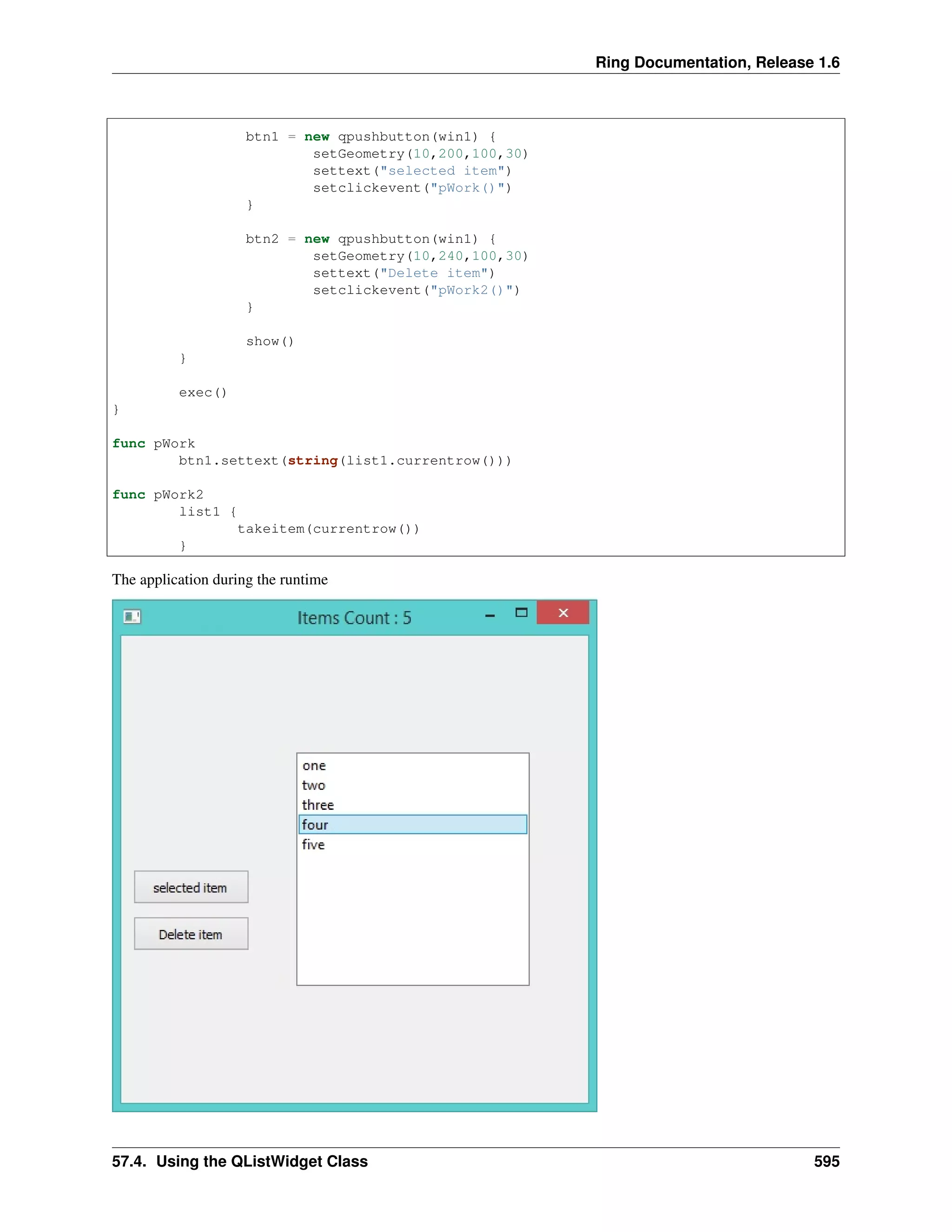
The application during the runtime
57.4. Using the QListWidget Class 595
Ring Documentation, Release 1.6
Another Example:
Load "guilib.ring"
New qApp {
win1 = new qWidget() {
setGeometry(100,100,500,400)
list1 = new qlistwidget(win1) {
setGeometry(150,100,200,200)
alist = ["one","two","three","four","five"]
for x in alist additem(x) next
setcurrentrow(3,2)
win1.setwindowtitle("Items Count : " + count() )
}
btn1 = new qpushbutton(win1) {
setGeometry(10,200,100,30)
settext("selected item")
setclickevent("pWork()")
}
btn2 = new qpushbutton(win1) {
setGeometry(10,240,100,30)
settext("Delete item")
setclickevent("pWork2()")
}
show()
}
exec()
}
func pWork
nbrOfItems = list1.count()
curItemNbr = list1.currentrow()
curValue = list1.item(list1.currentrow()).text()
win1.setwindowtitle( "After Select - NbrOfItems: " + nbrOfItems +
" CurItemNbr: " + curItemNbr + " CurValue: " + curValue )
btn1.settext( string(list1.currentrow() ) + " --- " +
list1.item(list1.currentrow()).text() )
func pWork2
list1 {
takeitem(currentrow())
nbrOfItems = count()
curItemNbr = currentrow()
curValue = item(currentrow()).text()
57.4. Using the QListWidget Class 596
Ring Documentation, Release 1.6
win1.setwindowtitle("After Delete - NbrOfItems: " + nbrOfItems +
" CurItemNbr: " + curItemNbr +" CurValue: " + curValue )
}
57.5 Using QTreeView and QFileSystemModel
In this example we will learn how to use the QTreeView widget to represent the File System
Load "guilib.ring"
New qApp {
win1 = New qWidget() {
setwindowtitle("Using QTreeView and QFileSystemModel")
setGeometry(100,100,500,400)
New qtreeview(win1) {
setGeometry(00,00,500,400)
oDir = new QDir()
ofile = new QFileSystemModel()
ofile.setrootpath(oDir.currentpath())
setmodel(ofile)
}
show()
}
exec()
}
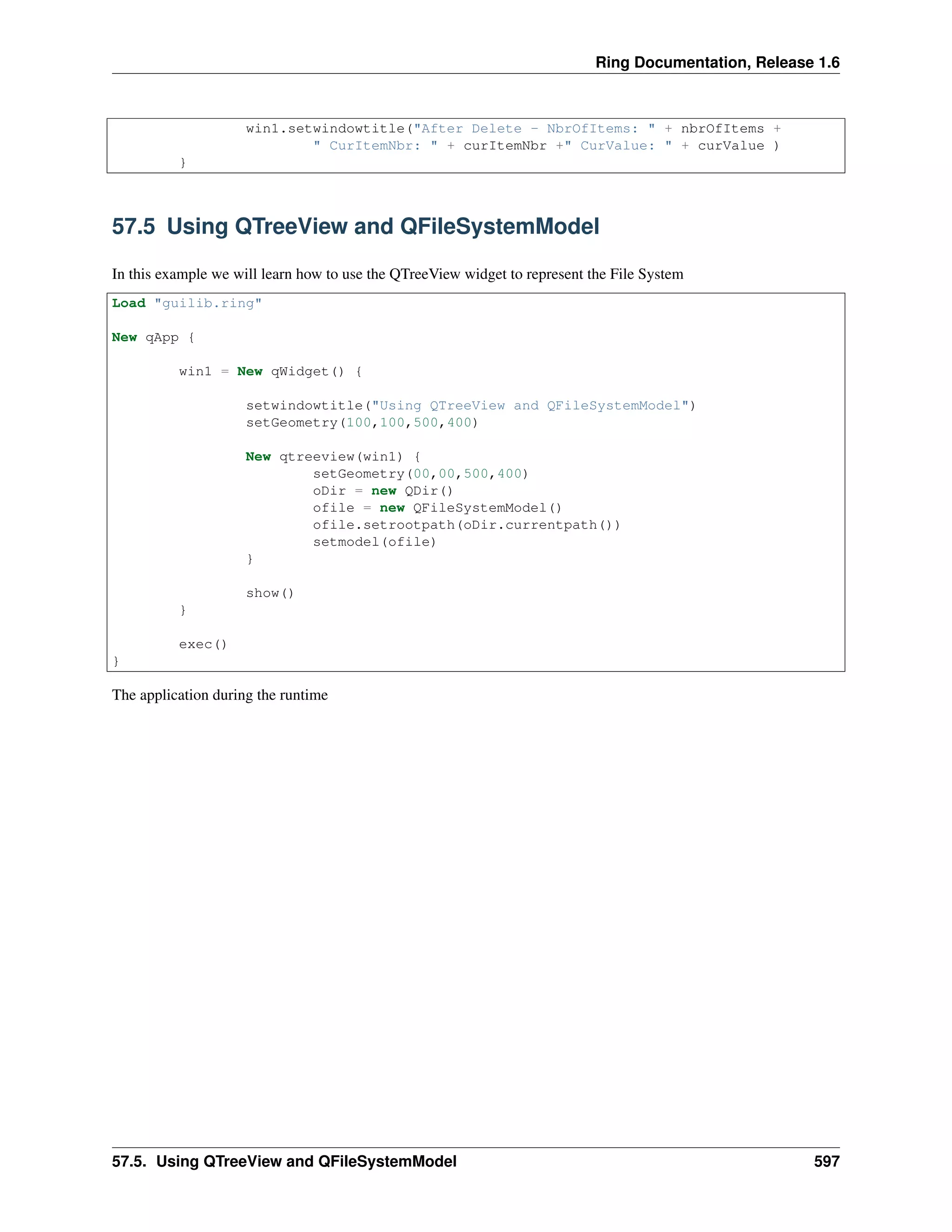
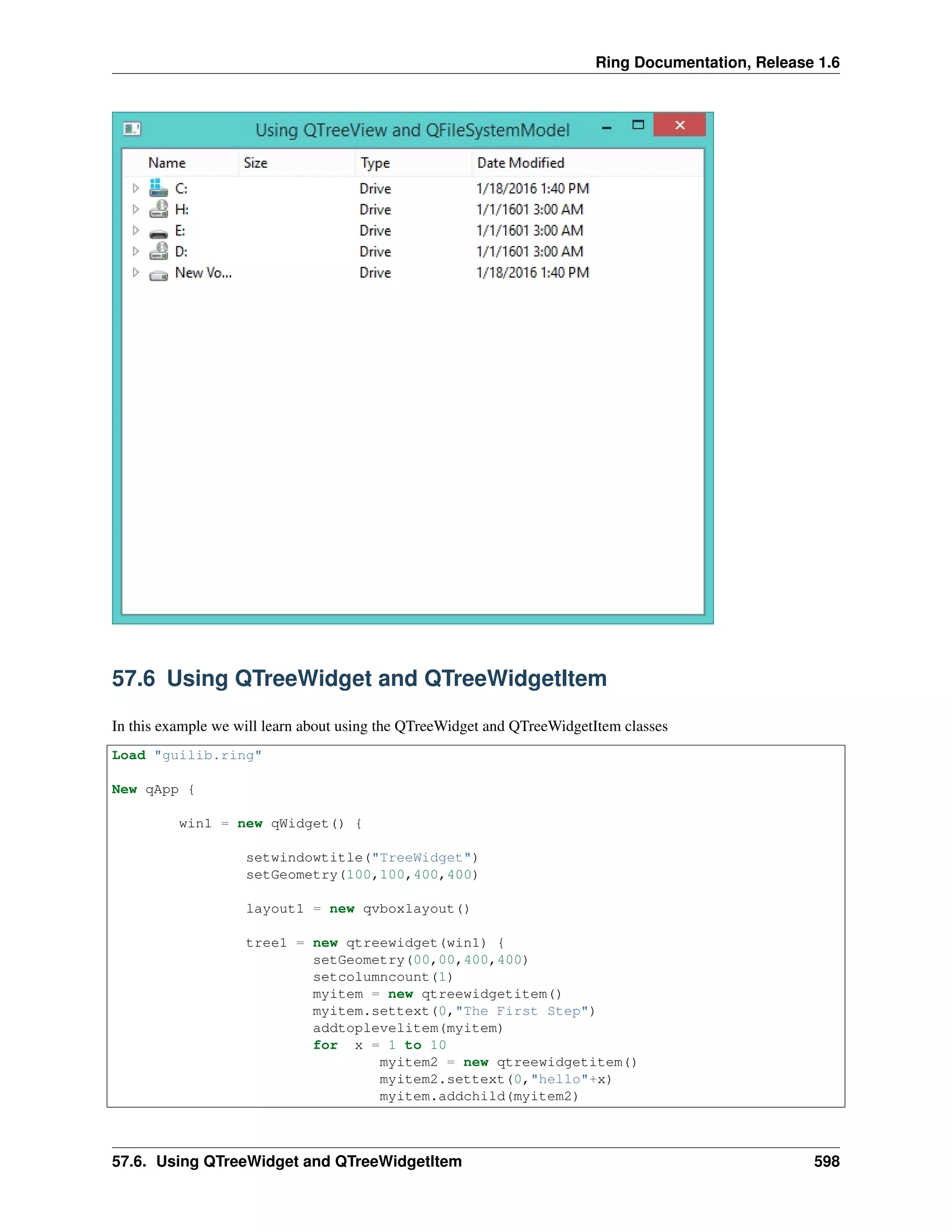
The application during the runtime
57.5. Using QTreeView and QFileSystemModel 597
Ring Documentation, Release 1.6
57.6 Using QTreeWidget and QTreeWidgetItem
In this example we will learn about using the QTreeWidget and QTreeWidgetItem classes
Load "guilib.ring"
New qApp {
win1 = new qWidget() {
setwindowtitle("TreeWidget")
setGeometry(100,100,400,400)
layout1 = new qvboxlayout()
tree1 = new qtreewidget(win1) {
setGeometry(00,00,400,400)
setcolumncount(1)
myitem = new qtreewidgetitem()
myitem.settext(0,"The First Step")
addtoplevelitem(myitem)
for x = 1 to 10
myitem2 = new qtreewidgetitem()
myitem2.settext(0,"hello"+x)
myitem.addchild(myitem2)
57.6. Using QTreeWidget and QTreeWidgetItem 598
Ring Documentation, Release 1.6
for y = 1 to 10
myitem3 = new qtreewidgetitem()
myitem3.settext(0,"hello"+x)
myitem2.addchild(myitem3)
next
next
setheaderlabel("Steps Tree")
}
layout1.addwidget(tree1)
setlayout(layout1)
show()
}
exec()
}
The application during the runtime
57.7 Using QComboBox Class
In this example we will learn about using the QComboBox class
57.7. Using QComboBox Class 599
Ring Documentation, Release 1.6
Load "guilib.ring"
New qApp {
win1 = new qWidget() {
setwindowtitle("Using QComboBox")
setGeometry(100,100,400,400)
New QComboBox(win1) {
setGeometry(150,100,200,30)
alist = ["one","two","three","four","five"]
for x in aList additem(x,0) next
}
show()
}
exec()
}
The application during the runtime
57.8 Creating Menubar
In this example we will learn about using the QMenuBar class
57.8. Creating Menubar 600
Ring Documentation, Release 1.6
Load "guilib.ring"
MyApp = New qApp {
win1 = new qWidget() {
setwindowtitle("Using QMenubar")
setGeometry(100,100,400,400)
menu1 = new qmenubar(win1) {
sub1 = addmenu("File")
sub2 = addmenu("Edit")
sub3 = addmenu("Help")
sub1 {
oAction = new qAction(win1) {
settext("New")
}
addaction(oAction)
oAction = new qAction(win1) {
settext("Open")
}
addaction(oAction)
oAction = new qAction(win1) {
settext("Save")
}
addaction(oAction)
oAction = new qAction(win1) {
settext("Save As")
}
addaction(oAction)
addseparator()
oAction = new qaction(win1) {
settext("Exit")
setclickevent("myapp.quit()")
}
addaction(oAction)
}
sub2 {
oAction = new qAction(win1) {
settext("Cut")
}
addaction(oAction)
oAction = new qAction(win1) {
settext("Copy")
}
addaction(oAction)
oAction = new qAction(win1) {
settext("Paste")
}
addaction(oAction)
addseparator()
oAction = new qAction(win1) {
settext("Select All")
}
addaction(oAction)
}
sub3 {
oAction = new qAction(win1) {
57.8. Creating Menubar 601
Ring Documentation, Release 1.6
settext("Reference")
}
addaction(oAction)
sub4 = addmenu("Sub Menu")
sub4 {
oAction = new qAction(win1) {
settext("Website")
}
addaction(oAction)
oAction = new qAction(win1) {
settext("Forum")
}
addaction(oAction)
oAction = new qAction(win1) {
settext("Blog")
}
addaction(oAction)
}
addseparator()
oAction = new qAction(win1) {
settext("About")
}
addaction(oAction)
}
}
show()
}
exec()
}
The application during the runtime
57.8. Creating Menubar 602

The Ring programming language version 1.6 book - Part 63 of 189

  • 1.
    Ring Documentation, Release1.6 57.3 Using the QTextEdit Class In this example we will use the QTextEdit Class Load "guilib.ring" New qApp { win1 = new qWidget() { setwindowtitle("QTextEdit Class") setGeometry(100,100,500,500) new qtextedit(win1) { setGeometry(10,10,480,480) } show() } exec() } During the runtime we can paste rich text in the qtextedit widget 57.3. Using the QTextEdit Class 593
  • 2.
    Ring Documentation, Release1.6 57.4 Using the QListWidget Class In this example we will use the QListWidget Class Load "guilib.ring" New qApp { win1 = new qWidget() { setGeometry(100,100,400,400) list1 = new qlistwidget(win1) { setGeometry(150,100,200,200) alist = ["one","two","three","four","five"] for x in alist additem(x) next setcurrentrow(3,2) win1.setwindowtitle("Items Count : " + count() ) } 57.4. Using the QListWidget Class 594
  • 3.
    Ring Documentation, Release1.6 btn1 = new qpushbutton(win1) { setGeometry(10,200,100,30) settext("selected item") setclickevent("pWork()") } btn2 = new qpushbutton(win1) { setGeometry(10,240,100,30) settext("Delete item") setclickevent("pWork2()") } show() } exec() } func pWork btn1.settext(string(list1.currentrow())) func pWork2 list1 { takeitem(currentrow()) } The application during the runtime 57.4. Using the QListWidget Class 595
  • 4.
    Ring Documentation, Release1.6 Another Example: Load "guilib.ring" New qApp { win1 = new qWidget() { setGeometry(100,100,500,400) list1 = new qlistwidget(win1) { setGeometry(150,100,200,200) alist = ["one","two","three","four","five"] for x in alist additem(x) next setcurrentrow(3,2) win1.setwindowtitle("Items Count : " + count() ) } btn1 = new qpushbutton(win1) { setGeometry(10,200,100,30) settext("selected item") setclickevent("pWork()") } btn2 = new qpushbutton(win1) { setGeometry(10,240,100,30) settext("Delete item") setclickevent("pWork2()") } show() } exec() } func pWork nbrOfItems = list1.count() curItemNbr = list1.currentrow() curValue = list1.item(list1.currentrow()).text() win1.setwindowtitle( "After Select - NbrOfItems: " + nbrOfItems + " CurItemNbr: " + curItemNbr + " CurValue: " + curValue ) btn1.settext( string(list1.currentrow() ) + " --- " + list1.item(list1.currentrow()).text() ) func pWork2 list1 { takeitem(currentrow()) nbrOfItems = count() curItemNbr = currentrow() curValue = item(currentrow()).text() 57.4. Using the QListWidget Class 596
  • 5.
    Ring Documentation, Release1.6 win1.setwindowtitle("After Delete - NbrOfItems: " + nbrOfItems + " CurItemNbr: " + curItemNbr +" CurValue: " + curValue ) } 57.5 Using QTreeView and QFileSystemModel In this example we will learn how to use the QTreeView widget to represent the File System Load "guilib.ring" New qApp { win1 = New qWidget() { setwindowtitle("Using QTreeView and QFileSystemModel") setGeometry(100,100,500,400) New qtreeview(win1) { setGeometry(00,00,500,400) oDir = new QDir() ofile = new QFileSystemModel() ofile.setrootpath(oDir.currentpath()) setmodel(ofile) } show() } exec() } The application during the runtime 57.5. Using QTreeView and QFileSystemModel 597
  • 6.
    Ring Documentation, Release1.6 57.6 Using QTreeWidget and QTreeWidgetItem In this example we will learn about using the QTreeWidget and QTreeWidgetItem classes Load "guilib.ring" New qApp { win1 = new qWidget() { setwindowtitle("TreeWidget") setGeometry(100,100,400,400) layout1 = new qvboxlayout() tree1 = new qtreewidget(win1) { setGeometry(00,00,400,400) setcolumncount(1) myitem = new qtreewidgetitem() myitem.settext(0,"The First Step") addtoplevelitem(myitem) for x = 1 to 10 myitem2 = new qtreewidgetitem() myitem2.settext(0,"hello"+x) myitem.addchild(myitem2) 57.6. Using QTreeWidget and QTreeWidgetItem 598
  • 7.
    Ring Documentation, Release1.6 for y = 1 to 10 myitem3 = new qtreewidgetitem() myitem3.settext(0,"hello"+x) myitem2.addchild(myitem3) next next setheaderlabel("Steps Tree") } layout1.addwidget(tree1) setlayout(layout1) show() } exec() } The application during the runtime 57.7 Using QComboBox Class In this example we will learn about using the QComboBox class 57.7. Using QComboBox Class 599
  • 8.
    Ring Documentation, Release1.6 Load "guilib.ring" New qApp { win1 = new qWidget() { setwindowtitle("Using QComboBox") setGeometry(100,100,400,400) New QComboBox(win1) { setGeometry(150,100,200,30) alist = ["one","two","three","four","five"] for x in aList additem(x,0) next } show() } exec() } The application during the runtime 57.8 Creating Menubar In this example we will learn about using the QMenuBar class 57.8. Creating Menubar 600
  • 9.
    Ring Documentation, Release1.6 Load "guilib.ring" MyApp = New qApp { win1 = new qWidget() { setwindowtitle("Using QMenubar") setGeometry(100,100,400,400) menu1 = new qmenubar(win1) { sub1 = addmenu("File") sub2 = addmenu("Edit") sub3 = addmenu("Help") sub1 { oAction = new qAction(win1) { settext("New") } addaction(oAction) oAction = new qAction(win1) { settext("Open") } addaction(oAction) oAction = new qAction(win1) { settext("Save") } addaction(oAction) oAction = new qAction(win1) { settext("Save As") } addaction(oAction) addseparator() oAction = new qaction(win1) { settext("Exit") setclickevent("myapp.quit()") } addaction(oAction) } sub2 { oAction = new qAction(win1) { settext("Cut") } addaction(oAction) oAction = new qAction(win1) { settext("Copy") } addaction(oAction) oAction = new qAction(win1) { settext("Paste") } addaction(oAction) addseparator() oAction = new qAction(win1) { settext("Select All") } addaction(oAction) } sub3 { oAction = new qAction(win1) { 57.8. Creating Menubar 601
  • 10.
    Ring Documentation, Release1.6 settext("Reference") } addaction(oAction) sub4 = addmenu("Sub Menu") sub4 { oAction = new qAction(win1) { settext("Website") } addaction(oAction) oAction = new qAction(win1) { settext("Forum") } addaction(oAction) oAction = new qAction(win1) { settext("Blog") } addaction(oAction) } addseparator() oAction = new qAction(win1) { settext("About") } addaction(oAction) } } show() } exec() } The application during the runtime 57.8. Creating Menubar 602