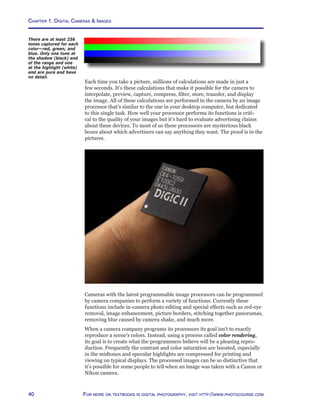
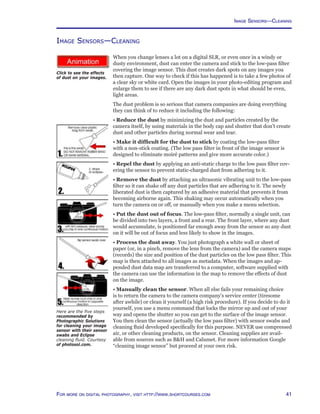
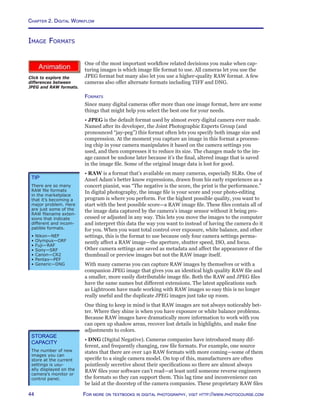
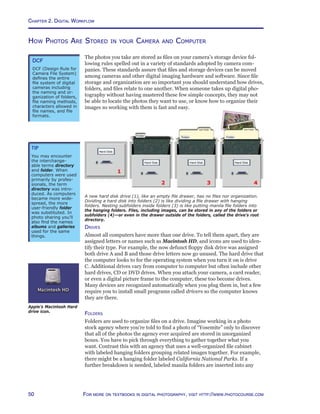
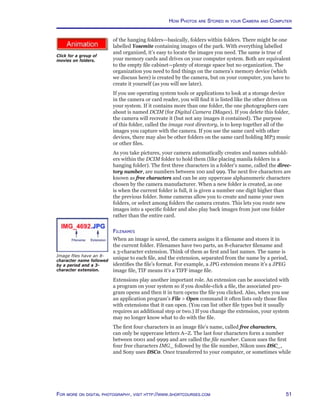
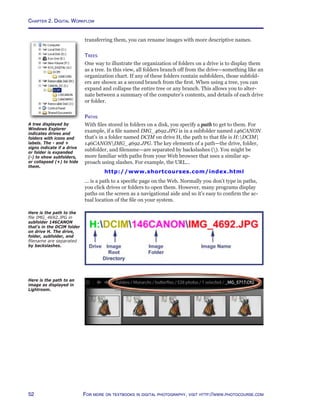
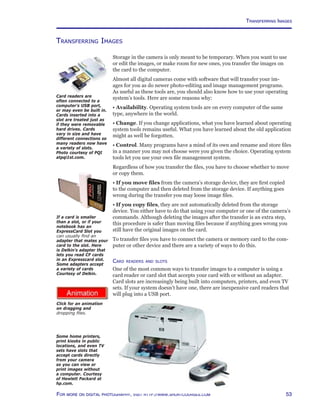
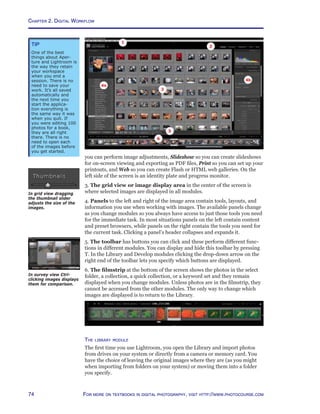
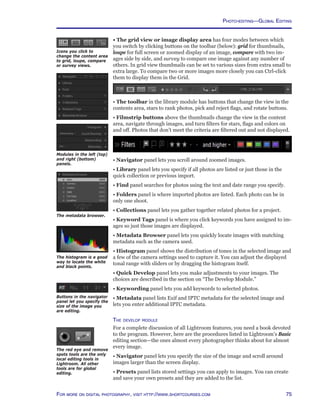
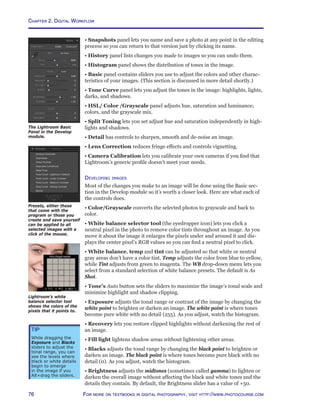
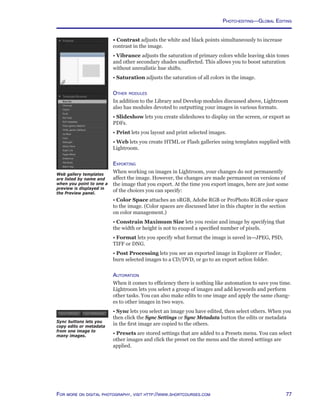
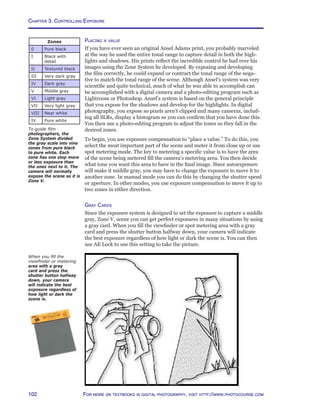
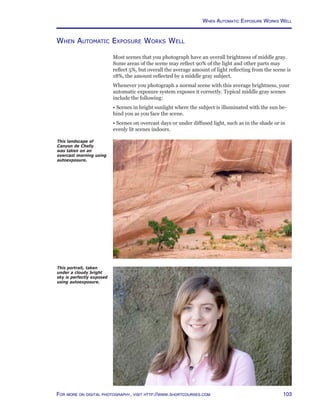
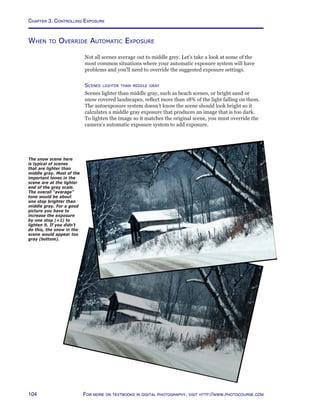
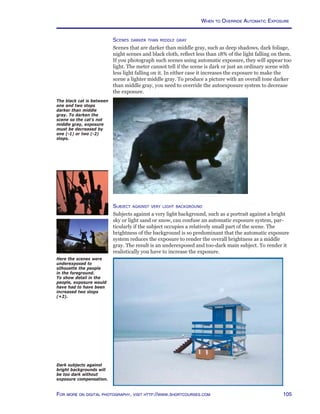
AA30470C
AA30470C
Cover A S h o r t C o u r s e s B o o k
second edition
The Textbook of
Digital Photography
D e n n i s P . C u r t i n
h t t p : / / w w w . ShortCourses. c o m
h t t p : / / w w w . P h o t o C o u r s e . c o m
http://www.photocourse.com/itext/copyright/circ01.pdf
ShortCourses and PhotoCourse Publishing Programs
S
hort Courses and its sister site PhotoCourse.com, are the leading
publishers of digital photography books, textbooks, and easy to follow
guides to specific cameras. PhotoCourse and Short Courses books are
used by hundreds of schools, adult and community education pro-
grams, and in major camera company, police and military training programs.
If you are an instructor, you should know that special pricing is available for
classroom use.
• For camera guides and other digital photography books, visit the Short
Courses bookstore at http://www.shortcourses.com/bookstore/book.htm.
• For details on using this and other texts in the classroom, visit
our textbook Web site at www.photocourse.com or call us at 781-631-8520,
Boston Massachusetts USA time.
If you find any errors in this book, would like to make suggestions for im-
provements, or just want to let me know what you think—I welcome your
feedback, even though I can’t always respond personally.
Contact/Feedback Information
ShortCourses.com
16 Preston Beach Road
Marblehead, Massachusetts 01945
E-mail: denny@shortcourses.com
Copyright Notice
© Copyright 2007 by Dennis P. Curtin. All rights reserved. Printed in the
United States of America. Except as permitted under the United States
Copyright Act of 1976, no part of this publication, or the resources to which
it links, may be reproduced or distributed in any form or by any means, or
stored in a database or retrieval system, without the prior written permission
of the publisher.
ISBN: 1-928873-75-8
Click to view a PDF
document on how
copyright law protects
photographers and
other artists.
Copyright
For information on classroom use, visit http://www.photocourse.com
If you are using the
print edition of this book
you should know that
there is a PDF eText
edition with clickable
links available.
http://www.photocourse.com/itext/textdisc/textdisc.html
http://www.photocourse.com/itext/pdf/pdf.pdf
Using this Text in the Classroom
P
hotoCourse.com was established by ShortCourses.com to develop
and publish high-quality, extremely affordable materials in digital
photography for both classroom and independent study. With pho-
tography texts from traditional publishers exceeding $80, it is time
to try a new approach more attuned to the digital era—full-color, animated,
fully searchable PDF eTexts™ that can be displayed on any computer using
Adobe’s free Acrobat reader. eTexts and PDF files are slowly but surely revo-
lutionizing the publishing and printing businesses in many ways including
the following:
• Timeliness. Since large quantities of inventory aren’t required, materials
can be revised and updated as needed instead of on a fixed schedule every 2
or 3 years. In a rapidly evolving field such as digital photography these fre-
quent revisions are often required to keep materials up to date.
• Distribute and print. Textbook publishers work on a print and distribute
basis. This means they take enormous risks, tie up millions of dollars of capi-
tal, and bear marketing, sales, warehouse, shipping, and billing costs. All of
these costs are passed on to students or their parents. The emerging model,
used by this eText, is called distribute and print. Using this model, materi-
als are distributed around the world electronically and then printed where
needed.
• Print on demand. Instead of printing large quantities, the print on
demand model is to print materials only when needed—in this case students
and instructors only print the pages or chapters that are being studied at the
moment. No one has to carry a backpack full of books, and if materials get
lost or damaged, you just print another copy.
• Linked learning resources. The eText edition of this text acts as a cen-
tral hub connecting you to other learning resources on the Internet. Through-
out the eText™ you can click buttons to access resources stored on the
PhotoCourse.com Web site. To access these resources you need an Internet
connection.
• Animation buttons link to over 80 animations. If you are using the
print edition of this text you can access the animations at www.photo-
course.com/itext/pdf/pdf.pdf.
• Extension buttons link you to PDF files or Excel spread sheets that
expand on the topic in which you find them.
This text introduces the entire panorama of digital photography and includes
the following topics:
• Digital cameras and digital images (Chapter 1)
• Digital workflow (Chapter 2)
• Camera controls and creative photography (Chapters 3–6)
• Flash and studio lighting (Chapter 7-8)
• Sharing and displaying digital images (Chapter 9–10)
• Exploring beyond the standard still image (Chapter 11)
Be sure to frequently visit the PhotoCourse Web site (www.photocourse.com)
for an up-to-date listing of what’s available. For additional information on
digital photography, visit the publisher’s Web site at www.shortcourses.com.
iiiFor information on digital photography, visit http://www.shortcourses.com
Important
• To stay up-to-date
on revisions and ad-
ditions, go to www.
photocourse and sign
up at the bottom of
the page. We don’t
share nor spam the
list.
• Special discounts
are offered on print-
ed or eBook copies
on CDs shipped to
school addresses. For
information e-mail
peggy@shortcourses.
com.
If you are using this
text in a class, you
must have a personal
copy of this CD—click
to see enlargement. It
not only contains the
eText in PDF format,
it also acts as your
license agreement. If
you do not have a copy
of this CD, you may be
using an illegal copy.
To see how to qualify
for classroom copies or
to determine if you are
using a legal copy, visit
our site at
www.photocourse.com.
Click to view a PDF
document describing
how to use this eText
and its animations.
Included is a section on
displaying animations
in a classroom without
an Internet connection
and a complete list
of animations with
clickable links to them.
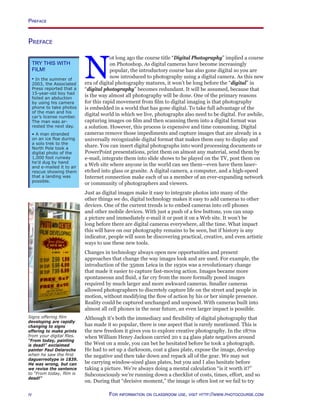
Signs offering film
developing are rapidly
changing to signs
offering to make prints
from your digital files.
“From today, painting
is dead!” exclaimed
painter Paul Delaroche
when he saw the first
daguerreotype in 1839.
He was wrong, but can
we revise the sentence
to “From today, film is
dead!”
Preface
Preface
N
ot long ago the course title “Digital Photography” implied a course
on Photoshop. As digital cameras have become increasingly
popular, the introductory course has also gone digital so you are
now introduced to photography using a digital camera. As this new
era of digital photography matures, it won’t be long before the “digital” in
“digital photography” becomes redundant. It will be assumed, because that
is the way almost all photography will be done. One of the primary reasons
for this rapid movement from film to digital imaging is that photography
is embedded in a world that has gone digital. To take full advantage of the
digital world in which we live, photographs also need to be digital. For awhile,
capturing images on film and then scanning them into a digital format was
a solution. However, this process is expensive and time consuming. Digital
cameras remove those impediments and capture images that are already in a
universally recognizable digital format that makes them easy to display and
share. You can insert digital photographs into word processing documents or
PowerPoint presentations, print them on almost any material, send them by
e-mail, integrate them into slide shows to be played on the TV, post them on
a Web site where anyone in the world can see them—even have them laser-
etched into glass or granite. A digital camera, a computer, and a high-speed
Internet connection make each of us a member of an ever-expanding network
or community of photographers and viewers.
Just as digital images make it easy to integrate photos into many of the
other things we do, digital technology makes it easy to add cameras to other
devices. One of the current trends is to embed cameras into cell phones
and other mobile devices. With just a push of a few buttons, you can snap
a picture and immediately e-mail it or post it on a Web site. It won’t be
long before there are digital cameras everywhere, all the time. What impact
this will have on our photography remains to be seen, but if history is any
indicator, people will soon be discovering practical, creative, and even artistic
ways to use these new tools.
Changes in technology always open new opportunities and present
approaches that change the way images look and are used. For example, the
introduction of the 35mm Leica in the 1930s was a revolutionary change
that made it easier to capture fast-moving action. Images became more
spontaneous and fluid, a far cry from the more formally posed images
required by much larger and more awkward cameras. Smaller cameras
allowed photographers to discretely capture life on the street and people in
motion, without modifying the flow of action by his or her simple presence.
Reality could be captured unchanged and unposed. With cameras built into
almost all cell phones in the near future, an even larger impact is possible.
Although it’s both the immediacy and flexibility of digital photography that
has made it so popular, there is one aspect that is rarely mentioned. This is
the new freedom it gives you to explore creative photography. In the 1870s
when William Henry Jackson carried 20 x 24 glass plate negatives around
the West on a mule, you can bet he hesitated before he took a photograph.
He had to set up a darkroom, coat a glass plate, expose the image, develop
the negative and then take down and repack all of the gear. We may not
be carrying window-sized glass plates, but you and I also hesitate before
taking a picture. We’re always doing a mental calculation “is it worth it?”
Subconsciously we’re running down a checklist of costs, times, effort, and so
on. During that “decisive moment,” the image is often lost or we fail to try
Try This With
Film!
• In the summer of
2003, the Associated
Press reported that a
15-year-old boy had
foiled an abduction
by using his camera
phone to take photos
of the man and his
car’s license number.
The man was ar-
rested the next day.
• A man stranded
on an ice floe during
a solo trek to the
North Pole took a
digital photo of the
1,000 foot runway
he’d dug by hand
and e-mailed it to air
rescue showing them
that a landing was
possible.
iv For information on classroom use, visit http://www.photocourse.com
http://www.photocourse.com/itext/glossary/glossary.pdf
new things. We lose the opportunity for creative growth and choose to stay
with the familiar that has delivered for us in the past. Surprisingly, Jackson
had one big advantage we’ve lost over the last century. If an image didn’t
turn out, or if he was out of glass plates, he could just scrape the emulsion
off a previously exposed negative, recoat the plate, and try again. Digital
photography not only eliminates that nagging “is it worth it?” question, it also
returns us to that era of endlessly reusable film (and we don’t need a mule
to carry it). Hand the camera to the kids, take weird and unusual angles,
shoot without looking through the viewfinder, and ignore all previously held
conceptions about how to take photographs. You may be surprised at the
photos you get if you exploit this new era of uninhibited shooting.
Digital cameras are only a few years old, and we are only at the dawn of this
new era. Where it will lead no one really knows, but it’s exciting to play a part
in this dramatically changing world. As you begin to explore the field, you will
be awash in technical jargon. Most of it can be safely ignored. To show how
some things never change, here is what Jacob Deschin, the photographic edi-
tor of the New York Times, wrote in 1952 about the earlier era when the Leica
revolutionized photography:
“When 35mm was in full flower in this country–in the miniature’s golden
Thirties–photographers in the new medium became “experts” overnight,
full of tall talk about small grain and big enlargements. They had to, in self
defence, for in those early days of the miniature it seemed important to be
technically hep, at least in conversation. Never mind the pictures! In spite
of much hokum, much good came to the surface, survived the babel and
exerted an influence that has since benefitted all photography.”
Preface
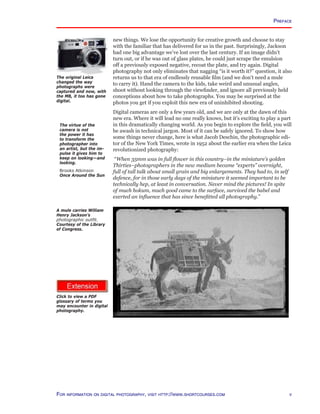
A mule carries William
Henry Jackson’s
photographic outfit.
Courtesy of the Library
of Congress.
The original Leica
changed the way
photographs were
captured and now, with
the M8, it too has gone
digital.
The virtue of the
camera is not
the power it has
to transform the
photographer into
an artist, but the im-
pulse it gives him to
keep on looking—and
looking.
Brooks Atkinson
Once Around the Sun
For information on digital photography, visit http://www.shortcourses.com
Click to view a PDF
glossary of terms you
may encounter in digital
photography.
Contents
Cover...i
ShortCourses and PhotoCourse Publishing Programs...ii
Using this Text in the Classroom...iii
Preface...iv
Contents...vi
List of Animations  Extensions...viii
Chapter 1
Digital Cameras  Images...9
In the Beginning...10
What is a Digital Photograph?...11
Digital Photography—The Past and the Future...12
Why Go Digital? ...14
Types of Digital Cameras...15
Jump Start—Taking Photos with Full Auto Mode...19
Camera Controls...21
Composing Images...22
Capturing Images...25
Continuous Photography...26
Playback Mode...27
When Things Go Wrong...28
Image Sensors—Introduction...29
Image Sensors—Types...30
Image Sensors—Image Size...31
Image Sensors—Sizes and Aspect Ratios...35
Image Sensors—Sensitivity and Noise...37
Image Sensors—It’s All Black and White After All...38
Image Sensors—Cleaning...41
Chapter 2
Digital Workflow...42
Digital Workflow...43
Image Formats...44
In-Camera Image Storage Devices...48
How Photos Are Stored in your Camera and
Computer...50
Transferring Images...53
Storing Images—On Your System...56
Storing Images—On the Road...59
Organizing Your Photo Files...60
Image Managers...61
Evaluating Your Images—Basics...66
Evaluating Your Images—Histograms...69
Photo-editing—Global Editing...73
Photo-editing—Local Editing...78
Color Management–Color Models and Color Spaces...80
Color Management—The Workflow...82
Chapter 3
Controlling Exposure...85
The Importance of Exposure...86
How Exposure Affects Your Images...87
Exposure Controls—The Shutter and Aperture...88
Exposure Controls—Why So Many Choices?...89
Exposure Modes...90
Using Scene Specific Exposure Modes...91
The Shutter Controls Light and Motion...92
The Aperture Controls Light and Depth of Field...95
Using Shutter Speed and Aperture Together...97
How Your Exposure System Works...99
When Automatic Exposure Works Well...103
When to Override Automatic Exposure...104
How Overriding Autoexposure Works...108
How to Override Automatic Exposure...109
Chapter 4
Controlling Sharpness...112
Eliminating Blur From Camera Movement...113
Image Stabilization...115
Increasing Sensitivity (ISO)...116
Sharpness Isn’t Everything...117
How to Photograph Motion Sharply...118
Focusing—The Plane of Critical Focus...120
Focusing—Focus Areas...121
Focus—Techniques...122
Depth of Field...125
Circles of Confusion...126
Controlling Depth of Field...127
Using Maximum Depth of Field...128
Using Shallow Depth of Field...130
Conveying the Feeling of Motion...131
Chapter 5
Capturing Light  Color...132
Where Does Color Come From?...133
White Balance...134
Color Balance and Time of Day...138
Sunsets and Sunrises...139
Weather...141
Photographing at Night...143
The Direction of Light...145
The Quality of Light...147
Chapter 6
Understanding Lenses...149
Introduction to Lenses...150
Understanding Focal Lengths...151
Zoom Lenses...154
Normal Focal Lengths...155
Short Focal Lengths...156
Long Focal Lengths...158
Portraits and Focal Length...160
Macro Mode and Macro Lenses...161
Perspective in a Photograph...163
Lens Accessories...164
Chapter 7
On-camera Flash Photography...165
Flash Power and Range...166
Flash Sync and Shutter Speeds...167
Autoflash...168
Redeye Reduction...169
Using Fill Flash...170
Flash Off...171
Using Slow Sync Flash...172
Controlling Flash Exposures...173
Using External Flash...175
External Flash Accessories...177
Contents
vi For information on classroom use, visit http://www.photocourse.com
vii
Contents
Chapter 8
Studio Photography...178
Using Continuous Lights...179
Using Strobes...181
Connecting the Camera and Studio Lights...182
Understanding Hard and Soft Light...183
Using Fill Cards and Reflectors...185
Using Diffusers...187
Other Lighting Controls...189
Putting it All Together—Exposure and White
Balance...190
Choosing a Background...192
Positioning the Camera...194
Portrait and Product Photography—Introduction...197
The Main Light...198
The Fill Light...199
The Background Light...200
The Rim Light...201
Thinking About Your Photograph...202
Chapter 9
Displaying  Sharing Photos On-screen ...204
Sending Photos to Others—E-mail...205
Sending Photos to Others—Instant Messenger...207
Sending Photos to Others—Peer-to-peer Photo
Sharing...208
Slide Shows—On the TV...209
Slide Shows—On the Computer Screen...212
Slide Shows—Editing  Polishing...213
File Formats—The Final Payoff...217
Slide Shows—Digital Projectors...218
Slide Shows—Digital Picture Frames...220
Publishing Your Photos—eBooks...224
Publishing Your Photos—Photo Sharing Sites...227
Publishing Your Photos—Your Own Web Site...231
Publishing Your Photos—Photo Blogs...233
Publishing Your Photos—RSS...235
Entertaining Yourself—Wallpaper or Desktop
Background Managers...236
Entertaining Yourself—Screen Savers...237
Mapping Your Photos...238
Chapter 10
Displaying  Sharing Printed Photos...241
How Color Photographs are Printed...242
Making Prints—On-line...244
Making Prints—for Profit...246
Making Prints—Locally...247
Making Prints—Do-it-yourself...248
Inkjets—Printing Paper...252
Inkjets—Inks...257
Inkjets—Archival Issues...258
Mating  Mounting Prints...259
Framing, Hanging  Storing Prints...261
Photo Books—Do It Yourself...263
Photo Books—Having Them Done...265
Scrapbooks...268
Photos on Fabrics...269
Photos on Smooth Surfaces...271
Photo Gifts and Novelties...272
Laser-Etching and Fired Ceramics...274
Chapter 11
Beyond the Still Image...275
Panoramic Photography...276
Stereo Photography...279
Animations...282
Shooting Movies...284
Panning  Zooming Still Photographs...285
Morphing...286
Lenticular Photography—Prints that Move...287
Flipbooks—Handheld Animations...289
Photographing in Black  White and Infrared...290
Night Vision...292
Pin Hole Photography...294
For information on digital photography, visit http://www.shortcourses.com
List of Animations  Extensions
Chapter 4 Controlling Sharpness
Tripods	 113
Image Stabilization	 115
ISO and Noise	 116
Distance and Sharpness	 119
Shutter Speed Effect on Motion	 119
The Plane of Critical Focus	 120
Focus Areas	 121
Servo AF Focus	 122
Focus Lock	 123
Aperture and Depth of Field	 127
Selective Focus	 130
Chapter 5 Capturing Light  Color
The Color of Light	 133
Adjusting White Balance	 134
Hard and Soft Light	 147
Chapter 6 Using Lenses
Canon Lenses	 150
Focal Length and Angle of View	 151
Focal Length Factors	 152
Image Stabilization	 153
Optical and Digital Zoom	 157
360-Degree VR Panorama	 156
Wide-angle Lens Distortion	 160
Macro Magnifications	 161
Parallax in an Optical Viewfinder	 162
Perspective in a Photograph	 163
Chapter 7 On-camera Flash Photography
The Inverse Square Law	 166
Calculating Guide Numbers	 166
Flash Sync	 167
Red-eye	 169
Fill Flash	 170
First and Second Curtain Sync	 172
Flash Exposure Compensation	 173
High Speed Sync	 174
High Speed Stroboscopic Photography	 174
External Flash	 176
Chapter 8 Studio Photography
Hard and Soft Light	 183
The Main Light	 198
The Fill Light	 199
The Background Light	 200
The Rim Light	 201
Chapter 9 Displaying  Sharing Photos On-
screen
Animated Gif	 212
Flash Slide Show	 215
PDF Slideshow	 215
A PDF Coffee Table eBook	 226
A PDF eBook on Monarch Butterflies	 226
Visit a Photo Blog	 233
Mapping Photos	 240
Chapter 10 Displaying  Sharing Printed Photos
CMYK Colors	 242
Chapter 11 Beyond the Still Image
360-Degree VR Panorama	 276
Object Photography	 282
Continuous Mode	 283
Time-lapse Photography	 283
Movie Mode	 284
Front Matter
Copyright Booklet	 ii
Using this eText™ and Animations	 iii
Glossary	 v
Chapter 1. Digital Cameras  Images
Cameras are Dark Boxes	 11
Dots on an Inkjet Print	 11
Manual for DC 40	 13
Buying a Digital Camera 	 15
Canon Lenses	 16
Camera Straps and Bags	 17
Caring for your Camera	 18
Camera Icons	 21
The Light Path Through an SLR	 23
Parallax in an Optical Viewfinder	 23
Continuous Mode	 26
Understanding Exposure	 29
Where “Charge-Coupled” Comes From	 30
Calculating Image Sizes	 31
Pixels and Curves	 31
Pixelization	 32
Calculating Print Sizes	 32
Output Devices Determine Image Sizes	 33
The Big Lie	 34
Resolution—The Original Meaning	 34
Image Sensor Sizes	 35
Calculating Aspect Ratios	 35
ISO and Noise	 37
Noise, Example from Cadillac Ranch	 37
RGB Color	 38
Dust on Your Image Sensor	 41
Chapter 2. Digital Workflow
Scanning	 43
RAW vs JPEG Image Quality	 44
The Effects of Compression	 45
Color Depth	 46
Exploring Folders	 51
Dragging and Dropping Files and Folders	 53
You Have Asset Management	 62
Adjusting an Image’s Tonal Range	 66
Print Sizes	 66
Adjust Hue, Saturation and Lightness	 67
Sharpening an Image	 68
Understanding Histograms	 70
Highlight Warnings	 70
Editing can be used to Improve Images	 73
Editing Can be Used to Change Pictures	 73
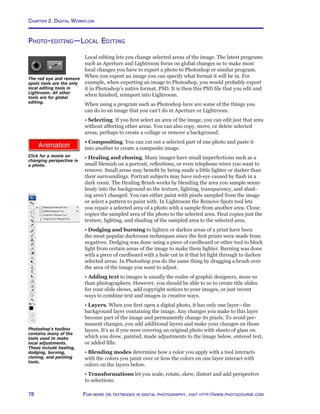
Adjusting Perspective	 78
Changing Color Spaces	 80
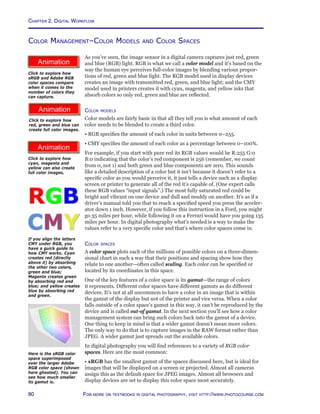
RGB Color	 80
CMYK Colors	 80
Chapter 3 Controlling Exposure
Understanding Exposure	 86
Changing Exposure Modes	 90
Shutter Speed Effect on Exposure	 92
Shutter Speed Effect on Motion	 93
Type of Shutters	 94
Aperture Settings and Exposure	 95
Aperture and Depth of Field	 96
Aperture-Shutter Speed Equivalents	 98
How Your Meter Sees	 99
Exposure Compensation	 109
Exposure Lock	 110
Autoexposure Bracketing	 111
viii For information on classroom use, visit http://www.photocourse.com
For more on digital photography, visit http://www.shortcourses.com
Chapter 1
Digital Cameras  Images
D
igital images are formed from tiny dots of color. The dots, usu-
ally many millions per image, are so small and close together they
blend into the smooth continuous tones we’re so familiar with
from film. These images are captured directly with digital cameras,
or by scanning a transparency, negative, or print. The end result is an image
in a universally recognized format that can be easily manipulated, distrib-
uted, and used. This digital format for images, and the development of the In-
ternet in particular, have opened exciting new vistas for photography which
we’ll explore in this text. To begin, we first look at digital cameras and digital
images. This chapter lays the foundation for your understanding of digital
photography.
Chapter 1. Digital Cameras  Images
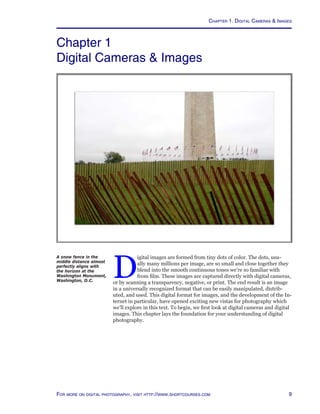
A snow fence in the
middle distance almost
perfectly aligns with
the horizon at the
Washington Monument,
Washington, D.C.
Chapter 1. Digital Cameras  Images
10 For more on textbooks in digital photography, visit http://www.photocourse.com
http://www.photocourse.com/itext/boxcamera/
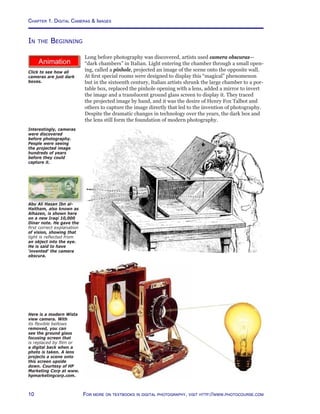
Abu Ali Hasan Ibn al-
Haitham, also known as
Alhazen, is shown here
on a new Iraqi 10,000
Dinar note. He gave the
first correct explanation
of vision, showing that
light is reflected from
an object into the eye.
He is said to have
‘invented’ the camera
obscura.
Interestingly, cameras
were discovered
before photography.
People were seeing
the projected image
hundreds of years
before they could
capture it.
In the Beginning
Long before photography was discovered, artists used camera obscuras—
“dark chambers” in Italian. Light entering the chamber through a small open-
ing, called a pinhole, projected an image of the scene onto the opposite wall.
At first special rooms were designed to display this “magical” phenomenon
but in the sixteenth century, Italian artists shrunk the large chamber to a por-
table box, replaced the pinhole opening with a lens, added a mirror to invert
the image and a translucent ground glass screen to display it. They traced
the projected image by hand, and it was the desire of Henry Fox Talbot and
others to capture the image directly that led to the invention of photography.
Despite the dramatic changes in technology over the years, the dark box and
the lens still form the foundation of modern photography.
Here is a modern Wista
view camera. With
its flexible bellows
removed, you can
see the ground glass
focusing screen that
is replaced by film or
a digital back when a
photo is taken. A lens
projects a scene onto
this screen upside
down. Courtesy of HP
Marketing Corp at www.
hpmarketingcorp.com.
Click to see how all
cameras are just dark
boxes.
11For more on digital photography, visit http://www.shortcourses.com
http://www.photocourse.com/itext/dots/
What is a Digital Photograph?
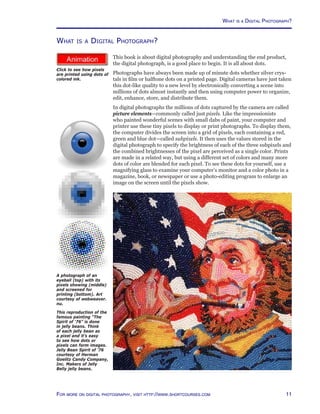
This book is about digital photography and understanding the end product,
the digital photograph, is a good place to begin. It is all about dots.
Photographs have always been made up of minute dots whether silver crys-
tals in film or halftone dots on a printed page. Digital cameras have just taken
this dot-like quality to a new level by electronically converting a scene into
millions of dots almost instantly and then using computer power to organize,
edit, enhance, store, and distribute them.
In digital photographs the millions of dots captured by the camera are called
picture elements—commonly called just pixels. Like the impressionists
who painted wonderful scenes with small dabs of paint, your computer and
printer use these tiny pixels to display or print photographs. To display them,
the computer divides the screen into a grid of pixels, each containing a red,
green and blue dot—called subpixels. It then uses the values stored in the
digital photograph to specify the brightness of each of the three subpixels and
the combined brightnesses of the pixel are perceived as a single color. Prints
are made in a related way, but using a different set of colors and many more
dots of color are blended for each pixel. To see these dots for yourself, use a
magnifying glass to examine your computer’s monitor and a color photo in a
magazine, book, or newspaper or use a photo-editing program to enlarge an
image on the screen until the pixels show.
This reproduction of the
famous painting “The
Spirit of ‘76” is done
in jelly beans. Think
of each jelly bean as
a pixel and it’s easy
to see how dots or
pixels can form images.
Jelly Bean Spirit of ’76
courtesy of Herman
Goelitz Candy Company,
Inc. Makers of Jelly
Belly jelly beans.
Click to see how pixels
are printed using dots of
colored ink.
A photograph of an
eyeball (top) with its
pixels showing (middle)
and screened for
printing (bottom). Art
courtesy of webweaver.
nu.
What is a Digital Photograph?
Chapter 1. Digital Cameras  Images
12 For more on textbooks in digital photography, visit http://www.photocourse.com
Digital Photography—The Past and the Future
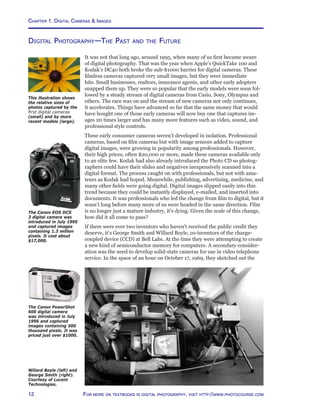
It was not that long ago, around 1995, when many of us first became aware
of digital photography. That was the year when Apple’s QuickTake 100 and
Kodak’s DC40 both broke the sub-$1000 barrier for digital cameras. These
filmless cameras captured very small images, but they were immediate
hits. Small businesses, realtors, insurance agents, and other early adopters
snapped them up. They were so popular that the early models were soon fol-
lowed by a steady stream of digital cameras from Casio, Sony, Olympus and
others. The race was on and the stream of new cameras not only continues,
it accelerates. Things have advanced so far that the same money that would
have bought one of those early cameras will now buy one that captures im-
ages 20 times larger and has many more features such as video, sound, and
professional style controls.
These early consumer cameras weren’t developed in isolation. Professional
cameras, based on film cameras but with image sensors added to capture
digital images, were growing in popularity among professionals. However,
their high prices, often $20,000 or more, made these cameras available only
to an elite few. Kodak had also already introduced the Photo CD so photog-
raphers could have their slides and negatives inexpensively scanned into a
digital format. The process caught on with professionals, but not with ama-
teurs as Kodak had hoped. Meanwhile, publishing, advertising, medicine, and
many other fields were going digital. Digital images slipped easily into this
trend because they could be instantly displayed, e-mailed, and inserted into
documents. It was professionals who led the change from film to digital, but it
wasn’t long before many more of us were headed in the same direction. Film
is no longer just a mature industry, it’s dying. Given the scale of this change,
how did it all come to pass?
If there were ever two inventors who haven’t received the public credit they
deserve, it’s George Smith and Willard Boyle, co-inventors of the charge-
coupled device (CCD) at Bell Labs. At the time they were attempting to create
a new kind of semiconductor memory for computers. A secondary consider-
ation was the need to develop solid-state cameras for use in video telephone
service. In the space of an hour on October 17, 1969, they sketched out the
This illustration shows
the relative sizes of
photos captured by the
first digital cameras
(small) and by more
recent models (large).
The Canon EOS DCS
3 digital camera was
introduced in July 1995
and captured images
containing 1.3 million
pixels. It cost about
$17,000.
The Canon PowerShot
600 digital camera
was introduced in July
1996 and captured
images containing 500
thousand pixels. It was
priced just over $1000.
Willard Boyle (left) and
George Smith (right).
Courtesy of Lucent
Technologies.
13For more on digital photography, visit http://www.shortcourses.com
http://www.photocourse.com/itext/dc40/DC40.pdf
Digital Photography—The Past and the Future
CCD’s basic structure, defined its principles of operation, and outlined ap-
plications including imaging as well as memory.
By 1970, the Bell Labs researchers had incorporated the CCD into the world’s
first solid-state video camera. In 1975, they demonstrated the first CCD
camera with image quality good enough for broadcast television. CCDs then
quickly went on to revolutionize the fax, scanner, copier, bar code, and medi-
cal photography fields.
One of the more exciting, and demanding applications has been in astrono-
my. Since 1983, when telescopes were first equipped with solid-state cam-
eras, CCDs have enabled astronomers to study objects thousands of times
fainter than what the most sensitive photographic plates can capture, and to
capture in seconds images that would have taken hours using film. Today all
optical observatories, including the Hubble Space Telescope, rely on digi-
tal information systems built around mosaics of ultra sensitive CCD chips.
Researchers in other fields have put CCDs to work in applications as diverse
as observing chemical reactions in the lab and studying the feeble light emit-
ted by hot water gushing out of vents in the ocean floor. CCD cameras also
are used in satellite observation of the earth for environmental monitoring,
surveying, and surveillance.
Image quality has improved dramatically over the years so most people are
now satisfied with the quality and sharpness of their photos. For this rea-
son, the marketing battle, especially in the point-and-shoot or pocket cam-
era categories is now all about features. Since digital cameras are basically
computers, companies can program them to do all sorts of things that older,
mechanical cameras could never do. They can identify faces in a scene to
focus on, detect and eliminate red-eye, and let you adjust colors and tones in
your images. There is a tipping point somewhere in the endless checklist of
possible features where complexity begins to increase rather than decrease
and the usefulness of features begins to decline. We are probably already at
that tipping point and perhaps beyond it. When you read about features ask
yourself how often you would really use them and how much control you
want to turn over to your camera. When considering features, keep in mind
that most of the great images in the history of photography were taken using
cameras that only let you control focus, the aperture, and the shutter speed.
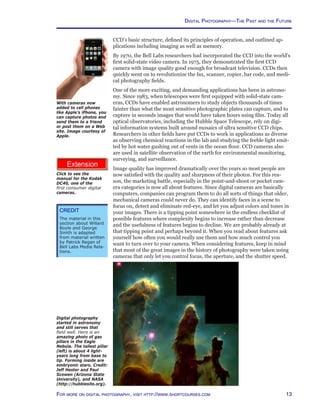
Digital photography
started in astronomy
and still serves that
field well. Here is an
amazing photo of gas
pillars in the Eagle
Nebula. The tallest pillar
(left) is about 4 light-
years long from base to
tip. Forming inside are
embryonic stars. Credit:
Jeff Hester and Paul
Scowen (Arizona State
University), and NASA
(http://hubblesite.org).
With cameras now
added to cell phones
like Apple’s iPhone, you
can capture photos and
send them to a friend
or post them on a Web
site. Image courtesy of
Apple.
Credit
The material in this
section about Willard
Boyle and George
Smith is adapted
from material written
by Patrick Regan of
Bell Labs Media Rela-
tions.
Click to see the
manual for the Kodak
DC40, one of the
first consumer digital
cameras.
Chapter 1. Digital Cameras  Images
14 For more on textbooks in digital photography, visit http://www.photocourse.com
Why Go Digital?
Most of this book assumes you are already a digital photographer or have
decided to become one. If you aren’t fully converted and are wondering why
digital photography has almost entirely replaced film in less than a decade,
here are some of the reasons. It would be reasonable to assume that it’s be-
cause of image quality since digital images are now equal to, and often better
than film images. However, the real reason for the switch lies elsewhere, in
the fact that once captured, digital photographs are already in a format that
makes them incredibly easy to share and use. For example, you can insert
digital photographs into documents, print them at a kiosk, send them by e-
mail to friends, or post them on a Web site where anyone in the world can see
them. With most cameras you can immediately see your images on a small
LCD monitor on the back of the camera, or you can connect the camera to a
TV and show them as a slide show. Some cameras can even be connected to a
telescope or microscope to display dramatically enlarged images on a large-
screen TV. It’s this ability to instantly share photos with anyone, anywhere
that makes digital photography so attractive.
Here are a few more reasons why the change has been so dramatic:
• Going digital saves you money in the long run since you don’t have to buy
rolls of film and pay for their development and printing.
• It saves you time because you don’t have to make two trips to the store to
drop off and then pick up your pictures (although you can do this with a digi-
tal camera’s memory card).
• Digital cameras instantly show you how your pictures look so you’ll no lon-
ger have those disappointments a day or two later when your film is devel-
oped.
• You can view images before they are printed and if you don’t like what you
see, you can edit them to perfection or save money by not printing, or even
deleting them.
• Digital photography (at least your part in it) doesn’t use the toxic chemicals
that often end up flowing down the drain and into our streams, rivers, and
lakes.
• No more waiting to finish a roll of film before having it processed. (Or wast-
ing unexposed film when you can’t wait.)
• Many digital cameras are able to capture not only still photographs, but also
sound and even video—they are as much multimedia recorders as they are
cameras.
• You can use a photo-editing program to improve or alter digital images,
sometimes right in the camera. For example, you can crop them, remove
red-eye, change colors or contrast, and even add and delete elements. It’s like
having a darkroom with the lights on and without the chemicals.
• You can post your images on a Web site so others can view and even print
them.
• You can have your images printed on the pages of a bound book, like those
you see in bookstores.
• You can create slide shows that can be burned to a DVD for playback on a
TV complete with background music or narration.
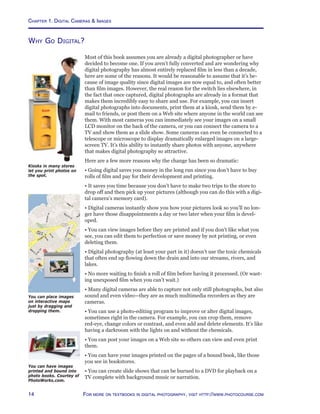
Kiosks in many stores
let you print photos on
the spot.
You can place images
on interactive maps
just by dragging and
dropping them.
You can have images
printed and bound into
photo books. Courtey of
PhotoWorks.com.
15For more on digital photography, visit http://www.shortcourses.com
http://www.photocourse.com/itext/buying/buying.pdf
Types of Digital Cameras
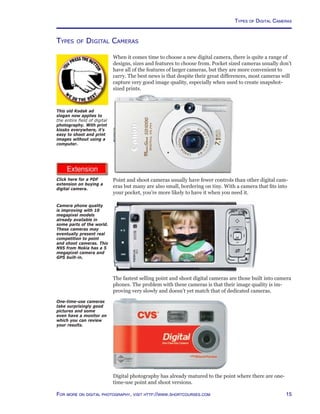
When it comes time to choose a new digital camera, there is quite a range of
designs, sizes and features to choose from. Pocket sized cameras usually don’t
have all of the features of larger cameras, but they are more convenient to
carry. The best news is that despite their great differences, most cameras will
capture very good image quality, especially when used to create snapshot-
sized prints.
Point and shoot cameras usually have fewer controls than other digital cam-
eras but many are also small, bordering on tiny. With a camera that fits into
your pocket, you’re more likely to have it when you need it.
The fastest selling point and shoot digital cameras are those built into camera
phones. The problem with these cameras is that their image quality is im-
proving very slowly and doesn’t yet match that of dedicated cameras.
Digital photography has already matured to the point where there are one-
time-use point and shoot versions.
Camera phone quality
is improving with 10
megapixel models
already available in
some parts of the world.
These cameras may
eventually present real
competition to point
and shoot cameras. This
N95 from Nokia has a 5
megapixel camera and
GPS built-in.
One-time-use cameras
take surprisingly good
pictures and some
even have a monitor on
which you can review
your results.
This old Kodak ad
slogan now applies to
the entire field of digital
photography. With print
kiosks everywhere, it’s
easy to shoot and print
images without using a
computer.
Click here for a PDF
extension on buying a
digital camera.
Types of Digital Cameras
Chapter 1. Digital Cameras  Images
16 For more on textbooks in digital photography, visit http://www.photocourse.com
http://www.photocourse.com/itext/canonlenses/canoneflenses.pdf
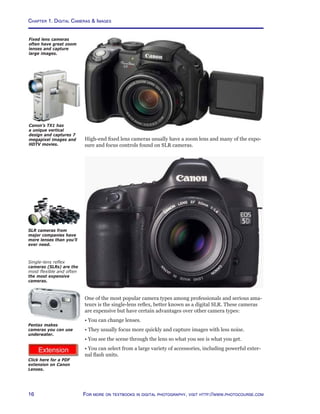
High-end fixed lens cameras usually have a zoom lens and many of the expo-
sure and focus controls found on SLR cameras.
One of the most popular camera types among professionals and serious ama-
teurs is the single-lens reflex, better known as a digital SLR. These cameras
are expensive but have certain advantages over other camera types:
• You can change lenses.
• They usually focus more quickly and capture images with less noise.
• You see the scene through the lens so what you see is what you get.
• You can select from a large variety of accessories, including powerful exter-
nal flash units.
Fixed lens cameras
often have great zoom
lenses and capture
large images.
Single-lens reflex
cameras (SLRs) are the
most flexible and often
the most expensive
cameras.
SLR cameras from
major companies have
more lenses than you’ll
ever need.
Pentax makes
cameras you can use
underwater.
Click here for a PDF
extension on Canon
Lenses.
Canon’s TX1 has
a unique vertical
design and captures 7
megapixel images and
HDTV movies.
17For more on digital photography, visit http://www.shortcourses.com
http://www.photocourse.com/itext/cases/cases.pdf
Types of Digital Cameras
Click here for a PDF
extension on camera
straps and bags.
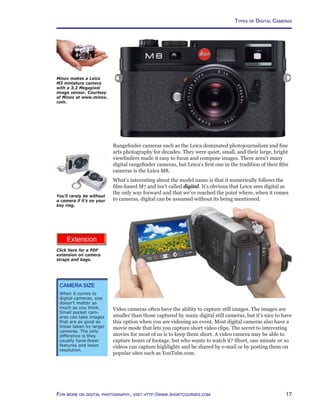
Rangefinder cameras such as the Leica dominated photojournalism and fine
arts photography for decades. They were quiet, small, and their large, bright
viewfinders made it easy to focus and compose images. There aren’t many
digital rangefinder cameras, but Leica’s first one in the tradition of their film
cameras is the Leica M8.
What’s interesting about the model name is that it numerically follows the
film-based M7 and isn’t called digital. It’s obvious that Leica sees digital as
the only way forward and that we’ve reached the point where, when it comes
to cameras, digital can be assumed without its being mentioned.
You’ll rarely be without
a camera if it’s on your
key ring.
Video cameras often have the ability to capture still images. The images are
smaller than those captured by many digital still cameras, but it’s nice to have
this option when you are videoing an event. Most digital cameras also have a
movie mode that lets you capture short video clips. The secret to interesting
movies for most of us is to keep them short. A video camera may be able to
capture hours of footage, but who wants to watch it? Short, one minute or so
videos can capture highlights and be shared by e-mail or by posting them on
popular sites such as YouTube.com.
Minox makes a Leica
M3 miniature camera
with a 3.2 Megapixel
image sensor. Courtesy
of Minox at www.minox.
com.
Camera Size
When it comes to
digital cameras, size
doesn’t matter as
much as you think.
Small pocket cam-
eras can take images
that are as good as
those taken by larger
cameras. The only
difference is they
usually have fewer
features and lower
resolution.
Chapter 1. Digital Cameras  Images
18 For more on textbooks in digital photography, visit http://www.photocourse.com
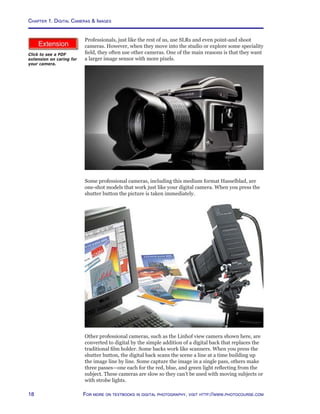
http://www.photocourse.com/itext/care/care.pdfProfessionals, just like the rest of us, use SLRs and even point-and shoot
cameras. However, when they move into the studio or explore some speciality
field, they often use other cameras. One of the main reasons is that they want
a larger image sensor with more pixels.
Some professional cameras, including this medium format Hasselblad, are
one-shot models that work just like your digital camera. When you press the
shutter button the picture is taken immediately.
Other professional cameras, such as the Linhof view camera shown here, are
converted to digital by the simple addition of a digital back that replaces the
traditional film holder. Some backs work like scanners. When you press the
shutter button, the digital back scans the scene a line at a time building up
the image line by line. Some capture the image in a single pass, others make
three passes—one each for the red, blue, and green light reflecting from the
subject. These cameras are slow so they can’t be used with moving subjects or
with strobe lights.
Click to see a PDF
extension on caring for
your camera.
19For more on digital photography, visit http://www.shortcourses.com
Jump Start—Taking Photos with Full Auto Mode
All digital cameras have an automatic mode that sets focus and exposure for
you. With the camera set to this mode, all you have to do is frame the image
and press the shutter button. You’ll find that this mode is ideal in the vast
majority of situations because it lets you focus on the subject and not on the
camera. Here are some things to expect and things to do when using auto
mode on almost any digital camera.
• Getting the camera ready. Turn the camera on and set it to auto mode.
If possible, to conserve your batteries, turn off the monitor and compose your
image using the viewfinder. If the camera has a lens cap, be sure to remove
it. The first time you use the camera, or if the batteries have been removed or
dead for an extended period, you should enter the date and time. When ac-
curately recorded in your images, the date and time help you organize, locate,
and identify them later.
• Checking settings. Always check camera settings at the beginning of a
session. Notice how many pictures you can take at the current settings and
the status of the battery charge. Also, learn what any icons mean because it’s
not at all unusual to change a setting, then forget you have done so. Some of
these settings remain changed even when you turn the camera off and back
on again and affect all subsequent pictures.
• Holding the camera. When taking pictures, hold the camera in your right
hand while supporting the lens with your left. Be sure not to block the flash,
sensors, or lens.
• Framing the image. Use the monitor, or viewfinder if your camera has
one, to compose the scene you are going to capture. If your camera has a
zoom lens, you can zoom it in and out by pressing a button or lever or by
turning a ring on the lens. Zooming out widens your angle of view and zoom-
ing in narrows it. If the image in the viewfinder is fuzzy, see if the camera has
a diopter adjustment dial you can use to adjust it.
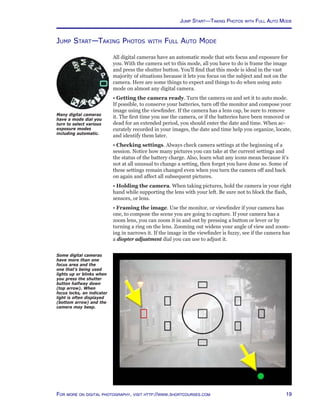
Many digital cameras
have a mode dial you
turn to select various
exposure modes
including automatic.
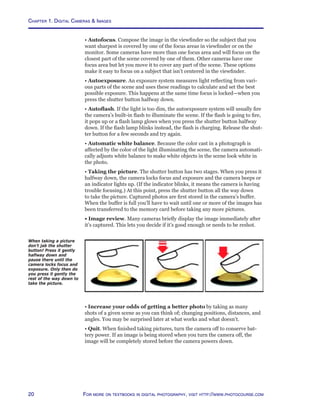
Some digital cameras
have more than one
focus area and the
one that’s being used
lights up or blinks when
you press the shutter
button halfway down
(top arrow). When
focus locks, an indicator
light is often displayed
(bottom arrow) and the
camera may beep.
Jump Start—Taking Photos with Full Auto Mode
Chapter 1. Digital Cameras  Images
20 For more on textbooks in digital photography, visit http://www.photocourse.com
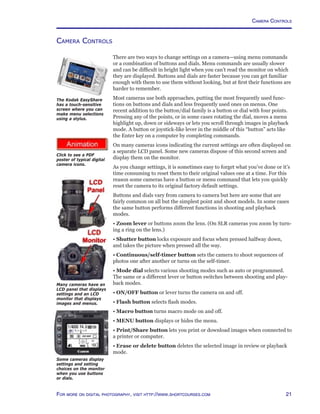
When taking a picture
don’t jab the shutter
button! Press it gently
halfway down and
pause there until the
camera locks focus and
exposure. Only then do
you press it gently the
rest of the way down to
take the picture.
• Autofocus. Compose the image in the viewfinder so the subject that you
want sharpest is covered by one of the focus areas in viewfinder or on the
monitor. Some cameras have more than one focus area and will focus on the
closest part of the scene covered by one of them. Other cameras have one
focus area but let you move it to cover any part of the scene. These options
make it easy to focus on a subject that isn’t centered in the viewfinder.
• Autoexposure. An exposure system measures light reflecting from vari-
ous parts of the scene and uses these readings to calculate and set the best
possible exposure. This happens at the same time focus is locked—when you
press the shutter button halfway down.
• Autoflash. If the light is too dim, the autoexposure system will usually fire
the camera’s built-in flash to illuminate the scene. If the flash is going to fire,
it pops up or a flash lamp glows when you press the shutter button halfway
down. If the flash lamp blinks instead, the flash is charging. Release the shut-
ter button for a few seconds and try again.
• Automatic white balance. Because the color cast in a photograph is
affected by the color of the light illuminating the scene, the camera automati-
cally adjusts white balance to make white objects in the scene look white in
the photo.
• Taking the picture. The shutter button has two stages. When you press it
halfway down, the camera locks focus and exposure and the camera beeps or
an indicator lights up. (If the indicator blinks, it means the camera is having
trouble focusing.) At this point, press the shutter button all the way down
to take the picture. Captured photos are first stored in the camera’s buffer.
When the buffer is full you’ll have to wait until one or more of the images has
been transferred to the memory card before taking any more pictures.
• Image review. Many cameras briefly display the image immediately after
it’s captured. This lets you decide if it’s good enough or needs to be reshot.
• Increase your odds of getting a better photo by taking as many
shots of a given scene as you can think of; changing positions, distances, and
angles. You may be surprised later at what works and what doesn’t.
• Quit. When finished taking pictures, turn the camera off to conserve bat-
tery power. If an image is being stored when you turn the camera off, the
image will be completely stored before the camera powers down.
21For more on digital photography, visit http://www.shortcourses.com
http://www.photocourse.com/itext/icons/iconography.pdf
Camera Controls
There are two ways to change settings on a camera—using menu commands
or a combination of buttons and dials. Menu commands are usually slower
and can be difficult in bright light when you can’t read the monitor on which
they are displayed. Buttons and dials are faster because you can get familiar
enough with them to use them without looking, but at first their functions are
harder to remember.
Most cameras use both approaches, putting the most frequently used func-
tions on buttons and dials and less frequently used ones on menus. One
recent addition to the button/dial family is a button or dial with four points.
Pressing any of the points, or in some cases rotating the dial, moves a menu
highlight up, down or sideways or lets you scroll through images in playback
mode. A button or joystick-like lever in the middle of this “button” acts like
the Enter key on a computer by completing commands.
On many cameras icons indicating the current settings are often displayed on
a separate LCD panel. Some new cameras dispose of this second screen and
display them on the monitor.
As you change settings, it is sometimes easy to forget what you’ve done or it’s
time consuming to reset them to their original values one at a time. For this
reason some cameras have a button or menu command that lets you quickly
reset the camera to its original factory default settings.
Buttons and dials vary from camera to camera but here are some that are
fairly common on all but the simplest point and shoot models. In some cases
the same button performs different functions in shooting and playback
modes.
• Zoom lever or buttons zoom the lens. (On SLR cameras you zoom by turn-
ing a ring on the lens.)
• Shutter button locks exposure and focus when pressed halfway down,
and takes the picture when pressed all the way.
• Continuous/self-timer button sets the camera to shoot sequences of
photos one after another or turns on the self-timer.
• Mode dial selects various shooting modes such as auto or programmed.
The same or a different lever or button switches between shooting and play-
back modes.
• ON/OFF button or lever turns the camera on and off.
• Flash button selects flash modes.
• Macro button turns macro mode on and off.
• MENU button displays or hides the menu.
• Print/Share button lets you print or download images when connected to
a printer or computer.
• Erase or delete button deletes the selected image in review or playback
mode.
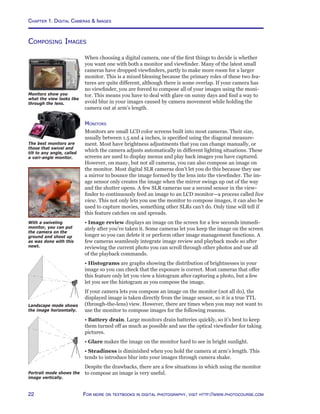
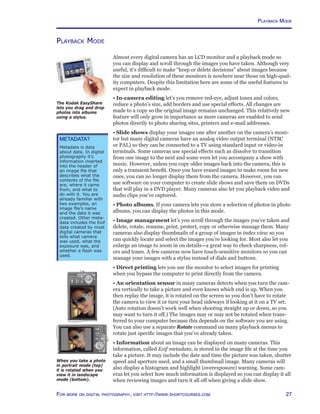
The Kodak EasyShare
has a touch-sensitive
screen where you can
make menu selections
using a stylus.
Click to see a PDF
poster of typical digital
camera icons.
Many cameras have an
LCD panel that displays
settings and an LCD
monitor that displays
images and menus.
Some cameras display
settings and setting
choices on the monitor
when you use buttons
or dials.
Camera Controls
Chapter 1. Digital Cameras  Images
22 For more on textbooks in digital photography, visit http://www.photocourse.com
Composing Images
When choosing a digital camera, one of the first things to decide is whether
you want one with both a monitor and viewfinder. Many of the latest small
cameras have dropped viewfinders, partly to make more room for a larger
monitor. This is a mixed blessing because the primary roles of these two fea-
tures are quite different, although there is some overlap. If your camera has
no viewfinder, you are forced to compose all of your images using the moni-
tor. This means you have to deal with glare on sunny days and find a way to
avoid blur in your images caused by camera movement while holding the
camera out at arm’s length.
Monitors
Monitors are small LCD color screens built into most cameras. Their size,
usually between 1.5 and 4 inches, is specified using the diagonal measure-
ment. Most have brightness adjustments that you can change manually, or
which the camera adjusts automatically in different lighting situations. These
screens are used to display menus and play back images you have captured.
However, on many, but not all cameras, you can also compose an image on
the monitor. Most digital SLR cameras don’t let you do this because they use
a mirror to bounce the image formed by the lens into the viewfinder. The im-
age sensor only creates the image when the mirror swings up out of the way
and the shutter opens. A few SLR cameras use a second sensor in the view-
finder to continuously feed an image to an LCD monitor—a process called live
view. This not only lets you use the monitor to compose images, it can also be
used to capture movies, something other SLRs can’t do. Only time will tell if
this feature catches on and spreads.
• Image review displays an image on the screen for a few seconds immedi-
ately after you’ve taken it. Some cameras let you keep the image on the screen
longer so you can delete it or perform other image management functions. A
few cameras seamlessly integrate image review and playback mode so after
reviewing the current photo you can scroll through other photos and use all
of the playback commands.
• Histograms are graphs showing the distribution of brightnesses in your
image so you can check that the exposure is correct. Most cameras that offer
this feature only let you view a histogram after capturing a photo, but a few
let you see the histogram as you compose the image.
If your camera lets you compose an image on the monitor (not all do), the
displayed image is taken directly from the image sensor, so it is a true TTL
(through-the-lens) view. However, there are times when you may not want to
use the monitor to compose images for the following reasons.
• Battery drain. Large monitors drain batteries quickly, so it’s best to keep
them turned off as much as possible and use the optical viewfinder for taking
pictures.
• Glare makes the image on the monitor hard to see in bright sunlight.
• Steadiness is diminished when you hold the camera at arm’s length. This
tends to introduce blur into your images through camera shake.
Despite the drawbacks, there are a few situations in which using the monitor
to compose an image is very useful.
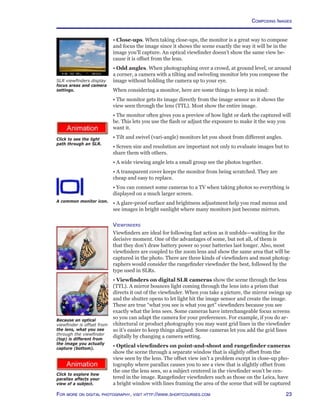
Monitors show you
what the view looks like
through the lens.
The best monitors are
those that swivel and
tilt to any angle, called
a vari-angle monitor.
With a swiveling
monitor, you can put
the camera on the
ground and shoot up
as was done with this
newt.
Portrait mode shows the
image vertically.
Landscape mode shows
the image horizontally.
23For more on digital photography, visit http://www.shortcourses.com
http://www.photocourse.com/itext/parallax/
Composing Images
http://www.photocourse.com/itext/SLR/
• Close-ups. When taking close-ups, the monitor is a great way to compose
and focus the image since it shows the scene exactly the way it will be in the
image you’ll capture. An optical viewfinder doesn’t show the same view be-
cause it is offset from the lens.
• Odd angles. When photographing over a crowd, at ground level, or around
a corner, a camera with a tilting and swiveling monitor lets you compose the
image without holding the camera up to your eye.
When considering a monitor, here are some things to keep in mind:
• The monitor gets its image directly from the image sensor so it shows the
view seen through the lens (TTL). Most show the entire image.
• The monitor often gives you a preview of how light or dark the captured will
be. This lets you use the flash or adjust the exposure to make it the way you
want it.
• Tilt and swivel (vari-angle) monitors let you shoot from different angles.
• Screen size and resolution are important not only to evaluate images but to
share them with others.
• A wide viewing angle lets a small group see the photos together.
• A transparent cover keeps the monitor from being scratched. They are
cheap and easy to replace.
• You can connect some cameras to a TV when taking photos so everything is
displayed on a much larger screen.
• A glare-proof surface and brightness adjustment help you read menus and
see images in bright sunlight where many monitors just become mirrors.
Viewfinders
Viewfinders are ideal for following fast action as it unfolds—waiting for the
decisive moment. One of the advantages of some, but not all, of them is
that they don’t draw battery power so your batteries last longer. Also, most
viewfinders are coupled to the zoom lens and show the same area that will be
captured in the photo. There are three kinds of viewfinders and most photog-
raphers would consider the rangefinder viewfinder the best, followed by the
type used in SLRs.
• Viewfinders on digital SLR cameras show the scene through the lens
(TTL). A mirror bounces light coming through the lens into a prism that
directs it out of the viewfinder. When you take a picture, the mirror swings up
and the shutter opens to let light hit the image sensor and create the image.
These are true “what you see is what you get” viewfinders because you see
exactly what the lens sees. Some cameras have interchangeable focus screens
so you can adapt the camera for your preferences. For example, if you do ar-
chitectural or product photography you may want grid lines in the viewfinder
so it’s easier to keep things aligned. Some cameras let you add the grid lines
digitally by changing a camera setting.
• Optical viewfinders on point-and-shoot and rangefinder cameras
show the scene through a separate window that is slightly offset from the
view seen by the lens. The offset view isn’t a problem except in close-up pho-
tography where parallax causes you to see a view that is slightly offset from
the one the lens sees, so a subject centered in the viewfinder won’t be cen-
tered in the image. Rangefinder viewfinders such as those on the Leica, have
a bright window with lines framing the area of the scene that will be captured
Because an optical
viewfinder is offset from
the lens, what you see
through the viewfinder
(top) is different from
the image you actually
capture (bottom).
A common monitor icon.
Click to see the light
path through an SLR.
Click to explore how
parallax affects your
view of a subject.
SLR viewfinders display
focus areas and camera
settings.
Chapter 1. Digital Cameras  Images
24 For more on textbooks in digital photography, visit http://www.photocourse.com
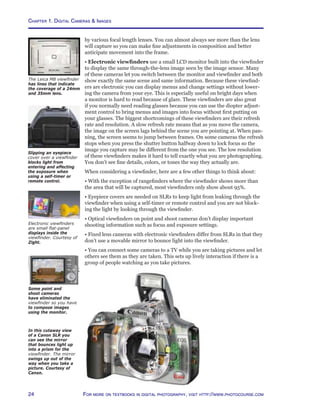
In this cutaway view
of a Canon SLR you
can see the mirror
that bounces light up
into a prism for the
viewfinder. The mirror
swings up out of the
way when you take a
picture. Courtesy of
Canon.
by various focal length lenses. You can almost always see more than the lens
will capture so you can make fine adjustments in composition and better
anticipate movement into the frame.
• Electronic viewfinders use a small LCD monitor built into the viewfinder
to display the same through-the-lens image seen by the image sensor. Many
of these cameras let you switch between the monitor and viewfinder and both
show exactly the same scene and same information. Because these viewfind-
ers are electronic you can display menus and change settings without lower-
ing the camera from your eye. This is especially useful on bright days when
a monitor is hard to read because of glare. These viewfinders are also great
if you normally need reading glasses because you can use the diopter adjust-
ment control to bring menus and images into focus without first putting on
your glasses. The biggest shortcomings of these viewfinders are their refresh
rate and resolution. A slow refresh rate means that as you move the camera,
the image on the screen lags behind the scene you are pointing at. When pan-
ning, the screen seems to jump between frames. On some cameras the refresh
stops when you press the shutter button halfway down to lock focus so the
image you capture may be different from the one you see. The low resolution
of these viewfinders makes it hard to tell exactly what you are photographing.
You don’t see fine details, colors, or tones the way they actually are.
When considering a viewfinder, here are a few other things to think about:
• With the exception of rangefinders where the viewfinder shows more than
the area that will be captured, most viewfinders only show about 95%.
• Eyepiece covers are needed on SLRs to keep light from leaking through the
viewfinder when using a self-timer or remote control and you are not block-
ing the light by looking through the viewfinder.
• Optical viewfinders on point and shoot cameras don’t display important
shooting information such as focus and exposure settings.
• Fixed lens cameras with electronic viewfinders differ from SLRs in that they
don’t use a movable mirror to bounce light into the viewfinder.
• You can connect some cameras to a TV while you are taking pictures and let
others see them as they are taken. This sets up lively interaction if there is a
group of people watching as you take pictures.
Slipping an eyepiece
cover over a viewfinder
blocks light from
entering and affecting
the exposure when
using a self-timer or
remote control.
Some point and
shoot cameras
have eliminated the
viewfinder so you have
to compose images
using the monitor.
Electronic viewfinders
are small flat-panel
displays inside the
viewfinder. Courtesy of
Zight.
The Leica M8 viewfinder
has lines that indicate
the coverage of a 24mm
and 35mm lens.
25For more on digital photography, visit http://www.shortcourses.com
Capturing Images
Capturing Images
Henri Cartier-Bresson is famous for his photographs that capture that “deci-
sive moment” when unrelated actions intersect in a single instant that makes
an arresting photograph. His eye-hand coordination was unrivaled, and he
was able to get the results he did because he was always ready. There was
never any fumbling with controls or lost opportunities. Most digital cameras
have automatic exposure and focus systems that free you from the worry
about controls. However, these cameras have other problems that make deci-
sive moments hard to capture. Many of these problems have been eliminated
on expensive cameras, but remain on less expensive ones.
One of the things that has driven many photographers to distraction is the
delay between pressing the shutter button and the camera actually taking the
picture. This and other delays built into digital cameras affect your ability to
capture fleeting expressions or respond to fast action when taking pictures.
• The startup time is how long it takes for you to take a photo after turning
on the camera. Cameras used to take a long time to do this, but now many
start up almost instantly.
• The shutter-lag time is the delay you experience between pressing the
shutter button and actually capturing an image. This delay occurs because it
takes the camera time to clear the image sensor, set white balance to correct
for color, set the exposure, and focus the image before it fires the flash (if it’s
needed) and take the picture. The best cameras now have almost no lag.
• The processing delay occurs as an image is processed and stored, espe-
cially when using noise reduction. This delay has been dramatically reduced
by the addition of internal memory, called a “buffer.” Images are temporar-
ily stored in the buffer while awaiting processing because they can be stored
there faster then they can be stored on a memory card. You can continue
shooting until the buffer fills, and then resume when some images have been
transferred from it to the memory card.
• A flash recycle delay occurs after taking a series of flash photos one after
another. While the flash is recharging you often can’t take a picture, or if you
can, it comes out dark. In either case you need to wait for the flash to re-
charge and try again.
• Viewfinder blackout. When you take a picture with an SLR, its mirror
swings up so light can strike the image sensor. While it’s up, you can’t see
through the viewfinder. This viewfinder blackout should be as short as pos-
sible.
All of these delays affect how quickly you can get off the first shot or capture
a series of photos one after another (often referred to as shot-to-shot time). If
the delays are too long, you may miss a picture.
To reduce delays when capturing action shots, compose the image and press
the shutter button halfway down to lock focus and exposure. Continue to hold
it down until the action you anticipated happens and then press it rest of the
way down to take the picture. (This does drain batteries faster.) The camera
shoots immediately because focus and exposure have already been calculated.
On some cameras you can also press the shutter button all the way down in
one action, but there will be a delay before the photo is taken and it may be
out of focus.
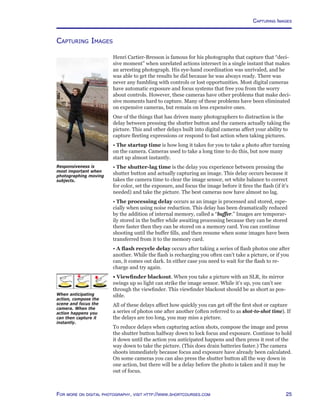
Responsiveness is
most important when
photographing moving
subjects.
When anticipating
action, compose the
scene and focus the
camera. When the
action happens you
can then capture it
instantly.
Chapter 1. Digital Cameras  Images
26 For more on textbooks in digital photography, visit http://www.photocourse.com
http://www.photocourse.com/itext/G-continuous/
Continuous Photography
In most situations, you normally take one photo at a time, but you’re not
limited to that way of shooting. You can also capture sequences of photos. In
this continuous mode, you just hold down the shutter button and images are
captured one after another until you release it. The number of images you
can capture in a single burst is usually limited by the size of the camera’s buf-
fer—a form of memory capable of rapidly storing images as they are captured
one after another. On less expensive cameras with smaller or nonexistent
buffers, the camera may use a smaller image size to capture sequences be-
cause this reduces the processing and storage time.
After capturing a sequence you can choose the best image from the sequence,
use all of them to create an animation so the images are quickly displayed
one after the other like frames in a movie, or join a series of sequences to-
gether into a short movie.
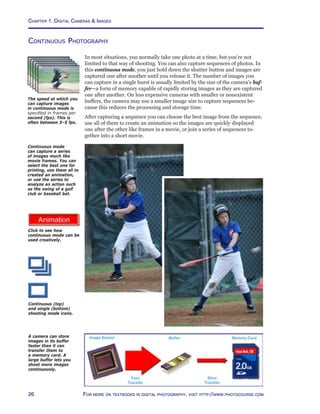
Continuous mode
can capture a series
of images much like
movie frames. You can
select the best one for
printing, use them all to
created an animation,
or use the series to
analyze an action such
as the swing of a golf
club or baseball bat.
Continuous (top)
and single (bottom)
shooting mode icons.
The speed at which you
can capture images
in continuous mode is
specified in frames per
second (fps). This is
often between 3–5 fps.
Click to see how
continuous mode can be
used creatively.
A camera can store
images in its buffer
faster than it can
transfer them to
a memory card. A
large buffer lets you
shoot more images
continuously.
27For more on digital photography, visit http://www.shortcourses.com
Playback Mode
Almost every digital camera has an LCD monitor and a playback mode so
you can display and scroll through the images you have taken. Although very
useful, it’s difficult to make “keep or delete decisions” about images because
the size and resolution of these monitors is nowhere near those on high-qual-
ity computers. Despite this limitation here are some of the useful features to
expect in playback mode.
• In-camera editing let’s you remove red-eye, adjust tones and colors,
reduce a photo’s size, add borders and use special effects. All changes are
made to a copy so the original image remains unchanged. This relatively new
feature will only grow in importance as more cameras are enabled to send
photos directly to photo sharing sites, printers and e-mail addresses.
• Slide shows display your images one after another on the camera’s moni-
tor but many digital cameras have an analog video output terminal (NTSC
or PAL) so they can be connected to a TV using standard input or video-in
terminals. Some cameras use special effects such as dissolve to transition
from one image to the next and some even let you accompany a show with
music. However, unless you copy older images back into the camera, this is
only a transient benefit. Once you have erased images to make room for new
ones, you can no longer display them from the camera. However, you can
use software on your computer to create slide shows and save them on DVDs
that will play in a DVD player. Many cameras also let you playback video and
audio clips you’ve captured.
• Photo albums. If your camera lets you store a selection of photos in photo
albums, you can display the photos in this mode.
• Image management let’s you scroll through the images you’ve taken and
delete, rotate, rename, print, protect, copy or otherwise manage them. Many
cameras also display thumbnails of a group of images in index view so you
can quickly locate and select the images you’re looking for. Most also let you
enlarge an image to zoom in on details—a great way to check sharpness, col-
ors and tones. A few cameras now have touch-sensitive monitors so you can
manage your images with a stylus instead of dials and buttons.
• Direct printing lets you use the monitor to select images for printing
when you bypass the computer to print directly from the camera.
• An orientation sensor in many cameras detects when you turn the cam-
era vertically to take a picture and even knows which end is up. When you
then replay the image, it is rotated on the screen so you don’t have to rotate
the camera to view it or turn your head sideways if looking at it on a TV set.
(Auto rotation doesn’t work well when shooting straight up or down, so you
may want to turn it off.) The images may or may not be rotated when trans-
ferred to your computer because this depends on the software you are using.
You can also use a separate Rotate command on many playback menus to
rotate just specific images that you’ve already taken.
• Information about an image can be displayed on many cameras. This
information, called Exif metadata, is stored in the image file at the time you
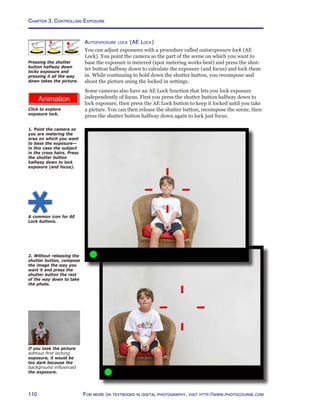
take a picture. It may include the date and time the picture was taken, shutter
speed and aperture used, and a small thumbnail image. Many cameras will
also display a histogram and highlight (overexposure) warning. Some cam-
eras let you select how much information is displayed so you can display it all
when reviewing images and turn it all off when giving a slide show.
The Kodak EasyShare
lets you drag and drop
photos into albums
using a stylus.
When you take a photo
in portrait mode (top)
it is rotated when you
view it in landscape
mode (bottom).
metadata?
Metadata is data
about data. In digital
photography it’s
information inserted
into the header of
an image file that
describes what the
contents of the file
are, where it came
from, and what to
do with it. You are
already familiar with
two examples, an
image file’s name
and the date it was
created. Other meta-
data includes the Exif
data created by most
digital cameras that
tells what camera
was used, what the
exposure was, and
whether a flash was
used.
Playback Mode
Chapter 1. Digital Cameras  Images
28 For more on textbooks in digital photography, visit http://www.photocourse.com
When Things Go Wrong
According to Murphy’s Law, if anything can go wrong, it will. Here are some
of the things you might encounter with a digital camera.
• If the camera seems to be turned off, it may just have entered sleep mode.
When you don’t use any controls for a specified time, the camera enters this
mode to reduce battery drain. To wake it up, you usually just press the shut-
ter button halfway down. After a longer period of inactivity, some cameras
shut off completely and you have to turn them back on. You can often change
the time it takes before either of these events occurs.
• If you can’t turn on the camera, the batteries are dead or have been re-
moved, or a memory card hasn’t been inserted.
• If your batteries drain quickly, stop using the monitor to take and play back
pictures. If it’s cold, keep the batteries or camera under your coat.
• When you turn the camera on, a battery shaped icon on the control panel
indicates when the batteries are fully charged, getting low, or almost empty
and should be replaced immediately. It’s always wise to carry a spare set of
fully charged batteries.
• When you turn on the camera, an error message is usually displayed if there
is a problem with the memory card or camera.
• If you can’t take a picture, it may be because the memory card is full. To
free up room for new pictures, move the images to a computer and erase the
memory card, delete some you don’t need, or switch to a smaller image size.
Also, many cameras won’t take a picture unless it’s in focus.
• To control which part of the scene the camera focuses on, read the user
guide that came with your camera so you understand how focus works in
various exposure modes.
• If the focus lamp blinks when you press the shutter button halfway down,
the camera may be having trouble focusing.
• If the flash lamp blinks when you press the shutter button halfway down,
the flash is charging. Release the shutter button for a few seconds and try
again.
• If flash photos are too dark, you are probably too far from the subject. Most
built-in flash units are only good up to about ten feet. They don’t have the
power to illuminate subjects much father than that.
• If photos are too light when using flash, you may want to reduce the flash
power.
• If your pictures are blurred, you may not be holding the camera steady as
you smoothly press the shutter. Most blurry photos are caused by jabbing the
shutter button. You may also be too close to the subject, or the subject may be
moving too fast.
• Never take pictures of the sun or other bright light sources. Doing so can
injure your eye or damage the camera’s image sensor.
• If your pictures are not at all the way you expect, it may be because the
camera remembered a change you made in its settings and continues to use
that changed setting. Some cameras remember changes even when you turn
it off and back on. See if your camera has a procedure that resets all settings
to their factory defaults.
When deleting files or
formatting memory
cards, think before
you do so. It’s easy to
loose files. If you ever
delete photos or format
a card by mistake, the
chances are you can
recover the images
with software. Some
camera companies
supply this software
with the camera, but in
most cases you have to
Google “digital image
recovery” to locate it
on-line.
Icons on the camera’s
control panel or monitor
indicate the status of
the batteries. The icons,
many of which look like
these, show when the
battery is fully charged
(left) and getting low
(right).
Tips
Before each session
check that:
• The lens is clean.
• The battery is
charged.
• The memory card
is in the camera and
has enough room.
• All settings are the
way you want them.
29For more on digital photography, visit http://www.shortcourses.com
http://www.photocourse.com/itext/exposure/
Image Sensors—Introduction
Digital cameras have roots going back almost 200 years. Beginning with the
very first camera all have been basically black boxes with a lens to focus the
image, an aperture that determines how bright the light is, and a shutter that
determines how long the light enters. The big difference between traditional
film cameras and digital cameras is how they capture the image. Instead of
film, digital cameras use a solid-state device called an image sensor. In some
digital cameras the image sensor is a charge-coupled device (CCD), while
in others it’s a CMOS sensor. Both types can give very good results. On the
surface of these fingernail-sized silicon chips are millions of photosensitive
diodes, each of which captures a single pixel in the photograph to be.
An image sensor sits
against a background
enlargement of its
square pixels, each
capable of capturing
one pixel in the final
image. Courtesy of IBM.	
When you take a picture, the camera’s shutter opens briefly and each pixel
on the image sensor records the brightness of the light that falls on it by
accumulating photons. The more light that hits a pixel, the more photons it
records. Pixels capturing light from highlights in the scene will have many
photons. Those capturing light from shadows will have few.
After the shutter closes to end the exposure, the photons from each pixel are
counted and converted into a digital number. This series of numbers is then
used to reconstruct the image by setting the color and brightness of matching
pixels on the screen or printed page.
Click to explore how
exposure determines
how light or dark an
image is.
A CCD is like a three-
decker sandwich. The
bottom layer contains
the photosites. Above
them is a layer of
colored filters that
determines which color
each site records.
Finally, the top layer
contains microlenses
that gather light.
Courtesy of Fujifilm.
Image Sensors—Introduction
Chapter 1. Digital Cameras  Images
30 For more on textbooks in digital photography, visit http://www.photocourse.com
http://www.photocourse.com/itext/CCD/
Image Sensors—Types
When using a film camera you can insert any kind of film you want. It’s the
film you choose that gives photographs distinctive colors, tones, and grain.
If you think one film gives images that are too blue or red, you can change to
another film. With digital cameras, the “film” is permanently part of the cam-
era so buying a digital camera is in part like selecting a film to use. Like film,
different image sensors render colors differently, have different amounts of
“grain,” different sensitivities to light, and so on. The only ways to evaluate
these aspects are to examine some sample photographs from the camera or
read reviews written by people you trust.
Initially, charge-coupled devices (CCDs) were the only image sensors used in
digital cameras. They had already been well developed through their use in
astronomical telescopes, scanners, and video camcorders. However, there is
now a well-established alternative, the CMOS image sensor. Both CCD and
CMOS image sensors capture light using a grid of small photosites on their
surfaces. It’s how they process the image and how they are manufactured
where they differ from one another.
• CCD image sensors. A charge-coupled device (CCD) gets its name from
the way the charges on its pixels are read after an exposure. The charges on
the first row are transferred to a place on the sensor called the read out regis-
ter. From there, they are fed to an amplifier and then on to an analog-to-digi-
tal converter. Once a row has been read, its charges in the readout register
row are deleted, the next row enters, and all of the rows above march down
one row. With each row “coupled” to the row above in this way, each row of
pixels is read—one row at a time.
• CMOS image sensors. Image sensors are manufactured in factories
called wafer foundries or fabs where the tiny circuits and devices are etched
onto silicon chips. The biggest problem with CCDs is that they are created in
foundries using specialized and expensive processes that can only be used to
make other CCDs. Meanwhile, larger foundries use a different process called
Complementary Metal Oxide Semiconductor (CMOS) to make millions of
chips for computer processors and memory. CMOS is by far the most com-
mon and highest yielding chip-making process in the world. Using this same
process and the same equipment to manufacturer CMOS image sensors cuts
costs dramatically because the fixed costs of the plant are spread over a much
larger number of devices. As a result of these economies of scale, the cost of
fabricating a CMOS wafer is significantly less than the cost of fabricating a
similar wafer using the specialized CCD process. Costs are lowered even far-
ther because CMOS image sensors can have processing circuits created on the
same chip. With CCDs, these processing circuits must be on separate chips.
Despite their differences, both types of sensors are capable of giving very
good results and both types are used by major camera companies. Canon
and Nikon both use CMOS sensors in their high-end digital SLRs as do many
other camera companies.
This photo shows the
pixels on an image
sensor greatly enlarged.
Courtesy of IBM.
A silicon wafer used to
make image sensors.
Courtesy of IBM.
Click to see where the
name “charge-coupled
device” comes from.
31For more on digital photography, visit http://www.shortcourses.com
http://www.photocourse.com/itext/pixels/pixels.pdf
http://www.photocourse.com/itext/pixelresolution/
Image Sensors—Image Size
When capturing an image, the number of pixels used to capture it (sometimes
referred to as resolution or pixel count) has a big effect on how large it can be
displayed on the screen or printed. At any given size, more pixels add detail
and sharpen edges. Because numbers matter so much, the best approach is to
shoot using the largest available size. You can always make an image smaller
in a photo-editing program, but you can never make it larger while retaining
the original quality.
The pixel size of a digital image is specified in one of two ways—by its dimen-
sions in pixels or by the total number of pixels it contains. For example, the
same image can be said to have 4368 × 2912 pixels (where “×” is pronounced
“by” as in “4368 by 2912), or to contain 12.7 million pixels (4368 multiplied
by 2912). Since the term “megapixel” is used to indicate 1 million pixels, an
image with 12 million pixels can also be referred to as a 12 megapixel image.
Image sizes are
expressed as
dimensions in pixels
(4368 × 2912) or by
the total number of
pixels (12,719,616).
Click for a PDF
extension on pixels and
read Part 1 on pixels
and image sizes.
Click to explore how
more pixels give
sharper images.
No matter how many pixels an image has, when you enlarge it enough, it
begins to loose sharpness and eventually the pixels begin to show—an effect
called pixelization. This is not unlike traditional silver-based prints where
grain begins to show when prints are enlarged past a certain point. The more
pixels an image has, the larger it can be displayed or printed before pixel-
ization occurs. However, with even inexpensive cameras capturing 6 and 8
megapixel images, most images will never bump up against this limit even
when enlarged to 8 x 10 inches.
Another advantage of larger images is seen when editing. Not only can you
crop them more, changes to such aspects as color balance, hue, saturation,
Square pixels are
arranged in patterns to
form curved lines and
edges in a photo. The
more pixels used, the
smoother these curves
will be. Here the same
red ball is represented
by 4, 12, and then 24
square pixels. As more
pixels are added, edges
become more refined
and the shape becomes
more like the original.
Image Sensors—Image Size
Chapter 1. Digital Cameras  Images
32 For more on textbooks in digital photography, visit http://www.photocourse.com
http://www.photocourse.com/itext/pixels/pixels.pdf
http://www.photocourse.com/itext/pixelzoom/
contrast, and brightness are more effective on larger images because there
is more image data to work with. After making these adjustments, you can
reduce the file to the needed size.
As you might expect, all else being equal, costs rise as the size of the image
sensor increases. Although larger sensors can give you sharper images and
better enlargements, more pixels also means larger image files. Not only do
larger files take up more storage space, they take longer to transfer, process,
and edit and are often far too large to e-mail or post on a Web site. Smaller
image sizes such as 800 x 600 are perfect for Web publishing, e-mail attach-
ments, small prints, or as illustrations in your own documents and presen-
tations. For these uses, higher resolutions just increase file sizes without
significantly improving the images.
Choosing image sizes
The camera you use determines how large your images can be, but most also
allow you to select smaller sizes. Here are some rules of thumb about what
image sizes you need for certain outputs.
• On the Internet, images are displayed on screens that have resolutions of
1280 x 1024, 1152 x 864, 1024 x 768, 800 x 600, or 640 x 480. A few years
ago, a 1024 x 768 monitor was unusual so most people in the industry settled
on assuming that the lowest common denominator for screen sizes was 640
x 480 or, at best 800 x 600. For this reason, images to be e-mailed or posted
on the Internet should be of similar or smaller sizes—no more than 800 pix-
els wide. This ensures that the images will display correctly on the vast ma-
jority of computers. If an image is too large, users will not be able to see it all
at once and will be forced to scroll around it. If too small, details will be lost.
Size also affects the speed with which images travel over the Web. Smaller
(and more compressed) images travel faster so people see them more quickly.
• For laser and inkjet printers you need between 200–300 image pixels
per inch. If your camera can capture images that are 2400 pixels wide, you
can expect good results when prints are up to 12 inches wide.
• When images are printed on a printing press, as they might be for a
catalog, the pixels in the image are printed as dots on the page. Photographs
One advantage of a
large image size is that
it gives you the freedom
to crop the image and
still have it be a usable
size.
When a digital image
is displayed or printed
at the correct size for
the number of pixels
it contains (left), it
looks like a normal
photograph. When
enlarged too much
(right), its square pixels
begin to show.
Click here for a PDF
extension on pixels
and read Part 2 on
displaying images
and Part 3 on printing
images.
Click to see the effects
of pixelization as an
image is enlarged.
33For more on digital photography, visit http://www.shortcourses.com
http://www.photocourse.com/itext/imagesize/
Here are the relative
sizes of two images
sized to be printed
or displayed at 4 x
5 inches. The larger
image (1500 x 1200
pixels) will print at
300 dots per inch. The
smaller one (360 x
288) will be displayed
on the screen at 72
dpi. Although greatly
different in the number
of pixels they contain,
the different output
devices will render them
the same size.
Image Sensors—Image Size
that are to be printed on a press are first digitally “screened” to break the im-
age up into dots. If you are ever involved in this process your print shop will
give you specifications for your images
The number of pixels in
an image, sometimes
referred to as its
resolution, determines
the size of the image
when it’s displayed on
the screen or how large
a print can be made
that is still sharp.
Screen
Resolutions
CGA	 320 x 200
EGA	 640 x 350
VGA	 640 x 480
SVGA	 800 x 600
XGA	 1024 x 768
SXGA	 1280 x 1024
WXGA	 1366 x 768
SXGA+	 1400 x 1050
UXGA	 1600 x 1200
WSXGA+	 1680 x 1050
WUXGA	 1920 x 1200
QXGA	 2048 x 1536
QSXGA	 2560 x 2048
QUXGA	 3200 x 2400
WQUXGA	 3840 x 2400
Click to see how it’s
the output device,
not the camera, that
determines image sizes.
Chapter 1. Digital Cameras  Images
34 For more on textbooks in digital photography, visit http://www.photocourse.com
http://www.photocourse.com/itext/biglie/
Interpolated resolution
Beware of claims about resolution for cameras because there are two kinds of
resolution; optical and interpolated. The optical resolution of a camera is an
absolute number because an image sensor’s pixels or photosites are physical
devices that can be counted. However, optical resolution can be increased
using a process called interpolated resolution that adds pixels to the image
to increase the image’s size. To do so, software evaluates those pixels sur-
rounding each new pixel to determine what its color should be. For example,
if all of the pixels around a newly inserted pixel are red, the new pixel will be
red. What’s important to keep in mind is that interpolated resolution doesn’t
add any new information to the image—it just adds pixels and makes the file
larger. This same thing can be done in a photo-editing program such as Pho-
toshop by resizing the image. Beware of companies that promote or empha-
size their device’s interpolated (or enhanced) resolution. You’re getting less
than you think you are. Always check for the device’s optical resolution. If
this isn’t provided, you’re dealing with marketing people who don’t have your
best interests at heart.
One term—two meanings
The term “resolution” has two meanings in photography. Originally it re-
ferred to the ability of a camera system to resolve pairs of fine lines such as
those on a test chart. In this usage it’s an indicator of sharpness, not image
size. With the introduction of digital cameras the term began being used to
indicate the number of pixels a camera could capture. Two meanings for the
same term is not a good turn of events in any field.
Test charts have pairs
of lines at various
spacings
If an image is too
large for a screen
(top), the viewer has
to scroll around it.
When sized correctly
(bottom) they can see
the entire image. Most
digital photography
programs automatically
resize images to fit the
available space unless
you specify a different
size.
http://www.photocourse.com/itext/resolution/
Click to explore the
original meaning of
“resolution.”
Click to see how some
cameras inflate their
pixel counts.
35For more on digital photography, visit http://www.shortcourses.com
http://www.photocourse.com/itext/pixels/pixels.pdf
http://www.photocourse.com/itext/sensor/
Image Sensors—Sizes and Aspect Ratios
The image sensor in a camera has two important and related physical charac-
teristics—its size and aspect ratio.
Sensor size
Image sensors come in a variety of sizes with the smallest ones used in point
and shoot cameras and the largest in professional SLRs. Consumer SLRs of-
ten use sensors having the same size as a frame of APS film. Professional SLR
cameras occasionally use sensors the same size as a frame of 35mm film—
called full-frame sensors. (Large format cameras use even larger sensors.)
Larger image sensors generally have larger photosites that capture more light
with less noise. The result is pictures that are clearer, brighter, and sharper.
Because the size of photosites is so important, a large 6 Megapixel sensor will
often take better pictures than a smaller 8 Megapixel sensor. Not only is noise
a problem but smaller sensors also require better, more expensive lenses,
especially for wide-angle coverage. Here are some typical sensor sizes:
Size Width (mm) Height (mm) Used in
1/4 3.2 2.4 Point  Shoot Cameras
1/3 4.8 3.6 Point  Shoot Cameras
1/2 8 6.4 Point  Shoot Cameras
2/3 11 8.8 Point  Shoot Cameras
1 16 12.8 Point  Shoot Cameras
APS-C 22.2 14.8 Consumer SLRs
Full frame 36 24 Professional SLRs
Aspect ratios
Image sensors come in a variety of aspect ratios—the ratio of the sensor’s
width to height. The ratio of a square is 1:1 (equal width and height) and that
of 35mm film is 1.5:1 (1½ times wider than it is high). Most image sensors fall
in between these extremes. The aspect ratio of a sensor is important because
it determines the shape and proportions of the photographs you create. When
an image has a different aspect ratio that the device it’s displayed or printed
on, it has to be cropped or resized to fit. Your choice is to crop part of the
image or waste part of the paper or display area. To imagine this better, try
printing a square image on a rectangular sheet of paper so either the entire
image is printed or the entire paper is filled.
Image Width x Height Aspect Ratio
35mm film 36 x 24 1.50
Computer display 1024 x 768 1.33
Canon 5D 4368 x 2912 1.50
Canon S3 IS 2816 x 2112 1.33
Photo paper 4 x 6 1.50
Printing paper 8.5 x 11 1.29
HDTV 16 x 9 1.80
To calculate the aspect ratio of any camera, divide the largest number in its
resolution by the smallest number. For example, if a sensor has a resolution
of 4368 x 2912, divide the former by the later. In this case the aspect ratio is
1.5, the same as 35 mm film but different from an 8.5 x 11 sheet of paper.
Image sensor sizes
range from the tiny
up to ones as large
as a frame of 35mm
film—called a full frame
sensor.
Click to explore the
sizes of image sensors.
The aspect ratio of
an image sensor
determines the shape of
your prints.
Tip
A 16:9 wide-screen
mode captures im-
ages and film clips
that are perfect for
display on your wide-
screen TV or com-
puter monitor.
Click here for a PDF
extension on pixels and
read Part 1 on aspect
ratios.
Image Sensors—Size and Aspect Ratios
Chapter 1. Digital Cameras  Images
36 For more on textbooks in digital photography, visit http://www.photocourse.com
Here is Hasselblad’s 39
Megapixel (36x48mm)
sensor (top) compared
with an 11 Megapixel
full-frame (24x36mm)
sensor from a 35mm
DSLR. Notice how they
differ in both size and
aspect ratio. Courtesy
of Hasselblad.
These examples
illustrate different
aspect ratios. The top
image was sized to fill
the width of a sheet of
11 x 8.5 paper. This
leaves empty bands at
the top and bottom of
the paper. The bottom
image was sized to fill
the height of the paper
but parts of the image
extending past the sides
are left unprinted.
Image sensors in
camera phones are
very small. Courtesy of
OmniVision.
37For more on digital photography, visit http://www.shortcourses.com
http://www.photocourse.com/itext/noise/
http://www.photocourse.com/itext/ISO/
Click to see the effect of
noise in an image.
Image Sensors—Sensitivity and Noise
In some situations images are not as clear as they otherwise are. They appear
grainy with randomly scattered colored pixels that break up smooth areas.
This is what’s known as noise. It has three basic causes:
• Small photosites on the sensor. There is nothing you can do about this
cause, but it also makes the following causes even more severe.
• A long shutter speed that lets light into the camera for a long time, usu-
ally in a dim or dark setting, gives noise a chance to build up.
• A high ISO setting let’s you use a faster shutter speed to avoid blur but
also amplifies the noise along with the signal.
Many cameras have one or more noise reduction modes that reduce the ef-
fects of this noise.
At slow shutter speeds
(left) the exposure, like
dripping water, is so
slow noise has a chance
to build up in the
image. At faster speeds,
(middle and right), the
noise is overwhelmed
by how fast the
exposure is completed.
Click to see the effects
of increasing ISO.
Noise appears in images
as random color pixels
especially when you use
long shutter speeds or
high ISO settings.
Tip
To see one kind of
noise, leave the lens
cap on and take a
picture. The long
exposure will create
noise that you can
see when you open
the picture in a photo
editing program and
enlarge it.
Image Sensors—Sensitivity and Noise
Chapter 1. Digital Cameras  Images
38 For more on textbooks in digital photography, visit http://www.photocourse.com
http://www.photocourse.com/itext/RGB/
Image Sensors—It’s All Black and White After All
It may be surprising, but pixels on an image sensor only capture brightness,
not color. They record the gray scale—a series of tones ranging from pure
white to pure black. How the camera creates a color image from the bright-
ness recorded by each pixel is an interesting story with its roots in the distant
past.
The gray scale, seen
best in black and white
photos, contains a
range of tones from
pure black to pure
white.
When photography was first invented in the 1840s, it could only record black
and white images. The search for a color process was long and arduous, and
a lot of hand coloring went on in the interim (causing one photographer to
comment “So you have to know how to paint after all!”). One major break-
through was James Clerk Maxwell’s 1860 discovery that color photographs
could be created using black and white film and red, green and blue filters.
He had the photographer Thomas Sutton photograph a tartan ribbon three
times, each time with a different color filter over the lens. The three black and
white images were then projected onto a screen with three different projec-
tors, each equipped with the same color filter used to take the image being
projected. When brought into alignment, the three projected images formed
a full-color photograph. Over a century later, image sensors work much the
same way.
Colors in a photographic image are usually based on the three primary colors
red, green, and blue (RGB). This is called the additive color system because
colors are created by mixing the three colors. This RGB system is used when-
ever light is projected to form colors as it is on the display monitor (or in your
eye). Another color system uses cyan, magenta, yellow and black (CMYK)
to create colors. This system is used in almost all printers since it’s the color
system used with reflected light. It’s called subtractive because it absorbs, or
subtracts, colors so only red, green, and blue are reflected.
Since daylight is made up of red, green, and blue light; placing red, green,
and blue filters over individual pixels on the image sensor can create color
images just as they did for Maxwell in 1860. Using a process called inter-
polation, the camera computes the actual color of each pixel by combining
the color it captured directly through its own filter with the other two colors
captured by the pixels around it.
RGB uses additive
colors. When all three
are mixed in equal
amounts they form
white. When red and
green overlap they form
yellow, and so on.
Click to explore how
red, green and blue can
create full color images.
Maxwell (top) and his
actual photograph of
the tartan ribbon taken
in 1861 (bottom).
39For more on digital photography, visit http://www.shortcourses.com
Image Sensors—It’s All Black and White After All
Because each pixel
on the sensor has a
color filter that only
lets through one color,
a captured image
records the brightness
of the red, green, and
blue pixels separately.
(There are usually twice
as many photosites with
green filters because
the human eye is more
sensitive to that color
so green color accuracy
is more important.)
Illustration courtesy of
Foveon at www.foveon.
com.
To create a full
color image, the
camera’s image
processor calculates,
or interpolates, the
actual color of each
pixel by looking at
the brightness of the
colors recorded by it
and others around it.
Here the full-color of
some green pixels are
about to be interpolated
from the colors of the
eight pixels surrounding
them.
Each pixel on an
image sensor has
red, green, and blue
filters intermingled
across the photosites
in patterns designed to
yield sharper images
and truer colors. The
patterns vary but the
most popular is the
Bayer mosaic pattern
shown here.
Chapter 1. Digital Cameras  Images
40 For more on textbooks in digital photography, visit http://www.photocourse.com
Each time you take a picture, millions of calculations are made in just a
few seconds. It’s these calculations that make it possible for the camera to
interpolate, preview, capture, compress, filter, store, transfer, and display
the image. All of these calculations are performed in the camera by an image
processor that’s similar to the one in your desktop computer, but dedicated
to this single task. How well your processor performs its functions is criti-
cal to the quality of your images but it’s hard to evaluate advertising claims
about these devices. To most of us these processors are mysterious black
boxes about which advertisers can say anything they want. The proof is in the
pictures.
Cameras with the latest programmable image processors can be programmed
by camera companies to perform a variety of functions. Currently these
functions include in-camera photo editing and special effects such as red-eye
removal, image enhancement, picture borders, stitching together panoramas,
removing blur caused by camera shake, and much more.
When a camera company programs its processors its goal isn’t to exactly
reproduce a scene’s colors. Instead, using a process called color rendering,
its goal is to create what the programmers believe will be a pleasing repro-
duction. Frequently the contrast and color saturation are boosted, especially
in the midtones and specular highlights are compressed for printing and
viewing on typical displays. The processed images can be so distinctive that
it’s possible for some people to tell when an image was taken with a Canon or
Nikon camera.
There are at least 256
tones captured for each
color—red, green, and
blue. Only one tone at
the shadow (black) end
of the range and one
at the highlight (white)
end are pure and have
no detail.
41For more on digital photography, visit http://www.shortcourses.com
Image Sensors—Cleaning
http://www.photocourse.com/itext/dust/
Image Sensors—Cleaning
When you change lenses a lot on a digital SLR, or even once in a windy or
dusty environment, dust can enter the camera and stick to the low-pass filter
covering the image sensor. This dust creates dark spots on any images you
then capture. One way to check if this has happened is to take a few photos of
a clear sky or white card. Open the images in your photo-editing program and
enlarge them to see if there are any dark dust spots in what should be even,
light areas.
The dust problem is so serious that camera companies are doing everything
they can think of to reduce it including the following:
• Reduce the dust by minimizing the dust and particles created by the
camera itself, by using materials in the body cap and shutter that don’t create
dust and other particles during normal wear and tear.
• Make it difficult for the dust to stick by coating the low-pass filter
with a non-stick coating. (The low pass filter in front of the image sensor is
designed to eliminate moiré patterns and give more accurate color.)
• Repel the dust by applying an anti-static charge to the low pass filter cov-
ering the sensor to prevent static-charged dust from adhering to it.
• Remove the dust by attaching an ultrasonic vibrating unit to the low-pass
filter so it can shake off any dust particles that are adhering to it. The newly
liberated dust is then captured by an adhesive material that prevents it from
becoming airborne again. This shaking may occur automatically when you
turn the camera on or off, or manually when you make a menu selection.
• Put the dust out of focus. The low-pass filter, normally a single unit, can
be divided into two layers, a front and a rear. The front layer, where any dust
would accumulate, is positioned far enough away from the sensor so any dust
on it will be out of focus and less likely to show in the images.
• Process the dust away. You just photograph a white wall or sheet of
paper (or, in a pinch, remove the lens from the camera) and the camera maps
(records) the size and position of the dust particles on the low pass filter. This
map is then attached to all images as metadata. When the images and ap-
pended dust data map are transferred to a computer, software supplied with
the camera can use the information in the map to remove the effects of dust
on the image.
• Manually clean the sensor. When all else fails your remaining choice
is to return the camera to the camera company’s service center (tiresome
after awhile) or clean it yourself (a high risk procedure). If you decide to do it
yourself, you use a menu command that locks the mirror up and out of your
way and opens the shutter so you can get to the surface of the image sensor.
You then clean the sensor (actually the low pass filter) with sensor swabs and
cleaning fluid developed specifically for this purpose. NEVER use compressed
air, or other cleaning products, on the sensor. Cleaning supplies are avail-
able from sources such as BH and Calumet. For more information Google
“cleaning image sensor” but proceed at your own risk.
Here are the five steps
recommended by
Photographic Solutions
for cleaning your image
sensor with their sensor
swabs and Eclipse
cleaning fluid. Courtesy
of photosol.com.
Click to see the effects
of dust on your images.
Chapter 2. Digital Workflow
42 For more on textbooks in digital photography, visit http://www.photocourse.com
C
apturing a digital photograph is just one step in a multi-step process
called the digital workflow. Every photographer personalizes their
workflow to some extent, but all include the post-capture steps of
transferring pictures from the camera; reviewing, organizing, and
ranking them; then adjusting, publishing and archiving them. Many of the
steps in this workflow have traditionally been performed using a variety of
applications including those that do image management, RAW image con-
version, and photo-editing. However, the first generation of truly innova-
tive applications in the form of Apple’s Aperture and Adobe’s Lightroom are
reshaping the playing field. These programs are integrating into a single ap-
plication almost all of the steps in the digital workflow so post capture digital
photography is easier, faster, and more efficient. These programs also make
working with RAW files as easy as working with JPEGs. In this chapter we’ll
explore the steps in the digital workflow from capturing images through to
organizing and editing them on your computer. The emphasis is on Adobe’s
Lightroom, mainly because it runs on both Apple and Windows machines.
Apple’s Aperture is a highly regarded program and shares many of the same
goals and features.
Chapter 2
Digital Workflow
AA30470C
The photo was taken
from the brink of
Niagara Falls.
43For more on digital photography, visit http://www.shortcourses.com
http://www.photocourse.com/itext/scan/scan.pdf
Digital Workflow
Digital Workflow
If you have ever performed the same task over and over again, the chances
are that you developed a routine, a series of steps that eliminated variations
and problems from the process. In digital photography we call this routine
the workflow. Creativity is confined to the capture and editing steps in the
routine that is otherwise highly structured. Although each photographer per-
sonalizes their workflow to meet their own needs, all include some variation
of the following steps—each of which can be broken down farther into a series
of substeps. The exciting thing about Aperture and Lightroom is that they
handle all of these steps, providing an end-to-end workflow solution.
Step 1. Capturing photographs
When you pick up your camera at the start of a session, the first workflow-re-
lated steps include checking that the lens is clean, the battery is charged, the
memory card is in the camera and has enough storage capacity for the num-
ber of photos you plan to shoot, and all settings are the way you want them.
Step 2. Storing  organizing photographs
After capturing images, you usually transfer them to a computer for more
permanent storage. As you do so, you need to transfer them in an organized
manner so you can quickly find images later. The latest image management
programs provide a number of tools that make this easier such as the ability
to rank images, add keywords, and sort images by a number of criteria.
Step 3. Editing photographs
When a photograph is in a digital format, you can edit or manipulate it with
a photo-editing program. In some cases you improve an image by eliminat-
ing or reducing its flaws, adjusting its tones, colors and sharpness. In other
cases, you adjust an image for a specific purpose, perhaps to make it smaller
for e-mailing or posting on a Web site. The latest programs such as Apple’s
Aperture and Adobe’s Lightroom make improving your images much easier
and all changes are non-destructive so they can be undone at any time.
Step 4. Sharing photographs
Once an image is the way you want it, you’ll find that there are many ways
to display and share it. These include printing it (on almost anything from
art paper to coffee mugs), inserting it into a document, posting it on a photo
sharing Web site or a blog, e-mailing it, including it in a printed book or a
slide show that plays on a DVD player connected to the TV or a DVD drive in
a computer, or displaying it in a digital photo frame.
Step 5. Archiving and backing up photographs
When you have photos for which you have no immediate use, but want to
save, or important photos you don’t want to loose, you can copy them to
CD/DVDs or even another hard disc. If you then delete the images from the
hard disk on your main system the remaining files are referred to as archive
files. If you also keep them on the main system the duplicates are called back
up copies.
Sony’s ImageStation
Web site lets you design
your own AlbumPrint
photo book and have
it printed and bound in
portrait or landscape
mode.
Tip
Lightroom and
Aperture comprise
a new class of ap-
plications that is so
new it does not yet
have a generic class
name. However,
since it draws on two
other classes, image
management and
photo-editing, these
programs might
be called image
management and
processing (IMAP)
applications.
Click for a PDF
extension on scanning
images into a digital
format.
Chapter 2. Digital Workflow
44 For more on textbooks in digital photography, visit http://www.photocourse.com
http://www.photocourse.com/itext/RAW/
Image Formats
One of the most important workflow related decisions you make when cap-
turing images is which image file format to use. All cameras let you use the
JPEG format but many also let you use a higher-quality RAW format. A few
cameras also offer alternate formats including TIFF and DNG.
Formats
Since many digital cameras offer more than one image format, here are some
things that might help you select the best one for your needs.
• JPEG is the default format used by almost every digital camera ever made.
Named after its developer, the Joint Photographic Experts Group (and
pronounced “jay-peg”) this format often lets you specify both image size and
compression. At the moment you capture an image in this format a process-
ing chip in your camera manipulates it based on the camera settings you
used, and then compresses it to reduce its size. The changes made to the im-
age cannot be undone later because it’s the final, altered image that is saved
in the image file. Some of the original image data is lost for good.
• RAW is a format that’s available on many cameras, especially SLRs. One of
Ansel Adam’s better know expressions, drawn from his early experiences as a
concert pianist, was “The negative is the score, the print is the performance.”
In digital photography, the image file is your score and your photo-editing
program is where you perform. For the highest possible quality, you want to
start with the best possible score—a RAW image file. These files contain all of
the image data captured by the camera’s image sensor without it being pro-
cessed or adjusted in any way. This lets you move the images to the computer
and interpret this data the way you want to instead of having the camera do it
for you. When you want total control over exposure, white balance, and other
settings, this is the format to use because only four camera settings perma-
nently affect a RAW image—the aperture, shutter speed, ISO, and focus.
Other camera settings are saved as metadata and affect the appearance of the
thumbnail or preview images but not the RAW image itself.
With many cameras you can capture RAW images by themselves or with a
companion JPEG image that gives you an identical high quality RAW file and
a smaller, more easily distributable image file. Both the RAW and JPEG files
have the same names but different extensions. The latest applications such
as Lightroom have made working with RAW images so easy this is no longer
really useful and the duplicate JPEG images just take up room.
One thing to keep in mind is that RAW images are not always noticeably bet-
ter. Where they shine is when you have exposure or white balance problems.
Because RAW images have dramatically more information to work with you
can open up shadow areas, recover lost details in highlights, and make fine
adjustments to colors.
• DNG (Digital Negative). Cameras companies have introduced many dif-
ferent, and frequently changing, raw file formats. For example, one source
states that there are over 140 RAW formats with more coming—some of them
specific to a single camera model. On top of this, manufacturers are often
pointlessly secretive about their specifications so there are almost always
RAW files your software can’t read—at least until someone reverse engineers
the formats so they can support them. This lag time and inconvenience can
be laid at the doorstep of the camera companies. These proprietary RAW files
Storage
Capacity
The number of new
images you can
store at the current
settings is usu-
ally displayed on the
camera’s monitor or
control panel.
Click to explore the
differences between
JPEG and RAW formats.
Tip
There are so many
RAW file formats
in the marketplace
that it’s becoming a
major problem. Here
are just some of the
RAW filename exten-
sions that indicate
different and incom-
patible formats.
• Nikon—NEF
• Olympus—ORF
• Fuji—RAF
• Sony—SRF
• Canon—CR2
• Pentax—PEF
• Generic—DNG
45For more on digital photography, visit http://www.shortcourses.com
http://www.photocourse.com/itext/compression/
are at risk over time since companies come and go and interest waxes and
wanes. One solution to this growing problem is a new Adobe format called
the Digital Negative (.DNG). This publicly defined and openly shared format
for RAW files is an attempt to ensure that you will be able to access your
image files in the future. If your camera doesn’t capture RAW images in this
format, you can convert them to DNG using a program such as Photoshop or
Lightroom. When you do so, you can even choose to store the original RAW
image inside its DNG file so you can extract it at some future date should you
need it. The DNG format is supported by Photoshop and other Adobe prod-
ucts, some other software companies, and a number of camera companies. As
with all things in computing, only time will tell if the format becomes widely
accepted or gradually fades away.
• TIFF (tagged image file format) is a format that’s often used to exchange
files between applications and computer platforms. It’s supported by virtually
all paint, image-editing, and page-layout applications. TIFF files tend to be
larger than both JPEG and RAW images and can be saved using either 8 bits
or 16 bits per color.
File compression
Image files are huge compared to many other types of computer files. For
example, files captured by a 12 Megapixel camera can range up to 18 Mega-
bytes. As resolutions continue to increase, so will file sizes. To make image
files smaller and more manageable, digital cameras use a process called com-
pression. During compression, data that is duplicated or that has little value
is eliminated or saved in a shorter form, to reduce a file’s size. For example, if
large areas of the sky are the same shade of blue, only the value for one pixel
needs to be saved along with the locations of the other pixels with the same
color. When the image is then opened and displayed by any application, the
compression process is reversed more or less depending on which form of
compression was used—lossless or lossy.
• Lossless compression compresses an image so when it is uncompressed,
as it is when you open it, its image quality matches the original source—noth-
ing is lost. Although lossless compression sounds ideal, it doesn’t provide
much compression so files remain quite large. For this reason, lossless com-
pression is only used by the highest quality image formats—namely TIFF and
RAW.
• Lossy compression (rhymes with “bossy”) can dramatically reduce file
sizes. However, this process degrades images to some degree and the more
they’re compressed, the more degraded they become. In many situations,
such as posting images on the Web or making small to medium sized prints,
the image degradation isn’t obvious. However, if you enlarge an image
enough, it will show. The most common lossy file format is JPEG and many
cameras let you specify how much they are compressed. For example, many
cameras let you choose Fine (1:4), Normal (1:8), and Basic (1:16) compres-
sion. This is a useful feature because there is a trade-off between compression
and image quality. Less compression gives you better images so you can make
larger prints, but you can’t store as many images.
Color depth
When you view a natural scene you are able to distinguish millions of colors.
A digital image can approximate this color realism, but how well it does so
depends on your camera and the settings you choose. The number of colors
Click to see the effects
of compression.
The almost universally
recognized icon for
image quality.
Here, two versions of
the same image. The
image on top is the
original JPEG. The one
on the bottom shows
what happens after
it’s saved a few times
at the lowest quality
setting. Art courtesy of
webweaver.nu.
Image Formats
The DNG logo.
Chapter 2. Digital Workflow
46 For more on textbooks in digital photography, visit http://www.photocourse.com
http://www.photocourse.com/itext/pixels/pixels.pdf
in an image is referred to its color depth and is determined by the number of
bits used to store each of a pixel’s three colors—red, green, and blue. JPEG
images use 8 bits per color. To calculate how many different colors can be
captured or displayed, you raise the number 2 to the power of the number of
bits used to store them. For example:
• For each color 8-bits captures 256 levels of brightness because 28
= 256.
• For all three colors combined there are 24 bits (8 per color times 3), and the
total number of colors is over 16 million (224
= 16,777,216).
RAW images have greater color depth and that gives you smoother grada-
tions of tones and more colors to work with as you make adjustments. How
many more is astronomical. RAW images are initially captured by the sensor
in an analog form and an analog to digital converter converts them to 10, 12
or 14 bits per color which is increased to 16 bits per color for RAW images
and reduced to 8 bits for JPEG files.
• For each color 16-bits captures 65,536 levels of a brightness (216
= 65,536).
• For all three colors there are 48 bits (16 per color times 3), and the total
number of colors is over 281 trillion (248
= 281,474,976,710,656).
These extra colors are not actually used by display screens, printers, or most
other devices, but are there to give really fine gradations when editing and
adjusting the images into their final form.
Here’s a table that summarizes these color depth facts.
Name Bits per
color
Total
bits
Formula
of colors
Number of colors
JPEG 8 24 224
16,777,216
RAW 16 48 248
281,474,976,710,656
Choosing a format
When choosing between JPEG and RAW formats, here are some things to
consider about each format. Because you can’t easily add pixels and retain
image quality, or remove the effects of compression after the fact, it’s usually
best to use the largest available JPEG size and the least compression avail-
able. If you have to reduce either, you can do so later using a photo-editing
program. If you shoot the image at a lower quality setting, you can never
really improve it much or get a large, sharp print if you want one. The only
problem with this approach is that higher quality images have larger file
sizes.
RAW images are always captured at the largest file size, and any compression
used is lossless. Images in this format used to require an extra processing
step but since the latest programs such as Aperture and Lightroom were de-
signed from the ground up after RAW formats were introduced they handle
them as easily as they handle JPEGs.
There are a number of advantages to using the RAW format:
• RAW lets you decide on most camera settings after you’ve taken the picture,
not before. For example, when you shoot a JPEG image under fluorescent
lights, the camera adjusts the image to remove the yellow-green tint. Any
changes you make later are on top of this initial change. If you shoot the im-
age in RAW format, the camera just captures the images as is and you decide
what white balance setting to use later. You can even create different versions
of an image, each with its own white balance.
Tip
When discussing
color depth, photog-
raphers refer just to
the bits per color or
the total number of
bits, and both forms
of reference mean
the same thing. For
example, if you say
“8 bit images” or “24
bit images,” people
will know you are
talking about JPEGs
and not RAW images.
Click for a PDF
extension on pixels and
read Part 4 on color
depth and file sizes.
47For more on digital photography, visit http://www.shortcourses.com
• RAW images can be processed again at a later date when new and improved
applications become available. Your original image isn’t permanently altered
by today’s generation of photo-editing applications even if they don’t support
non-destructive editing.
• You can generate alternate versions of the same RAW image. For example,
many photographers will adjust highlight and shadow areas and save these
versions separately. Using a photo-editing program, they then combine the
two images as layers and by selectively erasing parts of the top image layer
let areas of the lower image layer show through so all areas have a perfect
exposure.
Admittedly, there are drawbacks to using RAW images.
• RAW files are quite large. If you use this format a great deal you will need
more storage space in the camera, and computer processing times may be
slightly longer.
• When shooting images, you may have to wait longer between shots because
the buffer gets filled more quickly and the camera is tied up longer processing
the last image you took, and moving it from the buffer to the memory card.
• Since RAW images aren’t processed in the camera, you have to process
them on the computer and export them in a usable format when you want
to e-mail them, post them on a Web site, print them, or import them into
another program to create a slide show or publication. When you are done
shooting for the day, there is still work to do.
• Since each camera company has defined its own proprietary RAW format,
many operating systems and even photo-editing programs are unable to rec-
ognize some or all of these files. For this reason camera manufacturers always
supply a program to process RAW images along with their cameras.
RAW images used to
be hard to work with
because they required
some extra processing
steps. The latest
photo-editing programs
such as Aperture and
Lightroom make them
as easy to work with as
any other format.
Image Formats
Chapter 2. Digital Workflow
48 For more on textbooks in digital photography, visit http://www.photocourse.com
In-Camera Image Storage Devices
With traditional cameras, the film both records and stores the image. With
digital cameras, separate devices perform these two functions. The image
is captured by the image sensor, then transferred to an in-camera storage
device of some kind. These devices are only designed for temporary storage.
At some point you transfer the images to a computer, erase the device, and
reuse it.
Almost all but the cheapest digital cameras use some form of removable stor-
age device, usually flash memory cards, but occasionally small hard disks.
The number of images that you can store during a shooting session depends
on a variety of factors including:
• The number of storage devices you have and the capacity of each (expressed
in Kilobytes, Megabytes or Gigabytes).
• The resolution or image file format used to capture images.
• The amount of compression used.
The number of images you can store is important because once you reach
the limit you have to move them to a computer, quit taking pictures, or erase
some existing images to make room for new ones. How much storage capac-
ity you need depends on the factors mentioned above and how prolific you
are when photographing.
There is an old set up line for a joke that begins “I have good news and bad
news.” The good news is that we have these memory cards at all, especially at
the prices they sell for. The bad news is that they come in a variety of formats
that are not interchangeable. Once you have a sizable investment in memory
cards, you are locked into using only cameras that support that format, or
you are forced to buy a new set of cards.
Over the past few years a variety of flash memory cards have come and gone.
At the moment there are two types in widespread use—Compact Flash (CF)
and Secure Digital (SD). These cards store your image files on flash chips
that are similar to the RAM chips used inside your computer but there is one
important difference. Your photographs are retained indefinitely without any
power to the card. These chips are packaged inside a case equipped with elec-
trical connectors and it’s this sealed unit that is called a card. Flash memory
cards consume little power, take up little space, and are very rugged. They are
also very convenient; you can carry a number of them and change them as
needed.
• CompactFlash (CF) was developed by SanDisk Corp and these cards are
about the size of a matchbook.
• Secure Digital (SD) cards are smaller and thinner than CompactFlash
cards and are used in many smaller cameras.
• MultiMedia (MMC) cards are even smaller cards used in a few pocket
cameras.
The Kodak EasyShare
has 256 Megabytes of
internal storage that can
hold up to 1500 of your
favorite pictures so they
are easy to share. This
keeps them separated
from those you capture
and transfer to your
computer. You can
organize the pictures
into albums with a
stylus and touch screen
menus.
Most cameras store
images on a removable
memory card that
slides into a slot on the
camera. Courtesy of
Kodak.
Flash chips courtesy of
ST.com.
Samsung developed the
technology that makes
64 GB CompactFlash
cards possible.
49For more on digital photography, visit http://www.shortcourses.com
• Memory Stick™, a proprietary format from Sony Corporation, is shaped
something like a stick of gum. These cards are used only in Sony products.
• Hard drives such as Hitachi’s Microdrive and Sony’s Compactvault are
high speed, high capacity hard disk drives. These drives are so small they can
be plugged into a Type II CompactFlash slot on a digital camera or flash card
reader. (Type I CompactFlash slots are thinner.)
• One-time use flash cards have been introduced with the idea that flash
memory is so inexpensive you can leave your photos on a card instead of
copying then to a computer. This is not recommended for serious photogra-
phers.
One thing to consider is the “speed” of a card. Many companies sell regu-
lar and more expensive high-speed versions. Unless you are missing shots
because your camera can’t move images from the buffer fast enough, you may
be better off investing elsewhere in your system, especially since any bottle-
neck may be in your camera, not the card.
When you first buy a memory card or use it in a different camera you should
format it. Every camera that accepts these cards has a Format command
listed somewhere in its menus. Formatting prepares a card for use in a cam-
era, and reformatting it when first using it in a specific camera ensures the
card will be accurately written to and read in that camera. You may also find
that formatting fixes a card that has developed problems. Just be aware that
the Format command erases all of the images stored on a card. Should you
ever do this by mistake, there is digital image recovery software available. To
find it, just Google “digital photo recovery.”
Some cameras come with software that lets you connect the camera to the
computer (called tethering it) and operate it from the computer. When shoot-
ing this way, captured images can be stored on the computer’s hard drive
instead of on the camera’s memory card. Although this approach is most
often used in a studio setting, it’s also occasionally used by landscape photog-
raphers when they want to immediately evaluate images on the computer’s
much larger screen.
When you have more
than one card, a case
protects your spares.
Courtesy of In Any Case
at inanycase.com.
Hitachi makes the
Microdrive, a tiny high
capacity hard drive.
In-camera Image Storage Devices
Chapter 2. Digital Workflow
50 For more on textbooks in digital photography, visit http://www.photocourse.com
How Photos Are Stored in your Camera and Computer
The photos you take are stored as files on your camera’s storage device fol-
lowing rules spelled out in a variety of standards adopted by camera com-
panies. These standards assure that files and storage devices can be moved
among cameras and other digital imaging hardware and software. Since file
storage and organization are so important you should understand how drives,
folders, and files relate to one another. When someone takes up digital pho-
tography without having mastered these few simple concepts, they may not
be able to locate the photos they want to use, or know how to organize their
images so working with them is fast and easy.
TIP
You may encounter
the interchange-
able terms directory
and folder. When
computers were used
primarily by profes-
sionals, the term
directory was intro-
duced. As computers
became more wide-
spread, the more
user-friendly folder
was substituted. In
photo sharing you’ll
also find the names
albums and galleries
used for the same
things.
A new hard disk drive (1), like an empty file drawer, has no files nor organization.
Dividing a hard disk into folders (2) is like dividing a file drawer with hanging
folders. Nesting subfolders inside folders (3) is like putting manila file folders into
the hanging folders. Files, including images, can be stored in any of the folders or
subfolders (4)—or even in the drawer outside of the folders, called the drive’s root
directory.
Drives
Almost all computers have more than one drive. To tell them apart, they are
assigned letters or names such as Macintosh HD, and icons are used to iden-
tify their type. For example, the now defunct floppy disk drive was assigned
both drive A and B and those drive letters now go unused. The hard drive that
the computer looks to for the operating system when you turn it on is drive
C. Additional drives vary from computer to computer but often include other
hard drives, CD or DVD drives. When you attach your camera, a card reader,
or even a digital picture frame to the computer, these too become drives.
Many devices are recognized automatically when you plug them in, but a few
require you to install small programs called drivers so the computer knows
they are there.
Folders
Folders are used to organize files on a drive. Imagine working in a photo
stock agency where you’re told to find a photo of “Yosemite” only to discover
that all of the photos the agency ever acquired are stored in unorganized
boxes. You have to pick through everything to gather together what you
want. Contrast this with an agency that uses a well-organized file cabinet
with labeled hanging folders grouping related images together. For example,
there might be a hanging folder labeled California National Parks. If a
further breakdown is needed, labeled manila folders are inserted into any
DCF
DCF (Design Rule for
Camera File System)
defines the entire
file system of digital
cameras including
the naming and or-
ganization of folders,
file naming methods,
characters allowed in
file names, and file
formats.
Apple’s Macintosh Hard
drive icon.
51For more on digital photography, visit http://www.shortcourses.com
http://www.photocourse.com/itext/G-folders/of the hanging folders—basically, folders within folders. There might be one
labelled Yosemite containing images of the park. With everything labelled
and organized, it’s easy to locate the images you need. The same is true of
your memory cards and drives on your computer system. Both are equivalent
to the empty file cabinet—plenty of storage space but no organization. The
organization you need to find things on the camera’s memory device (which
we discuss here) is created by the camera, but on your computer, you have to
create it yourself (as you will see later).
If you use operating system tools or applications to look at a storage device
in the camera or card reader, you will find it is listed like the other drives on
your system. If it contains more than one folder, the one photographers care
about is named DCIM (for Digital Camera IMages). If you delete this folder,
the camera will recreate it (but not any images it contained). The purpose
of this folder, called the image root directory, is to keep together all of the
images you capture with the camera. If you use the same card with other
devices, there may also be other folders on the same card holding MP3 music
or other files.
As you take pictures, your camera automatically creates and names subfold-
ers within the DCIM folder to hold them (like placing manila folders in a
hanging folder). The first three characters in a folder’s name, called the direc-
tory number, are numbers between 100 and 999. The next five characters are
known as free characters and can be any uppercase alphanumeric characters
chosen by the camera manufacturer. When a new folder is created, as one
is when the current folder is full, it is given a number one digit higher than
the previous folder. Some cameras allow you to create and name your own
folders, or select among folders the camera creates. This lets you route new
images into a specific folder and also play back images from just one folder
rather than the entire card.
Filenames
When an image is saved, the camera assigns it a filename and stores it in
the current folder. Filenames have two parts, an 8-character filename and
a 3-character extension. Think of them as first and last names. The name is
unique to each file, and the extension, separated from the name by a period,
identifies the file’s format. For example, a JPG extension means it’s a JPEG
image file, TIF means it’s a TIFF image file.
Extensions play another important role. An extension can be associated with
a program on your system so if you double-click a file, the associated pro-
gram opens and then it in turn opens the file you clicked. Also, when you use
an application program’s File  Open command it often lists only those files
with extensions that it can open. (You can list other file types but it usually
requires an additional step or two.) If you change the extension, your system
may no longer know what to do with the file.
The first four characters in an image file’s name, called free characters,
can only be uppercase letters A–Z. The last four characters form a number
between 0001 and 9999 and are called the file number. Canon uses the first
four free characters IMG_ followed by the file number, Nikon uses DSC_,
and Sony uses DSC0. Once transferred to your computer, or sometimes while
Image files have an 8-
character name followed
by a period and a 3-
character extension.
How Photos are Stored in your Camera and Computer
Click for a group of
movies on folders.
Chapter 2. Digital Workflow
52 For more on textbooks in digital photography, visit http://www.photocourse.com
transferring them, you can rename images with more descriptive names.
Trees
One way to illustrate the organization of folders on a drive is to display them
as a tree. In this view, all folders branch off from the drive—something like an
organization chart. If any of these folders contain subfolders, those subfold-
ers are shown as a second branch from the first. When using a tree, you can
expand and collapse the entire tree or any branch. This allows you to alter-
nate between a summary of the computer’s contents, and details of each drive
or folder.
Paths
With files stored in folders on a disk, you specify a path to get to them. For
example, if a file named IMG_4692.JPG is in a subfolder named 146CANON
that’s in a folder named DCIM on drive H, the path to that file is H:DCIM
146CANONIMG_4692.JPG. The key elements of a path—the drive, folder,
subfolder, and filename—are separated by backslashes (). You might be
more familiar with paths from your Web browser that uses a similar ap-
proach using slashes. For example, the URL...
http://www.shortcourses.com/index.html
... is a path to a specific page on the Web. Normally you don’t type in paths,
you click drives or folders to open them. However, many programs display
paths on the screen as a navigational aide and so it’s easy to confirm the ac-
tual location of the file on your system.
Here is the path to the
file IMG_4692.JPG in
subfolder 146CANON
that’s in the DCIM folder
on drive H. The drive,
folder, subfolder, and
filename are separated
by backslashes.
A tree displayed by
Windows Explorer
indicates drives and
folders with icons and
labels. The - and +
signs indicate if a drive
or folder is expanded
(-) to show subfolders,
or collapsed (+) to hide
them.
Here is the path to an
image as displayed in
Lightroom.
53For more on digital photography, visit http://www.shortcourses.com
http://www.photocourse.com/itext/folders5/
Transferring Images
Storage in the camera is only meant to be temporary. When you want to use
or edit the images, or make room for new ones, you transfer the images on
the card to the computer.
Almost all digital cameras come with software that will transfer your im-
ages for you as do newer photo-editing and image management programs.
As useful as these tools are, you should also know how to use your operating
system’s tools. Here are some reasons why:
• Availability. Operating system tools are on every computer of the same
type, anywhere in the world.
• Change. If you change applications, what you have learned about operating
system tools remains useful. What you have learned about the old application
might as well be forgotten.
• Control. Many programs have a mind of its own and rename and store files
in a manner you may not choose were you given the choice. Operating system
tools let you use your own file management system.
Regardless of how you transfer the files, you have to choose whether to move
or copy them.
• If you move files from the camera’s storage device, they are first copied
to the computer and then deleted from the storage device. If anything goes
wrong during the transfer you may loose image files.
• If you copy files, they are not automatically deleted from the storage
device. You either have to do that using your computer or one of the camera’s
commands. Although deleting the images after the transfer is an extra step,
this procedure is safer than moving files because if anything goes wrong you
still have the original images on the card.
To transfer files you have to connect the camera or memory card to the com-
puter or other device and there are a variety of ways to do this.
Card readers and slots
One of the most common ways to transfer images to a computer is using a
card reader or card slot that accepts your card with or without an adapter.
Card slots are increasingly being built into computers, printers, and even TV
sets. If your system doesn’t have one, there are inexpensive card readers that
will plug into a USB port.
Card readers are
often connected to a
computer’s USB port,
or may even be built in.
Cards inserted into a
slot are treated just as
if they were removable
hard drives. Cards
vary in size and have
different connections so
many readers now have
a variety of slots.
Photo courtesy of PQI
atpqi1st.com.
Some home printers,
print kiosks in public
locations, and even TV
sets have slots that
accept cards directly
from your camera
so you can view or
print images without
a computer. Courtesy
of Hewlett Packard at
hp.com.
If a card is smaller
than a slot, or if your
notebook has an
ExpressCard Slot you
can usually find an
adapter that mates your
card to the slot. Here
is Delkin’s adapter that
lets you read CF cards
in an Expresscard slot.
Some adapters accept
a variety of cards
Courtesy of Delkin.
Click for an animation
on dragging and
dropping files.
Transferring Images
Chapter 2. Digital Workflow
54 For more on textbooks in digital photography, visit http://www.photocourse.com
Cable connections
Another popular way to transfer photos is by way of cables. The most popular
connections at the moment are USB 2.0 and Firewire 800 (IEEE 1394b).
A dock lets you easily
connect a camera to
a printer or computer
and even charge the
camera’s batteries.
Unfortunately, docks
are camera-model
specific so if you buy
another camera you’ll
need another way to
make your connections.
Courtesy of Kodak at
www.kodak.com.
Cable connections on
the back of Apple’s
Mac Mini with USB and
Firewire (IEEE 1394)
logos and connectors
are shown here circled
in red. Courtesy of
Apple at www.apple.
com.
Almost all cameras
come with a USB or
Firewire (IEEE 1394)
cable that connects it to
a computer or printer.
Courtesy of Canon at
www.powershot.com.
55For more on digital photography, visit http://www.shortcourses.com
Wireless connections
One of the latest trends is using wireless connections between your camera
and you computer or printers, and between your camera and a network so
you can immediately share your photos using e-mail, photosharing sites, or
photo blogs. There are three basic approaches:
• Infrared connects line-of-sight devices where the infrared beam isn’t
blocked.
• WiFi connects to wireless printers, kiosks and WiFi networks like those in
home networks and public hot spots. It is built into a few cameras and can be
purchased separately for others. Camera phones often send photos over the
operator’s network but you are at their mercy when it comes to pricing. Luck-
ily, some camera phones also let you connect to WiFi networks so you can cut
your transfer costs. These cameras adhere to the Digital Living Network Al-
liance (DLNA) standard, which works with WiFi 802.11b/g networking. This
allows them to communicate with each other as well as a WiFi network and
other entertainment devices in the home.
• Bluetooth is inexplicably named after Herald Bluetooth a 10th Century
Danish king. It is relatively slow, much slower than WiFi. Initially developed
to replace all of the cables hanging off your desktop, Bluetooth is finding a
home in photography because it uses very little power, preserving battery life,
and unlike infrared technology, Bluetooth devices don’t have to be in line of
sight contact with each other in order to transfer data. Photo kiosks are often
equipped with Bluetooth so you can beam your photos to the printer. With
both digital cameras and camera phones equipped with Bluetooth you can
even take pictures with the camera and send them with the camera phone.
There are also PC Card and USB adapters that let you use Bluetooth to wire-
lessly transfer images from your phone to your computer.
USB cables have a
standard plug at the
computer end but those
on the camera end
aren’t standardized—a
source of endless
frustration for those
with more than one
camera. Luckily there
are adapter kits like this
one from www.wiredco.
com.
The Kodak EasyShare
One’s WiFi compatibility
lets you post images
on a Web site or e-mail
them using a home
network or public hot
spot. Photo courtesy of
Kodak at www.kodak.
com.
A Nikon camera with
WiFi connectability.
Sandisk makes an SD
card that folds to reveal
a USB connector so
it can be plugged in
without using a slot or
card reader.
Transferring Images
Chapter 2. Digital Workflow
56 For more on textbooks in digital photography, visit http://www.photocourse.com
Storing Images—On Your System
When you transfer images to your computer, it’s usually to a hard drive.
From there you may then copy or move them to CD/DVDs or even to another
hard drive.
Hard drives
When you move photos from a camera’s storage device to a computer’s hard
drive they become available for organizing, editing and sharing. Hard drives
have become so inexpensive, and their storage capacity so great, that you can
have an almost endless supply of hard disk space on which to store images.
Currently, affordable drives have capacities up to 500 Gigabytes—enough
room to hold more than 33 thousand 15 Megabyte images. If these were
film images at 50-cents a picture, you’ve have a small box of images worth
over $16-thousand dollars! One way to think of this amazing capacity is by
how long it would take you to fill a drive. If you shot a hundred 15 Megabyte
photos a day, you could shoot for almost a year before filling a 500 Gigabyte
drive. And forget backing these drives up to CDs or DVDs. It would take 106
DVD disks to back up a drive like this and over 700 CDs. Even tape backups
have fallen far behind. The only affordable backup for entire libraries of pho-
tos is another hard drive.
Optical discs
Other than hard drives, the only other widely available storage device is the
optical drive that burns and reads either or both CDs or DVD discs. These
drives are common on almost all new computer systems and the discs are
frequently used to backup important images to protect them, share them with
others, and even to store slide shows that can be played back on a computer
or DVD equipped TV set. (When a DVD device is attached to the TV it’s called
a player or recorder. When attached to a computer it’s called a drive or
writer.) There are major problems with these discs—their storage capacity is
relatively low, their archival quality is questionable, and they are not always
compatible.
• Capacity. CDs can store, at most, 700 Megabytes of data. In an era of 4
Gigabyte memory cards and 15 Megabyte RAW or TIFF image files created by
some cameras, 700 Megabytes of storage looks small indeed. DVDs currently
store 4.7 Gigabytes, more that 7 times the capacity of a CD. As two-sided
discs become more common, the capacity climbs to 9.4 Gigabytes. Even
newer devices based on blue lasers will eventually push these limits to almost
30 Gigabytes and beyond. As a place to store your digital images, DVDs have
a promising future.
• Archival quality. CD and DVD discs are both relatively new forms of
storage. How long they will last before data is lost isn’t yet known with any
certainty. Most tests use accelerated aging that may or may not accurately
reflect the future or your storage conditions. The consensus seems to be that
they will last a few decades if manufactured and stored properly. Given the
uncertainty, the best thing you can do is buy only name brands and store
them in acid-free envelopes in a cool dark place such as a drawer or album.
Discs that use a gold, rather than a silver recording layer, are generally con-
sidered to last longer.
Maxtor makes a line
of inexpensive high-
capacity hard disk
drives that are ideal for
digital photographers.
Courtesy of Maxtor.
Mitsui Gold CD-R discs
are considered one of
the best storage CDs
because of a real gold
added to the reflective
layer—others use
silver which doesn’t
have the same archival
properties. Courtesy
of Diversified Systems
Group.
Hard disks grouped
together into a RAID
configuration (Random
Array of Inexpensive
Devices) not only
store information but
automatically back it
up. If one drive fails,
it can be replaced and
the damaged files are
then automatically
reconstructed from the
remaining drives.
57For more on digital photography, visit http://www.shortcourses.com
Amazingly, one company ran a light fastness test that showed that gold discs
could withstand sunlight for only 100 continuous hours without damage.
Discs with the widely used cyanine dye began to deteriorate after only 20
hours and failed at 65 hours.
• Compatibility . The big problem with optical discs is summed up in the
word “compatibility” defined by the dictionary as “existing or living together
in harmony.”
With CDs the problems are minimal. You can select either CD-Recordable
(CD-R) discs that can be written to once or CD-ReWriteable (CD-RW) discs
that can be recorded, erased, and reused, just like a hard disk.
With DVDs, the problems are more complex. Until recently you could select
DVD+ (plus) or DVD- (dash) formats. Since the formats are incompatible,
the industry solved the problem by having you pay for both in the form of a
multiformat or dual DVD drive.
Now the industry is introducing two more incompatible formats, the HD-
DVD and Blu-ray DVD. Only time will tell if there is a clear winner or if they
again solve the problem by charging you for both in the form of a combined
drive.
CD/DVD burning software
To copy files to a CD/DVD, you need recording—sometimes called authoring
or burning—software. This software is readily available—for example, the
latest Windows and Mac operating systems let you burn a CD/DVD directly
from the operating system. In addition, there are programs such as Roxio’s
Easy Media Creator designed specifically for this task. The ability to burn CD/
DVDs is increasingly being integrated into other applications. For examples,
Apple’s iPhoto and Aperture and Adobe’s Lightroom all let you select images
and burn them to a CD/DVD without leaving the application. Many applica-
tions also let you create a slide show of your images and burn the show to a
DVD disc so it can be played on the computer, a CD player, and even a late
model DVD player connected to the TV.
Labeling CD/DVD discs
When you burn a disc, you or your software can add a title that will be dis-
played by your computer when you access the disc in a drive on your system.
The name will also be used by image management software to keep track of
your images. For example, with most image management programs, when
you double-click the thumbnail of an image that isn’t currently on-line, the
name you assigned the disc on which it is stored is displayed and you are
prompted to insert that disc.
You can add your own descriptive title such as Florida Trip Disc, or let the
program automatically assign one based on the current date and time. For
example, the number 070412_0849 indicates the disc was burned in the year
2007 on May 12 at 8:49 AM.
Even when a disc is labeled when burned, you still need to physically label
it. Generally, the information should be on the disc itself, not on an envelope
or insert. It’s too easy for these to get separated from the disc. One way to
label a disc is with a permanent marker pen that writes on the non-recording
side of the disc with ink that won’t rub off with use. For longevity reasons,
the best choice is a pen that uses water-based inks. Some marker pens, such
CDs and DVDs are less
expensive when you
buy them on spindles.
You then use envelopes
to store them in
drawers.
CD drive. Courtesy of
LaCie.
There are many
notebook computers
that have built-in DVD
drives, including this
ultralight from Sony.
Storing Images—On Your System
Chapter 2. Digital Workflow
58 For more on textbooks in digital photography, visit http://www.photocourse.com
as the Sharpie, use solvent-based inks and should be avoided. You can easily
identify the pens not to use by their solvent odor. These solvents can attack
the protective covering of the disc, even when you write just on the label side.
Over a long period of time, possibly measured in decades, this can affect the
data.
For a more professional look, you can buy press-on CD/DVD labels that you
print with an inkjet printer and stick onto the surface of the disc. One major
problem is alignment because once the label sticks, it’s stuck. Unlike life,
there are no second chances. To help you get it right the first time there are
alignment gadgets that center the label as you press it onto the CD. When us-
ing these labels, apply them after recording the disc. If you apply one first and
it’s slightly off-center, it may affect the recording process.
Most CD/DVD burning applications include software you use to lay out and
print labels and even jewel case inserts. This software, and applications avail-
able from others, usually has a number of backgrounds from which to choose
(or lets you use your own photos as backgrounds), and text boxes into which
you type your text. You don’t have to be technically proficient or very artistic
to get a decent design.
Should you ever decide to ramp up your CD/DVD distribution efforts, the
next step is a label printer. These printers print on special disks that have a
water permeable coating on one side. If a disc doesn’t have this special layer,
the ink beads up on the surface of the disc and flakes off when dry. Inkjet
printable discs are produced by several major companies and are available
from office supply and on-line retailers. A number of photo printers from Ep-
son have added the ability to print labels directly onto these printable disks.
If the market supports this feature, it will become more common. These
printers include software that you use to design and print your labels. When
ready to print, you place the inkjet printable CD or DVD into a tray that pro-
tects it as the CD passes through the printer’s straight-through paper path.
There are also printers designed for the sole task of printing labels on discs
and there are even robots available that will insert one disc after another into
the printer so you can print a quantity of discs unattended.
If you ever need large quantities of a single disk, you may want to have them
professionally duplicated and the labels silk-screened. You can also give your
own discs a professional and personal appearance. Just have a supply of
blank discs silk screened with professional graphics, leaving a space to write
in specific information such as the discs’s name or title.
When copying images
between devices, USB
flash drives come in
very handy. You plug
one into a computer’s
USB port and copy
files to it. You then
plug it into any other
computer and copy the
files from it. Courtesy
of Lexarmedia at lexar.
com.
Neato makes an
applicator that centers a
label and the disc so the
label goes on right the
first time. Courtesy of
neato.com.
Drives using Lightscribe
technology can label
Lightscribe discs as they
are burned. Courtesy of
Lightscribe.com.
59For more on digital photography, visit http://www.shortcourses.com
Storing Images—On the Road
Storing images at home is easy. When it’s time to hit the road with your
digital camera, the problems begin. With traditional cameras, you just stuff
the bag with film and shoot till it runs out. Then you go buy some more. With
digital cameras it isn’t that easy. When you take a lot of photos or are on a
long trip, you’ll eventually reach the point where your memory cards are all
full and you have to move images to another storage device. This is especially
true when you capture high-resolution images or use file formats such as
RAW or TIFF that give you the best image quality but create huge files—15
Megabytes and even larger in some cases. Here are your alternatives on an
extended photo shoot or expedition:
• Find a place to burn CD/DVDs for you. This will now be done by most
photo stores but they are often clueless. (One store used software that recog-
nized and copied only JPEGs, leaving RAW images on the card where they
could easily have been deleted since the reasonable assumption was that they
has also been copied.)
• Buy more or larger memory cards. This is a common solution but it
can be expensive if your trip is long or you are a prolific shooter.
• Carry a notebook computer. Not only may you already have one of
these, but its large screen and ability to run your choice of applications
provides you with a mobile version of the typical desktop system. However, a
notebook computer isn’t always the ideal portable device because of its size,
weight, short battery life, and long start-up time. On a car trip it’s perfect, es-
pecially with a voltage inverter so you can power it from the car’s battery. On
airline, hiking, or canoe trips it’s difficult or impossible. On trips out of the
country you may need voltage adapters or converters. If you attach a portable
hard drive to the notebook, you can just plug it into your other system when
you return home. You can then transfer the files or editing the images right
on the portable drive.
• Buy a portable storage device based on a hard drive or a CD/DVD
drive. Some of these devices have card slots or connect directly to the camera.
After transferring your images you can then erase your card to make room for
new images and resume shooting. When you get back to the setup you use for
editing, printing, and distributing images, you copy or move the images from
the portable storage device to that system. Many portable storage devices,
including some models of Apple’s iPod, also let you view your stored images
on the device’s LCD monitor or on a connected TV—and even pan, rotate, and
zoom the images. Some also let you print directly to a printer without using a
computer and combine digital photos, digital videos, and MP3 music. With a
device such as this you’ll be able to create slide shows with special transitions,
pans, and accompanying music and play them back anywhere. If you consid-
er one of these devices, be sure it can handle the image formats you use. RAW
and other non-JPEG formats are often not supported.
• Use file transfer. A service called GoToMyPC is widely used by people
to access and operate their home or office computer from other computers
anywhere in the world even those in libraries and cyber-cafes. If you sub-
scribe to this service you can also transfer files and folders between PCs, or an
attached memory card or camera, simply by dragging and dropping between
screens. There are also other peer-to-peer file transfer systems available.
Storing Images—On the Road
The Epson P-5000 is a
portable storage and
viewing device with an
80 Gigabyte hard drive
and a 4 inch screen.
The iPod Camera
Connector provides
a fast, easy way to
transfer images from
your digital camera
to your iPod. Simply
plug the iPod Camera
Connector into the iPod
dock connector, plug
in your camera’s USB
cable, and watch your
images make their way
to your iPod.
Some iPods can both
store and display
photos.
Chapter 2. Digital Workflow
60 For more on textbooks in digital photography, visit http://www.photocourse.com
Organizing Your Photo Files
When you move your images from your camera to your computer and then to
a CD/DVD disc, you need to do so in an organized way. It doesn’t take long
to be overrun with images; and all of them with meaningless names to boot.
Luckily, with some planning, and the right tools and knowledge, you can
work with thousands of images without getting lost.
Before transferring images from your camera to your computer, you should
develop a system that lets you quickly find them later. Folders are the heart
of any image management system. The best way to organize images on your
computer is to create one or more folders for images and then subfolders that
meaningfully identify the images stored in them. The thing to keep in mind
is that your organization is not about storing images, but about finding them.
Ask yourself, where you’d most likely look for pictures of interest a year from
now, long after you’ve forgotten where you stored them.
There are a variety of ways to organize and name folders, depending on what
kind of photos you take or how you use them.
• A chronological organization uses folders named with dates in the
format yyyy-mm-dd. For example, a folder named 2008–02–10 would con-
tain photos taken or downloaded on February 10, 2008. When using dates,
be sure to add zeros to single digit months and days or the folders won’t sort
into a perfect chronological order. You can use hyphens or underscores be-
tween elements, but should avoid using spaces.
• A subject organization uses folders named after subjects, events, proj-
ects, or experiences. For example, a folder named Christmas 2008 would
contain images of that day. Emilys Birthday 2008 would contain images of
the birthday party.
These two approaches aren’t mutually exclusive. For example, if you organize
images chronologically, you can add a comment after the date that indicates
the subject or project. Although duplicating images should be avoided as
much as possible, you can also create a chronological system, and then copy
the desired images to separate subject or project folders. The chronological
folders act as an archive of original images, and the subject or project fold-
ers become the versions you edit, print, or distribute. This system has the
advantage that you never actually edit your original photos. The drawback
is that you can have different versions of the same image in more than one
folder. As you’ll soon see, the latest image management programs give you
the same advantages using collections or albums (based on the same concept
as iTunes playlists), and non-destructive editing so you never need more than
one master copy of any photo on your system, because each master can have
many exported variations.
Once you have developed an organizational system that works for you, you
need to decide what folders and files should be moved to CD/DVDs or other
form of long term archival storage. In most cases they would be images you
anticipate no longer wanting to look at, edit, or use. If you ever do need them,
they are still accessible.
The tools you use to create folders, and view, transfer, and manage images
include those that come with your computer as part of the operating system.
However, image management applications store thumbnails and descriptions
in a database so you can even locate images that are stored on CD/DVDs in a
drawer. We’ll explore these tools in the sections that follow.
Here is a tree from the
Lightroom Library that
shows two projects—
one on Manchester-
Essex Woods and one
on Monarch Butterflies.
Tip
Shorthand ways of
ordering and sepa-
rating days, months,
and years vary from
country to country.
However, sorting on
the computer works
best when dates are
in the format yyyy-
mm-dd.
61For more on digital photography, visit http://www.shortcourses.com
Image Managers
If you’ve set up your folders systematically, it’s not hard to locate images
taken on a certain date or during a certain period. However, you need to see
the actual images to choose the specific ones that interest you. You can do
so with any program that displays your images as small thumbnails. View-
ing thumbnails is so important this feature has been integrated into oper-
ating systems and almost every digital camera and photography program.
However, thumbnails are only one resource offered by programs designed
specifically to manage large collections of images. These image manage-
ment programs not only let you view thumbnail images and information
about the images, they permanently store this information in a database,
often called a library. What is a database? In one respect it’s just a collection
of facts. You interact with databases every day without even knowing it. For
example, when you use Google to search for the phrase “digital cameras,” you
are searching Google’s database for Web pages in which that phrase appears.
Another familiar database is iTunes’ Library where music and information
about it are stored. In a database, data (facts) are stored in a very structured
way using tables with rows and columns much like a spreadsheet.
Although you never see that actual database, it has one row or record for
each image in the library. Each record contains a number of columns or
fields that contain specific facts about the image. Typical fields might be the
date the picture was taken, the camera used to take it, the size of the image
in pixels, and the name of the file. The record for each image has the same
fields, and this is what makes the database so powerful. You can sort the table
based on the contents of any field. For example, you can sort it by the date
pictures were taken, by their size, or format. You can also search the database
by specifying what field to search in and what fact to find. For example you
can search the date fields for pictures taken or modified on a certain date.
Any images that contain the specified facts in the specified fields are listed.
Databases also let you view the information in different ways. You can have it
display just thumbnails; or thumbnails, filenames, and image sizes. Another
view might include the Exif information so you can see what shutter speeds
or lens focal lengths were used for each image.
Windows XP has a
filmstrip view that lets
you look at thumbnails,
with the currently
selected one enlarged.
Tip
A thumbnail image
is actually created
at the time you take
a picture. In a JPEG
image it is stored
in the image file as
metadata and goes
anywhere it goes.
Image Managers
Lightroom creates a
record for each of the
images in its database
called the Library. You
then use Lightroom to
view this data, including
thumbnails and Exif
information, in a variety
of ways.
Windows Vista has
added a variety of
new ways to view and
manage your photos.
Chapter 2. Digital Workflow
62 For more on textbooks in digital photography, visit http://www.photocourse.com
http://www.photocourse.com/itext/assets/Many image management applications also index and catalog other kinds of
files such as movies, sounds, and the like. For this reason, these programs are
called by the more inclusive name asset managers—each file on your system
from a Quark document to a digital image being an asset.
Database-backed image managers are used to manage small and large col-
lections of images. Their features only grow in importance as the number
of photos on your system increases. Here are some of the most important
features.
Libraries
The database in which image information is stored is called a library or
catalog. Once a photo has been added to the library, all of the image manage-
ment and editing tools can be used on it. Some early applications forced you
to copy the original image files into the Library so the Library could never
be larger than the drive it was stored on, and as the library got larger it got
slower. Newer applications let you copy or move photos into their libraries
if you want, but also let you reference photos anywhere on your system and
even those stored off-line. For example, you can take a CD/DVD or external
hard drive out of a drawer, add its contents to your library, and return it to
the drawer. You can then view thumbnails and even larger previews of the
images even though they are no longer on the system—called off-line. This is
because you are actually viewing thumbnails and previews stored in the data-
base when the images were added to the library. Each thumbnail or preview
in the library is linked to its full-size image or points to it. If you double-click
a thumbnail or preview of an image that’s still on the system, the image opens
full-size. If you double-click a thumbnail or preview of an image that is on a
CD/DVD or hard disk drive in a drawer, the program gives you the name of
the disc on which it’s stored and prompts you to insert the disc or connect the
drive.
If your library ever does get too large or too slow you can create more than
one library—perhaps one for professional work and another for personal.
However, you can’t work on both libraries at the same time so this approach
has limits.
Tracking
Photographers often like to move photos around, rename them, and delete
them. If you do this from within the image manager the program keeps track
of and accurately reflects the changes.
Watched folders
You can specify that certain folders be watched so when you copy or move
files into these folders without using the image manager to do so, they are
automatically added to the library. The contents of the folder and the library
are synchronized.
In an image database
there is a record (red
row) for each image and
a number of fields (blue
column).
Click for a movie on
Portfolio, and asset
manager from Extensis.
In Lightroom you can
mark images with
different colors and then
locate all of the images
with any of the colors
you assigned.
63For more on digital photography, visit http://www.shortcourses.com
The Sort menu choices
in Adobe’s Lightroom.
Sorting
You can sort your images in a number of ways including by the date they were
taken, their filenames or extensions, and the date they were imported into the
database. Sorts can be in ascending or descending order.
Ranking
Most of the photos we take turn out to be disappointing so we usually focus
on just a few photos. For this reason programs let you assign a ranking to
images. The best might get a 5-star ranking while the next best 4-stars and so
on. Variations of this are to mark them with pick or reject flags or with color
labels to which you can attach meanings. Once ranked in one of these ways,
you can display, sort, or search using one or more of these criteria.
Keywording
You can assign keywords to images or groups of images to make it easier to
find them later. Keywords can refer to such things as the location, subject,
people, and so on. If you are consistent with keywording, you will be able to
easily find all of the photos of “Emily” that you took in “Santa Barbara” over
the years.
Filters
When you have a large number of photos in your library, you may only want
to work with a small subset. To determine which images are displayed, you
can use filters. For example, you can tell the program to only display pictures
taken this week, this month, or on any given day. You can also display just
those that have a five star rank or all photos that have been assigned any rank
up to a certain level. Filters vary from program to program but all serve the
same function—filtering out photos that don’t interest you so you can zero in
on the ones that do.
Metadata
When you take a picture, the camera stores information about it along with
the image data. You can also add additional information using some cameras
and photo-editing or image management applications. The more information
you have to work with, the easier it will be to find an image later.
• Exif (Exchangeable Image File Format) is a specification that spells out
how information about a JPEG image is stored in the same file as the image.
This information, including a thumbnail image, describes the camera settings
at the time the picture was taken, and even the image’s location if the cam-
era supports GPS (Global Positioning System). Digital cameras record this
information as metadata in an area of the image file called the header. This
information isn’t just for managing images, it can also be used by some print-
ers to give you better results. Basically, any camera control set to auto at the
time the image was taken can be manipulated by the printer or other device
to improve results. Those set to one of the camera’s manual choices is consid-
ered to be a deliberate choice and is not manipulated.
Metadata can sometimes be lost if the file is opened and then saved in an-
other file format. (Or even lost when using the camera’s own rotate, crop, or
other commands that write to the disk.) However, most applications now pre-
serve this information, although camera companies sometimes store secret
metadata that can be lost.
Exif metadata is
displayed for a selected
file in Lightroom.
The header is an area of
the file separated from
the image data.
Pick and reject flags.
In Lightroom you
can rank images with
1–5 stars and when you
select the picture its
ranking is displayed.
Image Managers
Chapter 2. Digital Workflow
64 For more on textbooks in digital photography, visit http://www.photocourse.com
• IPTC. Using an image management application, you can add information
to an image such as keywords, a copyright notice, or a caption. The problem
is that when you send the image to someone else, that information is usually
not sent along because it’s stored on your computer in the database and is not
part of the image file as Exif information is. (As you will see shortly, one solu-
tion to this problem is the xmp file.) To solve this problem, the International
Press Telecommunications Council (IPTC) defines a format for exchanging
such information. Programs that support this standard let you add, edit, and
view this information that’s embedded in a file just as Exif information is.
Previews
When reviewing your images in detail, you’ll generally find thumbnail images
too small and full-sized images too slow to open. For this reason image man-
agement programs will normally generate full-screen preview images that are
then stored in the database. These need only be as large as the screen to be
useful. In fact, on some applications you are normally viewing and editing a
preview image. You only see the original image when you enlarge the preview
past the size where it fills the screen. Since the preview is so much smaller
than the original image this increases the application’s response time.
Collections
One rule of all databases is that an image should only be stored once. When
you need the same image to appear in a number of projects, you don’t create
duplicates. Instead, you create collections, sometimes called albums or proj-
ects, of related images. The same image can appear in any number of such
collections even though there is only one copy of the image on the system. (If
you are familiar with the iPod, this is exactly how playlists work.) When you
assign an image to a collection, the program just copies its thumbnail and in-
formation about it and adds a link to the full-size image. For example, if you
have an image that you want to use in both a book and a calendar, you would
create collections for each of these projects and add the image to both.
Stacks
Stacks are sets of related photos such as a series shot in continuous mode or
using autoexposure bracketing. By grouping images in stacks you can col-
lapse a stack so only the image you specify as representative of the stack is
displayed, or expand the stack when you want to view and compare all of the
images it contains. If nothing else, stacks reduce the clutter on your screen
because you don’t have to scroll through all of the stacked images unless you
choose to. Ideally, the application will use metadata, such as how close to-
gether photos were taken, to automatically combine some images into stacks.
Light table
When working on a project such as a slide show, Web site, or publication,
there comes a point when you’d like to see the photos you’ve taken arranged
more like they will appear in the finished work. Film photographers did this
by arranging slides on a light table so they could experiment with combina-
tions that would create a particular visual effect. In an image management
program an area of the screen provides the digital equivalent; a freeform
canvas on which you can place, align, resize and group images in an uncon-
strained way.
Tip
Non-destructive
editing means that
at any point you can
undo any changes
you have made to an
image.
metadata?
Metadata is data
about data. In digital
photography it’s
information inserted
into the header of
an image file that
describes what the
contents of the file
are, where it came
from, and what to
do with it. You are
already familiar with
two examples, an
image file’s name
and the date it was
created. Other meta-
data includes the Exif
data created by most
digital cameras that
tells what camera
was used, what the
exposure was, and
whether a flash was
used.
IPTC metadata is
displayed for a selected
file in Lightroom.
65For more on digital photography, visit http://www.shortcourses.com
Exporting
With RAW images or non-destructive editing the original file is never
changed. Your edits are applied when you export an image into another for-
mat, to a different folder, or to a file with a different filename. When you do
so you can also resize the image, attach a color space, specify a file format and
amount of compression.
XMP
The latest photo applications use what’s called non-destructive editing so
an original image is never changed. Instead, your edits are stored in the
database and reapplied whenever you reopen the file. When you send one of
your edited images to someone, or copy/move it to another system, the edits
are left behind in the database. If you want to share the edits along with the
image, programs such as Aperture and Lightroom use Adobe’s Extensible
Metadata Platform (XMP) to embed editing metadata into the image file itself
or in a separate “sidecar” file with the same filename as the image but the
extension xmp. The metadata can include the list of editing changes you have
made to the image as well as Exif and IPTC metadata. Other applications
that support XMP can access and use the metadata so you can see the editing
changes on other systems.
Archiving
When you are finished with photos but want to save them, you should be
able to archive them along with their metadata. Ideally you can easily select
the images and burn them to a CD/DVD or copy them to a backup drive or
network volume, and they remain listed in the library so you can see their
thumbnails, previews and metadata. If you select an image that’s off-line you
will be prompted to insert the disc on which it’s stored.
If you want offsite backup, so the same accident can’t affect your originals
and your backups, on-line storage may be the answer. Two sites, Carbonite.
com and Mozy.com, will backup some or all of your files. Each service installs
a small program on your system. When you change or add files, they are
marked for backup and this is then done in the background while you work
on other projects. The only problem with this form of backup is that it can
be very slow even with a fast Internet connection. However, after the initial
backup of all important files, backups of those files that have changed will go
much faster.
Using all of the features—the workflow
When a photographer returns from a shoot, their goal is to process images as
quickly as possible. Here are some of the workflow steps many photographers
might follow in a program such as Lightroom.
1. Adds the photos to the library.
2. Selects all of the images and adds a copyright notice to each.
3. Selects all of the images and adds keywords.
4. Scrolls through the images and ranks them using stars, colors, or pick/re-
ject flags.
5. Delete the rejects, then edits images to be used immediately and exports
them in the desired format.
6. Shares or publishes the photos.
Image Managers
Chapter 2. Digital Workflow
66 For more on textbooks in digital photography, visit http://www.photocourse.com
http://www.photocourse.com/itext/pixels/pixels.pdf
http://www.photocourse.com/itext/tonalrange/
Evaluating Your Images—Basics
When you open an image on the computer, you really get to see it for the first
time. The display on the camera’s monitor is so small, captured images are
hard to evaluate. So what do you look for when deciding if the image you are
looking at can be improved? In this section we’ll try to get you started. As
you learn to identify characteristics that can be improved, you’ll also discover
there is frequently more than one way to adjust them. Many people start with
the automatic adjustments because they are so easy. However, it won’t be
long before you find yourself migrating to more powerful tools that take more
practice, but which give results that make the extra effort worthwhile.
To properly evaluate images your system should be color managed, as we
discuss later. At times you should also enlarge images to 100% (sometimes
called 1:1 or Actual Size) or use a digital loupe to zoom in to examine details.
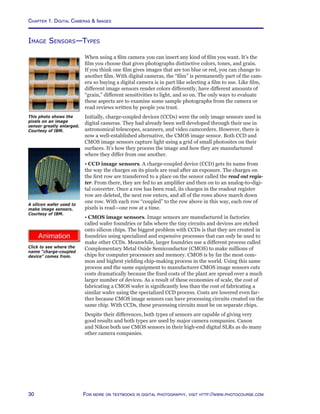
As you examine your images, here are some things to look for.
Evaluating image size and orientation
The initial size and orientation of an image is determined by what the camera
captured. There are situations in which you may want to change these charac-
teristics.
• Resizing can be done in two ways, by changing the number of pixels in the
image, called its pixel dimensions, through a procedure called resampling.
This process adds or removes pixels to make the image larger or smaller.
You might want to do this to reduce the size of images you will be sending by
e-mail or posting on the Web. You might also want to increase the size of the
image when making large prints. However, increasing the number of pixels in
an image doesn’t always make the image better. In fact it usually has the op-
posite effect. You can also change the size of the image without changing the
number of pixels it contains, called its document size by specifying the pixels
per inch. You normally do this when making a print or exporting an image to
another application.
• Cropping removes distracting or unimportant parts of an image. You
might also want to crop if the image has to fit into a specific design such as a
newsletter or greeting card.
• Rotating an image may be necessary if you turned the camera vertically to
capture a picture, or if the horizon line is tilted.
Evaluating the tonal range
Dynamic range in music is the range between the faintest and loudest sounds
that can be reproduced without distortion. In photography the dynamic
range, called the tonal range or contrast, indicates the range of brightness in
an image between pure white and pure black. There are two ways to evaluate
the tonal range of an image—visually and using a histogram (discussed in the
next section). You should use both approaches because they are not mutually
exclusive. Foe example, you can analyze an image visually and then learn why
it’s the way it is by checking its histogram.
Visually, images that use the full tonal range look rich and crisp, with vibrant
colors and smooth transitions in tones. Those that don’t use the full range
lack contrast, often looking flat and dull. Details may be missing in highlight
Tip
Without you even be-
ing aware of it, your
camera is making
changes to your JPEG
images that cannot
be undone. These in-
clude such things as
sharpness, white bal-
ance, and contrast.
If you want to adjust
these yourself, use
the camera’s RAW
format if it has one.
Cropping (top) is one
way to emphasize the
key parts or make it fit
a format, perhaps in a
magazine layout.
Click for a movie on
adjusting tonal ranges.
Click here for a PDF
extension on pixels and
read Part 5 on changing
image sizes.
67For more on digital photography, visit http://www.shortcourses.com
One way to evaluate
the tonal range is with
a histogram that charts
the various levels of
brightness in the image.
http://www.photocourse.com/itext/hue/
and shadow areas or the image may be too dark or light. In these cases you
may want to adjust or expand the image’s tonal range.
Evaluating colors
The human eye perceives color in terms of three characteristics—hue, satura-
tion, and brightness and there is even a color model based on these charac-
teristics, called HSB. The color monitor uses a different color model called
RGB because images are displayed using varying amounts of red, green, and
blue light. When evaluating images, you can think in terms of these two mod-
els—one to evaluate colors and the other to look for color casts.
To evaluate colors in an image, think of them in terms of hue, saturation, and
brightness because these three aspects can be adjusted.
• Hue is unique in one respect, it is the actual color, as measured by its wave-
length, while the other two characteristics (saturation and lightness) modify
the hue in some way. The hue can be red, orange, yellow, green, blue, purple,
or any intermediate color between those pairs.
• Saturation, sometimes called chroma, is the strength or purity of the
color. If you adjust saturation through its entire range, colors go from rich
and vibrant to dark gray.
• Lightness, also called luminance or brightness, is the relative lightness or
darkness of the color. Brightness is reduced by adding black to the color mix
and increased by adding white. If you adjust brightness through its entire
range, colors go from white to black. This is the only one of the three color
attributes that gray scale images have.
As you decrease
saturation (top), colors
become muddier and
finally gray. As you
decrease lightness
(bottom), colors
become darker and
eventually black.
Hues can be arranged
on a color circle or
wheel.
A color cast is usually caused when one or more of the three color compo-
nents (red, green, and blue) are too high or low over the entire image. This
can be caused by not setting white balance correctly, by photographing a
scene illuminated by more than one type of light source, or even a subject
picking up reflections from a colored surface. Color casts are very noticeable
when shooting during sunrises and sunsets—but there we usually like the
effects. It’s easiest to identify a color cast by looking at areas that should be
neutral white or gray. If these areas have any colors mixed in, the image has a
Tip
A neutral color has
equal amounts of
red, green, and blue
and appears as a
shade of gray.
Click for a movie
on adjusting hue,
saturation and
brightness.
Evaluating Your Images—Basics
Chapter 2. Digital Workflow
68 For more on textbooks in digital photography, visit http://www.photocourse.com
http://www.photocourse.com/itext/sharpen/
color cast that you should remove. Pure white areas should have R, G, and B
settings of 255. Gray areas should have R, G, and B settings that are equal, for
example, 128, 128, and 128 for middle gray. Pure black areas should have R,
G, and B settings of 0. Regardless of which neutral tone you are examining, if
one or more of the RGB values is higher or lower than the others, these tones
won’t be neutral and will have a color cast.
Evaluating details
When examining an image, look for small imperfections that can be re-
touched. The sensor may have dust that shows up on the image as dark spots.
A portrait subject might have a small blemish that will be very noticeable
when you enlarge the image. There may be reflections, or even telephone
wires you want to remove. Small areas may benefit by being made a little
lighter or darker than their surroundings. Portrait subjects may have red-eye
caused by flash in a dark room.
Evaluating sharpness
The apparent sharpness of an image depends a great deal on how much
contrast there is along edges and lines. If an image looks soft, it can often be
improved by sharpening, a process (technically called unsharp masking) that
adds contrast along lines and edges. Many photographers sharpen almost
every image, ignoring this aspect only for images such as fog scenes that are
deliberately soft.
Sharpening (right)
increases the contrast
between light and dark
areas to make the
edges appear sharper.
Evaluating noise
If you used a long shutter speed or high ISO setting to take a photo, it may
contain noise. Look in dark areas for randomly colored pixels that look like
grain.
Global vs local editing
You may have noticed that some of the adjustments discussed in this section
affect the entire image and others affect just specific areas. These are referred
to as global and local adjustments and are discussed in sections that follow.
Noise can significantly
degrade smooth tones.
As you point
Lightroom’s white
balance selector tool
at a pixel in an image,
the pixel’s color mix is
displayed. If you click
that pixel, it and all like
it will become neutral.
Click for a movie on
sharpening an image.
69For more on digital photography, visit http://www.shortcourses.com
Evaluating Your Images—Histograms
Most serious photo-editing programs let you use a histogram as a guide when
editing your images. However, since most image corrections can be diag-
nosed by looking at a histogram, it helps to look at it while still in a position
to reshoot the image. It’s for this reason that many cameras let you display
histograms on the monitor in playback mode or while reviewing an image
you have just taken. A few cameras even let you see a histogram as you are
composing an image so you can use it as a guide when adjusting the camera
settings you’ll use to capture the picture.
Evaluating histograms
As you’ve seen, each pixel in an image can be set to any of 256 levels of
brightness from pure black (0) to pure white (255) and a histogram graphs
which of those levels of brightness are in the image and how they are distrib-
uted. The horizontal axis of a histogram represents the range of brightness
from 0 (shadows) on the left to 255 (highlights) on the right. Think of it as a
line with 256 spaces on which to stack pixels of the same brightness. Since
these are the only values that can be captured by the camera, the horizontal
line also represents the image’s maximum potential tonal range or contrast.
The vertical axis represents the number of pixels with each of the 256 bright-
ness values. The higher the line coming up from the horizontal axis, the more
pixels there are at that level of brightness.
To read the histogram, you look at the distribution of pixels. Here are some
things to look for.
• Many photos look best when there are some pixels at every position because
these images are using the entire tonal range.
• In many images, pixels are grouped together and occupy only a part of the
available tonal range. These images lack contrast because the difference
between the brightest and darkest areas isn’t as great as it could be. However,
this can be fixed in your photo-editing program by using commands that
spread the pixels so they cover the entire available tonal range. These con-
trols allow you to adjust the shadow, midtone, and highlight areas indepen-
dently without affecting the other areas of the image. This lets you lighten or
darken selected areas of your images without loosing detail. The only pixels
that can’t be fixed in this way are those that have been “clipped” to pure
white or black.
There are two kinds
of histograms. Most
cameras show one
of the gray scale
brightness levels. A
few display an RGB
histogram showing the
brightness of each of
the three colors, red,
green, and blue.
Evaluating Your Images—Histograms
Chapter 2. Digital Workflow
70 For more on textbooks in digital photography, visit http://www.photocourse.com
http://www.photocourse.com/itext/histogram/
Click to explore
histograms.
http://www.photocourse.com/itext/highlight/Highlight warning
One thing you want to avoid is overexposing highlights so they become so
bright, or “clipped”, they loose details. To help you avoid this many cameras
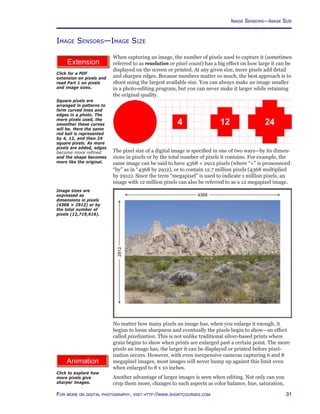
display a highlight warning when you review or compose your images. Areas
that are so overexposed they have no detail blink or are outlined in color.
Click to explore how
overexposed highlights
blink.
The original image (top)
is flat and its histogram
indicates only part of
the tonal range is being
used. A photo-editing
program was then used
to expand the tonal
range (bottom). You
can see the change in
both the image and in
the histogram.
When adjusting the histogram at the time you are taking photos, here are
some things to keep in mind:
• If the histogram shows most pixels toward the left (darker) side of the
graph, use exposure compensation (discussed in the next chapter) to add
exposure.
• If the histogram shows most pixels toward the right (lighter) side of the
graph, use exposure compensation to reduce exposure.
71For more on digital photography, visit http://www.shortcourses.com
Evaluating Your Images—Histograms
This series of photos was taken one stop apart using exposure compensation. As the
exposure increased, pixels on the histogram shifted right. You can tell from the way
the fan blades blur that the shutter speed was changed to change the exposure. In
the image where it was faster, the image is darker and the blades are frozen. As
slower speeds were used to increase the exposure, the images get lighter and the
blades more blurred.
In the top image
you can tell from the
histogram that some
of the highlight pixels
are pure white and
hence clipped. There is
nothing you can do later
to display details in the
area of these pixels.
However, if you reshoot
the scene at a different
exposure you can shift
the pixels to the left
and avoid the clipping
(bottom).
Clipped pixels
When a histogram shows pixels at the extreme ends of the range, in the 0 and
255 positions, it means details in those tones are lost or “clipped” in your im-
age. These extremes should be reserved for specular highlights (reflections)
and small dark shadows. When large areas lack detail an image suffers.
To avoid clipping and better place the tonal values in subsequent shots,
you use exposure compensation. Increasing exposure shifts pixels to the
highlight, or right end of the histogram. Decreasing exposure shifts them
the other way. Unless you are deliberately trying to get pure whites or pure
blacks, you should shift the pixels if any are being clipped. This then gives
you a chance to correct the image in your photo-editing program.
Chapter 2. Digital Workflow
72 For more on textbooks in digital photography, visit http://www.photocourse.com
This low-key scene
has the majority of its
values in the shadow
area with another large
grouping around middle
gray. There are wide
levels of brightness that
have only a few pixels.
This brown moth on
a gray card has most
of its values in the
midrange. That’s why
there are a number
of high vertical lines
grouped in the middle of
the horizontal axis.
This high-key fog scene
has most of its values
toward the highlight end
of the scale. There are
no really dark values in
the image. The image
uses only a little more
than half the camera’s
dynamic range.
In this well exposed
portrait there is a
fairly even distribution
of values in both the
shadow and highlight
areas of the image.
There are no pure
blacks in the image as
shown by the gap at the
far left end of the scale.
The distinct vertical line to the left of
middle gray shows how many pixels
there are in the uniformly gray frame
border added in a photo-editing
program.
Sample histograms
The way a histogram looks depends on the scene you’re shooting and how
you expose it. There’s no such thing as a good or bad histogram other than
one that shows unwanted clipping. Whether a particular histogram is good
or bad depends on what you are trying to accomplish. If fact, you may prefer
to trust your visual reaction to the image more than the very numeric image
data provided by a histogram. However, even if you never use a histogram,
you can learn about digital photography by understanding what a histogram
can show about an image. Following are some histograms from good images
along with a brief summary of what each histogram reveals.
73For more on digital photography, visit http://www.shortcourses.com
http://www.photocourse.com/itext/editreality/
http://www.photocourse.com/itext/editimprove/
Photo-editing—Global Editing
In 1932 a group of young photographers including Ansel Adams and Edward
Weston started a group they called f/64 that championed straight photog-
raphy over the heavily manipulated pictorial photographs so in vogue at the
time. The movement grew and when Edward Steiglitz published the work of
another straight photographer, Paul Strand, in his magazine Camera Work he
wrote “... The work is brutally direct. Devoid of flim-flam; devoid of trickery
and any ‘ism’; devoid of any attempt to mystify an ignorant public, includ-
ing the photographers themselves. These photographs are the direct expres-
sion of today...” This movement became known as “straight photography”
and there are still echoes of the arguments it generated. The pictorialists of
today are those who use Photoshop to heavily manipulate their images so
they fall out of the field of photography and into the realm of the graphic
arts. There is an entire industry of these people offering newsletters, Web
sites, workshops, conventions, videos, books, and magazines, all devoted to
proselytizing obscure techniques. For many of these gurus an image’s con-
tent is less important than its manipulation and they spend so much time on
manipulating the images they already have that they almost stop taking new
ones. It’s helpful to understand these arguments because Apple’s Aperture
and Adobe’s Lightroom are really tools for straight photography and straight
photographers and it helps you to put them in a historic context.
Straight photography doesn’t mean you don’t try to improve an image, in fact
it’s the rare image direct from a digital camera that doesn’t need some tweak-
ing. However Photoshop has become so complex, and has so many graphic
arts features, that there was an opening for a program that was both simpler
and more photographic in philosophy. Serious amateurs needed one that was
more intuitive and easier to learn. Professionals needed one that would allow
them to work faster and more efficiently—especially when dealing with a
large number of images. Thus were born Aperture and Lightroom, programs
that emphasize global procedures that affect the entire image.
One interesting aspect of Lightroom and Aperture is that any changes you
make don’t alter the original pixels in your image so you can undo any edit
at any time. This non-destructive editing is accomplished by storing a list
of your edits in the database along with the image itself. When you open the
image in Lightroom, it uses that stored list to reapply the edits so they are
used when you display, print, or export the image. In essence these programs
treat your images as digital negatives or masters and preserves them as such.
If you ever want to return the image to its original form, you just click the
Zero’d choice on Lightroom’s Presets panel.
Lightroom and Aperture are designed to make working with RAW images as
easy as working with JPEGs. You can display, zoom, adjust, add keywords,
print, and create Web page layouts using both formats without intermediate
format conversions. Both programs also let you work in the same way with
other image formats including TIFF and Photoshop’s native PSD.
The anatomy of lightroom
When you first start Lightroom, you’ll notice it’s divided into sections.
1. The menu at the top of the screen offers access to commands. The com-
mands change as you change modules.
2. The module picker in the top right of the screen is where you select
Library so you can import, organize and select photos for editing, Develop so
The Lightroom History
Panel in the Develop
module.
The Good Old
Days?
In the days of film,
control over prints
in the darkroom was
limited. You could
control contrast by
your choice of paper
and with filters. You
could make local
changes by dodging
to lighten areas or
burning to darken
them. When mak-
ing color prints you
could adjust color
balance using filters.
Before getting too
carried away with
the things you can
now do, keep in mind
that almost all of
the greatest pho-
tos in the history of
photography were
made with these few
adjustments.
Click for a movie on
improving a photo.
Click for a movie on
changing a photo
into something quite
different.
Photo-editing—Global Editing
Chapter 2. Digital Workflow
74 For more on textbooks in digital photography, visit http://www.photocourse.com
you can perform image adjustments, Slideshow so you can create slideshows
for on-screen viewing and exporting as PDF files, Print so you can set up your
printouts, and Web so you can create Flash or HTML web galleries. On the
left side of the screen is an identity plate and progress monitor.
3. The grid view or image display area in the center of the screen is
where selected images are displayed in all modules.
4. Panels to the left and right of the image area contain tools, layouts, and
information you use when working with images. The available panels change
as you change modules so you always have access to just those tools you need
for the immediate task. In most situations panels on the left contain content
and preset browsers, while panels on the right contain the tools you need for
the current task. Clicking a panel’s header collapses and expands it.
5. The toolbar has buttons you can click and these perform different func-
tions in different modules. You can display and hide this toolbar by pressing
T. In the Library and Develop modules clicking the drop-down arrow on the
right end of the toolbar lets you specify which buttons are displayed.
6. The filmstrip at the bottom of the screen shows the photos in the select
folder, a collection, a quick collection, or a keyword set and they remain
displayed when you change modules. Unless photos are in the filmstrip, they
cannot be accessed from the other modules. The only way to change which
images are displayed is to return to the Library.
The library module
The first time you use Lightroom, you open the Library and import photos
from drives on your system or directly from a camera or memory card. You
have the choice of leaving the original images where they are (as you might
when importing from folders on your system) or moving them into a folder
you specify.
In survey view Ctrl-
clicking images displays
them for comparison.
Tip
One of the best
things about Aper-
ture and Lightroom is
the way they retain
your workspace
when you end a
session. There is no
need to save your
work. It’s all saved
automatically and
the next time you
start the applica-
tion everything is
the same way it was
when you quit. If
you were editing 100
photos for a book,
they are all right
there. There is no
need to open each
of the images before
you get started.
In grid view dragging
the thumbnail slider
adjusts the size of the
images.
75For more on digital photography, visit http://www.shortcourses.com
• The grid view or image display area has four modes between which
you switch by clicking buttons on the toolbar (below): grid for thumbnails,
loupe for full screen or zoomed display of an image, compare with two im-
ages side by side, and survey to compare one image against any number of
others. In grid view thumbnails can be set to various sizes from extra small to
extra large. To compare two or more images more closely you can Ctrl-click
them to display them in the Grid.
• The toolbar in the library module has buttons that change the view in the
contents area, stars to rank photos, pick and reject flags, and rotate buttons.
• Filmstrip buttons above the thumbnails change the view in the content
area, navigate through images, and turn filters for stars, flags and colors on
and off. Photos that don’t meet the criteria are filtered out and not displayed.
• Navigator panel lets you scroll around zoomed images.
• Library panel lets you specify if all photos are listed or just those in the
quick collection or previous import.
• Find panel searches for photos using the text and date range you specify.
• Folders panel is where imported photos are listed. Each photo can be in
only one shoot.
• Collections panel lets you gather together related photos for a project.
• Keyword Tags panel is where you click keywords you have assigned to im-
ages so just those images are displayed.
• Metadata Browser panel lets you quickly locate images with matching
metadata such as the camera used.
• Histogram panel shows the distribution of tones in the selected image and
a few of the camera settings used to capture it. You can adjust the displayed
tonal range with sliders or by dragging the histogram itself.
• Quick Develop panel lets you make adjustments to your images. The
choices are described in the section on “The Develop Module.”
• Keywording panel lets you add keywords to selected photos.
• Metadata panel lists Exif and IPTC metadata for the selected image and
lets you enter additional IPTC metadata.
The develop module
For a complete discussion of all Lightroom features, you need a book devoted
to the program. However, here are the procedures listed in Lightroom’s Basic
editing section—the ones almost every photographer thinks about for almost
every image.
• Navigator panel lets you specify the size of the image and scroll around
images larger than the screen display.
• Presets panel lists stored settings you can apply to images. You can create
and save your own presets and they are added to the list.
Icons you click to
change the content area
to grid, loupe, compare
or survey views.
The histogram is a good
way to locate the white
and black points.
Modules in the left (top)
and right (bottom)
panels.
The metadata browser.
The red eye and remove
spots tools are the only
local editing tools in
Lightroom. All other
tools are for global
editing.
Buttons in the navigator
panel let you specify the
size of the image you
are editing.
Photo-editing—Global Editing
Chapter 2. Digital Workflow
76 For more on textbooks in digital photography, visit http://www.photocourse.com
• Snapshots panel lets you name and save a photo at any point in the editing
process so you can return to that version just by clicking its name.
• History panel lists changes you made to images so you can undo them.
• Histogram panel shows the distribution of tones in the image.
• Basic panel contains sliders you use to adjust the colors and other charac-
teristics of your images. (This section is discussed in more detail shortly.)
• Tone Curve panel lets you adjust the tones in the image: highlights, lights,
darks, and shadows.
• HSL/ Color /Grayscale panel adjusts hue, saturation and luminance;
colors, and the grayscale mix.
• Split Toning lets you set adjust hue and saturation independently in high-
lights and shadows.
• Detail has controls to sharpen, smooth and de-noise an image.
• Lens Correction reduces fringe effects and controls vignetting.
• Camera Calibration lets you calibrate your own cameras if you find that
Lightroom’s generic profile doesn’t meet your needs.
Developing images
Most of the changes you make to an image will be done using the Basic sec-
tion in the Develop module so it’s worth a closer look. Here are what each of
the controls does.
• Color/Grayscale converts the selected photos to grayscale and back to
color.
• White balance selector tool (the eyedropper icon) lets you click a
neutral pixel in the photo to remove color tints throughout an image. As you
move it about the image it enlarges the pixels under and around it and dis-
plays the center pixel’s RGB values so you can find a neutral pixel to click.
• White balance, temp and tint can be adjusted so that white or neutral
gray areas don’t have a color tint. Temp adjusts the color from blue to yellow,
while Tint adjusts from green to magenta. The WB drop-down menu lets you
select from a standard selection of white balance presets. The default is As
Shot.
• Tone’s Auto button sets the sliders to maximize the image’s tonal scale and
minimize highlight and shadow clipping.
• Exposure adjusts the tonal range or contrast of the image by changing the
white point to brighten or darken an image. The white point is where tones
become pure white with no detail (255). As you adjust, watch the histogram.
• Recovery lets you restore clipped highlights without darkening the rest of
an image.
• Fill light lightens shadow areas without lightening other areas.
• Blacks adjusts the tonal range by changing the black point to brighten or
darken an image. The black point is where tones become pure black with no
detail (0). As you adjust, watch the histogram.
• Brightness adjusts the midtones (sometimes called gamma) to lighten or
darken the overall image without affecting the black and white tones and the
details they contain. By default, the Brightness slider has a value of +50.
The Lightroom Basic
Panel in the Develop
module.
Lightroom’s white
balance selector tool
shows the colors of the
pixels that it points to.
Tip
While dragging the
Exposure and Blacks
sliders to adjust the
tonal range, you can
see the levels where
black or white details
begin to emerge
in the image if you
Alt+drag the sliders.
Presets, either those
that come with the
program or those you
create and save yourself
can be applied to all
selected images with a
click of the mouse.
77For more on digital photography, visit http://www.shortcourses.com
Web gallery templates
are listed by name and
when you point to one a
preview is displayed in
the Preview panel.
• Contrast adjusts the white and black points simultaneously to increase
contrast in the image.
• Vibrance adjusts the saturation of primary colors while leaving skin tones
and other secondary shades unaffected. This allows you to boost saturation
without unrealistic hue shifts.
• Saturation adjusts the saturation of all colors in the image.
Other modules
In addition to the Library and Develop modules discussed above, Lightroom
also has modules devoted to outputting your images in various formats.
• Slideshow lets you create slideshows to display on the screen, or export as
PDFs.
• Print lets you layout and print selected images.
• Web lets you create HTML or Flash galleries using templates supplied with
Lightroom.
Exporting
When working on images in Lightroom, your changes do not permanently
affect the image. However, the changes are made permanent on versions of
the image that you export. At the time you export images, here are just some
of the choices you can specify:
• Color Space attaches an sRGB, Adobe RGB or ProPhoto RGB color space
to the image. (Color spaces are discussed later in this chapter in the section
on color management.)
• Constrain Maximum Size lets you resize and image by specifying that
the width or height is not to exceed a specified number of pixels.
• Format lets you specify what format the image is saved in—JPEG, PSD,
TIFF or DNG.
• Post Processing lets you see an exported image in Explorer or Finder,
burn selected images to a CD/DVD, or go to an export action folder.
Automation
When it comes to efficiency there is nothing like automation to save you time.
Lightroom lets you select a group of images and add keywords and perform
other tasks. You can also make edits to one image and apply the same chang-
es to other images in two ways.
• Sync lets you select an image you have edited, then select others. When you
then click the Sync Settings or Sync Metadata button the edits or metadata
in the first image are copied to the others.
• Presets are stored settings that are added to a Presets menu. You can select
other images and click the preset on the menu and the stored settings are
applied.
Sync buttons lets you
copy edits or metadata
from one image to
many images.
Photo-editing—Global Editing
Chapter 2. Digital Workflow
78 For more on textbooks in digital photography, visit http://www.photocourse.com
http://www.photocourse.com/itext/transform/
Photo-editing—Local Editing
Local editing lets you change selected areas of the image. The latest programs
such as Aperture and Lightroom focus on global changes so to make most
local changes you have to export a photo to Photoshop or similar program.
When you export an image you can specify what format it will be in. For
example, when exporting an image to Photoshop, you would probably export
it in Photoshop’s native format, PSD. It is then this PSD file that you edit and
when finished, reimport into Lightroom.
When using a program such as Photoshop here are some of the things you
can do to an image that you can’t do in Aperture or Lightroom.
• Selecting. If you first select an area of the image, you can edit just that area
without affecting other areas. You can also copy, move, or delete selected
areas, perhaps to create a collage or remove a background.
• Compositing. You can cut out a selected part of one photo and paste it
into another to create a composite image.
• Healing and cloning. Many images have small imperfections such as a
small blemish on a portrait, reflections, or even telephone wires you want to
remove. Small areas may benefit by being made a little lighter or darker than
their surroundings. Portrait subjects may have red-eye caused by flash in a
dark room. The Healing Brush works by blending the area you sample seam-
lessly into the background so the texture, lighting, transparency, and shad-
ing aren’t changed. You can either paint with pixels sampled from the image
or select a pattern to paint with. In Lightroom the Remove Spots tool lets
you repair a selected area of a photo with a sample from another area. Clone
copies the sampled area of the photo to the selected area. Heal copies just the
texture, lighting, and shading of the sampled area to the selected area.
• Dodging and burning to lighten or darken areas of a print have been
the most popular darkroom techniques since the first prints were made from
negatives. Dodging was done using a piece of cardboard or other tool to block
light from certain areas of the image to make them lighter. Burning was done
with a piece of cardboard with a hole cut in it that let light through to darken
selected areas. In Photoshop you do the same thing by dragging a brush over
the area of the image you want to adjust.
• Adding text to images is usually the realm of graphic designers, more so
than photographers. However, you should be able to so to create title slides
for your slide shows, add copyright notices to your images, or just invent
ways to combine text and images in creative ways.
• Layers. When you first open a digital photo, it has only one layer—the
background layer containing the image. Any changes you make to this layer
become part of the image and permanently change its pixels. To avoid per-
manent changes, you add additional layers and make your changes on those
layers. It’s as if you were covering an original photo with sheets of glass on
which you drew, painted, made adjustments to the image below, entered text,
or added fills.
• Blending modes determine how a color you apply with a tool interacts
with the colors you paint over or how the colors on one layer interact with
colors on the layers below.
• Transformations let you scale, rotate, skew, distort and add perspective
to selections.
Photoshop’s toolbox
contains many of the
tools used to make
local adjustments.
These include healing,
dodging, burning,
cloning, and painting
tools.
Click for a movie on
changing perspective in
a photo.
The red eye and remove
spots tools are the only
local editing tools in
Lightroom. All other
tools are for global
editing.
79For more on digital photography, visit http://www.shortcourses.com
The background of the
original image (left)
has been selected and
removed (right).
The background of
the monster has been
selected and removed
(top), a new photo
opened (middle) and
then the monster copied
in (right) to create a
composite image.
• Effects let you add drop shadows to text, bevel the edges of an image, or
add a frame. You can also combine effects, using first one and then another.
For example, you may soften a portrait to make it look more romantic, vi-
gnette it, and then add a frame around it.
• Masking confines adjustments to selected area of an image. Unlike a
selection, a mask is a grayscale image just as your images are. This means
you can edit one just like you edit images; using brushes, erasers, fills, filters,
and almost every other tool and technique you have learned. Having all of
these tools at your disposal means you can create more complex selections
than you can with just selection tools. Because masks make precise selections
possible, they lie at the heart of compositing—the creation of a new image by
piecing together parts of other images. You can either cut and paste selected
areas or make some areas transparent so layers below show through. Once
you master a few basic tools, the possibilities are endless.
• Animated GIFS can be created by layering images on top of each other.
When then saved as an animated GIF and posted on a Web site, the images
play back like frames in a movie.
• Stitching panoramas from a series of side by side images lets you create
seamless panoramas that capture a broad sweep of the landscape.
Photo-editing—Local Editing
Chapter 2. Digital Workflow
80 For more on textbooks in digital photography, visit http://www.photocourse.com
http://www.photocourse.com/itext/CMYK/
http://www.photocourse.com/itext/RGB/
http://www.photocourse.com/itext/colorspace/
Color Management–Color Models and Color Spaces
As you’ve seen, the image sensor in a digital camera captures just red, green
and blue (RGB) light. RGB is what we call a color model and it’s based on the
way the human eye perceives full-color images by blending various propor-
tions of red, green and blue light. The RGB model used in display devices
creates an image with transmitted red, green, and blue light; and the CMY
model used in printers creates it with cyan, magenta, and yellow inks that
absorb colors so only red, green and blue are reflected.
Color models
Color models are fairly basic in that all they tell you is what amount of each
color needs to be blended to create a third color.
• RGB specifies the amount of each color in units between 0–255.
• CMY specifies the amount of each color as a percentage between 0–100%.
For example, if you start with pure red its RGB values would be R:255 G:0
B:0 indicating that the color’s red component is 256 (remember, we count
from 0, not 1) and both green and blue components are zero. This sounds
like a detailed description of a color but it isn’t because it doesn’t refer to a
specific color as you would perceive it, it just tells a device such as a display
screen or printer to generate all of the red it’s capable of. (One expert calls
these RGB values “input signals”.) The most fully saturated red could be
bright and vibrant on one device and dull and muddy on another. It’s as if a
driver’s manual told you that to reach a specified speed you press the acceler-
ator down 1 inch. However, if you follow this instruction in a Ford, you might
go 35 miles per hour, while following it on a Ferrari would have you going 135
miles per hour. In digital photography what’s needed is a way to make the
values refer to a very specific color and that’s where color spaces come in.
Color spaces
A color space plots each of the millions of possible colors on a three-dimen-
sional chart in such a way that their positions and spacing show how they
relate to one another—often called scaling. Each color can be specified or
located by its coordinates in this space.
One of the key features of a color space is its gamut—the range of colors
it represents. Different color spaces have different gamuts as do different
devices. It’s not at all uncommon to have a color in an image that is within
the gamut of the display but not of the printer and vice versa. When a color
falls outside of a color space’s gamut in this way, it can’t be reproduced by the
device and is called out-of gamut. In the next section you’ll see how a color
management system can bring such colors back into the gamut of a device.
One thing to keep in mind is that a wider gamut doesn’t mean more colors.
The only way to do that is to capture images in the RAW format rather than
JPEG. A wider gamut just spreads out the available colors.
In digital photography you will find references to a variety of RGB color
spaces. Here are the most common:
• sRGB has the smallest gamut of the spaces discussed here, but is ideal for
images that will be displayed on a screen or projected. Almost all cameras
assign this as the default space for JPEG images. Almost all browsers and
display devices are set to display this color space most accurately.
Click to explore how
sRGB and Adobe RGB
color spaces compare
when it comes to the
number of colors they
can capture.
Click to explore how
red, green and blue can
create full color images.
Click to explore how
cyan, magenta and
yellow can also create
full color images.
Here is the sRGB color
space superimposed
over the larger Adobe
RGB color space (shown
here ghosted). You can
see how much smaller
its gamut is.
If you align the letters
CMY under RGB, you
have a guick guide to
how CMY works. Cyan
creates red (directly
above it) by absorbing
the other two colors,
green and blue;
Magenta creates green
by absorbing red and
blue; and yellow creates
blue by absorbing red
and green.
81For more on digital photography, visit http://www.shortcourses.com
• Adobe RGB has a wider gamut than sRGB and is often used when the goal
is making high-quality prints. One drawback is that images using this color
have subdued colors when displayed on a display because almost all displays
are based on the sRGB color space. However, if you use this space, Photo-
shop, Lightroom and other products can convert it to sRGB without any loss
in quality.
• ProPhoto is the largest color space currently used in digital photography
and the only one that has a gamut that includes all of the colors a camera
can capture. This color space can cause problems when used with 8 bit JPEG
images. There are so many fewer levels of tones (256 versus a RAW image’s
65,536) that if you make any large adjustments to the image you may get
banding, noticeable transitions in what should be smooth gradations.
• CIE LAB (pronounced “see-lab”), and its very closely related CIE XYZ,
are different but important kinds of color spaces although you don’t interact
with them directly. Unlike the other color spaces CIE LAB arranges colors
based on how we perceive them rather than on any particular device. For
this reason this color space is called “device-independent” (although if there
were a device, it would be the human eye). The space contains almost all of
the colors a human can perceive. (Interestingly, the actual CIE LAB color
model can’t be accurately printed or displayed because no device has all of
the required colors.) In the section that follows on color management you’ll
see how this color space plays an important role in moving images from the
camera to the screen and then to the printer while keeping colors constant on
all of these different devices.
• Working space. When editing an image, the editing application lets you
select a working space so the colors are what you expect to see when you
display or print the image. The working space can be sRGB, Adobe RGB, Pro-
Photo RGB or any other space supported by the application.
Although a color space is initially embedded in a JPEG image by the camera
that captured it there are two ways to change the color space.
• Attaching a new color space changes the look and colors of the image
without changing the color values of each pixel.
• Converting to another color space keeps the image looking the same,
but converts the color values of each pixel to fit into the new color space.
When using Photoshop you can assign different profiles and watch the image
change appearance as you do so. This is a good way to find the space that
works best for a particular image. The widest possible gamut isn’t always the
best choice. A smaller gamut such as sRGB has smaller spaces between the
colors so smooth gradations, such as those found in skin tones, are repro-
duced more faithfully. However, if the center of interest in the image is a fluo-
rescent orange traffic cone, most of its colors might be outside of the sRGB’s
gamut so ProPhoto would be a better choice.
CMYK uses cyan,
magenta, yellow (and
black) to form all other
colors.
Tips
• In color manage-
ment, the term
“space” is so widely
used that it’s lost
any specific mean-
ing other than the
distribution of RGB
or CMYK colors into
a three dimensional
chart that shows
their relationships.
• The CMY color
model is more often
called CMYK with
the “K” standing for
black. Black is need-
ed because although
mixing CMY at 100%
should create black,
it’s a muddy black.
sRGB’s gamut plotted
against the larger CIE
LAB.
Color Management—Color Models and Color Spaces
Chapter 2. Digital Workflow
82 For more on textbooks in digital photography, visit http://www.photocourse.com
Color Management—The Workflow
If you don’t do anything about controlling color, it’s amazing how good your
results are with most camera, screen and printer combinations. If nothing
else, the colors are pleasing if not accurate—mainly because so many cameras
and other devices have been designed to display and print sRGB images. In
fact, other than skin tones, color accuracy is rarely important to most people.
If the yellow flower in the scene is yellow on the screen or in the print, that’s
good enough—who cares, or can even tell, that it’s not the exact same yellow
as the subject’s. However, photography is a visual art and when you start us-
ing RAW image formats and other color spaces, you soon notice things about
colors that you never noticed before, and for many people accurate colors
become more important.
As you prepare your images to be displayed and printed, you move them
through the workflow. As you do so, colors rarely remain predictable and
consistent. The image on the display differs from the original scene, and the
printout differs from both. When you then share images with friends, they
look different on their screens or printouts than they do on yours. To see this
for yourself, visit an electronics super store and look at the walls of TV sets,
all with slightly different colors. If you post your images on the Web, they will
vary just as widely when displayed on other systems.
Color management systems (CMS) are designed to help you keep the colors
in your images as consistent and predictable as possible as they pass through
the various stages of the workflow. Although you can’t control other people’s
display devices (or even many of your own, such as the TV or digital frame)
you can ensure that your image colors are as close to perfect as they can be.
To accomplish this, a color management system adjusts colors between devic-
es that have different gamuts so the colors remain consistent. For example, a
scene will have one gamut, an image of it another, the display and printer still
others. As your interest in this area grows, you’ll find that color management
systems are a great deal easier to use than they are to understand or pay for.
There are only two steps, creating profiles of your devices and using those
profiles to display or print images.
Getting ready to color manage—creating profiles
The first step in color management is to measure how much your devices
vary from a known standard. The differences are measured and stored in text
files, called profiles, with the extension .ICC or .ICM. The color management
system uses the information stored in these profiles to determine what color
adjustments are required to make the colors in an image display or print as
accurately as possible. There are various kinds of device profiles:
• Image profiles have been developed for sRGB and other color spaces.
These profiles define the colors in an image in a generic fashion and are
embedded in the image at the time it’s captured. In some cases these profiles
(rather than input profiles discussed below) are used by color management
systems.
• Input profiles for specific digital cameras are fraught with complications
because the camera heavily manipulates JPEG images and RAW convert-
ers do the same to RAW images. Unless you are photographing under a very
controlled studio situation it’s better to use the profile for the image’s color
space, rather than a profile for the camera.
One thing that’s
often overlooked is
a consistent viewing
area. Color experts
recommend a neutral
colored room with
diffuse fluorescent
lighting with complete
spectrum tubes and
ideally egg-crate
lighting diffusers. If you
don’t have the money
for a new room, a color
viewing booth is a less
expensive alternative.
Courtesy of Just-
Normlicht.
Tips
• Profiles have their
limits since there are
many devices such
as TVs, cell phones,
and digital picture
frames that don’t
recognize them. The
same is true of appli-
cations such as Web
browsers.
• Printers at most
commercial labs,
including those that
make prints for most
photo-sharing Web
sites shine light on
traditional silver-
based photographic
paper to create
prints. These work
best with sRGB im-
ages.
• Inkjet printers
and printing presses
create images with
ink so work best
with wider gamut
color spaces such
as Adobe RGB and
ProPhoto.
83For more on digital photography, visit http://www.shortcourses.com
• Display profiles for CRT and LCD flat panel displays. To profile a display,
you attach a color measuring device called a spectrophotometer or colorim-
eter to the display screen. Profiling software then flashes a number of known
colors on the display while the device reads each colors’ values. The differ-
ences between the known and measured results are stored in the display’s
profile. Some color management systems let you create a display profile visu-
ally without using an expensive color measuring device. This software walks
you through adjusting brightness, contrast, and color balance as you create
the profile step by step. Although not as accurate as a profile done with an
instrument, it’s better than nothing.
• Output profiles for devices such as printers and projectors. To profile
a printer, you open an image of a color chart with known color values and
print it out. You then use a spectrophotometer to read each color patch in the
printout. Profiling software compares the known and printed values for each
patch and stores the differences in the device’s profile.
When you buy a printer, it often comes with a number of profiles created
by the manufacturer for various papers. Since these profiles are generic, the
ones you create for your specific printer will be more accurate but you have
to create a profile for every ink/paper combination you use. Although incon-
venient, you have to do this to get the best possible results on your specific
printer and whenever you use paper or ink from a third-party.
To simplify the use of profiles, the International Color Consortium (ICC) has
defined a widely accepted format for them so they can all work together. This
makes it possible to move images with embedded ICC profiles (called tagged
images) between different applications, hardware, and even operating sys-
tems while retaining color fidelity. If an ICC profile isn’t assigned to an image,
you can use an application such as Photoshop to assign one.
One interesting use of profiles is in a process called soft proofing. The pur-
pose of this proofing is to show on the screen what your image will look like
when printed on a specific type of paper. When you soft proof, the program
uses the printer’s profile, normally used as an output profile, as the input
profile. When paired with the display’s output profile, you get a close approxi-
mation on the display of what the printed image will look like.
Color managing—using profiles
When you are ready to pass an image between two devices, you need both an
input and output profile. A single profile describes a device but doesn’t affect
it. The various profiles that can be paired up include the following:
• The image or input profile is embedded in the image by the camera, or
you can embed one using a photo-editing application. Many photo-editing
applications also let you select a working space profile, which is then paired
with the display profile.
• The display profile can be changed using an operating system dialog box.
• The output profile, often specific to a paper, is specified at the time you
print using your photo-editing application’s print dialog box.
Once you have specified a pair of profiles, the color management system
works as follows:
1. It looks up each color value in the image in the input profile and adjusts it
as specified in that profile.
2. It looks up the adjusted color in a Color Matching Method (CMM) that
Tip
Profiles are not
permanent. They
need to be redone
periodically because
hardware colors drift
as a device ages.
They also need to
be redone if any
settings or parts are
changed.
Sony’s Artisan Color
Reference System has
integrated profiling
hardware and software.
ColorVision’s PrintFix
has a target that you
open on your computer
and print out. You then
scan the printout and
the printed colors are
compared to the known
colors in the target. The
differences are stored in
the new printer profile.
Color Management—The Workflow
Chapter 2. Digital Workflow
84 For more on textbooks in digital photography, visit http://www.photocourse.com
includes a device independent color space such as CIE LAB, called a profile
connection space. This gives it a device independent color value to use in the
next step.
3. It looks up the device independent CIE LAB color value in the output
profile and uses the adjustment found there to determine what color value to
send to the output device.
This three-step process, called rendering, converts the color values found in
the source image into the color values needed to obtain accurate colors in the
output. As this process takes place, there may be colors that one device can
reproduce that the other device can’t because they are out-of-gamut. When
this happens the input color value is changed to a color that is in gamut on
the output device. The rules that govern this adjustment when using ICC
profiles are known as rendering intents and there are four of them to choose
from.
• Perceptual is the most commonly used intent in digital photography and
is based on the fact that relative color values are more important to a viewer
than absolute values. This intent adjusts the entire gamut of the image so it
fits the gamut of the destination device. Even colors that were in-gamut are
adjusted so the relationships between colors remain the same and the overall
look of the image is preserved.
• Colorimetric comes in two versions, relative and absolute (the difference
is based on whether the white point is adjusted or not). In digital photogra-
phy the relative version is sometimes used and the white point of the source
color space is changed to the paper white of the output device so whites in
the original image remain white in the output. This intent to retain a near
exact relationship between in gamut colors, even if this clips out of gamut
colors. In contrast, perceptual rendering tries to also preserve some relation-
ship between out of gamut colors, even if this results in inaccuracies for in
gamut colors. If you use the colorimetric rendering intent when converting to
a smaller color space you may see banding, posterization and other artifacts
into the image.
• Saturation is designed to produce saturated colors without trying to be
accurate. This intent is never used in digital photography but is best when
printing or displaying pie charts and other solid colors found in business
graphics.
Profiles in photoshop
When an image is opened in Photoshop, if its profile doesn’t match the work-
ing space you are often given choices. They include:
• Use the embedded profile (instead of the working space).
• Convert to the working space.
• Discard the embedded profile and don’t color manage.
Instead of choosing a profile blindly, you can select the last choice to discard
the embedded profile. When the image opens, you can then use the Edit 
Assign Profile command to assign other profiles to it to see which has the
best effect on the colors. When you then save the file you can embed the new
profile.
A color management
system uses an input
profile, a profile
correction space and an
output profile to adjust
colors as they are
moved from one device
to another.
85For more on digital photography, visit http://www.shortcourses.com
A
utomatic exposure control is one of the most useful features of
a digital camera. It’s great to have the camera automatically deal
with the exposure while you concentrate on the image. This is espe-
cially helpful when photographing action scenes where there isn’t
time to evaluate the situation and then set the controls manually.
You shouldn’t, however, always leave the exposure to the automatic system.
At times the lighting can fool any automatic exposure system into producing
an underexposed (too dark) or overexposed (too light) image. Although you
can make adjustments to a poorly exposed image in a photo-editing program,
you’ve almost certainly lost image information in the shadows or highlights
that can’t be recovered. You will find it better in some situations to override
the automatic exposure system at the time you take the picture.
Situations in which you might want to override automatic exposure often
involve scenes with interesting or unusual lighting. For example, you need
to take control when you photograph into the sun, record a colorful sunset,
show the brilliance of a snow-covered landscape, or convey the dark moodi-
ness of a forest. In this chapter you’ll learn how to use your camera controls
to get just the exposure you want.
Chapter 3
Controlling Exposure
AA30470CChapter 3. Controlling Exposure
Longue chairs on
a Florida beach,
illuminated by the soft
light of dawn.
Chapter 3. Controlling Exposure
86 For more on textbooks in digital photography, visit http://www.photocourse.com
http://www.photocourse.com/itext/exposure/
Click to explore how
exposure determines
how light or dark an
image is.
The Importance of Exposure
Photography begins with an exposure when you press the camera’s shutter
button. The shutter opens and light reflected from the scene enters through
the lens and strikes the image sensor to create the image. By controlling
how much light reaches the sensor you control how light or dark the picture
is—one of the most important aspects of photography. When a scene has both
very light and very dark areas, getting the perfect exposure is a lot like park-
ing a large car in a small garage—there isn’t a great deal of room for error.
Your goal is to retain details in both the darkest and lightest areas so pure
white is used only for spectral highlights such as reflections, and pure black is
used only for those few areas of the scene that are black with no details.
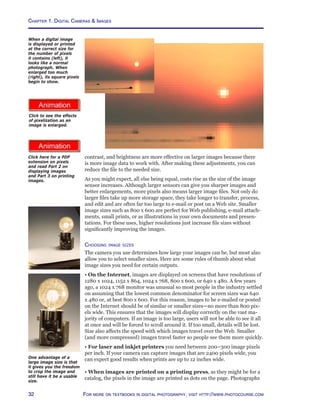
In this scene there
are details in all of the
whites that give them
texture and form. The
small white square has
been added to give you
a reference to what
pure white would look
like.
In this scene there are
details in the darkest
shadows. The small
black square has been
added to give you a
reference to what pure
black would look like.
One of the things that
makes an Ansel Adams
print so stunning was
his ability to hold details
in both the brightest
and darkest parts of
a scene. To do this
with film he developed
the Zone System
that guided him in
adjusting exposure and
development times for
the best results. Today
the adjustments are
made with a photo-
editing program.
87For more on digital photography, visit http://www.shortcourses.com
How Exposure Affects Your Images
When you take a photograph, the exposure isn’t uniformly distributed over
the sensor’s surface—unless you are photographing a subject that is absolute-
ly uniform in tone. Highlights (brighter areas) in the scene reflect the most
light, and the areas of the sensor onto which they are focused are exposed a
great deal. Darker areas, such as shadows, reflect much less light, so the areas
of the sensor onto which they are focused receive much less exposure. The
perfect exposure retains details in both the highlights and shadows. If there
is even a little too much exposure, the image is too light and details are lost in
the highlights. If there is too little exposure, the image is too dark and details
are lost in the shadows.
As you’ll see, one way to ensure you get the best exposure is to take three pic-
tures—a procedure called bracketing. The first is taken at the recommended
setting. The second is lighter and the third darker than the first.
In this series of
photographs you
can see the effect
of exposure on the
image. The top photo is
correctly exposed. The
bottom left photograph
was overexposed
and is too light. The
bottom-right photo was
underexposed and is too
dark.
How Exposure Affects Your Images
Chapter 3. Controlling Exposure
88 For more on textbooks in digital photography, visit http://www.photocourse.com
Exposure Controls—The Shutter and Aperture
The most important exposure controls on your camera are the shutter speed
and aperture because both affect the total amount of light reaching the image
sensor. However, they do more than just control the exposure. As you’ll see
shortly they can also be the most creative controls you have.
• The shutter opens to begin an exposure and closes to end it. The shutter
speed setting determines how long the shutter remains open to expose the
image sensor.
• The aperture is the hole through which light enters the camera. Its size
can be changed to control the brightness of the light allowed through to the
image sensor.
If you strip away all of the modern technology and look at the earliest cam-
eras, you will find the same controls in much simpler, and perhaps easier to
understand, versions.
In the early days of
photography, a plate
called a waterhouse
stop, was inserted
into a slot in the lens.
Selecting one of the
holes was much like
selecting an f/stop
today. A lens cap was
removed and then
replaced to begin and
end the exposure—a
primitive version of a
shutter. This vintage
camera is surrounded
by waterhouse stops
(apertures) and a lens
cap (the shutter) leans
against it.
Less light makes an
image darker (left) and
more light makes it
lighter (right).
It’s not just old cameras
that use waterhouse
stops. The Lensbaby,
“a selective focus SLR
camera lens”, comes
with four apertures you
can insert into the lens.
89For more on digital photography, visit http://www.shortcourses.com
Exposure Controls—Why So Many Choices?
Many digital cameras let you set the shutter speed and aperture to a range of set-
tings. Since you only need one combination of these settings for a good exposure,
why are there choices? It’s because they give you creative control. By selecting the
right combination you can make the background in a portrait sharp or blurred or
freeze or blur motion.
A fast shutter speed
freezes a spinning
amusement park ride
(right) and a slow
shutter speed blurs it
(left).
A small aperture
increases depth of
field so foreground
and background are
sharp (top) and a large
aperture decreases
depth of field so the
foreground and/or
background is soft
(bottom).
In this book and its
animations, apertures
are represented by
these realistic icons with
a small aperture (left)
and a large one (right).
In this book and its
animations, shutter
speeds are represented
by these symbolic icons
with a fast shutter
speed (left) and a slow
one (right). The cutout
“pie slice” indicates how
far an imaginary second
hand would sweep.
Chapter 3. Controlling Exposure
90 For more on textbooks in digital photography, visit http://www.photocourse.com
Choosing Exposure Modes
http://www.photocourse.com/itext/modedial/
Exposure Modes
Digital cameras usually offer more than one way to control the aperture and
shutter speed—called exposure modes. All modes give equally good results
in most situations. However, in specific situations, each of these exposure
modes may have certain advantages. Here are modes you may encounter:
• Automatic mode (full auto) sets the shutter speed and aperture with-
out your intervention. This allows you to shoot without paying attention to
settings so you can concentrate on composition and focus. In this mode you
can’t change many camera settings.
• Scene modes, which go by a variety of names (Nikon calls them Digital
Vari-program modes), automatically adjust settings for specific situations
such as landscapes, portraits, night portraits, sports, and close-up photog-
raphy. On some cameras the number of these settings has gotten a bit out of
hand since there are so many you have to select them from a menu.
• Programmed AE (auto exposure) mode is just like full auto in that
it sets the aperture and shutter speed for you, but unlike full auto it lets you
change many of the camera’s settings. In this mode, many cameras also let
you select from a series of paired aperture and shutter speed combinations
that yield the same exposure as that recommended by the camera. This gives
you control over how depth of field and motion are captured. One of the best
things about this setting is that it prevents you from inadvertently selecting
an exposure setting that exceeds the camera’s range.
• Shutter-priority AE mode lets you choose the shutter speed and the
camera automatically selects the aperture needed for a good exposure. You
select this mode when the portrayal of motion is most important. For exam-
ple, when photographing action scenes, such as those encountered by wildlife
photographers, sports photographers, and photojournalists, shutter-priority
mode might be best. It lets you be sure your shutter speed is fast enough to
freeze the action or slow enough to blur it
• Aperture-priority AE mode lets you select the aperture and the cam-
era automatically selects the shutter speed needed for a good exposure.
You select this mode whenever depth of field is most important. To be sure
everything is sharp, as in a landscape, select a small aperture. The same holds
true for close-up photography where limited depth of field is always a major
concern. To throw the background out of focus so it’s less distracting as in a
portrait, select a large aperture.
• Manual mode lets you select both the shutter speed and the aperture. The
two are not linked as they are in all other modes. You normally use this mode
only when the other modes can’t give you the results you want. Some cameras
have a bulb setting in this mode that lets you capture time exposures such
as light trails at night. In bulb mode the shutter remains open as long as you
hold down the shutter button.
• Custom settings mode on high-end cameras lets you store personal set-
tings. This is as simple as setting the camera the way you want it and then
selecting the menu’s command that assigns them to the custom setting. Some
cameras let you save one or more sets and then instantly access them at any
time just by turning a mode dial. If you use the same settings over and over
again, this is a great way to save them. For example, you can save one group
of settings to capture macro subjects, and then use any of the normal expo-
sure modes to capture other scenes.
Click to explore the
exposure modes
available on many
cameras.
On some cameras you
select exposure modes
using buttons or a
menu.
Modes and how they
are designated on
the camera vary from
model to model. Modes
that give you the most
control, available only
on more advanced
cameras, are usually
indicated with letters.
Those that are fully
automatic, often called
scene modes, are
indicated with icons like
those shown on this
Canon mode dial.
91For more on digital photography, visit http://www.shortcourses.com
Using Scene Specific Exposure Modes
Scene modes work just like full auto, but each draws on a library of settings
designed for specific situations. For example, in Portrait mode the camera
selects settings for a shallow depth of field so the background is softer. In
Landscape mode, it does the opposite and selects a small aperture for maxi-
mum depth of field. (For more on the concepts of depth of field, see Chapter
4.) Here are the modes you are most likely to encounter.
• Portrait sets the camera for minimum depth of field so a portrait has a
soft, and less distracting, background. To maximize the effect, zoom in on the
subject, or use a long focal length lens (a telephoto) so the subject fills most of
the viewfinder, and make sure there is as much distance as possible between
the main subject and the background.
• Landscape sets the camera for maximum depth of field so as much of
the scene as possible is sharp from foreground to background. Since a slow
shutter speed may be used in this mode, you may need to support the cam-
era. This mode works best with a short focal length (wide-angle) lens and the
built-in flash is usually turned off so it won’t fire.
• Close-up is used to capture flowers and other small objects but on SLR
cameras this mode isn’t a substitute for a macro lens. This mode works best
when subjects are at the lens’ minimum focusing distance.
• Sports mode is ideal for action sports and other fast-moving subjects
because the shutter sped is set as fast as possible to freeze action. On some
cameras, the autofocus mode is set to automatically keep a moving subject
in focus, and continuous mode is selected so you can take pictures one after
another as long as you hold down the shutter button. For best results use a
long focal length lens.
• Night Portrait or Twilight mode is designed for photographing people or
other nearby subjects at twilight, night, or dawn. The flash fires to illuminate
foreground subjects and the shutter speed is set slow enough to lighten the
background. Since it’s likely a slow shutter speed will be used, you need to
support the camera. Also, the shutter may remain open after the flash goes
off so be sure to hold the camera still until the shutter closes, and if there
are people in the foreground, ask them to freeze until a few seconds after the
flash has fired.
• Night landscape doesn’t fire the flash and instead uses a slow shutter
speed to capture a landscape, and especially a cityscape, in the light of dawn,
dusk, or night. Since a slow shutter speed will almost certainly be used in this
mode, you need to support the camera. If the scene includes foreground sub-
jects, you may want to consider using night portrait as well as this mode.
• Black and White or Sepia modes capture grayscale images. In sepia
mode images are given a reddish brown tone to mimic old albumen prints.
• Panoramic mode, also called stitch-assist, helps you align a series of im-
ages so they can be stitched together on your computer using a panoramic
stitching program. Some cameras will even stitch a panorama together in the
camera but you can get better results, and much larger images, doing it on
your desktop.
• Other scene modes you might encounter include party/indoor, beach/
snow, sunrise/sunset, museum, fireworks, copy and backlight.
Portrait and Landscape
mode icons.
Close-up and sports
mode icons.
Night portrait and night
landscape mode icons.
Sepia makes an image
look like an albumen
print from the 1800s.
Tip
It would be nice if
camera companies
told you more about
what settings they
were manipulating in
these scene modes,
but none that I know
of do so.
Chapter 3. Controlling Exposure
92 For more on textbooks in digital photography, visit http://www.photocourse.com
http://www.photocourse.com/itext/speedseries/
The Shutter Controls Light and Motion
The shutter is normally closed to keep light out of the camera but opens
during an exposure so light can expose the image sensor. In respect to just
exposure, faster shutter speeds let less strike the image sensor so the image is
darker. Slower speeds let in more light so an image is lighter.
In addition to controlling exposure, the shutter speed is the most important
control you have over how motion is captured in a photograph. The longer
the shutter is open, the more a moving subject will be blurred in the picture
Also, the longer it’s open the more likely you are to cause blur by moving the
camera slightly. Although you normally want to avoid blur in your images
there are times when you may want to use it creatively.
As the shutter speed
gets slower, the image
gets lighter. The reason
you don’t usually see
this effect in your
images is because in
most exposure modes
when you or the camera
change the shutter
speed, the camera
changes the aperture
to keep the exposure
constant.
Click to explore the
effect of shutter speed
on exposure.
The Shutter Controls Light and Motion
Tips
• Depending on the
available light, you
may have access
to only some of the
camera’s shutter
speeds. To ac-
cess faster shutter
speeds, increase
the ISO. To ac-
cess slower shutter
speeds, use a neutral
density filter.
• The term “stop”
goes back to the ear-
liest days of photog-
raphy. When there
was too much light,
plates with holes
drilled in them were
inserted into the lens
to “stop” some of the
light from entering.
93For more on digital photography, visit http://www.shortcourses.com
http://www.photocourse.com/itext/shutterspeed/
A fast shutter speed
(top) opens and closes
the shutter so quickly a
moving subject doesn’t
move very far during
the exposure. A slow
speed (bottom) allows
moving objects to move
sufficiently to blur their
image on the image
sensor.
Shutter speeds
Although digital cameras can select any fraction of a second for an exposure,
there are a series of settings that have traditionally been used when you set it
yourself (which you can’t do on most point and shoot cameras). These shutter
speed settings—called stops—are arranged in a sequence so that each setting
lets in half as much light as the next slowest setting and twice as much as
the next fastest. Some of the traditional shutter speeds are listed in the first
column in the table to the left although many cameras have both faster and
slower speeds.
• Speeds faster than 1 second are fractions of a second and many cameras dis-
play them without the numerator. For example, 1/2 second is displayed as 2.
• Speeds of 1 second or slower are whole seconds and many cameras indicate
them with quotation or inch marks (”). For example, 2 seconds is displayed as
2”.
Click to explore how the
shutter speed affects
the capture of moving
subjects.
Shutter Speeds
1 0”8 0”6
0”7
1/2 0”4 0”3
0”3
1/4 1/5 1/6
1/6
1/8 1/10 1/13
1/10
1/15 1/20 1/25
1/20
1/30 1/40 1/50
1/45
1/60 1/80 1/100
1/90
1/125 1/160 1/200
1/180
1/250 1/320 1/400
1/350
1/500 1/640 1/800
1/750
1/1000
At slow shutter speeds,
especially with point
and shoot cameras,
noise can build up and
degrade image tones.
Chapter 3. Controlling Exposure
94 For more on textbooks in digital photography, visit http://www.photocourse.com
http://www.photocourse.com/itext/G-shutters/
Many high-end digital cameras have added one or two settings between each
of the traditional ones. This allows you to adjust exposure in one-half or one-
third stop increments for finer exposure control. In the table on the previous
page one-half and one-third stops are shown in the second and third columns
in the table.
Types of shutters
There are three different kinds of shutters used in digital cameras—leaf, elec-
tronic, and focal plane. Leaf and focal plane shutters are both mechanical and
have moving parts—leaves or curtains.
• Leaf shutters, alone or combined with an electronic shutter, are used on
some point and shoot cameras. On some inexpensive cameras, the shutter
also acts as the aperture by varying how far it opens.
• Electronic shutters simply turn the sensor on and off to capture the ex-
posure. It’s like turning a vacuum cleaner on to start accumulating dust and
off to stop. These shutters are found in the cheapest cameras, but ironically
also in the most expensive. When precision designed they can be exception-
ally accurate.
• Focal plane shutters, found in all digital SLRs open one curtain to begin
an exposure and close another curtain to end it. On newer cameras the
curtains run vertically. This makes them faster than older shutters that ran
horizontally because they have less distance to cross. This faster speed makes
it possible to have a faster flash sync shutter speed.
A leaf shutter.
Click to explore the
different types of
shutters used in digital
cameras.
On the Great Plains a
slow shutter speed was
used to blur the blades
on a spinning windmill.
Shutter
Speed	 Readout
30 seconds	 30”
4 seconds	 4”
2 seconds 	 2”
1/2 second	 2
1/4 second	 4
1/30 second	 30
At slow shutter speeds
(above, top) the first
curtain fully opens
to expose the sensor
before the second
curtain closes to end it.
At high shutter speeds
(above, bottom), the
second curtain starts
to close before the
first curtain has fully
opened so there is a
slit between the two
curtains moving across
the image sensor
(below, bottom).
95For more on digital photography, visit http://www.shortcourses.com
http://www.photocourse.com/itext/G-apertures/
The Aperture Controls Light and Depth of Field
The size of the aperture can be adjusted to control the brightness of the light
reaching the image sensor. The aperture can be opened up to let in more light
or closed (stopped down) to let in less. In respect to just exposure, smaller
apertures let less light strike the image sensor so the image is darker. Larger
apertures let in more light so the image is lighter.
As with the shutter speed, the aperture also affects the sharpness of your
picture, but in a different way. Changing the aperture changes the depth of
field, the depth in a scene from foreground to background that will be sharp
in a photograph. Smaller apertures increase depth of field while larger ones
decrease it. For some pictures—for example, a landscape—you may want a
smaller aperture for maximum depth of field so that everything from near
foreground to distant background is sharp. But perhaps in a portrait you will
want a larger aperture to decrease the depth of field so that your subject is
sharp but the background is soft and out of focus.
As the aperture number
gets smaller (for
example, from f/16 to
f/11) the aperture
opening gets larger and
the image gets lighter.
The reason you don’t
usually see this effect in
your images is because
in most exposure modes
when you or the camera
change the aperture,
the camera changes the
shutter speed to keep
the exposure constant.
In better cameras, the
aperture is a series
of overlapping leaves
located between the
glass elements in the
lens.
The Aperture Controls Light and Depth of Field
Click here to explore
the standard series
of apertures and the
aperture’s effects on
exposure.
Chapter 3. Controlling Exposure
96 For more on textbooks in digital photography, visit http://www.photocourse.com
http://www.photocourse.com/itext/DOF/
Aperture settings are called f/stops and indicate the size of the aperture
opening. Each f/stop lets in half as much light as the next larger opening and
twice as much light as the next smaller opening. From the largest possible
opening to increasingly smaller ones, f/stops have traditionally included
those shown in the first column in the table to the left with the largest at the
top. No lens has the full range of settings; for example, the standard lens on a
digital camera will range from about f/2 to f/16. Note that as the f/stop num-
ber gets larger (f/8 to f/11, for example), the aperture size gets smaller. This
may be easier to remember if you think of the f-number as a fraction: 1/11 is
less than 1/8, just as the size of the f/11 lens opening is smaller that the size
of the f/8 opening. Many high-end digital cameras have added one or two
settings between each of the traditional ones. In the table to the left one-third
and one-half stops are shown in the second and third columns.
How wide you can open the aperture depends on the len’s maximum aper-
ture—its widest opening. The term “fast lens” usually applies to lenses that
can be opened to a wide maximum aperture. For example, a lens with a maxi-
mum aperture of f/1.8 opens wider, and is faster, than a lens with a maxi-
mum aperture of f/2.6. Faster lenses are better when photographing in dim
light or photographing fast moving subjects. With most, but not all, zoom
lenses the maximum aperture changes as you zoom the lens. It will be larger
when zoomed out to a wide angle, and smaller when zoomed in to enlarge a
subject.
A small aperture
increases depth of
field so foreground
and background are
sharp (top) and a large
aperture decreases
depth of field so the
background is soft
(bottom).
Click here to explore
how the aperture affects
depth of field.
Tip
Depending on the
available light, you
may have access
to only some of the
camera’s apertures.
To access smaller
apertures, increase
the ISO. To access
larger apertures,
use a neutral density
Apertures
f/1.4 f/1.6 f/1.7
f/1.8
f/2.0 f/2.2 f/2.5
f/2.6
f/2.8 f/3.2 f/3.5
f/3.5
f/4.0 f/4.5 f/5.0
f/4.5
f/5.6 f/6.3 f/7.1
f/6.7
f/8.0 f/9.0 f/10
f/9.5
f/11 f/13 f/14
f/13
f/16 f/18 f/20
f/19
f/22
97For more on digital photography, visit http://www.shortcourses.com
Using Shutter Speed and Aperture Together
As you’ve just seen aperture and shutter speed settings are arranged so that a
change of 1 stop in either lets in half or twice the light of the next setting. This
relationship means a change in one setting can be offset by a change in the
other. This is exactly what happens in aperture and shutter priority modes
where a change in one setting is offset by a change in the other. If you make
the shutter speed 1 stop slower (letting in 1 stop more light), and the camera
automatically selects an aperture 1 full stop smaller (letting in 1 stop less
light), the exposure doesn’t change. However, the pictures may differ. These
changes increase the depth of field and the possibility of blur from camera or
subject movement. Lets look at two analogies.
Exposure—faucets  buckets analogy
One way to think of the relationship between apertures and shutter speeds
is to use the analogy of a faucet for the aperture and a timer for the shutter
speed.
• When you open a faucet all the way, water gushes out so you fill a bucket in
a very short time. This is the same as pairing a large aperture with a fast shut-
ter speed to let in bright light for a short time.
• When you open a faucet just a little, water trickles out and so it takes a
much longer time to fill a bucket. This is the same as pairing a small aperture
with a slow shutter speed to let in dim light for a longer time.
No matter which combination you choose, the bucket is filled the same
amount. Likewise, an image in a camera can be exposed the same amount by
various aperture and shutter speed combinations while using their side ef-
fects to also control motion and depth of field.
1. Lets assume you start
with the aperture set
to f/16 and the shutter
speed to 1/30.
2. When you open the
aperture one stop to f/11
the shutter speed has to
decrease to 1/60 to keep
the exposure the same.
This change decreases
depth of field slightly and
freezes action better.
3. When you open the
aperture another stop to
f/8 the shutter speed has
to decrease another stop
to 1/125. This change
decreases depth of field
even more and freezes
action even better.
Tips
• To be sure you are
always using the
fastest possible shut-
ter speed, set the
camera to aperture-
priority mode and
select the aperture
needed for depth of
field. The camera will
then always select
the fastest possible
shutter speed.
• To be sure you
are always using
the largest possible
aperture, set the
camera to shut-
ter-priority mode
and pick the shutter
speed you need to
freeze or blur mo-
tion. The camera will
then always select
the largest possible
aperture.
Many cameras display
the current aperture
and shutter speed
settings on the monitor,
in the viewfinder, or on
a separate LCD panel
when you press the
shutter button halfway
down.
Chapter 3. Controlling Exposure
98 For more on textbooks in digital photography, visit http://www.photocourse.com
http://www.photocourse.com/itext/seesaw/Exposure—seesaw analogy
Another way to think of exposure is as a seesaw. As one child rises a given
distance, the other descends by the same amount, but their average distance
from the ground remains the same. In photography, when you or the camera
change the aperture or shutter speed to let in more or less light, you or the
camera must also change the other setting in the opposite direction to keep
the exposure constant.
The illustrations below show how a change in the aperture setting must be
matched by a change in the shutter speed and vice versa. As these offsetting
changes are made, the exposure stays constant but depth of field changes
slightly and subjects are more or less likely to be blurred.
1. Here the aperture is
f/4 and the shutter
speed is 1/125.
2. If you reduce the
aperture one stop to
f/5.6 the shutter speed
has to decrease one
stop to 1/60 to keep
the exposure the same.
3. If you reduce the
aperture one more stop
to f/8 the shutter speed
has to decrease one
more stop to 1/30 to
keep the exposure the
same.
Click to explore the
relationship between
the aperture and
shutter speed.
99For more on digital photography, visit http://www.shortcourses.com
http://www.photocourse.com/itext/frostedglass/
How Your Exposure System Works
All digital camera exposure systems operate on the same general principles.
A meter continuously measures the light reflecting from the subject and uses
this measurement when you press the shutter button halfway down to calcu-
late and set the shutter speed and aperture.
Your camera’s meter measures some or all of the light reflecting from the part
of the scene shown in the viewfinder or on the monitor. The coverage of the
meter (the amount of the scene that it includes in its reading) changes just as
your viewfinder image changes when you change your distance to the scene
or change the focal length of the lens. Suppose you move close or zoom in and
see in your viewfinder only a detail in the scene, one that is darker or lighter
than other objects nearby. The suggested aperture and shutter speed settings
will be different for the detail than for the overall scene.
Meter averaging and middle gray
Your exposure meter doesn’t “see” a scene the same way you see it. Its view is
much like yours would be if you were looking through a piece of frosted glass.
Your meter “sees”
scenes as if it were
looking at them through
a piece of frosted glass.
It doesn’t see details,
just averages.
Every scene you photograph is something like a checker board pattern on the
buildings (left), but often more complex. Portions of most scenes are pure
black, pure white, and every possible tone in between.
The camera’s exposure meter and exposure control system can’t think. Re-
gardless of the scene, its subject matter, color, brightness, or composition,
the meter does only one thing—it measures the average brightness, or how
light or dark the scene is. The automatic exposure system then calculates
and sets the aperture and the shutter speed to render this level of brightness
as “middle gray” in the photograph. Most of the time this works very well
because most scenes have an overall brightness that averages out to middle
gray. But some scenes and situations don’t average out to middle gray and
that’s when autoexposure will lead you astray. Let’s see why.
Where you see a
checkerboard-like
pattern (top), your
camera sees only an
average gray (bottom).
Click to explore how
your exposure system
“sees” a scene.
Chapter 3. Controlling Exposure
100 For more on textbooks in digital photography, visit http://www.photocourse.com
Most scenes contain a continuous spectrum of tones, ranging from pure black
at one end to pure white at the other—the gray scale. When shooting JPEGs
there are 256 tones in the scale (28
) and when shooting RAW images there
are up to 65,536 (216
). The tone in the middle of these ranges is middle gray
and reflects exactly 18% of the light falling on it.
The gray scale captured
in an image is a range
of tones from pure black
to pure white.
When you photograph a subject, your camera’s autoexposure system sets the
exposure so the average brightness in the image is middle gray regardless
of the scene’s actual brightness. As a result, when you photograph a scene
with an average brightness lighter or darker than middle gray, the image will
be darker or lighter than the scene. For example, if you photograph a white
card, a gray card, and a black card, and each completely fills the viewfinder
when the exposure is calculated, each of the cards will be middle gray in the
captured image.
Because of the way your
exposure system works,
if you photograph a
white card, a gray card,
and a black card (top
row), the exposure
system sets the camera
to capture each as
middle gray (bottom
row).
To realistically capture a scene that doesn’t average out to middle gray, you
have to use exposure compensation or some other form of exposure control
to lighten or darken the picture.
How Your Meter Works
101For more on digital photography, visit http://www.shortcourses.com
Types of metering
All parts of a scene are often not equally important when determining the
best exposure to use. In a landscape, for instance, the exposure of the fore-
ground is usually more important than the exposure of the sky. For this
reason some cameras offer more than one metering method including the
following:
• Matrix metering, sometimes called evaluative, divides the image area
into a grid and compares the pattern of measurements against a library of
typical scenes to select the best possible exposure for the current scene. This
mode is often programmed to ignore sections of the grid, such as the reflec-
tion from a mirror, that would otherwise throw off the measurement.
• Center-weighted meters the entire scene but assigns the most impor-
tance to the center of the frame where the most important objects usually are
located.
• Spot, or slightly larger partial metering, evaluates only a small area of the
scene. This allows you to base your exposure on a specific part of the scene
rather then relying on an average reading. This mode is ideal when photo-
graphing a subject against a bright or dark background. On some cameras
the spot that’s metered is fixed in the middle of the viewfinder or monitor. On
others you can move it, to meter other areas of the scene.
• Spot AF links spot metering to the same focusing area you have selected
for focusing. Since many high-end cameras have a number of focus areas
from which you can choose, this allows you to base an exposure and focus on
an off-center subject.
Meter weighting can cause a few problems. For instance, a dark object lo-
cated off center against a very light background may not be exposed properly
because it is not located in the area the meter is emphasizing. Or, in some
cases, holding the camera vertically may give undue emphasis to one side of
the scene. These occasions are uncommon, but when they occur you can use
exposure lock or exposure compensation to get a good exposure. These tech-
niques are discussed later in this chapter.
Metering patterns
include matrix (top),
center-weighted
(middle) and spot
(bottom). The small
squares are focus areas
from which you can
choose.
By controlling metering
the exposure of this
scene was based on the
aquarium tank so the
people in the foreground
are underexposed.
Chapter 3. Controlling Exposure
102 For more on textbooks in digital photography, visit http://www.photocourse.com
When you fill the
viewfinder or metering
area with a gray
card and press the
shutter button halfway
down, your camera
will indicate the best
exposure regardless of
how light or dark the
scene is.
Placing a value
If you have ever seen an original Ansel Adams print, you probably marveled
at the way he used the entire tonal range to capture detail in both the high-
lights and shadows. His prints reflect the incredible control he had over his
images using the Zone System he developed. By exposing and developing
the film correctly, he could expand or contract the tonal range of the nega-
tive to match the tonal range of the scene. Although Ansel‘s system was very
scientific and quite technical, much of what he was able to accomplish can
be accomplished with a digital camera and a photo-editing program such as
Lightroom or Photoshop. Ansel’s system is based on the general principle
that you expose for the shadows and develop for the highlights. In digital
photography, you expose so pixels aren’t clipped and many cameras, includ-
ing all SLRs, display a histogram so you can confirm that you have done this.
You then use a photo-editing program to adjust the tones so they fall in the
desired zones.
To begin, you use exposure compensation to “place a value.” To do this, you
select the most important part of the scene and meter it from close up or use
spot metering mode. The key to metering a specific value is to have the area
of the scene being metered fill the camera’s metering area. You then decide
what tone you want this area to have in the final image. Since autoexposure
will make it middle gray, you may have to change the exposure to move it to
another zone. In manual mode you can do this by changing the shutter speed
or aperture. In other modes, you use exposure compensation to move it up to
two zones in either direction.
Gray Cards
Since the exposure system is designed to set the exposure to capture a middle
gray, Zone V, scene you can get perfect exposures in many situations by using
a gray card. When you fill the viewfinder or spot metering area with a gray
card and press the shutter button halfway down, your camera will indicate
the best exposure regardless of how light or dark the scene is. You can then
use AE Lock to use this setting to take the picture.
To guide film
photographers, the
Zone System divided
the gray scale into nine
zones from pure black
to pure white. Each
zone has one stop more
or less exposure than
the ones next to it. The
camera will normally
expose the scene so it is
Zone V.
Zones
0 Pure black
I Black with
detail
II Textured black
III Very dark gray
IV Dark gray
V Middle gray
VI Light gray
VII Very light gray
VIII Near white
IX Pure white
103For more on digital photography, visit http://www.shortcourses.com
When Automatic Exposure Works Well
Most scenes that you photograph have an overall brightness of middle gray.
Some areas of the scene may reflect 90% of the light and other parts may
reflect 5%, but overall the average amount of light reflecting from the scene is
18%, the amount reflected by a middle gray subject.
Whenever you photograph a normal scene with this average brightness, your
automatic exposure system exposes it correctly. Typical middle gray scenes
include the following:
• Scenes in bright sunlight where the subject is illuminated with the sun be-
hind you as you face the scene.
• Scenes on overcast days or under diffused light, such as in the shade or in
evenly lit scenes indoors.
This landscape of
Canyon de Chelly
was taken on an
overcast morning using
autoexposure.
This portrait, taken
under a cloudy bright
sky is perfectly exposed
using autoexposure.
When Automatic Exposure Works Well
Chapter 3. Controlling Exposure
104 For more on textbooks in digital photography, visit http://www.photocourse.com
The snow scene here
is typical of scenes
that are lighter than
middle gray. Most of the
important tones in the
scene are at the lighter
end of the gray scale.
The overall “average”
tone would be about
one stop brighter than
middle gray. For a good
picture you have to
increase the exposure
by one stop (+1) to
lighten it. If you didn’t
do this, the snow in the
scene would appear too
gray (bottom).
When to Override Automatic Exposure
Not all scenes average out to middle grey. Let’s take a look at some of the
most common situations where your automatic exposure system will have
problems and you’ll need to override the suggested exposure settings.
Scenes lighter than middle gray
Scenes lighter than middle gray, such as beach scenes, or bright sand or
snow covered landscapes, reflect more than 18% of the light falling on them.
The autoexposure system doesn’t know the scene should look bright so it
calculates a middle gray exposure that produces an image that is too dark.
To lighten the image so it matches the original scene, you must override the
camera’s automatic exposure system to add exposure.
105For more on digital photography, visit http://www.shortcourses.com
When to Override Automatic Exposure
Scenes darker than middle gray
Scenes that are darker than middle gray, such as deep shadows, dark foliage,
night scenes and black cloth, reflect less than 18% of the light falling on them.
If you photograph such scenes using automatic exposure, they will appear too
light. The meter cannot tell if the scene is dark or just an ordinary scene with
less light falling on it. In either case it increases the exposure to make the
scene a lighter middle gray. To produce a picture with an overall tone darker
than middle gray, you need to override the autoexposure system to decrease
the exposure.
The black cat is between
one and two stops
darker than middle
gray. To darken the
scene so the cat’s not
middle gray, exposure
must be decreased by
one (-1) or two (-2)
stops.
Here the scenes were
underexposed to
silhouette the people
in the foreground.
To show detail in the
people, exposure would
have had to have been
increased two stops
(+2).
Subject against very light background
Subjects against a very light background, such as a portrait against a bright
sky or light sand or snow, can confuse an automatic exposure system, par-
ticularly if the subject occupies a relatively small part of the scene. The
brightness of the background is so predominant that the automatic exposure
system reduces the exposure to render the overall brightness as a middle
gray. The result is an underexposed and too-dark main subject. To render it
realistically you have to increase the exposure.
Dark subjects against
bright backgrounds will
be too dark without
exposure compensation.
Chapter 3. Controlling Exposure
106 For more on textbooks in digital photography, visit http://www.photocourse.com
Subject against very dark background
When a small light subject appears against a large dark background, your
autoexposure system increases the exposure to produce a middle gray tone.
Since this tone is lighter than the scene, the main subject is also lighter. To
capture the scene the way you see it, you have to decrease the exposure to
make it darker.
Scenes with high contrast
Many scenes, especially those with brightly lit highlights and deep shadows,
have a brightness range that exceeds the range an image sensor can capture.
When confronted with such scenes, you have to decide whether the highlight
or shadow area is most important, then set the exposure so that area is shown
accurately in the final picture. In high contrast situations such as these:
• Meter and base the exposure on the most important area and let the rest of
the scene be under or over exposed.
• Lighten the shadows by adding fill flash or using a white reflector card.
For example, a portrait lit from the back or side is often more effective and
interesting than one lit from the front. But when the light on the scene is
contrasty, too much of the person’s face may be in overly dark shadow. In this
case use fill flash or a white reflector card will fill and lighten the shadows.
• In high contrast settings, some cameras let you decrease contrast at the
time you take the picture.
The early morning sun
illuminated this Ibis
wading in a pond. If the
exposure hadn’t been
reduced the background
would be too light and
the white bird would
have been too white.
A scene like this is a
great place to use spot
metering.
The archway was in
the shadows and dark
while the cathedral
was brightly lit by the
sun. Both couldn’t be
exposed properly, so
the archway was left as
a solid black frame.
When to Override Automatic Exposure
107For more on digital photography, visit http://www.shortcourses.com
Hard to meter scenes
Occasionally it’s not convenient or even possible to meter a scene. Neon
street signs, spotlit circus acts, fireworks, moonlit scenes, and many similar
situations are all difficult and sometimes impossible to meter. In these cases,
it’s easiest simply to experiment with the exposure controls on your camera.
For example, after taking a picture at the suggested exposure, use exposure
compensation or autoexposure bracketing to take other exposures both
lighter and darker than the suggested settings.
A relatively small
subject against a
wide expanse of sky
will almost always be
underexposed unless
you use exposure
compensation.
This scene has a bright
sky and one brightly
illuminated fisherman
against a dark
background. A scene
such as this is hard to
meter because of the
variety of lighting.
Chapter 3. Controlling Exposure
108 For more on textbooks in digital photography, visit http://www.photocourse.com
How Overriding Autoexposure Works
When a scene is lighter or darker than middle gray you need to adjust the
exposure to capture the scene the way it looks in real life. To do so many
cameras let you increase or decrease exposure in autoexposure modes by
two stops or more. Here are some typical settings where you’d make these
changes.
• +2 is used when the light is extremely contrasty and important shadow
areas are much darker than brightly lit areas.
• +1 is best for sidelit or backlit scenes, beach or snow scenes, sunsets and
other scenes that include a bright light source, or very light objects, such as a
white china on a white tablecloth.
• 0 (the default) is best for scenes that are evenly lit and when important
shadow areas are not too much darker than brightly lit areas.
• -1 is for scenes where the background is much darker than the subject, such
as a night scene or a portrait in front of a very dark wall. Also good for very
dark objects, such as black china on a black tablecloth.
• -2 is for scenes of unusual contrast, as in night scenes where an extremely
dark background occupies a very large part of the image and you want to
retain detail in the brighter parts of the scene.
1. Here are three cards
that you photograph
with each filling the
viewfinder at the time
you take the picture.
2. The camera’s
exposure system
makes all three cards
appear gray in the
photographs. Only the
middle gray card in
the center is exposed
correctly.
3. Increasing the
exposure for the white
card and decreasing
it for the black card
captures them as they
really appear. Only the
middle gray card in the
center doesn’t need
the exposure adjusted
manually.
+2 0 -2
Underexposing by
2 stops kept the
background dark while
correctly exposing the
spotlit areas.
109For more on digital photography, visit http://www.shortcourses.com
http://www.photocourse.com/itext/expcomp/
How to Override Automatic Exposure
Most digital cameras provide ways to override the automatic exposure system
to get the exposure you want. The most common choices are exposure com-
pensation, exposure lock, and autoexposure bracketing.
Exposure compensation
You can’t make an image lighter or darker by changing the shutter speed or
aperture in any mode but manual. This is because when you change one of
the settings, the other changes automatically to keep the exposure constant.
Exposure compensation is the feature you use to capture an image that’s
lighter or darker than one the camera would produce automatically. To light-
en a picture, you increase the exposure; to darken it, you decrease the expo-
sure. The amount you increase or decrease the exposure is specified in stops.
If you select a + value, the image will be brighter. If you select a – value it
will be darker. It’s easy to use exposure compensation because most cameras
display a scale to guide you and you can preview the effects of your changes
on the monitor, if the camera lets you use it to compose images. You can also
check an image in review or playback mode and even examine its histogram
on many cameras.
How to Override Automatic Exposure
When you adjust exposure compensation you can do so in full stops and even
finer increments—usually one-third or one-half stops. On most cameras you will
see a scale displayed when you use this command. The “0” indicates the exposure
suggested by the camera. As you adjust the exposure toward the plus (+) side of
the scale the image gets lighter. As you adjust it toward the minus (-) side it gets
darker. Here you see the results as it’s adjusted from +2 (left) to -2 (right). The
effect of the changes on the image are dramatic.
The universally
recognized icon for
exposure compensation.
Many digital cameras
display an exposure
scale when you use
exposure compensation.
Click to explore
exposure compensation.
Tip
Many digital cameras
let you select 1/3
or 1/2 stop incre-
ments for exposure
settings. Setting it
to 1/3rd stops gives
you finer control over
the exposure.
The histogram on the
right shows that the
image is overexposed
and pixels at the
far right end (the
highlights) are being
clipped. Using exposure
compensation at the
time the photo was
taken shifted the
histogram to the left
(bottom left). With this
adjustment no details
are lost in the shadows
or highlights.
Chapter 3. Controlling Exposure
110 For more on textbooks in digital photography, visit http://www.photocourse.com
http://www.photocourse.com/itext/explock/
Autoexposure lock (AE Lock)
You can adjust exposures with a procedure called autoexposure lock (AE
Lock). You point the camera so the part of the scene on which you want to
base the exposure is metered (spot metering works best) and press the shut-
ter button halfway down to calculate the exposure (and focus) and lock them
in. While continuing to hold down the shutter button, you recompose and
shoot the picture using the locked in settings.
Some cameras also have an AE Lock function that lets you lock exposure
independently of focus. First you press the shutter button halfway down to
lock exposure, then press the AE Lock button to keep it locked until you take
a picture. You can then release the shutter button, recompose the scene, then
press the shutter button halfway down again to lock just focus.
1. Point the camera so
you are metering the
area on which you want
to base the exposure—
in this case the subject
in the cross hairs. Press
the shutter button
halfway down to lock
exposure (and focus).
2. Without releasing the
shutter button, compose
the image the way you
want it and press the
shutter button the rest
of the way down to take
the photo.
If you took the picture
without first locking
exposure, it would be
too dark because the
background influenced
the exposure.
Pressing the shutter
button halfway down
locks exposure and
pressing it all the way
down takes the picture.
A common icon for AE
Lock buttons.
Click to explore
exposure lock.
111For more on digital photography, visit http://www.shortcourses.com
http://www.photocourse.com/itext/AEB/
Autoexposure bracketing (AEB)
To be absolutely certain you have the best exposure, autoexposure bracket-
ing (AEB) takes a series of photos—each at a slightly different exposure. This
process is basically an automated form of exposure compensation. Some
cameras let you specify both the number of exposures, usually 3 or 5, and the
change in exposure between each shot. Some cameras take all of the pictures
with a single press of the shutter button. With others you have to press the
shutter button once for each picture. Some cameras use this same approach
to bracket white balance and even focus.
Bracketing gives you
a series of images at
different exposures.
The standard icon
for auto exposure
bracketing.
Some cameras let you
select the number of
shots and the exposure
increment between
each. Here the scale
has no bracketing (top)
followed by settings
for one, two, and
three stops difference
between exposures.
How to Override Automatic Exposure
Click to explore
autoexposure
bracketing.

Textbook of-digital-photography-samples

  • 1.
    AA30470C AA30470C Cover A Sh o r t C o u r s e s B o o k second edition The Textbook of Digital Photography D e n n i s P . C u r t i n h t t p : / / w w w . ShortCourses. c o m h t t p : / / w w w . P h o t o C o u r s e . c o m
  • 2.
    http://www.photocourse.com/itext/copyright/circ01.pdf ShortCourses and PhotoCoursePublishing Programs S hort Courses and its sister site PhotoCourse.com, are the leading publishers of digital photography books, textbooks, and easy to follow guides to specific cameras. PhotoCourse and Short Courses books are used by hundreds of schools, adult and community education pro- grams, and in major camera company, police and military training programs. If you are an instructor, you should know that special pricing is available for classroom use. • For camera guides and other digital photography books, visit the Short Courses bookstore at http://www.shortcourses.com/bookstore/book.htm. • For details on using this and other texts in the classroom, visit our textbook Web site at www.photocourse.com or call us at 781-631-8520, Boston Massachusetts USA time. If you find any errors in this book, would like to make suggestions for im- provements, or just want to let me know what you think—I welcome your feedback, even though I can’t always respond personally. Contact/Feedback Information ShortCourses.com 16 Preston Beach Road Marblehead, Massachusetts 01945 E-mail: denny@shortcourses.com Copyright Notice © Copyright 2007 by Dennis P. Curtin. All rights reserved. Printed in the United States of America. Except as permitted under the United States Copyright Act of 1976, no part of this publication, or the resources to which it links, may be reproduced or distributed in any form or by any means, or stored in a database or retrieval system, without the prior written permission of the publisher. ISBN: 1-928873-75-8 Click to view a PDF document on how copyright law protects photographers and other artists. Copyright For information on classroom use, visit http://www.photocourse.com If you are using the print edition of this book you should know that there is a PDF eText edition with clickable links available.
  • 3.
    http://www.photocourse.com/itext/textdisc/textdisc.html http://www.photocourse.com/itext/pdf/pdf.pdf Using this Textin the Classroom Using this Text in the Classroom P hotoCourse.com was established by ShortCourses.com to develop and publish high-quality, extremely affordable materials in digital photography for both classroom and independent study. With pho- tography texts from traditional publishers exceeding $80, it is time to try a new approach more attuned to the digital era—full-color, animated, fully searchable PDF eTexts™ that can be displayed on any computer using Adobe’s free Acrobat reader. eTexts and PDF files are slowly but surely revo- lutionizing the publishing and printing businesses in many ways including the following: • Timeliness. Since large quantities of inventory aren’t required, materials can be revised and updated as needed instead of on a fixed schedule every 2 or 3 years. In a rapidly evolving field such as digital photography these fre- quent revisions are often required to keep materials up to date. • Distribute and print. Textbook publishers work on a print and distribute basis. This means they take enormous risks, tie up millions of dollars of capi- tal, and bear marketing, sales, warehouse, shipping, and billing costs. All of these costs are passed on to students or their parents. The emerging model, used by this eText, is called distribute and print. Using this model, materi- als are distributed around the world electronically and then printed where needed. • Print on demand. Instead of printing large quantities, the print on demand model is to print materials only when needed—in this case students and instructors only print the pages or chapters that are being studied at the moment. No one has to carry a backpack full of books, and if materials get lost or damaged, you just print another copy. • Linked learning resources. The eText edition of this text acts as a cen- tral hub connecting you to other learning resources on the Internet. Through- out the eText™ you can click buttons to access resources stored on the PhotoCourse.com Web site. To access these resources you need an Internet connection. • Animation buttons link to over 80 animations. If you are using the print edition of this text you can access the animations at www.photo- course.com/itext/pdf/pdf.pdf. • Extension buttons link you to PDF files or Excel spread sheets that expand on the topic in which you find them. This text introduces the entire panorama of digital photography and includes the following topics: • Digital cameras and digital images (Chapter 1) • Digital workflow (Chapter 2) • Camera controls and creative photography (Chapters 3–6) • Flash and studio lighting (Chapter 7-8) • Sharing and displaying digital images (Chapter 9–10) • Exploring beyond the standard still image (Chapter 11) Be sure to frequently visit the PhotoCourse Web site (www.photocourse.com) for an up-to-date listing of what’s available. For additional information on digital photography, visit the publisher’s Web site at www.shortcourses.com. iiiFor information on digital photography, visit http://www.shortcourses.com Important • To stay up-to-date on revisions and ad- ditions, go to www. photocourse and sign up at the bottom of the page. We don’t share nor spam the list. • Special discounts are offered on print- ed or eBook copies on CDs shipped to school addresses. For information e-mail peggy@shortcourses. com. If you are using this text in a class, you must have a personal copy of this CD—click to see enlargement. It not only contains the eText in PDF format, it also acts as your license agreement. If you do not have a copy of this CD, you may be using an illegal copy. To see how to qualify for classroom copies or to determine if you are using a legal copy, visit our site at www.photocourse.com. Click to view a PDF document describing how to use this eText and its animations. Included is a section on displaying animations in a classroom without an Internet connection and a complete list of animations with clickable links to them.
  • 4.
    Signs offering film developingare rapidly changing to signs offering to make prints from your digital files. “From today, painting is dead!” exclaimed painter Paul Delaroche when he saw the first daguerreotype in 1839. He was wrong, but can we revise the sentence to “From today, film is dead!” Preface Preface N ot long ago the course title “Digital Photography” implied a course on Photoshop. As digital cameras have become increasingly popular, the introductory course has also gone digital so you are now introduced to photography using a digital camera. As this new era of digital photography matures, it won’t be long before the “digital” in “digital photography” becomes redundant. It will be assumed, because that is the way almost all photography will be done. One of the primary reasons for this rapid movement from film to digital imaging is that photography is embedded in a world that has gone digital. To take full advantage of the digital world in which we live, photographs also need to be digital. For awhile, capturing images on film and then scanning them into a digital format was a solution. However, this process is expensive and time consuming. Digital cameras remove those impediments and capture images that are already in a universally recognizable digital format that makes them easy to display and share. You can insert digital photographs into word processing documents or PowerPoint presentations, print them on almost any material, send them by e-mail, integrate them into slide shows to be played on the TV, post them on a Web site where anyone in the world can see them—even have them laser- etched into glass or granite. A digital camera, a computer, and a high-speed Internet connection make each of us a member of an ever-expanding network or community of photographers and viewers. Just as digital images make it easy to integrate photos into many of the other things we do, digital technology makes it easy to add cameras to other devices. One of the current trends is to embed cameras into cell phones and other mobile devices. With just a push of a few buttons, you can snap a picture and immediately e-mail it or post it on a Web site. It won’t be long before there are digital cameras everywhere, all the time. What impact this will have on our photography remains to be seen, but if history is any indicator, people will soon be discovering practical, creative, and even artistic ways to use these new tools. Changes in technology always open new opportunities and present approaches that change the way images look and are used. For example, the introduction of the 35mm Leica in the 1930s was a revolutionary change that made it easier to capture fast-moving action. Images became more spontaneous and fluid, a far cry from the more formally posed images required by much larger and more awkward cameras. Smaller cameras allowed photographers to discretely capture life on the street and people in motion, without modifying the flow of action by his or her simple presence. Reality could be captured unchanged and unposed. With cameras built into almost all cell phones in the near future, an even larger impact is possible. Although it’s both the immediacy and flexibility of digital photography that has made it so popular, there is one aspect that is rarely mentioned. This is the new freedom it gives you to explore creative photography. In the 1870s when William Henry Jackson carried 20 x 24 glass plate negatives around the West on a mule, you can bet he hesitated before he took a photograph. He had to set up a darkroom, coat a glass plate, expose the image, develop the negative and then take down and repack all of the gear. We may not be carrying window-sized glass plates, but you and I also hesitate before taking a picture. We’re always doing a mental calculation “is it worth it?” Subconsciously we’re running down a checklist of costs, times, effort, and so on. During that “decisive moment,” the image is often lost or we fail to try Try This With Film! • In the summer of 2003, the Associated Press reported that a 15-year-old boy had foiled an abduction by using his camera phone to take photos of the man and his car’s license number. The man was ar- rested the next day. • A man stranded on an ice floe during a solo trek to the North Pole took a digital photo of the 1,000 foot runway he’d dug by hand and e-mailed it to air rescue showing them that a landing was possible. iv For information on classroom use, visit http://www.photocourse.com
  • 5.
    http://www.photocourse.com/itext/glossary/glossary.pdf new things. Welose the opportunity for creative growth and choose to stay with the familiar that has delivered for us in the past. Surprisingly, Jackson had one big advantage we’ve lost over the last century. If an image didn’t turn out, or if he was out of glass plates, he could just scrape the emulsion off a previously exposed negative, recoat the plate, and try again. Digital photography not only eliminates that nagging “is it worth it?” question, it also returns us to that era of endlessly reusable film (and we don’t need a mule to carry it). Hand the camera to the kids, take weird and unusual angles, shoot without looking through the viewfinder, and ignore all previously held conceptions about how to take photographs. You may be surprised at the photos you get if you exploit this new era of uninhibited shooting. Digital cameras are only a few years old, and we are only at the dawn of this new era. Where it will lead no one really knows, but it’s exciting to play a part in this dramatically changing world. As you begin to explore the field, you will be awash in technical jargon. Most of it can be safely ignored. To show how some things never change, here is what Jacob Deschin, the photographic edi- tor of the New York Times, wrote in 1952 about the earlier era when the Leica revolutionized photography: “When 35mm was in full flower in this country–in the miniature’s golden Thirties–photographers in the new medium became “experts” overnight, full of tall talk about small grain and big enlargements. They had to, in self defence, for in those early days of the miniature it seemed important to be technically hep, at least in conversation. Never mind the pictures! In spite of much hokum, much good came to the surface, survived the babel and exerted an influence that has since benefitted all photography.” Preface A mule carries William Henry Jackson’s photographic outfit. Courtesy of the Library of Congress. The original Leica changed the way photographs were captured and now, with the M8, it too has gone digital. The virtue of the camera is not the power it has to transform the photographer into an artist, but the im- pulse it gives him to keep on looking—and looking. Brooks Atkinson Once Around the Sun For information on digital photography, visit http://www.shortcourses.com Click to view a PDF glossary of terms you may encounter in digital photography.
  • 6.
    Contents Cover...i ShortCourses and PhotoCoursePublishing Programs...ii Using this Text in the Classroom...iii Preface...iv Contents...vi List of Animations Extensions...viii Chapter 1 Digital Cameras Images...9 In the Beginning...10 What is a Digital Photograph?...11 Digital Photography—The Past and the Future...12 Why Go Digital? ...14 Types of Digital Cameras...15 Jump Start—Taking Photos with Full Auto Mode...19 Camera Controls...21 Composing Images...22 Capturing Images...25 Continuous Photography...26 Playback Mode...27 When Things Go Wrong...28 Image Sensors—Introduction...29 Image Sensors—Types...30 Image Sensors—Image Size...31 Image Sensors—Sizes and Aspect Ratios...35 Image Sensors—Sensitivity and Noise...37 Image Sensors—It’s All Black and White After All...38 Image Sensors—Cleaning...41 Chapter 2 Digital Workflow...42 Digital Workflow...43 Image Formats...44 In-Camera Image Storage Devices...48 How Photos Are Stored in your Camera and Computer...50 Transferring Images...53 Storing Images—On Your System...56 Storing Images—On the Road...59 Organizing Your Photo Files...60 Image Managers...61 Evaluating Your Images—Basics...66 Evaluating Your Images—Histograms...69 Photo-editing—Global Editing...73 Photo-editing—Local Editing...78 Color Management–Color Models and Color Spaces...80 Color Management—The Workflow...82 Chapter 3 Controlling Exposure...85 The Importance of Exposure...86 How Exposure Affects Your Images...87 Exposure Controls—The Shutter and Aperture...88 Exposure Controls—Why So Many Choices?...89 Exposure Modes...90 Using Scene Specific Exposure Modes...91 The Shutter Controls Light and Motion...92 The Aperture Controls Light and Depth of Field...95 Using Shutter Speed and Aperture Together...97 How Your Exposure System Works...99 When Automatic Exposure Works Well...103 When to Override Automatic Exposure...104 How Overriding Autoexposure Works...108 How to Override Automatic Exposure...109 Chapter 4 Controlling Sharpness...112 Eliminating Blur From Camera Movement...113 Image Stabilization...115 Increasing Sensitivity (ISO)...116 Sharpness Isn’t Everything...117 How to Photograph Motion Sharply...118 Focusing—The Plane of Critical Focus...120 Focusing—Focus Areas...121 Focus—Techniques...122 Depth of Field...125 Circles of Confusion...126 Controlling Depth of Field...127 Using Maximum Depth of Field...128 Using Shallow Depth of Field...130 Conveying the Feeling of Motion...131 Chapter 5 Capturing Light Color...132 Where Does Color Come From?...133 White Balance...134 Color Balance and Time of Day...138 Sunsets and Sunrises...139 Weather...141 Photographing at Night...143 The Direction of Light...145 The Quality of Light...147 Chapter 6 Understanding Lenses...149 Introduction to Lenses...150 Understanding Focal Lengths...151 Zoom Lenses...154 Normal Focal Lengths...155 Short Focal Lengths...156 Long Focal Lengths...158 Portraits and Focal Length...160 Macro Mode and Macro Lenses...161 Perspective in a Photograph...163 Lens Accessories...164 Chapter 7 On-camera Flash Photography...165 Flash Power and Range...166 Flash Sync and Shutter Speeds...167 Autoflash...168 Redeye Reduction...169 Using Fill Flash...170 Flash Off...171 Using Slow Sync Flash...172 Controlling Flash Exposures...173 Using External Flash...175 External Flash Accessories...177 Contents vi For information on classroom use, visit http://www.photocourse.com
  • 7.
    vii Contents Chapter 8 Studio Photography...178 UsingContinuous Lights...179 Using Strobes...181 Connecting the Camera and Studio Lights...182 Understanding Hard and Soft Light...183 Using Fill Cards and Reflectors...185 Using Diffusers...187 Other Lighting Controls...189 Putting it All Together—Exposure and White Balance...190 Choosing a Background...192 Positioning the Camera...194 Portrait and Product Photography—Introduction...197 The Main Light...198 The Fill Light...199 The Background Light...200 The Rim Light...201 Thinking About Your Photograph...202 Chapter 9 Displaying Sharing Photos On-screen ...204 Sending Photos to Others—E-mail...205 Sending Photos to Others—Instant Messenger...207 Sending Photos to Others—Peer-to-peer Photo Sharing...208 Slide Shows—On the TV...209 Slide Shows—On the Computer Screen...212 Slide Shows—Editing Polishing...213 File Formats—The Final Payoff...217 Slide Shows—Digital Projectors...218 Slide Shows—Digital Picture Frames...220 Publishing Your Photos—eBooks...224 Publishing Your Photos—Photo Sharing Sites...227 Publishing Your Photos—Your Own Web Site...231 Publishing Your Photos—Photo Blogs...233 Publishing Your Photos—RSS...235 Entertaining Yourself—Wallpaper or Desktop Background Managers...236 Entertaining Yourself—Screen Savers...237 Mapping Your Photos...238 Chapter 10 Displaying Sharing Printed Photos...241 How Color Photographs are Printed...242 Making Prints—On-line...244 Making Prints—for Profit...246 Making Prints—Locally...247 Making Prints—Do-it-yourself...248 Inkjets—Printing Paper...252 Inkjets—Inks...257 Inkjets—Archival Issues...258 Mating Mounting Prints...259 Framing, Hanging Storing Prints...261 Photo Books—Do It Yourself...263 Photo Books—Having Them Done...265 Scrapbooks...268 Photos on Fabrics...269 Photos on Smooth Surfaces...271 Photo Gifts and Novelties...272 Laser-Etching and Fired Ceramics...274 Chapter 11 Beyond the Still Image...275 Panoramic Photography...276 Stereo Photography...279 Animations...282 Shooting Movies...284 Panning Zooming Still Photographs...285 Morphing...286 Lenticular Photography—Prints that Move...287 Flipbooks—Handheld Animations...289 Photographing in Black White and Infrared...290 Night Vision...292 Pin Hole Photography...294 For information on digital photography, visit http://www.shortcourses.com
  • 8.
    List of Animations Extensions List of Animations Extensions Chapter 4 Controlling Sharpness Tripods 113 Image Stabilization 115 ISO and Noise 116 Distance and Sharpness 119 Shutter Speed Effect on Motion 119 The Plane of Critical Focus 120 Focus Areas 121 Servo AF Focus 122 Focus Lock 123 Aperture and Depth of Field 127 Selective Focus 130 Chapter 5 Capturing Light Color The Color of Light 133 Adjusting White Balance 134 Hard and Soft Light 147 Chapter 6 Using Lenses Canon Lenses 150 Focal Length and Angle of View 151 Focal Length Factors 152 Image Stabilization 153 Optical and Digital Zoom 157 360-Degree VR Panorama 156 Wide-angle Lens Distortion 160 Macro Magnifications 161 Parallax in an Optical Viewfinder 162 Perspective in a Photograph 163 Chapter 7 On-camera Flash Photography The Inverse Square Law 166 Calculating Guide Numbers 166 Flash Sync 167 Red-eye 169 Fill Flash 170 First and Second Curtain Sync 172 Flash Exposure Compensation 173 High Speed Sync 174 High Speed Stroboscopic Photography 174 External Flash 176 Chapter 8 Studio Photography Hard and Soft Light 183 The Main Light 198 The Fill Light 199 The Background Light 200 The Rim Light 201 Chapter 9 Displaying Sharing Photos On- screen Animated Gif 212 Flash Slide Show 215 PDF Slideshow 215 A PDF Coffee Table eBook 226 A PDF eBook on Monarch Butterflies 226 Visit a Photo Blog 233 Mapping Photos 240 Chapter 10 Displaying Sharing Printed Photos CMYK Colors 242 Chapter 11 Beyond the Still Image 360-Degree VR Panorama 276 Object Photography 282 Continuous Mode 283 Time-lapse Photography 283 Movie Mode 284 Front Matter Copyright Booklet ii Using this eText™ and Animations iii Glossary v Chapter 1. Digital Cameras Images Cameras are Dark Boxes 11 Dots on an Inkjet Print 11 Manual for DC 40 13 Buying a Digital Camera 15 Canon Lenses 16 Camera Straps and Bags 17 Caring for your Camera 18 Camera Icons 21 The Light Path Through an SLR 23 Parallax in an Optical Viewfinder 23 Continuous Mode 26 Understanding Exposure 29 Where “Charge-Coupled” Comes From 30 Calculating Image Sizes 31 Pixels and Curves 31 Pixelization 32 Calculating Print Sizes 32 Output Devices Determine Image Sizes 33 The Big Lie 34 Resolution—The Original Meaning 34 Image Sensor Sizes 35 Calculating Aspect Ratios 35 ISO and Noise 37 Noise, Example from Cadillac Ranch 37 RGB Color 38 Dust on Your Image Sensor 41 Chapter 2. Digital Workflow Scanning 43 RAW vs JPEG Image Quality 44 The Effects of Compression 45 Color Depth 46 Exploring Folders 51 Dragging and Dropping Files and Folders 53 You Have Asset Management 62 Adjusting an Image’s Tonal Range 66 Print Sizes 66 Adjust Hue, Saturation and Lightness 67 Sharpening an Image 68 Understanding Histograms 70 Highlight Warnings 70 Editing can be used to Improve Images 73 Editing Can be Used to Change Pictures 73 Adjusting Perspective 78 Changing Color Spaces 80 RGB Color 80 CMYK Colors 80 Chapter 3 Controlling Exposure Understanding Exposure 86 Changing Exposure Modes 90 Shutter Speed Effect on Exposure 92 Shutter Speed Effect on Motion 93 Type of Shutters 94 Aperture Settings and Exposure 95 Aperture and Depth of Field 96 Aperture-Shutter Speed Equivalents 98 How Your Meter Sees 99 Exposure Compensation 109 Exposure Lock 110 Autoexposure Bracketing 111 viii For information on classroom use, visit http://www.photocourse.com
  • 9.
    For more ondigital photography, visit http://www.shortcourses.com Chapter 1 Digital Cameras Images D igital images are formed from tiny dots of color. The dots, usu- ally many millions per image, are so small and close together they blend into the smooth continuous tones we’re so familiar with from film. These images are captured directly with digital cameras, or by scanning a transparency, negative, or print. The end result is an image in a universally recognized format that can be easily manipulated, distrib- uted, and used. This digital format for images, and the development of the In- ternet in particular, have opened exciting new vistas for photography which we’ll explore in this text. To begin, we first look at digital cameras and digital images. This chapter lays the foundation for your understanding of digital photography. Chapter 1. Digital Cameras Images A snow fence in the middle distance almost perfectly aligns with the horizon at the Washington Monument, Washington, D.C.
  • 10.
    Chapter 1. DigitalCameras Images 10 For more on textbooks in digital photography, visit http://www.photocourse.com http://www.photocourse.com/itext/boxcamera/ Abu Ali Hasan Ibn al- Haitham, also known as Alhazen, is shown here on a new Iraqi 10,000 Dinar note. He gave the first correct explanation of vision, showing that light is reflected from an object into the eye. He is said to have ‘invented’ the camera obscura. Interestingly, cameras were discovered before photography. People were seeing the projected image hundreds of years before they could capture it. In the Beginning Long before photography was discovered, artists used camera obscuras— “dark chambers” in Italian. Light entering the chamber through a small open- ing, called a pinhole, projected an image of the scene onto the opposite wall. At first special rooms were designed to display this “magical” phenomenon but in the sixteenth century, Italian artists shrunk the large chamber to a por- table box, replaced the pinhole opening with a lens, added a mirror to invert the image and a translucent ground glass screen to display it. They traced the projected image by hand, and it was the desire of Henry Fox Talbot and others to capture the image directly that led to the invention of photography. Despite the dramatic changes in technology over the years, the dark box and the lens still form the foundation of modern photography. Here is a modern Wista view camera. With its flexible bellows removed, you can see the ground glass focusing screen that is replaced by film or a digital back when a photo is taken. A lens projects a scene onto this screen upside down. Courtesy of HP Marketing Corp at www. hpmarketingcorp.com. Click to see how all cameras are just dark boxes.
  • 11.
    11For more ondigital photography, visit http://www.shortcourses.com http://www.photocourse.com/itext/dots/ What is a Digital Photograph? This book is about digital photography and understanding the end product, the digital photograph, is a good place to begin. It is all about dots. Photographs have always been made up of minute dots whether silver crys- tals in film or halftone dots on a printed page. Digital cameras have just taken this dot-like quality to a new level by electronically converting a scene into millions of dots almost instantly and then using computer power to organize, edit, enhance, store, and distribute them. In digital photographs the millions of dots captured by the camera are called picture elements—commonly called just pixels. Like the impressionists who painted wonderful scenes with small dabs of paint, your computer and printer use these tiny pixels to display or print photographs. To display them, the computer divides the screen into a grid of pixels, each containing a red, green and blue dot—called subpixels. It then uses the values stored in the digital photograph to specify the brightness of each of the three subpixels and the combined brightnesses of the pixel are perceived as a single color. Prints are made in a related way, but using a different set of colors and many more dots of color are blended for each pixel. To see these dots for yourself, use a magnifying glass to examine your computer’s monitor and a color photo in a magazine, book, or newspaper or use a photo-editing program to enlarge an image on the screen until the pixels show. This reproduction of the famous painting “The Spirit of ‘76” is done in jelly beans. Think of each jelly bean as a pixel and it’s easy to see how dots or pixels can form images. Jelly Bean Spirit of ’76 courtesy of Herman Goelitz Candy Company, Inc. Makers of Jelly Belly jelly beans. Click to see how pixels are printed using dots of colored ink. A photograph of an eyeball (top) with its pixels showing (middle) and screened for printing (bottom). Art courtesy of webweaver. nu. What is a Digital Photograph?
  • 12.
    Chapter 1. DigitalCameras Images 12 For more on textbooks in digital photography, visit http://www.photocourse.com Digital Photography—The Past and the Future It was not that long ago, around 1995, when many of us first became aware of digital photography. That was the year when Apple’s QuickTake 100 and Kodak’s DC40 both broke the sub-$1000 barrier for digital cameras. These filmless cameras captured very small images, but they were immediate hits. Small businesses, realtors, insurance agents, and other early adopters snapped them up. They were so popular that the early models were soon fol- lowed by a steady stream of digital cameras from Casio, Sony, Olympus and others. The race was on and the stream of new cameras not only continues, it accelerates. Things have advanced so far that the same money that would have bought one of those early cameras will now buy one that captures im- ages 20 times larger and has many more features such as video, sound, and professional style controls. These early consumer cameras weren’t developed in isolation. Professional cameras, based on film cameras but with image sensors added to capture digital images, were growing in popularity among professionals. However, their high prices, often $20,000 or more, made these cameras available only to an elite few. Kodak had also already introduced the Photo CD so photog- raphers could have their slides and negatives inexpensively scanned into a digital format. The process caught on with professionals, but not with ama- teurs as Kodak had hoped. Meanwhile, publishing, advertising, medicine, and many other fields were going digital. Digital images slipped easily into this trend because they could be instantly displayed, e-mailed, and inserted into documents. It was professionals who led the change from film to digital, but it wasn’t long before many more of us were headed in the same direction. Film is no longer just a mature industry, it’s dying. Given the scale of this change, how did it all come to pass? If there were ever two inventors who haven’t received the public credit they deserve, it’s George Smith and Willard Boyle, co-inventors of the charge- coupled device (CCD) at Bell Labs. At the time they were attempting to create a new kind of semiconductor memory for computers. A secondary consider- ation was the need to develop solid-state cameras for use in video telephone service. In the space of an hour on October 17, 1969, they sketched out the This illustration shows the relative sizes of photos captured by the first digital cameras (small) and by more recent models (large). The Canon EOS DCS 3 digital camera was introduced in July 1995 and captured images containing 1.3 million pixels. It cost about $17,000. The Canon PowerShot 600 digital camera was introduced in July 1996 and captured images containing 500 thousand pixels. It was priced just over $1000. Willard Boyle (left) and George Smith (right). Courtesy of Lucent Technologies.
  • 13.
    13For more ondigital photography, visit http://www.shortcourses.com http://www.photocourse.com/itext/dc40/DC40.pdf Digital Photography—The Past and the Future CCD’s basic structure, defined its principles of operation, and outlined ap- plications including imaging as well as memory. By 1970, the Bell Labs researchers had incorporated the CCD into the world’s first solid-state video camera. In 1975, they demonstrated the first CCD camera with image quality good enough for broadcast television. CCDs then quickly went on to revolutionize the fax, scanner, copier, bar code, and medi- cal photography fields. One of the more exciting, and demanding applications has been in astrono- my. Since 1983, when telescopes were first equipped with solid-state cam- eras, CCDs have enabled astronomers to study objects thousands of times fainter than what the most sensitive photographic plates can capture, and to capture in seconds images that would have taken hours using film. Today all optical observatories, including the Hubble Space Telescope, rely on digi- tal information systems built around mosaics of ultra sensitive CCD chips. Researchers in other fields have put CCDs to work in applications as diverse as observing chemical reactions in the lab and studying the feeble light emit- ted by hot water gushing out of vents in the ocean floor. CCD cameras also are used in satellite observation of the earth for environmental monitoring, surveying, and surveillance. Image quality has improved dramatically over the years so most people are now satisfied with the quality and sharpness of their photos. For this rea- son, the marketing battle, especially in the point-and-shoot or pocket cam- era categories is now all about features. Since digital cameras are basically computers, companies can program them to do all sorts of things that older, mechanical cameras could never do. They can identify faces in a scene to focus on, detect and eliminate red-eye, and let you adjust colors and tones in your images. There is a tipping point somewhere in the endless checklist of possible features where complexity begins to increase rather than decrease and the usefulness of features begins to decline. We are probably already at that tipping point and perhaps beyond it. When you read about features ask yourself how often you would really use them and how much control you want to turn over to your camera. When considering features, keep in mind that most of the great images in the history of photography were taken using cameras that only let you control focus, the aperture, and the shutter speed. Digital photography started in astronomy and still serves that field well. Here is an amazing photo of gas pillars in the Eagle Nebula. The tallest pillar (left) is about 4 light- years long from base to tip. Forming inside are embryonic stars. Credit: Jeff Hester and Paul Scowen (Arizona State University), and NASA (http://hubblesite.org). With cameras now added to cell phones like Apple’s iPhone, you can capture photos and send them to a friend or post them on a Web site. Image courtesy of Apple. Credit The material in this section about Willard Boyle and George Smith is adapted from material written by Patrick Regan of Bell Labs Media Rela- tions. Click to see the manual for the Kodak DC40, one of the first consumer digital cameras.
  • 14.
    Chapter 1. DigitalCameras Images 14 For more on textbooks in digital photography, visit http://www.photocourse.com Why Go Digital? Most of this book assumes you are already a digital photographer or have decided to become one. If you aren’t fully converted and are wondering why digital photography has almost entirely replaced film in less than a decade, here are some of the reasons. It would be reasonable to assume that it’s be- cause of image quality since digital images are now equal to, and often better than film images. However, the real reason for the switch lies elsewhere, in the fact that once captured, digital photographs are already in a format that makes them incredibly easy to share and use. For example, you can insert digital photographs into documents, print them at a kiosk, send them by e- mail to friends, or post them on a Web site where anyone in the world can see them. With most cameras you can immediately see your images on a small LCD monitor on the back of the camera, or you can connect the camera to a TV and show them as a slide show. Some cameras can even be connected to a telescope or microscope to display dramatically enlarged images on a large- screen TV. It’s this ability to instantly share photos with anyone, anywhere that makes digital photography so attractive. Here are a few more reasons why the change has been so dramatic: • Going digital saves you money in the long run since you don’t have to buy rolls of film and pay for their development and printing. • It saves you time because you don’t have to make two trips to the store to drop off and then pick up your pictures (although you can do this with a digi- tal camera’s memory card). • Digital cameras instantly show you how your pictures look so you’ll no lon- ger have those disappointments a day or two later when your film is devel- oped. • You can view images before they are printed and if you don’t like what you see, you can edit them to perfection or save money by not printing, or even deleting them. • Digital photography (at least your part in it) doesn’t use the toxic chemicals that often end up flowing down the drain and into our streams, rivers, and lakes. • No more waiting to finish a roll of film before having it processed. (Or wast- ing unexposed film when you can’t wait.) • Many digital cameras are able to capture not only still photographs, but also sound and even video—they are as much multimedia recorders as they are cameras. • You can use a photo-editing program to improve or alter digital images, sometimes right in the camera. For example, you can crop them, remove red-eye, change colors or contrast, and even add and delete elements. It’s like having a darkroom with the lights on and without the chemicals. • You can post your images on a Web site so others can view and even print them. • You can have your images printed on the pages of a bound book, like those you see in bookstores. • You can create slide shows that can be burned to a DVD for playback on a TV complete with background music or narration. Kiosks in many stores let you print photos on the spot. You can place images on interactive maps just by dragging and dropping them. You can have images printed and bound into photo books. Courtey of PhotoWorks.com.
  • 15.
    15For more ondigital photography, visit http://www.shortcourses.com http://www.photocourse.com/itext/buying/buying.pdf Types of Digital Cameras When it comes time to choose a new digital camera, there is quite a range of designs, sizes and features to choose from. Pocket sized cameras usually don’t have all of the features of larger cameras, but they are more convenient to carry. The best news is that despite their great differences, most cameras will capture very good image quality, especially when used to create snapshot- sized prints. Point and shoot cameras usually have fewer controls than other digital cam- eras but many are also small, bordering on tiny. With a camera that fits into your pocket, you’re more likely to have it when you need it. The fastest selling point and shoot digital cameras are those built into camera phones. The problem with these cameras is that their image quality is im- proving very slowly and doesn’t yet match that of dedicated cameras. Digital photography has already matured to the point where there are one- time-use point and shoot versions. Camera phone quality is improving with 10 megapixel models already available in some parts of the world. These cameras may eventually present real competition to point and shoot cameras. This N95 from Nokia has a 5 megapixel camera and GPS built-in. One-time-use cameras take surprisingly good pictures and some even have a monitor on which you can review your results. This old Kodak ad slogan now applies to the entire field of digital photography. With print kiosks everywhere, it’s easy to shoot and print images without using a computer. Click here for a PDF extension on buying a digital camera. Types of Digital Cameras
  • 16.
    Chapter 1. DigitalCameras Images 16 For more on textbooks in digital photography, visit http://www.photocourse.com http://www.photocourse.com/itext/canonlenses/canoneflenses.pdf High-end fixed lens cameras usually have a zoom lens and many of the expo- sure and focus controls found on SLR cameras. One of the most popular camera types among professionals and serious ama- teurs is the single-lens reflex, better known as a digital SLR. These cameras are expensive but have certain advantages over other camera types: • You can change lenses. • They usually focus more quickly and capture images with less noise. • You see the scene through the lens so what you see is what you get. • You can select from a large variety of accessories, including powerful exter- nal flash units. Fixed lens cameras often have great zoom lenses and capture large images. Single-lens reflex cameras (SLRs) are the most flexible and often the most expensive cameras. SLR cameras from major companies have more lenses than you’ll ever need. Pentax makes cameras you can use underwater. Click here for a PDF extension on Canon Lenses. Canon’s TX1 has a unique vertical design and captures 7 megapixel images and HDTV movies.
  • 17.
    17For more ondigital photography, visit http://www.shortcourses.com http://www.photocourse.com/itext/cases/cases.pdf Types of Digital Cameras Click here for a PDF extension on camera straps and bags. Rangefinder cameras such as the Leica dominated photojournalism and fine arts photography for decades. They were quiet, small, and their large, bright viewfinders made it easy to focus and compose images. There aren’t many digital rangefinder cameras, but Leica’s first one in the tradition of their film cameras is the Leica M8. What’s interesting about the model name is that it numerically follows the film-based M7 and isn’t called digital. It’s obvious that Leica sees digital as the only way forward and that we’ve reached the point where, when it comes to cameras, digital can be assumed without its being mentioned. You’ll rarely be without a camera if it’s on your key ring. Video cameras often have the ability to capture still images. The images are smaller than those captured by many digital still cameras, but it’s nice to have this option when you are videoing an event. Most digital cameras also have a movie mode that lets you capture short video clips. The secret to interesting movies for most of us is to keep them short. A video camera may be able to capture hours of footage, but who wants to watch it? Short, one minute or so videos can capture highlights and be shared by e-mail or by posting them on popular sites such as YouTube.com. Minox makes a Leica M3 miniature camera with a 3.2 Megapixel image sensor. Courtesy of Minox at www.minox. com. Camera Size When it comes to digital cameras, size doesn’t matter as much as you think. Small pocket cam- eras can take images that are as good as those taken by larger cameras. The only difference is they usually have fewer features and lower resolution.
  • 18.
    Chapter 1. DigitalCameras Images 18 For more on textbooks in digital photography, visit http://www.photocourse.com http://www.photocourse.com/itext/care/care.pdfProfessionals, just like the rest of us, use SLRs and even point-and shoot cameras. However, when they move into the studio or explore some speciality field, they often use other cameras. One of the main reasons is that they want a larger image sensor with more pixels. Some professional cameras, including this medium format Hasselblad, are one-shot models that work just like your digital camera. When you press the shutter button the picture is taken immediately. Other professional cameras, such as the Linhof view camera shown here, are converted to digital by the simple addition of a digital back that replaces the traditional film holder. Some backs work like scanners. When you press the shutter button, the digital back scans the scene a line at a time building up the image line by line. Some capture the image in a single pass, others make three passes—one each for the red, blue, and green light reflecting from the subject. These cameras are slow so they can’t be used with moving subjects or with strobe lights. Click to see a PDF extension on caring for your camera.
  • 19.
    19For more ondigital photography, visit http://www.shortcourses.com Jump Start—Taking Photos with Full Auto Mode All digital cameras have an automatic mode that sets focus and exposure for you. With the camera set to this mode, all you have to do is frame the image and press the shutter button. You’ll find that this mode is ideal in the vast majority of situations because it lets you focus on the subject and not on the camera. Here are some things to expect and things to do when using auto mode on almost any digital camera. • Getting the camera ready. Turn the camera on and set it to auto mode. If possible, to conserve your batteries, turn off the monitor and compose your image using the viewfinder. If the camera has a lens cap, be sure to remove it. The first time you use the camera, or if the batteries have been removed or dead for an extended period, you should enter the date and time. When ac- curately recorded in your images, the date and time help you organize, locate, and identify them later. • Checking settings. Always check camera settings at the beginning of a session. Notice how many pictures you can take at the current settings and the status of the battery charge. Also, learn what any icons mean because it’s not at all unusual to change a setting, then forget you have done so. Some of these settings remain changed even when you turn the camera off and back on again and affect all subsequent pictures. • Holding the camera. When taking pictures, hold the camera in your right hand while supporting the lens with your left. Be sure not to block the flash, sensors, or lens. • Framing the image. Use the monitor, or viewfinder if your camera has one, to compose the scene you are going to capture. If your camera has a zoom lens, you can zoom it in and out by pressing a button or lever or by turning a ring on the lens. Zooming out widens your angle of view and zoom- ing in narrows it. If the image in the viewfinder is fuzzy, see if the camera has a diopter adjustment dial you can use to adjust it. Many digital cameras have a mode dial you turn to select various exposure modes including automatic. Some digital cameras have more than one focus area and the one that’s being used lights up or blinks when you press the shutter button halfway down (top arrow). When focus locks, an indicator light is often displayed (bottom arrow) and the camera may beep. Jump Start—Taking Photos with Full Auto Mode
  • 20.
    Chapter 1. DigitalCameras Images 20 For more on textbooks in digital photography, visit http://www.photocourse.com When taking a picture don’t jab the shutter button! Press it gently halfway down and pause there until the camera locks focus and exposure. Only then do you press it gently the rest of the way down to take the picture. • Autofocus. Compose the image in the viewfinder so the subject that you want sharpest is covered by one of the focus areas in viewfinder or on the monitor. Some cameras have more than one focus area and will focus on the closest part of the scene covered by one of them. Other cameras have one focus area but let you move it to cover any part of the scene. These options make it easy to focus on a subject that isn’t centered in the viewfinder. • Autoexposure. An exposure system measures light reflecting from vari- ous parts of the scene and uses these readings to calculate and set the best possible exposure. This happens at the same time focus is locked—when you press the shutter button halfway down. • Autoflash. If the light is too dim, the autoexposure system will usually fire the camera’s built-in flash to illuminate the scene. If the flash is going to fire, it pops up or a flash lamp glows when you press the shutter button halfway down. If the flash lamp blinks instead, the flash is charging. Release the shut- ter button for a few seconds and try again. • Automatic white balance. Because the color cast in a photograph is affected by the color of the light illuminating the scene, the camera automati- cally adjusts white balance to make white objects in the scene look white in the photo. • Taking the picture. The shutter button has two stages. When you press it halfway down, the camera locks focus and exposure and the camera beeps or an indicator lights up. (If the indicator blinks, it means the camera is having trouble focusing.) At this point, press the shutter button all the way down to take the picture. Captured photos are first stored in the camera’s buffer. When the buffer is full you’ll have to wait until one or more of the images has been transferred to the memory card before taking any more pictures. • Image review. Many cameras briefly display the image immediately after it’s captured. This lets you decide if it’s good enough or needs to be reshot. • Increase your odds of getting a better photo by taking as many shots of a given scene as you can think of; changing positions, distances, and angles. You may be surprised later at what works and what doesn’t. • Quit. When finished taking pictures, turn the camera off to conserve bat- tery power. If an image is being stored when you turn the camera off, the image will be completely stored before the camera powers down.
  • 21.
    21For more ondigital photography, visit http://www.shortcourses.com http://www.photocourse.com/itext/icons/iconography.pdf Camera Controls There are two ways to change settings on a camera—using menu commands or a combination of buttons and dials. Menu commands are usually slower and can be difficult in bright light when you can’t read the monitor on which they are displayed. Buttons and dials are faster because you can get familiar enough with them to use them without looking, but at first their functions are harder to remember. Most cameras use both approaches, putting the most frequently used func- tions on buttons and dials and less frequently used ones on menus. One recent addition to the button/dial family is a button or dial with four points. Pressing any of the points, or in some cases rotating the dial, moves a menu highlight up, down or sideways or lets you scroll through images in playback mode. A button or joystick-like lever in the middle of this “button” acts like the Enter key on a computer by completing commands. On many cameras icons indicating the current settings are often displayed on a separate LCD panel. Some new cameras dispose of this second screen and display them on the monitor. As you change settings, it is sometimes easy to forget what you’ve done or it’s time consuming to reset them to their original values one at a time. For this reason some cameras have a button or menu command that lets you quickly reset the camera to its original factory default settings. Buttons and dials vary from camera to camera but here are some that are fairly common on all but the simplest point and shoot models. In some cases the same button performs different functions in shooting and playback modes. • Zoom lever or buttons zoom the lens. (On SLR cameras you zoom by turn- ing a ring on the lens.) • Shutter button locks exposure and focus when pressed halfway down, and takes the picture when pressed all the way. • Continuous/self-timer button sets the camera to shoot sequences of photos one after another or turns on the self-timer. • Mode dial selects various shooting modes such as auto or programmed. The same or a different lever or button switches between shooting and play- back modes. • ON/OFF button or lever turns the camera on and off. • Flash button selects flash modes. • Macro button turns macro mode on and off. • MENU button displays or hides the menu. • Print/Share button lets you print or download images when connected to a printer or computer. • Erase or delete button deletes the selected image in review or playback mode. The Kodak EasyShare has a touch-sensitive screen where you can make menu selections using a stylus. Click to see a PDF poster of typical digital camera icons. Many cameras have an LCD panel that displays settings and an LCD monitor that displays images and menus. Some cameras display settings and setting choices on the monitor when you use buttons or dials. Camera Controls
  • 22.
    Chapter 1. DigitalCameras Images 22 For more on textbooks in digital photography, visit http://www.photocourse.com Composing Images When choosing a digital camera, one of the first things to decide is whether you want one with both a monitor and viewfinder. Many of the latest small cameras have dropped viewfinders, partly to make more room for a larger monitor. This is a mixed blessing because the primary roles of these two fea- tures are quite different, although there is some overlap. If your camera has no viewfinder, you are forced to compose all of your images using the moni- tor. This means you have to deal with glare on sunny days and find a way to avoid blur in your images caused by camera movement while holding the camera out at arm’s length. Monitors Monitors are small LCD color screens built into most cameras. Their size, usually between 1.5 and 4 inches, is specified using the diagonal measure- ment. Most have brightness adjustments that you can change manually, or which the camera adjusts automatically in different lighting situations. These screens are used to display menus and play back images you have captured. However, on many, but not all cameras, you can also compose an image on the monitor. Most digital SLR cameras don’t let you do this because they use a mirror to bounce the image formed by the lens into the viewfinder. The im- age sensor only creates the image when the mirror swings up out of the way and the shutter opens. A few SLR cameras use a second sensor in the view- finder to continuously feed an image to an LCD monitor—a process called live view. This not only lets you use the monitor to compose images, it can also be used to capture movies, something other SLRs can’t do. Only time will tell if this feature catches on and spreads. • Image review displays an image on the screen for a few seconds immedi- ately after you’ve taken it. Some cameras let you keep the image on the screen longer so you can delete it or perform other image management functions. A few cameras seamlessly integrate image review and playback mode so after reviewing the current photo you can scroll through other photos and use all of the playback commands. • Histograms are graphs showing the distribution of brightnesses in your image so you can check that the exposure is correct. Most cameras that offer this feature only let you view a histogram after capturing a photo, but a few let you see the histogram as you compose the image. If your camera lets you compose an image on the monitor (not all do), the displayed image is taken directly from the image sensor, so it is a true TTL (through-the-lens) view. However, there are times when you may not want to use the monitor to compose images for the following reasons. • Battery drain. Large monitors drain batteries quickly, so it’s best to keep them turned off as much as possible and use the optical viewfinder for taking pictures. • Glare makes the image on the monitor hard to see in bright sunlight. • Steadiness is diminished when you hold the camera at arm’s length. This tends to introduce blur into your images through camera shake. Despite the drawbacks, there are a few situations in which using the monitor to compose an image is very useful. Monitors show you what the view looks like through the lens. The best monitors are those that swivel and tilt to any angle, called a vari-angle monitor. With a swiveling monitor, you can put the camera on the ground and shoot up as was done with this newt. Portrait mode shows the image vertically. Landscape mode shows the image horizontally.
  • 23.
    23For more ondigital photography, visit http://www.shortcourses.com http://www.photocourse.com/itext/parallax/ Composing Images http://www.photocourse.com/itext/SLR/ • Close-ups. When taking close-ups, the monitor is a great way to compose and focus the image since it shows the scene exactly the way it will be in the image you’ll capture. An optical viewfinder doesn’t show the same view be- cause it is offset from the lens. • Odd angles. When photographing over a crowd, at ground level, or around a corner, a camera with a tilting and swiveling monitor lets you compose the image without holding the camera up to your eye. When considering a monitor, here are some things to keep in mind: • The monitor gets its image directly from the image sensor so it shows the view seen through the lens (TTL). Most show the entire image. • The monitor often gives you a preview of how light or dark the captured will be. This lets you use the flash or adjust the exposure to make it the way you want it. • Tilt and swivel (vari-angle) monitors let you shoot from different angles. • Screen size and resolution are important not only to evaluate images but to share them with others. • A wide viewing angle lets a small group see the photos together. • A transparent cover keeps the monitor from being scratched. They are cheap and easy to replace. • You can connect some cameras to a TV when taking photos so everything is displayed on a much larger screen. • A glare-proof surface and brightness adjustment help you read menus and see images in bright sunlight where many monitors just become mirrors. Viewfinders Viewfinders are ideal for following fast action as it unfolds—waiting for the decisive moment. One of the advantages of some, but not all, of them is that they don’t draw battery power so your batteries last longer. Also, most viewfinders are coupled to the zoom lens and show the same area that will be captured in the photo. There are three kinds of viewfinders and most photog- raphers would consider the rangefinder viewfinder the best, followed by the type used in SLRs. • Viewfinders on digital SLR cameras show the scene through the lens (TTL). A mirror bounces light coming through the lens into a prism that directs it out of the viewfinder. When you take a picture, the mirror swings up and the shutter opens to let light hit the image sensor and create the image. These are true “what you see is what you get” viewfinders because you see exactly what the lens sees. Some cameras have interchangeable focus screens so you can adapt the camera for your preferences. For example, if you do ar- chitectural or product photography you may want grid lines in the viewfinder so it’s easier to keep things aligned. Some cameras let you add the grid lines digitally by changing a camera setting. • Optical viewfinders on point-and-shoot and rangefinder cameras show the scene through a separate window that is slightly offset from the view seen by the lens. The offset view isn’t a problem except in close-up pho- tography where parallax causes you to see a view that is slightly offset from the one the lens sees, so a subject centered in the viewfinder won’t be cen- tered in the image. Rangefinder viewfinders such as those on the Leica, have a bright window with lines framing the area of the scene that will be captured Because an optical viewfinder is offset from the lens, what you see through the viewfinder (top) is different from the image you actually capture (bottom). A common monitor icon. Click to see the light path through an SLR. Click to explore how parallax affects your view of a subject. SLR viewfinders display focus areas and camera settings.
  • 24.
    Chapter 1. DigitalCameras Images 24 For more on textbooks in digital photography, visit http://www.photocourse.com In this cutaway view of a Canon SLR you can see the mirror that bounces light up into a prism for the viewfinder. The mirror swings up out of the way when you take a picture. Courtesy of Canon. by various focal length lenses. You can almost always see more than the lens will capture so you can make fine adjustments in composition and better anticipate movement into the frame. • Electronic viewfinders use a small LCD monitor built into the viewfinder to display the same through-the-lens image seen by the image sensor. Many of these cameras let you switch between the monitor and viewfinder and both show exactly the same scene and same information. Because these viewfind- ers are electronic you can display menus and change settings without lower- ing the camera from your eye. This is especially useful on bright days when a monitor is hard to read because of glare. These viewfinders are also great if you normally need reading glasses because you can use the diopter adjust- ment control to bring menus and images into focus without first putting on your glasses. The biggest shortcomings of these viewfinders are their refresh rate and resolution. A slow refresh rate means that as you move the camera, the image on the screen lags behind the scene you are pointing at. When pan- ning, the screen seems to jump between frames. On some cameras the refresh stops when you press the shutter button halfway down to lock focus so the image you capture may be different from the one you see. The low resolution of these viewfinders makes it hard to tell exactly what you are photographing. You don’t see fine details, colors, or tones the way they actually are. When considering a viewfinder, here are a few other things to think about: • With the exception of rangefinders where the viewfinder shows more than the area that will be captured, most viewfinders only show about 95%. • Eyepiece covers are needed on SLRs to keep light from leaking through the viewfinder when using a self-timer or remote control and you are not block- ing the light by looking through the viewfinder. • Optical viewfinders on point and shoot cameras don’t display important shooting information such as focus and exposure settings. • Fixed lens cameras with electronic viewfinders differ from SLRs in that they don’t use a movable mirror to bounce light into the viewfinder. • You can connect some cameras to a TV while you are taking pictures and let others see them as they are taken. This sets up lively interaction if there is a group of people watching as you take pictures. Slipping an eyepiece cover over a viewfinder blocks light from entering and affecting the exposure when using a self-timer or remote control. Some point and shoot cameras have eliminated the viewfinder so you have to compose images using the monitor. Electronic viewfinders are small flat-panel displays inside the viewfinder. Courtesy of Zight. The Leica M8 viewfinder has lines that indicate the coverage of a 24mm and 35mm lens.
  • 25.
    25For more ondigital photography, visit http://www.shortcourses.com Capturing Images Capturing Images Henri Cartier-Bresson is famous for his photographs that capture that “deci- sive moment” when unrelated actions intersect in a single instant that makes an arresting photograph. His eye-hand coordination was unrivaled, and he was able to get the results he did because he was always ready. There was never any fumbling with controls or lost opportunities. Most digital cameras have automatic exposure and focus systems that free you from the worry about controls. However, these cameras have other problems that make deci- sive moments hard to capture. Many of these problems have been eliminated on expensive cameras, but remain on less expensive ones. One of the things that has driven many photographers to distraction is the delay between pressing the shutter button and the camera actually taking the picture. This and other delays built into digital cameras affect your ability to capture fleeting expressions or respond to fast action when taking pictures. • The startup time is how long it takes for you to take a photo after turning on the camera. Cameras used to take a long time to do this, but now many start up almost instantly. • The shutter-lag time is the delay you experience between pressing the shutter button and actually capturing an image. This delay occurs because it takes the camera time to clear the image sensor, set white balance to correct for color, set the exposure, and focus the image before it fires the flash (if it’s needed) and take the picture. The best cameras now have almost no lag. • The processing delay occurs as an image is processed and stored, espe- cially when using noise reduction. This delay has been dramatically reduced by the addition of internal memory, called a “buffer.” Images are temporar- ily stored in the buffer while awaiting processing because they can be stored there faster then they can be stored on a memory card. You can continue shooting until the buffer fills, and then resume when some images have been transferred from it to the memory card. • A flash recycle delay occurs after taking a series of flash photos one after another. While the flash is recharging you often can’t take a picture, or if you can, it comes out dark. In either case you need to wait for the flash to re- charge and try again. • Viewfinder blackout. When you take a picture with an SLR, its mirror swings up so light can strike the image sensor. While it’s up, you can’t see through the viewfinder. This viewfinder blackout should be as short as pos- sible. All of these delays affect how quickly you can get off the first shot or capture a series of photos one after another (often referred to as shot-to-shot time). If the delays are too long, you may miss a picture. To reduce delays when capturing action shots, compose the image and press the shutter button halfway down to lock focus and exposure. Continue to hold it down until the action you anticipated happens and then press it rest of the way down to take the picture. (This does drain batteries faster.) The camera shoots immediately because focus and exposure have already been calculated. On some cameras you can also press the shutter button all the way down in one action, but there will be a delay before the photo is taken and it may be out of focus. Responsiveness is most important when photographing moving subjects. When anticipating action, compose the scene and focus the camera. When the action happens you can then capture it instantly.
  • 26.
    Chapter 1. DigitalCameras Images 26 For more on textbooks in digital photography, visit http://www.photocourse.com http://www.photocourse.com/itext/G-continuous/ Continuous Photography In most situations, you normally take one photo at a time, but you’re not limited to that way of shooting. You can also capture sequences of photos. In this continuous mode, you just hold down the shutter button and images are captured one after another until you release it. The number of images you can capture in a single burst is usually limited by the size of the camera’s buf- fer—a form of memory capable of rapidly storing images as they are captured one after another. On less expensive cameras with smaller or nonexistent buffers, the camera may use a smaller image size to capture sequences be- cause this reduces the processing and storage time. After capturing a sequence you can choose the best image from the sequence, use all of them to create an animation so the images are quickly displayed one after the other like frames in a movie, or join a series of sequences to- gether into a short movie. Continuous mode can capture a series of images much like movie frames. You can select the best one for printing, use them all to created an animation, or use the series to analyze an action such as the swing of a golf club or baseball bat. Continuous (top) and single (bottom) shooting mode icons. The speed at which you can capture images in continuous mode is specified in frames per second (fps). This is often between 3–5 fps. Click to see how continuous mode can be used creatively. A camera can store images in its buffer faster than it can transfer them to a memory card. A large buffer lets you shoot more images continuously.
  • 27.
    27For more ondigital photography, visit http://www.shortcourses.com Playback Mode Almost every digital camera has an LCD monitor and a playback mode so you can display and scroll through the images you have taken. Although very useful, it’s difficult to make “keep or delete decisions” about images because the size and resolution of these monitors is nowhere near those on high-qual- ity computers. Despite this limitation here are some of the useful features to expect in playback mode. • In-camera editing let’s you remove red-eye, adjust tones and colors, reduce a photo’s size, add borders and use special effects. All changes are made to a copy so the original image remains unchanged. This relatively new feature will only grow in importance as more cameras are enabled to send photos directly to photo sharing sites, printers and e-mail addresses. • Slide shows display your images one after another on the camera’s moni- tor but many digital cameras have an analog video output terminal (NTSC or PAL) so they can be connected to a TV using standard input or video-in terminals. Some cameras use special effects such as dissolve to transition from one image to the next and some even let you accompany a show with music. However, unless you copy older images back into the camera, this is only a transient benefit. Once you have erased images to make room for new ones, you can no longer display them from the camera. However, you can use software on your computer to create slide shows and save them on DVDs that will play in a DVD player. Many cameras also let you playback video and audio clips you’ve captured. • Photo albums. If your camera lets you store a selection of photos in photo albums, you can display the photos in this mode. • Image management let’s you scroll through the images you’ve taken and delete, rotate, rename, print, protect, copy or otherwise manage them. Many cameras also display thumbnails of a group of images in index view so you can quickly locate and select the images you’re looking for. Most also let you enlarge an image to zoom in on details—a great way to check sharpness, col- ors and tones. A few cameras now have touch-sensitive monitors so you can manage your images with a stylus instead of dials and buttons. • Direct printing lets you use the monitor to select images for printing when you bypass the computer to print directly from the camera. • An orientation sensor in many cameras detects when you turn the cam- era vertically to take a picture and even knows which end is up. When you then replay the image, it is rotated on the screen so you don’t have to rotate the camera to view it or turn your head sideways if looking at it on a TV set. (Auto rotation doesn’t work well when shooting straight up or down, so you may want to turn it off.) The images may or may not be rotated when trans- ferred to your computer because this depends on the software you are using. You can also use a separate Rotate command on many playback menus to rotate just specific images that you’ve already taken. • Information about an image can be displayed on many cameras. This information, called Exif metadata, is stored in the image file at the time you take a picture. It may include the date and time the picture was taken, shutter speed and aperture used, and a small thumbnail image. Many cameras will also display a histogram and highlight (overexposure) warning. Some cam- eras let you select how much information is displayed so you can display it all when reviewing images and turn it all off when giving a slide show. The Kodak EasyShare lets you drag and drop photos into albums using a stylus. When you take a photo in portrait mode (top) it is rotated when you view it in landscape mode (bottom). metadata? Metadata is data about data. In digital photography it’s information inserted into the header of an image file that describes what the contents of the file are, where it came from, and what to do with it. You are already familiar with two examples, an image file’s name and the date it was created. Other meta- data includes the Exif data created by most digital cameras that tells what camera was used, what the exposure was, and whether a flash was used. Playback Mode
  • 28.
    Chapter 1. DigitalCameras Images 28 For more on textbooks in digital photography, visit http://www.photocourse.com When Things Go Wrong According to Murphy’s Law, if anything can go wrong, it will. Here are some of the things you might encounter with a digital camera. • If the camera seems to be turned off, it may just have entered sleep mode. When you don’t use any controls for a specified time, the camera enters this mode to reduce battery drain. To wake it up, you usually just press the shut- ter button halfway down. After a longer period of inactivity, some cameras shut off completely and you have to turn them back on. You can often change the time it takes before either of these events occurs. • If you can’t turn on the camera, the batteries are dead or have been re- moved, or a memory card hasn’t been inserted. • If your batteries drain quickly, stop using the monitor to take and play back pictures. If it’s cold, keep the batteries or camera under your coat. • When you turn the camera on, a battery shaped icon on the control panel indicates when the batteries are fully charged, getting low, or almost empty and should be replaced immediately. It’s always wise to carry a spare set of fully charged batteries. • When you turn on the camera, an error message is usually displayed if there is a problem with the memory card or camera. • If you can’t take a picture, it may be because the memory card is full. To free up room for new pictures, move the images to a computer and erase the memory card, delete some you don’t need, or switch to a smaller image size. Also, many cameras won’t take a picture unless it’s in focus. • To control which part of the scene the camera focuses on, read the user guide that came with your camera so you understand how focus works in various exposure modes. • If the focus lamp blinks when you press the shutter button halfway down, the camera may be having trouble focusing. • If the flash lamp blinks when you press the shutter button halfway down, the flash is charging. Release the shutter button for a few seconds and try again. • If flash photos are too dark, you are probably too far from the subject. Most built-in flash units are only good up to about ten feet. They don’t have the power to illuminate subjects much father than that. • If photos are too light when using flash, you may want to reduce the flash power. • If your pictures are blurred, you may not be holding the camera steady as you smoothly press the shutter. Most blurry photos are caused by jabbing the shutter button. You may also be too close to the subject, or the subject may be moving too fast. • Never take pictures of the sun or other bright light sources. Doing so can injure your eye or damage the camera’s image sensor. • If your pictures are not at all the way you expect, it may be because the camera remembered a change you made in its settings and continues to use that changed setting. Some cameras remember changes even when you turn it off and back on. See if your camera has a procedure that resets all settings to their factory defaults. When deleting files or formatting memory cards, think before you do so. It’s easy to loose files. If you ever delete photos or format a card by mistake, the chances are you can recover the images with software. Some camera companies supply this software with the camera, but in most cases you have to Google “digital image recovery” to locate it on-line. Icons on the camera’s control panel or monitor indicate the status of the batteries. The icons, many of which look like these, show when the battery is fully charged (left) and getting low (right). Tips Before each session check that: • The lens is clean. • The battery is charged. • The memory card is in the camera and has enough room. • All settings are the way you want them.
  • 29.
    29For more ondigital photography, visit http://www.shortcourses.com http://www.photocourse.com/itext/exposure/ Image Sensors—Introduction Digital cameras have roots going back almost 200 years. Beginning with the very first camera all have been basically black boxes with a lens to focus the image, an aperture that determines how bright the light is, and a shutter that determines how long the light enters. The big difference between traditional film cameras and digital cameras is how they capture the image. Instead of film, digital cameras use a solid-state device called an image sensor. In some digital cameras the image sensor is a charge-coupled device (CCD), while in others it’s a CMOS sensor. Both types can give very good results. On the surface of these fingernail-sized silicon chips are millions of photosensitive diodes, each of which captures a single pixel in the photograph to be. An image sensor sits against a background enlargement of its square pixels, each capable of capturing one pixel in the final image. Courtesy of IBM. When you take a picture, the camera’s shutter opens briefly and each pixel on the image sensor records the brightness of the light that falls on it by accumulating photons. The more light that hits a pixel, the more photons it records. Pixels capturing light from highlights in the scene will have many photons. Those capturing light from shadows will have few. After the shutter closes to end the exposure, the photons from each pixel are counted and converted into a digital number. This series of numbers is then used to reconstruct the image by setting the color and brightness of matching pixels on the screen or printed page. Click to explore how exposure determines how light or dark an image is. A CCD is like a three- decker sandwich. The bottom layer contains the photosites. Above them is a layer of colored filters that determines which color each site records. Finally, the top layer contains microlenses that gather light. Courtesy of Fujifilm. Image Sensors—Introduction
  • 30.
    Chapter 1. DigitalCameras Images 30 For more on textbooks in digital photography, visit http://www.photocourse.com http://www.photocourse.com/itext/CCD/ Image Sensors—Types When using a film camera you can insert any kind of film you want. It’s the film you choose that gives photographs distinctive colors, tones, and grain. If you think one film gives images that are too blue or red, you can change to another film. With digital cameras, the “film” is permanently part of the cam- era so buying a digital camera is in part like selecting a film to use. Like film, different image sensors render colors differently, have different amounts of “grain,” different sensitivities to light, and so on. The only ways to evaluate these aspects are to examine some sample photographs from the camera or read reviews written by people you trust. Initially, charge-coupled devices (CCDs) were the only image sensors used in digital cameras. They had already been well developed through their use in astronomical telescopes, scanners, and video camcorders. However, there is now a well-established alternative, the CMOS image sensor. Both CCD and CMOS image sensors capture light using a grid of small photosites on their surfaces. It’s how they process the image and how they are manufactured where they differ from one another. • CCD image sensors. A charge-coupled device (CCD) gets its name from the way the charges on its pixels are read after an exposure. The charges on the first row are transferred to a place on the sensor called the read out regis- ter. From there, they are fed to an amplifier and then on to an analog-to-digi- tal converter. Once a row has been read, its charges in the readout register row are deleted, the next row enters, and all of the rows above march down one row. With each row “coupled” to the row above in this way, each row of pixels is read—one row at a time. • CMOS image sensors. Image sensors are manufactured in factories called wafer foundries or fabs where the tiny circuits and devices are etched onto silicon chips. The biggest problem with CCDs is that they are created in foundries using specialized and expensive processes that can only be used to make other CCDs. Meanwhile, larger foundries use a different process called Complementary Metal Oxide Semiconductor (CMOS) to make millions of chips for computer processors and memory. CMOS is by far the most com- mon and highest yielding chip-making process in the world. Using this same process and the same equipment to manufacturer CMOS image sensors cuts costs dramatically because the fixed costs of the plant are spread over a much larger number of devices. As a result of these economies of scale, the cost of fabricating a CMOS wafer is significantly less than the cost of fabricating a similar wafer using the specialized CCD process. Costs are lowered even far- ther because CMOS image sensors can have processing circuits created on the same chip. With CCDs, these processing circuits must be on separate chips. Despite their differences, both types of sensors are capable of giving very good results and both types are used by major camera companies. Canon and Nikon both use CMOS sensors in their high-end digital SLRs as do many other camera companies. This photo shows the pixels on an image sensor greatly enlarged. Courtesy of IBM. A silicon wafer used to make image sensors. Courtesy of IBM. Click to see where the name “charge-coupled device” comes from.
  • 31.
    31For more ondigital photography, visit http://www.shortcourses.com http://www.photocourse.com/itext/pixels/pixels.pdf http://www.photocourse.com/itext/pixelresolution/ Image Sensors—Image Size When capturing an image, the number of pixels used to capture it (sometimes referred to as resolution or pixel count) has a big effect on how large it can be displayed on the screen or printed. At any given size, more pixels add detail and sharpen edges. Because numbers matter so much, the best approach is to shoot using the largest available size. You can always make an image smaller in a photo-editing program, but you can never make it larger while retaining the original quality. The pixel size of a digital image is specified in one of two ways—by its dimen- sions in pixels or by the total number of pixels it contains. For example, the same image can be said to have 4368 × 2912 pixels (where “×” is pronounced “by” as in “4368 by 2912), or to contain 12.7 million pixels (4368 multiplied by 2912). Since the term “megapixel” is used to indicate 1 million pixels, an image with 12 million pixels can also be referred to as a 12 megapixel image. Image sizes are expressed as dimensions in pixels (4368 × 2912) or by the total number of pixels (12,719,616). Click for a PDF extension on pixels and read Part 1 on pixels and image sizes. Click to explore how more pixels give sharper images. No matter how many pixels an image has, when you enlarge it enough, it begins to loose sharpness and eventually the pixels begin to show—an effect called pixelization. This is not unlike traditional silver-based prints where grain begins to show when prints are enlarged past a certain point. The more pixels an image has, the larger it can be displayed or printed before pixel- ization occurs. However, with even inexpensive cameras capturing 6 and 8 megapixel images, most images will never bump up against this limit even when enlarged to 8 x 10 inches. Another advantage of larger images is seen when editing. Not only can you crop them more, changes to such aspects as color balance, hue, saturation, Square pixels are arranged in patterns to form curved lines and edges in a photo. The more pixels used, the smoother these curves will be. Here the same red ball is represented by 4, 12, and then 24 square pixels. As more pixels are added, edges become more refined and the shape becomes more like the original. Image Sensors—Image Size
  • 32.
    Chapter 1. DigitalCameras Images 32 For more on textbooks in digital photography, visit http://www.photocourse.com http://www.photocourse.com/itext/pixels/pixels.pdf http://www.photocourse.com/itext/pixelzoom/ contrast, and brightness are more effective on larger images because there is more image data to work with. After making these adjustments, you can reduce the file to the needed size. As you might expect, all else being equal, costs rise as the size of the image sensor increases. Although larger sensors can give you sharper images and better enlargements, more pixels also means larger image files. Not only do larger files take up more storage space, they take longer to transfer, process, and edit and are often far too large to e-mail or post on a Web site. Smaller image sizes such as 800 x 600 are perfect for Web publishing, e-mail attach- ments, small prints, or as illustrations in your own documents and presen- tations. For these uses, higher resolutions just increase file sizes without significantly improving the images. Choosing image sizes The camera you use determines how large your images can be, but most also allow you to select smaller sizes. Here are some rules of thumb about what image sizes you need for certain outputs. • On the Internet, images are displayed on screens that have resolutions of 1280 x 1024, 1152 x 864, 1024 x 768, 800 x 600, or 640 x 480. A few years ago, a 1024 x 768 monitor was unusual so most people in the industry settled on assuming that the lowest common denominator for screen sizes was 640 x 480 or, at best 800 x 600. For this reason, images to be e-mailed or posted on the Internet should be of similar or smaller sizes—no more than 800 pix- els wide. This ensures that the images will display correctly on the vast ma- jority of computers. If an image is too large, users will not be able to see it all at once and will be forced to scroll around it. If too small, details will be lost. Size also affects the speed with which images travel over the Web. Smaller (and more compressed) images travel faster so people see them more quickly. • For laser and inkjet printers you need between 200–300 image pixels per inch. If your camera can capture images that are 2400 pixels wide, you can expect good results when prints are up to 12 inches wide. • When images are printed on a printing press, as they might be for a catalog, the pixels in the image are printed as dots on the page. Photographs One advantage of a large image size is that it gives you the freedom to crop the image and still have it be a usable size. When a digital image is displayed or printed at the correct size for the number of pixels it contains (left), it looks like a normal photograph. When enlarged too much (right), its square pixels begin to show. Click here for a PDF extension on pixels and read Part 2 on displaying images and Part 3 on printing images. Click to see the effects of pixelization as an image is enlarged.
  • 33.
    33For more ondigital photography, visit http://www.shortcourses.com http://www.photocourse.com/itext/imagesize/ Here are the relative sizes of two images sized to be printed or displayed at 4 x 5 inches. The larger image (1500 x 1200 pixels) will print at 300 dots per inch. The smaller one (360 x 288) will be displayed on the screen at 72 dpi. Although greatly different in the number of pixels they contain, the different output devices will render them the same size. Image Sensors—Image Size that are to be printed on a press are first digitally “screened” to break the im- age up into dots. If you are ever involved in this process your print shop will give you specifications for your images The number of pixels in an image, sometimes referred to as its resolution, determines the size of the image when it’s displayed on the screen or how large a print can be made that is still sharp. Screen Resolutions CGA 320 x 200 EGA 640 x 350 VGA 640 x 480 SVGA 800 x 600 XGA 1024 x 768 SXGA 1280 x 1024 WXGA 1366 x 768 SXGA+ 1400 x 1050 UXGA 1600 x 1200 WSXGA+ 1680 x 1050 WUXGA 1920 x 1200 QXGA 2048 x 1536 QSXGA 2560 x 2048 QUXGA 3200 x 2400 WQUXGA 3840 x 2400 Click to see how it’s the output device, not the camera, that determines image sizes.
  • 34.
    Chapter 1. DigitalCameras Images 34 For more on textbooks in digital photography, visit http://www.photocourse.com http://www.photocourse.com/itext/biglie/ Interpolated resolution Beware of claims about resolution for cameras because there are two kinds of resolution; optical and interpolated. The optical resolution of a camera is an absolute number because an image sensor’s pixels or photosites are physical devices that can be counted. However, optical resolution can be increased using a process called interpolated resolution that adds pixels to the image to increase the image’s size. To do so, software evaluates those pixels sur- rounding each new pixel to determine what its color should be. For example, if all of the pixels around a newly inserted pixel are red, the new pixel will be red. What’s important to keep in mind is that interpolated resolution doesn’t add any new information to the image—it just adds pixels and makes the file larger. This same thing can be done in a photo-editing program such as Pho- toshop by resizing the image. Beware of companies that promote or empha- size their device’s interpolated (or enhanced) resolution. You’re getting less than you think you are. Always check for the device’s optical resolution. If this isn’t provided, you’re dealing with marketing people who don’t have your best interests at heart. One term—two meanings The term “resolution” has two meanings in photography. Originally it re- ferred to the ability of a camera system to resolve pairs of fine lines such as those on a test chart. In this usage it’s an indicator of sharpness, not image size. With the introduction of digital cameras the term began being used to indicate the number of pixels a camera could capture. Two meanings for the same term is not a good turn of events in any field. Test charts have pairs of lines at various spacings If an image is too large for a screen (top), the viewer has to scroll around it. When sized correctly (bottom) they can see the entire image. Most digital photography programs automatically resize images to fit the available space unless you specify a different size. http://www.photocourse.com/itext/resolution/ Click to explore the original meaning of “resolution.” Click to see how some cameras inflate their pixel counts.
  • 35.
    35For more ondigital photography, visit http://www.shortcourses.com http://www.photocourse.com/itext/pixels/pixels.pdf http://www.photocourse.com/itext/sensor/ Image Sensors—Sizes and Aspect Ratios The image sensor in a camera has two important and related physical charac- teristics—its size and aspect ratio. Sensor size Image sensors come in a variety of sizes with the smallest ones used in point and shoot cameras and the largest in professional SLRs. Consumer SLRs of- ten use sensors having the same size as a frame of APS film. Professional SLR cameras occasionally use sensors the same size as a frame of 35mm film— called full-frame sensors. (Large format cameras use even larger sensors.) Larger image sensors generally have larger photosites that capture more light with less noise. The result is pictures that are clearer, brighter, and sharper. Because the size of photosites is so important, a large 6 Megapixel sensor will often take better pictures than a smaller 8 Megapixel sensor. Not only is noise a problem but smaller sensors also require better, more expensive lenses, especially for wide-angle coverage. Here are some typical sensor sizes: Size Width (mm) Height (mm) Used in 1/4 3.2 2.4 Point Shoot Cameras 1/3 4.8 3.6 Point Shoot Cameras 1/2 8 6.4 Point Shoot Cameras 2/3 11 8.8 Point Shoot Cameras 1 16 12.8 Point Shoot Cameras APS-C 22.2 14.8 Consumer SLRs Full frame 36 24 Professional SLRs Aspect ratios Image sensors come in a variety of aspect ratios—the ratio of the sensor’s width to height. The ratio of a square is 1:1 (equal width and height) and that of 35mm film is 1.5:1 (1½ times wider than it is high). Most image sensors fall in between these extremes. The aspect ratio of a sensor is important because it determines the shape and proportions of the photographs you create. When an image has a different aspect ratio that the device it’s displayed or printed on, it has to be cropped or resized to fit. Your choice is to crop part of the image or waste part of the paper or display area. To imagine this better, try printing a square image on a rectangular sheet of paper so either the entire image is printed or the entire paper is filled. Image Width x Height Aspect Ratio 35mm film 36 x 24 1.50 Computer display 1024 x 768 1.33 Canon 5D 4368 x 2912 1.50 Canon S3 IS 2816 x 2112 1.33 Photo paper 4 x 6 1.50 Printing paper 8.5 x 11 1.29 HDTV 16 x 9 1.80 To calculate the aspect ratio of any camera, divide the largest number in its resolution by the smallest number. For example, if a sensor has a resolution of 4368 x 2912, divide the former by the later. In this case the aspect ratio is 1.5, the same as 35 mm film but different from an 8.5 x 11 sheet of paper. Image sensor sizes range from the tiny up to ones as large as a frame of 35mm film—called a full frame sensor. Click to explore the sizes of image sensors. The aspect ratio of an image sensor determines the shape of your prints. Tip A 16:9 wide-screen mode captures im- ages and film clips that are perfect for display on your wide- screen TV or com- puter monitor. Click here for a PDF extension on pixels and read Part 1 on aspect ratios. Image Sensors—Size and Aspect Ratios
  • 36.
    Chapter 1. DigitalCameras Images 36 For more on textbooks in digital photography, visit http://www.photocourse.com Here is Hasselblad’s 39 Megapixel (36x48mm) sensor (top) compared with an 11 Megapixel full-frame (24x36mm) sensor from a 35mm DSLR. Notice how they differ in both size and aspect ratio. Courtesy of Hasselblad. These examples illustrate different aspect ratios. The top image was sized to fill the width of a sheet of 11 x 8.5 paper. This leaves empty bands at the top and bottom of the paper. The bottom image was sized to fill the height of the paper but parts of the image extending past the sides are left unprinted. Image sensors in camera phones are very small. Courtesy of OmniVision.
  • 37.
    37For more ondigital photography, visit http://www.shortcourses.com http://www.photocourse.com/itext/noise/ http://www.photocourse.com/itext/ISO/ Click to see the effect of noise in an image. Image Sensors—Sensitivity and Noise In some situations images are not as clear as they otherwise are. They appear grainy with randomly scattered colored pixels that break up smooth areas. This is what’s known as noise. It has three basic causes: • Small photosites on the sensor. There is nothing you can do about this cause, but it also makes the following causes even more severe. • A long shutter speed that lets light into the camera for a long time, usu- ally in a dim or dark setting, gives noise a chance to build up. • A high ISO setting let’s you use a faster shutter speed to avoid blur but also amplifies the noise along with the signal. Many cameras have one or more noise reduction modes that reduce the ef- fects of this noise. At slow shutter speeds (left) the exposure, like dripping water, is so slow noise has a chance to build up in the image. At faster speeds, (middle and right), the noise is overwhelmed by how fast the exposure is completed. Click to see the effects of increasing ISO. Noise appears in images as random color pixels especially when you use long shutter speeds or high ISO settings. Tip To see one kind of noise, leave the lens cap on and take a picture. The long exposure will create noise that you can see when you open the picture in a photo editing program and enlarge it. Image Sensors—Sensitivity and Noise
  • 38.
    Chapter 1. DigitalCameras Images 38 For more on textbooks in digital photography, visit http://www.photocourse.com http://www.photocourse.com/itext/RGB/ Image Sensors—It’s All Black and White After All It may be surprising, but pixels on an image sensor only capture brightness, not color. They record the gray scale—a series of tones ranging from pure white to pure black. How the camera creates a color image from the bright- ness recorded by each pixel is an interesting story with its roots in the distant past. The gray scale, seen best in black and white photos, contains a range of tones from pure black to pure white. When photography was first invented in the 1840s, it could only record black and white images. The search for a color process was long and arduous, and a lot of hand coloring went on in the interim (causing one photographer to comment “So you have to know how to paint after all!”). One major break- through was James Clerk Maxwell’s 1860 discovery that color photographs could be created using black and white film and red, green and blue filters. He had the photographer Thomas Sutton photograph a tartan ribbon three times, each time with a different color filter over the lens. The three black and white images were then projected onto a screen with three different projec- tors, each equipped with the same color filter used to take the image being projected. When brought into alignment, the three projected images formed a full-color photograph. Over a century later, image sensors work much the same way. Colors in a photographic image are usually based on the three primary colors red, green, and blue (RGB). This is called the additive color system because colors are created by mixing the three colors. This RGB system is used when- ever light is projected to form colors as it is on the display monitor (or in your eye). Another color system uses cyan, magenta, yellow and black (CMYK) to create colors. This system is used in almost all printers since it’s the color system used with reflected light. It’s called subtractive because it absorbs, or subtracts, colors so only red, green, and blue are reflected. Since daylight is made up of red, green, and blue light; placing red, green, and blue filters over individual pixels on the image sensor can create color images just as they did for Maxwell in 1860. Using a process called inter- polation, the camera computes the actual color of each pixel by combining the color it captured directly through its own filter with the other two colors captured by the pixels around it. RGB uses additive colors. When all three are mixed in equal amounts they form white. When red and green overlap they form yellow, and so on. Click to explore how red, green and blue can create full color images. Maxwell (top) and his actual photograph of the tartan ribbon taken in 1861 (bottom).
  • 39.
    39For more ondigital photography, visit http://www.shortcourses.com Image Sensors—It’s All Black and White After All Because each pixel on the sensor has a color filter that only lets through one color, a captured image records the brightness of the red, green, and blue pixels separately. (There are usually twice as many photosites with green filters because the human eye is more sensitive to that color so green color accuracy is more important.) Illustration courtesy of Foveon at www.foveon. com. To create a full color image, the camera’s image processor calculates, or interpolates, the actual color of each pixel by looking at the brightness of the colors recorded by it and others around it. Here the full-color of some green pixels are about to be interpolated from the colors of the eight pixels surrounding them. Each pixel on an image sensor has red, green, and blue filters intermingled across the photosites in patterns designed to yield sharper images and truer colors. The patterns vary but the most popular is the Bayer mosaic pattern shown here.
  • 40.
    Chapter 1. DigitalCameras Images 40 For more on textbooks in digital photography, visit http://www.photocourse.com Each time you take a picture, millions of calculations are made in just a few seconds. It’s these calculations that make it possible for the camera to interpolate, preview, capture, compress, filter, store, transfer, and display the image. All of these calculations are performed in the camera by an image processor that’s similar to the one in your desktop computer, but dedicated to this single task. How well your processor performs its functions is criti- cal to the quality of your images but it’s hard to evaluate advertising claims about these devices. To most of us these processors are mysterious black boxes about which advertisers can say anything they want. The proof is in the pictures. Cameras with the latest programmable image processors can be programmed by camera companies to perform a variety of functions. Currently these functions include in-camera photo editing and special effects such as red-eye removal, image enhancement, picture borders, stitching together panoramas, removing blur caused by camera shake, and much more. When a camera company programs its processors its goal isn’t to exactly reproduce a scene’s colors. Instead, using a process called color rendering, its goal is to create what the programmers believe will be a pleasing repro- duction. Frequently the contrast and color saturation are boosted, especially in the midtones and specular highlights are compressed for printing and viewing on typical displays. The processed images can be so distinctive that it’s possible for some people to tell when an image was taken with a Canon or Nikon camera. There are at least 256 tones captured for each color—red, green, and blue. Only one tone at the shadow (black) end of the range and one at the highlight (white) end are pure and have no detail.
  • 41.
    41For more ondigital photography, visit http://www.shortcourses.com Image Sensors—Cleaning http://www.photocourse.com/itext/dust/ Image Sensors—Cleaning When you change lenses a lot on a digital SLR, or even once in a windy or dusty environment, dust can enter the camera and stick to the low-pass filter covering the image sensor. This dust creates dark spots on any images you then capture. One way to check if this has happened is to take a few photos of a clear sky or white card. Open the images in your photo-editing program and enlarge them to see if there are any dark dust spots in what should be even, light areas. The dust problem is so serious that camera companies are doing everything they can think of to reduce it including the following: • Reduce the dust by minimizing the dust and particles created by the camera itself, by using materials in the body cap and shutter that don’t create dust and other particles during normal wear and tear. • Make it difficult for the dust to stick by coating the low-pass filter with a non-stick coating. (The low pass filter in front of the image sensor is designed to eliminate moiré patterns and give more accurate color.) • Repel the dust by applying an anti-static charge to the low pass filter cov- ering the sensor to prevent static-charged dust from adhering to it. • Remove the dust by attaching an ultrasonic vibrating unit to the low-pass filter so it can shake off any dust particles that are adhering to it. The newly liberated dust is then captured by an adhesive material that prevents it from becoming airborne again. This shaking may occur automatically when you turn the camera on or off, or manually when you make a menu selection. • Put the dust out of focus. The low-pass filter, normally a single unit, can be divided into two layers, a front and a rear. The front layer, where any dust would accumulate, is positioned far enough away from the sensor so any dust on it will be out of focus and less likely to show in the images. • Process the dust away. You just photograph a white wall or sheet of paper (or, in a pinch, remove the lens from the camera) and the camera maps (records) the size and position of the dust particles on the low pass filter. This map is then attached to all images as metadata. When the images and ap- pended dust data map are transferred to a computer, software supplied with the camera can use the information in the map to remove the effects of dust on the image. • Manually clean the sensor. When all else fails your remaining choice is to return the camera to the camera company’s service center (tiresome after awhile) or clean it yourself (a high risk procedure). If you decide to do it yourself, you use a menu command that locks the mirror up and out of your way and opens the shutter so you can get to the surface of the image sensor. You then clean the sensor (actually the low pass filter) with sensor swabs and cleaning fluid developed specifically for this purpose. NEVER use compressed air, or other cleaning products, on the sensor. Cleaning supplies are avail- able from sources such as BH and Calumet. For more information Google “cleaning image sensor” but proceed at your own risk. Here are the five steps recommended by Photographic Solutions for cleaning your image sensor with their sensor swabs and Eclipse cleaning fluid. Courtesy of photosol.com. Click to see the effects of dust on your images.
  • 42.
    Chapter 2. DigitalWorkflow 42 For more on textbooks in digital photography, visit http://www.photocourse.com C apturing a digital photograph is just one step in a multi-step process called the digital workflow. Every photographer personalizes their workflow to some extent, but all include the post-capture steps of transferring pictures from the camera; reviewing, organizing, and ranking them; then adjusting, publishing and archiving them. Many of the steps in this workflow have traditionally been performed using a variety of applications including those that do image management, RAW image con- version, and photo-editing. However, the first generation of truly innova- tive applications in the form of Apple’s Aperture and Adobe’s Lightroom are reshaping the playing field. These programs are integrating into a single ap- plication almost all of the steps in the digital workflow so post capture digital photography is easier, faster, and more efficient. These programs also make working with RAW files as easy as working with JPEGs. In this chapter we’ll explore the steps in the digital workflow from capturing images through to organizing and editing them on your computer. The emphasis is on Adobe’s Lightroom, mainly because it runs on both Apple and Windows machines. Apple’s Aperture is a highly regarded program and shares many of the same goals and features. Chapter 2 Digital Workflow AA30470C The photo was taken from the brink of Niagara Falls.
  • 43.
    43For more ondigital photography, visit http://www.shortcourses.com http://www.photocourse.com/itext/scan/scan.pdf Digital Workflow Digital Workflow If you have ever performed the same task over and over again, the chances are that you developed a routine, a series of steps that eliminated variations and problems from the process. In digital photography we call this routine the workflow. Creativity is confined to the capture and editing steps in the routine that is otherwise highly structured. Although each photographer per- sonalizes their workflow to meet their own needs, all include some variation of the following steps—each of which can be broken down farther into a series of substeps. The exciting thing about Aperture and Lightroom is that they handle all of these steps, providing an end-to-end workflow solution. Step 1. Capturing photographs When you pick up your camera at the start of a session, the first workflow-re- lated steps include checking that the lens is clean, the battery is charged, the memory card is in the camera and has enough storage capacity for the num- ber of photos you plan to shoot, and all settings are the way you want them. Step 2. Storing organizing photographs After capturing images, you usually transfer them to a computer for more permanent storage. As you do so, you need to transfer them in an organized manner so you can quickly find images later. The latest image management programs provide a number of tools that make this easier such as the ability to rank images, add keywords, and sort images by a number of criteria. Step 3. Editing photographs When a photograph is in a digital format, you can edit or manipulate it with a photo-editing program. In some cases you improve an image by eliminat- ing or reducing its flaws, adjusting its tones, colors and sharpness. In other cases, you adjust an image for a specific purpose, perhaps to make it smaller for e-mailing or posting on a Web site. The latest programs such as Apple’s Aperture and Adobe’s Lightroom make improving your images much easier and all changes are non-destructive so they can be undone at any time. Step 4. Sharing photographs Once an image is the way you want it, you’ll find that there are many ways to display and share it. These include printing it (on almost anything from art paper to coffee mugs), inserting it into a document, posting it on a photo sharing Web site or a blog, e-mailing it, including it in a printed book or a slide show that plays on a DVD player connected to the TV or a DVD drive in a computer, or displaying it in a digital photo frame. Step 5. Archiving and backing up photographs When you have photos for which you have no immediate use, but want to save, or important photos you don’t want to loose, you can copy them to CD/DVDs or even another hard disc. If you then delete the images from the hard disk on your main system the remaining files are referred to as archive files. If you also keep them on the main system the duplicates are called back up copies. Sony’s ImageStation Web site lets you design your own AlbumPrint photo book and have it printed and bound in portrait or landscape mode. Tip Lightroom and Aperture comprise a new class of ap- plications that is so new it does not yet have a generic class name. However, since it draws on two other classes, image management and photo-editing, these programs might be called image management and processing (IMAP) applications. Click for a PDF extension on scanning images into a digital format.
  • 44.
    Chapter 2. DigitalWorkflow 44 For more on textbooks in digital photography, visit http://www.photocourse.com http://www.photocourse.com/itext/RAW/ Image Formats One of the most important workflow related decisions you make when cap- turing images is which image file format to use. All cameras let you use the JPEG format but many also let you use a higher-quality RAW format. A few cameras also offer alternate formats including TIFF and DNG. Formats Since many digital cameras offer more than one image format, here are some things that might help you select the best one for your needs. • JPEG is the default format used by almost every digital camera ever made. Named after its developer, the Joint Photographic Experts Group (and pronounced “jay-peg”) this format often lets you specify both image size and compression. At the moment you capture an image in this format a process- ing chip in your camera manipulates it based on the camera settings you used, and then compresses it to reduce its size. The changes made to the im- age cannot be undone later because it’s the final, altered image that is saved in the image file. Some of the original image data is lost for good. • RAW is a format that’s available on many cameras, especially SLRs. One of Ansel Adam’s better know expressions, drawn from his early experiences as a concert pianist, was “The negative is the score, the print is the performance.” In digital photography, the image file is your score and your photo-editing program is where you perform. For the highest possible quality, you want to start with the best possible score—a RAW image file. These files contain all of the image data captured by the camera’s image sensor without it being pro- cessed or adjusted in any way. This lets you move the images to the computer and interpret this data the way you want to instead of having the camera do it for you. When you want total control over exposure, white balance, and other settings, this is the format to use because only four camera settings perma- nently affect a RAW image—the aperture, shutter speed, ISO, and focus. Other camera settings are saved as metadata and affect the appearance of the thumbnail or preview images but not the RAW image itself. With many cameras you can capture RAW images by themselves or with a companion JPEG image that gives you an identical high quality RAW file and a smaller, more easily distributable image file. Both the RAW and JPEG files have the same names but different extensions. The latest applications such as Lightroom have made working with RAW images so easy this is no longer really useful and the duplicate JPEG images just take up room. One thing to keep in mind is that RAW images are not always noticeably bet- ter. Where they shine is when you have exposure or white balance problems. Because RAW images have dramatically more information to work with you can open up shadow areas, recover lost details in highlights, and make fine adjustments to colors. • DNG (Digital Negative). Cameras companies have introduced many dif- ferent, and frequently changing, raw file formats. For example, one source states that there are over 140 RAW formats with more coming—some of them specific to a single camera model. On top of this, manufacturers are often pointlessly secretive about their specifications so there are almost always RAW files your software can’t read—at least until someone reverse engineers the formats so they can support them. This lag time and inconvenience can be laid at the doorstep of the camera companies. These proprietary RAW files Storage Capacity The number of new images you can store at the current settings is usu- ally displayed on the camera’s monitor or control panel. Click to explore the differences between JPEG and RAW formats. Tip There are so many RAW file formats in the marketplace that it’s becoming a major problem. Here are just some of the RAW filename exten- sions that indicate different and incom- patible formats. • Nikon—NEF • Olympus—ORF • Fuji—RAF • Sony—SRF • Canon—CR2 • Pentax—PEF • Generic—DNG
  • 45.
    45For more ondigital photography, visit http://www.shortcourses.com http://www.photocourse.com/itext/compression/ are at risk over time since companies come and go and interest waxes and wanes. One solution to this growing problem is a new Adobe format called the Digital Negative (.DNG). This publicly defined and openly shared format for RAW files is an attempt to ensure that you will be able to access your image files in the future. If your camera doesn’t capture RAW images in this format, you can convert them to DNG using a program such as Photoshop or Lightroom. When you do so, you can even choose to store the original RAW image inside its DNG file so you can extract it at some future date should you need it. The DNG format is supported by Photoshop and other Adobe prod- ucts, some other software companies, and a number of camera companies. As with all things in computing, only time will tell if the format becomes widely accepted or gradually fades away. • TIFF (tagged image file format) is a format that’s often used to exchange files between applications and computer platforms. It’s supported by virtually all paint, image-editing, and page-layout applications. TIFF files tend to be larger than both JPEG and RAW images and can be saved using either 8 bits or 16 bits per color. File compression Image files are huge compared to many other types of computer files. For example, files captured by a 12 Megapixel camera can range up to 18 Mega- bytes. As resolutions continue to increase, so will file sizes. To make image files smaller and more manageable, digital cameras use a process called com- pression. During compression, data that is duplicated or that has little value is eliminated or saved in a shorter form, to reduce a file’s size. For example, if large areas of the sky are the same shade of blue, only the value for one pixel needs to be saved along with the locations of the other pixels with the same color. When the image is then opened and displayed by any application, the compression process is reversed more or less depending on which form of compression was used—lossless or lossy. • Lossless compression compresses an image so when it is uncompressed, as it is when you open it, its image quality matches the original source—noth- ing is lost. Although lossless compression sounds ideal, it doesn’t provide much compression so files remain quite large. For this reason, lossless com- pression is only used by the highest quality image formats—namely TIFF and RAW. • Lossy compression (rhymes with “bossy”) can dramatically reduce file sizes. However, this process degrades images to some degree and the more they’re compressed, the more degraded they become. In many situations, such as posting images on the Web or making small to medium sized prints, the image degradation isn’t obvious. However, if you enlarge an image enough, it will show. The most common lossy file format is JPEG and many cameras let you specify how much they are compressed. For example, many cameras let you choose Fine (1:4), Normal (1:8), and Basic (1:16) compres- sion. This is a useful feature because there is a trade-off between compression and image quality. Less compression gives you better images so you can make larger prints, but you can’t store as many images. Color depth When you view a natural scene you are able to distinguish millions of colors. A digital image can approximate this color realism, but how well it does so depends on your camera and the settings you choose. The number of colors Click to see the effects of compression. The almost universally recognized icon for image quality. Here, two versions of the same image. The image on top is the original JPEG. The one on the bottom shows what happens after it’s saved a few times at the lowest quality setting. Art courtesy of webweaver.nu. Image Formats The DNG logo.
  • 46.
    Chapter 2. DigitalWorkflow 46 For more on textbooks in digital photography, visit http://www.photocourse.com http://www.photocourse.com/itext/pixels/pixels.pdf in an image is referred to its color depth and is determined by the number of bits used to store each of a pixel’s three colors—red, green, and blue. JPEG images use 8 bits per color. To calculate how many different colors can be captured or displayed, you raise the number 2 to the power of the number of bits used to store them. For example: • For each color 8-bits captures 256 levels of brightness because 28 = 256. • For all three colors combined there are 24 bits (8 per color times 3), and the total number of colors is over 16 million (224 = 16,777,216). RAW images have greater color depth and that gives you smoother grada- tions of tones and more colors to work with as you make adjustments. How many more is astronomical. RAW images are initially captured by the sensor in an analog form and an analog to digital converter converts them to 10, 12 or 14 bits per color which is increased to 16 bits per color for RAW images and reduced to 8 bits for JPEG files. • For each color 16-bits captures 65,536 levels of a brightness (216 = 65,536). • For all three colors there are 48 bits (16 per color times 3), and the total number of colors is over 281 trillion (248 = 281,474,976,710,656). These extra colors are not actually used by display screens, printers, or most other devices, but are there to give really fine gradations when editing and adjusting the images into their final form. Here’s a table that summarizes these color depth facts. Name Bits per color Total bits Formula of colors Number of colors JPEG 8 24 224 16,777,216 RAW 16 48 248 281,474,976,710,656 Choosing a format When choosing between JPEG and RAW formats, here are some things to consider about each format. Because you can’t easily add pixels and retain image quality, or remove the effects of compression after the fact, it’s usually best to use the largest available JPEG size and the least compression avail- able. If you have to reduce either, you can do so later using a photo-editing program. If you shoot the image at a lower quality setting, you can never really improve it much or get a large, sharp print if you want one. The only problem with this approach is that higher quality images have larger file sizes. RAW images are always captured at the largest file size, and any compression used is lossless. Images in this format used to require an extra processing step but since the latest programs such as Aperture and Lightroom were de- signed from the ground up after RAW formats were introduced they handle them as easily as they handle JPEGs. There are a number of advantages to using the RAW format: • RAW lets you decide on most camera settings after you’ve taken the picture, not before. For example, when you shoot a JPEG image under fluorescent lights, the camera adjusts the image to remove the yellow-green tint. Any changes you make later are on top of this initial change. If you shoot the im- age in RAW format, the camera just captures the images as is and you decide what white balance setting to use later. You can even create different versions of an image, each with its own white balance. Tip When discussing color depth, photog- raphers refer just to the bits per color or the total number of bits, and both forms of reference mean the same thing. For example, if you say “8 bit images” or “24 bit images,” people will know you are talking about JPEGs and not RAW images. Click for a PDF extension on pixels and read Part 4 on color depth and file sizes.
  • 47.
    47For more ondigital photography, visit http://www.shortcourses.com • RAW images can be processed again at a later date when new and improved applications become available. Your original image isn’t permanently altered by today’s generation of photo-editing applications even if they don’t support non-destructive editing. • You can generate alternate versions of the same RAW image. For example, many photographers will adjust highlight and shadow areas and save these versions separately. Using a photo-editing program, they then combine the two images as layers and by selectively erasing parts of the top image layer let areas of the lower image layer show through so all areas have a perfect exposure. Admittedly, there are drawbacks to using RAW images. • RAW files are quite large. If you use this format a great deal you will need more storage space in the camera, and computer processing times may be slightly longer. • When shooting images, you may have to wait longer between shots because the buffer gets filled more quickly and the camera is tied up longer processing the last image you took, and moving it from the buffer to the memory card. • Since RAW images aren’t processed in the camera, you have to process them on the computer and export them in a usable format when you want to e-mail them, post them on a Web site, print them, or import them into another program to create a slide show or publication. When you are done shooting for the day, there is still work to do. • Since each camera company has defined its own proprietary RAW format, many operating systems and even photo-editing programs are unable to rec- ognize some or all of these files. For this reason camera manufacturers always supply a program to process RAW images along with their cameras. RAW images used to be hard to work with because they required some extra processing steps. The latest photo-editing programs such as Aperture and Lightroom make them as easy to work with as any other format. Image Formats
  • 48.
    Chapter 2. DigitalWorkflow 48 For more on textbooks in digital photography, visit http://www.photocourse.com In-Camera Image Storage Devices With traditional cameras, the film both records and stores the image. With digital cameras, separate devices perform these two functions. The image is captured by the image sensor, then transferred to an in-camera storage device of some kind. These devices are only designed for temporary storage. At some point you transfer the images to a computer, erase the device, and reuse it. Almost all but the cheapest digital cameras use some form of removable stor- age device, usually flash memory cards, but occasionally small hard disks. The number of images that you can store during a shooting session depends on a variety of factors including: • The number of storage devices you have and the capacity of each (expressed in Kilobytes, Megabytes or Gigabytes). • The resolution or image file format used to capture images. • The amount of compression used. The number of images you can store is important because once you reach the limit you have to move them to a computer, quit taking pictures, or erase some existing images to make room for new ones. How much storage capac- ity you need depends on the factors mentioned above and how prolific you are when photographing. There is an old set up line for a joke that begins “I have good news and bad news.” The good news is that we have these memory cards at all, especially at the prices they sell for. The bad news is that they come in a variety of formats that are not interchangeable. Once you have a sizable investment in memory cards, you are locked into using only cameras that support that format, or you are forced to buy a new set of cards. Over the past few years a variety of flash memory cards have come and gone. At the moment there are two types in widespread use—Compact Flash (CF) and Secure Digital (SD). These cards store your image files on flash chips that are similar to the RAM chips used inside your computer but there is one important difference. Your photographs are retained indefinitely without any power to the card. These chips are packaged inside a case equipped with elec- trical connectors and it’s this sealed unit that is called a card. Flash memory cards consume little power, take up little space, and are very rugged. They are also very convenient; you can carry a number of them and change them as needed. • CompactFlash (CF) was developed by SanDisk Corp and these cards are about the size of a matchbook. • Secure Digital (SD) cards are smaller and thinner than CompactFlash cards and are used in many smaller cameras. • MultiMedia (MMC) cards are even smaller cards used in a few pocket cameras. The Kodak EasyShare has 256 Megabytes of internal storage that can hold up to 1500 of your favorite pictures so they are easy to share. This keeps them separated from those you capture and transfer to your computer. You can organize the pictures into albums with a stylus and touch screen menus. Most cameras store images on a removable memory card that slides into a slot on the camera. Courtesy of Kodak. Flash chips courtesy of ST.com. Samsung developed the technology that makes 64 GB CompactFlash cards possible.
  • 49.
    49For more ondigital photography, visit http://www.shortcourses.com • Memory Stick™, a proprietary format from Sony Corporation, is shaped something like a stick of gum. These cards are used only in Sony products. • Hard drives such as Hitachi’s Microdrive and Sony’s Compactvault are high speed, high capacity hard disk drives. These drives are so small they can be plugged into a Type II CompactFlash slot on a digital camera or flash card reader. (Type I CompactFlash slots are thinner.) • One-time use flash cards have been introduced with the idea that flash memory is so inexpensive you can leave your photos on a card instead of copying then to a computer. This is not recommended for serious photogra- phers. One thing to consider is the “speed” of a card. Many companies sell regu- lar and more expensive high-speed versions. Unless you are missing shots because your camera can’t move images from the buffer fast enough, you may be better off investing elsewhere in your system, especially since any bottle- neck may be in your camera, not the card. When you first buy a memory card or use it in a different camera you should format it. Every camera that accepts these cards has a Format command listed somewhere in its menus. Formatting prepares a card for use in a cam- era, and reformatting it when first using it in a specific camera ensures the card will be accurately written to and read in that camera. You may also find that formatting fixes a card that has developed problems. Just be aware that the Format command erases all of the images stored on a card. Should you ever do this by mistake, there is digital image recovery software available. To find it, just Google “digital photo recovery.” Some cameras come with software that lets you connect the camera to the computer (called tethering it) and operate it from the computer. When shoot- ing this way, captured images can be stored on the computer’s hard drive instead of on the camera’s memory card. Although this approach is most often used in a studio setting, it’s also occasionally used by landscape photog- raphers when they want to immediately evaluate images on the computer’s much larger screen. When you have more than one card, a case protects your spares. Courtesy of In Any Case at inanycase.com. Hitachi makes the Microdrive, a tiny high capacity hard drive. In-camera Image Storage Devices
  • 50.
    Chapter 2. DigitalWorkflow 50 For more on textbooks in digital photography, visit http://www.photocourse.com How Photos Are Stored in your Camera and Computer The photos you take are stored as files on your camera’s storage device fol- lowing rules spelled out in a variety of standards adopted by camera com- panies. These standards assure that files and storage devices can be moved among cameras and other digital imaging hardware and software. Since file storage and organization are so important you should understand how drives, folders, and files relate to one another. When someone takes up digital pho- tography without having mastered these few simple concepts, they may not be able to locate the photos they want to use, or know how to organize their images so working with them is fast and easy. TIP You may encounter the interchange- able terms directory and folder. When computers were used primarily by profes- sionals, the term directory was intro- duced. As computers became more wide- spread, the more user-friendly folder was substituted. In photo sharing you’ll also find the names albums and galleries used for the same things. A new hard disk drive (1), like an empty file drawer, has no files nor organization. Dividing a hard disk into folders (2) is like dividing a file drawer with hanging folders. Nesting subfolders inside folders (3) is like putting manila file folders into the hanging folders. Files, including images, can be stored in any of the folders or subfolders (4)—or even in the drawer outside of the folders, called the drive’s root directory. Drives Almost all computers have more than one drive. To tell them apart, they are assigned letters or names such as Macintosh HD, and icons are used to iden- tify their type. For example, the now defunct floppy disk drive was assigned both drive A and B and those drive letters now go unused. The hard drive that the computer looks to for the operating system when you turn it on is drive C. Additional drives vary from computer to computer but often include other hard drives, CD or DVD drives. When you attach your camera, a card reader, or even a digital picture frame to the computer, these too become drives. Many devices are recognized automatically when you plug them in, but a few require you to install small programs called drivers so the computer knows they are there. Folders Folders are used to organize files on a drive. Imagine working in a photo stock agency where you’re told to find a photo of “Yosemite” only to discover that all of the photos the agency ever acquired are stored in unorganized boxes. You have to pick through everything to gather together what you want. Contrast this with an agency that uses a well-organized file cabinet with labeled hanging folders grouping related images together. For example, there might be a hanging folder labeled California National Parks. If a further breakdown is needed, labeled manila folders are inserted into any DCF DCF (Design Rule for Camera File System) defines the entire file system of digital cameras including the naming and or- ganization of folders, file naming methods, characters allowed in file names, and file formats. Apple’s Macintosh Hard drive icon.
  • 51.
    51For more ondigital photography, visit http://www.shortcourses.com http://www.photocourse.com/itext/G-folders/of the hanging folders—basically, folders within folders. There might be one labelled Yosemite containing images of the park. With everything labelled and organized, it’s easy to locate the images you need. The same is true of your memory cards and drives on your computer system. Both are equivalent to the empty file cabinet—plenty of storage space but no organization. The organization you need to find things on the camera’s memory device (which we discuss here) is created by the camera, but on your computer, you have to create it yourself (as you will see later). If you use operating system tools or applications to look at a storage device in the camera or card reader, you will find it is listed like the other drives on your system. If it contains more than one folder, the one photographers care about is named DCIM (for Digital Camera IMages). If you delete this folder, the camera will recreate it (but not any images it contained). The purpose of this folder, called the image root directory, is to keep together all of the images you capture with the camera. If you use the same card with other devices, there may also be other folders on the same card holding MP3 music or other files. As you take pictures, your camera automatically creates and names subfold- ers within the DCIM folder to hold them (like placing manila folders in a hanging folder). The first three characters in a folder’s name, called the direc- tory number, are numbers between 100 and 999. The next five characters are known as free characters and can be any uppercase alphanumeric characters chosen by the camera manufacturer. When a new folder is created, as one is when the current folder is full, it is given a number one digit higher than the previous folder. Some cameras allow you to create and name your own folders, or select among folders the camera creates. This lets you route new images into a specific folder and also play back images from just one folder rather than the entire card. Filenames When an image is saved, the camera assigns it a filename and stores it in the current folder. Filenames have two parts, an 8-character filename and a 3-character extension. Think of them as first and last names. The name is unique to each file, and the extension, separated from the name by a period, identifies the file’s format. For example, a JPG extension means it’s a JPEG image file, TIF means it’s a TIFF image file. Extensions play another important role. An extension can be associated with a program on your system so if you double-click a file, the associated pro- gram opens and then it in turn opens the file you clicked. Also, when you use an application program’s File Open command it often lists only those files with extensions that it can open. (You can list other file types but it usually requires an additional step or two.) If you change the extension, your system may no longer know what to do with the file. The first four characters in an image file’s name, called free characters, can only be uppercase letters A–Z. The last four characters form a number between 0001 and 9999 and are called the file number. Canon uses the first four free characters IMG_ followed by the file number, Nikon uses DSC_, and Sony uses DSC0. Once transferred to your computer, or sometimes while Image files have an 8- character name followed by a period and a 3- character extension. How Photos are Stored in your Camera and Computer Click for a group of movies on folders.
  • 52.
    Chapter 2. DigitalWorkflow 52 For more on textbooks in digital photography, visit http://www.photocourse.com transferring them, you can rename images with more descriptive names. Trees One way to illustrate the organization of folders on a drive is to display them as a tree. In this view, all folders branch off from the drive—something like an organization chart. If any of these folders contain subfolders, those subfold- ers are shown as a second branch from the first. When using a tree, you can expand and collapse the entire tree or any branch. This allows you to alter- nate between a summary of the computer’s contents, and details of each drive or folder. Paths With files stored in folders on a disk, you specify a path to get to them. For example, if a file named IMG_4692.JPG is in a subfolder named 146CANON that’s in a folder named DCIM on drive H, the path to that file is H:DCIM 146CANONIMG_4692.JPG. The key elements of a path—the drive, folder, subfolder, and filename—are separated by backslashes (). You might be more familiar with paths from your Web browser that uses a similar ap- proach using slashes. For example, the URL... http://www.shortcourses.com/index.html ... is a path to a specific page on the Web. Normally you don’t type in paths, you click drives or folders to open them. However, many programs display paths on the screen as a navigational aide and so it’s easy to confirm the ac- tual location of the file on your system. Here is the path to the file IMG_4692.JPG in subfolder 146CANON that’s in the DCIM folder on drive H. The drive, folder, subfolder, and filename are separated by backslashes. A tree displayed by Windows Explorer indicates drives and folders with icons and labels. The - and + signs indicate if a drive or folder is expanded (-) to show subfolders, or collapsed (+) to hide them. Here is the path to an image as displayed in Lightroom.
  • 53.
    53For more ondigital photography, visit http://www.shortcourses.com http://www.photocourse.com/itext/folders5/ Transferring Images Storage in the camera is only meant to be temporary. When you want to use or edit the images, or make room for new ones, you transfer the images on the card to the computer. Almost all digital cameras come with software that will transfer your im- ages for you as do newer photo-editing and image management programs. As useful as these tools are, you should also know how to use your operating system’s tools. Here are some reasons why: • Availability. Operating system tools are on every computer of the same type, anywhere in the world. • Change. If you change applications, what you have learned about operating system tools remains useful. What you have learned about the old application might as well be forgotten. • Control. Many programs have a mind of its own and rename and store files in a manner you may not choose were you given the choice. Operating system tools let you use your own file management system. Regardless of how you transfer the files, you have to choose whether to move or copy them. • If you move files from the camera’s storage device, they are first copied to the computer and then deleted from the storage device. If anything goes wrong during the transfer you may loose image files. • If you copy files, they are not automatically deleted from the storage device. You either have to do that using your computer or one of the camera’s commands. Although deleting the images after the transfer is an extra step, this procedure is safer than moving files because if anything goes wrong you still have the original images on the card. To transfer files you have to connect the camera or memory card to the com- puter or other device and there are a variety of ways to do this. Card readers and slots One of the most common ways to transfer images to a computer is using a card reader or card slot that accepts your card with or without an adapter. Card slots are increasingly being built into computers, printers, and even TV sets. If your system doesn’t have one, there are inexpensive card readers that will plug into a USB port. Card readers are often connected to a computer’s USB port, or may even be built in. Cards inserted into a slot are treated just as if they were removable hard drives. Cards vary in size and have different connections so many readers now have a variety of slots. Photo courtesy of PQI atpqi1st.com. Some home printers, print kiosks in public locations, and even TV sets have slots that accept cards directly from your camera so you can view or print images without a computer. Courtesy of Hewlett Packard at hp.com. If a card is smaller than a slot, or if your notebook has an ExpressCard Slot you can usually find an adapter that mates your card to the slot. Here is Delkin’s adapter that lets you read CF cards in an Expresscard slot. Some adapters accept a variety of cards Courtesy of Delkin. Click for an animation on dragging and dropping files. Transferring Images
  • 54.
    Chapter 2. DigitalWorkflow 54 For more on textbooks in digital photography, visit http://www.photocourse.com Cable connections Another popular way to transfer photos is by way of cables. The most popular connections at the moment are USB 2.0 and Firewire 800 (IEEE 1394b). A dock lets you easily connect a camera to a printer or computer and even charge the camera’s batteries. Unfortunately, docks are camera-model specific so if you buy another camera you’ll need another way to make your connections. Courtesy of Kodak at www.kodak.com. Cable connections on the back of Apple’s Mac Mini with USB and Firewire (IEEE 1394) logos and connectors are shown here circled in red. Courtesy of Apple at www.apple. com. Almost all cameras come with a USB or Firewire (IEEE 1394) cable that connects it to a computer or printer. Courtesy of Canon at www.powershot.com.
  • 55.
    55For more ondigital photography, visit http://www.shortcourses.com Wireless connections One of the latest trends is using wireless connections between your camera and you computer or printers, and between your camera and a network so you can immediately share your photos using e-mail, photosharing sites, or photo blogs. There are three basic approaches: • Infrared connects line-of-sight devices where the infrared beam isn’t blocked. • WiFi connects to wireless printers, kiosks and WiFi networks like those in home networks and public hot spots. It is built into a few cameras and can be purchased separately for others. Camera phones often send photos over the operator’s network but you are at their mercy when it comes to pricing. Luck- ily, some camera phones also let you connect to WiFi networks so you can cut your transfer costs. These cameras adhere to the Digital Living Network Al- liance (DLNA) standard, which works with WiFi 802.11b/g networking. This allows them to communicate with each other as well as a WiFi network and other entertainment devices in the home. • Bluetooth is inexplicably named after Herald Bluetooth a 10th Century Danish king. It is relatively slow, much slower than WiFi. Initially developed to replace all of the cables hanging off your desktop, Bluetooth is finding a home in photography because it uses very little power, preserving battery life, and unlike infrared technology, Bluetooth devices don’t have to be in line of sight contact with each other in order to transfer data. Photo kiosks are often equipped with Bluetooth so you can beam your photos to the printer. With both digital cameras and camera phones equipped with Bluetooth you can even take pictures with the camera and send them with the camera phone. There are also PC Card and USB adapters that let you use Bluetooth to wire- lessly transfer images from your phone to your computer. USB cables have a standard plug at the computer end but those on the camera end aren’t standardized—a source of endless frustration for those with more than one camera. Luckily there are adapter kits like this one from www.wiredco. com. The Kodak EasyShare One’s WiFi compatibility lets you post images on a Web site or e-mail them using a home network or public hot spot. Photo courtesy of Kodak at www.kodak. com. A Nikon camera with WiFi connectability. Sandisk makes an SD card that folds to reveal a USB connector so it can be plugged in without using a slot or card reader. Transferring Images
  • 56.
    Chapter 2. DigitalWorkflow 56 For more on textbooks in digital photography, visit http://www.photocourse.com Storing Images—On Your System When you transfer images to your computer, it’s usually to a hard drive. From there you may then copy or move them to CD/DVDs or even to another hard drive. Hard drives When you move photos from a camera’s storage device to a computer’s hard drive they become available for organizing, editing and sharing. Hard drives have become so inexpensive, and their storage capacity so great, that you can have an almost endless supply of hard disk space on which to store images. Currently, affordable drives have capacities up to 500 Gigabytes—enough room to hold more than 33 thousand 15 Megabyte images. If these were film images at 50-cents a picture, you’ve have a small box of images worth over $16-thousand dollars! One way to think of this amazing capacity is by how long it would take you to fill a drive. If you shot a hundred 15 Megabyte photos a day, you could shoot for almost a year before filling a 500 Gigabyte drive. And forget backing these drives up to CDs or DVDs. It would take 106 DVD disks to back up a drive like this and over 700 CDs. Even tape backups have fallen far behind. The only affordable backup for entire libraries of pho- tos is another hard drive. Optical discs Other than hard drives, the only other widely available storage device is the optical drive that burns and reads either or both CDs or DVD discs. These drives are common on almost all new computer systems and the discs are frequently used to backup important images to protect them, share them with others, and even to store slide shows that can be played back on a computer or DVD equipped TV set. (When a DVD device is attached to the TV it’s called a player or recorder. When attached to a computer it’s called a drive or writer.) There are major problems with these discs—their storage capacity is relatively low, their archival quality is questionable, and they are not always compatible. • Capacity. CDs can store, at most, 700 Megabytes of data. In an era of 4 Gigabyte memory cards and 15 Megabyte RAW or TIFF image files created by some cameras, 700 Megabytes of storage looks small indeed. DVDs currently store 4.7 Gigabytes, more that 7 times the capacity of a CD. As two-sided discs become more common, the capacity climbs to 9.4 Gigabytes. Even newer devices based on blue lasers will eventually push these limits to almost 30 Gigabytes and beyond. As a place to store your digital images, DVDs have a promising future. • Archival quality. CD and DVD discs are both relatively new forms of storage. How long they will last before data is lost isn’t yet known with any certainty. Most tests use accelerated aging that may or may not accurately reflect the future or your storage conditions. The consensus seems to be that they will last a few decades if manufactured and stored properly. Given the uncertainty, the best thing you can do is buy only name brands and store them in acid-free envelopes in a cool dark place such as a drawer or album. Discs that use a gold, rather than a silver recording layer, are generally con- sidered to last longer. Maxtor makes a line of inexpensive high- capacity hard disk drives that are ideal for digital photographers. Courtesy of Maxtor. Mitsui Gold CD-R discs are considered one of the best storage CDs because of a real gold added to the reflective layer—others use silver which doesn’t have the same archival properties. Courtesy of Diversified Systems Group. Hard disks grouped together into a RAID configuration (Random Array of Inexpensive Devices) not only store information but automatically back it up. If one drive fails, it can be replaced and the damaged files are then automatically reconstructed from the remaining drives.
  • 57.
    57For more ondigital photography, visit http://www.shortcourses.com Amazingly, one company ran a light fastness test that showed that gold discs could withstand sunlight for only 100 continuous hours without damage. Discs with the widely used cyanine dye began to deteriorate after only 20 hours and failed at 65 hours. • Compatibility . The big problem with optical discs is summed up in the word “compatibility” defined by the dictionary as “existing or living together in harmony.” With CDs the problems are minimal. You can select either CD-Recordable (CD-R) discs that can be written to once or CD-ReWriteable (CD-RW) discs that can be recorded, erased, and reused, just like a hard disk. With DVDs, the problems are more complex. Until recently you could select DVD+ (plus) or DVD- (dash) formats. Since the formats are incompatible, the industry solved the problem by having you pay for both in the form of a multiformat or dual DVD drive. Now the industry is introducing two more incompatible formats, the HD- DVD and Blu-ray DVD. Only time will tell if there is a clear winner or if they again solve the problem by charging you for both in the form of a combined drive. CD/DVD burning software To copy files to a CD/DVD, you need recording—sometimes called authoring or burning—software. This software is readily available—for example, the latest Windows and Mac operating systems let you burn a CD/DVD directly from the operating system. In addition, there are programs such as Roxio’s Easy Media Creator designed specifically for this task. The ability to burn CD/ DVDs is increasingly being integrated into other applications. For examples, Apple’s iPhoto and Aperture and Adobe’s Lightroom all let you select images and burn them to a CD/DVD without leaving the application. Many applica- tions also let you create a slide show of your images and burn the show to a DVD disc so it can be played on the computer, a CD player, and even a late model DVD player connected to the TV. Labeling CD/DVD discs When you burn a disc, you or your software can add a title that will be dis- played by your computer when you access the disc in a drive on your system. The name will also be used by image management software to keep track of your images. For example, with most image management programs, when you double-click the thumbnail of an image that isn’t currently on-line, the name you assigned the disc on which it is stored is displayed and you are prompted to insert that disc. You can add your own descriptive title such as Florida Trip Disc, or let the program automatically assign one based on the current date and time. For example, the number 070412_0849 indicates the disc was burned in the year 2007 on May 12 at 8:49 AM. Even when a disc is labeled when burned, you still need to physically label it. Generally, the information should be on the disc itself, not on an envelope or insert. It’s too easy for these to get separated from the disc. One way to label a disc is with a permanent marker pen that writes on the non-recording side of the disc with ink that won’t rub off with use. For longevity reasons, the best choice is a pen that uses water-based inks. Some marker pens, such CDs and DVDs are less expensive when you buy them on spindles. You then use envelopes to store them in drawers. CD drive. Courtesy of LaCie. There are many notebook computers that have built-in DVD drives, including this ultralight from Sony. Storing Images—On Your System
  • 58.
    Chapter 2. DigitalWorkflow 58 For more on textbooks in digital photography, visit http://www.photocourse.com as the Sharpie, use solvent-based inks and should be avoided. You can easily identify the pens not to use by their solvent odor. These solvents can attack the protective covering of the disc, even when you write just on the label side. Over a long period of time, possibly measured in decades, this can affect the data. For a more professional look, you can buy press-on CD/DVD labels that you print with an inkjet printer and stick onto the surface of the disc. One major problem is alignment because once the label sticks, it’s stuck. Unlike life, there are no second chances. To help you get it right the first time there are alignment gadgets that center the label as you press it onto the CD. When us- ing these labels, apply them after recording the disc. If you apply one first and it’s slightly off-center, it may affect the recording process. Most CD/DVD burning applications include software you use to lay out and print labels and even jewel case inserts. This software, and applications avail- able from others, usually has a number of backgrounds from which to choose (or lets you use your own photos as backgrounds), and text boxes into which you type your text. You don’t have to be technically proficient or very artistic to get a decent design. Should you ever decide to ramp up your CD/DVD distribution efforts, the next step is a label printer. These printers print on special disks that have a water permeable coating on one side. If a disc doesn’t have this special layer, the ink beads up on the surface of the disc and flakes off when dry. Inkjet printable discs are produced by several major companies and are available from office supply and on-line retailers. A number of photo printers from Ep- son have added the ability to print labels directly onto these printable disks. If the market supports this feature, it will become more common. These printers include software that you use to design and print your labels. When ready to print, you place the inkjet printable CD or DVD into a tray that pro- tects it as the CD passes through the printer’s straight-through paper path. There are also printers designed for the sole task of printing labels on discs and there are even robots available that will insert one disc after another into the printer so you can print a quantity of discs unattended. If you ever need large quantities of a single disk, you may want to have them professionally duplicated and the labels silk-screened. You can also give your own discs a professional and personal appearance. Just have a supply of blank discs silk screened with professional graphics, leaving a space to write in specific information such as the discs’s name or title. When copying images between devices, USB flash drives come in very handy. You plug one into a computer’s USB port and copy files to it. You then plug it into any other computer and copy the files from it. Courtesy of Lexarmedia at lexar. com. Neato makes an applicator that centers a label and the disc so the label goes on right the first time. Courtesy of neato.com. Drives using Lightscribe technology can label Lightscribe discs as they are burned. Courtesy of Lightscribe.com.
  • 59.
    59For more ondigital photography, visit http://www.shortcourses.com Storing Images—On the Road Storing images at home is easy. When it’s time to hit the road with your digital camera, the problems begin. With traditional cameras, you just stuff the bag with film and shoot till it runs out. Then you go buy some more. With digital cameras it isn’t that easy. When you take a lot of photos or are on a long trip, you’ll eventually reach the point where your memory cards are all full and you have to move images to another storage device. This is especially true when you capture high-resolution images or use file formats such as RAW or TIFF that give you the best image quality but create huge files—15 Megabytes and even larger in some cases. Here are your alternatives on an extended photo shoot or expedition: • Find a place to burn CD/DVDs for you. This will now be done by most photo stores but they are often clueless. (One store used software that recog- nized and copied only JPEGs, leaving RAW images on the card where they could easily have been deleted since the reasonable assumption was that they has also been copied.) • Buy more or larger memory cards. This is a common solution but it can be expensive if your trip is long or you are a prolific shooter. • Carry a notebook computer. Not only may you already have one of these, but its large screen and ability to run your choice of applications provides you with a mobile version of the typical desktop system. However, a notebook computer isn’t always the ideal portable device because of its size, weight, short battery life, and long start-up time. On a car trip it’s perfect, es- pecially with a voltage inverter so you can power it from the car’s battery. On airline, hiking, or canoe trips it’s difficult or impossible. On trips out of the country you may need voltage adapters or converters. If you attach a portable hard drive to the notebook, you can just plug it into your other system when you return home. You can then transfer the files or editing the images right on the portable drive. • Buy a portable storage device based on a hard drive or a CD/DVD drive. Some of these devices have card slots or connect directly to the camera. After transferring your images you can then erase your card to make room for new images and resume shooting. When you get back to the setup you use for editing, printing, and distributing images, you copy or move the images from the portable storage device to that system. Many portable storage devices, including some models of Apple’s iPod, also let you view your stored images on the device’s LCD monitor or on a connected TV—and even pan, rotate, and zoom the images. Some also let you print directly to a printer without using a computer and combine digital photos, digital videos, and MP3 music. With a device such as this you’ll be able to create slide shows with special transitions, pans, and accompanying music and play them back anywhere. If you consid- er one of these devices, be sure it can handle the image formats you use. RAW and other non-JPEG formats are often not supported. • Use file transfer. A service called GoToMyPC is widely used by people to access and operate their home or office computer from other computers anywhere in the world even those in libraries and cyber-cafes. If you sub- scribe to this service you can also transfer files and folders between PCs, or an attached memory card or camera, simply by dragging and dropping between screens. There are also other peer-to-peer file transfer systems available. Storing Images—On the Road The Epson P-5000 is a portable storage and viewing device with an 80 Gigabyte hard drive and a 4 inch screen. The iPod Camera Connector provides a fast, easy way to transfer images from your digital camera to your iPod. Simply plug the iPod Camera Connector into the iPod dock connector, plug in your camera’s USB cable, and watch your images make their way to your iPod. Some iPods can both store and display photos.
  • 60.
    Chapter 2. DigitalWorkflow 60 For more on textbooks in digital photography, visit http://www.photocourse.com Organizing Your Photo Files When you move your images from your camera to your computer and then to a CD/DVD disc, you need to do so in an organized way. It doesn’t take long to be overrun with images; and all of them with meaningless names to boot. Luckily, with some planning, and the right tools and knowledge, you can work with thousands of images without getting lost. Before transferring images from your camera to your computer, you should develop a system that lets you quickly find them later. Folders are the heart of any image management system. The best way to organize images on your computer is to create one or more folders for images and then subfolders that meaningfully identify the images stored in them. The thing to keep in mind is that your organization is not about storing images, but about finding them. Ask yourself, where you’d most likely look for pictures of interest a year from now, long after you’ve forgotten where you stored them. There are a variety of ways to organize and name folders, depending on what kind of photos you take or how you use them. • A chronological organization uses folders named with dates in the format yyyy-mm-dd. For example, a folder named 2008–02–10 would con- tain photos taken or downloaded on February 10, 2008. When using dates, be sure to add zeros to single digit months and days or the folders won’t sort into a perfect chronological order. You can use hyphens or underscores be- tween elements, but should avoid using spaces. • A subject organization uses folders named after subjects, events, proj- ects, or experiences. For example, a folder named Christmas 2008 would contain images of that day. Emilys Birthday 2008 would contain images of the birthday party. These two approaches aren’t mutually exclusive. For example, if you organize images chronologically, you can add a comment after the date that indicates the subject or project. Although duplicating images should be avoided as much as possible, you can also create a chronological system, and then copy the desired images to separate subject or project folders. The chronological folders act as an archive of original images, and the subject or project fold- ers become the versions you edit, print, or distribute. This system has the advantage that you never actually edit your original photos. The drawback is that you can have different versions of the same image in more than one folder. As you’ll soon see, the latest image management programs give you the same advantages using collections or albums (based on the same concept as iTunes playlists), and non-destructive editing so you never need more than one master copy of any photo on your system, because each master can have many exported variations. Once you have developed an organizational system that works for you, you need to decide what folders and files should be moved to CD/DVDs or other form of long term archival storage. In most cases they would be images you anticipate no longer wanting to look at, edit, or use. If you ever do need them, they are still accessible. The tools you use to create folders, and view, transfer, and manage images include those that come with your computer as part of the operating system. However, image management applications store thumbnails and descriptions in a database so you can even locate images that are stored on CD/DVDs in a drawer. We’ll explore these tools in the sections that follow. Here is a tree from the Lightroom Library that shows two projects— one on Manchester- Essex Woods and one on Monarch Butterflies. Tip Shorthand ways of ordering and sepa- rating days, months, and years vary from country to country. However, sorting on the computer works best when dates are in the format yyyy- mm-dd.
  • 61.
    61For more ondigital photography, visit http://www.shortcourses.com Image Managers If you’ve set up your folders systematically, it’s not hard to locate images taken on a certain date or during a certain period. However, you need to see the actual images to choose the specific ones that interest you. You can do so with any program that displays your images as small thumbnails. View- ing thumbnails is so important this feature has been integrated into oper- ating systems and almost every digital camera and photography program. However, thumbnails are only one resource offered by programs designed specifically to manage large collections of images. These image manage- ment programs not only let you view thumbnail images and information about the images, they permanently store this information in a database, often called a library. What is a database? In one respect it’s just a collection of facts. You interact with databases every day without even knowing it. For example, when you use Google to search for the phrase “digital cameras,” you are searching Google’s database for Web pages in which that phrase appears. Another familiar database is iTunes’ Library where music and information about it are stored. In a database, data (facts) are stored in a very structured way using tables with rows and columns much like a spreadsheet. Although you never see that actual database, it has one row or record for each image in the library. Each record contains a number of columns or fields that contain specific facts about the image. Typical fields might be the date the picture was taken, the camera used to take it, the size of the image in pixels, and the name of the file. The record for each image has the same fields, and this is what makes the database so powerful. You can sort the table based on the contents of any field. For example, you can sort it by the date pictures were taken, by their size, or format. You can also search the database by specifying what field to search in and what fact to find. For example you can search the date fields for pictures taken or modified on a certain date. Any images that contain the specified facts in the specified fields are listed. Databases also let you view the information in different ways. You can have it display just thumbnails; or thumbnails, filenames, and image sizes. Another view might include the Exif information so you can see what shutter speeds or lens focal lengths were used for each image. Windows XP has a filmstrip view that lets you look at thumbnails, with the currently selected one enlarged. Tip A thumbnail image is actually created at the time you take a picture. In a JPEG image it is stored in the image file as metadata and goes anywhere it goes. Image Managers Lightroom creates a record for each of the images in its database called the Library. You then use Lightroom to view this data, including thumbnails and Exif information, in a variety of ways. Windows Vista has added a variety of new ways to view and manage your photos.
  • 62.
    Chapter 2. DigitalWorkflow 62 For more on textbooks in digital photography, visit http://www.photocourse.com http://www.photocourse.com/itext/assets/Many image management applications also index and catalog other kinds of files such as movies, sounds, and the like. For this reason, these programs are called by the more inclusive name asset managers—each file on your system from a Quark document to a digital image being an asset. Database-backed image managers are used to manage small and large col- lections of images. Their features only grow in importance as the number of photos on your system increases. Here are some of the most important features. Libraries The database in which image information is stored is called a library or catalog. Once a photo has been added to the library, all of the image manage- ment and editing tools can be used on it. Some early applications forced you to copy the original image files into the Library so the Library could never be larger than the drive it was stored on, and as the library got larger it got slower. Newer applications let you copy or move photos into their libraries if you want, but also let you reference photos anywhere on your system and even those stored off-line. For example, you can take a CD/DVD or external hard drive out of a drawer, add its contents to your library, and return it to the drawer. You can then view thumbnails and even larger previews of the images even though they are no longer on the system—called off-line. This is because you are actually viewing thumbnails and previews stored in the data- base when the images were added to the library. Each thumbnail or preview in the library is linked to its full-size image or points to it. If you double-click a thumbnail or preview of an image that’s still on the system, the image opens full-size. If you double-click a thumbnail or preview of an image that is on a CD/DVD or hard disk drive in a drawer, the program gives you the name of the disc on which it’s stored and prompts you to insert the disc or connect the drive. If your library ever does get too large or too slow you can create more than one library—perhaps one for professional work and another for personal. However, you can’t work on both libraries at the same time so this approach has limits. Tracking Photographers often like to move photos around, rename them, and delete them. If you do this from within the image manager the program keeps track of and accurately reflects the changes. Watched folders You can specify that certain folders be watched so when you copy or move files into these folders without using the image manager to do so, they are automatically added to the library. The contents of the folder and the library are synchronized. In an image database there is a record (red row) for each image and a number of fields (blue column). Click for a movie on Portfolio, and asset manager from Extensis. In Lightroom you can mark images with different colors and then locate all of the images with any of the colors you assigned.
  • 63.
    63For more ondigital photography, visit http://www.shortcourses.com The Sort menu choices in Adobe’s Lightroom. Sorting You can sort your images in a number of ways including by the date they were taken, their filenames or extensions, and the date they were imported into the database. Sorts can be in ascending or descending order. Ranking Most of the photos we take turn out to be disappointing so we usually focus on just a few photos. For this reason programs let you assign a ranking to images. The best might get a 5-star ranking while the next best 4-stars and so on. Variations of this are to mark them with pick or reject flags or with color labels to which you can attach meanings. Once ranked in one of these ways, you can display, sort, or search using one or more of these criteria. Keywording You can assign keywords to images or groups of images to make it easier to find them later. Keywords can refer to such things as the location, subject, people, and so on. If you are consistent with keywording, you will be able to easily find all of the photos of “Emily” that you took in “Santa Barbara” over the years. Filters When you have a large number of photos in your library, you may only want to work with a small subset. To determine which images are displayed, you can use filters. For example, you can tell the program to only display pictures taken this week, this month, or on any given day. You can also display just those that have a five star rank or all photos that have been assigned any rank up to a certain level. Filters vary from program to program but all serve the same function—filtering out photos that don’t interest you so you can zero in on the ones that do. Metadata When you take a picture, the camera stores information about it along with the image data. You can also add additional information using some cameras and photo-editing or image management applications. The more information you have to work with, the easier it will be to find an image later. • Exif (Exchangeable Image File Format) is a specification that spells out how information about a JPEG image is stored in the same file as the image. This information, including a thumbnail image, describes the camera settings at the time the picture was taken, and even the image’s location if the cam- era supports GPS (Global Positioning System). Digital cameras record this information as metadata in an area of the image file called the header. This information isn’t just for managing images, it can also be used by some print- ers to give you better results. Basically, any camera control set to auto at the time the image was taken can be manipulated by the printer or other device to improve results. Those set to one of the camera’s manual choices is consid- ered to be a deliberate choice and is not manipulated. Metadata can sometimes be lost if the file is opened and then saved in an- other file format. (Or even lost when using the camera’s own rotate, crop, or other commands that write to the disk.) However, most applications now pre- serve this information, although camera companies sometimes store secret metadata that can be lost. Exif metadata is displayed for a selected file in Lightroom. The header is an area of the file separated from the image data. Pick and reject flags. In Lightroom you can rank images with 1–5 stars and when you select the picture its ranking is displayed. Image Managers
  • 64.
    Chapter 2. DigitalWorkflow 64 For more on textbooks in digital photography, visit http://www.photocourse.com • IPTC. Using an image management application, you can add information to an image such as keywords, a copyright notice, or a caption. The problem is that when you send the image to someone else, that information is usually not sent along because it’s stored on your computer in the database and is not part of the image file as Exif information is. (As you will see shortly, one solu- tion to this problem is the xmp file.) To solve this problem, the International Press Telecommunications Council (IPTC) defines a format for exchanging such information. Programs that support this standard let you add, edit, and view this information that’s embedded in a file just as Exif information is. Previews When reviewing your images in detail, you’ll generally find thumbnail images too small and full-sized images too slow to open. For this reason image man- agement programs will normally generate full-screen preview images that are then stored in the database. These need only be as large as the screen to be useful. In fact, on some applications you are normally viewing and editing a preview image. You only see the original image when you enlarge the preview past the size where it fills the screen. Since the preview is so much smaller than the original image this increases the application’s response time. Collections One rule of all databases is that an image should only be stored once. When you need the same image to appear in a number of projects, you don’t create duplicates. Instead, you create collections, sometimes called albums or proj- ects, of related images. The same image can appear in any number of such collections even though there is only one copy of the image on the system. (If you are familiar with the iPod, this is exactly how playlists work.) When you assign an image to a collection, the program just copies its thumbnail and in- formation about it and adds a link to the full-size image. For example, if you have an image that you want to use in both a book and a calendar, you would create collections for each of these projects and add the image to both. Stacks Stacks are sets of related photos such as a series shot in continuous mode or using autoexposure bracketing. By grouping images in stacks you can col- lapse a stack so only the image you specify as representative of the stack is displayed, or expand the stack when you want to view and compare all of the images it contains. If nothing else, stacks reduce the clutter on your screen because you don’t have to scroll through all of the stacked images unless you choose to. Ideally, the application will use metadata, such as how close to- gether photos were taken, to automatically combine some images into stacks. Light table When working on a project such as a slide show, Web site, or publication, there comes a point when you’d like to see the photos you’ve taken arranged more like they will appear in the finished work. Film photographers did this by arranging slides on a light table so they could experiment with combina- tions that would create a particular visual effect. In an image management program an area of the screen provides the digital equivalent; a freeform canvas on which you can place, align, resize and group images in an uncon- strained way. Tip Non-destructive editing means that at any point you can undo any changes you have made to an image. metadata? Metadata is data about data. In digital photography it’s information inserted into the header of an image file that describes what the contents of the file are, where it came from, and what to do with it. You are already familiar with two examples, an image file’s name and the date it was created. Other meta- data includes the Exif data created by most digital cameras that tells what camera was used, what the exposure was, and whether a flash was used. IPTC metadata is displayed for a selected file in Lightroom.
  • 65.
    65For more ondigital photography, visit http://www.shortcourses.com Exporting With RAW images or non-destructive editing the original file is never changed. Your edits are applied when you export an image into another for- mat, to a different folder, or to a file with a different filename. When you do so you can also resize the image, attach a color space, specify a file format and amount of compression. XMP The latest photo applications use what’s called non-destructive editing so an original image is never changed. Instead, your edits are stored in the database and reapplied whenever you reopen the file. When you send one of your edited images to someone, or copy/move it to another system, the edits are left behind in the database. If you want to share the edits along with the image, programs such as Aperture and Lightroom use Adobe’s Extensible Metadata Platform (XMP) to embed editing metadata into the image file itself or in a separate “sidecar” file with the same filename as the image but the extension xmp. The metadata can include the list of editing changes you have made to the image as well as Exif and IPTC metadata. Other applications that support XMP can access and use the metadata so you can see the editing changes on other systems. Archiving When you are finished with photos but want to save them, you should be able to archive them along with their metadata. Ideally you can easily select the images and burn them to a CD/DVD or copy them to a backup drive or network volume, and they remain listed in the library so you can see their thumbnails, previews and metadata. If you select an image that’s off-line you will be prompted to insert the disc on which it’s stored. If you want offsite backup, so the same accident can’t affect your originals and your backups, on-line storage may be the answer. Two sites, Carbonite. com and Mozy.com, will backup some or all of your files. Each service installs a small program on your system. When you change or add files, they are marked for backup and this is then done in the background while you work on other projects. The only problem with this form of backup is that it can be very slow even with a fast Internet connection. However, after the initial backup of all important files, backups of those files that have changed will go much faster. Using all of the features—the workflow When a photographer returns from a shoot, their goal is to process images as quickly as possible. Here are some of the workflow steps many photographers might follow in a program such as Lightroom. 1. Adds the photos to the library. 2. Selects all of the images and adds a copyright notice to each. 3. Selects all of the images and adds keywords. 4. Scrolls through the images and ranks them using stars, colors, or pick/re- ject flags. 5. Delete the rejects, then edits images to be used immediately and exports them in the desired format. 6. Shares or publishes the photos. Image Managers
  • 66.
    Chapter 2. DigitalWorkflow 66 For more on textbooks in digital photography, visit http://www.photocourse.com http://www.photocourse.com/itext/pixels/pixels.pdf http://www.photocourse.com/itext/tonalrange/ Evaluating Your Images—Basics When you open an image on the computer, you really get to see it for the first time. The display on the camera’s monitor is so small, captured images are hard to evaluate. So what do you look for when deciding if the image you are looking at can be improved? In this section we’ll try to get you started. As you learn to identify characteristics that can be improved, you’ll also discover there is frequently more than one way to adjust them. Many people start with the automatic adjustments because they are so easy. However, it won’t be long before you find yourself migrating to more powerful tools that take more practice, but which give results that make the extra effort worthwhile. To properly evaluate images your system should be color managed, as we discuss later. At times you should also enlarge images to 100% (sometimes called 1:1 or Actual Size) or use a digital loupe to zoom in to examine details. As you examine your images, here are some things to look for. Evaluating image size and orientation The initial size and orientation of an image is determined by what the camera captured. There are situations in which you may want to change these charac- teristics. • Resizing can be done in two ways, by changing the number of pixels in the image, called its pixel dimensions, through a procedure called resampling. This process adds or removes pixels to make the image larger or smaller. You might want to do this to reduce the size of images you will be sending by e-mail or posting on the Web. You might also want to increase the size of the image when making large prints. However, increasing the number of pixels in an image doesn’t always make the image better. In fact it usually has the op- posite effect. You can also change the size of the image without changing the number of pixels it contains, called its document size by specifying the pixels per inch. You normally do this when making a print or exporting an image to another application. • Cropping removes distracting or unimportant parts of an image. You might also want to crop if the image has to fit into a specific design such as a newsletter or greeting card. • Rotating an image may be necessary if you turned the camera vertically to capture a picture, or if the horizon line is tilted. Evaluating the tonal range Dynamic range in music is the range between the faintest and loudest sounds that can be reproduced without distortion. In photography the dynamic range, called the tonal range or contrast, indicates the range of brightness in an image between pure white and pure black. There are two ways to evaluate the tonal range of an image—visually and using a histogram (discussed in the next section). You should use both approaches because they are not mutually exclusive. Foe example, you can analyze an image visually and then learn why it’s the way it is by checking its histogram. Visually, images that use the full tonal range look rich and crisp, with vibrant colors and smooth transitions in tones. Those that don’t use the full range lack contrast, often looking flat and dull. Details may be missing in highlight Tip Without you even be- ing aware of it, your camera is making changes to your JPEG images that cannot be undone. These in- clude such things as sharpness, white bal- ance, and contrast. If you want to adjust these yourself, use the camera’s RAW format if it has one. Cropping (top) is one way to emphasize the key parts or make it fit a format, perhaps in a magazine layout. Click for a movie on adjusting tonal ranges. Click here for a PDF extension on pixels and read Part 5 on changing image sizes.
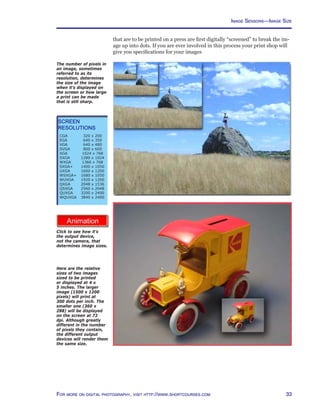
  • 67.
    67For more ondigital photography, visit http://www.shortcourses.com One way to evaluate the tonal range is with a histogram that charts the various levels of brightness in the image. http://www.photocourse.com/itext/hue/ and shadow areas or the image may be too dark or light. In these cases you may want to adjust or expand the image’s tonal range. Evaluating colors The human eye perceives color in terms of three characteristics—hue, satura- tion, and brightness and there is even a color model based on these charac- teristics, called HSB. The color monitor uses a different color model called RGB because images are displayed using varying amounts of red, green, and blue light. When evaluating images, you can think in terms of these two mod- els—one to evaluate colors and the other to look for color casts. To evaluate colors in an image, think of them in terms of hue, saturation, and brightness because these three aspects can be adjusted. • Hue is unique in one respect, it is the actual color, as measured by its wave- length, while the other two characteristics (saturation and lightness) modify the hue in some way. The hue can be red, orange, yellow, green, blue, purple, or any intermediate color between those pairs. • Saturation, sometimes called chroma, is the strength or purity of the color. If you adjust saturation through its entire range, colors go from rich and vibrant to dark gray. • Lightness, also called luminance or brightness, is the relative lightness or darkness of the color. Brightness is reduced by adding black to the color mix and increased by adding white. If you adjust brightness through its entire range, colors go from white to black. This is the only one of the three color attributes that gray scale images have. As you decrease saturation (top), colors become muddier and finally gray. As you decrease lightness (bottom), colors become darker and eventually black. Hues can be arranged on a color circle or wheel. A color cast is usually caused when one or more of the three color compo- nents (red, green, and blue) are too high or low over the entire image. This can be caused by not setting white balance correctly, by photographing a scene illuminated by more than one type of light source, or even a subject picking up reflections from a colored surface. Color casts are very noticeable when shooting during sunrises and sunsets—but there we usually like the effects. It’s easiest to identify a color cast by looking at areas that should be neutral white or gray. If these areas have any colors mixed in, the image has a Tip A neutral color has equal amounts of red, green, and blue and appears as a shade of gray. Click for a movie on adjusting hue, saturation and brightness. Evaluating Your Images—Basics
  • 68.
    Chapter 2. DigitalWorkflow 68 For more on textbooks in digital photography, visit http://www.photocourse.com http://www.photocourse.com/itext/sharpen/ color cast that you should remove. Pure white areas should have R, G, and B settings of 255. Gray areas should have R, G, and B settings that are equal, for example, 128, 128, and 128 for middle gray. Pure black areas should have R, G, and B settings of 0. Regardless of which neutral tone you are examining, if one or more of the RGB values is higher or lower than the others, these tones won’t be neutral and will have a color cast. Evaluating details When examining an image, look for small imperfections that can be re- touched. The sensor may have dust that shows up on the image as dark spots. A portrait subject might have a small blemish that will be very noticeable when you enlarge the image. There may be reflections, or even telephone wires you want to remove. Small areas may benefit by being made a little lighter or darker than their surroundings. Portrait subjects may have red-eye caused by flash in a dark room. Evaluating sharpness The apparent sharpness of an image depends a great deal on how much contrast there is along edges and lines. If an image looks soft, it can often be improved by sharpening, a process (technically called unsharp masking) that adds contrast along lines and edges. Many photographers sharpen almost every image, ignoring this aspect only for images such as fog scenes that are deliberately soft. Sharpening (right) increases the contrast between light and dark areas to make the edges appear sharper. Evaluating noise If you used a long shutter speed or high ISO setting to take a photo, it may contain noise. Look in dark areas for randomly colored pixels that look like grain. Global vs local editing You may have noticed that some of the adjustments discussed in this section affect the entire image and others affect just specific areas. These are referred to as global and local adjustments and are discussed in sections that follow. Noise can significantly degrade smooth tones. As you point Lightroom’s white balance selector tool at a pixel in an image, the pixel’s color mix is displayed. If you click that pixel, it and all like it will become neutral. Click for a movie on sharpening an image.
  • 69.
    69For more ondigital photography, visit http://www.shortcourses.com Evaluating Your Images—Histograms Most serious photo-editing programs let you use a histogram as a guide when editing your images. However, since most image corrections can be diag- nosed by looking at a histogram, it helps to look at it while still in a position to reshoot the image. It’s for this reason that many cameras let you display histograms on the monitor in playback mode or while reviewing an image you have just taken. A few cameras even let you see a histogram as you are composing an image so you can use it as a guide when adjusting the camera settings you’ll use to capture the picture. Evaluating histograms As you’ve seen, each pixel in an image can be set to any of 256 levels of brightness from pure black (0) to pure white (255) and a histogram graphs which of those levels of brightness are in the image and how they are distrib- uted. The horizontal axis of a histogram represents the range of brightness from 0 (shadows) on the left to 255 (highlights) on the right. Think of it as a line with 256 spaces on which to stack pixels of the same brightness. Since these are the only values that can be captured by the camera, the horizontal line also represents the image’s maximum potential tonal range or contrast. The vertical axis represents the number of pixels with each of the 256 bright- ness values. The higher the line coming up from the horizontal axis, the more pixels there are at that level of brightness. To read the histogram, you look at the distribution of pixels. Here are some things to look for. • Many photos look best when there are some pixels at every position because these images are using the entire tonal range. • In many images, pixels are grouped together and occupy only a part of the available tonal range. These images lack contrast because the difference between the brightest and darkest areas isn’t as great as it could be. However, this can be fixed in your photo-editing program by using commands that spread the pixels so they cover the entire available tonal range. These con- trols allow you to adjust the shadow, midtone, and highlight areas indepen- dently without affecting the other areas of the image. This lets you lighten or darken selected areas of your images without loosing detail. The only pixels that can’t be fixed in this way are those that have been “clipped” to pure white or black. There are two kinds of histograms. Most cameras show one of the gray scale brightness levels. A few display an RGB histogram showing the brightness of each of the three colors, red, green, and blue. Evaluating Your Images—Histograms
  • 70.
    Chapter 2. DigitalWorkflow 70 For more on textbooks in digital photography, visit http://www.photocourse.com http://www.photocourse.com/itext/histogram/ Click to explore histograms. http://www.photocourse.com/itext/highlight/Highlight warning One thing you want to avoid is overexposing highlights so they become so bright, or “clipped”, they loose details. To help you avoid this many cameras display a highlight warning when you review or compose your images. Areas that are so overexposed they have no detail blink or are outlined in color. Click to explore how overexposed highlights blink. The original image (top) is flat and its histogram indicates only part of the tonal range is being used. A photo-editing program was then used to expand the tonal range (bottom). You can see the change in both the image and in the histogram. When adjusting the histogram at the time you are taking photos, here are some things to keep in mind: • If the histogram shows most pixels toward the left (darker) side of the graph, use exposure compensation (discussed in the next chapter) to add exposure. • If the histogram shows most pixels toward the right (lighter) side of the graph, use exposure compensation to reduce exposure.
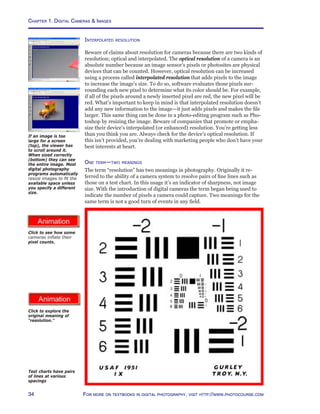
  • 71.
    71For more ondigital photography, visit http://www.shortcourses.com Evaluating Your Images—Histograms This series of photos was taken one stop apart using exposure compensation. As the exposure increased, pixels on the histogram shifted right. You can tell from the way the fan blades blur that the shutter speed was changed to change the exposure. In the image where it was faster, the image is darker and the blades are frozen. As slower speeds were used to increase the exposure, the images get lighter and the blades more blurred. In the top image you can tell from the histogram that some of the highlight pixels are pure white and hence clipped. There is nothing you can do later to display details in the area of these pixels. However, if you reshoot the scene at a different exposure you can shift the pixels to the left and avoid the clipping (bottom). Clipped pixels When a histogram shows pixels at the extreme ends of the range, in the 0 and 255 positions, it means details in those tones are lost or “clipped” in your im- age. These extremes should be reserved for specular highlights (reflections) and small dark shadows. When large areas lack detail an image suffers. To avoid clipping and better place the tonal values in subsequent shots, you use exposure compensation. Increasing exposure shifts pixels to the highlight, or right end of the histogram. Decreasing exposure shifts them the other way. Unless you are deliberately trying to get pure whites or pure blacks, you should shift the pixels if any are being clipped. This then gives you a chance to correct the image in your photo-editing program.
  • 72.
    Chapter 2. DigitalWorkflow 72 For more on textbooks in digital photography, visit http://www.photocourse.com This low-key scene has the majority of its values in the shadow area with another large grouping around middle gray. There are wide levels of brightness that have only a few pixels. This brown moth on a gray card has most of its values in the midrange. That’s why there are a number of high vertical lines grouped in the middle of the horizontal axis. This high-key fog scene has most of its values toward the highlight end of the scale. There are no really dark values in the image. The image uses only a little more than half the camera’s dynamic range. In this well exposed portrait there is a fairly even distribution of values in both the shadow and highlight areas of the image. There are no pure blacks in the image as shown by the gap at the far left end of the scale. The distinct vertical line to the left of middle gray shows how many pixels there are in the uniformly gray frame border added in a photo-editing program. Sample histograms The way a histogram looks depends on the scene you’re shooting and how you expose it. There’s no such thing as a good or bad histogram other than one that shows unwanted clipping. Whether a particular histogram is good or bad depends on what you are trying to accomplish. If fact, you may prefer to trust your visual reaction to the image more than the very numeric image data provided by a histogram. However, even if you never use a histogram, you can learn about digital photography by understanding what a histogram can show about an image. Following are some histograms from good images along with a brief summary of what each histogram reveals.
  • 73.
    73For more ondigital photography, visit http://www.shortcourses.com http://www.photocourse.com/itext/editreality/ http://www.photocourse.com/itext/editimprove/ Photo-editing—Global Editing In 1932 a group of young photographers including Ansel Adams and Edward Weston started a group they called f/64 that championed straight photog- raphy over the heavily manipulated pictorial photographs so in vogue at the time. The movement grew and when Edward Steiglitz published the work of another straight photographer, Paul Strand, in his magazine Camera Work he wrote “... The work is brutally direct. Devoid of flim-flam; devoid of trickery and any ‘ism’; devoid of any attempt to mystify an ignorant public, includ- ing the photographers themselves. These photographs are the direct expres- sion of today...” This movement became known as “straight photography” and there are still echoes of the arguments it generated. The pictorialists of today are those who use Photoshop to heavily manipulate their images so they fall out of the field of photography and into the realm of the graphic arts. There is an entire industry of these people offering newsletters, Web sites, workshops, conventions, videos, books, and magazines, all devoted to proselytizing obscure techniques. For many of these gurus an image’s con- tent is less important than its manipulation and they spend so much time on manipulating the images they already have that they almost stop taking new ones. It’s helpful to understand these arguments because Apple’s Aperture and Adobe’s Lightroom are really tools for straight photography and straight photographers and it helps you to put them in a historic context. Straight photography doesn’t mean you don’t try to improve an image, in fact it’s the rare image direct from a digital camera that doesn’t need some tweak- ing. However Photoshop has become so complex, and has so many graphic arts features, that there was an opening for a program that was both simpler and more photographic in philosophy. Serious amateurs needed one that was more intuitive and easier to learn. Professionals needed one that would allow them to work faster and more efficiently—especially when dealing with a large number of images. Thus were born Aperture and Lightroom, programs that emphasize global procedures that affect the entire image. One interesting aspect of Lightroom and Aperture is that any changes you make don’t alter the original pixels in your image so you can undo any edit at any time. This non-destructive editing is accomplished by storing a list of your edits in the database along with the image itself. When you open the image in Lightroom, it uses that stored list to reapply the edits so they are used when you display, print, or export the image. In essence these programs treat your images as digital negatives or masters and preserves them as such. If you ever want to return the image to its original form, you just click the Zero’d choice on Lightroom’s Presets panel. Lightroom and Aperture are designed to make working with RAW images as easy as working with JPEGs. You can display, zoom, adjust, add keywords, print, and create Web page layouts using both formats without intermediate format conversions. Both programs also let you work in the same way with other image formats including TIFF and Photoshop’s native PSD. The anatomy of lightroom When you first start Lightroom, you’ll notice it’s divided into sections. 1. The menu at the top of the screen offers access to commands. The com- mands change as you change modules. 2. The module picker in the top right of the screen is where you select Library so you can import, organize and select photos for editing, Develop so The Lightroom History Panel in the Develop module. The Good Old Days? In the days of film, control over prints in the darkroom was limited. You could control contrast by your choice of paper and with filters. You could make local changes by dodging to lighten areas or burning to darken them. When mak- ing color prints you could adjust color balance using filters. Before getting too carried away with the things you can now do, keep in mind that almost all of the greatest pho- tos in the history of photography were made with these few adjustments. Click for a movie on improving a photo. Click for a movie on changing a photo into something quite different. Photo-editing—Global Editing
  • 74.
    Chapter 2. DigitalWorkflow 74 For more on textbooks in digital photography, visit http://www.photocourse.com you can perform image adjustments, Slideshow so you can create slideshows for on-screen viewing and exporting as PDF files, Print so you can set up your printouts, and Web so you can create Flash or HTML web galleries. On the left side of the screen is an identity plate and progress monitor. 3. The grid view or image display area in the center of the screen is where selected images are displayed in all modules. 4. Panels to the left and right of the image area contain tools, layouts, and information you use when working with images. The available panels change as you change modules so you always have access to just those tools you need for the immediate task. In most situations panels on the left contain content and preset browsers, while panels on the right contain the tools you need for the current task. Clicking a panel’s header collapses and expands it. 5. The toolbar has buttons you can click and these perform different func- tions in different modules. You can display and hide this toolbar by pressing T. In the Library and Develop modules clicking the drop-down arrow on the right end of the toolbar lets you specify which buttons are displayed. 6. The filmstrip at the bottom of the screen shows the photos in the select folder, a collection, a quick collection, or a keyword set and they remain displayed when you change modules. Unless photos are in the filmstrip, they cannot be accessed from the other modules. The only way to change which images are displayed is to return to the Library. The library module The first time you use Lightroom, you open the Library and import photos from drives on your system or directly from a camera or memory card. You have the choice of leaving the original images where they are (as you might when importing from folders on your system) or moving them into a folder you specify. In survey view Ctrl- clicking images displays them for comparison. Tip One of the best things about Aper- ture and Lightroom is the way they retain your workspace when you end a session. There is no need to save your work. It’s all saved automatically and the next time you start the applica- tion everything is the same way it was when you quit. If you were editing 100 photos for a book, they are all right there. There is no need to open each of the images before you get started. In grid view dragging the thumbnail slider adjusts the size of the images.
  • 75.
    75For more ondigital photography, visit http://www.shortcourses.com • The grid view or image display area has four modes between which you switch by clicking buttons on the toolbar (below): grid for thumbnails, loupe for full screen or zoomed display of an image, compare with two im- ages side by side, and survey to compare one image against any number of others. In grid view thumbnails can be set to various sizes from extra small to extra large. To compare two or more images more closely you can Ctrl-click them to display them in the Grid. • The toolbar in the library module has buttons that change the view in the contents area, stars to rank photos, pick and reject flags, and rotate buttons. • Filmstrip buttons above the thumbnails change the view in the content area, navigate through images, and turn filters for stars, flags and colors on and off. Photos that don’t meet the criteria are filtered out and not displayed. • Navigator panel lets you scroll around zoomed images. • Library panel lets you specify if all photos are listed or just those in the quick collection or previous import. • Find panel searches for photos using the text and date range you specify. • Folders panel is where imported photos are listed. Each photo can be in only one shoot. • Collections panel lets you gather together related photos for a project. • Keyword Tags panel is where you click keywords you have assigned to im- ages so just those images are displayed. • Metadata Browser panel lets you quickly locate images with matching metadata such as the camera used. • Histogram panel shows the distribution of tones in the selected image and a few of the camera settings used to capture it. You can adjust the displayed tonal range with sliders or by dragging the histogram itself. • Quick Develop panel lets you make adjustments to your images. The choices are described in the section on “The Develop Module.” • Keywording panel lets you add keywords to selected photos. • Metadata panel lists Exif and IPTC metadata for the selected image and lets you enter additional IPTC metadata. The develop module For a complete discussion of all Lightroom features, you need a book devoted to the program. However, here are the procedures listed in Lightroom’s Basic editing section—the ones almost every photographer thinks about for almost every image. • Navigator panel lets you specify the size of the image and scroll around images larger than the screen display. • Presets panel lists stored settings you can apply to images. You can create and save your own presets and they are added to the list. Icons you click to change the content area to grid, loupe, compare or survey views. The histogram is a good way to locate the white and black points. Modules in the left (top) and right (bottom) panels. The metadata browser. The red eye and remove spots tools are the only local editing tools in Lightroom. All other tools are for global editing. Buttons in the navigator panel let you specify the size of the image you are editing. Photo-editing—Global Editing
  • 76.
    Chapter 2. DigitalWorkflow 76 For more on textbooks in digital photography, visit http://www.photocourse.com • Snapshots panel lets you name and save a photo at any point in the editing process so you can return to that version just by clicking its name. • History panel lists changes you made to images so you can undo them. • Histogram panel shows the distribution of tones in the image. • Basic panel contains sliders you use to adjust the colors and other charac- teristics of your images. (This section is discussed in more detail shortly.) • Tone Curve panel lets you adjust the tones in the image: highlights, lights, darks, and shadows. • HSL/ Color /Grayscale panel adjusts hue, saturation and luminance; colors, and the grayscale mix. • Split Toning lets you set adjust hue and saturation independently in high- lights and shadows. • Detail has controls to sharpen, smooth and de-noise an image. • Lens Correction reduces fringe effects and controls vignetting. • Camera Calibration lets you calibrate your own cameras if you find that Lightroom’s generic profile doesn’t meet your needs. Developing images Most of the changes you make to an image will be done using the Basic sec- tion in the Develop module so it’s worth a closer look. Here are what each of the controls does. • Color/Grayscale converts the selected photos to grayscale and back to color. • White balance selector tool (the eyedropper icon) lets you click a neutral pixel in the photo to remove color tints throughout an image. As you move it about the image it enlarges the pixels under and around it and dis- plays the center pixel’s RGB values so you can find a neutral pixel to click. • White balance, temp and tint can be adjusted so that white or neutral gray areas don’t have a color tint. Temp adjusts the color from blue to yellow, while Tint adjusts from green to magenta. The WB drop-down menu lets you select from a standard selection of white balance presets. The default is As Shot. • Tone’s Auto button sets the sliders to maximize the image’s tonal scale and minimize highlight and shadow clipping. • Exposure adjusts the tonal range or contrast of the image by changing the white point to brighten or darken an image. The white point is where tones become pure white with no detail (255). As you adjust, watch the histogram. • Recovery lets you restore clipped highlights without darkening the rest of an image. • Fill light lightens shadow areas without lightening other areas. • Blacks adjusts the tonal range by changing the black point to brighten or darken an image. The black point is where tones become pure black with no detail (0). As you adjust, watch the histogram. • Brightness adjusts the midtones (sometimes called gamma) to lighten or darken the overall image without affecting the black and white tones and the details they contain. By default, the Brightness slider has a value of +50. The Lightroom Basic Panel in the Develop module. Lightroom’s white balance selector tool shows the colors of the pixels that it points to. Tip While dragging the Exposure and Blacks sliders to adjust the tonal range, you can see the levels where black or white details begin to emerge in the image if you Alt+drag the sliders. Presets, either those that come with the program or those you create and save yourself can be applied to all selected images with a click of the mouse.
  • 77.
    77For more ondigital photography, visit http://www.shortcourses.com Web gallery templates are listed by name and when you point to one a preview is displayed in the Preview panel. • Contrast adjusts the white and black points simultaneously to increase contrast in the image. • Vibrance adjusts the saturation of primary colors while leaving skin tones and other secondary shades unaffected. This allows you to boost saturation without unrealistic hue shifts. • Saturation adjusts the saturation of all colors in the image. Other modules In addition to the Library and Develop modules discussed above, Lightroom also has modules devoted to outputting your images in various formats. • Slideshow lets you create slideshows to display on the screen, or export as PDFs. • Print lets you layout and print selected images. • Web lets you create HTML or Flash galleries using templates supplied with Lightroom. Exporting When working on images in Lightroom, your changes do not permanently affect the image. However, the changes are made permanent on versions of the image that you export. At the time you export images, here are just some of the choices you can specify: • Color Space attaches an sRGB, Adobe RGB or ProPhoto RGB color space to the image. (Color spaces are discussed later in this chapter in the section on color management.) • Constrain Maximum Size lets you resize and image by specifying that the width or height is not to exceed a specified number of pixels. • Format lets you specify what format the image is saved in—JPEG, PSD, TIFF or DNG. • Post Processing lets you see an exported image in Explorer or Finder, burn selected images to a CD/DVD, or go to an export action folder. Automation When it comes to efficiency there is nothing like automation to save you time. Lightroom lets you select a group of images and add keywords and perform other tasks. You can also make edits to one image and apply the same chang- es to other images in two ways. • Sync lets you select an image you have edited, then select others. When you then click the Sync Settings or Sync Metadata button the edits or metadata in the first image are copied to the others. • Presets are stored settings that are added to a Presets menu. You can select other images and click the preset on the menu and the stored settings are applied. Sync buttons lets you copy edits or metadata from one image to many images. Photo-editing—Global Editing
  • 78.
    Chapter 2. DigitalWorkflow 78 For more on textbooks in digital photography, visit http://www.photocourse.com http://www.photocourse.com/itext/transform/ Photo-editing—Local Editing Local editing lets you change selected areas of the image. The latest programs such as Aperture and Lightroom focus on global changes so to make most local changes you have to export a photo to Photoshop or similar program. When you export an image you can specify what format it will be in. For example, when exporting an image to Photoshop, you would probably export it in Photoshop’s native format, PSD. It is then this PSD file that you edit and when finished, reimport into Lightroom. When using a program such as Photoshop here are some of the things you can do to an image that you can’t do in Aperture or Lightroom. • Selecting. If you first select an area of the image, you can edit just that area without affecting other areas. You can also copy, move, or delete selected areas, perhaps to create a collage or remove a background. • Compositing. You can cut out a selected part of one photo and paste it into another to create a composite image. • Healing and cloning. Many images have small imperfections such as a small blemish on a portrait, reflections, or even telephone wires you want to remove. Small areas may benefit by being made a little lighter or darker than their surroundings. Portrait subjects may have red-eye caused by flash in a dark room. The Healing Brush works by blending the area you sample seam- lessly into the background so the texture, lighting, transparency, and shad- ing aren’t changed. You can either paint with pixels sampled from the image or select a pattern to paint with. In Lightroom the Remove Spots tool lets you repair a selected area of a photo with a sample from another area. Clone copies the sampled area of the photo to the selected area. Heal copies just the texture, lighting, and shading of the sampled area to the selected area. • Dodging and burning to lighten or darken areas of a print have been the most popular darkroom techniques since the first prints were made from negatives. Dodging was done using a piece of cardboard or other tool to block light from certain areas of the image to make them lighter. Burning was done with a piece of cardboard with a hole cut in it that let light through to darken selected areas. In Photoshop you do the same thing by dragging a brush over the area of the image you want to adjust. • Adding text to images is usually the realm of graphic designers, more so than photographers. However, you should be able to so to create title slides for your slide shows, add copyright notices to your images, or just invent ways to combine text and images in creative ways. • Layers. When you first open a digital photo, it has only one layer—the background layer containing the image. Any changes you make to this layer become part of the image and permanently change its pixels. To avoid per- manent changes, you add additional layers and make your changes on those layers. It’s as if you were covering an original photo with sheets of glass on which you drew, painted, made adjustments to the image below, entered text, or added fills. • Blending modes determine how a color you apply with a tool interacts with the colors you paint over or how the colors on one layer interact with colors on the layers below. • Transformations let you scale, rotate, skew, distort and add perspective to selections. Photoshop’s toolbox contains many of the tools used to make local adjustments. These include healing, dodging, burning, cloning, and painting tools. Click for a movie on changing perspective in a photo. The red eye and remove spots tools are the only local editing tools in Lightroom. All other tools are for global editing.
  • 79.
    79For more ondigital photography, visit http://www.shortcourses.com The background of the original image (left) has been selected and removed (right). The background of the monster has been selected and removed (top), a new photo opened (middle) and then the monster copied in (right) to create a composite image. • Effects let you add drop shadows to text, bevel the edges of an image, or add a frame. You can also combine effects, using first one and then another. For example, you may soften a portrait to make it look more romantic, vi- gnette it, and then add a frame around it. • Masking confines adjustments to selected area of an image. Unlike a selection, a mask is a grayscale image just as your images are. This means you can edit one just like you edit images; using brushes, erasers, fills, filters, and almost every other tool and technique you have learned. Having all of these tools at your disposal means you can create more complex selections than you can with just selection tools. Because masks make precise selections possible, they lie at the heart of compositing—the creation of a new image by piecing together parts of other images. You can either cut and paste selected areas or make some areas transparent so layers below show through. Once you master a few basic tools, the possibilities are endless. • Animated GIFS can be created by layering images on top of each other. When then saved as an animated GIF and posted on a Web site, the images play back like frames in a movie. • Stitching panoramas from a series of side by side images lets you create seamless panoramas that capture a broad sweep of the landscape. Photo-editing—Local Editing
  • 80.
    Chapter 2. DigitalWorkflow 80 For more on textbooks in digital photography, visit http://www.photocourse.com http://www.photocourse.com/itext/CMYK/ http://www.photocourse.com/itext/RGB/ http://www.photocourse.com/itext/colorspace/ Color Management–Color Models and Color Spaces As you’ve seen, the image sensor in a digital camera captures just red, green and blue (RGB) light. RGB is what we call a color model and it’s based on the way the human eye perceives full-color images by blending various propor- tions of red, green and blue light. The RGB model used in display devices creates an image with transmitted red, green, and blue light; and the CMY model used in printers creates it with cyan, magenta, and yellow inks that absorb colors so only red, green and blue are reflected. Color models Color models are fairly basic in that all they tell you is what amount of each color needs to be blended to create a third color. • RGB specifies the amount of each color in units between 0–255. • CMY specifies the amount of each color as a percentage between 0–100%. For example, if you start with pure red its RGB values would be R:255 G:0 B:0 indicating that the color’s red component is 256 (remember, we count from 0, not 1) and both green and blue components are zero. This sounds like a detailed description of a color but it isn’t because it doesn’t refer to a specific color as you would perceive it, it just tells a device such as a display screen or printer to generate all of the red it’s capable of. (One expert calls these RGB values “input signals”.) The most fully saturated red could be bright and vibrant on one device and dull and muddy on another. It’s as if a driver’s manual told you that to reach a specified speed you press the acceler- ator down 1 inch. However, if you follow this instruction in a Ford, you might go 35 miles per hour, while following it on a Ferrari would have you going 135 miles per hour. In digital photography what’s needed is a way to make the values refer to a very specific color and that’s where color spaces come in. Color spaces A color space plots each of the millions of possible colors on a three-dimen- sional chart in such a way that their positions and spacing show how they relate to one another—often called scaling. Each color can be specified or located by its coordinates in this space. One of the key features of a color space is its gamut—the range of colors it represents. Different color spaces have different gamuts as do different devices. It’s not at all uncommon to have a color in an image that is within the gamut of the display but not of the printer and vice versa. When a color falls outside of a color space’s gamut in this way, it can’t be reproduced by the device and is called out-of gamut. In the next section you’ll see how a color management system can bring such colors back into the gamut of a device. One thing to keep in mind is that a wider gamut doesn’t mean more colors. The only way to do that is to capture images in the RAW format rather than JPEG. A wider gamut just spreads out the available colors. In digital photography you will find references to a variety of RGB color spaces. Here are the most common: • sRGB has the smallest gamut of the spaces discussed here, but is ideal for images that will be displayed on a screen or projected. Almost all cameras assign this as the default space for JPEG images. Almost all browsers and display devices are set to display this color space most accurately. Click to explore how sRGB and Adobe RGB color spaces compare when it comes to the number of colors they can capture. Click to explore how red, green and blue can create full color images. Click to explore how cyan, magenta and yellow can also create full color images. Here is the sRGB color space superimposed over the larger Adobe RGB color space (shown here ghosted). You can see how much smaller its gamut is. If you align the letters CMY under RGB, you have a guick guide to how CMY works. Cyan creates red (directly above it) by absorbing the other two colors, green and blue; Magenta creates green by absorbing red and blue; and yellow creates blue by absorbing red and green.
  • 81.
    81For more ondigital photography, visit http://www.shortcourses.com • Adobe RGB has a wider gamut than sRGB and is often used when the goal is making high-quality prints. One drawback is that images using this color have subdued colors when displayed on a display because almost all displays are based on the sRGB color space. However, if you use this space, Photo- shop, Lightroom and other products can convert it to sRGB without any loss in quality. • ProPhoto is the largest color space currently used in digital photography and the only one that has a gamut that includes all of the colors a camera can capture. This color space can cause problems when used with 8 bit JPEG images. There are so many fewer levels of tones (256 versus a RAW image’s 65,536) that if you make any large adjustments to the image you may get banding, noticeable transitions in what should be smooth gradations. • CIE LAB (pronounced “see-lab”), and its very closely related CIE XYZ, are different but important kinds of color spaces although you don’t interact with them directly. Unlike the other color spaces CIE LAB arranges colors based on how we perceive them rather than on any particular device. For this reason this color space is called “device-independent” (although if there were a device, it would be the human eye). The space contains almost all of the colors a human can perceive. (Interestingly, the actual CIE LAB color model can’t be accurately printed or displayed because no device has all of the required colors.) In the section that follows on color management you’ll see how this color space plays an important role in moving images from the camera to the screen and then to the printer while keeping colors constant on all of these different devices. • Working space. When editing an image, the editing application lets you select a working space so the colors are what you expect to see when you display or print the image. The working space can be sRGB, Adobe RGB, Pro- Photo RGB or any other space supported by the application. Although a color space is initially embedded in a JPEG image by the camera that captured it there are two ways to change the color space. • Attaching a new color space changes the look and colors of the image without changing the color values of each pixel. • Converting to another color space keeps the image looking the same, but converts the color values of each pixel to fit into the new color space. When using Photoshop you can assign different profiles and watch the image change appearance as you do so. This is a good way to find the space that works best for a particular image. The widest possible gamut isn’t always the best choice. A smaller gamut such as sRGB has smaller spaces between the colors so smooth gradations, such as those found in skin tones, are repro- duced more faithfully. However, if the center of interest in the image is a fluo- rescent orange traffic cone, most of its colors might be outside of the sRGB’s gamut so ProPhoto would be a better choice. CMYK uses cyan, magenta, yellow (and black) to form all other colors. Tips • In color manage- ment, the term “space” is so widely used that it’s lost any specific mean- ing other than the distribution of RGB or CMYK colors into a three dimensional chart that shows their relationships. • The CMY color model is more often called CMYK with the “K” standing for black. Black is need- ed because although mixing CMY at 100% should create black, it’s a muddy black. sRGB’s gamut plotted against the larger CIE LAB. Color Management—Color Models and Color Spaces
  • 82.
    Chapter 2. DigitalWorkflow 82 For more on textbooks in digital photography, visit http://www.photocourse.com Color Management—The Workflow If you don’t do anything about controlling color, it’s amazing how good your results are with most camera, screen and printer combinations. If nothing else, the colors are pleasing if not accurate—mainly because so many cameras and other devices have been designed to display and print sRGB images. In fact, other than skin tones, color accuracy is rarely important to most people. If the yellow flower in the scene is yellow on the screen or in the print, that’s good enough—who cares, or can even tell, that it’s not the exact same yellow as the subject’s. However, photography is a visual art and when you start us- ing RAW image formats and other color spaces, you soon notice things about colors that you never noticed before, and for many people accurate colors become more important. As you prepare your images to be displayed and printed, you move them through the workflow. As you do so, colors rarely remain predictable and consistent. The image on the display differs from the original scene, and the printout differs from both. When you then share images with friends, they look different on their screens or printouts than they do on yours. To see this for yourself, visit an electronics super store and look at the walls of TV sets, all with slightly different colors. If you post your images on the Web, they will vary just as widely when displayed on other systems. Color management systems (CMS) are designed to help you keep the colors in your images as consistent and predictable as possible as they pass through the various stages of the workflow. Although you can’t control other people’s display devices (or even many of your own, such as the TV or digital frame) you can ensure that your image colors are as close to perfect as they can be. To accomplish this, a color management system adjusts colors between devic- es that have different gamuts so the colors remain consistent. For example, a scene will have one gamut, an image of it another, the display and printer still others. As your interest in this area grows, you’ll find that color management systems are a great deal easier to use than they are to understand or pay for. There are only two steps, creating profiles of your devices and using those profiles to display or print images. Getting ready to color manage—creating profiles The first step in color management is to measure how much your devices vary from a known standard. The differences are measured and stored in text files, called profiles, with the extension .ICC or .ICM. The color management system uses the information stored in these profiles to determine what color adjustments are required to make the colors in an image display or print as accurately as possible. There are various kinds of device profiles: • Image profiles have been developed for sRGB and other color spaces. These profiles define the colors in an image in a generic fashion and are embedded in the image at the time it’s captured. In some cases these profiles (rather than input profiles discussed below) are used by color management systems. • Input profiles for specific digital cameras are fraught with complications because the camera heavily manipulates JPEG images and RAW convert- ers do the same to RAW images. Unless you are photographing under a very controlled studio situation it’s better to use the profile for the image’s color space, rather than a profile for the camera. One thing that’s often overlooked is a consistent viewing area. Color experts recommend a neutral colored room with diffuse fluorescent lighting with complete spectrum tubes and ideally egg-crate lighting diffusers. If you don’t have the money for a new room, a color viewing booth is a less expensive alternative. Courtesy of Just- Normlicht. Tips • Profiles have their limits since there are many devices such as TVs, cell phones, and digital picture frames that don’t recognize them. The same is true of appli- cations such as Web browsers. • Printers at most commercial labs, including those that make prints for most photo-sharing Web sites shine light on traditional silver- based photographic paper to create prints. These work best with sRGB im- ages. • Inkjet printers and printing presses create images with ink so work best with wider gamut color spaces such as Adobe RGB and ProPhoto.
  • 83.
    83For more ondigital photography, visit http://www.shortcourses.com • Display profiles for CRT and LCD flat panel displays. To profile a display, you attach a color measuring device called a spectrophotometer or colorim- eter to the display screen. Profiling software then flashes a number of known colors on the display while the device reads each colors’ values. The differ- ences between the known and measured results are stored in the display’s profile. Some color management systems let you create a display profile visu- ally without using an expensive color measuring device. This software walks you through adjusting brightness, contrast, and color balance as you create the profile step by step. Although not as accurate as a profile done with an instrument, it’s better than nothing. • Output profiles for devices such as printers and projectors. To profile a printer, you open an image of a color chart with known color values and print it out. You then use a spectrophotometer to read each color patch in the printout. Profiling software compares the known and printed values for each patch and stores the differences in the device’s profile. When you buy a printer, it often comes with a number of profiles created by the manufacturer for various papers. Since these profiles are generic, the ones you create for your specific printer will be more accurate but you have to create a profile for every ink/paper combination you use. Although incon- venient, you have to do this to get the best possible results on your specific printer and whenever you use paper or ink from a third-party. To simplify the use of profiles, the International Color Consortium (ICC) has defined a widely accepted format for them so they can all work together. This makes it possible to move images with embedded ICC profiles (called tagged images) between different applications, hardware, and even operating sys- tems while retaining color fidelity. If an ICC profile isn’t assigned to an image, you can use an application such as Photoshop to assign one. One interesting use of profiles is in a process called soft proofing. The pur- pose of this proofing is to show on the screen what your image will look like when printed on a specific type of paper. When you soft proof, the program uses the printer’s profile, normally used as an output profile, as the input profile. When paired with the display’s output profile, you get a close approxi- mation on the display of what the printed image will look like. Color managing—using profiles When you are ready to pass an image between two devices, you need both an input and output profile. A single profile describes a device but doesn’t affect it. The various profiles that can be paired up include the following: • The image or input profile is embedded in the image by the camera, or you can embed one using a photo-editing application. Many photo-editing applications also let you select a working space profile, which is then paired with the display profile. • The display profile can be changed using an operating system dialog box. • The output profile, often specific to a paper, is specified at the time you print using your photo-editing application’s print dialog box. Once you have specified a pair of profiles, the color management system works as follows: 1. It looks up each color value in the image in the input profile and adjusts it as specified in that profile. 2. It looks up the adjusted color in a Color Matching Method (CMM) that Tip Profiles are not permanent. They need to be redone periodically because hardware colors drift as a device ages. They also need to be redone if any settings or parts are changed. Sony’s Artisan Color Reference System has integrated profiling hardware and software. ColorVision’s PrintFix has a target that you open on your computer and print out. You then scan the printout and the printed colors are compared to the known colors in the target. The differences are stored in the new printer profile. Color Management—The Workflow
  • 84.
    Chapter 2. DigitalWorkflow 84 For more on textbooks in digital photography, visit http://www.photocourse.com includes a device independent color space such as CIE LAB, called a profile connection space. This gives it a device independent color value to use in the next step. 3. It looks up the device independent CIE LAB color value in the output profile and uses the adjustment found there to determine what color value to send to the output device. This three-step process, called rendering, converts the color values found in the source image into the color values needed to obtain accurate colors in the output. As this process takes place, there may be colors that one device can reproduce that the other device can’t because they are out-of-gamut. When this happens the input color value is changed to a color that is in gamut on the output device. The rules that govern this adjustment when using ICC profiles are known as rendering intents and there are four of them to choose from. • Perceptual is the most commonly used intent in digital photography and is based on the fact that relative color values are more important to a viewer than absolute values. This intent adjusts the entire gamut of the image so it fits the gamut of the destination device. Even colors that were in-gamut are adjusted so the relationships between colors remain the same and the overall look of the image is preserved. • Colorimetric comes in two versions, relative and absolute (the difference is based on whether the white point is adjusted or not). In digital photogra- phy the relative version is sometimes used and the white point of the source color space is changed to the paper white of the output device so whites in the original image remain white in the output. This intent to retain a near exact relationship between in gamut colors, even if this clips out of gamut colors. In contrast, perceptual rendering tries to also preserve some relation- ship between out of gamut colors, even if this results in inaccuracies for in gamut colors. If you use the colorimetric rendering intent when converting to a smaller color space you may see banding, posterization and other artifacts into the image. • Saturation is designed to produce saturated colors without trying to be accurate. This intent is never used in digital photography but is best when printing or displaying pie charts and other solid colors found in business graphics. Profiles in photoshop When an image is opened in Photoshop, if its profile doesn’t match the work- ing space you are often given choices. They include: • Use the embedded profile (instead of the working space). • Convert to the working space. • Discard the embedded profile and don’t color manage. Instead of choosing a profile blindly, you can select the last choice to discard the embedded profile. When the image opens, you can then use the Edit Assign Profile command to assign other profiles to it to see which has the best effect on the colors. When you then save the file you can embed the new profile. A color management system uses an input profile, a profile correction space and an output profile to adjust colors as they are moved from one device to another.
  • 85.
    85For more ondigital photography, visit http://www.shortcourses.com A utomatic exposure control is one of the most useful features of a digital camera. It’s great to have the camera automatically deal with the exposure while you concentrate on the image. This is espe- cially helpful when photographing action scenes where there isn’t time to evaluate the situation and then set the controls manually. You shouldn’t, however, always leave the exposure to the automatic system. At times the lighting can fool any automatic exposure system into producing an underexposed (too dark) or overexposed (too light) image. Although you can make adjustments to a poorly exposed image in a photo-editing program, you’ve almost certainly lost image information in the shadows or highlights that can’t be recovered. You will find it better in some situations to override the automatic exposure system at the time you take the picture. Situations in which you might want to override automatic exposure often involve scenes with interesting or unusual lighting. For example, you need to take control when you photograph into the sun, record a colorful sunset, show the brilliance of a snow-covered landscape, or convey the dark moodi- ness of a forest. In this chapter you’ll learn how to use your camera controls to get just the exposure you want. Chapter 3 Controlling Exposure AA30470CChapter 3. Controlling Exposure Longue chairs on a Florida beach, illuminated by the soft light of dawn.
  • 86.
    Chapter 3. ControllingExposure 86 For more on textbooks in digital photography, visit http://www.photocourse.com http://www.photocourse.com/itext/exposure/ Click to explore how exposure determines how light or dark an image is. The Importance of Exposure Photography begins with an exposure when you press the camera’s shutter button. The shutter opens and light reflected from the scene enters through the lens and strikes the image sensor to create the image. By controlling how much light reaches the sensor you control how light or dark the picture is—one of the most important aspects of photography. When a scene has both very light and very dark areas, getting the perfect exposure is a lot like park- ing a large car in a small garage—there isn’t a great deal of room for error. Your goal is to retain details in both the darkest and lightest areas so pure white is used only for spectral highlights such as reflections, and pure black is used only for those few areas of the scene that are black with no details. In this scene there are details in all of the whites that give them texture and form. The small white square has been added to give you a reference to what pure white would look like. In this scene there are details in the darkest shadows. The small black square has been added to give you a reference to what pure black would look like. One of the things that makes an Ansel Adams print so stunning was his ability to hold details in both the brightest and darkest parts of a scene. To do this with film he developed the Zone System that guided him in adjusting exposure and development times for the best results. Today the adjustments are made with a photo- editing program.
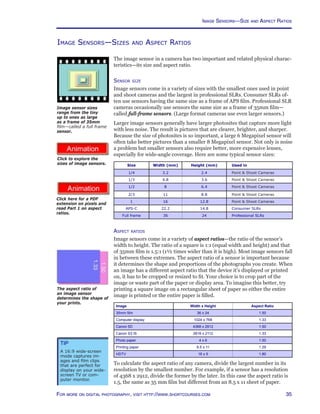
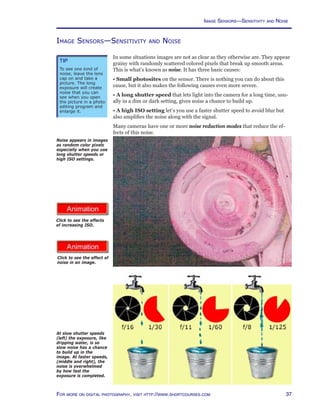
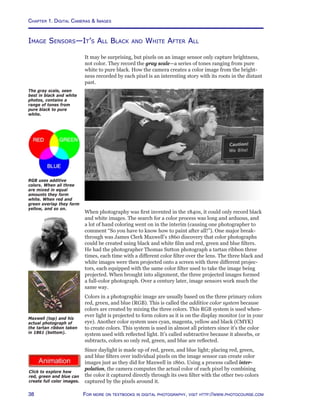

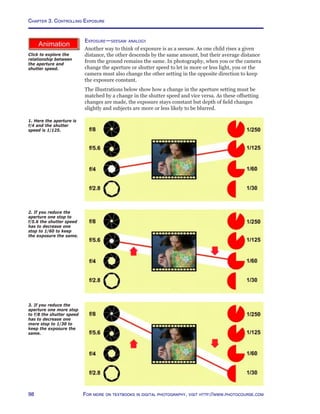
  • 87.
    87For more ondigital photography, visit http://www.shortcourses.com How Exposure Affects Your Images When you take a photograph, the exposure isn’t uniformly distributed over the sensor’s surface—unless you are photographing a subject that is absolute- ly uniform in tone. Highlights (brighter areas) in the scene reflect the most light, and the areas of the sensor onto which they are focused are exposed a great deal. Darker areas, such as shadows, reflect much less light, so the areas of the sensor onto which they are focused receive much less exposure. The perfect exposure retains details in both the highlights and shadows. If there is even a little too much exposure, the image is too light and details are lost in the highlights. If there is too little exposure, the image is too dark and details are lost in the shadows. As you’ll see, one way to ensure you get the best exposure is to take three pic- tures—a procedure called bracketing. The first is taken at the recommended setting. The second is lighter and the third darker than the first. In this series of photographs you can see the effect of exposure on the image. The top photo is correctly exposed. The bottom left photograph was overexposed and is too light. The bottom-right photo was underexposed and is too dark. How Exposure Affects Your Images
  • 88.
    Chapter 3. ControllingExposure 88 For more on textbooks in digital photography, visit http://www.photocourse.com Exposure Controls—The Shutter and Aperture The most important exposure controls on your camera are the shutter speed and aperture because both affect the total amount of light reaching the image sensor. However, they do more than just control the exposure. As you’ll see shortly they can also be the most creative controls you have. • The shutter opens to begin an exposure and closes to end it. The shutter speed setting determines how long the shutter remains open to expose the image sensor. • The aperture is the hole through which light enters the camera. Its size can be changed to control the brightness of the light allowed through to the image sensor. If you strip away all of the modern technology and look at the earliest cam- eras, you will find the same controls in much simpler, and perhaps easier to understand, versions. In the early days of photography, a plate called a waterhouse stop, was inserted into a slot in the lens. Selecting one of the holes was much like selecting an f/stop today. A lens cap was removed and then replaced to begin and end the exposure—a primitive version of a shutter. This vintage camera is surrounded by waterhouse stops (apertures) and a lens cap (the shutter) leans against it. Less light makes an image darker (left) and more light makes it lighter (right). It’s not just old cameras that use waterhouse stops. The Lensbaby, “a selective focus SLR camera lens”, comes with four apertures you can insert into the lens.
  • 89.
    89For more ondigital photography, visit http://www.shortcourses.com Exposure Controls—Why So Many Choices? Many digital cameras let you set the shutter speed and aperture to a range of set- tings. Since you only need one combination of these settings for a good exposure, why are there choices? It’s because they give you creative control. By selecting the right combination you can make the background in a portrait sharp or blurred or freeze or blur motion. A fast shutter speed freezes a spinning amusement park ride (right) and a slow shutter speed blurs it (left). A small aperture increases depth of field so foreground and background are sharp (top) and a large aperture decreases depth of field so the foreground and/or background is soft (bottom). In this book and its animations, apertures are represented by these realistic icons with a small aperture (left) and a large one (right). In this book and its animations, shutter speeds are represented by these symbolic icons with a fast shutter speed (left) and a slow one (right). The cutout “pie slice” indicates how far an imaginary second hand would sweep.
  • 90.
    Chapter 3. ControllingExposure 90 For more on textbooks in digital photography, visit http://www.photocourse.com Choosing Exposure Modes http://www.photocourse.com/itext/modedial/ Exposure Modes Digital cameras usually offer more than one way to control the aperture and shutter speed—called exposure modes. All modes give equally good results in most situations. However, in specific situations, each of these exposure modes may have certain advantages. Here are modes you may encounter: • Automatic mode (full auto) sets the shutter speed and aperture with- out your intervention. This allows you to shoot without paying attention to settings so you can concentrate on composition and focus. In this mode you can’t change many camera settings. • Scene modes, which go by a variety of names (Nikon calls them Digital Vari-program modes), automatically adjust settings for specific situations such as landscapes, portraits, night portraits, sports, and close-up photog- raphy. On some cameras the number of these settings has gotten a bit out of hand since there are so many you have to select them from a menu. • Programmed AE (auto exposure) mode is just like full auto in that it sets the aperture and shutter speed for you, but unlike full auto it lets you change many of the camera’s settings. In this mode, many cameras also let you select from a series of paired aperture and shutter speed combinations that yield the same exposure as that recommended by the camera. This gives you control over how depth of field and motion are captured. One of the best things about this setting is that it prevents you from inadvertently selecting an exposure setting that exceeds the camera’s range. • Shutter-priority AE mode lets you choose the shutter speed and the camera automatically selects the aperture needed for a good exposure. You select this mode when the portrayal of motion is most important. For exam- ple, when photographing action scenes, such as those encountered by wildlife photographers, sports photographers, and photojournalists, shutter-priority mode might be best. It lets you be sure your shutter speed is fast enough to freeze the action or slow enough to blur it • Aperture-priority AE mode lets you select the aperture and the cam- era automatically selects the shutter speed needed for a good exposure. You select this mode whenever depth of field is most important. To be sure everything is sharp, as in a landscape, select a small aperture. The same holds true for close-up photography where limited depth of field is always a major concern. To throw the background out of focus so it’s less distracting as in a portrait, select a large aperture. • Manual mode lets you select both the shutter speed and the aperture. The two are not linked as they are in all other modes. You normally use this mode only when the other modes can’t give you the results you want. Some cameras have a bulb setting in this mode that lets you capture time exposures such as light trails at night. In bulb mode the shutter remains open as long as you hold down the shutter button. • Custom settings mode on high-end cameras lets you store personal set- tings. This is as simple as setting the camera the way you want it and then selecting the menu’s command that assigns them to the custom setting. Some cameras let you save one or more sets and then instantly access them at any time just by turning a mode dial. If you use the same settings over and over again, this is a great way to save them. For example, you can save one group of settings to capture macro subjects, and then use any of the normal expo- sure modes to capture other scenes. Click to explore the exposure modes available on many cameras. On some cameras you select exposure modes using buttons or a menu. Modes and how they are designated on the camera vary from model to model. Modes that give you the most control, available only on more advanced cameras, are usually indicated with letters. Those that are fully automatic, often called scene modes, are indicated with icons like those shown on this Canon mode dial.
  • 91.
    91For more ondigital photography, visit http://www.shortcourses.com Using Scene Specific Exposure Modes Scene modes work just like full auto, but each draws on a library of settings designed for specific situations. For example, in Portrait mode the camera selects settings for a shallow depth of field so the background is softer. In Landscape mode, it does the opposite and selects a small aperture for maxi- mum depth of field. (For more on the concepts of depth of field, see Chapter 4.) Here are the modes you are most likely to encounter. • Portrait sets the camera for minimum depth of field so a portrait has a soft, and less distracting, background. To maximize the effect, zoom in on the subject, or use a long focal length lens (a telephoto) so the subject fills most of the viewfinder, and make sure there is as much distance as possible between the main subject and the background. • Landscape sets the camera for maximum depth of field so as much of the scene as possible is sharp from foreground to background. Since a slow shutter speed may be used in this mode, you may need to support the cam- era. This mode works best with a short focal length (wide-angle) lens and the built-in flash is usually turned off so it won’t fire. • Close-up is used to capture flowers and other small objects but on SLR cameras this mode isn’t a substitute for a macro lens. This mode works best when subjects are at the lens’ minimum focusing distance. • Sports mode is ideal for action sports and other fast-moving subjects because the shutter sped is set as fast as possible to freeze action. On some cameras, the autofocus mode is set to automatically keep a moving subject in focus, and continuous mode is selected so you can take pictures one after another as long as you hold down the shutter button. For best results use a long focal length lens. • Night Portrait or Twilight mode is designed for photographing people or other nearby subjects at twilight, night, or dawn. The flash fires to illuminate foreground subjects and the shutter speed is set slow enough to lighten the background. Since it’s likely a slow shutter speed will be used, you need to support the camera. Also, the shutter may remain open after the flash goes off so be sure to hold the camera still until the shutter closes, and if there are people in the foreground, ask them to freeze until a few seconds after the flash has fired. • Night landscape doesn’t fire the flash and instead uses a slow shutter speed to capture a landscape, and especially a cityscape, in the light of dawn, dusk, or night. Since a slow shutter speed will almost certainly be used in this mode, you need to support the camera. If the scene includes foreground sub- jects, you may want to consider using night portrait as well as this mode. • Black and White or Sepia modes capture grayscale images. In sepia mode images are given a reddish brown tone to mimic old albumen prints. • Panoramic mode, also called stitch-assist, helps you align a series of im- ages so they can be stitched together on your computer using a panoramic stitching program. Some cameras will even stitch a panorama together in the camera but you can get better results, and much larger images, doing it on your desktop. • Other scene modes you might encounter include party/indoor, beach/ snow, sunrise/sunset, museum, fireworks, copy and backlight. Portrait and Landscape mode icons. Close-up and sports mode icons. Night portrait and night landscape mode icons. Sepia makes an image look like an albumen print from the 1800s. Tip It would be nice if camera companies told you more about what settings they were manipulating in these scene modes, but none that I know of do so.
  • 92.
    Chapter 3. ControllingExposure 92 For more on textbooks in digital photography, visit http://www.photocourse.com http://www.photocourse.com/itext/speedseries/ The Shutter Controls Light and Motion The shutter is normally closed to keep light out of the camera but opens during an exposure so light can expose the image sensor. In respect to just exposure, faster shutter speeds let less strike the image sensor so the image is darker. Slower speeds let in more light so an image is lighter. In addition to controlling exposure, the shutter speed is the most important control you have over how motion is captured in a photograph. The longer the shutter is open, the more a moving subject will be blurred in the picture Also, the longer it’s open the more likely you are to cause blur by moving the camera slightly. Although you normally want to avoid blur in your images there are times when you may want to use it creatively. As the shutter speed gets slower, the image gets lighter. The reason you don’t usually see this effect in your images is because in most exposure modes when you or the camera change the shutter speed, the camera changes the aperture to keep the exposure constant. Click to explore the effect of shutter speed on exposure. The Shutter Controls Light and Motion Tips • Depending on the available light, you may have access to only some of the camera’s shutter speeds. To ac- cess faster shutter speeds, increase the ISO. To ac- cess slower shutter speeds, use a neutral density filter. • The term “stop” goes back to the ear- liest days of photog- raphy. When there was too much light, plates with holes drilled in them were inserted into the lens to “stop” some of the light from entering.
  • 93.
    93For more ondigital photography, visit http://www.shortcourses.com http://www.photocourse.com/itext/shutterspeed/ A fast shutter speed (top) opens and closes the shutter so quickly a moving subject doesn’t move very far during the exposure. A slow speed (bottom) allows moving objects to move sufficiently to blur their image on the image sensor. Shutter speeds Although digital cameras can select any fraction of a second for an exposure, there are a series of settings that have traditionally been used when you set it yourself (which you can’t do on most point and shoot cameras). These shutter speed settings—called stops—are arranged in a sequence so that each setting lets in half as much light as the next slowest setting and twice as much as the next fastest. Some of the traditional shutter speeds are listed in the first column in the table to the left although many cameras have both faster and slower speeds. • Speeds faster than 1 second are fractions of a second and many cameras dis- play them without the numerator. For example, 1/2 second is displayed as 2. • Speeds of 1 second or slower are whole seconds and many cameras indicate them with quotation or inch marks (”). For example, 2 seconds is displayed as 2”. Click to explore how the shutter speed affects the capture of moving subjects. Shutter Speeds 1 0”8 0”6 0”7 1/2 0”4 0”3 0”3 1/4 1/5 1/6 1/6 1/8 1/10 1/13 1/10 1/15 1/20 1/25 1/20 1/30 1/40 1/50 1/45 1/60 1/80 1/100 1/90 1/125 1/160 1/200 1/180 1/250 1/320 1/400 1/350 1/500 1/640 1/800 1/750 1/1000 At slow shutter speeds, especially with point and shoot cameras, noise can build up and degrade image tones.
  • 94.
    Chapter 3. ControllingExposure 94 For more on textbooks in digital photography, visit http://www.photocourse.com http://www.photocourse.com/itext/G-shutters/ Many high-end digital cameras have added one or two settings between each of the traditional ones. This allows you to adjust exposure in one-half or one- third stop increments for finer exposure control. In the table on the previous page one-half and one-third stops are shown in the second and third columns in the table. Types of shutters There are three different kinds of shutters used in digital cameras—leaf, elec- tronic, and focal plane. Leaf and focal plane shutters are both mechanical and have moving parts—leaves or curtains. • Leaf shutters, alone or combined with an electronic shutter, are used on some point and shoot cameras. On some inexpensive cameras, the shutter also acts as the aperture by varying how far it opens. • Electronic shutters simply turn the sensor on and off to capture the ex- posure. It’s like turning a vacuum cleaner on to start accumulating dust and off to stop. These shutters are found in the cheapest cameras, but ironically also in the most expensive. When precision designed they can be exception- ally accurate. • Focal plane shutters, found in all digital SLRs open one curtain to begin an exposure and close another curtain to end it. On newer cameras the curtains run vertically. This makes them faster than older shutters that ran horizontally because they have less distance to cross. This faster speed makes it possible to have a faster flash sync shutter speed. A leaf shutter. Click to explore the different types of shutters used in digital cameras. On the Great Plains a slow shutter speed was used to blur the blades on a spinning windmill. Shutter Speed Readout 30 seconds 30” 4 seconds 4” 2 seconds 2” 1/2 second 2 1/4 second 4 1/30 second 30 At slow shutter speeds (above, top) the first curtain fully opens to expose the sensor before the second curtain closes to end it. At high shutter speeds (above, bottom), the second curtain starts to close before the first curtain has fully opened so there is a slit between the two curtains moving across the image sensor (below, bottom).
  • 95.
    95For more ondigital photography, visit http://www.shortcourses.com http://www.photocourse.com/itext/G-apertures/ The Aperture Controls Light and Depth of Field The size of the aperture can be adjusted to control the brightness of the light reaching the image sensor. The aperture can be opened up to let in more light or closed (stopped down) to let in less. In respect to just exposure, smaller apertures let less light strike the image sensor so the image is darker. Larger apertures let in more light so the image is lighter. As with the shutter speed, the aperture also affects the sharpness of your picture, but in a different way. Changing the aperture changes the depth of field, the depth in a scene from foreground to background that will be sharp in a photograph. Smaller apertures increase depth of field while larger ones decrease it. For some pictures—for example, a landscape—you may want a smaller aperture for maximum depth of field so that everything from near foreground to distant background is sharp. But perhaps in a portrait you will want a larger aperture to decrease the depth of field so that your subject is sharp but the background is soft and out of focus. As the aperture number gets smaller (for example, from f/16 to f/11) the aperture opening gets larger and the image gets lighter. The reason you don’t usually see this effect in your images is because in most exposure modes when you or the camera change the aperture, the camera changes the shutter speed to keep the exposure constant. In better cameras, the aperture is a series of overlapping leaves located between the glass elements in the lens. The Aperture Controls Light and Depth of Field Click here to explore the standard series of apertures and the aperture’s effects on exposure.
  • 96.
    Chapter 3. ControllingExposure 96 For more on textbooks in digital photography, visit http://www.photocourse.com http://www.photocourse.com/itext/DOF/ Aperture settings are called f/stops and indicate the size of the aperture opening. Each f/stop lets in half as much light as the next larger opening and twice as much light as the next smaller opening. From the largest possible opening to increasingly smaller ones, f/stops have traditionally included those shown in the first column in the table to the left with the largest at the top. No lens has the full range of settings; for example, the standard lens on a digital camera will range from about f/2 to f/16. Note that as the f/stop num- ber gets larger (f/8 to f/11, for example), the aperture size gets smaller. This may be easier to remember if you think of the f-number as a fraction: 1/11 is less than 1/8, just as the size of the f/11 lens opening is smaller that the size of the f/8 opening. Many high-end digital cameras have added one or two settings between each of the traditional ones. In the table to the left one-third and one-half stops are shown in the second and third columns. How wide you can open the aperture depends on the len’s maximum aper- ture—its widest opening. The term “fast lens” usually applies to lenses that can be opened to a wide maximum aperture. For example, a lens with a maxi- mum aperture of f/1.8 opens wider, and is faster, than a lens with a maxi- mum aperture of f/2.6. Faster lenses are better when photographing in dim light or photographing fast moving subjects. With most, but not all, zoom lenses the maximum aperture changes as you zoom the lens. It will be larger when zoomed out to a wide angle, and smaller when zoomed in to enlarge a subject. A small aperture increases depth of field so foreground and background are sharp (top) and a large aperture decreases depth of field so the background is soft (bottom). Click here to explore how the aperture affects depth of field. Tip Depending on the available light, you may have access to only some of the camera’s apertures. To access smaller apertures, increase the ISO. To access larger apertures, use a neutral density Apertures f/1.4 f/1.6 f/1.7 f/1.8 f/2.0 f/2.2 f/2.5 f/2.6 f/2.8 f/3.2 f/3.5 f/3.5 f/4.0 f/4.5 f/5.0 f/4.5 f/5.6 f/6.3 f/7.1 f/6.7 f/8.0 f/9.0 f/10 f/9.5 f/11 f/13 f/14 f/13 f/16 f/18 f/20 f/19 f/22
  • 97.
    97For more ondigital photography, visit http://www.shortcourses.com Using Shutter Speed and Aperture Together Using Shutter Speed and Aperture Together As you’ve just seen aperture and shutter speed settings are arranged so that a change of 1 stop in either lets in half or twice the light of the next setting. This relationship means a change in one setting can be offset by a change in the other. This is exactly what happens in aperture and shutter priority modes where a change in one setting is offset by a change in the other. If you make the shutter speed 1 stop slower (letting in 1 stop more light), and the camera automatically selects an aperture 1 full stop smaller (letting in 1 stop less light), the exposure doesn’t change. However, the pictures may differ. These changes increase the depth of field and the possibility of blur from camera or subject movement. Lets look at two analogies. Exposure—faucets buckets analogy One way to think of the relationship between apertures and shutter speeds is to use the analogy of a faucet for the aperture and a timer for the shutter speed. • When you open a faucet all the way, water gushes out so you fill a bucket in a very short time. This is the same as pairing a large aperture with a fast shut- ter speed to let in bright light for a short time. • When you open a faucet just a little, water trickles out and so it takes a much longer time to fill a bucket. This is the same as pairing a small aperture with a slow shutter speed to let in dim light for a longer time. No matter which combination you choose, the bucket is filled the same amount. Likewise, an image in a camera can be exposed the same amount by various aperture and shutter speed combinations while using their side ef- fects to also control motion and depth of field. 1. Lets assume you start with the aperture set to f/16 and the shutter speed to 1/30. 2. When you open the aperture one stop to f/11 the shutter speed has to decrease to 1/60 to keep the exposure the same. This change decreases depth of field slightly and freezes action better. 3. When you open the aperture another stop to f/8 the shutter speed has to decrease another stop to 1/125. This change decreases depth of field even more and freezes action even better. Tips • To be sure you are always using the fastest possible shut- ter speed, set the camera to aperture- priority mode and select the aperture needed for depth of field. The camera will then always select the fastest possible shutter speed. • To be sure you are always using the largest possible aperture, set the camera to shut- ter-priority mode and pick the shutter speed you need to freeze or blur mo- tion. The camera will then always select the largest possible aperture. Many cameras display the current aperture and shutter speed settings on the monitor, in the viewfinder, or on a separate LCD panel when you press the shutter button halfway down.
  • 98.
    Chapter 3. ControllingExposure 98 For more on textbooks in digital photography, visit http://www.photocourse.com http://www.photocourse.com/itext/seesaw/Exposure—seesaw analogy Another way to think of exposure is as a seesaw. As one child rises a given distance, the other descends by the same amount, but their average distance from the ground remains the same. In photography, when you or the camera change the aperture or shutter speed to let in more or less light, you or the camera must also change the other setting in the opposite direction to keep the exposure constant. The illustrations below show how a change in the aperture setting must be matched by a change in the shutter speed and vice versa. As these offsetting changes are made, the exposure stays constant but depth of field changes slightly and subjects are more or less likely to be blurred. 1. Here the aperture is f/4 and the shutter speed is 1/125. 2. If you reduce the aperture one stop to f/5.6 the shutter speed has to decrease one stop to 1/60 to keep the exposure the same. 3. If you reduce the aperture one more stop to f/8 the shutter speed has to decrease one more stop to 1/30 to keep the exposure the same. Click to explore the relationship between the aperture and shutter speed.
  • 99.
    99For more ondigital photography, visit http://www.shortcourses.com http://www.photocourse.com/itext/frostedglass/ How Your Exposure System Works All digital camera exposure systems operate on the same general principles. A meter continuously measures the light reflecting from the subject and uses this measurement when you press the shutter button halfway down to calcu- late and set the shutter speed and aperture. Your camera’s meter measures some or all of the light reflecting from the part of the scene shown in the viewfinder or on the monitor. The coverage of the meter (the amount of the scene that it includes in its reading) changes just as your viewfinder image changes when you change your distance to the scene or change the focal length of the lens. Suppose you move close or zoom in and see in your viewfinder only a detail in the scene, one that is darker or lighter than other objects nearby. The suggested aperture and shutter speed settings will be different for the detail than for the overall scene. Meter averaging and middle gray Your exposure meter doesn’t “see” a scene the same way you see it. Its view is much like yours would be if you were looking through a piece of frosted glass. Your meter “sees” scenes as if it were looking at them through a piece of frosted glass. It doesn’t see details, just averages. Every scene you photograph is something like a checker board pattern on the buildings (left), but often more complex. Portions of most scenes are pure black, pure white, and every possible tone in between. The camera’s exposure meter and exposure control system can’t think. Re- gardless of the scene, its subject matter, color, brightness, or composition, the meter does only one thing—it measures the average brightness, or how light or dark the scene is. The automatic exposure system then calculates and sets the aperture and the shutter speed to render this level of brightness as “middle gray” in the photograph. Most of the time this works very well because most scenes have an overall brightness that averages out to middle gray. But some scenes and situations don’t average out to middle gray and that’s when autoexposure will lead you astray. Let’s see why. Where you see a checkerboard-like pattern (top), your camera sees only an average gray (bottom). Click to explore how your exposure system “sees” a scene.
  • 100.
    Chapter 3. ControllingExposure 100 For more on textbooks in digital photography, visit http://www.photocourse.com Most scenes contain a continuous spectrum of tones, ranging from pure black at one end to pure white at the other—the gray scale. When shooting JPEGs there are 256 tones in the scale (28 ) and when shooting RAW images there are up to 65,536 (216 ). The tone in the middle of these ranges is middle gray and reflects exactly 18% of the light falling on it. The gray scale captured in an image is a range of tones from pure black to pure white. When you photograph a subject, your camera’s autoexposure system sets the exposure so the average brightness in the image is middle gray regardless of the scene’s actual brightness. As a result, when you photograph a scene with an average brightness lighter or darker than middle gray, the image will be darker or lighter than the scene. For example, if you photograph a white card, a gray card, and a black card, and each completely fills the viewfinder when the exposure is calculated, each of the cards will be middle gray in the captured image. Because of the way your exposure system works, if you photograph a white card, a gray card, and a black card (top row), the exposure system sets the camera to capture each as middle gray (bottom row). To realistically capture a scene that doesn’t average out to middle gray, you have to use exposure compensation or some other form of exposure control to lighten or darken the picture. How Your Meter Works
  • 101.
    101For more ondigital photography, visit http://www.shortcourses.com Types of metering All parts of a scene are often not equally important when determining the best exposure to use. In a landscape, for instance, the exposure of the fore- ground is usually more important than the exposure of the sky. For this reason some cameras offer more than one metering method including the following: • Matrix metering, sometimes called evaluative, divides the image area into a grid and compares the pattern of measurements against a library of typical scenes to select the best possible exposure for the current scene. This mode is often programmed to ignore sections of the grid, such as the reflec- tion from a mirror, that would otherwise throw off the measurement. • Center-weighted meters the entire scene but assigns the most impor- tance to the center of the frame where the most important objects usually are located. • Spot, or slightly larger partial metering, evaluates only a small area of the scene. This allows you to base your exposure on a specific part of the scene rather then relying on an average reading. This mode is ideal when photo- graphing a subject against a bright or dark background. On some cameras the spot that’s metered is fixed in the middle of the viewfinder or monitor. On others you can move it, to meter other areas of the scene. • Spot AF links spot metering to the same focusing area you have selected for focusing. Since many high-end cameras have a number of focus areas from which you can choose, this allows you to base an exposure and focus on an off-center subject. Meter weighting can cause a few problems. For instance, a dark object lo- cated off center against a very light background may not be exposed properly because it is not located in the area the meter is emphasizing. Or, in some cases, holding the camera vertically may give undue emphasis to one side of the scene. These occasions are uncommon, but when they occur you can use exposure lock or exposure compensation to get a good exposure. These tech- niques are discussed later in this chapter. Metering patterns include matrix (top), center-weighted (middle) and spot (bottom). The small squares are focus areas from which you can choose. By controlling metering the exposure of this scene was based on the aquarium tank so the people in the foreground are underexposed.
  • 102.
    Chapter 3. ControllingExposure 102 For more on textbooks in digital photography, visit http://www.photocourse.com When you fill the viewfinder or metering area with a gray card and press the shutter button halfway down, your camera will indicate the best exposure regardless of how light or dark the scene is. Placing a value If you have ever seen an original Ansel Adams print, you probably marveled at the way he used the entire tonal range to capture detail in both the high- lights and shadows. His prints reflect the incredible control he had over his images using the Zone System he developed. By exposing and developing the film correctly, he could expand or contract the tonal range of the nega- tive to match the tonal range of the scene. Although Ansel‘s system was very scientific and quite technical, much of what he was able to accomplish can be accomplished with a digital camera and a photo-editing program such as Lightroom or Photoshop. Ansel’s system is based on the general principle that you expose for the shadows and develop for the highlights. In digital photography, you expose so pixels aren’t clipped and many cameras, includ- ing all SLRs, display a histogram so you can confirm that you have done this. You then use a photo-editing program to adjust the tones so they fall in the desired zones. To begin, you use exposure compensation to “place a value.” To do this, you select the most important part of the scene and meter it from close up or use spot metering mode. The key to metering a specific value is to have the area of the scene being metered fill the camera’s metering area. You then decide what tone you want this area to have in the final image. Since autoexposure will make it middle gray, you may have to change the exposure to move it to another zone. In manual mode you can do this by changing the shutter speed or aperture. In other modes, you use exposure compensation to move it up to two zones in either direction. Gray Cards Since the exposure system is designed to set the exposure to capture a middle gray, Zone V, scene you can get perfect exposures in many situations by using a gray card. When you fill the viewfinder or spot metering area with a gray card and press the shutter button halfway down, your camera will indicate the best exposure regardless of how light or dark the scene is. You can then use AE Lock to use this setting to take the picture. To guide film photographers, the Zone System divided the gray scale into nine zones from pure black to pure white. Each zone has one stop more or less exposure than the ones next to it. The camera will normally expose the scene so it is Zone V. Zones 0 Pure black I Black with detail II Textured black III Very dark gray IV Dark gray V Middle gray VI Light gray VII Very light gray VIII Near white IX Pure white
  • 103.
    103For more ondigital photography, visit http://www.shortcourses.com When Automatic Exposure Works Well Most scenes that you photograph have an overall brightness of middle gray. Some areas of the scene may reflect 90% of the light and other parts may reflect 5%, but overall the average amount of light reflecting from the scene is 18%, the amount reflected by a middle gray subject. Whenever you photograph a normal scene with this average brightness, your automatic exposure system exposes it correctly. Typical middle gray scenes include the following: • Scenes in bright sunlight where the subject is illuminated with the sun be- hind you as you face the scene. • Scenes on overcast days or under diffused light, such as in the shade or in evenly lit scenes indoors. This landscape of Canyon de Chelly was taken on an overcast morning using autoexposure. This portrait, taken under a cloudy bright sky is perfectly exposed using autoexposure. When Automatic Exposure Works Well
  • 104.
    Chapter 3. ControllingExposure 104 For more on textbooks in digital photography, visit http://www.photocourse.com The snow scene here is typical of scenes that are lighter than middle gray. Most of the important tones in the scene are at the lighter end of the gray scale. The overall “average” tone would be about one stop brighter than middle gray. For a good picture you have to increase the exposure by one stop (+1) to lighten it. If you didn’t do this, the snow in the scene would appear too gray (bottom). When to Override Automatic Exposure Not all scenes average out to middle grey. Let’s take a look at some of the most common situations where your automatic exposure system will have problems and you’ll need to override the suggested exposure settings. Scenes lighter than middle gray Scenes lighter than middle gray, such as beach scenes, or bright sand or snow covered landscapes, reflect more than 18% of the light falling on them. The autoexposure system doesn’t know the scene should look bright so it calculates a middle gray exposure that produces an image that is too dark. To lighten the image so it matches the original scene, you must override the camera’s automatic exposure system to add exposure.
  • 105.
    105For more ondigital photography, visit http://www.shortcourses.com When to Override Automatic Exposure Scenes darker than middle gray Scenes that are darker than middle gray, such as deep shadows, dark foliage, night scenes and black cloth, reflect less than 18% of the light falling on them. If you photograph such scenes using automatic exposure, they will appear too light. The meter cannot tell if the scene is dark or just an ordinary scene with less light falling on it. In either case it increases the exposure to make the scene a lighter middle gray. To produce a picture with an overall tone darker than middle gray, you need to override the autoexposure system to decrease the exposure. The black cat is between one and two stops darker than middle gray. To darken the scene so the cat’s not middle gray, exposure must be decreased by one (-1) or two (-2) stops. Here the scenes were underexposed to silhouette the people in the foreground. To show detail in the people, exposure would have had to have been increased two stops (+2). Subject against very light background Subjects against a very light background, such as a portrait against a bright sky or light sand or snow, can confuse an automatic exposure system, par- ticularly if the subject occupies a relatively small part of the scene. The brightness of the background is so predominant that the automatic exposure system reduces the exposure to render the overall brightness as a middle gray. The result is an underexposed and too-dark main subject. To render it realistically you have to increase the exposure. Dark subjects against bright backgrounds will be too dark without exposure compensation.
  • 106.
    Chapter 3. ControllingExposure 106 For more on textbooks in digital photography, visit http://www.photocourse.com Subject against very dark background When a small light subject appears against a large dark background, your autoexposure system increases the exposure to produce a middle gray tone. Since this tone is lighter than the scene, the main subject is also lighter. To capture the scene the way you see it, you have to decrease the exposure to make it darker. Scenes with high contrast Many scenes, especially those with brightly lit highlights and deep shadows, have a brightness range that exceeds the range an image sensor can capture. When confronted with such scenes, you have to decide whether the highlight or shadow area is most important, then set the exposure so that area is shown accurately in the final picture. In high contrast situations such as these: • Meter and base the exposure on the most important area and let the rest of the scene be under or over exposed. • Lighten the shadows by adding fill flash or using a white reflector card. For example, a portrait lit from the back or side is often more effective and interesting than one lit from the front. But when the light on the scene is contrasty, too much of the person’s face may be in overly dark shadow. In this case use fill flash or a white reflector card will fill and lighten the shadows. • In high contrast settings, some cameras let you decrease contrast at the time you take the picture. The early morning sun illuminated this Ibis wading in a pond. If the exposure hadn’t been reduced the background would be too light and the white bird would have been too white. A scene like this is a great place to use spot metering. The archway was in the shadows and dark while the cathedral was brightly lit by the sun. Both couldn’t be exposed properly, so the archway was left as a solid black frame. When to Override Automatic Exposure
  • 107.
    107For more ondigital photography, visit http://www.shortcourses.com Hard to meter scenes Occasionally it’s not convenient or even possible to meter a scene. Neon street signs, spotlit circus acts, fireworks, moonlit scenes, and many similar situations are all difficult and sometimes impossible to meter. In these cases, it’s easiest simply to experiment with the exposure controls on your camera. For example, after taking a picture at the suggested exposure, use exposure compensation or autoexposure bracketing to take other exposures both lighter and darker than the suggested settings. A relatively small subject against a wide expanse of sky will almost always be underexposed unless you use exposure compensation. This scene has a bright sky and one brightly illuminated fisherman against a dark background. A scene such as this is hard to meter because of the variety of lighting.
  • 108.
    Chapter 3. ControllingExposure 108 For more on textbooks in digital photography, visit http://www.photocourse.com How Overriding Autoexposure Works When a scene is lighter or darker than middle gray you need to adjust the exposure to capture the scene the way it looks in real life. To do so many cameras let you increase or decrease exposure in autoexposure modes by two stops or more. Here are some typical settings where you’d make these changes. • +2 is used when the light is extremely contrasty and important shadow areas are much darker than brightly lit areas. • +1 is best for sidelit or backlit scenes, beach or snow scenes, sunsets and other scenes that include a bright light source, or very light objects, such as a white china on a white tablecloth. • 0 (the default) is best for scenes that are evenly lit and when important shadow areas are not too much darker than brightly lit areas. • -1 is for scenes where the background is much darker than the subject, such as a night scene or a portrait in front of a very dark wall. Also good for very dark objects, such as black china on a black tablecloth. • -2 is for scenes of unusual contrast, as in night scenes where an extremely dark background occupies a very large part of the image and you want to retain detail in the brighter parts of the scene. 1. Here are three cards that you photograph with each filling the viewfinder at the time you take the picture. 2. The camera’s exposure system makes all three cards appear gray in the photographs. Only the middle gray card in the center is exposed correctly. 3. Increasing the exposure for the white card and decreasing it for the black card captures them as they really appear. Only the middle gray card in the center doesn’t need the exposure adjusted manually. +2 0 -2 Underexposing by 2 stops kept the background dark while correctly exposing the spotlit areas.
  • 109.
    109For more ondigital photography, visit http://www.shortcourses.com http://www.photocourse.com/itext/expcomp/ How to Override Automatic Exposure Most digital cameras provide ways to override the automatic exposure system to get the exposure you want. The most common choices are exposure com- pensation, exposure lock, and autoexposure bracketing. Exposure compensation You can’t make an image lighter or darker by changing the shutter speed or aperture in any mode but manual. This is because when you change one of the settings, the other changes automatically to keep the exposure constant. Exposure compensation is the feature you use to capture an image that’s lighter or darker than one the camera would produce automatically. To light- en a picture, you increase the exposure; to darken it, you decrease the expo- sure. The amount you increase or decrease the exposure is specified in stops. If you select a + value, the image will be brighter. If you select a – value it will be darker. It’s easy to use exposure compensation because most cameras display a scale to guide you and you can preview the effects of your changes on the monitor, if the camera lets you use it to compose images. You can also check an image in review or playback mode and even examine its histogram on many cameras. How to Override Automatic Exposure When you adjust exposure compensation you can do so in full stops and even finer increments—usually one-third or one-half stops. On most cameras you will see a scale displayed when you use this command. The “0” indicates the exposure suggested by the camera. As you adjust the exposure toward the plus (+) side of the scale the image gets lighter. As you adjust it toward the minus (-) side it gets darker. Here you see the results as it’s adjusted from +2 (left) to -2 (right). The effect of the changes on the image are dramatic. The universally recognized icon for exposure compensation. Many digital cameras display an exposure scale when you use exposure compensation. Click to explore exposure compensation. Tip Many digital cameras let you select 1/3 or 1/2 stop incre- ments for exposure settings. Setting it to 1/3rd stops gives you finer control over the exposure. The histogram on the right shows that the image is overexposed and pixels at the far right end (the highlights) are being clipped. Using exposure compensation at the time the photo was taken shifted the histogram to the left (bottom left). With this adjustment no details are lost in the shadows or highlights.
  • 110.
    Chapter 3. ControllingExposure 110 For more on textbooks in digital photography, visit http://www.photocourse.com http://www.photocourse.com/itext/explock/ Autoexposure lock (AE Lock) You can adjust exposures with a procedure called autoexposure lock (AE Lock). You point the camera so the part of the scene on which you want to base the exposure is metered (spot metering works best) and press the shut- ter button halfway down to calculate the exposure (and focus) and lock them in. While continuing to hold down the shutter button, you recompose and shoot the picture using the locked in settings. Some cameras also have an AE Lock function that lets you lock exposure independently of focus. First you press the shutter button halfway down to lock exposure, then press the AE Lock button to keep it locked until you take a picture. You can then release the shutter button, recompose the scene, then press the shutter button halfway down again to lock just focus. 1. Point the camera so you are metering the area on which you want to base the exposure— in this case the subject in the cross hairs. Press the shutter button halfway down to lock exposure (and focus). 2. Without releasing the shutter button, compose the image the way you want it and press the shutter button the rest of the way down to take the photo. If you took the picture without first locking exposure, it would be too dark because the background influenced the exposure. Pressing the shutter button halfway down locks exposure and pressing it all the way down takes the picture. A common icon for AE Lock buttons. Click to explore exposure lock.
  • 111.
    111For more ondigital photography, visit http://www.shortcourses.com http://www.photocourse.com/itext/AEB/ Autoexposure bracketing (AEB) To be absolutely certain you have the best exposure, autoexposure bracket- ing (AEB) takes a series of photos—each at a slightly different exposure. This process is basically an automated form of exposure compensation. Some cameras let you specify both the number of exposures, usually 3 or 5, and the change in exposure between each shot. Some cameras take all of the pictures with a single press of the shutter button. With others you have to press the shutter button once for each picture. Some cameras use this same approach to bracket white balance and even focus. Bracketing gives you a series of images at different exposures. The standard icon for auto exposure bracketing. Some cameras let you select the number of shots and the exposure increment between each. Here the scale has no bracketing (top) followed by settings for one, two, and three stops difference between exposures. How to Override Automatic Exposure Click to explore autoexposure bracketing.