Click! Create! Circulate! Digital Imaging With Cameras
Some Objectives How to choose and use a digital camera How and why to incorporate digital imaging into the curriculum To become acquainted with free resources on the internet for publishing digital projects  To develop skills to take usable photos and then upload images to the internet
Schedule of  Events anatomy of a digital camera take some practice example shots upload your images to your account upload your images to the Internet Learn to send a photo by email
What is Digital Photography? Similar to 35mm cameras: lens, aperture, shutter Difference: how the image is captured Image sensors form a grid of millions of photosensitive diodes called photosites or pixels that capture light A digital photograph is made up of these pixels
Why Go Digital? The capture format makes it extremely easy to distribute in a wp, draw, paint, email, or html document Most cameras allow you to see the image immediately--time for re-takes! Some can be hooked up to a TV for large image or group viewing Instant photography without the cost!
Why Go Digital? Saves in the long run--no film or developing costs Saves time running to and from the processing store Can be edited to perfection Environmentally sound compared to traditional photography Instant gratification
The  Educational Impact No more collecting money for supplies Photographic freedom for students to create and “take chances” without worrying about cost, time, and effort No “turn around time” for projects waiting for images An entire digital darkroom for the cost of a camera and editing software
Standards Addressed Visual Arts Understands and applies media, techniques, and processes related to the visual arts Knows how to use structures and functions of art Understands the characteristics and merits of one’s own artwork and that of others
Standards Addressed Technology Knows the characteristics and uses of computer hardware and systems Knows the characteristics and uses of software programs Understands the nature and uses of different forms of technology
Standards Addressed Life Work Makes effective use of basic tools Uses various information sources, including those of a technical nature, to accomplish specific tasks Applies basic trouble-shooting and problem solving techniques
Standards Addressed Language Arts Uses viewing skills and strategies to understand and interpret visual media Understands the characteristics and components of media
Educational Activities Capture class events Portfolios Class newsletters Galleries of student work Demonstrative speeches Bring a fieldtrip home Student created databases Illustrated timelines Multimedia publications Web pages Science experiments Digital storytelling
Choosing a Digital Camera Choose the highest resolution you can afford Investigate the storage and downloading options Floppy disks Memory cards and sticks Card adapters CD Cables docks
Choosing a Digital Camera Look at lens type--plastic vs. glass Look at zoom characteristics--digital or optical? Look for several flash modes Look for viewfinder as well as LCD panel Autofocus and macro lenses--will you use them?
Choosing a Digital Camera What software is included? What is the battery time and life? What is the cost of extra batteries? Is a charger included?
Choosing a Digital Camera Additional features:  interchangeable lenses steady-shot burst mode auto exposure voice memo variable shutter speeds manual focus self-timer fire-wire capability video out time remaining indicators AC adapter
Choosing a Digital Camera Don’t be scammed! High resolution cameras offered at low prices often use software interpolation to give the effect of high resolution If buying a low priced camera, make sure it is a charge-coupled device (CCD) Do buy an inexpensive low resolution camera if you are only using it for web or monitor work
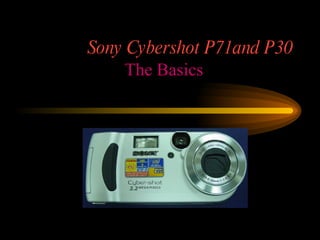
Sony Cybershot P71and P30 The Basics
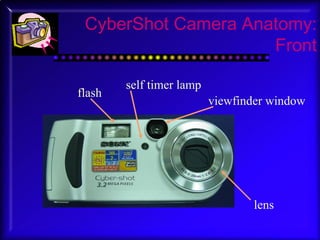
CyberShot Camera Anatomy: Front lens viewfinder window self timer lamp flash
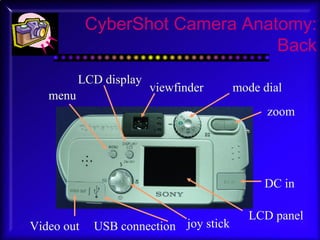
CyberShot Camera Anatomy: Back DC in zoom viewfinder LCD panel LCD display menu Video out USB connection mode dial joy stick
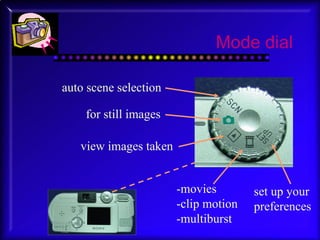
Mode dial auto scene selection for still images view images taken -movies -clip motion -multiburst set up your preferences
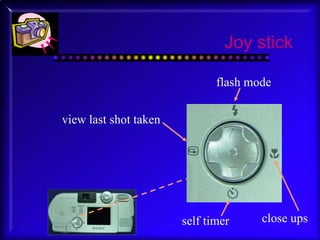
Joy stick flash mode self timer view last shot taken close ups
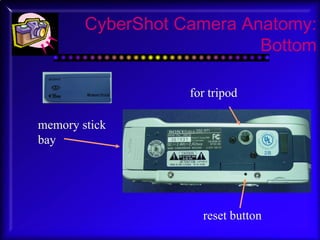
CyberShot Camera Anatomy: Bottom memory stick bay for tripod reset button
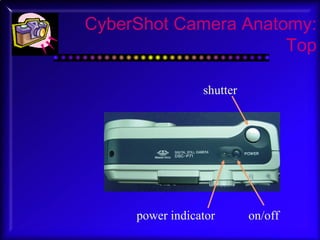
CyberShot Camera Anatomy: Top on/off power indicator shutter
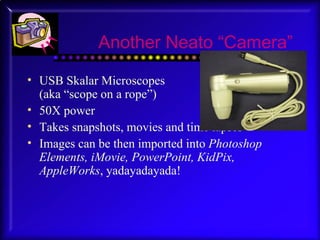
Another Neato “Camera” USB Skalar Microscopes  (aka “scope on a rope”) 50X power Takes snapshots, movies and time lapses Images can be then imported into  Photoshop Elements, iMovie, PowerPoint, KidPix, AppleWorks , yadayadayada!
You’ve  Clicked  now you get  to Create ! Free Web Album sites: Kodakgallery.com Imagestation.com Snapfish.com Shutterfly.com
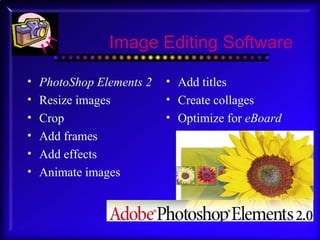
Image Editing Software PhotoShop Elements 2 Resize images Crop Add frames Add effects Animate images Add titles Create collages Optimize for  eBoard
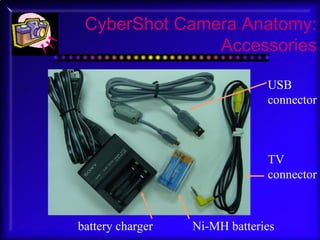
CyberShot Camera Anatomy: Accessories Ni-MH batteries TV connector USB connector battery charger
Photo Workshop Follow the directions on the “Digital Camera Exercises” handout to develop some basic photography skills Afterwards, you will upload and analyze the photos
You’ve  Clicked  now you get to  Publish! Sign on to  flickr .com and work  through the process  of uploading your photos

Using Digital Cameras For Visual Literacy

  • 1.
    Click! Create! Circulate!Digital Imaging With Cameras
  • 2.
    Some Objectives Howto choose and use a digital camera How and why to incorporate digital imaging into the curriculum To become acquainted with free resources on the internet for publishing digital projects To develop skills to take usable photos and then upload images to the internet
  • 3.
    Schedule of Events anatomy of a digital camera take some practice example shots upload your images to your account upload your images to the Internet Learn to send a photo by email
  • 4.
    What is DigitalPhotography? Similar to 35mm cameras: lens, aperture, shutter Difference: how the image is captured Image sensors form a grid of millions of photosensitive diodes called photosites or pixels that capture light A digital photograph is made up of these pixels
  • 5.
    Why Go Digital?The capture format makes it extremely easy to distribute in a wp, draw, paint, email, or html document Most cameras allow you to see the image immediately--time for re-takes! Some can be hooked up to a TV for large image or group viewing Instant photography without the cost!
  • 6.
    Why Go Digital?Saves in the long run--no film or developing costs Saves time running to and from the processing store Can be edited to perfection Environmentally sound compared to traditional photography Instant gratification
  • 7.
    The EducationalImpact No more collecting money for supplies Photographic freedom for students to create and “take chances” without worrying about cost, time, and effort No “turn around time” for projects waiting for images An entire digital darkroom for the cost of a camera and editing software
  • 8.
    Standards Addressed VisualArts Understands and applies media, techniques, and processes related to the visual arts Knows how to use structures and functions of art Understands the characteristics and merits of one’s own artwork and that of others
  • 9.
    Standards Addressed TechnologyKnows the characteristics and uses of computer hardware and systems Knows the characteristics and uses of software programs Understands the nature and uses of different forms of technology
  • 10.
    Standards Addressed LifeWork Makes effective use of basic tools Uses various information sources, including those of a technical nature, to accomplish specific tasks Applies basic trouble-shooting and problem solving techniques
  • 11.
    Standards Addressed LanguageArts Uses viewing skills and strategies to understand and interpret visual media Understands the characteristics and components of media
  • 12.
    Educational Activities Captureclass events Portfolios Class newsletters Galleries of student work Demonstrative speeches Bring a fieldtrip home Student created databases Illustrated timelines Multimedia publications Web pages Science experiments Digital storytelling
  • 13.
    Choosing a DigitalCamera Choose the highest resolution you can afford Investigate the storage and downloading options Floppy disks Memory cards and sticks Card adapters CD Cables docks
  • 14.
    Choosing a DigitalCamera Look at lens type--plastic vs. glass Look at zoom characteristics--digital or optical? Look for several flash modes Look for viewfinder as well as LCD panel Autofocus and macro lenses--will you use them?
  • 15.
    Choosing a DigitalCamera What software is included? What is the battery time and life? What is the cost of extra batteries? Is a charger included?
  • 16.
    Choosing a DigitalCamera Additional features: interchangeable lenses steady-shot burst mode auto exposure voice memo variable shutter speeds manual focus self-timer fire-wire capability video out time remaining indicators AC adapter
  • 17.
    Choosing a DigitalCamera Don’t be scammed! High resolution cameras offered at low prices often use software interpolation to give the effect of high resolution If buying a low priced camera, make sure it is a charge-coupled device (CCD) Do buy an inexpensive low resolution camera if you are only using it for web or monitor work
  • 18.
    Sony Cybershot P71andP30 The Basics
  • 19.
    CyberShot Camera Anatomy:Front lens viewfinder window self timer lamp flash
  • 20.
    CyberShot Camera Anatomy:Back DC in zoom viewfinder LCD panel LCD display menu Video out USB connection mode dial joy stick
  • 21.
    Mode dial autoscene selection for still images view images taken -movies -clip motion -multiburst set up your preferences
  • 22.
    Joy stick flashmode self timer view last shot taken close ups
  • 23.
    CyberShot Camera Anatomy:Bottom memory stick bay for tripod reset button
  • 24.
    CyberShot Camera Anatomy:Top on/off power indicator shutter
  • 25.
    Another Neato “Camera”USB Skalar Microscopes (aka “scope on a rope”) 50X power Takes snapshots, movies and time lapses Images can be then imported into Photoshop Elements, iMovie, PowerPoint, KidPix, AppleWorks , yadayadayada!
  • 26.
    You’ve Clicked now you get to Create ! Free Web Album sites: Kodakgallery.com Imagestation.com Snapfish.com Shutterfly.com
  • 27.
    Image Editing SoftwarePhotoShop Elements 2 Resize images Crop Add frames Add effects Animate images Add titles Create collages Optimize for eBoard
  • 28.
    CyberShot Camera Anatomy:Accessories Ni-MH batteries TV connector USB connector battery charger
  • 29.
    Photo Workshop Followthe directions on the “Digital Camera Exercises” handout to develop some basic photography skills Afterwards, you will upload and analyze the photos
  • 30.
    You’ve Clicked now you get to Publish! Sign on to flickr .com and work through the process of uploading your photos