

Breaking down the barriers:
Testing desktop apps with Selenium
June 25, 2016
Speaker info
■ Filip Braun
■ braun@avast.com
■ https://cz.linkedin.com/in/filipbraun
■ Michal Vanek
■ vanek@avast.com
■ https://cz.linkedin.com/in/michalvanek
Agenda
1 Intro
2 Avast for Windows - UI testing challenges
3 Selenium and desktop apps
4 Demo
5 Everyday testing
Avast Software, The Czech republic
■ antivirus and security company
■ products
▪ Antivirus
▪ Mobile security
▪ SecureLine
▪ CleanUp
▪ Passwords
■ platforms
▪ Windows
▪ Android
▪ Mac/iOS
■ over 230 millions users
■ www.avast.com
How to test Avast UI?
settings_general.htm
<!-- SPECIAL SCANS -->
<div #s_boxes_ctnr behavior_instance="AvBehav_SlidingBoxes">
<caption .sbox>
<div ._left /><span IDS="6748">Special scans</span><div .
_right/></caption>
<div .expandable style="behavior: AvBehav_SpecialScanList;">
<div .content>
<table style="width:100%">
<tr .simple_box .ssaver image_id="ssaver">
<td><div IDS="8380">Screen saver scan</div></td>
<td><div .flat_btn name="settings" av_command="settings
(dialog=IDR_HTM_DIALOG_SETTINGS_SSAVER,scan_id={CB6AE6F8-D9A8-4794-B2BF-
53A84058C58F})" IDS="6096">Settings</div></td> </tr>
...
Avast architecture and testing possibilities
■ Antivirus engine
− C++, assembler
▪ integration/component
▪ e2e tests in python
▪ using boost framework
− No UI testing needed
Avast architecture and testing possibilities
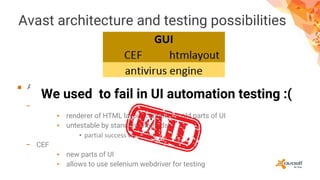
■ Avast GUI frameworks
▪ Avast UI page looks like a website
− Htmlayout
▪ renderer of HTML layout content for old parts of UI
▪ untestable by standard methods :(
▪ partial success with Sikuli
− CEF
▪ new parts of UI
▪ allows to use selenium webdriver for testing
We used to fail in UI automation testing :(
Motivation and idea outline
■ GUI testing tools are often image based
− Too clumsy
− Very inflexible
− One small change in GUI requires several changes in tests
9 - Motivation and idea outline
■ Tests require too much maintenance
■ Solution
− Testing tool that can access the base structure of GUI
− Allows framework creation
■ We have that in Web testing
10 - Selenium
Selenium for testing desktop apps?
11 - Let’s do it!
Sure, why not.
Where is the magic?
■ Connect Selenium to a desktop app
■ Access its GUI content as a website
■ Control it as a website
12 - Where is the magic?
■ Do all the Selenium magic
− Build a powerful framework
− Run tests in multiple environments
Some prerequisites
■ CEF
− Chromium Embedded Framework
− Browser engine
− Provides browser capabilities to desktop application
13 - Prerequisites
■ DevTools for CEF
− Debug console tool for Google Chrome
■ Google Chrome
■ ChromeDriver
Opening debug console
■ Select some available port
■ Run the application with debug console enabled on that port
14 - Debug console
DEMO
Connecting Selenium driver to the app
■ Open a connection point
− Start CEF debug console on some port
15 - Connecting to app
■ Connect ChromeDriver to debug console
■ Access and control the application through the console
■ Let Selenium do its job
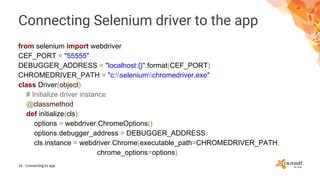
Connecting Selenium driver to the app
from selenium import webdriver
CEF_PORT = "55555"
DEBUGGER_ADDRESS = "localhost:{}".format(CEF_PORT)
CHROMEDRIVER_PATH = "c:seleniumchromedriver.exe"
class Driver(object):
# Initialize driver instance
@classmethod
def initialize(cls):
options = webdriver.ChromeOptions()
options.debugger_address = DEBUGGER_ADDRESS
cls.instance = webdriver.Chrome(executable_path=CHROMEDRIVER_PATH,
chrome_options=options)
16 - Connecting to app
Connecting Selenium driver to the app
from driver import Driver
from selenium.webdriver.support.wait import WebDriverWait
from selenium.webdriver.support import expected_conditions as ec
from selenium.webdriver.common.by import By
class Hns(object):
# Returns list of WebElements - all displayed devices
@classmethod
def get_devices(cls):
WebDriverWait(Driver.instance, 5).until(ec.presence_of_element_located((By.ID,
"hns__device-0")))
return Driver.instance.find_elements_by_xpath("//*[contains(@id, 'hns__device')]")
17 - Connecting to app
DEMO
18 - Demo
How we run the test?
■ 3 levels of tests
− short
− medium
− long
▪ UI tests using selenium
- daily and often
Infrastructure for running automation tests
■ Jenkins
− test executor
■ Linux server farm
− using DBV
■ VirtualBox
− many Windows OSes
21 - Q&A
Contact us later
■ Filip Braun
■ braun@avast.com
■ https://cz.linkedin.com/in/filipbraun
■ Michal Vanek
■ vanek@avast.com
■ https://cz.linkedin.com/in/michalvanek
22 - Contact us

Testing desktop apps with selenium

  • 1.
    Breaking down thebarriers: Testing desktop apps with Selenium June 25, 2016
  • 2.
    Speaker info ■ FilipBraun ■ braun@avast.com ■ https://cz.linkedin.com/in/filipbraun ■ Michal Vanek ■ vanek@avast.com ■ https://cz.linkedin.com/in/michalvanek
  • 3.
    Agenda 1 Intro 2 Avastfor Windows - UI testing challenges 3 Selenium and desktop apps 4 Demo 5 Everyday testing
  • 4.
    Avast Software, TheCzech republic ■ antivirus and security company ■ products ▪ Antivirus ▪ Mobile security ▪ SecureLine ▪ CleanUp ▪ Passwords ■ platforms ▪ Windows ▪ Android ▪ Mac/iOS ■ over 230 millions users ■ www.avast.com
  • 5.
    How to testAvast UI?
  • 6.
    How to testAvast UI? settings_general.htm <!-- SPECIAL SCANS --> <div #s_boxes_ctnr behavior_instance="AvBehav_SlidingBoxes"> <caption .sbox> <div ._left /><span IDS="6748">Special scans</span><div . _right/></caption> <div .expandable style="behavior: AvBehav_SpecialScanList;"> <div .content> <table style="width:100%"> <tr .simple_box .ssaver image_id="ssaver"> <td><div IDS="8380">Screen saver scan</div></td> <td><div .flat_btn name="settings" av_command="settings (dialog=IDR_HTM_DIALOG_SETTINGS_SSAVER,scan_id={CB6AE6F8-D9A8-4794-B2BF- 53A84058C58F})" IDS="6096">Settings</div></td> </tr> ...
  • 7.
    Avast architecture andtesting possibilities ■ Antivirus engine − C++, assembler ▪ integration/component ▪ e2e tests in python ▪ using boost framework − No UI testing needed
  • 8.
    Avast architecture andtesting possibilities ■ Avast GUI frameworks ▪ Avast UI page looks like a website − Htmlayout ▪ renderer of HTML layout content for old parts of UI ▪ untestable by standard methods :( ▪ partial success with Sikuli − CEF ▪ new parts of UI ▪ allows to use selenium webdriver for testing We used to fail in UI automation testing :(
  • 9.
    Motivation and ideaoutline ■ GUI testing tools are often image based − Too clumsy − Very inflexible − One small change in GUI requires several changes in tests 9 - Motivation and idea outline ■ Tests require too much maintenance ■ Solution − Testing tool that can access the base structure of GUI − Allows framework creation ■ We have that in Web testing
  • 10.
  • 11.
    Selenium for testingdesktop apps? 11 - Let’s do it! Sure, why not.
  • 12.
    Where is themagic? ■ Connect Selenium to a desktop app ■ Access its GUI content as a website ■ Control it as a website 12 - Where is the magic? ■ Do all the Selenium magic − Build a powerful framework − Run tests in multiple environments
  • 13.
    Some prerequisites ■ CEF −Chromium Embedded Framework − Browser engine − Provides browser capabilities to desktop application 13 - Prerequisites ■ DevTools for CEF − Debug console tool for Google Chrome ■ Google Chrome ■ ChromeDriver
  • 14.
    Opening debug console ■Select some available port ■ Run the application with debug console enabled on that port 14 - Debug console DEMO
  • 15.
    Connecting Selenium driverto the app ■ Open a connection point − Start CEF debug console on some port 15 - Connecting to app ■ Connect ChromeDriver to debug console ■ Access and control the application through the console ■ Let Selenium do its job
  • 16.
    Connecting Selenium driverto the app from selenium import webdriver CEF_PORT = "55555" DEBUGGER_ADDRESS = "localhost:{}".format(CEF_PORT) CHROMEDRIVER_PATH = "c:seleniumchromedriver.exe" class Driver(object): # Initialize driver instance @classmethod def initialize(cls): options = webdriver.ChromeOptions() options.debugger_address = DEBUGGER_ADDRESS cls.instance = webdriver.Chrome(executable_path=CHROMEDRIVER_PATH, chrome_options=options) 16 - Connecting to app
  • 17.
    Connecting Selenium driverto the app from driver import Driver from selenium.webdriver.support.wait import WebDriverWait from selenium.webdriver.support import expected_conditions as ec from selenium.webdriver.common.by import By class Hns(object): # Returns list of WebElements - all displayed devices @classmethod def get_devices(cls): WebDriverWait(Driver.instance, 5).until(ec.presence_of_element_located((By.ID, "hns__device-0"))) return Driver.instance.find_elements_by_xpath("//*[contains(@id, 'hns__device')]") 17 - Connecting to app
  • 18.
  • 19.
    How we runthe test? ■ 3 levels of tests − short − medium − long ▪ UI tests using selenium - daily and often
  • 20.
    Infrastructure for runningautomation tests ■ Jenkins − test executor ■ Linux server farm − using DBV ■ VirtualBox − many Windows OSes
  • 21.
  • 22.
    Contact us later ■Filip Braun ■ braun@avast.com ■ https://cz.linkedin.com/in/filipbraun ■ Michal Vanek ■ vanek@avast.com ■ https://cz.linkedin.com/in/michalvanek 22 - Contact us