Interacting with Applications
Agenda
โ€ข Interaction with applications
โ€ข Automation basics
โ€ข Application Types
โ€ข Selenium basics
โ€ข Application Platforms
Interacting with applications โ€“ why
Automation
โ€ข In the previous session we showed Perfectoโ€™s basic support
for Manual testing of applications on Perfecto Lab devices.
โ€ข One disadvantage of manual testing is the inability to
completely repeat the test.
โ€ข Performing the steps exactly in the same order is problematic.
โ€ข The timing of the interactions is never the same.
โ€ข Automation addresses these problems
โ€ข Prepare the full test process in a software platform.
โ€ข Execute the test script repetitively โ€“ always the same process and
timing.
โ€ข May be executed by CI tools โ€“ like Jenkins.
โ€ข Selenium and Appium are open source testing frameworks for
automation, with support for standard programming
Automation - basics
โ€ข Automation tests require interacting with the application through
software commands โ€“
โ€ข Clicking on buttons,
โ€ข Entering text in text fields,
โ€ข Selecting values,
โ€ข etc.
โ€ข All of these actions require that the automation โ€œscriptโ€ can
identify the elements that appear on the applications UI.
โ€ข There are 2 ways to perform this:
โ€ข Using the programmed information of the Application Objects
โ€ข Using Visual Analysis to perform the actions on the screen
Both Object manipulation and Visual analysis are supported by Perfecto
Object Interaction
โ€ข The input for this method is the XML/HTML provided by the
application.
โ€ข We identify the object we want and then select the desired
action:
โ€ข Click
โ€ข Text Entry
โ€ข Swipe
โ€ข Etc.
โ€ข Object interaction is fast, reliable, & robust.
โ€ข Objects are identified by an XPath or similar specification.
โ€ข Stay tuned for the XPath unit.
Visual Interaction
โ€ข Visual Analysis uses a screenshot taken from the device.
โ€ข The screenshot is analyzed
โ€ข Using an OCR engine for finding text
โ€ข Using a bitmap comparison engine for images.
โ€ข This method works directly on what the user sees but is slower
& less reliable.
โ€ข Slower โ€“ takes time to analyze the screenshot image.
โ€ข Less reliable โ€“ cannot guarantee 100% match, usually settle for less.
โ€ข It is valuable when used sparingly in the correct places in the
test.
โ€ข For example, when dismissing system popups or other dynamic
objects.
โ€ข Identifying image buttons.
Application Types
โ€ข There are 3 types of applications in the market today:
โ€ข Web applications โ€“ run on a mobile or desktop browser.
โ€ข Can be tested on both mobile & desktop.
โ€ข Objects are identified with an XPath expression โ€“ using DOM objects.
โ€ข The Selenium driver is preferred tool to run automation tests.
โ€ข Native Mobile Applications
โ€ข Installed on a mobile device, (usually) from the app store.
โ€ข Separate code base per platform.
โ€ข Objects are identified with XPath (with iOS variations) specification
โ€ข Appium driver is preferred tool to run automation tests
Application Types
Continued
โ€ข Hybrid Applications
โ€ข Installed on a mobile device, from the app store
โ€ข Characterized by a Web-based interface embedded in a Native
application environment.
โ€ข Native environment is separate code base per platform
โ€ข Web-based interface is based on HTML specifications.
โ€ข Objects are identified with XPath (with iOS variations) specification
โ€ข May require switching to different object trees.
โ€ข Appium driver is preferred tool to run automation tests
Automation Drivers
โ€ข Automation โ€œscriptsโ€ connect to the device running the target
application either
โ€ข Over a software connection โ€“ like a browser running on the
workstation.
โ€ข Over a hardware connection โ€“ like a USB connection to the
workstation.
โ€ข Over a โ€œcloudโ€ connection โ€“ using the Perfecto CQ Lab devices.
โ€ข Each automation script needs a โ€œconnection managerโ€ that
drives the connection to the target device and application.
โ€ข Selenium provides drivers for different interactions with Web
Applications.
โ€ข RemoteWebDriver class provides support for Perfecto Lab
connections.
โ€ข Perfecto also provides a RemoteWebDriverExtended class that
Selenium โ€“ Getting Started
โ€ข A Selenium โ€œscriptโ€ starts by creating a RemoteWebDriver
instance.
โ€ข Configure the driver instance, using DesiredCapabilities.
โ€ข Provide authentication information to connect to Perfecto CQ Lab.
โ€ข Provide basic device information
โ€ข Provide information on how to reference the script and its environment.
DesiredCapabilities capabilities = new DesiredCapabilities(browserName, string.Empty,
new Platform(PlatformType.Any));
// authentication information
capabilities.SetCapability("user", "[ENTER YOUR USER NAME HERE]");
capabilities.SetCapability("password", "[ENTER YOUR PASSWORD HERE]");
//Provide your device selection criteria
capabilities.SetCapability("platformName", "Android");
// Name your script
capabilities.SetCapability("scriptName", "Test user agent");
// create the instance
var url = new Uri(string.Format("https://{0}/nexperience/perfectomobile/wd/hub", host));
driver = new RemoteWebDriver(url, capabilities);
Capabilities - Authentication
โ€ข When driver instance connects to the Perfecto CQ Lab, the
connection is made through the testerโ€™s Perfecto account.
โ€ข Need to provide your credentials โ€“
โ€ข โ€œuserโ€ capability โ€“ provides Perfecto account username.
โ€ข โ€œpasswordโ€ capability โ€“ provides Perfecto account password.
โ€ข โ€œsecurityTokenโ€ capability โ€“ For Perfecto Lab configured for use of a
Security Token - provides Perfecto accountโ€™s valid Security token.
Capabilities โ€“ Device
Selection
โ€ข In the โ€œWorking with Devicesโ€ unit we showed how to select a
device for manual testing, using the different device attributes.
โ€ข The Selenium driver selects a device to work with, based on the
device attributes that you supply in the capabilities.
โ€ข Use capabilities to provide the device selection criteria:
โ€ข โ€œplatformNameโ€ โ€“ indicates the device OS (e.g. โ€œWindowsโ€, โ€œiOSโ€)
โ€ข โ€œplatformVersionโ€ โ€“ indicates the OS version
โ€ข โ€œdeviceNameโ€ โ€“ provides Device ID of specific mobile device.
โ€ข โ€œmodelโ€ โ€“ provides model name of mobile device (e.g. โ€œiPadโ€, โ€œPixelโ€)
โ€ข โ€œbrowserNameโ€ โ€“ name of desktop browser to run (e.g. โ€œChromeโ€,
โ€œEdgeโ€)
โ€ข โ€œresolutionโ€ โ€“ display resolution for desktop device (e.g. โ€œ1024x768โ€)
โ€ข See more information here.
Capabilities โ€“ Script
Identification
โ€ข Use the โ€œscriptNameโ€ capability to provide a name for your
script that will appear both in the execution reporting interface
and the execution manager interface.
โ€ข Learn more about the capabilities supported by Perfecto on the
Defining Capabilities page and its child pages.
Object Recognition by
Platform
โ€ข XPath is the primary identification method.
โ€ข For iOS there are alternatives that are tailored to UI e.g.
accessibility ID & class name.
โ€ข In this course, we will begin by explaining XML & XPath and
then dedicate time to iOS objects.
โ€ข After understanding object interactions we will study Perfectoโ€™s
Visual Analysis support.
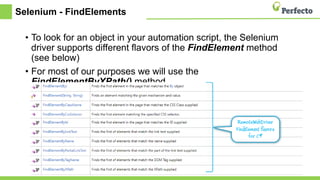
Selenium - FindElements
โ€ข To look for an object in your automation script, the Selenium
driver supports different flavors of the FindElement method
(see below)
โ€ข For most of our purposes we will use the
FindElementByXPath() method.
Thank You

CS02A - Interacting with applications.pptx

  • 1.
  • 2.
    Agenda โ€ข Interaction withapplications โ€ข Automation basics โ€ข Application Types โ€ข Selenium basics โ€ข Application Platforms
  • 3.
    Interacting with applicationsโ€“ why Automation โ€ข In the previous session we showed Perfectoโ€™s basic support for Manual testing of applications on Perfecto Lab devices. โ€ข One disadvantage of manual testing is the inability to completely repeat the test. โ€ข Performing the steps exactly in the same order is problematic. โ€ข The timing of the interactions is never the same. โ€ข Automation addresses these problems โ€ข Prepare the full test process in a software platform. โ€ข Execute the test script repetitively โ€“ always the same process and timing. โ€ข May be executed by CI tools โ€“ like Jenkins. โ€ข Selenium and Appium are open source testing frameworks for automation, with support for standard programming
  • 4.
    Automation - basics โ€ขAutomation tests require interacting with the application through software commands โ€“ โ€ข Clicking on buttons, โ€ข Entering text in text fields, โ€ข Selecting values, โ€ข etc. โ€ข All of these actions require that the automation โ€œscriptโ€ can identify the elements that appear on the applications UI. โ€ข There are 2 ways to perform this: โ€ข Using the programmed information of the Application Objects โ€ข Using Visual Analysis to perform the actions on the screen Both Object manipulation and Visual analysis are supported by Perfecto
  • 5.
    Object Interaction โ€ข Theinput for this method is the XML/HTML provided by the application. โ€ข We identify the object we want and then select the desired action: โ€ข Click โ€ข Text Entry โ€ข Swipe โ€ข Etc. โ€ข Object interaction is fast, reliable, & robust. โ€ข Objects are identified by an XPath or similar specification. โ€ข Stay tuned for the XPath unit.
  • 6.
    Visual Interaction โ€ข VisualAnalysis uses a screenshot taken from the device. โ€ข The screenshot is analyzed โ€ข Using an OCR engine for finding text โ€ข Using a bitmap comparison engine for images. โ€ข This method works directly on what the user sees but is slower & less reliable. โ€ข Slower โ€“ takes time to analyze the screenshot image. โ€ข Less reliable โ€“ cannot guarantee 100% match, usually settle for less. โ€ข It is valuable when used sparingly in the correct places in the test. โ€ข For example, when dismissing system popups or other dynamic objects. โ€ข Identifying image buttons.
  • 7.
    Application Types โ€ข Thereare 3 types of applications in the market today: โ€ข Web applications โ€“ run on a mobile or desktop browser. โ€ข Can be tested on both mobile & desktop. โ€ข Objects are identified with an XPath expression โ€“ using DOM objects. โ€ข The Selenium driver is preferred tool to run automation tests. โ€ข Native Mobile Applications โ€ข Installed on a mobile device, (usually) from the app store. โ€ข Separate code base per platform. โ€ข Objects are identified with XPath (with iOS variations) specification โ€ข Appium driver is preferred tool to run automation tests
  • 8.
    Application Types Continued โ€ข HybridApplications โ€ข Installed on a mobile device, from the app store โ€ข Characterized by a Web-based interface embedded in a Native application environment. โ€ข Native environment is separate code base per platform โ€ข Web-based interface is based on HTML specifications. โ€ข Objects are identified with XPath (with iOS variations) specification โ€ข May require switching to different object trees. โ€ข Appium driver is preferred tool to run automation tests
  • 9.
    Automation Drivers โ€ข Automationโ€œscriptsโ€ connect to the device running the target application either โ€ข Over a software connection โ€“ like a browser running on the workstation. โ€ข Over a hardware connection โ€“ like a USB connection to the workstation. โ€ข Over a โ€œcloudโ€ connection โ€“ using the Perfecto CQ Lab devices. โ€ข Each automation script needs a โ€œconnection managerโ€ that drives the connection to the target device and application. โ€ข Selenium provides drivers for different interactions with Web Applications. โ€ข RemoteWebDriver class provides support for Perfecto Lab connections. โ€ข Perfecto also provides a RemoteWebDriverExtended class that
  • 10.
    Selenium โ€“ GettingStarted โ€ข A Selenium โ€œscriptโ€ starts by creating a RemoteWebDriver instance. โ€ข Configure the driver instance, using DesiredCapabilities. โ€ข Provide authentication information to connect to Perfecto CQ Lab. โ€ข Provide basic device information โ€ข Provide information on how to reference the script and its environment. DesiredCapabilities capabilities = new DesiredCapabilities(browserName, string.Empty, new Platform(PlatformType.Any)); // authentication information capabilities.SetCapability("user", "[ENTER YOUR USER NAME HERE]"); capabilities.SetCapability("password", "[ENTER YOUR PASSWORD HERE]"); //Provide your device selection criteria capabilities.SetCapability("platformName", "Android"); // Name your script capabilities.SetCapability("scriptName", "Test user agent"); // create the instance var url = new Uri(string.Format("https://{0}/nexperience/perfectomobile/wd/hub", host)); driver = new RemoteWebDriver(url, capabilities);
  • 11.
    Capabilities - Authentication โ€ขWhen driver instance connects to the Perfecto CQ Lab, the connection is made through the testerโ€™s Perfecto account. โ€ข Need to provide your credentials โ€“ โ€ข โ€œuserโ€ capability โ€“ provides Perfecto account username. โ€ข โ€œpasswordโ€ capability โ€“ provides Perfecto account password. โ€ข โ€œsecurityTokenโ€ capability โ€“ For Perfecto Lab configured for use of a Security Token - provides Perfecto accountโ€™s valid Security token.
  • 12.
    Capabilities โ€“ Device Selection โ€ขIn the โ€œWorking with Devicesโ€ unit we showed how to select a device for manual testing, using the different device attributes. โ€ข The Selenium driver selects a device to work with, based on the device attributes that you supply in the capabilities. โ€ข Use capabilities to provide the device selection criteria: โ€ข โ€œplatformNameโ€ โ€“ indicates the device OS (e.g. โ€œWindowsโ€, โ€œiOSโ€) โ€ข โ€œplatformVersionโ€ โ€“ indicates the OS version โ€ข โ€œdeviceNameโ€ โ€“ provides Device ID of specific mobile device. โ€ข โ€œmodelโ€ โ€“ provides model name of mobile device (e.g. โ€œiPadโ€, โ€œPixelโ€) โ€ข โ€œbrowserNameโ€ โ€“ name of desktop browser to run (e.g. โ€œChromeโ€, โ€œEdgeโ€) โ€ข โ€œresolutionโ€ โ€“ display resolution for desktop device (e.g. โ€œ1024x768โ€) โ€ข See more information here.
  • 13.
    Capabilities โ€“ Script Identification โ€ขUse the โ€œscriptNameโ€ capability to provide a name for your script that will appear both in the execution reporting interface and the execution manager interface. โ€ข Learn more about the capabilities supported by Perfecto on the Defining Capabilities page and its child pages.
  • 14.
    Object Recognition by Platform โ€ขXPath is the primary identification method. โ€ข For iOS there are alternatives that are tailored to UI e.g. accessibility ID & class name. โ€ข In this course, we will begin by explaining XML & XPath and then dedicate time to iOS objects. โ€ข After understanding object interactions we will study Perfectoโ€™s Visual Analysis support.
  • 15.
    Selenium - FindElements โ€ขTo look for an object in your automation script, the Selenium driver supports different flavors of the FindElement method (see below) โ€ข For most of our purposes we will use the FindElementByXPath() method.
  • 16.

Editor's Notes

  • #3ย There are different types of apps โ€“ web, hybrid & native which run on different platforms. In this module weโ€™ll make sense of all the options and explain how to work with each app. In later modules we will go in-depth into the how-to of all we are presenting now.
  • #5ย Objects are recommended as the best practice Visual is strongly dependent on screen size and resolution, should be used mainly for validation, or when objects are not possible