Test Run for Red Cross
User Guide
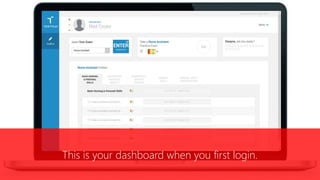
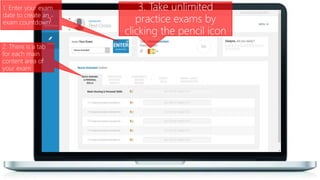
This is your dashboard when you first login.
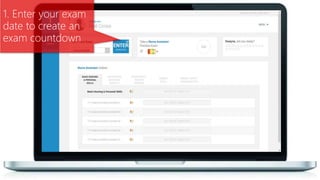
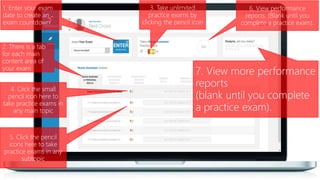
1. Enter your exam
date to create an
exam countdown
1. Enter your exam
date to create an
exam countdown
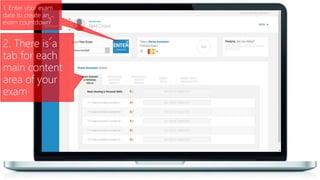
2. There is a
tab for each
main content
area of your
exam
1. Enter your exam
date to create an
exam countdown
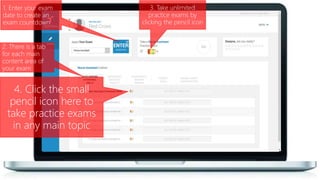
2. There is a tab
for each main
content area of
your exam
3. Take unlimited
practice exams by
clicking the pencil icon
1. Enter your exam
date to create an
exam countdown
3. Take unlimited
practice exams by
clicking the pencil icon
2. There is a tab
for each main
content area of
your exam
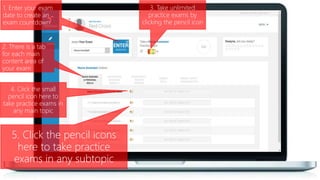
4. Click the small
pencil icon here to
take practice exams
in any main topic
1. Enter your exam
date to create an
exam countdown
3. Take unlimited
practice exams by
clicking the pencil icon
4. Click the small
pencil icon here to
take practice exams in
any main topic
2. There is a tab
for each main
content area of
your exam
5. Click the pencil icons
here to take practice
exams in any subtopic
1. Enter your exam
date to create an
exam countdown
3. Take unlimited
practice exams by
clicking the pencil icon
4. Click the small
pencil icon here to
take practice exams in
any main topic
2. There is a tab
for each main
content area of
your exam
5. Click the pencil
icons here to take
practice exams in any
subtopic
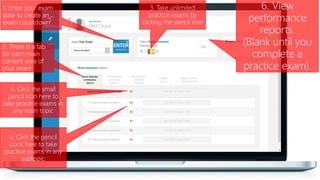
6. View
performance
reports.
(Blank until you
complete a
practice exam).
1. Enter your exam
date to create an
exam countdown
3. Take unlimited
practice exams by
clicking the pencil icon
4. Click the small
pencil icon here to
take practice exams in
any main topic
2. There is a tab
for each main
content area of
your exam
6. View performance
reports. (Blank until you
complete a practice exam).
5. Click the pencil
icons here to take
practice exams in any
subtopic
7. View more performance
reports
(blank until you complete
a practice exam).
1. Enter your exam
date to create an
exam countdown
3. Take unlimited
practice exams by
clicking the pencil icon
7. View more
performance
reports (blank until
you complete a
practice exam).
4. Click the small
pencil icon here to
take practice exams in
any main topic
2. There is a tab
for each main
content area of
your exam
6. View performance
report.s (Blank until you
complete a practice exam).
5. Click the pencil
icons here to take
practice exams in any
subtopic
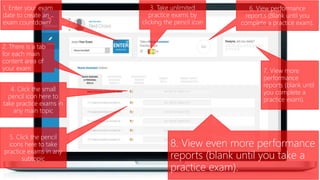
8. View even more performance
reports (blank until you take a
practice exam).
1. Enter your exam
date to create an
exam countdown
3. Take unlimited
practice exams by
clicking the pencil icon
7. View more
performance
reports (blank until
you complete a
practice exam).
4. Click the small
pencil icon here to
take practice exams in
any main topic
8. View even more
performance
reports (blank until
you take a practice
exam).
2. There is a tab
for each main
content area of
your exam
6. View performance
report.s (Blank until you
complete a practice exam).
5. Click the pencil
icons here to take
practice exams in any
subtopic
And More
Take a practice exam
You can take as many practice exams as you like…
You will never see the same test twice
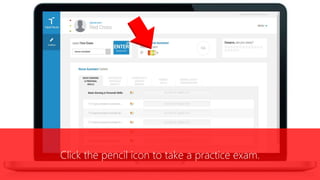
Click the pencil icon to take a practice exam.
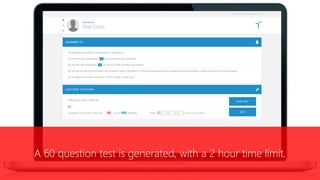
A 60 question test is generated, with a 2 hour time limit.
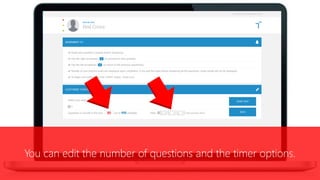
You can edit the number of questions and the timer options.
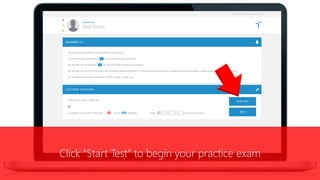
Click “Start Test” to begin your practice exam
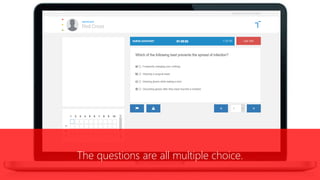
The questions are all multiple choice.
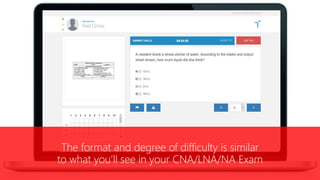
The format and degree of difficulty is similar
to what you’ll see in your CNA/LNA/NA Exam
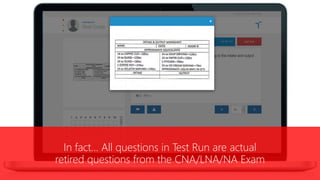
In fact… All questions in Test Run are actual
retired questions from the CNA/LNA/NA Exam
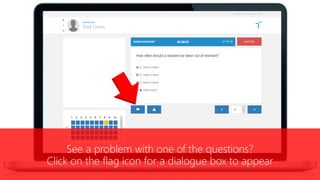
See a problem with one of the questions?
Click on the flag icon for a dialogue box to appear
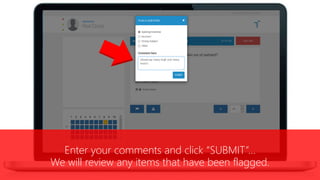
Enter your comments and click “SUBMIT”…
We will review any items that have been flagged.
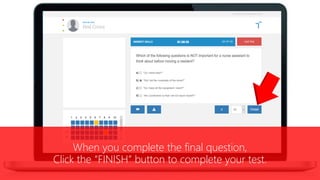
When you complete the final question,
Click the “FINISH” button to complete your test.
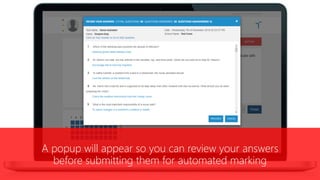
A popup will appear so you can review your answers
before submitting them for automated marking
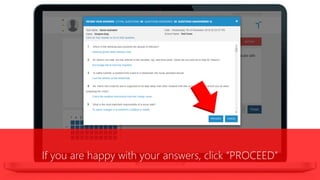
If you are happy with your answers, click “PROCEED”
See your results
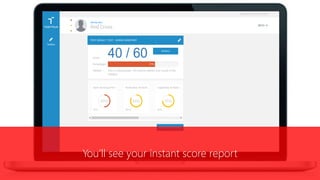
You’ll see your instant score report
See your score…
Your percentage
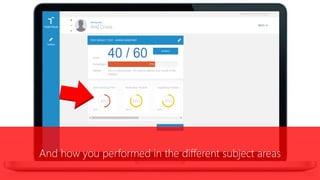
And how you performed in the different subject areas
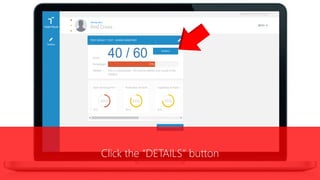
Click the “DETAILS” button
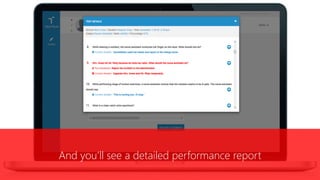
And you’ll see a detailed performance report
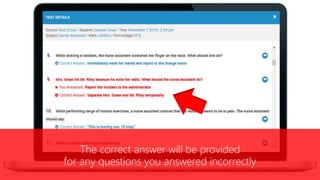
The correct answer will be provided
for any questions you answered incorrectly
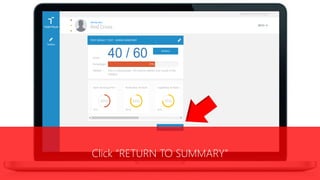
Click “RETURN TO SUMMARY”
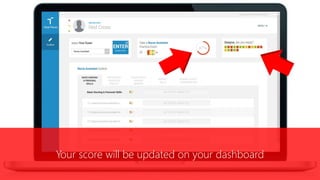
Your score will be updated on your dashboard
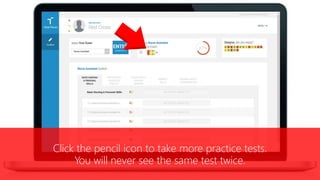
Click the pencil icon to take more practice tests.
You will never see the same test twice.
You can also test your knowledge
in the various topics and sub-topics
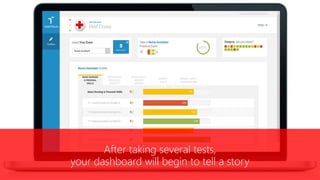
After taking several tests,
your dashboard will begin to tell a story
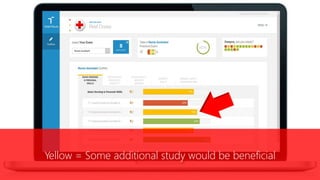
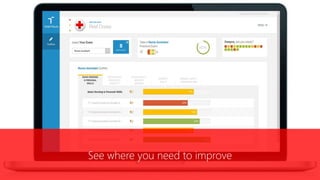
See where you need to improve
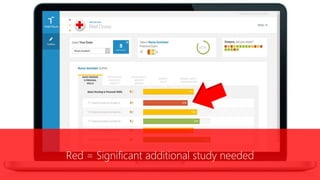
Red = Significant additional study needed
Yellow = Some additional study would be beneficial
Green = You are knowledgeable in this subject
6:32
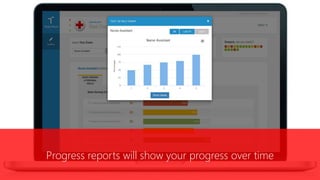
Progress reports will show your progress over time
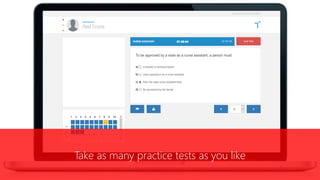
Take as many practice tests as you like
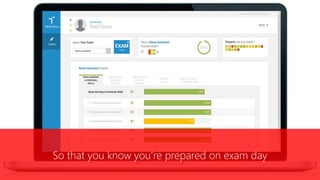
With your goal to see as many green bars as possible
So that you know you’re prepared on exam day
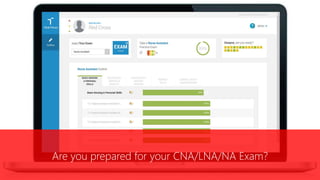
Are you prepared for your CNA/LNA/NA Exam?
Take a Test Run, and find out for sure.

Test Run by Red Cross: User Guide

  • 1.
    Test Run forRed Cross User Guide
  • 2.
    This is yourdashboard when you first login.
  • 3.
    1. Enter yourexam date to create an exam countdown
  • 4.
    1. Enter yourexam date to create an exam countdown 2. There is a tab for each main content area of your exam
  • 5.
    1. Enter yourexam date to create an exam countdown 2. There is a tab for each main content area of your exam 3. Take unlimited practice exams by clicking the pencil icon
  • 6.
    1. Enter yourexam date to create an exam countdown 3. Take unlimited practice exams by clicking the pencil icon 2. There is a tab for each main content area of your exam 4. Click the small pencil icon here to take practice exams in any main topic
  • 7.
    1. Enter yourexam date to create an exam countdown 3. Take unlimited practice exams by clicking the pencil icon 4. Click the small pencil icon here to take practice exams in any main topic 2. There is a tab for each main content area of your exam 5. Click the pencil icons here to take practice exams in any subtopic
  • 8.
    1. Enter yourexam date to create an exam countdown 3. Take unlimited practice exams by clicking the pencil icon 4. Click the small pencil icon here to take practice exams in any main topic 2. There is a tab for each main content area of your exam 5. Click the pencil icons here to take practice exams in any subtopic 6. View performance reports. (Blank until you complete a practice exam).
  • 9.
    1. Enter yourexam date to create an exam countdown 3. Take unlimited practice exams by clicking the pencil icon 4. Click the small pencil icon here to take practice exams in any main topic 2. There is a tab for each main content area of your exam 6. View performance reports. (Blank until you complete a practice exam). 5. Click the pencil icons here to take practice exams in any subtopic 7. View more performance reports (blank until you complete a practice exam).
  • 10.
    1. Enter yourexam date to create an exam countdown 3. Take unlimited practice exams by clicking the pencil icon 7. View more performance reports (blank until you complete a practice exam). 4. Click the small pencil icon here to take practice exams in any main topic 2. There is a tab for each main content area of your exam 6. View performance report.s (Blank until you complete a practice exam). 5. Click the pencil icons here to take practice exams in any subtopic 8. View even more performance reports (blank until you take a practice exam).
  • 11.
    1. Enter yourexam date to create an exam countdown 3. Take unlimited practice exams by clicking the pencil icon 7. View more performance reports (blank until you complete a practice exam). 4. Click the small pencil icon here to take practice exams in any main topic 8. View even more performance reports (blank until you take a practice exam). 2. There is a tab for each main content area of your exam 6. View performance report.s (Blank until you complete a practice exam). 5. Click the pencil icons here to take practice exams in any subtopic And More
  • 12.
  • 13.
    You can takeas many practice exams as you like… You will never see the same test twice
  • 14.
    Click the pencilicon to take a practice exam.
  • 15.
    A 60 questiontest is generated, with a 2 hour time limit.
  • 16.
    You can editthe number of questions and the timer options.
  • 17.
    Click “Start Test”to begin your practice exam
  • 18.
    The questions areall multiple choice.
  • 19.
    The format anddegree of difficulty is similar to what you’ll see in your CNA/LNA/NA Exam
  • 20.
    In fact… Allquestions in Test Run are actual retired questions from the CNA/LNA/NA Exam
  • 21.
    See a problemwith one of the questions? Click on the flag icon for a dialogue box to appear
  • 22.
    Enter your commentsand click “SUBMIT”… We will review any items that have been flagged.
  • 23.
    When you completethe final question, Click the “FINISH” button to complete your test.
  • 24.
    A popup willappear so you can review your answers before submitting them for automated marking
  • 25.
    If you arehappy with your answers, click “PROCEED”
  • 26.
  • 27.
    You’ll see yourinstant score report
  • 28.
  • 29.
  • 30.
    And how youperformed in the different subject areas
  • 31.
  • 32.
    And you’ll seea detailed performance report
  • 33.
    The correct answerwill be provided for any questions you answered incorrectly
  • 34.
  • 35.
    Your score willbe updated on your dashboard
  • 36.
    Click the pencilicon to take more practice tests. You will never see the same test twice.
  • 37.
    You can alsotest your knowledge in the various topics and sub-topics
  • 38.
    After taking severaltests, your dashboard will begin to tell a story
  • 39.
    See where youneed to improve
  • 40.
    Red = Significantadditional study needed
  • 41.
    Yellow = Someadditional study would be beneficial
  • 42.
    Green = Youare knowledgeable in this subject
  • 43.
    6:32 Progress reports willshow your progress over time
  • 44.
    Take as manypractice tests as you like
  • 45.
    With your goalto see as many green bars as possible
  • 46.
    So that youknow you’re prepared on exam day
  • 47.
    Are you preparedfor your CNA/LNA/NA Exam?
  • 48.
    Take a TestRun, and find out for sure.