Drupal basics

   Part 2
Training plan
●   Taxonomy
●   Users management
●   Creating new content types with field
●   Image management (image style, galleries)
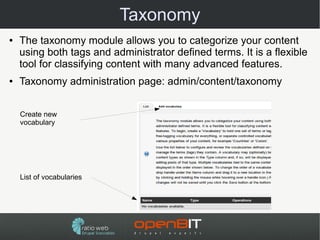
Taxonomy
●   The taxonomy module allows you to categorize your content
    using both tags and administrator defined terms. It is a flexible
    tool for classifying content with many advanced features.
●   Taxonomy administration page: admin/content/taxonomy


    Create new
    vocabulary


    List of vocabularies
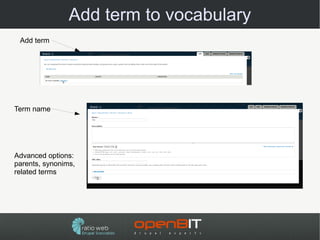
Add term to vocabulary
 Add term


Term name


Advanced options:
parents, synonims,
related terms
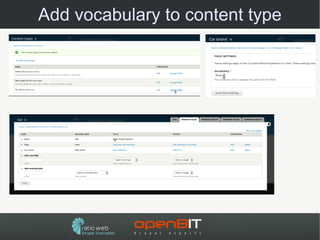
Add vocabulary to content type
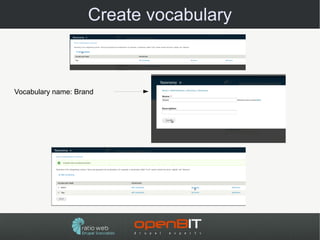
Create vocabulary


Vocabulary name: Brand
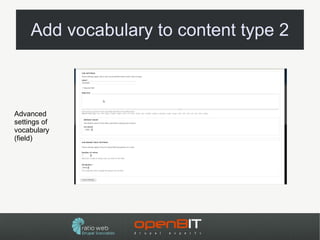
Add vocabulary to content type 2


Advanced
settings of
vocabulary
(field)
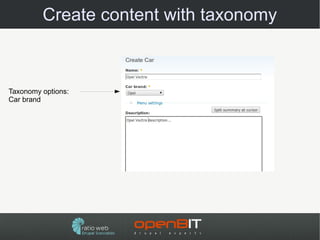
Create content with taxonomy


Taxonomy options:
Car brand
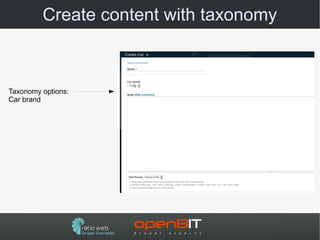
Create content with taxonomy


Taxonomy options:
Car brand
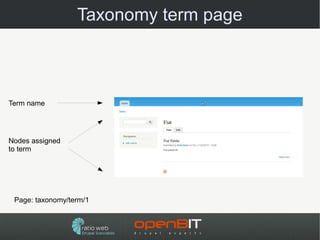
Taxonomy term page


Term name


Nodes assigned
to term


 Page: taxonomy/term/1
Practice
●Create vocabulary Color for content type Car and
add some terms (black, red, blue, silver, etc...).
User must select one option.
●Create vocabulary Body type for content type Car

and add some terms (hatchback, coupe, etc...).
User must select one option.
●Create vocabulary Car Equipment for content type

Car and add some terms (ABS, Alarm, Electric
Windows, Traction Control, etc...). User can select
one or more options.
●Add some Cars (nodes) and assign taxonomy

options
More practice
●Create content type News: enabled comments,
published on front page
●Create vocabulary News category and add some

terms (Business, Sport, Technology, etc...). User
can select one option
●Create vocabulary News tags and enable option

„Tags”
●Create 5 news nodes, assign News category and

ad tags
Page taxonomy/term/TID
●taxonomy/term/[TID] – display nodes assigned to
term [TID]
●taxonomy/term/[TID1]+[TID2]+[TID3] – display

nodes assigned to term [TID1] or [TID2] or [TID3]
●taxonomy/term/[TID1],[TID2] – display nodes

assigned to term [TID1] and [TID2]
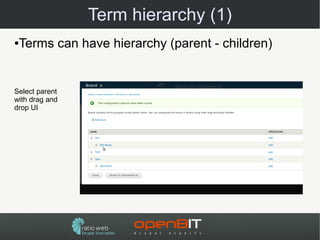
Term hierarchy (1)
●Terms can have hierarchy (parent - children)


Select parent
with drag and
drop UI
Users – basic informations

●In Drupal you can create users accounts
●Each user has name and numeric identificator

(uid)
●After installation Drupal has one user –

administrator (uid = 1)
●Administrator has access to all options

●You can assign roles to user

●You can assign permissions to roles
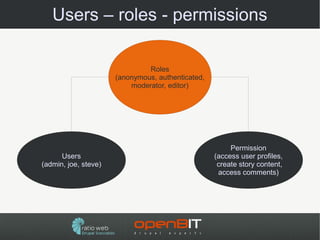
Users – roles - permissions

                               Roles
                      (anonymous, authenticated,
                          moderator, editor)


                                                        Permission
      Users                                        (access user profiles,
(admin, joe, steve)                                 create story content,
                                                    access comments)
Roles
●Default roles after installation
 ● anonymous user – all not logged in users

 ● authenticated user – all logged in users

●You can't delete default roles

●You can create unlimited number of new roles
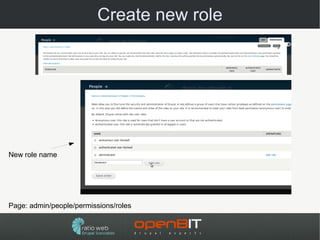
Create new role


New role name


Page: admin/people/permissions/roles
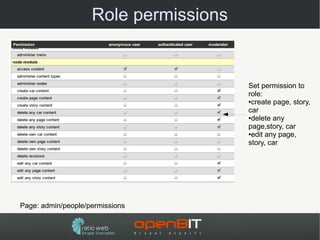
Role permissions


                                       Set permission to
                                       role:
                                       ●create page, story,

                                       car
                                       ●delete any

                                       page,story, car
                                       ●edit any page,

                                       story, car


Page: admin/people/permissions
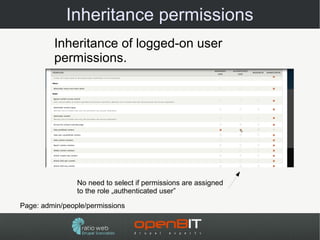
Inheritance permissions
         Inheritance of logged-on user
         permissions.


                No need to select if permissions are assigned
                to the role „authenticated user”

Page: admin/people/permissions
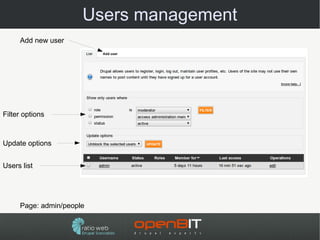
Users management
     Add new user


Filter options


Update options


Users list


     Page: admin/people
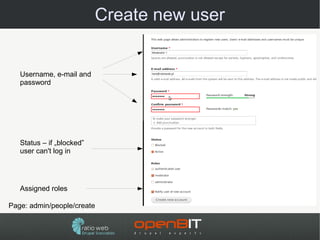
Create new user


   Username, e-mail and
   password


   Status – if „blocked”
   user can't log in


   Assigned roles

Page: admin/people/create
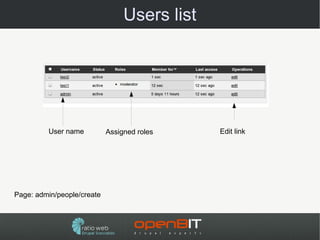
Users list


         User name          Assigned roles    Edit link


Page: admin/people/create
Practice

●Create roles and assign permissions:
 ● „car editor”, permissions: create, edit and

   delete car
 ● „story editor”, permissions: create, edit and

   delete story
●Create users:

 ● user2 – role „car editor”

 ● user3 – role „story editor”

●Log in as „user2” and „user3” and check

permissions
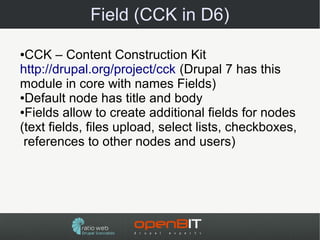
Field (CCK in D6)

●CCK – Content Construction Kit
http://drupal.org/project/cck (Drupal 7 has this
module in core with names Fields)
●Default node has title and body

●Fields allow to create additional fields for nodes

(text fields, files upload, select lists, checkboxes,
 references to other nodes and users)
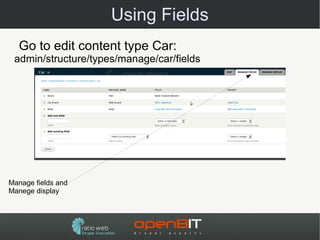
Using Fields
  Go to edit content type Car:
 admin/structure/types/manage/car/fields


Manage fields and
Manege display
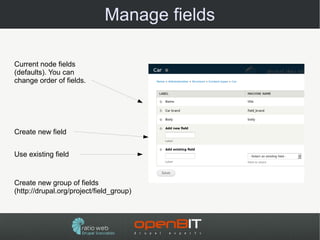
Manage fields

Current node fields
(defaults). You can
change order of fields.


Create new field


Use existing field


Create new group of fields
(http://drupal.org/project/field_group)
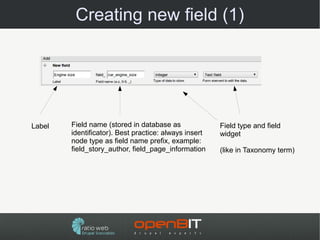
Creating new field (1)


Label   Field name (stored in database as              Field type and field
        identificator). Best practice: always insert   widget
        node type as field name prefix, example:
        field_story_author, field_page_information     (like in Taxonomy term)
Creating new field (2)
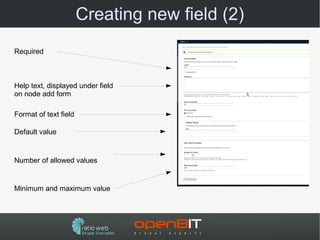
Required


Help text, displayed under field
on node add form

Format of text field

Default value


Number of allowed values


Minimum and maximum value
Creating new field (3)


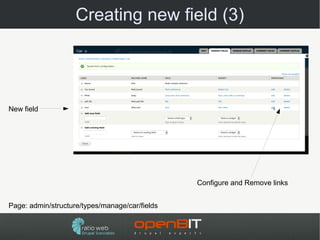
New field


                                                Configure and Remove links


Page: admin/structure/types/manage/car/fields
Creating new field (4)


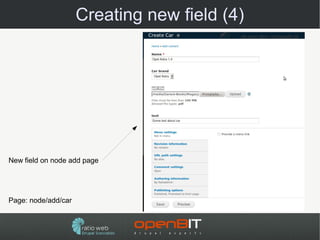
New field on node add page


Page: node/add/car
Creating new field (5)
Node view page: node/[nid]

Node title


File field


  New field

                         Taxonomy terms
Display fields (1)


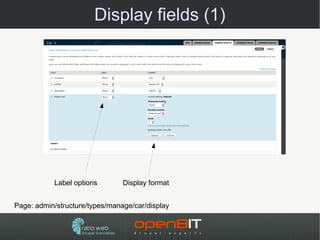
           Label options        Display format


Page: admin/structure/types/manage/car/display
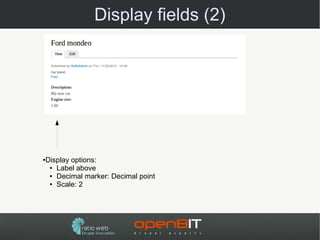
Display fields (2)


Display options:
●

 ● Label above

 ● Decimal marker: Decimal point

 ● Scale: 2
Practice

Create new fields for Car node type:
●

● Gears – integer, select list (options 4, 5, 6)

● Gearbox: - select list (options: manual,

  automatic)
● Kerb weight – integer, suffix „kg”

● Door count – integer, select list (options 3, 4, 5)
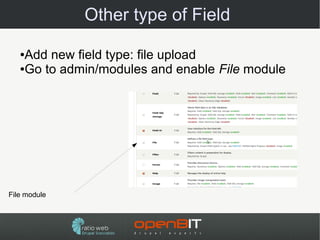
Other type of Field

   ●Add new field type: file upload
   ●Go to admin/modules and enable File module


File module
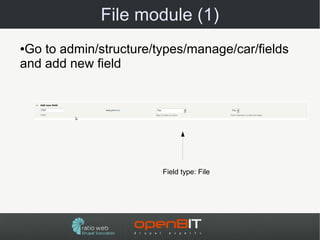
File module (1)
●Go to admin/structure/types/manage/car/fields
and add new field


                        Field type: File
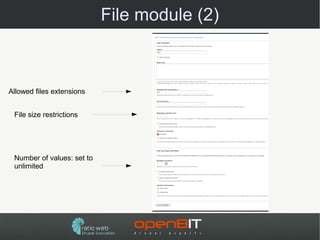
File module (2)


Allowed files extensions


 File size restrictions


 Number of values: set to
 unlimited
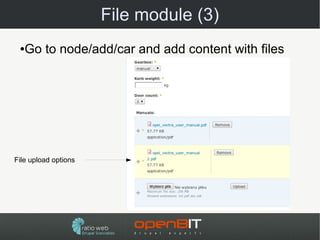
File module (3)
 ● Go to node/add/car and add content with files


File upload options
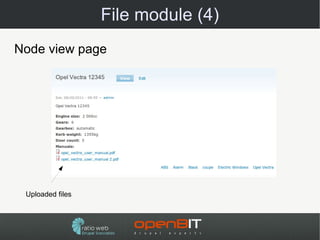
File module (4)
Node view page


 Uploaded files
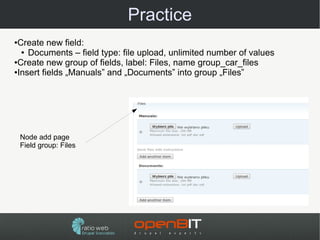
Practice
●Create new field:
  ● Documents – field type: file upload, unlimited number of values

●Create new group of fields, label: Files, name group_car_files

●Insert fields „Manuals” and „Documents” into group „Files”


    Node add page
    Field group: Files
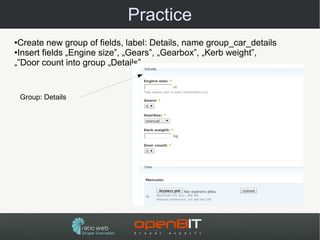
Practice
●Create new group of fields, label: Details, name group_car_details
●Insert fields „Engine size”, „Gears”, „Gearbox”, „Kerb weight”,

„”Door count into group „Details”


    Group: Details
Fields: Image
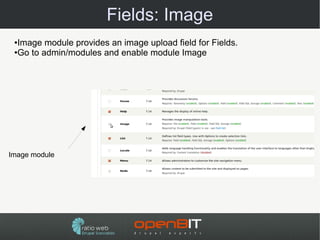
 ●Image module provides an image upload field for Fields.
 ●Go to admin/modules and enable module Image


Image module
Image (1)
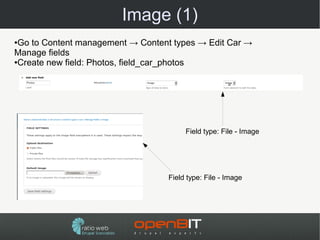
●Go to Content management → Content types → Edit Car →
Manage fields
●Create new field: Photos, field_car_photos


                                       Field type: File - Image


                                  Field type: File - Image
Image (2)


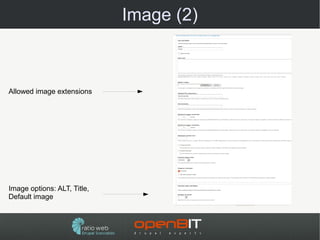
Allowed image extensions


Image options: ALT, Title,
Default image
Image (3)
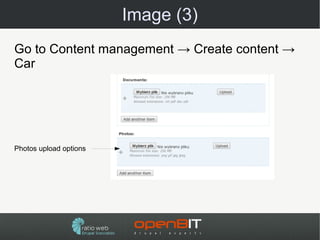
Go to Content management → Create content →
Car


Photos upload options
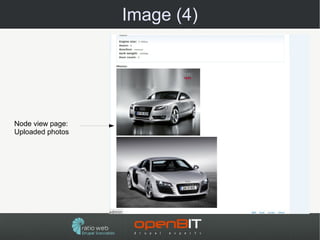
Image (4)


Node view page:
Uploaded photos
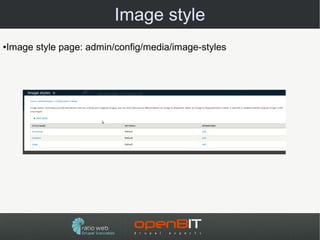
Image style
●   Image style page: admin/config/media/image-styles
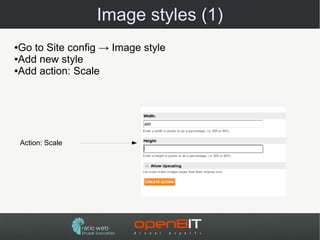
Image styles (1)
●Go to Site config → Image style
●Add new style

●Add action: Scale


    Action: Scale
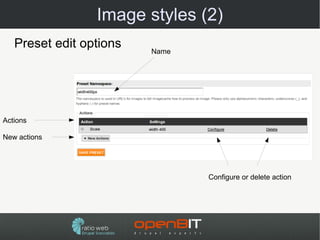
Image styles (2)
   Preset edit options   Name


Actions

New actions


                                Configure or delete action
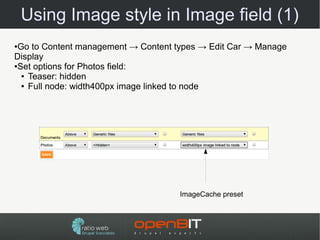
Using Image style in Image field (1)
●Go to Content management → Content types → Edit Car → Manage
Display
●Set options for Photos field:

  ● Teaser: hidden

  ● Full node: width400px image linked to node


                                     ImageCache preset
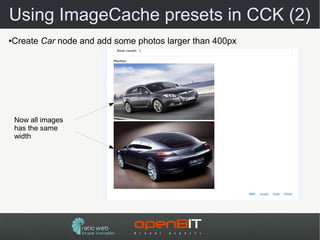
Using ImageCache presets in CCK (2)
Create Car node and add some photos larger than 400px
●


    Now all images
    has the same
    width
Practice
●Create new ImageCache preset and assign it
for field Photos in Car node type
●Create new field in Story node type: Photos

(field_story_photos)
●Create new Car node and test preset

●Create new ImageCache preset

●Assign new preset for field Photos

field_story_photos
●Create new Story node and test preset
Summary
 What you should know after this stage?
●Taxonomy

●User management

●Create custom fields for content

●Create ImageCache preset and use it in CCK

fields
Thank you for your attention
                Contact:


              Karol Bryksa
         Email: kb@ratioweb.pl
          Tel: +48 517 767 205


           Grzegorz Bartman
   E-mail: grzegorz.bartman@openbit.pl
          Tel: +48 882 515 514

Szkolenie drupal-podstawy 2

  • 1.
  • 2.
    Training plan ● Taxonomy ● Users management ● Creating new content types with field ● Image management (image style, galleries)
  • 3.
    Taxonomy ● The taxonomy module allows you to categorize your content using both tags and administrator defined terms. It is a flexible tool for classifying content with many advanced features. ● Taxonomy administration page: admin/content/taxonomy Create new vocabulary List of vocabularies
  • 4.
    Add term tovocabulary Add term Term name Advanced options: parents, synonims, related terms
  • 5.
    Add vocabulary tocontent type
  • 6.
  • 7.
    Add vocabulary tocontent type 2 Advanced settings of vocabulary (field)
  • 8.
    Create content withtaxonomy Taxonomy options: Car brand
  • 9.
    Create content withtaxonomy Taxonomy options: Car brand
  • 10.
    Taxonomy term page Termname Nodes assigned to term Page: taxonomy/term/1
  • 11.
    Practice ●Create vocabulary Colorfor content type Car and add some terms (black, red, blue, silver, etc...). User must select one option. ●Create vocabulary Body type for content type Car and add some terms (hatchback, coupe, etc...). User must select one option. ●Create vocabulary Car Equipment for content type Car and add some terms (ABS, Alarm, Electric Windows, Traction Control, etc...). User can select one or more options. ●Add some Cars (nodes) and assign taxonomy options
  • 12.
    More practice ●Create contenttype News: enabled comments, published on front page ●Create vocabulary News category and add some terms (Business, Sport, Technology, etc...). User can select one option ●Create vocabulary News tags and enable option „Tags” ●Create 5 news nodes, assign News category and ad tags
  • 13.
    Page taxonomy/term/TID ●taxonomy/term/[TID] –display nodes assigned to term [TID] ●taxonomy/term/[TID1]+[TID2]+[TID3] – display nodes assigned to term [TID1] or [TID2] or [TID3] ●taxonomy/term/[TID1],[TID2] – display nodes assigned to term [TID1] and [TID2]
  • 14.
    Term hierarchy (1) ●Termscan have hierarchy (parent - children) Select parent with drag and drop UI
  • 15.
    Users – basicinformations ●In Drupal you can create users accounts ●Each user has name and numeric identificator (uid) ●After installation Drupal has one user – administrator (uid = 1) ●Administrator has access to all options ●You can assign roles to user ●You can assign permissions to roles
  • 16.
    Users – roles- permissions Roles (anonymous, authenticated, moderator, editor) Permission Users (access user profiles, (admin, joe, steve) create story content, access comments)
  • 17.
    Roles ●Default roles afterinstallation ● anonymous user – all not logged in users ● authenticated user – all logged in users ●You can't delete default roles ●You can create unlimited number of new roles
  • 18.
    Create new role Newrole name Page: admin/people/permissions/roles
  • 19.
    Role permissions Set permission to role: ●create page, story, car ●delete any page,story, car ●edit any page, story, car Page: admin/people/permissions
  • 20.
    Inheritance permissions Inheritance of logged-on user permissions. No need to select if permissions are assigned to the role „authenticated user” Page: admin/people/permissions
  • 21.
    Users management Add new user Filter options Update options Users list Page: admin/people
  • 22.
    Create new user Username, e-mail and password Status – if „blocked” user can't log in Assigned roles Page: admin/people/create
  • 23.
    Users list User name Assigned roles Edit link Page: admin/people/create
  • 24.
    Practice ●Create roles andassign permissions: ● „car editor”, permissions: create, edit and delete car ● „story editor”, permissions: create, edit and delete story ●Create users: ● user2 – role „car editor” ● user3 – role „story editor” ●Log in as „user2” and „user3” and check permissions
  • 25.
    Field (CCK inD6) ●CCK – Content Construction Kit http://drupal.org/project/cck (Drupal 7 has this module in core with names Fields) ●Default node has title and body ●Fields allow to create additional fields for nodes (text fields, files upload, select lists, checkboxes, references to other nodes and users)
  • 26.
    Using Fields Go to edit content type Car: admin/structure/types/manage/car/fields Manage fields and Manege display
  • 27.
    Manage fields Current nodefields (defaults). You can change order of fields. Create new field Use existing field Create new group of fields (http://drupal.org/project/field_group)
  • 28.
    Creating new field(1) Label Field name (stored in database as Field type and field identificator). Best practice: always insert widget node type as field name prefix, example: field_story_author, field_page_information (like in Taxonomy term)
  • 29.
    Creating new field(2) Required Help text, displayed under field on node add form Format of text field Default value Number of allowed values Minimum and maximum value
  • 30.
    Creating new field(3) New field Configure and Remove links Page: admin/structure/types/manage/car/fields
  • 31.
    Creating new field(4) New field on node add page Page: node/add/car
  • 32.
    Creating new field(5) Node view page: node/[nid] Node title File field New field Taxonomy terms
  • 33.
    Display fields (1) Label options Display format Page: admin/structure/types/manage/car/display
  • 34.
    Display fields (2) Displayoptions: ● ● Label above ● Decimal marker: Decimal point ● Scale: 2
  • 35.
    Practice Create new fieldsfor Car node type: ● ● Gears – integer, select list (options 4, 5, 6) ● Gearbox: - select list (options: manual, automatic) ● Kerb weight – integer, suffix „kg” ● Door count – integer, select list (options 3, 4, 5)
  • 36.
    Other type ofField ●Add new field type: file upload ●Go to admin/modules and enable File module File module
  • 37.
    File module (1) ●Goto admin/structure/types/manage/car/fields and add new field Field type: File
  • 38.
    File module (2) Allowedfiles extensions File size restrictions Number of values: set to unlimited
  • 39.
    File module (3) ● Go to node/add/car and add content with files File upload options
  • 40.
    File module (4) Nodeview page Uploaded files
  • 41.
    Practice ●Create new field: ● Documents – field type: file upload, unlimited number of values ●Create new group of fields, label: Files, name group_car_files ●Insert fields „Manuals” and „Documents” into group „Files” Node add page Field group: Files
  • 42.
    Practice ●Create new groupof fields, label: Details, name group_car_details ●Insert fields „Engine size”, „Gears”, „Gearbox”, „Kerb weight”, „”Door count into group „Details” Group: Details
  • 43.
    Fields: Image ●Imagemodule provides an image upload field for Fields. ●Go to admin/modules and enable module Image Image module
  • 44.
    Image (1) ●Go toContent management → Content types → Edit Car → Manage fields ●Create new field: Photos, field_car_photos Field type: File - Image Field type: File - Image
  • 45.
    Image (2) Allowed imageextensions Image options: ALT, Title, Default image
  • 46.
    Image (3) Go toContent management → Create content → Car Photos upload options
  • 47.
    Image (4) Node viewpage: Uploaded photos
  • 48.
    Image style ● Image style page: admin/config/media/image-styles
  • 49.
    Image styles (1) ●Goto Site config → Image style ●Add new style ●Add action: Scale Action: Scale
  • 50.
    Image styles (2) Preset edit options Name Actions New actions Configure or delete action
  • 51.
    Using Image stylein Image field (1) ●Go to Content management → Content types → Edit Car → Manage Display ●Set options for Photos field: ● Teaser: hidden ● Full node: width400px image linked to node ImageCache preset
  • 52.
    Using ImageCache presetsin CCK (2) Create Car node and add some photos larger than 400px ● Now all images has the same width
  • 53.
    Practice ●Create new ImageCachepreset and assign it for field Photos in Car node type ●Create new field in Story node type: Photos (field_story_photos) ●Create new Car node and test preset ●Create new ImageCache preset ●Assign new preset for field Photos field_story_photos ●Create new Story node and test preset
  • 54.
    Summary What youshould know after this stage? ●Taxonomy ●User management ●Create custom fields for content ●Create ImageCache preset and use it in CCK fields
  • 55.
    Thank you foryour attention Contact: Karol Bryksa Email: kb@ratioweb.pl Tel: +48 517 767 205 Grzegorz Bartman E-mail: grzegorz.bartman@openbit.pl Tel: +48 882 515 514