1 AshisChandraDas
Infrastructure Sr.Analyst # Accenture >
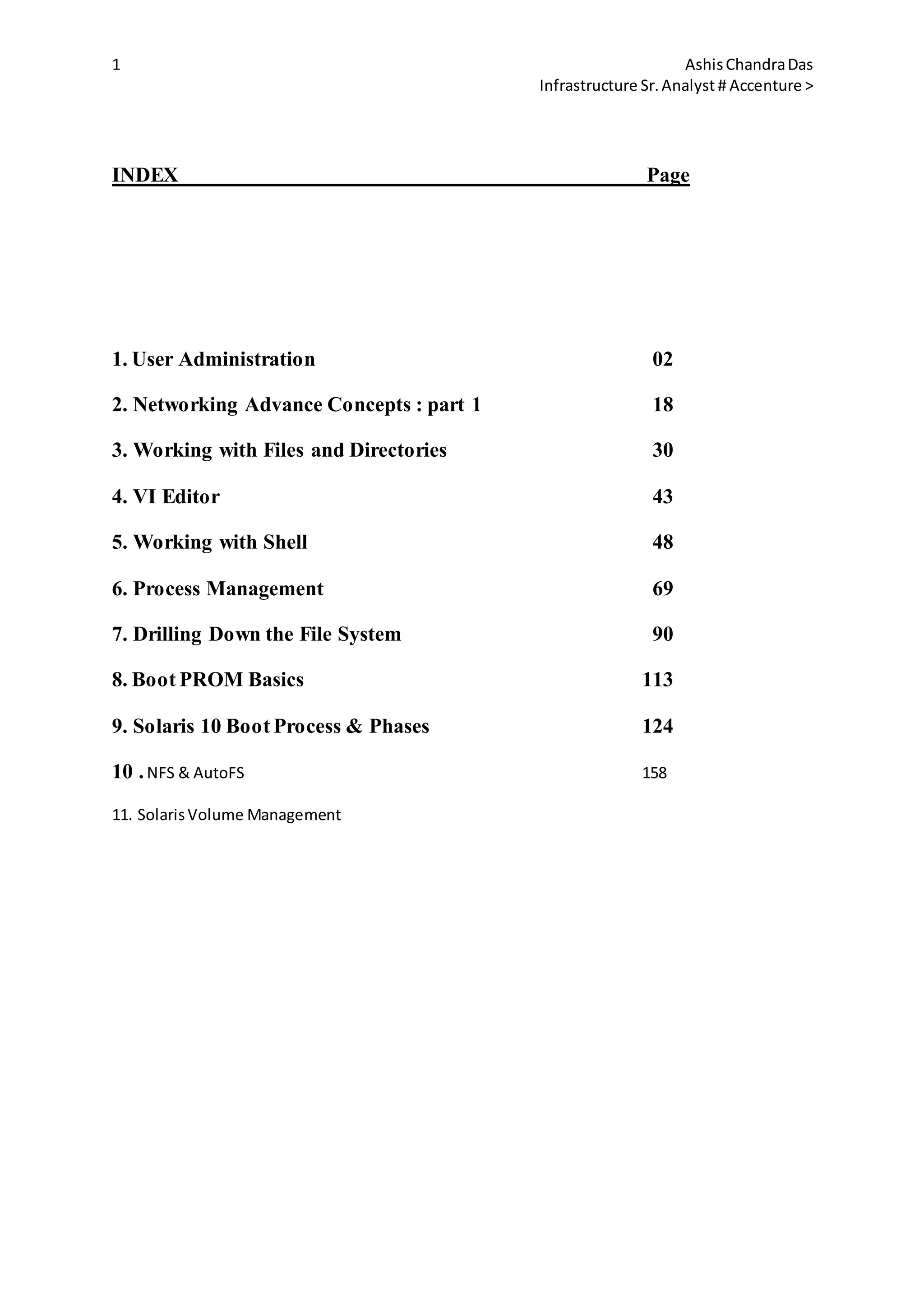
INDEX Page
1. User Administration 02
2. Networking Advance Concepts : part 1 18
3. Working with Files and Directories 30
4. VI Editor 43
5. Working with Shell 48
6. Process Management 69
7. Drilling Down the File System 90
8. Boot PROM Basics 113
9. Solaris 10 Boot Process & Phases 124
10 .NFS & AutoFS 158
11. SolarisVolume Management
2 AshisChandraDas
Infrastructure Sr.Analyst # Accenture >
User Administration
User Administration:
In Solaris each user requires following details:
1. A unique user name
2. A user ID
3. home directory
4. login shell
5. Group to which the user belongs.
System files used for storing user account information are:
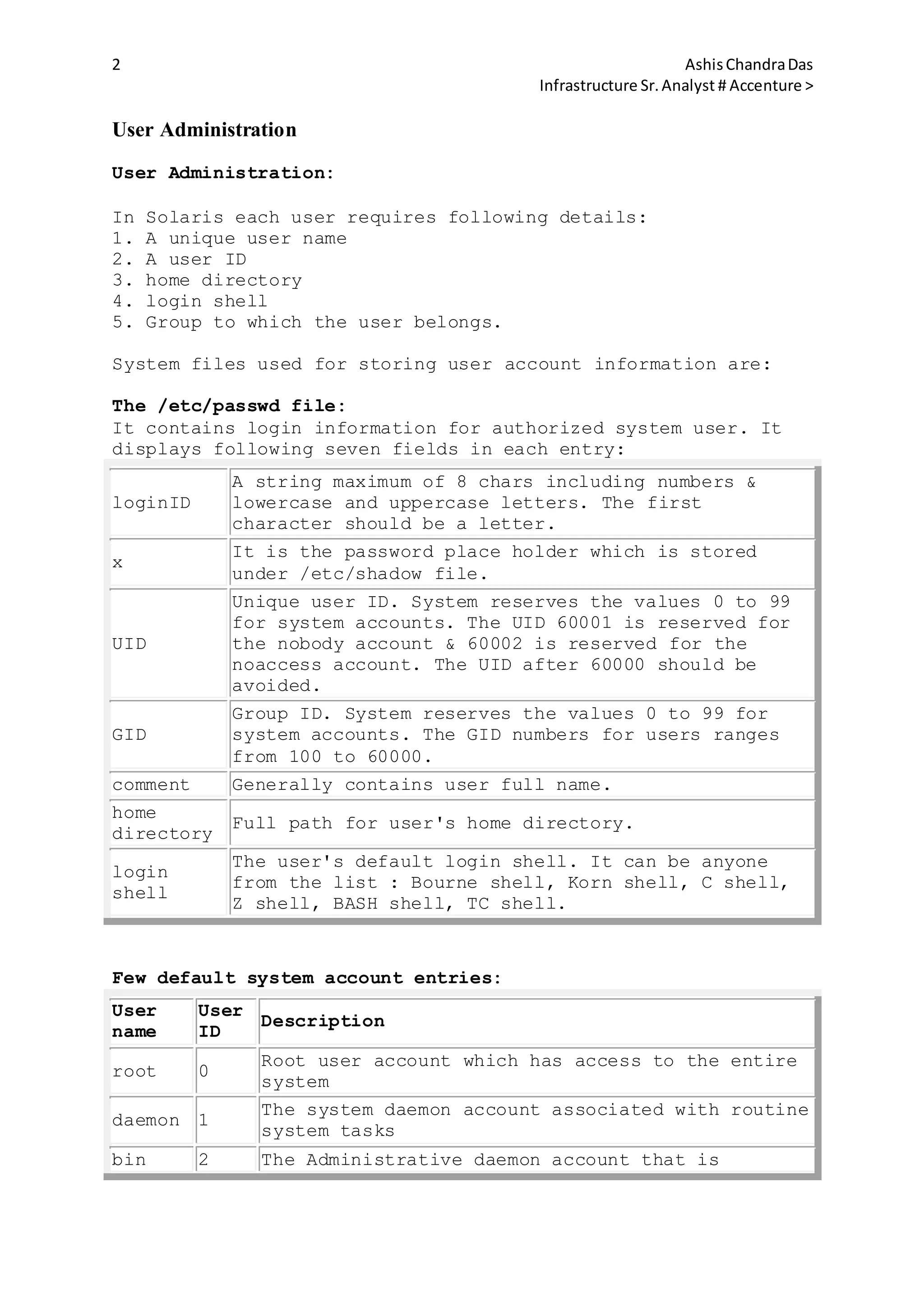
The /etc/passwd file:
It contains login information for authorized system user. It
displays following seven fields in each entry:
loginID
A string maximum of 8 chars including numbers &
lowercase and uppercase letters. The first
character should be a letter.
x
It is the password place holder which is stored
under /etc/shadow file.
UID
Unique user ID. System reserves the values 0 to 99
for system accounts. The UID 60001 is reserved for
the nobody account & 60002 is reserved for the
noaccess account. The UID after 60000 should be
avoided.
GID
Group ID. System reserves the values 0 to 99 for
system accounts. The GID numbers for users ranges
from 100 to 60000.
comment Generally contains user full name.
home
directory
Full path for user's home directory.
login
shell
The user's default login shell. It can be anyone
from the list : Bourne shell, Korn shell, C shell,
Z shell, BASH shell, TC shell.
Few default system account entries:
User
name
User
ID
Description
root 0
Root user account which has access to the entire
system
daemon 1
The system daemon account associated with routine
system tasks
bin 2 The Administrative daemon account that is
3 AshisChandraDas
Infrastructure Sr.Analyst # Accenture >
associated with routine system tasks
sys 3
The Administrative daemon account that is
associated with system logging or updating files
in temporary directories.
adm 4
The Administrative daemon account that is
associated with system logging
lp 71 Printer daemon account
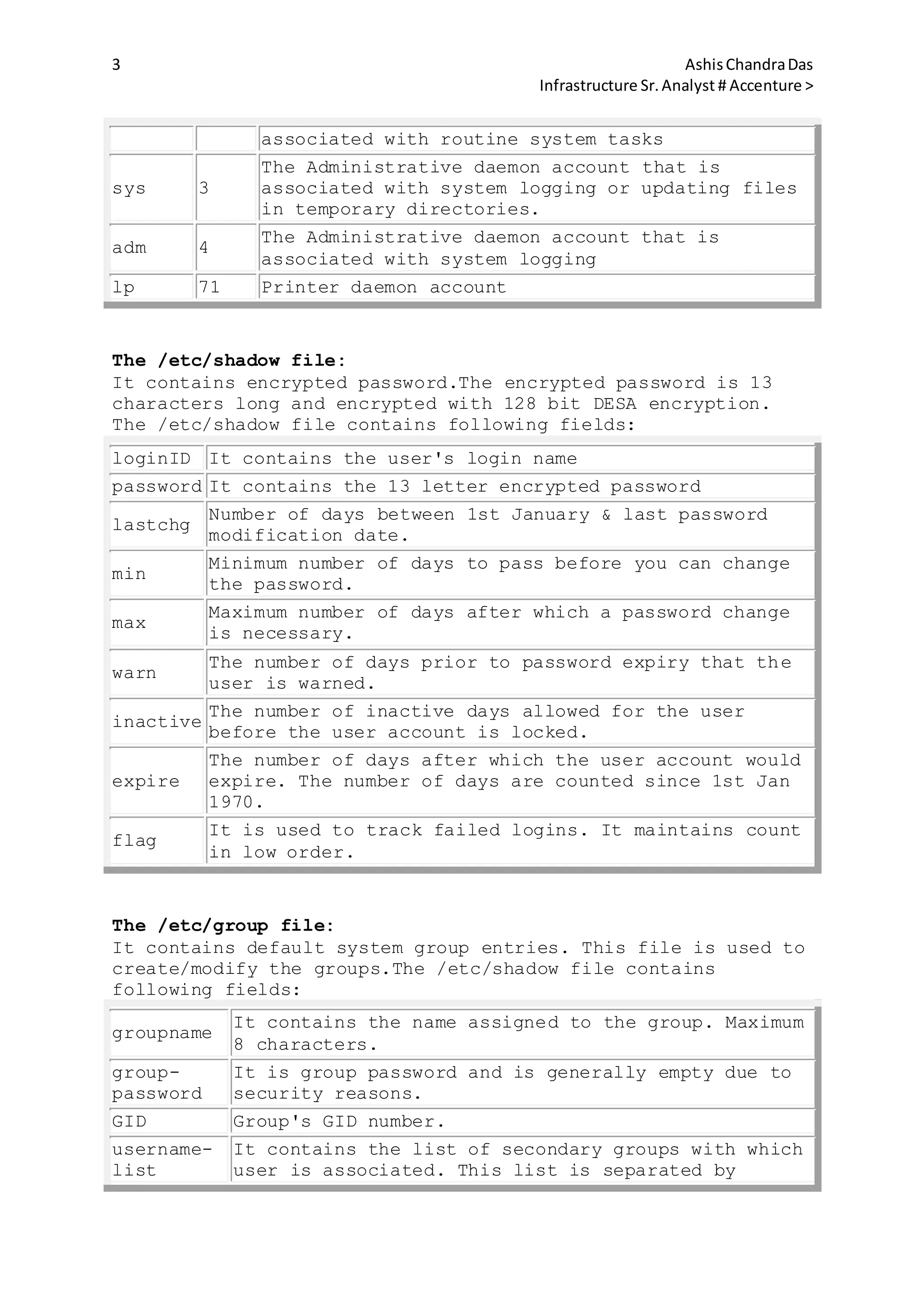
The /etc/shadow file:
It contains encrypted password.The encrypted password is 13
characters long and encrypted with 128 bit DESA encryption.
The /etc/shadow file contains following fields:
loginID It contains the user's login name
password It contains the 13 letter encrypted password
lastchg
Number of days between 1st January & last password
modification date.
min
Minimum number of days to pass before you can change
the password.
max
Maximum number of days after which a password change
is necessary.
warn
The number of days prior to password expiry that the
user is warned.
inactive
The number of inactive days allowed for the user
before the user account is locked.
expire
The number of days after which the user account would
expire. The number of days are counted since 1st Jan
1970.
flag
It is used to track failed logins. It maintains count
in low order.
The /etc/group file:
It contains default system group entries. This file is used to
create/modify the groups.The /etc/shadow file contains
following fields:
groupname
It contains the name assigned to the group. Maximum
8 characters.
group-
password
It is group password and is generally empty due to
security reasons.
GID Group's GID number.
username-
list
It contains the list of secondary groups with which
user is associated. This list is separated by
4 AshisChandraDas
Infrastructure Sr.Analyst # Accenture >
commas and by default maximum of 15 secondary
groups can be associated to each user.
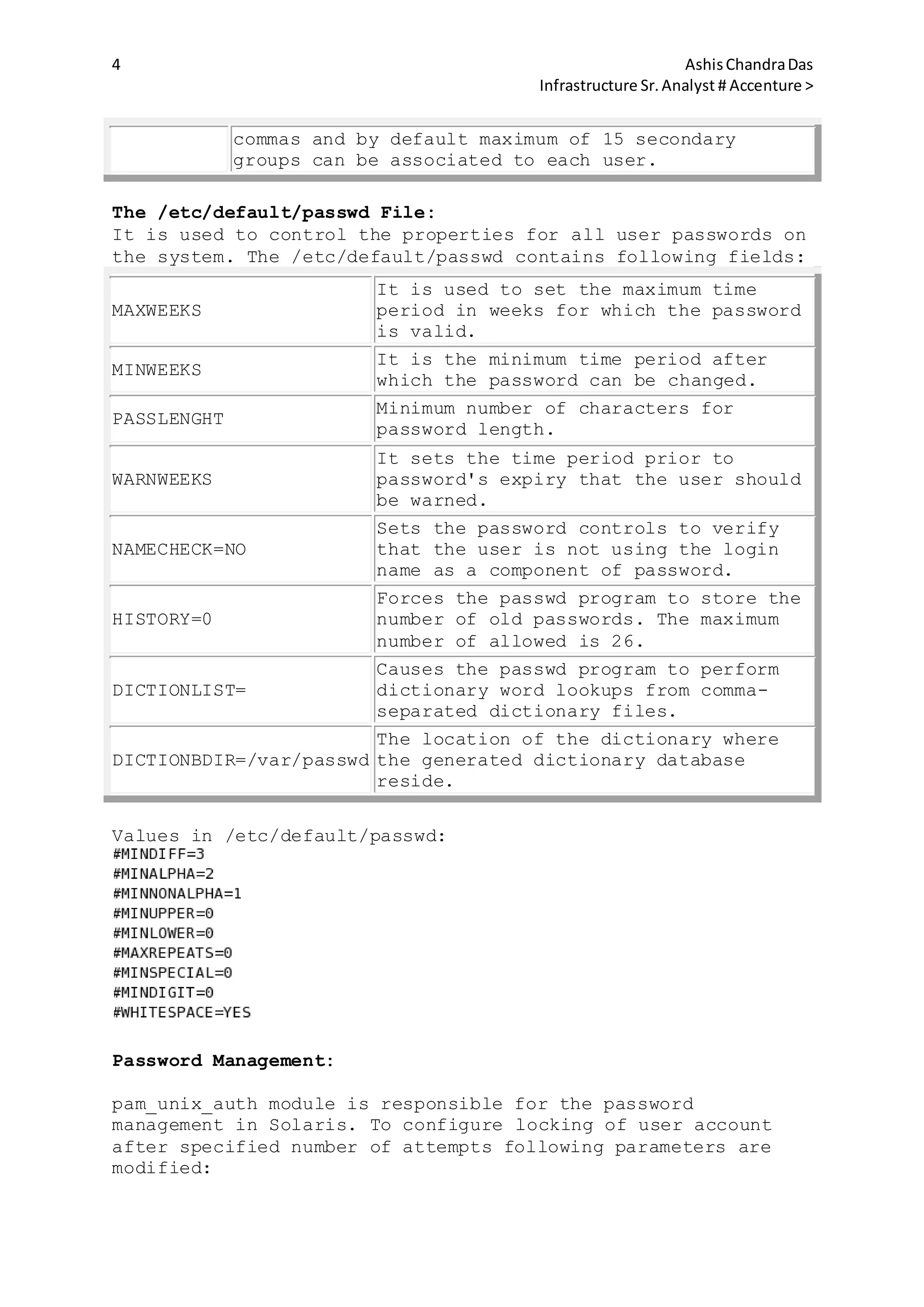
The /etc/default/passwd File:
It is used to control the properties for all user passwords on
the system. The /etc/default/passwd contains following fields:
MAXWEEKS
It is used to set the maximum time
period in weeks for which the password
is valid.
MINWEEKS
It is the minimum time period after
which the password can be changed.
PASSLENGHT
Minimum number of characters for
password length.
WARNWEEKS
It sets the time period prior to
password's expiry that the user should
be warned.
NAMECHECK=NO
Sets the password controls to verify
that the user is not using the login
name as a component of password.
HISTORY=0
Forces the passwd program to store the
number of old passwords. The maximum
number of allowed is 26.
DICTIONLIST=
Causes the passwd program to perform
dictionary word lookups from comma-
separated dictionary files.
DICTIONBDIR=/var/passwd
The location of the dictionary where
the generated dictionary database
reside.
Values in /etc/default/passwd:
Password Management:
pam_unix_auth module is responsible for the password
management in Solaris. To configure locking of user account
after specified number of attempts following parameters are
modified:
5 AshisChandraDas
Infrastructure Sr.Analyst # Accenture >
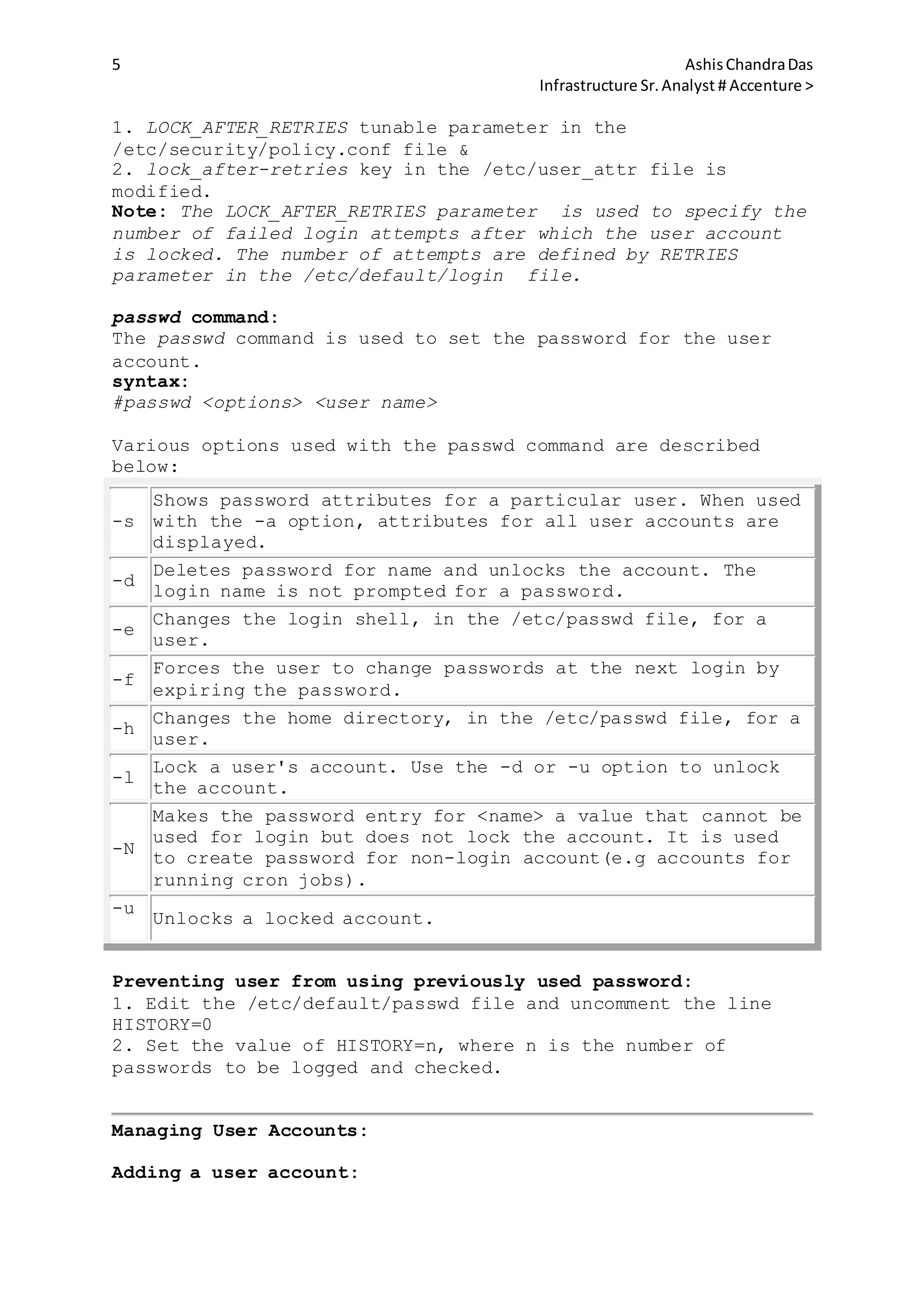
1. LOCK_AFTER_RETRIES tunable parameter in the
/etc/security/policy.conf file &
2. lock_after-retries key in the /etc/user_attr file is
modified.
Note: The LOCK_AFTER_RETRIES parameter is used to specify the
number of failed login attempts after which the user account
is locked. The number of attempts are defined by RETRIES
parameter in the /etc/default/login file.
passwd command:
The passwd command is used to set the password for the user
account.
syntax:
#passwd <options> <user name>
Various options used with the passwd command are described
below:
-s
Shows password attributes for a particular user. When used
with the -a option, attributes for all user accounts are
displayed.
-d
Deletes password for name and unlocks the account. The
login name is not prompted for a password.
-e
Changes the login shell, in the /etc/passwd file, for a
user.
-f
Forces the user to change passwords at the next login by
expiring the password.
-h
Changes the home directory, in the /etc/passwd file, for a
user.
-l
Lock a user's account. Use the -d or -u option to unlock
the account.
-N
Makes the password entry for <name> a value that cannot be
used for login but does not lock the account. It is used
to create password for non-login account(e.g accounts for
running cron jobs).
-u
Unlocks a locked account.
Preventing user from using previously used password:
1. Edit the /etc/default/passwd file and uncomment the line
HISTORY=0
2. Set the value of HISTORY=n, where n is the number of
passwords to be logged and checked.
Managing User Accounts:
Adding a user account:
6 AshisChandraDas
Infrastructure Sr.Analyst # Accenture >
#useradd -u <User ID> -g <Primary Group> -S <secondary group>
-d <user home dir> -m -c <user Desc> -s <User login shell>
<User Name>
The option -m forcibly creates the user home directory if it
is not there.
Note: The default group id will be 1(group name is system).
useradd command options:
-c
<comment>
A short description of the login, typically the
user's name and phone extension. This string can
be up to 256 characters.
-d
<directory>
Specifies the home directory of the new user. This
string is limited to 1,024 characters.
-g <group> Specifies the user's primary group membership.
-G <group> Specifies the user's secondary group membership.
-n <login> Specifies the user's login name.
-s <shell> Specifies the user's login shell.
-u <uid>
Specifies the user ID of the user you want to add.
If you do not specify this option, the system
assigns the next available unique UID greater than
100.
-m
SeCreates a new home directory if one does not
already exist.
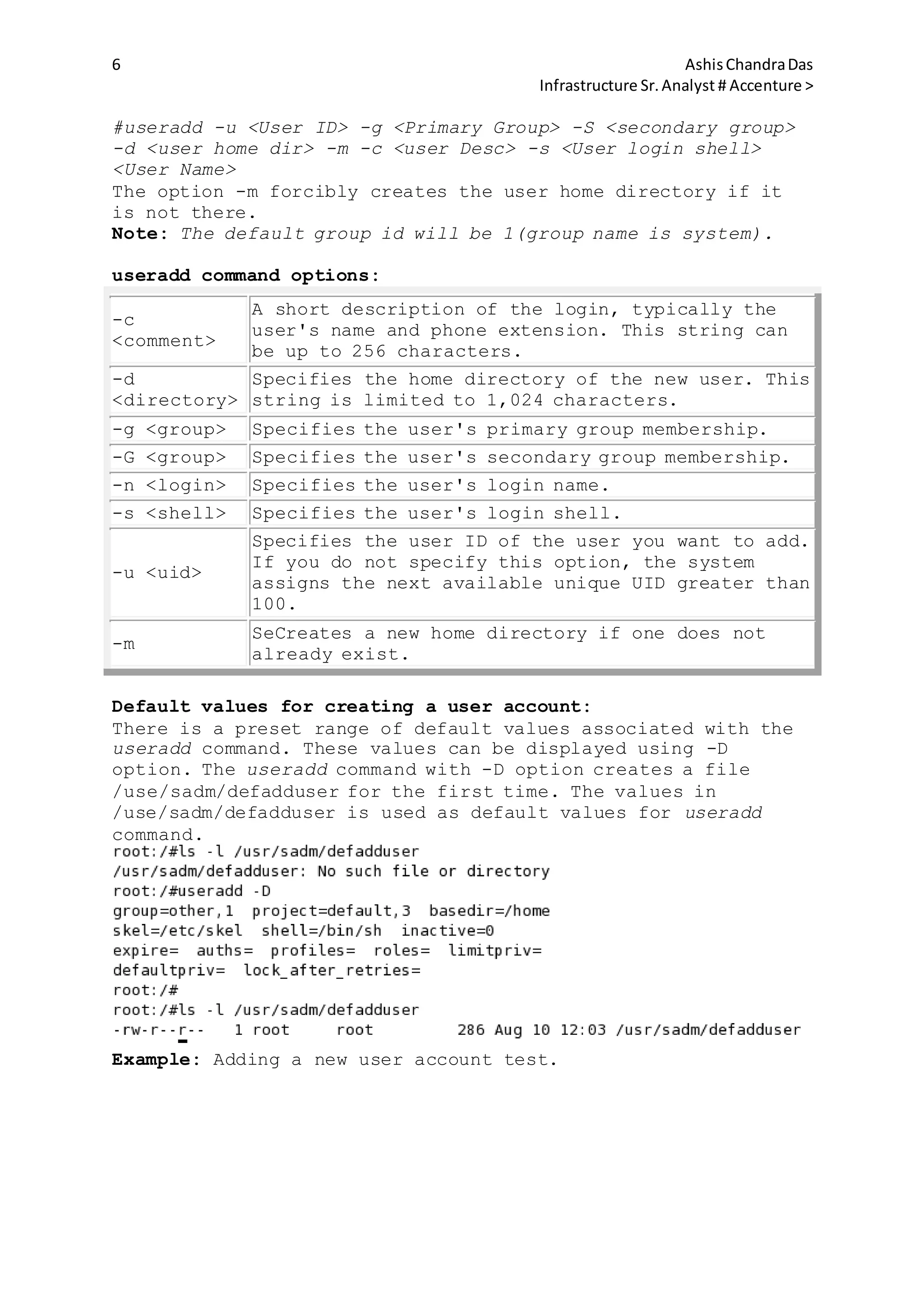
Default values for creating a user account:
There is a preset range of default values associated with the
useradd command. These values can be displayed using -D
option. The useradd command with -D option creates a file
/use/sadm/defadduser for the first time. The values in
/use/sadm/defadduser is used as default values for useradd
command.
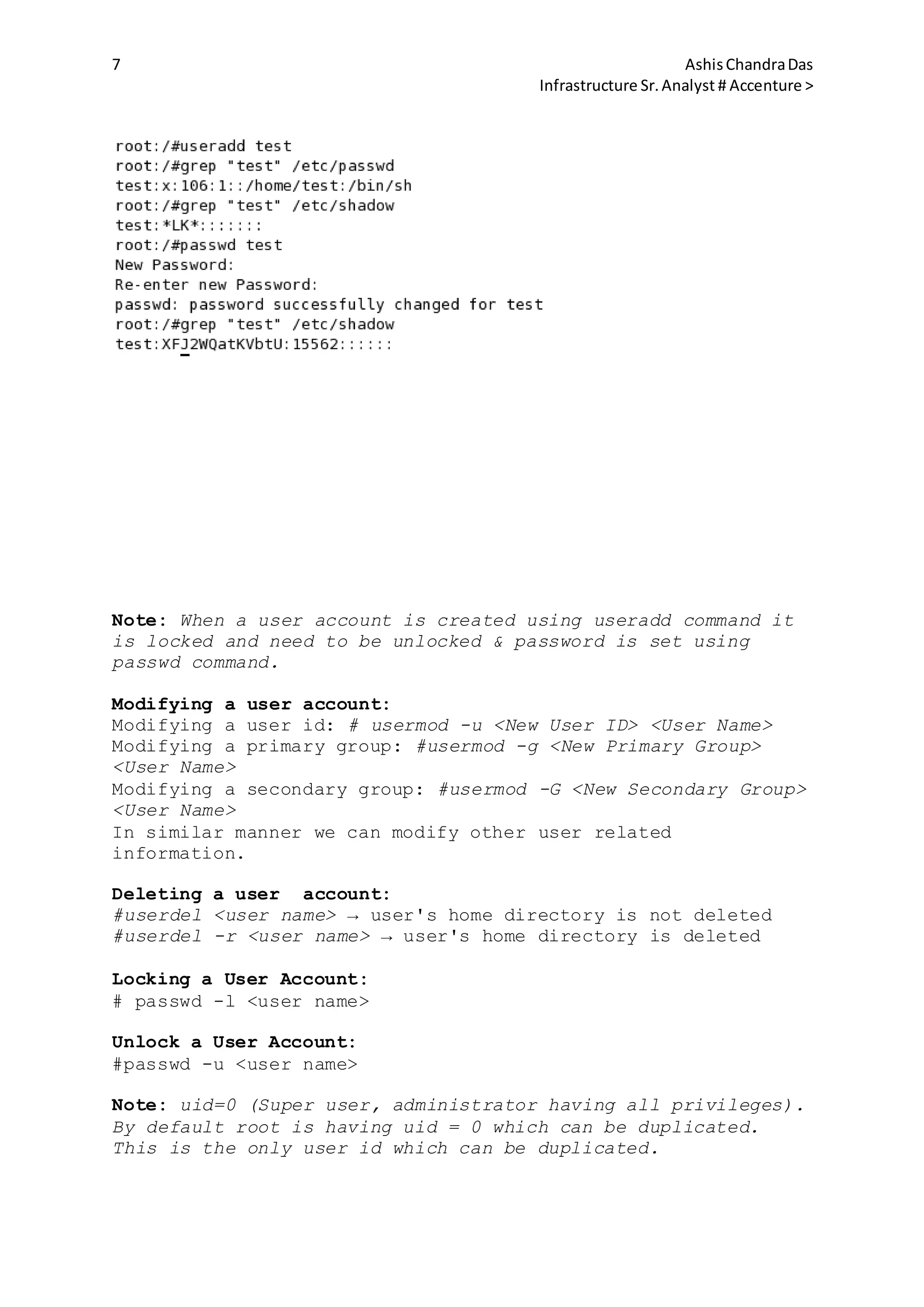
Example: Adding a new user account test.
7 AshisChandraDas
Infrastructure Sr.Analyst # Accenture >
Note: When a user account is created using useradd command it
is locked and need to be unlocked & password is set using
passwd command.
Modifying a user account:
Modifying a user id: # usermod -u <New User ID> <User Name>
Modifying a primary group: #usermod -g <New Primary Group>
<User Name>
Modifying a secondary group: #usermod -G <New Secondary Group>
<User Name>
In similar manner we can modify other user related
information.
Deleting a user account:
#userdel <user name> → user's home directory is not deleted
#userdel -r <user name> → user's home directory is deleted
Locking a User Account:
# passwd -l <user name>
Unlock a User Account:
#passwd -u <user name>
Note: uid=0 (Super user, administrator having all privileges).
By default root is having uid = 0 which can be duplicated.
This is the only user id which can be duplicated.
8 AshisChandraDas
Infrastructure Sr.Analyst # Accenture >
For example:
1. #useradd -u 0 -o <user name>
2. #usermod -u 0 -o <user name>
Here option -o is used to duplicate the user id 0.
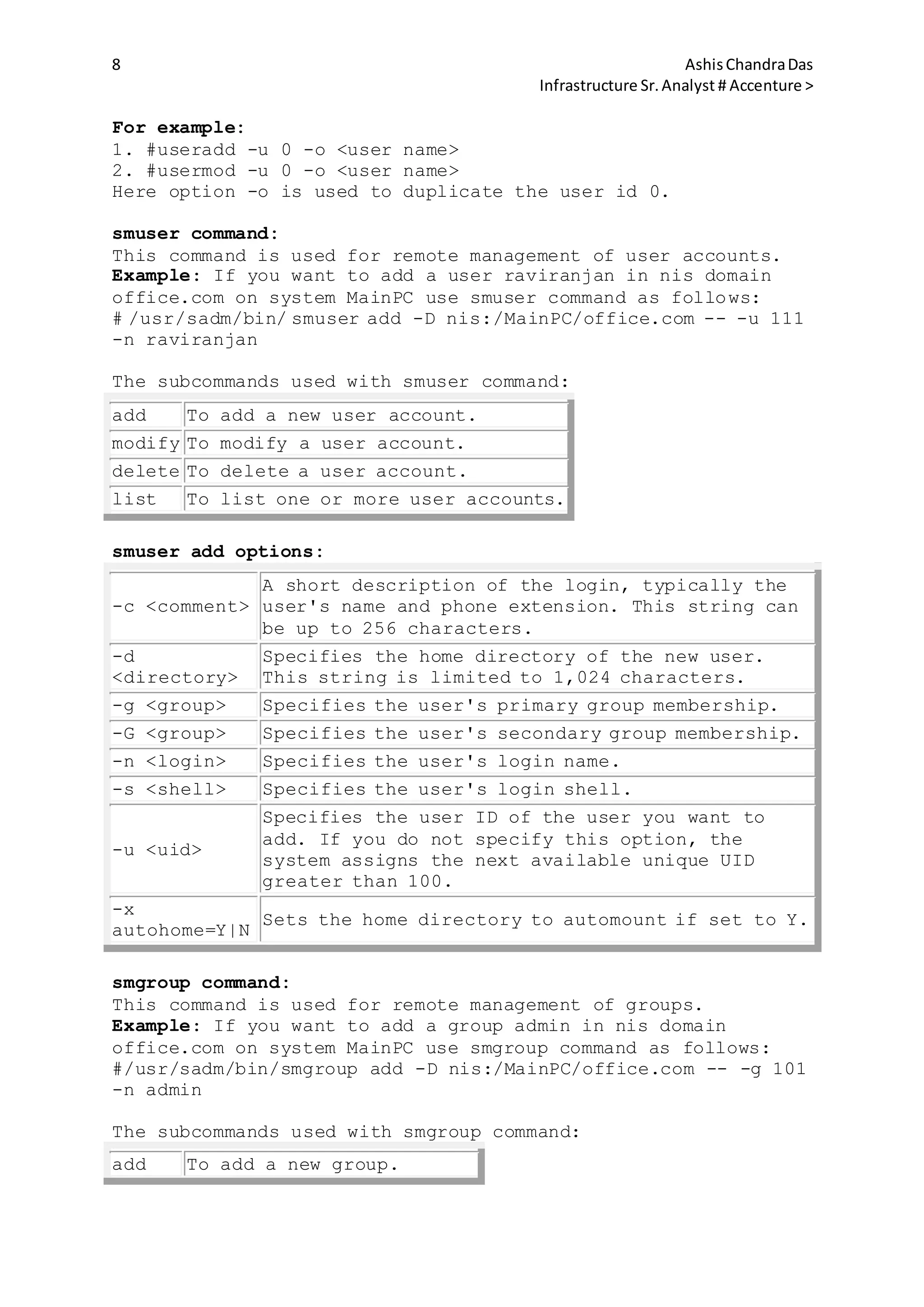
smuser command:
This command is used for remote management of user accounts.
Example: If you want to add a user raviranjan in nis domain
office.com on system MainPC use smuser command as follows:
# /usr/sadm/bin/ smuser add -D nis:/MainPC/office.com -- -u 111
-n raviranjan
The subcommands used with smuser command:
add To add a new user account.
modify To modify a user account.
delete To delete a user account.
list To list one or more user accounts.
smuser add options:
-c <comment>
A short description of the login, typically the
user's name and phone extension. This string can
be up to 256 characters.
-d
<directory>
Specifies the home directory of the new user.
This string is limited to 1,024 characters.
-g <group> Specifies the user's primary group membership.
-G <group> Specifies the user's secondary group membership.
-n <login> Specifies the user's login name.
-s <shell> Specifies the user's login shell.
-u <uid>
Specifies the user ID of the user you want to
add. If you do not specify this option, the
system assigns the next available unique UID
greater than 100.
-x
autohome=Y|N
Sets the home directory to automount if set to Y.
smgroup command:
This command is used for remote management of groups.
Example: If you want to add a group admin in nis domain
office.com on system MainPC use smgroup command as follows:
#/usr/sadm/bin/smgroup add -D nis:/MainPC/office.com -- -g 101
-n admin
The subcommands used with smgroup command:
add To add a new group.
9 AshisChandraDas
Infrastructure Sr.Analyst # Accenture >
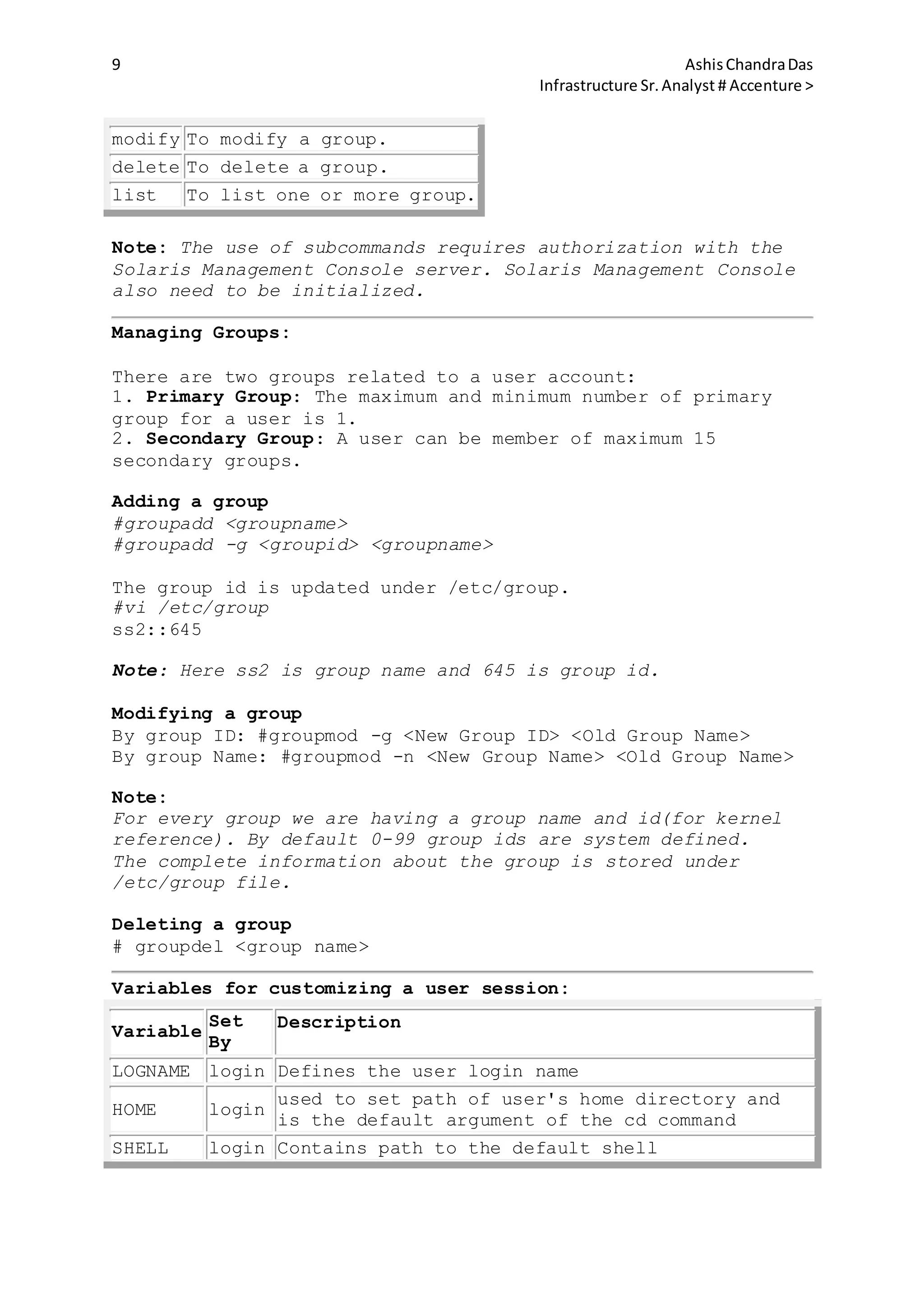
modify To modify a group.
delete To delete a group.
list To list one or more group.
Note: The use of subcommands requires authorization with the
Solaris Management Console server. Solaris Management Console
also need to be initialized.
Managing Groups:
There are two groups related to a user account:
1. Primary Group: The maximum and minimum number of primary
group for a user is 1.
2. Secondary Group: A user can be member of maximum 15
secondary groups.
Adding a group
#groupadd <groupname>
#groupadd -g <groupid> <groupname>
The group id is updated under /etc/group.
#vi /etc/group
ss2::645
Note: Here ss2 is group name and 645 is group id.
Modifying a group
By group ID: #groupmod -g <New Group ID> <Old Group Name>
By group Name: #groupmod -n <New Group Name> <Old Group Name>
Note:
For every group we are having a group name and id(for kernel
reference). By default 0-99 group ids are system defined.
The complete information about the group is stored under
/etc/group file.
Deleting a group
# groupdel <group name>
Variables for customizing a user session:
Variable
Set
By
Description
LOGNAME login Defines the user login name
HOME login
used to set path of user's home directory and
is the default argument of the cd command
SHELL login Contains path to the default shell
10 AshisChandraDas
Infrastructure Sr.Analyst # Accenture >
PATH login
Sets the default path where the command is
searched
MAIL login Sets path to the mailbox of the user
TERM login Used to define the terminal
PWD shell Defines the current working directory
PS1 shell Defines shell prompt for bourne or korn shell
prompt shell Contains the shell prompt for C shell
Setting login variables for the shell:
Shell User's Initialization file
Bourne/Korn
VARIABLE=value;export VARIBLE
eg:#PS1="$HOSTNAME";export PS1
C setenv variable value
Monitoring System Access:
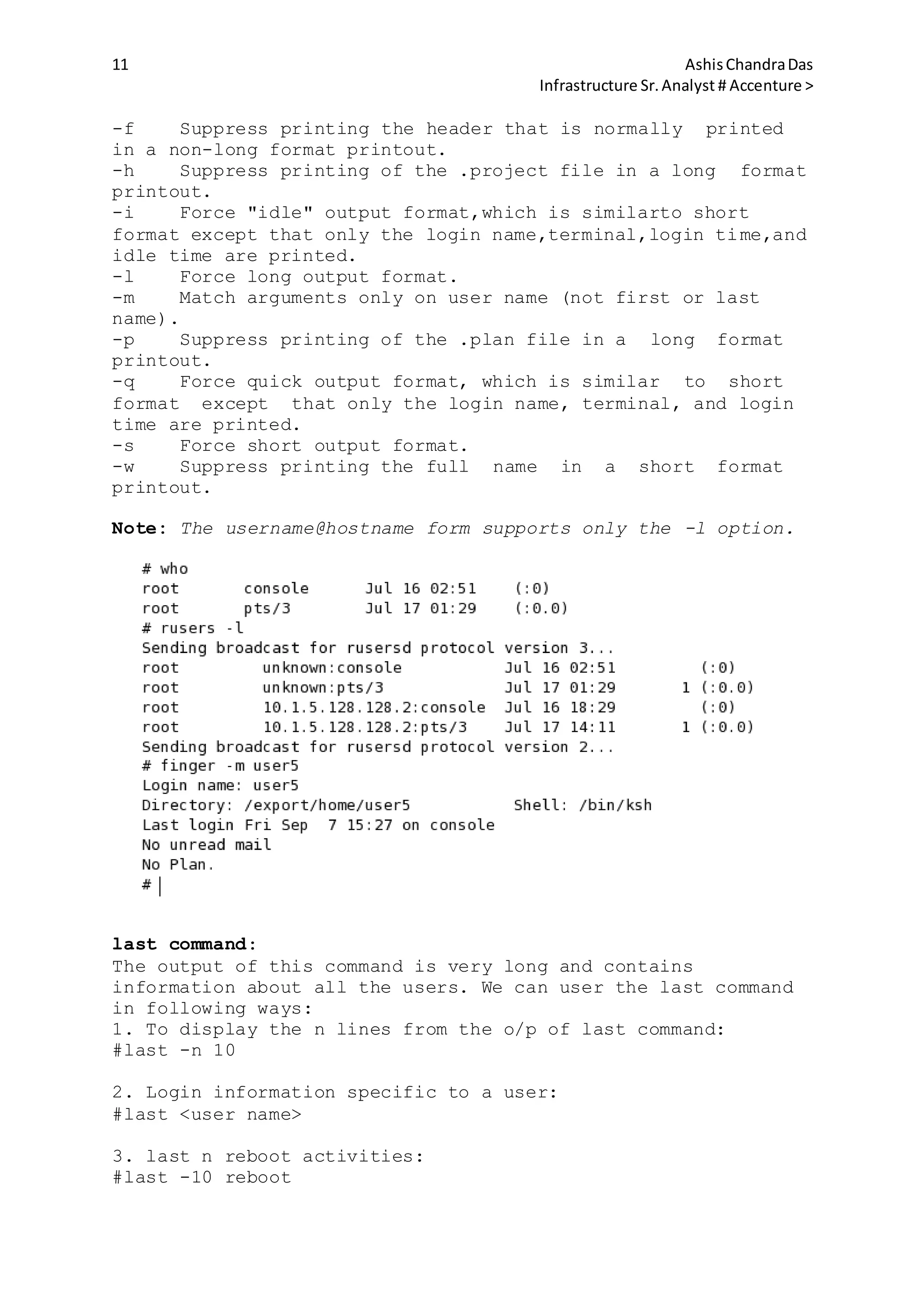
who command :
This command displays the list of users currently logged in to
the system.
It contains user's login name, device(eg. console or
terminal), login date & time and the remote host IP address.
ruser command:
This command displays the list of users logged in to the local
and remote host. The output is similar to the who command.
Finger Command:
By default, the finger command displays in multi-column format
the following information about each logged-in user:
user name
user's full name
terminal name(prepended with a '*' (asterisk) if write-
permission is denied)
idle time
login time
host name, if logged in remotely
Syntax:
finger [ -bfhilmpqsw ] [ username... ]
finger [-l ] [
username@hostname1[@hostname2...@hostnamen] ... ]
finger [-l ] [ @hostname1[@hostname2...@hostnamen] ... ]
Options:
-b Suppress printing the user's home directory and shell
in a long format printout.
11 AshisChandraDas
Infrastructure Sr.Analyst # Accenture >
-f Suppress printing the header that is normally printed
in a non-long format printout.
-h Suppress printing of the .project file in a long format
printout.
-i Force "idle" output format,which is similarto short
format except that only the login name,terminal,login time,and
idle time are printed.
-l Force long output format.
-m Match arguments only on user name (not first or last
name).
-p Suppress printing of the .plan file in a long format
printout.
-q Force quick output format, which is similar to short
format except that only the login name, terminal, and login
time are printed.
-s Force short output format.
-w Suppress printing the full name in a short format
printout.
Note: The username@hostname form supports only the -l option.
last command:
The output of this command is very long and contains
information about all the users. We can user the last command
in following ways:
1. To display the n lines from the o/p of last command:
#last -n 10
2. Login information specific to a user:
#last <user name>
3. last n reboot activities:
#last -10 reboot
12 AshisChandraDas
Infrastructure Sr.Analyst # Accenture >
Recording failed login attempts:
1. Create a file /var/adm/loginlog.
#touch /var/adm/loginlog
2. Root user should be the owner of this file and it should
belog to group sys.
#chown root:sys /var/adm/loginlog
3. Assign read and write permission for the root user.
#chmod 600 /var/adm/loginlog
This will log all failed login attempts after five consecutive
failed attempts. This can be changed by modifying the RETRIES
entry in /etc/default/login.
The loginlog file contains:
user's login name
user's login device
time of the failed attempt
su command:
The su (substitute user) command enables to change a login
session's owner without the owner having to first log out of
that session.
Syntax:
#su [options] [commands] [-] [username]
Examples:
#su
The operating system assumes that, in the absence of a
username, the user wants to change to a root session, and thus
the user is prompted for the root password as soon as the
13 AshisChandraDas
Infrastructure Sr.Analyst # Accenture >
ENTER key is pressed. This produces the same result as typing:
#su root
To transfer the ownership of a session to any other user, the
name of that user is typed after su and a space.
#su ravi
The user will then be prompted for the password of the account
with the username ravi.
The '-' option with su command:
1. Executes the shell initialization files of the switched
user.
2. Modifies the work environment to change it to the work
environment of the specified user.
3. Changes the user's home directory.
The whoami command:
This command displays the name of the currently logged in
user.
Example:
#su ravi
$whoami
ravi
$
The 'who am i' command:
This displays the login name of the original user.
Example:
#whoami
root
#su ravi
$who am i
root
$
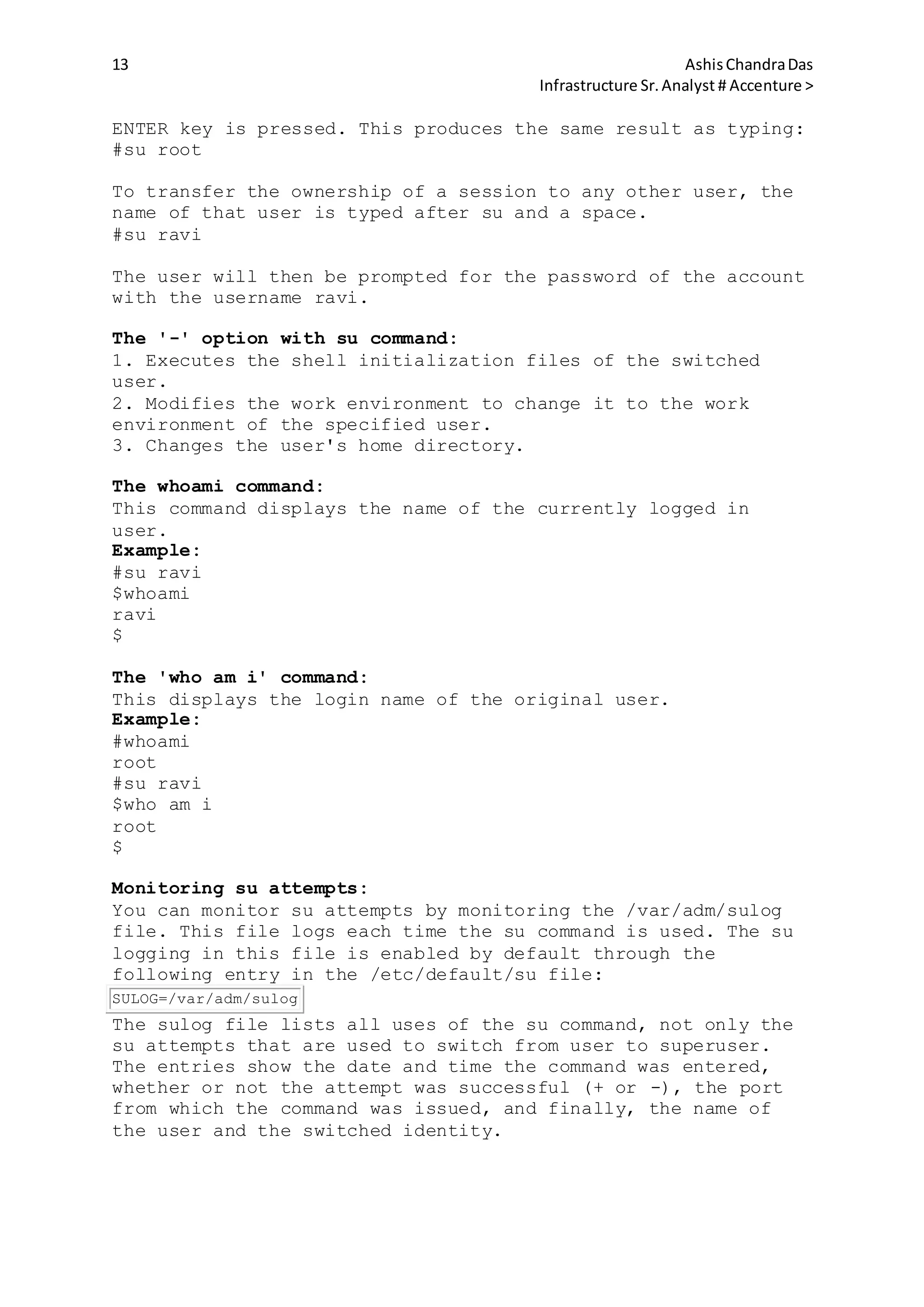
Monitoring su attempts:
You can monitor su attempts by monitoring the /var/adm/sulog
file. This file logs each time the su command is used. The su
logging in this file is enabled by default through the
following entry in the /etc/default/su file:
SULOG=/var/adm/sulog
The sulog file lists all uses of the su command, not only the
su attempts that are used to switch from user to superuser.
The entries show the date and time the command was entered,
whether or not the attempt was successful (+ or -), the port
from which the command was issued, and finally, the name of
the user and the switched identity.
14 AshisChandraDas
Infrastructure Sr.Analyst # Accenture >
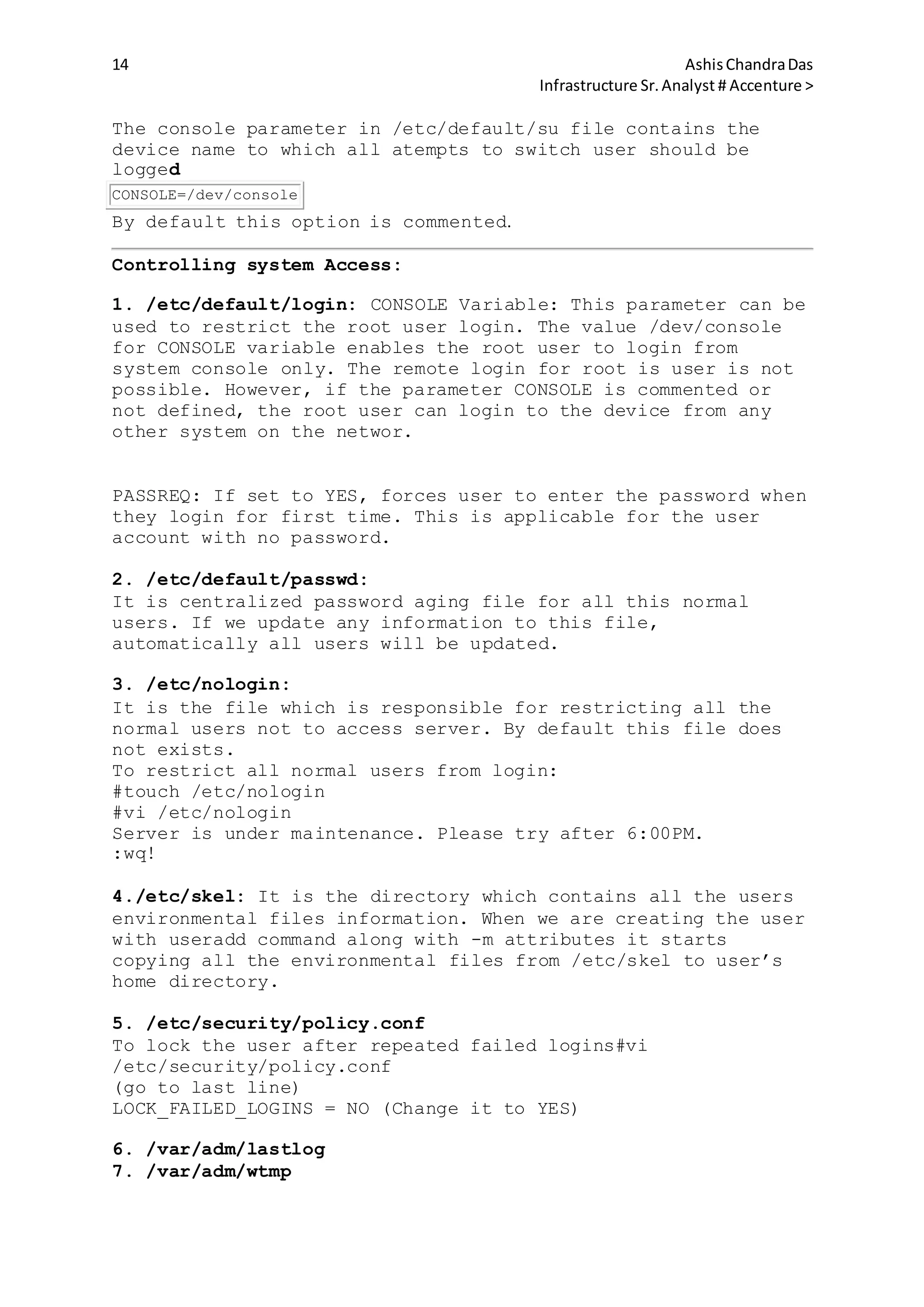
The console parameter in /etc/default/su file contains the
device name to which all atempts to switch user should be
logged
CONSOLE=/dev/console
By default this option is commented.
Controlling system Access:
1. /etc/default/login: CONSOLE Variable: This parameter can be
used to restrict the root user login. The value /dev/console
for CONSOLE variable enables the root user to login from
system console only. The remote login for root is user is not
possible. However, if the parameter CONSOLE is commented or
not defined, the root user can login to the device from any
other system on the networ.
PASSREQ: If set to YES, forces user to enter the password when
they login for first time. This is applicable for the user
account with no password.
2. /etc/default/passwd:
It is centralized password aging file for all this normal
users. If we update any information to this file,
automatically all users will be updated.
3. /etc/nologin:
It is the file which is responsible for restricting all the
normal users not to access server. By default this file does
not exists.
To restrict all normal users from login:
#touch /etc/nologin
#vi /etc/nologin
Server is under maintenance. Please try after 6:00PM.
:wq!
4./etc/skel: It is the directory which contains all the users
environmental files information. When we are creating the user
with useradd command along with -m attributes it starts
copying all the environmental files from /etc/skel to user’s
home directory.
5. /etc/security/policy.conf
To lock the user after repeated failed logins#vi
/etc/security/policy.conf
(go to last line)
LOCK_FAILED_LOGINS = NO (Change it to YES)
6. /var/adm/lastlog
7. /var/adm/wtmp
15 AshisChandraDas
Infrastructure Sr.Analyst # Accenture >
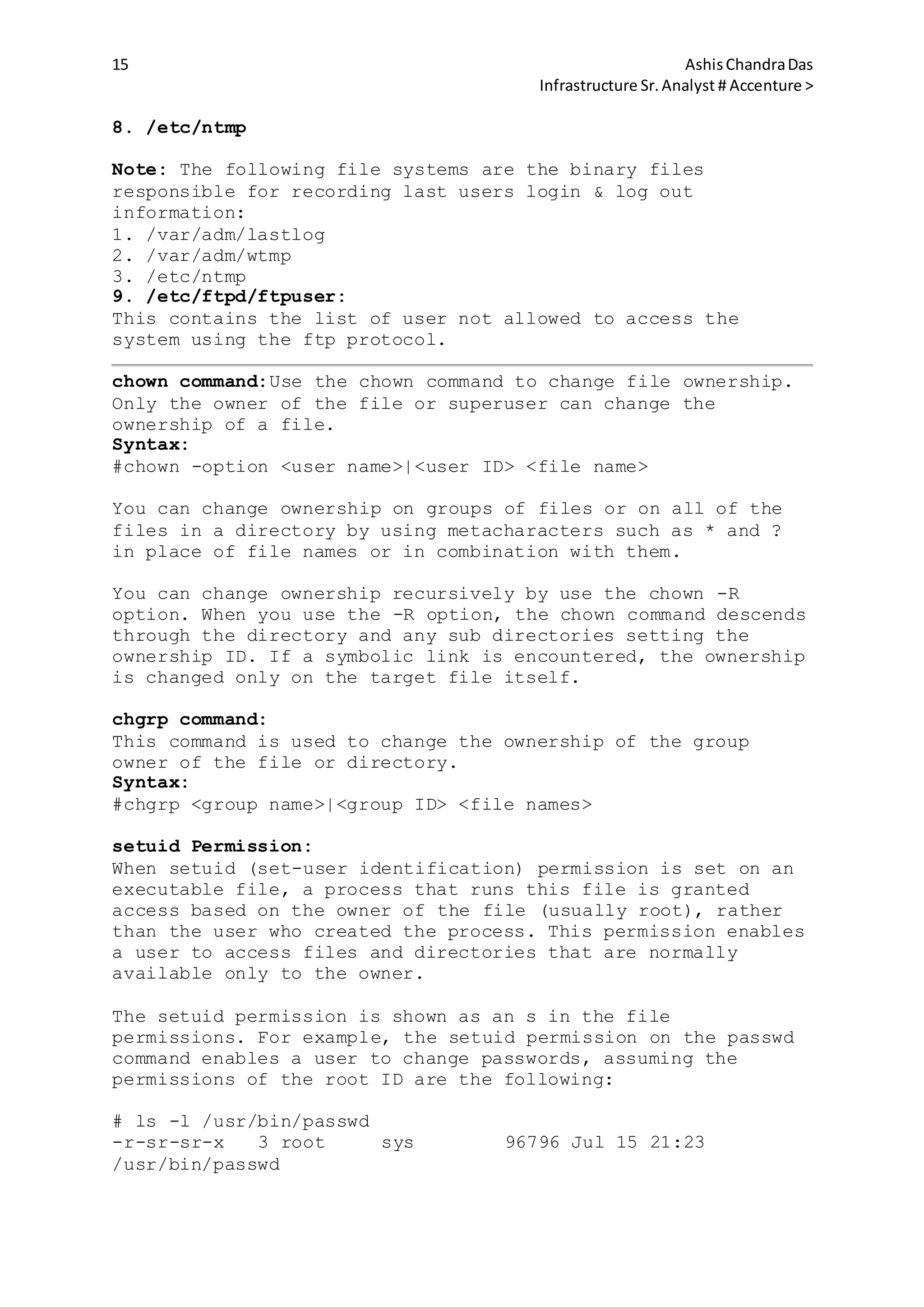
8. /etc/ntmp
Note: The following file systems are the binary files
responsible for recording last users login & log out
information:
1. /var/adm/lastlog
2. /var/adm/wtmp
3. /etc/ntmp
9. /etc/ftpd/ftpuser:
This contains the list of user not allowed to access the
system using the ftp protocol.
chown command:Use the chown command to change file ownership.
Only the owner of the file or superuser can change the
ownership of a file.
Syntax:
#chown -option <user name>|<user ID> <file name>
You can change ownership on groups of files or on all of the
files in a directory by using metacharacters such as * and ?
in place of file names or in combination with them.
You can change ownership recursively by use the chown -R
option. When you use the -R option, the chown command descends
through the directory and any sub directories setting the
ownership ID. If a symbolic link is encountered, the ownership
is changed only on the target file itself.
chgrp command:
This command is used to change the ownership of the group
owner of the file or directory.
Syntax:
#chgrp <group name>|<group ID> <file names>
setuid Permission:
When setuid (set-user identification) permission is set on an
executable file, a process that runs this file is granted
access based on the owner of the file (usually root), rather
than the user who created the process. This permission enables
a user to access files and directories that are normally
available only to the owner.
The setuid permission is shown as an s in the file
permissions. For example, the setuid permission on the passwd
command enables a user to change passwords, assuming the
permissions of the root ID are the following:
# ls -l /usr/bin/passwd
-r-sr-sr-x 3 root sys 96796 Jul 15 21:23
/usr/bin/passwd
16 AshisChandraDas
Infrastructure Sr.Analyst # Accenture >
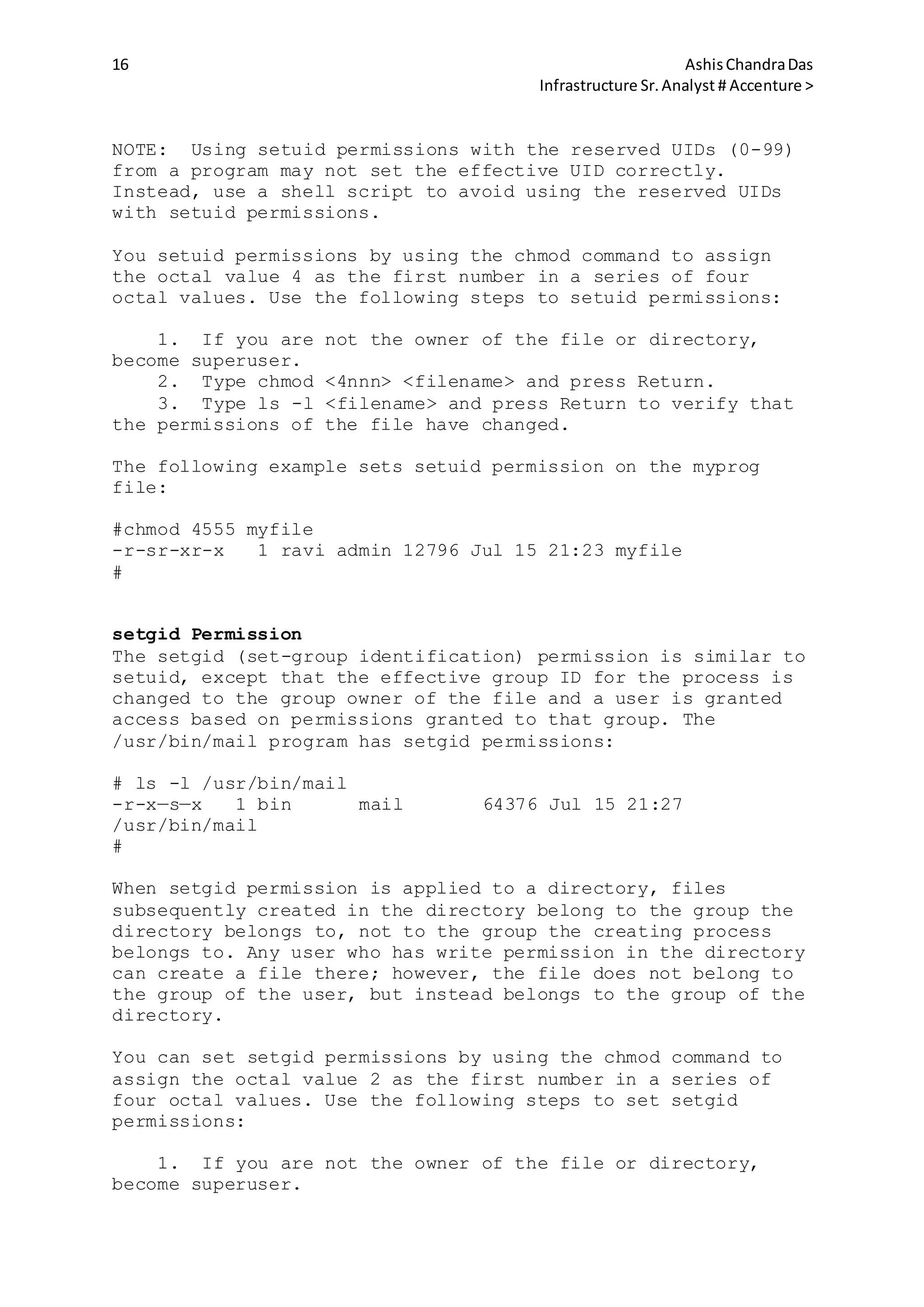
NOTE: Using setuid permissions with the reserved UIDs (0-99)
from a program may not set the effective UID correctly.
Instead, use a shell script to avoid using the reserved UIDs
with setuid permissions.
You setuid permissions by using the chmod command to assign
the octal value 4 as the first number in a series of four
octal values. Use the following steps to setuid permissions:
1. If you are not the owner of the file or directory,
become superuser.
2. Type chmod <4nnn> <filename> and press Return.
3. Type ls -l <filename> and press Return to verify that
the permissions of the file have changed.
The following example sets setuid permission on the myprog
file:
#chmod 4555 myfile
-r-sr-xr-x 1 ravi admin 12796 Jul 15 21:23 myfile
#
setgid Permission
The setgid (set-group identification) permission is similar to
setuid, except that the effective group ID for the process is
changed to the group owner of the file and a user is granted
access based on permissions granted to that group. The
/usr/bin/mail program has setgid permissions:
# ls -l /usr/bin/mail
-r-x—s—x 1 bin mail 64376 Jul 15 21:27
/usr/bin/mail
#
When setgid permission is applied to a directory, files
subsequently created in the directory belong to the group the
directory belongs to, not to the group the creating process
belongs to. Any user who has write permission in the directory
can create a file there; however, the file does not belong to
the group of the user, but instead belongs to the group of the
directory.
You can set setgid permissions by using the chmod command to
assign the octal value 2 as the first number in a series of
four octal values. Use the following steps to set setgid
permissions:
1. If you are not the owner of the file or directory,
become superuser.
17 AshisChandraDas
Infrastructure Sr.Analyst # Accenture >
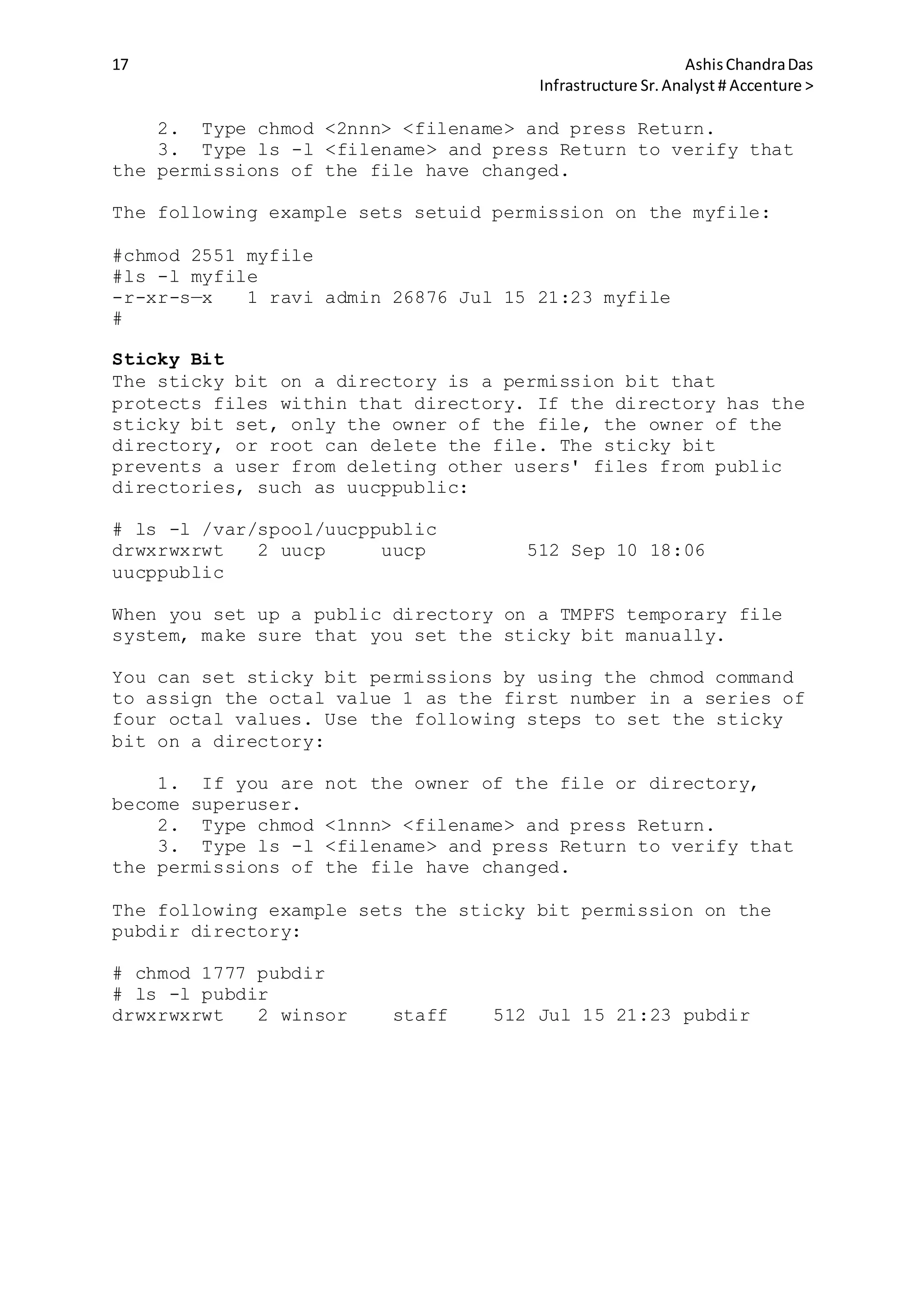
2. Type chmod <2nnn> <filename> and press Return.
3. Type ls -l <filename> and press Return to verify that
the permissions of the file have changed.
The following example sets setuid permission on the myfile:
#chmod 2551 myfile
#ls -l myfile
-r-xr-s—x 1 ravi admin 26876 Jul 15 21:23 myfile
#
Sticky Bit
The sticky bit on a directory is a permission bit that
protects files within that directory. If the directory has the
sticky bit set, only the owner of the file, the owner of the
directory, or root can delete the file. The sticky bit
prevents a user from deleting other users' files from public
directories, such as uucppublic:
# ls -l /var/spool/uucppublic
drwxrwxrwt 2 uucp uucp 512 Sep 10 18:06
uucppublic
When you set up a public directory on a TMPFS temporary file
system, make sure that you set the sticky bit manually.
You can set sticky bit permissions by using the chmod command
to assign the octal value 1 as the first number in a series of
four octal values. Use the following steps to set the sticky
bit on a directory:
1. If you are not the owner of the file or directory,
become superuser.
2. Type chmod <1nnn> <filename> and press Return.
3. Type ls -l <filename> and press Return to verify that
the permissions of the file have changed.
The following example sets the sticky bit permission on the
pubdir directory:
# chmod 1777 pubdir
# ls -l pubdir
drwxrwxrwt 2 winsor staff 512 Jul 15 21:23 pubdir
18 AshisChandraDas
Infrastructure Sr.Analyst # Accenture >
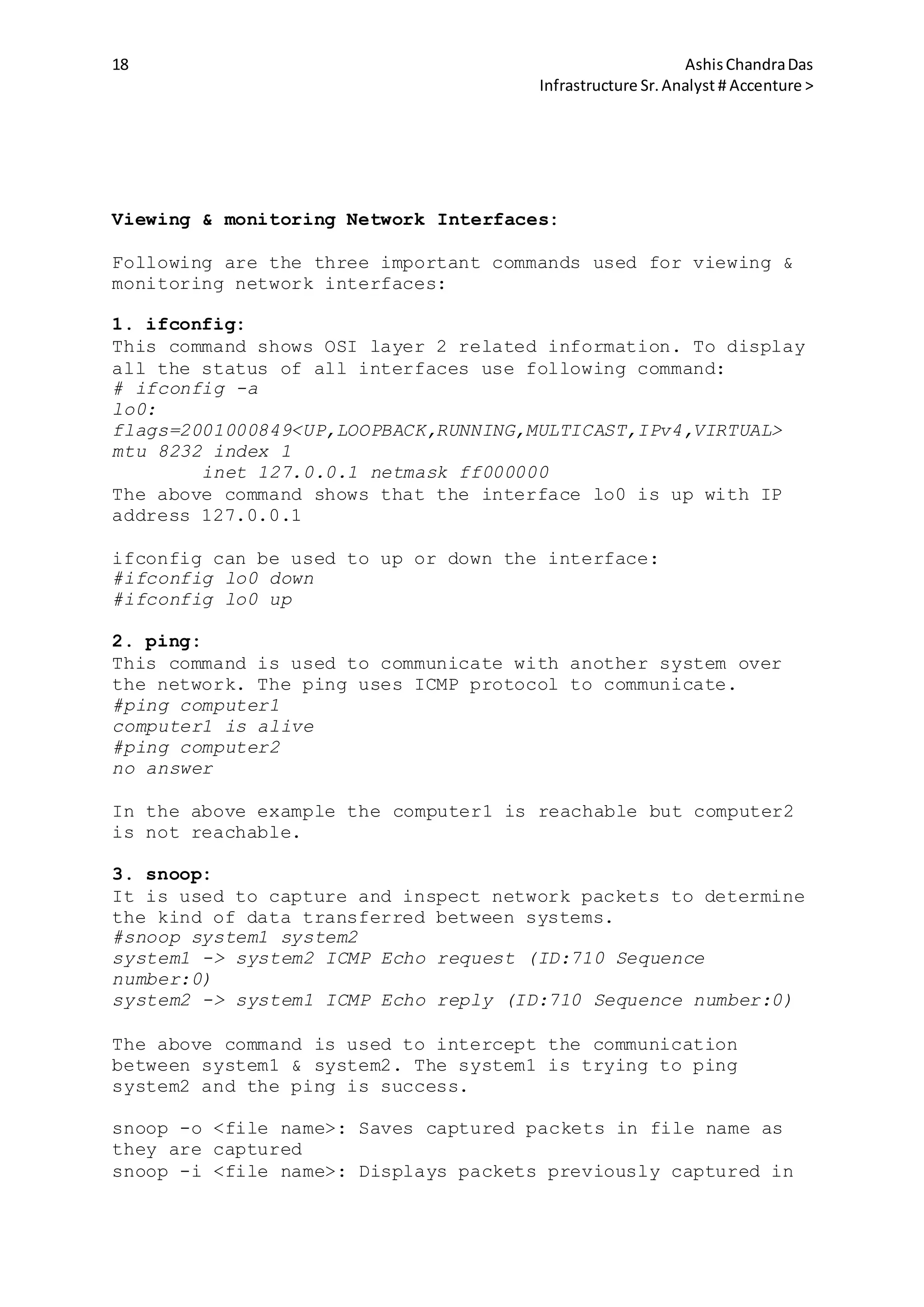
Viewing & monitoring Network Interfaces:
Following are the three important commands used for viewing &
monitoring network interfaces:
1. ifconfig:
This command shows OSI layer 2 related information. To display
all the status of all interfaces use following command:
# ifconfig -a
lo0:
flags=2001000849<UP,LOOPBACK,RUNNING,MULTICAST,IPv4,VIRTUAL>
mtu 8232 index 1
inet 127.0.0.1 netmask ff000000
The above command shows that the interface lo0 is up with IP
address 127.0.0.1
ifconfig can be used to up or down the interface:
#ifconfig lo0 down
#ifconfig lo0 up
2. ping:
This command is used to communicate with another system over
the network. The ping uses ICMP protocol to communicate.
#ping computer1
computer1 is alive
#ping computer2
no answer
In the above example the computer1 is reachable but computer2
is not reachable.
3. snoop:
It is used to capture and inspect network packets to determine
the kind of data transferred between systems.
#snoop system1 system2
system1 -> system2 ICMP Echo request (ID:710 Sequence
number:0)
system2 -> system1 ICMP Echo reply (ID:710 Sequence number:0)
The above command is used to intercept the communication
between system1 & system2. The system1 is trying to ping
system2 and the ping is success.
snoop -o <file name>: Saves captured packets in file name as
they are captured
snoop -i <file name>: Displays packets previously captured in
19 AshisChandraDas
Infrastructure Sr.Analyst # Accenture >
file name
snoop -d <device>: Receives packets from a network interface
specified by device
The Network Interfaces in Solaris is controlled by files &
services:
svcs:/network/physical:default Service
This service calls /lib/svcs/method/net-physical method
script. This script is run every time the system is rebooted.
This script uses ifconfig utility to configure each interface.
It searches for file /etc/hostname.xxn. For each
/etc/hostname.xxn file, the script uses ifconfig command with
the plumb option to make kernel ready to communicate to the
interface. The script then configures the names interfaces by
using other options of the ifconfig command.
Note: In Solaris 8 & 9, the /etc/rcS.d/S30network.sh file is
used to perform the same function. Before Solaris 8 OS, the
/etc/rcS.d/S30rootusr.sh fiel was used.
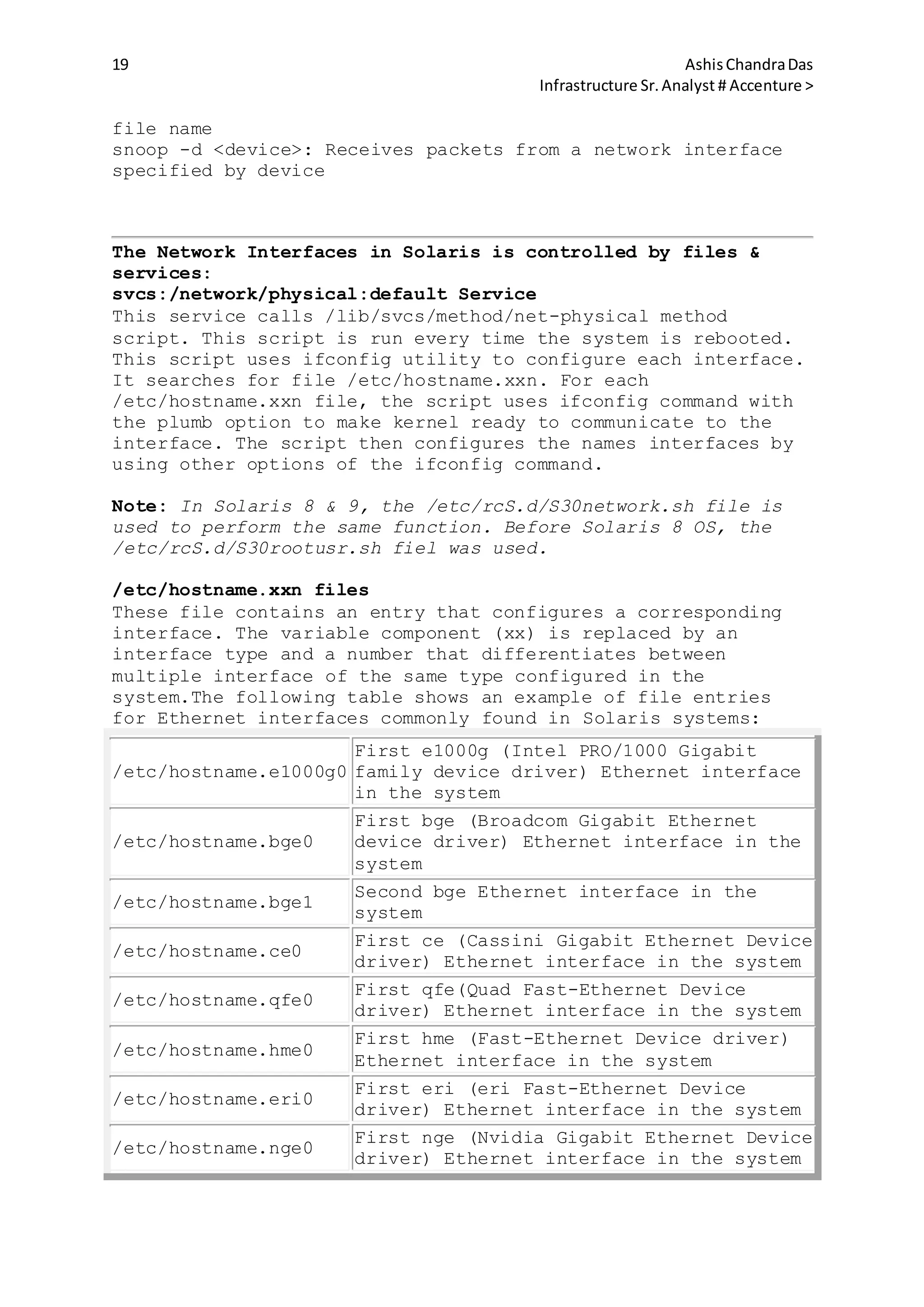
/etc/hostname.xxn files
These file contains an entry that configures a corresponding
interface. The variable component (xx) is replaced by an
interface type and a number that differentiates between
multiple interface of the same type configured in the
system.The following table shows an example of file entries
for Ethernet interfaces commonly found in Solaris systems:
/etc/hostname.e1000g0
First e1000g (Intel PRO/1000 Gigabit
family device driver) Ethernet interface
in the system
/etc/hostname.bge0
First bge (Broadcom Gigabit Ethernet
device driver) Ethernet interface in the
system
/etc/hostname.bge1
Second bge Ethernet interface in the
system
/etc/hostname.ce0
First ce (Cassini Gigabit Ethernet Device
driver) Ethernet interface in the system
/etc/hostname.qfe0
First qfe(Quad Fast-Ethernet Device
driver) Ethernet interface in the system
/etc/hostname.hme0
First hme (Fast-Ethernet Device driver)
Ethernet interface in the system
/etc/hostname.eri0
First eri (eri Fast-Ethernet Device
driver) Ethernet interface in the system
/etc/hostname.nge0
First nge (Nvidia Gigabit Ethernet Device
driver) Ethernet interface in the system
20 AshisChandraDas
Infrastructure Sr.Analyst # Accenture >
The /etc/hostname.xxn files contain either the host name or
the IP address of the system that contains the xxn interface.
The host name must be there in the file /etc/inet/hosts file
so that it can be resolved to an IP address at system boot.
Example:
# cat /etc/hostname.ce0
Computer1 netmask + broadcast + up
/etc/inet/hosts file:
It is the file which associates the IP addresses of hosts with
their names.It can be used with, or instead of , other hosts
databases including DNS, NIS hosts map & NIS+ hosts table.
The /etc/inet/hosts file contains at least the loopback & host
information. It has one entry for each IP address of each
host. The entries in the files are in following format:
<IP address> <Host name> [aliases]
127.0.0.1 localhost
/etc/inet/ipnodes file:
It is a local database or file that associates the names of
nodes with their IP addresses. It is a symbolic link to the
/etc/inet/hosts file. It associates the names of nodes with
their Internet Protocol (IP) addresses. The ipnodes file can
be used in conjuction with, instead of, other ipnodes
databases, including the DNS, the NIS ipnodes map, and LDAP.
The fomat of each line is:
<IP address> <Host Name> [alias]
# internet host table
::1 localhost
127:0:0:1 localhost
10.21.108.254 system1
Changing the System Host Name:
The system host name is in four system files & we must modify
these files and perform a reboot to change a system host name:
/etc/nodename
/etc/hostname.xxn
/etc/inet/hosts
/etc/inet/ipnodes
sys-unconfig Command:
The /usr/sbin/sys-unconfig command is used to restore a system
configuration to an unconfigured state. This command does the
following:
1. It saves the current /etc/inet/hosts files information in
the /etc/inet/hosts.saved file.
2. It saves the /etc/vfstab files to the /etc/vfstab.orig file
if the current /etc/vfstab file contains NFS mount entries.
3. It restores the default /etc/inet/hosts file.
21 AshisChandraDas
Infrastructure Sr.Analyst # Accenture >
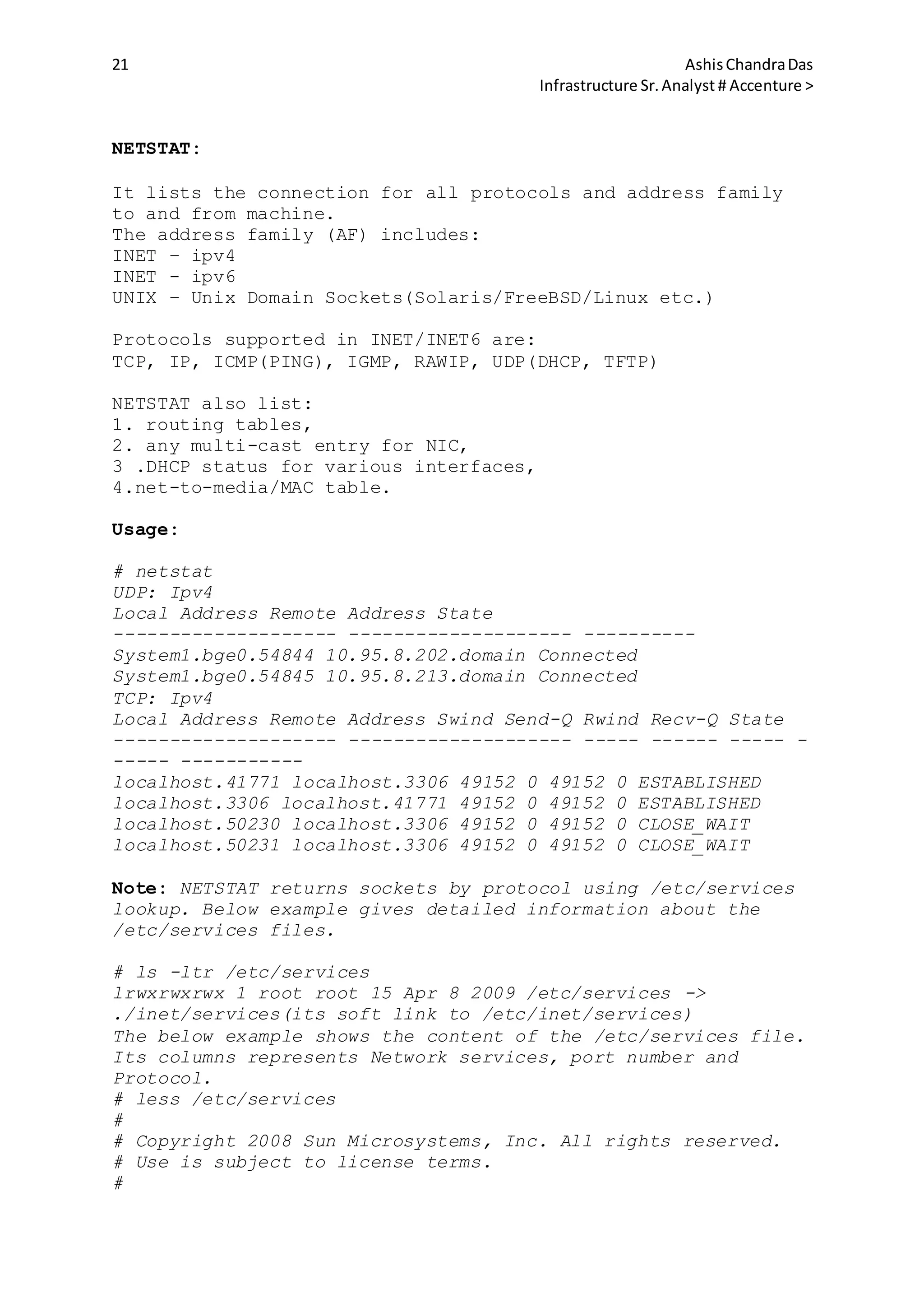
NETSTAT:
It lists the connection for all protocols and address family
to and from machine.
The address family (AF) includes:
INET – ipv4
INET - ipv6
UNIX – Unix Domain Sockets(Solaris/FreeBSD/Linux etc.)
Protocols supported in INET/INET6 are:
TCP, IP, ICMP(PING), IGMP, RAWIP, UDP(DHCP, TFTP)
NETSTAT also list:
1. routing tables,
2. any multi-cast entry for NIC,
3 .DHCP status for various interfaces,
4.net-to-media/MAC table.
Usage:
# netstat
UDP: Ipv4
Local Address Remote Address State
-------------------- -------------------- ----------
System1.bge0.54844 10.95.8.202.domain Connected
System1.bge0.54845 10.95.8.213.domain Connected
TCP: Ipv4
Local Address Remote Address Swind Send-Q Rwind Recv-Q State
-------------------- -------------------- ----- ------ ----- -
----- -----------
localhost.41771 localhost.3306 49152 0 49152 0 ESTABLISHED
localhost.3306 localhost.41771 49152 0 49152 0 ESTABLISHED
localhost.50230 localhost.3306 49152 0 49152 0 CLOSE_WAIT
localhost.50231 localhost.3306 49152 0 49152 0 CLOSE_WAIT
Note: NETSTAT returns sockets by protocol using /etc/services
lookup. Below example gives detailed information about the
/etc/services files.
# ls -ltr /etc/services
lrwxrwxrwx 1 root root 15 Apr 8 2009 /etc/services ->
./inet/services(its soft link to /etc/inet/services)
The below example shows the content of the /etc/services file.
Its columns represents Network services, port number and
Protocol.
# less /etc/services
#
# Copyright 2008 Sun Microsystems, Inc. All rights reserved.
# Use is subject to license terms.
#
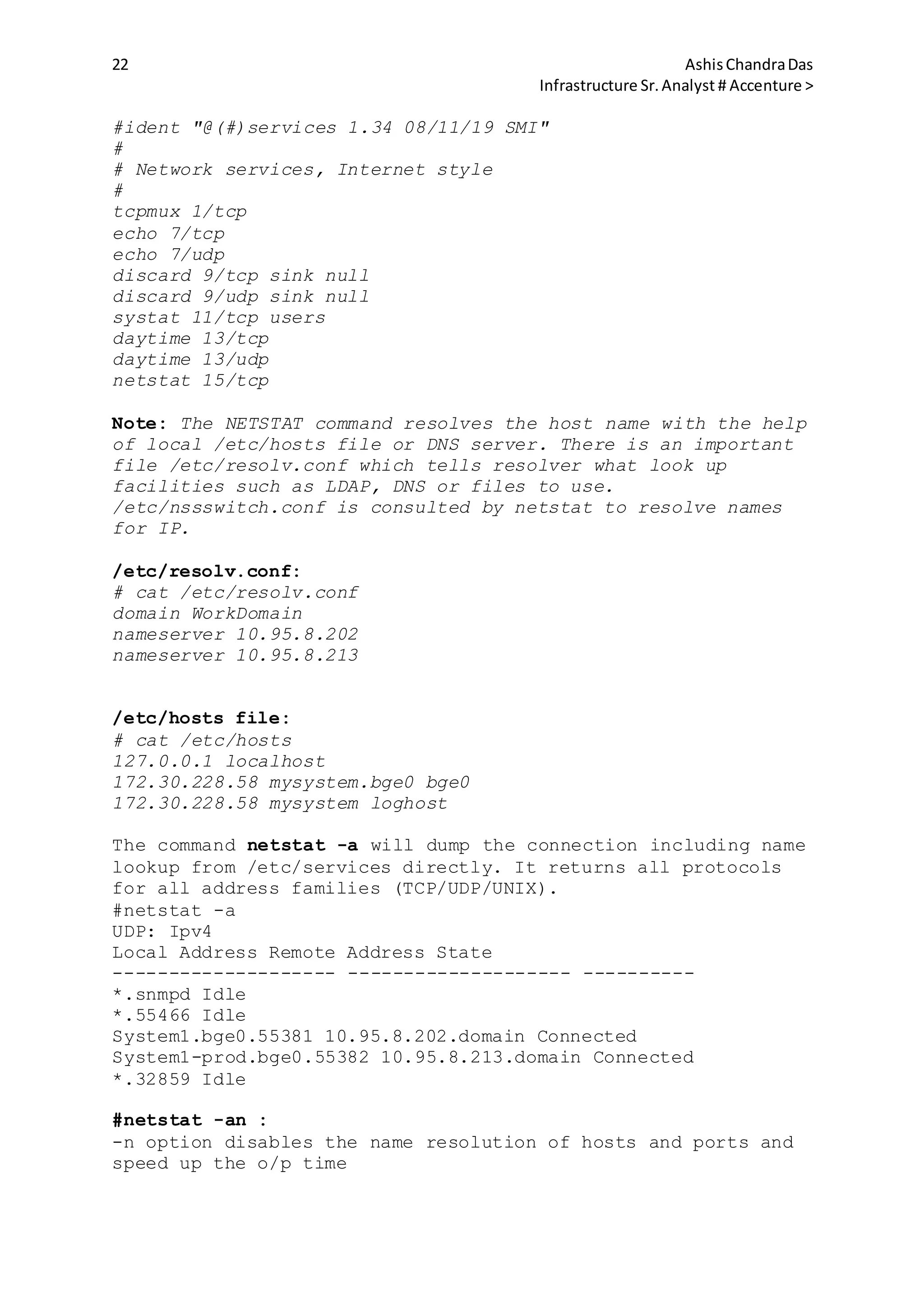
22 AshisChandraDas
Infrastructure Sr.Analyst # Accenture >
#ident "@(#)services 1.34 08/11/19 SMI"
#
# Network services, Internet style
#
tcpmux 1/tcp
echo 7/tcp
echo 7/udp
discard 9/tcp sink null
discard 9/udp sink null
systat 11/tcp users
daytime 13/tcp
daytime 13/udp
netstat 15/tcp
Note: The NETSTAT command resolves the host name with the help
of local /etc/hosts file or DNS server. There is an important
file /etc/resolv.conf which tells resolver what look up
facilities such as LDAP, DNS or files to use.
/etc/nssswitch.conf is consulted by netstat to resolve names
for IP.
/etc/resolv.conf:
# cat /etc/resolv.conf
domain WorkDomain
nameserver 10.95.8.202
nameserver 10.95.8.213
/etc/hosts file:
# cat /etc/hosts
127.0.0.1 localhost
172.30.228.58 mysystem.bge0 bge0
172.30.228.58 mysystem loghost
The command netstat -a will dump the connection including name
lookup from /etc/services directly. It returns all protocols
for all address families (TCP/UDP/UNIX).
#netstat -a
UDP: Ipv4
Local Address Remote Address State
-------------------- -------------------- ----------
*.snmpd Idle
*.55466 Idle
System1.bge0.55381 10.95.8.202.domain Connected
System1-prod.bge0.55382 10.95.8.213.domain Connected
*.32859 Idle
#netstat -an :
-n option disables the name resolution of hosts and ports and
speed up the o/p time
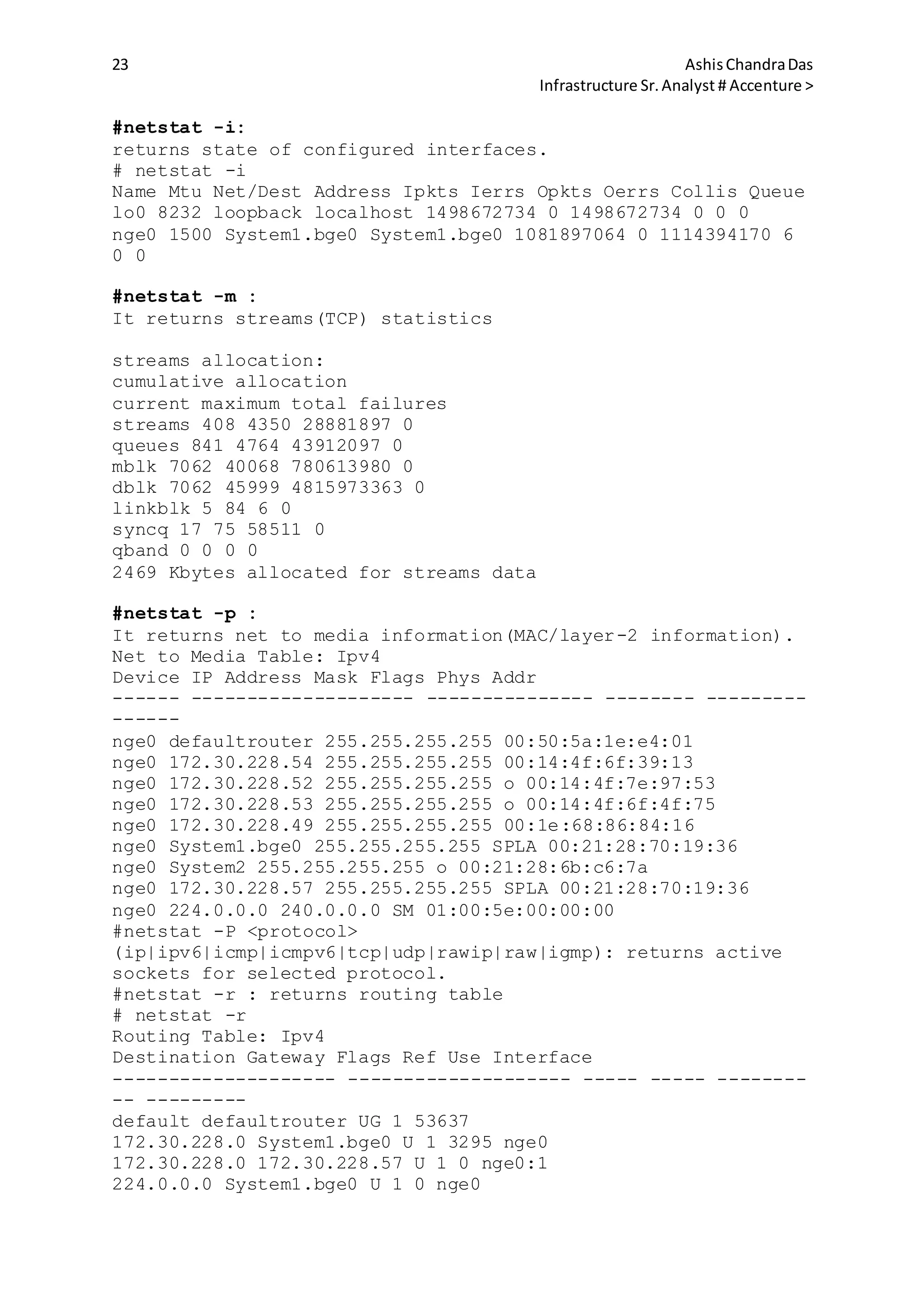
23 AshisChandraDas
Infrastructure Sr.Analyst # Accenture >
#netstat -i:
returns state of configured interfaces.
# netstat -i
Name Mtu Net/Dest Address Ipkts Ierrs Opkts Oerrs Collis Queue
lo0 8232 loopback localhost 1498672734 0 1498672734 0 0 0
nge0 1500 System1.bge0 System1.bge0 1081897064 0 1114394170 6
0 0
#netstat -m :
It returns streams(TCP) statistics
streams allocation:
cumulative allocation
current maximum total failures
streams 408 4350 28881897 0
queues 841 4764 43912097 0
mblk 7062 40068 780613980 0
dblk 7062 45999 4815973363 0
linkblk 5 84 6 0
syncq 17 75 58511 0
qband 0 0 0 0
2469 Kbytes allocated for streams data
#netstat -p :
It returns net to media information(MAC/layer-2 information).
Net to Media Table: Ipv4
Device IP Address Mask Flags Phys Addr
------ -------------------- --------------- -------- ---------
------
nge0 defaultrouter 255.255.255.255 00:50:5a:1e:e4:01
nge0 172.30.228.54 255.255.255.255 00:14:4f:6f:39:13
nge0 172.30.228.52 255.255.255.255 o 00:14:4f:7e:97:53
nge0 172.30.228.53 255.255.255.255 o 00:14:4f:6f:4f:75
nge0 172.30.228.49 255.255.255.255 00:1e:68:86:84:16
nge0 System1.bge0 255.255.255.255 SPLA 00:21:28:70:19:36
nge0 System2 255.255.255.255 o 00:21:28:6b:c6:7a
nge0 172.30.228.57 255.255.255.255 SPLA 00:21:28:70:19:36
nge0 224.0.0.0 240.0.0.0 SM 01:00:5e:00:00:00
#netstat -P <protocol>
(ip|ipv6|icmp|icmpv6|tcp|udp|rawip|raw|igmp): returns active
sockets for selected protocol.
#netstat -r : returns routing table
# netstat -r
Routing Table: Ipv4
Destination Gateway Flags Ref Use Interface
-------------------- -------------------- ----- ----- --------
-- ---------
default defaultrouter UG 1 53637
172.30.228.0 System1.bge0 U 1 3295 nge0
172.30.228.0 172.30.228.57 U 1 0 nge0:1
224.0.0.0 System1.bge0 U 1 0 nge0
24 AshisChandraDas
Infrastructure Sr.Analyst # Accenture >
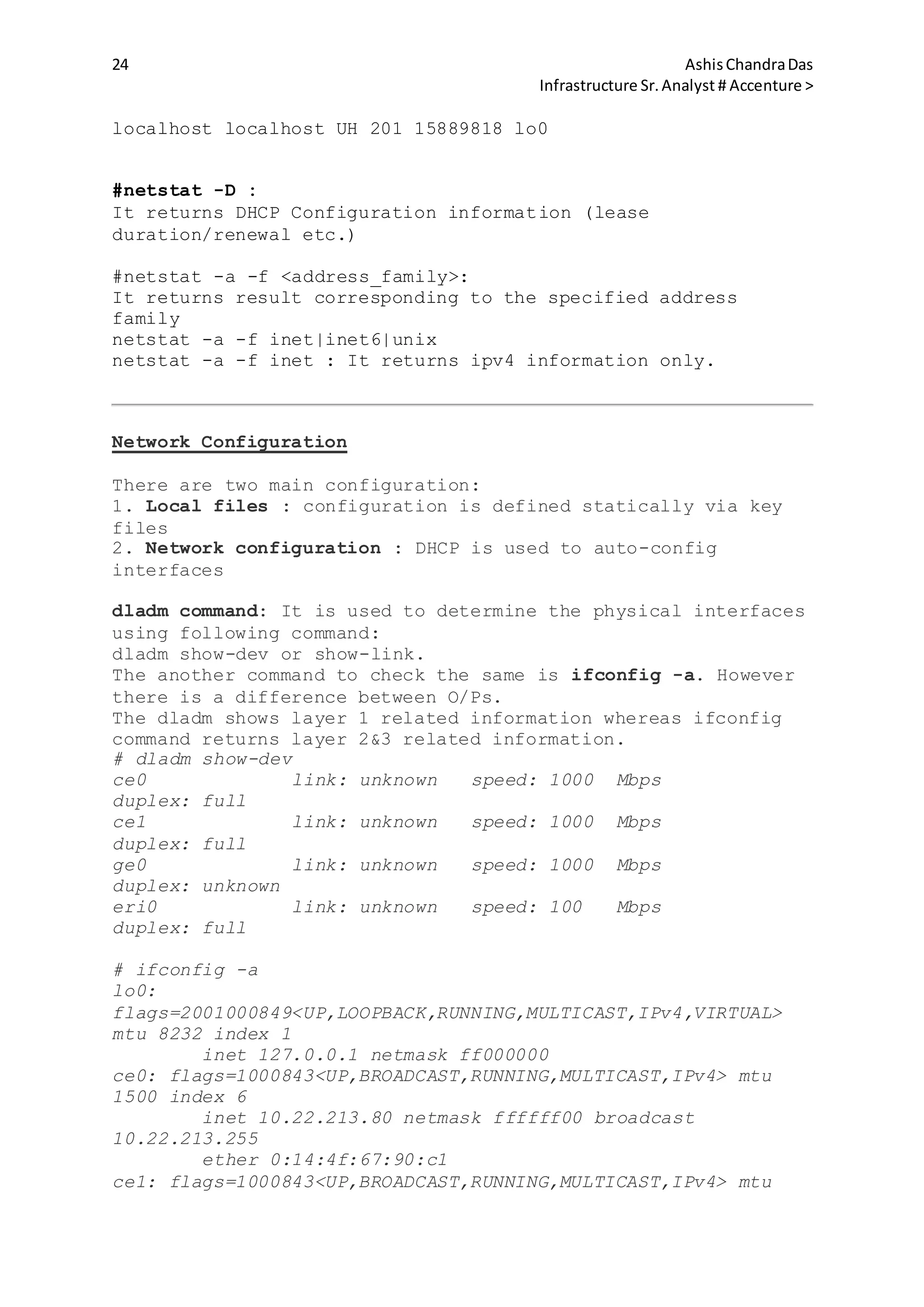
localhost localhost UH 201 15889818 lo0
#netstat -D :
It returns DHCP Configuration information (lease
duration/renewal etc.)
#netstat -a -f <address_family>:
It returns result corresponding to the specified address
family
netstat -a -f inet|inet6|unix
netstat -a -f inet : It returns ipv4 information only.
Network Configuration
There are two main configuration:
1. Local files : configuration is defined statically via key
files
2. Network configuration : DHCP is used to auto-config
interfaces
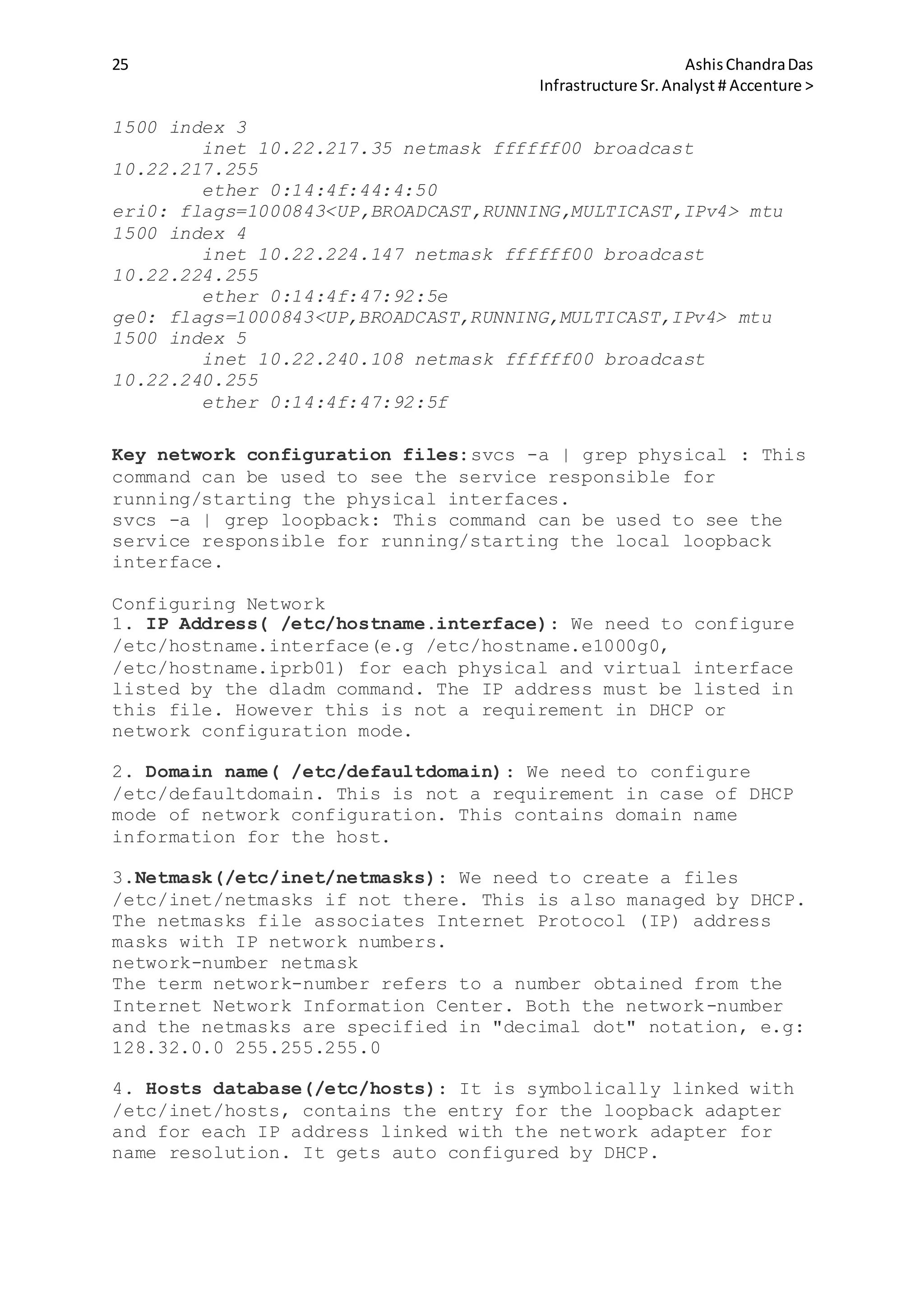
dladm command: It is used to determine the physical interfaces
using following command:
dladm show-dev or show-link.
The another command to check the same is ifconfig -a. However
there is a difference between O/Ps.
The dladm shows layer 1 related information whereas ifconfig
command returns layer 2&3 related information.
# dladm show-dev
ce0 link: unknown speed: 1000 Mbps
duplex: full
ce1 link: unknown speed: 1000 Mbps
duplex: full
ge0 link: unknown speed: 1000 Mbps
duplex: unknown
eri0 link: unknown speed: 100 Mbps
duplex: full
# ifconfig -a
lo0:
flags=2001000849<UP,LOOPBACK,RUNNING,MULTICAST,IPv4,VIRTUAL>
mtu 8232 index 1
inet 127.0.0.1 netmask ff000000
ce0: flags=1000843<UP,BROADCAST,RUNNING,MULTICAST,IPv4> mtu
1500 index 6
inet 10.22.213.80 netmask ffffff00 broadcast
10.22.213.255
ether 0:14:4f:67:90:c1
ce1: flags=1000843<UP,BROADCAST,RUNNING,MULTICAST,IPv4> mtu
25 AshisChandraDas
Infrastructure Sr.Analyst # Accenture >
1500 index 3
inet 10.22.217.35 netmask ffffff00 broadcast
10.22.217.255
ether 0:14:4f:44:4:50
eri0: flags=1000843<UP,BROADCAST,RUNNING,MULTICAST,IPv4> mtu
1500 index 4
inet 10.22.224.147 netmask ffffff00 broadcast
10.22.224.255
ether 0:14:4f:47:92:5e
ge0: flags=1000843<UP,BROADCAST,RUNNING,MULTICAST,IPv4> mtu
1500 index 5
inet 10.22.240.108 netmask ffffff00 broadcast
10.22.240.255
ether 0:14:4f:47:92:5f
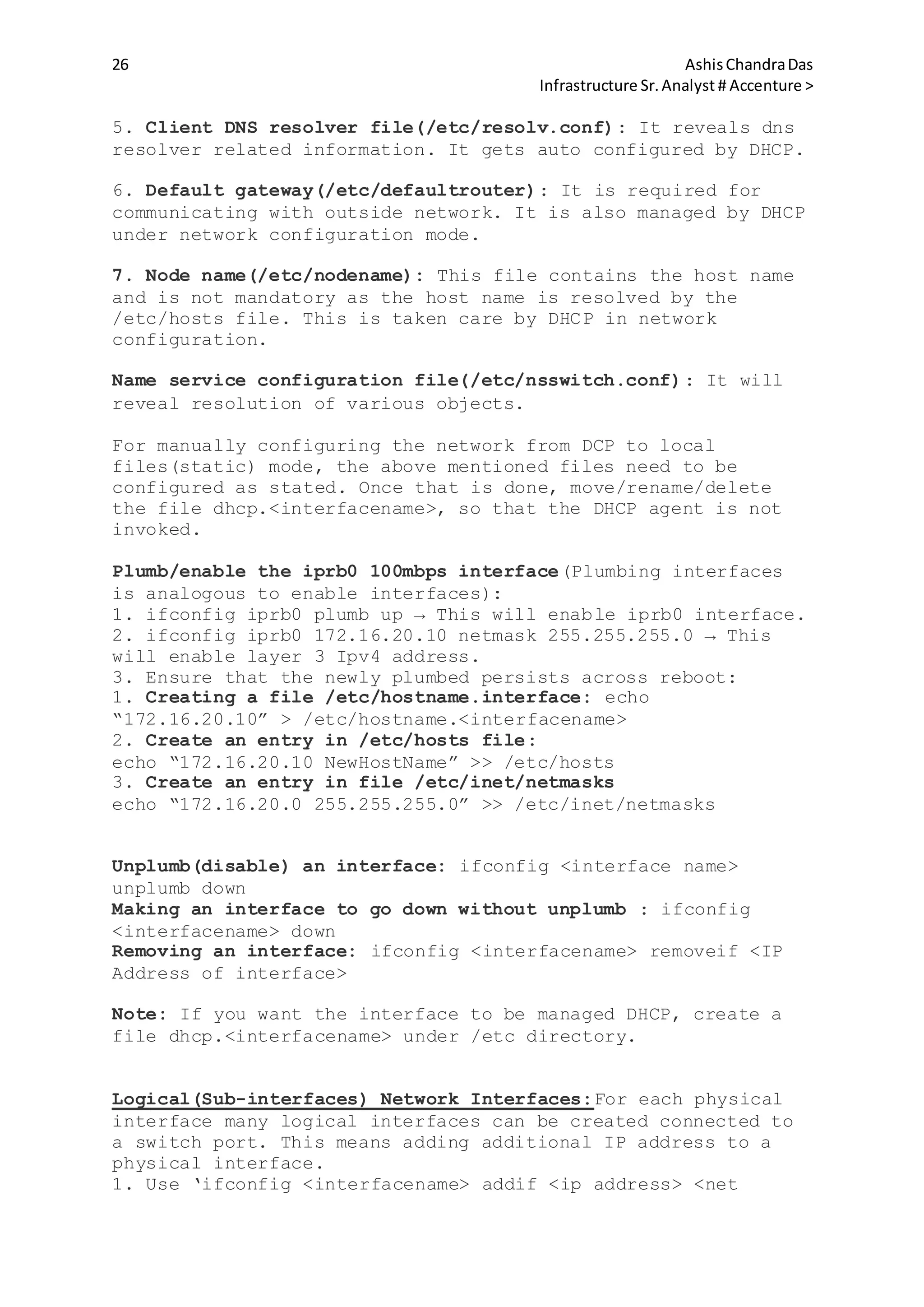
Key network configuration files:svcs -a | grep physical : This
command can be used to see the service responsible for
running/starting the physical interfaces.
svcs -a | grep loopback: This command can be used to see the
service responsible for running/starting the local loopback
interface.
Configuring Network
1. IP Address( /etc/hostname.interface): We need to configure
/etc/hostname.interface(e.g /etc/hostname.e1000g0,
/etc/hostname.iprb01) for each physical and virtual interface
listed by the dladm command. The IP address must be listed in
this file. However this is not a requirement in DHCP or
network configuration mode.
2. Domain name( /etc/defaultdomain): We need to configure
/etc/defaultdomain. This is not a requirement in case of DHCP
mode of network configuration. This contains domain name
information for the host.
3.Netmask(/etc/inet/netmasks): We need to create a files
/etc/inet/netmasks if not there. This is also managed by DHCP.
The netmasks file associates Internet Protocol (IP) address
masks with IP network numbers.
network-number netmask
The term network-number refers to a number obtained from the
Internet Network Information Center. Both the network-number
and the netmasks are specified in "decimal dot" notation, e.g:
128.32.0.0 255.255.255.0
4. Hosts database(/etc/hosts): It is symbolically linked with
/etc/inet/hosts, contains the entry for the loopback adapter
and for each IP address linked with the network adapter for
name resolution. It gets auto configured by DHCP.
26 AshisChandraDas
Infrastructure Sr.Analyst # Accenture >
5. Client DNS resolver file(/etc/resolv.conf): It reveals dns
resolver related information. It gets auto configured by DHCP.
6. Default gateway(/etc/defaultrouter): It is required for
communicating with outside network. It is also managed by DHCP
under network configuration mode.
7. Node name(/etc/nodename): This file contains the host name
and is not mandatory as the host name is resolved by the
/etc/hosts file. This is taken care by DHCP in network
configuration.
Name service configuration file(/etc/nsswitch.conf): It will
reveal resolution of various objects.
For manually configuring the network from DCP to local
files(static) mode, the above mentioned files need to be
configured as stated. Once that is done, move/rename/delete
the file dhcp.<interfacename>, so that the DHCP agent is not
invoked.
Plumb/enable the iprb0 100mbps interface(Plumbing interfaces
is analogous to enable interfaces):
1. ifconfig iprb0 plumb up → This will enable iprb0 interface.
2. ifconfig iprb0 172.16.20.10 netmask 255.255.255.0 → This
will enable layer 3 Ipv4 address.
3. Ensure that the newly plumbed persists across reboot:
1. Creating a file /etc/hostname.interface: echo
“172.16.20.10” > /etc/hostname.<interfacename>
2. Create an entry in /etc/hosts file:
echo “172.16.20.10 NewHostName” >> /etc/hosts
3. Create an entry in file /etc/inet/netmasks
echo “172.16.20.0 255.255.255.0” >> /etc/inet/netmasks
Unplumb(disable) an interface: ifconfig <interface name>
unplumb down
Making an interface to go down without unplumb : ifconfig
<interfacename> down
Removing an interface: ifconfig <interfacename> removeif <IP
Address of interface>
Note: If you want the interface to be managed DHCP, create a
file dhcp.<interfacename> under /etc directory.
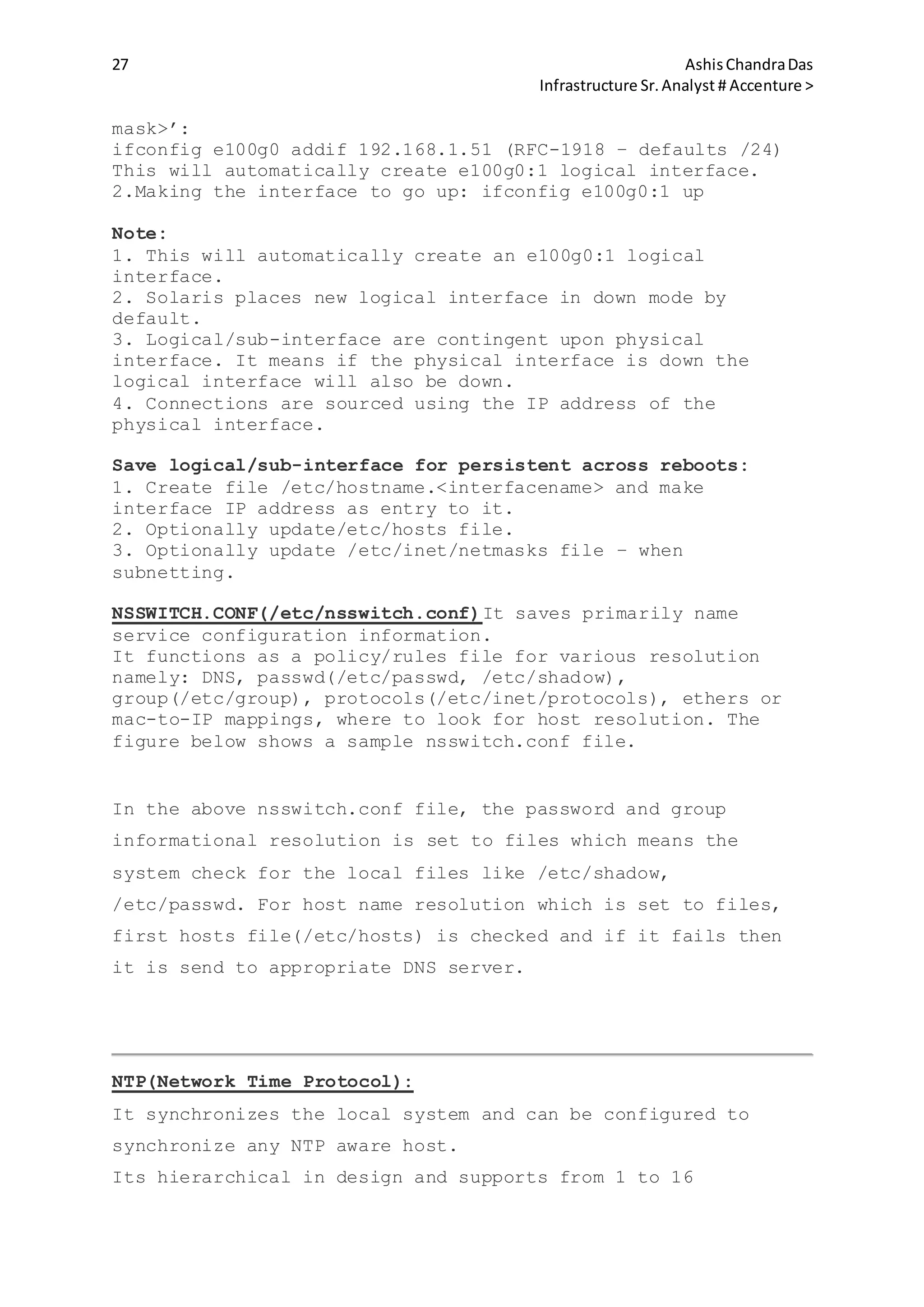
Logical(Sub-interfaces) Network Interfaces:For each physical
interface many logical interfaces can be created connected to
a switch port. This means adding additional IP address to a
physical interface.
1. Use ‘ifconfig <interfacename> addif <ip address> <net
27 AshisChandraDas
Infrastructure Sr.Analyst # Accenture >
mask>’:
ifconfig e100g0 addif 192.168.1.51 (RFC-1918 – defaults /24)
This will automatically create e100g0:1 logical interface.
2.Making the interface to go up: ifconfig e100g0:1 up
Note:
1. This will automatically create an e100g0:1 logical
interface.
2. Solaris places new logical interface in down mode by
default.
3. Logical/sub-interface are contingent upon physical
interface. It means if the physical interface is down the
logical interface will also be down.
4. Connections are sourced using the IP address of the
physical interface.
Save logical/sub-interface for persistent across reboots:
1. Create file /etc/hostname.<interfacename> and make
interface IP address as entry to it.
2. Optionally update/etc/hosts file.
3. Optionally update /etc/inet/netmasks file – when
subnetting.
NSSWITCH.CONF(/etc/nsswitch.conf)It saves primarily name
service configuration information.
It functions as a policy/rules file for various resolution
namely: DNS, passwd(/etc/passwd, /etc/shadow),
group(/etc/group), protocols(/etc/inet/protocols), ethers or
mac-to-IP mappings, where to look for host resolution. The
figure below shows a sample nsswitch.conf file.
In the above nsswitch.conf file, the password and group
informational resolution is set to files which means the
system check for the local files like /etc/shadow,
/etc/passwd. For host name resolution which is set to files,
first hosts file(/etc/hosts) is checked and if it fails then
it is send to appropriate DNS server.
NTP(Network Time Protocol):
It synchronizes the local system and can be configured to
synchronize any NTP aware host.
Its hierarchical in design and supports from 1 to 16
28 AshisChandraDas
Infrastructure Sr.Analyst # Accenture >
strata(precision).
Stratum 1 servers are connected to external, more accurate
time sources such as GPS. Less latency results in more
accurate time.
NTP Client configuration:
xntpd or ntp service searches for /etc/inet/ntp.conf for
configuration file.
1. Copy ntp.client file as ntp.conf file: cp ntp.client
ntp.conf
2. Edit ntp.conf and make an entry for the NTP server : server
192.168.1.100
3. Enable ntp service: svcadm enable ntp
4.execute “date” command to check synchronization. The
synchronization can be done usingntpdate command as: ntpdate
<ServerName>
The command “ntpq -p <ServerName>”: This will query the remote
system time table. If we just give the command without
mentioning the server name, it will list the peers or server
for time sync. If we just run the “ntpq “ command, it will run
in interactive mode and if we type “help” in that mode it will
list various options that can be performed.
The command “ntptrace”: Traces path to the time source. If we
run it without any option it will default to local system. The
command “ntptrace <ServerName>” gives the path and stratum
details from the server mentioned to the local system.
NTP Server configuration:
1. We need to find the NTP pool site such
as: http://www.ntp.org/ . We will derive NTP public server
from their lists.
2. Once the list is derived, we need to make the entry of that
29 AshisChandraDas
Infrastructure Sr.Analyst # Accenture >
list in the file /etc/inet/ntp.conf as shown below:server
0.asia.pool.ntp.org
server 1.asia.pool.ntp.org
server 2.asia.pool.ntp.org
server 3.asia.pool.ntp.org3. Restart the NTP service: svcadm
restart ntp.
4. Making out NTP client machine as NTP server:
1. Go to /etc/inet: cd /etc/inet
2. Disable the NTP service: svcadm disable ntp
3. Copy the file ntp.server to ntp.conf: cp ntp.server
ntp.conf
4. Edit ntp.conf file: Make an entry into the file with the
servers list obtained from the NTP pool site and local server.
5. Comment the crontab entry for the ntpdate command.
1. crontab -e
2. Comment the line where ntpdate command is run.
6. Enable the NTP service: svcadm enable ntp
30 AshisChandraDas
Infrastructure Sr.Analyst # Accenture >
Working with Files and Directories
Working with Files and Directories is very basic thing which
we dont want to miss while learning Solaris 10. Lets check few
very basic commands.
To display the current working directory:
pwd command: It displays the current working directory.
example:
#pwd
/export/home/ravi
To display contents of a directory:
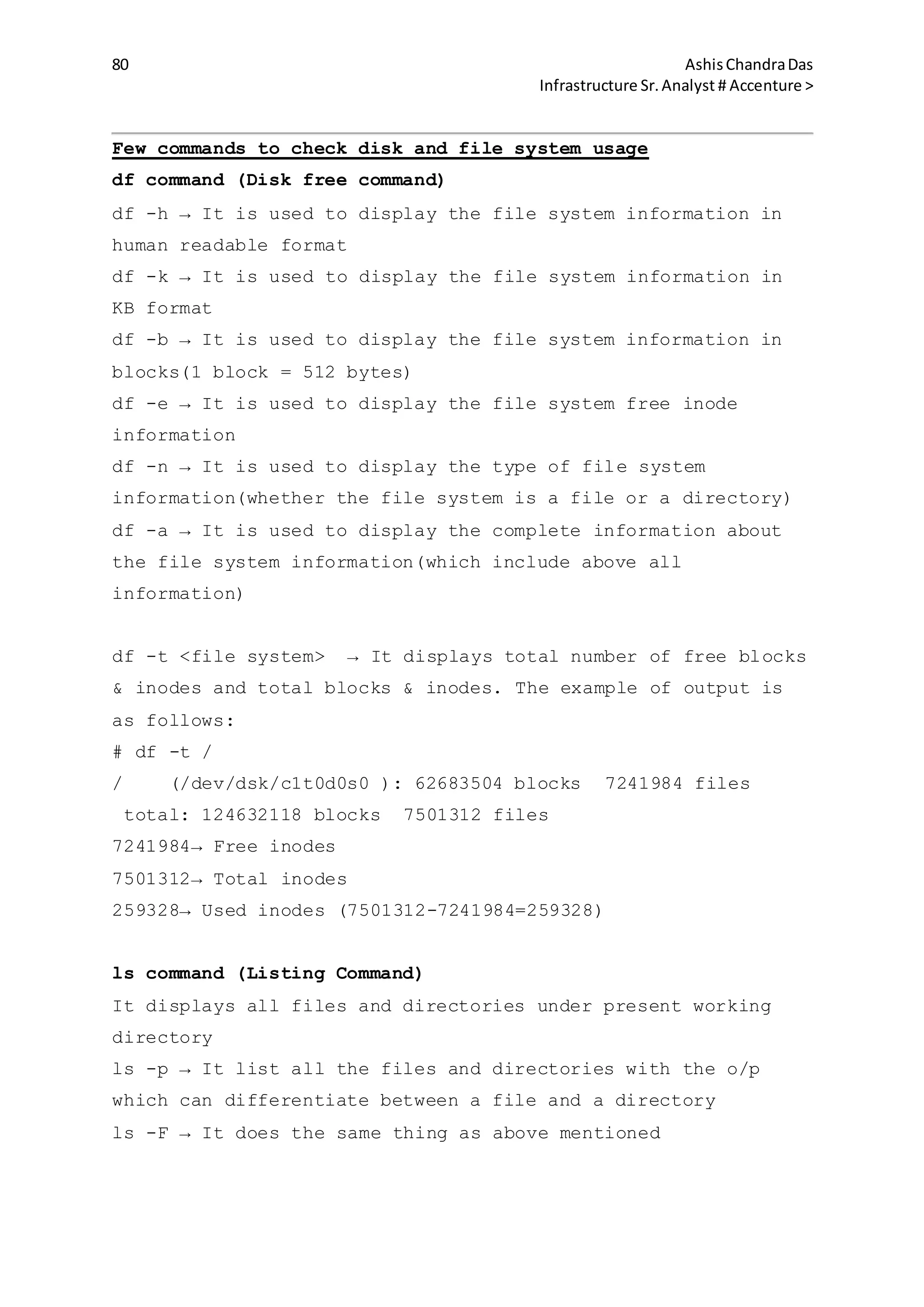
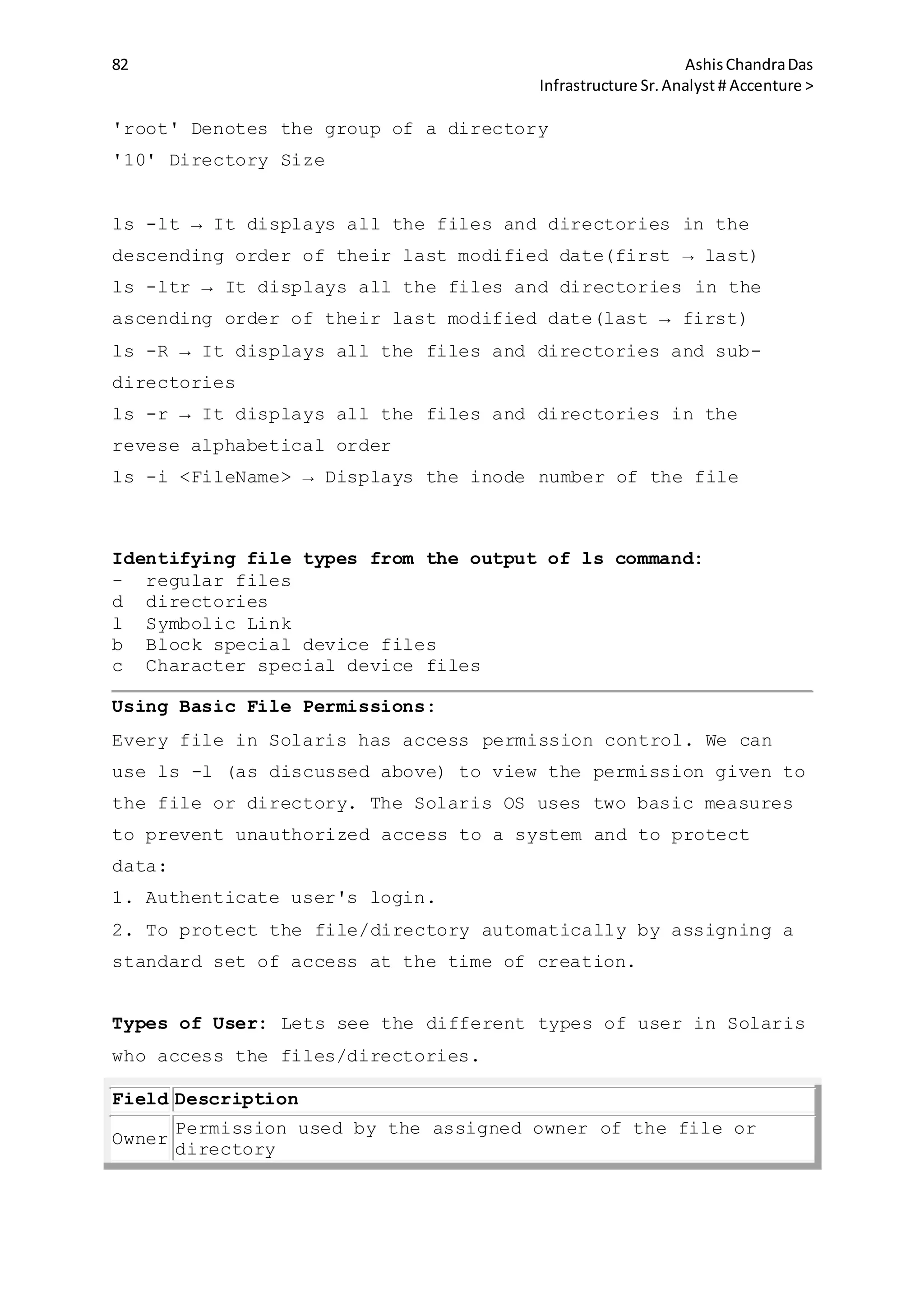
ls command (Listing Command):It displays all files and
directories under the specified directory.
Syntax: ls -options <DirName>|<FileName>
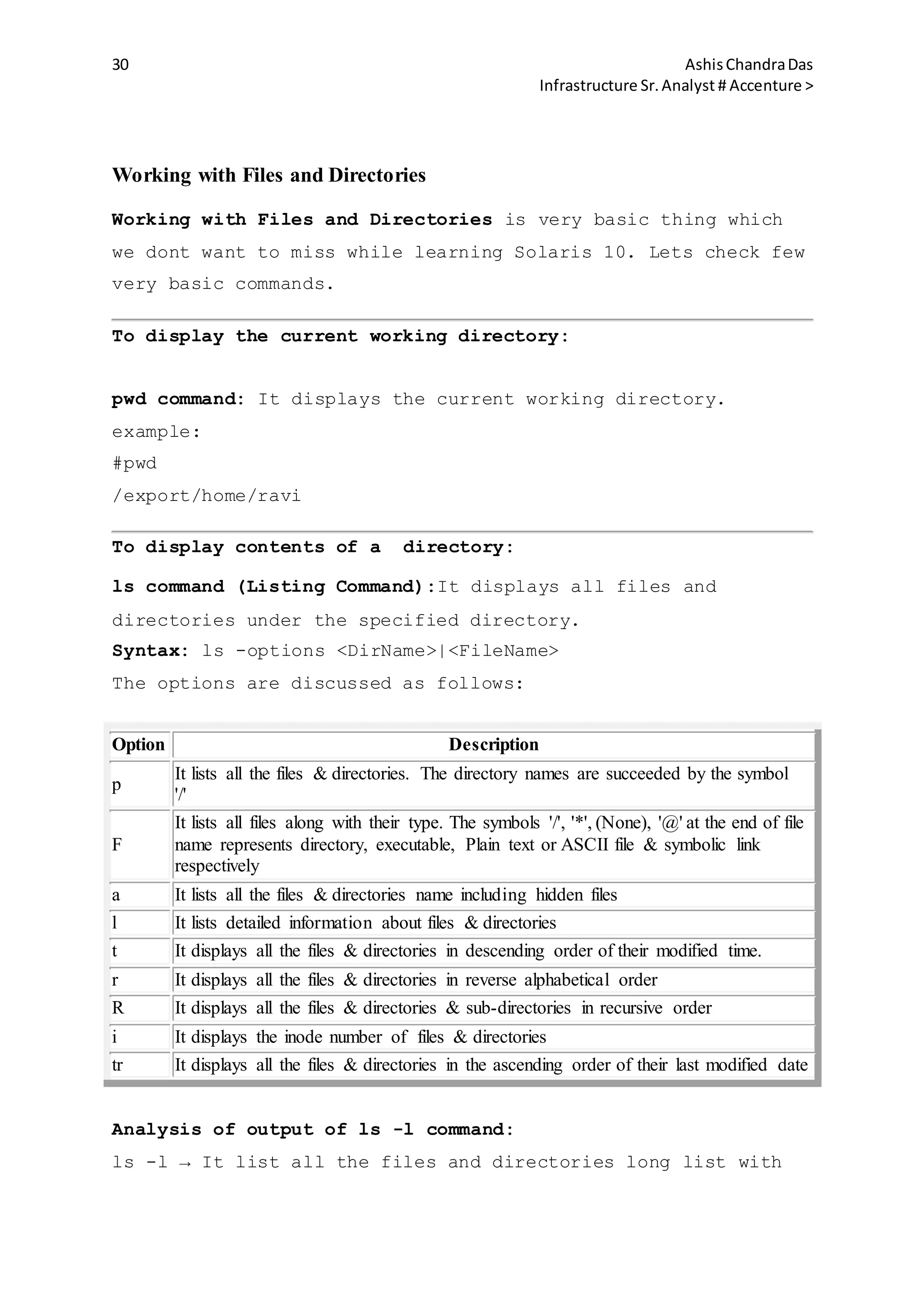
The options are discussed as follows:
Option Description
p
It lists all the files & directories. The directory names are succeeded by the symbol
'/'
F
It lists all files along with their type. The symbols '/', '*', (None), '@' at the end of file
name represents directory, executable, Plain text or ASCII file & symbolic link
respectively
a It lists all the files & directories name including hidden files
l It lists detailed information about files & directories
t It displays all the files & directories in descending order of their modified time.
r It displays all the files & directories in reverse alphabetical order
R It displays all the files & directories & sub-directories in recursive order
i It displays the inode number of files & directories
tr It displays all the files & directories in the ascending order of their last modified date
Analysis of output of ls -l command:
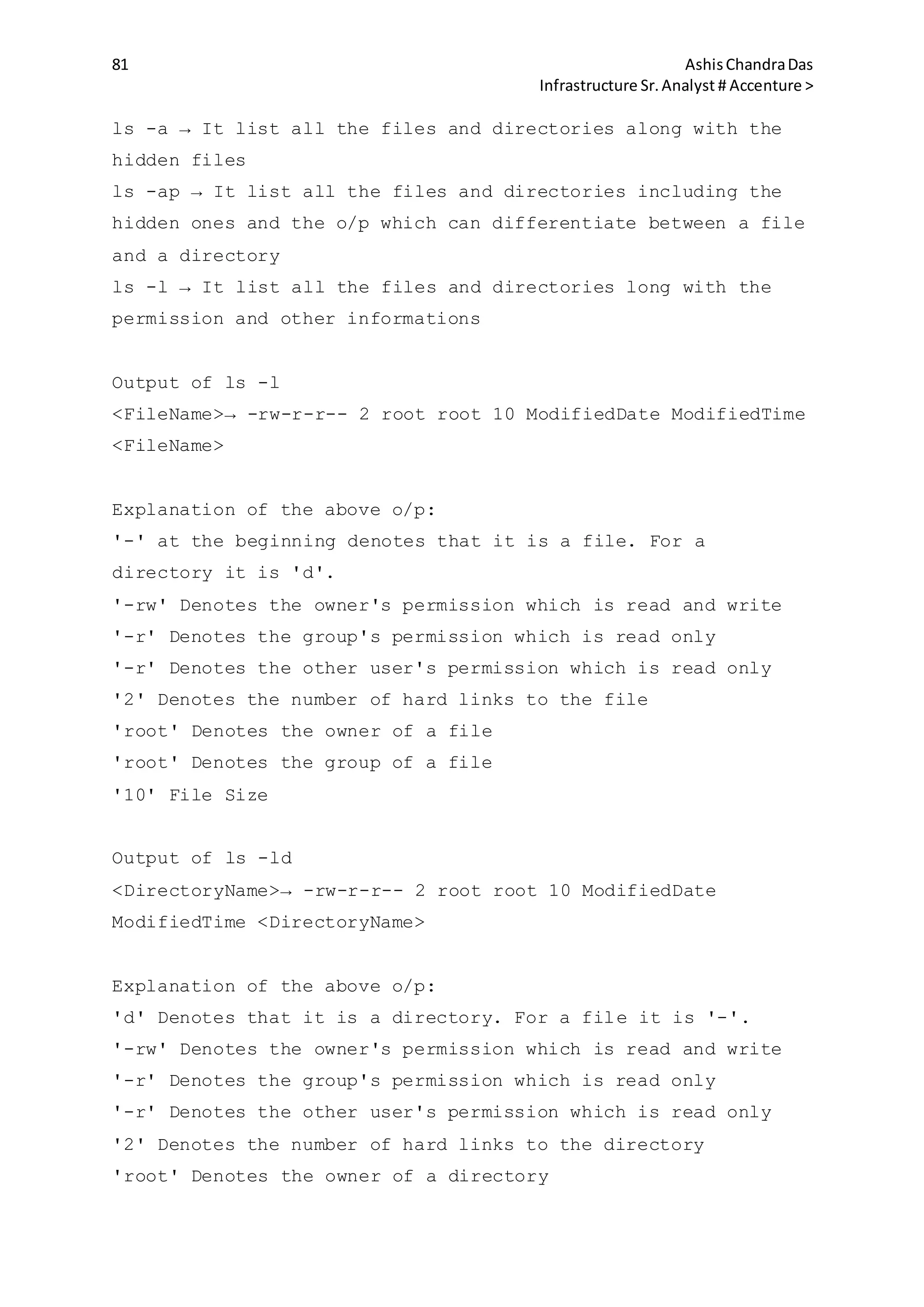
ls -l → It list all the files and directories long list with
31 AshisChandraDas
Infrastructure Sr.Analyst # Accenture >
the permission and other information. The output looks as
follows:
FileType & Permissions LinkCount UID GID Size Last
ModifiedDate & ModifiedTime <File/Directory Name>
Following table explains the output:
Entry Description
FileType '-' for file & 'd' for directory
Permissions
Permissions are in order of Owner,
Group & Other
LinkCount Number of links to the file
UID Owner's User ID
GID Group's ID
Size Size of the file/directory
Last ModifiedDate &
ModifiedTime
Last Modified Date & Time of the
file/directory
<File/Directory Name> File/Directory name
Example:
# ls -l
total 6
-rw-r--r-- 1 root root 136 May 6 2010
local.cshrc
-rw-r--r-- 1 root root 167 May 6 2010
local.login
-rw-r--r-- 1 root root 184 May 6 2010
local.profile
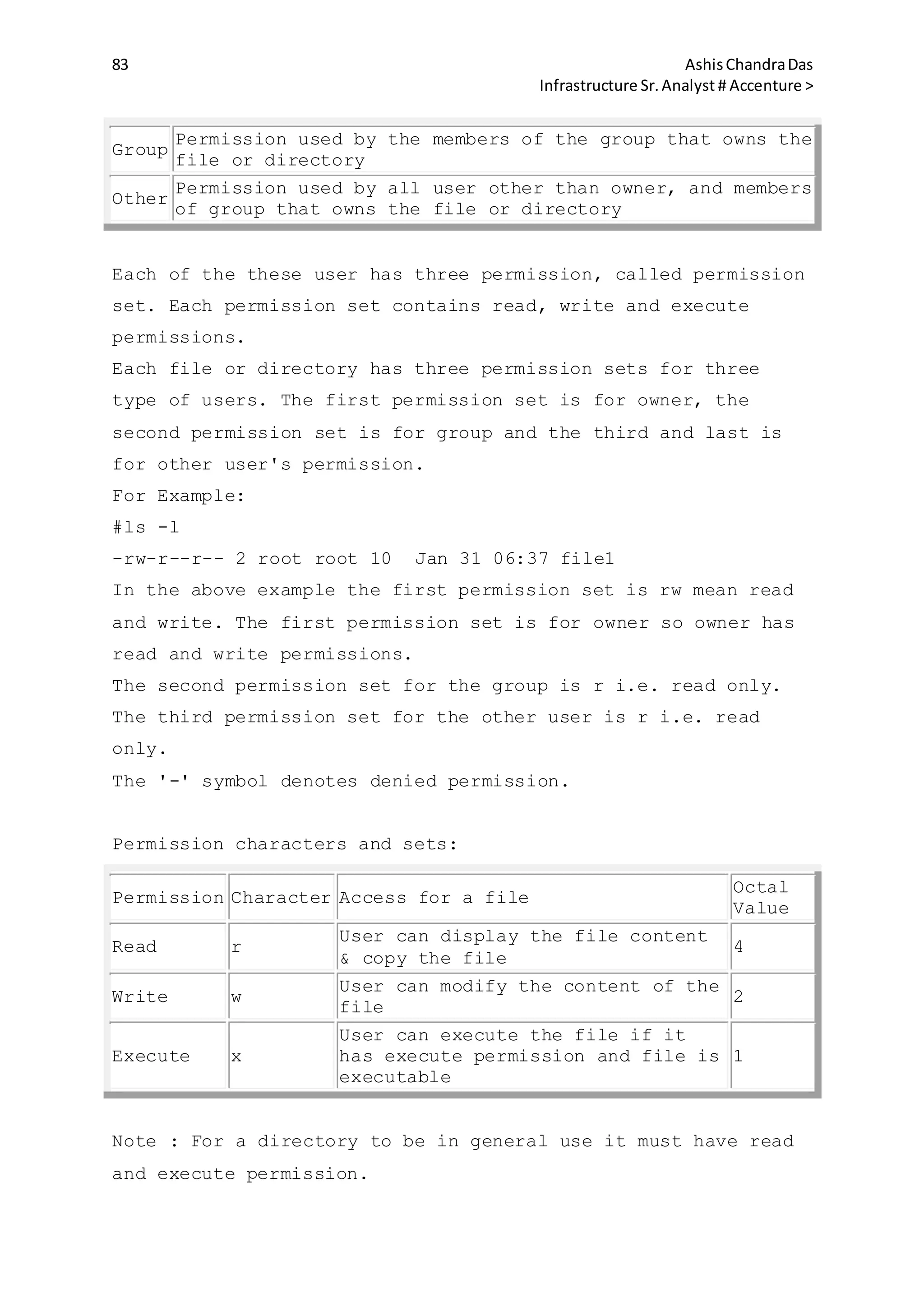
Understanding permissions:
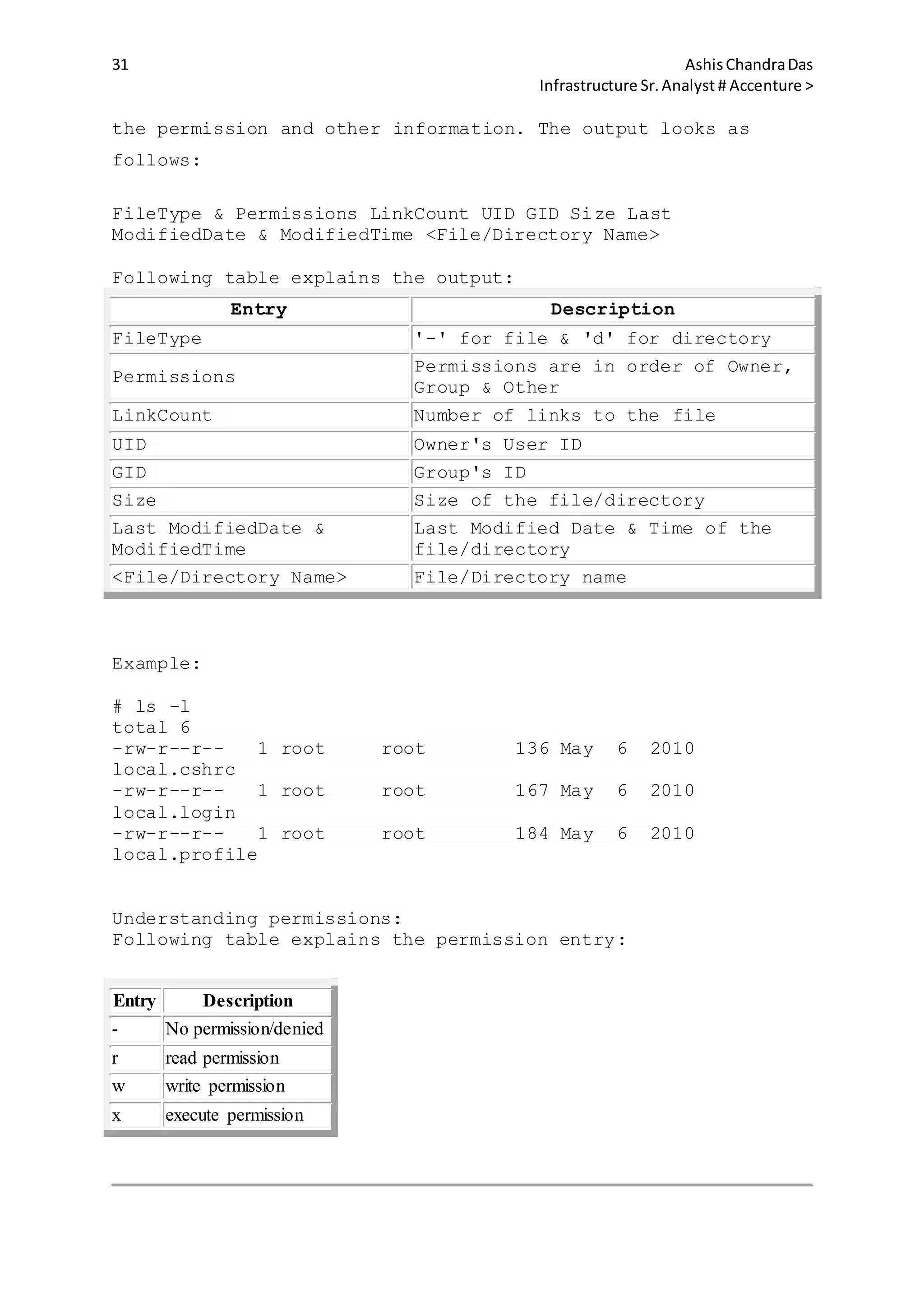
Following table explains the permission entry:
Entry Description
- No permission/denied
r read permission
w write permission
x execute permission
32 AshisChandraDas
Infrastructure Sr.Analyst # Accenture >
File Command: It is used to determine the file type. The
output of file command can be "text", "data" or "binary".
Syntax: file <file name>
Example:
# file data
data: English text
Changing Directories: 'cd' commad is used to change
directories.Syntax: cd <dir name>
If cd command is used without any option it changes the
directory from current working directory to user's home
directory.
Example: Let the user be 'ravi' and current working directory
is /var/adm/messages
#pwd
/var/adm/messages
#cd
#pwd
#/export/home/ravi
There is also a different way to navigate to the user's home
directory :
#pwd
/var/adm/messages
#cd ~ravi
#pwd
/export/home/ravi
#cd ~raju
#pwd
/export/home/raju
#cd ~ravi/dir1
33 AshisChandraDas
Infrastructure Sr.Analyst # Accenture >
#pwd
/export/home/ravi/dir1
In the above examples, the '~' character is the abbreviation
that represents the absolute path of the user's home
directory. However this functionality is not available in all
shells.
There are few other path name abbreviations which we can use
as well. These are listed below :
. → current working directory
.. → Parent directory or directory above the current working
directory.
So if we want to go to the parent directory of the current
working directory following command is used:
#cd ..
We can also navigate multiple levels up in directory using cd,
.. and /.
Example: If you want to move two levels up the current working
directory, we will use the command :
#cd ../..
#pwd
/export/home/ravi
#cd ../..
#pwd
/export
#cd ..
#pwd
/
Viewing the files:
cat command: It displays the entire content of the file
34 AshisChandraDas
Infrastructure Sr.Analyst # Accenture >
without pausing.
Syntax: cat <file name>
Example:
#file data
data: English text
#cat data
This is an example for demonstrating the cat command.
#
Warning: The cat command should not be used to open a binary
file as it will freeze the terminal window and it has to be
closed. So check the file type using 'file' command, if you
are not sure about it.
more command: It is used to view the content of a long text
file in the manner of one screen at a time.
Syntax: more <file name>
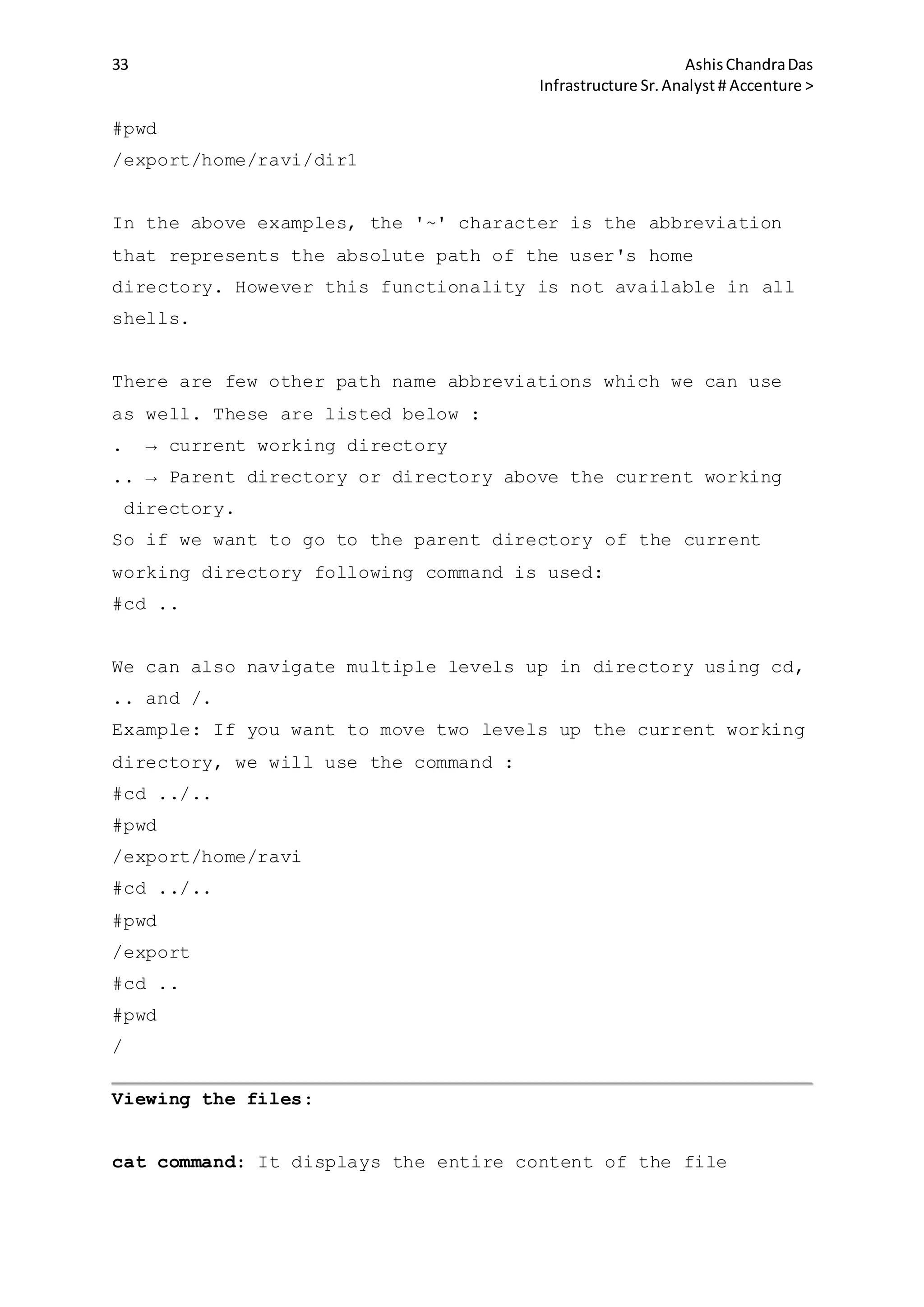
The few scrolling options used with more command are as
follows :
Scrolling Keys Action
Space Bar Moves forward one screen
Return Scrolls one line at a time
b Moves back one screen
h Displays a help menu of features
/string searches forward for a pattern
n finds the next occurrence of the pattern
q quits and returns to shell prompt
head command: It displays the first 10 lines of a file by
default. The number of lines to be displayed can be changed
using the option -n. The syntax for the head command is as
follows:
Syntax: head -n <file name>
35 AshisChandraDas
Infrastructure Sr.Analyst # Accenture >
This displays the first n lines of the file.
tail command: It displays the last 10 lines of a file by
default. The number of lines to be displayed can be changed
using the options -n or +n.
Syntax:
#tail -n <file name>
#tail +n <file name>
The -n option displays the n lines from the end of the file.
The +n option displays the file from line n to the end of the
file.
Displaying line, word and character count:
wc command: It is used to display the number of lines, words
and characters in a given file.
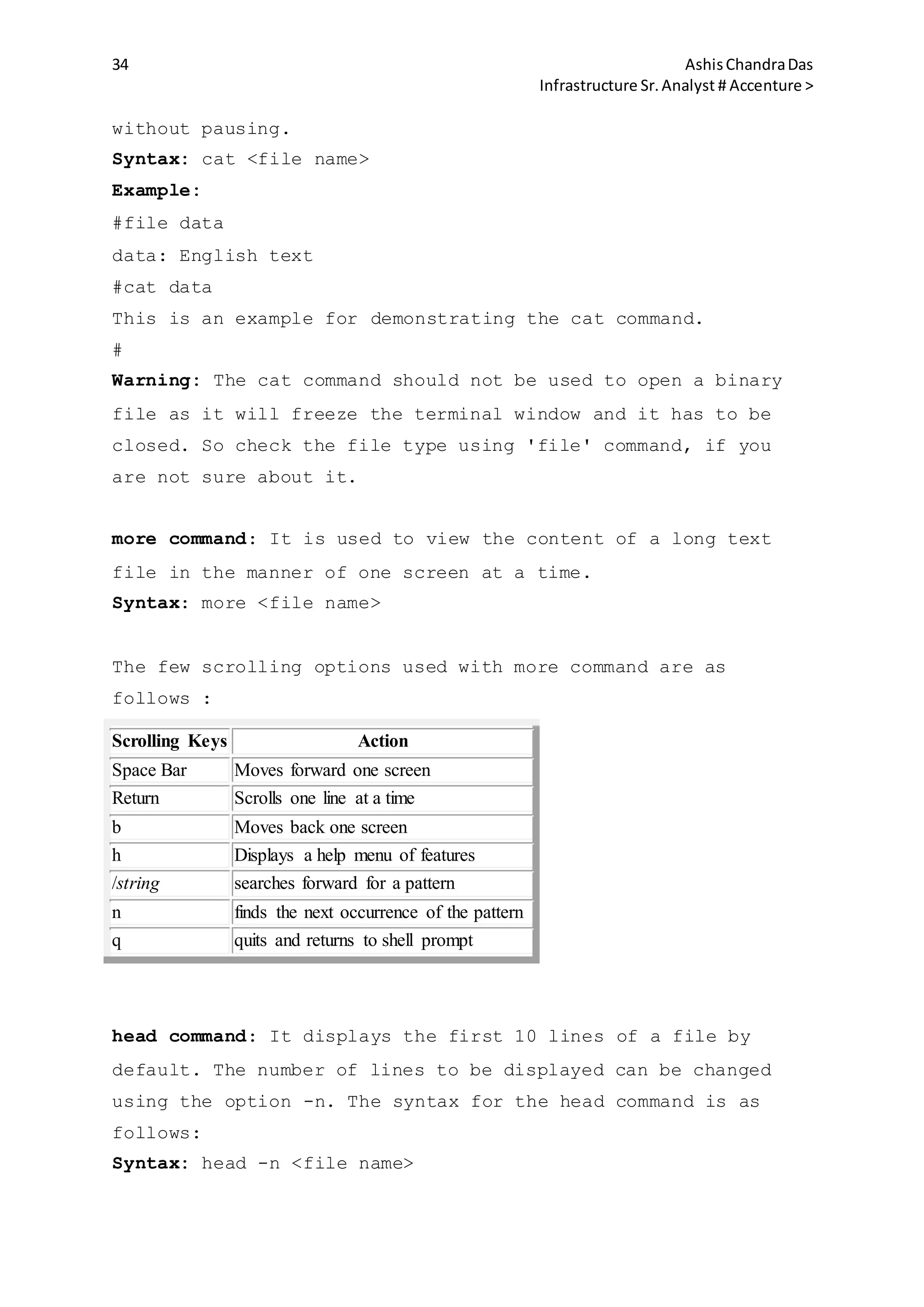
Syntax: wc -options <file name>
The following option can be used with wc command:
Option Description
l Counts number of lines
w Counts number of words
m Counts number of characters
c Counts number of bytes
Example:
#cat data
This is an example for demonstrating the cat command.
#wc -w data
9
Copying Files:
cp command: It can be used to copy file/files.
Syntax:cp -option(s) surce(s) destination
The options for the cp command are discussed below :
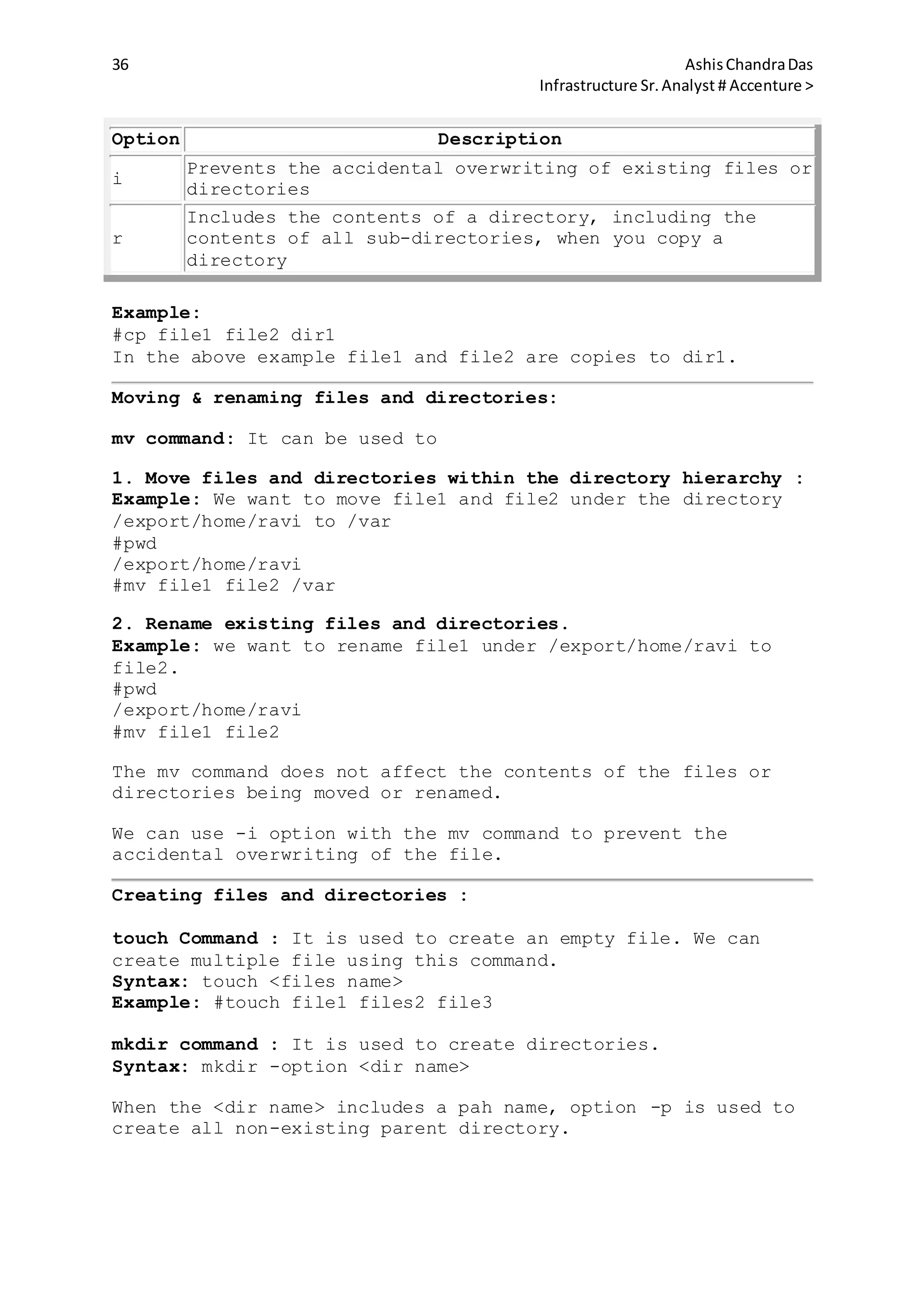
36 AshisChandraDas
Infrastructure Sr.Analyst # Accenture >
Option Description
i
Prevents the accidental overwriting of existing files or
directories
r
Includes the contents of a directory, including the
contents of all sub-directories, when you copy a
directory
Example:
#cp file1 file2 dir1
In the above example file1 and file2 are copies to dir1.
Moving & renaming files and directories:
mv command: It can be used to
1. Move files and directories within the directory hierarchy :
Example: We want to move file1 and file2 under the directory
/export/home/ravi to /var
#pwd
/export/home/ravi
#mv file1 file2 /var
2. Rename existing files and directories.
Example: we want to rename file1 under /export/home/ravi to
file2.
#pwd
/export/home/ravi
#mv file1 file2
The mv command does not affect the contents of the files or
directories being moved or renamed.
We can use -i option with the mv command to prevent the
accidental overwriting of the file.
Creating files and directories :
touch Command : It is used to create an empty file. We can
create multiple file using this command.
Syntax: touch <files name>
Example: #touch file1 files2 file3
mkdir command : It is used to create directories.
Syntax: mkdir -option <dir name>
When the <dir name> includes a pah name, option -p is used to
create all non-existing parent directory.
37 AshisChandraDas
Infrastructure Sr.Analyst # Accenture >
Example:
#mkdir -p /export/home/ravi/test/test1
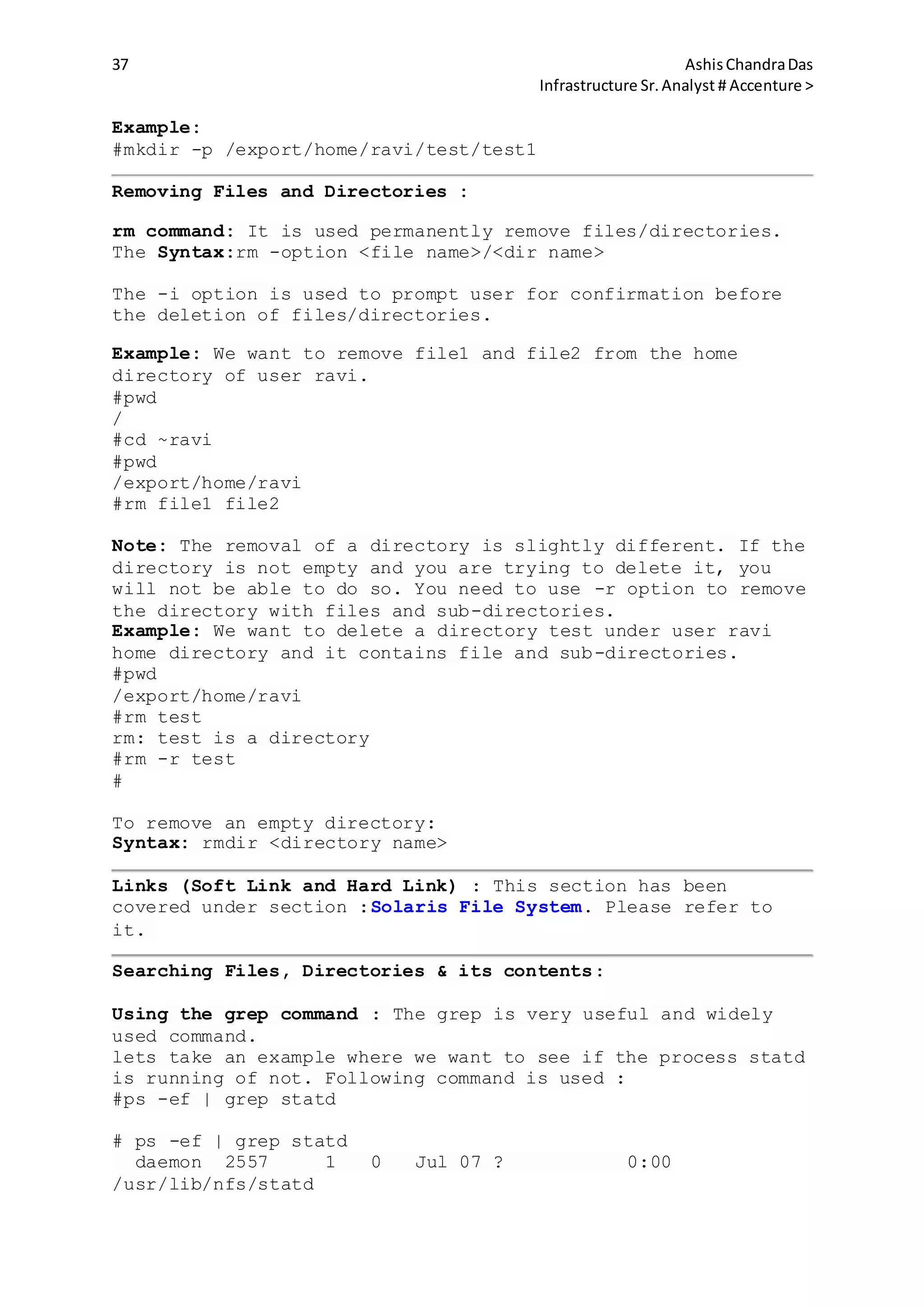
Removing Files and Directories :
rm command: It is used permanently remove files/directories.
The Syntax:rm -option <file name>/<dir name>
The -i option is used to prompt user for confirmation before
the deletion of files/directories.
Example: We want to remove file1 and file2 from the home
directory of user ravi.
#pwd
/
#cd ~ravi
#pwd
/export/home/ravi
#rm file1 file2
Note: The removal of a directory is slightly different. If the
directory is not empty and you are trying to delete it, you
will not be able to do so. You need to use -r option to remove
the directory with files and sub-directories.
Example: We want to delete a directory test under user ravi
home directory and it contains file and sub-directories.
#pwd
/export/home/ravi
#rm test
rm: test is a directory
#rm -r test
#
To remove an empty directory:
Syntax: rmdir <directory name>
Links (Soft Link and Hard Link) : This section has been
covered under section :Solaris File System. Please refer to
it.
Searching Files, Directories & its contents:
Using the grep command : The grep is very useful and widely
used command.
lets take an example where we want to see if the process statd
is running of not. Following command is used :
#ps -ef | grep statd
# ps -ef | grep statd
daemon 2557 1 0 Jul 07 ? 0:00
/usr/lib/nfs/statd
38 AshisChandraDas
Infrastructure Sr.Analyst # Accenture >
root 10649 1795 0 05:29:39 pts/4 0:00 grep statd
#
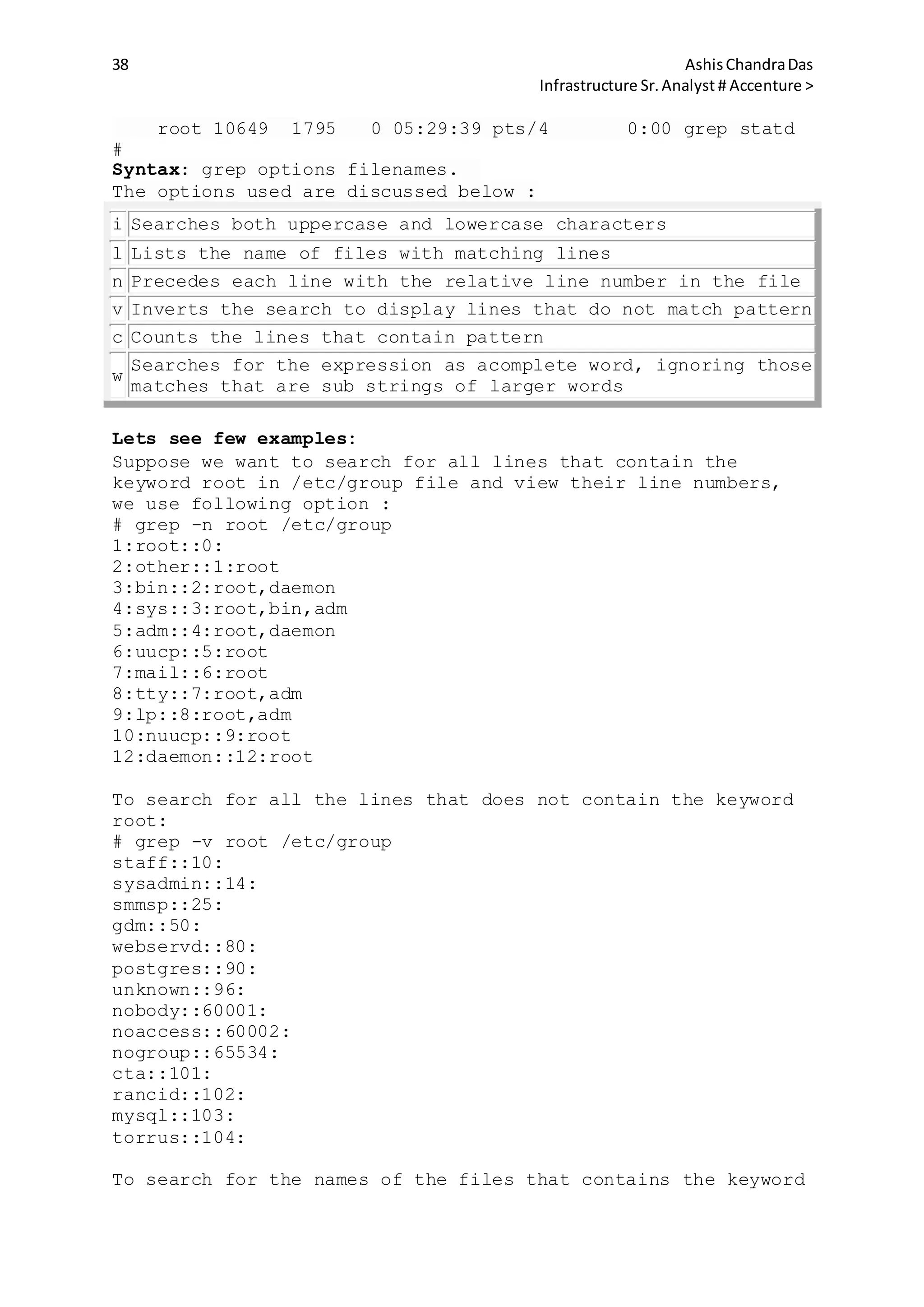
Syntax: grep options filenames.
The options used are discussed below :
i Searches both uppercase and lowercase characters
l Lists the name of files with matching lines
n Precedes each line with the relative line number in the file
v Inverts the search to display lines that do not match pattern
c Counts the lines that contain pattern
w
Searches for the expression as acomplete word, ignoring those
matches that are sub strings of larger words
Lets see few examples:
Suppose we want to search for all lines that contain the
keyword root in /etc/group file and view their line numbers,
we use following option :
# grep -n root /etc/group
1:root::0:
2:other::1:root
3:bin::2:root,daemon
4:sys::3:root,bin,adm
5:adm::4:root,daemon
6:uucp::5:root
7:mail::6:root
8:tty::7:root,adm
9:lp::8:root,adm
10:nuucp::9:root
12:daemon::12:root
To search for all the lines that does not contain the keyword
root:
# grep -v root /etc/group
staff::10:
sysadmin::14:
smmsp::25:
gdm::50:
webservd::80:
postgres::90:
unknown::96:
nobody::60001:
noaccess::60002:
nogroup::65534:
cta::101:
rancid::102:
mysql::103:
torrus::104:
To search for the names of the files that contains the keyword
39 AshisChandraDas
Infrastructure Sr.Analyst # Accenture >
root in /etc directory :
# cd /etc
# grep -l root group passwd hosts
group
passwd
To count the number of lines containing the pattern root in
the /etc/group file:
# grep -c root group
11
Using regular expression Metacharacters with grep command:
Metachar Purpose Example Result
^
Begining of line
Anchor
'^test'
Matches all lines
begining with test
$
End of line
anchor
'test$'
Matches all the lines
ending with test
. Matches one char 't..t'
Matches all the line
starting and ending with
t and 2 char between them
*
Matches the
preceding item 0
or more times
'[a-s]*'
Matches all lines
starting with lowercase
a-s
[]
Matches one
character in the
pattern
'[Tt]est'
Matches lines containing
test ot Test
[^]
Matches one
character not in
pattern
'[^a-
s]est'
Matches lines that do not
contain "a" though "s"
and followed by est
Using egrep command :
With egrep we can search one or more files for a pattern using
extended regular expression metacharacters.
Following table describes the Extended Regular Expression
Metacharacters :
Metachar Purpose Example Result
+
Matches one
of more
preceding
chars
'[a-z]+est'
Matches one or more
lowercase letters
followed by est(for
example chest, pest,
best, test, crest etc
x|y Matches 'printer|scanner' Matches for either
40 AshisChandraDas
Infrastructure Sr.Analyst # Accenture >
either x or
y
expression
(|)
Groups
characters
'(1|2)+' or
'test(s|ing)'
Matches for one or
more occurrence.
Syntax: egrep -options pattern filenames
Examples:
#egrep '[a-z]+day' /ravi/testdays
sunday
monday
friday
goodday
badday
In the above example, we searched for the letter ending with
day in the file /ravi/testdays
#egrep '(vacation |sick)' leave' /ravi/leavedata
vacation leave on 7th march
sick leave on 8th march
In the above example we are displaying sick leave and vacation
leave from file /ravi/leavedata
Using fgrep command :
It searches for all the character regardless of it being
metacharacter as we have seen in case of grep and egrep
commands.
Syntax: fgrep options string filenames
Example:
#fgrep '$?*' /ravi/test
this is for testing fgrep command $?*
#
Using Find command :
This command is used to locate files and directories. You can
relate it with windows search in terms of functionality.
Syntax: find pathnames expressions actions
Pathname: The absolute or relative path from where the search
begins.
Expressions: The search criteria is mentioned here. We will
discuss search criteria below in details.
Expression Definition
-name
filename
Finds the file matching.
-size [+|-]n Finds files that are larger than +n, smaller than
41 AshisChandraDas
Infrastructure Sr.Analyst # Accenture >
-n, or exactly n.
-atime [+|-
]n
Find files that have been accessed more than +n
days, less than -n or exactly n days ago.
-mtime [+|-
]n
Find files that have been modified more than +n
days, less than -n or exactly n days ago.
-user
loginID
Finds all files that are owned by the loginID
name.
-type Finds a file type : f for file, d for directory.
-perm
Find files that have certain access permission
bits.
Action: Action required after all the files have been found.
By default it displays all the matching pathnames
Action Definition
-exec
command {}
;
Runs the specified command on each file located.
-ok
commadn {}
:
Requires confirmation before the find command
applies the command to each file located.
-print Prints the search result
-ls
Displays the current pathname and associated stats
: inode number, size in kb, protection mode, no. of
hard links and the user.
-user
loginID
Finds all files that are owned by the loginID name.
-type Finds a file type : f for file, d for directory.
-perm
Find files that have certain access permission
bits.
Examples:
#touch findtest
#cat >> findtest
This is for test.
#find ~ -name findtest -exec cat {} ;
This is for test.
#
The above examples searches for the file : findtest and
displays its content. We can also use 'ok' option instead of
exec. This will prompt for confirmation before displaying the
contents of file findtest.
If we want to find files larger than 10 blocks (1 block =
512bytes) starting from /ravi directory, following command is
42 AshisChandraDas
Infrastructure Sr.Analyst # Accenture >
used :
#find /ravi -size +10
If we want to see all files that have not been modified in the
last two days in the directory /ravi, we use :
#find /ravi -mtime +2
Printing Files:
lp comand : This command is located in /usr/bin directory. It
is used to submit the print request to the printer.
Syntax:
/usr/bin/lp <file name>
/usr/bin/lp -d <printer name > <file name>
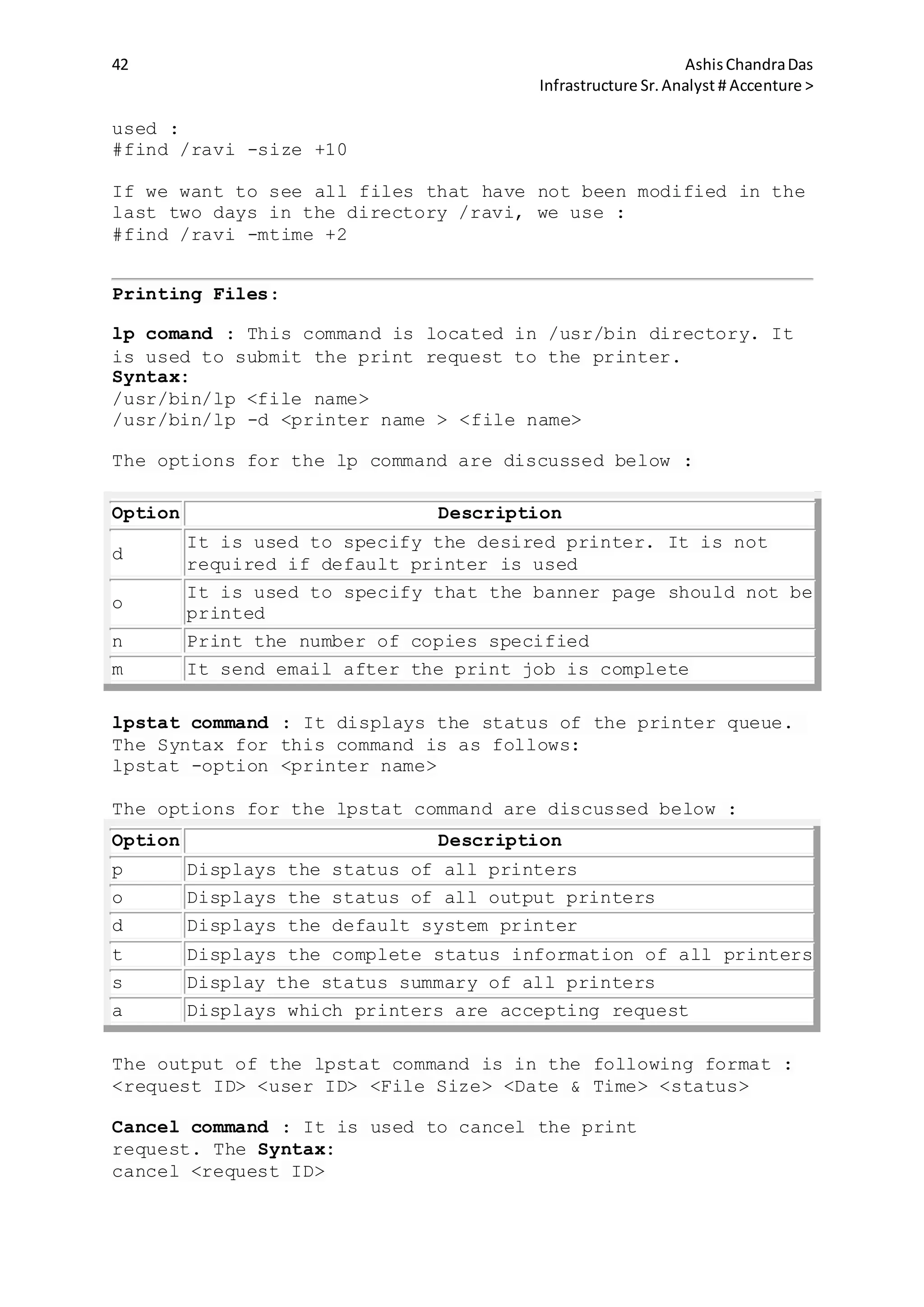
The options for the lp command are discussed below :
Option Description
d
It is used to specify the desired printer. It is not
required if default printer is used
o
It is used to specify that the banner page should not be
printed
n Print the number of copies specified
m It send email after the print job is complete
lpstat command : It displays the status of the printer queue.
The Syntax for this command is as follows:
lpstat -option <printer name>
The options for the lpstat command are discussed below :
Option Description
p Displays the status of all printers
o Displays the status of all output printers
d Displays the default system printer
t Displays the complete status information of all printers
s Display the status summary of all printers
a Displays which printers are accepting request
The output of the lpstat command is in the following format :
<request ID> <user ID> <File Size> <Date & Time> <status>
Cancel command : It is used to cancel the print
request. The Syntax:
cancel <request ID>
43 AshisChandraDas
Infrastructure Sr.Analyst # Accenture >
cancel -u <user name>
Note: We can use lpstat command to get the request ID.
VI Editor
VI Editor (Visual Editor)
Its an editor like notepad in windows which is used to edit a
file in SOLARIS. Unlike notepad it is very difficult to use. I
wish the VI editor would have been developed by Bill
gates rather than Bill Joy. Anways, guys we dont have any
other option rather than getting aware of all these commands
so that we become proficient in working with the VI Editor.
Here are few commands that can be used while working with VI
editor.
There are three command modes in VI editor and we will see the
commands based on the modes.
Command Mode :
This is default mode of the VI editor. In this mode we can
delete, change, copy and move text.
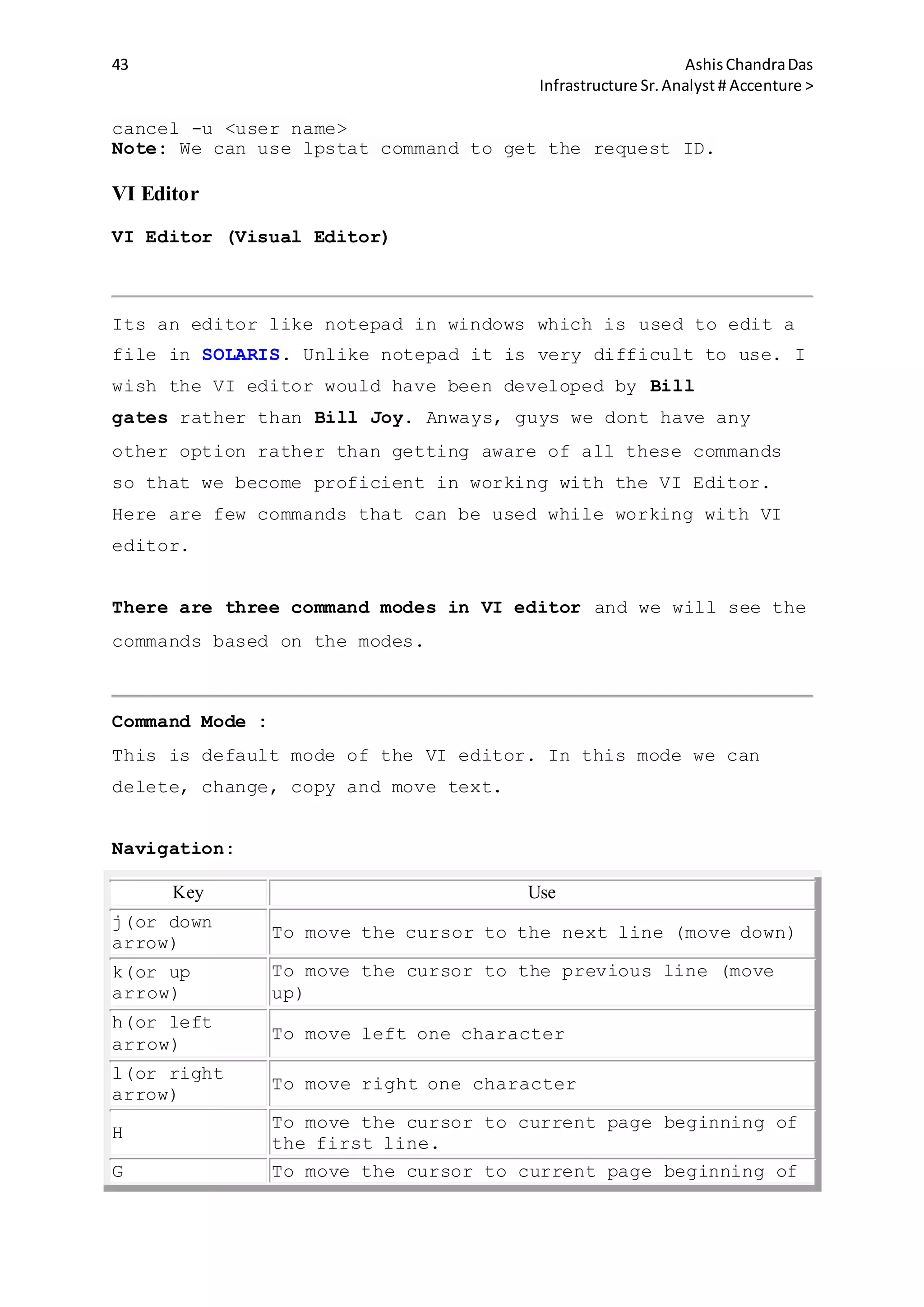
Navigation:
Key Use
j(or down
arrow)
To move the cursor to the next line (move down)
k(or up
arrow)
To move the cursor to the previous line (move
up)
h(or left
arrow)
To move left one character
l(or right
arrow)
To move right one character
H
To move the cursor to current page beginning of
the first line.
G To move the cursor to current page beginning of
44 AshisChandraDas
Infrastructure Sr.Analyst # Accenture >
the last line.
b To move the cursor previous word first character
e To move the cursor next word last character
w To move the cursor to next word first character
^ Go to beginning of line
0 Go to beginning of line
$ Go to the end of the line
CTRL+F forward 1 screen
CTRL+B backward 1 screen
CTRL+D down (forward) 1/2 screen
CTRL+U up (backward) 1/2 screen
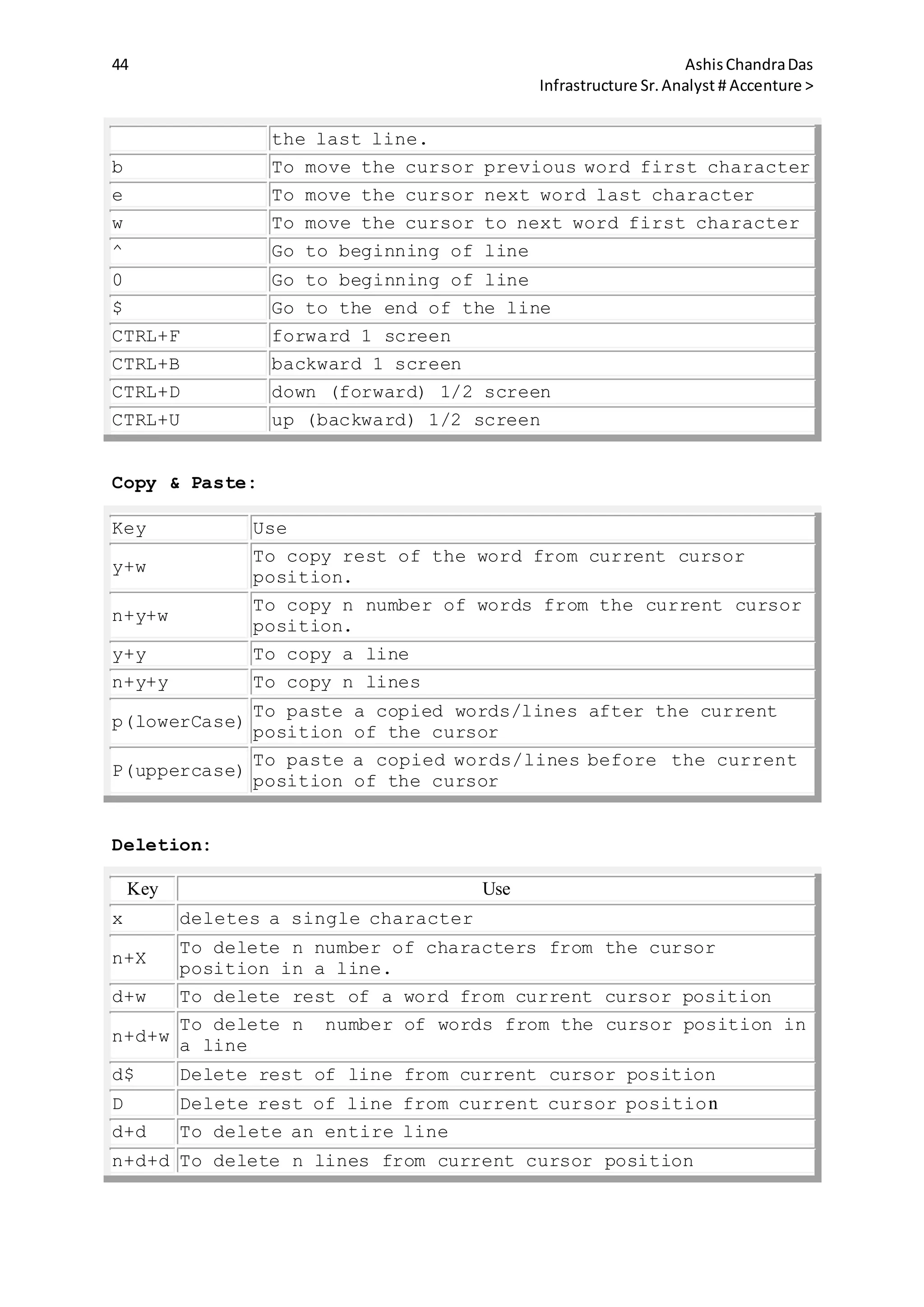
Copy & Paste:
Key Use
y+w
To copy rest of the word from current cursor
position.
n+y+w
To copy n number of words from the current cursor
position.
y+y To copy a line
n+y+y To copy n lines
p(lowerCase)
To paste a copied words/lines after the current
position of the cursor
P(uppercase)
To paste a copied words/lines before the current
position of the cursor
Deletion:
Key Use
x deletes a single character
n+X
To delete n number of characters from the cursor
position in a line.
d+w To delete rest of a word from current cursor position
n+d+w
To delete n number of words from the cursor position in
a line
d$ Delete rest of line from current cursor position
D Delete rest of line from current cursor position
d+d To delete an entire line
n+d+d To delete n lines from current cursor position
45 AshisChandraDas
Infrastructure Sr.Analyst # Accenture >
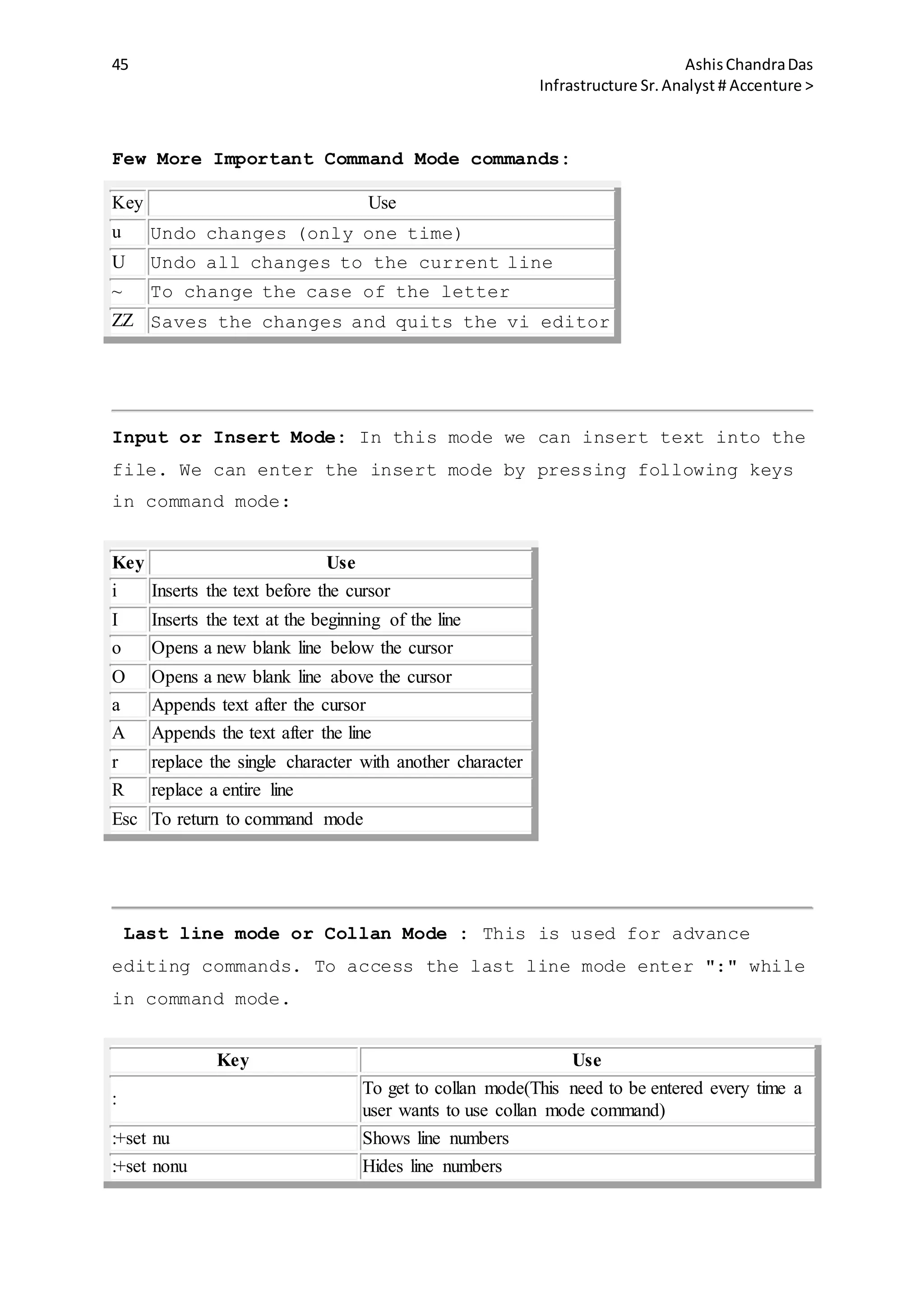
Few More Important Command Mode commands:
Key Use
u Undo changes (only one time)
U Undo all changes to the current line
~ To change the case of the letter
ZZ Saves the changes and quits the vi editor
Input or Insert Mode: In this mode we can insert text into the
file. We can enter the insert mode by pressing following keys
in command mode:
Key Use
i Inserts the text before the cursor
I Inserts the text at the beginning of the line
o Opens a new blank line below the cursor
O Opens a new blank line above the cursor
a Appends text after the cursor
A Appends the text after the line
r replace the single character with another character
R replace a entire line
Esc To return to command mode
Last line mode or Collan Mode : This is used for advance
editing commands. To access the last line mode enter ":" while
in command mode.
Key Use
:
To get to collan mode(This need to be entered every time a
user wants to use collan mode command)
:+set nu Shows line numbers
:+set nonu Hides line numbers
46 AshisChandraDas
Infrastructure Sr.Analyst # Accenture >
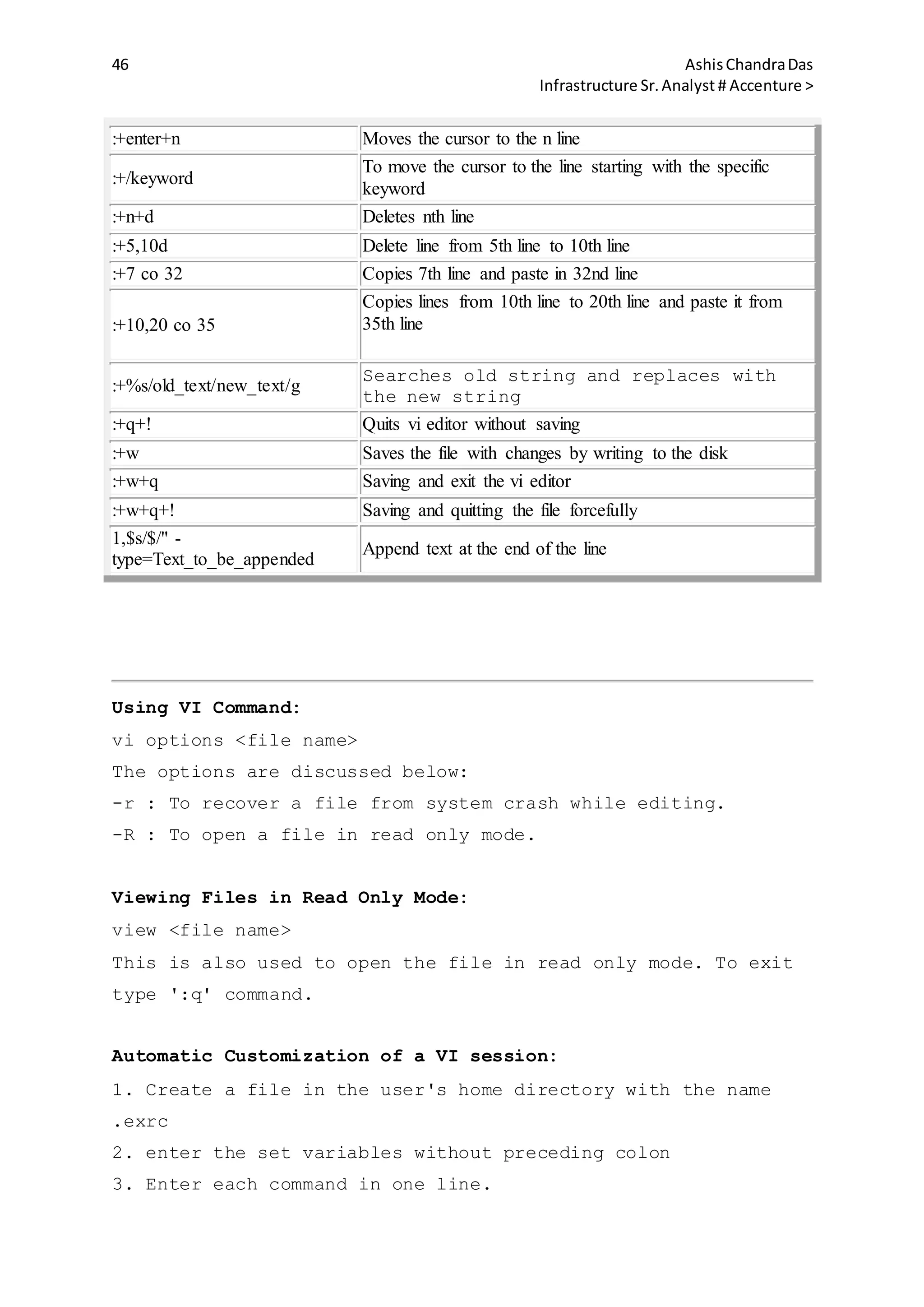
:+enter+n Moves the cursor to the n line
:+/keyword
To move the cursor to the line starting with the specific
keyword
:+n+d Deletes nth line
:+5,10d Delete line from 5th line to 10th line
:+7 co 32 Copies 7th line and paste in 32nd line
:+10,20 co 35
Copies lines from 10th line to 20th line and paste it from
35th line
:+%s/old_text/new_text/g
Searches old string and replaces with
the new string
:+q+! Quits vi editor without saving
:+w Saves the file with changes by writing to the disk
:+w+q Saving and exit the vi editor
:+w+q+! Saving and quitting the file forcefully
1,$s/$/" -
type=Text_to_be_appended
Append text at the end of the line
Using VI Command:
vi options <file name>
The options are discussed below:
-r : To recover a file from system crash while editing.
-R : To open a file in read only mode.
Viewing Files in Read Only Mode:
view <file name>
This is also used to open the file in read only mode. To exit
type ':q' command.
Automatic Customization of a VI session:
1. Create a file in the user's home directory with the name
.exrc
2. enter the set variables without preceding colon
3. Enter each command in one line.
47 AshisChandraDas
Infrastructure Sr.Analyst # Accenture >
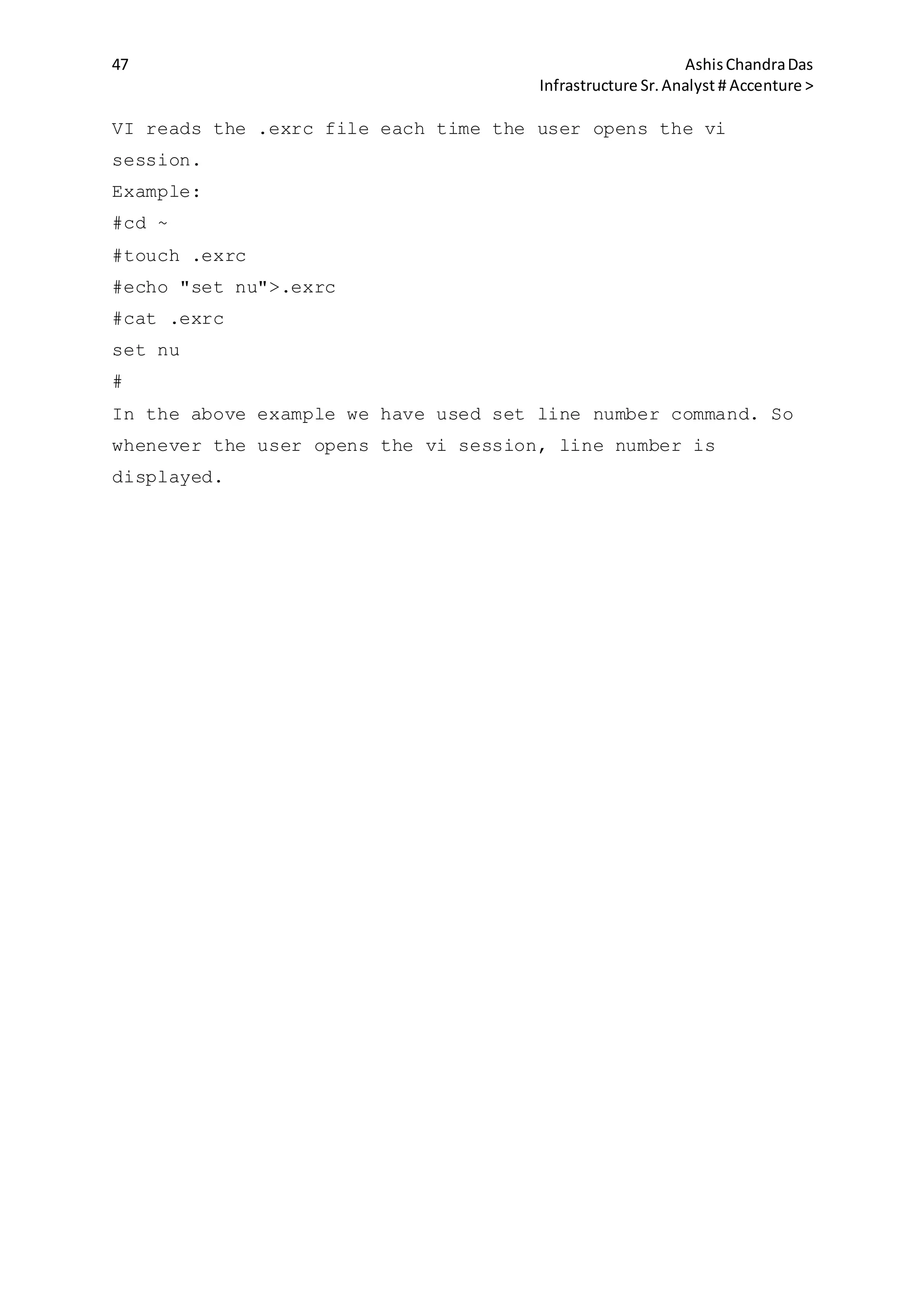
VI reads the .exrc file each time the user opens the vi
session.
Example:
#cd ~
#touch .exrc
#echo "set nu">.exrc
#cat .exrc
set nu
#
In the above example we have used set line number command. So
whenever the user opens the vi session, line number is
displayed.
48 AshisChandraDas
Infrastructure Sr.Analyst # Accenture >
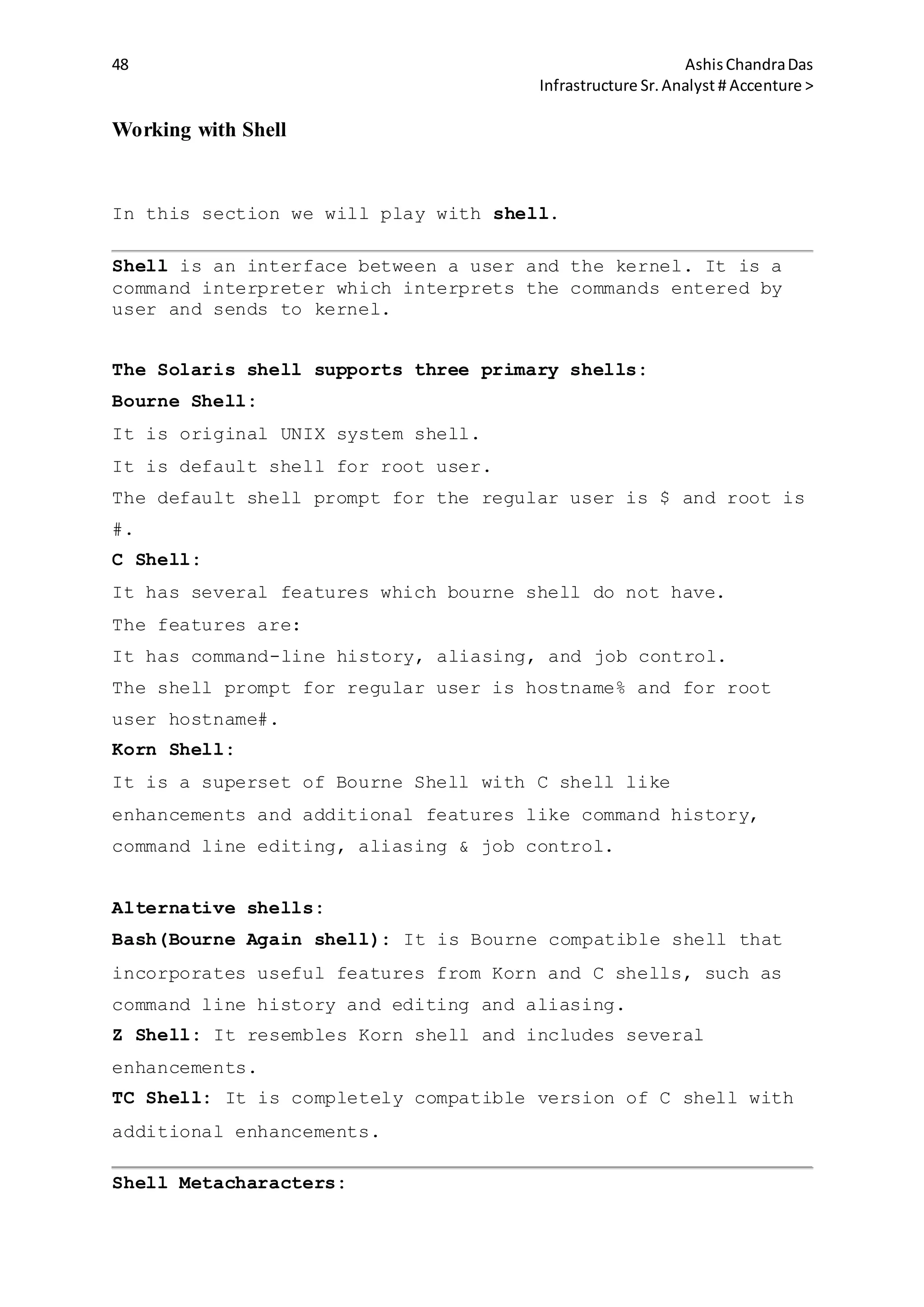
Working with Shell
In this section we will play with shell.
Shell is an interface between a user and the kernel. It is a
command interpreter which interprets the commands entered by
user and sends to kernel.
The Solaris shell supports three primary shells:
Bourne Shell:
It is original UNIX system shell.
It is default shell for root user.
The default shell prompt for the regular user is $ and root is
#.
C Shell:
It has several features which bourne shell do not have.
The features are:
It has command-line history, aliasing, and job control.
The shell prompt for regular user is hostname% and for root
user hostname#.
Korn Shell:
It is a superset of Bourne Shell with C shell like
enhancements and additional features like command history,
command line editing, aliasing & job control.
Alternative shells:
Bash(Bourne Again shell): It is Bourne compatible shell that
incorporates useful features from Korn and C shells, such as
command line history and editing and aliasing.
Z Shell: It resembles Korn shell and includes several
enhancements.
TC Shell: It is completely compatible version of C shell with
additional enhancements.
Shell Metacharacters:
49 AshisChandraDas
Infrastructure Sr.Analyst # Accenture >
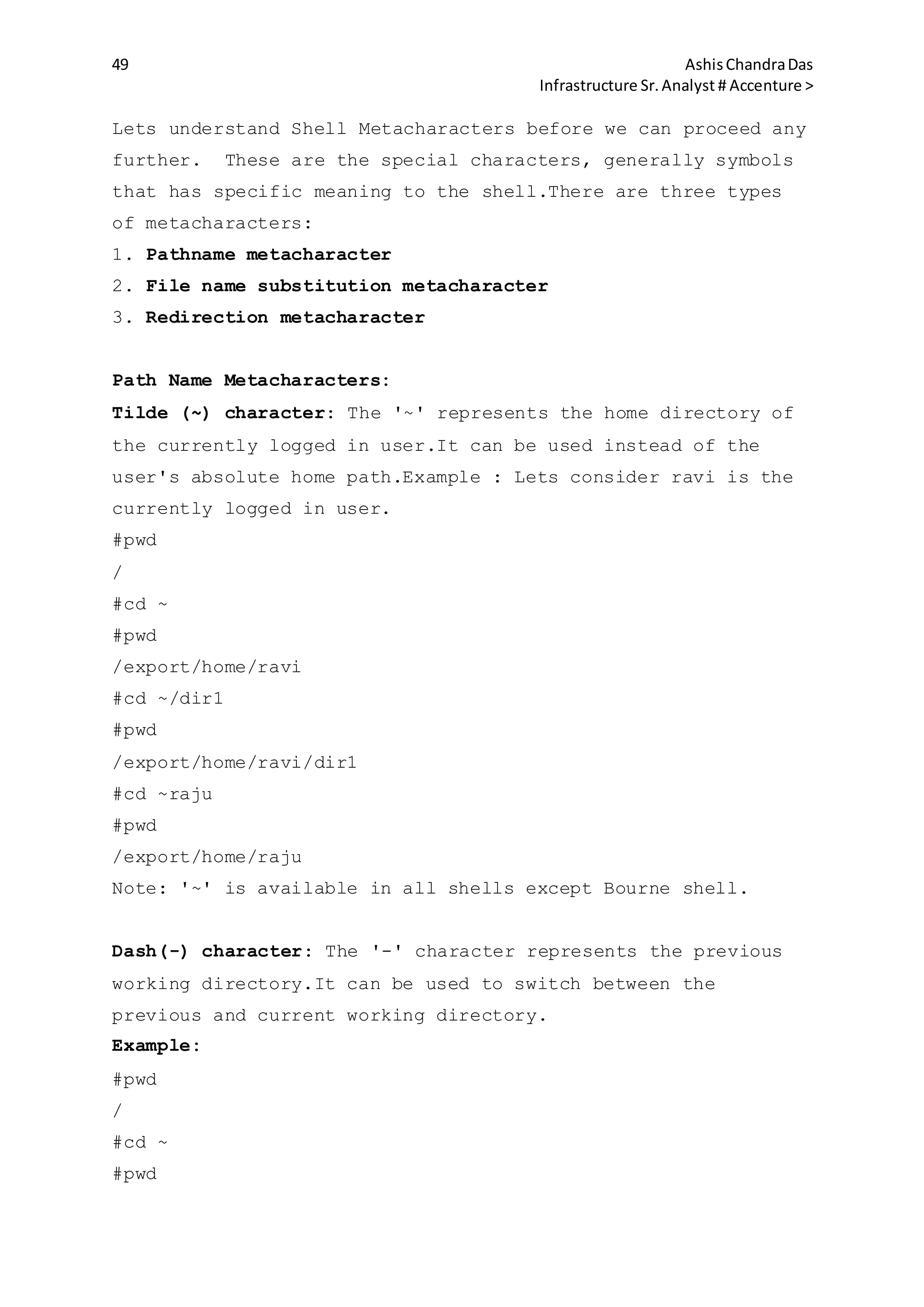
Lets understand Shell Metacharacters before we can proceed any
further. These are the special characters, generally symbols
that has specific meaning to the shell.There are three types
of metacharacters:
1. Pathname metacharacter
2. File name substitution metacharacter
3. Redirection metacharacter
Path Name Metacharacters:
Tilde (~) character: The '~' represents the home directory of
the currently logged in user.It can be used instead of the
user's absolute home path.Example : Lets consider ravi is the
currently logged in user.
#pwd
/
#cd ~
#pwd
/export/home/ravi
#cd ~/dir1
#pwd
/export/home/ravi/dir1
#cd ~raju
#pwd
/export/home/raju
Note: '~' is available in all shells except Bourne shell.
Dash(-) character: The '-' character represents the previous
working directory.It can be used to switch between the
previous and current working directory.
Example:
#pwd
/
#cd ~
#pwd
50 AshisChandraDas
Infrastructure Sr.Analyst # Accenture >
/export/home/ravi
#cd -
#pwd
/
#cd -
#pwd
/export/home/ravi
File Name Substitution Metacharacters :
Asterisk (*) Character: It is a called wild card character and
represents zero or more characters except for leading period
'.' of a hidden file.
#pwd
/export/home/ravi
#ls dir*
dir1 dir2 directory1 directory2
#
Question Mark (?) Metacharacters: It is also a wild card
character and represents any single character except the
leading period (.) of a hidden file.
#pwd
/export/home/ravi
#ls dir?
dir1 dir2
#
Compare the examples of Asterisk and Question mark
metacharacter and you will get to know the difference.
Square Bracket Metacharacters: It represents a set or range of
characters for a single character position.
The range list can be anything like : [0-9], [a-z], [A-Z].
#ls [a-d]*
apple boy cat dog
51 AshisChandraDas
Infrastructure Sr.Analyst # Accenture >
#
The above example will list all the files/directories starting
with either 'a' or 'b' or 'c' or 'd'.
#ls [di]*
dir1 dir2 india ice
#
The above example will list all the files starting with either
'd' or 'i'.
Few shell metacharacters are listed below:
Metacharacter Description
~
The '~' represents the home directory of the
currently logged in user
-
The '-' character represents the previous working
directory
*
A wild card character that matches any group of
characters of any length
?
A wild card character that matches any single
character
$
Indicates that the following text is the name of
a shell (environment) variable whose value is to
be used
|
Separates command to form a pipe and redirects
the o/p of one command as the input to another
< Redirect the standard input
>
Redirect the standard output to replace current
contents
>>
Redirect the standard output to append to current
contents
;
Separates sequences of commands (or pipes) that
are on one line

Used to "quote" the following metacharacter so it
is treated as a plain character, as in *
& Place a process into the background
Korn Shell Variables: It is referred to as temporary storage
area in memory.It enables us to store value into the variable.
These variables are of two types :
52 AshisChandraDas
Infrastructure Sr.Analyst # Accenture >
1. Variables that are exported to subprocesses.
2. Variables that are not exported to subprocesses.
Lets check few commands to work with these variables:
To set a variable :
#VAR=value
#export VAR
Note: There is no space on the either side of the '=' sign.
To unset a variable:
#unset VAR
To display all variables:
We can use 'set' or 'env' or 'export' command.
To display value of a variable:
echo $VAR or print $VAR
Note: When a shell variable follows $ sign, then the shell
substitutes it by the value of the variable.
Default Korn Shell Variables :
EDITOR : The default editor for the shell.
FCEDIT : It defines the editor for the fc command.
HOME : Sets the directory to which cd command switches.
LOGNAME : Sets the login name of the user.
PATH : It specifies the paths where shell searches for a
command to be executed.
PS1 :It specifies the primary korn shell ($)
PS2 : It specifies the secondary command prompt (>)
SHELL : It specifies the name of the shell.
Using quoting characters:
Quoting is the process that instructs the shell to mask/ignore
the special meaning of the metacharacters. Following are few
53 AshisChandraDas
Infrastructure Sr.Analyst # Accenture >
use of the quoting characters:
Single quotation mark (''): It instructs the shell to ignore
all enclosed metacharacters.
Example:
#echo $SHELL
/bin/ksh
#echo '$SHELL'
$SHELL
#
Double quotation mark (""): It instructs the shell to ignore
all enclosed shell metacharacters, except for following :
1. The single backward quotation(`) mark : This executes the
solaris command inside the single quotation.Example:
# echo "Your current working directory is `pwd`"
Your current working directory is /export/home/ravi
In the above example the '`' is used to execute the 'pwd'
command inside the quotation mark.
2. The blackslash() in the front of a metacharacter : This
ignores the meaning of the metacharacter.Example:
#echo "$SHELL"
/bin/ksh
#echo "$SHELL"
$SHELL
In the above example, the inclusion of '' ignores the meaning
of metacharacter '$'
3. The '$' sign followed by command inside parenthesis : This
executes the command inside the parenthesis.Example:
# echo "Your current working directory is $(pwd)"
Your current working directory is /export/home/ravi
In the above example enclosing the pwd command inside
54 AshisChandraDas
Infrastructure Sr.Analyst # Accenture >
parenthesis and $ sign before parenthesis, executes the pwd
command.
Displaying the command history:
The shell keeps the history of all the commands entered. We
can re-use this command in our ways. For a given user this
list of command used is shared among all the korn shells.
Syntax: history option
The output will somewhat like following :
...
125 pwd
126 date
127 uname -a
128 cd
The numbers displayed on the left of the command are command
numbers and can be used to re-execute the command
corresponding to it.To view the history without command number
-n option is used : #history -n
To display the last 5 commands used along with the current
command :
#history -5
To display the list in reverse order:
#history -r
To display most recent pwd command to the most recent uptime
command, enter the following:
#history pwd uptime
Note: The Korn shell stores the command history in file
specified by the HISTFILE variable. The default is the
~/.sh_history file. By default shell stores most recent 128
commands.
Note: The history command is alias for the command "fc -l".
The 'r' command :
The r command is an alias in Korn Shell that enables us to
repeat a command.
Example:
#pwd
/export/home/ravi
55 AshisChandraDas
Infrastructure Sr.Analyst # Accenture >
#r
/export/home/ravi
This can be used to re-execute the commands from history.
Example:
#history
...
126 pwd
127 cd
128 uname -a
#r 126
/export/home/ravi
The 'r' command can also be used to re-execute a
command beginning with a particular character, or string of
characters. Example:
# r p
pwd
/export/home/ravi
#
In the above example the 'r' command is used to re-run the
most recent occurrence of the command starting with p.
#r ps
ps -ef
o/p of ps -ef command
In the above example the 'r' command is used to re-run the
most recent command starting with ps.
We can also edit the previously run command according to our
use. The following example shows that :
#r c
cd ~/dir1
#r dir1=dir
cd ~/dir
In this example the cd command has re-run but the argument
passed to it has been changed to dir from dir1.
56 AshisChandraDas
Infrastructure Sr.Analyst # Accenture >
Note: The r command is alias for the command " fc -e - ".
Editing the previously executed commands using vi-editor :
We can also edit the previously executed command under history
using vi-editor. To do so, we need to enable shell history
editing by using any one of the following commands :
#set -o vi
or
#export EDITOR=/bin/vi
or
#export VISUAL=/bin/vi
To verify whether this feature is turned on, use the following
command :
#set -o | grep -w vi
vi on
Once it is on you can start editing the command history as
follows :
1. Execute the history command: #history
2. Press Esc key and start using the vi editing options.
3. To run a modified command, press enter/return key.
File Name Completion :
Suppose you are trying to list files under the directory
"/directoryforlisting". This is too big to type. There is a
short method to list this directory.
Type ls d and then press Esc and then  (backslash) key. The
shell completes the file name and will display :
#ls directoryforlisting/
We can also request to display all the file
name beginning with 'd' by pressing Esc and = key
57 AshisChandraDas
Infrastructure Sr.Analyst # Accenture >
sequentially.
Two points to be noted here :
1. The key sequence presented above works only in the vi mode
of the command line editing.
2. The sequence in which the key is pressed is important.
Command Redirection:
There are two redirection commands:
1. The greater than (>) sign metacharacter
2. The less than (<) sign metacharacter
Both the above mentioned mentioned commands are implied by
pipe (|) character.
The File Descriptors:
Each process works with shell descriptor. The file descriptor
determines where the input to command originates and where the
output and error messages are sent.
File Descriptor
Number
File Description
Abbreviation
Definition
0 stdin
Standard Command
input
1 stdout
Standard Command
output
2 stderr
Standard Command
error
All command that process file content read from the standard
input and write to standard output.
Redirecting the standard Input:
command < filename or command 0<filename
The above command the "command" takes the input from
"filename" instead of keyboard.
58 AshisChandraDas
Infrastructure Sr.Analyst # Accenture >
Redirecting the standard Output:
command > filename or command 1>filename
#ls -l ~/dir1 > dirlist
The above command redirects the output to a file 'dirlist'
instead of displaying it over the terminal.
command >> filename
#ls -l ~/dir1 >> dirlist
The above example appends the output to the file 'dirlist'.
Redirecting the Standard Error:
command > filename 2> <filename that will save error>
command> filename 2>&1
The first example will redirect the error to the file name
specified at the end.
The second example will redirect the error to the input file
itself.
The Pipe character :
The pipe character is used to redirect the output of a command
as input to the another command.
Syntax: command | command
Example:
# ps -ef | grep nfsd
In the above example the output of ps -ef command is send as
input to grep command.
#who | wc -l
User Initialization Files Administration :
In this section we will see initialization files of Bourne,
Korn and C shell.
Initialization files at Login
/bin/ksh
Shell
System wide
Initializati
Primary
user Initialization F
User
Initializati
Shell
Pathnam
59 AshisChandraDas
Infrastructure Sr.Analyst # Accenture >
on File ile Read at Login on Files
Read When a
New Shell is
Started
e
Bourn
e
/etc/profile $HOME/.profile /bin/sh
Korn /etc/profile $HOME/.profile $HOME/.kshrc
/bin/ks
h
$HOME/.kshrc
C /etc/.login $HOME/.cshrc $HOME/.cshrc
/bin/cs
h
$HOME/.login
Bourne Shell Initialization file:
The .profile file in the user home directory is
an initialization file which which shell executes when the
user logs in. It can be used to a) customize the terminal
settings & environment variables b)instruct system to initiate
an application.
Korn Shell Initialization file: It has two initialization file
:
1. The ~/.profile: The .profile file in the user home
directory is an initialization file which which shell executes
when the user logs in. It can be used to a) customize the
terminal settings & environment variables b)instruct system to
initiate an application.
2. The ~/.kshrc: It contains shell variables and aliases. The
system executes it every time the user logs in and when a ksh
sub-shell is started. It is used to define Korn shell specific
settings. To use this file ENV variable must be defined in
.profile file.
Following settings can be configured in /.kshrc file :
Shell prompt definations (PS1 & PS2)
Alias Definitions
60 AshisChandraDas
Infrastructure Sr.Analyst # Accenture >
Shell functions
History Variables
Shell option ( set -o option)
The changes made in these files are applicable only when the
user logs in again. To make the changes effective immediately,
source the ~/.profile and ~/.kshrc file using the dot(.)
command:
#. ~/.profile
#. ~/.kshrc
Note: The /etc/profile file is a separate system wide file
that system administrator maintains to set up tasks for every
user who logs in.
C Shell Initialization file: It has two initialization file :
1. The ~/.cshrc file : The . cshrc file in the user home
directory is an initialization file which which shell executes
when the user logs in. It can be used to a) customize the
terminal settings & environment variables b)instruct system to
initiate an application.
Following settings can be configured in .cshrc file :
Shell prompt definations (PS1 & PS2)
Alias Definitions
Shell functions
History Variables
Shell option ( set -o option)
2. The ~/.login file: It has same functionality as .cshrc file
and has been retained for legacy reasons.
Note: The /etc/.login file is a separate system wide file that
system administrator maintains to set up tasks for every user
who logs in.
The changes made in these files are applicable only when the
user logs in again. To make the changes effective immediately,
61 AshisChandraDas
Infrastructure Sr.Analyst # Accenture >
source the ~/.cshrc and ~/.login file using the source
command:
#source ~/.cshrc
#source ~/.login
The ~/.dtprofile file : It resides in the user home directory
and determines generic and customized settings for the desktop
environment.The variable setting in this file can overwrite
the default desktop settings. This file is created when the
user first time logs into the desktop environment.
Important: When a user logins to the desktop environment, the
shell reads .dtprofile, .profile and .kshrsc file
sequentially. If the DTSOURCEPROFILE variable under .dtprofle
is not ture or does not exists, the .profile file is not read
by the shell.
The shell reads .profile and .kshrsc file when user opens
console window.
The shell reads .kshrsc file when user opens terminal window.
Configuring the $HOME/.profile file:
It can be configured to instruct the login process to execute
the initialization file referenced by ENV variable.
To configure that we need to add the following into the
$HOME/.profile file:
ENV=$HOME/.kshrc
export ENV
Configuring the $HOME/.kshrc file :
This file contains korn shell specific setting.To configure
PS1 variable, we need to add the following into the
$HOME/.kshrc file:
PS1="''hostname' $"
export PS1
62 AshisChandraDas
Infrastructure Sr.Analyst # Accenture >
Advanced Shell Functionality:
In this module we will learn four important aspects of Korn
shell.
Managing Jobs in Korn Shell:
A job is a process that the shell can manage. Each job has a
process id and it can be managed and controlled from the
shell.
The following table illustrates the job control commands:
Command Value
jobs
List all jobs that are currently running or
stopped in the background
bg %<jobID> Runs the specified job in background
fg %<jobID> Brings the specified job in foreground
Ctrl+Z
Stops the foreground job and places it in the
background as a stopped job
stop
%<jobID>
Stops a job running in background
Note: When a job is placed either in foreground or background,
the job restarts.
Alias Utility in Korn Shell :
Aliases in Korn shell can be used to abbreviate the commands
for the ease of usage.
Example:
we are frequently using the listing command: ls -ltr. We can
create alias for this command as follows:
#alias list='ls -ltr'
Now when we type the 'list' over shell prompt and hit return,
it replaces the 'list' with the command 'ls -ltr' and executes
it.
Syntax : alias <alias name>='command string'
Note:
1. There should not be any space on the either side of the '='
sign.
2. The command string mustbe quoted if it includes any
options, metacharacters, or spaces.
3. Each command in a single alias must be separated with a
semicolon.e.g.:#alias info='uname -a; date'
The Korn shell has predefines aliases as well which can be
listed by using 'alias' command:
#alias
..
63 AshisChandraDas
Infrastructure Sr.Analyst # Accenture >
stop='kill -STOP'
suspend='kill -STOP $$'
..
Removing Aliases:
Syntax: unalias <alias name>
Example:
#unalias list
Korn Shell functions :
Function is a group of commands organized together as
a separate routine. Using a function involves two steps :
1. Define the function:
function <function name> { command;...command; }
A space must appear after the first brace and before the
closing brace.
Example:
#function HighFS{ du -ak| sort -n| tail -10; }
The above example defines a function to check the top 10 files
using most of the space under current working directory.
2. Invoke the function :
If we want to run the above defined function, we just need to
call it by its name.
Example:
#HighFS
6264 ./VRTSvcs/conf/config
6411 ./VRTSvcs/conf
6510 ./VRTSvcs
11312 ./gconf/schemas
14079 ./gconf/gconf.xml.defaults/schemas/apps
16740 ./gconf/gconf.xml.defaults/schemas
17534 ./gconf/gconf.xml.defaults
28851 ./gconf
40224 ./svc
87835 .
Note: If a function and an alias are defined by the same name,
alias takes precedence.
To view the list of all functions :
#typeset -f -> This will display functions as well as their
definitions.
#typeset +f -> This will display functions name only.
Configuring the Shell Environment variable:
The shell secondary prompt sting is stored in the PS2 shell
variable, and it can be customized as follows:
#PS2="Secondary Shell Prompt"
#echo PS2
64 AshisChandraDas
Infrastructure Sr.Analyst # Accenture >
Secondary Shell Prompt
#
To display the secondary shell prompt in every shell, it must
be included in the user's Korn Shell initialization
file(.kshrc file)
Setting Korn Shell options :
Korn Shell options are boolean (on or off). Following is the
Syntax:
To turn on an option:
#set -o option_name
To turn off an option:
#set +o option_name
To display current options:
# set -o
Example:
#set -o noclobber
#set -o | grep noclobber
noclobber on
The above example sets the noclobber option. When this option
is set, shell refuses to redirect the standard output to a
file and displays error message on the screen.
#df -h > DiskUsage
#vmstat > DiskUsage
ksh: DiskUsage: file already exists
#
To deactivate the noclobber option :
#set +o noclobber
Shell Scripts:
It is a text file that has series of command executed one by
one. There are different shell available in Solaris. To ensure
that the correct shell is used to run the script, it should
begin with the characters #! followed immediately by the
absolute pathname of the shell.
#!/full_Pathname_of_Shell
Example:
#!/bin/sh
#!/bin/ksh
Comments: It provides information about the script
files/commands. The text inside the comment is not executed.
The comment starts with character '#'.
lets write our first shell script :
65 AshisChandraDas
Infrastructure Sr.Analyst # Accenture >
#cat MyFirstScript
#!/bin/sh
ls -ltr #This is used to list the files/directories
Running a Shell Script :
The shell executes the script line by line. It does not
compile the script and keep it in binary form. So, In order to
run a script, a user must have read and execute permission.
Example:
#./MyFirstScript
The above example runs the script in sub-shell. If we want to
run the script as if the commands in it were ran in same
shell, the dot(.) command is used as follows:
#. ./MyFirstScript
Passing Value to the shell script:
We can pass value to the shell script using the pre-defined
variables $1, $2 and so on. These variables are called
Positional Parameters. When the user run the shell script, the
first word after the script name is stored in $1, second in $2
and so on.
Example:
#cat welcome
#!/bin/sh
echo $1 $2
#welcome ravi ranjan
ravi ranjan
In the above example when we ran the script welcome, the two
words after it ravi and ranjan was stored in $1 and $2
respectively.
Note: There is a limitation in Bourne shell. It accepts only a
single number after $ sign. So if we are trying to access the
10th argument $10, it will result in the value of $1 followed
by (0).
In order to overcome this problem, shift command is used.
Shift Command:
It enables to shift the value of positional parameter values
back by one position i.e. the value of $2 parameter is
assigned to $1, and $3 to $2, and so on.
Checking Exit status:
All commands under Solaris returns an exit status. The value
'0' indicates success and non-zero value ranging from 1-255
represents failure. The exit status of the last command run
under foreground is held in ? special shell variable.
# ps -ef | grep nfsd
root 6525 22601 0 05:55:01 pts/11 0:00 grep nfsd
66 AshisChandraDas
Infrastructure Sr.Analyst # Accenture >
# echo ?
1
#
In the above example there is no nfsd process running, hence 1
is returned.
Using the test Command:
It is used for testing conditions. It can be used to verify
many conditions, including:
Variable contents
File Access permissions
File types
Syntax : #test expression or #[ expression ]
The test builtin command returns 0 (True) or 1 (False),
depending on the evaluation of an expression, expr.
Syntax:test expr or [ expr ]
We can examine the return value by displaying $?;
We can use the return value with && and ||; or we can test it
using the various conditional constructs.
We can compare arithmetic values using one of the following:
Option Tests for Arithmetical Values
-eq equal to
-ne not equal to
-lt less than
-le less than or equal to
-gt greater than
-ge greater than or equal to
We can compare strings for equality, inequality etc. Following
table lists the various options that can be used to compare
strings:
Option Tests for strings
=
equal to.
e.g #test "string1" = "string2"
!=
not equal to.
e.g #test "string1" = "string2"
<
less than.
e.g #test "ab" < "cd"
67 AshisChandraDas
Infrastructure Sr.Analyst # Accenture >
>
greater than.
e.g #test "ab" > "cd" "
-z
for a null string.
e.g #test -z "string1"
-n
returns True if a string is not empty.
e.g. #test -n "string1"
Note: the < and > operators are also used by the shell for
redirection, so we must escape them using < or >.
Example :
Lets test that the value of variable $LOGNAME is ravi.
#echo $LOGNAME
ravi
# test "LOGNAME" = "ravi"
#echo $?
0
#[ "LOGNAME" = "ravi" ]
#echo $?
0
Lets test if read permissions on the /ravi
#ls -l /ravi
-rw-r--r-- 1 root sys 290 Jan 10 01:10 /ravi
#test -r /ravi
#echo $?
0
#[ -r /ravi ]
#echo $?
0
Lets test if /var is a directory
#test -d /var
#echo $?
0
#[ -d /var ]
#echo $?
0
68 AshisChandraDas
Infrastructure Sr.Analyst # Accenture >
Executing Conditional Commands :
In this section we will see the following three conditional
commands:
1. Using If command: It checks for the exit status of the
command and if exist status is (0), then the statement are run
other wise statement under else is executed.
Syntax:
#if command1
>then
>execute command2
>else
>execute command3
>fi
The shell also provides two constructs that enable us to run
the command based on the success or failure of the preceding
command.
The constructs are &&(and) and ||(or).
Example:
#mkdir /ravi && /raju
This command creates directory /raju only if /ravi is created.
#mkdir /ravi || /raju
This command creates directory /raju even if /ravi fails to
create.
2. Using while command: It enables to repeat a command or
group of command till the condition returns (0).
Syntax:
#while command1
>do
>command2
>done
3. Using case command: It compares a single value against
other values and runs a command or commands when a match is
found.
Syntax:
#case value in
>pat1)command
>command
>..
>command
>;;
>pat2)command
>command
>..
>command
>;;
...
69 AshisChandraDas
Infrastructure Sr.Analyst # Accenture >
>patn)command
>command
>..
>command
Process Management
Process: Every program in Solaris runs as a process and there
is a unique PID attached with each process. The process
started/run by OS is called Daemon. It runs in background and
provides services.
Each process has a PID, UID and GID associated with it. UID
indicates the user who owns the process and GID denotes the
group to which owner belongs to.
When a process creates another process, then the new process
is called Child Process and old one is called Parent Process.
Viewing Process:
ps command: It is used to view process and is discussed below.
Syntax: ps options
Few options are discussed below:
Option Description
-e
Prints info about every process on the system including
PID, TTY(terminal identifier), TIme & CMD
-f
Full verbose listing which includes UIDm parent PID,
process start time(STIME)
Example:
#ps -ef | more
UID PID PPID C STIME TTY TIME CMD
root 0 0 0 Jun 02 ? 2:18
sched
root 1 0 0 Jun 02 ? 1:47
/sbin/init
root 2 0 0 Jun 02 ? 0:13
pageout
root 3 0 0 Jun 02 ? 110:25
fsflush
daemon 140 1 0 Jun 02 ? 0:15
/usr/lib/crypto/kcfd
root 7 1 0 Jun 02 ? 0:28
/lib/svc/bin/svc.startd
--More--
70 AshisChandraDas
Infrastructure Sr.Analyst # Accenture >
Now let us understand the above output column wise :
Column Description
UID User Name of the process owner
PID Process ID
PPID Parent Process ID
C The CPU usage for scheduling
STIME Process start time
TTY
The controlling terminal for process. For daemons '?' is
displayed as it is started without any terminal.
TIME The cumulative execution time for the process.
CMD The command name, options, arguments
We can also search specific process using ps and grep command.
For Example, if we want to search for nfsd process, we using
the following command :
-sh-3.00$ ps -ef | grep nfsd
daemon 2127 1 0 Jul 06 ? 0:00
/usr/lib/nfs/nfsd
ravi 26073 23159 0 03:05:49 pts/175 0:00 grep nfsd
-sh-3.00$
pgrep command: It is used to search process by process name
and displays PID of the process.
Syntax : pgrep options pattern
The options are described below:
Option Description
-x Displays the PID that matches exactly
-n
Displays only the most recently created PID that
matches the pattern
-U uid
Displays only the PIDs that belong to the specific
user. This option uses either a user name or a UID
-l Displays the name of the process along with the PID
-t
term
Displays only those processes that are associated with
a terminal in the term list
Examples:
-sh-3.00$ pgrep j
3440
1398
-sh-3.00$ pgrep -l j
71 AshisChandraDas
Infrastructure Sr.Analyst # Accenture >
3440 java
1398 java
-sh-3.00$ pgrep -x java
3440
1398
-sh-3.00$ pgrep -n java
1398
-sh-3.00$ pgrep -U ravi
28691
28688
Using the ptree command:
It displays a process tree based on the process ID passed as
an argument.
An argument of all digits are taken to be a PID, otherwise it
is assumed to be a user login name.
Sending a Signal to a process:
Signal is a messages that is send to a process. The process
responds back by performing the action that the signal
requests. It is identified by a signal number and by a signal
name. There is an action associated to each signal.
Signal
No.
Signal
Name
Event Definition
Default
Response
1 SIGHUP Hang Up
It drops a telephone line
or terminal connection. It
also causes some program to
re-intialize itself without
terminating
Exit
2 SIGINT Interrupt
Its it generated from Key
board. e.g. ctrl+C
Exit
9 SIGKILL Kill
It kills the process and a
process cant ignore this
signal
Exit
15 SIGTERM Terminate
It terminates the process
in orderly manner. This is
the default signal that
kill & pkill send.
Exit
Using kill Command: It is used to send signal to one or more
processes and terminates only those process that is owned by
the user. A root user can kill any process. This command sends
signal 15 to the process.
72 AshisChandraDas
Infrastructure Sr.Analyst # Accenture >
Syntax: kill [-signals] PIDs
Examples:
# pgrep -l java
2441 java
#kill 2441
If the process does not terminates, issue signal 9 to
forcefully terminate the process as below :
#kill -9 2441
Using pkill Command: It is used to terminate the process with signal
15. We can specify the process names(to be terminated) also in this
command.
Syntax: pkill [-options] pattern
The options are same as that of pgrep command.
Example:
#pkill java
We can force the process to terminate by using signal 9:
#pkill -9 -x java
Solaris File System
Understanding the SOLARIS file system is very important,
before we discuss anything further. Its huge topic and I
suggest you really need to be patient while going through it.
If you find anything difficult to understand, you can comment
and I will get back to you as soon as possible.
File is the basic unit in Solaris, similar to atom for an
element in chemistry. For example commands are executable
files, documents are text file or file having code/script,
directories are special files containing other files etc.
Blocks: A file occupies the space on disks in units. These
units are called Blocks. The blocks are measured in two sizes
:
1. Physical Block size: Its the size of the smallest block
that the disk controller can read or write. The physical block
size is usually 512B for UFS(Unix Files System). It may vary
from file system to file system.
2. Logical Block size: Its the size of the block that UNIX
73 AshisChandraDas
Infrastructure Sr.Analyst # Accenture >
uses to read or write files. It is set by default to the page
size of the system, which is 8KB for UFS.
Inodes: It is a data structure that contains all the file
related information except the file name and data. It is 128
kb in size and is stored in cylindrical information block. The
inode contains following information about a file :
1. Type of File : e.g. regular file, block special, character
special, directory, symbolic link, other inode etc.
2. The file modes : e.g. read, write, execute permissions.
3. The number of hard links to the file.
4. The group id to which the file belongs
5. The user ID that owns the file.
6. The number of bytes in the file.
7. An array of addresses for 15 disk blocks
8. The date and time when the file was created, last accessed
and last modified.
So, an Inode contains almost all the information about a file.
But what is more important is what an inode does not contain.
An inode does not contain the "file name" and data. The file
name is stored inside a directory and data is saved in blocks
There is an inode associated with each file. So, the number of
inodes determines the maximum number of files in the files
system. The number of inodes depends upon the size of file
system. For example : lets take a file system of size 2gb. The
inode size will be 4kb each. So the number of inodes = 2gb
/4kb = 524288. So the maximum number of files that can be
created is 524288.
File system: Its the way an operating system organizes files
on a medium(storage device).
74 AshisChandraDas
Infrastructure Sr.Analyst # Accenture >
The different flavors of UNIX have different default file
systems. Few of them are listed below:
SOLARIS - UFS (Unix File System)
AIX - JFS (journal FS)
JP - HFS (high performance FS)
LINUX - ext2 & ext3
Before getting into the UFS file system, lets discuss about
the architecture of the file system in SOLARIS and other file
systems used in SOLARIS.
SOLARIS uses VFS (Virtual File System architecture). It
provides standard interface for different file system types.
The VFS architecture enables kernel to perform basic file
operation such as reading, writting and listing. Its is
called virtual because the user can issue same command to work
regardless of the file system. SOLARIS also uses memory based
file system and disk based file system.
Lets discuss some memory based file systems:
Memory based File Systems:
It use the physical memory rather than disk and hence also
called Virtual File System or pseudo file system. Following
are the Memory based file system supported by SOLARIS:
1. Cache File System(CacheFS): It uses the local disk to cache
the data from the slow file systems like CD - ROM.
2. Loopback File System(LOFS): If we want to make a file
system e.g: /example to look like /ex, we can do that by
creating a new virtual file system known as Loopback File
System.
3. Process File System(PROOFS): It is used to contains the
list of active process in SOLARISby their process ID, in the
/proc directory. It is used by the ps command.
4. Temporary File System(TEMPFS): It is the temporary file
75 AshisChandraDas
Infrastructure Sr.Analyst # Accenture >
system used by SOLARIS to perform the operation on file
systems. It is default file system for /tmp directory
in SOLARIS.
5. FIFOFS: First in first out file system contains named pipe
to give processes access to data
6. MNTFS: It contains information about all the mounted file
system in SOLARIS.
7. SWAPFS: This file system is used by kernel for swapping.
Disk Based File System:
The disk based file systems resides on disks such as hard
disk, cd-rom etc. Following are the disk based file system
supported by SOLARIS:
1. High Sierra File System(HSFS): It is the file system for
CD-ROMs. It is read only file system.
2. PC File System(PCFS): It is used to gain read/write access
to the disks formatted for DOS.
3. Universal Disk Format(UDF): It is used to store information
on DVDs.
4. Unix File System(UFS): It is default File system used
in SOLARIS. We will discuss in details below.
Device File System (devfs)
The device file system (devfs) manages devices in Solaris
10 and is mounted to the mount point/devices.
The files in the /dev directory are symbolic links to the
files in the /devices directory.
Features of UFS File System:
1. Extended Fundamental Types (EFTs). Provides a 32-bit user
ID (UID), a group ID (GID), and device numbers.
2. Large file systems. This file system can be up to 1
terabyte in size, and the largest file size on a 32-bit system
can be about 2 gigabytes.
76 AshisChandraDas
Infrastructure Sr.Analyst # Accenture >
3. Logging. Offers logging that is enabled by default
in Solaris 10. This feature can be very useful for auditing,
troubleshooting, and security purposes.
4. Multiterabyte file systems. Solaris 10 provides support for
mutiterabyte file systems on machines that run a 64-
bit Solaris kernel. In the previous versions, the support was
limited to approximately 1 terabyte for both 32-bit and 64-bit
kernels. You can create a UFS up to 16 terabytes in size with
an individual file size of up to 1 terabyte.
5. State flags. Indicate the state of the file system such as
active, clean, or stable.
6. Directory contents: table
7. Max file size: 273 bytes (8 ZB)
8. Max filename length: 255 bytes
9. Max volume size: 273 bytes (8 ZB)
10. Supported operating systems: AIX, DragonFlyBSD, FreeBSD,
FreeNAS, HP-UX, NetBSD, Linux, OpenBSD, Solaris, SunOS, Tru64
UNIX, UNIX System V, and others
Now, that we have some basic idea of the SOLARIS file system,
lets explore some important file systems in SOLARIS.
Windows guys must be aware of important directories in windows
like sytem32, program files etc., like wise below we will
discuss some important file systems in Solaris:
/ root directory
/usr man pages information
/opt 3rd party packages
/etc system configuration files
/dev logical drive info
/devices physical devices info
/home default user home directory
/ kernel Info abt kernel(genunix for Solaris)
lost+found unsaved data info
77 AshisChandraDas
Infrastructure Sr.Analyst # Accenture >
/proc all active PID's running
/tmp Temporary files system
/lib library file information(debuggers, compilers)
/var It contains logs for troubleshooting
/bin Symbolic link to the /usr/bin directory (Symbolic link
is same as shortcut in windows)
/export It commonly holds user's home directory but can
customized according the requirement
/mnt Default mount point used to temporarily mount file
systems
/sbin Contains system administration commands and
utilities. Used during booting when /usr/bin is not
mounted.
Important: / is the root directory and as the name suggests,
other directories spawn from it.
File Handling
Lets us now get started with managing file i.e. creating,
editing and deleting files.I have mentioned few commands below
and their usage in managing/handling file & directories.
pwd Displays current working directory
touch filename Creates a file
touch file1 file2 file3 Creates multiple files(space is used
as separator)
file filename Displays the type of a file/directory
cat filename Displays the content of the file
cat > filename Writes/over-writes the file(ctrl + D save and
exit)
cat >> filename Used to append the content to the file(ctrl +
D save and exit)
mkdir /directoryname Creates a directory
78 AshisChandraDas
Infrastructure Sr.Analyst # Accenture >
mkdir -p /directory1/directory2 Creates a child directory
under the parent directory(-p option to specify the parent
directory)
cd Changes the current working directory to root
cd directoryname Changes the current working directory to the
directory specified
cd .. Changes the current working directory to the previous
directory
cd ../.. Changes the current working directory to the previous
directory of the previous directory
Link is a pointer to the file. There are two type
of links in SOLARIS OS:
Hard Link: The two files which are having hard links will be
having the same inode number. In other terms, when we create
hard link to a file, then a redundant copy of the file is
created, however the content of both files remains the same.
So, if any of the file is updated, the other also gets
updated. So any point of time, both the files will have same
content.
Command to create Hard Link:
#ln <SourceFile> <DestinationFile>
Following are few features of Hard Link:
It is applicable only for files
The source and destination file system should be in same file
system
There is no way to differentiate between (or find out) Hard
Link and soft file.
If the source/destination file is updated the other files get
updated too.
It the source/destination file is deleted the other file is
79 AshisChandraDas
Infrastructure Sr.Analyst # Accenture >
still accessible.
Soft Link/Symbolic Link: The two files which are having soft
links will be having different inode number.This one is just
like the shortcut in windows.
Command to create Soft Link:
#ln –s <SourceFile> <DestinationFile>
Following are few features of Soft Link:
It is applicable for files & directories
The source and destination file system need not be in same
file system
The soft link can be differentiated from the original/source
file.If the source/destination file is updated the other files
get updated too.
It the source file is deleted the destination file is
inaccessible.
Removing Hard and Soft Link:
Important points to remember before removing the links:
1. To remove a file, all hard links that points to the file
must be removed, including the name by which it was originally
created.
2. Only after removing the file itself and all of its hard
links, will the inode associated with the file be released.
3. In both cases, hard and soft links, if you remove the
original file, the link will still exist.
A link can be removed just as can a file:
rm <linkName>
Important: We should not delete a file without deleting the
symbolic links. However, you cannot delete the file (its
content) unless you delete all the hard links pointing to it.
80 AshisChandraDas
Infrastructure Sr.Analyst # Accenture >
Few commands to check disk and file system usage
df command (Disk free command)
df -h → It is used to display the file system information in
human readable format
df -k → It is used to display the file system information in
KB format
df -b → It is used to display the file system information in
blocks(1 block = 512 bytes)
df -e → It is used to display the file system free inode
information
df -n → It is used to display the type of file system
information(whether the file system is a file or a directory)
df -a → It is used to display the complete information about
the file system information(which include above all
information)
df -t <file system> → It displays total number of free blocks
& inodes and total blocks & inodes. The example of output is
as follows:
# df -t /
/ (/dev/dsk/c1t0d0s0 ): 62683504 blocks 7241984 files
total: 124632118 blocks 7501312 files
7241984→ Free inodes
7501312→ Total inodes
259328→ Used inodes (7501312-7241984=259328)
ls command (Listing Command)
It displays all files and directories under present working
directory
ls -p → It list all the files and directories with the o/p
which can differentiate between a file and a directory
ls -F → It does the same thing as above mentioned
81 AshisChandraDas
Infrastructure Sr.Analyst # Accenture >
ls -a → It list all the files and directories along with the
hidden files
ls -ap → It list all the files and directories including the
hidden ones and the o/p which can differentiate between a file
and a directory
ls -l → It list all the files and directories long with the
permission and other informations
Output of ls -l
<FileName>→ -rw-r-r-- 2 root root 10 ModifiedDate ModifiedTime
<FileName>
Explanation of the above o/p:
'-' at the beginning denotes that it is a file. For a
directory it is 'd'.
'-rw' Denotes the owner's permission which is read and write
'-r' Denotes the group's permission which is read only
'-r' Denotes the other user's permission which is read only
'2' Denotes the number of hard links to the file
'root' Denotes the owner of a file
'root' Denotes the group of a file
'10' File Size
Output of ls -ld
<DirectoryName>→ -rw-r-r-- 2 root root 10 ModifiedDate
ModifiedTime <DirectoryName>
Explanation of the above o/p:
'd' Denotes that it is a directory. For a file it is '-'.
'-rw' Denotes the owner's permission which is read and write
'-r' Denotes the group's permission which is read only
'-r' Denotes the other user's permission which is read only
'2' Denotes the number of hard links to the directory
'root' Denotes the owner of a directory
82 AshisChandraDas
Infrastructure Sr.Analyst # Accenture >
'root' Denotes the group of a directory
'10' Directory Size
ls -lt → It displays all the files and directories in the
descending order of their last modified date(first → last)
ls -ltr → It displays all the files and directories in the
ascending order of their last modified date(last → first)
ls -R → It displays all the files and directories and sub-
directories
ls -r → It displays all the files and directories in the
revese alphabetical order
ls -i <FileName> → Displays the inode number of the file
Identifying file types from the output of ls command:
- regular files
d directories
l Symbolic Link
b Block special device files
c Character special device files
Using Basic File Permissions:
Every file in Solaris has access permission control. We can
use ls -l (as discussed above) to view the permission given to
the file or directory. The Solaris OS uses two basic measures
to prevent unauthorized access to a system and to protect
data:
1. Authenticate user's login.
2. To protect the file/directory automatically by assigning a
standard set of access at the time of creation.
Types of User: Lets see the different types of user in Solaris
who access the files/directories.
Field Description
Owner
Permission used by the assigned owner of the file or
directory
83 AshisChandraDas
Infrastructure Sr.Analyst # Accenture >
Group
Permission used by the members of the group that owns the
file or directory
Other
Permission used by all user other than owner, and members
of group that owns the file or directory
Each of the these user has three permission, called permission
set. Each permission set contains read, write and execute
permissions.
Each file or directory has three permission sets for three
type of users. The first permission set is for owner, the
second permission set is for group and the third and last is
for other user's permission.
For Example:
#ls -l
-rw-r--r-- 2 root root 10 Jan 31 06:37 file1
In the above example the first permission set is rw mean read
and write. The first permission set is for owner so owner has
read and write permissions.
The second permission set for the group is r i.e. read only.
The third permission set for the other user is r i.e. read
only.
The '-' symbol denotes denied permission.
Permission characters and sets:
Permission Character Access for a file
Octal
Value
Read r
User can display the file content
& copy the file
4
Write w
User can modify the content of the
file
2
Execute x
User can execute the file if it
has execute permission and file is
executable
1
Note : For a directory to be in general use it must have read
and execute permission.
84 AshisChandraDas
Infrastructure Sr.Analyst # Accenture >
When we create a new file or directory in Solaris, OS assigns
initial permission automatically. The initial permission of a
file or a directory are modified based on default umask value.
UMASK(User Mask Value)
It is used to provide security to files and directories.It is
three digit octal value that is associated with the read,
write, and execute permissions. The default UMASK value is
[022]. It is stored under /etc/profile.
The Various Permission and their Values are listed below:
r (read only) = 4
w (write) = 2
x (execute) = 1
rwx (read+write+execute) 4+2+1 = 7
rw (read + write) 4+2 =6
Computation of Default permission for a directory:
The directory has a default UMASK value of [777]. When a user
creates a directory the user's umask value is subtracted from
the Directory's UMASK value.
The UMASK Value of a directory created[755](rwx-rw-rw) =
[777](Directory's UMASK value) - [022](Default user's UMASK
Value)
Computation of Default permission for a file:
The file has a UMASK value of [666]. When a user creates a
file the user's umask value is subtracted from the File's
UMASK value.
The UMASK Value of a file created[644](rw-r-r) = [666](File's
UMASK value) - [022](Default user's UMASK Value)
#umask→ Displays the user's UMASK Value
#umask 000 → Changes the user's UMASK Value to 000
85 AshisChandraDas
Infrastructure Sr.Analyst # Accenture >
Note: It is strictly not recommended to change the UMASK
value.
chmod(Change Mode):
This command is used to change the file's or directory's
pemission.There are two ways of doing it.
1. Absolute or Octal Mode:
e.g. chmod 464 <FileName>/<DirectoryName>
The above command gives the permission r-rw-r.
2. Symbolic Mode:
First we need to understand the below mentioned symbols:
'+' It is used to add a permission
'-' It is used to remove a permission
'u' It er
'g' It is uis used to assign/remove the permission of the
ussed to assign/remove the permission of the group
'o' It is used to assign/remove the permission of other user
'a' Permission for all.
e.g. chmod u-wx,g-x,g+w,o-x
ACL (Access Control LIst) :
We have seen above how permission for owner, group and other
users are set by default. However, if we want to customize the
permission of files, we need to use ACL. There are two ACL
commands used and we will discuss these one by one :
1. getfacl : It displays ACL entries for files.
Syntax : getfacl [-a] file1] [file2] ........
-a : Displays the file name, file owner, file group and ACL
entries for the specified file or directory.
Example:
#getfacl acltest
#file: acltest
#owner: root
86 AshisChandraDas
Infrastructure Sr.Analyst # Accenture >
#group: root
user::rw-
group::r--
#effective:r--
mask::r--
other:r--
ACL Entry Types:
u[ser]::perm The permissions for the file owner
The permissions for the file owner's
group
o[ther]:perm
The permissions for users other than
owner and owner's group
u[ser]:UID:perm or
The permissions for a specific user. The
username must exist in the /etc/passwd
file
u[ser]:username:perm
The permissions for a specific user. The
username must exist in the /etc/group
file
g[roup]:GID:perm or
The permissions for a specific group.
The groupname must exist in the
/etc/passwd file
g[roup]:groupname:perm
The permissions for a specific group.
The groupname must exist in the
/etc/passwd file
m[ask]
It indicates the maximum effective
permissions allowed for all specified
users and groups except for user owner
or others.
Determining if a file have an ACL : The files having ACL entry
are called Non-Trivial ACL entry and if file do not have any
ACL entry except the default one it is called Trivial-ACL
entry. When we do ls -l, the file having Non-Trivial ACL entry
is having +sign at the end of permission. For example :
#ls -l ravi
-rw-r--r--+ 1 root root 0 April 07 09:00 acltest
#getfacl acltest
#file: acltest
87 AshisChandraDas
Infrastructure Sr.Analyst # Accenture >
#owner: root
#group: root
user::rw-
user:acluser:rwx #effective: r-- as
mask is set to r--
group::r--
#effective:r--
mask::r--
other:r--
The + sign at the end indicates the presence of non-trivial
ACL entries.
2. setfacl : It is used to configure ACL entries on files.
Configuring or modifying an ACL :
Syntax : setfacl -m acl_entry filename
-m : Modifies the existing ACL entry.
acl_entry : It is a list of modifications to apply to ACLs for
one or more files/directories.
Example:
#getfacl acltest
#file: acltest
#owner: root
#group: root
user::rw-
group::r--
#effective:r--
mask::r--
other:r--
#setfacl -m u:acluser:7 acltest
#getfacl acltest
88 AshisChandraDas
Infrastructure Sr.Analyst # Accenture >
#file: acltest
#owner: root
#group: root
user::rw-
user:acluser:rwx #effective: r-- as
mask is set to r--
group::r--
#effective:r--
mask::r--
other:r--
In the above example, we saw how we assigned rwx permission to
the user acluser, however the effective permission remains r--
as the mask value is r-- which is the maximum effective
permission for the user except owner and others.
Recalculating an ACL Mask:
In the above example, we saw that even after making an acl
entry of rwx for the user acluser, the effective permission
remains r--. In order to overcome that we use -r option to
recalculate the ACL mask to provide the full set of requested
permissions for that entry. The below example shows the same
:
#setfacl -r -m u:acluser:7 acltest
#getfacl acltest
#file: acltest
#owner: root
#group: root
user::rw-
user:acluser:rwx #effective: rwx
group::r--
#effective:r--
mask::r--
other:r--
89 AshisChandraDas
Infrastructure Sr.Analyst # Accenture >
We have seen above how chmod is used to change permissions
too. However we should be careful while using this command if
ACL entry exists for the file/directory as it recalculates the
mask and changes the effective permission. Lets proceed with
the above example. We have changed the effective permission of
user acluser to rwx. Now, lets change the group permission to
rw- using chmod command:
#chmod 664 acltest
#getacl acltest
#file: acltest
#owner: root
#group: root
user::rw-
user:acluser:rwx #effective: rw-
group::rw-
#effective:rw-
mask::rw-
other:r--
So we saw that the effective permission changes to rw from
rwx for the user acluser.
Substituting an ACL:
This is used to replace the entire set of ACL entry with the
specified one. So, we should not miss the basic set of an ACL
entries : user, group, other and ACL mask permissions.
Syntax: setfacl -s u::perm, g::perm, o::perm, [u:UID:perm],
[g:GID:perm] filename
-s : for the substitution of an acl entry
Deleting an ACL :
It is used to delete and ACL entry.
Syntax :setfacl -d acl_entry filename
Lets go with the last example of file acltest. Now we want to
90 AshisChandraDas
Infrastructure Sr.Analyst # Accenture >
remove the entry for the user acluser. This is done as follows
:
#setfacl -d u:acluser acltest
#getfacl acltest
#file: acltest
#owner: root
#group: root
user::rw-
group::rw-
#effective:rw-
mask::rw-
other:r--
Drilling Down the File System
Hey guys, this part of Solaris was a very difficult concept
for me to digest initially, however slowly I mastered it. I
would suggest everybody going through this concept to read
each and everything very carefully. Few concepts might
be repeated from previous posts, however it worth reviewing
them.
File System
A file system is a structure of directories that you can use
to organize and store files.
A file system refers to each of the following:
- A particular type of file system : disk based, network based
or virtual file system
- An entire file tree, beginning with the / directory
- The data structure of a disk slice or other media storage
device
- A portion of a file tree structure that is attached to a
mount point on the main file tree so that files
are accessible.
Solaris uses VFS(Virtual File system) architecture which
provides a standard interface for different file system types
91 AshisChandraDas
Infrastructure Sr.Analyst # Accenture >
and enables basic operations such as reading, writing and
listing files.
UFS(Unix File System) is the default file system for Solaris.
It starts with the root directory. Solaris OS also includes
ZFS(Zeta File System) which can be used with UFS or as primary
file system.
Important system directories
/ The root of overall file system namespace
/bin
Symbolic link to /usr/bin & location for binary files
of standard system commands
/dev The primary directory for logical drive names
/etc
Host specific configuration files and databases for
system administration
/export
the default directory for commonly shared file system
such as user's home directory, application software
or other shared file system
/home the default mount point for the user's hoe directory
/kernel
The directory of platform independent loadable kernel
modules
/lib It contains shared exe and SMF exe
/mnt temporary mount point for file systems
/opt Default directory for add-on application packages
/platform
/platform The directory of platform dependent
loadable kernel modules
/sbin
The single user bin directory that contains essential
exe that are used during booting process and in
manual system-failure recovery
/usr
The directory that contains program, scripts &
libraries that are used by all system users
/var It includes temporary logging and log files
Important In-memory directories:
/dev/fd
It contains special files related to current
file descriptors in use by system
/devices Primary directory for physical device name
92 AshisChandraDas
Infrastructure Sr.Analyst # Accenture >
/etc/mnttab
memory-based file that contains details of
the current file system mounts
/etc/svc/volatile
It contains log files & references related
to current state of system system services
/proc
Stores current process related information.
Every process has its set of sub directories
below /proc directory
/tmp
It contains temporary files and is cleared
upon system boot
/var/run
It contains lock files, special files &
reference file for a variety of system
processes & services.
Primary sub directories under /dev directory:
/dev/dsk Block disk devices
/dev/fd File descriptors
/dev/md Logical volume-management meta disk devices
/dev/pts Pseudo terminal devices
/dev/rdsk Raw disk devices
/dev/rmt Raw magnetic tape devices
/dev/term serial devices
Primary Sub directories under /etc directory:
/etc/acct
Configuration information for the accounting
system
/etc/cron.d Configuration information for the cron utility
/etc/default Default information for various programs
/etc/inet Configuration files for network services
/etc/init.d Script for starting and stopping services
/etc/lib
dlls needed when /usr file system is not
available
/etc/lp Configuration information about printer subsystem
/etc/mail Configuration information about mail subsystem
/etc/nfs configuration information for NFS server logging
/etc/opt Configuration information for optional packages
/etc/rc.d#
Legacy script which is executed while entering or
leaving a specific run level
93 AshisChandraDas
Infrastructure Sr.Analyst # Accenture >
/etc/security
Control files for role based access and security
privileges
/etc/skel
Default shell initialization file for new user
accounts
/etc/svc SMF database & log files
Primary Sub directories under /usr directory:
/usr/bin Standard system commands
/usr/ccs C-compilation programs & libraries
/usr/demo Demonstration programs & data
/usr/dt
Directory or mount point for Java desktop system
software
/usr/include Header files (for C program)
/usr/jdk Directory that contains java program & directories
/usr/kernel
Platform independent loadable kernel modules that
are not required during boot process
/usr/sbin System administrator commands
/usr/lib
Architecture dependent database, various program
libraries & binaries that are not directly involed
by the user
/usr/opt Configuration information for optional packages
/usr/spool Symbolic link to /var/spool
Primary Sub directories under /var directory:
/var/adm log files
/var/crash For storing crash files
/var/spool Spooled files
/var/svc SMF control files & logs
/var/tmp
Long-term storage temporary files across a system
reboot
Note: In-memory directories are created & maintained by Kernel
& system services. A user should never create or alter these
directories.
94 AshisChandraDas
Infrastructure Sr.Analyst # Accenture >
Physical Disk Structure
A disk device has physical and logical components.
Physical component: disk platters, read write head.
Logical component: disk slices, cylinders, tracks, sectors
Data Organization on the Disk Platters:
A disk platter is divided into sectors, tracks, cylinders.
Disk Terms Description
Track
A concentric ring on a disk that passes under a
single stationary disk head as the disk rotates.
Cylinder
The set of tracks with the same nominal distance
from the axis about which the disk rotates.
Sector Section of each disk platter.
Block A data storage area on a disk.
Disk
controller
A chip and its associated circuitry that controls
the disk drive.
Disk label
Part of the disk, usually starting from first
sector, that contains disk geometry and partition
information.
Device
driver
A kernel module that controls a physical
(hardware) or virtual device
95 AshisChandraDas
Infrastructure Sr.Analyst # Accenture >
Disk slices are the group of cylinders that are commonly used
to organize the data by function. A starting cylinder and
ending cylinder defines each slice and determine the size of
the slice.
To label a disk means writing the slice information on the
disk. The disk is labeled after the changes has been made to
the slice.
For SPARC Systems
SPARC based systems maintain one partition table on each disk.
The SPARC VTOC also known as SMI disk label occupy the first
sector of the disk. It includes partition table in which you
can define upto eight(0-7) disk partitions(slices)
96 AshisChandraDas
Infrastructure Sr.Analyst # Accenture >
The disk partition and slices in SPARC system:
Slice Name Function
0 / Root directory File System
1 Swap Swap area
2 Entire Disk
3
4
5 /opt Optional Software
6 /usr System executables & programs
7 /export/home User files & directory
For x86/x64 systems
The SMI label scheme maintains two partition tables on each
disk.
The first sector contains a fixed fdisk partition table.
The second sector holds the partition tables that defines
slices in the Solaris fdisk partition. This table is labeled
as VTOC
It includes a partition table in which we can define upto 10
(0-9) disk partitions(slices).
Provision has been made for maximum of 16 disk partition can
be defined
97 AshisChandraDas
Infrastructure Sr.Analyst # Accenture >
System boots from the fdisk partition table which has been
designated as the active fdisk partition.
Only one fdisk partition on a disk can be used for Solaris.
The EFI (Extensible Firmware Interface) disk label includes a
partition table in which you can define upto 10 (0 – 9) disk
partitions (slices). Provision is made upto 16 slices but only
10 of these are used ( 8, plus 2 used for platform specific
purposes). The Solaris OS currently do not boot from the disk
containing EFI labels.
X86/x64 Partitions & Slices
Slice Name Function
0 / Root directory File System
1 Swap Swap area
2 Entire Disk
3
4
5 /opt Optional Software
6 /usr System executables & programs
7 /export/home User files & directory
8 boot
9 Alternative disk
Slices 0-7 are used same as the slices in SPARC systems.
Slices 8 and 9 are used for purpose specific to x84/x64
hadware
By default the slice 8 is the boot slice and contains :
GRUB stage1 program in sector0.
The Solaris disk partition VTOC in sectors 1 & 2.
The GRUB stage2 program beginning at sector 50
Slice 9 by the convention of IDE & SATA is tagged as alternate
slice. It occupies 2nd & 3rd Cylinders(Cylinder 1 & 2) of
Solaris fdisk partition.
Naming conventions for Disks:
The Solaris disk name contains following components :
Controller Number(cn): Identifies the HBA (Host Bus Adapter)
which controls communication between system and disk unit.
Target Number(tn): It identifies a unique hardware address
98 AshisChandraDas
Infrastructure Sr.Analyst # Accenture >
assigned to SCSI target controller of a disk, tape, or CD-ROM.
Fibre channel attached disks may use World Wide Name(WWN)
instead of target number.
It is assigned in sequential manner as t0, t1, t2, t3.....
Disk Number(dn): It is also known as LUN (logical Unit
Number). It varies from d0 if more than one disk is attached.
Slice Number(sn): It ranges 0-7 in SPARC systems and 0-9 in
x86/x64 systems.
IDE & SATA disks do not use target controllers.
Ultra 10 systems uses a target (tn) to represent the identity
of disks on primary and secondary IDE buses.
t0 Master Device on primary IDE Bus
t1 Slave Devie on primary IDE BUS
t2 Master Device on seconday IDE BUS
t3 Slave Device on seconday IDE BUS
In Solaris OS each devices are represented by three different
names: Physical, logical and Instance name.
Logical Device Name:
It is symbolic link to the physical device name.
It is kept under /dev directory
Every disk devices has entry in /dev/dsk & /dev/rdsk
It contains controller number, target number(if req.), disk
number and slice number
Physical Device Name:
It uniquely defines the physical location of the hardware
devices on the system and are maintained in /devices
directory.
It contains the hardware information represented as a series
of node names(separated by slashes) that indicate path through
the system's physical device tree to device.
Instance Names:
It is the abbreviated name assigned by kernel for each device
on system. It is shortened name for physical device name :
sdn: SCSI Disk
cmdkn: Common Disk Driver is disk name for SATA Disks
dadn: Direct Access Device is the name for the first IDE Disk
device
atan: Advanced Technology Attachment is the disk name for the
first IDE Disk device
The instance names are recorded in file /etc/path_to_inst.
Few commands viewing/managing devices:
prtconf command:
99 AshisChandraDas
Infrastructure Sr.Analyst # Accenture >
It displays system configuration information, including total
memory. It list all possible instances of a device. To list
instance name of devices attached with the system:
prtconf | grep -v not
format utility:
It displays the physical and logical device names of all the
disks.
prtdiag command:
It displays system configuration and diagnostic information.
Performing device reconfiguration:
If a new device is added to the system and in order to
recognize that device reconfiguration need to be done. This
can be done in two ways:
First way:
1. Create a /reconfigure file.
2. Shut down the system using init 5 command.
3. Install the peripheral device.
4. Power on & boot the system.
5. Use format and prtconf command to verify the peripheral
device.
Second Way:
Go to OBP and give the command:
ok>boot -r
and reboot the system.
devfsadm:
It performs the device reconfiguration process & updates the
/etc/path_to_inst file and the /dev & /devices directories.
This command does not require system re-boot, hence
its convenient to use.
To restrict the devfsadm to specific device use the following
command:
#devfsadm -c device_class
Examples:
#devfsadm
#devfsadm -c disk
#devfsadm -c disk -c tape
To remove the symbolic link and device files for devices that
are no longer attached to the system use following command:
#devfsadm -C
It is also said to run in Cleanup mode. Prompts devfsadm to
invoke cleanup routines that are not normally invoked to
100 AshisChandraDas
Infrastructure Sr.Analyst # Accenture >
remove dangling logical links. If -c is also used, devfsadm
only cleans up for the listed devices' classes.
Disk Partition Tables
The format utility enables to modify two types of partition on
disk:
1. fdisk partition tables
2. Solaris OS partition tables (SPARC VTOC and x86/x64 VTOC)
The fdisk partition tables defines up to four partition on
disk, however only one Solaris OS fdisk partition can exist on
a disk. Only x86/x4 systems use fdisk partition tables.
We can use fdisk menu in the format utility to view & modify
fdisk partition tables.
Solaris OS Partition Tables or Slices:
The SPARC VTOC & x86/x64 VTOC defines the slices that the
Solaris OS uses on a disk.
We can use the partition menu from the format utility to view
& modify these partition tables.
The SPARC system read VTOC from the first sector of the disk
(Sector 0).
The x86/x64 systems read the VTOC from the second
sector(sector 1) of the Solaris fdisk partition.
Few Terminologies:
Part
The slice number. We can only modify slice 0 through
7 only.
Cylinders The starting & ending cylinders for the slice
Size The slice size in MG, GB, b(blocks) or c(cylinders)
Blocks The space assigned to the slice
Flag
It is no longer used in Solaris.
00 wm = write & mountable
01 wu = write & un-mountable
10 rm = read-only & mountable
11 ru = read-only & unmountable
tag
A value that indicates how the Slice is used.
0=unassigned
1=boot
2=root
3=swap
4=usr
101 AshisChandraDas
Infrastructure Sr.Analyst # Accenture >
5=backup
6=stand
8=home
9=alternates
Veritas Volume Manager array tags:
14=public region
15=private region
Defining a Slice on SPARC systems:
1. Run the format utility and select a disk: Type format and
select a disk.
2. Display the partition menu: Type partition at the format
prompt.
3. Print the partition table: Type print at the partition
prompt to display the VTOC
4. Select a slice: Select a slice by entering the slice
number.
5. Set tag & flag values:
When prompted for ID tag, type question mark(?) and press
enter to lsit tha available choices. Enter the tag name and
press return.
When prompted for perission flags, type a question mark(?) and
press enter to llist the available choices.
wm = write & mountable
wu = write & un-mountable
rm = read-only & mountable
ru = read-only & unmountable
The default flag is wm, press return to accept it.
6. Set the partition size: Enter the starting cylinder and
size of the partition.
7. label the disk: label the disk by typing label at partition
prompt.
8 Enter q or quit to exit out partition or format utility.
Creating fdisk partition using format utility(Only for x86/64
systems):
1.run the format utility and select a disk: Type format and
select a disk.
2. Enter the fdisk command at format menu: If there is no
fdisk partition defined, the fdisk presents the option to
create a single fdisk partition that uses the entire disk.
type n to edit the fdisk partition table.
3. To create a fdisk partition select option 1.
4.Enter the number that selects the type of partition. Select
option 1 to create SOLARIS2 fdisk partition.
5.Enter the percentage of the disk which you want to use.
6.fdisk menu then prompts if this should be active fdisk
partition. Only the fdisk partition that is being used to boot
the system be marked as active fdisk partition. Because this
is going to be non-bootable, enter no.
102 AshisChandraDas
Infrastructure Sr.Analyst # Accenture >
Defining a Slice on x86/64 systems:
1. run the format utility and select a disk: Type format and
select a disk.
2. Display the partiition menu: Type partition at the format
prompt.
3. Print the partition table: Type print at the partition
prompt to display the VTOC
4. Select a slice: Select a slice by entering the slice
number.
5. Set tag & flag values:
When prompted for ID tag, type question mark(?) and press
enter to lsit tha available choices. Enter the tag name and
press return.
When prompted for perission flags, type a question mark(?) and
press enter to list the available choices.
wm = write & mountable
wu = write & un-mountable
rm = read-only & mountable
ru = read-only & unmountable
The default flag is wm, press return to accept it.
6. Set the partition size: Enter the starting cylinder and
size of the partition.
7. label the disk: label the disk by typing label at partition
prompt.
8 Enter q or quit to exit out partition or format utility.
Note: For removing a slice, the steps are same as creating the
slice. The only difference is at the point where specify the
size of partition as 0MB.
Viewing the disk VTOC:
There are two methods to view a SPARC or x86/x64 VTOC on a
disk:
1. Use the verify command in the format utility:
#format
#format> verify
2. Run prtvtoc command from the command line
#prtvtoc /dev/rdsk/c0t0d0s3
The VTOC on SPARC systems is the first sector on the disk
The VTOC on X86/x64 systems is in the second sector of the
Solaris fdisk parition on the disk.
Replacing VTOC on a disk:
1. Save the VTOC information to a file as follows:
# prtvtoc /dev/rdsk/cotodos2 > /var/tmp/cotodos2.vtoc
2. Restore the VTOC using fmthard command:
103 AshisChandraDas
Infrastructure Sr.Analyst # Accenture >
#fmthard -s /var/tmp/cotodos2.vtoc /dev/rdsk/cotodos2
If we want to replace the current VTOC with the previously
saved VTOC :
1. Run the format utility, select a disk, label it with
default partition table or define slices & label the disk
2. use fmthard command as follows:
#fmthard -s /dev/null /dev/rdsk/c0t0d0s1
Viewing & replacing fdisk Partition table(Only for x86/x64
systems):
To view fdisk partition table:
#fdisk -W - /dev/rdsk/c1d0p0
To save fdisk partition table information to a file:
#fdisk -W /var/tmp/c1dopo.fdisk /dev/rdsk/c1dop0
To replace the fdisk partition table :
#fdisk -F /var/tmp/c1dopo.fdisk /dev/rdsk/c1dop0
Raw Device:The device which is not formatted and not mounted
is called Raw Device. It is same as the unformatted drive in
windows. Its information is stored in
/dev/rdsk/SliceName(c0t0d0s3)
Block Device: The device which is formatted and mounted is
called Block Device.
Working with Raw device: In the previous section we saw how to
create a slice or partition. In order to use that partition,
it need to be formatted using newfs and mounted on a mount
point. Going forward we are going to discuss these concepts .
1. Formatting the raw device using “newfs” command:
The newfs command should always be applied to raw device. It
formats the file system and also creates new lost+found
directory for storing the unsaved data information.
Lets consider we have a raw device c0t0d0s3, which we want to
mount.
#newfs /dev/rdsk/c0t0d0s3
To verify the created file system following command is used:
# fsck /dev/rdsk/<deviceName>
Once the file system is created, mount the file system.
104 AshisChandraDas
Infrastructure Sr.Analyst # Accenture >
2. Mounting the device:
It is the process of attaching the file system to the
directory under root. The main reason we are going for
mounting is to make the file system available to the user for
storing the data. If we don’t mount the file system it cannot
be accessed. It is always used for block devices.
Lets consider we want to mount raw device /dev/rdsk/c0t0d0s3
on the file system /oracle. Following step shows how to mount:
#newfs /dev/rdsk/c0t0d0s3
#mkdir /oracle
#mount /dev/dsk/c0t0d0s3 /oracle
Note: This is temporary and the file system /oracle is un-
mounted upon the end of the session. To make it permanent, we
need to update information to /etc/vfstab.
The “vfstab” is also called Virtual File System Table:
The /etc/vfstab(Virtual File system table) lists all the file
systems to be mounted during system boot time with exception
of the /etc/mnttab & /var/run. The vfstable contains following
seven fields:
1. device to mount: This is the block device that needs to be
mounted. E.g: /dev/dsk/c0t0d0s3
2. device to fsck: This is the raw device that needs to be
mounted. E.g: /dev/rdsk/c0t0d0s3
3. mount point: The file system on which the block device need
to be mounted. E.g: /oracle
4. FS type: ufs by default
5. fsck pass:
1- for serial fsck scanning and
2- for parallel scanning of the device during boot process.
6. mount at boot: 'yes' to auto-mount the device on system
boot
7. mount options: There are two mount options
'-' for large files: This is default option for solaris
7,8,9,10. The files will have by default 'rw' permission and
they can be more the 2gb in size.
'ro' for no large files : This option was default option in
SOLARIS versions earlier than 7. The default permission for
the files created is 'ro'. The files cannot be more than 2gb
in size.
105 AshisChandraDas
Infrastructure Sr.Analyst # Accenture >
The tab or white space is used as a separator The dash(-)
character is used as place holder for the fields when text
arguments are not appropriate.
Note: When we are trying to create, modify or delete a slice,
the complete information about the slice is updated under
/etc/format.dat.
/etc/mnttab:
It is an mntfs file system that provides read-only information
directly from kernel about the mounted file system on local
host. The mount command creates entry in this file. The fields
in /etc/mnttab are as follows:
Device Name: This is the block device where the file system is
mounted.
Mount Point: The mount point or directory name where the file
system is attached.
File System Type: The type of file system e.g UFS.
Mount options(includes a dev=number): The list of mount
option.
Time & date mounted: The time at which the file system was
mounted.
Whenever a file is mounted an entry is created in this table
and whenever a file is removed an entry is removed from the
table. When the mount command is used without any argument, it
lists all the mounted file system under /etc/mnttab.
Hiding a file system:
It is a process of mounting the file system without updating
the information under /etc/mnttab. The Command to do so is :
#mount -m <Block Device> <Mount Point>
e.g.#mount -m /dev/dsk/c0t0d0s3 /oracle
If we do not update /etc/mnttab file, the df -h will not be
106 AshisChandraDas
Infrastructure Sr.Analyst # Accenture >
able to show the file.
Un-mounting the file system:
It is a process of detaching the file system from the
directory under root. If the file system is unmounted, we
cannot access the data from it. The main reason to unmount the
file system is for deleting a slice and troubleshooting
activities.
Syntax:
unmount <File System Name>
unmount -f <File System Name> (forcibly unmounting the file
system)
Steps for Unmounting a normal file system:1. #unmount <File
System Name>
2. Remove entry for the file system from /etc/vfstab
Steps for Unmounting a busy file system:
1. Check all the open process Ids running in file system. To
do so following is the command:
#fuser -cu <FileSystemName>
It displays all the open Process Ids running on the file
system.
2. Kill all the open process. To do so the command is:
#fuser -ck <FileSystemName>
3. Unmount the file system:
#unmount <FileSystemName>
4. Remove entry for the file system from /etc/vfstab
How to mount the file system with 'no large file' option?
1. Use mount command with appropriate parameters:
#mount -o ro, nolargefiles <Block Device> <FileSystemName>
2. Edit /etc/vfstab with given parameters
<Block Device Name> | <RawDeviceName> | <FileSystemName> |
<FileSystemType(UFS)> |<FSCK Pass>| <Mount at boot> | <Mount
Option>
How to converting “no large files” to “large files”?
1. mount -o remount, rw, largefiles <Block Device> <File
System Name>
2. vi /etc/vfstab. Change the mount option for the device from
'ro' to '-'
newfs(Explore more!!!):
When we are creating a file system using newfs command on a
raw device, it creates lots of data structure such as logical
block size, fragmentation size, minimum disk free space.
1. Logical Block Size:
107 AshisChandraDas
Infrastructure Sr.Analyst # Accenture >
- SOLARIS supports logical block size in between 4096b to
8192b.
- It is recommended to create UFS file system with more
logical block size because more block size will store more
data.
- Customizing the block size:
#newfs -b 8192 <raw device>
2. Fragmentation Size
- The main purpose of it is to increase the performance of the
hard disk by organizing the data continuously and which helps
in providing fast read/write requests.
- The default fragmentation size is 1kb.
- By default fragmentation is enabled in SOLARIS OS.
3. Minimum Disk Free Space
- It is the % of free space reserved for lost+found directory
for storing the unsaved data information.
- The default minimum disk free space before SOLARIS 7 is 8%,
whereas from SOLARIS 7 onwards it is auto defined between 6%
to 10%.
- Customizing the minimum disk free space:
#newfs -m <Value B/W 6-10%> <raw Device>
Tuning File System:
It is process of increasing the minimum disk free space
without loosing the existing data and disturbing the users
(unmounting the file system). Following command is used
to tune file system?
#tunefs -m 10 <raw device>
Managing File System Inconsistencies and Disk Space:
What is File Inconsistencies? What are the reason for File
Inconsistencies?
The information about the files are stored in inodes and data
are stored in blocks. To keep track of the inodes and
available blocks UFS maintains set of tables. Inconsistency
will arise if these tables are not properly synchronized with
the data on disks. This situation is File Inconsistencies.
Following can be one of the possible reason for the File
Inconsistencies:
1. Improper shutdown of the system or abrupt power down.
2. Defective disks.
3. A software error in the kernel.
How to fix disk Inconsistencies in Solaris 10?
In Solaris we have fsck utility to fix the disk or file system
108 AshisChandraDas
Infrastructure Sr.Analyst # Accenture >
inconsistencies. We will discuss now in detail, how to use the
fsck utility to manage the disks/file system.
File System Check(fsck) (Always runs on raw device):
The main purpose of fsck is to bring the file system
inconsistency to consistent. FSCK should be applied to
unmounted file system. There are two modes of it:
1. Interactive Mode: If we are running fsck in interactive
mode we need to give yes option every time to continue to next
step.
#fsck /dev/rdsk/c0t0d0s7
2. Non-Interactive Mode: If we are running fsck in non-
interactive mode by default it takes yes option to continue to
next step.
#fsck -y /dev/rdsk/c0t0d0s7
Other fsck command options:
fsck -m [Displays all file system along with states]
fsck -m <raw device> [States of specific device/file system]
State Flag: The Solaris fsck command uses a state flag, which
is stored in the superblock, to record the condition of the
file system. Following are the possible state values:
State
Flag
Value
FSACTIVE
The mounted file system is active and the data will
be lost if system is interrupted
FSBAD The File System contains inconsistent data
FSCLEAN
The File System is unmounted properly and don't need
to be checked for in consistency.
FSLOG Logging is enabled for the File System.
FSSTABLE
The file system do not have any inconsistency and
therefore no need to runfsck command before mounting
the file system.
fsck is a multipass file system check program that performs
successive passes over each file system, checking blocks and
sizes, pathnames, connectivity, reference counts, and the map
of free blocks (possibly rebuilding it). fsck also performs
cleanup. fsck command fixes the file system in multiple passes
as listed below :
Phase 1 : Checks blocks and sizes.
Phase 2 : Checks path names.
Phase 3 : Checks connectivity.
Phase 4 : Checks reference counts.
Phase 5 : Checks cylinder groups.
109 AshisChandraDas
Infrastructure Sr.Analyst # Accenture >
Note: The File System to be repaired must be inactive before
it can be fixed. So it is always advisable to un-mount the
file system before running the fsck command on that file
system.
Identifying issues on file systems using fsck:
Type fsck -m /dev/rdsk/c0t0d0s7 and press Enter. The state
flag in the superblock of the file system specified is checked
to see whether the file system is clean or requires checking.
If we omit the device argument, all the UFS file systems
listed in /etc/vfstab with an fsck pass value of greater than
0 are checked.
In the following example, the first file system needs
checking, but the second file system does not:
#fsck -m /dev/rdsk/c0t0d0s7
** /dev/rdsk/c0t0d0s7
ufs fsck: sanity check: /dev/rdsk/c0t0d0s7 needs checking
#fsck -m /dev/rdsk/c0t0d0s8
** /dev/rdsk/c0t0d0s8
ufs fsck: sanity check: /dev/rdsk/c0t0d0s8 okay
Recover Super block(when fsck fails to fix):
1. #newfs -N /dev/dsk/c0t0d0s7
2. fsck -F ufs -o b=32 /dev/rdsk/c0t0d0s7
The syntax for the fsck command is as follows:
#fsck [<options>] [<rawDevice>]
The <rawDevice> is the device interface in /dev/rdsk. If no
<rawDevice> is specified,fsck checks the /etc/vfstab file. The
file systems are checked which are represented by the entries
in the /etc/vfstab with :
1. The value of the fsckdev field is a character-special
device.
2. The value of the fsckpass field is a non-zero numeral.
The options for the fsck command are as follows:
-F <FSType>. Limit the check to the file systems specified by
<FSType>.
-m. Check but do not repair—useful for checking whether the
file system is suitable for mounting.
-n | -N. Assume a "no" response to all questions that will be
asked during the fsck run.
-y | - Y. Assume a "yes" response to all questions that will
be asked during the fsck run.
110 AshisChandraDas
Infrastructure Sr.Analyst # Accenture >
Steps to run fsck command :
1. Become superuser.
2. Unmount the file system that need to check for the file
system inconsistency.
3. Use the fsck command by specifying the mount point
directory or the/dev/dsk/<deviceName> as an argument to the
command.
4. The inconsistency messages will be displayed.
5. fsck command will not necessarily fix all the error. You
may have to run twice or thrice until you see following
message:
"FILE SYSTEM STATE NOT SET TO OKAY or FILE SYSTEM MODIFIED"
6. Mount the repaired file system.
7. Move the files and directories of lost+found directories to
their corresponding location. If you are unable to locate the
files/directories in lost+found directories, remove
the files/directories.
Repairing files if boot fails on a SPARC system:
1. Insert the Solaris DVD
2. Execute a single user boot from DVD
ok boot cdrom -s
3. use fsck command on faulty / (root) partition to check and
repair any potential problems in the file system and make the
device writable.
#fsck /dev/rdsk/c0t0d0s0
4. If the fsck command is success, mount the /(root) file
system on the /a directory.
#mount /dev/dsk/c0t0d0s0 /a
5. Set and export the TERM variable, which enables vi editor
to work properly.
#TERM=vt100
#export TERM
6. Edit /etc/vfstab file & correct any problems.
#vi /a/etc/vfstab
:wq!
7.Unmount the file system.
#cd /
#unmount /a
8. Reboot the system
#init 6
Solaris Disk Architecture Summary:
1. VTOC (Volume Table of Content) [0-sector]:
It contains information about the disk geometry and hard drive
information. The default location is in '0' sector. The
111 AshisChandraDas
Infrastructure Sr.Analyst # Accenture >
command to display VTOC is as follows:
#prtvtoc <Device/Slice Name>
2. Boot Sector [sector 1-15]:
It contain boot traps program information.
3. Super Block [sector 16-31]:
It contains following information:
1. Hardware manufacturer
2. Cylinders
3. Inodes
4. Data Block
4. Backup Super Block:
Super block maintains identical copy of its data in Backup
Super Block. If Super Block is corrupted we can recover it
using backup server super block number.
The command to display the backup super block number of a
slice is:
newfs -N <SliceName>
5. Data Block:
It contains complete information about the data. Each block is
divided into 8KBs. For every 8KB there are addresses called
block address for kernel reference
6. Inode Block:
Inode block contains information about all inodes.
Note: Backup Super bock, data block, inode block are available
in any part of the hard drive starting from 32 sectors of hard
drive.
Swap Management:
The anonymous memory pages used by process are placed in swap
area but unchanged file system pages are not placed in swap
area. In the primary Solaris 10 OS, the default location for
the primary swap is slice 1 of the boot disk, which, by
default, starts at cylinder 0.
Swap files:
It is used to provide additional swap space. This is useful
when re-slicing of disk is difficult. Swap files reside on
files system and are created using mkfile command.
swapfs file system:
The swapfs file system consists of Swap Slice, Swap files &
physical memory(RAM).
Paging:
112 AshisChandraDas
Infrastructure Sr.Analyst # Accenture >
The transfer of selected memory pages between RAM & swap areas
is termed as paging. The default page size in Solaris 10 SPARC
machine is 8192bytes and in X86 machine is 4096bytes.
Command to display size of a memory page in bytes:
# pagesize
Command to display all supported page sizes:
# pagesize -a
Swapping is the movement of all modified data memory pages
associated with a process, between RAM and a disk. The
available swap space must satisfy two criteria:
1. Swap space must be sufficient to supplement physical RAM to
meet the needs of concurrently running processes.
2. Swap space must be sufficient to hold crash dump(in a
single slice), unless dumpadm(1m) has been used to specify a
dump device outside of swap space.
Configuring Swap space:
The swap are changes made at command line is not permanent and
are lost after a reboot. To permanently add swap space, create
an entry in the /etc/vfstab file. The entry in /etc/vfstab
file is added to swap space at each reboot.
Displaying the current swap configuration:
#swap -s
The swap -s output does not take into account the preallocated
swap space that has not yet been used by a process. It
displays the output in Kbytes.
Displaying the details of the system's physical swap areas:
#swap -l
It reports the values in 512byte blocks.
Adding a swap space:
Method 1: Creating a swap slice.
1. #swap -a /dev/dsk/c1t1d0s1
2. Edit the /etc/vfstab file and add following entry to it:
/dev/dsk/c1t1d0s1 - - swap - no -
Note: When the system is rebooted the new swap slice is
automatically included as the part of the swap space. If an
entry is not made in the /etc/vfstab file the changes made in
swap configuration is lost after the reboot.
Method2: Adding swap files.
1. Create a directory to hold the swap files:
#mkdir -p /usr/local/swap
2. Create swap file using mkfile command:
113 AshisChandraDas
Infrastructure Sr.Analyst # Accenture >
#mkfile 20m /usr/local/swap/swapfile
3. Add the swap file to the system's swap space:
#swap -a /usr/local/swap/swapfile
4. Add following entry for the swap file to the /etc/vfstab
file:
/usr/local/swap/swapfile - - swap - no -
Removing a swap space:
Method1: Removing the swap slice
1. Remove the swap slice:
#swap -d /dev/dsk/c1t1d0s1
2. Delete the following entry from /etc/vfstab file:
/dev/dsk/c1t1d0s1 - - swap - no -
Method2: Removing swap files.
1. Delete the swap file from current configuration:
#swap -d /usr/local/swap/swapfile
2. Remove the swap file to free the disk space:
#rm /usr/local/swap/swapfile
3. Remove following entry for the swap file to the /etc/vfstab
file:
/usr/local/swap/swapfile - - swap - no -
Boot PROM Basics
Boot PROM(programmable read only memory):
It is a firmware (also known as the monitor program) provides:
1. basic hardware testing & initialization before booting.
2. contains a user interface that provide access to many
important functions.
3. enables the system to boot from wide range of devices.
It controls the system operation before the kernel becomes
available. It provides a user interface and firmware utility
commands known as FORTH command set. These commands include
the boot commands, the diagnostic commands & the commands for
modifying the default configuration.
Command to determine the version of the Open Boot PROM on the
system:# /usr/platform/'uname -m'/sbin/prtdiag -v
(output omitted)
System PROM revisions:
----------------------
OBP 4.16.4 2004/12/18 05:21 Sun Blade 1500 (Silver)
OBDIAG 4.16.4.2004/12/18 05:21
114 AshisChandraDas
Infrastructure Sr.Analyst # Accenture >
# prtconf -v
OBP 4.16.4 2004/12/18 05:21
Open Boot Architectures Standards:
It is based on IEEE standard #1275, according to which the
open boot architecture should provide capabilities of several
system tasks including:
1. Testing and initializing system hardware
2. Determining the system's hardware configuration
3. Enabling the use of third-party devices booting the OS
4. Providing an interactive interface for configuration,
testing and debugging
Boot PROM chip:
It is available in Sun SPARC system.
It is located on the same board as the CPU.
FPROM(Flash PROM):
It is a re-programmable boot PROM used by Ultra workstations.
It enables to load new boot program data into PROM using
software.
System configuration Information:
Each Sun system has another important element known as System
Configuration Information.
This information includes the Ethernet or MAC address, the
system host identification number(ID), and the user
configurable parameters.
The user configurable parameters in System Information is
called NVRAM (Non-Volatile Random Access) Variables or EEPROM
(Electronically Erasable PROM) parameters.
Using these parameters we can control :
1. POST(Power on self Test)
2. Specify the default boot device
3. perform other configuration settings
Note: Depending on the system these system configuration
information is stored in NVRAM chip, a SEEPROM(Serially
Electronically Erasable PROM) or a System Configuration
Card(SCC).
The older systems used NVRAM chip which is located on the main
system board and is removable. It contains Lithium Battery to
provide the battery backup for configuration information. The
battery also provides the system's time of day(TOD) function.
New systems uses a non-removable SEEPROM chip to store the
system configuration information. The chip is located on the
115 AshisChandraDas
Infrastructure Sr.Analyst # Accenture >
main board and doesn't requires battery.
In addition to NVRAM and SEEPROM chip, some systems uses a
removable SCC(System Configuration Card) to store system
configuration information. An SCC is inserted into the SCC
reader.
Working of Boot PROM Firmware:
The Boot PROM firmware booting proceeds in following stages:
1. When a system is turned on, It initiates low-level POST.
The low level post code is stored in system's boot PROM. The
POST code tests the most elementary functions of the system.
2. After the low level post completes successfully, the Boot
PROM firmware takes control. It probes memory and CPU.
3. Next, Boot PROM probes bus devices and interprets their
drivers to build a device tree.
4. After the device tree is built, the boot PROM firmware
installs the console.
5. The Boot PROM displays the banner once the system
initialization is complete.
Note: The system determines how to Boot the the OS by checking
the parameter stored in the Boot PROM and NVRAM.
Stop key sequences:
It can be used to enable various diagnostics mode. The Stop
Key sequences affect the OpenBoot PROM and help to define how
POST runs when the system is powered on.
Using Stop Key Sequences:
When the system is powered on use :
1. STOP+D to switch the boot PROM to the diagnostic mode. In
this mode the variable "diag-switch?" is set true.
2. STOP+N to set NVRAM parameters to the default value. You
can release the key when the LED starts flashing on the key
board.
Abort Sequences:
STOP+A puts the system into command entry mode for the
OpenBoot PROM & interrupts any running program. When the OK
prompt is displayed, the system is ready to accept OpenBoot
PROM commandds.
Disabling the Abort Sequences:
1. Edit /etc/default/kbd and comment out the statement
"KEYBOARD_ABORT=disable".
2. Run the command: #kbd -i
116 AshisChandraDas
Infrastructure Sr.Analyst # Accenture >
Once the abort sequence is disabled, it can only be used
during the boot process.
Commonly used Open Boot Prompt (OBP) commands
ok>banner: It displays the system information such as the
model name, the boot PROM version, the memory, the Ethernet
addresses, and the host identification number (ID).
ok>boot: It is used to boot the system
It can be used with follwoing options:
-s : for single user mode. Here only root user is allowed to
log in.
cdrom -s : for booting into single user mode using cdrom
-a: To boot the system in interactive mdoe
-r: To perform reconfiguration boot. This is used to detect
and create entry for a newly attached device.
-v: To display the detailed information on the console during
the boot process.
ok>help: It is used to list the main help categories of
OpenBoot firmware. the help command can be used with specific
keyword to get the corresponding help. For example:
ok> help boot
ok> help diag
ok>printenv: To display the all the NVRAM parameters. This
command displays the default and current values of parameter.
It can be used with single parameters to display the
corresponding value.
e.g. printenv auto-boot? : This command displays the value of
auto-boot variable.
e.g. printenv oem-banner? : This command displays the status
of variable oem-banner.
e.g. printenv oem-banner : This command displays customized
OEM banner information.
e.g. printenv oem-logo? : This displays the status of the
variable oem-logo.
e.g. printenv oem-logo : This displays the oem-logo.
e.g. printenv boot-device : It displays the default boot
device.setenv : It is use to assign the value to the
environment variable.
e.g. setenv auto-boot? false : This command sets the value of
variable auto-boot to false.
e.g. setenv oem-banner? true : This command sets the value of
variable oem-banner to true. By default its value is false.
e.g. setenv oem-banner <customized message> : This command
sets the customized message for the OEM banner.
e.g. setenv oem-log? true : It sets value of oem-logo? to
true/false.
e.g. setenv oem-logo <logo name> : It sets customized logo
117 AshisChandraDas
Infrastructure Sr.Analyst # Accenture >
name.
e.g. setenv boot-device cdrom/disk/net : It sets the default
boot device.Emergency Open
ok>setenv: It is used for setting NVRAM parameters.
e.g. setenv autoboot? false: This command sets the autoboot?
parameter to false.
ok>reset-all: It functions similar to power cycle, and rclears
all buffers & registers, and execute a powered off/power on
command.
ok>set-defaults: It is used to reset all parameter values to
factory defalut. To restore a particular parameter to its
default setting use set-default command followed by parameter
name.
e.g. set-default auto-boot?
Note: The set-default command can only be used with those
parameters for which the default value is defined.
The probe commands are used to display all the peripheral
devices connected to the system.
ok> probe-ide : It displays all the disks & CD-ROMS attached
to the on-board IDE Controller.
ok> probe-scsi : It displays all peripheral devices connected
to the primary on-board SCSI controller.
ok> probe-scsi-all : It displays all peripheral devices
connected to the primary on-board SCSI controller & additional
SBUS or PCI SCSI controllers.
ok>sifting <OpenBoot PROM command>: Shifting command with an
OpenBoot PROM command as an parameter displays the the syntax
of OpenBoot PROM command.
ok>.registers: It displays the content of the OBP registers.
To ensure the system is not hung when probe command is used :
1. set the parameter auto-boot? to false.
ok> setenv auto-boot? false
2.Use reset-all command to clear all the buffers & registers.
3. Confirm all the values of OBP registers are set to zero
using .registers command.
Now we are ready to use any probe command without any problem.
ok>.speed: It displays the speed of the processor.
ok>.enet-addr: It displays the MAC address of the NIC
ok>.version: It displays the release and version information
of PROM chip.
ok> show-disks: It displays all the connected disks/CD-ROM
ok> page : To clear the screen
118 AshisChandraDas
Infrastructure Sr.Analyst # Accenture >
ok> watch-net: It displays the NIC status.ok> test-all : It is
nothing but performing POST i.e. self testing all the
connected devices.
ok>sync: It manually attempts to flush memory and synchronize
the file system.
ok>test: It is used to perform self test on the device
specified.
Device Tree:
It is used to organize the devices attached to the system.
It is built by the OpenBoot Firmware by using the information
collected at the POST.
Node of the device tree:
1. The top most node of the device tree is the root device
node.
2. Bus nexus node follows the root device node.
3. A leaf node(acts as a controller for the an attached
device) is connected to the bus nexus node.
Examples:
1. The disk device path of an Ultra workstation with a PCI IDE
Bus:
/pci@1f,0/pci@,1/ide@3/dad@0,0
/ -> Root device
pci@1f,0/pci@,1/ide@3 -> Bus devices & controllers
dad@ -> Device type(IDE disk)
0 -> IDE Target address
0 -> Disk number (LUN logical Unit Number)
2. The disk device path of an Ultra workstation with a PCI
SCSI Bus:
/pci@1f,0/pci@,1/SUNW,isptwo@4/sd@3,0
/ -> Root device
pci@1f,0/pci@,1/SUNW,isptwo@4 -> Bus devices & controllers
sd -> Device type(SCSI Device)
3 -> SCSI Target address
0 -> Disk number (LUN logical Unit Number)
ok> show-devs: Displays the list of all the devices in the
OpenBoot device tree.
ok>devalias: It is used to display the list of defined device
aliases on a system.
Device aliases provides shot names for longer physical device
paths. The alias names are stored under NVRAMRC(contains
registes to store the parameters). It is part of NVRAM.
119 AshisChandraDas
Infrastructure Sr.Analyst # Accenture >
Creating an alias name for device in Solaris
1. Use the show-disks command to list all the disks connected.
Select and copy the location of the disk for which the alias
need to be created. The partial path provided in show-disks
command is completed by entering right targer & disk values.
2. Use the following command to create the alias :
nvalias <alias name> <physical path>
The physical path is the location copied in step 1. The alias
name can be anything of user choice.
ok> devalias boot-device : It displays current boot devices
alias for the system.
ok> nvunalias <alias name>: It removes device alias name.
The /usr/sbin/eeprom command:
It is used to display & change the NVRAM parameters while
Solaris OS is running.
Note: It can be only used by root user.
e.g. #eeprom -> list all the NVRAM parameters.
e.g. #eeprom boot-device -> It lists the value of parameter
boot-device
e.g. #eeprom boot-device=disk2 -> Changes the boot-device
parameter
e.g. #eeprom auto-boot?=true -> Sets the parameter auto-boot?
parameter to true
e.g. #eeprom auto-boot? -> It lists the value of auto-boot?
parameter
Interrupting an Unresponsive System:
1. Kill the unresponsive process & then try to reboot
unresponsive system gracefully.
2. If the above step fails, press STOP+A.
3. use sync command at Open Boot prompt. This command creates
panic situation in the system & synchronizes the file systems.
Additionally, it creates a crash dump of memory and reboots
system.
GRUB (Grand Unified Loader for x86 systems only):
1. It loads the boot archive(contains kernel modules
& configuration files) into the system's memory.
2. It has been implemented on x86 systems that are running the
Solaris OS.
Some Important Terms:
1. Boot Archive: Collection of important system file required
to boot the Solaris OS. The system maintains two boot archive:
2. Primary boot archive: It is used to boot Solaris OS on a
120 AshisChandraDas
Infrastructure Sr.Analyst # Accenture >
system.
3. Secondary boot archive: Failsafe Archive is used for
system recovery in case of failure of primary boot archive. It
is referred as Solaris failsafe in the GRUB menu.
4. Boot loader: First software program executed after the
system is powered on.
5. GRUB edit Menu: Submenu of the GRUB menu.
Additional GRUB Terms:
1. GRUB main menu: It lists the OS installed on a system.
menu.lst file: It contains the OS installed on the system. The
OS displayed on the GRUB main menu is determined by menu.lst
file.
2. Miniroot: It is a minimal bootable root(/) file system that
is present on the Solaris installation media. It is also used
as failsafe boot archive.
GRUB-Based Booting:
1. Power on system.
2. The BIOS intializes the CPU, the memory & the platform
hardware.
3. BIOS loads the boot loader from the configured boot device.
The BIOS then gives the control of system to the boot loader.
The GRUB implementation on x86 systems in the Solaris OS is
compliant with the multiboot specification. This enables to :
1. Boot x86 systems with GRUB.
2. individually boot different OS from GRUB.
Installing OS instances:
1. The GRUB main menu is based on a configuration file.
2. The GRUB menu is automatically updated if you install or
upgrade the Solaris OS.
3. If another OS is installed, the /boot/grub/menu.lst need to
be modified.
GRUB Main Menu:
It can be used to :
1. Select a boot entry.
2. modify a boot entry.
3. load an OS kernel from the command line.
Editing the GRUB Main menu:
1. Highlight a boot entry in GRUB Main menu.
2. Press 'e' to display the GRUB edit menu.
3. Select a boot entry and press 'c'.
Working of GRUB-Based Booting:
1. When a system is booted, GRUB loads the primary boot
archive & multiboot program. The primary boot archive, called
/platform/i86pc/boot_archive, is a RAM image of the file
121 AshisChandraDas
Infrastructure Sr.Analyst # Accenture >
system that contains the Solaris kernel modules & data.
2. The GRUB transfers the primary boot archive and the
multiboot program to the memory without any interpretations.
3. System Control is transferred to the multiboot program. In
this situation, GRUB is inactive & system memory is restored.
The multiboot program is now responsible for assembling core
kernel modules into memory by reading the boot archive modules
and passing boot-related information to the kernel.
GRUB device naming conventions:
(fd0), (fd1) : First diskete, second diskette
(nd): Network device
(hd0,0),(hd0,1): First & second fdisk partition of the first
bios disk
(hd0,0,a),(hd0,0,b): SOLARIS/BSD slice 0 & 1 (a & b) on the
first fdisk partition on the first bios disk.
Functional Component of GRUB:
It has three functional components:
1. stage 1: It is installed on first sector of SOLARIS fdisk
partition
2. stage 2: It is installed in a reserved areal in SOLARIS
fdisk partition. It is the core image of GRUB.
3. menu.lst: It is a file located in /boot/grub directory. It
is read by GRUB stage2 functional component.
The GRUB Menu
1. It contains the list of all OS instances installed on the
system.
2. It contains important boot directives.
3. It requires modification of the active GRUB menu.lst file
for any change in its menu options.
Locating the GRUB Menu:
#bootadm list-menu
The location for the active GRUB menus is :
/boot/grub/menu.lst
Edit the menu.lst file to add new OS entries & GRUB console
redirection information.
Edit the menu.lst file to modify system behavior.
GRUB Main Menu Entries:
On installing the Solaris OS, by default two GRUB menu entries
are installed on the system:
1. Solaris OS entry: It is used to boot Solaris OS on a
system.
2. miniroot(failsafe) archieve: Failsafe Archive is used for
system recovery in case of failure of primary boot archive. It
is referred as Solaris failsafe in the GRUB menu.
122 AshisChandraDas
Infrastructure Sr.Analyst # Accenture >
Modifying menu.lst:
When the system boots, the GRUb menu is displayed for a
specific period of time. If the user do not select during this
period, the system boots automatically using the default boot
entry.
The timeout value in the menu.lst file:
1. determines if the system will boot automatically
2. prevents the system from booting automatically if the value
specified as -1.
Modifying X86 System Boot Behavior
1. eeprom command: It assigsn a different value to a standard
set of properties. These values are equivalent to the SPARC
OpenBoot PROM NVRAM variables and are saved in
/boot/solaris/bootenv.rc
2. kernel command: It is used to modify the boot behavior of a
system.
3. GRUB menu.lst:
Note:
1.The kernel command settings override the changes done by
using the eeprom command. However, these changes are only
effective until you boot the system again.
2. GRUB menu.lst is not preferred option because entries in
menu.lst file can be modified during a software upgrade &
changes made are lost.
Verifying the kernel in use:
After specifying the kernel to boot using the eeprom or kernel
commands, verify the kernel in use by following command:
#prtconf -v | grep /platform/i86pc/kernel
GRUB Boot Archives
The GRUB menu in Solaris OS uses two boot archive:
1. Primary boot archive: It shadows a root(/) file system. It
contains all the kernel modules, driver.conf files & some
configuration files. All these configuration files are placed
in /etc directory. Before mounting the root file system the
kernel reads the files from the boot archive. After the root
file system is mounted, the kernel removes the boot archive
from the memory.
2. failsafe boot archieve: It is self-sufficient and can boot
without user intervention. It does not require any
maintenance. By default, the failsafe boot archive is created
during installation and stored in /boot/x86.minor-safe.
Default Location of primary boot archive:
/platform/i86pc/boot_archive
Managing the primary boot archive:
The boot archive :
1. needs to be rebuilt, whenever any file in the boot archive
123 AshisChandraDas
Infrastructure Sr.Analyst # Accenture >
is modified.
2. Should be build on system reboot.
3. Can be built using bootadm command
#bootadm update-archive -f -R /a
Options of the bootadm command:
-f: forces the boot archive to be updated
-R: enables to provide an alternative root where the boot
archive is located.
-n: enables to check the archive content in an update-archive
operation, without updating the content.
The boot archive can be rebuild by booting the system using
the failsafe archive.
Booting a system in GRUB-Based boot environment:
Booting a System to Run Level 3(Multiuser Level):
To boot a system functioning at run level 0 to 3:
1. reboot the system.
2. press the Enter key when the GRUB menu appears.
3. log in as the root & verify that the system is running at
run level 3 using :
#who -r
Booting a system to run level S (Single-User level):
1. reboot the system
2. type e at the GRUB menu prompt.
3. from the command list select the "kernel
/platform/i86pc/multiboot" boot entry and type e to edit the
entry.
4. add a space and -s option at the end of the "kernel
/platform/i86pc/multiboot -s" to boot at run level S.
5. Press enter to return the control to the GRUB Main Menu.
6. Type b to boot the system to single user level.
7. Verify the system is running at run level S:
#who -r
8. Bring the system back to muliuser state by using the Ctrl+D
key combination.
Booting a system interactively:
1. reboot the system
2. type e at the GRUB menu prompt.
3. from the command list select the "kernel
/platform/i86pc/multiboot" boot entry and type e to edit the
entry.
4. add a space and -a option at the end of the "kernel
/platform/i86pc/multiboot -a" .
5. Press enter to return the control to the GRUB Main Menu.
6. Type b to boot the system interactively.
Stopping an X86 system:
124 AshisChandraDas
Infrastructure Sr.Analyst # Accenture >
1. init 0
2. init 6
3. Use reset button or power button.
Booting the failsafe archive for recovery purpose:
1. reboot the system.
2. Press space bar while while GRUB menu is displayed.
3. Select Solaris failsafe entry and press b.
4. Type y to automatically update an out-of-date boot archive.
5. Select the OS instance on which the read write mount can
happen.
6. Type y to mount the selected OS instance on /a.
7. Update the primary archive using following command:
#bootadm update-archive -f -R /a
8. Change directory to root(/): #cd /
9. Reboot the system.
Interrupting an unresponsive system
1. Kill the offending process.
2. Try rebooting system gracefully.
3. Reboot the system by holding down the ctrl+alt+del key
sequence on the keyboard.
4. Press the reset button.
5. Power off the system & then power it back on.
Solaris 10 Boot Process & Phases
Legacy boot vs SMF:
In earlier versions of Solaris(9 & earlier), system uses
series of scripts to start and and stop process linked with
the run levels(located in /sbin directory). The init daemon is
responsible for starting and stopping the service.
Solaris 10 uses SMF(Service Management Facility) which begins
service in parallel based on dependencies. This allows faster
system boot and minimizes dependencies conflicts.
SMF contains:
A service configuration on repository
A process restarter
Administrative Command Line Interpreter(CLI) utilities
Supporting kernel functionality
These features enables Solaris services to:
1. specify requirement for prerequisite services and system
facilities and services.
2. identity and privilege requirements for tasks.
3. specify the configuration settings for each service
125 AshisChandraDas
Infrastructure Sr.Analyst # Accenture >
instance.
Phases of the boot process:
The very first boot phase of any system is Hardware and memory
test done by POST (Power on Self Test) instruction.
In SPARC machines, this is done by PROM monitor and in X86/x64
machines it is done by BIOS.
In SPARC machines, if no errors are found during POST and if
auto-boot? parameter is set to true, the system automatically
starts the boot process.
In X86/x64 machines, if no errors are found during POST and if
/boot/grub/menu.lst file is set to positive value, the system
automatically starts the boot process.
The boot process is divided into five phases:
Boot PROM Phase
Boot programs Phase
Kernel intialization phase
init phase
svc.startd phase
Note: The fist two phases, boot PROM & boot programs, differ
between SPARC & X86/64 systems.
SPARC Boot PROM Phase:
The boot PROM phase on a SPARC system involves following
steps:
1. PROM firmware runs POST
2. PROM displays the system identification banner which
includes:
Model Type
Keyboard status
PROM revision number
Processor type & speed
Ethernet address
Host ID
Available RAM
NVRAM Serial Number
3. The boot PROM identifies the boot-device PROM parameter.
4. The PROM reads the disk label located at sector 0 of the
default boot device.
5. The PROM locates the boot program on the default boot
device.
6. The PROM loads the bootblk program into memory.
x86/x64 Boot PROM Phase:
The boot PROM phase on a x86/x64 system involves following
steps:
1. BIOS ROM runs POST & BIOS extensions in ROMs, and invokes
the software interrupt INT 19h, bootstrap.
126 AshisChandraDas
Infrastructure Sr.Analyst # Accenture >
2. The handler for the interrupt begins the boot sequence
3. The processor moves the first byte of the sector image in
memory. The first sector on on a hard disk contains the master
boot block. This block contains the master boot(mboot) program
& FDISK table.
SPARC Boot Program Phase:
The boot Program phase involves following steps:
1. The bootblk program loads the secondary boot program,
ufsboot from boot device into memory.
2. The ufsboot program locates & loads the kernel.
x86/x64 Boot Program Phase:
The boot Program phase involves following steps:
1. The master boot program searches the FDISK table to find
the active partition and loads GRUB stage1. It moves the first
byte of GRUB into memory.
2. If the GRUB stage1 is installed on the master boot block,
stage2 is loaded directly from FDISK partition.
3. The GRUB stage2 finds the GRUB menu configuration file
(/boot/grub/menu.lst) and displays the GRUB menu. This menu
selects the options to boot from a different partition, a
different disk or from the network.
4. GRUB executes commands from /boot/grub/menu.lst to load an
already constructed boot archive.
5. The multiboot program is loaded.
6. The multiboot program collects the core kernel module,
connects the important modules from the boot archive, and
mounts the root file system on the device.
Kernel initialization phase:
The Kernel initialization phase involves following steps:
1. The kernel reads /etc/system configuration file.
2. The kernel initializes itself and uses ufsboot command to
load modules.When sufficient modules are loaded, kernel loads
the / file system & unmaps the ufsboot program.
3. The kernel begins the /etc/init daemon
Note: The kernel's core is divided into two pieces of static
codes: genunix & unix. The genunix is platform independent
generic kernel file & the unix file is platform specific
kernel file.
init phase:
The process is initiated when the init daemon initiates the
svc.startd daemon that starts & stops service when requested.
This phase uses information residing in the /etc/inittab file.
Fields in inittab file are:
id: A two character identifier for the entry.
rstate: Run levels to which the entry applies.
action: Defines how the process filed defines the command to
127 AshisChandraDas
Infrastructure Sr.Analyst # Accenture >
execute process.
svc.startd phase:
It is the master of all services and is started automatically
during start up. It starts, stops & restarts all services. It
also takes care of all dependencies for each service.
The /etc/system file:
It enables the user to modify the kernel configuration,
including the modules and parameters that need to be loaded
during th system boot.
Legacy Run Levels
Run levels: It’s nothing but the system's state. We are having
8 different run levels:
Run
levels
Description
0
This run level ensures that the system is running the
PROM monitor.
s or S
This run level runs in single user mode with critical
file systems mounted & accessible.
1
This run level ensures that the system running in a
single user administrative, and it has access to all
available file systems.
2
In this run level system supports multiuser operations.
At this run level, all system daemons, except the
Network File System(NFS) server & some other network
resource server related daemons, are running.
3
At this run level, the system supports multiuser
operations. All system daemons including the NFS
resource sharing & other network resource servers are
available.
4 Not yet implemented.
5
This is intermediate run level between the OS shutdown
/powered off.
6
This is a transitional run level when the OS shuts down
& the system reboots to the default run level.
Determining the systems current run level:
#who -r
Changing the current run level using init command:
init s: Single user mode
init 1: Maintenance mode
init 2: Multi-user mode
128 AshisChandraDas
Infrastructure Sr.Analyst # Accenture >
init 3: Multi-user server mode
init 4: Not implemented
init 5: Shutdown/power off
init 6: shutdown & reboot
init 0: Shutdown & skips the maintenance to OBP
init s: When we are booting the machine to single user mode
all the user logins, terminal logins, file system including
all servers are disabled. The reason we are booting the server
to the single user mode is for troubleshooting.
init 1: When the server is booting to maintenance mode the
existing user logins will stay active & terminal logins get
disconnected. Later on the new user & terminal logins both get
disconnected. File Systems are mounted but all services are
disabled.
init 2: It is the run levels where all the user logins,
terminal logins, file systems including all services are
enabled except NFS (Network File System) service.
init 3: It is default run level in SOLARIS. In this run level
all the use logins, terminal logins, file system and all
services are enabled including NFS.
Note: In SOLARIS 9 we can change the default run level by
editing /etc/inittab file. But from SOLARIS 10 it is not
possible, because this file acts as a script which is under
control of SMF.
The /sbin directory:
This directory contains:
1. contains a script associated with each run level.
2. contains some scripts that are also hard linked to each
other.
3. is executed by the svc.startd daemon to set up variables,
test conditions, and call other scripts.
To display the hard links for rc(run control) scripts :
#ls -li /sbin/rc*
These scripts are present under /etc directory for backward
compatibility and are symbolic link to the scripts under /sbin
directory. To see the these scripts use the following command:
#ls -l /etc/rc?
129 AshisChandraDas
Infrastructure Sr.Analyst # Accenture >
Functions of /sbin/rcn scripts:
/sbin/rc0
Stops system services & daemons by running the
/etc/rc0.d/K* and /etc/rc0.d/S* scripts. This
should be only use to perform fast cleanup
functions.
/sbin/rc1
It stops system services & daemons, terminating
running application processes, and unmounting all
remote file systems by running the /etc/rc1.d/S*
scripts
/sbin/rc2
Starts certain application daemons by running the
/etc/rc3.d/k* & /etc/rc2.d/S*
/sbin/rc3
Starts certain application daemon by running the
/etc/rc3.d/K* & /etc/rc2.d/S*
/sbin/rc5 &
/sbin/rc6
Peforms function such as stopping system services
& daemons & starting scripts that perform fast
system cleanup functions by running the
/etc/rc0.d/K* scripts first & then /etc/rc0.d/S*
scripts
/sbin/rcS
Establishes a minimum network & brings the system
to run levels S by running the /etc/rcS.d scripts
130 AshisChandraDas
Infrastructure Sr.Analyst # Accenture >
131 AshisChandraDas
Infrastructure Sr.Analyst # Accenture >
Start Run Control Scripts:
1. The start scripts in the /etc/rc#.d directories run in the
sequence displayed by the ls command.
2. File start with letter S is used to start a system
process.
3. These scripts are called by appropriate rc# script in the
/sbin directory to pass the argument 'start' to them in case
the names do not end in .sh scripts do not take any arguments.
These are generally names as S##name-of-script.
4. To start a script: #/etc/rc3.d/<script name> start
Stop Run control scripts:
1. The stop/kill scripts in the /etc/rc#.d directories run in
the sequence displayed by the ls command.
2. File start with letter K is used to stop a system process.
3. These scripts are called by appropriate rc# script in the
/sbin directory to pass the argument 'stop' to them in case
the names do not end in .sh scripts do not take any arguments.
These are generally names as K##name-of-script.
4. To stop/kill a script: #/etc/rc3.d/<script name> stop
The /etc/init.d directory:
This directory also contains rc scripts. These scripts can be
used to start/stop services without changing the run levels.
#/etc/init.d/mysql start
#/etc/init.d/mysql stop
Adding a script in /etc/init.d directory to start/stop a
service:
For the services not managed by SMF, we can be added in rc
scripts to start & stop services as follows:
1. Create the script:
#cat > /etc/init.d/mysql
#chmod 744 /etc/init.d/mysql
#chgrp sys /etc/init.d/mysql
2. Create Hard Link to required /etc/rc#.d directory
#ln /etc/init.d/mysql /etc/rc2.d/S90mysql
#ln /etc/init.d/mysql /etc/rc2.d/K90mysql
SMF(Service Management Facility):
SMF has simplified the management of system services. It
provides a centralized configuration structure to help manage
services & interaction between them. Following are few
features of SMF:
1. Establish dependency relationships between the system
services.
2. Provides a structured mechanism for Fault Management of
system services.
3. Provides information about startup behavior and service
132 AshisChandraDas
Infrastructure Sr.Analyst # Accenture >
status.
4. Provides information related to starting, stopping &
restarting a service.
5. Identifies the reasons for misconfigured services.
6. Creates individual log files for each service.
Service Identifier:
1. Each service within SMF is referred by an identifier called
Service Identifier.
2. This service identifier is in the form of a Fault
Management Resource Identifier(FMRI), which indicates the
service or category type, along with the service name &
instance.
Example:
The FMRI for the rlogin service is svc:/network/login:rlogin
network/login: identifies the service
rlogin: identifies the service instance
svc: The prefix svc indicates that the service is managed by
SMF.
Legacy init.d scripts are also represented with FMRIs that
start with lrc instead of svc.
Example:
lrc:/etc/rc2_d/S47pppd
The legacy service's initial start times during system boot
are displayed by using the svcs command. However, you cannot
administer these services by using SMF.
3. The services within SMF are divided into various categories
or states:
degraded
The service instance is enabled, but is running
at a limited capacity.
disabled
The service instance is not enabled and is not
running.
legacy_run
The legacy service is not managed by SMF, but the
service can be observed. This state is only used
by legacy services.
maintenance
The service instance has encountered an error
that must be resolved by the administrator.
offline
The service instance is enabled, but the service
is not yet running or available to run.
online
The service instance is enabled and has
successfully started.
uninitialized
This state is the initial state for all services
before their configuration has been read.
Listing Service Information:
The svcs command is used to list the information about a
service.
133 AshisChandraDas
Infrastructure Sr.Analyst # Accenture >
Example:
# svcs svc:/network/http:cswapache2
STATE STIME FMRI
disabled May_31 svc:/network/http:cswapache2
STATE: The state of service.
STIME: Service's start/stop date & time.
FMRI: FMRI of the service.
#svcs -a
The above command provides status of all the services.
SMF Milestones:
SMF Milestones are services that aggregate multiple service
dependencies and describe a specific state of system readiness
on which other services can depend. Administrators can see the
list of milestones that are defined by using the svcs command,
as shown in below:
With milestones you can group certain services. Thus you don´t
have to define each service when configuring the dependencies,
you can use a matching milestones containing all the needed
services.
Furthermore you can force the system to boot to a certain
milestone. For example: Booting a system into the single user
mode is implemented by defining a single user milestone. When
booting into single user mode, the system just starts the
services of this milestone.
The milestone itself is implemented as a special kind of
service. It's an anchor point for dependencies and a
simplification for the admin.
134 AshisChandraDas
Infrastructure Sr.Analyst # Accenture >
Types of the milestones:
single-user
multi-user
multi-user-server
network
name-services
sysconfig
devices
SMF Dependencies:Dependencies define the relationships between
services. These relationships provide precise fault
containment by restarting only those services that are
directly affected by a fault, rather than restarting all of
the services. The dependencies can be services or file
systems.
The SMF dependencies refer to the milestones & requirements
needed to reach various levels.
The svc.startd daemon:
1. It maintains system services & ensures that the system
boots to the milestone specified at boot time.
2. It chooses built in milestone "all", if no milestone is
specified at boot time. At present, five milestone can be used
at boot time:
none
single-user
Multi-user
multi-user-server
all
To boot the system to a specific milestone use following
command at OBP:
ok> boot -m milestone=single-user
3. It ensures the proper running, starting & restarting of
system services.
4. It retrieves information about services from the
repository.
5. It starts the processes for the run level attained.
6. It identifies the required milestone and processes the
manifests in the /var/svc/manifest directory.
Service Configuration Repository:
The service configuration repository :
1. stores persistent configuration information as well as SMF
runtime data for services.
2. The repository is distributed among local memory and local
files.
135 AshisChandraDas
Infrastructure Sr.Analyst # Accenture >
3. Can only be manipulated or queried by using SMF interfaces.
The svccfg command offers a raw view of properties, and is
precise about whether the properties are set on the service or
the instance. If you view a service by using the svccfg
command, you cannot see instance properties. If you view the
instance instead, you cannot see service properties.
The svcprop command offers a composed view of the instance,
where both instance properties and service properties are
combined into a single property namespace. When service
instances are started, the composed view of their properties
is used.
All SMF configuration changes can be logged by using the
Oracle Solaris auditing framework.
SMF Repository Backups:
SMF automatically takes the following backups of the
repository:
The boot backup: It is taken immediately before the first
change to the repository is made during each system startup.
The manifest_import backups: It occur after svc:/system/early-
manifest-import:default or svc:/system/manifest-import:default
completes, if the service imported any new manifests or ran
any upgrade scripts.
Four backups of each type are maintained by the system. The
system deletes the oldest backup, when necessary. The backups
are stored as /etc/svc/repository-type-YYYYMMDD_HHMMSWS, where
YYYYMMDD (year, month, day) and HHMMSS (hour, minute, second),
are the date and time when the backup was taken. Note that the
hour format is based on a 24–hour clock.
You can restore the repository from these backups by using the
/lib/svc/bin/restore_repository command.
SMF Snapshots:
The data in the service configuration repository includes
snapshots, as well as a configuration that can be edited. Data
about each service instance is stored in the snapshots. The
standard snapshots are as follows:
initial – Taken on the first import of the manifest
running – Taken when svcadm refresh is run.
start – Taken at the last successful start
The SMF service always executes with the running snapshot.
This snapshot is automatically created if it does not exist.
136 AshisChandraDas
Infrastructure Sr.Analyst # Accenture >
The svccfg command is used to change current property values.
Those values become visible to the service when the svcadm
command is run to integrate those values into the running
snapshot. The svccfg command can also be used to, view or
revert to instance configurations in another snapshot.
svcs command:
1. Listing service:
#svcs <service name>/<Service FMRI>
2. Listing service dependencies:
a. svcs -d <service name>/<Service FMRI>: Displays services on
which named service depends.
b. svcs -D <service name>/<Service FMRI>: Displays services
that depend on the named service.
3. svcs -x FMRI: Determining why services are not running.
svcadm command:
The svcadm command can be used to change the state of
service(disable/enable/clear).
Example:
Other uses of svcadm command:
1. svcadm clear FMRI: Clear faults for FMRI.
137 AshisChandraDas
Infrastructure Sr.Analyst # Accenture >
2. svcadm refresh FMRI: Force FMRI to read config file.
3. svcadm restart FMRI: Restarts FMRI.
4. svcadm -v milestone -d <milestone name>:default : Specify
the milestone the svc.startd daemon achives on the system
boot.
Creating new service scripts:
1. Determine the process to start & stop the service.
2. Specify the name & category of the service.
3. Determine if the service runs multiple instances.
4. Identify the dependency relationships between this service
& other services.
5. Create a script to start & stop the process and save it in
/usr/local/svc/method/<my service>.
#chmod 755 /usr/local/svc/method/<my service>
6. Create a service manifest file & use svccfg to incorporat
the script into SMF. Create your xml file and save it in:
/var/svc/manifest/site/myservice.xml
Incorporate the script into the SMF using svccfg utility
#svccfg import /var/svc/manifest/site/<my service>.xml
Manipulating Legacy Services Not Managed by SMF:
We can modify the legacy services not managed by SMF by using
the svcs command & it will be stored in the /etc/init.d
directory.
#svcs | grep legacy
#ls /etc/init.d/mysql
/etc/init.d/mysql
#/etc/init.d/mysql start
#/etc/init.d/mysql stop
Commands for booting system:
Stop : Bypass POST.
Stop + A : Abort.
Stop + D : Enter diagnostic mode. Enter this command if your
system bypasses POST by default and you don't want it to.
Stop + N : Reset NVRAM content to default values.
Note: The above commands are applicable for SPARC systems
only.
Performing system shutdown and reboot in Solaris 10:
There are two commands used to perform the shutdown in Solaris
10: The commands are init and shutdown.
138 AshisChandraDas
Infrastructure Sr.Analyst # Accenture >
It is preferred to use shutdown command as it notifies the
logged in users and systems using mounted resource of the
server.
Syntax:
/usr/sbin/shutdown [-i<initState>] [-g<gracePeriod>] [-y]
[<message>]
-y: Pre-answers the confirmation questions so that the command
continues without asking for your intervention.
-g<grace Period>: Specifies the number of seconds before the
shutdown begins. The default value is 60.
-i<init State>: Specifies the run level to which the system
will be shut down. Default is the single-user level: S.
<message>: It specifies the message to be appended to the
standard warning message. If the <message> contains multiple
words, it should be enclosed in single or double quotes.
Examples:
#shutdown -i0 -g120 "!!!! System Maintenance is going to
happen, plz save your work ASAP!!!"
If the -y option is used in the command, you will not be
prompted to confirm.
If you are asked for confirmation, type y.
Do you want to continue? (y or n): y
#shutdown : Its shuts down the system to single user mode
#shutdown -i0: It stops the Solaris OS & displays the ok or
Press any key to reboot prompt.
#shutdown -i5: To shut down the & automatically power it off.
#shutdown -i6: Reboots the system to state or run level
defined in /etc/inittab.
Note: Run levels 0 and 5 are states reserved for shutting the
system down. Run level 6 reboots the system. Run level 2 is
available as a multiuser operating state.
Note: The shutdown command invokes init daemon & executes rc0
kill scripts to properly shut down a system.
Some shutdown scenarios and commands to be used:
1. Bring down the server for anticipated outage:
139 AshisChandraDas
Infrastructure Sr.Analyst # Accenture >
shutdown -i5 -g300 -y "System going down in 5 minutes."
2. You have changed the kernel parameters and apply those
changes:
shutdown -i6 -y
3. Shutdown stand alone server:
init 0
Ungraceful shutdown: These commands should be used with
extreme caution and to be used only when you are left with no
option.
#halt
#poweroff
#reboot
These commands do not use rc0 kill scripts just like init
command. Unlike shutdown command they do not warn logged in
user about the shut down.
Installation of Solaris 10, Packages & Patching
In this section we will go through :1. Solaris 10 installation
basics
2. Installing and managing packages.
There can be different way in which we may need to install
Solaris 10. If we install from scratch, it is called Initial
installation, or we can Upgrade Solaris 7 or higher version
toSolaris 10.
Hardware Requirement for Installation of Solaris 10
Item Requirement
Platform SPARC or X86 based systems
Memory for installation or
upgrade
Minimum: 64mb
Recommended: 256mb
For GUI Installation: 384mb or
higher
SWAP area Default: 512mb
Processor SPARC: 200MHz or faster
X86: 120MHz or faster
140 AshisChandraDas
Infrastructure Sr.Analyst # Accenture >
H/W support for floating points is
required
Disk Space Minimum: 12gb
Types of Installation:
1. Interactive Installation (Interactive Installation)
1. Press STOP +A at system boot to go to OBP (open Boot
prompt)
2. OK> printenv boot-device (Gives the first boot device)
3. The o/p will be: disk (Here the first boot device is hard
drive)
4. OK> setenv boot-device cdrom (Setting the first boot
device as cdrom)
5. OK> boot (rebooting the system)
2. Jumpstart Installation (Network Based Installation)
1. Feed the following information into the server where we
are going to save the image of the SOLARIS installation disk.
1. HostName
2. Client Machine IP address
3. Client Machine MAC address
2. STOP + A (Go to OBP)
3. OK> boot net -install(It boots from the n/w and takes
the image from the server where the client machine information
was added in the step 1.) We will discuss this method of
Installation in details in later section.
3. Flash Achieve Installation (Replicate the same s/w &
configuration on multiple systems)
1. Copy the image of the machine which need to be installed.
Save the image on a server.
2. Boot the client machine with the SOLARIS disk and follow
the normal interactive installation process.
141 AshisChandraDas
Infrastructure Sr.Analyst # Accenture >
3. At the stage of installation where it asks for “specify
media”, select “NFS”. NFS stands for network file system.
4. Mention the server name and the image name in the format
mentioned below:
200:100:0:1 :/imagename
4. Live Upgrade (Upgrade a system while it is running)
5. WAN boot (Install multiple systems over the wide area
network or internet)
6. SOLARIS 10 Zones(Create isolated application environment
on the same machine after original SOLARIS 10 OS
installation)
Modes of Installation of Solaris 10
1. Text Installer ModeThe Solaris text installer enables you
to install interactively by typing information in a terminal
or a console window.
2. Graphical User Interface (GUI) mode
The Solaris GUI installer enables you to interact with the
installation program by using graphic elements such as
windows, pull-down menus, buttons, scrollbars, and icons.
Different display options
Memory Display Option
64-127MB Console-based text only
128-383MB Console-based windows-no other graphics
384MB or
greater
GUI-based:windows, pull-down menus, buttons,
scroll bars, icons
Note: If you choose “nowin boot” option or install remotely
through the “tip” command, you are using console-based
text option. If you choose the “text boot” option and have
enough memory, you will be installing with the console-based
windows option.
142 AshisChandraDas
Infrastructure Sr.Analyst # Accenture >
Solaris Software Terminology
As we know there are different flavors of an Operating System.
In Solaris terminology, this flavor is called a software
group, which contains software clusters and packages and are
below:
1. Package. As we have installer .exe in windows for
installing various other software, Sun and its third-party
vendors deliver software products in the form of components
called packages. A package is the smallest installable modular
unit of Solaris software. It is a collection of software—that
is, a set of files and directories grouped into a single
entity for modular installation and functionality. For
example, SUNWadmap is the name of the package that contains
the software used to perform system administration, and
SUNWapchr contains the root components of the Apache HTTP
server.
2. Cluster. It is a logical collection of packages (software
modules) that are related to each other by their
functionality.
3. Software group. A software group is a grouping of software
packages and clusters. During initial installation, you select
a software group to install based on the functions you want
your system to perform. For an upgrade, you upgrade the
software group installed on your system.
4. Patch. It is similar to windows update. It is a software
component that offers a small upgrade to an existing system
such as an additional feature, a bug fix, a driver for a
hardware device, or a solution to address issues such as
security or stability problems. A narrower definition of a
patch is that it is a collection of files and directories that
replaces or updates existing files and directories that are
preventing proper execution of the existing software. Patches
143 AshisChandraDas
Infrastructure Sr.Analyst # Accenture >
are issued to address problems between two releases of a
product.
As shown in table below, the disk space requirement to install
Solaris 10 depends on the software group that you choose to
install.
Table : Disk space requirements for installing
different Solaris 10 software groups
Software Group Description
Required
Disk
Space
Reduced Network Support
Software Group
Contains the packages that
provide the minimum
support required to boot
and run a Solaris
system with limited
network service support.
This group provides a
multiuser text-based
console and system
administration utilities
and enables the system to
recognize network
interfaces. However, it
does not activate the
network services.
2.0GB
Core System Support
Software Group
Contains the packages that
provide the minimum
support required to boot
and run a networked
Solaris system.
2.0GB
End User Solaris Software
Group
Contains the packages that
provide the minimum
support required to boot
and run a networked
Solaris system and
the Common Desktop
Environment (CDE).
5.0GB
Developer Software Group
Contains the packages for
the End User Solaris
Software Group
plus additional support
for software
development which includes
6.0GB
144 AshisChandraDas
Infrastructure Sr.Analyst # Accenture >
libraries, man pages, and
programming tools.
Compilers are not
included.
Entire Solaris Software
Group
Contains the packages for
the Developer Solaris
Software Group and
additional software to
support the server
functionality.
6.5GB
Entire Solaris Software
Group plus Original
Equipment
Manufacturer(OEM)support
Contains the packages for
the Entire Solaris
Software Group plus
additional hardware
drivers, including drivers
for hardware that may not
be on the system at the
installation time.
6.7GB
Package Naming Convention: The name for a Sun package always
begins with the prefixSUNW such as in SUNWaccr, SUNWadmap,
and SUNWcsu. However, the name of a third-party package
usually begins with a prefix that identifies the company in
some way, such as the company's stock symbol.
When you install Solaris, you install a Solaris software group
that contains packages and clusters.
Few take away points:
è If you want to use the Solaris 10 installation GUI, boot from
the local CD or DVD by issuing the following command at the ok
prompt:
ok boot cdrom
è If you want to use the text installer in a desktop session,
boot from the local CD or DVD by issuing the following command
at the ok prompt:
ok boot cdrom -text
The -text option is used to override the default GUI installer
with the text installer in a desktop session.
145 AshisChandraDas
Infrastructure Sr.Analyst # Accenture >
è If you want to use the text installer in a console session,
boot from the local CD or DVD by issuing the following command
at the ok prompt:
ok boot cdrom -nowin
è Review the contents of the
/a/var/sadm/system/data/upgrade_cleanup file to determine
whether you need to make any correction to the local
modifications that the Solaris installation program could not
preserve. This is used in upgrade scenario and has to be
checked before system reboot..
è Installation logs are saved in
the /var/sadm/system/logs and /var/sadm/install/logsdirectorie
s
è you can upgrade your Solaris 7 (or higher version) system to
Solaris 10Installing and Managing PACKAGE in Solaris 10
In Solaris 10 packages are available in two different formats:
File System format: It acts as a directory which contains sub
directories and files.
Data Stream Format: It acts as a single compressed file.
Most of the packages downloaded from the internet will be in
data stream format. We can convert the
package from one from to another using the
command: pkgtrans command.
To display the installed software distributing group use
following command:
#cat /var/sadm/system/admin/clusterCLUSTER = SUNWCall (EDSSG
without OEM) or SUNWXall(With OEM)
To display all information about all the installed packages in
the OS:#pkginfo
146 AshisChandraDas
Infrastructure Sr.Analyst # Accenture >
To display all the information about the specific
package:#pkginfo SUNWzsh -> This is the package name.
To display all the complete information about the specific
package:#pkginfo -l SUNWzsh ->This is the package name.
To Install a package:#pkgadd -d /cdrom/cdrom0/SOLARIS10/product
SUNWzsh
-d option specifies the absolute path to the software package.
Spooling a package : It is nothing but copying the package to
the local hard drive instead of installing to.
The default location for the spool is /var/spool/pkg.
Command for Spooling a package to our customized locations
#pkgadd -d /cdrom/cdrom0/solaris10/product -s <spool
dir> <Package Name>
-s option specifies the name of the spool directory where the
software package will be spooled
Command for Installing the package from the default spool
location
#pkgadd <Package Name>
Command for Installing package from customized spool location
#pkgadd -d <spool dir> <Package Name>
Command for Deleting the package from spool location
#pkgrm -s <spool dir> <Package Name>
Displaying the dependent files used for installing a package
in OS
#pkgchk -v <Package Name>
If no errors occur, a list of installed files is returned.
Otherwise, the pkgchk command reports the error.
To Check the Integrity of Installed Objects
# pkgchk -lp path-name
# pkgchk -lP partial-path-name
-p path: Checks the accuracy only of the path name or path
147 AshisChandraDas
Infrastructure Sr.Analyst # Accenture >
names that are listed. Path can be one or more
path names separated by commas. Specifies to audit only the
file attributes (the permissions), rather than the
file attributes and the contents, which is the default.
-P partial-path: Checks the accuracy of only the partial path
name or path names that are listed. The partial-
path can be one or more partial path names separated by
commas. Matches any path name that contains the
string contained in the partial path. Specifies to audit only
the file contents, rather than the file contents and
attributes, which is the default.
-l : Lists information about the selected files that make up a
package. This option is not compatible with the -
a, -c, -f, -g, and -v options. Specifies verbose mode, which
displays file names as they are processed.
Command for Uninstalling a package
#pkgrm SUNWzsh
Note:
ü The complete information about the packages are stored
under/var/sadm/install/contents file.
ü All the installed packages are stored
under /var/sadm/pkg directory.
Patch Administration
A patch is a collection of files and directories that may
replace or update existing files and
directories of a software. A patch is identified by its unique
patch ID, which is an alphanumeric
string that consists of a patch base code and a number that
represents the patch revision number;
both separated by a hyphen (e.g., 107512-10)
148 AshisChandraDas
Infrastructure Sr.Analyst # Accenture >
If the patches you downloaded are in a compressed format, you
will need to use the unzip or the tar
command to uncompress them before installing them.
Installing Patches : patchadd command is used to install
patches and to find out which patches are
already installed on system.
patchadd [-d] [-G] [-u] [-B <backoutDir>] <source>
[<destination>]
-d. Do not back up the files to be patched (changed or removed
due to patch installation). When this option
is used, the patch cannot be removed once it has been added.
The default is to save (back up) the copy of
all files being updated as a result of patch installation so
that the patch can be removed if necessary.
-G. Adds patches to the packages in the current zone only
-u. Turns off file validation. That means that the patch is
installed even if some of the files to be patched have
been modified since their original installation.
-u. Turns off file validation. That means that the patch is
installed even if some of the files to be patched have
been modified since their original installation.
<source>. Specifies the source from which to retrieve the
patch, such as a directory and a patch id.
<destination>. Specifies the destination to which the patch is
to be applied. The default destination is the
current system.
The log for the patchadd command is saved into the file
: /var/sadm/patch/<patch-ID>/log
149 AshisChandraDas
Infrastructure Sr.Analyst # Accenture >
Few practical scenarios :
Obtaining information about all the patches that have already
been applied on your system.
#patchadd -p.
Finding out if a particular patch with the base number 102129
has been applied on your system.
#patchadd -p | grep 102129 .
Install a patch with patch id 107512-10 from the
/var/sadm/spool directory on the current
standalone system.
#patchadd /var/sadm/spool/107512-10.
Verify that the patch has been installed.
#patchadd -p | 105754.
The showrev command is meant for displaying the machine,
software revision, and patch revision
information. e.g : #showrev -p
Removing Patches : patchrm command can be used to remove
(uninstall) a patch and restore the
previously saved files. The command has the following syntax:
patchrm [-f] [-G] -B <backoutDir>] <patchID>
The operand <patchID> specifies the patch ID such as 105754-
03. The options are described here:
-f. Forces the patch removal even if the patch was superseded
by another patch.
-G. Removes the patch from the packages in the current zone
only.
-B <backoutDir>. Specifics the backout directory for a patch
150 AshisChandraDas
Infrastructure Sr.Analyst # Accenture >
to be removed so that the saved files could be restored. This
option is needed only if the backout data has been moved from
the directory where it was saved during the execution of the
patchadd command.
For example, the following command removes a patch with patch
ID 107512-10 from a standalone system:
#patchrm 107512-10
File Archives, Compression and Transfer
Archiving Files:
The files are achieved to back them up to an external storage
media such as tape drive or USB flash drive. The two major
archival techniques are discussed below :
The Tar command: It is used to create and extract files from a
file archive or any removable media.
The tar command archoves files to and extracts files from a
singles .tar file. Tthe default device for a tar file is a
magnetic tape.
Syntax: tar functions <archive file> <file names>
Function Definition
c creates a new tar file
t List the table of contents to the tar file
x Extracts files from the tar file
f
Specifies archive file or tape device. The default
tape device is /dev/rmt/0. If the name of archve file
is "-", the tar command reads from standard i/p when
reading from a tar archive or writes to the standard
output if creating a tar archive.
v
Executes in verbose mode, writes to the standard
output
h
Follows symbolic links as standard files or
directories
Example :
#tar cvf files.tar file1 file2
The above example archives file1 & file2 into files.tar.
151 AshisChandraDas
Infrastructure Sr.Analyst # Accenture >
To create an archive which bundles all the files in the
current directory that end with .doc into the alldocs.tar
file:
tar cvf alldocs.tar *.doc
Third example, to create a tar file named ravi.tar containing
all the files from the /ravi directory (and any of its
subdirectories):
tar cvf ravi.tar ravi/
You can also create tar files on tape drives or floppy disks,
like this:
tar cvfM /dev/fd0 panda Archive the files in the panda
directory to floppy disk(s).
tar cvf /dev/rmt0 panda Archive the files in the panda
directory to the tape drive.
In these examples, the c, v, and f flags mean create a new
archive, be verbose (list files being archived), and write the
archive to a file.
To view an archive from a Tape:
#tar tf /dev/rmt/0
To view an archive from a Archive File:
#tar tf ravi.tar
To retrieve archive from a Tape :
#tar xvf /dev/rmt/0
To retrieve archive from a Flash Drive:
#volrmmount -i rmdisk0 #mounts the flash drive
#cd /rmdisk/rmdisk0
#ls
ravi.tar
#cp ravi.tar ~ravi #copies the tar file to user ravi's home
dir
#cd ~ravi
#tar xvf ravi.tar #retrieving the archived files
Excluding a particular file from the restore:
Create a file and add the files to be excluded.
#vi excludelist
/moon/a
/moon/b
:wq!
Tar -Xxvf excludelist <destination folder>
X → Excluding
Disadvantage:
By using TAR we cannot take the backup of file size more than
152 AshisChandraDas
Infrastructure Sr.Analyst # Accenture >
2GB
The Jar command: The Jar command is used to combine multiple
files into a single archive file and compresses it.
Syntax : jar options destination <file names>
Function Definition
c creates a new jar file
t List the table of contents to the jar file
x Extracts files from the jar file
f
Specifies the jar file to process. The jar command
send data to screen if this option is not specified.
v
Executes in verbose mode, writes to the standard
output
Creating a jar archive
#jar cvf /tmp/ravi.jar ravi/
This example, creates a jar file named ravi.jar containing all
the files from the /ravi directory(and any of its
subdirectories)
Viewing a jar archive
#jar tf ravi.jar
Retrieving a jar archive
#jar xvf ravi.jar
Compressing, viewing & Uncompressing files:
Compress & uncompress files using compress command:
Using compress command
compress [-v] <file name>
The compress command replaces the original file with a new
file that has a .Z extension.
Using uncompress command
uncompress -v file1.tar.Z #replaces file1.tar.Z with file1.tar
uncompress -c file.tar.Z | tar tvf - #to view the contents
View compressed file's content:
#uncompress -c files.tar.tz | tar tvf -
View compressed file's content using zcat command:
zcat <file name>
zcat ravi.Z | more
zcat files.tar.Z | tar xvf -
The '-' at the end indicates that the tar command should read
tar input from standard input.
153 AshisChandraDas
Infrastructure Sr.Analyst # Accenture >
Note: If a compressed file is compressed again, its file size
increases.
Using 7za command:
For compressing:
7za a file1.7z file1
For decompressing:
7za x file1.7z
Using gzip command:
For compressing:
gzip [-v] <file name>
gzip file1 file2 # compresses file1 and file 2 and replaces
the file with extension .gzip
For decompressing :
gunzip file1.gz #uncompress the file.gz
Note: It performs the same compression as compress command but
generally produces smaller files.
'gzcat' command:
It is used to view compressed files using gzip or compress
command:
gzcat <file name>
gzcat file.gz
Using zip command: To compress multiple files into a single
archive file.
For compressing:
zip target_filename source_filenames
zip file.zip file1 file2 file3
For decompressing :
unzip <zipfile> # unzip the file
unzip -l <zipfile> #list the files in the zip archive.
It adds .zip extension of no name/extension is give for the
zipped file.
Note: The jar command and zip command create files that are
compatible with each other. The unzip command can uncompress a
jar file and the jar command can uncompress a zip file.
Following table summarizes the various compressing/archiving:
Utility Compress View Uncompress
tar
tar -cvf
Archivedfile.tar
<file1 file2 …..>
tar -tf
Archivedfile.tar
tar -xvf
Archivedfile.tar
jar
jar -cvf
Archivedfile.tar
<file1 file2 …..>
jar -tf
Archivedfile.tar
jar -xvf
Archivedfile.tar
compress
compress
<filename>
zcat filename.Z
uncompress
<filename>
154 AshisChandraDas
Infrastructure Sr.Analyst # Accenture >
uncompress -c
filename.Z
gzcat filename.Z
gzip
gzip file1 file2
…...
gzcat
filename.gz
gunzip
filename.gz
zip
zip file.zip file1
file2 ….
unzip -l
file.zip
unzip file.zip
jar -tf file.zip
jar -xvf
file.zip
Performing Remote Connections and File Transfers:
When a user request for login to a remote host, the remote
host searches for the local /etc/passwd file for the entry for
the remote user. If no entry exists, the remote user cannot
access the system.
The ~/.rhosts:
It provides another authentication procedure to determine if a
remote user can access the local host with the identity of a
local user. This procedure bypass the password authentication
mechanism. Here the rhosts file refers to the remote users
rhosts file.
If a user's .rhosts file contain a plus(+) character, then the
user is able to login from any known system without providing
password.
Using the rlogin command: To establish a remote login session.
rlogin <Host Name>
rlogin -l <user name> <host name>
rlogin starts a terminal session on the remote host specified
as host. The remote host must be running a rlogind service (or
daemon) for rlogin to connect to. rlogin uses the standard
rhosts authorization mechanism.
When no user name is specified either with the -l option or as
part of username@hostname, rlogin connects as the user you are
currently logged in as (including either your domain name if
you are a domain user or your machine name if you are not a
domain user).
Note: If the remote host contains ~/.rhosts file for the user,
the password is not prompted.
Running a program on a remote system:
rsh <host name> command
The rsh command works only if a .rhosts file exists for the
user because the rsh command does not prompt for a password to
authenticate new users. We can also provide the IP address
155 AshisChandraDas
Infrastructure Sr.Analyst # Accenture >
instead of host name.
Example: #rsh host1 ls -l /var
Terminating a Process Remotely by Logging on to a another
system:
rlogin <host name>
pkill shell
Using Secure Shell (SSH) remote login:
Syntax: ssh [-l <login name>] <host name> | username@hostname
[command]
If the system that user logs in from is listed in
/etc/hosts.equiv or /etc/shosts.equiv on the remote system and
the user name is same on both the systems, the user is
immediately permitted to log in.
If .rhosts or .shosts exists in the user's home directory on
remote system and contains entry with the client system and
user name on that system, the user is permitted to log in.
Note: The above two types of authentication is normally not
allowed as they are not secure.
Using a telnet Command: To log on to a remote system and work
in that environment.
telnet <Host Name>
Note: telnet command always prompts for password and does not
uses ~/.rhosts file.
Using Virtual network Computing(VNC):
It provides remote desktop session over the Remote Frame
Buffer (RFB). The VNC consists of two components:
1. X VNC server
2. VNC Client for X
Xvnc is an X VNC server that allows sharing a Solaris 10 X
windows sessions with another Solaris, Linux or Windows
system. Use vncserver command to start or stop an Xvnc server:
vncserver options
Vncviewer is and X VNC Client that allows viewing an X windows
session from another Solaris, Linux, or Windows system on
Solaris 10 system. Use vncviewer command to establish a
connection to an Xvnc srver.
Vncviewer options host:display#
Copying Files or directories :
Th rcp command:
To copy files from one host to another.
rcp <sourcer file> <host name>:<destination file>
rcp <host name>:<source file> <destination file>
156 AshisChandraDas
Infrastructure Sr.Analyst # Accenture >
rcp <host name>:<source file> <host name>:<destination file>
The source file is the original files and the destination file
is the copy of it.
It checks for the ~/.rhosts file for access permissions.
Examples:
#rcp /ravi1/test host2:/ravi
In the above example we are copying the files test into the
directory /ravi of remote host host2.
#rcp host2:/ravi2/test /ravi1
In the above example we are copying file test from the remote
host host2 to the directory /ravi1.
To copy directories from one host to another.
rcp -r <Source Directory> <Host Name>:<Destination Directory>
Example:
#rcp -r /ravi1 host2:/ravi2
In the above example we are copying the directory /ravi1 from
the local host to the dir /ravi2 of the remote host.
The FTP Command:
ftp <host name>
User needs to authenticate for FTP session. For anonymous FTP
a valid email address is needed. It does not uses the .rhosts
file for authentication. There are two ftp transfer mode:
1. ASCII: Enables to transfer plain files:
It was default mode of ftp in Solaris 8 and earlier version.
This mode transfers the plain text files and therefore to
transfer binary, image or any non-test files, we have to use
bin command to ensure complete data transfer.
Example:
#ftp host2
..
ftp>ascii
..
ftp>lcd ~ravi1
..
ftp>ls
..
test
ftp>get test
..
ftp>bye
For transferring multiple files we use mget and mput commands:
mget: To transfer multiple files from remote system to the
current working directory.
mput: To transfer multiple files from local system to a
directory in remote host.
prompt: To switch interactive prompting on or off.
Example:
#ftp host2
157 AshisChandraDas
Infrastructure Sr.Analyst # Accenture >
..
ftp> ls
..
test1
test2
..
ftp> prompt
Interactive mode off
ftp> mget test1 test2
ftp> mput test1 test2
ftp> bye
2. Binary: Enables to transfer binary, image or non-text files
It is default mode in Solaris 9 and later. It enables to
transfer binary, image and non-text files. We dont have to use
bin command to ensure the complete data transfer.
Example:
#ftp host2
..
ftp> get binarytest.file
..
ftp> bye
The ls and cd command are available at the ftp prompt.
The 'lcd' command is used to change the current working
directory on the local system.
To end and ftp session use exit for bye at ftp prompt.
The following table summarizes the remote commands discussed:
Remote
Command
Use Requirement Syntax
rlogin
To
establish
a remote
login
session
The remote host must be
running a rlogind(or
daemon). If the remote
host contains ~/.rhosts
file for the user, the
password is not
prompted
rlogin <Host Name>
rlogin -l <user
name> <host name>
rsh
To run
commands
remotely
The rsh command works
only if a .rhosts file
exists for the user
rsh <host name>
command
telnet
To
establish
a remote
login
session
telnet command always
prompts for password
and does not uses ~/
.rhosts file
telnet hostname
158 AshisChandraDas
Infrastructure Sr.Analyst # Accenture >
ssh
To
establish
a secure
remote
login
session
If the remote system is
listed in
/etc/hosts.equiv or
/etc/shosts.equiv and
user name is same in
local and remote
machine, the user is
permitted to log in.
If ~/.rhosts or
~/.shosts exists on
remote system and has
entry for client system
and user name on client
system, the user is
permitted to log in.
ssh [-l login_name]
hostname
ssh user@hostname
rcp
To copy
files from
one host
to another
It checks for the
~/.rhosts file for
access permissions.
rcp <sourcer file>
<host
name>:<destination
file>
rcp <host
name>:<source file>
<destination file>
rcp <host
name>:<source file>
<host
name>:<destination
file>
ftp
Remote
File
Transfer
User needs to
authenticate for FTP
session. For anonymous
FTP a valid email
address is needed. It
does not uses the
.rhosts file for
authentication
ftp <host name>
get/put filename :
For single file
transfer
mget/mput file1
file2 …. : For
multiple file
transfer
NFS & AutoFS
Configuring NFS:
NFS(Network File System):
This file system is implemented by most unix type
159 AshisChandraDas
Infrastructure Sr.Analyst # Accenture >
OS(SOLARIS/LINUX/FreeBSD). NFS seamlessly mounts remote file
systems locally.
NFS major versions:
2 → Original
3 → improved upon version 2
4 → Current & default version
Note: NFS versions 3 & higher supports large files (>2GB)
NFS Benefits:
1. It enables file system sharing on network across different
systems.
2. It can be implemented across different OS.
3. The working of the nfs file system is as easy as the
locally mounted file system.
NFS component include:
1. NFS Client: It mounts the file resource shared across the
network by the NFS server.
2. NFS Server: It contains the file system that has to be
shared across the network.
3. Auto FS
Managing NFS Server:
We use NFS server files, NFS server daemons & NFS server
commands to configure and manage an NFS server.
To support NFS server activities we need following files:
file Description
/etc/dfs/dfstab
Lists the local resource to share at boot
time. This file contains the commands that
share local directories. Each line of
dfstab file consists of a share command.
E.g: share [-F fstype] [-o options] [-d
"test"] <file system to be shared>
/etc/dfs/sharetab
Lists the local resource currently being
shared by the NFS server. Do not edit this
file.
/etc/dfs/fstypes
Lists the default file system types for
the remote file systems.
/etc/rmtab
Lists the file systems remotely mounted by
the NFS Client. Do not edit this file.
E.g:system1:/export/sharedir1
/etc/nfs/nfslog.conf
Lists the information defining the local
configuration logs used for NFS server
logging.
/etc/default/nfslogd Lists the configuration information
160 AshisChandraDas
Infrastructure Sr.Analyst # Accenture >
describing the behavior of the nfslogd
daemon for NFSv2/3.
/etc/default/nfs
Contains parameter values for NFS
protocols and NFS daemons.
Note: If the svc:/network/nfs/server service does not find any
share command in the /etc/dfs/dfstab file, it does not start
the NFS server daemons.
NFS server Daemons:
To start NFS server daemon enable the
daemon svc:/network/nfs/server :
#svcadm enable nfs/server
Note: The nfsd and mountd daemons are started if there is an
uncommented share statement in the system's /etc/dfs/dfstab
file.
Following are the NFS server daemon required to provide NFS
server service:
mountd:
- Handles file system mount request from remote systems &
provide access control.
- It determines whether a particular directory is being shared
and if the requesting client has permission to access it.
- It is only required for NFSv2 & 3.
nfsd:
Handles client file system requests to access remote file
system request.
statd:
Works with lockd daemon to provide crash recovery function for
lock manager.
lockd:
Supports record locking function for NFS files.
nfslogd:
Provides operational logging for NFSv2 & 3.
nfsmapid:
- It is implemented in NFSv4.
- The nfsmapid daemon maps owner & group identification that
both the NFSv4 client and server use.
- It is started by: svc:/network/nfs/mapid service.
161 AshisChandraDas
Infrastructure Sr.Analyst # Accenture >
Note: The features provided by mountd & lockd daemons are
integrated in NFSv4 protocol.
NFS Server Commands:
share:
Makes a local directory on an NFS server available for
mounting. It also displays the contents of the
/etc/dfs/sharetab file. It writes information for all shared
resource into /etc/dfs/sharetab file.
Syntax:
share [-F fstype] [-o options] [-d "text"] [Path Name]
-o options: Controls a client's access to an NFS shared
resource.
The options lists are as follows:
ro: read only request
rw: read & write request
root=access-list: Informs client that the root user on the
specified client systems cna perform superuser-privileged
requests on the shared resource.
ro=acess-list: Allows read requests from specified access
list.
rw=acess-list: Allows read & write requests from specified
access list.
anon=n: Sets n to be the effective user ID for anonymous
users. By default it is 6001. If it is set to -1, the access
is denied.
access-list=client:client : Allows access based on a colon-
separated list of one or more clients.
access-list=@network : Allows access based on a network name.
The network name must be defined in the /etc/networks file.
access-list=.domain : Allows access based on DNS domain. The
(.) dot identifies the value as a DNS domain.
access-list=netgroup_name: Allows access based on a configured
net group(NIS or NIS+ only)
-d description: Describes the shared file resource.
Path name: Absolute path of the resource for sharing.
Example:
#share -o ro /export/share1
The above command provides read only permission to
/export/share1.
#share -F nfs -o ro,rw=client1 directory
This command restricts access to read only, but accept read
and and write request from client1.
Note: If no argument is specified share command displays list
of all shared file resource.
unshare:
162 AshisChandraDas
Infrastructure Sr.Analyst # Accenture >
Makes a previously available directory unavailable for the
client side mount operations.
#unshare [ -F nfs ] pathname
#unshare <resource name>
shareall:
Reads and executes share statements in the /etc/dfs/dfstab
file.
This shares all resources listed in the /etc/dfs/dfstab file.
shareall [-F nfs]
unshareall:
Makes previously share resource unavailable which is listed
/etc/dfs/sharetab.
shareall [-F nfs]
dfshares:
Lists available shared resources from a remote or local
server.
Displaying currently shared all resources when used without
argument:
#dfshares
RESOURCE SERVER ACCESS TRANSPORT
dfshares command with host name as argument, lists the
resources shared by the host.
#dfshares system1
dfmounts:
Displays a list of NFS server directories that are currently
mounted.
#dfmounts
RESOURCE SERVER PATHNAME CLIENTS
Note: The dfmount command uses mountd daemon to display
currently shared NFS resources, it will not display NFSv4
shares.
Managing NFS client:
NFS client files, NFS client daemon and NFS client commands
work together to manage NFS Client.
NFS client Files:
/etc/vfstab : Defines file system to be mounted. A sample
entry in this file for nfs file system is shown below:
system1:/export/local_share1 - /export/remote_share1 nfs - yes
soft,bg
Here the /export/remote_share1 is the file system at the NFS
server and is shared by nfs client locally on
163 AshisChandraDas
Infrastructure Sr.Analyst # Accenture >
/export/local_share1.
/etc/mnttab : Lists currently mounted file system, including
automounted directories. This file is maintained by kernel and
cannot be edited. It provides read only access to the mounted
file system.
/etc/dfs/fstypes: Lists the default file system types for
remote file systems.
#cat /etc/dfs/fstypes
nfs NFS Utilities
autofs AUTOFS Utilities
cachefs CACHEFS Utilities
/etc/default/nfs : Contains parameters used by NFS protocols &
daemons.
NFS client Daemons:
The nfs daemons are started by using the
svc:/network/nfs/client service. The nfs client daemons are:
statd : Works with lockd daemon to provide crash recovery
functions for lock manager.
#svcadm -v enable nfs/status
svc:/network/nfs/status:default enabled
lockd : Supportd recording locks on nfs shared files.
#svcadm -v enable nfs/lockmgr
svcs:/network/nfs/nlockmgr:default enabled
nfs4cbd : It is an NFSv4 call back daemon. Following is the
FMRI for the nfs4cbd service:
svc:/network/nfs/cbd:default
NFS client commands:
dfshares:
Lists available shared resources from a remote/local NFS
server.
mount:
Attaches a file resource(local/remote) to a specified local
mount point.
Syntax:
mount [ -F nfs] [-o options] server:pathname mount_point
where:
-F nfs: Specifies NFS as the file system type. It is default
option and not necessary.
-o options: Specifies a comma-separated list of file system
specific options such as rw, ro. The default is rw.
server:pathname: Specifies the name of the server and path
name of the remote file resource. The name of the server and
164 AshisChandraDas
Infrastructure Sr.Analyst # Accenture >
the path name are separated by colon(:).
mount_point: Specifies the path name of the mount point on the
local system.
Example:
#mount remotesystem1:/share1 /share1
#mount -o ro remotesystem1:/share1 /share1
unmount:
Unmounts a currently mounted file resource.
#unmount /server1
mountall:
Mounts all file resource or a specified group of file resource
listed in /etc/vfstab file with a mount at boot value as yes.
To limit the action to remote files only use option r:
#mountall -r
unmountall:
Unmounts all noncritical local and remote file resource listed
in client's /etc/vfstab file.To limit the action to remote
files only use option r:
#unmountall -r
/etc/vfstab file entries:
device to mount: This specifies the name of server and path
name of the remote file resource. The server host name and
share name are separated by a colon(:).
device to fsck: NFS resource are not checked by the client as
the file system is remote.
Mount point: Mount point for the resource.
FS type: Type of file system to be mounted.
fsck pass: The field is (-) for NFS file system.
mount at boot: This field is set to yes.
Mount options:
Various mount options are as follows:
rw|ro : Specifies resource to be mounted as read/write or
read-only.
bg|fg: If the first mount attempt fails this option specifies
to retry mount in background|foreground.
soft|hard: When the number of retransmission has reached the
number specified in the retrans=n option, a file system
mounted with soft option reports an error on the request and
stops trying. A file system mounted with the hard option
prints a warning message and continues to try to process the
request. The default is hard mount.
intr|nointr: This enables or disables the use of keyboard
interrupts to kill a process that hangs while waiting for a
165 AshisChandraDas
Infrastructure Sr.Analyst # Accenture >
response on a hard-mounted file system. The default is intr.
suid|nosuid: Indicated whether to enable setuid execution. The
default enables setuid execution.
timeo=n: Sets timout to n-tenths of a second.
retry=n: Sets the number of retries to the mount operation.
The default is 10,000.
retrans=n: Sets the number of NFS re-transmissions to n.
Configuring NFS log paths:
The /etc/nfs/nfslog.conf file defines the path, file names and
type of logging that nfslogd daemon must use.
Configuring an NFS server:
Step1 :
Make following entry to /etc/default/nfs file on server
machine:
NFS_SERVER_VERSMAX=n
NFS_SERVER_VERSMIN=n
Here n is the version of NFS and takes values:2,3 & 4. By
default these values are unspecified. For client's machine the
default minimum is version 2 and maximum is version 4.
Step2:
If needed, make the following entry:
NFS_SERVER_DELEGATION=off
By default this variable is commented and nfs does not
provides delegation to the clients.
Step3:
If needed, make the following entry:
NFSMAPID_DOMAIN=<domain name>
By default nfsmapid daemon uses DNS domain of the system.
Determine if NFS server is running:
#svcs network/nfs/server
To enable the service;
#svcadm enable network/nfs/server
Configuring an NFS Client:
Step1 :
Make following entry to /etc/default/nfs file on client
machine:
NFS_SERVER_VERSMAX=n
NFS_SERVER_VERSMIN=n
Here n is the version of NFS and takes values:2,3 & 4. By
default these values are unspecified. For client's machine the
default minimum is version 2 and maximum is version 4.
Step2:
166 AshisChandraDas
Infrastructure Sr.Analyst # Accenture >
Mount a file system:
#mount server_name:share_resource local_directory
server_name: Name of NFS server
share_resource: Path of the shared remote directory
local_directory: Path of local mount point
Enable the nfs service:
#svcadm enable network/nfs/client
NFS File Sharing:
At server side:
1. Create following entry in /etc/dfs/dfstab :
#share -F nfs <resource path name>
2. Share the file system:
#exportfs -a
-a: Exports all directories listed in the dfstab file.
3. List all shared file system:
#showmount -e
4. Export the shared file system to kernel:
To share all file system: #shareall
To share specific file system: #share <resource path name>
5. Start the nfs server daemon:
#svcadm enable nfs/server
At Client side:
1. Create a directory to mount the file system.
2. Mount the file system:
#mount -F nfs <Server Name/IP>:<Path name> <Local mount point>
3. Start the nfs client daemon:
#svcadm enable nfs/client
4. To make the file sharing permanent make an entry to
vfstab.
Different File Sharing options:
Share to all clients share -F nfs [path name]
Share to client1 & client2 with
read only permission
share -F nfs -o
ro=client1:client2 [path
name]
Share to client1 with read &
write permission and for others
read only
share -F nfs -o
ro,rw=client1[path name]
167 AshisChandraDas
Infrastructure Sr.Analyst # Accenture >
Share to client1 with root
permission
share -F nfs -o root=client1
[path name]
Share with anonymous client with
root user privilege
share -F nfs anon=0 [path
name]
Share to a domain
share -F nfs -o
ro=DomainName [path name]
The common NFS errors and troubleshooting:
The "rpcbind failure" error
Cause:
1. There is a combination of an incorrect Internet address and
a correct host or node name in the hosts database file that
supports the client node.
2. The hosts database file that supports the client has the
correct server node, but the server node temporarily stops due
to an overload.
Resolution:
Check if the server is out of critical resources as memory,
swap, disk space etc.
The "server not responding" error
Cause: An accessible server is not running NFS daemon.
Resolution:
1. The network between the local system and server is down. To
verify the network, ping the server.
2. The server is down.
The "NFS client fails a reboot" error
Cause: Client is requesting an NFS mount from a non-
operational NFS srver.
Resolution:
1. Press stop+A
2. edit /etc/vfstab and comment out the entry for NFS mount.
3. Press Ctrl+D to continue normal boot.
4. Check if the NFS server is operational and functioning
properly.
5. After resolving the issue, uncomment the entry in step 2.
The "service not responding" error
Cause: NFS server daemon is not running.
Resolution:
1. Check the run level on server and verify if it is 3:
#who -r
2. check the status of the nfs server daemon:
#svcs svc:/network/nfs/server
#svcadm enable svc:/network/nfs/server
168 AshisChandraDas
Infrastructure Sr.Analyst # Accenture >
The "program not registered" error
Cause: The server is not running the mountd daemon
Resolution:
1. Check the run level on server and verify if it is 3:
#who -r
2. Check the mountd daemon;
#pgre -fl mountd
If the mountd daemon is not running, start it using:
#svcadm enable svc:/network/nfs/server command.
3. Check the /etc/dfs/dfstab file entries.
The "stale file handle" error
Cause: The file resource on server is moved.
Resolution: Unmount and re-mount the resource again on client.
The "unkown host" error
Cause: The host name of the server on the client is missing
from the hosts table.
Resolution: verify the host name in the hosts database that
supports the client node.
The "mount point" error
Cause: Non existence of mount point on client.
Resolution:
1. Verify the mount point on client.
2. Check the entry in /etc/vfstab and ensure that the spelling
for the directory is correct.
The "no such file" error
Cause: Unknown file resource on server.
Resolution:
1. Verify the directory on server.
2. Check the entry in /etc/vfstab and ensure that the spelling
for the directory is correct.
AutoFS:
AutoFS is a file system mechanism that provides automatic
mounting the NFS protocol. It is a client side service. AutoFS
service mounts and unmounts file systems as required without
any user intervention.
AutoMount service: svc:/system/filesystem/autofs:default
Whenever a client machine running automountd daemon tries to
access a remote file or directory, the daemon mounts the
remote file system to which that file or directory belongs. If
the remote file system is not accessed for a defined period of
time, it is unmounted by automountd daemon.
169 AshisChandraDas
Infrastructure Sr.Analyst # Accenture >
If automount starts up and has nothing to mount or unmount,
the following is reported when we use automount command:
# automount
automount: no mounts
automount: no unmounts
The automount facility contains three components:
The AutoFS file system:
An AutoFS file system's mount points are defined in the
automount maps on the client system.
The automountd daemon:
The script /lib/svc/method/svc-autofs script starts the
automountd daemon. It mounts file system on demand and unmount
idle mount points.
The automount command:
This command is called at system startup and reads master map
to create the intial sets of AutoFS mounts. These AutoFS
mounts are not automatically mounted at startup time and they
are mounted on demand.
Automount Maps:
The behavior of the automount is determined by a set of files
called automount maps. There are four types of maps:
• Master Map: It contains the list of other maps that are used
to establish AutoFS system.
-sh-3.00$ cat /etc/auto_master
#
# Copyright 2003 Sun Microsystems, Inc. All rights reserved.
# Use is subject to license terms.
#
# ident "@(#)auto_master 1.8 03/04/28 SMI"
#
# Master map for automounter
#
+auto_master
/net -hosts -nosuid,nobrowse
/home auto_home -nobrowse
-sh-3.00$
An entry into /etc/auto_master contains:
mount point: The full path name of a directory.
170 AshisChandraDas
Infrastructure Sr.Analyst # Accenture >
map name: The direct or indirect map name. If a relative path
name is mentioned, then AutoFS checks /etc/nsswitch.conf for
the location of map.
mount options: The general options for the map. The mount
options are similar to those used to standard NFS mounts.
-nobrowse option prevents all potential mount points from
being visible. Only the mounted resources are visible.
-browse option allows all potential mount points to be
visible. This is the default option if no option is specified.
Note: The '+' symbol at the beginning of the lines directs
automountd to look for NIS, NIS+ or LDAP before it reads rest
of the map.
• Direct map: It is used to mount file systems where each
mount point does not share a common prefix with other mount
points in the map.
A /- entry in the master map(/etc/auto_master) defines a mount
point for a direct map.
Sample entry: /- auto_direct -ro
The /etc/auto_direct file contains the absolute path name of
the mount point, mount options & shared resource to mount.
Sample entry:
/usr/share/man -ro,soft server1, server2:/usr/share/man
Here server1 and server2 are multiple location from where the
resource can be shared depending upon proximity and
administrator defined weights
.
• Indirect map: It is useful when we are mounting several file
systems that will share a common pathname prefix.
Let us see how an indirect map can be used to manage the
directory tree in /home?
We have seen before the following entry into /etc/auto_master:
/home auto_home -nobrowse
The /etc/auto_home lists only relative path names. Indirect
maps obtain intial path of the mount point from the master map
(/etc/auto_master).
Here in our example, /home is the initial path of the mount
point.
Lets see few few sample entries in /etc/auto_home file:
user1 server1:/export/home/user1
user2 server2:/export/home/user2
Here the mount points are /home/user1 & /home/user2. The
171 AshisChandraDas
Infrastructure Sr.Analyst # Accenture >
server1 & server2 are the servers sharing
resource /export/home/user1 & /export/home/user2 respectively.
Reducing the auto_home map into single line:
Lets take a scenario where we want : for every login ID, the
client remotely mounts the /export/home/loginID directory from
the NFS server server1 onto the local mount point
/home/loginID.
* server1:/export/home/&
• Special: It provides access to NFS server by using their
host names. The two special maps listed in example for
/etc/auto_master file are:
The -hosts map: This provides access to all the resources
shared by NFS server. The shared resources are mounted below
the /net/server_name or /net/server_ip_address directory.
The auto_home map: This provides mechanism to allow users to
access their centrally located $HOME directories.
The /net directory:
The shared resources associated with the hosts map entry are
mounted below the /net/server_name or /net/server_ip_address
directory. Lets say we have a shared resources Shared_Dir1 on
Server1. This shared resource can be found under
/net/Server1/Shared_Dir1 directory. When we use cd command to
this directory, the resource is auto-mounted.
Updating Automount Maps:
After making changes to master map or creation of a direct
map, execute the autmount command to make the changes
effective.
#automount [-t duration] [-v]
-t : Specifies time in seconds for which file system remains
mounted when not in use. The default is 600s.
-v: Verbose mode
Note:
1. There is no need to restart automountd daemon after making
the changes to existing entries in a direct map. The new
information is used when the automountd daemon next access the
map entry to perform a mount.
2. If mount point(first field) of the direct map is changed,
automountd should be restarted.
Following Table should be referred to run automount command:
Automount Map Run if entry is added/deleted Is Modified
172 AshisChandraDas
Infrastructure Sr.Analyst # Accenture >
Master Map yes Yes
Direct Map yes No
Indirect Map No No
Note: The mounted AutoFS file systems can also
be verified from /etc/mnttab.
Enabling Automount system:
#svcadm enable svcs:/system/filesystem/autofs
Disabling Automount system:
#svcadm disable svcs:/system/filesystem/autofs
Basic RAID concepts:
RAID is a classification method to back up & store data on
multiple disk drives. There are six levels of RAID.
The Solaris Volume Manager(SVM) software uses metadevices,
which are product specific definition of logical storage
volumes to implement RAID 0, RAID 1, RAID 1+0 & RAID 5.
RAID 0: Non.redundant disk array (concatenation & striping)
RAID 1: Mirrored disk array.
RAID 5: Block-interleaved striping with distributed-parity
Logical Volume:
Solaris uses virtual disks called logical volumes to manage
physical disks and their associated data. It is functionally
identical to physical volume and can span multiple disk
members. The logical volumes are located under /dev/md
directory.
Note: In earlier versions of Solaris, the SVM software was
known as Solstice DiskSuite software and logical volumes were
known as metadevices.
Software Partition:
It provides mechanism for dividing large storage spaces into
smaller & manageable sizes. It can be directly accessed by
applications, including file systems, as long as it is not
included in another volume.
RAID-0 Volumes:
It consists of slices or soft partitions. These volumes lets
us expand disk storage capacity. There are three kinds of
173 AshisChandraDas
Infrastructure Sr.Analyst # Accenture >
RAID-0 volumes:
1. Stripe volumes
2. Concatenation volumes
3. Concatenated stripe volumes
Note: A component refers to any devices, from slices to soft
partitions, used in another logical volume.
Advantage: Allows us to quickly and simply expand disk storage
capacity.
Disadvantages: They do not provide any data redundancy (unlike
RAID-1 or RAID-5 volumes). If a single component fails on a
RAID-0 volume, data is lost.
We can use a RAID-0 volume that contains:
1. a single slice for any file system.
2. multiple components for any file system except for root
(/), /usr, swap, /var, /opt, any file system that is accessed
during an operating system upgrade or installation
Note: While mirroring root (/), /usr, swap, /var, or /opt, we
put the file system into a one-way concatenation or stripe (a
concatenation of a single slice) that acts as a submirror.
This one-way concatenation is mirrored by another submirror,
which must also be a concatenation.
RAID-0 (Stripe) Volume:
It is a volume that arranges data across one or more
components. Striping alternates equally-sized segments of data
across two or more components, forming one logical storage
unit. These segments are interleaved round-robin so that the
combined space is made alternately from each component, in
effect, shuffled like a deck of cards.
Striping enables multiple controllers to access data at the
same time, which is also called parallel access. Parallel
access can increase I/O throughput because all disks in the
volume are busy most of the time servicing I/O requests.
An existing file system cannot be converted directly to a
stripe. To place an existing file system on a stripe volume ,
you must back up the file system, create the volume, then
restore the file system to the stripe volume.
174 AshisChandraDas
Infrastructure Sr.Analyst # Accenture >
Interlace Values for a RAID–0 (Stripe) Volume:
An interlace is the size, in Kbytes, Mbytes, or blocks, of the
logical data segments on a stripe volume. Depending on the
application, different interlace values can increase
performance for your configuration. The performance increase
comes from having several disk arms managing I/O requests.
When the I/O request is larger than the interlace size, you
might get better performance.
When you create a stripe volume, you can set the interlace
value or use the Solaris Volume Manager default interlace
value of 16 Kbytes. Once you have created the stripe volume,
you cannot change the interlace value. However, you could back
up the data on it, delete the stripe volume, create a new
stripe volume with a new interlace value, and then restore the
data.
RAID-0 (Concatenation) Volume:
It is a volume whose data is organized serially and adjacently
across components, forming one logical storage unit.The total
capacity of a concatenation volume is equal to the total size
of all the components in the volume. If a concatenation volume
contains a slice with a state database replica, the total
capacity of the volume is the sum of the components minus the
space that is reserved for the replica.
Advantages:
1. It provides more storage capacity by combining the
capacities of several components. You can add more components
to the concatenation volume as the demand for storage grows.
2. It allows to dynamically expand storage capacity and file
system sizes online. A concatenation volume allows you to add
components even if the other components are currently active.
175 AshisChandraDas
Infrastructure Sr.Analyst # Accenture >
3. A concatenation volume can also expand any active and
mounted UFS file system without having to bring down the
system.
Note: Use a concatenation volume to encapsulate root (/),
swap, /usr, /opt, or /var when mirroring these file systems.
The data blocks are written sequentially across the
components, beginning with Slice A. Let us consider Slice A
containing logical data blocks 1 through 4. Disk B would
contain logical data blocks 5 through 8. Drive C would contain
logical data blocks 9 through 12. The total capacity of volume
would be the combined capacities of the three slices. If each
slice were 10 Gbytes, the volume would have an overall
capacity of 30 Gbytes.
RAID-1 (Mirror) Volumes:
It is a volume that maintains identical copies of the data in
RAID-0 (stripe or concatenation) volumes.
We need at least twice as much disk space as the amount of
data you have to mirror. Because Solaris Volume Manager must
write to all submirrors, mirroring can also increase the
amount of time it takes for write requests to be written to
disk.
We can mirror any file system, including existing file
systems. These file systems root (/), swap, and /usr. We can
also use a mirror for any application, such as a database.
A mirror is composed of one or more RAID-0 volumes (stripes or
concatenations) called submirrors.
A mirror can consist of up to four submirrors. However, two-
way mirrors usually provide sufficient data redundancy for
most applications and are less expensive in terms of disk
176 AshisChandraDas
Infrastructure Sr.Analyst # Accenture >
drive costs. A third submirror enables you to make online
backups without losing data redundancy while one submirror is
offline for the backup.
If you take a submirror "offline", the mirror stops reading
and writing to the submirror. At this point, you could access
the submirror itself, for example, to perform a backup.
However, the submirror is in a read-only state. While a
submirror is offline, Solaris Volume Manager keeps track of
all writes to the mirror. When the submirror is brought back
online, only the portions of the mirror that were written
while the submirror was offline (the resynchronization
regions) are resynchronized. Submirrors can also be taken
offline to troubleshoot or repair physical devices that have
errors.
Submirrors can be attached or be detached from a mirror at any
time, though at least one submirror must remain attached at
all times.
Normally, you create a mirror with only a single submirror.
Then, you attach a second submirror after you create the
mirror.
The figure shows RAID-1 (Mirror) :
Diagram shows how two RAID-0 volumes are used together as a
RAID-1 (mirror) volume to provide redundant storage. It shows
a mirror, d20. The mirror is made of two volumes (submirrors)
d21 and d22.
Solaris Volume Manager makes duplicate copies of the data on
multiple physical disks, and presents one virtual disk to the
application, d20 in the example. All disk writes are
duplicated. Disk reads come from one of the underlying
submirrors. The total capacity of mirror d20 is the size of
the smallest of the submirrors (if they are not of equal
size).
177 AshisChandraDas
Infrastructure Sr.Analyst # Accenture >
Providing RAID-1+0 and RAID-0+1:
Solaris Volume Manager supports both RAID-1+0 and RAID-0+1
redundancy.
RAID-1+0 redundancy constitutes a configuration of mirrors
that are then striped.
RAID-0+1 redundancy constitutes a configuration of stripes
that are then mirrored.
Note: Solaris Volume Manager cannot always provide RAID-1+0
functionality. However, where both submirrors are identical to
each other and are composed of disk slices (and not soft
partitions), RAID-1+0 is possible.
Let us consider a RAID-0+1 implementation with a two-way
mirror that consists of three striped slices:
Without Solaris Volume Manager, a single slice failure could
fail one side of the mirror. Assuming that no hot spares are
in use, a second slice failure would fail the mirror. Using
Solaris Volume Manager, up to three slices could potentially
fail without failing the mirror. The mirror does not fail
because each of the three striped slices are individually
mirrored to their counterparts on the other half of the
mirror.
The diagram shows how three of six total slices in a RAID-1
volume can potentially fail without data loss because of the
RAID-1+0 implementation.
The RAID-1 volume consists of two submirrors. Each of the
submirrors consist of three identical physical disks that have
the same interlace value. A failure of three disks, A, B, and
F, is tolerated. The entire logical block range of the mirror
is still contained on at least one good disk. All of the
volume's data is available.
However, if disks A and D fail, a portion of the mirror's data
is no longer available on any disk. Access to these logical
blocks fail. However, access to portions of the mirror where
data is available still succeed. Under this situation, the
mirror acts like a single disk that has developed bad blocks.
The damaged portions are unavailable, but the remaining
portions are available.
178 AshisChandraDas
Infrastructure Sr.Analyst # Accenture >
Mirror resynchronization:
It ensures proper mirror operation by maintaining all
submirrors with identical data, with the exception of writes
in progress.
Note: A mirror resynchronization should not be bypassed. You
do not need to manually initiate a mirror resynchronization.
This process occurs automatically.
Full Resynchronization:
When a new submirror is attached (added) to a mirror, all the
data from another submirror in the mirror is automatically
written to the newly attached submirror. Once the mirror
resynchronization is done, the new submirror is readable. A
submirror remains attached to a mirror until it is detached.
If the system crashes while a resynchronization is in
progress, the resynchronization is restarted when the system
finishes rebooting.
Optimized Resynchronization:
During a reboot following a system failure, or when a
submirror that was offline is brought back online, Solaris
Volume Manager performs an optimized mirror resynchronization.
The metadisk driver tracks submirror regions. This
functionality enables the metadisk driver to know which
submirror regions might be out-of-sync after a failure. An
optimized mirror resynchronization is performed only on the
out-of-sync regions. You can specify the order in which
mirrors are resynchronized during reboot. You can omit a
mirror resynchronization by setting submirror pass numbers to
zero. For tasks associated with changing a pass number, see
Example 11-16.
Caution
Note: A pass number of zero should only be used on mirrors
that are mounted as read-only.
Partial Resynchronization:
After the replacement of a slice within a submirror, SVM
performs a partial mirror resynchronization of data. SVM
copies the data from the remaining good slices of another
submirror to the replaced slice.
RAID-5 Volumes:
RAID level 5 is similar to striping, but with parity data
distributed across all components (disk or logical volume). If
a component fails, the data on the failed component can be
rebuilt from the distributed data and parity information on
179 AshisChandraDas
Infrastructure Sr.Analyst # Accenture >
the other components.
A RAID-5 volume uses storage capacity equivalent to one
component in the volume to store redundant information
(parity). This parity information contains information about
user data stored on the remainder of the RAID-5 volume's
components. The parity information is distributed across all
components in the volume.
Similar to a mirror, a RAID-5 volume increases data
availability, but with a minimum of cost in terms of hardware
and only a moderate penalty for write operations.
Note: We cannot use a RAID-5 volume for the root (/), /usr,
and swap file systems, or for other existing file systems.
SVM automatically resynchronizes a RAID-5 volume when you
replace an existing component. SVM also resynchronizes RAID-5
volumes during rebooting if a system failure or panic took
place.
Example:
Following figure shows a RAID-5 volume that consists of four
disks (components):
The first three data segments are written to Component A
(interlace 1), Component B (interlace 2), and Component C
(interlace 3). The next data segment that is written is a
parity segment. This parity segment is written to Component D
(P 1–3). This segment consists of an exclusive OR of the first
three segments of data. The next three data segments are
written to Component A (interlace 4), Component B (interlace
5), and Component D (interlace 6). Then, another parity
180 AshisChandraDas
Infrastructure Sr.Analyst # Accenture >
segment is written to Component C (P 4–6).
This pattern of writing data and parity segments results in
both data and parity being spread across all disks in the
RAID-5 volume. Each drive can be read independently. The
parity protects against a single disk failure. If each disk in
this example were 10 Gbytes, the total capacity of the RAID-5
volume would be 60 Gbytes. One drive's worth of space(10 GB)
is allocated to parity.
State Database:
 It stores information on disk about the state of Solaris
Volume Manager software.
 Multiple copies of the database are called replica,
provides redundancy and should be distributed across
multiple disks.
 The SVM uses a majority consensus algorithm to determine
which state database replica contain valid data. The
algorithm requires that a majority (half+1) of the state
database replicas are available before any of them are
considered valid.
Creating a state database:
#metadb -a -c n -l nnnn -f ctds-of-slice
-a specifies to add a state database replica.
-f specifies to force the operation, even if no replicas
exist.
-c n specifies the number of replicas to add to the specified
slice.
-l nnnn specifies the size of the new replicas, in blocks.
ctds-of-slice specifies the name of the component that will
hold the replica.
Use the -f flag to force the addition of the initial replicas.
Example: Creating the First State Database Replica
# metadb -a -f c0t0d0s0 c0t0d0s1 c0t0d0s4 c0t0d0s5
# metadb
flags first blk block count
...
a u 16 8192
/dev/dsk/c0t0d0s0
a u 16 8192
/dev/dsk/c0t0d0s1
a u 16 8192
/dev/dsk/c0t0d0s4
a u 16 8192
181 AshisChandraDas
Infrastructure Sr.Analyst # Accenture >
/dev/dsk/c0t0d0s5
The -a option adds the additional state database replica to
the system, and the -f option forces the creation of the first
replica (and may be omitted when you add supplemental replicas
to the system).
#metadb -a -f -c 2 c1t1d0s1 c1t1d0s2
The above command creates two replica of the
slices c1t1d0s1 & c1t1d0s2.
Deleting a State Database Replica:
# metadb -d c2t4d0s7
The -d deletes all replicas that are located on the specified
slice. The /etc/system file is automatically updated with the
new information and the /etc/lvm/mddb.cf file is updated.
Metainit command:
This command is used to create metadevices. The syntax is as
follows:
#metainit -f concat/stripe numstripes width component....
-f: Forces metainit command to continue, even if one of the
slices contained a mounted file system or being used.
concat/stripe: Volume name of the concatenation/stripe being
defined.
numstripes: Number of individual stripes in the metadevice.
For a simple stripe, numstripes is always 1. For a
concatenation, numstripes is equal to the number of slices.
width: Number of slices that make up a stripe. When width is
greater than 1, the slices are striped.
component: logical name for the physical slice(partition) on a
disk drive.
Example:
# metainit d30 3 1 c0t0d0s7 1 c0t2d0s7 1 c0t3d0s7
d30: Concat/Stripe is setup
The above example creates concatenation volume consisting of
three slices.
182 AshisChandraDas
Infrastructure Sr.Analyst # Accenture >
Creating RAID-0 striped volume:
1. Create a striped volume using 3 slices named
/dev/md/rdsk/d30 using the metainit command. We will use
slices c1t0d0s7, c2t0d0s7, c1t1d0s7 as follows:
# metainit d30 1 3 c1t0d0s7 c2t0d0s7 c1t1d0s7 -i 32k
d30: Concat/Stripe is setup
2. Use the metastat command to query your new volume:
# metastat d30
d30: Concat/Stripe
Size: 52999569 blocks (25 GB)
Stripe 0: (interlace: 64 blocks)
Device Start Block Dbase Reloc
c1t0d0s7 10773 Yes Yes
c2t0d0s7 10773 Yes Yes
c1t1d0s7 10773 Yes Yes
The new striped volume, d30, consists of a single stripe
(Stripe 0) made of three slices (c1t0d0s7, c2t0d0s7,
c1t1d0s7).
The -i option sets the interlace to 32KB. (The interlace
cannot be less than 8KB, nor greater than 100MB.) If interlace
were not specified on the command line, the striped volume
would use the default of 16KB.
When using the metastat command to verify our volume, we can
see from all disks belonging to Stripe 0, that this is a
stripped volume. Also, that the interlace is 32k (512 * 64
blocks) as we defined it. The total size of the stripe is
27,135,779,328 bytes (512 * 52999569 blocks).
3. Create a UFS file system using the newfs command with 8KB
block size:
# newfs -i 8192 /dev/md/rdsk/d30
newfs: /dev/md/rdsk/d30 last mounted as /oracle
newfs: construct a new file system /dev/md/rdsk/d30: (y/n)? y
Warning: 1 sector(s) in last cylinder unallocated
/dev/md/rdsk/d30: 52999568 sectors in 14759 cylinders
of 27 tracks, 133 sectors
183 AshisChandraDas
Infrastructure Sr.Analyst # Accenture >
25878.7MB in 923 cyl groups (16 c/g, 28.05MB/g, 3392
i/g)
super-block backups (for fsck -F ufs -o b=#) at:
32, 57632, 115232, 172832, 230432, 288032, 345632, 403232,
460832, 518432,
Initializing cylinder groups:
..................
super-block backups for last 10 cylinder groups at:
52459808, 52517408, 52575008, 52632608, 52690208, 52747808,
52805408,
52863008, 52920608, 52978208,
4. Mount the file system on /oracle as follows:
# mkdir /oracle
# mount -F ufs /dev/md/dsk/d30 /oracle
5. To ensure that this new file system is mounted each time
the machine is booted, add the following line into you
/etc/vfstab file:
/dev/md/dsk/d30 /dev/md/rdsk/d30 /oracle ufs 2
yes -
Creating RAID-0 Concatenated volume:
1. Create a concatenated volume using 3 slices named
/dev/md/rdsk/d30 using the metainit command.We will be using
slices c2t1d0s7, c1t2d0s7, c2t2d0s7 as follows:
# metainit d30 3 1 c2t1d0s7 1 c1t2d0s7 1 c2t2d0s7
d30: Concat/Stripe is setup
2. Use the metastat command to query the new volume:
# metastat
d30: Concat/Stripe
Size: 53003160 blocks (25 GB)
Stripe 0:
Device Start Block Dbase Reloc
c2t1d0s7 10773 Yes Yes
Stripe 1:
184 AshisChandraDas
Infrastructure Sr.Analyst # Accenture >
Device Start Block Dbase Reloc
c1t2d0s7 10773 Yes Yes
Stripe 2:
Device Start Block Dbase Reloc
c2t2d0s7 10773 Yes Yes
The new concatenated volume, d30, consists of three stripes
(Stripe 0, Stripe 1, Stripe 2,) each made from a single slice
(c2t1d0s7, c1t2d0s7, c2t2d0s7 respectively). When using the
metastat command to verify our volumes, we can see this is a
concatenation from the fact of having multiple Stripes. The
total size of the concatenation is 27,137,617,920 bytes (512 *
53003160 blocks).
3. Create a UFS file system using the newfs command with an
8KB block size:
# newfs -i 8192 /dev/md/rdsk/d30
newfs: construct a new file system /dev/md/rdsk/d1: (y/n)? y
/dev/md/rdsk/d30: 53003160 sectors in 14760 cylinders
of 27 tracks, 133 sectors
25880.4MB in 923 cyl groups (16 c/g, 28.05MB/g, 3392
i/g)
super-block backups (for fsck -F ufs -o b=#) at:
32, 57632, 115232, 172832, 230432, 288032, 345632, 403232,
460832, 518432,
Initializing cylinder groups:
..................
super-block backups for last 10 cylinder groups at:
52459808, 52517408, 52575008, 52632608, 52690208, 52747808,
52805408,
52863008, 52920608, 52978208,
4. Mount the file system on /oracle as follows:
# mkdir /oracle
# mount -F ufs /dev/md/dsk/d30 /oracle
5. To ensure that this new file system is mounted each time
the machine is booted, add the following line into you
/etc/vfstab file:
/dev/md/dsk/d30 /dev/md/rdsk/d30 /oracle ufs 2
yes
185 AshisChandraDas
Infrastructure Sr.Analyst # Accenture >
GRUB (Grand Unified Loader for x86 systems only)
 It loads the boot archive(contains kernel modules
& configuration files) into the system's memory.
 It has been implemented on x86 systems that are running
the Solaris OS.
Some Important Terms before we proceed ahead:
Boot Archive: Collection of important system file required to
boot the Solaris OS. The system maintains two boot archive:
1. Primary boot archive: It is used to boot Solaris OS on a
system.
2. Secondary boot archive: Failsafe Archive is used for system
recovery in case of failure of primary boot archive. It is
referred as Solaris failsafe in the GRUB menu.
Boot loader: First software program executed after the system
is powered on.
GRUB edit Menu: Submenu of the GRUB menu.
GRUB main menu: It lists the OS installed on a system.
menu.lst file: It contains the OS installed on the system. The
OS displayed on the GRUB main menu is determined by menu.lst
file.
Miniroot: It is a minimal bootable root(/) file system that is
present on the Solaris installation media. It is also used as
failsafe boot archive.
GRUB-Based Booting:
1. Power on system.
2. The BIOS initializes the CPU, the memory & the platform
hardware.
3. BIOS loads the boot loader from the configured boot device.
The BIOS then gives the control of system to the boot loader.
The GRUB implementation on x86 systems in the Solaris OS is
compliant with the multiboot specification. This enables to :
1. Boot x86 systems with GRUB.
2. individually boot different OS from GRUB.
Installing OS instances:
1. The GRUB main menu is based on a configuration file.
2. The GRUB menu is automatically updated if you install or
upgrade the Solaris OS.
3. If another OS is installed, the /boot/grub/menu.lst need to
186 AshisChandraDas
Infrastructure Sr.Analyst # Accenture >
be modified.
GRUB Main Menu:
It can be used to :
1. Select a boot entry.
2. modify a boot entry.
3. load an OS kernel from the command line.
Editing the GRUB Maine menu:
1. Highlight a boot entry in GRUB Main menu.
2. Press 'e' to display the GRUB edit menu.
3. Select a boot entry and press 'c'.
Working of GRUB-Based Booting:
1. When a system is booted, GRUB loads the primary boot
archive & multiboot program. The primary boot archive, called
/platform/i86pc/boot_archive, is a RAM image of the file
system that contains the Solaris kernel modules & data.
2. The GRUB transfers the primary boot archive and the
multiboot program to the memory without any interpretations.
3. System Control is transferred to the multiboot program. In
this situation, GRUB is inactive & system memory is restored.
The multiboot program is now responsible for assembling core
kernel modules into memory by reading the boot archive modules
and passing boot-related information to the kernel.
GRUB device naming conventions:
(fd0), (fd1) : First diskete, second diskette
(nd): Network device
(hd0,0),(hd0,1): First & second fdisk partition of the first
bios disk
(hd0,0,a),(hd0,0,b): SOLARIS/BSD slice 0 & 1 (a & b) on the
first fdisk partition on the first bios disk.
Functional Component of GRUB
It has three functional components:
1. stage 1: It is installed on first sector of SOLARIS fdisk
partition
2. stage 2: It is installed in a reserved areal in SOLARIS
fdisk partition. It is te core image of GRUB.
3. menu.lst: It is a file located in /boot/grub directory. It
is read by GRUB stage2 functional component.
The GRUB Menu
1. It contains the list of all OS instances installed on the
system.
2. It contains important boot directives.
3. It requires modification of the active GRUB menu.lst file
for any change in its menu options.
Locating the GRUB Menu:
187 AshisChandraDas
Infrastructure Sr.Analyst # Accenture >
#bootadm list-menu
The locatiofor the active GRUB menus is : /boot/grub/menu.lst
Edit the menu.lst file to add new OS entries & GRUB console
redirection information.
Edit the menu.lst file to modify system behaviour.
GRUB Main Menu Entries:
On installing the Solaris OS, by default two GRUB menu entries
are installed on the system:
1. Solaris OS entry: It is used to boot Solaris OS on a
system.
2. miniroot(failsafe) archieve: Failsafe Archive is used for
system recovery in case of failure of primary boot archive. It
is referred as Solaris failsafe in the GRUB menu.
Modifying menu.lst:
When the system boots, the GRUb menu is displayed for a
specific period of time. If the user do not select during this
period, the system boots automatically using the default boot
entry.
The timeout value in the menu.lst file:
1. determines if the system will boot automatically
2. prevents the system from booting automatically if the value
specified as -1.
Modifying X86 System Boot Behavior
1. eeprom command: It assigsn a different value to a standard
set of properties. These values are equivalent to the SPARC
OpenBoot PROM NVRAM variables and are saved in
/boot/solaris/bootenv.rc
2. kernel command: It is used to modify the boot behavior of a
system.
3. GRUB menu.lst:
Note:
1.The kernel command settings override the changes done by
using the eeprom command. However, these changes are only
effective until you boot the system again.
2. GRUB menu.lst is not preferred option because entries in
menu.lst file can be modified during a software upgrade &
changes made are lost.
Verifying the kernel in use:
After specifying the kernel to boot using the eeprom or kernel
commands, verify the kernel in use by following command:
#prtconf -v | grep /platform/i86pc/kernel
GRUB Boot Archives
The GRUB menu in Solaris OS uses two boot archive:
188 AshisChandraDas
Infrastructure Sr.Analyst # Accenture >
1. Primary boot archive: It shadows a root(/) file system. It
contains all the kernel modules, driver.conf files & some
configuration files. All these configuration files are placed
in /etc directory. Before mounting the root file system the
kernel reads the files from the boot archive. After the root
file system is mounted, the kernel removes the boot archive
from the memory.
2. failsafe boot archive: It is self-sufficient and can boot
without user intervention. It does not require any
maintenance. By default, the failsafe boot archive is created
during installation and stored in /boot/x86.minor-safe.
Default Location of primary boot archive:
/platform/i86pc/boot_archive
Managing the primary boot archive:
The boot archive :
1. needs to be rebuilt, whenever any file in the boot archive
is modified.
2. Should be build on system reboot.
3. Can be built using bootadm command
#bootadm update-archive -f -R /a
Options of the bootadm command:
-f: forces the boot archive to be updated
-R: enables to provide an alternative root where the boot
archive is located.
-n: enables to check the archive content in an update-archive
operation, without updating the content.
The boot archive can be rebuild by booting the system using
the failsafe archive.
Booting a system in GRUB-Based boot environment
Booting a System to Run Level 3(Multiuser Level):
To boot a system functioning at run level 0 to 3:
1. reboot the system.
2. press the Enter key when the GRUB menu appears.
3. log in as the root & verify that the system is running at
run level 3 using :
#who -r
Booting a system to run level S (Single-User level):
1. reboot the system
2. type e at the GRUB menu prompt.
3. from the command list select the "kernel
/platform/i86pc/multiboot" boot entry and type e to edit the
entry.
4. add a space and -s option at the end of the "kernel
/platform/i86pc/multiboot -s" to boot at run level S.
5. Press enter to return the control to the GRUB Main Menu.
189 AshisChandraDas
Infrastructure Sr.Analyst # Accenture >
6. Type b to boot the system to single user level.
7. Verify the system is running at run level S:
#who -r
8. Bring the system back to muliuser state by using the Ctrl+D
key combination.
Booting a system interactively:
1. reboot the system
2. type e at the GRUB menu prompt.
3. from the command list select the "kernel
/platform/i86pc/multiboot" boot entry and type e to edit the
entry.
4. add a space and -a option at the end of the "kernel
/platform/i86pc/multiboot -a" .
5. Press enter to return the control to the GRUB Main Menu.
6. Type b to boot the system interactively.
Stopping an X86 system:
1. init 0
2. init 6
3. Use reset button or power button.
Booting the failsafe archive for recovery purpose:
1. reboot the system.
2. Press space bar while while GRUB menu is displayed.
3. Select Solaris failsafe entry and press b.
4. Type y to automatically update an out-of-date boot archive.
5. Select the OS instance on which the read write mount can
happen.
6. Type y to mount the selected OS instance on /a.
7. Update the primary archive using following command:
#bootadm update-archive -f -R /a
8. Change directory to root(/): #cd /
9. Reboot the system.
Interrupting an unresponsive system
1. Kill the offending process.
2. Try rebooting system gracefully.
3. Reboot the system by holding down the ctrl+alt+del key
sequence on the keyboard.
4. Press the reset button.
5. Power off the system & then power it back on.

sun solaris

  • 1.
    1 AshisChandraDas Infrastructure Sr.Analyst# Accenture > INDEX Page 1. User Administration 02 2. Networking Advance Concepts : part 1 18 3. Working with Files and Directories 30 4. VI Editor 43 5. Working with Shell 48 6. Process Management 69 7. Drilling Down the File System 90 8. Boot PROM Basics 113 9. Solaris 10 Boot Process & Phases 124 10 .NFS & AutoFS 158 11. SolarisVolume Management
  • 2.
    2 AshisChandraDas Infrastructure Sr.Analyst# Accenture > User Administration User Administration: In Solaris each user requires following details: 1. A unique user name 2. A user ID 3. home directory 4. login shell 5. Group to which the user belongs. System files used for storing user account information are: The /etc/passwd file: It contains login information for authorized system user. It displays following seven fields in each entry: loginID A string maximum of 8 chars including numbers & lowercase and uppercase letters. The first character should be a letter. x It is the password place holder which is stored under /etc/shadow file. UID Unique user ID. System reserves the values 0 to 99 for system accounts. The UID 60001 is reserved for the nobody account & 60002 is reserved for the noaccess account. The UID after 60000 should be avoided. GID Group ID. System reserves the values 0 to 99 for system accounts. The GID numbers for users ranges from 100 to 60000. comment Generally contains user full name. home directory Full path for user's home directory. login shell The user's default login shell. It can be anyone from the list : Bourne shell, Korn shell, C shell, Z shell, BASH shell, TC shell. Few default system account entries: User name User ID Description root 0 Root user account which has access to the entire system daemon 1 The system daemon account associated with routine system tasks bin 2 The Administrative daemon account that is
  • 3.
    3 AshisChandraDas Infrastructure Sr.Analyst# Accenture > associated with routine system tasks sys 3 The Administrative daemon account that is associated with system logging or updating files in temporary directories. adm 4 The Administrative daemon account that is associated with system logging lp 71 Printer daemon account The /etc/shadow file: It contains encrypted password.The encrypted password is 13 characters long and encrypted with 128 bit DESA encryption. The /etc/shadow file contains following fields: loginID It contains the user's login name password It contains the 13 letter encrypted password lastchg Number of days between 1st January & last password modification date. min Minimum number of days to pass before you can change the password. max Maximum number of days after which a password change is necessary. warn The number of days prior to password expiry that the user is warned. inactive The number of inactive days allowed for the user before the user account is locked. expire The number of days after which the user account would expire. The number of days are counted since 1st Jan 1970. flag It is used to track failed logins. It maintains count in low order. The /etc/group file: It contains default system group entries. This file is used to create/modify the groups.The /etc/shadow file contains following fields: groupname It contains the name assigned to the group. Maximum 8 characters. group- password It is group password and is generally empty due to security reasons. GID Group's GID number. username- list It contains the list of secondary groups with which user is associated. This list is separated by
  • 4.
    4 AshisChandraDas Infrastructure Sr.Analyst# Accenture > commas and by default maximum of 15 secondary groups can be associated to each user. The /etc/default/passwd File: It is used to control the properties for all user passwords on the system. The /etc/default/passwd contains following fields: MAXWEEKS It is used to set the maximum time period in weeks for which the password is valid. MINWEEKS It is the minimum time period after which the password can be changed. PASSLENGHT Minimum number of characters for password length. WARNWEEKS It sets the time period prior to password's expiry that the user should be warned. NAMECHECK=NO Sets the password controls to verify that the user is not using the login name as a component of password. HISTORY=0 Forces the passwd program to store the number of old passwords. The maximum number of allowed is 26. DICTIONLIST= Causes the passwd program to perform dictionary word lookups from comma- separated dictionary files. DICTIONBDIR=/var/passwd The location of the dictionary where the generated dictionary database reside. Values in /etc/default/passwd: Password Management: pam_unix_auth module is responsible for the password management in Solaris. To configure locking of user account after specified number of attempts following parameters are modified:
  • 5.
    5 AshisChandraDas Infrastructure Sr.Analyst# Accenture > 1. LOCK_AFTER_RETRIES tunable parameter in the /etc/security/policy.conf file & 2. lock_after-retries key in the /etc/user_attr file is modified. Note: The LOCK_AFTER_RETRIES parameter is used to specify the number of failed login attempts after which the user account is locked. The number of attempts are defined by RETRIES parameter in the /etc/default/login file. passwd command: The passwd command is used to set the password for the user account. syntax: #passwd <options> <user name> Various options used with the passwd command are described below: -s Shows password attributes for a particular user. When used with the -a option, attributes for all user accounts are displayed. -d Deletes password for name and unlocks the account. The login name is not prompted for a password. -e Changes the login shell, in the /etc/passwd file, for a user. -f Forces the user to change passwords at the next login by expiring the password. -h Changes the home directory, in the /etc/passwd file, for a user. -l Lock a user's account. Use the -d or -u option to unlock the account. -N Makes the password entry for <name> a value that cannot be used for login but does not lock the account. It is used to create password for non-login account(e.g accounts for running cron jobs). -u Unlocks a locked account. Preventing user from using previously used password: 1. Edit the /etc/default/passwd file and uncomment the line HISTORY=0 2. Set the value of HISTORY=n, where n is the number of passwords to be logged and checked. Managing User Accounts: Adding a user account:
  • 6.
    6 AshisChandraDas Infrastructure Sr.Analyst# Accenture > #useradd -u <User ID> -g <Primary Group> -S <secondary group> -d <user home dir> -m -c <user Desc> -s <User login shell> <User Name> The option -m forcibly creates the user home directory if it is not there. Note: The default group id will be 1(group name is system). useradd command options: -c <comment> A short description of the login, typically the user's name and phone extension. This string can be up to 256 characters. -d <directory> Specifies the home directory of the new user. This string is limited to 1,024 characters. -g <group> Specifies the user's primary group membership. -G <group> Specifies the user's secondary group membership. -n <login> Specifies the user's login name. -s <shell> Specifies the user's login shell. -u <uid> Specifies the user ID of the user you want to add. If you do not specify this option, the system assigns the next available unique UID greater than 100. -m SeCreates a new home directory if one does not already exist. Default values for creating a user account: There is a preset range of default values associated with the useradd command. These values can be displayed using -D option. The useradd command with -D option creates a file /use/sadm/defadduser for the first time. The values in /use/sadm/defadduser is used as default values for useradd command. Example: Adding a new user account test.
  • 7.
    7 AshisChandraDas Infrastructure Sr.Analyst# Accenture > Note: When a user account is created using useradd command it is locked and need to be unlocked & password is set using passwd command. Modifying a user account: Modifying a user id: # usermod -u <New User ID> <User Name> Modifying a primary group: #usermod -g <New Primary Group> <User Name> Modifying a secondary group: #usermod -G <New Secondary Group> <User Name> In similar manner we can modify other user related information. Deleting a user account: #userdel <user name> → user's home directory is not deleted #userdel -r <user name> → user's home directory is deleted Locking a User Account: # passwd -l <user name> Unlock a User Account: #passwd -u <user name> Note: uid=0 (Super user, administrator having all privileges). By default root is having uid = 0 which can be duplicated. This is the only user id which can be duplicated.
  • 8.
    8 AshisChandraDas Infrastructure Sr.Analyst# Accenture > For example: 1. #useradd -u 0 -o <user name> 2. #usermod -u 0 -o <user name> Here option -o is used to duplicate the user id 0. smuser command: This command is used for remote management of user accounts. Example: If you want to add a user raviranjan in nis domain office.com on system MainPC use smuser command as follows: # /usr/sadm/bin/ smuser add -D nis:/MainPC/office.com -- -u 111 -n raviranjan The subcommands used with smuser command: add To add a new user account. modify To modify a user account. delete To delete a user account. list To list one or more user accounts. smuser add options: -c <comment> A short description of the login, typically the user's name and phone extension. This string can be up to 256 characters. -d <directory> Specifies the home directory of the new user. This string is limited to 1,024 characters. -g <group> Specifies the user's primary group membership. -G <group> Specifies the user's secondary group membership. -n <login> Specifies the user's login name. -s <shell> Specifies the user's login shell. -u <uid> Specifies the user ID of the user you want to add. If you do not specify this option, the system assigns the next available unique UID greater than 100. -x autohome=Y|N Sets the home directory to automount if set to Y. smgroup command: This command is used for remote management of groups. Example: If you want to add a group admin in nis domain office.com on system MainPC use smgroup command as follows: #/usr/sadm/bin/smgroup add -D nis:/MainPC/office.com -- -g 101 -n admin The subcommands used with smgroup command: add To add a new group.
  • 9.
    9 AshisChandraDas Infrastructure Sr.Analyst# Accenture > modify To modify a group. delete To delete a group. list To list one or more group. Note: The use of subcommands requires authorization with the Solaris Management Console server. Solaris Management Console also need to be initialized. Managing Groups: There are two groups related to a user account: 1. Primary Group: The maximum and minimum number of primary group for a user is 1. 2. Secondary Group: A user can be member of maximum 15 secondary groups. Adding a group #groupadd <groupname> #groupadd -g <groupid> <groupname> The group id is updated under /etc/group. #vi /etc/group ss2::645 Note: Here ss2 is group name and 645 is group id. Modifying a group By group ID: #groupmod -g <New Group ID> <Old Group Name> By group Name: #groupmod -n <New Group Name> <Old Group Name> Note: For every group we are having a group name and id(for kernel reference). By default 0-99 group ids are system defined. The complete information about the group is stored under /etc/group file. Deleting a group # groupdel <group name> Variables for customizing a user session: Variable Set By Description LOGNAME login Defines the user login name HOME login used to set path of user's home directory and is the default argument of the cd command SHELL login Contains path to the default shell
  • 10.
    10 AshisChandraDas Infrastructure Sr.Analyst# Accenture > PATH login Sets the default path where the command is searched MAIL login Sets path to the mailbox of the user TERM login Used to define the terminal PWD shell Defines the current working directory PS1 shell Defines shell prompt for bourne or korn shell prompt shell Contains the shell prompt for C shell Setting login variables for the shell: Shell User's Initialization file Bourne/Korn VARIABLE=value;export VARIBLE eg:#PS1="$HOSTNAME";export PS1 C setenv variable value Monitoring System Access: who command : This command displays the list of users currently logged in to the system. It contains user's login name, device(eg. console or terminal), login date & time and the remote host IP address. ruser command: This command displays the list of users logged in to the local and remote host. The output is similar to the who command. Finger Command: By default, the finger command displays in multi-column format the following information about each logged-in user: user name user's full name terminal name(prepended with a '*' (asterisk) if write- permission is denied) idle time login time host name, if logged in remotely Syntax: finger [ -bfhilmpqsw ] [ username... ] finger [-l ] [ username@hostname1[@hostname2...@hostnamen] ... ] finger [-l ] [ @hostname1[@hostname2...@hostnamen] ... ] Options: -b Suppress printing the user's home directory and shell in a long format printout.
  • 11.
    11 AshisChandraDas Infrastructure Sr.Analyst# Accenture > -f Suppress printing the header that is normally printed in a non-long format printout. -h Suppress printing of the .project file in a long format printout. -i Force "idle" output format,which is similarto short format except that only the login name,terminal,login time,and idle time are printed. -l Force long output format. -m Match arguments only on user name (not first or last name). -p Suppress printing of the .plan file in a long format printout. -q Force quick output format, which is similar to short format except that only the login name, terminal, and login time are printed. -s Force short output format. -w Suppress printing the full name in a short format printout. Note: The username@hostname form supports only the -l option. last command: The output of this command is very long and contains information about all the users. We can user the last command in following ways: 1. To display the n lines from the o/p of last command: #last -n 10 2. Login information specific to a user: #last <user name> 3. last n reboot activities: #last -10 reboot
  • 12.
    12 AshisChandraDas Infrastructure Sr.Analyst# Accenture > Recording failed login attempts: 1. Create a file /var/adm/loginlog. #touch /var/adm/loginlog 2. Root user should be the owner of this file and it should belog to group sys. #chown root:sys /var/adm/loginlog 3. Assign read and write permission for the root user. #chmod 600 /var/adm/loginlog This will log all failed login attempts after five consecutive failed attempts. This can be changed by modifying the RETRIES entry in /etc/default/login. The loginlog file contains: user's login name user's login device time of the failed attempt su command: The su (substitute user) command enables to change a login session's owner without the owner having to first log out of that session. Syntax: #su [options] [commands] [-] [username] Examples: #su The operating system assumes that, in the absence of a username, the user wants to change to a root session, and thus the user is prompted for the root password as soon as the
  • 13.
    13 AshisChandraDas Infrastructure Sr.Analyst# Accenture > ENTER key is pressed. This produces the same result as typing: #su root To transfer the ownership of a session to any other user, the name of that user is typed after su and a space. #su ravi The user will then be prompted for the password of the account with the username ravi. The '-' option with su command: 1. Executes the shell initialization files of the switched user. 2. Modifies the work environment to change it to the work environment of the specified user. 3. Changes the user's home directory. The whoami command: This command displays the name of the currently logged in user. Example: #su ravi $whoami ravi $ The 'who am i' command: This displays the login name of the original user. Example: #whoami root #su ravi $who am i root $ Monitoring su attempts: You can monitor su attempts by monitoring the /var/adm/sulog file. This file logs each time the su command is used. The su logging in this file is enabled by default through the following entry in the /etc/default/su file: SULOG=/var/adm/sulog The sulog file lists all uses of the su command, not only the su attempts that are used to switch from user to superuser. The entries show the date and time the command was entered, whether or not the attempt was successful (+ or -), the port from which the command was issued, and finally, the name of the user and the switched identity.
  • 14.
    14 AshisChandraDas Infrastructure Sr.Analyst# Accenture > The console parameter in /etc/default/su file contains the device name to which all atempts to switch user should be logged CONSOLE=/dev/console By default this option is commented. Controlling system Access: 1. /etc/default/login: CONSOLE Variable: This parameter can be used to restrict the root user login. The value /dev/console for CONSOLE variable enables the root user to login from system console only. The remote login for root is user is not possible. However, if the parameter CONSOLE is commented or not defined, the root user can login to the device from any other system on the networ. PASSREQ: If set to YES, forces user to enter the password when they login for first time. This is applicable for the user account with no password. 2. /etc/default/passwd: It is centralized password aging file for all this normal users. If we update any information to this file, automatically all users will be updated. 3. /etc/nologin: It is the file which is responsible for restricting all the normal users not to access server. By default this file does not exists. To restrict all normal users from login: #touch /etc/nologin #vi /etc/nologin Server is under maintenance. Please try after 6:00PM. :wq! 4./etc/skel: It is the directory which contains all the users environmental files information. When we are creating the user with useradd command along with -m attributes it starts copying all the environmental files from /etc/skel to user’s home directory. 5. /etc/security/policy.conf To lock the user after repeated failed logins#vi /etc/security/policy.conf (go to last line) LOCK_FAILED_LOGINS = NO (Change it to YES) 6. /var/adm/lastlog 7. /var/adm/wtmp
  • 15.
    15 AshisChandraDas Infrastructure Sr.Analyst# Accenture > 8. /etc/ntmp Note: The following file systems are the binary files responsible for recording last users login & log out information: 1. /var/adm/lastlog 2. /var/adm/wtmp 3. /etc/ntmp 9. /etc/ftpd/ftpuser: This contains the list of user not allowed to access the system using the ftp protocol. chown command:Use the chown command to change file ownership. Only the owner of the file or superuser can change the ownership of a file. Syntax: #chown -option <user name>|<user ID> <file name> You can change ownership on groups of files or on all of the files in a directory by using metacharacters such as * and ? in place of file names or in combination with them. You can change ownership recursively by use the chown -R option. When you use the -R option, the chown command descends through the directory and any sub directories setting the ownership ID. If a symbolic link is encountered, the ownership is changed only on the target file itself. chgrp command: This command is used to change the ownership of the group owner of the file or directory. Syntax: #chgrp <group name>|<group ID> <file names> setuid Permission: When setuid (set-user identification) permission is set on an executable file, a process that runs this file is granted access based on the owner of the file (usually root), rather than the user who created the process. This permission enables a user to access files and directories that are normally available only to the owner. The setuid permission is shown as an s in the file permissions. For example, the setuid permission on the passwd command enables a user to change passwords, assuming the permissions of the root ID are the following: # ls -l /usr/bin/passwd -r-sr-sr-x 3 root sys 96796 Jul 15 21:23 /usr/bin/passwd
  • 16.
    16 AshisChandraDas Infrastructure Sr.Analyst# Accenture > NOTE: Using setuid permissions with the reserved UIDs (0-99) from a program may not set the effective UID correctly. Instead, use a shell script to avoid using the reserved UIDs with setuid permissions. You setuid permissions by using the chmod command to assign the octal value 4 as the first number in a series of four octal values. Use the following steps to setuid permissions: 1. If you are not the owner of the file or directory, become superuser. 2. Type chmod <4nnn> <filename> and press Return. 3. Type ls -l <filename> and press Return to verify that the permissions of the file have changed. The following example sets setuid permission on the myprog file: #chmod 4555 myfile -r-sr-xr-x 1 ravi admin 12796 Jul 15 21:23 myfile # setgid Permission The setgid (set-group identification) permission is similar to setuid, except that the effective group ID for the process is changed to the group owner of the file and a user is granted access based on permissions granted to that group. The /usr/bin/mail program has setgid permissions: # ls -l /usr/bin/mail -r-x—s—x 1 bin mail 64376 Jul 15 21:27 /usr/bin/mail # When setgid permission is applied to a directory, files subsequently created in the directory belong to the group the directory belongs to, not to the group the creating process belongs to. Any user who has write permission in the directory can create a file there; however, the file does not belong to the group of the user, but instead belongs to the group of the directory. You can set setgid permissions by using the chmod command to assign the octal value 2 as the first number in a series of four octal values. Use the following steps to set setgid permissions: 1. If you are not the owner of the file or directory, become superuser.
  • 17.
    17 AshisChandraDas Infrastructure Sr.Analyst# Accenture > 2. Type chmod <2nnn> <filename> and press Return. 3. Type ls -l <filename> and press Return to verify that the permissions of the file have changed. The following example sets setuid permission on the myfile: #chmod 2551 myfile #ls -l myfile -r-xr-s—x 1 ravi admin 26876 Jul 15 21:23 myfile # Sticky Bit The sticky bit on a directory is a permission bit that protects files within that directory. If the directory has the sticky bit set, only the owner of the file, the owner of the directory, or root can delete the file. The sticky bit prevents a user from deleting other users' files from public directories, such as uucppublic: # ls -l /var/spool/uucppublic drwxrwxrwt 2 uucp uucp 512 Sep 10 18:06 uucppublic When you set up a public directory on a TMPFS temporary file system, make sure that you set the sticky bit manually. You can set sticky bit permissions by using the chmod command to assign the octal value 1 as the first number in a series of four octal values. Use the following steps to set the sticky bit on a directory: 1. If you are not the owner of the file or directory, become superuser. 2. Type chmod <1nnn> <filename> and press Return. 3. Type ls -l <filename> and press Return to verify that the permissions of the file have changed. The following example sets the sticky bit permission on the pubdir directory: # chmod 1777 pubdir # ls -l pubdir drwxrwxrwt 2 winsor staff 512 Jul 15 21:23 pubdir
  • 18.
    18 AshisChandraDas Infrastructure Sr.Analyst# Accenture > Viewing & monitoring Network Interfaces: Following are the three important commands used for viewing & monitoring network interfaces: 1. ifconfig: This command shows OSI layer 2 related information. To display all the status of all interfaces use following command: # ifconfig -a lo0: flags=2001000849<UP,LOOPBACK,RUNNING,MULTICAST,IPv4,VIRTUAL> mtu 8232 index 1 inet 127.0.0.1 netmask ff000000 The above command shows that the interface lo0 is up with IP address 127.0.0.1 ifconfig can be used to up or down the interface: #ifconfig lo0 down #ifconfig lo0 up 2. ping: This command is used to communicate with another system over the network. The ping uses ICMP protocol to communicate. #ping computer1 computer1 is alive #ping computer2 no answer In the above example the computer1 is reachable but computer2 is not reachable. 3. snoop: It is used to capture and inspect network packets to determine the kind of data transferred between systems. #snoop system1 system2 system1 -> system2 ICMP Echo request (ID:710 Sequence number:0) system2 -> system1 ICMP Echo reply (ID:710 Sequence number:0) The above command is used to intercept the communication between system1 & system2. The system1 is trying to ping system2 and the ping is success. snoop -o <file name>: Saves captured packets in file name as they are captured snoop -i <file name>: Displays packets previously captured in
  • 19.
    19 AshisChandraDas Infrastructure Sr.Analyst# Accenture > file name snoop -d <device>: Receives packets from a network interface specified by device The Network Interfaces in Solaris is controlled by files & services: svcs:/network/physical:default Service This service calls /lib/svcs/method/net-physical method script. This script is run every time the system is rebooted. This script uses ifconfig utility to configure each interface. It searches for file /etc/hostname.xxn. For each /etc/hostname.xxn file, the script uses ifconfig command with the plumb option to make kernel ready to communicate to the interface. The script then configures the names interfaces by using other options of the ifconfig command. Note: In Solaris 8 & 9, the /etc/rcS.d/S30network.sh file is used to perform the same function. Before Solaris 8 OS, the /etc/rcS.d/S30rootusr.sh fiel was used. /etc/hostname.xxn files These file contains an entry that configures a corresponding interface. The variable component (xx) is replaced by an interface type and a number that differentiates between multiple interface of the same type configured in the system.The following table shows an example of file entries for Ethernet interfaces commonly found in Solaris systems: /etc/hostname.e1000g0 First e1000g (Intel PRO/1000 Gigabit family device driver) Ethernet interface in the system /etc/hostname.bge0 First bge (Broadcom Gigabit Ethernet device driver) Ethernet interface in the system /etc/hostname.bge1 Second bge Ethernet interface in the system /etc/hostname.ce0 First ce (Cassini Gigabit Ethernet Device driver) Ethernet interface in the system /etc/hostname.qfe0 First qfe(Quad Fast-Ethernet Device driver) Ethernet interface in the system /etc/hostname.hme0 First hme (Fast-Ethernet Device driver) Ethernet interface in the system /etc/hostname.eri0 First eri (eri Fast-Ethernet Device driver) Ethernet interface in the system /etc/hostname.nge0 First nge (Nvidia Gigabit Ethernet Device driver) Ethernet interface in the system
  • 20.
    20 AshisChandraDas Infrastructure Sr.Analyst# Accenture > The /etc/hostname.xxn files contain either the host name or the IP address of the system that contains the xxn interface. The host name must be there in the file /etc/inet/hosts file so that it can be resolved to an IP address at system boot. Example: # cat /etc/hostname.ce0 Computer1 netmask + broadcast + up /etc/inet/hosts file: It is the file which associates the IP addresses of hosts with their names.It can be used with, or instead of , other hosts databases including DNS, NIS hosts map & NIS+ hosts table. The /etc/inet/hosts file contains at least the loopback & host information. It has one entry for each IP address of each host. The entries in the files are in following format: <IP address> <Host name> [aliases] 127.0.0.1 localhost /etc/inet/ipnodes file: It is a local database or file that associates the names of nodes with their IP addresses. It is a symbolic link to the /etc/inet/hosts file. It associates the names of nodes with their Internet Protocol (IP) addresses. The ipnodes file can be used in conjuction with, instead of, other ipnodes databases, including the DNS, the NIS ipnodes map, and LDAP. The fomat of each line is: <IP address> <Host Name> [alias] # internet host table ::1 localhost 127:0:0:1 localhost 10.21.108.254 system1 Changing the System Host Name: The system host name is in four system files & we must modify these files and perform a reboot to change a system host name: /etc/nodename /etc/hostname.xxn /etc/inet/hosts /etc/inet/ipnodes sys-unconfig Command: The /usr/sbin/sys-unconfig command is used to restore a system configuration to an unconfigured state. This command does the following: 1. It saves the current /etc/inet/hosts files information in the /etc/inet/hosts.saved file. 2. It saves the /etc/vfstab files to the /etc/vfstab.orig file if the current /etc/vfstab file contains NFS mount entries. 3. It restores the default /etc/inet/hosts file.
  • 21.
    21 AshisChandraDas Infrastructure Sr.Analyst# Accenture > NETSTAT: It lists the connection for all protocols and address family to and from machine. The address family (AF) includes: INET – ipv4 INET - ipv6 UNIX – Unix Domain Sockets(Solaris/FreeBSD/Linux etc.) Protocols supported in INET/INET6 are: TCP, IP, ICMP(PING), IGMP, RAWIP, UDP(DHCP, TFTP) NETSTAT also list: 1. routing tables, 2. any multi-cast entry for NIC, 3 .DHCP status for various interfaces, 4.net-to-media/MAC table. Usage: # netstat UDP: Ipv4 Local Address Remote Address State -------------------- -------------------- ---------- System1.bge0.54844 10.95.8.202.domain Connected System1.bge0.54845 10.95.8.213.domain Connected TCP: Ipv4 Local Address Remote Address Swind Send-Q Rwind Recv-Q State -------------------- -------------------- ----- ------ ----- - ----- ----------- localhost.41771 localhost.3306 49152 0 49152 0 ESTABLISHED localhost.3306 localhost.41771 49152 0 49152 0 ESTABLISHED localhost.50230 localhost.3306 49152 0 49152 0 CLOSE_WAIT localhost.50231 localhost.3306 49152 0 49152 0 CLOSE_WAIT Note: NETSTAT returns sockets by protocol using /etc/services lookup. Below example gives detailed information about the /etc/services files. # ls -ltr /etc/services lrwxrwxrwx 1 root root 15 Apr 8 2009 /etc/services -> ./inet/services(its soft link to /etc/inet/services) The below example shows the content of the /etc/services file. Its columns represents Network services, port number and Protocol. # less /etc/services # # Copyright 2008 Sun Microsystems, Inc. All rights reserved. # Use is subject to license terms. #
  • 22.
    22 AshisChandraDas Infrastructure Sr.Analyst# Accenture > #ident "@(#)services 1.34 08/11/19 SMI" # # Network services, Internet style # tcpmux 1/tcp echo 7/tcp echo 7/udp discard 9/tcp sink null discard 9/udp sink null systat 11/tcp users daytime 13/tcp daytime 13/udp netstat 15/tcp Note: The NETSTAT command resolves the host name with the help of local /etc/hosts file or DNS server. There is an important file /etc/resolv.conf which tells resolver what look up facilities such as LDAP, DNS or files to use. /etc/nssswitch.conf is consulted by netstat to resolve names for IP. /etc/resolv.conf: # cat /etc/resolv.conf domain WorkDomain nameserver 10.95.8.202 nameserver 10.95.8.213 /etc/hosts file: # cat /etc/hosts 127.0.0.1 localhost 172.30.228.58 mysystem.bge0 bge0 172.30.228.58 mysystem loghost The command netstat -a will dump the connection including name lookup from /etc/services directly. It returns all protocols for all address families (TCP/UDP/UNIX). #netstat -a UDP: Ipv4 Local Address Remote Address State -------------------- -------------------- ---------- *.snmpd Idle *.55466 Idle System1.bge0.55381 10.95.8.202.domain Connected System1-prod.bge0.55382 10.95.8.213.domain Connected *.32859 Idle #netstat -an : -n option disables the name resolution of hosts and ports and speed up the o/p time
  • 23.
    23 AshisChandraDas Infrastructure Sr.Analyst# Accenture > #netstat -i: returns state of configured interfaces. # netstat -i Name Mtu Net/Dest Address Ipkts Ierrs Opkts Oerrs Collis Queue lo0 8232 loopback localhost 1498672734 0 1498672734 0 0 0 nge0 1500 System1.bge0 System1.bge0 1081897064 0 1114394170 6 0 0 #netstat -m : It returns streams(TCP) statistics streams allocation: cumulative allocation current maximum total failures streams 408 4350 28881897 0 queues 841 4764 43912097 0 mblk 7062 40068 780613980 0 dblk 7062 45999 4815973363 0 linkblk 5 84 6 0 syncq 17 75 58511 0 qband 0 0 0 0 2469 Kbytes allocated for streams data #netstat -p : It returns net to media information(MAC/layer-2 information). Net to Media Table: Ipv4 Device IP Address Mask Flags Phys Addr ------ -------------------- --------------- -------- --------- ------ nge0 defaultrouter 255.255.255.255 00:50:5a:1e:e4:01 nge0 172.30.228.54 255.255.255.255 00:14:4f:6f:39:13 nge0 172.30.228.52 255.255.255.255 o 00:14:4f:7e:97:53 nge0 172.30.228.53 255.255.255.255 o 00:14:4f:6f:4f:75 nge0 172.30.228.49 255.255.255.255 00:1e:68:86:84:16 nge0 System1.bge0 255.255.255.255 SPLA 00:21:28:70:19:36 nge0 System2 255.255.255.255 o 00:21:28:6b:c6:7a nge0 172.30.228.57 255.255.255.255 SPLA 00:21:28:70:19:36 nge0 224.0.0.0 240.0.0.0 SM 01:00:5e:00:00:00 #netstat -P <protocol> (ip|ipv6|icmp|icmpv6|tcp|udp|rawip|raw|igmp): returns active sockets for selected protocol. #netstat -r : returns routing table # netstat -r Routing Table: Ipv4 Destination Gateway Flags Ref Use Interface -------------------- -------------------- ----- ----- -------- -- --------- default defaultrouter UG 1 53637 172.30.228.0 System1.bge0 U 1 3295 nge0 172.30.228.0 172.30.228.57 U 1 0 nge0:1 224.0.0.0 System1.bge0 U 1 0 nge0
  • 24.
    24 AshisChandraDas Infrastructure Sr.Analyst# Accenture > localhost localhost UH 201 15889818 lo0 #netstat -D : It returns DHCP Configuration information (lease duration/renewal etc.) #netstat -a -f <address_family>: It returns result corresponding to the specified address family netstat -a -f inet|inet6|unix netstat -a -f inet : It returns ipv4 information only. Network Configuration There are two main configuration: 1. Local files : configuration is defined statically via key files 2. Network configuration : DHCP is used to auto-config interfaces dladm command: It is used to determine the physical interfaces using following command: dladm show-dev or show-link. The another command to check the same is ifconfig -a. However there is a difference between O/Ps. The dladm shows layer 1 related information whereas ifconfig command returns layer 2&3 related information. # dladm show-dev ce0 link: unknown speed: 1000 Mbps duplex: full ce1 link: unknown speed: 1000 Mbps duplex: full ge0 link: unknown speed: 1000 Mbps duplex: unknown eri0 link: unknown speed: 100 Mbps duplex: full # ifconfig -a lo0: flags=2001000849<UP,LOOPBACK,RUNNING,MULTICAST,IPv4,VIRTUAL> mtu 8232 index 1 inet 127.0.0.1 netmask ff000000 ce0: flags=1000843<UP,BROADCAST,RUNNING,MULTICAST,IPv4> mtu 1500 index 6 inet 10.22.213.80 netmask ffffff00 broadcast 10.22.213.255 ether 0:14:4f:67:90:c1 ce1: flags=1000843<UP,BROADCAST,RUNNING,MULTICAST,IPv4> mtu
  • 25.
    25 AshisChandraDas Infrastructure Sr.Analyst# Accenture > 1500 index 3 inet 10.22.217.35 netmask ffffff00 broadcast 10.22.217.255 ether 0:14:4f:44:4:50 eri0: flags=1000843<UP,BROADCAST,RUNNING,MULTICAST,IPv4> mtu 1500 index 4 inet 10.22.224.147 netmask ffffff00 broadcast 10.22.224.255 ether 0:14:4f:47:92:5e ge0: flags=1000843<UP,BROADCAST,RUNNING,MULTICAST,IPv4> mtu 1500 index 5 inet 10.22.240.108 netmask ffffff00 broadcast 10.22.240.255 ether 0:14:4f:47:92:5f Key network configuration files:svcs -a | grep physical : This command can be used to see the service responsible for running/starting the physical interfaces. svcs -a | grep loopback: This command can be used to see the service responsible for running/starting the local loopback interface. Configuring Network 1. IP Address( /etc/hostname.interface): We need to configure /etc/hostname.interface(e.g /etc/hostname.e1000g0, /etc/hostname.iprb01) for each physical and virtual interface listed by the dladm command. The IP address must be listed in this file. However this is not a requirement in DHCP or network configuration mode. 2. Domain name( /etc/defaultdomain): We need to configure /etc/defaultdomain. This is not a requirement in case of DHCP mode of network configuration. This contains domain name information for the host. 3.Netmask(/etc/inet/netmasks): We need to create a files /etc/inet/netmasks if not there. This is also managed by DHCP. The netmasks file associates Internet Protocol (IP) address masks with IP network numbers. network-number netmask The term network-number refers to a number obtained from the Internet Network Information Center. Both the network-number and the netmasks are specified in "decimal dot" notation, e.g: 128.32.0.0 255.255.255.0 4. Hosts database(/etc/hosts): It is symbolically linked with /etc/inet/hosts, contains the entry for the loopback adapter and for each IP address linked with the network adapter for name resolution. It gets auto configured by DHCP.
  • 26.
    26 AshisChandraDas Infrastructure Sr.Analyst# Accenture > 5. Client DNS resolver file(/etc/resolv.conf): It reveals dns resolver related information. It gets auto configured by DHCP. 6. Default gateway(/etc/defaultrouter): It is required for communicating with outside network. It is also managed by DHCP under network configuration mode. 7. Node name(/etc/nodename): This file contains the host name and is not mandatory as the host name is resolved by the /etc/hosts file. This is taken care by DHCP in network configuration. Name service configuration file(/etc/nsswitch.conf): It will reveal resolution of various objects. For manually configuring the network from DCP to local files(static) mode, the above mentioned files need to be configured as stated. Once that is done, move/rename/delete the file dhcp.<interfacename>, so that the DHCP agent is not invoked. Plumb/enable the iprb0 100mbps interface(Plumbing interfaces is analogous to enable interfaces): 1. ifconfig iprb0 plumb up → This will enable iprb0 interface. 2. ifconfig iprb0 172.16.20.10 netmask 255.255.255.0 → This will enable layer 3 Ipv4 address. 3. Ensure that the newly plumbed persists across reboot: 1. Creating a file /etc/hostname.interface: echo “172.16.20.10” > /etc/hostname.<interfacename> 2. Create an entry in /etc/hosts file: echo “172.16.20.10 NewHostName” >> /etc/hosts 3. Create an entry in file /etc/inet/netmasks echo “172.16.20.0 255.255.255.0” >> /etc/inet/netmasks Unplumb(disable) an interface: ifconfig <interface name> unplumb down Making an interface to go down without unplumb : ifconfig <interfacename> down Removing an interface: ifconfig <interfacename> removeif <IP Address of interface> Note: If you want the interface to be managed DHCP, create a file dhcp.<interfacename> under /etc directory. Logical(Sub-interfaces) Network Interfaces:For each physical interface many logical interfaces can be created connected to a switch port. This means adding additional IP address to a physical interface. 1. Use ‘ifconfig <interfacename> addif <ip address> <net
  • 27.
    27 AshisChandraDas Infrastructure Sr.Analyst# Accenture > mask>’: ifconfig e100g0 addif 192.168.1.51 (RFC-1918 – defaults /24) This will automatically create e100g0:1 logical interface. 2.Making the interface to go up: ifconfig e100g0:1 up Note: 1. This will automatically create an e100g0:1 logical interface. 2. Solaris places new logical interface in down mode by default. 3. Logical/sub-interface are contingent upon physical interface. It means if the physical interface is down the logical interface will also be down. 4. Connections are sourced using the IP address of the physical interface. Save logical/sub-interface for persistent across reboots: 1. Create file /etc/hostname.<interfacename> and make interface IP address as entry to it. 2. Optionally update/etc/hosts file. 3. Optionally update /etc/inet/netmasks file – when subnetting. NSSWITCH.CONF(/etc/nsswitch.conf)It saves primarily name service configuration information. It functions as a policy/rules file for various resolution namely: DNS, passwd(/etc/passwd, /etc/shadow), group(/etc/group), protocols(/etc/inet/protocols), ethers or mac-to-IP mappings, where to look for host resolution. The figure below shows a sample nsswitch.conf file. In the above nsswitch.conf file, the password and group informational resolution is set to files which means the system check for the local files like /etc/shadow, /etc/passwd. For host name resolution which is set to files, first hosts file(/etc/hosts) is checked and if it fails then it is send to appropriate DNS server. NTP(Network Time Protocol): It synchronizes the local system and can be configured to synchronize any NTP aware host. Its hierarchical in design and supports from 1 to 16
  • 28.
    28 AshisChandraDas Infrastructure Sr.Analyst# Accenture > strata(precision). Stratum 1 servers are connected to external, more accurate time sources such as GPS. Less latency results in more accurate time. NTP Client configuration: xntpd or ntp service searches for /etc/inet/ntp.conf for configuration file. 1. Copy ntp.client file as ntp.conf file: cp ntp.client ntp.conf 2. Edit ntp.conf and make an entry for the NTP server : server 192.168.1.100 3. Enable ntp service: svcadm enable ntp 4.execute “date” command to check synchronization. The synchronization can be done usingntpdate command as: ntpdate <ServerName> The command “ntpq -p <ServerName>”: This will query the remote system time table. If we just give the command without mentioning the server name, it will list the peers or server for time sync. If we just run the “ntpq “ command, it will run in interactive mode and if we type “help” in that mode it will list various options that can be performed. The command “ntptrace”: Traces path to the time source. If we run it without any option it will default to local system. The command “ntptrace <ServerName>” gives the path and stratum details from the server mentioned to the local system. NTP Server configuration: 1. We need to find the NTP pool site such as: http://www.ntp.org/ . We will derive NTP public server from their lists. 2. Once the list is derived, we need to make the entry of that
  • 29.
    29 AshisChandraDas Infrastructure Sr.Analyst# Accenture > list in the file /etc/inet/ntp.conf as shown below:server 0.asia.pool.ntp.org server 1.asia.pool.ntp.org server 2.asia.pool.ntp.org server 3.asia.pool.ntp.org3. Restart the NTP service: svcadm restart ntp. 4. Making out NTP client machine as NTP server: 1. Go to /etc/inet: cd /etc/inet 2. Disable the NTP service: svcadm disable ntp 3. Copy the file ntp.server to ntp.conf: cp ntp.server ntp.conf 4. Edit ntp.conf file: Make an entry into the file with the servers list obtained from the NTP pool site and local server. 5. Comment the crontab entry for the ntpdate command. 1. crontab -e 2. Comment the line where ntpdate command is run. 6. Enable the NTP service: svcadm enable ntp
  • 30.
    30 AshisChandraDas Infrastructure Sr.Analyst# Accenture > Working with Files and Directories Working with Files and Directories is very basic thing which we dont want to miss while learning Solaris 10. Lets check few very basic commands. To display the current working directory: pwd command: It displays the current working directory. example: #pwd /export/home/ravi To display contents of a directory: ls command (Listing Command):It displays all files and directories under the specified directory. Syntax: ls -options <DirName>|<FileName> The options are discussed as follows: Option Description p It lists all the files & directories. The directory names are succeeded by the symbol '/' F It lists all files along with their type. The symbols '/', '*', (None), '@' at the end of file name represents directory, executable, Plain text or ASCII file & symbolic link respectively a It lists all the files & directories name including hidden files l It lists detailed information about files & directories t It displays all the files & directories in descending order of their modified time. r It displays all the files & directories in reverse alphabetical order R It displays all the files & directories & sub-directories in recursive order i It displays the inode number of files & directories tr It displays all the files & directories in the ascending order of their last modified date Analysis of output of ls -l command: ls -l → It list all the files and directories long list with
  • 31.
    31 AshisChandraDas Infrastructure Sr.Analyst# Accenture > the permission and other information. The output looks as follows: FileType & Permissions LinkCount UID GID Size Last ModifiedDate & ModifiedTime <File/Directory Name> Following table explains the output: Entry Description FileType '-' for file & 'd' for directory Permissions Permissions are in order of Owner, Group & Other LinkCount Number of links to the file UID Owner's User ID GID Group's ID Size Size of the file/directory Last ModifiedDate & ModifiedTime Last Modified Date & Time of the file/directory <File/Directory Name> File/Directory name Example: # ls -l total 6 -rw-r--r-- 1 root root 136 May 6 2010 local.cshrc -rw-r--r-- 1 root root 167 May 6 2010 local.login -rw-r--r-- 1 root root 184 May 6 2010 local.profile Understanding permissions: Following table explains the permission entry: Entry Description - No permission/denied r read permission w write permission x execute permission
  • 32.
    32 AshisChandraDas Infrastructure Sr.Analyst# Accenture > File Command: It is used to determine the file type. The output of file command can be "text", "data" or "binary". Syntax: file <file name> Example: # file data data: English text Changing Directories: 'cd' commad is used to change directories.Syntax: cd <dir name> If cd command is used without any option it changes the directory from current working directory to user's home directory. Example: Let the user be 'ravi' and current working directory is /var/adm/messages #pwd /var/adm/messages #cd #pwd #/export/home/ravi There is also a different way to navigate to the user's home directory : #pwd /var/adm/messages #cd ~ravi #pwd /export/home/ravi #cd ~raju #pwd /export/home/raju #cd ~ravi/dir1
  • 33.
    33 AshisChandraDas Infrastructure Sr.Analyst# Accenture > #pwd /export/home/ravi/dir1 In the above examples, the '~' character is the abbreviation that represents the absolute path of the user's home directory. However this functionality is not available in all shells. There are few other path name abbreviations which we can use as well. These are listed below : . → current working directory .. → Parent directory or directory above the current working directory. So if we want to go to the parent directory of the current working directory following command is used: #cd .. We can also navigate multiple levels up in directory using cd, .. and /. Example: If you want to move two levels up the current working directory, we will use the command : #cd ../.. #pwd /export/home/ravi #cd ../.. #pwd /export #cd .. #pwd / Viewing the files: cat command: It displays the entire content of the file
  • 34.
    34 AshisChandraDas Infrastructure Sr.Analyst# Accenture > without pausing. Syntax: cat <file name> Example: #file data data: English text #cat data This is an example for demonstrating the cat command. # Warning: The cat command should not be used to open a binary file as it will freeze the terminal window and it has to be closed. So check the file type using 'file' command, if you are not sure about it. more command: It is used to view the content of a long text file in the manner of one screen at a time. Syntax: more <file name> The few scrolling options used with more command are as follows : Scrolling Keys Action Space Bar Moves forward one screen Return Scrolls one line at a time b Moves back one screen h Displays a help menu of features /string searches forward for a pattern n finds the next occurrence of the pattern q quits and returns to shell prompt head command: It displays the first 10 lines of a file by default. The number of lines to be displayed can be changed using the option -n. The syntax for the head command is as follows: Syntax: head -n <file name>
  • 35.
    35 AshisChandraDas Infrastructure Sr.Analyst# Accenture > This displays the first n lines of the file. tail command: It displays the last 10 lines of a file by default. The number of lines to be displayed can be changed using the options -n or +n. Syntax: #tail -n <file name> #tail +n <file name> The -n option displays the n lines from the end of the file. The +n option displays the file from line n to the end of the file. Displaying line, word and character count: wc command: It is used to display the number of lines, words and characters in a given file. Syntax: wc -options <file name> The following option can be used with wc command: Option Description l Counts number of lines w Counts number of words m Counts number of characters c Counts number of bytes Example: #cat data This is an example for demonstrating the cat command. #wc -w data 9 Copying Files: cp command: It can be used to copy file/files. Syntax:cp -option(s) surce(s) destination The options for the cp command are discussed below :
  • 36.
    36 AshisChandraDas Infrastructure Sr.Analyst# Accenture > Option Description i Prevents the accidental overwriting of existing files or directories r Includes the contents of a directory, including the contents of all sub-directories, when you copy a directory Example: #cp file1 file2 dir1 In the above example file1 and file2 are copies to dir1. Moving & renaming files and directories: mv command: It can be used to 1. Move files and directories within the directory hierarchy : Example: We want to move file1 and file2 under the directory /export/home/ravi to /var #pwd /export/home/ravi #mv file1 file2 /var 2. Rename existing files and directories. Example: we want to rename file1 under /export/home/ravi to file2. #pwd /export/home/ravi #mv file1 file2 The mv command does not affect the contents of the files or directories being moved or renamed. We can use -i option with the mv command to prevent the accidental overwriting of the file. Creating files and directories : touch Command : It is used to create an empty file. We can create multiple file using this command. Syntax: touch <files name> Example: #touch file1 files2 file3 mkdir command : It is used to create directories. Syntax: mkdir -option <dir name> When the <dir name> includes a pah name, option -p is used to create all non-existing parent directory.
  • 37.
    37 AshisChandraDas Infrastructure Sr.Analyst# Accenture > Example: #mkdir -p /export/home/ravi/test/test1 Removing Files and Directories : rm command: It is used permanently remove files/directories. The Syntax:rm -option <file name>/<dir name> The -i option is used to prompt user for confirmation before the deletion of files/directories. Example: We want to remove file1 and file2 from the home directory of user ravi. #pwd / #cd ~ravi #pwd /export/home/ravi #rm file1 file2 Note: The removal of a directory is slightly different. If the directory is not empty and you are trying to delete it, you will not be able to do so. You need to use -r option to remove the directory with files and sub-directories. Example: We want to delete a directory test under user ravi home directory and it contains file and sub-directories. #pwd /export/home/ravi #rm test rm: test is a directory #rm -r test # To remove an empty directory: Syntax: rmdir <directory name> Links (Soft Link and Hard Link) : This section has been covered under section :Solaris File System. Please refer to it. Searching Files, Directories & its contents: Using the grep command : The grep is very useful and widely used command. lets take an example where we want to see if the process statd is running of not. Following command is used : #ps -ef | grep statd # ps -ef | grep statd daemon 2557 1 0 Jul 07 ? 0:00 /usr/lib/nfs/statd
  • 38.
    38 AshisChandraDas Infrastructure Sr.Analyst# Accenture > root 10649 1795 0 05:29:39 pts/4 0:00 grep statd # Syntax: grep options filenames. The options used are discussed below : i Searches both uppercase and lowercase characters l Lists the name of files with matching lines n Precedes each line with the relative line number in the file v Inverts the search to display lines that do not match pattern c Counts the lines that contain pattern w Searches for the expression as acomplete word, ignoring those matches that are sub strings of larger words Lets see few examples: Suppose we want to search for all lines that contain the keyword root in /etc/group file and view their line numbers, we use following option : # grep -n root /etc/group 1:root::0: 2:other::1:root 3:bin::2:root,daemon 4:sys::3:root,bin,adm 5:adm::4:root,daemon 6:uucp::5:root 7:mail::6:root 8:tty::7:root,adm 9:lp::8:root,adm 10:nuucp::9:root 12:daemon::12:root To search for all the lines that does not contain the keyword root: # grep -v root /etc/group staff::10: sysadmin::14: smmsp::25: gdm::50: webservd::80: postgres::90: unknown::96: nobody::60001: noaccess::60002: nogroup::65534: cta::101: rancid::102: mysql::103: torrus::104: To search for the names of the files that contains the keyword
  • 39.
    39 AshisChandraDas Infrastructure Sr.Analyst# Accenture > root in /etc directory : # cd /etc # grep -l root group passwd hosts group passwd To count the number of lines containing the pattern root in the /etc/group file: # grep -c root group 11 Using regular expression Metacharacters with grep command: Metachar Purpose Example Result ^ Begining of line Anchor '^test' Matches all lines begining with test $ End of line anchor 'test$' Matches all the lines ending with test . Matches one char 't..t' Matches all the line starting and ending with t and 2 char between them * Matches the preceding item 0 or more times '[a-s]*' Matches all lines starting with lowercase a-s [] Matches one character in the pattern '[Tt]est' Matches lines containing test ot Test [^] Matches one character not in pattern '[^a- s]est' Matches lines that do not contain "a" though "s" and followed by est Using egrep command : With egrep we can search one or more files for a pattern using extended regular expression metacharacters. Following table describes the Extended Regular Expression Metacharacters : Metachar Purpose Example Result + Matches one of more preceding chars '[a-z]+est' Matches one or more lowercase letters followed by est(for example chest, pest, best, test, crest etc x|y Matches 'printer|scanner' Matches for either
  • 40.
    40 AshisChandraDas Infrastructure Sr.Analyst# Accenture > either x or y expression (|) Groups characters '(1|2)+' or 'test(s|ing)' Matches for one or more occurrence. Syntax: egrep -options pattern filenames Examples: #egrep '[a-z]+day' /ravi/testdays sunday monday friday goodday badday In the above example, we searched for the letter ending with day in the file /ravi/testdays #egrep '(vacation |sick)' leave' /ravi/leavedata vacation leave on 7th march sick leave on 8th march In the above example we are displaying sick leave and vacation leave from file /ravi/leavedata Using fgrep command : It searches for all the character regardless of it being metacharacter as we have seen in case of grep and egrep commands. Syntax: fgrep options string filenames Example: #fgrep '$?*' /ravi/test this is for testing fgrep command $?* # Using Find command : This command is used to locate files and directories. You can relate it with windows search in terms of functionality. Syntax: find pathnames expressions actions Pathname: The absolute or relative path from where the search begins. Expressions: The search criteria is mentioned here. We will discuss search criteria below in details. Expression Definition -name filename Finds the file matching. -size [+|-]n Finds files that are larger than +n, smaller than
  • 41.
    41 AshisChandraDas Infrastructure Sr.Analyst# Accenture > -n, or exactly n. -atime [+|- ]n Find files that have been accessed more than +n days, less than -n or exactly n days ago. -mtime [+|- ]n Find files that have been modified more than +n days, less than -n or exactly n days ago. -user loginID Finds all files that are owned by the loginID name. -type Finds a file type : f for file, d for directory. -perm Find files that have certain access permission bits. Action: Action required after all the files have been found. By default it displays all the matching pathnames Action Definition -exec command {} ; Runs the specified command on each file located. -ok commadn {} : Requires confirmation before the find command applies the command to each file located. -print Prints the search result -ls Displays the current pathname and associated stats : inode number, size in kb, protection mode, no. of hard links and the user. -user loginID Finds all files that are owned by the loginID name. -type Finds a file type : f for file, d for directory. -perm Find files that have certain access permission bits. Examples: #touch findtest #cat >> findtest This is for test. #find ~ -name findtest -exec cat {} ; This is for test. # The above examples searches for the file : findtest and displays its content. We can also use 'ok' option instead of exec. This will prompt for confirmation before displaying the contents of file findtest. If we want to find files larger than 10 blocks (1 block = 512bytes) starting from /ravi directory, following command is
  • 42.
    42 AshisChandraDas Infrastructure Sr.Analyst# Accenture > used : #find /ravi -size +10 If we want to see all files that have not been modified in the last two days in the directory /ravi, we use : #find /ravi -mtime +2 Printing Files: lp comand : This command is located in /usr/bin directory. It is used to submit the print request to the printer. Syntax: /usr/bin/lp <file name> /usr/bin/lp -d <printer name > <file name> The options for the lp command are discussed below : Option Description d It is used to specify the desired printer. It is not required if default printer is used o It is used to specify that the banner page should not be printed n Print the number of copies specified m It send email after the print job is complete lpstat command : It displays the status of the printer queue. The Syntax for this command is as follows: lpstat -option <printer name> The options for the lpstat command are discussed below : Option Description p Displays the status of all printers o Displays the status of all output printers d Displays the default system printer t Displays the complete status information of all printers s Display the status summary of all printers a Displays which printers are accepting request The output of the lpstat command is in the following format : <request ID> <user ID> <File Size> <Date & Time> <status> Cancel command : It is used to cancel the print request. The Syntax: cancel <request ID>
  • 43.
    43 AshisChandraDas Infrastructure Sr.Analyst# Accenture > cancel -u <user name> Note: We can use lpstat command to get the request ID. VI Editor VI Editor (Visual Editor) Its an editor like notepad in windows which is used to edit a file in SOLARIS. Unlike notepad it is very difficult to use. I wish the VI editor would have been developed by Bill gates rather than Bill Joy. Anways, guys we dont have any other option rather than getting aware of all these commands so that we become proficient in working with the VI Editor. Here are few commands that can be used while working with VI editor. There are three command modes in VI editor and we will see the commands based on the modes. Command Mode : This is default mode of the VI editor. In this mode we can delete, change, copy and move text. Navigation: Key Use j(or down arrow) To move the cursor to the next line (move down) k(or up arrow) To move the cursor to the previous line (move up) h(or left arrow) To move left one character l(or right arrow) To move right one character H To move the cursor to current page beginning of the first line. G To move the cursor to current page beginning of
  • 44.
    44 AshisChandraDas Infrastructure Sr.Analyst# Accenture > the last line. b To move the cursor previous word first character e To move the cursor next word last character w To move the cursor to next word first character ^ Go to beginning of line 0 Go to beginning of line $ Go to the end of the line CTRL+F forward 1 screen CTRL+B backward 1 screen CTRL+D down (forward) 1/2 screen CTRL+U up (backward) 1/2 screen Copy & Paste: Key Use y+w To copy rest of the word from current cursor position. n+y+w To copy n number of words from the current cursor position. y+y To copy a line n+y+y To copy n lines p(lowerCase) To paste a copied words/lines after the current position of the cursor P(uppercase) To paste a copied words/lines before the current position of the cursor Deletion: Key Use x deletes a single character n+X To delete n number of characters from the cursor position in a line. d+w To delete rest of a word from current cursor position n+d+w To delete n number of words from the cursor position in a line d$ Delete rest of line from current cursor position D Delete rest of line from current cursor position d+d To delete an entire line n+d+d To delete n lines from current cursor position
  • 45.
    45 AshisChandraDas Infrastructure Sr.Analyst# Accenture > Few More Important Command Mode commands: Key Use u Undo changes (only one time) U Undo all changes to the current line ~ To change the case of the letter ZZ Saves the changes and quits the vi editor Input or Insert Mode: In this mode we can insert text into the file. We can enter the insert mode by pressing following keys in command mode: Key Use i Inserts the text before the cursor I Inserts the text at the beginning of the line o Opens a new blank line below the cursor O Opens a new blank line above the cursor a Appends text after the cursor A Appends the text after the line r replace the single character with another character R replace a entire line Esc To return to command mode Last line mode or Collan Mode : This is used for advance editing commands. To access the last line mode enter ":" while in command mode. Key Use : To get to collan mode(This need to be entered every time a user wants to use collan mode command) :+set nu Shows line numbers :+set nonu Hides line numbers
  • 46.
    46 AshisChandraDas Infrastructure Sr.Analyst# Accenture > :+enter+n Moves the cursor to the n line :+/keyword To move the cursor to the line starting with the specific keyword :+n+d Deletes nth line :+5,10d Delete line from 5th line to 10th line :+7 co 32 Copies 7th line and paste in 32nd line :+10,20 co 35 Copies lines from 10th line to 20th line and paste it from 35th line :+%s/old_text/new_text/g Searches old string and replaces with the new string :+q+! Quits vi editor without saving :+w Saves the file with changes by writing to the disk :+w+q Saving and exit the vi editor :+w+q+! Saving and quitting the file forcefully 1,$s/$/" - type=Text_to_be_appended Append text at the end of the line Using VI Command: vi options <file name> The options are discussed below: -r : To recover a file from system crash while editing. -R : To open a file in read only mode. Viewing Files in Read Only Mode: view <file name> This is also used to open the file in read only mode. To exit type ':q' command. Automatic Customization of a VI session: 1. Create a file in the user's home directory with the name .exrc 2. enter the set variables without preceding colon 3. Enter each command in one line.
  • 47.
    47 AshisChandraDas Infrastructure Sr.Analyst# Accenture > VI reads the .exrc file each time the user opens the vi session. Example: #cd ~ #touch .exrc #echo "set nu">.exrc #cat .exrc set nu # In the above example we have used set line number command. So whenever the user opens the vi session, line number is displayed.
  • 48.
    48 AshisChandraDas Infrastructure Sr.Analyst# Accenture > Working with Shell In this section we will play with shell. Shell is an interface between a user and the kernel. It is a command interpreter which interprets the commands entered by user and sends to kernel. The Solaris shell supports three primary shells: Bourne Shell: It is original UNIX system shell. It is default shell for root user. The default shell prompt for the regular user is $ and root is #. C Shell: It has several features which bourne shell do not have. The features are: It has command-line history, aliasing, and job control. The shell prompt for regular user is hostname% and for root user hostname#. Korn Shell: It is a superset of Bourne Shell with C shell like enhancements and additional features like command history, command line editing, aliasing & job control. Alternative shells: Bash(Bourne Again shell): It is Bourne compatible shell that incorporates useful features from Korn and C shells, such as command line history and editing and aliasing. Z Shell: It resembles Korn shell and includes several enhancements. TC Shell: It is completely compatible version of C shell with additional enhancements. Shell Metacharacters:
  • 49.
    49 AshisChandraDas Infrastructure Sr.Analyst# Accenture > Lets understand Shell Metacharacters before we can proceed any further. These are the special characters, generally symbols that has specific meaning to the shell.There are three types of metacharacters: 1. Pathname metacharacter 2. File name substitution metacharacter 3. Redirection metacharacter Path Name Metacharacters: Tilde (~) character: The '~' represents the home directory of the currently logged in user.It can be used instead of the user's absolute home path.Example : Lets consider ravi is the currently logged in user. #pwd / #cd ~ #pwd /export/home/ravi #cd ~/dir1 #pwd /export/home/ravi/dir1 #cd ~raju #pwd /export/home/raju Note: '~' is available in all shells except Bourne shell. Dash(-) character: The '-' character represents the previous working directory.It can be used to switch between the previous and current working directory. Example: #pwd / #cd ~ #pwd
  • 50.
    50 AshisChandraDas Infrastructure Sr.Analyst# Accenture > /export/home/ravi #cd - #pwd / #cd - #pwd /export/home/ravi File Name Substitution Metacharacters : Asterisk (*) Character: It is a called wild card character and represents zero or more characters except for leading period '.' of a hidden file. #pwd /export/home/ravi #ls dir* dir1 dir2 directory1 directory2 # Question Mark (?) Metacharacters: It is also a wild card character and represents any single character except the leading period (.) of a hidden file. #pwd /export/home/ravi #ls dir? dir1 dir2 # Compare the examples of Asterisk and Question mark metacharacter and you will get to know the difference. Square Bracket Metacharacters: It represents a set or range of characters for a single character position. The range list can be anything like : [0-9], [a-z], [A-Z]. #ls [a-d]* apple boy cat dog
  • 51.
    51 AshisChandraDas Infrastructure Sr.Analyst# Accenture > # The above example will list all the files/directories starting with either 'a' or 'b' or 'c' or 'd'. #ls [di]* dir1 dir2 india ice # The above example will list all the files starting with either 'd' or 'i'. Few shell metacharacters are listed below: Metacharacter Description ~ The '~' represents the home directory of the currently logged in user - The '-' character represents the previous working directory * A wild card character that matches any group of characters of any length ? A wild card character that matches any single character $ Indicates that the following text is the name of a shell (environment) variable whose value is to be used | Separates command to form a pipe and redirects the o/p of one command as the input to another < Redirect the standard input > Redirect the standard output to replace current contents >> Redirect the standard output to append to current contents ; Separates sequences of commands (or pipes) that are on one line Used to "quote" the following metacharacter so it is treated as a plain character, as in * & Place a process into the background Korn Shell Variables: It is referred to as temporary storage area in memory.It enables us to store value into the variable. These variables are of two types :
  • 52.
    52 AshisChandraDas Infrastructure Sr.Analyst# Accenture > 1. Variables that are exported to subprocesses. 2. Variables that are not exported to subprocesses. Lets check few commands to work with these variables: To set a variable : #VAR=value #export VAR Note: There is no space on the either side of the '=' sign. To unset a variable: #unset VAR To display all variables: We can use 'set' or 'env' or 'export' command. To display value of a variable: echo $VAR or print $VAR Note: When a shell variable follows $ sign, then the shell substitutes it by the value of the variable. Default Korn Shell Variables : EDITOR : The default editor for the shell. FCEDIT : It defines the editor for the fc command. HOME : Sets the directory to which cd command switches. LOGNAME : Sets the login name of the user. PATH : It specifies the paths where shell searches for a command to be executed. PS1 :It specifies the primary korn shell ($) PS2 : It specifies the secondary command prompt (>) SHELL : It specifies the name of the shell. Using quoting characters: Quoting is the process that instructs the shell to mask/ignore the special meaning of the metacharacters. Following are few
  • 53.
    53 AshisChandraDas Infrastructure Sr.Analyst# Accenture > use of the quoting characters: Single quotation mark (''): It instructs the shell to ignore all enclosed metacharacters. Example: #echo $SHELL /bin/ksh #echo '$SHELL' $SHELL # Double quotation mark (""): It instructs the shell to ignore all enclosed shell metacharacters, except for following : 1. The single backward quotation(`) mark : This executes the solaris command inside the single quotation.Example: # echo "Your current working directory is `pwd`" Your current working directory is /export/home/ravi In the above example the '`' is used to execute the 'pwd' command inside the quotation mark. 2. The blackslash() in the front of a metacharacter : This ignores the meaning of the metacharacter.Example: #echo "$SHELL" /bin/ksh #echo "$SHELL" $SHELL In the above example, the inclusion of '' ignores the meaning of metacharacter '$' 3. The '$' sign followed by command inside parenthesis : This executes the command inside the parenthesis.Example: # echo "Your current working directory is $(pwd)" Your current working directory is /export/home/ravi In the above example enclosing the pwd command inside
  • 54.
    54 AshisChandraDas Infrastructure Sr.Analyst# Accenture > parenthesis and $ sign before parenthesis, executes the pwd command. Displaying the command history: The shell keeps the history of all the commands entered. We can re-use this command in our ways. For a given user this list of command used is shared among all the korn shells. Syntax: history option The output will somewhat like following : ... 125 pwd 126 date 127 uname -a 128 cd The numbers displayed on the left of the command are command numbers and can be used to re-execute the command corresponding to it.To view the history without command number -n option is used : #history -n To display the last 5 commands used along with the current command : #history -5 To display the list in reverse order: #history -r To display most recent pwd command to the most recent uptime command, enter the following: #history pwd uptime Note: The Korn shell stores the command history in file specified by the HISTFILE variable. The default is the ~/.sh_history file. By default shell stores most recent 128 commands. Note: The history command is alias for the command "fc -l". The 'r' command : The r command is an alias in Korn Shell that enables us to repeat a command. Example: #pwd /export/home/ravi
  • 55.
    55 AshisChandraDas Infrastructure Sr.Analyst# Accenture > #r /export/home/ravi This can be used to re-execute the commands from history. Example: #history ... 126 pwd 127 cd 128 uname -a #r 126 /export/home/ravi The 'r' command can also be used to re-execute a command beginning with a particular character, or string of characters. Example: # r p pwd /export/home/ravi # In the above example the 'r' command is used to re-run the most recent occurrence of the command starting with p. #r ps ps -ef o/p of ps -ef command In the above example the 'r' command is used to re-run the most recent command starting with ps. We can also edit the previously run command according to our use. The following example shows that : #r c cd ~/dir1 #r dir1=dir cd ~/dir In this example the cd command has re-run but the argument passed to it has been changed to dir from dir1.
  • 56.
    56 AshisChandraDas Infrastructure Sr.Analyst# Accenture > Note: The r command is alias for the command " fc -e - ". Editing the previously executed commands using vi-editor : We can also edit the previously executed command under history using vi-editor. To do so, we need to enable shell history editing by using any one of the following commands : #set -o vi or #export EDITOR=/bin/vi or #export VISUAL=/bin/vi To verify whether this feature is turned on, use the following command : #set -o | grep -w vi vi on Once it is on you can start editing the command history as follows : 1. Execute the history command: #history 2. Press Esc key and start using the vi editing options. 3. To run a modified command, press enter/return key. File Name Completion : Suppose you are trying to list files under the directory "/directoryforlisting". This is too big to type. There is a short method to list this directory. Type ls d and then press Esc and then (backslash) key. The shell completes the file name and will display : #ls directoryforlisting/ We can also request to display all the file name beginning with 'd' by pressing Esc and = key
  • 57.
    57 AshisChandraDas Infrastructure Sr.Analyst# Accenture > sequentially. Two points to be noted here : 1. The key sequence presented above works only in the vi mode of the command line editing. 2. The sequence in which the key is pressed is important. Command Redirection: There are two redirection commands: 1. The greater than (>) sign metacharacter 2. The less than (<) sign metacharacter Both the above mentioned mentioned commands are implied by pipe (|) character. The File Descriptors: Each process works with shell descriptor. The file descriptor determines where the input to command originates and where the output and error messages are sent. File Descriptor Number File Description Abbreviation Definition 0 stdin Standard Command input 1 stdout Standard Command output 2 stderr Standard Command error All command that process file content read from the standard input and write to standard output. Redirecting the standard Input: command < filename or command 0<filename The above command the "command" takes the input from "filename" instead of keyboard.
  • 58.
    58 AshisChandraDas Infrastructure Sr.Analyst# Accenture > Redirecting the standard Output: command > filename or command 1>filename #ls -l ~/dir1 > dirlist The above command redirects the output to a file 'dirlist' instead of displaying it over the terminal. command >> filename #ls -l ~/dir1 >> dirlist The above example appends the output to the file 'dirlist'. Redirecting the Standard Error: command > filename 2> <filename that will save error> command> filename 2>&1 The first example will redirect the error to the file name specified at the end. The second example will redirect the error to the input file itself. The Pipe character : The pipe character is used to redirect the output of a command as input to the another command. Syntax: command | command Example: # ps -ef | grep nfsd In the above example the output of ps -ef command is send as input to grep command. #who | wc -l User Initialization Files Administration : In this section we will see initialization files of Bourne, Korn and C shell. Initialization files at Login /bin/ksh Shell System wide Initializati Primary user Initialization F User Initializati Shell Pathnam
  • 59.
    59 AshisChandraDas Infrastructure Sr.Analyst# Accenture > on File ile Read at Login on Files Read When a New Shell is Started e Bourn e /etc/profile $HOME/.profile /bin/sh Korn /etc/profile $HOME/.profile $HOME/.kshrc /bin/ks h $HOME/.kshrc C /etc/.login $HOME/.cshrc $HOME/.cshrc /bin/cs h $HOME/.login Bourne Shell Initialization file: The .profile file in the user home directory is an initialization file which which shell executes when the user logs in. It can be used to a) customize the terminal settings & environment variables b)instruct system to initiate an application. Korn Shell Initialization file: It has two initialization file : 1. The ~/.profile: The .profile file in the user home directory is an initialization file which which shell executes when the user logs in. It can be used to a) customize the terminal settings & environment variables b)instruct system to initiate an application. 2. The ~/.kshrc: It contains shell variables and aliases. The system executes it every time the user logs in and when a ksh sub-shell is started. It is used to define Korn shell specific settings. To use this file ENV variable must be defined in .profile file. Following settings can be configured in /.kshrc file : Shell prompt definations (PS1 & PS2) Alias Definitions
  • 60.
    60 AshisChandraDas Infrastructure Sr.Analyst# Accenture > Shell functions History Variables Shell option ( set -o option) The changes made in these files are applicable only when the user logs in again. To make the changes effective immediately, source the ~/.profile and ~/.kshrc file using the dot(.) command: #. ~/.profile #. ~/.kshrc Note: The /etc/profile file is a separate system wide file that system administrator maintains to set up tasks for every user who logs in. C Shell Initialization file: It has two initialization file : 1. The ~/.cshrc file : The . cshrc file in the user home directory is an initialization file which which shell executes when the user logs in. It can be used to a) customize the terminal settings & environment variables b)instruct system to initiate an application. Following settings can be configured in .cshrc file : Shell prompt definations (PS1 & PS2) Alias Definitions Shell functions History Variables Shell option ( set -o option) 2. The ~/.login file: It has same functionality as .cshrc file and has been retained for legacy reasons. Note: The /etc/.login file is a separate system wide file that system administrator maintains to set up tasks for every user who logs in. The changes made in these files are applicable only when the user logs in again. To make the changes effective immediately,
  • 61.
    61 AshisChandraDas Infrastructure Sr.Analyst# Accenture > source the ~/.cshrc and ~/.login file using the source command: #source ~/.cshrc #source ~/.login The ~/.dtprofile file : It resides in the user home directory and determines generic and customized settings for the desktop environment.The variable setting in this file can overwrite the default desktop settings. This file is created when the user first time logs into the desktop environment. Important: When a user logins to the desktop environment, the shell reads .dtprofile, .profile and .kshrsc file sequentially. If the DTSOURCEPROFILE variable under .dtprofle is not ture or does not exists, the .profile file is not read by the shell. The shell reads .profile and .kshrsc file when user opens console window. The shell reads .kshrsc file when user opens terminal window. Configuring the $HOME/.profile file: It can be configured to instruct the login process to execute the initialization file referenced by ENV variable. To configure that we need to add the following into the $HOME/.profile file: ENV=$HOME/.kshrc export ENV Configuring the $HOME/.kshrc file : This file contains korn shell specific setting.To configure PS1 variable, we need to add the following into the $HOME/.kshrc file: PS1="''hostname' $" export PS1
  • 62.
    62 AshisChandraDas Infrastructure Sr.Analyst# Accenture > Advanced Shell Functionality: In this module we will learn four important aspects of Korn shell. Managing Jobs in Korn Shell: A job is a process that the shell can manage. Each job has a process id and it can be managed and controlled from the shell. The following table illustrates the job control commands: Command Value jobs List all jobs that are currently running or stopped in the background bg %<jobID> Runs the specified job in background fg %<jobID> Brings the specified job in foreground Ctrl+Z Stops the foreground job and places it in the background as a stopped job stop %<jobID> Stops a job running in background Note: When a job is placed either in foreground or background, the job restarts. Alias Utility in Korn Shell : Aliases in Korn shell can be used to abbreviate the commands for the ease of usage. Example: we are frequently using the listing command: ls -ltr. We can create alias for this command as follows: #alias list='ls -ltr' Now when we type the 'list' over shell prompt and hit return, it replaces the 'list' with the command 'ls -ltr' and executes it. Syntax : alias <alias name>='command string' Note: 1. There should not be any space on the either side of the '=' sign. 2. The command string mustbe quoted if it includes any options, metacharacters, or spaces. 3. Each command in a single alias must be separated with a semicolon.e.g.:#alias info='uname -a; date' The Korn shell has predefines aliases as well which can be listed by using 'alias' command: #alias ..
  • 63.
    63 AshisChandraDas Infrastructure Sr.Analyst# Accenture > stop='kill -STOP' suspend='kill -STOP $$' .. Removing Aliases: Syntax: unalias <alias name> Example: #unalias list Korn Shell functions : Function is a group of commands organized together as a separate routine. Using a function involves two steps : 1. Define the function: function <function name> { command;...command; } A space must appear after the first brace and before the closing brace. Example: #function HighFS{ du -ak| sort -n| tail -10; } The above example defines a function to check the top 10 files using most of the space under current working directory. 2. Invoke the function : If we want to run the above defined function, we just need to call it by its name. Example: #HighFS 6264 ./VRTSvcs/conf/config 6411 ./VRTSvcs/conf 6510 ./VRTSvcs 11312 ./gconf/schemas 14079 ./gconf/gconf.xml.defaults/schemas/apps 16740 ./gconf/gconf.xml.defaults/schemas 17534 ./gconf/gconf.xml.defaults 28851 ./gconf 40224 ./svc 87835 . Note: If a function and an alias are defined by the same name, alias takes precedence. To view the list of all functions : #typeset -f -> This will display functions as well as their definitions. #typeset +f -> This will display functions name only. Configuring the Shell Environment variable: The shell secondary prompt sting is stored in the PS2 shell variable, and it can be customized as follows: #PS2="Secondary Shell Prompt" #echo PS2
  • 64.
    64 AshisChandraDas Infrastructure Sr.Analyst# Accenture > Secondary Shell Prompt # To display the secondary shell prompt in every shell, it must be included in the user's Korn Shell initialization file(.kshrc file) Setting Korn Shell options : Korn Shell options are boolean (on or off). Following is the Syntax: To turn on an option: #set -o option_name To turn off an option: #set +o option_name To display current options: # set -o Example: #set -o noclobber #set -o | grep noclobber noclobber on The above example sets the noclobber option. When this option is set, shell refuses to redirect the standard output to a file and displays error message on the screen. #df -h > DiskUsage #vmstat > DiskUsage ksh: DiskUsage: file already exists # To deactivate the noclobber option : #set +o noclobber Shell Scripts: It is a text file that has series of command executed one by one. There are different shell available in Solaris. To ensure that the correct shell is used to run the script, it should begin with the characters #! followed immediately by the absolute pathname of the shell. #!/full_Pathname_of_Shell Example: #!/bin/sh #!/bin/ksh Comments: It provides information about the script files/commands. The text inside the comment is not executed. The comment starts with character '#'. lets write our first shell script :
  • 65.
    65 AshisChandraDas Infrastructure Sr.Analyst# Accenture > #cat MyFirstScript #!/bin/sh ls -ltr #This is used to list the files/directories Running a Shell Script : The shell executes the script line by line. It does not compile the script and keep it in binary form. So, In order to run a script, a user must have read and execute permission. Example: #./MyFirstScript The above example runs the script in sub-shell. If we want to run the script as if the commands in it were ran in same shell, the dot(.) command is used as follows: #. ./MyFirstScript Passing Value to the shell script: We can pass value to the shell script using the pre-defined variables $1, $2 and so on. These variables are called Positional Parameters. When the user run the shell script, the first word after the script name is stored in $1, second in $2 and so on. Example: #cat welcome #!/bin/sh echo $1 $2 #welcome ravi ranjan ravi ranjan In the above example when we ran the script welcome, the two words after it ravi and ranjan was stored in $1 and $2 respectively. Note: There is a limitation in Bourne shell. It accepts only a single number after $ sign. So if we are trying to access the 10th argument $10, it will result in the value of $1 followed by (0). In order to overcome this problem, shift command is used. Shift Command: It enables to shift the value of positional parameter values back by one position i.e. the value of $2 parameter is assigned to $1, and $3 to $2, and so on. Checking Exit status: All commands under Solaris returns an exit status. The value '0' indicates success and non-zero value ranging from 1-255 represents failure. The exit status of the last command run under foreground is held in ? special shell variable. # ps -ef | grep nfsd root 6525 22601 0 05:55:01 pts/11 0:00 grep nfsd
  • 66.
    66 AshisChandraDas Infrastructure Sr.Analyst# Accenture > # echo ? 1 # In the above example there is no nfsd process running, hence 1 is returned. Using the test Command: It is used for testing conditions. It can be used to verify many conditions, including: Variable contents File Access permissions File types Syntax : #test expression or #[ expression ] The test builtin command returns 0 (True) or 1 (False), depending on the evaluation of an expression, expr. Syntax:test expr or [ expr ] We can examine the return value by displaying $?; We can use the return value with && and ||; or we can test it using the various conditional constructs. We can compare arithmetic values using one of the following: Option Tests for Arithmetical Values -eq equal to -ne not equal to -lt less than -le less than or equal to -gt greater than -ge greater than or equal to We can compare strings for equality, inequality etc. Following table lists the various options that can be used to compare strings: Option Tests for strings = equal to. e.g #test "string1" = "string2" != not equal to. e.g #test "string1" = "string2" < less than. e.g #test "ab" < "cd"
  • 67.
    67 AshisChandraDas Infrastructure Sr.Analyst# Accenture > > greater than. e.g #test "ab" > "cd" " -z for a null string. e.g #test -z "string1" -n returns True if a string is not empty. e.g. #test -n "string1" Note: the < and > operators are also used by the shell for redirection, so we must escape them using < or >. Example : Lets test that the value of variable $LOGNAME is ravi. #echo $LOGNAME ravi # test "LOGNAME" = "ravi" #echo $? 0 #[ "LOGNAME" = "ravi" ] #echo $? 0 Lets test if read permissions on the /ravi #ls -l /ravi -rw-r--r-- 1 root sys 290 Jan 10 01:10 /ravi #test -r /ravi #echo $? 0 #[ -r /ravi ] #echo $? 0 Lets test if /var is a directory #test -d /var #echo $? 0 #[ -d /var ] #echo $? 0
  • 68.
    68 AshisChandraDas Infrastructure Sr.Analyst# Accenture > Executing Conditional Commands : In this section we will see the following three conditional commands: 1. Using If command: It checks for the exit status of the command and if exist status is (0), then the statement are run other wise statement under else is executed. Syntax: #if command1 >then >execute command2 >else >execute command3 >fi The shell also provides two constructs that enable us to run the command based on the success or failure of the preceding command. The constructs are &&(and) and ||(or). Example: #mkdir /ravi && /raju This command creates directory /raju only if /ravi is created. #mkdir /ravi || /raju This command creates directory /raju even if /ravi fails to create. 2. Using while command: It enables to repeat a command or group of command till the condition returns (0). Syntax: #while command1 >do >command2 >done 3. Using case command: It compares a single value against other values and runs a command or commands when a match is found. Syntax: #case value in >pat1)command >command >.. >command >;; >pat2)command >command >.. >command >;; ...
  • 69.
    69 AshisChandraDas Infrastructure Sr.Analyst# Accenture > >patn)command >command >.. >command Process Management Process: Every program in Solaris runs as a process and there is a unique PID attached with each process. The process started/run by OS is called Daemon. It runs in background and provides services. Each process has a PID, UID and GID associated with it. UID indicates the user who owns the process and GID denotes the group to which owner belongs to. When a process creates another process, then the new process is called Child Process and old one is called Parent Process. Viewing Process: ps command: It is used to view process and is discussed below. Syntax: ps options Few options are discussed below: Option Description -e Prints info about every process on the system including PID, TTY(terminal identifier), TIme & CMD -f Full verbose listing which includes UIDm parent PID, process start time(STIME) Example: #ps -ef | more UID PID PPID C STIME TTY TIME CMD root 0 0 0 Jun 02 ? 2:18 sched root 1 0 0 Jun 02 ? 1:47 /sbin/init root 2 0 0 Jun 02 ? 0:13 pageout root 3 0 0 Jun 02 ? 110:25 fsflush daemon 140 1 0 Jun 02 ? 0:15 /usr/lib/crypto/kcfd root 7 1 0 Jun 02 ? 0:28 /lib/svc/bin/svc.startd --More--
  • 70.
    70 AshisChandraDas Infrastructure Sr.Analyst# Accenture > Now let us understand the above output column wise : Column Description UID User Name of the process owner PID Process ID PPID Parent Process ID C The CPU usage for scheduling STIME Process start time TTY The controlling terminal for process. For daemons '?' is displayed as it is started without any terminal. TIME The cumulative execution time for the process. CMD The command name, options, arguments We can also search specific process using ps and grep command. For Example, if we want to search for nfsd process, we using the following command : -sh-3.00$ ps -ef | grep nfsd daemon 2127 1 0 Jul 06 ? 0:00 /usr/lib/nfs/nfsd ravi 26073 23159 0 03:05:49 pts/175 0:00 grep nfsd -sh-3.00$ pgrep command: It is used to search process by process name and displays PID of the process. Syntax : pgrep options pattern The options are described below: Option Description -x Displays the PID that matches exactly -n Displays only the most recently created PID that matches the pattern -U uid Displays only the PIDs that belong to the specific user. This option uses either a user name or a UID -l Displays the name of the process along with the PID -t term Displays only those processes that are associated with a terminal in the term list Examples: -sh-3.00$ pgrep j 3440 1398 -sh-3.00$ pgrep -l j
  • 71.
    71 AshisChandraDas Infrastructure Sr.Analyst# Accenture > 3440 java 1398 java -sh-3.00$ pgrep -x java 3440 1398 -sh-3.00$ pgrep -n java 1398 -sh-3.00$ pgrep -U ravi 28691 28688 Using the ptree command: It displays a process tree based on the process ID passed as an argument. An argument of all digits are taken to be a PID, otherwise it is assumed to be a user login name. Sending a Signal to a process: Signal is a messages that is send to a process. The process responds back by performing the action that the signal requests. It is identified by a signal number and by a signal name. There is an action associated to each signal. Signal No. Signal Name Event Definition Default Response 1 SIGHUP Hang Up It drops a telephone line or terminal connection. It also causes some program to re-intialize itself without terminating Exit 2 SIGINT Interrupt Its it generated from Key board. e.g. ctrl+C Exit 9 SIGKILL Kill It kills the process and a process cant ignore this signal Exit 15 SIGTERM Terminate It terminates the process in orderly manner. This is the default signal that kill & pkill send. Exit Using kill Command: It is used to send signal to one or more processes and terminates only those process that is owned by the user. A root user can kill any process. This command sends signal 15 to the process.
  • 72.
    72 AshisChandraDas Infrastructure Sr.Analyst# Accenture > Syntax: kill [-signals] PIDs Examples: # pgrep -l java 2441 java #kill 2441 If the process does not terminates, issue signal 9 to forcefully terminate the process as below : #kill -9 2441 Using pkill Command: It is used to terminate the process with signal 15. We can specify the process names(to be terminated) also in this command. Syntax: pkill [-options] pattern The options are same as that of pgrep command. Example: #pkill java We can force the process to terminate by using signal 9: #pkill -9 -x java Solaris File System Understanding the SOLARIS file system is very important, before we discuss anything further. Its huge topic and I suggest you really need to be patient while going through it. If you find anything difficult to understand, you can comment and I will get back to you as soon as possible. File is the basic unit in Solaris, similar to atom for an element in chemistry. For example commands are executable files, documents are text file or file having code/script, directories are special files containing other files etc. Blocks: A file occupies the space on disks in units. These units are called Blocks. The blocks are measured in two sizes : 1. Physical Block size: Its the size of the smallest block that the disk controller can read or write. The physical block size is usually 512B for UFS(Unix Files System). It may vary from file system to file system. 2. Logical Block size: Its the size of the block that UNIX
  • 73.
    73 AshisChandraDas Infrastructure Sr.Analyst# Accenture > uses to read or write files. It is set by default to the page size of the system, which is 8KB for UFS. Inodes: It is a data structure that contains all the file related information except the file name and data. It is 128 kb in size and is stored in cylindrical information block. The inode contains following information about a file : 1. Type of File : e.g. regular file, block special, character special, directory, symbolic link, other inode etc. 2. The file modes : e.g. read, write, execute permissions. 3. The number of hard links to the file. 4. The group id to which the file belongs 5. The user ID that owns the file. 6. The number of bytes in the file. 7. An array of addresses for 15 disk blocks 8. The date and time when the file was created, last accessed and last modified. So, an Inode contains almost all the information about a file. But what is more important is what an inode does not contain. An inode does not contain the "file name" and data. The file name is stored inside a directory and data is saved in blocks There is an inode associated with each file. So, the number of inodes determines the maximum number of files in the files system. The number of inodes depends upon the size of file system. For example : lets take a file system of size 2gb. The inode size will be 4kb each. So the number of inodes = 2gb /4kb = 524288. So the maximum number of files that can be created is 524288. File system: Its the way an operating system organizes files on a medium(storage device).
  • 74.
    74 AshisChandraDas Infrastructure Sr.Analyst# Accenture > The different flavors of UNIX have different default file systems. Few of them are listed below: SOLARIS - UFS (Unix File System) AIX - JFS (journal FS) JP - HFS (high performance FS) LINUX - ext2 & ext3 Before getting into the UFS file system, lets discuss about the architecture of the file system in SOLARIS and other file systems used in SOLARIS. SOLARIS uses VFS (Virtual File System architecture). It provides standard interface for different file system types. The VFS architecture enables kernel to perform basic file operation such as reading, writting and listing. Its is called virtual because the user can issue same command to work regardless of the file system. SOLARIS also uses memory based file system and disk based file system. Lets discuss some memory based file systems: Memory based File Systems: It use the physical memory rather than disk and hence also called Virtual File System or pseudo file system. Following are the Memory based file system supported by SOLARIS: 1. Cache File System(CacheFS): It uses the local disk to cache the data from the slow file systems like CD - ROM. 2. Loopback File System(LOFS): If we want to make a file system e.g: /example to look like /ex, we can do that by creating a new virtual file system known as Loopback File System. 3. Process File System(PROOFS): It is used to contains the list of active process in SOLARISby their process ID, in the /proc directory. It is used by the ps command. 4. Temporary File System(TEMPFS): It is the temporary file
  • 75.
    75 AshisChandraDas Infrastructure Sr.Analyst# Accenture > system used by SOLARIS to perform the operation on file systems. It is default file system for /tmp directory in SOLARIS. 5. FIFOFS: First in first out file system contains named pipe to give processes access to data 6. MNTFS: It contains information about all the mounted file system in SOLARIS. 7. SWAPFS: This file system is used by kernel for swapping. Disk Based File System: The disk based file systems resides on disks such as hard disk, cd-rom etc. Following are the disk based file system supported by SOLARIS: 1. High Sierra File System(HSFS): It is the file system for CD-ROMs. It is read only file system. 2. PC File System(PCFS): It is used to gain read/write access to the disks formatted for DOS. 3. Universal Disk Format(UDF): It is used to store information on DVDs. 4. Unix File System(UFS): It is default File system used in SOLARIS. We will discuss in details below. Device File System (devfs) The device file system (devfs) manages devices in Solaris 10 and is mounted to the mount point/devices. The files in the /dev directory are symbolic links to the files in the /devices directory. Features of UFS File System: 1. Extended Fundamental Types (EFTs). Provides a 32-bit user ID (UID), a group ID (GID), and device numbers. 2. Large file systems. This file system can be up to 1 terabyte in size, and the largest file size on a 32-bit system can be about 2 gigabytes.
  • 76.
    76 AshisChandraDas Infrastructure Sr.Analyst# Accenture > 3. Logging. Offers logging that is enabled by default in Solaris 10. This feature can be very useful for auditing, troubleshooting, and security purposes. 4. Multiterabyte file systems. Solaris 10 provides support for mutiterabyte file systems on machines that run a 64- bit Solaris kernel. In the previous versions, the support was limited to approximately 1 terabyte for both 32-bit and 64-bit kernels. You can create a UFS up to 16 terabytes in size with an individual file size of up to 1 terabyte. 5. State flags. Indicate the state of the file system such as active, clean, or stable. 6. Directory contents: table 7. Max file size: 273 bytes (8 ZB) 8. Max filename length: 255 bytes 9. Max volume size: 273 bytes (8 ZB) 10. Supported operating systems: AIX, DragonFlyBSD, FreeBSD, FreeNAS, HP-UX, NetBSD, Linux, OpenBSD, Solaris, SunOS, Tru64 UNIX, UNIX System V, and others Now, that we have some basic idea of the SOLARIS file system, lets explore some important file systems in SOLARIS. Windows guys must be aware of important directories in windows like sytem32, program files etc., like wise below we will discuss some important file systems in Solaris: / root directory /usr man pages information /opt 3rd party packages /etc system configuration files /dev logical drive info /devices physical devices info /home default user home directory / kernel Info abt kernel(genunix for Solaris) lost+found unsaved data info
  • 77.
    77 AshisChandraDas Infrastructure Sr.Analyst# Accenture > /proc all active PID's running /tmp Temporary files system /lib library file information(debuggers, compilers) /var It contains logs for troubleshooting /bin Symbolic link to the /usr/bin directory (Symbolic link is same as shortcut in windows) /export It commonly holds user's home directory but can customized according the requirement /mnt Default mount point used to temporarily mount file systems /sbin Contains system administration commands and utilities. Used during booting when /usr/bin is not mounted. Important: / is the root directory and as the name suggests, other directories spawn from it. File Handling Lets us now get started with managing file i.e. creating, editing and deleting files.I have mentioned few commands below and their usage in managing/handling file & directories. pwd Displays current working directory touch filename Creates a file touch file1 file2 file3 Creates multiple files(space is used as separator) file filename Displays the type of a file/directory cat filename Displays the content of the file cat > filename Writes/over-writes the file(ctrl + D save and exit) cat >> filename Used to append the content to the file(ctrl + D save and exit) mkdir /directoryname Creates a directory
  • 78.
    78 AshisChandraDas Infrastructure Sr.Analyst# Accenture > mkdir -p /directory1/directory2 Creates a child directory under the parent directory(-p option to specify the parent directory) cd Changes the current working directory to root cd directoryname Changes the current working directory to the directory specified cd .. Changes the current working directory to the previous directory cd ../.. Changes the current working directory to the previous directory of the previous directory Link is a pointer to the file. There are two type of links in SOLARIS OS: Hard Link: The two files which are having hard links will be having the same inode number. In other terms, when we create hard link to a file, then a redundant copy of the file is created, however the content of both files remains the same. So, if any of the file is updated, the other also gets updated. So any point of time, both the files will have same content. Command to create Hard Link: #ln <SourceFile> <DestinationFile> Following are few features of Hard Link: It is applicable only for files The source and destination file system should be in same file system There is no way to differentiate between (or find out) Hard Link and soft file. If the source/destination file is updated the other files get updated too. It the source/destination file is deleted the other file is
  • 79.
    79 AshisChandraDas Infrastructure Sr.Analyst# Accenture > still accessible. Soft Link/Symbolic Link: The two files which are having soft links will be having different inode number.This one is just like the shortcut in windows. Command to create Soft Link: #ln –s <SourceFile> <DestinationFile> Following are few features of Soft Link: It is applicable for files & directories The source and destination file system need not be in same file system The soft link can be differentiated from the original/source file.If the source/destination file is updated the other files get updated too. It the source file is deleted the destination file is inaccessible. Removing Hard and Soft Link: Important points to remember before removing the links: 1. To remove a file, all hard links that points to the file must be removed, including the name by which it was originally created. 2. Only after removing the file itself and all of its hard links, will the inode associated with the file be released. 3. In both cases, hard and soft links, if you remove the original file, the link will still exist. A link can be removed just as can a file: rm <linkName> Important: We should not delete a file without deleting the symbolic links. However, you cannot delete the file (its content) unless you delete all the hard links pointing to it.
  • 80.
    80 AshisChandraDas Infrastructure Sr.Analyst# Accenture > Few commands to check disk and file system usage df command (Disk free command) df -h → It is used to display the file system information in human readable format df -k → It is used to display the file system information in KB format df -b → It is used to display the file system information in blocks(1 block = 512 bytes) df -e → It is used to display the file system free inode information df -n → It is used to display the type of file system information(whether the file system is a file or a directory) df -a → It is used to display the complete information about the file system information(which include above all information) df -t <file system> → It displays total number of free blocks & inodes and total blocks & inodes. The example of output is as follows: # df -t / / (/dev/dsk/c1t0d0s0 ): 62683504 blocks 7241984 files total: 124632118 blocks 7501312 files 7241984→ Free inodes 7501312→ Total inodes 259328→ Used inodes (7501312-7241984=259328) ls command (Listing Command) It displays all files and directories under present working directory ls -p → It list all the files and directories with the o/p which can differentiate between a file and a directory ls -F → It does the same thing as above mentioned
  • 81.
    81 AshisChandraDas Infrastructure Sr.Analyst# Accenture > ls -a → It list all the files and directories along with the hidden files ls -ap → It list all the files and directories including the hidden ones and the o/p which can differentiate between a file and a directory ls -l → It list all the files and directories long with the permission and other informations Output of ls -l <FileName>→ -rw-r-r-- 2 root root 10 ModifiedDate ModifiedTime <FileName> Explanation of the above o/p: '-' at the beginning denotes that it is a file. For a directory it is 'd'. '-rw' Denotes the owner's permission which is read and write '-r' Denotes the group's permission which is read only '-r' Denotes the other user's permission which is read only '2' Denotes the number of hard links to the file 'root' Denotes the owner of a file 'root' Denotes the group of a file '10' File Size Output of ls -ld <DirectoryName>→ -rw-r-r-- 2 root root 10 ModifiedDate ModifiedTime <DirectoryName> Explanation of the above o/p: 'd' Denotes that it is a directory. For a file it is '-'. '-rw' Denotes the owner's permission which is read and write '-r' Denotes the group's permission which is read only '-r' Denotes the other user's permission which is read only '2' Denotes the number of hard links to the directory 'root' Denotes the owner of a directory
  • 82.
    82 AshisChandraDas Infrastructure Sr.Analyst# Accenture > 'root' Denotes the group of a directory '10' Directory Size ls -lt → It displays all the files and directories in the descending order of their last modified date(first → last) ls -ltr → It displays all the files and directories in the ascending order of their last modified date(last → first) ls -R → It displays all the files and directories and sub- directories ls -r → It displays all the files and directories in the revese alphabetical order ls -i <FileName> → Displays the inode number of the file Identifying file types from the output of ls command: - regular files d directories l Symbolic Link b Block special device files c Character special device files Using Basic File Permissions: Every file in Solaris has access permission control. We can use ls -l (as discussed above) to view the permission given to the file or directory. The Solaris OS uses two basic measures to prevent unauthorized access to a system and to protect data: 1. Authenticate user's login. 2. To protect the file/directory automatically by assigning a standard set of access at the time of creation. Types of User: Lets see the different types of user in Solaris who access the files/directories. Field Description Owner Permission used by the assigned owner of the file or directory
  • 83.
    83 AshisChandraDas Infrastructure Sr.Analyst# Accenture > Group Permission used by the members of the group that owns the file or directory Other Permission used by all user other than owner, and members of group that owns the file or directory Each of the these user has three permission, called permission set. Each permission set contains read, write and execute permissions. Each file or directory has three permission sets for three type of users. The first permission set is for owner, the second permission set is for group and the third and last is for other user's permission. For Example: #ls -l -rw-r--r-- 2 root root 10 Jan 31 06:37 file1 In the above example the first permission set is rw mean read and write. The first permission set is for owner so owner has read and write permissions. The second permission set for the group is r i.e. read only. The third permission set for the other user is r i.e. read only. The '-' symbol denotes denied permission. Permission characters and sets: Permission Character Access for a file Octal Value Read r User can display the file content & copy the file 4 Write w User can modify the content of the file 2 Execute x User can execute the file if it has execute permission and file is executable 1 Note : For a directory to be in general use it must have read and execute permission.
  • 84.
    84 AshisChandraDas Infrastructure Sr.Analyst# Accenture > When we create a new file or directory in Solaris, OS assigns initial permission automatically. The initial permission of a file or a directory are modified based on default umask value. UMASK(User Mask Value) It is used to provide security to files and directories.It is three digit octal value that is associated with the read, write, and execute permissions. The default UMASK value is [022]. It is stored under /etc/profile. The Various Permission and their Values are listed below: r (read only) = 4 w (write) = 2 x (execute) = 1 rwx (read+write+execute) 4+2+1 = 7 rw (read + write) 4+2 =6 Computation of Default permission for a directory: The directory has a default UMASK value of [777]. When a user creates a directory the user's umask value is subtracted from the Directory's UMASK value. The UMASK Value of a directory created[755](rwx-rw-rw) = [777](Directory's UMASK value) - [022](Default user's UMASK Value) Computation of Default permission for a file: The file has a UMASK value of [666]. When a user creates a file the user's umask value is subtracted from the File's UMASK value. The UMASK Value of a file created[644](rw-r-r) = [666](File's UMASK value) - [022](Default user's UMASK Value) #umask→ Displays the user's UMASK Value #umask 000 → Changes the user's UMASK Value to 000
  • 85.
    85 AshisChandraDas Infrastructure Sr.Analyst# Accenture > Note: It is strictly not recommended to change the UMASK value. chmod(Change Mode): This command is used to change the file's or directory's pemission.There are two ways of doing it. 1. Absolute or Octal Mode: e.g. chmod 464 <FileName>/<DirectoryName> The above command gives the permission r-rw-r. 2. Symbolic Mode: First we need to understand the below mentioned symbols: '+' It is used to add a permission '-' It is used to remove a permission 'u' It er 'g' It is uis used to assign/remove the permission of the ussed to assign/remove the permission of the group 'o' It is used to assign/remove the permission of other user 'a' Permission for all. e.g. chmod u-wx,g-x,g+w,o-x ACL (Access Control LIst) : We have seen above how permission for owner, group and other users are set by default. However, if we want to customize the permission of files, we need to use ACL. There are two ACL commands used and we will discuss these one by one : 1. getfacl : It displays ACL entries for files. Syntax : getfacl [-a] file1] [file2] ........ -a : Displays the file name, file owner, file group and ACL entries for the specified file or directory. Example: #getfacl acltest #file: acltest #owner: root
  • 86.
    86 AshisChandraDas Infrastructure Sr.Analyst# Accenture > #group: root user::rw- group::r-- #effective:r-- mask::r-- other:r-- ACL Entry Types: u[ser]::perm The permissions for the file owner The permissions for the file owner's group o[ther]:perm The permissions for users other than owner and owner's group u[ser]:UID:perm or The permissions for a specific user. The username must exist in the /etc/passwd file u[ser]:username:perm The permissions for a specific user. The username must exist in the /etc/group file g[roup]:GID:perm or The permissions for a specific group. The groupname must exist in the /etc/passwd file g[roup]:groupname:perm The permissions for a specific group. The groupname must exist in the /etc/passwd file m[ask] It indicates the maximum effective permissions allowed for all specified users and groups except for user owner or others. Determining if a file have an ACL : The files having ACL entry are called Non-Trivial ACL entry and if file do not have any ACL entry except the default one it is called Trivial-ACL entry. When we do ls -l, the file having Non-Trivial ACL entry is having +sign at the end of permission. For example : #ls -l ravi -rw-r--r--+ 1 root root 0 April 07 09:00 acltest #getfacl acltest #file: acltest
  • 87.
    87 AshisChandraDas Infrastructure Sr.Analyst# Accenture > #owner: root #group: root user::rw- user:acluser:rwx #effective: r-- as mask is set to r-- group::r-- #effective:r-- mask::r-- other:r-- The + sign at the end indicates the presence of non-trivial ACL entries. 2. setfacl : It is used to configure ACL entries on files. Configuring or modifying an ACL : Syntax : setfacl -m acl_entry filename -m : Modifies the existing ACL entry. acl_entry : It is a list of modifications to apply to ACLs for one or more files/directories. Example: #getfacl acltest #file: acltest #owner: root #group: root user::rw- group::r-- #effective:r-- mask::r-- other:r-- #setfacl -m u:acluser:7 acltest #getfacl acltest
  • 88.
    88 AshisChandraDas Infrastructure Sr.Analyst# Accenture > #file: acltest #owner: root #group: root user::rw- user:acluser:rwx #effective: r-- as mask is set to r-- group::r-- #effective:r-- mask::r-- other:r-- In the above example, we saw how we assigned rwx permission to the user acluser, however the effective permission remains r-- as the mask value is r-- which is the maximum effective permission for the user except owner and others. Recalculating an ACL Mask: In the above example, we saw that even after making an acl entry of rwx for the user acluser, the effective permission remains r--. In order to overcome that we use -r option to recalculate the ACL mask to provide the full set of requested permissions for that entry. The below example shows the same : #setfacl -r -m u:acluser:7 acltest #getfacl acltest #file: acltest #owner: root #group: root user::rw- user:acluser:rwx #effective: rwx group::r-- #effective:r-- mask::r-- other:r--
  • 89.
    89 AshisChandraDas Infrastructure Sr.Analyst# Accenture > We have seen above how chmod is used to change permissions too. However we should be careful while using this command if ACL entry exists for the file/directory as it recalculates the mask and changes the effective permission. Lets proceed with the above example. We have changed the effective permission of user acluser to rwx. Now, lets change the group permission to rw- using chmod command: #chmod 664 acltest #getacl acltest #file: acltest #owner: root #group: root user::rw- user:acluser:rwx #effective: rw- group::rw- #effective:rw- mask::rw- other:r-- So we saw that the effective permission changes to rw from rwx for the user acluser. Substituting an ACL: This is used to replace the entire set of ACL entry with the specified one. So, we should not miss the basic set of an ACL entries : user, group, other and ACL mask permissions. Syntax: setfacl -s u::perm, g::perm, o::perm, [u:UID:perm], [g:GID:perm] filename -s : for the substitution of an acl entry Deleting an ACL : It is used to delete and ACL entry. Syntax :setfacl -d acl_entry filename Lets go with the last example of file acltest. Now we want to
  • 90.
    90 AshisChandraDas Infrastructure Sr.Analyst# Accenture > remove the entry for the user acluser. This is done as follows : #setfacl -d u:acluser acltest #getfacl acltest #file: acltest #owner: root #group: root user::rw- group::rw- #effective:rw- mask::rw- other:r-- Drilling Down the File System Hey guys, this part of Solaris was a very difficult concept for me to digest initially, however slowly I mastered it. I would suggest everybody going through this concept to read each and everything very carefully. Few concepts might be repeated from previous posts, however it worth reviewing them. File System A file system is a structure of directories that you can use to organize and store files. A file system refers to each of the following: - A particular type of file system : disk based, network based or virtual file system - An entire file tree, beginning with the / directory - The data structure of a disk slice or other media storage device - A portion of a file tree structure that is attached to a mount point on the main file tree so that files are accessible. Solaris uses VFS(Virtual File system) architecture which provides a standard interface for different file system types
  • 91.
    91 AshisChandraDas Infrastructure Sr.Analyst# Accenture > and enables basic operations such as reading, writing and listing files. UFS(Unix File System) is the default file system for Solaris. It starts with the root directory. Solaris OS also includes ZFS(Zeta File System) which can be used with UFS or as primary file system. Important system directories / The root of overall file system namespace /bin Symbolic link to /usr/bin & location for binary files of standard system commands /dev The primary directory for logical drive names /etc Host specific configuration files and databases for system administration /export the default directory for commonly shared file system such as user's home directory, application software or other shared file system /home the default mount point for the user's hoe directory /kernel The directory of platform independent loadable kernel modules /lib It contains shared exe and SMF exe /mnt temporary mount point for file systems /opt Default directory for add-on application packages /platform /platform The directory of platform dependent loadable kernel modules /sbin The single user bin directory that contains essential exe that are used during booting process and in manual system-failure recovery /usr The directory that contains program, scripts & libraries that are used by all system users /var It includes temporary logging and log files Important In-memory directories: /dev/fd It contains special files related to current file descriptors in use by system /devices Primary directory for physical device name
  • 92.
    92 AshisChandraDas Infrastructure Sr.Analyst# Accenture > /etc/mnttab memory-based file that contains details of the current file system mounts /etc/svc/volatile It contains log files & references related to current state of system system services /proc Stores current process related information. Every process has its set of sub directories below /proc directory /tmp It contains temporary files and is cleared upon system boot /var/run It contains lock files, special files & reference file for a variety of system processes & services. Primary sub directories under /dev directory: /dev/dsk Block disk devices /dev/fd File descriptors /dev/md Logical volume-management meta disk devices /dev/pts Pseudo terminal devices /dev/rdsk Raw disk devices /dev/rmt Raw magnetic tape devices /dev/term serial devices Primary Sub directories under /etc directory: /etc/acct Configuration information for the accounting system /etc/cron.d Configuration information for the cron utility /etc/default Default information for various programs /etc/inet Configuration files for network services /etc/init.d Script for starting and stopping services /etc/lib dlls needed when /usr file system is not available /etc/lp Configuration information about printer subsystem /etc/mail Configuration information about mail subsystem /etc/nfs configuration information for NFS server logging /etc/opt Configuration information for optional packages /etc/rc.d# Legacy script which is executed while entering or leaving a specific run level
  • 93.
    93 AshisChandraDas Infrastructure Sr.Analyst# Accenture > /etc/security Control files for role based access and security privileges /etc/skel Default shell initialization file for new user accounts /etc/svc SMF database & log files Primary Sub directories under /usr directory: /usr/bin Standard system commands /usr/ccs C-compilation programs & libraries /usr/demo Demonstration programs & data /usr/dt Directory or mount point for Java desktop system software /usr/include Header files (for C program) /usr/jdk Directory that contains java program & directories /usr/kernel Platform independent loadable kernel modules that are not required during boot process /usr/sbin System administrator commands /usr/lib Architecture dependent database, various program libraries & binaries that are not directly involed by the user /usr/opt Configuration information for optional packages /usr/spool Symbolic link to /var/spool Primary Sub directories under /var directory: /var/adm log files /var/crash For storing crash files /var/spool Spooled files /var/svc SMF control files & logs /var/tmp Long-term storage temporary files across a system reboot Note: In-memory directories are created & maintained by Kernel & system services. A user should never create or alter these directories.
  • 94.
    94 AshisChandraDas Infrastructure Sr.Analyst# Accenture > Physical Disk Structure A disk device has physical and logical components. Physical component: disk platters, read write head. Logical component: disk slices, cylinders, tracks, sectors Data Organization on the Disk Platters: A disk platter is divided into sectors, tracks, cylinders. Disk Terms Description Track A concentric ring on a disk that passes under a single stationary disk head as the disk rotates. Cylinder The set of tracks with the same nominal distance from the axis about which the disk rotates. Sector Section of each disk platter. Block A data storage area on a disk. Disk controller A chip and its associated circuitry that controls the disk drive. Disk label Part of the disk, usually starting from first sector, that contains disk geometry and partition information. Device driver A kernel module that controls a physical (hardware) or virtual device
  • 95.
    95 AshisChandraDas Infrastructure Sr.Analyst# Accenture > Disk slices are the group of cylinders that are commonly used to organize the data by function. A starting cylinder and ending cylinder defines each slice and determine the size of the slice. To label a disk means writing the slice information on the disk. The disk is labeled after the changes has been made to the slice. For SPARC Systems SPARC based systems maintain one partition table on each disk. The SPARC VTOC also known as SMI disk label occupy the first sector of the disk. It includes partition table in which you can define upto eight(0-7) disk partitions(slices)
  • 96.
    96 AshisChandraDas Infrastructure Sr.Analyst# Accenture > The disk partition and slices in SPARC system: Slice Name Function 0 / Root directory File System 1 Swap Swap area 2 Entire Disk 3 4 5 /opt Optional Software 6 /usr System executables & programs 7 /export/home User files & directory For x86/x64 systems The SMI label scheme maintains two partition tables on each disk. The first sector contains a fixed fdisk partition table. The second sector holds the partition tables that defines slices in the Solaris fdisk partition. This table is labeled as VTOC It includes a partition table in which we can define upto 10 (0-9) disk partitions(slices). Provision has been made for maximum of 16 disk partition can be defined
  • 97.
    97 AshisChandraDas Infrastructure Sr.Analyst# Accenture > System boots from the fdisk partition table which has been designated as the active fdisk partition. Only one fdisk partition on a disk can be used for Solaris. The EFI (Extensible Firmware Interface) disk label includes a partition table in which you can define upto 10 (0 – 9) disk partitions (slices). Provision is made upto 16 slices but only 10 of these are used ( 8, plus 2 used for platform specific purposes). The Solaris OS currently do not boot from the disk containing EFI labels. X86/x64 Partitions & Slices Slice Name Function 0 / Root directory File System 1 Swap Swap area 2 Entire Disk 3 4 5 /opt Optional Software 6 /usr System executables & programs 7 /export/home User files & directory 8 boot 9 Alternative disk Slices 0-7 are used same as the slices in SPARC systems. Slices 8 and 9 are used for purpose specific to x84/x64 hadware By default the slice 8 is the boot slice and contains : GRUB stage1 program in sector0. The Solaris disk partition VTOC in sectors 1 & 2. The GRUB stage2 program beginning at sector 50 Slice 9 by the convention of IDE & SATA is tagged as alternate slice. It occupies 2nd & 3rd Cylinders(Cylinder 1 & 2) of Solaris fdisk partition. Naming conventions for Disks: The Solaris disk name contains following components : Controller Number(cn): Identifies the HBA (Host Bus Adapter) which controls communication between system and disk unit. Target Number(tn): It identifies a unique hardware address
  • 98.
    98 AshisChandraDas Infrastructure Sr.Analyst# Accenture > assigned to SCSI target controller of a disk, tape, or CD-ROM. Fibre channel attached disks may use World Wide Name(WWN) instead of target number. It is assigned in sequential manner as t0, t1, t2, t3..... Disk Number(dn): It is also known as LUN (logical Unit Number). It varies from d0 if more than one disk is attached. Slice Number(sn): It ranges 0-7 in SPARC systems and 0-9 in x86/x64 systems. IDE & SATA disks do not use target controllers. Ultra 10 systems uses a target (tn) to represent the identity of disks on primary and secondary IDE buses. t0 Master Device on primary IDE Bus t1 Slave Devie on primary IDE BUS t2 Master Device on seconday IDE BUS t3 Slave Device on seconday IDE BUS In Solaris OS each devices are represented by three different names: Physical, logical and Instance name. Logical Device Name: It is symbolic link to the physical device name. It is kept under /dev directory Every disk devices has entry in /dev/dsk & /dev/rdsk It contains controller number, target number(if req.), disk number and slice number Physical Device Name: It uniquely defines the physical location of the hardware devices on the system and are maintained in /devices directory. It contains the hardware information represented as a series of node names(separated by slashes) that indicate path through the system's physical device tree to device. Instance Names: It is the abbreviated name assigned by kernel for each device on system. It is shortened name for physical device name : sdn: SCSI Disk cmdkn: Common Disk Driver is disk name for SATA Disks dadn: Direct Access Device is the name for the first IDE Disk device atan: Advanced Technology Attachment is the disk name for the first IDE Disk device The instance names are recorded in file /etc/path_to_inst. Few commands viewing/managing devices: prtconf command:
  • 99.
    99 AshisChandraDas Infrastructure Sr.Analyst# Accenture > It displays system configuration information, including total memory. It list all possible instances of a device. To list instance name of devices attached with the system: prtconf | grep -v not format utility: It displays the physical and logical device names of all the disks. prtdiag command: It displays system configuration and diagnostic information. Performing device reconfiguration: If a new device is added to the system and in order to recognize that device reconfiguration need to be done. This can be done in two ways: First way: 1. Create a /reconfigure file. 2. Shut down the system using init 5 command. 3. Install the peripheral device. 4. Power on & boot the system. 5. Use format and prtconf command to verify the peripheral device. Second Way: Go to OBP and give the command: ok>boot -r and reboot the system. devfsadm: It performs the device reconfiguration process & updates the /etc/path_to_inst file and the /dev & /devices directories. This command does not require system re-boot, hence its convenient to use. To restrict the devfsadm to specific device use the following command: #devfsadm -c device_class Examples: #devfsadm #devfsadm -c disk #devfsadm -c disk -c tape To remove the symbolic link and device files for devices that are no longer attached to the system use following command: #devfsadm -C It is also said to run in Cleanup mode. Prompts devfsadm to invoke cleanup routines that are not normally invoked to
  • 100.
    100 AshisChandraDas Infrastructure Sr.Analyst# Accenture > remove dangling logical links. If -c is also used, devfsadm only cleans up for the listed devices' classes. Disk Partition Tables The format utility enables to modify two types of partition on disk: 1. fdisk partition tables 2. Solaris OS partition tables (SPARC VTOC and x86/x64 VTOC) The fdisk partition tables defines up to four partition on disk, however only one Solaris OS fdisk partition can exist on a disk. Only x86/x4 systems use fdisk partition tables. We can use fdisk menu in the format utility to view & modify fdisk partition tables. Solaris OS Partition Tables or Slices: The SPARC VTOC & x86/x64 VTOC defines the slices that the Solaris OS uses on a disk. We can use the partition menu from the format utility to view & modify these partition tables. The SPARC system read VTOC from the first sector of the disk (Sector 0). The x86/x64 systems read the VTOC from the second sector(sector 1) of the Solaris fdisk partition. Few Terminologies: Part The slice number. We can only modify slice 0 through 7 only. Cylinders The starting & ending cylinders for the slice Size The slice size in MG, GB, b(blocks) or c(cylinders) Blocks The space assigned to the slice Flag It is no longer used in Solaris. 00 wm = write & mountable 01 wu = write & un-mountable 10 rm = read-only & mountable 11 ru = read-only & unmountable tag A value that indicates how the Slice is used. 0=unassigned 1=boot 2=root 3=swap 4=usr
  • 101.
    101 AshisChandraDas Infrastructure Sr.Analyst# Accenture > 5=backup 6=stand 8=home 9=alternates Veritas Volume Manager array tags: 14=public region 15=private region Defining a Slice on SPARC systems: 1. Run the format utility and select a disk: Type format and select a disk. 2. Display the partition menu: Type partition at the format prompt. 3. Print the partition table: Type print at the partition prompt to display the VTOC 4. Select a slice: Select a slice by entering the slice number. 5. Set tag & flag values: When prompted for ID tag, type question mark(?) and press enter to lsit tha available choices. Enter the tag name and press return. When prompted for perission flags, type a question mark(?) and press enter to llist the available choices. wm = write & mountable wu = write & un-mountable rm = read-only & mountable ru = read-only & unmountable The default flag is wm, press return to accept it. 6. Set the partition size: Enter the starting cylinder and size of the partition. 7. label the disk: label the disk by typing label at partition prompt. 8 Enter q or quit to exit out partition or format utility. Creating fdisk partition using format utility(Only for x86/64 systems): 1.run the format utility and select a disk: Type format and select a disk. 2. Enter the fdisk command at format menu: If there is no fdisk partition defined, the fdisk presents the option to create a single fdisk partition that uses the entire disk. type n to edit the fdisk partition table. 3. To create a fdisk partition select option 1. 4.Enter the number that selects the type of partition. Select option 1 to create SOLARIS2 fdisk partition. 5.Enter the percentage of the disk which you want to use. 6.fdisk menu then prompts if this should be active fdisk partition. Only the fdisk partition that is being used to boot the system be marked as active fdisk partition. Because this is going to be non-bootable, enter no.
  • 102.
    102 AshisChandraDas Infrastructure Sr.Analyst# Accenture > Defining a Slice on x86/64 systems: 1. run the format utility and select a disk: Type format and select a disk. 2. Display the partiition menu: Type partition at the format prompt. 3. Print the partition table: Type print at the partition prompt to display the VTOC 4. Select a slice: Select a slice by entering the slice number. 5. Set tag & flag values: When prompted for ID tag, type question mark(?) and press enter to lsit tha available choices. Enter the tag name and press return. When prompted for perission flags, type a question mark(?) and press enter to list the available choices. wm = write & mountable wu = write & un-mountable rm = read-only & mountable ru = read-only & unmountable The default flag is wm, press return to accept it. 6. Set the partition size: Enter the starting cylinder and size of the partition. 7. label the disk: label the disk by typing label at partition prompt. 8 Enter q or quit to exit out partition or format utility. Note: For removing a slice, the steps are same as creating the slice. The only difference is at the point where specify the size of partition as 0MB. Viewing the disk VTOC: There are two methods to view a SPARC or x86/x64 VTOC on a disk: 1. Use the verify command in the format utility: #format #format> verify 2. Run prtvtoc command from the command line #prtvtoc /dev/rdsk/c0t0d0s3 The VTOC on SPARC systems is the first sector on the disk The VTOC on X86/x64 systems is in the second sector of the Solaris fdisk parition on the disk. Replacing VTOC on a disk: 1. Save the VTOC information to a file as follows: # prtvtoc /dev/rdsk/cotodos2 > /var/tmp/cotodos2.vtoc 2. Restore the VTOC using fmthard command:
  • 103.
    103 AshisChandraDas Infrastructure Sr.Analyst# Accenture > #fmthard -s /var/tmp/cotodos2.vtoc /dev/rdsk/cotodos2 If we want to replace the current VTOC with the previously saved VTOC : 1. Run the format utility, select a disk, label it with default partition table or define slices & label the disk 2. use fmthard command as follows: #fmthard -s /dev/null /dev/rdsk/c0t0d0s1 Viewing & replacing fdisk Partition table(Only for x86/x64 systems): To view fdisk partition table: #fdisk -W - /dev/rdsk/c1d0p0 To save fdisk partition table information to a file: #fdisk -W /var/tmp/c1dopo.fdisk /dev/rdsk/c1dop0 To replace the fdisk partition table : #fdisk -F /var/tmp/c1dopo.fdisk /dev/rdsk/c1dop0 Raw Device:The device which is not formatted and not mounted is called Raw Device. It is same as the unformatted drive in windows. Its information is stored in /dev/rdsk/SliceName(c0t0d0s3) Block Device: The device which is formatted and mounted is called Block Device. Working with Raw device: In the previous section we saw how to create a slice or partition. In order to use that partition, it need to be formatted using newfs and mounted on a mount point. Going forward we are going to discuss these concepts . 1. Formatting the raw device using “newfs” command: The newfs command should always be applied to raw device. It formats the file system and also creates new lost+found directory for storing the unsaved data information. Lets consider we have a raw device c0t0d0s3, which we want to mount. #newfs /dev/rdsk/c0t0d0s3 To verify the created file system following command is used: # fsck /dev/rdsk/<deviceName> Once the file system is created, mount the file system.
  • 104.
    104 AshisChandraDas Infrastructure Sr.Analyst# Accenture > 2. Mounting the device: It is the process of attaching the file system to the directory under root. The main reason we are going for mounting is to make the file system available to the user for storing the data. If we don’t mount the file system it cannot be accessed. It is always used for block devices. Lets consider we want to mount raw device /dev/rdsk/c0t0d0s3 on the file system /oracle. Following step shows how to mount: #newfs /dev/rdsk/c0t0d0s3 #mkdir /oracle #mount /dev/dsk/c0t0d0s3 /oracle Note: This is temporary and the file system /oracle is un- mounted upon the end of the session. To make it permanent, we need to update information to /etc/vfstab. The “vfstab” is also called Virtual File System Table: The /etc/vfstab(Virtual File system table) lists all the file systems to be mounted during system boot time with exception of the /etc/mnttab & /var/run. The vfstable contains following seven fields: 1. device to mount: This is the block device that needs to be mounted. E.g: /dev/dsk/c0t0d0s3 2. device to fsck: This is the raw device that needs to be mounted. E.g: /dev/rdsk/c0t0d0s3 3. mount point: The file system on which the block device need to be mounted. E.g: /oracle 4. FS type: ufs by default 5. fsck pass: 1- for serial fsck scanning and 2- for parallel scanning of the device during boot process. 6. mount at boot: 'yes' to auto-mount the device on system boot 7. mount options: There are two mount options '-' for large files: This is default option for solaris 7,8,9,10. The files will have by default 'rw' permission and they can be more the 2gb in size. 'ro' for no large files : This option was default option in SOLARIS versions earlier than 7. The default permission for the files created is 'ro'. The files cannot be more than 2gb in size.
  • 105.
    105 AshisChandraDas Infrastructure Sr.Analyst# Accenture > The tab or white space is used as a separator The dash(-) character is used as place holder for the fields when text arguments are not appropriate. Note: When we are trying to create, modify or delete a slice, the complete information about the slice is updated under /etc/format.dat. /etc/mnttab: It is an mntfs file system that provides read-only information directly from kernel about the mounted file system on local host. The mount command creates entry in this file. The fields in /etc/mnttab are as follows: Device Name: This is the block device where the file system is mounted. Mount Point: The mount point or directory name where the file system is attached. File System Type: The type of file system e.g UFS. Mount options(includes a dev=number): The list of mount option. Time & date mounted: The time at which the file system was mounted. Whenever a file is mounted an entry is created in this table and whenever a file is removed an entry is removed from the table. When the mount command is used without any argument, it lists all the mounted file system under /etc/mnttab. Hiding a file system: It is a process of mounting the file system without updating the information under /etc/mnttab. The Command to do so is : #mount -m <Block Device> <Mount Point> e.g.#mount -m /dev/dsk/c0t0d0s3 /oracle If we do not update /etc/mnttab file, the df -h will not be
  • 106.
    106 AshisChandraDas Infrastructure Sr.Analyst# Accenture > able to show the file. Un-mounting the file system: It is a process of detaching the file system from the directory under root. If the file system is unmounted, we cannot access the data from it. The main reason to unmount the file system is for deleting a slice and troubleshooting activities. Syntax: unmount <File System Name> unmount -f <File System Name> (forcibly unmounting the file system) Steps for Unmounting a normal file system:1. #unmount <File System Name> 2. Remove entry for the file system from /etc/vfstab Steps for Unmounting a busy file system: 1. Check all the open process Ids running in file system. To do so following is the command: #fuser -cu <FileSystemName> It displays all the open Process Ids running on the file system. 2. Kill all the open process. To do so the command is: #fuser -ck <FileSystemName> 3. Unmount the file system: #unmount <FileSystemName> 4. Remove entry for the file system from /etc/vfstab How to mount the file system with 'no large file' option? 1. Use mount command with appropriate parameters: #mount -o ro, nolargefiles <Block Device> <FileSystemName> 2. Edit /etc/vfstab with given parameters <Block Device Name> | <RawDeviceName> | <FileSystemName> | <FileSystemType(UFS)> |<FSCK Pass>| <Mount at boot> | <Mount Option> How to converting “no large files” to “large files”? 1. mount -o remount, rw, largefiles <Block Device> <File System Name> 2. vi /etc/vfstab. Change the mount option for the device from 'ro' to '-' newfs(Explore more!!!): When we are creating a file system using newfs command on a raw device, it creates lots of data structure such as logical block size, fragmentation size, minimum disk free space. 1. Logical Block Size:
  • 107.
    107 AshisChandraDas Infrastructure Sr.Analyst# Accenture > - SOLARIS supports logical block size in between 4096b to 8192b. - It is recommended to create UFS file system with more logical block size because more block size will store more data. - Customizing the block size: #newfs -b 8192 <raw device> 2. Fragmentation Size - The main purpose of it is to increase the performance of the hard disk by organizing the data continuously and which helps in providing fast read/write requests. - The default fragmentation size is 1kb. - By default fragmentation is enabled in SOLARIS OS. 3. Minimum Disk Free Space - It is the % of free space reserved for lost+found directory for storing the unsaved data information. - The default minimum disk free space before SOLARIS 7 is 8%, whereas from SOLARIS 7 onwards it is auto defined between 6% to 10%. - Customizing the minimum disk free space: #newfs -m <Value B/W 6-10%> <raw Device> Tuning File System: It is process of increasing the minimum disk free space without loosing the existing data and disturbing the users (unmounting the file system). Following command is used to tune file system? #tunefs -m 10 <raw device> Managing File System Inconsistencies and Disk Space: What is File Inconsistencies? What are the reason for File Inconsistencies? The information about the files are stored in inodes and data are stored in blocks. To keep track of the inodes and available blocks UFS maintains set of tables. Inconsistency will arise if these tables are not properly synchronized with the data on disks. This situation is File Inconsistencies. Following can be one of the possible reason for the File Inconsistencies: 1. Improper shutdown of the system or abrupt power down. 2. Defective disks. 3. A software error in the kernel. How to fix disk Inconsistencies in Solaris 10? In Solaris we have fsck utility to fix the disk or file system
  • 108.
    108 AshisChandraDas Infrastructure Sr.Analyst# Accenture > inconsistencies. We will discuss now in detail, how to use the fsck utility to manage the disks/file system. File System Check(fsck) (Always runs on raw device): The main purpose of fsck is to bring the file system inconsistency to consistent. FSCK should be applied to unmounted file system. There are two modes of it: 1. Interactive Mode: If we are running fsck in interactive mode we need to give yes option every time to continue to next step. #fsck /dev/rdsk/c0t0d0s7 2. Non-Interactive Mode: If we are running fsck in non- interactive mode by default it takes yes option to continue to next step. #fsck -y /dev/rdsk/c0t0d0s7 Other fsck command options: fsck -m [Displays all file system along with states] fsck -m <raw device> [States of specific device/file system] State Flag: The Solaris fsck command uses a state flag, which is stored in the superblock, to record the condition of the file system. Following are the possible state values: State Flag Value FSACTIVE The mounted file system is active and the data will be lost if system is interrupted FSBAD The File System contains inconsistent data FSCLEAN The File System is unmounted properly and don't need to be checked for in consistency. FSLOG Logging is enabled for the File System. FSSTABLE The file system do not have any inconsistency and therefore no need to runfsck command before mounting the file system. fsck is a multipass file system check program that performs successive passes over each file system, checking blocks and sizes, pathnames, connectivity, reference counts, and the map of free blocks (possibly rebuilding it). fsck also performs cleanup. fsck command fixes the file system in multiple passes as listed below : Phase 1 : Checks blocks and sizes. Phase 2 : Checks path names. Phase 3 : Checks connectivity. Phase 4 : Checks reference counts. Phase 5 : Checks cylinder groups.
  • 109.
    109 AshisChandraDas Infrastructure Sr.Analyst# Accenture > Note: The File System to be repaired must be inactive before it can be fixed. So it is always advisable to un-mount the file system before running the fsck command on that file system. Identifying issues on file systems using fsck: Type fsck -m /dev/rdsk/c0t0d0s7 and press Enter. The state flag in the superblock of the file system specified is checked to see whether the file system is clean or requires checking. If we omit the device argument, all the UFS file systems listed in /etc/vfstab with an fsck pass value of greater than 0 are checked. In the following example, the first file system needs checking, but the second file system does not: #fsck -m /dev/rdsk/c0t0d0s7 ** /dev/rdsk/c0t0d0s7 ufs fsck: sanity check: /dev/rdsk/c0t0d0s7 needs checking #fsck -m /dev/rdsk/c0t0d0s8 ** /dev/rdsk/c0t0d0s8 ufs fsck: sanity check: /dev/rdsk/c0t0d0s8 okay Recover Super block(when fsck fails to fix): 1. #newfs -N /dev/dsk/c0t0d0s7 2. fsck -F ufs -o b=32 /dev/rdsk/c0t0d0s7 The syntax for the fsck command is as follows: #fsck [<options>] [<rawDevice>] The <rawDevice> is the device interface in /dev/rdsk. If no <rawDevice> is specified,fsck checks the /etc/vfstab file. The file systems are checked which are represented by the entries in the /etc/vfstab with : 1. The value of the fsckdev field is a character-special device. 2. The value of the fsckpass field is a non-zero numeral. The options for the fsck command are as follows: -F <FSType>. Limit the check to the file systems specified by <FSType>. -m. Check but do not repair—useful for checking whether the file system is suitable for mounting. -n | -N. Assume a "no" response to all questions that will be asked during the fsck run. -y | - Y. Assume a "yes" response to all questions that will be asked during the fsck run.
  • 110.
    110 AshisChandraDas Infrastructure Sr.Analyst# Accenture > Steps to run fsck command : 1. Become superuser. 2. Unmount the file system that need to check for the file system inconsistency. 3. Use the fsck command by specifying the mount point directory or the/dev/dsk/<deviceName> as an argument to the command. 4. The inconsistency messages will be displayed. 5. fsck command will not necessarily fix all the error. You may have to run twice or thrice until you see following message: "FILE SYSTEM STATE NOT SET TO OKAY or FILE SYSTEM MODIFIED" 6. Mount the repaired file system. 7. Move the files and directories of lost+found directories to their corresponding location. If you are unable to locate the files/directories in lost+found directories, remove the files/directories. Repairing files if boot fails on a SPARC system: 1. Insert the Solaris DVD 2. Execute a single user boot from DVD ok boot cdrom -s 3. use fsck command on faulty / (root) partition to check and repair any potential problems in the file system and make the device writable. #fsck /dev/rdsk/c0t0d0s0 4. If the fsck command is success, mount the /(root) file system on the /a directory. #mount /dev/dsk/c0t0d0s0 /a 5. Set and export the TERM variable, which enables vi editor to work properly. #TERM=vt100 #export TERM 6. Edit /etc/vfstab file & correct any problems. #vi /a/etc/vfstab :wq! 7.Unmount the file system. #cd / #unmount /a 8. Reboot the system #init 6 Solaris Disk Architecture Summary: 1. VTOC (Volume Table of Content) [0-sector]: It contains information about the disk geometry and hard drive information. The default location is in '0' sector. The
  • 111.
    111 AshisChandraDas Infrastructure Sr.Analyst# Accenture > command to display VTOC is as follows: #prtvtoc <Device/Slice Name> 2. Boot Sector [sector 1-15]: It contain boot traps program information. 3. Super Block [sector 16-31]: It contains following information: 1. Hardware manufacturer 2. Cylinders 3. Inodes 4. Data Block 4. Backup Super Block: Super block maintains identical copy of its data in Backup Super Block. If Super Block is corrupted we can recover it using backup server super block number. The command to display the backup super block number of a slice is: newfs -N <SliceName> 5. Data Block: It contains complete information about the data. Each block is divided into 8KBs. For every 8KB there are addresses called block address for kernel reference 6. Inode Block: Inode block contains information about all inodes. Note: Backup Super bock, data block, inode block are available in any part of the hard drive starting from 32 sectors of hard drive. Swap Management: The anonymous memory pages used by process are placed in swap area but unchanged file system pages are not placed in swap area. In the primary Solaris 10 OS, the default location for the primary swap is slice 1 of the boot disk, which, by default, starts at cylinder 0. Swap files: It is used to provide additional swap space. This is useful when re-slicing of disk is difficult. Swap files reside on files system and are created using mkfile command. swapfs file system: The swapfs file system consists of Swap Slice, Swap files & physical memory(RAM). Paging:
  • 112.
    112 AshisChandraDas Infrastructure Sr.Analyst# Accenture > The transfer of selected memory pages between RAM & swap areas is termed as paging. The default page size in Solaris 10 SPARC machine is 8192bytes and in X86 machine is 4096bytes. Command to display size of a memory page in bytes: # pagesize Command to display all supported page sizes: # pagesize -a Swapping is the movement of all modified data memory pages associated with a process, between RAM and a disk. The available swap space must satisfy two criteria: 1. Swap space must be sufficient to supplement physical RAM to meet the needs of concurrently running processes. 2. Swap space must be sufficient to hold crash dump(in a single slice), unless dumpadm(1m) has been used to specify a dump device outside of swap space. Configuring Swap space: The swap are changes made at command line is not permanent and are lost after a reboot. To permanently add swap space, create an entry in the /etc/vfstab file. The entry in /etc/vfstab file is added to swap space at each reboot. Displaying the current swap configuration: #swap -s The swap -s output does not take into account the preallocated swap space that has not yet been used by a process. It displays the output in Kbytes. Displaying the details of the system's physical swap areas: #swap -l It reports the values in 512byte blocks. Adding a swap space: Method 1: Creating a swap slice. 1. #swap -a /dev/dsk/c1t1d0s1 2. Edit the /etc/vfstab file and add following entry to it: /dev/dsk/c1t1d0s1 - - swap - no - Note: When the system is rebooted the new swap slice is automatically included as the part of the swap space. If an entry is not made in the /etc/vfstab file the changes made in swap configuration is lost after the reboot. Method2: Adding swap files. 1. Create a directory to hold the swap files: #mkdir -p /usr/local/swap 2. Create swap file using mkfile command:
  • 113.
    113 AshisChandraDas Infrastructure Sr.Analyst# Accenture > #mkfile 20m /usr/local/swap/swapfile 3. Add the swap file to the system's swap space: #swap -a /usr/local/swap/swapfile 4. Add following entry for the swap file to the /etc/vfstab file: /usr/local/swap/swapfile - - swap - no - Removing a swap space: Method1: Removing the swap slice 1. Remove the swap slice: #swap -d /dev/dsk/c1t1d0s1 2. Delete the following entry from /etc/vfstab file: /dev/dsk/c1t1d0s1 - - swap - no - Method2: Removing swap files. 1. Delete the swap file from current configuration: #swap -d /usr/local/swap/swapfile 2. Remove the swap file to free the disk space: #rm /usr/local/swap/swapfile 3. Remove following entry for the swap file to the /etc/vfstab file: /usr/local/swap/swapfile - - swap - no - Boot PROM Basics Boot PROM(programmable read only memory): It is a firmware (also known as the monitor program) provides: 1. basic hardware testing & initialization before booting. 2. contains a user interface that provide access to many important functions. 3. enables the system to boot from wide range of devices. It controls the system operation before the kernel becomes available. It provides a user interface and firmware utility commands known as FORTH command set. These commands include the boot commands, the diagnostic commands & the commands for modifying the default configuration. Command to determine the version of the Open Boot PROM on the system:# /usr/platform/'uname -m'/sbin/prtdiag -v (output omitted) System PROM revisions: ---------------------- OBP 4.16.4 2004/12/18 05:21 Sun Blade 1500 (Silver) OBDIAG 4.16.4.2004/12/18 05:21
  • 114.
    114 AshisChandraDas Infrastructure Sr.Analyst# Accenture > # prtconf -v OBP 4.16.4 2004/12/18 05:21 Open Boot Architectures Standards: It is based on IEEE standard #1275, according to which the open boot architecture should provide capabilities of several system tasks including: 1. Testing and initializing system hardware 2. Determining the system's hardware configuration 3. Enabling the use of third-party devices booting the OS 4. Providing an interactive interface for configuration, testing and debugging Boot PROM chip: It is available in Sun SPARC system. It is located on the same board as the CPU. FPROM(Flash PROM): It is a re-programmable boot PROM used by Ultra workstations. It enables to load new boot program data into PROM using software. System configuration Information: Each Sun system has another important element known as System Configuration Information. This information includes the Ethernet or MAC address, the system host identification number(ID), and the user configurable parameters. The user configurable parameters in System Information is called NVRAM (Non-Volatile Random Access) Variables or EEPROM (Electronically Erasable PROM) parameters. Using these parameters we can control : 1. POST(Power on self Test) 2. Specify the default boot device 3. perform other configuration settings Note: Depending on the system these system configuration information is stored in NVRAM chip, a SEEPROM(Serially Electronically Erasable PROM) or a System Configuration Card(SCC). The older systems used NVRAM chip which is located on the main system board and is removable. It contains Lithium Battery to provide the battery backup for configuration information. The battery also provides the system's time of day(TOD) function. New systems uses a non-removable SEEPROM chip to store the system configuration information. The chip is located on the
  • 115.
    115 AshisChandraDas Infrastructure Sr.Analyst# Accenture > main board and doesn't requires battery. In addition to NVRAM and SEEPROM chip, some systems uses a removable SCC(System Configuration Card) to store system configuration information. An SCC is inserted into the SCC reader. Working of Boot PROM Firmware: The Boot PROM firmware booting proceeds in following stages: 1. When a system is turned on, It initiates low-level POST. The low level post code is stored in system's boot PROM. The POST code tests the most elementary functions of the system. 2. After the low level post completes successfully, the Boot PROM firmware takes control. It probes memory and CPU. 3. Next, Boot PROM probes bus devices and interprets their drivers to build a device tree. 4. After the device tree is built, the boot PROM firmware installs the console. 5. The Boot PROM displays the banner once the system initialization is complete. Note: The system determines how to Boot the the OS by checking the parameter stored in the Boot PROM and NVRAM. Stop key sequences: It can be used to enable various diagnostics mode. The Stop Key sequences affect the OpenBoot PROM and help to define how POST runs when the system is powered on. Using Stop Key Sequences: When the system is powered on use : 1. STOP+D to switch the boot PROM to the diagnostic mode. In this mode the variable "diag-switch?" is set true. 2. STOP+N to set NVRAM parameters to the default value. You can release the key when the LED starts flashing on the key board. Abort Sequences: STOP+A puts the system into command entry mode for the OpenBoot PROM & interrupts any running program. When the OK prompt is displayed, the system is ready to accept OpenBoot PROM commandds. Disabling the Abort Sequences: 1. Edit /etc/default/kbd and comment out the statement "KEYBOARD_ABORT=disable". 2. Run the command: #kbd -i
  • 116.
    116 AshisChandraDas Infrastructure Sr.Analyst# Accenture > Once the abort sequence is disabled, it can only be used during the boot process. Commonly used Open Boot Prompt (OBP) commands ok>banner: It displays the system information such as the model name, the boot PROM version, the memory, the Ethernet addresses, and the host identification number (ID). ok>boot: It is used to boot the system It can be used with follwoing options: -s : for single user mode. Here only root user is allowed to log in. cdrom -s : for booting into single user mode using cdrom -a: To boot the system in interactive mdoe -r: To perform reconfiguration boot. This is used to detect and create entry for a newly attached device. -v: To display the detailed information on the console during the boot process. ok>help: It is used to list the main help categories of OpenBoot firmware. the help command can be used with specific keyword to get the corresponding help. For example: ok> help boot ok> help diag ok>printenv: To display the all the NVRAM parameters. This command displays the default and current values of parameter. It can be used with single parameters to display the corresponding value. e.g. printenv auto-boot? : This command displays the value of auto-boot variable. e.g. printenv oem-banner? : This command displays the status of variable oem-banner. e.g. printenv oem-banner : This command displays customized OEM banner information. e.g. printenv oem-logo? : This displays the status of the variable oem-logo. e.g. printenv oem-logo : This displays the oem-logo. e.g. printenv boot-device : It displays the default boot device.setenv : It is use to assign the value to the environment variable. e.g. setenv auto-boot? false : This command sets the value of variable auto-boot to false. e.g. setenv oem-banner? true : This command sets the value of variable oem-banner to true. By default its value is false. e.g. setenv oem-banner <customized message> : This command sets the customized message for the OEM banner. e.g. setenv oem-log? true : It sets value of oem-logo? to true/false. e.g. setenv oem-logo <logo name> : It sets customized logo
  • 117.
    117 AshisChandraDas Infrastructure Sr.Analyst# Accenture > name. e.g. setenv boot-device cdrom/disk/net : It sets the default boot device.Emergency Open ok>setenv: It is used for setting NVRAM parameters. e.g. setenv autoboot? false: This command sets the autoboot? parameter to false. ok>reset-all: It functions similar to power cycle, and rclears all buffers & registers, and execute a powered off/power on command. ok>set-defaults: It is used to reset all parameter values to factory defalut. To restore a particular parameter to its default setting use set-default command followed by parameter name. e.g. set-default auto-boot? Note: The set-default command can only be used with those parameters for which the default value is defined. The probe commands are used to display all the peripheral devices connected to the system. ok> probe-ide : It displays all the disks & CD-ROMS attached to the on-board IDE Controller. ok> probe-scsi : It displays all peripheral devices connected to the primary on-board SCSI controller. ok> probe-scsi-all : It displays all peripheral devices connected to the primary on-board SCSI controller & additional SBUS or PCI SCSI controllers. ok>sifting <OpenBoot PROM command>: Shifting command with an OpenBoot PROM command as an parameter displays the the syntax of OpenBoot PROM command. ok>.registers: It displays the content of the OBP registers. To ensure the system is not hung when probe command is used : 1. set the parameter auto-boot? to false. ok> setenv auto-boot? false 2.Use reset-all command to clear all the buffers & registers. 3. Confirm all the values of OBP registers are set to zero using .registers command. Now we are ready to use any probe command without any problem. ok>.speed: It displays the speed of the processor. ok>.enet-addr: It displays the MAC address of the NIC ok>.version: It displays the release and version information of PROM chip. ok> show-disks: It displays all the connected disks/CD-ROM ok> page : To clear the screen
  • 118.
    118 AshisChandraDas Infrastructure Sr.Analyst# Accenture > ok> watch-net: It displays the NIC status.ok> test-all : It is nothing but performing POST i.e. self testing all the connected devices. ok>sync: It manually attempts to flush memory and synchronize the file system. ok>test: It is used to perform self test on the device specified. Device Tree: It is used to organize the devices attached to the system. It is built by the OpenBoot Firmware by using the information collected at the POST. Node of the device tree: 1. The top most node of the device tree is the root device node. 2. Bus nexus node follows the root device node. 3. A leaf node(acts as a controller for the an attached device) is connected to the bus nexus node. Examples: 1. The disk device path of an Ultra workstation with a PCI IDE Bus: /pci@1f,0/pci@,1/ide@3/dad@0,0 / -> Root device pci@1f,0/pci@,1/ide@3 -> Bus devices & controllers dad@ -> Device type(IDE disk) 0 -> IDE Target address 0 -> Disk number (LUN logical Unit Number) 2. The disk device path of an Ultra workstation with a PCI SCSI Bus: /pci@1f,0/pci@,1/SUNW,isptwo@4/sd@3,0 / -> Root device pci@1f,0/pci@,1/SUNW,isptwo@4 -> Bus devices & controllers sd -> Device type(SCSI Device) 3 -> SCSI Target address 0 -> Disk number (LUN logical Unit Number) ok> show-devs: Displays the list of all the devices in the OpenBoot device tree. ok>devalias: It is used to display the list of defined device aliases on a system. Device aliases provides shot names for longer physical device paths. The alias names are stored under NVRAMRC(contains registes to store the parameters). It is part of NVRAM.
  • 119.
    119 AshisChandraDas Infrastructure Sr.Analyst# Accenture > Creating an alias name for device in Solaris 1. Use the show-disks command to list all the disks connected. Select and copy the location of the disk for which the alias need to be created. The partial path provided in show-disks command is completed by entering right targer & disk values. 2. Use the following command to create the alias : nvalias <alias name> <physical path> The physical path is the location copied in step 1. The alias name can be anything of user choice. ok> devalias boot-device : It displays current boot devices alias for the system. ok> nvunalias <alias name>: It removes device alias name. The /usr/sbin/eeprom command: It is used to display & change the NVRAM parameters while Solaris OS is running. Note: It can be only used by root user. e.g. #eeprom -> list all the NVRAM parameters. e.g. #eeprom boot-device -> It lists the value of parameter boot-device e.g. #eeprom boot-device=disk2 -> Changes the boot-device parameter e.g. #eeprom auto-boot?=true -> Sets the parameter auto-boot? parameter to true e.g. #eeprom auto-boot? -> It lists the value of auto-boot? parameter Interrupting an Unresponsive System: 1. Kill the unresponsive process & then try to reboot unresponsive system gracefully. 2. If the above step fails, press STOP+A. 3. use sync command at Open Boot prompt. This command creates panic situation in the system & synchronizes the file systems. Additionally, it creates a crash dump of memory and reboots system. GRUB (Grand Unified Loader for x86 systems only): 1. It loads the boot archive(contains kernel modules & configuration files) into the system's memory. 2. It has been implemented on x86 systems that are running the Solaris OS. Some Important Terms: 1. Boot Archive: Collection of important system file required to boot the Solaris OS. The system maintains two boot archive: 2. Primary boot archive: It is used to boot Solaris OS on a
  • 120.
    120 AshisChandraDas Infrastructure Sr.Analyst# Accenture > system. 3. Secondary boot archive: Failsafe Archive is used for system recovery in case of failure of primary boot archive. It is referred as Solaris failsafe in the GRUB menu. 4. Boot loader: First software program executed after the system is powered on. 5. GRUB edit Menu: Submenu of the GRUB menu. Additional GRUB Terms: 1. GRUB main menu: It lists the OS installed on a system. menu.lst file: It contains the OS installed on the system. The OS displayed on the GRUB main menu is determined by menu.lst file. 2. Miniroot: It is a minimal bootable root(/) file system that is present on the Solaris installation media. It is also used as failsafe boot archive. GRUB-Based Booting: 1. Power on system. 2. The BIOS intializes the CPU, the memory & the platform hardware. 3. BIOS loads the boot loader from the configured boot device. The BIOS then gives the control of system to the boot loader. The GRUB implementation on x86 systems in the Solaris OS is compliant with the multiboot specification. This enables to : 1. Boot x86 systems with GRUB. 2. individually boot different OS from GRUB. Installing OS instances: 1. The GRUB main menu is based on a configuration file. 2. The GRUB menu is automatically updated if you install or upgrade the Solaris OS. 3. If another OS is installed, the /boot/grub/menu.lst need to be modified. GRUB Main Menu: It can be used to : 1. Select a boot entry. 2. modify a boot entry. 3. load an OS kernel from the command line. Editing the GRUB Main menu: 1. Highlight a boot entry in GRUB Main menu. 2. Press 'e' to display the GRUB edit menu. 3. Select a boot entry and press 'c'. Working of GRUB-Based Booting: 1. When a system is booted, GRUB loads the primary boot archive & multiboot program. The primary boot archive, called /platform/i86pc/boot_archive, is a RAM image of the file
  • 121.
    121 AshisChandraDas Infrastructure Sr.Analyst# Accenture > system that contains the Solaris kernel modules & data. 2. The GRUB transfers the primary boot archive and the multiboot program to the memory without any interpretations. 3. System Control is transferred to the multiboot program. In this situation, GRUB is inactive & system memory is restored. The multiboot program is now responsible for assembling core kernel modules into memory by reading the boot archive modules and passing boot-related information to the kernel. GRUB device naming conventions: (fd0), (fd1) : First diskete, second diskette (nd): Network device (hd0,0),(hd0,1): First & second fdisk partition of the first bios disk (hd0,0,a),(hd0,0,b): SOLARIS/BSD slice 0 & 1 (a & b) on the first fdisk partition on the first bios disk. Functional Component of GRUB: It has three functional components: 1. stage 1: It is installed on first sector of SOLARIS fdisk partition 2. stage 2: It is installed in a reserved areal in SOLARIS fdisk partition. It is the core image of GRUB. 3. menu.lst: It is a file located in /boot/grub directory. It is read by GRUB stage2 functional component. The GRUB Menu 1. It contains the list of all OS instances installed on the system. 2. It contains important boot directives. 3. It requires modification of the active GRUB menu.lst file for any change in its menu options. Locating the GRUB Menu: #bootadm list-menu The location for the active GRUB menus is : /boot/grub/menu.lst Edit the menu.lst file to add new OS entries & GRUB console redirection information. Edit the menu.lst file to modify system behavior. GRUB Main Menu Entries: On installing the Solaris OS, by default two GRUB menu entries are installed on the system: 1. Solaris OS entry: It is used to boot Solaris OS on a system. 2. miniroot(failsafe) archieve: Failsafe Archive is used for system recovery in case of failure of primary boot archive. It is referred as Solaris failsafe in the GRUB menu.
  • 122.
    122 AshisChandraDas Infrastructure Sr.Analyst# Accenture > Modifying menu.lst: When the system boots, the GRUb menu is displayed for a specific period of time. If the user do not select during this period, the system boots automatically using the default boot entry. The timeout value in the menu.lst file: 1. determines if the system will boot automatically 2. prevents the system from booting automatically if the value specified as -1. Modifying X86 System Boot Behavior 1. eeprom command: It assigsn a different value to a standard set of properties. These values are equivalent to the SPARC OpenBoot PROM NVRAM variables and are saved in /boot/solaris/bootenv.rc 2. kernel command: It is used to modify the boot behavior of a system. 3. GRUB menu.lst: Note: 1.The kernel command settings override the changes done by using the eeprom command. However, these changes are only effective until you boot the system again. 2. GRUB menu.lst is not preferred option because entries in menu.lst file can be modified during a software upgrade & changes made are lost. Verifying the kernel in use: After specifying the kernel to boot using the eeprom or kernel commands, verify the kernel in use by following command: #prtconf -v | grep /platform/i86pc/kernel GRUB Boot Archives The GRUB menu in Solaris OS uses two boot archive: 1. Primary boot archive: It shadows a root(/) file system. It contains all the kernel modules, driver.conf files & some configuration files. All these configuration files are placed in /etc directory. Before mounting the root file system the kernel reads the files from the boot archive. After the root file system is mounted, the kernel removes the boot archive from the memory. 2. failsafe boot archieve: It is self-sufficient and can boot without user intervention. It does not require any maintenance. By default, the failsafe boot archive is created during installation and stored in /boot/x86.minor-safe. Default Location of primary boot archive: /platform/i86pc/boot_archive Managing the primary boot archive: The boot archive : 1. needs to be rebuilt, whenever any file in the boot archive
  • 123.
    123 AshisChandraDas Infrastructure Sr.Analyst# Accenture > is modified. 2. Should be build on system reboot. 3. Can be built using bootadm command #bootadm update-archive -f -R /a Options of the bootadm command: -f: forces the boot archive to be updated -R: enables to provide an alternative root where the boot archive is located. -n: enables to check the archive content in an update-archive operation, without updating the content. The boot archive can be rebuild by booting the system using the failsafe archive. Booting a system in GRUB-Based boot environment: Booting a System to Run Level 3(Multiuser Level): To boot a system functioning at run level 0 to 3: 1. reboot the system. 2. press the Enter key when the GRUB menu appears. 3. log in as the root & verify that the system is running at run level 3 using : #who -r Booting a system to run level S (Single-User level): 1. reboot the system 2. type e at the GRUB menu prompt. 3. from the command list select the "kernel /platform/i86pc/multiboot" boot entry and type e to edit the entry. 4. add a space and -s option at the end of the "kernel /platform/i86pc/multiboot -s" to boot at run level S. 5. Press enter to return the control to the GRUB Main Menu. 6. Type b to boot the system to single user level. 7. Verify the system is running at run level S: #who -r 8. Bring the system back to muliuser state by using the Ctrl+D key combination. Booting a system interactively: 1. reboot the system 2. type e at the GRUB menu prompt. 3. from the command list select the "kernel /platform/i86pc/multiboot" boot entry and type e to edit the entry. 4. add a space and -a option at the end of the "kernel /platform/i86pc/multiboot -a" . 5. Press enter to return the control to the GRUB Main Menu. 6. Type b to boot the system interactively. Stopping an X86 system:
  • 124.
    124 AshisChandraDas Infrastructure Sr.Analyst# Accenture > 1. init 0 2. init 6 3. Use reset button or power button. Booting the failsafe archive for recovery purpose: 1. reboot the system. 2. Press space bar while while GRUB menu is displayed. 3. Select Solaris failsafe entry and press b. 4. Type y to automatically update an out-of-date boot archive. 5. Select the OS instance on which the read write mount can happen. 6. Type y to mount the selected OS instance on /a. 7. Update the primary archive using following command: #bootadm update-archive -f -R /a 8. Change directory to root(/): #cd / 9. Reboot the system. Interrupting an unresponsive system 1. Kill the offending process. 2. Try rebooting system gracefully. 3. Reboot the system by holding down the ctrl+alt+del key sequence on the keyboard. 4. Press the reset button. 5. Power off the system & then power it back on. Solaris 10 Boot Process & Phases Legacy boot vs SMF: In earlier versions of Solaris(9 & earlier), system uses series of scripts to start and and stop process linked with the run levels(located in /sbin directory). The init daemon is responsible for starting and stopping the service. Solaris 10 uses SMF(Service Management Facility) which begins service in parallel based on dependencies. This allows faster system boot and minimizes dependencies conflicts. SMF contains: A service configuration on repository A process restarter Administrative Command Line Interpreter(CLI) utilities Supporting kernel functionality These features enables Solaris services to: 1. specify requirement for prerequisite services and system facilities and services. 2. identity and privilege requirements for tasks. 3. specify the configuration settings for each service
  • 125.
    125 AshisChandraDas Infrastructure Sr.Analyst# Accenture > instance. Phases of the boot process: The very first boot phase of any system is Hardware and memory test done by POST (Power on Self Test) instruction. In SPARC machines, this is done by PROM monitor and in X86/x64 machines it is done by BIOS. In SPARC machines, if no errors are found during POST and if auto-boot? parameter is set to true, the system automatically starts the boot process. In X86/x64 machines, if no errors are found during POST and if /boot/grub/menu.lst file is set to positive value, the system automatically starts the boot process. The boot process is divided into five phases: Boot PROM Phase Boot programs Phase Kernel intialization phase init phase svc.startd phase Note: The fist two phases, boot PROM & boot programs, differ between SPARC & X86/64 systems. SPARC Boot PROM Phase: The boot PROM phase on a SPARC system involves following steps: 1. PROM firmware runs POST 2. PROM displays the system identification banner which includes: Model Type Keyboard status PROM revision number Processor type & speed Ethernet address Host ID Available RAM NVRAM Serial Number 3. The boot PROM identifies the boot-device PROM parameter. 4. The PROM reads the disk label located at sector 0 of the default boot device. 5. The PROM locates the boot program on the default boot device. 6. The PROM loads the bootblk program into memory. x86/x64 Boot PROM Phase: The boot PROM phase on a x86/x64 system involves following steps: 1. BIOS ROM runs POST & BIOS extensions in ROMs, and invokes the software interrupt INT 19h, bootstrap.
  • 126.
    126 AshisChandraDas Infrastructure Sr.Analyst# Accenture > 2. The handler for the interrupt begins the boot sequence 3. The processor moves the first byte of the sector image in memory. The first sector on on a hard disk contains the master boot block. This block contains the master boot(mboot) program & FDISK table. SPARC Boot Program Phase: The boot Program phase involves following steps: 1. The bootblk program loads the secondary boot program, ufsboot from boot device into memory. 2. The ufsboot program locates & loads the kernel. x86/x64 Boot Program Phase: The boot Program phase involves following steps: 1. The master boot program searches the FDISK table to find the active partition and loads GRUB stage1. It moves the first byte of GRUB into memory. 2. If the GRUB stage1 is installed on the master boot block, stage2 is loaded directly from FDISK partition. 3. The GRUB stage2 finds the GRUB menu configuration file (/boot/grub/menu.lst) and displays the GRUB menu. This menu selects the options to boot from a different partition, a different disk or from the network. 4. GRUB executes commands from /boot/grub/menu.lst to load an already constructed boot archive. 5. The multiboot program is loaded. 6. The multiboot program collects the core kernel module, connects the important modules from the boot archive, and mounts the root file system on the device. Kernel initialization phase: The Kernel initialization phase involves following steps: 1. The kernel reads /etc/system configuration file. 2. The kernel initializes itself and uses ufsboot command to load modules.When sufficient modules are loaded, kernel loads the / file system & unmaps the ufsboot program. 3. The kernel begins the /etc/init daemon Note: The kernel's core is divided into two pieces of static codes: genunix & unix. The genunix is platform independent generic kernel file & the unix file is platform specific kernel file. init phase: The process is initiated when the init daemon initiates the svc.startd daemon that starts & stops service when requested. This phase uses information residing in the /etc/inittab file. Fields in inittab file are: id: A two character identifier for the entry. rstate: Run levels to which the entry applies. action: Defines how the process filed defines the command to
  • 127.
    127 AshisChandraDas Infrastructure Sr.Analyst# Accenture > execute process. svc.startd phase: It is the master of all services and is started automatically during start up. It starts, stops & restarts all services. It also takes care of all dependencies for each service. The /etc/system file: It enables the user to modify the kernel configuration, including the modules and parameters that need to be loaded during th system boot. Legacy Run Levels Run levels: It’s nothing but the system's state. We are having 8 different run levels: Run levels Description 0 This run level ensures that the system is running the PROM monitor. s or S This run level runs in single user mode with critical file systems mounted & accessible. 1 This run level ensures that the system running in a single user administrative, and it has access to all available file systems. 2 In this run level system supports multiuser operations. At this run level, all system daemons, except the Network File System(NFS) server & some other network resource server related daemons, are running. 3 At this run level, the system supports multiuser operations. All system daemons including the NFS resource sharing & other network resource servers are available. 4 Not yet implemented. 5 This is intermediate run level between the OS shutdown /powered off. 6 This is a transitional run level when the OS shuts down & the system reboots to the default run level. Determining the systems current run level: #who -r Changing the current run level using init command: init s: Single user mode init 1: Maintenance mode init 2: Multi-user mode
  • 128.
    128 AshisChandraDas Infrastructure Sr.Analyst# Accenture > init 3: Multi-user server mode init 4: Not implemented init 5: Shutdown/power off init 6: shutdown & reboot init 0: Shutdown & skips the maintenance to OBP init s: When we are booting the machine to single user mode all the user logins, terminal logins, file system including all servers are disabled. The reason we are booting the server to the single user mode is for troubleshooting. init 1: When the server is booting to maintenance mode the existing user logins will stay active & terminal logins get disconnected. Later on the new user & terminal logins both get disconnected. File Systems are mounted but all services are disabled. init 2: It is the run levels where all the user logins, terminal logins, file systems including all services are enabled except NFS (Network File System) service. init 3: It is default run level in SOLARIS. In this run level all the use logins, terminal logins, file system and all services are enabled including NFS. Note: In SOLARIS 9 we can change the default run level by editing /etc/inittab file. But from SOLARIS 10 it is not possible, because this file acts as a script which is under control of SMF. The /sbin directory: This directory contains: 1. contains a script associated with each run level. 2. contains some scripts that are also hard linked to each other. 3. is executed by the svc.startd daemon to set up variables, test conditions, and call other scripts. To display the hard links for rc(run control) scripts : #ls -li /sbin/rc* These scripts are present under /etc directory for backward compatibility and are symbolic link to the scripts under /sbin directory. To see the these scripts use the following command: #ls -l /etc/rc?
  • 129.
    129 AshisChandraDas Infrastructure Sr.Analyst# Accenture > Functions of /sbin/rcn scripts: /sbin/rc0 Stops system services & daemons by running the /etc/rc0.d/K* and /etc/rc0.d/S* scripts. This should be only use to perform fast cleanup functions. /sbin/rc1 It stops system services & daemons, terminating running application processes, and unmounting all remote file systems by running the /etc/rc1.d/S* scripts /sbin/rc2 Starts certain application daemons by running the /etc/rc3.d/k* & /etc/rc2.d/S* /sbin/rc3 Starts certain application daemon by running the /etc/rc3.d/K* & /etc/rc2.d/S* /sbin/rc5 & /sbin/rc6 Peforms function such as stopping system services & daemons & starting scripts that perform fast system cleanup functions by running the /etc/rc0.d/K* scripts first & then /etc/rc0.d/S* scripts /sbin/rcS Establishes a minimum network & brings the system to run levels S by running the /etc/rcS.d scripts
  • 130.
  • 131.
    131 AshisChandraDas Infrastructure Sr.Analyst# Accenture > Start Run Control Scripts: 1. The start scripts in the /etc/rc#.d directories run in the sequence displayed by the ls command. 2. File start with letter S is used to start a system process. 3. These scripts are called by appropriate rc# script in the /sbin directory to pass the argument 'start' to them in case the names do not end in .sh scripts do not take any arguments. These are generally names as S##name-of-script. 4. To start a script: #/etc/rc3.d/<script name> start Stop Run control scripts: 1. The stop/kill scripts in the /etc/rc#.d directories run in the sequence displayed by the ls command. 2. File start with letter K is used to stop a system process. 3. These scripts are called by appropriate rc# script in the /sbin directory to pass the argument 'stop' to them in case the names do not end in .sh scripts do not take any arguments. These are generally names as K##name-of-script. 4. To stop/kill a script: #/etc/rc3.d/<script name> stop The /etc/init.d directory: This directory also contains rc scripts. These scripts can be used to start/stop services without changing the run levels. #/etc/init.d/mysql start #/etc/init.d/mysql stop Adding a script in /etc/init.d directory to start/stop a service: For the services not managed by SMF, we can be added in rc scripts to start & stop services as follows: 1. Create the script: #cat > /etc/init.d/mysql #chmod 744 /etc/init.d/mysql #chgrp sys /etc/init.d/mysql 2. Create Hard Link to required /etc/rc#.d directory #ln /etc/init.d/mysql /etc/rc2.d/S90mysql #ln /etc/init.d/mysql /etc/rc2.d/K90mysql SMF(Service Management Facility): SMF has simplified the management of system services. It provides a centralized configuration structure to help manage services & interaction between them. Following are few features of SMF: 1. Establish dependency relationships between the system services. 2. Provides a structured mechanism for Fault Management of system services. 3. Provides information about startup behavior and service
  • 132.
    132 AshisChandraDas Infrastructure Sr.Analyst# Accenture > status. 4. Provides information related to starting, stopping & restarting a service. 5. Identifies the reasons for misconfigured services. 6. Creates individual log files for each service. Service Identifier: 1. Each service within SMF is referred by an identifier called Service Identifier. 2. This service identifier is in the form of a Fault Management Resource Identifier(FMRI), which indicates the service or category type, along with the service name & instance. Example: The FMRI for the rlogin service is svc:/network/login:rlogin network/login: identifies the service rlogin: identifies the service instance svc: The prefix svc indicates that the service is managed by SMF. Legacy init.d scripts are also represented with FMRIs that start with lrc instead of svc. Example: lrc:/etc/rc2_d/S47pppd The legacy service's initial start times during system boot are displayed by using the svcs command. However, you cannot administer these services by using SMF. 3. The services within SMF are divided into various categories or states: degraded The service instance is enabled, but is running at a limited capacity. disabled The service instance is not enabled and is not running. legacy_run The legacy service is not managed by SMF, but the service can be observed. This state is only used by legacy services. maintenance The service instance has encountered an error that must be resolved by the administrator. offline The service instance is enabled, but the service is not yet running or available to run. online The service instance is enabled and has successfully started. uninitialized This state is the initial state for all services before their configuration has been read. Listing Service Information: The svcs command is used to list the information about a service.
  • 133.
    133 AshisChandraDas Infrastructure Sr.Analyst# Accenture > Example: # svcs svc:/network/http:cswapache2 STATE STIME FMRI disabled May_31 svc:/network/http:cswapache2 STATE: The state of service. STIME: Service's start/stop date & time. FMRI: FMRI of the service. #svcs -a The above command provides status of all the services. SMF Milestones: SMF Milestones are services that aggregate multiple service dependencies and describe a specific state of system readiness on which other services can depend. Administrators can see the list of milestones that are defined by using the svcs command, as shown in below: With milestones you can group certain services. Thus you don´t have to define each service when configuring the dependencies, you can use a matching milestones containing all the needed services. Furthermore you can force the system to boot to a certain milestone. For example: Booting a system into the single user mode is implemented by defining a single user milestone. When booting into single user mode, the system just starts the services of this milestone. The milestone itself is implemented as a special kind of service. It's an anchor point for dependencies and a simplification for the admin.
  • 134.
    134 AshisChandraDas Infrastructure Sr.Analyst# Accenture > Types of the milestones: single-user multi-user multi-user-server network name-services sysconfig devices SMF Dependencies:Dependencies define the relationships between services. These relationships provide precise fault containment by restarting only those services that are directly affected by a fault, rather than restarting all of the services. The dependencies can be services or file systems. The SMF dependencies refer to the milestones & requirements needed to reach various levels. The svc.startd daemon: 1. It maintains system services & ensures that the system boots to the milestone specified at boot time. 2. It chooses built in milestone "all", if no milestone is specified at boot time. At present, five milestone can be used at boot time: none single-user Multi-user multi-user-server all To boot the system to a specific milestone use following command at OBP: ok> boot -m milestone=single-user 3. It ensures the proper running, starting & restarting of system services. 4. It retrieves information about services from the repository. 5. It starts the processes for the run level attained. 6. It identifies the required milestone and processes the manifests in the /var/svc/manifest directory. Service Configuration Repository: The service configuration repository : 1. stores persistent configuration information as well as SMF runtime data for services. 2. The repository is distributed among local memory and local files.
  • 135.
    135 AshisChandraDas Infrastructure Sr.Analyst# Accenture > 3. Can only be manipulated or queried by using SMF interfaces. The svccfg command offers a raw view of properties, and is precise about whether the properties are set on the service or the instance. If you view a service by using the svccfg command, you cannot see instance properties. If you view the instance instead, you cannot see service properties. The svcprop command offers a composed view of the instance, where both instance properties and service properties are combined into a single property namespace. When service instances are started, the composed view of their properties is used. All SMF configuration changes can be logged by using the Oracle Solaris auditing framework. SMF Repository Backups: SMF automatically takes the following backups of the repository: The boot backup: It is taken immediately before the first change to the repository is made during each system startup. The manifest_import backups: It occur after svc:/system/early- manifest-import:default or svc:/system/manifest-import:default completes, if the service imported any new manifests or ran any upgrade scripts. Four backups of each type are maintained by the system. The system deletes the oldest backup, when necessary. The backups are stored as /etc/svc/repository-type-YYYYMMDD_HHMMSWS, where YYYYMMDD (year, month, day) and HHMMSS (hour, minute, second), are the date and time when the backup was taken. Note that the hour format is based on a 24–hour clock. You can restore the repository from these backups by using the /lib/svc/bin/restore_repository command. SMF Snapshots: The data in the service configuration repository includes snapshots, as well as a configuration that can be edited. Data about each service instance is stored in the snapshots. The standard snapshots are as follows: initial – Taken on the first import of the manifest running – Taken when svcadm refresh is run. start – Taken at the last successful start The SMF service always executes with the running snapshot. This snapshot is automatically created if it does not exist.
  • 136.
    136 AshisChandraDas Infrastructure Sr.Analyst# Accenture > The svccfg command is used to change current property values. Those values become visible to the service when the svcadm command is run to integrate those values into the running snapshot. The svccfg command can also be used to, view or revert to instance configurations in another snapshot. svcs command: 1. Listing service: #svcs <service name>/<Service FMRI> 2. Listing service dependencies: a. svcs -d <service name>/<Service FMRI>: Displays services on which named service depends. b. svcs -D <service name>/<Service FMRI>: Displays services that depend on the named service. 3. svcs -x FMRI: Determining why services are not running. svcadm command: The svcadm command can be used to change the state of service(disable/enable/clear). Example: Other uses of svcadm command: 1. svcadm clear FMRI: Clear faults for FMRI.
  • 137.
    137 AshisChandraDas Infrastructure Sr.Analyst# Accenture > 2. svcadm refresh FMRI: Force FMRI to read config file. 3. svcadm restart FMRI: Restarts FMRI. 4. svcadm -v milestone -d <milestone name>:default : Specify the milestone the svc.startd daemon achives on the system boot. Creating new service scripts: 1. Determine the process to start & stop the service. 2. Specify the name & category of the service. 3. Determine if the service runs multiple instances. 4. Identify the dependency relationships between this service & other services. 5. Create a script to start & stop the process and save it in /usr/local/svc/method/<my service>. #chmod 755 /usr/local/svc/method/<my service> 6. Create a service manifest file & use svccfg to incorporat the script into SMF. Create your xml file and save it in: /var/svc/manifest/site/myservice.xml Incorporate the script into the SMF using svccfg utility #svccfg import /var/svc/manifest/site/<my service>.xml Manipulating Legacy Services Not Managed by SMF: We can modify the legacy services not managed by SMF by using the svcs command & it will be stored in the /etc/init.d directory. #svcs | grep legacy #ls /etc/init.d/mysql /etc/init.d/mysql #/etc/init.d/mysql start #/etc/init.d/mysql stop Commands for booting system: Stop : Bypass POST. Stop + A : Abort. Stop + D : Enter diagnostic mode. Enter this command if your system bypasses POST by default and you don't want it to. Stop + N : Reset NVRAM content to default values. Note: The above commands are applicable for SPARC systems only. Performing system shutdown and reboot in Solaris 10: There are two commands used to perform the shutdown in Solaris 10: The commands are init and shutdown.
  • 138.
    138 AshisChandraDas Infrastructure Sr.Analyst# Accenture > It is preferred to use shutdown command as it notifies the logged in users and systems using mounted resource of the server. Syntax: /usr/sbin/shutdown [-i<initState>] [-g<gracePeriod>] [-y] [<message>] -y: Pre-answers the confirmation questions so that the command continues without asking for your intervention. -g<grace Period>: Specifies the number of seconds before the shutdown begins. The default value is 60. -i<init State>: Specifies the run level to which the system will be shut down. Default is the single-user level: S. <message>: It specifies the message to be appended to the standard warning message. If the <message> contains multiple words, it should be enclosed in single or double quotes. Examples: #shutdown -i0 -g120 "!!!! System Maintenance is going to happen, plz save your work ASAP!!!" If the -y option is used in the command, you will not be prompted to confirm. If you are asked for confirmation, type y. Do you want to continue? (y or n): y #shutdown : Its shuts down the system to single user mode #shutdown -i0: It stops the Solaris OS & displays the ok or Press any key to reboot prompt. #shutdown -i5: To shut down the & automatically power it off. #shutdown -i6: Reboots the system to state or run level defined in /etc/inittab. Note: Run levels 0 and 5 are states reserved for shutting the system down. Run level 6 reboots the system. Run level 2 is available as a multiuser operating state. Note: The shutdown command invokes init daemon & executes rc0 kill scripts to properly shut down a system. Some shutdown scenarios and commands to be used: 1. Bring down the server for anticipated outage:
  • 139.
    139 AshisChandraDas Infrastructure Sr.Analyst# Accenture > shutdown -i5 -g300 -y "System going down in 5 minutes." 2. You have changed the kernel parameters and apply those changes: shutdown -i6 -y 3. Shutdown stand alone server: init 0 Ungraceful shutdown: These commands should be used with extreme caution and to be used only when you are left with no option. #halt #poweroff #reboot These commands do not use rc0 kill scripts just like init command. Unlike shutdown command they do not warn logged in user about the shut down. Installation of Solaris 10, Packages & Patching In this section we will go through :1. Solaris 10 installation basics 2. Installing and managing packages. There can be different way in which we may need to install Solaris 10. If we install from scratch, it is called Initial installation, or we can Upgrade Solaris 7 or higher version toSolaris 10. Hardware Requirement for Installation of Solaris 10 Item Requirement Platform SPARC or X86 based systems Memory for installation or upgrade Minimum: 64mb Recommended: 256mb For GUI Installation: 384mb or higher SWAP area Default: 512mb Processor SPARC: 200MHz or faster X86: 120MHz or faster
  • 140.
    140 AshisChandraDas Infrastructure Sr.Analyst# Accenture > H/W support for floating points is required Disk Space Minimum: 12gb Types of Installation: 1. Interactive Installation (Interactive Installation) 1. Press STOP +A at system boot to go to OBP (open Boot prompt) 2. OK> printenv boot-device (Gives the first boot device) 3. The o/p will be: disk (Here the first boot device is hard drive) 4. OK> setenv boot-device cdrom (Setting the first boot device as cdrom) 5. OK> boot (rebooting the system) 2. Jumpstart Installation (Network Based Installation) 1. Feed the following information into the server where we are going to save the image of the SOLARIS installation disk. 1. HostName 2. Client Machine IP address 3. Client Machine MAC address 2. STOP + A (Go to OBP) 3. OK> boot net -install(It boots from the n/w and takes the image from the server where the client machine information was added in the step 1.) We will discuss this method of Installation in details in later section. 3. Flash Achieve Installation (Replicate the same s/w & configuration on multiple systems) 1. Copy the image of the machine which need to be installed. Save the image on a server. 2. Boot the client machine with the SOLARIS disk and follow the normal interactive installation process.
  • 141.
    141 AshisChandraDas Infrastructure Sr.Analyst# Accenture > 3. At the stage of installation where it asks for “specify media”, select “NFS”. NFS stands for network file system. 4. Mention the server name and the image name in the format mentioned below: 200:100:0:1 :/imagename 4. Live Upgrade (Upgrade a system while it is running) 5. WAN boot (Install multiple systems over the wide area network or internet) 6. SOLARIS 10 Zones(Create isolated application environment on the same machine after original SOLARIS 10 OS installation) Modes of Installation of Solaris 10 1. Text Installer ModeThe Solaris text installer enables you to install interactively by typing information in a terminal or a console window. 2. Graphical User Interface (GUI) mode The Solaris GUI installer enables you to interact with the installation program by using graphic elements such as windows, pull-down menus, buttons, scrollbars, and icons. Different display options Memory Display Option 64-127MB Console-based text only 128-383MB Console-based windows-no other graphics 384MB or greater GUI-based:windows, pull-down menus, buttons, scroll bars, icons Note: If you choose “nowin boot” option or install remotely through the “tip” command, you are using console-based text option. If you choose the “text boot” option and have enough memory, you will be installing with the console-based windows option.
  • 142.
    142 AshisChandraDas Infrastructure Sr.Analyst# Accenture > Solaris Software Terminology As we know there are different flavors of an Operating System. In Solaris terminology, this flavor is called a software group, which contains software clusters and packages and are below: 1. Package. As we have installer .exe in windows for installing various other software, Sun and its third-party vendors deliver software products in the form of components called packages. A package is the smallest installable modular unit of Solaris software. It is a collection of software—that is, a set of files and directories grouped into a single entity for modular installation and functionality. For example, SUNWadmap is the name of the package that contains the software used to perform system administration, and SUNWapchr contains the root components of the Apache HTTP server. 2. Cluster. It is a logical collection of packages (software modules) that are related to each other by their functionality. 3. Software group. A software group is a grouping of software packages and clusters. During initial installation, you select a software group to install based on the functions you want your system to perform. For an upgrade, you upgrade the software group installed on your system. 4. Patch. It is similar to windows update. It is a software component that offers a small upgrade to an existing system such as an additional feature, a bug fix, a driver for a hardware device, or a solution to address issues such as security or stability problems. A narrower definition of a patch is that it is a collection of files and directories that replaces or updates existing files and directories that are preventing proper execution of the existing software. Patches
  • 143.
    143 AshisChandraDas Infrastructure Sr.Analyst# Accenture > are issued to address problems between two releases of a product. As shown in table below, the disk space requirement to install Solaris 10 depends on the software group that you choose to install. Table : Disk space requirements for installing different Solaris 10 software groups Software Group Description Required Disk Space Reduced Network Support Software Group Contains the packages that provide the minimum support required to boot and run a Solaris system with limited network service support. This group provides a multiuser text-based console and system administration utilities and enables the system to recognize network interfaces. However, it does not activate the network services. 2.0GB Core System Support Software Group Contains the packages that provide the minimum support required to boot and run a networked Solaris system. 2.0GB End User Solaris Software Group Contains the packages that provide the minimum support required to boot and run a networked Solaris system and the Common Desktop Environment (CDE). 5.0GB Developer Software Group Contains the packages for the End User Solaris Software Group plus additional support for software development which includes 6.0GB
  • 144.
    144 AshisChandraDas Infrastructure Sr.Analyst# Accenture > libraries, man pages, and programming tools. Compilers are not included. Entire Solaris Software Group Contains the packages for the Developer Solaris Software Group and additional software to support the server functionality. 6.5GB Entire Solaris Software Group plus Original Equipment Manufacturer(OEM)support Contains the packages for the Entire Solaris Software Group plus additional hardware drivers, including drivers for hardware that may not be on the system at the installation time. 6.7GB Package Naming Convention: The name for a Sun package always begins with the prefixSUNW such as in SUNWaccr, SUNWadmap, and SUNWcsu. However, the name of a third-party package usually begins with a prefix that identifies the company in some way, such as the company's stock symbol. When you install Solaris, you install a Solaris software group that contains packages and clusters. Few take away points: è If you want to use the Solaris 10 installation GUI, boot from the local CD or DVD by issuing the following command at the ok prompt: ok boot cdrom è If you want to use the text installer in a desktop session, boot from the local CD or DVD by issuing the following command at the ok prompt: ok boot cdrom -text The -text option is used to override the default GUI installer with the text installer in a desktop session.
  • 145.
    145 AshisChandraDas Infrastructure Sr.Analyst# Accenture > è If you want to use the text installer in a console session, boot from the local CD or DVD by issuing the following command at the ok prompt: ok boot cdrom -nowin è Review the contents of the /a/var/sadm/system/data/upgrade_cleanup file to determine whether you need to make any correction to the local modifications that the Solaris installation program could not preserve. This is used in upgrade scenario and has to be checked before system reboot.. è Installation logs are saved in the /var/sadm/system/logs and /var/sadm/install/logsdirectorie s è you can upgrade your Solaris 7 (or higher version) system to Solaris 10Installing and Managing PACKAGE in Solaris 10 In Solaris 10 packages are available in two different formats: File System format: It acts as a directory which contains sub directories and files. Data Stream Format: It acts as a single compressed file. Most of the packages downloaded from the internet will be in data stream format. We can convert the package from one from to another using the command: pkgtrans command. To display the installed software distributing group use following command: #cat /var/sadm/system/admin/clusterCLUSTER = SUNWCall (EDSSG without OEM) or SUNWXall(With OEM) To display all information about all the installed packages in the OS:#pkginfo
  • 146.
    146 AshisChandraDas Infrastructure Sr.Analyst# Accenture > To display all the information about the specific package:#pkginfo SUNWzsh -> This is the package name. To display all the complete information about the specific package:#pkginfo -l SUNWzsh ->This is the package name. To Install a package:#pkgadd -d /cdrom/cdrom0/SOLARIS10/product SUNWzsh -d option specifies the absolute path to the software package. Spooling a package : It is nothing but copying the package to the local hard drive instead of installing to. The default location for the spool is /var/spool/pkg. Command for Spooling a package to our customized locations #pkgadd -d /cdrom/cdrom0/solaris10/product -s <spool dir> <Package Name> -s option specifies the name of the spool directory where the software package will be spooled Command for Installing the package from the default spool location #pkgadd <Package Name> Command for Installing package from customized spool location #pkgadd -d <spool dir> <Package Name> Command for Deleting the package from spool location #pkgrm -s <spool dir> <Package Name> Displaying the dependent files used for installing a package in OS #pkgchk -v <Package Name> If no errors occur, a list of installed files is returned. Otherwise, the pkgchk command reports the error. To Check the Integrity of Installed Objects # pkgchk -lp path-name # pkgchk -lP partial-path-name -p path: Checks the accuracy only of the path name or path
  • 147.
    147 AshisChandraDas Infrastructure Sr.Analyst# Accenture > names that are listed. Path can be one or more path names separated by commas. Specifies to audit only the file attributes (the permissions), rather than the file attributes and the contents, which is the default. -P partial-path: Checks the accuracy of only the partial path name or path names that are listed. The partial- path can be one or more partial path names separated by commas. Matches any path name that contains the string contained in the partial path. Specifies to audit only the file contents, rather than the file contents and attributes, which is the default. -l : Lists information about the selected files that make up a package. This option is not compatible with the - a, -c, -f, -g, and -v options. Specifies verbose mode, which displays file names as they are processed. Command for Uninstalling a package #pkgrm SUNWzsh Note: ü The complete information about the packages are stored under/var/sadm/install/contents file. ü All the installed packages are stored under /var/sadm/pkg directory. Patch Administration A patch is a collection of files and directories that may replace or update existing files and directories of a software. A patch is identified by its unique patch ID, which is an alphanumeric string that consists of a patch base code and a number that represents the patch revision number; both separated by a hyphen (e.g., 107512-10)
  • 148.
    148 AshisChandraDas Infrastructure Sr.Analyst# Accenture > If the patches you downloaded are in a compressed format, you will need to use the unzip or the tar command to uncompress them before installing them. Installing Patches : patchadd command is used to install patches and to find out which patches are already installed on system. patchadd [-d] [-G] [-u] [-B <backoutDir>] <source> [<destination>] -d. Do not back up the files to be patched (changed or removed due to patch installation). When this option is used, the patch cannot be removed once it has been added. The default is to save (back up) the copy of all files being updated as a result of patch installation so that the patch can be removed if necessary. -G. Adds patches to the packages in the current zone only -u. Turns off file validation. That means that the patch is installed even if some of the files to be patched have been modified since their original installation. -u. Turns off file validation. That means that the patch is installed even if some of the files to be patched have been modified since their original installation. <source>. Specifies the source from which to retrieve the patch, such as a directory and a patch id. <destination>. Specifies the destination to which the patch is to be applied. The default destination is the current system. The log for the patchadd command is saved into the file : /var/sadm/patch/<patch-ID>/log
  • 149.
    149 AshisChandraDas Infrastructure Sr.Analyst# Accenture > Few practical scenarios : Obtaining information about all the patches that have already been applied on your system. #patchadd -p. Finding out if a particular patch with the base number 102129 has been applied on your system. #patchadd -p | grep 102129 . Install a patch with patch id 107512-10 from the /var/sadm/spool directory on the current standalone system. #patchadd /var/sadm/spool/107512-10. Verify that the patch has been installed. #patchadd -p | 105754. The showrev command is meant for displaying the machine, software revision, and patch revision information. e.g : #showrev -p Removing Patches : patchrm command can be used to remove (uninstall) a patch and restore the previously saved files. The command has the following syntax: patchrm [-f] [-G] -B <backoutDir>] <patchID> The operand <patchID> specifies the patch ID such as 105754- 03. The options are described here: -f. Forces the patch removal even if the patch was superseded by another patch. -G. Removes the patch from the packages in the current zone only. -B <backoutDir>. Specifics the backout directory for a patch
  • 150.
    150 AshisChandraDas Infrastructure Sr.Analyst# Accenture > to be removed so that the saved files could be restored. This option is needed only if the backout data has been moved from the directory where it was saved during the execution of the patchadd command. For example, the following command removes a patch with patch ID 107512-10 from a standalone system: #patchrm 107512-10 File Archives, Compression and Transfer Archiving Files: The files are achieved to back them up to an external storage media such as tape drive or USB flash drive. The two major archival techniques are discussed below : The Tar command: It is used to create and extract files from a file archive or any removable media. The tar command archoves files to and extracts files from a singles .tar file. Tthe default device for a tar file is a magnetic tape. Syntax: tar functions <archive file> <file names> Function Definition c creates a new tar file t List the table of contents to the tar file x Extracts files from the tar file f Specifies archive file or tape device. The default tape device is /dev/rmt/0. If the name of archve file is "-", the tar command reads from standard i/p when reading from a tar archive or writes to the standard output if creating a tar archive. v Executes in verbose mode, writes to the standard output h Follows symbolic links as standard files or directories Example : #tar cvf files.tar file1 file2 The above example archives file1 & file2 into files.tar.
  • 151.
    151 AshisChandraDas Infrastructure Sr.Analyst# Accenture > To create an archive which bundles all the files in the current directory that end with .doc into the alldocs.tar file: tar cvf alldocs.tar *.doc Third example, to create a tar file named ravi.tar containing all the files from the /ravi directory (and any of its subdirectories): tar cvf ravi.tar ravi/ You can also create tar files on tape drives or floppy disks, like this: tar cvfM /dev/fd0 panda Archive the files in the panda directory to floppy disk(s). tar cvf /dev/rmt0 panda Archive the files in the panda directory to the tape drive. In these examples, the c, v, and f flags mean create a new archive, be verbose (list files being archived), and write the archive to a file. To view an archive from a Tape: #tar tf /dev/rmt/0 To view an archive from a Archive File: #tar tf ravi.tar To retrieve archive from a Tape : #tar xvf /dev/rmt/0 To retrieve archive from a Flash Drive: #volrmmount -i rmdisk0 #mounts the flash drive #cd /rmdisk/rmdisk0 #ls ravi.tar #cp ravi.tar ~ravi #copies the tar file to user ravi's home dir #cd ~ravi #tar xvf ravi.tar #retrieving the archived files Excluding a particular file from the restore: Create a file and add the files to be excluded. #vi excludelist /moon/a /moon/b :wq! Tar -Xxvf excludelist <destination folder> X → Excluding Disadvantage: By using TAR we cannot take the backup of file size more than
  • 152.
    152 AshisChandraDas Infrastructure Sr.Analyst# Accenture > 2GB The Jar command: The Jar command is used to combine multiple files into a single archive file and compresses it. Syntax : jar options destination <file names> Function Definition c creates a new jar file t List the table of contents to the jar file x Extracts files from the jar file f Specifies the jar file to process. The jar command send data to screen if this option is not specified. v Executes in verbose mode, writes to the standard output Creating a jar archive #jar cvf /tmp/ravi.jar ravi/ This example, creates a jar file named ravi.jar containing all the files from the /ravi directory(and any of its subdirectories) Viewing a jar archive #jar tf ravi.jar Retrieving a jar archive #jar xvf ravi.jar Compressing, viewing & Uncompressing files: Compress & uncompress files using compress command: Using compress command compress [-v] <file name> The compress command replaces the original file with a new file that has a .Z extension. Using uncompress command uncompress -v file1.tar.Z #replaces file1.tar.Z with file1.tar uncompress -c file.tar.Z | tar tvf - #to view the contents View compressed file's content: #uncompress -c files.tar.tz | tar tvf - View compressed file's content using zcat command: zcat <file name> zcat ravi.Z | more zcat files.tar.Z | tar xvf - The '-' at the end indicates that the tar command should read tar input from standard input.
  • 153.
    153 AshisChandraDas Infrastructure Sr.Analyst# Accenture > Note: If a compressed file is compressed again, its file size increases. Using 7za command: For compressing: 7za a file1.7z file1 For decompressing: 7za x file1.7z Using gzip command: For compressing: gzip [-v] <file name> gzip file1 file2 # compresses file1 and file 2 and replaces the file with extension .gzip For decompressing : gunzip file1.gz #uncompress the file.gz Note: It performs the same compression as compress command but generally produces smaller files. 'gzcat' command: It is used to view compressed files using gzip or compress command: gzcat <file name> gzcat file.gz Using zip command: To compress multiple files into a single archive file. For compressing: zip target_filename source_filenames zip file.zip file1 file2 file3 For decompressing : unzip <zipfile> # unzip the file unzip -l <zipfile> #list the files in the zip archive. It adds .zip extension of no name/extension is give for the zipped file. Note: The jar command and zip command create files that are compatible with each other. The unzip command can uncompress a jar file and the jar command can uncompress a zip file. Following table summarizes the various compressing/archiving: Utility Compress View Uncompress tar tar -cvf Archivedfile.tar <file1 file2 …..> tar -tf Archivedfile.tar tar -xvf Archivedfile.tar jar jar -cvf Archivedfile.tar <file1 file2 …..> jar -tf Archivedfile.tar jar -xvf Archivedfile.tar compress compress <filename> zcat filename.Z uncompress <filename>
  • 154.
    154 AshisChandraDas Infrastructure Sr.Analyst# Accenture > uncompress -c filename.Z gzcat filename.Z gzip gzip file1 file2 …... gzcat filename.gz gunzip filename.gz zip zip file.zip file1 file2 …. unzip -l file.zip unzip file.zip jar -tf file.zip jar -xvf file.zip Performing Remote Connections and File Transfers: When a user request for login to a remote host, the remote host searches for the local /etc/passwd file for the entry for the remote user. If no entry exists, the remote user cannot access the system. The ~/.rhosts: It provides another authentication procedure to determine if a remote user can access the local host with the identity of a local user. This procedure bypass the password authentication mechanism. Here the rhosts file refers to the remote users rhosts file. If a user's .rhosts file contain a plus(+) character, then the user is able to login from any known system without providing password. Using the rlogin command: To establish a remote login session. rlogin <Host Name> rlogin -l <user name> <host name> rlogin starts a terminal session on the remote host specified as host. The remote host must be running a rlogind service (or daemon) for rlogin to connect to. rlogin uses the standard rhosts authorization mechanism. When no user name is specified either with the -l option or as part of username@hostname, rlogin connects as the user you are currently logged in as (including either your domain name if you are a domain user or your machine name if you are not a domain user). Note: If the remote host contains ~/.rhosts file for the user, the password is not prompted. Running a program on a remote system: rsh <host name> command The rsh command works only if a .rhosts file exists for the user because the rsh command does not prompt for a password to authenticate new users. We can also provide the IP address
  • 155.
    155 AshisChandraDas Infrastructure Sr.Analyst# Accenture > instead of host name. Example: #rsh host1 ls -l /var Terminating a Process Remotely by Logging on to a another system: rlogin <host name> pkill shell Using Secure Shell (SSH) remote login: Syntax: ssh [-l <login name>] <host name> | username@hostname [command] If the system that user logs in from is listed in /etc/hosts.equiv or /etc/shosts.equiv on the remote system and the user name is same on both the systems, the user is immediately permitted to log in. If .rhosts or .shosts exists in the user's home directory on remote system and contains entry with the client system and user name on that system, the user is permitted to log in. Note: The above two types of authentication is normally not allowed as they are not secure. Using a telnet Command: To log on to a remote system and work in that environment. telnet <Host Name> Note: telnet command always prompts for password and does not uses ~/.rhosts file. Using Virtual network Computing(VNC): It provides remote desktop session over the Remote Frame Buffer (RFB). The VNC consists of two components: 1. X VNC server 2. VNC Client for X Xvnc is an X VNC server that allows sharing a Solaris 10 X windows sessions with another Solaris, Linux or Windows system. Use vncserver command to start or stop an Xvnc server: vncserver options Vncviewer is and X VNC Client that allows viewing an X windows session from another Solaris, Linux, or Windows system on Solaris 10 system. Use vncviewer command to establish a connection to an Xvnc srver. Vncviewer options host:display# Copying Files or directories : Th rcp command: To copy files from one host to another. rcp <sourcer file> <host name>:<destination file> rcp <host name>:<source file> <destination file>
  • 156.
    156 AshisChandraDas Infrastructure Sr.Analyst# Accenture > rcp <host name>:<source file> <host name>:<destination file> The source file is the original files and the destination file is the copy of it. It checks for the ~/.rhosts file for access permissions. Examples: #rcp /ravi1/test host2:/ravi In the above example we are copying the files test into the directory /ravi of remote host host2. #rcp host2:/ravi2/test /ravi1 In the above example we are copying file test from the remote host host2 to the directory /ravi1. To copy directories from one host to another. rcp -r <Source Directory> <Host Name>:<Destination Directory> Example: #rcp -r /ravi1 host2:/ravi2 In the above example we are copying the directory /ravi1 from the local host to the dir /ravi2 of the remote host. The FTP Command: ftp <host name> User needs to authenticate for FTP session. For anonymous FTP a valid email address is needed. It does not uses the .rhosts file for authentication. There are two ftp transfer mode: 1. ASCII: Enables to transfer plain files: It was default mode of ftp in Solaris 8 and earlier version. This mode transfers the plain text files and therefore to transfer binary, image or any non-test files, we have to use bin command to ensure complete data transfer. Example: #ftp host2 .. ftp>ascii .. ftp>lcd ~ravi1 .. ftp>ls .. test ftp>get test .. ftp>bye For transferring multiple files we use mget and mput commands: mget: To transfer multiple files from remote system to the current working directory. mput: To transfer multiple files from local system to a directory in remote host. prompt: To switch interactive prompting on or off. Example: #ftp host2
  • 157.
    157 AshisChandraDas Infrastructure Sr.Analyst# Accenture > .. ftp> ls .. test1 test2 .. ftp> prompt Interactive mode off ftp> mget test1 test2 ftp> mput test1 test2 ftp> bye 2. Binary: Enables to transfer binary, image or non-text files It is default mode in Solaris 9 and later. It enables to transfer binary, image and non-text files. We dont have to use bin command to ensure the complete data transfer. Example: #ftp host2 .. ftp> get binarytest.file .. ftp> bye The ls and cd command are available at the ftp prompt. The 'lcd' command is used to change the current working directory on the local system. To end and ftp session use exit for bye at ftp prompt. The following table summarizes the remote commands discussed: Remote Command Use Requirement Syntax rlogin To establish a remote login session The remote host must be running a rlogind(or daemon). If the remote host contains ~/.rhosts file for the user, the password is not prompted rlogin <Host Name> rlogin -l <user name> <host name> rsh To run commands remotely The rsh command works only if a .rhosts file exists for the user rsh <host name> command telnet To establish a remote login session telnet command always prompts for password and does not uses ~/ .rhosts file telnet hostname
  • 158.
    158 AshisChandraDas Infrastructure Sr.Analyst# Accenture > ssh To establish a secure remote login session If the remote system is listed in /etc/hosts.equiv or /etc/shosts.equiv and user name is same in local and remote machine, the user is permitted to log in. If ~/.rhosts or ~/.shosts exists on remote system and has entry for client system and user name on client system, the user is permitted to log in. ssh [-l login_name] hostname ssh user@hostname rcp To copy files from one host to another It checks for the ~/.rhosts file for access permissions. rcp <sourcer file> <host name>:<destination file> rcp <host name>:<source file> <destination file> rcp <host name>:<source file> <host name>:<destination file> ftp Remote File Transfer User needs to authenticate for FTP session. For anonymous FTP a valid email address is needed. It does not uses the .rhosts file for authentication ftp <host name> get/put filename : For single file transfer mget/mput file1 file2 …. : For multiple file transfer NFS & AutoFS Configuring NFS: NFS(Network File System): This file system is implemented by most unix type
  • 159.
    159 AshisChandraDas Infrastructure Sr.Analyst# Accenture > OS(SOLARIS/LINUX/FreeBSD). NFS seamlessly mounts remote file systems locally. NFS major versions: 2 → Original 3 → improved upon version 2 4 → Current & default version Note: NFS versions 3 & higher supports large files (>2GB) NFS Benefits: 1. It enables file system sharing on network across different systems. 2. It can be implemented across different OS. 3. The working of the nfs file system is as easy as the locally mounted file system. NFS component include: 1. NFS Client: It mounts the file resource shared across the network by the NFS server. 2. NFS Server: It contains the file system that has to be shared across the network. 3. Auto FS Managing NFS Server: We use NFS server files, NFS server daemons & NFS server commands to configure and manage an NFS server. To support NFS server activities we need following files: file Description /etc/dfs/dfstab Lists the local resource to share at boot time. This file contains the commands that share local directories. Each line of dfstab file consists of a share command. E.g: share [-F fstype] [-o options] [-d "test"] <file system to be shared> /etc/dfs/sharetab Lists the local resource currently being shared by the NFS server. Do not edit this file. /etc/dfs/fstypes Lists the default file system types for the remote file systems. /etc/rmtab Lists the file systems remotely mounted by the NFS Client. Do not edit this file. E.g:system1:/export/sharedir1 /etc/nfs/nfslog.conf Lists the information defining the local configuration logs used for NFS server logging. /etc/default/nfslogd Lists the configuration information
  • 160.
    160 AshisChandraDas Infrastructure Sr.Analyst# Accenture > describing the behavior of the nfslogd daemon for NFSv2/3. /etc/default/nfs Contains parameter values for NFS protocols and NFS daemons. Note: If the svc:/network/nfs/server service does not find any share command in the /etc/dfs/dfstab file, it does not start the NFS server daemons. NFS server Daemons: To start NFS server daemon enable the daemon svc:/network/nfs/server : #svcadm enable nfs/server Note: The nfsd and mountd daemons are started if there is an uncommented share statement in the system's /etc/dfs/dfstab file. Following are the NFS server daemon required to provide NFS server service: mountd: - Handles file system mount request from remote systems & provide access control. - It determines whether a particular directory is being shared and if the requesting client has permission to access it. - It is only required for NFSv2 & 3. nfsd: Handles client file system requests to access remote file system request. statd: Works with lockd daemon to provide crash recovery function for lock manager. lockd: Supports record locking function for NFS files. nfslogd: Provides operational logging for NFSv2 & 3. nfsmapid: - It is implemented in NFSv4. - The nfsmapid daemon maps owner & group identification that both the NFSv4 client and server use. - It is started by: svc:/network/nfs/mapid service.
  • 161.
    161 AshisChandraDas Infrastructure Sr.Analyst# Accenture > Note: The features provided by mountd & lockd daemons are integrated in NFSv4 protocol. NFS Server Commands: share: Makes a local directory on an NFS server available for mounting. It also displays the contents of the /etc/dfs/sharetab file. It writes information for all shared resource into /etc/dfs/sharetab file. Syntax: share [-F fstype] [-o options] [-d "text"] [Path Name] -o options: Controls a client's access to an NFS shared resource. The options lists are as follows: ro: read only request rw: read & write request root=access-list: Informs client that the root user on the specified client systems cna perform superuser-privileged requests on the shared resource. ro=acess-list: Allows read requests from specified access list. rw=acess-list: Allows read & write requests from specified access list. anon=n: Sets n to be the effective user ID for anonymous users. By default it is 6001. If it is set to -1, the access is denied. access-list=client:client : Allows access based on a colon- separated list of one or more clients. access-list=@network : Allows access based on a network name. The network name must be defined in the /etc/networks file. access-list=.domain : Allows access based on DNS domain. The (.) dot identifies the value as a DNS domain. access-list=netgroup_name: Allows access based on a configured net group(NIS or NIS+ only) -d description: Describes the shared file resource. Path name: Absolute path of the resource for sharing. Example: #share -o ro /export/share1 The above command provides read only permission to /export/share1. #share -F nfs -o ro,rw=client1 directory This command restricts access to read only, but accept read and and write request from client1. Note: If no argument is specified share command displays list of all shared file resource. unshare:
  • 162.
    162 AshisChandraDas Infrastructure Sr.Analyst# Accenture > Makes a previously available directory unavailable for the client side mount operations. #unshare [ -F nfs ] pathname #unshare <resource name> shareall: Reads and executes share statements in the /etc/dfs/dfstab file. This shares all resources listed in the /etc/dfs/dfstab file. shareall [-F nfs] unshareall: Makes previously share resource unavailable which is listed /etc/dfs/sharetab. shareall [-F nfs] dfshares: Lists available shared resources from a remote or local server. Displaying currently shared all resources when used without argument: #dfshares RESOURCE SERVER ACCESS TRANSPORT dfshares command with host name as argument, lists the resources shared by the host. #dfshares system1 dfmounts: Displays a list of NFS server directories that are currently mounted. #dfmounts RESOURCE SERVER PATHNAME CLIENTS Note: The dfmount command uses mountd daemon to display currently shared NFS resources, it will not display NFSv4 shares. Managing NFS client: NFS client files, NFS client daemon and NFS client commands work together to manage NFS Client. NFS client Files: /etc/vfstab : Defines file system to be mounted. A sample entry in this file for nfs file system is shown below: system1:/export/local_share1 - /export/remote_share1 nfs - yes soft,bg Here the /export/remote_share1 is the file system at the NFS server and is shared by nfs client locally on
  • 163.
    163 AshisChandraDas Infrastructure Sr.Analyst# Accenture > /export/local_share1. /etc/mnttab : Lists currently mounted file system, including automounted directories. This file is maintained by kernel and cannot be edited. It provides read only access to the mounted file system. /etc/dfs/fstypes: Lists the default file system types for remote file systems. #cat /etc/dfs/fstypes nfs NFS Utilities autofs AUTOFS Utilities cachefs CACHEFS Utilities /etc/default/nfs : Contains parameters used by NFS protocols & daemons. NFS client Daemons: The nfs daemons are started by using the svc:/network/nfs/client service. The nfs client daemons are: statd : Works with lockd daemon to provide crash recovery functions for lock manager. #svcadm -v enable nfs/status svc:/network/nfs/status:default enabled lockd : Supportd recording locks on nfs shared files. #svcadm -v enable nfs/lockmgr svcs:/network/nfs/nlockmgr:default enabled nfs4cbd : It is an NFSv4 call back daemon. Following is the FMRI for the nfs4cbd service: svc:/network/nfs/cbd:default NFS client commands: dfshares: Lists available shared resources from a remote/local NFS server. mount: Attaches a file resource(local/remote) to a specified local mount point. Syntax: mount [ -F nfs] [-o options] server:pathname mount_point where: -F nfs: Specifies NFS as the file system type. It is default option and not necessary. -o options: Specifies a comma-separated list of file system specific options such as rw, ro. The default is rw. server:pathname: Specifies the name of the server and path name of the remote file resource. The name of the server and
  • 164.
    164 AshisChandraDas Infrastructure Sr.Analyst# Accenture > the path name are separated by colon(:). mount_point: Specifies the path name of the mount point on the local system. Example: #mount remotesystem1:/share1 /share1 #mount -o ro remotesystem1:/share1 /share1 unmount: Unmounts a currently mounted file resource. #unmount /server1 mountall: Mounts all file resource or a specified group of file resource listed in /etc/vfstab file with a mount at boot value as yes. To limit the action to remote files only use option r: #mountall -r unmountall: Unmounts all noncritical local and remote file resource listed in client's /etc/vfstab file.To limit the action to remote files only use option r: #unmountall -r /etc/vfstab file entries: device to mount: This specifies the name of server and path name of the remote file resource. The server host name and share name are separated by a colon(:). device to fsck: NFS resource are not checked by the client as the file system is remote. Mount point: Mount point for the resource. FS type: Type of file system to be mounted. fsck pass: The field is (-) for NFS file system. mount at boot: This field is set to yes. Mount options: Various mount options are as follows: rw|ro : Specifies resource to be mounted as read/write or read-only. bg|fg: If the first mount attempt fails this option specifies to retry mount in background|foreground. soft|hard: When the number of retransmission has reached the number specified in the retrans=n option, a file system mounted with soft option reports an error on the request and stops trying. A file system mounted with the hard option prints a warning message and continues to try to process the request. The default is hard mount. intr|nointr: This enables or disables the use of keyboard interrupts to kill a process that hangs while waiting for a
  • 165.
    165 AshisChandraDas Infrastructure Sr.Analyst# Accenture > response on a hard-mounted file system. The default is intr. suid|nosuid: Indicated whether to enable setuid execution. The default enables setuid execution. timeo=n: Sets timout to n-tenths of a second. retry=n: Sets the number of retries to the mount operation. The default is 10,000. retrans=n: Sets the number of NFS re-transmissions to n. Configuring NFS log paths: The /etc/nfs/nfslog.conf file defines the path, file names and type of logging that nfslogd daemon must use. Configuring an NFS server: Step1 : Make following entry to /etc/default/nfs file on server machine: NFS_SERVER_VERSMAX=n NFS_SERVER_VERSMIN=n Here n is the version of NFS and takes values:2,3 & 4. By default these values are unspecified. For client's machine the default minimum is version 2 and maximum is version 4. Step2: If needed, make the following entry: NFS_SERVER_DELEGATION=off By default this variable is commented and nfs does not provides delegation to the clients. Step3: If needed, make the following entry: NFSMAPID_DOMAIN=<domain name> By default nfsmapid daemon uses DNS domain of the system. Determine if NFS server is running: #svcs network/nfs/server To enable the service; #svcadm enable network/nfs/server Configuring an NFS Client: Step1 : Make following entry to /etc/default/nfs file on client machine: NFS_SERVER_VERSMAX=n NFS_SERVER_VERSMIN=n Here n is the version of NFS and takes values:2,3 & 4. By default these values are unspecified. For client's machine the default minimum is version 2 and maximum is version 4. Step2:
  • 166.
    166 AshisChandraDas Infrastructure Sr.Analyst# Accenture > Mount a file system: #mount server_name:share_resource local_directory server_name: Name of NFS server share_resource: Path of the shared remote directory local_directory: Path of local mount point Enable the nfs service: #svcadm enable network/nfs/client NFS File Sharing: At server side: 1. Create following entry in /etc/dfs/dfstab : #share -F nfs <resource path name> 2. Share the file system: #exportfs -a -a: Exports all directories listed in the dfstab file. 3. List all shared file system: #showmount -e 4. Export the shared file system to kernel: To share all file system: #shareall To share specific file system: #share <resource path name> 5. Start the nfs server daemon: #svcadm enable nfs/server At Client side: 1. Create a directory to mount the file system. 2. Mount the file system: #mount -F nfs <Server Name/IP>:<Path name> <Local mount point> 3. Start the nfs client daemon: #svcadm enable nfs/client 4. To make the file sharing permanent make an entry to vfstab. Different File Sharing options: Share to all clients share -F nfs [path name] Share to client1 & client2 with read only permission share -F nfs -o ro=client1:client2 [path name] Share to client1 with read & write permission and for others read only share -F nfs -o ro,rw=client1[path name]
  • 167.
    167 AshisChandraDas Infrastructure Sr.Analyst# Accenture > Share to client1 with root permission share -F nfs -o root=client1 [path name] Share with anonymous client with root user privilege share -F nfs anon=0 [path name] Share to a domain share -F nfs -o ro=DomainName [path name] The common NFS errors and troubleshooting: The "rpcbind failure" error Cause: 1. There is a combination of an incorrect Internet address and a correct host or node name in the hosts database file that supports the client node. 2. The hosts database file that supports the client has the correct server node, but the server node temporarily stops due to an overload. Resolution: Check if the server is out of critical resources as memory, swap, disk space etc. The "server not responding" error Cause: An accessible server is not running NFS daemon. Resolution: 1. The network between the local system and server is down. To verify the network, ping the server. 2. The server is down. The "NFS client fails a reboot" error Cause: Client is requesting an NFS mount from a non- operational NFS srver. Resolution: 1. Press stop+A 2. edit /etc/vfstab and comment out the entry for NFS mount. 3. Press Ctrl+D to continue normal boot. 4. Check if the NFS server is operational and functioning properly. 5. After resolving the issue, uncomment the entry in step 2. The "service not responding" error Cause: NFS server daemon is not running. Resolution: 1. Check the run level on server and verify if it is 3: #who -r 2. check the status of the nfs server daemon: #svcs svc:/network/nfs/server #svcadm enable svc:/network/nfs/server
  • 168.
    168 AshisChandraDas Infrastructure Sr.Analyst# Accenture > The "program not registered" error Cause: The server is not running the mountd daemon Resolution: 1. Check the run level on server and verify if it is 3: #who -r 2. Check the mountd daemon; #pgre -fl mountd If the mountd daemon is not running, start it using: #svcadm enable svc:/network/nfs/server command. 3. Check the /etc/dfs/dfstab file entries. The "stale file handle" error Cause: The file resource on server is moved. Resolution: Unmount and re-mount the resource again on client. The "unkown host" error Cause: The host name of the server on the client is missing from the hosts table. Resolution: verify the host name in the hosts database that supports the client node. The "mount point" error Cause: Non existence of mount point on client. Resolution: 1. Verify the mount point on client. 2. Check the entry in /etc/vfstab and ensure that the spelling for the directory is correct. The "no such file" error Cause: Unknown file resource on server. Resolution: 1. Verify the directory on server. 2. Check the entry in /etc/vfstab and ensure that the spelling for the directory is correct. AutoFS: AutoFS is a file system mechanism that provides automatic mounting the NFS protocol. It is a client side service. AutoFS service mounts and unmounts file systems as required without any user intervention. AutoMount service: svc:/system/filesystem/autofs:default Whenever a client machine running automountd daemon tries to access a remote file or directory, the daemon mounts the remote file system to which that file or directory belongs. If the remote file system is not accessed for a defined period of time, it is unmounted by automountd daemon.
  • 169.
    169 AshisChandraDas Infrastructure Sr.Analyst# Accenture > If automount starts up and has nothing to mount or unmount, the following is reported when we use automount command: # automount automount: no mounts automount: no unmounts The automount facility contains three components: The AutoFS file system: An AutoFS file system's mount points are defined in the automount maps on the client system. The automountd daemon: The script /lib/svc/method/svc-autofs script starts the automountd daemon. It mounts file system on demand and unmount idle mount points. The automount command: This command is called at system startup and reads master map to create the intial sets of AutoFS mounts. These AutoFS mounts are not automatically mounted at startup time and they are mounted on demand. Automount Maps: The behavior of the automount is determined by a set of files called automount maps. There are four types of maps: • Master Map: It contains the list of other maps that are used to establish AutoFS system. -sh-3.00$ cat /etc/auto_master # # Copyright 2003 Sun Microsystems, Inc. All rights reserved. # Use is subject to license terms. # # ident "@(#)auto_master 1.8 03/04/28 SMI" # # Master map for automounter # +auto_master /net -hosts -nosuid,nobrowse /home auto_home -nobrowse -sh-3.00$ An entry into /etc/auto_master contains: mount point: The full path name of a directory.
  • 170.
    170 AshisChandraDas Infrastructure Sr.Analyst# Accenture > map name: The direct or indirect map name. If a relative path name is mentioned, then AutoFS checks /etc/nsswitch.conf for the location of map. mount options: The general options for the map. The mount options are similar to those used to standard NFS mounts. -nobrowse option prevents all potential mount points from being visible. Only the mounted resources are visible. -browse option allows all potential mount points to be visible. This is the default option if no option is specified. Note: The '+' symbol at the beginning of the lines directs automountd to look for NIS, NIS+ or LDAP before it reads rest of the map. • Direct map: It is used to mount file systems where each mount point does not share a common prefix with other mount points in the map. A /- entry in the master map(/etc/auto_master) defines a mount point for a direct map. Sample entry: /- auto_direct -ro The /etc/auto_direct file contains the absolute path name of the mount point, mount options & shared resource to mount. Sample entry: /usr/share/man -ro,soft server1, server2:/usr/share/man Here server1 and server2 are multiple location from where the resource can be shared depending upon proximity and administrator defined weights . • Indirect map: It is useful when we are mounting several file systems that will share a common pathname prefix. Let us see how an indirect map can be used to manage the directory tree in /home? We have seen before the following entry into /etc/auto_master: /home auto_home -nobrowse The /etc/auto_home lists only relative path names. Indirect maps obtain intial path of the mount point from the master map (/etc/auto_master). Here in our example, /home is the initial path of the mount point. Lets see few few sample entries in /etc/auto_home file: user1 server1:/export/home/user1 user2 server2:/export/home/user2 Here the mount points are /home/user1 & /home/user2. The
  • 171.
    171 AshisChandraDas Infrastructure Sr.Analyst# Accenture > server1 & server2 are the servers sharing resource /export/home/user1 & /export/home/user2 respectively. Reducing the auto_home map into single line: Lets take a scenario where we want : for every login ID, the client remotely mounts the /export/home/loginID directory from the NFS server server1 onto the local mount point /home/loginID. * server1:/export/home/& • Special: It provides access to NFS server by using their host names. The two special maps listed in example for /etc/auto_master file are: The -hosts map: This provides access to all the resources shared by NFS server. The shared resources are mounted below the /net/server_name or /net/server_ip_address directory. The auto_home map: This provides mechanism to allow users to access their centrally located $HOME directories. The /net directory: The shared resources associated with the hosts map entry are mounted below the /net/server_name or /net/server_ip_address directory. Lets say we have a shared resources Shared_Dir1 on Server1. This shared resource can be found under /net/Server1/Shared_Dir1 directory. When we use cd command to this directory, the resource is auto-mounted. Updating Automount Maps: After making changes to master map or creation of a direct map, execute the autmount command to make the changes effective. #automount [-t duration] [-v] -t : Specifies time in seconds for which file system remains mounted when not in use. The default is 600s. -v: Verbose mode Note: 1. There is no need to restart automountd daemon after making the changes to existing entries in a direct map. The new information is used when the automountd daemon next access the map entry to perform a mount. 2. If mount point(first field) of the direct map is changed, automountd should be restarted. Following Table should be referred to run automount command: Automount Map Run if entry is added/deleted Is Modified
  • 172.
    172 AshisChandraDas Infrastructure Sr.Analyst# Accenture > Master Map yes Yes Direct Map yes No Indirect Map No No Note: The mounted AutoFS file systems can also be verified from /etc/mnttab. Enabling Automount system: #svcadm enable svcs:/system/filesystem/autofs Disabling Automount system: #svcadm disable svcs:/system/filesystem/autofs Basic RAID concepts: RAID is a classification method to back up & store data on multiple disk drives. There are six levels of RAID. The Solaris Volume Manager(SVM) software uses metadevices, which are product specific definition of logical storage volumes to implement RAID 0, RAID 1, RAID 1+0 & RAID 5. RAID 0: Non.redundant disk array (concatenation & striping) RAID 1: Mirrored disk array. RAID 5: Block-interleaved striping with distributed-parity Logical Volume: Solaris uses virtual disks called logical volumes to manage physical disks and their associated data. It is functionally identical to physical volume and can span multiple disk members. The logical volumes are located under /dev/md directory. Note: In earlier versions of Solaris, the SVM software was known as Solstice DiskSuite software and logical volumes were known as metadevices. Software Partition: It provides mechanism for dividing large storage spaces into smaller & manageable sizes. It can be directly accessed by applications, including file systems, as long as it is not included in another volume. RAID-0 Volumes: It consists of slices or soft partitions. These volumes lets us expand disk storage capacity. There are three kinds of
  • 173.
    173 AshisChandraDas Infrastructure Sr.Analyst# Accenture > RAID-0 volumes: 1. Stripe volumes 2. Concatenation volumes 3. Concatenated stripe volumes Note: A component refers to any devices, from slices to soft partitions, used in another logical volume. Advantage: Allows us to quickly and simply expand disk storage capacity. Disadvantages: They do not provide any data redundancy (unlike RAID-1 or RAID-5 volumes). If a single component fails on a RAID-0 volume, data is lost. We can use a RAID-0 volume that contains: 1. a single slice for any file system. 2. multiple components for any file system except for root (/), /usr, swap, /var, /opt, any file system that is accessed during an operating system upgrade or installation Note: While mirroring root (/), /usr, swap, /var, or /opt, we put the file system into a one-way concatenation or stripe (a concatenation of a single slice) that acts as a submirror. This one-way concatenation is mirrored by another submirror, which must also be a concatenation. RAID-0 (Stripe) Volume: It is a volume that arranges data across one or more components. Striping alternates equally-sized segments of data across two or more components, forming one logical storage unit. These segments are interleaved round-robin so that the combined space is made alternately from each component, in effect, shuffled like a deck of cards. Striping enables multiple controllers to access data at the same time, which is also called parallel access. Parallel access can increase I/O throughput because all disks in the volume are busy most of the time servicing I/O requests. An existing file system cannot be converted directly to a stripe. To place an existing file system on a stripe volume , you must back up the file system, create the volume, then restore the file system to the stripe volume.
  • 174.
    174 AshisChandraDas Infrastructure Sr.Analyst# Accenture > Interlace Values for a RAID–0 (Stripe) Volume: An interlace is the size, in Kbytes, Mbytes, or blocks, of the logical data segments on a stripe volume. Depending on the application, different interlace values can increase performance for your configuration. The performance increase comes from having several disk arms managing I/O requests. When the I/O request is larger than the interlace size, you might get better performance. When you create a stripe volume, you can set the interlace value or use the Solaris Volume Manager default interlace value of 16 Kbytes. Once you have created the stripe volume, you cannot change the interlace value. However, you could back up the data on it, delete the stripe volume, create a new stripe volume with a new interlace value, and then restore the data. RAID-0 (Concatenation) Volume: It is a volume whose data is organized serially and adjacently across components, forming one logical storage unit.The total capacity of a concatenation volume is equal to the total size of all the components in the volume. If a concatenation volume contains a slice with a state database replica, the total capacity of the volume is the sum of the components minus the space that is reserved for the replica. Advantages: 1. It provides more storage capacity by combining the capacities of several components. You can add more components to the concatenation volume as the demand for storage grows. 2. It allows to dynamically expand storage capacity and file system sizes online. A concatenation volume allows you to add components even if the other components are currently active.
  • 175.
    175 AshisChandraDas Infrastructure Sr.Analyst# Accenture > 3. A concatenation volume can also expand any active and mounted UFS file system without having to bring down the system. Note: Use a concatenation volume to encapsulate root (/), swap, /usr, /opt, or /var when mirroring these file systems. The data blocks are written sequentially across the components, beginning with Slice A. Let us consider Slice A containing logical data blocks 1 through 4. Disk B would contain logical data blocks 5 through 8. Drive C would contain logical data blocks 9 through 12. The total capacity of volume would be the combined capacities of the three slices. If each slice were 10 Gbytes, the volume would have an overall capacity of 30 Gbytes. RAID-1 (Mirror) Volumes: It is a volume that maintains identical copies of the data in RAID-0 (stripe or concatenation) volumes. We need at least twice as much disk space as the amount of data you have to mirror. Because Solaris Volume Manager must write to all submirrors, mirroring can also increase the amount of time it takes for write requests to be written to disk. We can mirror any file system, including existing file systems. These file systems root (/), swap, and /usr. We can also use a mirror for any application, such as a database. A mirror is composed of one or more RAID-0 volumes (stripes or concatenations) called submirrors. A mirror can consist of up to four submirrors. However, two- way mirrors usually provide sufficient data redundancy for most applications and are less expensive in terms of disk
  • 176.
    176 AshisChandraDas Infrastructure Sr.Analyst# Accenture > drive costs. A third submirror enables you to make online backups without losing data redundancy while one submirror is offline for the backup. If you take a submirror "offline", the mirror stops reading and writing to the submirror. At this point, you could access the submirror itself, for example, to perform a backup. However, the submirror is in a read-only state. While a submirror is offline, Solaris Volume Manager keeps track of all writes to the mirror. When the submirror is brought back online, only the portions of the mirror that were written while the submirror was offline (the resynchronization regions) are resynchronized. Submirrors can also be taken offline to troubleshoot or repair physical devices that have errors. Submirrors can be attached or be detached from a mirror at any time, though at least one submirror must remain attached at all times. Normally, you create a mirror with only a single submirror. Then, you attach a second submirror after you create the mirror. The figure shows RAID-1 (Mirror) : Diagram shows how two RAID-0 volumes are used together as a RAID-1 (mirror) volume to provide redundant storage. It shows a mirror, d20. The mirror is made of two volumes (submirrors) d21 and d22. Solaris Volume Manager makes duplicate copies of the data on multiple physical disks, and presents one virtual disk to the application, d20 in the example. All disk writes are duplicated. Disk reads come from one of the underlying submirrors. The total capacity of mirror d20 is the size of the smallest of the submirrors (if they are not of equal size).
  • 177.
    177 AshisChandraDas Infrastructure Sr.Analyst# Accenture > Providing RAID-1+0 and RAID-0+1: Solaris Volume Manager supports both RAID-1+0 and RAID-0+1 redundancy. RAID-1+0 redundancy constitutes a configuration of mirrors that are then striped. RAID-0+1 redundancy constitutes a configuration of stripes that are then mirrored. Note: Solaris Volume Manager cannot always provide RAID-1+0 functionality. However, where both submirrors are identical to each other and are composed of disk slices (and not soft partitions), RAID-1+0 is possible. Let us consider a RAID-0+1 implementation with a two-way mirror that consists of three striped slices: Without Solaris Volume Manager, a single slice failure could fail one side of the mirror. Assuming that no hot spares are in use, a second slice failure would fail the mirror. Using Solaris Volume Manager, up to three slices could potentially fail without failing the mirror. The mirror does not fail because each of the three striped slices are individually mirrored to their counterparts on the other half of the mirror. The diagram shows how three of six total slices in a RAID-1 volume can potentially fail without data loss because of the RAID-1+0 implementation. The RAID-1 volume consists of two submirrors. Each of the submirrors consist of three identical physical disks that have the same interlace value. A failure of three disks, A, B, and F, is tolerated. The entire logical block range of the mirror is still contained on at least one good disk. All of the volume's data is available. However, if disks A and D fail, a portion of the mirror's data is no longer available on any disk. Access to these logical blocks fail. However, access to portions of the mirror where data is available still succeed. Under this situation, the mirror acts like a single disk that has developed bad blocks. The damaged portions are unavailable, but the remaining portions are available.
  • 178.
    178 AshisChandraDas Infrastructure Sr.Analyst# Accenture > Mirror resynchronization: It ensures proper mirror operation by maintaining all submirrors with identical data, with the exception of writes in progress. Note: A mirror resynchronization should not be bypassed. You do not need to manually initiate a mirror resynchronization. This process occurs automatically. Full Resynchronization: When a new submirror is attached (added) to a mirror, all the data from another submirror in the mirror is automatically written to the newly attached submirror. Once the mirror resynchronization is done, the new submirror is readable. A submirror remains attached to a mirror until it is detached. If the system crashes while a resynchronization is in progress, the resynchronization is restarted when the system finishes rebooting. Optimized Resynchronization: During a reboot following a system failure, or when a submirror that was offline is brought back online, Solaris Volume Manager performs an optimized mirror resynchronization. The metadisk driver tracks submirror regions. This functionality enables the metadisk driver to know which submirror regions might be out-of-sync after a failure. An optimized mirror resynchronization is performed only on the out-of-sync regions. You can specify the order in which mirrors are resynchronized during reboot. You can omit a mirror resynchronization by setting submirror pass numbers to zero. For tasks associated with changing a pass number, see Example 11-16. Caution Note: A pass number of zero should only be used on mirrors that are mounted as read-only. Partial Resynchronization: After the replacement of a slice within a submirror, SVM performs a partial mirror resynchronization of data. SVM copies the data from the remaining good slices of another submirror to the replaced slice. RAID-5 Volumes: RAID level 5 is similar to striping, but with parity data distributed across all components (disk or logical volume). If a component fails, the data on the failed component can be rebuilt from the distributed data and parity information on
  • 179.
    179 AshisChandraDas Infrastructure Sr.Analyst# Accenture > the other components. A RAID-5 volume uses storage capacity equivalent to one component in the volume to store redundant information (parity). This parity information contains information about user data stored on the remainder of the RAID-5 volume's components. The parity information is distributed across all components in the volume. Similar to a mirror, a RAID-5 volume increases data availability, but with a minimum of cost in terms of hardware and only a moderate penalty for write operations. Note: We cannot use a RAID-5 volume for the root (/), /usr, and swap file systems, or for other existing file systems. SVM automatically resynchronizes a RAID-5 volume when you replace an existing component. SVM also resynchronizes RAID-5 volumes during rebooting if a system failure or panic took place. Example: Following figure shows a RAID-5 volume that consists of four disks (components): The first three data segments are written to Component A (interlace 1), Component B (interlace 2), and Component C (interlace 3). The next data segment that is written is a parity segment. This parity segment is written to Component D (P 1–3). This segment consists of an exclusive OR of the first three segments of data. The next three data segments are written to Component A (interlace 4), Component B (interlace 5), and Component D (interlace 6). Then, another parity
  • 180.
    180 AshisChandraDas Infrastructure Sr.Analyst# Accenture > segment is written to Component C (P 4–6). This pattern of writing data and parity segments results in both data and parity being spread across all disks in the RAID-5 volume. Each drive can be read independently. The parity protects against a single disk failure. If each disk in this example were 10 Gbytes, the total capacity of the RAID-5 volume would be 60 Gbytes. One drive's worth of space(10 GB) is allocated to parity. State Database:  It stores information on disk about the state of Solaris Volume Manager software.  Multiple copies of the database are called replica, provides redundancy and should be distributed across multiple disks.  The SVM uses a majority consensus algorithm to determine which state database replica contain valid data. The algorithm requires that a majority (half+1) of the state database replicas are available before any of them are considered valid. Creating a state database: #metadb -a -c n -l nnnn -f ctds-of-slice -a specifies to add a state database replica. -f specifies to force the operation, even if no replicas exist. -c n specifies the number of replicas to add to the specified slice. -l nnnn specifies the size of the new replicas, in blocks. ctds-of-slice specifies the name of the component that will hold the replica. Use the -f flag to force the addition of the initial replicas. Example: Creating the First State Database Replica # metadb -a -f c0t0d0s0 c0t0d0s1 c0t0d0s4 c0t0d0s5 # metadb flags first blk block count ... a u 16 8192 /dev/dsk/c0t0d0s0 a u 16 8192 /dev/dsk/c0t0d0s1 a u 16 8192 /dev/dsk/c0t0d0s4 a u 16 8192
  • 181.
    181 AshisChandraDas Infrastructure Sr.Analyst# Accenture > /dev/dsk/c0t0d0s5 The -a option adds the additional state database replica to the system, and the -f option forces the creation of the first replica (and may be omitted when you add supplemental replicas to the system). #metadb -a -f -c 2 c1t1d0s1 c1t1d0s2 The above command creates two replica of the slices c1t1d0s1 & c1t1d0s2. Deleting a State Database Replica: # metadb -d c2t4d0s7 The -d deletes all replicas that are located on the specified slice. The /etc/system file is automatically updated with the new information and the /etc/lvm/mddb.cf file is updated. Metainit command: This command is used to create metadevices. The syntax is as follows: #metainit -f concat/stripe numstripes width component.... -f: Forces metainit command to continue, even if one of the slices contained a mounted file system or being used. concat/stripe: Volume name of the concatenation/stripe being defined. numstripes: Number of individual stripes in the metadevice. For a simple stripe, numstripes is always 1. For a concatenation, numstripes is equal to the number of slices. width: Number of slices that make up a stripe. When width is greater than 1, the slices are striped. component: logical name for the physical slice(partition) on a disk drive. Example: # metainit d30 3 1 c0t0d0s7 1 c0t2d0s7 1 c0t3d0s7 d30: Concat/Stripe is setup The above example creates concatenation volume consisting of three slices.
  • 182.
    182 AshisChandraDas Infrastructure Sr.Analyst# Accenture > Creating RAID-0 striped volume: 1. Create a striped volume using 3 slices named /dev/md/rdsk/d30 using the metainit command. We will use slices c1t0d0s7, c2t0d0s7, c1t1d0s7 as follows: # metainit d30 1 3 c1t0d0s7 c2t0d0s7 c1t1d0s7 -i 32k d30: Concat/Stripe is setup 2. Use the metastat command to query your new volume: # metastat d30 d30: Concat/Stripe Size: 52999569 blocks (25 GB) Stripe 0: (interlace: 64 blocks) Device Start Block Dbase Reloc c1t0d0s7 10773 Yes Yes c2t0d0s7 10773 Yes Yes c1t1d0s7 10773 Yes Yes The new striped volume, d30, consists of a single stripe (Stripe 0) made of three slices (c1t0d0s7, c2t0d0s7, c1t1d0s7). The -i option sets the interlace to 32KB. (The interlace cannot be less than 8KB, nor greater than 100MB.) If interlace were not specified on the command line, the striped volume would use the default of 16KB. When using the metastat command to verify our volume, we can see from all disks belonging to Stripe 0, that this is a stripped volume. Also, that the interlace is 32k (512 * 64 blocks) as we defined it. The total size of the stripe is 27,135,779,328 bytes (512 * 52999569 blocks). 3. Create a UFS file system using the newfs command with 8KB block size: # newfs -i 8192 /dev/md/rdsk/d30 newfs: /dev/md/rdsk/d30 last mounted as /oracle newfs: construct a new file system /dev/md/rdsk/d30: (y/n)? y Warning: 1 sector(s) in last cylinder unallocated /dev/md/rdsk/d30: 52999568 sectors in 14759 cylinders of 27 tracks, 133 sectors
  • 183.
    183 AshisChandraDas Infrastructure Sr.Analyst# Accenture > 25878.7MB in 923 cyl groups (16 c/g, 28.05MB/g, 3392 i/g) super-block backups (for fsck -F ufs -o b=#) at: 32, 57632, 115232, 172832, 230432, 288032, 345632, 403232, 460832, 518432, Initializing cylinder groups: .................. super-block backups for last 10 cylinder groups at: 52459808, 52517408, 52575008, 52632608, 52690208, 52747808, 52805408, 52863008, 52920608, 52978208, 4. Mount the file system on /oracle as follows: # mkdir /oracle # mount -F ufs /dev/md/dsk/d30 /oracle 5. To ensure that this new file system is mounted each time the machine is booted, add the following line into you /etc/vfstab file: /dev/md/dsk/d30 /dev/md/rdsk/d30 /oracle ufs 2 yes - Creating RAID-0 Concatenated volume: 1. Create a concatenated volume using 3 slices named /dev/md/rdsk/d30 using the metainit command.We will be using slices c2t1d0s7, c1t2d0s7, c2t2d0s7 as follows: # metainit d30 3 1 c2t1d0s7 1 c1t2d0s7 1 c2t2d0s7 d30: Concat/Stripe is setup 2. Use the metastat command to query the new volume: # metastat d30: Concat/Stripe Size: 53003160 blocks (25 GB) Stripe 0: Device Start Block Dbase Reloc c2t1d0s7 10773 Yes Yes Stripe 1:
  • 184.
    184 AshisChandraDas Infrastructure Sr.Analyst# Accenture > Device Start Block Dbase Reloc c1t2d0s7 10773 Yes Yes Stripe 2: Device Start Block Dbase Reloc c2t2d0s7 10773 Yes Yes The new concatenated volume, d30, consists of three stripes (Stripe 0, Stripe 1, Stripe 2,) each made from a single slice (c2t1d0s7, c1t2d0s7, c2t2d0s7 respectively). When using the metastat command to verify our volumes, we can see this is a concatenation from the fact of having multiple Stripes. The total size of the concatenation is 27,137,617,920 bytes (512 * 53003160 blocks). 3. Create a UFS file system using the newfs command with an 8KB block size: # newfs -i 8192 /dev/md/rdsk/d30 newfs: construct a new file system /dev/md/rdsk/d1: (y/n)? y /dev/md/rdsk/d30: 53003160 sectors in 14760 cylinders of 27 tracks, 133 sectors 25880.4MB in 923 cyl groups (16 c/g, 28.05MB/g, 3392 i/g) super-block backups (for fsck -F ufs -o b=#) at: 32, 57632, 115232, 172832, 230432, 288032, 345632, 403232, 460832, 518432, Initializing cylinder groups: .................. super-block backups for last 10 cylinder groups at: 52459808, 52517408, 52575008, 52632608, 52690208, 52747808, 52805408, 52863008, 52920608, 52978208, 4. Mount the file system on /oracle as follows: # mkdir /oracle # mount -F ufs /dev/md/dsk/d30 /oracle 5. To ensure that this new file system is mounted each time the machine is booted, add the following line into you /etc/vfstab file: /dev/md/dsk/d30 /dev/md/rdsk/d30 /oracle ufs 2 yes
  • 185.
    185 AshisChandraDas Infrastructure Sr.Analyst# Accenture > GRUB (Grand Unified Loader for x86 systems only)  It loads the boot archive(contains kernel modules & configuration files) into the system's memory.  It has been implemented on x86 systems that are running the Solaris OS. Some Important Terms before we proceed ahead: Boot Archive: Collection of important system file required to boot the Solaris OS. The system maintains two boot archive: 1. Primary boot archive: It is used to boot Solaris OS on a system. 2. Secondary boot archive: Failsafe Archive is used for system recovery in case of failure of primary boot archive. It is referred as Solaris failsafe in the GRUB menu. Boot loader: First software program executed after the system is powered on. GRUB edit Menu: Submenu of the GRUB menu. GRUB main menu: It lists the OS installed on a system. menu.lst file: It contains the OS installed on the system. The OS displayed on the GRUB main menu is determined by menu.lst file. Miniroot: It is a minimal bootable root(/) file system that is present on the Solaris installation media. It is also used as failsafe boot archive. GRUB-Based Booting: 1. Power on system. 2. The BIOS initializes the CPU, the memory & the platform hardware. 3. BIOS loads the boot loader from the configured boot device. The BIOS then gives the control of system to the boot loader. The GRUB implementation on x86 systems in the Solaris OS is compliant with the multiboot specification. This enables to : 1. Boot x86 systems with GRUB. 2. individually boot different OS from GRUB. Installing OS instances: 1. The GRUB main menu is based on a configuration file. 2. The GRUB menu is automatically updated if you install or upgrade the Solaris OS. 3. If another OS is installed, the /boot/grub/menu.lst need to
  • 186.
    186 AshisChandraDas Infrastructure Sr.Analyst# Accenture > be modified. GRUB Main Menu: It can be used to : 1. Select a boot entry. 2. modify a boot entry. 3. load an OS kernel from the command line. Editing the GRUB Maine menu: 1. Highlight a boot entry in GRUB Main menu. 2. Press 'e' to display the GRUB edit menu. 3. Select a boot entry and press 'c'. Working of GRUB-Based Booting: 1. When a system is booted, GRUB loads the primary boot archive & multiboot program. The primary boot archive, called /platform/i86pc/boot_archive, is a RAM image of the file system that contains the Solaris kernel modules & data. 2. The GRUB transfers the primary boot archive and the multiboot program to the memory without any interpretations. 3. System Control is transferred to the multiboot program. In this situation, GRUB is inactive & system memory is restored. The multiboot program is now responsible for assembling core kernel modules into memory by reading the boot archive modules and passing boot-related information to the kernel. GRUB device naming conventions: (fd0), (fd1) : First diskete, second diskette (nd): Network device (hd0,0),(hd0,1): First & second fdisk partition of the first bios disk (hd0,0,a),(hd0,0,b): SOLARIS/BSD slice 0 & 1 (a & b) on the first fdisk partition on the first bios disk. Functional Component of GRUB It has three functional components: 1. stage 1: It is installed on first sector of SOLARIS fdisk partition 2. stage 2: It is installed in a reserved areal in SOLARIS fdisk partition. It is te core image of GRUB. 3. menu.lst: It is a file located in /boot/grub directory. It is read by GRUB stage2 functional component. The GRUB Menu 1. It contains the list of all OS instances installed on the system. 2. It contains important boot directives. 3. It requires modification of the active GRUB menu.lst file for any change in its menu options. Locating the GRUB Menu:
  • 187.
    187 AshisChandraDas Infrastructure Sr.Analyst# Accenture > #bootadm list-menu The locatiofor the active GRUB menus is : /boot/grub/menu.lst Edit the menu.lst file to add new OS entries & GRUB console redirection information. Edit the menu.lst file to modify system behaviour. GRUB Main Menu Entries: On installing the Solaris OS, by default two GRUB menu entries are installed on the system: 1. Solaris OS entry: It is used to boot Solaris OS on a system. 2. miniroot(failsafe) archieve: Failsafe Archive is used for system recovery in case of failure of primary boot archive. It is referred as Solaris failsafe in the GRUB menu. Modifying menu.lst: When the system boots, the GRUb menu is displayed for a specific period of time. If the user do not select during this period, the system boots automatically using the default boot entry. The timeout value in the menu.lst file: 1. determines if the system will boot automatically 2. prevents the system from booting automatically if the value specified as -1. Modifying X86 System Boot Behavior 1. eeprom command: It assigsn a different value to a standard set of properties. These values are equivalent to the SPARC OpenBoot PROM NVRAM variables and are saved in /boot/solaris/bootenv.rc 2. kernel command: It is used to modify the boot behavior of a system. 3. GRUB menu.lst: Note: 1.The kernel command settings override the changes done by using the eeprom command. However, these changes are only effective until you boot the system again. 2. GRUB menu.lst is not preferred option because entries in menu.lst file can be modified during a software upgrade & changes made are lost. Verifying the kernel in use: After specifying the kernel to boot using the eeprom or kernel commands, verify the kernel in use by following command: #prtconf -v | grep /platform/i86pc/kernel GRUB Boot Archives The GRUB menu in Solaris OS uses two boot archive:
  • 188.
    188 AshisChandraDas Infrastructure Sr.Analyst# Accenture > 1. Primary boot archive: It shadows a root(/) file system. It contains all the kernel modules, driver.conf files & some configuration files. All these configuration files are placed in /etc directory. Before mounting the root file system the kernel reads the files from the boot archive. After the root file system is mounted, the kernel removes the boot archive from the memory. 2. failsafe boot archive: It is self-sufficient and can boot without user intervention. It does not require any maintenance. By default, the failsafe boot archive is created during installation and stored in /boot/x86.minor-safe. Default Location of primary boot archive: /platform/i86pc/boot_archive Managing the primary boot archive: The boot archive : 1. needs to be rebuilt, whenever any file in the boot archive is modified. 2. Should be build on system reboot. 3. Can be built using bootadm command #bootadm update-archive -f -R /a Options of the bootadm command: -f: forces the boot archive to be updated -R: enables to provide an alternative root where the boot archive is located. -n: enables to check the archive content in an update-archive operation, without updating the content. The boot archive can be rebuild by booting the system using the failsafe archive. Booting a system in GRUB-Based boot environment Booting a System to Run Level 3(Multiuser Level): To boot a system functioning at run level 0 to 3: 1. reboot the system. 2. press the Enter key when the GRUB menu appears. 3. log in as the root & verify that the system is running at run level 3 using : #who -r Booting a system to run level S (Single-User level): 1. reboot the system 2. type e at the GRUB menu prompt. 3. from the command list select the "kernel /platform/i86pc/multiboot" boot entry and type e to edit the entry. 4. add a space and -s option at the end of the "kernel /platform/i86pc/multiboot -s" to boot at run level S. 5. Press enter to return the control to the GRUB Main Menu.
  • 189.
    189 AshisChandraDas Infrastructure Sr.Analyst# Accenture > 6. Type b to boot the system to single user level. 7. Verify the system is running at run level S: #who -r 8. Bring the system back to muliuser state by using the Ctrl+D key combination. Booting a system interactively: 1. reboot the system 2. type e at the GRUB menu prompt. 3. from the command list select the "kernel /platform/i86pc/multiboot" boot entry and type e to edit the entry. 4. add a space and -a option at the end of the "kernel /platform/i86pc/multiboot -a" . 5. Press enter to return the control to the GRUB Main Menu. 6. Type b to boot the system interactively. Stopping an X86 system: 1. init 0 2. init 6 3. Use reset button or power button. Booting the failsafe archive for recovery purpose: 1. reboot the system. 2. Press space bar while while GRUB menu is displayed. 3. Select Solaris failsafe entry and press b. 4. Type y to automatically update an out-of-date boot archive. 5. Select the OS instance on which the read write mount can happen. 6. Type y to mount the selected OS instance on /a. 7. Update the primary archive using following command: #bootadm update-archive -f -R /a 8. Change directory to root(/): #cd / 9. Reboot the system. Interrupting an unresponsive system 1. Kill the offending process. 2. Try rebooting system gracefully. 3. Reboot the system by holding down the ctrl+alt+del key sequence on the keyboard. 4. Press the reset button. 5. Power off the system & then power it back on.