




#Subscribed14 @twittername
ZuoraForSalesforce
Hands on Training
Samuel Sharaf
Customer Success
Architect
#Subscribed14 @twittername
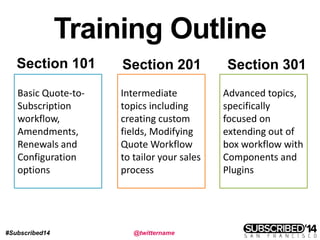
Training Outline
Section 101
White
Section 201
Intermediate
topics including
creating custom
fields, Modifying
Quote Workflow
to tailor your sales
process
Section 301
BOLD White
BOLD White
BOLD White
Basic Quote-to-
Subscription
workflow,
Amendments,
Renewals and
Configuration
options
Advanced topics,
specifically
focused on
extending out of
box workflow with
Components and
Plugins
ZuoraForSalesforce – 101
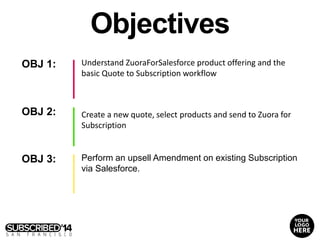
OBJ 1:
OBJ 2:
OBJ 3:
Understand ZuoraForSalesforce product offering and the
basic Quote to Subscription workflow
Perform an upsell Amendment on existing Subscription
via Salesforce.
Objectives
Create a new quote, select products and send to Zuora for
Subscription
The first relationship business management system
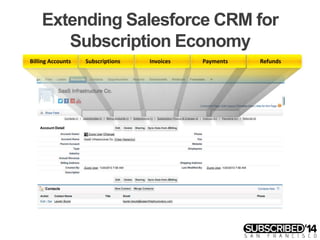
Extending Salesforce CRM for
Subscription Economy
RefundsPaymentsInvoicesSubscriptionsBilling Accounts
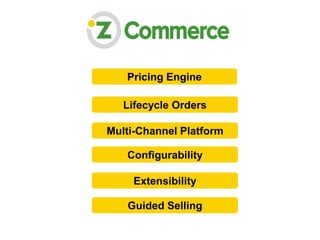
Multi-Channel Platform
Lifecycle Orders
Pricing Engine
Configurability
Extensibility
Guided Selling
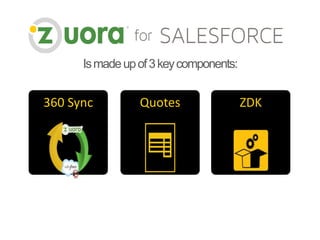
360 Sync Quotes ZDK
Ismadeupof3keycomponents:
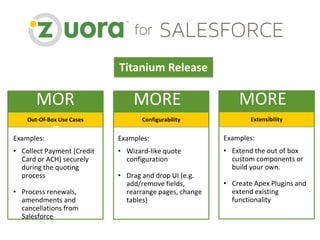
Titanium Release
MOR
EOut-Of-Box Use Cases
Examples:
• Collect Payment (Credit
Card or ACH) securely
during the quoting
process
• Process renewals,
amendments and
cancellations from
Salesforce
MORE
Configurability
Examples:
• Wizard-like quote
configuration
• Drag and drop UI (e.g.
add/remove fields,
rearrange pages, change
tables)
MORE
Extensibility
Examples:
• Extend the out of box
custom components or
build your own.
• Create Apex Plugins and
extend existing
functionality
Zuora For Salesforce – Section 101
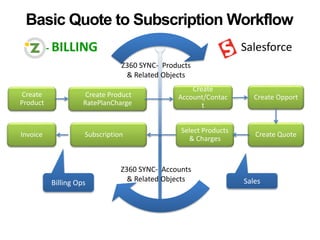
Basic Quote to Subscription Workflow
1
- BILLING Salesforce
Create
Account/Contac
t
Create
Product
Create Product
RatePlanCharge
Select Products
& Charges
SubscriptionInvoice
Billing Ops Sales
Z360 SYNC- Accounts
& Related Objects
Z360 SYNC- Products
& Related Objects
Create Quote
Create Opport
#Subscribed14 @twittername
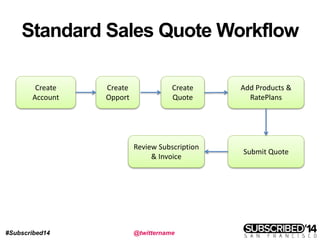
Standard Sales Quote Workflow
Create
Account
Create
Opport
Create
Quote
Add Products &
RatePlans
Submit Quote
Review Subscription
& Invoice
#Subscribed14 @twittername
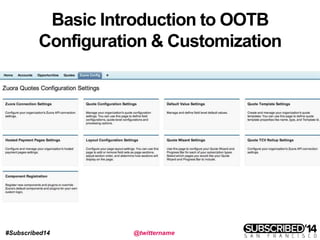
Basic Introduction to OOTB
Configuration & Customization
#Subscribed14 @twittername
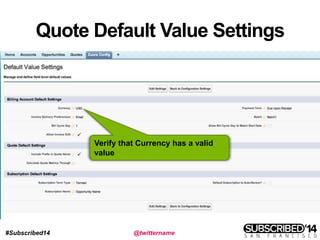
Quote Default Value Settings
Verify that Currency has a valid
value
#Subscribed14 @twittername
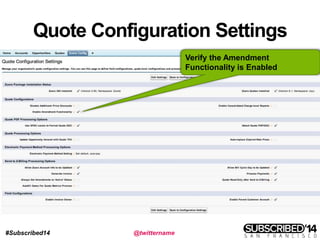
Quote Configuration Settings
Verify the Amendment
Functionality is Enabled
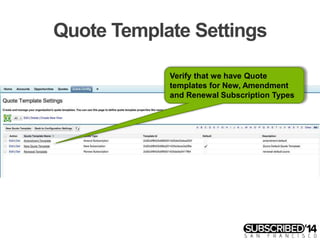
Quote Template Settings
Verify that we have Quote
templates for New, Amendment
and Renewal Subscription Types
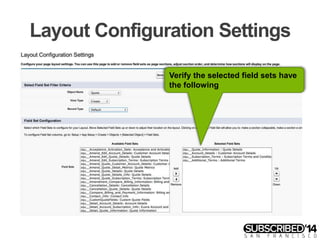
Layout Configuration Settings
Verify the selected field sets have
the following
Hands on Lab
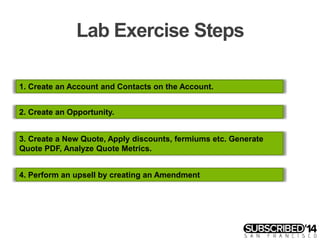
Lab Exercise Steps
1. Create an Account and Contacts on the Account.
2. Create an Opportunity.
3. Create a New Quote, Apply discounts, fermiums etc. Generate
Quote PDF, Analyze Quote Metrics.
4. Perform an upsell by creating an Amendment
#Subscribed14 @twittername
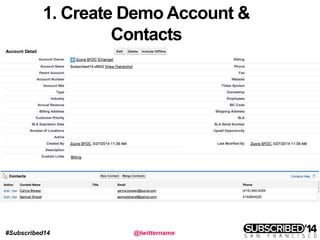
1. Create Demo Account &
Contacts
#Subscribed14 @twittername
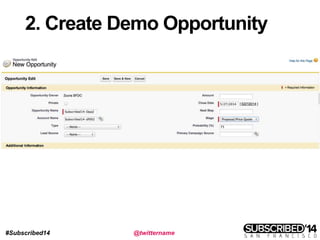
2. Create Demo Opportunity
#Subscribed14 @twittername
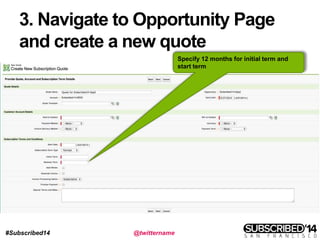
3. Navigate to Opportunity Page
and create a new quote
Opportunity Page and create a new quote
Specify 12 months for initial term and
start term
#Subscribed14 @twittername
4. Select Products & RatePlans
Add Cinema Standard as your Product &
select Monthly Plan
#Subscribed14 @twittername
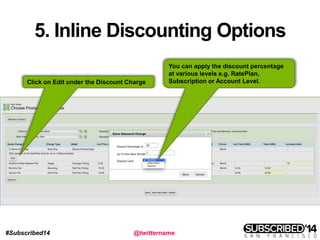
5. Inline Discounting Options
Click on Edit under the Discount Charge
You can apply the discount percentage
at various levels e.g. RatePlan,
Subscription or Account Level.
#Subscribed14 @twittername
6. Analyze Quote Metrics
Analyze the Quote Metrics to verify the
RatePlan Pricing and Discount
#Subscribed14 @twittername
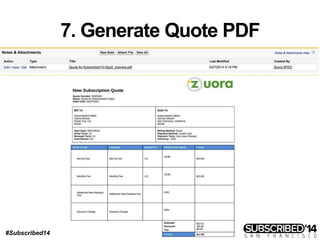
7. Generate Quote PDF
#Subscribed14 @twittername
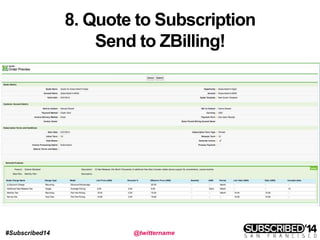
8. Quote to Subscription
Send to ZBilling!
#Subscribed14 @twittername
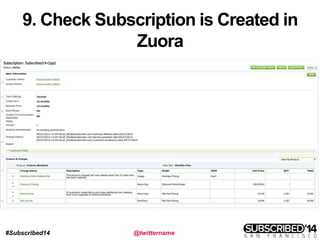
9. Check Subscription is Created in
Zuora
#Subscribed14 @twittername
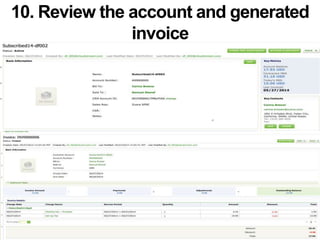
10. Review the account and generated
invoice
#Subscribed14 @twittername
Create an Amendment
#Subscribed14 @twittername
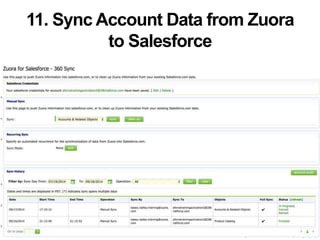
11. Sync Account Data from Zuora
to Salesforce
#Subscribed14 @twittername
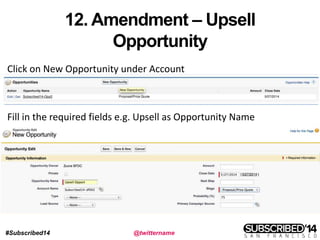
12. Amendment – Upsell
Opportunity
Click on New Opportunity under Account
Fill in the required fields e.g. Upsell as Opportunity Name
#Subscribed14 @twittername
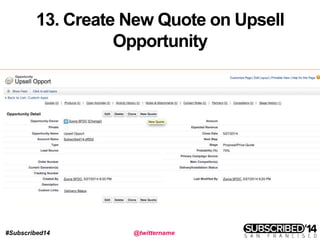
13. Create New Quote on Upsell
Opportunity
#Subscribed14 @twittername
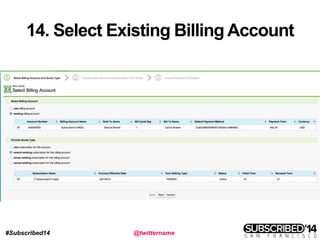
14. Select Existing Billing Account
#Subscribed14 @twittername
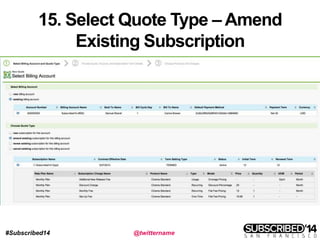
15. Select Quote Type – Amend
Existing Subscription
#Subscribed14 @twittername
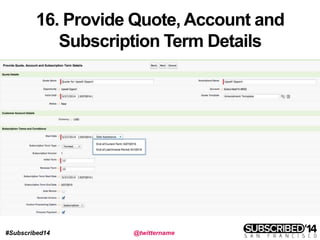
16. Provide Quote, Account and
Subscription Term Details
#Subscribed14 @twittername
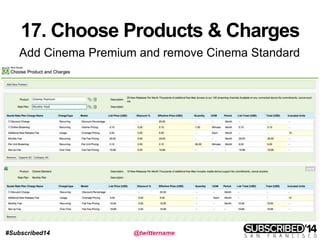
17. Choose Products & Charges
Add Cinema Premium and remove Cinema Standard
#Subscribed14 @twittername
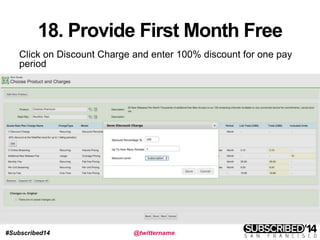
18. Provide First Month Free
Click on Discount Charge and enter 100% discount for one pay
period
#Subscribed14 @twittername
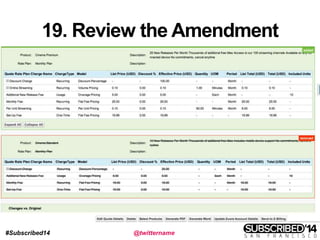
19. Review the Amendment
#Subscribed14 @twittername
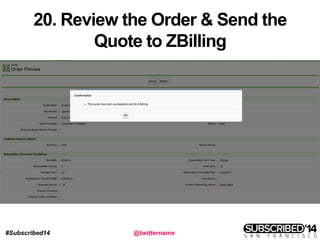
20. Review the Order & Send the
Quote to ZBilling
#Subscribed14 @twittername
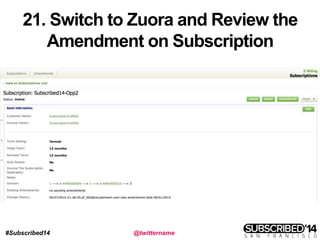
21. Switch to Zuora and Review the
Amendment on Subscription
#Subscribed14 @twittername
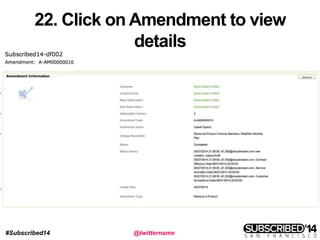
22. Click on Amendment to view
details
#Subscribed14 @twittername
End of Section 101
#Subscribed14 @twittername
Section 201
Intermediate Training Exercises
OBJ 1:
OBJ 2:
OBJ 3:
Learn how to modify the basic OOTB quote workflow and
incorporate Payment Collection Page.
Learn how to add custom field on the Quote object and send
the information to Zuora when the Quote is submitted.
Objectives
Learn how to add custom column to the sold to contact
PopupWindow
#Subscribed14 @twittername
Lab Exercise 1 - Review the basic
steps on configuring HPM
#Subscribed14 @twittername
Lab Exercise Steps
1. Explore Quote Wizard Settings and Add Payment Collection Page
to Quote Workflow
2. Create a New Subscription and verify that Payment Method is
created.
#Subscribed14 @twittername
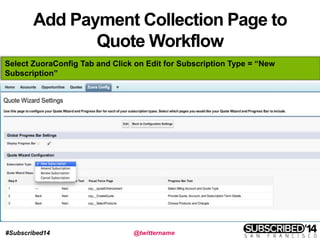
Add Payment Collection Page to
Quote Workflow
Select ZuoraConfig Tab and Click on Edit for Subscription Type = “New
Subscription”
#Subscribed14 @twittername
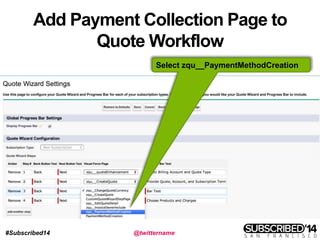
Add Payment Collection Page to
Quote Workflow
Select zqu__PaymentMethodCreation
#Subscribed14 @twittername
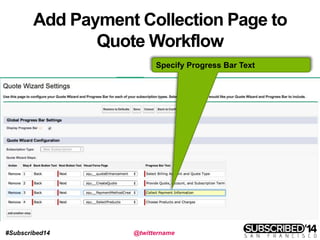
Add Payment Collection Page to
Quote Workflow
Specify Progress Bar Text
#Subscribed14 @twittername
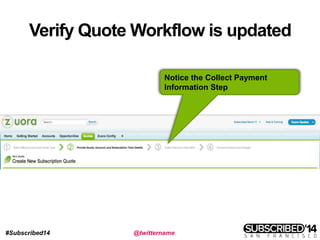
Verify Quote Workflow is updated
Notice the Collect Payment
Information Step
#Subscribed14 @twittername
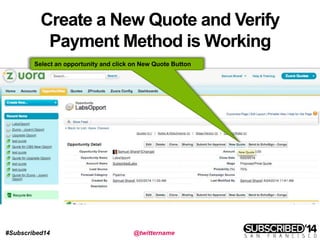
Create a New Quote and Verify
Payment Method is Working
Select an opportunity and click on New Quote Button
#Subscribed14 @twittername
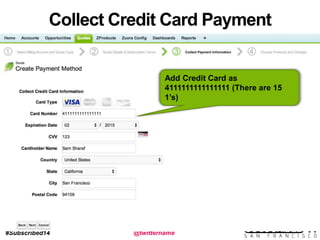
Collect Credit Card Payment
Information
Add Credit Card as
4111111111111111 (There are 15
1’s)
#Subscribed14 @twittername
Lab Exercise 2 – Modify Column
Field Sets
#Subscribed14 @twittername
Lab Exercise 2 - Steps
1. Modify Column Field Sets for ‘Sold To Contact’ to add Email
Column
2. Click on the lookup component for ‘Sold To Contact’ and verify
Email Column is present in the resulting pop up dialog
#Subscribed14 @twittername
Modify Column Field Sets
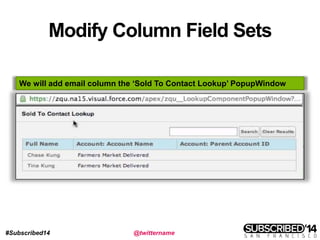
We will add email column the ‘Sold To Contact Lookup’ PopupWindow
#Subscribed14 @twittername
Modify Column Field Sets
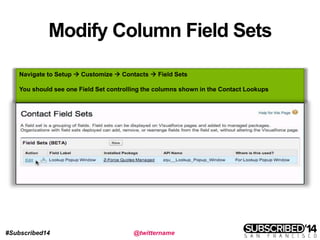
Navigate to Setup  Customize  Contacts  Field Sets
You should see one Field Set controlling the columns shown in the Contact Lookups
#Subscribed14 @twittername
Modify Column Field Sets
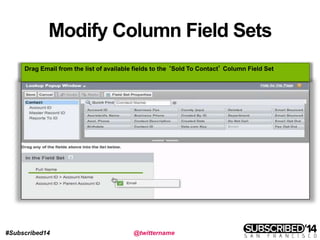
Drag Email from the list of available fields to the ‘Sold To Contact’ Column Field Set
#Subscribed14 @twittername
Modify Column Field Sets
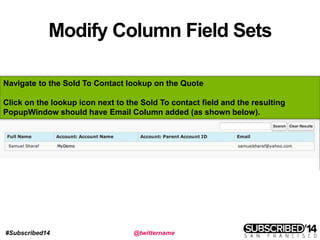
Navigate to the Sold To Contact lookup on the Quote
Click on the lookup icon next to the Sold To contact field and the resulting
PopupWindow should have Email Column added (as shown below).
Lab Exercise 3 - Add Custom Fields
to Quotes Object
Lab Exercise Steps
1. Add custom field ‘Sales Region’ to Quotes Object and add it to the
field set for Quotes Detail layout.
2. Add it the field set which will be submitted to Zuora.
3. Create an associated custom field in Zuora.
Add Custom Field ‘Sales Region’to
Quotes Object
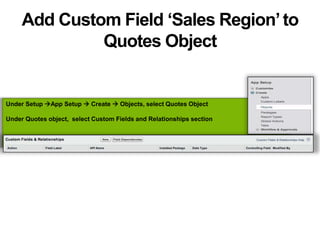
Under Setup App Setup  Create  Objects, select Quotes Object
Under Quotes object, select Custom Fields and Relationships section
Add Custom Field ‘Sales Region’to
Quotes Object
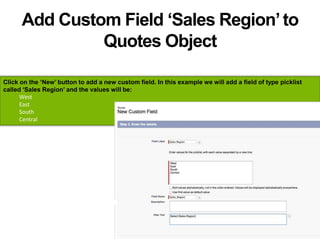
Click on the ‘New’ button to add a new custom field. In this example we will add a field of type picklist
called ‘Sales Region’ and the values will be:
West
East
South
Central
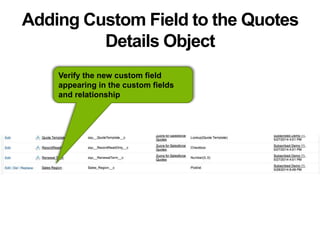
Adding Custom Field to the Quotes
Details Object
Verify the new custom field
appearing in the custom fields
and relationship
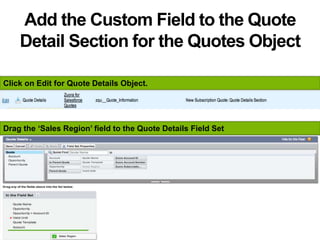
Add the Custom Field to the Quote
Detail Section for the Quotes Object
Click on Edit for Quote Details Object.
Drag the ‘Sales Region’ field to the Quote Details Field Set
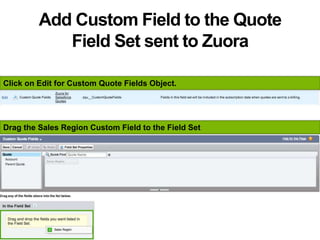
Add Custom Field to the Quote
Field Set sent to Zuora
Click on Edit for Custom Quote Fields Object.
Drag the Sales Region Custom Field to the Field Set
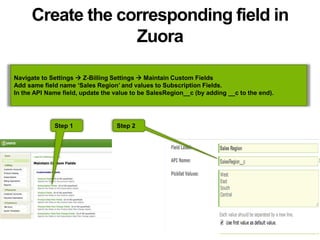
Create the corresponding field in
Zuora
Navigate to Settings  Z-Billing Settings  Maintain Custom Fields
Add same field name ‘Sales Region’ and values to Subscription Fields.
In the API Name field, update the value to be SalesRegion__c (by adding __c to the end).
Step 1 Step 2
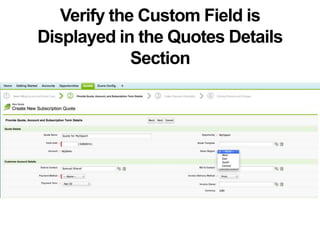
Verify the Custom Field is
Displayed in the Quotes Details
Section
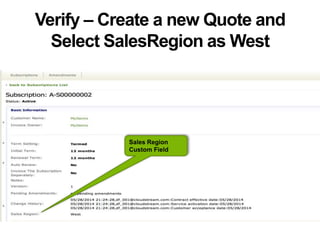
Verify – Create a new Quote and
Select SalesRegion as West
Sales Region
Custom Field
#Subscribed14 @twittername
Exercise – Section 201
• Create a new Quote
• Verify Email Column is available on SoldTo
Contact PopupWindow
• Verify you can enter Credit Card information
• Verify you can enter Sales Region Field value
as South and send to Zuora.
#Subscribed14 @twittername
End of Section 201

Subscribed zuora forsalesforce training -sections 101 & 102

Editor's Notes

  • #2 1 speaker
  • #6 Open with a session about Zuora / Z-Commerce (~5 min) Set the stage: What is Zuora/Why Zuora/ quick section
  • #8 Narrow down to Z-Commerce 4 key concepts Infinite pricing Lifecycle Order Multi-channel B2C leverages our APIs and Z-Checkout pages We address B2B with Zuora for Salesforce which we’ll focus on today Configurability
  • #9 Narrow down to Zuora for Salesforce (3 Icons slide) (~5 min): Sync Quotes ZDK: Zuora offers a toolkit which allows customers to extend the application’s out-of-the-box capabilities
  • #20 Provide similar slide for components Lab Exercise
  • #23  Walking attendees through the quoting workflow while highlighting new functionality [The Zuora for Salesforce Quoting Flow] a) Opportunity Page and create a new quote
  • #26  [Quote Metrics: We’ve also introduced new Quote Metrics- Sub-Total, Tax, Discount, and Total. Additionally, all of these metrics now utilize a preview call to Zuora and can therefore account for things like proration. Obviously for different subscription businesses these metrics mean different things. Let’s take a look at how we can configure the way in which these metrics are calculated.] Click on the Edit button on the Quote Details page Edit the “Calculate Quote Periods through” field Click Save Show that metrics are being re-calculated
  • #48 Provide similar slide for components Lab Exercise
  • #50 After this step – high light the page which will be created Provide a slide with the page And provide CC number with expiration etc.