by
REPEATING
ONE
SIMPLE
METHOD
in WordPress FREE PLAN
Lazar Kulasevic
Spiderest Science blogCurated in August 2018
Why do You Need an Email List?
Marketing research have found that email plays an
important part in many people’s work lives, with the
average person spending a serious amount of day-time in
the inbox. Studies also found that people check their
email around 11 times per hour; that 84% of users keep
theiremailrunninginthebackground;64%of usersused
notifications to access email at least once a day. Plus, 76%
use email to exchange documents, and 50% to archive
importantmessages.
2
Many bloggers claim this:
“People don’t like sharing their personal information for
free. Therefore, you’ve got to give them something valuable
in exchange for their email address. The thing you offer
them, whether if it’s an ebook, or a video, cheat sheet, etc.
is your lead magnet.”
You Don’t Need to Offer anything in
order to Get an Email Address
3
WRONG!
With this METHOD you’ll get what you want – A HUGE
EMAIL LIST – without giving anything away. That’s the
advantage of ‘thinking like a psychologist’.
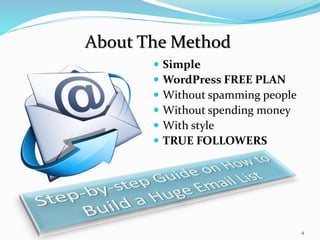
 Simple
 WordPress FREE PLAN
 Without spamming people
 Without spending money
 With style
 TRUE FOLLOWERS
4
About The Method
Let’s get started…
5
The first thing you need is a WordPress website/blog. Now,
the problem is that many bloggers start off with their blog in
free plan and if they want to grow they need to purchase a
high-cost business plan that will draw their funds away.
This handbook will show you the way you can collect email
addresses without paying for a plan, without paying at all!
In the following 26 pages, you will learn how to create a new
type of posts that probably none of the free-plan-bloggers
still haven't found out about (except me), and by sharing
that kind of posts repeatedly on social networks (such as
Facebook, Twitter, LinkedIn, etc.) you will collect a bunch of
email addresses in your inbox.
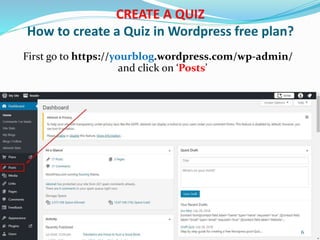
CREATE A QUIZ
How to create a Quiz in Wordpress free plan?
First go to https://yourblog.wordpress.com/wp-admin/
and click on ‘Posts’
6
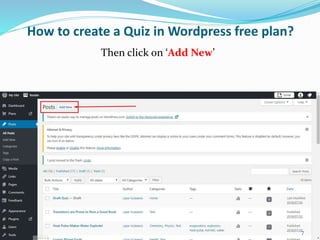
How to create a Quiz in Wordpress free plan?
Then click on ‘Add New’
7
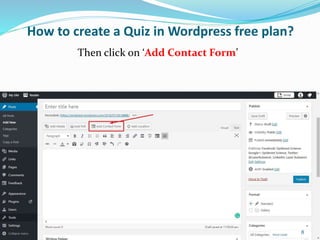
How to create a Quiz in Wordpress free plan?
Then click on ‘Add Contact Form’
8
How to create a Quiz in Wordpress free plan?
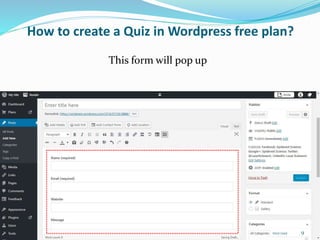
This form will pop up
9
How to create a Quiz in Wordpress free plan?
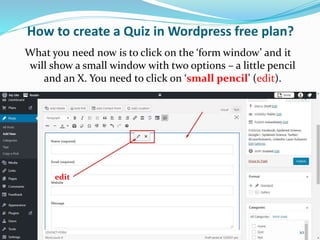
What you need now is to click on the ‘form window’ and it
will show a small window with two options – a little pencil
and an X. You need to click on ‘small pencil’ (edit).
edit
10
How to create a Quiz in Wordpress free plan?
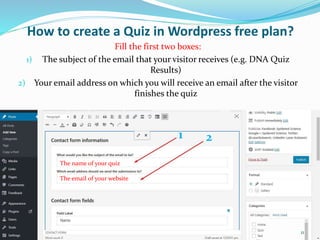
The name of your quiz
The email of your website
Fill the first two boxes:
1) The subject of the email that your visitor receives (e.g. DNA Quiz
Results)
2) Your email address on which you will receive an email after the visitor
finishes the quiz
1 2
11
How to create a Quiz in Wordpress free plan?
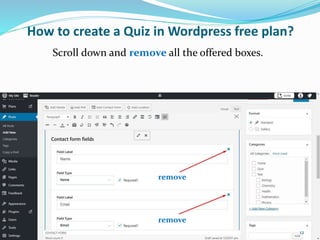
Scroll down and remove all the offered boxes.
remove
remove
12
How to create a Quiz in Wordpress free plan?
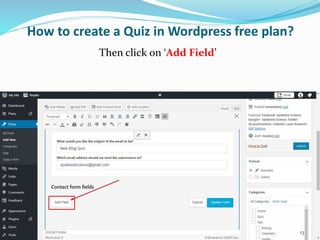
Then click on ‘Add Field’
13
How to create a Quiz in Wordpress free plan?
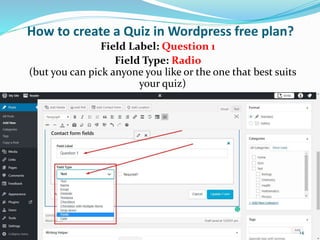
Field Label: Question 1
Field Type: Radio
(but you can pick anyone you like or the one that best suits
your quiz)
14
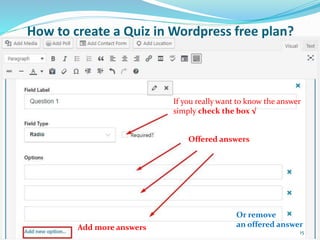
If you really want to know the answer
simply check the box √
Offered answers
Add more answers
Or remove
an offered answer
How to create a Quiz in Wordpress free plan?
15
How to create a Quiz in Wordpress free plan?
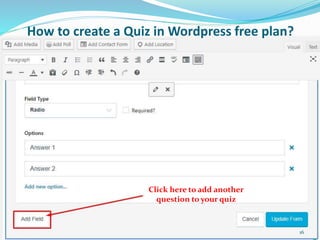
Click here to add another
question to your quiz
16
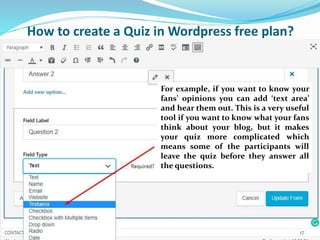
For example, if you want to know your
fans’ opinions you can add ‘text area’
and hear them out. This is a very useful
tool if you want to know what your fans
think about your blog, but it makes
your quiz more complicated which
means some of the participants will
leave the quiz before they answer all
the questions.
How to create a Quiz in Wordpress free plan?
17
How to create a Quiz in Wordpress free plan?
Now, you need to be careful here. You don't want to add
difficult questions because your primary goal is to collect
emails, not to test your fans' knowledge.
Therefore, think of some easy questions, offer some answers
(radio boxes). In my opinion, an optimal number of questions
is 5-7, and the number of offered answers for each question
should be 4.
Your quiz needs to make visitors THINK about the answers,
but not too hard. If the visitor thinks too hard he will
probably quit the quiz before the end and your email list will
be shorter than you expected.
18
How to create a Quiz in Wordpress free plan?
Hence, you want visitors to finish the questions all the way
because in the end there’s an email box waiting for them to
ENTER THEIR EMAIL IN ORDER TO SEE THE RESULTS.
You need to think like a psychologist. Imagine you participated in such
a quiz and you finish all 7 questions (7/7), but you don’t want to give
away your email. Now there’s a trick. You will “HAVE TO” give your
email because you’ll feel bad for finishing quiz all the way to the bottom
and not knowing if you scored all 7 correct. Now that you know that
mind trick, use it.
19
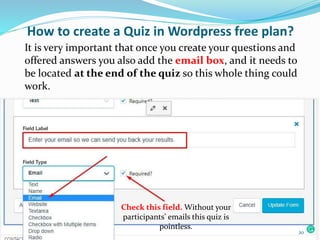
Check this field. Without your
participants’ emails this quiz is
pointless.
How to create a Quiz in Wordpress free plan?
It is very important that once you create your questions and
offered answers you also add the email box, and it needs to
be located at the end of the quiz so this whole thing could
work.
20
How to create a Quiz in Wordpress free plan?
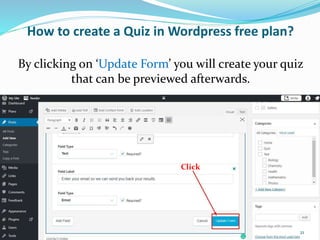
Click
By clicking on ‘Update Form’ you will create your quiz
that can be previewed afterwards.
21
How to create a Quiz in Wordpress free plan?
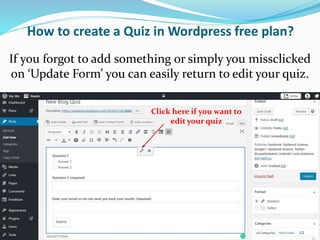
Click here if you want to
edit your quiz
If you forgot to add something or simply you missclicked
on ‘Update Form’ you can easily return to edit your quiz.
22
How to create a Quiz in Wordpress free plan?
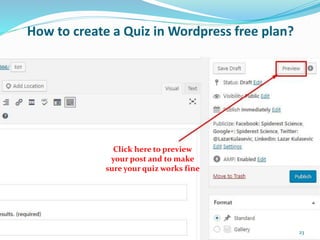
Click here to preview
your post and to make
sure your quiz works fine
23
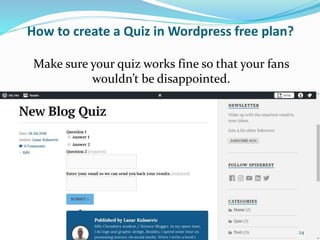
How to create a Quiz in Wordpress free plan?
Make sure your quiz works fine so that your fans
wouldn’t be disappointed.
24
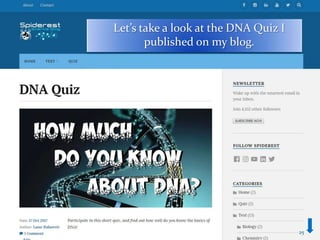
Let’s take a look at the DNA Quiz I
published on my blog.
25
26
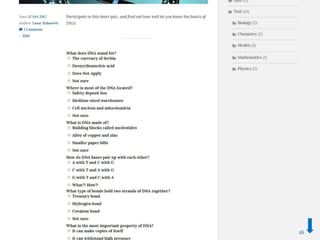
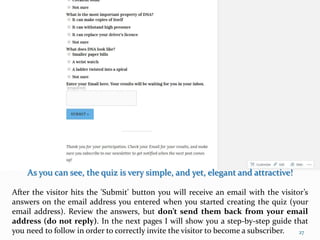
As you can see, the quiz is very simple, and yet, elegant and attractive!
After the visitor hits the 'Submit' button you will receive an email with the visitor’s
answers on the email address you entered when you started creating the quiz (your
email address). Review the answers, but don’t send them back from your email
address (do not reply). In the next pages I will show you a step-by-step guide that
you need to follow in order to correctly invite the visitor to become a subscriber. 27
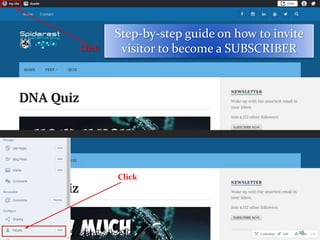
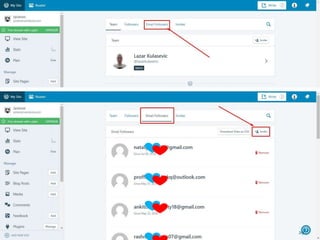
Step-by-step guide on how to invite
visitor to become a SUBSCRIBERClick
Click
28
29
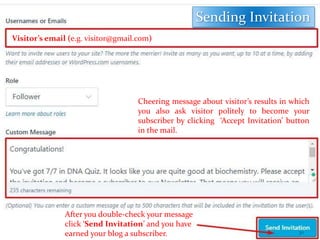
Visitor’s email (e.g. visitor@gmail.com)
Cheering message about visitor’s results in which
you also ask visitor politely to become your
subscriber by clicking ‘Accept Invitation’ button
in the mail.
After you double-check your message
click ‘Send Invitation’ and you have
earned your blog a subscriber.
Sending Invitation
30
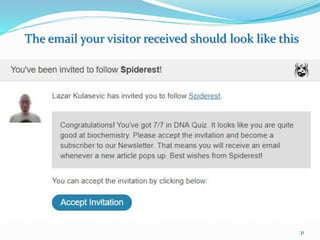
The email your visitor received should look like this
31
This was a Step-by-step Guide on HOWTO Build
a Huge Email List.
It is absolutely your choice how many questions you will ask in
your quiz, or how many offered answers you will offer for each
question individually.
My job was to teach you how and to show you that you CAN
build a big email list for free, and your job is to use your
knowledge wisely.
Thank you!
32

Step-by-step Guide on How to Build a Huge Email List

  • 1.
    by REPEATING ONE SIMPLE METHOD in WordPress FREEPLAN Lazar Kulasevic Spiderest Science blogCurated in August 2018
  • 2.
    Why do YouNeed an Email List? Marketing research have found that email plays an important part in many people’s work lives, with the average person spending a serious amount of day-time in the inbox. Studies also found that people check their email around 11 times per hour; that 84% of users keep theiremailrunninginthebackground;64%of usersused notifications to access email at least once a day. Plus, 76% use email to exchange documents, and 50% to archive importantmessages. 2
  • 3.
    Many bloggers claimthis: “People don’t like sharing their personal information for free. Therefore, you’ve got to give them something valuable in exchange for their email address. The thing you offer them, whether if it’s an ebook, or a video, cheat sheet, etc. is your lead magnet.” You Don’t Need to Offer anything in order to Get an Email Address 3 WRONG! With this METHOD you’ll get what you want – A HUGE EMAIL LIST – without giving anything away. That’s the advantage of ‘thinking like a psychologist’.
  • 4.
     Simple  WordPressFREE PLAN  Without spamming people  Without spending money  With style  TRUE FOLLOWERS 4 About The Method
  • 5.
    Let’s get started… 5 Thefirst thing you need is a WordPress website/blog. Now, the problem is that many bloggers start off with their blog in free plan and if they want to grow they need to purchase a high-cost business plan that will draw their funds away. This handbook will show you the way you can collect email addresses without paying for a plan, without paying at all! In the following 26 pages, you will learn how to create a new type of posts that probably none of the free-plan-bloggers still haven't found out about (except me), and by sharing that kind of posts repeatedly on social networks (such as Facebook, Twitter, LinkedIn, etc.) you will collect a bunch of email addresses in your inbox.
  • 6.
    CREATE A QUIZ Howto create a Quiz in Wordpress free plan? First go to https://yourblog.wordpress.com/wp-admin/ and click on ‘Posts’ 6
  • 7.
    How to createa Quiz in Wordpress free plan? Then click on ‘Add New’ 7
  • 8.
    How to createa Quiz in Wordpress free plan? Then click on ‘Add Contact Form’ 8
  • 9.
    How to createa Quiz in Wordpress free plan? This form will pop up 9
  • 10.
    How to createa Quiz in Wordpress free plan? What you need now is to click on the ‘form window’ and it will show a small window with two options – a little pencil and an X. You need to click on ‘small pencil’ (edit). edit 10
  • 11.
    How to createa Quiz in Wordpress free plan? The name of your quiz The email of your website Fill the first two boxes: 1) The subject of the email that your visitor receives (e.g. DNA Quiz Results) 2) Your email address on which you will receive an email after the visitor finishes the quiz 1 2 11
  • 12.
    How to createa Quiz in Wordpress free plan? Scroll down and remove all the offered boxes. remove remove 12
  • 13.
    How to createa Quiz in Wordpress free plan? Then click on ‘Add Field’ 13
  • 14.
    How to createa Quiz in Wordpress free plan? Field Label: Question 1 Field Type: Radio (but you can pick anyone you like or the one that best suits your quiz) 14
  • 15.
    If you reallywant to know the answer simply check the box √ Offered answers Add more answers Or remove an offered answer How to create a Quiz in Wordpress free plan? 15
  • 16.
    How to createa Quiz in Wordpress free plan? Click here to add another question to your quiz 16
  • 17.
    For example, ifyou want to know your fans’ opinions you can add ‘text area’ and hear them out. This is a very useful tool if you want to know what your fans think about your blog, but it makes your quiz more complicated which means some of the participants will leave the quiz before they answer all the questions. How to create a Quiz in Wordpress free plan? 17
  • 18.
    How to createa Quiz in Wordpress free plan? Now, you need to be careful here. You don't want to add difficult questions because your primary goal is to collect emails, not to test your fans' knowledge. Therefore, think of some easy questions, offer some answers (radio boxes). In my opinion, an optimal number of questions is 5-7, and the number of offered answers for each question should be 4. Your quiz needs to make visitors THINK about the answers, but not too hard. If the visitor thinks too hard he will probably quit the quiz before the end and your email list will be shorter than you expected. 18
  • 19.
    How to createa Quiz in Wordpress free plan? Hence, you want visitors to finish the questions all the way because in the end there’s an email box waiting for them to ENTER THEIR EMAIL IN ORDER TO SEE THE RESULTS. You need to think like a psychologist. Imagine you participated in such a quiz and you finish all 7 questions (7/7), but you don’t want to give away your email. Now there’s a trick. You will “HAVE TO” give your email because you’ll feel bad for finishing quiz all the way to the bottom and not knowing if you scored all 7 correct. Now that you know that mind trick, use it. 19
  • 20.
    Check this field.Without your participants’ emails this quiz is pointless. How to create a Quiz in Wordpress free plan? It is very important that once you create your questions and offered answers you also add the email box, and it needs to be located at the end of the quiz so this whole thing could work. 20
  • 21.
    How to createa Quiz in Wordpress free plan? Click By clicking on ‘Update Form’ you will create your quiz that can be previewed afterwards. 21
  • 22.
    How to createa Quiz in Wordpress free plan? Click here if you want to edit your quiz If you forgot to add something or simply you missclicked on ‘Update Form’ you can easily return to edit your quiz. 22
  • 23.
    How to createa Quiz in Wordpress free plan? Click here to preview your post and to make sure your quiz works fine 23
  • 24.
    How to createa Quiz in Wordpress free plan? Make sure your quiz works fine so that your fans wouldn’t be disappointed. 24
  • 25.
    Let’s take alook at the DNA Quiz I published on my blog. 25
  • 26.
  • 27.
    As you cansee, the quiz is very simple, and yet, elegant and attractive! After the visitor hits the 'Submit' button you will receive an email with the visitor’s answers on the email address you entered when you started creating the quiz (your email address). Review the answers, but don’t send them back from your email address (do not reply). In the next pages I will show you a step-by-step guide that you need to follow in order to correctly invite the visitor to become a subscriber. 27
  • 28.
    Step-by-step guide onhow to invite visitor to become a SUBSCRIBERClick Click 28
  • 29.
  • 30.
    Visitor’s email (e.g.visitor@gmail.com) Cheering message about visitor’s results in which you also ask visitor politely to become your subscriber by clicking ‘Accept Invitation’ button in the mail. After you double-check your message click ‘Send Invitation’ and you have earned your blog a subscriber. Sending Invitation 30
  • 31.
    The email yourvisitor received should look like this 31
  • 32.
    This was aStep-by-step Guide on HOWTO Build a Huge Email List. It is absolutely your choice how many questions you will ask in your quiz, or how many offered answers you will offer for each question individually. My job was to teach you how and to show you that you CAN build a big email list for free, and your job is to use your knowledge wisely. Thank you! 32