Cloud
Native
Development
Hackathon
Anton Epple
Eppleton IT Consulting
Cloud
Deployment
Anton Epple
Agenda
Create Free Tier Account
Use OCI Console
Create Certificates
Install CLI
Deploy Functions using CLI
Create & Deploy Functions with GraalVM
Creating OCI Resources
•Console
•OCI Command Line Interface
•Terraform (Built on CLI)
Create free Tier account
https://www.oracle.com/cloud/free/
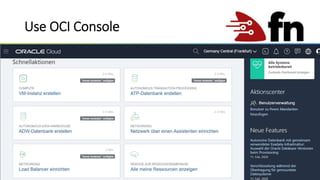
Use OCI Console
OCI
Install CLI
• Install CLI (Linux/OS X):
> bash -c "$(curl -L https://raw.githubusercontent.com/oracle/oci-
cli/master/scripts/install/install.sh)"
• https://docs.cloud.oracle.com/de-de/iaas/Content/API/SDKDocs/cliinstall.htm
Configure CLI
• https://docs.cloud.oracle.com/de-de/iaas/Content/API/SDKDocs/cliinstall.htm
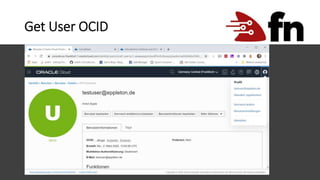
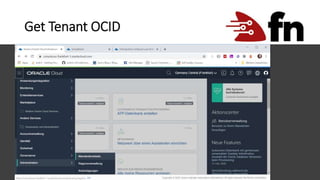
• For the next step you‘ll need your tenant and user OCID
Get User OCID
> oci setup config
• https://docs.cloud.oracle.com/de-de/iaas/Content/API/SDKDocs/cliinstall.htm
Get Tenant OCID
> oci setup config
• https://docs.cloud.oracle.com/de-de/iaas/Content/API/SDKDocs/cliinstall.htm
Configure CLI
> oci setup config
• https://docs.cloud.oracle.com/de-de/iaas/Content/API/SDKDocs/cliinstall.htm
Configure CLI
• We will now setup the oci config file
• OCI CLI will guide you through the process
• Make sure you choose to generate a key in this step
• Note where your key is stored. You‘ll need it later
• Enter on commandline :
> oci setup config
• https://docs.cloud.oracle.com/de-de/iaas/Content/API/SDKDocs/cliinstall.htm
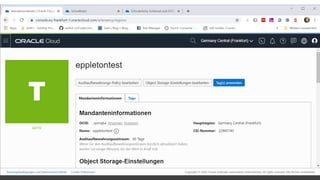
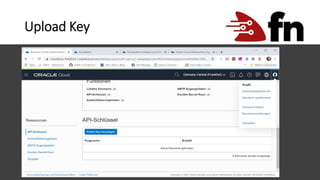
Upload Key
• Now login to the Console:
• https://login.eu-frankfurt-1.oraclecloud.com/
• Then go to your profile (top right)
• Upload the key that ends with „_public.pem“
• https://docs.cloud.oracle.com/de-de/iaas/Content/API/Concepts/apisigningkey.htm#How2
Upload Key
• First login to the Console:
• https://login.eu-frankfurt-1.oraclecloud.com/
• https://docs.cloud.oracle.com/de-de/iaas/Content/API/Concepts/apisigningkey.htm#How2
Test the CLI
Your CLI should now be configured correctly, and you should be able to access and create resources
This call should retrieve your tenants namespace:
oci os ns get
{
“data” : “adgjgsadjasdgjgda”
}
Prepare resources
In order to deploy functions we need to prepare a couple of resources. This is described in detail
here:
https://docs.cloud.oracle.com/de-de/iaas/Content/Functions/Concepts/functionsprerequisites.htm
Prepare resources
In order to speed up the process, we will use a script, adjusted from this blog:
https://blogs.oracle.com/developers/oracle-functions:-serverless-on-oracle-cloud-developers-
guide-to-getting-started-quickly
https://www.dropbox.com/s/el4eb8foubkxf1i/configure.sh?dl=0
Prepare resources
• Get the script configure.sh and modify the variables on top
• make it executable:
$ chmod a+x configure.sh
$ ./configure.sh
• Make sure to keep the output. We will need it in the next steps
Prepare resources
• Create a dedicated compartment for FaaS
• Create a IAM group for FaaS users
• Create a FaaS user
• Create a user auth token that can be later used for Docker login
• Adds the FaaS user to the FaaS group
• Create a group IAM policy
• Create a VCN
• Create 3 Subnets within the VCN
• Create an internet gateway for the VCN
• Update the VCN route table to allow internet traffic to hit the internet gateway
• Update the VCN default security list to allow traffic on port 80
• Prints a summary of all credentials that it creates
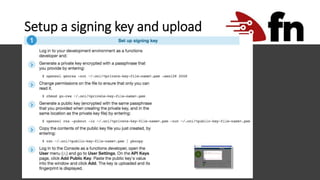
Setup a signing key and upload
Add profile
• Get the fingerprint of your public key:
$ openssl rsa -pubout -outform DER -in ~/.oci/oci_faas_key.pem | openssl md5 –c
• Copy the output from the configuration script:
[faas]
user=ocid1.user.oc1………
fingerprint=<public-key-fingerprint>
key_file=<private-key-pem-file>
tenancy=eppletontestregion=eu-frankfurt-1
pass_phrase=<passphrase>
Now add this profile in ~/.oci/config and fill in the fingerprint, filename and passphrase
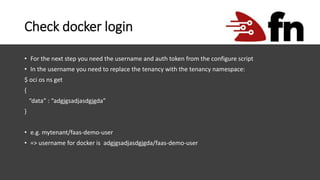
Check docker login
• For the next step you need the username and auth token from the configure script
• In the username you need to replace the tenancy with the tenancy namespace:
$ oci os ns get
{
“data” : “adgjgsadjasdgjgda”
}
• e.g. mytenant/faas-demo-user
• => username for docker is adgjgsadjasdgjgda/faas-demo-user
Check docker login
• The auth token from the script output is the password.
• Now you can login:
$ docker login fra.ocir.io
Create and configure context and
docker registry
$ fn create context faas-context --provider oracle
$ fn use context faas-context
$ fn update context oracle.compartment-id <compartment.ocid>
$ fn update context api-url https://functions.eu-frankfurt-1.oraclecloud.com
$ fn update context registry fra.ocir.io/<tenant-id>/<my-repo>
$ fn update context oracle.profile faas
$ fn create app faas-demo --annotation oracle.com/oci/subnetIds=‘[“<one-of-subnets>"]’
$ fn list apps
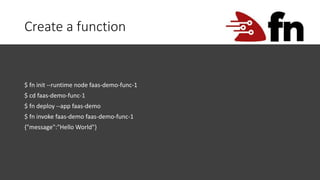
Create a function
$ fn init --runtime node faas-demo-func-1
$ cd faas-demo-func-1
$ fn deploy --app faas-demo
$ fn invoke faas-demo faas-demo-func-1
{"message":"Hello World"}
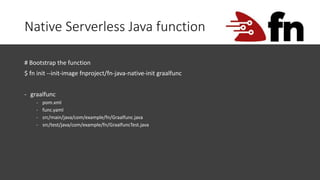
Native Serverless Java function
# Bootstrap the function
$ fn init --init-image fnproject/fn-java-native-init graalfunc
- graalfunc
- pom.xml
- func.yaml
- src/main/java/com/example/fn/Graalfunc.java
- src/test/java/com/example/fn/GraalfuncTest.java
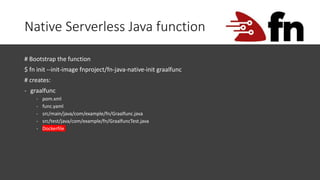
Native Serverless Java function
# Bootstrap the function
$ fn init --init-image fnproject/fn-java-native-init graalfunc
# creates:
- graalfunc
- pom.xml
- func.yaml
- src/main/java/com/example/fn/Graalfunc.java
- src/test/java/com/example/fn/GraalfuncTest.java
- Dockerfile
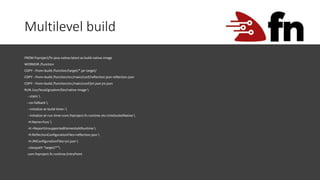
Multilevel build
FROM fnproject/fn-java-native:latest as build-native-image
WORKDIR /function
COPY --from=build /function/target/*.jar target/
COPY --from=build /function/src/main/conf/reflection.json reflection.json
COPY --from=build /function/src/main/conf/jni.json jni.json
RUN /usr/local/graalvm/bin/native-image 
--static 
--no-fallback 
--initialize-at-build-time= 
--initialize-at-run-time=com.fnproject.fn.runtime.ntv.UnixSocketNative 
-H:Name=func 
-H:+ReportUnsupportedElementsAtRuntime 
-H:ReflectionConfigurationFiles=reflection.json 
-H:JNIConfigurationFiles=jni.json 
-classpath "target/*"
com.fnproject.fn.runtime.EntryPoint
Multilevel build
No need to install GraalVM specific resources, as build is done in docker image
$ cd graalfunc
# fn create app soemapp // <- local fn
$ fn create app someapp --annotation oracle.com/oci/subnetIds='["ocid1.subnet.oc1..."]’
$ fn deploy --app someapp
$ fn invoke someapp graalfunc
OCI API Gateway
• Make your functions available via http
• Deal with authentication/authorization
• CORS configuration
• Oracle Apiary for building APIs
Try OCI API Gateway
• Expose a function via API Gateway:
• https://blogs.oracle.com/developers/creating-your-first-api-gateway-in-the-oracle-cloud
OCI Oracle Functions Deployment

OCI Oracle Functions Deployment

  • 1.
  • 2.
  • 3.
    Agenda Create Free TierAccount Use OCI Console Create Certificates Install CLI Deploy Functions using CLI Create & Deploy Functions with GraalVM
  • 4.
    Creating OCI Resources •Console •OCICommand Line Interface •Terraform (Built on CLI)
  • 5.
    Create free Tieraccount https://www.oracle.com/cloud/free/
  • 6.
  • 7.
    Install CLI • InstallCLI (Linux/OS X): > bash -c "$(curl -L https://raw.githubusercontent.com/oracle/oci- cli/master/scripts/install/install.sh)" • https://docs.cloud.oracle.com/de-de/iaas/Content/API/SDKDocs/cliinstall.htm
  • 8.
  • 9.
    Get User OCID >oci setup config • https://docs.cloud.oracle.com/de-de/iaas/Content/API/SDKDocs/cliinstall.htm
  • 10.
    Get Tenant OCID >oci setup config • https://docs.cloud.oracle.com/de-de/iaas/Content/API/SDKDocs/cliinstall.htm
  • 11.
    Configure CLI > ocisetup config • https://docs.cloud.oracle.com/de-de/iaas/Content/API/SDKDocs/cliinstall.htm
  • 12.
    Configure CLI • Wewill now setup the oci config file • OCI CLI will guide you through the process • Make sure you choose to generate a key in this step • Note where your key is stored. You‘ll need it later • Enter on commandline : > oci setup config • https://docs.cloud.oracle.com/de-de/iaas/Content/API/SDKDocs/cliinstall.htm
  • 13.
    Upload Key • Nowlogin to the Console: • https://login.eu-frankfurt-1.oraclecloud.com/ • Then go to your profile (top right) • Upload the key that ends with „_public.pem“ • https://docs.cloud.oracle.com/de-de/iaas/Content/API/Concepts/apisigningkey.htm#How2
  • 14.
    Upload Key • Firstlogin to the Console: • https://login.eu-frankfurt-1.oraclecloud.com/ • https://docs.cloud.oracle.com/de-de/iaas/Content/API/Concepts/apisigningkey.htm#How2
  • 15.
    Test the CLI YourCLI should now be configured correctly, and you should be able to access and create resources This call should retrieve your tenants namespace: oci os ns get { “data” : “adgjgsadjasdgjgda” }
  • 16.
    Prepare resources In orderto deploy functions we need to prepare a couple of resources. This is described in detail here: https://docs.cloud.oracle.com/de-de/iaas/Content/Functions/Concepts/functionsprerequisites.htm
  • 17.
    Prepare resources In orderto speed up the process, we will use a script, adjusted from this blog: https://blogs.oracle.com/developers/oracle-functions:-serverless-on-oracle-cloud-developers- guide-to-getting-started-quickly https://www.dropbox.com/s/el4eb8foubkxf1i/configure.sh?dl=0
  • 18.
    Prepare resources • Getthe script configure.sh and modify the variables on top • make it executable: $ chmod a+x configure.sh $ ./configure.sh • Make sure to keep the output. We will need it in the next steps
  • 19.
    Prepare resources • Createa dedicated compartment for FaaS • Create a IAM group for FaaS users • Create a FaaS user • Create a user auth token that can be later used for Docker login • Adds the FaaS user to the FaaS group • Create a group IAM policy • Create a VCN • Create 3 Subnets within the VCN • Create an internet gateway for the VCN • Update the VCN route table to allow internet traffic to hit the internet gateway • Update the VCN default security list to allow traffic on port 80 • Prints a summary of all credentials that it creates
  • 20.
    Setup a signingkey and upload
  • 21.
    Add profile • Getthe fingerprint of your public key: $ openssl rsa -pubout -outform DER -in ~/.oci/oci_faas_key.pem | openssl md5 –c • Copy the output from the configuration script: [faas] user=ocid1.user.oc1……… fingerprint=<public-key-fingerprint> key_file=<private-key-pem-file> tenancy=eppletontestregion=eu-frankfurt-1 pass_phrase=<passphrase> Now add this profile in ~/.oci/config and fill in the fingerprint, filename and passphrase
  • 22.
    Check docker login •For the next step you need the username and auth token from the configure script • In the username you need to replace the tenancy with the tenancy namespace: $ oci os ns get { “data” : “adgjgsadjasdgjgda” } • e.g. mytenant/faas-demo-user • => username for docker is adgjgsadjasdgjgda/faas-demo-user
  • 23.
    Check docker login •The auth token from the script output is the password. • Now you can login: $ docker login fra.ocir.io
  • 24.
    Create and configurecontext and docker registry $ fn create context faas-context --provider oracle $ fn use context faas-context $ fn update context oracle.compartment-id <compartment.ocid> $ fn update context api-url https://functions.eu-frankfurt-1.oraclecloud.com $ fn update context registry fra.ocir.io/<tenant-id>/<my-repo> $ fn update context oracle.profile faas $ fn create app faas-demo --annotation oracle.com/oci/subnetIds=‘[“<one-of-subnets>"]’ $ fn list apps
  • 25.
    Create a function $fn init --runtime node faas-demo-func-1 $ cd faas-demo-func-1 $ fn deploy --app faas-demo $ fn invoke faas-demo faas-demo-func-1 {"message":"Hello World"}
  • 26.
    Native Serverless Javafunction # Bootstrap the function $ fn init --init-image fnproject/fn-java-native-init graalfunc - graalfunc - pom.xml - func.yaml - src/main/java/com/example/fn/Graalfunc.java - src/test/java/com/example/fn/GraalfuncTest.java
  • 27.
    Native Serverless Javafunction # Bootstrap the function $ fn init --init-image fnproject/fn-java-native-init graalfunc # creates: - graalfunc - pom.xml - func.yaml - src/main/java/com/example/fn/Graalfunc.java - src/test/java/com/example/fn/GraalfuncTest.java - Dockerfile
  • 28.
    Multilevel build FROM fnproject/fn-java-native:latestas build-native-image WORKDIR /function COPY --from=build /function/target/*.jar target/ COPY --from=build /function/src/main/conf/reflection.json reflection.json COPY --from=build /function/src/main/conf/jni.json jni.json RUN /usr/local/graalvm/bin/native-image --static --no-fallback --initialize-at-build-time= --initialize-at-run-time=com.fnproject.fn.runtime.ntv.UnixSocketNative -H:Name=func -H:+ReportUnsupportedElementsAtRuntime -H:ReflectionConfigurationFiles=reflection.json -H:JNIConfigurationFiles=jni.json -classpath "target/*" com.fnproject.fn.runtime.EntryPoint
  • 29.
    Multilevel build No needto install GraalVM specific resources, as build is done in docker image $ cd graalfunc # fn create app soemapp // <- local fn $ fn create app someapp --annotation oracle.com/oci/subnetIds='["ocid1.subnet.oc1..."]’ $ fn deploy --app someapp $ fn invoke someapp graalfunc
  • 30.
    OCI API Gateway •Make your functions available via http • Deal with authentication/authorization • CORS configuration • Oracle Apiary for building APIs
  • 31.
    Try OCI APIGateway • Expose a function via API Gateway: • https://blogs.oracle.com/developers/creating-your-first-api-gateway-in-the-oracle-cloud