SSIS Installation
www.rakeshgopal.com
www.rakeshgopal.com
In order to install SSIS or SQL server Integration
service, you need to purchase Developer, Standard or
Enterprise editions. You can also download the trial
versions to explore.
www.rakeshgopal.com
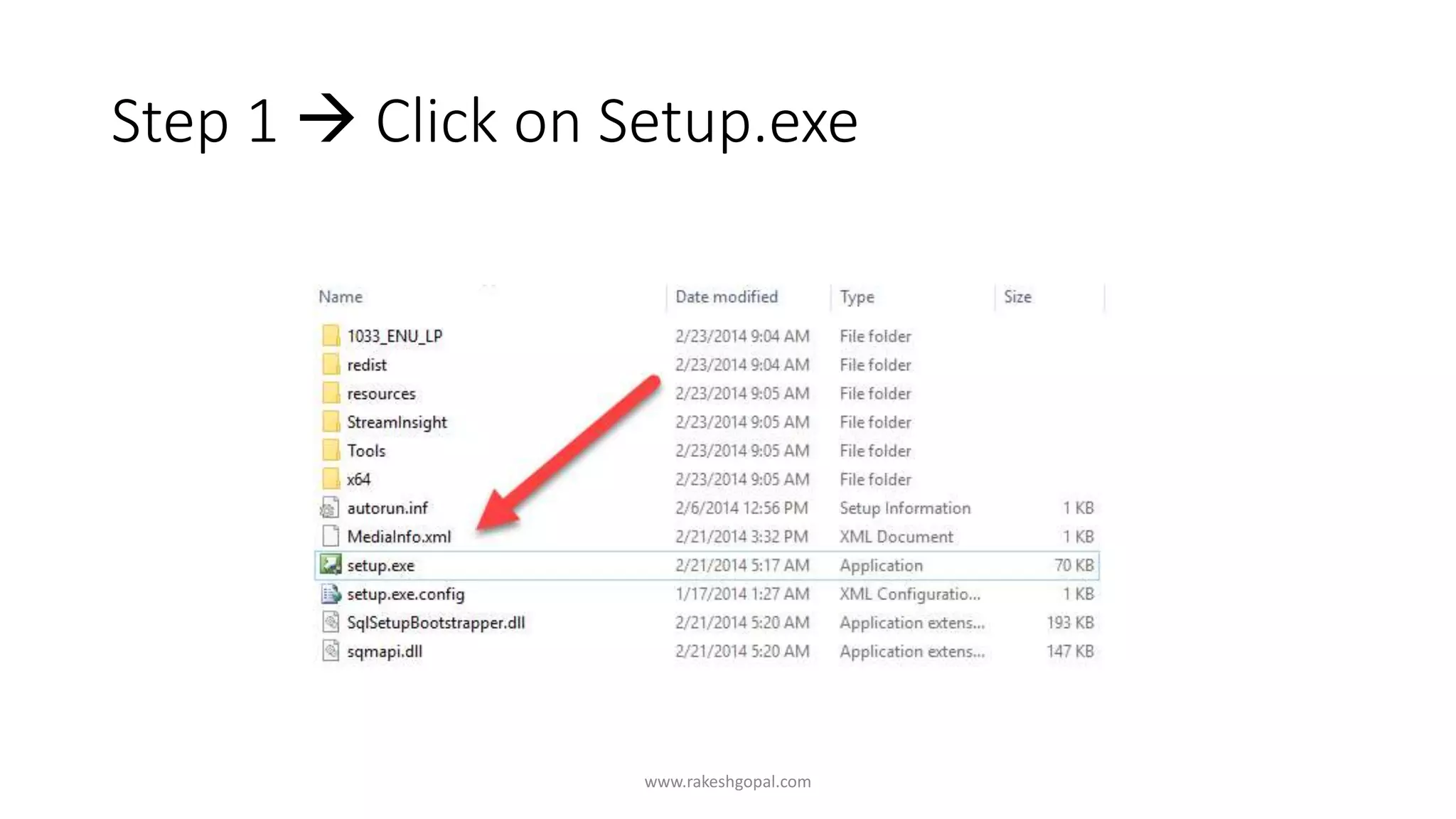
Step 1  Click on Setup.exe
www.rakeshgopal.com
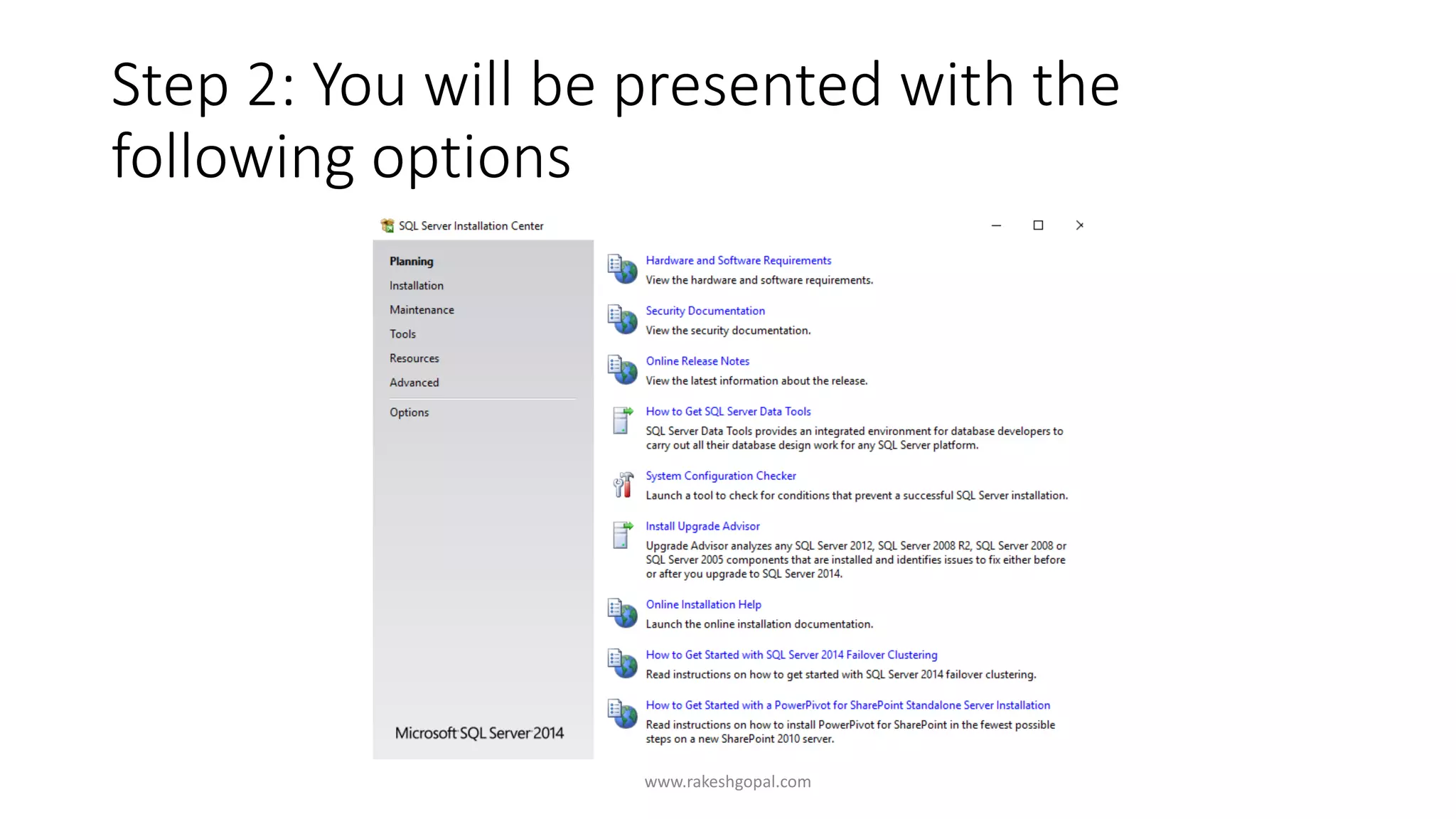
Step 2: You will be presented with the
following options
www.rakeshgopal.com
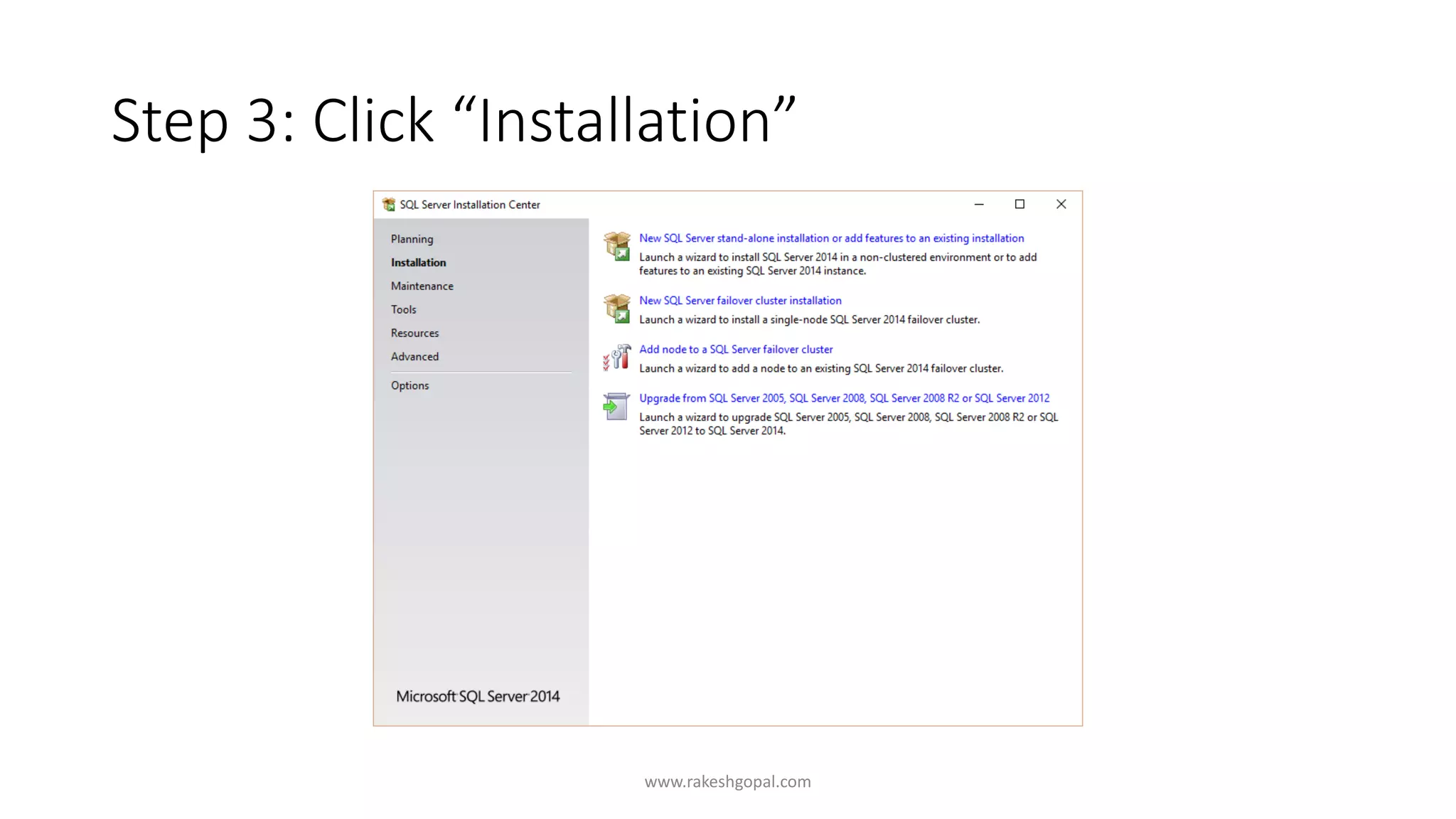
Step 3: Click “Installation”
www.rakeshgopal.com
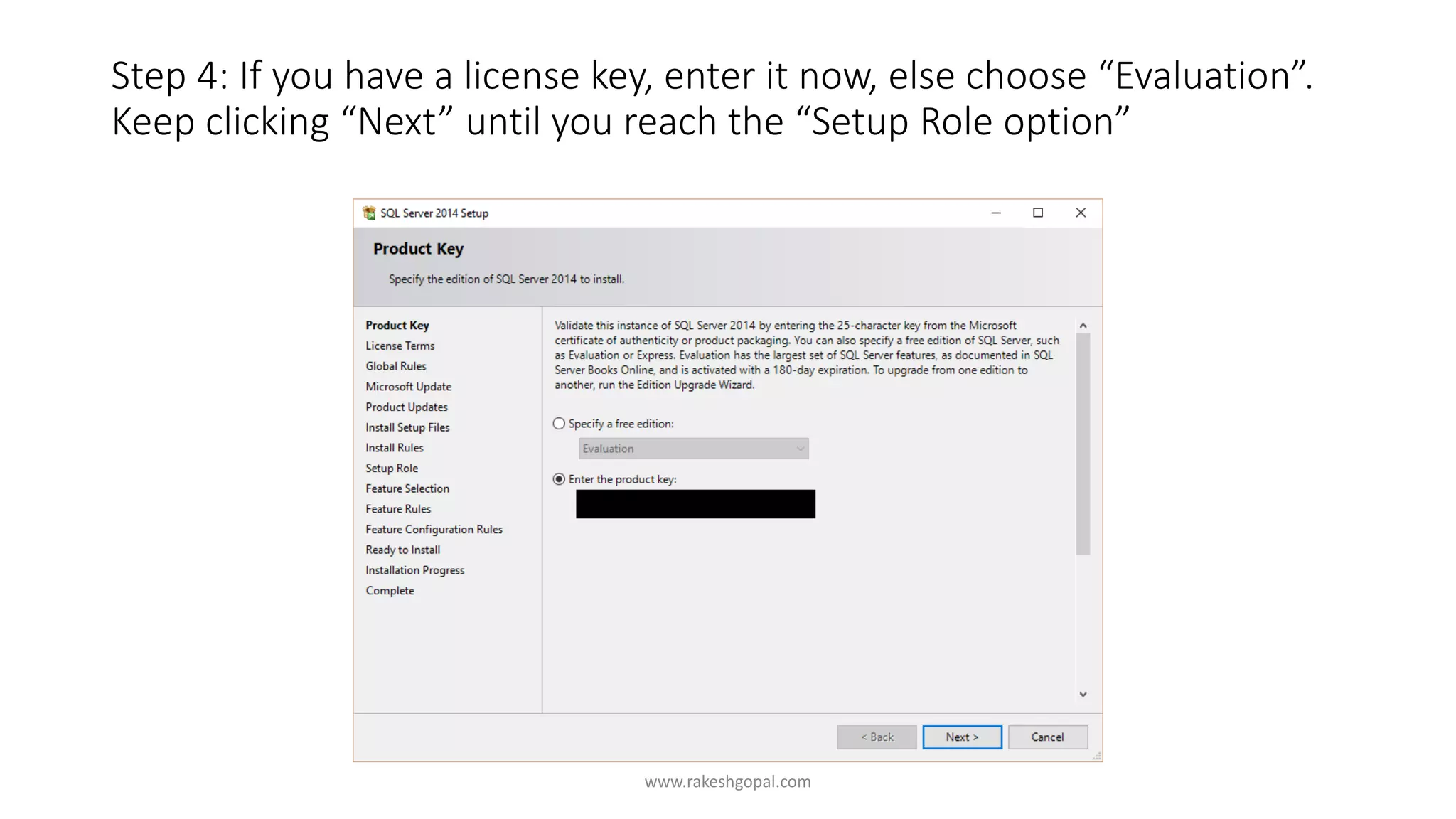
Step 4: If you have a license key, enter it now, else choose “Evaluation”.
Keep clicking “Next” until you reach the “Setup Role option”
www.rakeshgopal.com
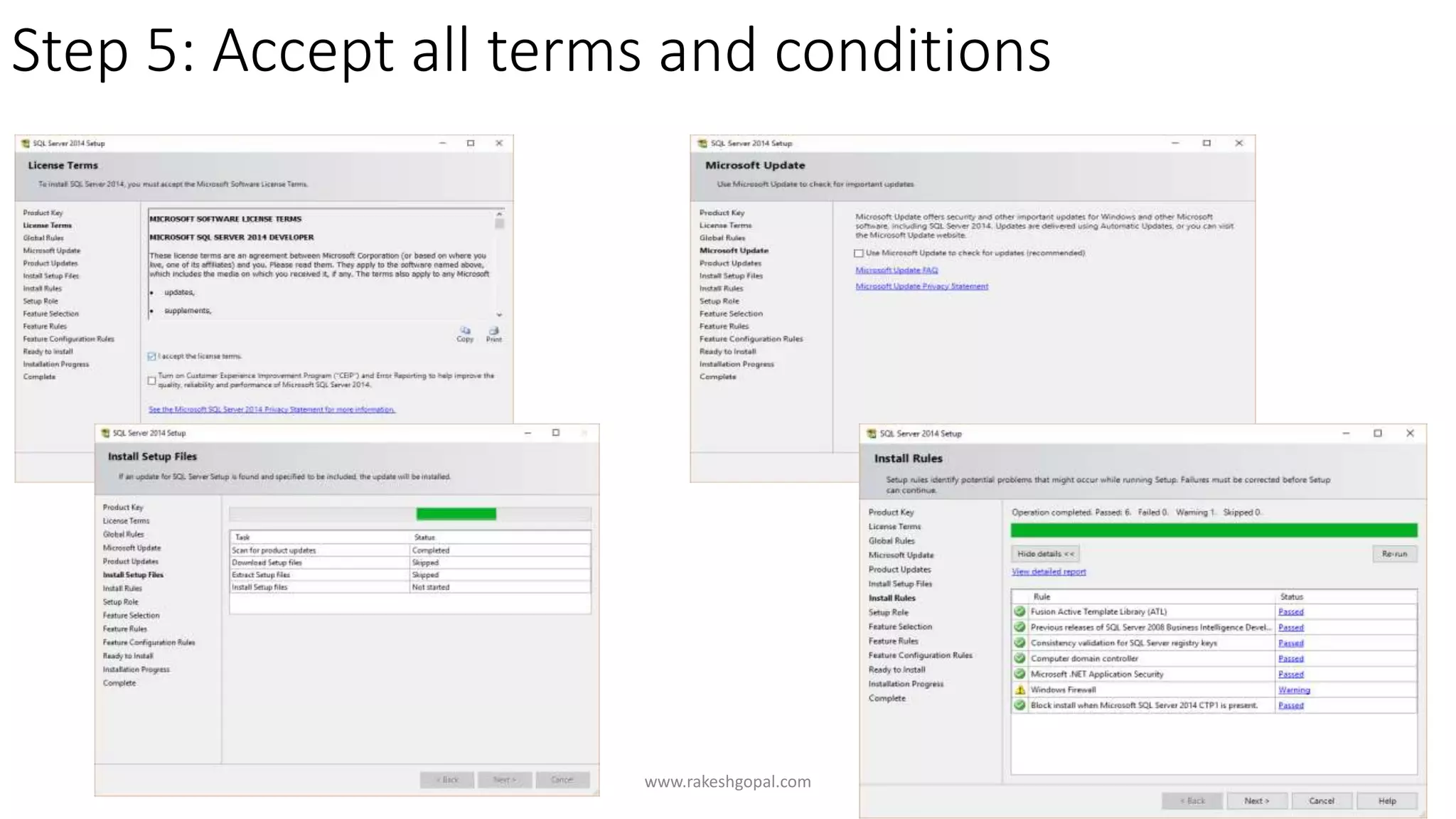
Step 5: Accept all terms and conditions
www.rakeshgopal.com
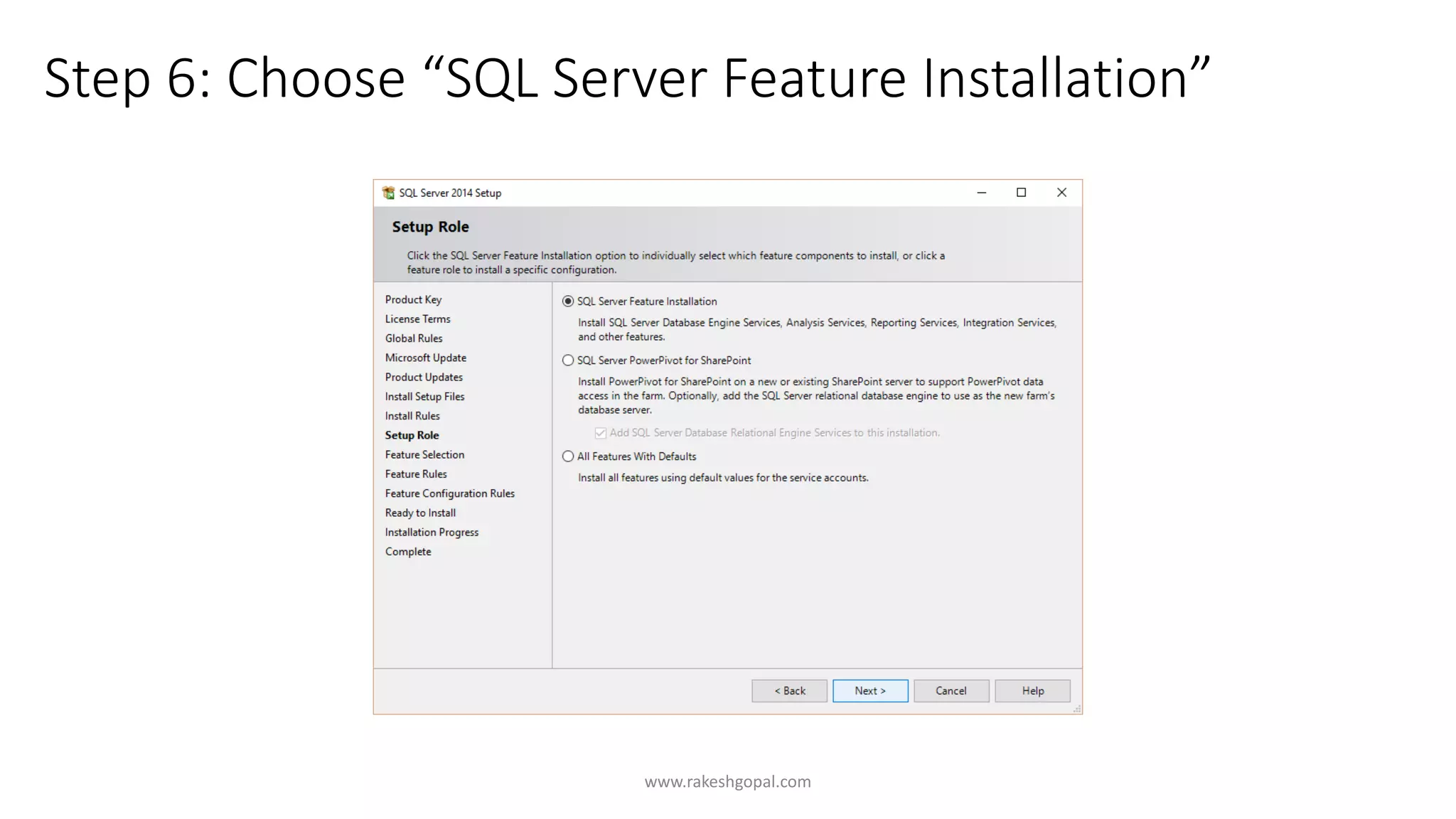
Step 6: Choose “SQL Server Feature Installation”
www.rakeshgopal.com
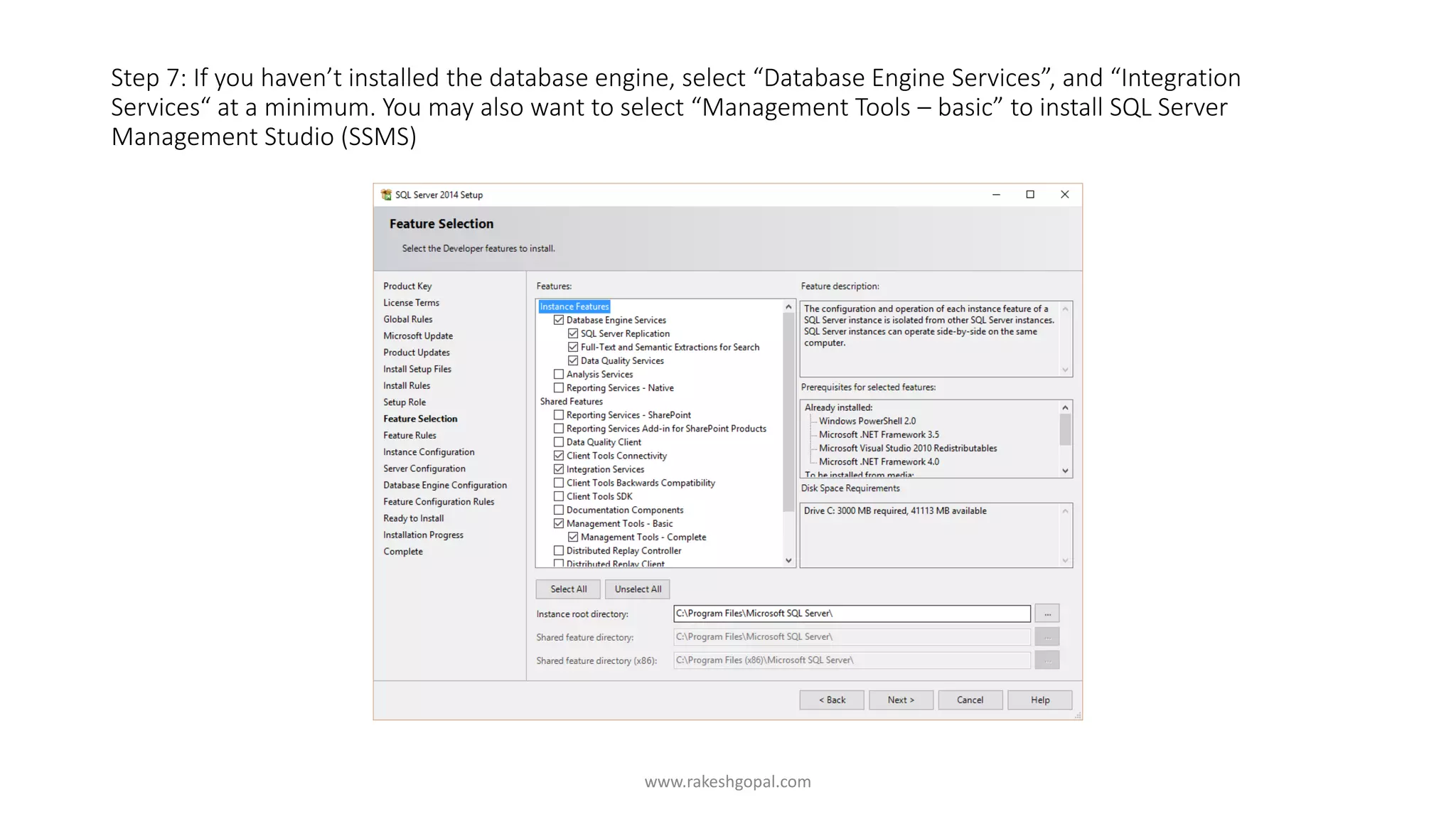
Step 7: If you haven’t installed the database engine, select “Database Engine Services”, and “Integration
Services“ at a minimum. You may also want to select “Management Tools – basic” to install SQL Server
Management Studio (SSMS)
www.rakeshgopal.com
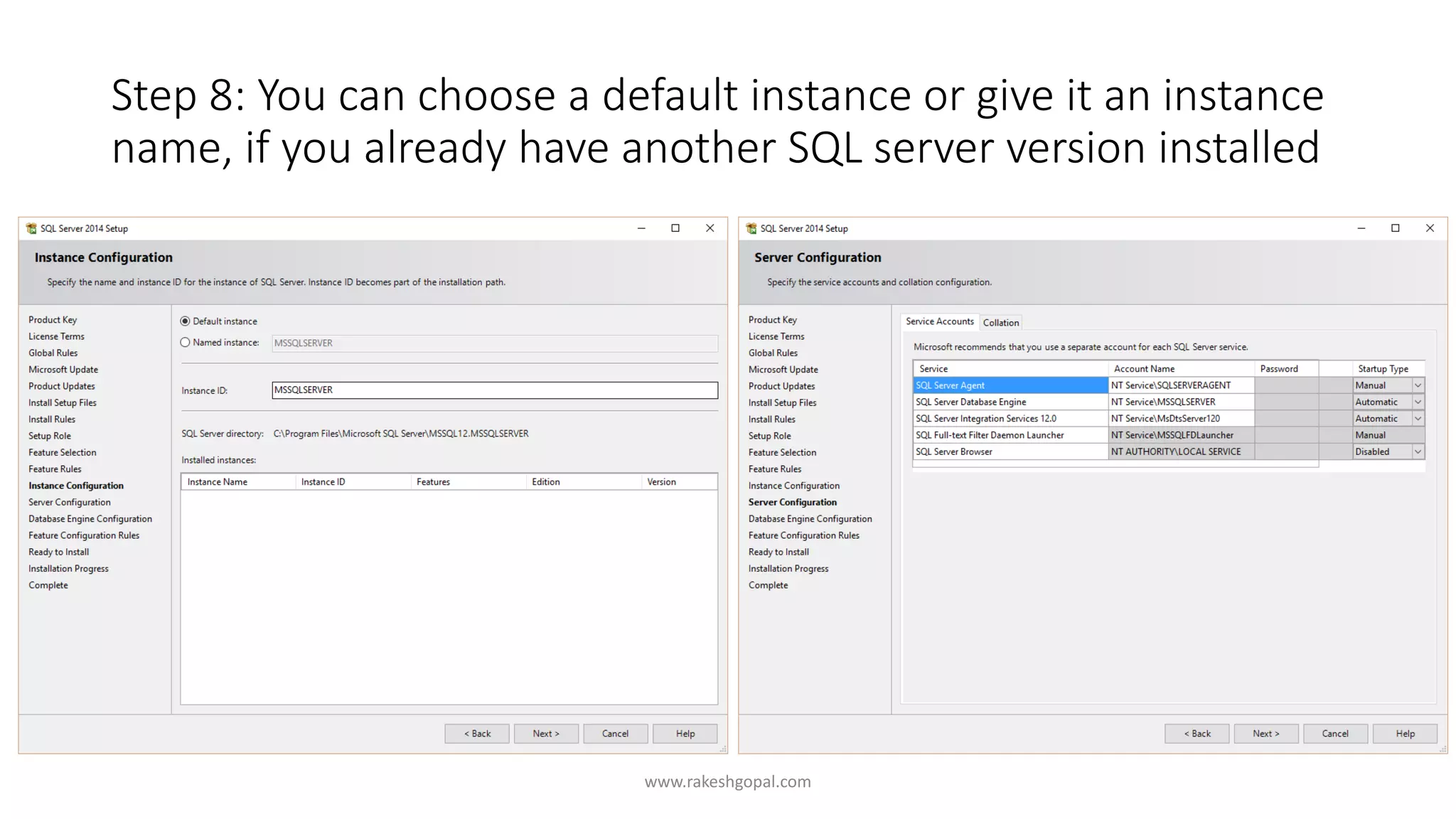
Step 8: You can choose a default instance or give it an instance
name, if you already have another SQL server version installed
www.rakeshgopal.com
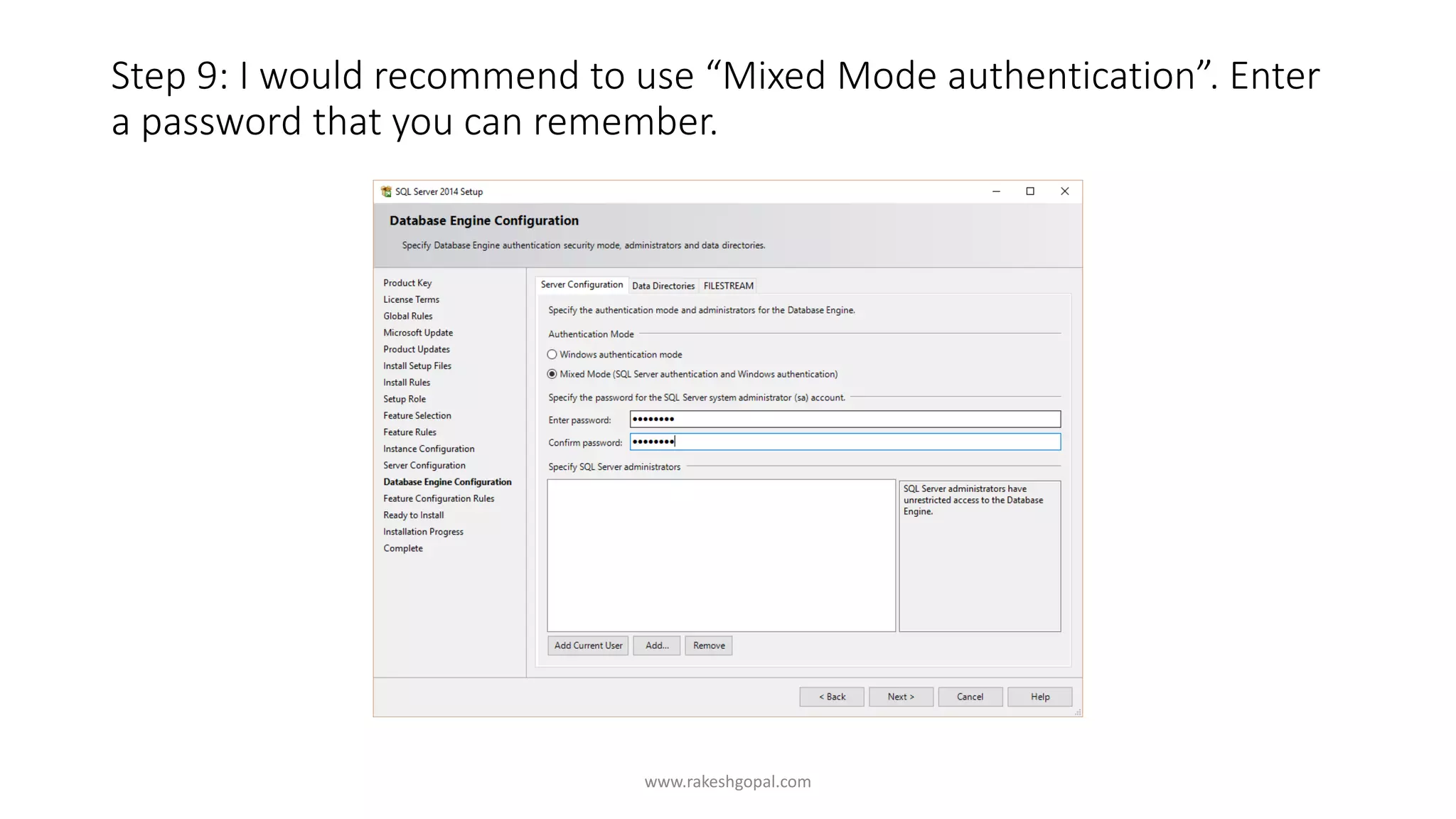
Step 9: I would recommend to use “Mixed Mode authentication”. Enter
a password that you can remember.
www.rakeshgopal.com
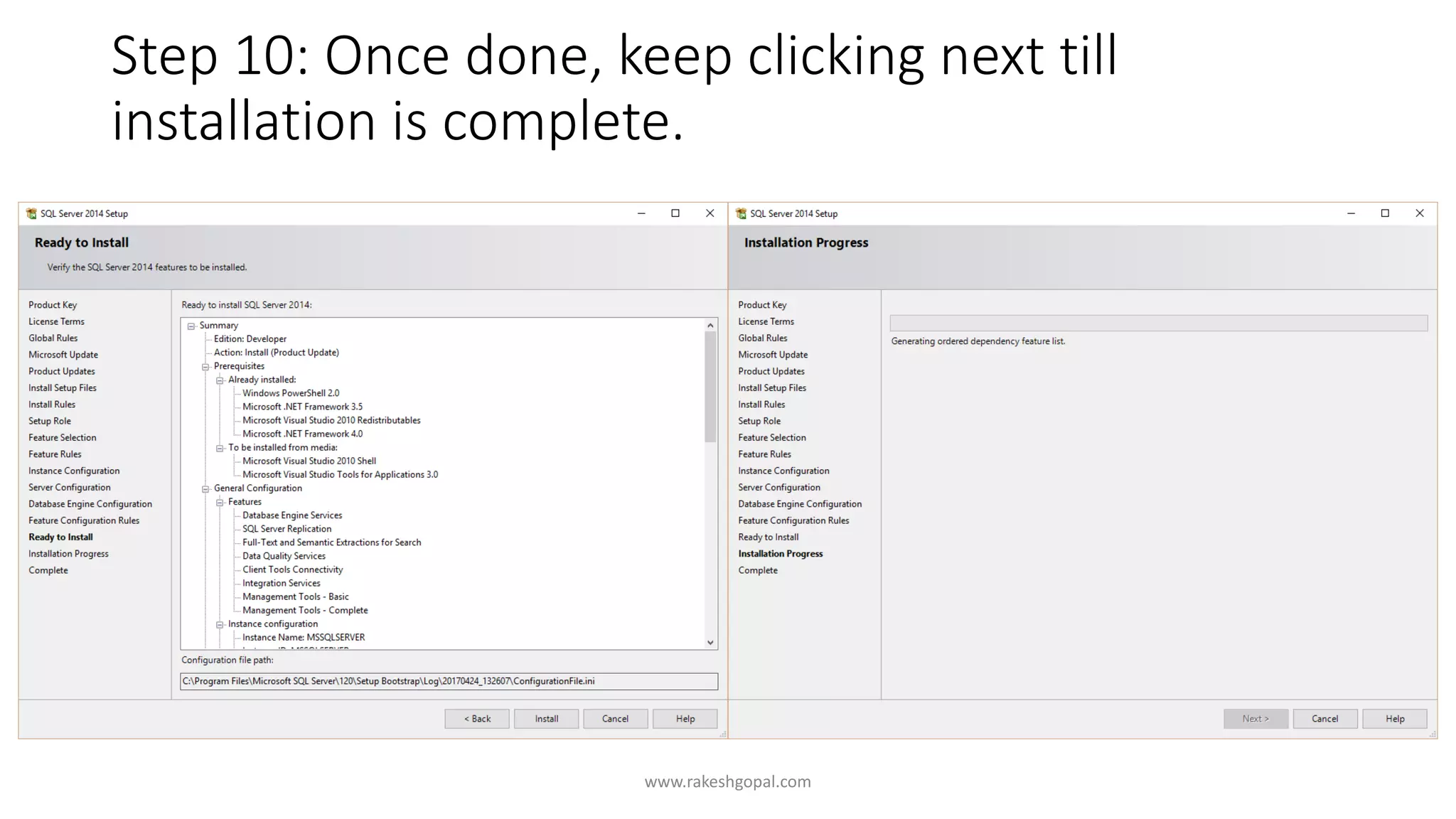
Step 10: Once done, keep clicking next till
installation is complete.
www.rakeshgopal.com
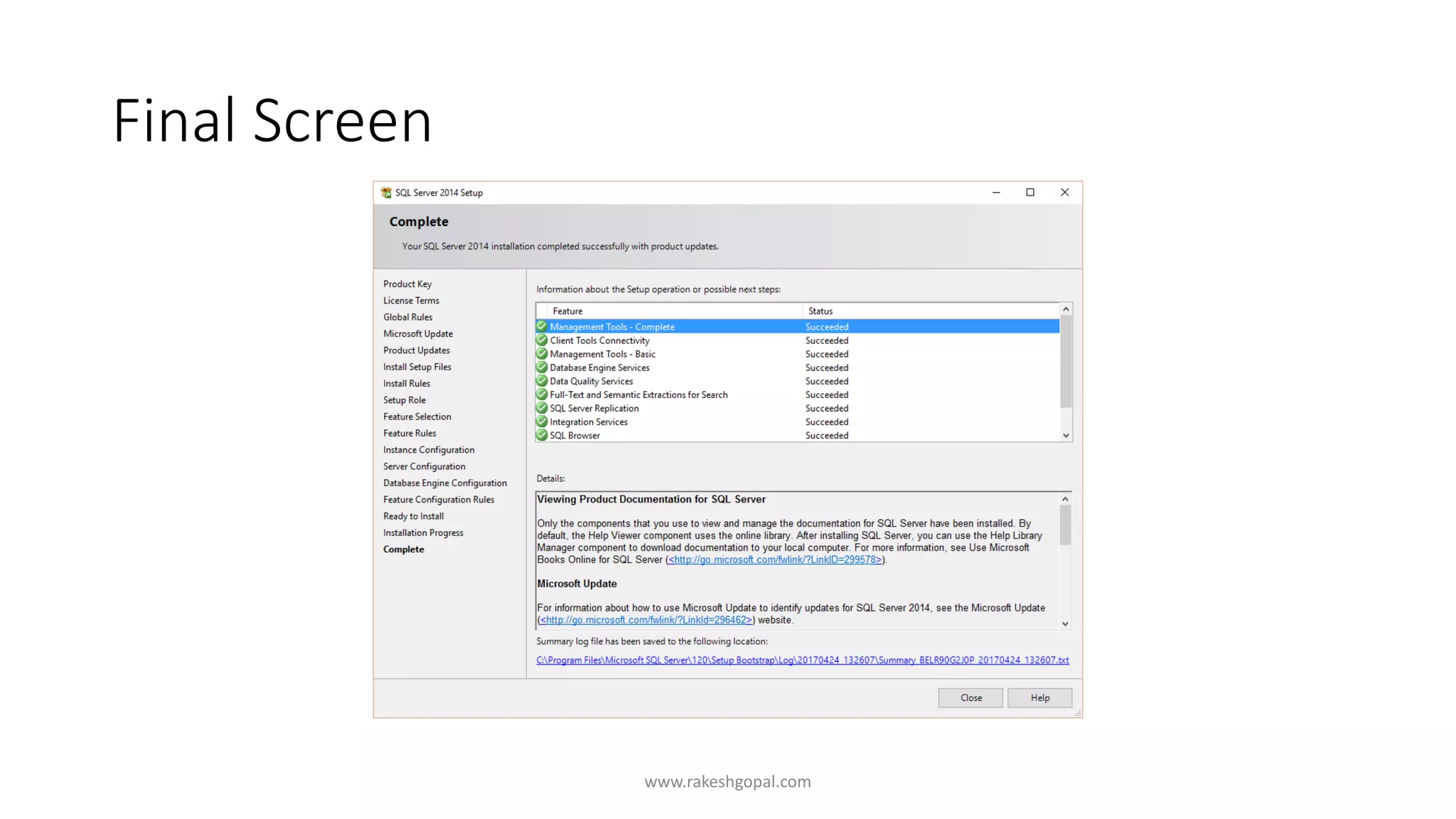
Final Screen
www.rakeshgopal.com
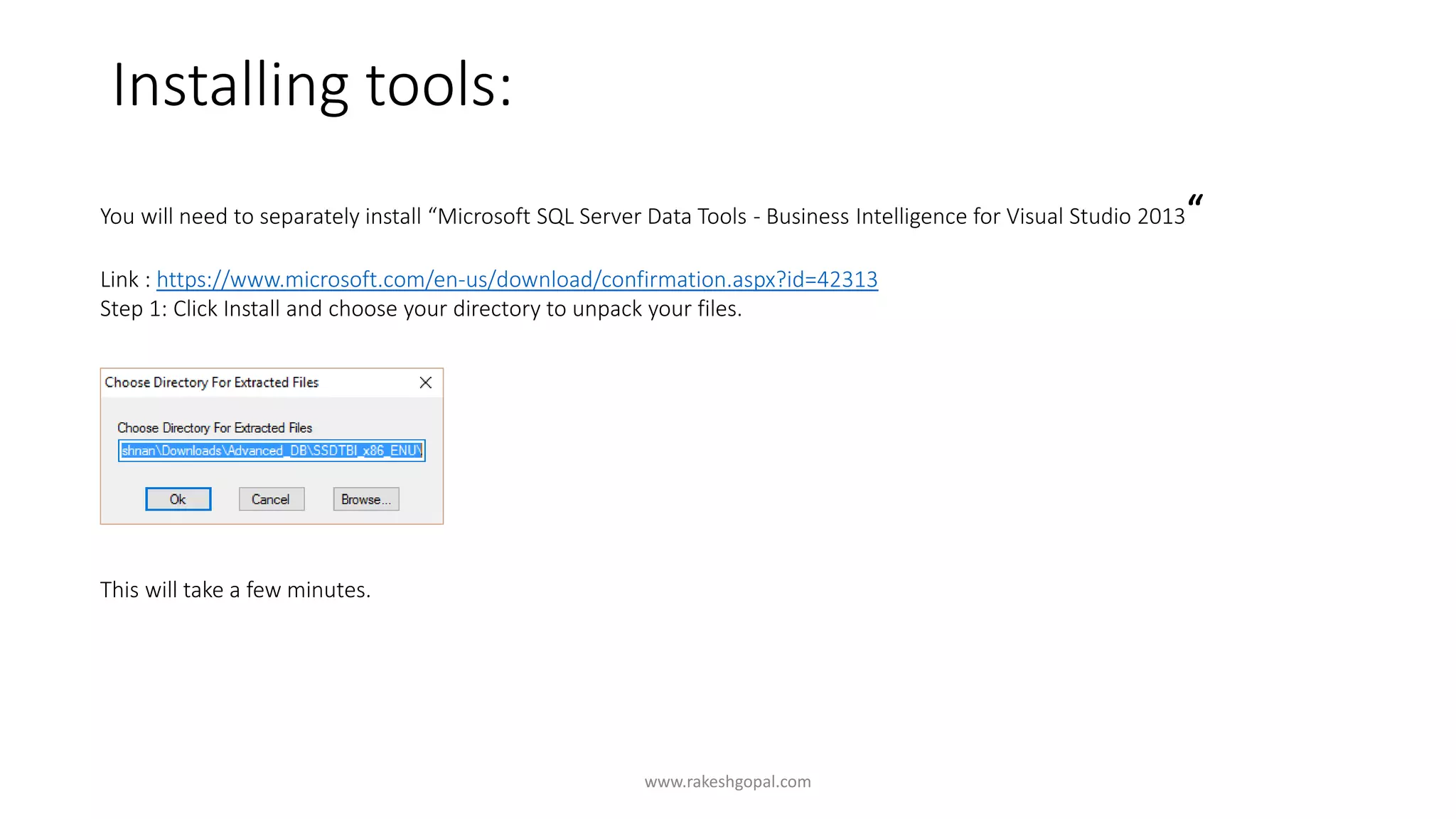
Installing tools:
www.rakeshgopal.com
You will need to separately install “Microsoft SQL Server Data Tools - Business Intelligence for Visual Studio 2013“
Link : https://www.microsoft.com/en-us/download/confirmation.aspx?id=42313
Step 1: Click Install and choose your directory to unpack your files.
This will take a few minutes.
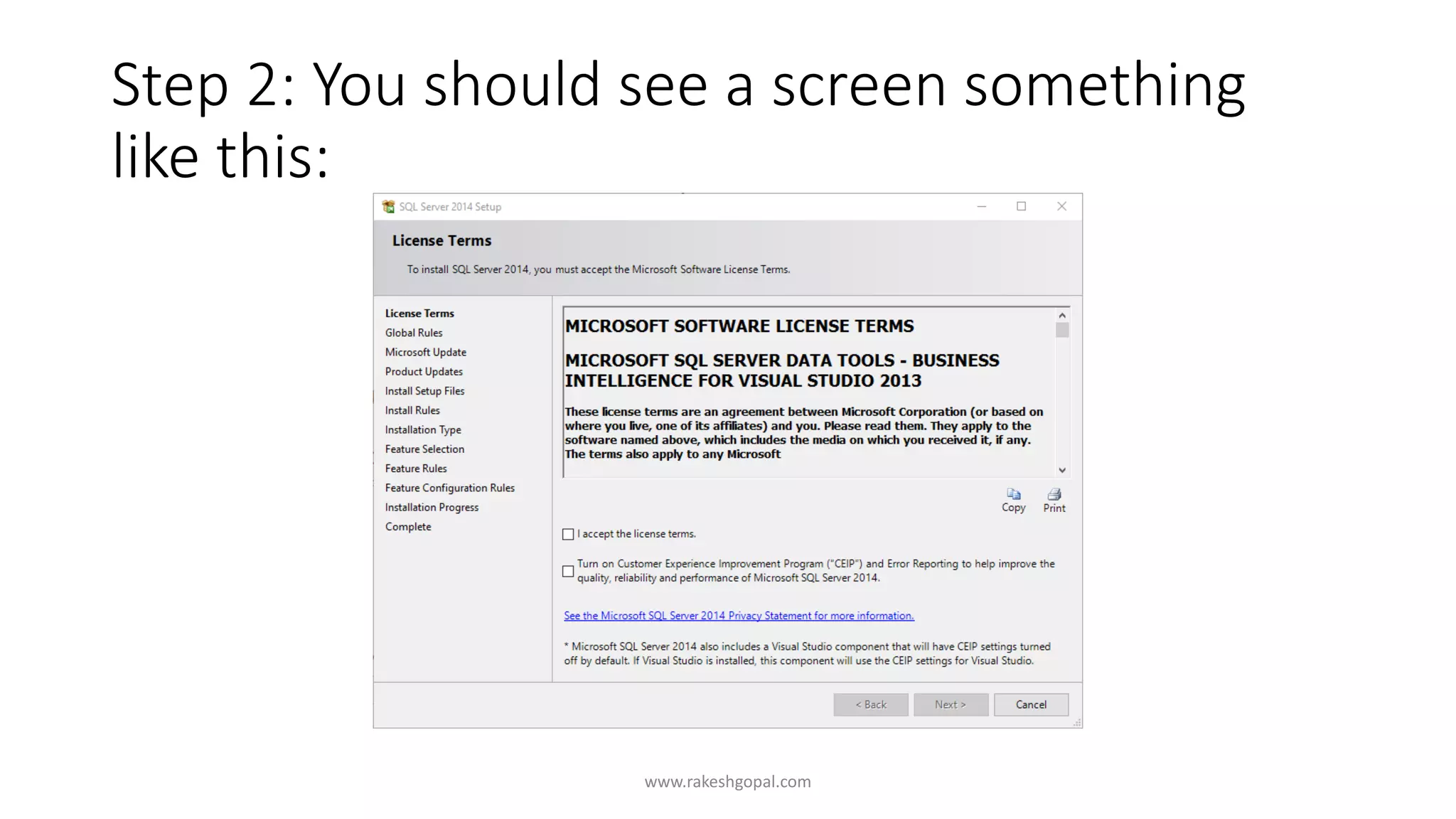
Step 2: You should see a screen something
like this:
www.rakeshgopal.com
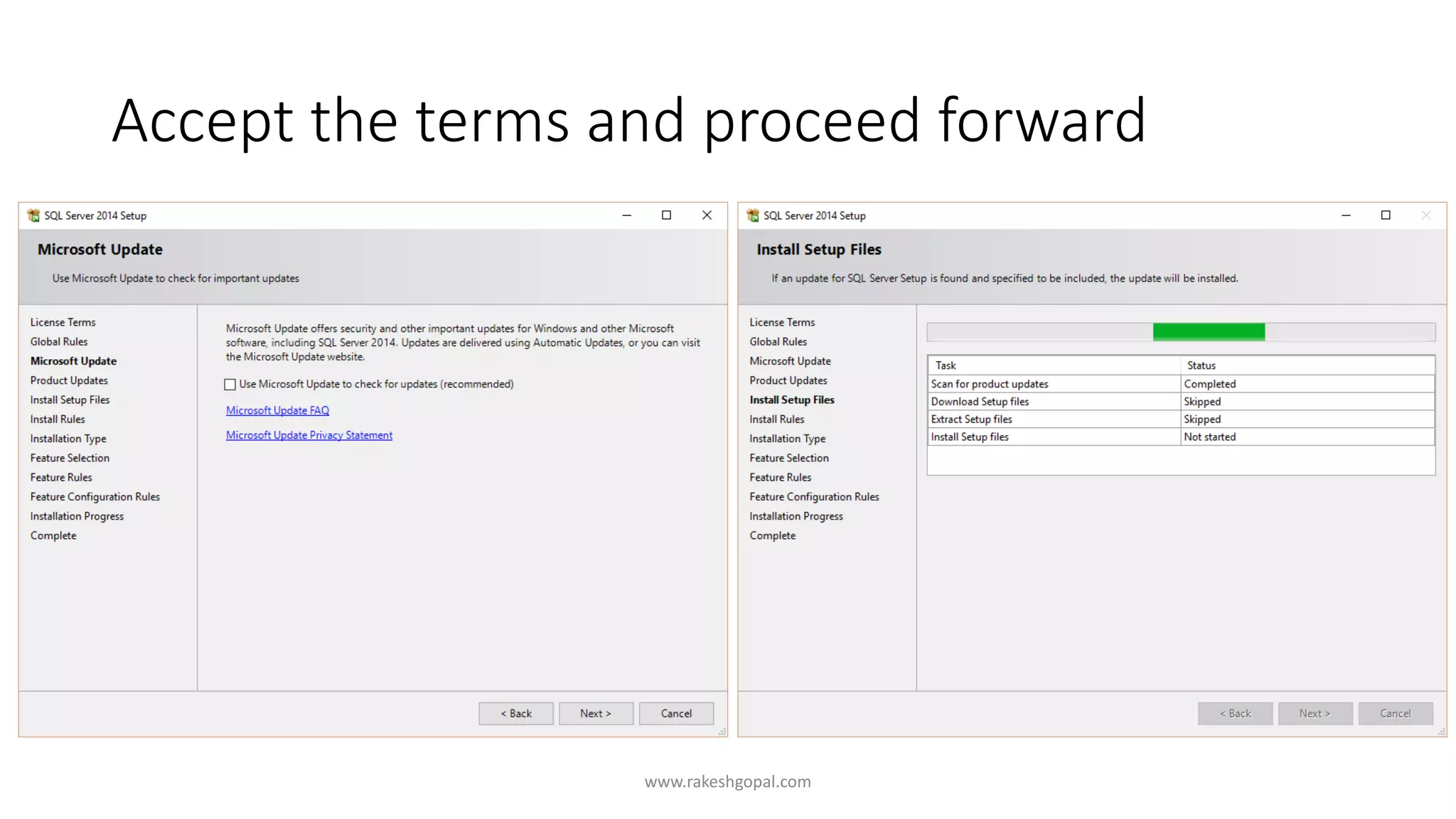
Accept the terms and proceed forward
www.rakeshgopal.com
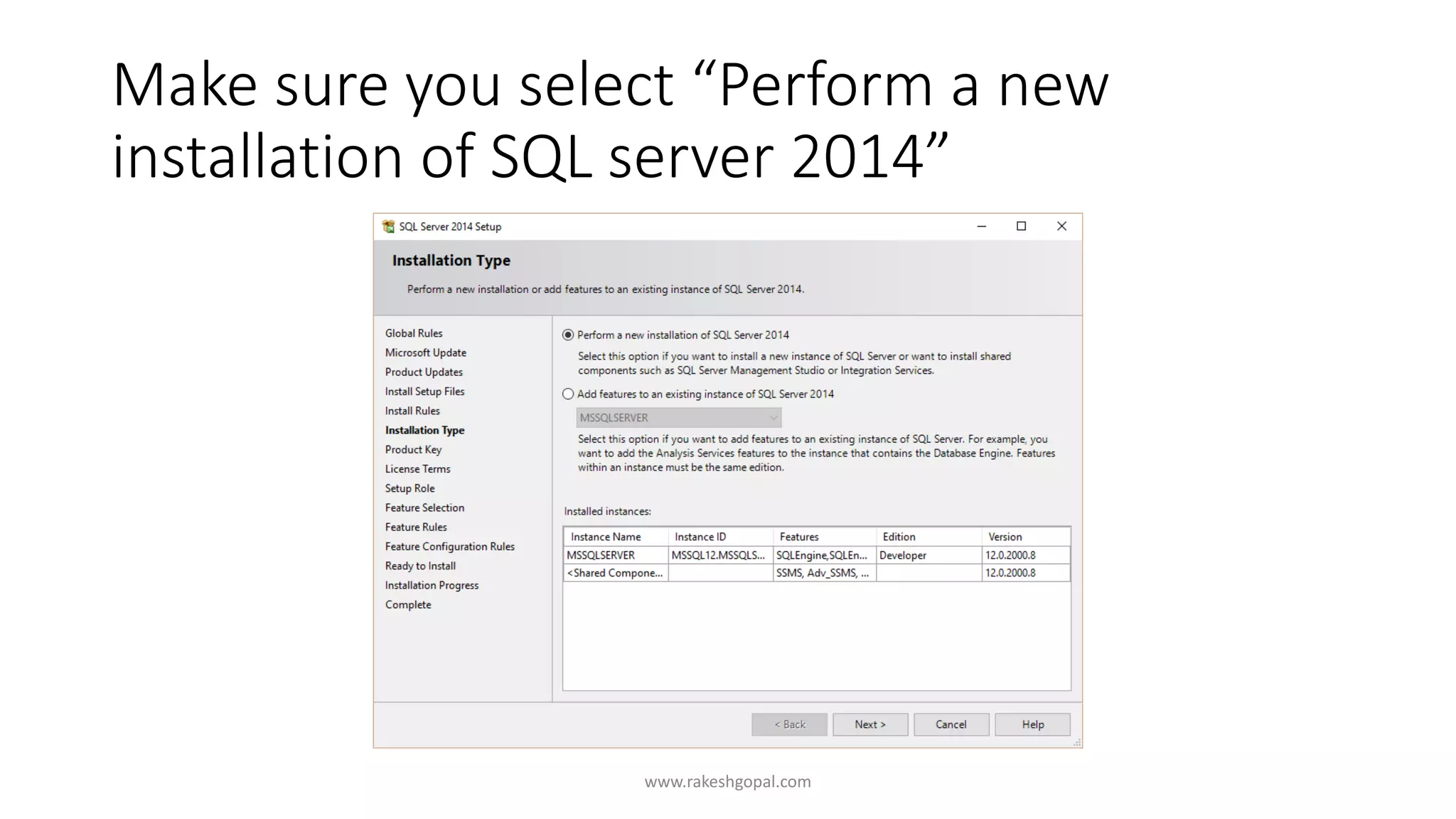
Make sure you select “Perform a new
installation of SQL server 2014”
www.rakeshgopal.com
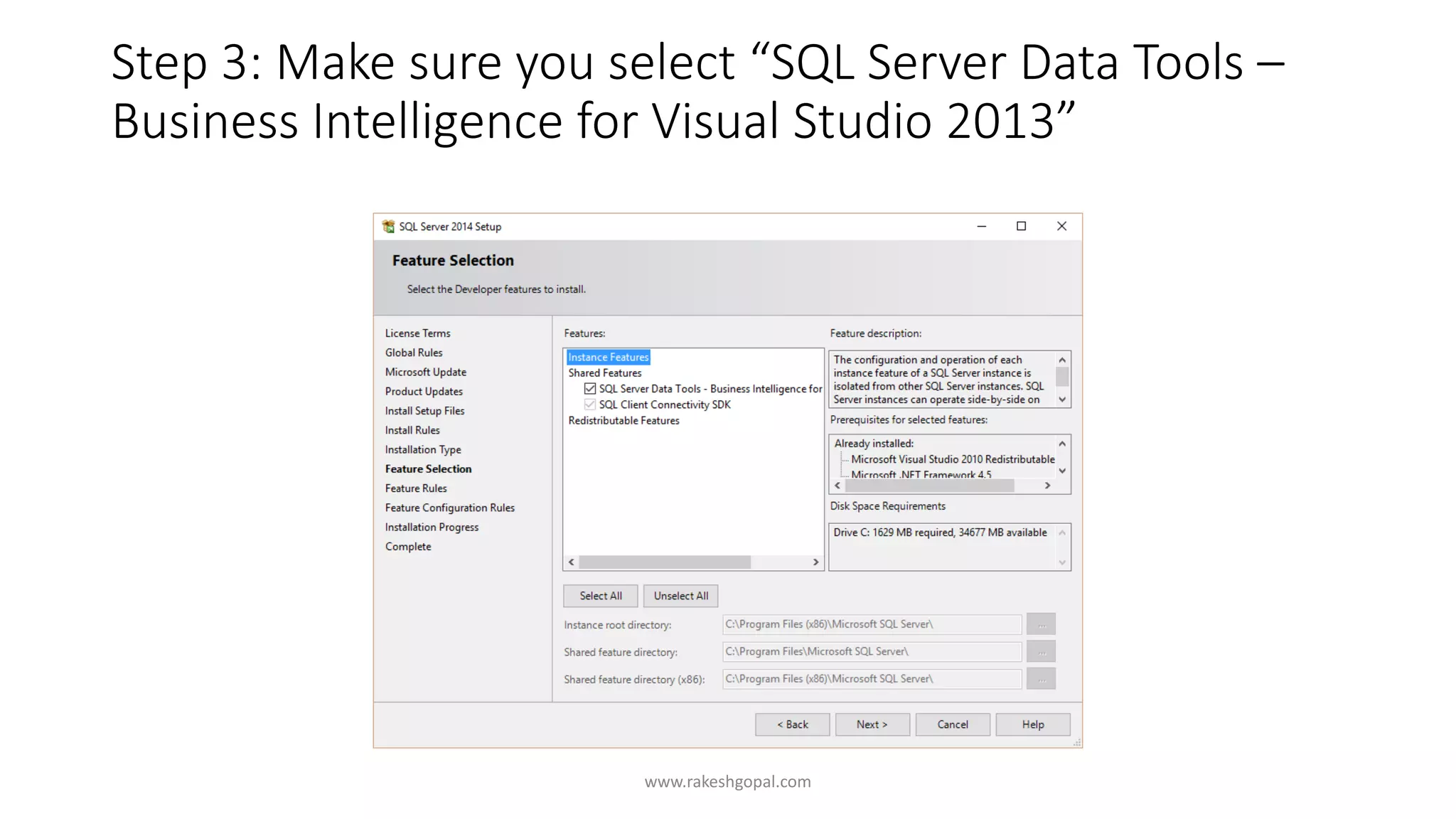
Step 3: Make sure you select “SQL Server Data Tools –
Business Intelligence for Visual Studio 2013”
www.rakeshgopal.com
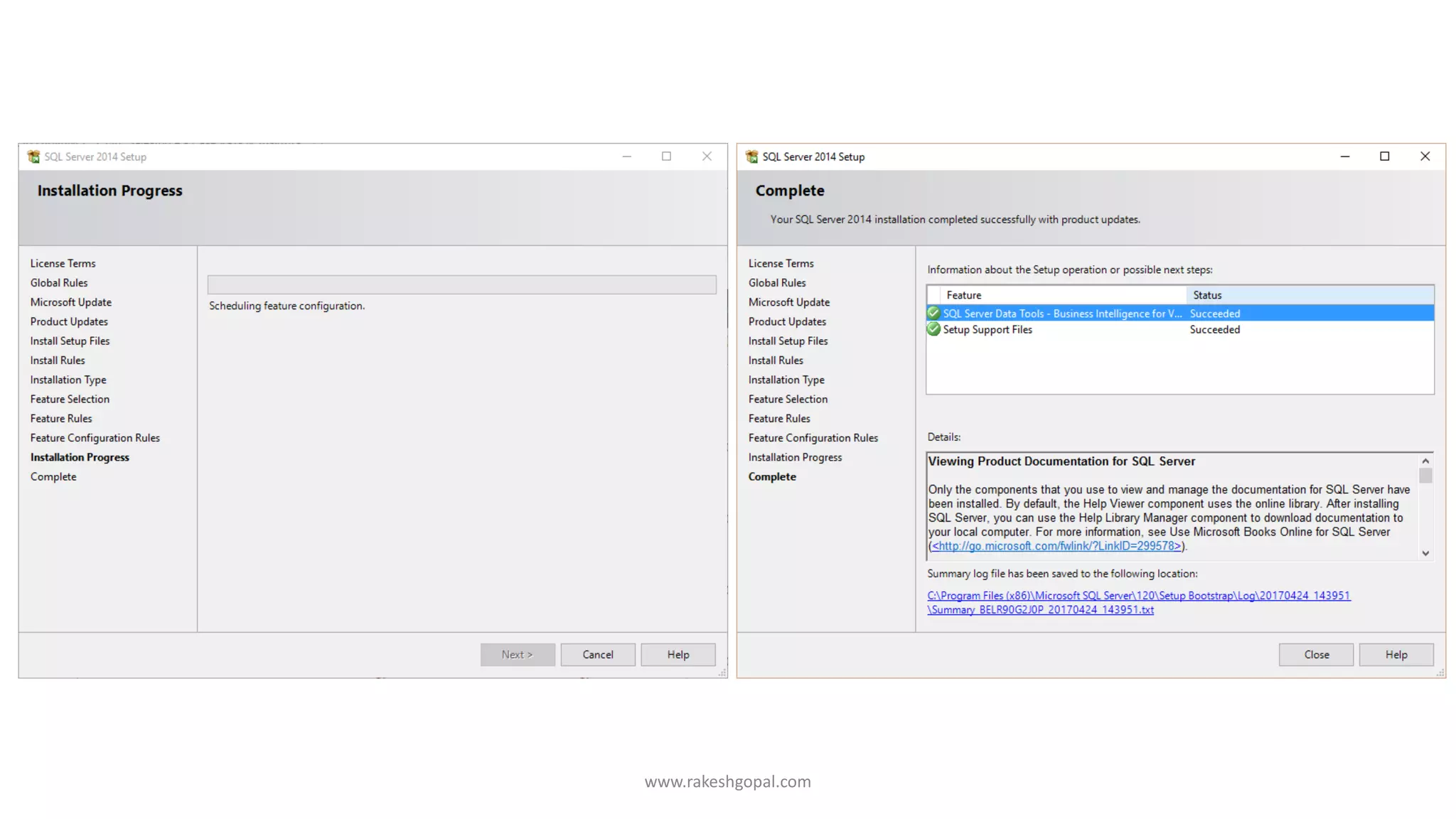
www.rakeshgopal.com
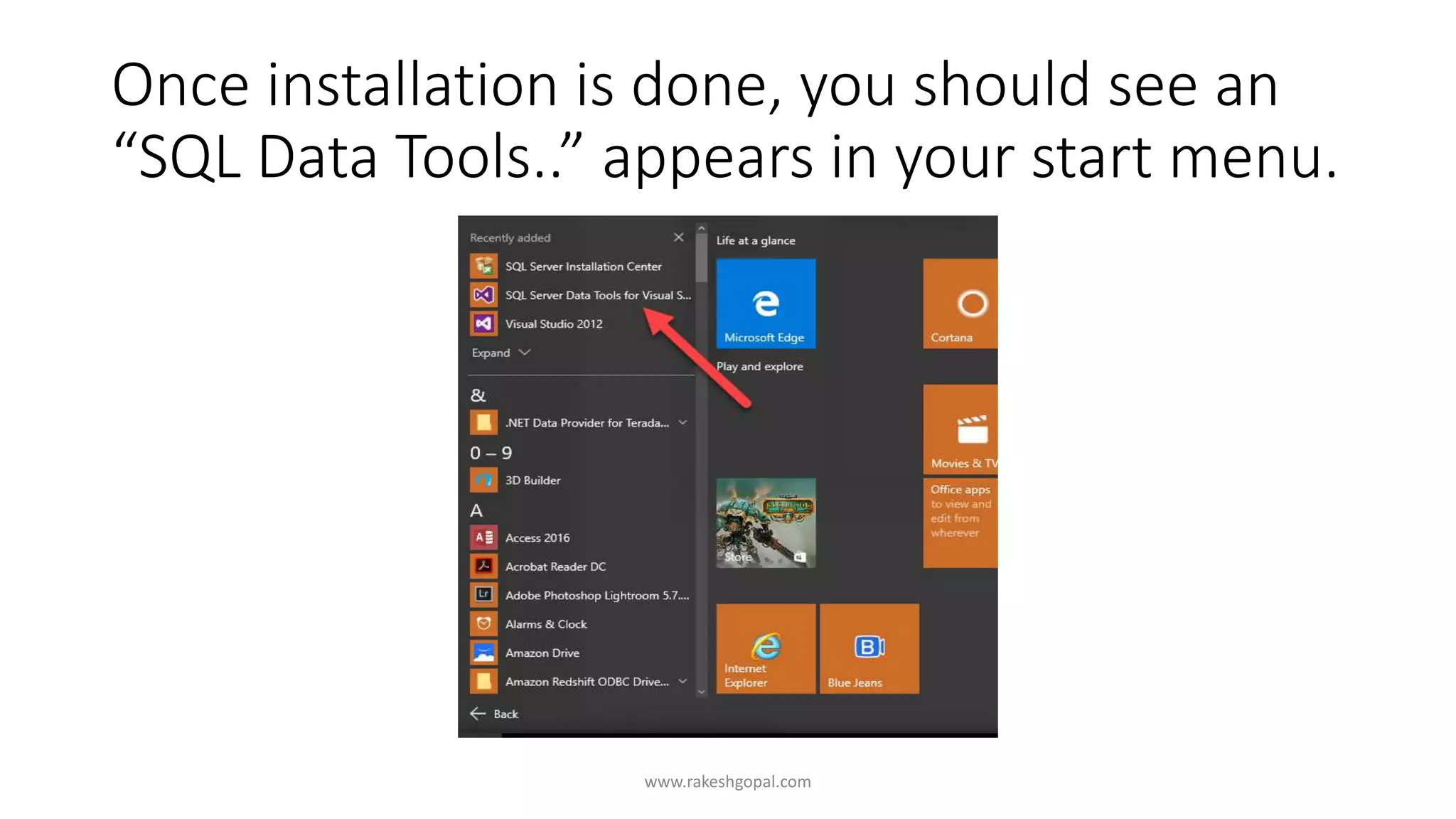
Once installation is done, you should see an
“SQL Data Tools..” appears in your start menu.
www.rakeshgopal.com
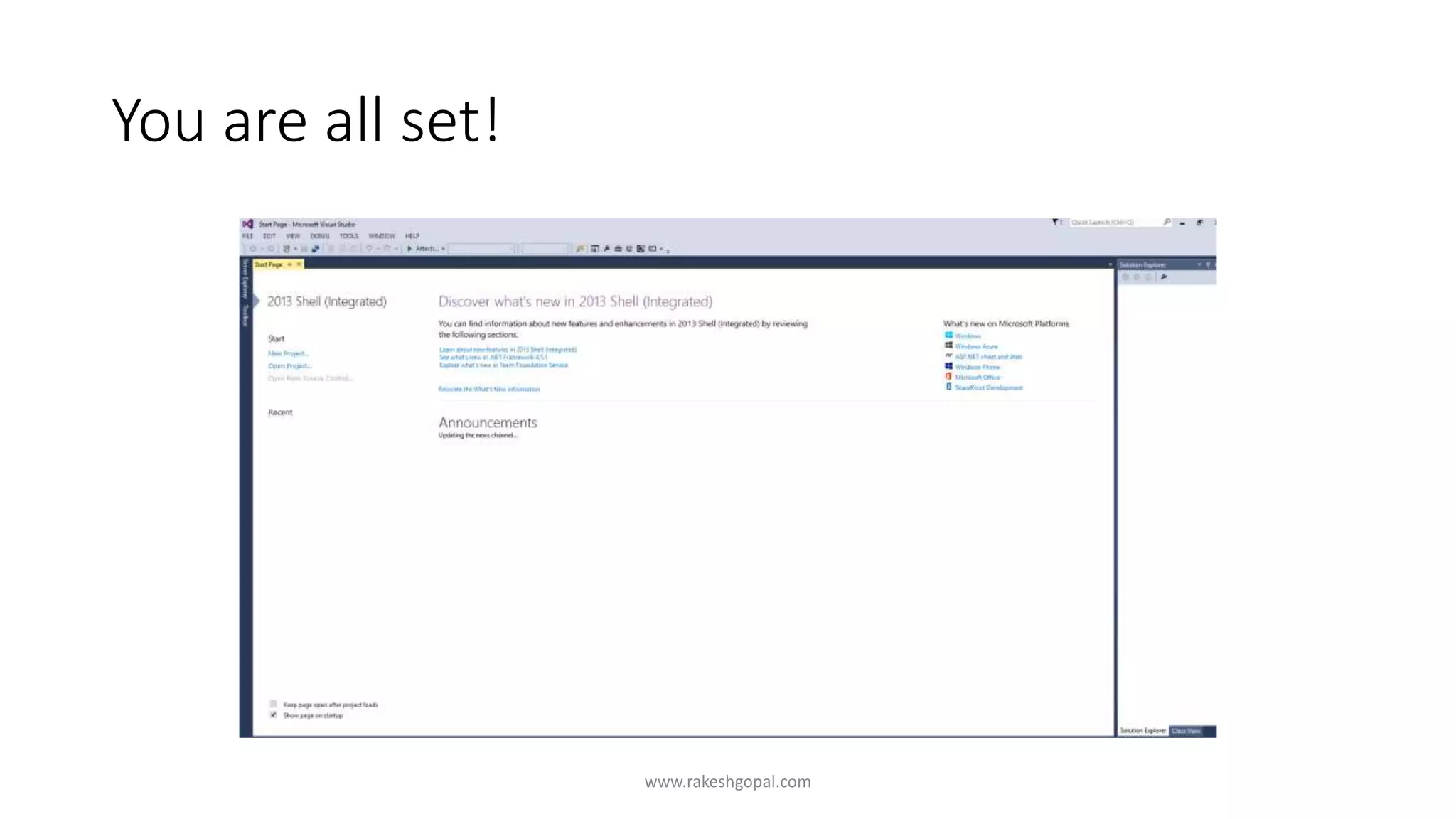
You are all set!
www.rakeshgopal.com

SSIS installation (Step by Step)

  • 1.
  • 2.
    In order toinstall SSIS or SQL server Integration service, you need to purchase Developer, Standard or Enterprise editions. You can also download the trial versions to explore. www.rakeshgopal.com
  • 3.
    Step 1 Click on Setup.exe www.rakeshgopal.com
  • 4.
    Step 2: Youwill be presented with the following options www.rakeshgopal.com
  • 5.
    Step 3: Click“Installation” www.rakeshgopal.com
  • 6.
    Step 4: Ifyou have a license key, enter it now, else choose “Evaluation”. Keep clicking “Next” until you reach the “Setup Role option” www.rakeshgopal.com
  • 7.
    Step 5: Acceptall terms and conditions www.rakeshgopal.com
  • 8.
    Step 6: Choose“SQL Server Feature Installation” www.rakeshgopal.com
  • 9.
    Step 7: Ifyou haven’t installed the database engine, select “Database Engine Services”, and “Integration Services“ at a minimum. You may also want to select “Management Tools – basic” to install SQL Server Management Studio (SSMS) www.rakeshgopal.com
  • 10.
    Step 8: Youcan choose a default instance or give it an instance name, if you already have another SQL server version installed www.rakeshgopal.com
  • 11.
    Step 9: Iwould recommend to use “Mixed Mode authentication”. Enter a password that you can remember. www.rakeshgopal.com
  • 12.
    Step 10: Oncedone, keep clicking next till installation is complete. www.rakeshgopal.com
  • 13.
  • 14.
    Installing tools: www.rakeshgopal.com You willneed to separately install “Microsoft SQL Server Data Tools - Business Intelligence for Visual Studio 2013“ Link : https://www.microsoft.com/en-us/download/confirmation.aspx?id=42313 Step 1: Click Install and choose your directory to unpack your files. This will take a few minutes.
  • 15.
    Step 2: Youshould see a screen something like this: www.rakeshgopal.com
  • 16.
    Accept the termsand proceed forward www.rakeshgopal.com
  • 17.
    Make sure youselect “Perform a new installation of SQL server 2014” www.rakeshgopal.com
  • 18.
    Step 3: Makesure you select “SQL Server Data Tools – Business Intelligence for Visual Studio 2013” www.rakeshgopal.com
  • 19.
  • 20.
    Once installation isdone, you should see an “SQL Data Tools..” appears in your start menu. www.rakeshgopal.com
  • 21.
    You are allset! www.rakeshgopal.com