Installation of SQL Server
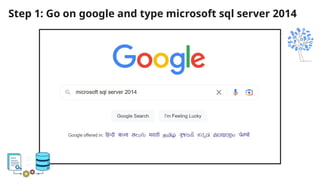
Step 1: Go on google and type microsoft sql server 2014
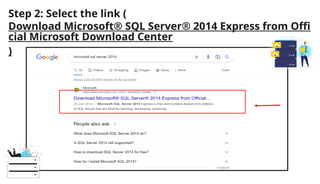
Step 2: Select the link (
Download Microsoft® SQL Server® 2014 Express from Offi
cial Microsoft Download Center
)
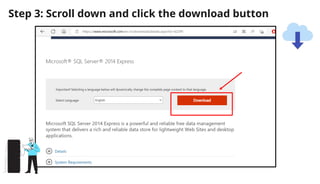
Step 3: Scroll down and click the download button
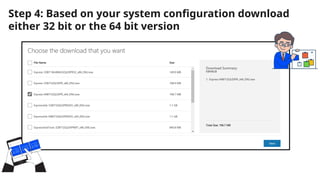
Step 4: Based on your system configuration download
either 32 bit or the 64 bit version
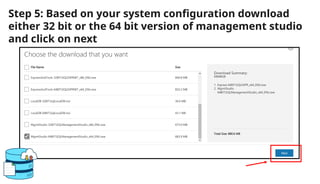
Step 5: Based on your system configuration download
either 32 bit or the 64 bit version of management studio
and click on next
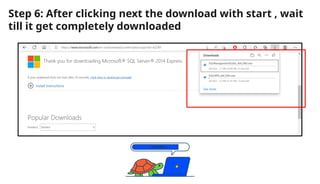
Step 6: After clicking next the download with start , wait
till it get completely downloaded
Step 7: Go to the folder where it got downloaded and click
on SQLEXPR.exe
Step 8: Click on Ok
Step 9: Let it download
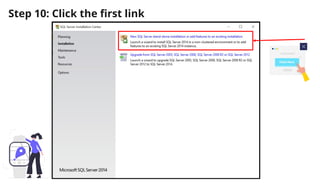
Step 10: Click the first link
Step 11: Click on I accept the license terms
Step 12: Click on next
Step 13: Let setup files get downloaded
Step 14: Select all the features and select next
Step 15: Select default instance and then click next
Step 16: Click next
Step 17: Select Mixed Mode
Step 18: Set the password
Step 19: You need to remember this password for further
uses in sql and then click next
Step 20: Let the installation process get complete
Step 21: Let the installation process get complete and
then click next
Step 22: Hurray! you have completed the SQL Server
Setup and then click on close
Step 23: Go to the folder where it got downloaded again
and click on SQLManagementStudio.exe
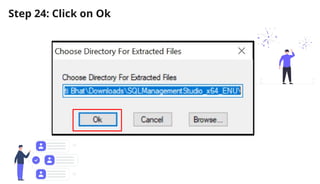
Step 24: Click on Ok
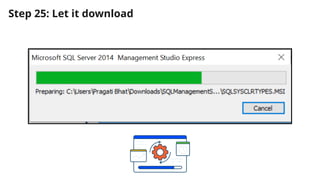
Step 25: Let it download
Step 26: Click the first link
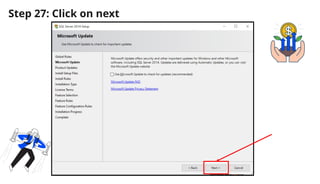
Step 27: Click on next
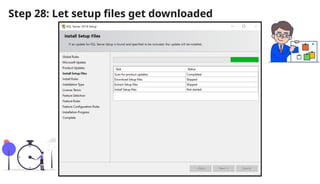
Step 28: Let setup files get downloaded
Step 29: Click on next
Step 30: Click on I accept the license terms and click next
Step 31: Select all the features and select next
Step 32: Hurray! you have completed the SQL
Management Studio Setup and then click on close
Step 33: Go to search bar and type SQL Management
Studio and click enter , the studio will start
Step 34: Your screen will look like below image
Step 35: Select Authentication as SQL Server
Authentication,enter login - sa and password- the one
you have kept in earlier steps and click connect
Step 36: If you forgot your password you can keep
authentication as Windows and click on connect
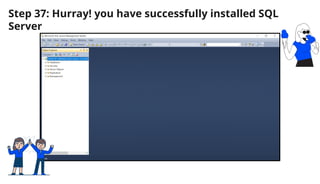
Step 37: Hurray! you have successfully installed SQL
Server
THANK
YOU

Presentation on Installation of SQL Server