SoMachine V4.1
How to make a project with
SoMachine?
By DUBOIS Julien
Don’t forget, I decline all responsibilities on your installation
of SoMachine and your utilisation too. I am not the god of
SoMachine and I can’t to say it. I am not the master. I give you
the ways to make little program after, you should practice
again and again if you want really discover all the
functionalities. So good luck and courage if you want to
continue to see this slideshow.
And I use the french version of SoMachine. Cause I am french.
You should to open SoMachine if you want to really learn how to male a
project
So let’s go.
Table of content
1. What is SoMachine
2. What are the controllers who could be use with
SoMachine?
3. The basics: how to make a project.
SoMachine
SoMachine is a Schneider's software. We can make controller
program with this in Grafcet, Ladder etc....
I wiill show you how to use it, the basics to begining.
And in the time, we complexify the lesson.
Controller software?
We can program a controller with that.
We can program only the Schneider's controller in those
different version:
● TM221
● TM241
● TM251
● Etc...
I don't write all of sub-products of this controllers, they are so
many.
The Basics
I am going to show you pictures of the software. The first
window, how you make a project, configure it and I don’t say
anymore.
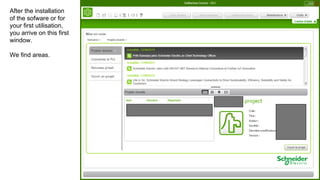
After the installation
of the sofware or for
your first utilisation,
you arrive on this first
window.
We find areas.
1
2
3
4
We have 5 areas, the
last part is in the top of
the window, it’s the
main menu, you can to
make a new project,
open an old project,
save, save as,
configuration, connect
to an API and the help
section.
You see Logic Builder,
Vijeo-designer etc…
They are shortcuts for 2
Windows this and after
this. After this main
menu disappear for
another menu.
The last area
1
2
3
4
1. You find the
project of you did.
You can to
connect the
controller to the
PC make a new
project or open a
project on your
computer.
1
2
3
4
2. The news come
from Schneider, if
you want to read,
it’s your choice.
1
2
3
4
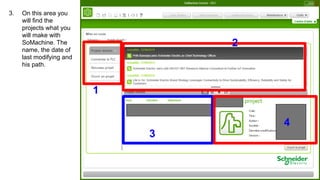
3. On this area you
will find the
projects what you
will make with
SoMachine. The
name, the date of
last modifying and
his path.
1
2
3
4
4. Here you can find
some information
on the project, if
you have one.
When you choose
“New Project (Nouveau
Projet)”, you arrive on
this window.
They let you the choice
of how you want to
make a project.
If it’s the first time,
choose Use the
assistant, else choose
Blank Project.
I don’t know the others
choice, I can’t say you
what they do.
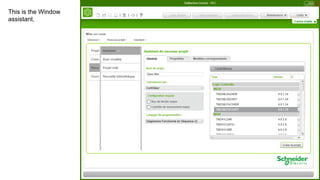
This is the Window
assistant.
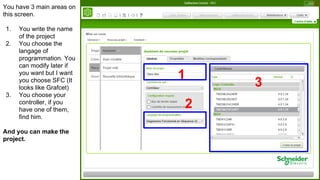
You have 3 main areas on
this screen.
1. You write the name
of the project
2. You choose the
langage of
programmation. You
can modify later if
you want but I want
you choose SFC (It
looks like Grafcet)
3. You choose your
controller, if you
have one of them,
find him.
And you can make the
project.
1
2
3
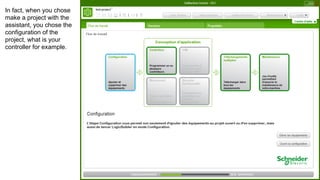
In fact, when you chose
make a project with the
assistant, you chose the
configuration of the
project, what is your
controller for example.
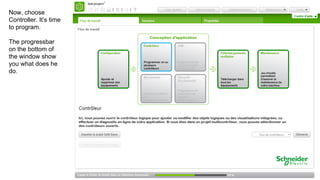
Now, choose
Controller. It’s time
to program.
The progressbar
on the bottom of
the window show
you what does he
do.
Maybe you have to wait, but after you arrive here.
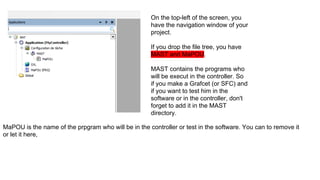
On the top-left of the screen, you
have the navigation window of your
project.
If you drop the file tree, you have
MAST and MaPOU.
MAST contains the programs who
will be execut in the controller. So
if you make a Grafcet (or SFC) and
if you want to test him in the
software or in the controller, don't
forget to add it in the MAST
directory.
MaPOU is the name of the prpgram who will be in the controller or test in the software. You can to remove it
or let it here,
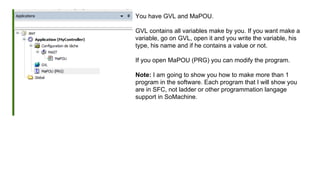
You have GVL and MaPOU.
GVL contains all variables make by you. If you want make a
variable, go on GVL, open it and you write the variable, his
type, his name and if he contains a value or not.
If you open MaPOU (PRG) you can modify the program.
Note: I am going to show you how to make more than 1
program in the software. Each program that I will show you
are in SFC, not ladder or other programmation langage
support in SoMachine.
So, this is MaPOU program. It's look like a Grafcet but
it is in SFC.
It has the same syntax like Grafcet, we need a init
step. SoMachine calls them Init. It's usefull because
you know where the program begin.
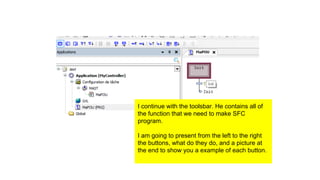
I continue with the toolsbar. He contains all of
the function that we need to make SFC
program.
I am going to present from the left to the right
the buttons, what do they do, and a picture at
the end to show you a example of each button.
I begin with this 3 buttons. They let you make
actions to the steps. Personnaly I never use
this functions. But when the program arrive to a
Step, maybe we have to say what has he do at
the entry of the step or at the end before to go
to the next step.
The 2 next buttons let you make Steps. Before
or after the actual Step you are.
With the first button, you make a Step
before the actual Step, here Ii make a
new step before the Init step. And
SoMachine make automatically a
transitionn between the new step and
the actual step.
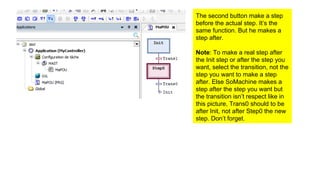
The second button make a step
before the actual step. It’s the
same function. But he makes a
step after.
Note: To make a real step after
the Init step or after the step you
want, select the transition, not the
step you want to make a step
after. Else SoMachine makes a
step after the step you want but
the transition isn’t respect like in
this picture, Trans0 should to be
after Init, not after Step0 the new
step. Don’t forget.
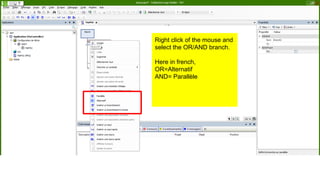
This 2 next button let you make a OR/AND
branch.
SoMachine begin to make a OR branch. If
you want to make a AND branch,
Right click of the mouse and
select the OR/AND branch.
Here in french,
OR=Alternatif
AND= Parallèle
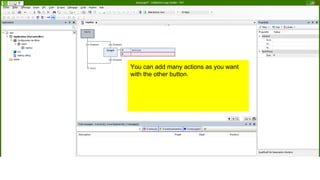
To add an action to a Step, select
the Step and click on Insert an
action.
You can add many actions as you want
with the other button.
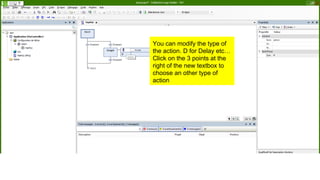
You can modify the type of
the action. D for Delay etc…
Click on the 3 points at the
right of the new textbox to
choose an other type of
action
And that’s it. The software is in your hand.
In the next slideshow I show you an example of program.
After, it
See you soon.
The next slideshow will present you how to write variables, use them in
SFC. Make more than 1 SFC program and how to simulate the program.

SoMachine 4.1 quickstart

  • 1.
    SoMachine V4.1 How tomake a project with SoMachine? By DUBOIS Julien
  • 2.
    Don’t forget, Idecline all responsibilities on your installation of SoMachine and your utilisation too. I am not the god of SoMachine and I can’t to say it. I am not the master. I give you the ways to make little program after, you should practice again and again if you want really discover all the functionalities. So good luck and courage if you want to continue to see this slideshow. And I use the french version of SoMachine. Cause I am french.
  • 3.
    You should toopen SoMachine if you want to really learn how to male a project So let’s go.
  • 4.
    Table of content 1.What is SoMachine 2. What are the controllers who could be use with SoMachine? 3. The basics: how to make a project.
  • 5.
    SoMachine SoMachine is aSchneider's software. We can make controller program with this in Grafcet, Ladder etc.... I wiill show you how to use it, the basics to begining. And in the time, we complexify the lesson.
  • 6.
    Controller software? We canprogram a controller with that. We can program only the Schneider's controller in those different version: ● TM221 ● TM241 ● TM251 ● Etc... I don't write all of sub-products of this controllers, they are so many.
  • 7.
    The Basics I amgoing to show you pictures of the software. The first window, how you make a project, configure it and I don’t say anymore.
  • 8.
    After the installation ofthe sofware or for your first utilisation, you arrive on this first window. We find areas.
  • 9.
    1 2 3 4 We have 5areas, the last part is in the top of the window, it’s the main menu, you can to make a new project, open an old project, save, save as, configuration, connect to an API and the help section. You see Logic Builder, Vijeo-designer etc… They are shortcuts for 2 Windows this and after this. After this main menu disappear for another menu. The last area
  • 10.
    1 2 3 4 1. You findthe project of you did. You can to connect the controller to the PC make a new project or open a project on your computer.
  • 11.
    1 2 3 4 2. The newscome from Schneider, if you want to read, it’s your choice.
  • 12.
    1 2 3 4 3. On thisarea you will find the projects what you will make with SoMachine. The name, the date of last modifying and his path.
  • 13.
    1 2 3 4 4. Here youcan find some information on the project, if you have one.
  • 14.
    When you choose “NewProject (Nouveau Projet)”, you arrive on this window. They let you the choice of how you want to make a project. If it’s the first time, choose Use the assistant, else choose Blank Project. I don’t know the others choice, I can’t say you what they do.
  • 15.
    This is theWindow assistant.
  • 16.
    You have 3main areas on this screen. 1. You write the name of the project 2. You choose the langage of programmation. You can modify later if you want but I want you choose SFC (It looks like Grafcet) 3. You choose your controller, if you have one of them, find him. And you can make the project. 1 2 3
  • 17.
    In fact, whenyou chose make a project with the assistant, you chose the configuration of the project, what is your controller for example.
  • 18.
    Now, choose Controller. It’stime to program. The progressbar on the bottom of the window show you what does he do.
  • 19.
    Maybe you haveto wait, but after you arrive here.
  • 20.
    On the top-leftof the screen, you have the navigation window of your project. If you drop the file tree, you have MAST and MaPOU. MAST contains the programs who will be execut in the controller. So if you make a Grafcet (or SFC) and if you want to test him in the software or in the controller, don't forget to add it in the MAST directory. MaPOU is the name of the prpgram who will be in the controller or test in the software. You can to remove it or let it here,
  • 21.
    You have GVLand MaPOU. GVL contains all variables make by you. If you want make a variable, go on GVL, open it and you write the variable, his type, his name and if he contains a value or not. If you open MaPOU (PRG) you can modify the program. Note: I am going to show you how to make more than 1 program in the software. Each program that I will show you are in SFC, not ladder or other programmation langage support in SoMachine.
  • 22.
    So, this isMaPOU program. It's look like a Grafcet but it is in SFC. It has the same syntax like Grafcet, we need a init step. SoMachine calls them Init. It's usefull because you know where the program begin.
  • 23.
    I continue withthe toolsbar. He contains all of the function that we need to make SFC program. I am going to present from the left to the right the buttons, what do they do, and a picture at the end to show you a example of each button.
  • 24.
    I begin withthis 3 buttons. They let you make actions to the steps. Personnaly I never use this functions. But when the program arrive to a Step, maybe we have to say what has he do at the entry of the step or at the end before to go to the next step.
  • 25.
    The 2 nextbuttons let you make Steps. Before or after the actual Step you are.
  • 26.
    With the firstbutton, you make a Step before the actual Step, here Ii make a new step before the Init step. And SoMachine make automatically a transitionn between the new step and the actual step.
  • 27.
    The second buttonmake a step before the actual step. It’s the same function. But he makes a step after. Note: To make a real step after the Init step or after the step you want, select the transition, not the step you want to make a step after. Else SoMachine makes a step after the step you want but the transition isn’t respect like in this picture, Trans0 should to be after Init, not after Step0 the new step. Don’t forget.
  • 28.
    This 2 nextbutton let you make a OR/AND branch. SoMachine begin to make a OR branch. If you want to make a AND branch,
  • 29.
    Right click ofthe mouse and select the OR/AND branch. Here in french, OR=Alternatif AND= Parallèle
  • 30.
    To add anaction to a Step, select the Step and click on Insert an action.
  • 31.
    You can addmany actions as you want with the other button.
  • 32.
    You can modifythe type of the action. D for Delay etc… Click on the 3 points at the right of the new textbox to choose an other type of action
  • 33.
    And that’s it.The software is in your hand. In the next slideshow I show you an example of program. After, it See you soon. The next slideshow will present you how to write variables, use them in SFC. Make more than 1 SFC program and how to simulate the program.