Software Accessibility Siddhesh Bhobe
What is Accessibility? Access to information by virtually anyone under virtually any circumstances Physical Disability: Blindness, Restricted Movements, Slow Response Device Limitations Involves use of Assistive Technology Voice Recognition Speech Output using Text-to-Speech synthesizer
US Section 508 Applies to federal agencies when they develop, procure, maintain or use electronic and information technology.  Under Section 508, agencies must give disabled employees and members of the public access to information that is comparable to the access available to others. Applies to all electronic and IT products procured by the federal government after June 21, 2001. Goal: To eliminate barriers in IT, to make new opportunities available for people with disabilities, and to encourage development of technologies that will help achieve these goals.
Visual Disabilities Need text equivalents for the images used on the Web page Does not find the mouse useful because it requires hand and eye coordination: use only keyboard Cannot use visual effects like italics, bold lettering, color contrasts effectively to get visual cues about the data on the web page
Mobility Disabilities Problems with user input devices Ctrl-Alt-Del is VERY difficult  Alternate input mechanisms like speech becomes critical
Hearing, Cognitive Disabilities Give redundant information: audio, visual Simplified site design with easy navigation
Web Accessibility Checklist Images and animations . Use the alt="text" attribute to provide text equivalents for images. Use alt="" for images that do not convey important information or convey redundant information.  Image maps . Use client-side image maps and alternative text for image map hot spots. If a server-side map is needed, provide equivalent text links.
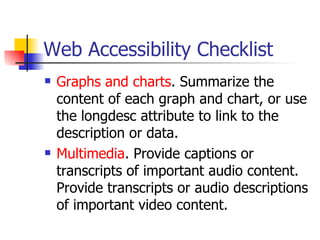
Web Accessibility Checklist Graphs and charts . Summarize the content of each graph and chart, or use the longdesc attribute to link to the description or data.  Multimedia . Provide captions or transcripts of important audio content. Provide transcripts or audio descriptions of important video content.
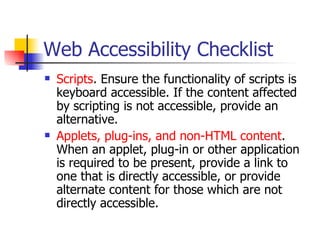
Web Accessibility Checklist Scripts . Ensure the functionality of scripts is keyboard accessible. If the content affected by scripting is not accessible, provide an alternative.  Applets, plug-ins, and non-HTML content . When an applet, plug-in or other application is required to be present, provide a link to one that is directly accessible, or provide alternate content for those which are not directly accessible.
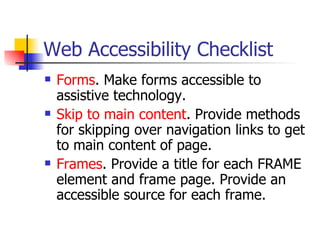
Web Accessibility Checklist Forms . Make forms accessible to assistive technology.  Skip to main content . Provide methods for skipping over navigation links to get to main content of page.  Frames . Provide a title for each FRAME element and frame page. Provide an accessible source for each frame.
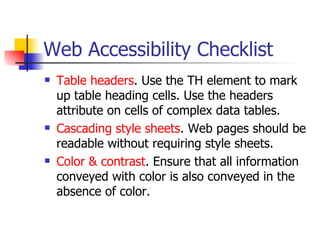
Web Accessibility Checklist Table headers . Use the TH element to mark up table heading cells. Use the headers attribute on cells of complex data tables.  Cascading style sheets . Web pages should be readable without requiring style sheets.  Color & contrast . Ensure that all information conveyed with color is also conveyed in the absence of color.
Web Accessibility Checklist Blinking, moving or flickering content . Avoid causing content to blink, flicker, or move.  Timed responses . When a timed response is required, alert the user, and give sufficient time to indicate more time is required.
Web Accessibility Checklist Text-only page . If accessibility cannot be accomplished in any other way, provide a text-only page with equivalent information or functionality. Update the content of the text-only page whenever the primary page changes.
Testing Web Applications for Accessibility Tools like  Bobby  and  Home Page Reader Lynx:   Using a text-only browser is an effective technique in determining if the alternative text content is available.
Bobby Bobby web-based tester http://bobby.watchfire.com/bobby/html/en/index.jsp Let’s see an example!
Home Page Reader IBM Home Page Reader is a talking Web browser designed for people who are blind or have low vision.  HPR can also be used by designers and developers with normal sight who need to test Web sites for accessibility.
Home Page Reader You can listen to each page and hear what a blind person hears.  When alternative text on images is missing or cumbersome, it will sound obvious.  In its default settings, HPR speaks all active elements, including links and control elements, in a female voice.  Instead of listening to every word on the page, you can examine the HPR text view or press the right arrow key to jump to the next block of information.
Other Mechanisms Filter/transformation tools  that convert existing pages to make them more accessible Agora  is a system which allows web-pages to be retrieved by E-mail simply by sending a message containing the URL of the desired document.  The Voice  allows representation of images in sound using Peter Meijer's "image sonification" technique.  Screen magnifiers  can be used in conjunction with mainstream browsers
Windows Demo!
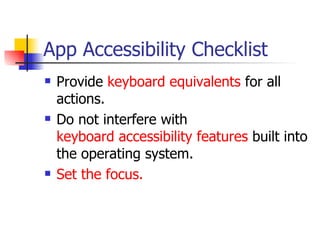
App Accessibility Checklist Provide  keyboard equivalents  for all actions.  Do not interfere with  keyboard accessibility features  built into the operating system.  Set the focus.
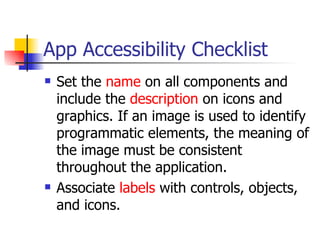
App Accessibility Checklist Set the  name  on all components and include the  description  on icons and graphics. If an image is used to identify programmatic elements, the meaning of the image must be consistent throughout the application.  Associate  labels  with controls, objects, and icons.
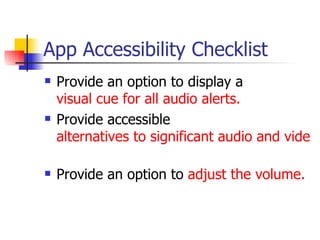
App Accessibility Checklist Provide an option to display a  visual cue for all audio alerts.   Provide accessible  alternatives to significant audio and video.   Provide an option to  adjust the volume.
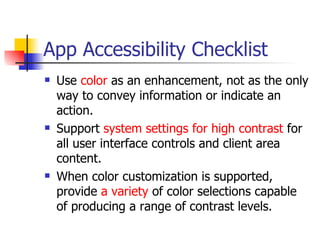
App Accessibility Checklist Use  color  as an enhancement, not as the only way to convey information or indicate an action.  Support  system settings for high contrast  for all user interface controls and client area content.  When color customization is supported, provide  a variety  of color selections capable of producing a range of contrast levels.
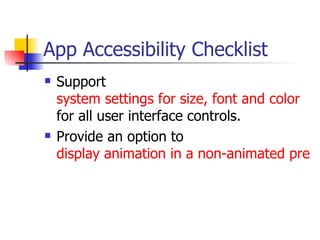
App Accessibility Checklist Support  system settings for size, font and color  for all user interface controls.  Provide an option to  display animation in a non-animated presentation mode.
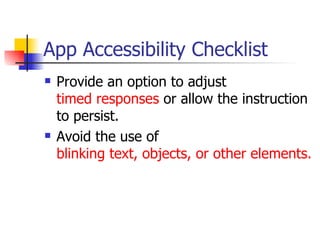
App Accessibility Checklist Provide an option to adjust  timed responses  or allow the instruction to persist.  Avoid the use of  blinking text, objects, or other elements.
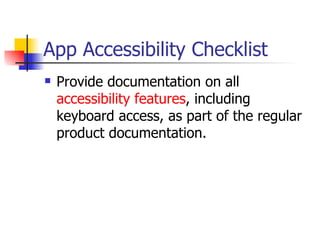
App Accessibility Checklist Provide documentation on all  accessibility features , including keyboard access, as part of the regular product documentation.
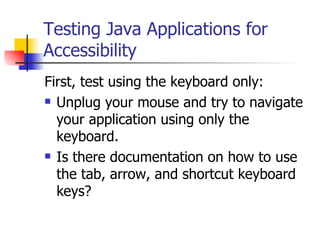
Testing Java Applications for Accessibility First, test using the keyboard only:  Unplug your mouse and try to navigate your application using only the keyboard.  Is there documentation on how to use the tab, arrow, and shortcut keyboard keys?
Testing Java Applications for Accessibility Second, test using Assistive technology:  The second way to test your application for accessibility is to use an assistive technology.  Currently, the  JAWS  screen reader can be used to help test the accessibility of your application on the Windows platform.
Testing Java Applications for Accessibility Third, use accessibility testing tools:  Java Accessibility Helper is a tool which you can use to help test the accessibility of your application. It identifies areas in an application's UI where the accessibility support has been improperly used.  Ensure each relevant component has implemented Accessible  Ensure each accessibility field is filled in appropriately  Ensure there is an accessible action set for components which can be activated with a mouse or keyboard  Other tools like Ferret and Monkey
Hardware Accessibility Controls and latches  should be reachable and operable with one hand and minimal dexterity.  Provide an alternative input method for  touchscreens  or touch-operated controls .  Provide the status of all  locking or toggle keys  visually and either through touch or sound.
Hardware Accessibility Allow frequently accessed  media to be inserted and removed  using minimal reach and manual dexterity. Upon request, provide  documentation  in an accessible format.
References Tools from the Web Accessibility Initiative of the W3C http://www.w3.org/WAI/ER/existingtools.html IBM Accessibility Website http:// www.ibm.com /able Web Accessibility at IBM http://www-306.ibm.com/able/guidelines/web/webreferences.html Java Accessibility at IBM http://www-306.ibm.com/able/guidelines/java/snsjavag.html http://www-306.ibm.com/able/guidelines/java/javareferences.html
Thank You!

Software Accessibility Siddhesh

  • 1.
  • 2.
    What is Accessibility?Access to information by virtually anyone under virtually any circumstances Physical Disability: Blindness, Restricted Movements, Slow Response Device Limitations Involves use of Assistive Technology Voice Recognition Speech Output using Text-to-Speech synthesizer
  • 3.
    US Section 508Applies to federal agencies when they develop, procure, maintain or use electronic and information technology. Under Section 508, agencies must give disabled employees and members of the public access to information that is comparable to the access available to others. Applies to all electronic and IT products procured by the federal government after June 21, 2001. Goal: To eliminate barriers in IT, to make new opportunities available for people with disabilities, and to encourage development of technologies that will help achieve these goals.
  • 4.
    Visual Disabilities Needtext equivalents for the images used on the Web page Does not find the mouse useful because it requires hand and eye coordination: use only keyboard Cannot use visual effects like italics, bold lettering, color contrasts effectively to get visual cues about the data on the web page
  • 5.
    Mobility Disabilities Problemswith user input devices Ctrl-Alt-Del is VERY difficult Alternate input mechanisms like speech becomes critical
  • 6.
    Hearing, Cognitive DisabilitiesGive redundant information: audio, visual Simplified site design with easy navigation
  • 7.
    Web Accessibility ChecklistImages and animations . Use the alt="text" attribute to provide text equivalents for images. Use alt="" for images that do not convey important information or convey redundant information. Image maps . Use client-side image maps and alternative text for image map hot spots. If a server-side map is needed, provide equivalent text links.
  • 8.
    Web Accessibility ChecklistGraphs and charts . Summarize the content of each graph and chart, or use the longdesc attribute to link to the description or data. Multimedia . Provide captions or transcripts of important audio content. Provide transcripts or audio descriptions of important video content.
  • 9.
    Web Accessibility ChecklistScripts . Ensure the functionality of scripts is keyboard accessible. If the content affected by scripting is not accessible, provide an alternative. Applets, plug-ins, and non-HTML content . When an applet, plug-in or other application is required to be present, provide a link to one that is directly accessible, or provide alternate content for those which are not directly accessible.
  • 10.
    Web Accessibility ChecklistForms . Make forms accessible to assistive technology. Skip to main content . Provide methods for skipping over navigation links to get to main content of page. Frames . Provide a title for each FRAME element and frame page. Provide an accessible source for each frame.
  • 11.
    Web Accessibility ChecklistTable headers . Use the TH element to mark up table heading cells. Use the headers attribute on cells of complex data tables. Cascading style sheets . Web pages should be readable without requiring style sheets. Color & contrast . Ensure that all information conveyed with color is also conveyed in the absence of color.
  • 12.
    Web Accessibility ChecklistBlinking, moving or flickering content . Avoid causing content to blink, flicker, or move. Timed responses . When a timed response is required, alert the user, and give sufficient time to indicate more time is required.
  • 13.
    Web Accessibility ChecklistText-only page . If accessibility cannot be accomplished in any other way, provide a text-only page with equivalent information or functionality. Update the content of the text-only page whenever the primary page changes.
  • 14.
    Testing Web Applicationsfor Accessibility Tools like Bobby and Home Page Reader Lynx: Using a text-only browser is an effective technique in determining if the alternative text content is available.
  • 15.
    Bobby Bobby web-basedtester http://bobby.watchfire.com/bobby/html/en/index.jsp Let’s see an example!
  • 16.
    Home Page ReaderIBM Home Page Reader is a talking Web browser designed for people who are blind or have low vision. HPR can also be used by designers and developers with normal sight who need to test Web sites for accessibility.
  • 17.
    Home Page ReaderYou can listen to each page and hear what a blind person hears. When alternative text on images is missing or cumbersome, it will sound obvious. In its default settings, HPR speaks all active elements, including links and control elements, in a female voice. Instead of listening to every word on the page, you can examine the HPR text view or press the right arrow key to jump to the next block of information.
  • 18.
    Other Mechanisms Filter/transformationtools that convert existing pages to make them more accessible Agora is a system which allows web-pages to be retrieved by E-mail simply by sending a message containing the URL of the desired document. The Voice allows representation of images in sound using Peter Meijer's "image sonification" technique. Screen magnifiers can be used in conjunction with mainstream browsers
  • 19.
  • 20.
    App Accessibility ChecklistProvide keyboard equivalents for all actions. Do not interfere with keyboard accessibility features built into the operating system. Set the focus.
  • 21.
    App Accessibility ChecklistSet the name on all components and include the description on icons and graphics. If an image is used to identify programmatic elements, the meaning of the image must be consistent throughout the application. Associate labels with controls, objects, and icons.
  • 22.
    App Accessibility ChecklistProvide an option to display a visual cue for all audio alerts. Provide accessible alternatives to significant audio and video. Provide an option to adjust the volume.
  • 23.
    App Accessibility ChecklistUse color as an enhancement, not as the only way to convey information or indicate an action. Support system settings for high contrast for all user interface controls and client area content. When color customization is supported, provide a variety of color selections capable of producing a range of contrast levels.
  • 24.
    App Accessibility ChecklistSupport system settings for size, font and color for all user interface controls. Provide an option to display animation in a non-animated presentation mode.
  • 25.
    App Accessibility ChecklistProvide an option to adjust timed responses or allow the instruction to persist. Avoid the use of blinking text, objects, or other elements.
  • 26.
    App Accessibility ChecklistProvide documentation on all accessibility features , including keyboard access, as part of the regular product documentation.
  • 27.
    Testing Java Applicationsfor Accessibility First, test using the keyboard only: Unplug your mouse and try to navigate your application using only the keyboard. Is there documentation on how to use the tab, arrow, and shortcut keyboard keys?
  • 28.
    Testing Java Applicationsfor Accessibility Second, test using Assistive technology: The second way to test your application for accessibility is to use an assistive technology. Currently, the JAWS screen reader can be used to help test the accessibility of your application on the Windows platform.
  • 29.
    Testing Java Applicationsfor Accessibility Third, use accessibility testing tools: Java Accessibility Helper is a tool which you can use to help test the accessibility of your application. It identifies areas in an application's UI where the accessibility support has been improperly used. Ensure each relevant component has implemented Accessible Ensure each accessibility field is filled in appropriately Ensure there is an accessible action set for components which can be activated with a mouse or keyboard Other tools like Ferret and Monkey
  • 30.
    Hardware Accessibility Controlsand latches should be reachable and operable with one hand and minimal dexterity. Provide an alternative input method for touchscreens or touch-operated controls . Provide the status of all locking or toggle keys visually and either through touch or sound.
  • 31.
    Hardware Accessibility Allowfrequently accessed media to be inserted and removed using minimal reach and manual dexterity. Upon request, provide documentation in an accessible format.
  • 32.
    References Tools fromthe Web Accessibility Initiative of the W3C http://www.w3.org/WAI/ER/existingtools.html IBM Accessibility Website http:// www.ibm.com /able Web Accessibility at IBM http://www-306.ibm.com/able/guidelines/web/webreferences.html Java Accessibility at IBM http://www-306.ibm.com/able/guidelines/java/snsjavag.html http://www-306.ibm.com/able/guidelines/java/javareferences.html
  • 33.