Signal  Beach ShowDirector 2.0 Sample Slide Show
Introduction ShowDirector 2.0 by Signal Beach Software is a convenient, wireless controller for your PowerPoint presentations. With ShowDirector 2.0 you can:  Remotely launch and run PowerPoint presentations  Find any slide title and navigate there instantly  View and edit slide titles and notes  Preview slides on the remote control device  Remote control mouse cursor to highlight important information  Create your own Web site to publish your slide show or any other files
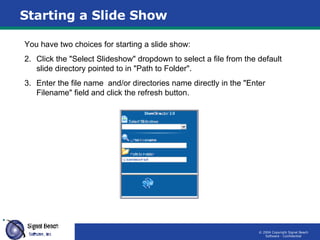
Starting a Slide Show You have two choices for starting a slide show: Click the "Select Slideshow" dropdown to select a file from the default slide directory pointed to in "Path to Folder". Enter the file name  and/or directories name directly in the "Enter Filename" field and click the refresh button.
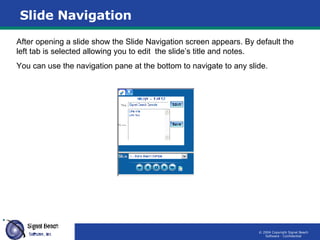
Slide Navigation After opening a slide show the Slide Navigation screen appears. By default the left tab is selected allowing you to edit  the slide’s title and notes.  You can use the navigation pane at the bottom to navigate to any slide.
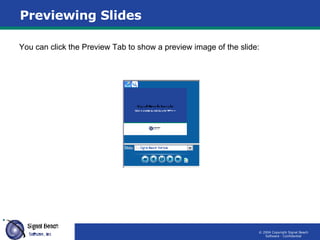
Previewing Slides You can click the Preview Tab to show a preview image of the slide:

Signal Beach

  • 1.
    Signal BeachShowDirector 2.0 Sample Slide Show
  • 2.
    Introduction ShowDirector 2.0by Signal Beach Software is a convenient, wireless controller for your PowerPoint presentations. With ShowDirector 2.0 you can: Remotely launch and run PowerPoint presentations Find any slide title and navigate there instantly View and edit slide titles and notes Preview slides on the remote control device Remote control mouse cursor to highlight important information Create your own Web site to publish your slide show or any other files
  • 3.
    Starting a SlideShow You have two choices for starting a slide show: Click the "Select Slideshow" dropdown to select a file from the default slide directory pointed to in "Path to Folder". Enter the file name  and/or directories name directly in the "Enter Filename" field and click the refresh button.
  • 4.
    Slide Navigation Afteropening a slide show the Slide Navigation screen appears. By default the left tab is selected allowing you to edit the slide’s title and notes. You can use the navigation pane at the bottom to navigate to any slide.
  • 5.
    Previewing Slides Youcan click the Preview Tab to show a preview image of the slide: