STID1103 Computer Applications in Management
1
Topic 10
Presentation Applications (MS PowerPoint)
Table of Contents
• Introduction
• Building a Performance Applications
• Editing Main Slide
• Style Slides
• Type Slide Show
• Slide Transitions and Animations
• Insert Graphics, Audio and Video
• Links
2
Introduction
3
Introduction
A
D
C
E
B
Each presentation
can consist of one or
more slides
It is a presentation software
application developed by Microsoft Corporation
Slide is a page or
sheet that helps display
presentation material to be
implemented
Presentation in the form
of Interactive & Normal
Every presentation
you want to do is
depending on
the creativity of the
individual
4
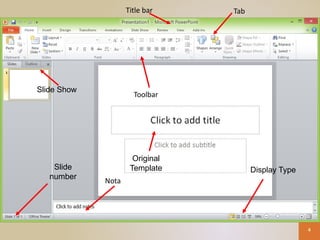
Toolbar
Title bar
Nota
Original
Template
Slide Show
Slide
number
Tab
Display Type
Building a New Performance Applications
5
There 6 waysto build document new
•Click on Files. Select New
•On the menu will appear
•Select and click on Create
6
Editing Main Slide
• Main slide (slide master) form the basis of the
next slide will be inserted
– Click on View> Slide Master
– Any changes made ​
​
on the main slide
will also be followed by other slides
7
8
Style Slides
• As with other Microsoft applications, presentation applications
also provide style to slide
• Styles available for use without the need to edit the main slide
• Styles that are available will include all changes in presentation
– Click Design> Choose the type of style available
9
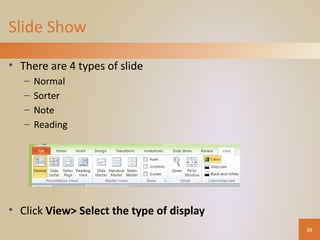
Slide Show
• There are 4 types of slide
– Normal
– Sorter
– Note
– Reading
• Click View> Select the type of display
10
Display - Normal
11
Display - Sorter
12
Display - Notes
13
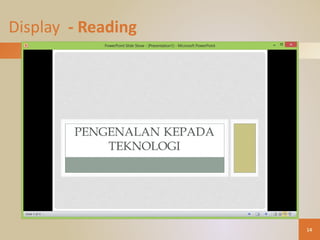
Display - Reading
14
Slide Transition
• In performance applications, the transition between the slides can
be placed, moved way, effects and sound settings to make
presentations more interesting
• Presentation applications provide various types of effects
– Click the Transitions> Choose any type of transition
15
Type effects
Sample
display
Sound
setting
Transition
Other
Slide Animation
• Transition is the option to slide to slide
• Turn slide animation is optional for each component in a
slide
• Such as the transition, animation in the slide can
be placed, how activated, effects and sound settings
– Click Animations> Select the animation settings
16
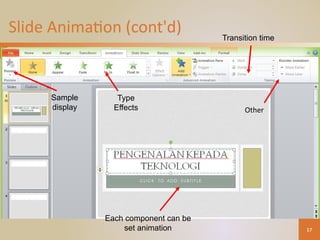
Slide Animation (cont'd)
17
Sample
display
Type
Effects
Each component can be
set animation
Transition time
Other
Insert Graphics
• Graphics can be included in the presentation through
a variety of ways
– Image copy> paste
– Click Insert> Picture> Choose a location graphics
• Online Pictures, Screenshots, Photo Album and others
– Drag the image files into the presentation
18
Insert Audio and Video
• As well as graphics, audio and video can also be
included in the presentation to make itmore
attractive
– Click Insert> Audio> Audio Select a location
– Click Insert> Video> Video Choose a location
19
Note: Please ensure that audio or video file that is included in the
presentation is stored in the same location with presentation files
Links
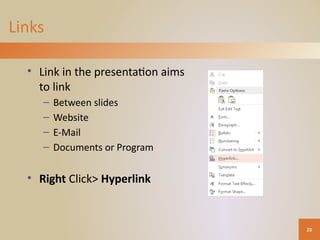
• Link in the presentation aims
to link
– Between slides
– Website
– E-Mail
– Documents or Program
• Right Click> Hyperlink
20
Links (cont.)
• Between slides
• Can be linked using a text or graphics
• The text has a link will be like THIS
• Graphics -
21
Links (cont.)
Links - Home
22
• This is a slide called Home that is linked from the
previous slide
• Graphics below can serve as a button
Back and Next
Links (cont.)
External sites and E-Mail
• Links can also be done on the
website and e-mail
• Using hyperlinks between slides
as
– Website
– E-mail address
23
Website Links
• To the website of Universiti Utara Malaysia
– UUM
24
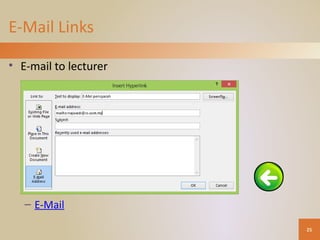
E-Mail Links
• E-mail to lecturer
– E-Mail
25
• It is possible to delete a slide while in any of the following views
EXCEPT
• B. Slide Show view
• 86. You are working on a PowerPoint presentation and execute the
Save command for the first time.
• Which of the following statements is TRUE?
C. The presentation is saved to disk and remains in memory.
• 87. You open a PowerPoint presentation called Sample Presentation.
You pull down the File menu,
• select Save As, and save the file with a new name, My First
Presentation. Which of the following
• statements is TRUE?
• C. The Title bar at the top of the PowerPoint windows shows My
First Presentation 26
• Which PowerPoint format menu option would
allow you to set the slide colour to be a colour of
• your choosing without effecting any other slide
area such as text colour?
• C. Background
• 74. Which of the following is NOT a valid
PowerPoint Master?
• A. Sorter Master
• Which PowerPoint view is best for editing the slide
text?
• B. Outline 27
• Which of the following is NOT a valid page in the
Custom Animation dialog?
• =D. Rehearse Timings
• Name of the area where you create, edit and
display presentation slides?
=B. Slide Pane
_________ an underlined word to display a menu of
spelling options.
C. Right-click
28
• Click _________ in the Animations group to open
the Custom Animation task pane.
• B. Custom Animation
• A __________ is the movement you see when one
slide changes to another in slide show view.
• D. Transition Effect
29
30
31
32
33
Any
Question?

topic-10-presentation-powerpoint_compress.pdf

  • 1.
    STID1103 Computer Applicationsin Management 1 Topic 10 Presentation Applications (MS PowerPoint)
  • 2.
    Table of Contents •Introduction • Building a Performance Applications • Editing Main Slide • Style Slides • Type Slide Show • Slide Transitions and Animations • Insert Graphics, Audio and Video • Links 2
  • 3.
    Introduction 3 Introduction A D C E B Each presentation can consistof one or more slides It is a presentation software application developed by Microsoft Corporation Slide is a page or sheet that helps display presentation material to be implemented Presentation in the form of Interactive & Normal Every presentation you want to do is depending on the creativity of the individual
  • 4.
  • 5.
    Building a NewPerformance Applications 5 There 6 waysto build document new •Click on Files. Select New •On the menu will appear •Select and click on Create
  • 6.
  • 7.
    Editing Main Slide •Main slide (slide master) form the basis of the next slide will be inserted – Click on View> Slide Master – Any changes made ​ ​ on the main slide will also be followed by other slides 7
  • 8.
  • 9.
    Style Slides • Aswith other Microsoft applications, presentation applications also provide style to slide • Styles available for use without the need to edit the main slide • Styles that are available will include all changes in presentation – Click Design> Choose the type of style available 9
  • 10.
    Slide Show • Thereare 4 types of slide – Normal – Sorter – Note – Reading • Click View> Select the type of display 10
  • 11.
  • 12.
  • 13.
  • 14.
  • 15.
    Slide Transition • Inperformance applications, the transition between the slides can be placed, moved way, effects and sound settings to make presentations more interesting • Presentation applications provide various types of effects – Click the Transitions> Choose any type of transition 15 Type effects Sample display Sound setting Transition Other
  • 16.
    Slide Animation • Transitionis the option to slide to slide • Turn slide animation is optional for each component in a slide • Such as the transition, animation in the slide can be placed, how activated, effects and sound settings – Click Animations> Select the animation settings 16
  • 17.
    Slide Animation (cont'd) 17 Sample display Type Effects Eachcomponent can be set animation Transition time Other
  • 18.
    Insert Graphics • Graphicscan be included in the presentation through a variety of ways – Image copy> paste – Click Insert> Picture> Choose a location graphics • Online Pictures, Screenshots, Photo Album and others – Drag the image files into the presentation 18
  • 19.
    Insert Audio andVideo • As well as graphics, audio and video can also be included in the presentation to make itmore attractive – Click Insert> Audio> Audio Select a location – Click Insert> Video> Video Choose a location 19 Note: Please ensure that audio or video file that is included in the presentation is stored in the same location with presentation files
  • 20.
    Links • Link inthe presentation aims to link – Between slides – Website – E-Mail – Documents or Program • Right Click> Hyperlink 20
  • 21.
    Links (cont.) • Betweenslides • Can be linked using a text or graphics • The text has a link will be like THIS • Graphics - 21 Links (cont.)
  • 22.
    Links - Home 22 •This is a slide called Home that is linked from the previous slide • Graphics below can serve as a button Back and Next
  • 23.
    Links (cont.) External sitesand E-Mail • Links can also be done on the website and e-mail • Using hyperlinks between slides as – Website – E-mail address 23
  • 24.
    Website Links • Tothe website of Universiti Utara Malaysia – UUM 24
  • 25.
    E-Mail Links • E-mailto lecturer – E-Mail 25
  • 26.
    • It ispossible to delete a slide while in any of the following views EXCEPT • B. Slide Show view • 86. You are working on a PowerPoint presentation and execute the Save command for the first time. • Which of the following statements is TRUE? C. The presentation is saved to disk and remains in memory. • 87. You open a PowerPoint presentation called Sample Presentation. You pull down the File menu, • select Save As, and save the file with a new name, My First Presentation. Which of the following • statements is TRUE? • C. The Title bar at the top of the PowerPoint windows shows My First Presentation 26
  • 27.
    • Which PowerPointformat menu option would allow you to set the slide colour to be a colour of • your choosing without effecting any other slide area such as text colour? • C. Background • 74. Which of the following is NOT a valid PowerPoint Master? • A. Sorter Master • Which PowerPoint view is best for editing the slide text? • B. Outline 27
  • 28.
    • Which ofthe following is NOT a valid page in the Custom Animation dialog? • =D. Rehearse Timings • Name of the area where you create, edit and display presentation slides? =B. Slide Pane _________ an underlined word to display a menu of spelling options. C. Right-click 28
  • 29.
    • Click _________in the Animations group to open the Custom Animation task pane. • B. Custom Animation • A __________ is the movement you see when one slide changes to another in slide show view. • D. Transition Effect 29
  • 30.
  • 31.
  • 32.
  • 33.