Cook Book to create SFDC Configuration Project in Mule 3.6
and Above Using Query Builder
GDS Sashidhar Rao
gdssrao@gmail.com
Twitter: Gdssrao
Pre-Requisites
Salesforce account Security Token
Creating Simple SFDC project
Force Explorer-SOQL Query Editor
Contents
Purpose : This document Helps beginners
to connect the Salesforce via Mule SFDC
connector by using the new Data Senses
Query Language and Query Builder.
Salesforce account With System
Administrator Access, You can see Reset
Security Token option.
Mule Anypoint studio with SFDC
capabilities.
Pre-Requisites
Pre-Requisites
Salesforce Developer Account ( with System Administrator Access)
Pre-Requisites
After Successful Login, To Know your profile Go to My profile 
Logged User Role
Note: With System Administrator Access, You can see Reset Security
Token option. Go to My settings  Personal Reset My Security
Token
Pre-Requisites
When Reset My Security Token pressed then New security token
sent to registered email.
Creating Simple SFDC project
Create A Mule project in Anypoint Studio.
Creating Simple SFDC project
Create Global configuration for the salesforce connector and HTTP
Listener (mule 3.6 and above). Configure Salesforce User ID, Password
and the security Token.(Received in email)
Creating Simple SFDC project
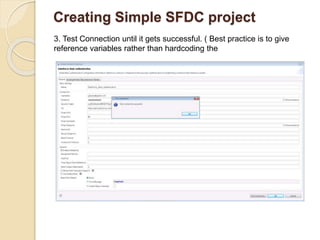
3. Test Connection until it gets successful. ( Best practice is to give
reference variables rather than hardcoding the
Creating Simple SFDC project
Configure HTTP configuration
Creating Simple SFDC project
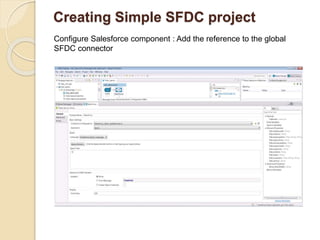
Configure Salesforce component : Add the reference to the global
SFDC connector
Creating Simple SFDC project
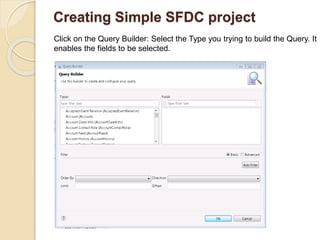
Click on the Query Builder: Select the Type you trying to build the Query. It
enables the fields to be selected.
Creating Simple SFDC project
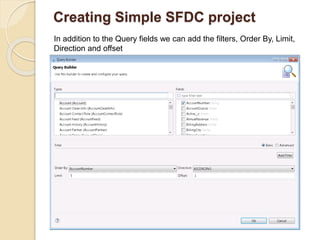
In addition to the Query fields we can add the filters, Order By, Limit,
Direction and offset
Creating Simple SFDC project
Simple Salesforce configuration
Creating Simple SFDC project
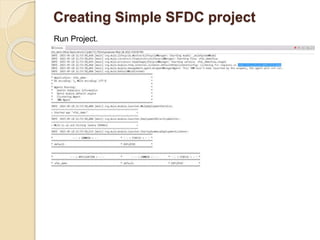
Run Project.
Creating Simple SFDC project
SFDC SOQL Query Result: in Web
browser
Force Explorer
SOQL Query Editor
THANK YOU!!!

Salesforce Project in Mule ESB 3.6 and Above Using Query Builder

  • 1.
    Cook Book tocreate SFDC Configuration Project in Mule 3.6 and Above Using Query Builder GDS Sashidhar Rao gdssrao@gmail.com Twitter: Gdssrao
  • 2.
    Pre-Requisites Salesforce account SecurityToken Creating Simple SFDC project Force Explorer-SOQL Query Editor Contents
  • 3.
    Purpose : Thisdocument Helps beginners to connect the Salesforce via Mule SFDC connector by using the new Data Senses Query Language and Query Builder. Salesforce account With System Administrator Access, You can see Reset Security Token option. Mule Anypoint studio with SFDC capabilities. Pre-Requisites
  • 4.
    Pre-Requisites Salesforce Developer Account( with System Administrator Access)
  • 5.
    Pre-Requisites After Successful Login,To Know your profile Go to My profile  Logged User Role Note: With System Administrator Access, You can see Reset Security Token option. Go to My settings  Personal Reset My Security Token
  • 6.
    Pre-Requisites When Reset MySecurity Token pressed then New security token sent to registered email.
  • 7.
    Creating Simple SFDCproject Create A Mule project in Anypoint Studio.
  • 8.
    Creating Simple SFDCproject Create Global configuration for the salesforce connector and HTTP Listener (mule 3.6 and above). Configure Salesforce User ID, Password and the security Token.(Received in email)
  • 9.
    Creating Simple SFDCproject 3. Test Connection until it gets successful. ( Best practice is to give reference variables rather than hardcoding the
  • 10.
    Creating Simple SFDCproject Configure HTTP configuration
  • 11.
    Creating Simple SFDCproject Configure Salesforce component : Add the reference to the global SFDC connector
  • 12.
    Creating Simple SFDCproject Click on the Query Builder: Select the Type you trying to build the Query. It enables the fields to be selected.
  • 13.
    Creating Simple SFDCproject In addition to the Query fields we can add the filters, Order By, Limit, Direction and offset
  • 14.
    Creating Simple SFDCproject Simple Salesforce configuration
  • 15.
    Creating Simple SFDCproject Run Project.
  • 16.
    Creating Simple SFDCproject SFDC SOQL Query Result: in Web browser
  • 17.
  • 18.