1
Gradebook Calculation Formulas - Moodle
Setting a Grade Calculation
To set a grade calculation:
1. Login to Moodle
2. Click on ‘Gradebook setup’ in the course administration block
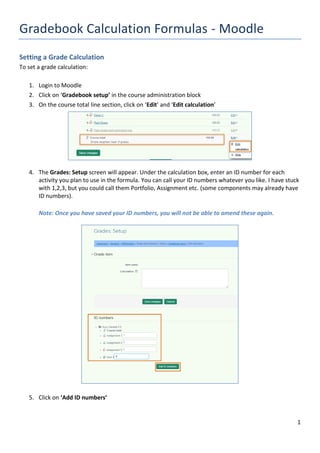
3. On the course total line section, click on ‘Edit’ and ‘Edit calculation’
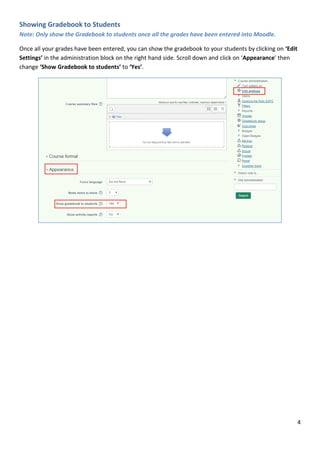
4. The Grades: Setup screen will appear. Under the calculation box, enter an ID number for each
activity you plan to use in the formula. You can call your ID numbers whatever you like. I have stuck
with 1,2,3, but you could call them Portfolio, Assignment etc. (some components may already have
ID numbers).
Note: Once you have saved your ID numbers, you will not be able to amend these again.
5. Click on ‘Add ID numbers’
2
6. Type the calculation into the calculation box. (example calculations can be found on the next page)
Every Calculation must start with an equal sign (=) and use opening and closing brackets (as you
would use in formulas you may do in Excel for example)
When entering an ID number into the calculation, this must be surrounded by double brackets. E.g.,
ID number 1 will be referred to as: [[1]] in the calculation.
3
Example Calculations
 Equally weighted components
=average([[1]], [[2]], [[3]])
 Weighted grade calculations where item 1 is weighted 30%, item 2 is weighted at 60% and item 3 is
weighted at 10%:
=sum([[1]]*0.3,[[2]]*0.6,[[3]]*0.1)
 Weighted calculations where the first component is made up of 2 quizzes, which averaged together,
are weighted 10% of the overall grade. (In this example, the quizzes are worth a maximum grade of 10,
so in order to find the weighted grade of 10%, I first need to get the average, multiply the average of
the marks by 10 to get the percentage and then I can multiply that by 0.1 (or 10%) to get the overall
mark for that component). The second component is worth 50% (or 0.5) of the overall grade and the
third and fourth components are worth 20% (0.2) each. I have highlighted the first component in
Purple, second component in yellow, third in blue and forth in grey to help break down the calculation.
=(((([[4]]+[[5]])/2)*10)*0.1)+([[1]]*0.5)+([[2]]*0.2)+([[3]]*0.2)
7. Once you have typed in your calculation, click the ‘Save Changes’ button
4
Showing Gradebook to Students
Note: Only show the Gradebook to students once all the grades have been entered into Moodle.
Once all your grades have been entered, you can show the gradebook to your students by clicking on ‘Edit
Settings’ in the administration block on the right hand side. Scroll down and click on ‘Appearance’ then
change ‘Show Gradebook to students’ to ‘Yes’.

Setting a gradebook calulation on Moodle

  • 1.
    1 Gradebook Calculation Formulas- Moodle Setting a Grade Calculation To set a grade calculation: 1. Login to Moodle 2. Click on ‘Gradebook setup’ in the course administration block 3. On the course total line section, click on ‘Edit’ and ‘Edit calculation’ 4. The Grades: Setup screen will appear. Under the calculation box, enter an ID number for each activity you plan to use in the formula. You can call your ID numbers whatever you like. I have stuck with 1,2,3, but you could call them Portfolio, Assignment etc. (some components may already have ID numbers). Note: Once you have saved your ID numbers, you will not be able to amend these again. 5. Click on ‘Add ID numbers’
  • 2.
    2 6. Type thecalculation into the calculation box. (example calculations can be found on the next page) Every Calculation must start with an equal sign (=) and use opening and closing brackets (as you would use in formulas you may do in Excel for example) When entering an ID number into the calculation, this must be surrounded by double brackets. E.g., ID number 1 will be referred to as: [[1]] in the calculation.
  • 3.
    3 Example Calculations  Equallyweighted components =average([[1]], [[2]], [[3]])  Weighted grade calculations where item 1 is weighted 30%, item 2 is weighted at 60% and item 3 is weighted at 10%: =sum([[1]]*0.3,[[2]]*0.6,[[3]]*0.1)  Weighted calculations where the first component is made up of 2 quizzes, which averaged together, are weighted 10% of the overall grade. (In this example, the quizzes are worth a maximum grade of 10, so in order to find the weighted grade of 10%, I first need to get the average, multiply the average of the marks by 10 to get the percentage and then I can multiply that by 0.1 (or 10%) to get the overall mark for that component). The second component is worth 50% (or 0.5) of the overall grade and the third and fourth components are worth 20% (0.2) each. I have highlighted the first component in Purple, second component in yellow, third in blue and forth in grey to help break down the calculation. =(((([[4]]+[[5]])/2)*10)*0.1)+([[1]]*0.5)+([[2]]*0.2)+([[3]]*0.2) 7. Once you have typed in your calculation, click the ‘Save Changes’ button
  • 4.
    4 Showing Gradebook toStudents Note: Only show the Gradebook to students once all the grades have been entered into Moodle. Once all your grades have been entered, you can show the gradebook to your students by clicking on ‘Edit Settings’ in the administration block on the right hand side. Scroll down and click on ‘Appearance’ then change ‘Show Gradebook to students’ to ‘Yes’.