Test Web applications
using Selenium
Outline
 Uniqueness of web app testing
 Heterogonous system
 Dynamic pages
 Load
 Security
 Selenium WebDriver
 Course project 4
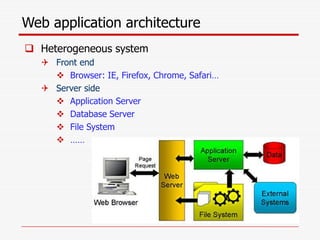
Web application architecture
 Heterogeneous system
 Front end
 Browser: IE, Firefox, Chrome, Safari…
 Server side
 Application Server
 Database Server
 File System
 ……
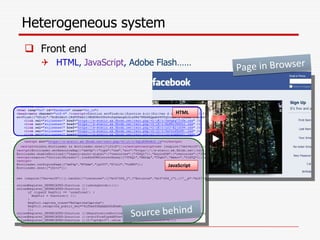
Heterogeneous system
 Front end
 HTML, JavaScript, Adobe Flash……
HTML
JavaScript
Uniqueness 1: Heterogeneous system
 Server side
 Can be written in PHP, Java, C#...
 Communicate with Database server in SQL
SQL
HTML
SQL
PHP
Heterogeneous system
 Should test all involved parts
 Everything can go wrong…
 However, only front end is accessible for tests
 Can not directly test the Server code and SQL
 Have to drive the execution and test
 Frontend
 HTML: Malformed HTML page? (demo)
 JavaScript: Runtime Errors? (demo)
 Server script
 PHP, Java…: Runtime Errors? (demo)
 SQL: Malformed SQL query string? (demo)
Test from the front end
 Good things
 Hide the complexity of the backend
 Uniformed interface
 Can put a robot in the front end and automate the tests
 Bad things
 The front end is not trustable
 Crafted malicious requests
Good things of testing from the front end
 Automated web app testing
 Compare to commend-line program testing…
 Sensitive to input values (the same)
 GUI testing: event driven (the difference)
 “Button A” then “Button B”  OK
 “Button B” then “Button A”  FAIL
 The robot should be able to
 Provide input values
 Simulate user actions
 Selenium
 A tool set automates web app testing across platforms
 Can simulate user interactions in browser
 Two components
 Selenium IDE
 Selenium WebDriver (aka. Selenium 2)
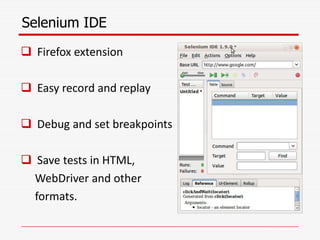
Selenium IDE
 Firefox extension
 Easy record and replay
 Debug and set breakpoints
 Save tests in HTML,
WebDriver and other
formats.
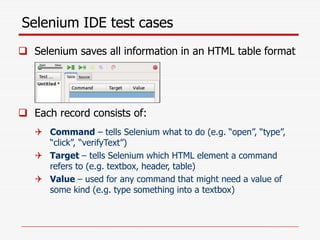
Selenium IDE test cases
 Selenium saves all information in an HTML table format
 Each record consists of:
 Command – tells Selenium what to do (e.g. “open”, “type”,
“click”, “verifyText”)
 Target – tells Selenium which HTML element a command
refers to (e.g. textbox, header, table)
 Value – used for any command that might need a value of
some kind (e.g. type something into a textbox)
How to record/replay with Selenium IDE
1. Start recording in Selenium IDE
1. Execute scenario on running web application
1. Stop recording in Selenium IDE
1. Verify / Add assertions
1. Replay the test.
Selenium IDE Demo……
Bad things of testing from the front end
 The front end is not trustable
 Front end code can be accessed to anybody
 They can infer the input parameters
 Crafted requests!
 Demo
 Front end limits the length of the input values
 Front end limits the content of the input values
 Front end limits the combination of the input values
Uniqueness 2: Dynamic pages
 Client page is dynamic
 It can change itself in the runtime
 HTML can be modified by JavaScript
 JavaScript can modify itself
 Demo
 Server script is dynamic
 Client pages are constructed in the runtime
 A same server script can produce completely
different client pages
 Demo
 SchoolMate
Uniqueness 3: Performance
 Performance is crucial to the success of a web app
 Recall the experience to register for a class in the
first days of the semester…
 Are the servers powerful enough?
 Performance testing evaluates system performance
under normal and heavy usage
 Load testing
 For expected concurrent number of users
 Stress testing
 To understand the upper limits of capacity
 Performance testing can be automated
Uniqueness 4: Security
 Web app usually deals with sensitive info, e.g.
 Credit card number
 SSN
 Billing / Shipping address
 Security is the biggest concern
 Security testing should simulate possible attacks
Uniqueness 4: Security
 SQL Injection
 The untrusted input is used to construct dynamic
SQL queries.
 E.g, update my own password
$str = "UPDATE users SET password = ” “ . $_POST['newPass’] .
“” WHERE username =”“ . $_POST['username'] . “””;
mysql_query( $str );
$_POST['newPass’] = pass, $_POST['username'] = me
Query String: UPDATE users SET password = “pass” WHERE username =“me”
$_POST['newPass’] = pass, $_POST['username'] = “ OR 1=1 --
Query String: UPDATE users SET password = “pass” WHERE username =“” OR 1=1 --”
Normal Case
Attack
PHP Script
Uniqueness 4: Security
 Cross Site Scripting (XSS)
 The untrusted input is used to construct dynamic
HTML pages.
 The malicious JS injected executes in victim’s
browser
 The malicious JS can steal sensitive info
 Demo
 Solution: Never trust user inputs
 Design test cases to simulate attacks
Outline
 Uniqueness of web app testing
 Heterogonous system
 Dynamic pages
 Load
 Security
 Selenium WebDriver
 Course project 4
Limitation of Selenium IDE
 No multiple browsers support
 It runs only in Mozilla Firefox.
 No manual scripts
 E.g. conditions and Loops for Data Driven Testing
 Fancy test cases  Selenium WebDriver
Selenium WebDriver (Selenium 2)
 Selenium-WebDriver
 A piece of program
 Control the browser by programming
 More flexible and powerful
 Selenium-WebDriver supports multiple browsers in
multiple platforms
 Google Chrome 12.0.712.0+
 Internet Explorer 6+
 Firefox 3.0+
 Opera 11.5+
 Android – 2.3+ for phones and tablets
 iOS 3+ for phones
 iOS 3.2+ for tablets
Selenium WebDriver
 WebDriver is designed to providing a simpler and
uniformed programming interface
 Same WebDriver script runs for different platforms
 Support multiple programming language:
 Java, C#, Python, Ruby, PHP, Perl…
 It’s efficient
 WebDriver leverages each browser’s native support
for automation.
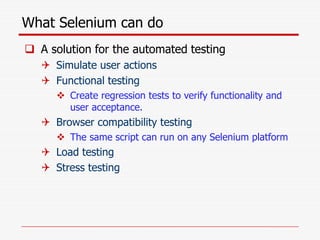
What Selenium can do
 A solution for the automated testing
 Simulate user actions
 Functional testing
 Create regression tests to verify functionality and
user acceptance.
 Browser compatibility testing
 The same script can run on any Selenium platform
 Load testing
 Stress testing
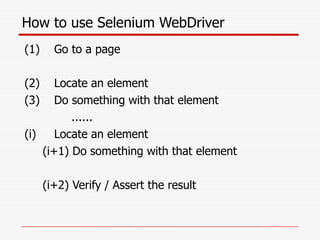
How to use Selenium WebDriver
(1) Go to a page
(2) Locate an element
(3) Do something with that element
......
(i) Locate an element
(i+1) Do something with that element
(i+2) Verify / Assert the result
Demo: Verify page title
public static void main( String[] args )
{
// Create a new instance of the Firefox driver
WebDriver driver = new FirefoxDriver();
// (1) Go to a page
driver.get("http://www.google.com");
// (2) Locate an element
WebElement element = driver.findElement(By.name("q"));
// (3-1) Enter something to search for
element.sendKeys("Purdue Univeristy");
// (3-2) Now submit the form. WebDriver will find the form for us from the element
element.submit();
// (3-3) Wait up to 10 seconds for a condition
WebDriverWait waiting = new WebDriverWait(driver, 10);
waiting.until( ExpectedConditions.presenceOfElementLocated( By.id("pnnext") ) );
// (4) Check the title of the page
if( driver.getTitle().equals("purdue univeristy - Google Search") )
System.out.println("PASS");
else
System.err.println("FAIL");
//Close the browser
driver.quit();
}
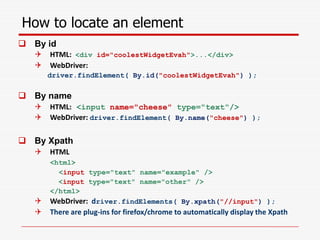
How to locate an element
 By id
 HTML: <div id="coolestWidgetEvah">...</div>
 WebDriver:
driver.findElement( By.id("coolestWidgetEvah") );
 By name
 HTML: <input name="cheese" type="text"/>
 WebDriver: driver.findElement( By.name("cheese") );
 By Xpath
 HTML
<html>
<input type="text" name="example" />
<input type="text" name="other" />
</html>
 WebDriver: driver.findElements( By.xpath("//input") );
 There are plug-ins for firefox/chrome to automatically display the Xpath
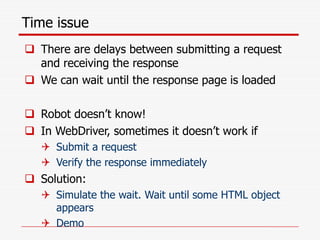
Time issue
 There are delays between submitting a request
and receiving the response
 We can wait until the response page is loaded
 Robot doesn’t know!
 In WebDriver, sometimes it doesn’t work if
 Submit a request
 Verify the response immediately
 Solution:
 Simulate the wait. Wait until some HTML object
appears
 Demo
Outline
 What to test for a web application
 Test web app with selenium
 What’s Selenium?
 Why Selenium?
 How to use Selenium
 Course project 4
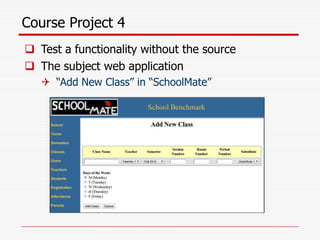
Course Project 4
 Test a functionality without the source
 The subject web application
 “Add New Class” in “SchoolMate”
Course Project 4
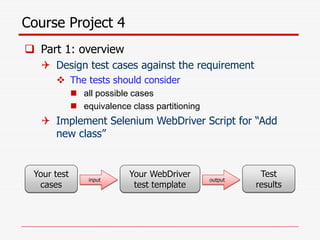
 Part 1: overview
 Design test cases against the requirement
 The tests should consider
 all possible cases
 equivalence class partitioning
 Implement Selenium WebDriver Script for “Add
new class”
Your test
cases
Your WebDriver
test template
input output
Test
results
Part 1: requirement analysis
 Requirement for values entered/selected
 [R-1] Class Name : alphabets and numbers are allowed.
 [R-2] Section Number : only numbers are allowed.
 [R-3] Room Number : only numbers are allowed.
 [R-4] Period Number : only numbers are allowed.
 [R-5] All textbox fields : no Cross-Site Scripting (XSS) injection
vulnerabilities.
Part 1: requirement analysis
 Requirement for the “add” function
 After clicking the “Add class” button…
 [R-6] The class record added is successfully
shown in the table.
 [R-7] The values are exactly the same as those
were entered or selected.
Part 1:Design testcases
 For each requirement, design test cases
 Only need test one field in each case
 Do not need consider combinations of fileds
 E.g.
 [R-1] Class Name : alphabets and numbers are allowed.
 You need consider all possible cases
 Divide the test space and find the equivalence class
 Alphabets
 Numbers
 ….
 The test case format is defined
 Test cases will be used as input to your WebDriver Script
Part 1: Implement WebDriver Script
 In WebDriver script, Simulate the user action
 Navigate to the subject page
 Enter values into textboxs based on input values
 Select options based on input values
 Click the “add class” button
 Check the result against the requirements
 Run all your test cases and report the results.
Course Project 4
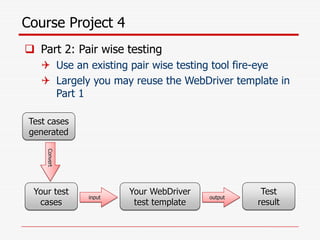
 Part 2: Pair wise testing
 Use an existing pair wise testing tool fire-eye
 Largely you may reuse the WebDriver template in
Part 1
Your test
cases
Your WebDriver
test template
input output
Test
result
Test cases
generated
Convert
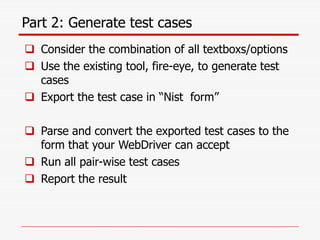
Part 2: Generate test cases
 Consider the combination of all textboxs/options
 Use the existing tool, fire-eye, to generate test
cases
 Export the test case in “Nist form”
 Parse and convert the exported test cases to the
form that your WebDriver can accept
 Run all pair-wise test cases
 Report the result
Part 2: Solution design
 Selenium can do more …
 Black Friday is coming, hot items can be sold in a few seconds
 Can you leverage the automated tool and design a practical
solution to score a super hot deal?
 Explain
 What’s the challenge
 What’s the possible cases to handle and how?
 In stock
 Out of stock
 Your shopping cart may be reset under what conditions…
 How to add it into your shopping cart asap
 How you are going to cooperate with the automated tool
Thanks
Q & A

selenium.ppt

  • 1.
  • 2.
    Outline  Uniqueness ofweb app testing  Heterogonous system  Dynamic pages  Load  Security  Selenium WebDriver  Course project 4
  • 3.
    Web application architecture Heterogeneous system  Front end  Browser: IE, Firefox, Chrome, Safari…  Server side  Application Server  Database Server  File System  ……
  • 4.
    Heterogeneous system  Frontend  HTML, JavaScript, Adobe Flash…… HTML JavaScript
  • 5.
    Uniqueness 1: Heterogeneoussystem  Server side  Can be written in PHP, Java, C#...  Communicate with Database server in SQL SQL HTML SQL PHP
  • 6.
    Heterogeneous system  Shouldtest all involved parts  Everything can go wrong…  However, only front end is accessible for tests  Can not directly test the Server code and SQL  Have to drive the execution and test  Frontend  HTML: Malformed HTML page? (demo)  JavaScript: Runtime Errors? (demo)  Server script  PHP, Java…: Runtime Errors? (demo)  SQL: Malformed SQL query string? (demo)
  • 7.
    Test from thefront end  Good things  Hide the complexity of the backend  Uniformed interface  Can put a robot in the front end and automate the tests  Bad things  The front end is not trustable  Crafted malicious requests
  • 8.
    Good things oftesting from the front end  Automated web app testing  Compare to commend-line program testing…  Sensitive to input values (the same)  GUI testing: event driven (the difference)  “Button A” then “Button B”  OK  “Button B” then “Button A”  FAIL  The robot should be able to  Provide input values  Simulate user actions  Selenium  A tool set automates web app testing across platforms  Can simulate user interactions in browser  Two components  Selenium IDE  Selenium WebDriver (aka. Selenium 2)
  • 9.
    Selenium IDE  Firefoxextension  Easy record and replay  Debug and set breakpoints  Save tests in HTML, WebDriver and other formats.
  • 10.
    Selenium IDE testcases  Selenium saves all information in an HTML table format  Each record consists of:  Command – tells Selenium what to do (e.g. “open”, “type”, “click”, “verifyText”)  Target – tells Selenium which HTML element a command refers to (e.g. textbox, header, table)  Value – used for any command that might need a value of some kind (e.g. type something into a textbox)
  • 11.
    How to record/replaywith Selenium IDE 1. Start recording in Selenium IDE 1. Execute scenario on running web application 1. Stop recording in Selenium IDE 1. Verify / Add assertions 1. Replay the test. Selenium IDE Demo……
  • 12.
    Bad things oftesting from the front end  The front end is not trustable  Front end code can be accessed to anybody  They can infer the input parameters  Crafted requests!  Demo  Front end limits the length of the input values  Front end limits the content of the input values  Front end limits the combination of the input values
  • 13.
    Uniqueness 2: Dynamicpages  Client page is dynamic  It can change itself in the runtime  HTML can be modified by JavaScript  JavaScript can modify itself  Demo  Server script is dynamic  Client pages are constructed in the runtime  A same server script can produce completely different client pages  Demo  SchoolMate
  • 14.
    Uniqueness 3: Performance Performance is crucial to the success of a web app  Recall the experience to register for a class in the first days of the semester…  Are the servers powerful enough?  Performance testing evaluates system performance under normal and heavy usage  Load testing  For expected concurrent number of users  Stress testing  To understand the upper limits of capacity  Performance testing can be automated
  • 15.
    Uniqueness 4: Security Web app usually deals with sensitive info, e.g.  Credit card number  SSN  Billing / Shipping address  Security is the biggest concern  Security testing should simulate possible attacks
  • 16.
    Uniqueness 4: Security SQL Injection  The untrusted input is used to construct dynamic SQL queries.  E.g, update my own password $str = "UPDATE users SET password = ” “ . $_POST['newPass’] . “” WHERE username =”“ . $_POST['username'] . “””; mysql_query( $str ); $_POST['newPass’] = pass, $_POST['username'] = me Query String: UPDATE users SET password = “pass” WHERE username =“me” $_POST['newPass’] = pass, $_POST['username'] = “ OR 1=1 -- Query String: UPDATE users SET password = “pass” WHERE username =“” OR 1=1 --” Normal Case Attack PHP Script
  • 17.
    Uniqueness 4: Security Cross Site Scripting (XSS)  The untrusted input is used to construct dynamic HTML pages.  The malicious JS injected executes in victim’s browser  The malicious JS can steal sensitive info  Demo  Solution: Never trust user inputs  Design test cases to simulate attacks
  • 18.
    Outline  Uniqueness ofweb app testing  Heterogonous system  Dynamic pages  Load  Security  Selenium WebDriver  Course project 4
  • 19.
    Limitation of SeleniumIDE  No multiple browsers support  It runs only in Mozilla Firefox.  No manual scripts  E.g. conditions and Loops for Data Driven Testing  Fancy test cases  Selenium WebDriver
  • 20.
    Selenium WebDriver (Selenium2)  Selenium-WebDriver  A piece of program  Control the browser by programming  More flexible and powerful  Selenium-WebDriver supports multiple browsers in multiple platforms  Google Chrome 12.0.712.0+  Internet Explorer 6+  Firefox 3.0+  Opera 11.5+  Android – 2.3+ for phones and tablets  iOS 3+ for phones  iOS 3.2+ for tablets
  • 21.
    Selenium WebDriver  WebDriveris designed to providing a simpler and uniformed programming interface  Same WebDriver script runs for different platforms  Support multiple programming language:  Java, C#, Python, Ruby, PHP, Perl…  It’s efficient  WebDriver leverages each browser’s native support for automation.
  • 22.
    What Selenium cando  A solution for the automated testing  Simulate user actions  Functional testing  Create regression tests to verify functionality and user acceptance.  Browser compatibility testing  The same script can run on any Selenium platform  Load testing  Stress testing
  • 23.
    How to useSelenium WebDriver (1) Go to a page (2) Locate an element (3) Do something with that element ...... (i) Locate an element (i+1) Do something with that element (i+2) Verify / Assert the result
  • 24.
    Demo: Verify pagetitle public static void main( String[] args ) { // Create a new instance of the Firefox driver WebDriver driver = new FirefoxDriver(); // (1) Go to a page driver.get("http://www.google.com"); // (2) Locate an element WebElement element = driver.findElement(By.name("q")); // (3-1) Enter something to search for element.sendKeys("Purdue Univeristy"); // (3-2) Now submit the form. WebDriver will find the form for us from the element element.submit(); // (3-3) Wait up to 10 seconds for a condition WebDriverWait waiting = new WebDriverWait(driver, 10); waiting.until( ExpectedConditions.presenceOfElementLocated( By.id("pnnext") ) ); // (4) Check the title of the page if( driver.getTitle().equals("purdue univeristy - Google Search") ) System.out.println("PASS"); else System.err.println("FAIL"); //Close the browser driver.quit(); }
  • 25.
    How to locatean element  By id  HTML: <div id="coolestWidgetEvah">...</div>  WebDriver: driver.findElement( By.id("coolestWidgetEvah") );  By name  HTML: <input name="cheese" type="text"/>  WebDriver: driver.findElement( By.name("cheese") );  By Xpath  HTML <html> <input type="text" name="example" /> <input type="text" name="other" /> </html>  WebDriver: driver.findElements( By.xpath("//input") );  There are plug-ins for firefox/chrome to automatically display the Xpath
  • 26.
    Time issue  Thereare delays between submitting a request and receiving the response  We can wait until the response page is loaded  Robot doesn’t know!  In WebDriver, sometimes it doesn’t work if  Submit a request  Verify the response immediately  Solution:  Simulate the wait. Wait until some HTML object appears  Demo
  • 27.
    Outline  What totest for a web application  Test web app with selenium  What’s Selenium?  Why Selenium?  How to use Selenium  Course project 4
  • 28.
    Course Project 4 Test a functionality without the source  The subject web application  “Add New Class” in “SchoolMate”
  • 29.
    Course Project 4 Part 1: overview  Design test cases against the requirement  The tests should consider  all possible cases  equivalence class partitioning  Implement Selenium WebDriver Script for “Add new class” Your test cases Your WebDriver test template input output Test results
  • 30.
    Part 1: requirementanalysis  Requirement for values entered/selected  [R-1] Class Name : alphabets and numbers are allowed.  [R-2] Section Number : only numbers are allowed.  [R-3] Room Number : only numbers are allowed.  [R-4] Period Number : only numbers are allowed.  [R-5] All textbox fields : no Cross-Site Scripting (XSS) injection vulnerabilities.
  • 31.
    Part 1: requirementanalysis  Requirement for the “add” function  After clicking the “Add class” button…  [R-6] The class record added is successfully shown in the table.  [R-7] The values are exactly the same as those were entered or selected.
  • 32.
    Part 1:Design testcases For each requirement, design test cases  Only need test one field in each case  Do not need consider combinations of fileds  E.g.  [R-1] Class Name : alphabets and numbers are allowed.  You need consider all possible cases  Divide the test space and find the equivalence class  Alphabets  Numbers  ….  The test case format is defined  Test cases will be used as input to your WebDriver Script
  • 33.
    Part 1: ImplementWebDriver Script  In WebDriver script, Simulate the user action  Navigate to the subject page  Enter values into textboxs based on input values  Select options based on input values  Click the “add class” button  Check the result against the requirements  Run all your test cases and report the results.
  • 34.
    Course Project 4 Part 2: Pair wise testing  Use an existing pair wise testing tool fire-eye  Largely you may reuse the WebDriver template in Part 1 Your test cases Your WebDriver test template input output Test result Test cases generated Convert
  • 35.
    Part 2: Generatetest cases  Consider the combination of all textboxs/options  Use the existing tool, fire-eye, to generate test cases  Export the test case in “Nist form”  Parse and convert the exported test cases to the form that your WebDriver can accept  Run all pair-wise test cases  Report the result
  • 36.
    Part 2: Solutiondesign  Selenium can do more …  Black Friday is coming, hot items can be sold in a few seconds  Can you leverage the automated tool and design a practical solution to score a super hot deal?  Explain  What’s the challenge  What’s the possible cases to handle and how?  In stock  Out of stock  Your shopping cart may be reset under what conditions…  How to add it into your shopping cart asap  How you are going to cooperate with the automated tool
  • 37.