Kristine Kenney
Information Services Manager
Palatine Public Library District
kkenney@palatinelibrary.org
Get
Things
Done
Inc.
Best tools and apps to boost your productivity in 2016
Fortune
5 Productivity tools to keep you and your business on track in 2016
Fast Company
The 7 essential mobile apps for when you have to work on your phone
FREE
Use cards to organize your daily activities and projects
SIMPLE
Start with lists and move left to right
UNLIMITED
Unlimited Boards, unlimited users, unlimited uploads
VISUAL
Easily see where you should focus your attention using photos, colors and dates
FLUID
Drag and drop cards give your tasks and projects flexibility
Automatically syncs across your devices and across each team member
INTEGRATION
Add documents from Google Drive, Drop Box and OneDrive.
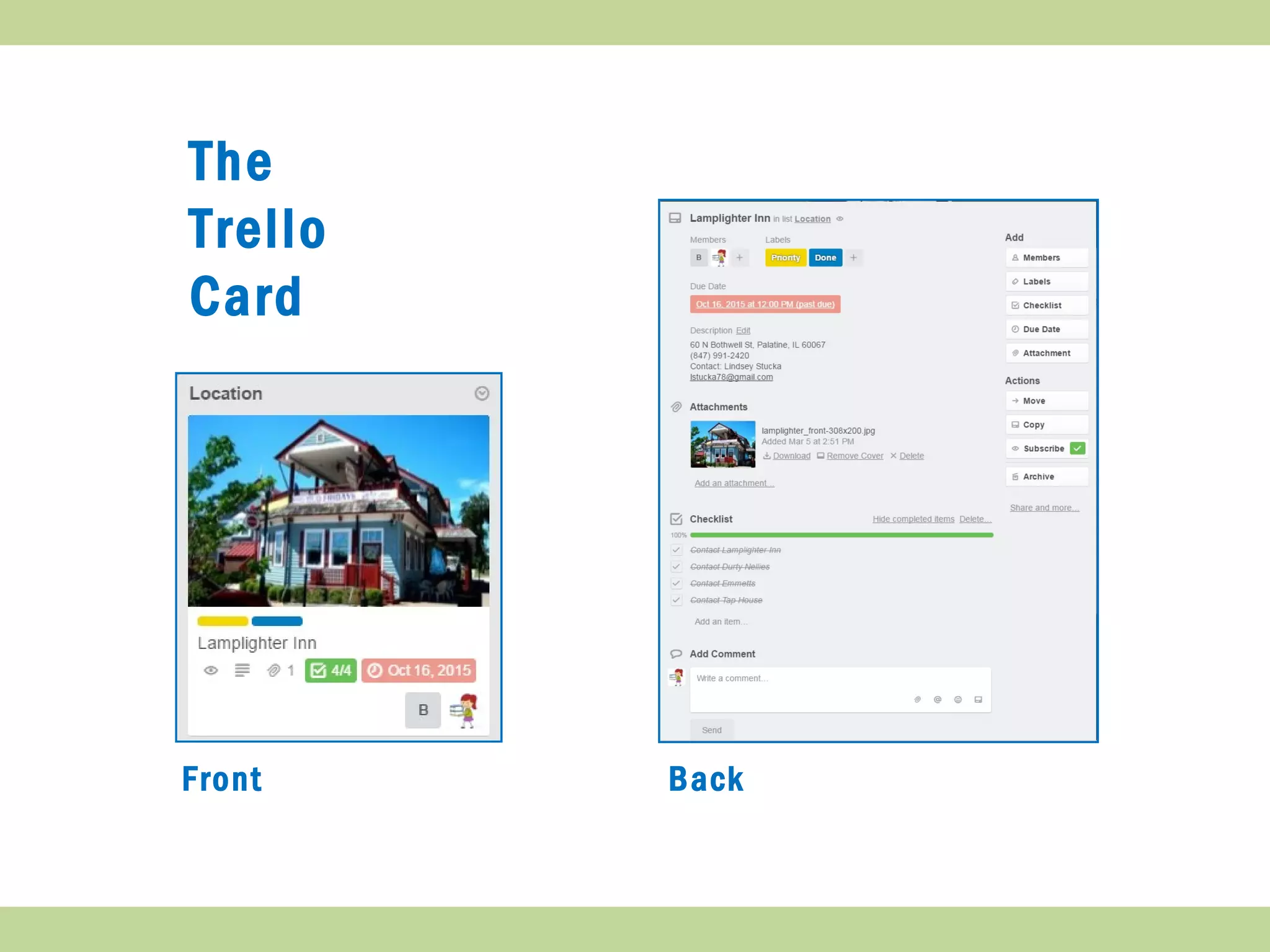
List
Front Back
The
Trello
Card
The
Trello
Card
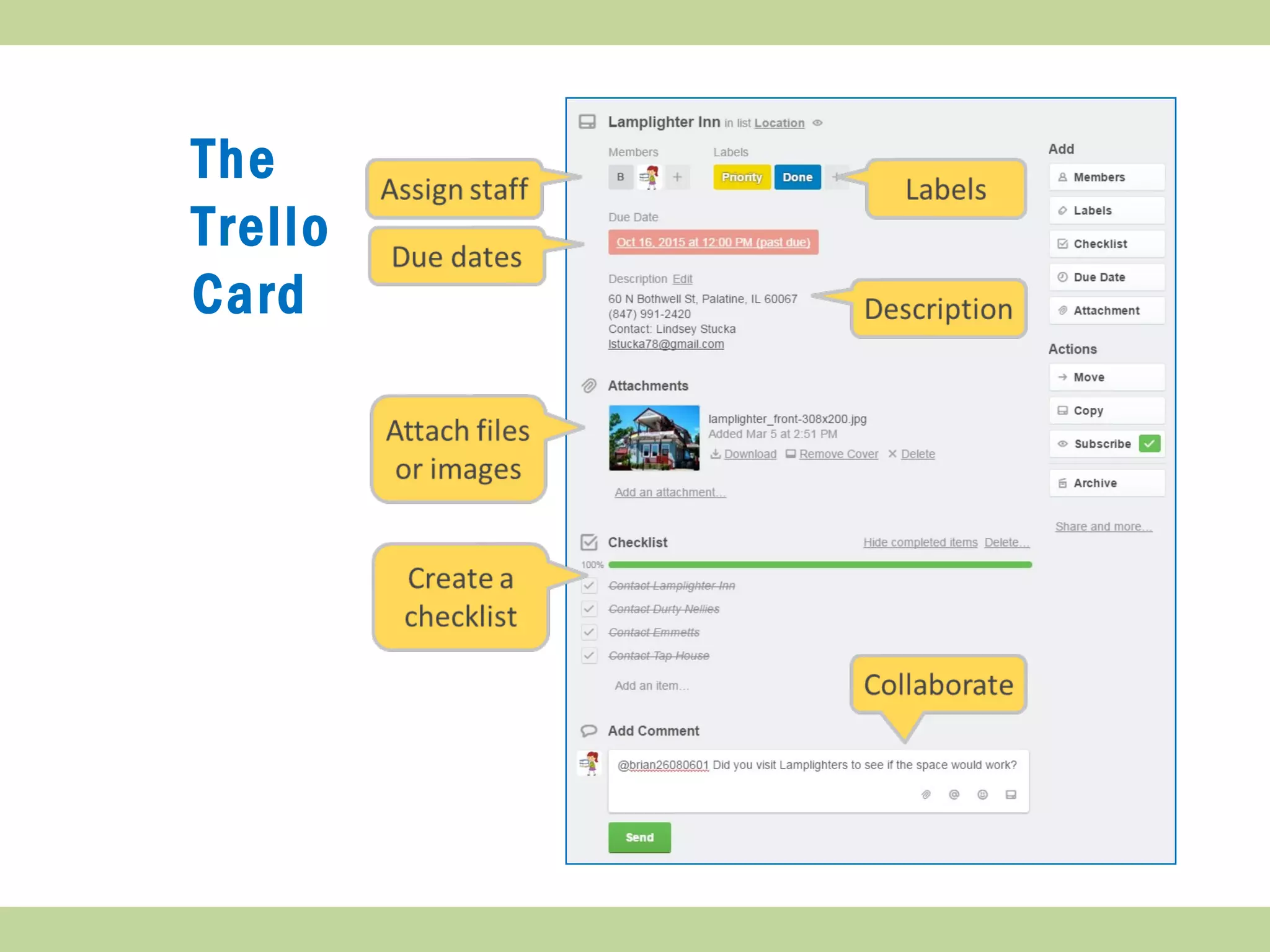
A card represents a key activity. Multiple cards
create a list. Individual steps for a card would be a
checklist.
The
Trello
Card
Card
Management
Bulk add
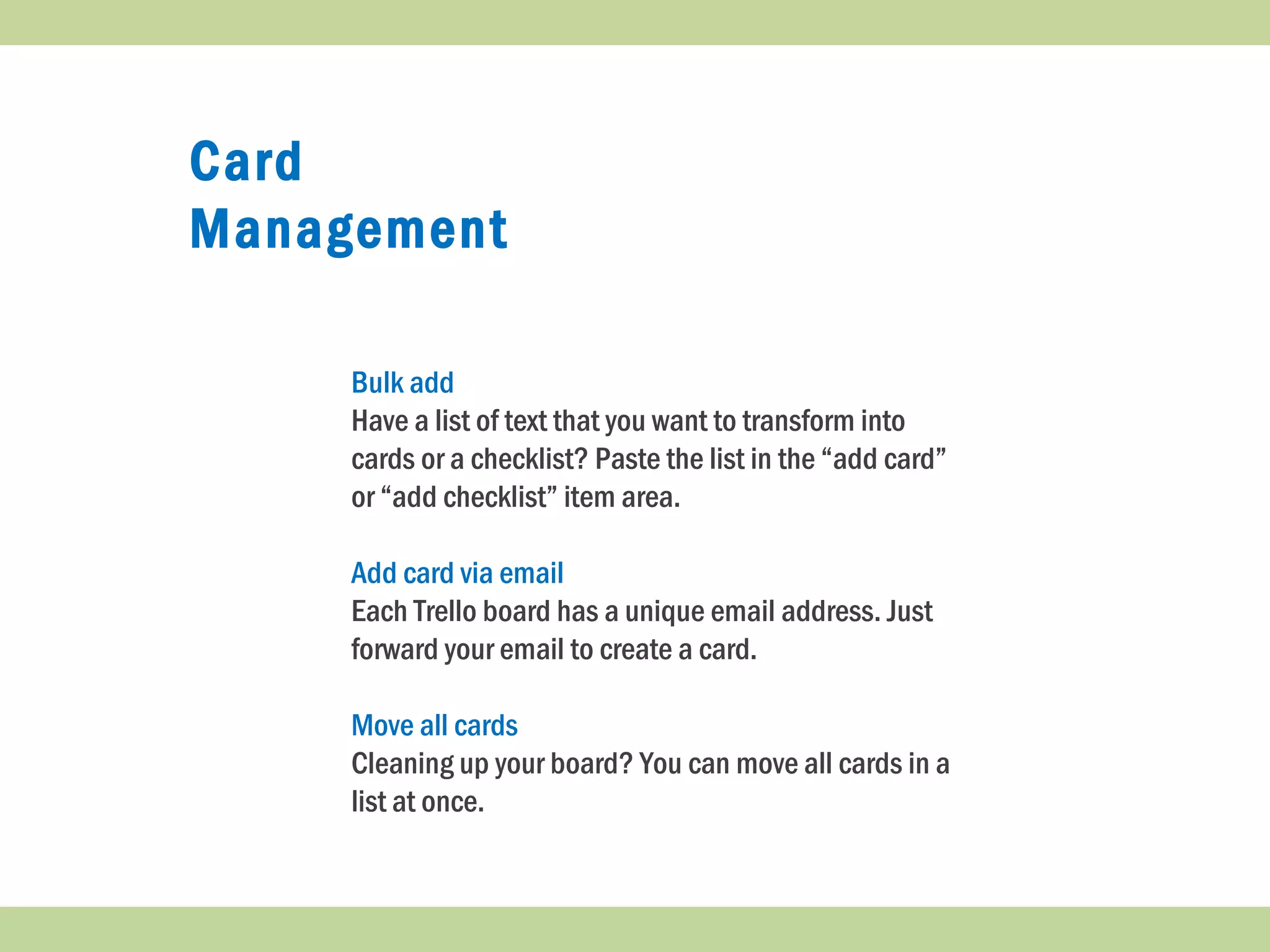
Have a list of text that you want to transform into
cards or a checklist? Paste the list in the “add card”
or “add checklist” item area.
Add card via email
Each Trello board has a unique email address. Just
forward your email to create a card.
Move all cards
Cleaning up your board? You can move all cards in a
list at once.
Find &
Organize
Finding a board
Type “b” from any board, and the board search will appear.
Keep your titles descriptive to improve your search.
Search Cards
Press “/” on any board to find cards across any of your
boards.
Color Code
As your boards grow, designate a different color so you spot
the right board right away.
Filter
Cards
Deadlines
&
Due Dates
View
Board as
Calendar
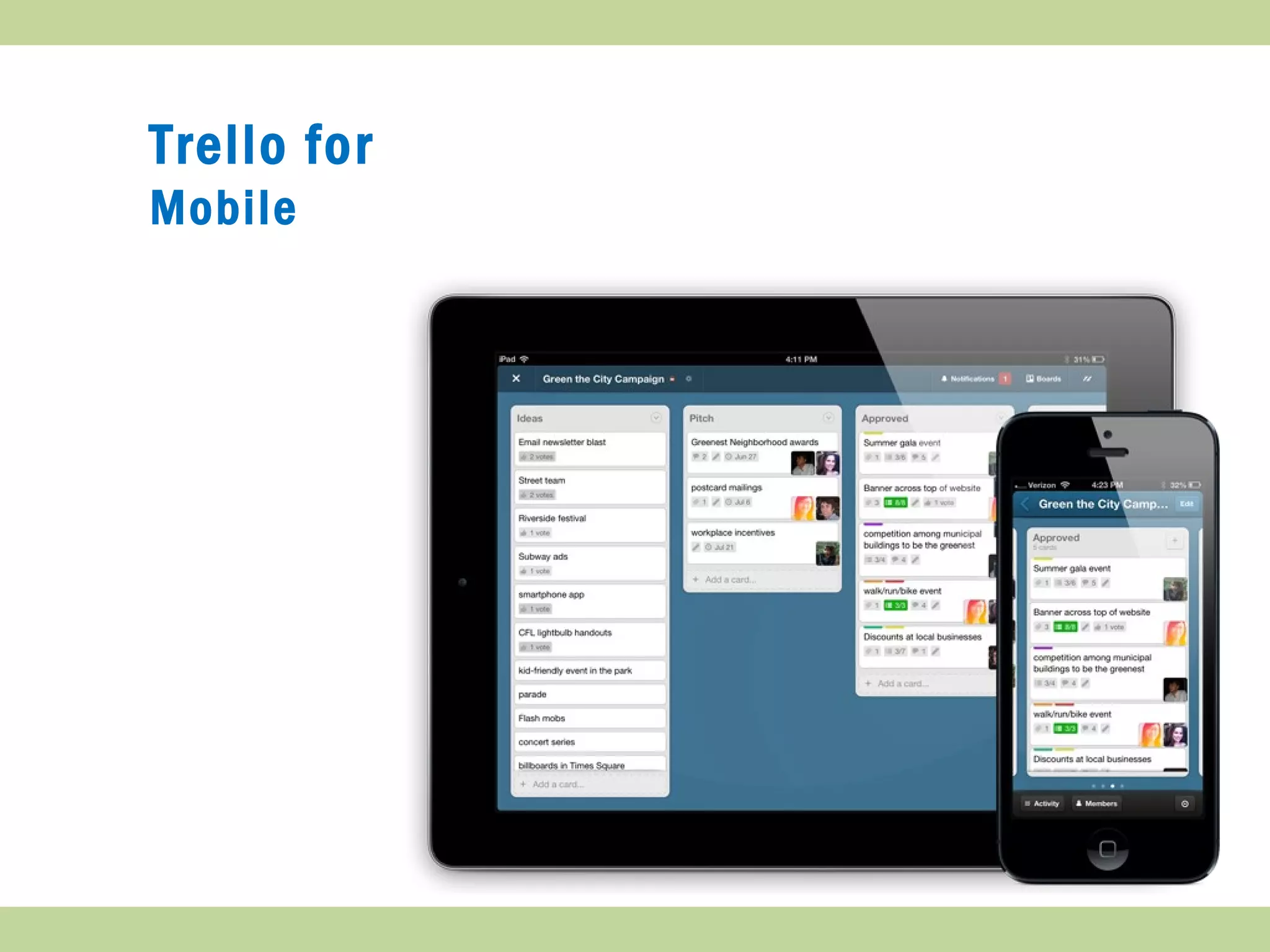
Trello for
Mobile
NOTIFICATIONS
Real time notifications. Respond right within the Trello app on your phone.
ATTACHMENTS
Attach photos or documents straight to card
MOVE CARDS
Move cards to a different list while on the go
Trello Tips &
Inspiration
Inspiring Boards
Best Practices
Trello Tips
Trello Help
5 Uses of the Trello App

Secrets of Being Highly Productive: Trello

  • 1.
    Kristine Kenney Information ServicesManager Palatine Public Library District kkenney@palatinelibrary.org
  • 2.
  • 3.
    Inc. Best tools andapps to boost your productivity in 2016 Fortune 5 Productivity tools to keep you and your business on track in 2016 Fast Company The 7 essential mobile apps for when you have to work on your phone
  • 4.
    FREE Use cards toorganize your daily activities and projects SIMPLE Start with lists and move left to right UNLIMITED Unlimited Boards, unlimited users, unlimited uploads
  • 5.
    VISUAL Easily see whereyou should focus your attention using photos, colors and dates FLUID Drag and drop cards give your tasks and projects flexibility Automatically syncs across your devices and across each team member INTEGRATION Add documents from Google Drive, Drop Box and OneDrive.
  • 7.
  • 8.
  • 9.
    The Trello Card A card representsa key activity. Multiple cards create a list. Individual steps for a card would be a checklist.
  • 10.
  • 11.
    Card Management Bulk add Have alist of text that you want to transform into cards or a checklist? Paste the list in the “add card” or “add checklist” item area. Add card via email Each Trello board has a unique email address. Just forward your email to create a card. Move all cards Cleaning up your board? You can move all cards in a list at once.
  • 12.
    Find & Organize Finding aboard Type “b” from any board, and the board search will appear. Keep your titles descriptive to improve your search. Search Cards Press “/” on any board to find cards across any of your boards. Color Code As your boards grow, designate a different color so you spot the right board right away.
  • 13.
  • 14.
  • 15.
  • 16.
  • 17.
    NOTIFICATIONS Real time notifications.Respond right within the Trello app on your phone. ATTACHMENTS Attach photos or documents straight to card MOVE CARDS Move cards to a different list while on the go
  • 18.
    Trello Tips & Inspiration InspiringBoards Best Practices Trello Tips Trello Help 5 Uses of the Trello App